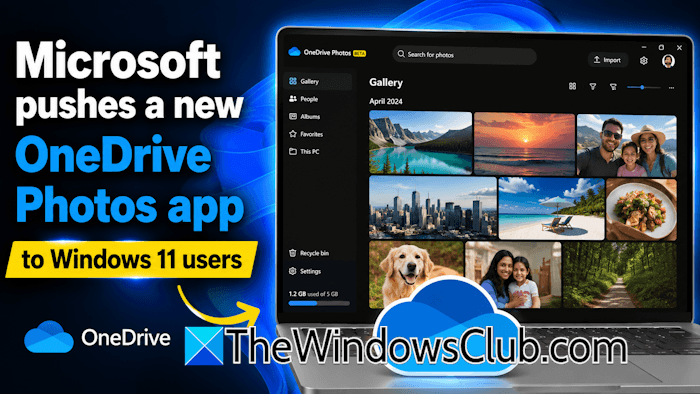
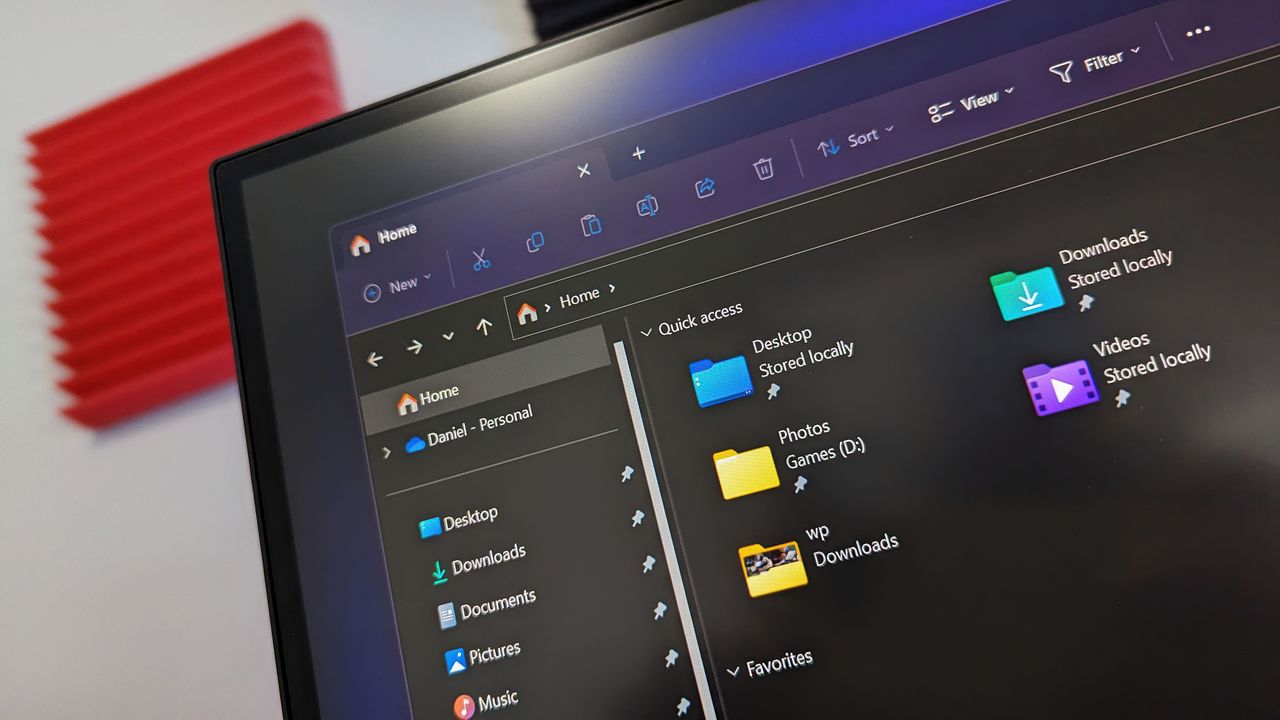
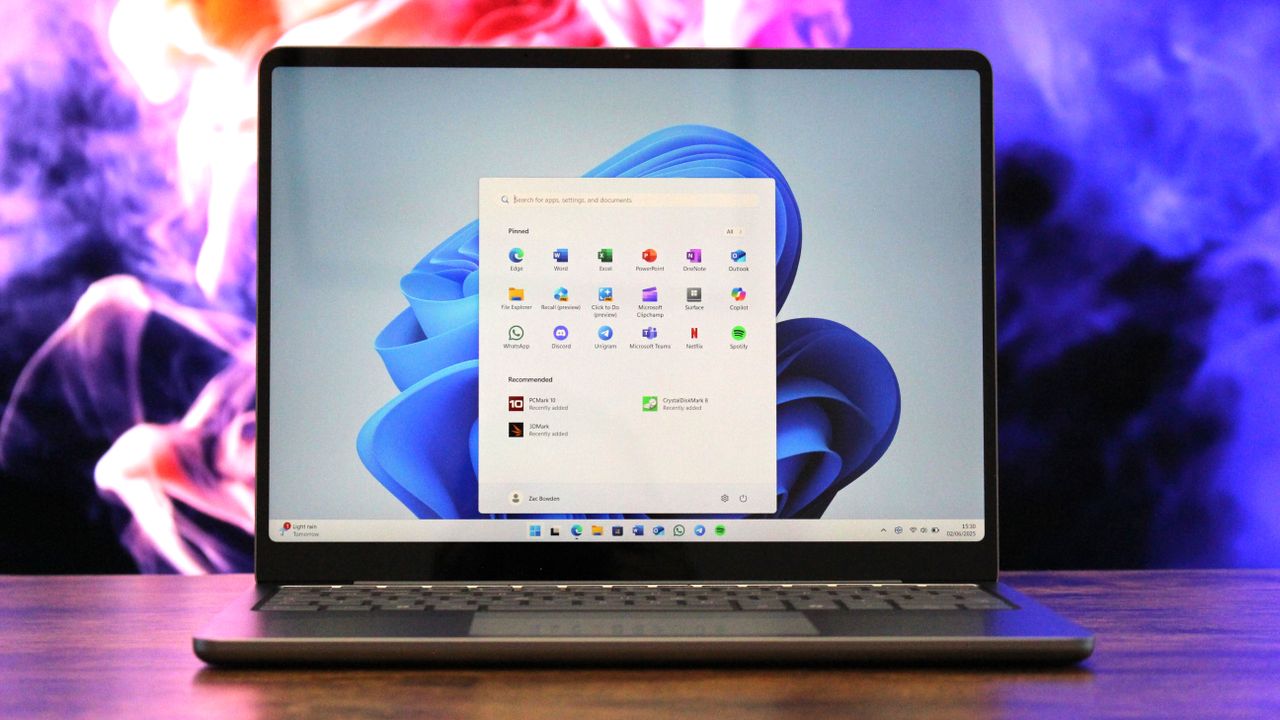
Microsoft has quietly introduced a new OneDrive Photos app into Windows 11, but instead of improving the experience, the move has drawn criticism from IT administrators and enterprise users. The new app focuses on viewing photos stored in personal OneDrive accounts, yet it offers little value in business or managed environments. Many administrators argue that […]
If you’ve ever been frustrated by File Explorer resetting your custom layout or throwing bizarre security warnings when you’re just trying to open a file from a work server, Microsoft is finally rolling out a fix. The latest batch of Windows 11 updates brings a wave of welcome quality-of-life improvements and bug fixes directly to […]
If you follow the behind-the-scenes tweaks in preview builds, there is some interesting movement happening in the experimental testing branch. Under-the-hood traces reveal that Microsoft is getting ready to push a build number bump to 26340.xxxx for the Windows Insider Experimental Channel, as covered in recent Windows 11 news. While the active flight sits at […]
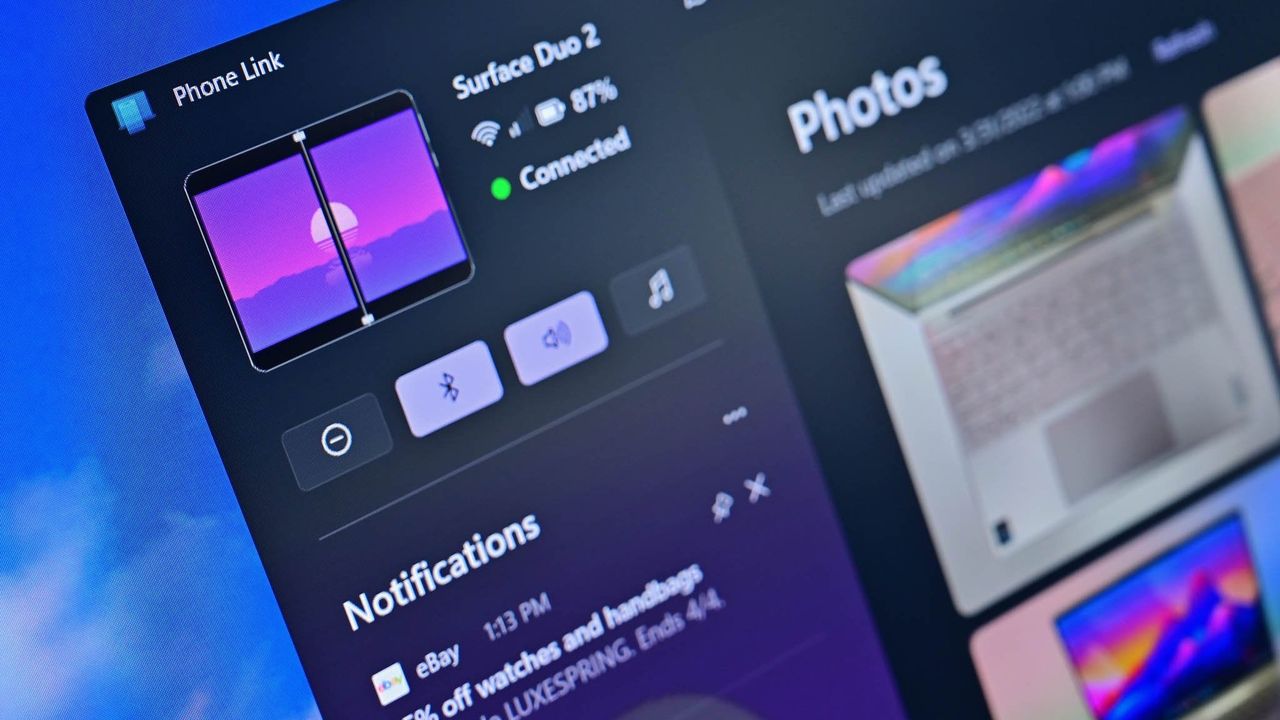
Picking up your phone every time it buzzes is one of the quickest ways to lose your train of thought while working. Microsoft has been slowly fixing that problem through its Phone Link integration, and the latest batch of Windows 11 news brings a welcome quality-of-life upgrade right to your desktop. With the new update […]
Earlier this year, Microsoft announced that it was moving to address Windows 11's biggest issues and criticisms from users in an effort to win back trust from customers and reposition Windows once more as a viable alternative to macOS and Linux, something people actually want to use over the competition.
It was nice to see Microsoft outline its roadmap and plan for Windows 11, but I wasn't prepared for just how fast the company would start delivering on the promises it was making. Since March, Microsoft has previewed and even shipped many improvements to Windows 11 that are the direct result of its Windows K2 initiative, all designed to fix Windows 11.
I've been testing these new Windows 11 builds over the last few months, and there are 5 big changes and improvements that stand out as super exciting. Some of these improvements are already shipping, whereas others are still in preview.
A new and improved Windows Update
Windows Update is now much smarter and doesn't get in the way anymore (Image credit: Zac Bowden / Windows Central)
Updates on Windows have always been frustrating, so much so Microsoft made it a point of focus for its Windows K2 effort. In the last few months, Microsoft has shipped multiple changes and improvements to Windows Update which are designed to make it more reliable, and more importantly, less annoying.
The first big change is ensuring driver, framework, and security updates are now all timed to install at the same time. Previously, any update could require the user to restart at any time. Now, Windows Update will only ask you to restart once a month, as the update system now installs those driver and framework updates alongside security patches.
That's in addition to being able to pause updates indefinitely now, so even when the one time a month that Windows asks you to restart finally rolls around, users have the option to say no and postpone the restart for as long as they need. Even when an update is pending restart, the option to shut down or restart without installing said update is now present.
Microsoft has even made it so users can skip installing updates when setting up a PC for the first time, meaning it now takes just a few minutes to get right into using your new PC instead of the 20+ minutes it used to take when installing the latest update was a requirement before reaching the desktop.
All of these Windows Update improvements are already shipping to all Windows 11 users, which is a crazy quick turn around.
Less ads and AI across the OS
Widgets no longer includes MSN ads and sponsored content. (Image credit: Zac Bowden / Windows Central)
Microsoft is also removing Bing and MSN ads from Windows Search, in preview now. The search pane itself is now a long list or recent search queries and items, with nonsense like the Bing wallpaper of the day and other sponsored content no longer appearing at all. Even search results that reach out to the web no longer include sponsored content.
The Start menu now also has more granular controls over the kind of content that appears in there. The "Recommended" feed has been renamed to the "Recents" feed and no longer shows recommended apps and websites that came across as more advertising. Users even have the option to remove the Recents feed entirely now, which is great.
Copilot used to plague every inbox app and UI surface you could think of on Windows 11, but today it only appears in a few very specific areas. It still exists as a standalone app on Windows 11, but the Copilot button no longer exists in apps like Photos and Notepad. Microsoft has even removed the "Ask Copilot" option in File Explorer.
Better performance and reliability
Windows 11 is now faster and more reliable, with a focus on reducing memory usage. (Image credit: Zac Bowden / Windows Central)
One big area of focus for Microsoft is the overall performance and reliability of Windows 11, which many agree has slipped over the last few years. The good news is Microsoft has already delivered several improvements on this front, with more to come in the following weeks.
The first big change is the new "Low Latency Profile" feature that shipped just a few weeks ago. It's an invisible change that makes opening apps, context menus, and flyouts from the Taskbar much more responsive by silently increasing CPU frequency when these common actions take place.
This is something other OS platforms do which allows them to remain feeling snappy, even under heavy load, and now Windows 11 has the same behavior. This has outright fixed the issue users sometimes have where things like the Start menu don't always appear immediately when clicked. That's a thing of the past now.
Microsoft is also improving the performance of WinUI interfaces across the system via a new System Compositor which reduces latency and memory overhead across the OS so that these modern interfaces are consistently responsive. There's even a new Run dialog built with WinUI that is faster than the old Win32 version.
Opening and navigating through file trees in File Explorer is faster too, and searching for files and apps on Windows 11 is now more consistent. Two character search is already shipping, which makes finding content a little bit easier.
Customizable Taskbar and Start menu
There are many new customization options coming to Start (Image credit: Zac Bowden / Windows Central)
One of the biggest issues people have with Windows 11 is how it took away customizable options for areas of the system like the Start menu or Taskbar. Microsoft has heard that feedback, and is already publicly testing a new Taskbar and Start menu that can be user customized.
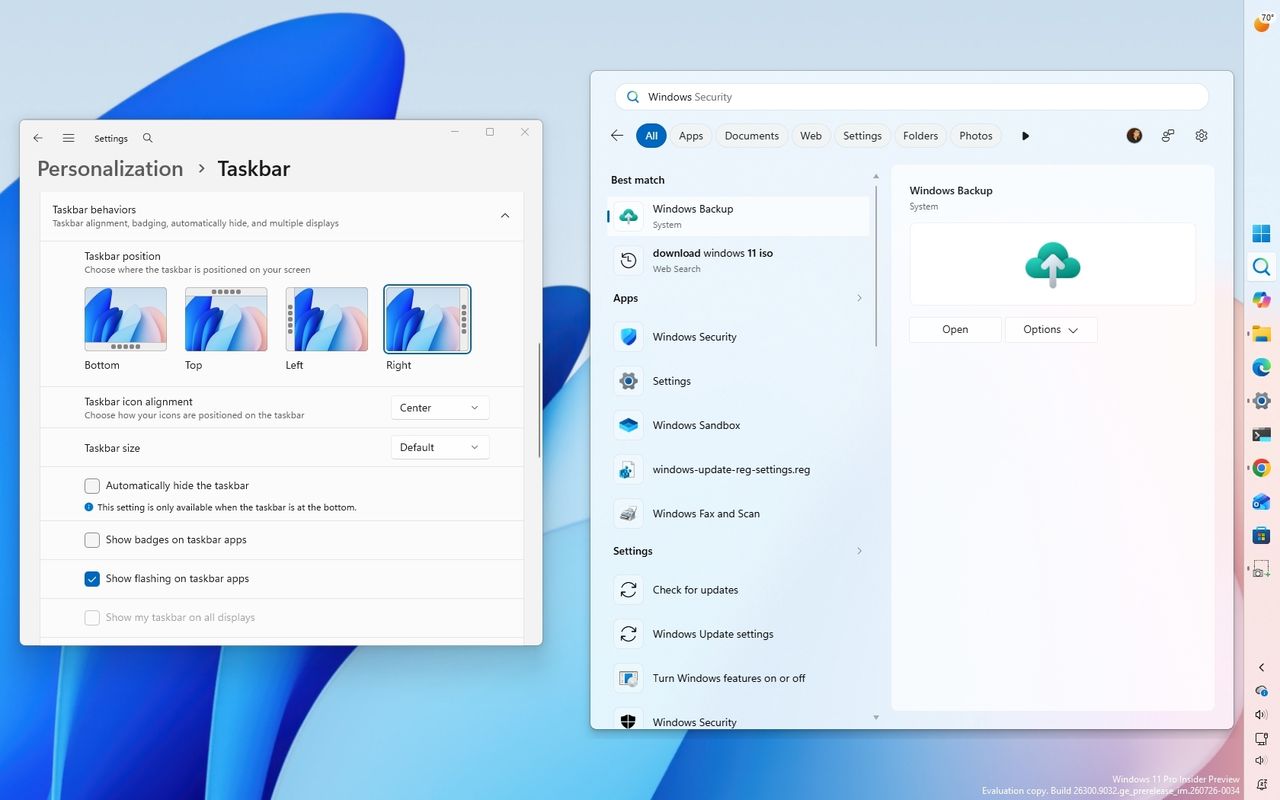
The Taskbar can now be repositioned just like on Windows 10, allowing the user to move it to the left, right and top of the display if that's where they want it. There's also a new resize option letting users make it smaller like the Windows 10 one could.
The Start menu is also getting more customization options. Users can hide entire segments of Start, such as the Recents feed, Pinned apps, or All Apps area. They can toggle on or off the Phone Link companion, and disable Start entirely if they don't ever use it.
And there's more to come
Context menus are getting a redesign and better customizability. (Image credit: Zac Bowden / Windows Central)
Above are all the new improvements that I've tested and are either shipping or in public testing via the Windows Insider Program. These are the real changes and features that can be tried and tested as we speak, not just empty promises or ideas. It's all available to download and try out right now.
There's still more to come too, stuff that isn't yet in public preview testing. Microsoft has confirmed it's working to move more parts of the OS to WinUI for faster performance, such as the Start menu and areas of File Explorer. There's an effort to reduce the footprint of the OS in the works too, which should make the OS less resource intensive at idle.
For the features that are yet to ship outside of preview, I understand that Microsoft is aiming to get the bulk of these improvements out of the door before the end of 2026, with some expected in 2027.
SI'm so very impressed with how quickly Microsoft has turned Windows 11 around so far. I haven't felt this positive about the features and changes being actively made to Windows in a really long time, to the point where it feels weird to not have anything to really complain about. All of my biggest issues with Windows 11 have either already been addressed, or are in the process of being addressed.
It's a great time to be a Windows user again.
Join us on Reddit at r/WindowsCentral to share your insights and discuss our latest news, reviews, and more.
Windows Insiders need to update their PCs to be on a recent build of Windows within the next week. The latest Windows Insider builds contain a renewed flight certificate, which is important because the current flight certificate is set to expire on August 11, 2026.
Flight certificates are used to encourage people to keep devices up to date and on supported versions of Windows. Microsoft ships renewed certificates on a routine basis.
Microsoft emphasized the importance of a renewed flight certificate because in the past renewal mainly affected those in the Canary Channel. Now, those certificates apply across all Insider channels, including Experimental and Beta.
"Today’s Experimental (Future Platforms) build contains a renewed Windows Insider flight certificate. Windows Insider Preview builds use flight certificates that are renewed periodically to help ensure Insider devices remain on supported builds and continue receiving future Insider Preview updates. The current flight certificate expires on August 11, 2026, so please update your device to a build containing the renewed flight certificate before that date."
A separate document dives into more detail, though the main takeaway is that Insiders should simply update their PCs to a recent build. Microsoft shared the chart below to help Insiders stay up to date.
Channel
Core
Minimum Build
Experimental
Future Platforms
29634.1000 (available July 27, 2026)
Experimental
26H2
26300.9032 (available July 31, 2026)
Experimental
26H1
28120.2630 (available July 31, 2026)
Beta
25H2
26220.9022 (available July 31, 2026)
Beta
26H1
28020.2623 (available July 31, 2026)
Once you've performed this one-time larger update, your PC will go back to receiving regular updates.
If you don't update your PC to a build with a fresh flight certificate, you'll start seeing a warning that says, "This build will expire soon" on your desktop. You will also stop receiving automatic background updates once the flight certificate expires.
You should update your PC to a build with a fresh flight certificate, but if you don't, you can fix the issue by going to Settings > Windows Update and letting your PC install the latest build.
Test builds of Windows 11 are designed to expire relatively quickly, so you should update your PC regularly if you're a Windows Insider. Doing so will ensure your system is running a supported version of Windows.
Join us on Reddit at r/WindowsCentral to share your insights and discuss our latest news, reviews, and more.
In this episode of the Windows Central Podcast, Daniel Rubino and Zac Bowden sit down with Marcus Ash, Corporate Vice President of Design and Research for Windows at Microsoft. The discussion centers on the user experience vision for Windows 11, balancing modernization with legacy app compatibility, and optimizing system efficiency across diverse hardware configurations.
This episode of the Windows Central Podcast is sponsored by Surfshark VPN. Unlimited devices, access your content from anywhere, and auto-block malware on Windows, Edge, and other platforms from $2.50/mo, with 4 months extra FREE. Sign up today!
Design Philosophy in Windows 11: Marcus Ash discusses how design decisions are shaped by user feedback, telemetry, and modern workflow requirements.
Optimizing Performance for Low-RAM Devices (8GB): A deep dive into full-stack optimizations—ranging from kernel memory scheduling to UI process management—to ensure smooth performance on 8GB RAM hardware.
Modernizing Legacy Tools vs. Backward Compatibility: Discussion on how Microsoft approaches updating older OS utilities (e.g., Control Panel, Registry Editor) while protecting enterprise compatibility and muscle memory.
Web Tech, WebView2, and Modern UI: Exploring the role of web-based interface components in Windows 11, including trade-offs between agility, feature delivery, and resource utilization.
Have a question you want us to answer on the podcast? Send it to us at [email protected]
562 researchers across 64 countries were on the receiving end of $20 million of rewards from the Microsoft Bounty Program. That program has researchers work with Microsoft to identify and report vulnerabilities across Microsoft's products and services.
The program has been around for years, but the $20 million in awards is a new record. For context, the Microsoft Bounty Program awarded $17 million to 344 researchers last year.
How much researchers receive depends on the type of vulnerability they report. Cloud programs and Zero Day Quest vulnerabilities are capped at $100,000 per vulnerability. Reporting an Endpoint and On-Premises program vulnerability can be worth up to $250,000.
Of course, those are the maximum payouts per report. Many reported vulnerabilities result in smaller awards.
Microsoft expanded the scope of its researcher awards last year. Now, in addition to flagging traditional bounties, researchers can be rewarded for reporting vulnerabilities in open-source software, third-party components, and Microsoft cloud services.
Microsoft detailed the rewards in a recent blog post.
"Security is a team sport. Every vulnerability reported through our bounty programs represents an opportunity to address risk before it can be exploited against customers," said Microsoft. "The work of the research community plays a critical role in helping Microsoft stay ahead of emerging threats while strengthening the security of cloud services, AI systems, enterprise platforms, and consumer technologies."
Microsoft credited the increase in submissions in part to AI. Increasingly, AI is being used to help security researchers.
Microsoft also uses AI to find and fix vulnerabilities as well. Unfortunately, AI can also be used by hackers to quickly leverage discovered vulnerabilities. As a result, there is an AI arms race happening between malicious actors and security researchers.
Microsoft also recalled the success of the Microsoft Zero Day Quest, which had researchers from 20 countries travel to Microsoft's campus in Redmond, Washington. Over 700 vulnerability reports were filed and over $2.3 million was awarded at that event.
Join us on Reddit at r/WindowsCentral to share your insights and discuss our latest news, reviews, and more.
Microsoft's Surface Pro 12-inch 1st Edition (2025) powered by Qualcomm Snapdragon X Plus processor.
A vulnerability report on the Copilot experience can result in an award of up to $30,000.
July has come to an end, and as we start a new month, it's a good time to look at the new features and changes that Microsoft has been working on in the second half of the month for Windows 11.
In the last two weeks of July, the company has delivered several new features, but many of those improvements were features that we have already seen in other builds as Microsoft continues to align each channel more closely together.
As part of the improvements, we have seen new customization options for the Start menu, new gestures for the touchpad, an updated interface for the Account Control menu, and improvements for File Explorer.
In addition, we have seen the company pushing changes to Widgets, Windows Search, and more.
In the Experimental channel, Microsoft released builds 26300.9032, 26300.8935, 28120.2630, and 28120.2546, while the Beta channel introduced builds 26220.9022, 26220.8925, 28020.2623, and 28020.2539 for versions 26H2, 26H1, and 25H2.
In this recap, I'll highlight the latest and most noteworthy changes available through the Windows Insider Program.
Biggest improvements from the Windows Insider Program in July 2026
These are the most significant changes Microsoft has unveiled since my last roundup.
Windows Search automatic locations
Starting with the release of build 26300.9032, the operating system ships with an updated version of Windows Search that can now automatically find and search other folder locations based on your activity.
The new feature uses signals, such as files and frequently accessed locations. According to the company, this helps to make relevant files easy to find without requiring manual indexing.
The feature is known as "Automatically find additional relevant locations," and it's located on Settings > Privacy & security > Search.
(Image credit: Microsoft)
In addition, Microsoft didn't mention this, but I've noticed a new "Search the contents of online files" on the same page, which allows you to decide whether Windows Search can search online content.
Phone Link changes
The Phone Link companion flyout that appears in the Start menu is getting an update on build 26300.9032 that allows you to hover over a recent message or notification in the "Recent" section to preview the content without extra steps.
(Image credit: Microsoft)
This improvement requires the Phone Link app version 1.26021.3.0 or higher.
Adaptive hibernate policy update
In the Experimental channel, build 26300.9032 (version 25H2) also introduces changes for the adaptive hibernate policy to prevent hibernation when the battery is above 80 percent and to hibernate when the battery falls below 10 percent.
Microsoft accomplishes this by increasing instances of instant-on resumes from Modern Standby and increasing battery preservation at the low end of the battery.
This change is also available on builds 28120.2630 and 28020.2623 for version 26H1.
File Explorer performance boost
On build 26300.8935, File Explorer received three specific improvements. First, the company made file deletion faster when deleting large and fragmented files.
This update also makes the Home page faster, and finally, the "Recommended" section on the Home page now supports touch scrolling to make it easier to browse files from the carousel.
In addition, starting with build 26220.8925 for version 25H2, the "Details" view now shows file sizes with appropriate units, such as KB, MB, and GB, instead of only showing KB.
(Image credit: Mauro Huculak)
Furthermore, on the "Home" page, you can now use a middle mouse click to open folder locations in new tabs.
Widgets improvements
The preview build 26300.8935 also updates the animated icons for the Widgets entry point in the Taskbar.
First, the icon now matches the system accent color instead of the red color. Also, the animated icons can now show more dynamic content if notifications are enabled in the Widgets dashboard.
Windows Update changes
On build 28120.2630 (Experimental channel for version 26H1), Microsoft is making system updates less disruptive by reducing the number of restarts users face each month.
This is possible thanks to a new unified update experience that coordinates driver, .NET, and firmware updates with the monthly quality update, consolidating updates into a single monthly reboot instead of multiple interruptions.
The company is also expanding update pause controls, allowing users to extend update pauses as many times as needed.
(Image credit: Mauro Huculak)
These improvements are also available for build 28020.2623 in the Beta channel for version 26H1.
Touchpad gestures
Builds 28120.2630 and 28020.2623 for version 26H1 add new gesture controls for Precision Touchpads through the Settings app.
The new options will work across most apps, although apps built with WinUI 3 will require updated WinAppSDK 1.8 or 2.0 support before they can take full advantage of the changes.
(Image credit: Microsoft)
The new controls include scroll and zoom speed, which lets you adjust the default speed for scrolling and pinch-to-zoom gestures. Also, accelerated scrolling will allow you to increase scrolling speed the longer you continue scrolling, making it easier to move quickly through long documents and webpages.
These improvements are also available for build 26220.8925 in the Beta channel for version 25H2.
Smart card policy
Starting with build 28120.2546, Microsoft is adding support to remove smart card policies in Azure Virtual Desktop (AVD) and Windows 365 sessions that use Microsoft Entra ID authentication.
As a result of this change, administrators can configure remote sessions to automatically disconnect when a redirected smart card is removed, helping improve security and meet compliance requirements.
This improvement is also available for build 29639 in the Experimental channel for version Future Platforms.
Narrator changes
Microsoft is making refreshable Braille displays easier to use with Narrator in build 28120.2546.
Windows 11 now supports HID-compatible Braille displays, allowing users to connect supported devices instantly over USB with no additional setup, or wirelessly through Bluetooth. The feature also works during the initial Out-of-Box Experience (OOBE), enabling you to configure a new computer independently.
These improvements are also available for build 28020.2539 in the Beta channel for version 26H1, for build 26220.8925 for version 25H2, and for build 29634 for version Future Platforms.
Taskbar positioning
Starting with build 26220.9022 for version 25H2 in the Beta channel, the operating system introduces the ability to change the position of the Taskbar to the top, left, right, and bottom of the screen.
The new setting is known as "Taskbar positions," and it's available from Settings > Personalization > Taskbar > Taskbar behaviors.
(Image credit: Mauro Huculak)
When using this new functionality, Taskbar tooltips, flyouts, and animations continue to work in any of the positions, while most customization options, including never combining Taskbar icons, remain available.
(Image credit: Mauro Huculak)
This flight also introduces the ability to make the Taskbar smaller. The option is available from this page. However, in the Beta channel, the option works when configuring the "Show smaller app icons" option. In future releases, the company will add a dedicated button under the "Taskbar behaviors" setting, as it's currently available in the Experimental channel.
It's worth pointing out that these changes are still under development, and they may not work as intended.
Start menu new customization
On Windows 11 build 26220.8925, Microsoft is rolling out new Start menu customization options, including the ability to choose which sections appear in the menu and adjust its size.
The new customization settings are available on Settings > Personalization > Start. On this page, you can show or hide any of the sections, and you'll also notice that the "Recommended" section has been renamed to "Recent."
(Image credit: Mauro Huculak)
In addition, there's a new option to change the Start menu size, which means you can make the menu larger or smaller, or use the automatic option to let the system choose the size based on the configuration.
(Image credit: Mauro Huculak)
Finally, at the bottom of the page, under the "Other" section, you can enable the "Hide your name and profile picture on Start" setting to improve your privacy when projecting your screen to other people.
Account Control menu redesign
Microsoft is also refreshing the Account Control flyout in the Start menu with a more modern design and clearer Microsoft account information.
(Image credit: Mauro Huculak)
The updated interface adds a subscription badge, making it easier to check your account state, view available benefits, and explore upgrade options.
It also surfaces account benefits and storage details, giving users a centralized place to manage their Microsoft account without opening the Settings app.
This improvement is also available for build 29634 in the Experimental channel for version Future Platforms.
Voice Isolation for Voice Access
On build 29634 in the Experimental channel for version Future Platforms, Windows 11 also introduced Voice Isolation for Voice Access to improve speech recognition in noisy environments and shared spaces.
According to the company, the feature uses on-device processing for filtering background noise and nearby conversations.
In addition, Voice Access now includes three speech recognition models, including "Voice Isolation," "Remove background noise only," and "No filtering."
Windows Central's Take
Looking back at the second half of July, I don't think this was Microsoft's most exciting set of Insider releases. A lot of what landed in the Beta and Experimental channels wasn't entirely new. Instead, it felt like the company was catching those channels up with features that had already appeared in other Insider channels as it continues to align the program.
I don't think that's a bad thing. It suggests Microsoft is getting closer to offering a more consistent experience across the Insider channels while focusing on improvements that people will actually notice.
I'm still waiting to see how quickly these features make it into the stable release. Microsoft has been moving faster recently, but Insider builds are still a preview of what's planned, not a guarantee of what will eventually ship.
What are your thoughts about these latest Windows 11 Insider changes? Let me know in the comments.
More resources
Explore more in-depth how-to guides, troubleshooting advice, and essential tips to get the most out of Windows 11 and 10. Start browsing here:
Your iPhone and your PC are about to get a bit closer. Apple is working on allowing your iPhone's clipboard to connect to your Windows 11 clipboard.
The feature was requested by Microsoft and after review, Apple has agreed to move forward with it. MacRumors first spotted the change and 9to5Mac expanded on that coverage.
Rather than just a friendly note, Microsoft reached out to Apple in the form of an EU Digital Markets Act (DMA) interoperability request.
At the moment, apps can only access an iPhone's clipboard if the app is actively running in the foreground. Apple will need to grant access to Microsoft to make clipboard syncing possible.
Apple already has a Universal Clipboard feature that works across iOS and macOS. That feature is one of many benefits of users being in Apple's ecosystem.
Microsoft argued that “cross-device copy and paste is a foundational productivity interaction that users expect to ‘just work’ across their primary devices."
Microsoft also described the use cases for the interoperability:
Copy text or other supported content on their iPhone and paste it directly on their Windows PC, and vice versa.
Perform common productivity workflows without needing to foreground an app or take explicit repeated actions to initiate a transfer.
Experience clipboard synchronization as a lightweight, continuous capability rather than a manual, app-driven operation.
On June 26, Apple confirmed that it will make the feature available:
"We will introduce a new solution that will follow similar patterns to the Accessory Notifications and Accessory Live Activities frameworks that were introduced on iOS26.5. It will enable you to create an extension to share and import pasteboard items with paired accessories. The system will notify your extension when items are copied into the clipboard; then your extension can use the Accessory Transport Extension framework to share the contents with your accessory as necessary using available transports."
If the feature does ship, it will rely on Apple’s AccessorySetupKit, which is an API framework that requires authorization from both the connected Windows PC and iOS device.
Unfortunately, there are several caveats to the interoperability. First, it will likely not be ready until at least late 2027. Apple referred to creating the feature as a "significant engineering effort," and noted development will be complete by fall 2027. After that, the feature will enter beta and eventually ship to the public.
Even when the clipboard connection becomes available, it may be limited to users in the European Union (EU). When forced to create features or expand them across platforms, Apple sometimes only rolls out the changes within the EU. In other instances, Apple has released the improvements to everyone, regardless of location.
Microsoft has taken a similar approach when dealing with the EU. I would argue the best version of Windows 11 is limited to EU users because they have greater control over which apps are installed on their PC.
Join us on Reddit at r/WindowsCentral to share your insights and discuss our latest news, reviews, and more.
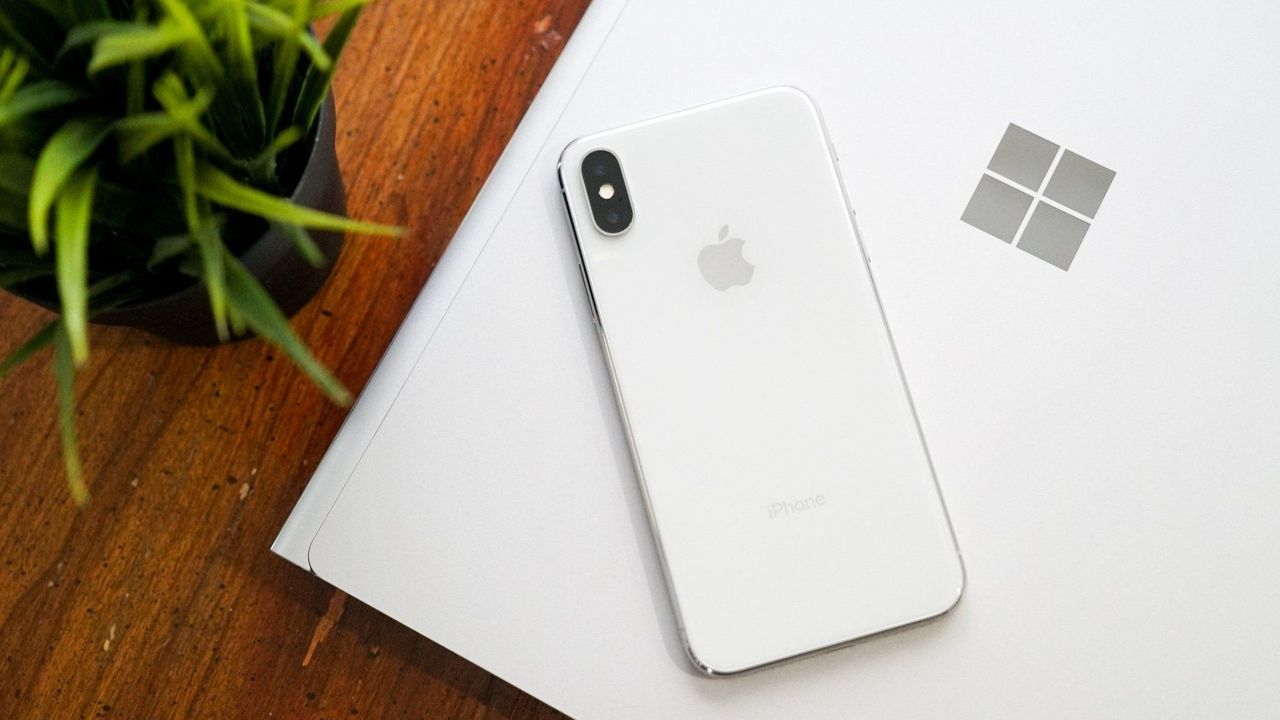
iPhone X resting on a Windows PC showing the Microsoft logo
iPhone X resting on a Windows PC showing the Microsoft logo
Microsoft's CVP of Design and Research for Windows and Devices, Marcus Ash sat down with the Windows Central Podcast to discuss ongoing work around Windows 11's UI, and how the company is moving to finally eradicate the OS of legacy cruft while maintaining backward compatibility where possible.
We started with Control Panel, which is everyone's go-to as a measurement for the progress the company has made to modernize Windows. Microsoft first began modernizing the Control Panel with Windows 8 over 13 years ago, and the work still isn't complete over a decade later.
Unsurprisingly, Ash says that the reason this has taken so long is that Microsoft prides itself on compatibility with legacy tooling and workflows, so it can't just rush in and modernize everything without first ensuring the modern replacements maintain functionality with what came before.
"That's why things like Control Panel get tricky, because if a customer has a driver or has something that depends on that legacy functionality, we just have to be careful about not breaking that compatibility promise," Ash said. "When we finally get things in Settings, we will then deprecate places say in Control Panel where we don't need that function anymore, we can carry it forward."
Control Panel still exists in Windows 11 today. (Image credit: Screenshot: Windows Central / Laptop: Edited with Gemini)
Ash highlights that modernizing legacy interfaces is as much about designing and building the new interface as it is about developing the tooling and UI frameworks to support the functionality required to build that modern interface, all while carrying forward the same capabilities, featureset, and performance.
"It also requires us to do work in WinUI 3 and some of these frameworks so that we can move things over at a rate that we think, one, customers can adopt and not break promises, but also just make sure we can test and we have the framework that supports all the things that our customers need. So we are pushing really hard to try to modernize, but we're also proud of the progress."
Ash says that legacy support in Windows is a strength of the platform, not a weakness. With that said, the company is exploring ways it can modernize legacy apps and interfaces while maintaining that legacy support. "There will be cases where, because of a customer that wants something that's important to them, we'll have some legacy UI, but even there we're trying to look and see: are there ways that through tooling and through better approaches we can just reduce that over time?"
In case you've ever wondered how Microsoft goes about choosing which legacy interfaces to modernize, Ash breaks down the process, confirming that "it's based on usage, telemetry, feedback. It's based on: where do we think the tooling is ready to move that surface forward? ... we just keep going through that and trying to make sure that over time, the amount of legacy UI that a customer would see in their day-to-day experience just gets smaller and smaller."
Microsoft is slowly but surely modernizing apps like File Explorer with WinUI. (Image credit: Phantomofearth on BlueSky)
"We look at user journeys. Like if you were to look at File Explorer and you were to think about all the functions that happen in File Explorer, we then look left-to-right and say, okay, for this particular dialogue, where did the user start and where does the user end? So it's not just pick one dialogue, it's pick the full user journey of the things that the customer is trying to do."
Ash even teases that the company is looking at how it can evolve its tooling that that one day it can tackle modernizing apps like the Registry Editor. "I would say the common things that we look at are the top things that users/customers want: File Explorer and some of the big apps. But even things like Regedit and some of the tooling, we're already starting to take a look at and figure out: how would we attack this problem so that we keep a compatibility promise AND we can modernize these frameworks."
It's clear that Microsoft is eager to move Windows forward with modern designs that are consistent with its current design language, but that the company must ensure that these modernizations don't interrupt workflows or break compatibility. That's ultimately why it's taken so long for Microsoft to modernize legacy UIs across Windows, because the UI frameworks and tooling required to do it need to be built-out to ensure legacy support first.
Our interview dives into more topics, including optimizing the OS for 8GB RAM devices and why Microsoft sometimes chooses WebView2 over WinUI in certain apps and interfaces. Be sure to watch the whole interview on our YouTube!
The Windows Central Podcast is sponsored by Surfshark VPN. Unlimited devices, access your content from anywhere, and auto-block malware on Windows, Edge, and other platforms from $2.50/mo, with 4 months extra FREE. Register today!
Join us on Reddit at r/WindowsCentral to share your insights and discuss our latest news, reviews, and more.
Microsoft has quietly pushed a new OneDrive Photos app to Windows 11 users, and most of them are unaware of it. I was surprised to find it in Windows 11 search results while searching for the Photos app. Since I did not install it on my system, it might have installed through a Windows Update […]
Microsoft's Corporate Vice President of Design and Research on Windows, Marcus Ash, has commented on the company's ongoing effort to modernize and reduce the memory footprint of Windows 11 for devices with low amounts of RAM.
Ash confirms that Microsoft is taking its work to optimize the OS seriously. It's looking at all aspects of Windows from top to bottom to ensure performance is optimized at every step.
"This is something we've learned especially over the last few months with the effort we've done on quality. We have to look at these as full-stack challenges, from the design of the pixels all the way down to the kernel scheduler and drivers," Ash told us in an interview on the Windows Central Podcast. "We know that given the expectations customers are going to have, we have a chance to do better. We have a chance to do things that get ahead of where we know customers are going to go in terms of their expectations on the apps they run, and the responsiveness of those apps."
Apps often eat up a lot of RAM these days, which is a problem for PCs with just 8GB. (Image credit: Windows Central)
The process is a group effort, one that incorporates all the teams building software and experiences inside and on top of Windows 11. "We get teams together across Microsoft, we get our own team together, we instrument the various customer jobs that people want to run, and then we're relentless at: how do we reduce the memory footprint?"
Ash continues: "How do we think about preload, and how long something should stay preloaded so that we can release things when you're not using the app as much, when we really need to reduce more system memory? We think about the design and just making sure that when people get under stressful memory conditions, how do we make it very easy for them to decide what they don't want to run anymore so that we can relieve some of that pressure?"
It's clear that Microsoft views the ongoing memory pricing crisis and competition from the MacBook Neo as driving forces for optimizing Windows 11 for devices with 8GB RAM. The company has confirmed that it's looking to begin shipping these memory and performance optimizations before the end of the year.
Our interview with Marcus Ash touches on more topics, including modernizing legacy UIs, how WebView2 fits in, and more on the Windows Central Podcast. So give the episode a watch on our YouTube today at 2PM ET if you want to hear more from Marcus Ash.
The Windows Central Podcast is sponsored by Surfshark VPN. Unlimited devices, access your content from anywhere, and auto-block malware on Windows, Edge, and other platforms from $2.50/mo, with 4 months extra FREE. Register today!
Join us on Reddit at r/WindowsCentral to share your insights and discuss our latest news, reviews, and more.
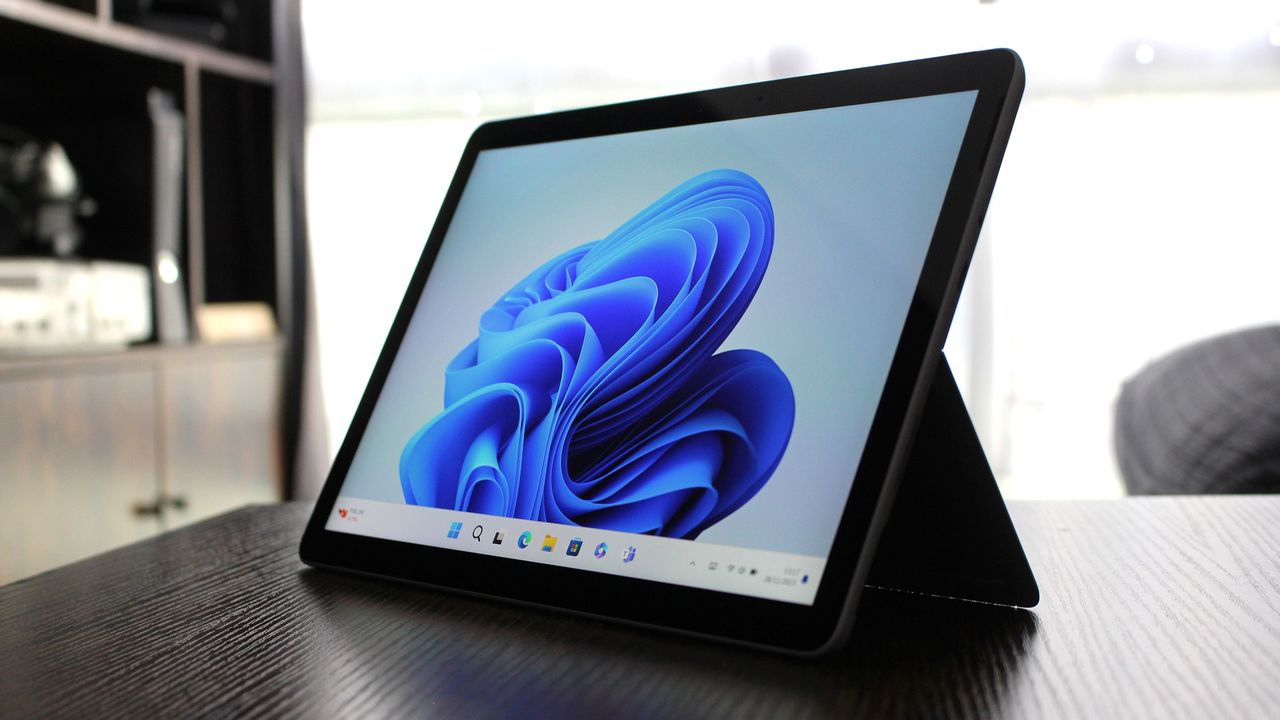
Surface Go 4 with Windows 11
(Left) Daniel Rubino, Editor-in-Chief, Windows Central; (Right) Marcus Ash, CVP Design and Research for Windows, on the Windows Central Podcast #400.
Windows Insiders have new features to try out, including improved Windows Search and an upgraded Phone Link. The changes come with Windows 11 Insider Build 26300.9032, which is now available through the Experimental Preview Channel.
The improved Windows Search is customizable, including some options that were already available. You can enable or disable integration with your personal Microsoft account or work or school account. You can also set Search to look through your OneDrive or not search your cloud storage.
The most recent addition of automatically expanding indexing in Windows Search based on your activity can also be enabled or disabled with a toggle.
Phone Link keeps getting better
The changes to Phone Link are more significant, but I wonder how many people they will affect. Based on comments here and on social media, it feels like Phone Link is a good idea that few people actually use daily. But Microsoft continues to improve it, so there must be a healthy user base.
In the most recent Windows Insider build, Phone Link can show more activity at a glance. Hovering over a recent message or notification in the recent section of the Start menu will show a preview of content. That experience is rolling out gradually, though, so you may not see it even if you're on the latest build.
Microsoft has big plans for Phone Link and even has a dedicated Messages app in the works that will support SMS conversations. Our Senior Editor Zac Bowden reported that the new features "are being explored and prototyped internally," but that they might change or not ship.
Eventually, Phone Link may integrate with the Windows shell rather than existing as a standalone app on top of Windows 11.
Microsoft has also played around with integrating Windows 11 and smartphones directly rather than through Phone Link. There's probably a place for both, but I'm curious if you have a preference regarding how to connect a smartphone and a PC.
Windows 11 Insider Preview Build 26300.9032
Search
Windows Search can now automatically expand its indexing scope based on your activity, using signals like recent files and frequently accessed locations. This helps ensure that relevant files across your device are discoverable without requiring manual indexing configuration.
To manage this feature, go to Settings > Privacy & security > Search.
Phone Link
The phone companion experience in Start already helps you keep up with activity from your mobile device. With today's update, you can see even more at a glance.
Get more from your latest activities: Hover over a recent message or notification in the Recent section to preview its content directly in Start. There's no need to pick up your phone or open the item to see what's new.
Whether you're checking a message or deciding if a notification needs attention, these updates make it easier to stay informed and keep your focus.
This experience is gradually rolling out to Insiders on the Experimental channel with a minimum Phone Link build of 1.26021.3.0. Go to Phone Link > Settings > Start menu personalization.
Settings
We've improved search in the Settings app to help you discover and navigate to settings more quickly. Search now surfaces results from more areas within Settings, with improved ranking to help relevant settings appear higher in results.
Adaptive hibernate policy
Updates to the adaptive hibernate policy increase instances of instant-on resumes from Modern Standby and increase battery preservation at the low end of the battery. Noticeable changes include less hibernation while the battery is above 80% and hibernating sooner when the battery is below 10%.
Start menu
Fixed an issue causing the Start menu to crash for some Insiders recently when dragging apps.
Taskbar
Fixed a recent issue where, when the taskbar was in an overflow state, hovering over the preview thumbnail for an app window in the overflow area would immediately dismiss it.
File Explorer
File Explorer Home now preserves the state of sections (expanded or collapsed), so you can pick up where you left off.
We've addressed an issue that caused the address bar contents to be cleared when entering edit mode by clicking near the right end of the bar.
We've improved the reliability of File Explorer when dragging files to a disconnected network drive.
This update addresses an issue where files stored on a DFS mapped drive could be incorrectly treated as originating from the internet after the device started while disconnected from the network and later reconnected. This could cause File Explorer's Preview pane to display the message, "The file you are attempting to preview could harm your computer," or cause files copied from the DFS drive to receive an unexpected Mark of the Web.
Windows Spotlight
Made some underlying changes to help improve reliability for Windows Spotlight on the lock screen.
Storage
This update fixes an issue that affects File History automatic backups to network shares using Server Message Block (SMB). Backups didn't work because Windows showed a false "invalid credentials" error when connecting to SMB shares.
Join us on Reddit at r/WindowsCentral to share your insights and discuss our latest news, reviews, and more.
Windows 11 is being fixed, and that’s not just lip service. Microsoft is making meaningful changes to its operating system. Menus are being decluttered, legacy components are being revamped, and features like Xbox Mode are reshaping Windows 11.
Just this week, we saw that Microsoft has plans to fix context menus on Windows 11 and get rid of the page-tall menus that plague PCs. Microsoft also committed to making Windows 11 perform better on systems with only 8GB of RAM.
I’ve talked about Windows 11's improvements several times this year in the Windows Wrap. Generally speaking, I’m happy that they’re happening but confused about Microsoft's timing. On top of questions like "Why did it take several years to make Windows 11 look nice?" There are also usability questions like "Why did Microsoft start selling a Surface with only 8GB of RAM before optimizing Windows 11 to work on that machine?"
Now, don’t get me wrong, Windows 11 can run on a system with only 8GB of RAM. I think many tests performed online are done in bad faith. Some people have dozens of Chrome browser tabs open and a bunch of apps running at once and then complain about performance.
But by Microsoft’s own admission, Windows 11 needs to be better on low-memory systems. With the cost of RAM skyrocketing and not looking like it will go down at any point in the near future, it’s more important than ever for Microsoft to optimize Windows 11.
Biggest News of the Week
Earlier this year, Microsoft started selling Surface PCs with only 8GB of RAM, specifically the Surface Pro 12-inch and Surface Laptop 13-inch. I appreciate the gesture. In today’s economy, getting a PC with too much RAM or too much storage for your everyday needs can cost hundreds of dollars extra.
I covered several Surface deals this week, including some options that are up to $450 off. While that is a significant savings, those deals are all on models of the Surface Pro (13-inch) with 16GB of RAM. It’s still difficult to find that type of Surface Pro under $1,200.
Many people just want a PC that’s reliable and that can handle their everyday tasks. Even those shopping in more premium categories, such as Surface, often prioritize design and form factor over getting the highest specs. For those types of customers, an 8GB RAM Surface makes sense, but not if Windows 11 is still a problem.
Microsoft put the cart before the horse with the 8GB Surface PCs. The tech giant responded to the RAM crisis with more affordable PCs, but Microsoft failed to optimize Windows 11 for lower memory first.
To me, that shows a disconnect between the Windows and Surface teams at Microsoft.
Shopping with Sean
Until Microsoft fully optimizes Windows 11 for PCs with only 8GB of RAM, you might feel a bit of a pinch in performance with that amount of memory. The current discounts on Surface Pro get you more memory without having to pay as much of a premium.
The best Surface Pro deals are spread across Amazon and Best Buy this week.
This Surface Pro is both the best deal of the day and the highest spec'd configuration you can get through Amazon. It pairs the new Snapdragon X2 Elite with 16GB of RAM and 1TB of SSD storage. Plus, it has a lovely OLED screen for deep blacks and high contrast.
This is the Goldilocks model of the Surface Pro, balancing high-end specs like an OLED screen with value for money. At $300 off, it has the highest discount available through Best Buy. Its Dune color is stunning as well and a personal favorite.
If you love the form factor of the Surface Pro but don't need the Snapdragon X2 Elite, this model is a great bargain that still features plenty of storage and RAM.
This is the most affordable Surface Pro you can grab. Its Snapdragon X2 Plus delivers snappy performance for everyday computing and you still get 16GB of RAM. Just be aware that it has only 256GB of storage.
The biggest perk here is wireless functionality. You can detach the keyboard and type comfortably while keeping the tablet propped up at eye level, which is a lifesaver on cramped desks or airplane trays.
I'm a big fan of Windows apps that launch quickly and get straight to the point without draining too much of my PC's memory. It might seem like a redundant preference, but when some of Microsoft's most basic software becomes oversaturated with unusual features, like AI writing tools in Notepad (which were later scaled back), performance can feel like an afterthought.
Plus, Windows 11 is regularly under fire for its more unpopular changes and additions, while some genuinely useful inclusions are often overlooked. Even so, it's not like Microsoft To Do is the best in its class, because it really isn't. Plenty of enthusiasts would likely point me towards something like Todoist rather than Microsoft's restructured version of what was Wunderlist.
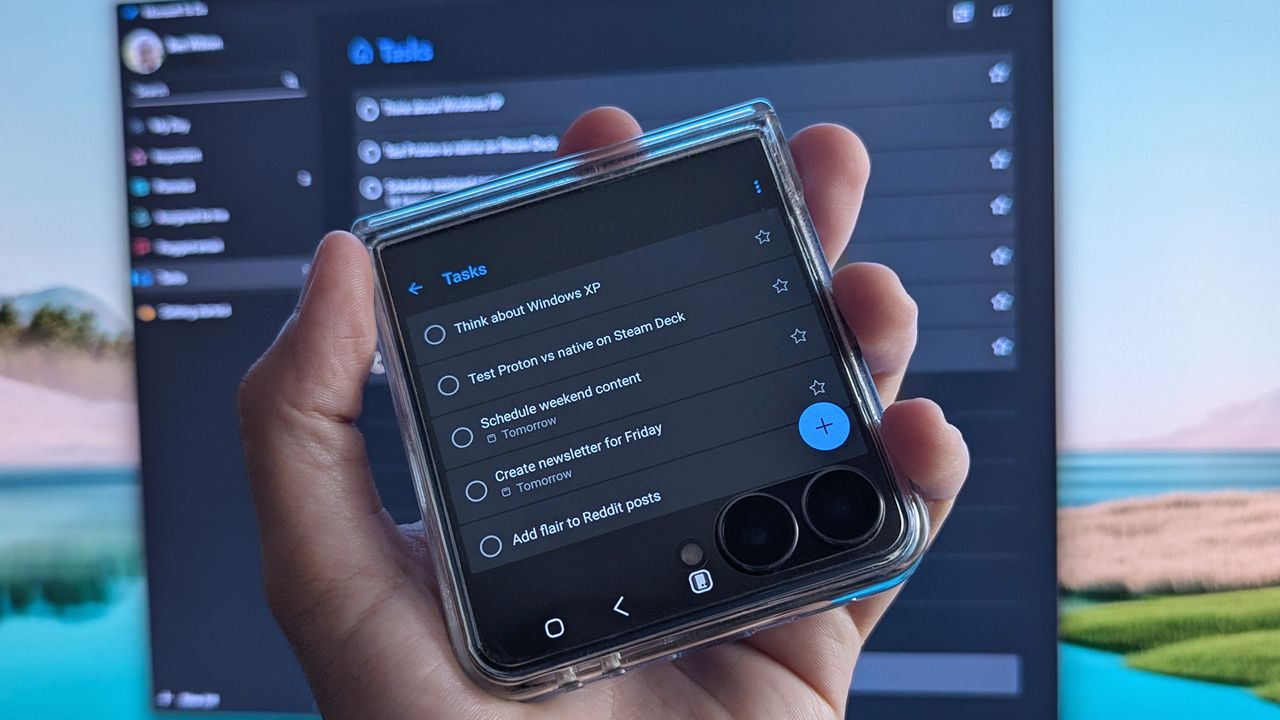
However, there's nothing inherently wrong with To Do, either. It's lightweight and runs on all my PCs — even my Android phone — with a functional widget I can add to the cover screen of my Samsung Galaxy Z Flip 7 for glanceable reminders. It pulls hints from natural language to set due dates and, more importantly, helps me remember everything in my daily workflow.
I make Microsoft's to-do list work for me
I could opt for deeper synchronization with my Outlook account, but To Do offers enough to me with just a simple list. (Image credit: Ben Wilson | Windows Central)
I find that a to-do list can either make my day much more manageable by breaking it into chunks, or it can freeze up my brain when I look at a daunting list of deadlines. It all depends on how you use it, but I've certainly found it helps me keep track of recurring tasks that pop up every day. Plus, the little 'ping' sound that plays when I mark a task as complete delivers a nice hit of serotonin.
However, part of the reason I keep Microsoft's own offering around is that it syncs so naturally across my devices. Again, there are probably third-party apps that deliver the same experience — perhaps something even better — but I'm not trying to overcomplicate a list of daily tasks. That, and my brain thinks differently as soon as I walk away from the computer, so reminders really work.
The future of Microsoft To Do seems to have two potential outcomes, though one of them is far more likely than the other. First, it could eventually be abandoned. Microsoft still has the Windows 10 icon on the app's download page, so it's hardly treated as cutting-edge among its portfolio, and its plot in the Microsoft Graveyard might already be reserved.
I just want a chance to be heard by the right person at Microsoft and let them know that their in-house apps are still appreciated.
Second, it goes the way of Microsoft Whiteboard and is absorbed into Microsoft 365, potentially renamed or adapted entirely as a feature in another app. This one feels less likely because it doesn't offer much collaborative substance to lock behind a paywall, but stranger things have happened. I'm trying to remain optimistic, but there's a small chance To Do transforms into something else.
Ultimately, this feels like the same trend as when I recently praised accessible gaming efforts with the XBOX Adaptive Joystick; I just want a chance to be heard by the right person at Microsoft and let them know that their in-house apps are still appreciated — at least when they're done right — and I'll happily use them despite there being alternatives out there.
Join us on Reddit at r/WindowsCentral to share your insights and discuss our latest news, reviews, and more.
Samsung Galaxy Z Flip 7 smartphone cover screen showing Microsoft To Do app with listed tasks and the Windows equivalent in the background displayed on a PC monitor
Walking away from my PC can be like emptying my brain's Recycle Bin, but keeping Microsoft To Do on my phone helps me stay on track.
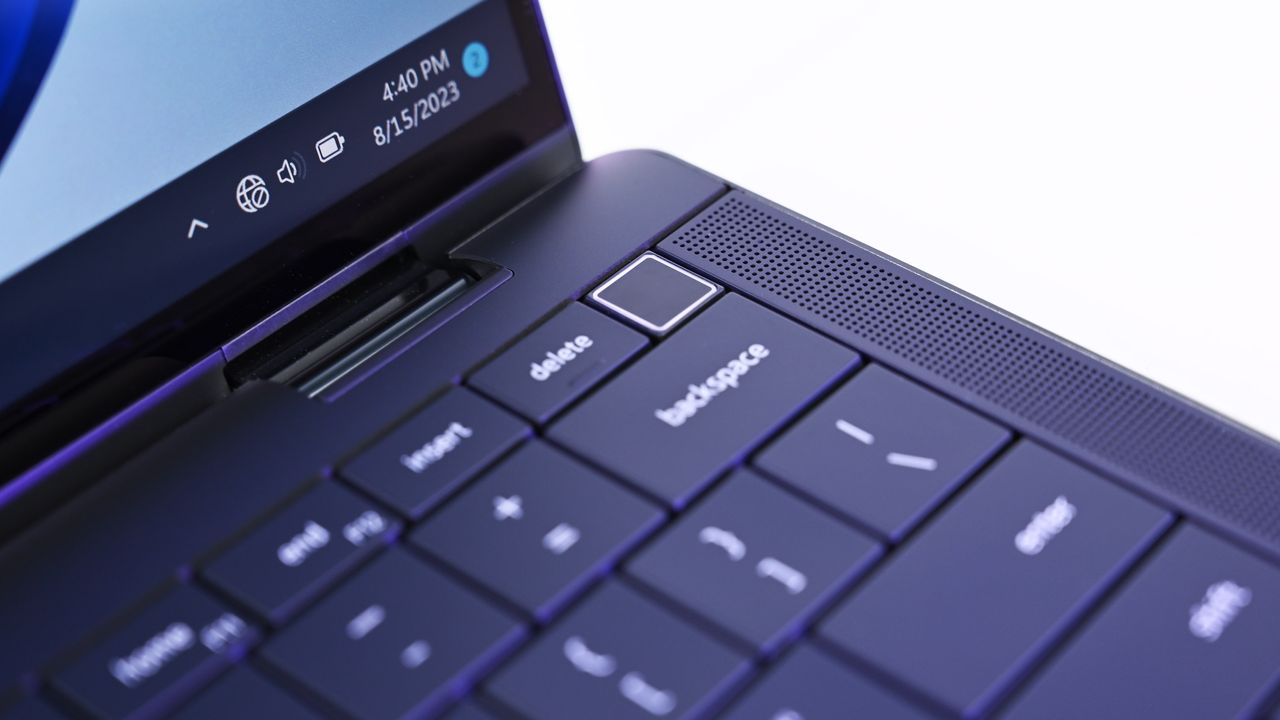
Microsoft is expanding one of the least understood security features in Windows 11. Beginning with the August 2026 update, Enhanced Sign-in Security (ESS) now supports compatible external fingerprint readers, extending the company's most secure Windows Hello experience to devices without built-in biometric hardware.
The timing couldn't be better because Enhanced Sign-in Security has confused users ever since Microsoft introduced it. Some users assume it's simply a newer version of Windows Hello, while others think it's reserved for businesses or Copilot+ PCs.
The reality is that Windows Hello and Windows Hello Enhanced Sign-in Security use the same sign-in experience, but they protect your biometric data in different ways.
After spending time digging through Microsoft's support page, I think that's the distinction most explanations miss. Enhanced Sign-in Security isn't about making facial recognition more accurate or fingerprint sign-in faster. It's about making the entire authentication process harder to attack.
Standard Windows Hello is already one of the best security features
A pop-up webcam in a Windows all-in-one PC that also supports Windows Hello facial recognition. (Image credit: Future)
Before the Enhanced Sign-in Security feature was introduced, Windows Hello had already replaced passwords with a much stronger authentication model.
Instead of storing passwords that can be stolen or reused, Windows Hello creates cryptographic credentials that are attached to the Trusted Platform Module (TPM) available on your computer. Facial recognition and fingerprints are used only to unlock those credentials, and your biometric templates remain on the device rather than being uploaded to Microsoft's servers.
For the average home user, that already provides excellent protection against phishing, password reuse, and stolen credentials.
The Enhanced Sign-in Security feature doesn't replace the architecture already in place. Instead, it builds another layer on top of it.
The real difference is where the trust is placed
This is where the comparison becomes interesting. Using the standard Windows Hello, the operating system relies on the system to process biometric authentication after receiving data from the trusted sensor. Enhanced Sign-in Security moves much of that work into isolated, hardware-protected environments.
When using the Enhanced Sign-in Security feature, Microsoft improves that trust. Instead of allowing sensitive biometric operations to occur in the normal Windows environment, the feature isolates them using Virtualization-Based Security (VBS) and Trusted Platform Module (TPM) 2.0 technology.
The algorithms for facial recognition run in a protected memory region, secure fingerprint readers perform matching within the hardware itself, and communication between the biometric sensor and the operating system is encrypted and isolated.
In other words, Windows Hello protects your credentials, and Windows Hello Enhanced Sign-in Security protects both your credentials and the path your biometric data takes before Windows 11 authenticates you.
Fingerprints show the biggest difference
An example of an external fingerprint reader for Windows Hello and Windows PCs.
The August 2026 Security Update highlights the biggest architectural difference between standard Windows Hello and Enhanced Sign-in Security.
Using a standard Windows Hello fingerprint reader, the sensor captures your fingerprint, and Windows 11 verifies it securely using the operating system and TPM-backed credentials.
An ESS-compatible fingerprint reader moves more of that process into the hardware itself. These readers include a dedicated secure processor,store fingerprint templates inside the device, contain a Microsoft-issued certificate that proves they're trusted hardware, and establish an encrypted communication channel with the operating system. Instead of receiving raw biometric data, Windows 11 receives only the authentication result.
Microsoft hasn't explained why ESS still doesn't support external Windows Hello cameras (likely because USB can be a vector for attack). However, its support page shows that enhanced security for facial recognition relies on specific camera hardware, firmware, and protected memory through Virtualization-Based Security (VBS), whereas ESS fingerprint readers can perform biometric matching inside certified hardware. That architectural difference may explain why Microsoft expanded support for external fingerprint readers first.
The practical benefit is a smaller attack surface. In simple terms, even if malware gains elevated privileges, it has fewer ways to interfere with the biometric authentication process.
Should you enable Enhanced Sign-in Security?
If your computer doesn't support Enhanced Sign-in Security, there's no reason to worry. The standard security of Windows Hello remains one of the strongest consumer authentication systems available, and it's already a significant upgrade over passwords.
However, if your device includes Enhanced Sign-in Security-compatible hardware, or you're planning to buy a new external fingerprint reader that supports the feature, I'd recommend enabling it and leaving it on.
Not because Windows Hello suddenly became insecure, but because the enhanced option can add an extra layer of security. If your hardware supports it, there's little downside to leaving it enabled.
How to enable the enhanced security feature
If the feature is available for your Windows Hello-compatible authentication device, you can enable it by going to Settings > Accounts > Sign-in options.
Once the USB fingerprint reader is connected and recognized by the operating system, on this page, under the "Additional settings" section, check the state of the "Enhanced sign-in security" setting.
If your system wasn't previously running ESS, you may see a prompt showing "Pending set up" or "Update PIN."
(Image credit: Mauro Huculak)
If the "Update PIN" option shows up, use it to complete the setup. On the other hand, if you see the "Pending set up" option, then configure the "Fingerprint recognition" feature under the "Ways to sign in" section.
One important note. When upgrading your system to Enhanced Sign-in Security, Windows 11 will remove any existing non-ESS biometric enrollments and associated credentials to ensure a clean, secure environment. You will need to refresh your PIN and register your fingerprints again using the new sensor. Once complete, the ESS toggle will show as enabled.
Also, while the feature is turned on, you won't be able to use peripherals that do not support the security feature.
Windows Central's Take
Windows Hello, web cam, and the Surface Pro PC. (Image credit: Daniel Rubino / Windows Central)
Microsoft hasn't done itself any favors with the name "Enhanced Sign-in Security." It sounds like an entirely new authentication system, when in reality it's an evolution of Windows Hello that strengthens how biometric authentication is processed behind the scenes. A lot of users will never notice the difference because the sign-in experience is exactly the same.
What makes the August 2026 Security Update important isn't that Windows Hello suddenly became more secure, as the standard Windows Hello has long been one of the strongest authentication systems available on consumer devices. The real significance is that the company is lifting the limitations by adding support for compatible external fingerprint readers.
If your computer already supports Enhanced Sign-in Security, I'd leave it enabled. If it doesn't, I wouldn't replace perfectly good hardware to get the feature because standard Windows Hello is already an excellent authentication system. However, if you're buying a new fingerprint reader for your computer, choosing an Enhanced Sign-in Security-compatible model is the better long-term investment since Microsoft is clearly expanding support for that ecosystem.
Do you think Enhanced Sign-in Security is worth using, or is standard Windows Hello already enough for your needs? Let me know in the comments.
More resources
Explore more in-depth how-to guides, troubleshooting advice, and essential tips to get the most out of Windows 11 and 10. Start browsing here:
My mom hated Windows 8. That's an understatement; she despised it. Like so many others who had grown used to the Start menu and general interface of previous versions, Windows 8 came as a jarring change to my mom.
But a funny thing happened when Windows 10 came out; my mom was reluctant to upgrade. Despite hating Windows 8 and Windows 8.1, she had grown used to them and made them fit her workflow. Having to relearn yet another interface was extra work that my mom was slow to sign up for.
She eventually upgraded to Windows 10 and later Windows 11, but her experience and her frustrations were not unique. Sometimes the enemy you know is better than the one you don't, even if you got to know that enemy begrudingly.
So, what does this have to do with Windows 11? Windows 11's upcoming Patch Tuesday update has a feature that I believe will elicit a similar reaction to my mom being presented with Windows 10.
Starting next month, Windows 11's File Explorer will show file sizes using the appropriate units (KB, MB, and GB). That means you'll no longer see a file that's 1,500,000 KB. Instead, you'll see that file listed as 1.5GB.
I believe many will see this change as an improvement. Dealing with millions of KB can be awkward, especially when other parts of Windows use different units. But part of me would love the option to keep everything in KB.
Because File Explorer has stuck with KB for so long, I've gotten used to scanning file sizes based on how many digits they are. After next month's update, I could have a file that's 400KB right between files that are 400MB. While the larger files would be clearly labeled, I've learned to expect files listed in KB after years of use, so there will be a learning curve.
I'm curious how people feel about these types of changes. Do you embrace what Microsoft deems an improvement to Windows 11, or are you frustrated with a feature or layout you're familiar with being changed?
Microsoft could always keep options for legacy features and new options, but if that happens for decades, you end up with a bloated OS. Take a look at the soon-to-be revamped context menus of Windows 11 if you want to see what years of tacking things on does to an operating system.
Join us on Reddit at r/WindowsCentral to share your insights and discuss our latest news, reviews, and more.
Windows chief Pavan Davuluri has posted an article on X today that outlines the journey Microsoft has taken so far to fix and improve Windows 11. Since March, the company has been laser focused on addressing Windows 11's biggest issues, delivering many new features and changes that are designed to improve the reputation and experiences around Windows.
While that work is still ongoing, Davuluri has now outlined four new areas of focus that Microsoft will be working on for Windows 11 between now and the end of the year:
Onboarding and setup. Delivering a faster and more efficient out-of-box experience.
Memory optimization for 8GB and above. Reducing Windows memory footprint to deliver a fast and responsive Windows experience across the PCs customers use every day.
Family. Providing a faster set up and making it easier for families to access useful parental controls.
Voice. Making voice more natural and fluid to interact across the apps you use every day.
Microsoft has confirmed that it's planning to improve Windows 11 so that it runs better on PCs with just 8GB of RAM. MacBook Neo took the world by storm earlier this year, and while Windows OEMs have since stepped up to offer better value for money, Windows itself is still quite heavy on these limited memory devices.
The company is now working to reduce Windows 11's memory footprint, ensuring that the OS feels fast and responsive even on 8GB RAM. It's yet to dive into how it's planning to make these changes, but it's likely related to how the company is moving more areas of the Windows UI to WinUI, which is lighter than WebView.
"We're going to take everything we've learned since March and keep listening and closing the loop on your feedback. The signal from you is clear: keep going. We intend to," says Davuluri.
Additionally, Microsoft has confirmed that it's rethinking the Windows out of box experience, with a new faster and more efficient set up experience in the works that will make booting up a new PC for the first time seamless and straight forward.
The other two areas of focus are Family and Voice. The company says it's working to deliver new Family Safety features across the OS, including enhanced parental control setup and more.
Voice is the final area of focus. Microsoft is on record as stating the future of computing will be one that is multi-modal, with voice acting as a primary input method alongside the keyboard and mouse. The company intends to make voice input more natural and fluid across the OS and apps you use.
Microsoft is clearly very proud of the work it has done so far this year to fix Windows 11. Compared to late last year, Windows 11 is in a very different spot. The company has delivered genuinely meaningful improvements and changes that are already impacting the OS for the better, and it sounds like there's more to come soon.
Join us on Reddit at r/WindowsCentral to share your insights and discuss our latest news, reviews, and more.

 Connexion