Can you hear that? It's the sound of capitalism crumbling. After years of pushback against ads, Microsoft has finally given in and decided to make a cleaner Search experience in Windows 11.Sarcastic quips aside, Search is genuinely going to improve. Microsoft unveiled a massive upgrade to Search this week that will improve the accuracy of results, shift away from relying on the web, and yes, remove ads and promotional material.The improved search will prioritize
Can you hear that? It's the sound of capitalism crumbling. After years of pushback against ads, Microsoft has finally given in and decided to make a cleaner Search experience in Windows 11.
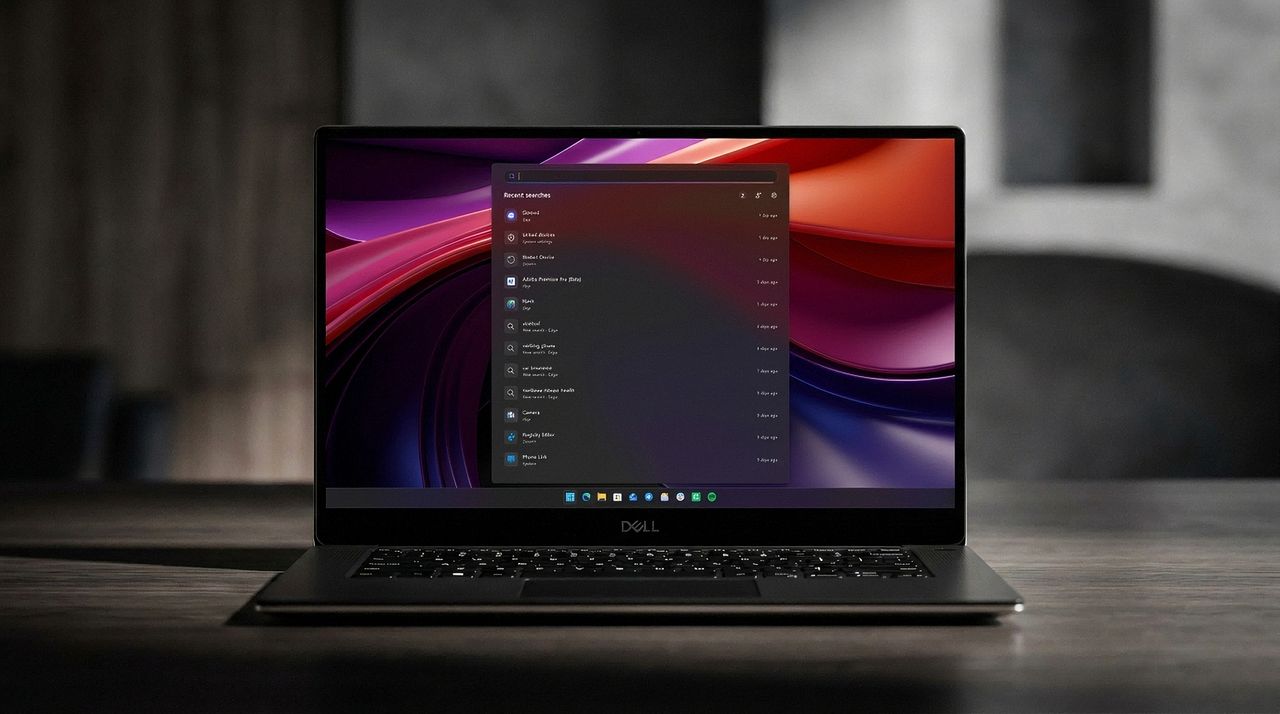
Sarcastic quips aside, Search is genuinely going to improve. Microsoft unveiled a massive upgrade to Search this week that will improve the accuracy of results, shift away from relying on the web, and yes, remove ads and promotional material.
The improved search will prioritize local results over grabbing information from the web. You'll even be able to customize whether web and Microsoft Store suggestions appear alongside local results at all. Search should also be more forgiving of typos, which should reduce frustration.
The upcoming improvements to Search were the biggest Windows 11 story of the week, but several other topics trended as well.
Biggest News of the Week
I'd argue that Windows 11 never should have placed ads within Search in the first place. Certainly, Windows 11 Pro should have been ad-free. I'm glad to see Microsoft listen to feedback and get rid of some ads. I just think it's wild that the tech giant needs to be pushed in that direction.
I'm happy to see Microsoft did more than remove ads and call it a day. The new Search experience is better across the board. Our Zac Bowden was impressed after going hands-on with the feature.
I'm very impressed with the new experience. Right off the bat, the search pane is no longer a noisy mess of Bing ads and sponsored content. It's a clean list of recent searches, exactly what you'd expect from a search pane.
Zac Bowden, Senior Editor, Windows Central
As always with updates like this, you can focus on the fact that Microsoft should have launched Windows 11 in this state rather than be strong-armed into making search usable. Alternatively, you can choose to be happy that Windows 11 is finally getting fixed. I choose the latter.
Shopping with Sean
Laptop deals have cooled off a bit, but you can still save hundreds of dollars on the Samsung Galaxy Book6 or the HP OmniBook Ultra 14. Both are excellent laptops with gorgeous displays and snappy performance.
If you're a gamer, make sure to check out the Xbox Ultimate Game Sale that's now live. Hundreds of games are discounted in what might be one of Microsoft's best-ever sale events.
"I’ve been using the Samsung Book 6 for a while now and honestly it’s been solid. It’s lightweight, looks premium, and the battery easily gets me through most of the day. Performance is smooth for studying, browsing, videos, and everyday work." ~ VALENTIN, customer review
4.8 out of 5 Stars (based on 40 Best Buy customer reviews)View Deal
HP's new OmniBook Ultra is the best Snapdragon X2 laptop we've tested yet, complete with a gorgeous design, incredible keyboard and trackpad, best-in-class touchscreen OLED display, and incredible battery life and performance.
A new clipboard manager for Windows 11 is here, and it's better than Microsoft's in a few key ways. "Edge Drop" is still in its early stages of development, but the current preview build is very promising.Edge Drop is a clipboard manager that can also be used for some light file management. It stays tucked away on the left side of your screen until you swipe your mouse over it or use a keyboard shortcut (Alt + C).The app supports text, images, and several file ty
A new clipboard manager for Windows 11 is here, and it's better than Microsoft's in a few key ways. "Edge Drop" is still in its early stages of development, but the current preview build is very promising.
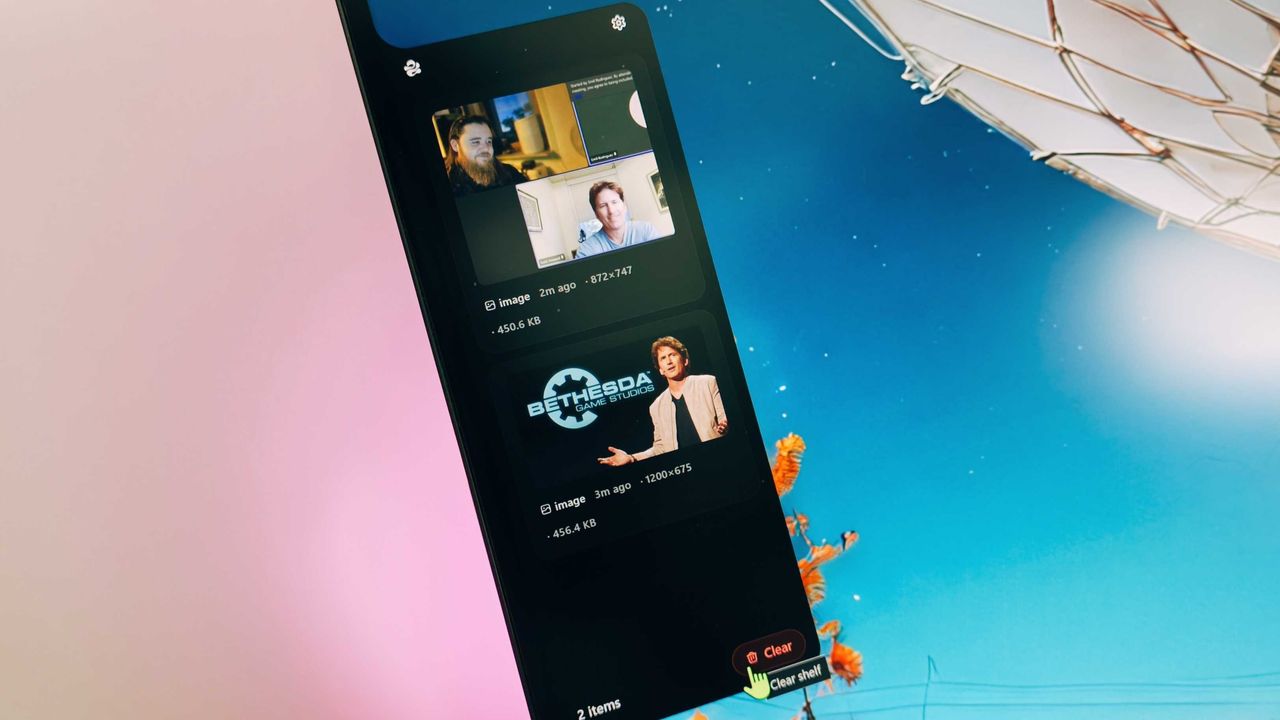
Edge Drop is a clipboard manager that can also be used for some light file management. It stays tucked away on the left side of your screen until you swipe your mouse over it or use a keyboard shortcut (Alt + C).
The app supports text, images, and several file types. Any item you copy on Windows 11 is added to Edge Drop by default. You can also drag items into Edge Drop.
Drag and drop functionality makes it easy to grab a few files, place them in Edge Drop, and then paste them somewhere else.
Edge Drop supports stacking content together, which I find useful for organizing projects. I'd love to see stacks work with different content types, such as text and images.
As a quick note, I wouldn't get used to the name of the app. Microsoft already has a feature named "Edge Drop." Even though that browser feature is being retired, I suspect Microsoft will want to protect the name.
Windows 11 Clipboard vs Edge Drop
Windows 11's Clipboard can be summoned with a shortcut and supports pinning items. (Image credit: Mauro Huculak)
Windows 11 already has a robust, built-in clipboard history that you can summon with Win + V. It supports pinning items, syncing across devices, and has been an integral part of my workflow for years. Even with Edge Drop installed, I'm not abandoning it.
Where Windows 11's clipboard is heavily keyboard-driven, Edge Drop is more built for the mouse. If you're working on a creative project, dragging and dropping items into organized stacks feels completely natural.
It reminds me of when I reviewed the HyperSpace TrackPad Pro (which, sadly, was canceled). Using that trackpad shifted my workflow; editing video with it felt entirely different than navigating a webpage. It didn't replace my mouse, but it became a perfect companion tool.
I feel the same way about Edge Drop. It’s a convenient, mouse-oriented clipboard manager that’s always just a gesture away, and it has earned a permanent spot right alongside Windows 11's default clipboard.
Join us on Reddit at r/WindowsCentral to share your insights and discuss our latest news, reviews, and more.
The Edge Drop app interface displayed on a monitor, showing a list of shared images and a cursor hovering over the "Clear" button.
Edge Drop is a third-party clipboard manager for Windows 11 that tucks away on the side of your screen.
Microsoft's Surface Laptop 8 launched this summer, sporting new Snapdragon X2 chips. The flagship laptops promise a premium experience, better battery life than the previous generation, and improved graphics performance.The bump in performance is expected considering the Surface Laptop 8 has a brand-new chip inside, so a different improvement is more noteworthy. The Surface Laptop 8 is one of the only devices to support Windows 11's new advanced haptics feature.
Microsoft's Surface Laptop 8 launched this summer, sporting new Snapdragon X2 chips. The flagship laptops promise a premium experience, better battery life than the previous generation, and improved graphics performance.
The bump in performance is expected considering the Surface Laptop 8 has a brand-new chip inside, so a different improvement is more noteworthy. The Surface Laptop 8 is one of the only devices to support Windows 11's new advanced haptics feature. It's the only laptop to support the feature.
Advanced haptics sends a subtle bump through a touchpad, mouse, or stylus to let you feel Windows 11. For example, rearranging windows on your screen through Snap Layouts gives a clear indication of when you've hovered over a different layout.
Our Senior Editor Zac Bowden said "Windows 11's new 'Haptic Signals' feature is a quality of life upgrade [he] didn't realize the OS needed until [he] tried it." Now, you can experience the same thing since the Surface Laptop 8 is available for purchase.
The haptic touchpad of the Surface Laptop 8 sends subtle vibrations when you perform certain actions, such as moving a file within File Explorer. (Image credit: Daniel Rubino)
As a quick point of clarity, the Surface Laptop 8 with Snapdragon X2 is what recently became available. Microsoft launched the Surface Laptop 8 for Business earlier this year. The business model runs on an Intel processor and comes with features you likely do not need as a general user.
Both the consumer and business versions of the Surface Laptop 8 support advanced haptics, but I recommend the consumer model to most people.
Advanced haptics is one of those small touches that makes Windows 11 feel polished. I appreciate UI changes and other Windows 11 improvements, but I'm more interested in features like advanced haptics because it changes the hands-on experience with a PC — quite literally.
"The new advanced haptic touchpad is a joy to use. It provides subtle tactile cues that confirm your actions," said our Editor-in-Chief Daniel Rubino in our Surface Laptop 8 review.
Our friends at Tom's Guide came away similarly impressed when reviewing the Surface Laptop 8:
"I’m also fond of the touchpad, which delivers satisfying haptic feedback when pressed. With some apps, you will even feel haptics when hovering over the X button on a window, which is quite fun and intuitive."
Right now, Windows 11 is the main way that you'll experience advanced haptics. But there's an API for the feature, so third-party developers can leverage it. Filmora, Affinity, and other third-party apps either already support the feature or will soon.
The only other way to use Windows 11's advanced haptics feature is to have a Logitech MX Master 4 or a supported stylus like the Surface Slim Pen 2. Over time, more devices should support the feature, but the Surface Laptop 8 beat everything else to the punch.
Join us on Reddit at r/WindowsCentral to share your insights and discuss our latest news, reviews, and more.
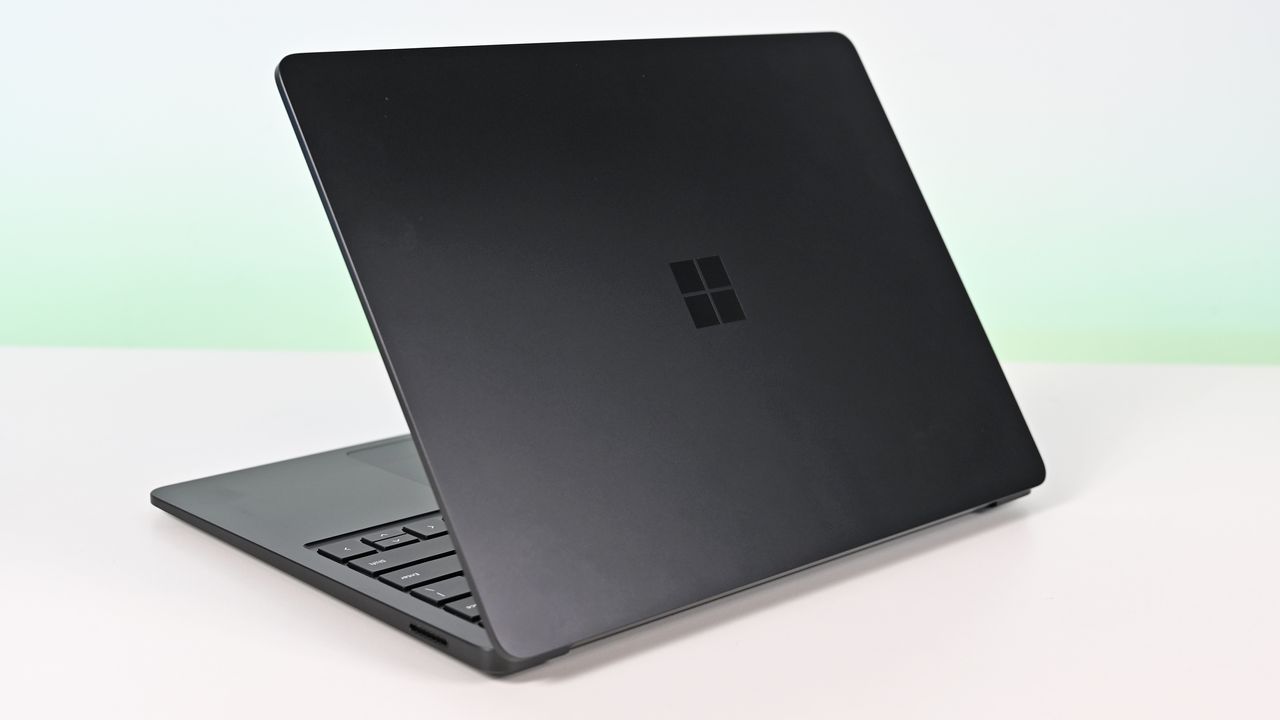
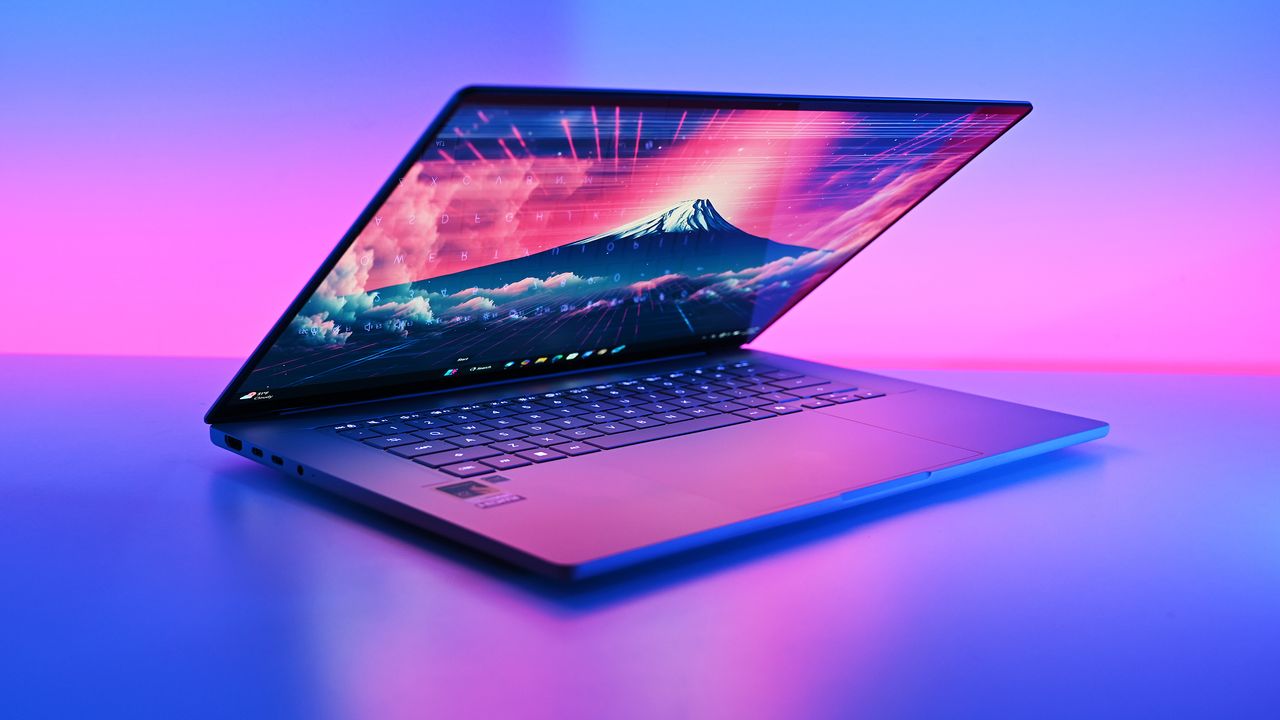
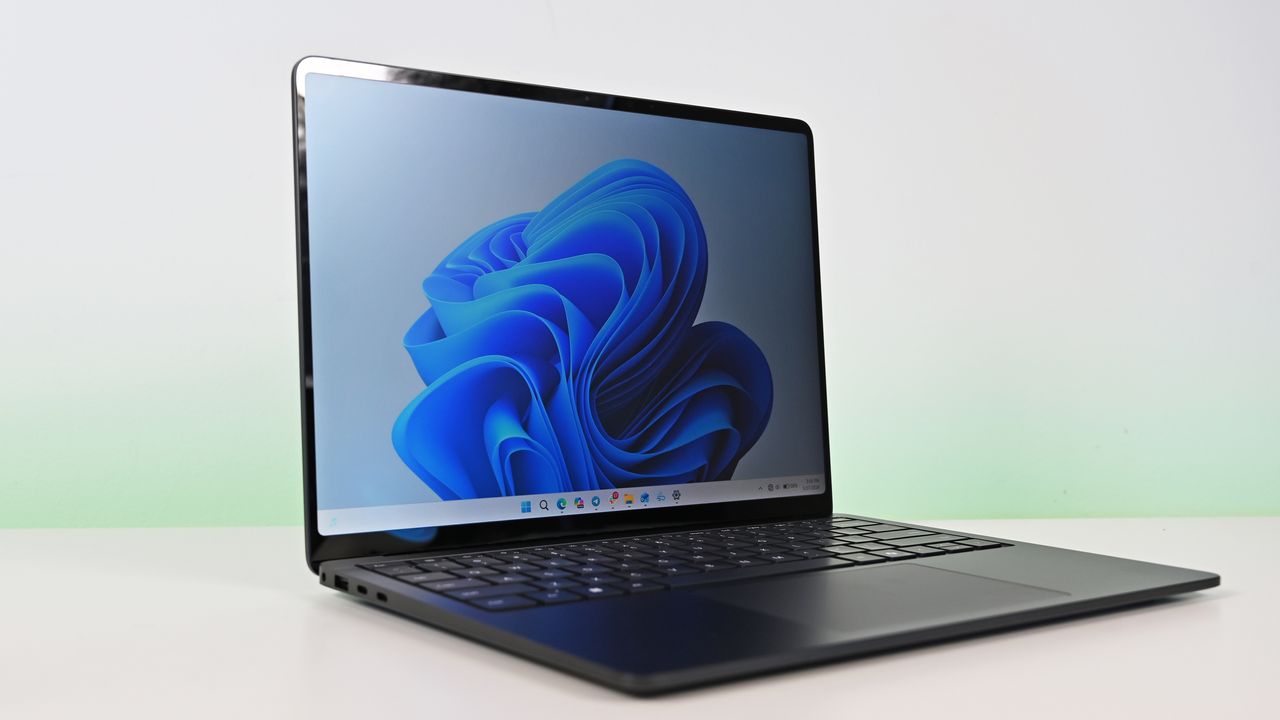
Surface Laptop for Business 8th Edition with a closed screen featuring a Windows logo, resting on a white surface. The background is a soft gradient from light blue to green.
Surface Laptop for Business 8th Edition with a closed screen featuring a Windows logo, resting on a white surface. The background is a soft gradient from light blue to green.
Dozens of games were just made available to stream through Xbox Cloud Gaming. Those titles are now supported by the "Stream Your Own Games" part of Xbox Game Pass that lets you stream supported titles through the cloud.As popular as playing titles that come with Xbox Game Pass is, many of the best Xbox games do not come with the subscription. Stream Your Own Games allows you to play many of your favorite titles to your phone, tablet, PC, or other supported device
Dozens of games were just made available to stream through Xbox Cloud Gaming. Those titles are now supported by the "Stream Your Own Games" part of Xbox Game Pass that lets you stream supported titles through the cloud.
As popular as playing titles that come with Xbox Game Pass is, many of the best Xbox games do not come with the subscription. Stream Your Own Games allows you to play many of your favorite titles to your phone, tablet, PC, or other supported devices.
This month's collection of newly supported games includes several popular titles such as Call of Duty: Black Ops 6 and Assassin's Creed Black Flag Resynced.
The folks over at True Achievements gathered together the complete list:
Game Title
#Blud
A Hat in Time
Absolver
Ascend to Zero
Assassin's Creed Black Flag Resynced
Beat Cop
Blightbound
Bō: Path of the Teal Lotus
Bravely Default Flying Fairy HD Remaster
Buckshot Roulette
Call of Duty: Black Ops 6
Carto
Disc Room
D-topia
Exit the Gungeon
Fade to Silence
Forager
Gato Roboto
Hotline Miami 2: Wrong Number
I Hate Running Backwards
Ikenfell
Lock's Quest
Metal Wolf Chaos XD
Minit
Monaco 2
Monaco: What's Yours is Mine
Monster Jam Steel Titans
My Friend Pedro
Olija
Pepper Grinder
Phantom Abyss
Pikuniku
Protodroid DeLTA
Shadow Warrior
Shadow Warrior 2
Shadow Warrior 3: Definitive Edition
South of the Circle
Stories Untold
Supraland
Tamashika
Temtem
The Messenger
The Mound: Omen of Cthulhu
The Occupation
The Talos Principle: Reawakened
Void Bastards
Wandersong
Wildfire
Winds of Arcana: Ruination
Wizard with a Gun
World of Tanks Modern Armor
Wuthering Waves
To use the Stream Your Own Games feature, you need to purchase a copy of the game and be subscribed to Xbox Game Pass. You can be subscribed to Game Pass Essential, Premium, or Ultimate to stream your games.
Originally, the Stream Your Own Games library only had 50 games. It's steadily grown since then and supported games now number in the hundreds. Over 70 new titles were added this May.
Subscribe to Xbox Game Pass Ultimate and play day one Xbox games whichever way you'd like, on Xbox consoles, PC, or even through the Cloud on a wide range of devices. Going with this tier means you never miss out on anything coming to the service.
The most exciting new Surface features in years are now available on a PC with a Snapdragon X processor. The Surface Laptop 8 for Business can now be purchased with a Snapdragon X2 Plus or Snapdragon X2 Elite.For those who prefer a 2-in-1 over a traditional laptop, the Surface Pro 12 for Business (13-inch) is also available with a Snapdragon X2 chip. Like its clamshell sibling, the Surface Pro for Business also had an Intel model launch earlier this year.The offi
The most exciting new Surface features in years are now available on a PC with a Snapdragon X processor. The Surface Laptop 8 for Business can now be purchased with a Snapdragon X2 Plus or Snapdragon X2 Elite.
For those who prefer a 2-in-1 over a traditional laptop, the Surface Pro 12 for Business (13-inch) is also available with a Snapdragon X2 chip. Like its clamshell sibling, the Surface Pro for Business also had an Intel model launch earlier this year.
The official names of the new PCs are "Surface Pro for Business 12th Edition" and "Surface Laptop for Business 8th Edition" but I've referred to them as the Surface Pro 12 for Business and Surface Laptop 8 for Business in this piece for ease of reading.
The standout feature of this year's Surface lineup is the privacy screen seen in the Surface Laptop 8 for Business. That display can be set to obscure content on your screen when people try to view it at an angle. It's similar to Samsung's screen on the Galaxy S26 Ultra.
The built-in privacy screen of the Surface Laptop 8 for Business combats creeping eyes from all angles, as opposed to third-party privacy screen protectors that only work from the sides.
The Intel version of the Surface Laptop 8 for Business launched earlier this year and received high marks from our Editor-in-Chief. The vast majority of what makes that laptop great extends to the Surface Laptop 8 for Business with Snapdragon X2, which are now available to order.
The Surface Laptop 8 for Business is the only version with the built-in privacy screen. (Image credit: Daniel Rubino)
The haptic trackpad of the Surface Laptop 8 for Business is also a key addition. Thanks to a recent update to Windows 11, you can now feel the operating system and supported apps as you interact with them. Haptic buzzes occur when you drag files in File Explorer or perform certain actions.
The Surface Laptop 8 for Business is one of few devices to support the new haptic experience.
The new Surface Pro 12 for Business is largely a spec bump when compared to its predecessor. The Snapdragon X2 chip inside delivers better graphics performance than the first-gen Snapdragon X.
The Surface Pro has matured over more than a decade of refinement, so it's hard to complain about Microsoft sticking with what works.
What's special about Surface for Business PCs?
When Microsoft first introduced Snapdragon X chips to its Surface hardware, a split was formed that saw Intel on business PCs and Snapdragon X on consumer hardware. That's no longer the case, since you can order Snapdragon X processors in consumer or business PCs.
Notably, there are no new Intel-powered Surface PCs for consumers in 2026.
Access to the cloud-based Surface Management Portal
Native corporate domain onboarding pathways during initial setup
Intel models available
Most of the features seen in the Surface for Business PCs are options general consumers would never use. The exception being the privacy screen that I wish was available on consumer versions of the Surface Laptop.
One key difference between the Snapdragon X2-powered Surface Pro 12 for Business and its Intel counterpart is that you can only get 5G connectivity with the Intel model.
Anyone can purchase a Surface for Business device. You don't need to own a business or have some sort of special account. But again, you're likely paying for unneeded features compared to the consumer Surface PCs unless you really need a privacy screen.
Join us on Reddit at r/WindowsCentral to share your insights and discuss our latest news, reviews, and more.
A sleek laptop with a black keyboard and a modern design, displaying a blue abstract swirl on its screen, set against a light gradient background.
A sleek laptop with a black keyboard and a modern design, displaying a blue abstract swirl on its screen, set against a light gradient background.
Windows 11's monthly Patch Tuesday update is here, and it's one of the biggest of the year. In addition to the usual group of bug fixes and security updates, the July Patch Tuesday update includes some major new features.Our Mauro Huculak broke down the 13 features that matter most from Windows 11's July 2026 update. The update is substantial and includes new ways to recover your PC, improve accessibility, and update Windows.As is normally the case for Windows 11
Windows 11's monthly Patch Tuesday update is here, and it's one of the biggest of the year. In addition to the usual group of bug fixes and security updates, the July Patch Tuesday update includes some major new features.
As is normally the case for Windows 11 Patch Tuesday updates, we've known what was on the way for weeks. Microsoft rolled out the latest features and changes to Windows 11 through a preview update toward the end of last month.
Ironically, the biggest change in this update is that it will allow you to pause updates indefinitely. Starting with this build you can stop your PC from getting updates for up to 35 days and then re-pause updates.
The downside is that you have to manually pause updates again if you want to stop them for more than 35 days.
Point-in-time Restore is another big addition. The feature lets you roll back a system to a previous working state. Windows 11 automatically creates restore points that include settings, files, and apps.
Widgets are better following the update as well. You now have greater control over notifications and personalization settings. Opening the widgets panel will open the dashboard on first use.
[Point-in-time restore for Windows]New! This flexible recovery feature helps you quickly roll back your PC, including apps, settings, and personal files, to a recent automatic restore point. It helps reduce downtime and simplifies troubleshooting when issues occur. To learn more, see Point-in-time restore for Windows.
[Windows Update]New! A calendar experience in Windows Update Settings (Settings > Windows Update) lets you pause updates by choosing an end date, for up to 35 days. You can extend the pause by selecting a different end date and re‑pause updates as needed. For more information, see Pause updates in Windows.
[Widgets]New! A quieter, more focused Widgets experience helps reduce interruptions and improves default settings and notification controls:
Reduce distractions: Widgets no longer open on hover. Notifications and taskbar badges are minimized by default.
Simpler: Open to the Widgets dashboard by default on first use.
Customize: Configure Widgets how you want by selecting Settings in the navigation bar, then changing any of the default settings.
Stay informed: Dashboard icons show the number of alerts, and badges clear automatically when you leave a dashboard.
Adjusted defaults: Some default settings are preserved based on usage, while others adjust to reduce interruptions.
Performance improvements: This update provides improved reliability, responsiveness, and visual quality across the Widget experience.
[Accessibility]New! This update makes your screen easier to see and customizes your zoom experience:
Screen tint: Apply a full-screen color overlay to help reduce eye strain and improve readability. Choose from preset tint options, adjust the intensity, or turn it on automatically. Find this feature in Settings > Accessibility.
Magnifier: Enter a zoom percentage directly and change it in increments in the Magnifier window for more precise, flexible control.
Magnifier settings menu: You can now also modify zoom increments directly from the magnifier bar instead of navigating to Windows Settings each time.
[File Explorer]
New! When you hover over a file in File Explorer Home, commands such as Open file location and Ask Copilot appear as quick actions. This experience is now supported for work and school accounts (Entra ID).1
Improves the speed and performance of File Explorer launch.2
This update improves File Explorer responsiveness when mounting disk images.
The address bar now supports paths containing double backslashes and quotation marks (for example, C:\\Users\\user or "C:\Users\user"), improving compatibility with a wider range of inputs.
The address bar suggestion dropdown is more reliable and now consistently closes after an item is selected.
This update addresses an issue on File Explorer Home where OneDrive files could appear duplicated in the Favorites section.
This update includes several refinements to the Rename experience:
Addresses an issue where text was repeatedly selected when renaming items in folder views.
Addresses an issue where case-only name changes were not immediately reflected in folder views for items stored locally or in the cloud.
[Bluetooth] This update improves reliability and performance when connecting to and using Bluetooth devices:
New! Windows now keeps the microphone mute state in sync between the audio mixer and the Hands-Free Profile (HFP) for a more consistent experience with Bluetooth headphones with mute buttons or indicators.
Accessory compatibility workarounds: Improves compatibility with specific Bluetooth audio devices, helping AirPods appear faster in pairing mode and improving microphone reliability on Beats Studio Pro headphones.
Bluetooth audio stability:
Improves overall Windows stability with certain PC manufacturer drivers (error code 0x9F).
Improves Bluetooth reliability for voice calls when using Classic Audio devices with the Hands-Free Profile (HFP).
Reduces time for LE Audio accessories to start playing audio while using the microphone.
Device management: Windows will no longer show a “Remove failed” message when attempting to remove Bluetooth devices if the Bluetooth radio is unavailable or has changed since pairing.
Settings experience: Improves stability when using the Bluetooth & devices settings page for a smoother, more consistent experience.
Connection reliability and responsiveness:
Reduces the time it takes for classic Bluetooth audio devices to reconnect after Windows resumes from hibernation.
Improves reliability when LE Audio accessories disconnect, such as when another device (for example, a phone) connects.
Improves reliability of LE Audio streaming after a connection is lost and restored.
[Bluetooth and Phone Link] This update improves audio routing for calls made through a connected phone:
When an outgoing call is dialed from a paired phone, audio remains on the phone while ringing and transfers to the PC only when the call is answered from the PC.
When Do Not Disturb is enabled on Windows, incoming call audio from a paired phone no longer rings on the PC.
[Voice access and voice typing] **New!** You can now use voice access and voice typing in French, German, and Spanish. As you speak, your PC improves your text in real time. It corrects grammar, punctuation, and recognition errors, and helps improve clarity—even in the presence of background noise. This makes dictation smoother and reduces the need for manual edits.3
[Audio] This update improves the reliability of the inbox HD Audio driver.
[Taskbar] This update improves the reliability of opening the Start menu when selecting the left edge of the taskbar when the icons in the taskbar are left-aligned.
[Networking]
This update includes networking improvements for virtualized environments. Confidential Virtual Machines (CVMs) now use SR-IOV hardware acceleration by default for improved network throughput, and a configuration issue in nested Hyper-V virtualization network setup has been corrected to ensure reliable VM network provisioning.
This update improves the reliability of the Windows networking stack. It reduces bug checks (blue screen errors) related to Wi-Fi power and improves cellular (WWAN) connectivity, including support for IPv6 VPNs. Compatibility with third-party VPN software and SR-IOV configurations on server hardware is also improved. Network adapter settings and bindings are now preserved across OS upgrades.
[Printing]New! New printer installations use Internet Printing Protocol (IPP) by default when supported, simplifying setup and improving reliability. For details about third-party driver deprecation, see End of Servicing Plan for Third-Party Printer Drivers on Windows. To control this behavior, use the toggle in Settings > Bluetooth & devices > Printers & scanners > Default install printers using Windows Ready Print. For more information, see Introducing Windows Ready Print and modernized driver selection. For more information, see Introducing Windows Ready Print and Modernized Driver Selection.
[Windows Subsystem for Linux (WSL)] The update improves usage of WSL in mirrored networking mode with VPNs.
[Display and graphics]
Improves the reliability of rendering content while scrolling for certain apps spanning across multiple monitors.
Improves the reliability and persistence of applying color profiles.
[Location services] This update changes how some location settings are displayed in Settings > Privacy & Security > Location to help with clarity. When location services are turned off, settings like Default location and Allow location override don't immediately apply, since location information is not given to apps or services. These settings will now be greyed out when location services are off to reduce confusion over when they take effect.
[Search] This update improves the reliability of setting Search related group policies.
[Input]
New! You can now customize the size of the right-click zone in Settings > Bluetooth & devices > Touchpad. Choose from default, small, medium, or large to control how much of the bottom-right corner responds to a single-finger right-click. This setting is only available on touchpads with a pressable surface. If your device manufacturer provides customization through their own app, a Custom option will appear to reflect those settings.
This update improves recognition of English characters when using Japanese handwriting.
[General performance] Improves the time to shut down Background Intelligent Transfer Service (BITS) when you turn off your PC.
[General Reliability] This update improves the reliability of explorer.exe. It addresses issues on the login and lock screens related to third-party credential providers, reduces the probability of taskbar icons appearing as blank gray placeholders, and improves navigation to Home in File Explorer during OneDrive sync. It also improves explorer.exe reliability when switching between desktops, enhances app launch with shell extensions, and using acrylic blur effects in the Start menu, Settings, and the lock screen.
[Apps] Resolves an issue where some installers and applications could show unexpected elevation (UAC) prompts after installing KB5089549.
[Remote Desktop] This update refreshes the dialog design when you enable Remote Desktop in Settings > System > Remote Desktop.
[Graphics Kernel] Improves memory-management policy that allows PCs with more than 32GB of installed memory to run larger local AI models.
Windows 11 July 2026 Update (gradual rollout)
[Secure Boot] With this update, Windows quality updates include additional high confidence device targeting data, increasing coverage of devices eligible to automatically receive new Secure Boot certificates. Devices receive the new certificates only after demonstrating sufficient successful update signals, maintaining a controlled and phased rollout.
[Authentication] This update improves Netlogon secure channel connections between domain controllers, enabling successful connections from member servers to domain controllers set up before 2025.
[Emoji Panel Update] The emoji panel (Windows key + period (.)) now uses GIPHY for GIF content following the deprecation of Google’s Tenor API. Starting June 30, 2026, install the latest Windows update to continue using GIFs in the Emoji panel. If you don’t update, you will see a "GIF service is not available" error in the panel. Installing the latest Windows update will restore access to GIFs.
[Networking] This update improves how your device connects to shared network resources. Connections used by apps and system features, such as the NetUseAdd function, now work more reliably, including unauthenticated (null session) connections.
[Recycle Bin (known issue)] Fixed: This update addresses an issue where the confirmation dialog might display an internal Recycle Bin file name instead of the original file name when permanently deleting a file. This issue might occur after installing the June 2026 security update (KB5094126).
[Storage] This update improves disk space usage for the CapabilityAccessManager.db-wal file.
[Taskbar] This update improves notification badge display across your apps. Notification counts and badge visuals now update correctly, helping you stay up to date with new activity.
[File Explorer] This update fixes an issue where the OneDrive shortcut in File Explorer stops working when File Explorer is run with administrative mode.
[Notification badges (known issue)] Fixed: This update addresses an issue where notification badge counts for some applications such as Microsoft Teams and WhatsApp, might not refresh correctly. As a result, badge indicators might continue to display outdated notification counts until the application is restarted or badge count is refreshed.
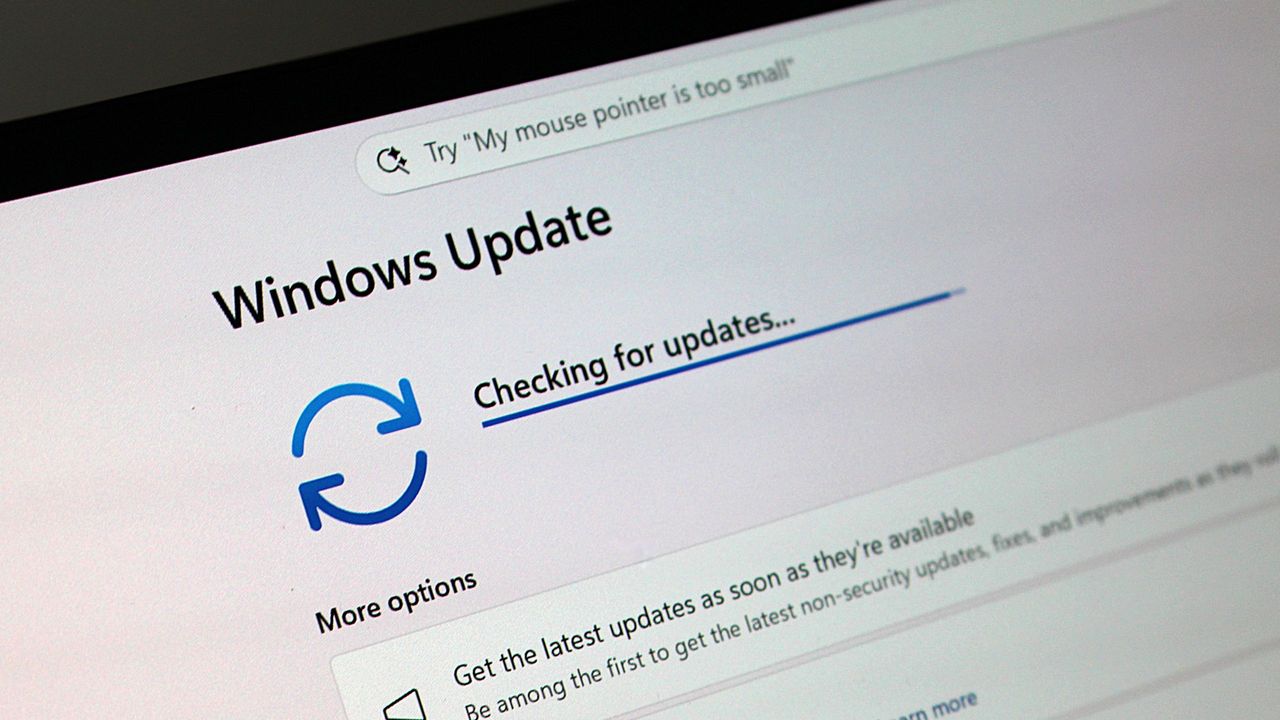
You can download this month's Patch Tuesday update through the Windows Settings app. Clicking the "Check for updates" button within the "Windows Update" section should start the process.
If you ever feel like you need a break from social media and influencers, you may long for the more fun-focused video content of yesteryear. Windows Movie Maker was a simple program for creating videos, and it can now be yours once again.The folks at The Internet Archive uploaded Windows Movie Maker 6.0, making it easily accessible and preserving it. The app has been tested on Windows 7, Windows 10, and Windows 11.Downloading ancient technology can be a fun way t
If you ever feel like you need a break from social media and influencers, you may long for the more fun-focused video content of yesteryear. Windows Movie Maker was a simple program for creating videos, and it can now be yours once again.
The folks at The Internet Archive uploaded Windows Movie Maker 6.0, making it easily accessible and preserving it. The app has been tested on Windows 7, Windows 10, and Windows 11.
Downloading ancient technology can be a fun way to see how far things have changed over the years. Generally, Windows and its built-in apps have improved since the year 2000. But the modern movie-making app on Windows, Clipchamp, falls short of Windows Movie Maker in one key area.
That controversial change arguably broke Clipchamp. The app still works, but it does not feel like an app that should be bundled with Windows 11. Instead, it feels like a cloud-based app you should download alongside Microsoft 365.
Windows Movie Maker may lack the modern features of Clipchamp, but at least it works offline.
Ever wanted to use Windows Movie Maker 6.0 again but unsure where to get it for modern Windows?Well, "want" no longer! I've uploaded a setup for exactly that on The Internet Archive. Tested on Windows 7, 10, & 11, all working on each.Get it here:https://t.co/yEnF0sZv7npic.twitter.com/LhozBBGtWNJune 30, 2026
Perhaps Microsoft could justify requiring OneDrive to edit videos if projects could easily extend across devices, but that's not the case. Microsoft retired Clipchamp for iOS last month, meaning you can no longer export video files from that app. Users are now encouraged to uninstall Clipchamp from any iOS devices.
Microsoft never even made an Android version of Clipchamp, so the company has effectively restricted the app solely to the desktop. There is a web version of Clipchamp, but it is optimized for desktop use.
How to download Windows Movie Maker for Windows 11
Windows Movie Maker was not meant for modern versions of Windows, but it can run on Windows 11 or Windows 10. The download link for the program is available through the Internet Archive.
As a warning, I had to refresh the page a few times to get the link to work. The Internet Archive claimed it was a bad link for some reason, but it does work after refreshing.
The file is available in several formats. I'd argue the easiest to use is the executable file because many people have clicked to install one of those before.
To install Windows Movie Maker, you'll need to click through the installation steps, agree to some terms, and click finish.
Join us on Reddit at r/WindowsCentral to share your insights and discuss our latest news, reviews, and more.
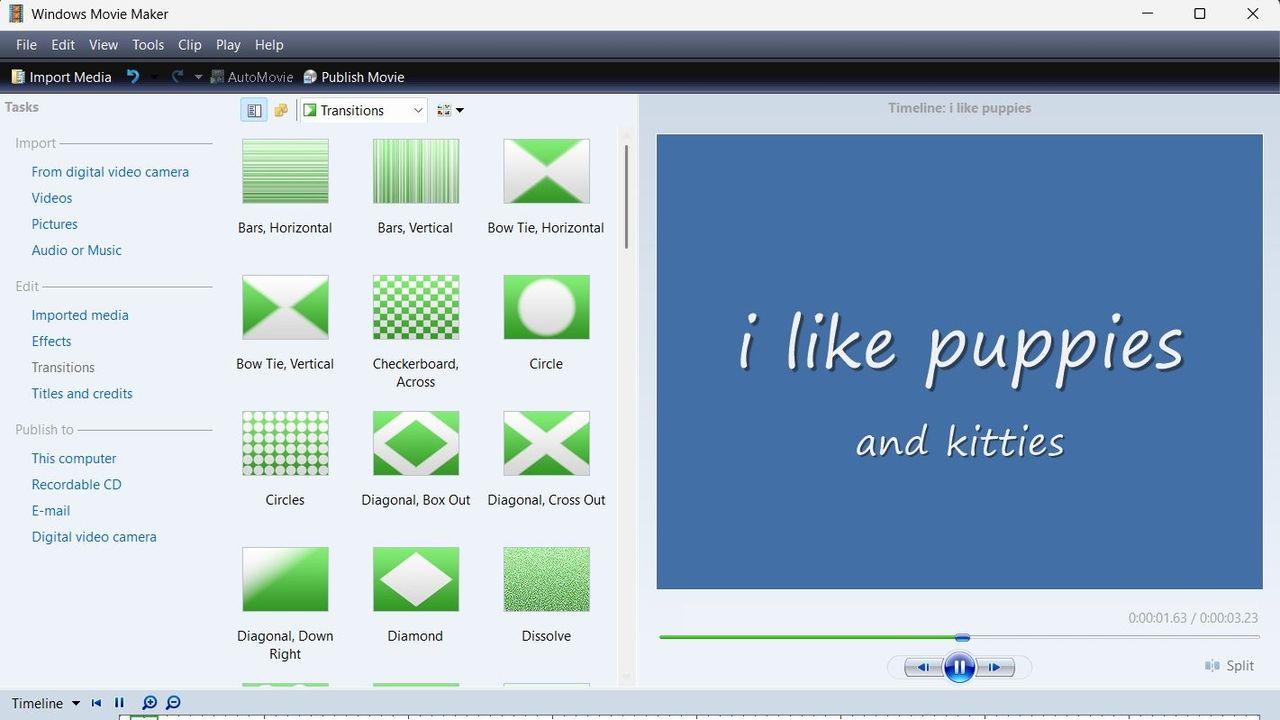
A screenshot of Windows Movie Maker showing a range of transitions.
Windows Movie Maker looks clunky by modern standards, but at least it supports offline editing.
Qualcomm continues to flirt with gaming on its Snapdragon X processors. The latest update to Snapdragon Control Panel redesigns game library navigation, improves the software update experience, and helps you get the latest Hexagon NPU drivers.The overall gaming experience on Snapdragon X PCs will be better following the update, though you won't see a graphics boost.Snapdragon Control Panel is a piece of software that helps you optimize your gaming experience on P
Qualcomm continues to flirt with gaming on its Snapdragon X processors. The latest update to Snapdragon Control Panel redesigns game library navigation, improves the software update experience, and helps you get the latest Hexagon NPU drivers.
The overall gaming experience on Snapdragon X PCs will be better following the update, though you won't see a graphics boost.
Snapdragon Control Panel is a piece of software that helps you optimize your gaming experience on PCs powered by Snapdragon X chips.
Redesigned Game Library navigation to be more consistent and intuitive, including clearer favorites add/remove behavior.
Redesigned the Software Update page with a consistent experience for Snapdragon Control Panel, Adreno GPU drivers, and Hexagon NPU drivers.
Improved update status feedback so users can more easily understand available updates and current installation state.
Removed the top-level back button to simplify navigation.
Expanded the clickable areas for items in the Help dialog.
Added support for saving and restoring the navigation sidebar state.
🧠 Hexagon NPU driver updates
Get access to the latest Hexagon NPU driver releases directly from Snapdragon Control Panel.
🎮 One-Click Game Optimization robustness improvements
Improved the reliability of One-Click Game Optimization workflows, including optimization, revert, and refresh behavior.
Note: One-Click Game Optimization is currently supported only on first generation Snapdragon® X Series devices.
🛠️ General improvements and bug fixes
Includes additional reliability, usability, and maintenance fixes across Snapdragon Control Panel.
Gaming on Snapdragon X PCs is in an interesting spot in 2026. It's very clear that Qualcomm aims for its Snapdragon X chips to power gaming PCs eventually, but most mentions of gaming on the processors feel reserved.
"Best Commuter Laptop: extreme performance for multitasking, gaming, and creation," reads the ASUS listing for the Zenbook A16 (emphasis added).
Just two months after unveiling the Snapdragon X2 Elite Extreme and Snapdragon X2 Elite, Qualcomm announced Snapdragon Control Panel. That program lets users optimize game settings and update game drivers.
At some point, Qualcomm may fully embrace the gaming capabilities of Snapdragon X chips and make that a major part of its marketing. Until or unless that happens, the company will continue to work with partners to optimize gaming on Snapdragon X.
Join us on Reddit at r/WindowsCentral to share your insights and discuss our latest news, reviews, and more.
Studio photos of the 2026 ASUS Zenbook A16 laptop featuring the new Qualcomm Snapdragon X2 Elite Extreme processor.
The ASUS Zenbook A16, which runs on a Snapdragon X2 Elite Extreme, can run many popular games well.
The highly anticipated upgrades to the Surface Pro and Surface Laptop just launched. Both PCs pack the latest Snapdragon X2 processors from Qualcomm, promising better performance while still delivering great battery life.The biggest upgrade in the lineup is performance. Microsoft promises up to 53% faster graphics performance on the Surface Pro than the previous generation. The Surface Laptop sees an even larger bump of up to 58% when compared to the last generat
The highly anticipated upgrades to the Surface Pro and Surface Laptop just launched. Both PCs pack the latest Snapdragon X2 processors from Qualcomm, promising better performance while still delivering great battery life.
The biggest upgrade in the lineup is performance. Microsoft promises up to 53% faster graphics performance on the Surface Pro than the previous generation. The Surface Laptop sees an even larger bump of up to 58% when compared to the last generation.
Those improvements are thanks to the Snapdragon X2 processors inside the Surface Laptop and Surface Pro.
Now, Best Buy has a wide range of configurations available for the Surface Laptop and Surface Pro. I've included a mix of various colors, storage options, and processors. But there are plenty of other configurations up for grabs if you want to mix and match.
The new chips from Qualcomm perform well and let your PC last all day. Exact performance will vary based on the full specs of a PC, but the Snapdragon X2 Elite competes with Apple's M4 Pro. The Snapdragon X2 Plus stands toe-to-toe with Apple's M3 Pro.
Benchmarks and spec sheets aside, any Surface with a Snapdragon X2 chip will handle a wide range of workloads and tackle productivity tasks easily.
While the Snapdragon X2 chips are the stars of the show, they're not the only upgrades worth checking out in the new Surface Laptop and Surface Pro.
This Dune-colored Surface Laptop stands out in a sea of black and silver laptops. It does not come with Dave Bautista, but it does feature a Snapdragon X2 Plus.
This Surface Laptop has a 15-inch, 3K display with the 3:2 aspect ratio Surface is known for. It provides an excellent space to work without taking up too much space in your bag.
This is the best choice for those who love the Surface Pro form factor but don't need the most expensive processor or a massive amount of storage. It's the most affordable way to get the latest Surface Pro.
The first Surface Pro Flex Keyboard launched alongside the Surface Pro 11. The accessory is still the best way to use your Surface Pro like a laptop, and it can also be used when detached for even more flexibility.
The Surface Slim Pen 2 is excellent for natural note-taking and drawing, and it now supports Windows 11's updated haptic feedback experience to give you tactile cues while you navigate.
What's new with the latest Surface Pro and Surface Laptop?
(Image credit: Daniel Rubino)
There are more display options than ever across the Surface lineup. The new Surface Pro is available with either an OLED display or an LCD screen. The new Surface Laptop 15-inch has a screen with 262 PPI, which is much higher than the last generation offered.
But the new Surface Pro and Surface Laptop are more than a spec bump. While they share much of their designs with the last generation, both offer a new way to use haptics.
The Surface Laptop now features a haptic trackpad that allows you to feel Windows 11 and supported apps. The Surface Pro delivers a similar experience when paired with the latest Surface Slim Pen.
The new experience comes courtesy of Windows 11's new haptic feedback system. That system sends subtle vibrations when you perform certain tasks, such as dragging files in File Explorer or snapping windows.
The new Surface Laptop and Surface Pro build on over a decade of refinement by Microsoft. The overall form factor has matured, but Microsoft has figured out how to squeeze innovation from designs that were already almost perfect.
Join us on Reddit at r/WindowsCentral to share your insights and discuss our latest news, reviews, and more.
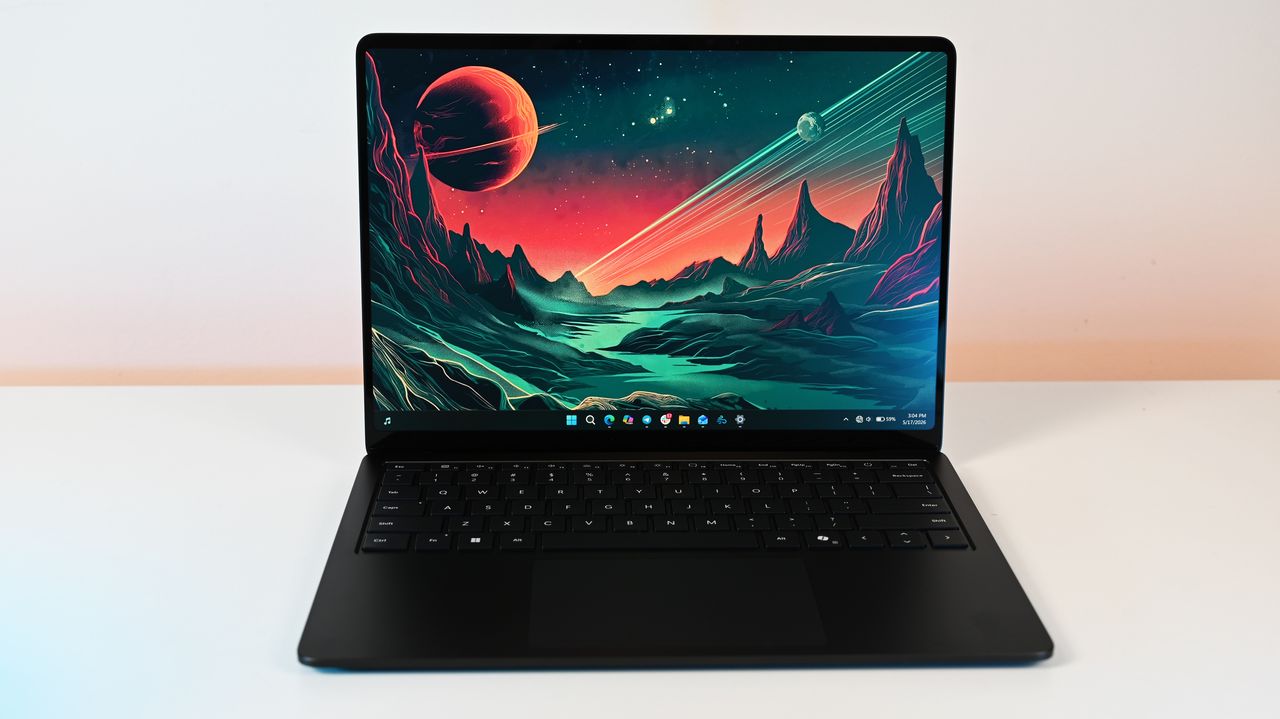
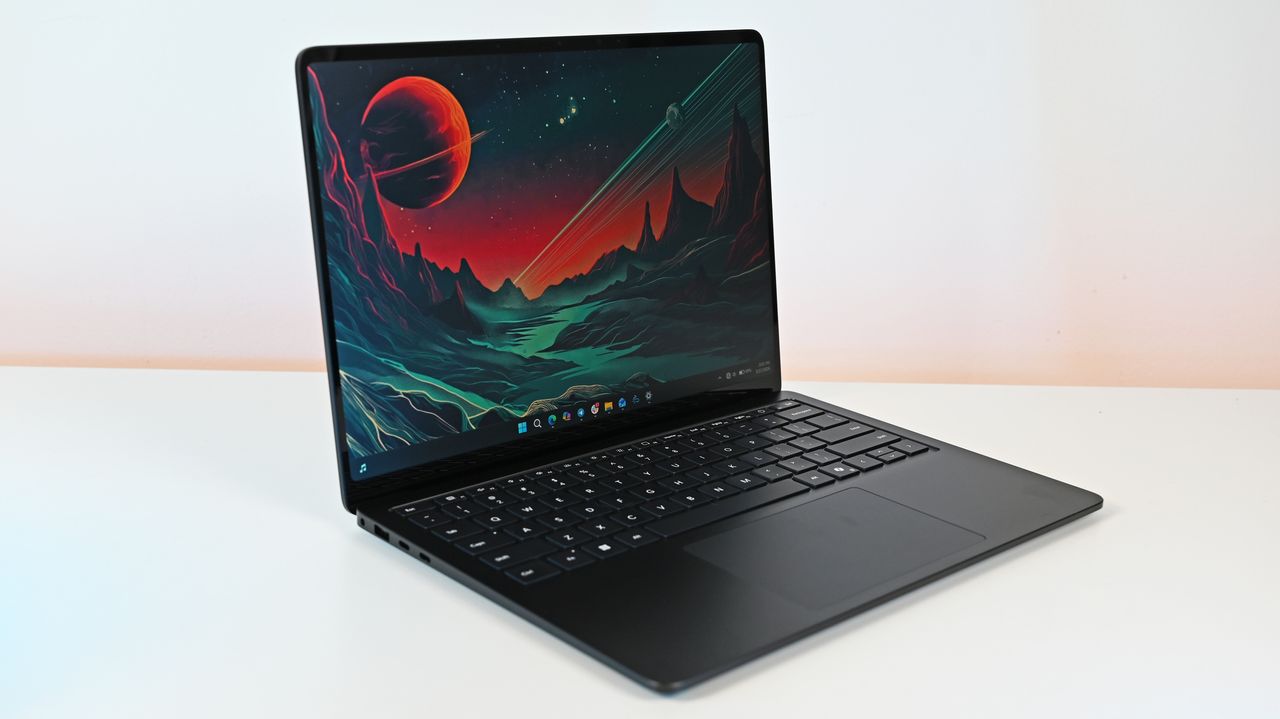
Surface Laptop for Business 8th Edition sits open on a white surface, displaying a vibrant sci-fi landscape wallpaper with a red planet and mountainous terrain.
Surface Laptop for Business 8th Edition sits open on a white surface, displaying a vibrant sci-fi landscape wallpaper with a red planet and mountainous terrain.
Microsoft’s latest sustainability report sparked claims that the company produced 34 million metric tons of carbon emissions in a single year. That figure was never reported by the company. What the report actually shows is a 25 percent year‑over‑year increase driven by AI datacenter expansion and Microsoft’s decision to stop buying unbundled renewable energy certificates.The Microsoft Environmental Sustainability Report shows a complicated progression of rising
Microsoft’s latest sustainability report sparked claims that the company produced 34 million metric tons of carbon emissions in a single year. That figure was never reported by the company. What the report actually shows is a 25 percent year‑over‑year increase driven by AI datacenter expansion and Microsoft’s decision to stop buying unbundled renewable energy certificates.
The Microsoft Environmental Sustainability Report shows a complicated progression of rising emissions caused by AI datacenters, controversial "greenwashing" tactics, and enough wiggle room to leave space for debate.
Real emissions vs estimated emissions
When I first read the coverage surrounding the Microsoft Environmental Sustainability Report, it seemed like a clear case of AI hurting the planet and a tech giant callously damaging the environment. I was ready to write a piece calling out Microsoft for setting carbon neutral goals and then increasing carbon emissions by 25% in a single year.
But as I do with any story I cover, I went to the source material and did some digging. What surprised me is that the Microsoft Environmental Sustainability Report does not indicate unbridled burning of fuel to power AI datacenters. Instead, it shows efforts to reduce emissions and make meaningful changes.
I want to be clear, AI datacenters do create high carbon emissions. Microsoft is not faultless when it comes to energy use or pollution. I think there is a lot more the company could do to help the environment. I also think there's some misunderstood data seeping onto social media and throughout the web.
The most recent Microsoft Environmental Sustainability Report shows the actual emissions of the company (solid line) compared to the estimated emissions if Microsoft had not taken steps to reduce its emissions. (Image credit: Microsoft)
The above chart from the Microsoft Environmental Sustainability Report shows Microsoft's actual reported emissions over the years and the estimated emissions without select interventions. The footnote on the chart directs to a clarifying statement on the estimate. I'll include the full footnote here but highlight the most relevant text:
"The solid line represents Microsoft’s reported greenhouse gas emissions (Scopes 1, 2, and 3) for FY20–FY25, prepared in accordance with GHG Protocol and management’s criteria, and uses a market-based emissions approach. The dotted line represents an illustrative counterfactual scenario of estimated emissions had select, discrete carbon reduction initiatives not been undertaken. These initiatives include energy efficiency improvements for XBOX consoles, renewable energy purchases, sustainable aviation fuel (SAF) and sustainable marine fuel (SMF) certificates, and supply chain decarbonization of Surface devices. The difference between the two lines is an estimate of emissions avoided through these specific initiatives relative to a scenario without those initiatives occurring. This estimate is directional in nature, does not represent the full scope of Microsoft’s decarbonization efforts, and is not part of our reported greenhouse gas inventory. It should not be interpreted as a comprehensive measure of total emissions reductions or as additive to other carbon reduction or removal claims."
Basically, the chart shows Microsoft's actual emissions and then a rough estimate of how much the company would have emitted had it not taken steps to reduce its carbon footprint. But Microsoft did take those steps. Microsoft did not have 34 million metric tons of carbon emissions in the last year. The actual emissions figure is 20 million metric tons.
That's still a massive amount of emissions, and 20 million metric tons is a 25% increase year-over-year, but there's some needed context.
Microsoft's carbon emissions increased by 25% in a single year. The increase was driven primarily by Microsoft's expansion of datacenter infrastructure and the fact that the company paused the purchase of unbundled renewable energy certificates.
In February 2025, Microsoft announced that it "ceased purchasing non-additional, unbundled renewable energy certificates." That decision led to the massive jump in emissions seen in the recently published sustainability report (in conjunction with AI datacenter infrastructure expansion).
Renewable energy certificates (RECs) represent the legal ownership of the "renewable-ness" of generated electricity. Unbundled RECs are sold separately from the electricity itself.
The United States Environmental Protection Agency notes that "Unbundled Renewable Energy Certificates (RECs) refer to RECs that are sold, delivered, or purchased separately from electricity. RECs provide no physical delivery of electricity to customers and as such the customer is purchasing power from a separate entity than the one selling them the REC."
The separation of generated electricity from the legal ownership of the "renewable-ness" is controversial (that phrase comes straight from the EPA).
Many, including myself, view unbundled RECs as a form of greenwashing. Microsoft or any other company can legally say they are powered by renewable electricity without actually using the electricity that was generated.
The defense is that buying unbundled RECs financially contributes to the development of renewable energies.
Microsoft did not refer to unbundled RECs as a form of greenwashing, but its statement is telling:
"While we continue to apply the carbon fee to investments in emissions reductions, we have ceased purchasing non-additional, unbundled renewable energy certificates. We are refocusing the use of these funds on more long-term, higher-impact investments across carbon reduction, carbon removal, and clean electricity procurement. These interventions are expected to more effectively help us achieve our goal of becoming carbon negative by 2030 and may take us out of carbon-neutral position."
Microsoft implied that unbundled RECs are not the most effective way to have a long-term positive impact on the environment.
The rest of the report
The Microsoft Environmental Sustainability Report is 65 pages of dense information. It links to several external resources as well. If it were a paper report, there'd be a good joke here about an environmental report killing so many trees.
A large portion of the report is dedicated to discussion about Microsoft's use of water, which is a critical component of its environmental strategy. Notably, Microsoft replenished more water than it withdrew in the year.
Because of the size of the report, I've focused on the carbon emissions of Microsoft, but I suggest people read the entire report to get perspective on what's being done and where Microsoft still falls short.
Join us on Reddit at r/WindowsCentral to share your insights and discuss our latest news, reviews, and more.
Microsoft Fairwater Datacentre
Microsoft's Fairwater Datacenter is one of the most powerful datacenters in the world. It is one of many datacenters contributing to Microsoft's spike in carbon emissions.
With Sony planning to stop making discs for games and revoke access to movies and TV shows people paid for, physical media is more important than ever. Xbox is considering a disc-to-digital program for Project Helix, proving Microsoft weighs the importance of physical media when making decisions.But the physical media debate isn't really about discs; it's about control. People want to control the content and devices they've purchased. Microsoft's newly expanded o
But the physical media debate isn't really about discs; it's about control. People want to control the content and devices they've purchased. Microsoft's newly expanded options for resetting PCs showcase how choice and control can be given to consumers.
Like many, I've spoken out against Sony's plans and advocated for physical media to be preserved. So, it might come as a surprise to hear that I'm happy about the new option to reset a Windows 11 PC that relies entirely on the cloud and does not use a USB drive.
While I advocate for physical media to preserve ownership of games and movies, when it comes to the pure utility of fixing a broken PC, convenience wins.
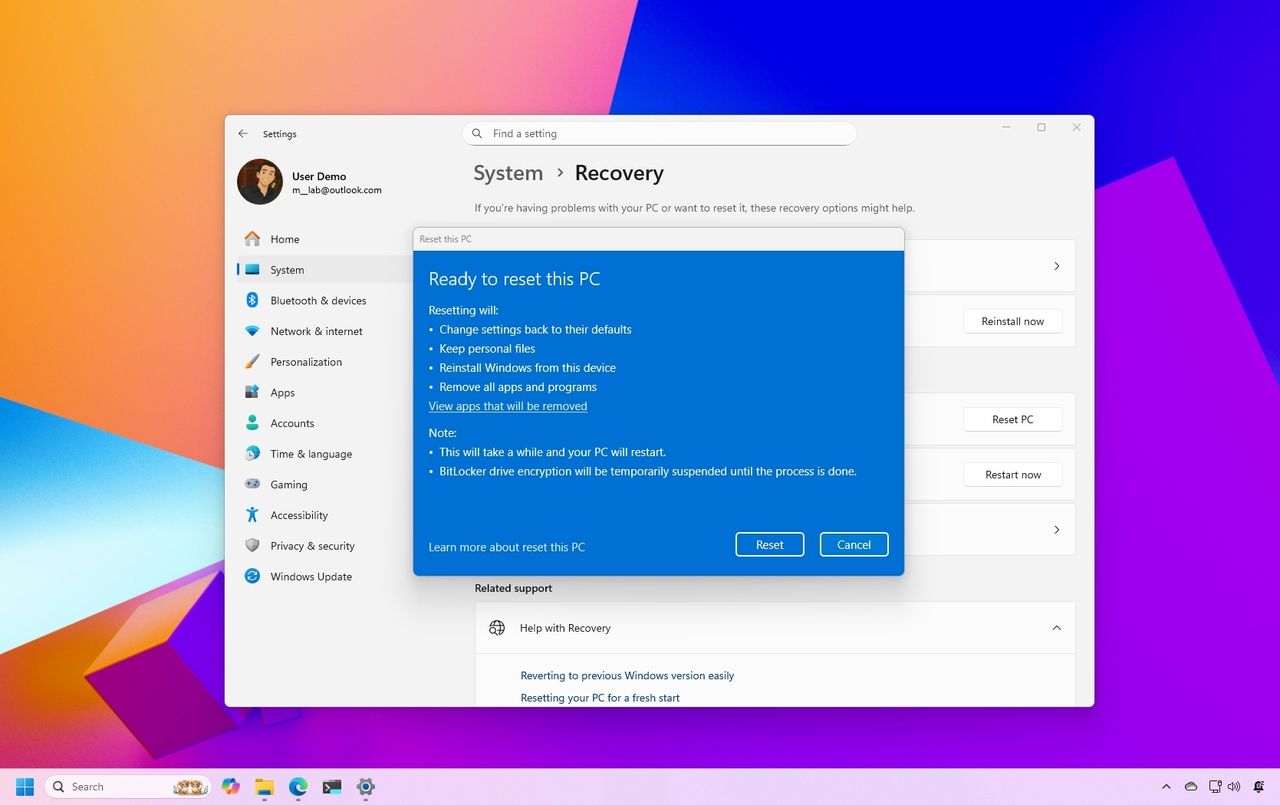
A new feature called Cloud rebuild is in testing on Windows 11. It lets you restore a PC to a clean state without needing an external drive.
What is Cloud rebuild on Windows 11?
Microsoft has added a new option to reset your PC by using the cloud, but the previous options remain in place. (Image credit: Daniel Rubino / Windows Central)
Cloud rebuild is a feature that lets you reinstall Windows and your PC's drivers by using the internet. Rather than requiring a USB drive that's been set up, you can reset your PC entirely through the cloud.
"Unlike Reset this PC, Cloud rebuild downloads both the target Windows image and the device's drivers from Windows Update, so the device comes back fully functional without USB media, without a custom image, and without depending on the health of the currently installed OS."
While Reset this PC and Cloud rebuild both let you recover your PC, they differ in important ways apart from the fact that one uses a USB drive and the other uses the cloud.
Reset this PC gives you the option to retain your personal files, which could save vital content from being lost. But even if you have an external USB install drive ready to go, you can only use Reset this PC if Windows is bootable.
The feature also requires you to have manually created a USB installer ahead of time on a working computer.
In contrast, Cloud rebuild works even if your PC refuses to boot. The downside is that it does not provide an option to maintain apps and files.
Cloud rebuild brings your PC to a clean slate with Windows working and device drivers in place.
The biggest advantage of Cloud rebuild is reliability. Cloud rebuild doesn't rely on a tool you've set up in advance or ensured was formatted correctly. It just pulls a fresh image and drivers through Windows Update.
All my files are stored on OneDrive and backed up elsewhere, so I don't need the option to retain my files. It would save a bit of time after a reset, but it's not essential.
Cloud rebuild does depend on having an internet connection, so a USB installer is still the safer option for people in low‑connectivity environments.
Let the people decide
Of course, having the option to use a USB drive or the cloud is best. While I personally prefer Cloud rebuild for restoring my PC, I want both options to be available. Many people prefer to have physical tools they know are reliable and that can run locally.
That's what the current debate about physical media comes down to: choice and control. The vast majority of game sales are digital, but people want the option to own physical media.
Windows 11 management is the same way. Some will rely on the cloud while others will have USB drives to reset their PC and SSDs stored away to back up files.
Cloud rebuild is the better option for my workflow, but the point isn’t to replace USB recovery. It’s to give people the choice and control. Just like physical media, recovery tools shouldn’t be taken away; they should coexist.
Join us on Reddit at r/WindowsCentral to share your insights and discuss our latest news, reviews, and more.
Windows 11 reset to factory settings
Windows 11 is testing a new Cloud rebuild feature to reset your PC without a USB drive.
Microsoft is using AI to protect Windows against attackers. The development represents an arms race because AI is also being used increasingly to find vulnerabilities modern tech, as highlighted by The Hacker News.Hackers can use AI to find and take advantage of vulnerabilities that could then be weaponized. It's not just discovery that's been sped up, reverse engineering security flaws is now a quicker process because of AI. That means attackers can find flaws a
Microsoft is using AI to protect Windows against attackers. The development represents an arms race because AI is also being used increasingly to find vulnerabilities modern tech, as highlighted by The Hacker News.
Hackers can use AI to find and take advantage of vulnerabilities that could then be weaponized. It's not just discovery that's been sped up, reverse engineering security flaws is now a quicker process because of AI. That means attackers can find flaws and quickly take advantage of them before traditional methods of protection could take effect.
To combat those malicious actors and evolving tactics, Microsoft is deploying MDASH (Multi-Model Agentic Scanning Harness) at scale across Windows.
Pavan Davuluri, EVP of Windows and Devices at Microsoft, shared a blog post about the new methods the company is using to protect Windows.
"The fastest way to reduce customer exposure is to find issues before attackers can use them," said Davuluri. "Windows is expanding its ability across the platform to find issues earlier, accelerate the engineering work to fix them, strengthen validation, and deliver timely, high-quality updates that keep customers protected."
Using AI to identify potential flaws, prioritize fixes, and scale discovery across the codebase of Windows lets Microsoft quickly roll out protection to customers.
To scale MDASH to Windows, a dedicated cloud infrastructure was set up for scanning for potential flaws. A separate prove pipeline then is used to eliminate false positives. The Windows engineering team can then act on the most likely candidates that need addressing.
Microsoft will expand its use of AI for scanning and proving to other parts of the company.
Using AI to improve work
When Microsoft announced 4,800 layoffs across the company, its leaders emphasized that the eliminated roles are not being replaced by AI. People across a wide range of sectors are concerned about automation taking human jobs.
The approach Microsoft is using to scan for issues and streamline the selection process of candidates to address represents AI helping people rather than replacing workers.
When speaking of improving internal systems and practices, Davuluri said, "That means using AI to help identify potential issues earlier in the development process, while relying on human expertise to evaluate findings, make risk-based decisions and ensure fixes meet the quality bar customers expect."
The end result is that more security updates will be included in each security release, which should protect PCs from the growing number of attacks.
Join us on Reddit at r/WindowsCentral to share your insights and discuss our latest news, reviews, and more.
Suface Laptop for Business 8th Edition with a black keyboard and a modern design, displaying a blue abstract swirl on its screen, set against a light gradient background.
Suface Laptop for Business 8th Edition with a black keyboard and a modern design, displaying a blue abstract swirl on its screen, set against a light gradient background.
Microsoft Forms just got a major upgrade thanks to Copilot. Microsoft 365 Copilot chat now lives within Microsoft Forms, adding a familiar tool to those who use AI in Word, Excel, and PowerPoint.Copilot in Microsoft Forms can suggest improvements to your polls and forms and present insights from responses.The Copilot integration is available now to users with Microsoft 365 commercial Copilot licenses.Microsoft listed all the changes to Forms in a blog post:Smart
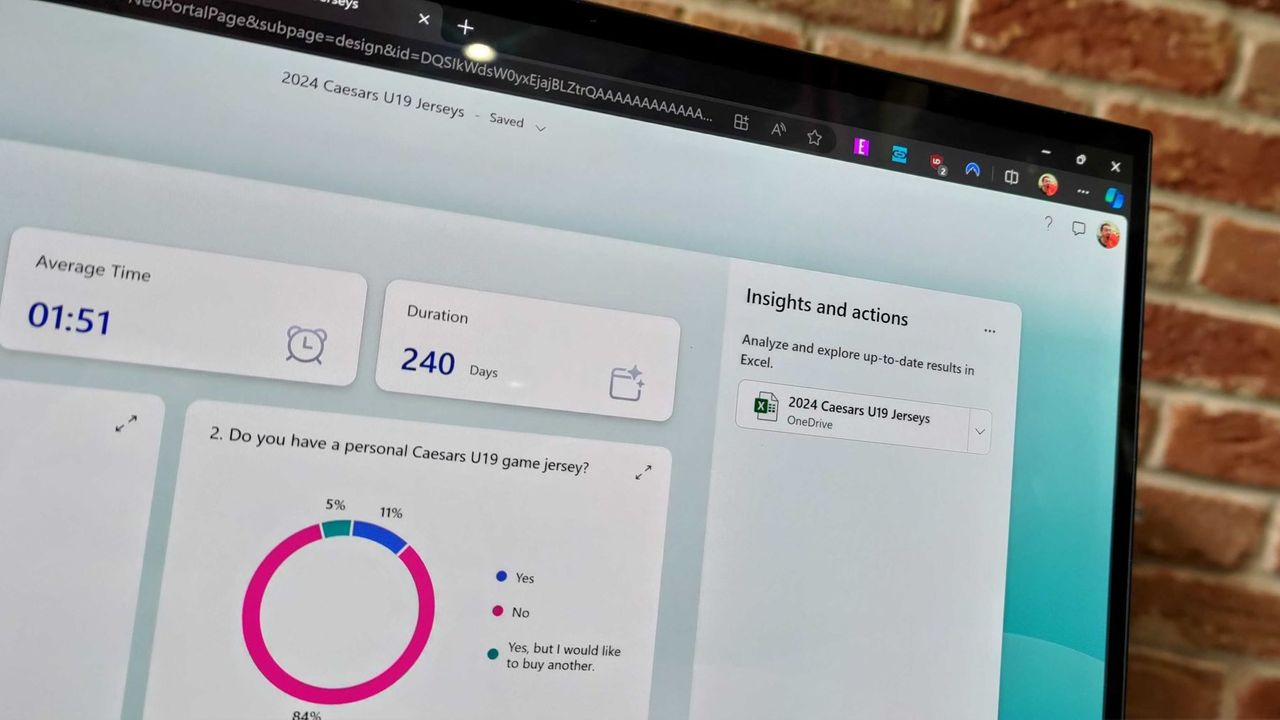
Microsoft Forms just got a major upgrade thanks to Copilot. Microsoft 365 Copilot chat now lives within Microsoft Forms, adding a familiar tool to those who use AI in Word, Excel, and PowerPoint.
Copilot in Microsoft Forms can suggest improvements to your polls and forms and present insights from responses.
The Copilot integration is available now to users with Microsoft 365 commercial Copilot licenses.
Microsoft listed all the changes to Forms in a blog post:
Smarter suggestions & refinements: Get targeted recommendations to improve your form’s structure, clarity, and effectiveness. Copilot can also apply refinements directly to the form, so you can save time making edits – just describe what you want, and watch Copilot make it happen.
Deeper analysis: Copilot can now analyze your results in-depth to provide clear insights and actionable takeaways for you and your team. You can even ask follow-up questions to help parse and summarize your data and unlock your next step.
More settings: Review and update form settings with ease, such as applying custom thank-you messages and close dates, so your form is ready to send. You can also adjust question settings in bulk, such as making questions required.
Open-ended chat: Copilot chat gives you access to a broad world of capabilities, whether you’re seeking inspiration on survey topics or consulting on how to configure your form – the possibilities are broad with Copilot at your fingertips.
Basic branching: Apply basic branching logic directly through the agent. (Note that some complex scenarios are not yet supported, and you should continue to review your branching logic prior to sending your forms.)
I use Microsoft Forms to gather feedback from my American football team. I admit that I first tried it because my job centers around knowing Microsoft products. But after using Microsoft Forms for a while, I grew to prefer it over Google Forms.
Microsoft Forms can sync with Excel documents, making it much easier to stay on top of responses. I'm deeply entrenched in the Microsoft ecosystem, so anything that works seamlessly with the rest of my workflow gets bonus points in my book.
I also prefer some of the features of Microsoft Forms, such as question-level branching. That feature makes filling out forms feel smoother when a poll includes branching questions because it keeps you on the same page.
The layout of Microsoft Forms also presents results quicker because if you want to look at a chart, you don't need to open a separate spreadsheet.
The new Copilot experience in Forms could also be a boon to the platform, though I'll have to see it in action to judge. In my experience, Copilot as a general tool is good at suggesting improvements, performing bulk edits, and creating summaries, so it should thrive within Microsoft Forms.
Join us on Reddit at r/WindowsCentral to share your insights and discuss our latest news, reviews, and more.
A great feature won't make it to Microsoft Teams, at least anytime soon. Microsoft began testing two minimized views in Teams earlier this year, but development of the features has been paused.The idea was that when an active meeting window was minimized, Teams would show a minimized window with shortcuts to perform actions like raising your hand or sharing a reaction. One option called Expanded view showed up to four participant videos, while the Compact view fo
A great feature won't make it to Microsoft Teams, at least anytime soon. Microsoft began testing two minimized views in Teams earlier this year, but development of the features has been paused.
The idea was that when an active meeting window was minimized, Teams would show a minimized window with shortcuts to perform actions like raising your hand or sharing a reaction. One option called Expanded view showed up to four participant videos, while the Compact view focused on quick actions and settings.
"Updated July 7, 2026: We have paused release to GA at this time. We will communicate via Message center when we are ready to proceed. Thank you for your patience," reads the Microsoft 365 Message Center (archived here).
The views were meant to start rolling out in May 2026, but they now sit stuck in the development pipeline. Neowin spotted that the feature was paused.
Expanded view (left) and Compact view (right) would have shown shortcuts and key meeting content when the main meeting window was minimized. (Image credit: Microsoft)
There's always a chance that preview features will be changed significantly before release or cancelled. Microsoft also needs to work out any issues before shipping a change to Teams.
Microsoft did not share why it paused the development of these minimized views. They both seem like worthwhile additions to Teams that make multitasking easier. I hope Microsoft ships them to Teams eventually.
Teams gets new features regularly. The communication platform gets so many updates that Microsoft has to list changes in a monthly blog post.
But the most talked about Teams feature this year was omitted from the last roundup. Teams now has a controversial feature that lets your boss see where you are if you're connected to Wi-Fi networks at work.
Microsoft was accused of making Teams a "lapdog for your boss," but the company has made changes to the feature since first unveiling it. Microsoft delayed the rollout of that feature, changed the name of the option, and added better privacy controls.
The minimized views within Teams may go through a similar journey. We could see them in the future with altered controls, a new name, or in the same form but at a later date.
Join us on Reddit at r/WindowsCentral to share your insights and discuss our latest news, reviews, and more.
Microsoft Teams app seen displayed on a smartphone screen and a Microsoft Teams logo on a laptop in the background.
Microsoft Teams app seen displayed on a smartphone screen and a Microsoft Teams logo on a laptop in the background.
You can now provide feedback about the Microsoft Rewards Program through a new feedback portal. Similar to the new Xbox Player Voice forum, the Microsoft Rewards Feedback portal lets you suggest features, vote on feedback, and track the progress of changes.The Microsoft Rewards Program has been around in some form for years, though it used to be under the Bing brand. You can earn points by using Microsoft services that you can then exchange for various rewards.If
You can now provide feedback about the Microsoft Rewards Program through a new feedback portal. Similar to the new Xbox Player Voice forum, the Microsoft Rewards Feedback portal lets you suggest features, vote on feedback, and track the progress of changes.
The Microsoft Rewards Program has been around in some form for years, though it used to be under the Bing brand. You can earn points by using Microsoft services that you can then exchange for various rewards.
If you're deeply entrenched in the Microsoft ecosystem, you can earn a lot of points quickly. Over the years, I've used points to build up a library of movies. I value gift cards over other rewards, but you can also use your Microsoft Rewards points to enter sweepstakes and make donations.
I don't spend as much time earning points anymore because of the changes Microsoft rolled out this year.
Microsoft rolled out major changes to its rewards program in May, and some were received poorly. Those changes paired with the increase of the Xbox gift card cost have left plenty of room for feedback.
Generally speaking, points are less valuable than they used to be and there are fewer options for redemption. It's also harder to earn points in several ways.
I think there's a limit to how much we should complain about getting free things, but I think for many the effort to earn points is no longer worth it.
Most requested improvements to Microsoft Rewards
The Microsoft Rewards Feedback portal only launched yesterday, but a theme is already emerging. Several of the top pieces of feedback center around delivering more value to users.
Have you ever wondered why minimum specs continue to creep upward? Part of the problem is that developers don't need to be as efficient as they did decades ago.A recent video by Dave Plummer highlights the bloat of modern applications by following the journey of Plummer making a notepad that's just 2,686 bytes.App development is complex, and there are genuinely good reasons that games and programs require such high specs in 2026. But generally speaking, programmi
Have you ever wondered why minimum specs continue to creep upward? Part of the problem is that developers don't need to be as efficient as they did decades ago.
A recent video by Dave Plummer highlights the bloat of modern applications by following the journey of Plummer making a notepad that's just 2,686 bytes.
App development is complex, and there are genuinely good reasons that games and programs require such high specs in 2026. But generally speaking, programming doesn't have the constraints of yesteryear, so developers don't need to trim code.
A single app not being optimized is not that much of an issue, but when every program on your PC is bloated, problems pop up. The same productivity workflow today requires more RAM than it did in 2015.
For context, Windows 10 launched with a minimum requirement of just 1GB (for 32-bit) and 2GB of RAM (for 64-bit). Windows 11 requires at least 4GB just to boot the operating system, but most users want much more memory. It was controversial when Microsoft and other companies started offering new PCs with 8GB of RAM this year.
Plummer is best known for creating the Windows Task Manager. He also discusses programming and Windows history on his YouTube channel.
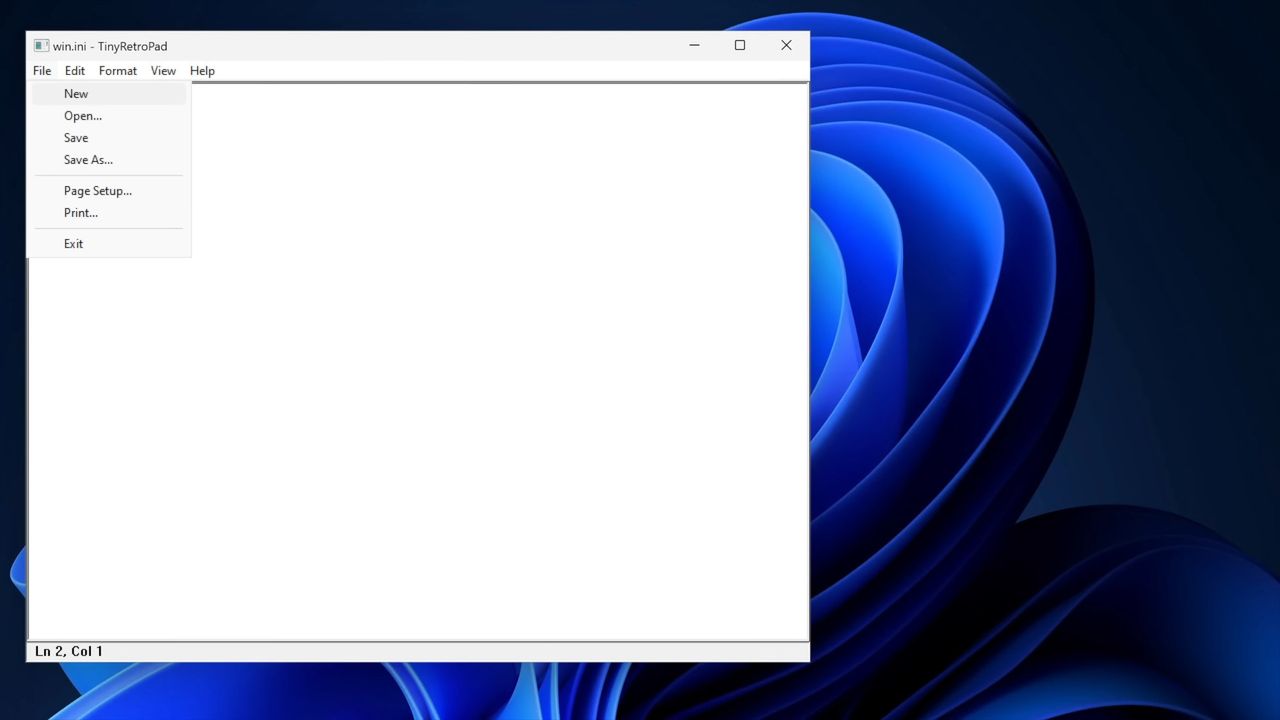
In a recent video, Plummer shared how he made a small notepad application that's smaller in size than a YouTube thumbnail.
Tiny Retro Pad has the core functionality of the original Notepad app built by Microsoft. Notably, it lacks the modern features seen in Notepad, such as Copilot. Considering Notepad's addition of Copilot was mocked by many, Tiny Retro Pad is an improvement in some ways.
Making a notepad app that's under 4,096 bytes is more about working within constraints than the specific size of the final app. In the early days of Windows, there were several limits placed on developers, such as hardware caps. Having to work within those constraints forced developers to be more efficient.
Plummer was able to keep Tiny Retro Pad small by utilizing what's already in Windows.
"A tiny native Windows program does not bring along its own entire civilization. It arrives with a lunchbox and a map of the city," said Plummer.
Later in the video, he added, "The program is small because it is not carrying what the platform already has. And that is a lesson that modern software could stand to remember. Not every app needs to bundle the universe. Not every utility needs to ship with a browser engine."
Nowadays, PCs, tablets, and phones have absurd specs. Even modest devices have several gigabytes of memory and tons of storage. Those specs make modern workflows possible, but they also leave room for lazy development.
"Somehow it seems modern software manages to go the other way. You just want a text box and somehow you've imported a runtime, a layout engine, a renderer, a dependency tree, a telemetry client, an auto updater, and a small portion of Chromium," said Plummer.
No one needs a notepad application that's less than 4,000 bytes, but if more app developers focused on efficient code, Windows 11 would feel smoother across the board.
Join us on Reddit at r/WindowsCentral to share your insights and discuss our latest news, reviews, and more.
Windows interface showing an open notepad application. A dropdown menu is open and "new" is selected.
Windows interface showing an open notepad application. A dropdown menu is open and "new" is selected.
Microsoft finds itself on the receiving end of a lawsuit about "unreasonable and excessive noise" allegedly emitting from the tech giant's Fairwater datacenter in Mount Pleasant, Wisconsin. The suit seeks compensation for damages, though the amount asked for is unspecified.The Fairwater datacenter was unveiled in September 2025. At the time, it was the largest and most advanced datacenter. The site launched with NVIDIA’s GB200 GPUs. Each rack can process 865,000
Microsoft finds itself on the receiving end of a lawsuit about "unreasonable and excessive noise" allegedly emitting from the tech giant's Fairwater datacenter in Mount Pleasant, Wisconsin. The suit seeks compensation for damages, though the amount asked for is unspecified.
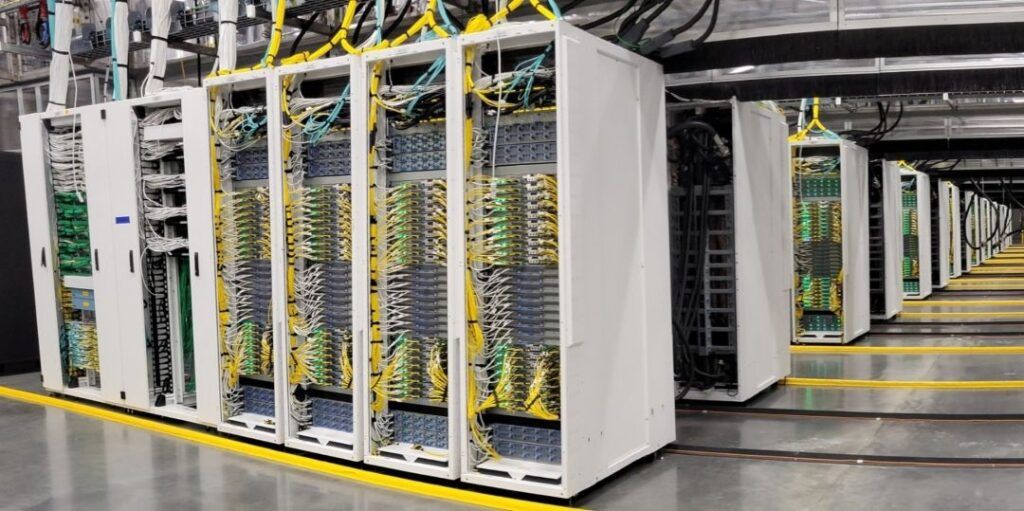
The Fairwater datacenter was unveiled in September 2025. At the time, it was the largest and most advanced datacenter. The site launched with NVIDIA’s GB200 GPUs. Each rack can process 865,000 tokens per second.
Running those GPUs makes a lot of noise. Microsoft states that the noise levels meet levels required by local ordinances, but the company has taken additional steps to reduce noise.
"Our engineering team and consultants on-site investigated the source of the sound, conducted tests, and put noise mitigations in place. Several neighbors confirmed what our independent monitoring showed: that these mitigations fully resolved the issue. We continue to work on short-term mitigation, and over the next several months, we will also install additional sound reduction components and continue to monitor sound at the site."
Despite the measures taken by Microsoft, the lawsuit about the noise from the datacenter was filed on July 1, 2026.
The lawsuit claims that Microsoft has not taken the proper steps to reduce noise in the surrounding area:
"Defendant has failed to follow proper industrial practices to prevent the offsite emission of noise, and has failed to absorb, capture, mitigate, and/or prevent noise from escaping its Data Center, thereby invading the homes and properties of Plaintiffs and the Class."
The plaintiffs of the suit claim that a "low hum" of infrasound emits from the datacenter and that the sound cannot be measured easily on the decibel scale. Our colleagues at PC Gamer highlighted that one plaintiff claimed "the constant noise [affected] his sleep." The filing states that the noise is "not only excessive, but consistent and pervasive."
Since the lawsuit was just filed within the last week, it will likely be a while before we see it reach a conclusion.
Join us on Reddit at r/WindowsCentral to share your insights and discuss our latest news, reviews, and more.
Stop the presses! A laptop maker just announced a price reduction in 2026. Despite the ongoing RAM crisis and component shortage, Framework just dropped the price of the Framework Laptop 13 Pro.Framework was able to source a new SSD from its partner ADATA that offers better performance and reliability while costing less.Framework Laptop 13 Pro preorders have not started shipping, so any order that's already been placed has been upgraded to the new SSD and had pri
Stop the presses! A laptop maker just announced a price reduction in 2026. Despite the ongoing RAM crisis and component shortage, Framework just dropped the price of the Framework Laptop 13 Pro.
Framework was able to source a new SSD from its partner ADATA that offers better performance and reliability while costing less.
Framework Laptop 13 Pro preorders have not started shipping, so any order that's already been placed has been upgraded to the new SSD and had pricing adjusted.
"This new SSD comes in 1TB and 2TB options, and the 1TB lands at a lower price than the 500GB SSD we had previously qualified, so we will also switch 500GB orders to the 1TB drive at the lower price," explained Framework.
Framework's website did not show the reduced pricing when I drafted this piece, so I can't share the exact costs of the new configurations. I'll update this piece as more information becomes available.
The announcement comes as good news for those shopping for the unique laptop from Framework, but it's a relatively small reprieve from the current financial climate.
Even in Framework's announcement of the price decrease, the PC maker warned that CPU price increases are expected. "We expect that we will need to adjust the overall system price on Framework Laptop 13 Pro in the coming weeks for new orders," said Framework.
In response to Apple’s price increases today, we’ve lowered the price of some Framework Laptop 13 Pro configurations. We were able to source and qualify Gen 5 SSDs from ADATA that are both faster and cheaper, and now offer them on DIY Edition! https://t.co/HfS1l5wL1tJune 25, 2026
Framework dropped its prices on the same day Apple unveiled several price increases, which led to a playful jab. Framework clarified in a follow-up post that the timing of its reductions was coincidental and not in response to Apple.
The unfortunate reality is that many laptop makers have bumped up prices, including Framework. Microsoft, Dell, Lenovo, HP, and others have all had to raise prices. For a short time, Apple was immune to price hikes due to its stockpile of components, but that is no longer the case.
We shouldn't expect things to improve in the immediate future. When Microsoft announced another wave of price increases to Xbox consoles, the company said it expects another doubling of console storage and memory prices by the fall of 2027. The same factors that contribute to those components doubling in price will affect PC parts.
Join us on Reddit at r/WindowsCentral to share your insights and discuss our latest news, reviews, and more.
Microsoft needs to copy a new feature that makes it easier to multitask on Windows 11. But rather than Sherlocking a third-party app, Microsoft just needs to copy a concept proposed for its own app, PowerToys.Every once in a while a feature gets added to PowerToys that makes me wonder "why isn't this part of Windows?" FancyZones immediately comes to mind, and Microsoft seems to agree since improved snapping in Windows 11 takes inspiration from that feature.PowerT
Microsoft needs to copy a new feature that makes it easier to multitask on Windows 11. But rather than Sherlocking a third-party app, Microsoft just needs to copy a concept proposed for its own app, PowerToys.
Every once in a while a feature gets added to PowerToys that makes me wonder "why isn't this part of Windows?" FancyZones immediately comes to mind, and Microsoft seems to agree since improved snapping in Windows 11 takes inspiration from that feature.
PowerToys may have another winner on its hands in AltWindowCycle, though I think a new name may be needed.
The utility allows you to switch between windows with a keyboard shortcut. It's similar to Alt + Tab, but it works within a single app. Clint Rutkas explained the tool in a GitHub pull request:
"Introduces a new utility: AltWindowCycle to quickly switch between windows from the same process using Alt + `. It works like Alt + Tab, but scoped to the app you’re already in. Perfect for juggling multiple browser windows, terminals, or editor instances."
AltWindowCycle is still in its early stages. If it is finished and made a part of PowerToys, I hope it also makes its way to Windows 11.
If it does become part of Windows 11, AltWindowCycle would help Microsoft's operating system catch up to macOS and some Linux distros, which use either Alt + \` or Cmd + ` to cycle through windows of the same app, albeit a bit differently.
Many PowerToys features are niche and would be considered bloat by non-power users if included with Windows 11. But a small shortcut that makes multitasking easier would be a natural addition to Windows 11, especially since AltWindowCycle works similarly to the well-known Alt + Tab shortcut.
This collection of utilities includes a large library of features to enhance the Windows experience. PowerToys is designed with power users in mind, but it has handy features for people who just use their PC for everyday computing too.
I love widgets. Microsoft seems much cooler on the concept. Sure, Windows 11 has a Widgets Panel, but it's barely useful due to its lack of quality widgets. That's why I was so excited to see WidBar highlighted on Reddit.WidBar is a new app that allows you to add widgets to the empty spaces of the Windows 11 taskbar. It's still in beta, but it's off to a promising start.The developer of WidBar, Andrea Del Bello, shared the app and detailed its progress.At the mom
I love widgets. Microsoft seems much cooler on the concept. Sure, Windows 11 has a Widgets Panel, but it's barely useful due to its lack of quality widgets. That's why I was so excited to see WidBar highlighted on Reddit.
WidBar is a new app that allows you to add widgets to the empty spaces of the Windows 11 taskbar. It's still in beta, but it's off to a promising start.
The developer of WidBar, Andrea Del Bello, shared the app and detailed its progress.
At the moment, WidBar only has a pair of widgets: "Now Playing" and "System Metrics." They're basic but they do a good job showcasing the app.
Within WidBar, you can drag and drop widgets into a preview of your taskbar. Different widgets can be placed on various monitors.
This free app lets you add widgets to the empty spaces in the Windows 11 taskbar. It's still in beta, so it only has two widgets available, but developers can create their own widgets using templates.View Deal
Any developer can make widgets for WidBar. Del Bello explained how that works on Reddit:
"Each widget is just a small packaged app that you publish to the Microsoft Store like any other app, and WidBar picks it up on its own: there's no separate plugin store, no manual install into WidBar, and no approval from me. The moment your widget is installed from the Store, WidBar recognizes it automatically, it appears in the catalog, and the user can drop it onto the taskbar."
Del Bello also provided a template for making WidBar widgets on GitHub.
Putting Microsoft to shame
The Widgets Panel only has 56 widgets available.
WidBar has two supported widgets right now and is still in beta, but it already surpasses Windows 11's Widgets Panel in an important way.
Incredibly, the Widgets Panel lacks a Now Playing widget from Microsoft. Windows 11 has those controls, but they appear in the Action Center. That shows how much Microsoft thinks about the Widgets Panel.
There is a widget made by Stefan vd called "S Media Controls" that seems to fill the gap, but I've only used it briefly in testing.
Even if you give Microsoft the benefit of the doubt and argue having audio controls in the Action Center and the Widgets Panel, it won't take much to catch up.
With just two supported widgets, WidBar is well on its way to beating the Widgets Panel. There are a grand total of 56 widgets in the Microsoft Store for the Widgets Panel. And that count includes "My Tic-Tac-Toe" and several entries that appear to be money grabs that offer little functionality.
Add a clock, a calendar, a recent files shortcut and WidBar is almost 10% of the way to the entire Widgets Panel ecosystem.
Join us on Reddit at r/WindowsCentral to share your insights and discuss our latest news, reviews, and more.
Windows 11 desktop showing a widget for controlling music and the settings of an app for widgets.
Windows 11 desktop showing a widget for controlling music and the settings of an app for widgets.

 Connexion