Vue normale

GitHub’s latest outage took Copilot down with it, creating one of the most disruptive developer breakdowns we’ve seen in months — GitHub says it is now "operating normally"

GitHub is down for thousands of users, potentially costing millions of dollars in lost productivity. Outages started around 9:40 AM ET and affect API requests, pull requests, and webhooks.

The issues also affect Copilot. A massive number of developers and companies rely on GitHub and Copilot to get work done, so even a few hours of serious issues can be costly.

The official GitHub status page states:

"We are experiencing high error rates around 20% for web experiences and api traffic. Archive downloads and raw repository content downloads are experiencing an approximate 50% error rate. SAML and OIDC authentication, SCIM, and Team Sync are also impacted. We are still working to identify the root cause and will continue to post updates as we learn more and perform mitigation."

The cause of the outage is unknown at this time.

"We identified the problematic component and have taken corrective actions. There are strong signs of recovery but we are still working to completely restore service, with error rates still remaining slightly elevated. We will post further updates as recovery continues."

This is a developing story. We will update this piece as more information becomes available.

CANADA - 2025/07/20: In this photo illustration, the GitHub (Git Hub) logo is seen displayed on a smartphone screen. (Photo Illustration by Thomas Fuller/SOPA Images/LightRocket via Getty Images)

CANADA - 2025/07/20: In this photo illustration, the GitHub (Git Hub) logo is seen displayed on a smartphone screen. (Photo Illustration by Thomas Fuller/SOPA Images/LightRocket via Getty Images)
This Microsoft Outlook replacement comes with a shot of Windows Phone nostalgia

A former Microsoft engineer is working on a way to make Live Tiles relevant in 2026. Jeff Fritz, who worked at Microsoft until last month, has been showcasing an app called DayFrame on several of his recent live streams.

DayFrame is what happens when Windows Phone and Outlook have a baby. The app features a persistent hub with shortcuts to your email, calendar, contacts, and other tools. The layout is inspired by Windows Phone and would look natural on a Lumia smartphone.

Fans of retro Windows design will appreciate the Live -Tile-inspired interface, icons, and text. Though the app is built with classic Windows UI elements in mind, the experience won't be exclusive to PC. DayFrame will be available on both Windows and Mac when it ships.

"Instead of juggling separate apps, DayFrame gives every part of your personal world a home behind a single shell," reads the DayFrame website. "A persistent tile rail on the left keeps your modules one tap away — bold, square, unmistakably blue — while the main pane shows whatever you're focused on right now."

Screenshot of the DayFrame user interface showing a blue Metro-style navigation sidebar on the left with options for Contacts, Calendar, GitHub, RSS, and Email, alongside a daily calendar schedule view on the right.

DayFrame has several modules aimed to make it easier to juggle tasks. (Image credit: Jeff Fritz)

Sadly, the app is not available yet and is simply listed as "Coming soon." But Fritz mentioned on X that a private preview for the app should be available in the next week or so.

Fritz notes that the screenshots shown on the DayFrame website are of "real, running code," so they're more than just design mockups.

DayFrame is designed to be expanded over time. Each module is built independently and tested separately, which allows Fritz to add new modules without affecting preexisting ones.

The concept behind DayFrame is intriguing. A lot of apps feel like cookie-cutter tools made with templates. While DayFrame is inspired by Windows Phone, it takes the familiar layout and builds on it.

I'd love to see DayFrame be embraced by a community of developers after it comes out. Maybe we'll see some unique modules added to the app.

Blank Pixel

Click to join us on r/WindowsCentral

Join us on Reddit at r/WindowsCentral to share your insights and discuss our latest news, reviews, and more.

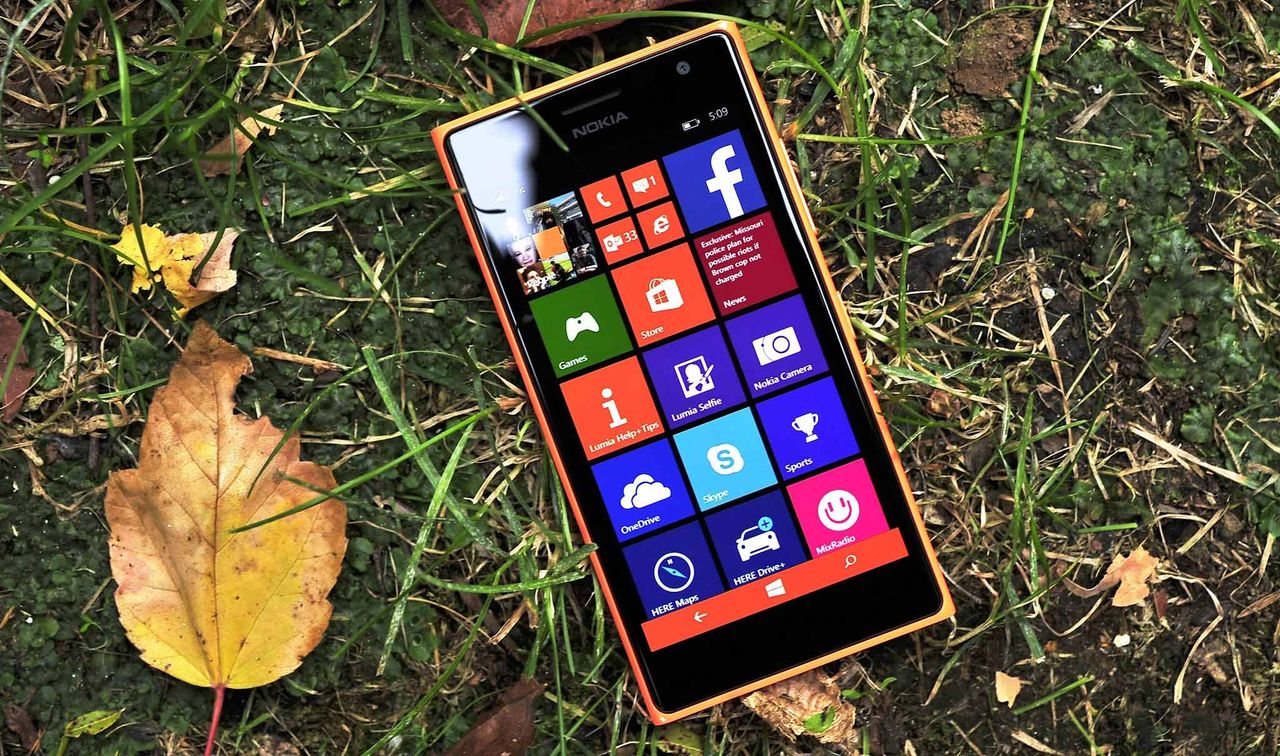
A smartphone with a colorful app tile interface lies on grass surrounded by autumn leaves. The bright screen contrasts with the earthy background.

A smartphone with a colorful app tile interface lies on grass surrounded by autumn leaves. The bright screen contrasts with the earthy background.

Microsoft is ditching the COPILOT function in Excel before it even launches

Less than one year after being launched in preview and before leaving testing, the COPILOT function in Excel is going away. The function never shipped to general availability, but it could be used by Frontier and Insider users since August 2025.

The COPILOT function allowed users to use natural language to place prompts into spreadsheets. For example, you could use it to summarize text or categorize feedback. The function could also look up information from the web.

While useful, the function had serious limits. Microsoft stated that people should not use the COPILOT function for numerical calculations, responses that require context from other parts of a workbook, or any tasks with "legal, regulatory or compliance implications."

Considering how many people use Excel for important work and calculations, those limits are quite restrictive.

Microsoft's explanation of why the feature is going away lacks details. Instead, it primarily focuses on the fact that Copilot in Excel is still available in the side pane:

"Beginning September 14, 2026, the =COPILOT function in Microsoft Excel will no longer be available. This function is currently offered as a preview feature through the Insider and Frontier programs.

Customers can continue using Copilot in Excel through the Copilot side pane, which provides many of the same AI-powered capabilities, including summarizing text, classifying data, generating content, and retrieving information from the web. This change helps streamline the Copilot experience within Excel while continuing to provide AI assistance through a supported interface."

Users will not be able to create new formulas using the COPILOT function after September 14, 2026.

Windows Central take

Microsoft Copilot on a red background

(Image credit: Windows Central | Jez Corden)

It appears Microsoft may be reining in Copilot a bit. The AI tool is still part of the company's plans, but in a more controlled manner.

Microsoft has a unified Copilot experience that merges Copilot and Microsoft 365 Copilot. We've also seen some Copilot features go away or be limited over the last few months.

Earlier this summer I argued that the free version of Copilot is starting to feel like a tech demo designed to push paid tiers. I still think that's the case, but if Microsoft is going to push Copilot, it's best to do so with a plan.

Since the launch of Copilot, it's felt like Microsoft threw everything at the wall to see what sticks. The Copilot brand was diluted and there were dozens of different apps with Copilot in the name. Anything even remotely related to AI was attached to Copilot in some way, making the term almost meaningless.

Whether it's because Microsoft decided that strategy was a mistake or it's just had enough time to assess what properly stuck, the next wave of Copilot feels more targeted.

Blank Pixel

Click to join us on r/WindowsCentral

Join us on Reddit at r/WindowsCentral to share your insights and discuss our latest news, reviews, and more.

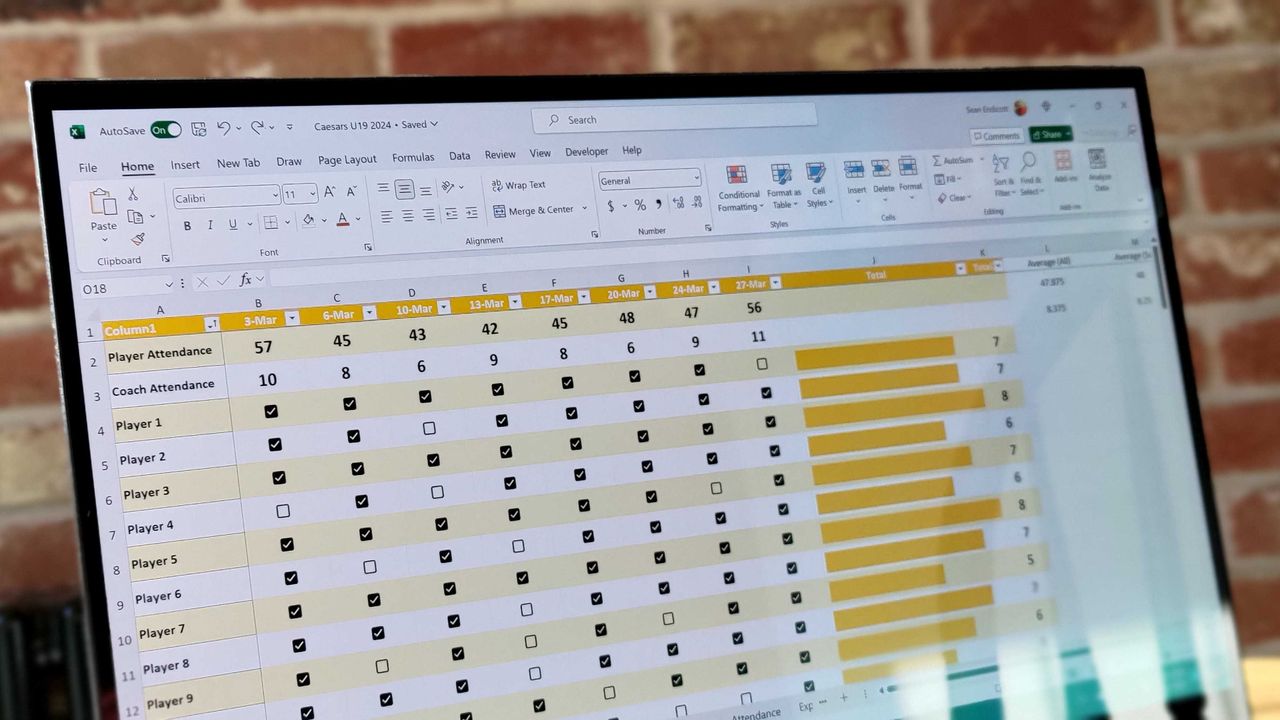
Excel spreadsheet with checkboxes

The upcoming checkboxes feature in Microsoft Excel makes it easy to visualize certain data.

Windows 11’s upcoming overhaul adds a movable taskbar, redesigned Start menu, and faster performance — but should it just have been Windows 12?

Windows Central

Windows 11 has a major update on the way, and that update promises to address some of the loudest complaints about the operating system. August is traditionally a slow month for Windows news, but thanks to some previews of what’s on the way next month, we have a lot to talk about.

Microsoft’s refreshed taskbar, customizable Start menu, and other improvements are all in the final stages of testing. Microsoft confirmed that a major Windows update is on the way very soon. But my question is, should that major update have been Windows 12?

Biggest News of the Week

Windows 11
Windows 11 context menu
Windows 11 update in Settings app
Taskbar with settings on the Windows 11 desktop in 2026.

It’s worth asking what a new operating system even is in 2026. As opposed to historical upgrades, the kernel and underlying code base of Windows stays largely the same when jumping between major version numbers. We’re well past the days of major architectural changes or code based swaps that make old software incompatible, at least when it comes to computers.

Is a new Start menu or a revamped taskbar set of options enough to justify calling a new OS Windows 12? Perhaps a revamped Settings app or an upgraded core experience for connecting your phone to your PC is enough to do it. There’s a fine line between a UI overhaul and a fresh coat of paint when it comes to making a new operating system.

Is the Damage Already Done?

The core question about keeping the Windows 11 name or upgrading to Windows 12 is if the damage has already been done or, in other words, is it even possible to save Windows 11 in the eyes of the public?

Windows 11 launched in controversy. The minimum requirements of the operating system made millions of PCs ineligible for an upgrade. Other decisions from Microsoft, such as rebuilding the taskbar without all of the options available in previous versions of Windows, also drew criticism.

I’m among the critics of Windows 11. I’ve pointed out several of the flaws in the operating system and mistakes I feel Microsoft has made. But I’m also a newswriter for a niche website that focuses on Windows. The general public may not be so passionate.

If Windows 11 is a lost cause, Microsoft should gather together a bunch of the changes from the Windows K2 initiative and package them into Windows 12.

Learning the Right Lessons

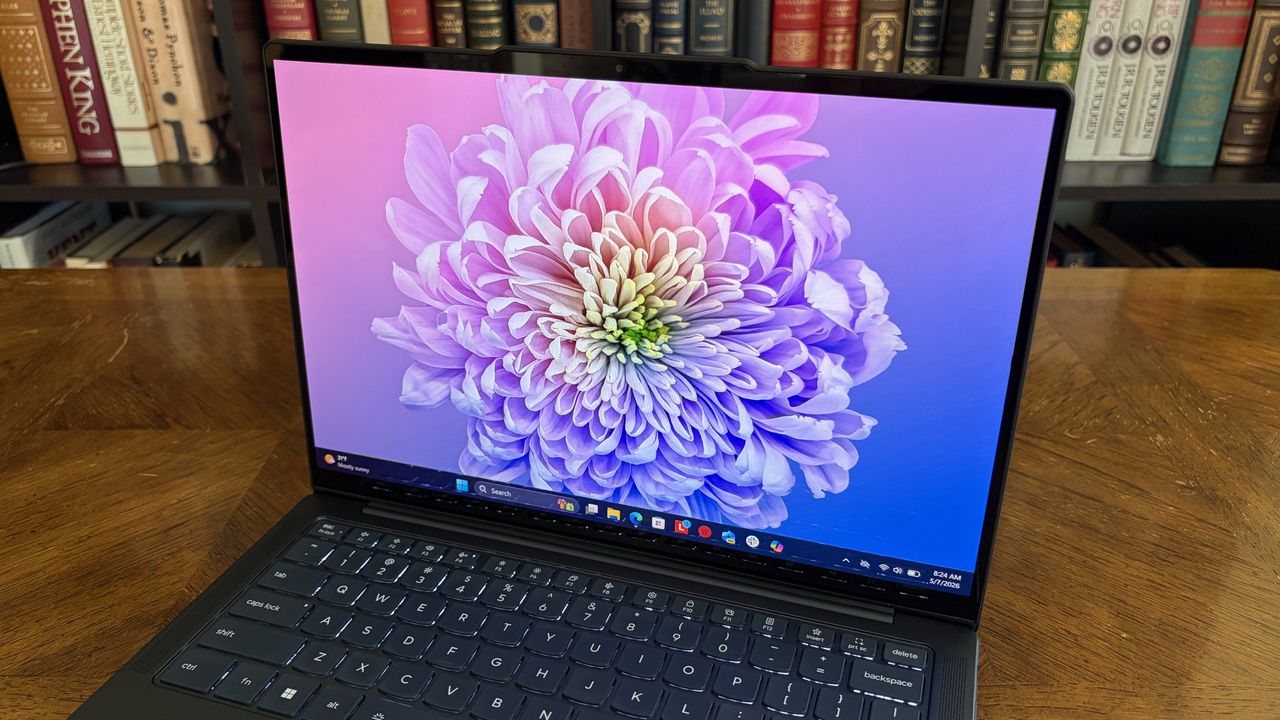
A laptop on a wooden table displays a vibrant, colorful chrysanthemum on its screen. Background: a bookshelf lined with assorted books. Cozy ambiance.

The Lenovo Slim 7X and many other PCs are great regardless of if they are Copilot+ PCs. (Image credit: Future)

If there ever is a Windows 12, I’m worried that Microsoft would have it focused on the wrong things. One of my favorite podcasts often says Hollywood learns the wrong lessons when a movie makes money. I think that could be the case with Windows 12.

Microsoft is trying to be better with Windows 11 and its K2 initiative shows promising signs, but part of me still worries that the higher-ups of Microsoft will think AI PCs are the future and use the sales of Copilot+ PCs to justify a Windows 12 centered around artificial intelligence.

But it’s not that Copilot+ PCs are must-have devices and that consumers are running into stores to find PCs capable of running AI. If you make the models of the best-selling PCs Copilot+ PCs and then those computers continue to sell, that’s not a sign that people want Copilot+ PCs. If you cram AI into every computer on the market, you can’t then justify making Windows 12 AI-focused by saying every PC is AI capable.

A hypothetical Windows 12 should be about moving past the stains that cover Windows 11. It will have been long enough since people bought new PCs that the TPM 2.0 requirement will not be as big of a deal. Additionally, Microsoft will have fixed the major user interface issues that have drawn so many complaints over the years.

Shopping with Sean

My top pick for shoppers this week is the XPS 14 (2025). That laptop is still on sale and is still one of the best bargains available. I love the XPS 14's design and a $1,150 discount on a PC with 32GB of RAM is rare these days.

XPS 14 (Core Ultra 7 255H, 32GB RAM, 1TB SSD, Intel Arc): was $2899.99 now $1749.99

This premium laptop has a 3.2K OLED touch display, 32GB of RAM, and a gorgeous design that takes advantage of every millimeter available. It's one year old, but it's still an excellent laptop in 2026.

Note that the review of this laptop was from before the Dell 14 Premium was rebranded to the Dell XPS 14.

Tom's Guide review: ⭐⭐⭐⭐View Deal

Click to join us on r/WindowsCentral

Join us on Reddit at r/WindowsCentral to share your insights and discuss our latest news, reviews, and more.

Windows 11 Dan Lowres Iphone

Windows 11 Dan Lowres Iphone

Windows 11 is finally on the brink of restoring full taskbar movement — a reversal of one of its most controversial design decisions

After years of waiting, you will finally be able to move your taskbar on Windows 11. But you still have to wait just a bit longer.

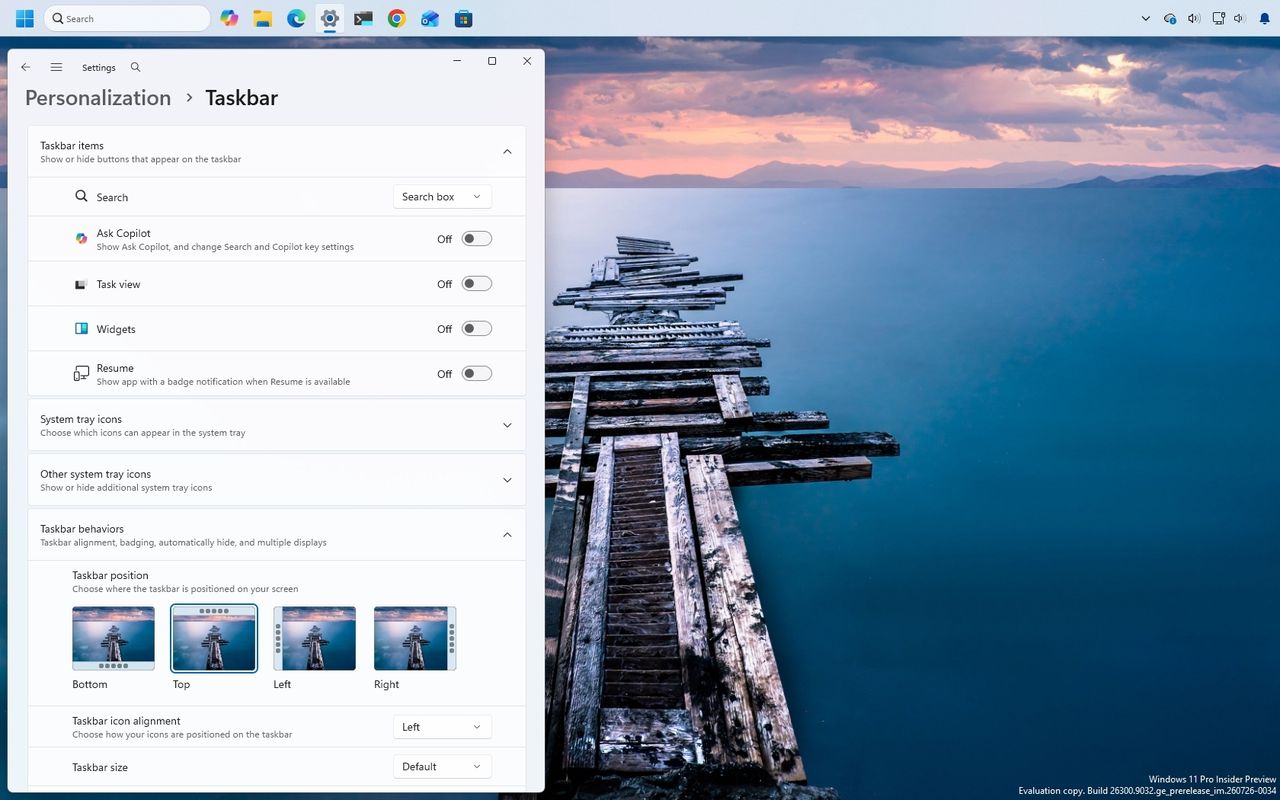
The latest Windows 11 Insider Preview builds include the option to move the taskbar to the top or either side of the screen. Assuming all goes well with testing, that change should ship with the September Patch Tuesday update. But Windows Insiders in the Release Preview Channel can start moving their taskbar right now.

The same update also brings the option to make the taskbar smaller on Windows 11, which maximizes screen space on smaller devices.

These changes should sound familiar to anyone who follows the development of Windows 11. They're among the several improvements that are on the way to Windows 11 this fall.

Other improvements include a more customizable Start menu, improved Windows Search, and a faster File Explorer.

The full change log for the latest Insider builds breaks down everything that's new.

Build 26100.9267/26200.9267

  • [Taskbar] This update gives you more ways to customize the taskbar to match how you work and make better use of screen space.
    • New! You can now choose whether the taskbar appears at the bottom, top, left, or right side of your screen. In these other positions, tooltips, flyouts, and animations still come from the taskbar, and most customization settings, such as never combining taskbar icons, work with all locations. The search box and smaller taskbar are currently supported only for top and bottom positions. To change the position of the taskbar, go to Settings > Personalization > Taskbar > Taskbar behaviors > Taskbar position.
    • New! A smaller taskbar option is now available to help maximize screen space on smaller devices. This experience reduces the size of taskbar icons and the taskbar height while maintaining access to key features such as Start, Search, and the system tray. To change your taskbar size, go to Settings > Personalization > Taskbar > Taskbar behaviors > Taskbar size. When set to Small, both the icons and the taskbar height become smaller.
    • New! The Taskbar behaviors section of the Taskbar settings page is now expanded by default for improved discoverability.
    • This update improves reliability when loading the system tray area of the taskbar on non-touch PCs.
  • [Start menu] This update makes the Start menu more personal with several customizations.
    • New! You can choose between a small or large Start menu, in addition to the Automatic (default) option that's available today. To customize this setting, go to Settings > Personalization > Start > Start menu size.
    • New! The Recommended section is renamed Recent in the Start menu and on the Start settings page (Settings > Personalization > Start).
    • New! You can now hide your name and profile picture in Start by going to Settings > Personalization > Start > Hide your name and profile picture on Start.
    • New! The Start menu settings page is now redesigned with section-level toggles to independently show or hide Pinned, Recent, and All.
  • [Windows Search] This update includes improvements that make Windows Search more dependable, easier to scan, and clearer before you select a result.
    • New! Search home is simplified to reduce visual clutter and make it easier to get back to recent searches quickly.
    • New! Search does a better job of showing where a result comes from, such as an app, setting, file, web result, or Microsoft Store suggestion. It's easier to tell what you're looking at and where you'll go before you select a result.
    • New! A new setting in Settings > Privacy & security > Search lets you choose whether web and Microsoft Store suggestions appear alongside local results.
    • New! Windows now automatically indexes your most used folders so that files in those folders appear in subsequent search results. You can control the setting in Settings > Privacy & security > Search > Automatically find additional relevant locations.
  • [File Explorer]
    • New! File Explorer Home now launches faster and is more responsive.
    • New! The Recommended section on Home now supports touch scrolling, making it easier to browse files in the carousel.
  • [General design] New! This update introduces updated progress indicators across Windows, providing a more consistent and modern experience during startup, sign-in, restart, shutdown, and update installation.
  • [Windows Share] New! This update adds the ability for users signed in with a work or school account to discover and install relevant apps directly from the share window. To manage this experience, go to Settings > System > Share and select Show suggested apps in share surfaces.
  • [Administrator protection] New! Administrator protection aims to protect free-floating admin rights for administrators. It enables users to perform administrative tasks using just-in-time privileges. Administrator protection isn't classified as a formal security boundary. It hardens security against elevation-of-privilege attacks by introducing profile separation. This feature is turned off by default and can be enabled using OMA-URI in Microsoft Intune or through Group Policy. This feature was previously disclosed in October 2025 (KB5067036) and is now beginning to roll out.
  • [Multiple desktops] Switching between virtual desktops is now smoother and more responsive.
  • [Display and graphics]
    • This update improves reliability when navigating to and interacting with Settings > System > Display.
    • This update improves the persistence of your previous brightness setting after energy saver turns off.
  • [Task Manager] This update improves reliability when displaying app history information in Task Manager.
  • [Windows Setup]
    • This update streamlines the experience for selecting a secondary keyboard during Windows setup, making it easier to skip when it isn't needed.
    • This update improves the Get Started app with new App install, Site pinning, and Theme pages to help you personalize your device and discover new features.
  • [Windows Update] This update improves restart behavior so PCs that were manually put to sleep return to sleep after completing an update, even when automatic sleep is set to Never.
  • [Network]
    • This update improves resiliency and recovery from potential VPN-related background issues that can cause processes to stop responding.
    • This update improves the output of the netsh wlan show wlanreport command for Japanese users.
  • [Input]
    • This update improves the reliability of typing with the Japanese IME by reducing potential hangs.
    • This update improves the persistence of voice typing settings for automatic punctuation and the launcher.
  • [Cryptography] The post-quantum cryptography algorithm ML-KEM can now be used as a standalone algorithm for TLS key exchange, in addition to the hybrid groups added previously.
  • [Windows Management Instrumentation Command-line (WMIC)] Starting in August 2026, Windows 11, versions 24H2 and 25H2 no longer include the Windows Management Instrumentation Command-line (WMIC) utility. WMIC is already removed by default in new installations of Windows 11, versions 24H2 and 25H2, and is no longer available as a Feature on Demand (FoD). This change affects only the WMIC utility. Windows Management Instrumentation (WMI) remains supported. To learn more, see Windows Management Instrumentation Command-line (WMIC) removal from Windows.

Almost everything new in these builds is rolling out gradually. The normal rollout only includes "Additional quality improvements," according to the change log.

Blank Pixel

Click to join us on r/WindowsCentral

Join us on Reddit at r/WindowsCentral to share your insights and discuss our latest news, reviews, and more.

Taskbar with settings on the Windows 11 desktop in 2026.

Taskbar with settings on the Windows 11 desktop in 2026.

Microsoft Defender vs. VLC: Which is causing MP3s to take 30 seconds to load?

A dramatic saga is unfolding on X, and VLC and Microsoft Defender are at the center of it. Things kicked off when video game designer Jonathan Blow criticized the open source community due to an issue he had with VLC.

A curious issue causes MP3 files to take a while to open in VLC. In some cases, opening a file can take over 30 seconds.

"Finally switched *away* from VLC *to* Microsoft Media Player, because VLC now takes 33 seconds to start playing an mp3 after clicking on it," said Blow. He added, "A large sector of open source software is in a truly embarrassing place now..."

Blow's post now shows a community note because the bug is due to Microsoft Defender, not VLC. Or at least, that's the claim of several people on X.

VideoLAN, the makers of VLC, responded to Blow:

"This is because of a « bug » from Microsoft Defender in one update of Windows 11, who magically made VLC plugins cache quarantined by Windows. Reinstalling VLC or regeneration of the plugin cache will fix this. Calling open source software embarrassing when it is a Windows update that broke it is quite disrespectful."

In response, Blow claimed that he had to fix an issue that was caused by a faulty graphics driver sent out by AMD. His post suggests that VLC should fix the issue even if the problem is caused by Microsoft Defender.

What's actually happening?

My wife would say that this is all a "storm in a teacup." I don't see the need to be as aggressive about this topic as people have been on X.

Over on Reddit, cooler heads prevailed. A discussion on the topic happened in the r/pcmasterrace subreddit. There, people focused on what's causing the issue and how to fix it.

At least some of the issue is related to Microsoft Defender. That's clear because adding VLC's folder as an exception to Defender fixes the problem, as highlighted by user "nicktheone."

If it were exclusively an issue with VLC, creating the exception within Microsoft Defender would not solve it.

You completely do not understand my tweet and thus would fail at professional software development.BTW I already pay Microsoft for Media Player and it works to an okay degree. I would happily pay someone for something better. VLC was that something better many years ago, but it…August 12, 2026

Of course, you could still debate whose responsibility it is to fix the issue. Even a bug related to Microsoft Defender could potentially be fixed by the VideoLAN team. That's certainly what Blow did while spending much of his Wednesday afternoon arguing with people on X.

How to create an exception for VLC in Microsoft Defender

You shouldn't have to create an exception for VLC in Microsoft Defender to open an MP3 in less than 30 seconds, but... here we are. Luckily, the steps to do so are simple:

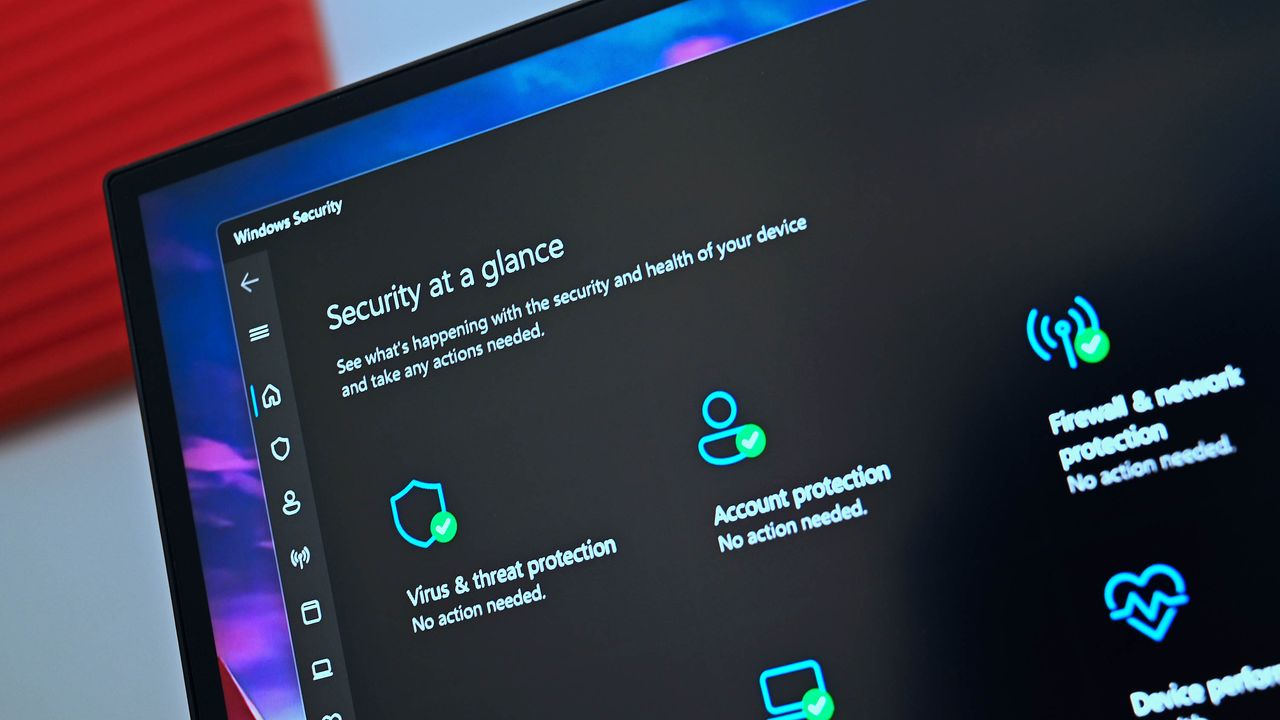
  • Open Windows Security
  • Select Virus & threat protection
  • Select Manage settings
  • Select Add or remove exclusions (it's at the bottom of the page)
  • Click Add an exclusion
  • Select Folder
  • Navigate to C:\Program Files\VideoLAN
  • Click Select Folder

Before making an exclusion, VLC took about five seconds to open an MP3 on my computer. After creating an exclusion, opening the same file took under one second.

Click to join us on r/WindowsCentral

Join us on Reddit at r/WindowsCentral to share your insights and discuss our latest news, reviews, and more.

Microsoft Defender

Microsoft Defender

Classic Outlook bug breaks Copilot, but some might call it an upgrade

When does a bug become a feature? Microsoft needs to answer that question now that classic Outlook may hide the Copilot button and stop other Copilot features from working.

A bug that appears with build 20026.20182 of classic Outlook prevents access to Copilot Chat and removes Copilot entry points within the app.

"After classic Outlook for Windows updates to build 20026.20182 and higher, you no longer have Copilot Chat or Copilot entry points in Outlook," reads a Microsoft support document. "This issue happens if you have a Copilot Chat (Basic) license or a paid M365 Copilot (Premium) account."

While it's easy to joke about Copilot going missing being "addition by subtraction," the bug is likely frustrating for those that rely on Copilot within classic Outlook.

If your system is affected by the bug, the Copilot button could be missing from the top-right area above the ribbon. The Copilot icon can also go missing in the left app bar or the More Apps area.

Even if you see the Copilot icon in the Add Apps section, selecting "Open" may not do anything at all. Even if you've added Copilot through ribbon customization, the option may appear grayed out or unavailable.

Only classic Outlook is affected, meaning Copilot still appears and works as usual within the web version of Outlook and other versions. The Microsoft 365 Copilot app and web experience are also working normally, though it's worth noting Microsoft has a new unified Copilot experience rolling out.

If you need to use Copilot immediately, Microsoft suggests switching to Outlook on the web or the new Outlook app. While standard fixes like creating a new Outlook profile, clearing local cache data, re-signing into Office, or restarting Windows have been tried, Microsoft notes they don't consistently restore the missing buttons.

Click to join us on r/WindowsCentral

Join us on Reddit at r/WindowsCentral to share your insights and discuss our latest news, reviews, and more.

Microsoft CEO Satya Nadella in front of the Microsoft Copilot AI logo.

Microsoft CEO Satya Nadella in front of the Microsoft Copilot AI logo.

A YouTuber just stress-tested a Snapdragon X2 laptop for 17 hours straight

The Lenovo Yoga Slim 7x (Gen 11) is one of the best laptops we've reviewed all year. Our Cale Hunt called the PC a "top choice for students, small business pros, and even casual Windows users who want a premium laptop." Now, thanks to a YouTuber, the laptop can also claim the title of a streaming battlestation.

YouTuber "DevonDoesTech" used the Yoga Slim 7x to power his streaming and content creation setup for a 17-hour stream marathon. DevonDoesTech was sent the laptop by Qualcomm and tested the PC by using it as the heart of his stream.

The latest Yoga Slim 7x runs on a Snapdragon X2 processor. The one DevonDoesTech used has the Snapdragon X2 Elite inside. The idea behind the stream was to see how the chip handled real-world usage.

It's a clever way to showcase the new chip from Qualcomm. Snapdragon X processors have had respectable specs for a while, but posts about the chips on social media often include people asking about app compatibility.

An Arm blog post from July 2025 stated that 90% of time spent on Windows on ARM PCs is spent on natively compiled apps. Since then, NVIDIA has announced RTX Spark, which adds another major name to the Windows on ARM platform.

But boasting about how many apps are natively compiled is not the same as showing ARM-based PCs can actually be used to get work done. The DevonDoesTech stream required OBS Studio, Meld Studio, DaVinci Resolve, Discord, and other apps.

DevonDoesTech streamed for over 1,000 minutes during his stream. The setup had both a horizontal stream on YouTube and a vertical stream on Twitch that ran simultaneously.

"I didn't notice a difference. Never once during the 17-hour stream, never once during my testing, never once during my road trip did I say 'Dang, I really wish that I had the power of my desktop computer.'"

He added that the Yoga Slim 7x is "kind of blowing [his] mind."

While ARM-based computing has come a long way, there are still games that do not work with Snapdragon X chips. Kernel-level anti-cheat is required for some games and is still an awkward spot. But even in that area there's promise for improvement.

Yoga Slim 7x (Gen 11): was $2099.99 now $1449.99

This laptop has a sleek design and enough power to handle everything from daily productivity to creative work. This model has 32GB of RAM and 1TB of storage.View Deal

Yoga Slim 7x (Gen 11): was $1499.99 now $899.99

If you love the look and design of the Lenovo Yoga Slim 7x but don't need the power and specs shown off in DevonDoesTech's video, this model is for you. It runs on a Snapdragon X2 Plus processor and is part of a massive doorbuster deal.View Deal

It's not just DevonDoesTech

Corner of a laptop on a red fabric surface, featuring a Snapdragon X2 Elite sticker, indicating the use of a powerful processor and Copilot+PC technology.

Our expert was also impressed with the Snapdragon X2 Elite and the Lenovo Yoga Slim 7x during his testing.

DevonDoesTech's praise is quite effusive, but it aligns with our own experience. The Yoga Slim 7x earned a 4.5 out of 5 in our review and Hunt said the Snapdragon X2 Elite chip and the laptop are a "blast" to use.

After using a PC with a Snapdragon X2 for one month, Hunt was "totally sold on Snapdragon X2." He also spoke on app compatibility:

"For a fairly casual Windows user like me, ARM64 app compatibility is a complete non-issue. You can see for yourself if the apps you use are native or emulated on the extremely useful WorksOnWOA website."

There was a time when ARM-based laptops were lackluster compared to their x86 counterparts. I'm happy to see those days are behind us.

Click to join us on r/WindowsCentral

Join us on Reddit at r/WindowsCentral to share your insights and discuss our latest news, reviews, and more.

A laptop on a wooden table displays a vibrant, colorful chrysanthemum on its screen. Background: a bookshelf lined with assorted books. Cozy ambiance.

A laptop on a wooden table displays a vibrant, colorful chrysanthemum on its screen. Background: a bookshelf lined with assorted books. Cozy ambiance.

Snapdragon C specs mean Qualcomm could eat Intel's lunch with budget laptops: Here's what we know (and what we still don't)

We now have more details about Qualcomm's Snapdragon C chips. The processors were officially announced in May, but we did not have full specs or details at the time.

Snapdragon C chips are designed to power budget laptops that start around $300. Qualcomm has updated its product pages for the processors, including full specs.

The specs are promising and stack up well against offerings from competitors, such as the Intel N250. Qualcomm shared some favorable comparisons between Snapdragon C and Intel N250 that suggest Qualcomm's new chip could compete very well in the budget laptop space.

Snapdragon C specs and details

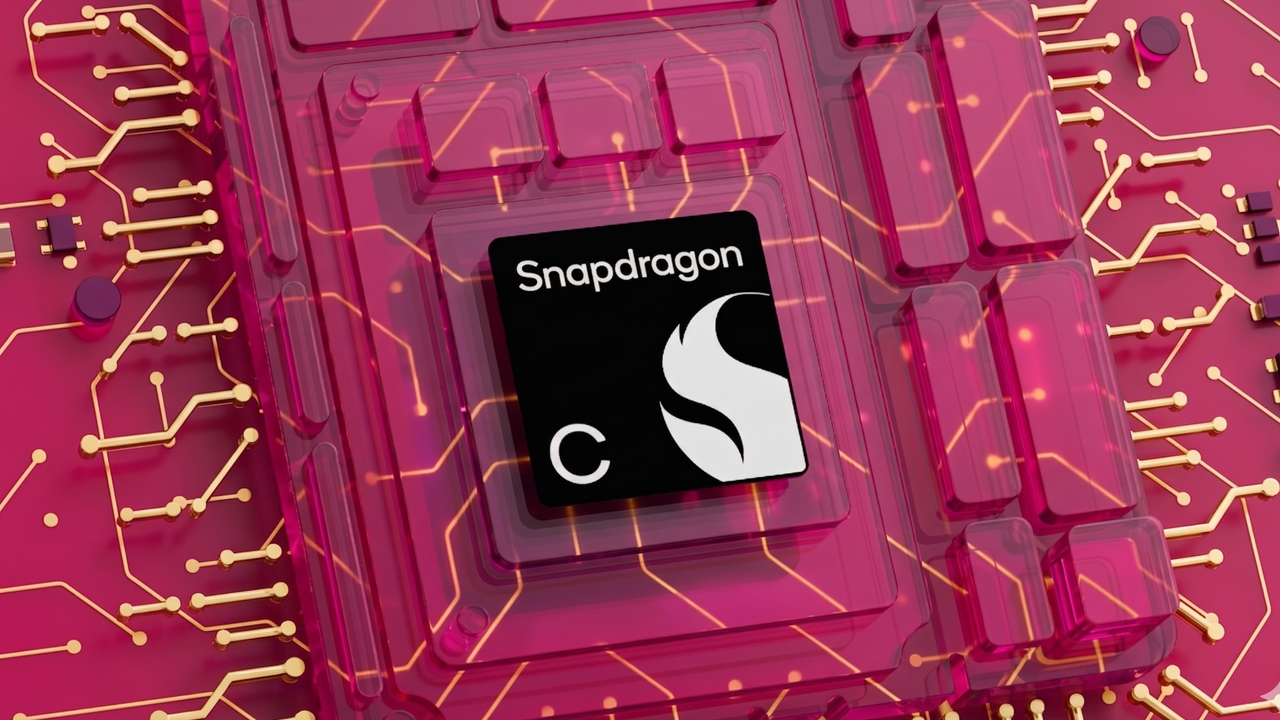
Snapdragon C logo in a white transparent environment resembling a motherboard.

Snapdragon C chips will power budget-friendly laptops starting at around $300. (Image credit: Qualcomm)

Snapdragon C promises up to 67% faster performance than Intel N250 according to Qualcomm. The biggest difference between the chips appeared in Cinebench MT testing, but Snapdragon C defeated Intel across a range of Qualcomm's tests.

Those performance tests are when both chips are running on battery power, which leans in Qualcomm's favor. Snapdragon processors often thrive in unplugged testing.

Qualcomm claims Snapdragon C delivers 106% better power efficiency during Netflix playback. Microsoft Teams (99% better) and YouTube (86% better) are both wins for Snapdragon C as well.

Power usage by idle apps is 39% better in power efficiency, according to Qualcomm.

Snapdragon C specs

CPU

Qualcomm Kryo CPU (6nm)

CPU cores

8

CPU max clock speed

3.0 GHz

GPU

Qualcomm Adreno

NPU

Qualcomm Hexagon

Memory

LPDDR5x

Maximum memory

16GB

Wi-Fi

Wi-Fi 6E, Wi-Fi 6

Bluetooth

Bluetooth 6.0

Snapdragon C has a dedicated NPU, which helps with AI tasks. I doubt AI usage will be heavy among budget laptop users, so CPU performance and other specs will likely be bigger factors for those shopping for affordable PCs.

Windows 11 on ARM has improved greatly when it comes to app compatibility, so that should not be as much of a concern as it would have been just a few years ago. For many people, app compatibility is no longer a concern for Windows 11 on ARM.

There are some legacy and enterprise apps that are not compatible with Snapdragon C and other ARM-based processors, but the list of the best native Windows on ARM apps continues to grow and includes big-name and niche apps.

For non-native apps, Microsoft's Prism emulation has improved over the years as well. That means even apps running in emulation perform better.

What we still don't know about Snapdragon C

The official specs of Snapdragon C are promising, as are the figures shared by Qualcomm. But there are still several key facts we do not know, some of which won't be confirmed until laptops with the new chips launch.

We also need to know how the chips perform when laptops are plugged in and how that performance compares to that of Intel chips.

All of the claims about performance and efficiency come straight from Qualcomm, so we'll need to see them verified independently.

Qualcomm has a good track record with claims like this. Benchmarks and comparisons shared with the press about previous chips proved accurate in real-world testing.

Qualcomm has always been bullish about how well its Snapdragon processors perform when unplugged compared to Intel's chips. Qualcomm had an entire ad campaign highlighting differences on that front.

I'm confident that Snapdragon C chips will perform well and compete with similar chips from Intel, but we need concrete figures from the wild and hands-on experiences to know exactly how the new chips stack up.

Click to join us on r/WindowsCentral

Join us on Reddit at r/WindowsCentral to share your insights and discuss our latest news, reviews, and more.

Snapdragon C logo on a colorized transparent motherboard component.

Snapdragon C logo on a colorized transparent motherboard component.

Hands-on with AltTabby, Stardock's replacement for the Windows 11 Alt+Tab experience

Stardock just announced AltTabby, an alternative to the Alt+Tab experience on Windows 11. The app switcher supports customizable layouts, smart grouping, application pinning, and keyboard shortcuts. The app plays nicely with other utilities from Stardock, such as allowing you to customize how Groupy groups behave.

Stardock reached out to me ahead of the release of the app and sent over a code to let me try AltTabby. I've never thought much about the Alt+Tab experience, so I lacked any ideas on how to improve it. I've always just pressed Alt+Tab to switch between apps without thinking.

AltTabby lets you do that, of course, but it has some nice options for customization that are worth a look.

Screenshot of the AltTabby app switcher overlay on top of Spotify, displaying live window previews of open applications in a curved 3D carousel layout.

The carousel view feels natural and flows well when navigated. (Image credit: Future)

Of the five views in AltTabby, I prefer the carousel. That view feels natural, and switching between apps flows smoothly. I like that I can customize things like window color as well.

I'm not a fan of the icons view or the classic icons view. I find both too crowded and compact. But I can see why people would like the minimal designs. The Icons view has a search box along the top that's handy.

Screenshot of AltTabby running on Windows 11 with a compact, grid-based icon switcher menu centered over a desktop wallpaper of basalt rock columns.

I find the Icons view too compact, but it has a clean design. (Image credit: Future)

If you want to use the search box in any of the views that support it, I suggest enabling the option to "Keep AltTabby interface open when hotkeys are released." This keeps the AltTabby view on your screen until you click elsewhere.

If you use multiple monitors, you'll want to take advantage of options like having apps from all displays appear or limiting the view to just your current monitor.

AltTabby can learn your most frequently used windows to show those prominently or be set to just show all of your windows sorted by which has been used most recently.

I've never given the Alt+Tab experience on Windows 11 much thought, but it's nice that Stardock did. AltTabby refreshes a classic Windows interface with new looks, expanded functionality, and several customization options.

This app replaces the Alt+Tab experience on Windows 11 with one that is more customizable. You can choose between five different views, and AltTabby can learn your frequently used apps to keep them close by.View Deal

Click to join us on r/WindowsCentral

Join us on Reddit at r/WindowsCentral to share your insights and discuss our latest news, reviews, and more.

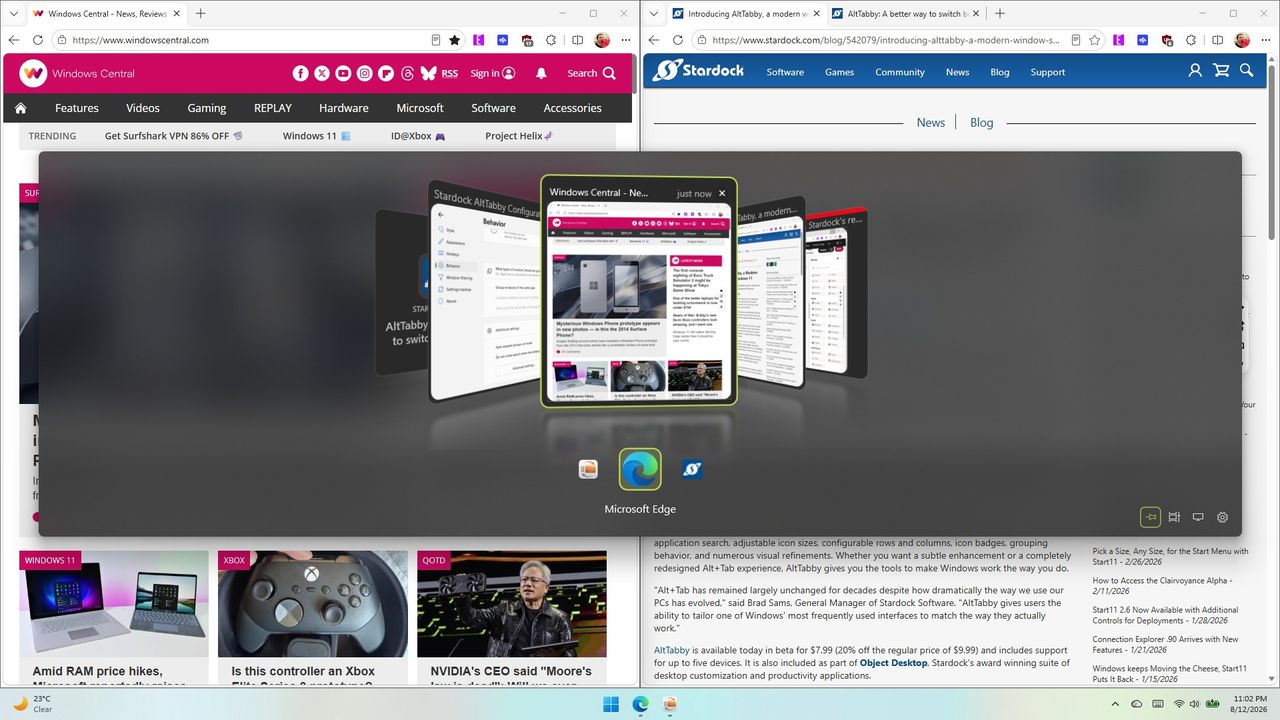
Screenshot of Windows 11 desktop showing Stardock's AltTabby application switcher pop-up over web browsers, displaying open windows in a 3D cover-flow style view with Microsoft Edge highlighted.

Screenshot of Windows 11 desktop showing Stardock's AltTabby application switcher pop-up over web browsers, displaying open windows in a 3D cover-flow style view with Microsoft Edge highlighted.

New research shows Windows 11 keeps undermining basic browser choice with harmful design tactics

Microsoft is too pushy with its Edge browser, according to a recent survey shared by the Browser Choice Alliance. Polling 2,000 adults in the United States provided some insight regarding how easy it is to switch browsers on Windows 11 and if the operating system respects user choice.

Microsoft has been criticized for years for pushing Edge. Windows 11 introduced settings that make changing the default browser more complicated, such as a person electing to change their default only affected certain file types. The situation has improved a bit over the years, but it's still surprisingly difficult to just tell Windows 11 to never use Edge.

It's important to note that the Browser Choice Alliance includes several members that compete directly with Microsoft Edge. Chrome, Vivaldi, and Opera are all part of the alliance. That does not discount the experience of the people surveyed, but it provides some context.

Many members of the Browser Choice Alliance would benefit from more freedom about browser choice and simpler default settings. I would argue that those would also be good things for everyday users as well.

With that in mind, here are some of the highlights of what the Browser Choice Alliance found through its survey:

  • 86 percent of those surveyed believe they should have primary control over their default browser and 80 percent want "one-click browser default."
  • 26 percent of participants have Edge as their default browser compared to only 19 percent who say they would choose Edge as their default browser.
  • 72 percent of participants who tried to change their default browser within the last two years ran into challenges, such as Edge being recommended and applications or links opening in Edge despite that browser not being set as default.
  • 29 percent of those surveyed claim Windows system updates "contributed to their browser preference being changed or reset."
  • Older adults often struggle with setting their default browser.
    • 44 percent of those surveyed ages 65 or older claimed changing their default browser was complex. Only 15 percent of people ages 18 to 44 said the same.
    • 61 percent of participants 65 or older said they were not confident setting their default browser.

The survey results are not surprising, except perhaps that 14 percent of participants do not think they should be able to pick their default browser.

Microsoft is so eager to push people to use its Edge browser that when forced to give users more choices by the EU, Microsoft only shipped those changes within the EU. The company could have used that as an opportunity to just give people greater control over their PCs, but it didn't.

The fact that MSEdgeRedirect and EdgeDeflector ever existed is a stain on Microsoft's reputation. Those tools, which forced links to open with your default browser either don't work or are limited now.

Microsoft claimed having widgets or other system components open in Edge regardless of if Edge is the default helps ensure the best end-to-end experience. Many, including myself, question the validity of that claim.

With Microsoft following in the footsteps of Google by discontinuing support for MV2 extensions, uBlock Origin will no longer work in Edge. That extension is a must-have for some users, so they may be on the lookout for a new browser. But based on the recent survey performed by the Browser Choice Alliance, changing to a different default browser may be more challenging than it should be.

Click to join us on r/WindowsCentral

Join us on Reddit at r/WindowsCentral to share your insights and discuss our latest news, reviews, and more.

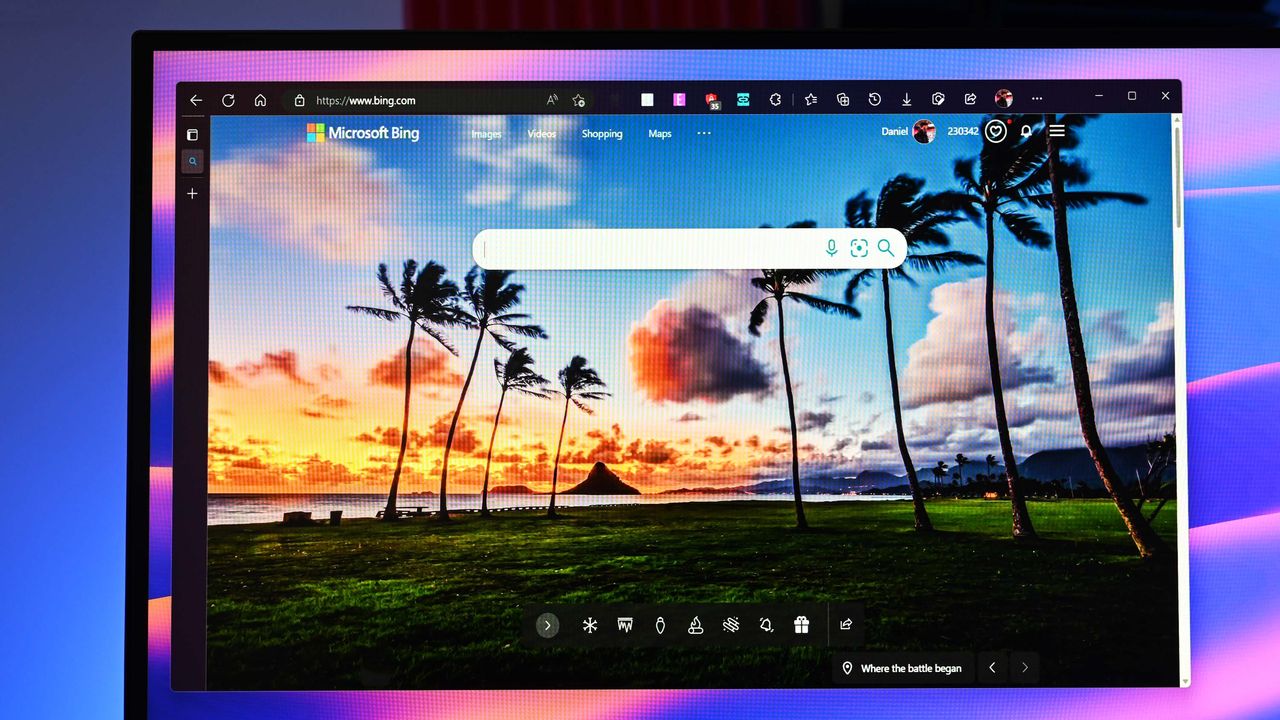
Microsoft Edge on Windows Central

Microsoft Edge on Windows Central

Mozilla Firefox and Brave keep uBlock Origin alive while Chrome and Edge block the adblocker

Microsoft Edge will soon drop support for Manifest Version 2 (MV2), which means uBlock Origin will stop working in the browser. But Windows 11 users still have some browsing options that will support uBlock Origin and other MV2 extensions.

The Firefox account on X shared a simple message in response to an article about Edge ending support for certain extensions: "Firefox support for uBlock Origin is not going anywhere."

Brave shared a longer message, which emphasized that "Brave will keep supporting uBlock Origin" and that Brave hosts uBlock Origin and other MV2 extensions on its own servers. To enable MV2 extensions in Brave, you need to go to Settings > Extensions > Manifest v2 extensions.

Brave also has a built-in ad blocker that's unaffected by the MV2 changes.

Firefox runs on the Quantum browser engine, which is built specifically for that browser and is separate from Chromium. Brave is a Chromium browser. With both Chromium and non-Chromium options, people have a variety of ways to continue to use uBlock Origin.

Why are some browsers stopping uBlock Origin from working?

MV2 is an extension platform that developers can build upon. That older platform is being replaced by Manifest Version 3 (MV3), which is more secure and provides better performance than MV2.

The transition from MV2 to MV3 brings improvements, but it also removes support for the WebRequest API, which lets ad blockers dynamically intercept and block requests before they load.

The side effect of the transition is that uBlock Origin no longer works.

Since uBlock Origin Lite is an MV3 extension, it does not dynamically intercept content before it loads.

It's about more than blocking ads

Deprecation of uBlock Origin

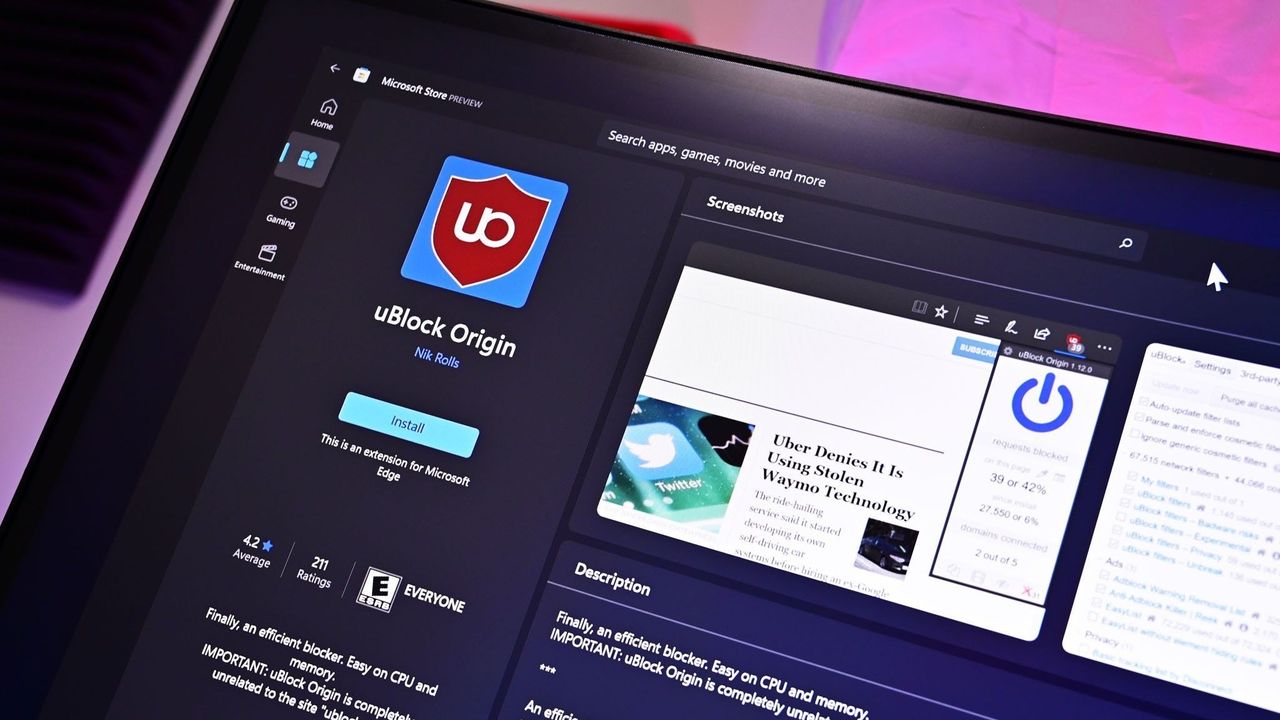
uBlock Origin no longer works on Google Chrome and will soon stop working on Microsoft Edge. (Image credit: Kevin Okemwa | Windows Central)

In our recent poll about ad blockers, over 70% of respondents said they use uBlock Origin. Since that poll appeared in a piece about Edge ending support for uBlock Origin, the results are a bit self-selective, but still interesting. Even among those already interested in uBlock Origin news, 12% said they use uBlock Origin Lite.

While uBlock Origin Lite blocks many ads, it does not process ads in the same way as uBlock Origin. The full version of uBlock Origin intercepts the ads entirely, which reduces bandwidth usage and improves browser performance.

If you've ever loaded a web page and noticed that ads appear to be slowing things down, uBlock Origin would help in that situation but uBlock Origin Lite would not.

Click to join us on r/WindowsCentral

Join us on Reddit at r/WindowsCentral to share your insights and discuss our latest news, reviews, and more.

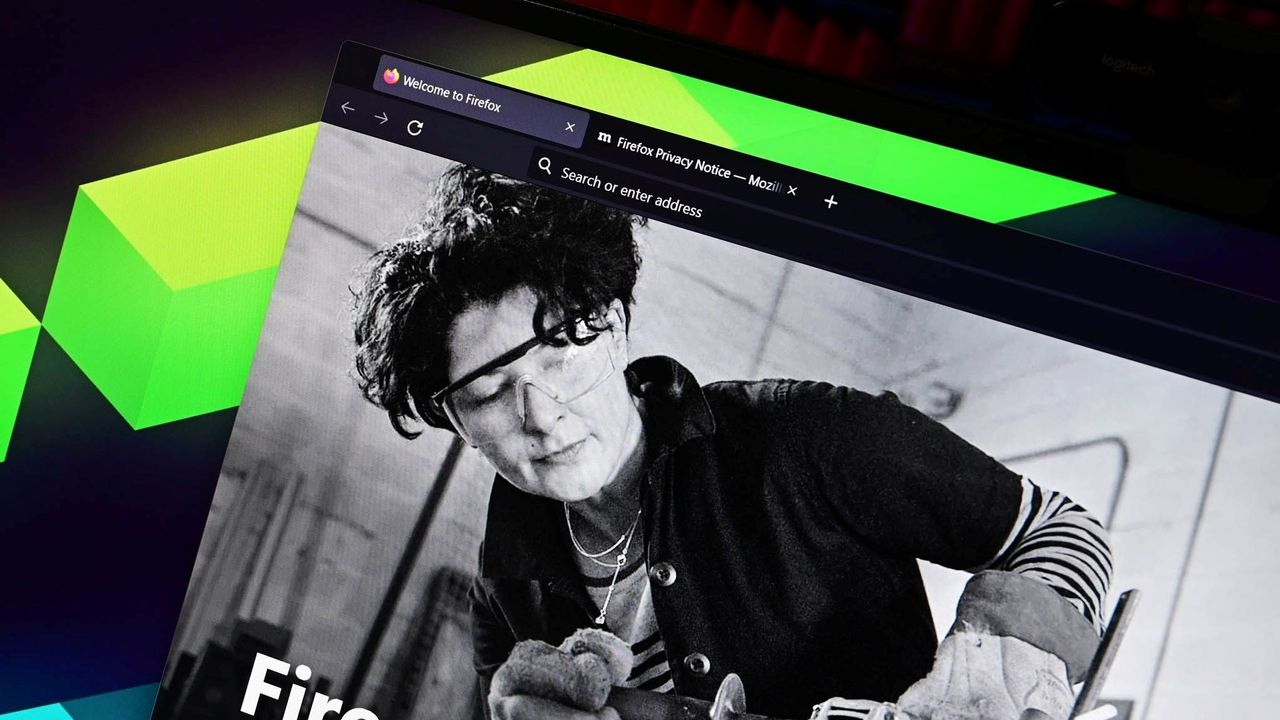
Mozilla Firefox on Windows

Mozilla Firefox on Windows

Microsoft Edge’s new sign-in option is a quiet admission of defeat on mobile

Microsoft Edge may soon let you sign in with an Apple account. The latest Canary build of Edge includes flags that, if enabled, let you sign into the browser with your Apple account.

Using your Apple account within Edge will make it easier to keep your bookmarks, history, and other content synced across your phone and your PC. Many people, including myself, use a computer running Windows 11 and an iPhone.

The change was spotted by Leo Varela, who often leaks or highlights features in Edge and other browsers.

In Edge Canary for desktop there are a couple of new flags to enable support for signing in with an Apple account. Microsoft added support for Google accounts some time ago and has now added support for Apple accounts: https://t.co/34BBm0b3Wi pic.twitter.com/BNMrpB8pkOAugust 10, 2026

Microsoft did not initially plan to support non-Microsoft accounts within Edge. Google account support rolled out recently and now support for Apple accounts appears to be on the way.

Of course, you could use Edge without any account at all. The browser works without requiring signing in. But syncing data and some other features require using some sort of account to sign in.

Windows Central take

Skype on iOS

Microsoft once pushed its apps aggressively on iOS and Android. Since 2015, the company has shut down several apps and left others in maintenance mode. (Image credit: Windows Central)

It's interesting to see how Microsoft's cross-platform app strategy has shifted over the years. Some apps have been available on other platforms for over a decade, but Microsoft increased its efforts to have a presence on iOS and Android after shutting down Windows Phone.

With no phone operating system of its own, Microsoft aimed to provide a premier experience for its services on Android and iOS to meet people where they are. Microsoft bought up popular apps like Wunderlist and SwiftKey to make a Microsoft experience on mobile platforms made by Google and Apple.

Back in 2015, Microsoft CEO Satya Nadella talked about his "iPhone Pro," which was just a normal iPhone with a bunch of Microsoft apps on it.

These days, several Microsoft apps feel like abandonware and others lag behind the competition. The glory days of the "iPhone Pro" are over.

I do appreciate flexibility when it comes to signing in to Edge, but I can't help but wonder if adding support for Google and Apple accounts is an admission that Microsoft can't even get people to use a Microsoft account in Microsoft Edge.

Rather than trying to force users into the Microsoft umbrella, the company seems to be accepting its mobile reality. It is finally conceding that to keep PC users on Edge, it has to let them live inside Google and Apple's account ecosystems instead.

Click to join us on r/WindowsCentral

Join us on Reddit at r/WindowsCentral to share your insights and discuss our latest news, reviews, and more.

Microsoft Edge

Microsoft Edge

Microsoft PowerToys will soon take full advantage of the same AI that powers Copilot+ PCs

Microsoft PowerToys will soon add on-device support for Phi Silica. Microsoft called that small language model (SLM) "small but mighty" when announcing it in 2024. Now, that model is available for Advanced Paste in the latest PowerToys preview.

Advanced Paste is a utility in PowerToys that formats content from your clipboard. It supports several formats, including plain text, markdown, and JSON. You can also use it to extract text from images using OCR and transcode audio and video files.

When first launched, Advanced Paste required an OpenAI API key, but PowerToys later added support for other models. Azure OpenAI, OpenAI, Gemini, and Mistral are cloud services that work with Advanced Paste. Foundry Local and Ollama both work with the feature locally.

Phi Silica is now available as an option for local AI processing in the latest preview.

While you may not have heard of Phi Silica, you've likely heard of tools it powers if you have a Copilot+ PC. Click to Do and on-device rewriting in Word and Outlook are powered by Phi Silica.

Phi Silica uses the NPU of a device, which helps with efficiency.

The GitHub page for PowerToys lists all the changes in the latest preview. Here are the highlights from the same page:

View the changelog ↴

PowerToys v0.101.2211.0 Highlights

  • Advanced Paste: Added an on-device Phi Silica provider and more per-action AI customization options.
  • Command Palette: Improved dialog handling, icon loading, memory cleanup, theme behavior, and dock performance monitoring.
  • Window management: Improved shutdown behavior across FancyZones, Grab And Move, and Always On Top, and made Always On Top borders render solidly at full opacity.
  • Keyboard Manager: Fixed the elevated Run Program browse flow in the new editor.
  • Mouse Jump: Moved Mouse Jump to the newer WinUI app architecture and packaged its new binaries into signed release builds.
  • Settings: Added an update channel selector and a guided Bug Report flow with progress and a GitHub shortcut.
  • Quick Accent: Made press-and-hold activation cancel cleanly so the picker appears only when intended.
  • Preview releases: Added dedicated preview-release versioning and update-channel support so preview builds can be published and tested independently from stable releases.

PowerToys has a growing library of utilities, so there's a lot to look at in the latest preview even if you do not care about AI. Command Palette will perform better and Window management has been improved across FancyZones, Grab And Move, and Always On Top.

Mouse Jump being moved to WinUI modernizes the utility and gets it in line with Microsoft's push to use WinUI across Windows.

WinUI 3 is the native framework for Windows. Microsoft is moving several key components of the OS to WinUI 3 and rebuilding that framework.

The latest preview of PowerToys also makes it possible for preview builds to be published and tested independently.

PowerToys | Free at GitHub | Free at Microsoft Store

This collection of utilities includes a large library of features to enhance the Windows experience. PowerToys is designed with power users in mind, but it has handy features for people who just use their PC for everyday computing too.

Click to join us on r/WindowsCentral

Join us on Reddit at r/WindowsCentral to share your insights and discuss our latest news, reviews, and more.

PowerToys logo appearing over PowerToys on Windows 11

PowerToys logo appearing over PowerToys on Windows 11

Reddit helped me find not one, but two AirDrop alternatives for Windows 11

Like millions of other people, I have a Windows 11 PC and an iPhone. I'm envious of some of the ways Macs and iPhones connect, but I still rely on Windows 11 for everyday work and my hobbies.

AirDrop is one of the features I want the most when looking over the digital fence at my friends who are fully in the Apple ecosystem. While you cannot use AirDrop on a PC, there are some great alternatives.

"Does anyone actually have a good way to transfer files between an iPhone and a Windows PC?" asked Reddit user Palunath in the r/Windows11 subreddit. Users responded with several options, but two stood out: Blip and LocalSend.

Reddit delivered with both those recommendations. I downloaded both and have used them over the last week. I'm hardly the first person to highlight these apps, but if people are asking for AirDrop alternatives on Windows 11, they likely haven't heard of Blip and LocalSend.

Top pick: Blip

Transferring files is quicker and easier if both of your devices are on the same network, but Blip works when on different networks as well.

Blip is my top pick. It's easy to use, has an interface that feels familiar, and it's extremely fast. It's similar to AirDrop but without the Apple exclusivity.

Blip supports sending files and folders without any size limits (Blip's website says "99TB? Game on").

Not having to zip folders is a big plus, as is being able to send large photo files.

Blip is free for non-commercial use. If you're a business user or want priority speed, you can subscribe for $25 per user per month.

Signing up for Blip is easy and just requires entering your email and confirming the code you're sent.

Blip's website has download links for all supported platforms, including Windows, macOS, Android, iOS, and Linux.

Secure second: LocalSend

iPhone X resting on a Windows PC showing the Microsoft logo

Connecting an iPhone and a PC can be awkward unless you have the right apps. (Image credit: Future)

LocalSend works very well, but its structure has some pros and cons. Because it works through your network, it works without the internet. It's also incredibly fast, assuming your Wi-Fi network has quick speeds.

LocalSend doesn't require an account or logging in. Your devices from the network just appear within the app. You can mark devices as favorites to streamline sharing as well.

You can download LocalSend through its website (or just use the service through that site). LocalSend is free to use.

You can send files to a single recipient or multiple recipients as well, which makes LocalSend feel a bit more like AirDrop.

LocalSend is open-source, fully offline, and peer-to-peer, so it's a great choice for people who value privacy.

The obvious drawback is that LocalSend is for sending files locally. If you just need to send files at home or work when devices are on the same network, LocalSend provides a seamless experience.

OneDrive and iCloud

Blip and LocalSend are made for sharing files on demand. If you want to sync entire folders or all of your files, you can use apps like OneDrive or iCloud.

In my experience, these apps are much slower at syncing and sending files, but they're a great way to back up content.

Blank Pixel

Click to join us on r/WindowsCentral

Join us on Reddit at r/WindowsCentral to share your insights and discuss our latest news, reviews, and more.

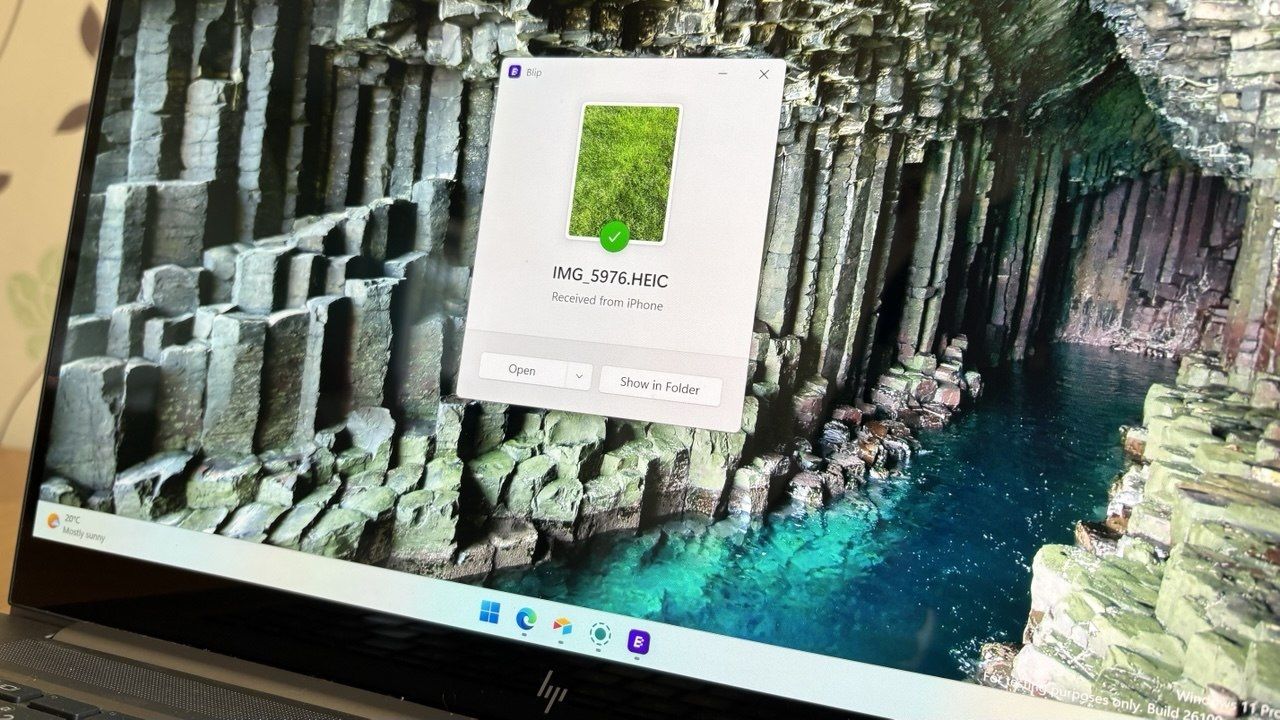
A laptop screen displaying a Windows 11 desktop with a Blip file transfer pop-up window confirming a photo was received from an iPhone.

Blip feels natural and makes it easy to send and receive files between an iPhone and a PC.

Microsoft isn't scrapping its unwanted OneDrive Photos app; it's just giving you a way to get rid of it

Microsoft accidentally shipped the new OneDrive Photos app to millions of PCs recently. Microsoft EVP of Apps and Agents Jeff Teper explained that the app was shipped earlier than intended.

We now have more details about the OneDrive Photos app, courtesy of the Microsoft 365 Roadmap. While the app was rolled out to PCs accidentally, Microsoft plans to release it in the future. When the app does ship (on purpose), there will be options to manage it or uninstall it.

There are two entries on the Microsoft 365 Roadmap related to OneDrive Photos. The first is about greater control that will be given to admins:

"OneDrive is adding administrative controls for the Photos experience on Windows. Organizations can manage whether users sign in with personal Microsoft accounts. These controls help IT teams align OneDrive Photos with their access, data governance, and device-management requirements."

That feature should start rolling out this month. Considering that the OneDrive Photos app was accidentally installed on some managed PCs that were unable to use the app, these administrative controls should be a welcome addition.

The second entry is about all users and the option to remove the OneDrive Photos app:

"OneDrive is giving people more control over their Windows experience by allowing them to uninstall the OneDrive Photos experience independently. Removing the Photos experience does not uninstall the OneDrive app, interrupt file sync, or delete photos and files. This provides a clear removal option for people who prefer to manage their photos with another app."

That feature is expected to roll out next month. As always, roadmap dates are estimates and subject to shift.

Those entries, which were first spotted by Neowin, were only added to the Microsoft 365 Roadmap after the accidental rollout and following backlash. We may see more details on the roadmap about OneDrive Photos soon.

The main question surrounding the OneDrive Photos app is why it needs to exist at all. Microsoft's Photos app for Windows already integrates with OneDrive. The OneDrive Photos app is a web-based experience that is less native and seemingly against the current goals Microsoft has set to improve its first-party apps.

Blank Pixel

Click to join us on r/WindowsCentral

Join us on Reddit at r/WindowsCentral to share your insights and discuss our latest news, reviews, and more.

Microsoft OneDrive logo with clouds and artificial intelligence imagery

Microsoft OneDrive logo with clouds and artificial intelligence imagery

Windows 11 is pulling picture passwords and pushing people to PINs, passwords, and biometrics

Windows 11 will soon lose a way to log in to a PC. A recent update removes the option to set up a new picture password. If you already have a picture password on your PC, you can continue to use it, but the feature is being phased out.

Microsoft is on a mission to push the world beyond passwords. The tech giant generally recommends a PIN, facial recognition, or a fingerprint to log in to Windows 11. Passkeys are often the top recommendation for authentication, though you cannot log in to a Windows 11 PC with a passkey. But back in the days of Windows 8, Microsoft introduced the option to unlock your PC using a picture.

That feature, which has remained available across Windows 10 and Windows 11, allows you to unlock your PC with a series of touches or gestures, like tapping the eyes of a smiley face then swiping across the face's mouth.

You could use a combination of three types of gestures as part of a picture password: circles, straight lines, or taps.

Picture passwords were a fun way to show off the touch-centric nature of Windows 8, but they aren't as secure as a passkey or even a strong password.

Since people often pick gestures or taps around key objects, hackers can sometimes guess the gestures needed to unlock a PC. People can look at the smudges on your screen to guess where you touch frequently.

A research paper from 2013 that was flagged by Neowin highlights the risks of picture passwords.

If you have a picture password set up now and want to continue to use it, you need to make sure to leave it set up. Once you remove it or disable it, you will not be able to set up a picture password.

Microsoft shared the following in a support document:

"To help enhance security, picture password is no longer available for new enrollment. Users who have already configured a picture password can continue to use it to sign in to Windows. If a picture password is removed, disabled, or not previously configured, it cannot be set up again. We recommend using Windows Hello PIN, facial recognition, or fingerprint recognition where available."

That change arrives alongside the July 2026 security update, which is now rolling out to Windows 11.

Blank Pixel

Click to join us on r/WindowsCentral

Join us on Reddit at r/WindowsCentral to share your insights and discuss our latest news, reviews, and more.

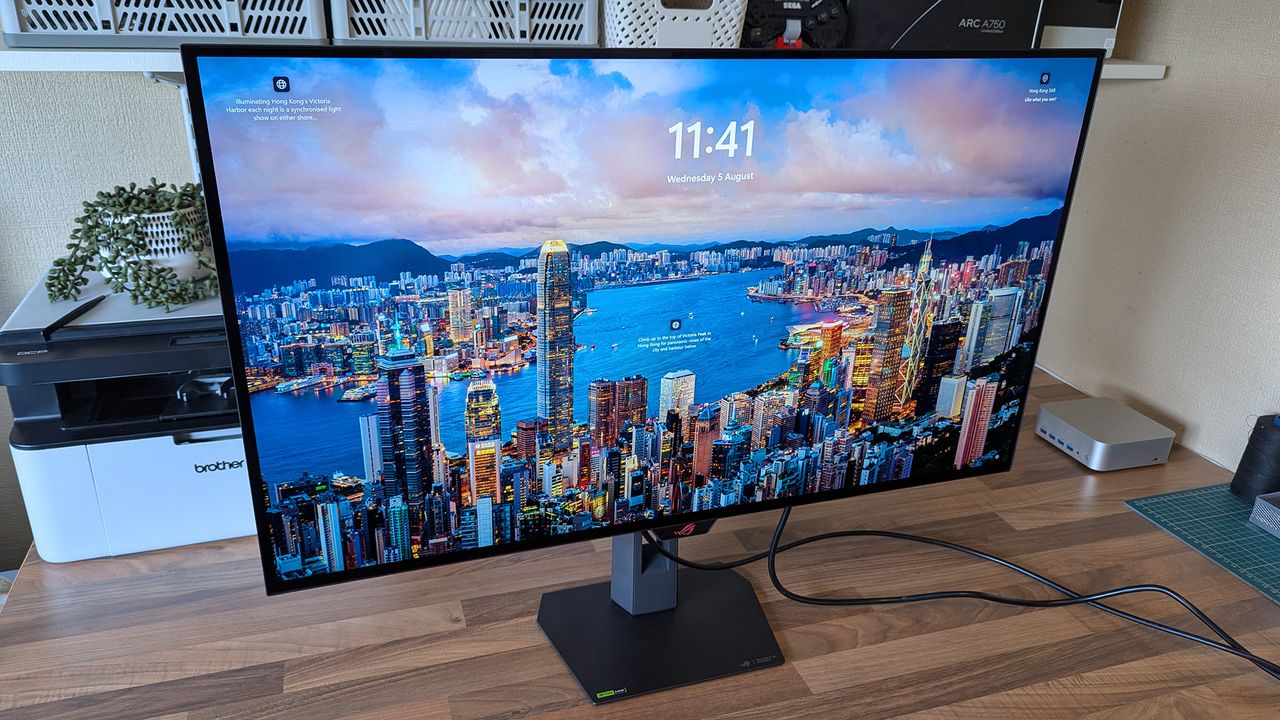
ASUS ROG Strix OLED XG32UQWMS monitor displays a vivid Hong Kong Victoria Harbor lock screen with the time, date, and descriptive text, surrounded by a desk setup.

ASUS ROG Strix OLED XG32UQWMS monitor displays a vivid Hong Kong Victoria Harbor lock screen with the time, date, and descriptive text, surrounded by a desk setup.

Dell's massive XPS 14 deal drops the 3.2K OLED laptop with 32GB of RAM to a ludicrous $1,549

One of the best laptop deals of the year is live, though I'm worried stock won't last. The Dell XPS 14 (2025) is up to $1,350 off.

I highlighted Dell's discount on the XPS 14 recently, and the deal has since gotten even better. I didn't think I'd see a laptop with these specs at this price in 2026. 32GB of RAM, 1TB of storage, and 3.2K OLED touch display for $1,549.99 is, quite frankly, ludicrous.

My only concern is that the laptop dropping in price quickly suggests Dell is almost out of stock and wants to clear out 2025 models to push the newer XPS 14 laptops from this year.

This premium laptop has a 3.2K OLED touch display, 32GB of RAM, and a gorgeous design that takes advantage of every millimeter available. It's one year old, but it's still an excellent laptop in 2026.

Note that the review of this laptop was from before the Dell 14 Premium was rebranded to the Dell XPS 14.

Tom's Guide review: ⭐⭐⭐⭐View Deal

Why buy the Dell XPS 14?

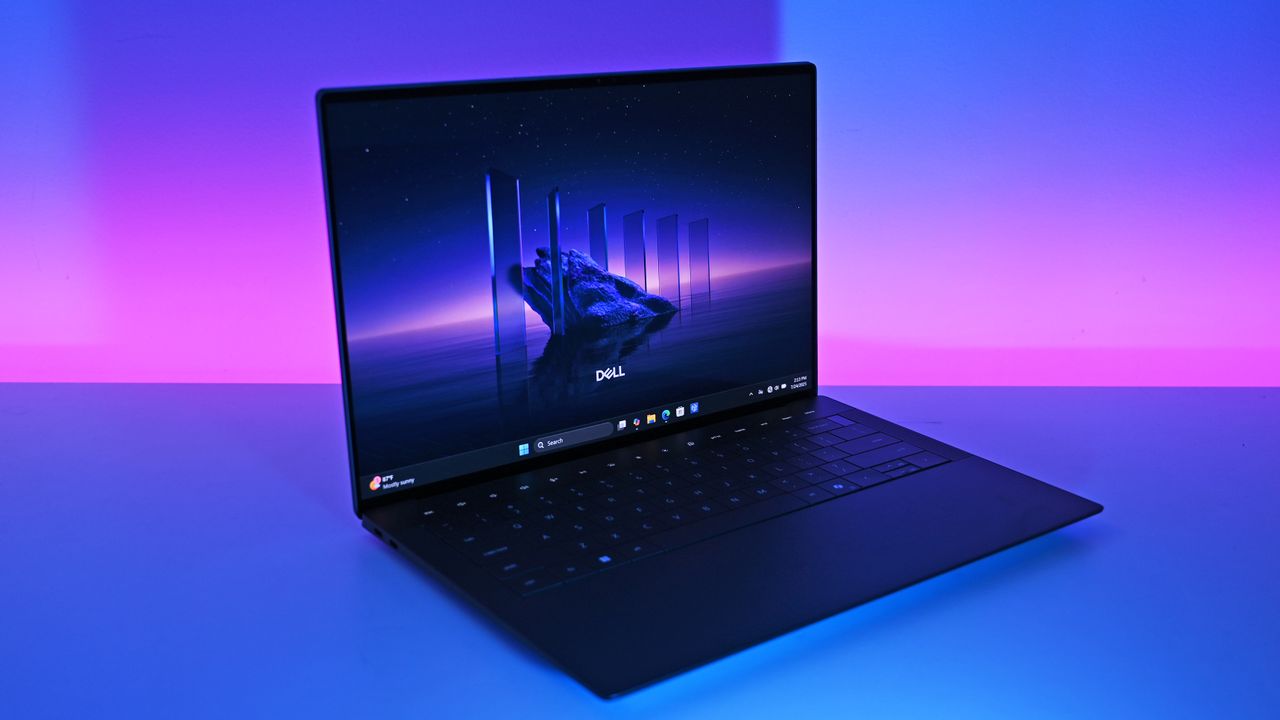
The all-new 2025 Dell 14 Premium replaces last year's Dell XPS 14. Though it looks the same, it has updated internal hardware.

(Image credit: Future | Daniel Rubino)

The XPS 14 is a pretty laptop built for productivity. At one time, there were a bunch of variations for this PC, but the options have been trimmed down as stock dips. The 3.2K OLED touch display in this model stands out, especially at this price.

The XPS 14 has a zero-lattice keyboard that packs large keys into a relatively small laptop body. The haptic touchpad of the XPS 14 is invisible, creating a clean look when the laptop is open.

That touchpad can take some time to get used to, but it was praised by Tom's Guide in their review:

"The keys have good travel distance and just the right amount of resistance when pressed. Once you get used to how tightly packed they are, typing is a breeze. And now that I’m used to it, the invisible touchpad doesn’t bother me. As before, I like the haptic feedback the touchpad produces, which also helps me know its location."

As a reminder, the Dell XPS 14 (2025) was originally called the Dell 14 Premium. Dell abandoned that naming scheme and resurrected the XPS brand earlier this year and retroactively renamed older models.

While I love the design of the XPS 14, it has battery life that's just OK. Our colleagues at Tom's Guide got 8 hours and 16 minutes in their testing. For context, 10 hours of battery life is considered "pretty good" in that same test.

The discounted XPS 14 model I highlighted retails for $2,899.99, but it is from last year. Many laptops from this year with 32GB of RAM and 1TB of storage cost well over $2,000. The new XPS 14 with those specs is $2,119.99 right now, and that's after a $630 discount. That version also has a 2K non-touch screen rather than the 3.2K OLED touch screen seen in the XPS 14 (2025) highlighted here.

FAQ

Is the Dell XPS 14 (2025) still worth buying in 2026?

Yes. While it is a year old, the XPS 14 featuring 32GB of RAM, a 1TB SSD, and a 3.2K OLED display is more than capable of handling heavy multitasking, content creation, and everyday workloads. At $1,549.99, it outperforms similarly priced 2026 mid-range laptops in both build quality and display specs.

What is the difference between the XPS 14 and the Dell 14 Premium?

They are the exact same laptop! Dell briefly adopted the "Dell 14 Premium" naming convention for its 2025 lineup before reverting to the "XPS" branding and retroactively updating model names.

Can I upgrade the RAM or storage later on?

The 32GB of RAM is soldered to the motherboard and cannot be upgraded after purchase, which makes the current deal a great way to future proof your laptop.

Click to join us on r/WindowsCentral

Join us on Reddit at r/WindowsCentral to share your insights and discuss our latest news, reviews, and more.

The all-new 2025 Dell 14 Premium replaces last year's Dell XPS 14. Though it looks the same, it has updated internal hardware.

The all-new 2025 Dell 14 Premium replaces last year's Dell XPS 14. Though it looks the same, it has updated internal hardware.

We now know exactly when uBlock Origin will stop working on Microsoft Edge

If you use uBlock Origin on Microsoft Edge, it's time to start looking at alternatives. Microsoft has shared a timeline for the transition away from Manifest Version 2 (MV2) extensions. That transition will end support for uBlock Origin on Edge, alongside a small group of other extensions.

Microsoft aims to fully transition consumers away from MV2 extensions by the end of 2026. Some users will start seeing notices about the change this month (August 2026). Microsoft will then gradually turn off MV2 extensions by default over the coming months.

Enterprise users will be transitioned away from MV2 extensions in 2027.

It's not a surprise that MV2 support is being discontinued. In fact, the surprise is that we finally have a confirmed date for the end of support. Microsoft has had MV2 support on the chopping block for ages but had not committed to a firm cutoff date.

Blank Pixel

MV2 and its replacement Manifest Version 3 (MV3) are extension platforms that developers can build upon. There are technical differences between the two, the most notable is that MV3 limits the WebRequest API, which allows ad blockers to dynamically intercept and block network requests before they load.

Since Edge is built on Chromium, which is Google's open-source engine, Google pushing MV3 affects Microsoft Edge.

This shift to MV3 is not arbitrary; there are practical benefits to the switch. MV3 is more secure and provides better performance than MV2. Some believe the transition to MV3 is being pushed to give Google more control over ads on the web, though that is up for debate.

The end of MV2 support will affect several extensions, but the biggest one is uBlock Origin. I suspect few would care about the end of MV2 support if uBlock Origin were unaffected.

Microsoft states that 95% of the top MV2 extensions in the Edge Add-ons store have been moved to MV3. There are only 58 MV2-based extensions in the Edge Add-on Store at all. Only three of those MV2-based extensions do not have MV3-based equivalents available.

There is a version of uBlock Origin that works with MV3, though it's uBlock Origin Lite. That extension lacks some of the granular controls of the full version. It also works differently in the background, hiding most content rather than preventing items from loading.

Many people could replace uBlock Origin with uBlock Origin Lite without issue, but power users could struggle with the change. Some people plan to switch browsers before changing ad blockers.

Mozilla Firefox still supports the tech needed for uBlock Origin to function. Brave committed to keeping MV2 extensions working as well.

Click to join us on r/WindowsCentral

Join us on Reddit at r/WindowsCentral to share your insights and discuss our latest news, reviews, and more.

uBlock Origin on Microsoft Edge

uBlock Origin on Microsoft Edge

Windows 11 is getting better, but it took years of frustration to get here — and Microsoft knows it

Windows Central

Windows 11 is finally starting to see the changes Microsoft has promised for months, except the best parts are still limited to Windows Insiders and mockups. I appreciate Microsoft's efforts to revamp Windows 11 — better late than never — but some of these improvements should have shipped years ago.

The status of Windows 11 makes me ask why Microsoft didn't aggressively start climbing the metaphorical mountain years ago. Microsoft has revamped settings and UI elements, but the big changes are part of a new initiative that honestly shouldn't need to exist.

Microsoft is updating several core parts of Windows 11 with WinUI, which improves performance and even helps Windows 11 run on PCs with less RAM. But I can't help but ask how we got here in the first place. How did we end up with a "modern" OS with legacy components and UI elements from different decades?

Biggest News of the Week

Windows 11 Hero Surfaces on a white table
Surface Go 4 with Windows 11
Windows 11
Windows 11 update in Settings app
Studio photos of the 2026 ASUS Zenbook A16 laptop featuring the new Qualcomm Snapdragon X2 Elite Extreme processor.
Lenovo Legion Go (August 2024)

I understand that updating legacy components can be tricky. Microsoft's CVP of Design and Research on Windows, Marcus Ash, joined the most recent Windows Central Podcast and discussed the challenges of updating Windows.

Obviously, Ash knows more about Windows than I ever will. I don't question the difficulty of updating an entire OS, especially if you need to re-update components several times.

What I question is why keeping Windows up to date and unified was not a core value from the start? Why did Microsoft reach a point where user feedback became overwhelming and the tech giant finally decided to make bigger changes?

Legacy support is critical for enterprise users, so Microsoft could not just throw out old code or elements to make Windows modern. But having a unified OS could have been a priority from the beginning.

Work like this needed to start decades ago, not in 2026. Some of the groundwork has been laid for these improvements, but some projects are quite new. That's not an acceptable way to make an operating system.

Shopping with Sean

My top recommendation isn't an item on sale. Instead, it's a must-have for Xbox owners that's running out of stock. Several retailers have listed the Seagate Storage Expansion Card for Xbox Series X|S as unavailable. Best Buy ran out of stock while I was writing a piece highlighting the shortage. Below are all the listings I've found that still let you order the speedy storage card.

An excellent deal on the Dell XPS 14 slashes $1,150 off the premium PC. I love the design of the XPS 14 from last year, and the current discount makes the laptop a great choice for back-to-school shopping.

This card allows you to expand the storage of your Xbox Series X or Xbox Series S. Stock is extremely limited.

1TB at GameStop for $199.99
2TB at Walmart for $299
2TB at GameStop for $299.99
2TB at Adorama for $349.99
1TB at Newegg for $355.38

Windows Central review:⭐⭐⭐⭐View Deal

This premium laptop has a 3.2K OLED touch display, 32GB of RAM, and a gorgeous design that takes advantage of every millimeter available. It's one year old, but it's still an excellent laptop in 2026.

Note that the review of this laptop was from before the Dell 14 Premium was rebranded to the Dell XPS 14.

Tom's Guide review: ⭐⭐⭐⭐View Deal

Click to join us on r/WindowsCentral

Join us on Reddit at r/WindowsCentral to share your insights and discuss our latest news, reviews, and more.

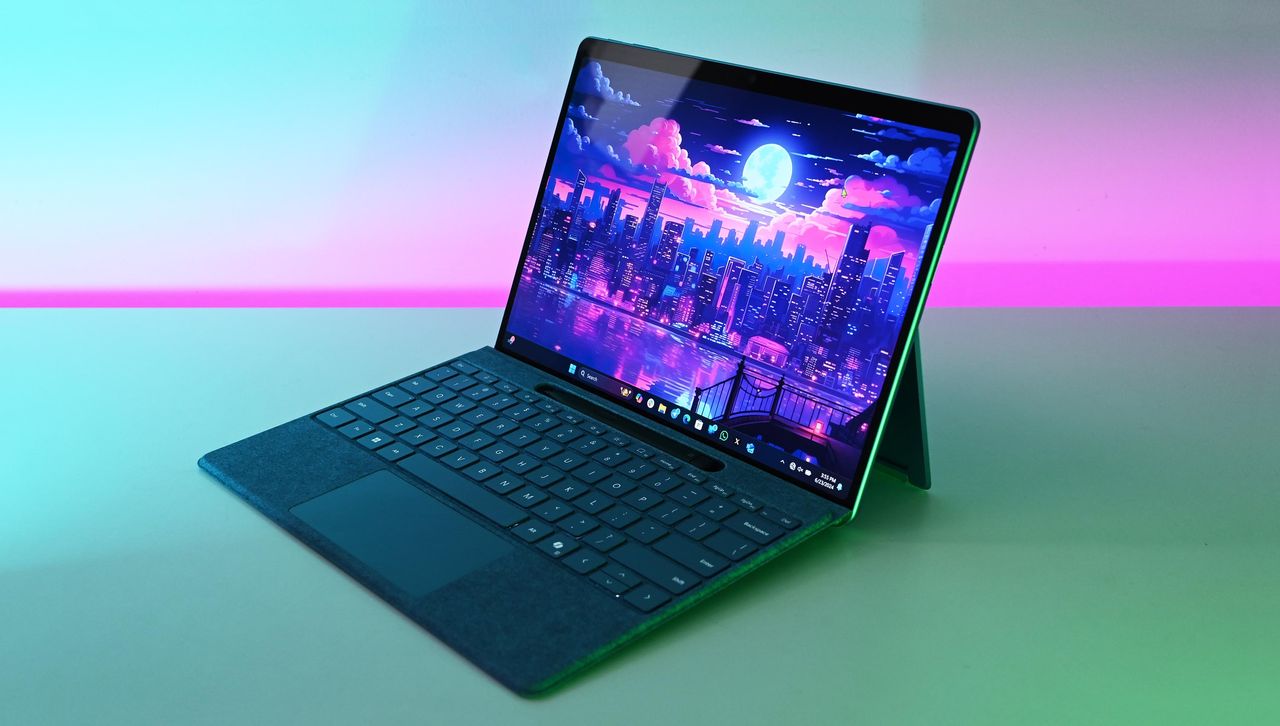
Microsoft Surface Pro 11 with Qualcomm Snapdragon X Elite

Microsoft Surface Pro 11 with Qualcomm Snapdragon X Elite

❌