Microsoft has officially ended support for Windows 11 version 23H2, with KB5131087 being the last security update released for this specific version of the OS. Version 23H2 first shipped in October 2023, and received three years of security updates.Microsoft already ended support for Windows 11 version 23H2 last year for users running Windows 11 Home and Pro. Today, the company has ended support for commercial editions of the OS spanning Enterprise and Education
Microsoft has officially ended support for Windows 11 version 23H2, with KB5131087 being the last security update released for this specific version of the OS. Version 23H2 first shipped in October 2023, and received three years of security updates.
Microsoft already ended support for Windows 11 version 23H2 last year for users running Windows 11 Home and Pro. Today, the company has ended support for commercial editions of the OS spanning Enterprise and Education SKUs, which received an extended support lifecycle of 36 months.
"Windows 11, version 23H2 Enterprise and Education have reached end of updates," Microsoft confirms. "The November 2026 Windows security update is the last update available for these editions. Devices running these editions will no longer receive monthly security updates containing protections from the latest security threats."
Devices still running Windows 11 version 23H2 are encouraged to update to a supported version of the OS. Currently, Windows 11 version 24H2, 25H2, 26H1, and 26H1 are actively supported with feature and security updates. Home and Pro users would have already been offered an upgrade path to a more recent version of the OS.
Enterprise and Education editions will require IT intervention if they haven't already been offered an upgrade path to a newer version of the OS. Most enterprises and schools running these editions should have initiated an upgrade path to a newer version of Windows 11 at this point.
Microsoft always supports a new version of Windows 11 with two years of security updates for consumers, and three years for commercial editions. That means version 24H2 has one more year of support left for Enterprise and Education editions.
The only exception to this rule is with special LTSC and IoT editions of Windows 11. For everyone else, you need to be on the latest versions of Windows 11 to remain supported with feature and security updates. Version 26H2 is expected to remain supported until 2029 for commercial customers.
Join us on Reddit at r/WindowsCentral to share your insights and discuss our latest news, reviews, and more.
Fans of Xbox Cloud Gaming, I have good news for you. Today Rockstar Games has announced that, in addition to being available for pre-loading, Grand Theft Auto 6 will be playable via Xbox Cloud on Xbox Series X|S and Xbox One.Do note that, like most Xbox Cloud Gaming titles, Grand Theft Auto 6 will be utilizing the Xbox Series S's graphical settings, so the resolution will be lower compared to running locally on Xbox Series X. Xbox Cloud Gaming servers typically u
Do note that, like most Xbox Cloud Gaming titles, Grand Theft Auto 6 will be utilizing the Xbox Series S's graphical settings, so the resolution will be lower compared to running locally on Xbox Series X. Xbox Cloud Gaming servers typically use the Xbox Series S mode to save on video encoding bandwidth, as Xbox Series X versions take anywhere up to 4x more compute, and most people don't have the speed or locality to run cloud titles at 4K typically anyway.
In addition, Grand Theft Auto 6 will support Remote Play on Xbox and PlayStation consoles to stream to devices like PCs, TVs, and mobile devices. Weirdly, though, GTA 6 will not be available via Xbox Cloud Gaming to mobile, TV, or PC devices ... making it one of the only games (as far as we can tell, the ONLY Xbox Cloud game?) with this arbitrary restriction.
No PC or mobile support cloud via Xbox Cloud Gaming
Today marks the first step in our new 10-year strategic partnership with Take-Two. GTA VI, already the most pre-ordered game ever on Microsoft Store, will be playable on XBOX One through cloud gaming when it launches on November 19.November 10, 2026
Indeed, confirming earlier reports, note Grand Theft Auto 6's Xbox Cloud Gaming compatibility is only limited to Xbox consoles. This means you can't stream it on PC or mobile devices via the cloud.
It does however, give Xbox One users the chance to jump in. The Xbox One launched originally back in 2013, and still has hundreds of thousands of active users according to our sources. Given that Xbox Series X|S consoles and PS5s are extortionately expensive right now, meeting as many players where they are is a great bet.
It is, however, painfully weird that Take Two and Xbox aren't meeting the potential audience across Xbox Cloud Gaming compatible TVs and mobile devices. We've reached out to Microsoft to comment on exactly why this unique restriction is in place.
Don't forget to check out our GTA 6 pre-order guide for retailer links and gift card strategies so you can save a few extra dollars before Grand Theft Auto 6 finally launches on November 19, 2026, for Xbox Series X|S and PlayStation 5.
Join us on Reddit at r/WindowsCentral to share your insights and discuss our latest news, reviews, and more.
There's always been a significant gap between how Valve advertises Steam Deck compatibility and how games actually run on the hardware.A certain title might have a Verified badge because everything works properly on the Deck, but when you start playing, you find that framerates really aren't what you imagined. That's now been fixed in the latest Steam update, which adds average framerate data to the info panel. This gives potential buyers a lot more data to work
There's always been a significant gap between how Valve advertises Steam Deck compatibility and how games actually run on the hardware.
A certain title might have a Verified badge because everything works properly on the Deck, but when you start playing, you find that framerates really aren't what you imagined.
This gives potential buyers a lot more data to work with, and it arrives for all games that have gone through the verification process (whether they come out the other side as Supported, Playable, or Unsupported).
Valve is getting its data from its own massive pool of users; don't worry, it's opt-in only. Not only does the new data give you a quick tally of the average FPS on the Steam Deck, but it also opens into a detailed chart with more info about averages.
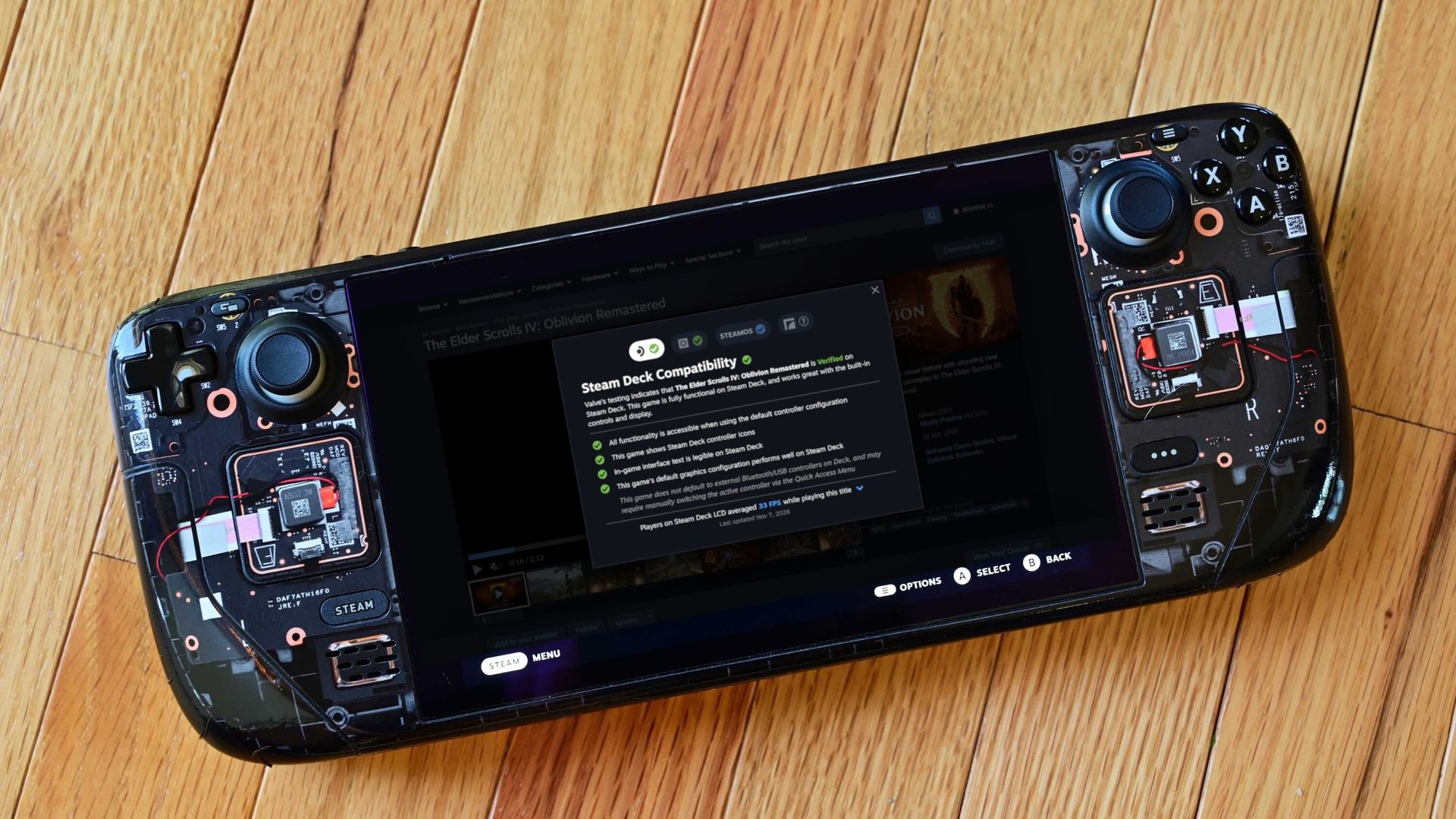
The Elder Scrolls IV: Oblivion Remastered shows a 33FPS average on the Steam Deck LCD.ValveA chart provides extra data in terms of where framerates are landing.Valve
These graphs do a good job of relaying the highs and lows while gaming. If you see framerate distribution weighted heavily at, say, 90FPS with just a few blips on the lower framerates, it's safe to assume you'll mostly be playing at 90FPS.
But there is some nuance. As Valve points out, some graphs will show large gaps between weighted framerates. In The Elder Scrolls IV: Oblivion Remastered, for example, the chart falls heavily on 30FPS with a decent spike at 60FPS.
This is evident in many other games. Here's how Valve explains it:
These gaps are a consequence of VSync. When a game is not making framerate, VSync will synchronize the game's framerate to the display's refresh rate in order to avoid image tearing. This means that on a 90Hz display, if a game has a framerate of 75fps, VSync will force the game to present as many frames as it can at 90fps, and when it can't make that target it will drop to 45fps, and then recover to 90fps for the next frame. This produces a pattern that averages 75fps, e.g. 90 90 45 90 90 45. Another example would be some games set an internal frame limit to 60, so on Steam Deck OLED set to default (90) it will bounce between 90 and 45 to hit 60 FPS.
Valve
Valve also notes that the averages shown in this new info panel are derived only from data on Steam Decks set to their standard FPS limit. That's 60FPS for the original Steam Deck and 90FPS for the Steam Deck OLED.
Valve also does not account for tweaked in-game settings, as it thinks that "the framerate data consolidates around relatively narrow ranges."
Why only Steam Deck data when there are so many other gaming handhelds?
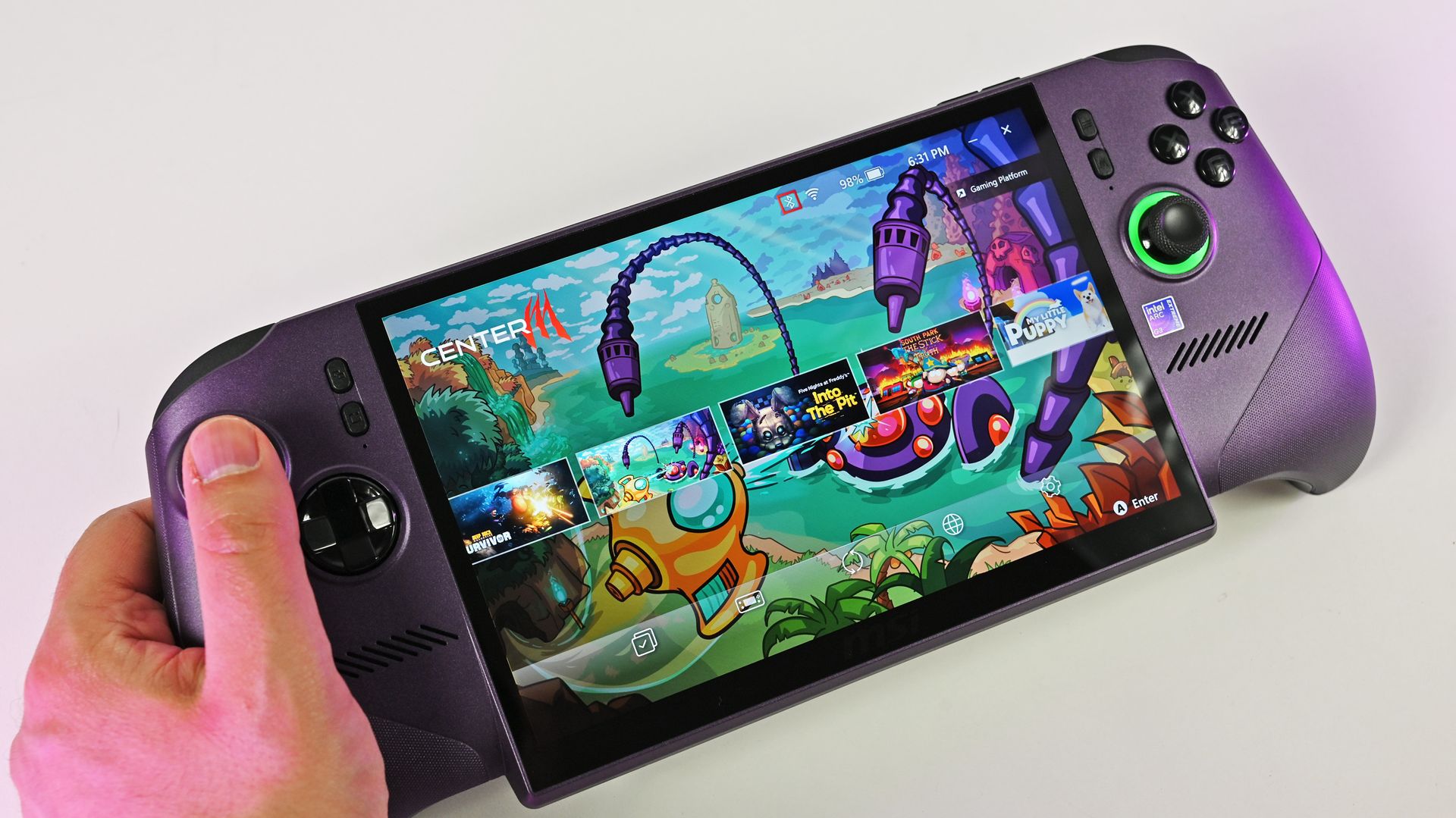
MSI's Claw 8 EX AI+ delivers shockingly good performance compared to the Steam Deck. (Image credit: Daniel Rubino)
On the note of the growing selection of gaming handhelds on the market, there's a big gap left to fill. Valve's new performance chart only accounts for Steam Deck users, leaving plenty of other handheld devices behind.
It makes sense that Valve is piloting the changes with its own Steam Deck, "because every device has the same hardware configuration." But Valve states that it's "starting with the Steam Deck," suggesting that there will be a larger initiative to rope in other handhelds at some point.
Valve's new performance chart exposes the Steam Deck's weaknesses
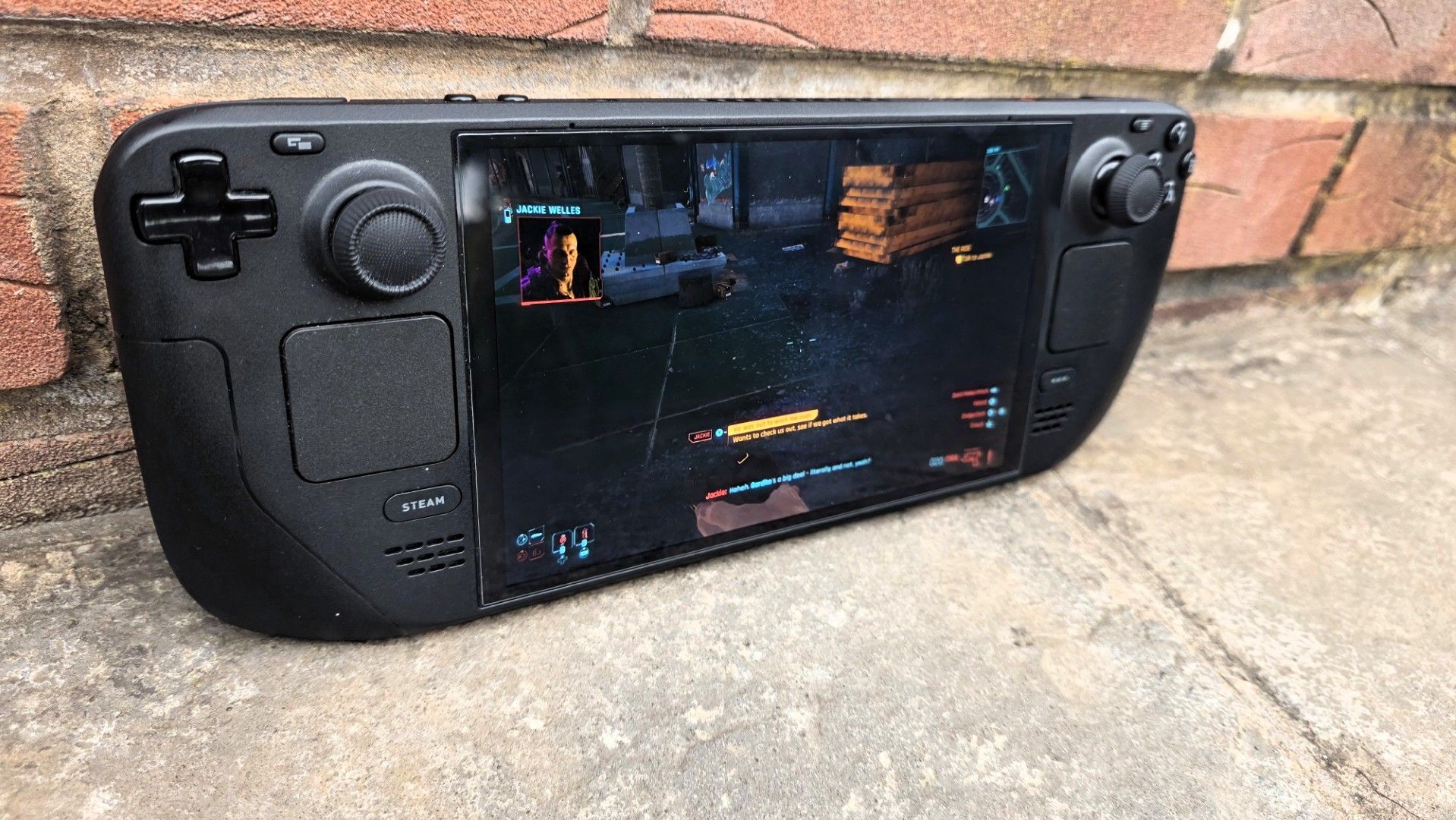
The Steam Deck is getting old, and performance might not be where you think it is. (Image credit: Jennifer Young - Windows Central)
I've been a Steam Deck owner for a few years, and although it'll always have a special place in my heart, it's certainly showing its age.
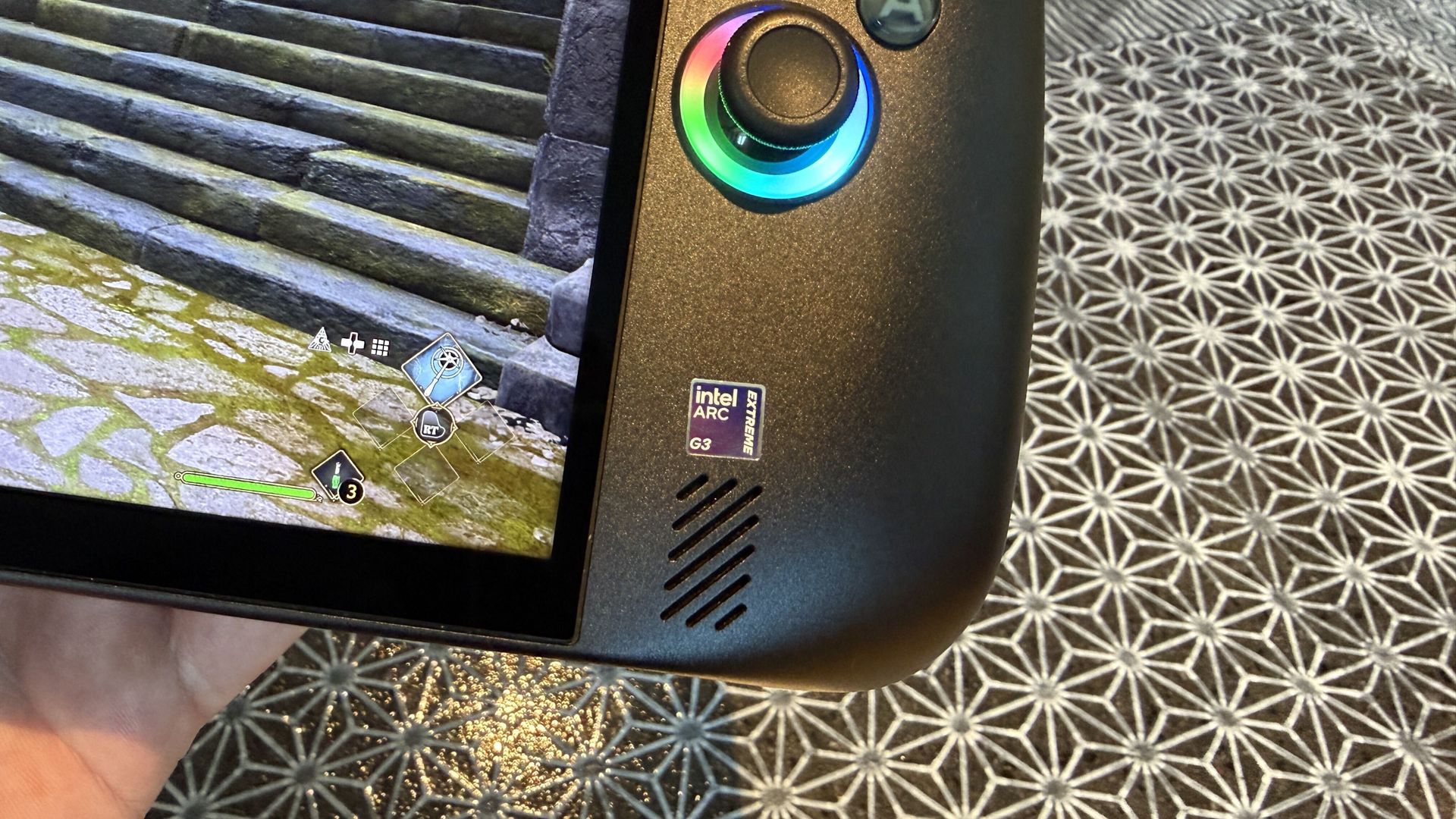
Compared to the latest handhelds, like the MSI Claw 8 EX AI+ and Acer Predator Atlas 8, the Steam Deck just doesn't have the same performance. I've been testing the latter for the past week, and it's shocking how much better it performs thanks to the onboard Intel Arc G3 Extreme chip.
As this power gap grows — barring a Steam Deck 2 from Valve — it's getting tougher to determine which games will actually run smoothly on the Deck. I've purchased games in the past that passed Valve's check, only to discover dreadful framerates.
That's the big thing here. My bar for "good framerates" is probably not the same as yours, and until now, you had to search third-party reviews and tests to see how a game was actually running on the Deck. Now, it's all available right on the store page.
No matter your opinion of Valve, this change is all about benefiting the consumer. That's becoming increasingly rare these days.
Join us on Reddit at r/WindowsCentral to share your insights and discuss our latest news, reviews, and more.
I'm currently in the process of testing and reviewing the Acer Predator Atlas 8 gaming handheld, and when I checked the pricing this morning, I was surprised to see that it has left its initial $1,299.99 tag behind.At Best Buy (the only major retailer I can see that's offering the hardware), the price jumped to $1,449.99 overnight. That's more than a 10% hike for a gaming handheld that's only been on the market for about 10 days.It's back to being listed as Unava
I'm currently in the process of testing and reviewing the Acer Predator Atlas 8 gaming handheld, and when I checked the pricing this morning, I was surprised to see that it has left its initial $1,299.99 tag behind.
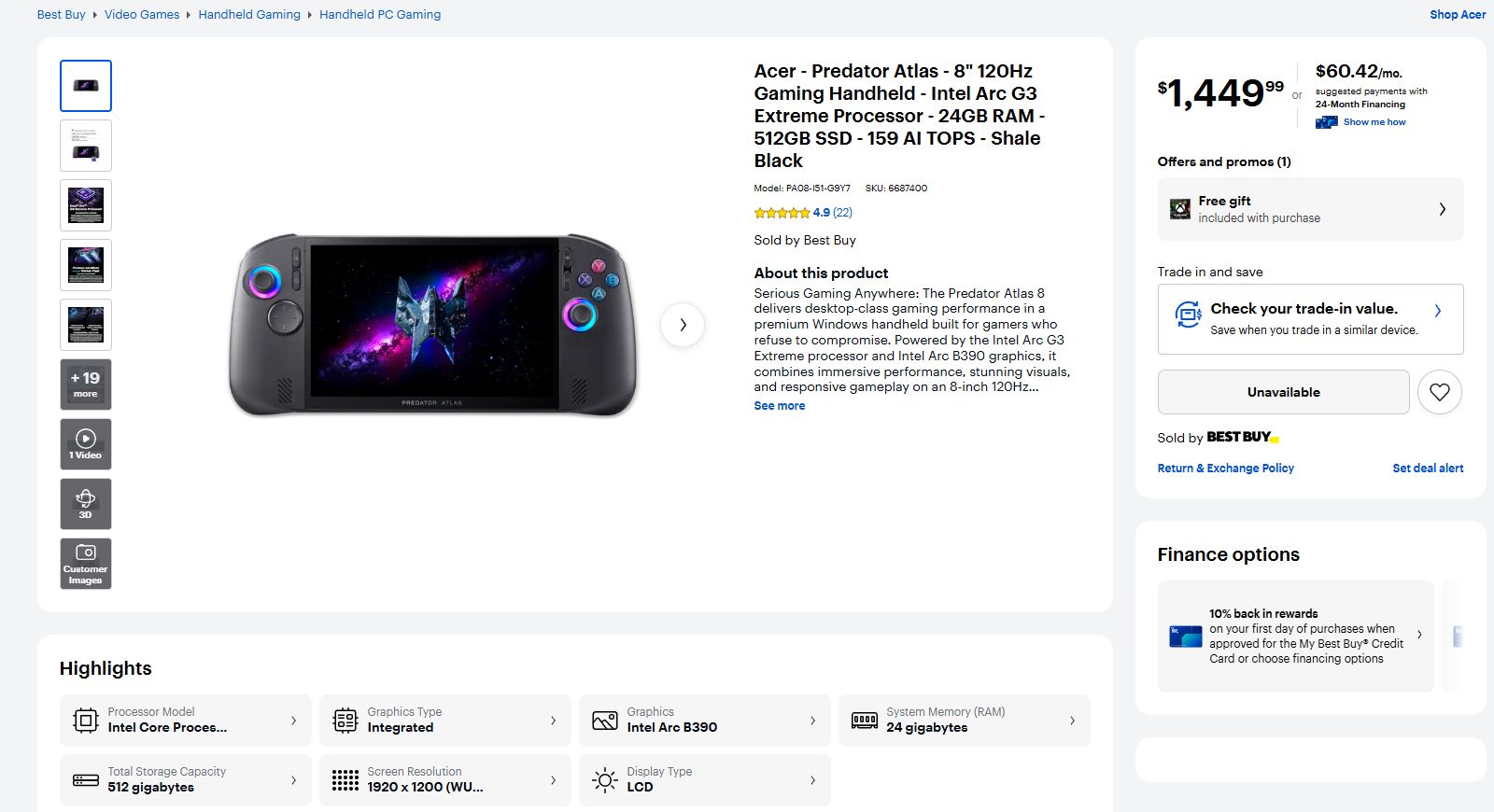
At Best Buy (the only major retailer I can see that's offering the hardware), the price jumped to $1,449.99 overnight. That's more than a 10% hike for a gaming handheld that's only been on the market for about 10 days.
It's back to being listed as Unavailable at Best Buy, and it doesn't look like you can buy one directly from Acer, either. This price hike might not stick. It could be an error on Best Buy's page.
I've reached out to Acer to clarify the situation, and I'll update this article with any new information I can glean.
Why did Acer just raise the price of its Predator Atlas 8?
Best Buy now lists the Predator Atlas 8 at $1,449.99. (Image credit: Best Buy)
Keep in mind that on October 28, a few days before the US launch, Best Buy pulled down the Atlas 8's preorder page. I surmised that there might be a price hike coming at launch, but Acer assured me that the handheld would be returning on November 1 at its initial $1,299.99 price.
It did indeed return at the promised price, but it seems like it didn't stick around too long.
Assuming the worst, the Predator Atlas 8's $150 jump in price puts it closer to the competing MSI Claw 8 EX AI+, which lands at $1,799.99.
This makes the comparison a lot muddier, for the Atlas 8 and the Claw 8 EX AI+ share a lot of similarities.
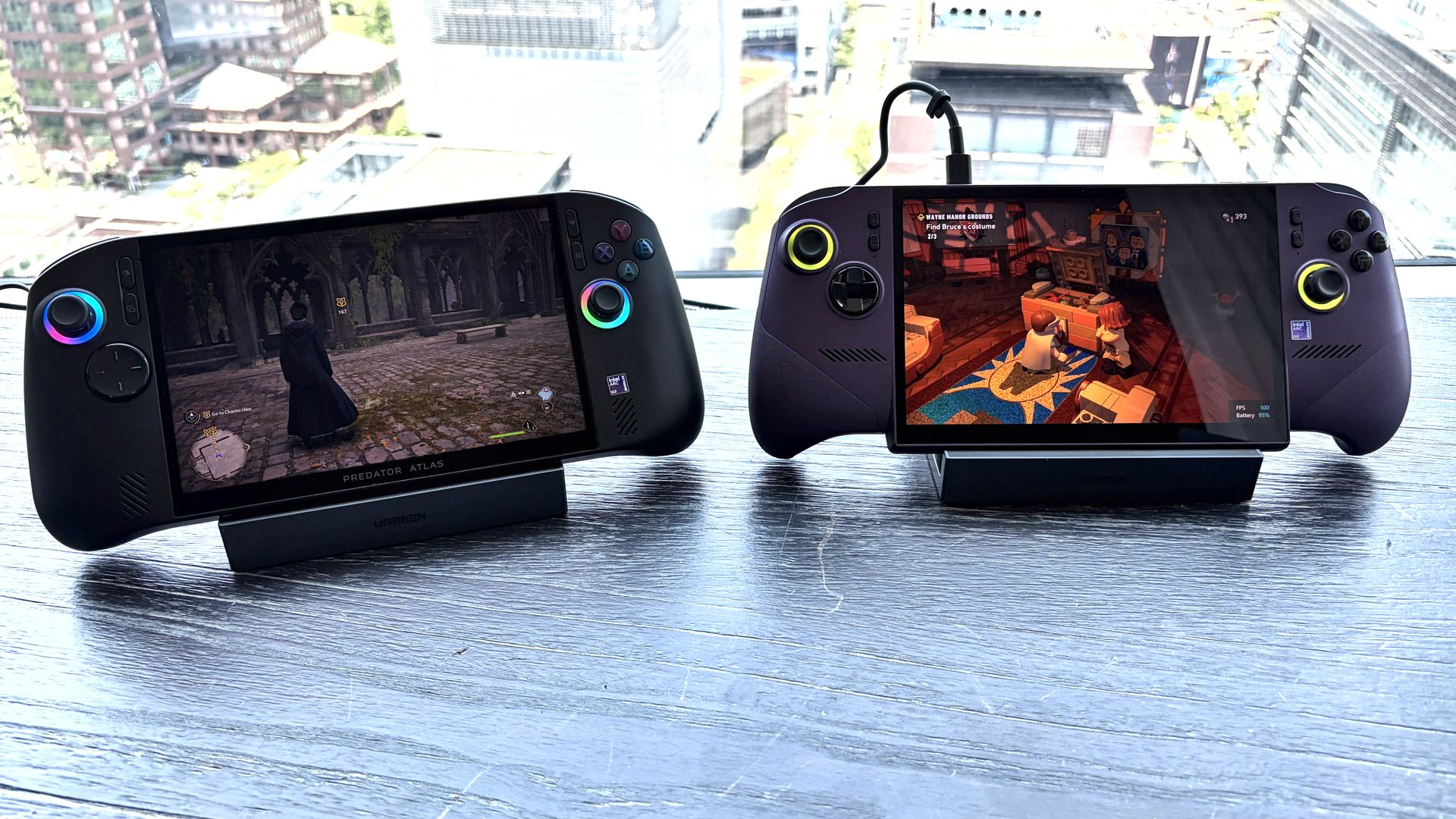
They have the same Intel Arc G3 Extreme chip inside. They both have an 8-inch IPS display with 1920x1200 resolution, 120Hz variable refresh rate, and 500 nits brightness. They both have Hall Effect triggers and sticks, and both use an 80Wh battery.
The Predator Atlas 8 (left) and the MSI Claw 8 EX AI+ (right). (Image credit: Future)
The difference that makes the most impact on pricing, especially in today's constrained markets, is RAM and storage. The Claw 8 EX AI+ comes with 32GB of RAM and a 1TB SSD to hit that $1,799.99 tag, while the Atlas 8 has 24GB of RAM and a 512GB SSD.
Is $350 still a discount worth considering when you get half as much storage and three-quarters of the RAM? That's up to you to decide. I'd certainly still lean towards the Atlas 8 — it's been nothing but fun to use so far — but for those with a bigger budget, the Claw 8 EX AI+ just became a lot more attractive.
The more affordable Predator Atlas 8 is out there ... somewhere
Acer has a Predator Atlas 8 with Arc G3 chip inside. It's just not yet available in the US. (Image credit: Future)
The Acer Predator Atlas 8 configuration with the baseline Intel Arc G3 (non-Extreme) chip inside still doesn't appear to have launched in the US.
When it does (if it does), it will cost less than the G3 Extreme version. In the UK right now, for example, the G3 model with 16GB RAM and 512GB SSD costs about £999, climbing to £1,099.99 for 24GB of RAM.
Although I haven't tested the standard Arc G3 chip myself, an early report on Reddit seems to suggest that it's not a big downgrade over the Extreme version.
In games like Forza Horizon 6, Gears 5, and Hogwarts Legacy, there was only about a 5-10% difference between the G3 and G3 Extreme. This is good news, especially as prices continue to climb.
Windows Central's take
We've come a long way from the early days of the $399 Steam Deck. More power, more features, and more hardware are going into these devices, inflating prices along the way. But it's really the ongoing RAM and storage crisis that's wreaking the most havoc.
Unfortunately, the recent price change for the Atlas 8, whether it sticks or not, leaves buyers with limited options: buy at the new price, wait for the cheaper model, or find an alternative.
One of the Atlas 8's biggest strengths was its price, so it will be interesting to see how public opinion changes in the coming days.
Join us on Reddit at r/WindowsCentral to share your insights and discuss our latest news, reviews, and more.
I've had my Xbox Ally X for almost a year now, and there's still one thing I genuinely hate about it: the Xbox app. Yes, I know Microsoft's recent refresh claims to have made the app 60% faster, but it's still the same general experience, and I've always disliked how it looks and feels.Microsoft's official app makes the Xbox Ally X feel less like a portable console and more like a Windows PC with a controller attached (which, of course, it is). Still, I don't wan
I've had my Xbox Ally X for almost a year now, and there's still one thing I genuinely hate about it: the Xbox app. Yes, I know Microsoft's recent refresh claims to have made the app 60% faster, but it's still the same general experience, and I've always disliked how it looks and feels.
Microsoft's official app makes the Xbox Ally X feel less like a portable console and more like a Windows PC with a controller attached (which, of course, it is). Still, I don't want it to feel like a PC; I want it to feel like an Xbox. Well, if you use Playnite, a popular third-party launcher, you actually can.
While I usually stick to Winhanced, Playnite is a popular option that does much of the same job. For those unfamiliar, it's a replacement launcher that lets you browse and launch your games from a single interface. Whether that’s Xbox, Steam, Epic, GOG, emulators, or more, it all pretty much lives in one place.
It's gained such a following thanks in part to its community, which develops custom add-ons. There's one for pretty much anything, and if you couldn’t have guessed, there are custom themes, too. That brings us to XFSE-Compact, created by 'mufflerexoz'.
XFSE-Compact brings the Series X|S experience
Individual game pages feature artwork, descriptions, playtime statistics, and shortcuts to launch games. (Image credit: mufflerexoz)
The theme aims to bring the UI from Xbox Series X and S consoles straight to Playnite, and it is pretty impressive. It comes complete with an Xbox-style Guide, something I wish replaced Xbox Game Bar on PC, because I loathe it, but I digress.
It's all very cool. I have longed for my handheld to actually feel like it belonged alongside my Xbox consoles. While Winhanced gets the job done, I do appreciate consistency across my devices. Picking up a handheld that feels exactly like my actual console really goes a long way.
Am I wrong? Let me know your thoughts in the comments below, and be sure to take part in our poll!
Join us on Reddit at r/WindowsCentral to share your insights and discuss our latest news, reviews, and more.
Up to 2.8K HP OmniBook Ultra 16 HP's OmniBook Ultra 16 is an outstanding laptop with fast storage and better battery life, but its size and weight must be considered. Regardless, at the end of the day, this is the laptop I
HP's OmniBook Ultra 16 is an outstanding laptop with fast storage and better battery life, but its size and weight must be considered. Regardless, at the end of the day, this is the laptop I'd buy if I could save a few hundred dollars.
Pros
A lot more RAM and storage in the baseline model
5.1MP webcam with human presence detection
A more natural OLED appearance
Slightly better battery life
Faster PCIe 5.0 storage
Cons
About a pound heavier
Not as many ports
No ambient light sensor, two-stage backlight, no Haptic Signals
ASUS's ProArt P16 is the more complete RTX Spark laptop, though it does fall behind the OmniBook Ultra 16 in areas like storage and battery life. If pricing is similar, this is the laptop I recommend to most people.
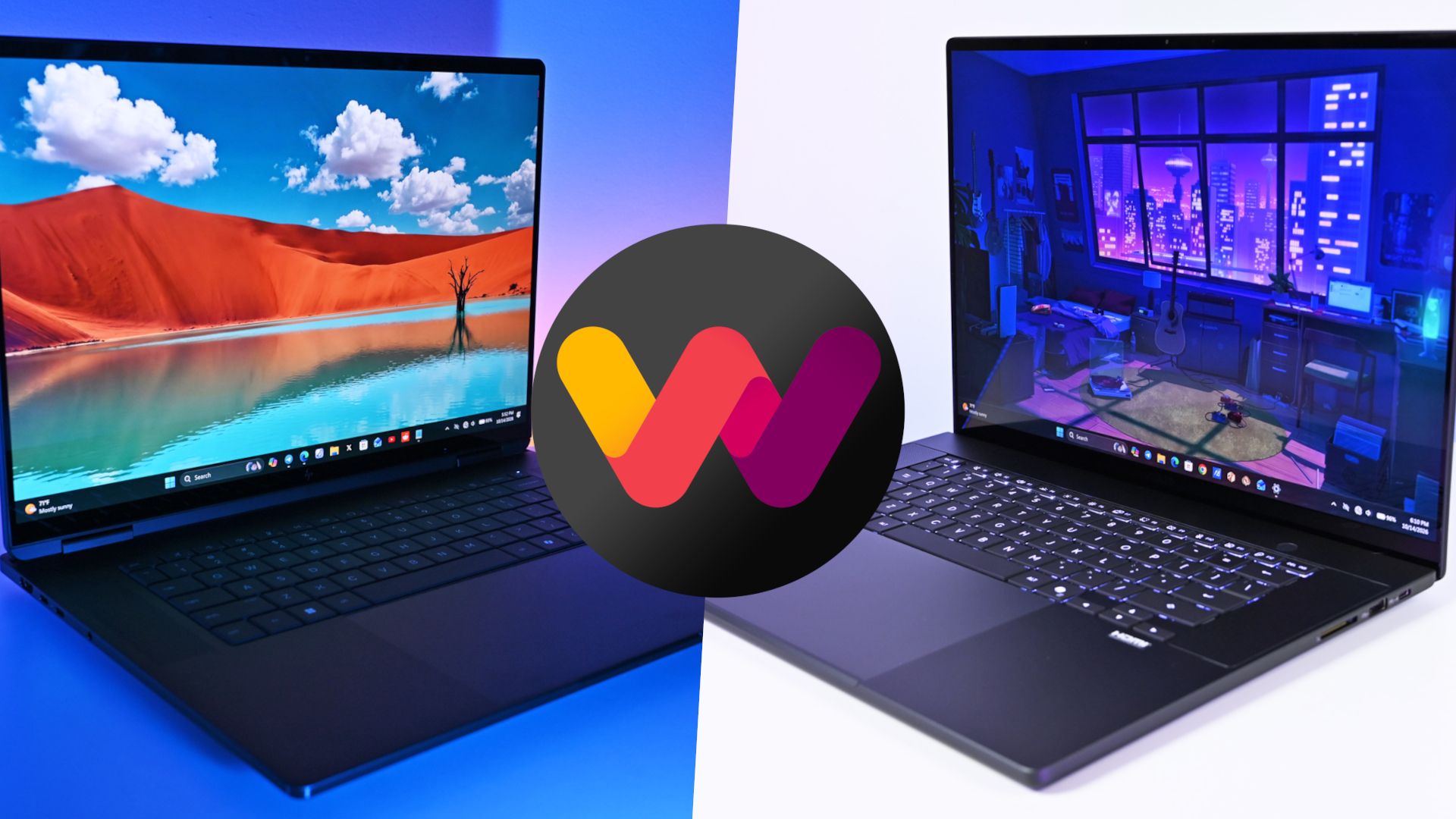
The Windows Central team has now added a new HP OmniBook Ultra 16 with RTX Spark laptop review to the collection, giving me the details I need to put together an in-depth comparison.
HP's laptop is going up against the ASUS ProArt P16, which at first glance is thinner and lighter despite its similar display size. This comparison goes much deeper than surface level, however, and it should help you make the right laptop decision.
ASUS ProArt P16 vs. HP OmniBook Ultra 16: Specifications and price
Before I go into more depth below, here's a quick-reference table of the specs that make up the ASUS ProArt P16 and HP OmniBook Ultra 16 with NVIDIA RTX Spark chips inside.
13.94 x 9.57 x 0.51-0.63 inches (354.1mm x 243mm x 12.9-15.9mm)
14.01 x 10.1 x 0.62 inches (355.8mm x 256.5mm x 15.7mm)
Weight
3.9 pounds (1.77kg)
4.89 pounds (2.22kg)
Colors
Nano Black, Neo White
Eclipse Gray
The ASUS ProArt P16 starts at $2,799.99. This model has the 18-core CPU, 5120-core GPU, 24GB of RAM, a 512GB M.2 PCIe 4.0 NVMe SSD, and a 4K OLED touchscreen.
HP's OmniBook Ultra 16 starts at $3,199.99. This model has the same 18-core CPU and 5120-core GPU, but it bumps RAM up to 32GB and includes a faster (and roomier) 1TB M.2 PCIe 5.0 NVMe SSD. Its OLED touchscreen tops out at a 2.8K resolution.
HP's laptop has been discounted nearly the entire time it's been on sale, and at the time of writing, it's $500 off the regular price. That brings it down to $2,699.99, or $100 cheaper for twice as much storage and 8GB of extra RAM.
Looking at high-end models, you can outfit an ASUS ProArt P16 with the 20-core/6144-core RTX Spark chip, 128GB of RAM, and 2TB PCIe 4.0 SSD for about $6,999.99.
An HP OmniBook Ultra 16 with the same RTX Spark chip, 128GB of RAM, and 2TB PCIe 5.0 SSD comes out to $6,159.99 before any discounts, ultimately making it the cheaper option for workstation diehards.
Does the OmniBook Ultra 16's extra weight pay off?
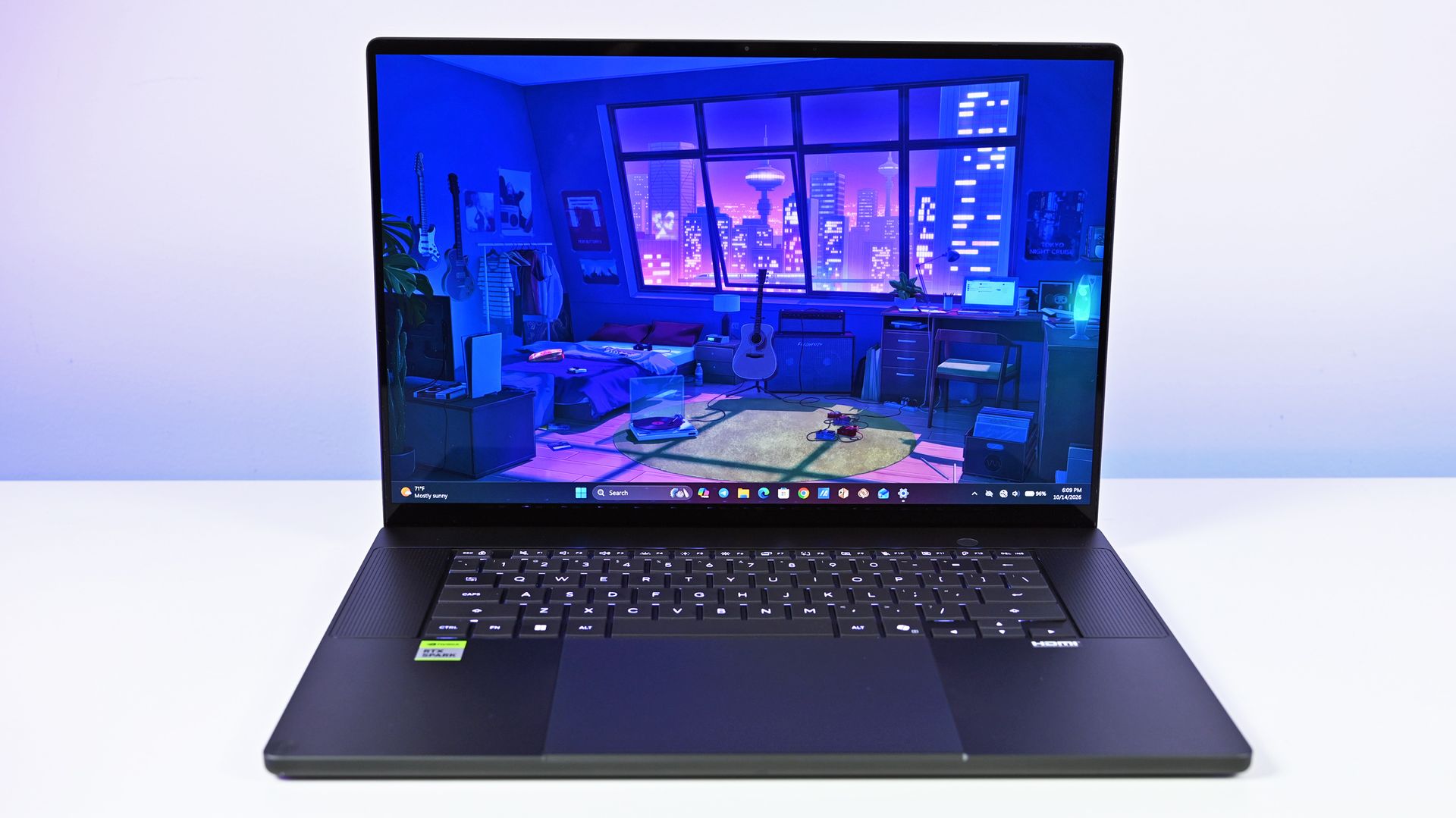
HP's OmniBook Ultra 16 with RTX Spark looks sleek, but it weighs more than you might think. (Image credit: Daniel Rubino)
HP and ASUS have both been creating some killer laptops lately, and in terms of high-end Windows hardware, both of the new RTX Spark laptops comfortably find a spot.
The biggest difference between the two PCs in terms of design? Weight and size. The OmniBook Ultra 16 has a slightly larger footprint, and it's just a bit thicker. Not a big deal unless you're aiming to buy as compact as possible (which might warrant a look at the ASUS ProArt P14 with RTX Spark).
What really stands out is the weight. The OmniBook Ultra 16 weighs a pound more than the ProArt P16, and when performance is so similar (as you'll see below), I know I'd be more inclined to grab the more mobile PC.
Counterpoint: Windows Central Editor-in-Chief Daniel Rubino reviewed both the HP and ASUS laptops, and he thinks "the OmniBook Ultra 16's overall build quality is a smidge better than the ASUS ProArt P16."
The three-piece CNC-machined aluminum chassis feels exceptionally solid. Eclipse Gray looks fantastic and has a lovely texture that also does an unusually good job resisting fingerprints.
Daniel Rubino, Windows Central Editor-in-Chief
Despite the additional bulk, HP's OmniBook Ultra 16 couldn't prove that it was more thermally efficient. In fact, in our tests, ASUS's laptop actually ran a few degrees cooler under load than the OmniBook.
The ASUS ProArt P16's keyboard deck heat.Daniel RubinoThe HP OmniBook Ultra 16 generally runs hotter under load than the ProArt P16.Daniel Rubino
The difference isn't one you'd notice in day-to-day life, especially because the fans generally remain below 50dB.
Which laptop has more ports?
A look at ports on the left side of the ProArt P16. (Image credit: Daniel Rubino)
The ProArt P16 comes with three USB4 ports, an SD card reader, HDMI 2.1, dual USB-A 3.2 (10Gbps), and a 3.5mm audio jack.
ASUS configures the laptop to have two USB4 ports on the left side and one on the right, giving you some additional flexibility with charging and accessories.
The OmniBook Ultra 16 has just two USB4 ports, and both are on the left side. HP also drops the full-size SD card reader down to microSD. It otherwise has similar dual USB-A (10Gbps) ports, HDMI 2.1, and a 3.5mm audio jack.
I'm in favor of the way ASUS laid out its ports, and the additional USB4 hookup for charging or data is always nice to have.
Which keyboard and touchpad do we like best?
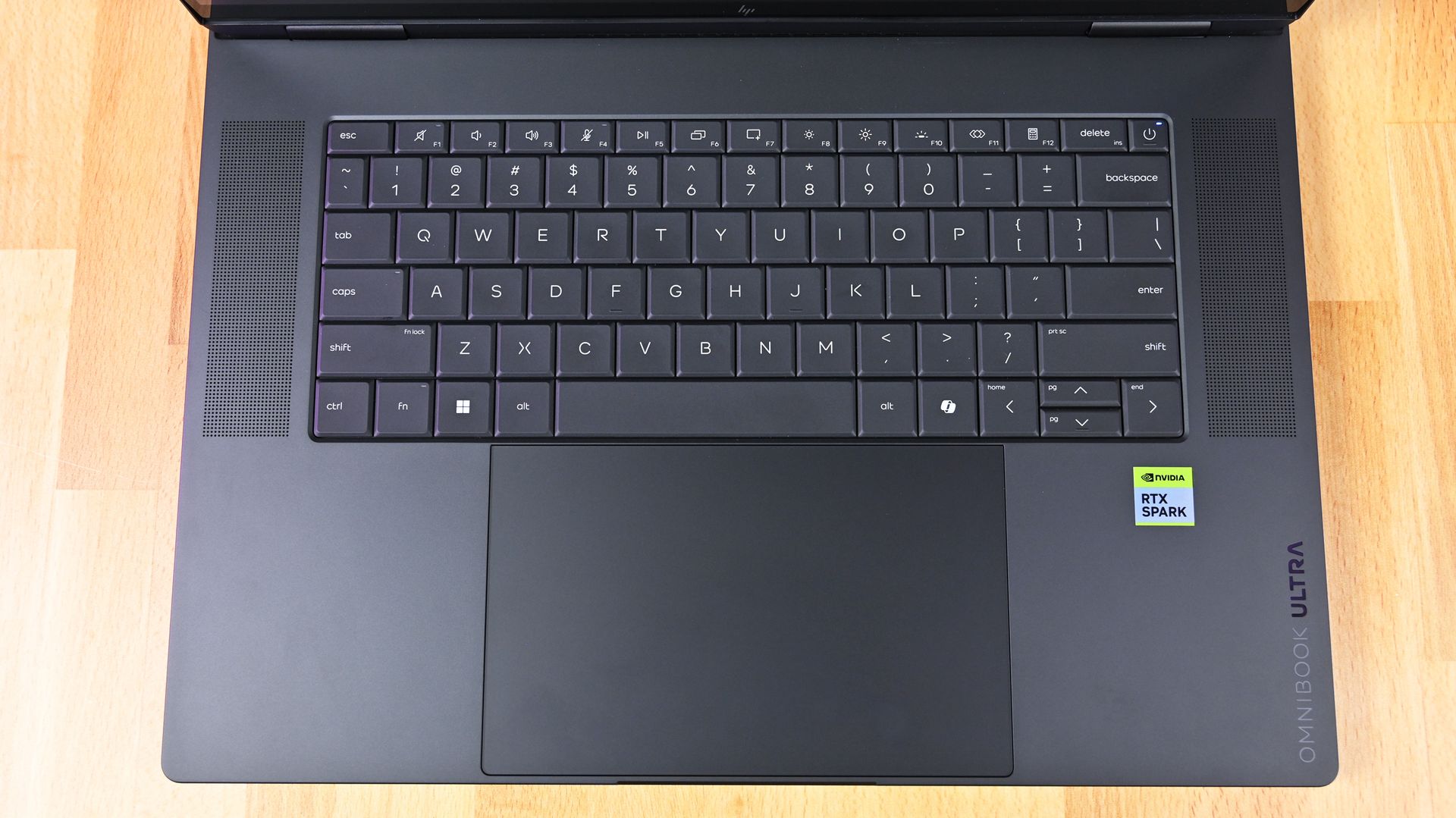
HP's OmniBook Ultra 16 has a lattice-free keyboard and massive haptic touchpad. (Image credit: Daniel Rubino)
The ProArt P16 arrives with a chiclet-style keyboard with deep 1.7mm key travel, three-stage backlighting, and an ambient sensor for automatic adjustments. Below, a massive haptic touchpad makes good use of space and is compatible with Windows 11 Haptic Signals.
HP's OmniBook Ultra 16 arrives with a lattice-free setup, with minimal gaps between keys. As Rubino put it in his review, "It looks great, feels precise, and is genuinely fun to type on."
It only sports a two-stage backlight, unfortunately, and there's no ambient light sensor like on the ProArt P16. HP's haptic touchpad also doesn't support Windows 11 Haptic Signals, which means you won't feel Windows 11's nifty haptic system.
Audio and cameras
(Image credit: Daniel Rubino)
ASUS's ProArt P16 has a six-speaker setup, including two tweeters and four woofers. They're split between down-firing cutouts on the bottom of the PC and top-firing cutouts flanking the keyboard.
Audio is some of the best we've ever heard from a Windows laptop, and Dolby Atmos compatibility takes tuning one step further.
The OmniBook Ultra 16 comes with four speakers, again split between top- and bottom-firing designs. Rubino called HP's audio "roughly comparable to ASUS," and says that DTS:X tuning is a decent alternative to Dolby Atmos.
A look at a top-firing speaker in the OmniBook Ultra 16. (Image credit: Daniel Rubino)
As for the cameras, the conclusion is that neither is very remarkable. ASUS immediately falls behind with a 2.1MP sensor compared to HP's 5MP camera, meaning less resolution in general use.
The ASUS ProArt P16's OLED display (Image credit: Daniel Rubino)
ASUS offers two 16-inch OLED display options (3K and 4K), although it seems like the higher-res version is the one that's most often for sale. That's where I'll focus.
The 4K panel hits about 1600 nits of peak HDR brightness, falling back to 700 nits for SDR. It has a 16:10 aspect ratio, 0.2ms response time, 120Hz variable refresh rate, 100% DCI-P3 color, touch, and stylus support for inking.
HP's lone 16-inch OLED screen has a lower 2880x1800 resolution, though it hits the same 120Hz refresh rate and includes touch. It hits 500 nits SDR and up to 1,100 nits in HDR content, also with 100% DCI-P3 color.
In reviewer Daniel Rubino's opinion, "HP's [display] looks slightly more natural" compared to ASUS's display, while "colors appear clean and balanced without becoming excessively saturated."
HP's laptop skips auto-brightness and adaptive color, two features in the ASUS PC that can keep your screen looking as good as possible no matter the ambient conditions.
NVIDIA's RTX Spark platform doesn't differ much
NVIDIA's RTX Spark chip doesn't differ much between ASUS and HP laptops. (Image credit: Daniel Rubino)
The thing about this first generation of RTX Spark PCs is that performance really doesn't differ much as long as you have the same tier of chip, whether that's the 18-core or 20-core CPU.
We've tested a bunch of these laptops from different brands, and I don't recommend buying one or the other based on small benchmark differences. You'll get the same tier of performance no matter what.
The one exception is storage. All of HP's laptops come with faster PCIe 5.0 drives, whereas the ProArt P16 sticks with slower PCIe 4.0 hardware. This difference is significant, as you can see in the charts below.
FutureFutureFutureFuture
Battery life is also quite similar across the HP and ASUS laptops. Windows Battery Report showed the OmniBook Ultra 16 as hitting roughly 11 hours and 18 minutes of real-world usage, like web browsing, email, messaging, writing, etc.
The ASUS ProArt P16 hit 9 hours and 58 minutes in the same report. It does seem like HP's laptop can last a bit longer, but it really depends on your habits.
Where ASUS has HP beat is with standby efficiency. The ProArt P16 "resumes almost instantly and loses very little battery while sleeping," according to Rubino, whereas HP's laptop takes a bit longer to wake up.
ASUS ProArt P16 vs. HP OmniBook Ultra 16: Which RTX Spark laptop should you buy?
HP's OmniBook Ultra 16 offers more value for its starting price than the ProArt P16. (Image credit: Daniel Rubino)
I'd say that HP's OmniBook Ultra 16 is the better value overall once you get past the introductory pricing (which ASUS keeps down with less/slower hardware).
HP also offers a great webcam, a more natural OLED appearance, and what seems like longer runtimes for general use. These are all good reasons to buy the HP laptop.
But ASUS brings a better selection of ports, a brighter display, deeper key travel, and, most importantly, a lighter and more compact design. It weighs about a pound less than the OmniBook Ultra, making it much easier to carry around. Best part? It doesn't harm performance.
The bottom line? ASUS has the more complete package, but HP's OmniBook Ultra 16 isn't far behind. And considering HP's laptop has been on sale practically since it launched, saving several hundred dollars should easily make up the difference.
Up to 2.8K
HP
OmniBook Ultra 16
HP's OmniBook Ultra 16 is an outstanding laptop with fast storage and better battery life, but its size and weight must be considered. Regardless, at the end of the day, this is the laptop I'd buy if I could save a few hundred dollars.
Up to 4K
Asus
Asus ProArt P16
ASUS's ProArt P16 is the more complete RTX Spark laptop, though it does fall behind the OmniBook Ultra 16 in areas like storage and battery life. If pricing is similar, this is the laptop I recommend to most people.
Join us on Reddit at r/WindowsCentral to share your insights and discuss our latest news, reviews, and more.
For a couple of weeks, Owlcat Games has been teasing the release date of its highly anticipated follow-up to Warhammer 40,000: Rogue Trader, Warhammer 40,000: Dark Heresy.The hints have now ended as the game's latest trailer confirms that Warhammer 40,000: Dark Heresy will launch on January 28, 2027, for Xbox Series X|S, PlayStation 5, and Windows PC via Steam, GOG, and Epic Games Store.Information regarding the release of its Nintendo Switch 2 port will be revea
The hints have now ended as the game's latest trailer confirms that Warhammer 40,000: Dark Heresy will launch on January 28, 2027, for Xbox Series X|S, PlayStation 5, and Windows PC via Steam, GOG, and Epic Games Store.
Information regarding the release of its Nintendo Switch 2 port will be revealed at a later date.
Warhammer 40,000: Dark Heresy is a turn-based CRPG set in the grim dark sci-fi universe of Warhammer 40,000. You play as an acolyte of the Inquisition, a secretive, powerful organization tasked with purging heretics, cultists, and daemons serving the Ruinous Powers of Chaos by any means necessary in the name of the Imperium of Man.
You will conduct Investigations to weed out heretical scum from the Calixis Sector, condemn the innocent and guilty depending on your choices, recruit powerful allies to your cause, uncover the secret behind the mysterious Tyrant Star, and do battle with enemies in brutal, tactical turn-based combat.
I played the beta test for Warhammer 40,000: Dark Heresy a few months ago and thoroughly enjoyed it for how twisted it was. The combat is shaping up to be savagely satisfying and challenging; the storylines are dark and intriguing, and it offers plenty of ways to shape the story depending on how morally corrupt or by-the-book you want to conduct investigations.
Here's hoping that Warhammer 40,000: Dark Heresy will live up to my expectations and end up being just as fun as Warhammer 40,000: Rogue Trader (one of my favorite RPGs of this generation of gaming) when it launches on January 28, 2027.
Become an acolyte of the Inquisition and lead your warband to encounter the dark mysteries behind the Tyrant Star and purge the Calixis Sector of heretics, aliens, and daemons looking to destroy it from within.
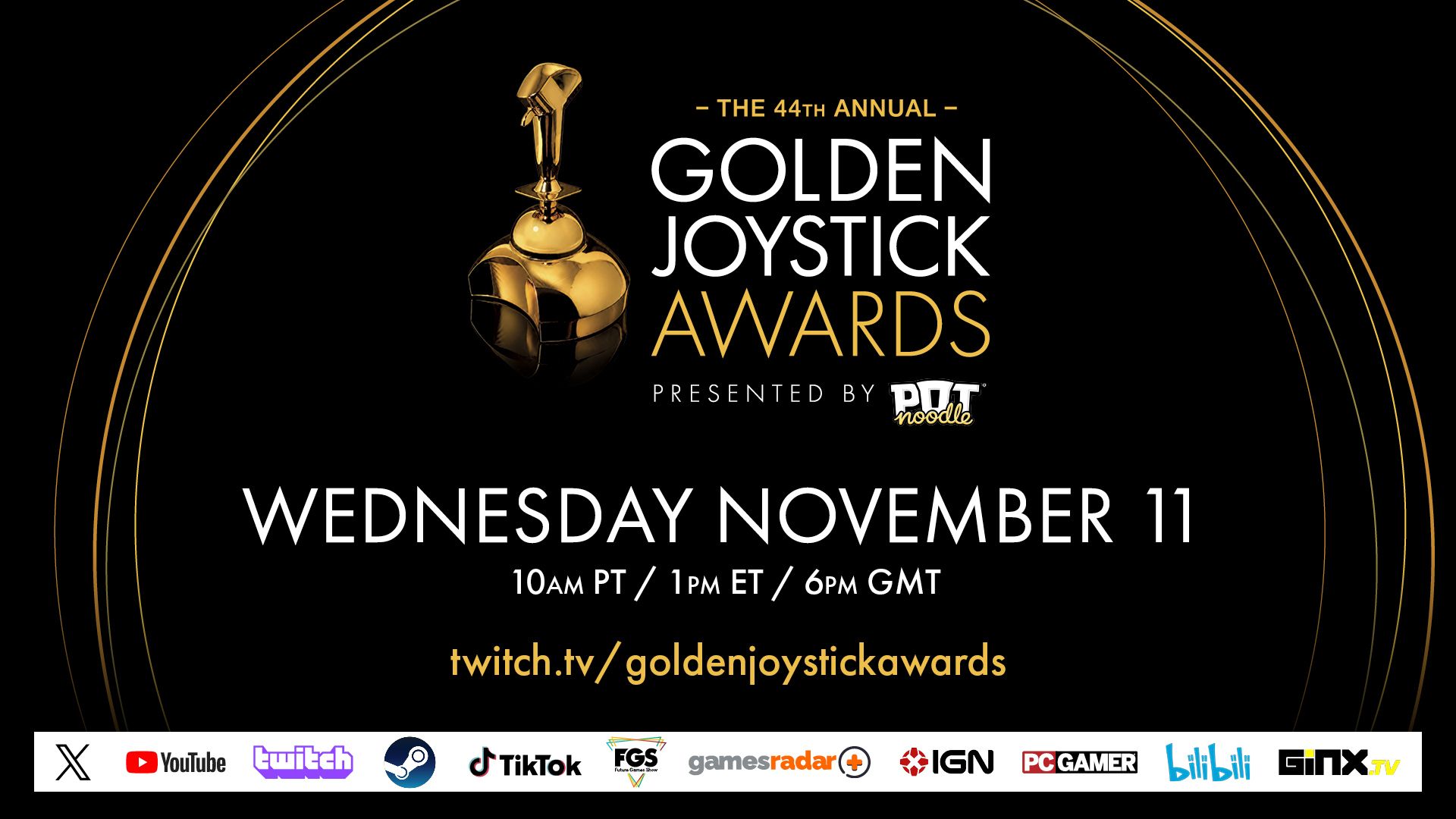
The time has almost come for the 44th annual Golden Joystick Awards Show as it's set to commence this Wednesday, November 11, 2026, at 10:00 AM PT / 1:00 PM ET / 6:00 PM GMT / 7:00 PM CEST.This year's contenders for the show's coveted "Ultimate Game of the Year" award have some stiff competition, which includes top-tier Xbox Series X|S, PC, and PlayStation 5 titles like Pragmata, Forza Horizon 6, 007 First Light, Resident Evil Requiem, Control Resonant, and more.
The time has almost come for the 44th annual Golden Joystick Awards Show as it's set to commence this Wednesday, November 11, 2026, at 10:00 AM PT / 1:00 PM ET / 6:00 PM GMT / 7:00 PM CEST.
If you wish to see the Golden Joystick Awards Show live and see which game wins, as well as see the winners for its 25 shortlist categories, you can watch live on the following streaming platforms:
Which do you think will be crowned "Ultimate Game of the Year"?
It's highly likely that 007 First Light will be crowned "Ultimate Game of the Year", as well as sweep the other 5 shortlist categories it's in for being the best James Bond game released since 1997's classic GoldenEye 007 for the N64.
It sold 1.5 million copies within 24 hours and has received rave reviews (including a 5/5 score from us) for its intriguing story and characters, and extremely well-done gameplay that seamlessly blends in-depth melee combat, satisfying stealth, and engaging cover-based shooting.
Personally, I'm rooting for Pragmata to win, as it's one of the most original games Capcom has made in years.
It has a heartwarming and interesting story, likable characters, and a combat system that mixes two genres that normally shouldn't work together - third-person shooting with hacking puzzle mini-games - and somehow makes it work and enjoyable.
Either way, we'll have to tune in to the Golden Joystick Awards this Wednesday to find out.
Join us on Reddit at r/WindowsCentral to share your insights and discuss our latest news, reviews, and more.
It's been 10 whole years since Microsoft shipped its first-generation Surface Mouse, so when the company unveiled a second-generation Surface Mouse at Qualcomm's Snapdragon Summit back in September, I was immediately intrigued.What would cause Microsoft to want to revive an otherwise dead peripheral? That was my first question, and Microsoft was quick to answer: HAPTICS! The new Surface Mouse has haptics, and that's why the company decided to bring it back.Mainta
It's been 10 whole years since Microsoft shipped its first-generation Surface Mouse, so when the company unveiled a second-generation Surface Mouse at Qualcomm's Snapdragon Summit back in September, I was immediately intrigued.
What would cause Microsoft to want to revive an otherwise dead peripheral? That was my first question, and Microsoft was quick to answer: HAPTICS! The new Surface Mouse has haptics, and that's why the company decided to bring it back.
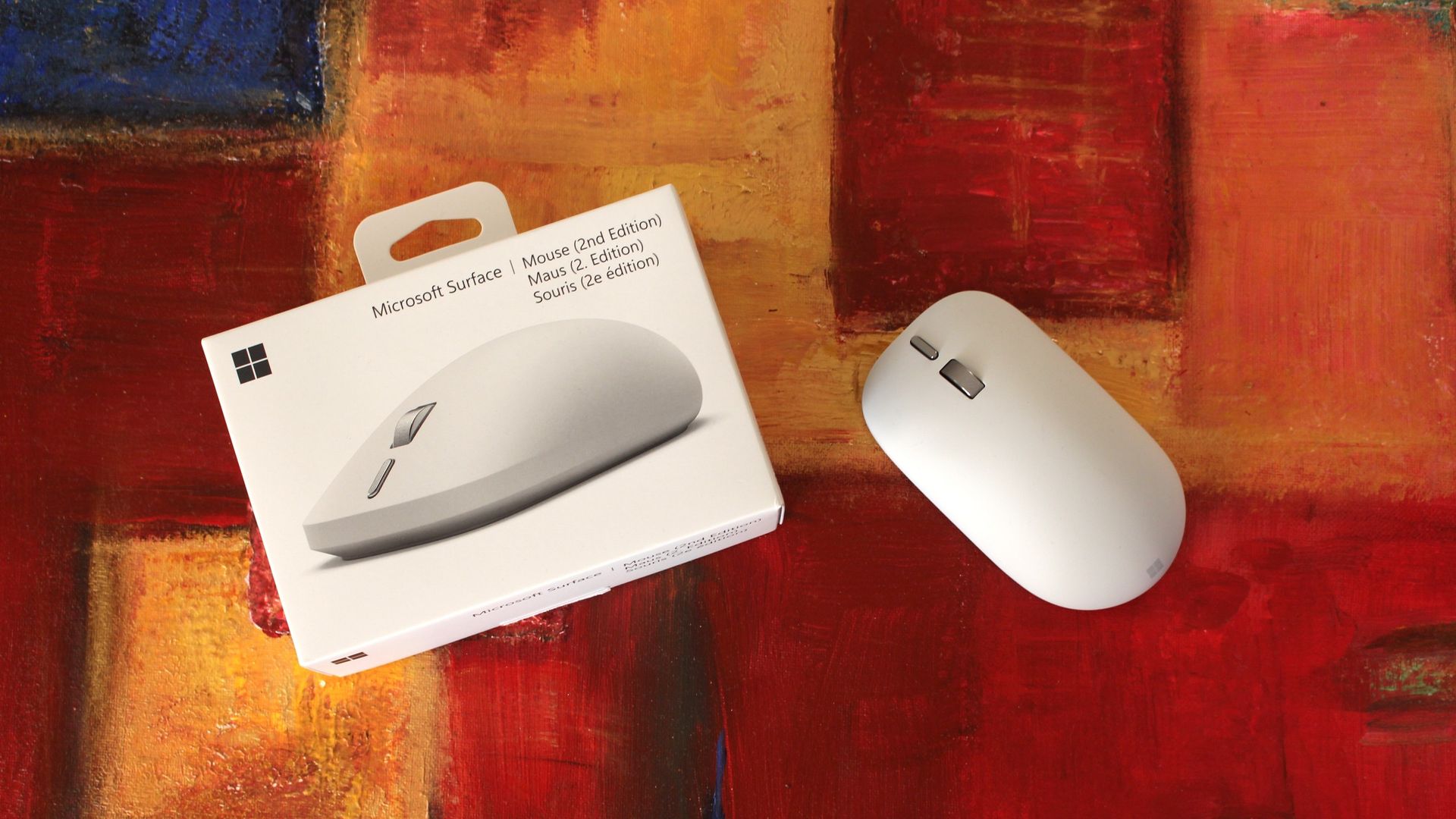
Maintaining a similar shape and size as the original, the new Surface Mouse employs a new soft-touch coating, a redesigned left and right click mechanism, a new action button, and a built-in haptics motor that integrates with Windows 11's new haptic signals feature.
I've been using the Surface Mouse 2 for the last few weeks, and here's my full review.
Price and Availability
(Image credit: Zac Bowden / Windows Central)
Specs
Connectivity: Bluetooth 6.0 (up to 3 devices via Swift Pair)
Sensor: BlueTrack, dynamically up to 4,000 fps, 30 ips tracking
Similarly to the MX Master 4, the Surface Mouse 2 is available in two colorways: Platinum (silver/grey) and Black. I've got the Platinum one in for review, but the Black one is equally pretty.
You can find Surface Mouse 2 directly at the Microsoft Store, or third-party retailers such as Best Buy where it's likely to go on sale more often.
Haptics
Microsoft
Surface Mouse (2nd Edition)
The Surface Mouse 2 is a follow up to the 2016 Surface Mouse, now featuring a new soft-touch design with zero seams, and an all new haptic motor that supports Windows 11's new Haptic Signals feature. It's an overall great mouse for $80.
What's good
(Image credit: Zac Bowden / Windows Central)
Unlike the first-gen, the Surface Mouse 2 is made out of a new soft-touch material that covers the entire top portion of the device, and it feels absolutely amazing. It's a very high quality texture that's a little grippy, and feels so very premium.
The design is also much cleaner than the first-gen, omitting any seams and lines in favor of an entirely smooth surface that even hides the left and right click buttons. The material flexes slightly so that you can actuate the left/right click buttons underneath.
On that subject, the left/right click buttons are super satisfying. They feature a much more tactile "click" sensation compared to the first-gen, which was quite mushy by comparison. The best way to describe the new buttons is "quiet yet tactile," with easy actuation.
There's also a new action button that's located just below the scroll wheel, which can be customized with a single, double, or long press options. You can set the button to open apps, take a screenshot, or show system interfaces like Start and Search.
(Image credit: Zac Bowden / Windows Central)
These options are customizable through the Surface app, which will automatically download through the Microsoft Store when you first connect the mouse to your PC via Bluetooth. This app also lets you control DPI sensitivity and update the firmware on the mouse.
Of course, the big highlight with Surface Mouse 2 are the haptics, which are super satisfying. On the inside of the mouse is a small vibration motor that responds to certain actions and activities on a Windows 11 PC. When you snap apps side by side, drag files in File Explorer, and align objects in apps like Photoshop or PowerPoint, you'll feel a subtle haptic response to confirm your action.
These haptic responses are what I call a delightful addition. They serve no real functional benefit, but once you have them, you feel like something is missing when you don't have them. It makes using Windows just a touch more satisfying, and I absolutely love it. You can also adjust how strong the haptics are in Windows settings.
Until now, the only other mouse on the market that supported these haptic signals is the $120 Logitech MX Master 4, which makes the Surface Mouse 2 the cheapest mouse to support this new system yet.
What's not good
(Image credit: Zac Bowden / Windows Central)
There's a lot to like about the Surface Mouse 2, but there's also a few things to watch out for if you're looking to buy this device. First up, the positioning of the action button is a little awkward. It's below the scroll wheel, which means you need to extend your finger a touch further than you would normally to reach it. Not the end of the world, but a bit annoying.
The soft touch material, while amazing feeling, can get a bit greasy and grimy over time. This is a side effect of all grippy, soft-touch materials, and is easily solved by wiping down the mouse with a damp cloth every now and then. The Platinum colorway hides grease better than the Black variant does.
I also found that the overall shape of the mouse isn't very ergonomic. While I appreciate the humped design, there's no thumb-rest or sculped shape that follows the natural resting position of your hand. This is because Microsoft wanted the mouse to be ambidextrous, so it can be used by both left and right handed people. This is good, but comes at the cost of an extra comfortable design.
(Image credit: Zac Bowden / Windows Central)
There's also no USB-C charging or wired mode to be found. The mouse is 100% wireless, connected to your PC via Bluetooth. The only way to recharge it is to replace the batteries, which can be easily accessed via a magnetic door on the underside of the mouse. I would have preferred USB-C recharging, as that would also let you use the mouse wired when necessary.
The very last complaint I have? The left and right click buttons aren't also haptic. The haptic motor is only used for Windows 11's Haptic Signals feature, and not to mimic the sensation of the left/right click buttons, which are physical switches. I'd have loved to see haptic left/right click buttons too.
Conclusion
(Image credit: Zac Bowden / Windows Central)
The Surface Mouse 2 is an overall excellent high quality mouse for $80. It's the only mouse under $100 that supports Windows 11's new Haptic Signals feature, and its design is super clean and minimalist with zero seams to be seen.
The left and right click buttons feel great, and the haptic motor on the inside is very satisfying to use. I do with the mouse had a USB-C port for charging and wired mode, and I'd love to see a version with a more ergonomic design too.
There aren't any fundamental issues with this mouse, which means I give it a full recommendation. If you're in the market for a new PC mouse, and you want to try out Windows 11's new haptics feature, this is the mouse to get if you don't want to break the bank.
Microsoft
Surface Mouse (2nd Edition)
The Surface Mouse 2 is a follow up to the 2016 Surface Mouse, now featuring a new soft-touch design with zero seams, and an all new haptic motor that supports Windows 11's new Haptic Signals feature. It's an overall great mouse for $80.
Join us on Reddit at r/WindowsCentral to share your insights and discuss our latest news, reviews, and more.
After years and years of anticipation, GTA VI will finally ship this week. In fact, the game may have already pre-loaded on your console if you pre-ordered it. Regardless of whether you pre-load the game or download it later, it will take up a lot of storage.Rockstar says you need up to 212GB free to pre-load GTA VI, depending on your device.With the game being so large, you'll likely want additional storage so you can install GTA VI without clearing out other ga
After years and years of anticipation, GTA VI will finally ship this week. In fact, the game may have already pre-loaded on your console if you pre-ordered it. Regardless of whether you pre-load the game or download it later, it will take up a lot of storage.
With the game being so large, you'll likely want additional storage so you can install GTA VI without clearing out other games to make space.
The good news is that the XBOX Series X and XBOX Series S support seamless storage expansion. The bad news is that stock of supported cards is extremely limited.
You may be able to find select individual XBOX storage cards in stock, but the only one I've been able to find available online consistently is the 2TB SANDISK Optimus GX C50 Xbox Storage Expansion Card.
This expansion card slots seamlessly into your XBOX Series X or XBOX Series S. Its performance matches the speed of the built-in storage of your console, allowing you to play games directly off the card.View Deal
Is the SANDISK Optimus GX C50 a good XBOX storage card?
(Image credit: SanDisk)
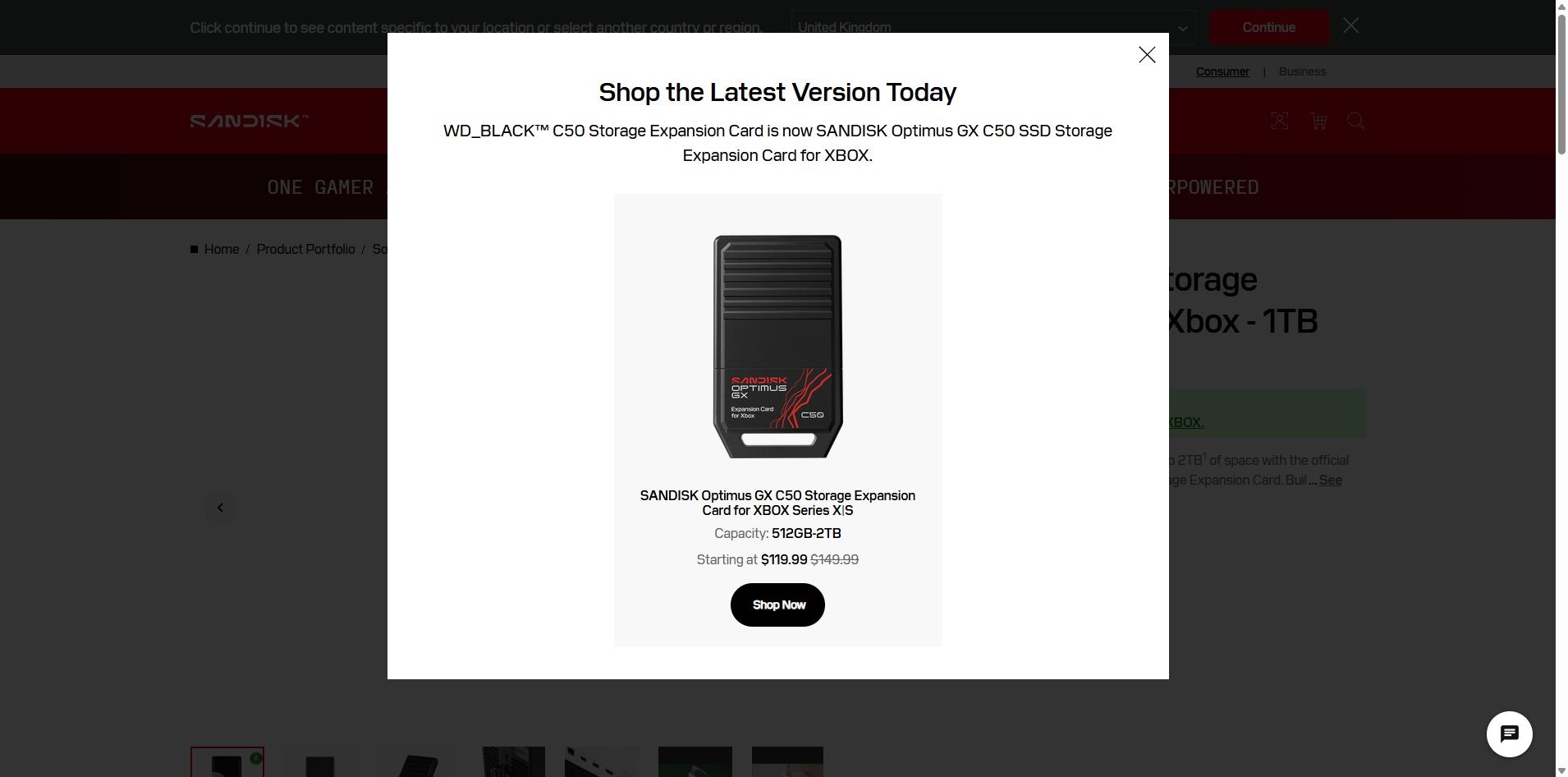
The SANDISK Optimus GX C50 is the WD_BLACK C50 Storage Expansion Card under a new name. If you search for the old WD_BLACK card on SANDISK's website, you'll see a prompt explaining the change (shown above).
Regardless of the name, the performance of the card is excellent. The SANDISK Optimus GX C50 fully supports features like Xbox Quick Resume. You can quickly transfer games back and forth between the card and your console as well.
In short, using the SANDISK Optimus GX C50 should feel exactly like having a game stored directly on your XBOX Series X|S.
Unless you care about the graphics and logo on the card, you can take a deeper dive into the SANDISK Optimus GX C50 by reading our WD_BLACK C50 Storage Expansion Card review. I'll warn you that doing so may make you cry when you see the launch price of that card.
Is now a good time to buy XBOX storage?
If you haven't shopped for a console or gaming accessories for a while, you're likely shocked by the price of additional storage. The $479.99 price of the 2TB SANDISK Optimus GX C50 is more than an XBOX Series X cost just a few years ago if you found a good deal.
The XBOX Series X launched at $499.99, but for years it was easy to find one for less. Heck, Verizon used to literally give them away if you signed up for broadband. But like laptops and other gadgets, gaming devices have skyrocketed in price over the years due to the global component shortage.
So, through the twisted lens of current gaming prices, you could almost say that $479.99 is a "fair" price for 2TB of storage. Maybe a better way to say it would be to call it an "expected" price.
With GTA VI pre-loading on consoles starting November 10 and the game launching on November 19, now is the perfect time to expand the storage of your XBOX Series X|S.
Join us on Reddit at r/WindowsCentral to share your insights and discuss our latest news, reviews, and more.
Razer has released so many keyboards during 2026 that even I sometimes need a minute to remember which Huntsman does what.I've reviewed the $499.99 Huntsman Signature Edition, the excellent Huntsman V3 Pro Low-Profile TKL, and more recently Razer's $139.99 Huntsman V3 HE Magnetic. The latter brought adjustable Hall Effect switches and Razer's increasingly sophisticated competitive gaming features to its flagship keyboard family. And yet the Razer keyboard I keep
And yet the Razer keyboard I keep coming back to isn't a Huntsman.
It's the Reclusa.
Razer first introduced this new enthusiast-focused family with the Reclusa X Mini 65%, a remarkably good little $49.99 keyboard with hot-swappable mechanical switches, dual-layer dampening, south-facing LEDs, and that distinctive black, white, and mint-green tri-tone design. I loved typing on it, and its price-to-quality ratio made it ridiculously easy to recommend.
Now we have its considerably more ambitious sibling.
At $129.99 (Best Buy or Razer.com), the Razer Reclusa Mini 65% costs $80 more, but Razer has stuffed most of its premium gaming technology inside while preserving what attracted me to the cheaper keyboard in the first place.
I've used it as my primary keyboard for two weeks. And despite having plenty of alternatives sitting nearby, I don't particularly want to switch back.
Razer had no input, nor did it see the contents of this review, prior to publication.
Same Reclusa formula, considerably more hardware
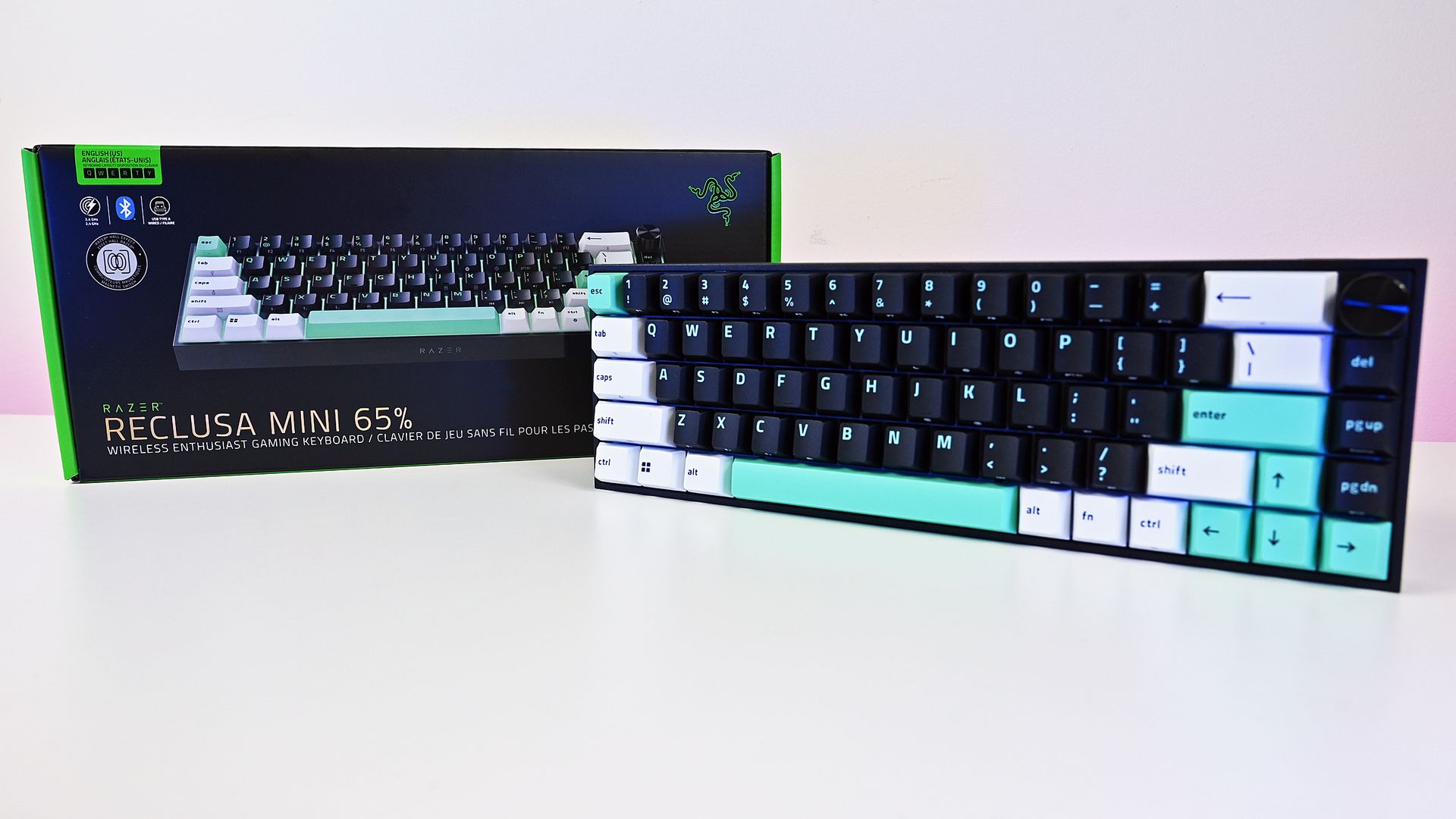
The compact 65% layout preserves dedicated arrow keys while eliminating the function row and numpad, leaving considerably more room on your desk. (Image credit: Daniel Rubino)
The overall aesthetic of the Raze Resclusa Mini 65% remains fantastic.
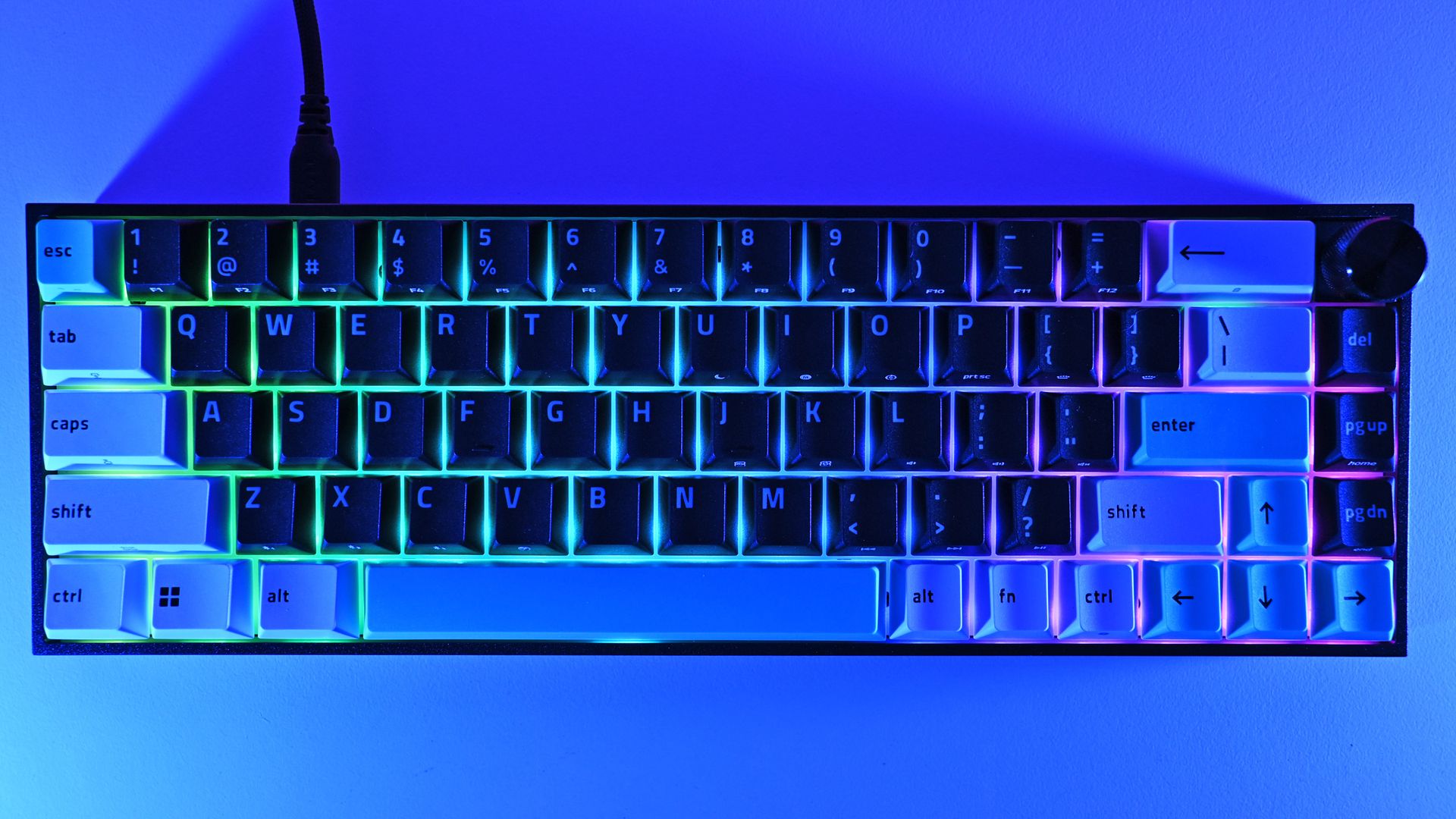
You still get the compact 65% layout, tri-tone keycaps, and bright mint accents that prevent this from becoming another anonymous black gaming rectangle. The lighting comes from south-facing per-key RGB LEDs rather than shine-through legends.
After two weeks as my primary keyboard, I don't want to take the Reclusa Mini 65% off my desk.
I do miss having the legends themselves illuminated, especially in a dark room, but I understand the decision. The Reclusa is supposed to feel like Razer's enthusiast keyboard family, rather than another variation of Huntsman.
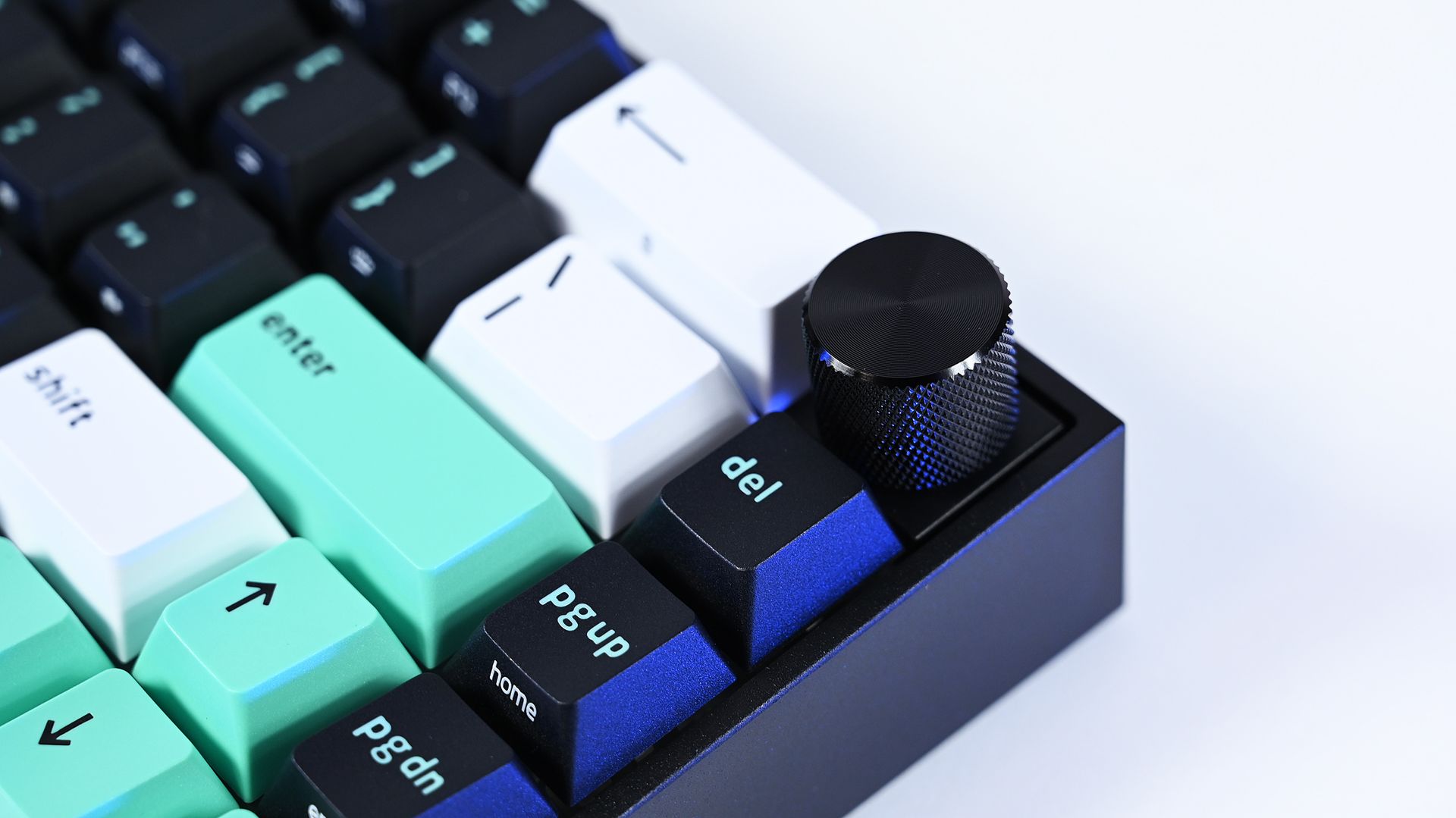
Where the premium model immediately wins me over is the multifunction dial in the upper-right corner. After missing dedicated media controls on the Reclusa X, having a conveniently positioned dial back for volume and other controls makes a surprisingly big difference to my everyday use.
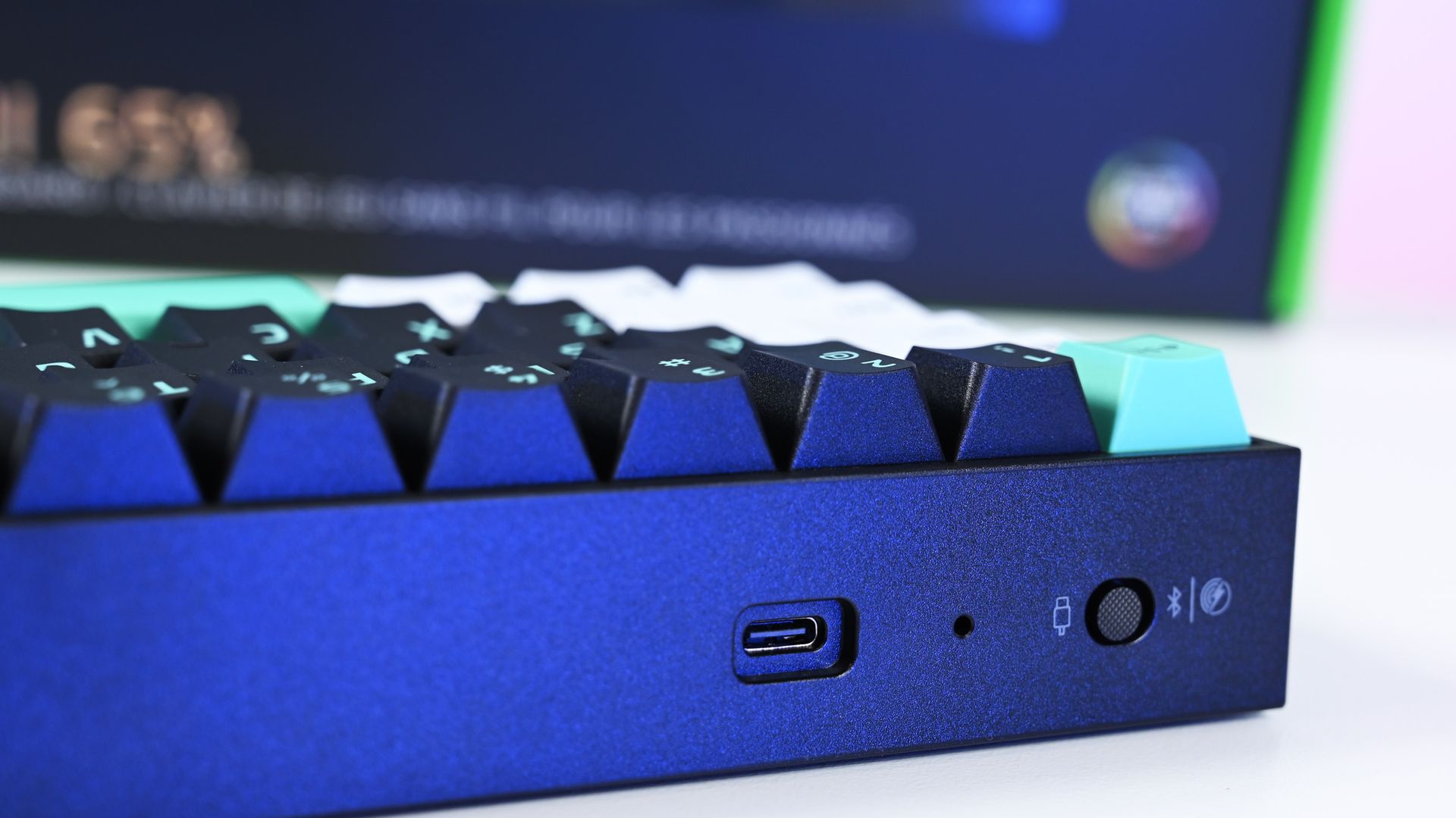
The Reclusa Mini 65% supports wired USB-C, Bluetooth, and 2.4GHz Razer HyperSpeed Wireless, with up to 8,000Hz polling available when wired. (Image credit: Daniel Rubino)
There's also more going on underneath those keycaps.
Razer uses a PPS plate, lubricated stabilizers, IXPE switch foam, and dual-layer silicone dampening. According to my product briefing, the IXPE layer was specifically added over the Reclusa X's acoustic system to further reduce unwanted resonance.
I can totally hear (and feel) it.
The Reclusa Mini sounds more controlled and dampened than the X. It's audible without producing the higher-pitched clacking that can become irritating in an office. The best way I can describe it is a satisfying"plunk."
Few gaming keyboards I've used strike this balance between excellent everyday typing, enthusiast customization, and genuinely advanced competitive features.
More importantly, this is probably the best typing experience I've had on any Razer keyboard.
That's quite a claim, considering how many Razer keyboards I've tested this year. I mean, they've all been great, but my hands feel happy with this one.
Reclusa goes magnetic
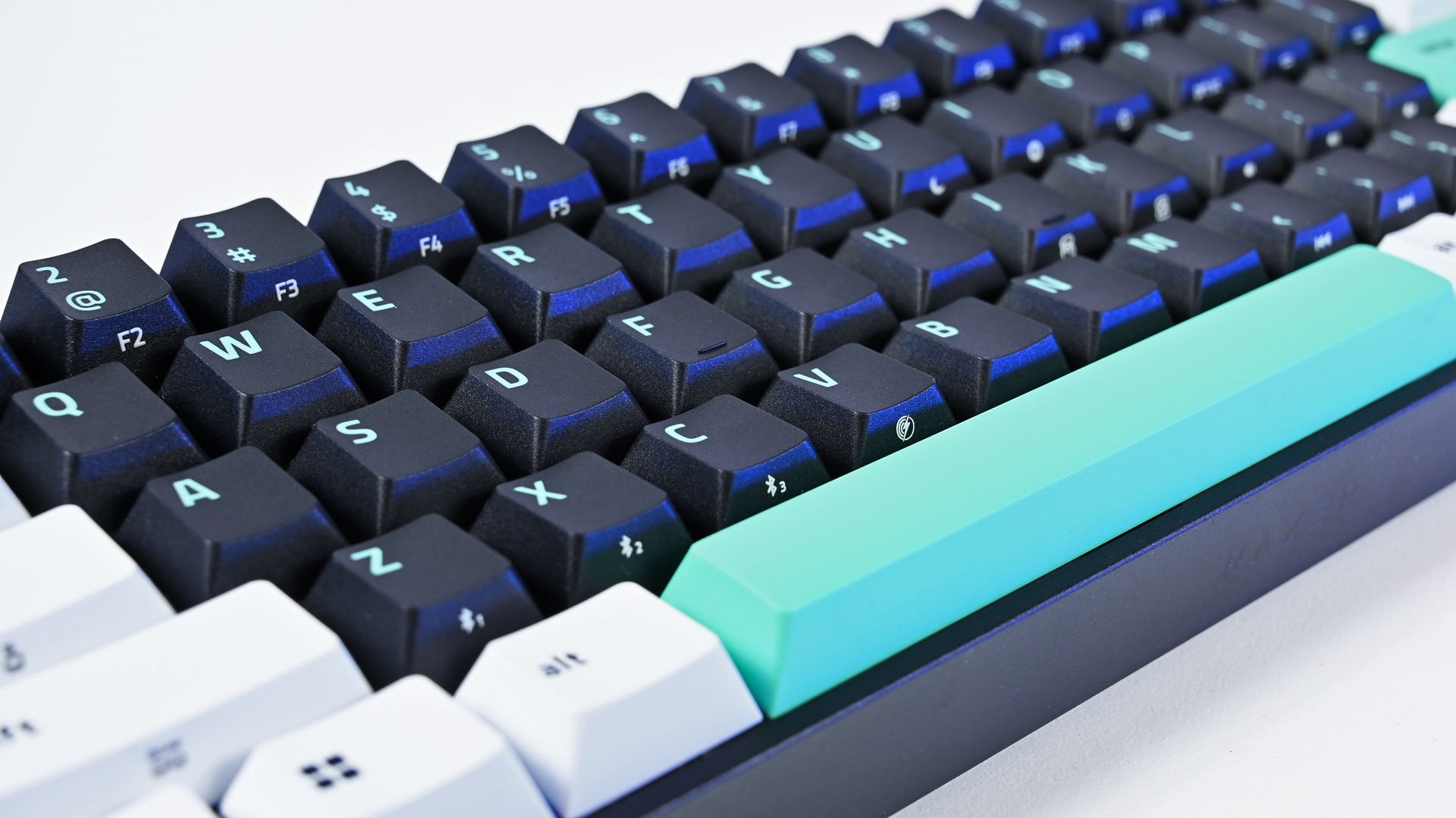
The Reclusa Mini 65% keeps the excellent tri-tone aesthetic of the cheaper Reclusa X, mixing black, white, and mint-green doubleshot ABS keycaps. (Image credit: Daniel Rubino)
The biggest change is replacing the X's conventional mechanical switches with Razer's linear Hall Effect Magnetic switches (read our primer on HE switches for controllers to get an idea of why they're great).
Actuation can be adjusted anywhere from 0.1mm to 4.0mm, compared with the fixed 2mm actuation of the Reclusa X, and the magnetic switches are hot-swappable for compatible third-party alternatives.
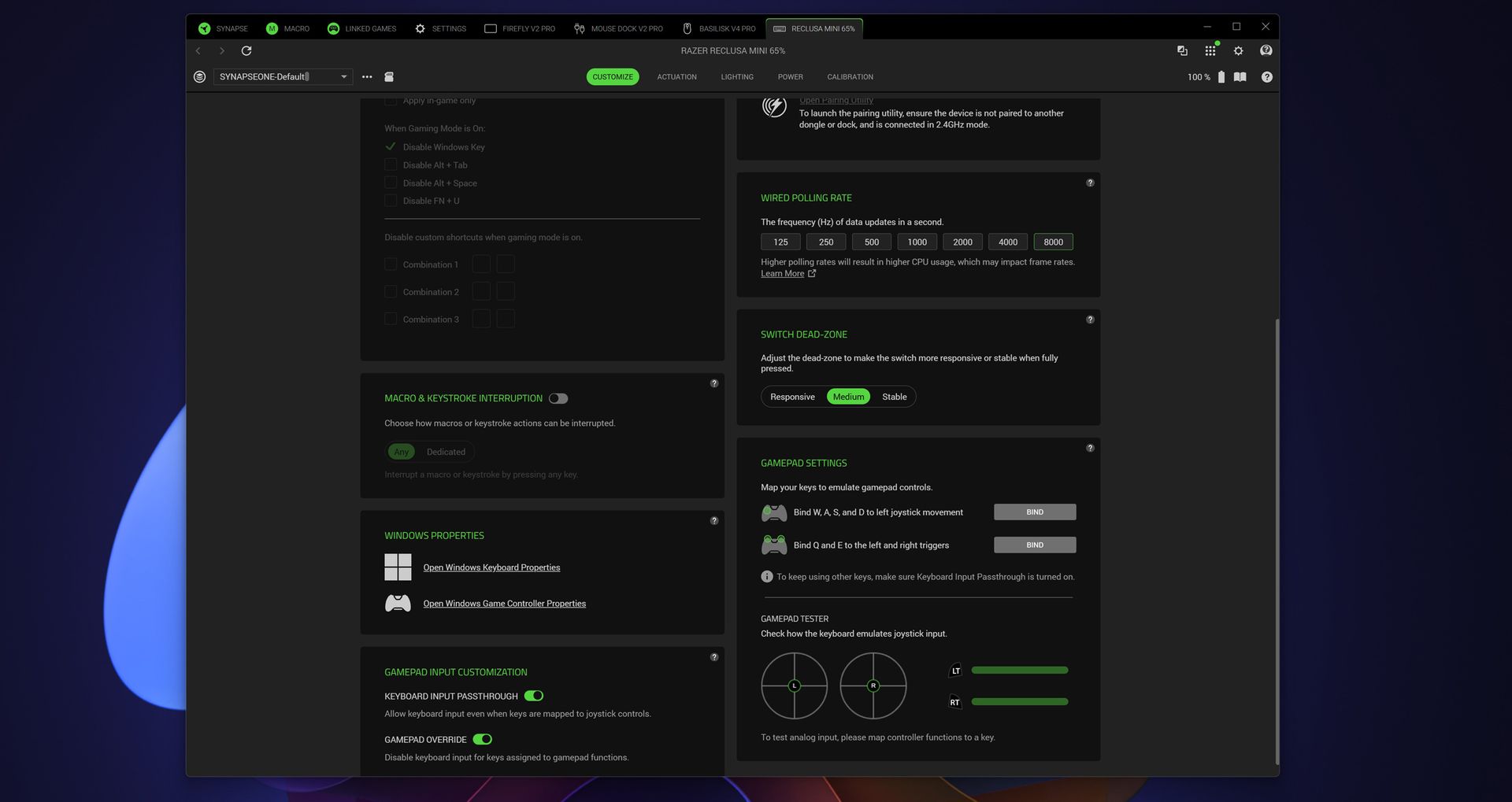
Razer Synapse exposes even more enthusiast-level controls, including up to 8,000Hz wired polling, switch dead-zone adjustment, and gamepad input customization. (Image credit: Daniel Rubino)
That opens the door to Razer's current collection of advanced input features, including Rapid Trigger, Snap Tap, Snap Flex, Dynamic Keystroke, and Dual-Keypress Priority (I explain those a bit more in my recent Huntsman review). Razer Synapse, its love/hated software, also provides individual switch calibration, something particularly useful if you begin swapping magnetic switches.
There's an enormous amount to play with, or you can just use some of the presets and not worry about it.
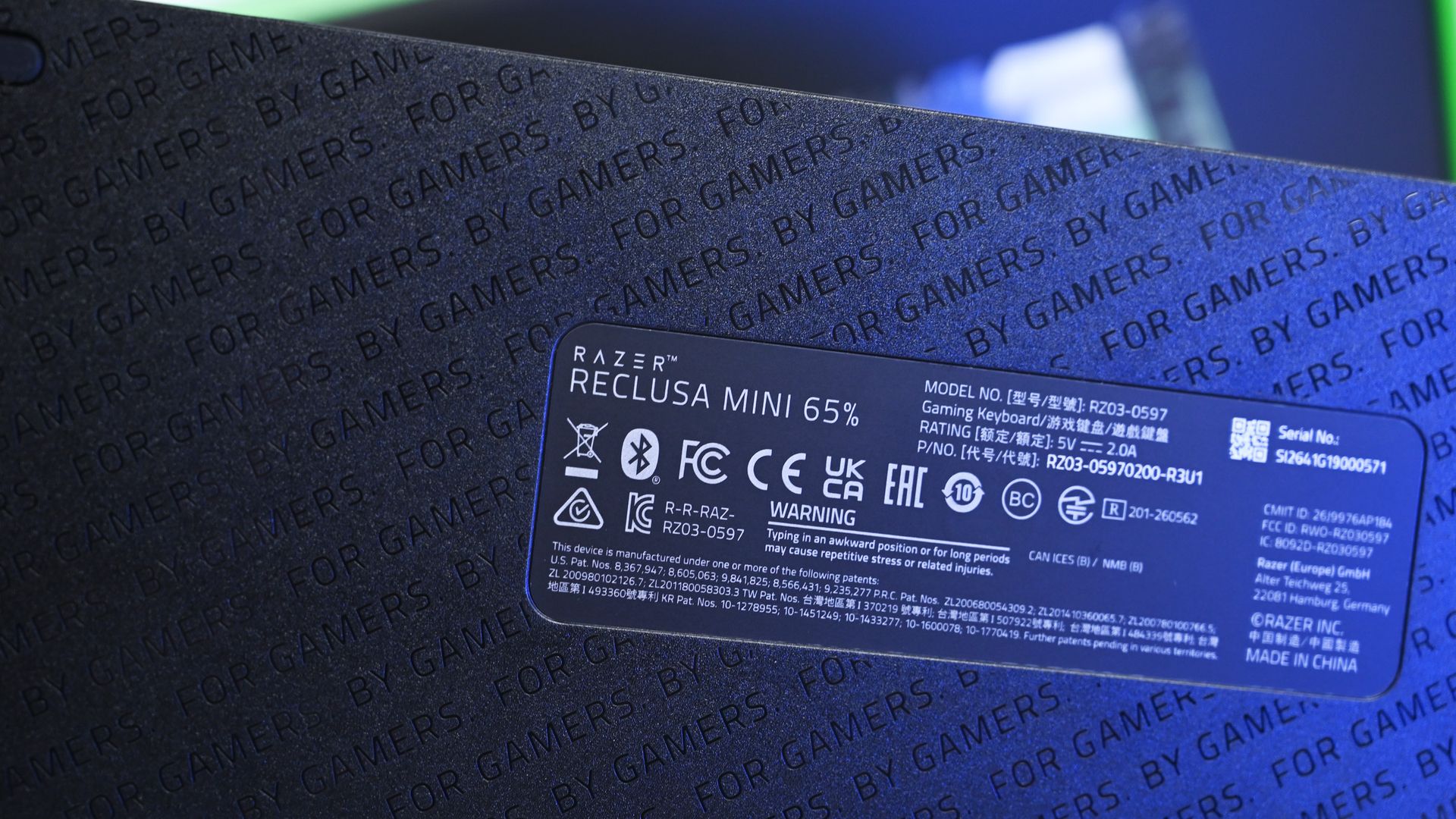
Even the underside receives some attention with Razer's repeating "FOR GAMERS. BY GAMERS." pattern, although there are no adjustable rear feet. (Image credit: Daniel Rubino)
I won't pretend every person buying this board needs to spend hours configuring individual actuation points, either. I'm perfectly happy using the Reclusa as a fantastic typing keyboard most of the day and taking advantage of its speed while gaming.
But if you're the kind of player who does obsess over these settings, Razer gives you the tools.
Polling jumps from 1,000Hz on the Reclusa X to 8,000Hz when wired, while wireless operates at up to 1,000Hz. The Reclusa Mini also supports 2.4GHz HyperSpeed, Bluetooth, wired USB-C, multi-device HyperSpeed pairing, and switching between three Bluetooth devices.
That's the real argument for paying $129.99.
An awkward $80 question
This little multifunction dial is a surprisingly important upgrade for me, restoring convenient volume control that I sorely missed on the cheaper Reclusa X. (Image credit: Daniel Rubino)
Ironically, the Reclusa Mini 65%'s biggest competitor might be Razer's own $49.99 Reclusa X Mini 65%.
I gave that keyboard 4.5 stars in my review because it nailed the fundamentals for an almost comically low price.
The premium Reclusa is better. It feels more substantial, sounds better, adds wireless connectivity, returns my beloved dial, dramatically expands switch configuration and brings Razer's current Hall Effect gaming technology along for the ride.
At $129.99, it's also competitively positioned within the enthusiast Hall Effect market. For context, Razer's own Huntsman V3 HE Magnetic TKL launched at $139.99, while the Mini 65% was $119.99. Wooting's plastic 60HE v2 launched at $179.99, with its aluminum version reaching $239.99.
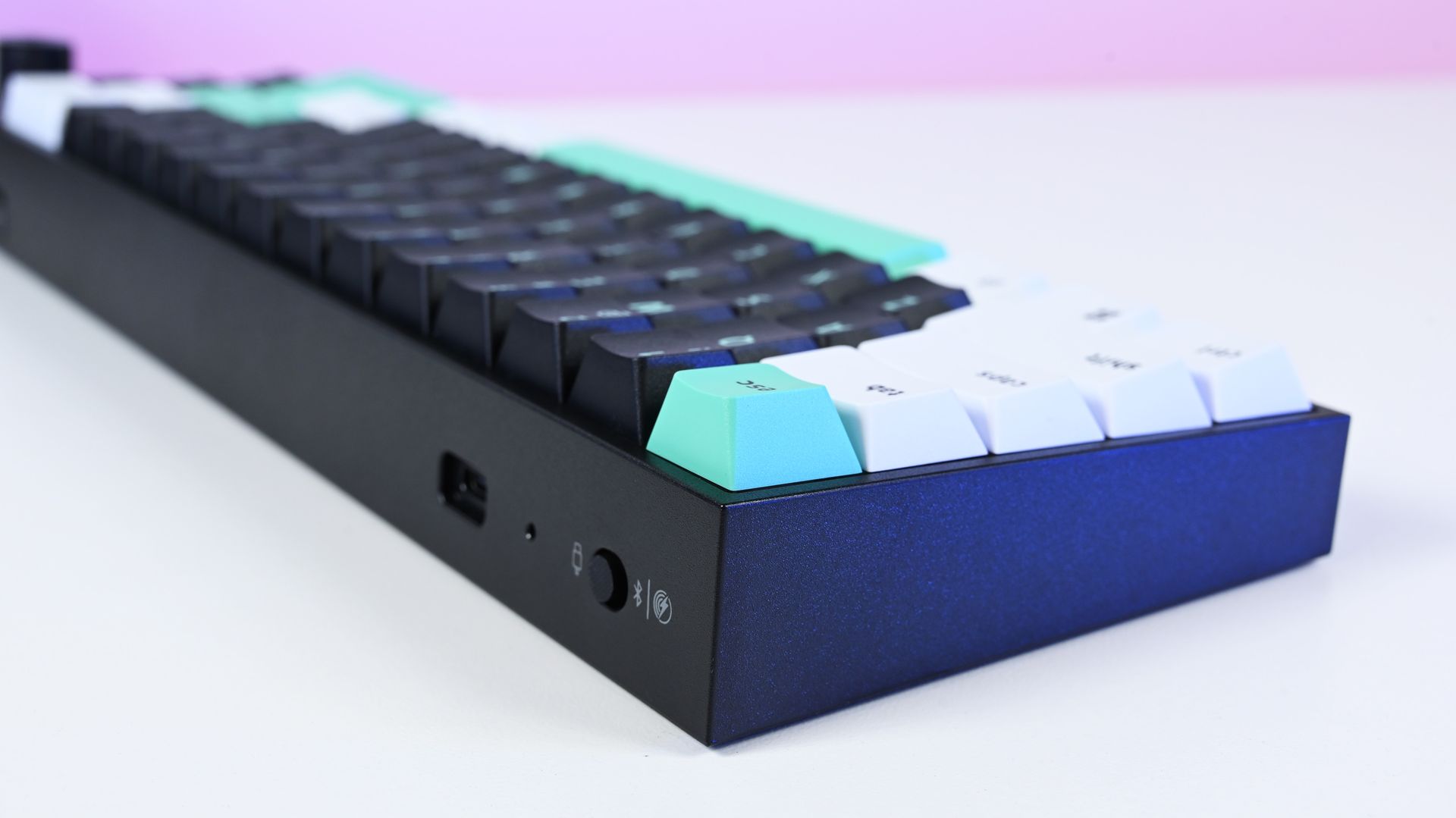
A physical selector quickly switches between wired USB-C, Bluetooth, and Razer HyperSpeed Wireless connectivity, one of the biggest upgrades over the $49.99 Reclusa X. (Image credit: Daniel Rubino)
If you're plugging a keyboard into one PC, don't care about Rapid Trigger or adjustable actuation, and just want something excellent to type and game on, save the $80. The X remains absurdly good.
The Razer Reclusa Mini 65% delivers the best typing experience I've had on any Razer keyboard.
It's also worth mentioning the lack of adjustable rear feet. Curiously, this didn't bother me despite normally raising the back of my keyboards. The default angle works well enough that I stopped thinking about it.
And naturally, 65% remains 65%. I love the extra mouse space and compact footprint. If you depend on a function row or numpad, nothing about this keyboard will change your mind.
Should you buy the Razer Reclusa Mini 65%?
South-facing per-key Razer Chroma RGB creates an underglow around the keycaps, although I do miss having illuminated legends when using the keyboard at night. (Image credit: Daniel Rubino)
You should buy this if...
✅You loved the idea of the Reclusa X but wanted Razer's premium gaming technology.
✅You want adjustable Hall Effect switches, Rapid Trigger, 8KHz wired polling, and serious customization.
✅You need both excellent wireless connectivity and wired performance.
✅Typing feel and keyboard acoustics matter as much to you as gaming performance.
✅You want a compact keyboard without sacrificing a multifunction dial.
You shouldn't buy this if...
❌You don't need wireless or Hall Effect gaming features. Buy the $49.99 Reclusa X and pocket the $80.
❌You need a full-size or TKL layout.
❌Adjustable rear feet are important to your typing position.
Bottom line
I'm almost annoyed by how much I like this keyboard.
I've got Huntsmans. Lots of Huntsmans. Some of them have more premium materials, some have different switches, and one I've reviewed costs nearly four times as much.
But for the last two weeks, the Reclusa Mini 65% has been the keyboard sitting in front of me, and I'm in no rush to replace it.
Razer's $49.99 Reclusa X remains the rational recommendation for most people. It nails the core fundamentals and punches ludicrously far above its price. The $129.99 Reclusa Mini takes that unusually good foundation and adds the stuff enthusiasts and competitive gamers are more likely to appreciate: magnetic switches, adjustable actuation, 8KHz polling, sophisticated input controls, wireless connectivity, better acoustics, and that incredibly handy dial.
Do I need any of it?
Probably not.
But I'm keeping it on my desk anyway.
Razer
Razer Reclusa Mini 65% Wireless Gaming Keyboard
The Razer Reclusa Mini 65% takes the excellent foundation of the $49.99 Reclusa X and piles on nearly every enthusiast feature I could ask for: adjustable Hall Effect switches, Rapid Trigger, 8,000Hz wired polling, Bluetooth and HyperSpeed wireless, hot-swappable magnetic switches, better dampening, and my beloved media dial.
Join us on Reddit at r/WindowsCentral to share your insights and discuss our latest news, reviews, and more.
Original article:The RAM Crisis continues to worsen, driving the prices of our beloved PC gaming upgrades we took for granted to unaffordable levels for the common man.Fortunately, Newegg's latest offering from its ongoing Black November Doorstopper campaign has unlocked a massive sales bundle for a plethora of highly sought-after PC gaming components, including a CPU with 8 cores and 4.2 GHz clock speeds, 16GB RAM, and a 1TB SSD, to name a few.One of our favorit
The RAM Crisis continues to worsen, driving the prices of our beloved PC gaming upgrades we took for granted to unaffordable levels for the common man.
Fortunately, Newegg's latest offering from its ongoing Black November Doorstopper campaign has unlocked a massive sales bundle for a plethora of highly sought-after PC gaming components, including a CPU with8 cores and 4.2 GHz clock speeds, 16GB RAM, and a 1TB SSD, to name a few.
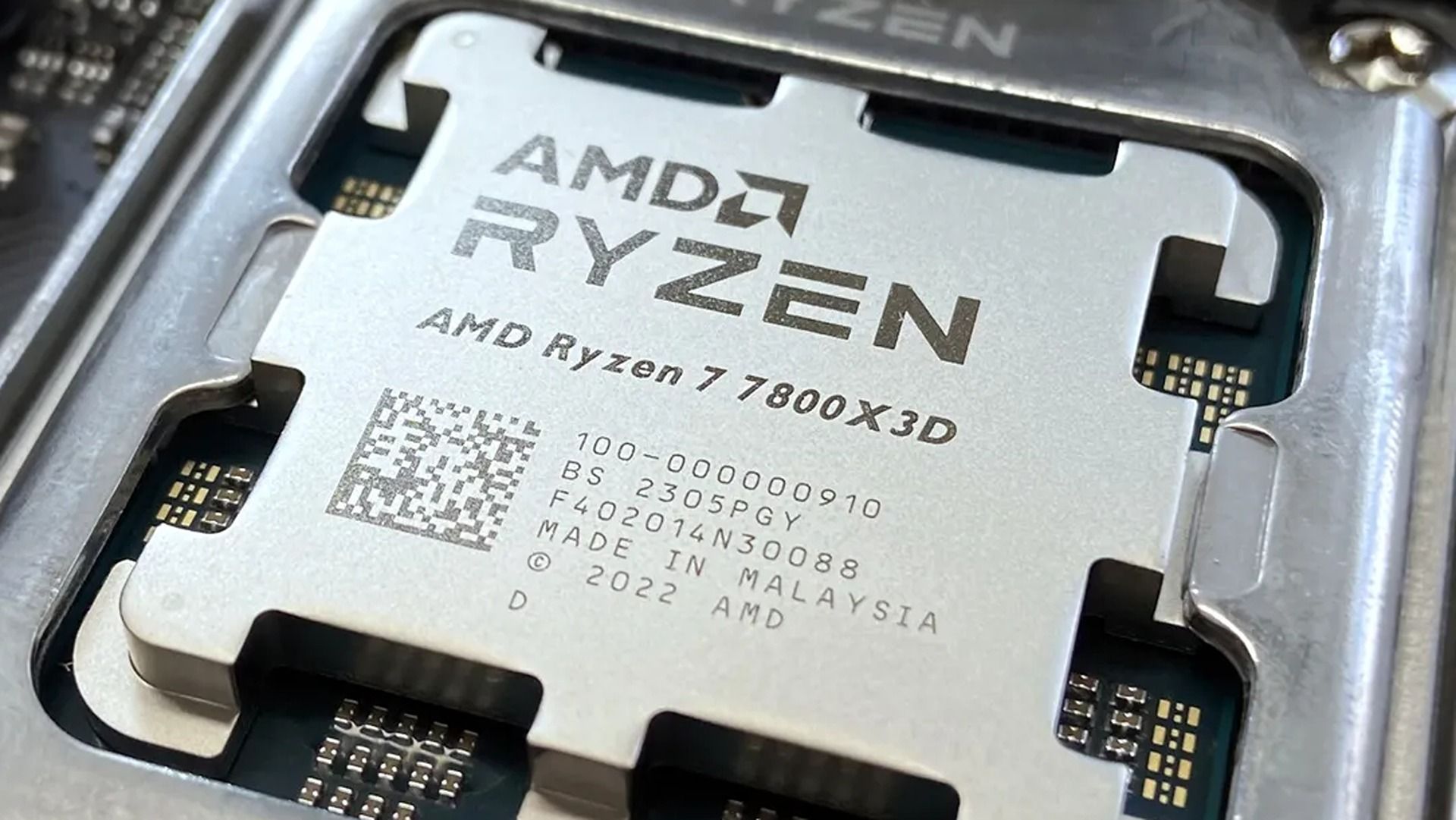
One of our favorite deals from this package is the AMD Ryzen 7 7800X3D that's now 33% off for $299.00 at Newegg (was $449.00). This powerhouse of a CPU, coupled with a capable GPU like the GIGABYTE Gaming Radeon RX 9070 GRE (now available for $499.00 at Newegg), will ensure your rig has the power to run demanding PC games like Cyberpunk 2077 at high settings while keeping your computer from overheating using efficient power management.
"Meaningful upgrades, such as a new proprietary controller and support for PCIe Gen 4, drive drool-worthy performance on this humble PC component that's worth an upgrade if you're a PC enthusiast, dedicated gamer, content creator, video editor, data scientist, or 3D modeler." ~ Chuong Nguyen, former writer
"Dominate any game at any level, the Ryzen 7 7800X3D offers ultimate performance with 8 cores, 16 threads, and up to 5.0GHz boost clock backed up with 96MB L3 cache." ~ Ben Wilson, Senior Editor
"The GPU is built for gamers worldwide, offering forward-thinking options like RDNA 4 performance, AMD FidelityFX ™ Super Resolution 4 (FSR 4), and an incredibly cool fan system that means you’ll barely notice it." ~ TechRadar
"The Corsair Vengeance RGB DDR5-6000 C36 performs just as well as it looks -- maybe even a bit better." ~ Zhiye Liu, News Editor, RAM Reviewer & SSD Technician at Tom's Hardware
This motherboard will make a fitting, compatible home for all the components in this roundup thanks to its efficient power delivery, speedy 2.5 Gbps networking Ethernet, and future-proofed M.2 PCIe 5.0 x4 slot.
Give your rig the power it needs to run all the advanced components in this roundup using this non-modular power supply, capable of 550 Watts of continuous power at 85% efficiency under typical loading conditions. It also comes with a 5-year warranty.View Deal
Should I wait for Black Friday for a better deal?
Newegg's Black November Doorstopper deals will last less than 15 hours once a day's particular product deal goes live. So unless you're willing to risk waiting until Black Friday for potentially a better deal on any of these components, I highly recommend striking this bundle now while it's hot.
Do they come in limited quantities?
Yes, they do. Once the limited number of Newegg Doorstopper discounted units are sold, their deal ends and the item returns to its retail price.
How long will Newegg's Black November Doorstopper event last?
Newegg's Black November Doorstopper event will last until November 30, 2026.
Join us on Reddit at r/WindowsCentral to share your insights and discuss our latest news, reviews, and more.
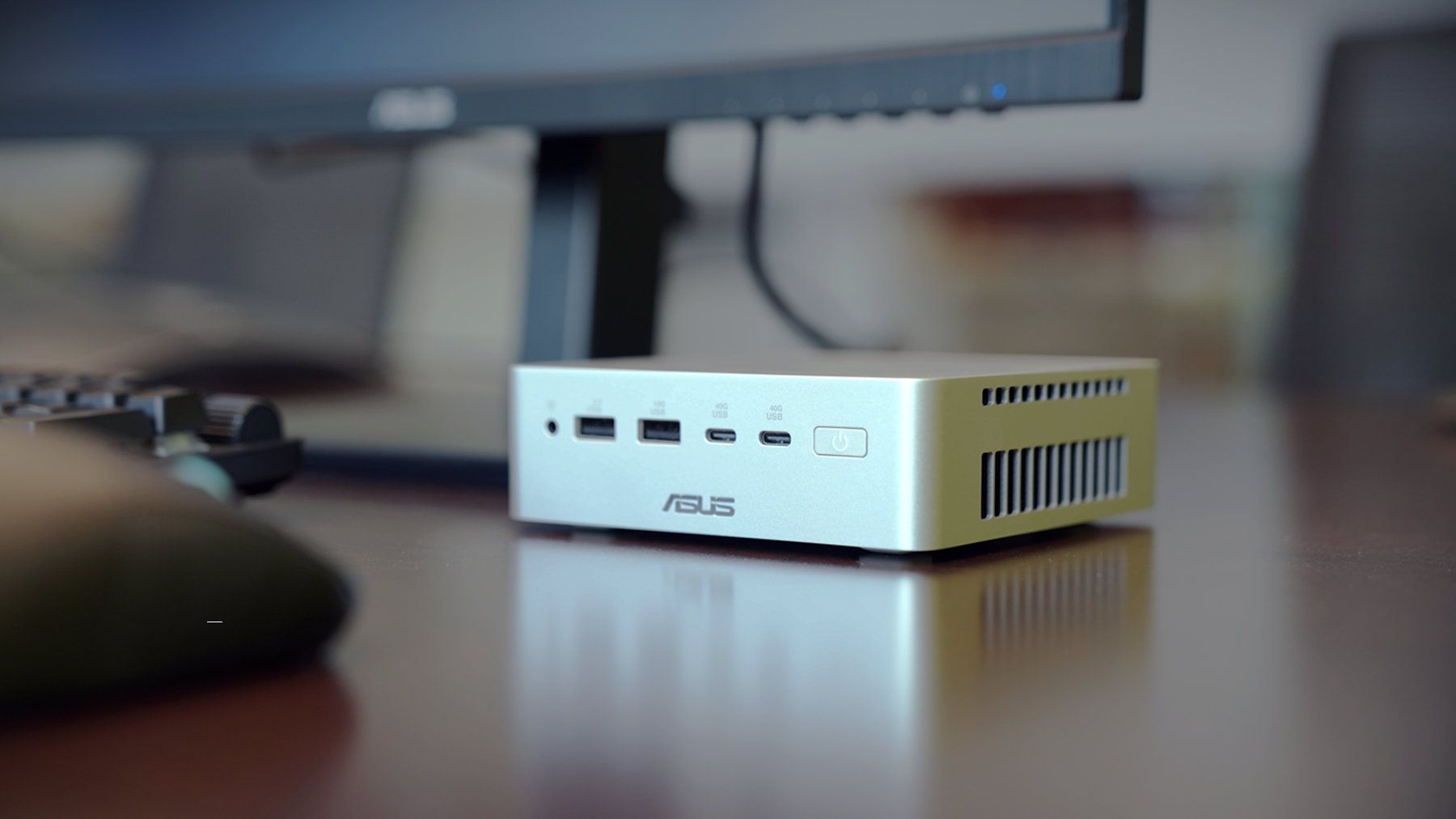
The first mini PC powered by a Snapdragon X2 Elite is now available in Europe. The ASUS Ascent QN10 launched in the United States back in September, and it is now for sale in Germany, Austria, and Switzerland.Thanks to the Snapdragon X2 Elite inside, the Ascent QN10 has an NPU with 80 TOPS that can handle language models, image processing, and automation workflows.Unlike many mini PCs, the Ascent QN10 has an anodized aluminum chassis rather than a plastic one. Th
The first mini PC powered by a Snapdragon X2 Elite is now available in Europe. The ASUS Ascent QN10launched in the United States back in September, and it is now for sale in Germany, Austria, and Switzerland.
Thanks to the Snapdragon X2 Elite inside, the Ascent QN10 has an NPU with 80 TOPS that can handle language models, image processing, and automation workflows.
Unlike many mini PCs, the Ascent QN10 has an anodized aluminum chassis rather than a plastic one. That 0.7-liter body is 13 x 13 x 4 cm (5.1 x 5.1 x 1.5 inches), meaning it should fit comfortably on a desk or tucked away.
The Snapdragon X2 Elite is the star of the show, but the Ascent QN10 has some other tricks. For example, it is designed to keep heat from its CPU and SSD separate. The mini PC takes fresh air in from one side, then splits it.
ASUS Ascent QN10 Specs
Processor
Qualcomm Snapdragon X2 Elite (18-Core Oryon CPU)
Graphics
Qualcomm Adreno X2-90
NPU
Qualcomm Hexagon (Up to 80 TOPS)
Memory
Up to 32GB LPDDR5x
Storage
512GB, 1TB or 2TB
Ports
2 x USB4, 2 x USB-A, 1 x 3.5mm audio jack (front), 1 x USB4, 1 x HDMI 2.1, 2 x USB-A, 1 x 2.5 Gigabit Ethernet (rear)
Connectivity
Wi-Fi 7, Bluetooth 6.0
Dimensions
5.1 x 5.1 x 1.5 inches
Weight
1.6 pounds
Despite recently launching in Europe, the ASUS Ascent QN10 is already discounted in some countries. The PC has an MSRP of €2,195, but it is currently available for €2,005 on ARLT (German retailer).
There have been consumer mini PCs with Arm processors, but the Ascent QN10 is the first with a Snapdragon X2 Elite. The mini PC from ASUS stands out from many competing devices thanks to its metal body, processor, and cooling.
ASUS
Ascent QN10 Mini PC
This mini PC runs on a Snapdragon X2 Elite and has an NPU with 80 TOPS of performance. Those specs allow it to handle AI workloads efficiently despite the compact body of the mini PC.
Join us on Reddit at r/WindowsCentral to share your insights and discuss our latest news, reviews, and more.
Oh boy, the very thing that made World of Warcraft and, indeed, World of Warcraft: Forever popular is now becoming the subject of intense debate. World of Warcraft: Forever is Blizzard's take on the "Classic+" pitch, where fans asked the firm for years for an old-school alternative to World of Warcraft: Retail. Now, Retail has become a bit of a chore in recent times, with various systems on timers and deadlines making the game feel a bit more like work than an ac
World of Warcraft: Forever is Blizzard's take on the "Classic+" pitch, where fans asked the firm for years for an old-school alternative to World of Warcraft: Retail. Now, Retail has become a bit of a chore in recent times, with various systems on timers and deadlines making the game feel a bit more like work than an actual game. To compensate, Blizzard made a big effort to boost "convenience" in Retail, even at the cost of immersion and general quality.
World of Warcraft: Forever is supposed to be an alternative option that's closer to the original experience: meditative, more methodical, and crucially, slower-paced. The friction that exists in Classic-style WoW makes the victories and loot far more meaningful than in Retail-style WoW, which practically hands out the best gear for free these days. Retail has become about timers and racing to the finish line, and it's a fun race, admittedly; but the gameplay style has undoubtedly led to the game's decline in recent years.
World of Warcraft: Forever is attempting to emulate the old-school feel of the game, with modern takes on balancing and boosted retro-style visuals. (Image credit: Windows Central)
World of Warcraft players have been flooding in to play WoW: Forever, which is mechanically more simplistic than Retail on the surface. Instead, it's designed to reward perseverance, planning, socializing, and methodical play over rapidity.
Indeed, much like other friction-heavy games like Elden Ring, World of Warcraft: Forever encourages player interaction and socializing, asking questions, and strategizing, something modern WoW's timer-oriented gameplay undermines. Ironically, it's suboptimal to chat in World of Warcraft these days, with dungeon runs operating in complete silence unless someone gets angry and yells at you for a mistake.
Yet still, some players aren't happy with the way WoW Forever asks players for patience.
Across WoW communities from Reddit to X, players are debating "convenience" in World of Warcraft: Forever, with Classic fans dubbing those who make calls for making WoW:F more convenient "Retail Andys."
@Lotharemas You retail Andy’s are really pisses me off complaining about everything lolNovember 9, 2026
seeing some of the problems people are having on wowf is making me realize why wow is so dumbed down nowNovember 8, 2026
"We wont play retail cus its soulless trash" but you'll use an addon that invalidates all questing and the charm of the Forever experience for convenience? Damn. You need an addon to wipe your ass too lil fella? Ignore this. Go in blind like intended. Especially first timers https://t.co/bUraRchZLANovember 7, 2026
Blizzard has already begun addressing feedback regarding WoW: Forever, buffing dungeon mob EXP gains by 50%, and some are calling for them to buff it even more.
It'll be interesting to see if Blizzard continues to cave to the loud calls for simplifying World of Warcraft: Forever, given that oversimplification and homogenization are what have essentially killed World of Warcraft's main retail arm.
Games need friction
World of Warcraft: Forever brings undead Paladins to the mix for the first time. (Image credit: Blizzard Entertainment)
A good example of a game that went hard on "quality of life" features to its detriment is Monster Hunter Wilds, and arguably even Monster Hunter World before it.
Monster Hunter is a franchise that revolves entirely around the hunt, which previously included gathering materials, crafting specific counter-armor sets, studying monster behaviors and weaknesses, and so on. In Wilds, Capcom dumbed down every aspect of the game to try and appeal to a so-called "wider" audience, and the game suffered for it. The convenience undermined the game's core gameplay loop, robbing hunts of a sense of challenge and accomplishment.
I think there's certainly something to be said for having "too much of a good thing." Humans are hard-wired to seek convenience and the path of least resistance, and the calls to dumb down World of Warcraft: Forever already emerge from that.
When something becomes too easy, it becomes trivial and arbitrary. I can't remember the last time I was excited for a drop in World of Warcraft's modern setting ... but I was excited to get a basic-ass green dagger on my level 10 rogue earlier today.
Gear and boss kills have become essentially meaningless in modern World of Warcraft, as free loot is handed out simply for logging in. Blizzard gave out the free loot because ultimately, players asked for it. But the decline of the game showcases why listening too much to calls for convenience and difficulty nerfs isn't always a good idea.
Either way, World of Warcraft: Forever has been a resounding success story for Blizzard so far. Let's see if they can avoid messing it up ...
Join us on Reddit at r/WindowsCentral to share your insights and discuss our latest news, reviews, and more.
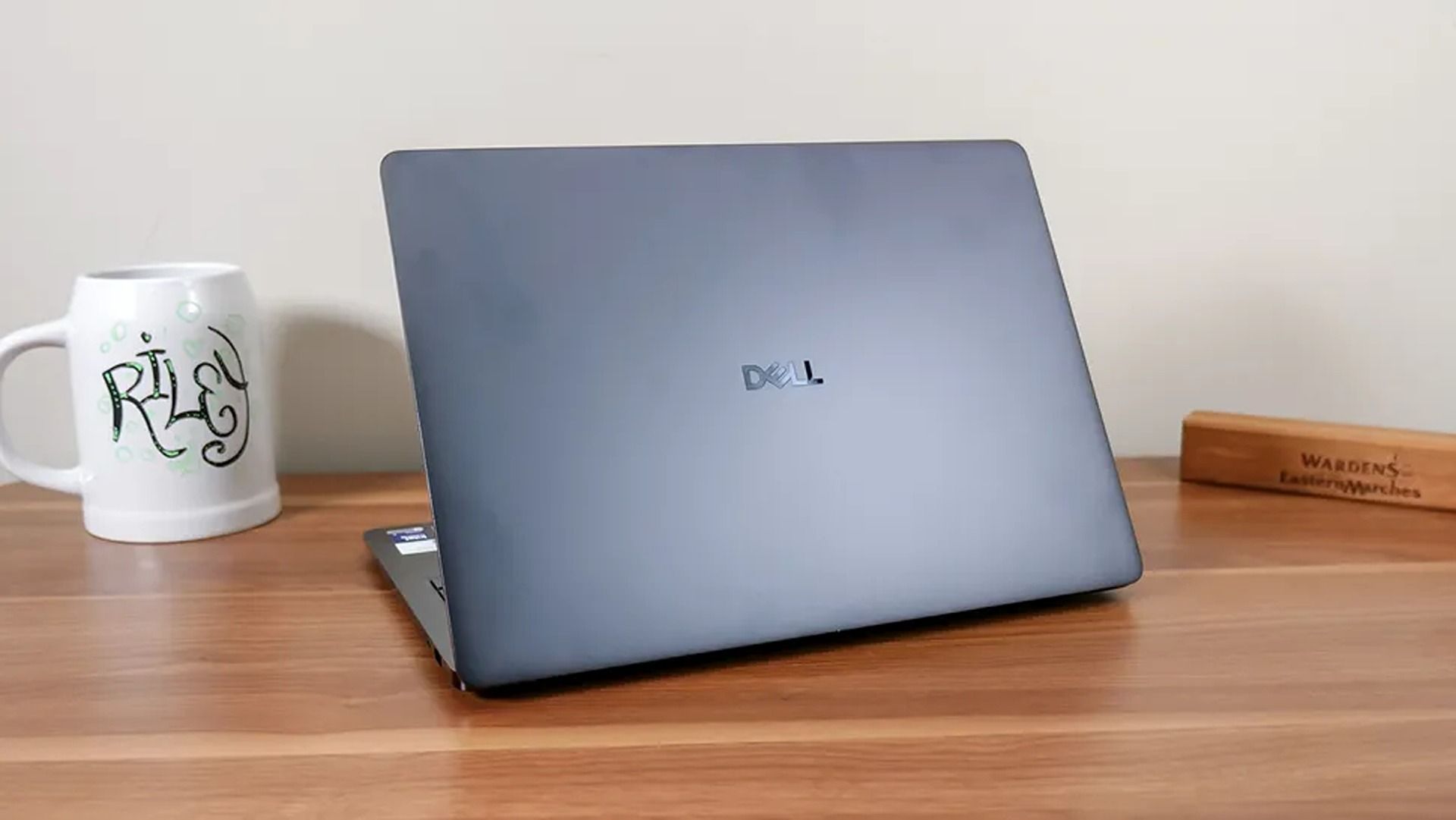
After decades, Dell still offers a massive catalog of consumer laptops, but some models with modern components can quickly become expensive, given the industry's ongoing memory (RAM) shortages.Thankfully, Best Buy's early Black Friday sale cuts hundreds of dollars off two of Dell's more compact and portable options.You can grab the 14-inch Dell 14S for $999.99 at Best Buy (was $1,449.99), saving $450 on a productivity-focused laptop, or pick up the more affordabl
After decades, Dell still offers a massive catalog of consumer laptops, but some models with modern components can quickly become expensive, given the industry's ongoing memory (RAM) shortages.
You can grab the 14-inch Dell 14S for $999.99 at Best Buy (was $1,449.99), saving $450 on a productivity-focused laptop, or pick up the more affordable Dell 14 Plus 2-in-1 for $799.99 (was $1,299.99) as a flexible convertible 14-inch option for note-taking, sketching, and regular everyday use, with a $500 saving.
"The Dell 14S is a compelling choice for a variety of users thanks to its long-lasting battery life, OLED touchscreen, solid performance, and relatively affordable price." — Sean Riley, Freelancer Writer, Tom's Guide
"The Dell 14 Plus 2-in-1 is a great convertible laptop option for those on a budget (like students) who want more performance and functionality than you'd find in a Chromebook." — John Loeffler, Components Editor, TechRadar
The Dell 14 Plus on display (Image credit: TechRadar (John Loeffler) | Dell)
While both laptops offer durable designs, portable 14-inch displays, and dedicated NPUs for local AI features, they're aimed at different users depending on your wants and needs. Before you spend during Black Friday season, it's worth looking into the specs a little deeper.
If you're after a productivity laptop, the Dell 14S (31% off) is better. It comes equipped with a long-lasting battery, an OLED 2K touchscreen with deep contrast, and a modern AMD Ryzen AI 7 445 processor paired with 16GB of RAM to boost multitasking with multiple web browser tabs, creating documents or spreadsheets, video calling, and plenty more.
Otherwise, if you're shopping on a tighter budget or want a Windows laptop that's equally useful for school and everyday use, the Dell 14 Plus 2-in-1 (38% off) is a good fit. It still offers good productivity performance with substantial standby power efficiency thanks to its Intel Core Ultra Series 2 (Lunar Lake) 256V CPU coupled with 16GB of RAM, a 120Hz 2K touchscreen that makes scrolling and digital sketching with compatible (but sold separately) pens feel seamless, and a solid design so it can pull multiple duties as a notepad, movie viewer, or regular laptop with ease.
Should I wait for Black Friday for a better deal?
Even if you're hesitant to buy before Black Friday, Best Buy's 'Price Match Guarantee' may allow eligible customers to request a refund of the difference if Best Buy lowers its own price during the applicable return window: "If our price goes lower during the holiday season, we’ll match it."
Can you upgrade their RAMs and SSDs?
Both of these laptops have their RAM soldered permanently, so they can't be upgraded. Their default 512GB SSDs, however, can be swapped with larger 1TB, 2TB, or 4TB SSDs to upgrade their storage capacity.
Are they good for gaming?
Neither of these laptops is made for PC gaming because their integrated graphics cards limit their ability to run the most graphically demanding games beyond lighter, casual titles.
Join us on Reddit at r/WindowsCentral to share your insights and discuss our latest news, reviews, and more.
"Do you want to turn on Sticky Keys?" has likely popped up on your PC at some point. That prompt appears after you press the Shift key five times and allows you to enable the feature. Soon, Windows 11 will make it easier to stop that message from appearing.In one of the latest Windows Insider builds, Microsoft introduced an updated version of the prompt. Windows 11 will soon let you permanently disable the Sticky Keys shortcut directly from the prompt itself.The
"Do you want to turn on Sticky Keys?" has likely popped up on your PC at some point. That prompt appears after you press the Shift key five times and allows you to enable the feature. Soon, Windows 11 will make it easier to stop that message from appearing.
In one of the latest Windows Insider builds, Microsoft introduced an updated version of the prompt. Windows 11 will soon let you permanently disable the Sticky Keys shortcut directly from the prompt itself.
The same change is also coming to the prompt used for Filter Keys, another accessibility feature that can be enabled through a keyboard shortcut.
Windows 11 already lets you disable that shortcut, but it requires a couple of extra steps. Within Settings, you need to navigate to Accessibility > Keyboard > Sticky Keys. That section has other controls, such as turning off Sticky Keys when two keys are pressed at the same time.
The current Windows 11 prompt includes a quick link to that section of the Settings app, but the process will soon be streamlined. The updated prompt still includes a shortcut to all Sticky Keys settings.
Sticky Keys is a useful feature that improves accessibility. It lets you press one key at a time instead of holding multiple keys at once. For example, instead of pressing Ctrl + Alt + Delete simultaneously, you can press Ctrl, then Alt, then Delete.
The shortcut to enable Sticky Keys by pressing Shift five times has been part of Windows for decades. While useful, it can be triggered accidentally. Last week, I was in a creative program and pressed Shift five times as part of my normal workflow and accidentally summoned the prompt to enable Sticky Keys.
I took the opportunity to disable the shortcut through the Settings app, but soon that won't be necessary since the prompt will include a check box that prevents it from appearing again.
Join us on Reddit at r/WindowsCentral to share your insights and discuss our latest news, reviews, and more.
In this episode of the Windows Central Podcast, Daniel Rubino and Zac Bowden break down a major architectural efficiency victory in Windows 11 under the ongoing Windows K2 initiative: reducing memory footprint and improving responsiveness by 20% on 8 GB RAM machines through WinUI conversions, OEM memory budgets, and memory compression.We also analyze reporting on upcoming Windows 11 default wallpaper refreshes and detail why a full-blown Windows 12 release in 202
In this episode of the Windows Central Podcast, Daniel Rubino and Zac Bowden break down a major architectural efficiency victory in Windows 11 under the ongoing Windows K2 initiative: reducing memory footprint and improving responsiveness by 20% on 8 GB RAM machines through WinUI conversions, OEM memory budgets, and memory compression.
We also analyze reporting on upcoming Windows 11 default wallpaper refreshes and detail why a full-blown Windows 12 release in 2027 is looking increasingly unlikely. We discuss platform fragmentation across Germanium and Bromine codebases, component cost inflation ("Ramageddon"), and why Microsoft could move toward iterative annual OS branding rather than forced migrations.
The conversation also tracks Copilot’s new opt-in integration into Windows Search, its discontinuation on LG and Samsung smart TVs, and hands-on impressions of the major performance rewrite of the Xbox PC app on handhelds like the ROG Xbox Ally X20.
This episode of the Windows Central Podcast is sponsored by Surfshark VPN. Unlimited devices, access your content from anywhere, and auto-block malware on Windows, Edge, and other platforms from $2.50/mo, with 3 months extra FREE. Sign up today!
[05:41] – Windows 11 Uses Less RAM (Windows K2): How moving system UI to WinUI, stripping WebView dependencies, enforcing OEM memory budgets, and revamping RAM compression saves up to 1 GB on 8 GB PCs.
[09:54] – Responsiveness Benchmarks & Mac Comparisons: Testing 26H2 multitasking performance, 20% responsiveness gains, and parity with 8 GB macOS systems.
[17:26] – AI & NPU-Driven OS Optimization: Exploring machine learning prefetching to optimize system resources based on individual app usage habits.
[20:55] – Copilot App Overhaul & Reasoning Models: Daniel’s impressions of automated model selection, conversational depth, and critique of the Chromium-wrapped desktop client.
[29:39] – Copilot in Windows Search (Opt-In): The evolution of the former "Ask Copilot" taskbar feature into an optional, native WinUI search integration without forced AI prompts.
[37:27] – Copilot Discontinued on Smart TVs: Microsoft ends Copilot support on LG and Samsung smart TVs as the platform pivots away from consumer assistants toward productivity.
[44:12] – Why Windows 12 Is Unlikely in 2027: Analyzing Tom Warren's wallpaper leak, dual platform codebases (Germanium vs. Bromine), enterprise upgrade friction, and component shortages delaying an OS cycle.
[50:03] – Annual Windows Naming (Windows 27?): Comparing Microsoft's release cadence to macOS and Android annual versioning instead of disruptive numbered leaps.
[01:00:05] – Major Xbox PC App Rewrite: Massive performance boost (60% faster) on the newly overhauled Xbox Insider app, handheld scaling, and instant artwork loading on the ROG Xbox Ally X20.
Have a question you want us to answer on the podcast? Send it to us at [email protected]
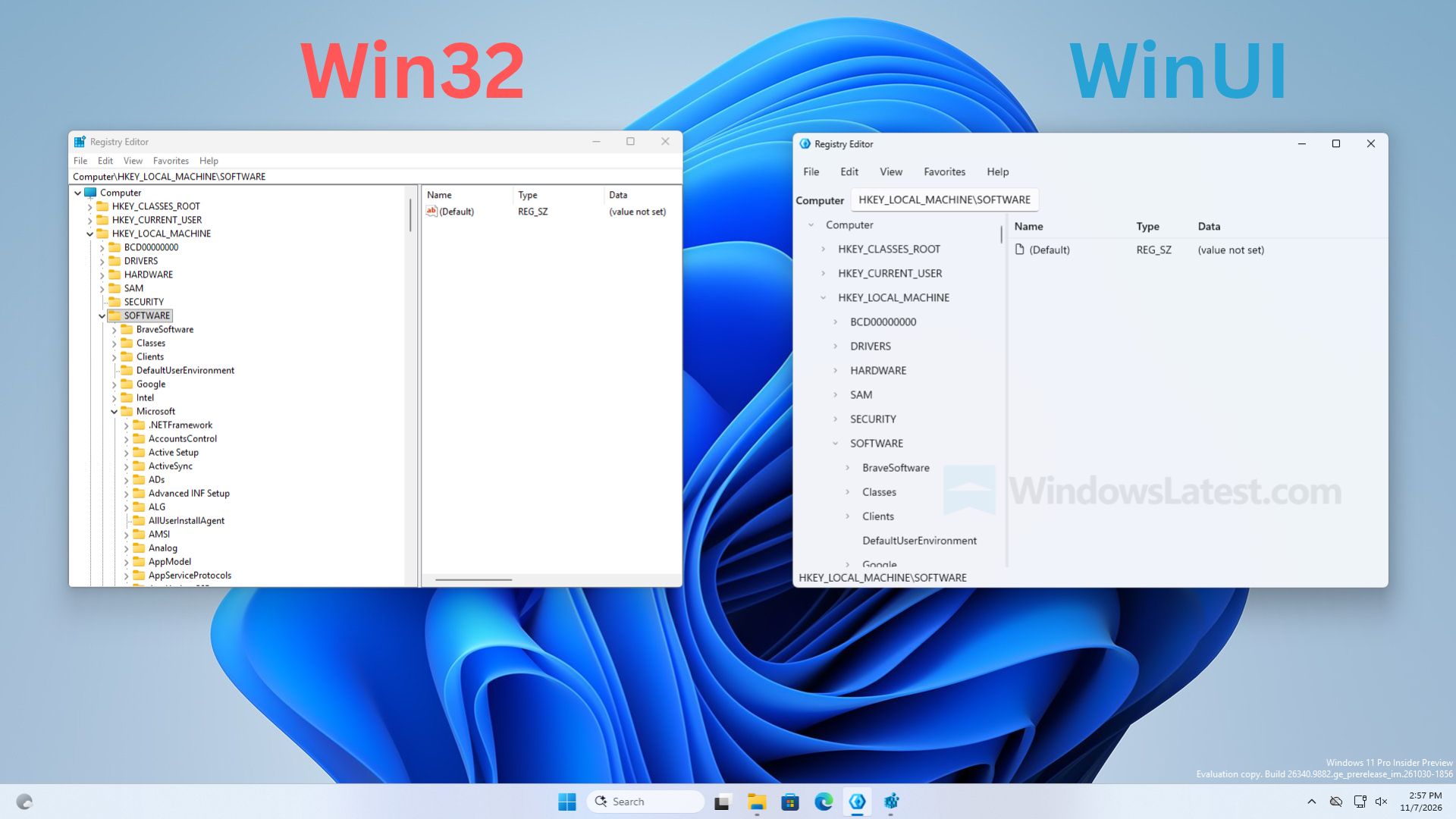
Microsoft has pushed back against reports that the company has built a modernized Registry Editor app for Windows 11, clarifying that the newly discovered modern Registry Editor is just a sample app, and not intended to ship in Windows.Windows Latest was first to report on this new Registry Editor app, but stated within their article that the app is "not a mock-up," which led some people online to believe this app is a real replacement for the existing Registry E
Microsoft has pushed back against reports that the company has built a modernized Registry Editor app for Windows 11, clarifying that the newly discovered modern Registry Editor is just a sample app, and not intended to ship in Windows.
Windows Latest was first to report on this new Registry Editor app, but stated within their article that the app is "not a mock-up," which led some people online to believe this app is a real replacement for the existing Registry Editor.
It appears that the app is a mockup, designed to showcase Microsoft.UI.Reactor technology, meaning it was only built to show developers what is possible with the tech and not representative of any modernization work ongoing by the Windows team.
Left: The existing Registry Editor. Right: The sample Registry Editor being mistaken for a real app. (Image credit: Windows Latest)
"It’s a sample. You say it’s the new one and then in the last line of the tweet you point out it’s a sample," Microsoft VP Scott Hanselman said in a reply to Windows Latest on X. This was followed up by a post from Windows Insider lead and CVP Marcus Ash, who said "Right. A sample. Not a developer preview of a new regedit."
So, that's confirmation from Microsoft that this new Registry Editor is not coming to Windows 11, and is just a sample app designed to showcase to developers what is possible with Microsoft.UI.Reactor.
With that said, this doesn't mean the Windows team isn't working on a modernized Registry Editor. My own sources tell me the Registry Editor is on the list for a modern rejuvenation under the Windows K2 effort, but there are other pillars and higher priority items that need to be addressed first before the Registry Editor can be tackled.
The good news is a modern Registry Editor for Windows 11 is unlikely to look like the sample app being depicted in recent reports, and that a modernized Registry Editor is on the docket for the future.
Join us on Reddit at r/WindowsCentral to share your insights and discuss our latest news, reviews, and more.
For most people, Windows 11 Home is the version I'd recommend. It includes virtually everything you need for everyday computing, productivity, gaming, and schoolwork, and paying extra for Pro won't make your PC faster.I personally use Windows 11 Pro, but for specific reasons. I regularly rely on Group Policy, BitLocker, Remote Desktop, and Windows Sandbox, which give me more control over Windows and aren't all available with Home.That's ultimately the decision: P
For most people, Windows 11 Home is the version I'd recommend. It includes virtually everything you need for everyday computing, productivity, gaming, and schoolwork, and paying extra for Pro won't make your PC faster.
I personally use Windows 11 Pro, but for specific reasons. I regularly rely on Group Policy, BitLocker, Remote Desktop, and Windows Sandbox, which give me more control over Windows and aren't all available with Home.
That's ultimately the decision: Pro is worth paying for if you actually need its additional tools. Otherwise, keep your money.
In this new Windows 11 guide, I'll explain the important differences between Windows 11 Home and Pro, which Pro features I think justify the extra cost, and which edition you should buy.
Windows 11 Home vs. Pro differences at a glance
Both editions share the same foundation and offer most features regular users need for everyday tasks. The main differences can be found in advanced security, virtualization, remote access, hardware support, and business management.
The following table highlights the most important differences.
Features
Home
Pro
Device Encryption
Yes*
Yes*
Secure Boot
Yes*
Yes*
Parental controls
Yes
Yes
BitLocker Drive Encryption management
No
Yes
Hyper-V
No
Yes
Windows Sandbox
No
Yes
Remote Desktop
No
Yes
Local Group Policy Editor
No
Yes
Active Directory domain join
No
Yes
Microsoft Entra ID join
No
Yes
Assigned Access (kiosk mode)
No
Yes
Windows Autopilot support
No
Yes
Core Windows, gaming, security and everyday features
Yes
Yes
Maximum supported RAM
128GB
2TB
As you can see, Home already includes most of the features needed for everyday computing. The Pro edition adds capabilities that become useful when you need more control over your computer.
The short answer: Which should you buy?
Choose Home if you primarily browse, work, study, stream, or play games.
Choose Pro if you specifically need Group Policy, full BitLocker management, Remote Desktop hosting, Hyper-V, Windows Sandbox, or business-management features.
If you don't know whether you need Pro, you probably don't.
Windows 11 Home vs. Pro pricing
When you buy a new desktop or laptop, Windows 11 is usually included in the price. However, if you're building a new computer or installing the operating system on an empty hard drive, you may need to purchase a product key separately.
Prices may vary depending on the retailer and available promotions.
If your computer already runs Windows 11 Home, you can upgrade to Pro without reinstalling the operating system or losing your files and apps.
To check the available upgrade options, open Settings > System > Activation and select the option to upgrade your edition through the Microsoft Store.
One thing to keep in mind is that you don't have to buy Pro just because it's the more expensive edition. Unless you need its additional capabilities, Home is usually the better value.
What Windows 11 Pro features are worth paying for?
This is where the differences become more interesting. Windows 11 Pro includes several tools that aren't available in Home, but not all of them will be useful to everyone.
From my experience, four features make Pro particularly useful.
Group Policy Editor
The Local Group Policy Editor is one of the features I use most in Windows 11 Pro.
(Image credit: Mauro Huculak)
It provides access to advanced system settings that aren't always available through the Settings app. You can use it to configure Windows Update behavior, manage security policies, restrict access to certain features, and control other parts of the operating system.
For example, when I want to change how a feature behaves, Group Policy gives me another way to configure the system without relying on third-party apps or manually changing Registry entries.
This is particularly useful if you regularly troubleshoot the operating system, experiment with system settings, or want more control over your computer.
Windows 11 Home doesn't include the Local Group Policy Editor.
Worth it for: Enthusiasts, admins, and people frequently tweaking Windows.
My recommendation: If you're an advanced user who frequently changes system settings, Group Policy alone can make Pro more appealing. However, most everyday users won't need it.
BitLocker Drive Encryption
BitLocker is another reason I prefer Windows 11 Pro.
(Image credit: Mauro Huculak)
It lets you encrypt drives to protect your files from unauthorized access. This is especially useful if you store sensitive information on your computer or carry a laptop outside your home or office.
Windows 11 Home features "Device Encryption" on supported hardware. This feature uses the same BitLocker encryption technology, but it doesn't offer the same management options as Pro.
For example, with the full version of BitLocker, you can enable encryption and save the BitLocker key locally to retain full control. On the other hand, Device Encryption stores the BitLocker key automatically in your Microsoft account, so technically, the key isn't fully under your control.
Also, the feature gives you more control over drive encryption, including the ability to manage encryption on additional internal and removable drives.
Worth it for: People who need more control over drive encryption, particularly laptops or PCs holding sensitive files.
My recommendation: If you regularly work with sensitive files or want more control over encryption, including the ability to take full control of your decryption key, Pro is worth considering. However, don't upgrade just because you want basic drive encryption. Home already provides that capability on supported devices.
Windows 11 Pro allows you to connect to your computer remotely using the built-in Remote Desktop feature. This is useful when you need to access your desktop from another computer, whether you're in another room or away from home.
Windows 11 Home can connect to another PC but cannot act as a Remote Desktop host.
You can use third-party applications, such as Chrome Remote Desktop or RustDesk, as an alternative.
Worth it for: Anyone who regularly needs to remotely access the PC itself.
My recommendation: If you regularly access your main computer remotely, this is one of the clearest reasons to choose Pro.
Windows Sandbox
Windows Sandbox is another feature found in the Pro version, but I use it occasionally.
(Image credit: Mauro Huculak)
It creates a temporary, lightweight, isolated Windows 11 environment that lets you test untrusted apps, open unfamiliar files, and experiment with tools without changing your main installation.
When you close Windows Sandbox, it deletes everything inside that temporary environment.
I find this particularly useful when testing apps or checking something I don't want to install directly on my main installation.
Windows 11 Home doesn't include Windows Sandbox.
Worth it for: Enthusiasts and developers testing apps or unfamiliar files.
My recommendation: If you frequently test apps or experiment, Sandbox is a valuable addition. If you only install familiar apps, it probably isn't worth paying extra for Pro.
Windows 11 Home vs. Pro virtualization
Beyond Windows Sandbox, Windows 11 Pro includes Hyper-V, Microsoft's virtualization platform.
(Image credit: Mauro Huculak)
Hyper-V allows you to create virtual machines that run other operating systems inside Windows 11. For example, you can install another version of Windows or a Linux distribution in a virtual machine without changing your main installation.
This is useful for developers, administrators, and advanced users who need to test software or work with different operating systems.
Windows 11 Home doesn't include Hyper-V. However, both editions support Windows Subsystem for Linux (WSL), which allows you to run Linux distributions and command-line tools directly in the operating system.
If you need a traditional virtual machine on Home, you can also use third-party apps such as Oracle VirtualBox.
The important consideration is that you don't need Pro to use Linux on Windows 11. The upgrade becomes more useful when you need the built-in Hyper-V platform and Windows Sandbox.
Windows 11 Home vs. Pro hardware support
For hardware support, both editions support modern processors, graphics cards, storage devices, and other computer components. However, the "Pro" edition can support many more processing cores, memory, and server-grade hardware.
For example, Windows 11 Home supports up to 128GB of RAM, while Windows 11 Pro supports up to 2TB.
This difference won't affect most consumers. Even demanding apps, games, and productivity workloads generally don't require more memory than Home supports.
Also, given the price of memory today, few people can afford 2TB of RAM, let alone the specialized hardware needed to support that capacity.
However, the additional capacity can be useful for specialized workstations running professional applications, large datasets, and demanding virtual machines.
Also, while the Pro edition of Windows 11 supports up to 128 processing cores and up to two processors, the Home edition supports only one processor with up to 64 cores.
If you're building a regular desktop computer or purchasing a laptop for everyday use, the hardware limits of Windows 11 Home should be sufficient.
Windows 11 Home vs. Pro for gaming
When it comes to gaming, both editions offer essentially the same experience.
(Image credit: Mauro Huculak)
Windows 11 Home and Pro support modern gaming technologies, including DirectX 12, Auto HDR, and DirectStorage on compatible hardware for 4K gaming.
Also, both editions can run games from platforms such as Steam, the Microsoft Store, and other digital game stores.
Windows 11 Pro doesn't provide higher frame rates or better graphics simply because it includes additional features.
If you're building a computer primarily for gaming, Windows 11 Home is the edition I recommend. You can save the extra money and put it toward a better graphics card, additional storage, or more memory.
Windows 11 Home vs. Pro business features
Another major difference is that Windows 11 Pro includes features designed for environments where administrators need to manage computers, configure security settings, and control how users access system features.
For example, Pro supports joining an Active Directory domain or Microsoft Entra ID, allowing a computer to connect to an organization's identity and management infrastructure.
The edition also includes additional management capabilities, including mobile device management (MDM), organizational configuration policies, and Windows Autopilot support.
These tools allow businesses to configure computers, apply security settings, and prepare devices for employees.
Some of these capabilities require additional Microsoft services, subscriptions, and organizational configuration. Purchasing Windows 11 Pro alone doesn't automatically provide access to every business management service.
For the majority of home users, these features won't make a difference. However, if you're in a work environment that requires you to bring your own computer and join the company network, the Pro edition is the right choice.
Windows 11 Home vs. Pro performance
If you're wondering which edition runs faster, the short answer is neither, and they perform virtually the same.
Home and Pro share the same core foundation and offer similar performance on identical hardware.
Windows 11 Pro doesn't automatically make apps launch faster, improve gaming performance, or reduce memory usage.
The main hardware advantage of Pro is its support for more memory. For example, Home supports up to 128GB of RAM, while Pro supports up to 2TB. However, this doesn't mean upgrading to Pro will make your existing computer faster.
In my experience, the processor, available memory, storage, background apps, and system configuration have a much bigger influence on how responsive a Windows computer feels.
Unless your workload requires more memory than Home supports, you shouldn't expect a performance improvement from changing editions.
Windows 11 Home vs. Pro for college
If you plan to upgrade your laptop or desktop for college, the edition doesn't matter. If you have to choose between Home and Pro and the price doesn't increase, choose Pro. Otherwise, the Home edition provides all the tools you need to tackle virtually any task, including using productivity apps, streaming media, internet browsing, and gaming.
You also have access to Windows Subsystem for Linux, which can be useful for programming and other technical courses. However, Windows 11 Pro may be useful if your coursework requires Hyper-V, Windows Sandbox, or specific business management capabilities.
If your college requires one of these features, check the software and hardware requirements before purchasing a computer.
Otherwise, I recommend choosing Windows 11 Home and saving the extra money for other equipment or school expenses.
Windows 11 Pro for Workstations
Microsoft also offers Windows 11 Pro for Workstations, a specialized edition designed for computers with more demanding hardware and professional workloads.
(Image credit: Mauro Huculak)
This edition includes the features available in Windows 11 Pro, plus additional capabilities for high-performance workstations.
For example, it supports more memory and processors than the standard Pro edition. It includes technologies such as SMB Direct and the Resilient File System (ReFS) for supported workloads and configurations.
These capabilities are designed for specialized environments, including professional workstations that handle demanding computing tasks and large amounts of data.
The majority of regular consumers and even many professionals don't need this edition.
If you're buying a regular desktop computer or laptop, Windows 11 Home or Pro is generally the better choice.
Which Windows 11 edition should you choose?
For most people, I recommend Windows 11 Home.
Home gives you virtually everything you need for everyday computing, gaming, schoolwork, and productivity. Paying extra for Pro won't make Windows faster or improve gaming performance.
Windows 11 Pro makes sense when you can name the feature you need from it. Group Policy, BitLocker management, Remote Desktop hosting, Hyper-V, Windows Sandbox, and business-management capabilities are legitimate reasons to upgrade.
I use Pro myself because several of those features are part of my workflow, but my needs probably aren't the same as yours.
Here's my recommendation for choosing the right edition:
Choose Windows 11 Home if you're a home user, student, gamer, or someone who uses a device for everyday tasks.
Choose Windows 11 Pro if you need advanced security features, virtualization, Remote Desktop, Group Policy, or business integration.
Choose Windows 11 Pro for Workstations if your hardware and professional workloads require its additional capabilities.
If you're unsure whether you need Pro, Home is almost certainly where I'd start. You can always upgrade later without reinstalling Windows. Microsoft documents upgrading an activated Windows Home installation to Pro through the Microsoft Store or with a Pro product key.
Are you using Windows 11 Home or Pro? If you paid extra for Pro, which feature made the upgrade worthwhile? Let me know in the comments!
More resources
Explore more in-depth how-to guides, troubleshooting advice, and essential tips to get the most out of Windows 11 and 10. Start browsing here:
Windows 11 is getting another substantial batch of changes in November, but after going through what's coming, two improvements stand out to me: the customizable context menu and Cloud Rebuild.The first finally gives you control over some of the clutter that has plagued Windows 11's right-click menu, while Cloud Rebuild offers a much easier way to reinstall Windows without creating a bootable USB drive.Those are only two of the 11 changes worth knowing about this
Windows 11 is getting another substantial batch of changes in November, but after going through what's coming, two improvements stand out to me: the customizable context menu and Cloud Rebuild.
The first finally gives you control over some of the clutter that has plagued Windows 11's right-click menu, while Cloud Rebuild offers a much easier way to reinstall Windows without creating a bootable USB drive.
Those are only two of the 11 changes worth knowing about this month, which also include improvements for handheld gaming, Phone Link, accessibility, Edge performance, security, and more.
Here's all you need to know about the features and changes coming in November.
1. You can finally customize Windows 11's cluttered context menu
Starting with the November update, Windows 11 is getting a new context menu experience that gives you more control over the commands and app extensions that appear in the main menu.
(Image credit: Mauro Huculak)
The new menu reduces clutter and makes the experience faster by moving app extensions into a separate submenu. It also introduces a "Customize menu" option at the bottom of the interface, which opens a dedicated Settings page where you can enable or disable built-in commands, add options such as "Print" and "Send to," and control which app extensions appear in the main menu or submenu.
(Image credit: Mauro Huculak)
You can also display "Cut," "Copy," "Paste," "Rename," "Delete," and "Share" as individual commands instead of showing them in a vertical view. Windows 11 also lets you move "Properties" to the bottom of the menu as it appeared on Windows 10.
To access these options, right-click a file, folder, or the desktop and select Customize menu, or open Settings > Personalization > Context menu.
You can keep the default configuration if you prefer. Holding down "Shift" while right-clicking also reveals the legacy context menu.
The ability to customize the menu is particularly useful because it gives users more control over which commands they see without forcing everyone to use the same layout.
2. Xbox mode gets easier to navigate with a controller
Microsoft is also refreshing the Gaming Task View experience in XBOX mode. The updated interface retains the familiar design but adds a navigation bar that makes it easier to access options such as "Exit to Desktop" and "Power Options" using a game controller.
(Image credit: Mauro Huculak)
It's a relatively small change, but it makes basic actions easier to navigate using a gaming controller.
3. Privacy controls become easier to find in Settings
The Settings app is getting a few usability refinements. The "Privacy & security" page now groups Location, Microphone, and Camera controls more clearly, making it easier to review these permissions.
(Image credit: Mauro Huculak)
Microsoft is also expanding the "Device Info" card on the "Home" page to more markets. Available to users signed in with a Microsoft account, the card provides an overview of key hardware specifications and a shortcut to the "About" page.
The "Storage" page is also getting visual changes to its temporary files section.
These aren't major additions, but they make some commonly used Settings pages easier to navigate.
4. You can preview phone messages without opening Phone Link
Phone Link integration is getting a small convenience improvement. When your phone is connected, you can hover over a recent message or notification in the Start menu's "Recent" section of the mobile pane to preview its contents without opening it.
(Image credit: Microsoft)
It's a minor addition, but it makes checking incoming messages more convenient without opening your phone or the Phone Link app.
5. Magnifier gets much better for multi-monitor setups
The Magnifier feature is getting three useful improvements, including independent zoom levels for multiple monitors, viewport locking, and a new contrast theme. These additions give you more control over magnified content while making it easier to work across multiple displays.
The biggest improvement is per-monitor zoom, which lets you assign a different magnification level to each display. For example, you can keep one monitor at 150 percent and another at 200 percent.
(Image credit: Mauro Huculak)
The feature is enabled by default, but displays must use "Extend" mode. Adjust each screen with the Magnifier toolbar or shortcuts ("Windows key + Plus/Minus").
Viewport locking keeps one magnified screen fixed while you move the pointer to another. Use "Ctrl + Windows key + K" to lock/unlock or "Windows key + Esc" to release all.
A new dark contrast theme reduces glare while keeping colors intact. Enable it from the Magnifier toolbar or Settings > Accessibility > Magnifier. Color inversion is separate.
6. Narrator can finally read and navigate math equations
The Narrator feature now supports reading and navigating math equations, making it easier for people with low vision to understand formulas, equations, and scientific notation.
The feature works with supported Microsoft 365 apps, including Word and PowerPoint, as well as web content in Microsoft Edge and Google Chrome.
You can use it with the "Narrator key + Alt + N" shortcut to enable math navigation, and then use the arrow keys to explore individual parts of an equation. Use the "Esc" key to exit. Math reading supports six languages, including English, German, Spanish, Finnish, and Traditional Chinese.
You can change the language and other preferences under Settings > Accessibility > Narrator > Math reading.
(Image credit: Mauro Huculak)
Browser support requires Microsoft Edge version 153.0.4234.32 or later, or Google Chrome version 153.0.8010.18 or later.
7. Windows Recovery can automatically reconnect to Wi-Fi
Windows 11 is making recovery easier by allowing the Windows Recovery Environment (WinRE) to reuse eligible Wi-Fi profiles saved in the main operating system.
This allows computers to connect automatically to supported wireless networks during recovery operations such as Quick Machine Recovery and Cloud Rebuild, without requiring administrators to configure Wi-Fi credentials separately during recovery.
The feature is enabled by default and supports certain certificate-based enterprise networks, though it doesn't currently support TPM-backed certificate keys. Network administrators can turn off the capability through the Recovery Configuration Service Provider (CSP).
WinRE only accesses saved network credentials when a recovery operation requires connectivity, rather than maintaining a permanent network connection.
8. You can reinstall Windows 11 from the cloud without a USB drive
I've been testing Cloud Rebuild, and eliminating the need to create installation media is easily its biggest advantage. However, I also ran into an important limitation: the feature depends on Windows Update having the drivers your PC needs.
Unlike a traditional local reinstall, it doesn't depend on the existing Windows installation or require a bootable USB drive or a custom recovery image. You can also start it from the Windows Recovery Environment when the device cannot boot.
You can start the process under Settings > System > Recovery and use the "Rebuild this PC" option, or from WinRE by selecting Troubleshoot > Recovery and uninstall > Cloud Rebuild. After connecting to Ethernet or Wi-Fi, the system will display the target build, edition, and language before installation.
(Image credit: Mauro Huculak)
The feature includes two options to clean the drive. For example, the "Remove files" option reformats the system drive, although specialized recovery tools might still recover some data. On the other hand, the "Remove and sanitize files" option uses the storage hardware's erase capability to erase the selected drives before reinstalling the operating system. Sanitization can't be undone and can take several hours to complete.
(Image credit: Mauro Huculak)
In my testing, one of the things I like most about Cloud Rebuild is that it eliminates the need to create installation media before reinstalling Windows 11. However, my testing also revealed an important limitation. The process depends on Windows Update to find the required drivers, which means it may not work on every configuration. I encountered this problem when testing the feature inside a virtual machine.
If you plan to use Cloud Rebuild, the device must also meet some requirements. For instance, the computer needs a working recovery environment, a network connection, and compatible drivers available through Windows Update. If a required networking or storage driver isn't available, the process can fail and may require recovery media from the device manufacturer or an installation USB drive.
For managed devices, administrators can also configure and initiate Cloud Rebuild remotely through the Recovery CSP, including specifying a target Windows build. Once the reinstall finishes, the device starts the Out-of-the-Box Experience (OOBE), allowing managed devices to be automatically reprovisioned through Windows Autopilot and Microsoft Intune.
9. Microsoft Edge can launch up to 33% faster
Microsoft Edge is getting faster and more consistent launches through a new Accelerated App Launch feature. Microsoft says most users should see launch times improve by around 15 percent when Edge is already running, with gains of up to 33 percent under heavy multitasking.
The new feature lets the operating system check for an existing Edge process when you open the browser from the Start menu, Taskbar, or a supported link. In the past, the system had to start an additional process to check whether the browser was already running before forwarding the request. As a result, removing that extra step helps reduce launch delays, especially when the device is under load.
Accelerated App Launch requires Microsoft Edge version 150 or later and Windows 11 versions 26H2, 25H2, or 26H1 with the November 2026 update or later installed on the computer.
One thing I wanted to point out is that the feature isn't limited to the default system browser. Developers can also implement this feature in their apps.
10. Windows 11 gets smarter about sleep and battery life
Windows 11 is also improving its adaptive hibernate policy on devices that support Modern Standby. The system will hibernate less often when the battery charge is above 80 percent, helping the computer resume more quickly. When the charge drops below 10 percent, the system will hibernate sooner to help preserve the remaining battery power.
11. Microsoft is enabling stronger security on more PCs
Microsoft is expanding Memory Integrity protection to more eligible devices. During updates, supported devices may automatically enable memory integrity, also known as Hypervisor-Protected Code Integrity (HVCI), to help protect the Windows kernel against malicious code.
(Image credit: Mauro Huculak)
The feature uses Virtualization-based Security (VBS) to help prevent untrusted code from modifying critical kernel components and ensures that only trusted kernel-mode code and drivers can run.
The new setting change works by checking the hardware capabilities, driver compatibility, and performance requirements before enabling the protection. The rollout also respects existing user and administrator configurations, so the system won't automatically turn memory integrity back on if it was explicitly disabled.
Although the expansion is a welcome security improvement, the feature isn't without trade-offs. Virtualization-based security can introduce performance overhead, and incompatible drivers or software can cause problems on some systems.
I wouldn't recommend turning off the protection simply because the operating system now enables it by default. If you stumble upon performance problems or hardware compatibility issues, check for updated drivers first and determine whether Memory Integrity is responsible before changing your security settings.
Windows Central's Take
Cloud Rebuild and context menu customization are easily the two November changes I'd watch most closely. Both address genuine Windows 11 pain points rather than simply adding another visual tweak or secondary feature.
Cloud Rebuild is especially promising. Being able to reinstall Windows without creating installation media could make recovery considerably easier, but my testing exposed an important limitation: it still depends on Windows Update having the drivers your PC needs. I ran into that problem while testing the feature in a virtual machine.
I'd like to see Microsoft make that process more resilient before calling it a replacement for traditional recovery media. If Microsoft can solve the driver problem, Cloud Rebuild could become one of Windows 11's most useful recovery tools.
Which November change would make the biggest difference to how you use Windows 11? Or is there something Microsoft still hasn't fixed that you'd rather see prioritized? Let me know in the comments.
More resources
Explore more in-depth how-to guides, troubleshooting advice, and essential tips to get the most out of Windows 11 and 10. Start browsing here:

 Connexion