❌

Vue normale

We tested the RTX Spark in an ASUS mini PC and saw serious performance gains

NVIDIA's RTX Spark platform launched first in Windows laptops, including the Surface Laptop Ultra, on October 16, 2026.

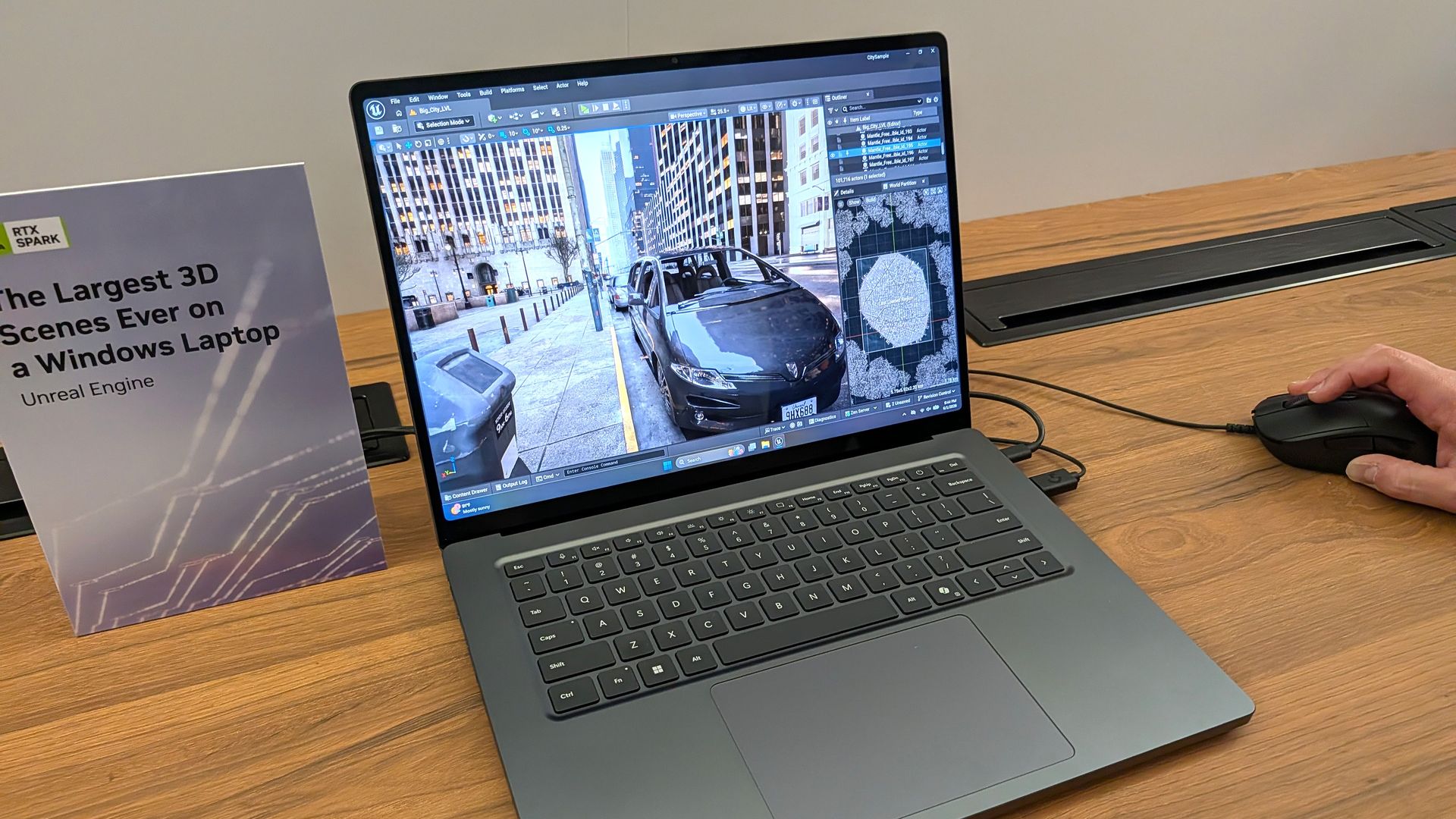
RTX Spark testing and chip benchmarks were overall positive, with Windows Central Senior Editor Zac Bowden noting that the NVIDIA N1X SoC is "one of the better choices in the Windows space right now, especially for laptops that are thin-ish and (relatively) light."

Roughly a month later, we have the RTX Spark chip inside of mini PCs like the ASUS ProArt GR1X. We received 64GB and 128GB RAM configs of this PC a few days ago for testing, and we've been hard at it in order to compare the laptop and desktop versions of NVIDIA's hardware.

Is there a significant difference in performance? Is one device category better than the other for AI workloads? Let's find out.

ASUS and NVIDIA had no editorial input here, nor did either company see this review prior to publication.

How much does the ASUS ProArt GR1X cost?

The ASUS ProArt GR1X officially launched on November 18, 2026, at a $4,499 starting price.

The units we're reviewing have the more powerful RTX Spark N1X chip with 20 CPU cores, 6,144 GPU cores, and a TDP up to 140W (a significant jump from the laptop version's 80W maximum).

Zac Bowden received a model with 128GB of unified RAM, while I received a model with 64GB. We split up the testing and benchmarking accordingly.

Here's a closer look at the specs you can expect in these ASUS ProArt GR1X mini PCs.

ASUS ProArt GR1X

CPU

NVIDIA RTX Spark N1X
20 cores

Graphics

Blackwell RTX
6,144 cores

Power (TDP)

140W

Memory

Up to 128GB LPDDR5x
Unified

Storage

1TB M.2 PCIe 4.0 NVMe SSD
Dual slots (PCIe4/5)

Ports

USB-C 3.2 (Power)
3x USB-C 3.2 (Gen 2)
HDMI 2.1
10G LAN

Wireless

Wi-Fi 7
Bluetooth 5.4

Dimensions

5.91 x 5.91 x 2.01 inches
(150mm x 150mm x 51mm)

Weight

3.26 pounds (1.48kg)

Color

Silver

NVIDIA RTX Spark N1X desktop performance

I get into my impressions of the ASUS ProArt GR1X mini PC's design and features below, but what's more important is how the desktop version of the N1X chip performs.

To figure that out, Zac and I focused on AI, general use, and gaming performance, comparing the results to what Bowden already discovered in his initial N1X tests on the Surface Laptop Ultra.

NVIDIA RTX Spark N1X desktop CPU performance

ASUS ProArt GR1X RTX Spark PC

The ASUS ProArt GR1X gives the NVIDIA RTX Spark chip more power than the laptop versions. (Image credit: Zac Bowden / Windows Central)

NVIDIA's Grace processor sees almost no improvement in single-core workloads, but that's not surprising; one core gets plenty of power across both form factors.

Geekbench 7 and Cinebench 2026 each show approximately a 5% increase in multi-core workloads for the mini PC.

That's a minor uplift, and most of the improvements, as we'll see, land in GPU territory.

CPU benchmarks

ASUS ProArt GR1X
NVIDIA RTX Spark
64GB RAM

ASUS ProArt GR1X
NVIDIA RTX Spark
128GB RAM

Surface Laptop Ultra
NVIDIA RTX Spark
128GB RAM

Geekbench 7 (Single/Multi)

2,682 / 23,699

2,655 / 24,849

2,710 / 23,571

Cinebench 2026 (Single/Multi)

555 / 7,237

554 / 7,248

558 / 6,885

NVIDIA RTX Spark N1X desktop GPU performance

The RTX Spark's Blackwell GPU is the real winner, whether it's being used for gaming or for AI acceleration.

In 3DMark's suite of gaming benchmarks, the RTX Spark in the ProArt mini PC was ahead by up to 13.3%. The performance uplift drops off in more demanding tests at higher resolutions.

The RTX Spark's Blackwell GPU is the real winner.

Because the Spark gets access to NVIDIA's DLSS upscaling toolkit, the PC can game at a rather high level. Low triple-digit frame rates are possible in games like Cyberpunk 2077 at 1440p, even with ray tracing enabled. That nearly doubles with 4x multi-frame generation.

Despite its gaming ability, I don't recommend buying the ProArt GR1X as a dedicated gaming PC. Treat it like a nice bonus in a PC purchased for specialized creative, AI, and professional workloads.

GPU benchmarks

ASUS ProArt GR1X
NVIDIA RTX Spark
64GB RAM

ASUS ProArt GR1X
NVIDIA RTX Spark
128GB RAM

Surface Laptop Ultra
NVIDIA RTX Spark
128GB RAM

3DMark Time Spy

14,041

14,478 ^

12,771

3DMark Time Spy Extreme

6,367

6,646 ^

5,857

3DMark Steel Nomad

3,327 ^

3,288

3,064

3DMark Speed Way

3,087

3,194 ^

3,011

NVIDIA RTX Spark N1X desktop AI performance

ASUS ProArt GR1X RTX Spark PC

AI performance receives a generous boost in the GR1X mini PC. (Image credit: Zac Bowden / Windows Central)

AI acceleration is the RTX Spark's main selling point. These PCs are not cheap, and those who aren't working with AI can spend a lot less to land a stellar device.

Zac and I ran a collection of benchmarks from the Procyon toolkit to measure AI tasks like text and image generation, as well as video editing and general responsiveness under load.

Unsurprisingly, the desktop RTX Spark outperforms the laptop version across the board.

On-device text generation benchmarks

Model

ASUS ProArt GR1X
NVIDIA RTX Spark
64GB RAM

ASUS ProArt GR1X
NVIDIA RTX Spark
128GB RAM

Surface Laptop Ultra
NVIDIA RTX Spark
128GB RAM

Phi-3.5-mini

2,902
74.9 Tokens/sec

2,958 ^
77.95 Tokens/sec

2,615
72.21 Tokens/sec

Mistral 7B

2,491
53.7 Tokens/sec

2,549 ^
55.4 Tokens/sec

2,276
53.07 Tokens/sec

Llama 3.1 8B

2,415
50.8 Tokens/sec

2.490 ^
52.8 Tokens/sec

2,251
49.44 Tokens/sec

Llama 2 13B

2,280
28.1 Tokens/sec

2,336 ^
28.8 Tokens/sec

2,108
27.44 Tokens/sec

Text generation using four different models is faster by up to several tokens a second on the desktop Spark chip.

In Phi 3.5 mini, there's a 13.1% uplift on the desktop RTX Spark. For Mistral 7B, it's an 11.99% increase. Llama 3.1 8B falls to a 10.6% uplift, and Llama 3 13B hits 10.82%.

On-device image generation benchmarks

Model

ASUS ProArt GR1X
NVIDIA RTX Spark
64GB RAM

ASUS ProArt GR1X
NVIDIA RTX Spark
128GB RAM

Surface Laptop Ultra
NVIDIA RTX Spark
128GB RAM

Stable Diffusion 1.5

1,635
3.82 s/image

1,680 ^
3.72 sec/image

1,480
4.22 sec/image

Stable Diffusion 1.5 Light

12,713
2.46 s/image

13,127 ^
2.38 sec/image

11,294
2.77 sec/image

Stable Diffusion XL

1,824
20.55 s/image

1,819
20.6 sec/image

1,496
25.05 sec/image

Improvements to image generation speed are more impressive. The desktop RTX Spark cuts about five seconds off Stable Diffusion XL generation time, whether using 64GB or 128GB of RAM.

Stable Diffusion 1.5 sees a 13.5% uplift, SD 1.5 Light hits a 16.23% increase, and Stable Diffusion XL improves by a whopping 21.9%.

On-device workload benchmarks

ASUS ProArt GR1X
NVIDIA RTX Spark
64GB RAM

ASUS ProArt GR1X
NVIDIA RTX Spark
128GB RAM

Surface Laptop Ultra
NVIDIA RTX Spark
128GB RAM

Procyon Computer Vision 2

4,057

4,147 ^

3,997

Procyon Essentials

4,519

5,333 ^

4,863

Procyon Video Editing 1.5

N/A

30,168 ^

29,595

Computer Vision 2 measures how well a PC can handle general AI tasks common in offices and other workplaces. It's a minor jump for the desktop Spark with 64GB RAM, but a more pronounced jump for the model with 128GB.

Procyon Essentials performs a bunch of tasks common in professional workloads: video calls, heavy web browsing, app startup, and more. This test likely relies more on system RAM, as my 64GB mini PC fell behind both 128GB systems. With RAM on par, the desktop RTX Spark comes out well ahead.

Video Editing uses Adobe Premiere Pro to gauge the ability to work through an editing workflow. Again, the desktop RTX Spark chip comes out ahead of the laptop version.

What I like about the ASUS ProArt GR1X

ASUS ProArt GR1X RTX Spark PC

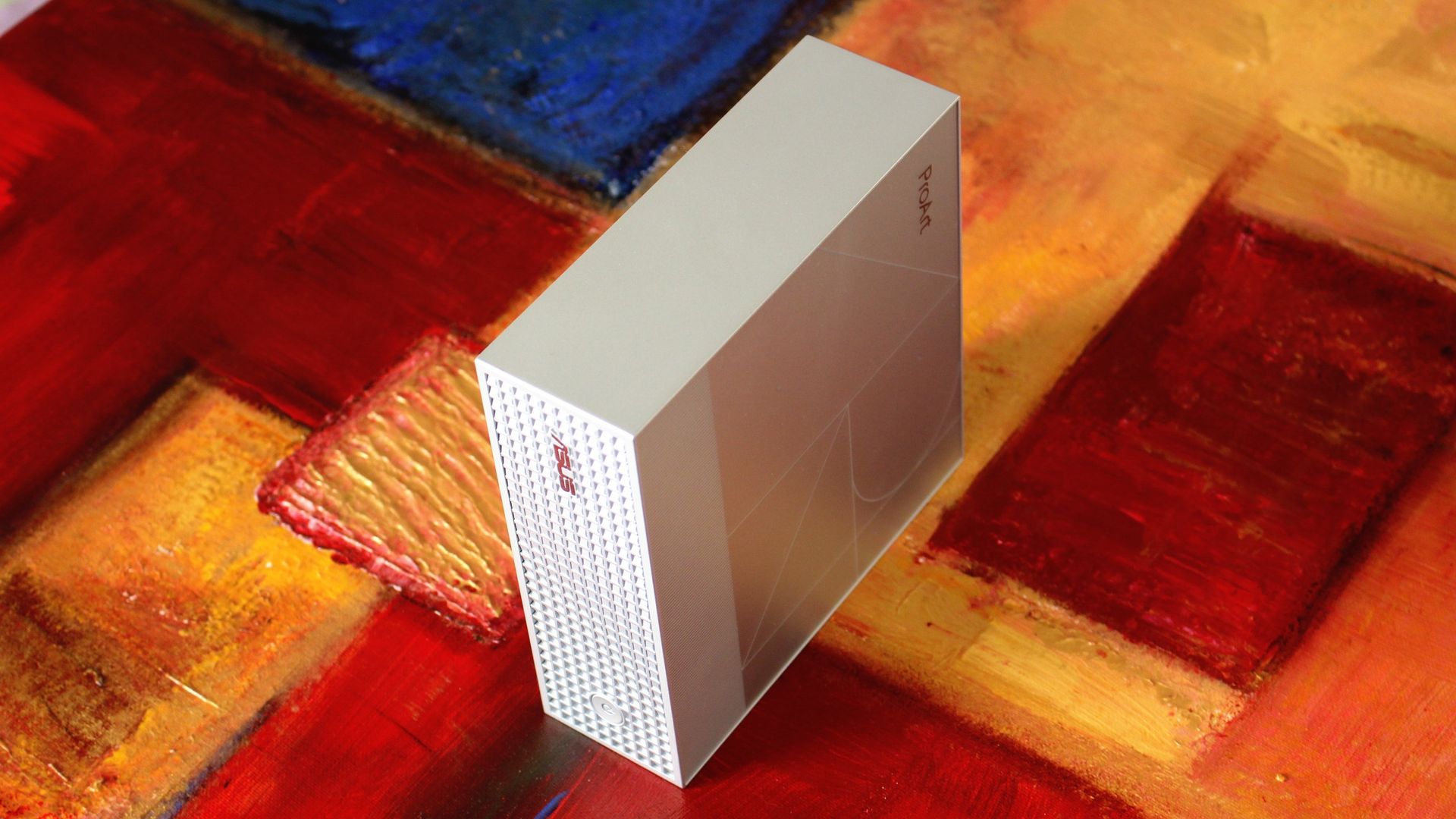
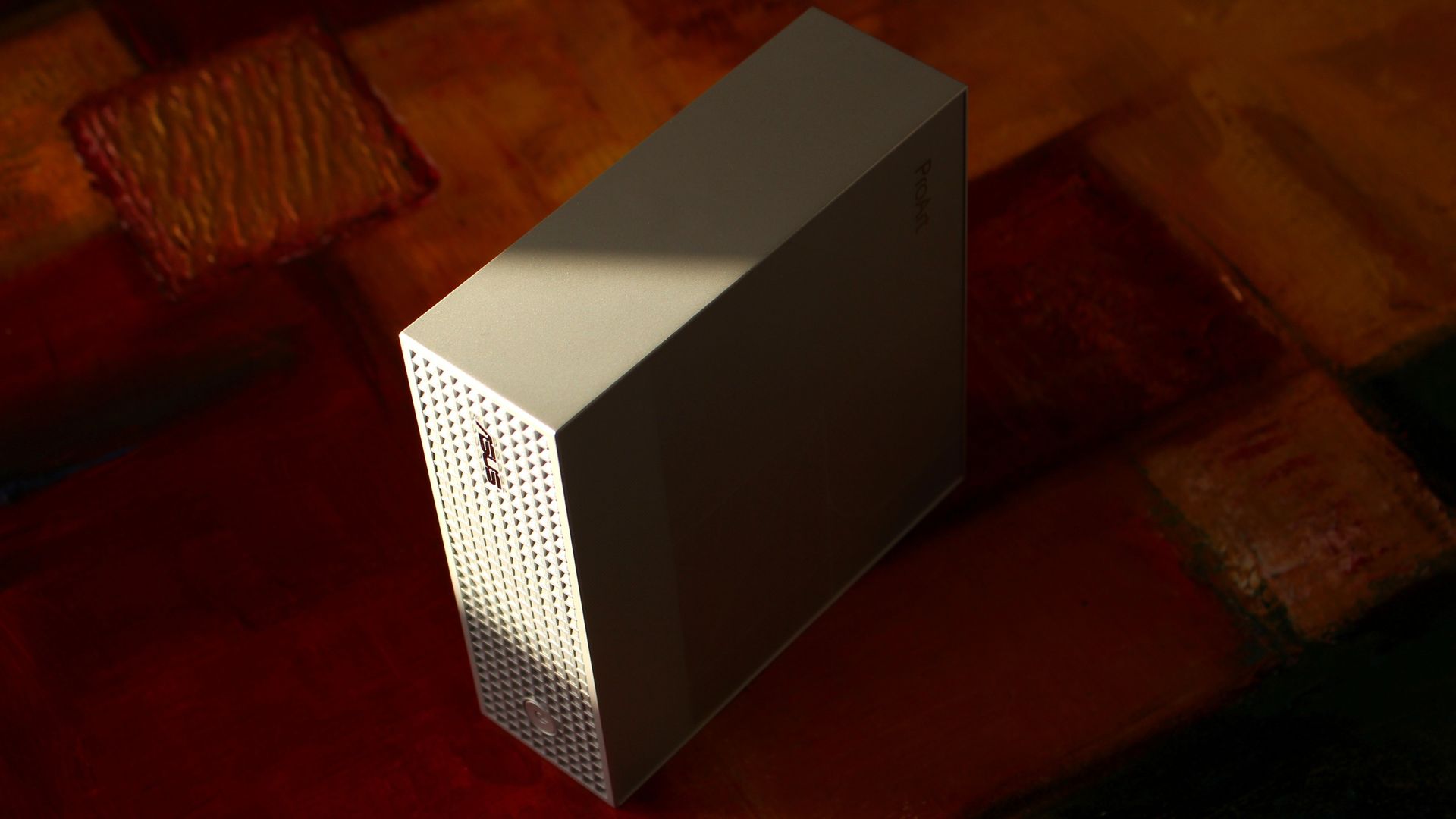
The ProArt GR1X is compact and has a beautiful exterior finish. (Image credit: Zac Bowden / Windows Central)

In my limited time testing the ASUS ProArt GR1X, I've come across a few perks and downsides that I feel are pertinent to your buying decision.

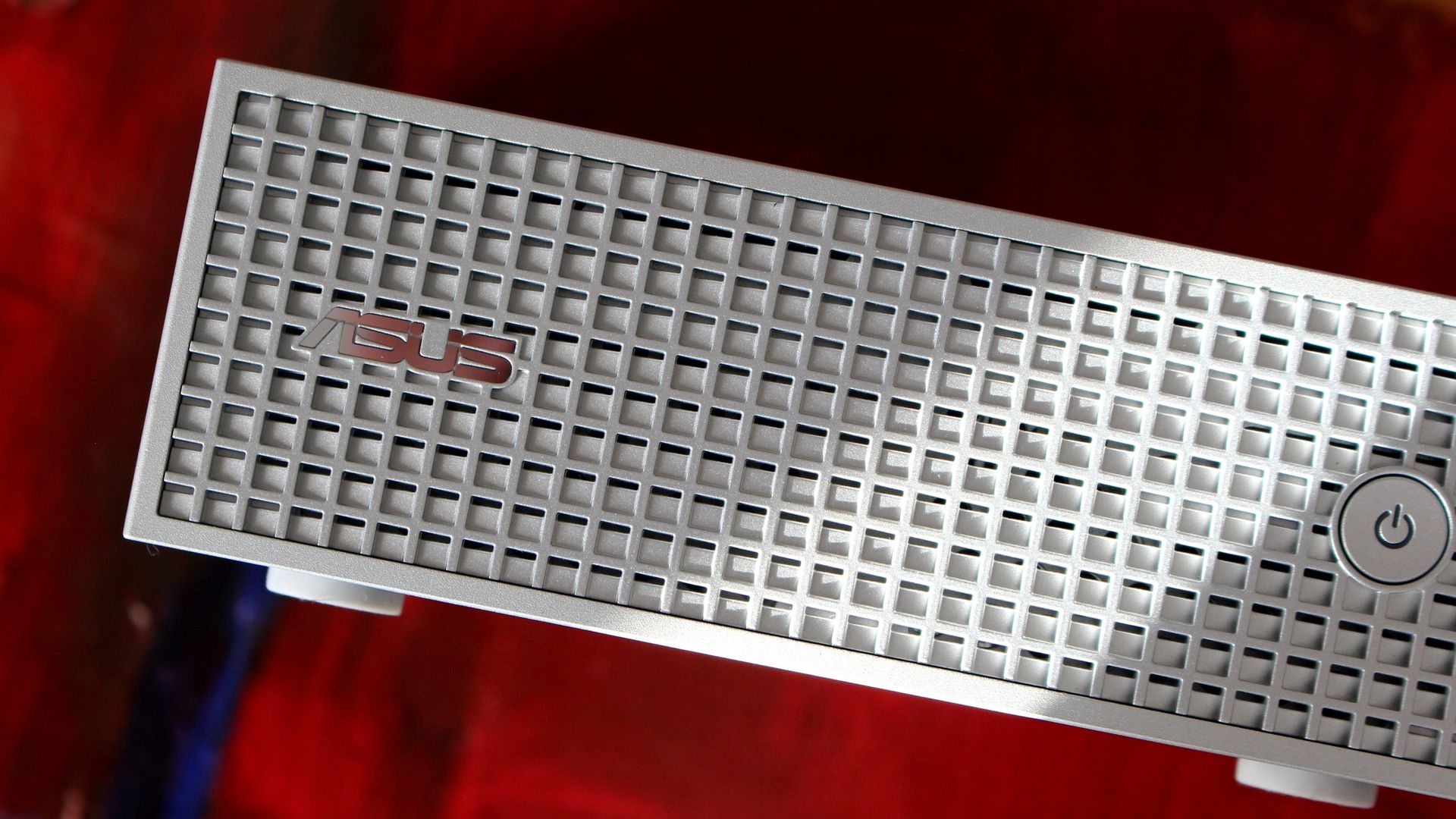
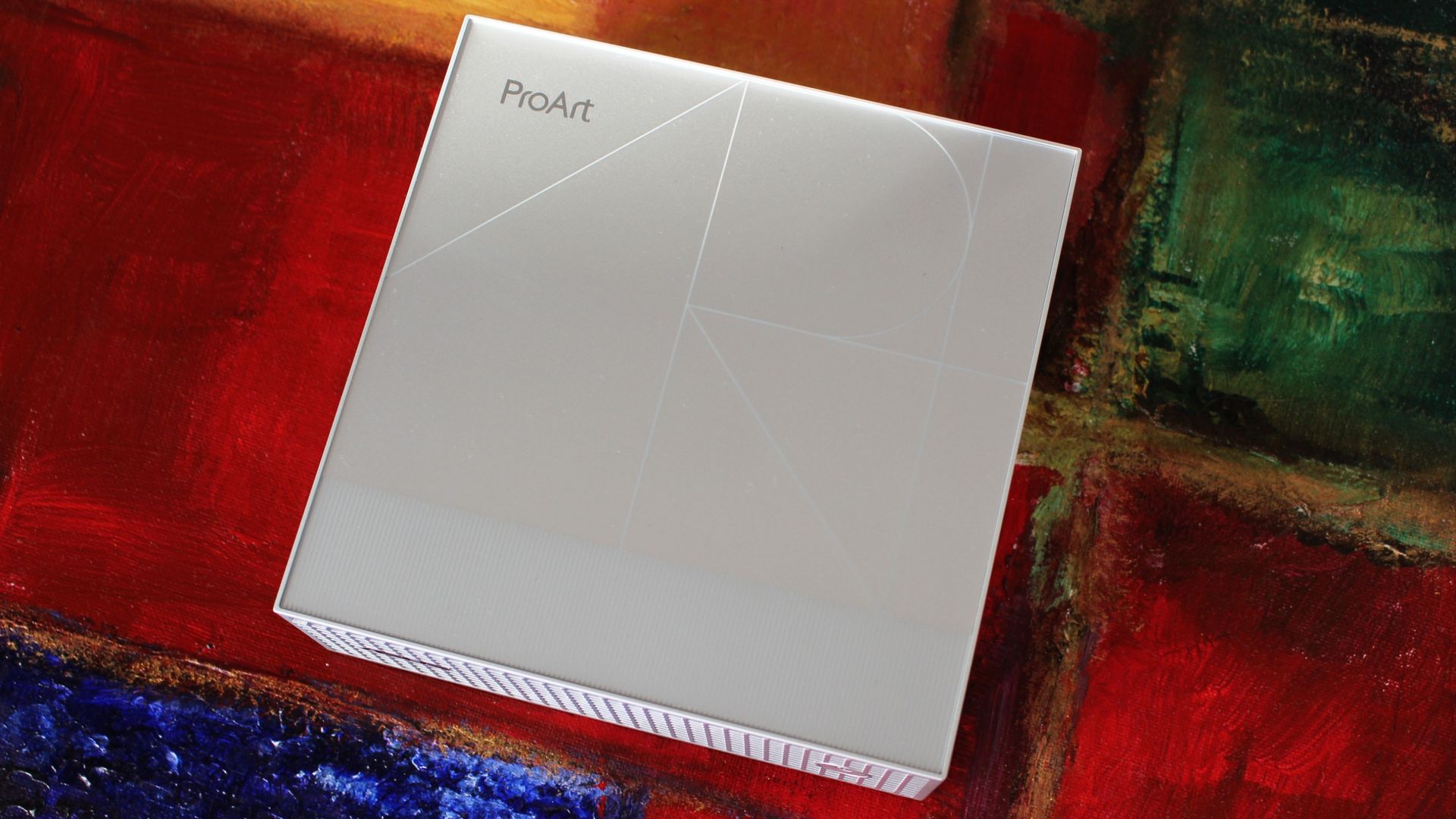
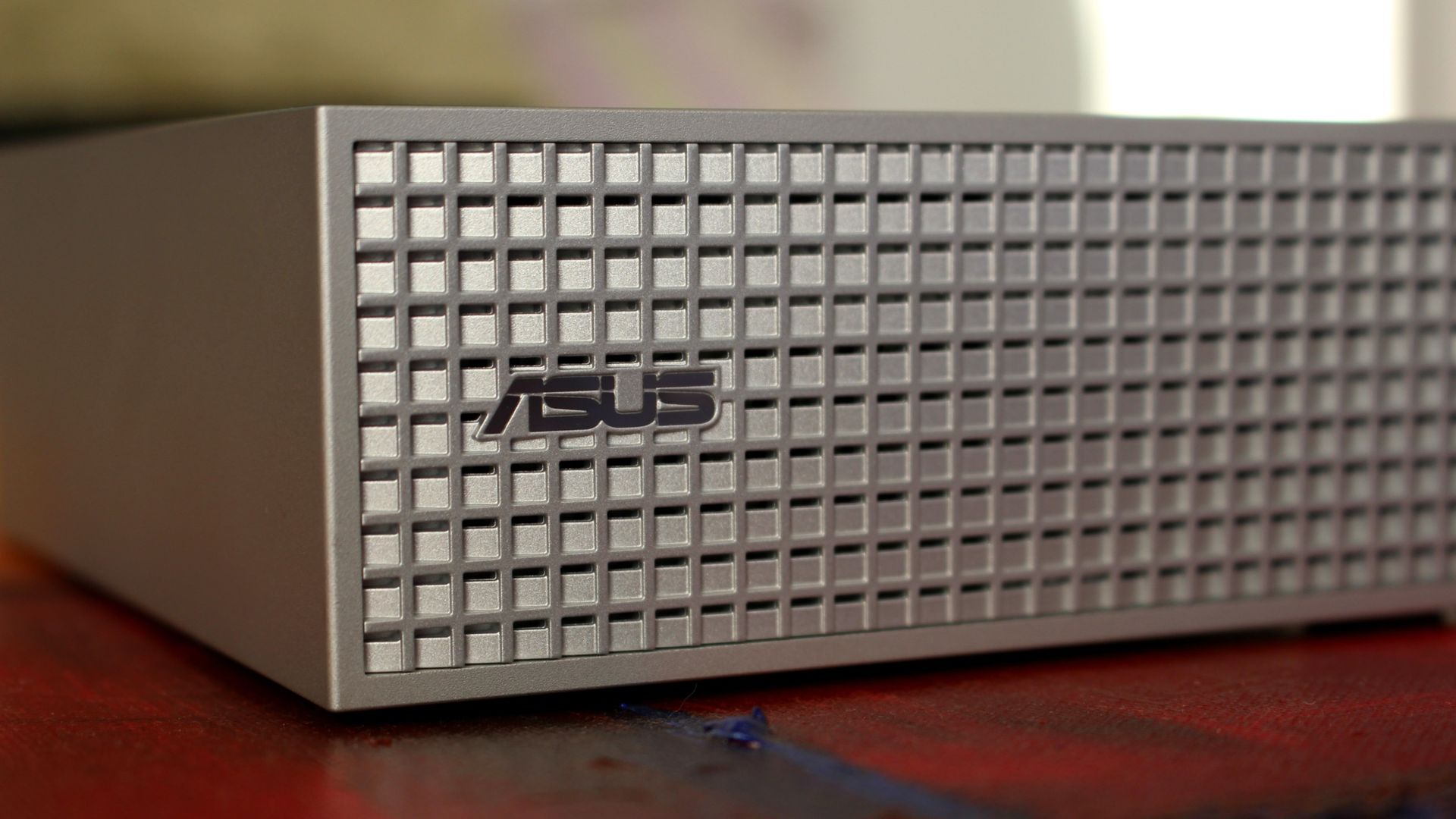
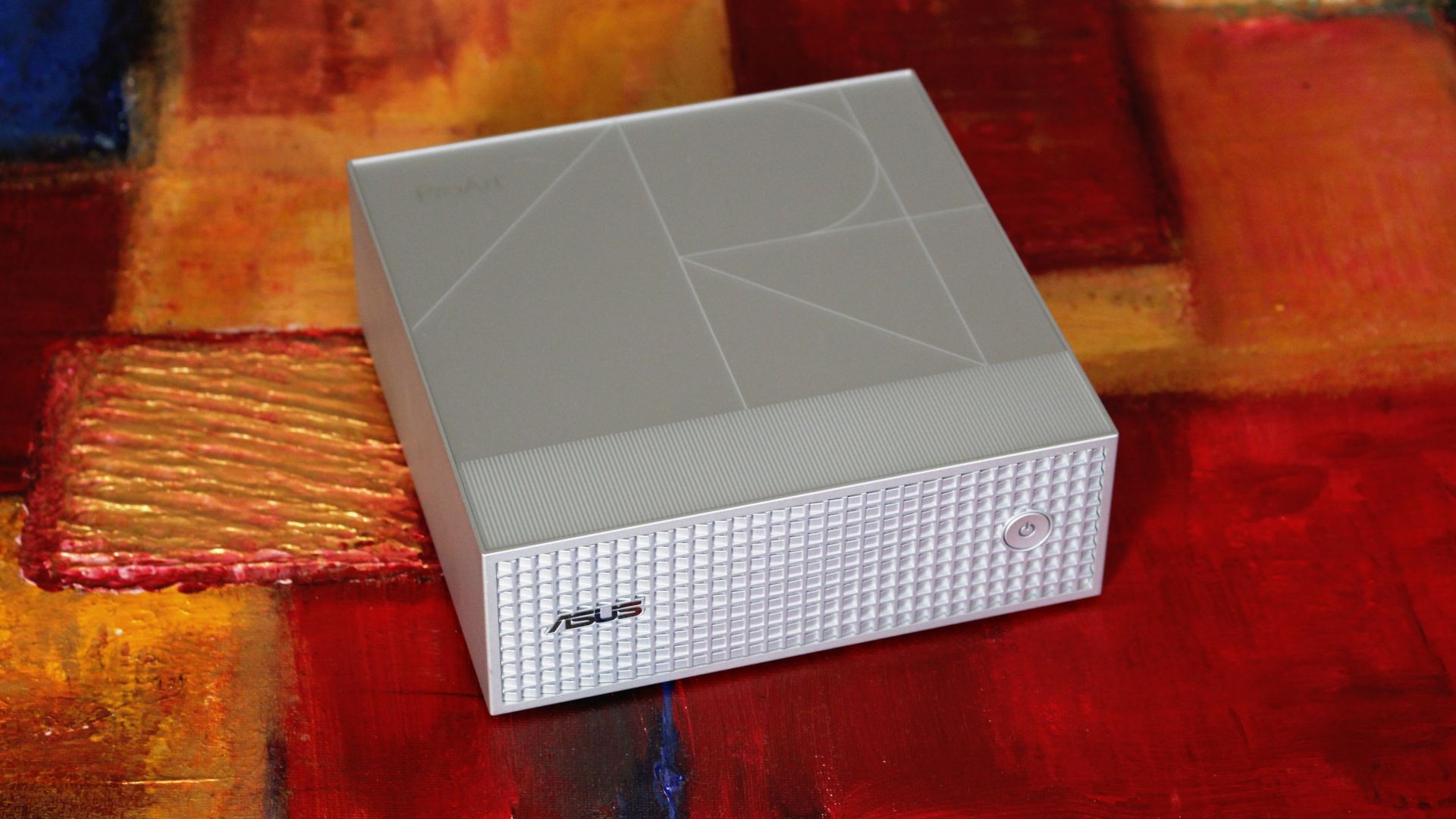
Starting with the good stuff, I love the mini PC's design. All of the ASUS ProArt PCs have a professional aesthetic, and this one nails it with a silver finish, a stylized ProArt logo engraving on the top panel, and a waffled front plate with additional air vents.

It's a super simple approach with just a power button on the front, leaving all I/O for the rear of the PC (more on that in the next section).

ASUS ProArt GR1X RTX Spark PC

The etched ProArt design in the top of the GR1X is a nice touch. (Image credit: Zac Bowden / Windows Central)

I put my GR1X through a stress test to see how loud it gets. My meter didn't breach 55 decibels during the run, which is about as loud as a regular conversation. Nothing wrong with that. It doesn't throttle thermally, either, which is really the whole point of a desktop support system.

The rather large intake vent on the bottom of the PC is clearly feeding it with enough cool air, and everything gets vented out the back, as it should.

ASUS ProArt GR1X RTX Spark PC

A power button and ASUS logo adorn the front waffled panel. (Image credit: Zac Bowden / Windows Central)

Wireless connectivity is about as good as you'll find these days, with modern Wi-Fi 7 and Bluetooth 5.4 on board. Most people aren't yet using Wi-Fi 7, but you'll be ready for a router upgrade in the future.

ASUS has also included a 10Gb Ethernet port for wired hookups, ideal for anyone who prefers the reliability of LAN.

As for external display support, you can run up to four screens at once via USB-C and HDMI 2.1.

What I dislike about the ASUS ProArt GR1X

ASUS ProArt GR1X RTX Spark PC

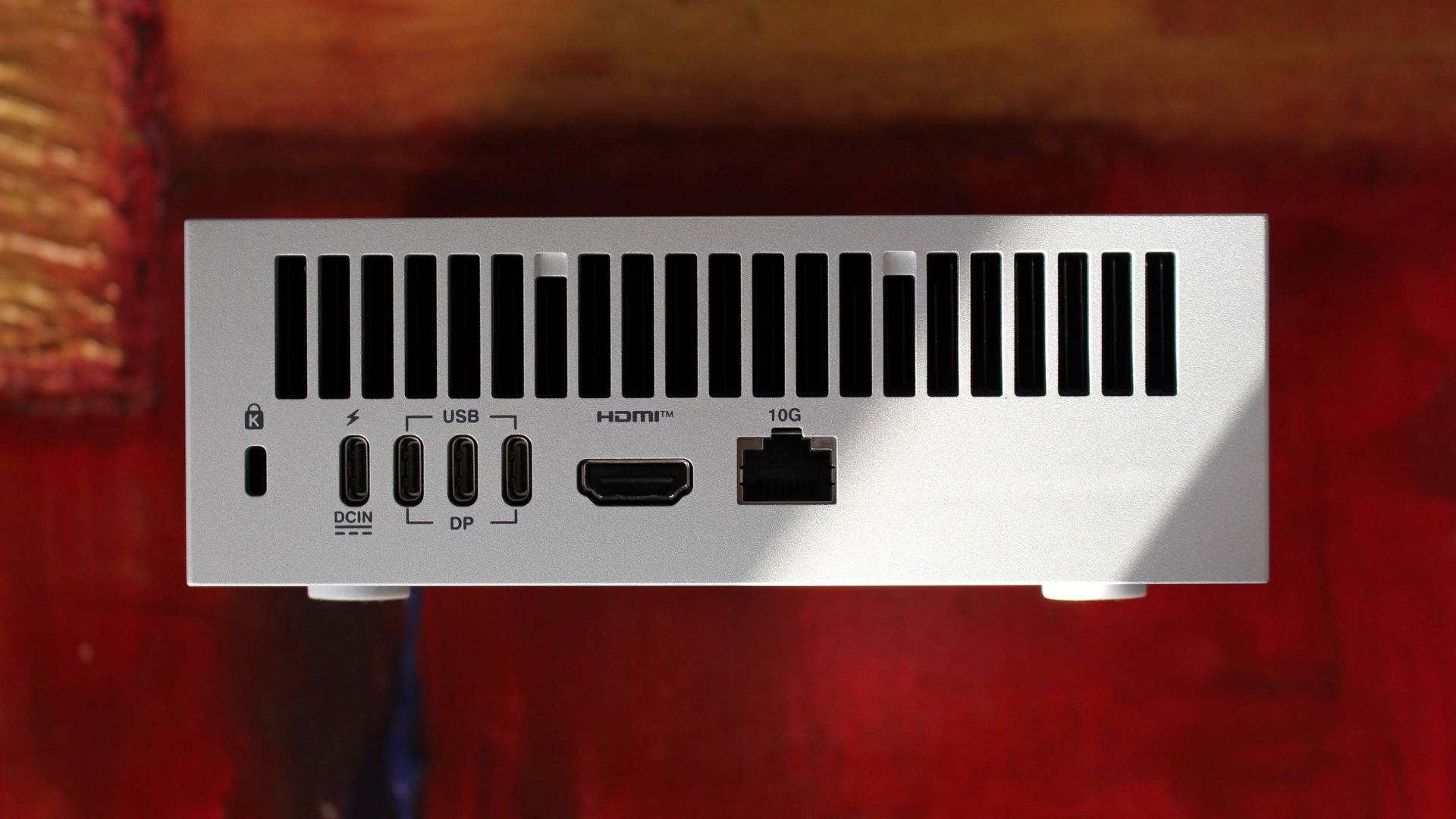
Ports are all located on the back of the PC. (Image credit: Zac Bowden / Windows Central)

My main gripe with the ProArt GR1X right now is its port placement. Everything is located on the rear of the PC, so even quick hookups will have you reaching around and feeling for a port.

The USB-C ports are all jammed together on the back, making it difficult to plug in and out on the fly. Having even one port on the front would go a long way.

There's also the port selection to contend with. The ProArt GR1X has no USB-A or SD card reader, and its USB-C ports aren't as good as they could be.

Rather than USB4 at 40Gbps, the three USB-C hookups are Gen 2x2, topping out at 20Gbps. A fourth USB-C port handles the AC hookup, so no issues there.

Should you buy the ASUS ProArt GR1X mini PC?

ASUS ProArt GR1X RTX Spark PC

A look at the waffled front panel with air intakes on the ASUS ProArt GR1X. (Image credit: Zac Bowden / Windows Central)

You should buy it if ...

✅ You want superior RTX Spark power and don't mind losing a laptop's mobility.

✅ You're an AI specialist with deep pockets for specialized PC hardware.

You should not buy it if ...

❌ You prefer having an RTX Spark PC you can take anywhere.

❌ You're a gamer who needs a PC for fun and nothing else.

Windows Central Recommended Award

NVIDIA promised a performance uplift with its desktop version of the RTX Spark, and based on our testing, I'd say it made good on its word. The improved cooling and added wattage really make a difference.

The Blackwell GPU has the most to benefit, and we saw uplifts starting around 10% and running as high as 21.9% in benchmarks. CPU improvements are not as pronounced, but that matters less here for specialized AI workloads.

We saw uplifts starting around 10% and running as high as 21.9% in benchmarks

As for the ASUS ProArt GR1X itself, it's a fancy, compact mini PC that keeps its cool and quiet under load. It's not perfect, but it seems like apt housing for NVIDIA's chip.

Downsides? I can't figure out why ASUS didn't expand its port selection or place anything on the front panel. The setup is bound to frustrate anyone who's often plugging and unplugging.

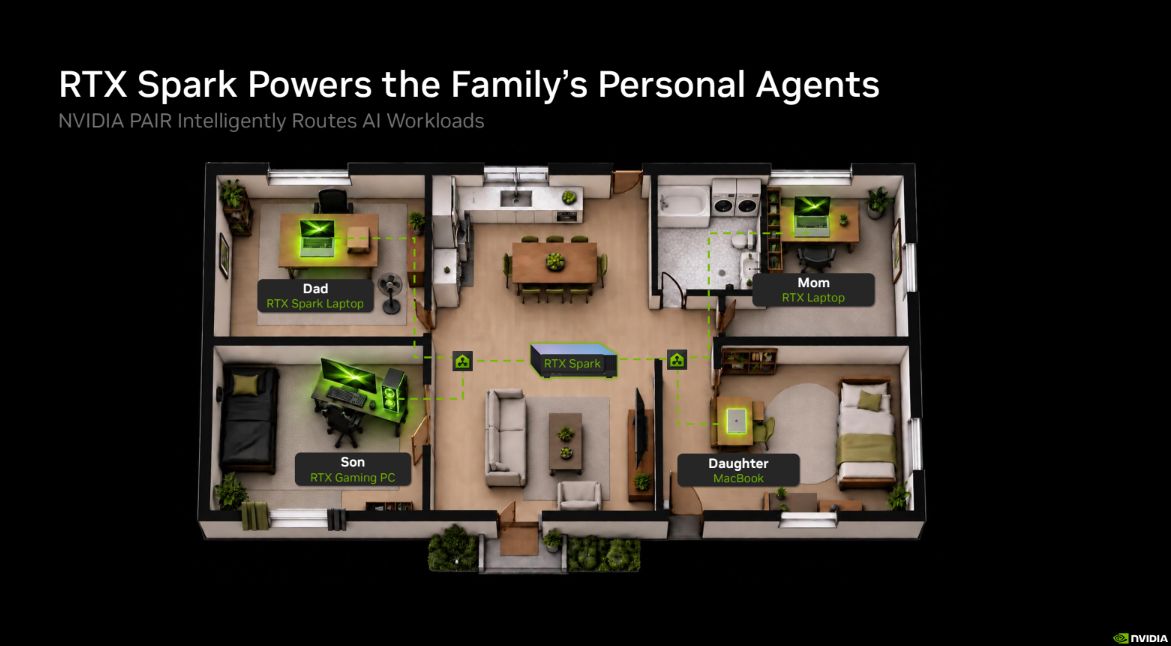
That leads me to NVIDIA PAIR, a feature for RTX Spark PCs that allows them to communicate wirelessly with each other, offloading workloads to connected RTX and macOS systems.

An overhead 3D floor plan shows RTX-powered AI agents in a family home: Dad, Mom, Son, and Daughter, each with a personal workstation. Black background and green highlights create a futuristic tone.

A quick look at how NVIDIA PAIR works across your home or office. (Image credit: NVIDIA)

With how the ProArt GR1X is designed, it seems like a perfect candidate to become a "headless" AI machine that works away on its own while you use a laptop or full-size desktop PC. Link up two or three of these mini PCs, and you have a personal network ready to do your AI bidding.

There's also the price with which to contend. Starting at $4,499, RTX Spark desktop mini PCs are a full $700 more expensive than RTX Spark laptops. Is the extra power worth it? For some professionals, sure. For others, it'll no doubt be too much of a premium over the laptop price to make sense.

We plan to put together a comparison with the Mac Studio in the coming days, but are there any other PCs to which you'd like RTX Spark compared? What would you like us to test next on the ProArt GR1X? Let us know in the comments section below!

ASUS ProArt GR1X mini PC

Desktop RTX Spark
ASUS
ProArt GR1X

The desktop version of NVIDIA's RTX Spark chip delivers the promised uplifts over the lower-watt laptop version. The ASUS ProArt GR1X helps make that possible with strong cooling capabilities, but it has some of its own quirks you'll want to know about before buying.

Click to join us on r/WindowsCentral

Join us on Reddit at r/WindowsCentral to share your insights and discuss our latest news, reviews, and more.

I quit my Steam Deck for Acer's new Predator Atlas 8. Here's what I learned.

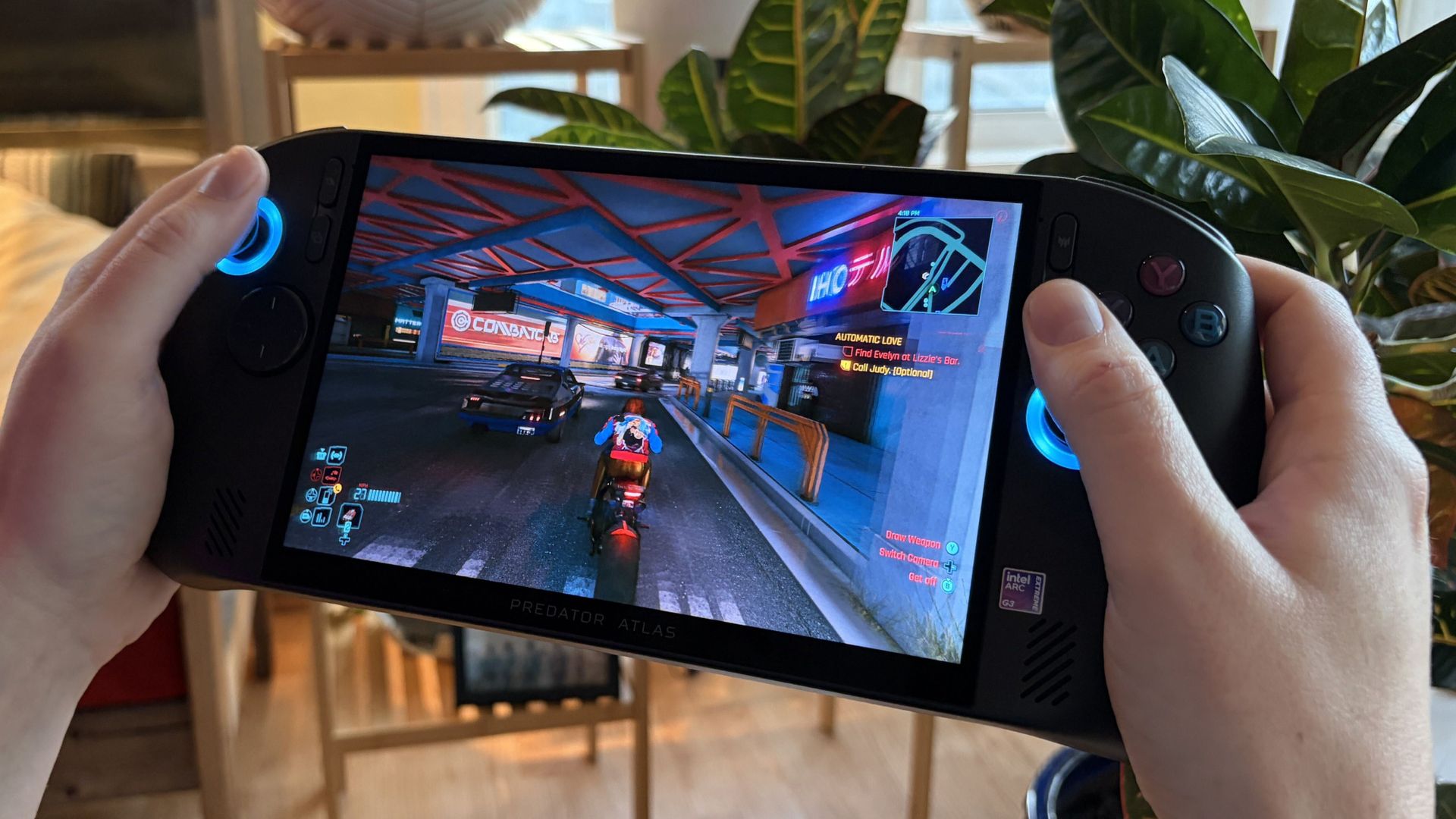
I first played with Acer's Predator Atlas 8 this year at Computex, and I got my hands on a review unit a few weeks ago.

Short story? Intel's Arc G3 Extreme chip has proven to be the hardware you want in your gaming handheld. But the chip is only a small part of Acer's package, and I'm also focusing on the Atlas 8's design, features, cooling, screen, and software.

I've had a ton of fun with the Atlas 8, but it might not be right for you. Here's what I think you should know before buying.

Acer and Intel had no input, nor did they see the contents of this review prior to publication.

Predator Atlas 8 specs at a glance

The Predator Atlas 8 launched at $1,299.99, a full $500 less than MSI's competing Claw 8 EX AI+ (also with an Arc G3 Extreme chip inside).

On November 10, less than two weeks after the November 1 launch, the Atlas 8's price rose to $1,449.99. I'm keeping this price hike in mind throughout the review, but it mainly pertains to the final section.

Here's a quick look at the specs in my loaner review unit.

Acer Predator Atlas 8

Processor

Intel Arc G3 Extreme
Up to 4.7GHz
14 cores

Graphics

Intel Arc B390
12 Xe cores
XeSS 3

Display

8 inches, 16:10
Touchscreen
500 nits

Resolution

1920x1200

Refresh rate

120Hz VRR

Memory

24GB LPDDR5x

Storage

512GB M.2 PCIe 4.0 NVMe SSD

Ports

2x Thunderbolt 4
UHS-II microSD
3.5mm audio combo

Controls

TMR joysticks
Hall-effect triggers
2x macro buttons

Audio

2x 2W speakers
DTS Virtual:X

Battery

80Wh

Connectivity

Wi-Fi 7
Bluetooth 5.4

Price

$1,449.99

An IPS display that doesn't make me pine for OLED

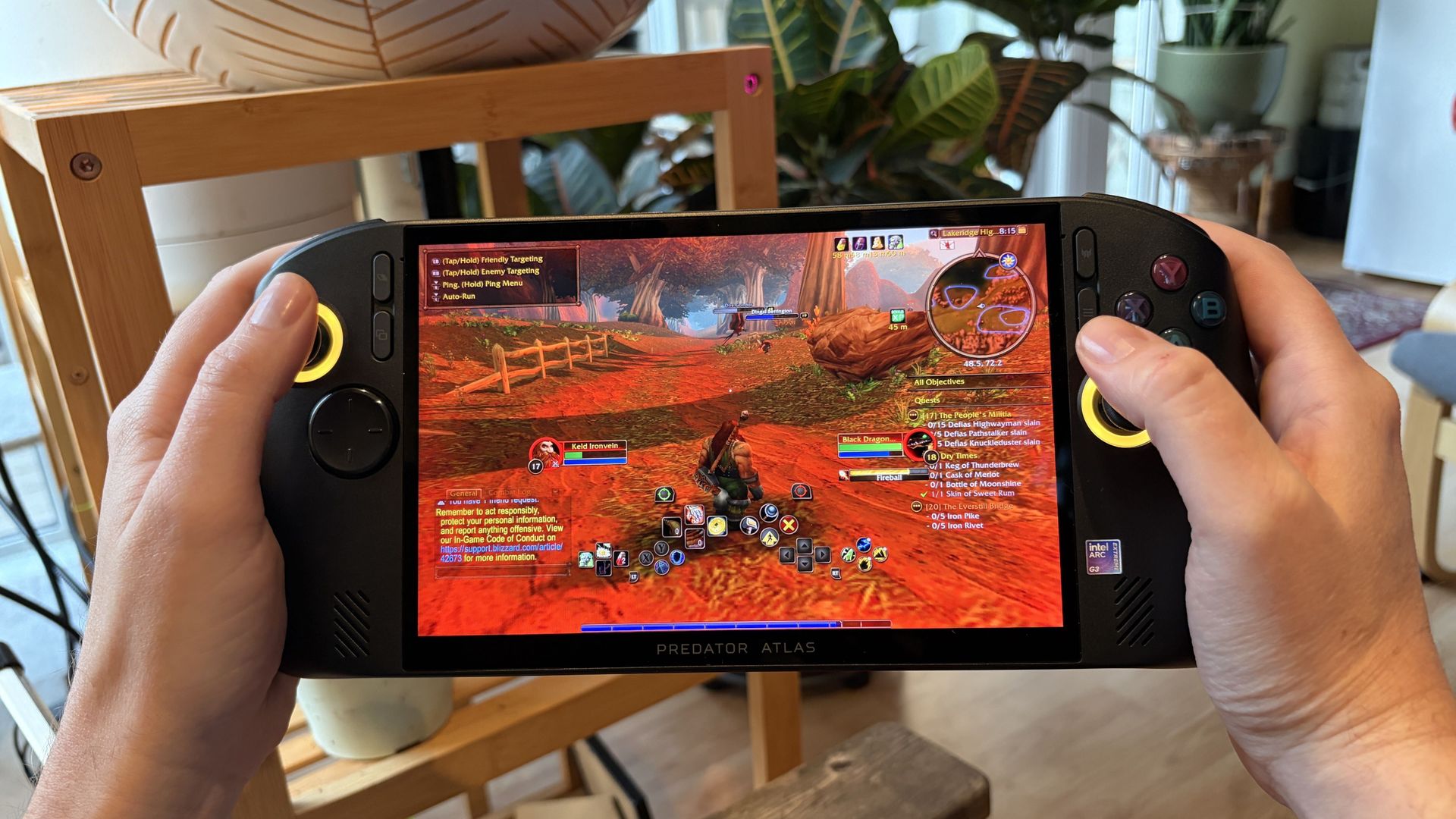
Hands hold an Acer Predator Atlas 8 handheld gaming PC showing a colorful fantasy battle in a red, fiery landscape, with game controls and a minimap on screen.

The Predator Atlas 8's IPS display is colorful and bright. (Image credit: Future)

I'm an OLED convert, and I'm convinced that it's the best way to game. That being said, these new Intel gaming handhelds with IPS displays are impressive.

Like the MSI Claw 8 EX AI+ that Editor-in-Chief Daniel Rubino reviewed, the Predator Atlas 8 has an 8-inch IPS touchscreen with a 16:10 aspect ratio, 1920x1200 (FHD+) resolution, and 120Hz variable refresh rate.

It gets quite bright at 500 nits, and it manages to hit the full sRGB color spectrum for a more vivid picture.

If I have to choose between an OLED display and Intel's Arc G3 Extreme performance, I'll take the latter every time.

A lack of OLED should not be a dealbreaker. Everything is bright, clear, and crisp, with the 120Hz refresh rate adding a decent amount of headroom for frame generation.

I gamed all over the place with the Atlas 8, and glare was never too much to make me quit. An anti-glare screen protector is included, but I didn't feel the need to use it.

As Rubino noted, the lack of OLED in the $1,799 MSI Claw 8 EX AI+ is an obvious drawback. It doesn't feel as obvious in the $1,299 (now $1,449) Atlas 8, though it's still something you'll need to consider when buying.

Chunky, but overall comfortable to hold

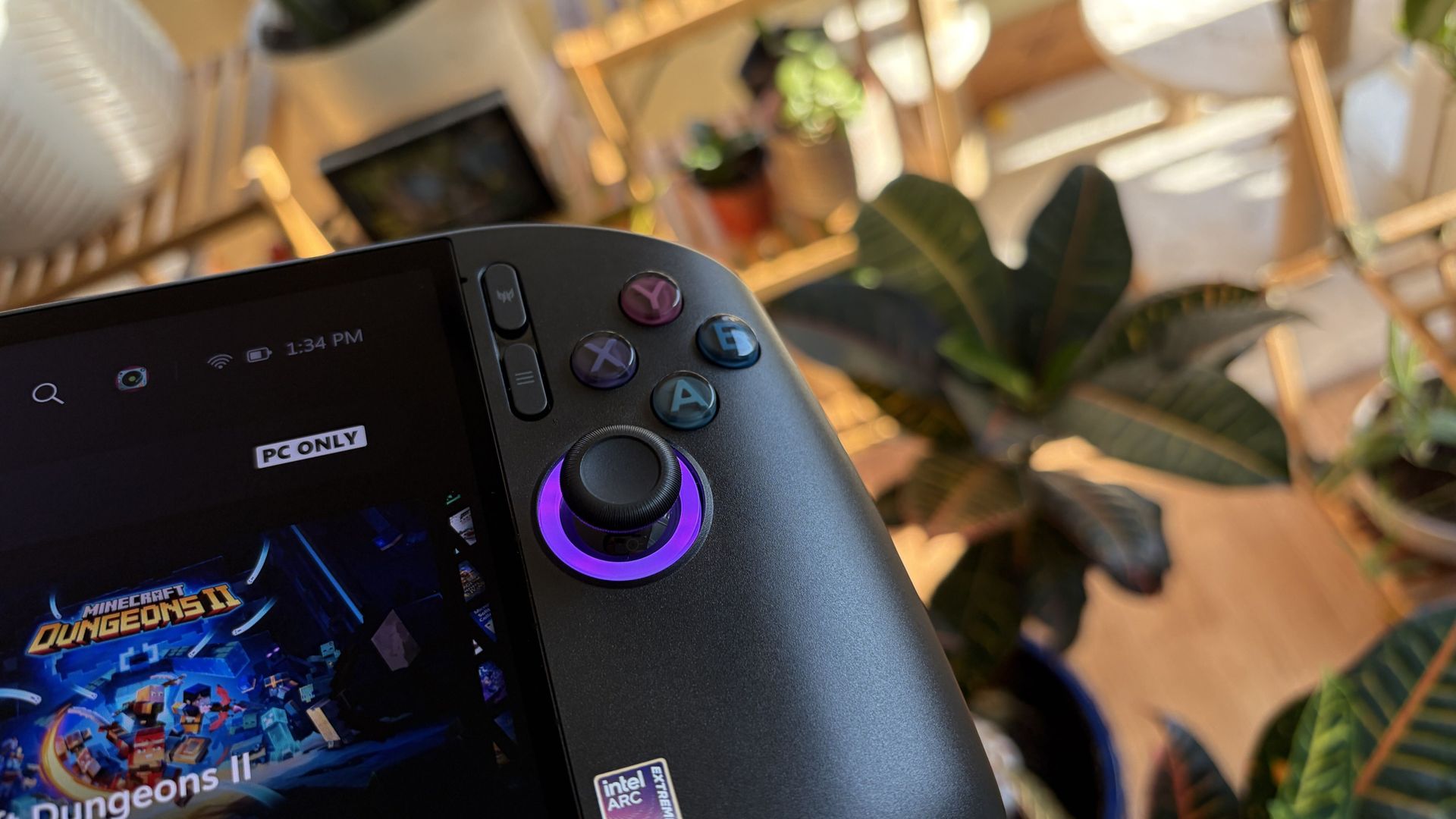
Close-up of an Acer Predator Atlas 8 handheld gaming console, its joystick glowing purple; a leafy plant and bright, cozy room create a relaxed mood.

The Atlas 8 remains comfortable to hold even during marathon gaming sessions. (Image credit: Future)

Coming from the Steam Deck as my primary handheld, the Atlas 8's fused grip style is familiar and comfortable. It fits in my palms and rests there naturally; I didn't find it too heavy or too light ... just right.

The handheld is built well. There's no flex in the body. It doesn't creak or groan when you're handling it with one paw. All the controls are easily within reach. And despite its sheen, it's not slippery.

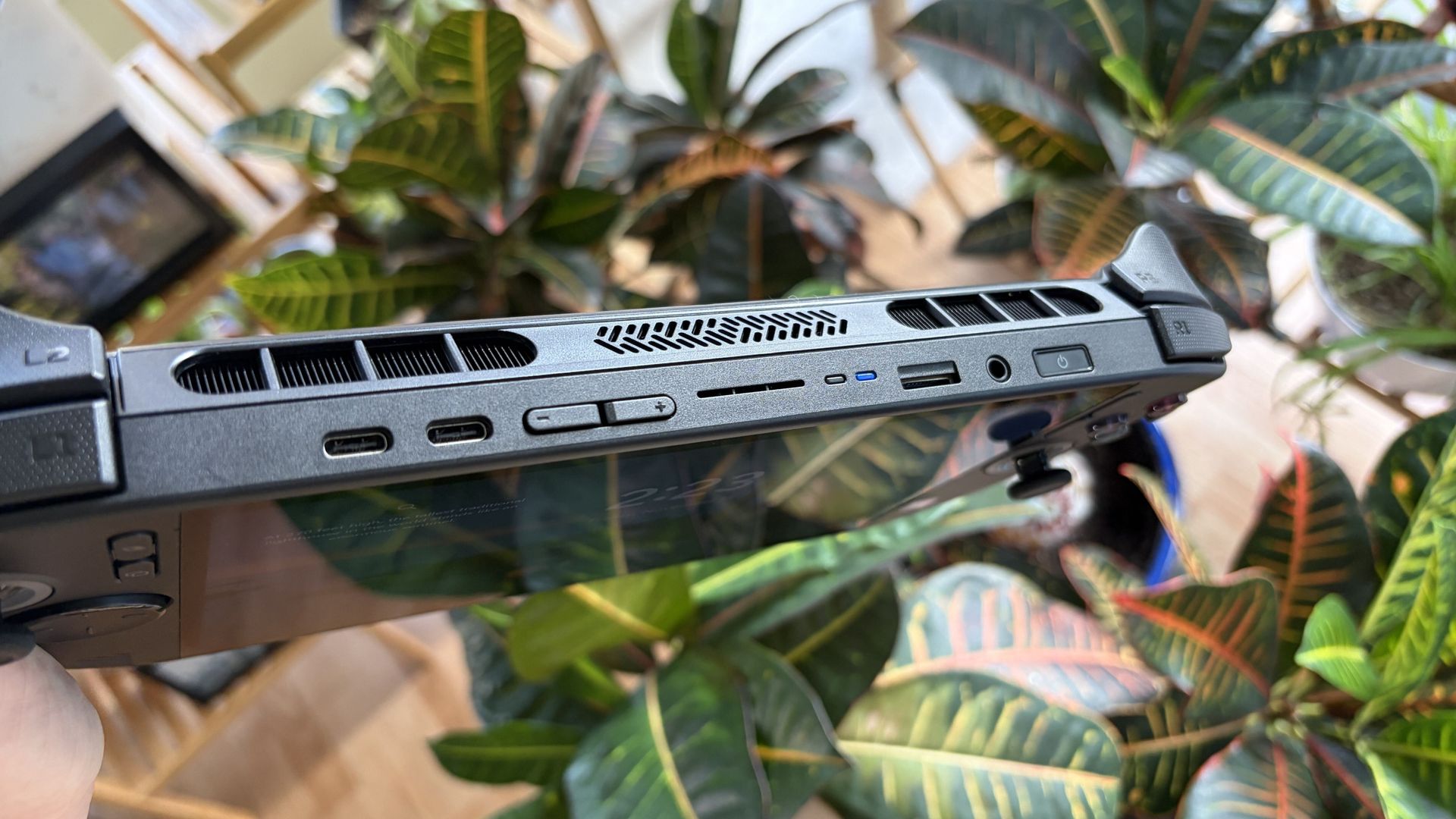
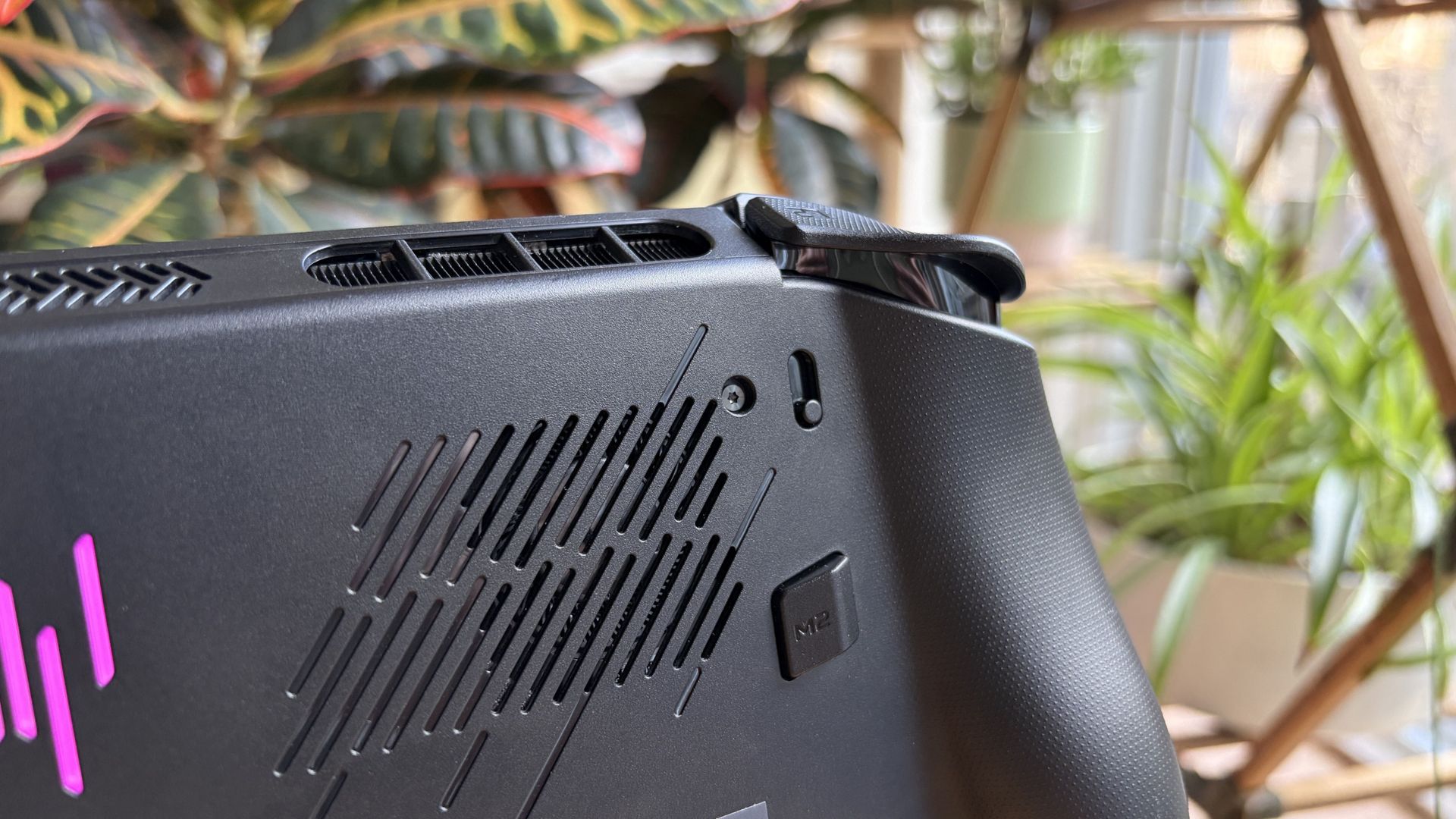
As you might expect, air intakes for the cooling system are on the back of the handheld, away from where your fingers rest. Exhaust runs along the top of the device, so you don't feel it at all when gaming.

Dual Thunderbolt 4 ports and Wi-Fi 7 set you up nicely for years of gaming

Close-up of a Predator Atlas 8 top vents, ports, and stylus, held above colorful tropical croton leaves in a bright, casual setting.

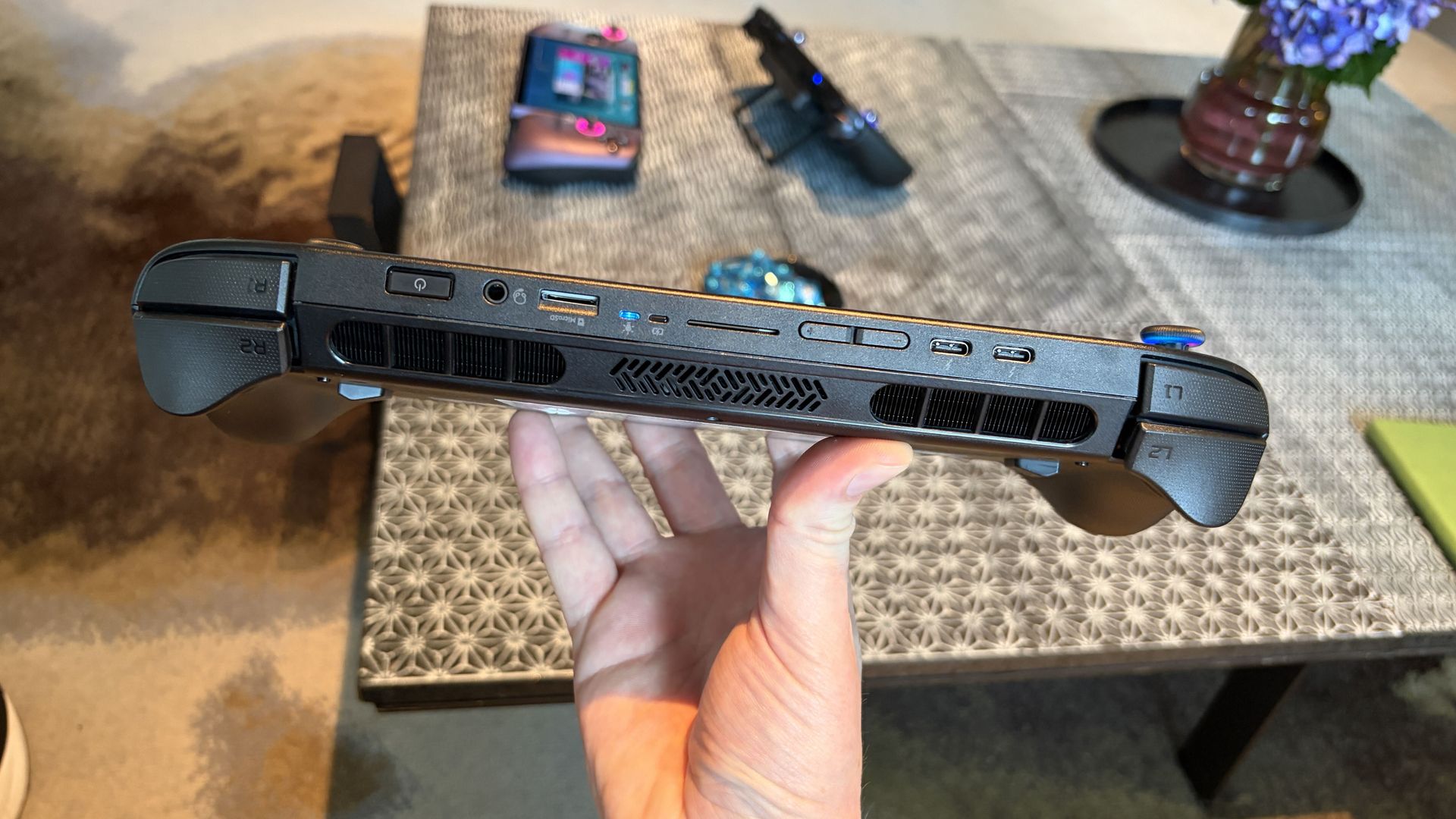
The Atlas 8's ports include dual Thunderbolt 4, microSD card reader, and 3.5mm audio combo. (Image credit: Future)

Also along the top are dual Thunderbolt 4 ports, a 3.5mm audio combo jack for input/output, and a UHS-II microSD card reader for removable storage. I've got to say that it's great having Thunderbolt on board, as the advanced ports handle video, charging, accessories, and storage.

As for wireless, Wi-Fi 7 and Bluetooth 5.4 provided fast, seamless connectivity while testing the Atlas 8. I had no issues with either.

One important thing to note: I'm not a huge fan of handheld haptics to begin with, and the implementation here doesn't really do anything to change my mind. The rumble is plain and gets annoying. I ultimately disable haptics, but you might have a different opinion.

The speakers aren't special

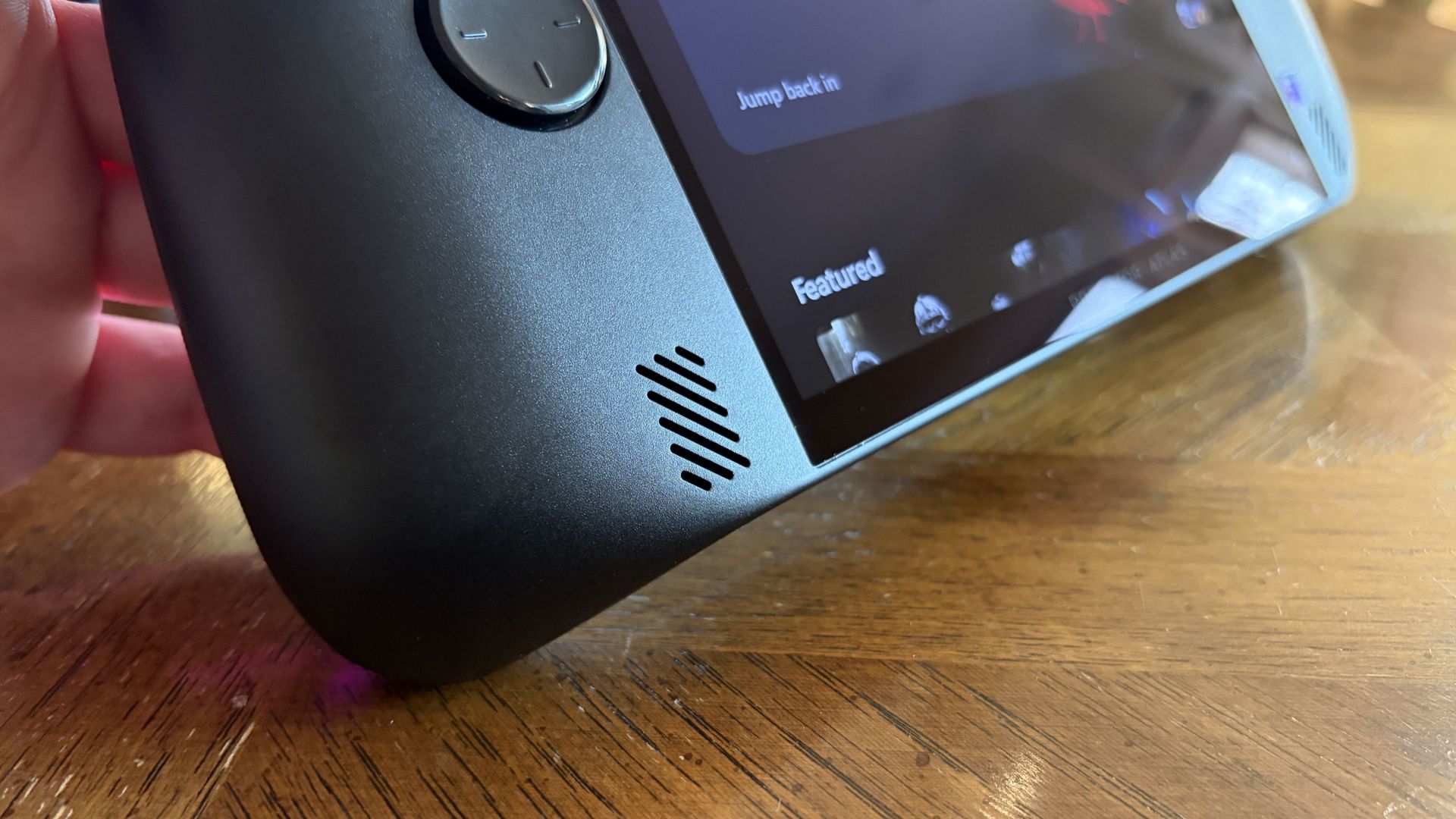
Close-up of a hand holding an Acer Predator Atlas 8 with a speaker grille and round control, its content menu glowing above a wooden table.

One of the Atlas 8's two front-firing speakers. (Image credit: Future)

The Atlas 8's dual 2W speakers put out a lot of volume, and they're positioned on the front of the device to hit you right in the face. It's decent audio for such a small device, but it's not perfect.

Audio is a tad thin at lower volume levels, and once you crank it up, you'll start to notice a bit of distortion. I played around with onboard audio settings to try out different presets, and ultimately got it sounding better without needing headphones.

In terms of post-purchase upgradeability, the Atlas 8's rear panel comes off after removing 8 screws, providing access to the internal SSD. If you'd rather not use removable microSD storage to boost your library space, you can always do your own internal drive upgrade.

Lovely controls ... except the D-Pad

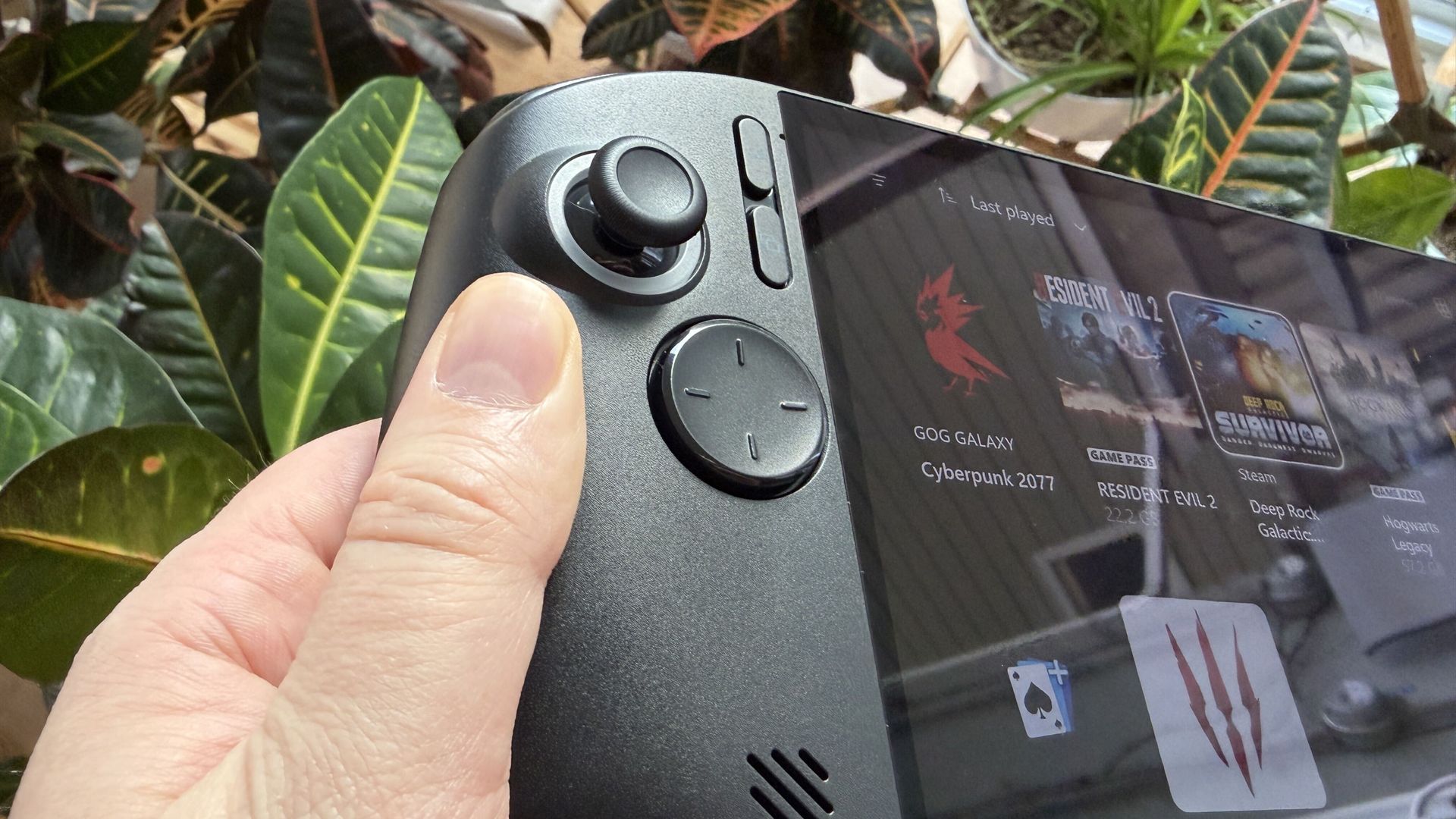
A hand holds a black Acer Predator Atlas 8 gaming handheld, thumb beside the joystick and buttons; a game library fills the screen against leafy plants.

The Atlas 8's controls are all good ... except for the D-Pad. (Image credit: Future)

The Atlas 8's TMR joysticks are built on Hall Effect tech, offering superior sensitivity by eliminating physical contact. They're the best way to play, and Acer's implementation is flawless. The sticks have perfect resistance, and I had no problems with drift.

The analog R1/L1 bumpers have a satisfying click, and the AXBY buttons are standard fare. Not too spongy, not too firm. I've seen some users complain about the right stick's positioning and how close it is to the buttons, but I had no issues.

Close-up of a black Acer Predator Atlas 8 handheld gaming device’s textured back, vents, and shoulder controls, with a bright pink accent; leafy houseplants create a relaxed setting.

A small switch on either side of the Atlas 8 lets you adjust trigger depth. (Image credit: Future)

The triggers are top-notch. Hall Effect sensing adds extra pressure sensitivity, providing what feels like perfect control. The triggers feel robust with the right amount of resistance, and you can set the depth with small switches.

Toggle one way for a shorter pull (great for twitch gaming), or toggle the other way for the full travel. It's a nice little perk that I should probably use more often.

My only gripe is with the D-Pad. It reads input just fine, but its scooped face with small raised lines just doesn't do it for me. I'd rather have more prominent markers for quick actions, like on MSI's Claw 8 EX AI+.

Intel's newfound gaming performance is impressive

A hand holds a black Acer Predator Atlas 8 handheld gaming PC, showing its vents, purple logo, and product labels above a wooden table with plants nearby.

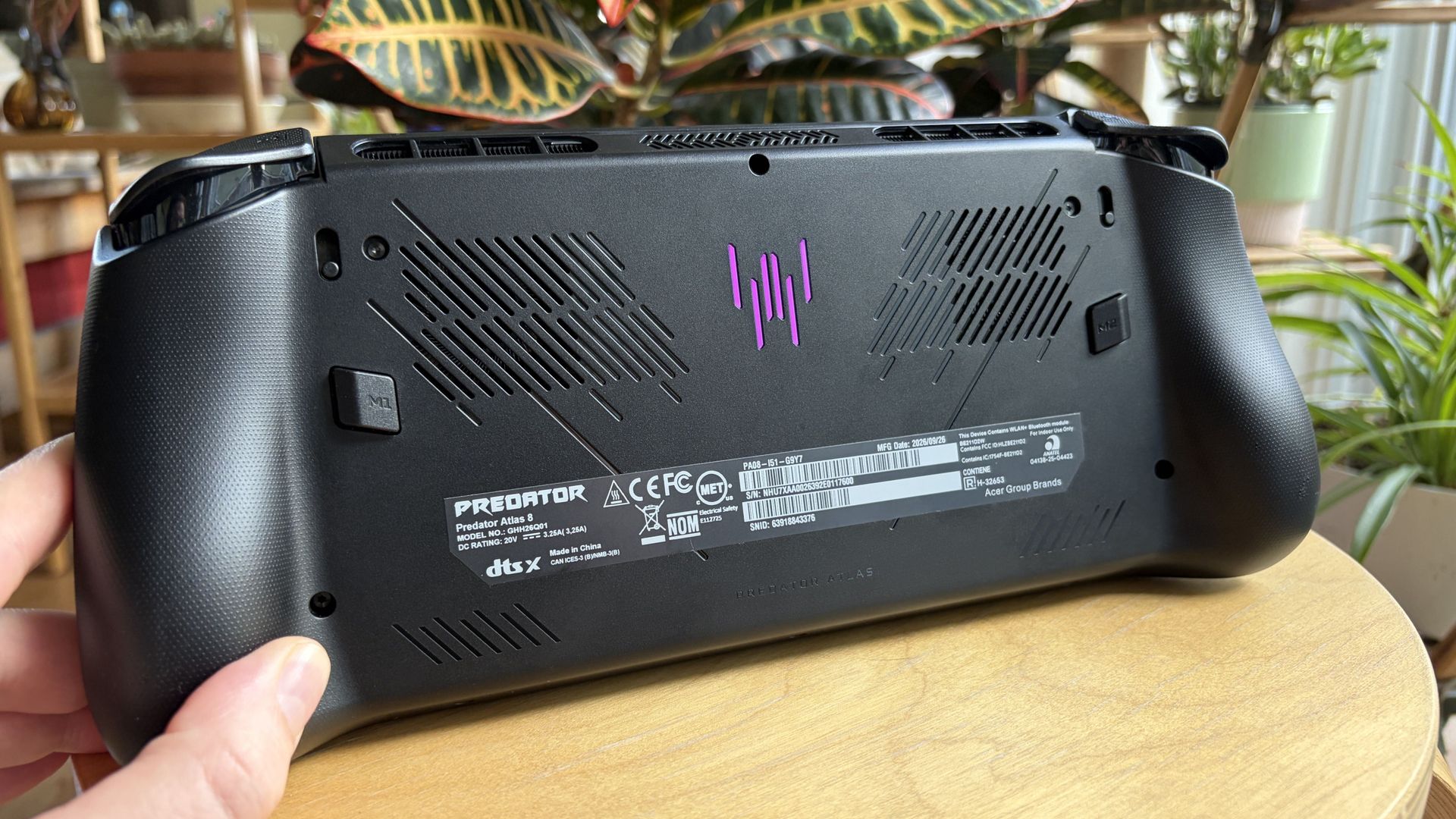
The Atlas 8's rear vents feed the cooling system with fresh air. (Image credit: Future)

I mostly focused on gaming performance (no kidding) for the Predator Atlas 8, but rest assured that Intel's Arc G3 Extreme chip is also quite adept at productivity work should you want to get some dual-use going on the road.

Rubino, in his MSI Claw 8 EX AI+ review, goes into a lot more depth about Intel's productivity power, and I recommend reading it if you're interested in more than just fun.

The Arc B390 GPU — with 12 Xe cores, a 2.3GHz frequency, and full access to the latest XeSS 3 upscaling suite with multi-frame generation — is where Intel's dominance becomes obvious.

As you can see in the graphs below, the Arc G3 Extreme inside the Predator Atlas 8 easily beats the Ryzen Z2 Extreme in the synthetic 3DMark Time Spy benchmark. It's not even close. The SSD is also nice and speedy.

3DMark Time Spy benchmark graph
Future
CrystalDiskMark results for Acer's Predator Atlas 8.
Future

MSI's Claw 8 EX AI+ is still in the lead in these tests, but the Atlas 8 is close enough that you won't likely notice much difference in everyday play. Here's a quick rundown of how the Atlas 8 stacks up to the MSI handheld.

Acer Predator Atlas 8

MSI Claw 8 EX AI+

3DMark Fire Strike

12,935

13,340 ^

3DMark Time Spy

6,413

6,726 ^

CrystalDiskMark (Read)

6,598 MB/s

6,997 MB/s ^

3DMark Gaming Battery

2:00 (Quiet 25W)

3:23 (Endurance 15W)

For actual games, I spent a lot of time in Cyberpunk 2077, WoW: Forever, and a handful of lighter indie titles.

Cyberpunk 2077 was certainly the most impressive run. With basic ray tracing and native XeSS 2 frame generation enabled, the in-game benchmark spit out a 99.4 FPS average result while running on battery power and in balanced power mode.

The handheld itself remains at a comfortable temperature, hot air is exhausted away from you, and the dual fans don't get too loud even under full load.

That's extremely promising, though battery life slips quickly when you have settings cranked up (more on that below).

Testing again on AC power with the Turbo performance mode, the in-game benchmark hit a 105 FPS average. Again, a very good result in a notoriously demanding game, and it shows how well the system runs on battery.

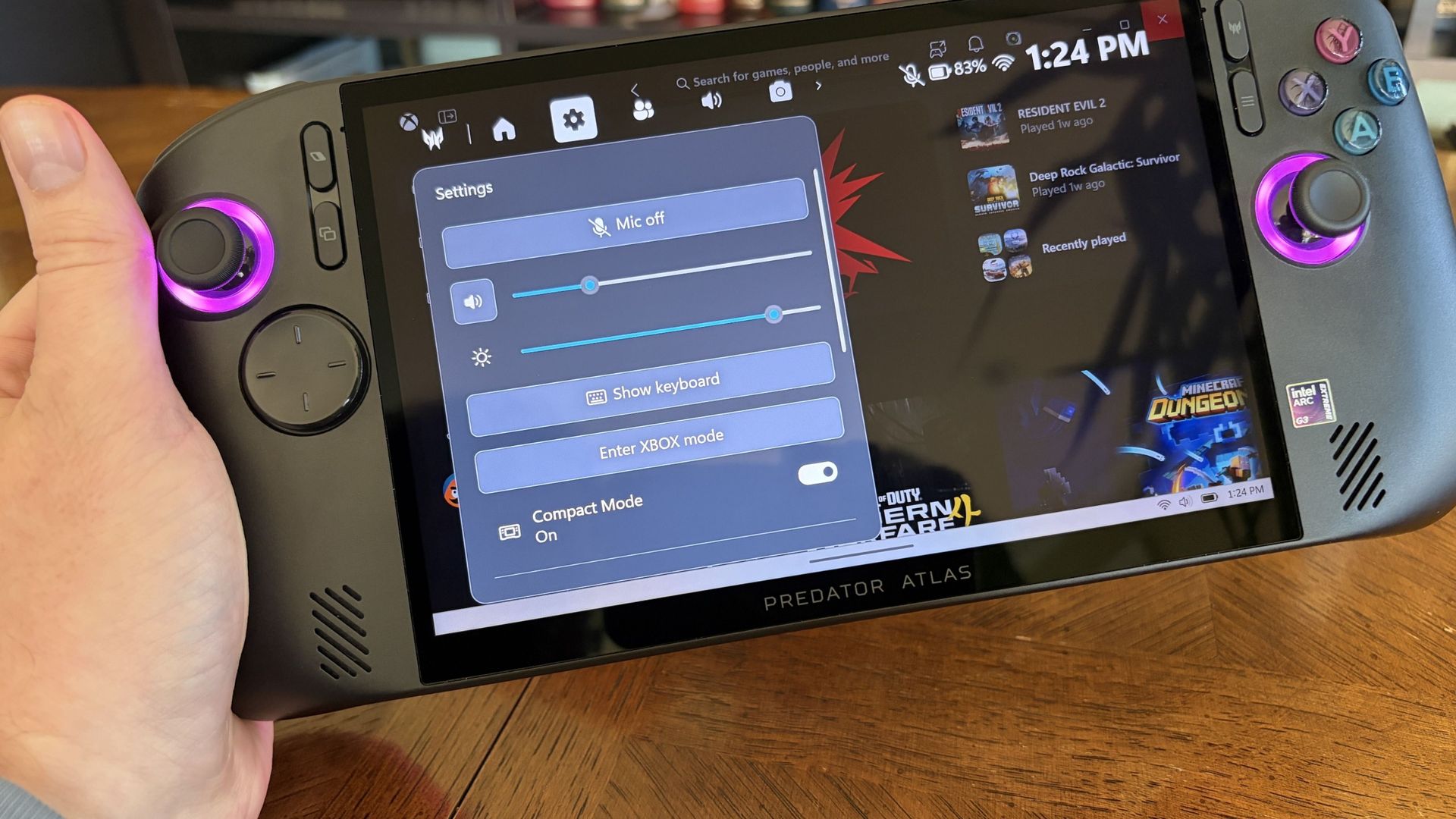
Hands hold a handheld Acer Predator Atlas 8 gaming PC with glowing blue controls and a settings menu on screen, against leafy plants; the scene feels calm and tech-focused.

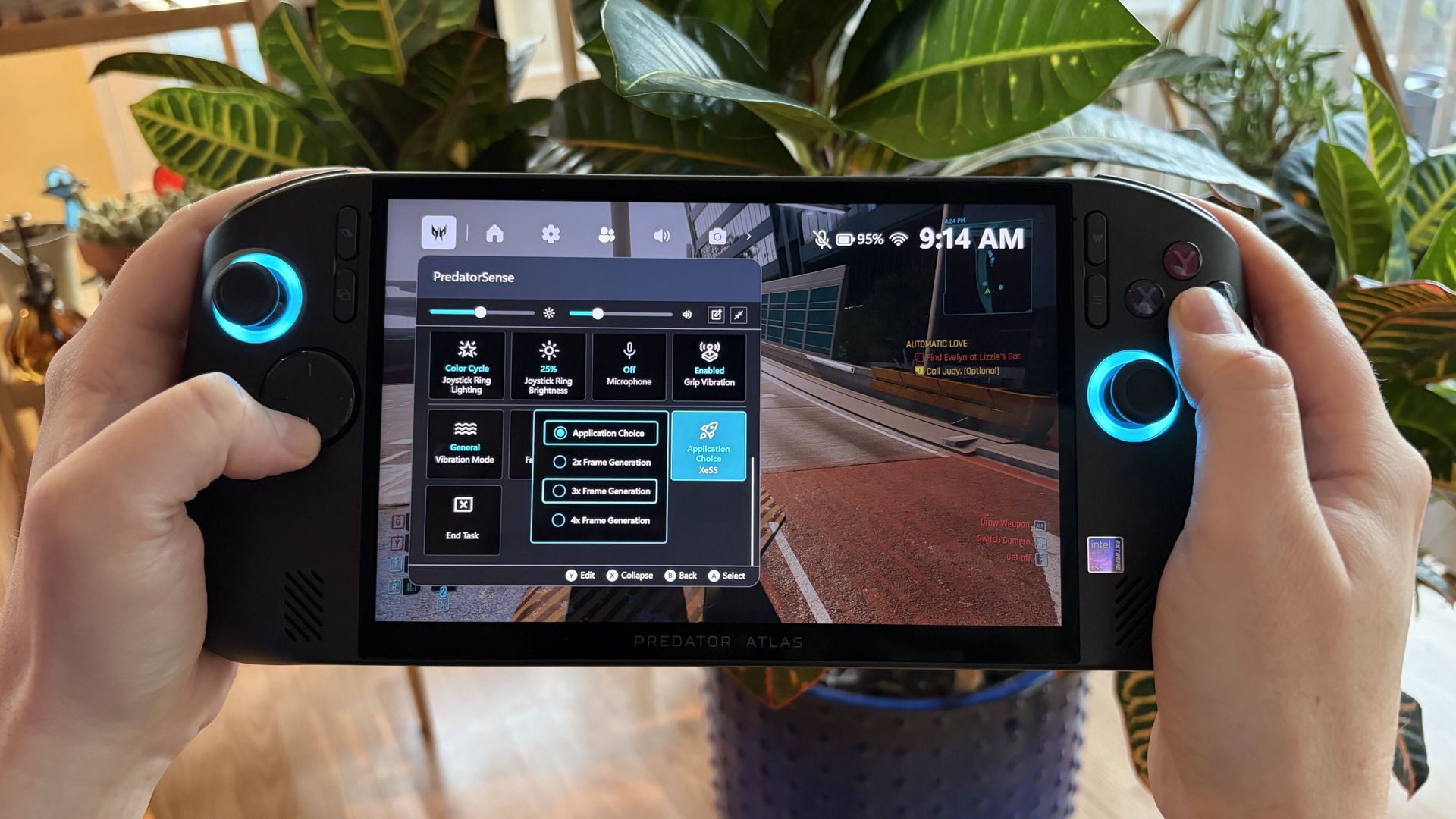
Acer's PredatorSense app lets you manually use up to 4x XeSS multi frame generation. (Image credit: Future)

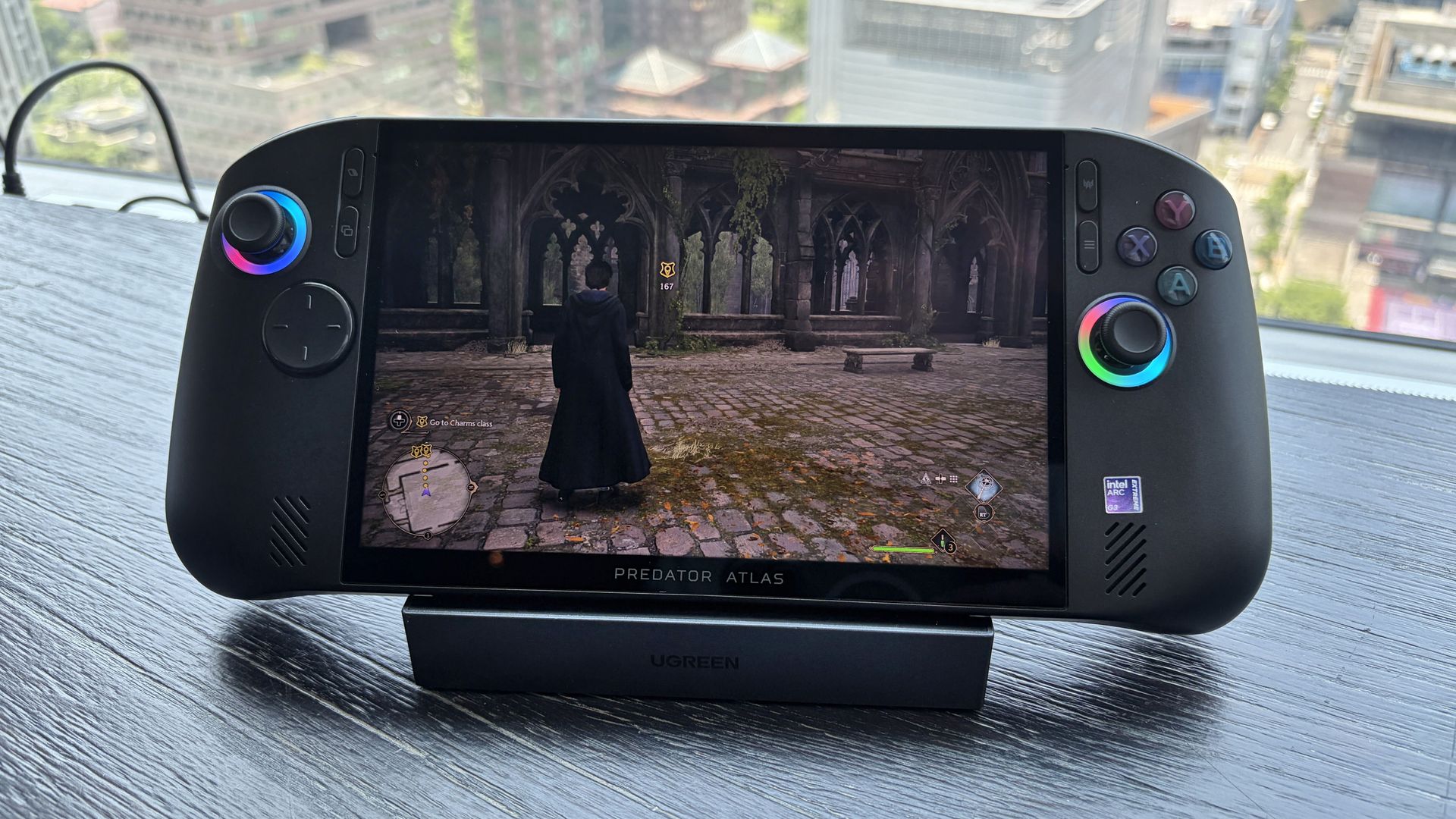
In Acer's PredatorSense software, there's an option to force the latest XeSS 3 multi-frame gen (up to 4x) despite games not having official support. You can bet I cranked it up to the max for Cyberpunk, which hit 167 FPS.

Native XeSS 3.0 multi-frame gen (and other) improvements are seen in games like LEGO Batman: The Legacy of the Dark Knight, which the Atlas 8 can reliably push into high triple-digit frame rates without forcing anything.

Does the Acer Predator Atlas 8 overheat?

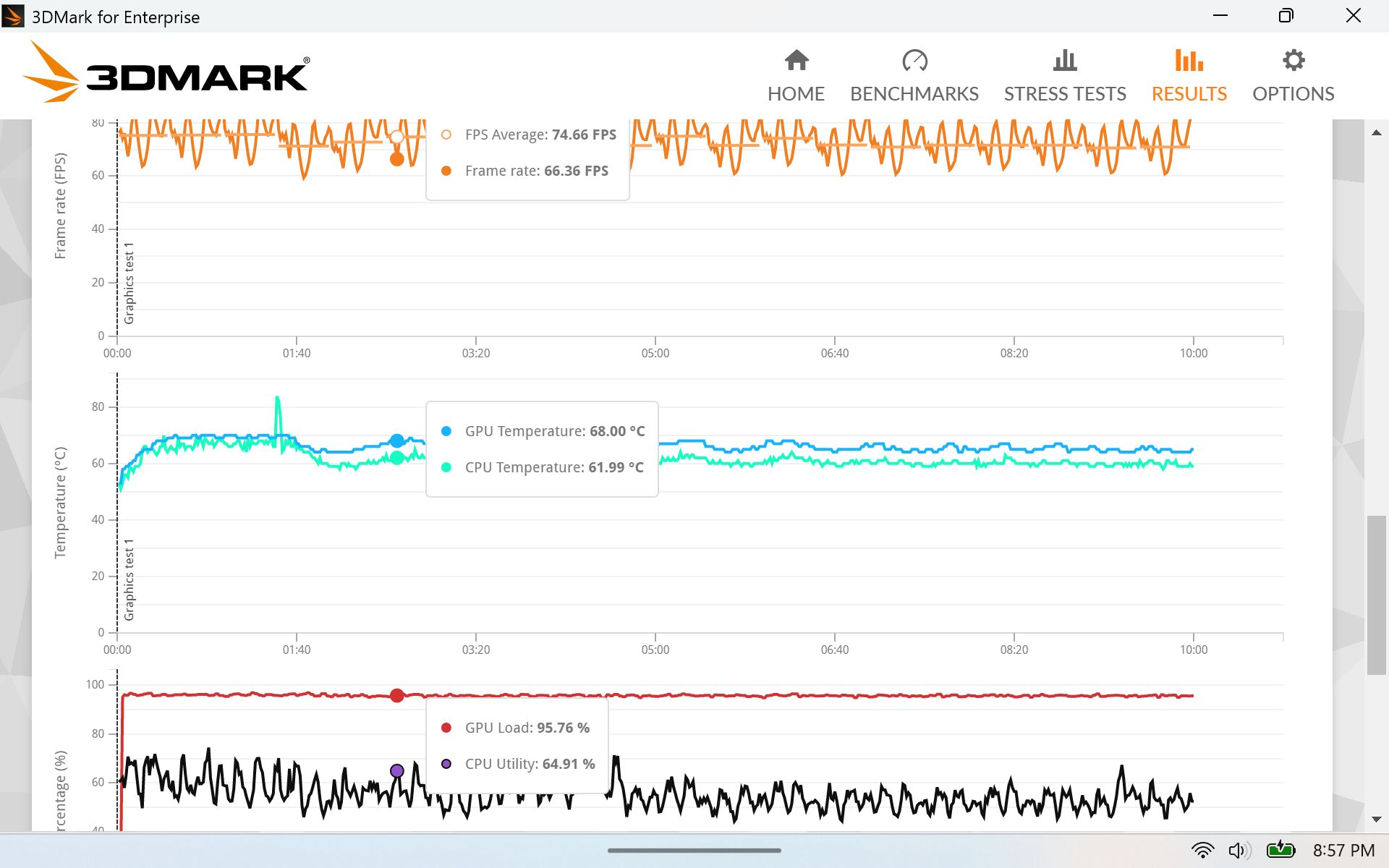
3DMark stress test results for the Acer Predator Atlas 8.

(Image credit: Future)

I ran a stress test on the system to see if I could make it overheat. It didn't come close. CPU and GPU temperatures leveled off right around 62°C and 68°C, respectively, for the duration of the test, without making the fans go crazy.

Acer did a great job on the thermals. The handheld itself remains at a comfortable temperature, hot air is exhausted away from you, and the dual fans don't get too loud even under full load.

My FLIR camera is out of order, but there wouldn't be any egregious hot spots to see, anyway.

Acer's software and Windows sometimes gets in the way

A hand holds a black Acer Predator Atlas 8 handheld gaming PC over a wooden table; its settings panel overlays a game library, with purple-lit joysticks.

Acer's onboard software has a ton of options, but it's not always ready to go. (Image credit: Future)

The overall Predator Atlas 8 experience is positive, but as you'll find with most handhelds running Windows 11 and custom software, there are some quirks.

PredatorSense is the main Acer app underpinning the handheld. With one click of a button, it opens with a wide range of settings for performance, audio, cooling, battery life; basically, all you need to tweak your handheld to your liking.

Is it perfect? Absolutely not. Sometimes the app refused to open, barring a restart. Other times the RGB lighting around the joysticks would turn off when other settings were adjusted.

I'm really hoping some of these bugs get ironed out by Acer

Other times, the settings sliders would interfere with Windows, and I couldn't make the adjustments I wanted. I'm really hoping some of these bugs get ironed out by Acer, and of course, Windows 11 could always be better for gamers.

What I can say is that I'm really enjoying Xbox mode. It's super smooth and makes getting around your libraries a breeze. Is it as good as the overall experience with SteamOS? No, at least not yet.

Should you skip the Predator Atlas 8 because of these bugs? Absolutely not; I think the benefits outweigh the downsides.

Battery life gets better when you adjust manually

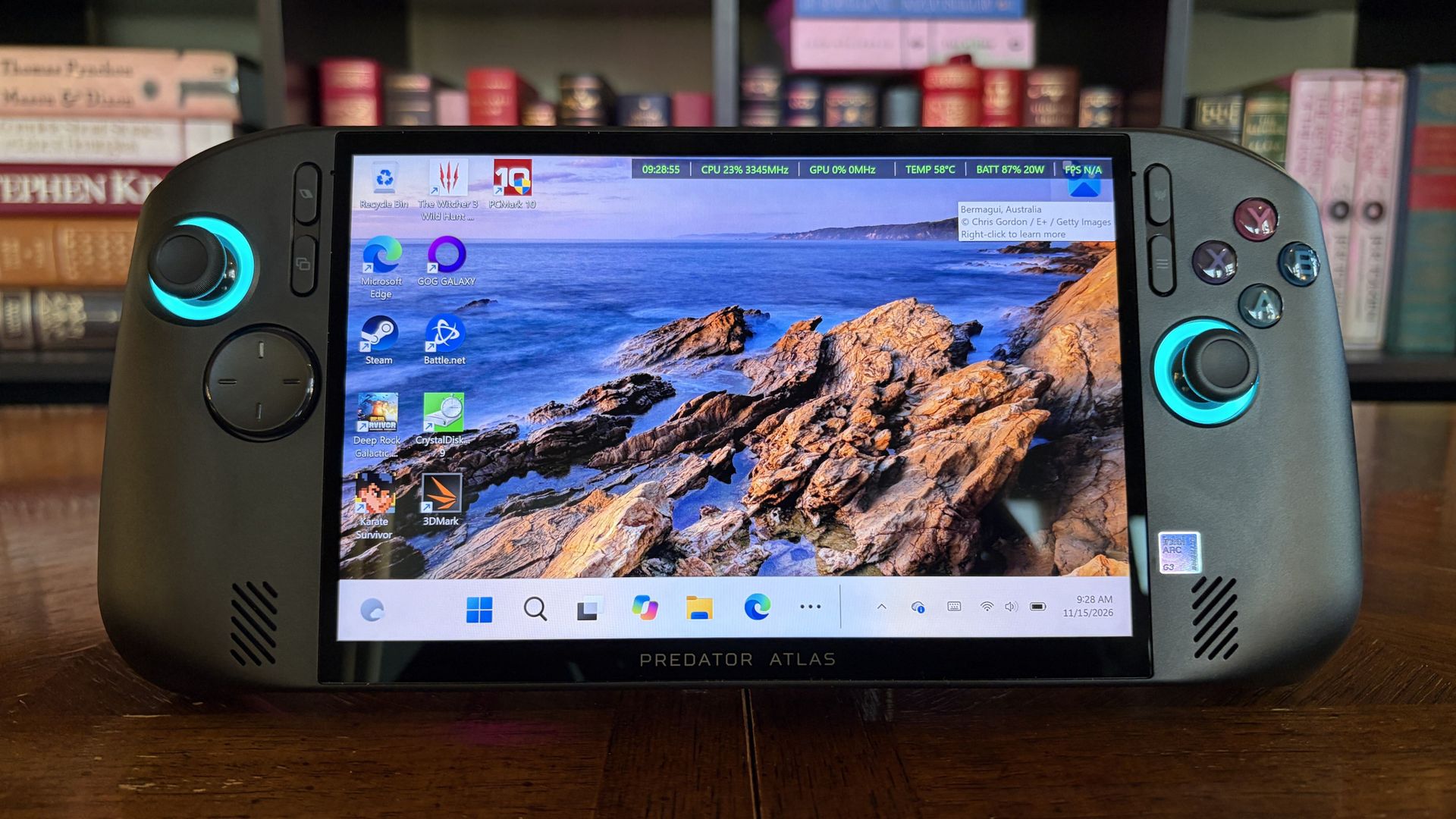
A black Acer Predator Atlas 8 handheld gaming PC with glowing turquoise controls displays a Windows desktop and rocky ocean wallpaper, posed before a bookshelf in a polished tech showcase.

The Atlas 8's battery life is respectable, especially if you manage settings manually. (Image credit: Future)

I'm attacking this section as if I just bought my first handheld and don't know anything about PL1 and PL2 system power. If that's you, this section is extra important.

Battery life is fairly consistent, if not exactly lengthy, when using Acer's presets. In the most efficient Quiet mode, it managed 2 hours in PCMark 10's Gaming rundown, which is rather demanding.

It's not a perfect way of measuring what you'll actually get in real-world usage, but it's a good way to compare systems. The Claw 8 EX AI+ hit 3 hours and 23 minutes in the same test with its Endurance preset mode.

I can get an hour and change of Cyberpunk 2077 with ray tracing enabled, or somewhere around four to five hours of indie gaming on a charge.

Considering both devices use an 80Wh battery and the same chip, I'm pointing at how the TDP is handled. MSI's Endurance mode drops to 15W, whereas Acer's Quiet mode drops to 25W. That's a 10W difference, and it no doubt accounts for the difference in runtimes.

The good news is that Acer's manual mode lets you set PL1 and PL2 limits. PL1 runs between 10W and 40W, PL2 between 15W and 60W. The downside is that many gamers might not realize they're losing out on battery life by using the presets.

Battery life overall is perfectly fine. I can get an hour and change of Cyberpunk 2077 with ray tracing enabled, or somewhere around four to five hours of indie gaming on a charge. Setting up lower manual power limits only improves those numbers.

Should you buy Acer's Predator Atlas 8?

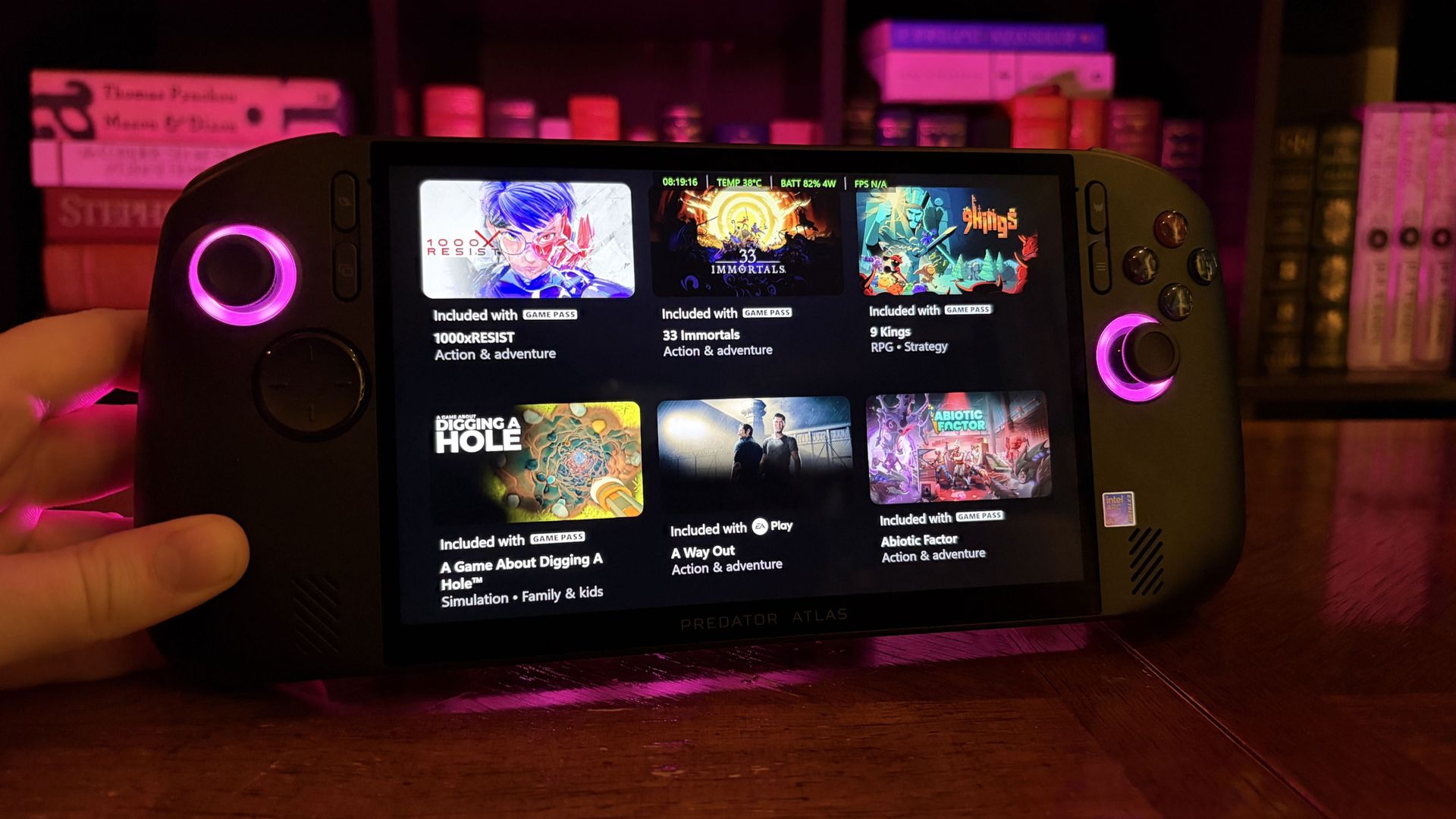
An Acer Predator Atlas 8 handheld gaming PC with glowing pink controls displays a grid of games on a wooden desk, with colorful game boxes behind it in a cozy, neon-lit setting.

Acer's Predator Atlas 8, despite its flaws, is one of the top PC gaming handhelds you can buy right now. (Image credit: Future)

You should buy it if ...

✅ You want top-tier gaming handheld performance from Intel Arc G3 Extreme.

✅ You want to spend less for similar performance (compared to MSI's Claw 8 EX AI+).

You should not buy it if ...

❌ You prefer an OLED display no matter what.

❌ You have deeper pockets and like what MSI's Claw 8 EX AI+ has to offer.

The big story here is that Intel's Arc G3 Extreme chip is the real deal. If you want the best gaming handheld performance out there right now, it really is the only option.

The hardware in which the chip lives gives you some flexibility. There's the MSI Claw 8 EX AI+ at $1,799, the OneXPlayer 3 at $1,699, or the Acer Predator Atlas 8 at $1,449.

I know which one I'm buying in this memory-strapped economy: the most affordable. That's the Atlas 8 by a significant margin, even with its recent price hike.

No, Acer's handheld isn't perfect. But its blemishes are not enough to stop me from having fun. It's fast, it's quiet, and it's cool. I was able to play everything I wanted to at a higher quality than expected, and isn't that what really matters?

Are there any other tests you'd like me to run on the Predator Atlas 8? Let me know in the comments section below! And keep an eye out for a separate Predator Atlas 8 vs. MSI Claw 8 EX AI+ comparison, in which I delve into the matchup in more detail, coming this week.

Acer Predator Atlas 8 against a white background.Windows Central

Arc G3 Extreme
Acer
Predator Atlas 8

Acer's Predator Atlas 8 undercuts the other Intel Arc G3 Extreme handhelds by a fair margin, making it an attractive choice for PC gamers who want industry-leading performance for less. It's not a perfect device, but its strengths far outweigh its weaknesses.

Click to join us on r/WindowsCentral

Join us on Reddit at r/WindowsCentral to share your insights and discuss our latest news, reviews, and more.

NVIDIA's future is uncertain after CEO Jensen Huang's departure

It's official: NVIDIA's co-founder Jensen Huang has resigned as CEO this morning in the wake of personal scandals involving adultery and alleged espionage. Huang was NVIDIA's only CEO in the company's history, which began in 1993.

NVIDIA CFO Colette Kress is taking over the company as interim CEO while the board searches for a full-time replacement.

Yes, it's an interim position, but seeing a finance executive come in at a time when NVIDIA is already edging out its GeForce consumers is a tad worrisome.

The gaming share of NVIDIA's revenue has been on the decline for years, and data centers now make up the bulk. For example, NVIDIA's latest Q2 results showed $89 billion from data centers and just $7.2 billion from edge computing. That's not even close.

Will an interim CEO change anything? Probably not. Kress, after all, has been with NVIDIA since 2013, before any of the major AI rush came about. But what comes next after Huang and his interim replacement? Someone else who cares less about GeForce and more about AI?

This will not make GPUs any cheaper

Kremsi2711, r/pcmasterrace

It's hard to say. Plenty of people are already wondering the same thing: "Jensen was one of three of Nvidia's founders. Him leaving is kind of catastrophic for the leadership structure, since he never had an heir apparent for the position (allegedly intentional on his part)."

Comment
 from r/pcmasterrace

While we're all waiting to see what NVIDIA does next — New CEO? Canceled CES 2027 keynote? — I want to know how my Windows Central readers are feeling about the situation.

Do you think NVIDIA's consumer focus will narrow even more without Huang at the helm? What about the opposite? Do you think there's a lot more to this story that we're not yet hearing?

Let me know in the comments section below!

Click to join us on r/WindowsCentral

Join us on Reddit at r/WindowsCentral to share your insights and discuss our latest news, reviews, and more.
I’m skeptical of Apex’s DLSS-beating claims, but this free tool deserves a look

If one thing has become clear to me over the years, it's that most PC gamers are not using the latest hardware. Steam's most recent monthly hardware survey, for example, has NVIDIA's RTX 3060 as the most popular option, with the RTX 3050 only four places behind.

Heck, even 2019's GTX 1650 is still holding strong in the top ten most used cards, despite it not supporting the industry-leading DLSS upscaling. For those who (understandably) haven't upgraded to the latest hardware, there's a new hope on the horizon.

Apex Compute recently took to X to show off its Apex Neural Rendering (ANR) tech, which the company promises can deliver "up to 2.4x faster performance and higher quality rendering than NVIDIA DLSS."

Introducing Apex Neural Rendering (ANR), our cross-platform Super Resolution, Ray Reconstruction, and Frame Generation technology, delivering up to 2.4× faster performance and higher quality rendering than NVIDIA DLSS.ANR rebuilds neural rendering around a new architecture that outperforms current state of the art models.Works on all GPU vendors.- NVIDIA: GeForce RTX 20, 30, 40, and 50 series, plus GTX 16 series- AMD: Radeon RX 5000, 6000, 7000, and 9000 series, plus Steam Deck- Intel: Arc A and B seriesFrame Generation available now:https://t.co/kMGkNJzG6XOur Super Resolution and Ray Reconstruction models are currently in training. Coming soon!November 11, 2026

That's a massive claim, and I'll get to it in a moment.

What's most exciting is that Apex has designed ANR to be practically GPU-agnostic. Apex says ANR runs on the NVIDIA RTX 20, 30, 40, and 50 series, with the added bonus of GTX 16-series cards.

Support for AMD Radeon cards includes RX 5000, 6000, 7000, and 9000, plus it works on the Steam Deck's custom AMD chip. And even Intel hasn't been left behind, with support for Arc A- and B-series cards.

Digging into Apex Compute's Apex Neural Rendering tech

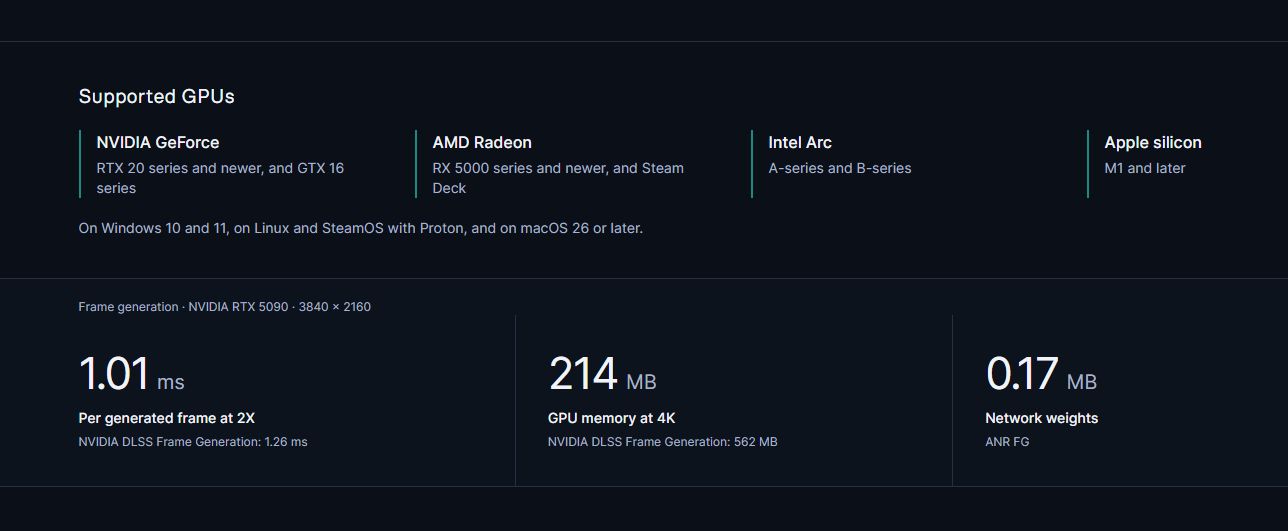
Dark benchmark infographic lists supported NVIDIA, AMD, Intel, and Apple GPUs, with metrics for frame generation latency, 4K memory use, and network weights.

A quick rundown of ANR's performance and compatibility. (Image credit: Apex Compute)

ANR is being billed as a three-pronged approach to upscaling, including frame generation, super resolution, and ray reconstruction. It's a project that's still in progress, and only frame generation is currently available. The other two features are "coming soon."

What we have so far from Apex indeed looks very promising. It claims that, when tested on an RTX 5090 at a 4K resolution, ANR can deliver frames faster and use less memory than DLSS.

According to Apex's testing, at 2X frame gen, ANR can pump out extra frames at 1.01ms, while DLSS takes 1.26ms. At 4X frame gen, ANR takes 0.61ms while DLSS takes 0.82ms. Overall memory usage falls from 562MB in DLSS to 214MB in ANR.

Why I'm a bit skeptical about ANR's abilities

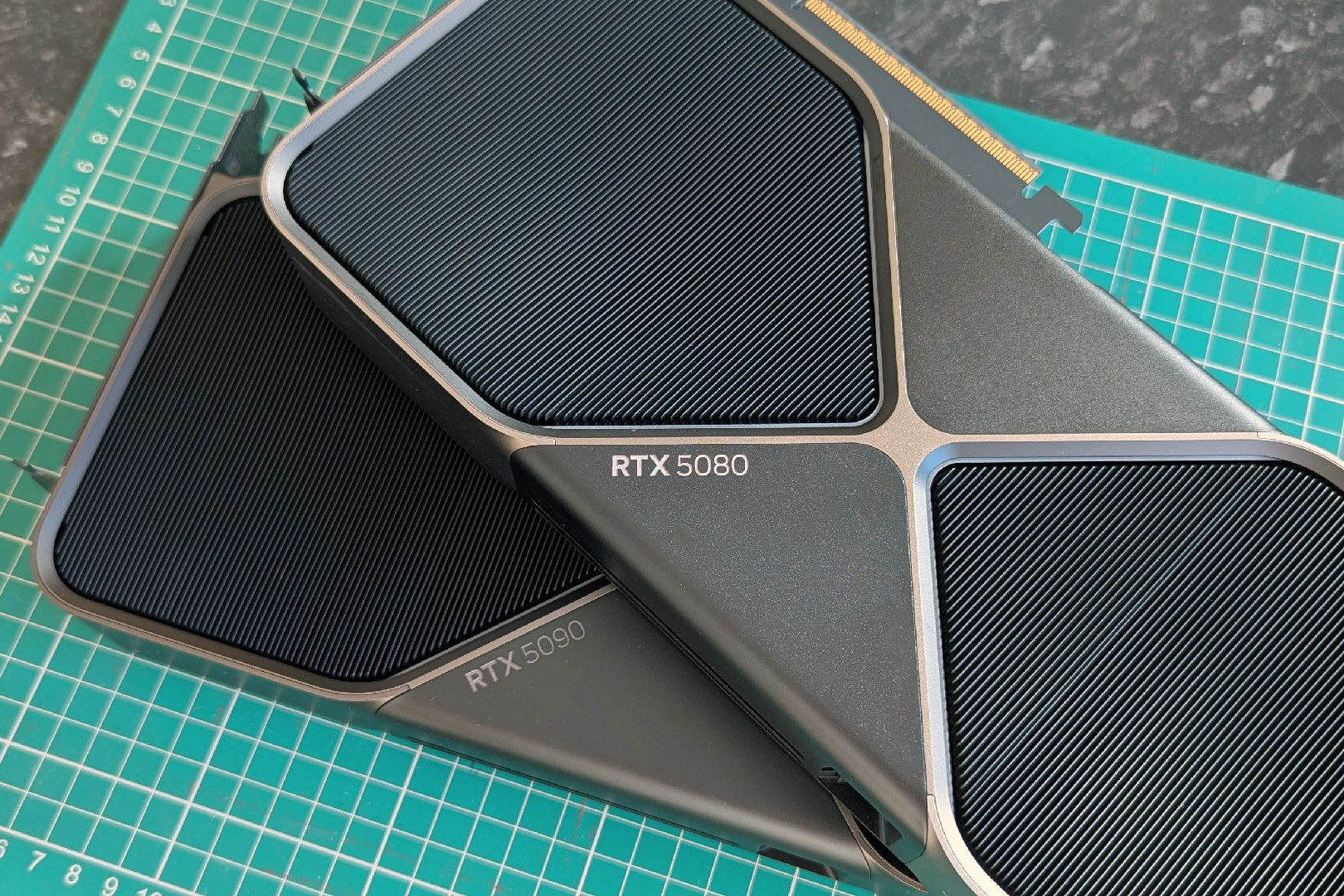
NVIDIA GeForce RTX 5080 Founders Edition and RTX 5090 Founders Edition graphics cards stacked together

ANR's testing was performed on an RTX 5090. I want to see results from a GTX 1650. (Image credit: Windows Central | Ben Wilson)

I'm not entirely sure if Apex's claims of 2.4x faster performance compared to DLSS actually line up.

I haven't tested it yet on my own gaming PC, and Apex Compute's own data on its site doesn't quite line up. Perhaps the 2.4x claim is for one of the features arriving later.

There's also the matter of the NVIDIA tests being performed on an RTX 5090, a GPU that you can't buy anymore and that is reserved for a small group of enthusiasts and specialists. It would be a lot more impressive to see how ANR runs on, say, an RTX 3060.

The Last of Us Part II Remastered (Only Generated Frames Shown) https://t.co/wJXTrt21NmNovember 11, 2026

What I can say is that the comparison samples for ANR vs. DLSS available on Apex Compute's site are impressive.

Sure, there might be some cherry-picking going on to create the sliding comparisons, but what's shown certainly suggests that ANR is delivering higher-quality results than DLSS. I see less ghosting, added sharpness, and overall more clarity.

Competition from Apex Compute's ANR is only a good thing


Apex Compute's ANR is available to download for free from GitHub. That means we'll probably soon see a lot of third-party tests of its actual abilities.

I'll be keeping an eye on how ANR performs on older hardware, how well it works with a wider range of games, and whether the upcoming ray reconstruction and super resolution features actually work as intended.

In any case, competition for the industry-leading DLSS is always nice to have, especially considering how NVIDIA likes to keep it walled off for its own hardware. The fact that it's coming to old GPUs at a time when no one wants to buy new hardware is also huge.

ANR looks very promising. Is it a DLSS killer? Maybe not, especially with how quickly NVIDIA is evolving the tech. But if you're still using an older GPU that doesn't natively get these features, ANR is definitely worth a look.

Click to join us on r/WindowsCentral

Join us on Reddit at r/WindowsCentral to share your insights and discuss our latest news, reviews, and more.
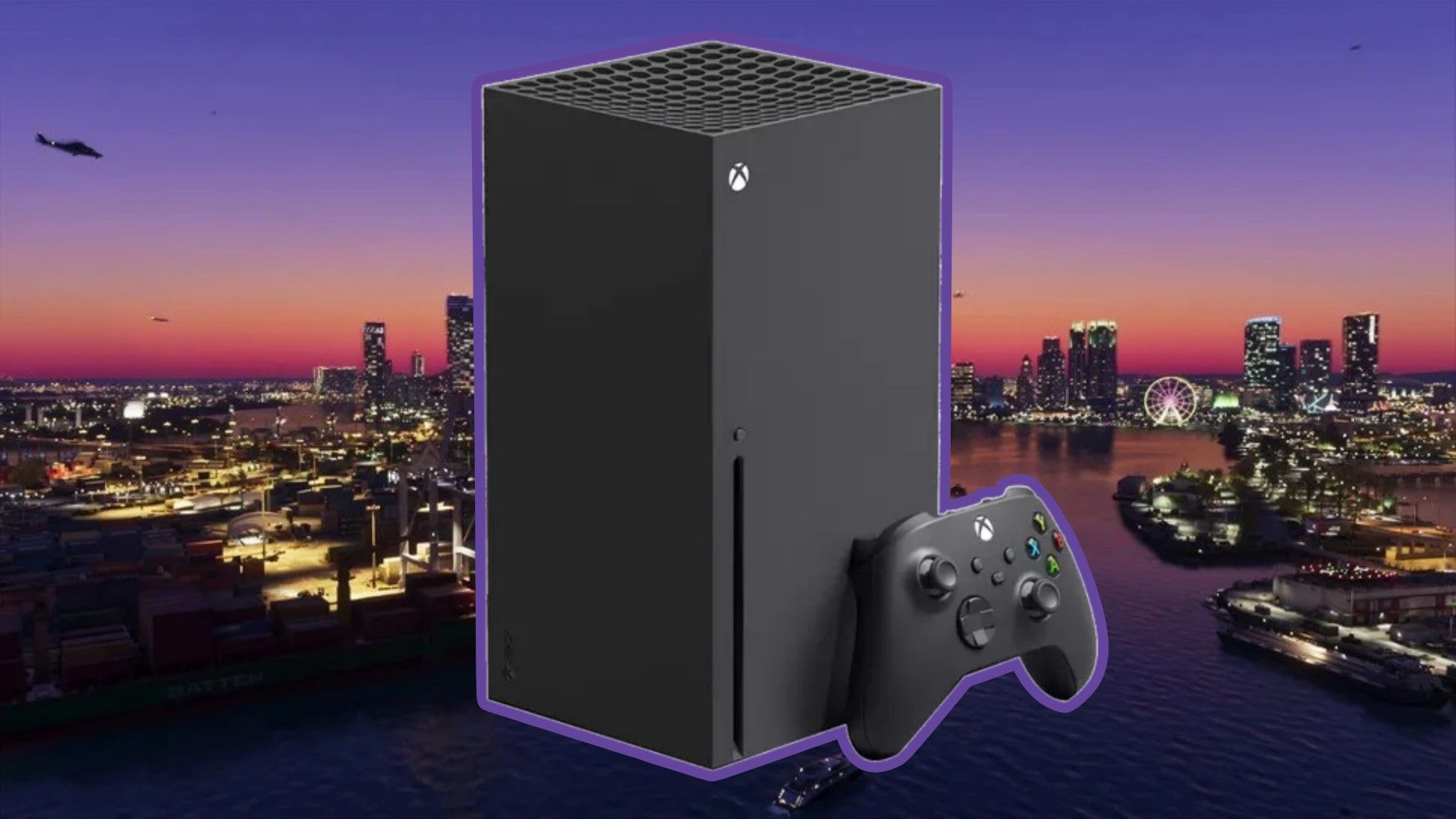
GTA 6’s Xbox files hint at FSR 4.1, and I’m betting it arrives after launch

Dataminers have been busy at work snooping through the Xbox's Grand Theft Auto 6 preload files, and two recent discoveries are grounds for a bit of performance optimism.

Library files named amd_fidelityfx_loader_xbox.dll and amd_fidelityfx_upscaler_xbox.dll are both present in the package snooped by Tex2, who posted their findings on X.

These names match the terms found in Microsoft's FSR 4.1 GDK sample that was published last week, as pointed out by blue nugroho and Y1ng.

thanks to @Y1ng5dvv that find the equivalent dll on FSR 4.12 doc, possibly hinted that GTA VI indeed already ready with FSR 4.12 👀👀👀👀 https://t.co/Xo9sgMTltbNovember 10, 2026

While this certainly doesn't mean that AMD's FSR 4.1 is a lock for GTA 6 when it launches — or thereafter — it's good to know that there's at least the possibility of having the latest upscaling tech on board.

What is AMD FSR 4.1?

FSR 4 was a major update that moved AMD's upscaling tech from manual to machine learning. Instead of using spatial and temporal algorithms, it now uses neural networks.

The results? A clearer image with less ghosting, shimmering, and artifacts at the cost of a small amount of GPU overhead.

Microsoft and AMD sent out FSR 4.1 for Xbox developers on November 5, roughly two weeks after it kicked off with beta drivers for the Xbox Ally handhelds.

Compared to competing methods like NVIDIA DLSS and Intel XeSS, AMD FSR is quickly catching up. I think most people hold DLSS as the benchmark for what can be done with AI upscaling, but AMD's broad compatibility can't be forgotten.

And for consoles, FSR is the only option there is, with the 4.1 version representing a significant upgrade over the FSR predecessors.

Why FSR 4.1 might not be in Xbox's GTA VI at launch

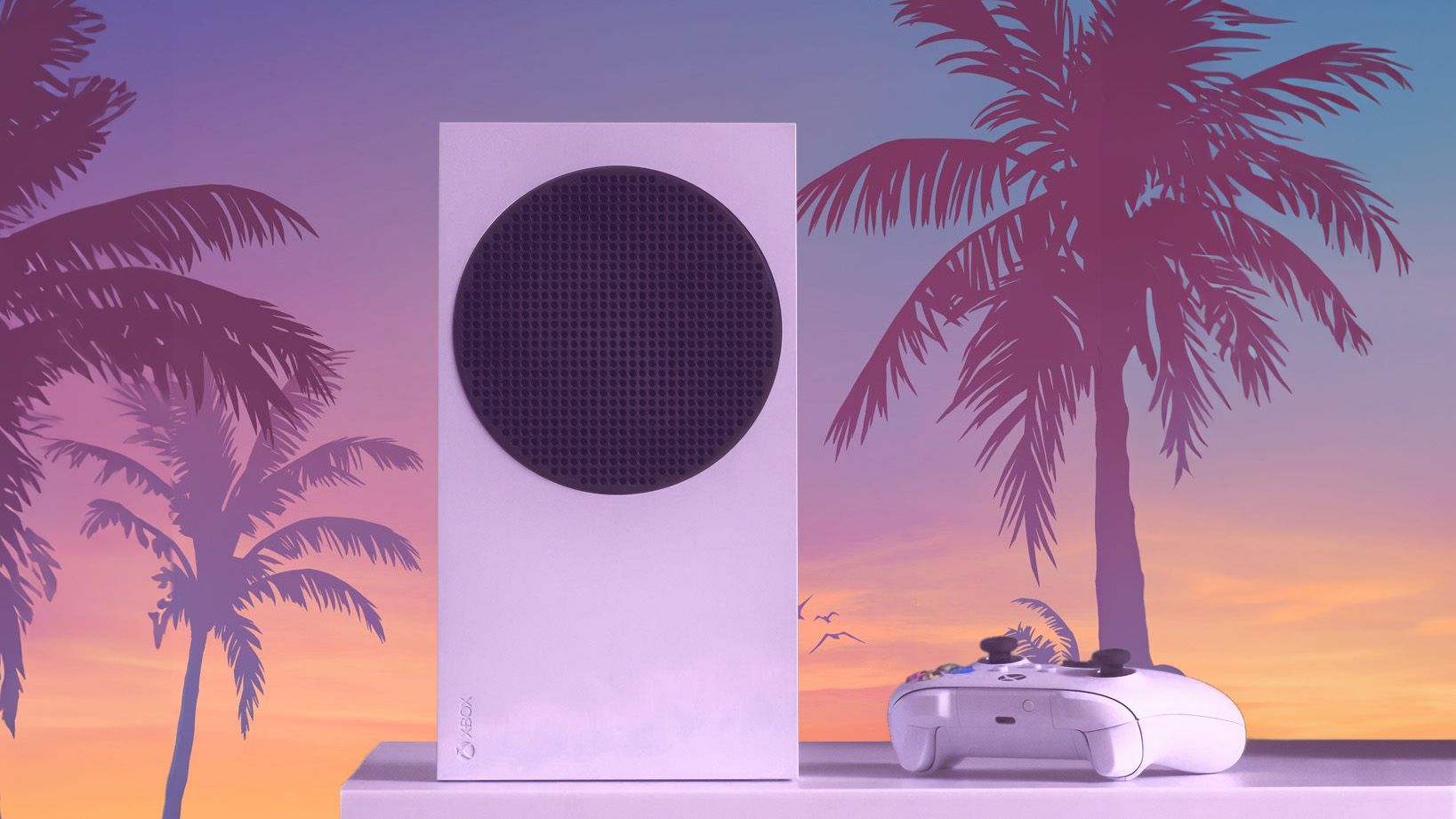
Xbox Series S GTA 6 styled

FSR 4.1 probably won't be in GTA VI at launch ... but there's always a chance. (Image credit: Windows Central)

I won't be so bold as to claim that FSR 4.1 will be in GTA 6 at launch. The datamined FSR 4.1 files make it a possibility, but their inclusion doesn't guarantee implementation.

Developer Rockstar has not said anything about it. And you'd think that Xbox would be quick to make an announcement to counter the recent PS5's PSSR upscaling news.

Timing is the biggest issue. Unless Rockstar had advance access to FSR 4.1 during development, configuring the upscaler for a game that's days away from a November 19 launch just doesn't seem realistic.

Will FSR 4.1 come to Grand Theft Auto 6 after launch?

GTA 6 art with Xbox logo in the background

There's no proof that FSR 4.1 will work in GTA VI at launch. (Image credit: Rockstar Games | Edit by: Windows Central)

I'm leaning more towards a post-launch FSR 4.1 integration for GTA 6 on Xbox. The groundwork seems to already be in place, and Rockstar surely has a strong incentive to make the game as playable as possible on aging hardware.

That's especially true for the Xbox Series S, where any help with rendering will go a long way. Waiting until after launch would mean less risk to the release build, and in this case, late is certainly better than never.

Bottom line? Don't panic if GTA 6 on Xbox doesn't get FSR 4.1 at launch. It was never a guarantee. It'll likely be a post-launch addition. After all, it's hard to imagine that a generational game like this wouldn't be the best place to show off the tech.

I'll be playing the game through Xbox Cloud Gaming and a dusty Xbox One at launch, and I'll make the switch to PC as soon as it arrives. Let me know in the comments below how you plan to play!

Click to join us on r/WindowsCentral

Join us on Reddit at r/WindowsCentral to share your insights and discuss our latest news, reviews, and more.
Valve's new Steam Deck Framerate update is a rare win for buyers

There's always been a significant gap between how Valve advertises Steam Deck compatibility and how games actually run on the hardware.

A certain title might have a Verified badge because everything works properly on the Deck, but when you start playing, you find that framerates really aren't what you imagined.

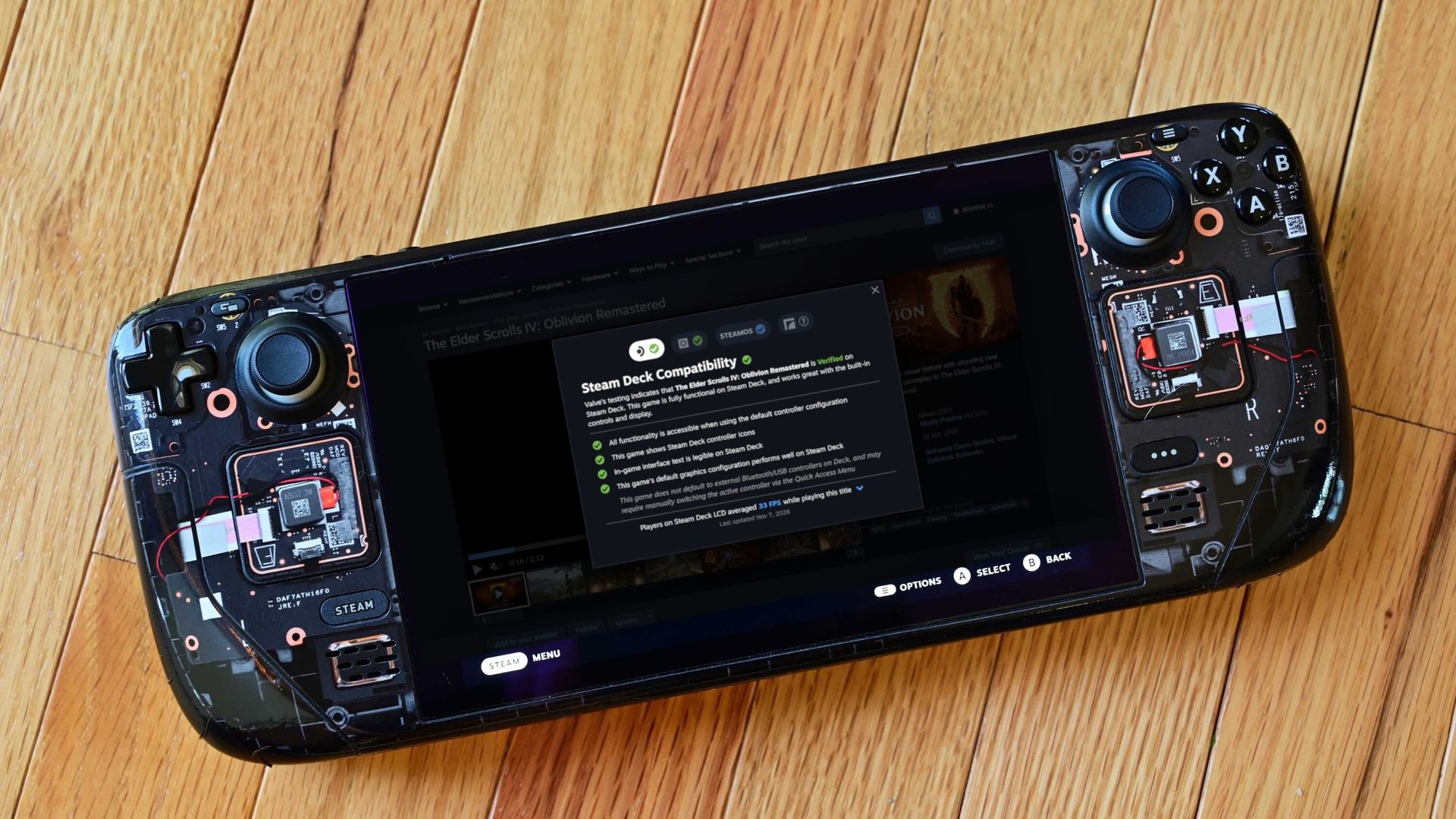
That's now been fixed in the latest Steam update, which adds average framerate data to the info panel.

This gives potential buyers a lot more data to work with, and it arrives for all games that have gone through the verification process (whether they come out the other side as Supported, Playable, or Unsupported).

Valve is getting its data from its own massive pool of users; don't worry, it's opt-in only. Not only does the new data give you a quick tally of the average FPS on the Steam Deck, but it also opens into a detailed chart with more info about averages.

A dark Steam store page for The Elder Scrolls IV: Oblivion Remastered is overlaid by a Steam Deck Compatibility pop-up with green checkmarks, conveying reassurance that the game works well on Deck.
The Elder Scrolls IV: Oblivion Remastered shows a 33FPS average on the Steam Deck LCD.Valve
A dark Steam page is dimmed behind a controller setup pop-up, showing green checkmarks, Steam Deck options, and a framerate distribution chart.
A chart provides extra data in terms of where framerates are landing.Valve

These graphs do a good job of relaying the highs and lows while gaming. If you see framerate distribution weighted heavily at, say, 90FPS with just a few blips on the lower framerates, it's safe to assume you'll mostly be playing at 90FPS.

But there is some nuance. As Valve points out, some graphs will show large gaps between weighted framerates. In The Elder Scrolls IV: Oblivion Remastered, for example, the chart falls heavily on 30FPS with a decent spike at 60FPS.

This is evident in many other games. Here's how Valve explains it:

These gaps are a consequence of VSync. When a game is not making framerate, VSync will synchronize the game's framerate to the display's refresh rate in order to avoid image tearing. This means that on a 90Hz display, if a game has a framerate of 75fps, VSync will force the game to present as many frames as it can at 90fps, and when it can't make that target it will drop to 45fps, and then recover to 90fps for the next frame. This produces a pattern that averages 75fps, e.g. 90 90 45 90 90 45. Another example would be some games set an internal frame limit to 60, so on Steam Deck OLED set to default (90) it will bounce between 90 and 45 to hit 60 FPS.

Valve

Valve also notes that the averages shown in this new info panel are derived only from data on Steam Decks set to their standard FPS limit. That's 60FPS for the original Steam Deck and 90FPS for the Steam Deck OLED.

Valve also does not account for tweaked in-game settings, as it thinks that "the framerate data consolidates around relatively narrow ranges."

Why only Steam Deck data when there are so many other gaming handhelds?

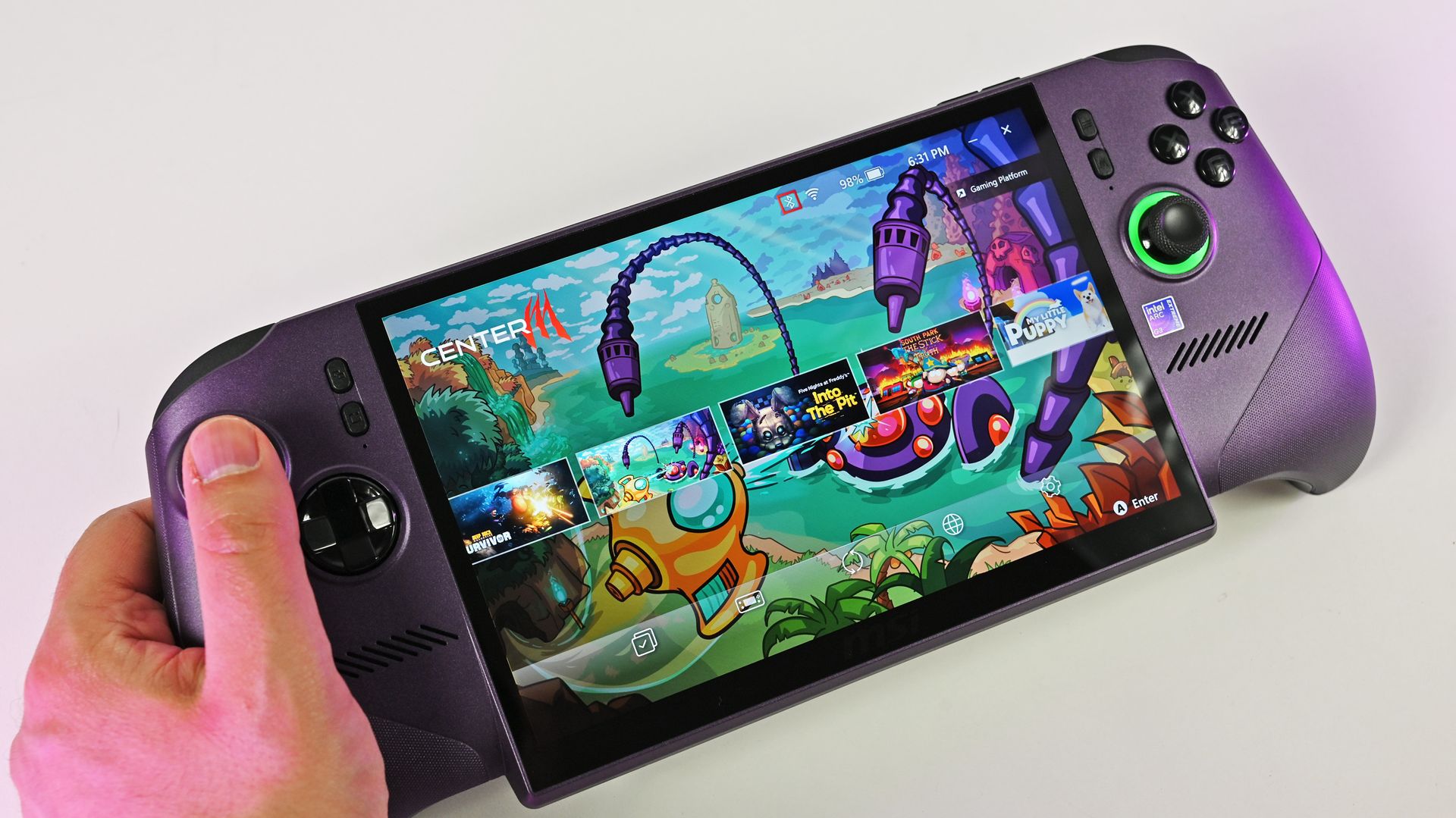
A person holds the metallic purple MSI Claw 8 EX AI+ handheld gaming PC, showcasing its large screen running the MSI Center M game launcher.

MSI's Claw 8 EX AI+ delivers shockingly good performance compared to the Steam Deck. (Image credit: Daniel Rubino)

On the note of the growing selection of gaming handhelds on the market, there's a big gap left to fill. Valve's new performance chart only accounts for Steam Deck users, leaving plenty of other handheld devices behind.

It makes sense that Valve is piloting the changes with its own Steam Deck, "because every device has the same hardware configuration." But Valve states that it's "starting with the Steam Deck," suggesting that there will be a larger initiative to rope in other handhelds at some point.

Valve's new performance chart exposes the Steam Deck's weaknesses

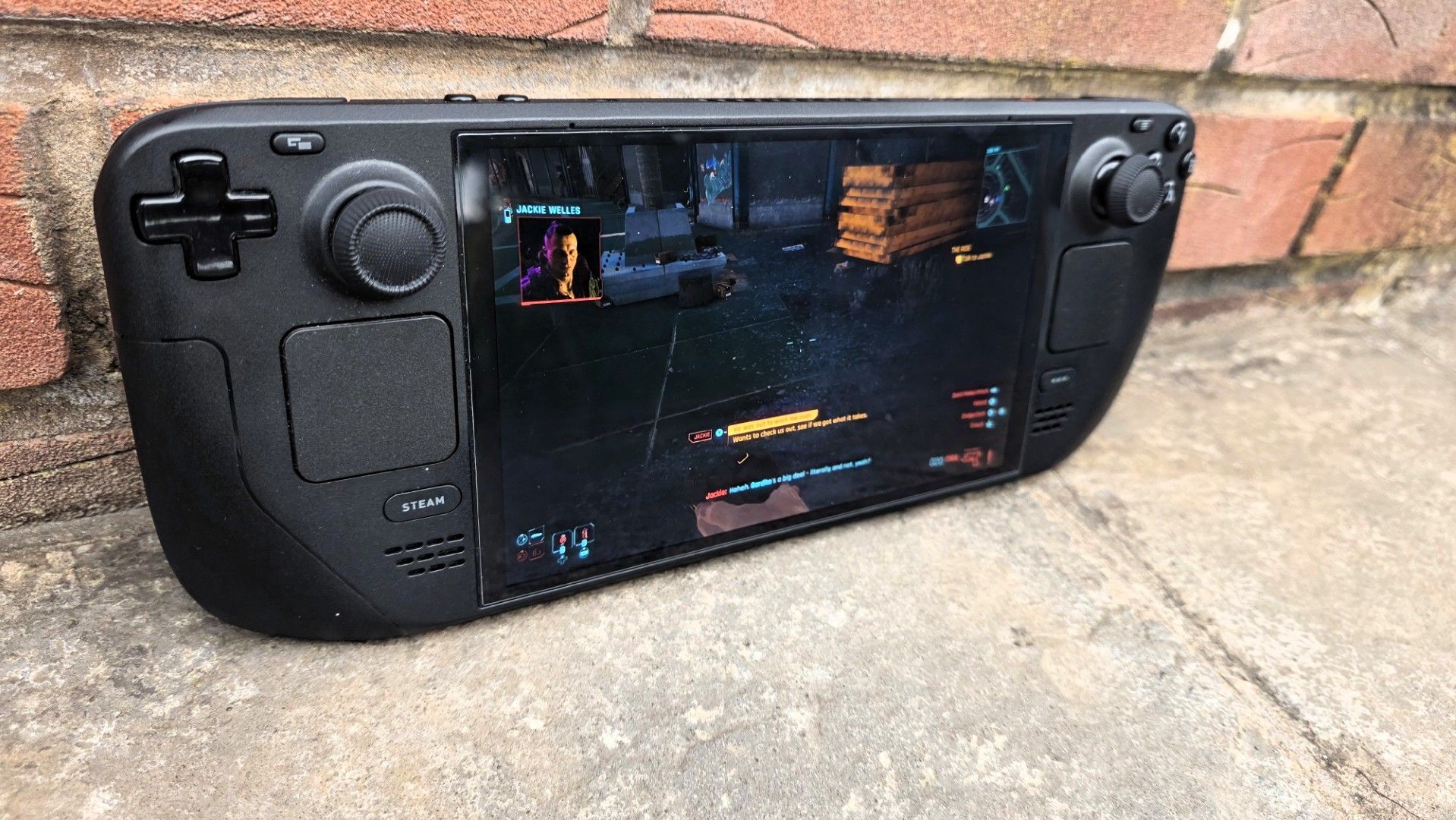
Steam Deck OLED playing Cyberpunk 2077

The Steam Deck is getting old, and performance might not be where you think it is. (Image credit: Jennifer Young - Windows Central)

I've been a Steam Deck owner for a few years, and although it'll always have a special place in my heart, it's certainly showing its age.

Compared to the latest handhelds, like the MSI Claw 8 EX AI+ and Acer Predator Atlas 8, the Steam Deck just doesn't have the same performance. I've been testing the latter for the past week, and it's shocking how much better it performs thanks to the onboard Intel Arc G3 Extreme chip.

As this power gap grows — barring a Steam Deck 2 from Valve — it's getting tougher to determine which games will actually run smoothly on the Deck. I've purchased games in the past that passed Valve's check, only to discover dreadful framerates.

That's the big thing here. My bar for "good framerates" is probably not the same as yours, and until now, you had to search third-party reviews and tests to see how a game was actually running on the Deck. Now, it's all available right on the store page.

No matter your opinion of Valve, this change is all about benefiting the consumer. That's becoming increasingly rare these days.

Click to join us on r/WindowsCentral

Join us on Reddit at r/WindowsCentral to share your insights and discuss our latest news, reviews, and more.
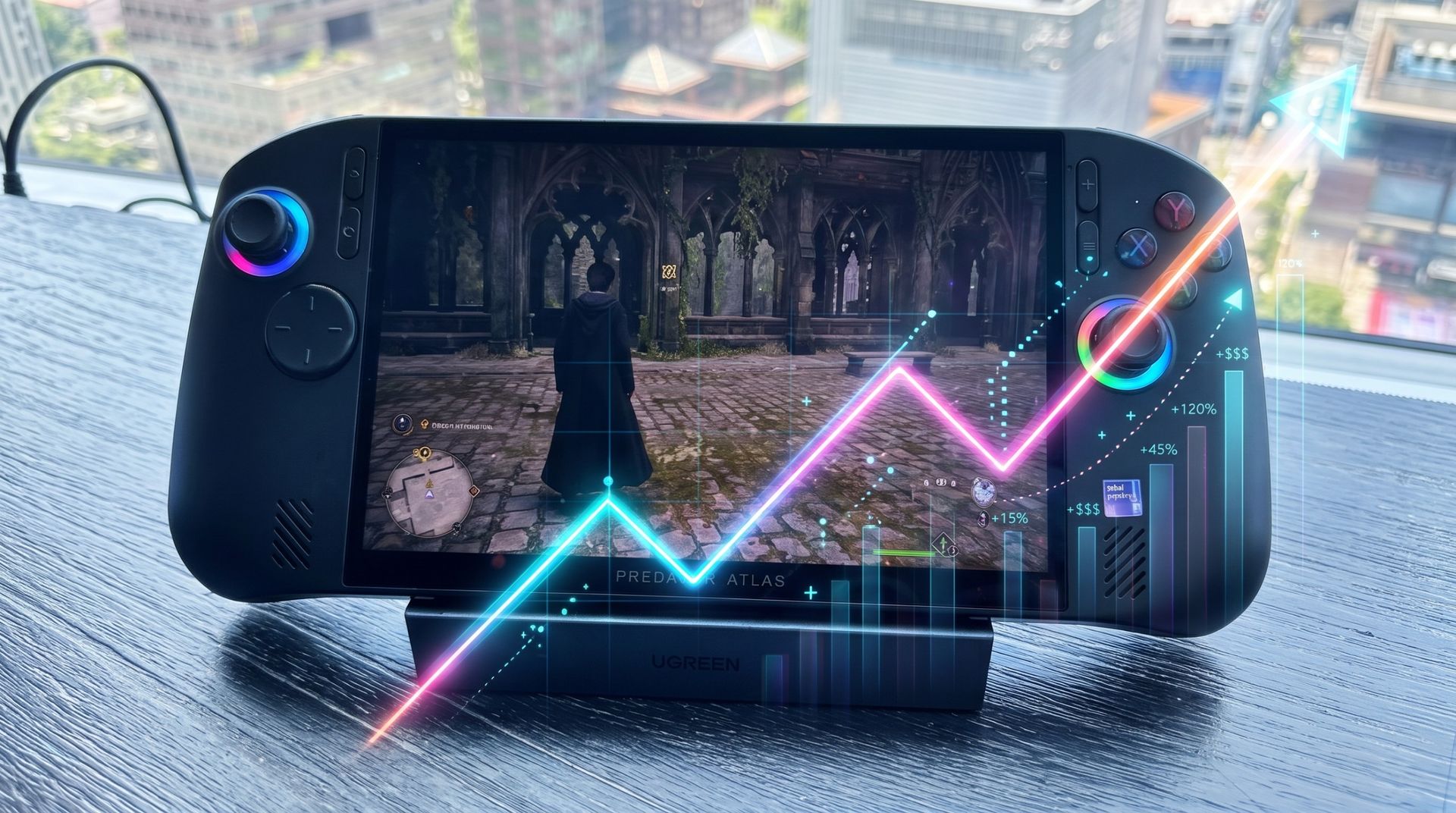
Acer's Predator Atlas 8 is $150 more expensive just 10 days after launch

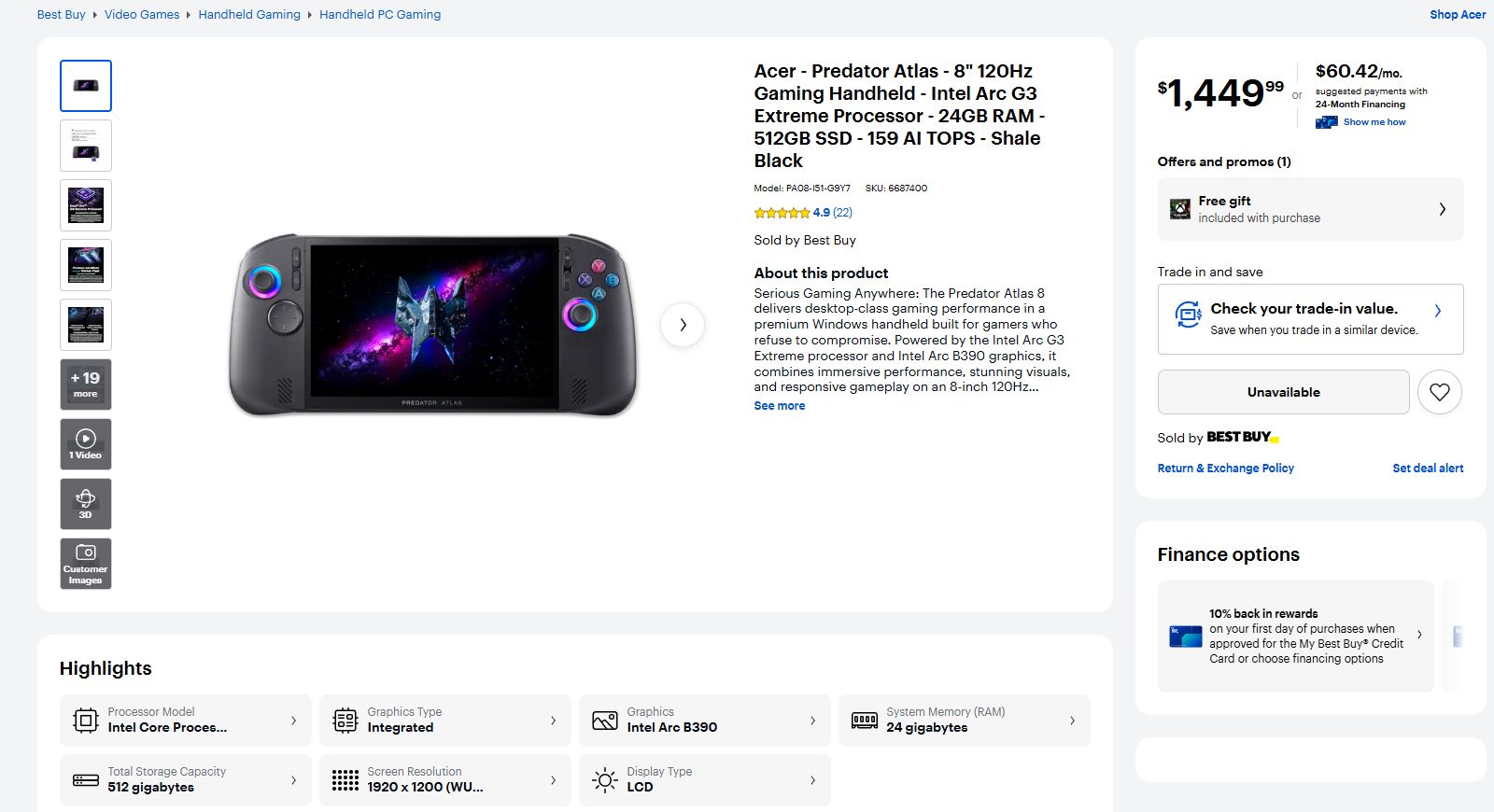
I'm currently in the process of testing and reviewing the Acer Predator Atlas 8 gaming handheld, and when I checked the pricing this morning, I was surprised to see that it has left its initial $1,299.99 tag behind.

At Best Buy (the only major retailer I can see that's offering the hardware), the price jumped to $1,449.99 overnight. That's more than a 10% hike for a gaming handheld that's only been on the market for about 10 days.

It's back to being listed as Unavailable at Best Buy, and it doesn't look like you can buy one directly from Acer, either. This price hike might not stick. It could be an error on Best Buy's page.

I've reached out to Acer to clarify the situation, and I'll update this article with any new information I can glean.

Why did Acer just raise the price of its Predator Atlas 8?

Best Buy product page for the Acer Predator Atlas 8 gaming handheld.

Best Buy now lists the Predator Atlas 8 at $1,449.99. (Image credit: Best Buy)

Keep in mind that on October 28, a few days before the US launch, Best Buy pulled down the Atlas 8's preorder page. I surmised that there might be a price hike coming at launch, but Acer assured me that the handheld would be returning on November 1 at its initial $1,299.99 price.

It did indeed return at the promised price, but it seems like it didn't stick around too long.

Assuming the worst, the Predator Atlas 8's $150 jump in price puts it closer to the competing MSI Claw 8 EX AI+, which lands at $1,799.99.

This makes the comparison a lot muddier, for the Atlas 8 and the Claw 8 EX AI+ share a lot of similarities.

They have the same Intel Arc G3 Extreme chip inside. They both have an 8-inch IPS display with 1920x1200 resolution, 120Hz variable refresh rate, and 500 nits brightness. They both have Hall Effect triggers and sticks, and both use an 80Wh battery.

Two handheld gaming devices (Acer Predator Atlas 8 and MSI Claw 8 EX AI+) on a table, showing different video games with a cityscape in the background.

The Predator Atlas 8 (left) and the MSI Claw 8 EX AI+ (right). (Image credit: Future)

The difference that makes the most impact on pricing, especially in today's constrained markets, is RAM and storage. The Claw 8 EX AI+ comes with 32GB of RAM and a 1TB SSD to hit that $1,799.99 tag, while the Atlas 8 has 24GB of RAM and a 512GB SSD.

Is $350 still a discount worth considering when you get half as much storage and three-quarters of the RAM? That's up to you to decide. I'd certainly still lean towards the Atlas 8 — it's been nothing but fun to use so far — but for those with a bigger budget, the Claw 8 EX AI+ just became a lot more attractive.

The more affordable Predator Atlas 8 is out there ... somewhere

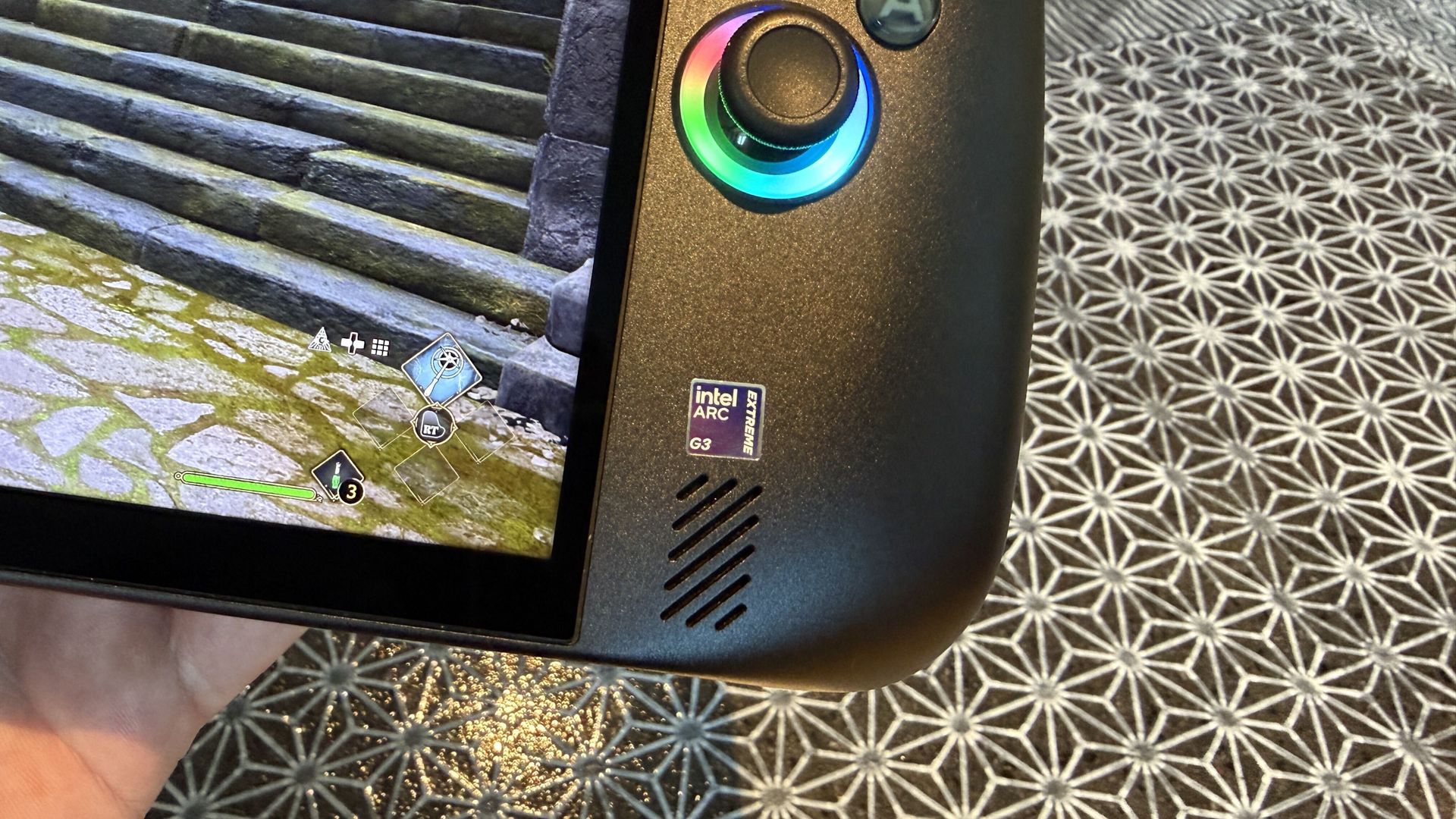
Close-up of an Acer Predator Atlas 8 handheld gaming device showing Intel Arc G3 Extreme badge.

Acer has a Predator Atlas 8 with Arc G3 chip inside. It's just not yet available in the US. (Image credit: Future)

The Acer Predator Atlas 8 configuration with the baseline Intel Arc G3 (non-Extreme) chip inside still doesn't appear to have launched in the US.

When it does (if it does), it will cost less than the G3 Extreme version. In the UK right now, for example, the G3 model with 16GB RAM and 512GB SSD costs about £999, climbing to £1,099.99 for 24GB of RAM.

Although I haven't tested the standard Arc G3 chip myself, an early report on Reddit seems to suggest that it's not a big downgrade over the Extreme version.

In games like Forza Horizon 6, Gears 5, and Hogwarts Legacy, there was only about a 5-10% difference between the G3 and G3 Extreme. This is good news, especially as prices continue to climb.

Windows Central's take


We've come a long way from the early days of the $399 Steam Deck. More power, more features, and more hardware are going into these devices, inflating prices along the way. But it's really the ongoing RAM and storage crisis that's wreaking the most havoc.

Unfortunately, the recent price change for the Atlas 8, whether it sticks or not, leaves buyers with limited options: buy at the new price, wait for the cheaper model, or find an alternative.

One of the Atlas 8's biggest strengths was its price, so it will be interesting to see how public opinion changes in the coming days.

Click to join us on r/WindowsCentral

Join us on Reddit at r/WindowsCentral to share your insights and discuss our latest news, reviews, and more.

This is when I'd buy the HP OmniBook Ultra 16 over the ASUS ProArt 16

HP OmniBook Ultra with RTX Spark laptop against a white background.Up to 2.8K

HP
OmniBook Ultra 16

HP's OmniBook Ultra 16 is an outstanding laptop with fast storage and better battery life, but its size and weight must be considered. Regardless, at the end of the day, this is the laptop I'd buy if I could save a few hundred dollars.

Pros

  • A lot more RAM and storage in the baseline model
  • 5.1MP webcam with human presence detection
  • A more natural OLED appearance
  • Slightly better battery life
  • Faster PCIe 5.0 storage

Cons

  • About a pound heavier
  • Not as many ports
  • No ambient light sensor, two-stage backlight, no Haptic Signals
  • Display not as bright or high-res

ASUS ProArt P16 RTX Spark laptop on a white background.Up to 4K

Asus
Asus ProArt P16

ASUS's ProArt P16 is the more complete RTX Spark laptop, though it does fall behind the OmniBook Ultra 16 in areas like storage and battery life. If pricing is similar, this is the laptop I recommend to most people.

Pros

  • Lighter and thinner with superior audio
  • Gorgeous OLED display that gets brighter
  • Superior port selection and arrangement
  • Starts at a lower regular price
  • Deeper key travel, three-stage backlight, ambient light sensor

Cons

  • Baseline config is lacking compared to HP
  • 3K display option is hard to find
  • Slower PCIe 4.0 storage
  • Battery life not as good

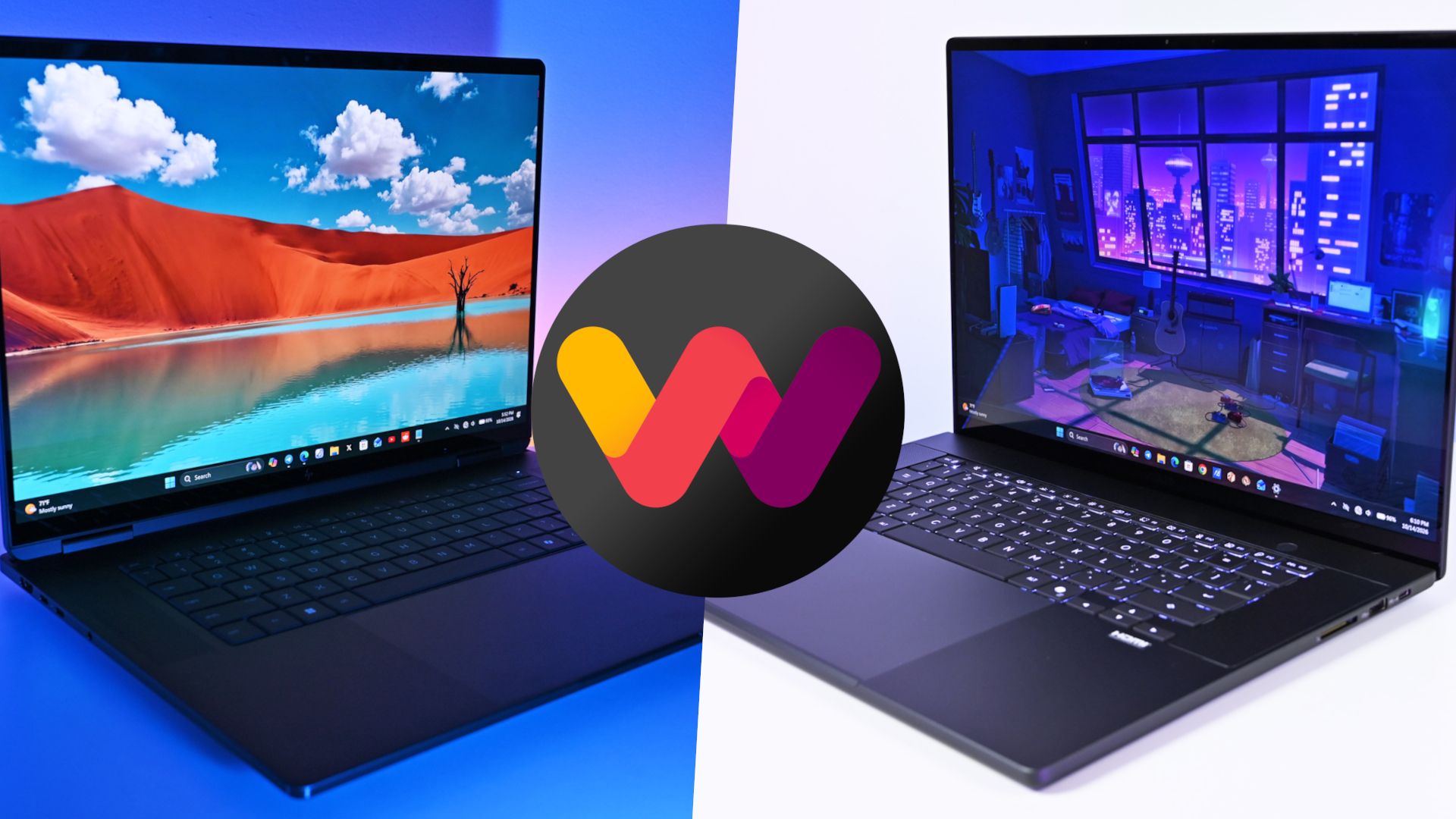
The Windows Central team has now added a new HP OmniBook Ultra 16 with RTX Spark laptop review to the collection, giving me the details I need to put together an in-depth comparison.

HP's laptop is going up against the ASUS ProArt P16, which at first glance is thinner and lighter despite its similar display size. This comparison goes much deeper than surface level, however, and it should help you make the right laptop decision.

ASUS ProArt P16 vs. HP OmniBook Ultra 16: Specifications and price

Before I go into more depth below, here's a quick-reference table of the specs that make up the ASUS ProArt P16 and HP OmniBook Ultra 16 with NVIDIA RTX Spark chips inside.

ASUS ProArt P16

HP OmniBook Ultra 16

CPU

NVIDIA N1X
18-core/20-core

NVIDIA N1X
18-core/20-core

GPU

NVIDIA RTX
5120-core/6144-core

NVIDIA RTX
5120-core/6144-core

RAM

24GB, 32GB, 48GB, 64GB, 128GB LPDDR5X unified

32GB, 64GB, 128GB LPDDR5x unified

Storage

512GB, 1TB, 2TB M.2 PCIe 4.0 NVMe SSD
Upgradable

1TB, 2TB M.2 PCIe 4.0 NVMe SSD
Upgradable

Display

16 inches, 3840x2400 or 2880x1800, OLED, 16:10 aspect ratio, 120Hz VRR, touch

16 inches, 2880x1800, OLED, 16:10 aspect ratio, 120Hz VRR, touch

Wireless

Wi-Fi 7
Bluetooth 5.4

Wi-Fi 7
Bluetooth 6.0

Camera

FHD with IR

5MP with IR

Audio

6x speakers (Dolby Atmos)

4x speakers (DTS Virtual:X)

Battery

99.9Wh

99Wh

Ports

3x USB4, 1x USB-A 3.2 (Gen 2), HDMI 2.1, SD card reader, 3.5mm audio

2x USB4, 2x USB-A 3.2 (10Gbps), HDMI 2.1, 3.5mm audio, microSD card reader

Dimensions

13.94 x 9.57 x 0.51-0.63 inches
(354.1mm x 243mm x 12.9-15.9mm)

14.01 x 10.1 x 0.62 inches (355.8mm x 256.5mm x 15.7mm)

Weight

3.9 pounds (1.77kg)

4.89 pounds (2.22kg)

Colors

Nano Black, Neo White

Eclipse Gray

The ASUS ProArt P16 starts at $2,799.99. This model has the 18-core CPU, 5120-core GPU, 24GB of RAM, a 512GB M.2 PCIe 4.0 NVMe SSD, and a 4K OLED touchscreen.

HP's OmniBook Ultra 16 starts at $3,199.99. This model has the same 18-core CPU and 5120-core GPU, but it bumps RAM up to 32GB and includes a faster (and roomier) 1TB M.2 PCIe 5.0 NVMe SSD. Its OLED touchscreen tops out at a 2.8K resolution.

HP's laptop has been discounted nearly the entire time it's been on sale, and at the time of writing, it's $500 off the regular price. That brings it down to $2,699.99, or $100 cheaper for twice as much storage and 8GB of extra RAM.

Looking at high-end models, you can outfit an ASUS ProArt P16 with the 20-core/6144-core RTX Spark chip, 128GB of RAM, and 2TB PCIe 4.0 SSD for about $6,999.99.

An HP OmniBook Ultra 16 with the same RTX Spark chip, 128GB of RAM, and 2TB PCIe 5.0 SSD comes out to $6,159.99 before any discounts, ultimately making it the cheaper option for workstation diehards.

Does the OmniBook Ultra 16's extra weight pay off?

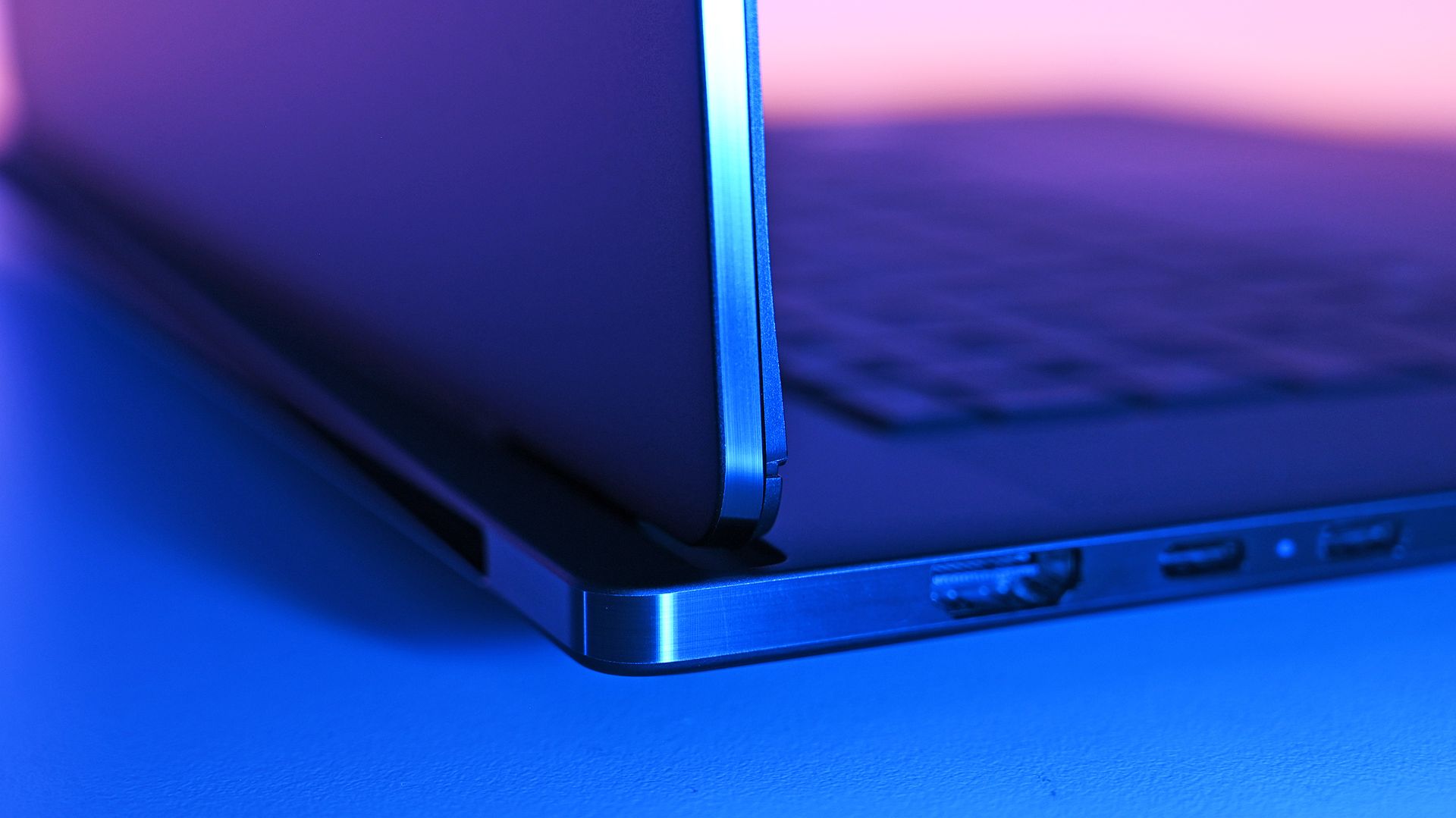
Detailed close-up of the HP OmniBook Ultra 16 RTX Spark display tower hinge and left side profile, highlighting the beveled chassis edge, an HDMI port, and two USB-C ports.

HP's OmniBook Ultra 16 with RTX Spark looks sleek, but it weighs more than you might think. (Image credit: Daniel Rubino)

HP and ASUS have both been creating some killer laptops lately, and in terms of high-end Windows hardware, both of the new RTX Spark laptops comfortably find a spot.

The biggest difference between the two PCs in terms of design? Weight and size. The OmniBook Ultra 16 has a slightly larger footprint, and it's just a bit thicker. Not a big deal unless you're aiming to buy as compact as possible (which might warrant a look at the ASUS ProArt P14 with RTX Spark).

What really stands out is the weight. The OmniBook Ultra 16 weighs a pound more than the ProArt P16, and when performance is so similar (as you'll see below), I know I'd be more inclined to grab the more mobile PC.

Counterpoint: Windows Central Editor-in-Chief Daniel Rubino reviewed both the HP and ASUS laptops, and he thinks "the OmniBook Ultra 16's overall build quality is a smidge better than the ASUS ProArt P16."

The three-piece CNC-machined aluminum chassis feels exceptionally solid. Eclipse Gray looks fantastic and has a lovely texture that also does an unusually good job resisting fingerprints.

Daniel Rubino, Windows Central Editor-in-Chief

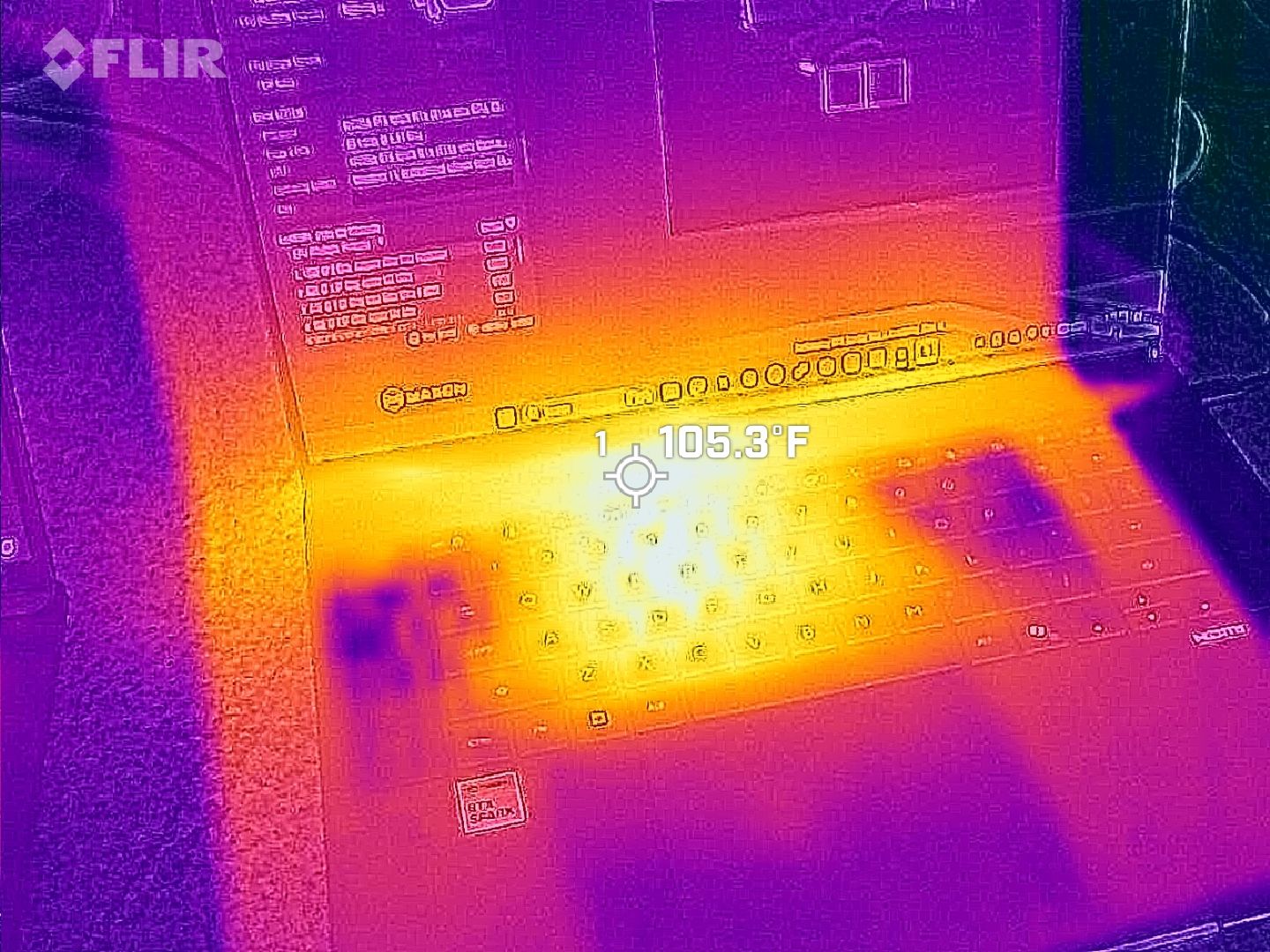
Despite the additional bulk, HP's OmniBook Ultra 16 couldn't prove that it was more thermally efficient. In fact, in our tests, ASUS's laptop actually ran a few degrees cooler under load than the OmniBook.

FLIR thermal image of the ASUS ProArt P16 keyboard deck during operation, showing heat concentration in bright yellow and orange with a center point reading 105.3°F.
The ASUS ProArt P16's keyboard deck heat.Daniel Rubino
Thermal image of the HP OmniBook Ultra 16 upper keyboard and hinge under load, showing a hotspot measuring 109.6°F.
The HP OmniBook Ultra 16 generally runs hotter under load than the ProArt P16.Daniel Rubino

The difference isn't one you'd notice in day-to-day life, especially because the fans generally remain below 50dB.

Which laptop has more ports?

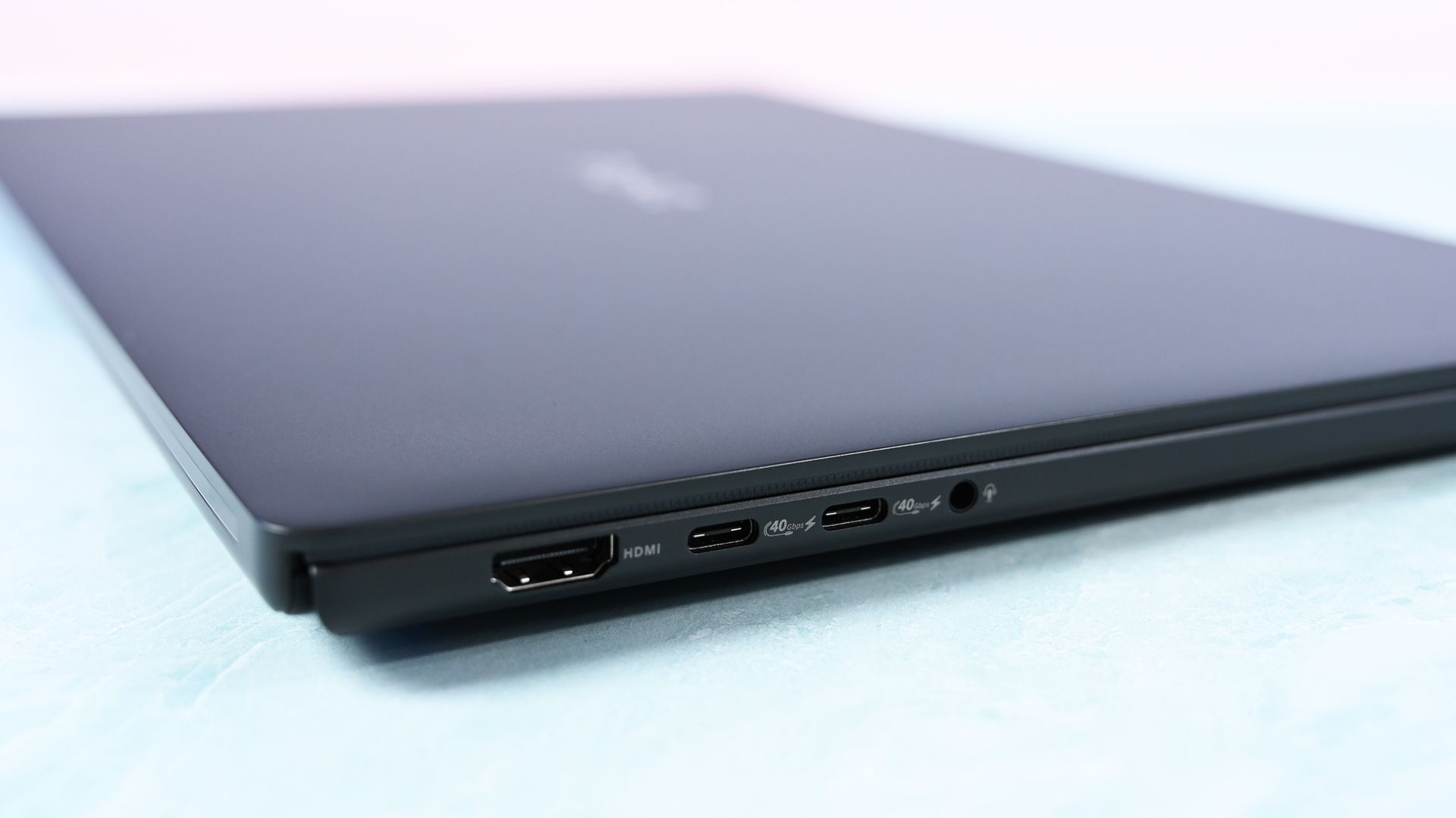
Close-up of the left edge ports: an HDMI port, two 40Gbps USB-C ports, and a 3.5mm headphone audio jack.

A look at ports on the left side of the ProArt P16. (Image credit: Daniel Rubino)

The ProArt P16 comes with three USB4 ports, an SD card reader, HDMI 2.1, dual USB-A 3.2 (10Gbps), and a 3.5mm audio jack.

ASUS configures the laptop to have two USB4 ports on the left side and one on the right, giving you some additional flexibility with charging and accessories.

The OmniBook Ultra 16 has just two USB4 ports, and both are on the left side. HP also drops the full-size SD card reader down to microSD. It otherwise has similar dual USB-A (10Gbps) ports, HDMI 2.1, and a 3.5mm audio jack.

I'm in favor of the way ASUS laid out its ports, and the additional USB4 hookup for charging or data is always nice to have.

Which keyboard and touchpad do we like best?

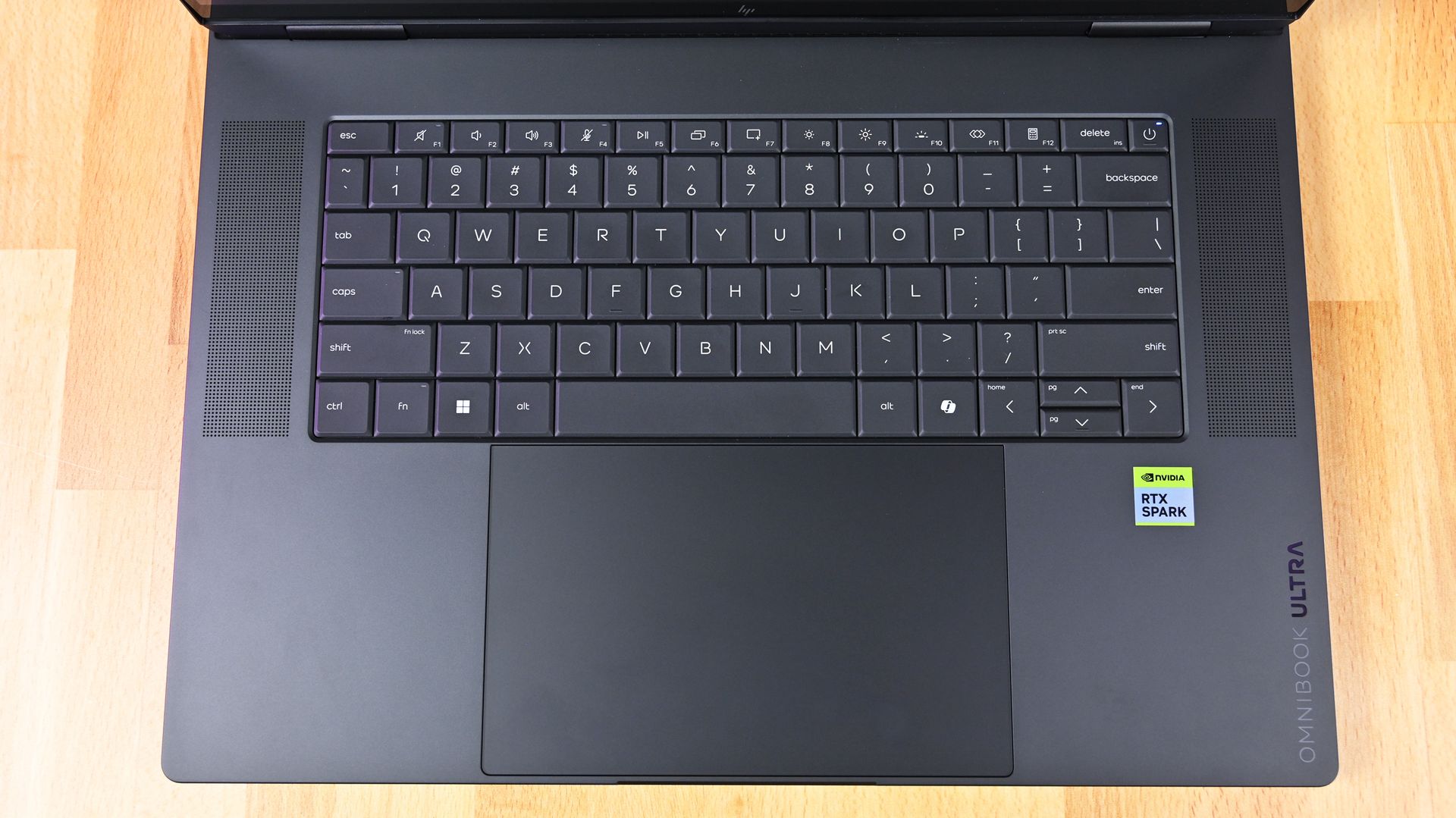
Overhead top-down view of the HP OmniBook Ultra 16 RTX Spark keyboard deck, flanked by dual speaker grilles, a trackpad, an NVIDIA RTX SPARK sticker, and embossed

HP's OmniBook Ultra 16 has a lattice-free keyboard and massive haptic touchpad. (Image credit: Daniel Rubino)

The ProArt P16 arrives with a chiclet-style keyboard with deep 1.7mm key travel, three-stage backlighting, and an ambient sensor for automatic adjustments. Below, a massive haptic touchpad makes good use of space and is compatible with Windows 11 Haptic Signals.

HP's OmniBook Ultra 16 arrives with a lattice-free setup, with minimal gaps between keys. As Rubino put it in his review, "It looks great, feels precise, and is genuinely fun to type on."

It only sports a two-stage backlight, unfortunately, and there's no ambient light sensor like on the ProArt P16. HP's haptic touchpad also doesn't support Windows 11 Haptic Signals, which means you won't feel Windows 11's nifty haptic system.

Audio and cameras

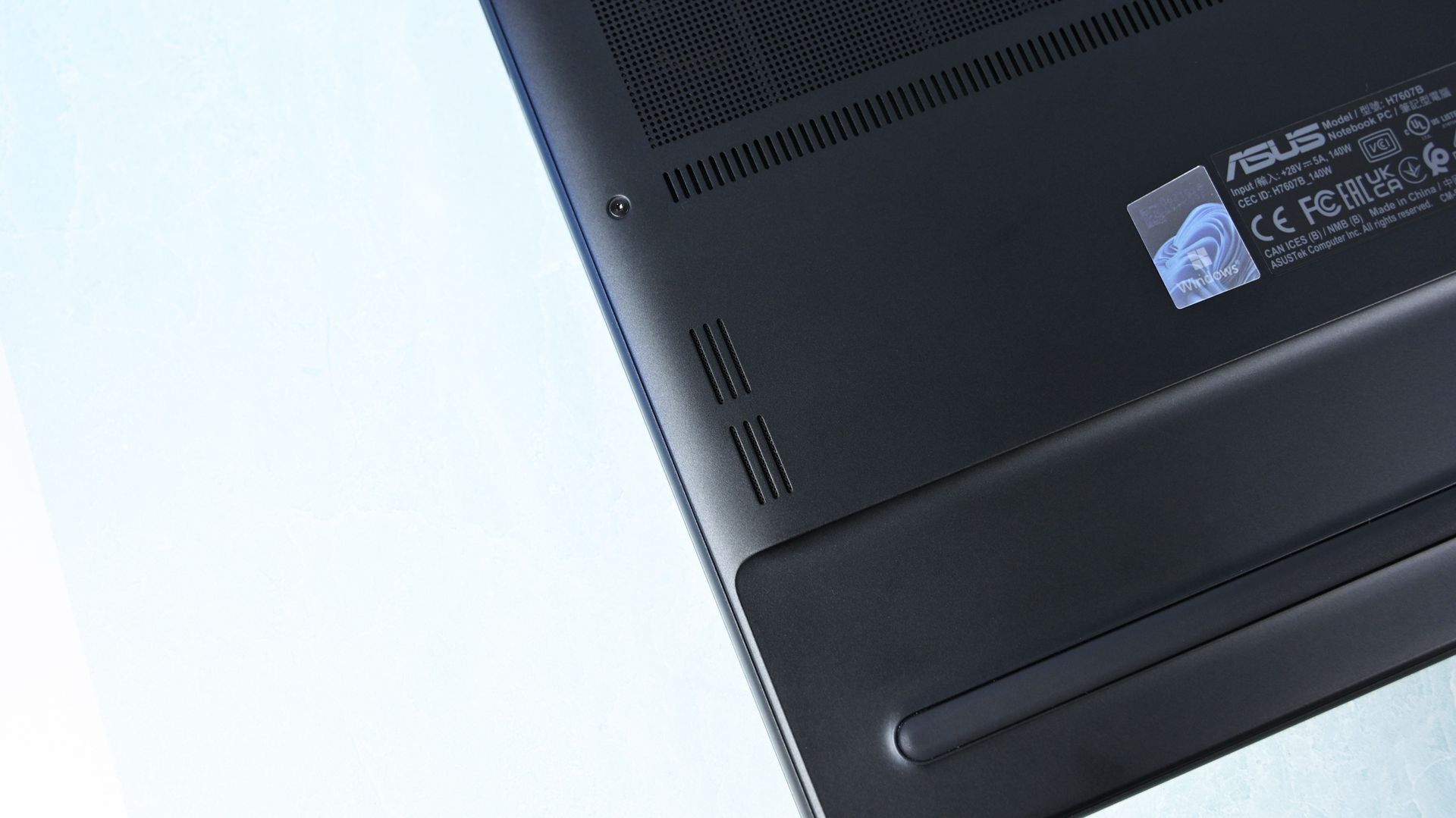
Close-up of the laptop underside corner showing downward-firing speaker cutouts, a rubber foot strip, and product certification labels.

(Image credit: Daniel Rubino)

ASUS's ProArt P16 has a six-speaker setup, including two tweeters and four woofers. They're split between down-firing cutouts on the bottom of the PC and top-firing cutouts flanking the keyboard.

Audio is some of the best we've ever heard from a Windows laptop, and Dolby Atmos compatibility takes tuning one step further.

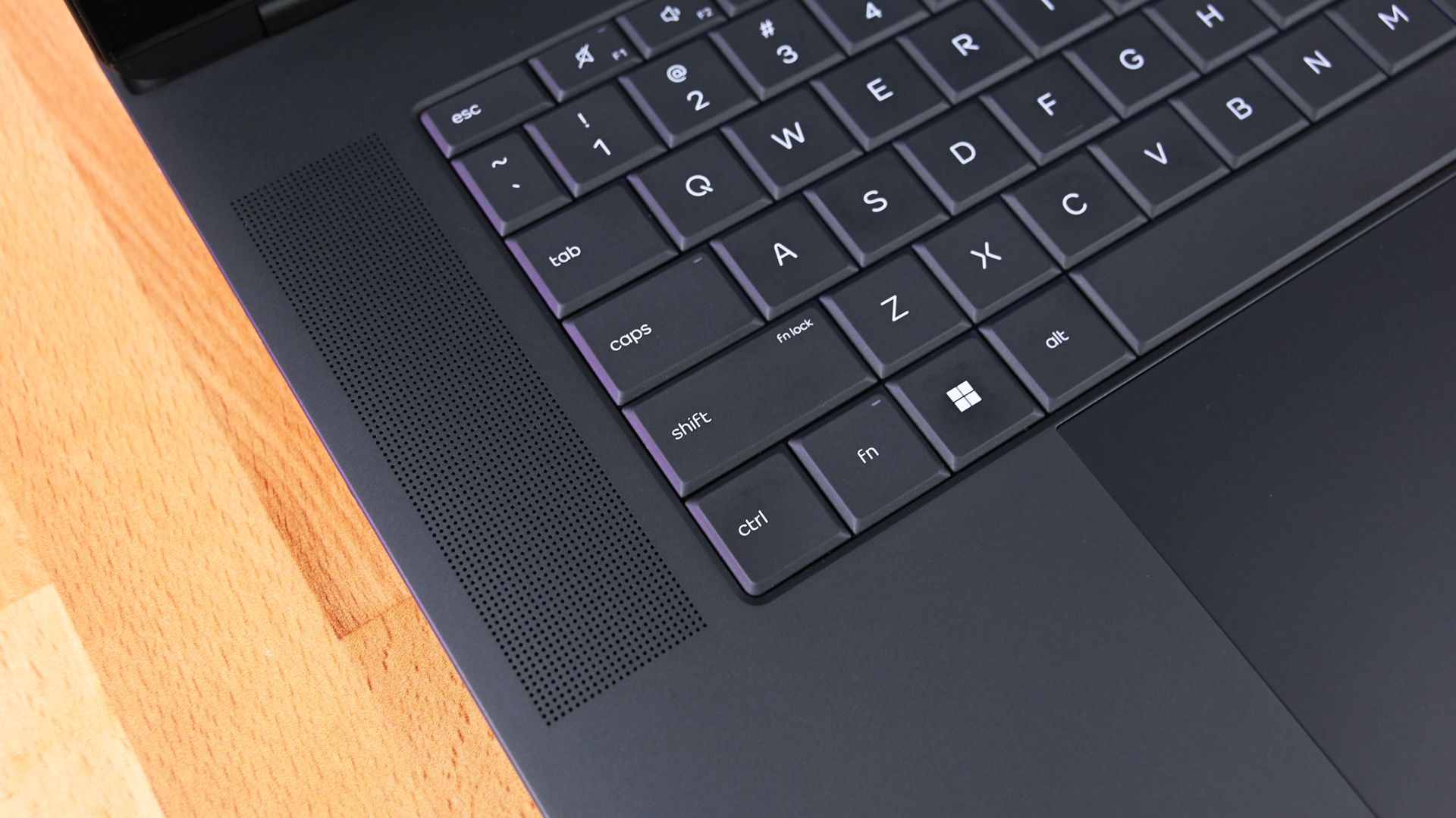
The OmniBook Ultra 16 comes with four speakers, again split between top- and bottom-firing designs. Rubino called HP's audio "roughly comparable to ASUS," and says that DTS:X tuning is a decent alternative to Dolby Atmos.

Angled close-up of the keyboard deck on the HP OmniBook Ultra 16 RTX Spark, highlighting the perforated top-firing speaker grille positioned along the left edge of the keys.

A look at a top-firing speaker in the OmniBook Ultra 16. (Image credit: Daniel Rubino)

As for the cameras, the conclusion is that neither is very remarkable. ASUS immediately falls behind with a 2.1MP sensor compared to HP's 5MP camera, meaning less resolution in general use.

Both laptops have human presence detection to boost privacy and efficiency.

Is a 4K display upgrade really worth it?

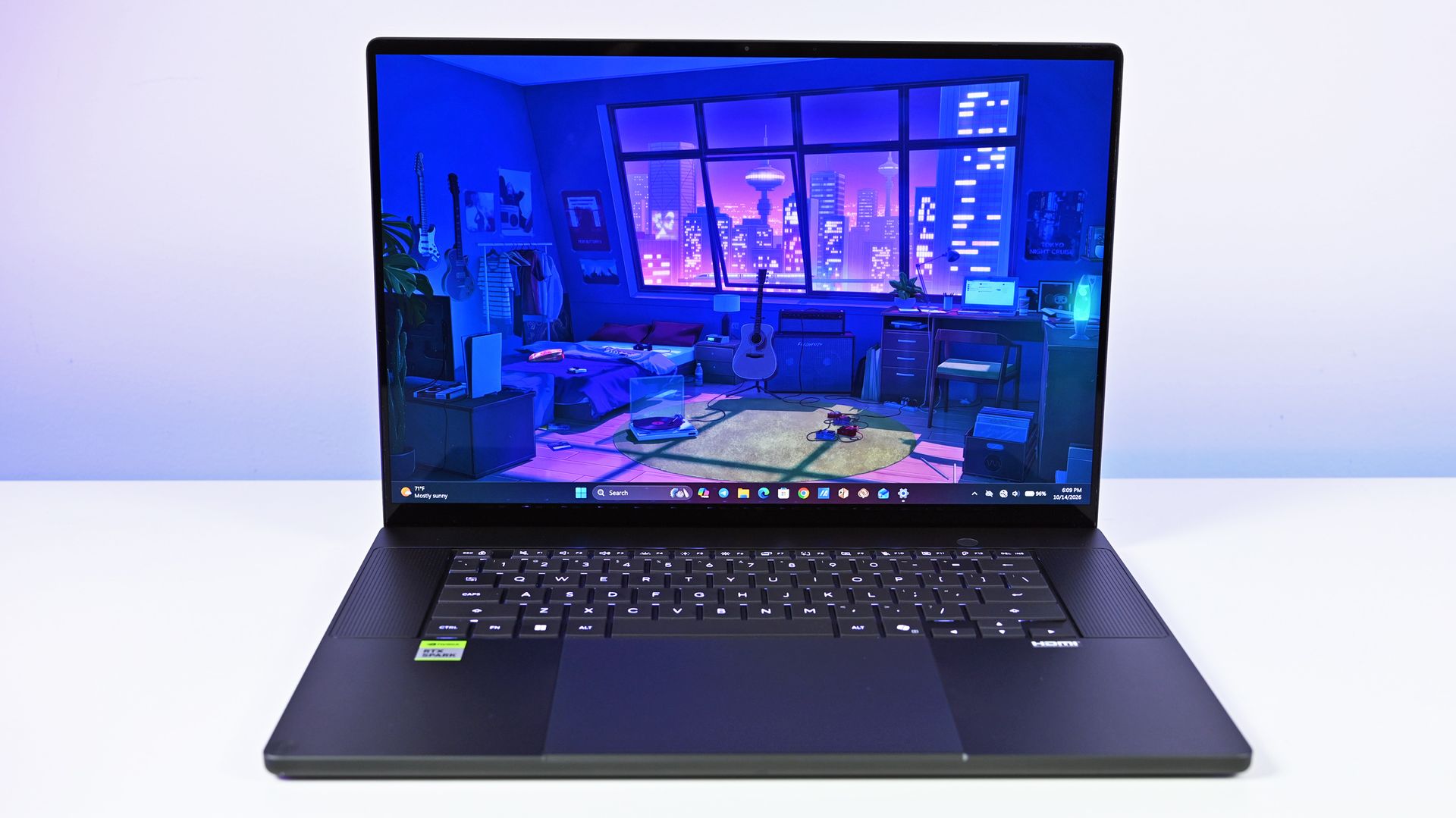
Front view of the ASUS ProArt P16 laptop open on a white desk under neutral lighting, displaying an illustrated bedroom scene on the screen.

The ASUS ProArt P16's OLED display (Image credit: Daniel Rubino)

ASUS offers two 16-inch OLED display options (3K and 4K), although it seems like the higher-res version is the one that's most often for sale. That's where I'll focus.

The 4K panel hits about 1600 nits of peak HDR brightness, falling back to 700 nits for SDR. It has a 16:10 aspect ratio, 0.2ms response time, 120Hz variable refresh rate, 100% DCI-P3 color, touch, and stylus support for inking.

HP's lone 16-inch OLED screen has a lower 2880x1800 resolution, though it hits the same 120Hz refresh rate and includes touch. It hits 500 nits SDR and up to 1,100 nits in HDR content, also with 100% DCI-P3 color.

In reviewer Daniel Rubino's opinion, "HP's [display] looks slightly more natural" compared to ASUS's display, while "colors appear clean and balanced without becoming excessively saturated."

HP's laptop skips auto-brightness and adaptive color, two features in the ASUS PC that can keep your screen looking as good as possible no matter the ambient conditions.

NVIDIA's RTX Spark platform doesn't differ much

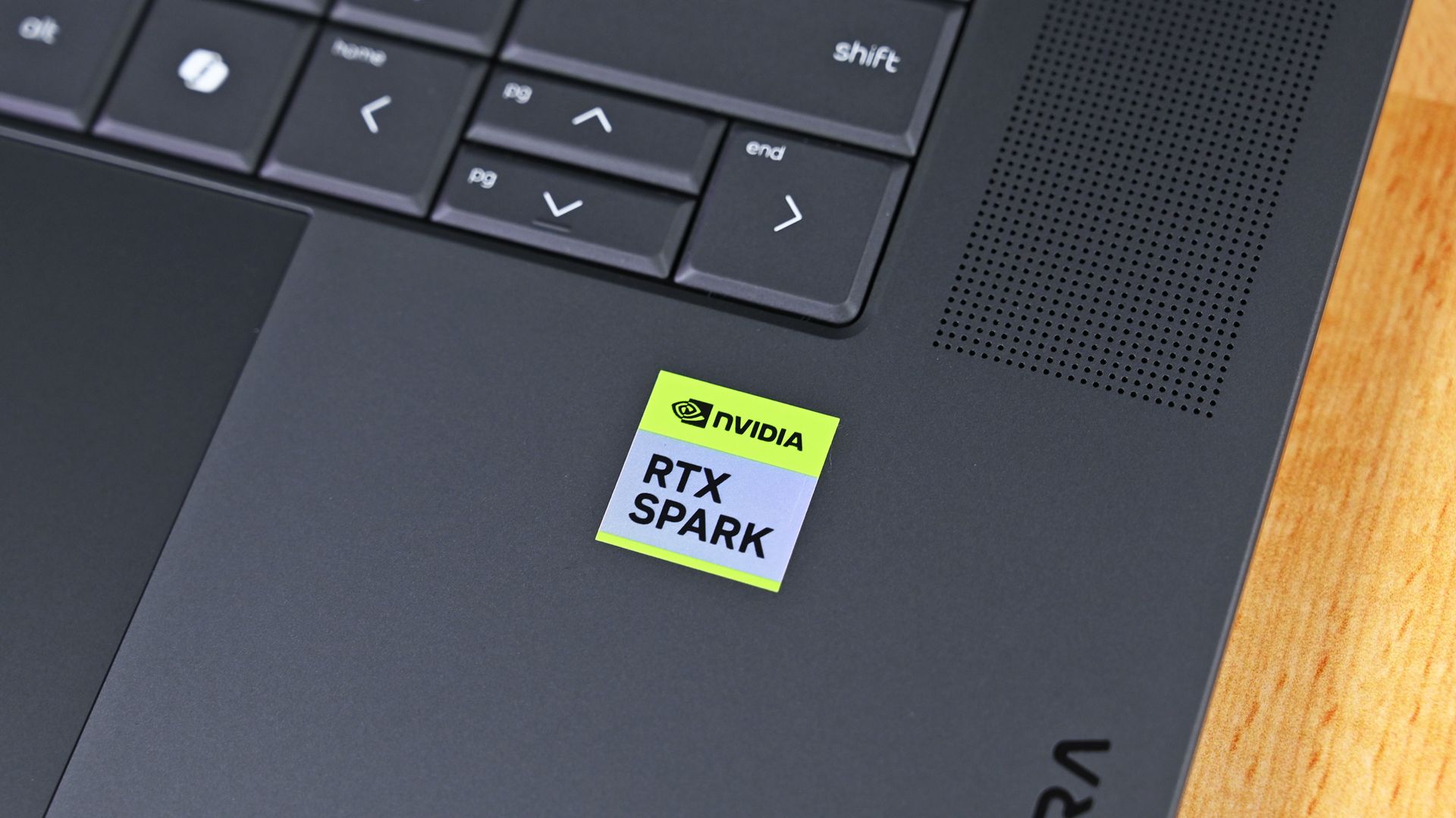
Close-up shot of the green and white NVIDIA RTX SPARK sticker on the right palm rest of the HP OmniBook Ultra 16 RTX Spark, positioned next to the arrow keys and speaker grille

NVIDIA's RTX Spark chip doesn't differ much between ASUS and HP laptops. (Image credit: Daniel Rubino)

The thing about this first generation of RTX Spark PCs is that performance really doesn't differ much as long as you have the same tier of chip, whether that's the 18-core or 20-core CPU.

We've tested a bunch of these laptops from different brands, and I don't recommend buying one or the other based on small benchmark differences. You'll get the same tier of performance no matter what.

The one exception is storage. All of HP's laptops come with faster PCIe 5.0 drives, whereas the ProArt P16 sticks with slower PCIe 4.0 hardware. This difference is significant, as you can see in the charts below.

Bar chart for CrystalDiskMark (MB/s): Surface Laptop Ultra leads (14,647 read/12,711 write), followed by HP OmniBook Ultra 16 (10,389/9,243) and two ASUS ProArt P16 models
Future
Bar chart for Geekbench 7 GPU (CUDA): HP OmniBook Ultra 16 leads at 187,569, narrowly ahead of ASUS ProArt P16 4K (187,547), Surface Laptop Ultra (186,098), and ASUS ProArt 3K (185,630)
Future
Bar chart for Geekbench 7: ASUS ProArt P16 3K leads multi-core at 23,878 (single: 2,682); HP OmniBook Ultra 16 scores 23,739 multi and 2,703 single; Surface scores 23,571 multi
Future
Bar chart for Cinebench 2026: HP OmniBook Ultra 16 leads with 6,954 multi-core and 562 single-core, ahead of Surface Laptop Ultra (6,885/558) and ASUS ProArt P16 (6,742/554)
Future

Battery life is also quite similar across the HP and ASUS laptops. Windows Battery Report showed the OmniBook Ultra 16 as hitting roughly 11 hours and 18 minutes of real-world usage, like web browsing, email, messaging, writing, etc.

The ASUS ProArt P16 hit 9 hours and 58 minutes in the same report. It does seem like HP's laptop can last a bit longer, but it really depends on your habits.

Where ASUS has HP beat is with standby efficiency. The ProArt P16 "resumes almost instantly and loses very little battery while sleeping," according to Rubino, whereas HP's laptop takes a bit longer to wake up.

ASUS ProArt P16 vs. HP OmniBook Ultra 16: Which RTX Spark laptop should you buy?

Front view of the open HP OmniBook Ultra 16 RTX Spark resting on a white surface, displaying a vivid desert wallpaper across its thin-bezel screen, full keyboard deck, and centered touchpad.

HP's OmniBook Ultra 16 offers more value for its starting price than the ProArt P16. (Image credit: Daniel Rubino)

The ASUS ProArt P16 received a higher 4.5-star score in our review compared to the OmniBook Ultra 16's four stars. Does that mean everyone should opt for the ASUS and call it a day? Absolutely not.

I'd say that HP's OmniBook Ultra 16 is the better value overall once you get past the introductory pricing (which ASUS keeps down with less/slower hardware).

HP also offers a great webcam, a more natural OLED appearance, and what seems like longer runtimes for general use. These are all good reasons to buy the HP laptop.

But ASUS brings a better selection of ports, a brighter display, deeper key travel, and, most importantly, a lighter and more compact design. It weighs about a pound less than the OmniBook Ultra, making it much easier to carry around. Best part? It doesn't harm performance.

The bottom line? ASUS has the more complete package, but HP's OmniBook Ultra 16 isn't far behind. And considering HP's laptop has been on sale practically since it launched, saving several hundred dollars should easily make up the difference.

HP OmniBook Ultra with RTX Spark laptop against a white background.

Up to 2.8K
HP
OmniBook Ultra 16

HP's OmniBook Ultra 16 is an outstanding laptop with fast storage and better battery life, but its size and weight must be considered. Regardless, at the end of the day, this is the laptop I'd buy if I could save a few hundred dollars.

ASUS ProArt P16 RTX Spark laptop on a white background.

Up to 4K
Asus
Asus ProArt P16

ASUS's ProArt P16 is the more complete RTX Spark laptop, though it does fall behind the OmniBook Ultra 16 in areas like storage and battery life. If pricing is similar, this is the laptop I recommend to most people.

Click to join us on r/WindowsCentral

Join us on Reddit at r/WindowsCentral to share your insights and discuss our latest news, reviews, and more.

I’m stacking these Newegg codes on top of sales to beat today’s PC prices

It's a rough time to be shopping for PC hardware and laptops. Believe me, as a PC gamer, I know the struggle. Prices are incredibly high because of AI-driven component shortages, and some relief can go a long way.

That's why I'm happy to share some exclusive discount codes redeemable at Newegg. All codes offer an additional discount on top of any sales that Newegg already has running, so you can absolutely stack sales.

These exclusive deals cover everything from PC components to accessories to pre-built PCs and monitors, giving you plenty of variety. I've rounded up some eye-catching deals below, and I've also made this quick-hit list of discounts with links to Newegg for each broader category.

Category (with link)

Discount code

Amount

Cases

FUTURECASE3

3% (up to $50)

PSUs

FUTURECASE3

3% (up to $50)

SSDs

FUTURESSSD3

3% (up to $50)

PC Accessories

FUTUREACPC3

5% (up to $30)

Laptops

FUTURENB3

3% (up to $100)

Gaming Laptops

FUTURENB3

3% (up to $100)

Desktops

FUTUREDPC3

3% (up to $100)

Monitors

FUTUREMN3

3% (up to $50)

WD HDD

FUTUREHD3

3% (up to $50)

Save even more on PC hardware at Newegg with these exclusive discount codes

LANCOOL 217 Walnut: was $132.99 now $119.99

Lian Li's LANCOOL 217 ATX PC case has a slick walnut finish on the front and outstanding air flow throughout. It comes with five pre-installed fans. It's currently on sale for $119.99, and you can get an extra 3% off with exclusive code FUTURECASE3 at checkout.View Deal

RM850x ATX: was $169.99 now $139.99

Corsair's highly-rated 850W fully modular PSU is ideal for most gamers with mid-range systems, and it's currently on sale for $139.99. Get an extra 3% off with exclusive code FUTURECASE3 at checkout.View Deal

990 PRO 2TB: was $639.99 now $389.99

Storage is crazy expensive these days, so this discount on one of the best SSDs on the market is a nice change. It's currently $250 off at Newegg, and you can save another 3% by using exclusive code FUTURESSSD3 at checkout.View Deal

MAG Coreliquid A13 360: was $109.99 now $64.99

A 360mm AiO liquid CPU cooler is what you want in your high-performance PC, and the best part is that you don't have to spend more than you would on an air cooler. MSI's MAG Coreliquid A13 is already down to $64.99 at Newegg, and you can save another 5% with code FUTUREACPC3 at checkout.View Deal

Save more on Windows PCs and monitors with our special discounts

Surface Laptop 13": was $1149.99 now $979.99

Microsoft's 13-inch Surface Laptop has a Snapdragon X Plus chip, 16GB of RAM, 256GB SSD, and an FHD+ touch display, altogether making it an outstanding portable option for students, home, or general use. It's now down to $979.99, and you can save 3% more when you use code FUTURENB3 at checkout.View Deal

Omen Max 16: was $2099.99 now $1749.99

With a Core Ultra 7 255HX CPU, NVIDIA RTX 5070 mobile GPU, 16GB of DDR5 RAM, 1TB SSD, and 15.6-inch FHD+ display at 165Hz, this HP gaming laptop will handle anything you throw its way. It's down to $1,749.99 right now, and you can take off an extra 3% with code FUTURENB3.View Deal

Cyclone Aqua: was $1699.99 now $1599.99

Newegg's ABS pre-built brand is one I can recommend after testing, and this model has a Core i7-14700F CPU, RTX 5060 Ti GPU with 16GB RAM, a 1TB SSD, and 16GB of DDR5 memory. It's $100 cheaper already, and you can shave off another 3% with code FUTUREDPC3.View Deal


Acer's Predator X27U delivers a 26.6-inch QD-OLED panel with incredible color and contrast. It hits 1440p with a 240Hz refresh rate, and it comes with AMD FreeSync Premium support. It's down to $319.99 right now, but you'll save an extra 3% with code FUTUREMN3.View Deal

Bonus deals on WD hard drives

Gold, Red, Purple, Black, Blue:

A wide range of WD hard-disk drives for internal and external use are already discounted at Newegg, and you can save a further 3% when you use code FUTUREHD3 at checkout. Check out this Newegg page for eligible drives.View Deal

FAQ

How do I redeem these exclusive codes at Newegg?

To redeem a special discount code, add the item you want to buy to your Newegg cart. Then navigate to the cart, click "Add Promo Code" on the right side of the windows, and add the code.

Do these exclusive discounts only apply to items already on sale?

No. The codes I've listed here can be used on any products within their appropriate segments. A device doesn't have to be on sale to be eligible for the additional discount.

When do these exclusive Future discounts stop working?

These additional discounts are live now and are expected to run until November 30. That gives you plenty of time to line up a strong Newegg discount for a bit of extra savings.

Click to join us on r/WindowsCentral

Join us on Reddit at r/WindowsCentral to share your insights and discuss our latest news, reviews, and more.
AMD is now "data center first." Does it still care about gaming?

AMD CEO Lisa Su, in an interview with Yahoo Finance, said yesterday that AMD is "a data center first company." Somewhere, a gamer clutched their Radeon GPU like it's a priceless heirloom.

This quote from Su seems to have made waves in the tech world. I get it. Nobody wants to hear that another company we're used to seeing sell consumer tech to us gamers and enthusiasts is going a different way.

But before we start singing hymns, let's see what Su actually meant with her data center tidbit.

People have a right to be worried, especially these days

Advanced Micro Devices CEO Lisa Su (C) attends a meeting of the White House Task Force on Artificial Intelligence Education in the East Room of the White House on September 04, 2025 in Washington, DC.

AMD CEO Lisa Su's recent data center comments are making waves. (Image credit: Getty Images | Chip Somodevilla)

I don't think there's anyone who follows tech markets, even from a distance, who doesn't know that there's an AI-driven memory and RAM shortage forcing consumer prices through the roof.

We are a data center-first company. That is our profile. People need more computing to power all these applications.

AMD CEO Lisa Su, speaking with Yahoo Finance

Not just that, but companies that were once focused on consumer products have been flipping over to the AI side, where there's a lot more money to be made. Micron did just that in late 2025, when it killed off its consumer Crucial brand to focus entirely on data center supply.

People have every right to be worried when a company like AMD, which makes consumer products, begins spewing data center rhetoric.

Hasn't AMD always been a data center company?

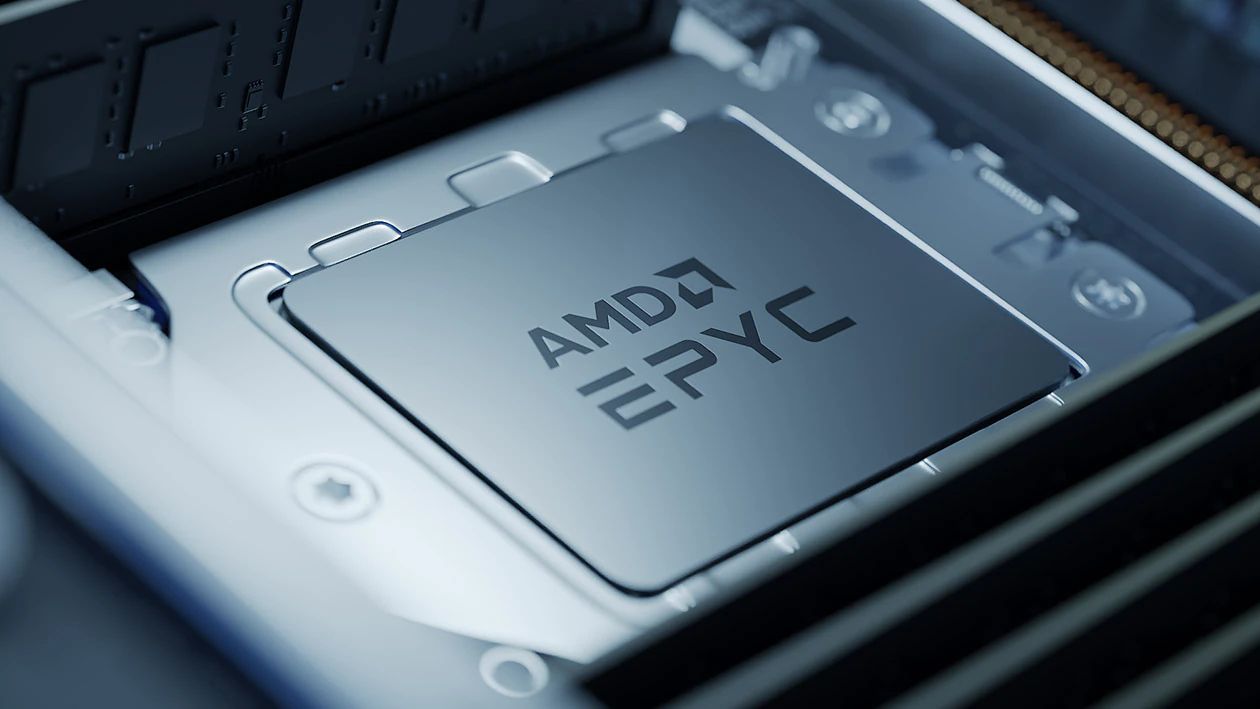
AMD EPYC processor sat in its socket

AMD's Epyc and Instinct AI accelerators are not new products. (Image credit: AMD)

Some of you might be asking why this is big news. I get it. AMD has, after all, been a data center company for ages, selling its EPYC and Instinct AI accelerators for big money.

In 2024, Su basically said the exact same thing about the company's ultimate goals at a tech conference hosted by Goldman Sachs: AMD is a data center company.

But that was before AMD's data center revenue surpassed consumer and client revenue in 2026. Before we saw other big tech companies, like Micron, make massive pivots that left consumers without anything to buy.

I get why consumers are nervous, especially when AMD offers the best CPUs for PC gaming and is really the only counterpoint to NVIDIA's GPU dominance.

But why would Su go on Yahoo Finance and talk about anything else but where AMD gets most of its money?

Fears that AMD is abandoning gamers are unfounded ... so far

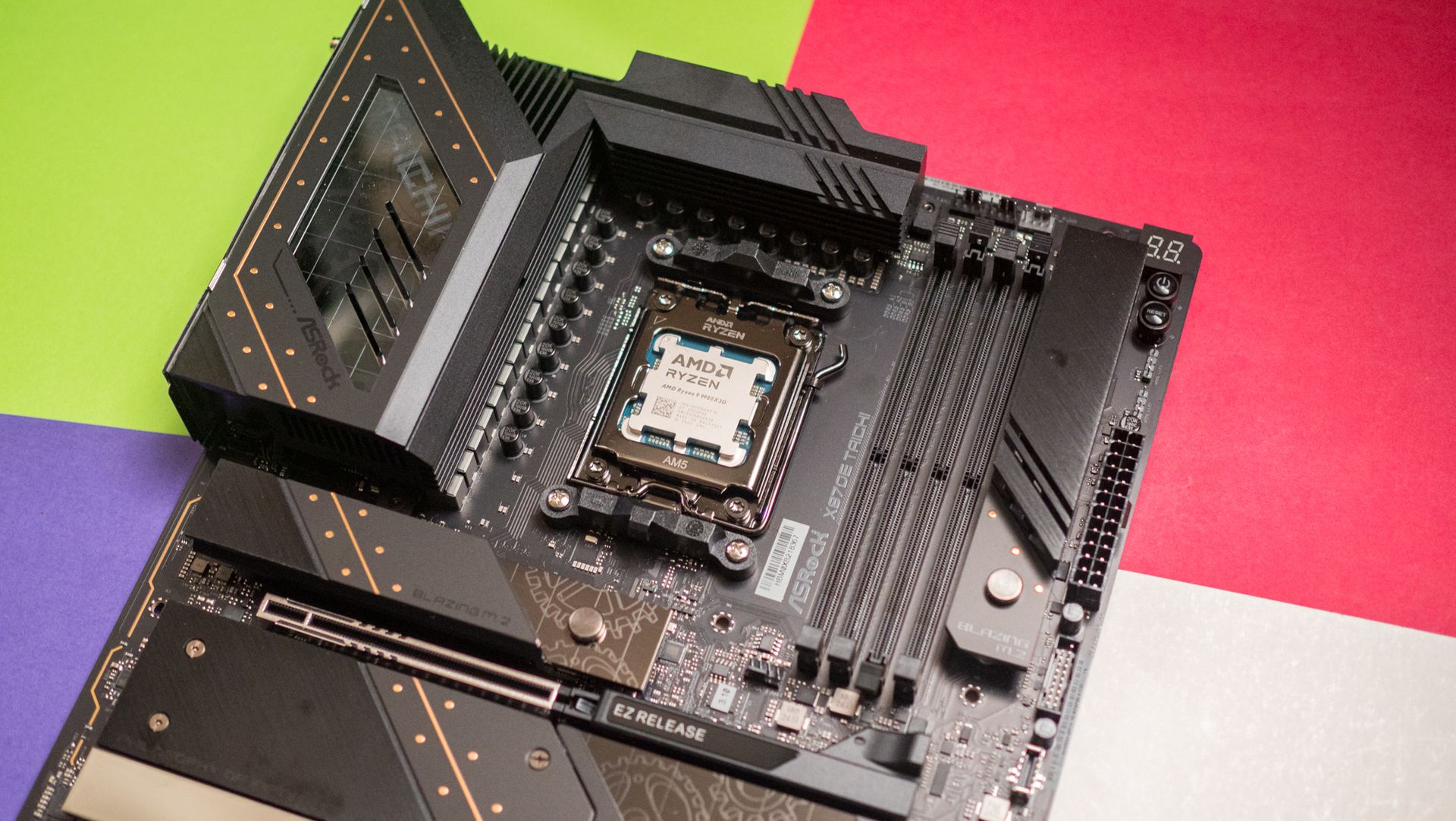
AMD Ryzen 9 9950X3D slotted into ASRock X870E Taichi board

AMD still makes the best CPUs for gaming, and it's not even close. (Image credit: Harish Jonnalagadda / Windows Central)

As I said, I get why consumers are upset over the data center rhetoric coming from Team Red. Thankfully, AMD's moves lately seem like anything but abandonment.

AMD's upscaling tech, FSR, keeps spreading to more hardware. Heck, even the recent FSR 4.1 is now being handed down to Xbox Series X|S and gaming handhelds to help keep devices relevant longer into the future. AMD's partnership with Microsoft means it'll be in the upcoming Helix console as well.

Elsewhere, AMD is keeping its Ryzen 5000 series on the AM4 chipset alive by expanding the lineup, perfect for value-conscious builders and gamers. And on the CPU side, new X3D chips keep getting added to the pool.

This doesn't seem to me like the actions of a company that's already checked out of the consumer stack. Will that hold? I can't answer that, but the idea of AMD pulling up its consumer stakes seems too far-fetched to believe.

Treat your old GPU with care

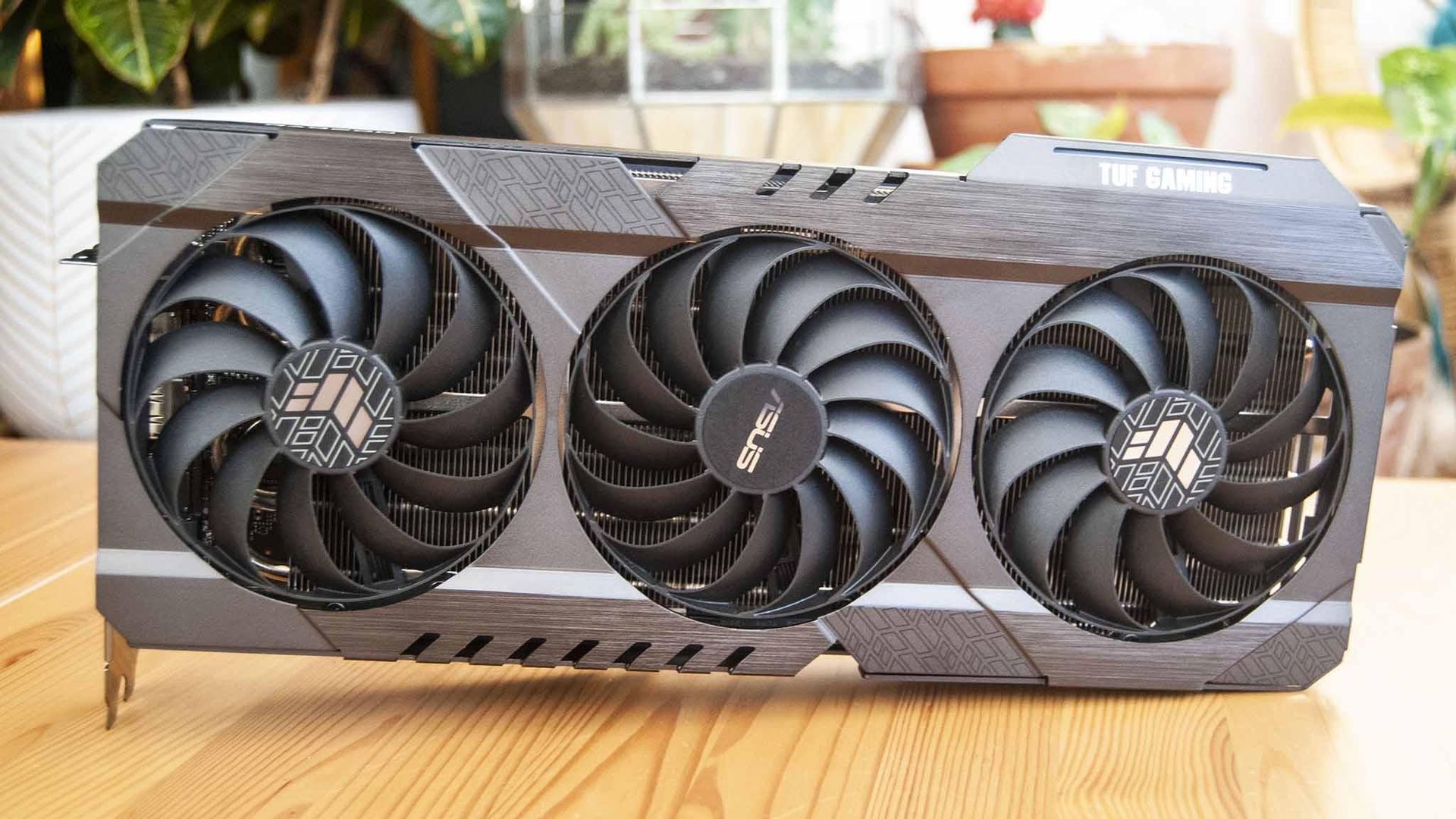
ASUS TUF Gaming RX 6800

Keep your old GPU in top shape. You never know how long it'll need to last. (Image credit: Future)

AMD's data center revenue only surpassed consumer and client revenue in Q2 2026, and it's worth pointing out that its Ryzen and Radeon consumer lines still rake in billions of dollars in revenue.

That could change over time, especially as consumers deal with years of hardship and PC sales plummet, but we'll cross that bridge when we come up to it.

What I'm more concerned with right now is not a complete halt to consumer production, but instead how AMD will be using its resources going forward. Shareholders always need more money, and right now, data centers are the easiest way to earn it.

For now, I don't think fans of Team Red need to panic.

If data center demand continues to explode, does AMD eventually pull all of its best into that division? Do the gaming and consumer teams get the leftover scraps?

For now, I don't think fans of Team Red need to panic. Lisa Su's recent comments, taken in context, are not shocking. They're not even new.

Still, some skepticism never really hurt anyone. Neither does keeping your aging GPU in tip-top shape as markets face continued uncertainty.

Do you agree with my take? Are Su's words as big a deal as many are making them? Where do you see AMD in 5 years? 10 years? Let me know in the comments section below!

Click to join us on r/WindowsCentral

Join us on Reddit at r/WindowsCentral to share your insights and discuss our latest news, reviews, and more.

Lenovo's Pro 9n looks like a better buy than the Surface Laptop Ultra

Microsoft Surface Laptop Ultra renderMini-LED

Microsoft
Surface Laptop Ultra

The Surface Laptop Ultra starts at a more affordable price, but evens out as you add hardware. It lacks pen support, its mini-LED display isn't as impressive, plus it's overall thicker and heavier.

Pros

  • Mini-LED display gets way brighter
  • Taller 3:2 aspect ratio and higher resolution
  • Starts at a lower price (for less hardware)
  • Has a smaller footprint
  • Magnetic USB-C connector is genius

Cons

  • No inking
  • Lower display refresh rate
  • Mini-LED has some backlight bloom
  • Weighs more and is thicker

Lenovo Pro 9n 15OLED

Lenovo
Pro 9n

Lenovo's Pro 9n starts at a higher price, but actually gets cheaper than Surface as you add hardware. Its OLED display, top-firing speakers, haptic touchpad with inking, and 9.1MP webcam are all benefits you won't get from Surface.

Pros

  • Superior webcam and top-firing speakers
  • OLED display delivers better contrast and no blooming
  • Thinner and lighter
  • 165Hz refresh rate and NVIDIA G-Sync are good for gaming
  • Haptic touchpad works with the included pen

Cons

  • Starts at a higher price
  • Display not as high-res or as bright
  • One fewer port

Microsoft's Surface Laptop Ultra and Lenovo's Pro 9n are among the first NVIDIA RTX Spark laptops that the Windows Central team has tested and reviewed. The Surface Laptop Ultra received 4 stars, while the Pro 9n bumped the score up to 4.5 stars.

Although we reviewed both laptops favorably, there are some major differences beyond the new NVIDIA chip that you'll certainly want to know about before buying.

Surface Laptop Ultra vs. Lenovo Pro 9n: Specifications and price

There are plenty of similar specs across these laptops, and I know it's handy to have a quick reference table to compare.

Surface Laptop Ultra

Lenovo Pro 9n

CPU

NVIDIA N1X
18-core/20-core

NVIDIA N1X
18-core/20-core

GPU

NVIDIA RTX
5120-core/6144-core

NVIDIA RTX
5120-core/6144-core

RAM

24GB, 32GB, 48GB, 64GB, 128GB LPDDR5X unified

32GB, 64GB, 128GB LPDDR5X unified

Storage

512GB M.2 PCIe 4.0 NVMe SSD
1TB, 2TB M.2 PCIe 5.0 NVMe SSD
Upgradable

512GB, 1TB M.2 PCIe 4.0 NVMe SSD
2TB M.2 PCIe 5.0 NVMe SSD
Upgradable

Display

15 inches, 3270x2180, touch, mini-LED, 3:2 aspect ratio, 120Hz VRR, Dolby Vision IQ, 1000 nits (SDR)

15.3 inches, 2560x1600, touch or non-touch, OLED, 16:10 aspect ratio, 165Hz VRR, Dolby Vision, G-Sync, 500 nits (SDR)

Wireless

Wi-Fi 7
Bluetooth 5.4

Wi-Fi 7
Bluetooth 5.4

Camera

FHD with IR

9.2MP with IR

Audio

4x Omnisonic speakers (Dolby Atmos)

4x speakers (Dolby Atmos)

Battery

92Wh

92.5Wh

Ports

2x USB4, 1x USB4 with Magnetic Connect, 1x HDMI 2.1b, 1x USB-A 3.1, SD card reader, 3.5mm audio

2x USB4, 1x HDMI 2.1, 2x USB-A 3.1, UHS-II SD card reader, 3.5mm audio

Dimensions

12.95 x 9.40 x 0.71-0.75 inches (328.8mm x 238.7mm x 17.99-19.16mm)

13.66 x 9.53 x 0.66 inches (347mm x 242mm x 16.7mm)

Weight

4.41 pounds (2kg)

3.64 pounds (1.65kg)

Colors

Platinum, Nightfall

Thunder Grey

The Surface Laptop Ultra starts at $2,599.99 for a model with the 18-core CPU, 5120-core GPU, 24GB of RAM, and 512GB SSD.

Lenovo's Pro 9n with the 18-core CPU, 5120-core GPU, 32GB of RAM, and 512GB SSD starts at 2,999.99. I imagine a lot of that price difference comes from the extra RAM, but as you'll see below, Lenovo's laptop also has some concrete benefits over the Surface.

Surface Laptop Ultra models with upgraded 20-core CPU, 6144-core GPU, 32GB of RAM, and 1TB SSD start at $3,699.99.

Lenovo's Pro 9n jumps to a 20-core CPU, 6144-core GPU, 64GB of RAM, and 1TB SSD for the higher-end config, starting at $4,249.99. If I compare a similar Surface Laptop Ultra config with these specs, it comes out to 4,299.99.

Basically, the Surface Laptop Ultra starts at a more affordable price thanks to more config options, but once you make the performance hardware comparable, Lenovo's PC actually becomes more affordable.

Lenovo's laptop is thinner and lighter than the Surface Laptop Ultra

Surface Laptop Ultra

The Surface Laptop Ultra is rather sleek, but it's not as thin and light as the Lenovo Pro 9n. (Image credit: Zac Bowden / Windows Central)

Microsoft's new Surface Laptop Ultra has a slightly smaller footprint than the Lenovo Pro 9n, but I don't think it's enough to make a difference in your bag. The real story is the Pro 9n's 0.66-inch chassis that's noticeably thinner than the Laptop Ultra's 0.71-0.75-inch measurement.

Lenovo's laptop is also lighter, starting at 3.64 pounds compared to the Surface Ultra's 4.41 pounds. That's a considerable difference that you'll notice each time you use the PC, and if you're always on the move, this should be a win for Lenovo.

Close-up of a slim laptop on a wooden table, showing its keyboard and side ports; a patterned mug and cushions create a cozy workspace.

Lenovo's Pro 9n is thinner and lighter than the Surface Laptop Ultra. (Image credit: Future)

Both laptops are built into a sleek aluminum chassis that doesn't get much more premium. Windows Central Senior Editor Zac Bowden commented in his Surface Laptop Ultra review:

Yes, Surface Laptop Ultra looks an awful lot like a MacBook Pro. [...[...] But I'm not here to tell you that's a bad thing. The MacBook Pro is a beautiful device, which is to say Surface Laptop Ultra is also very beautiful. In fact, I think it even improves upon the MacBook Pro's design in subtle ways.

Lenovo's Pro 9n takes a slightly different approach, often seen in its Yoga series, with rounded edges, top-firing speakers flanking the keyboard, and a raised comms bar above the display to fit a superior webcam.

Close-up of a dark gray laptop or monitor edge with a slim, rounded bar; a softly blurred sofa and cushions create a calm indoor backdrop.

The raised comms bar on the Lenovo Pro 9n leaves more space for a superior webcam. (Image credit: Future)

On that note, anyone who's often taking video calls, Teams meetings, etc. should consider Lenovo's 9.2MP webcam over the Surface Laptop Ultra's rather standard 1080p camera.

Both will get the job done, sure, but Lenovo's camera offers more clarity. I also found it quite good at dealing with low light. At least both laptops come with an IR sensor for facial recognition through Windows Hello.

Which laptop has better ports?

Surface Laptop Ultra magnetic charging cable

A look at the Surface Laptop Ultra's magnetic USB-C adapter. (Image credit: Zac Bowden / Windows Central)

Ports across both laptops are the same except for one major standout. I'm talking about the Surface Laptop Ultra's additional magnetic USB-C connector that's designed to pull away from the PC when it gets snagged or tripped over.

It's a lot like Apple's MagSafe tech, and I'm all about it; I hope it comes to more Windows PCs soon.

Other than the extra USB-C port, the Surface Laptop Ultra and Lenovo Pro 9n have the same selection of ports, including dual USB4, dual USB-A at 10Gbps each, HDMI 2.1, UHS-II SD card reader, and 3.5mm audio jack.

Is there a superior keyboard or touchpad?

Close-up of a Lenovo Pro 9n laptop with a blue-backlit keyboard and stylus resting diagonally across its large touchpad, on a wooden table. The scene feels calm and practical.

Lenovo's Pro 9n includes a Yoga Pen 2 that writes directly on the haptic touchpad. (Image credit: Future)

Windows Central Senior Editor Zac Bowden said, "This is probably the best keyboard and trackpad experience I've ever had on a Windows laptop to date" in his review. I'd wager that the Yoga Pro 9n takes things one step further.

Whereas the Surface Laptop Ultra has 1.4mm key travel, Lenovo pushes it to 1.5mm. Lenovo's touchpad is also slightly larger than the one on the Surface, giving you more space to point.

Both use haptic touchpads, meaning there aren't any moving parts. Clicks and feedback are simulated with small haptic motors below the surface. There are fewer mechanical parts to break down, and generally, you get a smoother experience.

But Lenovo goes one step further with inking compatibility on its touchpad. Each Pro 9n comes with a Yoga Pen 2, and I found it to be quite handy when jotting down notes or sketching ideas.

Does one laptop have better speakers?

A dark gray laptop sits diagonally on a pale wooden table, its keyboard and touchpad visible beneath a screen showing orange earth and blue sky.

A look at the speakers flanking the Pro 9n's keyboard (Image credit: Future)

Having checked out both laptops, I'd say that audio quality is a wash unless you care about placement.

Both laptops have four speakers, and both produce some of the best audio we've ever heard in a Windows laptop. No matter what, you get deep bass, clear highs, and loud volume.

The big difference is that the Pro 9n has two of its speakers flanking the keyboard for unmuffled audio. The Surface Laptop Ultra keeps all four of its speakers on the underside of the chassis.

Microphones are also excellent across both laptops. You won't need to worry at all about adding a microphone for calls and video chats.

Do you value brightness or color in your display?

A Lenovo Pro 9n laptop on a wooden coffee table displays a vivid orange domed building against a blue sky, beside a potted plant, books, and a gray sofa.

A look at the Lenovo Pro 9n's OLED display. (Image credit: Future)

Display preferences could make or break your decision here. The Surface Laptop Ultra has a 15-inch mini-LED screen with a 3270x2180 resolution, 3:2 aspect ratio, 120Hz variable refresh rate, and Dolby Vision IQ support.

Its mini-LED panel has 1,344 dimming zones, and it manages to climb to about 2,000 nits brightness with HDR enabled. Otherwise, it tops out at about 1,000 nits.

This is great if you're often working in brightly lit areas, as you'll have much less trouble there than with the Pro 9n's maximum of 1,100 nits. However, as Zac Bowden notes, the mini-LED panel can show "a bit of blooming around bright elements on a dark background."

That's not the case with the OLED panel in the Lenovo Pro 9n. It offers perfect contrast and deep color, so there's no blooming or backlighting issues whatsoever.

Lenovo's laptop also offers a higher 165Hz variable refresh rate, and it's able to cover all color gamuts for specialized work. That higher refresh rate can help with gaming, as can the display's NVIDIA G-Sync compatibility.

The big downside is that it doesn't have as many pixels with a 2560x1600 resolution.

Is there a difference in RTX Spark performance?

Surface Laptop Ultra

The Surface Laptop Ultra has the same NVIDIA RTX Spark chip options as the Lenovo Pro 9n.

What's probably not a surprise for many is that NVIDIA's RTX Spark system-on-chip (SoC) performs similarly across laptop brands.

In this case, Zac Bowden tested the Surface Laptop Ultra with the 20-core CPU and 6144-core GPU, while I tested the 18-core CPU and 5120-core GPU in the Lenovo Pro 9n.

Unsurprisingly, the more expensive chip in the Surface Laptop Ultra comes out ahead in all relevant tests we performed. The gap isn't huge, and, of course, you can always add the 20-core chip to the Pro 9n to make up the difference.

Benchmark graph showing Lenovo Pro 9n with 18-core RTX Spark chip against other RTX Spark laptops with 20-core chips.
Future
Benchmark graph showing Lenovo Pro 9n with 18-core RTX Spark chip against other RTX Spark laptops with 20-core chips.
Future
Benchmark graph showing Lenovo Pro 9n with 18-core RTX Spark chip against other RTX Spark laptops with 20-core chips.
Future
Benchmark graph showing Lenovo Pro 9n with 18-core RTX Spark chip against other RTX Spark laptops with 20-core chips.
Future

The Pro 9n model I tested arrived with an M.2 PCIe 4.0 NVMe SSD, which is a generation behind the M.2 PCIe 5.0 NVME SSD in the Surface Laptop Ultra model we tested.

It's no surprise that the newer SSD is faster, and keep in mind that both laptops have the option for the upgraded PCIe 5.0 drive.

Which laptop has better battery life?

Surface Laptop Ultra

The Surface Laptop Ultra's battery is rated for 0.5Wh more than the Pro 9n. (Image credit: Zac Bowden / Windows Central)

Battery capacity across laptops only differs by 0.5Wh, and in our experience, both laptops were able to hit around 10 hours of real-world usage before needing a charge.

I'm talking about lighter fare for that 10-hour runtime, like web browsing, Excel, Word, email, streaming, etc.

Once you start adding demanding tasks that press the GPU — especially AI-related work — you'll see battery life falling quite a bit faster.

For reference, when I gamed on the Lenovo Pro 9n, The Witcher 3: Wild Hunt Remastered with settings cranked up and ray tracing enabled was only seeing about 10 minutes of playtime for each 10% of battery life.

Surface Laptop Ultra vs. Lenovo Pro 9n

A Lenovo Pro 9n laptop showing a digital game library sits on a wooden coffee table, beside a potted plant and stacked books, with a patterned cushion on the sofa.

I'm taking the Lenovo Pro 9n over the Surface Laptop Ultra, but your decision might be different. (Image credit: Future)

Microsoft's Surface Laptop Ultra starts at a more affordable price, and that will resonate with a lot of people despite it coming with less powerful hardware. If you're just looking for a more affordable RTX Spark system, Surface is the way to go.

However, once you start adding similar hardware tiers, Lenovo's PC becomes more affordable. With the price in mind alongside the host of benefits from the Pro 9n that I've laid out above, I'm leaning towards Lenovo.

Microsoft Surface Laptop Ultra render

Mini-LED
Microsoft
Surface Laptop Ultra

The Surface Laptop Ultra starts at a more affordable price, but evens out as you add hardware. It lacks pen support, its mini-LED display isn't as impressive, plus it's overall thicker and heavier.

Lenovo Pro 9n 15

OLED
Lenovo
Pro 9n

Lenovo's Pro 9n starts at a higher price, but actually gets cheaper than Surface as you add hardware. Its OLED display, top-firing speakers, haptic touchpad with inking, and 9.1MP webcam are all benefits you won't get from Surface.

Click to join us on r/WindowsCentral

Join us on Reddit at r/WindowsCentral to share your insights and discuss our latest news, reviews, and more.

Xbox and PC prices are out of control, and Microsoft clearly knows it

Microsoft's big news this week is about how Windows 11 is now considerably more responsive on 8GB of RAM. A couple of weeks ago, it was the Xbox Series X|S and AMD-powered gaming handhelds getting AMD's FSR 4.1 upscaling to help boost performance.

What do these stories have in common? To me, they're evidence that the standard tech market model is breaking down in the face of unprecedented hardware shortages.

Laptops and desktop PCs keep rising in price, even as they're stripped of memory and storage. Xbox consoles have never been pricier. The latest gaming handhelds, including the MSI Claw 8 EX AI+, are ballooning in price, to the point that they cost as much as a high-end gaming laptop from just a few years ago.

Consumer hardware that used to brute-force its way to acceptable performance in Windows, games, and beyond is no longer on the table for a lot of people because of AI-inflated prices.

What's left? Microsoft, despite its major role in the AI race, can't directly make hardware cheaper. It can, however, make it last longer by focusing on optimizations and innovations that offset the current economic reality that's keeping old hardware in our hands.

Windows 11 running better on 8GB PCs is part of a bigger picture

A laptop sits on a wooden coffee table, displaying Windows Task Manager’s Memory page; books and a sofa frame the quiet home setting.

The Acer Swift Air 14 with 8GB RAM, on which I tested RAM usage in Windows 11 26H2. (Image credit: Future)

The bigger story surrounding Windows 11's 8GB improvements is that Microsoft is putting significant engineering efforts into improving the OS for low-end hardware. And it's not afraid to show it off.

To me, this is a reversal of tradition. For what feels like all my life until recently, the answer to a sluggish PC was to upgrade the hardware. Microsoft and its OEMs loved this tradition, of course, because it let them sell more products.

Copilot+ PC launch event with Satya Nadella

The Copilot+ PC initiative only lasted for a couple of years.

Now, the focus is shifting to making the hardware we have feel like it can indeed last until an upgrade becomes affordable.

This shift comes a couple of years after Microsoft's massive Copilot+ PC initiative, which I'm sure was conceived as an ultimate ploy to get users to buy new hardware.

That didn't turn out so well for Microsoft. The AI tools built into the OS failed to capture the whimsy of the average user. Adoption was slow, no doubt largely because of rising prices. The Copilot+ PC badge was eventually phased out in September 2026.

Microsoft must have realized at some point during this transition that the millions of Windows users still running old hardware are not going to upgrade any time soon.

Optimization used to be a nice bonus when it arrived, but it's now becoming a major pillar in Microsoft's consumer strategy.

AMD's FSR 4.1 will held extend the life of consoles and handhelds

FSR 4.1 on an Xbox Ally

AMD FSR 4.1 running on the ROG Xbox Ally. (Image credit: AMD)

Microsoft isn't just working on optimizations for Windows users. AMD recently announced it's bringing its FSR 4.1 upscaling technique to its older hardware, which includes Xbox Series X|S, Radeon RX 6000 GPUs, and a host of Ryzen-powered gaming handhelds, including the ROG Xbox Ally X.

I've discussed how this update gives the current console generation some much-needed legs in the face of next-gen uncertainty. It improves image quality, makes rendering easier, and boosts framerates (maybe not all at the same time).

It won't turn your Xbox into a supercomputer, but it is the next best thing to buying an entirely new device with more power. This is particularly important as rumors of the next-gen Xbox Helix's $1200-$1800 price begin to swirl.

Xbox Helix logos

Helix is so far expected to cost somewhere between $1200-$1800 when it launches. (Image credit: Microsoft | XBOX)

If Helix indeed launches at that price, Microsoft has to know that adoption won't be fast. But the company also knows it can't afford to lose those Xbox gamers.

Keeping the Series X|S relevant longer into the future ensures that gamers keep buying Game Pass subscriptions, keep buying new games, and, ultimately, remain inside the ecosystem.

Microsoft doesn't really need people to buy new PCs

Image of the Lenovo Yoga Slim 9i 14 (Gen 10) and ASUS Zenbook A14 (2025) laptops.

PC sales are no longer such a big part of Microsoft's business model. (Image credit: Windows Central | Zachary Boddy)

Microsoft used to make ungodly amounts of money from licensing Windows on PCs. However, it's arrived at a point where licenses are a tiny fraction of revenue. It's all about the subscriptions now, including Game Pass, Microsoft 365, OneDrive, Copilot, Azure, and many more.

Don't get me wrong; I'm sure Microsoft would still love to be selling a ton of PCs. That's just good for business. That's not what's happening these days. PC sales are on a steep decline because of rising prices.

But as long as people are still using some sort of Windows PC that doesn't frustrate them with sluggish performance, there's a good chance that Microsoft will receive at least one monthly payment and remain within the ecosystem.

The current upgrade cycle is stuck in place

RAM sinking into the ocean

Unbelievably high RAM and storage prices have halted the tech upgrade cycle for a lot of people. (Image credit: Windows Central | Jez Corden)

Microsoft realized at some point that the upgrade cycle we're currently in is going to last for a lot longer than usual, especially as prices keep climbing.

And although I'm sure there were external circumstances playing a role in these recent optimizations I laid out, the big story is that Microsoft knows software is the answer to unaffordable hardware.

Do you agree with my opinions above? Do you think we'll be seeing a lot more software optimization in the years to come if PC prices don't drop? Do you think this is all just a small bandage on a seeping wound? Let me know in the comments section below!

Click to join us on r/WindowsCentral

Join us on Reddit at r/WindowsCentral to share your insights and discuss our latest news, reviews, and more.
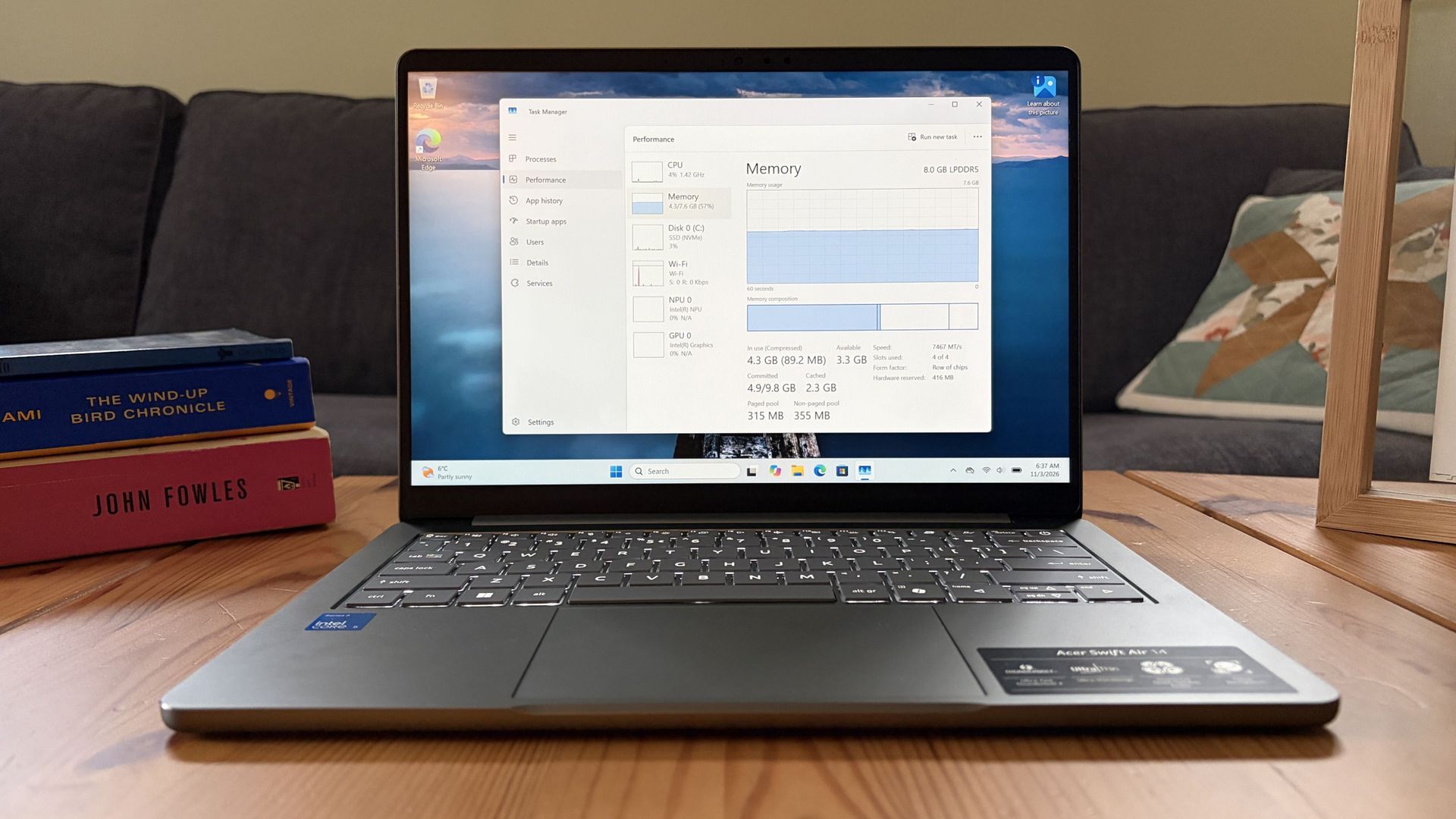
Steam’s latest survey is a reality check for anyone who thinks PC gamers all have high-end rigs

Steam's October hardware survey has landed, and it basically performed a round trip compared to the previous month's results.

In September, I noted that the massive 4.77% jump in 32GB RAM systems was likely due to an influx of Chinese players, as it lined up with a 7.42% growth in the language on Valve's platform.

That appears to have been true. The 32GB tier took a massive 5.16% dive in October, falling back to 37.06%.

At the same time, the 16GB tier moved back into top position with a 3.60% increase to arrive at 41.42%. Users polled with Simplified Chinese as their main language dropped 9.41%.

The bigger news for many of our readers is the jump in Windows 11 adoption, which continues at a fairly steady pace.

Steam's share of Windows 11 users continues to rise

Dark October 2026 analytics dashboard showing Windows OS versions: Windows 11 64-bit leads at 72.51%, with percentages and changes listed beside each version.

Windows 11 jumped 1.17% overall in Steam's October 2026 hardware survey. (Image credit: Future)

In October, Windows 11 users on Steam climbed by a respectable 1.17% to 72.51% overall. This caused Windows 10's share to drop 2.5%, hitting 21.11%.

About Steam's survey...

Steam's hardware survey is not mandatory, and results depend on who decides to opt in. This can skew results from month to month, as we saw in September 2026.

This is a better improvement than September, which saw just a 0.37% rise for Windows 11. In the same month, Windows 10 also rose by 0.71%.

Are gamers suddenly abandoning Windows 10 at a faster pace? Probably not. What's more likely is another correction to do with the polled sample. Windows 10 is still holding onto just more than a fifth of the overall OS share among Windows, Linux, and macOS.

NVIDIA's RTX 3060 reclaims the top spot

NVIDIA GeForce RTX 3060

The NVIDIA RTX 3060 just won't quit, especially with current GPU prices. (Image credit: Windows Central)

Another interesting tidbit from the October survey lands in the GPU section. Whereas last month the RTX 5070 took top place with a significant 5.86% share, it fell by 2.3% in October to land at 3.56%.

The GPU to replace it as the most common amongst polled Steam users? The legendary NVIDIA RTX 3060, jumping 0.08% to hit 3.62% overall.

Looking at the overall results, 8GB GPUs (especially the RTX 3060) are back in top spots alongside 1920x1080 monitors, which now make up 50.23% (a 2.32% improvement since last month).


If RAM and storage prices were indeed driving users to upgrade, last month's 32GB RAM and RTX 5070 anomalies wouldn't have been crushed out so quickly or so drastically.

To me, as I mentioned, this seems to be more of a correction for September's skewed survey than large moves by consumers as they deal with the ongoing RAM and storage crisis.

Windows Central's take

Windows 11 Taskbar closeup

Windows 11 adoption keeps climbing amongst Steam users.

It seems to me, based on Steam's October survey, that PC gamers are continuing to update their software while holding onto their hardware.

For example, Windows 10's end-of-life support that was extended until October 2027 is still looming over many heads. At the same time, PC component prices are obscene, forcing gamers to reconsider upgrades.

This could be bad news for game developers, as many rely increasingly on hardware that's priced out of the average gamer's reality.

For next month, I'm keeping an eye on whether or not Windows 11 keeps rising and if RTX 50-series GPUs get another boost in shares against older cards.

Click to join us on r/WindowsCentral

Join us on Reddit at r/WindowsCentral to share your insights and discuss our latest news, reviews, and more.
Does Windows 11 26H2 actually use less RAM? I tested to find out.

Microsoft has revealed the depths of its work to make Windows 11 feel less sluggish, with the company claiming, among other things, up to 20% better responsiveness on systems with 8GB of RAM.

Microsoft has claimed before that things "seem faster," but is there any juice behind this new claim? I decided to find out myself by running some tests on an 8GB laptop in my office.

The results will likely be surprising to some, especially once we get into the heavier workloads below.

How I tested Windows 11's responsiveness on an 8GB laptop

A Dell XPS laptop with a gray lid and an open Swift Air 14 display showcasing specifications. An abstract logo in pink, purple, and yellow overlaps the images.

Dell's XPS 13 and Acer's Swift Air 14 are both from a new group of 8GB laptops running on Intel Core Series 3 chips. (Image credit: Future)

I installed a barebones version of Windows 11 25H2 (262000.7019) from about a year ago on an Acer Swift Air 14 with an Intel Core 5 320 CPU, 8GB of LPDDR5x RAM, and a 512GB M.2 PCIe 3.0 NVMe SSD.

I didn't touch the page file (4524MB), and I only installed the necessary drivers before beginning my tests. I used the Best Performance power profile for all tests.

Once I'd completed all tests on 25H2, I upgraded to Windows 11 26H2 (26300.9711), which was released in October. Same system, same drivers, same programs.

Microsoft used telemetry data from things like Search, Settings, File Explorer, and Snipping Tool to measure responsiveness. I took a look at RAM usage instead; lower usage generally means fewer hiccups and interruptions, leading to an overall better experience.

Testing Windows 11's fresh-boot memory footprint with 8GB of RAM

Task manager window showing Memory usage on Windows 11 25H2.
Windows 11 25H2's baseline memory usage after a fresh boot.Future
Task manager window showing Memory usage on Windows 11 26H2.
Windows 11 26H2's baseline memory usage after a fresh boot.Future

For this test, I checked both new and old versions of Windows 11 about 10 minutes after booting the PC. This gives me a baseline to work with. I opened no additional apps and just let the system idle.

Windows 11 25H2 (262000.7019)

Windows 11 26H2 (26300.9711)

Total RAM Usage

5.3GB

4.1GB ^

Available RAM

2.3GB

3.5GB ^

Paged / Non-Paged Pool

351MB / 257MB

275MB / 300MB ^

Cached

2.2GB

2.3GB ^

Committed

4.7GB/9.5GB

4.4GB/9.5GB ^

The older Windows 11 25H2 version was eating up 5.3GB of RAM in this scenario, leaving 2.3GB free. Windows 11 26H2 dropped RAM usage to 4.1GB, leaving 3.5GB free. That's a big drop.

Although both commits are the same at 9.5GB, Windows 11 26H2 uses slightly less at 4.4GB compared to 4.7GB.

TL;DR: Windows 11 26H2 is well ahead in the boot test where no additional apps are running, using significantly less RAM than 25H2.

Testing common workloads in Windows 11 with 8GB of RAM

Windows 11 Task Manager showing Memory usage graph in 25H2.
Windows 11 25H2 memory usage in a common workload.Future
Windows 11 Task Manager showing Memory usage graph in 26H2.
Windows 11 26H2 memory usage in a common workload.Future

Now that I've established a baseline, I put together a test to see how each PC handles an average user's daily workload.

I opened 10 tabs in Edge with a mix of Windows Central, Reddit, YouTube, Gmail, X, Amazon, etc. I also opened a Word document, Slack messenger, and the Spotify app.

Windows 11 25H2 (262000.7019)

Windows 11 26H2 (26300.9711)

Total RAM Usage

7.0GB

6.6GB ^

Available RAM

563MB

1018MB ^

Paged / Non-Paged Pool

332MB/397MB

300MB/345MB ^

Cached

580MB

738MB ^

Committed

11.5GB/12.2GB

9.1GB/10.4GB ^

Windows 11 25H2 climbed to 7.0GB RAM usage, while 26H2 hit just 6.6GB. That's about a 0.4GB improvement. Windows 11 26H2 was able to keep its cache larger while also committing less RAM at 10.4GB compared to 12.2GB.

For reference, committed memory indicates how much RAM the PC is setting aside for operations. In this case, 12.2GB of RAM committed includes physical system RAM and virtual memory (set by the page file). Committing less RAM keeps your system from clogging up, so this is good news.

TL;DR: Windows 11 26H2 keeps its lead under load, actively using less RAM and allocating less RAM overall.

Testing heavy workloads in Windows 11 with 8GB of RAM

Windows 11 25H2 Task Manager window showing memory usage graph.
Windows 11 26H2 memory usage in an extreme workload.Future
Windows 11 26H2 Task Manager window showing memory usage graph.
Windows 11 25H2 memory usage in an extreme workload.Future

Although the fresh crop of recommended Windows 11 laptops with 8GB of RAM aren't really meant to handle workloads this heavy, I knew it would be fun to really stress out the PC.

I opened Edge (with 20 tabs), a Word document, an Excel spreadsheet, Spotify, Slack, Microsoft Store, the Photos app, File Explorer, and GIMP simultaneously for this test.

Windows 11 25H2 (262000.7019)

Windows 11 26H2 (26300.9711)

Total RAM Usage

7.3GB

6.8GB ^

Available RAM

352MB

764MB ^

Paged / Non-Paged Pool

355MB/434MB

318MB/357MB ^

Cached

383MB

638MB ^

Committed

14.7GB/15.2GB

9.8GB/10.4GB ^

You can see the 7.3GB total RAM usage on 25H2 and just 6.8GB on 26H2. That's a good sign, but there's some nuance.

Windows 11 25H2 began requiring more RAM than the system could provide, which led to paging and swapping, which led to disk usage spikes as the PC moved increasingly to virtual RAM.

Windows 11 26H2 also saw some disk usage spikes, especially when jumping around between apps and tabs, but not quite as severe.

The big number that stands out is committed RAM. 25H2 has 15.2GB allocated, while 26H2 has just 10.4GB allocated. Overall, the system is still using less RAM.

TL;DR: Heavy workloads bog down any 8GB system, but Windows 11 26H2 puts up a much more responsive fight than 25H2 from a year ago.

Windows Central's take

Acer Swift Air 14

Acer's Swift Air 14 that I used for testing (pictured here at Computex). (Image credit: Zac Bowden / Windows Central)

It's a bad time to be shopping for a new PC. The world's supply of memory and storage is constrained due to demand from AI data centers, leaving scraps for the rest of us.

The shortage is also forcing PC brands to raise prices. To offset costs, these brands are also reintroducing 8GB RAM models. This has led to plenty of discourse as to whether or not that's enough memory for modern Windows 11, which I explored in June.

In my opinion, Microsoft is A) listening to its user base that has been asking for a more streamlined Windows 11, and B) making it easier for OEMs to sell 8GB laptops to a wider range of people.

I'm here for it. There's no reason Windows 11 should be bogging down a system with 8GB of RAM, especially if it's just being used for common tasks. Compared to almost exactly one year ago, it definitely appears that the work was well worth the time.

Click to join us on r/WindowsCentral

Join us on Reddit at r/WindowsCentral to share your insights and discuss our latest news, reviews, and more.
Microsoft made Windows 11 more responsive on these 8GB laptops

Microsoft has been busy at work reducing the amount of RAM that Windows 11 consumes, and it finally made an official statement today on the topic.

As it turns out, the company has already been quietly shipping performance improvements in the latest Windows 11 updates, focusing on making systems with 8GB of RAM feel a lot more responsive.

The result? Microsoft says Windows 11 is now about 20% more responsive on 8GB PCs compared to before this work started. The work also applies to systems with 4GB, 16GB, and beyond, with specific tuning for each amount.

This couldn't come at a better time. RAM and storage shortages (explained below) are driving up the cost of all PCs, and models with 8GB of RAM are being revived to lessen the burden on consumers.

Our favorite 8GB Windows laptops in November 2026

Dell XPS 13

Dell's thinner XPS 13 (2026) on the right, Apple's thicker MacBook Neo on the left. (Image credit: Zac Bowden / Windows Central)

Companies like Dell, Acer, and HP have all recently launched 8GB laptops that cost somewhere around $699, with student and regular discounts frequently dropping those numbers lower.

If you were hesitant to shop for an 8GB laptop before, the recent Windows 11 updates should have you reconsidering, especially when prices are this reasonable. Here are my three favorite 8GB laptops right now.


Dell's awesome XPS 13 starts at $699.99 (or $599.99 if you're a student) and includes an Intel Core 5 320 CPU, 8GB of LPDDR5x RAM, a 256GB M.2 PCIe 4.0 NVMe SSD, and a 13.4-inch touch display with 2560x1600 resolution

👉 See at Dell.com

Dell's new XPS 13 for 2026 wowed both Zac Bowden and me at Computex earlier this year, and it's been available to buy since June.

It's a laptop with many premium features despite its price, including a higher-res 2560x1600 (QHD+) display with a 120Hz refresh rate, an IR camera for Windows Hello facial recognition, capable speakers, and a comfortable keyboard/touchpad combo.

👉 Does Acer's Swift Air 14 beat Dell's awesome XPS 13?

It does not, however, offer USB-A or 3.5mm audio ports. Its display does not use an OLED panel; it uses IPS instead. And the $599 price is only available for students.

Still, $699 for everyone else is not bad at all in this economy, and most users should have no issues with the XPS 13.

OmniBook 5 14: was $699.99 now $599.99

HP's 14-inch OmniBook 5 is currently on sale for $599.99. It has an Intel Core 5 320 CPU, 8GB of LPDDR5x RAM, a 256GB M.2 PCIe 4.0 NVMe SSD, and a 14-inch OLED touch display with 1920x1200 resolution.

👉 See at HP.com

HP's OmniBook 5 14 comes with the same Intel Core 5 320 CPU as the other laptops in this roundup, so don't expect any major performance changes.

The OmniBook 5 includes an OLED panel for deeper contrast and more vivid color than IPS. The tradeoff is a lower 1920x1200 resolution and lower 60Hz refresh rate compared to the XPS 13.

HP's laptop also includes HDMI and 3.5mm audio ports alongside dual USB-C at 10Gbps. It's nice to have native video, but the lack of Thunderbolt is a letdown.

This laptop is currently on sale for $599.99 for everyone, making it (temporarily) the best deal of the bunch.


Acer's Swift Air 14 costs $699.99 and comes with an Intel Core 5 320 CPU, 8GB of LPDDR5x RAM, a 512GB M.2 PCIe 4.0 NVMe SSD, and a 14-inch non-touch display at 1920x1200.

👉 See at BestBuy.com

Acer's Swift Air 14 immediately makes an argument for itself with twice as much storage (512GB) as the Dell and HP laptops. For those who prefer to store locally, this could be the deciding factor. However, it does drop down to PCIe 3.0 speeds.

Performance is largely the same thanks to it having the Intel Core 5 320 chip inside, with 8GB of LPDDR5x RAM.

The display hits a 1920x1200 resolution; it doesn't have touch, but it does hit a smoother 120Hz refresh rate. You're definitely giving up some screen quality to land that extra storage.

While the keyboard is great, the touchpad leaves something to be desired. Your experience may vary.

Why is Microsoft concerned with reducing Windows 11 RAM usage?

Acer Swift Air 14

Acer's new Swift Air 14 is available in four different colors. (Image credit: Zac Bowden / Windows Central)

Sure, Windows 11 could always be more streamlined, but this big push for more RAM efficiency is also a result of the ongoing memory and storage crisis.

See, AI data centers are eating up many of the foundational components of PCs, making the consumer side far more expensive.

RAM in particular has exploded in price; the same 32GB kit of DDR5 I bought for my gaming PC a few years ago, for example, is roughly 600% more expensive today. Storage isn't much better.

This is forcing PC makers to reevaluate their product lineups, as many consumers can no longer afford PCs with 16GB or more of RAM.

Cutting RAM in half is a huge cost saver and won't likely stop anytime soon (the RAM crisis could last for years to come), so it's great to see Microsoft taking user complaints about Windows 11's responsiveness (or lack thereof) seriously.

Click to join us on r/WindowsCentral

Join us on Reddit at r/WindowsCentral to share your insights and discuss our latest news, reviews, and more.

Maingear Zero review: The cleanest pre-built I’ve tested in years

I've spent more than a decade testing gaming PCs, and even the best pre-builts usually have cables you simply can't hide. That made my first look inside Maingear's new Zero genuinely surprising, even after my previous Maingear MG-1 review.

There's almost nothing there. Power connections have been moved behind the motherboard, the panoramic glass is uninterrupted, and the components that normally compete with bundles of cabling finally get the spotlight. It's one of the cleanest pre-built PCs I've tested.

Clean doesn't necessarily mean better, though. After a few weeks of gaming, benchmarking, stress testing, and poking around inside, I wanted to know whether Maingear's cable-free approach actually improves the PC or simply makes for prettier photos.

Maingear sent Windows Central a review unit on loan for testing. It had no input, nor saw the contents of this review, prior to publication.

How much does the Maingear Zero cost?

A polished MAINGEAR gaming PC interior shows neatly routed black cables, a large graphics card, and white cooling fans in a sleek, high-performance build.

The RTX 5090 has the only visible power connector in the Maingear Zero. (Image credit: Future)

My review unit is an extreme $8,676 configuration built around AMD's Ryzen 7 9850X3D and NVIDIA's RTX 5090 Founders Edition. Don't let that price scare you away from the Zero entirely, though. Here's what Maingear packed into my high-end loaner:

  • AMD Ryzen 7 9850X3D CPU
  • NVIDIA RTX 5090 Founder's Edition (FE) GPU
  • 32GB DDR5-6000MHz RAM
  • 2TB M.2 PCIe 4.0 NVMe SSD
  • TRYX Panorama SE AiO
  • MSI Pro B850M-A WIFI PZ motherboard
  • 1,250W MSI MAG A1250GL PSU
  • Zero MK.II case

But you don't need to spend anywhere near $8,676 to get the Zero's signature design. Models start at $2,799, with the baseline configuration landing you the same Zero MK.II case, an Intel Core Ultra 5 250K Plus CPU, NVIDIA RTX 5070 FE GPU, 32GB DDR5-6000 RAM, 2TB SSD, and a 360mm AiO.

That starting price is more competitive than I expected. A comparable DIY build came to roughly $2,850 when I priced it out, putting it remarkably close to Maingear's $2,799 starting price. Component prices fluctuate, of course, but Maingear isn't asking for an enormous boutique-PC premium just to get the Zero's distinctive design and professional assembly.

Why is this Maingear PC called Zero?

An open MAINGEAR gaming PC showcases a graphics card, liquid-cooling tubes, and white-lit fans in a sleek, carefully assembled desktop build.

The Maingear Zero keeps cables out of sight thanks to MG-RC motherboard connectors. (Image credit: Future)

Maingear's Zero steps away from the MG-1 with a more compact case. Rather than the MG-1's interchangeable front faceplate, panoramic glass extends from back to opposite front.

It's an immaculate look emphasized by customizable internal RGB lighting. I hate the look of exposed case LEDs, and this has none.

A black Maingear Zero desktop computer tower sits on a wooden desk, its rear ports and ventilation panels visible, with books and cases on shelves behind it.

The motherboard hosts the majority of ports, and there's space for expansion inside the case. (Image credit: Future)

The case's foundational layout isn't too different from the average PC. Five slots on the back for expansion, dedicated spot for the PSU, side intake with three fans, AiO CPU cooler installed on top, and exhaust on the back.

A yellow-haired LEGO minifigure stands on a black studded platform inside a computer case, dwarfed by a large white cooling fan; playful tech scene.

You can use either the LEGO stand or a figure stand inside the Zero's case. (Image credit: Future)

Maingear makes good use of extra internal space towards the front. Leaving this open will interfere less with airflow, but it's designed to hold either a figurine stand or a "studded brick stand" for your custom LEGO creations.

I already use LEGO in my own PC to hold up my GPU, and I love this little Maingear addition.

For anyone who appreciates a minimalist approach, this is the ultimate design.

At the front of the case, dual USB-A (5Gbps) ports, one USB-C (10Gbps), and a 3.5mm audio combo are present for quick hookups. I'd like to see faster connections here, but they ultimately get the job done as is.

The MSI motherboard in use offers much better I/O. There's USB4, tons of USB-A, and audio connections. The PC also has cutting-edge Wi-Fi 7 and Bluetooth 5.4; no worries about future-proofing there.

Close-up of a sleek Maingear Zero PC with a perforated grille, power button, headphone jack, and USB ports, shown in warm light.

Front ports on the Maingear Zero are pretty average. (Image credit: Future)

I also appreciate the way the case comes apart. The side and top panels are held in place with pressure points; you can pull them away without using any tools.

These panels have rather fine pinhole venting in all the right areas, and they seem to be doing a decent job of keeping out dust.

The panoramic glass panel is different. It's held in place with two screws, but once removed, you just grab two fabric pull tags to safely carry the glass. No more fingerprint smudges.

Yes, it requires a screwdriver to get into, but because of the reverse connectors, you should be spending a lot less time inside the front of the case.

A black MAINGEAR gaming PC tower sits on a wooden table, its glass side panel open to reveal fans and internal hardware; shelves of books fill the background.

The panoramic glass panel comes away as one piece. Pull tabs along the top make it easy to move without smudging. (Image credit: Future)

One other thing I want to call out is the massive bottom air intake covering practically the entire case, PSU included.

Best part? It has a removable dust screen that makes cleaning a breeze. If you live with cats like me, this is a nice addition.

Exploring the Maingear Zero's pristine internal layout

A custom MAINGEAR gaming PC glows with vivid purple RGB fans and red-lit memory, displaying a car on its small internal screen in a dim living room.

The Maingear Zero puts your hardware into the spotlight. (Image credit: Future)

Inside the Zero is where things really get interesting.

The only visible cabling runs to the RTX 5090 GPU, and that runs tight to the card. Exchange hoses run from the CPU to AiO cooler. That's it. For anyone who appreciates a minimalist approach, this is the ultimate design.

This rear connector fad hitting motherboards and cases lately was first patented as "MG-RC" by Maingear itself in 2011. It has taken a long time to get the recognition I think it deserves, but the industry seems to finally be coming around.

As far as I'm concerned, this is the best direction to take PC building. As you'll see below, this setup not only looks clean but also leaves air free to flow through the PC.

How is Maingear Zero's hidden cable management?

An open Maingear Zero desktop computer tower on a wooden desk reveals three cooling fans, bundled cables, and internal components in a tidy workspace.

A look at the back side of the Maingear Zero and the rear motherboard hookups. (Image credit: Future)

Upon removing the steel side panel, I'm greeted by just about the cleanest cable management I've seen in a prebuilt PC.

Because the cables plug straight into the back of the motherboard, they can all be channeled together much more tightly.

Like the MG-1, the Zero uses plastic zip ties to hold the majority in place. Maingear has designed a PC around accessibility and cleaner cable routing, but then uses disposable cable ties that make servicing those hidden cables less convenient.

Velcro/reusable straps would fit the philosophy of the Zero better.

A hand lifts tangled black cables beneath a computer’s rear ports, revealing connectors and wiring during a hands-on setup or repair.

I clipped a couple of zip ties to check fan connections. I'll have to replace the ties with Velcro. (Image credit: Future)

The case has a second, lower compartment that hides the modular PSU. I've seen some real cable messes jammed into this space in some PCs; Maingear keeps everything clean and tidy.

Does Maingear's MG-1 keep cool with good airflow?

The Maingear Zero's Ryzen 7 9850X3D CPU and NVIDIA RTX 5090 GPU speak for themselves. This combination will run any game you want at high, smooth frame rates.

I grabbed some results from synthetic benchmarking software to help compare against other PCs we've tested.

Maingear Zero 3DMark Speed Way results in a graph against a black background.
Future
Maingear Zero 3DMark Steel Nomad results in a graph against a black background.
Future
Maingear Zero 3DMark Port Royal results in a graph against a black background.
Future
Maingear Zero CrystalDiskMark results in a graph against a black background.
Future
Maingear Zero Cinebench 2026 results in a graph against a black background.
Future
Maingear Zero Geekbench 7 results in a graph against a black background.
Future

There are no surprises in these results. The CPU and GPU are performing as expected, right out of the box, with no additional steps required. I just unpacked, plugged in, and turned on.

What I'm more interested in is how this PC handles heat from the high-end components. If it keeps cool with this level of hardware, there should not be any issues with the more affordable configurations.

No big drops or spikes, which means you can game without worrying about what the system is doing.

I ran a 20-minute full-system stress test on the PC in a 21°C room. I made no changes to the stock fan curve that Maingear set up.

The PC got as loud as 50.5 decibels from about a foot away, and there was some coil whine to be heard, likely from the GPU. This is a common issue with NVIDIA's high-end GPUs.

Altogether, though, it runs fairly quietly, and there's lots of space for improvement if you don't mind adjusting fan curves.

A hand lifts the side panel of a black Maingear Zero gaming PC tower, revealing internal vents and components; a bookshelf and leafy plant frame the tidy workspace.

The top and bottom of the case have plenty of cutouts for airflow. (Image credit: Future)

The RTX 5090 never went above 80°C, remaining steady throughout the stress test. The CPU remained at a cool 62.5°C for most of the test, but I was less concerned thanks to the beefy AiO liquid cooler.

Best part? Performance was super steady over the course of the stress test. No big drops or spikes, which means you can game without worrying about what the system is doing.

That was ultimately my experience with the Maingear Zero. It's all set up when it arrives, sans any bloatware, and it games like it should right out of the box.

Should you buy the Maingear Zero?

A custom Maingear Zero gaming PC tower glows with purple RGB fans and colorful liquid cooling, displayed on a wooden table before a dark sofa for a dramatic, futuristic look.

The Maingear Zero's panoramic glass provides an uninterrupted look inside the PC. (Image credit: Future)

You should buy this if ...

✅ You love a gaming PC with minimal visible cabling.

✅ You don't want to build your own rig and are OK with spending a bit more for the convenience.

✅ You want to be able to configure everything about your PC, right down to the cabling.

You should not buy this if ...

❌ You're looking for the most affordable gaming PC out there.

❌ You don't care about showcase aesthetics enough to pay for them.

Windows Central Best Award

The Zero feels like the clearest expression yet of what Maingear has been working toward with the MG-RC design (and I still recommend the MG-1). Moving the connections behind the motherboard doesn't just produce better photos; it makes the PC easier to admire, keeps the main chamber remarkably uncluttered, and does it without creating the thermal problems I was worried about.

Sure, there's room for improvement. The front I/O should be better at this price, and reusable cable straps would make servicing the beautifully hidden wiring less frustrating. My review unit also arrived with a loose fan connector that required some troubleshooting.

None of that changes my larger takeaway after living with the Zero. I've spent years looking through glass panels at increasingly powerful PC hardware surrounded by cables. After seeing how clean Maingear can make a high-end gaming PC without sacrificing cooling, performance, or practical access, I don't particularly want to go back.

Maingear Zero black gaming PC against a white background.

No cables
Maingear
Zero

Aside from a couple of minor inconveniences, the Maingear Zero is an impressive PC with great airflow, strong performance, and an impeccable design that shows off your hardware (and more). I still like Maingear's MG-1, but the reverse connectors in use here are the future of PC building.

How to stop Discord from putting what you say on Google

This week, the popular gaming chat platform Discord sailed back into the bad books of many users after it announced official plans to make what you say in discoverable servers searchable on Google.

Discord was already in hot water with users earlier this year when it announced it was adding global age verification. "Discord alternatives" searches jumped 10,000% overnight, while the majority of our readers polled agreed that it was time to leave the platform.

The age verification situation was finally cemented in September when Discord made it official. There wasn't a ton of outcry, whether because users accepted their fate or already ditched Discord for an alternative.

Is it time to raise the pitchforks again? Not quite. Let me explain.

Is Discord's Google search move really that bad?

A cozy tech-and-gaming desk glows blue and amber; a monitor displays Discord and Google logos beside an RGB PC, headset, speakers, and collectibles.

Discord will soon make content from discoverable servers indexable by Google. (Image credit: Future | Discord | Google | Edited with Gemini)

Discord's planned change begins rolling out on November 16, when every discoverable server will receive a server web page. This page is expected to be populated with AI summaries of what users are talking about.

Privacy?

Usernames and avatars will not be included with any text pulled by Google from Discord's discoverable servers.

Discord plans to drop the full change, where your publicly posted words will be discoverable by Google, in mid-December.

This isn't as bad as you think, but it's certainly still invasive. Discord's discoverable servers are not the same as private servers you and your friends use. They're not the DMs you send to other Discord users.

They are the Discord servers that don't require an invite to join and that must have at least 1,000 members. Discord says there are about 63,000 of these servers currently on the go.


Messages you've sent in these servers before the mid-December switch flip won't appear in Google. However, anything sent after the deadline will indeed be searchable.

If you frequent these types of servers and don't want your words appearing in the world's most popular search engine, you can opt out.

How to opt out of Discord's discoverable server Google search changes

Dark-mode Discord settings show off toggles for sponsored-content personalization, third-party data, and Discoverable-channel messages (NEW).

Users can hit this one toggle to negate the changes. (Image credit: Future)

Don't want what you type in certain Discord servers to show up in Google? Here's how to opt out.

  1. Click the User Settings button in the Discord app. It's a gear located in the bottom-left corner.
  2. Click Data and Privacy.
  3. Ensure the toggle next to "Show my message content from Discoverable channels on web pages" is turned off.

As far as I can tell, that should do the trick. Keep in mind that your messages from before the switch won't be indexed, so there's not much reason to go back and delete posts you've made in the past.

If you run a server and are not sure if it's discoverable, Discord has a full guide on how to enable, disable, and configure the setting.

Windows Central's take

Discord desktop app showing The Division server

Is Discord's upcoming change really that bad? No. (Image credit: Windows Central)

Discord's angle here is that it wants valuable content created in discoverable servers to be found by a much larger audience.

It imagines a richer collection of game guides, tips, and tricks in Google now that it's opening up its content, and for that I don't blame the company.

The fact that this change comes with so much heads-up time, as well as easy-to-find toggles to disable, makes it easy to negate. Just be sure to hit the right toggles before Discord makes the switch mid-December.

Click to join us on r/WindowsCentral

Join us on Reddit at r/WindowsCentral to share your insights and discuss our latest news, reviews, and more.
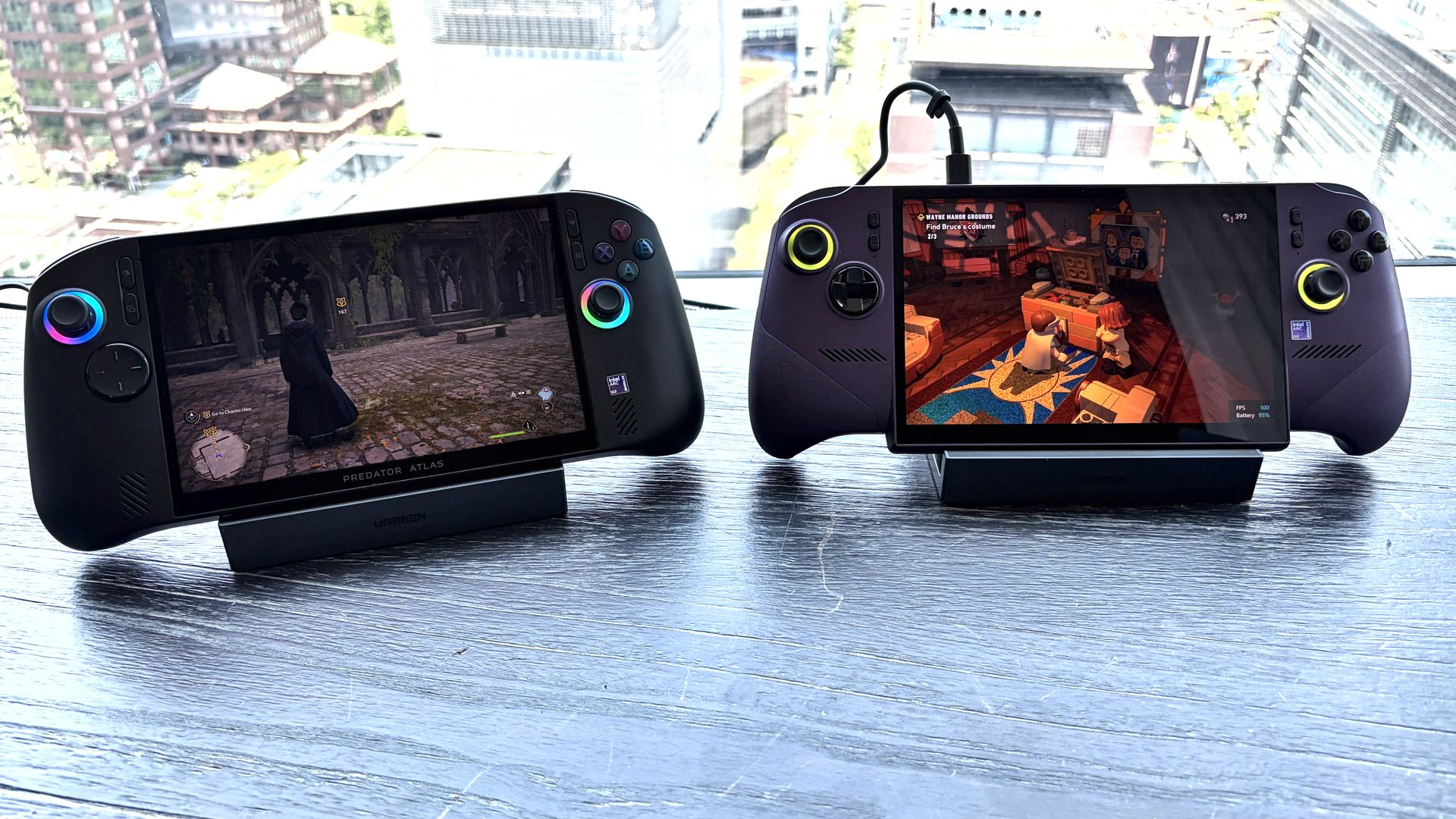
Gaming handheld market revival? Acer's $1,299 Predator Atlas 8 sells out immediately.

The new Acer Predator Atlas 8 gaming handheld, featuring Intel's latest G Series chips, finally went up for pre-sale in the US on October 23, with full launch slated for November 1.

This is the new handheld I tested at Computex this year alongside the MSI Claw 8 EX AI+. Both are premium devices landing in a market turned upside down on account of RAM and storage shortages. MSI's new Claw with Intel's Arc G3 Extreme chip inside, for example, launched at $1,799.99.

Here's where Acer's new handheld packing the same Intel G3 Extreme chip offers a big surprise for shoppers. It's priced at $1,299.99 at Best Buy. Or at least it was, for the Best Buy page preorder has since been removed. I'm not exactly sure why — maybe Acer is reconsidering the post-launch price now that preorders are in.

In any case, seeing a handheld with the same powerful mobile chip inside as the MSI Claw 8 EX AI+ launch for $500 less should be on every gamer's radar. But how is Acer undercutting the competition by so much?

How does Acer charge $500 less for its Intel Arc G3 Extreme gaming handheld?

A person holds the Acer Predator Atlas 8 handheld gaming device with a vibrant screen displaying a game menu. The device has colorful joystick lights and buttons.

Acer's Predator Atlas 8 running Forza Horizon 6. (Image credit: Future)
Intel Arc G3 Extreme

Intel's new mobile chips are designed specifically for handhelds, delivering considerably improved performance and efficiency compared to the AMD Ryzen Z2 Extreme chips so common to the form factor.

On paper, the Acer and MSI devices are quite similar. Both feature the flagship Intel Arc G3 Extreme chip, with 14 cores, a 4.7GHz top clock speed, and a faster Arc B390 integrated GPU compared to the standard Arc G3 chip.

Both devices use an 8-inch IPS display with 1920x1200 resolution, 120Hz variable refresh rate, 500 nits brightness, and 100% sRGB color reproduction.

Both have Thunderbolt 4 ports and Wi-Fi 7. Both have Hall Effect triggers and joysticks. Both use an 80Wh battery. So what's the deal?

Based on my (limited) time with the Predator Atlas 8, it looks like the big price difference comes down to build quality and configuration specs.


Let me get the biggest difference out of the way first: the $1,799.99 MSI Claw 8 EX AI+ ships with 32GB of RAM and a 1TB SSD. The Acer Predator Atlas 8 pares that back to 24GB of RAM and a 512GB SSD.

Considering the price of storage and memory these days, this difference likely helps make up a huge chunk of the difference.

Otherwise, as I noted in my Intel Arc G3 Extreme hands-on piece, Acer's device has triggers that don't feel quite as snappy as MSI. The reverse can be said for the joysticks, where I believe Acer has MSI beat.

Audio from both devices was good, and although Acer's Predator Atlas 8 is smaller and ultimately more portable, I found both handhelds to be comfortable to hold.

Acer Predator Atlas 8 handheld gaming device on stand displaying Hogwarts Legacy with a cloaked character.

Acer's Predator Atlas 8 running Hogwarts Legacy. (Image credit: Future)

In terms of performance, the Predator Atlas 8 was running demanding games like Hogwarts Legacy and LEGO Batman: Legacy of the Dark Knight at a cool, smooth clip.

I'll have to do more testing once Acer's handheld actually arrives here for testing, but I don't expect it to perform any worse than MSI's new Claw.

Bottom line? It's the disparity in RAM and SSD configurations at launch that's helping keep Acer's gaming handheld at a much more reasonable price.

Is Acer's $1,299.99 Predator Atlas 8 actually cheap?

Close-up of an Acer Predator Atlas 8 handheld gaming device showing ports and controls.

The Predator Atlas 8 feels good to hold and features many similar high-end features as the MSI Claw 8 EX AI+. (Image credit: Future)

In June, I wrote about how you could buy an Xbox Series X, PS5, and Switch 2 for less money than the MSI Claw 8 EX AI+, amidst rising concerns that the handheld market was cooked for good.

That's not quite the case for Acer's Predator Atlas 8, especially with console prices on the rise, but that doesn't make it affordable.

Keep in mind that the Steam Deck, which kicked off the gaming handheld craze, launched at just $399 in 2022.

No, the Steam Deck isn't nearly as powerful as the new Arc G3 devices, but it was priced to sell. Is Acer's Predator Atlas 8 affordable relative to today's overall market? Absolutely.

As mentioned, the Predator Atlas 8 Best Buy preorder page is down at the time of writing this piece. Check back soon, especially after November 1, when the handheld actually launches, to see if prices have changed.

Click to join us on r/WindowsCentral

Join us on Reddit at r/WindowsCentral to share your insights and discuss our latest news, reviews, and more.
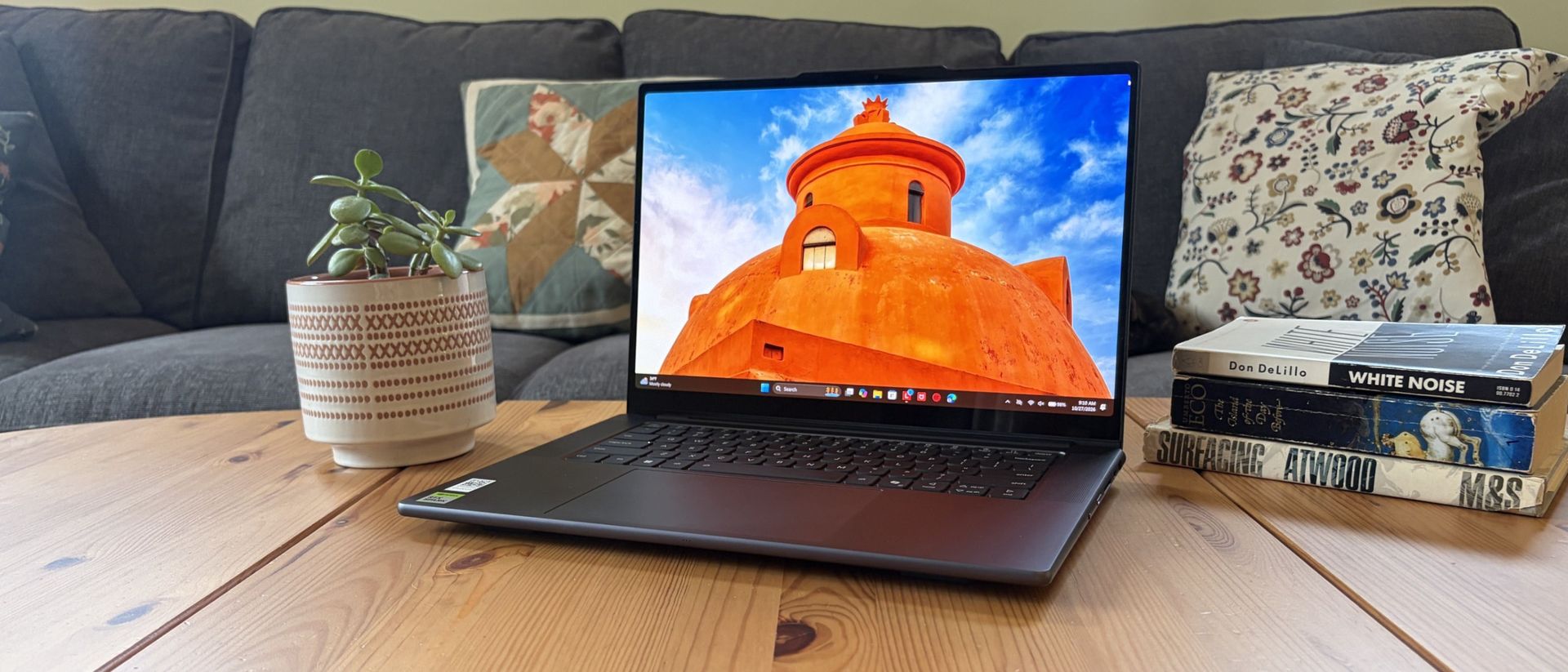
I've been using Lenovo's Pro 9n laptop with RTX Spark for weeks. Here's what I think.

Lenovo's Pro 9n landed on my desk roughly three weeks ago, and it's been my daily work PC since then.

It's also been my gaming handheld replacement, my home base for local AI testing, my sketchpad to practice digital drawing, and my entertainment hub.

This pricey Lenovo Pro 9n isn't for everyone despite its broad versatility. That's true about any of the new RTX Spark laptops.

I'm looking to see how Lenovo's offering differs from the others — including the Surface Laptop Ultra and ASUS ProArt P16 we reviewed — in terms of features, design, and performance.

Lenovo sent Windows Central a review unit on loan for testing. It had no input, nor saw the contents of this review, prior to publication.

Lenovo Pro 9n: Price and specifications

A Lenovo Pro 9n laptop on a wooden coffee table displays a vivid orange domed building against a blue sky, beside a potted plant, books, and a gray sofa.

You'd never know the level of power contained within this sleek chassis. (Image credit: Future)

Lenovo's Pro 9n starts at $2,999.99, putting it near the middle of the RTX Spark lineup.

For this price, you get an 18-core NVIDIA N1X CPU, integrated RTX Blackwell GPU with 5,120 cores, 32GB of LPDDR5x unified RAM, a 512GB M.2 PCIe 4.0 NVMe SSD, and a 15.3-inch OLED touch display at a 2560x1600 resolution.

Lenovo offers configuration options for CPU, RAM, and storage. The top spec with a 20-core N1X CPU, 6144-core GPU, 128GB RAM, and 2TB PCIe 5.0 SSD balloons to $6,099.99, with several stops along the way.

Lenovo Pro 9n specs (as reviewed)

Lenovo Pro 9n

CPU

NVIDIA N1X (18 cores)

GPU

RTX Blackwell (5,120 cores)

RAM

32GB LPDDR5x-9400 (unified)

Storage

1TB M.2 PCIe 4.0 NVMe SSD, Extra PCIe 5.0 slot

Display

15.3 inches, 2560x1600, OLED, touch or non-touch, 500 nits (SDR), 1100 nits (HDR), glossy, 165Hz VRR, Dolby Vision, G-Sync

Ports

2x USB4, 2x USB-A (10Gbps), HDMI, UHS-II SD card reader, 3.5mm audio combo

Wireless

Wi-Fi 7, Bluetooth 5.4

Audio

4x speakers (2x 2W woofers, 2x 2W tweeters), Dolby Atmos

Camera

9.2MP + IR, e-shutter

Battery

92.5Wh

Dimensions

13.66 x 9.53 x 0.66 inches (347mm x 242mm x 16.7mm)

Weight

From 3.64 pounds (1.65kg)

New designs and updated features for the RTX Spark platform

A hand holds a closed gray Lenovo laptop above a wooden table, showing its long rear ventilation grille; a potted plant and sofa create a casual home setting.

A look at the rear exhaust behind the lid hinge. (Image credit: Future)

The design of Lenovo's Pro 9n has grown on me over the weeks. What I first saw as uninspired has morphed into something that's sleek, relatively lightweight, and ultimately perfect for a professional setting.

With an aluminum top and bottom that add rigidity and a more premium feel than plastic, the PC still manages to slide in at 3.64 pounds (1.65kg) while measuring just 0.66 inches (1.67cm) thin.

The 15.3-inch display translates to a smaller footprint than a full 16-inch PC, and I found it to be an apt size for working in the passenger seat of a car. It should also translate well to airplane trays or train seats.

A hand holds a Lenovo Pro 9n laptop with a large mesh grille and small labels, displayed before shelves of old books in a cozy library setting.

The bottom of the Pro 9n has a massive air intake to feed the two fans. (Image credit: Future)

The thermal layout has been redesigned for the new RTX Spark chip (which I explore below), resulting in a massive air intake on the bottom of the PC and larger vents on the rear edge for exhaust.

This setup keeps hot air directed away from the user and, as you'll see below, it does a decent job of keeping the PC cool under load.

Close-up of a slim laptop on a wooden table, showing its keyboard and side ports; a patterned mug and cushions create a cozy workspace.
Ports on the left include HDMI, USB-A, USB4, and 3.5mm audio.Future
A slim silver laptop rests open on a wooden table, with its keyboard and side ports in focus; the cozy home setting feels calm and practical.
Ports on the right include USB-A, USB4, and UHS-II SD card reader.Future

This leaves plenty of space along the sides for ports. On the left are HDMI 2.1, USB-A 3.2 (always on), USB4, and a 3.5mm audio jack. On the right side are another USB-A 3.2, USB4, and a UHS-II SD card reader.

At no time did I feel the need to grab a dongle for an accessory, especially with Bluetooth 5.4 on board, and the native HDMI port makes it easy to plug into an external display without a docking station.

On the note of wireless, cutting-edge Wi-Fi 7 is on board for excellent throughput and future-proofing.

Lenovo's keyboard and haptic touchpad are among the best

Close-up of a Lenovo Pro 9n laptop with a blue-backlit keyboard and stylus resting diagonally across its large touchpad, on a wooden table. The scene feels calm and practical.

The Lenovo Pro 9n's oversized haptic touchpad and active pen turn the laptop into a makeshift drawing tablet. (Image credit: Future)

The Pro 9n is the first Lenovo laptop to receive its new haptic touchpad with inking compatibility. Paired with the bundled Yoga Pen (Gen 2), it turns the PC into a creative tablet of sorts.

I'm no artist, but I was able to get down some rough sketches using the awesome Krita drawing app. I found the touchpad's 3.74 x 3.94-inch dimensions were large enough to comfortably write and draw, and the inking feel is outstanding.

My only gripes are likely from me reading too much into the feature. Drawing on the pad often left my hand hanging off the edge (not comfortable), and it was sometimes difficult to line up my pen on the touchpad with where I wanted it on my screen.

Approach it from a rough sketch viewpoint, and you should find it to be quite useful. As for actual pointing and clicking, I had no issues. The haptics underpinning the pad are spot on.

A dark gray laptop sits diagonally on a pale wooden table, its keyboard and touchpad visible beneath a screen showing orange earth and blue sky.

1.5mm key travel makes for comfy typing no matter what. (Image credit: Future)

The keyboard, which arrives flanked by a couple of speakers, offers deep 1.5mm key travel, three-stage backlight, and perfect spacing. This might be the best keyboard that Lenovo's non-ThinkPads have ever received, and I enjoyed every word I typed on it.

Circling back to the speakers, the two that flank the keys are each 2W tweeters, and they're accompanied by two 2W woofers on the bottom of the PC.

Sound gets loud without breaking. There's lots of bass. The highs are clean, even before adding any onboard Dolby Atmos tuning. The laptop is just as good for watching TV and movies as it is for handling creative work or jumping into video meetings.

A crisp webcam handles meetings on the move

Close-up of a dark gray laptop or monitor edge with a slim, rounded bar; a softly blurred sofa and cushions create a calm indoor backdrop.

The raised comms bar has space for a 9.2MP camera and IR sensor. (Image credit: Future)

Lenovo's raised communications bar located above the display adds a bit of space for camera hardware, and the company made good use of it here.

The Pro 9n comes with a 9.2MP camera, easily trumping the ASUS ProArt P16's 2.1MP and the Surface Laptop Ultra's 1.6MP cameras.

It's crisp and handles lighting quite well even without any Windows Studio Effects in play, and I'd say it's a definite upgrade for anyone who often finds themselves in video meetings and collaborations.

The IR sensor built into the camera handles facial recognition via Windows Hello. Unfortunately, it doesn't appear to go the extra step to offer human presence detection. This doesn't seem to be a lock for the new RTX Spark PCs — the Surface Laptop Ultra doesn't have it either, but the ProArt P16 does.

An OLED display with color profiles for any job

A Lenovo Pro 9n laptop showing a digital game library sits on a wooden coffee table, beside a potted plant and stacked books, with a patterned cushion on the sofa.

The OLED display delivers color for specialized work and speed for gaming. (Image credit: Future)

Lenovo ships the Pro 9n with a 15.3-inch PureSight Pro OLED display. This is basically Lenovo's top-of-the-line screen for creators and pros, coming at you with X-Rite Pantone calibration and X-Rite SkinTone validation out of the box.

It hits Delta E, tops out at a 165Hz refresh rate (which can be set to variable for better battery life and eye comfort), and has Dolby Vision support.

Something I learned quickly was that the display presets in Lenovo's Vantage app are actually important. The Default mode in which the laptop ships favors sRGB reproduction. There are presets for AdobeRGB and sRGB (which pump up those sections), as well as P3-D65, REC709, and DCI-P3.

I was able to hit 100% across all color gamuts in my testing, but not all at once. You'll just have to be sure that you select the right config depending on the work you're doing.

I was able to hit 100% across all color gamuts in my testing, but not all at once.

I also measured 476 nits of peak brightness in SDR content, which pushes past 1,000 nits when HDR is enabled. I was able to work in a brightly lit room with only a bit of glare, but I imagine an anti-reflective instead of glossy finish would have gone a long way to eliminating glare entirely.

The screen is available in touch or non-touch, and the specs are otherwise the same. Note that the pen only works on the laptop's touchpad, whether or not the screen is touch-enabled.

A laptop on a wooden coffee table displays a vivid orange historic building against blue sky, with a potted plant, books, and sofa creating a cozy setting.

The Pro 9n's OLED display is vivid and bright. (Image credit: Future)

The inclusion of NVIDIA G-Sync tech really props up the gaming aspect, reducing screen tearing and ultimately making everything feel much smoother, as you'd expect from a premium laptop that can game.

My only complaint is that Lenovo doesn't offer a higher-res panel. The 2.5K default is great for everyday work and gaming, but 4K would probably go a long way for some creators.

Comparing the 18-core and 20-core RTX Spark chips

A handheld Steam Deck gaming PC and Lenovo Pro 9n laptop display a dark game library interface on a wooden desk, with books and greenery behind them; cozy, tech-focused mood.

I gave the Pro 9n some games to chew on to see if it can replace my gaming handheld. Short answer: it can. (Image credit: Future)
Power tip

Lenovo allows for up to 80W of overall power for the chip, putting it in line with the other RTX Spark laptops we've tested.

My colleague Zac Bowden put together a deep-dive review on the 20-core RTX Spark chip, and I mainly wanted to see how the 18-core Spark alternative in the Pro 9n compares.

As it turns out, quite well. You get the same pool of unified LPDDR5x memory to pull from for the system and GPU, albeit in smaller quantities (32GB for my review unit).

You get the coveted CUDA cores (with 5120 in my unit compared to 6144 in the premier chip) to handle local AI inference. And you still get about 26 TFLOPs of graphics performance.

The following graphs show how the 18-core RTX Spark in the Lenovo Pro 9n compares to the 20-core RTX Spark chips we've already tested in other laptops.

Benchmark graph showing Lenovo Pro 9n with 18-core RTX Spark chip against other RTX Spark laptops with 20-core chips.
Future
Benchmark graph showing Lenovo Pro 9n with 18-core RTX Spark chip against other RTX Spark laptops with 20-core chips.
Future
Benchmark graph showing Lenovo Pro 9n with 18-core RTX Spark chip against other RTX Spark laptops with 20-core chips.
Future
Benchmark graph showing Lenovo Pro 9n with 18-core RTX Spark chip against other RTX Spark laptops with 20-core chips.
Future
Benchmark graph showing Lenovo Pro 9n with 18-core RTX Spark chip against other RTX Spark laptops with 20-core chips.
Future
Benchmark graph showing Lenovo Pro 9n with 18-core RTX Spark chip against other RTX Spark laptops with 20-core chips.
Future

As you can see, synthetic Geekbench 7 and Cinebench 2026 CPU scores fall accordingly compared to the 20-core Spark. Not by a lot, but it is noticeable.

The SSD looks comparatively slow, but keep in mind that most of these laptops have a mix of PCIe 4.0 and PCIe 5.0. In my test case, it's the former, but you can get the latter, faster drive in a 2TB config.

Benchmark graph showing Lenovo Pro 9n with 18-core RTX Spark chip against other RTX Spark laptops with 20-core chips.
Future
Benchmark graph showing Lenovo Pro 9n with 18-core RTX Spark chip against other RTX Spark laptops with 20-core chips.
Future
Benchmark graph showing Lenovo Pro 9n with 18-core RTX Spark chip against other RTX Spark laptops with 20-core chips.
Future

The weaker RTX GPU also showed a drop-off in Geekbench 7's GPU test, but it put up a strong fight in 3DMark's Steel Nomad and Speed Way tests.

Considering I was playing The Witcher 3: The Wild Hunt Remastered at a smooth frame rate with ray tracing cranked up, there should be no denying the Pro 9n can game. Just don't buy it if that's all you want from your laptop.

There should be no denying the Pro 9n can game.

I also began a journey with local AI agents on the Lenovo Pro 9n. I set up LM Studio on it and downloaded a hefty Qwen model, which runs surprisingly well on the system despite only having 32GB of unified RAM.

A Lenovo Pro 9n laptop displaying a text-heavy AI workspace sits on a wooden table beside a potted plant on stacked books, creating a calm, cozy living room scene.

Lenovo's Pro 9n running LM Studio, allowing me to chat locally with AI agents. (Image credit: Future)

The unit I was sent to test is more geared toward creators who don't need the ultimate 20-core CPU and 128GB of RAM coveted by AI specialists, so I'm pleased that it's proving to be a capable local AI base.

I ran a few AI-focused tests in Procyon to see how the weaker RTX Spark chip in my Lenovo Pro 9n compares to the 20-core option we already reviewed.

Procyon Image Generation

RTX Spark (18-core)

RTX Spark (20-core)

Stable Diffusion 1.5 score (FP16, higher is better)

1,430

1,380

Seconds / Image (lower is better)

4.36

4.22

Total duration (lower is better)

69.9

67.5

Procyon Text Generation

RTX Spark (18-core)

RTX Spark (20-core)

Phi-3.5-mini (higher is better)

2,383

2,615

Seconds to first token (lower is better)

0.31

0.27

Tokens / Second (higher is better)

68.31

72.21

Load time / Seconds (lower is better)

0.73

0.66

Procyon AI Computer Vision 2.0

RTX Spark (18-core)

RTX Spark (20-core)

Score (higher is better)

3,658

3,997

There's clearly a drop-off with the 18-core Spark chip in terms of AI performance, and I'd recommend that any AI specialists out there opt for the 20-core option.

For creators, part-time gamers, and professionals without a direct focus on AI, I think the 18-core chip should do just fine.

Does Lenovo's Pro 9n get too hot?

A Lenovo Pro 9n laptop on a wooden desk displays The Witcher 3 menu, with Geralt in a snowy blue forest beside a fiery orange scene; the dramatic contrast feels tense.

Playing demanding games on the Lenovo Pro 9n is entirely possible. Just expect there to be a little heat. (Image credit: Future)

The Lenovo Pro 9n's upgraded cooling system does a good job of managing thermal limits, and fan noise isn't bad, either. This is all with the system managing power automatically, which I found quite convenient.

During a lengthy system stress test, I never clocked the fan noise any higher than 43dB. They're audible in a quiet room, but they'd go unnoticed in a busy office.

My trusty FLIR camera is in the shop, but I did a surface temp test with my lap. During the stress run, it remained comfortable to hold. The keyboard side got a bit hotter, but nothing that gave me pause.

How is the Pro 9n's battery life?

A Lenovo Pro 9n laptop on a wooden table shows a blue desktop and keyboard; a taskbar tooltip reports 90% battery, indicating it’s well charged.

Battery life has been quite good, especially for everyday tasks, but Snapdragon X2 is still the champ. (Image credit: Future)

Battery life is not as good as I was hoping, and Qualcomm's Snapdragon chips are not in any threat of being dethroned in terms of efficiency.

My Windows Battery report shows roughly 8 to 10 hours of real-world life on a charge. Keep in mind that I was doing a decent amount of gaming on battery life, which brought that number down. Still, that's in line with the other RTX Spark laptops we've tested.

If you are gaming on battery power and have settings cranked up with ray tracing enabled, know that I was seeing about 10 minutes of runtime for every 10% of battery life.

Indie titles that aren't as demanding don't sap the battery nearly as much, and you can enjoy a few hours of gaming without worrying about power.

Should you buy Lenovo's Pro 9n?

Overhead view of a Lenovo Pro 9n laptop showing a bright orange domed building, a small green succulent, and a copy of “White Noise” on a wooden desk; calm, inviting workspace.

The Lenovo Pro 9n's lid pulls back to about a 180-degree flex. (Image credit: Future)

You should buy this if ...

✅ You want an RTX Spark laptop with a 15.3-inch OLED display at 2.5K.

✅ You dabble in drawing, sketching, and writing with a pen.

✅ You're a professional or a creator who wants one PC to handle local AI, demanding apps, and gaming.

You should not buy this if ...

❌ You want the most affordable RTX Spark laptop possible.

❌ You prefer a mini-LED display (go with the Surface Laptop Ultra).

❌ You'd rather use a convertible PC for added versatility (check out the Yoga Pro 9n instead).

Windows Central

Lenovo's first notebook RTX Spark laptop has been a ton of fun to use over the past few weeks, and admittedly, I regret that I soon have to give it up.

It's not perfect. I wish there were human presence detection. I wish there were an extra high-res display option. I wish battery life were a lot better. And I wish it didn't cost as much (which is an effect of the ongoing RAM and storage crisis, not some Lenovo decision).

But for what it is — a specialized portable AI workstation using the first generation of a new NVIDIA computing platform — it's among the most exciting and promising Windows PCs I've used in recent memory.

If you're a general creator who just wants to see the latest chip technology in an ultra-premium package, the 32GB model could be ideal for you, just as long as you can stomach the price.

Otherwise, it's mainly going to appeal to a fairly small set of users, but those who can take full advantage of the RTX Spark chip should love what Lenovo has put together here.

Lenovo Pro 9n 15

RTX Spark
Lenovo
Pro 9n

Lenovo's Pro 9n delivers high-end features and cutting-edge AI performance for the Windows ecosystem. It's a great PC for creators with deeper pockets, but its true usefulness is seen in the hands of AI pros who need a ton of unified memory and a beefy RTX Blackwell GPU. It's all wrapped up in a sleek, portable package.

RTX Spark showdown — Surface Laptop Ultra vs. ASUS ProArt P16

Microsoft Surface Laptop Ultra renderMini-LED

Microsoft
Surface Laptop Ultra

The Surface Laptop Ultra costs less to start, but it lacks pen support, its mini-LED isn't as impressive, it's thicker and heavier, and it lacks some features compared to the ASUS ProArt P16. Regardless, many will appreciate its speedy SSD, its superior webcam, its smaller footprint, and its magnetic USB-C port.

Pros

  • Smaller footprint, less fan noise
  • Superior webcam
  • Magnetic USB-C port should be on every laptop
  • Comfty keyboard and massive haptic touchpad
  • Faster 1TB/2TB SSDs
  • Costs less to start

Cons

  • No pen support
  • Mini-LED display not as impressive as OLED
  • Thicker and heavier
  • No presence detection

ASUS ProArt P16 renderOLED

ASUS
ProArt P16

The ASUS ProArt P16 scored higher in our review thanks to its OLED display, deeper key travel, outstanding audio, cooler thermals, and thinner/lighter design. It does cost more to start, and it has louder fans, but these are easy trade-offs for those who don't mind spending a little bit more.

Pros

  • Gorgeous OLED display with inking support
  • Deeper 1.7mm key travel and haptic touchpad
  • Top-firing speakers
  • Cooler thermals
  • Oleophobic coating and anti-glare 4K display finish

Cons

  • Slower 1TB/2TB SSDs
  • Costs more to start
  • Louder fans

The Windows Central team has had time to digest some of the new NVIDIA RTX Spark laptops that recently launched, and thanks to our in-depth reviews, I'm here to offer some insights as to which PC might be best for you.

I'm looking at Microsoft's flagship Surface Laptop Ultra — the first RTX Spark PC we reviewed — and the ASUS ProArt P16, a slightly larger option that we actually rated higher than the Surface.

Here's why the ProArt PC gained a bit of extra score over the Surface Laptop Ultra (and why that doesn't necessarily mean it's the right RTX Spark laptop for you).

Surface Laptop Ultra vs. ASUS ProArt P16: Specifications

Before I get too deep into my comparison between the Surface Laptop Ultra and ASUS ProArt P16, I put together this table for easy reference.

Standout differences at this point should be the display size and type, the port selection, and the dimensions, which I cover and explain in more depth below.

Surface Laptop Ultra

ASUS ProArt P16

CPU

NVIDIA N1X
18-core/20-core

NVIDIA N1X
18-core/20-core

GPU

NVIDIA RTX
5120-core/6144-core

NVIDIA RTX
5120-core/6144-core

RAM

24GB, 32GB, 48GB, 64GB, 128GB LPDDR5X unified

24GB, 32GB, 48GB, 64GB, 128GB LPDDR5X unified

Storage

512GB M.2 PCIe 4.0 NVMe SSD
1TB, 2TB M.2 PCIe 5.0 NVMe SSD
Upgradable

512GB, 1TB, 2TB M.2 PCIe 4.0 NVMe SSD
Upgradable

Display

15 inches, 3270x2180, mini-LED, 3:2 aspect ratio, 120Hz VRR, touch, Dolby Vision IQ

16 inches, 3840x2400 or 2880x1800, OLED, 16:10 aspect ratio, 120Hz VRR, touch

Wireless

Wi-Fi 7
Bluetooth 5.4

Wi-Fi 7
Bluetooth 5.4

Camera

FHD with IR

FHD with IR

Audio

4x Omnisonic speakers (Dolby Atmos)

4x speakers (Dolby Atmos)

Battery

92Wh

99.9Wh

Ports

2x USB4, 1x USB4 with Magnetic Connect, 1x HDMI 2.1b, 1x USB-A 3.1, SD card reader, 3.5mm audio

3x USB4, 1x USB-A 3.2 (Gen 2), HDMI 2.1, SD card reader, 3.5mm audio

Dimensions

12.95 x 9.40 x 0.71-0.75 inches (328.8mm x 238.7mm x 17.99-19.16mm)

13.94 x 9.57 x 0.51-0.63 inches
(354.1mm x 243mm x 12.9-15.9mm)

Weight

4.41 pounds (2kg)

3.9 pounds (1.77kg)

Colors

Platinum, Nightfall

Nano Black, Neo White

Pro-grade designs and features available in both laptops

Perspective view from the front-left of the ASUS ProArt P16 laptop on a white tabletop, showing the dark chassis, lit keyboard, and bright screen.

The ASUS ProArt P16 (pictured here) is thinner and weighs less than the Surface Laptop Ultra. (Image credit: Daniel Rubino)

The ProArt P16 is larger than the Surface Laptop Ultra. That's a given considering it has a larger 16-inch display. The overall footprint is a bit larger, but otherwise, the ProArt P16 comes out ahead.

The P16 weighs just 3.9 pounds (1.77kg) compared to the Surface Laptop Ultra's 4.41 pounds (2kg), and it's also quite a bit thinner, starting at 0.51 inches (12.9mm) compared to 0.71 inches (17.9mm).

The neat thing is that ASUS really doesn't make you regret that upsizing. As Windows Central Editor-in-Chief Daniel Rubino says in his ProArt P16 review:

Thermals are even more impressive. Under sustained heavy workloads, my thermal camera recorded around 105°F across the keyboard deck and approximately 120°F near the rear exhaust. That's a few degrees cooler than both the Surface Laptop Ultra and HP OmniBook Ultra 16 RTX Spark in my testing. Fan noise never exceeded 50dB under extreme workloads.

Rubino does give Surface a nod for its "pure premium feel," although I'm sure some will love the ProArt P16's fingerprint-resistant coating that reduces smudges.

Which laptop offers better ports?

Surface Laptop Ultra
The left-side ports on the Surface Laptop Ultra.Zac Bowden / Windows Central
Surface Laptop Ultra magnetic charging cable
The Surface Laptop Ultra's magnetic charging cable.Zac Bowden / Windows Central

This first wave of RTX Spark laptops is fairly unified across brands in terms of port selection. Both laptops offer three USB4 hookups (using the USB-C form factor), but only the Surface Laptop Ultra has the nifty Magnetic Connect feature on one of them.

Magnetic Connect allows a connected USB-C cable to pull away from the PC instead of dragging it off a table, much like Apple's MagSafe. It's a great feature to have, especially with a laptop at this price.

You're otherwise getting USB-A, HDMI, an SD card reader, and a 3.5mm audio jack across both PCs.

Is the keyboard and touchpad different across PCs?

Top-down view of the keyboard deck showing flanking speaker grilles, power button, trackpad with DialPad icon, and RTX Spark sticker.
A look at the ProArt P16's haptic touchpad, keyboard, and top-firing speakers.Daniel Rubino
Surface Laptop Ultra
A look at the Surface Laptop Ultra's haptic touchpad and keyboard.Windows Central / Zac Bowden

Speaking on the Surface Laptop Ultra's keyboard and touchpad, Windows Central Senior Editor Zac Bowden said, "This is probably the best keyboard and trackpad experience I've ever had on a Windows laptop to date."

Digging into that statement, Bowden clearly appreciated the 1.4mm tactile key travel that he called "incredibly satisfying and not at all fatiguing." The Surface's haptic touchpad is the largest ever in Microsoft's lineup, and Bowden says it "makes a huge difference in how easy it is to use."

Not to be outdone, the ASUS ProArt P16 offers deeper 1.7mm key travel and an equally enormous haptic touchpad.

Which laptop has a better webcam and speakers?

Close-up of the laptop underside corner showing downward-firing speaker cutouts, a rubber foot strip, and product certification labels.

The bottom two speakers are joined by two speakers flanking the ProArt P16's keyboard. (Image credit: Daniel Rubino)

On the spec sheet, both laptops offer an FHD (1080p) front-facing webcam with IR capabilities for facial recognition.

Rubino states that "Microsoft still wins this category with Surface" and notes how HP's OmniBook Ultra with a 5MP webcam trumps both ASUS and Microsoft.

The big deal? The ProArt P16 includes human presence detection for increased security and convenience, whereas the Surface Laptop Ultra does not.

As for audio, each laptop comes with four speakers and Dolby Atmos support. Both laptops deliver some of the best sound we've ever heard, but only the ProArt P16 has top-firing speakers flanking the keyboard.

Mini-LED or OLED? Our reviewers prefer the latter

Surface Laptop Ultra

The Surface Laptop Ultra's mini-LED is plenty bright, but OLED is probably better for many users. (Image credit: Windows Central / Zac Bowden)

Display tech is where these two laptops really show a difference. Most noticeable is the Surface's taller 3:2 aspect ratio compared to the P16's 16:10 aspect ratio. The differences don't stop here.

The Surface Laptop Ultra has a 15-inch mini-LED screen at a 3270x2180 resolution, with 1,344 dimming zones, 1000-nit SDR brightness, and 2000-nit HDR peak brightness. It packs in a 120Hz dynamic refresh rate and Dolby Vision IQ support.

Though it's brighter than the ProArt's screen, Bowden says the mini-LED tech results in "a bit of blooming around bright elements on a dark background."

He adds that the backlight doesn't always keep up with what's on your screen, causing a slight ghosting effect in dark mode.

Ultrawide front shot of the open ASUS ProArt P16 laptop under purple ambient lighting, showing its backlit keyboard and vibrant anime room wallpaper.

The ProArt P16's OLED display provides vivid color and perfect contrast, with no backlight bleed apparent. (Image credit: Daniel Rubino)

The ProArt P16 has a larger 16-inch OLED screen with a 120Hz dynamic refresh rate, and it's available in either a 3840x2400 (4K) or 2880x1800 (2.8K) resolution.

The 4K version is the primary option for models with 128GB of RAM, though Best Buy seems to offer a 4K version with 32GB of RAM. Despite a lower resolution, you still get 500 nits of SDR brightness and 1,100 nits of peak HDR brightness.

The 4K version hits 700-nit peak SDR brightness, climbing to 1,600 nits with HDR. An anti-reflective coating is included.

None of the mini-LED issues discovered in the Surface Laptop Ultra's mini-LED screen are apparent here, and you get the standard OLED perks of perfect contrast and vivid color no matter how you're using it.

It's worth noting that the P16 display offers pen support for inking. The Surface Laptop Ultra has no pen support.

NVIDIA's RTX Spark chip keeps performance close

Close-up shot of the green and white NVIDIA RTX SPARK sticker on the matte black chassis next to the keyboard and trackpad

The new NVIDIA RTX Spark chips offer similar performance across laptop models. (Image credit: Daniel Rubino)

A neat aspect we're discovering as we test RTX Spark laptops is how performance is quite similar. That's not surprising. These laptops use the same NVIDIA N1X chips in either 18- or 20-core CPU and 5120- or 6144-core GPU configs.

We tested both with the 20-core CPU and 6144-core GPU, and the Surface Laptop Ultra and ProArt P16 trade blows across benchmarks. For example, CPU performance is close enough that I wouldn't spend much time worrying about it.

The Laptop Ultra does great in lighter graphics benchmarks, though the ProArt P16 takes over in more demanding tests. Considering the ASUS laptop is thinner and lighter than the Laptop Ultra, that's a real achievement.

Geekbench 7 bar chart showing the ASUS ProArt P16 3K leading with 23,878 multi-core and 2,682 single-core, and the 4K model scoring 23,833 multi-core and 2,717 single-core.
Future
CrystalDiskMark bar chart comparing SSD speeds: ASUS ProArt P16 4K scores 7,336 MB/s read and 6,720 MB/s write, while the 3K model reaches 7,226 MB/s read and 4,124 MB/s write.
Future
Cinebench 2026 benchmark bar chart showing the ASUS ProArt P16 scoring 6,742 in multi-core and 554 in single-core, alongside the HP OmniBook Ultra 16 and Surface Laptop Ultra.
Future
Geekbench 7 CUDA benchmark chart showing the ASUS ProArt P16 4K scoring 187,547 and the 3K scoring 185,630, compared to the HP OmniBook (187,569) and Surface (186,098).
Future
3DMark Steel Nomad bar chart showing ASUS ProArt P16 (3K) scoring 2,846, behind Surface Laptop Ultra (3,064) and HP OmniBook Ultra 16 (2,935), but outperforming Alienware 15 (2,036).
Future
3DMark Speed Way bar chart showing ASUS ProArt P16 (3K) scoring 2,927, trailing HP OmniBook Ultra 16 (3,143) and Surface Laptop Ultra (3,011), while beating Alienware 15 (2,286).
Future
3DMark Time Spy Extreme chart showing ASUS ProArt P16 (3K) scoring 6,006 in second place behind HyperX OMEN 15 (6,257), ahead of Surface Laptop Ultra, HP OmniBook Ultra 16, and Alienware 15.
Future

One area where the Surface Laptop Ultra pulls ahead is with its 1TB and 2TB M.2 PCIe 5.0 NVMe SSDs that are way faster than the PCIe 4.0 options in the ProArt P16. Microsoft does drop back to PCIe 4.0 with a 512GB capacity.

Which laptop has better battery life?

Surface Laptop Ultra heat

FLIR imagining reveals a 123F temp on the Surface Laptop Ultra. (Image credit: Zac Bowden / Windows Central)

The ProArt P16 has a larger 99.9Wh battery capacity compared to the Laptop Ultra's 92Wh, but that matters less than you might expect.

Both Rubino and Bowden were able to get around 10 hours of real-world use when not leaning heavily on the GPU. Both the ProArt P16 and Laptop Ultra struggle to put up strong efficiency numbers when that GPU is in demand, and in both cases, an AC charger should be kept nearby.

FLIR thermal image of the ASUS ProArt P16 keyboard deck during operation, showing heat concentration in bright yellow and orange with a center point reading 105.3°F.

The same spot measured for heat on the ProArt P16. (Image credit: Daniel Rubino)

As for heat and noise, the Surface Laptop Ultra hit about 123 degrees Fahrenheit just above the keyboard. That's very hot, but at least the fans don't exceed 42 decibels.

Using the same FLIR imaging, we measured 105 degrees Fahrenheit in the same spot on the ProArt P16. That's quite a bit cooler, although the fans did climb closer to 50 decibels.

Surface Laptop Ultra vs. ASUS ProArt P16: Which should you buy?

Rear angled view of the ASUS ProArt P16 laptop lid under vivid purple lighting, highlighting the centered glossy ProArt logo and slim profile.

The ASUS ProArt P16 comes out ahead of the Surface Laptop Ultra in several key areas. (Image credit: Daniel Rubino)

Microsoft's Surface Laptop Ultra starts at $2,599.99 for a model with an 18-core CPU, 24GB of RAM, and a 512GB SSD. The ASUS ProArt P16 starts at $2,799.99 for a model with an 18-core CPU, 24GB of RAM, and a 512GB SSD.

If they're so similar, why the price difference?

I'm pointing to the ProArt P16's superior OLED display with pen support, its thinner and lighter design, its cooler thermals, its deeper key travel, its human presence detection, its top-firing speakers, and its larger battery.

These are all noticeable benefits, and whether or not they're worth a $200 upcharge (to start) is really up to you.

I can confidently say that the Surface Laptop Ultra is a great PC regardless of how well ASUS put together its ProArt P16, and perks like a smaller footprint, a better FHD webcam, a cheaper starting price, a magnetic USB-C port, and quieter fans could weigh heavier on your shopping list.

It's worth noting that ASUS also makes a 14-inch ProArt P14 with many of the same benefits, all in a more portable package. Starting at $2,599, it might be the perfect third option for shoppers.

Microsoft Surface Laptop Ultra render

Mini-LED
Microsoft
Surface Laptop Ultra

The Surface Laptop Ultra costs less to start, but it lacks pen support, its mini-LED isn't as impressive, it's thicker and heavier, and it lacks some features compared to the ASUS ProArt P16. Regardless, many will appreciate its speedy SSD, its superior webcam, its smaller footprint, and its magnetic USB-C port.

ASUS ProArt P16 render

OLED
ASUS
ProArt P16

The ASUS ProArt P16 scored higher in our review thanks to its OLED display, deeper key travel, outstanding audio, cooler thermals, and thinner/lighter design. It does cost more to start, and it has louder fans, but these are easy trade-offs for those who don't mind spending a little bit more.

Click to join us on r/WindowsCentral

Join us on Reddit at r/WindowsCentral to share your insights and discuss our latest news, reviews, and more.
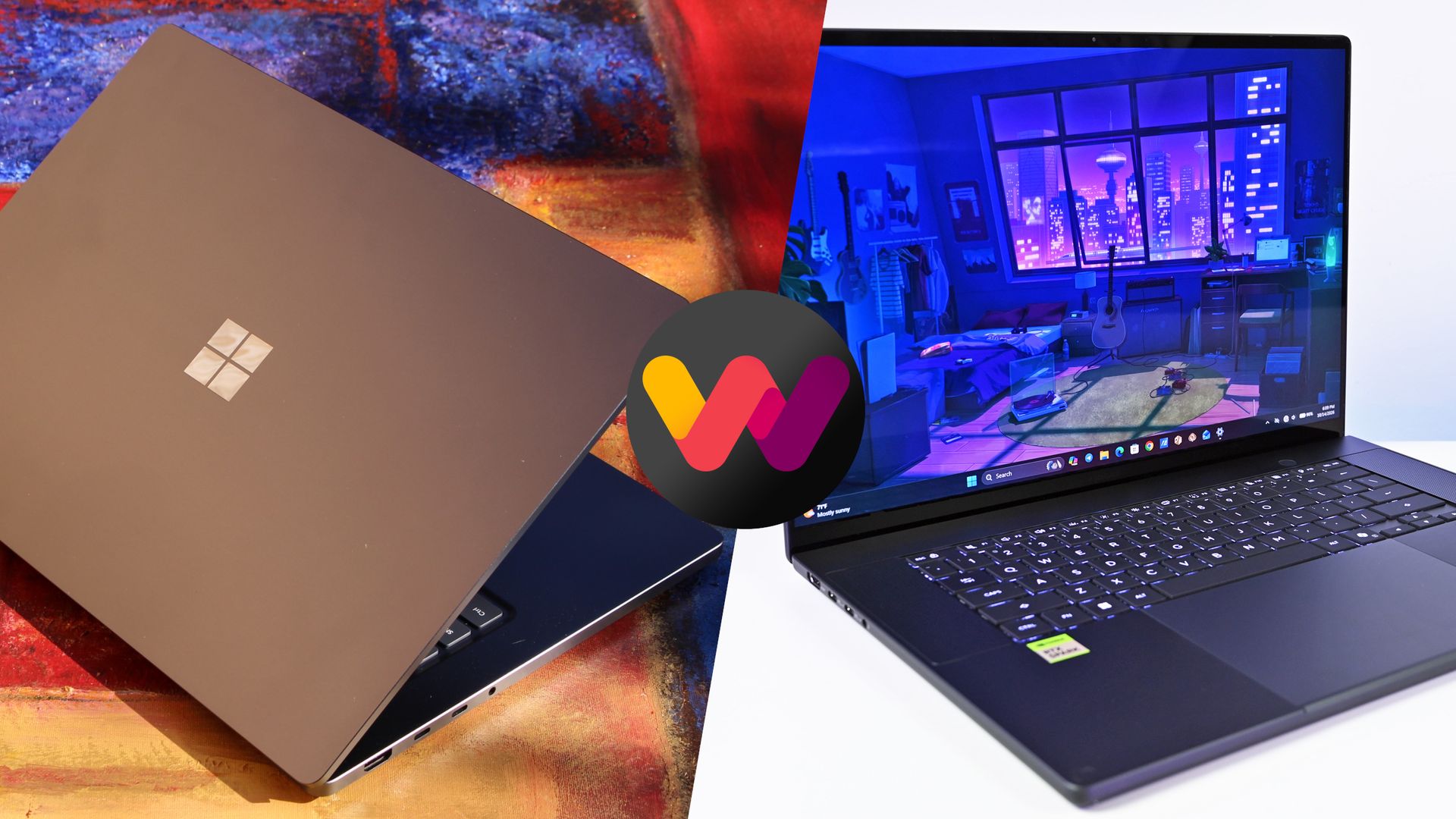
❌