Vue normale

Windows 11 trades noisy Bing ads for the clean search experience it always needed — plus other updates you should know about this week

Windows Central

Can you hear that? It's the sound of capitalism crumbling. After years of pushback against ads, Microsoft has finally given in and decided to make a cleaner Search experience in Windows 11.

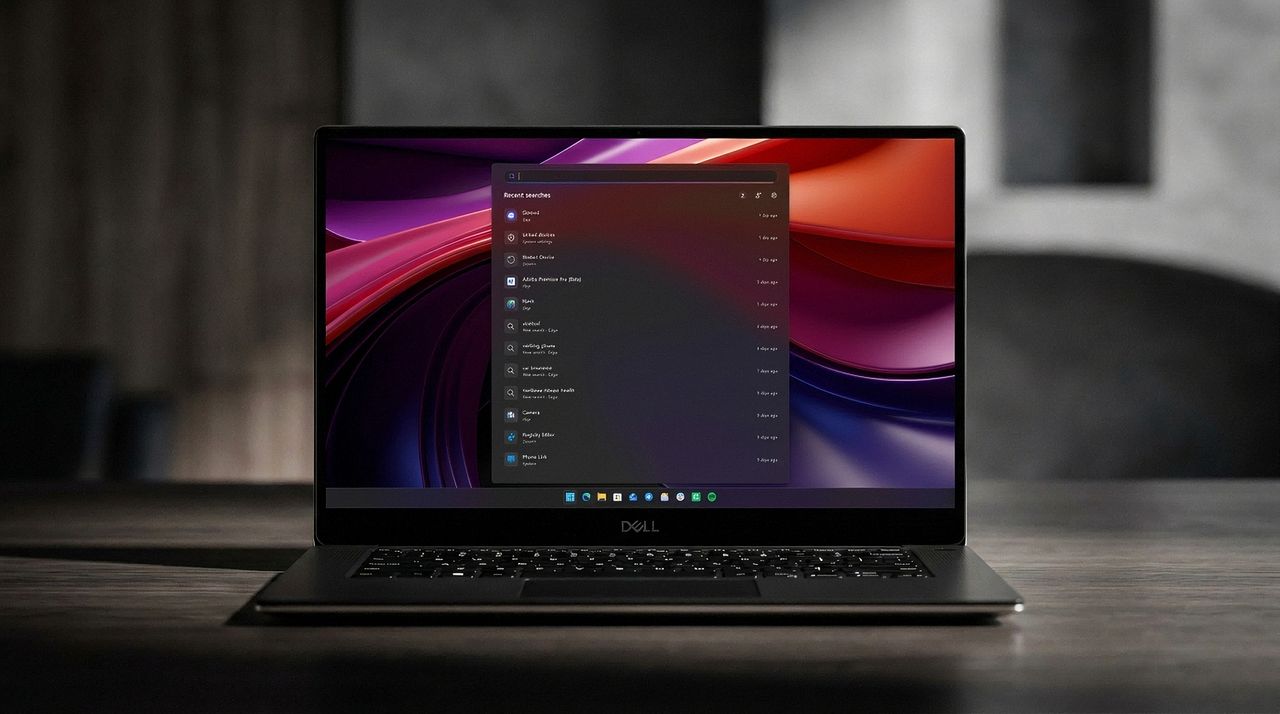
Sarcastic quips aside, Search is genuinely going to improve. Microsoft unveiled a massive upgrade to Search this week that will improve the accuracy of results, shift away from relying on the web, and yes, remove ads and promotional material.

The improved search will prioritize local results over grabbing information from the web. You'll even be able to customize whether web and Microsoft Store suggestions appear alongside local results at all. Search should also be more forgiving of typos, which should reduce frustration.

The upcoming improvements to Search were the biggest Windows 11 story of the week, but several other topics trended as well.

Biggest News of the Week

Semantic Search coming to Windows 11.
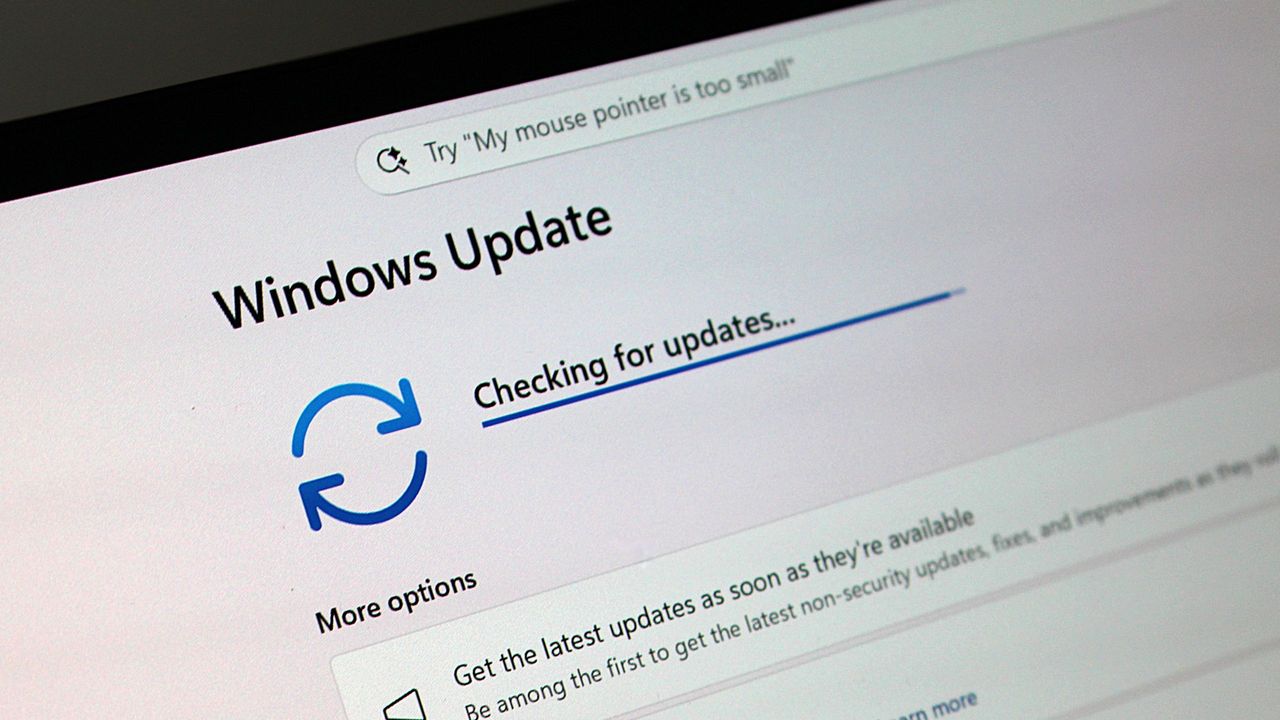
Windows Update in checking for update mode
Windows 11 desktop showing the Windows Update settings installing the July 2026 Security Update.
Windows 11 desktop with the Start menu open and showing the new Account Control design.
Windows Updates
Microsoft's new AI-driven Semantic Search is now available for those on the Windows Insider Release Preview.

I'd argue that Windows 11 never should have placed ads within Search in the first place. Certainly, Windows 11 Pro should have been ad-free. I'm glad to see Microsoft listen to feedback and get rid of some ads. I just think it's wild that the tech giant needs to be pushed in that direction.

I'm happy to see Microsoft did more than remove ads and call it a day. The new Search experience is better across the board. Our Zac Bowden was impressed after going hands-on with the feature.

I'm very impressed with the new experience. Right off the bat, the search pane is no longer a noisy mess of Bing ads and sponsored content. It's a clean list of recent searches, exactly what you'd expect from a search pane.

Zac Bowden, Senior Editor, Windows Central

As always with updates like this, you can focus on the fact that Microsoft should have launched Windows 11 in this state rather than be strong-armed into making search usable. Alternatively, you can choose to be happy that Windows 11 is finally getting fixed. I choose the latter.

Shopping with Sean

Laptop deals have cooled off a bit, but you can still save hundreds of dollars on the Samsung Galaxy Book6 or the HP OmniBook Ultra 14. Both are excellent laptops with gorgeous displays and snappy performance.

If you're a gamer, make sure to check out the Xbox Ultimate Game Sale that's now live. Hundreds of games are discounted in what might be one of Microsoft's best-ever sale events.


"I’ve been using the Samsung Book 6 for a while now and honestly it’s been solid. It’s lightweight, looks premium, and the battery easily gets me through most of the day. Performance is smooth for studying, browsing, videos, and everyday work." ~ VALENTIN, customer review

4.8 out of 5 Stars (based on 40 Best Buy customer reviews)View Deal

HP's new OmniBook Ultra is the best Snapdragon X2 laptop we've tested yet, complete with a gorgeous design, incredible keyboard and trackpad, best-in-class touchscreen OLED display, and incredible battery life and performance.

Windows Central review: ⭐⭐⭐⭐⭐View Deal

Click to join us on r/WindowsCentral

Join us on Reddit at r/WindowsCentral to share your insights and discuss our latest news, reviews, and more.

New Windows Search UX

New Windows Search UX
This new Windows 11 clipboard utility is genuinely great, but I think the name is holding it back

A new clipboard manager for Windows 11 is here, and it's better than Microsoft's in a few key ways. "Edge Drop" is still in its early stages of development, but the current preview build is very promising.

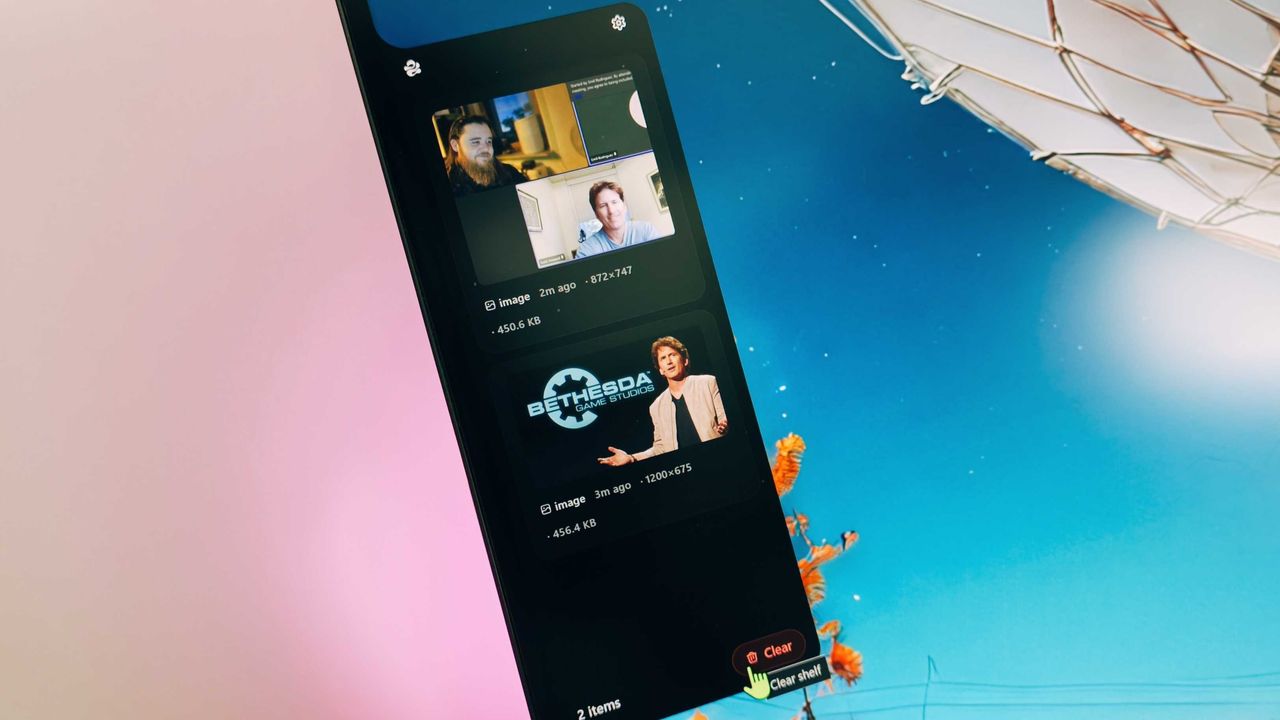
Edge Drop is a clipboard manager that can also be used for some light file management. It stays tucked away on the left side of your screen until you swipe your mouse over it or use a keyboard shortcut (Alt + C).

The app supports text, images, and several file types. Any item you copy on Windows 11 is added to Edge Drop by default. You can also drag items into Edge Drop.

Drag and drop functionality makes it easy to grab a few files, place them in Edge Drop, and then paste them somewhere else.

Edge Drop supports stacking content together, which I find useful for organizing projects. I'd love to see stacks work with different content types, such as text and images.

The developer of Edge Drop, AdiArtist, shared the app on Reddit. You can download Edge Drop through the app's website and read more about it on GitHub.

As a quick note, I wouldn't get used to the name of the app. Microsoft already has a feature named "Edge Drop." Even though that browser feature is being retired, I suspect Microsoft will want to protect the name.

Windows 11 Clipboard vs Edge Drop

Windows 11 Clipboard History

Windows 11's Clipboard can be summoned with a shortcut and supports pinning items. (Image credit: Mauro Huculak)

Windows 11 already has a robust, built-in clipboard history that you can summon with Win + V. It supports pinning items, syncing across devices, and has been an integral part of my workflow for years. Even with Edge Drop installed, I'm not abandoning it.

Where Windows 11's clipboard is heavily keyboard-driven, Edge Drop is more built for the mouse. If you're working on a creative project, dragging and dropping items into organized stacks feels completely natural.

It reminds me of when I reviewed the HyperSpace TrackPad Pro (which, sadly, was canceled). Using that trackpad shifted my workflow; editing video with it felt entirely different than navigating a webpage. It didn't replace my mouse, but it became a perfect companion tool.

I feel the same way about Edge Drop. It’s a convenient, mouse-oriented clipboard manager that’s always just a gesture away, and it has earned a permanent spot right alongside Windows 11's default clipboard.

Blank Pixel

Click to join us on r/WindowsCentral

Join us on Reddit at r/WindowsCentral to share your insights and discuss our latest news, reviews, and more.

The Edge Drop app interface displayed on a monitor, showing a list of shared images and a cursor hovering over the "Clear" button.

Edge Drop is a third-party clipboard manager for Windows 11 that tucks away on the side of your screen.

This Surface is the only laptop that supports Windows 11's best new feature

Microsoft's Surface Laptop 8 launched this summer, sporting new Snapdragon X2 chips. The flagship laptops promise a premium experience, better battery life than the previous generation, and improved graphics performance.

The bump in performance is expected considering the Surface Laptop 8 has a brand-new chip inside, so a different improvement is more noteworthy. The Surface Laptop 8 is one of the only devices to support Windows 11's new advanced haptics feature. It's the only laptop to support the feature.

Shop all Best Buy Surface deals

Advanced haptics sends a subtle bump through a touchpad, mouse, or stylus to let you feel Windows 11. For example, rearranging windows on your screen through Snap Layouts gives a clear indication of when you've hovered over a different layout.

Our Senior Editor Zac Bowden said "Windows 11's new 'Haptic Signals' feature is a quality of life upgrade [he] didn't realize the OS needed until [he] tried it." Now, you can experience the same thing since the Surface Laptop 8 is available for purchase.

CPU: Snapdragon X2 Plus
GPU: Qualcomm Adreno
RAM: 16GB
SSD: 512GB

The Surface Laptop 8 introduces Microsoft's new Dune colorway, giving a warm aesthetic to an otherwise unassuming PC.

👉 See at BestBuy.comView Deal

CPU: Snapdragon X2 Elite
GPU: Qualcomm Adreno
RAM: 16GB
SSD: 512GB

This Surface Laptop 8 runs on the Snapdragon X2 Elite, which lets it tackle tasks all day without running out of battery life.

👉 See at BestBuy.comView Deal

Why should I care about advanced haptics?

A hand wearing a black ring rests on the touchpad of a Surface Laptop for Business 8th Edition. The laptop keyboard is visible, highlighting the Shift, Ctrl, and Alt keys.

The haptic touchpad of the Surface Laptop 8 sends subtle vibrations when you perform certain actions, such as moving a file within File Explorer. (Image credit: Daniel Rubino)

As a quick point of clarity, the Surface Laptop 8 with Snapdragon X2 is what recently became available. Microsoft launched the Surface Laptop 8 for Business earlier this year. The business model runs on an Intel processor and comes with features you likely do not need as a general user.

Both the consumer and business versions of the Surface Laptop 8 support advanced haptics, but I recommend the consumer model to most people.

Advanced haptics is one of those small touches that makes Windows 11 feel polished. I appreciate UI changes and other Windows 11 improvements, but I'm more interested in features like advanced haptics because it changes the hands-on experience with a PC — quite literally.

"The new advanced haptic touchpad is a joy to use. It provides subtle tactile cues that confirm your actions," said our Editor-in-Chief Daniel Rubino in our Surface Laptop 8 review.

Our friends at Tom's Guide came away similarly impressed when reviewing the Surface Laptop 8:

"I’m also fond of the touchpad, which delivers satisfying haptic feedback when pressed. With some apps, you will even feel haptics when hovering over the X button on a window, which is quite fun and intuitive."

Right now, Windows 11 is the main way that you'll experience advanced haptics. But there's an API for the feature, so third-party developers can leverage it. Filmora, Affinity, and other third-party apps either already support the feature or will soon.

The only other way to use Windows 11's advanced haptics feature is to have a Logitech MX Master 4 or a supported stylus like the Surface Slim Pen 2. Over time, more devices should support the feature, but the Surface Laptop 8 beat everything else to the punch.

Click to join us on r/WindowsCentral

Join us on Reddit at r/WindowsCentral to share your insights and discuss our latest news, reviews, and more.

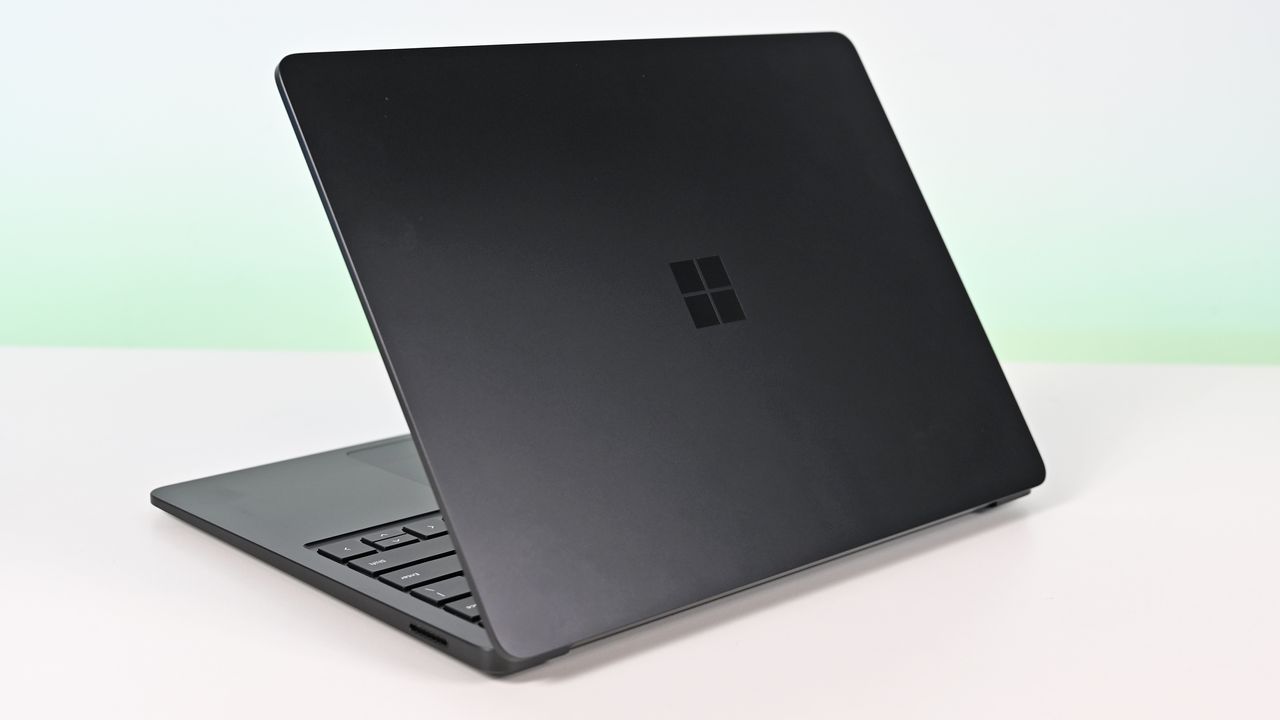
Surface Laptop for Business 8th Edition with a closed screen featuring a Windows logo, resting on a white surface. The background is a soft gradient from light blue to green.

Surface Laptop for Business 8th Edition with a closed screen featuring a Windows logo, resting on a white surface. The background is a soft gradient from light blue to green.

Xbox adds 52 more titles to 'Stream Your Own Games,' including Black Ops 6 and indie classics

Dozens of games were just made available to stream through Xbox Cloud Gaming. Those titles are now supported by the "Stream Your Own Games" part of Xbox Game Pass that lets you stream supported titles through the cloud.

As popular as playing titles that come with Xbox Game Pass is, many of the best Xbox games do not come with the subscription. Stream Your Own Games allows you to play many of your favorite titles to your phone, tablet, PC, or other supported devices.

This month's collection of newly supported games includes several popular titles such as Call of Duty: Black Ops 6 and Assassin's Creed Black Flag Resynced.

The folks over at True Achievements gathered together the complete list:

Game Title

#Blud

A Hat in Time

Absolver

Ascend to Zero

Assassin's Creed Black Flag Resynced

Beat Cop

Blightbound

Bō: Path of the Teal Lotus

Bravely Default Flying Fairy HD Remaster

Buckshot Roulette

Call of Duty: Black Ops 6

Carto

Disc Room

D-topia

Exit the Gungeon

Fade to Silence

Forager

Gato Roboto

Hotline Miami 2: Wrong Number

I Hate Running Backwards

Ikenfell

Lock's Quest

Metal Wolf Chaos XD

Minit

Monaco 2

Monaco: What's Yours is Mine

Monster Jam Steel Titans

My Friend Pedro

Olija

Pepper Grinder

Phantom Abyss

Pikuniku

Protodroid DeLTA

Shadow Warrior

Shadow Warrior 2

Shadow Warrior 3: Definitive Edition

South of the Circle

Stories Untold

Supraland

Tamashika

Temtem

The Messenger

The Mound: Omen of Cthulhu

The Occupation

The Talos Principle: Reawakened

Void Bastards

Wandersong

Wildfire

Winds of Arcana: Ruination

Wizard with a Gun

World of Tanks Modern Armor

Wuthering Waves

To use the Stream Your Own Games feature, you need to purchase a copy of the game and be subscribed to Xbox Game Pass. You can be subscribed to Game Pass Essential, Premium, or Ultimate to stream your games.

Originally, the Stream Your Own Games library only had 50 games. It's steadily grown since then and supported games now number in the hundreds. Over 70 new titles were added this May.

You can check out the complete gallery of supported games on Xbox's website.

Xbox Game Pass Ultimate

Subscribe to Xbox Game Pass Ultimate and play day one Xbox games whichever way you'd like, on Xbox consoles, PC, or even through the Cloud on a wide range of devices. Going with this tier means you never miss out on anything coming to the service.

See at: Amazon | Best Buy | CDKeysView Deal

Click to join us on r/WindowsCentral

Join us on Reddit at r/WindowsCentral to share your insights and discuss our latest news, reviews, and more.

Body Shield feature in Call of Duty Black Ops 6

Call of Duty: Black Ops 6 is one of 52 titles supported by Xbox Game Pass' "Stream Your Own Games."

Microsoft's Snapdragon X2 Surface Laptop 8 and Pro 12 for Business are now available

The most exciting new Surface features in years are now available on a PC with a Snapdragon X processor. The Surface Laptop 8 for Business can now be purchased with a Snapdragon X2 Plus or Snapdragon X2 Elite.

For those who prefer a 2-in-1 over a traditional laptop, the Surface Pro 12 for Business (13-inch) is also available with a Snapdragon X2 chip. Like its clamshell sibling, the Surface Pro for Business also had an Intel model launch earlier this year.

The official names of the new PCs are "Surface Pro for Business 12th Edition" and "Surface Laptop for Business 8th Edition" but I've referred to them as the Surface Pro 12 for Business and Surface Laptop 8 for Business in this piece for ease of reading.

The standout feature of this year's Surface lineup is the privacy screen seen in the Surface Laptop 8 for Business. That display can be set to obscure content on your screen when people try to view it at an angle. It's similar to Samsung's screen on the Galaxy S26 Ultra.

The built-in privacy screen of the Surface Laptop 8 for Business combats creeping eyes from all angles, as opposed to third-party privacy screen protectors that only work from the sides.

The Intel version of the Surface Laptop 8 for Business launched earlier this year and received high marks from our Editor-in-Chief. The vast majority of what makes that laptop great extends to the Surface Laptop 8 for Business with Snapdragon X2, which are now available to order.

Demonstration of Surface Laptop for Business 8th Edition's privacy screen engaged, making the slightly tilted laptop's display difficult to read due to being so dim.

The Surface Laptop 8 for Business is the only version with the built-in privacy screen. (Image credit: Daniel Rubino)

The haptic trackpad of the Surface Laptop 8 for Business is also a key addition. Thanks to a recent update to Windows 11, you can now feel the operating system and supported apps as you interact with them. Haptic buzzes occur when you drag files in File Explorer or perform certain actions.

The Surface Laptop 8 for Business is one of few devices to support the new haptic experience.

The new Surface Pro 12 for Business is largely a spec bump when compared to its predecessor. The Snapdragon X2 chip inside delivers better graphics performance than the first-gen Snapdragon X.

The Surface Pro has matured over more than a decade of refinement, so it's hard to complain about Microsoft sticking with what works.

What's special about Surface for Business PCs?

When Microsoft first introduced Snapdragon X chips to its Surface hardware, a split was formed that saw Intel on business PCs and Snapdragon X on consumer hardware. That's no longer the case, since you can order Snapdragon X processors in consumer or business PCs.

Notably, there are no new Intel-powered Surface PCs for consumers in 2026.

There are several differences between the consumer and business models of the latest Surface devices. Here are the features seen only on the business side:

  • Pre-installed Windows 11 Pro or Enterprise
  • Integrated Privacy Screen option
  • Advanced Exchange Warranty service
  • Device Firmware Configuration Interface (DFCI) cloud management
  • Windows Autopilot tenant pre-registration
  • Access to the cloud-based Surface Management Portal
  • Native corporate domain onboarding pathways during initial setup
  • Intel models available

Most of the features seen in the Surface for Business PCs are options general consumers would never use. The exception being the privacy screen that I wish was available on consumer versions of the Surface Laptop.

One key difference between the Snapdragon X2-powered Surface Pro 12 for Business and its Intel counterpart is that you can only get 5G connectivity with the Intel model.

Anyone can purchase a Surface for Business device. You don't need to own a business or have some sort of special account. But again, you're likely paying for unneeded features compared to the consumer Surface PCs unless you really need a privacy screen.

Blank Pixel

Click to join us on r/WindowsCentral

Join us on Reddit at r/WindowsCentral to share your insights and discuss our latest news, reviews, and more.

A sleek laptop with a black keyboard and a modern design, displaying a blue abstract swirl on its screen, set against a light gradient background.

A sleek laptop with a black keyboard and a modern design, displaying a blue abstract swirl on its screen, set against a light gradient background.

Windows 11's latest update will let you pause updates indefinitely

Windows 11's monthly Patch Tuesday update is here, and it's one of the biggest of the year. In addition to the usual group of bug fixes and security updates, the July Patch Tuesday update includes some major new features.

Our Mauro Huculak broke down the 13 features that matter most from Windows 11's July 2026 update. The update is substantial and includes new ways to recover your PC, improve accessibility, and update Windows.

As is normally the case for Windows 11 Patch Tuesday updates, we've known what was on the way for weeks. Microsoft rolled out the latest features and changes to Windows 11 through a preview update toward the end of last month.

Ironically, the biggest change in this update is that it will allow you to pause updates indefinitely. Starting with this build you can stop your PC from getting updates for up to 35 days and then re-pause updates.

The downside is that you have to manually pause updates again if you want to stop them for more than 35 days.

Point-in-time Restore is another big addition. The feature lets you roll back a system to a previous working state. Windows 11 automatically creates restore points that include settings, files, and apps.

Widgets are better following the update as well. You now have greater control over notifications and personalization settings. Opening the widgets panel will open the dashboard on first use.

The full release notes for the update are shared in a Microsoft support document and listed below.

Windows 11 July 2026 Update (gradual rollout)

  • [Point-in-time restore for Windows] New! This flexible recovery feature helps you quickly roll back your PC, including apps, settings, and personal files, to a recent automatic restore point. It helps reduce downtime and simplifies troubleshooting when issues occur. To learn more, see Point-in-time restore for Windows.
  • [Windows Update] New! A calendar experience in Windows Update Settings (Settings > Windows Update) lets you pause updates by choosing an end date, for up to 35 days. You can extend the pause by selecting a different end date and re‑pause updates as needed. For more information, see Pause updates in Windows.
  • [Widgets] New! A quieter, more focused Widgets experience helps reduce interruptions and improves default settings and notification controls:
    • Reduce distractions: Widgets no longer open on hover. Notifications and taskbar badges are minimized by default.
    • Simpler: Open to the Widgets dashboard by default on first use.
    • Customize: Configure Widgets how you want by selecting Settings in the navigation bar, then changing any of the default settings.
    • Stay informed: Dashboard icons show the number of alerts, and badges clear automatically when you leave a dashboard.
    • Adjusted defaults: Some default settings are preserved based on usage, while others adjust to reduce interruptions.
    • Performance improvements: This update provides improved reliability, responsiveness, and visual quality across the Widget experience.
  • [Accessibility] New! This update makes your screen easier to see and customizes your zoom experience:
    • Screen tint: Apply a full-screen color overlay to help reduce eye strain and improve readability. Choose from preset tint options, adjust the intensity, or turn it on automatically. Find this feature in Settings > Accessibility.
    • Magnifier: Enter a zoom percentage directly and change it in increments in the Magnifier window for more precise, flexible control.
    • Magnifier settings menu: You can now also modify zoom increments directly from the magnifier bar instead of navigating to Windows Settings each time.
  • [File Explorer]
    • New! When you hover over a file in File Explorer Home, commands such as Open file location and Ask Copilot appear as quick actions. This experience is now supported for work and school accounts (Entra ID).1
    • Improves the speed and performance of File Explorer launch.2
    • This update improves File Explorer responsiveness when mounting disk images.
    • The address bar now supports paths containing double backslashes and quotation marks (for example, C:\\Users\\user or "C:\Users\user"), improving compatibility with a wider range of inputs.
    • The address bar suggestion dropdown is more reliable and now consistently closes after an item is selected.
    • This update addresses an issue on File Explorer Home where OneDrive files could appear duplicated in the Favorites section.
    • This update includes several refinements to the Rename experience:
      • Addresses an issue where text was repeatedly selected when renaming items in folder views.
      • Addresses an issue where case-only name changes were not immediately reflected in folder views for items stored locally or in the cloud.
  • [Bluetooth] This update improves reliability and performance when connecting to and using Bluetooth devices:
    • New! Windows now keeps the microphone mute state in sync between the audio mixer and the Hands-Free Profile (HFP) for a more consistent experience with Bluetooth headphones with mute buttons or indicators.
    • Accessory compatibility workarounds: Improves compatibility with specific Bluetooth audio devices, helping AirPods appear faster in pairing mode and improving microphone reliability on Beats Studio Pro headphones.
    • Bluetooth audio stability:
      • Improves overall Windows stability with certain PC manufacturer drivers (error code 0x9F).
      • Improves Bluetooth reliability for voice calls when using Classic Audio devices with the Hands-Free Profile (HFP).
      • Reduces time for LE Audio accessories to start playing audio while using the microphone.
    • Device management: Windows will no longer show a “Remove failed” message when attempting to remove Bluetooth devices if the Bluetooth radio is unavailable or has changed since pairing.
    • Settings experience: Improves stability when using the Bluetooth & devices settings page for a smoother, more consistent experience.
    • Connection reliability and responsiveness:
      • Reduces the time it takes for classic Bluetooth audio devices to reconnect after Windows resumes from hibernation.
      • Improves reliability when LE Audio accessories disconnect, such as when another device (for example, a phone) connects.
      • Improves reliability of LE Audio streaming after a connection is lost and restored.
  • [Bluetooth and Phone Link] This update improves audio routing for calls made through a connected phone:
    • When an outgoing call is dialed from a paired phone, audio remains on the phone while ringing and transfers to the PC only when the call is answered from the PC.
    • When Do Not Disturb is enabled on Windows, incoming call audio from a paired phone no longer rings on the PC.
  • [Voice access and voice typing] **New!**⁠ You can now use voice access and voice typing in French, German, and Spanish. As you speak, your PC improves your text in real time. It corrects grammar, punctuation, and recognition errors, and helps improve clarity—even in the presence of background noise. This makes dictation smoother and reduces the need for manual edits.3
  • [Audio] This update improves the reliability of the inbox HD Audio driver.
  • [Taskbar] This update improves the reliability of opening the Start menu when selecting the left edge of the taskbar when the icons in the taskbar are left-aligned.
  • [Networking]
    • This update includes networking improvements for virtualized environments. Confidential Virtual Machines (CVMs) now use SR-IOV hardware acceleration by default for improved network throughput, and a configuration issue in nested Hyper-V virtualization network setup has been corrected to ensure reliable VM network provisioning.
    • This update improves the reliability of the Windows networking stack. It reduces bug checks (blue screen errors) related to Wi-Fi power and improves cellular (WWAN) connectivity, including support for IPv6 VPNs. Compatibility with third-party VPN software and SR-IOV configurations on server hardware is also improved. Network adapter settings and bindings are now preserved across OS upgrades.
  • [Printing] New! New printer installations use Internet Printing Protocol (IPP) by default when supported, simplifying setup and improving reliability. For details about third-party driver deprecation, see End of Servicing Plan for Third-Party Printer Drivers on Windows. To control this behavior, use the toggle in Settings > Bluetooth & devices > Printers & scanners > Default install printers using Windows Ready Print. For more information, see Introducing Windows Ready Print and modernized driver selection. For more information, see Introducing Windows Ready Print and Modernized Driver Selection.
  • [Windows Subsystem for Linux (WSL)] The update improves usage of WSL in mirrored networking mode with VPNs.
  • [Display and graphics]
    • Improves the reliability of rendering content while scrolling for certain apps spanning across multiple monitors.
    • Improves the reliability and persistence of applying color profiles.
  • [Location services] This update changes how some location settings are displayed in Settings > Privacy & Security > Location to help with clarity. When location services are turned off, settings like Default location and Allow location override don't immediately apply, since location information is not given to apps or services. These settings will now be greyed out when location services are off to reduce confusion over when they take effect.
  • [Search] This update improves the reliability of setting Search related group policies.
  • [Input]
    • New! You can now customize the size of the right-click zone in Settings > Bluetooth & devices > Touchpad. Choose from default, small, medium, or large to control how much of the bottom-right corner responds to a single-finger right-click. This setting is only available on touchpads with a pressable surface. If your device manufacturer provides customization through their own app, a Custom option will appear to reflect those settings.
    • This update improves recognition of English characters when using Japanese handwriting.
  • [General performance] Improves the time to shut down Background Intelligent Transfer Service (BITS) when you turn off your PC.
  • [General Reliability] This update improves the reliability of explorer.exe. It addresses issues on the login and lock screens related to third-party credential providers, reduces the probability of taskbar icons appearing as blank gray placeholders, and improves navigation to Home in File Explorer during OneDrive sync. It also improves explorer.exe reliability when switching between desktops, enhances app launch with shell extensions, and using acrylic blur effects in the Start menu, Settings, and the lock screen.
  • [Apps] Resolves an issue where some installers and applications could show unexpected elevation (UAC) prompts after installing KB5089549.
  • [Remote Desktop] This update refreshes the dialog design when you enable Remote Desktop in Settings > System > Remote Desktop.
  • [Graphics Kernel] Improves memory-management policy that allows PCs with more than 32GB of installed memory to run larger local AI models.

Windows 11 July 2026 Update (gradual rollout)

  • [Secure Boot] With this update, Windows quality updates include additional high confidence device targeting data, increasing coverage of devices eligible to automatically receive new Secure Boot certificates. Devices receive the new certificates only after demonstrating sufficient successful update signals, maintaining a controlled and phased rollout.
  • [Authentication] This update improves Netlogon secure channel connections between domain controllers, enabling successful connections from member servers to domain controllers set up before 2025.
  • [Emoji Panel Update] The emoji panel (Windows key + period (⁠.⁠)) now uses GIPHY for GIF content following the deprecation of Google’s Tenor API. Starting June 30, 2026, install the latest Windows update to continue using GIFs in the Emoji panel. If you don’t update, you will see a "GIF service is not available" error in the panel. Installing the latest Windows update will restore access to GIFs.
  • [Networking] This update improves how your device connects to shared network resources. Connections used by apps and system features, such as the NetUseAdd function, now work more reliably, including unauthenticated (null session) connections.
  • [Recycle Bin (known issue)] Fixed: This update addresses an issue where the confirmation dialog might display an internal Recycle Bin file name instead of the original file name when permanently deleting a file. This issue might occur after installing the June 2026 security update (KB5094126).
  • [Storage] This update improves disk space usage for the CapabilityAccessManager.db-wal file.
  • [Taskbar] This update improves notification badge display across your apps. Notification counts and badge visuals now update correctly, helping you stay up to date with new activity.
  • [File Explorer] This update fixes an issue where the OneDrive shortcut in File Explorer stops working when File Explorer is run with administrative mode.
  • [Notification badges (known issue)] Fixed: This update addresses an issue where notification badge counts for some applications such as Microsoft Teams and WhatsApp, might not refresh correctly. As a result, badge indicators might continue to display outdated notification counts until the application is restarted or badge count is refreshed.

You can download this month's Patch Tuesday update through the Windows Settings app. Clicking the "Check for updates" button within the "Windows Update" section should start the process.

Alternatively, you can download the update through the Microsoft Update Catalog.

Blank Pixel

Click to join us on r/WindowsCentral

Join us on Reddit at r/WindowsCentral to share your insights and discuss our latest news, reviews, and more.

Windows Update in checking for update mode

Windows Update in checking for update mode

Windows Movie Maker still beats Clipchamp in an important way

If you ever feel like you need a break from social media and influencers, you may long for the more fun-focused video content of yesteryear. Windows Movie Maker was a simple program for creating videos, and it can now be yours once again.

The folks at The Internet Archive uploaded Windows Movie Maker 6.0, making it easily accessible and preserving it. The app has been tested on Windows 7, Windows 10, and Windows 11.

Downloading ancient technology can be a fun way to see how far things have changed over the years. Generally, Windows and its built-in apps have improved since the year 2000. But the modern movie-making app on Windows, Clipchamp, falls short of Windows Movie Maker in one key area.

Clipchamp now requires you to sync content to OneDrive to edit video projects. Media within your projects can be stored locally, but the projects cannot be edited unless you save the project to OneDrive.

That controversial change arguably broke Clipchamp. The app still works, but it does not feel like an app that should be bundled with Windows 11. Instead, it feels like a cloud-based app you should download alongside Microsoft 365.

Windows Movie Maker may lack the modern features of Clipchamp, but at least it works offline.

Ever wanted to use Windows Movie Maker 6.0 again but unsure where to get it for modern Windows?Well, "want" no longer! I've uploaded a setup for exactly that on The Internet Archive. Tested on Windows 7, 10, & 11, all working on each.Get it here:https://t.co/yEnF0sZv7n pic.twitter.com/LhozBBGtWNJune 30, 2026

Perhaps Microsoft could justify requiring OneDrive to edit videos if projects could easily extend across devices, but that's not the case. Microsoft retired Clipchamp for iOS last month, meaning you can no longer export video files from that app. Users are now encouraged to uninstall Clipchamp from any iOS devices.

Microsoft never even made an Android version of Clipchamp, so the company has effectively restricted the app solely to the desktop. There is a web version of Clipchamp, but it is optimized for desktop use.

How to download Windows Movie Maker for Windows 11

Windows Movie Maker was not meant for modern versions of Windows, but it can run on Windows 11 or Windows 10. The download link for the program is available through the Internet Archive.

As a warning, I had to refresh the page a few times to get the link to work. The Internet Archive claimed it was a bad link for some reason, but it does work after refreshing.

The file is available in several formats. I'd argue the easiest to use is the executable file because many people have clicked to install one of those before.

To install Windows Movie Maker, you'll need to click through the installation steps, agree to some terms, and click finish.

Blank Pixel

Click to join us on r/WindowsCentral

Join us on Reddit at r/WindowsCentral to share your insights and discuss our latest news, reviews, and more.

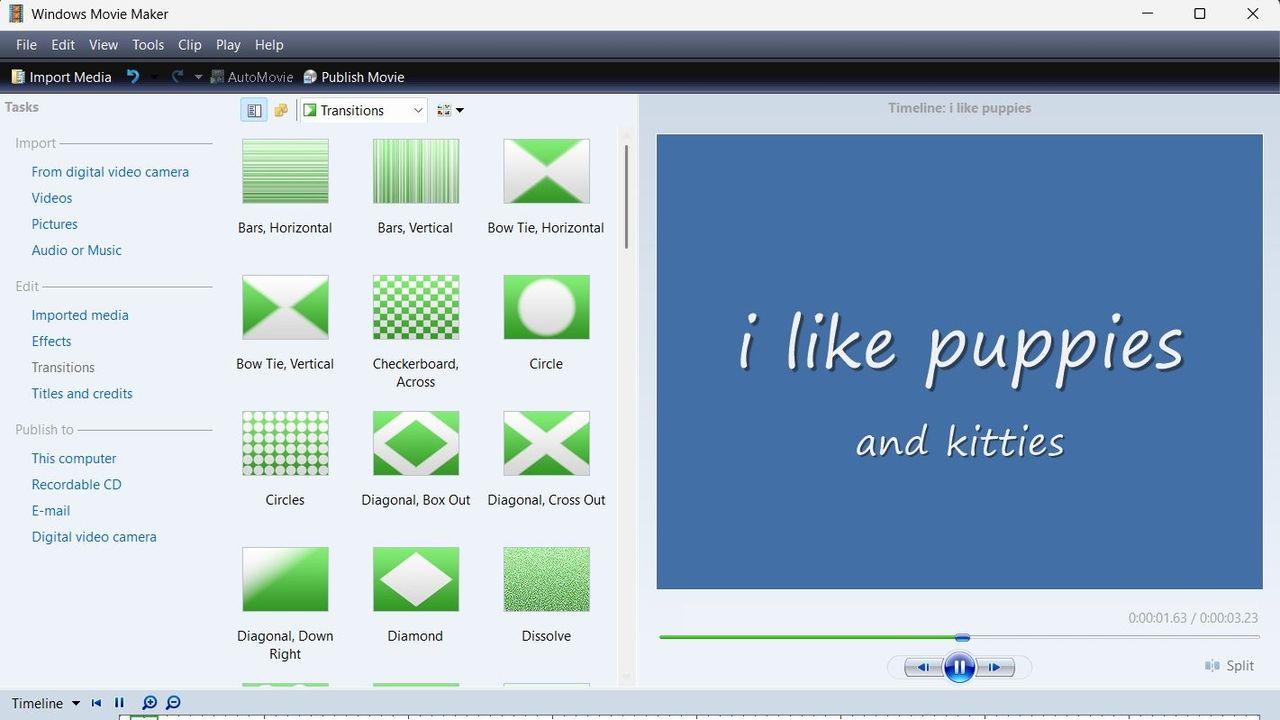
A screenshot of Windows Movie Maker showing a range of transitions.

Windows Movie Maker looks clunky by modern standards, but at least it supports offline editing.

Your Snapdragon X PC just took a step toward becoming a true gaming laptop

Qualcomm continues to flirt with gaming on its Snapdragon X processors. The latest update to Snapdragon Control Panel redesigns game library navigation, improves the software update experience, and helps you get the latest Hexagon NPU drivers.

The overall gaming experience on Snapdragon X PCs will be better following the update, though you won't see a graphics boost.

Snapdragon Control Panel is a piece of software that helps you optimize your gaming experience on PCs powered by Snapdragon X chips.

A bump to version 2026.2.0 brings several notable improvements. Qualcomm shared the change log for the latest Snapdragon Control Panel update on Reddit.

What’s new in Snapdragon Control Panel 2026.2.0.0

✨ User interface improvements

  • Redesigned Game Library navigation to be more consistent and intuitive, including clearer favorites add/remove behavior.
  • Redesigned the Software Update page with a consistent experience for Snapdragon Control Panel, Adreno GPU drivers, and Hexagon NPU drivers.
  • Improved update status feedback so users can more easily understand available updates and current installation state.
  • Removed the top-level back button to simplify navigation.
  • Expanded the clickable areas for items in the Help dialog.
  • Added support for saving and restoring the navigation sidebar state.

🧠 Hexagon NPU driver updates

  • Get access to the latest Hexagon NPU driver releases directly from Snapdragon Control Panel.

🎮 One-Click Game Optimization robustness improvements

  • Improved the reliability of One-Click Game Optimization workflows, including optimization, revert, and refresh behavior.
  • Note: One-Click Game Optimization is currently supported only on first generation Snapdragon® X Series devices.

🛠️ General improvements and bug fixes

  • Includes additional reliability, usability, and maintenance fixes across Snapdragon Control Panel.

Gaming on Snapdragon X PCs is in an interesting spot in 2026. It's very clear that Qualcomm aims for its Snapdragon X chips to power gaming PCs eventually, but most mentions of gaming on the processors feel reserved.

When Qualcomm announced the Snapdragon X2 Elite Extreme and Snapdragon X2 Elite last year, the company failed to mention gaming once. But when laptops with those chips launched, gaming capabilities were highlighted.

"Best Commuter Laptop: extreme performance for multitasking, gaming, and creation," reads the ASUS listing for the Zenbook A16 (emphasis added).

Just two months after unveiling the Snapdragon X2 Elite Extreme and Snapdragon X2 Elite, Qualcomm announced Snapdragon Control Panel. That program lets users optimize game settings and update game drivers.

Meanwhile, other companies have been working to improve gaming on Snapdragon X PCs. Logitech G HUB gained support for Windows on Snapdragon earlier this year.

YouTuber "Ghobso Gaming" tested over 200 games on the Surface Pro 11 with a Snapdragon X Plus, and many titles performed well. They have since run tests on laptops with the Snapdragon X2 Elite. I'll follow up with them and do another piece on that soon.

Our Ben Wilson played some games on the Zenbook A16 with a Snapdragon X2 Elite Extreme as well. Overall, gaming on Snapdragon X PCs is better than ever.

At some point, Qualcomm may fully embrace the gaming capabilities of Snapdragon X chips and make that a major part of its marketing. Until or unless that happens, the company will continue to work with partners to optimize gaming on Snapdragon X.

Blank Pixel

Click to join us on r/WindowsCentral

Join us on Reddit at r/WindowsCentral to share your insights and discuss our latest news, reviews, and more.

Studio photos of the 2026 ASUS Zenbook A16 laptop featuring the new Qualcomm Snapdragon X2 Elite Extreme processor.

The ASUS Zenbook A16, which runs on a Snapdragon X2 Elite Extreme, can run many popular games well.

Microsoft’s powerful new Snapdragon X2 Surface PCs are here, and they're more than a spec bump

The highly anticipated upgrades to the Surface Pro and Surface Laptop just launched. Both PCs pack the latest Snapdragon X2 processors from Qualcomm, promising better performance while still delivering great battery life.

The biggest upgrade in the lineup is performance. Microsoft promises up to 53% faster graphics performance on the Surface Pro than the previous generation. The Surface Laptop sees an even larger bump of up to 58% when compared to the last generation.

Those improvements are thanks to the Snapdragon X2 processors inside the Surface Laptop and Surface Pro.

Now, Best Buy has a wide range of configurations available for the Surface Laptop and Surface Pro. I've included a mix of various colors, storage options, and processors. But there are plenty of other configurations up for grabs if you want to mix and match.

Shop all Best Buy Surface deals

The new chips from Qualcomm perform well and let your PC last all day. Exact performance will vary based on the full specs of a PC, but the Snapdragon X2 Elite competes with Apple's M4 Pro. The Snapdragon X2 Plus stands toe-to-toe with Apple's M3 Pro.

Benchmarks and spec sheets aside, any Surface with a Snapdragon X2 chip will handle a wide range of workloads and tackle productivity tasks easily.

While the Snapdragon X2 chips are the stars of the show, they're not the only upgrades worth checking out in the new Surface Laptop and Surface Pro.

CPU: Snapdragon X2 Plus
GPU: Qualcomm Adreno
RAM: 16GB
SSD: 512GB

This Dune-colored Surface Laptop stands out in a sea of black and silver laptops. It does not come with Dave Bautista, but it does feature a Snapdragon X2 Plus.

👉 See at BestBuy.comView Deal

CPU: Snapdragon X2 Elite
GPU: Qualcomm Adreno
RAM: 16GB
SSD: 512GB

This sleek Surface Laptop is unassuming with its clean, black finish, but it's a portable powerhouse with a Snapdragon X2 Elite.

👉 See at BestBuy.comView Deal

CPU: Snapdragon X2 Plus
GPU: Qualcomm Adreno
RAM: 16GB
SSD: 512GB

This Surface Laptop has a 15-inch, 3K display with the 3:2 aspect ratio Surface is known for. It provides an excellent space to work without taking up too much space in your bag.

👉 See at BestBuy.comView Deal

CPU: Snapdragon X2 Plus
GPU: Qualcomm Adreno
RAM: 16GB
SSD: 256GB

This is the best choice for those who love the Surface Pro form factor but don't need the most expensive processor or a massive amount of storage. It's the most affordable way to get the latest Surface Pro.

👉 See at BestBuy.comView Deal

CPU: Snapdragon X2 Elite
GPU: Qualcomm Adreno
RAM: 16GB
SSD: 512GB

This Surface Pro balances high-end specs with value. It features a Snapdragon X2 Elite, 13-inch OLED display, 16GB of RAM, and 512GB of storage.

👉 See at BestBuy.comView Deal

The first Surface Pro Flex Keyboard launched alongside the Surface Pro 11. The accessory is still the best way to use your Surface Pro like a laptop, and it can also be used when detached for even more flexibility.

👉 See at BestBuy.comView Deal

The Surface Slim Pen 2 is excellent for natural note-taking and drawing, and it now supports Windows 11's updated haptic feedback experience to give you tactile cues while you navigate.

👉 See at BestBuy.comView Deal

What's new with the latest Surface Pro and Surface Laptop?

A sleek laptop with a black keyboard and a modern design, displaying a blue abstract swirl on its screen, set against a light gradient background.

(Image credit: Daniel Rubino)

There are more display options than ever across the Surface lineup. The new Surface Pro is available with either an OLED display or an LCD screen. The new Surface Laptop 15-inch has a screen with 262 PPI, which is much higher than the last generation offered.

But the new Surface Pro and Surface Laptop are more than a spec bump. While they share much of their designs with the last generation, both offer a new way to use haptics.

The Surface Laptop now features a haptic trackpad that allows you to feel Windows 11 and supported apps. The Surface Pro delivers a similar experience when paired with the latest Surface Slim Pen.

The new experience comes courtesy of Windows 11's new haptic feedback system. That system sends subtle vibrations when you perform certain tasks, such as dragging files in File Explorer or snapping windows.

The new Surface Laptop and Surface Pro build on over a decade of refinement by Microsoft. The overall form factor has matured, but Microsoft has figured out how to squeeze innovation from designs that were already almost perfect.

Click to join us on r/WindowsCentral

Join us on Reddit at r/WindowsCentral to share your insights and discuss our latest news, reviews, and more.

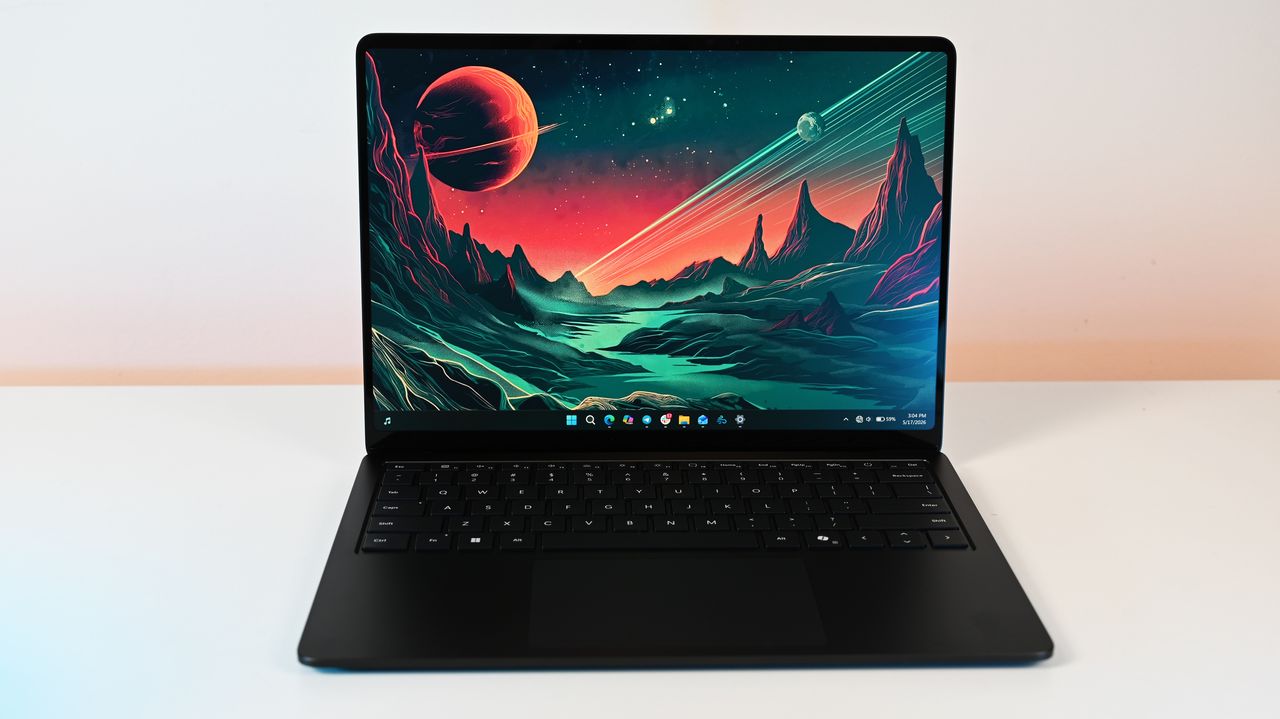
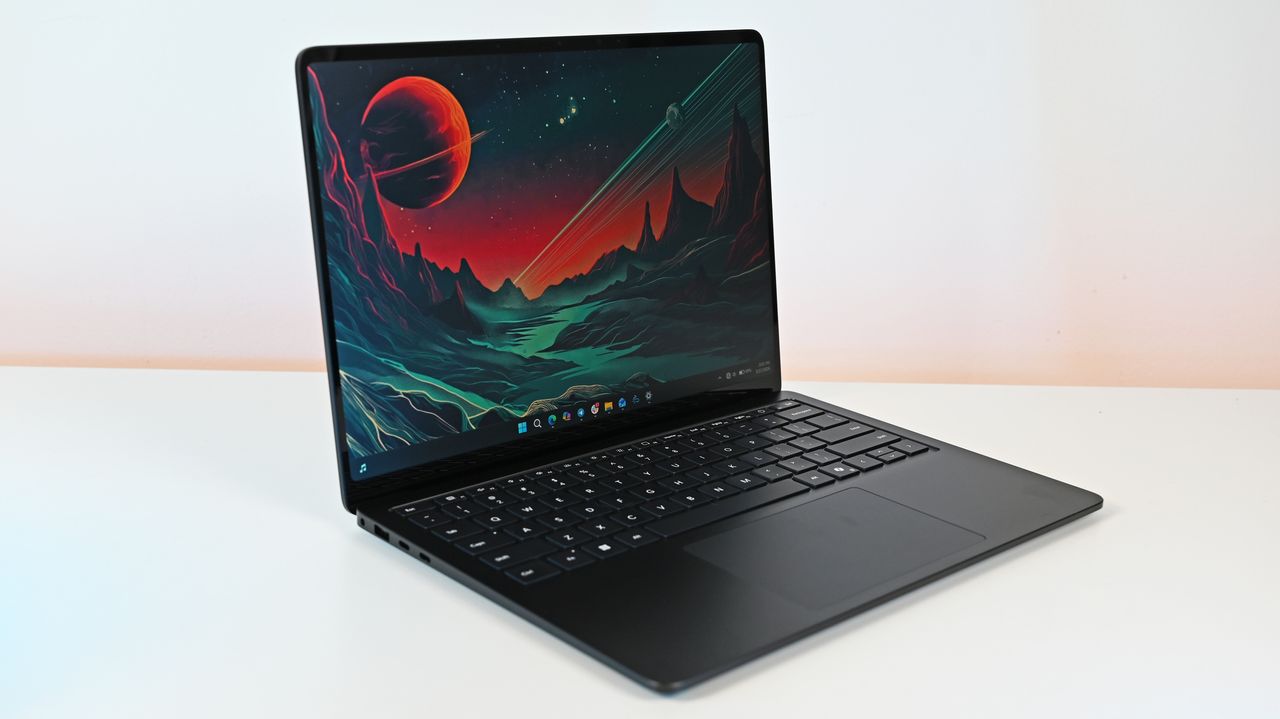
Surface Laptop for Business 8th Edition sits open on a white surface, displaying a vibrant sci-fi landscape wallpaper with a red planet and mountainous terrain.

Surface Laptop for Business 8th Edition sits open on a white surface, displaying a vibrant sci-fi landscape wallpaper with a red planet and mountainous terrain.

❌