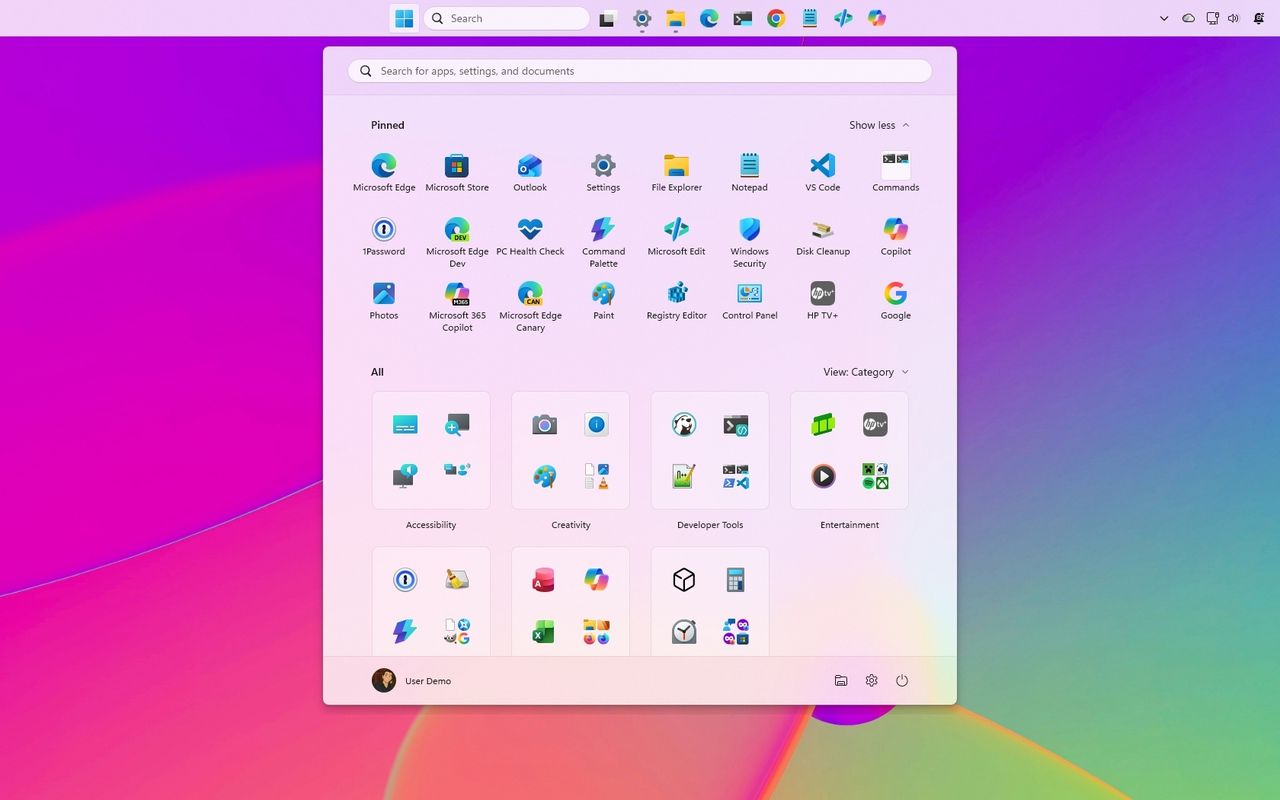
Vue normale

Windows 11’s September update reshapes key parts of the OS, and these 3 customizations instantly make the new release feel faster, cleaner, and more personal to use

As part of the September 2026 update, Microsoft is giving users more control over some of Windows 11's most visible features. The update introduces several customization options that let you change how the desktop works and make some of the default experiences less intrusive.

Once you install the update on your computer, you'll be able to move the Taskbar to the top of the screen, adjust the size of the Start menu, and disable web results from Windows Search. The options are part of Microsoft's ongoing Windows K2 work to make the desktop more customizable, and they're available through the Settings app.

In this how-to guide, I'll show you the easy steps to customize your desktop with features that are coming back to Windows 11.

Important: Starting with the September update, Microsoft is expected to begin gradually rolling out these features, meaning not every device will get them right away.

1. Place the Taskbar at the top of the screen

Starting with this release, the company begins a gradual rollout of changes that let you change the position and size of the Taskbar.

To change the Taskbar position, use these steps:

  1. Open Settings.
  2. Click on Personalization.
  3. Click the Taskbar page on the right side.
  4. Select the Taskbar position (including Bottom, Top, Left, and Right) under the new "Taskbar position" setting.

Windows 11 Settings showing the Taskbar position options.

(Image credit: Mauro Huculak)
  1. (Optional) Choose the Small option in the "Taskbar size" option to make the Taskbar and icons smaller and free up screen space on your desktop.

Once you complete the steps, the Taskbar will apply your current configuration, and flyouts, tooltips, and animations will continue to appear as expected based on the position.

Windows 11 desktop with the Taskbar at the top of the screen.

(Image credit: Mauro Huculak)

However, I've noticed that docking the Taskbar on the left side also slides the Notification Center to the left, which many people find not ideal.

2. Change the Start menu size

Microsoft also lets users further customize the Start menu. As part of the new changes, you can finally change the Start menu sides, decide what sections appear in the menu, and hide your profile name and picture from the experience.

To resize the Start menu on Windows 11, use these steps:

  1. Open Settings.
  2. Click on Personalization.
  3. Click the Start page on the right side.
  4. Turn off the toggle switches for the sections you don't want to see in the Start menu.
  5. (Optional) Choose whether the Recent section (formerly Recommended) shows recently added apps, recent and suggested files, and tips and app recommendations.
  • Quick tip: The "Show recent and suggested files" option works independently from the File Explorer file history.
  1. Choose the Small or Large option in the "Start menu size" setting to change the menu size.

Windows 11 Settings showing the new Start menu settings.

(Image credit: Mauro Huculak)
  1. (Optional) Turn on the "Hide your name and profile picture on Start" toggle switch.

After you complete the steps, the new customization settings will apply to the Start menu for a more personalized experience.

Windows 11 desktop with the new Start menu open.

(Image credit: Mauro Huculak)

3. Disable web results from Windows Search

Finally, Microsoft is also improving the Windows Search experience with several interface tweaks and, more importantly, with the ability to disable web results as well as Microsoft Store app suggestions.

To disable web results from Windows Search, use these steps:

  1. Open Settings.
  2. Click on Privacy & security.
  3. Click the Search page on the right side.
  4. Turn off the Web Searches toggle switch to prevent Bing results from appearing in searches under the "Show suggested search results" setting.

Windows 11 Settings shows the Search options.

(Image credit: Mauro Huculak)
  1. Turn off the Microsoft Store toggle switch to prevent app suggestions from the Store when performing a search.

Once you complete the steps, when performing a search, the results will focus on files, settings, and apps.

Windows 11 desktop Search Home showing the new UI.

(Image credit: Future)

Windows Search also gets several usability improvements with the September update. The Search home experience is being simplified to reduce clutter and make recent searches easier to access.

Also, search results will make it clearer whether an item is an app, setting, file, web result, or Microsoft Store suggestion.

Finally, the operating system will additionally be able to automatically index frequently used folders, helping files from those locations appear more quickly in future searches.

Windows Central's Take

I like this update because it addresses a few of the areas where Windows 11 has felt unnecessarily restrictive since its original release. Being able to move the Taskbar, change the Start menu size, and finally remove web and Store suggestions from Search gives me more control over how I actually use the desktop instead of being forced into specific defaults.

The Taskbar change is probably the biggest deal for long-time users. I still think the ability to move it should have been there from the beginning, but bringing back that flexibility is better than continuing to defend the original Windows 11 design decision. The same goes for Search. If I'm looking for a file, app, or setting, I don't always want Bing or Store suggestions mixed into those results.

I wouldn't call these revolutionary changes, but that's exactly why I think they are important. A lot of people use the operating system differently, and these small controls can make the experience feel much more personal. I recommend changing them to fit your workflow. Microsoft is rolling them out gradually, so they may not appear immediately after installing the update.

What are your thoughts about these new customization options on Windows 11? Let me know in the comments.

More resources

Explore more in-depth how-to guides, troubleshooting advice, and essential tips to get the most out of Windows 11 and 10. Start browsing here:

Click to join us on r/WindowsCentral

Join us on Reddit at r/WindowsCentral to share your insights and discuss our latest news, reviews, and more.

Windows 11 new feature for September 2026

Windows 11 new feature for September 2026
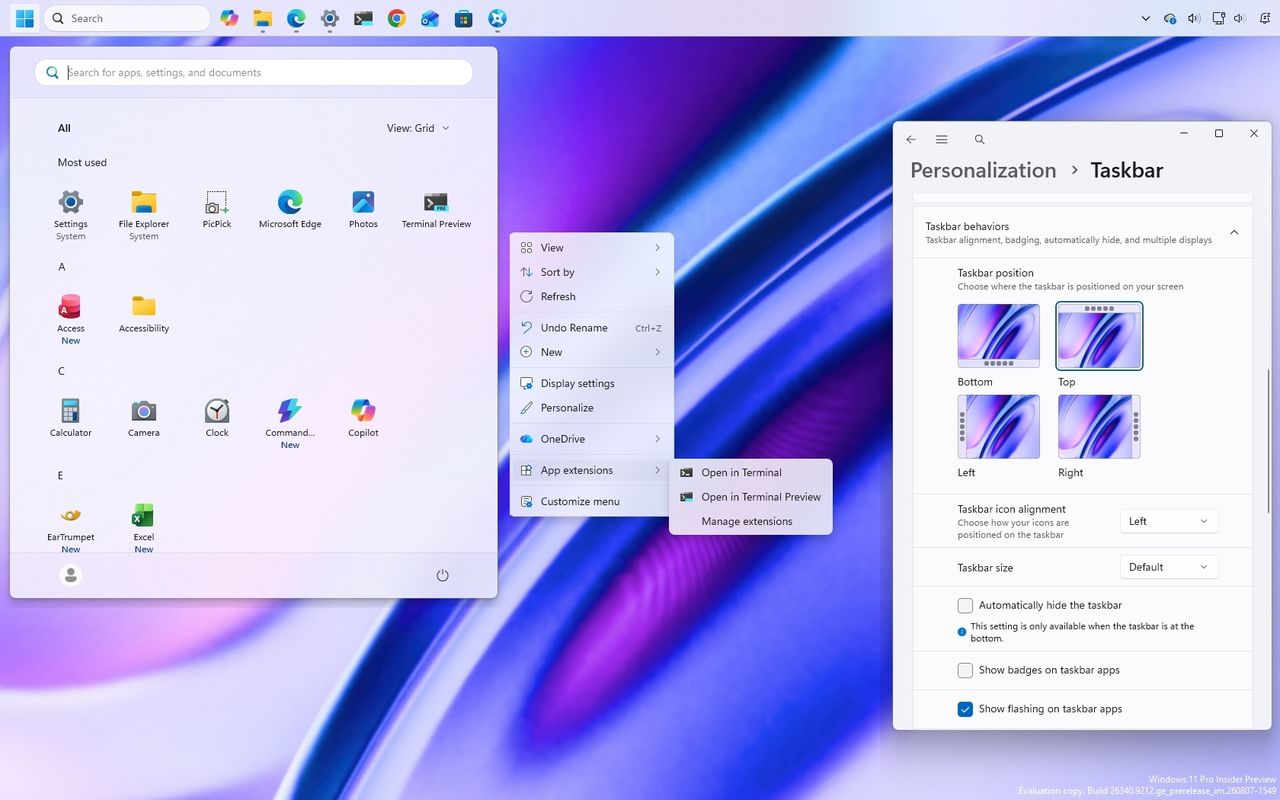
I think Microsoft is finally fixing the customization problems that held Windows 11 back

Windows 11 is finally starting to look less like the operating system Microsoft wanted everyone to use, and more like the experience users have been asking for.

It might sound like an overstatement, but look at what the company has been changing lately.

Microsoft is giving users more control over the context menu. It's bringing back the ability to move and resize the Taskbar. It's giving users more control over the Start menu. And across the experience, the company continues to modernize legacy tools without stripping away the functionality that made them useful in the first place.

These changes are part of the company's Windows K2 initiative, which is focused on improving Windows 11's performance, reliability, responsiveness, and overall experience. However, there's another theme running through some of these changes that deserves more attention.

Microsoft is giving users back some of the control it took away when it launched Windows 11. And frankly, it's about time.

Windows 11's biggest problem was never the new design

When Windows 11 first became available, Microsoft wanted the desktop to feel simpler, cleaner, and more approachable. That meant redesigning major parts of the shell, simplifying menus, and reducing what the company considered "unnecessary" complexity.

The problem wasn't that Windows 11 looked different. The problem was that Microsoft sometimes confused simplification with removing choices.

Windows 11 desktop with the new context menu open.

(Image credit: Mauro Huculak)

The redesigned context menu is probably the best example. Microsoft created a simpler menu that left out many existing commands, forcing users to open the classic menu to access them. However, over time, the modern menu started becoming cluttered again as more commands and app integrations were added, weakening the simplicity that was one of the reasons for the redesign in the first place.

Windows 11 Settings showing the Context menu options.

(Image credit: Mauro Huculak)

The Taskbar lost several customization options. Users could no longer move it to the top or sides of the screen. The Start menu became more rigid. A lot of familiar pieces of the operating system were redesigned around the company's preferred workflow rather than the different ways people had used the desktop for years.

Microsoft's intentions were understandable, but the results weren't always convincing. For an operating system built around flexibility, Windows 11 sometimes felt surprisingly restrictive.

Now Microsoft is giving users more control again

That's why the latest context menu changes are more interesting than they initially appear. Microsoft isn't simply making the context menu faster and easier to use. It's giving users more control over how it works.

Users will be able to customize which actions appear, manage entries from apps separately, and control how certain commands show up in the experience. The development team is also working on an option to restore a more traditional vertical arrangement for primary actions, such as Cut, Paste, and Delete.

Windows 11 Settings shows Arrange primary actions inline option.

(Image credit: Mauro Huculak)

That's a significant change in how Microsoft is approaching the design of Windows 11. Instead of deciding exactly how everyone should use the context menu, the company is giving users more control over the experience.

We've seen similar changes across the operating system. Microsoft is bringing back Taskbar positioning and sizing options. The company continues to rethink the Start menu. It's also modernizing older components without necessarily throwing away the functionality users depend on.

Windows 11 Settings in the new Start settings.

(Image credit: Mauro Huculak)

The context menu isn't the only example, since the company is also giving users more control in other parts of the experience.

Microsoft is learning users don't all use the OS the same way

This is where I think the software giant got Windows 11 wrong. There is no single correct way to use the operating system.

For instance, some people want a clean desktop with as little clutter as possible. Others want every option available at their fingertips.

Some people want the Taskbar at the bottom. Others prefer it at the top or along the side.

Windows 11 desktop with the Taskbar at the top and the Settings app opened in the Taskbar settings.

(Image credit: Mauro Huculak)

Some users rarely use the context menu. Power users can depend on it dozens or even hundreds of times a day.

The operating system has always been able to accommodate those differences. That's one of the reasons the platform became so successful.

Microsoft doesn't need to force everyone into the same workflow to make the desktop easier to use. It can provide reasonable defaults while still letting people change the experience when they want to.

Microsoft shouldn't get too much credit for restoring what it removed

There is an important caveat here. I like where Windows 11 is heading, but Microsoft shouldn't get a free pass simply because it's restoring functionality that didn't necessarily need to disappear in the first place.

The Taskbar didn't need to lose its positioning options, and the context menu didn't need to become so restrictive. And that makes the current changes somewhat frustrating.

The company spent years moving Windows 11 toward a more controlled experience. Now, several years into the operating system's life, it's gradually bringing some of that flexibility back.

I'd rather Microsoft learn from this and not make the same mistake again.

Windows 11 doesn't need fewer choices

I don't think the company needs to turn Windows 11 into Windows 10 again. Windows 11 should look like Windows 11.

It should have its modern interface, new architecture, and new capabilities. Microsoft should keep improving the entire experience and continue modernizing older parts of the operating system.

However, modernization shouldn't mean reducing functionality. A modern component should ideally be better than the old one without being less capable. That's the standard Microsoft should stick to, and the context menu is a surprisingly good example.

If the company can give Windows 11 a cleaner, more modern context menu while also letting users decide which commands they want and how they want to access them, that's a much better solution than forcing everyone into the same interface.

The same principle should apply throughout Windows 11. The operating system should be easy to use by default while still giving users the flexibility to make it work the way they want.

Windows Central's Take

The most interesting thing happening to Windows 11 right now isn't another visual redesign or another collection of new features. It's that Microsoft appears to be reconsidering how much control it should take away from users.

That matters even more as the Windows K2 initiative continues pushing broader improvements to the operating system. Better performance, reliability, design, and responsiveness are important, but the way people interact with the elements and features matters just as much.

A faster operating system that makes people work around unnecessary restrictions isn't necessarily better.

What I appreciate about these changes is that Microsoft isn't simply trying to make Windows 11 look different. It's addressing some of the decisions that made the operating system feel less flexible than previous versions. The movable and resizable Taskbar, a more customizable Start menu, and now a context menu that users can configure all point in the same direction.

Microsoft is starting to recognize that Windows 11's problem wasn't that it gave users too many choices. It was that it sometimes took too many choices away.

That's the lesson I hope the company keeps in mind as the Windows K2 project continues. Make the operating system easy to use out of the box, but still give users the freedom to customize it and make it work the way they want.

More resources

Explore more in-depth how-to guides, troubleshooting advice, and essential tips to get the most out of Windows 11 and 10. Start browsing here:

Click to join us on r/WindowsCentral

Join us on Reddit at r/WindowsCentral to share your insights and discuss our latest news, reviews, and more.

Windows 11 desktop with Taskbar at the top, new Start menu, and customizable context menu.

Windows 11 desktop with Taskbar at the top, new Start menu, and customizable context menu.

I switched to the HyperDrive Next Thunderbolt 5 dock for a few weeks, and it could be the best accessory for productivity masters — here's why

Docking stations are an interesting section of the laptop market. There are a lot of options out there, many of them offering the latest Thunderbolt 5 connectivity with an assortment of older and varied ports.

As the market fills up, laptop docks have to set themselves apart with different sub-features. I'm talking about Thunderbolt Share. A built-in M.2 SSD slot. A standout design (as much as that's possible with a small chunk of metal).

In the case of Hyper's HyperDrive Next Thunderbolt 5 dock that I've been using for a few weeks, it's the extra features that I'm most excited about. Let me explain so you know if it's right for your desk.

This review was made possible thanks to a review sample provided by HyperDrive. It had no input nor saw the contents of this review prior to publication.

Where can I buy the HyperDrive Next Thunderbolt 5 dock?

The HyperDrive Next Thunderbolt 5 dock is available at major online retailers, including Amazon and B&H. Although it launched with a $399.99 price tag, it seems like it's now permanently available at $319.99.

For comparison's sake, the CalDigit TS5 Plus — currently my favorite Thunderbolt 5 dock on the market — costs about $500.

Wavlink's Thunderbolt 5 dock, which I favorably reviewed, costs about $299.99 before frequent discounts (often falling to less than $200), while Kensington's excellent SD7100T5 EQ Pro costs about $339.

I'd say that Hyper's HyperDrive Next dock is priced within reason compared to other Thunderbolt 5 hardware, although Wavlink continues to be the best value option out there that I've tested.

What sort of ports does the HyperLink Drive have?

A sleek black HyperDrive Next dock with a textured ribbed edge, featuring USB and audio ports, placed on a polished wooden surface with a blurred background.

Ribbed edges give the dock's metal chassis a bit of texture and help dissipate heat. (Image credit: Future)

Dock design doesn't usually vary too much, and the HyperDrive Next plays it fairly safe with a chunky aluminum shell and plastic faceplates. I've mentioned plenty of times in other reviews that I prefer an all-metal design for added durability and less chance of scratching.

I like the ribbed corners on the aluminum shell. They add a bit of texture to an otherwise sleek exterior, and they help dissipate heat.

The dock works horizontally only, with rubber pads on the bottom to prevent it from slipping. Measuring 7.64 inches (19.4cm) wide and 3.07 inches (7.8cm) deep, it's thankfully rather compact.

There appear to be some holes drilled for mounting with a bracket, though a permanent setup like that might not be ideal due to the M.2 SSD slot's location (more on that in a moment).

A sleek black dock with multiple ports and the brand name

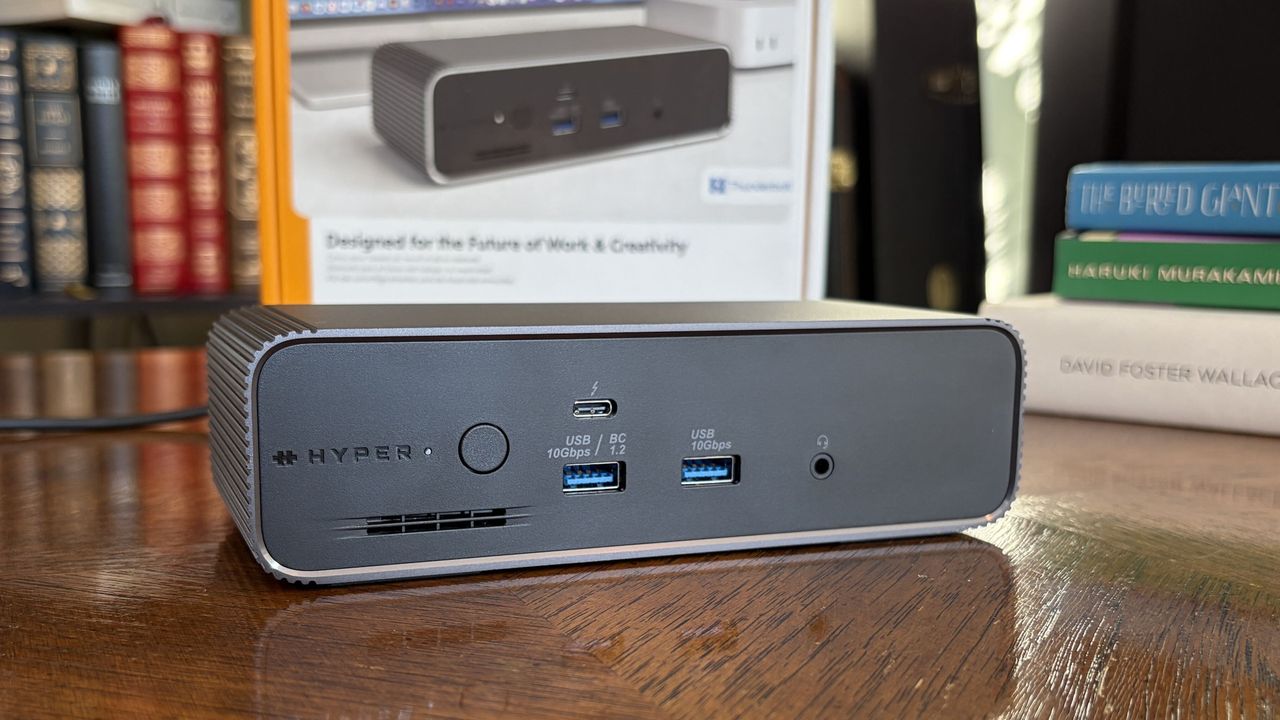
The front of the dock has dual USB-A ports, downstream Thunderbolt 5, and a 3.5mm audio jack. (Image credit: Future)

The front of the dock includes dual USB-A ports at 10Gbps each, a 3.5mm audio combo jack, and a single downstream Thunderbolt 5 port.

What you might think at first glance are SD card readers are merely vents cut out to help the built-in cooling fan. The slots sit below the power button and LED status light.

A black HyperDrive Next docking station featuring multiple ports including USB Type-C and Ethernet, placed on a wooden surface.

The back of the dock is where you'll find most ports, including downstream Thunderbolt 5, USB-A and 2.5Gb Ethernet. (Image credit: Future)

The back of the dock is where you'll find two more downstream Thunderbolt 5 ports, an upstream Thunderbolt 5 port for connecting your host laptop, two USB-A (10Gbps) ports, a 2.5Gbps Ethernet jack, dual lock slots, and a 20V power hookup.

The upstream host connection supports device charging at up to 140W, which is enough to keep most laptops without a discrete GPU topped up and ready to go.

At this point, you might be asking where the video outputs are located. Well, you're looking at them. The HyperDrive Next relies entirely on Thunderbolt 5 for external monitor support.

If you're using older monitors without USB-C connectivity, you'll need some adapters that switch the USB-C form factor used by Thunderbolt 5 to HDMI or DisplayPort.

The HyperDrive Next relies entirely on Thunderbolt 5 for external monitor support.

The good news is that Thunderbolt 5 is quite capable of handling video, and the dock allows for up to three 4K external displays, each running at a 60Hz refresh rate. If you're targeting a high resolution, it'll go as high as 8K at 144Hz.

It's worth noting that some other Thunderbolt 5 docks support up to three 4K displays each at 144Hz, so there's definitely a bit being left behind due to the other features on board.

I had no problems running one 4K screen and one ultrawide QHD+ screen off the dock, with bandwidth to add more. As mentioned, I've been using this dock on my desk, and I never noticed it get overly hot despite multiple monitors, frequent data transfers, and connected accessories.

HyperDrive Next's additional Thunderbolt 5 features

A close-up of a HyperDrive Next dock, revealing a sleek internal SSD labeled SK hynix PLATINUM P41 1TB, alongside a separate lid piece.

A look at the M.2 SSD slot with an SK hynix drive installed. (Image credit: Future)

Aside from the incredible transfer speeds you get from Thunderbolt 5, the extra bandwidth opens up some extra features that I particularly love.

Like the Razer Thunderbolt 5 Dock Chroma I tested last year, the HyperDrive Next dock comes with a built-in M.2 PCIe 4.0 NVMe SSD slot, with a hatch located on the bottom of the dock.

You need a screwdriver to get in, but it's well worth it, with support for full-size 2280 M.2 sticks all the way down to smaller 2230 drives. You should be able to use up to a 16TB drive in here (who can afford that these days?), doubling the capacity of the other docks I've tested.

Close-up of a gray HyperDrive Next dock with a metallic sliding mechanism and black rubber pads, resting on a wooden surface with a geometric pattern.

The built-in M.2 SSD slot fits sizes from 2280 down to 2230. (Image credit: Future)

The other big feature is Intel Thunderbolt Share. It's a tool that allows Thunderbolt 4 and 5 laptops to communicate directly with each other, easing common transfers and making life with multiple laptops that much easier.

File transfers are super easy, requiring just a drag and a drop.

The catch is that at least one of the laptops in use needs to have official Intel Thunderbolt Share certification, unless you have a dock connected in between with the official badge. That's where the HyperDrive Next comes in.

You can connect two separate laptops to the dock and control both from one set of peripherals. File transfers are super easy, requiring just a drag and a drop.

What I don't like about the HyperDrive Next Thunderbolt 5 dock

Black rectangular power adapter with a coiled cord on a wooden surface, featuring various safety certification labels.

The 180W power adapter is a tad wimpy compared to other docks, but at least it doesn't take up much space. (Image credit: Future)

Depending on how you use your dock, the lack of native video outputs might be a con. However, for others, full Thunderbolt and USB connectivity, paired with an M.2 slot and Thunderbolt Share, might be exactly what's needed.

The only major issue I experienced has to do with how the dock handles heavy workloads. While testing, I noticed drops in SSD and Ethernet speeds when used simultaneously.

I figured this had something to do with power allotment. A 180W adapter isn't that big for a dock that can charge a laptop at 140W. Indeed, this does make some of the charging abilities on ports other than the host connection fairly wimpy.

The dock is super convenient thanks to its built-in features.

The other Thunderbolt 5 ports only charge at 15W, and one USB-A port hits 7.5W. The rest sit at a rather low 4.5W.

However, after doing a bit of research, it seems that the Ethernet/SSD limitation is caused by the actual Intel Barlow Ridge chipset that's used by modern Thunderbolt 5 docks.

So, yes, the dock is super convenient thanks to its built-in features. But you probably won't get as good of performance as if you had a drive and an Ethernet cable connected separately via Thunderbolt 5 ports. It's not exactly Hyper's fault, but it's well worth noting.

Should you buy the HyperDrive Next Thunderbolt 5 dock?

A gray HyperDrive Next docking station with multiple ports displayed on a wooden desk, surrounded by colorful books and a framed image.

The HyperDrive Next Thunderbolt 5 dock is great for those who want a built-in M.2 SSD slot and Thunderbolt Share capabilities. (Image credit: Future)

✅ You should buy this if ...

  • You want a Thunderbolt 5 dock with a built-in M.2 SSD slot and Thunderbolt Share.
  • You have a Thunderbolt 5 laptop that can take advantage of all features (or you plan on buying one soon and can make do with Thunderbolt 4 speeds for the time being).

❌ You should not buy this if ...

  • You want maximum SSD and Ethernet speeds without requiring any adapters.
  • You have three external 4K displays and want to run them all at 144Hz.

Windows Central Recommended Award

Hyper's HyperDrive Next Thunderbolt 5 dock is a high-end option that actually competes quite well with the competition in terms of pricing and performance.

For example, the Kensington SD7100T5 EQ Pro comes with a built-in M.2 SSD slot, tons of ports (including SD card readers), and 2.5Gb Ethernet. It does not have Thunderbolt Share. It costs about $340.

If you don't need Thunderbolt Share or a built-in SSD slot, the Wavlink Thunderbolt 5 Thunderlight is probably a better bet, especially at only about $220.

Sitting in between is the HyperDrive Next at about $320, and I'd recommend it to those who want the convenience of external M.2 SSD storage and the ability to quickly share content between two PCs.

Otherwise, I recommend checking out my guide to the best laptop docking stations on the market today for more great options.

A sleek HyperDrive Next dock with USB ports and a power button, featuring a brand logo.

SSD slot & Thunderbolt Share
Hyper
HyperDrive Next Thunderbolt 5 Dock

The HyperDrive Next Thunderbolt 5 Dock brings a potent combination of a built-in M.2 SSD slot and Thunderbolt Share certification, perfect for busy offices involving multiple PCs. However, its lack of native video output and so-so charging capabilities might have you looking at the competition.

Click to join us on r/WindowsCentral

Join us on Reddit at r/WindowsCentral to share your insights and discuss our latest news, reviews, and more.

A gray HyperDrive Next docking station with multiple ports displayed on a wooden desk, surrounded by colorful books and a framed image.

A gray HyperDrive Next docking station with multiple ports displayed on a wooden desk, surrounded by colorful books and a framed image.

Microsoft is finally updating one of Windows 11’s oldest dialog boxes with a full WinUI redesign

Microsoft's makeover of Windows 11 continues. A refreshed AutoPlay dialog box headlines the latest Windows Insider build.

That experience is more than a palette swap or color change. Microsoft rebuilt the experience with WinUI. That brings better performance, more visual consistency with the modern parts of Windows 11, and better responsiveness to text scaling.

The AutoPlay dialog box is a relatively small feature, but it has looked outdated for years. Microsoft's current push to polish Windows 11 includes smaller fixes like updating the AutoPlay dialog box and bigger improvements like optimizing Windows 11 for systems with 8GB of RAM.

The redesigned Windows 11 AutoPlay dialog box in dark mode, showing action options for a connected device named

The AutoPlay dialog box is the latest part of Windows 11 to get a modern overhaul. (Image credit: Microsoft)

Several Windows Insider builds shipped today, but I'll focus on the one available through the Experimental Channel. If you want to catch up on the smaller releases, you can check out Microsoft's collection of release notes.

Build 26340.9233

Modernized AutoPlay experience

  • We've updated the AutoPlay dialog that helps you choose the preferred experience when devices are connected to your PC, such as a phone, camera, or removable drive. Rebuilt with WinUI, the refreshed experience is more consistent with the rest of Windows, supports dark mode, and continues to provide the familiar AutoPlay actions you use today. The experience is also more responsive to text scaling and display settings. Notifications for this dialog are now docked in the notification center for easy access.

Accessibility

A simpler way to open apps maximized

  • We're introducing a new accessibility setting, Open apps maximized, that automatically maximizes app windows when they open, so you no longer have to do it yourself every time. This small change removes a bit of everyday friction, whether you use a screen reader or magnification, work in tablet mode, or simply prefer a consistent, full-screen workspace.
  • To turn it on, go to Settings > Accessibility > Visual effects, and turn on Open apps maximized. Once enabled, Windows maximizes app windows for you as they open. Give it a try, and let us know how it works for you.

Manage camera, microphone, and location access for desktop apps

  • Windows Insiders can now manage camera, microphone, and location permissions for individual desktop apps. Previously, access for traditional desktop applications was managed through a single device-wide setting.
  • With this update, you can review and control access on an app-by-app basis, giving you greater visibility into which apps are requesting access to sensitive resources and more control over your privacy choices. Our goal is to make privacy permissions easier to understand and manage across the wide range of desktop apps people use every day.

What's changing

  • Allow or deny access for each desktop app individually.
  • Go to Settings > Privacy & security > CameraMicrophone, or Location to review and manage permissions.
  • Apps that haven't yet accessed a resource prompt for permission the first time access is requested.

What stays the same

  • Existing app permission decisions are preserved.
  • Apps previously granted access continue to have access.
  • Apps previously denied access remain denied.
  • No action is required, and no settings are reset.
  • Existing enterprise policies continue to function as designed. We're exploring additional management capabilities.

Notes

  • Most desktop apps appear with clear app attribution. However, some apps that rely on shared system components, browser-hosted experiences, or similar technologies might appear under a different name than expected.
  • Some desktop apps might appear as Unsigned if Windows can't verify publisher information. Only grant access to apps you recognize and trust.

File Explorer

  • PDF and non-HTML files downloaded from the web can now be previewed automatically in the preview pane.

Microsoft Store

  • This update provides support for in-app purchases in packaged WinUI 3 apps that require elevation, helping developers offer purchases through Microsoft's integrated commerce platform.

Taskbar

  • Fixed an issue in the latest builds causing taskbar animations to briefly work and then stop working.

Input

  • Fixed an issue in the latest builds causing the mouse cursor not to be visible in certain apps.

Other

  • Fixed an issue from the last flight causing Settings > Windows Update > Windows Insider Program > Flags to appear empty even though flags were available.
  • Updated Settings > Apps > Installed apps to show the version number at the top level for packaged apps, as it already does for other apps.

This update also includes some improvements we already knew about, including the option to open apps maximized.

Build 26340.9233 also adds the option to manage camera, microphone, and location permissions on a per-app basis for desktop apps. Previously, that choice was limited to UWP/MSIX applications.

Blank Pixel

Click to join us on r/WindowsCentral

Join us on Reddit at r/WindowsCentral to share your insights and discuss our latest news, reviews, and more.

Windows 11

Windows 11

I might have been wrong about Call of Duty: Modern Warfare 4

From the get go, as soon as I heard that Call of Duty: Modern Warfare 4 would be this year's entry in Microsoft's biggest franchise, my head dropped.

Since Modern Warfare was rebooted, it's been my least favorite. Modern Warfare (2019) was OK, and I played it for a little while but lost interest quicker than in any previous Call of Duty. I barely touched the two that came after it.

I've always preferred Black Ops, and while the last two in that series haven't been perfect by any means, I've really enjoyed playing them. But I've now finally played Modern Warfare 4 for the first time as part of Call of Duty: NEXT, and I'm man enough to admit my initial trepidation may well have been way off base.

I'll preface this by saying I haven't seen much of the game so far. I'll be enjoying the full multiplayer experience, that campaign mission, and the new Warzone map for the first time during the beta like everyone else.

But what I have already experienced has given me hope, because two aspects in particular I was expecting not to enjoy have turned out to be far better than I anticipated: Movement and gunplay.

Call of Duty: Modern Warfare 4's movement feels good

A screenshot from the Mobility Course in the Call of Duty: Modern Warfare 4 beta

Movement doesn't feel like Black Ops 7, but it's still fast and smooth. (Image credit: Windows Central)

I'm no "movement demon" on Black Ops 7, but I do enjoy the fast fluidity to it. I enjoy the pace of Call of Duty when it's flying along, and I appreciate that not everyone does. I don't enjoy slower-paced, more tactical shooters nearly as much.

I just want to run, gun, and then run and gun again. Have some fun.

Modern Warfare 4 is more grounded in that there's no wall jumping, but it still feels fluid. The pace isn't quite at Black Ops 7 level, but it's not slow. Sliding is smooth but doesn't feel ridiculous, and I think the best way I can describe the movement overall is that everything feels deliberate.

You don't feel like a superhero. You feel like you have some weight behind you, like you can't just use movement to get you out of a hole. You actually need to know what you're doing.

I like Modern Warfare 4's gunplay

A screenshot from a 3v3 Gunfight match in the Call of Duty: Modern Warfare 4 beta

So far the gunplay feels pretty satisfying. (Image credit: Windows Central)

Again, this is based on only a very brief playtest before the beta opens, but so far I like the gunplay a lot. The way the weapons move as you're running, the way they move when you're firing, and even the way the whole experience looks.

It's pretty satisfying.

Of course, I haven't yet experienced levelling up weapons, strapping on attachments, and such, but I do hope that we don't end up in a position, as we do every year, where there's a single meta that makes every weapon shoot like a laser beam with no recoil.

As it stands out of the gate, I like the recoil, and I like that you actually need to be able to aim a little to hit your shots. I'm not very good, but I like it.

It feels good hitting your shots, especially with a pistol. Call of Duty isn't realistic by any stretch, but Modern Warfare 4 so far seems to be headed in a better direction in this aspect than the last two Black Ops games.

Visually Modern Warfare 4 is the best Call of Duty in a while

A screenshot from a Gunfight 3v3 match on the Call of Duty: Modern Warfare 4 beta

Even the water looks pretty good on Modern Warfare 4 (Image credit: Windows Central)

Nobody plays Call of Duty because it's a particularly good-looking game, and those who indulge primarily in PvP action on PC always turn the graphics down anyway to get the extra frames. Console players can't do that, so there needs to be a balance.

I've played so far on the Xbox Series X, and I think Modern Warfare 4 looks pretty good. Certainly more like you'd expect a modern shooter to look.

Part of this, I do wonder, is it down to the decision to ditch last-gen consoles? I played Black Ops 7's beta last year on an Xbox One X, and it wasn't great. Visually it looked fine, close enough to the Xbox Series X, but the frame rate was awful. But I also felt like the last-gen consoles were holding back the visuals on the more modern systems.

Everything about the visuals on Modern Warfare 4 so far feels like an upgrade over Black Ops 7. The lighting is nice, textures are decent, and I think the weapons look fantastic. It's just generally all-around nice to look at.

Black Ops 6 and Black Ops 7 were OK, and I get that Modern Warfare has a whole different aesthetic, but it feels less 'fake' and altogether a more pleasing environment.

That's not to say that there isn't plenty more that needs to be experienced to decide whether Modern Warfare 4 is a "good game" or not. There's still the matchmaking experience, for example, that could make or break things, and plenty of other decisions that could affect the player experience.

But on the face of it, I'm prepared to admit my preconceptions were wrong that I'd immediately dislike this game. The fundamentals of it are a lot better than I expected.

Like everyone else, I'll be really getting to grips with Modern Warfare 4 during this weekend's early access beta. Things kick off today, Friday, August 21, at 9am Pacific for Call of Duty: NEXT, with access for everyone else with a code beginning at 11am Pacific.

Click to join us on r/WindowsCentral

Join us on Reddit at r/WindowsCentral to share your insights and discuss our latest news, reviews, and more.

Early looks at Simon "Ghost" Riley from Call of Duty: Modern Warfare 4 in his Nomad gear, available by purchasing the Vault Edition of the game.

At least with first impressions, I might have been wrong.

Microsoft has a new way to twist your arm to use Edge, this time on mobile

Microsoft Edge for Android has some new image themes in testing. The latest Edge Canary build has some snazzy backgrounds, but to set them you have to make Edge your default browser.

It's a strange requirement that may ruffle some feathers, but there's always a chance it will change. The requirement to set Edge as your default browser to use the themes only appears in Edge Canary. That rule may not roll out to general availability.

The change was spotted by Leo Varela, who tracks updates and changes to Edge and other browsers.

Microsoft has added new image themes in Edge Canary for Android, but to use them as your NTP background, you have to set Edge as your default browser. All browsers use tactics to motivate you to make them your default, and Edge is no exception 🤷 https://t.co/sK1xv7W0RC pic.twitter.com/VVIPywivm2August 21, 2026

Microsoft has a long history of trying to convince people to use Edge. Some efforts, such as adding unique features are viewed as fair play. Other tactics, such as Windows 11 making it more difficult to switch your default browser, have been met with criticism.

A recent survey commissioned by the Browser Choice Alliance suggests that switching away from Edge is too difficult. But that survey relates to PC users. Microsoft has a different battle on Android.

Instead of having hundreds of millions of users with PCs that already have Edge installed, Microsoft needs to convince people to download Edge for Android. Then, the tech giant needs to get people to set Edge as their default browser, which is no easy task.

I imagine the amount of people who have installed Edge on their phones but have not set the browser as their default is small. Considering how niche Edge is on Android, anyone who goes out of their way to install it probably plans to use Edge.

Some Samsung phones come with Edge preinstalled, so perhaps the new picture themes in Edge are designed to sway those users.

Of course, Microsoft is not alone in using aggressive methods to push a browser. Google and Apple have also pushed Chrome and Safari, respectively.

I'm curious to see how effective locking picture themes behind a default setting requirment will be for Edge.

Blank Pixel

Click to join us on r/WindowsCentral

Join us on Reddit at r/WindowsCentral to share your insights and discuss our latest news, reviews, and more.

In this photo illustration a Microsoft Edge logo of a web browser developed by Microsoft is seen on a smartphone and a pc screen.

In this photo illustration a Microsoft Edge logo of a web browser developed by Microsoft is seen on a smartphone and a pc screen.

Microsoft has been served a 'Grand Theft Auto 6' court subpoena by Take-Two (UPDATE)

We are working closely with Take-Two and Rockstar Games to support efforts to protect creative works and intellectual property.August 21, 2026

It hasn't been a fun week if you're working on Grand Theft Auto 6.

GTA is no stranger to controversy, but this year seems to have cranked it up a notch. Take-Two has thrown the rule book out of the window for traditional game launches, and it's to be expected given the scale and hype around GTA 6. People have been waiting well over a decade for a follow up to GTA V, in what promises to be potentially the biggest entertainment launch in history.

Take-Two has raised the ire of long-time fans, however, partially for the price of GTA 6, but also for cutting out standard features and placing them in a $100 edition. Take-Two has also paywalled the first real GTA 6 gameplay footage behind a Netflix subscription, set for premier on August 27, 2026. Then came the hackers.

A self-styled group known as Cyberleeks began spreading footage of GTA 6 on X and other sites last week. The leakers are drip-feeding content from the build, while taking donations in crypto currency. The leaks have knocked Take-Two's share price down 2% over the past week, although it's still up 6% for the year overall. Either way, the firm isn't taking the leaks lying down.

Shared by Kotaku, the subpeona filed in New York City in the United States, calls on Microsoft, Discord, Google, and others to produce evidence that could lead to the arrest of the leakers.

"The copyrighted material includes but is not limited to audio visual content, artwork, images, dialogue, or other creative elements. Take-Two, through its counsel of record, has submitted a sworn declaration confirming that the purpose for which the DMCA subpoena is sought is to obtain the identity of an alleged infringer or infringers, and that such information will only be used for the purpose of protecting Take-Two’s rights."

"All internal Microsoft business records and investigative records associated with Microsoft’s internal investigation of the ‘cyberleek’ persona sufficient to identify the user(s), person(s) and/or entity/ies associated with that persona."

It's unclear what involvement Microsoft has here directly, although the subpoena suggests Microsoft is conducting an internal investigation of its own into the leaks. There had been some rumors that the GTA 6 builds had emerged from an Xbox dev kit, although it's unclear exactly if that's true right now.

Grand Theft Auto 6 trailer image

Grand Theft Auto is arguably the most legendary video game franchise in history, owing to its penchant for setting new standards for quality, detail, and sandbox immersion. (Image credit: Rockstar Games)

Either way, Microsoft's vast cloud platform means that it often acts as a first layer of cyber defence for all sorts of companies and even nation states. There's at least some potential here that the Cyberleeks group used or accessed Xbox or Microsoft services in their activities. It could be that the leaked build pings back to Microsoft's Xbox servers, for example, either for uploading telemetry or accessing online services.

Take-Two has also requested information from Discord and Google, and I wouldn't be surprised if they eventually subpoena the crypto exchanges Cyberleeks are using as well.

Grand Theft Auto 6 is set for launch on November 19, 2026, exclusively on Xbox Series X|S and PS5. Other major games have been desperately trying to tailor their launches away from GTA 6, leaving the November launch window somewhat barren.

Click to join us on r/WindowsCentral

Join us on Reddit at r/WindowsCentral to share your insights and discuss our latest news, reviews, and more.

Xbox Series S GTA 6 styled

Xbox Series S GTA 6 styled

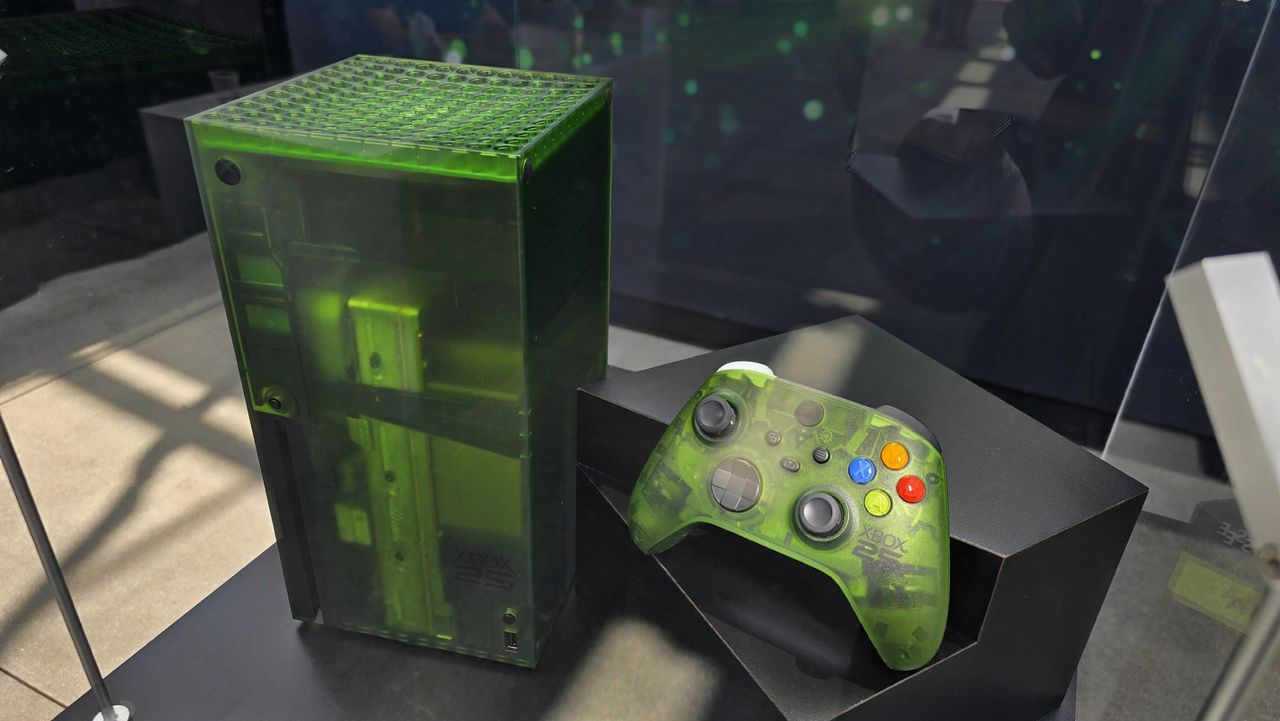
Xbox's "OG Green" Series X25 console might cost nearly $900, with rumors aligning the $100 premium with a Black Friday launch.

A limited-edition translucent green Series X console was unveiled earlier this year at the Xbox Showcase as the "Xbox Series X25", planned for release in November with no confirmed pricing, alongside a matching Series X|S wireless controller.

Fans who attended the show were told they'd receive one for free, but regular consumers have been left in the dark until an apparent €899.99 European price and November 27 release were revealed by "billbil-kun" via Dealabs' High-Tech magazine earlier today.

According to the data in our possession, we are able to say that the price of the XBOX Series X25 limited edition console will be €899.99 in France and Europe.

billbil-kun, Dealabs (Translated)

It's connected to a previous rumor that potential pre-orders for the translucent controller could start during Gamescom 2026, but billbil-kun couldn't confirm whether that aligns with listings for the Series X25 console. Interestingly, Black Friday lands on November 27 this year, kicking off the holiday shopping season.

How much will the Series X25 cost in the US?

Transparent green Xbox Series X and controller, text reads

(Image credit: Xbox)

Right now, a standard Xbox Series X "1TB Disc Drive Carbon Black" on the official Xbox Store costs €799.99 in France and $799.99 in the US. The same currency-symbol switch applies in the same way to the "1TB All-Digital Robot White" at €749.99/$749.99, so it's reasonable to assume that the limited-edition Xbox Series X25 could cost $899.99.

Dealabs rightly assumes the same, with another translation explaining, "the equivalent of this price is expected to be $899.99 in the US," putting what is otherwise a functionally identical Xbox Series X console at $100 above its standard variant for the benefit of its "OG Green" shell and green-tinted light on its power button.

It all follows Microsoft's earlier hardware price hike announcement, which increased the Xbox Series X price from $649.99 to its current $799.99. That $150 increase was already unpopular among Xbox fans, and particularly so with our readers, who voted that "Xbox consoles are too expensive now." If the price leak is true, asking for another $100 will presumably be equally shunned.

Since the start of its 25th-anniversary celebrations, I've been more interested in the translucent green controller. The original console is special to me, but I can't justify spending hundreds of dollars on something like a build-your-own OG Xbox console. I'm keeping my fingers crossed for an affordable X25 joypad.

Click to join us on r/WindowsCentral

Join us on Reddit at r/WindowsCentral to share your insights and discuss our latest news, reviews, and more.

Xbox Series X25

Rumors hint that Xbox's translucent green Series X25 console will launch on November 27 for $100 more than its standard, disc-based counterpart.

This Microsoft 365 bundle deal gets you a year of NordVPN for free

Microsoft 365 is a must-have software suite for millions of people. I've had a subscription since the days of SkyDrive and Office 365. I stack up whenever I find a great deal. Whether you're an experienced subscription stacker or paying for your first Microsoft 365 subscription, now is a great time thanks to a pair of deals.

Newegg has discounts on two bundles, one that comes with Microsoft 365 Personal and NordVPN ($61.99) and one that comes with Microsoft 365 Family and NordVPN ($84.99). Both bundles get you 12 months of each included piece of software.

365 Personal (12 months) + NordVPN: was $149.98 now $61.99

This bundle is the most affordable way to get a year of Microsoft 365. As an added bonus, it comes with a year of NordVPN Basic, which is a $49.99 value on its own.View Deal

365 Family (12 months) + NordVPN: was $179.98 now $84.99

Microsoft 365 Family provides access to the software suite for up to six people. Each of those users will have their own copy of apps like Word, PowerPoint, and Excel plus 1TB of OneDrive storage. This bundle also includes a free year of NordVPN Basic.View Deal

Is now a good time to subscribe to Microsoft 365?

Right now is a great time to subscribe to Microsoft 365.

I've kept track of the best Microsoft 365 deals for years. Every once in a while, the most affordable way to get a subscription is to pick up a bundle. Even if you have no intention of ever using NordVPN, the bundled prices for Microsoft 365 and NordVPN are lower than the cost of Microsoft 365 on its own.

I don't mean to discount NordVPN. It's a great service on its own and I have used it regularly for years as well. I just assume people seeing this bundle are more interested in Microsoft 365. If you use both Microsoft 365 and NordVPN, the current bundles are incredible.

FAQ

Can you stack Microsoft 365?

Yes, it is possible to stack Microsoft 365 subscriptions, meaning you can extend your current plan rather than having to wait for your current subscription to expire. Microsoft 365 allows customers to stack up to five years.

Can I use Microsoft 365 on multiple devices?

Yes, Microsoft 365 apps are available across just about every operating system and type of device. You can use those apps on up to five devices at once with your Microsoft 365 subscription.

Does Microsoft 365 come with OneDrive storage?

Yes. Each Microsoft 365 user gets 1TB of OneDrive cloud storage. That means a Microsoft 365 Personal subscription comes with 1TB of storage and a Microsoft 365 Family subscription comes with up to 6TB (1TB per user).

What is NordVPN?

NordVPN is a highly rated VPN that can improve the security of devices by hiding your IP address and rerouting internet traffic. It can also encrypt data and bypass regional locks for streaming content.

Microsoft 365 and NordVPN Cyber Monday deal

Microsoft 365 and NordVPN Cyber Monday deal

New Windows 11 feature will make using handheld gaming devices and small tablets easier: Ability to force apps to open in full screen coming soon

It looks like Microsoft is working on a new feature for Windows 11 that will allow users to configure the behavior of apps when they first open. Right now, pretty much all Windows app will open in windowed mode, until manually set to open maximized by the user. But in the latest Windows 11 preview builds, a new option has been discovered that changes this.

First spotted by phantomofearth, the new option appears in the accessibility area of Windows Settings. The option reads: "Automatically open app windows maximized when they open" with the ability to toggle it on or off. When enabled, all Windows apps will opened in a maximized state by default, meaning the user will no longer be forced to do so for every app they open.

This feature will be great for devices with relatively small screens. PCs with screen sizes of less than 13-inches will benefit greatly from this. On my Surrface Pro 12-inch for example, I almost always find apps are easer to use when maximized as the screen it just too small to enjoy using apps in windowed mode.

New option to open apps maximized in Windows Settings

The new toggle to force apps to open full screen in Settings. (Image credit: Phantomofearth on X)

This will be especially beneficial for devices with sub 10-inch screens or less, like the Surface Go line or more commonly, PC handheld gaming devices like the Xbox ROG Ally X, which has a 7-inch screen. Windows is famously not very optimized for these small screen sizes, but letting users open apps full screen will make the experience a little better.

It's also beneficial for PCs where the screen may be far away from the user, such as with a PC under a living room TV that's used primarily for watching movies or playing games. In that instance, you wouldn't want apps opening in windowed mode basically ever, and so this option will come in handy.

For a while, Windows 11 included an automatic behavior change that forced apps to open maximized on PCs with small screens, but at some point that behavior stopped. Now, it seems Microsoft is going to give users the option to enable this on any screen size, which makes more sense.

These quality of life improvements are great to see, and another example of Microsoft making WIndows 11 more customizable. Recently, it announces a whole wave of new customization options for the Start menu and context menus, with more customization to come in the next few months.

Click to join us on r/WindowsCentral

Join us on Reddit at r/WindowsCentral to share your insights and discuss our latest news, reviews, and more.

Windows 11 window app controls

Windows 11 window app controls

Microsoft Surface and other Windows on Arm PCs can't use Outlook or Teams right now

A Windows 11 update appears to break Microsoft Teams and Outlook on Windows on Arm PCs. Issues started popping up after the rollout of KB5121003, which began shipping this month on Patch Tuesday.

Brian Stringfellow shared details about the problem through a Microsoft Learn report. Several people in that thread have similar issues.

PCs affected by the issue, including Stringfellow's Surface Laptop 7, see Microsoft Teams and Outlook close almost immediately after being opened. Specifically, the new Outlook is affected. Classic Outlook still works on PCs affected by the bug.

The problem seems to affect a variety of Windows on Arm devices. Julius Heng shared their experience:

"I have the exact same issue on Omnibook 3 running snapdragon. After the initial setup, Ms Teams works, but next day it doesnt work. It will have a white screen on teams and it will close right after it open. I tried various method, including reinstall webview 2 etc. None of it works. I tried to roll back all the update and it doesnt work. After did a factory reset Ms Teams works again. But to my dismay, the windows update itself and it breaks Teams again. right now, i'm back to square. Really hope that there's some way to rectify this."

It's not clear at this time why the issue is occuring or why the problem is limited to Windows on Arm PCs.

User Alex-L, who is listed as a moderator and Microsoft External Staff on Microsoft Learn, reported that similar issues are occurring on a variety of Windows on Arm systems:

"At this point, very similar symptoms on different Snapdragon/ARM64 systems. While these reports suggest a possible common factor, no one in this public forum can confirm Microsoft's internal investigations, determine the root cause, or verify whether this is a known issue affecting all ARM64 devices. Microsoft does not currently list a known issue for KB5121003 in the official release notes."

While we wait for official confirmation from Microsoft and a fix for the issue, users with Windows on Arm PCs may have to fall back to other versions of Outlook and Teams that are unaffected by the bug.

Click to join us on r/WindowsCentral

Join us on Reddit at r/WindowsCentral to share your insights and discuss our latest news, reviews, and more.

Microsoft's Surface Pro 12-inch 1st Edition (2025) powered by Qualcomm Snapdragon X Plus processor.

Microsoft's Surface Pro 12-inch 1st Edition (2025) powered by Qualcomm Snapdragon X Plus processor.

Razer Huntsman V3 Pro Low-Profile TKL 8KHz Review: The thin green line of speed tuned for pro‑level play

For the past two weeks, the just-announced Razer Huntsman V3 Pro Low-Profile Tenkeyless 8KHz (winner of the longest keyboard name yet) has been permanently parked on my desk. Between churning out editorial content and squeezing in late-night gaming sessions, I’ve put Razer’s latest optical deck through hundreds of thousands of keystrokes.

Razer hasn't slowed down its rapid pace of hardware innovation, but bringing analog optical switches to an ultra-slim low-profile chassis is easily one of its most intriguing experiments yet.

After fourteen days of continuous hands-on testing, this slender powerhouse has completely reshaped my daily workflow and play routine.

Razer had no input, nor did it see the contents of this review, prior to publication.

Razer Huntsman V3 Pro LP TKL: Price, availability, and specs

Side profile view highlighting the ultra-slim design and low-profile optical switches of the Razer Huntsman V3 Pro TKL keyboard.

Side profile view highlighting the ultra-slim design and low-profile optical switches of the Razer Huntsman V3 Pro TKL keyboard. (Image credit: Daniel Rubino)

The Razer Huntsman V3 Pro Low-Profile Tenkeyless 8KHz retails for $229.99.

Built around Razer’s Low-Profile Analog Optical Switches, it boasts an adjustable actuation range spanning 0.1 mm to 2.8 mm, 8,000Hz HyperPolling, per-key RGB, a 5052 aluminum alloy top plate, doubleshot PBT keycaps, and a multi-function digital dial accompanied by dedicated media buttons.

It connects via a detachable braided USB Type-C cable, included in the box. No wireless (Razer insists that while many ask for wireless, no one trusts it to last long enough, so everyone just leaves it plugged in. I am 100% guilty of this!)

It is now available from Razer.com and associated retailers like Best Buy, Amazon, and more.

Razer Huntsman V3 Pro LP TKL: Design and typing experience

Side-angle view showing the low-profile keycaps, brushed metal plate, and green RGB lighting on the Razer Huntsman V3 Pro TKL keyboard.

Side-angle view showing the low-profile keycaps, brushed metal plate, and green RGB lighting on the Razer Huntsman V3 Pro TKL keyboard. (Image credit: Daniel Rubino)

Razer has officially reached double digits with its flagship Huntsman keyboard lineup, marking this Huntsman V3 Pro Low-Profile TKL as the 10th entry in the family tree, which I find hilarious.

Having tracked the evolution of this sub-brand over the years, watching model number ten land on my desk feels like a milestone. It’ll earn a place on our curated guide for the best gaming keyboards under the low-profile crown.

At a sleek 19.5mm front height, the deck sits lower to the desk than a nickel standing on its edge. I prefer low-profile keyboards for two practical reasons:

  1. Seamless laptop-to-desktop parity: As someone who constantly hops between high-end laptops and a full desktop workstation, low-profile keys eliminate the jarring adjustment curve required when shifting to standard deep-travel mechanical boards.
  2. Speed and reduced fatigue: With shorter overall travel distance (2.8mm total), less physical effort is needed to execute keystrokes. It feels faster and easier to operate, warding off hand fatigue during long writing marathons. Call it lazy hands if you want, but my fingers appreciate the efficiency.

As Editor-in-Chief of Windows Central, my daily workload splits roughly 80% typing for my job and 20% gaming. As a trained touch-typist, I demand a deck that can keep pace with high WPM output without sounding like an industrial typewriter. The sound and feel across all 10 Huntsman iterations remain remarkably consistent, but this low-profile variant introduces a softer actuation due to its reduced key travel.

The acoustics are superb: audible enough to offer satisfying tactile feedback, but quiet enough to keep office mates from plotting your demise.

Razer’s tenth Huntsman brings optical analog power down to desk level—and it sets a new gold standard.

The physical keycaps feature an excellent subtle texture and slight dome profile that guides fingers smoothly across the home row. (If you want a deeper dive into mechanical, optical, and magnetic mechanisms, check out our guide on keyboard switches explained.)

If I could manifest my ultimate keyboard, it would be a Frankenstein fusion of this low-profile Huntsman layout and the 3-pound, forged-metal chassis of the $499 Razer Huntsman Signature Edition. Realistically, we can't have both in a single device. Forced to choose, I’m sticking with the Low-Profile Huntsman over the Signature Edition for daily driving—it is simply a joy to type on.

Close-up of the textured volume knob and media controls on the Razer Huntsman V3 Pro Low-Profile Tenkeyless gaming keyboard.

Close-up of the textured volume knob and media controls on the Razer Huntsman V3 Pro Low-Profile Tenkeyless gaming keyboard. (Image credit: Daniel Rubino)

Because there is no wrist rest included in the box, you might assume ergonomic support is an issue. Thankfully, the low frame sits flat enough that wrist extension isn't an issue. However, I paired it with a cheap $26 foam wrist rest (like this foam wrist rest on Amazon), and the setup felt complete.

Razer Huntsman V3 Pro LP TKL: Gaming performance and movement tech

Razer Synapse actuation tab for Razer Huntsman V3 Pro Low-Profile keyboard with Snap Tap, Rapid Trigger, and actuation point settings.

Razer Synapse actuation tab for Razer Huntsman V3 Pro Low-Profile keyboard with Snap Tap, Rapid Trigger, and actuation point settings. (Image credit: Daniel Rubino)

When it is time to drop the editorial work and game, the Huntsman V3 Pro LP TKL reveals its true colors. Testing this board across high-stakes titles like DOOM: The Dark Ages, Warhammer 40,000: Space Marine 2, and 007 First Light, the sheer responsiveness of the analog optical deck became undeniable.

In the chaotic melee of Space Marine 2 and the fast-paced combat of DOOM: The Dark Ages, Razer's aggressive software suite provides a distinct advantage:

Razer Synapse customizes the menu for the Razer Huntsman V3 Pro Low-Profile keyboard, showing the polling rate and gamepad keybind settings.

Razer Synapse customizes the menu for the Razer Huntsman V3 Pro Low-Profile keyboard, showing the polling rate and gamepad keybind settings. (Image credit: Daniel Rubino)
  • True 8,000Hz HyperPolling: Delivering a 0.39ms latency, inputs register nearly instantaneously—52% faster than key low-profile competitors.
  • Rapid Trigger Mode: Adjust actuation between 0.1 mm and 2.8 mm. Switches reset the moment your finger moves upward, allowing rapid-fire re-keying when strafing or dodging.
  • Razer Snap Tap: Prioritizes your latest directional input without releasing the opposite key. It supports up to four onboard pairs with custom behaviors like Last-Input, Neutral, or Compare Level.
  • Razer Snap Flex: Allows two distinct commands to be bound to a single keypress, making complex multi-key maneuvers execution-perfect.
  • Dynamic Keystroke & Dual-Keypress Priority: Bind up to four actions to a single key based on press depth and release, while Dual-Keypress Priority prevents conflicting movement keys from breaking fluid diagonal movement.
  • Synapse Web: No bloatware installation needed. Razer’s browser-based configurator lets you alter actuation points, key bindings, and Rapid Trigger settings directly on any host PC

Razer Chroma Studio interface in Razer Synapse software displaying custom RGB lighting effects and layout for gaming gear.

Razer Chroma Studio interface in Razer Synapse software displaying custom RGB lighting effects and layout for gaming gear. (Image credit: Daniel Rubino)

Finally, we have Razer Chroma for configuring the lighting setup on your keyboard, and if you're like me, to sync with all your other Razer accessories like the new Razer Seiren V3 Chroma 32-bit DSP microphone, Razer Basilisk V3 Pro 35K, and the baller Razer Soma Chroma gaming chair.

Razer Huntsman V3 Pro LP TKL: Competition

Image of the Logitech G515 RAPID TKL gaming keyboard.

The Logitech G515 Rapid TKL low-profile gaming keyboard we reviewed in 2025. (Image credit: Windows Central | Zachary Boddy)

How does this board stack up against its nearest low-profile rivals?

Against Razer's own BlackWidow V4 Low-Profile HyperSpeed, the differences center on connectivity versus raw speed. The BlackWidow V4 LP offers wireless flexibility (2.4GHz/Bluetooth) with traditional mechanical switches at $199.99, but caps out at a 1,000Hz polling rate without analog support. The Huntsman V3 Pro LP TKL ($229.99) sacrifices wireless freedom for maximum esports performance—delivering 8,000Hz polling, analog precision, and advanced movement software like Snap Flex.

Compared to the Logitech G515 RAPID TKL, which uses magnetic Hall Effect switches, Razer takes the lead in typing acoustics and software versatility. While the G515 RAPID TKL performs well in games, its switches feel mushier for daily typing tasks. The Huntsman V3 Pro LP TKL provides a crisper bottom-out, higher polling rate, and the convenience of driverless configuration via Synapse Web.

Razer Huntsman V3 Pro LP TKL: Should you buy it?

Overhead top-down view of the Razer Huntsman V3 Pro Low-Profile Tenkeyless gaming keyboard layout with backlit RGB keycaps.

Overhead top-down view of the Razer Huntsman V3 Pro Low-Profile Tenkeyless gaming keyboard layout with backlit RGB keycaps. (Image credit: Daniel Rubino)

You should buy it if ...

You want an ultra-fast low-profile keyboard powered by 8,000Hz analog optical technology.

You split time between heavy typing and gaming and demand low finger fatigue.

You want advanced movement software like Rapid Trigger, Snap Tap, and Snap Flex.

You should not buy this if ...

You insist on a wireless setup.

❌ You prefer deep, traditional mechanical key travel.

❌ You are on a strict budget and don't require optical analog features.

Blank Pixel

Ignore

At $229.99, the Razer Huntsman V3 Pro Low-Profile Tenkeyless 8KHz is an investment.

However, if you already like what Razer is doing with its analog optical switches, this low‑profile version feels like the next logical step. It delivers the same competitive edge as the full‑height Huntsman V3 Pro TKL, just in a thinner, faster, more refined chassis that’s easier to live with day-to-day.

The typing feel is crisp, the travel is short, and the 8KHz polling gives you the same responsiveness you expect from Razer’s top‑tier boards. It’s still a premium keyboard aimed at people who care about speed, tuning, and precision, and it absolutely delivers on that promise.

The price is high, but the performance is undeniable. If you want a low‑profile keyboard that doesn’t compromise on competitive features, this is the one that sets the bar. It’s fast, it’s polished, and it’s built for players who want every advantage they can get. In a crowded field of “fast” keyboards, this one actually earns it.

Top down product shot of the Razer Huntsman V3 Pro Low Profile TKL 8KHz gaming keyboard

Razer
Huntsman V3 Pro Low Profile Tenkeyless 8KHz

Dominate your matches with the world’s first low‑profile analog optical gaming keyboard made for pro players. Powered by 8000 Hz HyperPolling, Snap Flex, Snap Tap, Rapid Trigger Mode, and fully adjustable actuation, it delivers top‑tier speed in an ultra‑slim design.

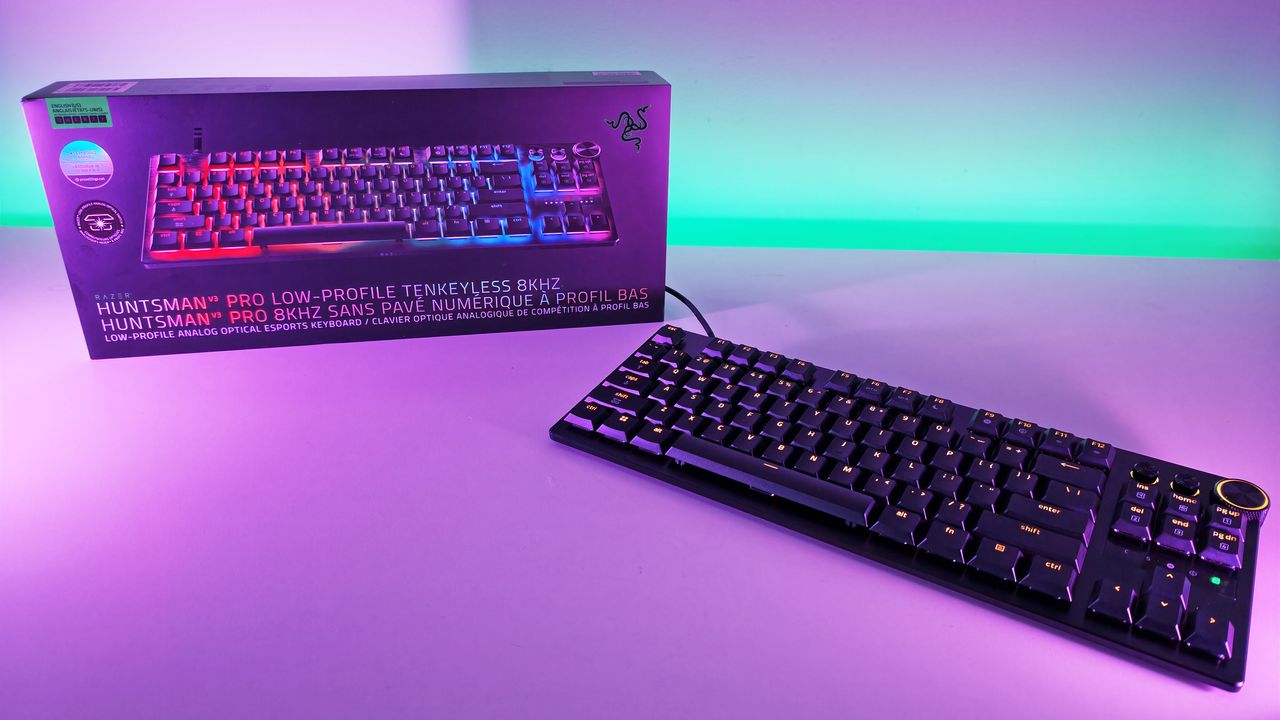
Razer Huntsman V3 Pro Low-Profile Tenkeyless 8KHz gaming keyboard sitting in front of its retail box under purple studio light.

Razera's brand new Huntsman V3 Pro Low-Profile Tenkeyless keyboard brings all its best features, do a slimmer, easier-to-type design.

The man behind PowerToys is most excited about these features that ship next week

PowerToys is one of my favorite Windows apps and a must-have for people who want to get the most out of Windows 11. We often highlight new and upcoming features for PowerToys, but we rarely get to hear about the most exciting features in the eyes of Niels Laute.

Next week, PowerToys will receive several improvements, including a compact option for Command Palette and a ripple effect for Mouse Highlighter. Laute, who is the project manager of PowerToys and WinUI, shared the features and changes he's looking forward to.

As PM of PowerToys, Laute oversees the development of one of the best free Windows apps. But the app is worked on by several people. Over 300 pull requests contributed to next week's update, and Laute thanked the team for their efforts.

Next week's PowerToys release is looking good 👀!The team and our amazing community have merged almost 300 PRs, packed with quality-of-life improvements, stability fixes, and polish across the suite :)!Here's some of my favorite (small) improvements coming 🧵:August 18, 2026

We've known about some of these changes because of the PowerToys preview. For example, on-device Phi Silica support has been in testing over the last two weeks. But next week the changes will ship to everyone using PowerToys.

Command Palette is similar to Spotlight on macOS. Another way to look at it is as what Windows Search should be. The utility can launch apps, open settings, and trigger actions quickly.

Command Palette is a powerful tool, but it can take up quite a bit of space on your screen. Next week's update to PowerToys brings the option to use a compact view for Command Palette.

Command Palette is getting compact mode! pic.twitter.com/DA7RzmUSgzAugust 18, 2026

Mouse Highlighter is a handy tool that lets you find your mouse cursor. It can save you some time if you use multiple monitors or an ultrawide display. But it can feel a bit heavy-handed since it grays out your screen to highlight the cursor. The upcoming ripple effect is more subtle.

Mouse Highlighter getting new Ripple effects! @ClintRutkas has been cooking with this one 🚀. pic.twitter.com/MzDycvsgBvAugust 18, 2026

Phi Silica is a small language model (SLM). It's perhaps best known for being the model that powers Copilot+ PC features such as Click to Do and on-device rewriting in Word and Outlook.

@khmyznikov added Phi Silica support for Advanced Paste 🚀! So you will be able to take advantage of your NPU for AP on a Copilot+ PC! pic.twitter.com/sR60TT51W1August 18, 2026

Phi Silica and other features have been in preview testing for a bit. The next update to PowerToys will make it easier to get preview updates.

New update UX that addresses a bunch of reported issues - and the ability to opt-in our new preview channel! pic.twitter.com/Cs8oDjXqt6August 18, 2026

Change logs for PowerToys are famously long and detailed, so you can expect the "gazillion" fixes Laute mentions to be listed next week.

And so much more! Shortcut Guide is much smoother now and has built-in search, a gazillion CmdPal bugfixes (thanks @AkaWizardPrime!) and perf and stability fixes across the board. Oh, and a brand new utility to look forward too :)!Stay tuned!August 18, 2026

I'll update this piece when the new version of PowerToys rolls out and add the complete change log.

PowerToys | Free at GitHub | Free at Microsoft Store

This collection of utilities includes a large library of features to enhance the Windows experience. PowerToys is designed with power users in mind, but it has handy features for people who just use their PC for everyday computing too.

Click to join us on r/WindowsCentral

Join us on Reddit at r/WindowsCentral to share your insights and discuss our latest news, reviews, and more.

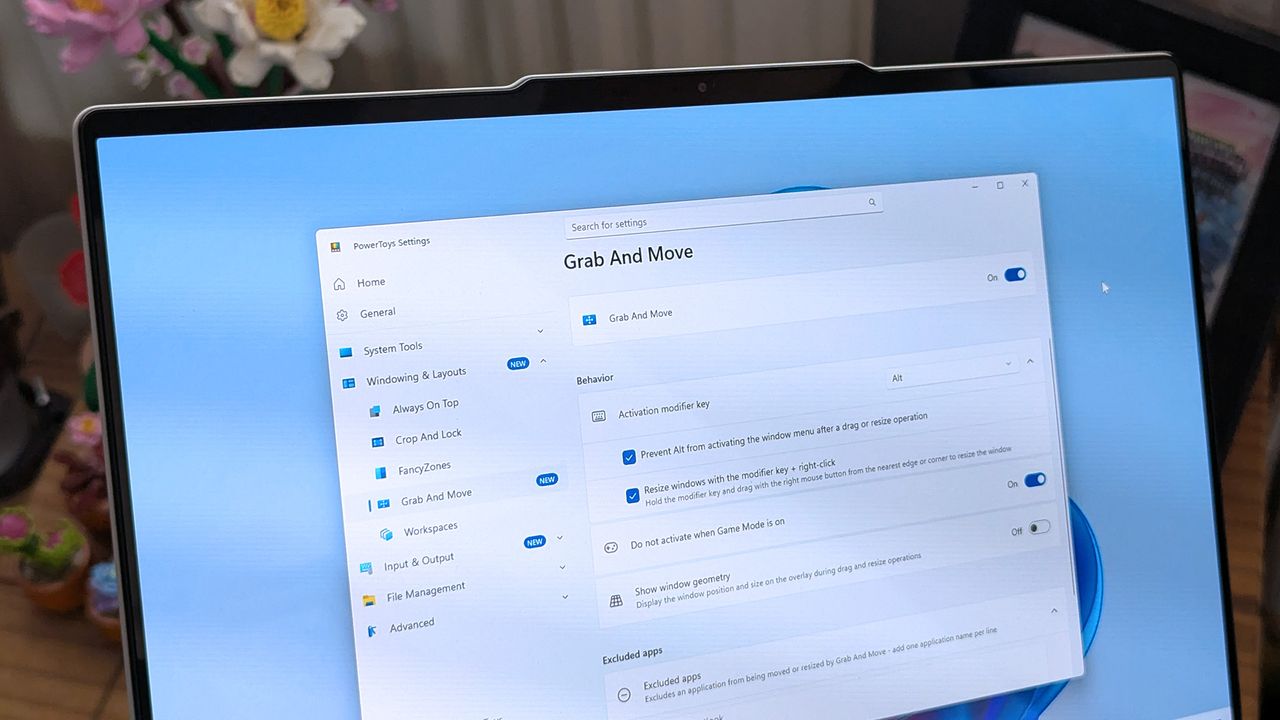
A laptop screen displaying Windows 11, featuring the "Grab And Move" settings window of PowerToys. The desktop background is colorful and vibrant.

A laptop screen displaying Windows 11, featuring the "Grab And Move" settings window of PowerToys. The desktop background is colorful and vibrant.

Forget GTA 6 gameplay leaks — I'm more interested in path-traced GTA 4 that looks shockingly close to 2026 graphics

Grand Theft Auto VI has been hogging the limelight lately, and for all the wrong reasons. Hackers have been leaking bits of gameplay and other info online, and gamers are gobbling it up ahead of the expected November 19, 2026, release date.

I'm trying to avoid as many spoilers as possible by not viewing the leaks, and besides, I have something better to keep me busy until GTA VI's official launch.

I'm talking about the Grand Theft Auto IV RTX Remix mod that adds Path Tracing to the 18-year-old game.

It's the work of a modder known as xoxor4d, who last week released version 1.4.2 of the mod on GitHub. The mod is compatible with GTA IV: The Complete Edition version 1.2.0.59, and it truly makes the 2008 car-jacking hit feel like it was released in 2026.

What does the RTX Remix mod do to Grand Theft Auto IV?

I know that the GTA IV Remix mod has been out for a while now, but I hadn't been following it that closely. Oh boy, it has come a long way since launch, and it's great to see the project's creator is keeping up with maintenance and new features.

I was reintroduced to the project via the maxrenderedgaming YouTube channel, where the mod was shown off using an NVIDIA RTX 5090 GPU.

There are certainly some other mods at play here, which I dig into a bit deeper below, but one thing is for sure: this is an incredible mod that changes the whole grimy, gray feel of the original game.

GTA IV arrived all those years ago with graphics that seemed mind-blowingly good, as is usually the case with Rockstar titles. Looking at the game's stock graphics now, well, you can tell that they're from a bygone era.

The RTX Remix mod drastically changes the appearance. The game's default static lighting has been replaced entirely with full path tracing, making rays jump and bounce off of surfaces quite realistically. Dynamic shadows look better than ever. It really is the best I've ever seen Liberty City look.

My plan is to first get the RTX Remix compatibility mod set up from the project's GitHub page. Next, I'm going to download the 4K Textures Warcaco Graphics Mod to really see what my PC's RTX 5070 Ti can handle.

Here are some screenshots from the texture mod that I know will make you want to play GTA IV again, too.

GTA IV character in a dark jacket stands facing urban buildings with a basketball court in the foreground; buildings are brick with orange windows and visible graffiti.
A Grand Theft Auto IV screenshot from Warcaco's 4K texture mod.Warcaco (Nexus Mods)
GTA IV 4K textures with defined bricks and reflections in windows.
A Grand Theft Auto IV screenshot from Warcaco's 4K texture mod.Warcaco (Nexus Mods)

To say that this combination makes GTA IV look like a completely different game is an understatement. However, you're going to need a beast of a PC if you want to run this combination with any sort of playable success.

The demo video I provided above has the modded game dropping as low as about 60 FPS in some areas, and the GitHub project page notes that your CPU will likely be a bottleneck due to "the amount of detailed meshes the game is rendering."

Be that as it may, I definitely think any fans of GTA should give this one a shot just to see how it performs on their hardware.

NVIDIA's RTX Remix is a big deal, and not just because of one mod

I know, I know, more AI from NVIDIA's RTX division. Some of you might not want to hear of it, but I'm convinced that Remix is the real deal.

Remix arrived in January 2024 as an open-source and free tool, and it's been under development since. It's a clever way to inject path tracing, upscaling, and other materials into old favorites without needing any source code access.

Anyone with the right ambition can give Remix a shot, and there are some other projects I recommend checking out. Portal with RTX and Half-Life 2 RTX are probably the best examples, but they were spearheaded by NVIDIA. It's great to see lone developers jumping into the tool to create their own works.

Considering GTA VI isn't expected to launch with path tracing, and the fact that GTA V only supports ray tracing, this might be the best way to play Grand Theft Auto until the next installment arrives.

Click to join us on r/WindowsCentral

Join us on Reddit at r/WindowsCentral to share your insights and discuss our latest news, reviews, and more.

A GTA IV character in a dark jacket and motorcycle helmet standing in front of cars, with a roller coaster in the background.

A GTA IV character in a dark jacket and motorcycle helmet standing in front of cars, with a roller coaster in the background.

Oops! Qualcomm retracts key Snapdragon C benchmarks for budget laptops

Qualcomm's upcoming Snapdragon C chips are now surrounded by more question marks. Despite Qualcomm releasing benchmark comparisons last week, there are new unknowns about the processors.

Last week, Qualcomm shared details about its Snapdragon C chips online and highlighted the updated information to media outlets. I covered the news, as did several other outlets. Tom's Hardware discussed the specs and benchmarks, but it has since had Qualcomm reach out with an update.

A Qualcomm representative asked Tom's Hardware to replace slides originally shared by Qualcomm with updated versions. Unlike the slides first sent out, the new slide does not show benchmark information for how Snapdragon C chips perform when powering idle apps or when web browsing.

The remaining benchmarks are still impressive, such as Snapdragon C delivering up to two times better power efficiency than Intel N250 when running Netflix or Edge. But considering some claims have been removed, I think many people will want to see Snapdragon C in the wild before making any decisions.

Snapdragon C is a new chip from Qualcomm designed for low-cost devices that start at around $300. The chips promise power efficiency and responsive performance for budget-friendly systems.

Until recently, we knew little about the chip in terms of hard specs. But we now have core counts, benchmark comparisons, and other details.

Snapdragon C specs

CPU

Qualcomm Kryo CPU (6nm)

CPU cores

8

CPU max clock speed

3.0 GHz

GPU

Qualcomm Adreno

NPU

Qualcomm Hexagon

Memory

LPDDR5x

Maximum memory

16GB

Wi-Fi

Wi-Fi 6E, Wi-Fi 6

Bluetooth

Bluetooth 6.0

The Snapdragon C will power Windows 11 on ARM devices. That platform has improved greatly over the last few years in terms of compatibility, so much so that app compatibility is no longer a concern for Windows 11 on ARM for most users.

One of the few remaining areas where Windows 11 on ARM struggles is gaming, but since budget laptops starting at $300 are unlikely to be gaming PCs, that shouldn't be much of a concern for Snapdragon C.

Questions about Snapdragon C

When I covered the Snapdragon C benchmarks last week, I noted that the only information we had came from Qualcomm and that we'd need to see verified results from independent tests. I also highlighted that Qualcomm did not share how the chips performed when plugged in, instead leaning on unplugged performance that often favors Snapdragon processors when compared to Intel.

I did not expect the benchmarks shared by Qualcomm to become unknowns. We now have no information about the performance of those chips when powering idle apps or during web browsing.

Qualcomm did not share many details with our colleagues at Tom's Hardware about why the old slide had been changed. The company simply said the change was made to "improve clarity and relevance."

The fact that Qualcomm let the presumably incorrect or out-of-date slide go unchecked for almost a week is also worrying.

Web browsing is a key part of the budget laptop experience, so accurate benchmarks in that category will be pivotal for anyone shopping for a PC.

Blank Pixel

Click to join us on r/WindowsCentral

Join us on Reddit at r/WindowsCentral to share your insights and discuss our latest news, reviews, and more.

Snapdragon C logo in a white transparent environment resembling a motherboard.

Snapdragon C logo in a white transparent environment resembling a motherboard.

Windows 11's latest Patch Tuesday update is breaking games and turning off PCs — This temporary fix might get ARC Raiders and The Finals running again

I've been gaming again lately on my desktop PC thanks to cooler weather, but thankfully I haven't experienced this new Windows 11 bug that cropped up after the August 11 (KB5121003) update.

It's apparently affecting 25H2 and 24H2 installs of Windows 11, as this update rolled out to OS builds 26200.9168 and 26100.9168.

According to Microsoft, the Windows 11 update is forcing some games to go unresponsive, crash, or reboot your PC entirely. You might also see the EXCEPTION_ACCESS_VIOLATION error pop up, forcing you to close your game.

Thankfully, it doesn't seem like the issue is too widespread. At least, not yet. Microsoft says it has received reports mainly focused on ARC Raiders, MARVEL Tōkon: Fighting Souls, and The Finals.

As of August 19, when the support page was last updated, Microsoft says it is investigating the issues to figure out if it's a problem on its side. Microsoft is asking any PC gamers experiencing a similar issue to file a report in the proper Feedback Hub app.

Embark Studios, the team behind ARC Raiders and The Finals, took to Discord to address the problem (via Windows Latest).

We’re aware of a new crash introduced with the release of a Windows update (KB5121003) that may be affecting some of you. The team is working on a fix, and we will keep you posted on any updates.

Embark Studios (via Discord)

In another post, the Embark team points at the crashes being caused by an inpoutx64.sys file change in the recent Windows 11 update. It seems like the kernel-level driver is having a hard time communicating properly.

Embark says it's working on its own "long-term fix," but in the meantime, affected gamers might be able to solve the issue on their own.

A temporary fix for the new Windows 11 gaming issues

Screenshots of action the player can expect when playing the Finals

The Finals is one game affected by the new Windows 11 update bug. (Image credit: Michael Hoglund via The Finals)

Embark has laid out the steps required to temporarily fix the crashing and freezing issues on KB5121003.

Launch Command Prompt as Administrator, type "sc stop inpoutx64", and press Enter.

In the same Command Prompt instance, type "sc delete inpoutx64" and press Enter.

Next, navigate to C:\Windows\System32\drivers in your PC's File Explorer. Find the file called inpoutx64.sys and delete it.

That should let your games run smoothly again, but hopefully we'll soon have a fix that doesn't require the manual workaround.

You can, of course, also roll back your Windows 11 PC to an older update version until the problem is officially fixed by Microsoft.

This seems like a fairly minor Windows 11 issue compared to some others we've already experienced this year, but that doesn't make it any less frustrating for those affected.

Most recently, on July 15, Microsoft had to block the Windows 11 KB5101650 Patch Tuesday update on Dell PCs after issues involving unexpected shutdowns, overheating, and generally poor performance were reported by users.

Click to join us on r/WindowsCentral

Join us on Reddit at r/WindowsCentral to share your insights and discuss our latest news, reviews, and more.

A character stands beside a rusty, weathered structure in a rocky outdoor setting, holding a firearm. A colorful Windows-like graphic with an exclamation mark appears in the corner.

A character stands beside a rusty, weathered structure in a rocky outdoor setting, holding a firearm. A colorful Windows-like graphic with an exclamation mark appears in the corner.

A build-your-own OG Xbox has Morrowind and Psychonauts secrets hidden inside its not-LEGO bricks — and it costs over $300

A buildable recreation of the original Xbox from 2001 is coming from Mattel Brick Shop, technically under the same brand umbrella as the MEGA-branded 3:4 scale Xbox 360 from 2023. Listing the "Microsoft Xbox Building Toy Kit For Collectors" without a firm release date for $329.99 at Best Buy, and even less information at Amazon, the pricey set hides some nostalgic dioramas inside.

Wanna build gaming history? 🎮Get your hands on the Original XBOX Console Collector Building Set from Mattel Brick Shop: https://t.co/LoL6GTj5xm pic.twitter.com/kcBnKNGADUAugust 19, 2026

Alongside the chunky console itself is a close-enough representation of the original "Duke" controller, and three internal displays based on popular titles from the console's lifespan. Miniature set pieces from Halo, Psychonauts, and The Elder Scrolls III: Morrowind have built-in lighting that's activated by the Duke joypad and fit comfortably inside this 1:1 set with 3,509 pieces.

Slightly bigger, but a lot more expensive

Mattel Brick Shop original Xbox model opened to show Halo, Fable, and Psychonauts dioramas, with close-up Xbox controller buttons and a green grid background.

(Image credit: Mattel | Microsoft)

I'm admittedly the target audience for this sort of thing; a total sucker for nostalgia. I already own LEGO models of the SEGA Mega Drive (Genesis) console and its controller, displayed on shelves alongside other happy memories from my childhood. A full-sized, 1:1 recreation of the gigantic original Xbox wouldn't fit with it, but I'm sure I'd find somewhere else.

This isn't LEGO, though. It's the other brand, and it's asking a lot more money for this more complicated representation of Microsoft's hardware than Mattel's bricked-up Xbox 360 set that launched for $150 — one I already skipped. Asking over $300 for a follow-up toy feels steep, especially when many of us could find the real console on eBay for less.

OH MY GOD that price!I could get a real original Xbox in great condition with those 3 games and way more for much less.

@stok54, X

On the other hand, the cute Morrowind feature appeals to a very specific part of my nostalgic heart, and ditto for Psychonauts. Still, to show off those parts and have them all visible, I'd need some serious display space. At that point, I'd rather buy the dioramas separately and show those off instead of a set that just looks like the real thing from a distance.

It's a neat way to celebrate Xbox's 25th anniversary, but I'm still patiently waiting for that translucent green Series X|S joypad instead. Rumor has it we'll see controller reservations opening at Gamescom for an October 20 release (via @eXtas1stv). Fingers crossed. I only have so much disposable income to burn on nostalgic accessories before my family starts getting concerned.

Click to join us on r/WindowsCentral

Join us on Reddit at r/WindowsCentral to share your insights and discuss our latest news, reviews, and more.

Mattel Brick Shop original Xbox console with green logo and wired Duke controller on a dark reflective surface, lit with green highlights.

Mattel Brick Shop's buildable OG Xbox is a 1:1 recreation with a steep price.

I spent time with the August Windows 11 Insider builds, and these 8 changes reveal Microsoft’s next phase for the OS

In early August, Insiders didn't get off to a good start with previews, as the company didn't release any Windows 11 builds in the main testing channels, including Experimental and Beta, for more than 15 days. However, on August 17, Microsoft made five preview builds available across different channels and testing versions, with new features and changes.

In this latest wave of previews, the company began public testing of a new fully customizable context menu. It also rolled out improvements for the background image experience, Magnifier, Camera Roll, and Get Started app.

Also, the company announced that starting with this wave of updates, the operating system will no longer ship the Windows Management Instrumentation Command-line (WMIC) and the Drag Tray feature.

In the Experimental track, we've seen builds 29648, 28120.2738, and 26340.9212, while in the Beta channel, the company announced 28020.2731 and 26220.9202.

In this recap, I'll highlight the latest and most noteworthy changes available through the Windows Insider Program.

Biggest improvements from the Windows Insider Program in August 2026

In this recap, I'll highlight the latest and most noteworthy changes available through the Windows Insider Program since my last roundup.

Redesigned context menu

So far in August, perhaps the biggest change is the redesigned context menu, which is now fully customizable, simpler, and faster.

Windows 11 desktop with the new right-context menu design.

(Image credit: Mauro Huculak)

The new design reduces the clutter as we have never seen in the menu while keeping common actions easy to access. When you right-click a file or folder to invoke the menu, you'll notice a new "App extensions" submenu that now houses those extra entry points from applications you have installed on your computer.

Also, there's a new "Customize menu" option that opens the new Context menu page in Settings > Personalization.

Under the "File actions" section, you can choose the options that you want to appear in the main context menu, such as "Send to," Print, Create shortcut, Copy as path, and Rotate image.

Windows 11 Settings Context menu page showing the file actions settings.

(Image credit: Mauro Huculak)

One thing to point out here is that the "Send to" and Print options are new to the modern menu design.

When you open the "App extensions" section, you can decide whether this submenu appears in the main menu. Also, you can choose which extensions from apps appear in the main menu.

Windows 11 Settings Context menu app extensions.

(Image credit: Mauro Huculak)

Microsoft notes that it understands that many people have accumulated years of muscle memory from Windows 10. As a result, the new menu adds options to make it easier for those users by letting them arrange primary actions (such as cut and paste) vertically, instead of in the new horizontal view.

Windows 11 Settings Context menu Arrange primary actions inline option.

(Image credit: Mauro Huculak)

Also, you can place the "Properties" option at the bottom of the list, like in older versions of Windows.

Finally, it's also possible to restore the "Show more options" entry, or you can continue accessing the classic menu using the "Shift + Right-click" shortcut.

The new context menu options are available on build 26340.9212 for version 26H2 in the Experimental channel.

Personalization improvements

On Windows 11 build 26340.9212, the company is also polishing the desktop background experience with several fixes and improvements.

For example, on Settings > Personalization > Background, the page should now be more reliable, previews now render at higher resolution and display better on portrait monitors, and desktop slideshow transitions are more dependable, including on newly created accounts.

Windows 11 Settings showing the Background page.

(Image credit: Mauro Huculak)

The system can now also improve the process of changing wallpaper quickly, use Device-Independent Bitmap (DIB) image files as backgrounds, and keep slideshow wallpapers enabled across multiple desktops instead of automatically switching back to Picture.

Camera Roll backup

Also, on build 26340.9212, Microsoft is making it easier to protect your pictures by adding new entry points in Settings > Home and Accounts that let you set up Camera Roll backup, which automatically backs up photos and videos from your mobile device to OneDrive.

Magnifier interface update

Magnifier is getting a cleaner look without changing how the accessibility tool works.

Windows 11 desktop with Magnifier new UI changes.

(Image credit: Mauro Huculak)

Microsoft has refreshed the toolbar icons to better match the operating system's visual design and refined the spacing and padding for a more polished layout.

This update is currently available only in version 26H2, starting with the release of build 26340.9212.

Windows Recovery Environment changes

Windows Recovery Environment (WinRE) is getting a useful networking upgrade that can automatically reuse eligible Wi-Fi profiles saved in the operating system, including supported certificate-based networks.

In the past, this recovery mode could automatically connect to wired unauthenticated Ethernet or separately preconfigured Wi-Fi, while other WPA2/WPA3 networks required manually entering a password.

In this update, recovery workflows such as Quick Machine Recovery or cloud rebuilds can get online without manual interaction, without having to reconfigure Wi-Fi credentials.

The behavior is enabled by default, although technical users can disable it if needed.

Windows 11 features removed

In this wave of updates across all channels, Microsoft is no longer shipping Windows Management Instrumentation Command-line (WMIC) and the Drag Tray feature.

In this release, the legacy Windows Management Instrumentation Command-line (WMIC) tool is no longer included as Microsoft continues its broader effort to phase out WMIC from the operating system, pushing users toward newer management tools.

One thing to point out about WMIC is that Microsoft isn't removing WMI. Only the "wmic.exe" command-line utility will no longer be included in the operating system. WMI remains available through PowerShell and other supported utilities.

Windows 11 Settings Drop Tray feature.

(Image credit: Mauro Huculak)

Microsoft is also pulling the plug on the Drop Tray experience from this build after hearing feedback from users. The company says it'll continue exploring improvements in this area and plans to share more about a future replacement in a later update.

File Explorer improvements

In Windows 11 build 26220.9202 for version 25H2 (Beta), File Explorer gets a small but noticeable usability boost.

For example, the "Home" page now launches faster and feels more responsive, while the "Recommended" section supports touch scrolling, making it easier to browse files in the carousel.

Microsoft also fixed an issue that caused previews to display an unexpectedly thick band across the middle.

Windows Security app changes

Finally, the company is making small visual adjustments to Windows Security to better align the app with the other Windows 11 experiences.

Windows Security app from build 29648

(Image credit: Mauro Huculak)

On Windows 11 build 29648, testers may notice subtle differences as more changes roll out. However, after installing this update on my machine, I failed to notice anything different in the app.

On managed devices with Microsoft Defender for Endpoint enabled, information about the protection will now appear at the top of the "Virus & threat protection" page.

Windows Central's Take

Although Microsoft kept Insiders without preview builds for the first half of August, the latest updates are still worth the wait because the company is finally giving users more control over parts of the experience it previously tried to simplify. The customizable context menu is the most significant change, especially because it acknowledges that users don't necessarily want the company's preferred layout forced on them.

I'm also glad the improvements aren't limited to interface changes. The improvements to desktop backgrounds, File Explorer, and WinRE address small frustrations that can make the experience feel inconsistent over time.

I wouldn't rush to install an Insider build just for these changes, but the direction is encouraging. Microsoft is giving Windows 11 more flexibility while continuing to modernize the parts of the operating system that have fallen behind.

What are your thoughts about these latest Windows 11 changes? Let me know in the comments.

More resources

Explore more in-depth how-to guides, troubleshooting advice, and essential tips to get the most out of Windows 11 and 10. Start browsing here:

Click to join us on r/WindowsCentral

Join us on Reddit at r/WindowsCentral to share your insights and discuss our latest news, reviews, and more.

Windows 11 desktop with the new context menu

Windows 11 desktop with the new context menu

Xbox Insiders are getting a wave of new Xbox Series X|S dashboard features today, here's what's new

Xbox has been on a bit of a tear recently with platform updates, and Microsoft just announced another raft of improvements big and small.

The biggest features recently include boosts to how Xbox Cloud saves work, the ability to record your own voice in gameplay clips, and improvements on Xbox achievement visibility. Announced today on Xbox Wire, we're now getting some other goodies, set to go live later today to Alpha Skip-Ahead and Alpha members.

DEAL: Get Surfshark VPN 86% OFF with Windows Central 🦈

Here's what's new for Xbox Insiders today

What's new for Xbox insiders today

Some solid improvements here, methinks. (Image credit: Microsoft)
  • Users can now customize any item in the recent games and apps list.

Using the Menu button (start button) you can remove items from the list of recents apps and games, including the "Play History" segment which some don't find as useful as others. I personally like it, but understand those who don't.

  • You can also hide all the home screen tiles by pressing the right stick, leaving your dynamic background to take center stage on your TV.

This is a fun cosmetic change I've seen people ask for. Xbox has a range of dynamic backgrounds which are hidden by the tiles and ads on the home screen. If you want to show off your dynamic background and turn your wall-mounted TV into an interactive work of art, now you can, simply by pressing the right stick. Would be cool if they could add slideshows to this in the future too. A connected OneDrive photos album might be rad.

  • Improvements to local game storage management.

Microsoft is now letting you manage local game saves more easily, giving you the ability to sort save files by size. For those using smaller storage solutions, sometimes games can take up deceptively large amounts of space. In the new Settings > System > Storage > Manage Local Game Saves section, you can now see all of your local saves in one place, and delete them at will.

If you eventually want to play the game again, Xbox will download your most recent save file from the cloud instead, saving you local storage. Xbox Cloud saves are free by the way, unlike many other platforms.

Profile badge improvements

Xbox profile badges are getting some beefy improvements. (Image credit: Xbox)
  • You can now click into profile badges, giving users an explanation of what they represent.

Xbox profile badges are getting a big improvement. You can now click on a user's profile badge to see an explanation of what the badge represents.

Part of me is wondering whether this change is designed to facilitate Xbox's future "Platinum" trophies. I wouldn't be surprised if the reward for 100%'ing an Xbox game's achievements comes not with a "platinum" trophy, but instead a custom badge you can place on your profile instead. It would give developers an extra way to let their biggest fans show off some flair for their games, but we'll have to wait and see on that.

  • More wishlist improvements.

Wishlisting games has become a major part of the industry's marketing layer, with Steam wishlists becoming a cornerstone for financial projections on how well a game is likely to perform. Microsoft is also trying to ride this wave, adding a variety of improvements and visibility options for its own wishlisting system.

Now, purchased games will automatically be removed from your wishlist for example, which I think is a good change considering how often I've fallen afoul of this one.

I think Microsoft could/should do more to surface wishlisting features on the web, and I'm sure they're working on doing more in this space.

More goodies

The Xbox Insider Program has been pretty boring the last few years, with Microsoft's engineering teams focusing primarily on features like Xbox Cloud Gaming and things beyond Xbox Series X|S. With Xbox CEO Asha Sharma coming on board, the focus has returned to the core user base (namely us), delivering many long-awaited improvements a lot of us have been asking for for over a decade in some cases.

DEAL: Get Surfshark VPN 86% OFF with Windows Central 🦈

Microsoft says this update will hit Xbox Insiders on the Alpha Skip Ahead and Alpha rings today, with other updates arriving for all users as well more quickly.

If you want to leave feedback for the Xbox Series X|S OS, you should check out the Xbox Feedback Portal over here.

Click to join us on r/WindowsCentral

Join us on Reddit at r/WindowsCentral to share your insights and discuss our latest news, reviews, and more.

Xbox home screen

New stuff is always good, right?

5 more must-have Windows 11 apps — this time from Reddit and our readers

Last month, I shared six apps I install immediately after a clean install of Windows 11 or when setting up a PC. Each of those apps enhances an experience on Windows 11 or replaces a Microsoft tool. In the case of PowerToys, it's a Microsoft tool that replaces other Microsoft tools.

Sean Endicott

Sean Endicott News Writer Windows Central

(Image credit: Future)

What I'm working on this week: I'm testing new Windows 11 apps, such as AltTabby to improve my experience at my desk.

Members of the Windows Central community and the Windows Central subreddit shared their favorite apps in the same category, and I'm gathering them all together here. I've also added AltTabby as a bonus pick and Blip, which Reddit helped me find as an AirDrop alternative for Windows.

I loved reading through all your app suggestions after my last piece, and I’d be thrilled to keep this series going. If you have even more must-have Windows 11 apps, please let me know!

5 more must-have Windows 11 apps

This app switches the theme of your PC at scheduled times, such as enabling dark mode after sunset. It's always been a bit odd that Windows does not have this as an option by default, but Auto Dark Mode does a great job.View Deal

With EarTrumpet you can control the volume of your devices and applications. It's one of those apps you set up once and then forget it's there, but you'll notice it missing if you fail to install it on a new PC.View Deal

Blip:

This app allows you to send and receive files across your devices. It's a bit like AirDrop, but it works with Windows, iOS, and Android.View Deal

This app replaces the Alt+Tab experience on Windows 11 with one that is more customizable. You can choose between five different views, and AltTabby can learn your frequently used apps to keep them close by.View Deal

Calendar Flyout | $3.99 at Microsoft Store

This app brings back the calendar flyout from Windows 10. The flyout shows your calendar events and allows you to create new events without opening a separate app.View Deal

Screenshot of Windows 11 desktop showing Stardock's AltTabby application switcher pop-up over web browsers, displaying open windows in a 3D cover-flow style view with Microsoft Edge highlighted.

The calendar flyout experience of Windows 11 still trails behind the third-party Calendar Flyout app.

❌