❌

Vue normale

Windows 11 Home vs. Pro: Which should you buy in 2026?

For most people, Windows 11 Home is the version I'd recommend. It includes virtually everything you need for everyday computing, productivity, gaming, and schoolwork, and paying extra for Pro won't make your PC faster.

I personally use Windows 11 Pro, but for specific reasons. I regularly rely on Group Policy, BitLocker, Remote Desktop, and Windows Sandbox, which give me more control over Windows and aren't all available with Home.

That's ultimately the decision: Pro is worth paying for if you actually need its additional tools. Otherwise, keep your money.

In this new Windows 11 guide, I'll explain the important differences between Windows 11 Home and Pro, which Pro features I think justify the extra cost, and which edition you should buy.

Windows 11 Home vs. Pro differences at a glance

Both editions share the same foundation and offer most features regular users need for everyday tasks. The main differences can be found in advanced security, virtualization, remote access, hardware support, and business management.

The following table highlights the most important differences.

Features

Home

Pro

Device Encryption

Yes*

Yes*

Secure Boot

Yes*

Yes*

Parental controls

Yes

Yes

BitLocker Drive Encryption management

No

Yes

Hyper-V

No

Yes

Windows Sandbox

No

Yes

Remote Desktop

No

Yes

Local Group Policy Editor

No

Yes

Active Directory domain join

No

Yes

Microsoft Entra ID join

No

Yes

Assigned Access (kiosk mode)

No

Yes

Windows Autopilot support

No

Yes

Core Windows, gaming, security and everyday features

Yes

Yes

Maximum supported RAM

128GB

2TB

As you can see, Home already includes most of the features needed for everyday computing. The Pro edition adds capabilities that become useful when you need more control over your computer.

The short answer: Which should you buy?

Choose Home if you primarily browse, work, study, stream, or play games.

Choose Pro if you specifically need Group Policy, full BitLocker management, Remote Desktop hosting, Hyper-V, Windows Sandbox, or business-management features.

If you don't know whether you need Pro, you probably don't.

Windows 11 Home vs. Pro pricing

When you buy a new desktop or laptop, Windows 11 is usually included in the price. However, if you're building a new computer or installing the operating system on an empty hard drive, you may need to purchase a product key separately.

Microsoft lists the following prices for its Windows 11 editions in the United States. The retail price of Windows 11 Home is usually $139.99, while Windows 11 Pro costs $199.99. If you already have a device with the "Home" edition, you can upgrade to "Pro" for an extra $99.99.

Prices may vary depending on the retailer and available promotions.

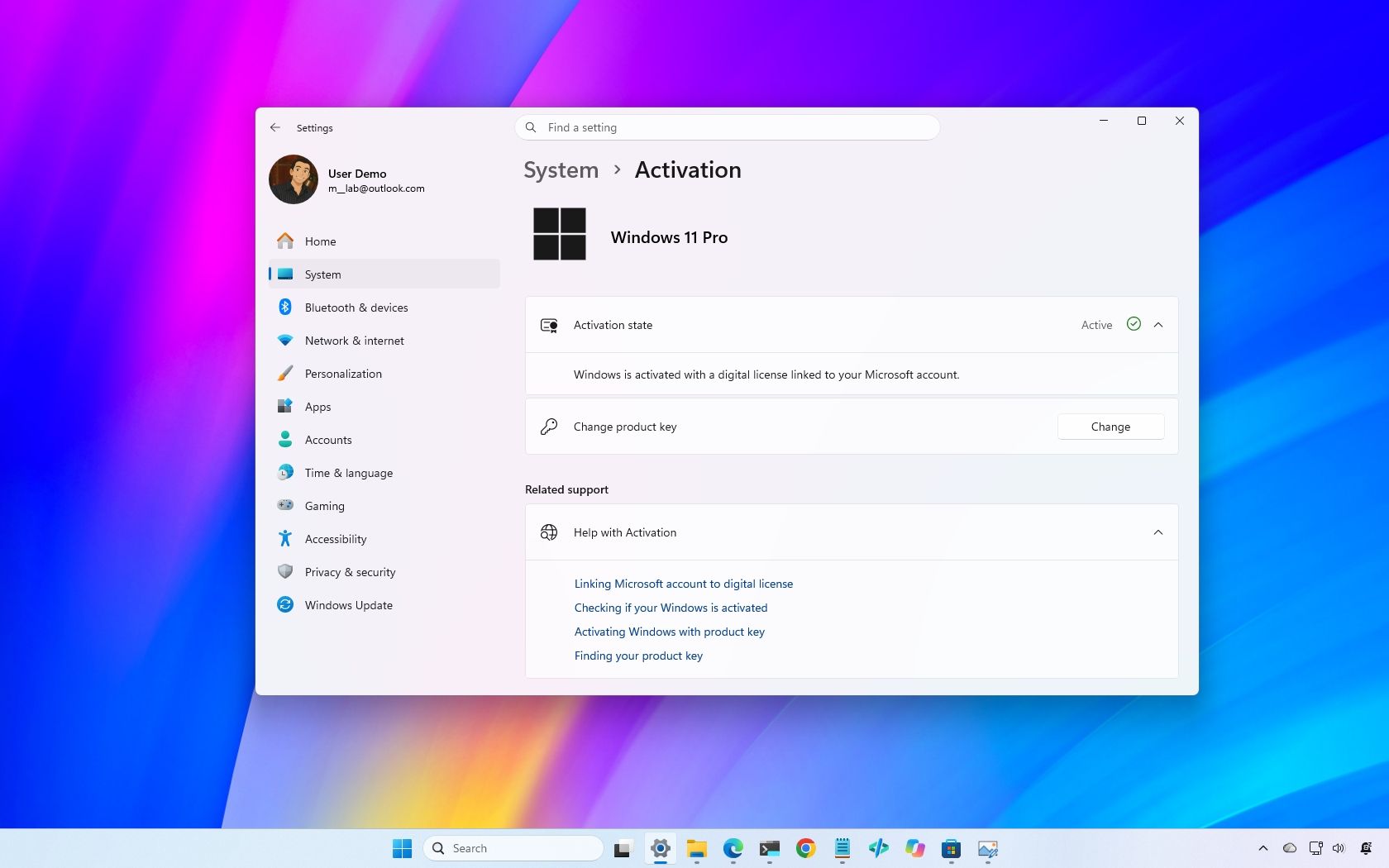
If your computer already runs Windows 11 Home, you can upgrade to Pro without reinstalling the operating system or losing your files and apps.

To check the available upgrade options, open Settings > System > Activation and select the option to upgrade your edition through the Microsoft Store.

One thing to keep in mind is that you don't have to buy Pro just because it's the more expensive edition. Unless you need its additional capabilities, Home is usually the better value.

What Windows 11 Pro features are worth paying for?

This is where the differences become more interesting. Windows 11 Pro includes several tools that aren't available in Home, but not all of them will be useful to everyone.

From my experience, four features make Pro particularly useful.

Group Policy Editor

The Local Group Policy Editor is one of the features I use most in Windows 11 Pro.

Windows 11 Pro Group Policy Editor

(Image credit: Mauro Huculak)

It provides access to advanced system settings that aren't always available through the Settings app. You can use it to configure Windows Update behavior, manage security policies, restrict access to certain features, and control other parts of the operating system.

For example, when I want to change how a feature behaves, Group Policy gives me another way to configure the system without relying on third-party apps or manually changing Registry entries.

This is particularly useful if you regularly troubleshoot the operating system, experiment with system settings, or want more control over your computer.

Windows 11 Home doesn't include the Local Group Policy Editor.

Worth it for: Enthusiasts, admins, and people frequently tweaking Windows.

My recommendation: If you're an advanced user who frequently changes system settings, Group Policy alone can make Pro more appealing. However, most everyday users won't need it.

BitLocker Drive Encryption

BitLocker is another reason I prefer Windows 11 Pro.

Windows 11 Pro BitLocker settings

(Image credit: Mauro Huculak)

It lets you encrypt drives to protect your files from unauthorized access. This is especially useful if you store sensitive information on your computer or carry a laptop outside your home or office.

Windows 11 Home features "Device Encryption" on supported hardware. This feature uses the same BitLocker encryption technology, but it doesn't offer the same management options as Pro.

For example, with the full version of BitLocker, you can enable encryption and save the BitLocker key locally to retain full control. On the other hand, Device Encryption stores the BitLocker key automatically in your Microsoft account, so technically, the key isn't fully under your control.

Also, the feature gives you more control over drive encryption, including the ability to manage encryption on additional internal and removable drives.

Worth it for: People who need more control over drive encryption, particularly laptops or PCs holding sensitive files.

My recommendation: If you regularly work with sensitive files or want more control over encryption, including the ability to take full control of your decryption key, Pro is worth considering. However, don't upgrade just because you want basic drive encryption. Home already provides that capability on supported devices.

Remote Desktop

Remote Desktop is another feature I use regularly.

Windows 11 Pro Remote Desktop settings.

(Image credit: Mauro Huculak)

Windows 11 Pro allows you to connect to your computer remotely using the built-in Remote Desktop feature. This is useful when you need to access your desktop from another computer, whether you're in another room or away from home.

Windows 11 Home can connect to another PC but cannot act as a Remote Desktop host.

You can use third-party applications, such as Chrome Remote Desktop or RustDesk, as an alternative.

Worth it for: Anyone who regularly needs to remotely access the PC itself.

My recommendation: If you regularly access your main computer remotely, this is one of the clearest reasons to choose Pro.

Windows Sandbox

Windows Sandbox is another feature found in the Pro version, but I use it occasionally.

Windows 11 Pro Virtual Workspaces settings to enable Sandbox.

(Image credit: Mauro Huculak)

It creates a temporary, lightweight, isolated Windows 11 environment that lets you test untrusted apps, open unfamiliar files, and experiment with tools without changing your main installation.

When you close Windows Sandbox, it deletes everything inside that temporary environment.

I find this particularly useful when testing apps or checking something I don't want to install directly on my main installation.

Windows 11 Home doesn't include Windows Sandbox.

Worth it for: Enthusiasts and developers testing apps or unfamiliar files.

My recommendation: If you frequently test apps or experiment, Sandbox is a valuable addition. If you only install familiar apps, it probably isn't worth paying extra for Pro.

Windows 11 Home vs. Pro virtualization

Beyond Windows Sandbox, Windows 11 Pro includes Hyper-V, Microsoft's virtualization platform.

Quick Create Ubuntu VM

(Image credit: Mauro Huculak)

Hyper-V allows you to create virtual machines that run other operating systems inside Windows 11. For example, you can install another version of Windows or a Linux distribution in a virtual machine without changing your main installation.

This is useful for developers, administrators, and advanced users who need to test software or work with different operating systems.

Windows 11 Home doesn't include Hyper-V. However, both editions support Windows Subsystem for Linux (WSL), which allows you to run Linux distributions and command-line tools directly in the operating system.

If you need a traditional virtual machine on Home, you can also use third-party apps such as Oracle VirtualBox.

The important consideration is that you don't need Pro to use Linux on Windows 11. The upgrade becomes more useful when you need the built-in Hyper-V platform and Windows Sandbox.

Windows 11 Home vs. Pro hardware support

For hardware support, both editions support modern processors, graphics cards, storage devices, and other computer components. However, the "Pro" edition can support many more processing cores, memory, and server-grade hardware.

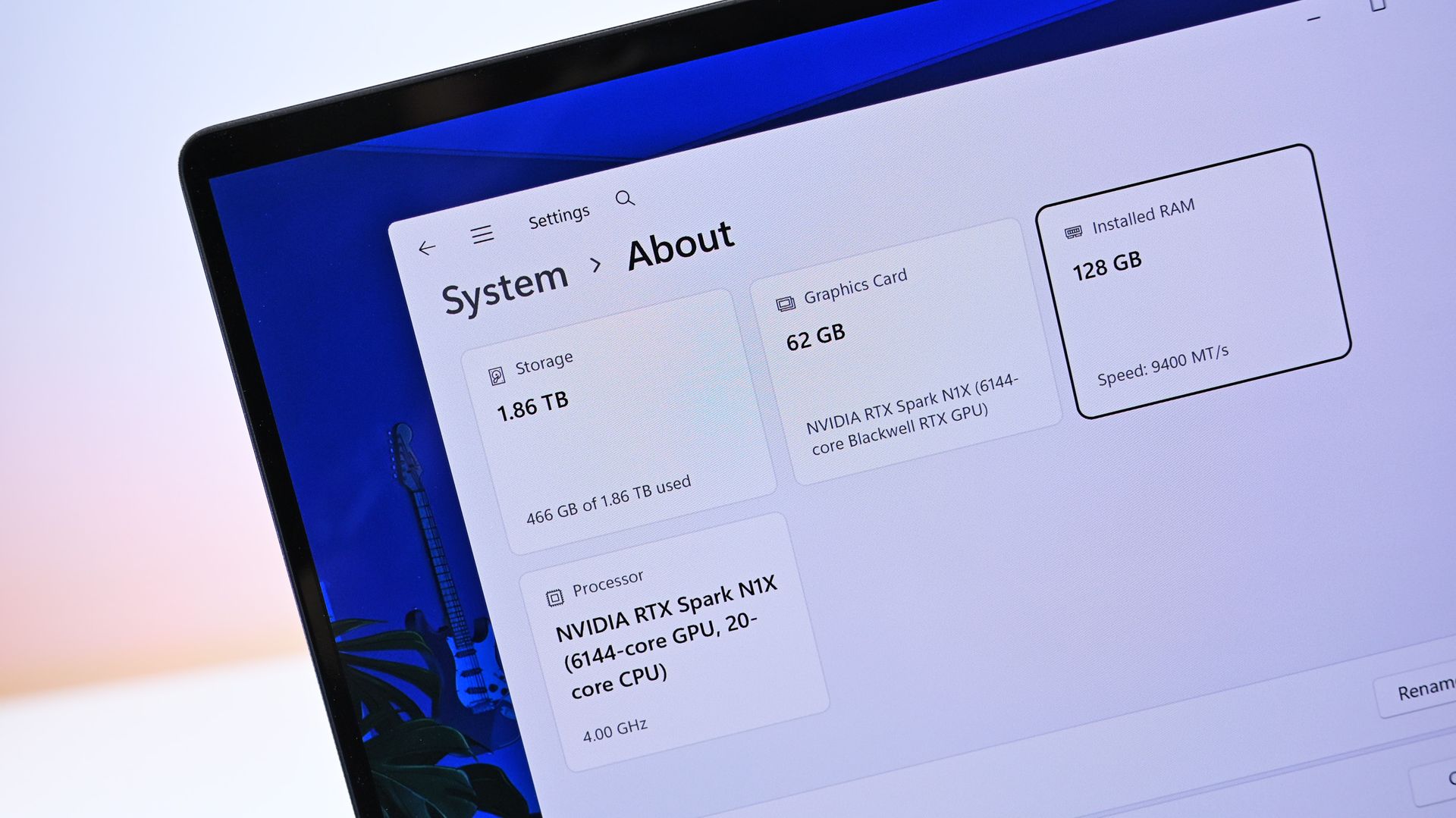
For example, Windows 11 Home supports up to 128GB of RAM, while Windows 11 Pro supports up to 2TB.

This difference won't affect most consumers. Even demanding apps, games, and productivity workloads generally don't require more memory than Home supports.

Also, given the price of memory today, few people can afford 2TB of RAM, let alone the specialized hardware needed to support that capacity.

However, the additional capacity can be useful for specialized workstations running professional applications, large datasets, and demanding virtual machines.

Also, while the Pro edition of Windows 11 supports up to 128 processing cores and up to two processors, the Home edition supports only one processor with up to 64 cores.

If you're building a regular desktop computer or purchasing a laptop for everyday use, the hardware limits of Windows 11 Home should be sufficient.

Windows 11 Home vs. Pro for gaming

When it comes to gaming, both editions offer essentially the same experience.

Windows 11 Xbox app opened.

(Image credit: Mauro Huculak)

Windows 11 Home and Pro support modern gaming technologies, including DirectX 12, Auto HDR, and DirectStorage on compatible hardware for 4K gaming.

Also, both editions can run games from platforms such as Steam, the Microsoft Store, and other digital game stores.

Windows 11 Pro doesn't provide higher frame rates or better graphics simply because it includes additional features.

If you're building a computer primarily for gaming, Windows 11 Home is the edition I recommend. You can save the extra money and put it toward a better graphics card, additional storage, or more memory.

Windows 11 Home vs. Pro business features

Another major difference is that Windows 11 Pro includes features designed for environments where administrators need to manage computers, configure security settings, and control how users access system features.

For example, Pro supports joining an Active Directory domain or Microsoft Entra ID, allowing a computer to connect to an organization's identity and management infrastructure.

The edition also includes additional management capabilities, including mobile device management (MDM), organizational configuration policies, and Windows Autopilot support.

These tools allow businesses to configure computers, apply security settings, and prepare devices for employees.

Some of these capabilities require additional Microsoft services, subscriptions, and organizational configuration. Purchasing Windows 11 Pro alone doesn't automatically provide access to every business management service.

For the majority of home users, these features won't make a difference. However, if you're in a work environment that requires you to bring your own computer and join the company network, the Pro edition is the right choice.

Windows 11 Home vs. Pro performance

If you're wondering which edition runs faster, the short answer is neither, and they perform virtually the same.

Home and Pro share the same core foundation and offer similar performance on identical hardware.

Windows 11 Pro doesn't automatically make apps launch faster, improve gaming performance, or reduce memory usage.

The main hardware advantage of Pro is its support for more memory. For example, Home supports up to 128GB of RAM, while Pro supports up to 2TB. However, this doesn't mean upgrading to Pro will make your existing computer faster.

In my experience, the processor, available memory, storage, background apps, and system configuration have a much bigger influence on how responsive a Windows computer feels.

Unless your workload requires more memory than Home supports, you shouldn't expect a performance improvement from changing editions.

Windows 11 Home vs. Pro for college

If you plan to upgrade your laptop or desktop for college, the edition doesn't matter. If you have to choose between Home and Pro and the price doesn't increase, choose Pro. Otherwise, the Home edition provides all the tools you need to tackle virtually any task, including using productivity apps, streaming media, internet browsing, and gaming.

You also have access to Windows Subsystem for Linux, which can be useful for programming and other technical courses. However, Windows 11 Pro may be useful if your coursework requires Hyper-V, Windows Sandbox, or specific business management capabilities.

If your college requires one of these features, check the software and hardware requirements before purchasing a computer.

Otherwise, I recommend choosing Windows 11 Home and saving the extra money for other equipment or school expenses.

Windows 11 Pro for Workstations

Microsoft also offers Windows 11 Pro for Workstations, a specialized edition designed for computers with more demanding hardware and professional workloads.

Windows 11 Pro for Workstations promo from the Microsoft Store.

(Image credit: Mauro Huculak)

This edition includes the features available in Windows 11 Pro, plus additional capabilities for high-performance workstations.

For example, it supports more memory and processors than the standard Pro edition. It includes technologies such as SMB Direct and the Resilient File System (ReFS) for supported workloads and configurations.

These capabilities are designed for specialized environments, including professional workstations that handle demanding computing tasks and large amounts of data.

The majority of regular consumers and even many professionals don't need this edition.

If you're buying a regular desktop computer or laptop, Windows 11 Home or Pro is generally the better choice.

Which Windows 11 edition should you choose?

For most people, I recommend Windows 11 Home.

Home gives you virtually everything you need for everyday computing, gaming, schoolwork, and productivity. Paying extra for Pro won't make Windows faster or improve gaming performance.

Windows 11 Pro makes sense when you can name the feature you need from it. Group Policy, BitLocker management, Remote Desktop hosting, Hyper-V, Windows Sandbox, and business-management capabilities are legitimate reasons to upgrade.

I use Pro myself because several of those features are part of my workflow, but my needs probably aren't the same as yours.

Here's my recommendation for choosing the right edition:

  • Choose Windows 11 Home if you're a home user, student, gamer, or someone who uses a device for everyday tasks.
  • Choose Windows 11 Pro if you need advanced security features, virtualization, Remote Desktop, Group Policy, or business integration.
  • Choose Windows 11 Pro for Workstations if your hardware and professional workloads require its additional capabilities.

If you're unsure whether you need Pro, Home is almost certainly where I'd start. You can always upgrade later without reinstalling Windows. Microsoft documents upgrading an activated Windows Home installation to Pro through the Microsoft Store or with a Pro product key.

Are you using Windows 11 Home or Pro? If you paid extra for Pro, which feature made the upgrade worthwhile? Let me know in the comments!

More resources

Explore more in-depth how-to guides, troubleshooting advice, and essential tips to get the most out of Windows 11 and 10. Start browsing here:

Click to join us on r/WindowsCentral

Join us on Reddit at r/WindowsCentral to share your insights and discuss our latest news, reviews, and more.
Windows 11 gets 11 notable changes this November, and two stand above the rest

Windows 11 is getting another substantial batch of changes in November, but after going through what's coming, two improvements stand out to me: the customizable context menu and Cloud Rebuild.

The first finally gives you control over some of the clutter that has plagued Windows 11's right-click menu, while Cloud Rebuild offers a much easier way to reinstall Windows without creating a bootable USB drive.

Those are only two of the 11 changes worth knowing about this month, which also include improvements for handheld gaming, Phone Link, accessibility, Edge performance, security, and more.

Availability will vary because Microsoft rolls many features out gradually, but here's what you should be watching for in our latest Windows 11 guide.

Windows 11's best features arriving in November

Here's all you need to know about the features and changes coming in November.

1. You can finally customize Windows 11's cluttered context menu

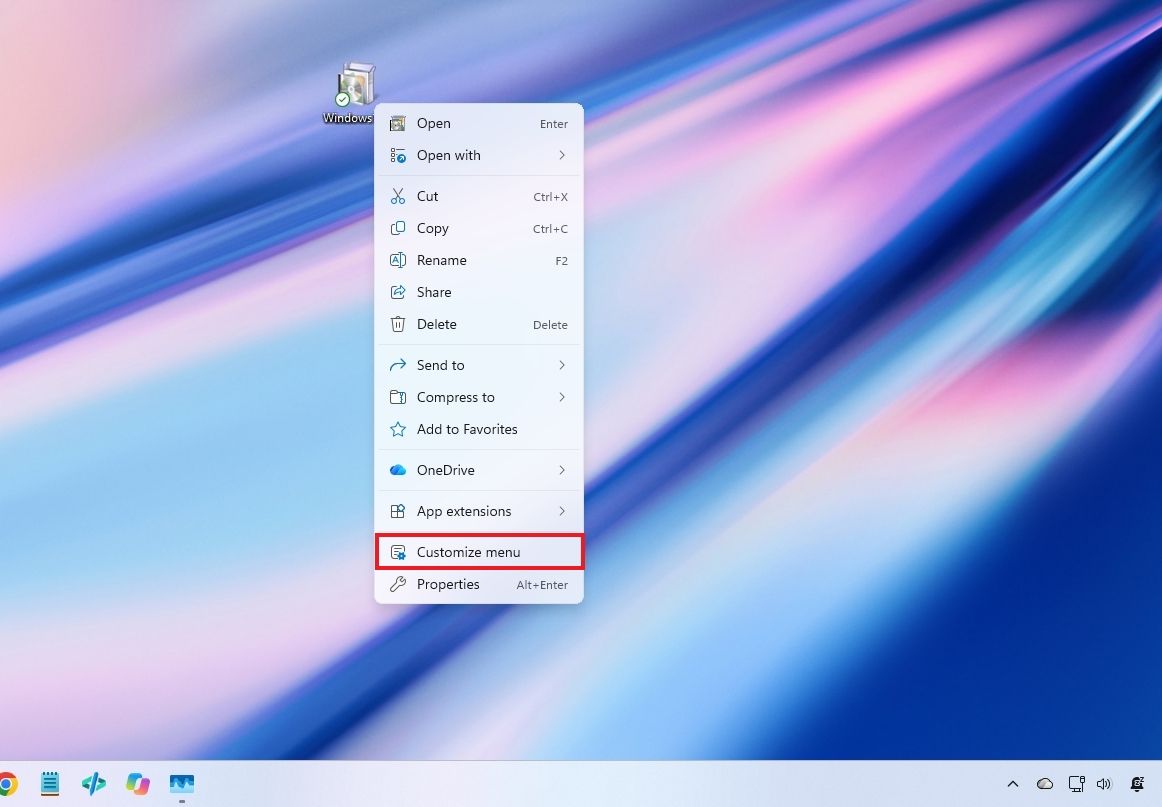
Starting with the November update, Windows 11 is getting a new context menu experience that gives you more control over the commands and app extensions that appear in the main menu.

Windows 11 desktop showing the new context menu.

(Image credit: Mauro Huculak)

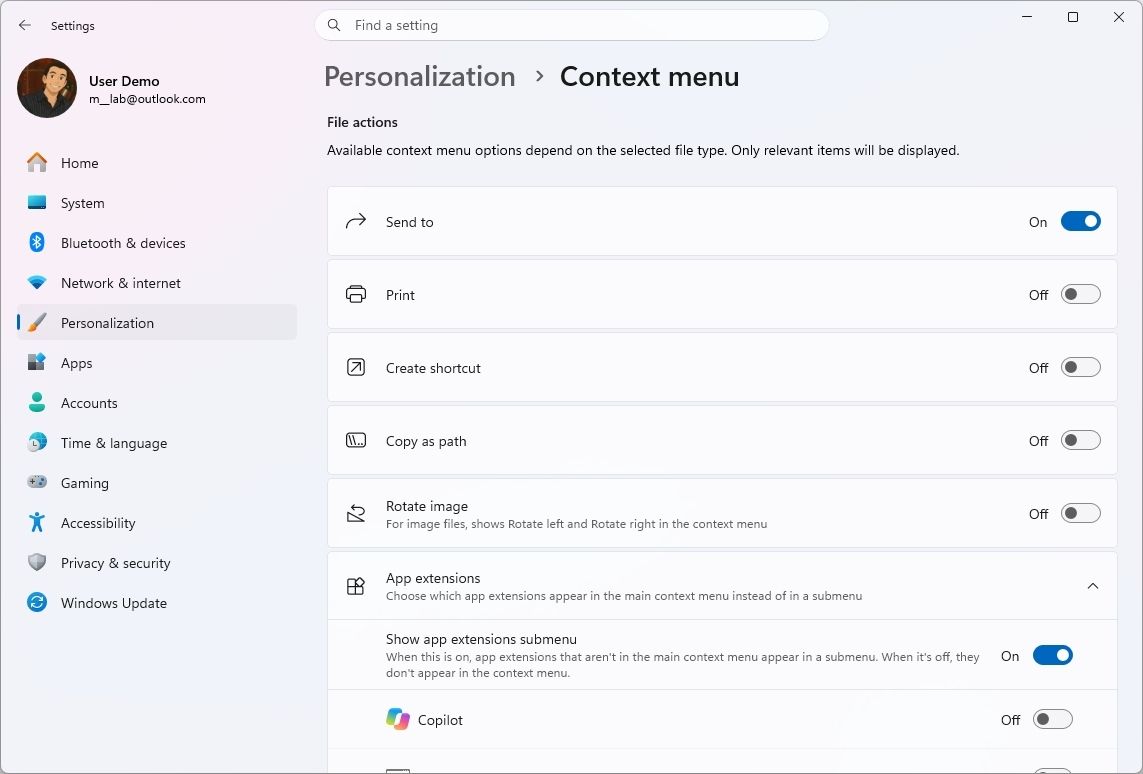
The new menu reduces clutter and makes the experience faster by moving app extensions into a separate submenu. It also introduces a "Customize menu" option at the bottom of the interface, which opens a dedicated Settings page where you can enable or disable built-in commands, add options such as "Print" and "Send to," and control which app extensions appear in the main menu or submenu.

Windows 11 Settings showing the Context menu settings.

(Image credit: Mauro Huculak)

You can also display "Cut," "Copy," "Paste," "Rename," "Delete," and "Share" as individual commands instead of showing them in a vertical view. Windows 11 also lets you move "Properties" to the bottom of the menu as it appeared on Windows 10.

To access these options, right-click a file, folder, or the desktop and select Customize menu, or open Settings > Personalization > Context menu.

You can keep the default configuration if you prefer. Holding down "Shift" while right-clicking also reveals the legacy context menu.

The ability to customize the menu is particularly useful because it gives users more control over which commands they see without forcing everyone to use the same layout.

2. Xbox mode gets easier to navigate with a controller

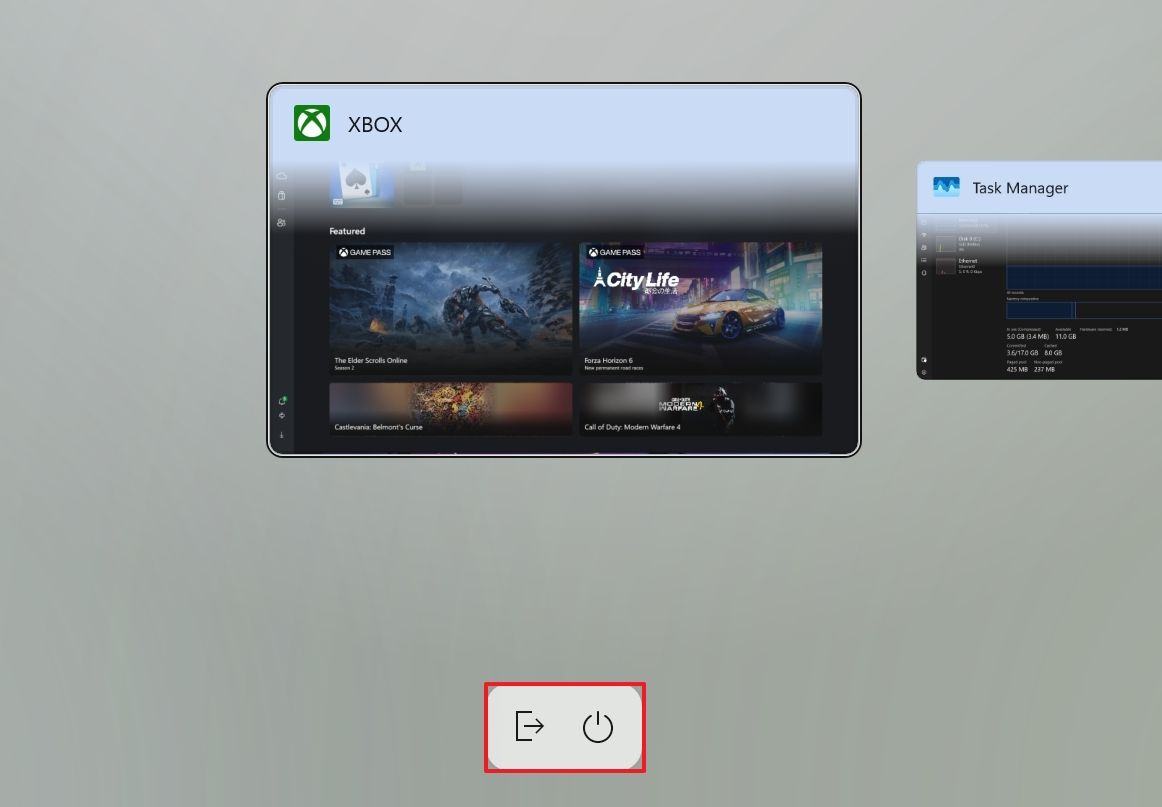
Microsoft is also refreshing the Gaming Task View experience in XBOX mode. The updated interface retains the familiar design but adds a navigation bar that makes it easier to access options such as "Exit to Desktop" and "Power Options" using a game controller.

Windows 11 Xbox mode new Gaming Task View.

(Image credit: Mauro Huculak)

It's a relatively small change, but it makes basic actions easier to navigate using a gaming controller.

3. Privacy controls become easier to find in Settings

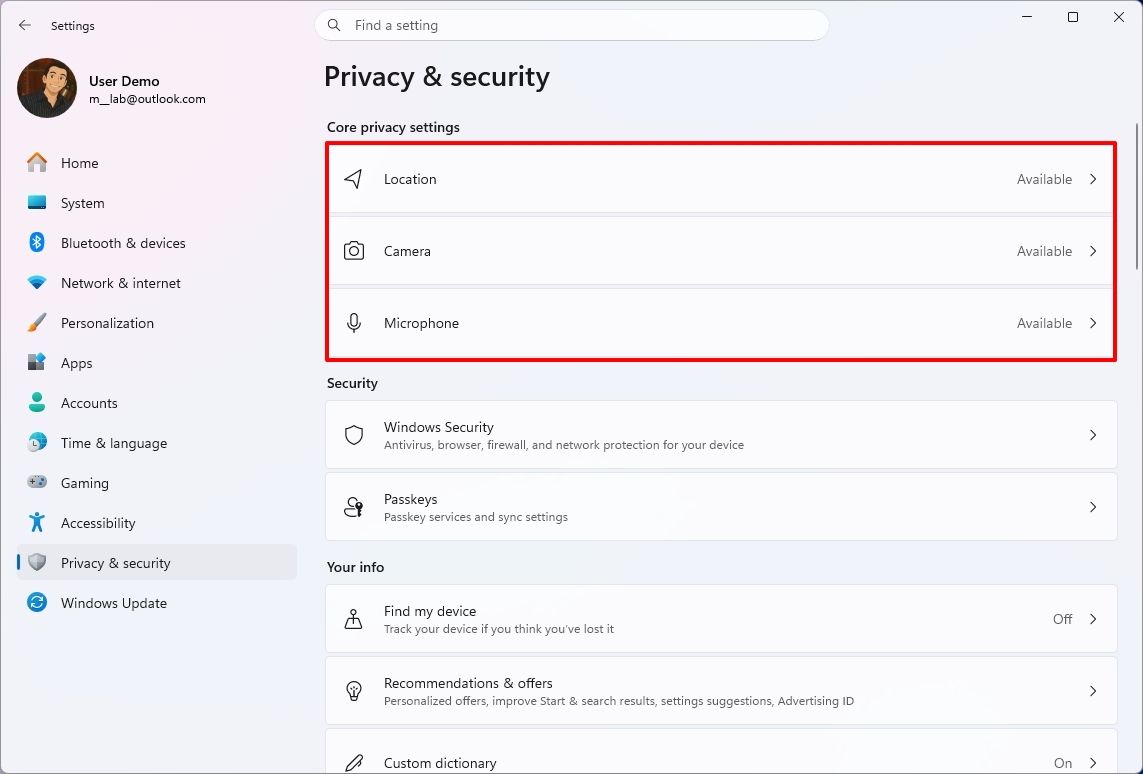
The Settings app is getting a few usability refinements. The "Privacy & security" page now groups Location, Microphone, and Camera controls more clearly, making it easier to review these permissions.

Windows 11 Settings showing Privacy & security updated page.

(Image credit: Mauro Huculak)

Microsoft is also expanding the "Device Info" card on the "Home" page to more markets. Available to users signed in with a Microsoft account, the card provides an overview of key hardware specifications and a shortcut to the "About" page.

The "Storage" page is also getting visual changes to its temporary files section.

These aren't major additions, but they make some commonly used Settings pages easier to navigate.

4. You can preview phone messages without opening Phone Link

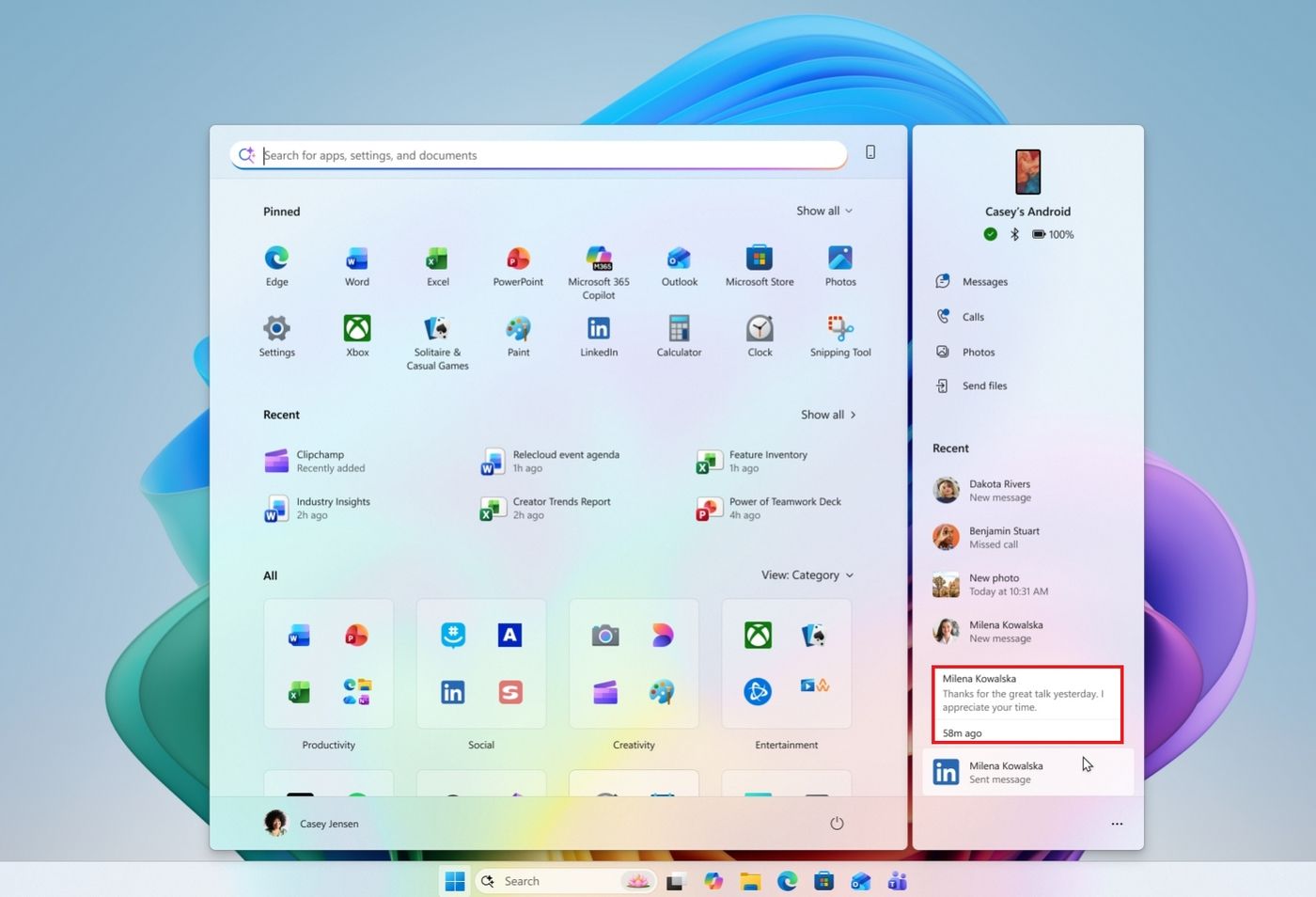
Phone Link integration is getting a small convenience improvement. When your phone is connected, you can hover over a recent message or notification in the Start menu's "Recent" section of the mobile pane to preview its contents without opening it.

Start menu with Phone Link flyout hovering over recent message.

(Image credit: Microsoft)

It's a minor addition, but it makes checking incoming messages more convenient without opening your phone or the Phone Link app.

5. Magnifier gets much better for multi-monitor setups

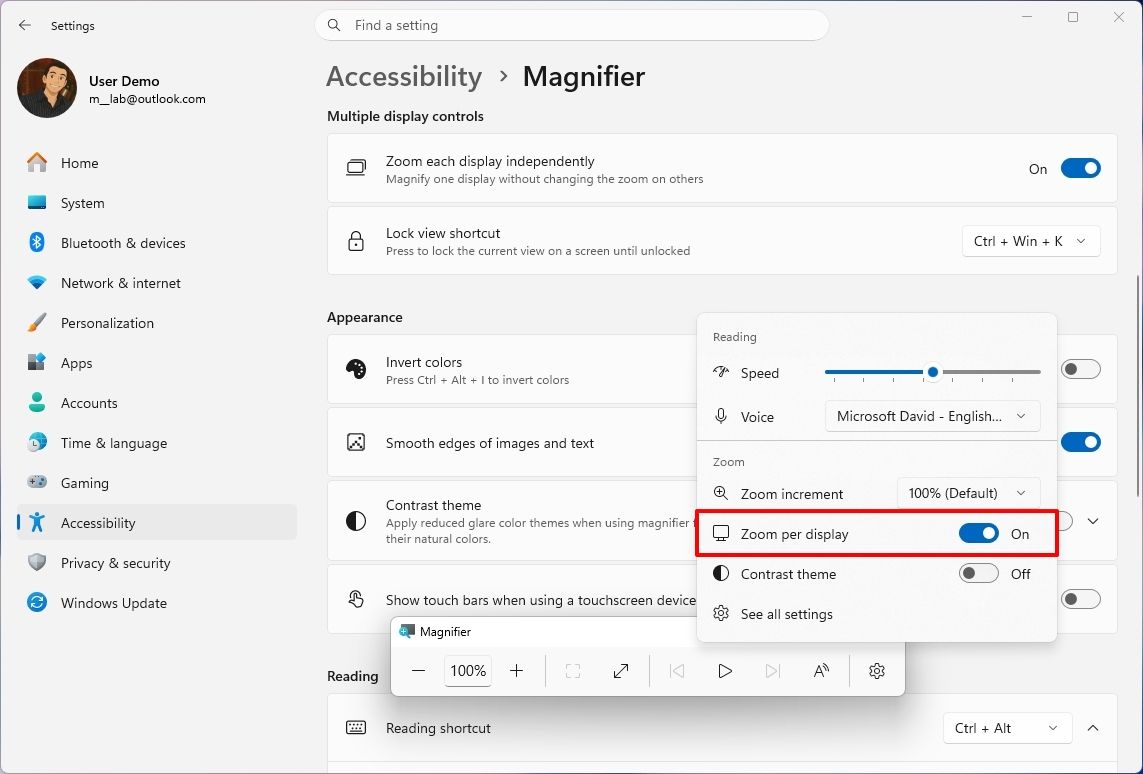
The Magnifier feature is getting three useful improvements, including independent zoom levels for multiple monitors, viewport locking, and a new contrast theme. These additions give you more control over magnified content while making it easier to work across multiple displays.

The biggest improvement is per-monitor zoom, which lets you assign a different magnification level to each display. For example, you can keep one monitor at 150 percent and another at 200 percent.

Windows 11 Settings showing Magnifier updates.

(Image credit: Mauro Huculak)

The feature is enabled by default, but displays must use "Extend" mode. Adjust each screen with the Magnifier toolbar or shortcuts ("Windows key + Plus/Minus").

Viewport locking keeps one magnified screen fixed while you move the pointer to another. Use "Ctrl + Windows key + K" to lock/unlock or "Windows key + Esc" to release all.

A new dark contrast theme reduces glare while keeping colors intact. Enable it from the Magnifier toolbar or Settings > Accessibility > Magnifier. Color inversion is separate.

6. Narrator can finally read and navigate math equations

The Narrator feature now supports reading and navigating math equations, making it easier for people with low vision to understand formulas, equations, and scientific notation.

The feature works with supported Microsoft 365 apps, including Word and PowerPoint, as well as web content in Microsoft Edge and Google Chrome.

You can use it with the "Narrator key + Alt + N" shortcut to enable math navigation, and then use the arrow keys to explore individual parts of an equation. Use the "Esc" key to exit. Math reading supports six languages, including English, German, Spanish, Finnish, and Traditional Chinese.

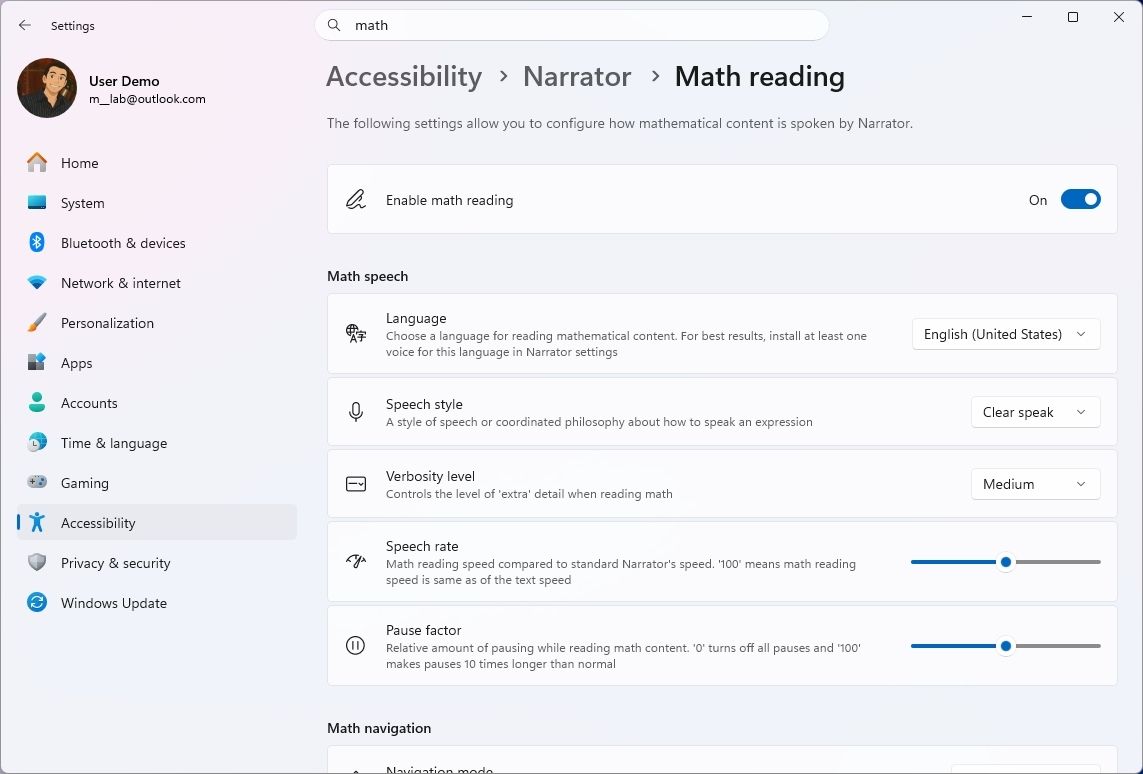
You can change the language and other preferences under Settings > Accessibility > Narrator > Math reading.

Windows 11 Settings Narrator math reading page.

(Image credit: Mauro Huculak)

Browser support requires Microsoft Edge version 153.0.4234.32 or later, or Google Chrome version 153.0.8010.18 or later.

7. Windows Recovery can automatically reconnect to Wi-Fi

Windows 11 is making recovery easier by allowing the Windows Recovery Environment (WinRE) to reuse eligible Wi-Fi profiles saved in the main operating system.

This allows computers to connect automatically to supported wireless networks during recovery operations such as Quick Machine Recovery and Cloud Rebuild, without requiring administrators to configure Wi-Fi credentials separately during recovery.

The feature is enabled by default and supports certain certificate-based enterprise networks, though it doesn't currently support TPM-backed certificate keys. Network administrators can turn off the capability through the Recovery Configuration Service Provider (CSP).

WinRE only accesses saved network credentials when a recovery operation requires connectivity, rather than maintaining a permanent network connection.

8. You can reinstall Windows 11 from the cloud without a USB drive

I've been testing Cloud Rebuild, and eliminating the need to create installation media is easily its biggest advantage. However, I also ran into an important limitation: the feature depends on Windows Update having the drivers your PC needs.

Unlike a traditional local reinstall, it doesn't depend on the existing Windows installation or require a bootable USB drive or a custom recovery image. You can also start it from the Windows Recovery Environment when the device cannot boot.

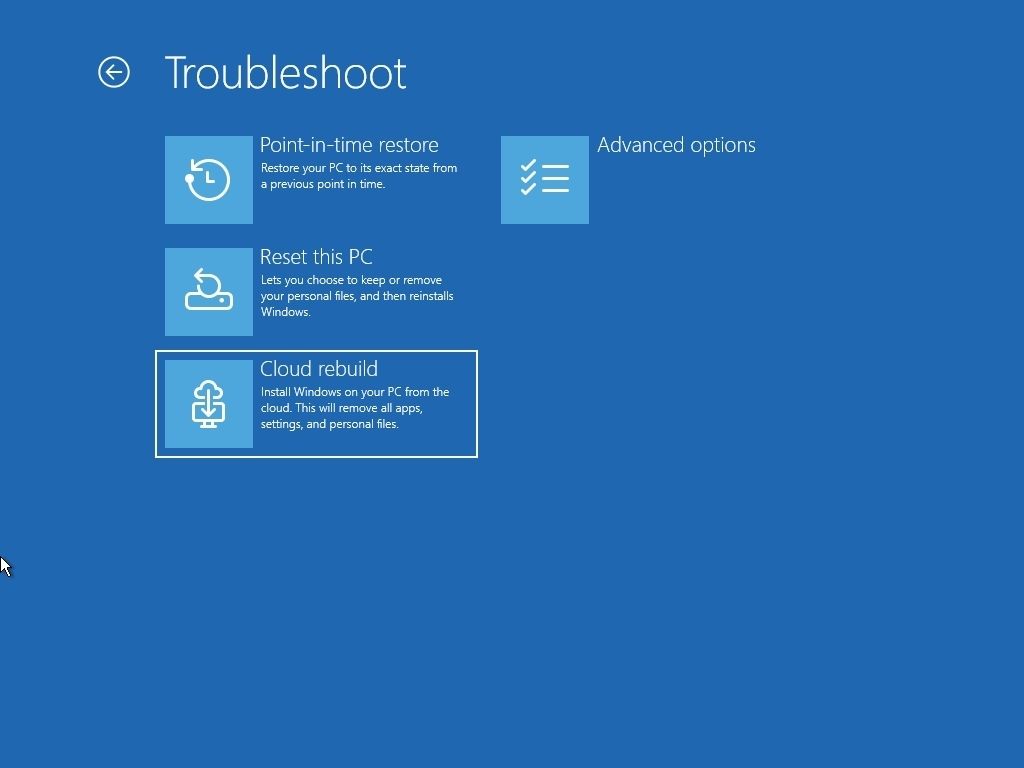
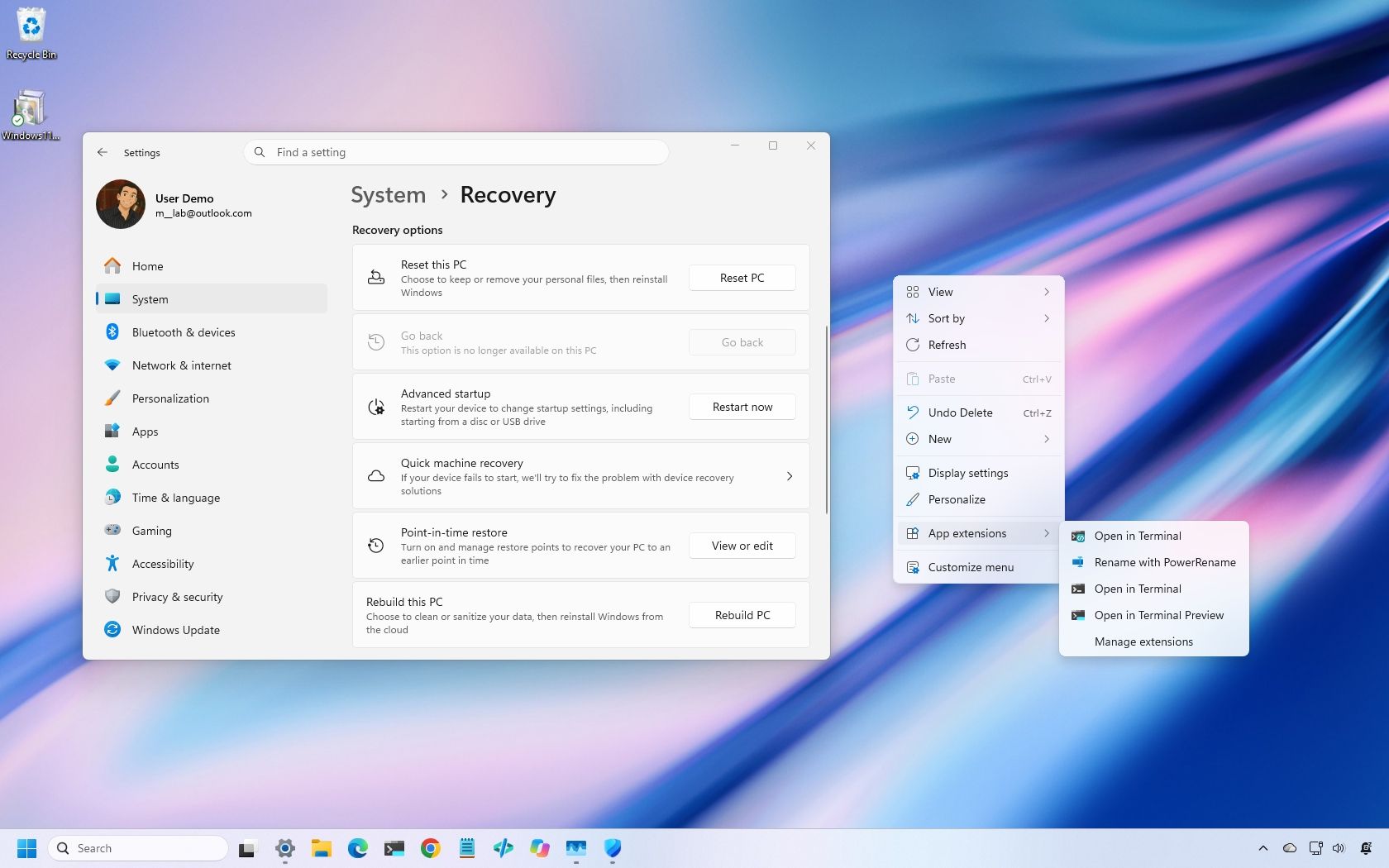
You can start the process under Settings > System > Recovery and use the "Rebuild this PC" option, or from WinRE by selecting Troubleshoot > Recovery and uninstall > Cloud Rebuild. After connecting to Ethernet or Wi-Fi, the system will display the target build, edition, and language before installation.

WinRE Cloud Rebuild option

(Image credit: Mauro Huculak)

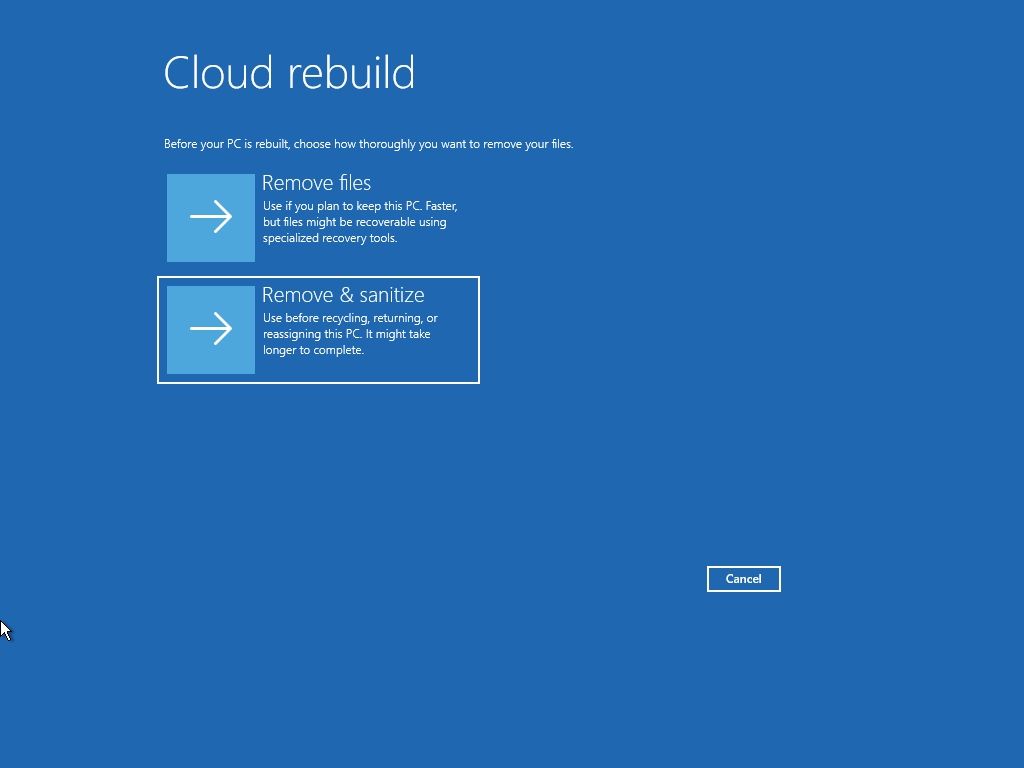
The feature includes two options to clean the drive. For example, the "Remove files" option reformats the system drive, although specialized recovery tools might still recover some data. On the other hand, the "Remove and sanitize files" option uses the storage hardware's erase capability to erase the selected drives before reinstalling the operating system. Sanitization can't be undone and can take several hours to complete.

Cloud Rebuild sanitize option.

(Image credit: Mauro Huculak)

In my testing, one of the things I like most about Cloud Rebuild is that it eliminates the need to create installation media before reinstalling Windows 11. However, my testing also revealed an important limitation. The process depends on Windows Update to find the required drivers, which means it may not work on every configuration. I encountered this problem when testing the feature inside a virtual machine.

If you plan to use Cloud Rebuild, the device must also meet some requirements. For instance, the computer needs a working recovery environment, a network connection, and compatible drivers available through Windows Update. If a required networking or storage driver isn't available, the process can fail and may require recovery media from the device manufacturer or an installation USB drive.

For managed devices, administrators can also configure and initiate Cloud Rebuild remotely through the Recovery CSP, including specifying a target Windows build. Once the reinstall finishes, the device starts the Out-of-the-Box Experience (OOBE), allowing managed devices to be automatically reprovisioned through Windows Autopilot and Microsoft Intune.

9. Microsoft Edge can launch up to 33% faster

Microsoft Edge is getting faster and more consistent launches through a new Accelerated App Launch feature. Microsoft says most users should see launch times improve by around 15 percent when Edge is already running, with gains of up to 33 percent under heavy multitasking.

The new feature lets the operating system check for an existing Edge process when you open the browser from the Start menu, Taskbar, or a supported link. In the past, the system had to start an additional process to check whether the browser was already running before forwarding the request. As a result, removing that extra step helps reduce launch delays, especially when the device is under load.

Accelerated App Launch requires Microsoft Edge version 150 or later and Windows 11 versions 26H2, 25H2, or 26H1 with the November 2026 update or later installed on the computer.

One thing I wanted to point out is that the feature isn't limited to the default system browser. Developers can also implement this feature in their apps.

10. Windows 11 gets smarter about sleep and battery life

Windows 11 is also improving its adaptive hibernate policy on devices that support Modern Standby. The system will hibernate less often when the battery charge is above 80 percent, helping the computer resume more quickly. When the charge drops below 10 percent, the system will hibernate sooner to help preserve the remaining battery power.

11. Microsoft is enabling stronger security on more PCs

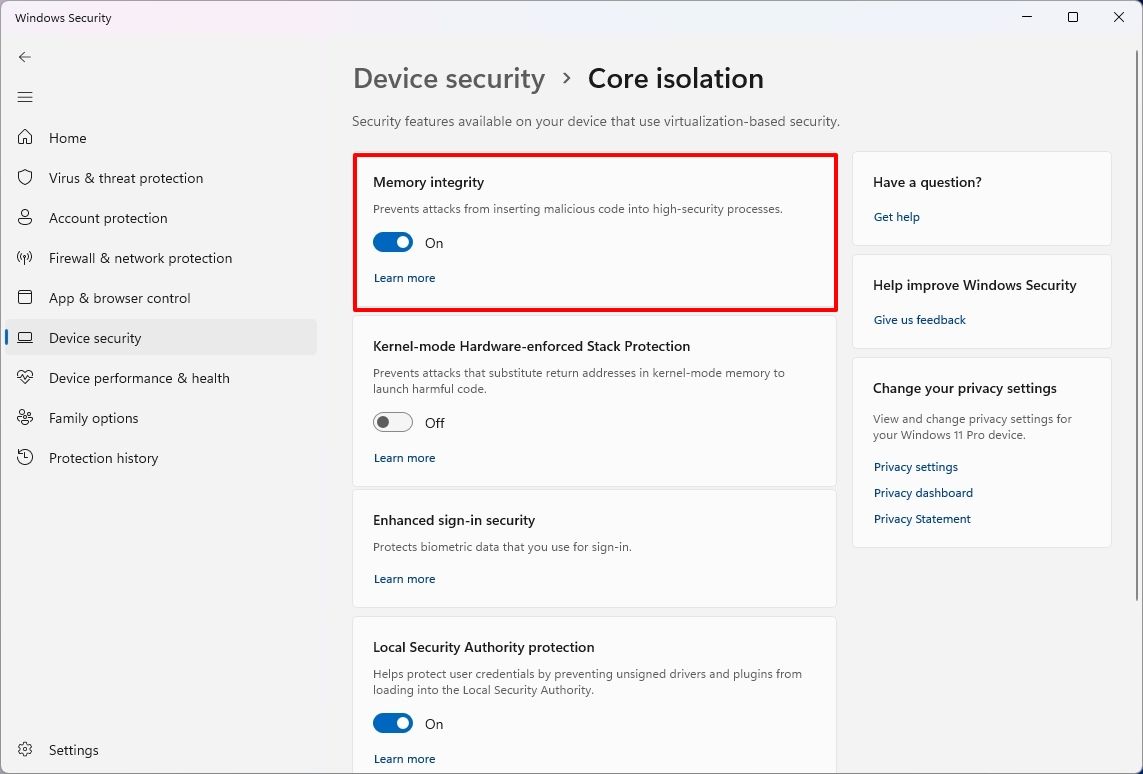
Microsoft is expanding Memory Integrity protection to more eligible devices. During updates, supported devices may automatically enable memory integrity, also known as Hypervisor-Protected Code Integrity (HVCI), to help protect the Windows kernel against malicious code.

Windows Security Memory Integrity option.

(Image credit: Mauro Huculak)

The feature uses Virtualization-based Security (VBS) to help prevent untrusted code from modifying critical kernel components and ensures that only trusted kernel-mode code and drivers can run.

The new setting change works by checking the hardware capabilities, driver compatibility, and performance requirements before enabling the protection. The rollout also respects existing user and administrator configurations, so the system won't automatically turn memory integrity back on if it was explicitly disabled.

Although the expansion is a welcome security improvement, the feature isn't without trade-offs. Virtualization-based security can introduce performance overhead, and incompatible drivers or software can cause problems on some systems.

I wouldn't recommend turning off the protection simply because the operating system now enables it by default. If you stumble upon performance problems or hardware compatibility issues, check for updated drivers first and determine whether Memory Integrity is responsible before changing your security settings.

Windows Central's Take

Cloud Rebuild and context menu customization are easily the two November changes I'd watch most closely. Both address genuine Windows 11 pain points rather than simply adding another visual tweak or secondary feature.

Cloud Rebuild is especially promising. Being able to reinstall Windows without creating installation media could make recovery considerably easier, but my testing exposed an important limitation: it still depends on Windows Update having the drivers your PC needs. I ran into that problem while testing the feature in a virtual machine.

I'd like to see Microsoft make that process more resilient before calling it a replacement for traditional recovery media. If Microsoft can solve the driver problem, Cloud Rebuild could become one of Windows 11's most useful recovery tools.

Which November change would make the biggest difference to how you use Windows 11? Or is there something Microsoft still hasn't fixed that you'd rather see prioritized? Let me know in the comments.

More resources

Explore more in-depth how-to guides, troubleshooting advice, and essential tips to get the most out of Windows 11 and 10. Start browsing here:

Click to join us on r/WindowsCentral

Join us on Reddit at r/WindowsCentral to share your insights and discuss our latest news, reviews, and more.

Windows Wrap: Why did it take a RAM crisis to optimize Windows 11 and apps?

Windows Central

When faced with a RAM shortage and dropping PC sales, companies have limited options. PC makers can't do much to increase the supply of memory chips in the short term, and expanding production takes time. That leaves app makers and developers under pressure to make their software more memory-efficient.

Microsoft led the charge recently in optimizing apps for systems with less RAM, though Discord also made a strong effort by ditching Electron. Everything from Windows 11 features to built-in Microsoft apps have been upgraded to use less RAM.

Microsoft is enforcing "memory budgets," such as restricting PCs with 8GB of RAM from having bloatware.

My question is, why did it take a RAM crisis for Microsoft, Discord, or any other company to care about efficiency?

Biggest News of the Week

Surface Go 4 with Windows 11
A laptop sits on a wooden coffee table, displaying Windows Task Manager’s Memory page; books and a sofa frame the quiet home setting.
Microsoft Logo at Ignite
Discord desktop app showing The Division server

With Microsoft and third-party developers working to make apps more efficient, PCs with only 8GB of RAM should perform better (though it's worth noting 8GB of RAM is already fine for some workflows). It's a welcome change, but I can't help but wonder why it's needed.

The latest version of Windows 11 proves that the operating system can run more efficiently than what we had even just a few months ago.

A lot of factors contributed to Windows 11 getting too bloated and RAM-hungry. The operating system has grown significantly since launch, adding features and expanding preexisting functionality. It seems that much of that growth happened without RAM overhead being a priority.

There also wasn't as much pressure to optimize apps until the RAM shortage kicked in. RAM was relatively inexpensive and many systems allowed you to upgrade later if you ever needed more memory.

Just as one example, back in 2023 we covered a deal that dropped the Corsair Vengeance 32GB 5200MHz to $180. Back then, it was noteworthy because the same module had previously cost $250. That price remained stable until about September 2025.

Now, that same RAM costs over $500.

Considering the relatively low cost of even a 32GB DDR5 RAM module back then, Windows 11 could chug along while eating up memory without affecting performance.

Now, out of necessity, Microsoft needs to optimize Windows 11 and as many apps as possible to reduce the total RAM demand across the PC industry. If companies like Discord hop on board, all the better.

Shopping with Sean

Due to the ongoing RAM shortage, it is increasingly difficult to find PCs with 16GB of RAM paired with premium specs for under $1,000. The current discount on the Acer Swift 16 AI slashes $550 off a laptop that can handle local AI workloads and creative work like video and photo editing. It also has an OLED panel our friends at Tom's Guide called its "standout feature" due to its sharp image quality and 120Hz refresh rate.

Swift 16 AI (Core Ultra X7 358H, 16GB RAM, 1TB SSD): was $1549.99 now $999.99

"Impresses with its vibrant 16-inch OLED panel, powerful Panther Lake-powered performance, ultraportable design, and long-lasting battery life." — Tony Polanco, Senior Computing Writer, Tom's Guide

Tom's Guide review: ⭐⭐⭐⭐View Deal

Click to join us on r/WindowsCentral

Join us on Reddit at r/WindowsCentral to share your insights and discuss our latest news, reviews, and more.
❌