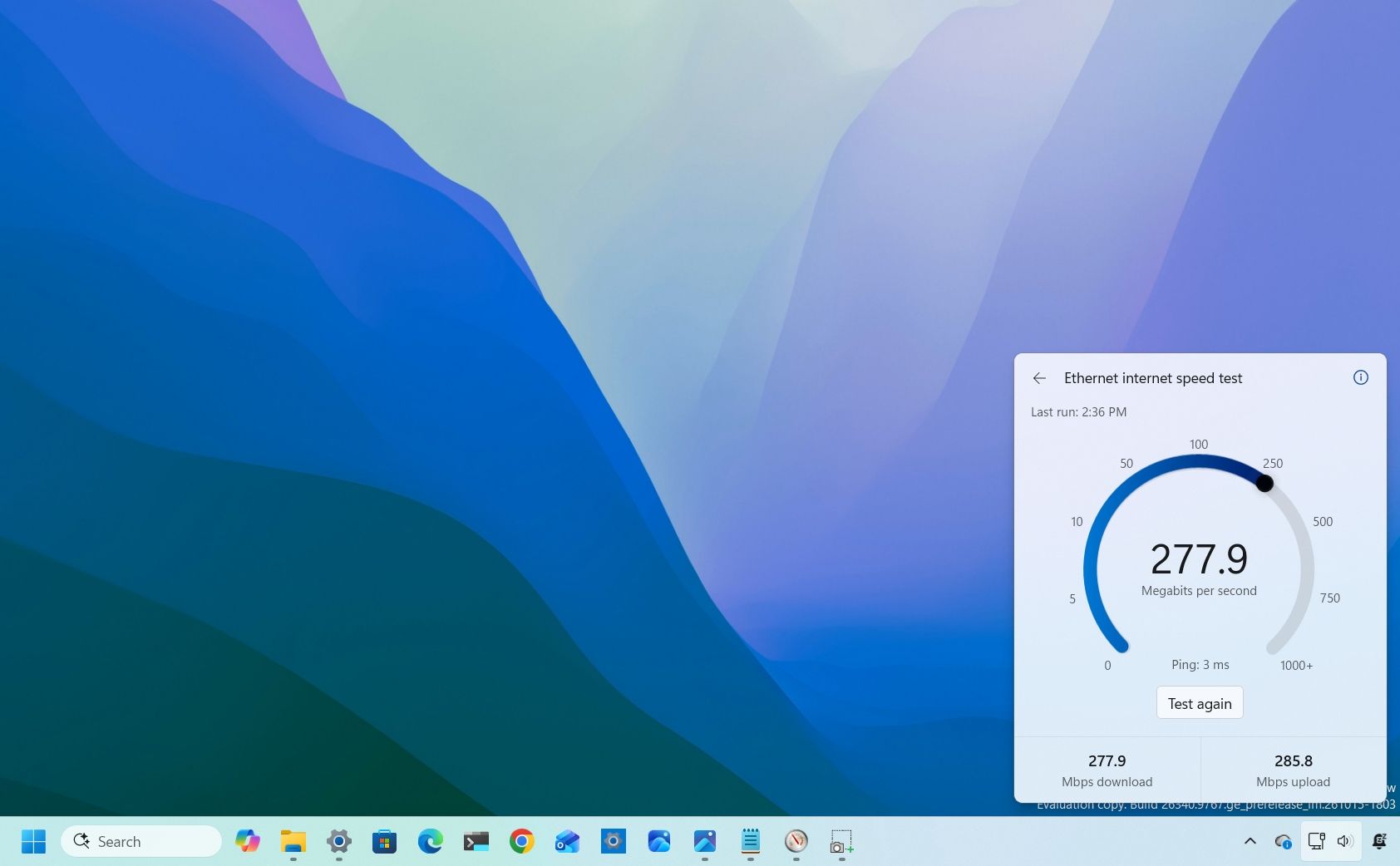
Microsoft is making it easier to check your internet connection on Windows 11 by replacing a browser shortcut with an actual built-in speed test tool that runs directly from Quick Settings. The redesigned tool is rolling out in preview on the Experimental channel with build 26340.9767.The new experience lets you check your download and upload speeds and ping without opening Bing in Microsoft Edge or using another online tool. It's a small improvement, but one tha
The new experience lets you check your download and upload speeds and ping without opening Bing in Microsoft Edge or using another online tool. It's a small improvement, but one that makes more sense for a feature designed to help users troubleshoot their network connections.
Try the new integrated speed test
(Image credit: Mauro Huculak)
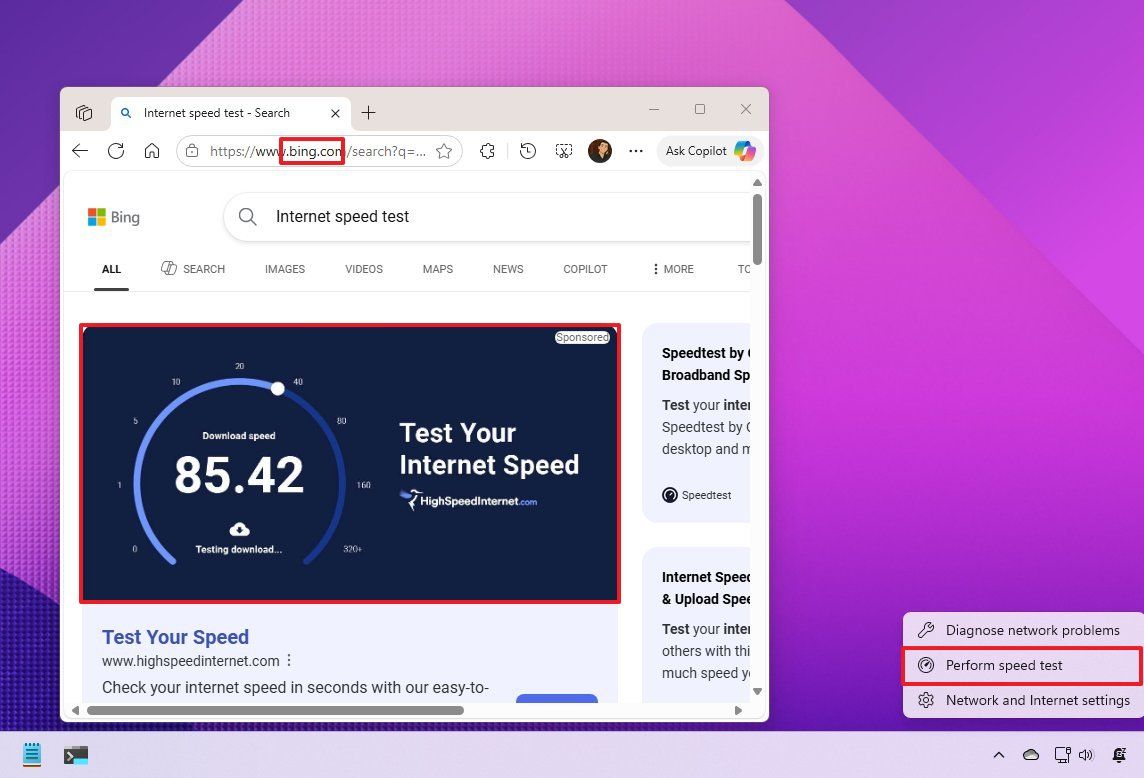
To run a test, open Quick Settings from the Taskbar and select the new "Speed test" option. You can also start a test from the Wi-Fi or Cellular flyout, or right-click the network icon in the system tray and select the "Test internet speed" option.
The operating system displays the test's progress and results directly in the Quick Settings interface, using your active internet connection.
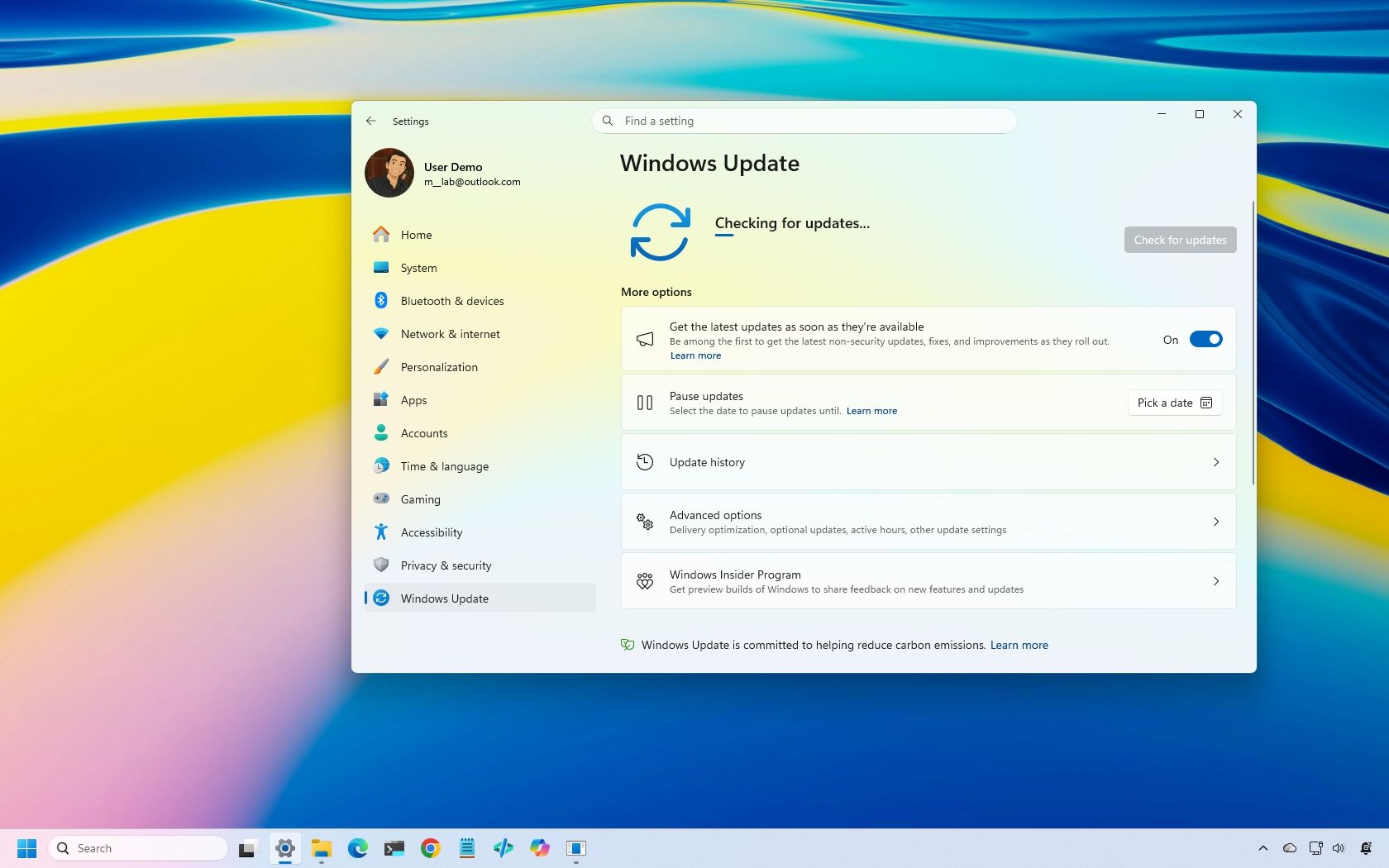
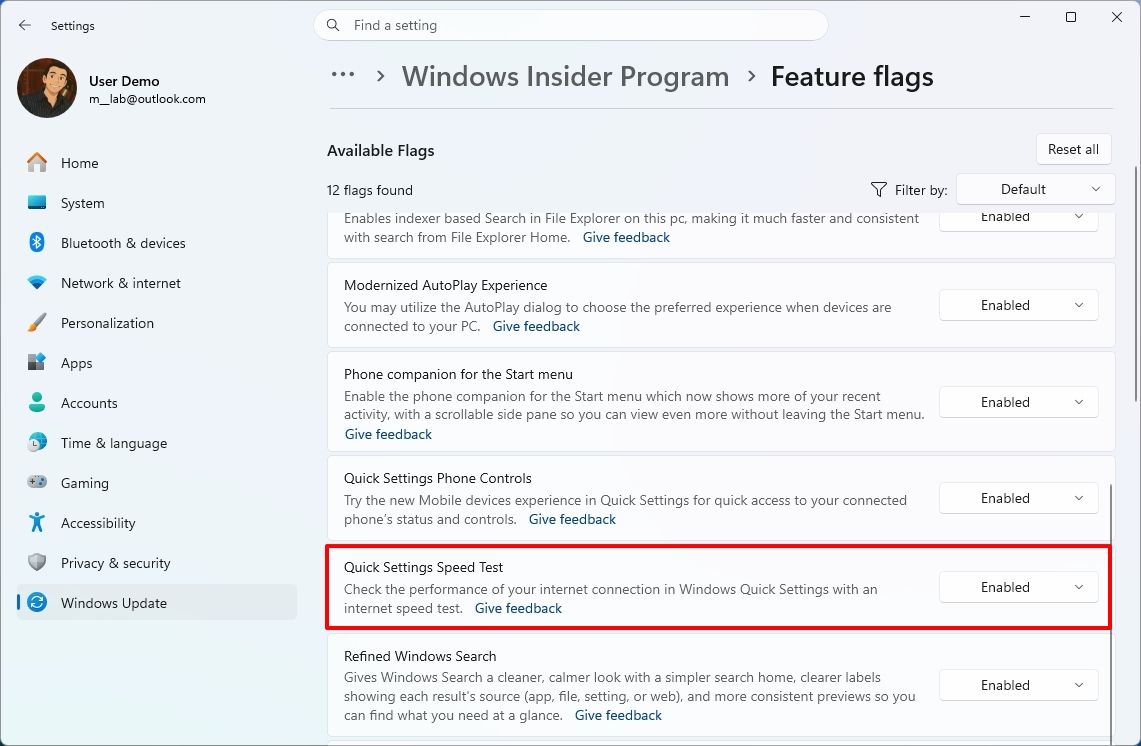
If you don't see the option on build 26340.9767 or higher, open Settings > Windows Update > Insider Program > Feature flags, select the "Enabled" option for "Quick Settings Speed Test," and restart the computer.
In the announcement, Microsoft hasn't confirmed the provider in its official release notes. However, the tool includes an information tooltip noting that the service is "powered by SPEEDTEST," and the link points to OOKLA's privacy policy online, which confirms that the tool continues to use the same service as the previous version.
Windows 11 needs more features like this
(Image credit: Mauro Huculak)
I'm glad to see Microsoft making these kinds of changes to Windows 11. For too long, the company has been disguising web shortcuts as Windows features, sending users to the internet to view information or complete tasks they could handle more conveniently on the desktop.
These shortcuts often felt like a cheap solution, more focused on driving traffic to Bing and encouraging people to use Edge than on delivering a well-integrated experience.
The previous internet speed test option was a good example. Rather than measuring the connection directly from within the desktop, it opened a browser and redirected users to Bing's speed test page. The new experience removes that unnecessary step.
This isn't about whether a feature uses native code or web technologies behind the scenes. It's about letting users complete a task without being pushed into a browser when there's no good reason to leave the desktop in the first place.
(Image credit: Microsoft)
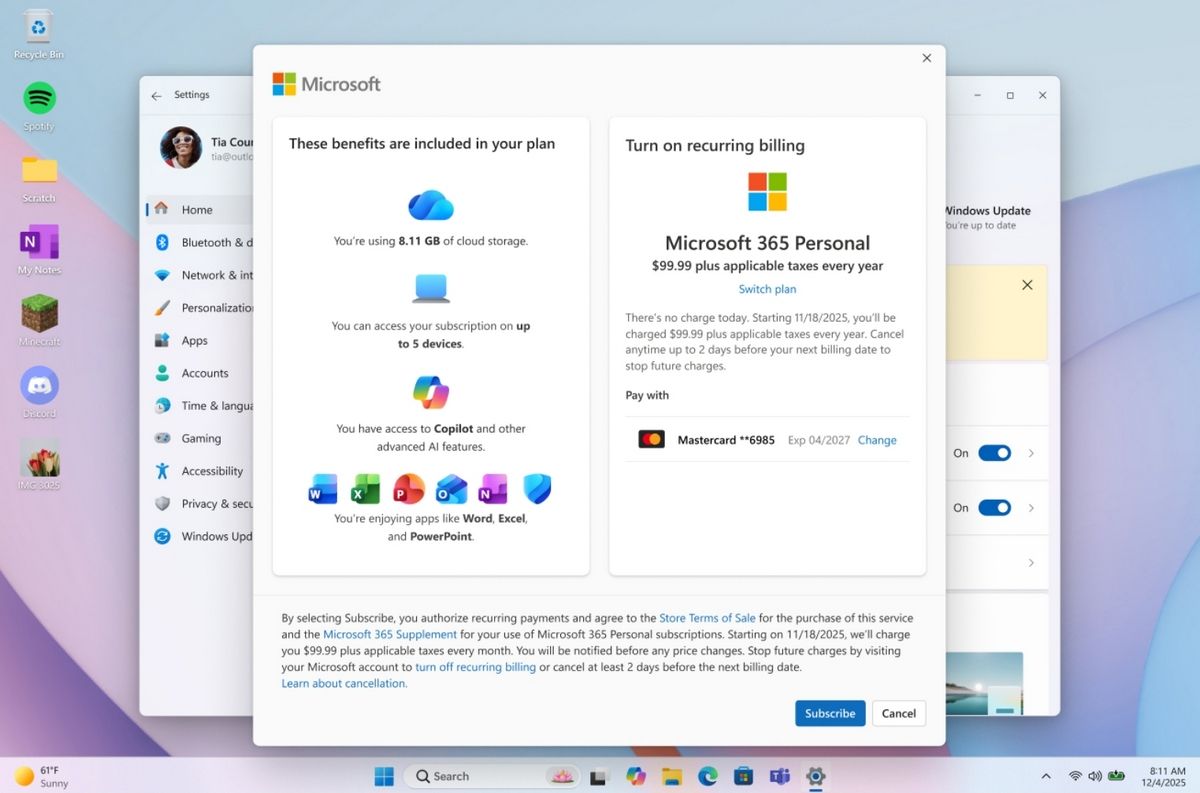
Microsoft is applying the same idea to other parts of the operating system. In build 26340.9767, the company also introduced an updated Microsoft 365 subscription experience that lets subscribers turn recurring billing back on directly from Settings, instead of opening a separate webpage to make changes to their accounts.
These are relatively small changes, but they make the operating system feel more cohesive and less dependent on browser shortcuts.
The new speed test is still experimental, and the company hasn't announced when it will be available to everyone. For now, it's another welcome improvement that makes Windows 11 a little more useful without adding unnecessary complexity.
More resources
Explore more in-depth how-to guides, troubleshooting advice, and essential tips to get the most out of Windows 11 and 10. Start browsing here:
On October 13, 2026, Microsoft made available its latest cumulative update (KB5127648) for Windows 11 with several new improvements, including an option to always launch apps maximized, the ability to remap the Copilot key with new options, a new "Tips" widget, and additional touchpad controls. However, the update also includes a smaller set of improvements that may have gone unnoticed.While this month's features have already received plenty of attention, some le
On October 13, 2026, Microsoft made available its latest cumulative update (KB5127648) for Windows 11 with several new improvements, including an option to always launch apps maximized, the ability to remap the Copilot key with new options, a new "Tips" widget, and additional touchpad controls. However, the update also includes a smaller set of improvements that may have gone unnoticed.
While this month's features have already received plenty of attention, some less prominent changes could still make a difference. The October update improves Bluetooth reliability, fixes mouse stuttering in some games, restores fingerprint sign-in on affected devices, and addresses printing and Always On VPN connection issues.
Here are six improvements and fixes worth knowing about after installing the October 2026 Security Update for Windows 11.
1. Windows 11 improves Bluetooth reliability
This monthly update includes eight Bluetooth improvements designed to make connecting to and using Bluetooth devices more reliable.
During voice calls, the system now shows the volume flyout when you adjust the volume using the controls on a compatible Bluetooth Classic Audio accessory, giving you visual feedback on the new volume level.
The update also improves how the operating system reports the connection status of disconnected Bluetooth accessories. It fixes an issue where the Bluetooth radio could be turned off even though its toggle in the Bluetooth and devices page in Settings still appeared to be on. Microsoft has also improved the stability of this Settings page when managing Bluetooth and audio devices.
For audio, the update improves microphone compatibility with certain Bluetooth Classic Audio accessories and makes shared audio more reliable.
It also fixes a crash (error code 0x139) that could happen while streaming Bluetooth audio and improves the reliability and performance of Bluetooth Low Energy (LE Audio) accessories.
2. Fingerprint sign-in works again after a cold boot
This release also fixes an issue that could prevent Windows Hello fingerprint sign-in from working after a cold boot on some computers.
Fingerprint authentication is convenient because it lets you sign in quickly without entering a password or PIN. However, a problem that appears after a full shutdown can make the feature unreliable.
If fingerprint sign-in fails after you power on your computer from a full shutdown, installing the update may resolve the problem.
3. Microsoft fixes mouse stuttering in some games
The October update (KB5127648) fixes an issue that could cause mouse input to stutter in some games. This problem can make aiming, camera movement, and other actions feel inconsistent, particularly in games that require precise input.
Since this fix targets an specific bug, it doesn't guarantee a solution for every mouse stuttering or performance issue.
4. Windows 11 fixes printing problems with certain drivers
Microsoft has also addressed a printing problem that could affect some apps and devices using RAW or Generic Text Only printer drivers after installing the August 2026 Security Update.
These driver configurations are used in certain printing environments, and the issue could prevent some print jobs from completing successfully.
Users affected by this problem should install KB5127648, then test their apps and printers again to confirm the problem has been resolved.
5. Always On VPN connections become more reliable
In addition, this rollout fixes an Always On VPN issue introduced by the earlier KB5124008 update.
On affected systems, automatic protocol selection or protocol fallback could leave a VPN connection stuck on Connecting or cause the initial connection attempt to fail. Subsequent attempts could also show the "The specified port is already in use" error message.
These problems can prevent users from establishing a reliable VPN connection, especially in managed business environments where remote access is essential.
6. File Explorer no longer crashes in certain multi-user environments
The update also fixes a File Explorer problem affecting some multi-user environments, including Azure Virtual Desktop deployments that use FSLogix.
On affected systems, "explorer.exe" could fail to start after sign-in or repeatedly crash, potentially leaving users with a black screen.
How to install the October 2026 update
The October 2026 Security Update for Windows 11 should install automatically, but it can be installed from Settings > Windows Update by clicking the "Check for updates" button.
The update is available for versions 26H2, 25H2, and 24H2, with builds 26300.9711, 26200.9711, and 26100.9711, respectively.
However, keep in mind that Windows 11 24H2 Home and Pro reached the end of support with this security update released on October 13. This means that 24H2 will no longer receive security fixes and improvements, nor will the company continue offering support.
If you're still on version 24H2, I highly recommend upgrading to the latest version. Since versions 26H2, 25H2, and 24H2 share the same core system, switching versions only requires the latest updates for the current version and the enablement package, both of which should be available for download through Windows Update settings.
Windows Central's Take
Although the October update includes features and changes that are easier to notice, the smaller fixes can be just as useful when they address problems that disrupt your workflow. The Bluetooth improvements stand out because they cover several areas, from connection status and Settings reliability to audio compatibility and crashes.
The fixes for fingerprint sign-in, gaming, printing, and VPN connections are more specific, but they could make a difference to affected users. If you've experienced any of these problems, it's recommended to install this month's update as soon as possible.
Have you noticed any of these issues on your device? Let me know in the comments.
More resources
Explore more in-depth how-to guides, troubleshooting advice, and essential tips to get the most out of Windows 11 and 10. Start browsing here:
PowerToys, the "Swiss Army knife" of Windows 11, is now available in version 0.102, introducing several features designed to improve your desktop experience.This release adds Mouse Button Lock to make dragging and selecting items easier, while CursorHide automatically hides the mouse pointer under specific conditions. Command Palette also gets an update with quick access to frequently used commands. In addition, PowerToys expands its command-line and automation f
PowerToys, the "Swiss Army knife" of Windows 11, is now available in version 0.102, introducing several features designed to improve your desktop experience.
This release adds Mouse Button Lock to make dragging and selecting items easier, while CursorHide automatically hides the mouse pointer under specific conditions. Command Palette also gets an update with quick access to frequently used commands. In addition, PowerToys expands its command-line and automation features, and ZoomIt now lets you use voice input to set image descriptions.
In this guide, I'll highlight the five new features and improvements in PowerToys version 0.102 and explain how they can help you get more out of Windows 11.
1. Mouse Button Lock for easy dragging and selection
Selecting large groups of items or dragging files across the desktop can get tiring when you have to hold a mouse button down for an extended period. Starting with version 0.102, PowerToys introduced Mouse Button Lock to make these actions easier.
When this feature is enabled, you can press and hold a mouse button briefly, then release it. PowerToys keeps the button virtually held down, letting you keep selecting items or dragging files without physically holding the button. To release the hold, simply click any mouse button.
Mouse Button Lock can help when you're working with large file selections, moving items, or doing tasks that require extended dragging. It can also improve accessibility for people who have difficulty holding a mouse button down for long periods.
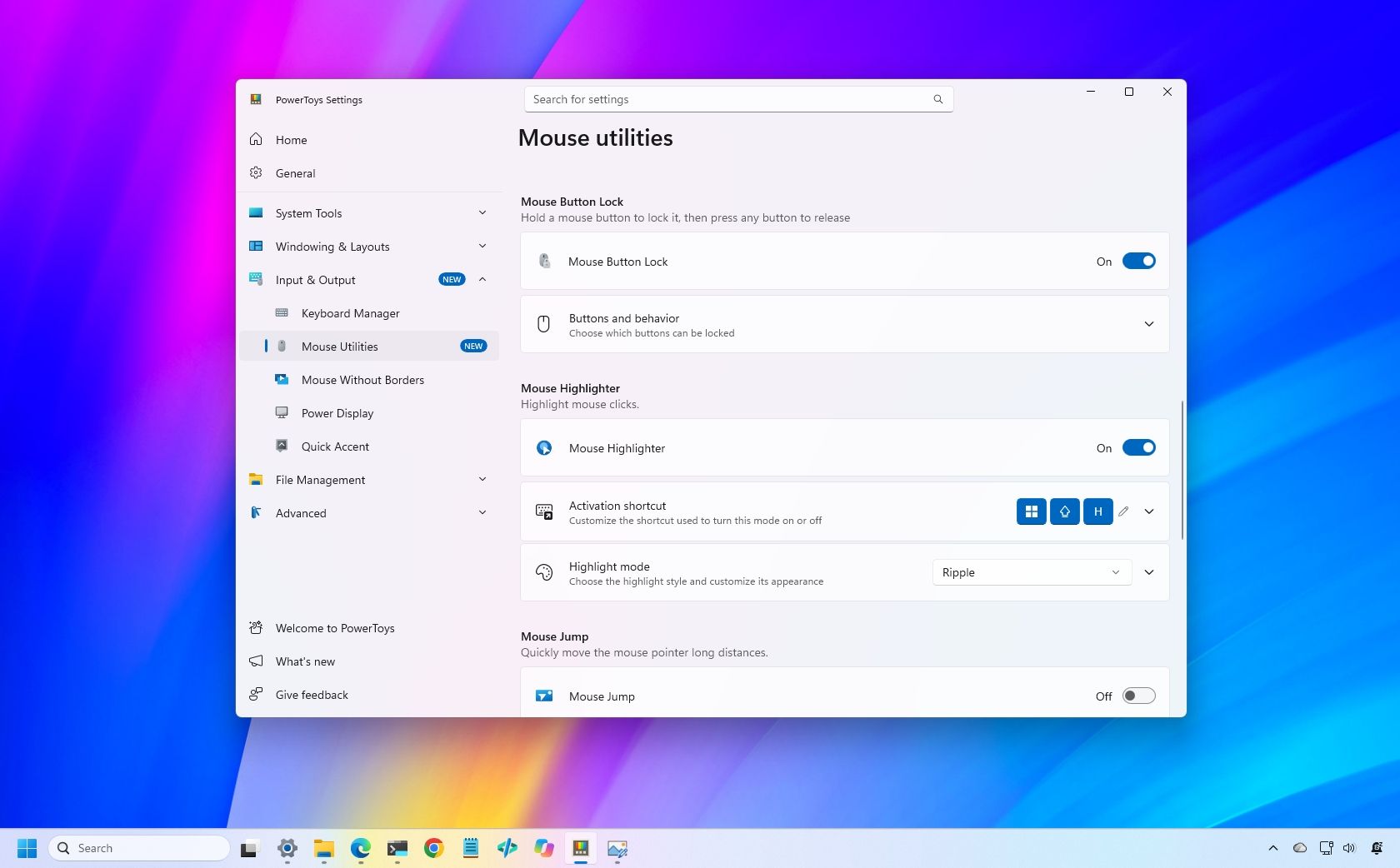
You can enable the feature in PowerToys > Input & Output > Mouse Utilities by turning on the "Mouse Button Lock" toggle switch.
(Image credit: Mauro Huculak)
From the "Buttons and behavior" settings, you can decide whether the left, middle, or right button should lock while pressed.
The settings also let you choose the hold duration before the button is locked as pressed, and the drag threshold allows you to specify how far you can move the mouse before PowerToys cancels the Mouse Button Lock.
2. CursorHide for fewer cursor interruptions
PowerToys also introduces a second mouse utility, CursorHide, which lets you hide the mouse pointer while you're typing, after a period of inactivity, or both.
CursorHide is useful when the mouse pointer gets in the way of what you're doing on the screen. For example, hiding the pointer while typing makes it easier to focus on text without the cursor covering words or other elements.
You can enable the feature in PowerToys > Input & Output > Mouse Utilities by turning on the "CursorHide" toggle switch.
(Image credit: Mauro Huculak)
In the "Activation and behavior" settings, you can choose to hide after keyboard input and set the cursor to hide after a period of inactivity.
3. Command Palette quick access to favorites
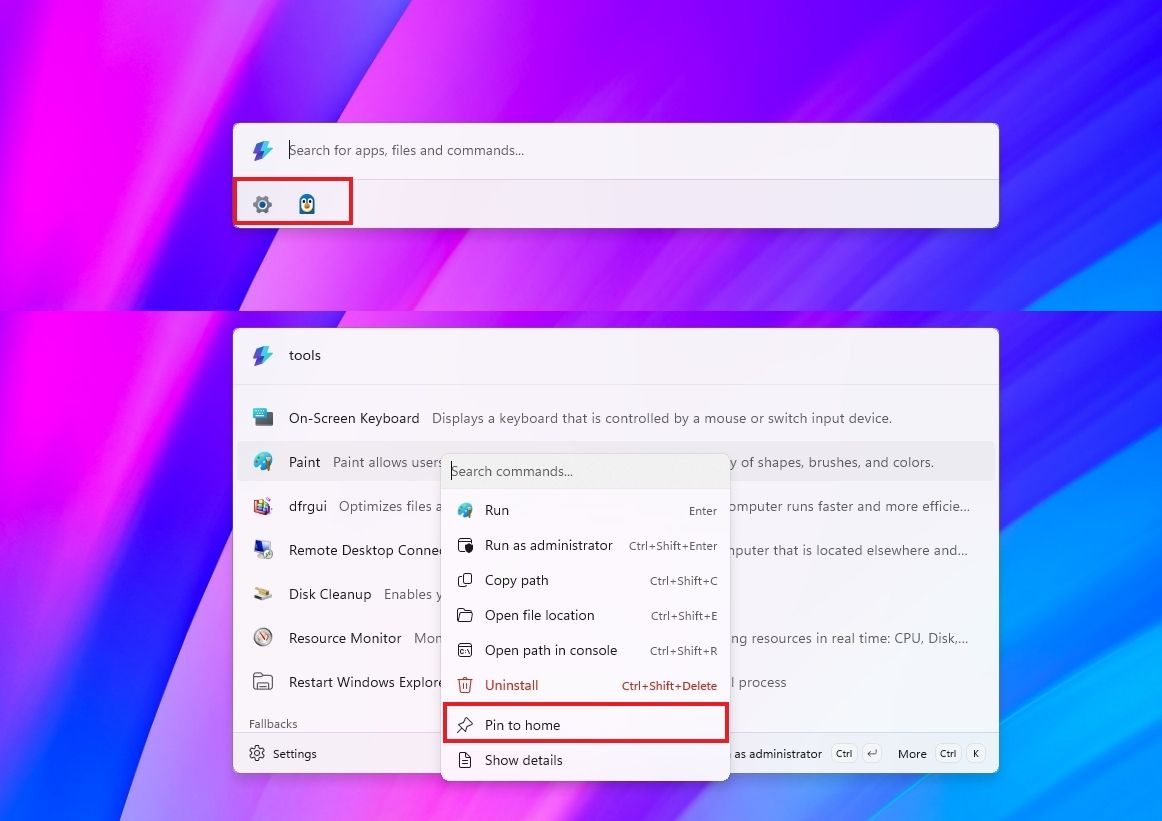
If you use Command Palette, this update rolls out an update to Compact mode that lets you pin frequently used commands under the search box.
Once you pin an item, you can launch it with the "Alt + 1" through "Alt + 9" shortcut or select it without running it with the "Alt + Shift + number" shortcut.
(Image credit: Mauro Huculak)
It's also possible to drag items to reorder them, right-click to access more options, and display recent apps and commands.
4. PowerToys expands command-line support
PowerToys version 0.102 expands its command-line capabilities, allowing you to control more utilities, automate tasks, and retrieve information directly from Command Prompt or PowerShell.
The update adds CLI commands for Advanced Paste, Light Switch, Settings, Peek, and PowerDisplay. These commands let you run actions, manage light and dark mode settings, turn utilities on or off, preview files and folders, and retrieve display information in script-friendly formats.
These additions are especially useful for automating repetitive tasks, creating scripts, or controlling PowerToys utilities without opening their graphical interfaces.
(Image credit: Mauro Huculak)
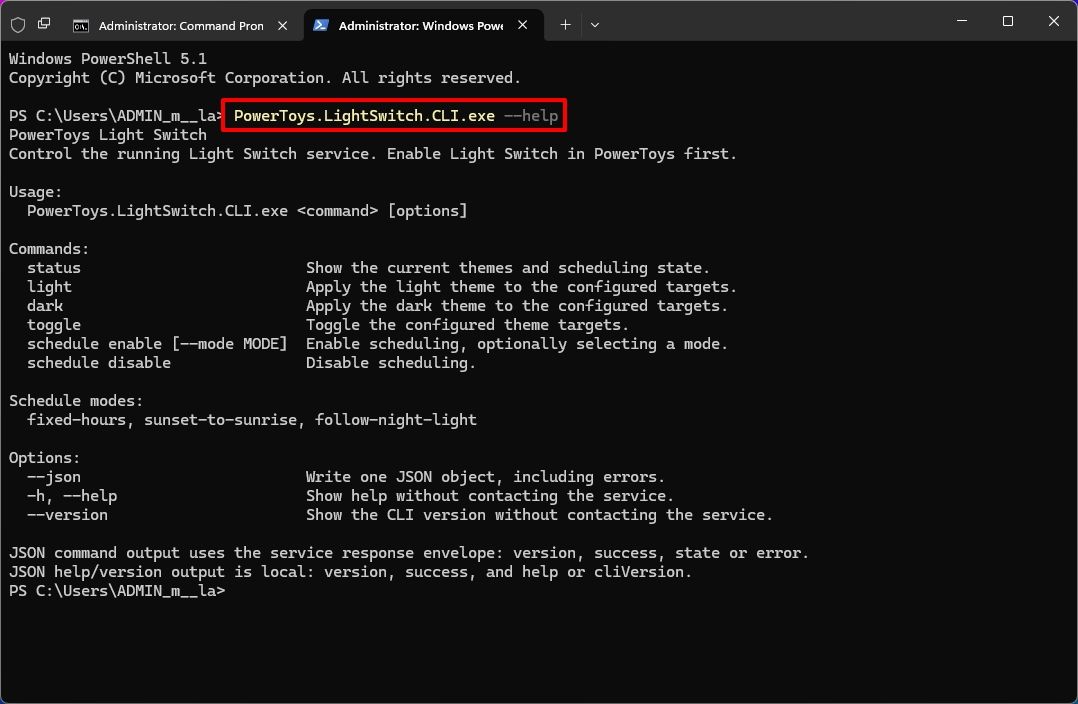
Here's a list of the new command-line support you can use with PowerShell:
Advanced Paste: PowerToys.AdvancedPaste.CLI.exe
Light Switch: PowerToys.LightSwitch.CLI.exe
Settings: PowerToys.Settings.CLI.exe
Peek: PowerToys.Peek.UI.exe
PowerDisplay: PowerToys.PowerDisplay.CLI.exe
To learn about the options for each command, use the "--help" command. For example, PowerToys.LightSwitch.CLI.exe -- help.
If, for example, LightSwitch is enabled, you can switch to dark mode with the PowerToys.LightSwitch.CLI.exe dark command.
You can use the command to manage it, but you must enable the utility in PowerToys settings first.
5. ZoomIt adds screenshot dictation
Finally, ZoomIt now lets you dictate a description while capturing a screenshot, making it easier to document what's on the screen without typing the text separately.
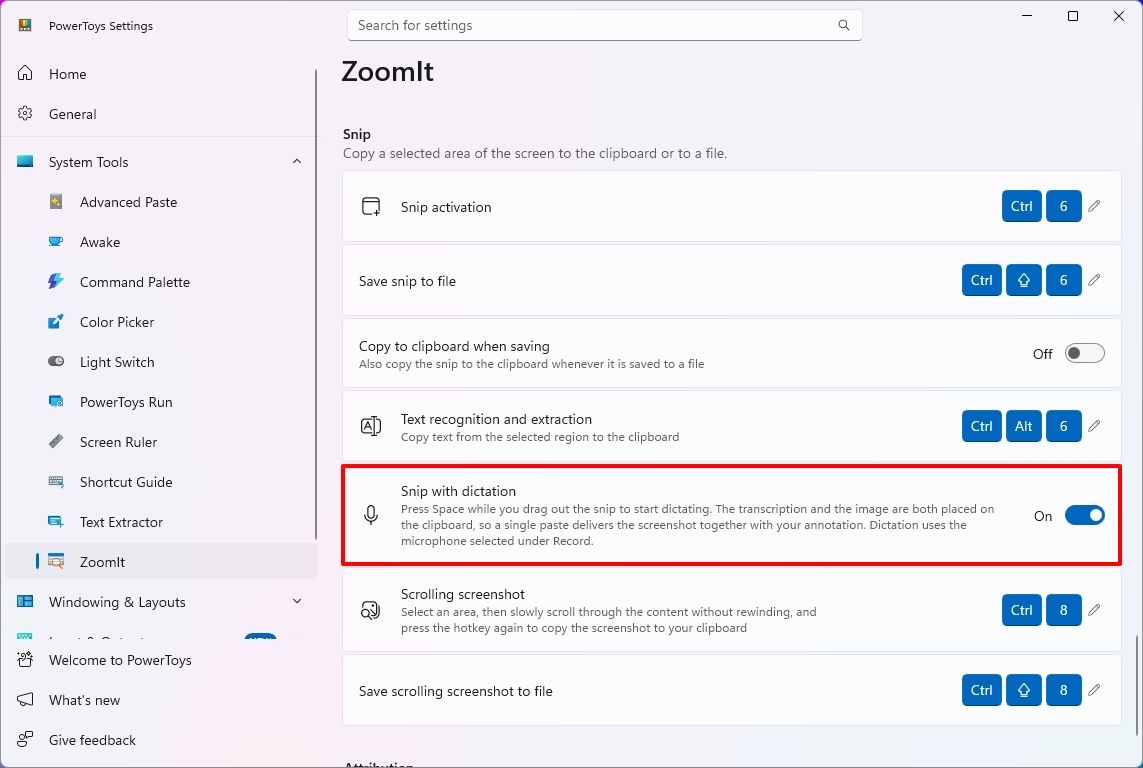
To use the feature, open PowerToys > System Tools > ZoomIt, turn on the feature, and then under the "Snip" section, turn on the "Snip with dictation" toggle.
(Image credit: Mauro Huculak)
Once you have done that, drag to select an area of the screen, press the "Space" key, and describe what you're capturing. ZoomIt transcribes your speech locally, allowing you to paste the screenshot and its accompanying text together.
The feature uses the microphone selected in the "Record" settings.
Wrap up
PowerToys 0.102 is a surprisingly and unusually interesting update, despite the simple version-number change. The popular app serves as a clear reminder of how much Windows 11 continues to evolve thanks to community-driven tools — these additions make everyday workflows smoother and show how Microsoft’s open‑source ecosystem continues to fill gaps the OS itself doesn’t yet cover.
Whether you’re a power user or just someone who loves small quality‑of‑life upgrades, this release proves that Windows can still surprise you with clever, genuinely useful features.
What’s the most interesting feature in this rollout? Let me know in the comments!
More resources
Explore more in-depth how-to guides, troubleshooting advice, and essential tips to get the most out of Windows 11 and 10. Start browsing here:
Microsoft is testing a way to update Edge without forcing a restart, potentially letting you keep working while it switches to a more secure version.Browser updates can interrupt your work, so you might put off restarting the browser. However, this can delay important security fixes. Microsoft's solution aims to solve both problems by updating Edge in the background while keeping compatible tabs open. The project is still an early experiment, not a feature you ca
Microsoft is testing a way to update Edge without forcing a restart, potentially letting you keep working while it switches to a more secure version.
Browser updates can interrupt your work, so you might put off restarting the browser. However, this can delay important security fixes. Microsoft's solution aims to solve both problems by updating Edge in the background while keeping compatible tabs open.
The project is still an early experiment, not a feature you can use today. Microsoft says the prototype isn't part of Edge's production code or the Chromium project.
Microsoft wants Edge updates to be seamless
Currently, browser updates require a restart to safely switch to a newer version. Although Microsoft Edge can restore your open tabs afterward, restarting can still interrupt your work. Microsoft's prototype aims to change that by downloading an update in the background and moving the browser and its supporting processes to the newer version while keeping your work available.
For example, imagine you're filling out a long online form when a security update becomes available. Instead of asking you to restart Edge and interrupt your work, the browser would update in the background while you continue working.
Microsoft demonstrated the prototype in a video, and when the company clicked the "Update" button, the browser switched to the new version while keeping compatible tabs open. Eventually, the goal is to apply updates automatically without requiring users to click anything.
One limitation is that existing tabs can stay open only if they're compatible with the new version. Other tabs will switch to the updated version when you navigate to them.
AI makes faster security updates more important
(Image credit: Future | Daniel Rubino)
The project isn't only about convenience. Microsoft notes that AI is accelerating vulnerability discovery and changing the pace of attacks, increasing the need to roll out security fixes more quickly. The company describes the time between a security fix becoming available and an update being applied as the "patch gap." During this period, users who don't install the fix remain vulnerable.
A security update can only protect you after apply it. Restarts add friction to that gap: people may keep a browser open for days because they are in the middle of something important.
Microsoft
The requirement to restart the browser can also make the problem worse when people postpone updates because they don't want interruptions. As a result, applying security updates faster could reduce the time users remain exposed to known vulnerabilities.
So, when can we use it?
This isn't built into the current version of the browser, so don't go through the settings trying to find the option. Microsoft says that the prototype isn't part of the browser or the Chromium project. Instead, the company is sharing its work early and inviting developers and other organizations to collaborate on this project.
Edge already has an update option for idle devices
(Image credit: Daniel Rubino / Windows Central)
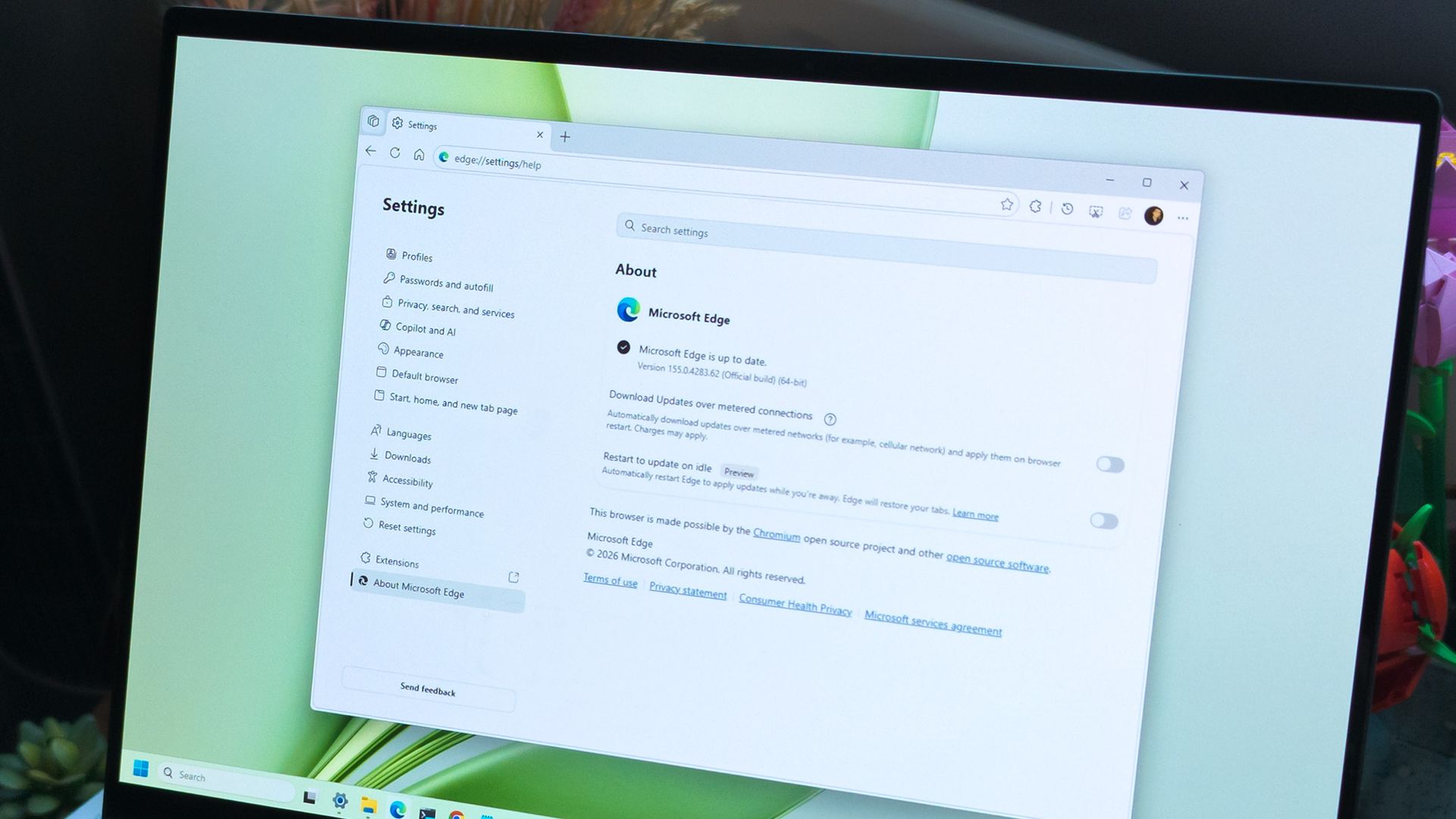
While the company continues developing its new update mechanism, Microsoft Edge already offers a feature called "Restart to update on idle," previously known as "Instant Updates."
The feature restarts Edge when your device is idle, installs the update, and reopens your tabs. It still requires a restart, but the interruption happens when you're not using the browser.
What's next?
For now, Microsoft Edge's existing update options help reduce delays, while the seamless-updates prototype offers a glimpse of what could come next. Microsoft hasn't announced when, or whether, this approach will become available. The company is sharing the prototype early to encourage collaboration with the community.
However, we'll have to wait and see whether the concept will make it into a future version of the browser. What are your thoughts on this new way to update the browser? Let me know in the comments.
More resources
Explore more in-depth how-to guides, troubleshooting advice, and essential tips to get the most out of Windows 11 and 10. Start browsing here:
On Windows 11, Microsoft is overhauling the Windows Search feature to make it faster, more accurate, and more useful. The experience will go beyond finding apps, files, and settings by letting users perform common tasks directly from the Taskbar. At the same time, upcoming improvements will add file previews, richer web results, and Copilot integration.The redesigned Search experience is in development, but a preview is already rolling out through the Windows Ins
On Windows 11, Microsoft is overhauling the Windows Search feature to make it faster, more accurate, and more useful. The experience will go beyond finding apps, files, and settings by letting users perform common tasks directly from the Taskbar. At the same time, upcoming improvements will add file previews, richer web results, and Copilot integration.
The redesigned Search experience is in development, but a preview is already rolling out through the Windows Insider Program, with more features planned for later this year and a deeper integration with the Start menu planned for 2027.
Here's what you need to know about the new Windows 11 Search experience.
What is the new Windows 11 Search experience?
The traditional Windows Search experience has been designed primarily to find apps, files, settings, and web results. However, its performance and ability to understand search queries have always been questionable.
(Image credit: Mauro Huculak)
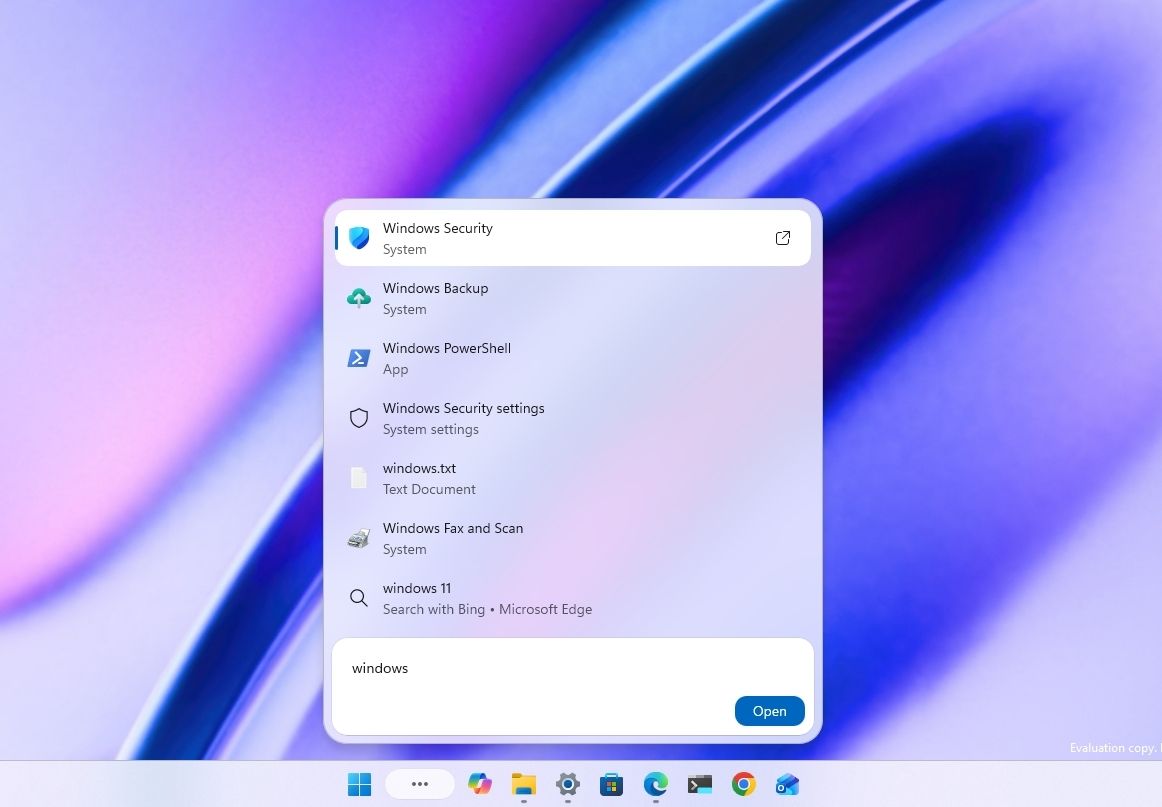
The new Windows Search experience addresses these limitations with a redesigned interface built on WinUI 3, which Microsoft says improves performance and reduces memory usage. It also improves search accuracy by better matching typos and synonyms.
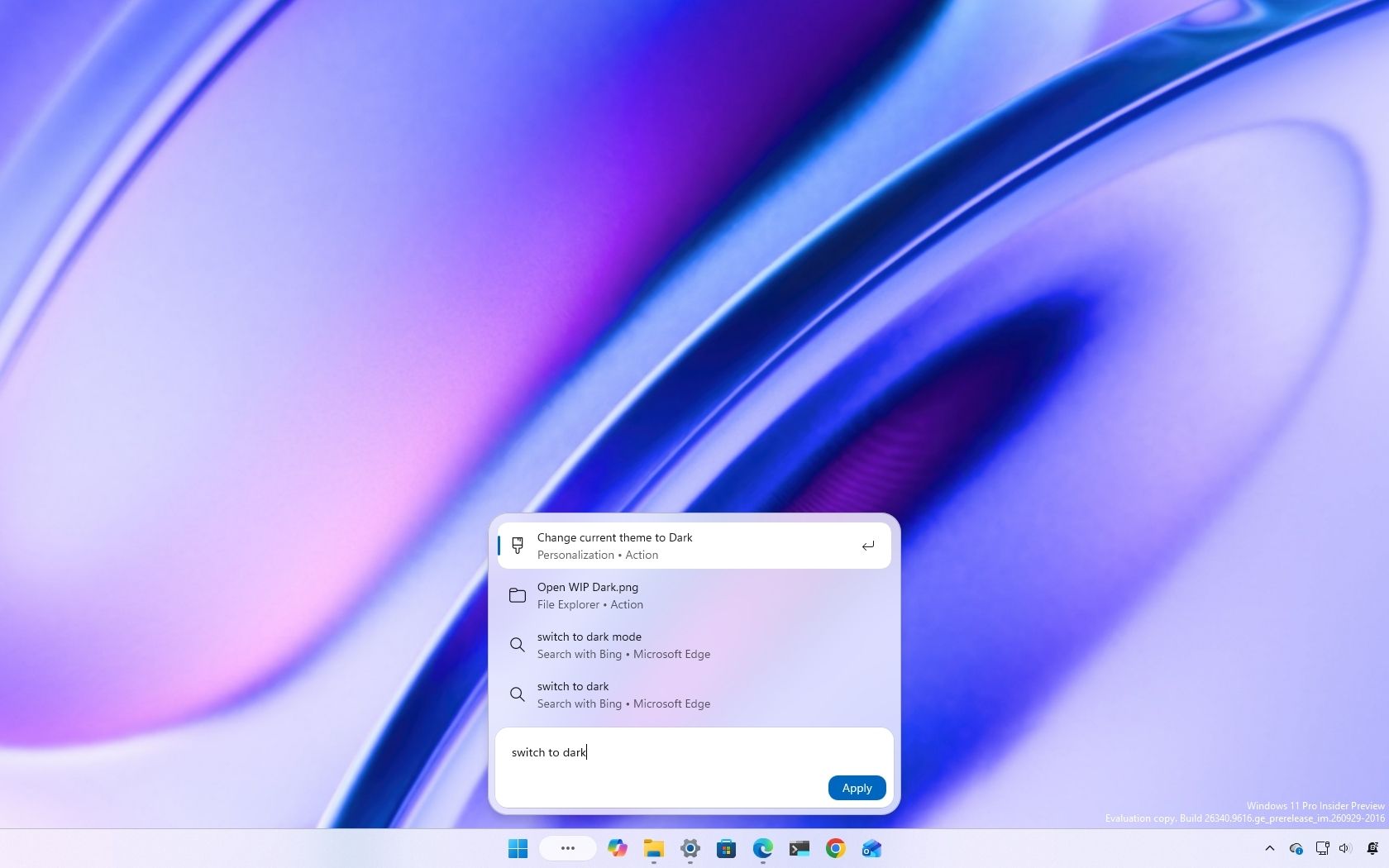
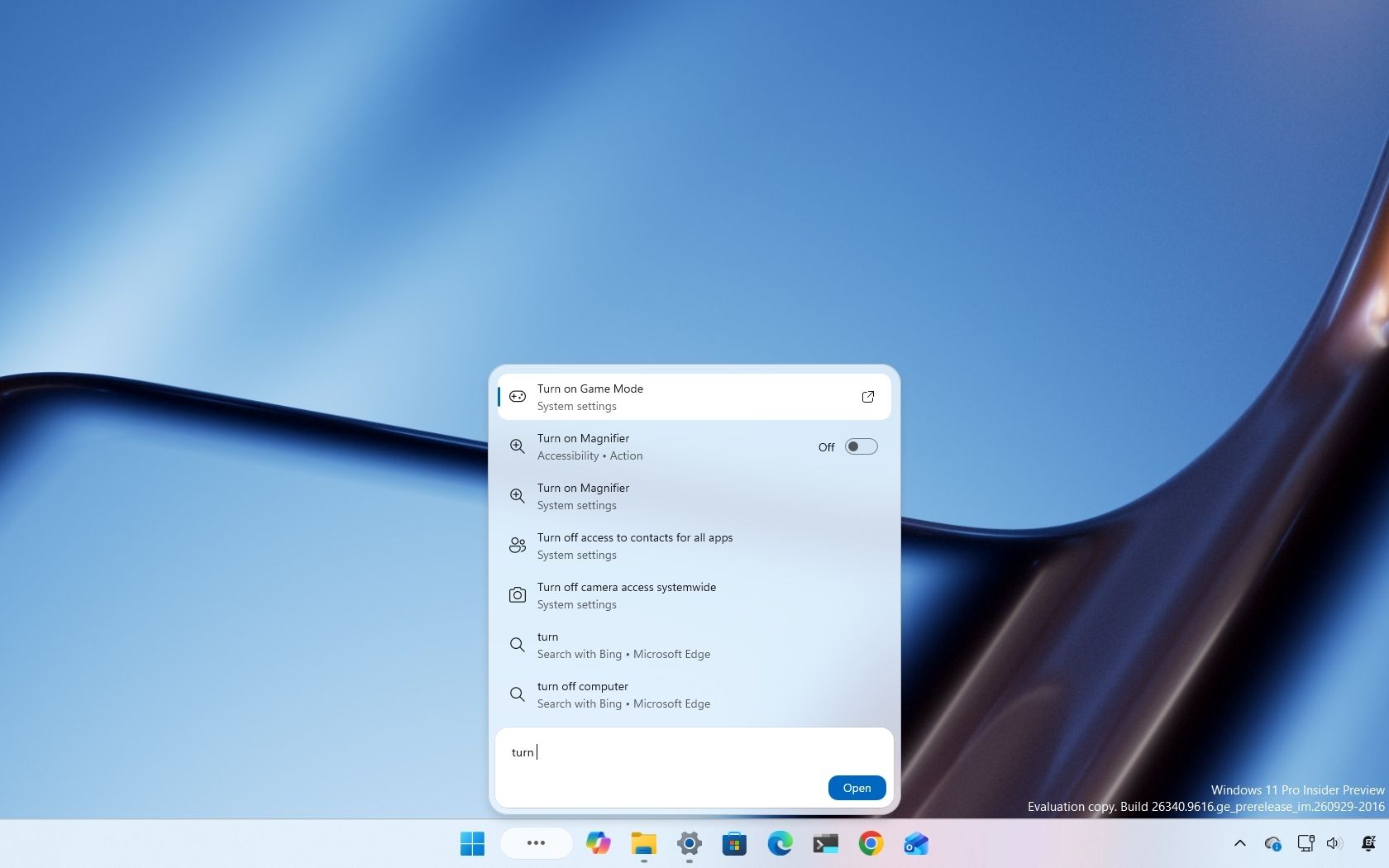
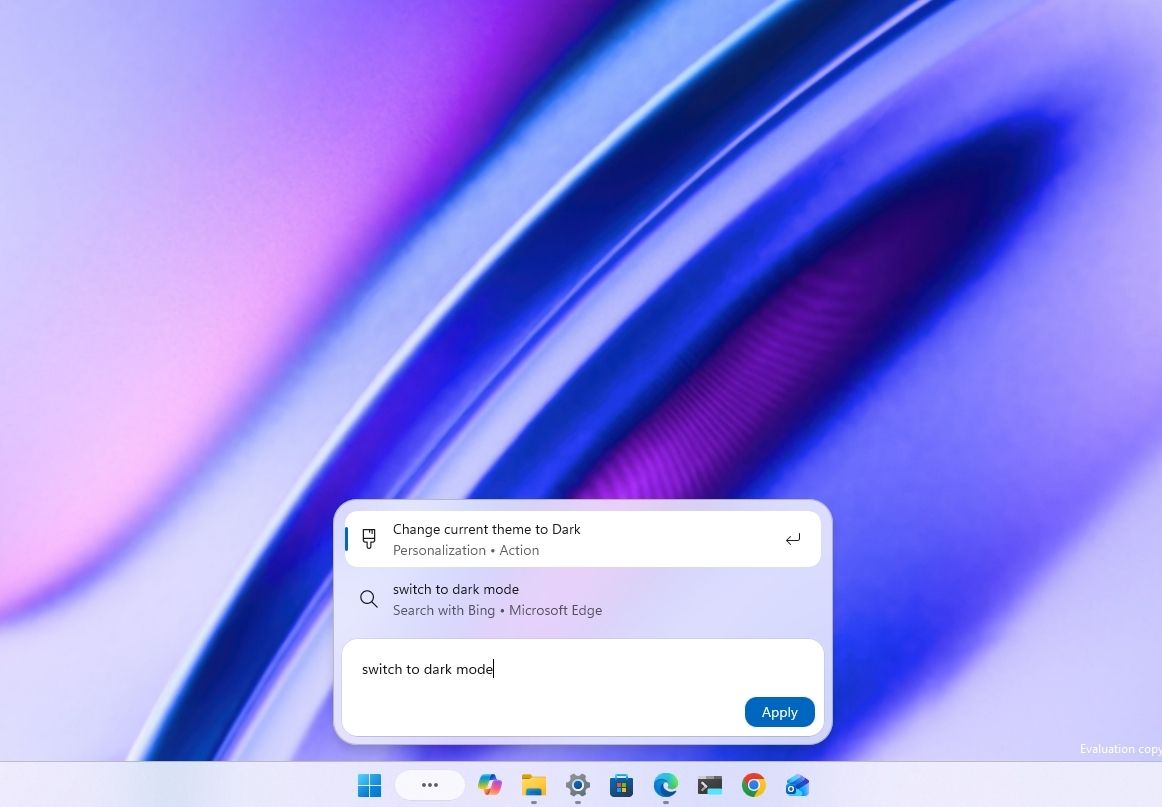
Beyond finding things, the new Search lets you perform certain actions directly from the Search box in the Taskbar. For example, you can type "switch to dark mode," "turn on Bluetooth," or "mute" to change a setting or adjust your computer without opening another app or navigating through additional screens.
Microsoft is also working on richer file previews, more detailed search results, and inline web answers that let you find information without leaving the experience. The company also plans to integrate Copilot into the experience, allowing users to ask questions and view answers directly in the Search interface before opening the Copilot app to expand the conversation.
What can you do with the new Windows Search?
The new Windows Search retains the core functionality of the legacy experience, letting you find apps, files, settings, and web results, but it also introduces new capabilities.
For example, you can perform certain actions directly from the Search box, such as switching to Dark mode, enabling Bluetooth, adjusting the volume, or arranging windows on the screen.
(Image credit: Mauro Huculak)
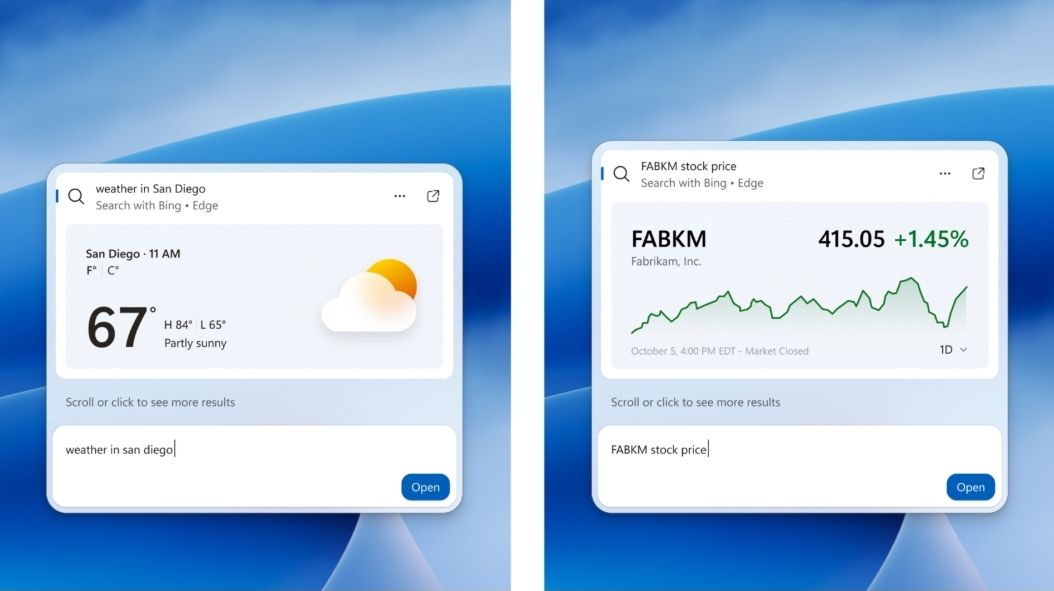
In future updates, Windows Search will add inline file previews and richer web results, including information cards for queries related to weather, stock prices, and other topics.
Microsoft is also working on Copilot integration, allowing Search to recognize questions that could benefit from a more detailed answer and display an AI-generated response directly in the interface. Selecting the response can then open the Copilot app for further assistance.
How do you enable the new Windows Search experience?
The new Windows Search experience is still under development and is currently available to Insiders in the Experimental channel for versions 26H2 and 26H1. To try it, your computer must be running build 26340.9616 for version 26H2 or build 28120.3181 for version 26H1 or a later release.
If the feature doesn't appear after installing the latest preview build, Microsoft says you can enable it manually by navigating to Settings > Windows Update > Windows Insider Program > Feature flags. After enabling the feature, restart your computer to apply the changes.
Does the new Windows Search require a Copilot+ PC or an NPU?
No. When I asked Microsoft whether the new Windows Search experience would be limited to devices with an NPU, the company explained that its inline actions use a small machine-learning (ML) model that runs locally on the computer's main processor. The model interprets the user's request and matches it to the appropriate action.
Microsoft also clarified that this isn't generative AI powered by a small language model (SLM) or a large language model (LLM). As a result, the feature doesn't require an NPU and will be available on computers without one.
Can Windows Search perform actions on a connected phone?
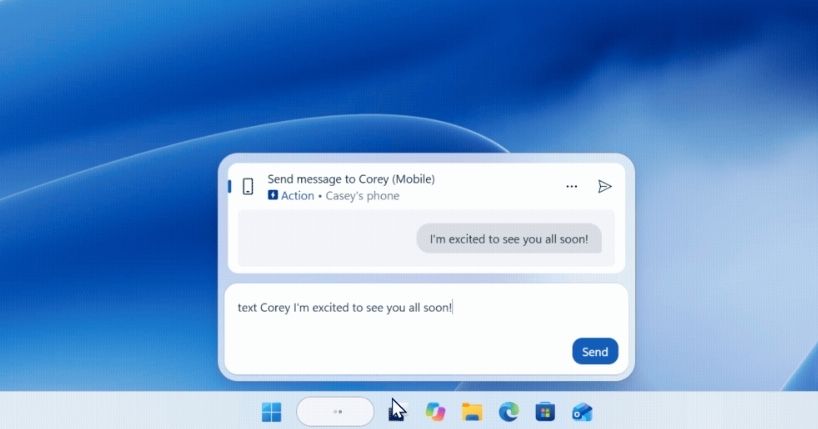
Not yet, but Microsoft is working on a new capability that will let users send text messages directly from Windows Search on computers connected to a phone through the Phone Link and Link to Windows apps.
(Image credit: Microsoft)
Will the new Windows Search replace Start menu search?
Microsoft plans to bring the new Windows Search experience to the Start menu in 2027. For now, the Start menu continues to use the existing Search experience while the company keeps working on the new design. Microsoft hasn't explicitly confirmed whether the new experience will completely replace the current Search interface.
In the past, the company also worked on a similar feature called "Ask Copilot," which users could enable or disable through Taskbar settings. However, the current version of Windows 11 doesn't offer an option to turn off the new Search experience and continue using the legacy version on the Taskbar.
Does the new Windows Search use AI to perform actions?
The new Windows Search doesn't use AI to perform actions. This isn't generative AI. Instead, it uses a small ML model to match the user's intent to the action. As a result, the feature doesn't require an NPU and will be available on computers without one.
What improvements are coming to Windows Search?
The new version of Windows Search will include a new interface design that's significantly smaller than the legacy version. However, it'll include inline previews and richer file details, making it easier to identify documents, presentations, and photos without opening them.
(Image credit: Microsoft)
Search will also display richer web results, including information about weather, stock prices, and general questions, directly in the interface.
Microsoft is also adding filters to help users narrow search results by category, such as files. In addition, the company plans to integrate Copilot into Taskbar Search, letting users get AI-generated answers inline and open the Copilot app for a more detailed conversation.
Will the new Windows Search integrate with Copilot?
Yes. Microsoft is working on integrating Copilot into the new Windows Search experience. The planned capability will let users ask questions and see AI-generated answers directly in the Search interface. Selecting an answer can open the Copilot app for further interaction.
(Image credit: Microsoft)
The company says the opt-in experience will begin rolling out to select markets later this year.
When will the new Windows Search experience be available?
Microsoft began rolling out the new Windows Search experience to Insiders in the Experimental channel for versions 26H2 and 26H1 on October 7, 2026.
The company plans to introduce richer search results and other improvements later this year, with Copilot integration initially rolling out as an opt-in feature in select markets.
Microsoft also plans to bring the new Search experience to the Start menu in 2027. The company hasn't announced a general availability date for all Windows 11 users.
Windows Central's Take
I like that Microsoft is taking a more cautious approach to AI with the new Windows Search. The core experience isn't being powered by Copilot, and the inline actions use a small machine learning model running locally on the CPU rather than generative AI. The company is also making Copilot integration optional, which is the right approach for this type of feature. I want the operating system to be more useful without making AI feel like a requirement to get things done.
We'll have to wait to see how well Search performs in everyday use, especially when finding files and settings. Microsoft has redesigned core experiences before, and a cleaner interface doesn't mean much if results aren't reliable or users lose control. If the company can improve Search while keeping Copilot optional and avoiding unnecessary clutter, this could be a significant improvement.
What are your thoughts about the new Search for Windows 11? Let me know in the comments.
More resources
Explore more in-depth how-to guides, troubleshooting advice, and essential tips to get the most out of Windows 11 and 10. Start browsing here:
As part of the Windows Insider Program, Microsoft released several preview builds of Windows 11 in early October, some of which rolled out new features and improvements, while others played catch-up by bringing already announced changes to other channels. During the first two weeks of October, the software giant made available the first preview of the new Windows Search experience. We also saw the new Battery widgets and more. Microsoft also revealed a new option
As part of the Windows Insider Program, Microsoft released several preview builds of Windows 11 in early October, some of which rolled out new features and improvements, while others played catch-up by bringing already announced changes to other channels.
During the first two weeks of October, the software giant made available the first preview of the new Windows Search experience. We also saw the new Battery widgets and more.
Microsoft also revealed a new option to sanitize the hard drive when using the Cloud Rebuild feature, plus improvements to File Explorer, Share, and more.
In the Experimental channel, we've seen builds 28120.3181, 26340.9616, 26340.9596, 28120.3151, 29683, and 29680. In the Beta channel, the company released builds 26220.9606, 28020.3172, 26220.9587, and 28020.3142.
In this recap, I'll highlight the latest and most noteworthy changes available through the Windows Insider Program.
Biggest improvements from the Windows Insider Program in October 2026
In this recap, I'll highlight the latest and most noteworthy changes available through the Windows Insider Program.
Windows Search overhaul
Starting with the release of build 26340.9616 for version 26H2, Microsoft began the gradual rollout of the new Windows Search experience.
(Image credit: Mauro Huculak)
The new experience features an entirely new interface using WinUI 3, designed to make search faster and more efficient while using less memory.
Perhaps the most notable change is the new inline actions that let you perform tasks directly from the Search box. For example, you can switch between the light and dark mode, enable Bluetooth, adjust brightness, arrange windows, and more.
In addition, the company is adding improvements to help Windows Search understand you better, including better handling of typos and synonyms.
The new Search experience is currently available in versions 26H2 and 26H1 as a preview through the Experimental channel.
Battery new widget
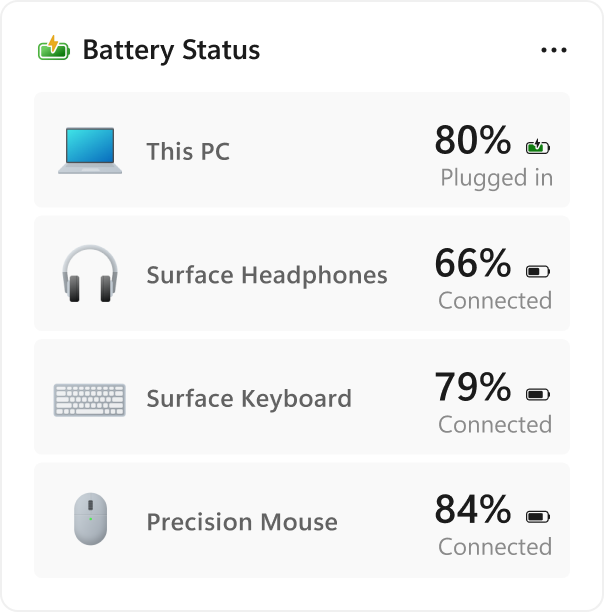
Also, Windows 11 build 26340.9616 ships with the new Battery Status widget, which tracks your computer and peripherals' battery levels without having to resort to third-party tools.
(Image credit: Microsoft)
The widget is available from the Widgets dashboard> Add widgets > Battery Status.
Once the widget is enabled, you'll see the battery level of your laptop as well as your mouse, keyboard, headphones, and more.
Task Manager new processes group
Although Task Manager isn't getting another makeover, an updated version improves how it handles process groups, letting apps combine separate background processes into a single category instead of relying on traditional parent-child process trees.
Microsoft says that this should make it easier to view how an app uses system resources. Currently, this works only in Microsoft Defender.
File Explorer faster navigation
The company has also made small but welcome improvements to File Explorer with the release.
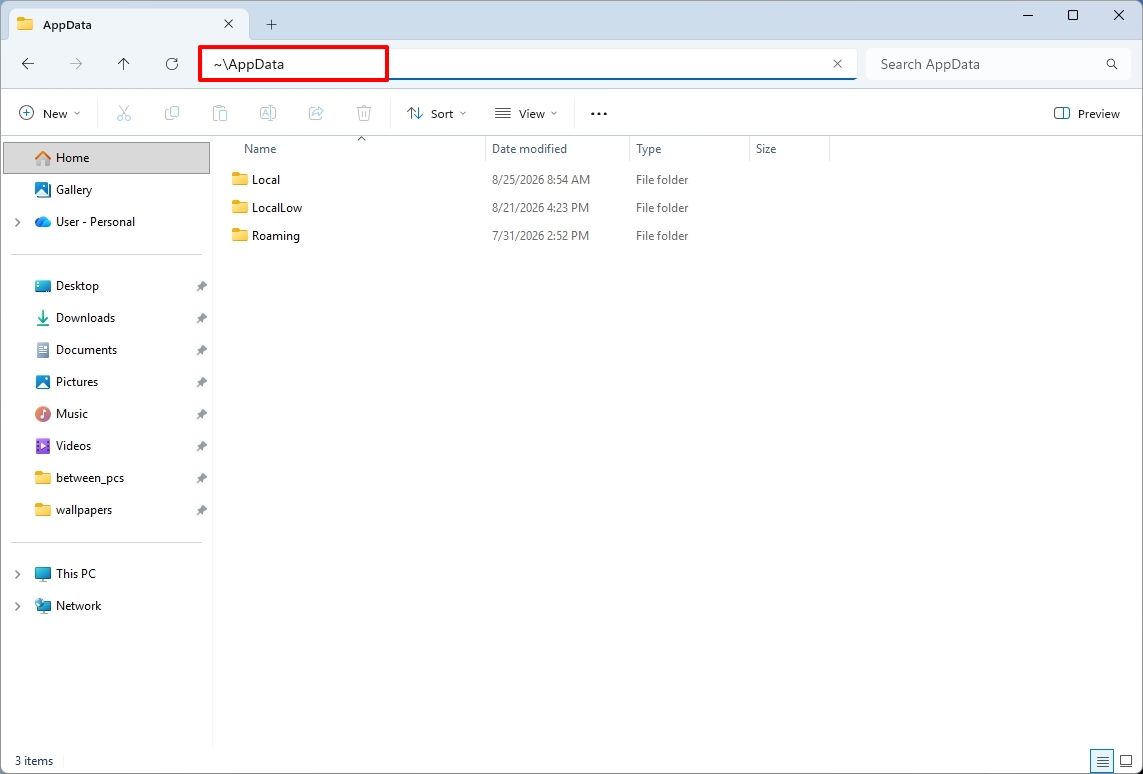
For instance, on build 26340.9596 for version 26H2, you can now use the "~" character to quickly open your profile folder or subfolder, for example, "~\AppData".
(Image credit: Mauro Huculak)
As part of the File Explorer changes, on builds 28120.3151 and 28020.3142 for version 26H1, Microsoft rolled out improvements to keep folder view customizations, such as sorting and icon size preferences, consistent across different access paths and apps.
The update also improves address bar support for paths with double backslashes and quotation marks.
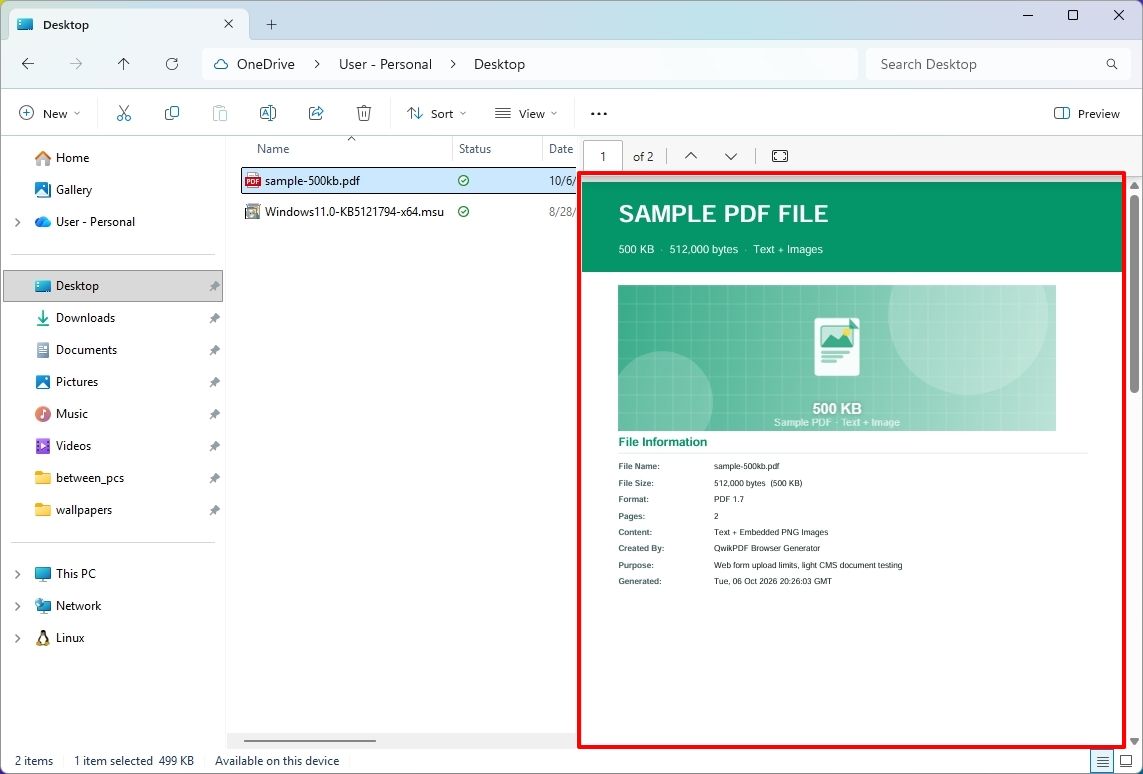
Finally, in this wave of updates, build 29680 for the Future Platforms version, you'll find an updated version of the file manager that now handles previews for downloaded files from the internet.
When using the preview pane, HTML files will show a preview after you acknowledge the warning, while non-HTML files, such as PDFs, will show previews automatically.
Cloud Rebuild improvements
Cloud Rebuild is a new recovery feature that helps you reinstall the operating system when your computer has problems or won't boot.
Unlike other recovery options, this feature uses Windows Update to download installation files and drivers without needing bootable USB media.
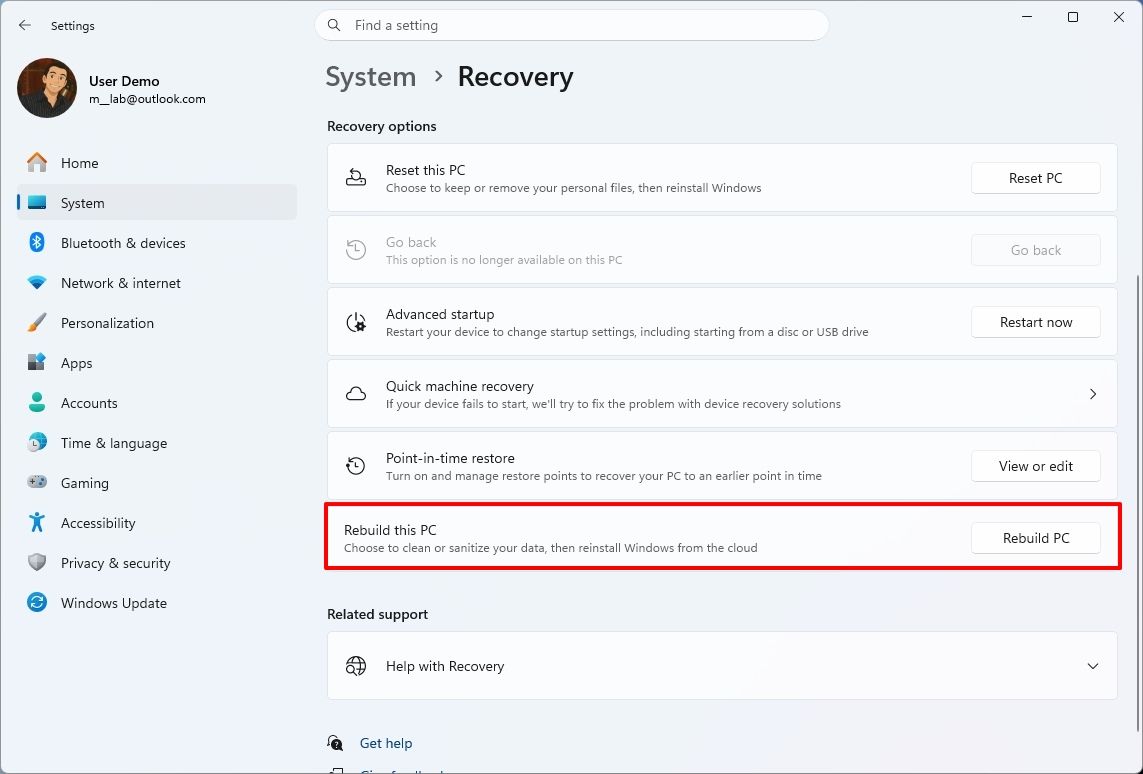
This recovery feature is still in preview, but in build 26340.9596 for version 26H2 and build 26220.9587 for version 25H2, you'll now find a new "Rebuild this PC" option on the Recovery page in Settings, making it easier to access.
(Image credit: Mauro Huculak)
Also, in builds 28120.3151 and 28020.3142 for version 26H1, the Cloud Rebuild feature added a new "Remove & sanitize files" option to securely erase data before reinstalling the operating system, which is useful when recycling or reassigning a computer.
This update also lets admins configure and start a Cloud Rebuild remotely using Recovery CSP.
Narrator's new math reading
As part of the updates for version 26H1 (builds 28120.3151 and 28020.3142), Microsoft also updated the Windows Narrator feature with a more natural way to read and explore math equations.
According to the company, on supported apps from the Microsoft 365 suite, such as PowerPoint and Word, Windows Narrator can now read equations as structured expressions.
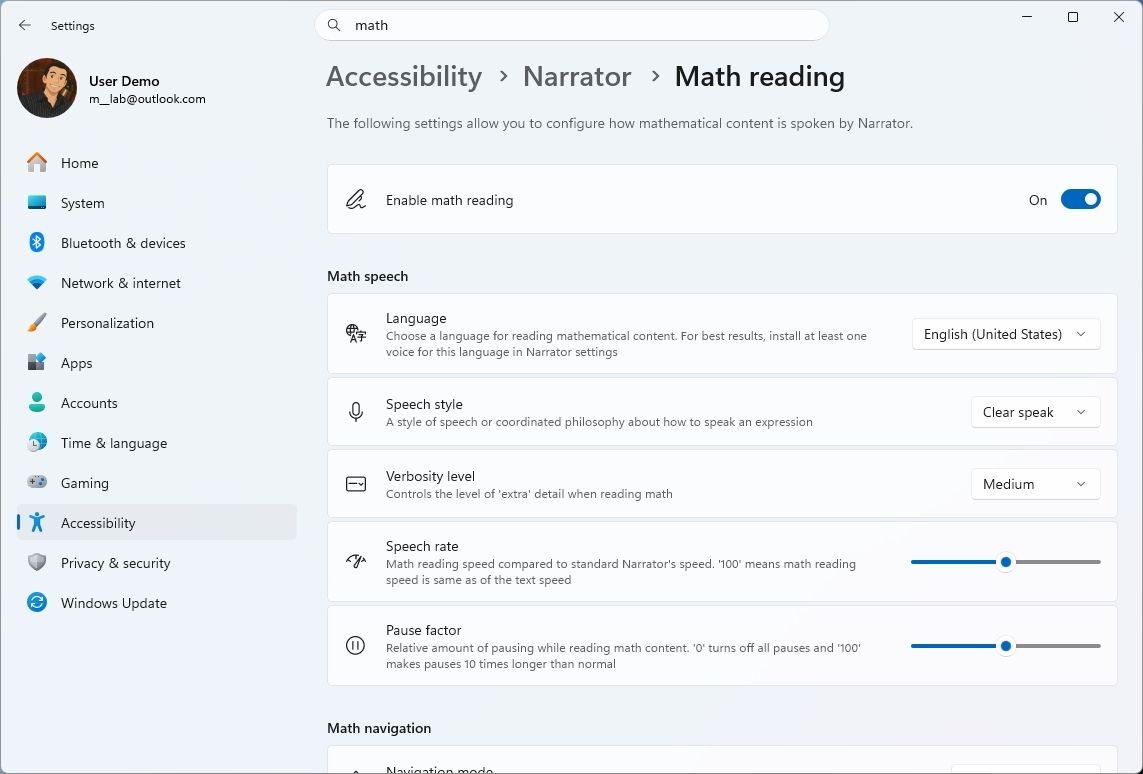
In addition, a new math navigation mode allows you to explore an equation one part at a time.
(Image credit: Mauro Huculak)
You can use the "Narrator key + Alt + N," and then use the arrows to move through fractions, exponents, and roots. You can also use "Esc" to exit the mode.
The new math capability also works on supported web content in Microsoft Edge and Google Chrome.
Magnifier with updated controls
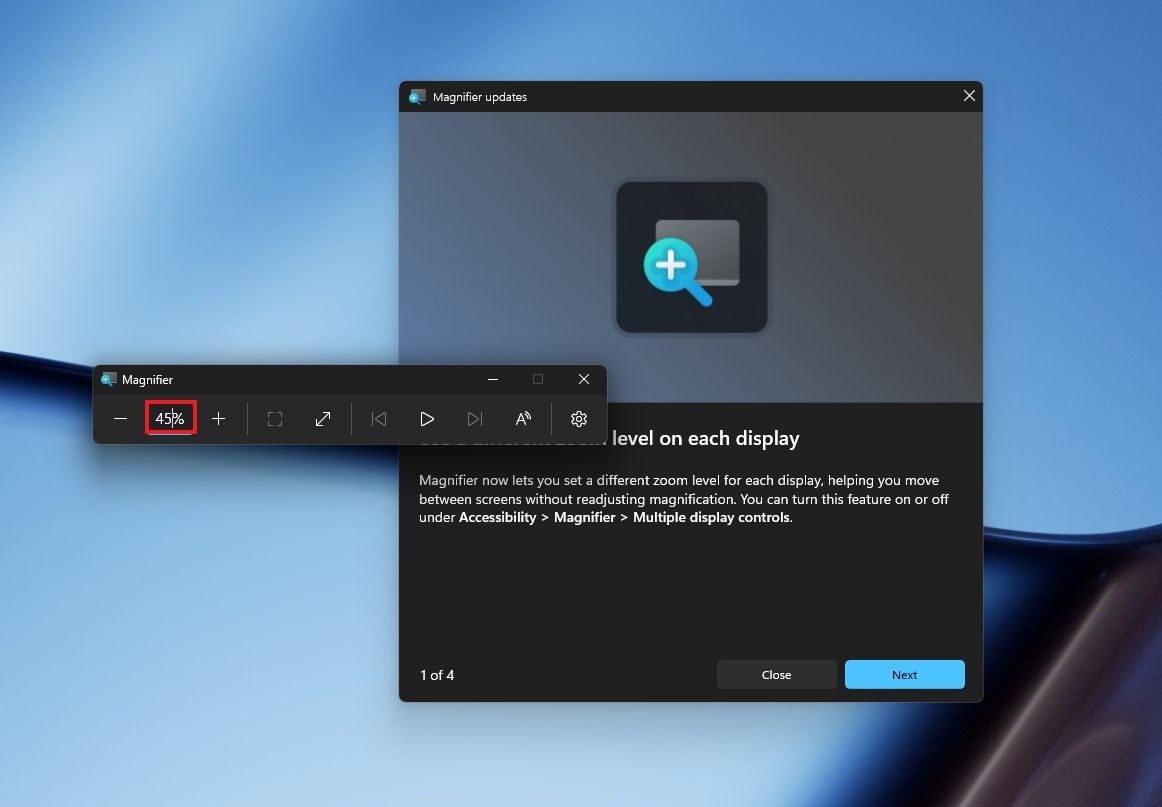
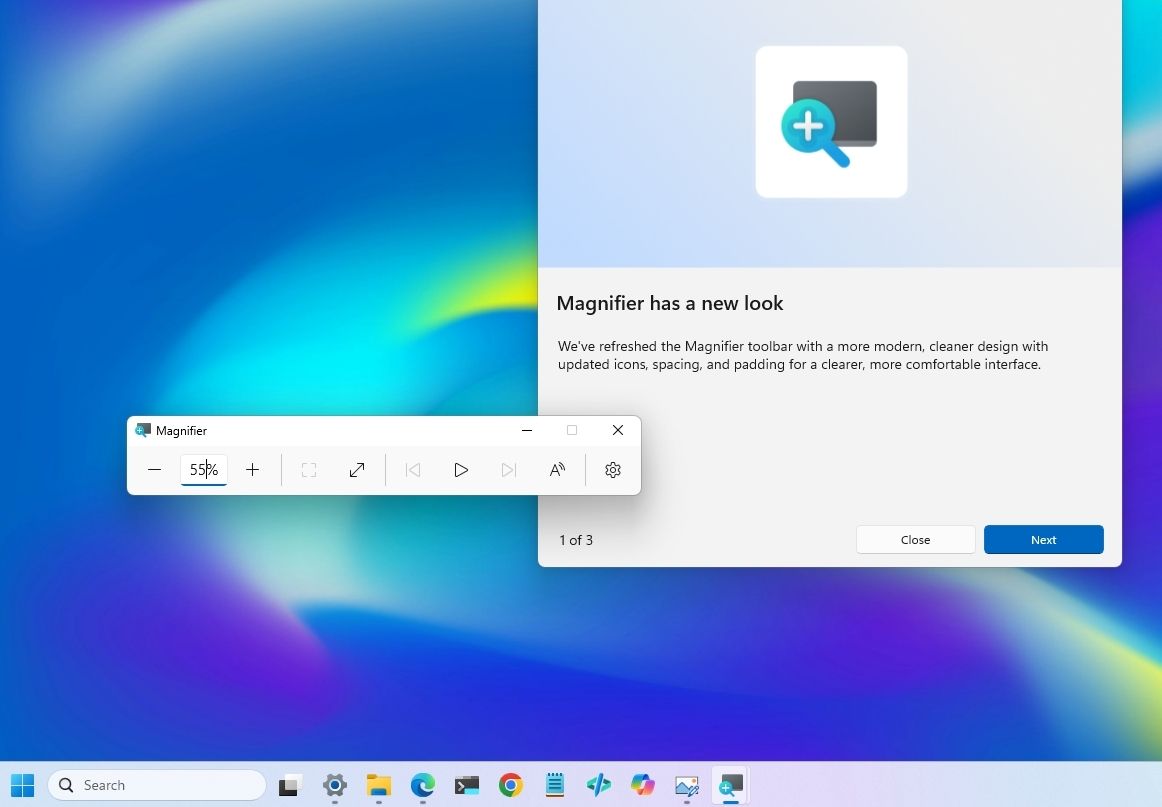
In this wave of updates, the Magnifier lets you enter the exact zoom percentage directly in the toolbar instead of relying on the presets.
(Image credit: Mauro Huculak)
In addition, in the settings, the preset option now includes more increments up to 400 percent.
Windows Share customization
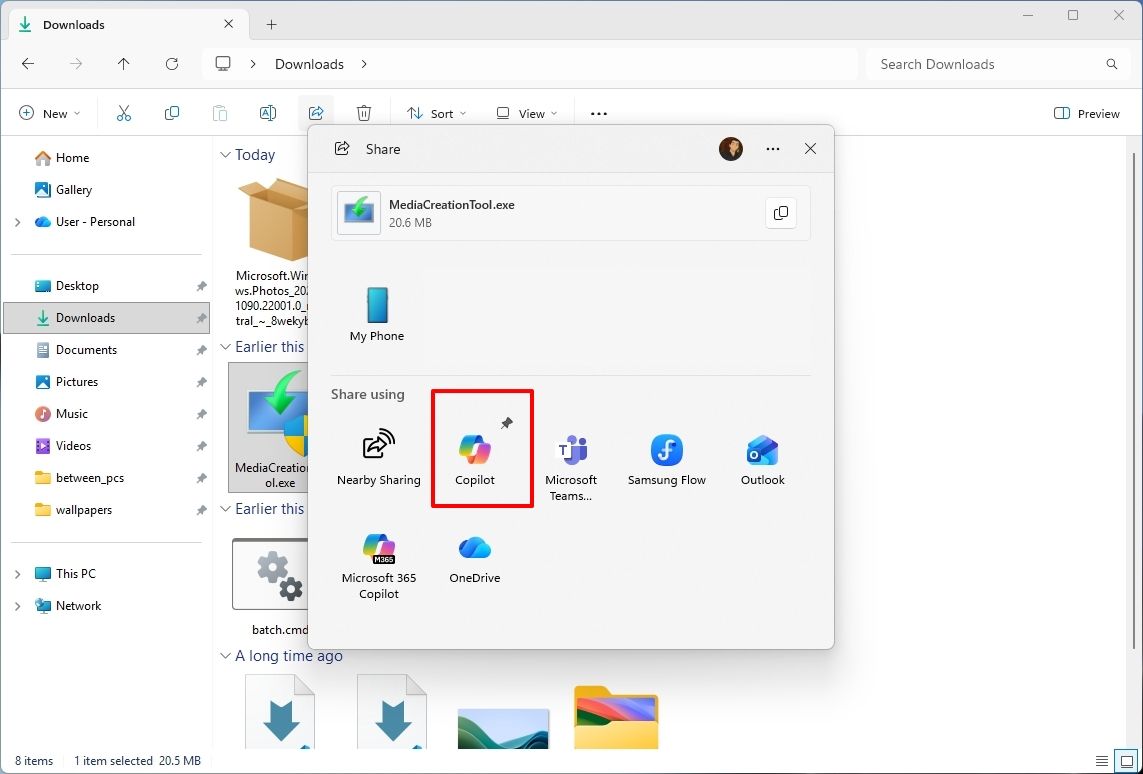
Although the Windows Share experience remains largely the same, Microsoft has added the ability to pin your favorite apps directly in the Share interface in the Experimental channel for Future Platforms.
(Image credit: Mauro Huculak)
This change makes it easier to find your favorite apps that you use often when sharing.
Installed apps page tweak
Finally, starting with build 29680, the "Installed apps" page now shows the version number at the top level under the Apps settings section for package apps.
Windows Central's Take
I'd put the new Windows Search, Cloud Rebuild, and File Explorer improvements at the top of this list. Search is becoming more useful for everyday tasks, Cloud Rebuild is getting better options for recovering a computer and securely erasing its data, and File Explorer is addressing small annoyances that can make file management frustrating.
These changes can make Windows 11 more practical without requiring users to learn an entirely new way of doing things.
I hope Microsoft continues to improve these core features instead of leaving them behind in favor of bigger, flashier additions.
Which of these three improvements would you most like to see arrive on your PC? Let me know in the comments.
More resources
Explore more in-depth how-to guides, troubleshooting advice, and essential tips to get the most out of Windows 11 and 10. Start browsing here:
Microsoft is gradually rolling out the Windows 11 2026 Update (version 26H2) to compatible devices. However, it's an optional install, and if you want to install it early, you'll have to switch manually.Windows 11 version 26H2 is a small update that doesn't require a full reinstall if your device is already running version 25H2 or 24H2. However, if your hardware is still running version 23H2 (or an older version), you'll need to perform an in-place upgrade with a
Microsoft is gradually rolling out the Windows 11 2026 Update (version 26H2) to compatible devices. However, it's an optional install, and if you want to install it early, you'll have to switch manually.
Windows 11 version 26H2 is a small update that doesn't require a full reinstall if your device is already running version 25H2 or 24H2. However, if your hardware is still running version 23H2 (or an older version), you'll need to perform an in-place upgrade with a full reinstallation.
Also, if you plan to upgrade from Windows 10, the computer will go through the full upgrade process as well. In addition, this new version will roll out in phases, starting with devices known to have a good upgrade experience, so not every device will receive the update in the early days.
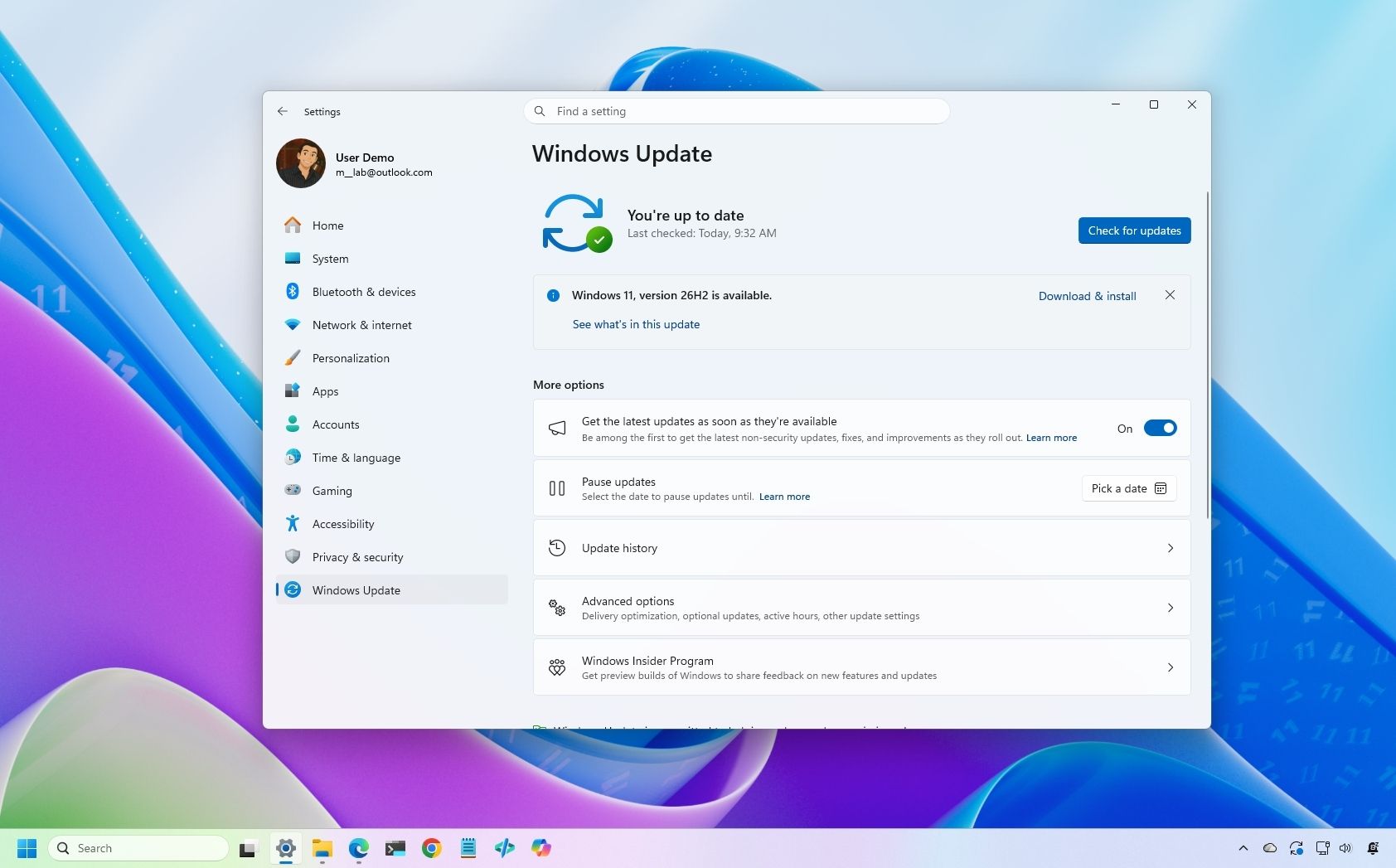
If you don't want to wait, you can manually trigger the upgrade in at least four ways, including Windows Update, the Installation Assistant, the Media Creation Tool, and an ISO file.
In this how-to guide, I'll outline the steps to upgrade from any previous version to the Windows 11 2026 Update.
Important: Although this is a non-destructive process, something can still go wrong during and after the upgrade. Consider creating a temporary backup before proceeding. You've been warned.
How to install Windows 11 2026 Update from Settings
To install the new version of Windows 11 through the Windows Update settings, use these steps:
Open Settings.
Click on Windows Update.
Turn on the "Get the latest updates as soon as they're available" toggle switch.
Click the "Check for updates" button.
Click the "Download and install now" button.
(Image credit: Mauro Huculak)
Click the Restart now button.
After you complete these steps, the installation process will apply the update to the device without requiring a full operating system reinstall.
If the upgrade option isn't available, the update likely isn't ready for your system configuration.
Also, I don't recommend using a different upgrade method, as it may cause issues and require an unnecessary reinstallation.
How to install Windows 11 2026 Update from Installation Assistant
This method should only be used to upgrade a device running version 23H2 or Windows 10. If you use this tool on version 25H2 or 24H2, you'll trigger an unnecessary in-place upgrade.
To upgrade the system to the Windows 11 2026 Update with the Installation Assistant tool, use these steps:
Click the Download Now button under the "Windows 11 Installation Assistant" section.
(Image credit: Mauro Huculak)
Quick tip: If you get a message that the latest version of the operating system is already installed, you likely downloaded an older version of the tool. If so, try downloading the Installation Assistant from this page.
Double-click the Windows11InstallationAssistant.exe file to launch the tool.
Click the "Get PC Health Check app" option to download the tool on the device (if applicable).
Install the Get PC Health app following the easy on-screen directions.
Open the Get PC Health app and click the "Check Now" button.
Click the Refresh button on the Installation Assistant tool.
Click the "Accept and install" button.
(Image credit: Mauro Huculak)
Click the "Proceed with installation" button to begin installation.
Click the Restart button.
Once you complete the steps, the tool will download the necessary files and install the new version of Windows 11, preserving your files, settings, and apps.
How to install Windows 11 2026 Update from Media Creation Tool
You should only use this tool when upgrading from an older version, such as 23H2, or Windows 10.
Although you can no longer use the Media Creation Tool to perform an in-place upgrade, you can use it to create bootable USB media to install the new version of the operating system.
This method will perform a complete reinstallation. If you're upgrading from version 25H2 or 24H2, you don't need this method. Instead, upgrade using Windows Update settings.
To use the Media Creation Tool to create a USB drive to upgrade a device, use these steps:
Click the Download Now button under the "Create Windows 11 installation media" section.
(Image credit: Mauro Huculak)
Double-click the MediaCrationTool.exe file to launch the utility.
Click the Accept button.
Click the Next button.
(Image credit: Mauro Huculak)
Select the USB flash drive option.
(Image credit: Mauro Huculak)
Quick note: You will need a USB flash drive with at least 8GB of storage. This process will erase the drive, so back up any important information first.
Click the Next button.
Select the USB flash drive from the list.
(Image credit: Mauro Huculak)
Click the Next button.
Click the Finish button.
Open File Explorer.
Click on This PC in the left navigation pane.
Open the USB drive with the Windows 11 2026 Update installation files.
Double-click the setup.exe file.
Click the Next button.
Click the Accept button to agree to the terms.
(Image credit: Mauro Huculak)
Click the Install button.
After you complete these steps, Windows Setup will proceed with the in-place upgrade to version 26H2 on your device.
How to install Windows 11 2026 Update from ISO file
Finally, you can also download the Windows 11 version 26H2 ISO file to upgrade your system.
To upgrade to Windows 11 2026 Update using the official ISO file, use these steps:
Select the Windows 11 option under the "Download Windows 11 Disk Image (ISO)" section.
Click the Confirm button.
(Image credit: Mauro Huculak)
Select the installation language.
Click the Confirm button.
Click the "64-bit Download" button to save the ISO file to the computer.
(Image credit: Mauro Huculak)
Right-click the image file and select the Mount option.
Quick tip: If you don't see the option, another tool is likely managing the ".iso" files.
Select the virtual drive from the left navigation pane (if applicable).
Double-click the setup.exe file to manually launch the setup.
Click the Next button.
Click the Accept button to agree to the terms.
Click the Install button.
(Image credit: Mauro Huculak)
Once you complete the steps, the computer will upgrade to the 2026 Update, preserving your files, settings, and apps.
FAQs about installing Windows 11 2026 Update
These are common questions regarding the installation of version 25H2.
Do I need to reinstall Windows 11 to get version 26H2?
If your computer is already running Windows 11 version 25H2 or 24H2, the 26H2 update will install as a cumulative update without requiring reinstallation. If you're on version 23H2 or older, you'll need to upgrade to version 25H2 first, which does require a complete reinstall.
What are the safest ways to install the latest update?
Microsoft recommends waiting for "Windows Update" to offer the upgrade automatically. If you don't want to wait, you can use the Installation Assistant, the Media Creation Tool, or download the official ISO file.
Will the upgrade process delete my files or apps?
No, if you upgrade using Windows Update, Installation Assistant, or the ISO setup, your files, apps, and settings should remain on the computer. However, it’s always recommended to back up your data before starting the upgrade.
If you perform a clean installation, the process will delete everything on your device.
More resources
Explore more in-depth how-to guides, troubleshooting advice, and essential tips to get the most out of Windows 11 and 10. Start browsing here:
The October 2026 Security Update for Windows 11 is expected to begin rolling out as an automatic install on October 13, 2026, with a new wave of features, improvements, and fixes. This release is notable because it also rolls out for version 26H2. In addition, this release marks the last quality update for version 24H2, as this version also reaches the end of support.In this quality update, Microsoft introduces a new feature that allows you to decide whether your
The October 2026 Security Update for Windows 11 is expected to begin rolling out as an automatic install on October 13, 2026, with a new wave of features, improvements, and fixes. This release is notable because it also rolls out for version 26H2. In addition, this release marks the last quality update for version 24H2, as this version also reaches the end of support.
In this quality update, Microsoft introduces a new feature that allows you to decide whether your apps always open maximized. File Explorer receives some useful improvements, and the Magnifier gets a small refresh.
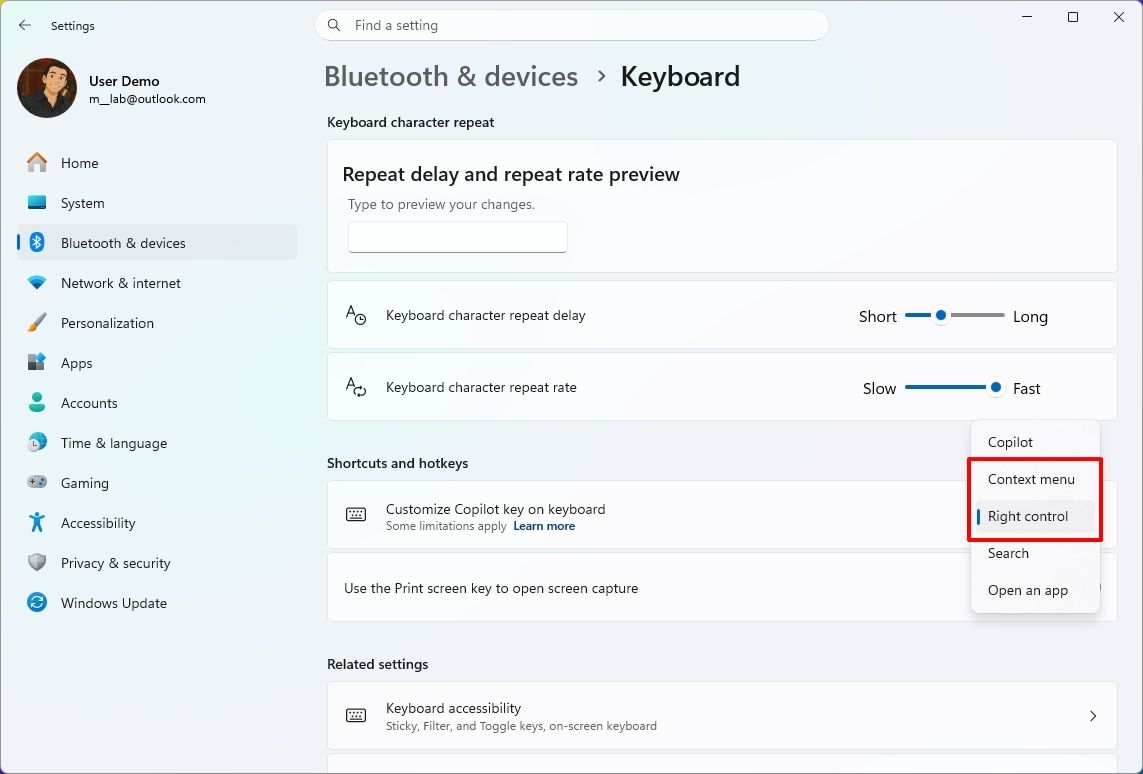
In Settings, you can now adjust touchpad controls and reassign the Copilot key to open Right Ctrl or the Context Menu.
Finally, the software giant is adding a new Tips widget, and the Windows Recovery Environment (WinRE) can now reuse your previously configured Wi-Fi credentials.
In this guide, I'll highlight the most significant changes in the October 2026 Security Update for Windows 11 versions 26H2, 25H2, and 24H2, since they are identical.
Windows 11's new features arriving in October
As usual, the company uses Controlled Feature Rollout (CFR) to roll out new improvements gradually, so it may take some time before you see them.
File Explorer changes
The updated version of File Explorer improves some areas of the experience. For example, the "Preview" pane now lets you preview downloaded HTML files after confirming the internet warning, while PDF files now show a preview automatically.
(Image credit: Mauro Huculak)
The Home page is also getting an update that lets File Explorer remember which sections you expanded or collapsed, so the next time you're on the page, you don't have to reconfigure the layout.
In the "Details" pane, the development team is improving thumbnail reliability for cloud files and reorganizing file properties for easier viewing.
Open apps maximized feature
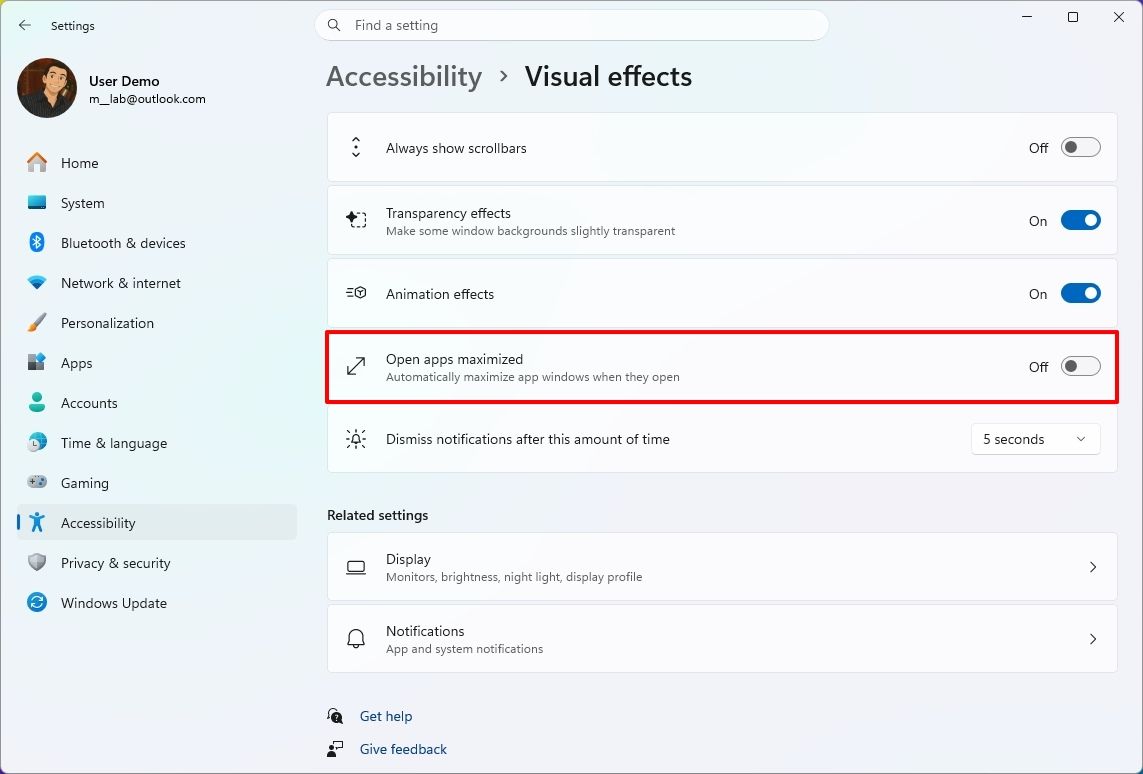
Microsoft is also rolling out a new feature known as "Open apps maximized," an accessibility feature that lets users choose whether apps should always launch maximized.
(Image credit: Mauro Huculak)
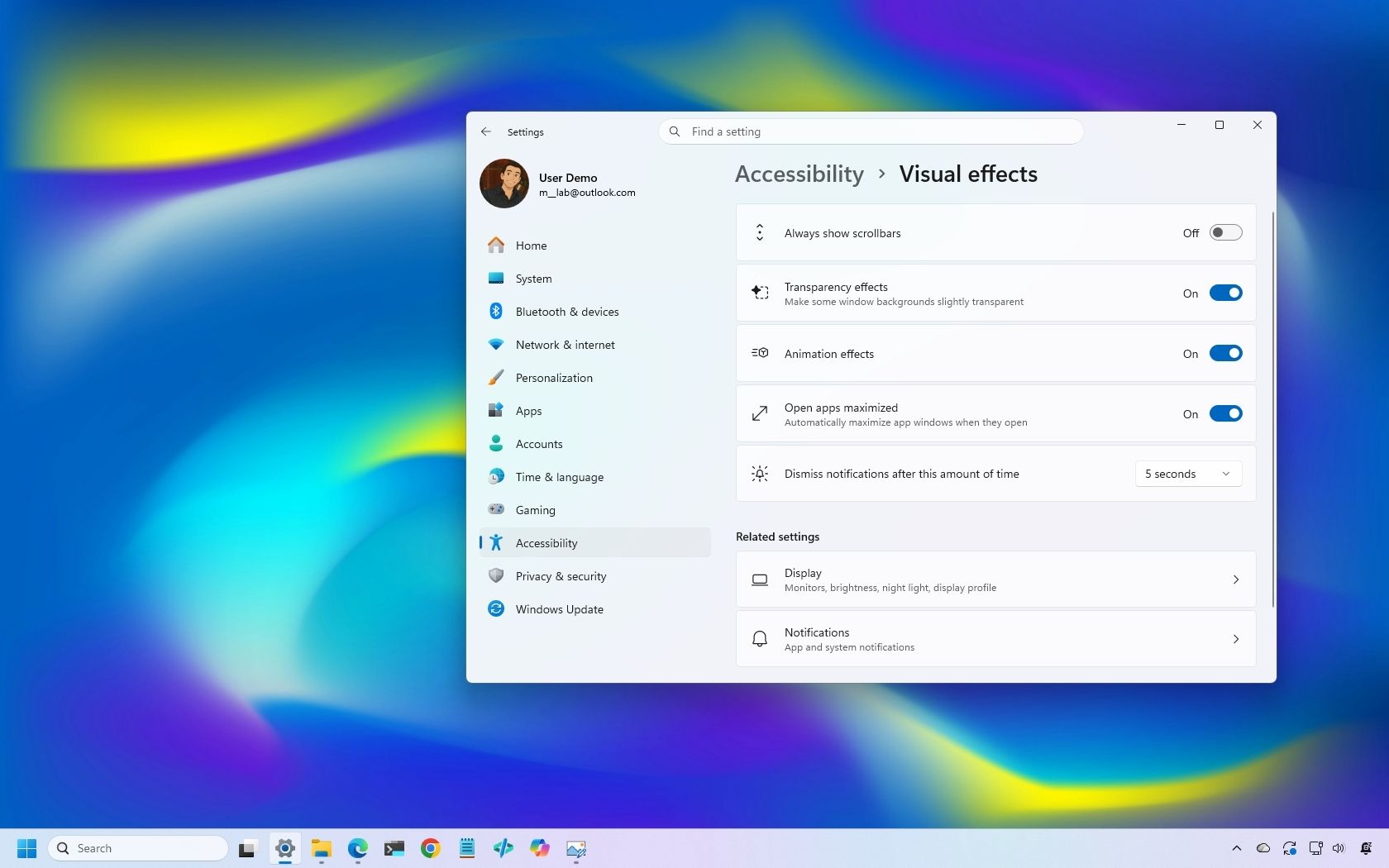
The "Open apps maximized" feature is available under Settings > Accessibility > Visual Effects. When you turn it on, the operating system automatically launches apps in maximized mode (not full-screen mode).
Magnifier refresh
The October update also brings a new version of the Magnifier with visual changes. For example, the toolbar icons now align with the Windows 11 design language.
(Image credit: Mauro Huculak)
In addition, the company is redoing the interface padding to give the experience more spacing across the toolbar for a more consistent layout.
Touchpad controls
In this quality update, if you have a precision touchpad, you'll be gaining two new options.
On Settings > Bluetooth & devices > Touchpad, you can configure the experience to scroll vertically with one finger from the left or right side of the touchpad, or keep scrolling by gesturing your finger upwards without lifting.
Copilot key remap new options
Although you can remap the Copilot key to different actions, this release adds the ability to remap it to "Right control" or the "Context menu" key, bringing Copilot devices to a more familiar keyboard experience.
(Image credit: Mauro Huculak)
You'll find the new "Right control" and "Context menu" options in the "Customize Copilot key on keyboard" setting on Settings > Bluetooth & devices > Keyboard.
Widgets with new Tips widget
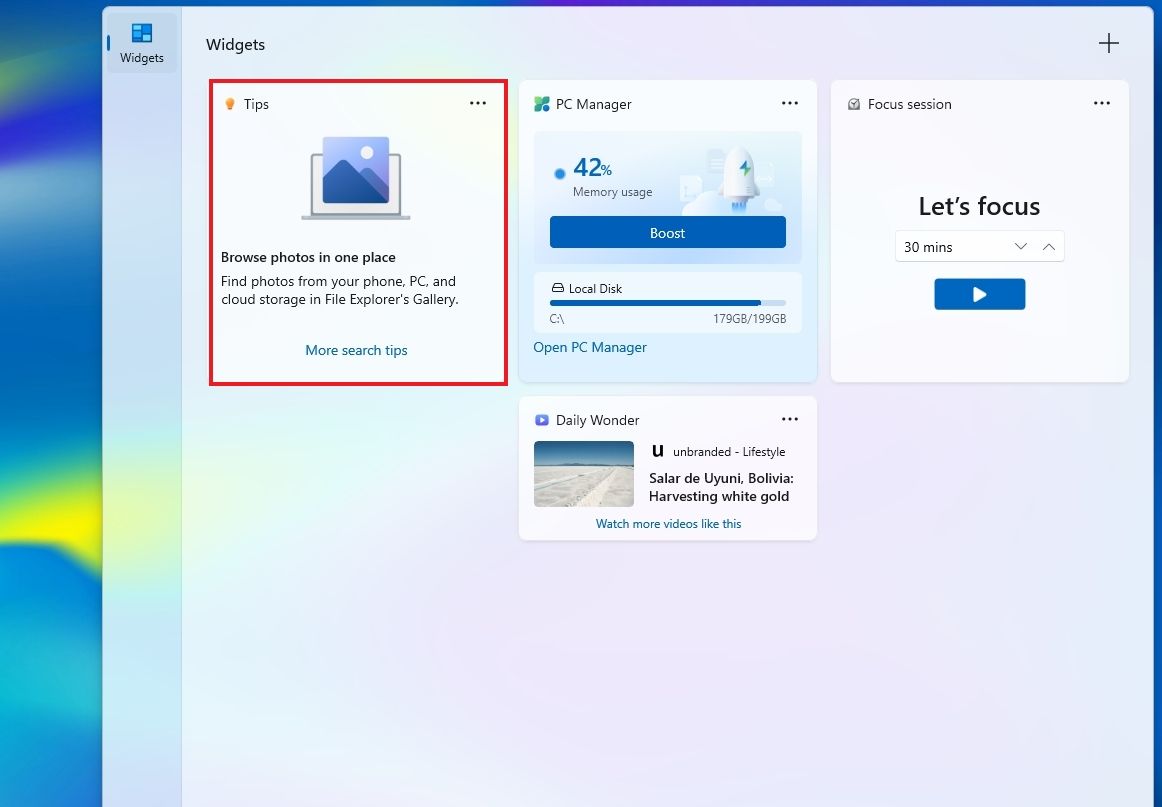
In the Widgets feature, the company is adding a new "Tips" widget that offers short tips about the operating system.
(Image credit: Mauro Huculak)
In the dashboard, you can add the widget from the "Add widgets" option. You can always place it on the Lock screen using the widget settings in Settings > Personalization > Lock screen.
WinRE with Wi-Fi support
As part of this release, Microsoft is also updating the Windows Recovery Environment (WinRE) to reuse Wi-Fi profiles already saved in the operating system.
Before this change, WinRE supported network connectivity only via an Ethernet connection or separately pre-configured Wi-Fi networks.
The change is now enabled by default, allowing the recovery environment to quickly connect to the internet using profiles already configured in the operating system, making it easier to access features like Quick Machine Recovery.
In addition, the company is adding a remote recovery management plugin to WinRE, extending its management features to MDM providers.
Other changes
Alongside the biggest improvements, the October 2026 Security Update includes other smaller changes that are also welcome additions.
For example, in the Personalization experience, Microsoft is improving the background experience with better transitions for changing wallpapers, and the preview now supports higher resolution.
The slideshow option improves transitions and works across multiple desktops.
As part of the Bluetooth changes, the operating system now improves how the system handles connections, audio, microphones, and settings.
In the Settings app, more specifically on the Home or Accounts page, you'll find a new "Camera Roll Backup" option to protect your photos with OneDrive.
The Ebrima font now supports the Garay and Beria Erfe scripts, and Emoji 17.0 is now available on Windows 11.
In Kiosk mode, the system now blocks additional shortcuts, such as the "Windows key + Tab," "Windows key + A," and "Windows key + C."
Finally, the company is removing the PC-to-PC Migration feature that lets users transfer files and settings directly from an old PC when setting up a new PC.
Windows Central's Take
I see this as a solid update because many changes make the operating system easier to use rather than adding another major feature people have to learn. The ability to open apps maximized and the new options to remap the Copilot key are small additions, but they give users more control over how their devices work.
The ability to reuse Wi-Fi connections with WinRE is probably even more useful when something goes wrong. I rarely think about recovery tools when everything is working, but when I need them, having the system connect to an already saved connection without extra setup can save time and make things easier.
I also appreciate the company continuing to make these smaller usability improvements. After years of system updates, the changes I appreciate most are usually the ones that remove a small annoyance rather than add more complexity.
More resources
Explore more in-depth how-to guides, troubleshooting advice, and essential tips to get the most out of Windows 11 and 10. Start browsing here:
As part of the September 2026 update, Microsoft is giving users more control over some of Windows 11's most visible features. The update introduces several customization options that let you change how the desktop works and make some of the default experiences less intrusive.Once you install the update on your computer, you'll be able to move the Taskbar to the top of the screen, adjust the size of the Start menu, and disable web results from Windows Search. The
As part of the September 2026 update, Microsoft is giving users more control over some of Windows 11's most visible features. The update introduces several customization options that let you change how the desktop works and make some of the default experiences less intrusive.
Once you install the update on your computer, you'll be able to move the Taskbar to the top of the screen, adjust the size of the Start menu, and disable web results from Windows Search. The options are part of Microsoft's ongoing Windows K2 work to make the desktop more customizable, and they're available through the Settings app.
In this how-to guide, I'll show you the easy steps to customize your desktop with features that are coming back to Windows 11.
Important: Starting with the September update, Microsoft is expected to begin gradually rolling out these features, meaning not every device will get them right away.
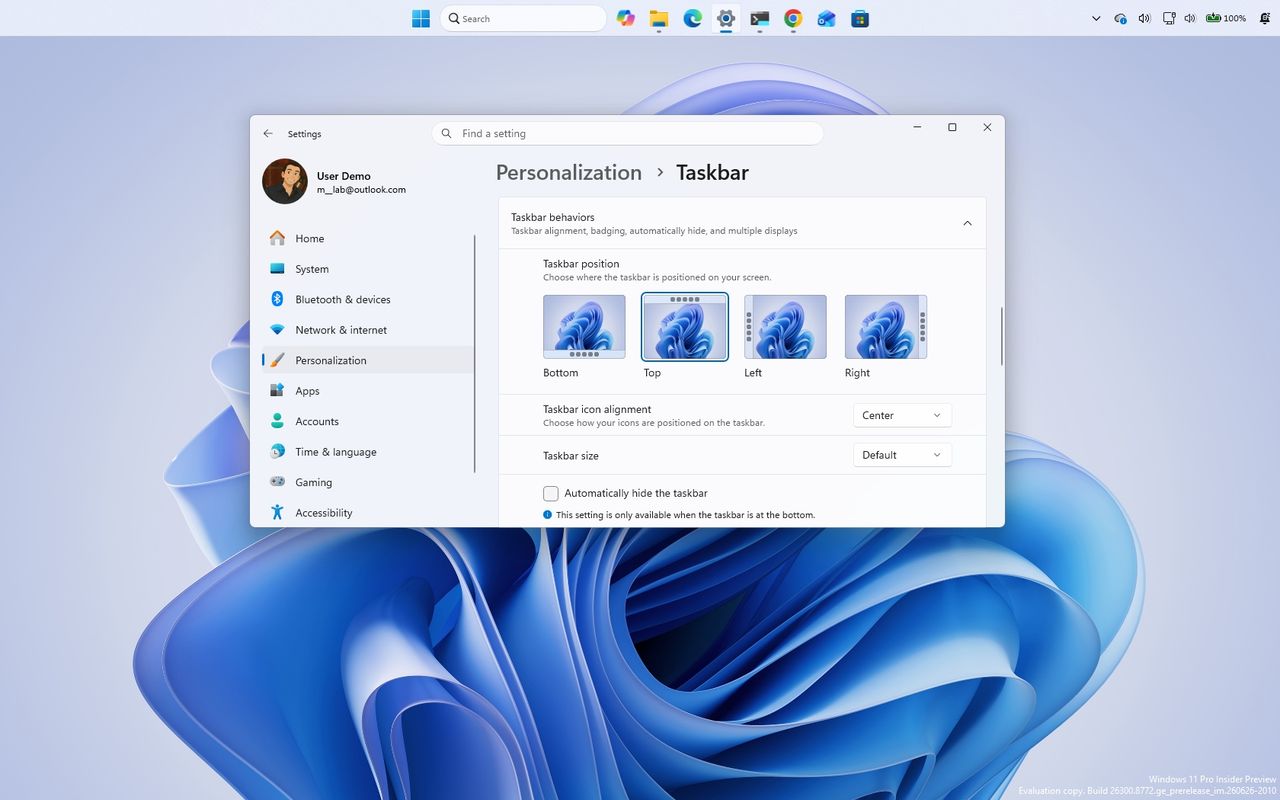
1. Place the Taskbar at the top of the screen
Starting with this release, the company begins a gradual rollout of changes that let you change the position and size of the Taskbar.
To change the Taskbar position, use these steps:
Open Settings.
Click on Personalization.
Click the Taskbar page on the right side.
Select the Taskbar position (including Bottom, Top, Left, and Right) under the new "Taskbar position" setting.
(Image credit: Mauro Huculak)
(Optional) Choose the Small option in the "Taskbar size" option to make the Taskbar and icons smaller and free up screen space on your desktop.
Once you complete the steps, the Taskbar will apply your current configuration, and flyouts, tooltips, and animations will continue to appear as expected based on the position.
(Image credit: Mauro Huculak)
However, I've noticed that docking the Taskbar on the left side also slides the Notification Center to the left, which many people find not ideal.
2. Change the Start menu size
Microsoft also lets users further customize the Start menu. As part of the new changes, you can finally change the Start menu sides, decide what sections appear in the menu, and hide your profile name and picture from the experience.
To resize the Start menu on Windows 11, use these steps:
Open Settings.
Click on Personalization.
Click the Start page on the right side.
Turn off the toggle switches for the sections you don't want to see in the Start menu.
(Optional) Choose whether the Recent section (formerly Recommended) shows recently added apps, recent and suggested files, and tips and app recommendations.
Quick tip: The "Show recent and suggested files" option works independently from the File Explorer file history.
Choose the Small or Large option in the "Start menu size" setting to change the menu size.
(Image credit: Mauro Huculak)
(Optional) Turn on the "Hide your name and profile picture on Start" toggle switch.
After you complete the steps, the new customization settings will apply to the Start menu for a more personalized experience.
(Image credit: Mauro Huculak)
3. Disable web results from Windows Search
Finally, Microsoft is also improving the Windows Search experience with several interface tweaks and, more importantly, with the ability to disable web results as well as Microsoft Store app suggestions.
To disable web results from Windows Search, use these steps:
Open Settings.
Click on Privacy & security.
Click the Search page on the right side.
Turn off the Web Searches toggle switch to prevent Bing results from appearing in searches under the "Show suggested search results" setting.
(Image credit: Mauro Huculak)
Turn off the Microsoft Store toggle switch to prevent app suggestions from the Store when performing a search.
Once you complete the steps, when performing a search, the results will focus on files, settings, and apps.
(Image credit: Future)
Windows Search also gets several usability improvements with the September update. The Search home experience is being simplified to reduce clutter and make recent searches easier to access.
Also, search results will make it clearer whether an item is an app, setting, file, web result, or Microsoft Store suggestion.
Finally, the operating system will additionally be able to automatically index frequently used folders, helping files from those locations appear more quickly in future searches.
Windows Central's Take
I like this update because it addresses a few of the areas where Windows 11 has felt unnecessarily restrictive since its original release. Being able to move the Taskbar, change the Start menu size, and finally remove web and Store suggestions from Search gives me more control over how I actually use the desktop instead of being forced into specific defaults.
The Taskbar change is probably the biggest deal for long-time users. I still think the ability to move it should have been there from the beginning, but bringing back that flexibility is better than continuing to defend the original Windows 11 design decision. The same goes for Search. If I'm looking for a file, app, or setting, I don't always want Bing or Store suggestions mixed into those results.
I wouldn't call these revolutionary changes, but that's exactly why I think they are important. A lot of people use the operating system differently, and these small controls can make the experience feel much more personal. I recommend changing them to fit your workflow. Microsoft is rolling them out gradually, so they may not appear immediately after installing the update.
What are your thoughts about these new customization options on Windows 11? Let me know in the comments.
More resources
Explore more in-depth how-to guides, troubleshooting advice, and essential tips to get the most out of Windows 11 and 10. Start browsing here:
Windows 11 is finally starting to look less like the operating system Microsoft wanted everyone to use, and more like the experience users have been asking for.It might sound like an overstatement, but look at what the company has been changing lately.Microsoft is giving users more control over the context menu. It's bringing back the ability to move and resize the Taskbar. It's giving users more control over the Start menu. And across the experience, the company
Windows 11 is finally starting to look less like the operating system Microsoft wanted everyone to use, and more like the experience users have been asking for.
It might sound like an overstatement, but look at what the company has been changing lately.
Microsoft is giving users more control over the context menu. It's bringing back the ability to move and resize the Taskbar. It's giving users more control over the Start menu. And across the experience, the company continues to modernize legacy tools without stripping away the functionality that made them useful in the first place.
These changes are part of the company's Windows K2 initiative, which is focused on improving Windows 11's performance, reliability, responsiveness, and overall experience. However, there's another theme running through some of these changes that deserves more attention.
Microsoft is giving users back some of the control it took away when it launched Windows 11. And frankly, it's about time.
Windows 11's biggest problem was never the new design
When Windows 11 first became available, Microsoft wanted the desktop to feel simpler, cleaner, and more approachable. That meant redesigning major parts of the shell, simplifying menus, and reducing what the company considered "unnecessary" complexity.
The problem wasn't that Windows 11 looked different. The problem was that Microsoft sometimes confused simplification with removing choices.
(Image credit: Mauro Huculak)
The redesigned context menu is probably the best example. Microsoft created a simpler menu that left out many existing commands, forcing users to open the classic menu to access them. However, over time, the modern menu started becoming cluttered again as more commands and app integrations were added, weakening the simplicity that was one of the reasons for the redesign in the first place.
(Image credit: Mauro Huculak)
The Taskbar lost several customization options. Users could no longer move it to the top or sides of the screen. The Start menu became more rigid. A lot of familiar pieces of the operating system were redesigned around the company's preferred workflow rather than the different ways people had used the desktop for years.
Microsoft's intentions were understandable, but the results weren't always convincing. For an operating system built around flexibility, Windows 11 sometimes felt surprisingly restrictive.
Now Microsoft is giving users more control again
That's why the latest context menu changes are more interesting than they initially appear. Microsoft isn't simply making the context menu faster and easier to use. It's giving users more control over how it works.
Users will be able to customize which actions appear, manage entries from apps separately, and control how certain commands show up in the experience. The development team is also working on an option to restore a more traditional vertical arrangement for primary actions, such as Cut, Paste, and Delete.
(Image credit: Mauro Huculak)
That's a significant change in how Microsoft is approaching the design of Windows 11. Instead of deciding exactly how everyone should use the context menu, the company is giving users more control over the experience.
We've seen similar changes across the operating system. Microsoft is bringing back Taskbar positioning and sizing options. The company continues to rethink the Start menu. It's also modernizing older components without necessarily throwing away the functionality users depend on.
(Image credit: Mauro Huculak)
The context menu isn't the only example, since the company is also giving users more control in other parts of the experience.
Microsoft is learning users don't all use the OS the same way
This is where I think the software giant got Windows 11 wrong. There is no single correct way to use the operating system.
For instance, some people want a clean desktop with as little clutter as possible. Others want every option available at their fingertips.
Some people want the Taskbar at the bottom. Others prefer it at the top or along the side.
(Image credit: Mauro Huculak)
Some users rarely use the context menu. Power users can depend on it dozens or even hundreds of times a day.
The operating system has always been able to accommodate those differences. That's one of the reasons the platform became so successful.
Microsoft doesn't need to force everyone into the same workflow to make the desktop easier to use. It can provide reasonable defaults while still letting people change the experience when they want to.
Microsoft shouldn't get too much credit for restoring what it removed
There is an important caveat here. I like where Windows 11 is heading, but Microsoft shouldn't get a free pass simply because it's restoring functionality that didn't necessarily need to disappear in the first place.
The Taskbar didn't need to lose its positioning options, and the context menu didn't need to become so restrictive. And that makes the current changes somewhat frustrating.
The company spent years moving Windows 11 toward a more controlled experience. Now, several years into the operating system's life, it's gradually bringing some of that flexibility back.
I'd rather Microsoft learn from this and not make the same mistake again.
Windows 11 doesn't need fewer choices
I don't think the company needs to turn Windows 11 into Windows 10 again. Windows 11 should look like Windows 11.
It should have its modern interface, new architecture, and new capabilities. Microsoft should keep improving the entire experience and continue modernizing older parts of the operating system.
However, modernization shouldn't mean reducing functionality. A modern component should ideally be better than the old one without being less capable. That's the standard Microsoft should stick to, and the context menu is a surprisingly good example.
If the company can give Windows 11 a cleaner, more modern context menu while also letting users decide which commands they want and how they want to access them, that's a much better solution than forcing everyone into the same interface.
The same principle should apply throughout Windows 11. The operating system should be easy to use by default while still giving users the flexibility to make it work the way they want.
Windows Central's Take
The most interesting thing happening to Windows 11 right now isn't another visual redesign or another collection of new features. It's that Microsoft appears to be reconsidering how much control it should take away from users.
That matters even more as the Windows K2 initiative continues pushing broader improvements to the operating system. Better performance, reliability, design, and responsiveness are important, but the way people interact with the elements and features matters just as much.
A faster operating system that makes people work around unnecessary restrictions isn't necessarily better.
What I appreciate about these changes is that Microsoft isn't simply trying to make Windows 11 look different. It's addressing some of the decisions that made the operating system feel less flexible than previous versions. The movable and resizable Taskbar, a more customizable Start menu, and now a context menu that users can configure all point in the same direction.
Microsoft is starting to recognize that Windows 11's problem wasn't that it gave users too many choices. It was that it sometimes took too many choices away.
That's the lesson I hope the company keeps in mind as the Windows K2 project continues. Make the operating system easy to use out of the box, but still give users the freedom to customize it and make it work the way they want.
More resources
Explore more in-depth how-to guides, troubleshooting advice, and essential tips to get the most out of Windows 11 and 10. Start browsing here:
In early August, Insiders didn't get off to a good start with previews, as the company didn't release any Windows 11 builds in the main testing channels, including Experimental and Beta, for more than 15 days. However, on August 17, Microsoft made five preview builds available across different channels and testing versions, with new features and changes.In this latest wave of previews, the company began public testing of a new fully customizable context menu. It
In early August, Insiders didn't get off to a good start with previews, as the company didn't release any Windows 11 builds in the main testing channels, including Experimental and Beta, for more than 15 days. However, on August 17, Microsoft made five preview builds available across different channels and testing versions, with new features and changes.
In this latest wave of previews, the company began public testing of a new fully customizable context menu. It also rolled out improvements for the background image experience, Magnifier, Camera Roll, and Get Started app.
Also, the company announced that starting with this wave of updates, the operating system will no longer ship the Windows Management Instrumentation Command-line (WMIC) and the Drag Tray feature.
In the Experimental track, we've seen builds 29648, 28120.2738, and 26340.9212, while in the Beta channel, the company announced 28020.2731 and 26220.9202.
In this recap, I'll highlight the latest and most noteworthy changes available through the Windows Insider Program.
Biggest improvements from the Windows Insider Program in August 2026
In this recap, I'll highlight the latest and most noteworthy changes available through the Windows Insider Program since my last roundup.
Redesigned context menu
So far in August, perhaps the biggest change is the redesigned context menu, which is now fully customizable, simpler, and faster.
(Image credit: Mauro Huculak)
The new design reduces the clutter as we have never seen in the menu while keeping common actions easy to access. When you right-click a file or folder to invoke the menu, you'll notice a new "App extensions" submenu that now houses those extra entry points from applications you have installed on your computer.
Also, there's a new "Customize menu" option that opens the new Context menu page in Settings > Personalization.
Under the "File actions" section, you can choose the options that you want to appear in the main context menu, such as "Send to," Print, Create shortcut, Copy as path, and Rotate image.
(Image credit: Mauro Huculak)
One thing to point out here is that the "Send to" and Print options are new to the modern menu design.
When you open the "App extensions" section, you can decide whether this submenu appears in the main menu. Also, you can choose which extensions from apps appear in the main menu.
(Image credit: Mauro Huculak)
Microsoft notes that it understands that many people have accumulated years of muscle memory from Windows 10. As a result, the new menu adds options to make it easier for those users by letting them arrange primary actions (such as cut and paste) vertically, instead of in the new horizontal view.
(Image credit: Mauro Huculak)
Also, you can place the "Properties" option at the bottom of the list, like in older versions of Windows.
Finally, it's also possible to restore the "Show more options" entry, or you can continue accessing the classic menu using the "Shift + Right-click" shortcut.
The new context menu options are available on build 26340.9212 for version 26H2 in the Experimental channel.
Personalization improvements
On Windows 11 build 26340.9212, the company is also polishing the desktop background experience with several fixes and improvements.
For example, on Settings > Personalization > Background, the page should now be more reliable, previews now render at higher resolution and display better on portrait monitors, and desktop slideshow transitions are more dependable, including on newly created accounts.
(Image credit: Mauro Huculak)
The system can now also improve the process of changing wallpaper quickly, use Device-Independent Bitmap (DIB) image files as backgrounds, and keep slideshow wallpapers enabled across multiple desktops instead of automatically switching back to Picture.
Camera Roll backup
Also, on build 26340.9212, Microsoft is making it easier to protect your pictures by adding new entry points in Settings > Home and Accounts that let you set up Camera Roll backup, which automatically backs up photos and videos from your mobile device to OneDrive.
Magnifier interface update
Magnifier is getting a cleaner look without changing how the accessibility tool works.
(Image credit: Mauro Huculak)
Microsoft has refreshed the toolbar icons to better match the operating system's visual design and refined the spacing and padding for a more polished layout.
This update is currently available only in version 26H2, starting with the release of build 26340.9212.
Windows Recovery Environment changes
Windows Recovery Environment (WinRE) is getting a useful networking upgrade that can automatically reuse eligible Wi-Fi profiles saved in the operating system, including supported certificate-based networks.
In the past, this recovery mode could automatically connect to wired unauthenticated Ethernet or separately preconfigured Wi-Fi, while other WPA2/WPA3 networks required manually entering a password.
In this update, recovery workflows such as Quick Machine Recovery or cloud rebuilds can get online without manual interaction, without having to reconfigure Wi-Fi credentials.
The behavior is enabled by default, although technical users can disable it if needed.
Windows 11 features removed
In this wave of updates across all channels, Microsoft is no longer shipping Windows Management Instrumentation Command-line (WMIC) and the Drag Tray feature.
In this release, the legacy Windows Management Instrumentation Command-line (WMIC) tool is no longer included as Microsoft continues its broader effort to phase out WMIC from the operating system, pushing users toward newer management tools.
One thing to point out about WMIC is that Microsoft isn't removing WMI. Only the "wmic.exe" command-line utility will no longer be included in the operating system. WMI remains available through PowerShell and other supported utilities.
(Image credit: Mauro Huculak)
Microsoft is also pulling the plug on the Drop Tray experience from this build after hearing feedback from users. The company says it'll continue exploring improvements in this area and plans to share more about a future replacement in a later update.
File Explorer improvements
In Windows 11 build 26220.9202 for version 25H2 (Beta), File Explorer gets a small but noticeable usability boost.
For example, the "Home" page now launches faster and feels more responsive, while the "Recommended" section supports touch scrolling, making it easier to browse files in the carousel.
Microsoft also fixed an issue that caused previews to display an unexpectedly thick band across the middle.
Windows Security app changes
Finally, the company is making small visual adjustments to Windows Security to better align the app with the other Windows 11 experiences.
(Image credit: Mauro Huculak)
On Windows 11 build 29648, testers may notice subtle differences as more changes roll out. However, after installing this update on my machine, I failed to notice anything different in the app.
On managed devices with Microsoft Defender for Endpoint enabled, information about the protection will now appear at the top of the "Virus & threat protection" page.
Windows Central's Take
Although Microsoft kept Insiders without preview builds for the first half of August, the latest updates are still worth the wait because the company is finally giving users more control over parts of the experience it previously tried to simplify. The customizable context menu is the most significant change, especially because it acknowledges that users don't necessarily want the company's preferred layout forced on them.
I'm also glad the improvements aren't limited to interface changes. The improvements to desktop backgrounds, File Explorer, and WinRE address small frustrations that can make the experience feel inconsistent over time.
I wouldn't rush to install an Insider build just for these changes, but the direction is encouraging. Microsoft is giving Windows 11 more flexibility while continuing to modernize the parts of the operating system that have fallen behind.
What are your thoughts about these latest Windows 11 changes? Let me know in the comments.
More resources
Explore more in-depth how-to guides, troubleshooting advice, and essential tips to get the most out of Windows 11 and 10. Start browsing here:
Microsoft is finally paying more attention to some of the oldest parts of Windows 11, and I hope it doesn't stop with the obvious ones.For years, the operating system has had a strange split personality. Some parts of the system look and feel as if they were designed specifically for Windows 11, while others still feel like they were carried over from much older versions. But that's slowly starting to change.Microsoft has been modernizing parts of Windows 11 for
Microsoft is finally paying more attention to some of the oldest parts of Windows 11, and I hope it doesn't stop with the obvious ones.
For years, the operating system has had a strange split personality. Some parts of the system look and feel as if they were designed specifically for Windows 11, while others still feel like they were carried over from much older versions. But that's slowly starting to change.
Microsoft has been modernizing parts of Windows 11 for years, gradually updating interfaces that have remained largely unchanged. We've seen this work arriving in the Run dialog, Task Manager, shell controls, parts of File Explorer, and many other areas. Recently, however, Microsoft has been talking more openly about the challenges of modernizing deeply embedded components and developing the tools and frameworks needed to make that work easier without breaking the functionality people still depend on.
That's encouraging because I don't think the operating system needs another redesign just for a new coat of paint. There are much more important parts that deserve Microsoft's attention.
In particular, there are three classic tools I would like to see Microsoft modernize next, including Device Manager, Event Viewer, and Services.
And when the company eventually gets to work on these tools, I don't want "cheap" replacements that hide the advanced options. I want modern designs that preserve everything the existing tools can do while making them considerably easier to use.
In this guide, I'll highlight the legacy tools I want the company to update with a design that aligns with the style of Windows 11.
1. Device Manager
Device Manager is probably the most obvious place for Microsoft to continue.
It remains one of the first places I go when troubleshooting hardware or driver problems. Yet the experience has barely evolved compared with the rest of the system.
(Image credit: Mauro Huculak)
The basic workflow still revolves around expanding a tree of hardware categories, right-clicking a device, opening properties, and digging through a collection of tabs.
It works, but it doesn't feel like a modern tool a regular user would use. Microsoft could turn Device Manager into a much more useful hardware management experience without removing any of its existing capabilities.
I would like to see a modern hardware manager with a proper search box, better filtering, and a more useful device overview.
For example, selecting a graphics card could immediately show the device name and manufacturer, the current driver version and date, and the device state, in addition to options to roll back, uninstall the device, and enable controls.
The important part is that Microsoft shouldn't simply move the existing tree into a prettier WinUI 3 window.
It should rethink how the information is presented. If the system knows a device isn't working correctly, I shouldn't have to hunt through several tabs to find out. The interface should tell me.
Something as simple as a clear status indicator saying "This device is working normally" or "Windows detected a problem with this device" would make the tool considerably more approachable.
At the same time, the company should retain the advanced information that administrators and enthusiasts rely on.
2. Event Viewer
Event Viewer is one of those tools that has plenty of useful information, but finding the information you actually need can be difficult, especially for someone who doesn't use the tool every day.
(Image credit: Mauro Huculak)
The bigger problem is that Microsoft already has a better way to understand system problems. Reliability Monitor. It gives you a timeline of crashes, warnings, and other problems, making it much easier to see when something went wrong. However, when you need more details, you're sent back to Event Viewer.
(Image credit: Mauro Huculak)
That's where I think Microsoft could do better. Instead of maintaining separate experiences, the company could combine the best parts of Reliability Monitor and Event Viewer into one modern troubleshooting tool.
For example, I should be able to see a timeline of Windows 11 and app problems, search and filter events, group related events, and quickly identify crashes, driver problems, and service failures.
3. Services
The Services console is another tool I'd like the company to modernize, but not because it lacks information. The existing tool already gives you a lot.
(Image credit: Mauro Huculak)
In the Extended view, I can select a service and see its description, while the main list shows its status and startup type. Opening the properties gives me even more options, including dependencies, recovery settings, and the account used to run the service.
The problem is that the overall experience still feels like a management console from another era. For example, search could be one of the new features that should make it possible to search for Windows Update, Bluetooth, networking, or even an executable name and quickly find the related services.
Dependencies could also be easier to understand. The information is already there, but I have to open the properties and look through another tab to see it. A modern interface could show those relationships more clearly.
That would be especially useful when troubleshooting. If one service isn't working because another isn't running, Windows 11 could make that relationship clear instead of leaving me to figure it out myself.
I don't want the company to simplify Services by removing its advanced options. I want it to keep everything that's already there and make the tool easier to search, navigate, and understand.
And then there's Task Scheduler
Task Scheduler is another example in which Microsoft already has many of the pieces I would want in a modern tool.
The Create Basic Task wizard makes creating a simple task relatively straightforward. It walks you through the task's name and description, when it should run, what triggers it, and what action it should perform. The problem comes when you need to go beyond the basics.
The full Task Scheduler interface offers a large number of options across multiple tabs, making it difficult to understand how everything fits together. Triggers, actions, conditions, settings, history, and security options are all there, but the experience hasn't evolved much. And that's where I think Microsoft could make a difference.
In this case, I wouldn't want the company to change those advanced options. Instead, it could build a modern interface around them, making it easier to understand what a task does, why it runs, what it launches, and whether it's working correctly. All, while keeping the existing advanced configuration available when needed.
Again, the functionality isn't necessarily the problem. The experience is.
I'm fine with Microsoft moving Disk Management into the Settings app because it's already heading in that direction with Disks & volumes.
The same applies to Computer Management. I don't think the company needs to create a modern version of the entire console. A lot of the tools inside it already exist separately, including Device Manager, Services, Event Viewer, and Task Scheduler.
The parts that remain particularly useful, such as Shared Folders and Local Users and Groups, could eventually receive their own modern experiences. Or these could become part of the "Accounts" settings.
Microsoft doesn't need to reinvent these tools
I don't expect the software giant to rebuild every classic utility from scratch. I also don't think every legacy tool needs to disappear.
Some of these tools exist because the operating system has accumulated decades of functionality, compatibility requirements, and enterprise dependencies. Microsoft has already acknowledged that replacing deeply integrated components isn't as simple as building a new interface and deleting the old one because of functionality and compatibility.
That's why I like the direction Microsoft appears to be taking. The company recently indicated that it is looking to modernize the Registry Editor, one of the oldest and most recognizable administrative tools in the operating system. At the same time, the company has already been experimenting with a new Print Management app inside Windows 11 Insider builds, showing that some of these long-standing management experiences can be replaced with dedicated modern apps rather than simply being given a new coat of paint.
Microsoft doesn't need to modernize the operating system by throwing away everything that came before it. It can take the functionality people already depend on, put it behind a better interface, and gradually roll these experiences into Windows 11.
Device Manager, Event Viewer, and Services would be a very good place to start.
If the company can modernize those tools while preserving the advanced functionality that makes them useful, I'll take that over another visual refresh any day.
Which classic tool do you think Microsoft should modernize next, and what would you change about it? Let me know in the comments.
More resources
Explore more in-depth how-to guides, troubleshooting advice, and essential tips to get the most out of Windows 11 and 10. Start browsing here:
When Microsoft made the launch of Windows 11 back in October 2021, the company touted it as the biggest visual redesign of the operating system in years. The centered Start menu, redesigned Taskbar, rounded corners, and refreshed interface gave the system a cleaner, more modern look while introducing new productivity features like Snap Layouts and a redesigned Microsoft Store.Although the operating system now looked fresh and modern, the first release left plenty
When Microsoft made the launch of Windows 11 back in October 2021, the company touted it as the biggest visual redesign of the operating system in years. The centered Start menu, redesigned Taskbar, rounded corners, and refreshed interface gave the system a cleaner, more modern look while introducing new productivity features like Snap Layouts and a redesigned Microsoft Store.
Although the operating system now looked fresh and modern, the first release left plenty of room for improvement. A lot of the features that users were familiar with from Windows 10 were either missing or had been scaled back. File Explorer did not have tabs, the Taskbar lost several customization options, and many advanced settings still sent users to the Control Panel.
Furthermore, even the new right-click menu could make simple tasks take an extra step. Also, adding to the mix were some early performance problems and a mix of new and old interfaces, and Windows 11 often felt like an operating system that was still being put together.
Five years later, the operating system has evolved considerably. Microsoft has delivered annual feature updates, dozens of cumulative updates, thousands of bug fixes, and an expanding set of AI-powered capabilities. Along the way, the company has restored requested features, improved performance, modernized more of the interface, and refined many of the areas that drew criticism at launch.
That doesn't necessarily mean every change has been for the better. While the operating system has become faster, more capable, and more polished, Microsoft has also introduced new requirements and experiences that some users view as steps backward, such as a greater emphasis on Microsoft accounts and online services during setup.
So, how different is Windows 11 today compared to the version that debuted in 2021?
In this guide, I'll compare the two side by side to see how much the operating system has really changed over the past five years.
This comparison includes features and changes that Microsoft is still rolling out or developing at the time of this writing. Some features may not yet be available on all devices and could change before they become generally available in future Windows 11 updates.
Windows 11 first impressions
The desktop is probably the easiest place to see how the operating system has changed. When Microsoft introduced Windows 11, it brought a new visual style with rounded corners, updated icons, a centered Taskbar, and a simpler overall look. It was a noticeable change from its predecessor, but some parts of the experience still felt unfinished behind the new design.
Five years later, the desktop remains instantly recognizable, yet it feels far more polished. The software giant has refined the Taskbar, improved the Start menu, modernized more system components, and added new AI-powered experiences, all while making the operating system faster and more consistent.
The transformation isn't defined by a single feature. Instead, it's the result of hundreds of incremental improvements that have gradually turned Windows 11 into a more complete operating system.
In 2026, at first glance, Windows 11 still retains the familiarity of the version released back in 2021. You can see this in the centered Taskbar, rounded corners, and overall design are still there. However, you can notice the changes once you start using it.
The company has also brought back features that were missing at launch, added new options, and made many everyday tasks feel quicker and easier.
Start menu: From basic to more flexible
On Windows 11, the Start menu was one of the most controversial redesigns. In this new version, Microsoft replaced the Live Tiles with a simpler launcher focused on pinned apps and recommended content.
Although the cleaner look matched the new design language, it also removed many of the customization options users had relied on.
Windows 11 (2021)
The original Start menu prioritized simplicity over customization. It introduced a centered layout with pinned apps and recommendations. However, users couldn't resize the menu, hide recommendations completely, or organize the elements as freely as they could on Windows 10.
For many people, it felt more like an app launcher than the central hub users were accustomed to.
Windows 11 (2026)
Today, the Start menu keeps the same visual identity but offers considerably more control. Microsoft has added Small, Large, and Automatic size options, giving users more control over how much space the menu takes up. The company has also improved the organization of pinned and recent content and added more controls for customizing what appears in the menu.
Although it still doesn't replicate the Start menu from Windows 10, the newer design strikes a better balance between simplicity and flexibility.
Taskbar: It had to be rebuilt
The Taskbar quickly became one of the biggest complaints about Windows 11. Although Microsoft modernized its appearance with centered icons and a simplified design, it also removed several long-standing features that many users considered essential.
Windows 11 (2021)
The first version of the Taskbar focused on a cleaner interface but came with significant compromises. For example, features such as drag and drop, app labels, and the never combine option were removed, the right-click menu was reduced to a single shortcut, and the Taskbar could no longer be moved to other edges of the screen.
While the redesign looked modern, it also disrupted the familiar workflows.
Windows 11 (2026)
Microsoft spent the following years restoring many of the missing capabilities and adding more control. Also, the drag-and-drop support was added back, app labels and never combine became available again, and the system tray gained additional refinements and customization options. Microsoft has also brought back the ability to change the Taskbar's position, allowing it to be placed at the top, left, or right of the screen.
The Taskbar still follows the same basic visual design introduced in 2021, but it is now far more practical and customizable for everyday use.
File Explorer: From missing essentials to modern
File Explorer is one of the examples that shows how the operating system matured over the years. The version of the file manager introduced a modern interface with new icons and a simplified command bar, but many of the productivity features users expected were still missing. It looked modern, yet much of the experience remained familiar.
Since then, Microsoft has expanded File Explorer with features that make everyday file management more useful. The company added tabs, Gallery, better cloud integration, improved thumbnails, and several smaller changes that make browsing and managing files easier.
Windows 11 (2021)
At launch, File Explorer received one of the first major visual updates in years. Microsoft replaced the traditional Ribbon interface with a cleaner command bar, updated icons, and a simplified design that matched the rest of the operating system.
(Image credit: Mauro Huculak)
However, the redesign was mostly cosmetic. A lot of the improvements users had been requesting were still missing. File Explorer launched without tabs, navigation between folders could feel slower than expected, and the redesigned context menu often required an extra step to access older commands. The experience looked more modern, but it still felt like a transition between the old and new versions of Windows.
For many users, File Explorer represented the broader Windows 11 launch experience. It had a refreshed appearance, but it still needed more time to mature.
Windows 11 (2026)
Five years later, File Explorer has become one of the strongest examples of Microsoft's gradual modernization effort. The company has added tabs, Gallery, a redesigned Home experience, improved thumbnails, better cloud integration, and clearer file-size information. Users can also middle-click to open folders in new tabs, making navigation more convenient.
(Image credit: Mauro Huculak)
Performance has also become a major focus. Everyday tasks such as opening folders, switching between tabs, loading previews, and searching through files feel more responsive compared with the original release.
While some legacy elements remain, File Explorer on Windows 11 (2026) feels much closer to the modern file manager Microsoft has been building toward. It keeps the familiar workflow while adding many of the productivity features users had expected for years.
Settings: The long transition
The Settings app has been one of the longest-running modernization projects for the company. When the new version of the operating system launched, Microsoft continued moving options away from the traditional Control Panel and into a redesigned Settings experience. However, the transition was far from complete.
The experience for configuring the system was inconsistent because some settings felt modern and easy to navigate, while others still redirected users to older interfaces. Five years later, Microsoft has continued expanding Settings, adding more controls, improving navigation, and reducing the number of times users need to open legacy tools.
Windows 11 (2021)
Originally, the Settings app received a refreshed design with a new navigation layout, updated pages, and a cleaner interface that matched the operating system's visual changes.
However, the modernization was far from complete. A lot of advanced options still opened Control Panel or older dialog boxes, creating an inconsistent experience. Finding specific options could also be frustrating because some controls were organized differently compared to Windows 10.
The Settings app represented one of the biggest challenges Microsoft faced with Windows 11. The company wanted to create a modern management experience, but decades of legacy components made a complete transition difficult.
Windows 11 (2026)
Five years later, the Settings app has become a much more capable replacement for many traditional Control Panel experiences. Microsoft has continued moving features into Settings, improved search, reorganized pages, and added more controls for managing devices, personalization, accounts, and system features.
The experience is more consistent than it was at launch, especially for everyday tasks such as managing displays, Bluetooth devices, power settings, personalization, and Windows Update.
However, the transition is still not fully complete. For instance, some advanced tools and legacy configuration pages still exist, and that shows that modernizing the operating system is a gradual process that must also maintain compatibility with older features and apps.
Productivity: Smarter Search, multitasking, and Widgets
One of the goals with the release of Windows 11 was to make everyday tasks easier, whether users were looking for files, managing multiple apps, or getting information without opening additional apps. At launch, the operating system introduced features such as Snap Layouts and Widgets, while Windows Search continued the experience users already knew on Windows 10.
However, many of these features were still in their early stages. Search relied mostly on keywords, Snap Layouts offered useful but limited window management, and Widgets focused heavily on news and Microsoft services.
Today, these experiences have improved considerably. Microsoft has expanded Search, refined multitasking tools, and added more controls to Widgets. Together, these changes show how Windows 11 has developed beyond its original desktop redesign.
Windows 11 (2021)
In the original release, Microsoft introduced several features designed to improve productivity, but many were still in their early stages.
Windows Search provided a familiar way to find apps, settings, and files, but it relied mainly on traditional keyword matching and could sometimes struggle to return useful results quickly.
(Image credit: Mauro Huculak)
Snap Layouts was one of the more useful additions, giving users predefined window arrangements that made multitasking easier. However, the feature offered fewer layout options and less flexibility than the experience available today.
(Image credit: Mauro Huculak)
Widgets introduced a new way to access information from the desktop, but the original implementation focused heavily on news, weather, and Microsoft services. For many users, it felt more like an information panel than a productivity tool.
Windows 11 (2026)
Today, Microsoft has expanded these features and added more ways to get things done.
Windows Search now includes improvements such as better indexing, typo correction, improved local results, and AI-powered capabilities on supported devices. Recent updates have also improved how Search handles short queries and understands what users are looking for.
Microsoft has also introduced AI-powered capabilities for finding and changing settings on supported devices, allowing some configurations to be located and applied more easily.
(Image credit: Mauro Huculak)
The company is also working on a new search experience that replaces Windows Search with Ask Copilot in the Taskbar, using AI and natural language to search for files, settings, apps, and virtually anything else.
Snap Layouts has matured with better layout suggestions and improved support for larger displays and multiple monitors, making it easier to arrange several applications.
(Image credit: Mauro Huculak)
Widgets have also gained more personalization options and additional integrations. While news and information remain part of the experience, users have more control over what appears in the panel.
Copilot and AI: The biggest change?
Microsoft's decision to integrate AI into Windows 11 is perhaps the biggest difference between the 2026 and 2021 versions. When the company introduced the operating system, AI was not part of the desktop experience. The focus was on a redesigned interface, productivity improvements, and a more modern foundation.
Over the following years, the software giant shifted the operating system into a platform powered by AI. Copilot became part of the operating system, new AI features arrived on Copilot+ PCs, and Microsoft began integrating AI into areas such as search, accessibility, creativity, and system interactions.
The change has been significant, but it has also created a new debate around Windows 11. While some users see AI as the next major step for personal computing, many others question whether these features improve everyday tasks or add more complexity.
The comparison below shows how Windows 11 evolved from an operating system without built-in AI experiences into one designed around the company's vision of intelligent computing.
Windows 11 (2021)
Originally, AI was not a central part of the operating system. The experience focused on traditional desktop features.
Windows Search remained a conventional tool based mostly on keywords and indexing. Voice features, accessibility tools, and system assistance existed, but they were not powered by the newer AI capabilities Microsoft would introduce later.
The original Windows 11 experience also lacked dedicated AI hardware features. There were no Copilot+ PCs, no built-in AI assistant integrated into the desktop, and no local AI models designed to run directly on compatible devices.
At the time, Windows 11 represented a visual and usability redesign. AI would become the next major chapter in its evolution.
Windows 11 (2026)
Several years later, AI has become one of the defining parts of Windows 11. Microsoft introduced Copilot as an integrated assistant and expanded AI capabilities across the operating system, especially on newer Copilot+ PCs with dedicated neural processing units (NPUs).
Modern Windows 11 includes AI-powered experiences such as improved Search, Recall, Click to Do, enhanced voice features, and creative tools designed to help users complete tasks faster. Accessibility has also benefited from AI through improved voice interaction, captions, and other assistive features.
(Image credit: Mauro Huculak)
The biggest change is that the operating system is no longer only reacting to commands. Microsoft is building toward an operating system that can understand context and help users complete tasks more naturally.
However, AI has also become one of the most debated parts of Windows 11. Features like Recall and increased integration with Microsoft services have raised questions about privacy, control, and whether every user wants AI built into their everyday computing experience.
Performance: Why Windows 11 feels different
Performance was one of the biggest concerns surrounding Windows 11 in its early days. The operating system looked modern, but some users encountered sluggish animations, slow File Explorer responses, high memory usage, and inconsistent responsiveness. For an operating system built on the same Windows 10 foundation, those problems made the visual redesign feel less convincing.
Microsoft has spent the years since launch improving responsiveness, resource management, and overall reliability. The company has also made performance a major focus of its broader Windows K2 work, with improvements designed to make everyday interactions feel faster without requiring more powerful hardware.
The difference is not always something that can be captured in a screenshot. Unlike the Start menu or File Explorer, performance is something users experience through hundreds of small interactions throughout the day.
Windows 11 (2021)
The original release could feel less responsive than Windows 10 on some systems, particularly during everyday tasks such as opening File Explorer, switching between windows, or interacting with the Taskbar and Start menu.
Some of these problems were related to animations and transitions that could feel sluggish. File Explorer also experienced performance issues in early releases, while memory management and background processes could cause responsiveness issues on systems with limited resources.
The result was an operating system that sometimes looked faster and more modern than it actually felt.
Windows 11 (2026)
Half a decade of updates have made Windows 11 a more responsive operating system. Microsoft has optimized core components, improved File Explorer performance, refined animations, and continued to reduce the delays users experienced in earlier releases.
Recent work under the Windows K2 initiative has placed an even greater emphasis on responsiveness, resource management, reliability, and reducing unnecessary overhead. Microsoft has also introduced improvements designed to make interactive tasks feel faster without simply relying on more powerful hardware.
Windows 11 is not universally faster on every piece of hardware, but the overall experience is considerably more mature than it was at launch. A lot of the small delays that made the 2021 release feel unfinished have either been reduced or eliminated. However, a lot of work still needs to be done.
Security and accessibility: Stronger protection
Security and accessibility have both evolved significantly since the first release of the operating system. In 2021, the company made hardware-backed security a bigger part of the operating system by requiring features such as TPM 2.0 and Secure Boot.
Also, accessibility tools such as Narrator, Magnifier, and Voice Access provided the foundation for a more inclusive experience. Now, in 2026, Windows 11 offers stronger security protections and more accessibility features.
For example, Microsoft has expanded Windows Hello, introduced Enhanced Sign-in Security, improved voice and captioning experiences, added Administrator Protection, and added AI-powered capabilities that can make the operating system easier to use for people with different needs.
Windows 11 (2021)
Security was one of the defining changes in the original Windows 11 release. Microsoft required TPM 2.0 and Secure Boot on supported systems and continued promoting Windows Hello as a more secure alternative to traditional passwords.
The operating system also included a strong foundation for accessibility, with tools such as Narrator, Magnifier, and high-contrast options. Voice Access was available in a more limited form, while features such as Live Captions were still relatively new.
At launch, the focus was largely on establishing stronger hardware-backed security and improving the accessibility features already available in the system.
Windows 11 (2026)
Security has become more deeply integrated into the experience. Microsoft has expanded protections such as Windows Hello Enhanced Sign-in Security, improved support for passkeys, added Administrator Protection, and strengthened defenses against malicious applications and other threats.
Accessibility has also become more capable. Voice Access provides more natural ways to control the desktop experience, Live Captions have become more useful, and newer AI-powered capabilities can help users interact with the operating system in ways that were not possible in 2021.
The biggest change is that security and accessibility are no longer just collections of separate tools. They are increasingly built into the way Windows 11 works, from how users sign in and protect their devices to how they interact with the desktop.
Setup experience: From easier to more connected
The Windows 11 setup experience has changed in an important way since 2021. The original release already encouraged users to connect their devices to the internet and use a Microsoft account. However, it was still possible to find ways around the requirement and create a local account. The option was not always obvious, but users had more control over how they configured a new installation.
By 2026, Microsoft has pushed the setup process further toward a connected experience. Internet access and a Microsoft account have become more central to the Out-of-Box Experience (OOBE). In contrast, local account setup has become increasingly difficult to access through the normal setup process.
This makes the setup experience one of the areas where Windows 11 has not simply evolved, but has also changed how people should use the operating system.
Windows 11 (2021)
The original setup process introduced a stronger push toward Microsoft accounts and online connectivity, particularly on Windows 11 Home. However, users could still create a local account by finding the appropriate setup option or using workarounds when the option was not immediately presented.
That gave users more flexibility when setting up a computer without wanting to connect their installation to Microsoft's cloud services.
The setup experience was also relatively straightforward once the initial account and network requirements were handled. The emphasis was on getting the system ready to use rather than introducing users to a growing collection of online services.
Windows 11 (2026)
The setup experience is now much more tightly connected to Microsoft's online ecosystem. The company has continued to make a Microsoft account and an internet connection central requirements for setting up Windows 11, while eliminating the local account option for home consumers.
This approach makes it easier to connect services such as OneDrive, Windows Backup, Microsoft Store, and other account-based features from the beginning. However, it also gives users less choice during setup, particularly those who want a traditional local offline account.
The change is significant because it reflects a different perspective from Windows 11, which launched in 2021. Microsoft is no longer treating the computer as an isolated device. It increasingly sees the operating system as part of a connected Microsoft account and cloud ecosystem.
What Windows 11 still hasn't fixed
Five years of updates have transformed Windows 11, but the operating system is still not completely consistent. Microsoft has modernized many of the areas that felt outdated at launch, yet some of the same problems that frustrated users in 2021 remain in one form or another.
The difference is that these issues are no longer spread across the entire operating system. They are increasingly concentrated in specific parts of Windows 11, particularly areas where Microsoft has to maintain compatibility with decades-old components and applications.
Windows 11 (2021)
The original release exposed many of these inconsistencies. Windows 11 introduced a modern Settings app, but many advanced options still opened in the older Control Panel experience and legacy dialogs. Different parts of the operating system often followed different design rules, making the experience feel like a mix of new and old.
Microsoft also faced criticism over limited customization, aggressive Microsoft account integration, and the reduction of familiar features.
Windows 11 (2026)
Windows 11 is considerably more polished, but some of those issues remain.
Legacy components are still visible in parts of the operating system, particularly advanced configuration tools and older dialogs.
Control Panel has not completely disappeared. Microsoft has moved many settings into the Settings app, but some functionality still depends on legacy interfaces.
Microsoft account integration is stronger. This makes services such as OneDrive, Windows Backup, and Microsoft Store easier to connect, but users who prefer a local account have fewer obvious choices during setup.
AI remains controversial. Microsoft has added AI to more parts of the operating system, but not everyone wants an assistant, AI search, or AI-powered features built in.
Promotions and recommendations remain part of the experience. Start menu recommendations, account prompts, Microsoft service integrations, and other promotional elements can sometimes make Windows 11 feel more like a platform for Microsoft's services.
Updates can still cause problems. Microsoft has improved the update and recovery experience, but system updates can still introduce bugs or compatibility issues.
The important difference is that these problems no longer define the entire Windows 11 experience. In 2021, inconsistencies and missing features were difficult to ignore. In 2026, they are increasingly the remaining pieces of an operating system that has otherwise matured considerably.
Windows 11 (2021) vs. Windows 11 (2026): The verdict
The question isn't whether Windows 11 changed. It clearly did.
The better question is whether Microsoft fixed enough of the problems that made the original release feel unfinished.
Windows Central's Take
In my opinion, Windows 11 is a much better operating system than the one shipped in 2021, but that improvement also says a lot about how rough the original release was. A lot of the familiar features were removed in the name of a cleaner design, and Microsoft ultimately spent years putting much of that functionality back.
What I appreciate more now is that Windows 11 feels less like a redesign layered over Windows 10 and more like its own operating system. File Explorer, the Taskbar, Start menu, Settings, and overall responsiveness have all moved in the right direction. The changes aren't always dramatic, but after using this experience for years, those small improvements add up.
My bigger concern is the direction Microsoft is taking the operating system rather than how it looks. The stronger push toward Microsoft accounts, cloud services, and AI gives Windows 11 capabilities that didn't exist in 2021, but it also makes the experience feel less user-controlled in some areas. I don't think every computer needs to be treated like a gateway to Microsoft's services. Users should have direct control of what they want.
For someone using Windows 11 today, I wouldn't recommend avoiding the operating system because of the problems it had at launch. Five years of updates have made a real difference. At the same time, I wouldn't pretend Microsoft has finished the job. The remaining legacy components, account push, and inconsistent experiences show that Windows 11 is still being rebuilt while millions of people are using it.
However, important to note that through its new Windows K2 initiative, Microsoft has been working to address many of the pain points in the operating system.
What do you think about how much Windows 11 has changed since 2021? Let me know in the comments.
More resources
Explore more in-depth how-to guides, troubleshooting advice, and essential tips to get the most out of Windows 11 and 10. Start browsing here:
Every time I install Windows 11, I turn off the same handful of features before I do anything else. They're not necessarily bad features, but I don't need widgets, recommendations, badges, and constant notifications competing for my attention while I'm working.Over the years, I've found that making a few small changes creates a desktop that feels cleaner, quieter, and easier to focus on. I prefer Windows 11 to stay in the background and only get my attention when
Every time I install Windows 11, I turn off the same handful of features before I do anything else. They're not necessarily bad features, but I don't need widgets, recommendations, badges, and constant notifications competing for my attention while I'm working.
Over the years, I've found that making a few small changes creates a desktop that feels cleaner, quieter, and easier to focus on. I prefer Windows 11 to stay in the background and only get my attention when something truly matters. If you feel the same way, you're not alone.
In this how-to guide, I'll show you the Windows 11 features I always disable and explain why I think each change is worth making.
7 features worth turning off for a calmer desktop
None of these features are inherently bad, and I know many people enjoy using them. The problem, at least for me, is that they all compete for the same thing, which is my attention. One widget or notification isn't a big deal. However, once you combine recommendations, badges, alerts, and promotional content across the operating system, Windows 11 starts to feel busier than it needs to be. That's why these are the first settings I change.
1. Widgets in the Lock screen
I like my Lock screen only to let me know it's time to sign in, and nothing more. I don't need sports scores, market updates, or suggested content before I've even reached the desktop. It's one more thing competing for my attention before I start working.
I also switch from Windows Spotlight to a static image because I don't want tips or promotional overlays appearing before I've even signed in.
For these reasons, I always try to disable the desktop widgets and use a static image, and here's how:
Open Settings.
Click on Personalization.
Click the Lock screen page on the right side.
Turn off the Widgets toggle switch.
(Image credit: Mauro Huculak)
Turn off the "Suggest widgets for your lock screen" toggle switch.
Select the Picture (or Slideshow) option in the "Personalize your lock screen" setting.
(Image credit: Mauro Huculak)
Choose the image you want to show on the Lock screen.
Once you complete the steps, the Lock screen becomes a simple place to check the time and sign in instead of another surface competing for your attention.
2. Widgets icon in Taskbar
I don't mind having quick access to Widgets, but I don't need live updates constantly trying to pull my attention away from whatever I'm doing. Removing the Taskbar button keeps the interface quieter while still letting me open Widgets with the keyboard shortcut whenever I actually want it.
If you don't want the unnecessary distraction, you can hide the icon from the Taskbar. Here's how:
Open Settings.
Click on Personalization.
Click the Taskbar page on the right side.
Turn off the Widgets toggle switch under the "Taskbar items" section.
(Image credit: Mauro Huculak)
After you complete the steps, the Taskbar stays free from live updates while still letting you open Widgets anytime with the "Windows key + W" keyboard shortcut if you need it.
3. Do not disturb to stop toast notifications
Another feature I always turn on is "Do Not Disturb" to prevent distractions from toast notifications.
If you want to, you can also turn off notifications altogether, but I do this because I can still access the notifications from Notification Center.
To enable Do Not Disturb on Windows 11, use these steps:
Open Settings.
Click on System.
Click the Notifications page on the right side.
Turn off the "Do Not Disturb" toggle switch.
(Image credit: Mauro Huculak)
(Optional) Turn off the Notifications toggle switch.
Once you complete the steps, Windows 11 stops interrupting your workflow, but your notifications are still waiting in Notification Center whenever you're ready to review them.
If you decide to turn off the notification feature, the system and services won't be able to show or collect notifications.
4. Start menu content recommendations
The Start menu has become much cleaner over the years, but I still don't like seeing recent files, app suggestions, and recommendations every time I open it. I prefer using the space for the apps I've pinned instead of content the system thinks I might want.
I personally like to have the "Pinned" and "All" sections in the Start menu, and I always turn off the "Recommended" section, but these steps aren't obvious to everyone.
To disable the Recommended section, use these steps:
Open Settings.
Click on Personalization.
Click the Start page on the right side.
Turn off the "Show recently added apps" toggle switch.
Turn off the "Show recommended files in Start, recent files in File Explorer, and items in Jump Lists" toggle switch.
Turn off the "Show recommendations for tips, shortcuts, new apps, and more" toggle switch.
(Image credit: Mauro Huculak)
(Optional) Turn off the "Show account-related notifications" toggle switch to prevent alerts from the Account Control menu in the Start menu.
After completing the steps, the Start menu feels cleaner and focuses on the apps you've chosen to pin instead of recent files and recommendations.
5. Search highlights from the web
When you open the Windows Search home from the Taskbar, the first thing you'll notice is web highlights with daily quizzes, image of the day, trending searches, games, news, and more, when the search experience should be about finding local and cloud files, settings, and applications installed on your computer.
Search is one of the features I use dozens of times a day, so I want it to open directly into search, not news stories, trending topics, or games. The less visual clutter between me and what I'm looking for, the better. Fortunately, you can turn off the web highlights for a simpler experience using Windows Search, and here's how:
Open Settings.
Click on Privacy & security.
Click the Search page on the right side.
Turn off the "Show search highlights" toggle switch.
(Image credit: Mauro Huculak)
Once you complete the steps, Windows Search opens with fewer distractions, making it easier to get straight to finding your apps, files, and settings.
6. Taskbar app badges for unseen content
Taskbar badges are another feature I disable on every new installation. These are the small counters or dots that appear on app icons to let you know something needs your attention. While they can be useful, I find they encourage me to check apps that aren't important at the moment.
I prefer opening apps when I decide to, not because a badge is telling me to. If I want to check for updates or unread messages, I'll do it on my own schedule.
To turn off Taskbar badges on Windows 11, use these steps:
Open Settings.
Click on Personalization.
Click the Taskbar page on the right side.
Click the Taskbar behaviors section.
Clear the "Show badges on taskbar apps" option.
(Image credit: Mauro Huculak)
After you complete the steps, app icons will no longer display unread message counters, helping keep the Taskbar cleaner and reducing another small source of distraction throughout the day.
7. Desktop icons and files
Like pretty much everyone else, I usually place shortcuts and files on the desktop, but I don't like a crowded desktop either, so one thing I usually do is to hide the desktop icons.
You can easily do this by right-clicking the desktop, selecting "View," and clicking on the "Show desktop icons" option to clear the setting and hide everything on the desktop for a clear view of the background image.
(Image credit: Mauro Huculak)
If I want to access the content of the folder, I usually just open the "Desktop" folder within File Explorer.
I know this one isn't for everyone, but hiding my desktop icons makes the entire workspace feel less cluttered. Everything is still there when I need it, but I don't have to look at it every time I minimize a window.
Windows Central's Take
I've been customizing this operating system for years, and this is still one of the first things I do on a new installation. Windows 11 includes plenty of features that many people enjoy, but I don't need constant reminders, recommendations, or badges pulling my attention away from my work. Spending a few minutes changing these settings makes the desktop feel much calmer without taking away the features I actually use.
Out of everything on this list, Do Not Disturb is the setting I'd tell most people to try first. I don't want notifications interrupting me throughout the day, but I also don't want to miss them completely. It gives me the best of both worlds.
Microsoft has been adding more customization options recently, but I still think the default Windows 11 experience tries a little too hard to keep people engaged. Fortunately, almost everything I mentioned here can be changed in just a few minutes, making the system feel much more personal without removing features you might want later.
Which Windows 11 feature do you turn off first to create a calmer desktop experience? Let me know in the comments below.
More resources
Explore more in-depth how-to guides, troubleshooting advice, and essential tips to get the most out of Windows 11 and 10. Start browsing here:
July has come to an end, and as we start a new month, it's a good time to look at the new features and changes that Microsoft has been working on in the second half of the month for Windows 11.In the last two weeks of July, the company has delivered several new features, but many of those improvements were features that we have already seen in other builds as Microsoft continues to align each channel more closely together.As part of the improvements, we have seen
July has come to an end, and as we start a new month, it's a good time to look at the new features and changes that Microsoft has been working on in the second half of the month for Windows 11.
In the last two weeks of July, the company has delivered several new features, but many of those improvements were features that we have already seen in other builds as Microsoft continues to align each channel more closely together.
As part of the improvements, we have seen new customization options for the Start menu, new gestures for the touchpad, an updated interface for the Account Control menu, and improvements for File Explorer.
In addition, we have seen the company pushing changes to Widgets, Windows Search, and more.
In the Experimental channel, Microsoft released builds 26300.9032, 26300.8935, 28120.2630, and 28120.2546, while the Beta channel introduced builds 26220.9022, 26220.8925, 28020.2623, and 28020.2539 for versions 26H2, 26H1, and 25H2.
In this recap, I'll highlight the latest and most noteworthy changes available through the Windows Insider Program.
Biggest improvements from the Windows Insider Program in July 2026
These are the most significant changes Microsoft has unveiled since my last roundup.
Windows Search automatic locations
Starting with the release of build 26300.9032, the operating system ships with an updated version of Windows Search that can now automatically find and search other folder locations based on your activity.
The new feature uses signals, such as files and frequently accessed locations. According to the company, this helps to make relevant files easy to find without requiring manual indexing.
The feature is known as "Automatically find additional relevant locations," and it's located on Settings > Privacy & security > Search.
(Image credit: Microsoft)
In addition, Microsoft didn't mention this, but I've noticed a new "Search the contents of online files" on the same page, which allows you to decide whether Windows Search can search online content.
Phone Link changes
The Phone Link companion flyout that appears in the Start menu is getting an update on build 26300.9032 that allows you to hover over a recent message or notification in the "Recent" section to preview the content without extra steps.
(Image credit: Microsoft)
This improvement requires the Phone Link app version 1.26021.3.0 or higher.
Adaptive hibernate policy update
In the Experimental channel, build 26300.9032 (version 25H2) also introduces changes for the adaptive hibernate policy to prevent hibernation when the battery is above 80 percent and to hibernate when the battery falls below 10 percent.
Microsoft accomplishes this by increasing instances of instant-on resumes from Modern Standby and increasing battery preservation at the low end of the battery.
This change is also available on builds 28120.2630 and 28020.2623 for version 26H1.
File Explorer performance boost
On build 26300.8935, File Explorer received three specific improvements. First, the company made file deletion faster when deleting large and fragmented files.
This update also makes the Home page faster, and finally, the "Recommended" section on the Home page now supports touch scrolling to make it easier to browse files from the carousel.
In addition, starting with build 26220.8925 for version 25H2, the "Details" view now shows file sizes with appropriate units, such as KB, MB, and GB, instead of only showing KB.
(Image credit: Mauro Huculak)
Furthermore, on the "Home" page, you can now use a middle mouse click to open folder locations in new tabs.
Widgets improvements
The preview build 26300.8935 also updates the animated icons for the Widgets entry point in the Taskbar.
First, the icon now matches the system accent color instead of the red color. Also, the animated icons can now show more dynamic content if notifications are enabled in the Widgets dashboard.
Windows Update changes
On build 28120.2630 (Experimental channel for version 26H1), Microsoft is making system updates less disruptive by reducing the number of restarts users face each month.
This is possible thanks to a new unified update experience that coordinates driver, .NET, and firmware updates with the monthly quality update, consolidating updates into a single monthly reboot instead of multiple interruptions.
The company is also expanding update pause controls, allowing users to extend update pauses as many times as needed.
(Image credit: Mauro Huculak)
These improvements are also available for build 28020.2623 in the Beta channel for version 26H1.
Touchpad gestures
Builds 28120.2630 and 28020.2623 for version 26H1 add new gesture controls for Precision Touchpads through the Settings app.
The new options will work across most apps, although apps built with WinUI 3 will require updated WinAppSDK 1.8 or 2.0 support before they can take full advantage of the changes.
(Image credit: Microsoft)
The new controls include scroll and zoom speed, which lets you adjust the default speed for scrolling and pinch-to-zoom gestures. Also, accelerated scrolling will allow you to increase scrolling speed the longer you continue scrolling, making it easier to move quickly through long documents and webpages.
These improvements are also available for build 26220.8925 in the Beta channel for version 25H2.
Smart card policy
Starting with build 28120.2546, Microsoft is adding support to remove smart card policies in Azure Virtual Desktop (AVD) and Windows 365 sessions that use Microsoft Entra ID authentication.
As a result of this change, administrators can configure remote sessions to automatically disconnect when a redirected smart card is removed, helping improve security and meet compliance requirements.
This improvement is also available for build 29639 in the Experimental channel for version Future Platforms.
Narrator changes
Microsoft is making refreshable Braille displays easier to use with Narrator in build 28120.2546.
Windows 11 now supports HID-compatible Braille displays, allowing users to connect supported devices instantly over USB with no additional setup, or wirelessly through Bluetooth. The feature also works during the initial Out-of-Box Experience (OOBE), enabling you to configure a new computer independently.
These improvements are also available for build 28020.2539 in the Beta channel for version 26H1, for build 26220.8925 for version 25H2, and for build 29634 for version Future Platforms.
Taskbar positioning
Starting with build 26220.9022 for version 25H2 in the Beta channel, the operating system introduces the ability to change the position of the Taskbar to the top, left, right, and bottom of the screen.
The new setting is known as "Taskbar positions," and it's available from Settings > Personalization > Taskbar > Taskbar behaviors.
(Image credit: Mauro Huculak)
When using this new functionality, Taskbar tooltips, flyouts, and animations continue to work in any of the positions, while most customization options, including never combining Taskbar icons, remain available.
(Image credit: Mauro Huculak)
This flight also introduces the ability to make the Taskbar smaller. The option is available from this page. However, in the Beta channel, the option works when configuring the "Show smaller app icons" option. In future releases, the company will add a dedicated button under the "Taskbar behaviors" setting, as it's currently available in the Experimental channel.
It's worth pointing out that these changes are still under development, and they may not work as intended.
Start menu new customization
On Windows 11 build 26220.8925, Microsoft is rolling out new Start menu customization options, including the ability to choose which sections appear in the menu and adjust its size.
The new customization settings are available on Settings > Personalization > Start. On this page, you can show or hide any of the sections, and you'll also notice that the "Recommended" section has been renamed to "Recent."
(Image credit: Mauro Huculak)
In addition, there's a new option to change the Start menu size, which means you can make the menu larger or smaller, or use the automatic option to let the system choose the size based on the configuration.
(Image credit: Mauro Huculak)
Finally, at the bottom of the page, under the "Other" section, you can enable the "Hide your name and profile picture on Start" setting to improve your privacy when projecting your screen to other people.
Account Control menu redesign
Microsoft is also refreshing the Account Control flyout in the Start menu with a more modern design and clearer Microsoft account information.
(Image credit: Mauro Huculak)
The updated interface adds a subscription badge, making it easier to check your account state, view available benefits, and explore upgrade options.
It also surfaces account benefits and storage details, giving users a centralized place to manage their Microsoft account without opening the Settings app.
This improvement is also available for build 29634 in the Experimental channel for version Future Platforms.
Voice Isolation for Voice Access
On build 29634 in the Experimental channel for version Future Platforms, Windows 11 also introduced Voice Isolation for Voice Access to improve speech recognition in noisy environments and shared spaces.
According to the company, the feature uses on-device processing for filtering background noise and nearby conversations.
In addition, Voice Access now includes three speech recognition models, including "Voice Isolation," "Remove background noise only," and "No filtering."
Windows Central's Take
Looking back at the second half of July, I don't think this was Microsoft's most exciting set of Insider releases. A lot of what landed in the Beta and Experimental channels wasn't entirely new. Instead, it felt like the company was catching those channels up with features that had already appeared in other Insider channels as it continues to align the program.
I don't think that's a bad thing. It suggests Microsoft is getting closer to offering a more consistent experience across the Insider channels while focusing on improvements that people will actually notice.
I'm still waiting to see how quickly these features make it into the stable release. Microsoft has been moving faster recently, but Insider builds are still a preview of what's planned, not a guarantee of what will eventually ship.
What are your thoughts about these latest Windows 11 Insider changes? Let me know in the comments.
More resources
Explore more in-depth how-to guides, troubleshooting advice, and essential tips to get the most out of Windows 11 and 10. Start browsing here:
In most modern homes, people rarely depend on a single shared computer anymore. Instead, most families use a combination of Windows 11 laptops, macOS devices, Android phones, iPhones, tablets, smart TVs, and cloud services, all connected through the same home network. The problem is that one weak device can compromise the entire network.As digital life spreads across more devices and services, security gaps become easier to overlook. Attackers increasingly target
In most modern homes, people rarely depend on a single shared computer anymore. Instead, most families use a combination of Windows 11 laptops, macOS devices, Android phones, iPhones, tablets, smart TVs, and cloud services, all connected through the same home network. The problem is that one weak device can compromise the entire network.
As digital life spreads across more devices and services, security gaps become easier to overlook. Attackers increasingly target the weakest link, often a device without proper protection, outdated software, or a misconfigured app.
TL;DR
The risk: Users today rely on multiple devices, accounts, and platforms.
The solution: All-in-one protection makes digital safety easy by eliminating coverage gaps between different operating systems.
Bitdefender Total Security: Provides a seamless multi-device coverage starting point for Windows 11, macOS, iOS, and Android.
Bitdefender Premium Security: Includes integrated privacy tools, such as an unlimited VPN, to remove data caps and protect public connections.
Bitdefender Ultimate Security: Offers identity-first digital protection with identity theft insurance and real-time monitoring.
Fragmented security increases household risk because attackers exploit the weakest device
Using different security solutions across devices creates an unbalanced level of protection. A Windows 11 laptop might have an antivirus installed, while a child's Android tablet might not, and this inconsistency can create openings that malicious individuals can exploit.
Can one vulnerable device really compromise the whole home?
Yes. Modern cyberattacks often use lateral movement, meaning malware on one device can scan the network for others. If one device (laptop, tablet, or phone) is compromised, it can expose other devices in the network.
According to the 2025 Verizon Data Breach Investigations Report, around 60 percent of breaches involve the human element, including non‑malicious actions such as mistakes, misconfigurations, or falling for phishing scams.
When each device in the home uses a different security solution, the chances of mistakes increase.
Why all‑in‑one protection solves this problem
A single security solution reduces that configuration friction. Instead of juggling different apps, settings, and alerts, every device follows the same protection solution. This reduces the number of decisions families must make, and fewer decisions mean fewer gaps.
(Image credit: Bitdefender )
Why is an all-in-one suite better than several specialized apps?
Because it removes configuration friction, using a unified protection means all your devices use the same security system, so you don't have to worry about differences between Android and Windows 11. Everything is built on a single platform, helping eliminate potential weak points that attackers could exploit.
Bitdefender Total Security provides seamless multi‑device coverage
A single defense system is the appropriate solution for busy homes because it stops the manual labor required to stay safe. Bitdefender Total Security is designed as a single protection layer for mixed devices in the home. It brings Windows 11, macOS, iOS, and Android under one unified dashboard.
(Image credit: Future)
Key features of the Total Security tier:
Central dashboard: It monitors the security status of every family device from a single location.
Real‑time protection: Uses advanced threat detection to block malware, ransomware, and zero‑day threats.
Integrated privacy tools: It includes webcam and microphone protection to alert you when apps attempt unauthorized access.
Bitdefender consistently ranks at the top of independent laboratory tests. In the latest AV‑Comparatives Real‑World Protection Test, Bitdefender achieved a 99.5 percent protection rate with one of the lowest false‑positive scores.
Users can start with Antivirus Plus for essential protection on a single device before moving to full-suite plans.
Bitdefender Premium Security removes common limitations like VPN data caps
While the standard "Total Security" suite is robust, the jump to Premium Security is where all-in-one protection is the more practical choice because it removes common limitations, such as VPN data caps, that often lead users to avoid certain security features altogether.
(Image credit: Future)
Is upgrading to Bitdefender Premium Security worth it?
Yes, for most homes, upgrading to Bitdefender Premium Security is worth it, especially if you regularly use public Wi-Fi, travel often, or work remotely. An unlimited VPN adds a layer of protection by encrypting your internet traffic without the hassle of data limits.
Why is an integrated password manager helpful?
Integration creates an easier-to-manage experience. Bitdefender's Password Manager is great for shared households because it helps family members generate strong, unique passwords, as well as sync them across devices and reduce password reuse, a major cause of account compromise.
Bitdefender Ultimate Security adds identity‑first protection for modern home
Device protection still matters, but these days your personal data is just as exposed. Families share devices, accounts, and the same wireless network, which creates more chances for information to slip through the cracks. Bitdefender Ultimate Security focuses on that risk, adding tools aimed at protecting financial and personal data, not just the devices themselves.
It offers up to $2 million in identity theft insurance.
Access to restoration specialists.
What happens if your identity is stolen?
Bitdefender's specialists help guide you through restoring your identity, credit, and accounts, a process that can otherwise take a long time.
Bitdefender plan comparison
Feature
Total Security
Premium Security
Ultimate Security
Device Protection
Up to 5 devices
Up to 5 devices
Up to 5 devices
Unlimited VPN
No (200MB/day)
Yes
Yes
Password Manager
Yes
Yes
Yes
Identity Monitoring
No
No
Yes
ID Theft Insurance
No
No
Up to $2M
FAQs about common household security questions
Do I need an antivirus solution on every device?
Yes. Even devices that don't traditionally get viruses can be used as entry points for attackers.
Can an infected device compromise other devices on my network?
Yes. Some malware is capable of scanning your home network and attempting to access other devices.
Is an all‑in‑one suite better than using separate apps?
Yes, for most homes, the unified protection reduces the chances of misconfigurations and improves management.
Is the VPN upgrade worth it?
If you usually connect to public Wi‑Fi or travel, an unlimited Bitdefender Premium VPN is a worthy upgrade.
Bottom line
A security setup is only as good as how well it’s maintained across your devices. When protection is split between different apps and services, it's easy for something to get missed. An all-in-one approach reduces that complexity by bringing device security, account protection, and privacy tools into one place.
Bitdefender brings device protection, privacy tools, and identity monitoring under one system, reducing the complexity that usually causes security gaps at home.
For larger households managing multiple users and devices, Family Plans provide centralized protection and easier subscription management across the entire home network.
Microsoft is expanding one of the least understood security features in Windows 11. Beginning with the August 2026 update, Enhanced Sign-in Security (ESS) now supports compatible external fingerprint readers, extending the company's most secure Windows Hello experience to devices without built-in biometric hardware.The timing couldn't be better because Enhanced Sign-in Security has confused users ever since Microsoft introduced it. Some users assume it's simply a
Microsoft is expanding one of the least understood security features in Windows 11. Beginning with the August 2026 update, Enhanced Sign-in Security (ESS) now supports compatible external fingerprint readers, extending the company's most secure Windows Hello experience to devices without built-in biometric hardware.
The timing couldn't be better because Enhanced Sign-in Security has confused users ever since Microsoft introduced it. Some users assume it's simply a newer version of Windows Hello, while others think it's reserved for businesses or Copilot+ PCs.
The reality is that Windows Hello and Windows Hello Enhanced Sign-in Security use the same sign-in experience, but they protect your biometric data in different ways.
After spending time digging through Microsoft's support page, I think that's the distinction most explanations miss. Enhanced Sign-in Security isn't about making facial recognition more accurate or fingerprint sign-in faster. It's about making the entire authentication process harder to attack.
Standard Windows Hello is already one of the best security features
A pop-up webcam in a Windows all-in-one PC that also supports Windows Hello facial recognition. (Image credit: Future)
Before the Enhanced Sign-in Security feature was introduced, Windows Hello had already replaced passwords with a much stronger authentication model.
Instead of storing passwords that can be stolen or reused, Windows Hello creates cryptographic credentials that are attached to the Trusted Platform Module (TPM) available on your computer. Facial recognition and fingerprints are used only to unlock those credentials, and your biometric templates remain on the device rather than being uploaded to Microsoft's servers.
For the average home user, that already provides excellent protection against phishing, password reuse, and stolen credentials.
The Enhanced Sign-in Security feature doesn't replace the architecture already in place. Instead, it builds another layer on top of it.
The real difference is where the trust is placed
This is where the comparison becomes interesting. Using the standard Windows Hello, the operating system relies on the system to process biometric authentication after receiving data from the trusted sensor. Enhanced Sign-in Security moves much of that work into isolated, hardware-protected environments.
When using the Enhanced Sign-in Security feature, Microsoft improves that trust. Instead of allowing sensitive biometric operations to occur in the normal Windows environment, the feature isolates them using Virtualization-Based Security (VBS) and Trusted Platform Module (TPM) 2.0 technology.
The algorithms for facial recognition run in a protected memory region, secure fingerprint readers perform matching within the hardware itself, and communication between the biometric sensor and the operating system is encrypted and isolated.
In other words, Windows Hello protects your credentials, and Windows Hello Enhanced Sign-in Security protects both your credentials and the path your biometric data takes before Windows 11 authenticates you.
Fingerprints show the biggest difference
An example of an external fingerprint reader for Windows Hello and Windows PCs.
The August 2026 Security Update highlights the biggest architectural difference between standard Windows Hello and Enhanced Sign-in Security.
Using a standard Windows Hello fingerprint reader, the sensor captures your fingerprint, and Windows 11 verifies it securely using the operating system and TPM-backed credentials.
An ESS-compatible fingerprint reader moves more of that process into the hardware itself. These readers include a dedicated secure processor,store fingerprint templates inside the device, contain a Microsoft-issued certificate that proves they're trusted hardware, and establish an encrypted communication channel with the operating system. Instead of receiving raw biometric data, Windows 11 receives only the authentication result.
Microsoft hasn't explained why ESS still doesn't support external Windows Hello cameras (likely because USB can be a vector for attack). However, its support page shows that enhanced security for facial recognition relies on specific camera hardware, firmware, and protected memory through Virtualization-Based Security (VBS), whereas ESS fingerprint readers can perform biometric matching inside certified hardware. That architectural difference may explain why Microsoft expanded support for external fingerprint readers first.
The practical benefit is a smaller attack surface. In simple terms, even if malware gains elevated privileges, it has fewer ways to interfere with the biometric authentication process.
Should you enable Enhanced Sign-in Security?
If your computer doesn't support Enhanced Sign-in Security, there's no reason to worry. The standard security of Windows Hello remains one of the strongest consumer authentication systems available, and it's already a significant upgrade over passwords.
However, if your device includes Enhanced Sign-in Security-compatible hardware, or you're planning to buy a new external fingerprint reader that supports the feature, I'd recommend enabling it and leaving it on.
Not because Windows Hello suddenly became insecure, but because the enhanced option can add an extra layer of security. If your hardware supports it, there's little downside to leaving it enabled.
How to enable the enhanced security feature
If the feature is available for your Windows Hello-compatible authentication device, you can enable it by going to Settings > Accounts > Sign-in options.
Once the USB fingerprint reader is connected and recognized by the operating system, on this page, under the "Additional settings" section, check the state of the "Enhanced sign-in security" setting.
If your system wasn't previously running ESS, you may see a prompt showing "Pending set up" or "Update PIN."
(Image credit: Mauro Huculak)
If the "Update PIN" option shows up, use it to complete the setup. On the other hand, if you see the "Pending set up" option, then configure the "Fingerprint recognition" feature under the "Ways to sign in" section.
One important note. When upgrading your system to Enhanced Sign-in Security, Windows 11 will remove any existing non-ESS biometric enrollments and associated credentials to ensure a clean, secure environment. You will need to refresh your PIN and register your fingerprints again using the new sensor. Once complete, the ESS toggle will show as enabled.
Also, while the feature is turned on, you won't be able to use peripherals that do not support the security feature.
Windows Central's Take
Windows Hello, web cam, and the Surface Pro PC. (Image credit: Daniel Rubino / Windows Central)
Microsoft hasn't done itself any favors with the name "Enhanced Sign-in Security." It sounds like an entirely new authentication system, when in reality it's an evolution of Windows Hello that strengthens how biometric authentication is processed behind the scenes. A lot of users will never notice the difference because the sign-in experience is exactly the same.
What makes the August 2026 Security Update important isn't that Windows Hello suddenly became more secure, as the standard Windows Hello has long been one of the strongest authentication systems available on consumer devices. The real significance is that the company is lifting the limitations by adding support for compatible external fingerprint readers.
If your computer already supports Enhanced Sign-in Security, I'd leave it enabled. If it doesn't, I wouldn't replace perfectly good hardware to get the feature because standard Windows Hello is already an excellent authentication system. However, if you're buying a new fingerprint reader for your computer, choosing an Enhanced Sign-in Security-compatible model is the better long-term investment since Microsoft is clearly expanding support for that ecosystem.
Do you think Enhanced Sign-in Security is worth using, or is standard Windows Hello already enough for your needs? Let me know in the comments.
More resources
Explore more in-depth how-to guides, troubleshooting advice, and essential tips to get the most out of Windows 11 and 10. Start browsing here:
The Windows vs. Linux debate usually starts with the same arguments. Linux users point to freedom, customization, and control. Windows users point to compatibility, software support, and the fact that things generally work without much effort.However, a recent discussion on Reddit about Windows 11 caught my attention because it challenged one of the biggest assumptions in that debate, which is that anyone with deep Linux experience would automatically reject Wind
The Windows vs. Linux debate usually starts with the same arguments. Linux users point to freedom, customization, and control. Windows users point to compatibility, software support, and the fact that things generally work without much effort.
However, a recent discussion on Reddit about Windows 11 caught my attention because it challenged one of the biggest assumptions in that debate, which is that anyone with deep Linux experience would automatically reject Windows.
The original poster was not someone casually experimenting with another operating system. He grew up using Linux, started with a Raspberry Pi, spent years using Linux as his primary desktop platform, and understood the Unix ecosystem well. After switching his main device to Windows 11, however, his conclusion was far more balanced than the usual online arguments.
He found that Windows 11 wasn't perfect, but it worked better for his needs. That's probably the biggest takeaway from the discussion. People often choose an operating system based less on personal preference and more on whether it helps them get things done.
A Linux user switched to Windows 11 for practical reasons
(Image credit: Daniel Rubino / Windows Central)
On Reddit, the user explained that compatibility with apps like Microsoft Office and Autodesk software played a major role in the switch. While Linux has excellent alternatives and compatibility layers, native support remains one of the biggest advantages.
The user also explained that tools like MSYS2 helped bridge the gap by bringing a more familiar Unix-like environment to Windows 11.
"I like to consider myself a practical person - I'm making this decision based on the os which works for my workflow and the tools I need to use, not based on idealism / dislike for Microsoft's practices," said @Puzzleheaded-Sky2284.
The comment highlights something that often gets lost in operating system debates. A lot of people aren't choosing an operating system to defend a company or community. They choose the platform that best supports their work, and for developers, creators, gamers, and professionals, compatibility often matters more than personal preference.
Windows 11 has improved, but Microsoft remains the controversial part
One of the interesting themes in the discussion was that many users separated Windows 11 itself from Microsoft's decisions around the operating system.
One commenter with professional experience managing Windows environments argued that Microsoft has solved many long-standing problems around fragmentation, updates, and compatibility.
"On good hardware - Windows simply works," @ChampionshipComplex noted.
Unlike operating systems designed for a limited range of hardware, Windows has to support thousands of hardware configurations, countless drivers, and decades of applications. That complexity is messy, but it's also one of the biggest strengths.
Another commenter (@TheTerraKotKun) shared a similar view: "Windows 11 is good OS but Microsoft as a company... I don't think that it's really good."
This may actually represent where many experienced users are today. The complaint is often not that Windows 11 cannot do the job. The complaint is about Microsoft's direction, including advertisements, online account requirements, and increased integration of cloud services and AI.
Critics still have valid complaints about Windows 11
(Image credit: Future | Edited with Gemini)
The discussion wasn't entirely positive. Some users argued that Windows 11 still has problems, particularly around resource usage, user control, and Microsoft's approach to the desktop experience.
A common criticism is that Windows has become more focused on promoting Microsoft services instead of remaining a neutral operating system.
One commenter (@Pale-Muscle-7118) explained: "My main problem is not really with the software or OS itself but with Microsoft behind it."
That's an important distinction because Windows 11 can be a capable operating system while Microsoft continues making decisions that many users dislike.
It's also worth noting that Microsoft has acknowledged many of these pain points. Through its Windows K2 initiative, the company has been focusing on improving performance, reliability, and the overall user experience while scaling back some of the interface decisions that have drawn criticism.
Linux still offers something Windows cannot replace
CLI: for people who hate clicking things. (Image credit: Windows Central)
The discussion also highlighted why many people continue using Linux, which is because it provides a level of control that Windows simply does not.
Users can choose different distributions, desktop environments, window managers, package systems, and customization options. For people who enjoy controlling every part of their computing environment, Linux remains extremely attractive.
However, that flexibility can also create challenges. The original poster pointed out that fragmentation can make Linux harder for some users: "Linux is great (as is Windows), but many members of the community are... not so great."
He wasn't criticizing Linux itself. Instead, he argued that the Linux desktop ecosystem often requires more research, troubleshooting, and decision-making than, in this case, Windows 11. For some users, that's part of the appeal. For others, it's a barrier.
The real debate is not about winners and losers
The biggest takeaway from this Reddit discussion is that the Windows vs. Linux argument is often framed incorrectly, because there is no universal winner.
The discussion shows why the Windows versus Linux debate rarely has a clear winner. Every operating system involves tradeoffs. Linux gives users more control and flexibility, while Windows prioritizes compatibility and broad software support. The right choice depends less on which platform is objectively better and more on which one fits the way you work.
Even users who criticize Microsoft often continue using Windows because it solves practical problems.
As one commenter (@animalcrossing4_4) summarized: "The OS is a means to an end so stop shoving the holiness of some OS on me."
That may be the most accurate description of the entire debate.
An operating system is a tool. The best one is not necessarily the one with the most features, the most customization, or the strongest community.
It's the one that lets people spend less time fighting their computer and more time using it.
Windows Central's Take
The 2026 ASUS Zenbook A16 laptop featuring the new Qualcomm Snapdragon X2 Elite Extreme processor. It can't run Linux. (Image credit: Daniel Rubino | Windows Central)
This particular Reddit discussion isn't about Windows 11 suddenly winning over Linux users. However, it does reinforce something I've believed for a long time, which is that most people eventually end up with the operating system that helps them get their work done with the fewest compromises. That's why Windows continues to dominate the desktop despite Microsoft's occasional missteps.
Over the years, Microsoft has improved Windows where it matters most, including stability, hardware compatibility, and the developer experience with WSL and Winget. At the same time, the company has also made decisions that frustrate users, such as adding promotional content and pushing more Microsoft services (and AI) throughout the operating system.
Those criticisms are fair, but they don't necessarily outweigh the biggest advantage of an operating system that runs virtually on any modest hardware.
I always think it's interesting to find someone who sees Windows without treating the Windows versus Linux debate like a competition. Every operating system has strengths and weaknesses, and the right choice depends on your workflow, not on loyalty to a particular platform.
If Windows 11 helps you spend less time troubleshooting and more time being productive, then it's doing exactly what an operating system is supposed to do.
What do you think? Have you switched between Windows and Linux, or are you sticking with Windows 11? Let me know in the comments.
More resources
Explore more in-depth how-to guides, troubleshooting advice, and essential tips to get the most out of Windows 11 and 10. Start browsing here:
Microsoft is expected to release the Windows 11 August 2026 Security Update on Tuesday, August 11, 2026. In this eighth month of the year, the software giant is rolling out several new features, improvements for existing features, and fixes.In this quality update, Microsoft will introduce new features, including Windows Hello Enhanced Sign-in Security (ESS) support, the ability to uninstall AI models from Copilot+ PCs, touchpad gestures, voice isolation for Voice
Microsoft is expected to release the Windows 11 August 2026 Security Update on Tuesday, August 11, 2026. In this eighth month of the year, the software giant is rolling out several new features, improvements for existing features, and fixes.
In this quality update, Microsoft will introduce new features, including Windows Hello Enhanced Sign-in Security (ESS) support, the ability to uninstall AI models from Copilot+ PCs, touchpad gestures, voice isolation for Voice Access, Fluid Dictation for Voice Typing, and more.
There are also improvements to File Explorer, Windows Search, Widgets, Windows Update, power and battery, sounds, and more.
Furthermore, Microsoft is updating the interface for the Account Control flyout in the Start menu, the Windows Setup experience now includes a parental controls notice, and the list continues.
In this guide, I'll highlight the most significant changes in the August 2026 Security Update for Windows 11 versions 25H2 and 24H2, since both are identical.
Windows 11's new features arriving in August
As usual, the company uses Controlled Feature Rollout (CFR) to roll out new improvements gradually, so it may take some time before you see them.
File Explorer changes
Although the updated version of File Explorer doesn't introduce flashy features, the development team is making some worthy improvements.
First, when using the "Details" view, the file sizes now show appropriate units (such as KB, MB, and GB), instead of displaying every value in kilobytes.
(Image credit: Mauro Huculak)
It's now possible to use the middle-click to open a folder in a new tab from the address bar and Home page.
Other improvements on the Home page include a gray flash bug on loading and scrolling, and thumbnails in the Recommended section now appear with better quality.
Windows Search tweaks
Starting with the August update, Windows Search now includes improvements to better handle typos, and you can start searches with two-character queries.
(Image credit: Mauro Huculak)
When searching for apps, Windows Search improves recognition of partial names and typos. Also, in the Settings app, the search rank has been updated to show more relevant options higher.
Windows Hello support
In this update, Microsoft is bringing Windows Hello Enhanced Sign-in Security (ESS) support for external fingerprint sensors.
In short, standard Windows Hello encrypts the sign-in data. However, enhanced security support takes it a step further by isolating the biometric process into a secure memory space, away from the operating system.
The option is available through Settings > Accounts > Sign in options.
(Image credit: Mauro Huculak)
In the past, this feature was only available for devices with built-in sensors, such as Copilot+ PCs, but now, it'll be available for external peripherals.
AI model uninstall option
Although adding the ability to uninstall something from the operating system doesn't scream new feature, Microsoft is now allowing users to uninstall the Image Generation AI model from Settings > System > AI Components.
And this is a big deal, because one of the biggest complaints about Windows 11 has been the integration of AI features. While supported devices still don't have a master switch to completely disable AI on Windows 11, this is a small step in the right direction.
Widgets improvements
In the Lock screen, the experience should now be less distracting, as now, by default, users will only see the Weather widget.
(Image credit: Mauro Huculak)
Also, notification badges in the Taskbar will now take the current accent color instead of the previous red indicator.
Touchpad new gestures
After installing the August update, on Settings > Bluetooth & devices > Touchpad, users will be able to customize the speed for scroll and zoom gestures.
In addition, there's a new option to enable accelerated scrolling, which is a feature that increases the scrolling speed as gestures are repeated.
Voice Typing and Access
In Voice Typing, Microsoft is now deactivating Fluid Dictation by default and integrating tooltips to help users understand how the feature works.
Voice Access now comes with Voice Isolation that improves speech recognition by filtering out background noise and other speakers.
In addition, the company is making available three speech recognition settings from Settings > Voice Access > Improve speech recognition.
The "Voice Isolation" option requires a one-time voice setup and filters both background noise and nearby conversations.
Users will also find the "Remove background noise only" mode suppresses sounds such as typing or doors closing without additional setup.
Finally, the "No filtering" mode uses the microphone input without any processing.
Account Control redesign
The flyout that appears when clicking the profile button in the Start menu is known as the Account Control interface, and in this release, Microsoft is adding some design changes.
(Image credit: Mauro Huculak)
The changes aim to make it more modern and clearer. For instance, the new design adds a new badge to quickly understand the current plan and state. In addition, it gives users access to their plan benefits as well as other information, such as storage usage from OneDrive.
Power and battery
In this release, the company is making changes to how power settings are applied in the system.
(Image credit: Mauro Huculak)
According to Microsoft, customizations made to the display timeouts, sleep and hibernate timers, and laptop lid actions are now automatically applied to every power plan instead of only the active one.
Finally, the ability to configure the battery percentage for "Energy Saver" is coming back to the "Power & battery" settings.
Windows Update improvements
Microsoft continues improving the update system, and this time around, Windows Update will provide more accurate progress estimates during updates.
(Image credit: Mauro Huculak)
Furthermore, the company is updating the cleanup process after installing updates to improve system performance.
System sound in dark mode
After installing this Patch Tuesday update, users should also notice improvements to system sounds in dark mode.
Windows Central's Take
From my perspective, this is the kind of Windows 11 update I like to see. It's not built around a flashy headline feature, but instead focuses on polishing the experience in dozens of small ways. Improvements to File Explorer, Windows Search, Windows Update, touchpad gestures, and power management won't generate a lot of excitement, but they're the kinds of changes that make the operating system feel more refined day after day.
I also think Microsoft's decision to let users uninstall the Image Generation AI model is an important step, even if it's a modest one. People have been asking for more control over AI features, and while this isn't a universal switch to remove AI, it shows Microsoft is at least acknowledging those concerns. I'd like to see the company continue in that direction by giving users even more choice over what AI components are installed.
As with every Patch Tuesday release, I'd still recommend waiting a few days before installing the update on your primary computer unless you need the latest security fixes immediately. Monthly updates occasionally introduce unexpected issues, and giving Microsoft a little time to address early reports has rarely been a bad strategy.
What are your thoughts about the Windows 11 August 2026 update? Which new feature or improvement are you looking forward to the most? Let me know in the comments.
More resources
Explore more in-depth how-to guides, troubleshooting advice, and essential tips to get the most out of Windows 11 and 10. Start browsing here:
Microsoft is expected to roll out the 2026 Update for Windows 11 (version 26H2) later this year, marking the fifth feature update for the desktop version of the operating system. However, this release isn't a full operating system swap, but it's still important not to skip it.In this guide, I'll walk you through 10 interesting facts about Windows 11 version 26H2 to know before upgrading once it becomes available.Facts to know about Windows 11 version 26H2These ar
Microsoft is expected to roll out the 2026 Update for Windows 11 (version 26H2) later this year, marking the fifth feature update for the desktop version of the operating system. However, this release isn't a full operating system swap, but it's still important not to skip it.
In this guide, I'll walk you through 10 interesting facts about Windows 11 version 26H2 to know before upgrading once it becomes available.
Facts to know about Windows 11 version 26H2
These are some facts about the new version for Windows 11.
1. Same operating system platform
Although the company will market Windows 11 version 26H2 as a new release, it shares the same platform as version 25H2, meaning both operating systems are identical under the hood. This is exactly the same case as versions 24H2 and 25H2.
2. Same set of features and improvements
Windows 11 version 26H2 includes the same features and improvements already available in version 25H2. Microsoft isn't introducing a separate feature set for this release because both versions share the same platform.
Perhaps the most noticeable differences between Windows 11 versions 26H2 and 25H2 are their version and build numbers, along with their support lifecycle.
For example, version 26H2 uses build numbers in the 26300 series, while version 25H2 uses the 26200 series. Now, despite the different build numbers, updates for both versions typically share the same cumulative update (KB) number because they are based on the same code and include the same features and improvements.
Microsoft is expected to continue servicing both versions with the same features and improvements for the foreseeable future. As a result, version 26H2 is not expected to introduce major new capabilities at launch. Instead, it serves as another enablement package release that activates a new version number while preserving the same experience users already have on version 25H2.
3. Enablement Package-based installation
Similar to Windows 11 version 25H2, version 26H2 is expected to be rolled out as an Enablement Package (eKB). This means that if you're already running version 25H2, upgrading to 26H2 will be similar to installing a regular monthly cumulative update, without requiring a complete reinstallation of the operating system.
An Enablement Package is a small update that acts as a switch to activate features already included in the operating system but kept dormant. Once installed, it simply changes the version number from 25H2 to 26H2 while enabling the new release (if applicable).
Because version 26H2 shares the same platform and feature set as version 25H2, the installation process is expected to be quick and require only a single restart. As with previous enablement package releases, Microsoft will likely offer the update as an optional installation at first before making it available automatically to eligible devices as version 25H2 approaches the end of its support lifecycle.
4. Full reinstallation upgrade
Although Windows 11 version 26H2 is virtually identical to version 25H2, the upgrade path depends on the version currently installed on your computer.
If you're already running Windows 11 version 25H2 (or 24H2), you can upgrade through the Enablement Package without reinstalling the operating system. However, devices running an older release (such as version 23H2) will need to perform a full feature update to move to version 26H2.
5. Upgrade from Windows 10
If your computer is still running Windows 10, upgrading to Windows 11 version 26H2 requires a full feature update. Compatible devices will receive the latest supported version of Windows 11 directly through Windows Update, so you won't have to install 24H2 or 25H2 first.
If your computer doesn't receive the upgrade through Windows Update, you can also perform an in-place upgrade using Microsoft's installation media.
6. Direct upgrade from older versions
(Image credit: Mauro Huculak)
You can upgrade directly to Windows 11 version 26H2 from version 23H2, 22H2, or an earlier release, as well as from Windows 10, using the ISO file or other Microsoft installation media.
These methods perform a standard in-place feature update, allowing you to keep your files, apps, and settings while installing the latest version of the operating system.
7. Upgrade tools trigger a full feature update
Although upgrading from Windows 11 versions 24H2 or 25H2 to version 26H2 through Windows Update only requires installing a small Enablement Package, using the official ISO file or other installation media will perform a full in-place upgrade instead.
The installation still preserves your files, apps, and settings, but it reinstalls the operating system rather than simply activating the new version with the Enablement Package. This results in an unnecessarily longer installation process compared to upgrading through Windows Update.
8. Reasons to upgrade to version 26H2
Since the last three releases of the operating system are virtually identical, the primary reason to upgrade is to extend your device's support lifecycle rather than gain access to new features.
Windows 11 version 25H2 remains supported through October 2027, but upgrading to version 26H2 extends support for another year. As with previous releases, Microsoft is expected to provide 24 months of support for the Home and Pro editions and 36 months for Enterprise and Education editions.
This also means there won't be any urgency to upgrade as soon as version 26H2 becomes available. Because these releases offer the same features and improvements, you can continue using version 25H2 until you're ready to switch. However, you should plan to install version 26H2 before version 25H2 reaches the end of its support lifecycle to continue receiving security updates and bug fixes.
It's worth pointing out that version 24H2 is set to retire on October 13, 2026, and it's recommended to upgrade as soon as possible to the next supported version.
9. Same hardware requirements
(Image credit: Future)
Windows 11 version 26H2 does not introduce new hardware requirements compared to version 25H2. The same requirements for supported processors, TPM 2.0, and other system components remain in place.
These are the minimum requirements to install or upgrade to Windows 11:
CPU: 1GHz or faster processor, or System on a Chip (SoC) with at least two cores.
RAM: 4GB or more.
Storage: 64GB or larger storage device.
Firmware: UEFI firmware with Secure Boot capability.
TPM: Trusted Platform Module (TPM) version 2.0.
Graphics: Compatible with DirectX 12 or later with a WDDM 2.0 driver.
Display: High-definition (720p) display larger than 9 inches diagonally, with 8 bits per color channel.
This means that if your device can already run Windows 11 version 25H2, it will also be compatible with version 26H2 without requiring any hardware changes.
10. Rollout strategy will be gradual
Although the Enablement Package that upgrades Windows 11 from version 25H2 to 26H2 is a small update, Microsoft will likely follow the same gradual rollout strategy used in previous releases.
The company typically uses the Controlled Feature Rollout (CFR) system to monitor the update experience, check for potential compatibility issues, and expand availability over time. As a result, not every device will receive the Windows 11 2026 Update immediately through the Windows Update settings page.
Availability will gradually expand over several weeks or months as the company confirms that the update is ready for a wider range of hardware configurations. If your device doesn't see the update right away, it doesn't necessarily mean there's a problem. It simply means the rollout has not reached your hardware configuration yet.
Windows Central's Take
(Image credit: Future)
I think the Windows 11 2026 Update is a good example of how the software giant is changing how it delivers upgrades. A new version number no longer automatically means a major redesign or a long installation process. Instead, the company is leaning more toward smaller transitions that keep computers current with less disruption.
From my experience covering the operating system, I think this approach makes a lot of sense. Full feature updates have historically been among the most complicated parts of maintaining the operating system, often leading to compatibility issues, driver problems, and upgrade failures. By using an Enablement Package model, Microsoft can accelerate the transition, reduce the risk of errors, and make it easier for more users to move to the latest supported version.
This strategy also benefits the company because a simpler upgrade experience could encourage more people to stay on newer versions instead of delaying updates for months or years. When an upgrade takes only a few minutes instead of requiring a complete operating system installation, users are more likely to accept it.
That said, I don't see 26H2 as an update users need to install immediately. If you're already running 25H2, the main reason to move will be support rather than new features. However, I think this is a better direction for the operating system. Making upgrades faster and more reliable could help reduce the problems that have caused many users to delay installing new versions.
What are your thoughts about Windows 11 version 26H2 following the same path as 25H2? Do you prefer smaller, smoother updates, or do you want major new features with every release? Let me know in the comments.
More resources
Explore more in-depth how-to guides, troubleshooting advice, and essential tips to get the most out of Windows 11 and 10. Start browsing here:

 Connexion