❌

Vue normale

Reçu — 26 octobre 2026 ⏭ Windows Central - News, Forums, Reviews, Help for Windows 10 and all things Microsoft.

Is Microsoft preparing for more layoffs? 60,000 employees just got buyout offers

This is a breaking news story, and we will update it as more information becomes available.

Microsoft is offering roughly 60,000 employees the option to participate in a voluntary exit program. The new program allows eligible employees to leave Microsoft with financial support and career planning resources.

An internal memo from Chief People Officer Amy Coleman was sent yesterday. That memo has since been edited slightly and shared publicly by Microsoft. CNBC shared additional information on the program, including the fact that around 60,000 Microsoft employees are eligible.

The offer has been extended to eligible employees in Canada, India, the United States, and the United Kingdom. The offer applies to employees who are level 70 or below.

"This offer gives eligible employees who may be considering a future outside the company a new choice to make that transition now with support. It also gives participating organizations another way to adapt their workforce to changing needs," said Microsoft.

The offer comes just six months after Microsoft announced a voluntary retirement program.

As of June 30, Microsoft had roughly 223,000 employees (per the company's 10-K form for 2026). That figure means the offer has been extended to about 27% of the company's workforce. It is unlikely that all 60,000 eligible employees will take the offer, however.

While Microsoft did not mention layoffs in its post about the voluntary exit program, those could be on the way. Microsoft announced its early retirement program in April and then announced layoffs in July. It is common for companies the size of Microsoft to give employees a voluntary exit ramp before layoffs.

Full Microsoft statement

Today, we’re introducing a new Voluntary Exit Offer (VEO) to eligible employees within participating organizations. This offer gives eligible employees who may be considering a future outside the company a new choice to make that transition now with support. It also gives participating organizations another way to adapt their workforce to changing needs.

The Voluntary Exit Offer reflects an important part of how we’re evolving our approach to change: creating greater flexibility and, where possible, more ways for employees to shape their next chapter. This builds on what we learned earlier this year through the Voluntary Retirement Program.

What employees should know

This offer will be available to eligible employees in participating teams in Canada, India, the United Kingdom and the United States at level 70 and below. This is a time-limited, voluntary program that gives those who are eligible the opportunity to leave Microsoft with financial support and career planning resources. Some organizations are providing the Voluntary Exit Offer, and some are not. Participation varies based on each business’s priorities, customer commitments and workforce needs.

Eligible employees will receive an email with a link to their Voluntary Exit Offer details within the next few hours.

Looking ahead 

The Voluntary Exit Offer is new for us. We’ll learn from it. At the same time, we’ll keep helping people focus on the work that matters most, build new skills and, where it makes sense, find new opportunities across Microsoft. There is no one-size-fits-all approach for every team or every employee. These are a few of the ways we’re trying to meet different business needs while continuing to create opportunities for our own people to grow and contribute.

My promise is to continue to provide clarity, listen and learn and keep improving.

Thank you for everything you continue to do for our customers, Microsoft and for one another.

Amy

Click to join us on r/WindowsCentral

Join us on Reddit at r/WindowsCentral to share your insights and discuss our latest news, reviews, and more.
Microsoft's new Edge option for Mac trades speed for stability, and that's a good thing

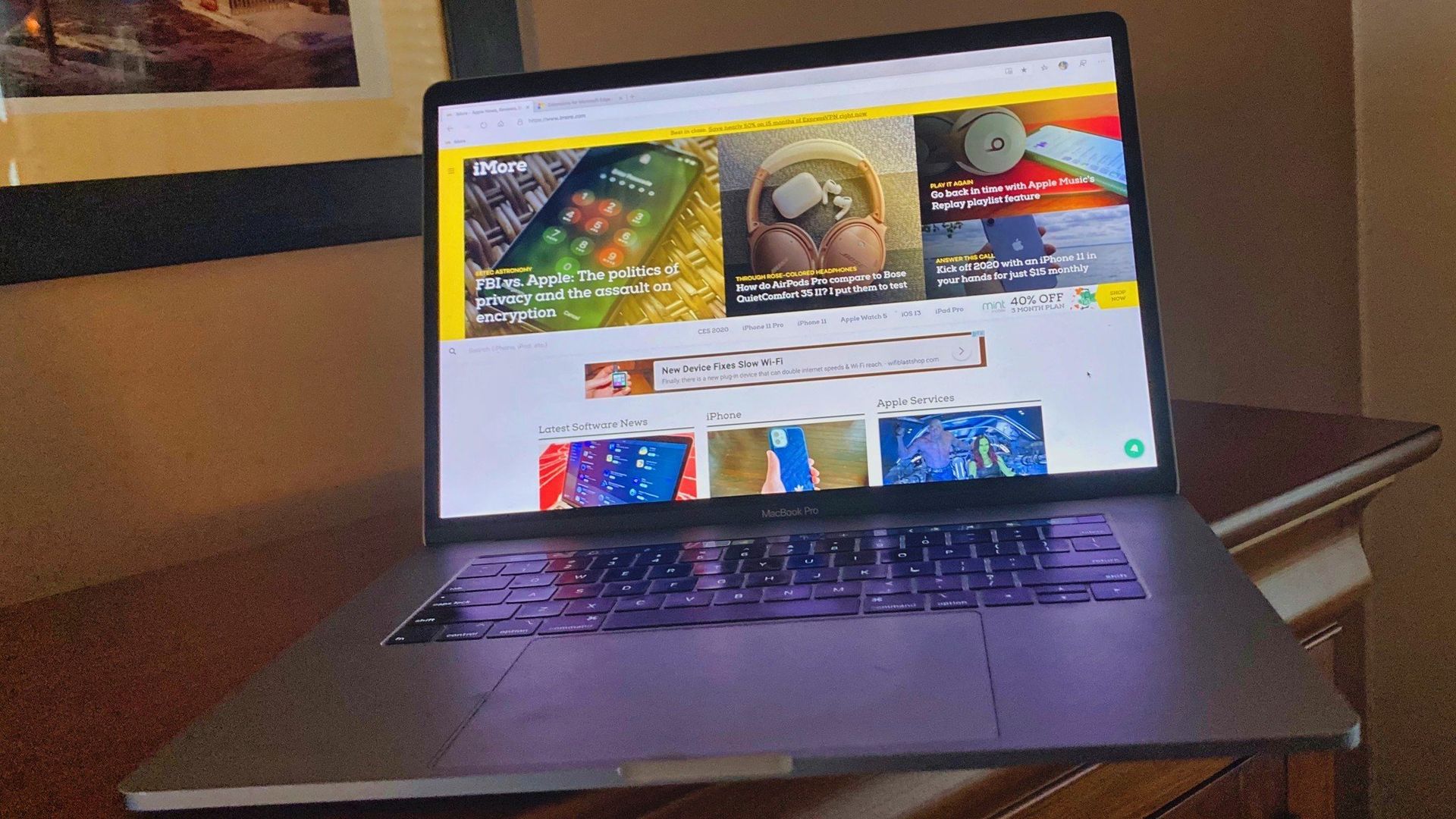
Some would be surprised to hear that Microsoft Edge has been available on macOS for years. The browser receives regular updates and gives users an easy way to extend their browsing experience across platforms. Soon, organizations that rely on Edge on macOS will have another option for which version of the browser is installed.

Selecting the Microsoft Edge Extended stable channel will soon be an option for organizations. That channel receives major feature updates every eight weeks, giving organizations more time to validate changes to the browser.

The Edge Extended stable channel is already available on Windows. Next year, it will roll out to macOS. An entry in the AI at Work Roadmap (previously known as the Microsoft 365 Roadmap), outlines Microsoft's plans:

"Organizations managing macOS devices will be able to select the Microsoft Edge Extended Stable channel, providing a slower 8-week major release cycle, compared to the two-week major release cycle for Stable."

Edge stable, which is commonly just referred to as "Edge," receives major feature updates every two weeks.

Notably, both Edge Stable and Edge Extended Stable receive security updates as needed. Organizations using the Extended Stable channel do not have to wait eight weeks to receive critical security fixes.

Click to join us on r/WindowsCentral

Join us on Reddit at r/WindowsCentral to share your insights and discuss our latest news, reviews, and more.
Microsoft will finally replace Bing shortcut posing as a Windows 11 speed test

Internet speed test screen showing a wired Ethernet connection with 947.6 Mbps download speed, 943.7 Mbps upload speed, and 3.3 ms ping.

Windows 11's speed test tool that's in testing opens from Quick Settings rather than opening a browser session of Bing. (Image credit: Microsoft)

Windows 11 will no longer bump you to Bing when you try to test your internet speed. Microsoft is testing a new built-in speed test tool that opens directly from Quick Settings rather than opening your web browser.

The change just rolled out to Windows Insiders in the Experimental channel with Build 26340.9767. That was one of five builds to ship to Insiders recently. If you want to catch up on all the other changes, including the refreshed File Explorer context menu, check out my roundup of all the updates.

Microsoft first introduced a speed test to Quick Settings last year, but that feature was actually a shortcut to opening Bing. Even before that feature was announced, I said that it was a bad idea and that Microsoft should replace it with a built-in speed test tool within the taskbar.

Microsoft has since listened to feedback and designed a built-in speed test tool that opens directly from the Quick Settings.

Speed test on Windows 11

The old speed test tool was actually a shortcut to open Bing in a browser. (Image credit: Mauro Huculak)

To access the speed test tool, you need to open the Wi-Fi or Cellular flyout within Quick Settings. Alternatively, you can right-click the network icon in the system tray and select "Test internet speed."

Below are the relevant release notes about the speed test tool from Microsoft's recent blog post.

Microsoft is rebuilding several parts of Windows 11 as native or built-in tools. The new Start menu and the improved search experience are part of those efforts. While those larger elements make an immediate and sizeable impact on the Windows 11 experience, smaller changes like a built-in speed test tool help as well.

Internet Speed Test Release notes

  • We're making it faster and easier to check the performance of your internet connection in Windows. Windows Insiders can now run an internet speed test and see the results directly in Quick Settings, without being redirected to a browser.
  • Start a test from the new Speed test Quick Setting, from the Wi-Fi or Cellular flyout, or by right-clicking the network icon in the system tray and selecting Test internet speed. While the test runs, Quick Settings shows its progress and results, including download speed, upload speed, and ping.
  • Because the test runs against your active internet connection, you can quickly understand how your current connection is performing without leaving your workflow. This updated experience builds on the internet speed test we previously introduced for Windows Insiders, bringing the test and its results directly into Windows.

Click to join us on r/WindowsCentral

Join us on Reddit at r/WindowsCentral to share your insights and discuss our latest news, reviews, and more.
Windows Wrap: Even Microsoft's own XBOX team didn't want Windows 11

Windows Central

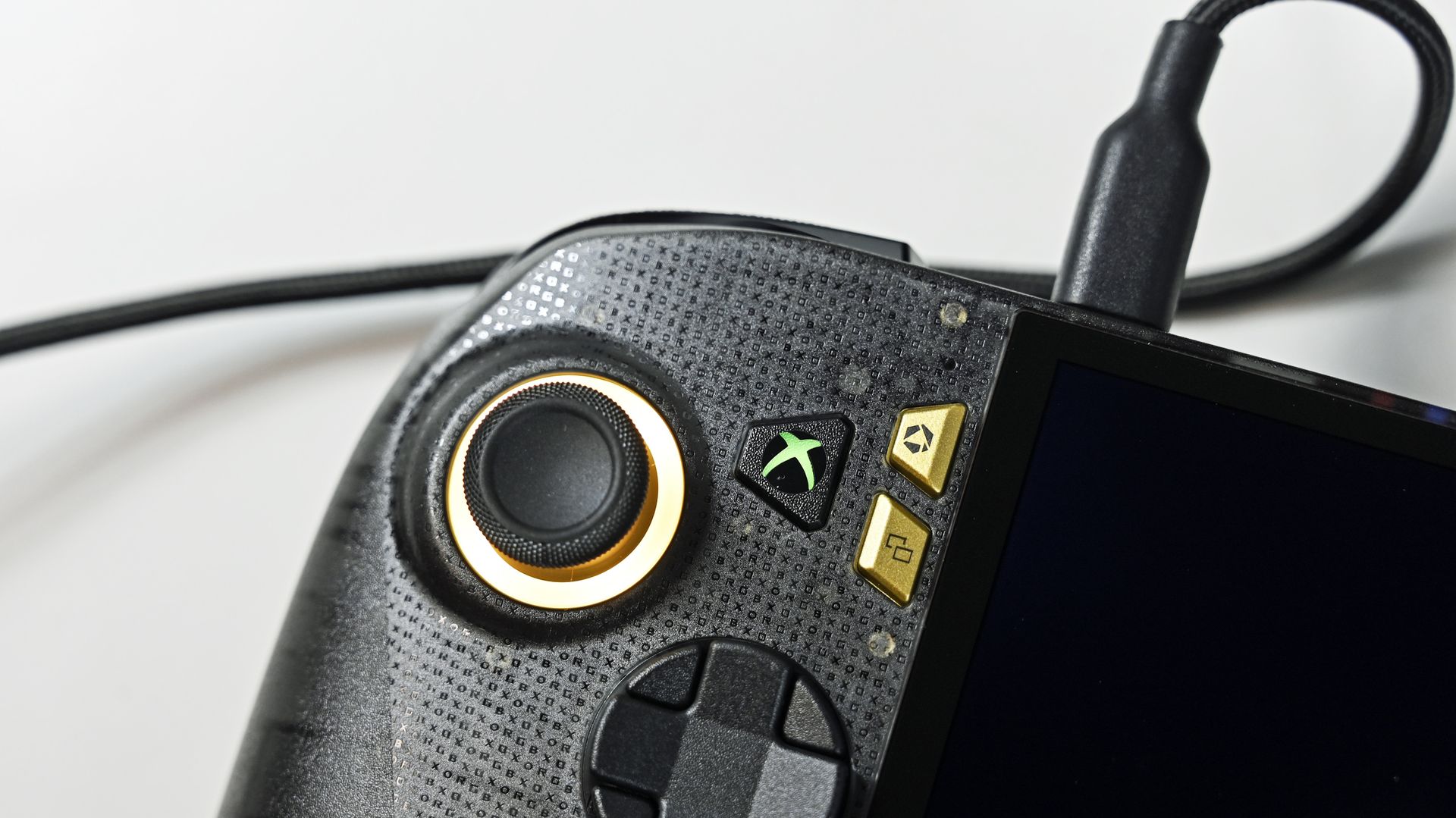
XBOX is rarely the focus of the Windows Wrap, but when reports claim clashes happened between the Windows and XBOX teams at Microsoft, gaming pushes itself to the front.

Last week I discussed how Windows 11 is holding back the Surface Laptop Ultra. This week, we learned that a different hardware division from Microsoft expressed frustrations with Windows. Reportedly, things got so heated between the XBOX and Windows teams that an XBOX leader threatened to cancel a gaming handheld if forced to run Windows 11 on the device.

Over the last few years, we've seen XBOX and Windows 11 grow closer together. The Windows 11 experience on gaming handhelds has improved drastically since day one, though it still has a ways to go. The XBOX app on Windows has been updated several times to align more with the console experience, which has a trickle-down effect on all gaming handhelds that run on Windows.

But despite the growth of Windows 11, the operating system still falls short of the requirements of the XBOX team, at least according to the latest reports.

Biggest News of the Week

Xbox Helix logos
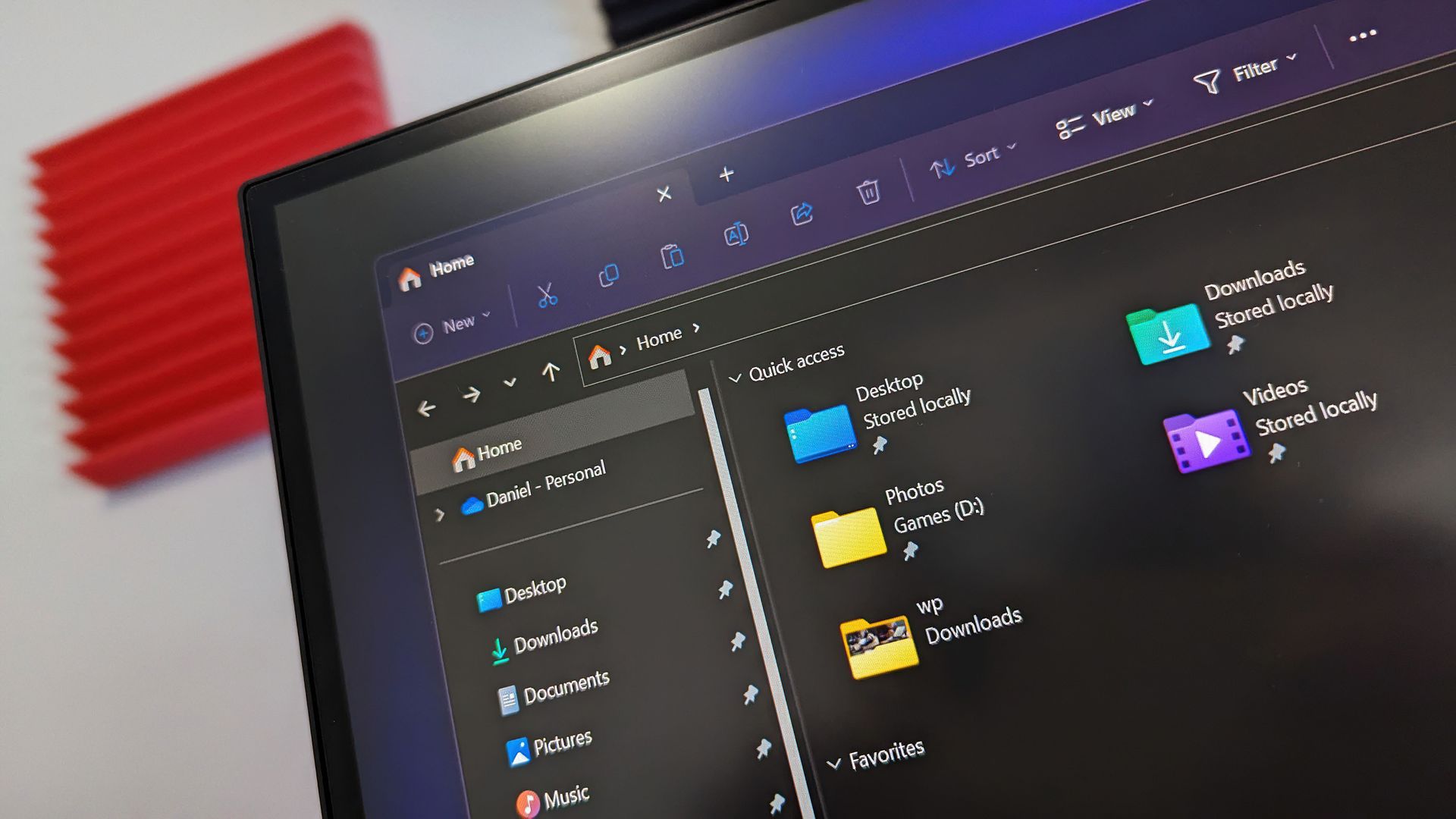
File Explorer from Windows 11
Close-up angled view of the ROG Ally screen displaying the Update Center with a preview update for AMD Radeon Graphics Driver version 32.0.32015.7029.
A monitor displays a purple Smart HDR Manager settings menu with HDR enabled and a list of games, beside a potted plant in a bright room.

There are some caveats to this entire discussion. Notably, Microsoft's Xbox CTO, Scott Van Vliet, refutes the claims made by Fortune.

@WinC_Gaming Helix OS is being built on Windows, and the XBOX and Windows teams are working closely together on the next generation of devices. The account cited here misrepresents both the technical work and the relationship between the teams.October 21, 2026

Van Vliet said that Helix OS is "being built on Windows." He did not say that Helix OS is Windows. For what it's worth, I don't think we'll ever see an operating system called "Helix OS." But his post makes it clear that the OS powering Project Helix is built on Windows. That's not the same as saying it is Windows. At minimum, it's highly unlikely the Xbox will run the traditional Windows desktop you see on laptops and desktops.

Microsoft has used a customized version of Windows for several generations of XBOX hardware. The Xbox One and Xbox Series X|S consoles already run an operating system that's built on Windows. Even the original XBOX ran an OS based on Windows, though the Xbox One ran an operating system much closer to Windows.

I asked Van Vliet if Project Helix is an evolution of the OS XBOX consoles already run or a freshly made custom OS, but he did not respond.

Microsoft has never specified that Project Helix will run Windows 11 and the Windows desktop, but several reports have suggested that was the plan for the console.

His post on X argues that the original report "misrepresents both the technical work and the relationship between the teams." For a moment, let's assume that's accurate and that the Windows and XBOX teams are working side-by-side in harmony. There's still a clear implication that Microsoft no longer views Windows 11 and the desktop as the right starting points for an operating system for Project Helix.

Earlier reports about Project Helix said the next generation of XBOX would run a customized version of Windows 11, much like the Xbox Ally and other gaming handhelds. It appears Microsoft has changed plans, though it's still not clear to what extent.

If you've used a gaming handheld running Windows 11, you may even agree with the sentiment that the OS is not the best starting point for a console gaming experience. Some of the best gaming handhelds are held back by Windows rather than boosted by it. For example, the out-of-the-box experience for the ROG XBOX Ally X20 is terrible because you have to go through three different sets of updates.

Shifting from Windows 11 powering XBOX consoles to those devices running an OS built on Windows is a massive change of plans. Though ironically, it's not much of a change from what Microsoft already does with XBOX.

Project Helix has reportedly slipped into 2028, so it may be a while before Microsoft explains exactly what changed.

Shopping with Sean

This week's biggest news may be about XBOX and gaming, but my top shopping recommendations of the week are laptops. Whether you want an Intel chip or a Snapdragon processor, there are great deals available.

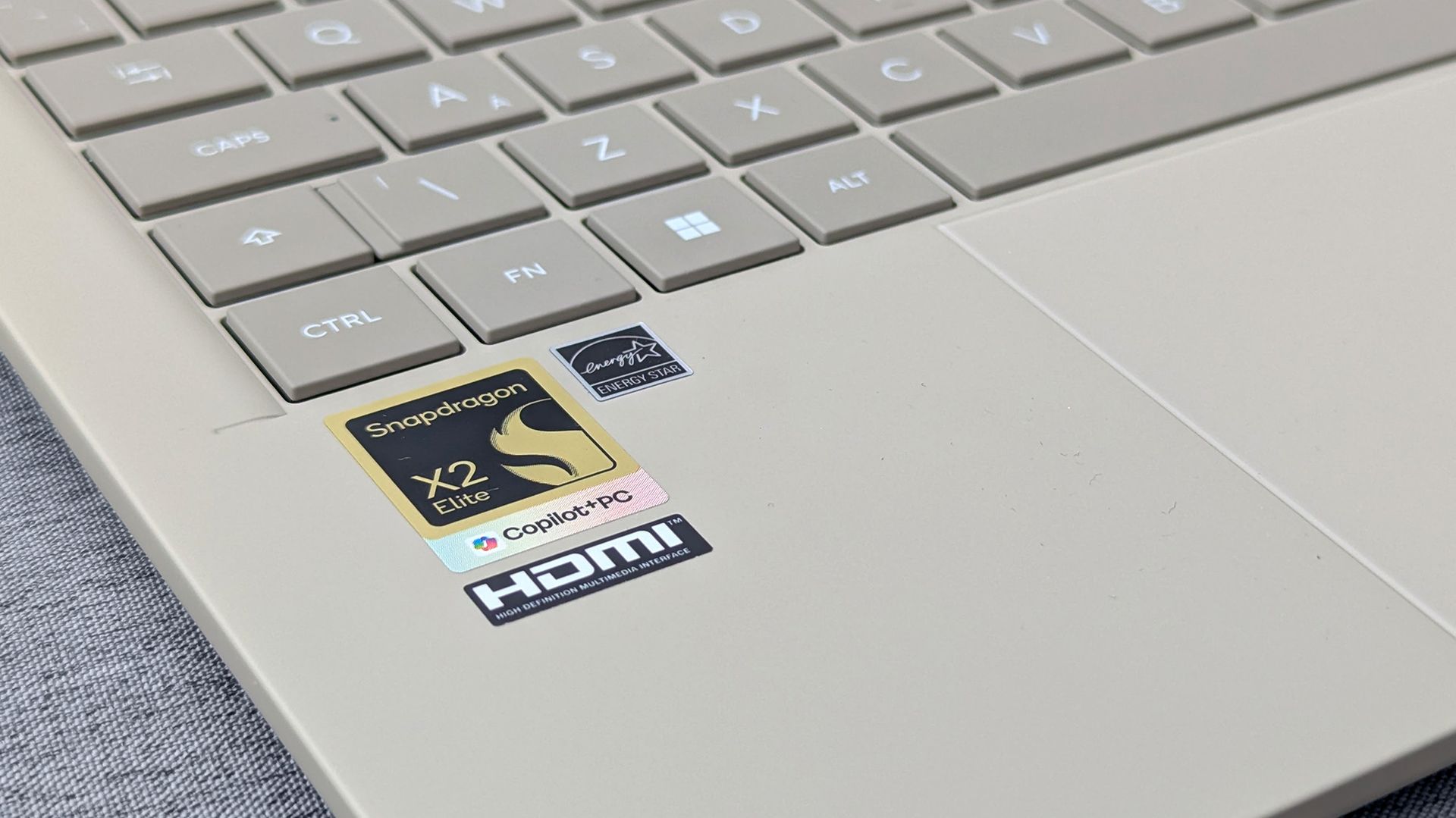
Zenbook A14 laptop (Snapdragon X2 Elite, 16GB RAM, 512GB SSD): was $1349.99 now $999.99

"At a glance, it might feel like the Zenbook A14 didn't change at all, but upgrading to the Snapdragon X2 Elite gave it a massive CPU performance bump." — Ben Wilson, Senior Editor

Windows Central review (32GB RAM): ⭐⭐⭐⭐½View Deal

XPS 13 (Intel Core 5 Series 3 320, 16GB RAM, 512GB SSD): was $999.99 now $799.99

"The Dell XPS 13 returns as an excellent Windows-based answer to the MacBook Neo. It’s an excellent option for students or mainstream users who don’t need more CPU or GPU muscle." — Matt Safford, Managing Editor, Tom's Hardware

Tom's Hardware review: ⭐⭐⭐⭐½View Deal

Click to join us on r/WindowsCentral

Join us on Reddit at r/WindowsCentral to share your insights and discuss our latest news, reviews, and more.
Reçu — 24 octobre 2026 ⏭ Windows Central - News, Forums, Reviews, Help for Windows 10 and all things Microsoft.

A cleaner, faster File Explorer context menu is rolling out to Windows 11 Insiders

Microsoft's redesigned File Explorer context menu could make navigating Windows 11 feel faster and more personal. The company has started testing a new right-click menu that reduces clutter by moving less common options out of the way while keeping frequently used actions easy to access.

That new context menu is available for Windows Insiders in the Beta channel. Microsoft also shipped four other Insider builds of Windows 11 today that includes

File Explorer (Beta)

Introducing the new, redesigned context menu in File Explorer

  • We're rolling out an updated context menu experience in File Explorer, designed to feel faster, cleaner, and easier to tailor to the way you work. The new design reduces top-level clutter, keeps commonly used actions easy to access, and adds a new Settings experience that gives you more control over what appears in the menu. As we continue refining this experience with Insider feedback, our goal is to make right-click feel more responsive, predictable, and personal.
  • We've also added a new teaching tip you might see as a first-time experience to help you learn about the customization options.

Settings (Beta)

  • We're making performance improvements to the Settings home page which should result in reduced loading times in certain scenarios.

Windows Insider Program (Experimental)

  • We've added the ability to filter Feature flags by enablement state.

Quick Settings (Experimental)

  • We're beginning to roll out a new Mobile devices experience in Quick Settings, making it easier to take quick phone actions (such as ring your phone) without breaking your flow on Windows.
  • With your supported Android phone connected, everyday actions are now just a click away. You can turn Do Not Disturb on before a meeting, change your phone's ringer mode, and play a sound to find your phone nearby.
  • It's a simpler, faster way to manage your phone from the place you already use for quick Windows actions, helping your PC and phone work better together throughout the day.
  • Capabilities can vary by phone platform and device configuration. The initial experience provides the most complete set of controls for Android phones, while iPhone support starts with a more limited status-focused experience.

Check your internet speed directly from Quick Settings

  • We're making it faster and easier to check the performance of your internet connection in Windows. Windows Insiders can now run an internet speed test and see the results directly in Quick Settings, without being redirected to a browser.
  • Start a test from the new Speed test Quick Setting, from the Wi-Fi or Cellular flyout, or by right-clicking the network icon in the system tray and selecting Test internet speed. While the test runs, Quick Settings shows its progress and results, including download speed, upload speed, and ping.
  • Because the test runs against your active internet connection, you can quickly understand how your current connection is performing without leaving your workflow. This updated experience builds on the internet speed test we previously introduced for Windows Insiders, bringing the test and its results directly into Windows.

Magnifier (Experimental)

  • We've added a Keyboard shortcut for Magnifier toggle in Settings > Accessibility > Magnifier. It lets you choose whether pressing Windows logo key + Plus (+) launches Magnifier.
  • The shortcut stays on by default, so nothing changes unless you want it to. If you find that Magnifier starts by accident, or the shortcut conflicts with another app or keyboard layout, turn the toggle off. You can still start Magnifier from Settings, and you can turn the shortcut back on at any time.

Microsoft 365 subscription in Windows (Experimental)

  • We're introducing a new inline experience that makes it easier for Microsoft 365 subscribers to manage their subscriptions in Windows. Subscribers who have recurring billing turned off can now turn it back on directly in Windows Settings, without leaving for a separate webpage. To get started, select Turn on recurring billing or Set up recurring billing from the Windows Settings Home page, the Accounts page, or the Start menu.

File Explorer (Experimental)

  • Improved progress indication when navigating to locations that take longer to load, such as network drives, making it easier to see that loading is underway.

Narrator (Experimental)

  • Narrator now supports additional languages for math reading, including Greek, Hungarian, Indonesian, Norwegian (Bokmål), Polish, Russian, Swedish, and Vietnamese.

Widgets (Experimental)

  • The Widgets picker now has a standard Windows dialog frame and supports light and dark title bars. It also removes the blank space previously left for an icon.

Taskbar (Experimental)

  • Fixed an issue with the previous update where explorer.exe wouldn't load after logging in, preventing the taskbar and other elements that rely on it from loading.

Unicode (Beta 26H1, (Experimental (26H1))

  • This update provides Windows text shaping support for Unicode 17.0, helping Windows correctly display and shape newly encoded characters and scripts. Unicode 17.0 added 4,803 characters, including support for four newly encoded scripts: Beria Erfe, Sidetic, Tai Yo, and Tolong Siki. These updates help keep Windows text support current as the Unicode Standard evolves and improve support for languages and writing systems used by people around the world.

Start menu (Experimental (26H1))

  • This update makes the Start menu more personal with several customizations.
  • You can choose between a small or large Start menu, in addition to the Automatic (default) option that's available today. To customize this setting, go to Settings > Personalization > Start > Start menu size.
  • The Recommended section is renamed Recent in the Start menu and on the Start settings page (Settings > Personalization > Start).
  • You can now hide your name and profile picture in Start by going to Settings > Personalization > Start > Hide your name and profile picture on Start.
  • The Start menu settings page is now redesigned with section-level toggles to independently show or hide Pinned, Recent, and All.

Manage camera, microphone, and location access for desktop apps (Experimental (26H1))

  • Windows Insiders can now manage camera, microphone, and location permissions for individual desktop apps. Previously, access for traditional desktop applications was managed through a single device-wide setting.
  • With this update, you can review and control access on an app-by-app basis, giving you greater visibility into which apps are requesting access to sensitive resources and more control over your privacy choices. Our goal is to make privacy permissions easier to understand and manage across the wide range of desktop apps people use every day.

Recovery (Experimental (26H1))

  • We're adding a new entry point for Cloud Rebuild under Settings > System > Recovery, making it easier to access the feature from Settings.

File Explorer (Experimental (26H1))

  • We've sharpened file thumbnails in the Recommended section on the Home page so they're crisper and easier to read.

Magnifier (Experimental (26H1), Experimental (Future Platforms))

  • A new contrast theme toggle for a lower-glare screen. If bright screens are uncomfortable, many people use color inversion to reduce glare. However, inversion changes everything on screen, including photos, charts, and videos. With this update, we're introducing a new contrast theme toggle in Magnifier.
  • Reduce glare with a single toggle. Turn on a contrast theme directly from the Magnifier toolbar for a more comfortable viewing experience.
  • Choose the contrast theme that works best for you. The dark theme is applied by default, and you can choose which contrast theme the toggle uses under Settings > Accessibility > Magnifier.
  • Photos, videos, and charts keep their original colors. Unlike color inversion, the contrast theme recolors the interface without touching your photos, charts, or videos, so they keep their real colors.
  • Color inversion is still here. This isn't a replacement. If you use inversion today, it works exactly as it always has. The contrast theme is a separate, purpose-built option to reduce glare when you want a darker interface without inverting colors.

Family Safety (Experimental (Future Platforms))

  • Improved family safety messaging when applications are blocked because of age-restricted parental controls.

Windows Setup (Experimental (Future Platforms))

  • The digital safety of users and supporting families is central to how we think about the Windows experience. We're improving information on parental controls and their availability during Windows setup, so families can more easily understand available protections and make informed choices from the very beginning.

Network (Experimental (Future Platforms))

  • Fixed an issue causing internet access to stop working for some Insiders after the last two flights.

Hyper-V (Experimental (Future Platforms))

  • Fixed an issue where some applications that used HCS-managed virtual machines experienced issues when sharing host folders with Linux VMs using Plan9. Folders shared from the Windows host using Plan9 didn't appear or couldn't be accessed in the guest environment.

Other (Experimental (Future Platforms))

  • Fixed an issue causing some Insiders to see an unexpectedly high volume of ESENT events after the latest flights.
  • Fixed an underlying issue in the latest flights causing Insiders using VMware to experience frequent green screen bugchecks with error PFN_SHARE_COUNT.

Microsoft has been hard at work decluttering Windows 11. While those efforts continue, it seems Microsoft is putting more emphasis on improving the built-in Windows 11 apps as well. Even the Camera app received some updates recently.

File Explorer is a core part of the Windows 11 experience, so it's nice to see it being upgraded as well.

Click to join us on r/WindowsCentral

Join us on Reddit at r/WindowsCentral to share your insights and discuss our latest news, reviews, and more.
Microsoft pulls the plug on Outlook's AI inbox assistant

If you get too many emails to handle, you'll soon have to find a way to manage without the help of Copilot. Microsoft plans to retire the Prioritize My Inbox feature in Outlook, which uses Copilot to organize your inbox.

The feature will be retired from all Outlook clients as part of a "cleanup effort" being made by Microsoft. The company explained the change through the Microsoft 365 Message Center (archived here).

The retirement process starts on October 26, 2026, and will continue gradually until the feature is completely rolled back by the end of March 2027.

The Prioritize My Inbox feature uses Copilot to study how you work and show you emails that are most important to your workflow. The tool surfaces relevant emails from your inbox based on your past behavior, but you can also use filters to adjust how content appears.

The feature is adaptive and context-aware, so it works in a fundamentally different way than Focused Inbox or other similar features. Prioritize My Inbox also supports personalized prompts that include an example of what you consider to be a high-priority email.

Microsoft appeared quite excited about the feature when unveiling it last year. Matthew Marzynski, a principal product manager in Microsoft Digital at the time, stated:

“Imagine if everybody could have their own assistant who screens and presents you with the most impactful actions. Prioritize My Inbox is sort of like having your own personal assistant. This can increase your responsiveness, generate time savings, focus your priorities, and help you to align to business-critical communications. It also offers relief by lowering the stress we feel when faced with a huge, unread inbox.”

Mark Stratford, a senior product manager at Microsoft, said the feature "revolutionizes email and where we will get to in the future."

Now, just over one year later, the feature is on the chopping block. Microsoft shared little about why the feature is being retired, apart from saying the rollback will help create a simpler Outlook Copilot experience.

Click to join us on r/WindowsCentral

Join us on Reddit at r/WindowsCentral to share your insights and discuss our latest news, reviews, and more.
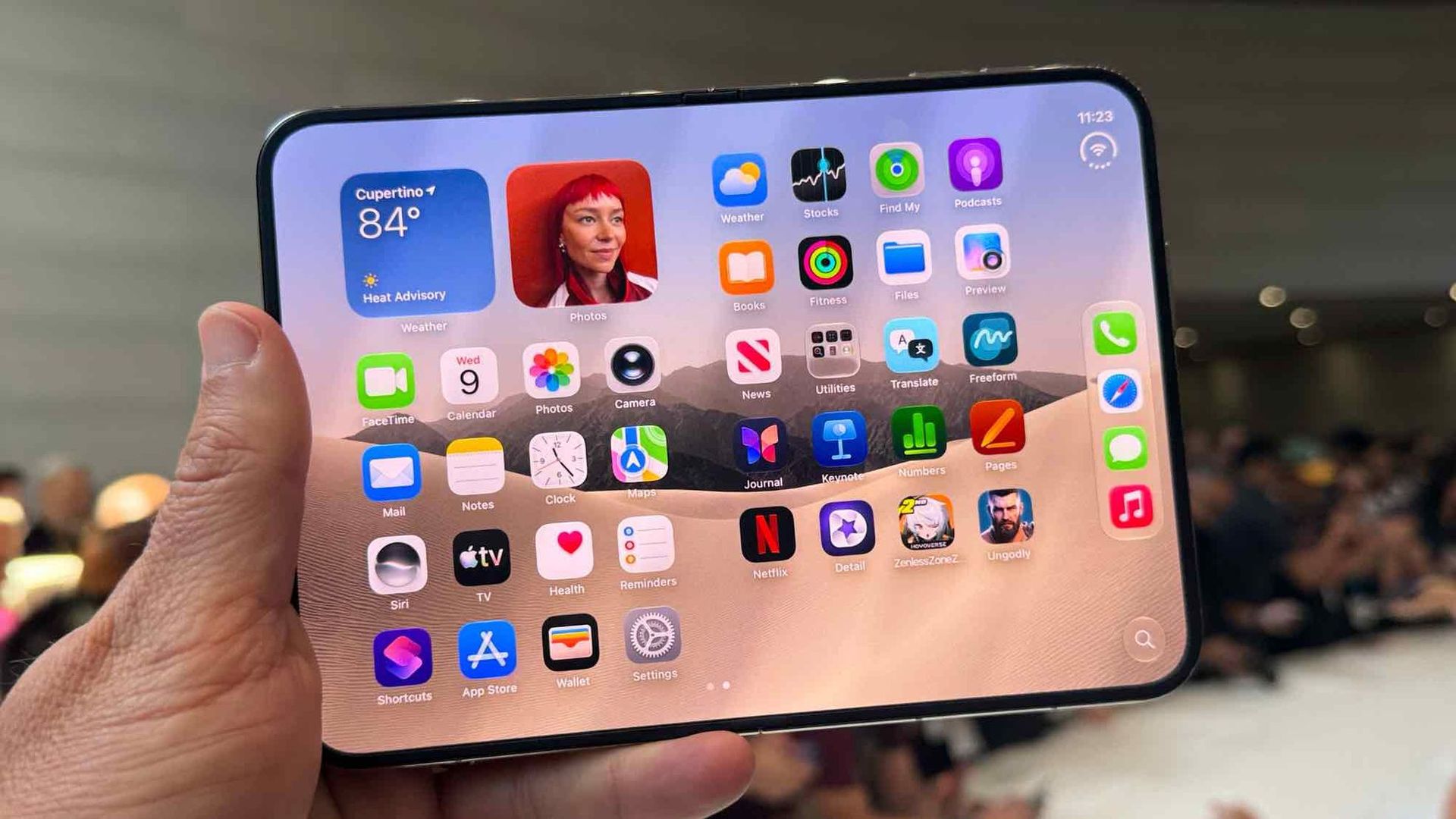
Quiz: Are these quotes about iPhone Duo or Surface Duo?

Apple finally "invented" the folding phone, bringing flexibility and multitasking to the masses. iPhone Duo reviews are in, and I couldn't help but feel a sense of déjà vu.

All the talk of passport-shaped phones, mobile multitasking, and optimized apps sent me back to the days of Microsoft's Surface Duo. A lot of the phrasing in iPhone Duo reviews could have been copied and pasted from reviews of the Surface Duo.

So, I put together a quiz to see if people can identify if a quote is from an iPhone Duo review or a Surface Duo review.

I've changed all of the quotes in this quiz as little as possible and all changes are noted with brackets. I only altered a quote if it includes something that's a giveaway like iPhone Duo, Surface Duo, Apple, or Microsoft.

Blank Pixel

I sent this quiz to a few friends and colleagues before publishing it. No one got a perfect score, and many only got 50% correct. I'm curious to see if that trend continues as more people take the quiz. Please let me know how you did in the comments!

Below are all of the reviews I used to create this quiz.

Click to join us on r/WindowsCentral

Join us on Reddit at r/WindowsCentral to share your insights and discuss our latest news, reviews, and more.
I spent weeks hunting this Windows wallpaper. It was worth it.

When Microsoft announced the first wave of RTX Spark laptops, many were intrigued by the superchips inside the PCs. But I went a bit more surface-level, pun intended. During the Windows and Surface event, eagle-eyed viewers spotted a striking wallpaper across the new laptops.

The wallpaper is reminiscent of Windows 11's Bloom wallpaper, but it stands out for having a single curve and contrasting colors. As much as I like the Bloom wallpaper, it's been remixed several times by Microsoft and enthusiasts, so it's time for a new Windows wallpaper.

Sadly, Microsoft did not release the image after unveiling the new laptops. I waited with anticipation for the release of the RTX Spark laptops, but even when the Surface Laptop Ultra review went live, the new wallpaper was nowhere to be found. Microsoft even mocks us by having a blacked-out version of the wallpaper on the retail listing of the Surface Laptop Ultra.

Abstract Microsoft wallpaper featuring a smooth curved blue shape against a blurred orange and purple gradient background.

(Image credit: Microsoft)

Desperate to get my hands on the new wallpaper, I scoured reviews of the ASUS ProArt P16, HP OmniBook Ultra 16, and Surface Laptop Ultra only to be disappointed.

But a hero emerged, saving me from settling for an AI recreation of the wallpaper. Discord user TechosaurusRex discovered the wallpaper in the app files for Microsoft's Retail Demo Experience. Seemingly, Microsoft's plan was to tease us by showing the wallpaper on display retail units but not include the image on purchased PCs.

Luckily, TechosaurusRex stepped up and shared the wallpaper, ending my quest. Sadly, the above version is compressed to ensure our site loads quickly. I'll share the full resolution version as soon as possible.

Click to join us on r/WindowsCentral

Join us on Reddit at r/WindowsCentral to share your insights and discuss our latest news, reviews, and more.
"Hackintosh Lives" — Snapintosh puts macOS on Snapdragon X2 Elite

An engineer is working on a way to get macOS to run on computers powered by a Snapdragon X2 Elite chip. The "Snapintosh" project resurrects the concept of a Hackintosh but works with one of the latest chips from Qualcomm.

X user Miguel C shared his progress on the project recently. The video shows macOS 27 running on an ASUS Zenbook A16.

Snapintosh is still in its early days. The Zenbook A16 can boot the macOS desktop with GPU acceleration and render what's supposed to appear, but interaction with the interface is "usable but not yet smooth," according to Miguel C.

You can learn more about the project on GitHub.

Glitchy for now, trying to get WiFi working and more performance and GPU improvements. https://t.co/KYQEzglJkyOctober 20, 2026

The term Hackintosh refers to a non-Apple PC modified to run macOS (hack + Macintosh). It was popular for years and not just among enthusiasts or niche creators.

It was popular because it allowed people to run macOS on less expensive or more customizable hardware than Apple's own computers.

New Hackintosh builds became increasingly uncommon after Apple switched to Apple silicon. Apple designs macOS around its own chips and hardware, making it increasingly difficult to run the operating system on unsupported devices.

Until recently, I would have said the days of the Hackintosh were over. But Miguel C's Snapintosh project suggests there may still be a way to run modern versions of macOS on non-Apple hardware.

"Hackintosh Lives," exclaimed Miguel C on X. He noted that people should expect the experience to be "very rough" and that he's "working on de-slopifying the codebase."

If Miguel C is able to refine the experience, it would be interesting to try macOS on a Snapdragon X2 chip. The general consensus is that Apple makes the best ARM processors right now, so even a perfectly optimized Snapintosh would not beat an M-Series MacBook.

But some people prefer hardware made by companies apart from Apple. There are also more affordable Snapdragon X2 chips on the market, so you could potentially get better value on a Snapintosh using certain chips. Right now, the project is limited to the Snapdragon X2 Elite.

Even if a Snapintosh fails to ever compete with a Mac, the project is an intriguing engineering feat and a reminder of the fun days of Hackintosh computers.

Click to join us on r/WindowsCentral

Join us on Reddit at r/WindowsCentral to share your insights and discuss our latest news, reviews, and more.
Reçu — 21 octobre 2026 ⏭ Windows Central - News, Forums, Reviews, Help for Windows 10 and all things Microsoft.

Zooming in Windows 11's Camera app is about to get another upgrade

Microsoft just announced an overhauled Photos app for Windows 11, but that's for viewing images and videos. If you're interested in capturing content, you'll want to catch up on everything new in the Camera app.

A wave of changes to the Camera app recently shipped to Windows Insiders. They include several small improvements as well as some quality-of-life changes.

The Camera app can now zoom digitally when hardware zoom is unavailable. Microsoft has focused on the zoom experience in several updates this year. In June, the company started testing expanded support for more cameras.

Microsoft lists all the changes that are available for Windows Insiders:

  • Improved the camera zoom experience and added support for software zoom when hardware zoom is unavailable. Software zoom isn't available for Living Images, scanning, panorama, spherical preview, or other specialized modes.
  • Improved support for copying to your clipboard with Ctrl+C after capture.
  • Added a new Copy path action after capturing a photo or video, allowing you to easily copy the file path.
  • Delayed capture now shows the remaining seconds inside the timer ring.
  • Recorded video playback now shows the remaining time beside the seek bar.
  • Camera is more responsive and accurate when starting video.
  • Fixed an issue where a white flash would sometimes appear when opening the app with Windows in light theme.

While changes to software zoom are the headline additions, some users may appreciate the new Copy path option and improved clipboard support more. Both features make it easier to move captured images and videos into apps and documents.

Those improvements first entered testing for Insiders in the Experimental, Experimental (26H1), and Experimental (Future Platforms) channels on October 2. They have since shipped to Beta and Release Preview Insiders as well.

With the feature progressing through Windows Insider channels, it should make its way to general users in the near future.

The Camera app improvements arrive for Windows Insiders shortly after Microsoft announced a major redesign of the Photos app. Together, the updates show Microsoft's commitment to improving Windows 11's built-in apps.

Click to join us on r/WindowsCentral

Join us on Reddit at r/WindowsCentral to share your insights and discuss our latest news, reviews, and more.
This new PowerToys feature can hold your mouse button down for you

PowerToys just added several new utilities and added new features for existing tools.

Two of the new utilities improve mouse use. Mouse Button Lock allows you to press and hold your mouse button down for a moment and then have your PC treat the input as if you've kept that button down. The tool improves accessibility for those who struggle to hold a mouse button down as they drag an item across the screen.

CursorHide is a smaller utility that hides the mouse pointer on your screen after a brief period of inactivity.

The quick-access shelf in Command Palette is an optional feature that shows pins below the search box.

PowerToys | Free at GitHub | Free at Microsoft Store

This collection of utilities includes a large library of features to enhance the Windows experience. PowerToys is designed with power users in mind, but it has handy features for people who just use their PC for everyday computing too.

Here are the highlights from the latest build of PowerToys, as shared by Microsoft:

Mouse Button Lock and CursorHide

  • Holding a mouse button down during a long drag or selection can be tiring. With Mouse Button Lock, press and hold a button for a moment, then let go. Windows keeps treating it as held, so you can continue dragging or selecting until you click any button. This is especially useful for gaming, working in professional applications that require extensive dragging and selection, and improving accessibility for users who find it difficult to hold down a mouse button for extended periods.
  • CursorHide is the second new mouse utility. It hides the mouse pointer while you type, after a period of inactivity, or both, and shows it again as soon as you move the mouse.

Command Palette gets a quick-access shelf

Compact mode in 0.101 kept Command Palette out of the way until you needed results. Now your favorite commands can be one keystroke away too. Turn on the quick-access shelf in Settings > Appearance > Compact mode to show your pins below the search box while the palette is collapsed. Press Alt+1 through Alt+9 to launch them, or Alt+Shift+number to select one without running it. Drag to reorder, right-click for more actions, and optionally show recent commands and apps next to your pins.

The shelf is just one part of a big Command Palette update:

  • Settings search: Fuzzy search finds options, extensions, commands, aliases, and assigned shortcuts, then takes you straight to them.
  • Keyboard-first Dock: Press Win+Alt+J to focus the dock and move between its items from the keyboard.
  • Copilot key support: Choose Command Palette as the Copilot key app in Windows Settings, and press the key again to toggle the palette.
  • Multiple clocks: Pin several dock clocks, each with its own time zone and format.
  • Language and links: Pick an app language for Command Palette, and copy links that open a page, run a command, or jump to a specific setting.
  • Polish: Sharper app icons, faster grid and gallery browsing, results that keep loading at the end of a list, and clearer nested menus.

ZoomIt adds snip dictation

ZoomIt can now capture what you say along with what you snip. Turn on Snip with dictation in the ZoomIt settings, then press Space while you drag out a snip and describe what you're capturing. ZoomIt transcribes your speech on your device, and a single paste delivers both the screenshot and your text. Dictation uses the microphone selected under Record.

ZoomIt also gets smooth zoom transitions, better audio pacing in recordings, and a fix for silent recordings on multichannel and spatial-audio devices.

New command-line tools

More of PowerToys can now be scripted from the terminal:

  • Advanced Paste: Run built-in and custom actions without opening the UI, using files, stdin/stdout, or the clipboard. AI actions use your configured providers and policies.
  • Light Switch: Check status, set or toggle the theme, and manage schedules, with JSON output.
  • Settings: See which utilities are enabled, and turn them on or off even while PowerToys isn't running.
  • Peek: Preview multiple files and folders from the command line.
  • PowerDisplay: JSON Lines output makes results and errors easy to consume from scripts.
  • On your PATH: FancyZones, Image Resizer, File Locksmith, and PowerDisplay commands now work from any terminal folder.

Keyboard Manager adds tap-alone remaps and easier editing

Keyboard Manager now supports tap-alone remaps. Tap a key by itself to trigger a different action, while the key keeps working normally in shortcuts and mouse combinations. Large remapping lists are easier to manage too, with search, modifier and app filters, and bulk deletion.

The new editor also gets a searchable key picker, so you can select any key, including media keys or keys your keyboard doesn't have, and build a full shortcut with just the mouse. Recording now only listens while the editor is in focus, and Tab moves you out of the recording field. IT admins can also deploy and export remapping profiles with DSC v3.

Other notable changes

  • Color Picker and Text Extractor: Both move to WinUI 3, with a new overlay, editor, and magnifier for Color Picker. Your existing shortcuts and settings carry over.
  • FancyZones: Scroll the mouse wheel while dragging a window to switch layouts, with an optional indicator showing the selected layout's name.
  • Peek: Added read-only SQLite previews, file and subfolder counts with scanning progress for folders, a plain-text fallback, and Alt+Left/Alt+Right navigation between files.
  • Screen Ruler: Measure in device-independent pixels to account for each monitor's scaling, with improved edge detection.
  • Environment Variables: A new Remove duplicates action cleans up PATH while keeping the original order.
  • Quick Accent: A searchable character reference in Settings lets you browse language sets and copy characters directly.
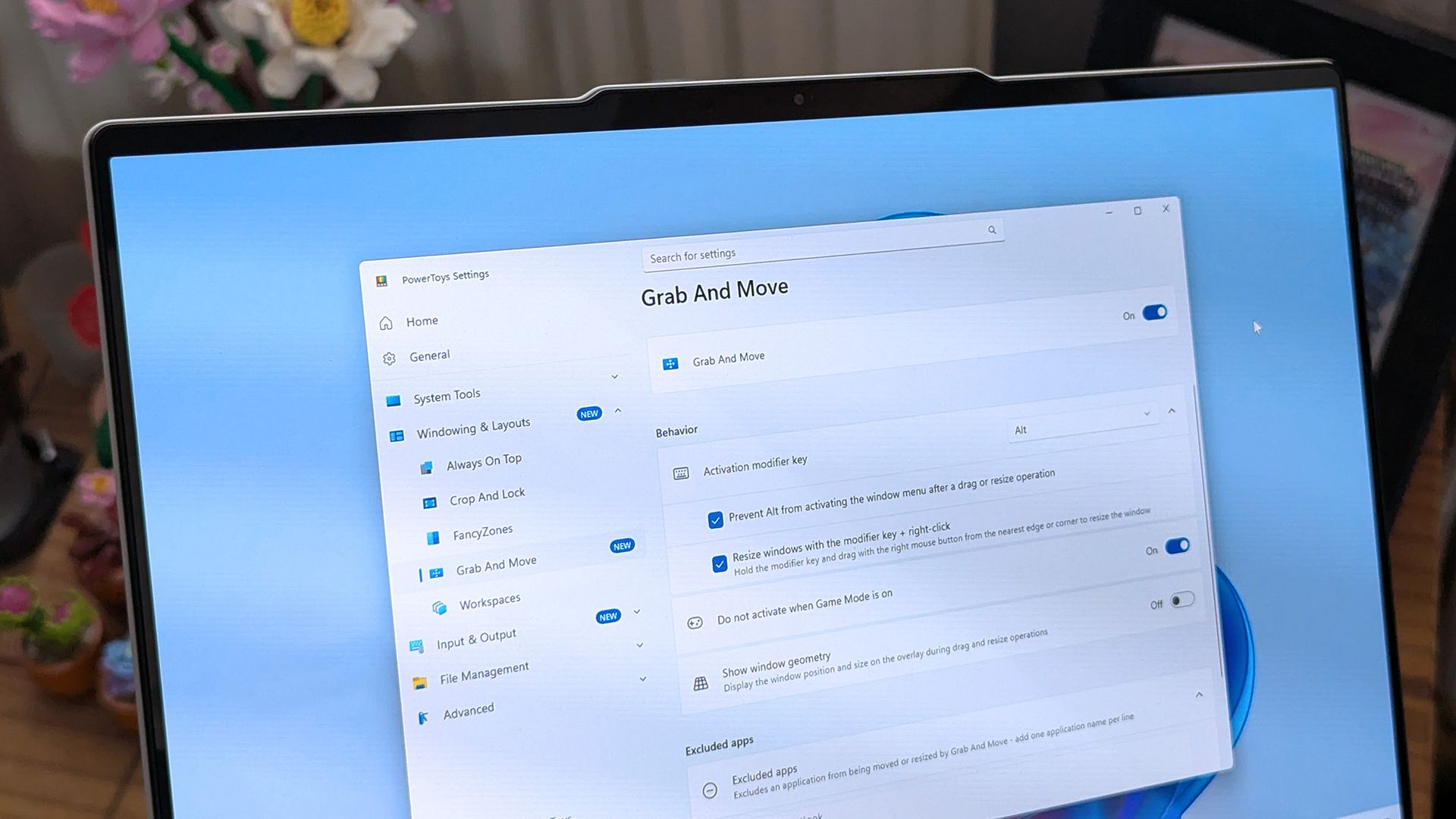
  • Grab and Move: Exclude specific apps so they keep their normal modifier-key behavior.
  • Shortcut Guide: Added shortcuts for Claude Desktop and Ableton Live, and made indexing more resilient to malformed manifests.
  • Workspaces: Now asks for confirmation before launching an unverified app configured to run as administrator.
  • Awake: Windows can now turn off the display while the PC is locked, without ending your keep-awake session.
  • New+: Fixed a File Explorer memory leak and improved long-path handling.
  • Settings: Added an interactive animated welcome scene, fixed a memory leak when switching pages, and kept module on/off preferences when a utility fails to load.

PowerToys has been one of my favorite Windows apps for a long time, and it is also a favorite of several members of our team at Windows Central. The app has a massive library of utilities that can be enabled or disabled, making it a great choice for casual PC users and power users.

PowerToys is also interesting to follow because it inspires the development of Windows 11. The newly announced Search experience for Windows 11 clearly takes some cues from PowerToys run and Command Palette.

Click to join us on r/WindowsCentral

Join us on Reddit at r/WindowsCentral to share your insights and discuss our latest news, reviews, and more.
OneDrive's new hero links should put an end to file-sharing chaos

During its OneDrive and Copilot event, Microsoft announced a massive number of changes to its cloud storage platform. Many of the improvements center around using Copilot to find items and generate new content, but there is also a feature for sharing OneDrive links.

Now, when you share a file in OneDrive, you can continue to use the same link even after you change access or permissions to that file. Previously, you'd need to create a new link after changing those settings. Old links would continue to work, but over time you'd accumulate a bunch of different links to the same file.

With so many different links to the same file, it would be easy to accidentally share one with the wrong permissions. The new method of sharing, which relies on "hero links," can update access and permission settings while retaining the same link.

Support for hero links is rolling out now. In the future, Microsoft will add support for expiring hero links. With those, you can set an organization's hero links to expire automatically on a schedule.

Copilot and OneDrive

It may not have received the fanfare of the Windows and Surface event held earlier this month, Microsoft just held a OneDrive and Copilot event. The event highlighted several new capabilities to Copilot, such as analyzing files, organizing projects, and turning files into interactive HTML reports.

Custom skills in Copilot let you capture a process and save that process as a Markdown file, which helps ensure Copilot runs the same way every time when performing that process.

Copilot also makes it possible to use natural language to find a photo in OneDrive.

Microsoft also highlighted its refreshed Photos app for Windows. That app shocked me due to its responsiveness and quick loading times. It also has several new features, such as Map View that lets you browse photos based on their geographic location.

Microsoft's blog post about Copilot and OneDrive is almost 3,500 words, so I won't rehash all of it here. The change that I'm most excited about is the addition of hero links. I share a lot of files through OneDrive and send links across several group chats. Reducing that clutter will reduce my stress immensely when it comes to sorting access and permissions.

Click to join us on r/WindowsCentral

Join us on Reddit at r/WindowsCentral to share your insights and discuss our latest news, reviews, and more.
Reçu — 20 octobre 2026 ⏭ Windows Central - News, Forums, Reviews, Help for Windows 10 and all things Microsoft.

Microsoft walks away from flagship UK AI data center project

Microsoft will no longer be part of a multibillion-dollar data center in Loughton, Essex, England, according to a report by The Telegraph. The planned data center is set to have thousands of NVIDIA processors and was originally planned to start operating next year. Now, major questions surround the project's future.

The data center, which is being planned by Nscale, will be part of a wave of data centers opening in the UK, assuming plans come to fruition.

Microsoft's recent decision could affect the future of the data center, but the power grid is another pressing concern. Nscale has been told by grid operators that the required power supply for the data center will not be available until 2030.

The problems could be connected. The Guardian reports that Microsoft withdrew from the project because of the power grid concerns.

Microsoft was the only company that had publicly committed to plans to use the data center. It's unclear if other tech giants will step in to fill the void.

Despite Microsoft's reported cancellation of plans to be involved with the Essex data center, Microsoft and Nscale continue to have a professional relationship. The Telegraph reports that over 40 percent of Nscale's $103 billion in contracted revenue comes from Microsoft. The Essex data center was only believed to be a small part of that even before Microsoft changed its plans.

"We remain committed to both the Loughton project and the UK and we are exploring alternative power sources for the site, in addition to other expansion sites in the UK," said Nscale. The company added,
"Our relationship with Microsoft remains strong and long-term."

Microsoft is at the center of data centers

As demand for processing power increases, Microsoft finds itself increasingly at the center of data center headlines. Just in the UK, there are three ongoing stories about Microsoft and data centers.

Almost 45,000 people have signed a petition to prevent the construction of a data center in Leeds, England. Over in Slough, England, politicians and residents have debated the construction of a different data center.

Now, Microsoft has withdrawn its planned involvement in what could become the UK's largest data center.

Windows Central take

It seems inevitable that data centers will pop up around the world. There's a good chance that a site only a few miles from my house will have a data center in the near future. I live in Nottingham, England. A former coal plant that has been shut down is expected to house a data center.

Despite several tech giants calling for AI development to be slowed down or paused, demand for data processing is accelerating. I suppose the data centers have to be built somewhere, but I confess I'm not thrilled at the prospect of one being so close to my house.

Data centers can pollute the local environment and emit noise pollution into the surrounding area. They can also raise energy prices nearby and put stress on the local grid.

Click to join us on r/WindowsCentral

Join us on Reddit at r/WindowsCentral to share your insights and discuss our latest news, reviews, and more.
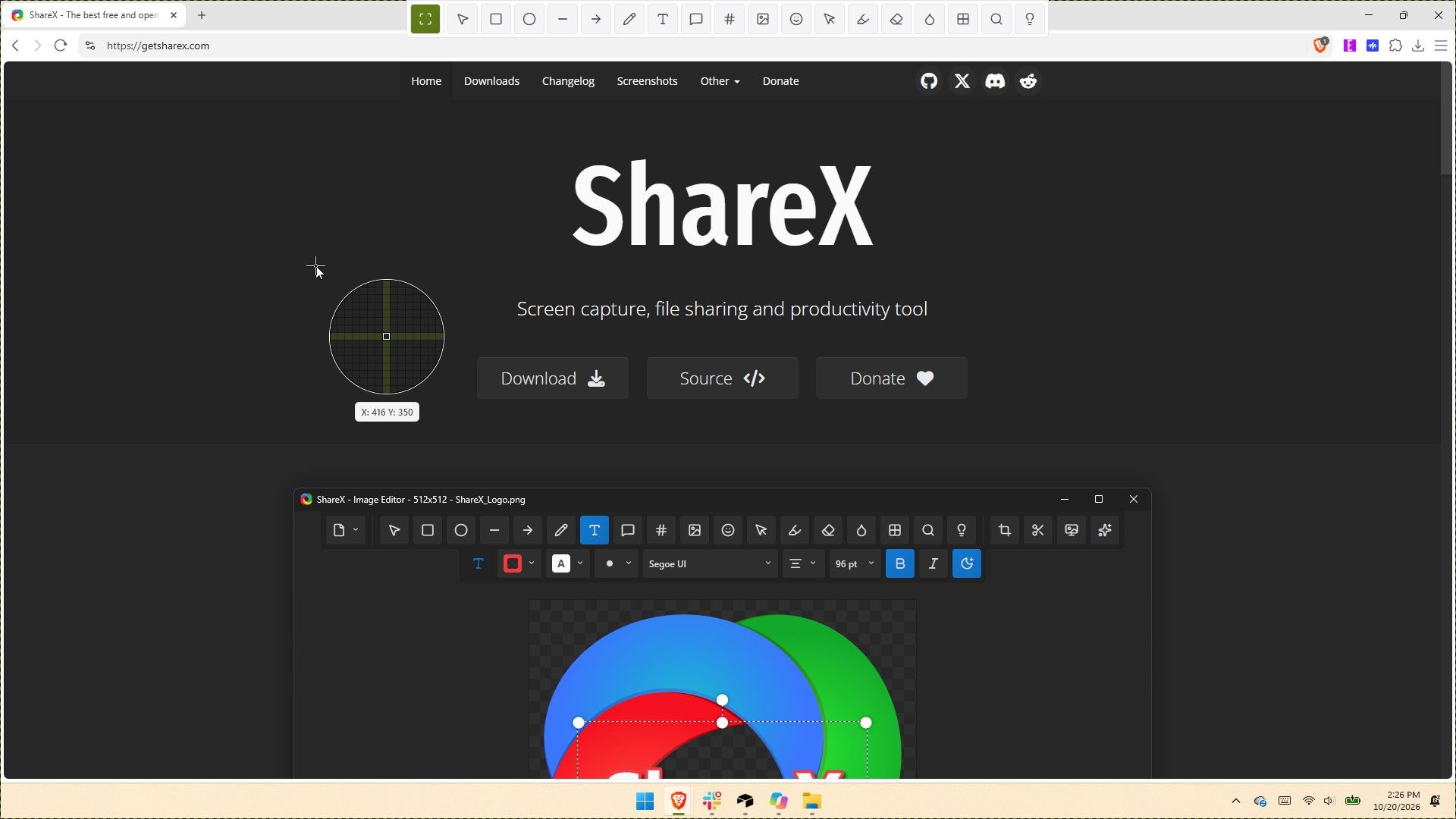
ShareX gets its biggest update ever with native screen recording, 120 FPS capture, and dozens of new tools

ShareX has been around for almost two decades, but in its 19 years as a screen capture app, it has never received an update as large as the one that just shipped to testers. ShareX version 22.0.0 brings a massive number of changes to a completely overhauled app.

The update adds native screen recording, a new screen recorder bar, and support for recording content at 120 FPS. It also brings a number of quality-of-life changes, such as a restart button for screen recordings and the option to show or hide the screen recorder timer and recording button labels.

Screenshot functionality has also expanded. Several preexisting tools have been redesigned, and new tools have been added as well.

Since the update changes so much, it is expected to be less stable than other releases. But if you'd like to give it a try, you can download the preview of ShareX version 22.0.0.

Here's the entire change log from ShareX:

  • Screen recording changes:
    • Added native screen recording support without relying on FFmpeg, enabled by default. ShareX
      • Added support for recording system audio.
      • Added support for recording microphone audio.
      • Added support for recording camera overlays. ShareX
    • Added a screen recorder bar that allows users to configure recording options before starting a recording: ShareX
      • Start delay.
      • System audio.
      • Microphone.
      • Camera.
      • Cursor.
      • Mouse highlighter.
    • Increased the screen recording FPS limit to 120.
    • Added an "Automatically start mouse highlighter" option for screen recording.
    • Added a "Restart" button to the screen recorder bar and system tray menu.
    • Added an option to show or hide the screen recording timer.
    • Added an option to show or hide screen recording button labels.
    • Recorder devices are no longer bundled.
  • Added HDR screenshot color corrector option (Task settings -> Capture).
  • ShareX installer and assemblies are now code-signed using a certificate provided by Ember Swan. Xenthys
  • Added a warning before running unsigned installers.
  • Added a wide range of new tools and redesigned all existing tools from scratch:
    • Screen & color:
      • Color picker
      • Mouse highlighter ShareX
      • Pin to screen
      • Ruler ShareX
      • Screen color picker
    • Images:
      • Background remover
      • Icon converter
      • Image beautifier
      • Image combiner
      • Image comparer
      • Image converter
      • Image editor
      • Image effects
      • Image resizer ShareX
      • Image splitter
      • Image thumbnailer
      • Image viewer
      • Image watermark
    • Video:
      • Animated GIF maker
      • Animated GIF trimmer ShareX
      • Video converter
      • Video player
      • Video thumbnailer
      • Video trimmer ShareX
    • Data & text:
      • Analyze image
      • Hash checker
      • Index folder
      • Metadata
      • OCR
      • QR code
      • Remote storage browser (supports Amazon S3, SFTP, FTPS, and FTP) ShareX
    • System:
      • Borderless window
      • Clipboard viewer
      • Inspect window
      • Monitor test
      • Network monitor ShareX
    • Added categorized grid layout for tools menu.
    • Added edit button to tools menu to be able to hide or show tools. ShareX
    • Include video files in image history window.
    • Added "Trim video" context menu option to main window and history windows.
    • Added "Trim animated GIF" context menu option to main window and history windows.
    • Added drag-and-drop upload overlay to main window.
    • Added customizable task buttons to bottom of notifications.
    • Added notification button size option.
    • Added search support to setting windows.
    • Upgraded project to .NET 10.
    • Update FFmpeg to 9.0.
    • Added Czech language support.
    • Added Swedish language support.
    • Added Hindi language support.
    • Added Thai language support.
    • Added Danish language support.
    • Translated all newly redesigned ShareX windows into 28 languages from scratch.
    • Improve smart eraser with edge-matching fills.
    • Added easter egg to about window.
    • Added easter egg to image editor. ShareX
    • Added support for Amazon S3 multi-part uploads.
    • Added an option to upload Amazon S3 parts concurrently. CubityFirst
    • Support remote deletion of Amazon S3 uploads.
    • Added img.fish file uploader.
    • Added Immich file uploader.
    • Added MEGA file uploader.
    • Migrate uPaste uploader to API v2.
    • Removed Vault.ooo file uploader.
    • Show start screen on first application run.
    • Added an always on top toggle to the main window title bar.
    • Added a theme toggle to the main window title bar. ShareX
    • Added cursor centered zoom support to image viewer with Ctrl + Mouse wheel.
    • Reset image viewer zoom with Middle click.
    • Added PNG compression level option.
    • Added PNG filter option.
    • Added JPEG chroma subsampling option.
    • Added adaptive quantizer GIF quality option.
    • Added BMP bit depth option.

If you've only used the Snipping Tool on Windows 11, you may be a bit overwhelmed by all of the options within ShareX. But the defaults in ShareX make it easy to start using the app. I've been using CTRL+Print Screen all morning to grab screenshots.

The revamped ShareX is impressive, but the main reason I love the app is that it lets you save screenshots as a JPEG. That's a small feature that's been around for ages, but it still remains unavailable in Snipping Tool.

I've only had ShareX version 22.0.0 for a few hours, but in that time the app has performed quickly. It's so snappy that it feels native to Windows 11. If you take a few minutes to customize ShareX's settings and shortcuts, it can become a powerful tool that justifies running at startup.

ShareX is a free Windows app for screenshots, screen recording, and image editing. It packs dozens of tools for capturing, annotating, organizing, and sharing content from your PC.View Deal

Click to join us on r/WindowsCentral

Join us on Reddit at r/WindowsCentral to share your insights and discuss our latest news, reviews, and more.
Breaking down the Surface Laptop Ultra support schedule for drivers and firmware

The Surface Laptop Ultra just started shipping, so Microsoft is busy updating its support documents to make sure buyers have all the information they need about the PC. Microsoft's support document about Surface driver and firmware lifecycles was just updated to include the Surface Laptop Ultra.

That document outlines how long each Surface device will receive driver and firmware updates.

The support window for the Surface Laptop Ultra is not surprising. In fact, it's perfectly in line with other Surface devices. Microsoft splits its driver and firmware lifecycle into two different categories: devices released before January 1, 2021 and devices released on or after January 1, 2021.

Devices that shipped before 2021 receive at least four years of driver and firmware updates. All Surface PCs in that category have already reached the end of the driver and firmware lifecycle.

The Surface Laptop Ultra will continue to receive driver and firmware updates until October 16, 2032. Microsoft is quite specific about its lifecycles. For context, the newly launched Surface Pro 12-inch and Surface Laptop 13-inch will only receive driver and firmware updates until October 13, 2032.

Surface Laptop Ultra owners will need to make sure their PC is running a version of Windows 11 from the prior 30 months to continue to receive driver and firmware updates.

Even when a device reaches the end of its driver and firmware lifecycle, it will continue to receive Windows 11 updates.

Firmware is low-level software built into hardware components, while drivers allow Windows to communicate with those parts. Driver and firmware updates keep everything running smoothly. They can fix hardware bugs, battery drain, and security flaws behind the scenes.

Six years is a fair time for a PC to receive driver and firmware updates. Generally, the biggest bugs and issues should be sorted by the end of the Surface Laptop Ultra's driver and firmware lifecycle.


Built around the NVIDIA RTX Spark platform with an N1X CPU, RTX GPU, and up to 128GB of unified memory, the Surface Laptop Ultra hits new performance heights for power users. It's all contained in a gorgeous chassis with a mini-LED display and tons of ports.

Click to join us on r/WindowsCentral

Join us on Reddit at r/WindowsCentral to share your insights and discuss our latest news, reviews, and more.

I wasn't prepared for how fast Microsoft's new Photos app performs

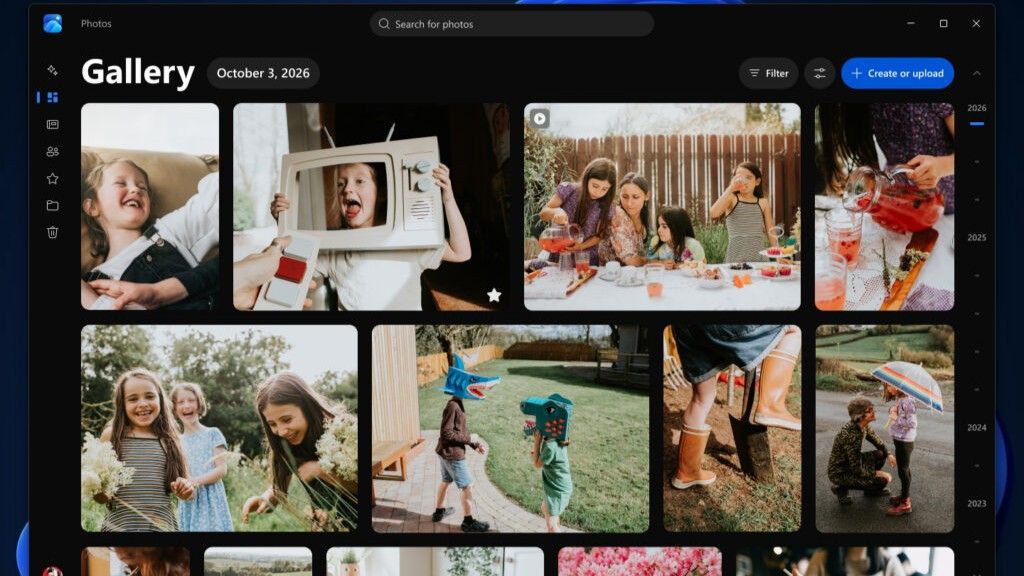
Microsoft's Photos app is about to get a major upgrade. Microsoft recently highlighted how the app is faster, more efficient, and full of new features. The upgraded Photos app will feature a new Gallery, Editor, and Viewer.

Details about the new Photos app were shared in a Microsoft blog post, but images and videos have since shown off the level of improvement we can expect.

Based on early impressions of the app, the new Photos experience could be a go-to way to view and edit images on Windows 11 rather than an app you scroll past after right-clicking and selecting "Open with."

New features

The three main additions to the Photos app are the new Gallery, Editor, and Viewer. Those experiences are designed to, "help you rediscover and organize your collection, give you more capable tools for your favorite shots, and make the everyday experience faster," according to Microsoft.

The new Gallery gathers together photos from your PC, OneDrive, and iCloud into a single space. You can then search for images using text, filter photos to see specific people, or browse Moments created by the app or albums you've organized.

You can use natural language to find images in your gallery, such as searching "sunset at the beach." That saves you the hassle of searching for specific file names.

The new Editor loads 25 percent faster, according to Microsoft. It includes tools to crop, enhance, repair, and stylize photos.

Super excited to ship the new Photo Viewer and Editor! Faster launch times, nearly 50% less RAM used by the Editor, and tons of new features!One detail worth showing off: Photo Viewer is now edge-to-edge. Zoom into a photo and watch it take over the entire window! https://t.co/5mKMO87PVlOctober 15, 2026

Microsoft rebuilt the new Editor from the ground up with WinUI 3, which is the modern framework used to create apps. Notably, only certain parts of the new Photos app are built with WinUI 3.

On top of the normal features you'd expect from an editor, such as cropping an image, the new Photos app has some advanced features like Relight. With that tool, you can add up to three light sources to an image and dynamically adjust lighting in the photo.

Microsoft added support for editing and saving HEIC and WebP images as well as the ability to preserve the color and contrast of HDR photos throughout the editing process.

The new Viewer in the Photos app is also called "native" by Microsoft, though the blog post does not specify that it is built with WinUI 3. It now has better support for HDR viewing and supports more file types, including SVG files.

Speed improvements

I'm excited to try the new features in the Photos app, but the speed of the app is what has stood out to me the most. Diego Baca, Microsoft's Vice President of Design for Windows, shared a video showing the new gallery.

Baca scrolls within the Photos gallery and hundreds of photo previews load instantly. Even when pausing the video, there is only one instance of stuttering or the app having to take a moment to load images.

Photos gallery super fast 👀 🖼️ https://t.co/g4k9W9yhG6October 16, 2026

I thought for a moment I may have been judging the old Photos gallery too harshly, but a quick test put that concern to rest. Scrolling through my gallery on my main PC, which does not have the improved Photos app yet, I can watch thumbnails load one at a time. It's like switching from dial-up internet to broadband.

Microsoft Photos displaying a Gallery view filled with blank thumbnail placeholders as images fail to load quickly.

If I scroll through the old Photos app quickly, I can get an entire page of unloaded thumbnails. (Image credit: Future)

Several parts of the app have been sped up, such as Viewer launching 15 percent faster on average and up to 30 percent faster for HEIC images.

Earlier this year, we covered Microsoft's Rudy Huyn assembling a team to work on Windows apps. We've seen some of the fruits of that team already, but the new Photos app is by far the biggest improvement connected to them.

Click to join us on r/WindowsCentral

Join us on Reddit at r/WindowsCentral to share your insights and discuss our latest news, reviews, and more.

Microsoft's Windows Insider wallpapers were made on a Mac

Microsoft just celebrated 12 years of the Windows Insider Program by sharing a collection of wallpapers. But the origin of those wallpapers has drawn a bit of criticism. It turns out that they were not made on a Surface Laptop Ultra or, in fact, any Windows 11 device. Instead, they were created using a Mac.

Rafael Rivera checked the properties of the wallpapers and noticed that they were created using the Mac version of Adobe Photoshop.

New Windows Insider email: "we created new backgrounds for all Insiders inspired by 12 years of the Windows Insider Program and the latest Surface design aesthetic"https://t.co/4gzu6wPcWOCreated on a Mac. https://t.co/0d8HgHlvh0October 15, 2026

Rivera noted in a follow-up post on X that the images were made by Microsoft's in-house design team. If accurate, that precludes the possibility of a contracted company happening to use Macs in their normal workflow and being commissioned to make the images.

Even if the images were made by a contracted company, Microsoft would have a little bit of egg on its face because that would indicate that even a creator that works with Microsoft prefers to use an Apple product.

Windows Central take

I don't think this is a big deal, but the situation has emerged at an awkward time. Microsoft is in the middle of refreshing Windows 11. The tech giant just shared a massive blog post positioning Windows 11 as a selling point to buy a new PC.

Having Windows Insider wallpapers created on a Mac opens the door to jokes like "even Microsoft staff prefer Mac."

It's perfectly reasonable for Microsoft to use tools created by another company. It's not as if Microsoft should force its design team to use the new Photos app instead of Photoshop. Creators, and any worker, need to use tools that can get the job done.

But considering Adobe Photoshop is available on Windows 11, it's a bit strange that Microsoft couldn't send a few Windows 11 PCs over to its design team.

Alternatively, Microsoft could call up ASUS and make a deal to get some ProArt P16 laptops to the design team. Our friends at Tom's Guide said "The ASUS ProArt P16 is an outstanding laptop for creativity."

The best news for whoever made the Windows Insider Program anniversary images is that Adobe Photoshop works on Windows on Arm, so it should run smoothly on any of the new RTX Spark laptops.

Click to join us on r/WindowsCentral

Join us on Reddit at r/WindowsCentral to share your insights and discuss our latest news, reviews, and more.
Microsoft celebrates 12 years of Windows Insiders with free wallpapers

Microsoft just celebrated 12 years of the Windows Insider Program by sharing special wallpapers with Insiders. The images are all reminiscent of the Windows Bloom wallpaper that ships with Windows 11 and that has been remixed several times by Microsoft and enthusiasts.

I'm partial toward the blue version, likely because I learned how to use a PC on Windows 95. There are also white, green, orange, and purple variants as well as several dark-theme wallpapers.

This direct download link should get you all of the wallpapers, but you should also see them in an email from Microsoft if you're a Windows Insider.

Microsoft shared the following message alongside the wallpapers:

"Thank you for 12 incredible years, Windows Insiders!

From exciting program changes to meetups that brought us together in the past year, you're at the heart of it all. As a thank-you, we created new backgrounds for all Insiders inspired by 12 years of the Windows Insider Program and the latest Surface design aesthetic."

The Windows Insider Program has been around for 12 years, but it has shifted in structure in that time. I've been an Insider since the beginning, as have many members of our team at Windows Central. In that time, we've seen everything from major Windows features not being tested with Windows Insiders to feedback directly shaping the future of Windows.

Microsoft refocused on the Windows Insider Program by refreshing it earlier this year. Since that refresh, we've seen more Insider builds per week and significant upgrades being tested in those builds.

Windows Insider meetups also returned this year, giving the community a chance to meet in person and interact with the Windows product team directly. The first Windows Insider meetup was in Seattle, Washington. Later, events took place in New York City (USA), Hyderabad (India), Taipei (Taiwan), San Francisco (USA), and London (UK).

I'm happy to see the Windows Insider Program on the right track. Microsoft is engaging with the community and shaping Windows 11 based on feedback.

Microsoft has shown the positive impact of listening to feedback through its recent changes to Xbox. Sometimes grabbing low-hanging fruit and addressing the top community concerns is exactly what's needed.

The wallpapers shared by Microsoft are a small gesture thanking Windows Insiders, but such gestures can go a long way. Ignored Insiders become Insiders who disengage from the Windows Insider Program, and that hurts all Windows users in the long run.

Click to join us on r/WindowsCentral

Join us on Reddit at r/WindowsCentral to share your insights and discuss our latest news, reviews, and more.
Windows Wrap: The best PC Microsoft has ever made — and the OS that might be holding it back

Windows Central

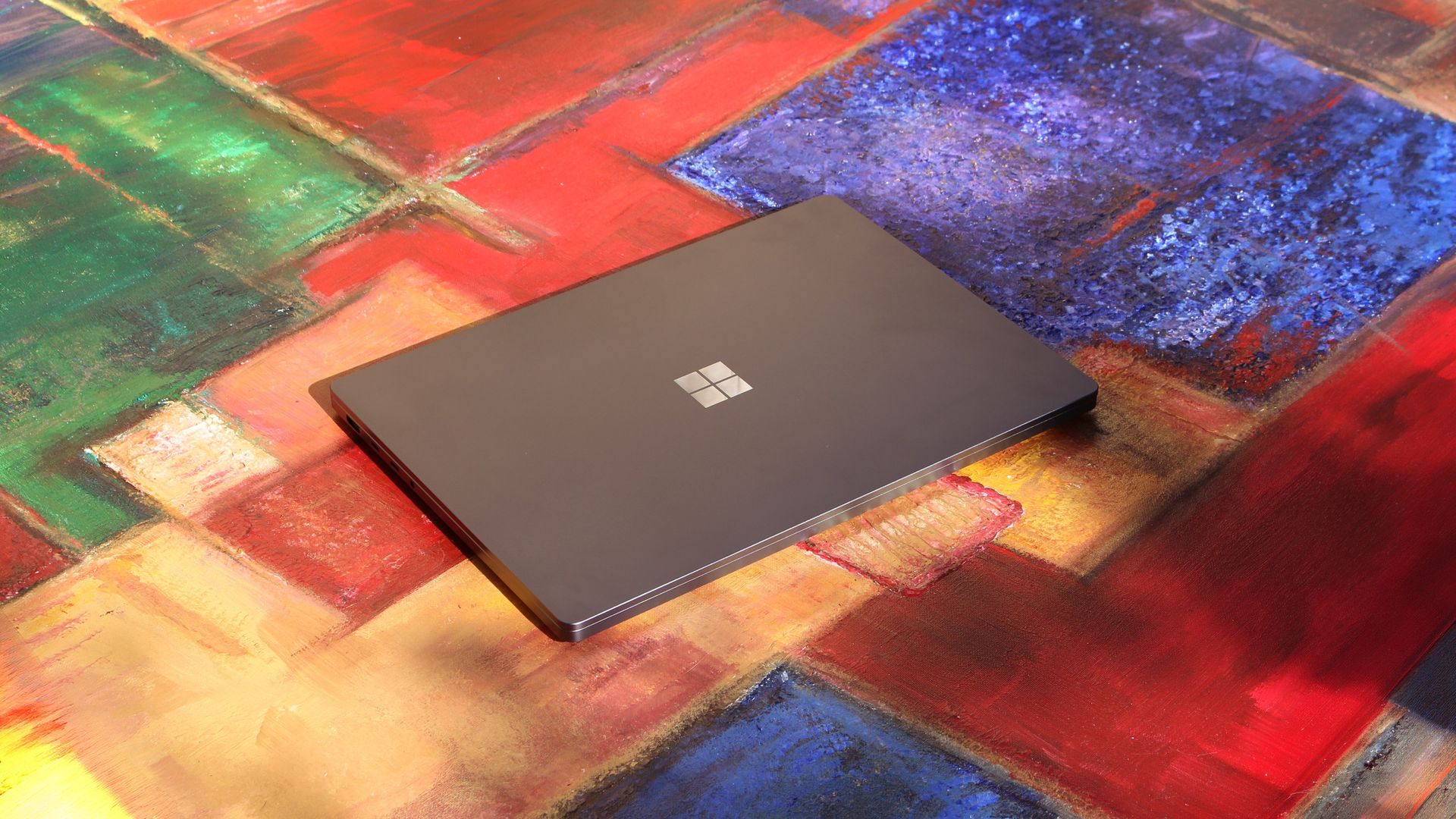
Microsoft fully unveiled its Surface Laptop Ultra this week. While we've known about the PC for months, we lacked key details and were not able to review the Surface Laptop Ultra until recently.

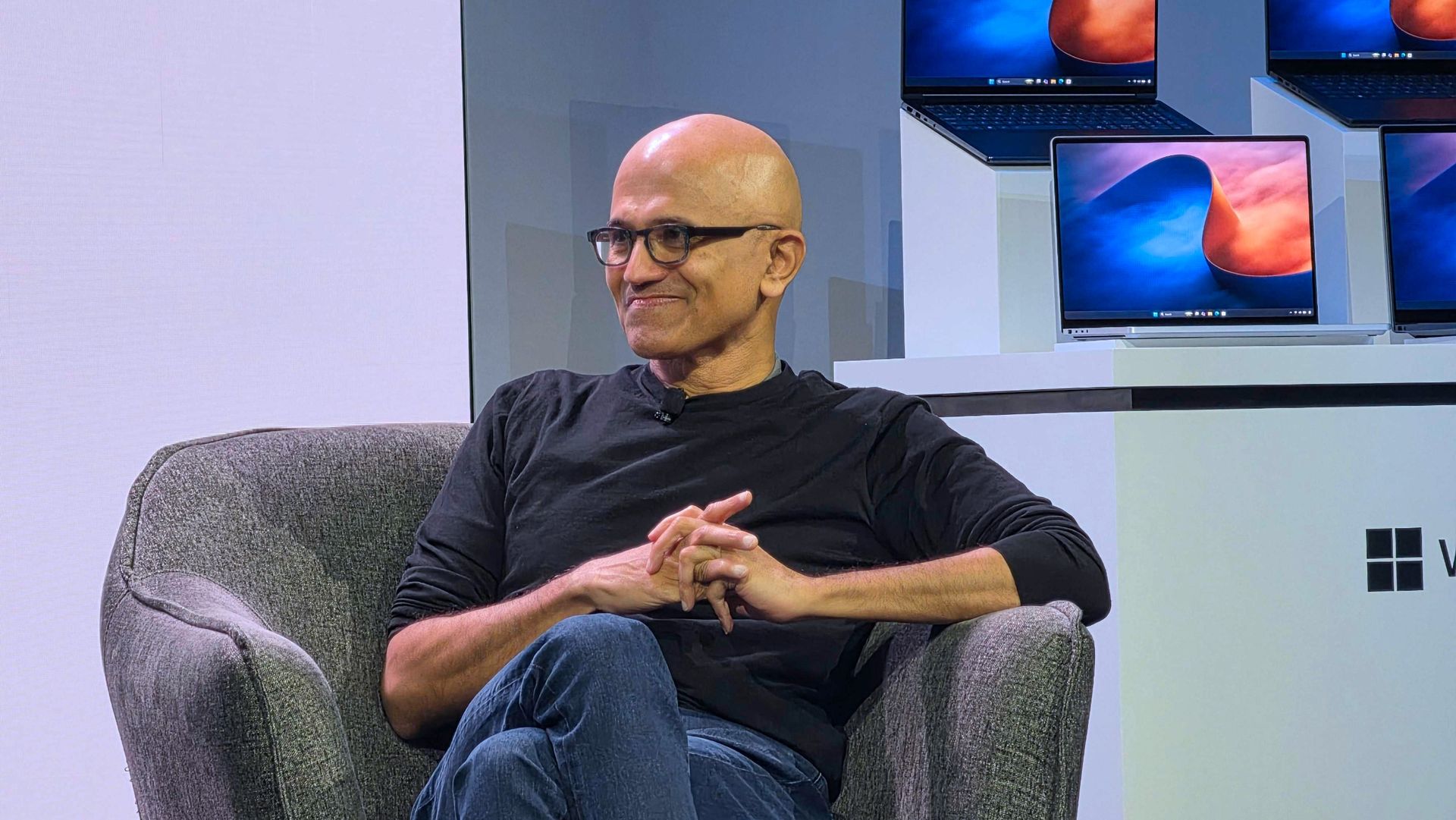
That all changed when Microsoft CEO Satya Nadella, Microsoft Windows lead Pavan Davuluri, and NVIDIA CEO Jensen Huang took the stage to showcase the first wave of RTX Spark laptops.

Microsoft and other PC makers like HP and Lenovo launched the first laptops powered by NVIDIA's new superchip, and initial impressions are quite promising.

With hardware from OEMs impressing reviewers and NVIDIA's chip delivering on many of its promises, attention shifts toward the operating system running on those laptops.

Biggest News of the Week

Surface Laptop Ultra
WinUI Gallery graphic
Microsoft 365 home page on a Razer laptop
Dell XPS 13 with Snapdragon
An Amazon tablet on a wooden desk with a chat window open on the display. A keyboard accessory, stylus, and letter tiles spelling

Microsoft published a massive blog post this week highlighting improvements to Windows 11.

While there are genuinely nice additions to Windows 11, the focus of Microsoft’s blog post took a specific angle that made me ask a question: “Is Windows 11 a selling point?”

After breaking down the new Search experience, sped up File Explorer, expanded customization options, and other features, Microsoft took the opportunity to promote PC sales.

Microsoft said:

"A new PC is a meaningful purchase, and the value should show up in more than a spec sheet. A modern Windows 11 PC brings together responsive everyday performance with more intuitive, connected and personal experiences, all supported by hardware designed for how you interact, create and play, from touch, pen and tactile feedback to immersive gaming experiences. The reason to upgrade is not just one feature; it is how all these experiences work together to make more of your day feel effortless."

Using Windows 11 as a sales tool indicates that Microsoft thinks the operating system is a selling point.

The vast majority of changes and upgrades will also ship to pre-existing PCs, so the entire premise is a bit odd. But that’s probably a post for another day. My main focus is that Microsoft heard feedback, made changes, and is now using those changes to sell PCs.

When rounding up reviews of the Surface Laptop Ultra, I noticed that several experts compared the laptop to a MacBook Pro. As much as it may pain some Windows enthusiasts to admit, the MacBook Pro is the gold standard for laptops in the eyes of many.

With Microsoft copying and competing with the MacBook Pro on the hardware side of things, the remaining question is if Windows 11 compares favorably to macOS.

A significant number of developers use Macs, and Microsoft wants to compete in that space. The Surface Laptop Ultra has the design and AI power to get devs to take a closer look. The question is whether Windows 11 will keep those devs around or drive them away.

Shopping with Sean

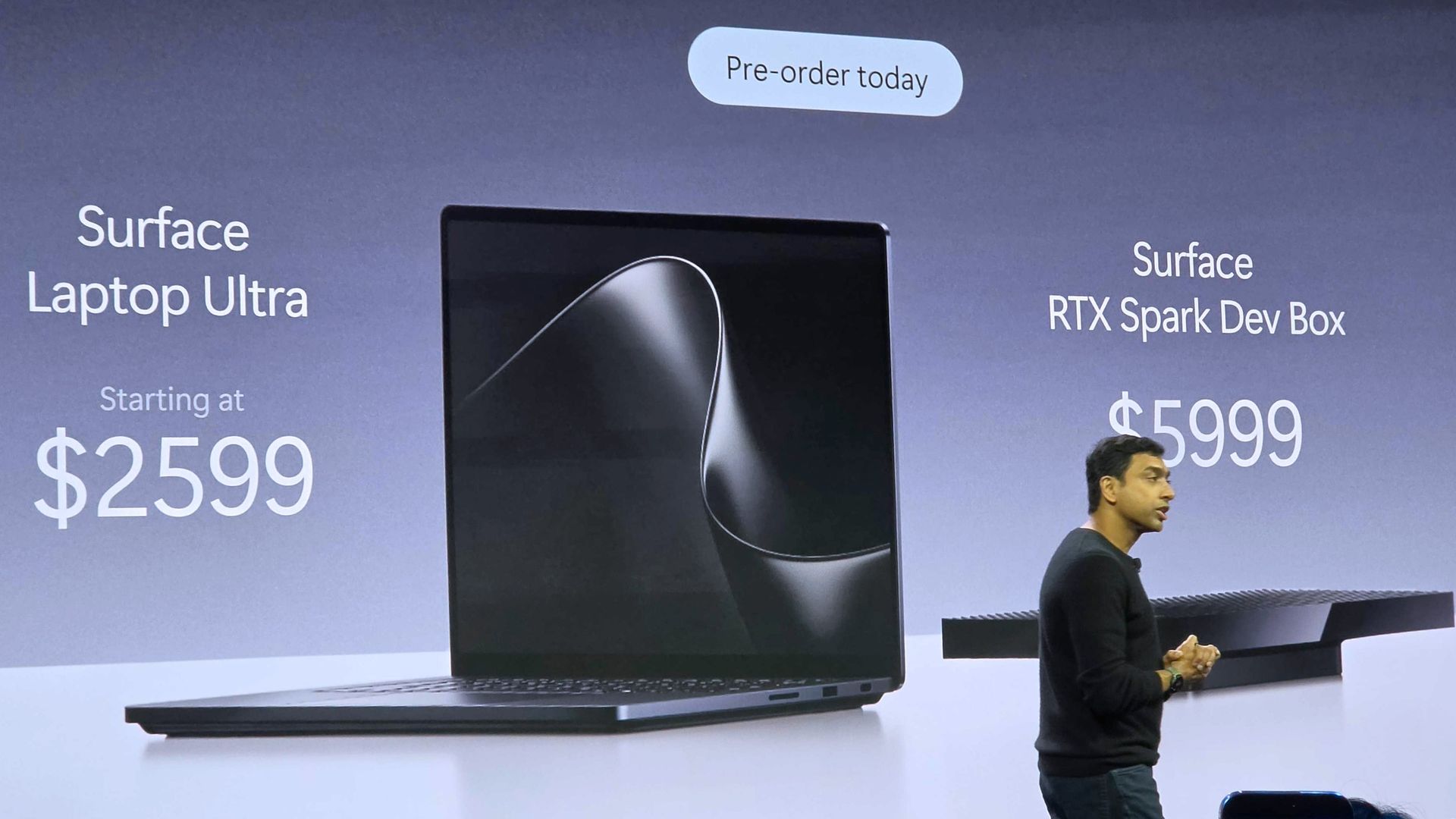
You knew my shopping suggestion of the week would be the Surface Laptop Ultra. This is the most powerful Surface in years, and arguably the most exciting in just as long.

Just make sure that you're the target audience for the Surface Laptop Ultra before spending thousands of dollars. Our Senior Editor does a great job breaking down the strengths and weaknesses of the PC in his Surface Laptop Ultra review. There, he also makes it clear who the laptop is for and who should just admire the device from afar.

Microsoft - Surface Laptop Ultra - 15

Microsoft
Surface Laptop Ultra

Surface Laptop Ultra is Microsoft's flagship and most powerful Windows PC. It can be configured with up to 128GB RAM, and ships with NVIDIA's new RTX Spark SoC. It's great for creative workflows and software development, and those who want to run local AI and LLMs directly on their device.

Pros

  • Premium build quality
  • High-resolution screen
  • Excellent keyboard
  • Haptic trackpad is amazing
  • Good sound quality
  • Useful ports selection

Cons

  • Mini LED not best-in-class
  • No presence sensing features
  • Okay battery life
  • Currently missing all Copilot+ features

Click to join us on r/WindowsCentral

Join us on Reddit at r/WindowsCentral to share your insights and discuss our latest news, reviews, and more.

Reviewers say RTX Spark laptops deliver the AI power creators want

The first wave of RTX Spark laptops just started shipping and hit store shelves. Microsoft's Surface Laptop Ultra likely turned the most heads, but there are actually seven different laptops powered by NVIDIA's new superchip (more if you count different sizes of similar laptops as separate devices).

ASUS, Dell, HP, Lenovo, Microsoft, and MSI all have new laptops with the RTX Spark inside, and reviews for many of those PCs just went live. We're still waiting for reviews of several RTX Spark laptops, but first impressions are in.

Reviews for these devices rolled out a bit differently than other product launches. Experts and reviewers were allowed to share their thoughts about the RTX Spark a day before publishing any reviews of laptops with the RTX Spark inside.

So, if you want to see what people have to say about the processor, check out our RTX Spark review roundup. Below is a collection of opinions about the first wave of RTX Spark laptops.

Note that these reviews were made possible thanks to review samples provided by NVIDIA or laptop makers.

Surface Laptop Ultra: Reviews

  • Windows Central (4/5): "It's a laptop for those who know they need it, and it's mainly for AI developers and high-end content creators. If you find yourself leaning on local agents to complete tasks for you, or enjoy generating images and videos using AI models, this is the laptop for you."
  • Tom's Hardware (3.5/5): "If you want the nicest Surface Laptop Microsoft has ever released, the Surface Laptop Ultra is for you. The system definitely copies the MacBook Pro in some areas, but is a luxury machine with a solid build, exceptionally bright display, a clever charging connector, and powerful components. It's the most exciting Surface hardware in years, and I hope it’s a signal that Microsoft is looking at the brand for more reinvention."
  • The Verge (6/10): "Microsoft has come closer than ever to building a Windows alternative to the MacBook Pro. The hardware looks and feels great, and Nvidia’s GPU brings CUDA support and decent gaming capabilities to a high-end laptop design. But the Surface Laptop Ultra’s biggest selling point is also its biggest question mark: local AI. It all feels like a work in progress."
  • Wired (7/10):"The Surface Laptop Ultra is a true MacBook Pro competitor for Windows—if only it weren't for the lack of battery life."
  • Gizmodo: "It’s not the most performant laptop available today. It’s not the cleanest PC experience, either. It is, however, a laptop that can finally close the gap between performance and battery life. With all the wrinkles ironed out, the Surface Laptop Ultra is the laptop I wish I could carry with me for work, pleasure, or whatever the AI overlords think to do with my degrading body next."

Asus ProArt P16: Reviews

  • Tom's Guide (4/5): "The Asus ProArt P16 is an outstanding laptop for creativity, with its legacy continuing with the might of Nvidia's RTX Spark N1X. With an even slimmer design that's light enough to bring with you anywhere, a knockout OLED touchscreen with amazing brightness and colors, the right ports and battery life that can (finally) get you past a workday and still have juice left, Asus has done its creator laptop justice."
  • Trusted Reviews (4.5/5): "The Asus ProArt P16 (2026, RTX Spark) is a slim, stunning creator laptop that shows what RTX Spark can do, with standout integrated graphics, capable performance and nearly 14 hours of battery life. Gaming is a little behind a discrete RTX 5070 and the screen is slightly dim next to other ProArts, but it’s an impressive debut for Nvidia’s Windows chip."
  • Notebookcheck (9/10): "The new ProArt P16 is a stunning laptop and even after using it for more than a week, we are still baffled how thin and light this 16-inch laptop really is without compromising in terms of stability, build quality or features. "
  • Wccftech: "The ASUS ProArt P16 with NVIDIA RTX Spark N1X feels like a genuine first-class Windows PC rather than a compromised “Windows on Arm” experiment."

HP OmniBook Ultra 16: Reviews

  • Tom's Guide (4/5): "The HP OmniBook Ultra 16 isn’t a laptop for general customers, but it’s great at what it was designed for. If you want a portable device for on-device AI work or creative projects, you won’t go wrong here. The fact that the laptop is a beautiful piece of work only sweetens the deal."

RTX Spark laptops reviews

Overall, reviews of the first RTX Spark laptops are positive. Unsurprisingly, they focus largely on the RTX Spark itself. That makes sense considering many of these laptops have sibling devices with chips from other companies.

Many called the RTX Spark laptops "MacBook Pro competitors," which is praise when coming from just about any laptop reviewer. Being mentioned alongside the MacBook Pro remains one of the highest compliments a laptop can receive.

Like the RTX Spark itself, these laptops should be viewed in the context of their target audience. They're primarily designed for creators and developers, though different models lean more heavily toward one group or the other.

Surface Laptop Ultra

RTX Spark laptops like the Surface Laptop Ultra earned praise from reviewers for GPU performance. (Image credit: Zac Bowden / Windows Central)

While they're capable of playing games, gaming is not the primary focus of these devices. None of them are gaming laptops at this point, even though they're capable of playing many games.

But with so many devices launching today, we're still waiting for hands-on experience with quite a few RTX Spark laptops. Publications have taken different approaches to covering these laptops since so many RTX Spark devices launched at once. Some got their hands on as many as possible and are working to review each one separately. Others focused on the Surface Laptop Ultra, presumably due to availability and the fact that it's made by Microsoft.

As we wait for more first-hand experience with the RTX Spark laptops in everyday use, you can check out gaming comparisons of the PCs. Our friends at Tom's Guide tested six RTX Spark laptops for gaming.

The first wave of RTX Spark laptops are hitting shelves now. Our Cale Hunt rounded up all the RTX Spark laptops you can buy.


Built around the NVIDIA RTX Spark platform with an N1X CPU, RTX GPU, and up to 128GB of unified memory, the Surface Laptop Ultra hits new performance heights for power users. It's all contained in a gorgeous chassis with a mini-LED display and tons of ports. Prices start at $2,599.99, and units will begin shipping on October 16, 2026.

👉 Preorder at BestBuy.com

👉 Preorder at Microsoft.com

ProArt P14/P16:

The new ASUS ProArt P14 and P16 duo gives users more size options while retaining the same great RTX Spark performance. The P14 is the lightest ProArt laptop ever, while the P16 is the way to go for a larger OLED display. Prices start at $2,599.99 for the P14 and $2,799.99 for the P16. They're expected to begin shipping on October 16, 2026.

👉 Preorder ProArt P14 at BestBuy.com

👉 Preorder ProArt P16 at BestBuy.com


Dell's new XPS 16 with RTX Spark features a 3.2K OLED display, lattice-free keyboard, and the usual premium XPS styling. Prices start at $3,799.99 and units are expected to begin shipping on October 16, 2026.

👉 Preorder Dell XPS 16 at BestBuy.com


The OmniBook X 14 is the smaller of the two new PCs, but it features the same RTX Spark options for maximum performance. Models start at $2,999.99 and are expected to ship beginning November 4, 2026.

👉 Preorder HP OmniBook X 14 at HP.com

OmniBook Ultra 16":

The larger of the two new HP RTX Spark laptops delivers a gorgeous 16-inch OLED display with 3K resolution and, of course, your choice of RTX Spark chips. Prices start at $3,199.99, and shipments are expected to begin on November 4, 2026.

👉 Preorder HP OmniBook Ultra 16 at HP.com


Lenovo's Yoga 9n should be the right choice for those who value a versatile convertible design and premium build quality. Prices start at $3,099.99, and models are expected to begin shipping on October 16, 2026.

👉 Preorder Lenovo Yoga 9n at BestBuy.com


MSI's Prestige N16 Flip AI+ is another versatile convertible featuring the RTX Spark platform and a Tandem OLED display. It appears that preorders might kick off on October 8 for this laptop, with prices starting at $3,299.99.

👉 Preorder MSI Prestige N16 Flip AI+ at MSI.com

Click to join us on r/WindowsCentral

Join us on Reddit at r/WindowsCentral to share your insights and discuss our latest news, reviews, and more.
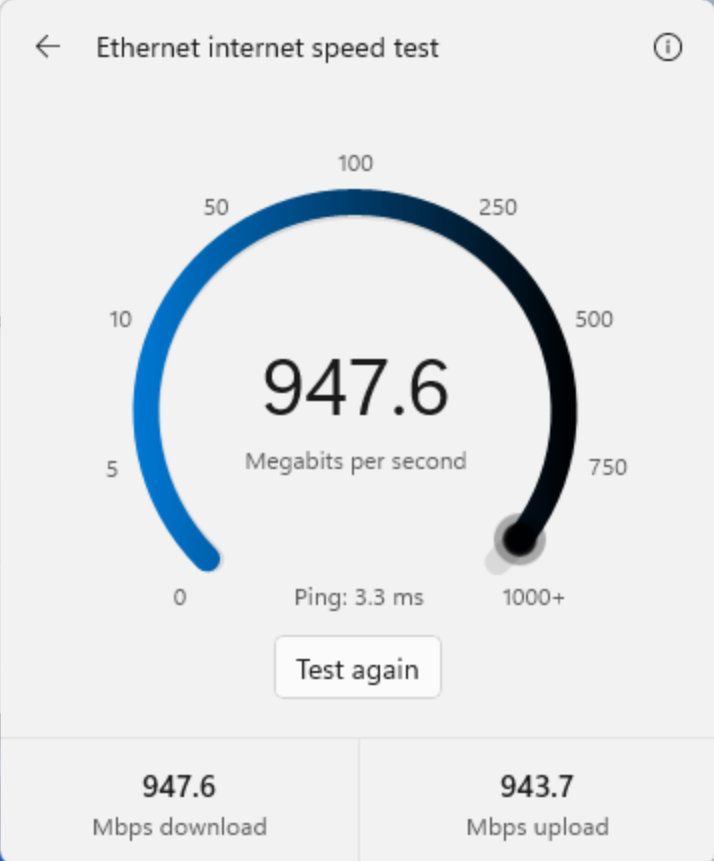
❌