❌

Vue normale

Reçu — 20 octobre 2026 ⏭ Windows Central - News, Forums, Reviews, Help for Windows 10 and all things Microsoft.

Microsoft wants Edge to install security updates without restarting

Microsoft is testing a way to update Edge without forcing a restart, potentially letting you keep working while it switches to a more secure version.

Browser updates can interrupt your work, so you might put off restarting the browser. However, this can delay important security fixes. Microsoft's solution aims to solve both problems by updating Edge in the background while keeping compatible tabs open.

The project is still an early experiment, not a feature you can use today. Microsoft says the prototype isn't part of Edge's production code or the Chromium project.

Microsoft wants Edge updates to be seamless

Currently, browser updates require a restart to safely switch to a newer version. Although Microsoft Edge can restore your open tabs afterward, restarting can still interrupt your work. Microsoft's prototype aims to change that by downloading an update in the background and moving the browser and its supporting processes to the newer version while keeping your work available.

For example, imagine you're filling out a long online form when a security update becomes available. Instead of asking you to restart Edge and interrupt your work, the browser would update in the background while you continue working.

Microsoft demonstrated the prototype in a video, and when the company clicked the "Update" button, the browser switched to the new version while keeping compatible tabs open. Eventually, the goal is to apply updates automatically without requiring users to click anything.

One limitation is that existing tabs can stay open only if they're compatible with the new version. Other tabs will switch to the updated version when you navigate to them.

AI makes faster security updates more important

Image of Microsoft's new Copilot Mode option for its Edge web browser in July 2025.

(Image credit: Future | Daniel Rubino)

The project isn't only about convenience. Microsoft notes that AI is accelerating vulnerability discovery and changing the pace of attacks, increasing the need to roll out security fixes more quickly. The company describes the time between a security fix becoming available and an update being applied as the "patch gap." During this period, users who don't install the fix remain vulnerable.

A security update can only protect you after apply it. Restarts add friction to that gap: people may keep a browser open for days because they are in the middle of something important.

Microsoft

The requirement to restart the browser can also make the problem worse when people postpone updates because they don't want interruptions. As a result, applying security updates faster could reduce the time users remain exposed to known vulnerabilities.

So, when can we use it?

This isn't built into the current version of the browser, so don't go through the settings trying to find the option. Microsoft says that the prototype isn't part of the browser or the Chromium project. Instead, the company is sharing its work early and inviting developers and other organizations to collaborate on this project.

Edge already has an update option for idle devices

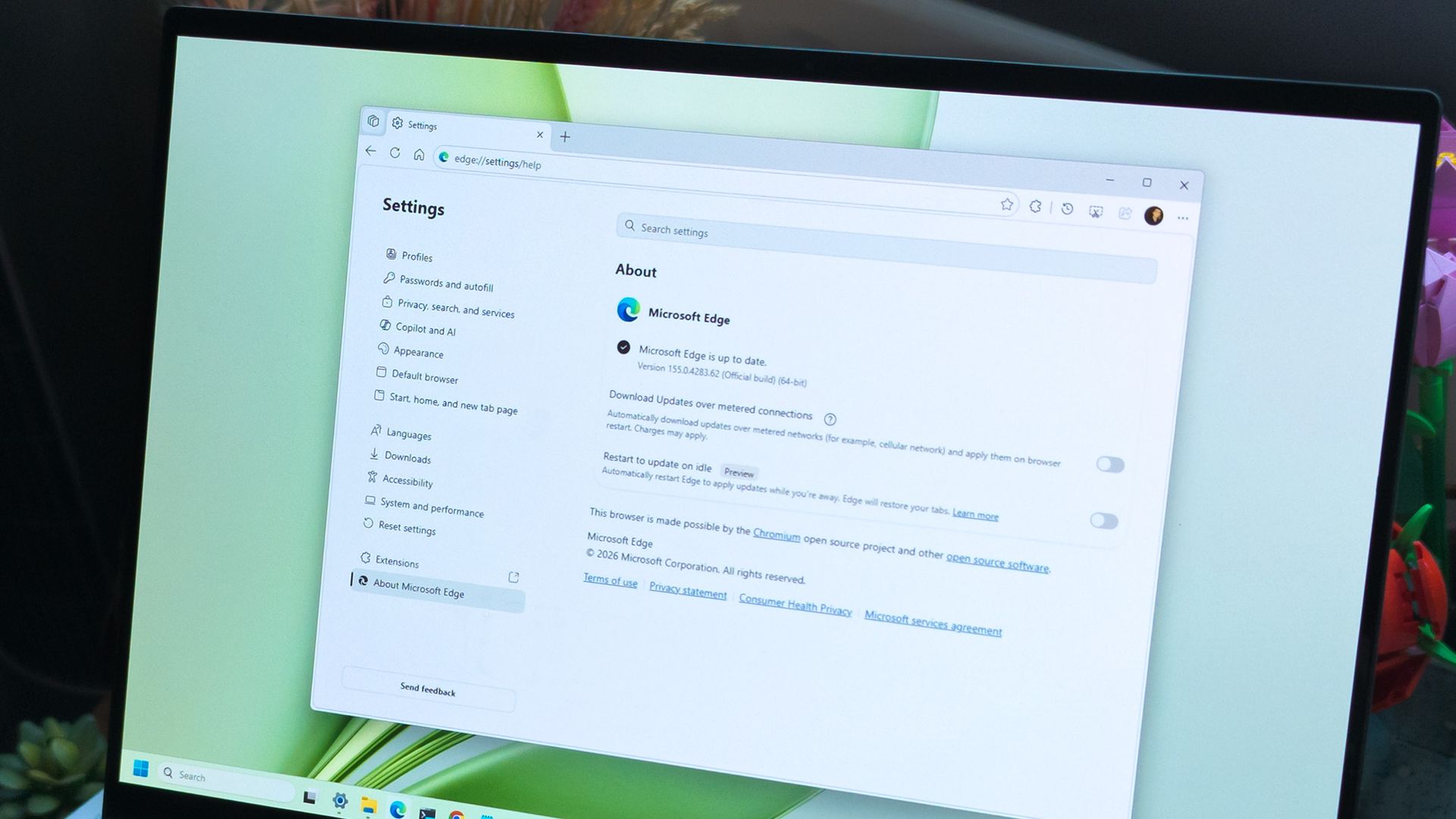
Microsoft Edge Update Restart

(Image credit: Daniel Rubino / Windows Central)

While the company continues developing its new update mechanism, Microsoft Edge already offers a feature called "Restart to update on idle," previously known as "Instant Updates."

The feature restarts Edge when your device is idle, installs the update, and reopens your tabs. It still requires a restart, but the interruption happens when you're not using the browser.

What's next?

For now, Microsoft Edge's existing update options help reduce delays, while the seamless-updates prototype offers a glimpse of what could come next. Microsoft hasn't announced when, or whether, this approach will become available. The company is sharing the prototype early to encourage collaboration with the community.

However, we'll have to wait and see whether the concept will make it into a future version of the browser. What are your thoughts on this new way to update the browser? Let me know in the comments.

More resources

Explore more in-depth how-to guides, troubleshooting advice, and essential tips to get the most out of Windows 11 and 10. Start browsing here:

Click to join us on r/WindowsCentral

Join us on Reddit at r/WindowsCentral to share your insights and discuss our latest news, reviews, and more.
Windows 11’s Search overhaul is coming fast — here’s what you really need to know

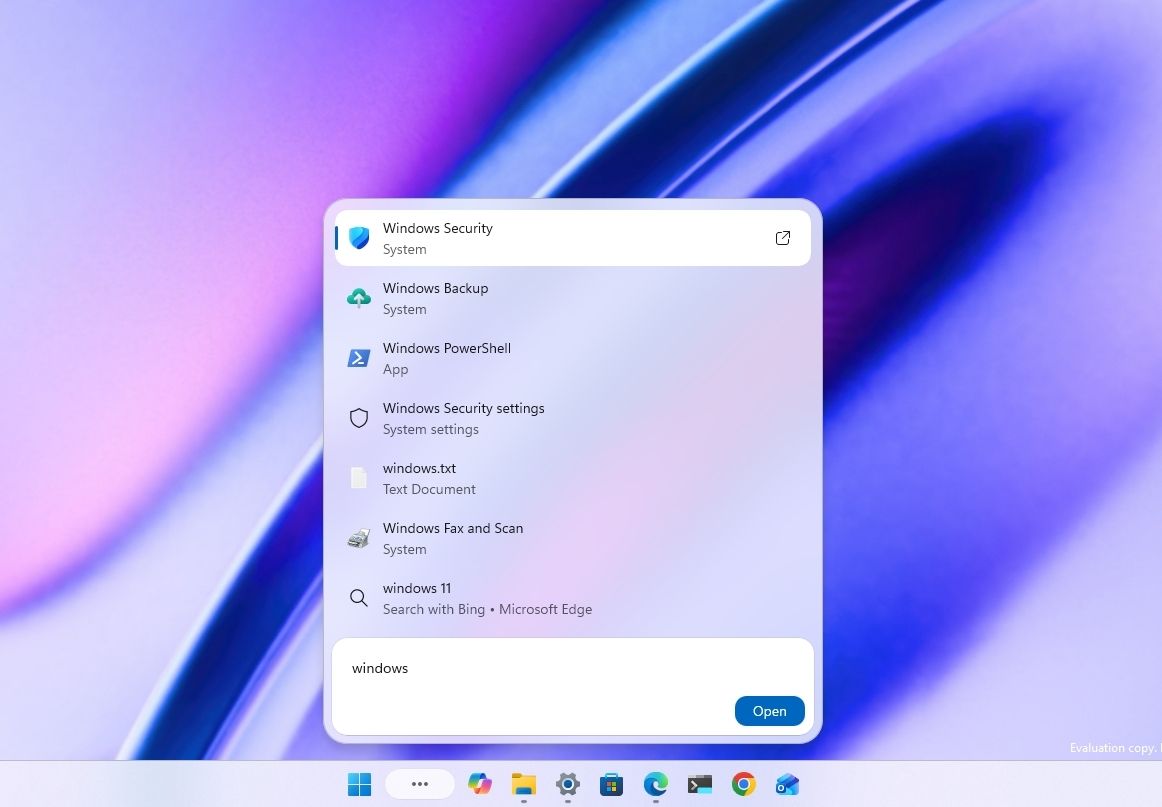
On Windows 11, Microsoft is overhauling the Windows Search feature to make it faster, more accurate, and more useful. The experience will go beyond finding apps, files, and settings by letting users perform common tasks directly from the Taskbar. At the same time, upcoming improvements will add file previews, richer web results, and Copilot integration.

The redesigned Search experience is in development, but a preview is already rolling out through the Windows Insider Program, with more features planned for later this year and a deeper integration with the Start menu planned for 2027.

Here's what you need to know about the new Windows 11 Search experience.

What is the new Windows 11 Search experience?

The traditional Windows Search experience has been designed primarily to find apps, files, settings, and web results. However, its performance and ability to understand search queries have always been questionable.

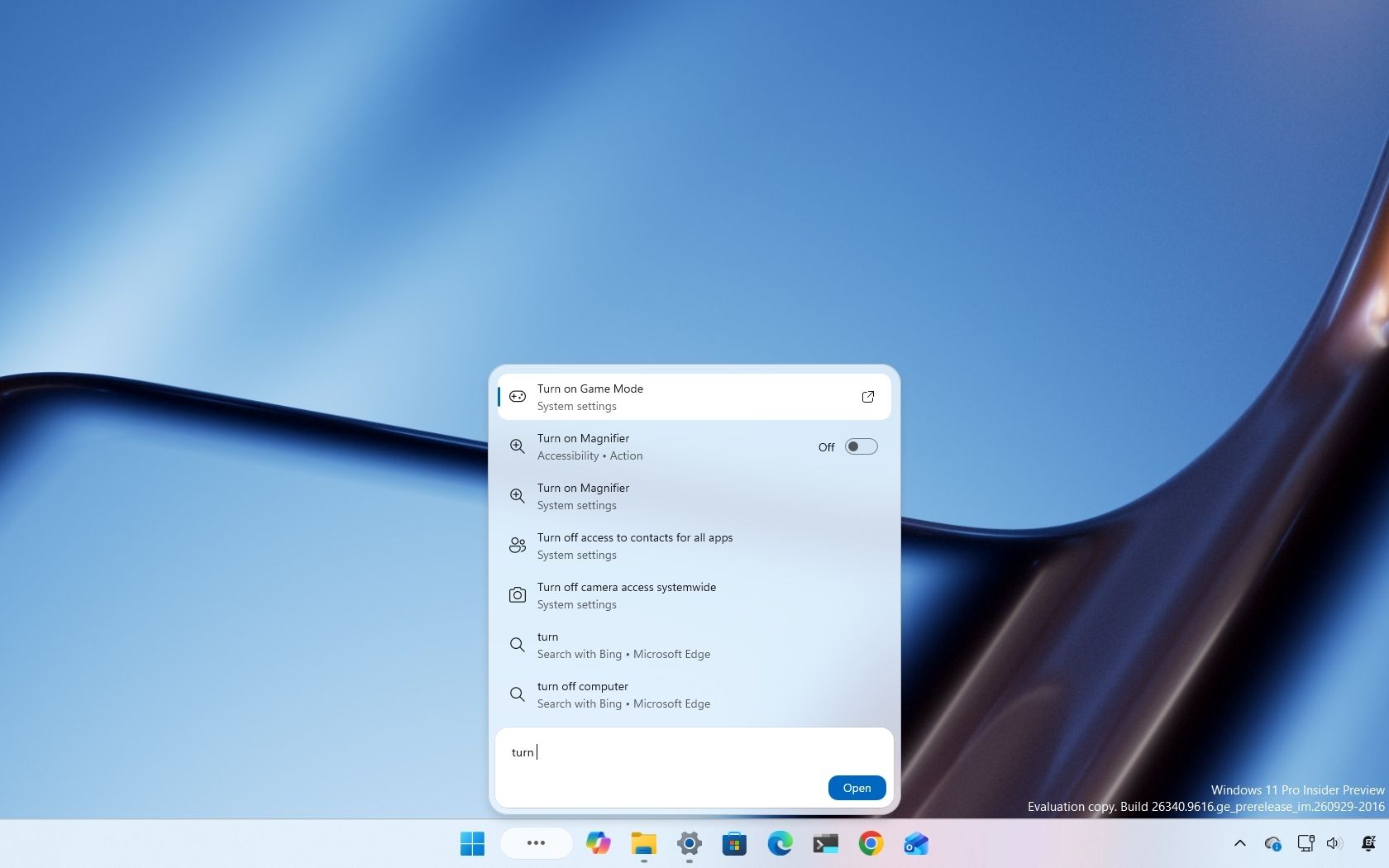
New Windows Search showing search results.

(Image credit: Mauro Huculak)

The new Windows Search experience addresses these limitations with a redesigned interface built on WinUI 3, which Microsoft says improves performance and reduces memory usage. It also improves search accuracy by better matching typos and synonyms.

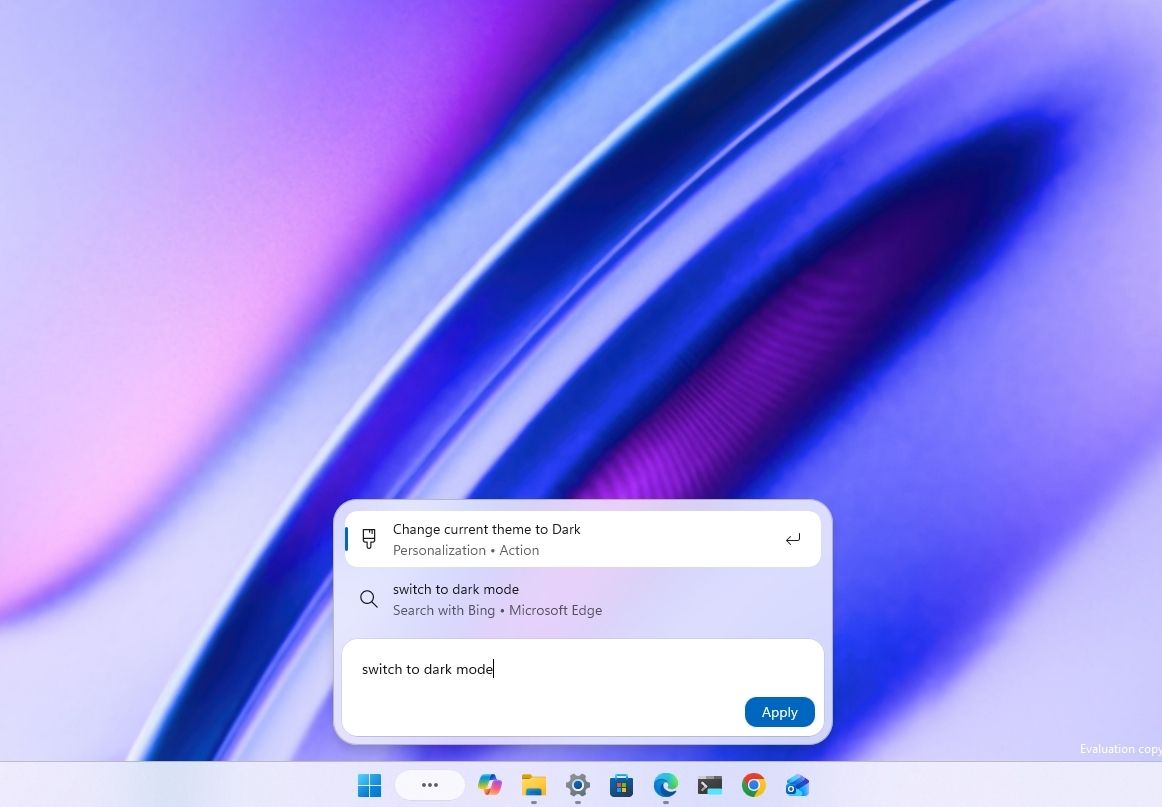
Beyond finding things, the new Search lets you perform certain actions directly from the Search box in the Taskbar. For example, you can type "switch to dark mode," "turn on Bluetooth," or "mute" to change a setting or adjust your computer without opening another app or navigating through additional screens.

Microsoft is also working on richer file previews, more detailed search results, and inline web answers that let you find information without leaving the experience. The company also plans to integrate Copilot into the experience, allowing users to ask questions and view answers directly in the Search interface before opening the Copilot app to expand the conversation.

What can you do with the new Windows Search?

The new Windows Search retains the core functionality of the legacy experience, letting you find apps, files, settings, and web results, but it also introduces new capabilities.

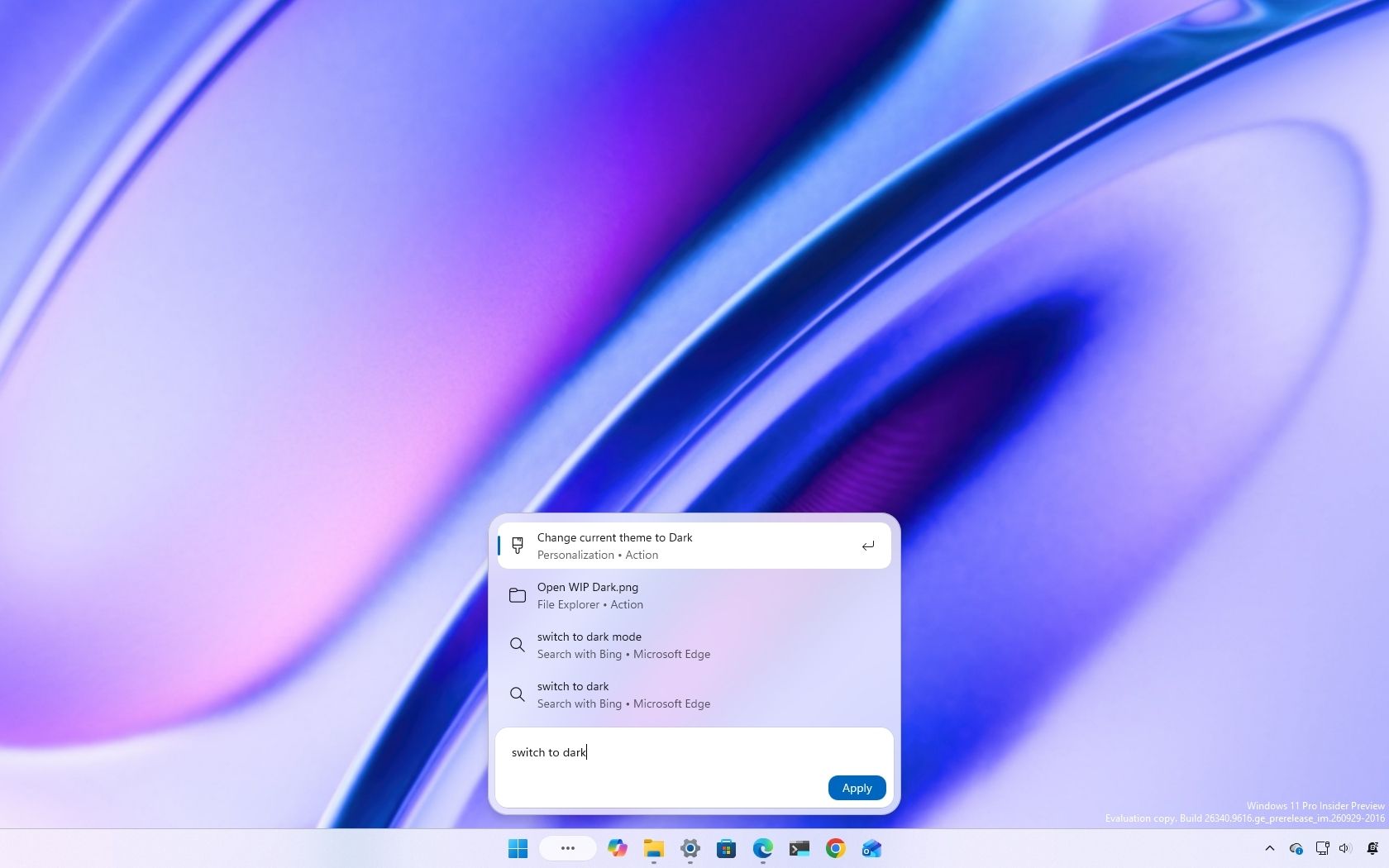
For example, you can perform certain actions directly from the Search box, such as switching to Dark mode, enabling Bluetooth, adjusting the volume, or arranging windows on the screen.

New Windows Search showing an action.

(Image credit: Mauro Huculak)

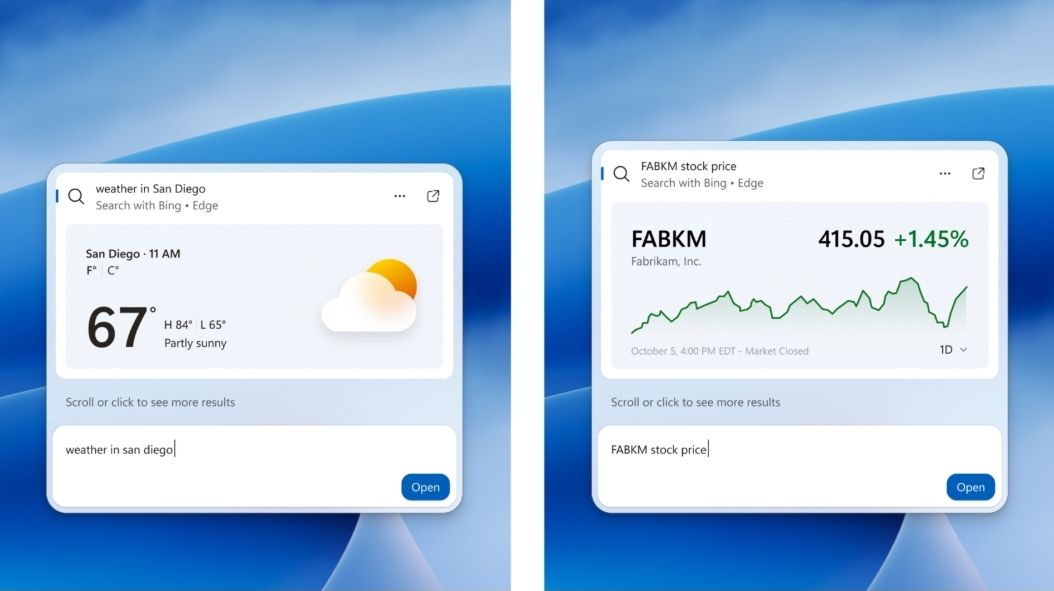
In future updates, Windows Search will add inline file previews and richer web results, including information cards for queries related to weather, stock prices, and other topics.

Microsoft is also working on Copilot integration, allowing Search to recognize questions that could benefit from a more detailed answer and display an AI-generated response directly in the interface. Selecting the response can then open the Copilot app for further assistance.

How do you enable the new Windows Search experience?

The new Windows Search experience is still under development and is currently available to Insiders in the Experimental channel for versions 26H2 and 26H1. To try it, your computer must be running build 26340.9616 for version 26H2 or build 28120.3181 for version 26H1 or a later release.

If the feature doesn't appear after installing the latest preview build, Microsoft says you can enable it manually by navigating to Settings > Windows Update > Windows Insider Program > Feature flags. After enabling the feature, restart your computer to apply the changes.

Does the new Windows Search require a Copilot+ PC or an NPU?

No. When I asked Microsoft whether the new Windows Search experience would be limited to devices with an NPU, the company explained that its inline actions use a small machine-learning (ML) model that runs locally on the computer's main processor. The model interprets the user's request and matches it to the appropriate action.

Microsoft also clarified that this isn't generative AI powered by a small language model (SLM) or a large language model (LLM). As a result, the feature doesn't require an NPU and will be available on computers without one.

Can Windows Search perform actions on a connected phone?

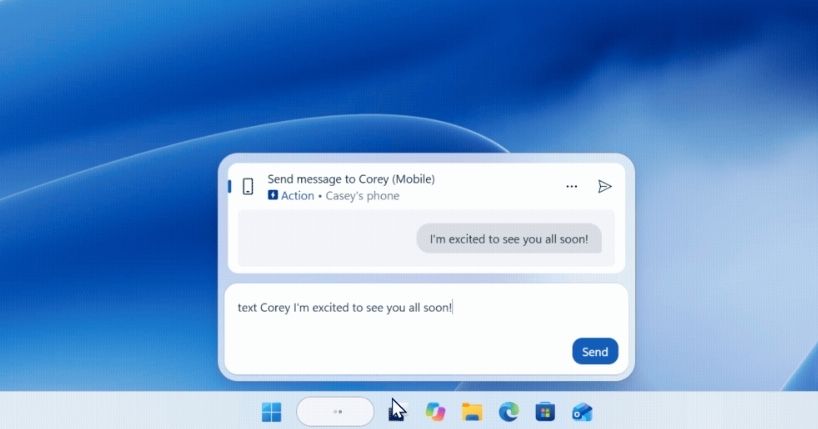
Not yet, but Microsoft is working on a new capability that will let users send text messages directly from Windows Search on computers connected to a phone through the Phone Link and Link to Windows apps.

New Windows Search sending a text message demo.

(Image credit: Microsoft)

Will the new Windows Search replace Start menu search?

Microsoft plans to bring the new Windows Search experience to the Start menu in 2027. For now, the Start menu continues to use the existing Search experience while the company keeps working on the new design. Microsoft hasn't explicitly confirmed whether the new experience will completely replace the current Search interface.

In the past, the company also worked on a similar feature called "Ask Copilot," which users could enable or disable through Taskbar settings. However, the current version of Windows 11 doesn't offer an option to turn off the new Search experience and continue using the legacy version on the Taskbar.

Does the new Windows Search use AI to perform actions?

The new Windows Search doesn't use AI to perform actions. This isn't generative AI. Instead, it uses a small ML model to match the user's intent to the action. As a result, the feature doesn't require an NPU and will be available on computers without one.

What improvements are coming to Windows Search?

The new version of Windows Search will include a new interface design that's significantly smaller than the legacy version. However, it'll include inline previews and richer file details, making it easier to identify documents, presentations, and photos without opening them.

New Search on Windows 11 showing rich search results demo.

(Image credit: Microsoft)

Search will also display richer web results, including information about weather, stock prices, and general questions, directly in the interface.

Microsoft is also adding filters to help users narrow search results by category, such as files. In addition, the company plans to integrate Copilot into Taskbar Search, letting users get AI-generated answers inline and open the Copilot app for a more detailed conversation.

Will the new Windows Search integrate with Copilot?

Yes. Microsoft is working on integrating Copilot into the new Windows Search experience. The planned capability will let users ask questions and see AI-generated answers directly in the Search interface. Selecting an answer can open the Copilot app for further interaction.

New Search with showing Copilot integration (AI mockup).

(Image credit: Microsoft)

The company says the opt-in experience will begin rolling out to select markets later this year.

When will the new Windows Search experience be available?

Microsoft began rolling out the new Windows Search experience to Insiders in the Experimental channel for versions 26H2 and 26H1 on October 7, 2026.

The company plans to introduce richer search results and other improvements later this year, with Copilot integration initially rolling out as an opt-in feature in select markets.

Microsoft also plans to bring the new Search experience to the Start menu in 2027. The company hasn't announced a general availability date for all Windows 11 users.

Windows Central's Take

I like that Microsoft is taking a more cautious approach to AI with the new Windows Search. The core experience isn't being powered by Copilot, and the inline actions use a small machine learning model running locally on the CPU rather than generative AI. The company is also making Copilot integration optional, which is the right approach for this type of feature. I want the operating system to be more useful without making AI feel like a requirement to get things done.

We'll have to wait to see how well Search performs in everyday use, especially when finding files and settings. Microsoft has redesigned core experiences before, and a cleaner interface doesn't mean much if results aren't reliable or users lose control. If the company can improve Search while keeping Copilot optional and avoiding unnecessary clutter, this could be a significant improvement.

What are your thoughts about the new Search for Windows 11? Let me know in the comments.

More resources

Explore more in-depth how-to guides, troubleshooting advice, and essential tips to get the most out of Windows 11 and 10. Start browsing here:

Click to join us on r/WindowsCentral

Join us on Reddit at r/WindowsCentral to share your insights and discuss our latest news, reviews, and more.

Windows 11 is getting these 9 useful improvements in October 2026

As part of the Windows Insider Program, Microsoft released several preview builds of Windows 11 in early October, some of which rolled out new features and improvements, while others played catch-up by bringing already announced changes to other channels.

During the first two weeks of October, the software giant made available the first preview of the new Windows Search experience. We also saw the new Battery widgets and more.

Microsoft also revealed a new option to sanitize the hard drive when using the Cloud Rebuild feature, plus improvements to File Explorer, Share, and more.

In the Experimental channel, we've seen builds 28120.3181, 26340.9616, 26340.9596, 28120.3151, 29683, and 29680. In the Beta channel, the company released builds 26220.9606, 28020.3172, 26220.9587, and 28020.3142.

In this recap, I'll highlight the latest and most noteworthy changes available through the Windows Insider Program.

Biggest improvements from the Windows Insider Program in October 2026

In this recap, I'll highlight the latest and most noteworthy changes available through the Windows Insider Program.

Windows Search overhaul

Starting with the release of build 26340.9616 for version 26H2, Microsoft began the gradual rollout of the new Windows Search experience.

New Windows Search showing search results.

(Image credit: Mauro Huculak)

The new experience features an entirely new interface using WinUI 3, designed to make search faster and more efficient while using less memory.

Perhaps the most notable change is the new inline actions that let you perform tasks directly from the Search box. For example, you can switch between the light and dark mode, enable Bluetooth, adjust brightness, arrange windows, and more.

In addition, the company is adding improvements to help Windows Search understand you better, including better handling of typos and synonyms.

The new Search experience is currently available in versions 26H2 and 26H1 as a preview through the Experimental channel.

Battery new widget

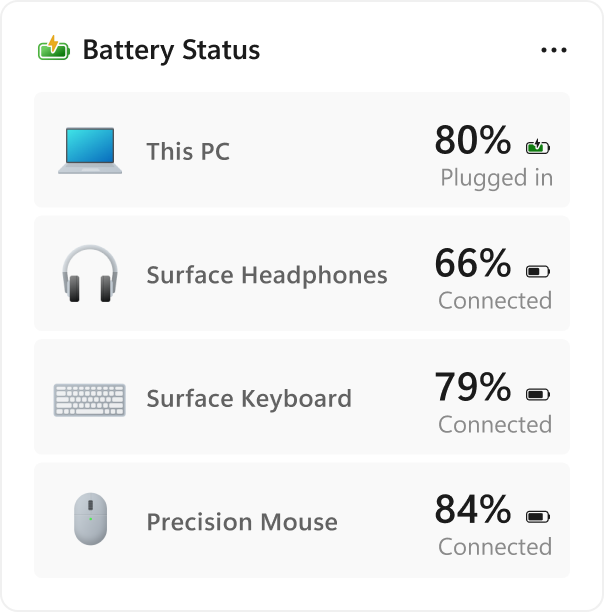
Also, Windows 11 build 26340.9616 ships with the new Battery Status widget, which tracks your computer and peripherals' battery levels without having to resort to third-party tools.

New Battery widget for Windows 11.

(Image credit: Microsoft)

The widget is available from the Widgets dashboard> Add widgets > Battery Status.

Once the widget is enabled, you'll see the battery level of your laptop as well as your mouse, keyboard, headphones, and more.

Task Manager new processes group

Although Task Manager isn't getting another makeover, an updated version improves how it handles process groups, letting apps combine separate background processes into a single category instead of relying on traditional parent-child process trees.

Microsoft says that this should make it easier to view how an app uses system resources. Currently, this works only in Microsoft Defender.

File Explorer faster navigation

The company has also made small but welcome improvements to File Explorer with the release.

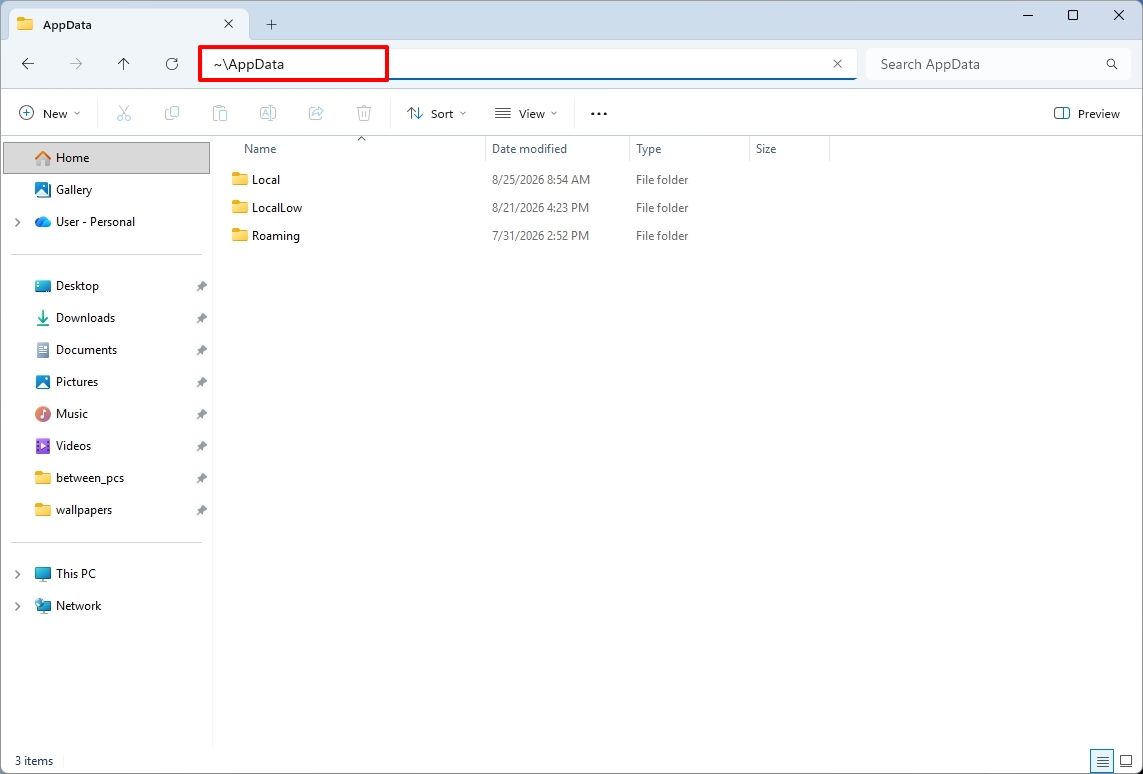
For instance, on build 26340.9596 for version 26H2, you can now use the "~" character to quickly open your profile folder or subfolder, for example, "~\AppData".

File Explorer showing ~ character to open profile folder.

(Image credit: Mauro Huculak)

As part of the File Explorer changes, on builds 28120.3151 and 28020.3142 for version 26H1, Microsoft rolled out improvements to keep folder view customizations, such as sorting and icon size preferences, consistent across different access paths and apps.

The update also improves address bar support for paths with double backslashes and quotation marks.

Finally, in this wave of updates, build 29680 for the Future Platforms version, you'll find an updated version of the file manager that now handles previews for downloaded files from the internet.

When using the preview pane, HTML files will show a preview after you acknowledge the warning, while non-HTML files, such as PDFs, will show previews automatically.

Cloud Rebuild improvements

Cloud Rebuild is a new recovery feature that helps you reinstall the operating system when your computer has problems or won't boot.

Unlike other recovery options, this feature uses Windows Update to download installation files and drivers without needing bootable USB media.

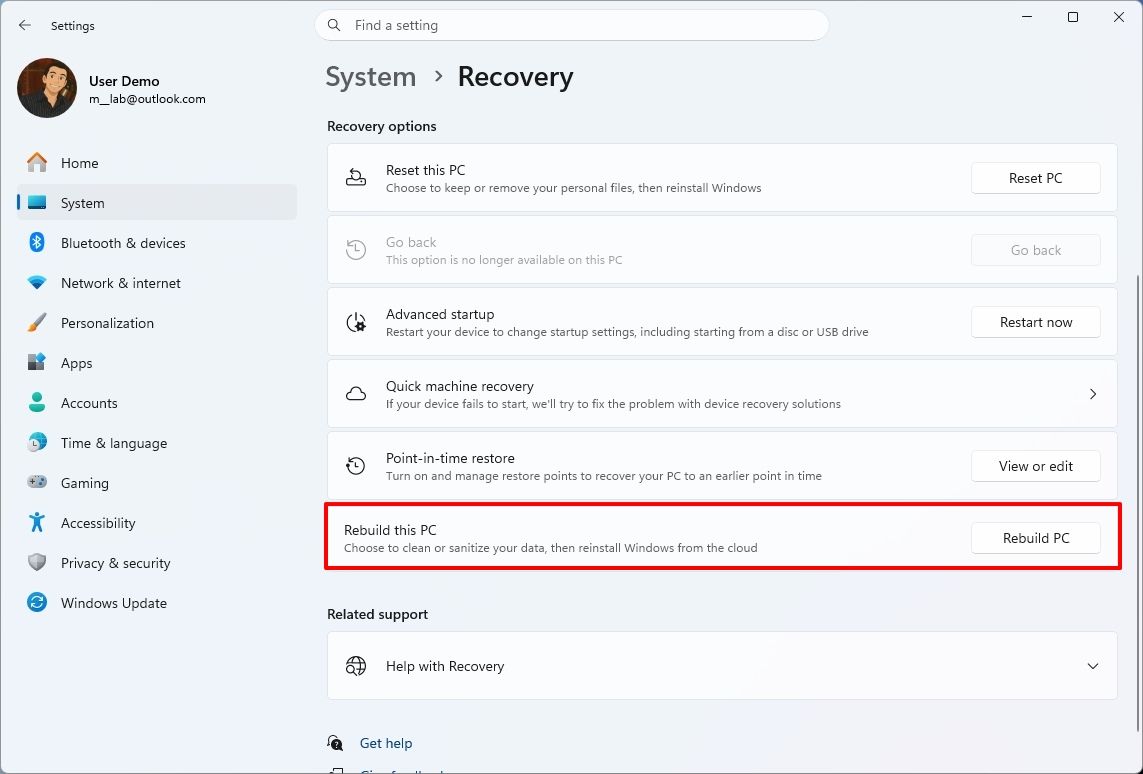
This recovery feature is still in preview, but in build 26340.9596 for version 26H2 and build 26220.9587 for version 25H2, you'll now find a new "Rebuild this PC" option on the Recovery page in Settings, making it easier to access.

Windows 11 Settings showing the Rebuild this PC option.

(Image credit: Mauro Huculak)

Also, in builds 28120.3151 and 28020.3142 for version 26H1, the Cloud Rebuild feature added a new "Remove & sanitize files" option to securely erase data before reinstalling the operating system, which is useful when recycling or reassigning a computer.

This update also lets admins configure and start a Cloud Rebuild remotely using Recovery CSP.

Narrator's new math reading

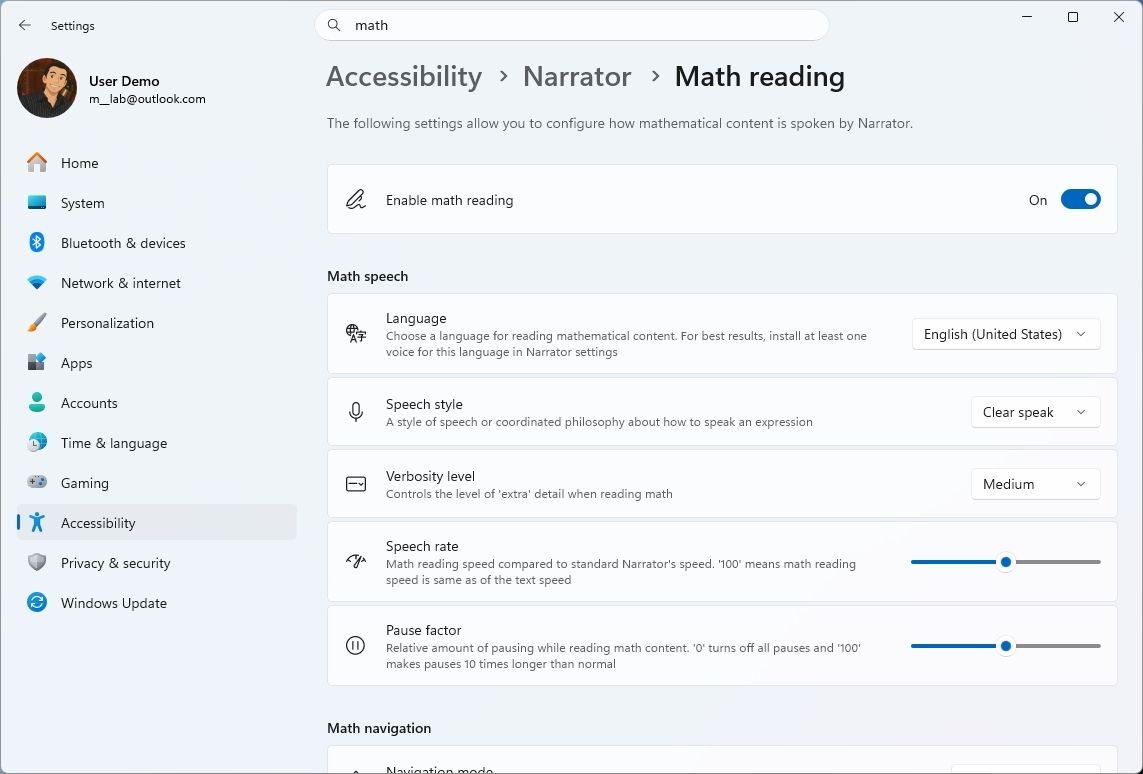
As part of the updates for version 26H1 (builds 28120.3151 and 28020.3142), Microsoft also updated the Windows Narrator feature with a more natural way to read and explore math equations.

According to the company, on supported apps from the Microsoft 365 suite, such as PowerPoint and Word, Windows Narrator can now read equations as structured expressions.

In addition, a new math navigation mode allows you to explore an equation one part at a time.

Windows 11 Settings showing the Narrator math reading settings.

(Image credit: Mauro Huculak)

You can use the "Narrator key + Alt + N," and then use the arrows to move through fractions, exponents, and roots. You can also use "Esc" to exit the mode.

The new math capability also works on supported web content in Microsoft Edge and Google Chrome.

Magnifier with updated controls

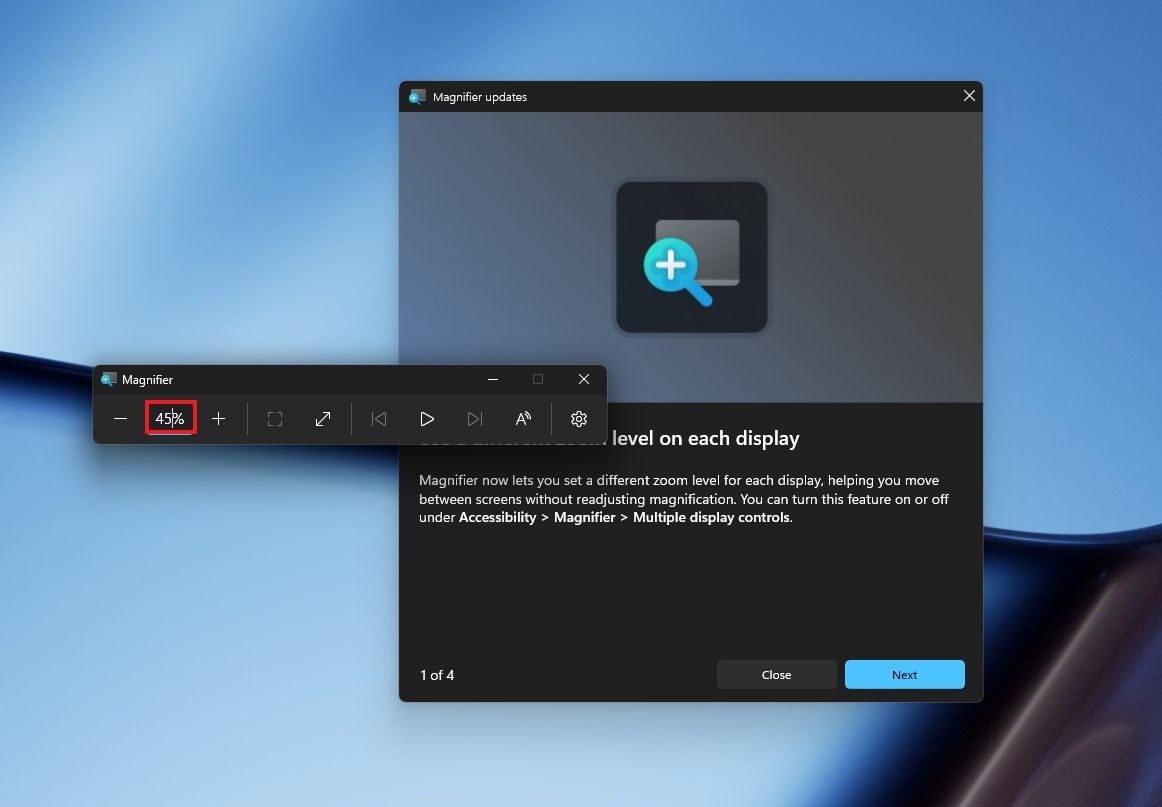
In this wave of updates, the Magnifier lets you enter the exact zoom percentage directly in the toolbar instead of relying on the presets.

Windows 11 desktop with Magnifier new zoom controls.

(Image credit: Mauro Huculak)

In addition, in the settings, the preset option now includes more increments up to 400 percent.

Windows Share customization

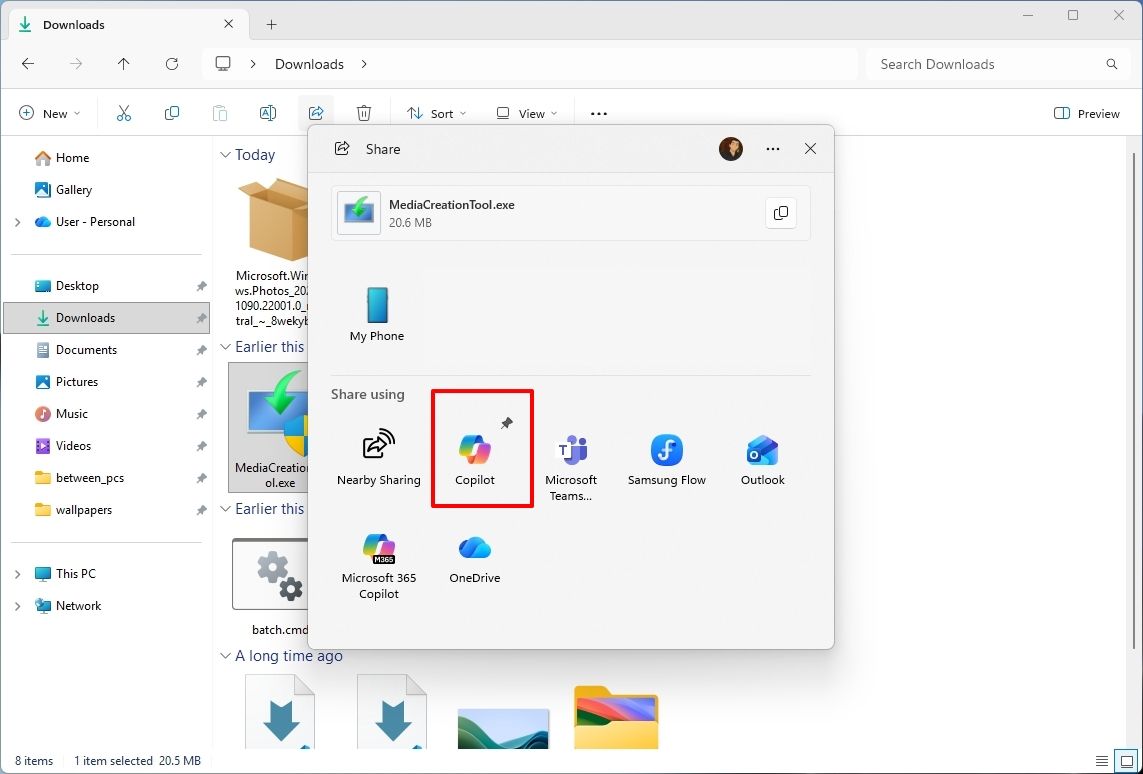
Although the Windows Share experience remains largely the same, Microsoft has added the ability to pin your favorite apps directly in the Share interface in the Experimental channel for Future Platforms.

File Explorer with Windows Share showing the pin option.

(Image credit: Mauro Huculak)

This change makes it easier to find your favorite apps that you use often when sharing.

Installed apps page tweak

Finally, starting with build 29680, the "Installed apps" page now shows the version number at the top level under the Apps settings section for package apps.

Windows Central's Take

I'd put the new Windows Search, Cloud Rebuild, and File Explorer improvements at the top of this list. Search is becoming more useful for everyday tasks, Cloud Rebuild is getting better options for recovering a computer and securely erasing its data, and File Explorer is addressing small annoyances that can make file management frustrating.

These changes can make Windows 11 more practical without requiring users to learn an entirely new way of doing things.

I hope Microsoft continues to improve these core features instead of leaving them behind in favor of bigger, flashier additions.

Which of these three improvements would you most like to see arrive on your PC? Let me know in the comments.

More resources

Explore more in-depth how-to guides, troubleshooting advice, and essential tips to get the most out of Windows 11 and 10. Start browsing here:

Click to join us on r/WindowsCentral

Join us on Reddit at r/WindowsCentral to share your insights and discuss our latest news, reviews, and more.
❌