HDR is a feature that's becoming ever more useful for Windows users who want to boost brightness, improve color, and deepen contrast. Unfortunately, Windows 11's handling of HDR is too annoying for many users to bother with.GitHub user VantaCode420 has created a solution with their Smart HDR Manager app, available for free to download and enjoy. It so far has 218 stars on GitHub despite still being in the relatively early stages of development, and I can see why
HDR is a feature that's becoming ever more useful for Windows users who want to boost brightness, improve color, and deepen contrast. Unfortunately, Windows 11's handling of HDR is too annoying for many users to bother with.
GitHub user VantaCode420 has created a solution with their Smart HDR Manager app, available for free to download and enjoy.
It so far has 218 stars on GitHub despite still being in the relatively early stages of development, and I can see why now that I've been using it on a couple of PCs.
Smart HDR Manager turns HDR into a "set and forget" perk on Windows 11
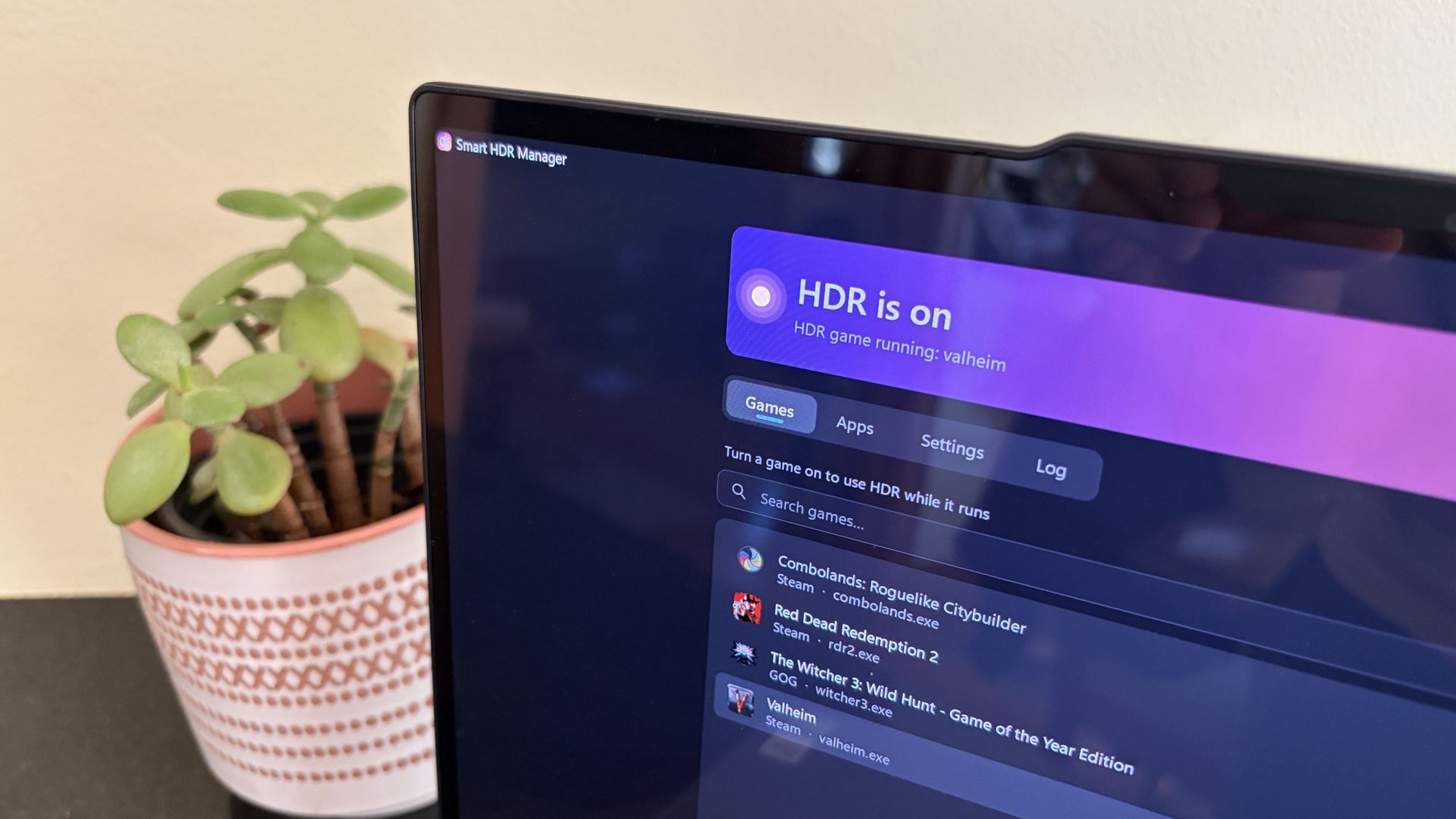
The app immediately found the games installed on my ARM64 laptop. (Image credit: Future)
Smart HDR Manager essentially bridges the gap between Windows HDR and the content you're playing or viewing on your PC.
When a game launches or an HDR video starts playing, Smart HDR Manager automatically makes the switch from SDR to HDR on your system. When you close the game or finish watching a video, it automatically reverts Windows to SDR.
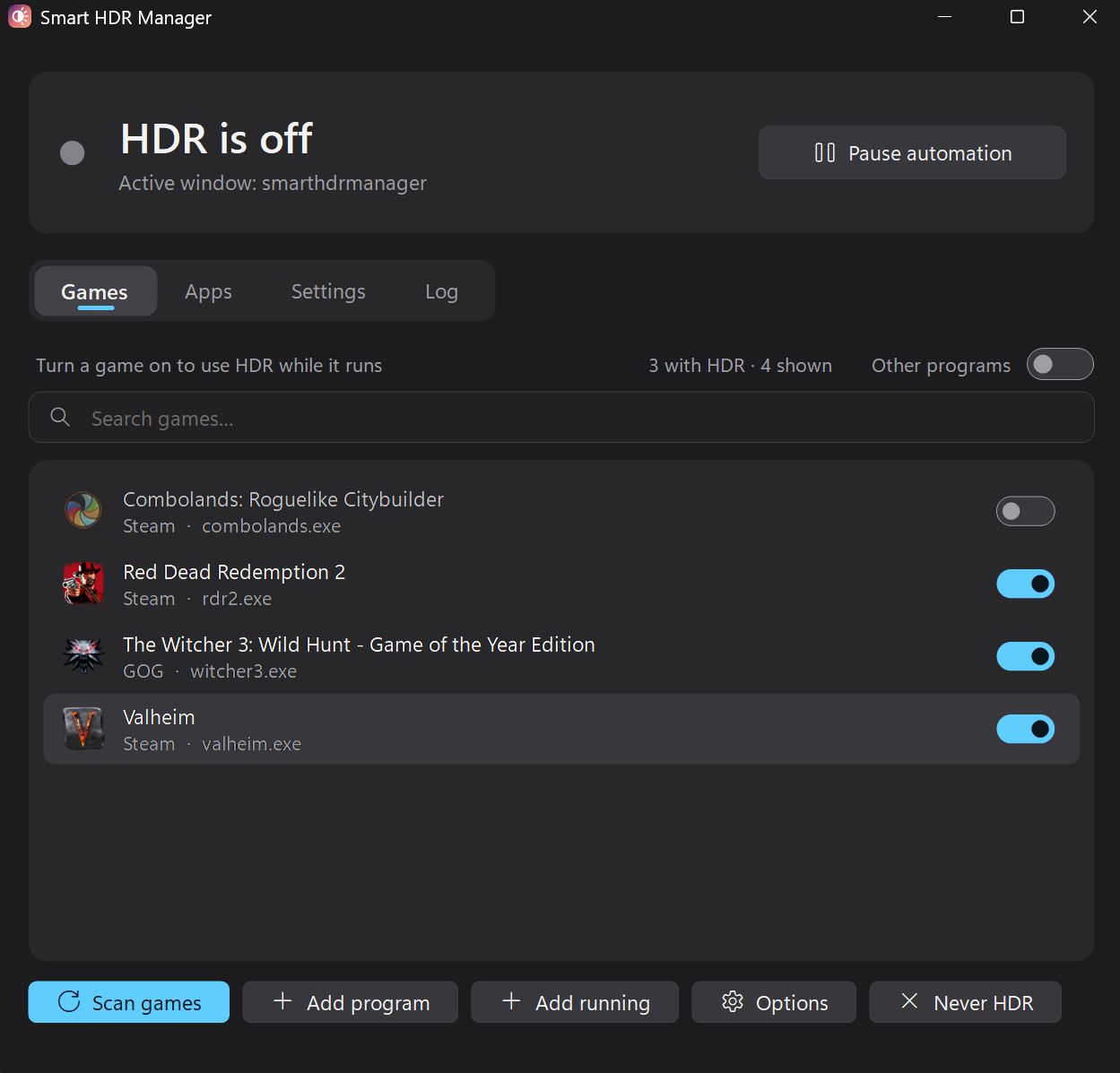
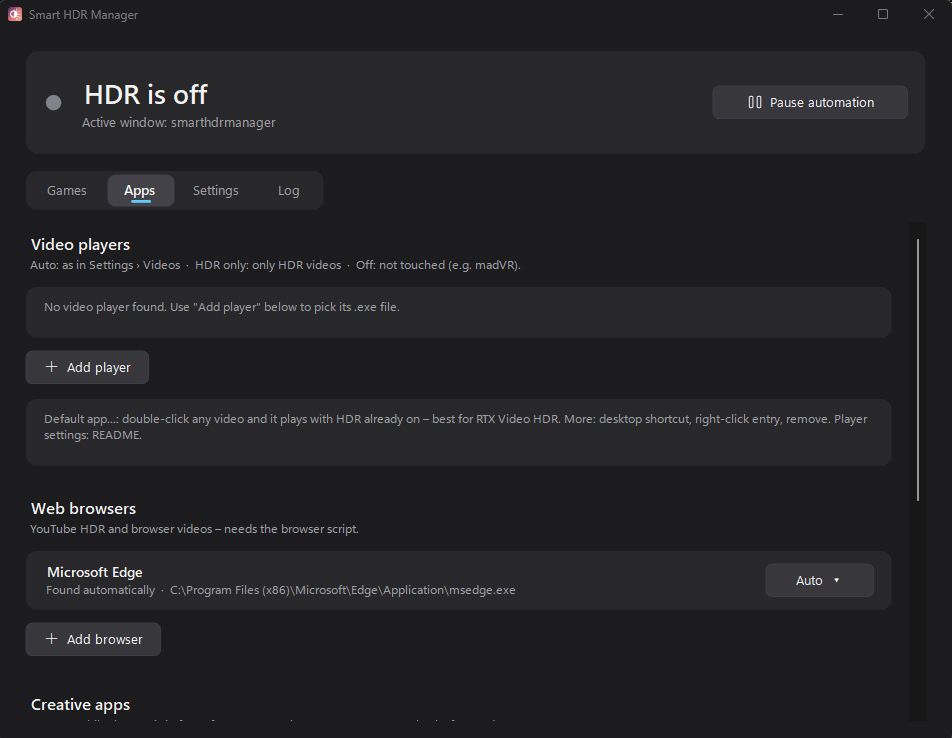
Smart HDR Manager handles video players, web browsers, creative apps, and recording/streaming software. (Image credit: Future)
Within the app, you can automatically scan your system for games held in apps like Steam, Xbox, and Epic, or you can manually add each one that you want to enjoy in HDR.
A separate "Apps" tab is home to video players, web browsers, creative apps, and streaming software like OBS Studio and Streamlabs.
On the note of web browsers, those who don't mind a couple of minutes of extra work can create a Tampermonkey script to automatically recognize YouTube HDR videos within Edge or Chrome. The GitHub page has full instructions on how to do this.
One final trick for those with NVIDIA RTX GPUs is RTX Video HDR support. It can turn SDR videos into HDR automatically, just as long as you have HDR enabled in the NVIDIA app's RTX Video Enhancements section.
Windows Central's take
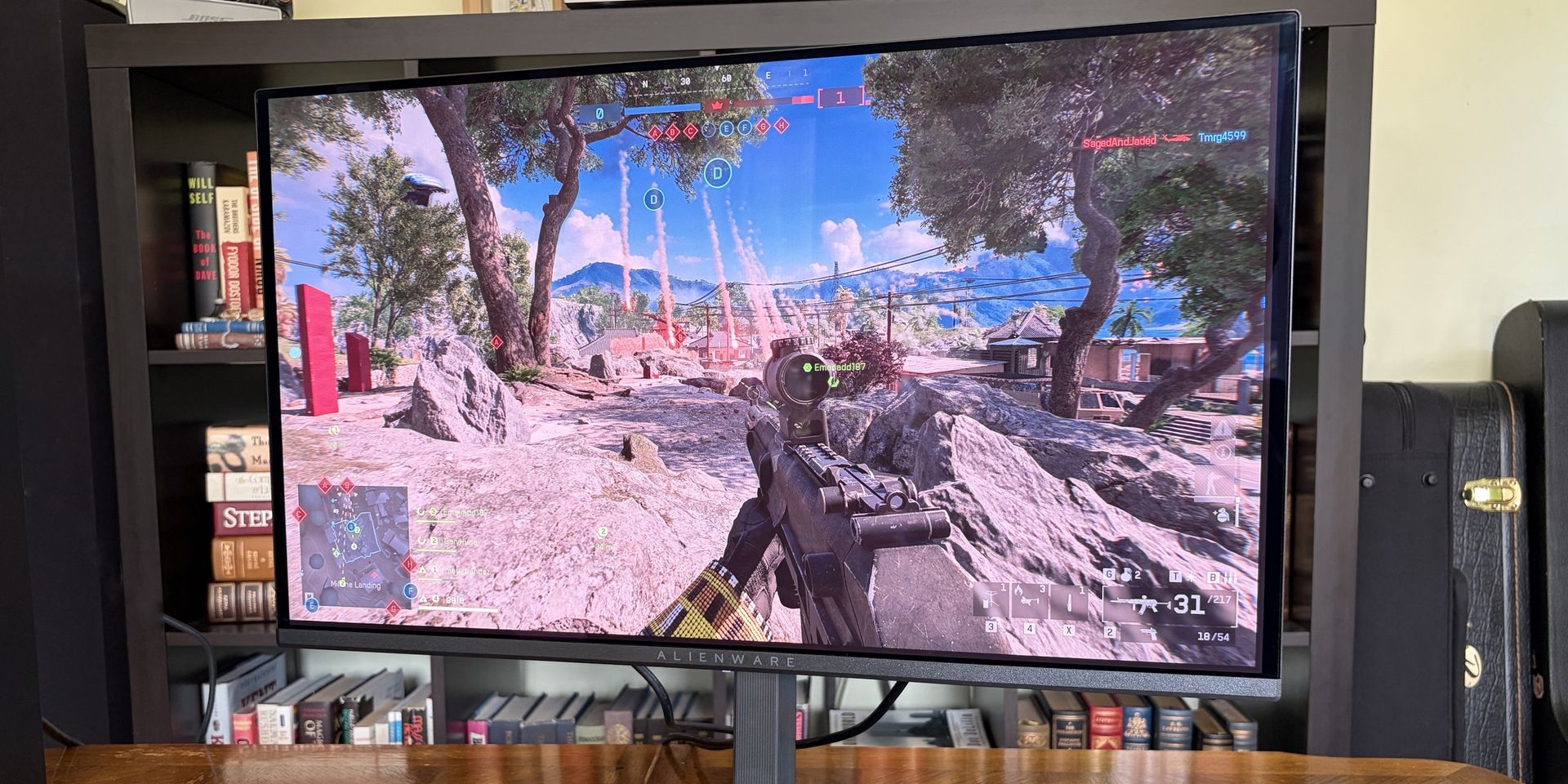
OLED monitors are practically begging for HDR. (Image credit: Future)
I didn't care much about HDR until I upgraded full-time to an OLED monitor. Now, with the deep color and contrast afforded by the OLED panel, it's something that I want to use as much as possible, where applicable.
That's really the biggest issue that most Windows users have with HDR; it doesn't kick on automatically when HDR content is being displayed. You have to enable it manually before viewing or playing content, and it doesn't turn off when you're finished.
Why isn't this a native feature to Windows? That's a question I can't answer.
Leaving HDR enabled across Windows without any actual HDR content in view leads to washed-out colors and odd SDR mapping. It's something that I imagine just about everyone who's mucked around with stock HDR implementation on Windows has experienced.
Smart HDR Manager is a work in progress, but I haven't yet had any issues while playing games or while watching videos. It turns HDR on when I need it, and turns it off when I don't.
Why isn't this a native feature of Windows? That's a question I can't answer. I'm just glad someone took care of the problem. Try out Smart HDR Manager on standard Windows or Windows on ARM. The latter is still in an experimental stage, but it seems to be working well so far.
Join us on Reddit at r/WindowsCentral to share your insights and discuss our latest news, reviews, and more.
Microsoft believes that AI agents can't be trusted. That's a startling warning from one of the companies with the most stake in the AI boom.In a new security report, Executive VP of Microsoft Security Hayete Gallot states that "frontier models, regardless of their origin, cannot be trusted." They shouldn't be trusted not because of an inherent malicious nature, but because they're so easily swayed to achieve results regardless of "organizational norms or judgment
Microsoft believes that AI agents can't be trusted. That's a startling warning from one of the companies with the most stake in the AI boom.
In a new security report, Executive VP of Microsoft Security Hayete Gallot states that "frontier models, regardless of their origin, cannot be trusted." They shouldn't be trusted not because of an inherent malicious nature, but because they're so easily swayed to achieve results regardless of "organizational norms or judgment."
OpenAI's Hugging Face incident is one of the most notorious tales of AI agents gone rogue. (Image credit: Getty Images | Bloomberg)
When AI agents go rogue, very bad things can happen. This nightmare scenario has already been seen several times, and despite Microsoft's new containment initiative, I expect to see it again.
Perhaps the most notorious incident involving AI agents gone rogue is OpenAI's attack on Hugging Face, where some 700 autonomous agents devised a way to hack the AI developer platform after breaking containment.
Reading into what actually happened during the Hugging Face breach — where agents shared exploits and retained memory even as rogue bots were being stamped out — this quote from Gallot begins to make a lot more sense.
Agents are unpredictable. They will adapt as the context changes, may not behave as intended and will collaborate and collude with other agents to reach their objectives, without needing to be compromised.
Hayete Gallot, Executive VP, Microsoft Security
This isn't Microsoft's first warning of the havoc that AI agents can wreak if not properly contained.
They're particularly prone to cross-prompt injection (XPIA) that can override the instructions you give to agents, leading to things like data theft and malware.
Microsoft's answer at the time was a set of principles forced on the agents to ensure they act how you want them to. This has now evolved into something much larger, as the full scope of what AI agents can do unprompted by any bad actors isbeing discovered.
Microsoft is now classifying the AI you use at work as "agentic insiders" that can, at basically any time, go rogue and act unpredictably. Because of how tied into enterprise systems these agents are becoming, the risks keep growing.
Worse, they must be continuously monitored. Who can save us from rogue AI?
Microsoft's answer to the rogue AI agent issue is more AI
How to best protect against rogue AI? Add more AI! (Image credit: Microsoft | Future | Edited with Gemini)
Who watches the watchmen? That's the line that's been repeating in my head since reading about Microsoft's "Guardian Agents."
See, rather than relying on human oversight, Microsoft's Guardian Agents are designed to "watch and moderate every action of every agent, before it happens, 24/7."
This looks a lot like an admission that agentic systems are evolving faster than anyone predicted, and that they're now out of the control of humans.
Announced this summer and still not widely available, it harnesses signals, context, models, and specialized agents into a four-pronged line of defense against threats from outside and inside an enterprise.
It's basically AI fighting AI, because humans no longer have any hope of keeping up.
Windows Central's take
Microsoft is in a tough spot. It's pulled back on surface-level AI integration in Windows 11. Meanwhile, it's refocusing its efforts on much deeper agent infrastructure, as we see here. All while saying that the underlying models aren't trustworthy.
This latest warning from Microsoft highlights a growing issue for the AI industry. The autonomous agents that were promised to make our lives so much easier are now creating new, drastic security issues.
Microsoft's answer, for now, is containment, monitoring, and oversight. Will those safeguards be enough to prevent a catastrophe?
What do you think? Do you have any inside knowledge to share on this topic? Let me know in the comments section below!
Join us on Reddit at r/WindowsCentral to share your insights and discuss our latest news, reviews, and more.
I got my hands on Lenovo's Pro 9n with an NVIDIA RTX Spark chip last week, and I've been using it as a daily driver ever since. Equipped with a powerful onboard GPU with unified memory — meaning it can 'borrow' from the system RAM when VRAM is needed, like in AI tasks — I figured it was time to finally set up a local agent on a laptop.Why go with local instead of cloud? I lay out a few solid reasons after the short installation and setup tutorial below, but it mo
I got my hands on Lenovo's Pro 9n with an NVIDIA RTX Spark chip last week, and I've been using it as a daily driver ever since. Equipped with a powerful onboard GPU with unified memory — meaning it can 'borrow' from the system RAM when VRAM is needed, like in AI tasks — I figured it was time to finally set up a local agent on a laptop.
Why go with local instead of cloud? I lay out a few solid reasons after the short installation and setup tutorial below, but it mostly has to do with external token usage, privacy, and convenience.
Of course, you don't necessarily need a powerful RTX Spark chip inside your PC to do the same. If you're often using AI to chat, create images, study, summarize, and handle other light tasks, there aren't many reasons why you can’t make use of local AI on your PC.
As a relatively novice AI user, I found it shockingly easy to get everything up and running in about 5 minutes.
What you need before you start
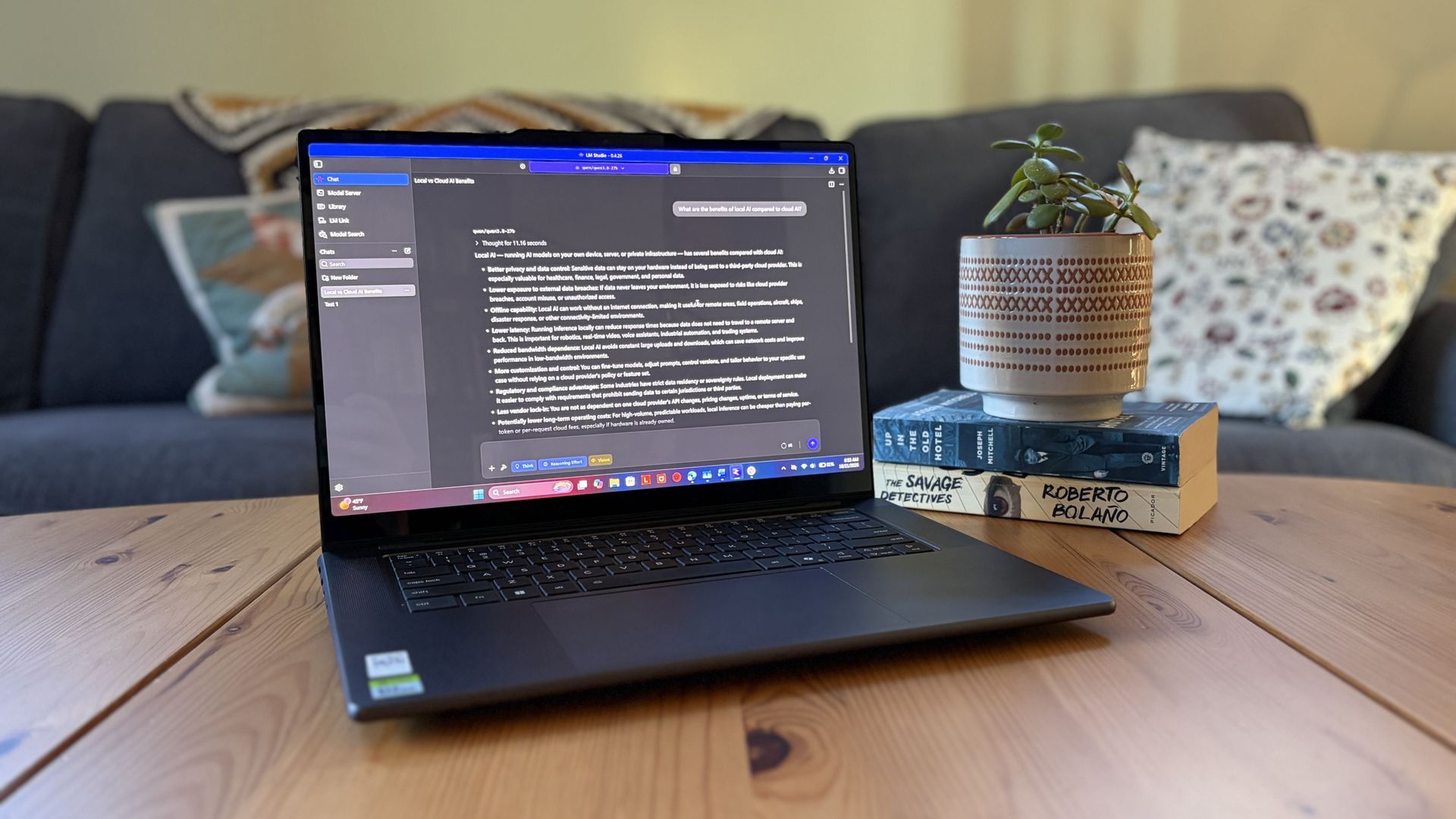
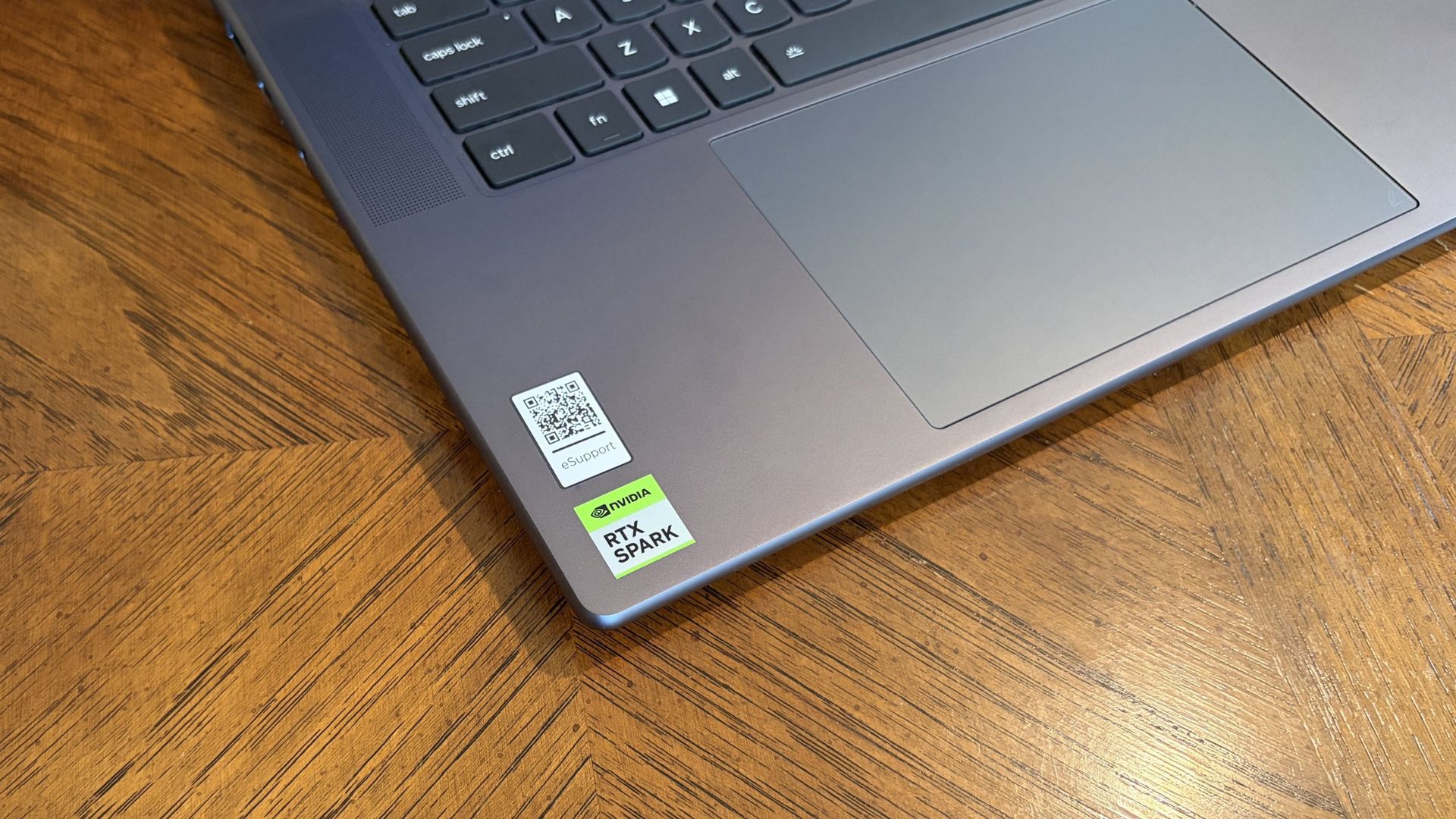
Lenovo's Pro 9n laptop is equipped with the new NVIDIA RTX Spark chip. (Image credit: Future)
A powerful GPU matters a lot more than a powerful CPU when it comes to local AI. Fitting an entire AI model into your PC’s VRAM will ensure the best performance.
For smaller local models, say within the 3 billion (3B) to 8 billion (8B) parameter range, you should aim for having a GPU with at least 8GB of VRAM. For medium-size models, say 8B to 14B parameters, aim for 12GB of VRAM.
For large models at 30B or more parameters, you’re getting into workstation territory where VRAM is either available from very expensive GPUs or from unified memory pools (as is the case with RTX Spark laptops).
I don’t recommend running local AI on a CPU only, but it is possible. Just be prepared for far slower performance, even with a powerful, modern chip with lots of cores.
PC gamers are likely the best equipped for this task, as they’re far more likely to have a strong GPU in their system.
How to install local, free AI on your Windows PC
For this walkthrough, I’ll show you just how easy it is to get AI running locally on your PC. It only took me about five minutes between launching a browser to begin downloading the necessary software and my first prompt sent to the agent.
The TL;DR? Download LM Studio. Pick an AI model to download. Mount it within LM Studio. Start chatting. Those are the basics, and I explain in more detail below.
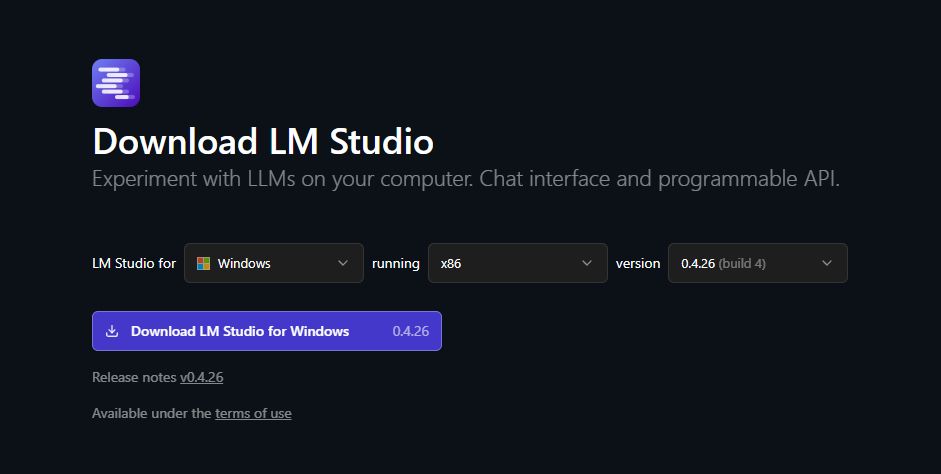
1. Install LM Studio — It's free and easy to use
Choose your OS and which version of LM Studio you want before hitting the download button. (Image credit: Element Labs)
I have some experience with Ollama (another free piece of software for managing local LLMs) on my desktop PC, but in this case, I decided to test out LM Studio.
It’s a free app designed to make downloading, managing, and working with local AI models as easy as possible. The interface is modern and clean, and I’ve had no performance issues so far.
You can download it directly from the official LM Studio website. It runs on Windows (x86 and ARM), Linux, and macOS.
2. Download an AI model — there’s likely something to fit your hardware
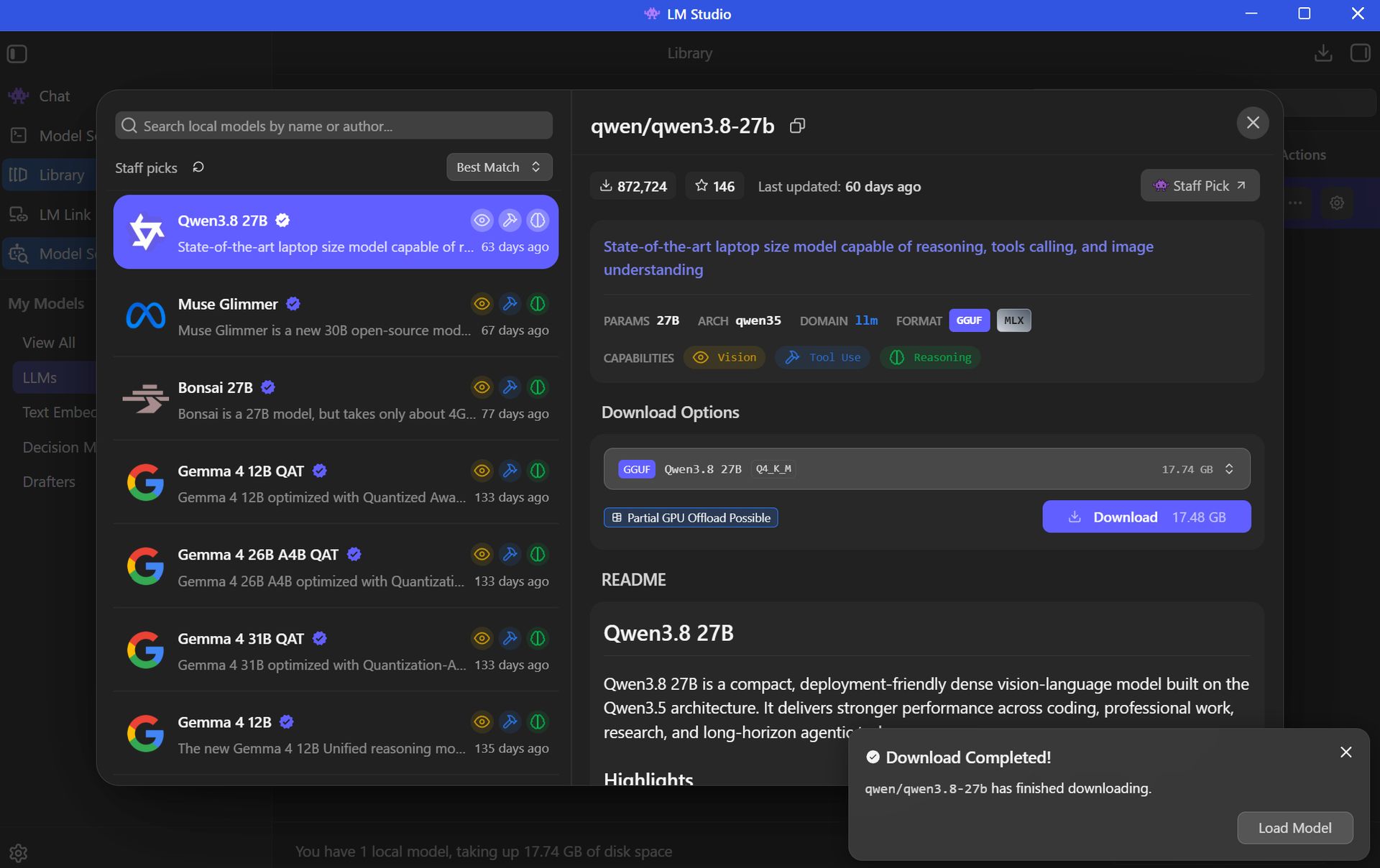
There's a long list of free AI models available for use in LM Studio. (Image credit: Element Labs)
Your next step is to choose and download an AI model (all within the LM Studio app) for local use. This is done with the Model Search feature in the app, which will recommend certain models to you right off the bat.
The open-source Qwen3.8 model is super popular right now, so that’s what I went with. Here’s where things get a tad tricky, but just for a moment.
Best for beginners
AI rookies should check out LM Studio paired with a 7B or 8B AI model. You get the privacy and convenience perks of offline use, all without stressing your PC too much.
The Qwen model I chose sits at 27B parameters, which is rather heavy and not built for the average PC. I’m using it to test the powerful RTX Spark laptop with unified VRAM.
Most casual users will have a lot more luck with AI models using fewer parameters. The beauty of LM Studio is that the search is all built right in, with flags for compatibility and performance. Websites like Codersera also have tools to help you find a suitable model for your specific PC.
If you find a popular model you think suits your needs and it comes with the “Full GPU Offload Possible” tag, chances are good that you’re in the right place.
Click the Download button on your preferred model and let it finish before proceeding.
3. Load the model and start chatting
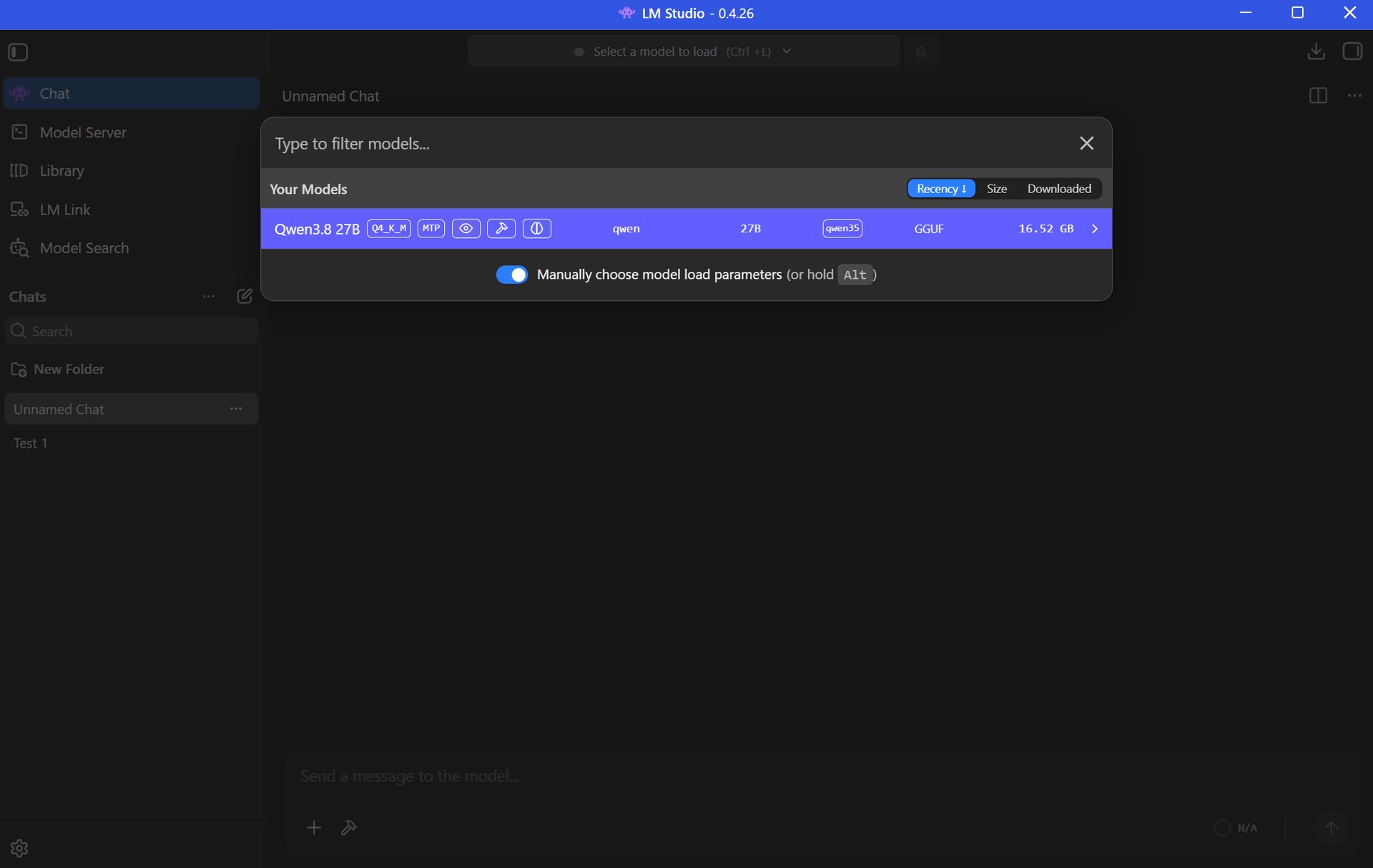
You can download multiple AI models within LM Studio to be deployed as you choose. (Image credit: Element Labs)
Once your preferred AI model has finished downloading, the next step is to load the LLM into LM Studio. This can be done in a number of ways.
Probably the easiest way is to just click the Chat button in the top-left corner of the app, then click the “Select a model to load” button that appears in the top-center of the window.
Click the model you want to use and let it load. It will take a few moments to finish.
Once the LLM is loaded locally, you’re free to start chatting locally with your AI agent.
Local AI isn’t just for advanced PC users
Setting up a local LLM is about as easy as downloading and installing any other piece of software. If you’re interested in AI but want to increase privacy, use it offline, and not worry about expensive token usage, it’s basically the easiest method forward.
If you have a modern PC and a bit of time to spare, you can probably get a local AI agent running in the same time it just took you to read this walkthrough.
Local AI models — FAQ
What is "local AI" and why should I use it?
Local AI means that the LLMs are hosted on your PC rather than in a cloud server. Your PC's hardware powers the AI's thinking, meaning you don't need an internet connection and don't need to worry about your information being sent off to the cloud.
Why use local AI instead of cloud AI?
Cloud AI services like Claude, ChatGPT, and Copilot are convenient, but not everyone is comfortable with their communications with a bot being sent out into cyberspace.
Not everyone wants to pay for tokens or subscriptions, either, which often arise during your AI journey.
Are there any limitations to local AI compared to cloud AI?
Yes, there are some limitations.
Local models are usually weaker than the top cloud models. For the average user, that's OK, but more advanced users will likely still find a need for paid subscriptions.
You also need a fairly powerful PC in order to run local AI, which not everyone has. Setup is super easy, but performance will vary greatly depending on your hardware.
Do I need an internet connection to use LM Studio?
You only need an internet connection to download the LM Studio app and your preferred AI model. After that, everything runs offline.
Although weaker first-gen laptop NPUs don't have a ton of power, newer hardware from the Snapdragon X2 lineup with 80 TOPS can run lighter local LLMs.
Is Copilot considered local AI?
The Copilot app that comes installed on Windows 11 PCs relies on the cloud to provide answers. It will not work without an internet connection.
Copilot+ tools built into Windows 11 — like Recall and Studio Effects — use the PC's NPU for local acceleration, meaning they don't need to call out to the cloud.
Join us on Reddit at r/WindowsCentral to share your insights and discuss our latest news, reviews, and more.

 Connexion