This week, the popular gaming chat platform Discord sailed back into the bad books of many users after it announced official plans to make what you say in discoverable servers searchable on Google.Discord was already in hot water with users earlier this year when it announced it was adding global age verification. "Discord alternatives" searches jumped 10,000% overnight, while the majority of our readers polled agreed that it was time to leave the platform.The ag
This week, the popular gaming chat platform Discord sailed back into the bad books of many users after it announced official plans to make what you say in discoverable servers searchable on Google.
The age verification situation was finally cemented in September when Discord made it official. There wasn't a ton of outcry, whether because users accepted their fate or already ditched Discord for an alternative.
Is it time to raise the pitchforks again? Not quite. Let me explain.
Is Discord's Google search move really that bad?
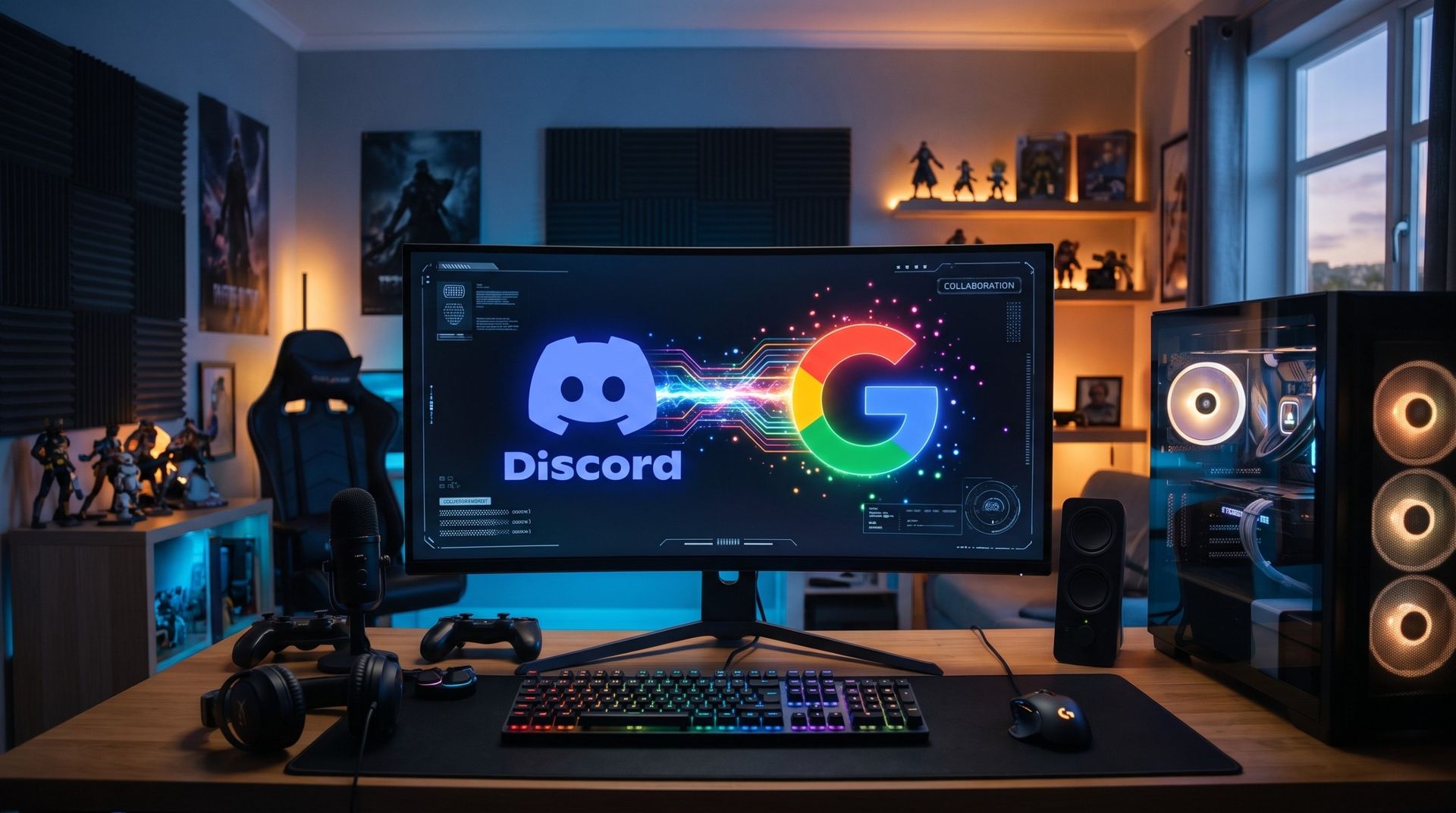
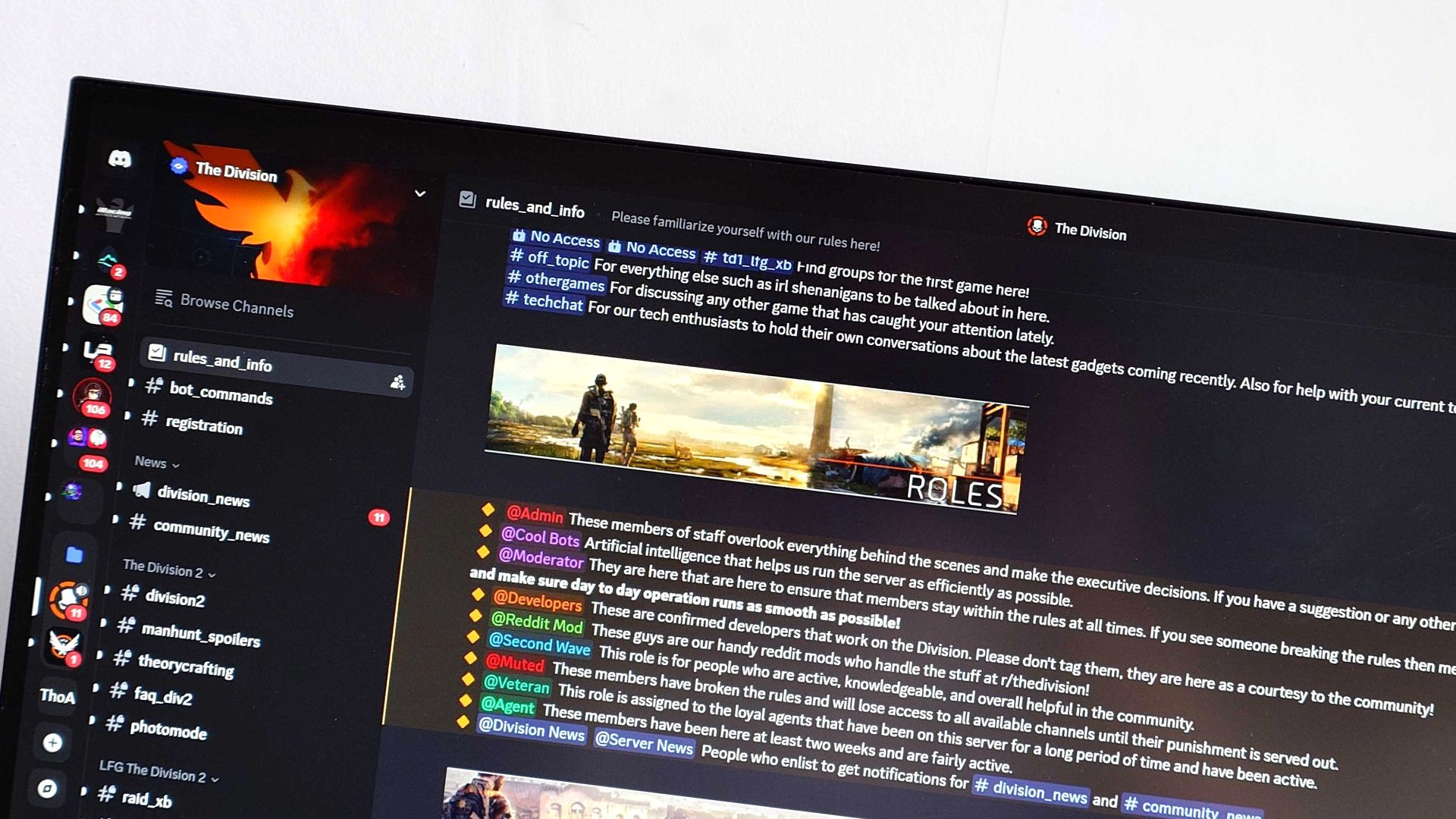
Discord will soon make content from discoverable servers indexable by Google. (Image credit: Future | Discord | Google | Edited with Gemini)
Discord's planned change begins rolling out on November 16, when every discoverable server will receive a server web page. This page is expected to be populated with AI summaries of what users are talking about.
Privacy?
Usernames and avatars will not be included with any text pulled by Google from Discord's discoverable servers.
Discord plans to drop the full change, where your publicly posted words will be discoverable by Google, in mid-December.
This isn't as bad as you think, but it's certainly still invasive. Discord's discoverable servers are not the same as private servers you and your friends use. They're not the DMs you send to other Discord users.
They are the Discord servers that don't require an invite to join and that must have at least 1,000 members. Discord says there are about 63,000 of these servers currently on the go.
Messages you've sent in these servers before the mid-December switch flip won't appear in Google. However, anything sent after the deadline will indeed be searchable.
If you frequent these types of servers and don't want your words appearing in the world's most popular search engine, you can opt out.
How to opt out of Discord's discoverable server Google search changes
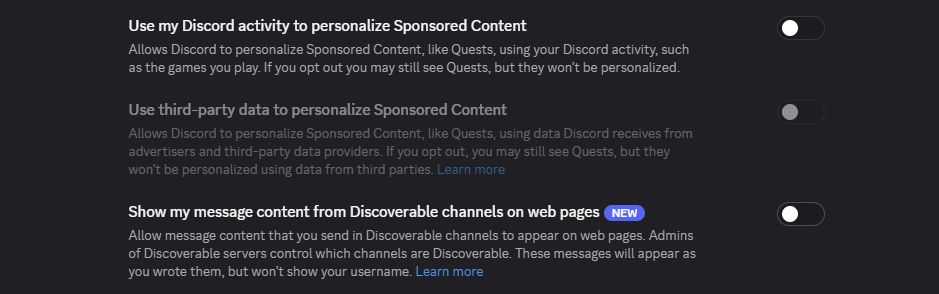
Users can hit this one toggle to negate the changes. (Image credit: Future)
Don't want what you type in certain Discord servers to show up in Google? Here's how to opt out.
Click the User Settings button in the Discord app. It's a gear located in the bottom-left corner.
Click Data and Privacy.
Ensure the toggle next to "Show my message content from Discoverable channels on web pages" is turned off.
As far as I can tell, that should do the trick. Keep in mind that your messages from before the switch won't be indexed, so there's not much reason to go back and delete posts you've made in the past.
If you run a server and are not sure if it's discoverable, Discord has a full guide on how to enable, disable, and configure the setting.
Windows Central's take
Is Discord's upcoming change really that bad? No. (Image credit: Windows Central)
Discord's angle here is that it wants valuable content created in discoverable servers to be found by a much larger audience.
It imagines a richer collection of game guides, tips, and tricks in Google now that it's opening up its content, and for that I don't blame the company.
The fact that this change comes with so much heads-up time, as well as easy-to-find toggles to disable, makes it easy to negate. Just be sure to hit the right toggles before Discord makes the switch mid-December.
Join us on Reddit at r/WindowsCentral to share your insights and discuss our latest news, reviews, and more.
The new Acer Predator Atlas 8 gaming handheld, featuring Intel's latest G Series chips, finally went up for pre-sale in the US on October 23, with full launch slated for November 1.This is the new handheld I tested at Computex this year alongside the MSI Claw 8 EX AI+. Both are premium devices landing in a market turned upside down on account of RAM and storage shortages. MSI's new Claw with Intel's Arc G3 Extreme chip inside, for example, launched at $1,799.99.H
The new Acer Predator Atlas 8 gaming handheld, featuring Intel's latest G Series chips, finally went up for pre-sale in the US on October 23, with full launch slated for November 1.
Here's where Acer's new handheld packing the same Intel G3 Extreme chip offers a big surprise for shoppers. It's priced at $1,299.99 at Best Buy. Or at least it was, for the Best Buy page preorder has since been removed. I'm not exactly sure why — maybe Acer is reconsidering the post-launch price now that preorders are in.
In any case, seeing a handheld with the same powerful mobile chip inside as the MSI Claw 8 EX AI+ launch for $500 less should be on every gamer's radar. But how is Acer undercutting the competition by so much?
How does Acer charge $500 less for its Intel Arc G3 Extreme gaming handheld?
Intel's new mobile chips are designed specifically for handhelds, delivering considerably improved performance and efficiency compared to the AMD Ryzen Z2 Extreme chips so common to the form factor.
On paper, the Acer and MSI devices are quite similar. Both feature the flagship Intel Arc G3 Extreme chip, with 14 cores, a 4.7GHz top clock speed, and a faster Arc B390 integrated GPU compared to the standard Arc G3 chip.
Both devices use an 8-inch IPS display with 1920x1200 resolution, 120Hz variable refresh rate, 500 nits brightness, and 100% sRGB color reproduction.
Both have Thunderbolt 4 ports and Wi-Fi 7. Both have Hall Effect triggers and joysticks. Both use an 80Wh battery. So what's the deal?
Based on my (limited) time with the Predator Atlas 8, it looks like the big price difference comes down to build quality and configuration specs.
Let me get the biggest difference out of the way first: the $1,799.99 MSI Claw 8 EX AI+ ships with 32GB of RAM and a 1TB SSD. The Acer Predator Atlas 8 pares that back to 24GB of RAM and a 512GB SSD.
Considering the price of storage and memory these days, this difference likely helps make up a huge chunk of the difference.
Otherwise, as I noted in my Intel Arc G3 Extreme hands-on piece, Acer's device has triggers that don't feel quite as snappy as MSI. The reverse can be said for the joysticks, where I believe Acer has MSI beat.
Audio from both devices was good, and although Acer's Predator Atlas 8 is smaller and ultimately more portable, I found both handhelds to be comfortable to hold.
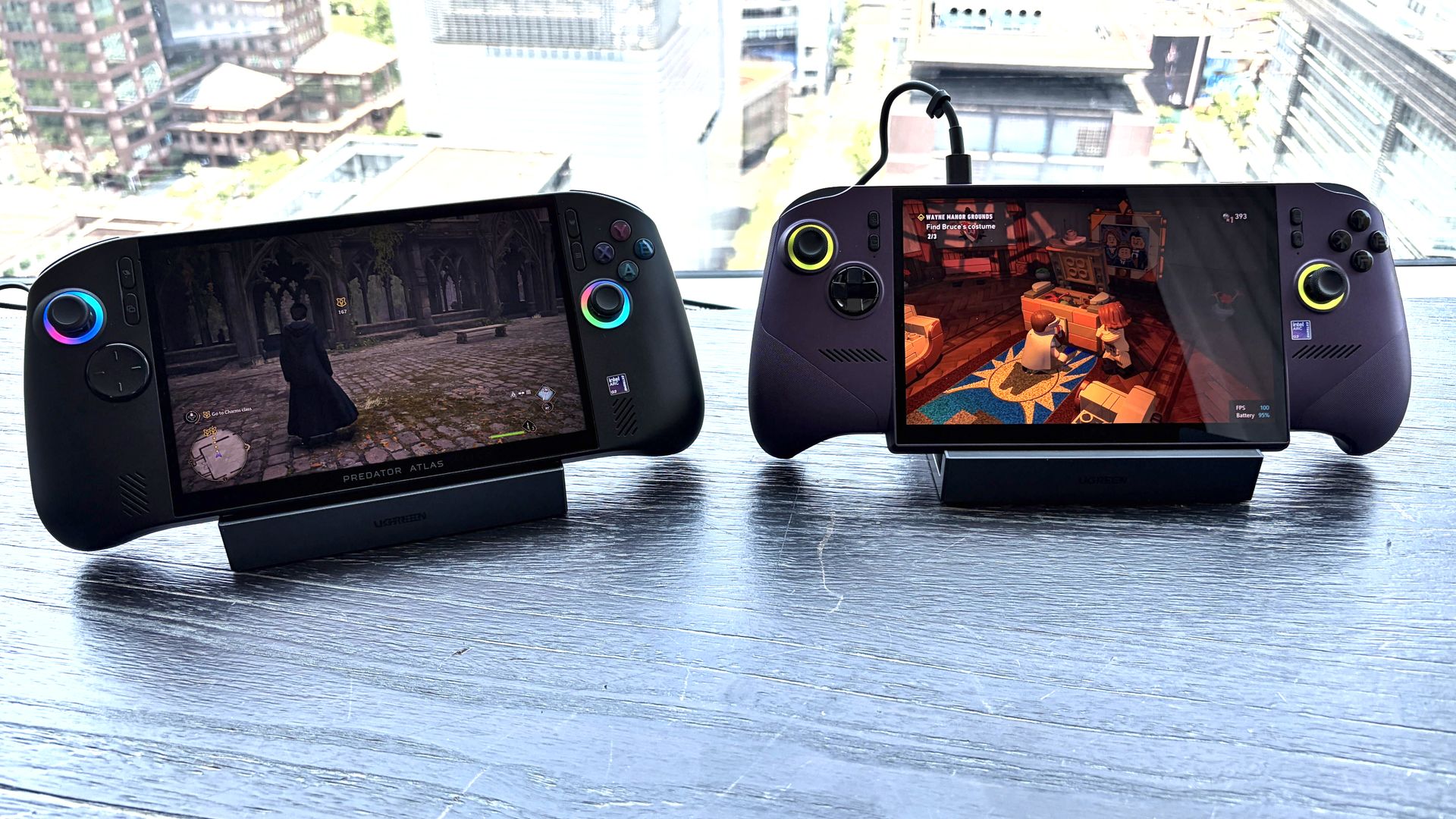
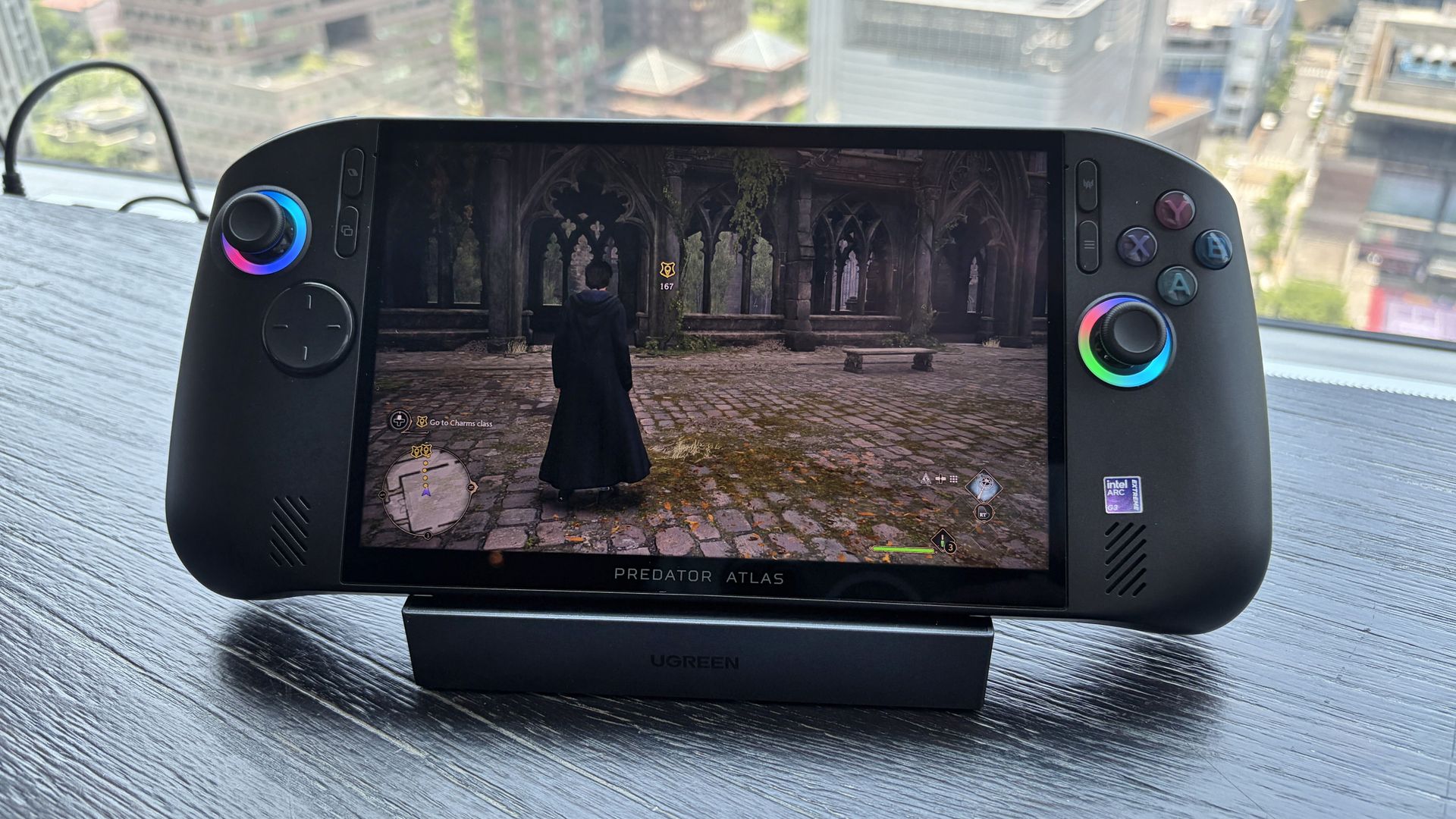
In terms of performance, the Predator Atlas 8 was running demanding games like Hogwarts Legacy and LEGO Batman: Legacy of the Dark Knight at a cool, smooth clip.
I'll have to do more testing once Acer's handheld actually arrives here for testing, but I don't expect it to perform any worse than MSI's new Claw.
Bottom line? It's the disparity in RAM and SSD configurations at launch that's helping keep Acer's gaming handheld at a much more reasonable price.
Is Acer's $1,299.99 Predator Atlas 8 actually cheap?
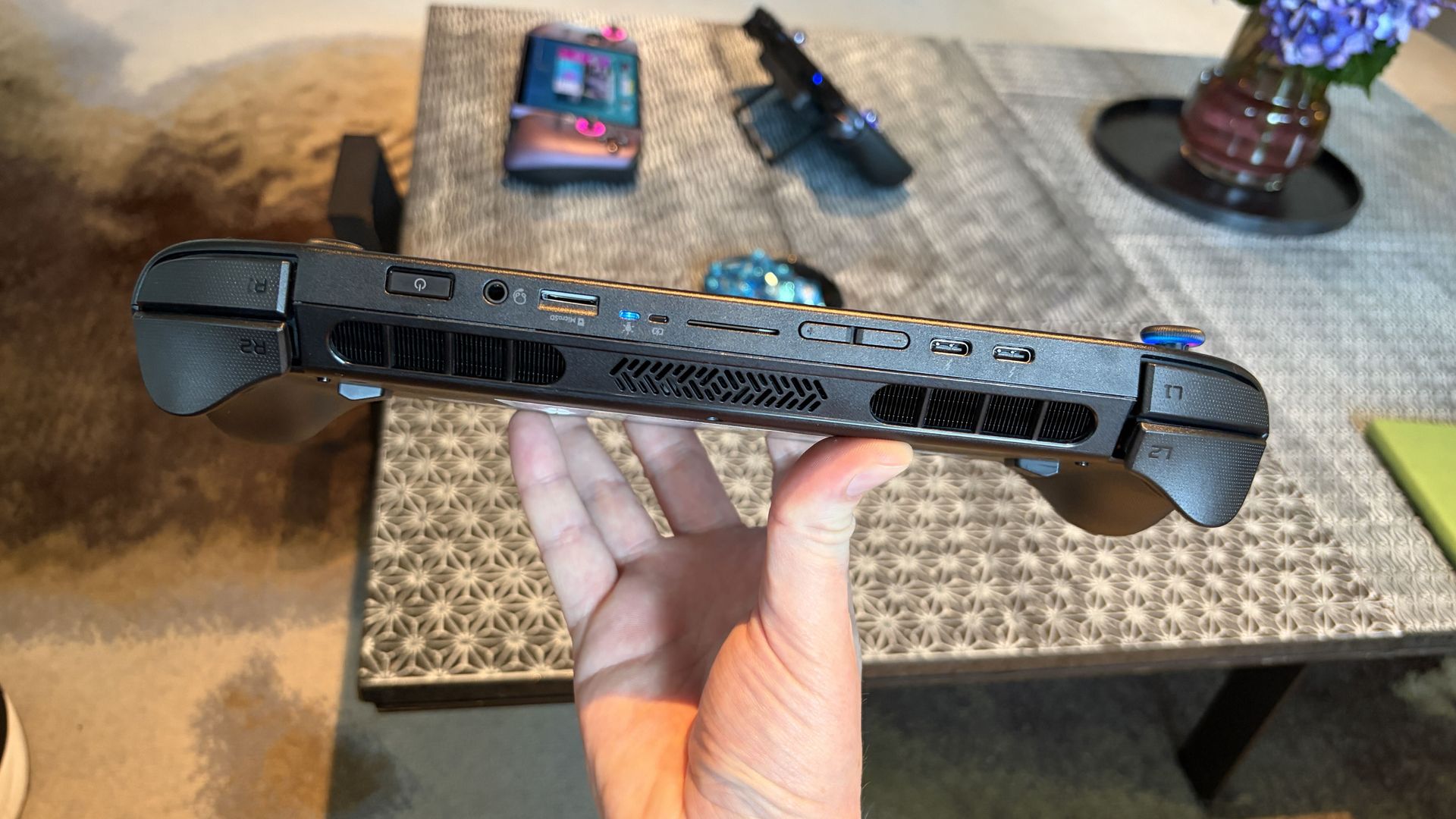
The Predator Atlas 8 feels good to hold and features many similar high-end features as the MSI Claw 8 EX AI+. (Image credit: Future)
That's not quite the case for Acer's Predator Atlas 8, especially with console prices on the rise, but that doesn't make it affordable.
Keep in mind that the Steam Deck, which kicked off the gaming handheld craze, launched at just $399 in 2022.
No, the Steam Deck isn't nearly as powerful as the new Arc G3 devices, but it was priced to sell. Is Acer's Predator Atlas 8 affordable relative to today's overall market? Absolutely.
As mentioned, the Predator Atlas 8 Best Buy preorder page is down at the time of writing this piece. Check back soon, especially after November 1, when the handheld actually launches, to see if prices have changed.
Join us on Reddit at r/WindowsCentral to share your insights and discuss our latest news, reviews, and more.
Lenovo's Pro 9n landed on my desk roughly three weeks ago, and it's been my daily work PC since then. It's also been my gaming handheld replacement, my home base for local AI testing, my sketchpad to practice digital drawing, and my entertainment hub. This pricey Lenovo Pro 9n isn't for everyone despite its broad versatility. That's true about any of the new RTX Spark laptops. I'm looking to see how Lenovo's offering differs from the others — including the Surfac
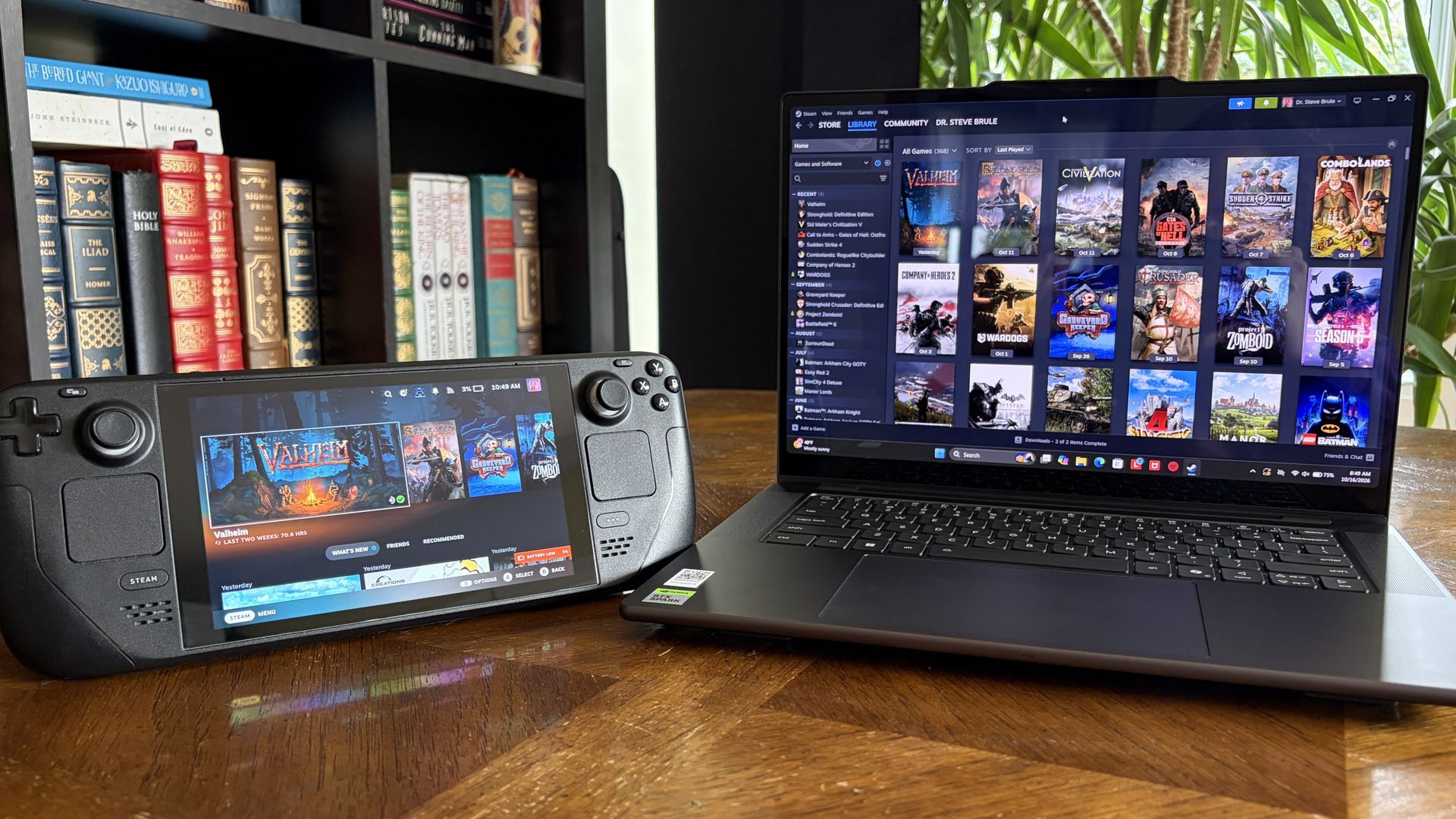
It's also been my gaming handheld replacement, my home base for local AI testing, my sketchpad to practice digital drawing, and my entertainment hub.
This pricey Lenovo Pro 9n isn't for everyone despite its broad versatility. That's true about any of the new RTX Spark laptops.
I'm looking to see how Lenovo's offering differs from the others — including the Surface Laptop Ultra and ASUS ProArt P16 we reviewed — in terms of features, design, and performance.
Lenovo sent Windows Central a review unit on loan for testing. It had no input, nor saw the contents of this review, prior to publication.
Lenovo Pro 9n: Price and specifications
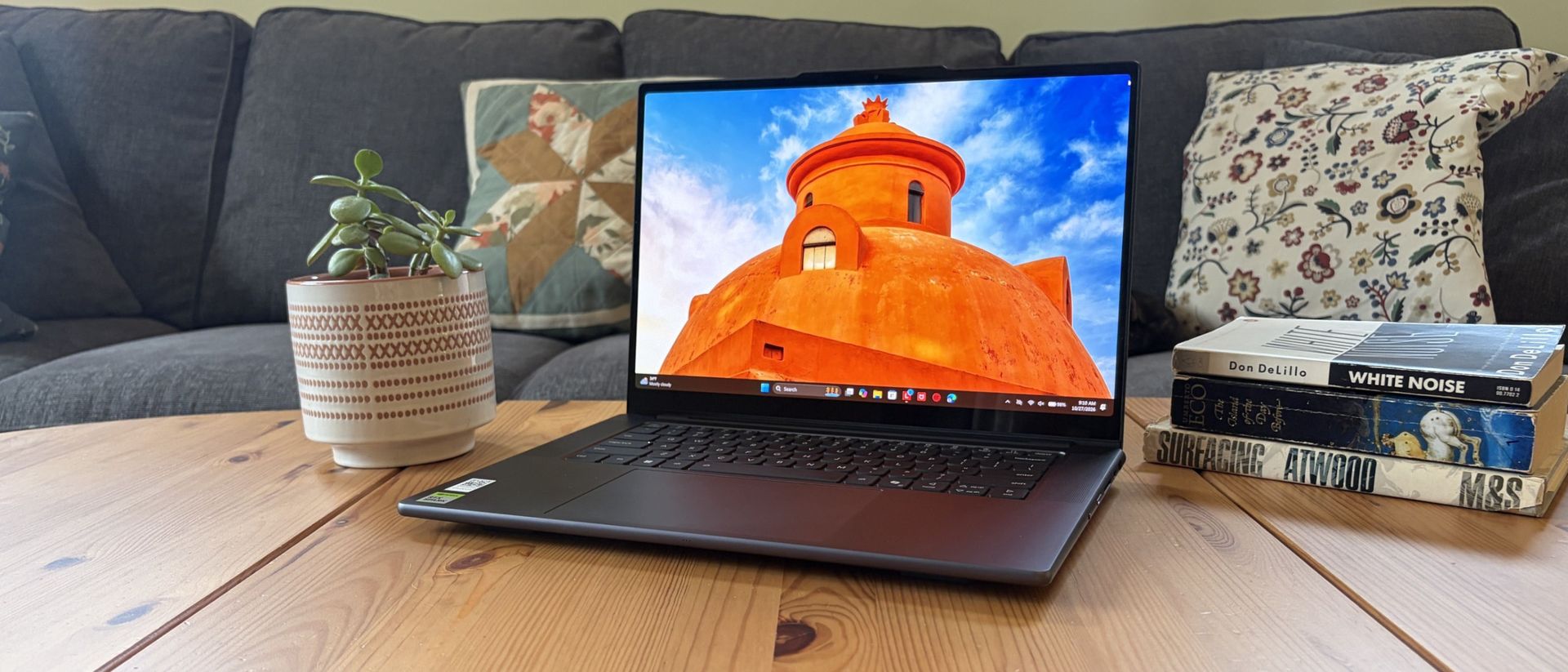
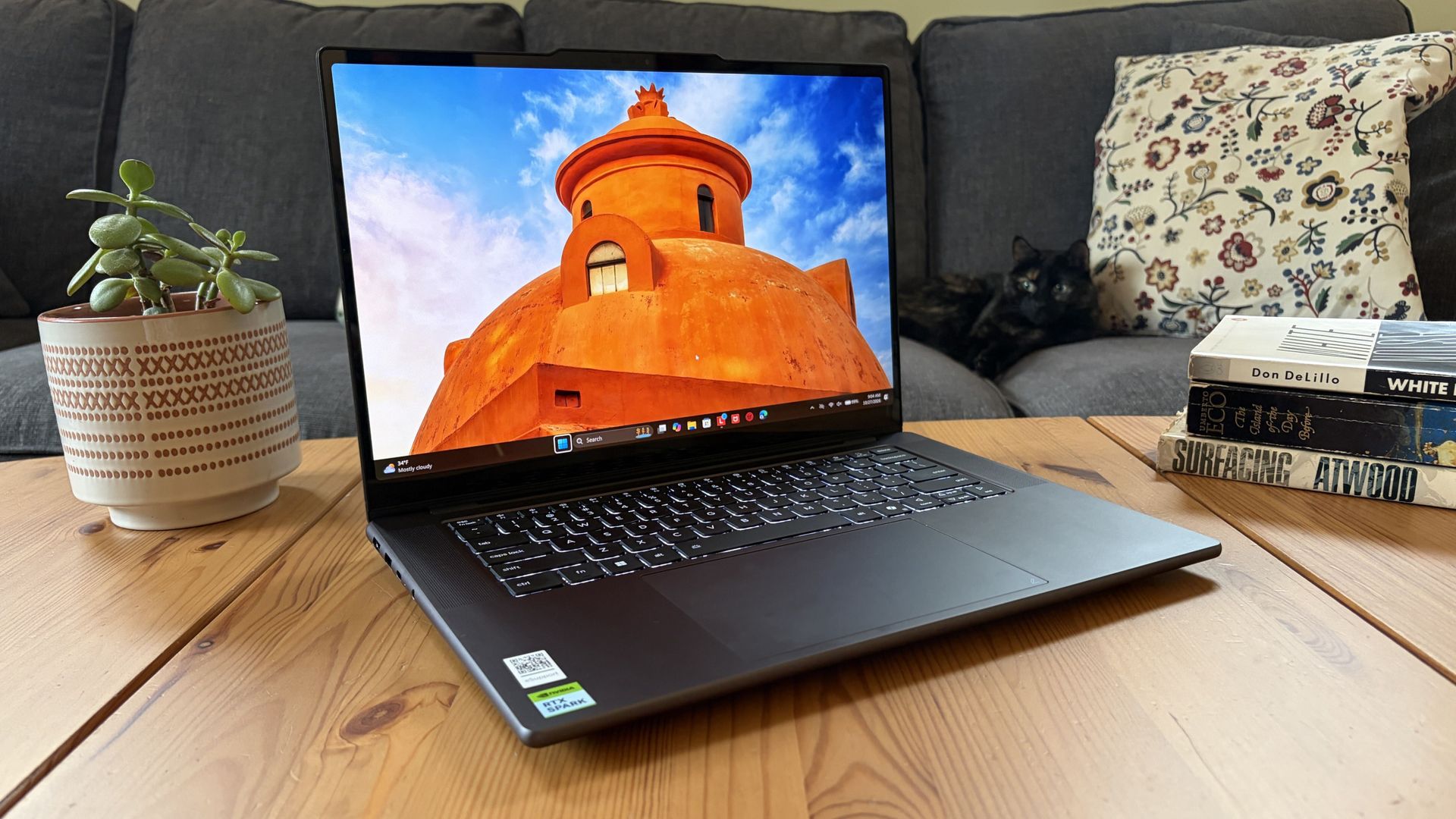
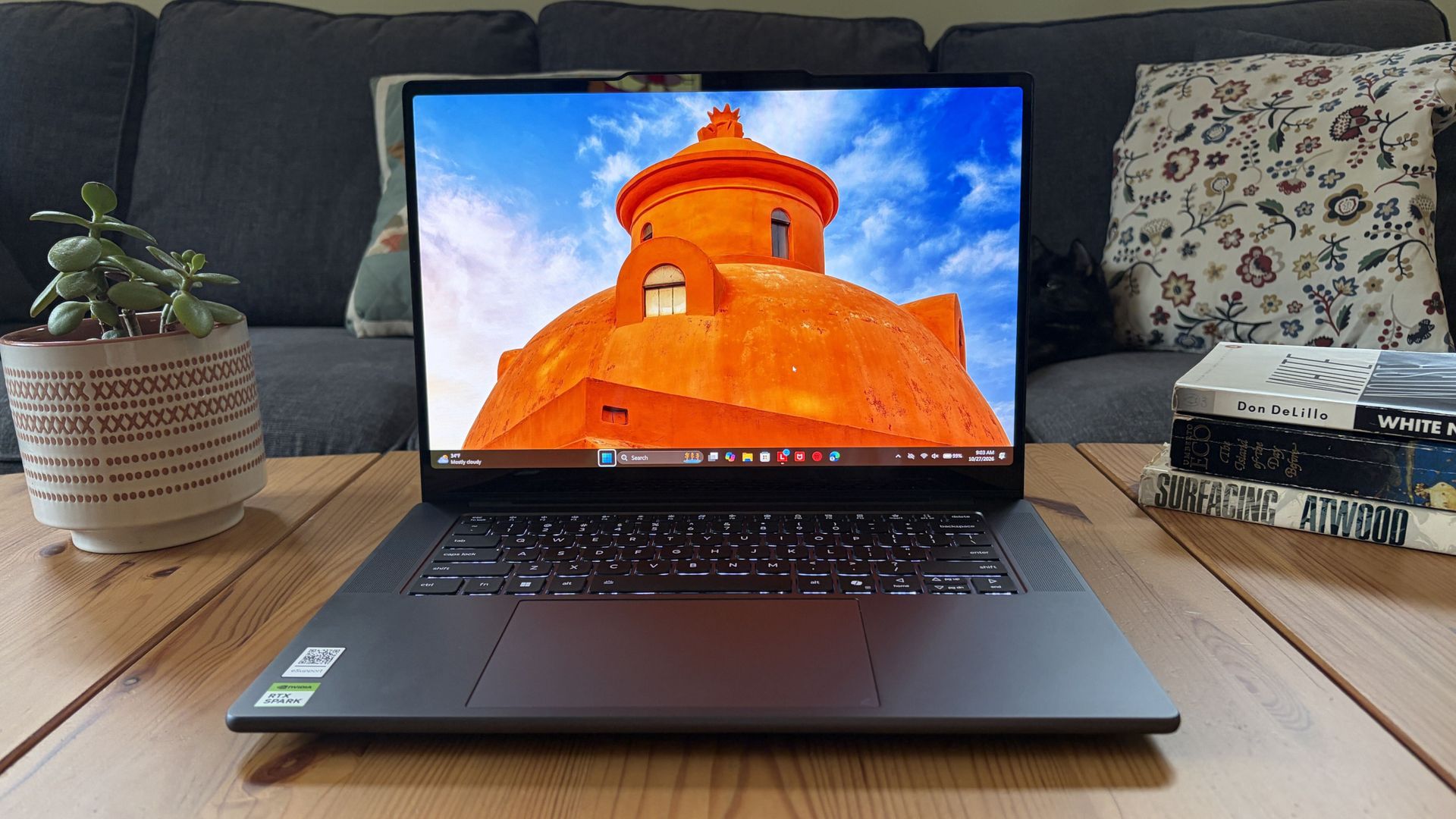
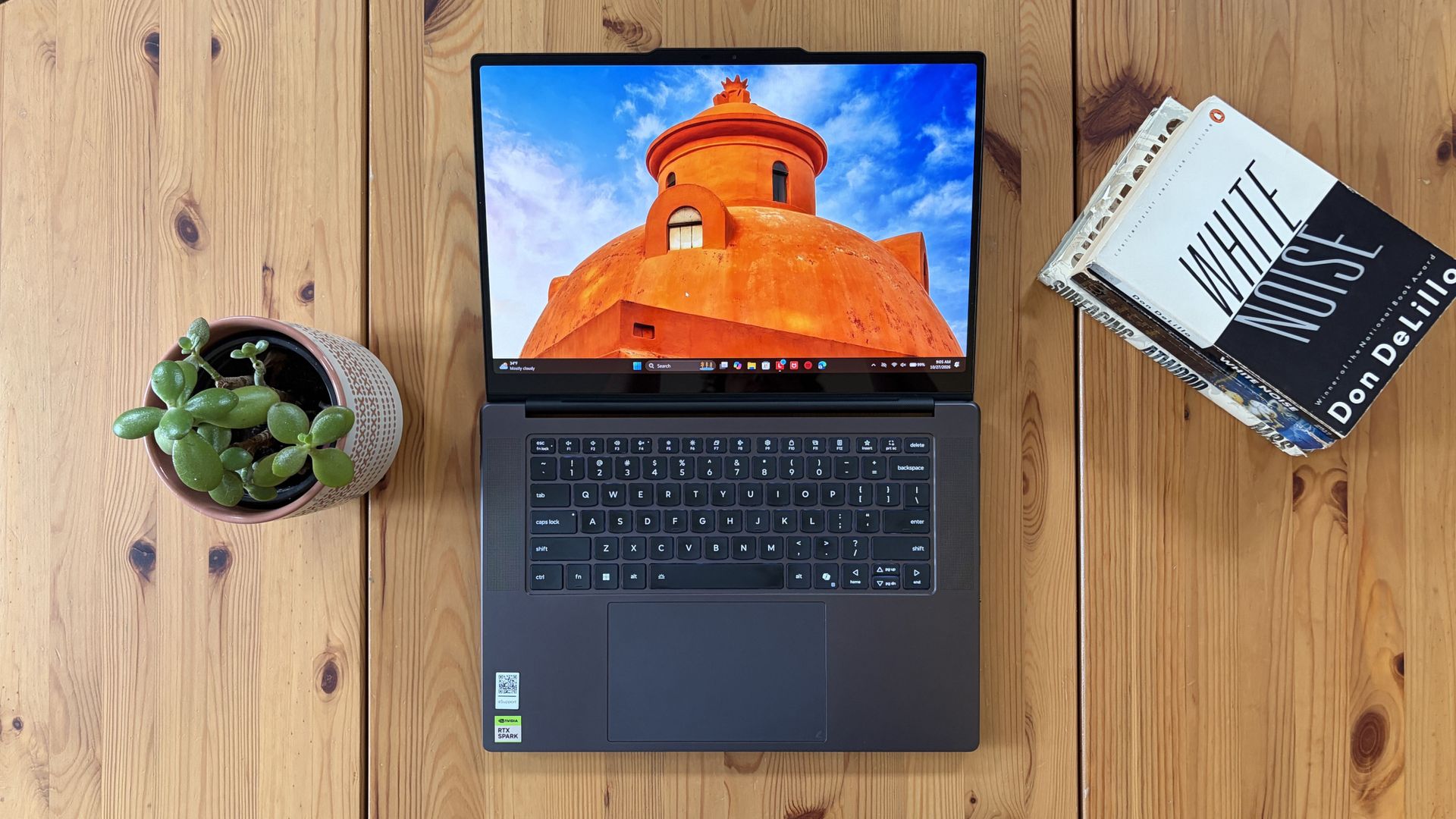
You'd never know the level of power contained within this sleek chassis. (Image credit: Future)
Lenovo's Pro 9n starts at $2,999.99, putting it near the middle of the RTX Spark lineup.
For this price, you get an 18-core NVIDIA N1X CPU, integrated RTX Blackwell GPU with 5,120 cores, 32GB of LPDDR5x unified RAM, a 512GB M.2PCIe 4.0 NVMe SSD, and a 15.3-inch OLED touch display at a 2560x1600 resolution.
Lenovo offers configuration options for CPU, RAM, and storage. The top spec with a 20-core N1X CPU, 6144-core GPU, 128GB RAM, and 2TB PCIe 5.0 SSD balloons to $6,099.99, with several stops along the way.
13.66 x 9.53 x 0.66 inches (347mm x 242mm x 16.7mm)
Weight
From 3.64 pounds (1.65kg)
New designs and updated features for the RTX Spark platform
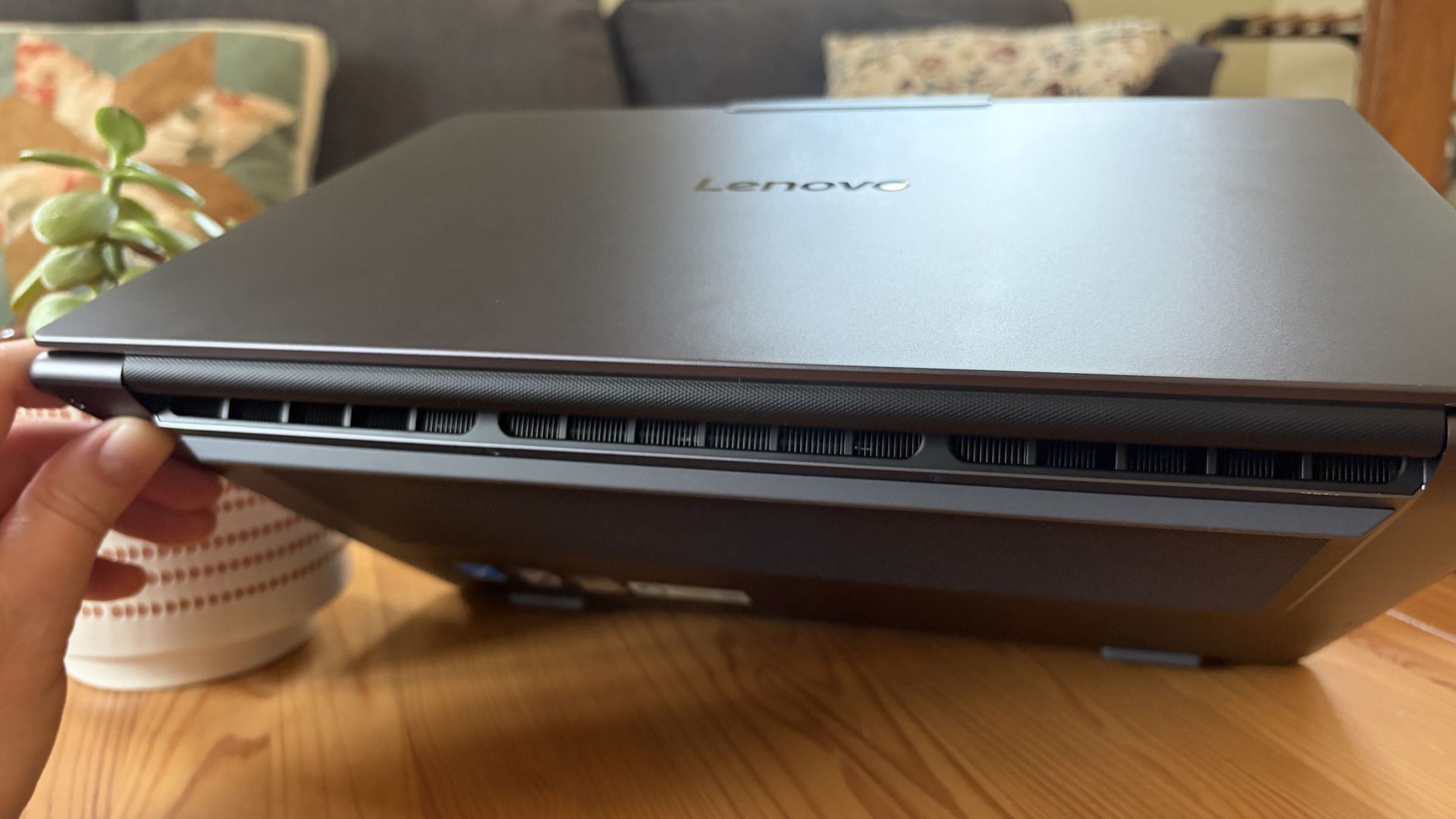
A look at the rear exhaust behind the lid hinge. (Image credit: Future)
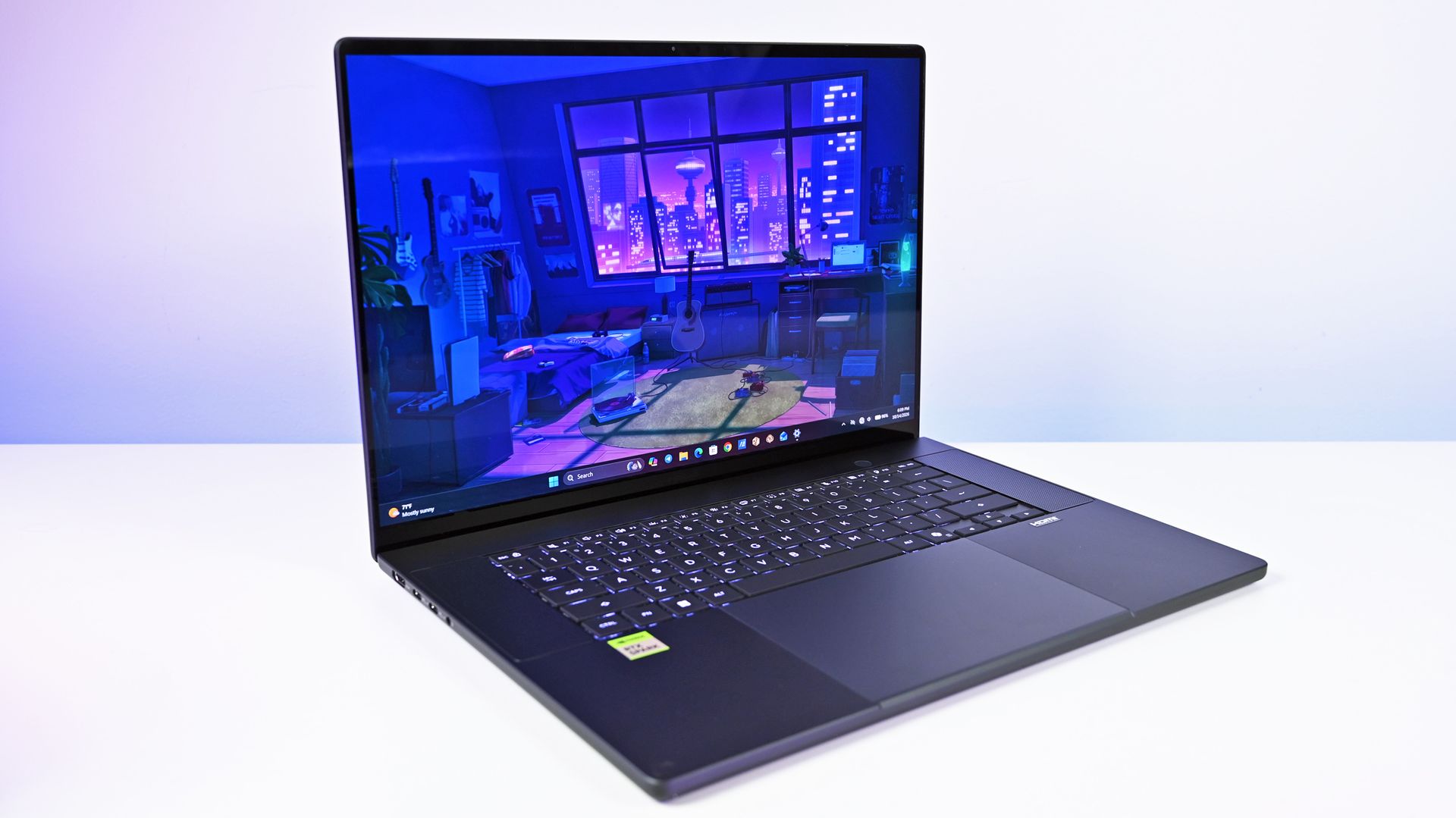
The design of Lenovo's Pro 9n has grown on me over the weeks. What I first saw as uninspired has morphed into something that's sleek, relatively lightweight, and ultimately perfect for a professional setting.
With an aluminum top and bottom that add rigidity and a more premium feel than plastic, the PC still manages to slide in at 3.64 pounds (1.65kg) while measuring just 0.66 inches (1.67cm) thin.
The 15.3-inch display translates to a smaller footprint than a full 16-inch PC, and I found it to be an apt size for working in the passenger seat of a car. It should also translate well to airplane trays or train seats.
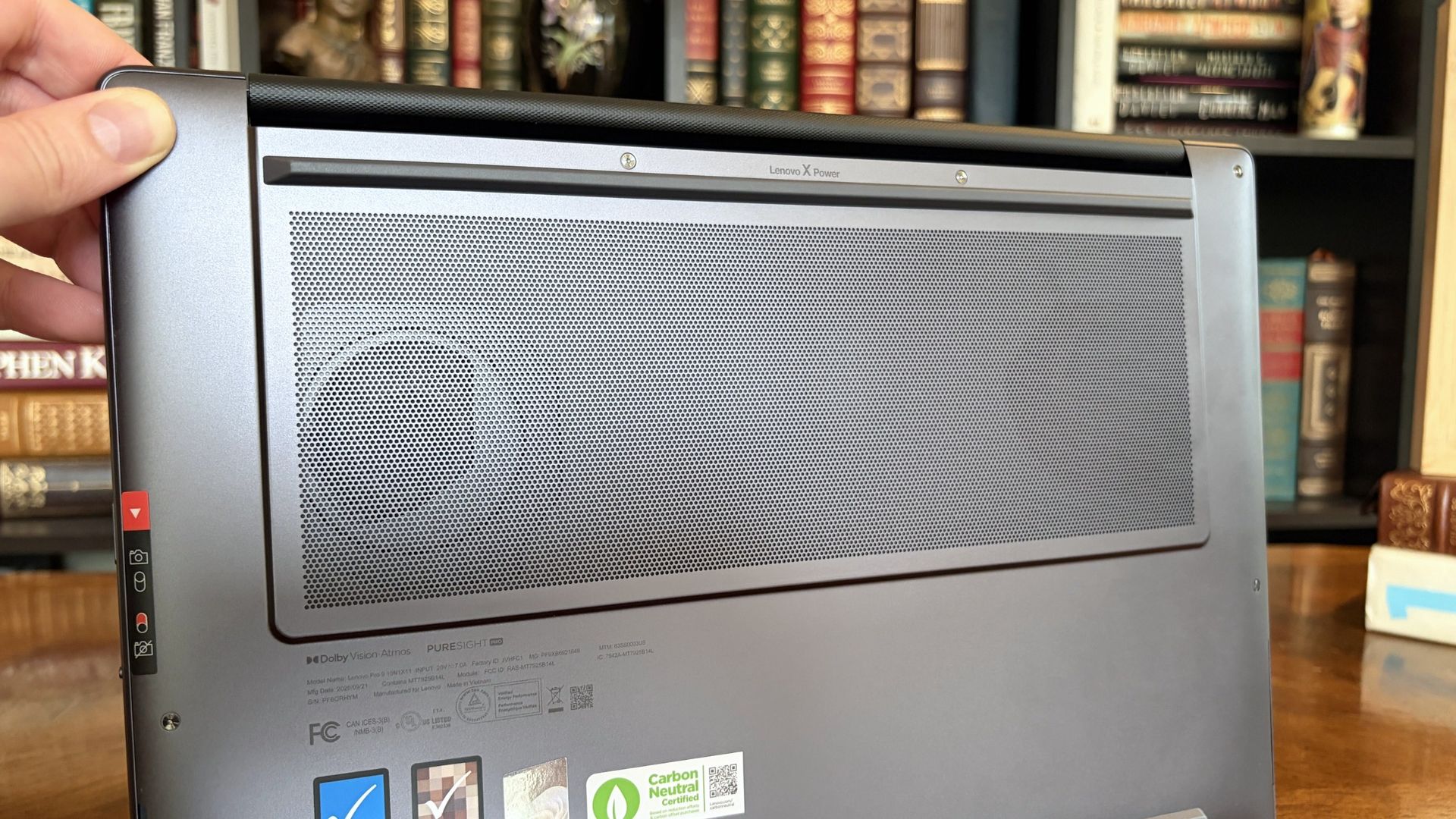
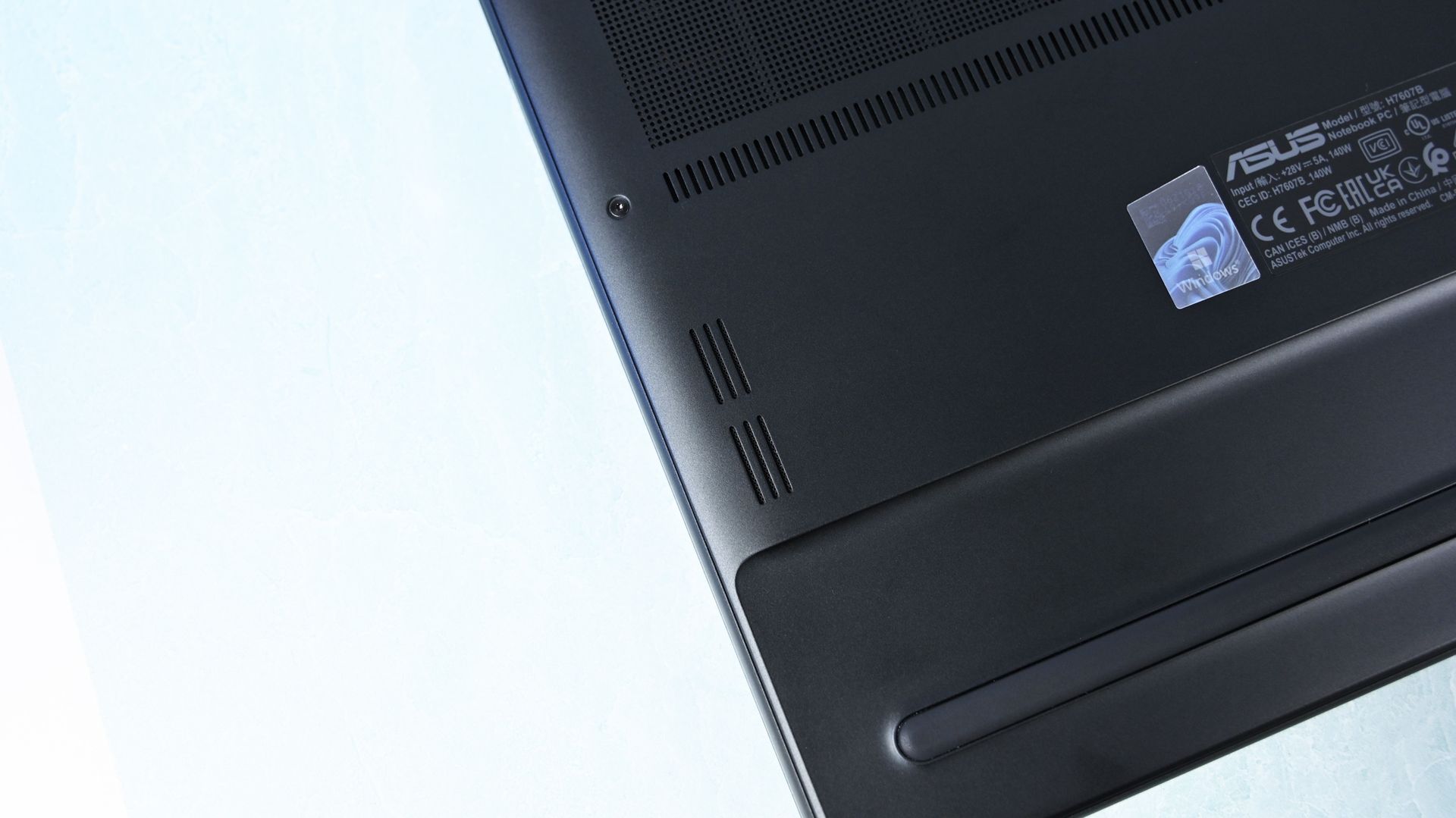
The bottom of the Pro 9n has a massive air intake to feed the two fans. (Image credit: Future)
The thermal layout has been redesigned for the new RTX Spark chip (which I explore below), resulting in a massive air intake on the bottom of the PC and larger vents on the rear edge for exhaust.
This setup keeps hot air directed away from the user and, as you'll see below, it does a decent job of keeping the PC cool under load.
Ports on the left include HDMI, USB-A, USB4, and 3.5mm audio.FuturePorts on the right include USB-A, USB4, and UHS-II SD card reader.Future
This leaves plenty of space along the sides for ports. On the left are HDMI 2.1, USB-A 3.2 (always on), USB4, and a 3.5mm audio jack. On the right side are another USB-A 3.2, USB4, and a UHS-II SD card reader.
At no time did I feel the need to grab a dongle for an accessory, especially with Bluetooth 5.4 on board, and the native HDMI port makes it easy to plug into an external display without a docking station.
On the note of wireless, cutting-edge Wi-Fi 7 is on board for excellent throughput and future-proofing.
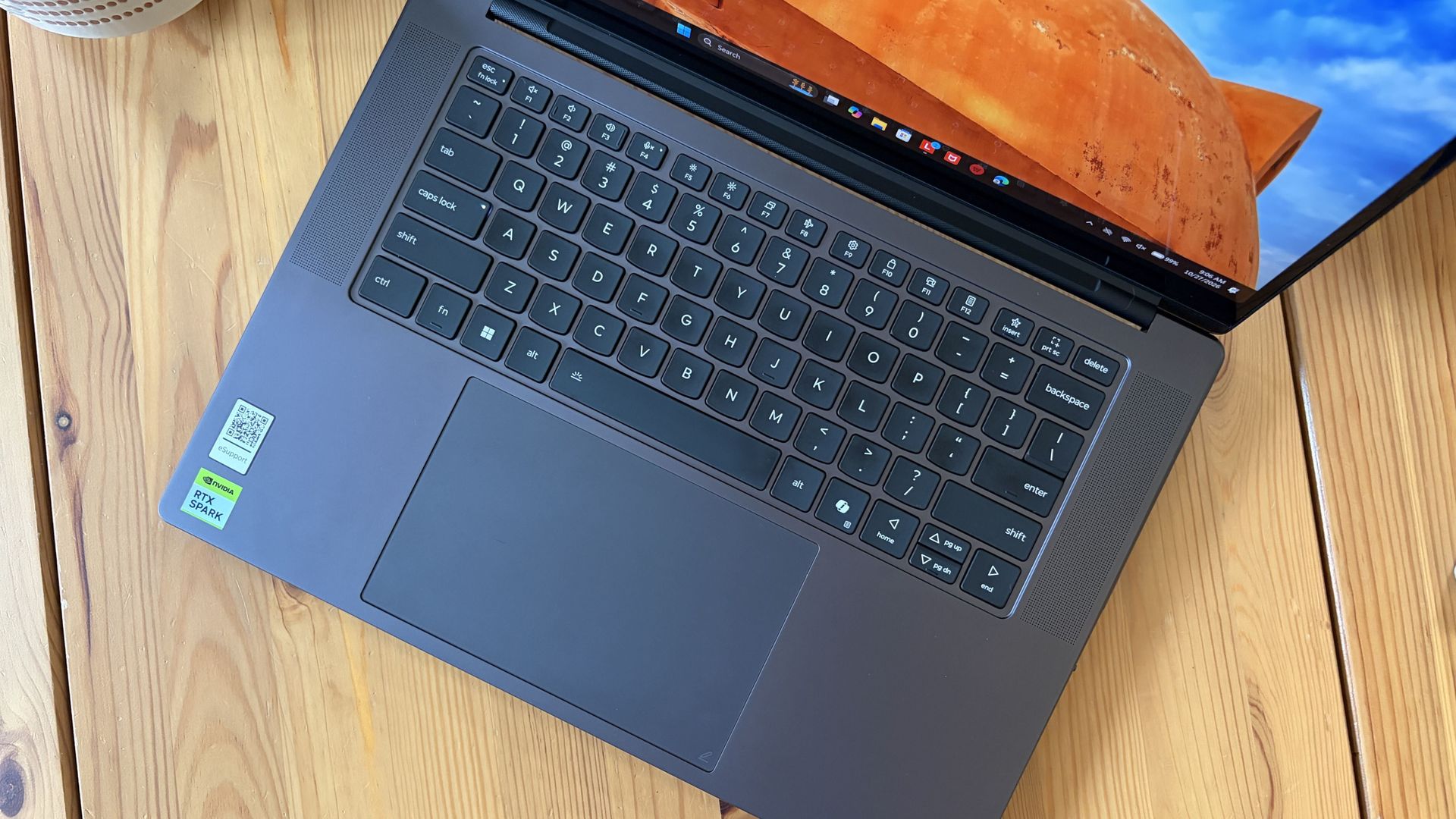
Lenovo's keyboard and haptic touchpad are among the best
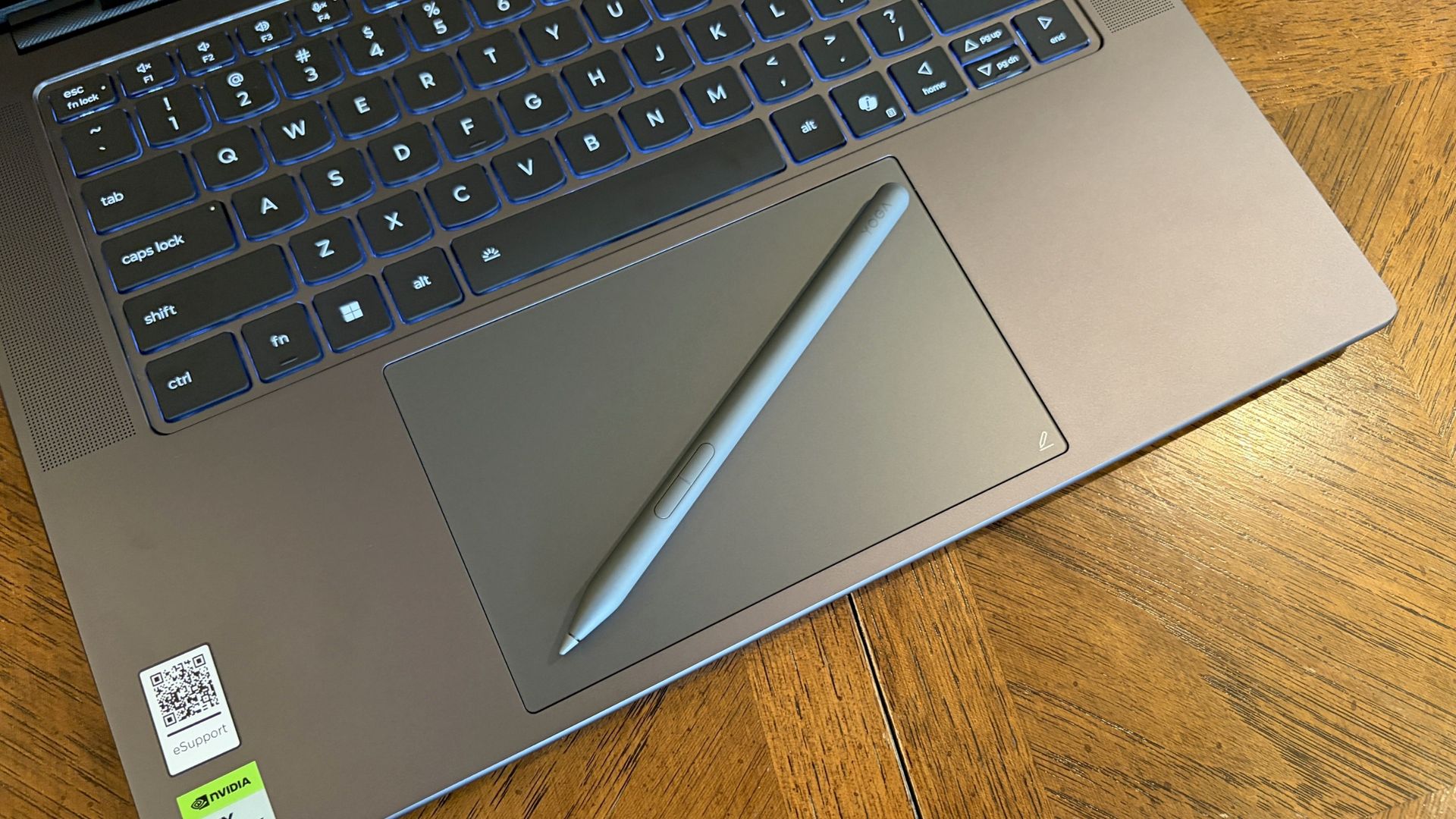
The Lenovo Pro 9n's oversized haptic touchpad and active pen turn the laptop into a makeshift drawing tablet. (Image credit: Future)
The Pro 9n is the first Lenovo laptop to receive its new haptic touchpad with inking compatibility. Paired with the bundled Yoga Pen (Gen 2), it turns the PC into a creative tablet of sorts.
I'm no artist, but I was able to get down some rough sketches using the awesome Krita drawing app. I found the touchpad's 3.74 x 3.94-inch dimensions were large enough to comfortably write and draw, and the inking feel is outstanding.
My only gripes are likely from me reading too much into the feature. Drawing on the pad often left my hand hanging off the edge (not comfortable), and it was sometimes difficult to line up my pen on the touchpad with where I wanted it on my screen.
Approach it from a rough sketch viewpoint, and you should find it to be quite useful. As for actual pointing and clicking, I had no issues. The haptics underpinning the pad are spot on.
1.5mm key travel makes for comfy typing no matter what. (Image credit: Future)
The keyboard, which arrives flanked by a couple of speakers, offers deep 1.5mmkey travel, three-stage backlight, and perfect spacing. This might be the best keyboard that Lenovo's non-ThinkPads have ever received, and I enjoyed every word I typed on it.
Circling back to the speakers, the two that flank the keys are each 2W tweeters, and they're accompanied by two 2W woofers on the bottom of the PC.
Sound gets loud without breaking. There's lots of bass. The highs are clean, even before adding any onboard Dolby Atmos tuning. The laptop is just as good for watching TV and movies as it is for handling creative work or jumping into video meetings.
A crisp webcam handles meetings on the move
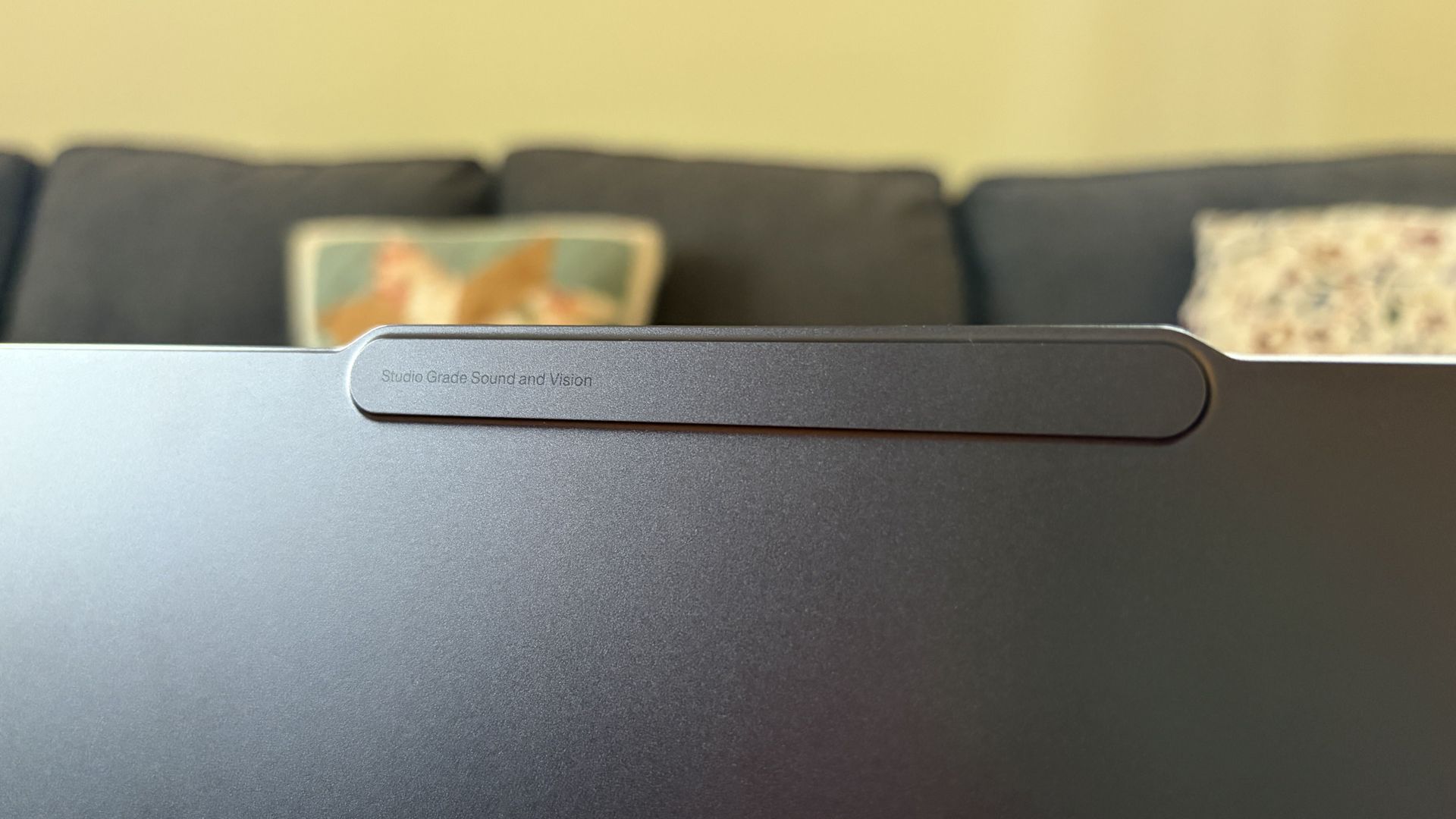
The raised comms bar has space for a 9.2MP camera and IR sensor. (Image credit: Future)
Lenovo's raised communications bar located above the display adds a bit of space for camera hardware, and the company made good use of it here.
The Pro 9n comes with a 9.2MP camera, easily trumping the ASUS ProArt P16's 2.1MP and the Surface Laptop Ultra's 1.6MP cameras.
It's crisp and handles lighting quite well even without any Windows Studio Effects in play, and I'd say it's a definite upgrade for anyone who often finds themselves in video meetings and collaborations.
The IR sensor built into the camera handles facial recognition via Windows Hello. Unfortunately, it doesn't appear to go the extra step to offer human presence detection. This doesn't seem to be a lock for the new RTX Spark PCs — the Surface Laptop Ultra doesn't have it either, but the ProArt P16 does.
An OLED display with color profiles for any job
The OLED display delivers color for specialized work and speed for gaming. (Image credit: Future)
Lenovo ships the Pro 9n with a 15.3-inch PureSight Pro OLED display. This is basically Lenovo's top-of-the-line screen for creators and pros, coming at you with X-Rite Pantone calibration and X-Rite SkinTone validation out of the box.
It hits Delta E, tops out at a 165Hz refresh rate (which can be set to variable for better battery life and eye comfort), and has Dolby Vision support.
Something I learned quickly was that the display presets in Lenovo's Vantage app are actually important. The Default mode in which the laptop ships favors sRGB reproduction. There are presets for AdobeRGB and sRGB (which pump up those sections), as well as P3-D65, REC709, and DCI-P3.
I was able to hit 100% across all color gamuts in my testing, but not all at once. You'll just have to be sure that you select the right config depending on the work you're doing.
I was able to hit 100% across all color gamuts in my testing, but not all at once.
I also measured 476 nits of peak brightness in SDR content, which pushes past 1,000 nits when HDR is enabled. I was able to work in a brightly lit room with only a bit of glare, but I imagine an anti-reflective instead of glossy finish would have gone a long way to eliminating glare entirely.
The screen is available in touch or non-touch, and the specs are otherwise the same. Note that the pen only works on the laptop's touchpad, whether or not the screen is touch-enabled.
The Pro 9n's OLED display is vivid and bright. (Image credit: Future)
The inclusion of NVIDIA G-Sync tech really props up the gaming aspect, reducing screen tearing and ultimately making everything feel much smoother, as you'd expect from a premium laptop that can game.
My only complaint is that Lenovo doesn't offer a higher-res panel. The 2.5K default is great for everyday work and gaming, but 4K would probably go a long way for some creators.
Comparing the 18-core and 20-core RTX Spark chips
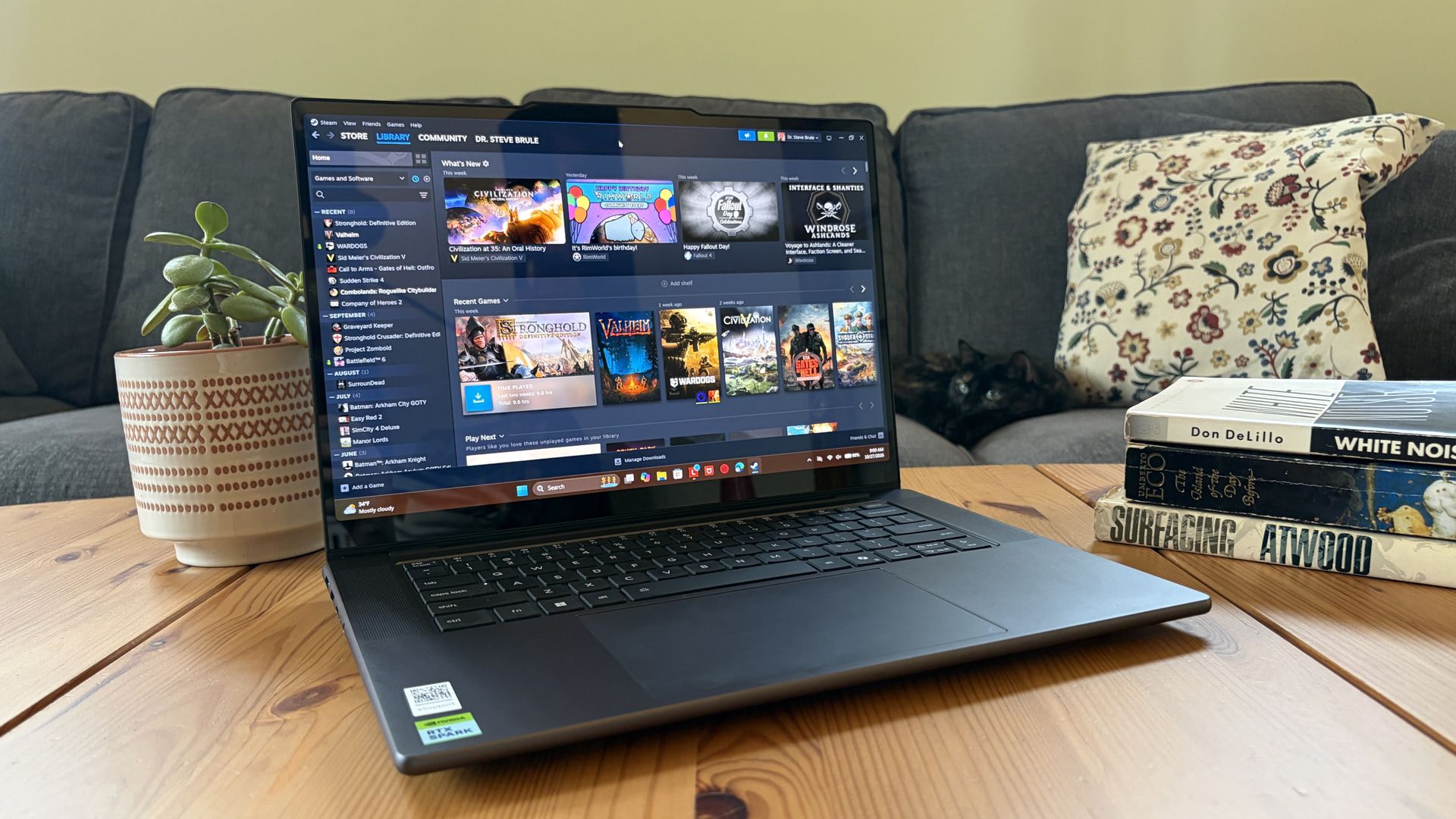
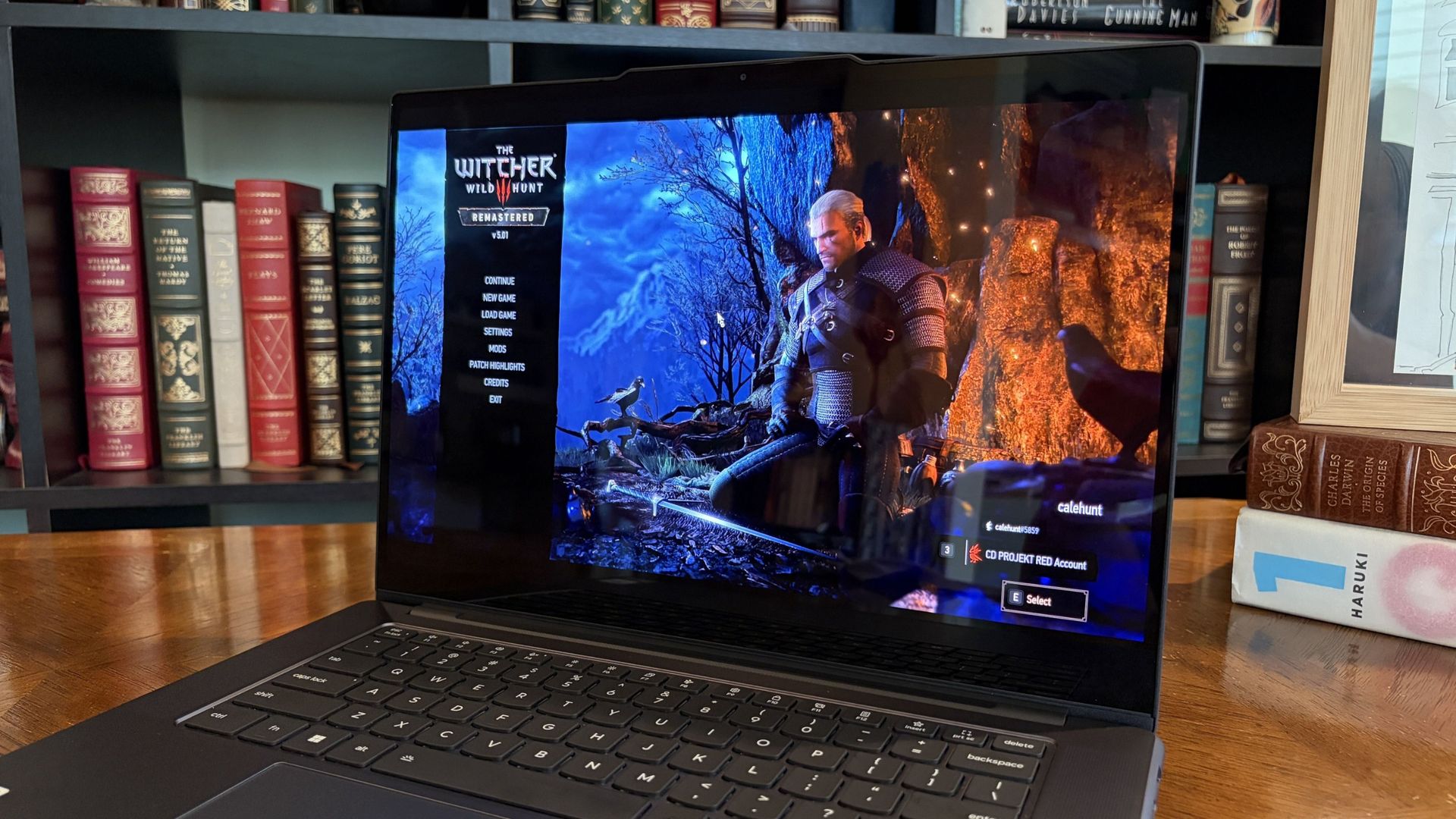
I gave the Pro 9n some games to chew on to see if it can replace my gaming handheld. Short answer: it can. (Image credit: Future)
Power tip
Lenovo allows for up to 80W of overall power for the chip, putting it in line with the other RTX Spark laptops we've tested.
As it turns out, quite well. You get the same pool of unified LPDDR5x memory to pull from for the system and GPU, albeit in smaller quantities (32GB for my review unit).
You get the coveted CUDA cores (with 5120 in my unit compared to 6144 in the premier chip) to handle local AI inference. And you still get about 26 TFLOPs of graphics performance.
The following graphs show how the 18-core RTX Spark in the Lenovo Pro 9n compares to the 20-core RTX Spark chips we've already tested in other laptops.
FutureFutureFutureFutureFutureFuture
As you can see, synthetic Geekbench 7 and Cinebench 2026 CPU scores fall accordingly compared to the 20-core Spark. Not by a lot, but it is noticeable.
The SSD looks comparatively slow, but keep in mind that most of these laptops have a mix of PCIe 4.0 and PCIe 5.0. In my test case, it's the former, but you can get the latter, faster drive in a 2TB config.
FutureFutureFuture
The weaker RTX GPU also showed a drop-off in Geekbench 7's GPU test, but it put up a strong fight in 3DMark's Steel Nomad and Speed Way tests.
Considering I was playing The Witcher 3: The Wild Hunt Remastered at a smooth frame rate with ray tracing cranked up, there should be no denying the Pro 9n can game. Just don't buy it if that's all you want from your laptop.
There should be no denying the Pro 9n can game.
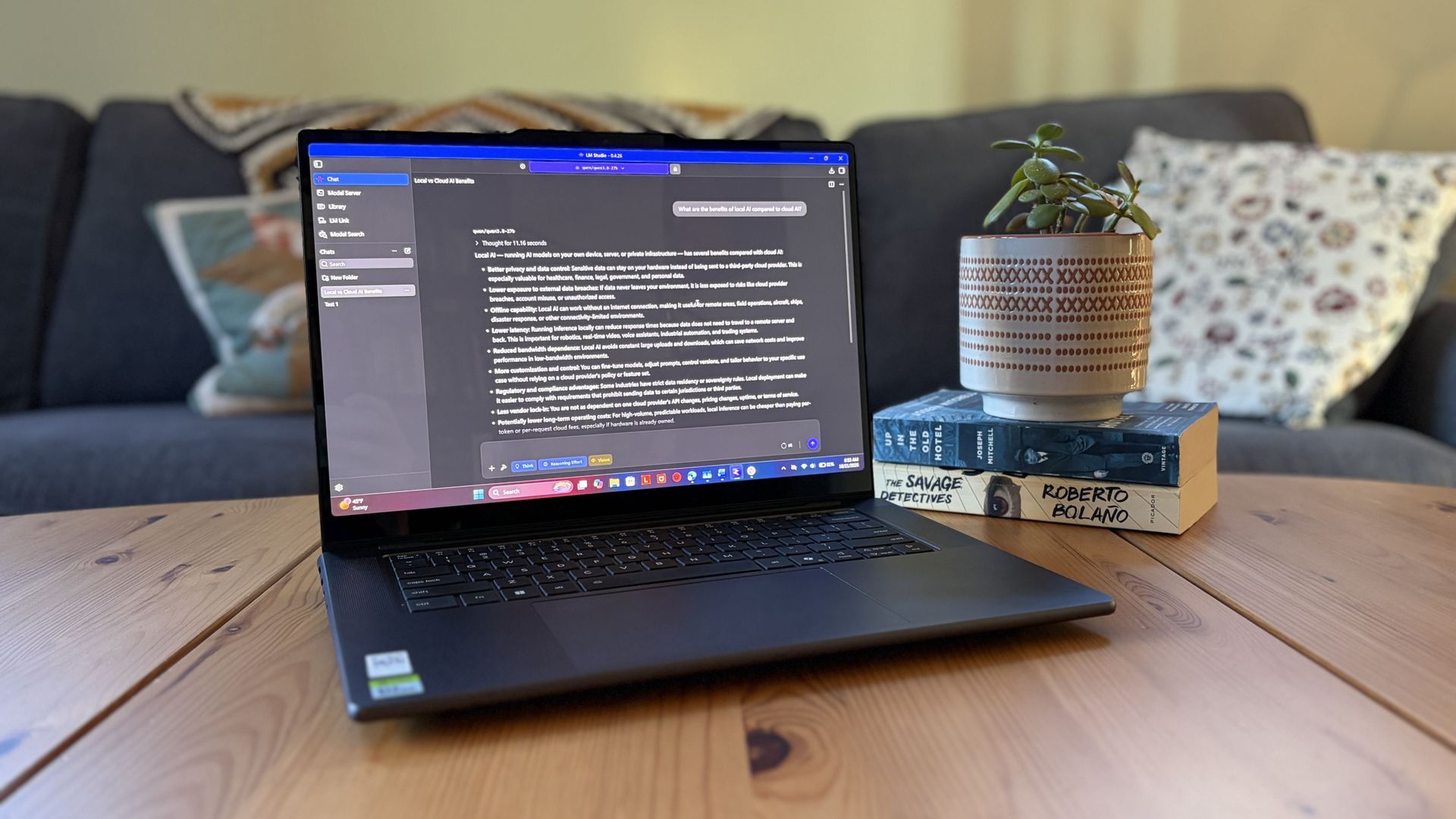
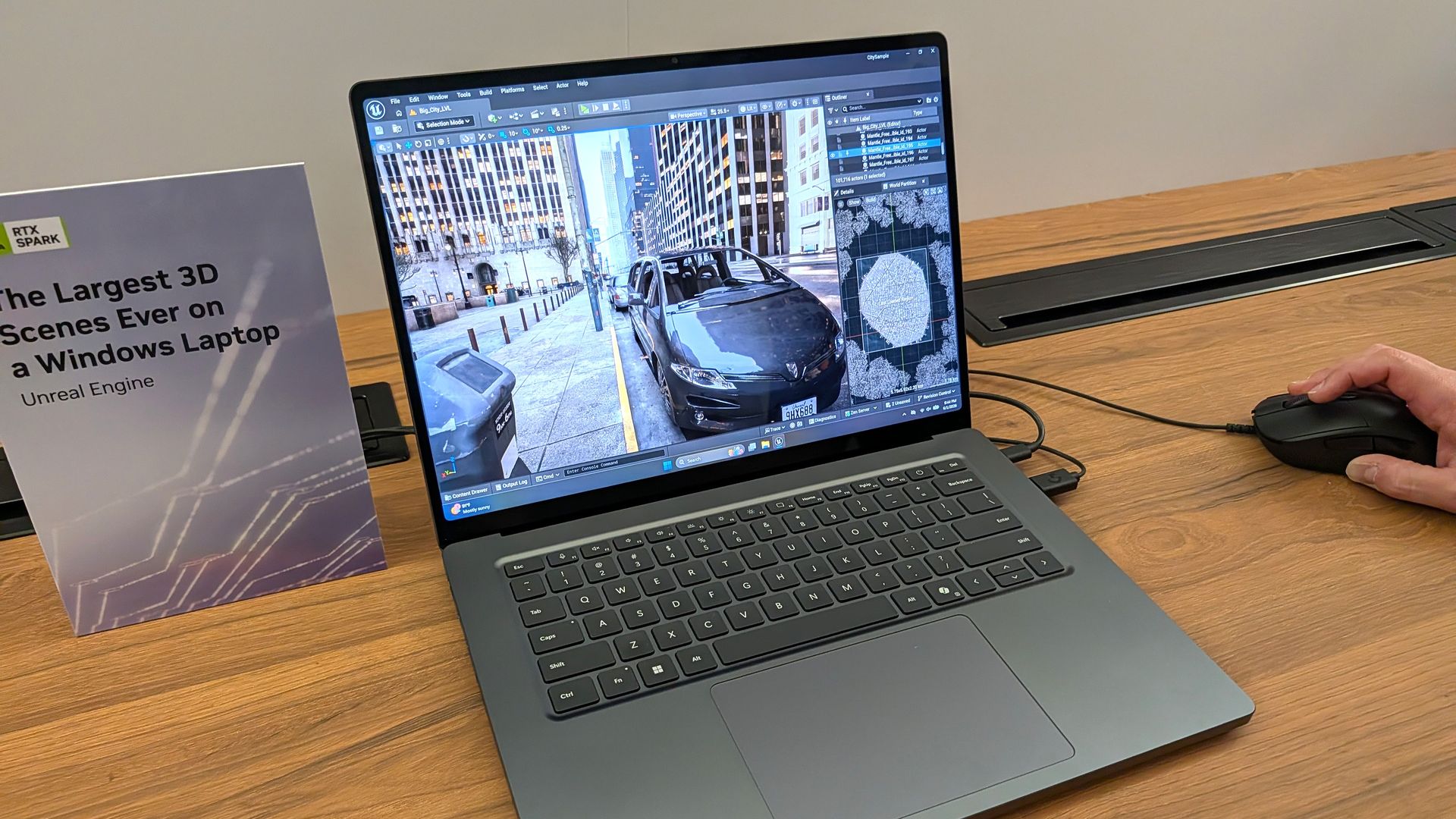
I also began a journey with local AI agents on the Lenovo Pro 9n. I set up LM Studio on it and downloaded a hefty Qwen model, which runs surprisingly well on the system despite only having 32GB of unified RAM.
Lenovo's Pro 9n running LM Studio, allowing me to chat locally with AI agents. (Image credit: Future)
The unit I was sent to test is more geared toward creators who don't need the ultimate 20-core CPU and 128GB of RAM coveted by AI specialists, so I'm pleased that it's proving to be a capable local AI base.
I ran a few AI-focused tests in Procyon to see how the weaker RTX Spark chip in my Lenovo Pro 9n compares to the 20-core option we already reviewed.
Procyon Image Generation
RTX Spark (18-core)
RTX Spark (20-core)
Stable Diffusion 1.5 score (FP16, higher is better)
1,430
1,380
Seconds / Image (lower is better)
4.36
4.22
Total duration (lower is better)
69.9
67.5
Procyon Text Generation
RTX Spark (18-core)
RTX Spark (20-core)
Phi-3.5-mini (higher is better)
2,383
2,615
Seconds to first token (lower is better)
0.31
0.27
Tokens / Second (higher is better)
68.31
72.21
Load time / Seconds (lower is better)
0.73
0.66
Procyon AI Computer Vision 2.0
RTX Spark (18-core)
RTX Spark (20-core)
Score (higher is better)
3,658
3,997
There's clearly a drop-off with the 18-core Spark chip in terms of AI performance, and I'd recommend that any AI specialists out there opt for the 20-core option.
For creators, part-time gamers, and professionals without a direct focus on AI, I think the 18-core chip should do just fine.
Does Lenovo's Pro 9n get too hot?
Playing demanding games on the Lenovo Pro 9n is entirely possible. Just expect there to be a little heat. (Image credit: Future)
The Lenovo Pro 9n's upgraded cooling system does a good job of managing thermal limits, and fan noise isn't bad, either. This is all with the system managing power automatically, which I found quite convenient.
During a lengthy system stress test, I never clocked the fan noise any higher than 43dB. They're audible in a quiet room, but they'd go unnoticed in a busy office.
My trusty FLIR camera is in the shop, but I did a surface temp test with my lap. During the stress run, it remained comfortable to hold. The keyboard side got a bit hotter, but nothing that gave me pause.
How is the Pro 9n's battery life?
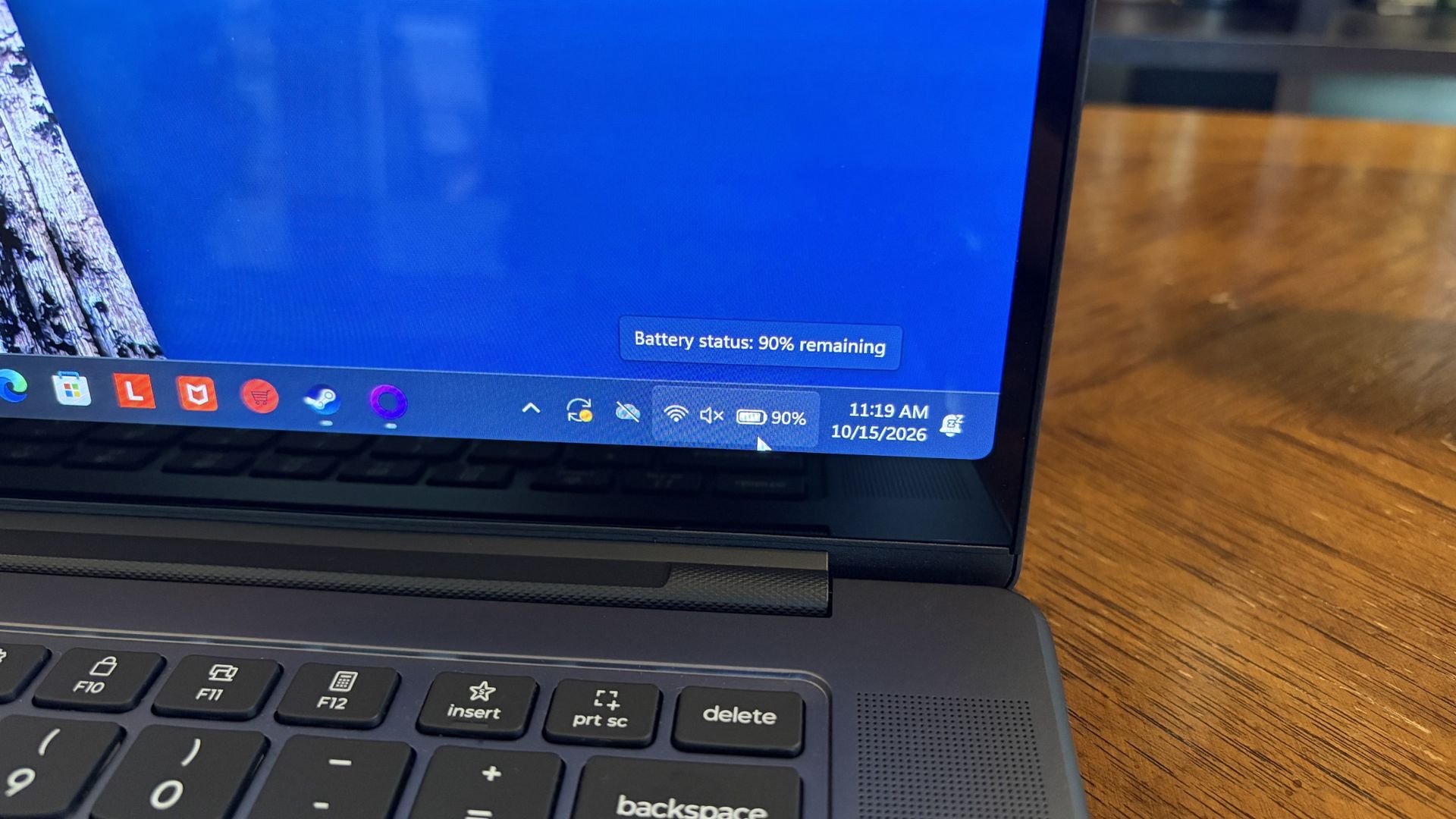
Battery life has been quite good, especially for everyday tasks, but Snapdragon X2 is still the champ. (Image credit: Future)
Battery life is not as good as I was hoping, and Qualcomm's Snapdragon chips are not in any threat of being dethroned in terms of efficiency.
My Windows Battery report shows roughly 8 to 10 hours of real-world life on a charge. Keep in mind that I was doing a decent amount of gaming on battery life, which brought that number down. Still, that's in line with the other RTX Spark laptops we've tested.
If you are gaming on battery power and have settings cranked up with ray tracing enabled, know that I was seeing about 10 minutes of runtime for every 10% of battery life.
Indie titles that aren't as demanding don't sap the battery nearly as much, and you can enjoy a few hours of gaming without worrying about power.
Should you buy Lenovo's Pro 9n?
The Lenovo Pro 9n's lid pulls back to about a 180-degree flex. (Image credit: Future)
You should buy this if ...
✅ You want an RTX Spark laptop with a 15.3-inch OLED display at 2.5K.
✅ You dabble in drawing, sketching, and writing with a pen.
✅ You're a professional or a creator who wants one PC to handle local AI, demanding apps, and gaming.
You should not buy this if ...
❌ You want the most affordable RTX Spark laptop possible.
❌ You prefer a mini-LED display (go with the Surface Laptop Ultra).
Lenovo's first notebook RTX Spark laptop has been a ton of fun to use over the past few weeks, and admittedly, I regret that I soon have to give it up.
It's not perfect. I wish there were human presence detection. I wish there were an extra high-res display option. I wish battery life were a lot better. And I wish it didn't cost as much (which is an effect of the ongoing RAM and storage crisis, not some Lenovo decision).
But for what it is — a specialized portable AI workstation using the first generation of a new NVIDIA computing platform — it's among the most exciting and promising Windows PCs I've used in recent memory.
If you're a general creator who just wants to see the latest chip technology in an ultra-premium package, the 32GB model could be ideal for you, just as long as you can stomach the price.
Otherwise, it's mainly going to appeal to a fairly small set of users, but those who can take full advantage of the RTX Spark chip should love what Lenovo has put together here.
RTX Spark
Lenovo
Pro 9n
Lenovo's Pro 9n delivers high-end features and cutting-edge AI performance for the Windows ecosystem. It's a great PC for creators with deeper pockets, but its true usefulness is seen in the hands of AI pros who need a ton of unified memory and a beefy RTX Blackwell GPU. It's all wrapped up in a sleek, portable package.
Mini-LED Microsoft Surface Laptop Ultra The Surface Laptop Ultra costs less to start, but it lacks pen support, its mini-LED isn't as impressive, it's thicker and heavier, and it lacks some features compared to the ASUS Pr
The Surface Laptop Ultra costs less to start, but it lacks pen support, its mini-LED isn't as impressive, it's thicker and heavier, and it lacks some features compared to the ASUS ProArt P16. Regardless, many will appreciate its speedy SSD, its superior webcam, its smaller footprint, and its magnetic USB-C port.
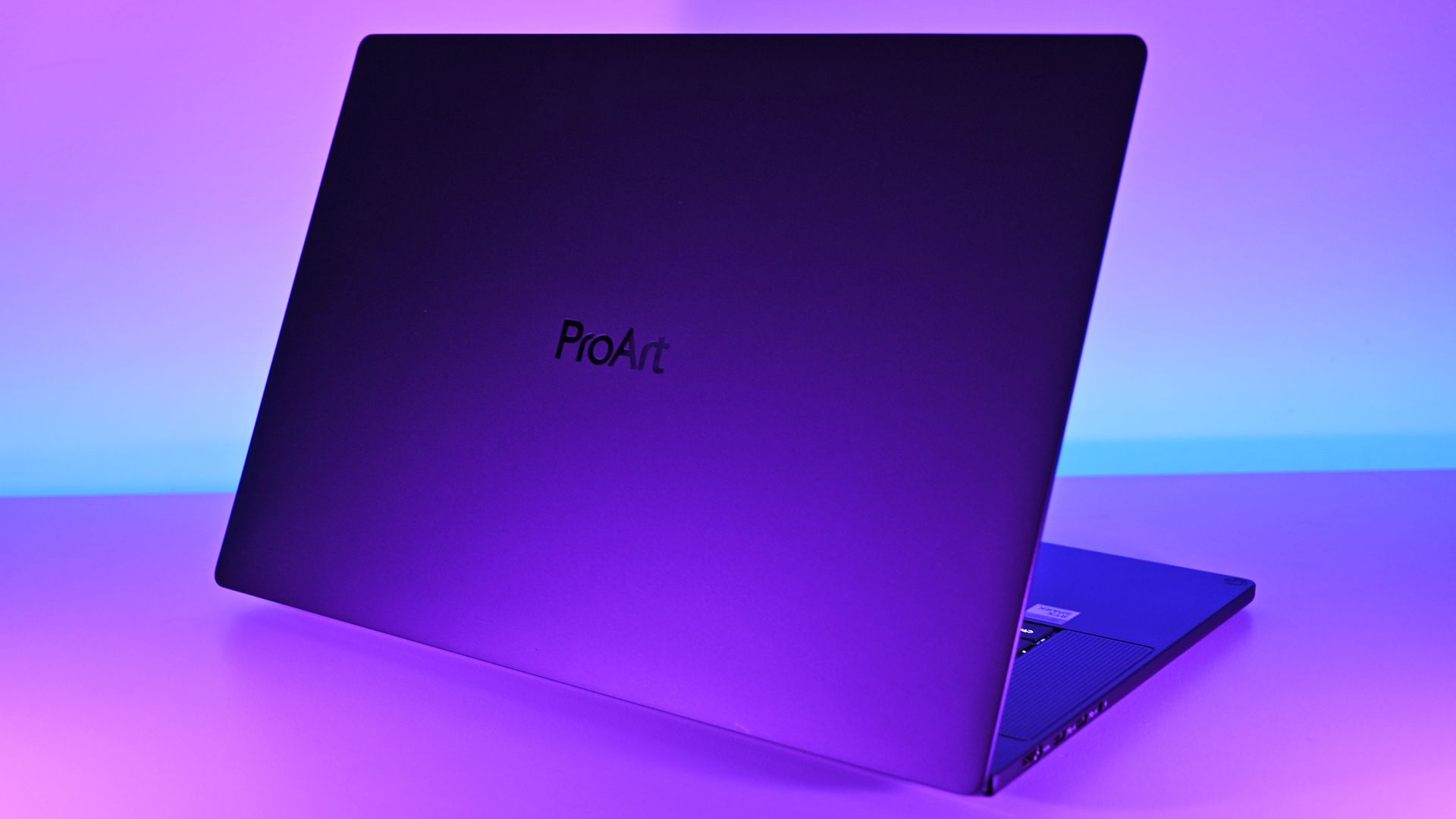
The ASUS ProArt P16 scored higher in our review thanks to its OLED display, deeper key travel, outstanding audio, cooler thermals, and thinner/lighter design. It does cost more to start, and it has louder fans, but these are easy trade-offs for those who don't mind spending a little bit more.
Pros
Gorgeous OLED display with inking support
Deeper 1.7mm key travel and haptic touchpad
Top-firing speakers
Cooler thermals
Oleophobic coating and anti-glare 4K display finish
Cons
Slower 1TB/2TB SSDs
Costs more to start
Louder fans
The Windows Central team has had time to digest some of the new NVIDIA RTX Spark laptops that recently launched, and thanks to our in-depth reviews, I'm here to offer some insights as to which PC might be best for you.
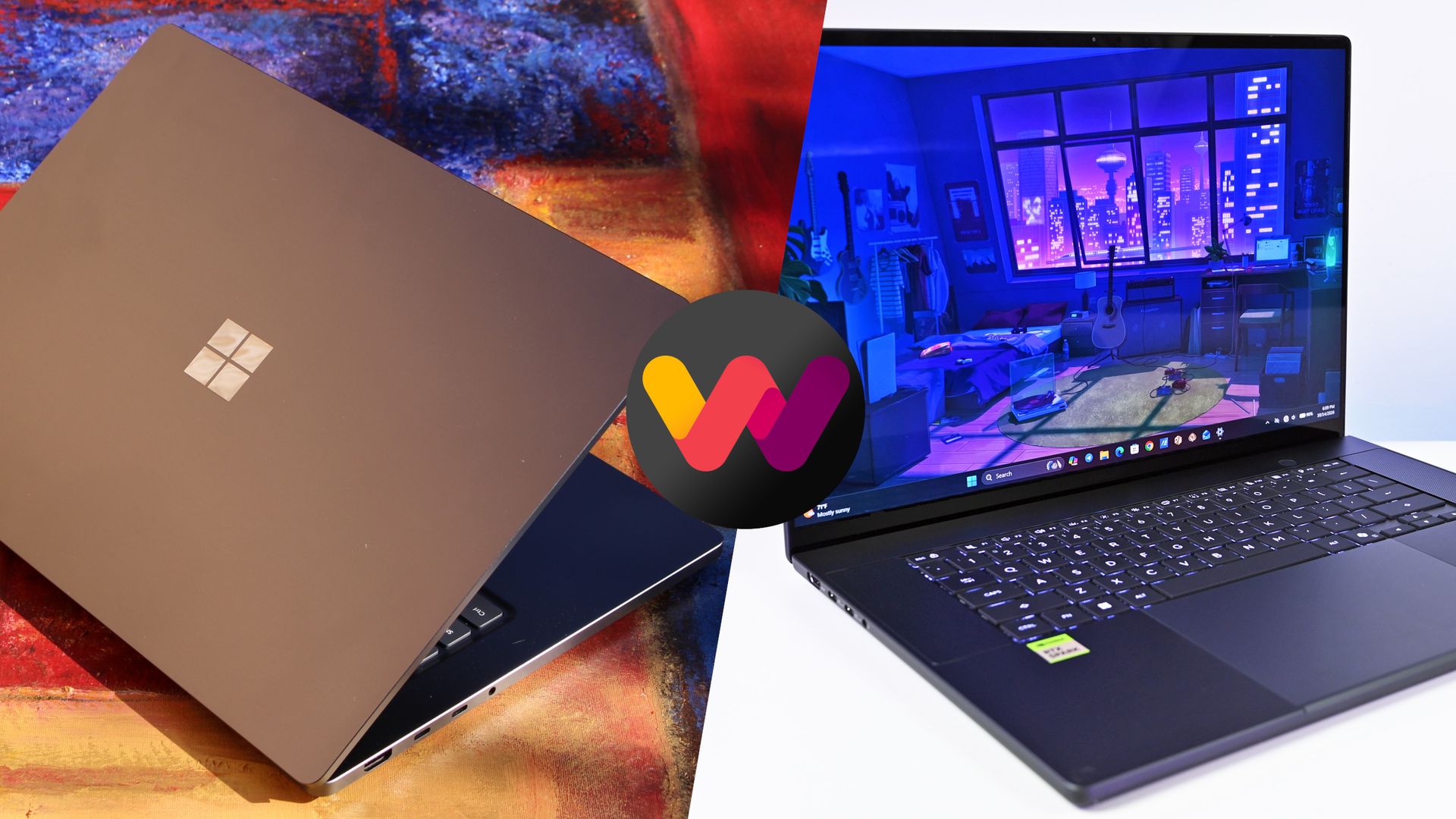
Here's why the ProArt PC gained a bit of extra score over the Surface Laptop Ultra (and why that doesn't necessarily mean it's the right RTX Spark laptop for you).
Surface Laptop Ultra vs. ASUS ProArt P16: Specifications
Before I get too deep into my comparison between the Surface Laptop Ultra and ASUS ProArt P16, I put together this table for easy reference.
Standout differences at this point should be the display size and type, the port selection, and the dimensions, which I cover and explain in more depth below.
12.95 x 9.40 x 0.71-0.75 inches (328.8mm x 238.7mm x 17.99-19.16mm)
13.94 x 9.57 x 0.51-0.63 inches (354.1mm x 243mm x 12.9-15.9mm)
Weight
4.41 pounds (2kg)
3.9 pounds (1.77kg)
Colors
Platinum, Nightfall
Nano Black, Neo White
Pro-grade designs and features available in both laptops
The ASUS ProArt P16 (pictured here) is thinner and weighs less than the Surface Laptop Ultra. (Image credit: Daniel Rubino)
The ProArt P16 is larger than the Surface Laptop Ultra. That's a given considering it has a larger 16-inch display. The overall footprint is a bit larger, but otherwise, the ProArt P16 comes out ahead.
The P16 weighs just 3.9 pounds (1.77kg) compared to the Surface Laptop Ultra's 4.41 pounds (2kg), and it's also quite a bit thinner, starting at 0.51 inches (12.9mm) compared to 0.71 inches (17.9mm).
The neat thing is that ASUS really doesn't make you regret that upsizing. As Windows Central Editor-in-Chief Daniel Rubino says in his ProArt P16 review:
Thermals are even more impressive. Under sustained heavy workloads, my thermal camera recorded around 105°F across the keyboard deck and approximately 120°F near the rear exhaust. That's a few degrees cooler than both the Surface Laptop Ultra and HP OmniBook Ultra 16 RTX Spark in my testing. Fan noise never exceeded 50dB under extreme workloads.
Rubino does give Surface a nod for its "pure premium feel," although I'm sure some will love the ProArt P16's fingerprint-resistant coating that reduces smudges.
Which laptop offers better ports?
The left-side ports on the Surface Laptop Ultra.Zac Bowden / Windows CentralThe Surface Laptop Ultra's magnetic charging cable.Zac Bowden / Windows Central
This first wave of RTX Spark laptops is fairly unified across brands in terms of port selection. Both laptops offer three USB4 hookups (using the USB-C form factor), but only the Surface Laptop Ultra has the nifty Magnetic Connect feature on one of them.
Magnetic Connect allows a connected USB-C cable to pull away from the PC instead of dragging it off a table, much like Apple's MagSafe. It's a great feature to have, especially with a laptop at this price.
You're otherwise getting USB-A, HDMI, an SD card reader, and a 3.5mm audio jack across both PCs.
Is the keyboard and touchpad different across PCs?
A look at the ProArt P16's haptic touchpad, keyboard, and top-firing speakers.Daniel RubinoA look at the Surface Laptop Ultra's haptic touchpad and keyboard.Windows Central / Zac Bowden
Speaking on the Surface Laptop Ultra'skeyboard and touchpad,Windows Central Senior Editor Zac Bowden said, "This is probably the best keyboard and trackpad experience I've ever had on a Windows laptop to date."
Digging into that statement, Bowden clearly appreciated the 1.4mm tactile key travel that he called "incredibly satisfying and not at all fatiguing." The Surface's haptic touchpad is the largest ever in Microsoft's lineup, and Bowden says it "makes a huge difference in how easy it is to use."
Not to be outdone, the ASUS ProArt P16 offers deeper 1.7mm key travel and an equally enormous haptic touchpad.
Which laptop has a better webcam and speakers?
The bottom two speakers are joined by two speakers flanking the ProArt P16's keyboard. (Image credit: Daniel Rubino)
On the spec sheet, both laptops offer an FHD (1080p) front-facing webcam with IR capabilities for facial recognition.
Rubino states that "Microsoft still wins this category with Surface" and notes how HP's OmniBook Ultra with a 5MP webcam trumps both ASUS and Microsoft.
The big deal? The ProArt P16 includes human presence detection for increased security and convenience, whereas the Surface Laptop Ultra does not.
As for audio, each laptop comes with four speakers and Dolby Atmos support. Both laptops deliver some of the best sound we've ever heard, but only the ProArt P16 has top-firing speakers flanking the keyboard.
Mini-LED or OLED? Our reviewers prefer the latter
The Surface Laptop Ultra's mini-LED is plenty bright, but OLED is probably better for many users. (Image credit: Windows Central / Zac Bowden)
Display tech is where these two laptops really show a difference. Most noticeable is the Surface's taller 3:2 aspect ratio compared to the P16's 16:10 aspect ratio. The differences don't stop here.
The Surface Laptop Ultra has a 15-inch mini-LED screen at a 3270x2180 resolution, with 1,344 dimming zones, 1000-nit SDR brightness, and 2000-nit HDR peak brightness. It packs in a 120Hz dynamic refresh rate and Dolby Vision IQ support.
Though it's brighter than the ProArt's screen, Bowden says the mini-LED tech results in "a bit of blooming around bright elements on a dark background."
He adds that the backlight doesn't always keep up with what's on your screen, causing a slight ghosting effect in dark mode.
The ProArt P16's OLED display provides vivid color and perfect contrast, with no backlight bleed apparent. (Image credit: Daniel Rubino)
The ProArt P16 has a larger 16-inch OLED screen with a 120Hz dynamic refresh rate, and it's available in either a 3840x2400 (4K) or 2880x1800 (2.8K) resolution.
The 4K version is the primary option for models with 128GB of RAM, though Best Buy seems to offer a 4K version with 32GB of RAM. Despite a lower resolution, you still get 500 nits of SDR brightness and 1,100 nits of peak HDR brightness.
The 4K version hits 700-nit peak SDR brightness, climbing to 1,600 nits with HDR. An anti-reflective coating is included.
None of the mini-LED issues discovered in the Surface Laptop Ultra's mini-LED screen are apparent here, and you get the standard OLED perks of perfect contrast and vivid color no matter how you're using it.
It's worth noting that the P16 display offers pen support for inking. The Surface Laptop Ultra has no pen support.
NVIDIA's RTX Spark chip keeps performance close
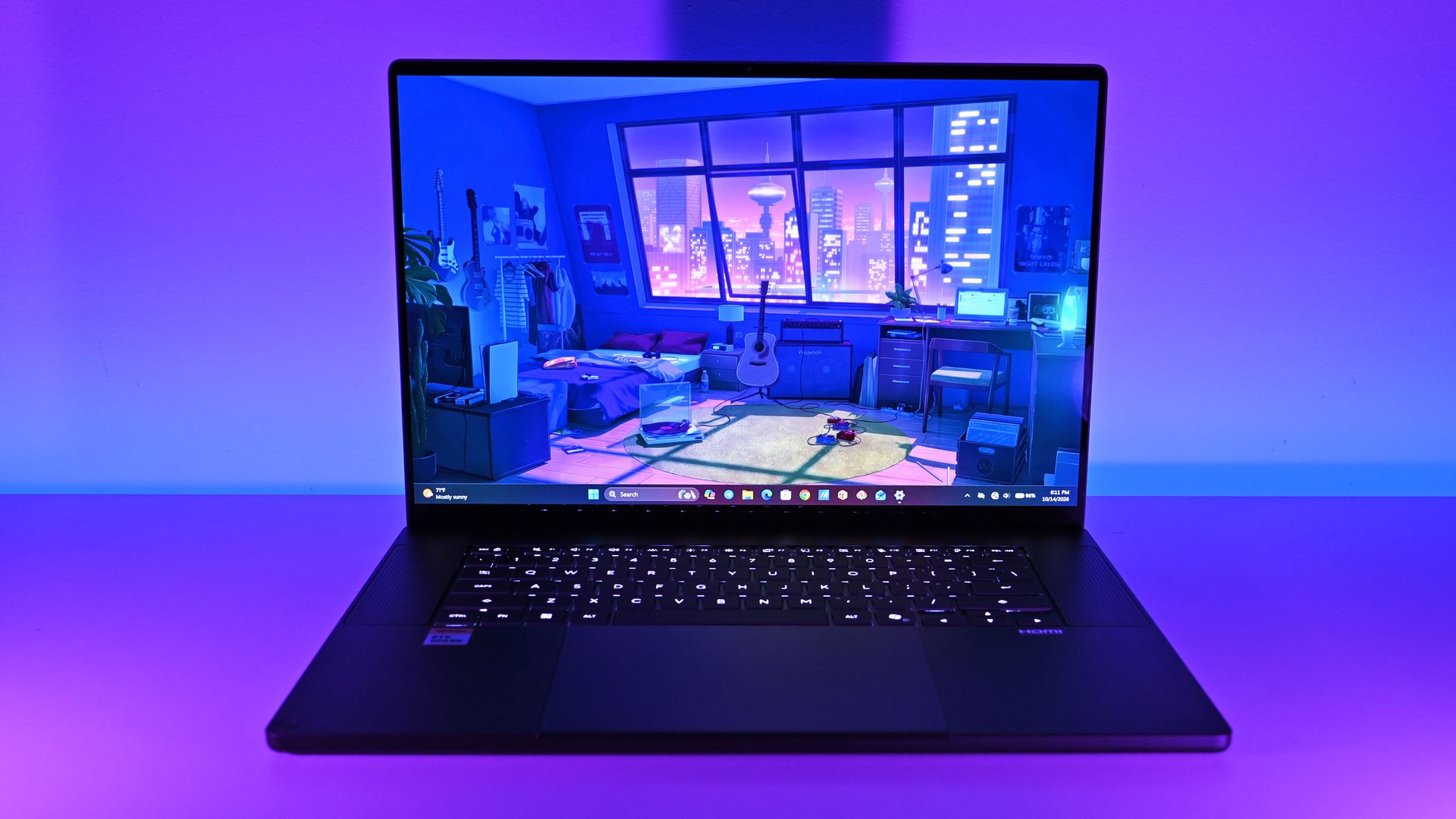
The new NVIDIA RTX Spark chips offer similar performance across laptop models. (Image credit: Daniel Rubino)
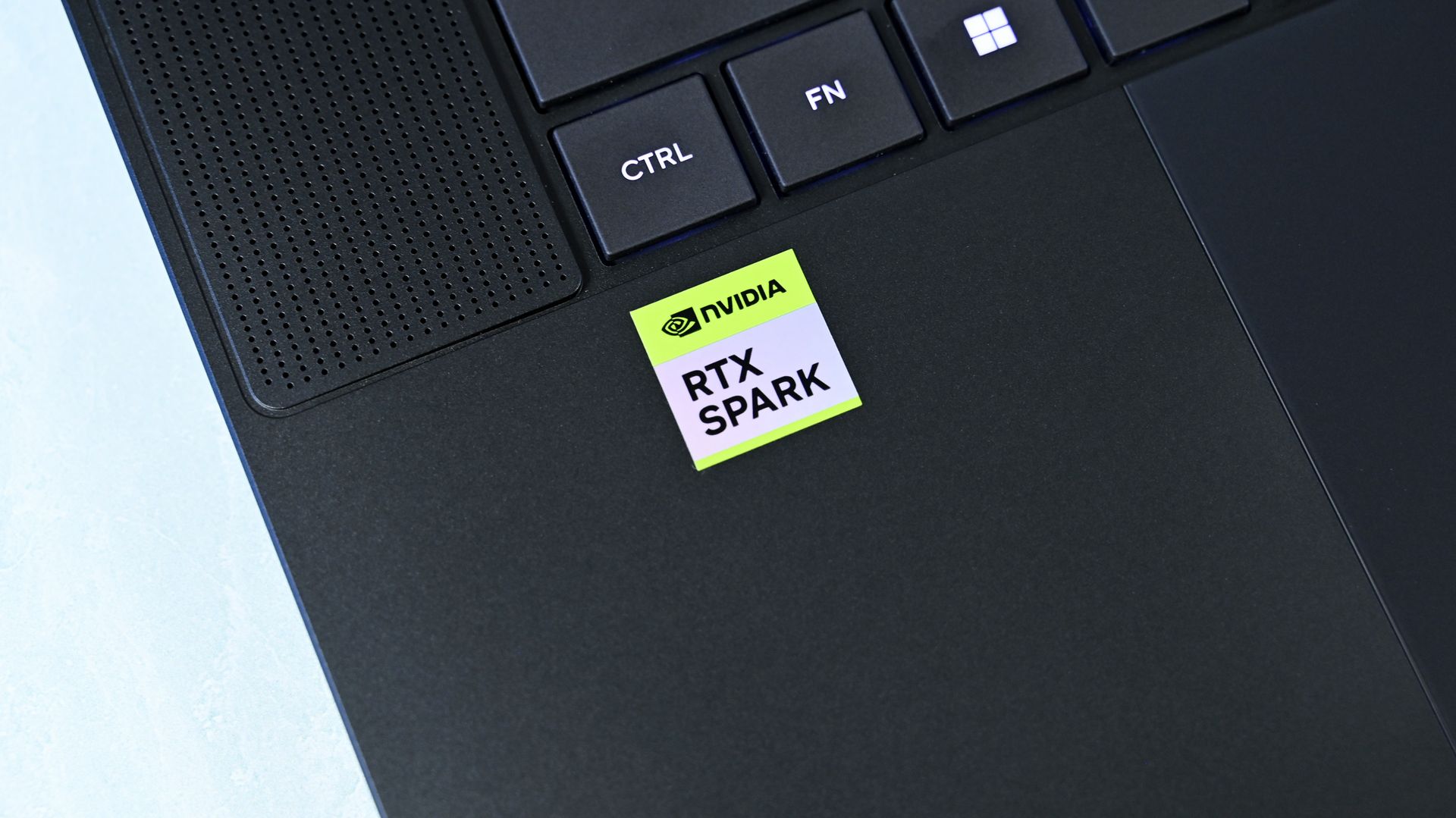
A neat aspect we're discovering as we test RTX Spark laptops is how performance is quite similar. That's not surprising. These laptops use the same NVIDIA N1X chips in either 18- or 20-core CPU and 5120- or 6144-core GPU configs.
We tested both with the 20-core CPU and 6144-core GPU, and the Surface Laptop Ultra and ProArt P16 trade blows across benchmarks. For example, CPU performance is close enough that I wouldn't spend much time worrying about it.
The Laptop Ultra does great in lighter graphics benchmarks, though the ProArt P16 takes over in more demanding tests. Considering the ASUS laptop is thinner and lighter than the Laptop Ultra, that's a real achievement.
FutureFutureFutureFutureFutureFutureFuture
One area where the Surface Laptop Ultra pulls ahead is with its 1TB and 2TB M.2 PCIe 5.0 NVMe SSDs that are way faster than the PCIe 4.0 options in the ProArt P16. Microsoft does drop back to PCIe 4.0 with a 512GB capacity.
Which laptop has better battery life?
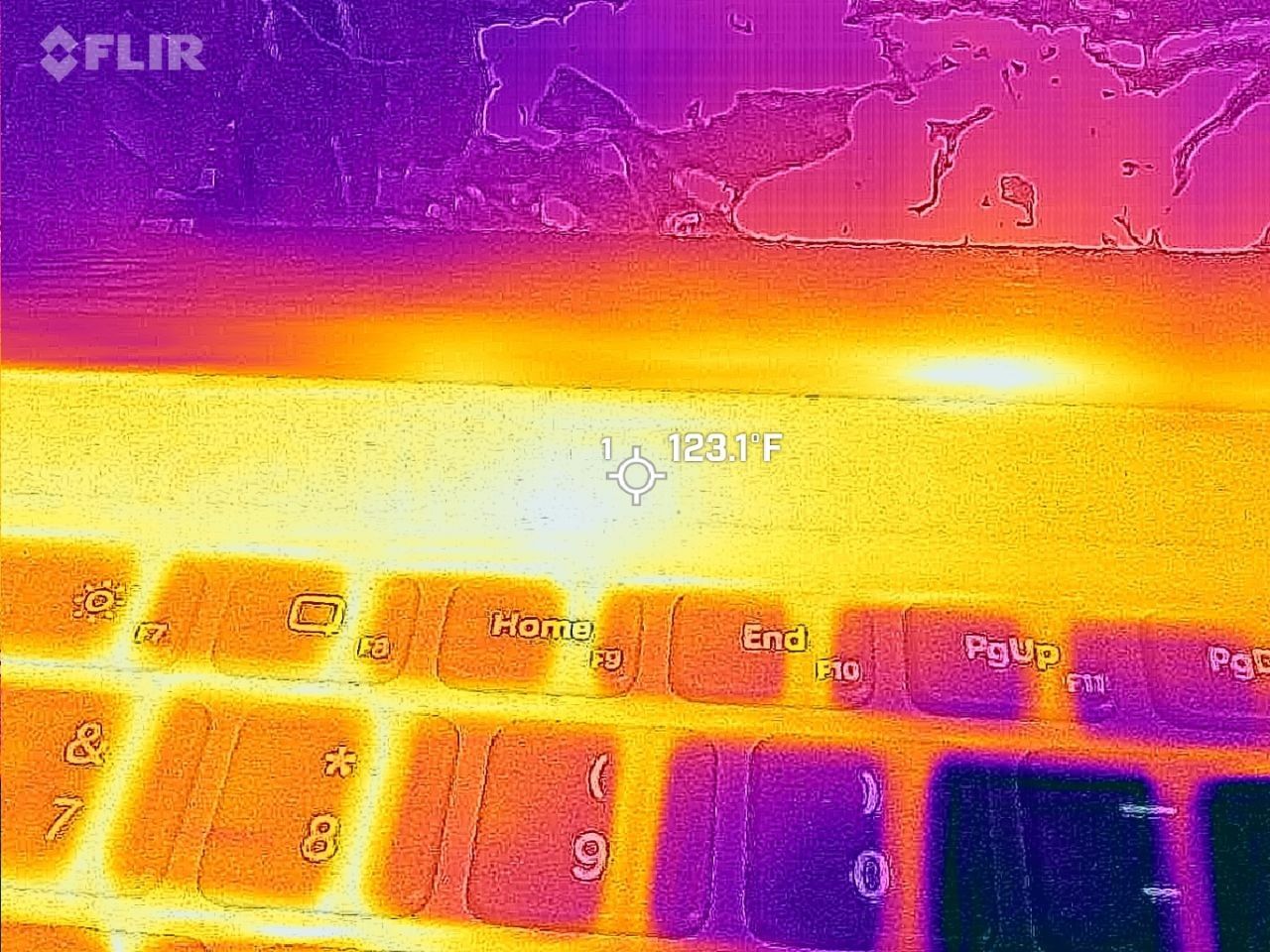
FLIR imagining reveals a 123F temp on the Surface Laptop Ultra. (Image credit: Zac Bowden / Windows Central)
The ProArt P16 has a larger 99.9Wh battery capacity compared to the Laptop Ultra's 92Wh, but that matters less than you might expect.
Both Rubino and Bowden were able to get around 10 hours of real-world use when not leaning heavily on the GPU. Both the ProArt P16 and Laptop Ultra struggle to put up strong efficiency numbers when that GPU is in demand, and in both cases, an AC charger should be kept nearby.
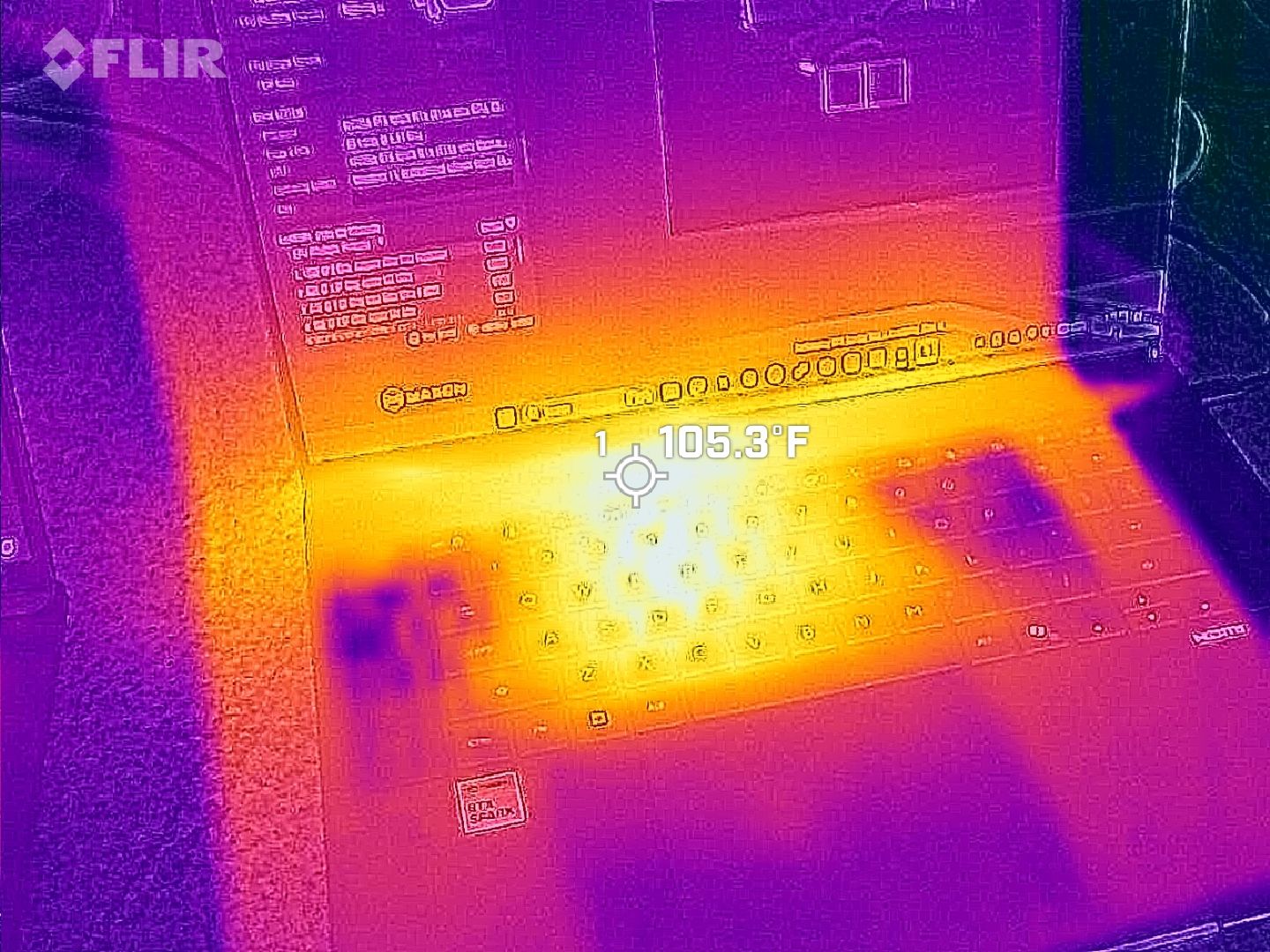
The same spot measured for heat on the ProArt P16. (Image credit: Daniel Rubino)
As for heat and noise, the Surface Laptop Ultra hit about 123 degrees Fahrenheit just above the keyboard. That's very hot, but at least the fans don't exceed 42 decibels.
Using the same FLIR imaging, we measured 105 degrees Fahrenheit in the same spot on the ProArt P16. That's quite a bit cooler, although the fans did climb closer to 50 decibels.
Surface Laptop Ultra vs. ASUS ProArt P16: Which should you buy?
The ASUS ProArt P16 comes out ahead of the Surface Laptop Ultra in several key areas. (Image credit: Daniel Rubino)
Microsoft's Surface Laptop Ultra starts at $2,599.99 for a model with an 18-core CPU, 24GB of RAM, and a 512GB SSD. The ASUS ProArt P16 starts at $2,799.99 for a model with an 18-core CPU, 24GB of RAM, and a 512GB SSD.
If they're so similar, why the price difference?
I'm pointing to the ProArt P16's superior OLED display with pen support, its thinner and lighter design, its cooler thermals, its deeper key travel, its human presence detection, its top-firing speakers, and its larger battery.
These are all noticeable benefits, and whether or not they're worth a $200 upcharge (to start) is really up to you.
I can confidently say that the Surface Laptop Ultra is a great PC regardless of how well ASUS put together its ProArt P16, and perks like a smaller footprint, a better FHD webcam, a cheaper starting price, a magnetic USB-C port, and quieter fans could weigh heavier on your shopping list.
It's worth noting that ASUS also makes a 14-inch ProArt P14 with many of the same benefits, all in a more portable package. Starting at $2,599, it might be the perfect third option for shoppers.
Mini-LED
Microsoft
Surface Laptop Ultra
The Surface Laptop Ultra costs less to start, but it lacks pen support, its mini-LED isn't as impressive, it's thicker and heavier, and it lacks some features compared to the ASUS ProArt P16. Regardless, many will appreciate its speedy SSD, its superior webcam, its smaller footprint, and its magnetic USB-C port.
OLED
ASUS
ProArt P16
The ASUS ProArt P16 scored higher in our review thanks to its OLED display, deeper key travel, outstanding audio, cooler thermals, and thinner/lighter design. It does cost more to start, and it has louder fans, but these are easy trade-offs for those who don't mind spending a little bit more.
Join us on Reddit at r/WindowsCentral to share your insights and discuss our latest news, reviews, and more.

 Connexion