
❌

Vue normale

Reçu — 28 octobre 2026 ⏭ Windows Central - News, Forums, Reviews, Help for Windows 10 and all things Microsoft.

Microsoft is finally dragging Windows Security into the Windows 11 era

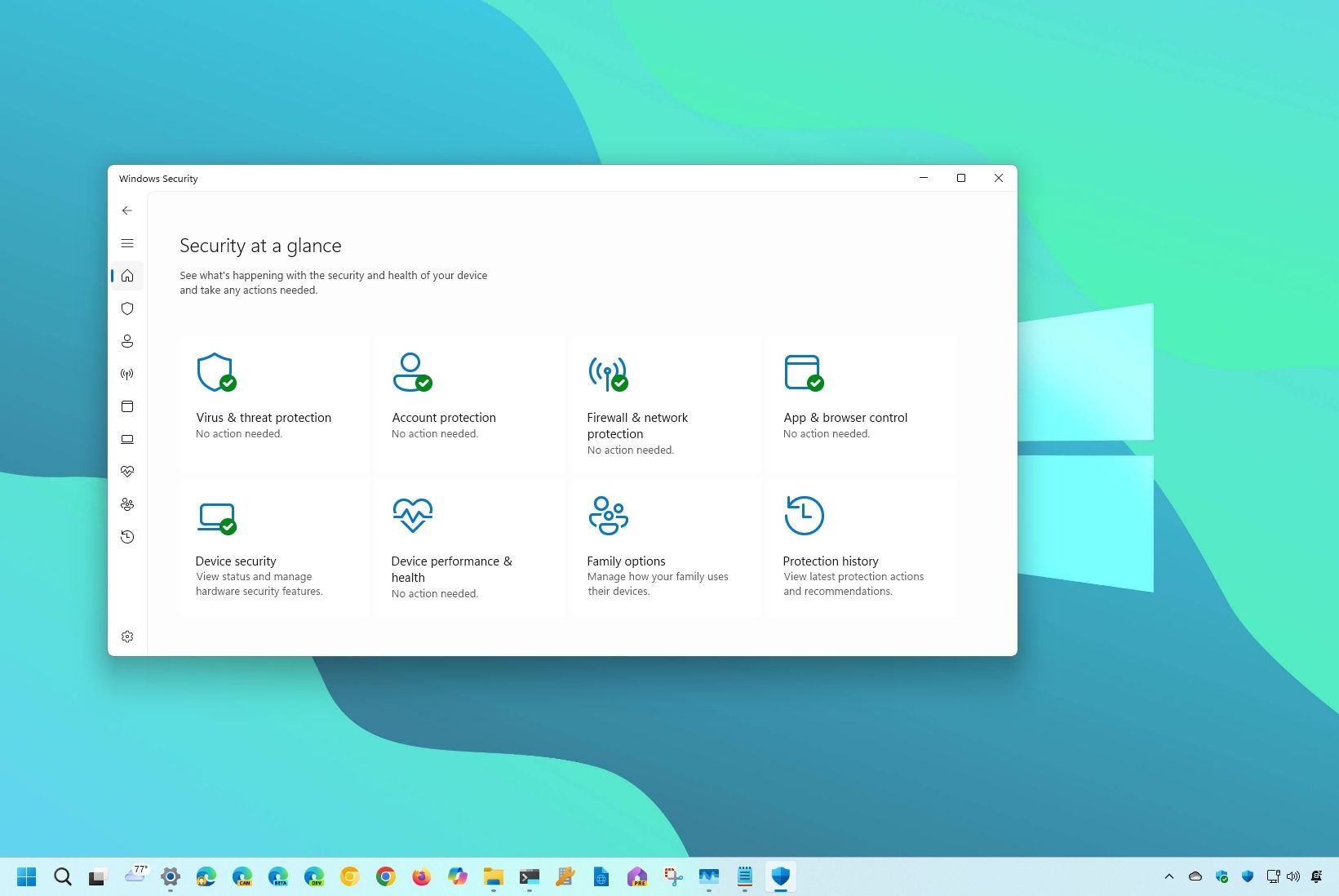
The Windows Security app is about to be redesigned to align with Windows 11. Soon, you will no longer feel like you've booted up a PC from a decade ago when managing the security features on your computer.

Microsoft discussed several changes that are on the way to the app in its latest release notes. The company started sharing Insider release notes for apps earlier this year, including Calculator, Camera, and Windows Security.

The change log describes several updates to the design and user interface of Windows Security. The app already protects PCs through a collection of tools including Microsoft Defender Antivirus, Windows Firewall, and Smart App Control.

The Windows Security app is already functional and does a good job of protecting PCs. Its security tools are also updated regularly, so it's not as if the app needs to be overhauled from a security perspective.

The current version of Windows Security still relies on navigation, layouts, and visual elements that feel noticeably older than Microsoft's modern Windows 11 apps.

Here's what Microsoft plans to do with the Windows Security app, as outlined by the company:

  • Updated navigation and layouts: Pages throughout Windows Security now use more consistent layouts and navigation, with improved behavior across different window sizes.
  • Modernized controls and dialogs: Controls, status indicators, typography, spacing, colors, and other visual elements have been refreshed to provide a more consistent experience throughout the app.
  • Clearer status and actions: We’ve made improvements to how status information and available actions are presented throughout Windows Security.
  • Improved device security information: On supported managed devices, device security details now load progressively so available information can appear sooner, along with improvements to progress, error, refresh, and performance-monitoring experiences.

Those changes are already available to Windows Insiders as long as they're running version 1000.29680.0.1000 of Windows Security.

The refresh should make Windows Security feel far more at home within Windows 11, bringing one of the operating system's oldest-looking built-in apps in line with modern experiences such as Settings.

Click to join us on r/WindowsCentral

Join us on Reddit at r/WindowsCentral to share your insights and discuss our latest news, reviews, and more.
31 days, 31 Windows apps: One dev spent October sharing an app each day

October is the spookiest time of the year, but there are ways to celebrate apart from dressing up or going to haunts. Developer Joe Finney has turned October into "Tray-tober" by releasing a system tray utility each day throughout the month. All of the projects are on GitHub and available to try for free.

Rather than linking 28 separate utilities, I'll just point you to the Tray-tober page managed by Finney. It has a calendar with links to each tool.

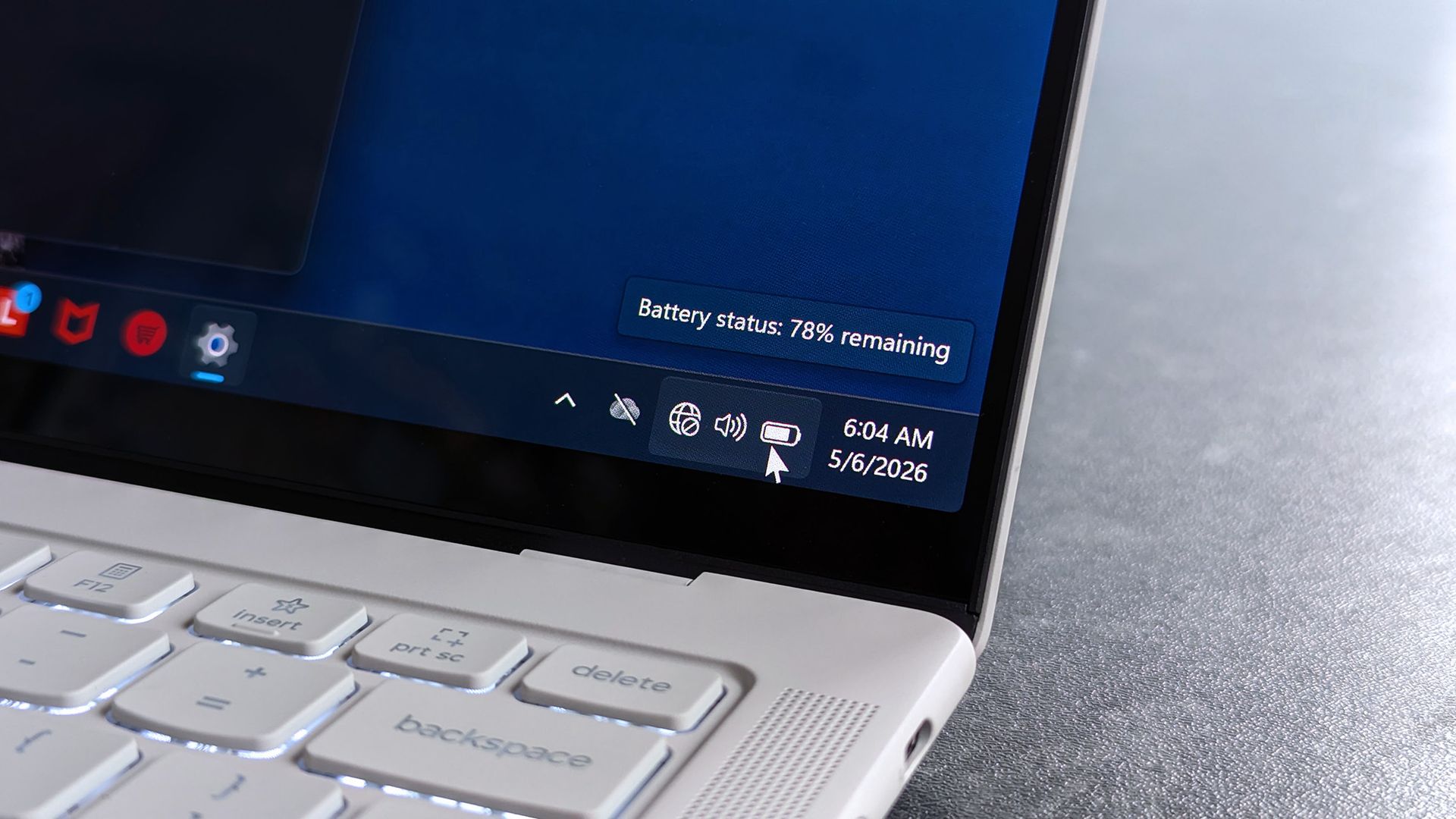
It's easy to overlook parts of Windows 11, such as the taskbar, quick settings area, and system tray. Many people leave them set to their system defaults and only interact with them occasionally. But much like a bag on Halloween, Windows 11's system tray can be filled with goodies.

The tools shared by Finney live in the system tray, though they aren't all focused solely on productivity. For example, Tray Battleship, which brings the classic board game to the system tray, shipped on October 3.

If you agree and like small cool apps in Windows, check out my project where I launched a new Windows tray utility every day in October!https://t.co/I2LKSk1hCGOctober 28, 2026

Other tools from Finney include Tray Converter for converting units, Trayulator (a calculator), and Tray Nudge, which reminds you to complete tasks.

TrayRadar shows you a weather forecast from NOAA, and Traysky lets you scroll through Bluesky right from the system tray. Finney has created quite the library of tools to try.

Since we're close to the end of October, almost all of the system tray tools have shipped. Only three more remain, and I'm curious to see what they are. Perhaps Tray Connect 4 is on the way?

One of my favorite tools is PowerDisplay, which is part of PowerToys. It allows you to adjust the brightness of your external monitor without reaching around for physical buttons. I keep it pinned to the system tray for quick access. Now, I can sneak in a quick game of battleship after adjusting the brightness of my monitor.

Click to join us on r/WindowsCentral

Join us on Reddit at r/WindowsCentral to share your insights and discuss our latest news, reviews, and more.
Logitech's MX Master 4 that lets you feel Windows 11 just got a developer edition

One of the most talked-about mice of 2026 now has a developer edition. The Logitech MX Master 4 earned a near-perfect score from our colleagues at Tom's Guide back in February. The mouse then received a significant upgrade that allows its haptics to work with Windows 11.

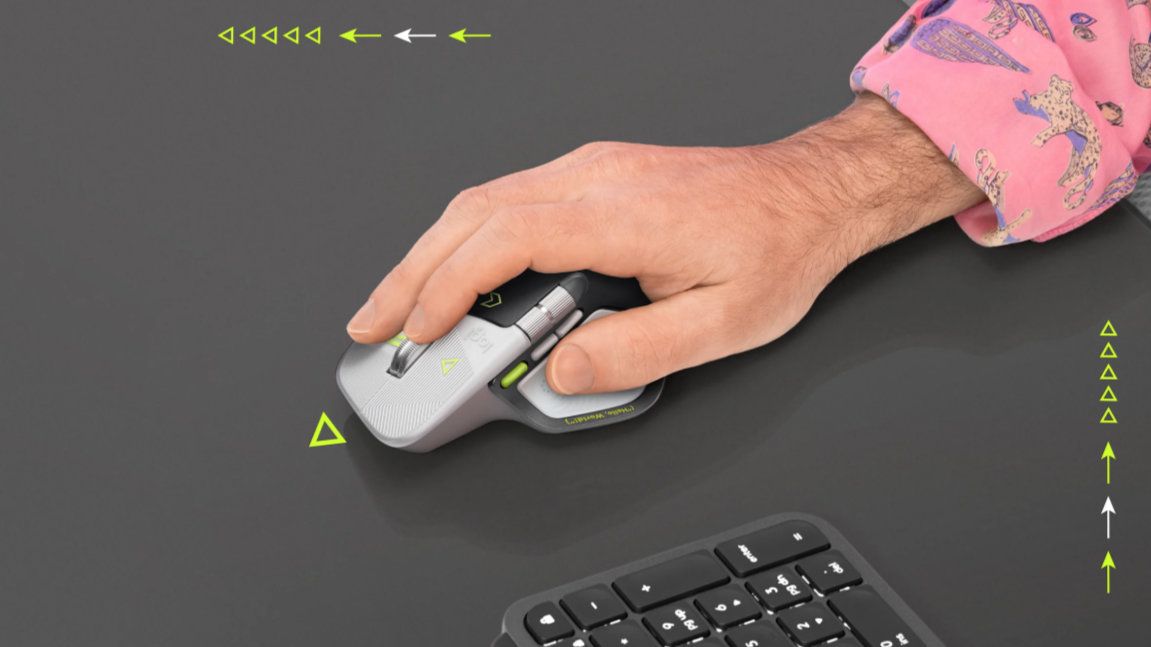
The Logitech MX Master 4 Developer Edition has several Easter eggs and nods to developers, such as syntax annotations and markup tags that are laser-etched onto the mouse. It also features some important dates along the bottom of the mouse, including 09.17 (Linux kernel release date) and !04.01 (World Backup Day).

The mouse went live on Logitech's website this week, but it's currently only available for pre-order. The Logitech MX Master 4 Developer Edition is expected to start shipping on October 31, 2026.

As for the mouse itself, it has the same feature set as the regular Logitech MX Master 4. It's a premium mouse with a bunch of customization options and a DPI that can be set from 2,000 to 8,000. It's the successor to the Logitech MX Master 3S, which Tom's Guide called the king of mice.

The mouse has a plethora of buttons and wheels that can be customized, including setting commands on a per-app basis.

The side of the Logitech MX Master 4 has a touchpad for gesture controls and a button that opens Logitech's control ring (which can be used to perform commands).

The Logitech MX Master 4 was one of the first devices to support haptics on Windows 11. The new haptic system sends feedback signals when you perform certain actions on a PC. For example, toggling a setting on or off in the Windows Settings app makes supported hardware give a little bump.

MX Master 4 Developer Edition: $119.99

Logitech's flagship mouse has a wide range of buttons and wheels that can be customized to different commands, as well as a gesture pad on the side. The developer edition of the mouse has nods to coding and development as well as a unique colorway.View Deal

What are haptics on Windows 11?

The new haptics in Windows 11 are a subtle addition that improves the overall experience of using a PC. Our Senior Editor Zac Bowden discussed the feature right after it launched:

"This is the kind of quality of life upgrade that I love to see. Windows has sorely lacked niceties like this in its UI and UX design over the last couple of years, so it's great to see Microsoft back on the horse and taking pride in the overall Windows experience like this. It's not a necessary addition, but it's an addition I'm so glad they've added regardless."

The new haptic system requires supported hardware. The Logitech MX Master 4 was among the first wave of supported devices, alongside the Surface Laptop 8. The new Surface Mouse also supports haptics.

Logitech is sending over a Logitech MX Master 4 for us to take a closer look at. I'm excited to have a mouse that adds a bit of color to my mostly black accessory setup.

Click to join us on r/WindowsCentral

Join us on Reddit at r/WindowsCentral to share your insights and discuss our latest news, reviews, and more.
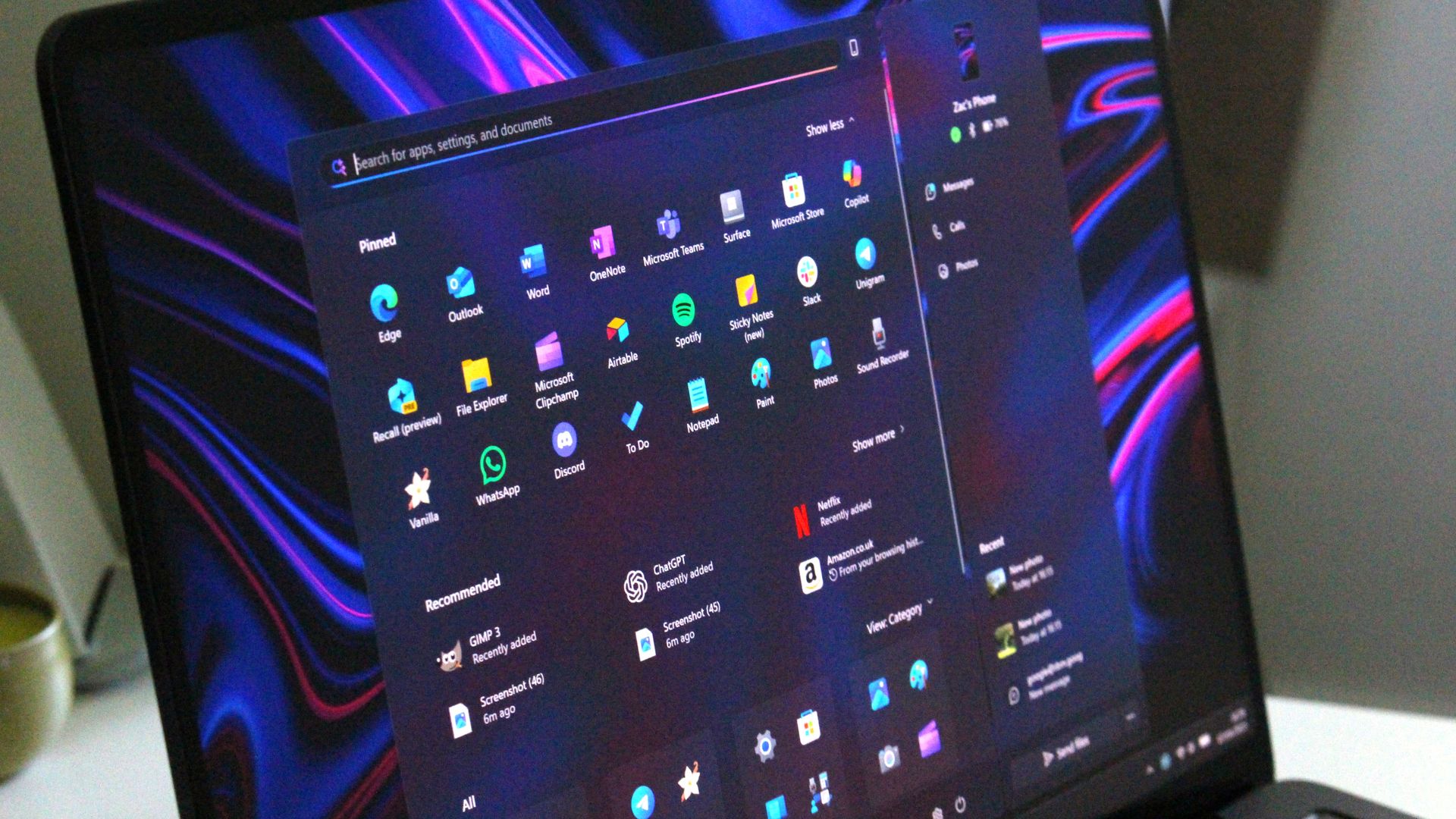
Copilot goes missing from the Edge Sidebar during Microsoft's awkward migration

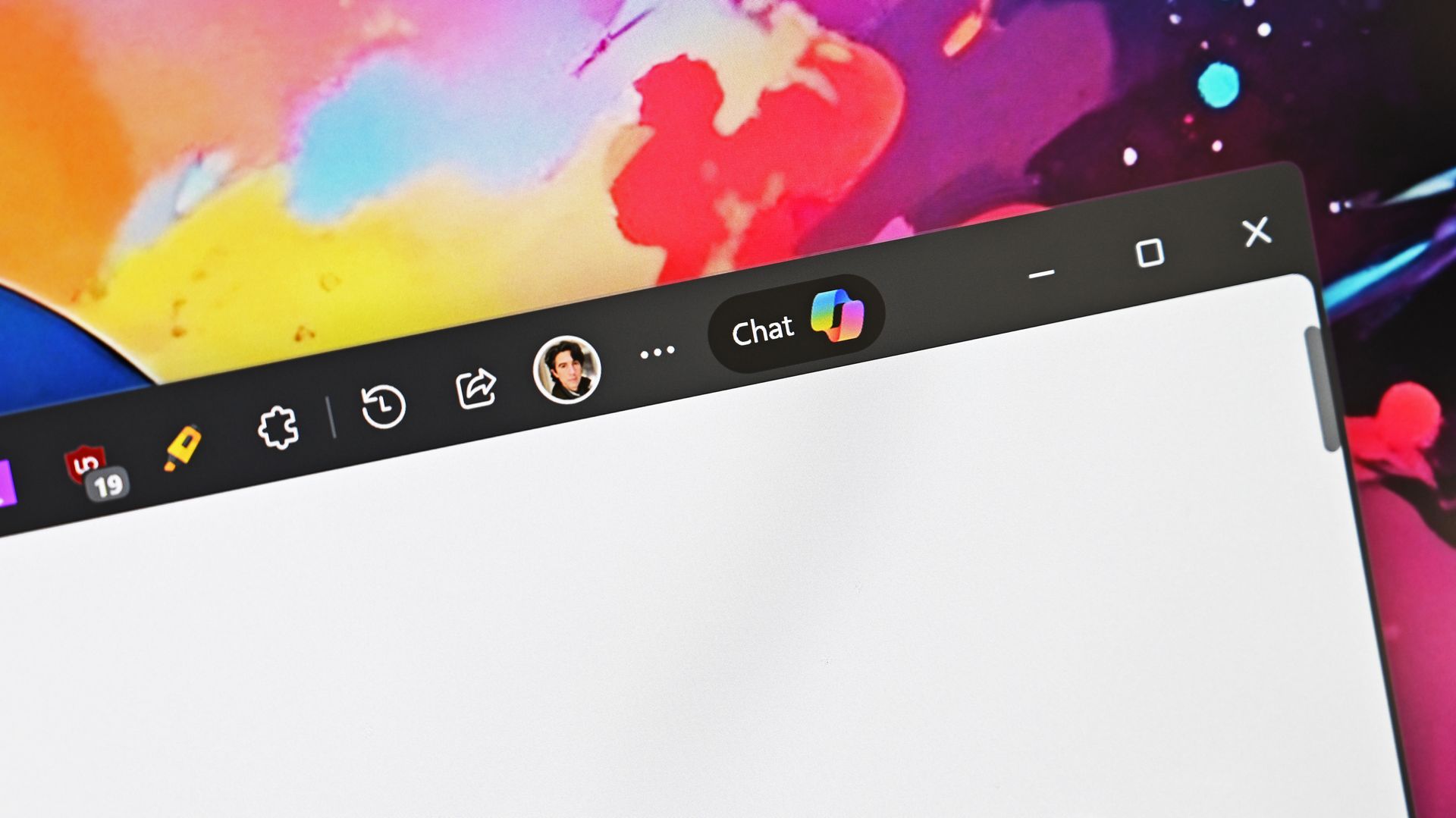
If you can't open Copilot in the Microsoft Edge Sidebar, you're not alone. People trying to use the AI tool in Edge may be met with a message stating Copilot is unavailable in that part of the browser during a migration to a new experience.

Several members of our team ran into the message, as have some Reddit users. Here's what the browser says when you try to use Copilot in the Edge Sidebar:

"Your Copilot is migrating to the new experience

It may take a few days and require restarting Edge. You will be able to use Copilot here and see all your chat history and settings once the migration completes. Until then, please use the new Copilot web experience copilot.com"

Microsoft does not explain what the "new experience" is within the message shown in Edge. The message likely references Microsoft's broader rollout of a unified Copilot experience across the web, apps, and other platforms, though Microsoft does not specifically mention the Edge Sidebar in its support documentation.

The notification suggests user data is being moved as part of the transition, stating chat history and settings will be available once the migration completes.

It also seems odd that the migration stops Copilot in the Sidebar from working at all until the new experience is available. I'd prefer to see Microsoft complete the migration in the background then ship the finished version with an Edge update. Instead, people who rely on Copilot in the Edge Sidebar have to jump to a different tab or use the dedicated Copilot app.

The awkward transition is particularly frustrating because Microsoft's actions over the last couple of years have made it clear the company values the Copilot experience in Edge. Microsoft retired the best parts of the Edge Sidebar to remove competition for Copilot.

Microsoft appears willing to temporarily disable Copilot in the Edge Sidebar for some users while migrating them to a new experience rather than maintaining access throughout the transition. That's surprising given how aggressively Microsoft has prioritized Copilot within Edge over the last several years.

Click to join us on r/WindowsCentral

Join us on Reddit at r/WindowsCentral to share your insights and discuss our latest news, reviews, and more.

Windows 11 gets yet another Microsoft 365 promotion

Windows 11 feels a bit like a free-to-play game because of how many ads appear in the operating system. Between setting up a PC and using it daily, you'll run into a myriad of prompts, notifications, and suggestions to sign up for paid Microsoft services. An upcoming update will add one more prompt to Windows 11, though it's a bit different than other ads on the OS.

One of the latest Windows Insider builds adds an inline experience that allows you to manage your Microsoft 365 subscription within Windows 11's Settings app. Using the feature will save you the hassle of jumping into a web browser to manage your subscription.

Unsurprisingly, Microsoft does not position these types of prompts as ads. Instead, the company highlights them as ways to ensure the best experience across the Microsoft ecosystem. I consider anything that nudges users toward paying for a product or service to be an ad, regardless of how it's labeled.

Here's how Microsoft describes the latest Microsoft 365 prompt:

"We're introducing a new inline experience that makes it easier for Microsoft 365 subscribers to manage their subscriptions in Windows. Subscribers who have recurring billing turned off can now turn it back on directly in Windows Settings, without leaving for a separate webpage. To get started, select Turn on recurring billing or Set up recurring billing from the Windows Settings Home page, the Accounts page, or the Start menu."

Microsoft 365 subscription management screen on Windows 11 showing plan benefits, cloud storage usage, Copilot access, Office apps, and an option to enable recurring billing.

Windows 11 will soon let Microsoft 365 subscribers manage recurring billing directly through the Settings app. (Image credit: Microsoft)

The inline experience related to Microsoft 365 is a bit different since it is a way to manage an existing subscription rather than simply a prompt to sign up for a new one. I'm curious if that distinction matters to general users.

I would prefer that Windows 11 was a clean experience free from ads or prompts to use Microsoft services. During the latest Windows Central Podcast, our Editor-in-Chief Daniel Rubino jokingly asked if Zac Bowden would want notifications to sign up for OneDrive to appear on Project Helix.

Many people I've spoken with and seen online share similar sentiments.

An oddly annoying part of many prompts within Windows 11 is that they still appear even if you already subscribe to the service in question.

If you are fully engrossed in the Microsoft ecosystem, there are benefits to the prompts in Windows 11, but I still think people would prefer the option to have a clean OS. The new experience for managing Microsoft 365 subscriptions will test how people view these types of features in Windows 11.

Click to join us on r/WindowsCentral

Join us on Reddit at r/WindowsCentral to share your insights and discuss our latest news, reviews, and more.

❌