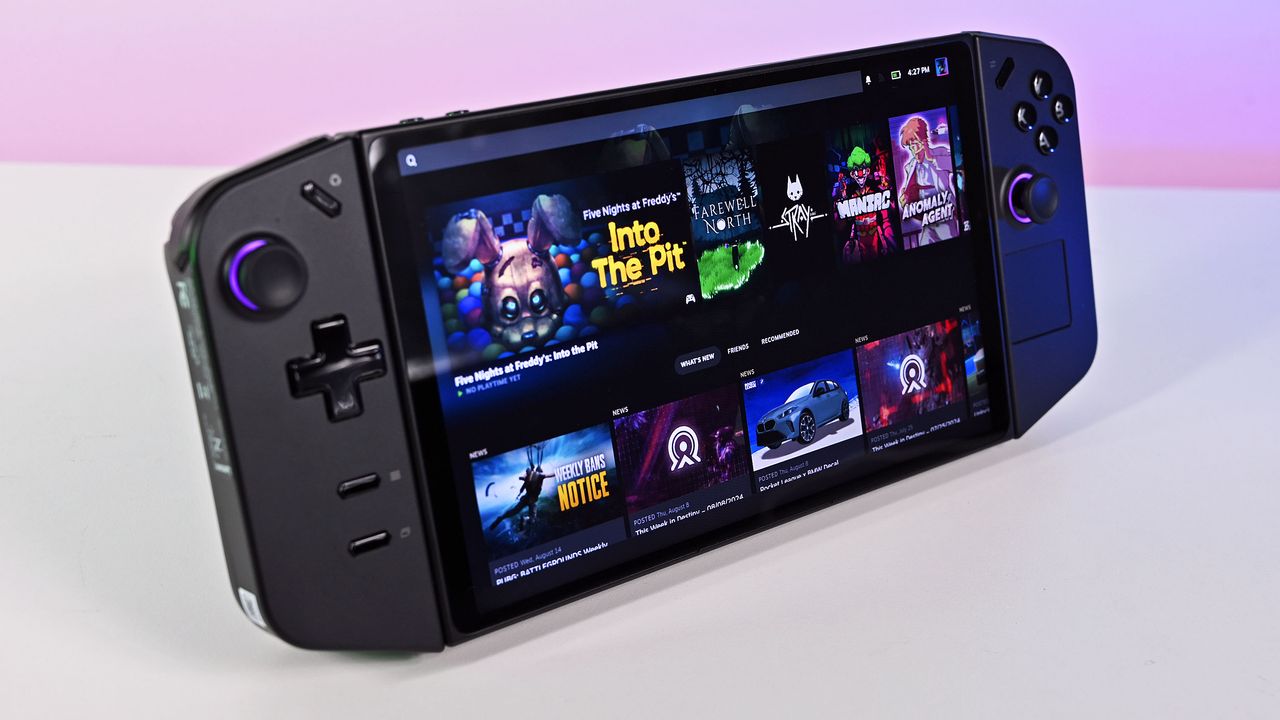
Lenovo Legion Go gaming handhelds are reportedly being bricked by a BIOS update. According to reports, installing the N3CN42WW update results in a black screen and systems not booting correctly.It's not clear how widespread this issue is, but I suggest holding off on installing a BIOS update on your Legion Go until Lenovo has clarified the situation. The problem affects the original Legion Go (often called the Legion Go 1 by fans), including both the Z1 and Z1 Ex
Lenovo Legion Gogaming handhelds are reportedly being bricked by a BIOS update. According to reports, installing the N3CN42WW update results in a black screen and systems not booting correctly.
It's not clear how widespread this issue is, but I suggest holding off on installing a BIOS update on your Legion Go until Lenovo has clarified the situation.
The problem affects the original Legion Go (often called the Legion Go 1 by fans), including both the Z1 and Z1 Extreme models.
In some cases, the Legion Go failed to boot immediately after the BIOS update was installed. In other cases, the failure occurred later.
Several Legion Go owners have reported issues on Reddit. The mods at the LegionGo subreddit shared the following:
"It has come to our attention that some of the Z1E and Z1 versions are being bricked when updating to the latest BIOS that was released on June 17th, 2026.
Please do not update your devices unless you are willing to assume all risks. We the mod team are trying our best to understand and get help on this."
They also asked people to share if they've run into the same issue.
Reddit user mherold11said they reached out to Lenovo support to have their Legion Go repaired. They were told that fixing the gaming handheld would be a chargeable repair since the device was out of warranty. The quote for repair was €237.16 (roughly $273.81).
Other people in that same Reddit thread said their Legion Go gaming handhelds were repaired at no cost when still in warranty.
One Reddit user had luck performing their own repair, but that fix was complicated and is not recommended for general users.
This is a developing story and we do not know the extent of the issue. If you have a Legion Go and have been affected by the issue (or have upgraded and not run into the problem), please share with us through the comments below and reach out to Lenovo and the mods of the LegionGo subreddit.
Join us on Reddit at r/WindowsCentral to share your insights and discuss our latest news, reviews, and more.
Last night I surprised myself by working an extra hour at my desk. I occasionally work late, but what surprised me is that it happened by accident. I believe the blame falls on GUNNAR and a pair of glasses the company sent me to try out.Like many people, I sit at a desk for the majority of my workday and stare at a screen for hours on end. I often get headaches or eye strain after working for too long without a break. I've spent years building up an ergonomic wor
Last night I surprised myself by working an extra hour at my desk. I occasionally work late, but what surprised me is that it happened by accident. I believe the blame falls on GUNNAR and a pair of glasses the company sent me to try out.
Like many people, I sit at a desk for the majority of my workday and stare at a screen for hours on end. I often get headaches or eye strain after working for too long without a break. I've spent years building up an ergonomic workstation to help my back, knees, and wrists, but I've neglected my eyes.
GUNNAR glasses are designed to block blue light. I've been aware of the company for years, in part due to their various gaming partnerships, but I had never used a pair myself. Gunnar and I got in touch to let me try a pair.
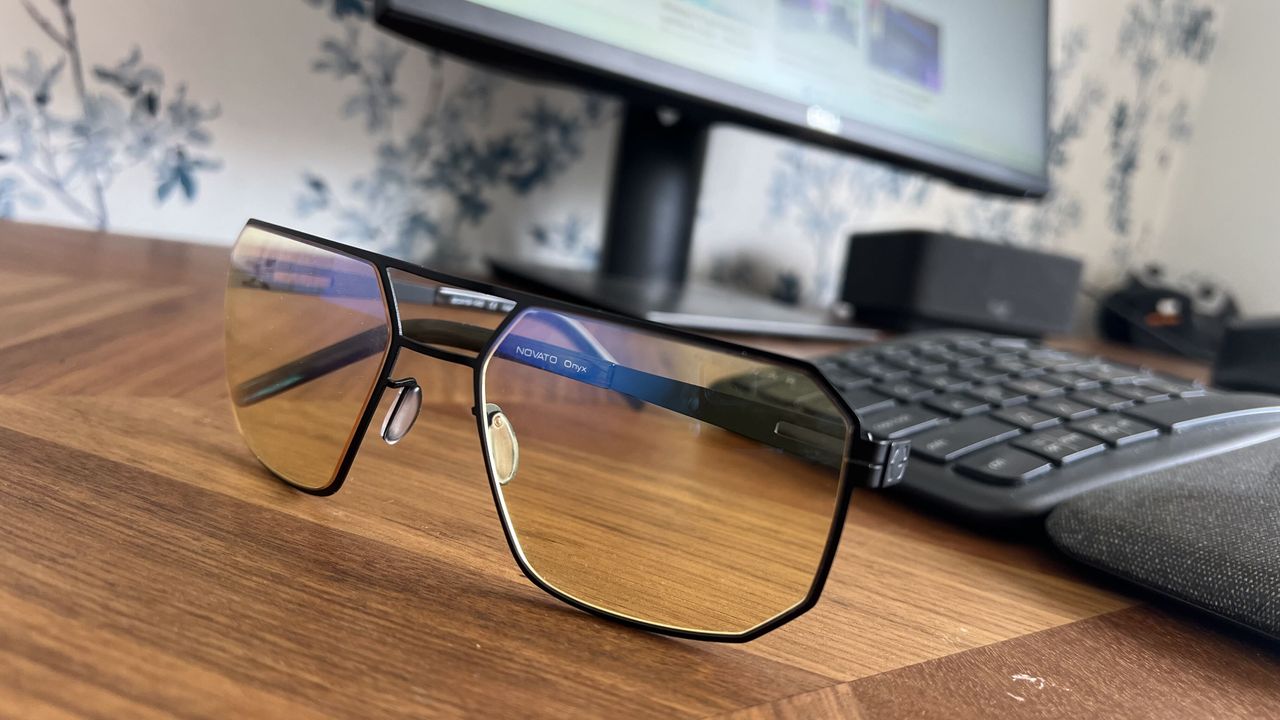
The Novato pair of glasses I was sent has the amber tint that's available in many frames from GUNNAR. This particular pair has a slight magnification as well, though it's available with a neutral focus.
When I slipped on the glasses, I felt my face relax almost instantly. I then continued to work throughout the afternoon.
Later in the evening, I noticed that I had worked an hour later than usual.
I got to the end of my normal day and just kept working because I didn't realize how late it was. I usually need breaks every once in a while to rest my eyes, but since my eyes didn't hurt I lost track of time.
These glasses filter out blue light to reduce eye strain caused by staring at a screen. They're made with a lightweight titanium frame and have anti-reflective coating.View Deal
GUNNAR glasses vs. f.lux and Windows 11's Night Light
I've used apps like f.lux and Windows 11 features such as Night Light to filter out blue light from my PC screen. I still recommend those apps to anyone who wants to reduce eye strain or who works late at night.
I was, however, surprised how much the GUNNAR glasses felt different than using software to reduce blue light.
I'm not an eye doctor or any type of medical professional, so please take my experience as simply a hands-on with the GUNNAR glasses. When I put them on, it felt like the entirety of my eyes could relax rather than just having a specific screen filtered.
While apps like f.lux are great, they don't do anything to filter out blue light from overhead lighting or any other light sources in your room. Slipping on a pair of GUNNAR glasses came much closer to filtering blue light out of the entire room.
This particular model of GUNNAR glasses rests quite close to my face, though they have models that wrap around even more.
I'm sure that part of the improved experience is mental. My mind feels like it can relax my eyes, so my face follows. With the glasses on, I caught myself squinting or flexing my face less.
I'm not sure if accidentally working an extra hour is a good thing or a bad thing, but if I can harness the experience for my normal working hours, I'll be very excited. I plan to use these GUNNAR glasses and some other frames over the coming weeks and will follow up with how things go.
Join us on Reddit at r/WindowsCentral to share your insights and discuss our latest news, reviews, and more.
Close-up of Gunnar Novato Onyx computer glasses featuring amber lenses and a matte black geometric metal frame resting on a wooden desk in front of a monitor and keyboard.
Slipping on the GUNNAR Novato Onyx glasses instantly reduced my eye strain.
Microsoft Outlook has a handful of changes in the works that will make it easier to stay on top of emails and events. Some of the upgrades, such as drag and drop support for rescheduling events, will change how you interact with Outlook, while others are smaller upgrades.All of the improvements are detailed on the Microsoft 365 Roadmap. I've taken five of the most exciting entries from that roadmap and gathered them in the chart below.FeatureDescriptionRollout St
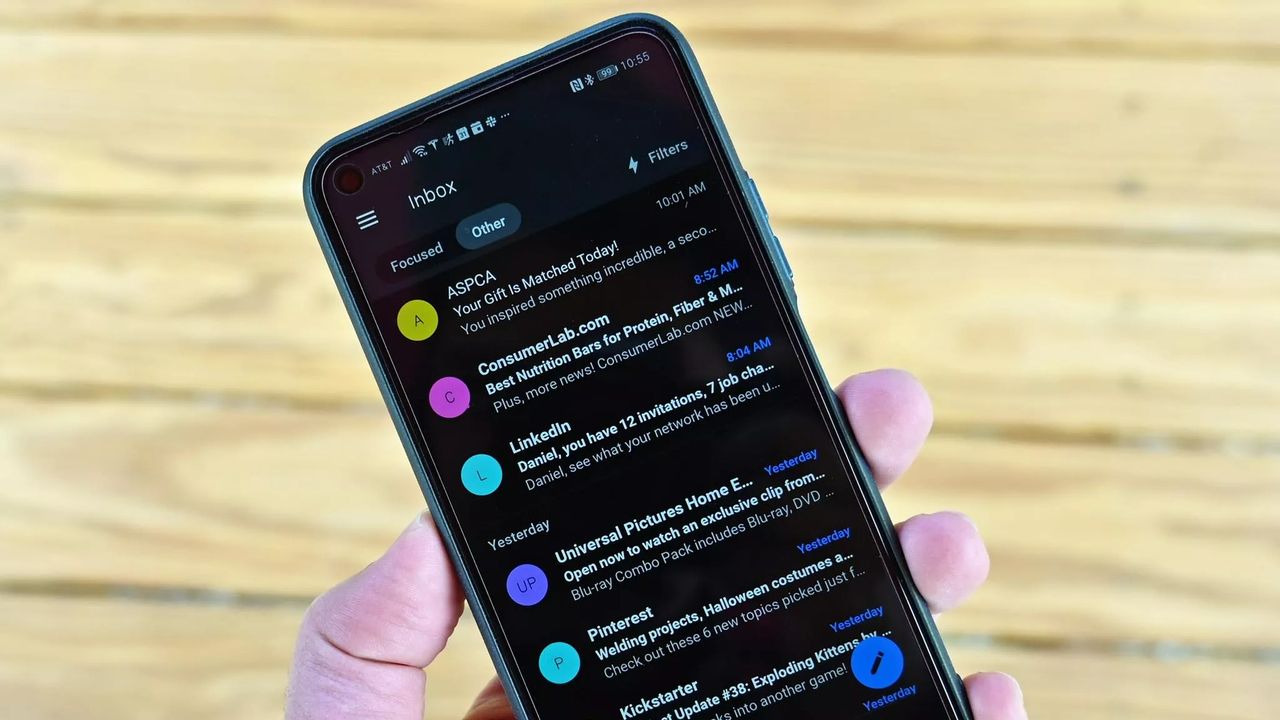
Microsoft Outlook has a handful of changes in the works that will make it easier to stay on top of emails and events. Some of the upgrades, such as drag and drop support for rescheduling events, will change how you interact with Outlook, while others are smaller upgrades.
All of the improvements are detailed on the Microsoft 365 Roadmap. I've taken five of the most exciting entries from that roadmap and gathered them in the chart below.
Feature
Description
Rollout Start
Platform
Filter messages by events
You can now filter your messages for calendar invitations. Simply go to the filter and select Events from the drop down.
August 2026
Android and iOS
Copilot Chat pop-out for Outlook for Mac and iPad
Copilot Chat remains accessible within an Outlook app window but now can also be popped out to float over the main Outlook app window. Popping out Copilot Chat allows people to switch contexts or have more space for what they are working on in Outlook and control the space and form that Copilot Chat takes on screen. When you open Copilot chat and click the pop-out button, Copilot will open separately over the main Outlook window.
August 2026
iPad and Mac
Drag and drop
You can now reschedule events by dragging them to a new time slot in your calendar. This feature is available in day and multi day views.
August 2026
Android and iOS
Insert signature image from OneDrive
Users can now insert images into their email signature directly from OneDrive, in addition to the device photo library.
August 2026
Android and iOS
All day events to show up more clearly in the Mail module calendar preview
We're making it easier to tell when receiving meeting invites that conflict with scheduled Out of Office time or Busy All Day events, on Outlook Web and Outlook for Windows.
August 2026
Desktop and web
Being able to filter messages to only show those with calendar invitations will save me a lot of time. I get a lot of calendar invites from my wife to coordinate our schedules, but I also get a lot of emails from my wife about other things.
After finding those events, I'll be able to move them around in Outlook by dragging and dropping them. Since we have a young child, we often need to move things to different times of the day to align with naptime. I wish drag and drop support was on the way to the web version of Outlook as well, but the roadmap entry only mentions iOS and Android.
Which features would you like to see added to Outlook? Are there any improvements on the way that you're especially excited about? Let us know in the comments!
Join us on Reddit at r/WindowsCentral to share your insights and discuss our latest news, reviews, and more.
Windows Insiders need to update their PCs to be on a recent build of Windows within the next week. The latest Windows Insider builds contain a renewed flight certificate, which is important because the current flight certificate is set to expire on August 11, 2026.Flight certificates are used to encourage people to keep devices up to date and on supported versions of Windows. Microsoft ships renewed certificates on a routine basis.Microsoft emphasized the importa
Windows Insiders need to update their PCs to be on a recent build of Windows within the next week. The latest Windows Insider builds contain a renewed flight certificate, which is important because the current flight certificate is set to expire on August 11, 2026.
Flight certificates are used to encourage people to keep devices up to date and on supported versions of Windows. Microsoft ships renewed certificates on a routine basis.
Microsoft emphasized the importance of a renewed flight certificate because in the past renewal mainly affected those in the Canary Channel. Now, those certificates apply across all Insider channels, including Experimental and Beta.
"Today’s Experimental (Future Platforms) build contains a renewed Windows Insider flight certificate. Windows Insider Preview builds use flight certificates that are renewed periodically to help ensure Insider devices remain on supported builds and continue receiving future Insider Preview updates. The current flight certificate expires on August 11, 2026, so please update your device to a build containing the renewed flight certificate before that date."
A separate document dives into more detail, though the main takeaway is that Insiders should simply update their PCs to a recent build. Microsoft shared the chart below to help Insiders stay up to date.
Channel
Core
Minimum Build
Experimental
Future Platforms
29634.1000 (available July 27, 2026)
Experimental
26H2
26300.9032 (available July 31, 2026)
Experimental
26H1
28120.2630 (available July 31, 2026)
Beta
25H2
26220.9022 (available July 31, 2026)
Beta
26H1
28020.2623 (available July 31, 2026)
Once you've performed this one-time larger update, your PC will go back to receiving regular updates.
If you don't update your PC to a build with a fresh flight certificate, you'll start seeing a warning that says, "This build will expire soon" on your desktop. You will also stop receiving automatic background updates once the flight certificate expires.
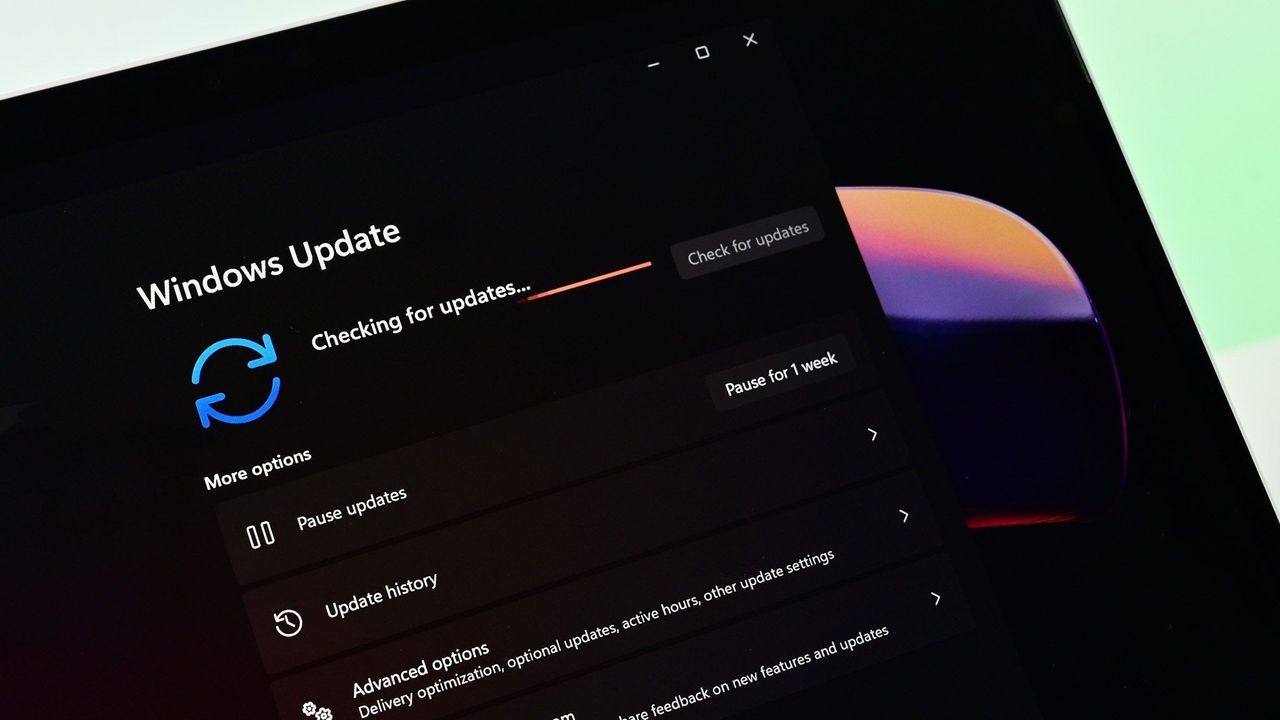
You should update your PC to a build with a fresh flight certificate, but if you don't, you can fix the issue by going to Settings > Windows Update and letting your PC install the latest build.
Test builds of Windows 11 are designed to expire relatively quickly, so you should update your PC regularly if you're a Windows Insider. Doing so will ensure your system is running a supported version of Windows.
Join us on Reddit at r/WindowsCentral to share your insights and discuss our latest news, reviews, and more.
562 researchers across 64 countries were on the receiving end of $20 million of rewards from the Microsoft Bounty Program. That program has researchers work with Microsoft to identify and report vulnerabilities across Microsoft's products and services.The program has been around for years, but the $20 million in awards is a new record. For context, the Microsoft Bounty Program awarded $17 million to 344 researchers last year.How much researchers receive depends o
562 researchers across 64 countries were on the receiving end of $20 million of rewards from the Microsoft Bounty Program. That program has researchers work with Microsoft to identify and report vulnerabilities across Microsoft's products and services.
The program has been around for years, but the $20 million in awards is a new record. For context, the Microsoft Bounty Program awarded $17 million to 344 researchers last year.
How much researchers receive depends on the type of vulnerability they report. Cloud programs and Zero Day Quest vulnerabilities are capped at $100,000 per vulnerability. Reporting an Endpoint and On-Premises program vulnerability can be worth up to $250,000.
Of course, those are the maximum payouts per report. Many reported vulnerabilities result in smaller awards.
Microsoft expanded the scope of its researcher awards last year. Now, in addition to flagging traditional bounties, researchers can be rewarded for reporting vulnerabilities in open-source software, third-party components, and Microsoft cloud services.
Microsoft detailed the rewards in a recent blog post.
"Security is a team sport. Every vulnerability reported through our bounty programs represents an opportunity to address risk before it can be exploited against customers," said Microsoft. "The work of the research community plays a critical role in helping Microsoft stay ahead of emerging threats while strengthening the security of cloud services, AI systems, enterprise platforms, and consumer technologies."
Microsoft credited the increase in submissions in part to AI. Increasingly, AI is being used to help security researchers.
Microsoft also uses AI to find and fix vulnerabilities as well. Unfortunately, AI can also be used by hackers to quickly leverage discovered vulnerabilities. As a result, there is an AI arms race happening between malicious actors and security researchers.
Microsoft also recalled the success of the Microsoft Zero Day Quest, which had researchers from 20 countries travel to Microsoft's campus in Redmond, Washington. Over 700 vulnerability reports were filed and over $2.3 million was awarded at that event.
Join us on Reddit at r/WindowsCentral to share your insights and discuss our latest news, reviews, and more.
Microsoft's Surface Pro 12-inch 1st Edition (2025) powered by Qualcomm Snapdragon X Plus processor.
A vulnerability report on the Copilot experience can result in an award of up to $30,000.
The ASUS Zenbook A16 is not a gaming laptop, but what if it were a gaming desktop? One YouTuber sought to find out what happens when you connect an eGPU to the Zenbook A16. The results are surprising and show a promising potential future for gaming on Arm processors.Connecting the Zenbook A16 is not something for the faint of heart. Until recently, it was not possible to connect any GPU to a Snapdragon X-powered laptop, even if you were willing to use unofficial
The ASUS Zenbook A16 is not a gaming laptop, but what if it were a gaming desktop? One YouTuber sought to find out what happens when you connect an eGPU to the Zenbook A16. The results are surprising and show a promising potential future for gaming on Arm processors.
Connecting the Zenbook A16 is not something for the faint of heart. Until recently, it was not possible to connect any GPU to a Snapdragon X-powered laptop, even if you were willing to use unofficial methods.
ETA Prime connected an RTX 4060 to a Zenbook A16 using the developer driver for RTX Spark. That GPU is also from NVIDIA, and its driver can be installed on a PC like the Zenbook A16 to connect an RTX 4060.
Obviously the setup is not official or optimized, but it does work to an extent. Some other NVIDIA GPUs were also successfully connected, but ETA Prime saw the best performance with the RTX 4060.
The Zenbook A16 was able to hit impressive framerates and settings when connected to the RTX 4060.
In ETA Prime's video, you'll see Forza Horizon 6, Cyberpunk 2077, Project Cars 2, and DOOM: The Dark Ages at very respectable framerates and settings.
Hitting those framerates often required frame generation, but gameplay looks smooth. In Cyberpunk 2077, ETA Prime was able to hit the low 40s at high settings without frame generation and the low 70s with frame generation.
Experimentation by ETA Prime and Ghobso Gaming (who tested Halo: Campaign Evolved) shows that Snapdragon X2 chips are capable of playing games. But those processors lack support and optimization.
If drivers ship and game developers embrace Snapdragon X-powered PCs, we could see a significant jump in gaming on Windows 11 on Arm.
Join us on Reddit at r/WindowsCentral to share your insights and discuss our latest news, reviews, and more.
Studio photos of the 2026 ASUS Zenbook A16 laptop featuring the new Qualcomm Snapdragon X2 Elite Extreme processor.
Studio photos of the 2026 ASUS Zenbook A16 laptop featuring the new Qualcomm Snapdragon X2 Elite Extreme processor.
Your iPhone and your PC are about to get a bit closer. Apple is working on allowing your iPhone's clipboard to connect to your Windows 11 clipboard. The feature was requested by Microsoft and after review, Apple has agreed to move forward with it. MacRumors first spotted the change and 9to5Mac expanded on that coverage.Rather than just a friendly note, Microsoft reached out to Apple in the form of an EU Digital Markets Act (DMA) interoperability request.At the mo
Your iPhone and your PC are about to get a bit closer. Apple is working on allowing your iPhone's clipboard to connect to your Windows 11 clipboard.
The feature was requested by Microsoft and after review, Apple has agreed to move forward with it. MacRumors first spotted the change and 9to5Mac expanded on that coverage.
Rather than just a friendly note, Microsoft reached out to Apple in the form of an EU Digital Markets Act (DMA) interoperability request.
At the moment, apps can only access an iPhone's clipboard if the app is actively running in the foreground. Apple will need to grant access to Microsoft to make clipboard syncing possible.
Apple already has a Universal Clipboard feature that works across iOS and macOS. That feature is one of many benefits of users being in Apple's ecosystem.
Microsoft argued that “cross-device copy and paste is a foundational productivity interaction that users expect to ‘just work’ across their primary devices."
Microsoft also described the use cases for the interoperability:
Copy text or other supported content on their iPhone and paste it directly on their Windows PC, and vice versa.
Perform common productivity workflows without needing to foreground an app or take explicit repeated actions to initiate a transfer.
Experience clipboard synchronization as a lightweight, continuous capability rather than a manual, app-driven operation.
On June 26, Apple confirmed that it will make the feature available:
"We will introduce a new solution that will follow similar patterns to the Accessory Notifications and Accessory Live Activities frameworks that were introduced on iOS26.5. It will enable you to create an extension to share and import pasteboard items with paired accessories. The system will notify your extension when items are copied into the clipboard; then your extension can use the Accessory Transport Extension framework to share the contents with your accessory as necessary using available transports."
If the feature does ship, it will rely on Apple’s AccessorySetupKit, which is an API framework that requires authorization from both the connected Windows PC and iOS device.
Unfortunately, there are several caveats to the interoperability. First, it will likely not be ready until at least late 2027. Apple referred to creating the feature as a "significant engineering effort," and noted development will be complete by fall 2027. After that, the feature will enter beta and eventually ship to the public.
Even when the clipboard connection becomes available, it may be limited to users in the European Union (EU). When forced to create features or expand them across platforms, Apple sometimes only rolls out the changes within the EU. In other instances, Apple has released the improvements to everyone, regardless of location.
Microsoft has taken a similar approach when dealing with the EU. I would argue the best version of Windows 11 is limited to EU users because they have greater control over which apps are installed on their PC.
Join us on Reddit at r/WindowsCentral to share your insights and discuss our latest news, reviews, and more.
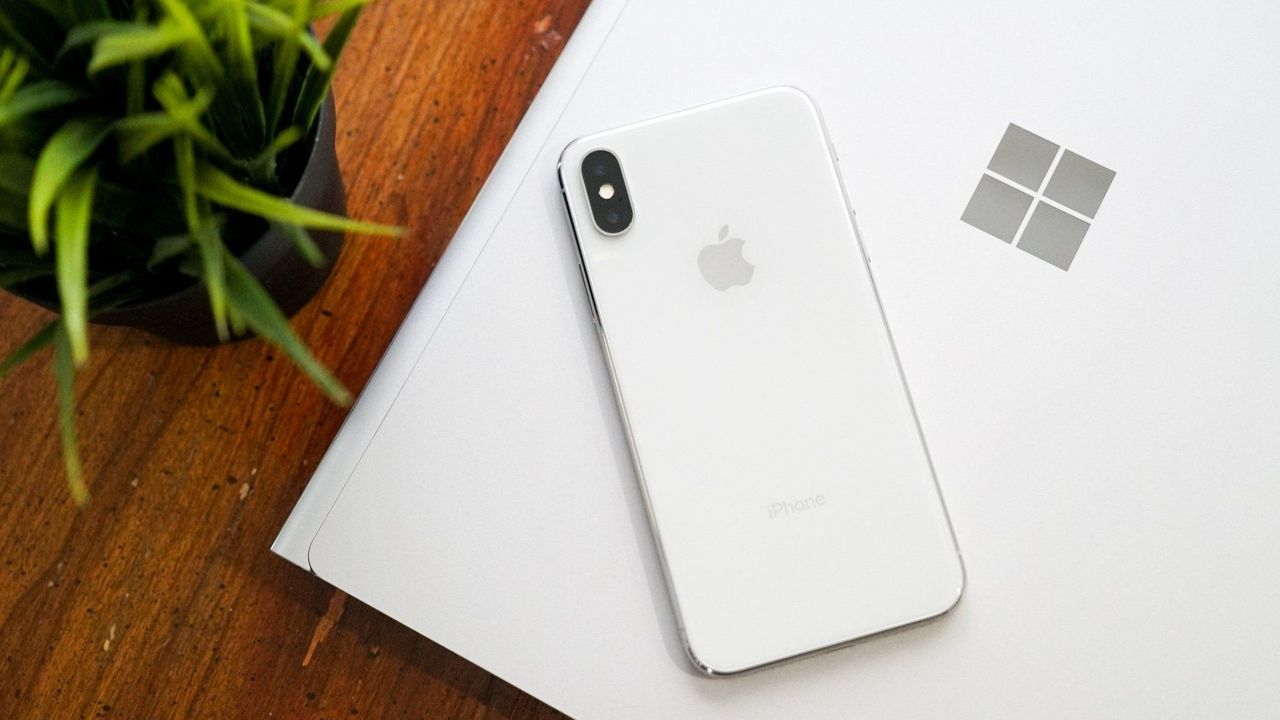
iPhone X resting on a Windows PC showing the Microsoft logo
iPhone X resting on a Windows PC showing the Microsoft logo
Microsoft Edge has a lot of built-in features that go unnoticed. Read Aloud has been part of Edge for a long time, and I use it all the time to review articles and listen to content. But after weeks of testing, I understand how Edge's Read Aloud feature stacks up against a dedicated tool for text-to-speech.Speechify launched a Windows app earlier this year that adds real-time text-to-speech and voice typing to PCs. There was already a Speechify web extension, whi
Microsoft Edge has a lot of built-in features that go unnoticed. Read Aloud has been part of Edge for a long time, and I use it all the time to review articles and listen to content. But after weeks of testing, I understand how Edge's Read Aloud feature stacks up against a dedicated tool for text-to-speech.
Speechify launched a Windows app earlier this year that adds real-time text-to-speech and voice typing to PCs. There was already a Speechify web extension, which is what I used for testing here. Speechify shared Premium access with me to help me assess their app and extension, so I've had several months to get used to them and compare them to alternatives.
Interestingly, Speechify and Read Aloud in Edge excelled in different areas.
Accuracy and cadence
Speechify (left) offers smoother natural voices and page navigation, but Edge's built-in Read Aloud toolbar (right) handles basic text-to-speech for free. (Image credit: Future)
Read Aloud supports a large library of voices. These are fun to play around with since there are quite a few English options sporting different accents.
All of the voices marked as "Natural" in Read Aloud sound fluid and are easy to understand. Occasionally, the feature will pause for a moment as it decides where to jump to next on a page (more on that below).
Read Aloud finds text well and presents pages using voice, allowing you to multitask or absorb content through both reading and listening.
While Edge's voices sound fluid, Speechify's voices sound more natural. They sound as if a voice actor is in a booth reading to you. There's a bit more bass in each voice and more depth than what's in Edge.
Speechify has several celebrity voices, which to be honest I'm not too fussed about. I don't need robot Gwyneth Paltrow to read me the latest Xbox news, but it's an option if you'd like her to.
Voices in Speechify are labeled based on their key characteristic, such as "Velvety" or "Easygoing." The "Resonant" Dominic voice would be a great choice to read the next Sarah J. Maas novel, but I don't think he's the best option for tech news.
Because Speechify's voices are clear and natural-sounding, you can play them at faster speeds before they sound ridiculous. I'm able to play Speechify voices at over 2.2x speed and still understand them. Edge's Read Aloud voices max out at around 2x speed before they're difficult to understand.
Dealing with the modern web
The modern web is full of inserts, page breaks, ads, and other components. When you read an article online, you rarely see a large block of uninterrupted text. In fact, my editor would tell me off if I published a piece of just text.
In order for articles to be visually engaging, publishers place block quotes, embedded posts, videos, and other items. When you read an article, you scan over certain content without thinking. If you spend a lot of time on the web, you've learned what should be read as part of an article, such as a block quote, and what is separate, like a list of related pieces.
Microsoft Edge's Read Aloud feature has not learned the same lessons. It will jarringly jump between the main text of a piece and a "You May Like" section.
In contrast, Speechify sticks with the main text of an article and hops over inserts that are off-topic. In my testing, Speechify correctly identifies the content I'd like read, such as block quotes, but bypasses things I'd want to circle back to later and click.
Both Read Aloud in Edge and Speechify hopped past ads in my experience, which is nice.
This app adds voice typing and text-to-speech to Windows. It can read PDFs, web pages, or documents and can be used to convert spoken words to text with correct punctuation.
A subscription also gets you more features within the web extension.
Note that the free version of the Speechify app is limited to slower listening speeds, fewer voices, and text-to-speech (voice typing requires Premium). Voice typing is free within the extension.View Deal
Is Edge Read Aloud better than Speechify?
Speechify works well and sounds natural, but it's difficult to justify its cost when Edge can do much of the same for free. (Image credit: Speechify | Edited with Gemini)
Edge's Read Aloud feature is surprisingly solid for a free tool that's built into Microsoft's browser. If you only care about listening to the web, it's the better choice for most people.
Speechify is not worth its subscription cost if you only plan to use it to listen to articles out loud. A large portion of Speechify's value comes from its dictation features.
Don't get me wrong, Speechify is very good at reading websites and documents out loud. I prefer how it handles ads, text blocks inserted into pieces, and other website components. I also prefer the voices in Speechify.
But Edge's built-in Read Aloud feature works well and is free. Paying $29 per month is a large investment to listen to articles.
If you need to dictate text and listen to articles, I'd suggest trying Speechify.
Join us on Reddit at r/WindowsCentral to share your insights and discuss our latest news, reviews, and more.
Microsoft Edge Vertical Tabs
Microsoft Edge has a built in Read Aloud feature that can read articles.
AI isn't here to take your job, but it may let you skip a few meetings. The new Microsoft Teams Recap app brings together meeting recaps, recordings, transcripts, and AI summaries. That app just launched last month, and it was one of the biggest additions to Teams in July 2026.The Recap app within Teams is more about gathering information that Teams already has than creating new content. Having a single hub means that you don't have to jump between chats or other
AI isn't here to take your job, but it may let you skip a few meetings. The new Microsoft Teams Recap app brings together meeting recaps, recordings, transcripts, and AI summaries. That app just launched last month, and it was one of the biggest additions to Teams in July 2026.
The Recap app within Teams is more about gathering information that Teams already has than creating new content. Having a single hub means that you don't have to jump between chats or other parts of Teams to find all of your recaps.
Content from the last 30 days appears within the Recap app and all of it can be searched and browsed easily.
I joke about recaps letting you skip meetings, but they are genuinely useful. I'd argue that they're one of the best use cases for AI in everyday work. If you find your calendar full of meetings and events, it can be frustrating to keep track of the most important parts of each one.
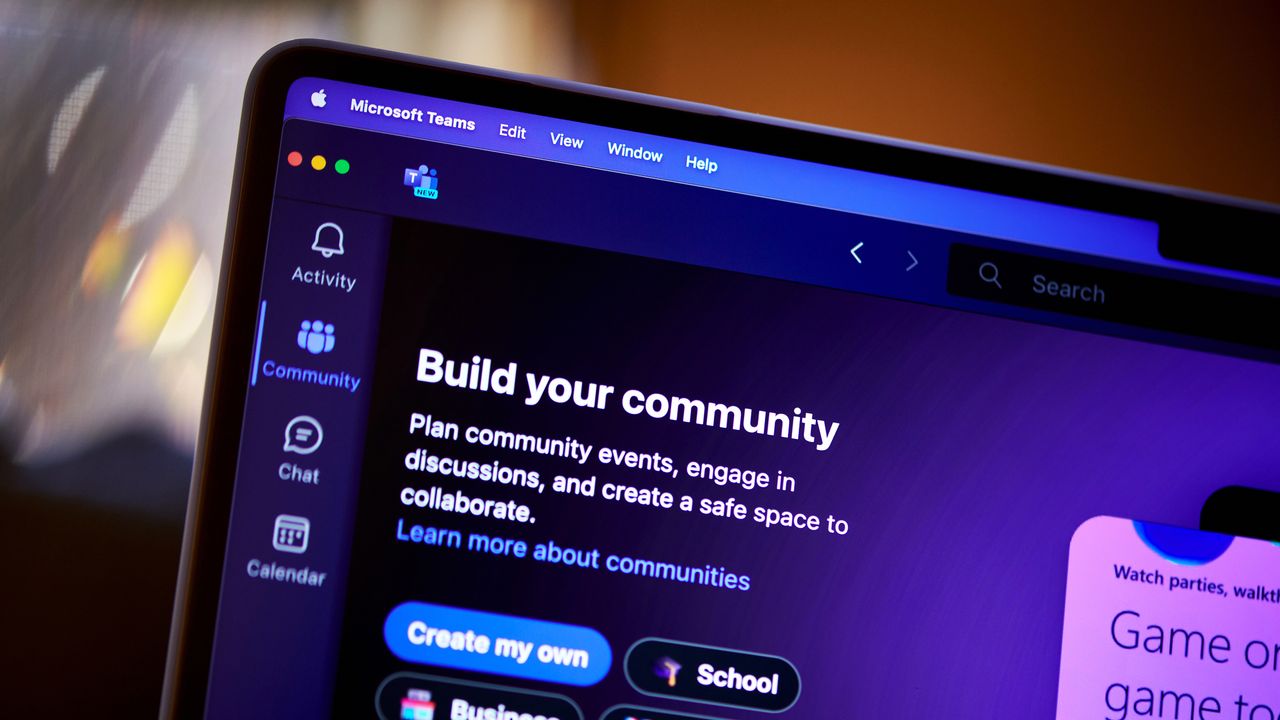
Staying connected to your communities meant leaving Teams to check Viva Engage. Now you can open and interact with your organization's communities straight from the Teams left rail and get notified in Activity when something relevant happens.
Keyboard Shortcut Dialog has search functionality.
Long shortcut lists are hard to scan when you just need one. The keyboard shortcut dialog now lets you search by shortcut name or by the key combination itself.
LinkedIn Hiring Assistant integration for Microsoft Teams
Recruiting teams can now bring LinkedIn Hiring Assistant directly into Microsoft Teams to streamline candidate review and hiring manager collaboration. Recruiters can share candidates in Teams, collect structured feedback, and keep hiring decisions moving without requiring hiring managers to switch tools. The integration helps teams reduce feedback delays, improve alignment earlier in the hiring process, and collaborate where work is already happening. Available for LinkedIn Hiring Assistant customers. Learn more: Hiring Assistant for LinkedIn Recruiter & Jobs
Meetings
Meeting Recaps app
Stop hunting through chats and calendars for the meeting notes you need. The Meeting Recaps app brings your intelligent recaps together in one convenient, pinned app in the Teams sidebar, making it easier to find and catch up across your meetings. Browse meetings with Recap from the past 30 days and use quick filters to instantly surface the meetings that matter most, like when you were mentioned in the discussion. You can also generate a podcast-style Audio Recap summary across multiple meetings so that you can conveniently catch up on the go.
Teams Phone
Queues app for Microsoft Teams in GCC High
Government organizations need advanced collaborative call handling without leaving their compliance boundary. Now available in the GCC High environment, the Queues app brings advanced queue management, reporting, and supervisor tools directly into Teams, helping agencies deliver faster, more efficient service to constituents calling government offices and to internal customers, such as employees contacting an IT Help Desk. Queues app is available through Teams Premium. View the interactive Queues App demo for more details.
Teams Phone user multi-line on Teams Mobile (iOS)
Juggling separate devices or accounts for different roles is a hassle. Teams Phone multi-line now works on Teams mobile iOS: admins can assign up to 10 numbers to one user, each appearing as its own tab, so you can stay organized across roles or regions from a single Teams account.
Speed dial on Teams mobile
Finding the right person to call should not slow you down. A dedicated speed dial tab in Teams mobile now lets users more easily add, edit, and label key contacts by role or priority, with updates synced across devices for a consistent calling experience. For frontline workers such as nurses, that means reaching the right contact faster to help accelerate patient care.
Workplace - Places and Teams Rooms
AI-powered notes for in-person meetings with Facilitator in Teams Rooms on Android and Windows
Avoid ending in-person meetings with no record of what was decided. In Teams Rooms on Android, the Facilitator agent captures notes, decisions, and actions for in-person meetings alongside scheduled and hybrid ones. Invite it with one tap of the room console; notes appear on the front of room display or touch board and are available in meeting recap when shared, then deleted if no one keeps them. Nothing stays in the room. Available with Teams Rooms Pro.
Bulk application of app settings to Teams Rooms on Android devices in the Pro Management portal
Configuring rooms one at a time eats up an IT Admins day. Admins can now apply Teams Rooms on Android app settings to multiple devices in bulk from the Pro Management portal. Available in Teams Rooms Pro.
Digital signage support for Teams panels
Screens sitting dark outside meetings are a missed opportunity. Idle Teams panels can now display digital signage, just like Teams Rooms front of room displays, with source and settings managed in the Pro Management portal. Available with Teams Rooms Pro or Shared space licenses.
Human interpreter listening mode supported in Teams Rooms on Windows
Multilingual meetings lose nuance when there's no live interpretation. Professional interpreters can now listen in and translate in real time in Teams Rooms on Windows, without disrupting the speaker. Organizers preset the languages, and participants choose and switch among them. Available with Teams Rooms Pro.
Teams Phone devices support for Interpreter (VoIP calls)
Don’t let language barriers impact calls. With AI Interpreter, Teams Phone devices provide real‑time language interpretation directly within the call experience. Users can participate naturally in multilingual conversations while the device interprets spoken audio, reducing language barriers and supporting clearer communication in everyday calling scenarios.
Entra passwordless resource account support for Teams Rooms on Windows devices
Shared room accounts with passwords are a security weak spot. Teams Rooms on Windows now support Entra resource accounts for secure, passwordless sign-in that separates device and user identities. A migration wizard and Pro Management portal dashboard make moving over and tracking progress straightforward.
Individual settings page with 2-way settings sync between device and the Pro management portal for Teams rooms on Android and panels
Not knowing how a device is configured makes troubleshooting slow. A new individual settings page in the Pro Management portal shows how each Android-based device is set up, with two-way sync so changes flow between the device and the portal, for Teams Rooms on Android and panels.
Call quality feedback surveys for Teams Rooms on Android
Organizations can't fix call quality problems they never hear about. Users can now rate calls and meetings and give feedback on audio, video, and screen-sharing in Teams Rooms on Android, helping your organization keep experiences consistent.
Join Google Meet meetings in Teams Rooms on Windows for GCC and GCC-H
Cross-platform meetings shouldn't be off-limits for government organizations. GCC and GCC-High now get two-way Direct Guest Join between Google Meet and Teams: Teams Rooms on Windows can join Google Meet, and Google Meet devices can join Teams, with one-click join from the calendar or by meeting ID.
Fundamentals and Security
Choose how Teams on the web handles sign-in
Teams on the web now honors a user's sign-in preference, giving them the choice to stay signed in across browser sessions or be prompted to sign in again when the browser is reopened. This helps balance convenience on personal devices with security on shared computers.
Platform
Improved request flows for apps and agents blocked by admins
We're making it easier for users to request access to apps and agents that aren't currently available to them in Teams. A simplified and more transparent request experience helps users understand what action is needed, track the status of their requests, and receive updates when decisions are made. For admins, enhanced request management capabilities in Teams Admin Center and new request notifications make it easier to review and act on requests, helping organizations accelerate access to approved apps and agents.
Frontline Workers
Get Started Faster with Improved Onboarding
First impressions matter, and the new onboarding experience makes day one in Shifts a breeze. The app adapts to who you are — frontline manager or worker — and surfaces the right next step exactly when you need it. Managers can now spin up a brand-new team and its first schedule in a single action. One-click access to help articles and clear guidance on permissions means no one hits a dead end. Whether it's your team's first day in Shifts or your hundredth, you'll be productive in moments.
Easily Restore Deleted Schedules
Accidental deletions happen, but getting back on track should not slow your team down. With schedule restore, managers can quickly recover a previously deleted schedule right from the schedule creation flow. Simply choose the version you want to bring back, restore it in a few clicks, and pick up where you left off — no rebuilding from scratch, no lost momentum, and no extra support needed. It is a simple safety net that helps teams move confidently, even when plans change or mistakes happen.
Reach the right people and close the loop with Follow Up
Frontline managers often spend too much time chasing updates across chats, messages, and meetings. With Follow Up in Frontline Agent, a manager can send a single Teams request, automatically collect responses by a set deadline, and review a consolidated summary in one place. This helps teams quickly confirm task completion, shift coverage, handoffs, compliance requirements, and operational readiness. Managers can also track responses, follow up with non-responders, edit requests, and add recipients, with support for up to 20 people per request.
Run hands-free inspections with voice-driven Site Walkthrough
Site Walkthrough transforms inspections, audits, and compliance checks into a hands-free, voice-driven experience. Workers can start a walkthrough with or without a checklist, speak observations naturally, and let Frontline Agent capture and organize everything automatically. When complete, Frontline Agent generates a structured report, checks off completed tasks, flags follow-up items, and records timestamps for audits and compliance. This helps teams complete checklists faster, stay focused on their environment, and capture critical insights without manual data entry.
Experience Teams for Frontline with a new interactive demo
Curious what Microsoft Teams looks like for frontline workers? The new Teams for Frontline demo experience lets you step into the shoes of a retail associate, nurse, or warehouse worker and explore a fully functional frontline environment in just one click. No purchase, trial, or sign-up required. Immerse yourself in the day-to-day experience of frontline work and see how Teams helps employees stay connected, manage schedules, and get work done with AI-powered assistance. Check it out at aka.ms/FLWdemo!
The Recap app is installed by default but is not pinned automatically. It started rolling out in early July, but that rollout has since finished so you should see the app in Teams.
Some of the features, such as audio recap, video recap, and intelligent summaries require a Microsoft 365 Copilot license. If you don't have a license, you can still access content that you have permission to view.
Join us on Reddit at r/WindowsCentral to share your insights and discuss our latest news, reviews, and more.
The Microsoft Teams app on a laptop arranged in New York, US, on Tuesday, June 25, 2024. Microsoft Corp. risks a hefty European Union fine after regulators accused the company of abusing its market power by bundling the Teams video-conferencing app to its other business software. Photographer: Gabby Jones/Bloomberg via Getty Images
The Microsoft Teams app on a laptop arranged in New York, US, on Tuesday, June 25, 2024. Microsoft Corp. risks a hefty European Union fine after regulators accused the company of abusing its market power by bundling the Teams video-conferencing app to its other business software. Photographer: Gabby Jones/Bloomberg via Getty Images
Halo: Campaign Evolved launched recently, giving gamers a chance to explore a reimagining of the legendary Halo title. Since the game is on Game Pass and playable on PC, Xbox, and PS5, people are finding a variety of ways to play.The Hyperkin Duke is a glorious and chunky way to take a trip down memory lane, but you may be interested in something sleeker. You may be asking, "How does a Snapdragon X2 laptop handle Halo: Campaign Evolved?" You're not alone. Luckily
Halo: Campaign Evolved launched recently, giving gamers a chance to explore a reimagining of the legendary Halo title. Since the game is on Game Pass and playable on PC, Xbox, and PS5, people are finding a variety of ways to play.
Ghobso Gaming has tested over 200 games on the Surface Pro 11 with a Snapdragon X Plus. Recently, they tried playing Halo: Campaign Evolved on an ASUS Zenbook A16. That laptop is powered by a Snapdragon X2 Elite Extreme.
That chip is the most powerful of the Snapdragon X2 lineup, so you may have high hopes for playing a few games. Unfortunately, Halo: Campaign Evolved got just one star from Ghobso Gaming on the Zenbook A16.
"It's not great news," said Ghobso Gaming. "I went on to the second level and that's where we got some big problems," explained the YouTuber. Confusingly, some of the textures of the game are completely missing when played on a Zenbook A16 powered by a Snapdragon X2 Elite Extreme.
When I first saw the gameplay footage, I thought to myself, "I don't remember there being that much water in the original." But the ground of levels in the game is not water reflecting other parts of the map. It's simply gone.
On maps where there is a lot of vegetation on the ground, the textures are seemingly gone. You can look straight through the ground and see other parts of the level.
The graphical issue is peculiar, though it doesn't affect movement within the game or other mechanics. There's a chance that the problem could be fixed with an update and then Halo: Campaign Evolved could be playable on Snapdragon X2 Elite Extreme systems.
During their testing, Halo: Campaign Evolved hit between 30 FPS and 50 FPS for Ghobso Gaming (with frame generation enabled). That's not great, but it's fine for sneaking in some gameplay between meetings.
Gaming on ASUS Zenbook A16
The ASUS Zenbook A16 is a 5-star laptop. Our Ben Wilson went so far as to say the PC is "everything a flagship Windows laptop should be."
Wilson added that the A16 is a stellar example of how Windows laptops can answer to Apple's MacBook Air without resorting to ridiculous pricing. While it may differentiate itself when it comes to price, the Zenbook A16 has one key thing in common with the MacBook Air: it's not a gaming laptop.
Gaming on Snapdragon X processors continues to be a work in progress. I think we will see a day in which Snapdragon X PCs compete with devices powered by Intel or AMD chips. I hope that someday we'll see a great gaming handheld powered by Snapdragon X. But until drivers and other key components improve, gaming on Snapdragon X will remain mostly just potential.
Halo: Campaign Evolved
"Halo: Campaign Evolved beautifully reimagines the legendary Xbox flagship that kickstarted the iconic series, elevating the original title with gorgeous Unreal Engine 5 audiovisual presentation, thoughtful gameplay and level adjustments, three enjoyable new prequel missions, and more." — Brendan Lowry
Windows Insiders have new features to try out, including improved Windows Search and an upgraded Phone Link. The changes come with Windows 11 Insider Build 26300.9032, which is now available through the Experimental Preview Channel.The improved Windows Search is customizable, including some options that were already available. You can enable or disable integration with your personal Microsoft account or work or school account. You can also set Search to look thro
Windows Insiders have new features to try out, including improved Windows Search and an upgraded Phone Link. The changes come with Windows 11 Insider Build 26300.9032, which is now available through the Experimental Preview Channel.
The improved Windows Search is customizable, including some options that were already available. You can enable or disable integration with your personal Microsoft account or work or school account. You can also set Search to look through your OneDrive or not search your cloud storage.
The most recent addition of automatically expanding indexing in Windows Search based on your activity can also be enabled or disabled with a toggle.
Phone Link keeps getting better
The changes to Phone Link are more significant, but I wonder how many people they will affect. Based on comments here and on social media, it feels like Phone Link is a good idea that few people actually use daily. But Microsoft continues to improve it, so there must be a healthy user base.
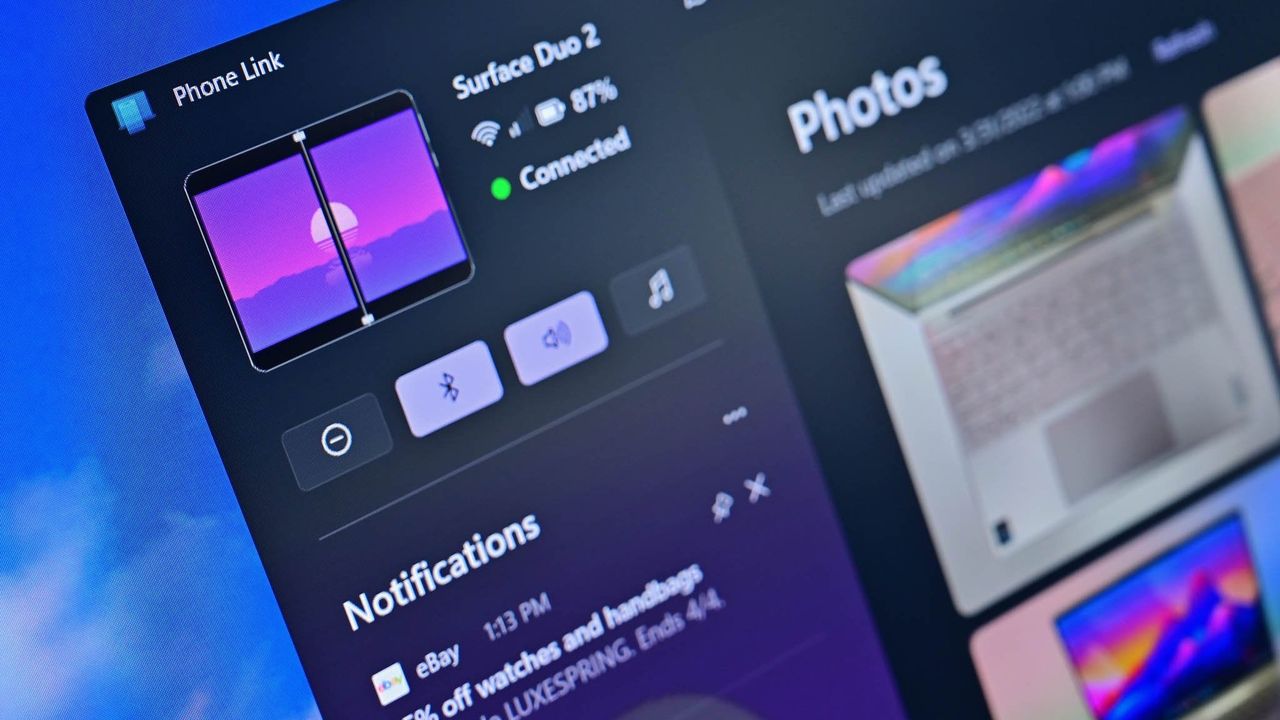
In the most recent Windows Insider build, Phone Link can show more activity at a glance. Hovering over a recent message or notification in the recent section of the Start menu will show a preview of content. That experience is rolling out gradually, though, so you may not see it even if you're on the latest build.
Microsoft has big plans for Phone Link and even has a dedicated Messages app in the works that will support SMS conversations. Our Senior Editor Zac Bowden reported that the new features "are being explored and prototyped internally," but that they might change or not ship.
Eventually, Phone Link may integrate with the Windows shell rather than existing as a standalone app on top of Windows 11.
Microsoft has also played around with integrating Windows 11 and smartphones directly rather than through Phone Link. There's probably a place for both, but I'm curious if you have a preference regarding how to connect a smartphone and a PC.
Windows 11 Insider Preview Build 26300.9032
Search
Windows Search can now automatically expand its indexing scope based on your activity, using signals like recent files and frequently accessed locations. This helps ensure that relevant files across your device are discoverable without requiring manual indexing configuration.
To manage this feature, go to Settings > Privacy & security > Search.
Phone Link
The phone companion experience in Start already helps you keep up with activity from your mobile device. With today's update, you can see even more at a glance.
Get more from your latest activities: Hover over a recent message or notification in the Recent section to preview its content directly in Start. There's no need to pick up your phone or open the item to see what's new.
Whether you're checking a message or deciding if a notification needs attention, these updates make it easier to stay informed and keep your focus.
This experience is gradually rolling out to Insiders on the Experimental channel with a minimum Phone Link build of 1.26021.3.0. Go to Phone Link > Settings > Start menu personalization.
Settings
We've improved search in the Settings app to help you discover and navigate to settings more quickly. Search now surfaces results from more areas within Settings, with improved ranking to help relevant settings appear higher in results.
Adaptive hibernate policy
Updates to the adaptive hibernate policy increase instances of instant-on resumes from Modern Standby and increase battery preservation at the low end of the battery. Noticeable changes include less hibernation while the battery is above 80% and hibernating sooner when the battery is below 10%.
Start menu
Fixed an issue causing the Start menu to crash for some Insiders recently when dragging apps.
Taskbar
Fixed a recent issue where, when the taskbar was in an overflow state, hovering over the preview thumbnail for an app window in the overflow area would immediately dismiss it.
File Explorer
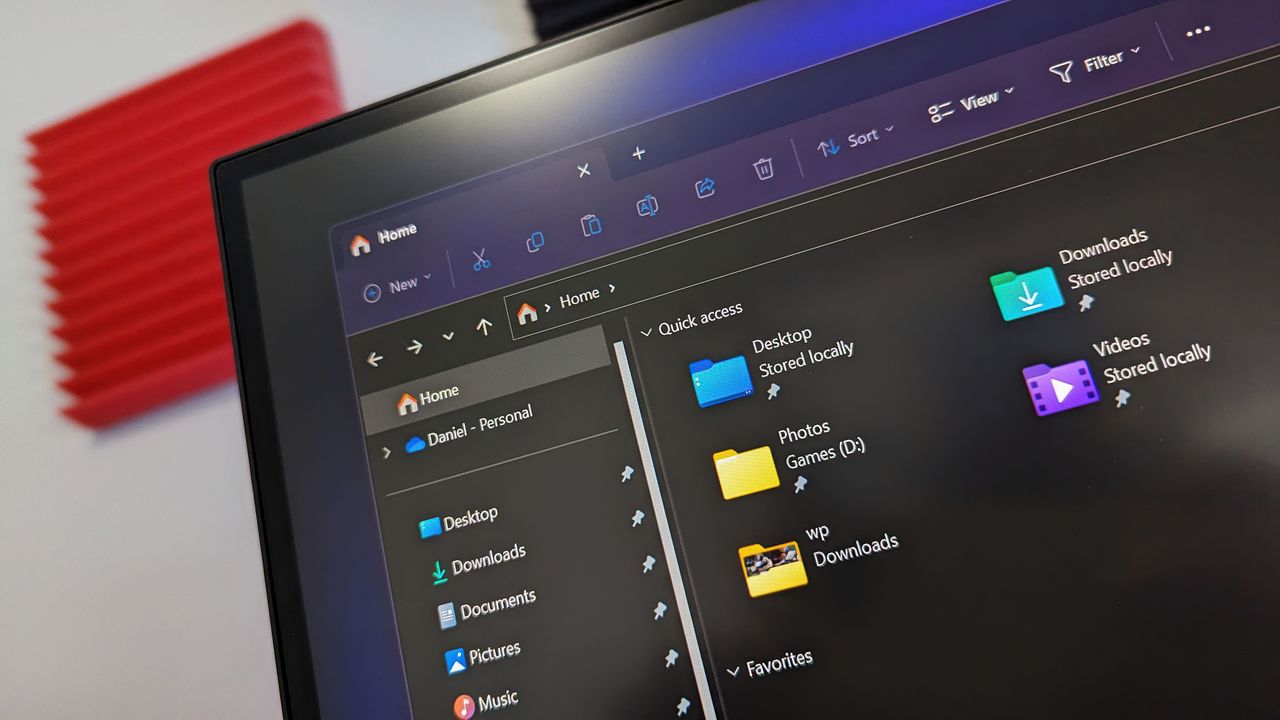
File Explorer Home now preserves the state of sections (expanded or collapsed), so you can pick up where you left off.
We've addressed an issue that caused the address bar contents to be cleared when entering edit mode by clicking near the right end of the bar.
We've improved the reliability of File Explorer when dragging files to a disconnected network drive.
This update addresses an issue where files stored on a DFS mapped drive could be incorrectly treated as originating from the internet after the device started while disconnected from the network and later reconnected. This could cause File Explorer's Preview pane to display the message, "The file you are attempting to preview could harm your computer," or cause files copied from the DFS drive to receive an unexpected Mark of the Web.
Windows Spotlight
Made some underlying changes to help improve reliability for Windows Spotlight on the lock screen.
Storage
This update fixes an issue that affects File History automatic backups to network shares using Server Message Block (SMB). Backups didn't work because Windows showed a false "invalid credentials" error when connecting to SMB shares.
Join us on Reddit at r/WindowsCentral to share your insights and discuss our latest news, reviews, and more.
Windows 11 is being fixed, and that’s not just lip service. Microsoft is making meaningful changes to its operating system. Menus are being decluttered, legacy components are being revamped, and features like Xbox Mode are reshaping Windows 11.Just this week, we saw that Microsoft has plans to fix context menus on Windows 11 and get rid of the page-tall menus that plague PCs. Microsoft also committed to making Windows 11 perform better on systems with only 8GB of
Windows 11 is being fixed, and that’s not just lip service. Microsoft is making meaningful changes to its operating system. Menus are being decluttered, legacy components are being revamped, and features like Xbox Mode are reshaping Windows 11.
Just this week, we saw that Microsoft has plans to fix context menus on Windows 11 and get rid of the page-tall menus that plague PCs. Microsoft also committed to making Windows 11 perform better on systems with only 8GB of RAM.
I’ve talked about Windows 11's improvements several times this year in the Windows Wrap. Generally speaking, I’m happy that they’re happening but confused about Microsoft's timing. On top of questions like "Why did it take several years to make Windows 11 look nice?" There are also usability questions like "Why did Microsoft start selling a Surface with only 8GB of RAM before optimizing Windows 11 to work on that machine?"
Now, don’t get me wrong, Windows 11 can run on a system with only 8GB of RAM. I think many tests performed online are done in bad faith. Some people have dozens of Chrome browser tabs open and a bunch of apps running at once and then complain about performance.
But by Microsoft’s own admission, Windows 11 needs to be better on low-memory systems. With the cost of RAM skyrocketing and not looking like it will go down at any point in the near future, it’s more important than ever for Microsoft to optimize Windows 11.
Biggest News of the Week
Earlier this year, Microsoft started selling Surface PCs with only 8GB of RAM, specifically the Surface Pro 12-inch and Surface Laptop 13-inch. I appreciate the gesture. In today’s economy, getting a PC with too much RAM or too much storage for your everyday needs can cost hundreds of dollars extra.
I covered several Surface deals this week, including some options that are up to $450 off. While that is a significant savings, those deals are all on models of the Surface Pro (13-inch) with 16GB of RAM. It’s still difficult to find that type of Surface Pro under $1,200.
Many people just want a PC that’s reliable and that can handle their everyday tasks. Even those shopping in more premium categories, such as Surface, often prioritize design and form factor over getting the highest specs. For those types of customers, an 8GB RAM Surface makes sense, but not if Windows 11 is still a problem.
Microsoft put the cart before the horse with the 8GB Surface PCs. The tech giant responded to the RAM crisis with more affordable PCs, but Microsoft failed to optimize Windows 11 for lower memory first.
To me, that shows a disconnect between the Windows and Surface teams at Microsoft.
Shopping with Sean
Until Microsoft fully optimizes Windows 11 for PCs with only 8GB of RAM, you might feel a bit of a pinch in performance with that amount of memory. The current discounts on Surface Pro get you more memory without having to pay as much of a premium.
The best Surface Pro deals are spread across Amazon and Best Buy this week.
This Surface Pro is both the best deal of the day and the highest spec'd configuration you can get through Amazon. It pairs the new Snapdragon X2 Elite with 16GB of RAM and 1TB of SSD storage. Plus, it has a lovely OLED screen for deep blacks and high contrast.
This is the Goldilocks model of the Surface Pro, balancing high-end specs like an OLED screen with value for money. At $300 off, it has the highest discount available through Best Buy. Its Dune color is stunning as well and a personal favorite.
If you love the form factor of the Surface Pro but don't need the Snapdragon X2 Elite, this model is a great bargain that still features plenty of storage and RAM.
This is the most affordable Surface Pro you can grab. Its Snapdragon X2 Plus delivers snappy performance for everyday computing and you still get 16GB of RAM. Just be aware that it has only 256GB of storage.
The biggest perk here is wireless functionality. You can detach the keyboard and type comfortably while keeping the tablet propped up at eye level, which is a lifesaver on cramped desks or airplane trays.
My mom hated Windows 8. That's an understatement; she despised it. Like so many others who had grown used to the Start menu and general interface of previous versions, Windows 8 came as a jarring change to my mom.But a funny thing happened when Windows 10 came out; my mom was reluctant to upgrade. Despite hating Windows 8 and Windows 8.1, she had grown used to them and made them fit her workflow. Having to relearn yet another interface was extra work that my mom
My mom hated Windows 8. That's an understatement; she despised it. Like so many others who had grown used to the Start menu and general interface of previous versions, Windows 8 came as a jarring change to my mom.
But a funny thing happened when Windows 10 came out; my mom was reluctant to upgrade. Despite hating Windows 8 and Windows 8.1, she had grown used to them and made them fit her workflow. Having to relearn yet another interface was extra work that my mom was slow to sign up for.
She eventually upgraded to Windows 10 and later Windows 11, but her experience and her frustrations were not unique. Sometimes the enemy you know is better than the one you don't, even if you got to know that enemy begrudingly.
So, what does this have to do with Windows 11? Windows 11's upcoming Patch Tuesday update has a feature that I believe will elicit a similar reaction to my mom being presented with Windows 10.
Starting next month, Windows 11's File Explorer will show file sizes using the appropriate units (KB, MB, and GB). That means you'll no longer see a file that's 1,500,000 KB. Instead, you'll see that file listed as 1.5GB.
I believe many will see this change as an improvement. Dealing with millions of KB can be awkward, especially when other parts of Windows use different units. But part of me would love the option to keep everything in KB.
Because File Explorer has stuck with KB for so long, I've gotten used to scanning file sizes based on how many digits they are. After next month's update, I could have a file that's 400KB right between files that are 400MB. While the larger files would be clearly labeled, I've learned to expect files listed in KB after years of use, so there will be a learning curve.
I'm curious how people feel about these types of changes. Do you embrace what Microsoft deems an improvement to Windows 11, or are you frustrated with a feature or layout you're familiar with being changed?
Microsoft could always keep options for legacy features and new options, but if that happens for decades, you end up with a bloated OS. Take a look at the soon-to-be revamped context menus of Windows 11 if you want to see what years of tacking things on does to an operating system.
Join us on Reddit at r/WindowsCentral to share your insights and discuss our latest news, reviews, and more.
LG got caught showing ads for McAfee to people who dared to plug in a monitor. An investigation by Gamers Nexus revealed that plugging in certain LG monitors triggered Windows Update to automatically download the LG Monitor App Installer without user consent. This wasn't just a display driver; it was a utility app.The saga required Microsoft to step in and pressure LG to stop putting adware onto people's computers. "We’ve connected with the team at LG and as an i
LG got caught showing ads for McAfee to people who dared to plug in a monitor. An investigation by Gamers Nexus revealed that plugging in certain LG monitors triggered Windows Update to automatically download the LG Monitor App Installer without user consent. This wasn't just a display driver; it was a utility app.
The saga required Microsoft to step in and pressure LG to stop putting adware onto people's computers.
"We’ve connected with the team at LG and as an immediate next step, they have agreed to disable the McAfee pop-up from their app,"said Windows chief Pavan Davuluri. "We appreciate LG working with us toward a shared goal of a better experience for our mutual customers."
LG has since stopped shoving adware onto people's PCs, but the company's official statement on the matter makes me question if any lessons have been learned.
"LG Electronics reiterates that McAfee is not installed automatically and is never installed without the user’s explicit consent," said LG in a statement shared with Windows Central and other outlets.
The company added, "During a limited period in the United States, a McAfee trial offer was also presented as an optional recommendation. McAfee was never installed automatically and always required a separate user choice and consent."
LG was never accused of installing McAfee without user consent, at least not by any reputable outlets I've seen. The company was accused of installing the LG Monitor App Installer without permission. That app is essentially a portal to other LG apps. It also controversially showed ads for McAfee.
I argue that no software should be installed without permission. Even more relaxed users would expect a monitor to install an app that's actually related to the monitor, not a showcase for other apps such as McAfee.
I chuckled at the part of the statement that read, "After reviewing customer feedback, LG removed the McAfee recommendation." I suppose that's one way to refer to the backlash and Microsoft intervening.
In case anyone from LG is still confused about definitions, installing an app without permission that shows ads for McAfee is adware. You don't have to install McAfee without consent for it to be adware.
Below is LG's full statement with emphasis provided by the company.
LG's full statement
"LG Electronics reiterates that McAfee is not installed automatically and is never installed without the user’s explicit consent.
The LG Monitor App Installer was designed to help monitor owners discover optional LG applications that enhance productivity, customization and monitor performance.
When compatible LG monitors are connected, the Installer can make related software available to help customers access monitor-specific features and functionality.
During a limited period in the United States, a McAfee trial offer was also presented as an optional recommendation. McAfee was never installed automatically and always required a separate user choice and consent. After reviewing customer feedback, LG removed the McAfee recommendation.
The LG Monitor App Installer does not collect personal information from customers' devices. Its function is to identify compatible monitor models and present applications supported by those models."
Join us on Reddit at r/WindowsCentral to share your insights and discuss our latest news, reviews, and more.
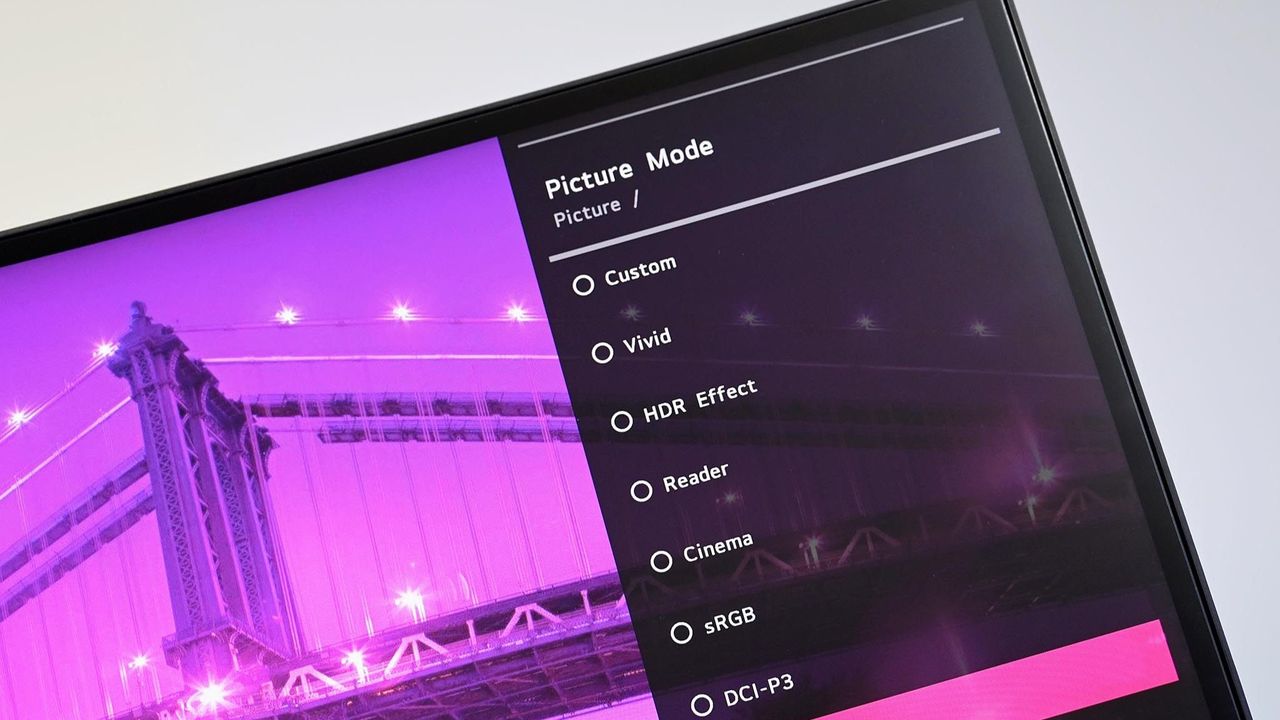
Angled close up of an LG PC monitor displaying an on screen menu for Picture Mode presets including Custom, Vivid, HDR Effect, Reader, Cinema, sRGB, and DCI-P3 over a purple cityscape background.
Angled close up of an LG PC monitor displaying an on screen menu for Picture Mode presets including Custom, Vivid, HDR Effect, Reader, Cinema, sRGB, and DCI-P3 over a purple cityscape background.
I've covered over 100 apps during my time at Windows Central. From powerful video editors to tiny utilities that change a hyper-specific part of Windows 11, there are a massive number of apps to install on a PC.Sean Endicott(Image credit: Future)What I'm working on this week: I'm performing a clean install of Windows 11 on my PC and rebuilding my work setup with my favorite customization apps and tools.One of my favorite categories of apps is those that enhance,
I've covered over 100 apps during my time at Windows Central. From powerful video editors to tiny utilities that change a hyper-specific part of Windows 11, there are a massive number of apps to install on a PC.
Sean Endicott
(Image credit: Future)
What I'm working on this week: I'm performing a clean install of Windows 11 on my PC and rebuilding my work setup with my favorite customization apps and tools.
One of my favorite categories of apps is those that enhance, improve, or replace the everyday computing experience. For example, on my smartphone I have several extensions to clean up the mobile browsing experience.
When it comes to Windows 11, I'm quick to install a third-party replacement of a default app, a tweaker that improves a default experience, or to use an app to replicate core functionality of a built-in app.
On top of providing unique functionality that enhances your computing experience, each of these apps can also be used to replace a built-in part of Windows 11 or a dedicated Microsoft app.
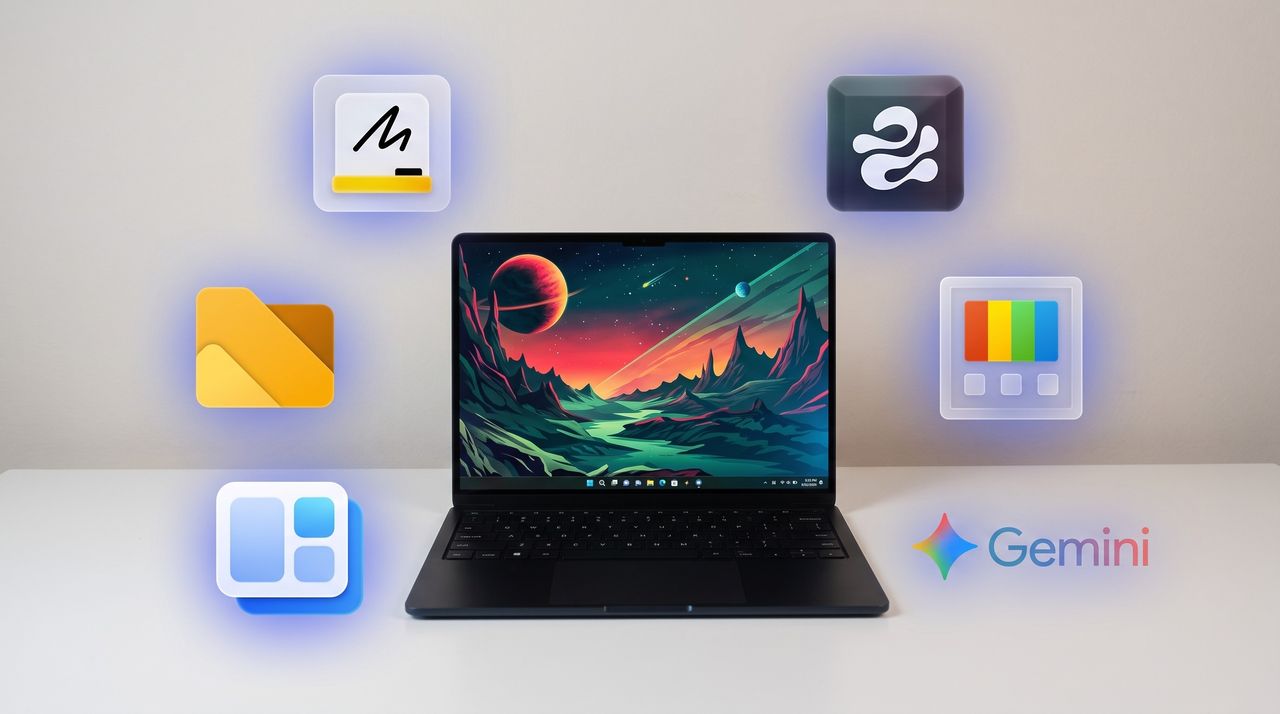
As I rebuild my clean Windows 11 installation this week, these will be the first six apps I download to replace Microsoft's defaults.
My top Windows 11 apps
Microsoft Editor is fine for catching stray commas, but it struggles with more complex editing. Gemini catches subtle phrasing errors and provides suggestions to restructure paragraphs, refine flow, and adjust tone.View Deal
Microsoft Whiteboard feels bloated, is web-based, and is going away for non-business users. Markerpad is a lightweight whiteboard app that runs natively on Windows 11 and loads quickly.View Deal
This clipboard manager lives on the side of your screen and supports drag-and-drop. I use it in conjunction with the built-in Windows Clipboard, but you could easily rely on Edge Drop and never have to press WIN + V.View Deal
This file management app blazes a trail ahead of Windows 11's built-in File Explorer by experimenting with new features and testing new layouts before Microsoft.View Deal
Microsoft PowerToys is a collection of utilities that often outshine similar tools on Windows 11. For example, FancyZones is more powerful than snapping windows. One of my colleagues, Richard Devine, even uses PowerToys Run instead of the Start menu.View Deal
This app places widgets to the empty spaces of the Windows 11 taskbar. Even in beta, the app provides a better widget experience than Windows 11's built-in widgets panel.View Deal
A black Windows laptop sitting on a white desk with six glowing app icons floating around it, including Microsoft Whiteboard, Edge Drop, PowerToys, Google Gemini, WidBar, and Files.
A black Windows laptop sitting on a white desk with six glowing app icons floating around it, including Microsoft Whiteboard, Edge Drop, PowerToys, Google Gemini, WidBar, and Files.
Windows power users, PC builders, and admins have a new tool at their disposal that makes it easy to restore a PC after reinstalling Windows or setting up a new PC. The app, called Endstate, streamlines the process of reinstalling applications and can also restore your settings and preferences within supported apps.Endstate is a free app designed for Windows, though Linux and macOS support are on the way. You can grab Endstate through GitHub.I spoke with the deve
Windows power users, PC builders, and admins have a new tool at their disposal that makes it easy to restore a PC after reinstalling Windows or setting up a new PC. The app, called Endstate, streamlines the process of reinstalling applications and can also restore your settings and preferences within supported apps.
Endstate is a free app designed for Windows, though Linux and macOS support are on the way. You can grab Endstate through GitHub.
I spoke with the developer of Endstate to better understand where the app is now and where it could evolve in the future.
Endstate uses WinGet and Chocolatey, which allow it to install a massive library of applications available across those package managers. But the real standout feature is that Endstate can capture the settings of your app into a zip file to make restoration simple.
When you reinstall Windows or set up a new PC, you have to install your required apps as well. A package manager like Chocolatey or WinGet can streamline that process, but the restored applications will be set to their factory defaults. All the toggles and settings you spent time customizing are reset to their base state.
Endstate supports settings restoration on 357 apps right now. Among those supported are some big-name apps such as MSI Afterburner, Adobe Lightroom Classic, VS Code, Windows Terminal, PowerToys, Git, Obsidian, OBS Studio, Notepad++ and ShareX.
Settings restoration is separate from app restoration. If an app is available through Chocolatey or WinGet but does not support settings restore, Endstate can still install the app.
Restoring settings is also done on a per-app basis.
You can use Endstate without an account and the app works offline.
Windows vs iOS and Android
Despite any Apple marketing campaigns about how many apps there are on iOS, Windows trounces all other operating systems when it comes to app selection. That is in part because everything from ancient programs to modern web apps works on Windows 11.
Because of the legacy support on Windows 11, we don't get all the benefits of modern applications on PCs. For example, any iOS or Android user may have read this article and been confused because saving and restoring app settings is commonplace on smartphones.
But on Windows 11, Endstate fills a notable gap. With only 357 apps that support settings restoration, Endstate has a ways to go before matching the native experience on iOS and Android, but it's still nice to see. I hope more app developers embrace Endstate and make it possible to save and restore settings.
Join us on Reddit at r/WindowsCentral to share your insights and discuss our latest news, reviews, and more.
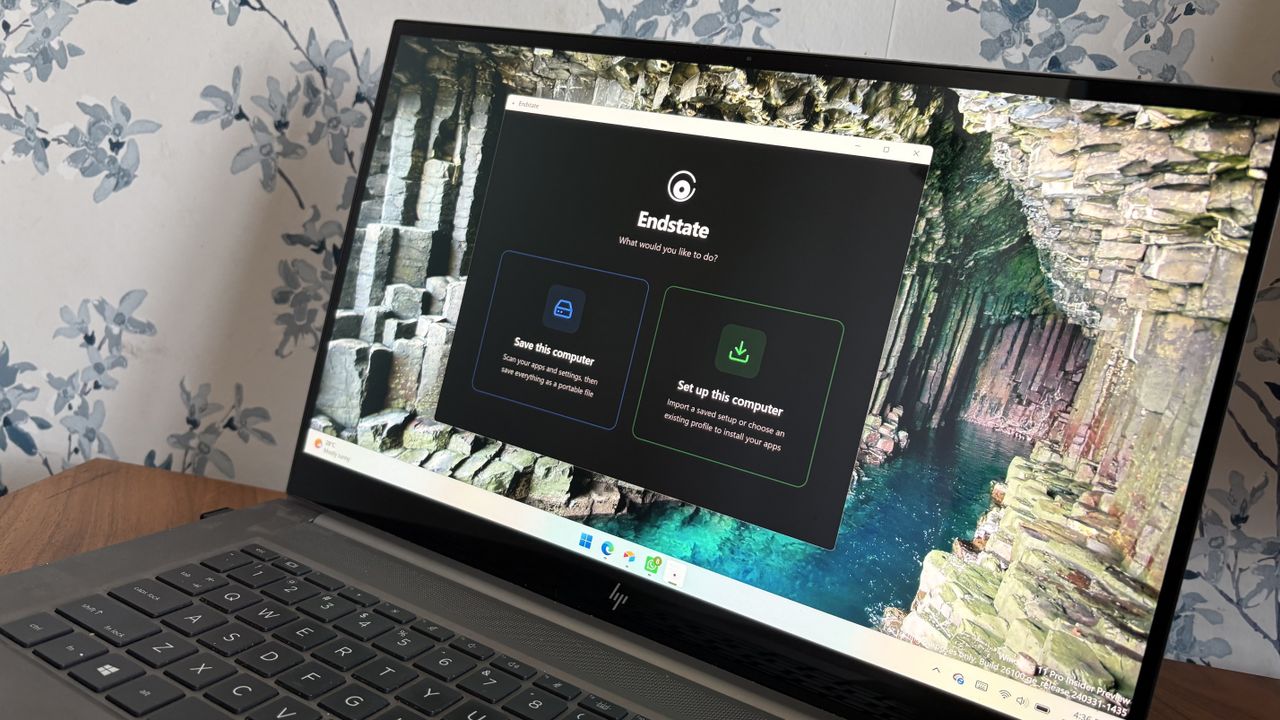
An HP laptop displaying the Endstate app on Windows 11 with options to "Save this computer" or "Set up this computer."
An HP laptop displaying the Endstate app on Windows 11 with options to "Save this computer" or "Set up this computer."
Microsoft's Surface Pro is on sale just in time for back-to-school season. The flagship 2-in-1 runs on Qualcomm's Snapdragon X2 Elite or Snapdragon X2 Plus processor, both of which promise a significant performance bump over the last generation.A bunch of Surface Pro models are on sale right now across various retailers. I've listed the biggest deals below, starting with the 21% discount on the Surface Pro with Snapdragon X2 Elite, 16GB of RAM, and 1TB of storage
Microsoft's Surface Pro is on sale just in time for back-to-school season. The flagship 2-in-1 runs on Qualcomm's Snapdragon X2 Elite or Snapdragon X2 Plus processor, both of which promise a significant performance bump over the last generation.
A bunch of Surface Pro models are on sale right now across various retailers. I've listed the biggest deals below, starting with the 21% discount on the Surface Pro with Snapdragon X2 Elite, 16GB of RAM, and 1TB of storage.
This Surface Pro is both the best deal of the day and the highest spec'd configuration you can get through Amazon. It pairs the new Snapdragon X2 Elite with 16GB of RAM and 1TB of SSD storage. Plus, it has a lovely OLED screen for deep blacks and high contrast.
This is the Goldilocks model of the Surface Pro, balancing high-end specs like an OLED screen with value for money. At $300 off, it has the highest discount available through Best Buy. Its Dune color is stunning as well and a personal favorite.
If you love the form factor of the Surface Pro but don't need the Snapdragon X2 Elite, this model is a great bargain that still features plenty of storage and RAM.
This is the most affordable Surface Pro you can grab. Its Snapdragon X2 Plus delivers snappy performance for everyday computing and you still get 16GB of RAM. Just be aware that it has only 256GB of storage.
The biggest perk here is wireless functionality. You can detach the keyboard and type comfortably while keeping the tablet propped up at eye level, which is a lifesaver on cramped desks or airplane trays.
The main reason to grab a newer Surface Pro is the processor you'll get. The Snapdragon X2 Plus and Snapdragon X2 Elite offer over a 50% graphics improvement over the last gen.
That performance bump helps everything from photo editing to everyday productivity tasks feel smoother.
Microsoft refined the design of the Surface Pro over more than a decade, resulting in a premium device that defines the category. There are good reasons why Apple and other companies try to copy the Surface Pro.
While imitation is a form of flattery, the Surface Pro still stands out because of its built-in kickstand that makes it easy to prop up. That kickstand-centered design is best taken advantage of with the Surface Pro Flex Keyboard, which happens to be discounted right now.
The Surface Pro Flex Keyboard that's on sale is compatible with the new Surface Pro that launched this year. If you're worried about compatibility, you can double-check your device on Microsoft's support document about Surface Pro keyboards.
The Surface Pro Flex Keyboard can be used wirelessly or when physically attached. If you've ever tried to use a laptop or a 2-in-1 on an airplane tray table or tiny desk, you'll know the struggle of feeling cramped. The Surface Pro Flex Keyboard lets you have the keyboard on your lap or a table while the PC sits elsewhere.
Like other PCs, the Surface Pro has crept up in price over the last year or so. The high price tag of the Surface Pro was the main complaint about the PC when it was announced. The current deals on the Surface Pro alleviate that issue, at least temporarily.
Join us on Reddit at r/WindowsCentral to share your insights and discuss our latest news, reviews, and more.
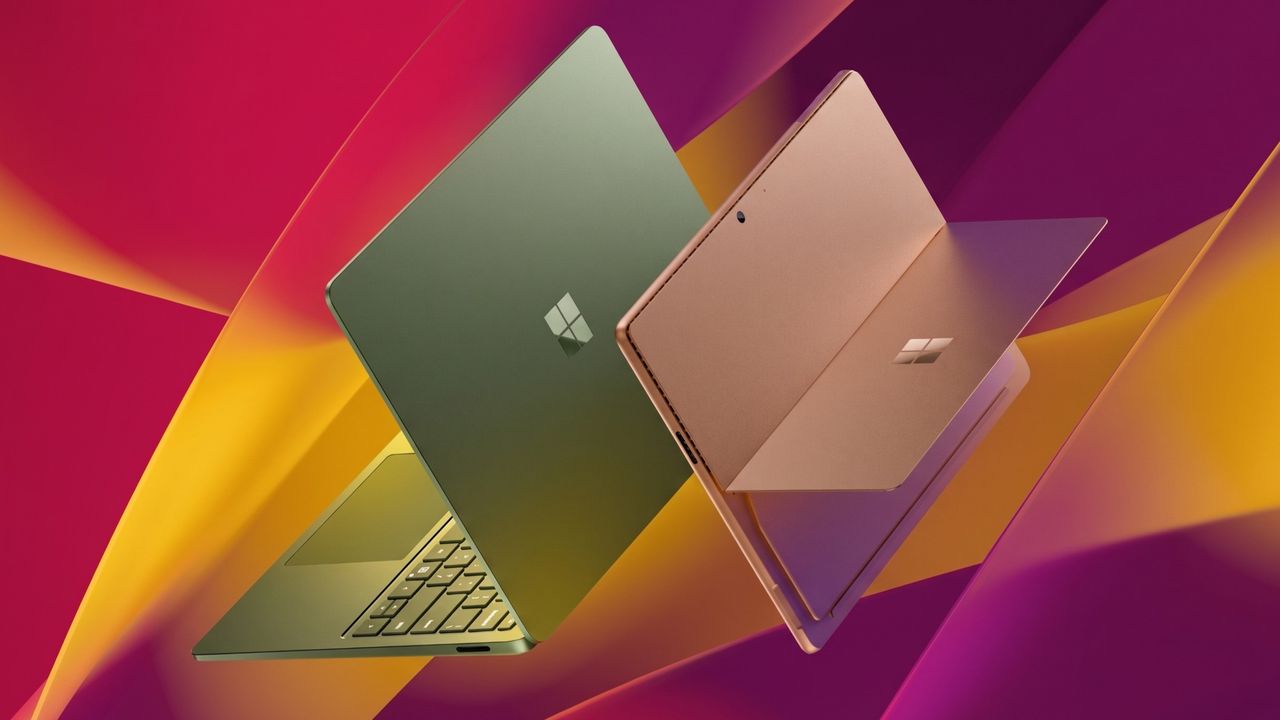
Surface Pro and Surface Laptop side by side on colorful background
Surface Pro and Surface Laptop side by side on colorful background
When Asha Sharma was named Xbox CEO, some on the web screamed about the fact that she was not a gamer. But the first few months of her tenure have shown why sometimes it's best to have a person who understands business in charge of a multi-billion-dollar gaming empire.Here are some lessons that Xbox has had to learn or relearn this year under Sharma: Exclusives matter, Xbox starts with console, and it's not realistic to expect Xbox Game Pass to have 77 million su
When Asha Sharma was named Xbox CEO, some on the web screamed about the fact that she was not a gamer. But the first few months of her tenure have shown why sometimes it's best to have a person who understands business in charge of a multi-billion-dollar gaming empire.
Here are some lessons that Xbox has had to learn or relearn this year under Sharma: Exclusives matter, Xbox starts with console, and it's not realistic to expect Xbox Game Pass to have 77 million subscribers when there are only an estimated 30 million Xbox consoles around.
Back in 2024, then Xbox CEO Phil Spencer said he wanted a "Future Where Every Screen Is An Xbox." It's been over two years since that memo was sent to Microsoft employees and leaked. In that time, we've seen Microsoft ship exclusives to PlayStation, reverse course, and straddle the barrier between consoles and PCs.
This is a future where Xbox is everywhere—consistent with our promise to empower players to “play the games you want, with the people you want, anywhere you want.
Phil Spencer (2024)
Spencer's vision was flawed. Taking the box out of Xbox never made sense. While cloud gaming extends the Xbox experience, the best experience requires dedicated hardware.
"I am committed to 'returning to Xbox,' and that starts with console, that starts with hardware. You will hear more about that soon."
But worse than taking the box out of Xbox was the idea that you could take the Xbox out of Xbox. Microsoft needs its console to stand out, and making everything under the sun an Xbox goes directly against that.
Microsoft put Halo on PlayStation 5 in a move our Jez Corden called "brand suicide." In February 2027, we'll see Fable launch and then God of War: Laufey launch the next day.
In just two days, PlayStation 5 owners will gain two massive games, but Xbox owners will get just one.
Hardware needs a reason to exist
Fable could have been a console mover for Xbox, but instead it will be part of a great week for PlayStation. (Image credit: Playground Games | Microsoft, Sony Interactive Entertainment Inc.)
Spencer's vision was flawed in terms of practicality, but I understand why people would wish it could work. In a perfect world, we'd all be able to play all our favorite games on any device.
But the reality is that exclusive content is at the core of platforms in 2026, and that's even more true when it comes to gaming. How many people would buy a Nintendo Switch 2 if all of its best games were available on the Xbox Ally X? Why would anyone buy an Xbox Series X or Xbox Series S if the PlayStation 5 had all of Xbox's games plus a bunch of Sony exclusives?
God of War Laufey launches 1 day before Fable early access on PS5.It's a sad reminder of how dumb Xbox's multiplat strategy was long term. Xbox is inadvertently advertising that PS5 has more content, and that Xbox customers are not important to MSFT.https://t.co/RukYP4IOYUJuly 27, 2026
Perhaps in another timeline in some parallel universe where PlayStation is actually for the players, we'd see Xbox and PlayStation games appear on both platforms. But we don't live in that world.
That means that Sony would rather lose out on all PC sales for its upcoming single-player games than have those same games be playable on the next Xbox console.
With Sony making moves like that, Microsoft can't afford to put its exclusive games on PlayStation.
Join us on Reddit at r/WindowsCentral to share your insights and discuss our latest news, reviews, and more.
Windows Insiders have a new build of Windows 11 to install, and it comes with some exciting improvements for accessibility. The biggest change is to Voice Access, which can now isolate your voice to better control your PC while in a crowded room.Voice Access allows you to control your PC with only your voice. Once you launch the feature, a dock appears and stays along the top of your screen. That bar shows commands as you enter them, which helps confirm what you'
Windows Insiders have a new build of Windows 11 to install, and it comes with some exciting improvements for accessibility. The biggest change is to Voice Access, which can now isolate your voice to better control your PC while in a crowded room.
Voice Access allows you to control your PC with only your voice. Once you launch the feature, a dock appears and stays along the top of your screen. That bar shows commands as you enter them, which helps confirm what you've said to your computer.
At the moment, using Voice Access in a room with background noise can be tricky. But that will change with the update to Windows 11 that's now in testing. That upgrade is just the latest in a long string of accessibility improvements from Microsoft.
Microsoft and accessibility
Windows 10 added eye tracking in 2017. The feature lets you type with your eyes.
Microsoft has prioritized accessibility for a long time. It's genuinely one of the most endearing aspects of the company. Here are just a few of the Windows features and pieces of hardware we've covered over the past few years that are part of Microsoft's push to make technology more accessible.
Accessibility is about everyone. When Microsoft develops a feature or accessory with one type of user in mind, there's often a knock-on effect. For example, Read Aloud in Microsoft Edge makes PDFs more accessible, but it also improves reading comprehension and lets you multitask while hearing what's on your screen.
I use Read Aloud every day to proof read my articles. I find that listening as I read improves comprehension and helps me spot typos or other mistakes.
New and improved accessibility in Windows 11
The latest Windows Insider build includes several improvements to accessibility features. Voice Access now supports Voice Isolation, which filters out other speakers and background noise.
It's a small change that makes it possible to use Voice Access in a broader range of work environments. If you rely on Voice Access, a shared office can cause frustration.
Hybrid and in-office work often places colleagues too close to each other to use Voice Access. Voice Isolation allows someone who needs the feature to control a PC to work in the same space as their coworkers.
The same Insider build brings support for displays that use the HID (Human Interface Device) standard to Narrator. That standard enabled plug and play support for braille displays and is backed by Microsoft, Apple, and other tech giants.
Here's the change log for Windows 11 Insider Preview Build 29634.1000 that relates to accessibility.
Windows 11 Insider Preview Build 29634.1000
Voice Isolation in Voice Access
We’re introducing Voice Isolation, a new option in Voice Access that helps it focus on your voice, even when others are speaking nearby. Whether you’re in a shared office, an open floor plan, or at home with family around, Voice Isolation filters out other voices and background noise so Voice Access can better understand you. All processing happens privately on your device.
Getting started Voice Access now offers three speech recognition modes under Voice Access settings > Improve speech recognition:
Voice Isolation — Filters out other speakers and background noise (one-time voice setup required).
Remove background noise only — Filters out non-speech sounds like typing or door slams. No additional setup needed.
No filtering — Default microphone input with no additional processing.
To set up Voice Isolation, select it from the menu and follow the short, guided setup where you’ll read a brief paragraph aloud so Voice Access can learn your voice. It only takes a minute, and your voice data never leaves your device
Narrator
Braille displays now connect instantly with Narrator
We’re making refreshable braille displays easier to use in Windows. Narrator now supports displays that use the HID standard — an open industry standard for braille displays. If your display supports HID, simply connect it via USB and start reading — true plug-and-play with no additional setup required. For Bluetooth, pair your HID braille display in Settings > Bluetooth & devices just like any other accessory, and you can work wirelessly without being tethered to your PC.
Compatible HID displays include models like the Orbit Reader 20, Orbit Slate 340, Freedom Scientific Focus 40, and APH Mantis Q40.
HID braille displays now work during the initial Windows setup experience (OOBE) over USB — meaning users who are deaf-blind can set up their PC independently, right from the first screen. You can customize braille input and output options anytime in Settings > Accessibility > Narrator > Braille.
Join us on Reddit at r/WindowsCentral to share your insights and discuss our latest news, reviews, and more.
For the past few years, a Logitech MX Vertical has sat on my desk. I've grown to love the mouse so much that I even take it with me when I travel despite it not folding down or being compact in any way. So, when ProtoArc reached out to me about a newer, budget-friendly ergonomic mouse, I was skeptical that Logitech had anything to learn.The Logitech MX Vertical fits in my hand well, lets my arm rest at a natural angle, charges through USB-C, and has aged well. Th
For the past few years, a Logitech MX Vertical has sat on my desk. I've grown to love the mouse so much that I even take it with me when I travel despite it not folding down or being compact in any way. So, when ProtoArc reached out to me about a newer, budget-friendly ergonomic mouse, I was skeptical that Logitech had anything to learn.
The Logitech MX Vertical fits in my hand well, lets my arm rest at a natural angle, charges through USB-C, and has aged well. The ProtoArc EM11 Pro is not exactly a direct competitor to the Logitech MX Vertical since the two mice are in different price brackets. But there are relatively few angled mice out there, at least in comparison to flat mice, so it's natural to pit the ProtoArc EM11 Pro against the Logitech MX Vertical.
Using the ProtoArc EM11 Pro made me realize a few areas the Logitech MX Vertical lags. If Logitech ever refreshed its ergonomic mouse, it should take some lessons from ProtoArc.
Grip and palm fit
The flat front of the Logitech MX Vertical does not fill my curved fingers. (Image credit: Future)
The ProtoArc EM11 Pro and the Logitech MX Vertical fill my hand differently. Logitech's mouse lies flush against my palm as my hand contours around the mouse. But the flat front of that mouse leaves a small gap between my fingers and the buttons.
In contrast, the ProtoArc EM11 Pro has an elongated base with a curve that tapers down at a sharper angle than the Logitech MX Vertical. As a result, the mouse does not feel flush against my palm. But the front of the mouse is curved, making the space behind the buttons feel more comfortable.
I'd love to have a mouse that combines the best of both designs since neither mouse is perfect.
Two wheels are better than one
I didn't realize the value of a horizontal scroll wheel until I tried one. (Image credit: Future)
ProtoArc's ergonomic mouse has two scroll wheels, one set for vertical navigation and the other for scrolling horizontally. I didn't realize how much I wanted two scroll wheels until I navigated Excel and Google Sheets with a pair of wheels. I've always just held Shift on my keyboard and used the single scroll wheel when I needed to move horizontally in a spreadsheet, but having a second wheel feels much smoother. It also requires less movement, which is a key part of ergonomic setups.
Silent clicks for quiet workspaces
The Logitech MX Vertical can be a bit noisy. In contrast, the ProtoArc EM11 Pro is practically silent. (Image credit: Future)
I work from home, so I don't have any coworkers to irritate with mouse clicking. If anything, my 10-month-old daughter enjoys the Logitech MX Vertical's clicky buttons since she often sits on my lap and plays with my mouse and keyboard.
But if you work in an open office or sit next to someone at school or work, you probably don't want to hear clicking all day. The ProtoArc EM11 Pro is almost completely silent when clicked.
Why I'm sticking with the Logitech MX Vertical
Logitech should take some lessons from the ProtoArc EM11 Pro, but ProtoArc also has some homework to do. ProtoArc's mouse has some lovely features, but I think it either needs a design tweak or an option for people with different-sized hands.
The angle of my hand doesn't feel natural when using the ProtoArc EM11 Pro. The flared bottom makes my hand want to turn over more than I'd like.
Try as I might, I can't find a way to hold the ProtoArc EM11 Pro that feels comfortable. If I place the side of my hand alongside the base, my fingers don't align properly with the buttons. If I slide my hand down so that my fingers align with the buttons, my hand awkwardly presses against the base.
The curvature of the ProtoArc EM11 Pro also makes it feel like I have to curve my hand a bit, rather than rest at a neutral angle.
Ergonomic mice have a learning curve, so I tried ProtoArc's for a while to see if I'd adjust, and it just hasn't — ahem — clicked. But that may be specific to my hand size and shape. I've known people who disliked the feel of the Logitech MX Vertical, so a lot of this comes down to specific users.
Overall, ProtoArc packed its ergonomic mouse with features other companies should envy. I just wish the mouse fit in my hand as well as the Logitech MX Vertical.
This ergonomic mouse allows your arm to rest at a natural angle to reduce fatigue and strain. It's held up incredibly well throughout my years of use.
This budget-friendly ergonomic mouse has two scroll wheels, can connect through a dongle or Bluetooth, and is practically silent when used.View Deal
Side-by-side view of the ProtoArc EM11 Pro ergonomic mouse in the foreground with its orange side buttons and scroll wheel, next to the Logitech MX Vertical mouse sitting on a black desk mat.
Despite its low price, the ProtoArc EM11 Pro has features I miss when switching back to my Logitech MX Vertical.

 Connexion