The beauty of a handheld gaming PC is its size and that it's also a full PC. The downside is that, unlike a laptop, you need to accessorize in order to achieve productivity status. A Nintendo Switch 2 may well have a 'mouse' now, but you're not going to use it to bang out some emails and spreadsheets on the train. I've had a Steam Deck since the very beginning, and as an open fan of Linux, I'm more than happy using it as a PC as well as a handheld games machine.
The beauty of a handheld gaming PC is its size and that it's also a full PC. The downside is that, unlike a laptop, you need to accessorize in order to achieve productivity status.
A Nintendo Switch 2 may well have a 'mouse' now, but you're not going to use it to bang out some emails and spreadsheets on the train.
I've had a Steam Deck since the very beginning, and as an open fan of Linux, I'm more than happy using it as a PC as well as a handheld games machine. Razer has now released a new product to go with one of its existing products that's particularly useful for the former.
Unlike everything else Razer makes, it doesn't have some wild monicker. It's simply the Razer Travel Case Folio, and it's designed to transport your favorite portable keyboard and prop up your favorite portable device.
Nothing overly fancy, but in the case of handhelds, it's actually pretty nifty.
Compatible with both the Razer Joro and Apple Magic Keyboard, this simple product is perfect for using with a tablet or a handheld gaming PC thanks to its sturdy kickstand.
The keyboard part is designed primarily around the Razer Joro wireless keyboard, which I have, and is the only keyboard I ever travel with in conjunction with my Steam Deck. The box also says it's a seamless fit with Apple's Magic Keyboard, if you're so inclined.
As yes, one of the reasons you'd want to buy this case is if you're an iPad owner (other tablets are also available). It'll support up to a 13-inch tablet to use with your keyboard, as the back of the case opens up in a manner regulars in these parts will be familiar with.
The kickstand may not look that sturdy, but it is. (Image credit: Windows Central)
The Travel Case Folio has a Surface-style kickstand on the back.
I have to say I'm surprised at how sturdy it is. It has zero struggle propping up my hefty Valve handheld, and in the same vein as a Surface kickstand, you can adjust your angle to suit.
The keyboard doesn't lock into place or anything, but it's secure when the case is closed, kept in snug by the magnetic closing flap. I also like that there's a cutout on the case to connect a charger without needing to open it up. One is for the Joro, and one is more centralized for Apple's keyboard.
One small gripe I have though, and it is only small, is that the cutout for Razer's own Joro could have been a little larger or had a secondary one for the power switch. I never remember to turn the keyboard off, and every single time I've pressed something as I've packed it away, and that translates to something happening on the screen.
The Travel Case Folio doesn't add much extra bulk to the Razer Joro keyboard. Windows CentralPerfect if you don't have a kickstand case for your handheld. Windows Central
So I have to get it out again, open up the case, turn off the keyboard, and pack it all back up. And no, after many, many times of doing this, I still haven't remembered.
It's a really nice product though. Spill resistant on the outside, soft and protective on the inside, and it works better than I expected as a kickstand for a handheld. Even with my Steam Deck in a case, it will still stand up just fine. Perfect for those of us who don't have a Legion Go.
At $55.99 from the Razer Store, it's not that expensive, either. Obviously, if you don't have one of the two keyboards it's built for, then it's probably not worth it, but given that the Razer Joro is a $140 portable keyboard, it's worth the investment. I think I'm more surprised it took this long.
Join us on Reddit at r/WindowsCentral to share your insights and discuss our latest news, reviews, and more.
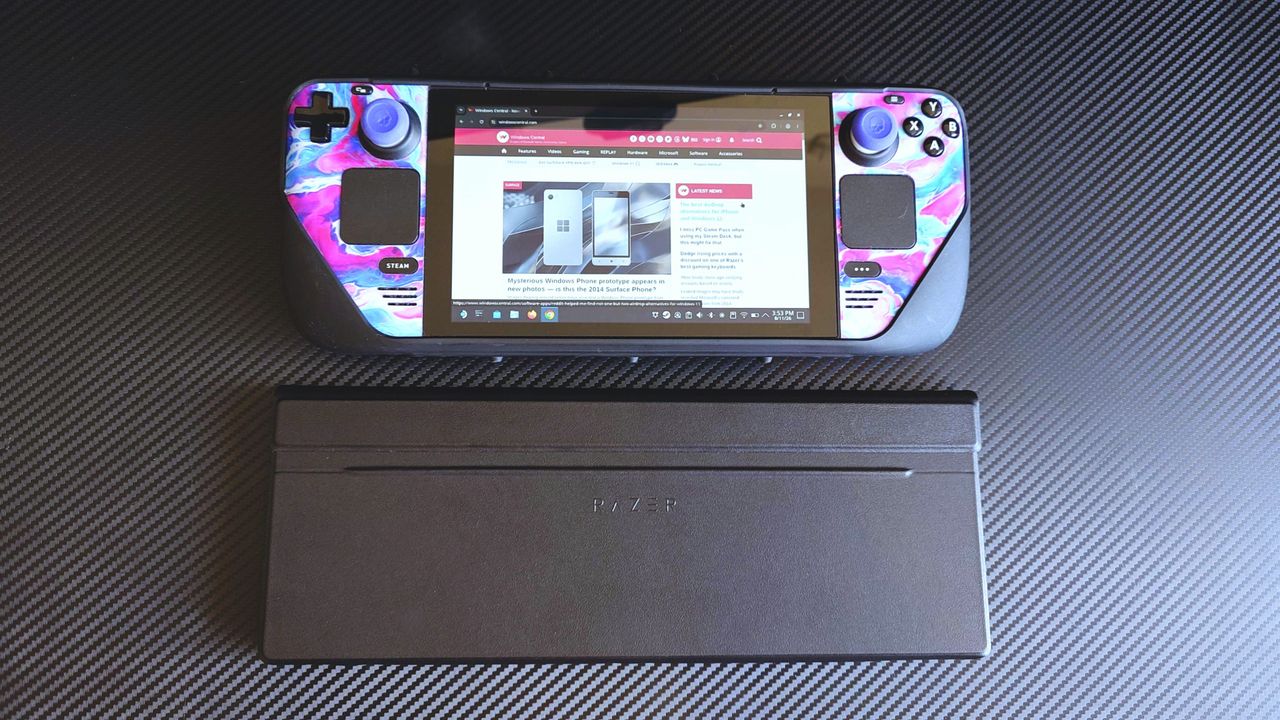
The Razer Travel Case Folio with Razer Joro Keyboard and a Steam Deck
A perfect companion to turn a handheld PC into a mobile workstation.
Razer, one of my favorite manufacturers that has produced some of the best PC gaming accessories I've ever used, has released a new mouse built to conquer any game you throw at it — the Razer Naga V3 Pro.This gadget is the long-awaited evolution of the Razer Naga V2 Pro, which takes everything we loved about its predecessor (which we gave a near-perfect review score) and refines it to create the ultimate PC gamer mouse.Here's what you need to know about the Razer
Razer, one of my favorite manufacturers that has produced some of the best PC gaming accessories I've ever used, has released a new mouse built to conquer any game you throw at it — the Razer Naga V3 Pro.
This gadget is the long-awaited evolution of the Razer Naga V2 Pro, which takes everything we loved about its predecessor (which we gave a near-perfect review score) and refines it to create the ultimate PC gamer mouse.
Here's what you need to know about the Razer Naga V3 Pro and where you can buy it.
The side plates of the Razer Naga V3 Pro gamer mouseWindows Central | Jez CordenSide view of the Razer Naga V3 Pro MouseWindows Central | Jez CordenTop view of the Razer Naga V3 Pro MouseWindows Central | Jez Corden
The Razer Naga V3 Pro mouse is equipped with cutting-edge tech to improve input detection speeds and swappable button plate configurations so that it can handle a wide variety of game genres.
Its biggest selling points include:
23 programmable buttons and three interchangeable side button plates (a 12-button MMORPG plate, a 6-button MOBA plate, and a 2-button FPS plate).
A Razer HyperScroll Tilt Wheel Gen-2 with new dual tactile, free-spin, and smart-reel modes to adjust its scrolling speeds to a user's preference.
A Razer Optical Mouse Switches Gen-4 to give its buttons an upgraded lifecycle up to 100-million clicks, cleaner and faster input detection, tactile feedback, and a zero-bounce optical design to prevent accidental misclicks.
A Razr Focus Pro 50K Optical Sensor Gen-3 with precise mouse-movement detection and adjustable sensitivity that can go as high as 50,000 DPI.
Polling rates from 1000Hz to 8000Hz to help improve the mouse's input accuracy and detection speed.
A lightweight build of 117g (with the 12-button MMORPG plate attached) so it's not so heavy to move for the wrist while allowing it to be moved more quickly when making sharp turns in first-person action games.
A battery life of 155 hours on HyperSpeed connectivity (2.4GHz).
This mouse is Razer's next amazing premium outing for MMORPGs, MOBAs, FPS titles, and more
The Razer Naga V3 Pro gamer mouse on a base charger (Image credit: Windows Central | Jez Corden)
Our resident PC gaming accessory expert, Jez Corden, reviewed the Razer Naga V3 Pro and found it to be one of the best PC mice he's used so far this year. Jez praised it for possessing dozens of programmable buttons, the best-in-class software solution, and a premium feel that emphasizes tactility.
So, if you generally play input-heavy PC games and you want to get your hands on the Razer Naga V3 Pro, it will cost $179.99/£179.99/€199.99 at select digital retailers including Best Buy, directly from Razer.com, and at physical RazerStores.
Dominate any PC game imaginable with the Razer Naga V3 Pro Wireless mouse, complete with three swappable button plates, a Focus Pro 50K Optical Sensor Gen‑3 with 50,000 max DPI, 23 programmable inputs, and many more rich features.View Deal
Join us on Reddit at r/WindowsCentral to share your insights and discuss our latest news, reviews, and more.
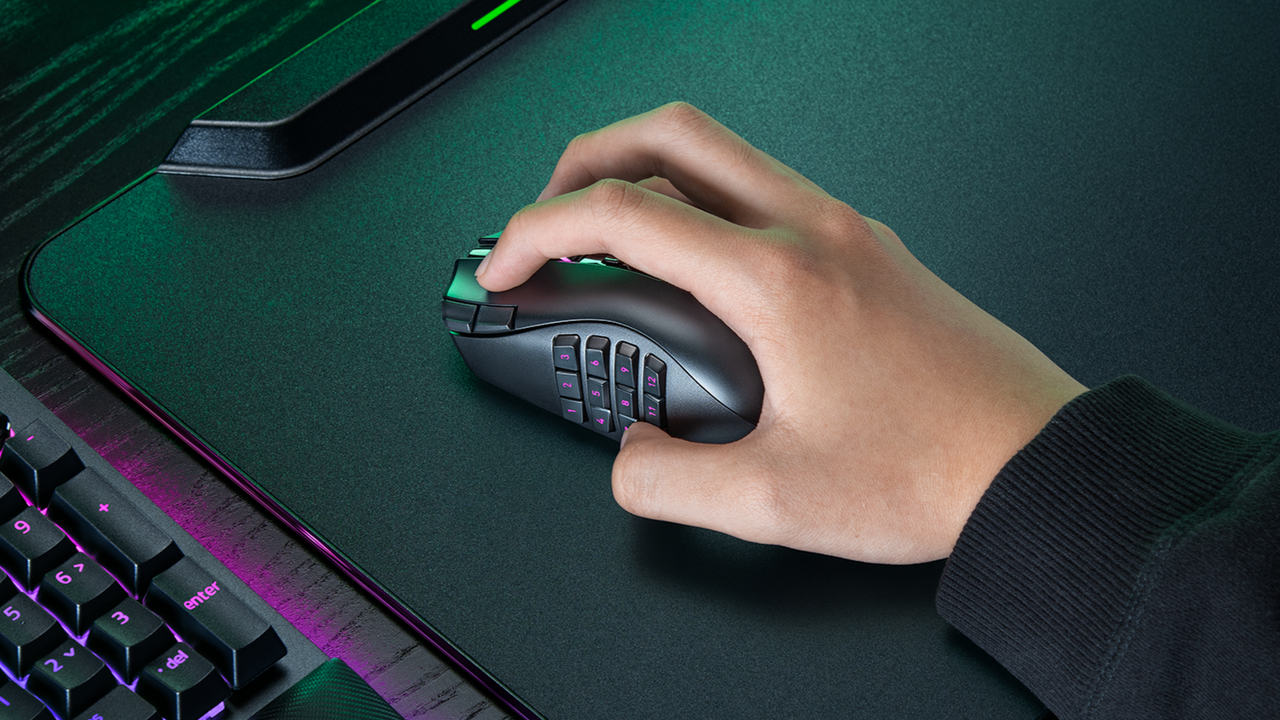
A hand holding a Razer Naga V3 Pro mouse on a mouse mat next to a Razer keyboard
Take your PC gaming skills to the next level with the Razer Naga V3 Pro mouse.
I've been using Razer mice for decades, and have tested dozens upon dozens of iterations of the firm's products. I'm also a dedicated MMORPG and MOBA player on PC, flipping between games like World of Warcraft and Heroes of the Storm as seasons wax and wane.For the Warcraft-faithful, I play a Demonology Warlock, which has been simplified over the years, but in previous expansions I had anywhere up to 30+ keybinds for playing the class effectively in PvE and PvP.
I've been using Razer mice for decades, and have tested dozens upon dozens of iterations of the firm's products. I'm also a dedicated MMORPG and MOBA player on PC, flipping between games like World of Warcraft and Heroes of the Storm as seasons wax and wane.
For the Warcraft-faithful, I play a Demonology Warlock, which has been simplified over the years, but in previous expansions I had anywhere up to 30+ keybinds for playing the class effectively in PvE and PvP. It was a bit like learning a musical instrument back in the day, particularly when you throw in battle potions, trinkets and other additional buttons.
As such, I've tended towards Razer mice with extra inputs to make my gaming life easier. I had no idea how much easier it was going to get until I went palm-on with the new Razer Naga V3 Pro — which is quite easily one of the best mice of 2026.
Razer Naga V3 Pro: Specs and price
MMO player's best friend. (Image credit: Windows Central | Jez Corden)
The Razer Naga V3 Pro builds on its predecessor in a variety of ways, but chief among those is the inclusion of a further three configurable inputs, bringing the maximum total to 23 (and many, many more if you use HyperShift and other modifier keys).
1000 Hz native; upgradeable to true 8000 Hz (Mouse Dock Pro / HyperPolling Dongle); HyperSpeed Wireless (2.4 GHz), Bluetooth LE, USB-C wired
Battery & Lighting
Up to 155 hours (HyperSpeed); 3-zone RGB (logo, wheel, 12-button plate); 5 onboard profiles
Materials & Accessories
100% PTFE feet; USB-A to USB-C cable; HyperSpeed dongle; compatible with Mouse Dock Pro & HyperFlux V2
Dimensions & Weight
119.5 × 75.5 × 43.5 mm; 117 g base weight; Side plates: 12-button (20 g), 6-button (17 g), 2-button (15 g)
Price & Availability
$179.99 USD / £179.99 GBP / €199.99 EUR — Available worldwide Aug 11, 2026
Razer also doubled down on durability with reinforced molding processes for the switches, which the firm says will now last up to and potentially beyond 100 million actuations.
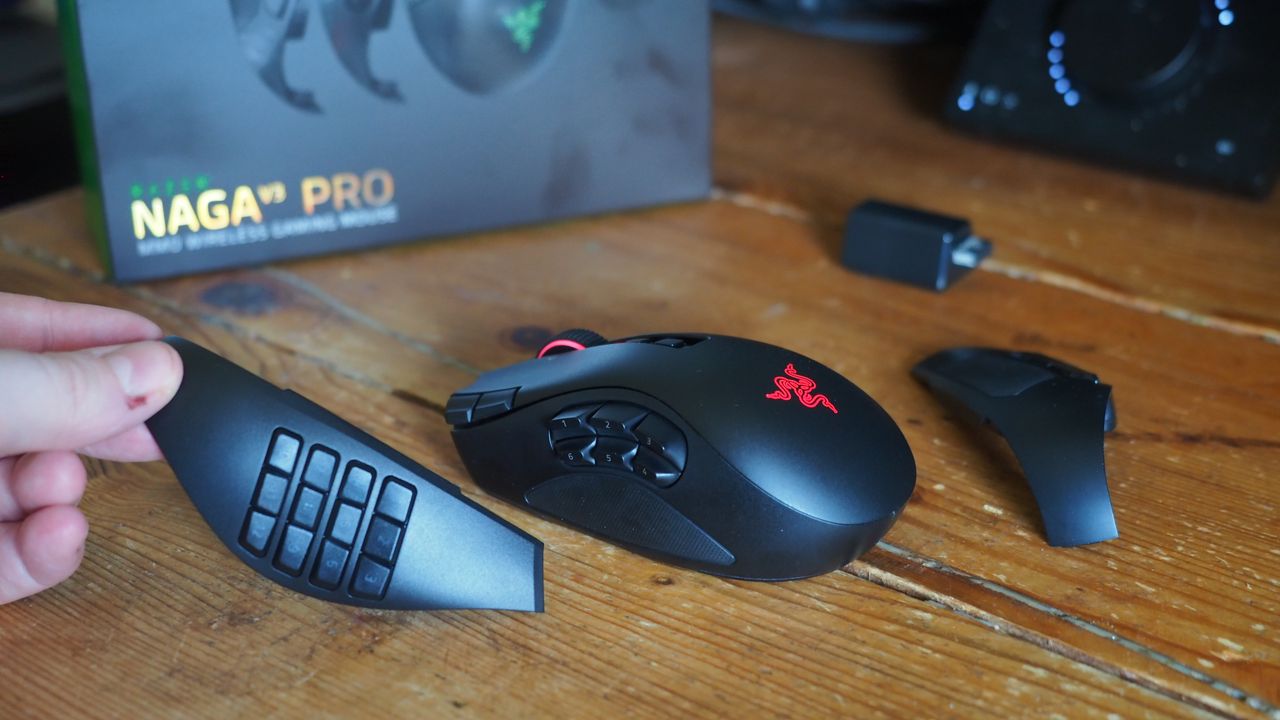
The obvious headline feature is the magnetic button plates that can be customized at will, adding between two, six, and twelve additional buttons. Razer has also included a uniquely configurable scroll wheel that comes with haptic feedback capabilities.
The mouse goes into general availability on August 11, 2026, and will set you back $179.99 from Best Buy in the United States.
Razer Naga V3 Pro: Features
Three's a crowd they say. Not here. (Image credit: Windows Central | Jez Corden)
The Razer Naga range has long been designed with MMO and MOBA gameplay in mind, adding a huge amount of additional inputs via a unique magnetic side plate feature.
Razer has enhanced the force of the magnets to ensure it feels well and truly part of the mouse when connected, and I can say without doubt that it well and truly does. The buttons can be programmed at will using Synapse, and modified further with a ring-finger button that defaults to Razer's dedicated "Hyper Shift" modifier key. Of course, all of these can be reconfigured too.
What struck me immediately when going palm-on was the new scroll wheel. Razer has included some unique functionality here that I've not experienced previously in other mice. You can set it to free-wheeling mode, which allows it to quite literally spin indefinitely under its own weight. There's also a standard step-stop function that most users will be familiar with, but also a precision-stop feature that adds some haptic feedback and shortens the actuation for rapid hot bar or weapon switching with more forceful control.
There is a parade of other buttons and functions too. The DPI rates have been placed in the top right corner of the mouse out of the way, requiring a little more intent to reach to prevent accidents, I suppose. There are two buttons below the scroll wheel, and the scroll wheel itself can be tilted and clicked for additional inputs too.
It sports 155 hours of battery life out of the box, and supports Razer's new Mouse Dock as well as its wireless Hyper Flux charging mouse mat. Either plugged in or connected to a compatible Hyper Speed dongle, this bad boy can go all the way up to 8,000 Hz. You will not be left wanting for speed.
Razer Naga V3 Pro: Comfort and usage
All the buttons. Windows Central | Jez CordenLight weight, maximum function. Windows Central | Jez CordenIt feels good in the hand, although some users may find it a little too high. Windows Central | Jez CordenRazer magnetic charge dock capable, but not included. Windows Central | Jez Corden
How does it feel to actually use, though? I dropped into a couple of World of Warcraft raids and played a few games of Heroes of the Storm to get a feel for it, but it was in games like Age of Empires where it truly felt transformative.
As noted, you can add up to 12 extra buttons with the side plate feature. It does take some getting used to, and I think Razer could've perhaps done a bit more to help differentiate the keys, particularly on the 12-button plate. The six button plate felt like the sweet spot for me, given that the profile of the buttons made them easier to memorize, but also I didn't find it as hard to squeeze my thumb backwards to hit the keys closest to my palm.
Indeed, you might struggle with this mouse if you don't have the most flexible hands. I found its palm hump to be a bit tall for my tastes (small ass hands maybe, or perhaps poor desk ergonomics on my end), but overall it was incredibly comfortable. I suspect most people won't have any issues with it. I also suspect that it was designed quite intentionally to be "palm grippy" to facilitate the fact users will be reaching for buttons on the side more often than on other mice.
Six buttons felt like the sweet spot for me. (Image credit: Windows Central | Jez Corden)
There are probably neuroscientific reasons for this, but it does feel genuinely more intuitive to actuate inputs on the same hand as your movement intentions. Perhaps it stems from my console-oriented history in some ways, but I found it a lot easier to drop Guldan's ult with a mouse swipe and mouse click, as opposed to lining up my mouse with a keyboard press.
For Age of Empires, it was particularly fun binding various quick keys directly to the mouse. Assigning regiments, bypassing certain menus, and being able to select specific units instantly from anywhere won't make up for my lack of skill with RTS, but it did boost the fun factor.
Razer Synapse is a fantastic piece of software that ties everything together. It's still better than solutions from other companies by a country mile. Configure RGB lighting, set up profiles for specific games, configure literally all the things — quick and easy.
Sync all the Razer things. (Image credit: Windows Central)
Some of the less useful features include Razer's macro functionality, which will sadly get you banned in a lot of online games for "automation."
The Naga V3 Pro also comes with an AI assistant key by default, which lets you bind certain Copilot prompts to mouse inputs for some reason. You can turn it off, but it's 2026 so everything has to have some kind of "AI" feature in it apparently, even if it's effectively useless. Perhaps this might become more useful if Microsoft ever ships agents to consumers, but as for right now it feels like boardroom fluff. Thankfully, that's the only "feature" here I could describe as such. Practically everything else is genuinely useful and represents a demonstrable upgrade.
There is a lot of functionality in the Razer Naga V3 Pro, and you won't need all of it all of the time. It is designed primarily for people who want maximum control over their games, and indeed, it is priced as such.
Razer Naga V3 Pro: Conclusion
It ain't cheap! (Image credit: Windows Central | Jez Corden)
The Razer Naga V3 Pro is a tour de force of functionality, with unmatched versatility for practically every genre of game you can throw at it. FPS, RTS, MOBA, MMORPG, and beyond — even the most control-complex games fall before the Naga and its capacity to inject intuitiveness into the least intuitive games and control schemes possible.
But yes, it will require configuring to get there. That's ultimately who it's designed for, though; people who play more complex games to a hardcore level, and want their peripherals to reflect their desire to configure and control their experience.
You should buy this if ...
✅ You play complex input-heavy games like MMORPGs and RTS.
✅ You like to configure your controls to the nth degree.
✅ You prefer your inputs on your mouse, rather than your keyboard.
You should not buy this if ...
❌ You find configuring keybinds exhaustive and annoying.
❌ You have particularly small hands (you might find its height uncomfy).
❌ Price might be a concern.
This will become my default mouse moving forward. Being able to effectively keybind number keys 5, 6, 7, 8, 9, 0, etc. without needing to physically reach away from WASD is a big boost in some games I play.
However, I am cognizant of the fact that I got the review unit here. Almost $200 for a mouse is tough to justify unless you're particularly passionate about the functionality the Razer Naga V3 Pro is going to provide for you. For configuration enthusiasts, there's well and truly nothing better than the Razer Naga V3 Pro right now.
Razer
Naga V3 Pro
"Stay one step ahead—no matter how the game changes."
Join us on Reddit at r/WindowsCentral to share your insights and discuss our latest news, reviews, and more.
Razer Naga V3 Pro mouse
Customize the thumb buttons with a variety of options for maximum MMO-bility. Yes, I just made up a word; it's Monday, and I can.
The ROG Strix OLED XG32UQWMS gaming monitor is planned for release in September 2026. ASUS provided a sample, but the company had no input on the article nor saw its contents before publishing.OLED gaming monitors have been around for a while, but concerns about text clarity and burn-in left me less excited to buy something like the ASUS ROG Strix OLED XG32UQWMS. Given the chance to test an upcoming model from its range shown at Computex earlier this year, I coul
The ROG Strix OLED XG32UQWMS gaming monitor is planned for release in September 2026. ASUS provided a sample, but the company had no input on the article nor saw its contents before publishing.
OLED gaming monitors have been around for a while, but concerns about text clarity and burn-in left me less excited to buy something like the ASUS ROG Strix OLED XG32UQWMS. Given the chance to test an upcoming model from its range shown at Computex earlier this year, I couldn't resist, and my review could be the moment that helps me overcome my apprehension. Here's what I learned.
How much does the 32-inch Strix OLED cost?
4K looks fantastic in Windows 11, and UHD is perhaps better suited to gaming if you don't want to stress your PC. (Image credit: Ben Wilson | Windows Central)
The ROG Strix XG32UQWMS is targeting a September launch for $899, with specific US retailers to be confirmed. In the United Kingdom, that converts to £819, with planned third-party resellers including Amazon UK, Currys, and Very. In the meantime, you can sign up for availability notifications on the monitor's official ASUS listing for your region.
ROG Strix XG32UQWMS sample specifications
Component
Spec
Display type
WOLED
Resolution
UHD (3840 x 2160) FHD (1920 x 1080)
Refresh rate
240 Hz (UHD) 480 Hz (FHD)
Brightness
330 cd/m² (typical) Up to 1,500 cd/m² (peak)
Viewing angle
178°/ 178° (vertical/horizontal)
Response
0.03 ms (Gray-to-Gray)
Dimensions
28.27" x 22.13" x 7.40" (71.8 x 56.2 x 18.8 cm)
Weight
10.64 – 14.46 lbs (4.83 – 6.56 kg)
Originally announced at Computex 2026, ASUS targets a September launch in the United States at $899, with sign-ups offered for availability notifications.View Deal
Is the 32-inch Strix OLED easy to set up?
The chunky middle section makes it much easier to move this monitor around.Ben Wilson | Windows CentralThis push-button release system is inspired and makes the stand easy to attach.Ben Wilson | Windows CentralThe height-adjustable table stand is heavy, but it's definitely sturdy.Ben Wilson | Windows CentralIf you prefer a VESA mount, you'll have to provide your own screws.Ben Wilson | Windows CentralThe footplate fixes tight with a simple thumbscrew and feels secure.Ben Wilson | Windows Central
I'm a big fan of toolless setups wherever they appear, and ASUS ROG wins points for delivering a straightforward process here. Everything hinged on a push-button release mechanism that either gripped the stand or the VESA mount; I used the former and attached the footplate with a simple thumbscrew.
I'm a big fan of toolless setups wherever they appear, and ASUS ROG wins points for delivering a straightforward process here.
The display alone weighs 9.92 lbs (4.5 kg), and adding the VESA mount brings the total to 10.64 lbs (4.83 kg) in a mounted setup. Otherwise, the foot plate and strut together weigh 4.54 lbs (2.06 kg), controlling height with a sturdy but not overly stiff response. On my desk, the monitor is 14.46 lbs (6.56 kg) overall.
Ports aplenty, but you only get a DisplayPort cable and AC power in the box.Ben Wilson | Windows CentralThe proximity sensor helps the monitor automatically dim when I move away, preventing burn-in.Ben Wilson | Windows CentralASUS throws in a cute pouch for spare parts I won't use.Ben Wilson | Windows CentralA big, satisfying peel of a protective plastic film under the advertisements is all that remains.Ben Wilson | Windows Central
Attaching the stand gave me a clear view of the ports and navigation via the multi-function button (MFB) located behind the bottom-mounted ASUS ROG logo and its accompanying "Neo" proximity sensor. It's a pretty standard affair that matches rival brands, and its controls should feel familiar to most people.
While there are two HDMI 2.1 ports, a pair of USB-A 3.2 Gen 1 with a hub port, and a headphone jack, there's only a single DisplayPort cable in the box for its matching DP 1.4 port, along with the AC cord. Bundling a free USB-B cable shouldn't be too expensive, and I'm disappointed to see it missing here.
Does the 32-inch Strix OLED look good?
Now that I've played on an OLED monitor, it'll be hard to go back to my IPS screen. (Image credit: Ben Wilson | Windows Central)
Moving from a 27-inch IPS Alienware monitor to an OLED panel made its benefits immediately obvious, with an experience similar to the one I get from my LG C2 TV in the living room. High contrast, deep blacks, and crisp visuals come with its 4K resolution and that smooth 240Hz refresh rate. Windows 11 adjusted my settings accordingly, and the monitor looks great out of the box.
The UHD @ 240Hz mode looks fantastic, and I'm left wondering who would ever want to switch to 1080p for the sake of 480Hz on a 32-inch display.
In motion, the UHD @ 240Hz mode looks fantastic, and I'm left wondering who would ever want to switch to 1080p for the sake of 480Hz on a 32-inch display. I know it has its place in ultra-competitive shooters like Counter-Strike 2 and its many rivals, but 240Hz still feels like plenty to me. If you're the target audience, I think you'll be happy, because FHD gameplay still looks quite good.
There are plenty of visual tweaks to make in the OSD, primarily balancing brightness, if you need them.Ben Wilson | Windows CentralText looks fine, aided mostly by the sheer clarity offered by 4K in the first place.Ben Wilson | Windows Central
Up close, the clarity of on-screen text looks fine; nothing particularly groundbreaking, but nothing looks noticeably fringed when I sit at a comfortable distance in UHD mode. Adjusting ClearType in Windows 11 might give results that better suit you, but I didn't feel like anything looked out of place during my usual daily work and gaming.
The OSD is at least easy to navigate, and I could install the DisplayWidget Center if I really wanted to use a mouse to tweak several settings at once. Otherwise, the "TrueBlack Glossy" panel looks significantly darker at a glance than the other screens in my office, which certainly helps with the deep blacks OLED is famous for, and I found the visible room reflections were tolerable.
Testing the display
Out of the box, the XG32UQWMS defaults to "Racing mode", hitting 99% of the DCI-P3 color gamut as advertised, and sRGB accuracy earns a perfect score, while Adobe RGB maxes out at 93%. Without changing settings, a 100% brightness level reached around 306 to 311 nits, so getting it to 330 nits will require a bit of tweaking. On the whole, I'm satisfied with its stock settings.
Should you buy the 32-inch Strix OLED?
At this price, it's certainly considered an investment, but burn-in prevention tools make it much easier to recommend. (Image credit: Ben Wilson | Windows Central)
You should buy this if ...
✅ You want an OLED monitor built for preventing burn-in
✅ You're a competitive gamer who thrives on high refresh rates
You should not buy this if ...
❌ You want an out-of-the-box USB hub monitor
A built-in presence sensor probably sets off alarm bells for some gamers, but the proximity detection is literally there to help protect this OLED panel by switching off when you walk away. That, along with adjustments to uniform brightness and pixel-cleaning settings, helps prevent burn-in, which was my biggest concern with monitors like these. ASUS definitely could have thrown in a free upstream USB cable for its hub, but the display itself is solid, so it still wins praise.
ASUS ROG
Strix OLED XG32UQWMS
Due for release in September 2026, this OLED gaming monitor should be at the top of your considerations if you're shopping around.
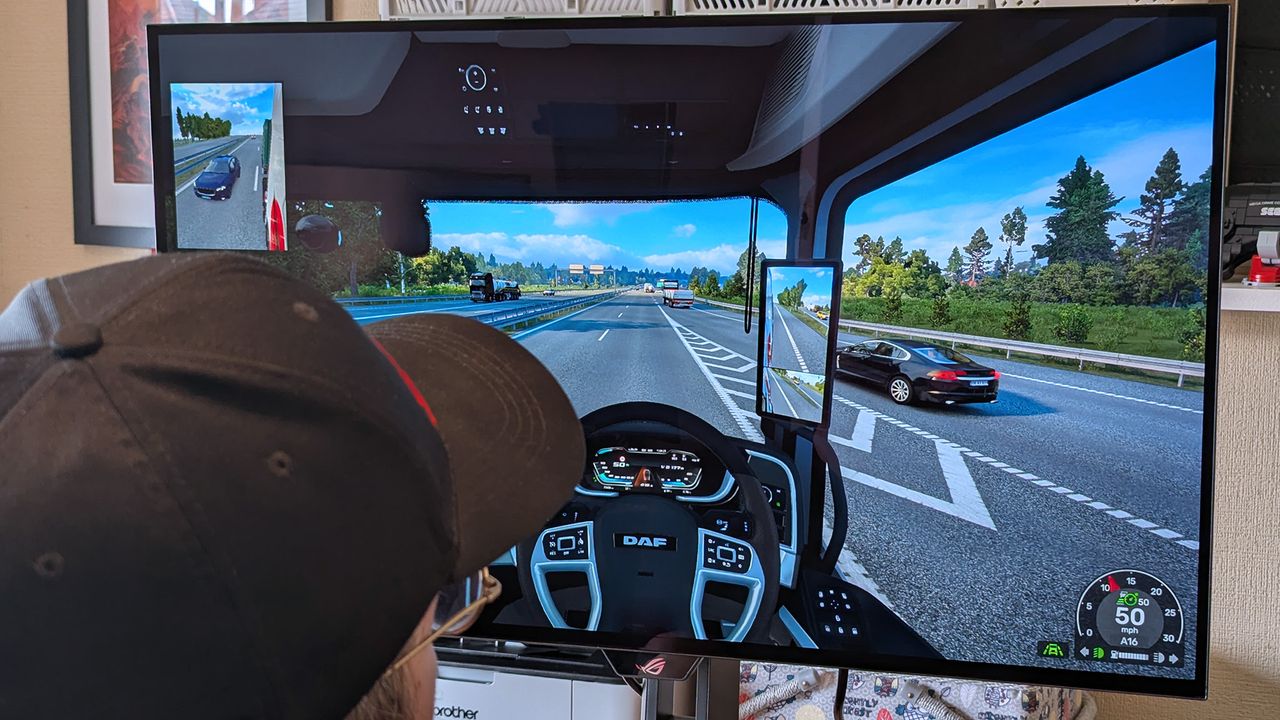
Windows Central's Ben Wilson wearing a black cap sits at a desk playing Euro Truck Simulator 2, with the ASUS ROG Strix OLED XG32UQWMS monitor showing a DAF truck interior.
Last night I surprised myself by working an extra hour at my desk. I occasionally work late, but what surprised me is that it happened by accident. I believe the blame falls on GUNNAR and a pair of glasses the company sent me to try out.Like many people, I sit at a desk for the majority of my workday and stare at a screen for hours on end. I often get headaches or eye strain after working for too long without a break. I've spent years building up an ergonomic wor
Last night I surprised myself by working an extra hour at my desk. I occasionally work late, but what surprised me is that it happened by accident. I believe the blame falls on GUNNAR and a pair of glasses the company sent me to try out.
Like many people, I sit at a desk for the majority of my workday and stare at a screen for hours on end. I often get headaches or eye strain after working for too long without a break. I've spent years building up an ergonomic workstation to help my back, knees, and wrists, but I've neglected my eyes.
GUNNAR glasses are designed to block blue light. I've been aware of the company for years, in part due to their various gaming partnerships, but I had never used a pair myself. Gunnar and I got in touch to let me try a pair.
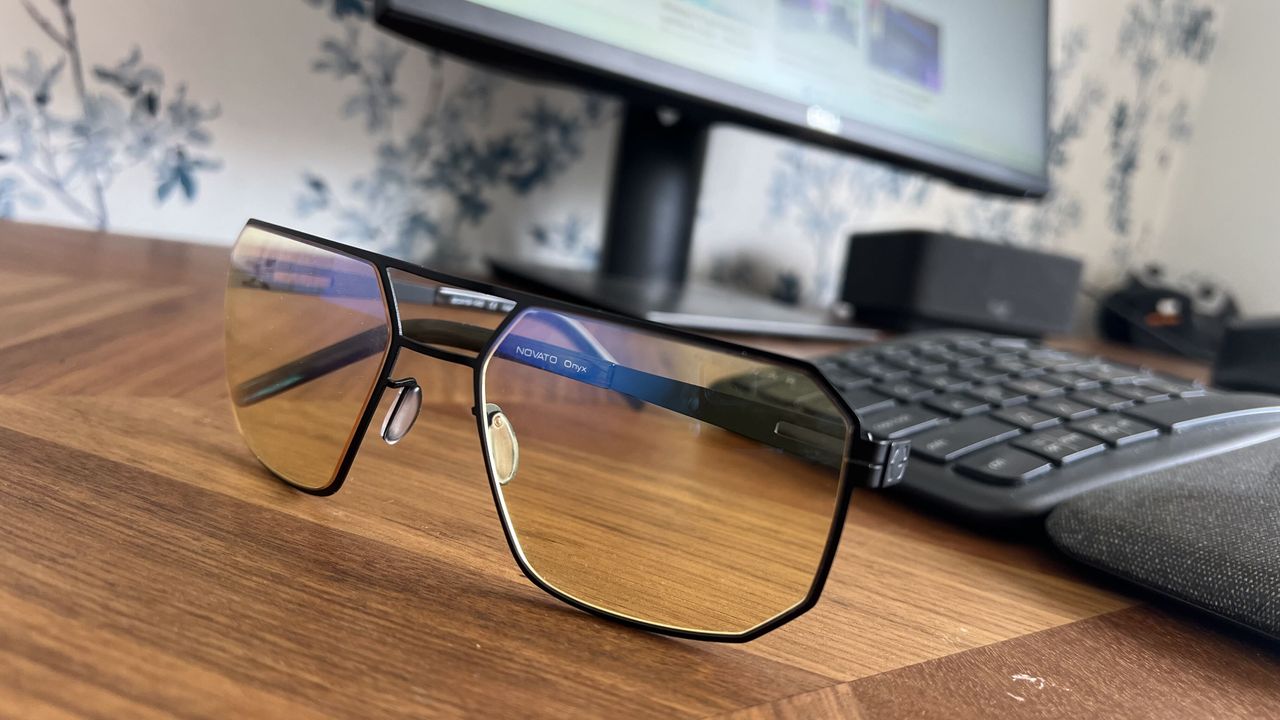
The Novato pair of glasses I was sent has the amber tint that's available in many frames from GUNNAR. This particular pair has a slight magnification as well, though it's available with a neutral focus.
When I slipped on the glasses, I felt my face relax almost instantly. I then continued to work throughout the afternoon.
Later in the evening, I noticed that I had worked an hour later than usual.
I got to the end of my normal day and just kept working because I didn't realize how late it was. I usually need breaks every once in a while to rest my eyes, but since my eyes didn't hurt I lost track of time.
These glasses filter out blue light to reduce eye strain caused by staring at a screen. They're made with a lightweight titanium frame and have anti-reflective coating.View Deal
GUNNAR glasses vs. f.lux and Windows 11's Night Light
I've used apps like f.lux and Windows 11 features such as Night Light to filter out blue light from my PC screen. I still recommend those apps to anyone who wants to reduce eye strain or who works late at night.
I was, however, surprised how much the GUNNAR glasses felt different than using software to reduce blue light.
I'm not an eye doctor or any type of medical professional, so please take my experience as simply a hands-on with the GUNNAR glasses. When I put them on, it felt like the entirety of my eyes could relax rather than just having a specific screen filtered.
While apps like f.lux are great, they don't do anything to filter out blue light from overhead lighting or any other light sources in your room. Slipping on a pair of GUNNAR glasses came much closer to filtering blue light out of the entire room.
This particular model of GUNNAR glasses rests quite close to my face, though they have models that wrap around even more.
I'm sure that part of the improved experience is mental. My mind feels like it can relax my eyes, so my face follows. With the glasses on, I caught myself squinting or flexing my face less.
I'm not sure if accidentally working an extra hour is a good thing or a bad thing, but if I can harness the experience for my normal working hours, I'll be very excited. I plan to use these GUNNAR glasses and some other frames over the coming weeks and will follow up with how things go.
Join us on Reddit at r/WindowsCentral to share your insights and discuss our latest news, reviews, and more.
Close-up of Gunnar Novato Onyx computer glasses featuring amber lenses and a matte black geometric metal frame resting on a wooden desk in front of a monitor and keyboard.
Slipping on the GUNNAR Novato Onyx glasses instantly reduced my eye strain.
Magnetic keyboards used to feel like a side quest in the keyboard world. You either bought one from a tiny boutique brand and hoped the firmware wasn’t held together with duct tape, or you ignored the whole category because it felt too experimental.Now Razer has stepped in with its first Hall Effect Magnetic Huntsman keyboards, and that changes everything. When a company with global retail presence decides magnetic switches matter, it suddenly becomes a lot easie
Magnetic keyboards used to feel like a side quest in the keyboard world. You either bought one from a tiny boutique brand and hoped the firmware wasn’t held together with duct tape, or you ignored the whole category because it felt too experimental.
Now Razer has stepped in with its first Hall Effect Magnetic Huntsman keyboards, and that changes everything. When a company with global retail presence decides magnetic switches matter, it suddenly becomes a lot easier for regular players to try the tech without worrying about sketchy support or limited availability.
Razerhad no input, nor did it see the contents of this review, prior to publication.
Design and build
Top-down comparison of the Razer Huntsman V3 HE Mini 65% keyboard (top, cyan RGB) and TKL keyboard (bottom, green RGB) on a pink surface. (Image credit: Daniel Rubino)
Both keyboards share the same DNA: aluminum top plate, doubleshot PBT keycaps, and dense internal foam that gives each keystroke a quieter, more muted sound. Razer told me they added extra lubrication and a “very dense layer of foam to absorb high‑pitch pinging noises,” and I can hear the difference. These boards sound cleaner than the Huntsman AK and even the V3 Pro.
The TKL gives you the arrow keys and navigation cluster, which I prefer for writing and general use. The Mini 65% keeps the arrows but trims the rest, which frees up desk space and feels great for shooters.
Razer confirmed both models have full feature parity, so you’re choosing layout, not capability.
Magnetic switches explained
Low-angle close-up of a black Razer gaming keyboard with vibrant cyan RGB backlighting glowing under the keycaps. (Image credit: Daniel Rubino)
Hall Effect switches use magnets and sensors to track key travel. There’s no physical contact point, which means the keyboard can detect exactly how far a key has moved. That unlocks features that optical or mechanical switches can’t do as well.
Razer calibrates every switch at the factory. They told me:
"Hall Effect boards are prone to interference from environmental factors… metal desks, magnets, metal objects."
Instead of pretending this isn’t an issue, Razer built a calibration tool directly into Synapse. If your desk or environment causes drift, you can reset the keyboard back to factory accuracy in three guided steps. I didn’t run into interference myself, but I like knowing the fix is built in.
Actuation is fully adjustable from 0.1 mm to 4.0 mm, and you can tune each key individually. I set WASD to 1.2 mm for shooters and left the rest at 2.0 mm for typing. The onboard adjustment tools make this easy.
Razer also claimed:
“We are the most accurate Hall Effect board available to players.”
They admitted true 0.1 mm accuracy is impossible because “pushing two magnets together is damn near impossible,” but their margin of error is small enough that I never noticed inconsistency.
Latency and performance
Screenshot of Razer Synapse software displaying customizable options for polling rate, gamepad settings, and macros on the Huntsman V3 HE. (Image credit: Daniel Rubino)
Razer pairs the switches with true 8000 Hz HyperPolling. They measured the HE Magnetic at 0.6 ms latency, which is only 0.12 ms behind their analog optical switches. That’s impressive for a first‑generation magnetic design and still faster than other Hall Effect keyboards by about eight percent.
I can’t measure latency myself, but the keyboards feel snappy. Movements in Counter‑Strike 2 and Valorant felt crisp, and Rapid Trigger made counter‑strafing easier.
Movement‑focused features
Screenshot of Razer Synapse software displaying Actuation tab settings for the Huntsman V3 HE, including actuation point, Rapid Trigger, and Snap Tap. (Image credit: Daniel Rubino)
This is where the HE Magnetic line stands out. Razer didn’t just add magnetic sensing. It built a suite of features that take advantage of it.
Rapid Trigger — Keys reset as soon as they start moving upward. This helps you stop moving faster in shooters, which tightens your hitbox and improves accuracy.
Snap Tap — This prevents two directional keys from actuating at the same time. If you press D while holding A, the keyboard prioritizes the latest input. It makes counter‑strafing more reliable.
Snap Flex — You can bind two actions to a single press. For example, pulling a grenade pin and jumping at the same time. It simplifies multi‑key combos.
Dynamic Keystroke — Up to four actions can be assigned to a single key based on press depth and release. This is powerful and a little scary. I’m curious to see what players come up with.
Dual‑Keypress Priority — This keeps diagonal movement stable. If you’re holding W and A, pressing D won’t override the movement until you release A.
Good Molly, that's a lot of software tech, but while it may not make a difference if you play Brotato (like me; don't judge, it's great), for first-person competitive shooters, it all can absolutely improve your performance and enjoyment of the game. There is a bit of a learning curve here, and all of that is optional to use, but while Razer sometimes catches flak for Synapse, I can't help but feel these are some real value-plays.
Now, some of these are "launch-exclusive" to the HE Magnetic line, for now, but Razer hinted that these features will eventually trickle out to other Huntsman keyboards, likely in the coming months.
TKL vs Mini 65%
Top-down view comparing the compact Razer Huntsman V3 HE Mini 65% keyboard (top) and the larger TKL keyboard (bottom) on a white desk. (Image credit: Daniel Rubino)
I think most people buying keyboards today know Tenkeyless (TKL) versus Mini 65%, but just in case you don't, here's the recap, as I’ve used both layouts for years, and the choice is simple.
Choose the TKL if:
You type a lot
You want dedicated navigation keys
You prefer a familiar layout
Choose the Mini 65% if:
You want more mouse space
You travel or attend LANs
You want a compact gaming setup
Both keyboards have identical features. You’re choosing workflow, not capability.
Personally, I go TKL or even Compact / 96% Full‑Size like the 2026 Razer Huntsman Signature Edition ($499), as I like having media keys and arrow keys but detest numberpads.
Mini-65% is adorable and shockingly portable (great!), but you may end up missing some functions if you use it for more than competitive-ish gaming. No arrow keys is a move; let's just say that.
Either way, it's great that Razer gives you the choice.
Pricing and competition
The $499 Razer Hunstman Signature Edition (2026) is a very unique offering. (Image credit: Daniel Rubino)
The new Razer Huntsman V3 HE Magnetic TKL is $139.99, and the Mini is $119.99. That’s cheaper than Razer’s Pro models and competitive with other magnetic keyboards. Some boutique Hall Effect boards cost more and don’t have Razer’s distribution or warranty support. That alone makes these easier to recommend.
Launch date is today, July 30, so they should be available globally and shipping out to third-party sellers, including Amazon (HE Magnetic TKL; HE Magnetic Mini 65%) and Best Buy.
Typing and sound
Side-profile comparison of the Razer Huntsman V3 HE Mini 65% and TKL keyboards, showing their incline and height on kickstands. (Image credit: Daniel Rubino)
Typing feels smooth and consistent. The foam and lubrication help, and the magnetic sensing gives each key a clean, predictable feel. I prefer deeper actuation for writing, and the keyboards handled that well.
Gaming felt great with shallow actuation and Rapid Trigger.
Should you buy the Huntsman V3 HE Magnetic?
(Image credit: Daniel Rubino)
You should buy this if ...
✅ You play competitive shooters
✅ You want adjustable actuation
✅ You want movement‑priority features
✅ You like what Razer is cookin'
You should not buy this if ...
❌ You only need a simple keyboard
❌ You don’t care about magnetic sensing
❌ You prefer optical switches
❌You want wireless options
I give the Huntsman V3 HE Magnetic line a 4.5 out of 5. Razer took magnetic switches and made them accessible, polished, and backed by a major brand. The keyboards feel great, the features matter, and the layouts cover both mainstream and compact preferences.
The Huntsman family may be getting crowded, but these new models earn their place, and we'll be updating our best gaming keyboards guide shortly.
And as someone who has gone through something like 5 of these Huntsman variations in the past months, all I can say is I don't think I'll be jumping to anything else anytime soon. Even as someone who does more gaming on their MSI Claw 8 EX AI+ and Xbox Series X, these Huntsman just feel good to use, whether for typing or gaming.
TKL
Razer
Razer Huntsman V3 He Magnetic TKL 8khz
With adjustable actuation from 0.1–4.0 mm, Rapid Trigger, Snap Tap, Snap Flex and Dynamic Keystroke, Razer’s HE Magnetic TKL give players granular control over inputs and movement — and back it with factory calibration, a 100‑million keystroke rating and on-demand recalibration via Synapse.
Mini
Razer
Razer Huntsman V3 He Magnetic Mini 65% 8khz
The Huntsman V3 HE Magnetic line pairs Hall Effect magnetic sensing with 8,000 Hz HyperPolling and deep per-key customization to deliver a top-tier competitive keyboard experience. This Mini 65% version pairs down to the most minimal design.
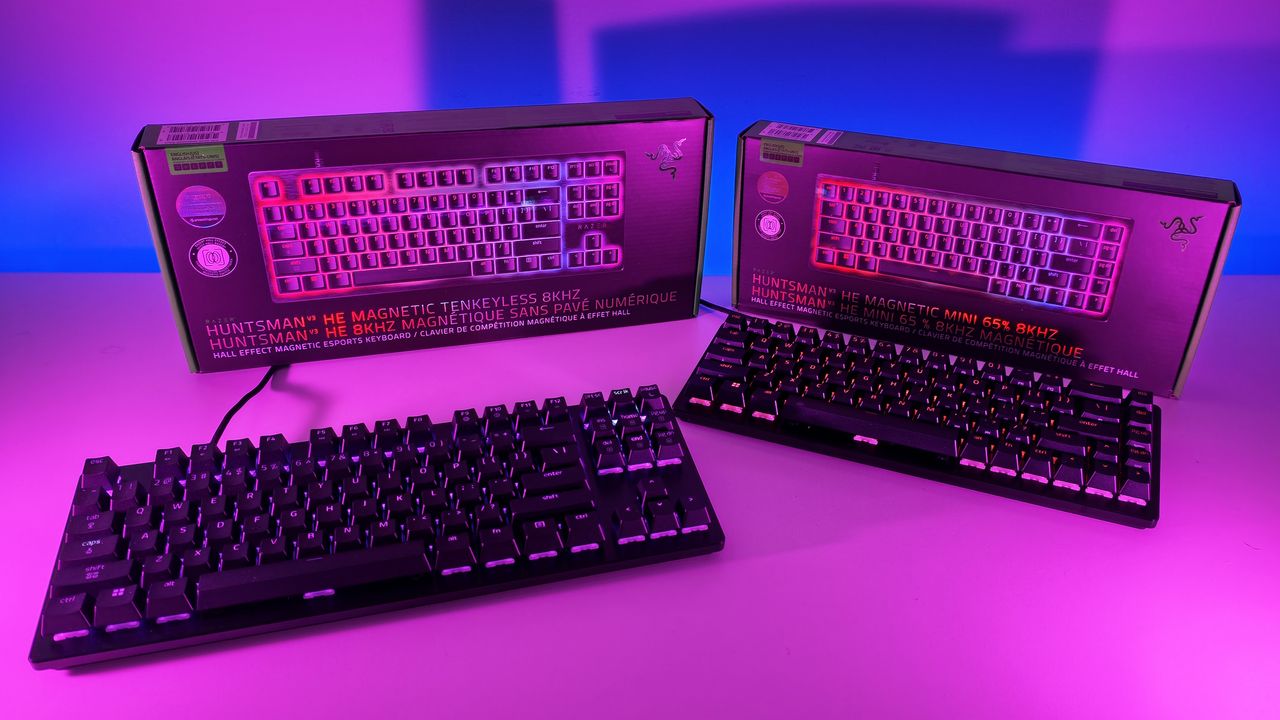
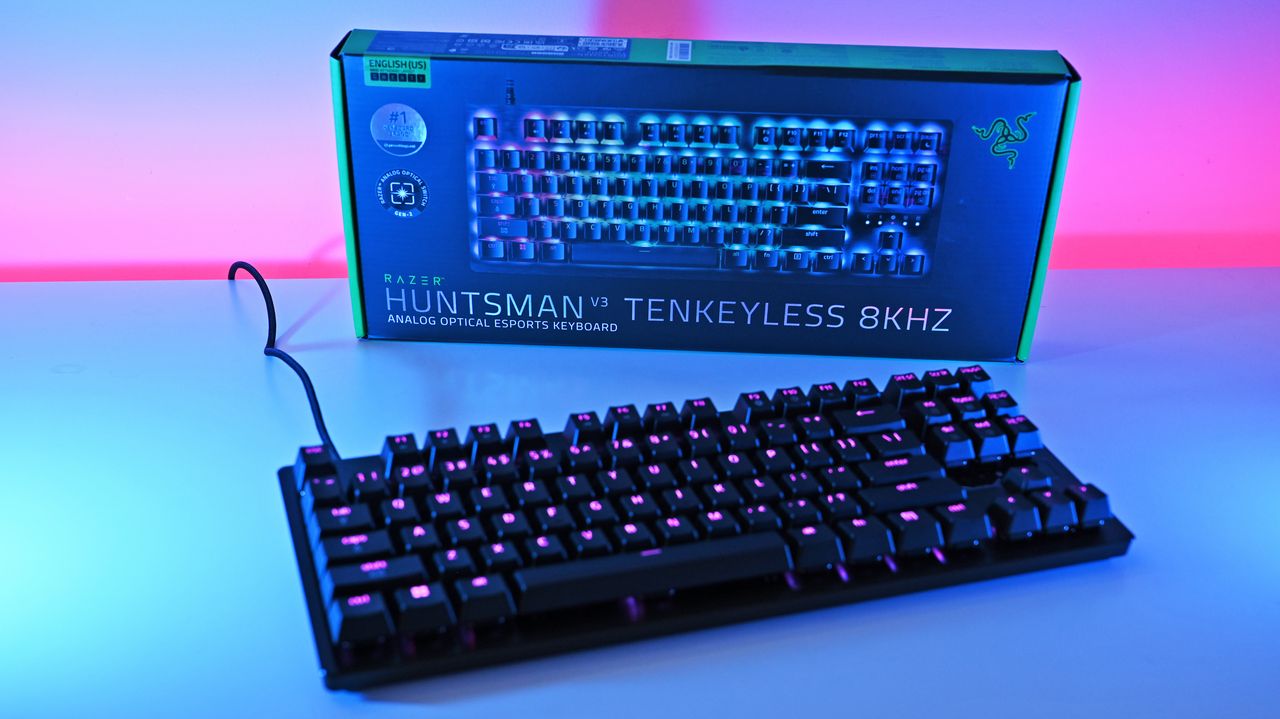
Low-angle shot of Razer Huntsman V3 HE TKL and Mini 65% keyboards with RGB backlighting placed in front of their retail packaging.
Low-angle shot of Razer Huntsman V3 HE TKL and Mini 65% keyboards with RGB backlighting placed in front of their retail packaging.
JLab, a brand we usually recognize for its headphones, still dips out of its wheelhouse from time to time to make broader PC accessories for productivity and gameplay performance on the side.Now, its ergonomic "Epic Wireless Mouse", featuring a 2,400 DPI sensor, 4-month battery life, and remappable buttons, is available at Best Buy (currently discounted by a third-party seller to $51.77).If you're looking for something different, there are more affordable ergonom
JLab, a brand we usually recognize for its headphones, still dips out of its wheelhouse from time to time to make broader PC accessories for productivity and gameplay performance on the side.
Now, its ergonomic "Epic Wireless Mouse", featuring a 2,400 DPI sensor, 4-month battery life, and remappable buttons, is available at Best Buy (currently discounted by a third-party seller to $51.77).
If you're looking for something different, there are more affordable ergonomic JLab mice and keyboards at Best Buy, flaunted as "Better for your wrist. Better for your budget" — with options available directly from Best Buy alongside third parties.
Annihilate your opponents and your daily workload with JLab's responsive 2,400 DPI sensor, nine silent and customizable buttons, and a four-month-long battery life.View Deal
Why buy the JLab Epic Wireless Mouse?
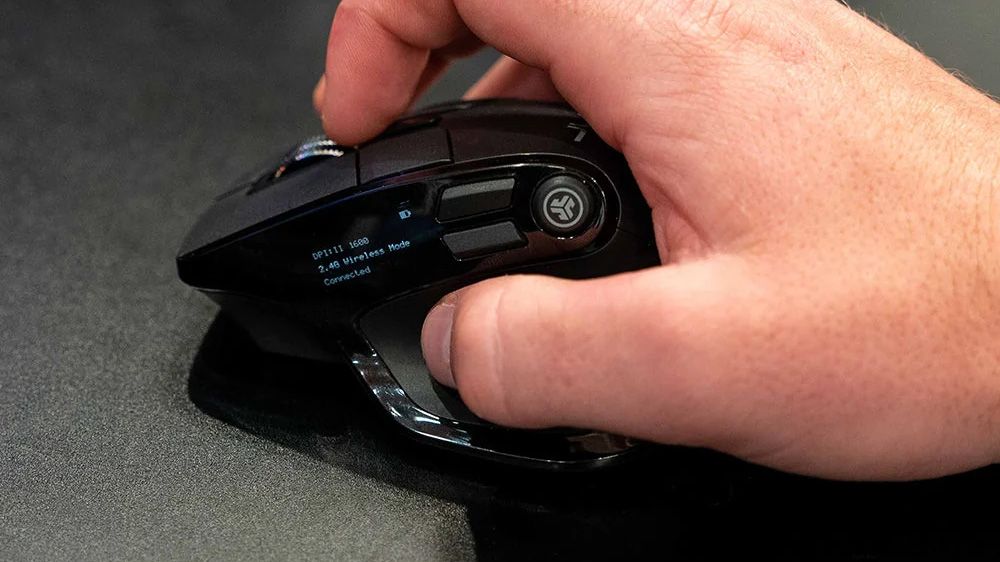
The JLab Epic Wireless Mouse displaying its OLED screen (Image credit: JLab)
JLab's Epic Wireless Mouse offers features for any worker navigating life's daily grind while taking breaks for some light gaming. These include an ergonomic design that fits snugly in your hand, the ability to connect to 3 devices via Bluetooth or its USB dongle, rechargeable batteries that last for around 4 months, and 9 buttons that can be customized with key bindings or shortcuts via JLab's Work app.
Elsewhere, it features silent buttons so they don't make distracting noise, a tiny OLED screen to show its status, and a 2,400 DPI sensor, making it responsive when moving the cursor while browsing or gaming.
So, if you're looking for a new mouse to help you with your assignments or games, then JLab is worth a shot. At least 114 shoppers on Best Buy have given it 5-star reviews, with some saying its performance is comparable to Logitech's MX Vertical Mouse but at a much cheaper cost (JLab's Epic Wireless Mouse has a listing price of $59.99, compared to the MX Vertical's listing price of $119.99).
FAQ
Which devices are compatible with this mouse?
The Jlab Epic Wireless Mouse is compatible with PCs running Windows, macOS, and ChromeOS, and mobile devices with Bluetooth connectivity.
What is the max wireless range on this mouse?
The max wireless range is 30 feet.
How long is the warranty on this mouse?
The JLab Epic Wireless Mouse has a 2-year warranty.
Join us on Reddit at r/WindowsCentral to share your insights and discuss our latest news, reviews, and more.
A hand holds the JLab Epic Wireless Mouse, showing its side display with DPI, wireless mode, and connection status.
A hand holds the JLab Epic Wireless Mouse, showing its side display with DPI, wireless mode, and connection status.
Technology rarely stands still, and having a job like this means seeing newer, better, faster hardware on a regular basis. But through all of the upgrades I've made in the last decade, there's one piece of tech that has been with me throughout and won't be going anywhere anytime soon. Many years ago, I bought a monitor to pair with my gaming PC of the time. You can read about it in my Dell S2417DG review, which I had to double-check the date on. I've had this mon
Technology rarely stands still, and having a job like this means seeing newer, better, faster hardware on a regular basis. But through all of the upgrades I've made in the last decade, there's one piece of tech that has been with me throughout and won't be going anywhere anytime soon.
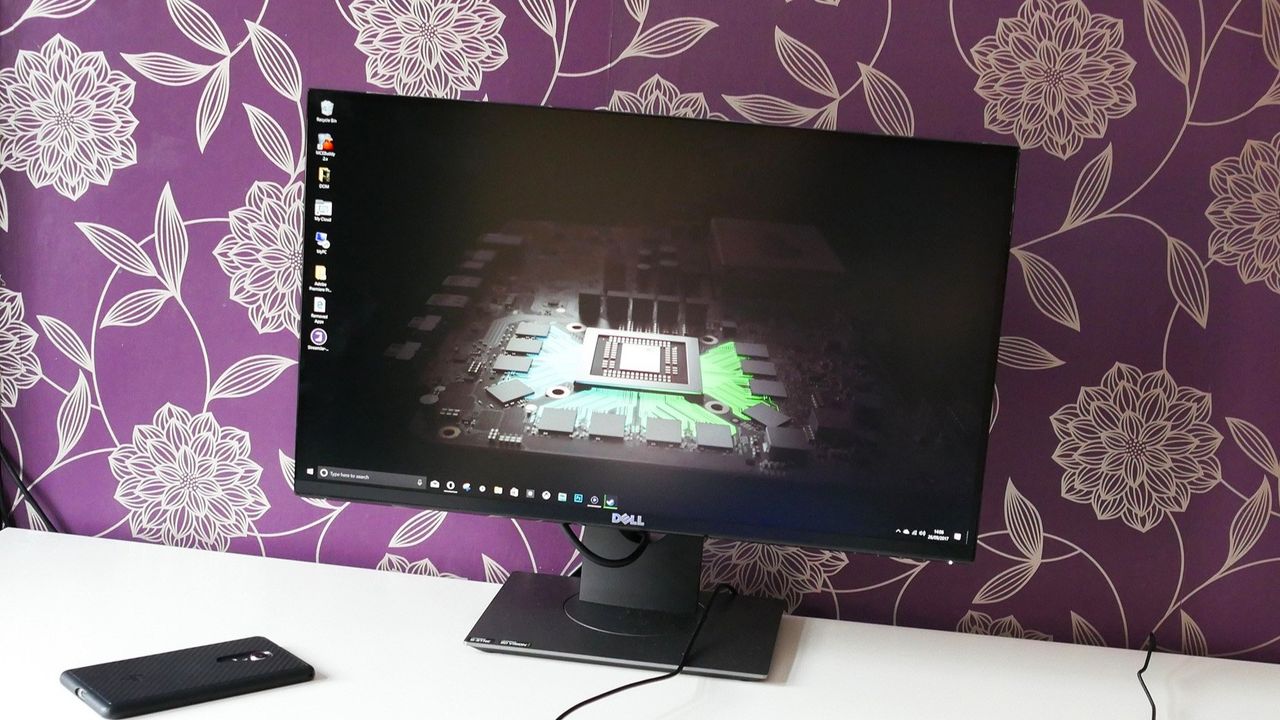
Many years ago, I bought a monitor to pair with my gaming PC of the time. You can read about it in my Dell S2417DG review, which I had to double-check the date on. I've had this monitor for 9 years now.
It's not the only PC monitor I've used in that time, of course. I've paired it with various other secondaries, and I've moved it off to use with another PC while I review other monitors.
But almost a decade after cracking open the box, it's still here. It's my primary display for work and for PC gaming, and unlike every other piece of tech I've got itchy feet over upgrading through the years, I've got no plans to get rid of the Dell S2417DG. It's still plenty good enough, even for gaming when refresh rates have gone through the roof. I absolutely adore it.
What makes the Dell S2417DG so good
When I originally bought and subsequently reviewed the Dell S2417DG, I was looking for three things in particular.
At a then-list price of $430, compared to a lot of the competition, the S2417DG represented phenomenal value. The key specs that drew me to this specific model are highlighted in the table below.
Category
Key Specification
Screen Size & Panel
23.8" QHD (2560 x 1440) TN
Refresh Rate
144 Hz (Overclockable to 165 Hz via DP)
Response Time
1 ms (GtG)
Adaptive Sync
NVIDIA G-Sync
Inputs
1x DisplayPort 1.2, 1x HDMI 1.4, 4x USB 3.0
Ergonomics
Height, Tilt, Swivel, Pivot (90°), 100x100 VESA
When I bought it, I'd just secured an NVIDIA GTX 1080 Ti, the beast of its time, and my previous primary monitor didn't have a refresh rate or resolution high enough to allow me to stretch its legs.
Fast forward 9 years and I'm still happy gaming at 1440p and still happy at 165Hz. Could I do 4K? Sure, I'm fortunate to be running an RTX 5090 these days. Could I do more frames? Absolutely.
I've tested laptops and monitors with higher resolution and/or refresh rates far in excess of 165Hz and never once felt I needed more in my own setup. Playing Call of Duty: Black Ops 7 at 240Hz rather than 165Hz is not going to suddenly change the game for me. It certainly won't help a gamer in his forties be any better at it.
For day-to-day use, I've long felt 120Hz is the sweet spot. I only really use 165Hz because this monitor has a factory overclock, so why not?
Yes, I've left the stickers on for 9 years as well. (Image credit: Windows Central)
But it has everything I need. The color isn't the absolute greatest, but 98% sRGB is fine for my needs since I don't do any serious color accuracy work, and games still look great.
Even with an older DisplayPort standard, I haven't yet been held back, and the 1ms response has since been beaten by newer monitors, but again, it was more than enough back then for me, and it's still the same today.
In years past, I also made use of the USB 3.0 hub built into the monitor. Nowadays my desktop PC has enough USB ports that are faster than this that I don't need to. But in the early days it was extremely useful.
Only one area this monitor has started to underperform
The HDMI needed to keep up with the Xbox Series X is the only thing letting this monitor down. (Image credit: Windows Central)
Over the lifespan of this monitor, I've also used it hooked up to my Xbox console. It's only here, now, that it's starting to show its age.
The HDMI 1.4 port on the Dell S2417DG is hard-capped at 60Hz, even though it will still support the 1440p native resolution. Even dropping to 1080p, that 60Hz cap applies on this monitor.
It's not a total dealbreaker, since 60Hz has been fine on console for long enough, but with an Xbox Series X I'm not able to make full use of the 120Hz capabilities in supported games using this monitor anymore.
As such, the Xbox Series X has been hooked up to a more modern 1080p monitor with a newer spec HDMI connection. I'll take frame rate over resolution any day.
I don't see the point in 'upgrading' to a newer monitor
There are far more technically impressive monitors out there now, but I feel like I'd be wasting my money. (Image credit: Windows Central | Zachary Boddy)
Are there better monitors out there? Of course there are. There are plenty with 4K displays, OLED, faster refresh rates, and larger panels.
But I've long felt 1440p is the sweet spot for gaming. I don't have the space for large displays, and having tested higher refresh rate panels, I don't actually feel like I'd be getting anything beneficial.
Call of Duty is the only 'competitive' game I play, and I've got enough FPS to be comfortable in that. Looking at what's out there right now at prices I'd be comfortable paying, I feel like any new monitor would be a sidegrade, less so than an upgrade.
Would I be better off with more up-to-date ports? Most likely I would, but I've been fine for 9 years now without feeling like I'm held back. The old warhorse is still pulling along as well as it ever did.
I'm also a big believer in not adding to e-waste. I could sell this on to someone else, but it works well enough still, so what's the point in that? Times are hard, everything is more expensive than ever before, and you never know when you'll need to cash in a kidney to buy another stick of RAM or an SSD.
I truly can't think of another piece of tech I still own and have used for as long as this monitor consistently. I'm just praying that writing about it doesn't hex the whole thing and I wake up tomorrow and it decides it's had enough...
Join us on Reddit at r/WindowsCentral to share your insights and discuss our latest news, reviews, and more.
A photo of the Dell S2417DG pc monitor on a white desk next to a HP Elite X3 smartphone in front of a purple and gold patterned wall.
This was my monitor when it was new. It's got a few marks since then but, otherwise, remained faultless and still keeps up with today's games.
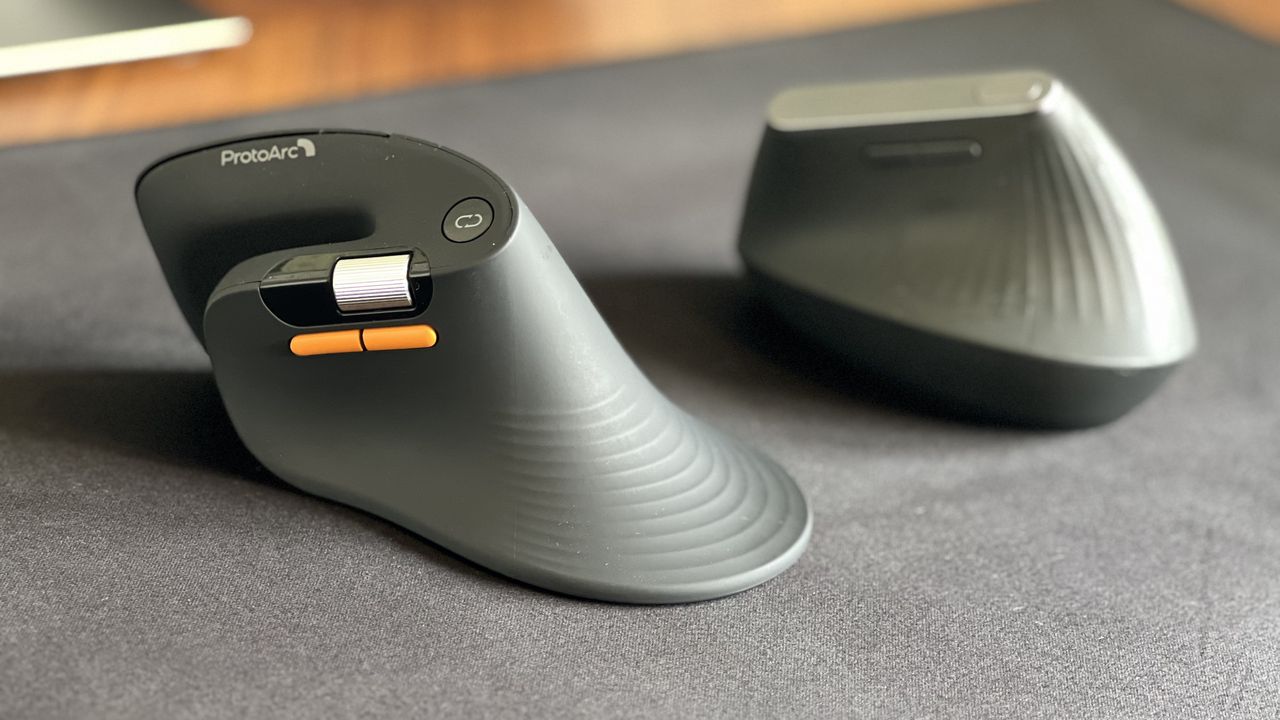
For the past few years, a Logitech MX Vertical has sat on my desk. I've grown to love the mouse so much that I even take it with me when I travel despite it not folding down or being compact in any way. So, when ProtoArc reached out to me about a newer, budget-friendly ergonomic mouse, I was skeptical that Logitech had anything to learn.The Logitech MX Vertical fits in my hand well, lets my arm rest at a natural angle, charges through USB-C, and has aged well. Th
For the past few years, a Logitech MX Vertical has sat on my desk. I've grown to love the mouse so much that I even take it with me when I travel despite it not folding down or being compact in any way. So, when ProtoArc reached out to me about a newer, budget-friendly ergonomic mouse, I was skeptical that Logitech had anything to learn.
The Logitech MX Vertical fits in my hand well, lets my arm rest at a natural angle, charges through USB-C, and has aged well. The ProtoArc EM11 Pro is not exactly a direct competitor to the Logitech MX Vertical since the two mice are in different price brackets. But there are relatively few angled mice out there, at least in comparison to flat mice, so it's natural to pit the ProtoArc EM11 Pro against the Logitech MX Vertical.
Using the ProtoArc EM11 Pro made me realize a few areas the Logitech MX Vertical lags. If Logitech ever refreshed its ergonomic mouse, it should take some lessons from ProtoArc.
Grip and palm fit
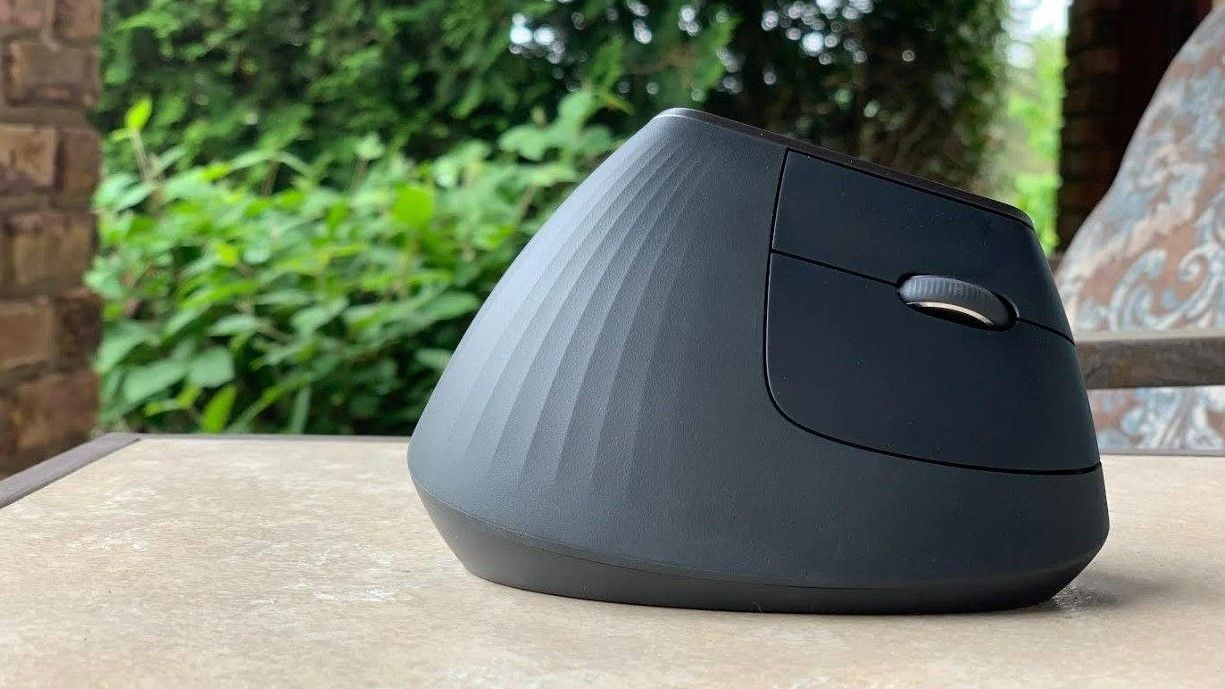
The flat front of the Logitech MX Vertical does not fill my curved fingers. (Image credit: Future)
The ProtoArc EM11 Pro and the Logitech MX Vertical fill my hand differently. Logitech's mouse lies flush against my palm as my hand contours around the mouse. But the flat front of that mouse leaves a small gap between my fingers and the buttons.
In contrast, the ProtoArc EM11 Pro has an elongated base with a curve that tapers down at a sharper angle than the Logitech MX Vertical. As a result, the mouse does not feel flush against my palm. But the front of the mouse is curved, making the space behind the buttons feel more comfortable.
I'd love to have a mouse that combines the best of both designs since neither mouse is perfect.
Two wheels are better than one
I didn't realize the value of a horizontal scroll wheel until I tried one. (Image credit: Future)
ProtoArc's ergonomic mouse has two scroll wheels, one set for vertical navigation and the other for scrolling horizontally. I didn't realize how much I wanted two scroll wheels until I navigated Excel and Google Sheets with a pair of wheels. I've always just held Shift on my keyboard and used the single scroll wheel when I needed to move horizontally in a spreadsheet, but having a second wheel feels much smoother. It also requires less movement, which is a key part of ergonomic setups.
Silent clicks for quiet workspaces
The Logitech MX Vertical can be a bit noisy. In contrast, the ProtoArc EM11 Pro is practically silent. (Image credit: Future)
I work from home, so I don't have any coworkers to irritate with mouse clicking. If anything, my 10-month-old daughter enjoys the Logitech MX Vertical's clicky buttons since she often sits on my lap and plays with my mouse and keyboard.
But if you work in an open office or sit next to someone at school or work, you probably don't want to hear clicking all day. The ProtoArc EM11 Pro is almost completely silent when clicked.
Why I'm sticking with the Logitech MX Vertical
Logitech should take some lessons from the ProtoArc EM11 Pro, but ProtoArc also has some homework to do. ProtoArc's mouse has some lovely features, but I think it either needs a design tweak or an option for people with different-sized hands.
The angle of my hand doesn't feel natural when using the ProtoArc EM11 Pro. The flared bottom makes my hand want to turn over more than I'd like.
Try as I might, I can't find a way to hold the ProtoArc EM11 Pro that feels comfortable. If I place the side of my hand alongside the base, my fingers don't align properly with the buttons. If I slide my hand down so that my fingers align with the buttons, my hand awkwardly presses against the base.
The curvature of the ProtoArc EM11 Pro also makes it feel like I have to curve my hand a bit, rather than rest at a neutral angle.
Ergonomic mice have a learning curve, so I tried ProtoArc's for a while to see if I'd adjust, and it just hasn't — ahem — clicked. But that may be specific to my hand size and shape. I've known people who disliked the feel of the Logitech MX Vertical, so a lot of this comes down to specific users.
Overall, ProtoArc packed its ergonomic mouse with features other companies should envy. I just wish the mouse fit in my hand as well as the Logitech MX Vertical.
This ergonomic mouse allows your arm to rest at a natural angle to reduce fatigue and strain. It's held up incredibly well throughout my years of use.
This budget-friendly ergonomic mouse has two scroll wheels, can connect through a dongle or Bluetooth, and is practically silent when used.View Deal
Side-by-side view of the ProtoArc EM11 Pro ergonomic mouse in the foreground with its orange side buttons and scroll wheel, next to the Logitech MX Vertical mouse sitting on a black desk mat.
Despite its low price, the ProtoArc EM11 Pro has features I miss when switching back to my Logitech MX Vertical.
I've been reviewing Turtle Beach headsets for a long time. The firm has a huge array of products for Xbox and PC gamers, hitting every price point and use case. Many of Turtle Beach's products have easily landed on our best Xbox and PC gaming headsets lists. Where I've personally found Turtle Beach to be most exciting is on the higher-end, where the firm has a tendency to really push the envelope with regards to functionality and value. The Stealth Pro II absolut
I've been reviewing Turtle Beach headsets for a long time. The firm has a huge array of products for Xbox and PC gamers, hitting every price point and use case. Many of Turtle Beach's products have easily landed on our best Xbox and PC gaming headsets lists. Where I've personally found Turtle Beach to be most exciting is on the higher-end, where the firm has a tendency to really push the envelope with regards to functionality and value.
The Stealth Pro II absolutely encompasses that. Yes, it isn't cheap, but it comes in at a comparable price to lifestyle Bluetooth headsets that offer far less functionality and features, often with subpar durability and audio.
With the Stealth Pro II, I'm sitting here well and truly asking myself if this headset isn't just a competitor in the gaming space, but also the general everyday lifestyle space. With a subtle and stylish design, obscene amounts of functionality, and absolutely crystalline audio — the Stealth Pro II could be (should be) your next Xbox / PC gaming headset pick.
Turtle Beach Stealth Pro II — Specs and Price
Even the packaging is slick. (Image credit: Windows Central | Jez Corden)
The Turtle Beach Stealth Pro II headset is a monster on paper, boasting an impressive array of features, functions, and premium-end specs.
Here's an overview of what you can expect to get out of the box.
Xbox Series X|S, Xbox One, PC, Bluetooth mobile devices. Additional USB transmitters for PlayStation / Nintendo sold separately.
Included Accessories
Hard‑shell case, transmitter dock, USB wireless transmitter, USB‑C cable, two batteries
Price
£299.99 / $349.99 / €349.99
At $349.99, it's not exactly what I'd call cheap, but that seems to have become the standard for headsets that are really pushing the bar when it comes to premium audio and "do everything" specs.
You can swap between two 40-hour batteries, with one permanently charged and ready to go in the transmitter dock. It comes with an additional USB transmitter for PC, with the main charge dock functioning as the radio for Xbox. It also sports Bluetooth 5.3 audio with LDAC, with simultaneous mixing with a USB sound source. It grabs the Hi-Res certification that has become all the rage lately, and boasts a massive speaker upgrade over the previous gen, with dual 60mm drivers and a huge frequency spectrum from 10Hz to 40kHz.
What's it like to actually use, though?
Turtle Beach Stealth Pro II — Design and Comfort
An absolute stunner, showing real restraint for a company previously known for neon green plastic and toy-like designs. This could be your every day headset. (Image credit: Windows Central | Jez Corden)
I think this is quite easily Turtle Beach's most attractive headset design. The Stealth Pro of yesteryear was fantastic, but it was still quite bulky in that typical "gamer" way, designed for isolation rather than fashion. Somehow, the 'Beach has managed to thread both needles with a single line here. Absolutely stunning engineering and design here.
The brushed metal speaker plates look great on the outside, and there remains a very subtle Turtle Beach imprint that stays out of the way and won't cramp anyone's style. The speakers are accented with the same metallic trims, and the headband connects with these bending connectors that look very futuristic.
The microphone is simultaneously flip-to-mute and detachable, allowing you to go fully wireless. It has internal microphones as well for taking calls on the go without using the full mic boom.
The attention to detail extends to the controls. Each sports a different "feel" on the fingers to help you differentiate between the controls. It's smart, ergonomic design. (Image credit: Windows Central | Jez Corden)
The tapered cans reduce the visible footprint of the headset, which I feel reduces its visible "bulk" over some of Turtle Beach's previous attempts at a headset like this. And this is without compromising on speaker size or features. The 60mm drivers are a noticeable upgrade over the previous model, with separated tweeters and woofers.
On comfort, this is the only part where I think more attention could've been paid. The headband is made of this odd nylon mesh which, while looking pretty, is actually quite tight and uncomfortable over longer sessions. I imagine it's something one could get used to, but it seems like an odd oversight given how painstaking the rest of the design work is. The mesh is also great at trapping dust and is a bit difficult to clean effectively. Additionally, it doesn't seem to be replaceable ... so if you rip it somehow, you're kind of screwed.
I'm also not a huge fan of the fabric material used on the cushions. While it is comfortable, Turtle Beach's previous materials felt a little smoother on the skin. I am someone who vastly prefers leatherette over fabric, though, so take that as you will.
Turtle Beach Stealth Pro II — Features and Audio
It's far better looking than me. (Image credit: Windows Central | Jez Corden)
Where this headset absolutely dominates is audio. This is by a country mile the best-sounding headset Turtle Beach has ever produced. As I write this, I'm listening to Tool at maximum volume and enjoying my very own personal concert in an absolutely vast virtual soundscape with impressive separation, thundering, warm bass, and enjoying distortion-free treble, mids, and highs.
The intros on songs I've been intimately acquainted with for decades come through with details I've not experienced prior. Regardless of what I threw at it, from thundering double bass-peddle metal tracks to haunting electronica, it has been a really really fun time testing this headset out. For music and cinematic delivery, this headset is goosebumps-inducingly good, truly ethereal, regardless of genre. For lifestyle and daily mobile use, it also rocks up with active noise canceling, which is very good too. I put it through its paces with noisy fans and my air filter on maximum settings, and felt myself fully isolated with my Spotify playlist.
But what about gaming?
The nifty transmitter dock ensures you always have a 40-hour battery fully charged and ready to go. It also future-proofs you against flats. (Image credit: Windows Central | Jez Corden)
You can indeed expect a similarly amazing experience in games, too. Rocking up with Overwatch and the review build of Halo Campaign Evolved was as immersive as you might expect. Halo's intro music somehow never fails to enchant, and it's only elevated with a good sound system like these.
Where things get even more impressive, particularly in competitive play, is with Turtle Beach's famed SuperHuman Hearing.
Using the bundled Swarm II app, you can set it to focus either on footsteps or gunshots; there's also a legacy setting for those who prefer the old-school profile. SuperHuman Hearing does negatively impact the "cinematic" feel of games, creating an unnatural soundscape — but that's entirely the point. It's supposed to look for and emphasize sound cues that will give you a tactical advantage. And it does work. Games that are already designed with tactical sound design have always worked well with Turtle Beach's SuperHuman Hearing system, but with this headset it hits another level. If Battlefield 6 or Overwatch were Olympic sports, this headset would probably get you banned for cheating.
Another part of this headset that's utterly impressive is the microphone. It's detachable and sports flip-to-mute capabilities as mentioned, but it also has a miniature shock protector, which I've simply never seen before in a gaming headset.
Above is an audio sample with the headset's AI-powered noise cancellation feature turned on. In the first half, you can hear my voice come through clearly despite having a fan blowing directly on the mic, which is impressive. It sounds a lot better without the fan on, of course, but the clarity is rock solid for gaming comms.
I think I'd even be comfortable dropping my XLR mic and using this headset for actual game streaming, which is not something I find myself saying often these days. Turtle Beach really nailed it across the board when it comes to audio here.
Turtle Beach Stealth Pro II — Should you buy it?
A pricy headset that absolutely will not disappoint you. (Image credit: Windows Central | Jez Corden)
I absolutely adore this headset. The sound is a true pleasure, and it's always a joy when a headset like this delivers so much. It makes the review process fun, as I have an excuse to listen to several albums and play several games as part of my "extensive" testing process ...
I was a bit disappointed with the headband and materials on the earcups. I'm also a bit disappointed that Turtle Beach still can't seem to nail dual-USB sound source mixing, although I admit the requirement for that is pretty niche, and not something 99% of people will actually use. Being able to mix Bluetooth in simultaneously with your Xbox or PC is a nice consolation, though.
✅ You should buy this if:
You want best-in-class audio on a multi-platform gaming headset.
You're willing to pay a premium for things like ANC and high-end specs.
You're a fan of Turtle Beach's SuperHuman Hearing feature.
Where this headset just shines above all is the sound delivery. The soundscape is incredibly immersive for its category, and the microphone is also a cut above what I'd typically expect from a gaming headset.
At this price point, there aren't really a ton of competitors out there worth considering in this range. I absolutely don't think you'll be disappointed with this if you're a dedicated Xbox and PC gamer who wants a bit of Bluetooth and music capabilities on the side. This is an immaculate "do everything" headset that definitely feels worth the price of admission for me.
Amazing
Turtle Beach
Stealth Pro II
The Turtle Beach Stealth Pro II is an absolutely stunning headset that sports arguably some of the best audio reproduction I've experienced in such a fully-featured gaming headset.
I found the one Prime Day deal I can recommend above all others. At $67.67, the Logitech MX Vertical is an excellent purchase.I hate the fact that Prime Day still requires hunting for deals. You'd think an event centered around shopping would guarantee great prices, but that's not the case.I was pleasantly surprised to see the Logitech MX Vertical discounted by 44% on Prime Day."I honestly can't think of a thing I'd change about the Logitech MX Vertical. I dislik
I hate the fact that Prime Day still requires hunting for deals. You'd think an event centered around shopping would guarantee great prices, but that's not the case.
I was pleasantly surprised to see the Logitech MX Vertical discounted by 44% on Prime Day.
"I honestly can't think of a thing I'd change about the Logitech MX Vertical. I dislike having to use other mice because I've been spoiled by the Logitech MX Vertical. " ~ Sean Endicott, news writer, Windows CentralView Deal
Are Prime Day deals worth it?
Some Prime Day deals are worth it. The shopping event is genuinely a good way to save money on some items. But that doesn't mean anything you see on sale during Prime Day is a good deal.
It's normal to see an item marked up a few weeks before Prime Day to make the Prime Day "discount" look better.
In the worst cases, an item actually becomes more expensive than usual during Prime Day. Retailers manipulate price history to make a bad price look good.
These are the types of things our team of experts looks out for when finding Prime Day deals. It's also why hand-picked Prime Day deals are better than blindly trusting a sale tag.
The Logitech MX Vertical is currently $67.67 for Prime Day. According to CamelCamelCamel, that is almost the lowest price ever for the mouse (it once hit $63.79 on Amazon). Perhaps more importantly, the price is significantly lower than what we've seen the majority of this year.
Why buy the Logitech MX Vertical
The Logitech MX Vertical is an ergonomic mouse that allows your wrist and arm to rest at a natural angle. That results in less muscle strain and reduced wrist pressure.
Because of the shape of the mouse, you don't have to move your hand as much. Tiny movements add up, and being able to keep your hand in place does a lot to reduce strain.
The Logitech MX Vertical is by far the best mouse I've used.
Over the years, its rubber grip has held up well. The mouse still lasts for ages when running on battery. It's easy to top up through USB-C when it's time to charge.
It checks all the boxes I want in a mouse.
The only downside of the Logitech MX Vertical is its retail price, but the massive discount on the mouse makes that a non-factor.
Join us on Reddit at r/WindowsCentral to share your insights and discuss our latest news, reviews, and more.
Logitech MX Vertical Mouse
My Logitech MX Vertical mouse has sat on my desk for years, and it has aged incredibly well.
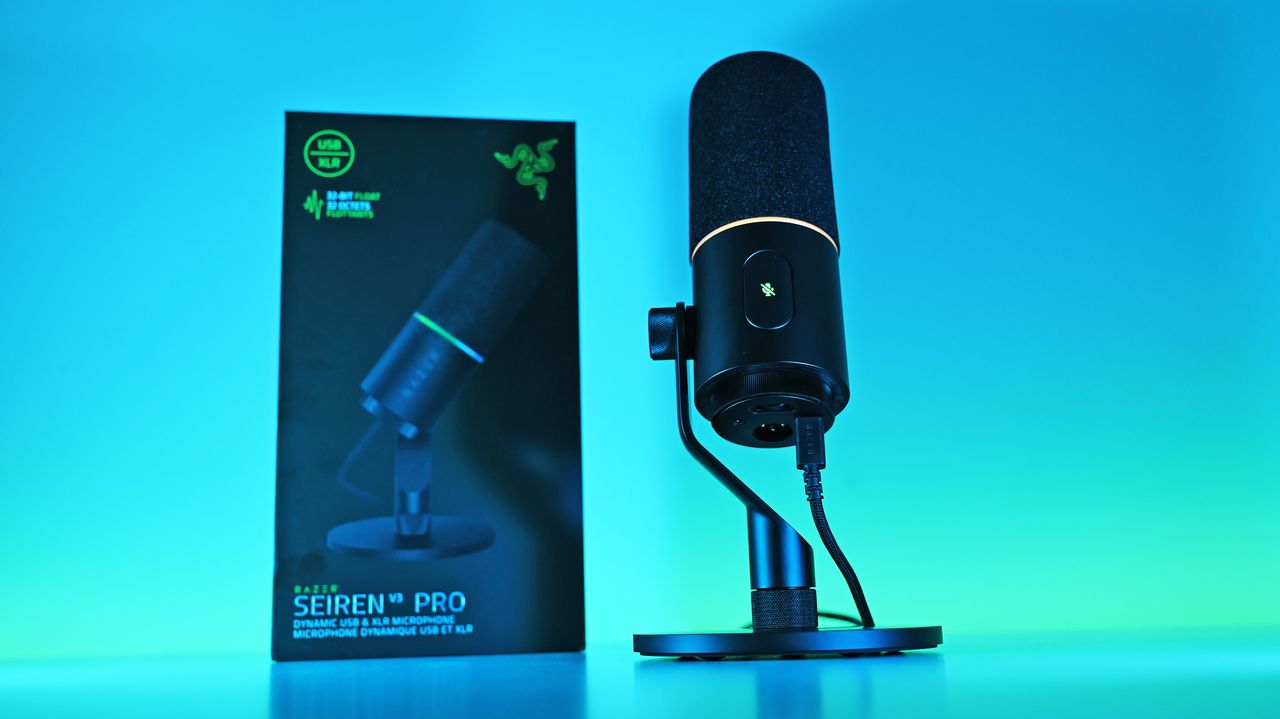
The Razer Seiren V3 Pro arrives as a pro‑level streaming microphone that finally feels like the centerpiece of Razer’s recent run of impressive peripherals. It pairs studio‑grade hardware — a large 30 mm dynamic capsule, USB‑C and XLR outputs, and tactile controls — with deep Synapse software and Chroma RGB flair, aiming to satisfy both serious creators and RGB enthusiasts. This review cuts through the marketing: I’ll show what the mic actually sounds like, how i
The Razer Seiren V3 Pro arrives as a pro‑level streaming microphone that finally feels like the centerpiece of Razer’s recent run of impressive peripherals. It pairs studio‑grade hardware — a large 30 mm dynamic capsule, USB‑C and XLR outputs, and tactile controls — with deep Synapse software and Chroma RGB flair, aiming to satisfy both serious creators and RGB enthusiasts.
This review cuts through the marketing: I’ll show what the mic actually sounds like, how its software and features stack up against rivals, and whether it’s worth swapping in for your current setup.
Razerhad no input, nor did it see the contents of this review, prior to publication.
What it is
The Razer Seiren V3 Pro ($249.99 / €289.99) is a hybrid dynamic microphone tailored specifically for streamers, podcasters, and music producers.
At its heart sits a custom 30 mm dynamic capsule purpose-built to capture broadcast-style depth and natural warmth.
Structurally, it features a robust, resonance-resistant zinc unibody frame paired with an integrated, vibration-dampened adjustable arm mount.
To round out its premium aesthetic, it includes a gorgeous Razer Chroma RGB lighting ring that doubles as a real-time status and live mute indicator, which can be enabled by the mic button.
Quick set up
(Image credit: Daniel Rubino)
Unboxing the Razer Seiren V3 Pro is refreshingly simple. Unlike many high-end microphones that leave you scrambling to buy external accessories, this mic is entirely ready to rock right out of the box.
It features an included desktop stand, a built-in shock absorber, and a removable pop filter. Just plug it in via the included USB Type-C cable, complete a quick configuration, and you are up and running.
If you want to jump into the pro tier immediately, you can just as easily route an XLR cable (not included) straight from the base into an audio interface or mixer.
It’s a frictionless setup that gives you studio-grade enhancements with zero technical expertise required.
How it's different
USB, XLR, microphone port, and gain control are on the bottom of the Seiren V3 Pro. (Image credit: Daniel Rubino)
The Seiren V3 Pro separates itself from the pack by flawlessly bridging mainstream USB convenience and professional XLR performance.
Its primary direct competitor in this hybrid category is the HyperX Flipcast, which we've also reviewed. However, the Seiren V3 Pro secures a massive hardware victory right away: it includes a high-quality desktop stand and integrated shock mount in the box, whereas the Flipcast notoriously ships without a stand or boom arm, forcing an immediate extra purchase.
Furthermore, the software support here is on an entirely different level. While HyperX’s NGENUITY app offers rudimentary controls, Razer Synapse unlocks deep, granular audio customization:
32-Bit Float Support: Available via Synapse, this format captures a dramatically wider dynamic range to effectively eliminate digital clipping and distortion.
Advanced Audio DSP: Houses an advanced parametric EQ, noise gate, compressor, limiter, and AI noise remover directly powered by an onboard hardware engine.
Synapse Advanced Mixing: Allows for multi-channel stream routing right within the application interface.
What it's great at
A big mute button on the side is enabled/disabled with a light tap, so you don't disturb the mic while on a mount. (Image credit: Daniel Rubino)
The biggest hardware triumph here is the dual-connectivity workflow. Having both USB-C and XLR connections on one microphone offers massive advantages, though it comes with standard hybrid trade-offs:
The Pros: It provides immense versatility. Newcomers can start with a simple, plug-and-play desktop configuration and seamlessly transition into an advanced analog signal chain down the road without buying a new microphone. Interestingly, you can keep both the USB and XLR cables plugged in simultaneously and dynamically switch between them on your Windows PC.
The Cons: You are paying a premium for dual internal electronics, and advanced Synapse software functions (like 32-bit float, the parametric EQ, and advanced mixing) are strictly limited to the digital USB connection.
During testing, there wasn't a noticeable difference in tonal warmth when swapping between the two connections, but the USB interface emerged as the clear favorite for me purely because it unlocks Synapse's superior sound features and DSP suite.
My experience otherwise with the mic has been great. You can hear it in action in the short review video accompanying this article, as well as on our recent Windows Central Podcast, Episode #396.
For now, I plan to keep using this mic over my HyperX ProCast. While the ProCast is an excellent, gold-sputtered large-diaphragm XLR condenser, it is strictly analog, requires 48V phantom power, and entirely lacks the modern digital conveniences, RGB integration, and software agility that make the Seiren V3 Pro so effortless to use daily.
Plus, while the ProCast had an original MSRP of $199.99 and dropped as low as $99.99 on sale, it now appears to be discontinued and increasingly hard to find, completely out of stock at both Best Buy and HyperX.
Daniel RubinoDaniel RubinoDaniel Rubino
The Razer Synapse software features offer brilliant audio tuning, particularly the automatic environment noise test and AI noise remover. They do a spectacular job of silencing background hums and room reflections.
The Razer Synapse setup here was awesome: Hit a button and record yourself talking for 10 seconds. Hit another button and say nothing for 10 seconds. Then answer a few questions, e.g., what is your goal here (streamer, podcast, general, etc.) and what do you have fans running, environmental noise, etc. From that data, the system suggests your tuning, which you can then accept, and you're done. You can re-run the process anytime in Synapse should anything change.
The only minor catch is that the aggressive noise cancellation can occasionally cut your voice out a bit during quieter moments. Because of this, some manual tweaking of the noise gate threshold may still be needed to get it dialed in perfectly.
Finally, if you are already invested in Razer’s ecosystem—sporting a Razer keyboard, mouse, or monitor—adding this mic beautifully completes the package. The Chroma RGB ring integrates flawlessly into your existing lighting profiles, satisfying RGB enthusiasts while giving clear visual feedback on your live mute status via the tap-to-mute sensor.
Who's it for
The mic is "naked" without its pop-filter, which slides off. (Image credit: Daniel Rubino)
This microphone is built for the forward-thinking content creator. It is perfect for game streamers, podcasters, and hybrid musicians who want beautiful aesthetic flair and USB simplicity today, but demand the studio-grade security of an XLR output as their production setup grows.
Should you buy the Razer Seiren V3 Pro?
I ended up liking the Seiren V3 Pro more than I expected, largely due to the software and DSP controls. (Image credit: Daniel Rubino)
You should buy it if ...
✅ You want USB‑C now, XLR later.
✅ You use Razer Synapse/Chroma and want full integration.
✅ You need onboard DSP (32‑bit float, AI noise removal) to cut post‑work.
You should not buy this if ...
❌ You prefer a pure XLR, software‑free workflow.
❌ You’re on a tight budget and don’t need RGB or Synapse.
❌You need full feature parity on macOS without Windows Synapse.
Admittedly, my "you should not buy ifs" here are nitpicky. You can just use this as an XLR mic with a software-free workflow if you want and not worry about USB or software. But there are also more affordable XLR-only mics, hence the con.
At $249.99, Razer positions the Seiren V3 Pro firmly in the higher-end premium tier compared to the HyperX Flipcast (which currently sits at $179.99 against a $229.99 MSRP) and the now-evaporated ProCast.
However, for me, the incredible Razer Synapse DSP more than makes up for that higher cost. The sheer quality of the out-of-the-box hardware processing saves massive time in post-production. I didn't expect that to be the big selling point, but it's clever software and the kind of "don't think about it" setups I prefer.
While you could look at other heavy hitters at this price point like the Shure MV7+ or SteelSeries Alias Pro, Razer brings an unmatched physical build quality, out-of-the-box completeness, and ecosystem synergy to your desk. It delivers studio sound, simply and effortlessly.
Razer
Razer Seiren V3 Pro Microphone
Razer's new studio‑grade mic with 32‑bit float clarity, USB/XLR flexibility, built‑in DSP and pop filter, RGB status ring, and durable zinc design for clean, professional sound in streaming or recording setups.
Low-angle shot of the Razer Seiren V3 Pro mic plugged into a USB-C cable next to its box, illuminated by a vivid blue and cyan background.
Low-angle shot of the Razer Seiren V3 Pro mic plugged into a USB-C cable next to its box, illuminated by a vivid blue and cyan background.
Out of all the gaming accessory manufacturers, Razer has got to be my absolute favorite. From providing comfortable gaming chairs to esports-ready controllers and headsets, Razer's products have enriched mine and many others' lives, and it's about to enrich a lot more of them.Razer is hosting an Amazon Prime Day sale on several of its top-grade PC gaming peripherals, lifestyle furniture, controllers, and more for a limited time, and we've rounded up some of its b
Out of all the gaming accessory manufacturers, Razer has got to be my absolute favorite. From providing comfortable gaming chairs to esports-ready controllers and headsets, Razer's products have enriched mine and many others' lives, and it's about to enrich a lot more of them.
Razer is hosting an Amazon Prime Day sale on several of its top-grade PC gaming peripherals, lifestyle furniture, controllers, and more for a limited time, and we've rounded up some of its best for you to check out.
"The Razer Viper V3 Pro is the new champion of Razer's high-end esports gaming lineup, and it packs a ton of impressive tech into a lightweight package." ~ Zachary Boddy, former Staff Writer
"The Razer Basilisk V3 Pro 35K takes an already great mouse and elevates it further. Its bulk and weight won’t be for everyone, but there’s no doubt it brings an awful lot to the table." ~ Alex Blake, Freelance Contributor at TechRadar
"The Razer Huntsman V3 Pro is undeniable as the world's most advanced gaming keyboard. Adjustable actuation and endless customization make it a boon for any professional esports gamer." ~ Zachary Boddy, former Staff Writer
"The Razer Huntsman V3 Pro is undeniable as the world's most advanced gaming keyboard. Adjustable actuation and endless customization make it a boon for any professional esports gamer." ~ Christopher Coke, Contributing Writer at Tom's Hardware
"The Razer Kraken V4 refines the comfortable design to be slimmer and more attractive, adds more RGB lighting, and improves the audio quality across the board." ~ Zachary Boddy, former Staff Writer
"Razer has finally made a wireless controller for the Xbox and overall it's absolutely brilliant. Combining the best aspects of previous Wolverine controllers, Razer has updated it for the present day with its excellent mouse switch technology, hall effect sticks and an ergonomic design that I would argue is better even than Microsoft's own." — Richard Devine, Managing Editor
"The Razer Kishi V3 Pro takes everything great about Razer's excellent Kishi Ultra and adds more buttons and features and plenty of other enhancements. It's truly the ultimate mobile gaming controller, as long as you don't mind the size." ~ Zachary Boddy, former Staff Writer
This is the extra-large version of the Kishi V3 Pro controller built to accommodate Android and iPad tablets up to 13-inches big.View Deal
"The Razer Basilisk V3 Pro 35K takes an already great mouse and elevates it further. Its bulk and weight won’t be for everyone, but there’s no doubt it brings an awful lot to the table." ~ Rhys Wood, Hardware Editor at TechRadar
"Despite its stiff backrest and lumbar support, the Razer Iskur V2 X is a great gaming chair with high-quality seat cushioning and padded armrests that will keep you relaxed during long periods of gaming." ~ Alex Corden, Staff Writer
This is the upgraded version of the Iskur V2 X chair built with Razer Gen-2 EPU leather and Cool tech, so it's 13 times more durable, breathable, and comfortable to sit in. View Deal
FAQ
When does Amazon's June Prime Day event start?
Amazon's Prime Day June event starts on June 23, 2026 and will last until June 26, 2026.
Join us on Reddit at r/WindowsCentral to share your insights and discuss our latest news, reviews, and more.
Image of the Razer Huntsman V3 Pro gaming keyboard.
Image of the Razer Huntsman V3 Pro gaming keyboard.
Logitech’s new Signature Comfort Plus keyboard and mouse add built‑in cushions that allow for more relaxed hand positions. The real question is whether they'll convince me to upgrade?Logitech Signature Comfort Plus mouse and keyboardLogitech Signature Comfort Plus mouse and keyboard
Logitech’s new Signature Comfort Plus keyboard and mouse add built‑in cushions that allow for more relaxed hand positions. The real question is whether they'll convince me to upgrade?
Logitech Signature Comfort Plus mouse and keyboard
Logitech Signature Comfort Plus mouse and keyboard
Razer is doubling down on the "Pro" in its Huntsman lineup. The new V3 Pro TKL 8KHz takes the already excellent V3 platform and injects it with a massive 8,000Hz HyperPolling boost, improved acoustics, and the game-changing Snap Tap technology. Aimed squarely at the esports crowd, this $169.99 deck offers unparalleled customization for actuation and reset points.A Razer Huntsman V3 Tenkeyless keyboard with RGB lighting in front of its box. A vibrant pink and blue background creates an energetic,
Razer is doubling down on the "Pro" in its Huntsman lineup. The new V3 Pro TKL 8KHz takes the already excellent V3 platform and injects it with a massive 8,000Hz HyperPolling boost, improved acoustics, and the game-changing Snap Tap technology. Aimed squarely at the esports crowd, this $169.99 deck offers unparalleled customization for actuation and reset points.
A Razer Huntsman V3 Tenkeyless keyboard with RGB lighting in front of its box. A vibrant pink and blue background creates an energetic, high-tech feel.
A Razer Huntsman V3 Tenkeyless keyboard with RGB lighting in front of its box. A vibrant pink and blue background creates an energetic, high-tech feel.
SteelSeries is one of the world's leading providers of high-quality gaming accessories, and several of their finest keyboards and mice are now on sale, along with a pair of gamepuds at Best Buy for a limited time.Colorful gaming setup with two RGB keyboards, wireless earbuds in a charging case, and a glowing gaming mouse against a digital, lightning-filled background.Several SteelSeries gaming accessories are now on sale.
SteelSeries is one of the world's leading providers of high-quality gaming accessories, and several of their finest keyboards and mice are now on sale, along with a pair of gamepuds at Best Buy for a limited time.
Colorful gaming setup with two RGB keyboards, wireless earbuds in a charging case, and a glowing gaming mouse against a digital, lightning-filled background.
Several SteelSeries gaming accessories are now on sale.
Several Razer gaming accessories themed after the classic Pokémon Gengar, including a gaming headset, gaming mice, and a mouse pad, are all enjoyable limited-time bargains at Amazon.Purple-lit gaming setup featuring a boxed Razer Kraken Kitty headset with cat ears on a desk, alongside a gaming chair and monitor in the background.Gengar lovers will love this gaming headset.
Several Razer gaming accessories themed after the classic Pokémon Gengar, including a gaming headset, gaming mice, and a mouse pad, are all enjoyable limited-time bargains at Amazon.
Purple-lit gaming setup featuring a boxed Razer Kraken Kitty headset with cat ears on a desk, alongside a gaming chair and monitor in the background.
The Tom’s Guide Savings Squad is officially live, officially useful, and officially ready to help you stretch your tech budget further than you thought possible.Five diverse individuals stand closely together against a gradient blue background. A logo with "tg Savings Squad" is on the right. They appear friendly and approachable.Five diverse individuals stand closely together against a gradient blue background. A logo with "tg Savings Squad" is on the right. T
The Tom’s Guide Savings Squad is officially live, officially useful, and officially ready to help you stretch your tech budget further than you thought possible.
Five diverse individuals stand closely together against a gradient blue background. A logo with "tg Savings Squad" is on the right. They appear friendly and approachable.
Five diverse individuals stand closely together against a gradient blue background. A logo with "tg Savings Squad" is on the right. They appear friendly and approachable.
Finally, after almost a decade, I've replaced my battered Astro A50 headset. The Arctis Nova Pro Omni ticks every single box for multiplatform gamers, in an option far more affordable than its Elite cousin.SteelSeries Arctis Nova Pro Omni photographsHeadset ascending.
Finally, after almost a decade, I've replaced my battered Astro A50 headset. The Arctis Nova Pro Omni ticks every single box for multiplatform gamers, in an option far more affordable than its Elite cousin.
The Razer Barracuda Pro is a special premium headset that elevates the sound of music and video games with great sound and the ability to connect to devices simultaneously, and it's now on offer for a 44% discount.Sleek gaming headphones in green and purple hues sit on a dark desk, surrounded by a glowing RGB keyboard and a smartphone, creating a vibrant tech ambiance.Stylish and functional headset for gaming and music
The Razer Barracuda Pro is a special premium headset that elevates the sound of music and video games with great sound and the ability to connect to devices simultaneously, and it's now on offer for a 44% discount.
Sleek gaming headphones in green and purple hues sit on a dark desk, surrounded by a glowing RGB keyboard and a smartphone, creating a vibrant tech ambiance.
Stylish and functional headset for gaming and music

 Connexion