
❌

Vue normale

You can now test Microsoft's new Windows Search experience

At its Windows 11 and Surface event, Microsoft showed off its improved Search experience. The new Search is faster, more efficient, and has a streamlined design that should be easier to scan.

The streamlined Windows Search is about more than finding files or apps, though it can do that. Search can perform tasks, such as switching your PC to dark mode or changing the volume of your computer.

Whether you're more interested in the performance improvements or the new features, there's reason to install the latest builds of Windows 11 that shipped to the Experimental channel and the Experimental channel (26H1). Insiders in those channels can now test the refreshed Search experience with limited support for inline actions.

Microsoft's engineers must have been excited about Windows after its big event, because five Insider builds were released yesterday. Two of them include the refreshed Windows Search. Here's everything that's new across all of the builds.

Windows Search (Experimental, Experimental (26H1))

  • New Windows Search experience with inline actions: We're beginning to roll out a new Windows Search experience built on WinUI 3 that is faster, more efficient, and features a streamlined design that makes results easier to scan. We're also introducing inline actions, allowing you to quickly complete tasks directly. Turn on dark mode or Bluetooth, adjust your screen brightness, mute your device, or arrange windows from Windows Search.
  • We're improving how Windows Search understands what you're looking for, including better matching for typos and synonyms. We'll continue fine-tuning these improvements over the coming weeks. For more information detailing the new changes, check out the Windows Insider Blog.
  • English is the only supported language for this initial release.
  • After upgrading to this build, restart your device before the New Windows Search Experience feature flag is visible.

Battery status widget (Experimental)

  • As part of our continued commitment to making Widgets more useful for everyday moments, we're introducing the Battery Status widget for Insiders on newer builds. This widget provides a unified view of battery levels for your PC and peripheral devices, helping you quickly assess power status without hunting through multiple UI locations. Add it by going to Widgets board > Add widgets > Battery Status.

Narrator (Experimental (26H1))

  • Read and explore math equations with Narrator (see full description in release notes)

Kerberos enhancements (Experimental)

  • IAKerb is now enabled by default for Windows client. IAKerb is a Kerberos extension that allows Windows authentication to succeed in scenarios where traditional Kerberos can't be used because a direct connection to a domain controller is unavailable. This extension helps reduce reliance on NTLM while improving compatibility for modern authentication scenarios. For additional background, implementation details, and early preview information, see Reducing NTLM Dependency: IAKerb and LocalKDC in Windows Insider Preview.

Task Manager (Experimental)

  • Task Manager is expanding process grouping to allow apps to combine otherwise separate background processes into a single unified category rather than relying solely on traditional parent-child trees. This makes an app's resource usage easier to understand. Microsoft Defender is the first app to use this capability.

Windows Update (Experimental)

  • Fixed the issue causing some Insiders with Windows Sandbox enabled to get error 0x80073712 when attempting to install the latest updates.

Security (Experimental)

  • We've updated the security key PIN entry experience, removing the "other user" icon for a clearer sign-in experience.

Taskbar (Experimental)

  • Fixed an issue impacting some Insiders recently, which was causing the taskbar app window previews to become slower and noticeably lag over time.

Taskbar (Experimental (26H1))

  • Improved underlying state persistence of taskbar settings related to multiple monitors across monitor connections and disconnections.

Settings (Experimental)

  • Removed the backplate from the Settings icon when UAC is invoked from within Settings.

File Explorer (Experimental)

  • Added support for font preview and installation in the File Explorer and desktop context menus.

Other (Experimental)

  • Fixed an issue with msmpeg2ac3dec.dll which was leading to some apps and games crashing recently.

General (Experimental (Future Platforms))

  • Symbols were missing for our previous flight. They should be available for this one.

Widgets (Beta)

  • As part of our continued commitment to making Windows calmer and higher quality, we’re updating the default lock screen widget experience for Insiders on newer builds. With this change, Weather will be the primary widget shown on the lock screen, reducing recommended widget content and making the experience feel more focused. We're also giving users more control of personalizing the widgets on lock, curating the ones they find most useful for them. Users can access these settings by going to Settings > Personalization > Lock screen.

The new Search experience is the biggest change, but I'm also excited about the Battery Status widget that's now available to more Insiders. Microsoft has largely ignored widgets on Windows 11, so it's nice to see a useful one on its way.

Click to join us on r/WindowsCentral

Join us on Reddit at r/WindowsCentral to share your insights and discuss our latest news, reviews, and more.
Windows 11's new native Search can control your PC

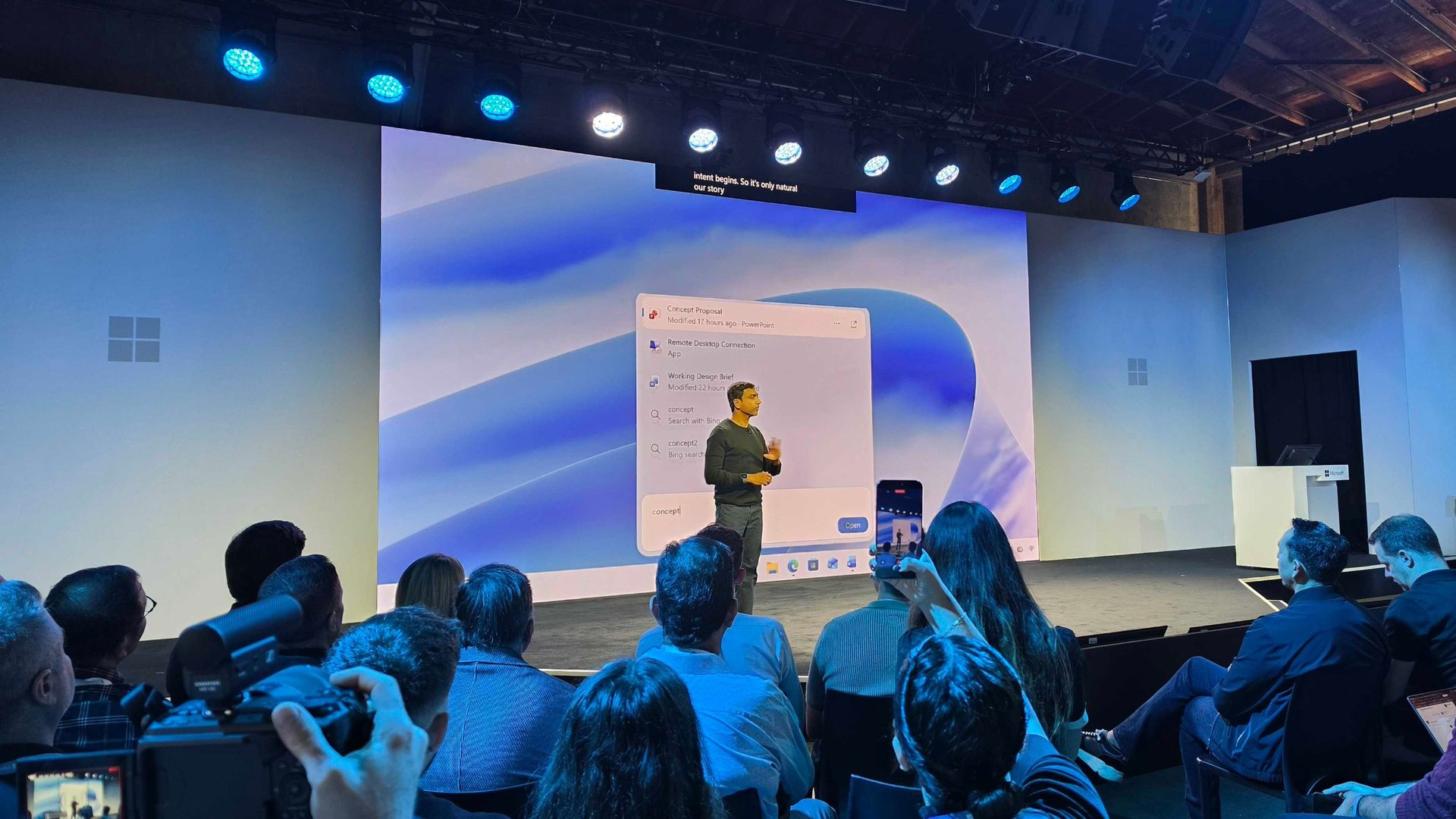
Microsoft just unveiled the new Windows Search experience at its Windows and Surface event. The new Search is more than just a search feature; it's a system composer. That means it can be used to control your PC. Microsoft's Windows lead Pavan Davuluri discussed the new Search experience on stage.

Starting this fall on Windows 11 PCs, users can take thousands of quick actions directly from Search in the Taskbar. For example, you could enable dark mode or switch your PC to Do Not Disturb. You can also adjust your microphone slider through the new Search experience.

You can even use the new Search experience to send a text message through Phone Link.

Microsoft detailed the new Search in a blog post. It also shared some examples of actions you can perform:

  • Turn something on or off. Try phrases such as “switch to dark mode”, “turn on night light,” or “turn on Bluetooth.”
  • Make a quick adjustment. Try “dim my screen” or “mute.”
  • Manage your workspace. Try “minimize all my windows,” or “arrange windows on screen.”

Copilot can be summoned through the new Search as well, showing responses directly within the user interface. You won't have to jump into a separate app to interact with Copilot. If you do want to jump to the full Copilot app, there's a shortcut to do so.

As you'd expect, the new Search experience can also be used to search for things on Windows 11. "At its core, the new Windows search experience is quicker, more efficient, so you can find your files, settings, and apps faster," said Davuluri.

The new Windows Search experience is faster and more efficient with resources because it is built on WinUI 3

Windows 11 desktop showing Microsoft's new Search experience with recent files, apps, settings controls, and quick actions available from a Taskbar search panel.

(Image credit: Microsoft)

Windows Search will better understand what you're searching for. For example, it will still be able to find items even if your input has a typo.

Microsoft will start testing the new Search experience with Windows Insiders today, October 7, 2026. It will appear first through the Experimental channel.

This piece was written during the live stream of the Windows and Surface event. Microsoft is expected to share more details about the new Search experience and other items discussed at the event. We will update this piece with more information as it becomes available.

These Bose headphones changed how I shop forever

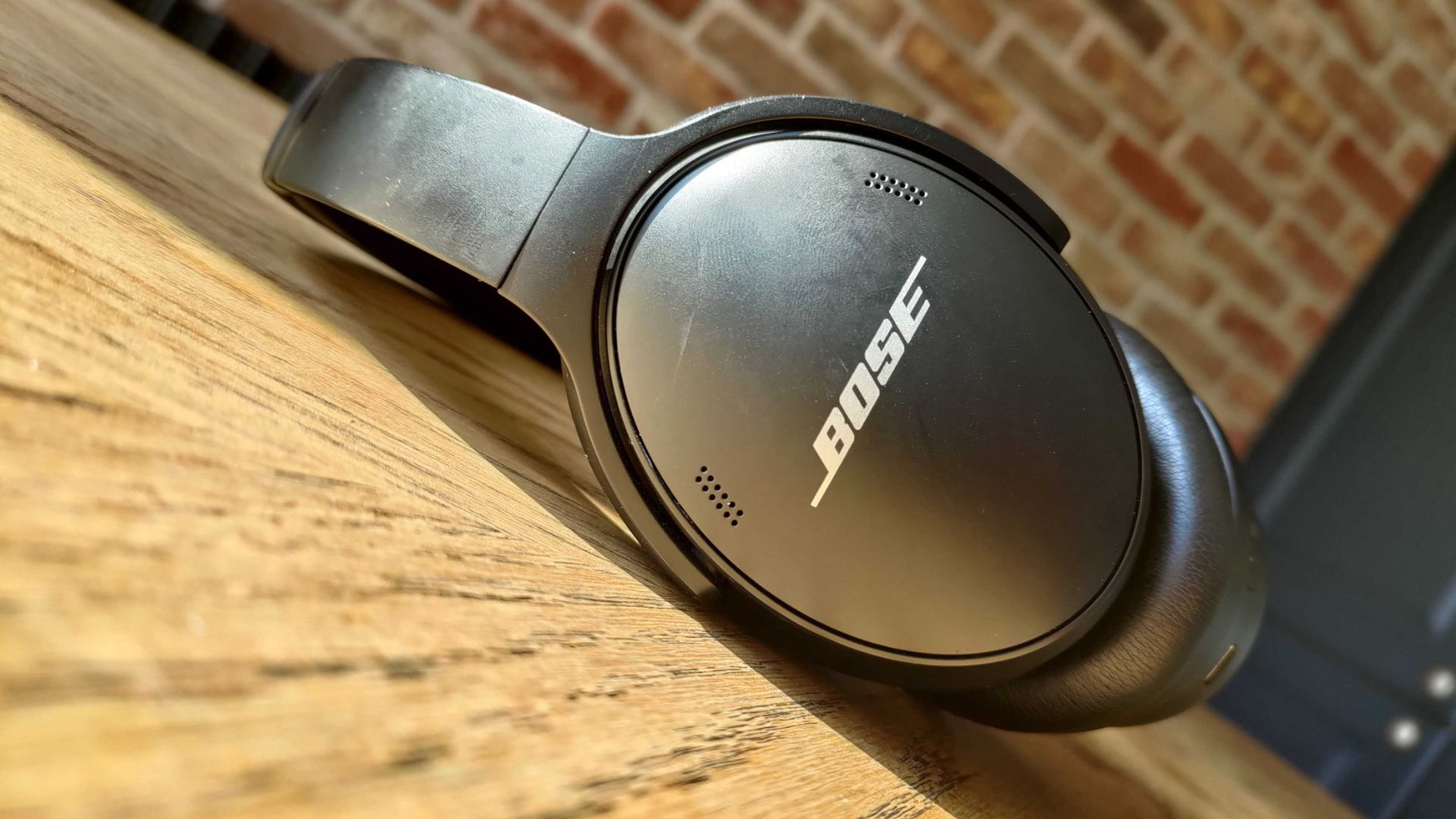
"Babe?... Babe!? Is everything alright?" If you're in my house on a relaxing weekend afternoon, you'll often hear me trying to get a hold of my wife. I have to ask a few times, not because she's ignoring me, but because she has a pair of noise cancelling headphones on.

For the last couple of years, my wife has donned a pair of Bose QuietComfort Wireless Noise Cancelling Headphones. They're sleek, comfortable, and do a great job blocking out noise. And right now, they're on sale for $190 off.

QuietComfort Wireless Noise Cancelling Headphones: was $359.00 now $169.00

These noise cancelling headphones are comfortable, sound great, and last all day. They charge through USB-C, so even if they do run out of battery they're easy to top up.View Deal

You may be surprised to hear that I rarely spend a lot of money on gadgets. I love covering tech, but I try to keep my spending down when it comes to laptops, phones, and accessories. That's why it was a major shift when I bought my wife a pair of Bose QuietComfort Wireless Noise Cancelling Headphones. Back then, the headphones were newer and closer to full price.

But I wanted to splurge on a gift for my wife. She loves music, audiobooks, and podcasts, so I knew she needed a pair of headphones that she could wear all day. The headset from Bose delivered. They're comfortable, block out noise with active and passive noise cancellation, and last a long time.

They're mostly my wife's headphones, but I use them at least once a month and am frequently reminded of how much I like them. After years of heavy use they show some wear and tear (I just ordered new ear pads), but they still sound great.

The Bose QuietComfort Wireless Noise Cancelling Headphones are now a bit older, but they still deliver high-quality audio and are comfortable. They lack some of the bells and whistles you'll see in newer headsets, but they've aged well.

The $190 discount on the Bose QuietComfort Wireless Noise Cancelling Headphones makes them easy to recommend.

Do I need Prime membership for Big Deal Days?

Amazon Prime: Free 30-day trial

New members can enjoy exclusive Prime Day discounts for free and cancel anytime. After the trial, membership is $14.99/month plus tax. Includes access to games via Prime Gaming alongside Prime Video and Prime Music.

How long does Amazon Prime Big Deal Days last?

Amazon has launched this year's Prime Big Deal Days event with 48 hours of more exclusive deals, which started on Tuesday, October 6, and runs until Wednesday, October 7, 2026

Click to join us on r/WindowsCentral

Join us on Reddit at r/WindowsCentral to share your insights and discuss our latest news, reviews, and more.
New Outlook will soon check emails for spelling mistakes before they are sent

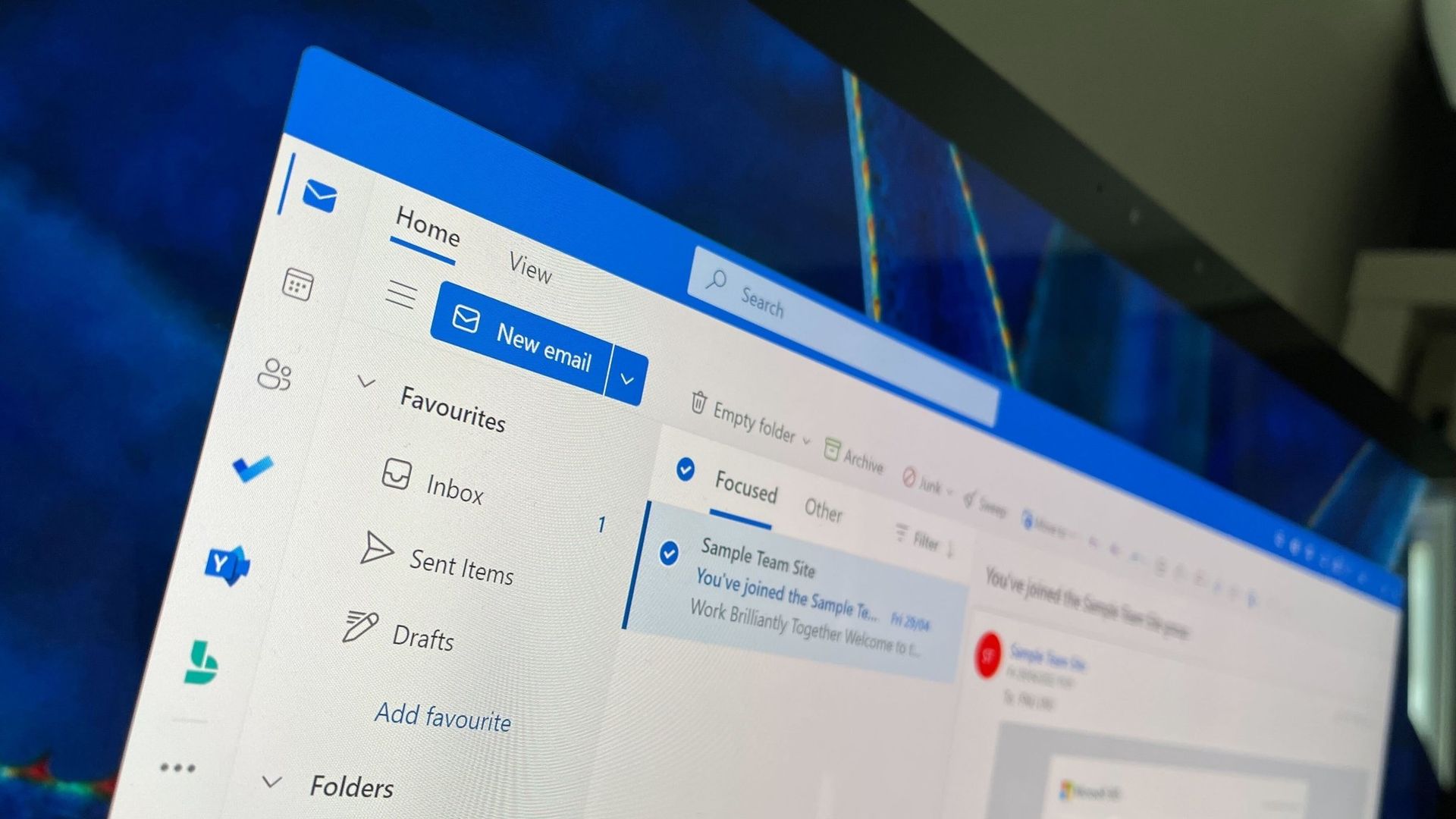
Microsoft Outlook will soon be able to save you from a costly mistake in an email. An upcoming feature will automatically spell check your emails before sending them.

Of course, Outlook already has a built-in spell check feature that highlights misspelled words and other mistakes. The new feature adds another layer of proofing by checking for spelling errors before an email is sent.

While spell check catches many mistakes as you type, it's easy to miss a typo in a long email or make an error when responding to messages. Running a final spell check before sending provides one last opportunity to catch mistakes before an email is delivered.

"If you don’t want to check spelling manually for every message—or you’re worried you might forget!—you can set Outlook to check spelling for you every time before sending emails," explains Microsoft through the Microsoft 365 Message Center (archived here).

When enabled, Outlook will review your message before it is sent and flag spelling issues that should be corrected.

The new spell check feature is expected to start rolling out mid-November, but it won't reach everyone until early December. Users in Targeted Release will be able to use the feature as soon as this month.

The new Outlook feature will sound familiar to those who have used Outlook for a long time. Classic Outlook already has the ability to check spelling before an email is sent through the "Always check spelling before sending" setting. Now, the same functionality is on the way to new Outlook.

Microsoft has spent the last several years bringing features from classic Outlook to new Outlook. Microsoft's latest update is another step toward feature parity between the two versions.

Are there any features you rely on that are still missing from new Outlook? Let us know in the comments.

Click to join us on r/WindowsCentral

Join us on Reddit at r/WindowsCentral to share your insights and discuss our latest news, reviews, and more.
I ignored the Windows app until Microsoft closed this major feature gap

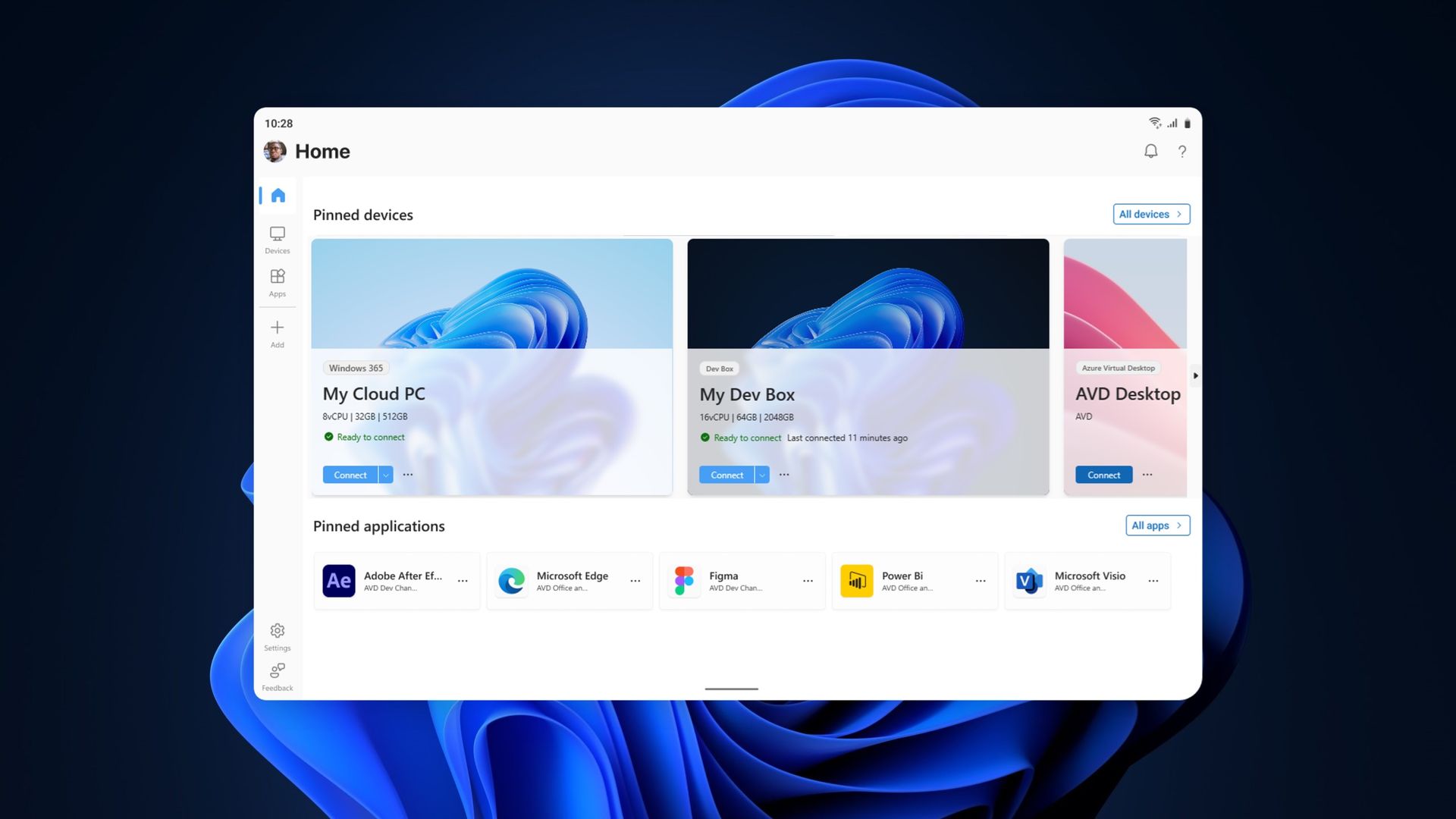
The Windows App on Windows now has a new way to connect to a Windows PC. Remote PC connections are now supported in the app, creating a unified experience for a broad range of connections.

The Windows App already supported Windows 365, Azure Virtual Desktop, and Microsoft Dev Box. Now, it also allows you to connect to a PC remotely.

The ability to connect to a PC remotely arrives in Windows App following the retirement of the Remote Desktop app. The expanded feature set of the Windows App entered testing in March and now remote PC connections are generally available.

This week's news is that remote PC connections are supported in the Windows App on Windows, but it's worth noting that the Windows App is also available on macOS, iPadOS, Android, and web browsers.

Microsoft outlines how to started with remote PC connections in the Windows App:

  1. Make sure Remote Desktop is enabled on the PC you want to connect to.
  2. Install or update Windows App from the Microsoft Store.
  3. Open Windows App and select Add a Remote PC or select the Add button.
  4. Add your remote PC using its PC name or IP address.
  5. Select Add or Add and Connect.

When I covered the migration to Windows App earlier this year, our readers listed Remote Desktop Connection (the classic mstsc.exe tool) as their preferred way to connect to a PC remotely. That method is still supported, as Microsoft retired the Remote Desktop app from the Microsoft Store rather than the built-in Remote Desktop Connection client. It will be interesting to see whether people transition to the unified Windows App.

If you used another method of connecting to a PC remotely and have switched to the Windows App, please share your experience in the comments.

Click to join us on r/WindowsCentral

Join us on Reddit at r/WindowsCentral to share your insights and discuss our latest news, reviews, and more.
Beat the scalpers by preordering the Xbox Wireless Controller X25 Special Edition

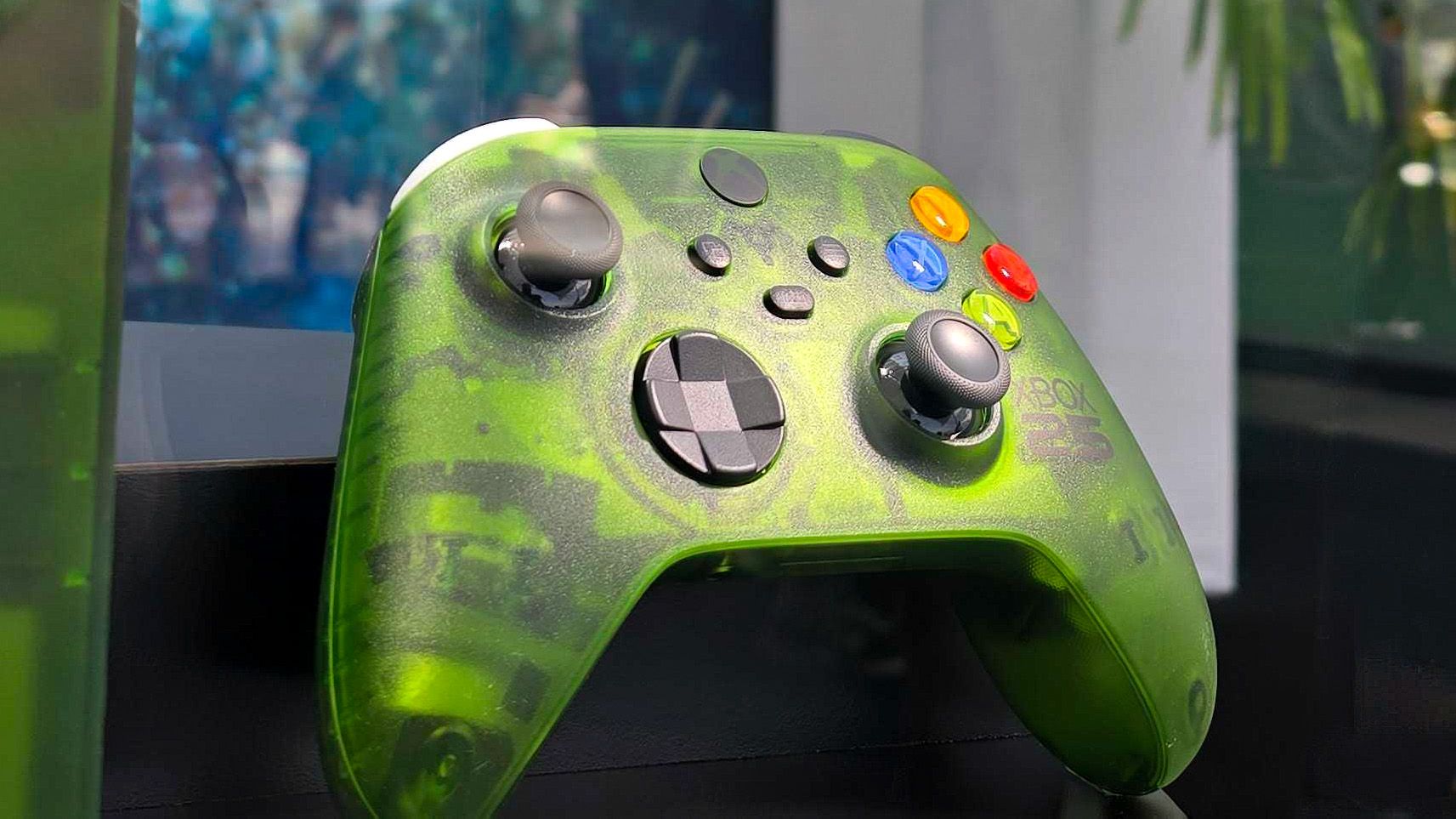
You can now beat the scalpers and ensure that you get what I believe is the most stunning Xbox controller ever made. Pre-orders for the Xbox Wireless Controller X25 Special Edition are live right now!

A translucent green design lets you see the internal components of the controller while also giving you a shot of nostalgia. Fans have wanted a green controller like this for years, and Xbox finally delivered.

X25 Controller: $79.00
This Xbox controller has a translucent "OG Green" shell that lets you see the internal components of the gamepad. It celebrates the 25th anniversary of Xbox with some nice touches, such as its ABXY buttons being the same colors as those on the original Xbox controller.View Deal

An ode to Xbox

Microsoft announced the Xbox Series X25 earlier this year. While that console is gorgeous, those who already have an Xbox Series X may not buy another console just for a refreshed look. But you can celebrate the 25th anniversary of Xbox without spending $899.99.

The Xbox Wireless Controller X25 Special Edition is "OG Green" and has a translucent body. Small touches such as the ABXY buttons matching the original Xbox controller add up to make a stunning controller. The bumpers are even black and white similar to the black and white buttons of the "Duke" controller.

The black Xbox button shines a green light as a throwback to the early days of Xbox. The back of the controller has a see-through panel featuring the classic XBOX logo.

Unfortunately, as with most collectible hardware, scalpers will gobble up a lot of the stock of the Xbox Wireless Controller X25 Special Edition. Locking in a pre-order early is your best bet to avoid inflated resale prices.

Whether you're enjoying the new games that were just announced at the Future Games Show at Gamescom 2026 or playing games you just converted through the Xbox disc-to-digital program, the Xbox Wireless Controller X25 Special Edition will be a gorgeous companion.

Click to join us on r/WindowsCentral

Join us on Reddit at r/WindowsCentral to share your insights and discuss our latest news, reviews, and more.
PowerToys gets a gorgeous new welcome screen — other apps should take notes

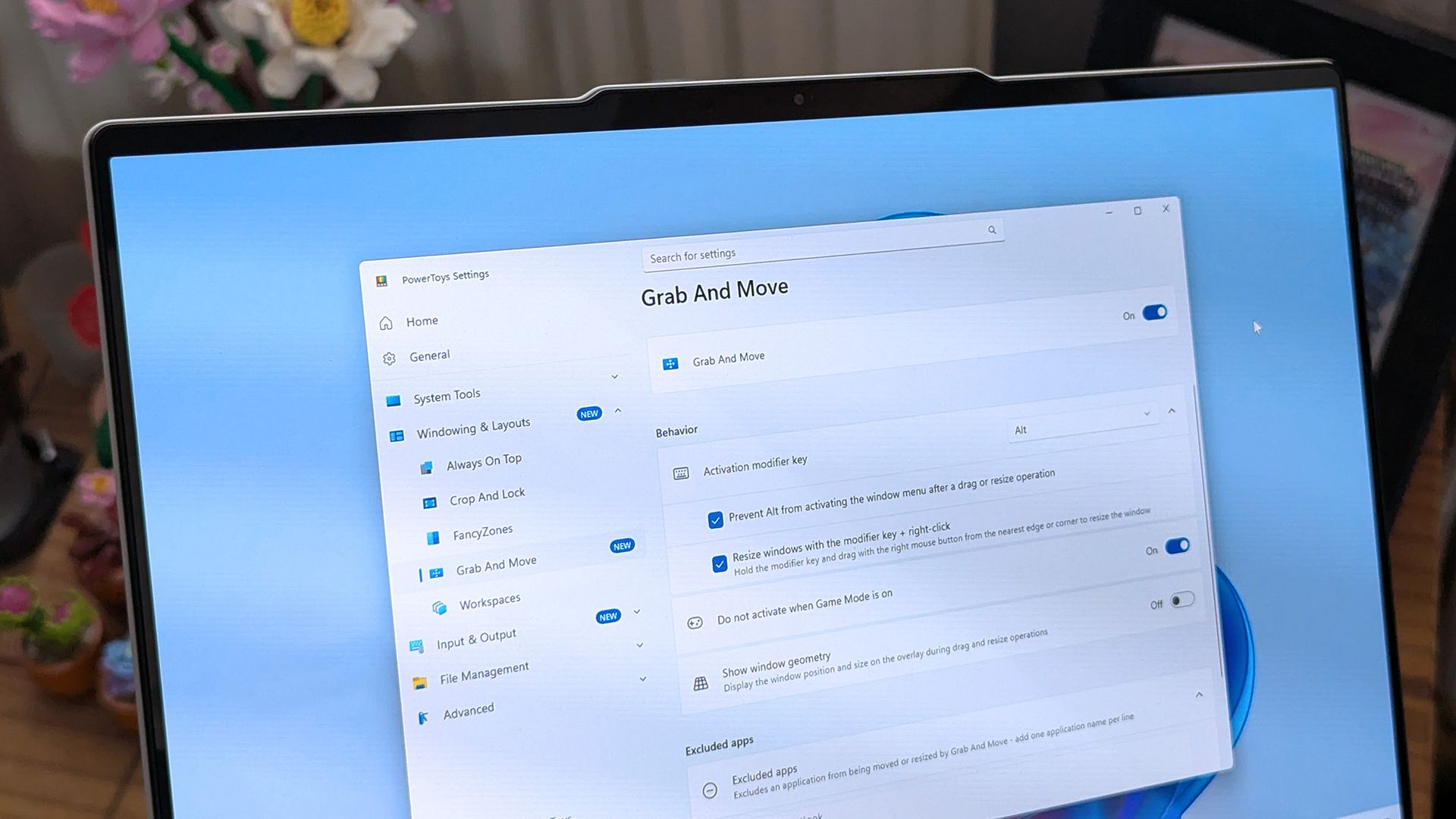
PowerToys is one of my favorite Windows apps, and the Windows Central team follows the app's development closely. Normally, I highlight new PowerToys utilities or the favorite additions of the main man behind PowerToys. But sometimes the layout of PowerToys deserves a highlight.

A new Welcome screen is on the way to PowerToys, and it's so gorgeous that I'm a bit disappointed that most people will only see it when initially installing the app. The engaging out-of-box-experience (OOBE) uses a Windows feature called Composition, allowing it to render at 60 FPS. The clip shared on X by Niels Laute doesn't quite do the welcome screen justice due to compression, but the animation is still impressive.

Composition 🤤October 5, 2026

This is more than just a fun animation. Creating a usable user interface that also performs well is much more difficult than creating a mockup.

Similarly to how PowerToys acts as a playground for developers to make features that occasionally get integrated into Windows 11, the new welcome screen showcases something WinUI apps can do.

Laute highlighted that the new welcome screen relies on Composition, which sits below WinUI. Developers can use it to render visual effects, and it can also manipulate UI controls because of how performant it is. If you use the Microsoft Store, you've likely seen animations that rely on Composition without realizing it.

A pull request on GitHub discusses the welcome screen in more detail. A Microsoft support document details the layers of Windows 11 and how Composition plays a role.

I admit that swooning over fluid animations and interactive welcome screens is a bit nerdy. Millions of Windows 11 users will never notice what type of animation an app has. But attention to detail adds up and creates a better overall experience.

Earlier this year, I argued that faster performance won't save Windows 11 if Microsoft's apps are laggy web wrappers. The new welcome screen of PowerToys is a small change to users that would go a long way if extended to other Microsoft apps.

PowerToys | Free at GitHub | Free at Microsoft Store

This collection of utilities includes a large library of features to enhance the Windows experience. PowerToys is designed with power users in mind, but it has handy features for people who just use their PC for everyday computing too.

Click to join us on r/WindowsCentral

Join us on Reddit at r/WindowsCentral to share your insights and discuss our latest news, reviews, and more.
My top Surface deals I’d actually buy during Amazon’s Big Deal Days

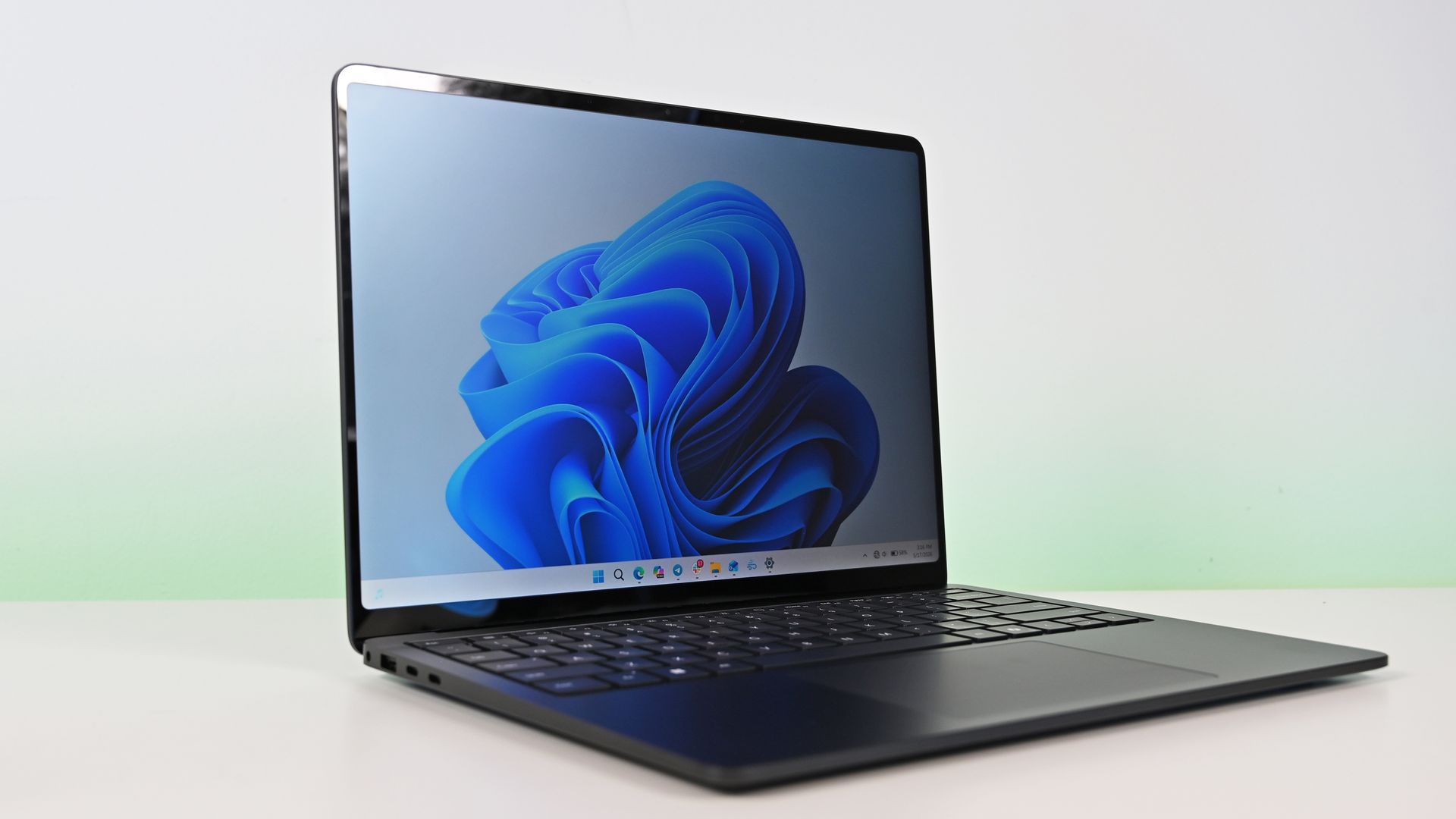
Prime Big Deal Days are here, and that means big savings on the hottest tech. Microsoft Surface sales slash hundreds of dollars off the Surface Pro, Surface Laptop, and Surface accessories.

Best Buy and other retailers are running competing sales alongside Prime Big Deal Days, so the best Surface deals are spread across the web. You'll also see prices fluctuate as stock runs out or sits for too long. I've scoured the web for the best Surface deals, and our team at Windows Central will keep this piece up to date with the best discounts.

You'll notice that I don't list the Surface Pro 12-inch or Surface Laptop 13-inch below. That's because those PCs have new versions with Snapdragon X2 processors launching next week. You can still buy older models with first-gen Snapdragon X chips, but I'd recommend waiting until the new generation ships to see where prices fall on older devices.


XX

Display: XX. CPU: XX. GPU: XX. NPU: XX. RAM: XX. Storage: XX. AI PC: ✅ Copilot+ PC: ✅

👉 See at: BestBuy.com Amazon.com

Surface Pro 12-inch + Keyboard Bundle: was $899.99 now $649.99

The Surface Pro 12-inch is a smaller and more affordable alternative to the full-size Surface Pro 11. Battery life is decent, but the PC really shines thanks to the performant Snapdragon X Plus chip inside. If you want a compact and mobile 2-in-1, this is the way to go. This bundle includes a Type Cover.View Deal

Surface Laptop 13-inch: was $899.99 now $699.98

Microsoft's latest Surface Laptop is a portable and lightweight productivity powerhouse with the latest Snapdragon X Plus chip, paired with 16GB RAM, 256GB storage, and the best keyboard and trackpad one the market.View Deal

Surface Pro (13-inch)

Surface Pro + Keyboard & Pen: was $1779.98 now $1299.99

This Surface Pro bundle comes with everything you need to get work done and create on the go, including a keyboard and Surface Slim Pen. The Surface Pro in this bundle is a premium 2-in-1 that can be used as a standalone tablet or like a laptop when the keyboard is attached. This model has 16GB of RAM and 256GB of storage, which should be enough for everyday productivity, though people working with large media files may want additional cloud or external storage.View Deal

Surface Pro (13-inch): was $1499.99 now $1129.99

If you just want the Surface Pro on its own or already have a keyboard, this is a great option. The Snapdragon X2 Plus processor helps deliver excellent battery life while providing plenty of performance for everyday productivity.View Deal

Surface Laptop 8

Surface Laptop 8: was $1699.99 now $1279.99

Refreshed with a Snapdragon X2 Elite processor, this Surface Laptop promises faster performance and better graphics than we've ever seen in this lineup. This model comes with 16GB of RAM and 512GB of storage, making it my top pick for everyday productivity and getting work done.View Deal

The Surface Laptop 8 with the biggest discount also happens to be one of the most beautiful models (at least in my opinion). This Surface Laptop with 16GB of RAM and 512GB of storage comes in Dune, making it stand out in a sea of silver and black laptops.View Deal

Accessories

Surface Pro Flex Keyboard + Slim Pen 2: was $499.98 now $439.99

The Surface Pro Flex Keyboard can be used when connected physically to your Surface Pro or wirelessly. It's the most versatile keyboard you can get for the 2-in-1. This bundle also includes a Surface Slim Pen 2.View Deal

This is the same Surface Pro Flex Keyboard that can be used wirelessly or through a physical connection. This version does not include a Surface Slim Pen, helping keep the price lower.View Deal

Surface Arc Mouse (Light Grey): $80.99

This mouse can lie flat for easy storage in your bag or pocket.View Deal

Do I need Prime membership for Big Deal Days?

Yes. To get all Prime Big Deal Days discounts, you'll need a paid Prime membership or, if you haven't signed up before, a 30-day free trial. Some deals are available to shoppers without Prime, but many of the event's best discounts are reserved for Prime members.

Amazon Prime: Free 30-day trial

New members can enjoy exclusive Prime Day discounts for free and cancel anytime. After the trial, membership is $14.99/month plus tax. Includes access to games via Prime Gaming alongside Prime Video and Prime Music.

Click to join us on r/WindowsCentral

Join us on Reddit at r/WindowsCentral to share your insights and discuss our latest news, reviews, and more.
Grab an XPS 13 for under $800 — the best laptop deal of the month is still going strong

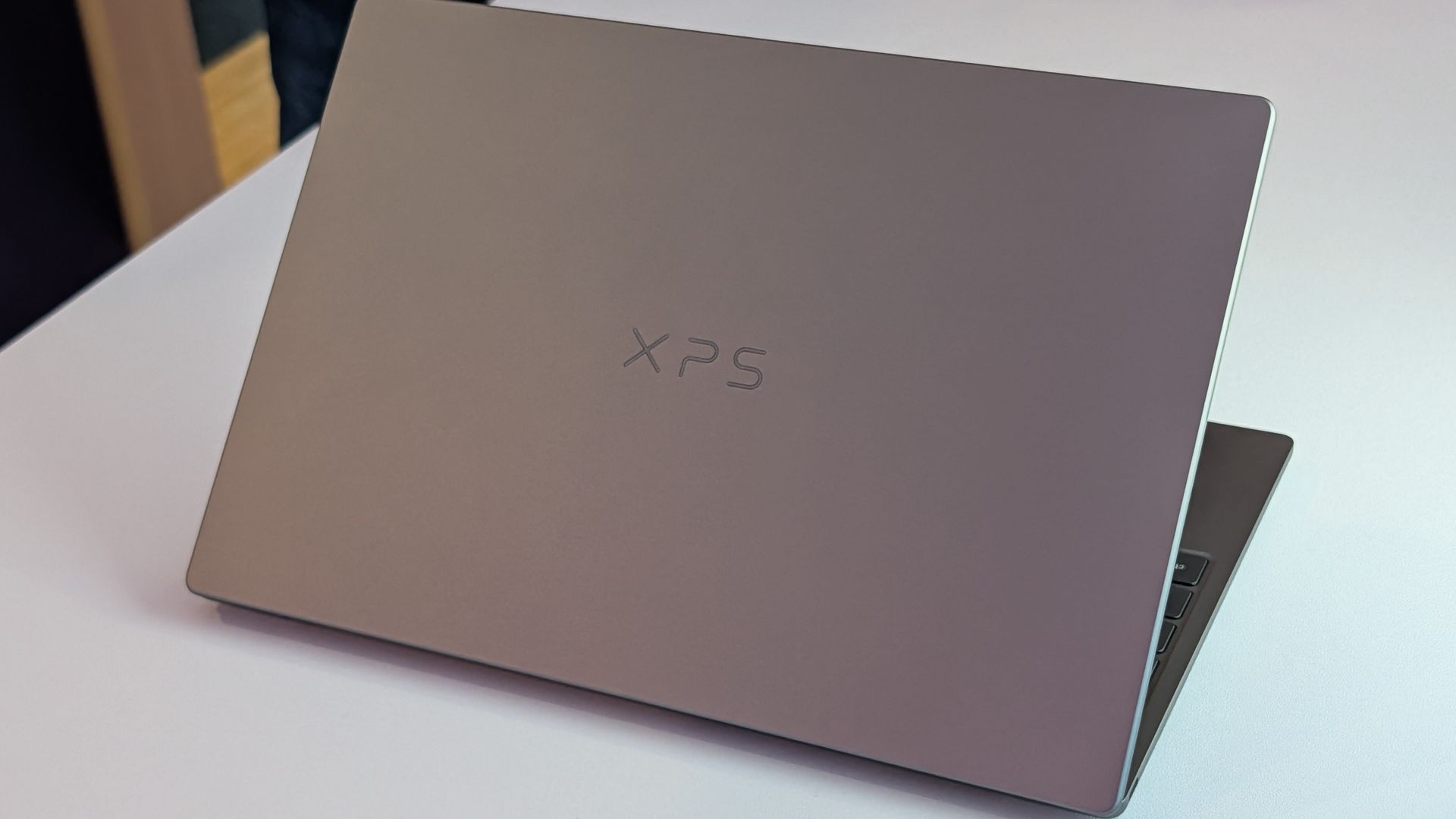
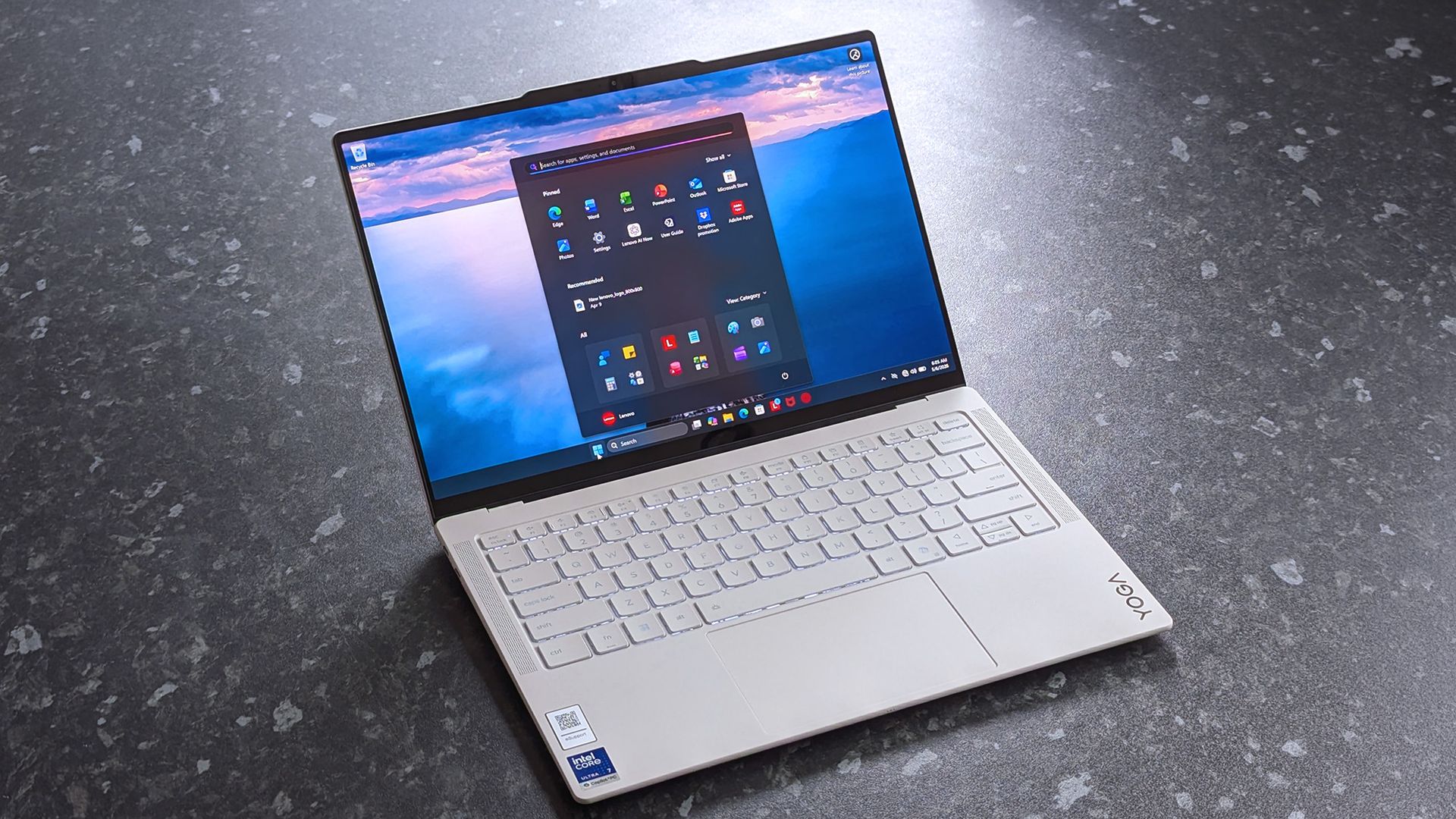
Amazon's Prime Big Deal Days are almost over, but arguably the best laptop deal of the month is still here. A $200 discount on the XPS 13 drops the XPS 13 to $799.99. There's even a version of the XPS 13 discounted to $599.99 if you only need 8GB of RAM.

Of course, it isn't actually a Prime Big Deal Day deal. The discount is through Best Buy, making it a "Techtober" deal. But do you really care why you're saving $200 on what our expert calls "the perfect starter PC"?

"Dell's new XPS 13 is the new best deal in laptops, surpassing the MacBook Neo with a better display, ports, build quality, and performance for the same price." — Zac Bowden, Senior Editor, Windows CentralView Deal

This version of the XPS 13 is incredibly affordable, especially when discounted. It does, however, come with just 8GB of RAM. That's fine for some users, but make sure it will meet your demands before placing an order.View Deal

Laptops this good are rarely in this price range due to the ongoing RAM crisis and other component shortages. Dell created this version of the XPS 13 to be more affordable, but premium laptops with this feature set and design now normally cost $1,000.

👉Is Windows 11 on 8GB of RAM really that bad?

The XPS 13 that came out this year earned a 4.5 out of 5 from both Tom's Hardware and Tom's Guide. Our colleagues complimented the laptop's 2.5K screen, incredible battery life, and excellent speakers.

Matt Safford from Tom's Hardware called the new XPS 13 "an excellent Windows-based answer to the MacBook Neo." I agree with his take, though I question how many people genuinely debate between a Windows laptop and a MacBook.

The XPS 13 is a thin-and-light laptop with a refined design. It has several features that "discount" laptops lack (I'm looking at you, MacBook Neo). For example, the XPS 13 has backlit keys, an IR sensor for facial recognition, and support for Wi-Fi 7. Toss in a pair of Thunderbolt 4 ports and a 120Hz display and it's easy to see why our Zac Bowden said he was "shocked" at the value of the laptop when he went hands-on with the XPS 13.

Click to join us on r/WindowsCentral

Join us on Reddit at r/WindowsCentral to share your insights and discuss our latest news, reviews, and more.
Forget the flashy AI features, this is the Copilot update that matters

Microsoft Copilot has changed a lot over the past month. Microsoft recently outlined its broader plan for a unified AI experience across Microsoft 365, but it also shipped several new Copilot features users can try right now.

Microsoft rounded up the changes in a recent blog post, highlighting updates across Copilot Chat, Teams, Word, PowerPoint, SharePoint, and OneDrive. The updates expand Copilot to more services and add new features across Microsoft's software suite:

  • "New design and functionality for Copilot Chat
  • Plugins, connectors, and Work IQ enhancements to the Copilot App
  • Teams Phone agent for Copilot in Teams Phone
  • Citations and image modifications for Copilot in Word
  • Skills and connectors for Copilot in PowerPoint
  • General availability for Copilot in SharePoint
  • General availability for Copilot in OneDrive"

Microsoft outlined several new features, but one stood out to me: citations in Copilot responses.

Copilot can be a useful tool, but it has limits. If you've ever asked Copilot to handle a task that depends on current information, you've probably run into those limits. AI tools can also struggle when interpreting historical, legal, or highly specialized material.

Now, Microsoft Word can show its sources for specific Copilot answers. You can then click the source to confirm the information provided by Copilot.

"Citations in Copilot responses in Word let users see the sources behind Copilot’s answers. Users can view citations to relevant web and work content directly in the response," explains Microsoft.

"This provides greater transparency and helps users understand where Copilot’s information comes from."

Hallucinations are one problem, but AI tools can also misinterpret legitimate sources and present incorrect conclusions. In some cases, an AI tool can misread context and produce an incorrect response. I've had Copilot share the exact opposite of the truth before.

Citations with links allow you to check the source material and make sure Copilot understood the context of the source and extracted the correct information.

Windows Central take

I've found that Copilot (and other AI tools) can make up seemingly authentic sources of information. If you ever use the tool for meaningful work, you need to double-check original sources and assume Copilot will make mistakes.

Of course, that fact could be used to argue that you just should not use Copilot for work. But there's probably a middle ground where Copilot helps draft or gather information while a human verifies the final output.

In general chats with Copilot, you should ask for a source and press Copilot if it continues to speak in generalities. The new feature in Word simplifies that process and ensures that there's a verifiable source of content generated by Copilot.

Click to join us on r/WindowsCentral

Join us on Reddit at r/WindowsCentral to share your insights and discuss our latest news, reviews, and more.
Prepare for Microsoft's Windows and Surface event with these cutting-edge features for Insiders

Microsoft's Windows 11 and Surface event is only a couple of days away. At the event, we expect to hear a recap of improvements made to the operating system as part of the Windows K2 initiative. But why simply watch people talk about updates when you can test them out yourself?

Many of the biggest changes to Windows 11 have already shipped through Windows 11 version 26H2. But items that are still in the works are being tested among Windows Insiders. A flurry of five builds shipped recently.

👉Don’t miss Microsoft’s October 7 Windows & Surface keynote — here’s how to tune in and follow the biggest reveals

Many of the changes are rolling out to multiple builds, such as added support for Unicode 17.0. Below, I've outlined all the updates and improvements rolling out to Windows Insiders. Make sure to check the channels noted below to see what's on the way to your PC.

Unicode (Beta, Experimental)

  • We've updated Windows text shaping support for Unicode 17.0, helping Windows correctly display and shape newly encoded characters and scripts. Unicode 17.0 added 4,803 characters, including support for four newly encoded scripts: Beria Erfe, Sidetic, Tai Yo, and Tolong Siki.
  • These updates help keep Windows text support current as the Unicode Standard evolves and improve support for languages and writing systems used by people around the world.

Settings (Beta, Experimental)

  • We're making performance improvements to the Settings home page, which should result in reduced loading times in certain scenarios.

Settings (Experimental (Future Platforms))

  • Updated Settings > Apps > Installed apps to show the version number at the top level for packaged apps, as it already does for other apps.

Recovery (Beta, Experimental 

  • We're adding a new entry point for Cloud Rebuild under Settings > System > Recovery, making it easier to access the feature from Settings.

Windows Recovery (Beta (26H1))

  • We're introducing Cloud rebuild, a new recovery option that restores a Windows 11 PC to a clean, known-good state by performing a full OS reinstall, even when Windows won't boot. Unlike Reset this PC, Cloud rebuild downloads both the target Windows image and the device's drivers from Windows Update, so the device comes back fully functional without USB media, without a custom image, and without depending on the health of the currently installed OS.
  • In this preview, you can try Cloud rebuild today:
    • Start it directly from the Windows Recovery Environment (WinRE) by selecting Troubleshoot > Recovery and uninstall > Cloud rebuild.
    • Connect over wired Ethernet or a Wi-Fi network from within WinRE.
    • Review the target Windows build, edition, and language, then confirm the data-loss warning before the rebuild begins.

File Explorer (Experimental)

  • Address Bar now supports '~' , making it quicker to navigate directly to your user profile folder and subfolders (e.g., "~\AppData").

File Explorer (Experimental (Future Platforms))

  • This update adjusts how the preview pane handles files downloaded from the web. For HTML files, a new Preview anyway button lets you acknowledge the warning and preview the file. Non-HTML files, such as PDFs, are now previewed automatically.
  • Fixed an issue causing the previews in File Explorer to have an unexpected bar in the middle in recent flights.

File Explorer (Experimental (26H1))

  • Customizations
    • Improved File Explorer to keep folder view customizations, such as sorting and icon size preferences, consistent across different access paths and apps.
  • Address bar improvements
    • The address bar now supports paths containing double backslashes and quotation marks, for example, C:\Users\user or "C:\Users\user", improving compatibility with a wider range of inputs.
    • Improved reliability of the address bar suggestion dropdown so it now consistently closes after an item is selected.
  • Refinements to the rename experience
    • Fixed an issue where text would be repeatedly selected while renaming items in folder views.
    • Fixed an issue where updated names with case-only changes weren't immediately reflected in folder views across local and cloud storage.

Windows Magnifier (Experimental (26H1), Beta (26H1))

  • Magnifier now gives you more control over how you zoom. You can type an exact zoom percentage directly in the Magnifier toolbar to land on precisely the level you need.
  • We've also added preset step increments (5%, 10%, 25%, 50%, 100%, 150%, 200%, and 400%) to the Settings dropdown, so you can jump to common levels in a single click. Whether you need a subtle boost or a dramatic close-up, Magnifier adapts to how you want to zoom.

Cloud rebuild (Experimental (26H1))

  • We're updating Cloud rebuild, the recovery option that restores a Windows 11 PC to a clean, known-good state by performing a full OS reinstall, with two additions.
  • Cloud rebuild can now sanitize the device's drives as part of the rebuild. When you start a rebuild in WinRE, choose Remove files if you're keeping the PC, or Remove & sanitize files before recycling, returning, or reassigning it. The sanitize option uses the storage hardware's erase capability to securely erase data before Windows is reinstalled and is irreversible.
  • IT administrators can now configure and start a Cloud rebuild remotely through the Recovery CSP, using either the currently installed build or a target build you specify.

Windows Share (Experimental (Future Platforms))

  • Added the ability to pin your favorite apps in the Windows share window.

Family Safety (Experimental (Future Platforms))

  • Improved family safety messaging when applications are blocked because of age-restricted parental controls.

Taskbar (Experimental (Future Platforms))

  • Fixed a few small visual polish issues when using the taskbar in alternate positions.

Audio (Experimental (Future Platforms))

  • Fixed an issue affecting certain USB Audio Class 1.0 devices, including some multichannel audio headsets, that could prevent the device from working correctly after installing the latest updates.

Remote Desktop (Experimental (Future Platforms))

  • Fixed an issue causing Remote Desktop to not use the correct window size after recent flights.

Other (Experimental (Future Platforms))

  • Fixed an issue causing some Insiders to experience extreme lag over time after updating to the last two flights.

These changes aren't as substantial as the new features and upgrades in Windows 11 version 26H2, but they help create a smoother computing experience.

My favorite improvements are those rolling out to Windows Magnifier. Fine-tune controls make it much easier to create the best experience for your specific screen. The presets make it easy to jump incrementally, but I prefer entering the magnification manually.

Click to join us on r/WindowsCentral

Join us on Reddit at r/WindowsCentral to share your insights and discuss our latest news, reviews, and more.
Windows Wrap: Microsoft must show us why Windows still matters in 2026 and beyond

Windows Central

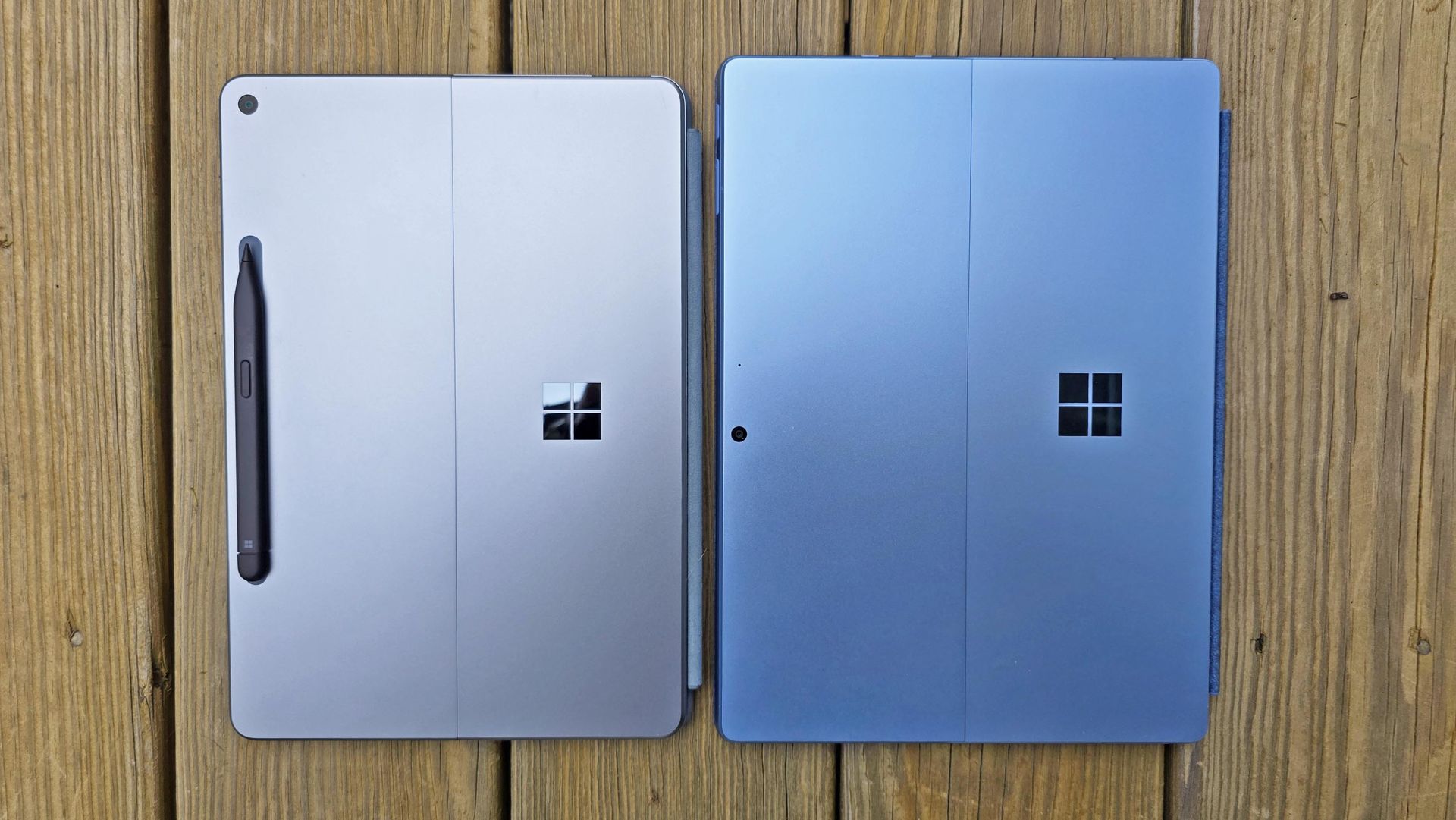
It looks like Microsoft is wrapping up its Windows and Surface efforts for 2026 to be able to focus on the future. Last week the company announced refreshes to the Surface Pro 12-inch and Surface Laptop 13-inch. This week, Microsoft rolled out Windows 11 version 26H2.

With a bunch of Surface announcements in the rearview mirror and another update to Windows 11 rolling out, Microsoft can point its followers to the future. The description of the Windows and Surface event next week says, "Join us live... for a look at what's next from Windows, Surface, and NVIDIA."

I hope Microsoft has some exciting news in store for its event. Windows and Surface have been far from exciting lately. It is possible to market boring products, of course, but they have to be reliable.

This week Microsoft announced Windows 11 version 26H2 and called it a "predictable and low-disruption update." If Microsoft wants to win back consumers, it needs to either be cutting edge or actually deliver predictable and low-disruption updates. It feels like for the last few years we've gotten neither.

Biggest News of the Week

Windows 11 Start button
First images of Microsoft's Surface Pro 12-inch tablet PC.
Close-up of a silver laptop deck featuring a Snapdragon X2 Elite Copilot+PC sticker alongside Energy Star and HDMI badges.
Qualcomm Snapdragon 865
Qualcomm
Docker Desktop for Windows using the WSL2 backend on ARM
Windows 11

Microsoft has had to release multiple out-of-band updates in 2026. Some bugs required multiple patches to fix. It's gotten so bad that most of our articles about Windows 11 updates are met with comments asking what will break this time.

Unfortunately, the commenters have been proven right several times. One serious bug made Outlook, OneDrive, Dropbox, and other cloud-backed apps inoperable. Another issue froze Remote Desktop and caused audio failures. At one point users couldn't even install a Windows 11 update, forcing Microsoft to pull that update.

If Microsoft is going to undercut its events and trim down its Surface lineup, it needs to double down on reliability. Next week, we should get some answers about Microsoft's plans.

Windows and Surface event

Surface Laptop Ultra

(Image credit: Windows Central / Zac Bowden)

A boring but bug-free Windows 11 update may be a welcome change of pace, but it makes me curious about what Microsoft will discuss at its Windows and Surface event next week. Considering Windows 11 version 26H2 is already rolling out, the focus is likely the future of Windows.

Does Microsoft have something up its sleeve? Has the tech giant learned a lesson about how to build consumer hype? Or are we due for another on-stage announcement about AI and how new PCs can run models locally?

I'm sure there are developers interested in the potential of the Surface Laptop Ultra and RTX Spark for AI development, but there are hundreds of millions of Windows users who care very little about AI. Microsoft needs to at least throw some scraps our way to keep us interested.

Shopping with Sean

Amazon's October Prime Day is next week, but there are already some great deals live. Competing retailers are trying to beat Amazon to the punch, resulting in big savings.

A trio of laptops are the best deals of the week. I'm partial toward the Lenovo Yoga Slim 7x because of its thin design but the Samsung Galaxy Book6 and Dell 14S are also great choices.

14S 14" 2K Touchscreen Laptop (Intel Core Ultra 7 355 2026, 16GB RAM, 512GB SSD, Copilot+): was $1599.99 now $899.99

"The Dell 14S is a compelling choice for a variety of users thanks to its long-lasting battery life (and) relatively affordable price." ~ Sean Riley, Freelance Writer, Tom's Guide

Tom's Guide review: ⭐⭐⭐⭐View Deal

Yoga Slim 7x: was $1299.99 now $969.99

"The Slim 7x (Gen 11) is a laptop I can see fitting in perfectly with students, home business pros, and casual users who simply want a laptop for around $1,199 (even less when it's on sale) that feels like it should cost a lot more." — Cale Hunt, Windows CentralView Deal

Samsung Galaxy Book6: was $1449.99 now $947

"I’ve been using the Samsung Book 6 for a while now and honestly it’s been solid. It’s lightweight, looks premium, and the battery easily gets me through most of the day. Performance is smooth for studying, browsing, videos, and everyday work." ~ VALENTIN, customer review

4.8 out of 5 Stars (based on 40 Best Buy customer reviews)View Deal

Click to join us on r/WindowsCentral

Join us on Reddit at r/WindowsCentral to share your insights and discuss our latest news, reviews, and more.

How to follow Microsoft’s October 7 Windows & Surface keynote

Microsoft will hold a Windows and Surface event on October 7, 2026. We've known about the event for weeks, but Microsoft has now shared details about how to watch it live.

Microsoft posted a YouTube event titled "Something new is coming from Windows | October 7" recently. That means you can click the "Notify me" button to get pinged when the event starts.

The Surface Laptop Ultra and NVIDIA RTX Spark are expected to be the focus of the event. The Surface RTX Spark Dev Box may also make an appearance.

Microsoft CEO Satya Nadella, Surface Chief Pavan Davuluri, and NVIDIA CEO Jensen Huang will all be in attendance.

Sleek. Style. Power.October 7 at 10am PT. Tune in: https://t.co/cfiCnGE58f https://t.co/Z8ZddTJx02October 5, 2026

Microsoft has been tight-lipped about the event. We weren't even sure if it would be live-streamed until recently. The description of the live stream is similarly scarce on details:

"Join us live October 7th at 10:00 am PT for a look at what's next from Windows, Surface, and NVIDIA. See the latest, including RTX Spark and new experiences designed to unlock more possibilities for developers and builders."

Microsoft teased the event with a post on X (shown above). That post includes several images of the Surface Laptop Ultra. Normally, I'd have to put my detective hat on and study the photos to determine the hardware, but Microsoft did the hard work for us.

The alt text for the image on X states:

"Close-up of two Surface Laptop Ultra edges showing slim ports and keyboard keys, reflected on a glossy black surface."

That should come as no surprise. We already suspected the Surface Laptop Ultra would be a focus of the event.

Microsoft already announced the Surface Laptop Ultra and discussed RTX Spark, so seeing those on stage would hardly be shocking. Windows 11 just received an update, so there are few surprises about what's shipping to PCs this year. But Microsoft's description talks about "what's next," so the tech giant could tease future updates or discuss changes to how it makes its flagship software or hardware.

Based on our recent poll, Windows Central readers are excited about the Surface Laptop Ultra. So even if the device has already been announced, many people will appreciate details about the laptop.

Click to join us on r/WindowsCentral

Join us on Reddit at r/WindowsCentral to share your insights and discuss our latest news, reviews, and more.
Microsoft got hacked, and somehow Clippy ended up in a crypto scheme

Microsoft's official X account was compromised this week in what appears to have been an attempt to promote a cryptocurrency token. The account followed another account and reposted a message asking how many likes would be needed to bring back Clippy.

An emphatic request to bring back Clippy is nothing new on social media, but the post by the since-suspended @clippymsftcto account was not a genuine plea to bring back the iconic assistant.

X post by the Microsoft account sharing a post about bringing back Clippy.

(Image credit: Future (original post by Microsoft))

Normally, a story involving Clippy is lighthearted. Microsoft has playfully referenced the mascot over the years. Sadly, that's not the case here. On top of Microsoft being hacked, which is an issue in itself, the hack was apparently used to promote cryptocurrency.

Microsoft has since deleted its post on the situation, but the company apologized for the post about bringing Clippy back and emphasized that it does not endorse cryptocurrency. The Verge captured a screenshot of the post before it was removed.

An X post by Microsoft discussing a cryptocurrency scam that centered around Clippy.

(Image credit: Microsoft post on X (screenshot via The Verge))

The deleted post concludes with a somewhat ironic piece of advice to "rely only on Microsoft's official channels for information regarding our brands, products, securities, and intellectual properties."

Microsoft has deleted its post about the situation, but the tech giant confirmed that its account had been compromised. "We have confirmed unauthorized access to our account on X including posts that did not come from Microsoft," said a Microsoft spokesperson to The Verge. "The account has been secured and the unauthorized posts have been removed, and we are continuing to investigate the circumstances."

Microsoft should bring back Clippy

Obviously a hack done to promote a cryptocurrency scam is an issue. Microsoft's first priority should be to secure its accounts. Somewhere down the line, the company's leaders should ask if bringing back Clippy is a good idea.

Clippy has an interesting history, but people's views about the assistant have trended positively over the years. The favorable view of Clippy is likely due to a combination of irony and nostalgia, but people often are excited to see official mentions of the paperclip.

Microsoft's public perception has taken a hit, and having a bit of fun with Clippy could lighten the mood. Imagine Microsoft teasing major news about Windows on stage at its event next month and then revealing Clippy Copilot.

Click to join us on r/WindowsCentral

Join us on Reddit at r/WindowsCentral to share your insights and discuss our latest news, reviews, and more.
Why Logitech’s new Zone Vibe Pro headset caught my eye

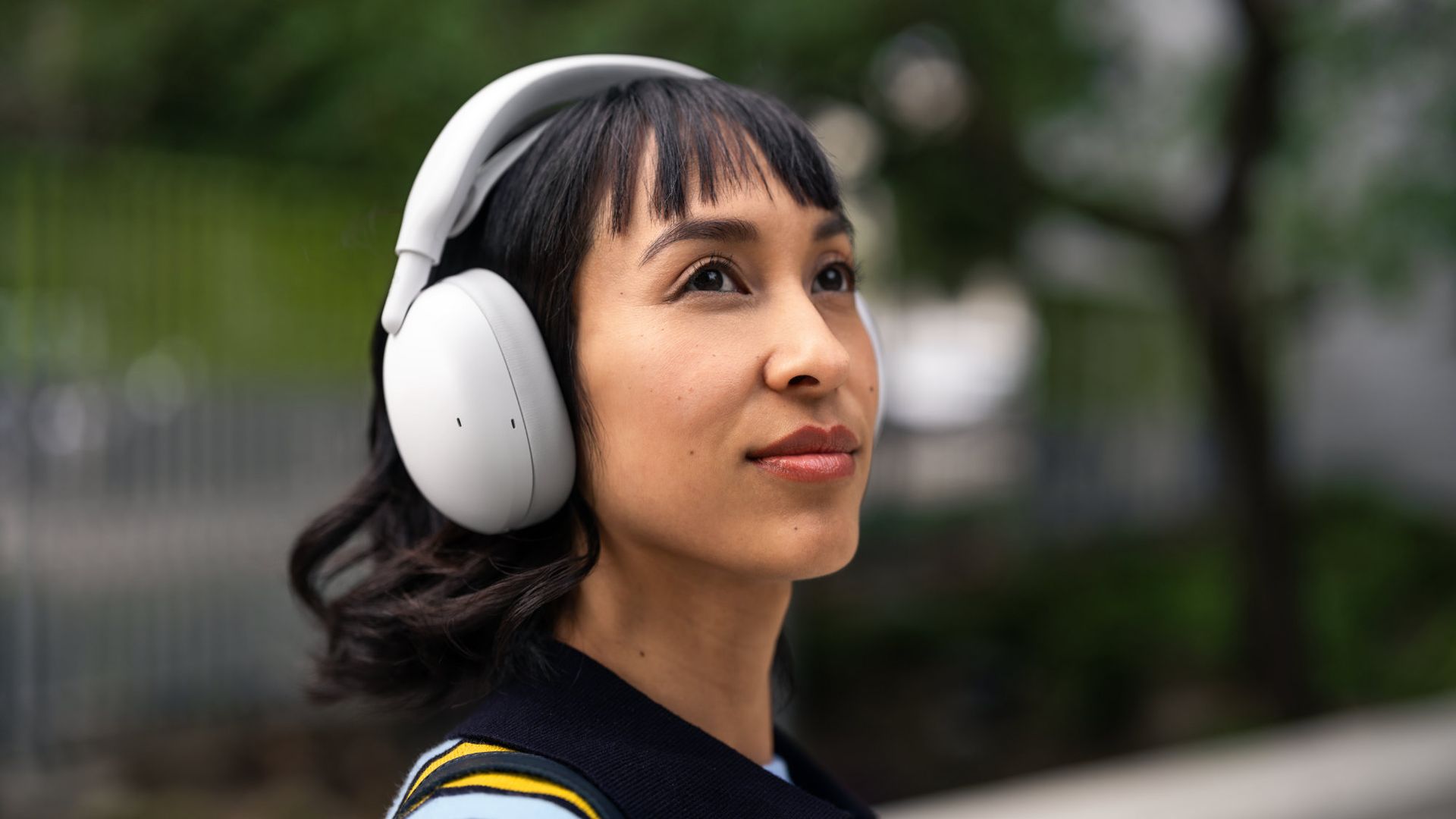
Logitech just announced a pair of headphones that I'm sure will make my wife jealous. The new Zone Vibe Pro headphones promise all-day battery life, clear audio powered by AI voice isolation, and Adaptive Noise Cancellation. But what makes me wish I had a pair is the repairable nature of the headphones.

The Zone Vibe Pro headphones are far from the first headphones to have replaceable parts. But they caught my eye because the earpads of my wife's primary headphones just fell off the other day, and battery life is not what it used to be. Official earpads are available, but those are the only parts that can be replaced.

In contrast, Logitech will sell replacement earpads, head straps, and batteries for the Zone Vibe Pro through its Spare Parts Store.

While writing this article, I briefly mentioned to my wife how Logitech sells spare parts and she emphatically asked why we couldn't get parts the same way for our other accessories.

Zone Vibe Pro: $259.99

These headphones feature AI-powered voice isolation, adaptive noise canceling, and built-in microphones that don't require a drop-down boom. You'll be able to purchase replacement earpads, head straps, and batteries through Logitech's store.View Deal

The most expensive parts of electronic devices are rarely the first parts to wear out. Wires, woofers, and most of the vital components are encased in plastic, metal, or some fancy material depending on what gadget you're dealing with. Considering the current economy and the way prices are trending, I'd rather spend a few dollars on replacement parts than buy a new device altogether.

The Zone Vibe Pro costs $259.99. That price is in line with similar headphones, but it's still quite a bit of money to invest. Being able to replace a worn-out part for a fraction of the total price of the headphones will help future-proof them.

The Zone Vibe Pro headphones have a boomless design that differentiates them from the less premium Zone Vibe (non-pro). Logitech says the headphones get up to 30 hours of listening or 18 hours of call time when ANC is enabled.

When the battery does run out, you can charge the headphones for five minutes to get an additional hour of call time.

If you are a business user, you can get the Zone Vibe Pro for Business which are certified for meeting apps like Microsoft Teams and support IT fleet management through Logitech Sync.

Click to join us on r/WindowsCentral

Join us on Reddit at r/WindowsCentral to share your insights and discuss our latest news, reviews, and more.
Is Henry Cavill really ditching his gaming PC for a Googlebook?

Henry Cavill is famous for quite a few reasons. He's played iconic characters such as Superman and Geralt from the Witcher. He wowed Tom Cruise by "reloading" his fists in a Mission Impossible film. But around these parts and among many gamers, Cavill is best known for his genuine nerdiness.

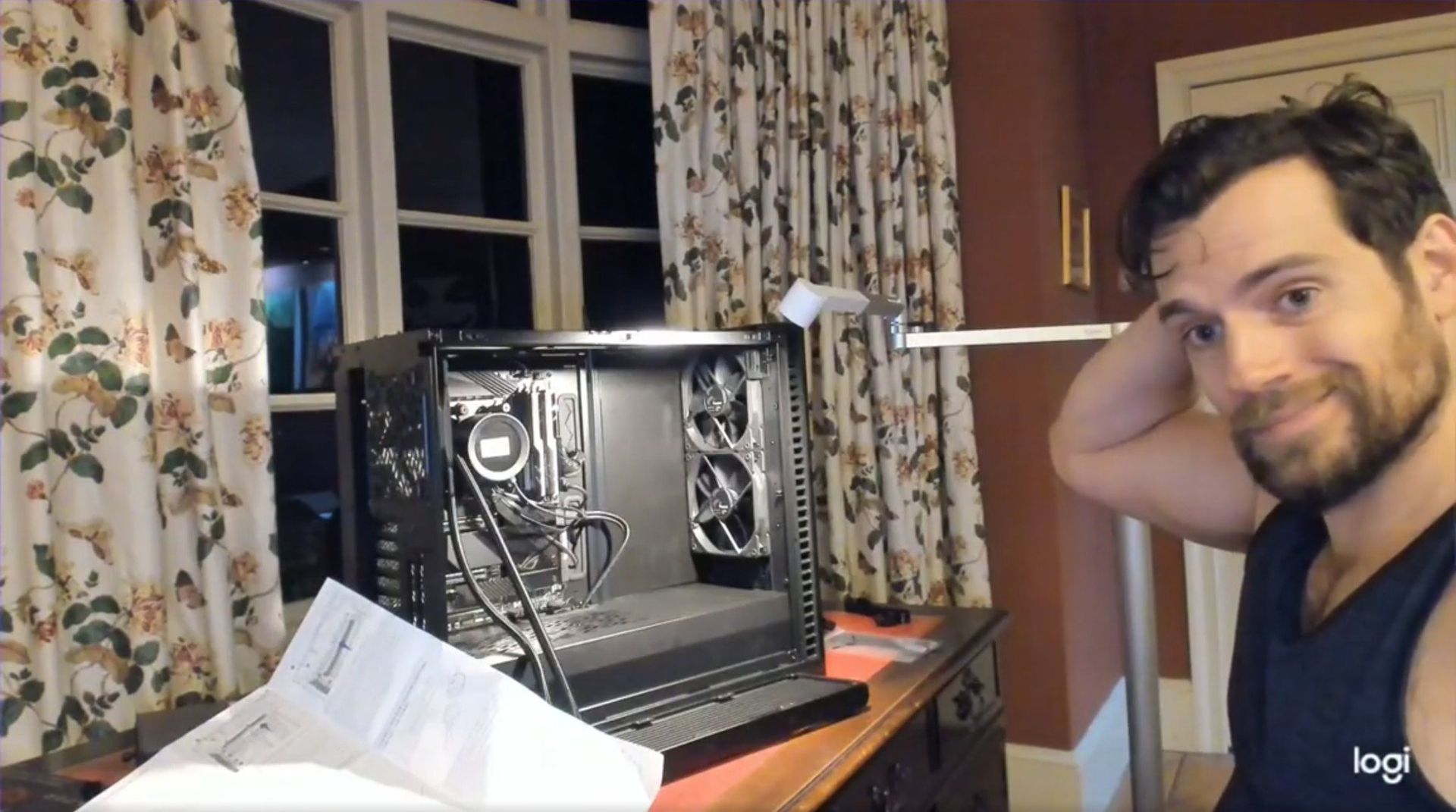
Cavill famously built a gaming PC and shared a video of it on social media, proving that you can be considered both a conventionally handsome man and a PC gamer. But the star has found a new computing passion: Googlebooks.

Android is officially partnering with Cavill by having him test a Googlebook. The actor is shown using an HP Googlebook in a promotional post on X.

Our team has been partnering with actor, producer, and longtime Android user Henry Cavill to put Googlebook to the test. Stay tuned this November to find out what he's been creating 👀 Learn more: https://t.co/VSfYaJDxsi pic.twitter.com/Y8spsOgy58September 29, 2026

A Google blog post details Cavill's plans to use a Googlebook. "After being hands on and spending some time with their team, I believe this has the potential to be the start of something rather special," said Cavill.

There's always a chance that Cavill still loves gaming on a desktop PC and that he uses a Googlebook when he's on the go or doing light work. Of course, there's also a chance Cavill doesn't use a Googlebook at all.

Cavill would not be the first Justice League star accused of endorsing a product while using a competing device. Gal Gadot infamously posted on social media how much she loves Huawei from an iPhone. Gadot denied doing so, but her post clearly indicated that it was made from an iPhone.

Marques Brownlee was the first to notice Gadot's gaffe. That post was later deleted and reposted from an Android phone. I believe Brownlee is still blocked on X by Gadot.

Gal Gadot with the Huawei ad... tweeted from an iPhone. Niceeeee pic.twitter.com/aEKJVwoyBLApril 24, 2018

The tactic of hiring a person well-known for advertising or endorsing a competing device is not new. Paul Marcarelli, also known as "Verizon's 'Can you hear me now' guy, was hired to advertise for Sprint. Marcarelli has since joined Buzz Aldrin in an ad for Verizon. Justin Long, the "I'm a Mac" guy, did an ad campaign for Intel.

Comedian Dave Chapelle once joked that he's done ads for both Coca-Cola and Pepsi and that he just hypes whichever company paid him most recently.

Google alluded to Cavill's "maker" fame it its announcement:

"To kick off our partnership, we couldn’t resist the chance to tap Henry's inner maker. This November, Henry is teaming up with Google to build a video game using Googlebook."

We'll have to wait to see what type of game Cavill creates on his Googlebook. I'd love to see a tie-in to Warhammer 40,000, but I doubt that will happen.

Click to join us on r/WindowsCentral

Join us on Reddit at r/WindowsCentral to share your insights and discuss our latest news, reviews, and more.
Microsoft adds native Linux container support directly to Windows 11

Developers can now jump into their workflows faster on Windows 11. Microsoft has made WSL Containers generally available, reducing the setup and management required to run Linux containers through the Windows Subsystem for Linux (WSL).

Containers are packages that include an application and the dependencies required to run it. Developers use them to ensure software behaves consistently across different systems.

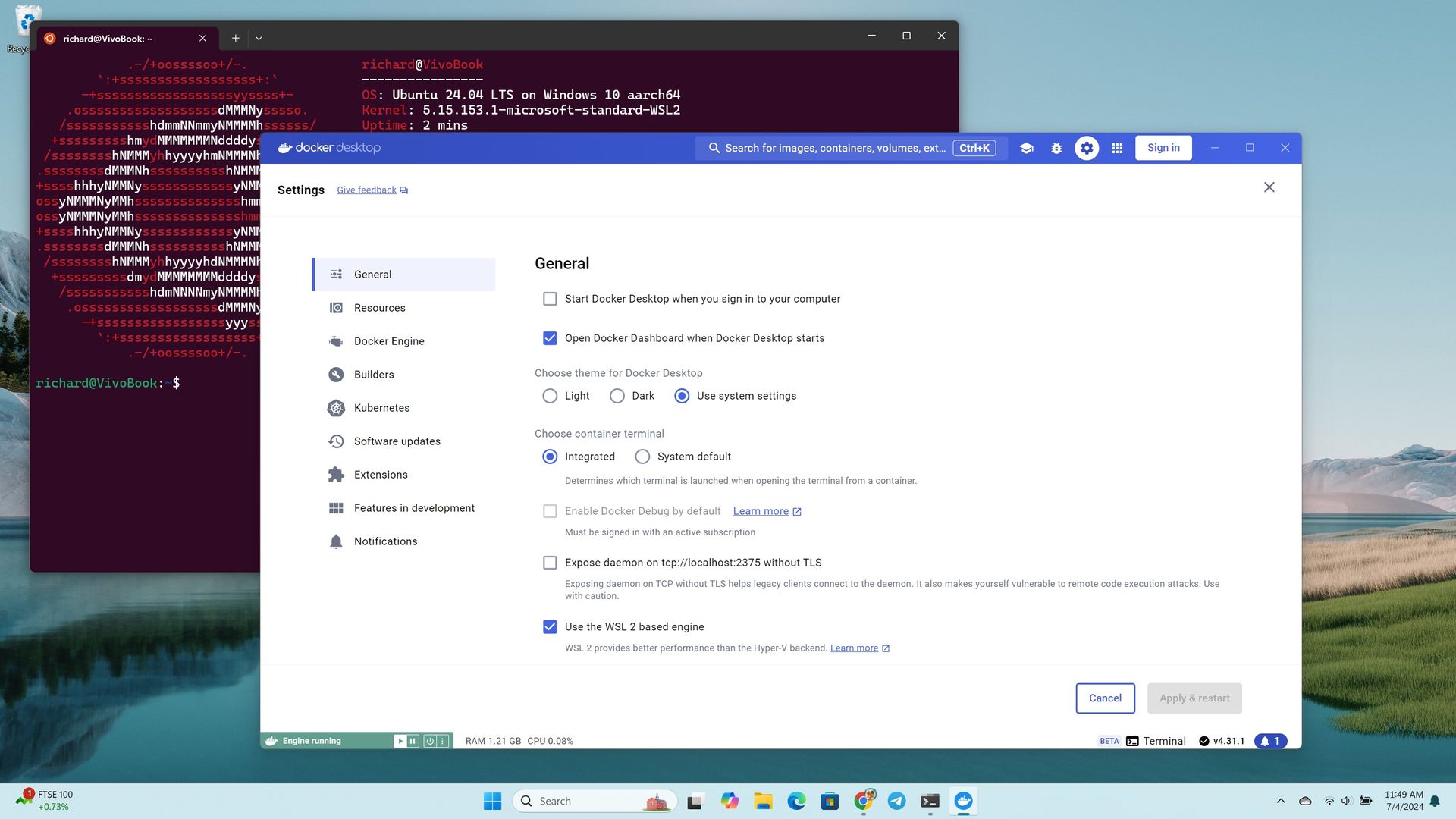
WSL Containers brings built-in Linux container support to Windows through WSL. Until now, developers typically relied on third-party tools such as Docker Desktop to run Linux containers on Windows. With WSL Containers, Microsoft is providing a built-in alternative through WSL.

Microsoft announced WSL Containers at Build 2026 and has tested the feature since then. The platform is now generally available.

Microsoft has also added new features to WSL containers since testing began, including support for container health checks, real-time event streaming, expanded networking controls, configurable storage locations, and several new container management commands.

Microsoft is also adding more enterprise controls to WSL Containers, including Intune policies and Microsoft Defender for Endpoint support.

Tools such as Docker Desktop continue to be an option for developers, but WSL Containers requires less software to install and manage.

Microsoft's new wslc command-line tool uses commands that will feel familiar to developers who already work with containers, making the transition relatively seamless.

WSL Containers won't replace tools such as Docker Desktop for everyone, but they do give developers one less app to install. For many Windows 11 users, running Linux containers just became a built-in feature rather than something that requires extra software.

Most Windows 11 users will never run a container, so this update won't change their day-to-day experience. But making container support a built-in part of Windows removes a barrier for developers, which can speed up app development and testing.

Click to join us on r/WindowsCentral

Join us on Reddit at r/WindowsCentral to share your insights and discuss our latest news, reviews, and more.
Copilot reviewers speak out on grading AI-generated explicit content

People assigned to review Copilot prompts are being shown sexually explicit images and potentially illegal content, according to a report by 404 Media. The report cites Microsoft documents, threads with messages from contractors, and guidelines from a company called Prolific that hires the contractors assigned to review prompts given to Copilot.

Copilot prompts and image uploads can be reviewed by human contractors to improve the tool.

The fact that humans review Copilot conversations should not come as a surprise. Many companies rely on people to assess and audit AI responses. There are, however, some key differences between the recently uncovered situation and other reviews of AI responses.

The people who are looking at these queries are not being asked to flag inappropriate content or help reduce sexual conversations with Copilot. Instead, the contractors are being asked if Copilot did a good job responding to queries.

There are several negative consequences that come as a result of this setup. One is the fact that people are being inundated with sexual questions and images, often without warning.

404 Media saw the contents of an internal message board discussing reviews of Copilot prompts. The thread showed that people were asked to ensure a woman's skirt had been made short enough or if a woman's breasts had been adequately enlarged.

She-Hulk images come up a lot, according to the thread seen by 404 Media. Other content includes suggestive images of young girls and making an image of Ariana Grande with anorexia.

"Who is writing these prompts and who is deciding that basically generating porn is what Copilot is now focused on? It’s hard to take things seriously when my focus has to be what model generated the appropriate bust size or which middle aged woman was put in the appropriate sexually suggestive position," said one contractor in the thread.

Microsoft Copilot on a red background

Copilot can be a useful work companion, but many try to use the tool to create explicit or pornographic content. (Image credit: Windows Central | Jez Corden)

Microsoft's guidance to contractors is to trust their intuition, according to documents seen by 404 Media. The company asks people to rely on their gut reaction to determine if an image meets the demands of a prompt.

In a vacuum, asking people to assess the realism of AI-generated images is fine. Humans have an uncanny ability to detect when an image feels off. But the contractors are not being asked to determine if an innocent image looks real.

Contractors are sometimes given tasks that turn out to include explicit, unsafe, or potentially illegal images, according to 404 Media. One contractor discussed being sent a collection of upskirt photos. While those types of images can be taken with consent, they often are taken without permission.

Other prompts reviewed by humans include a request to make fetish images of children's cartoon characters.

Microsoft provided a statement to 404 Media:

"Microsoft uses customer data as described in our terms of use, including to improve our products and enforce our code of conduct."

Prolific did not respond to a request for comment made by 404 Media.

404 Media breaks down the situation extensively, so I suggest reading through all of their coverage as well. The piece asks for prompt reviewers to reach out to 404 Media, so we may see more details emerge in the future.

Click to join us on r/WindowsCentral

Join us on Reddit at r/WindowsCentral to share your insights and discuss our latest news, reviews, and more.
The Copilot+ PC brand is dead: How to remap your Copilot key

After years of trying to get people to embrace the Copilot+ PC brand, Microsoft decided to move away from the moniker entirely. The new Surface Pro 12-inch and Surface Laptop 13-inch aren't called Copilot+ PCs even though they meet all the technical requirements to be labeled as such.

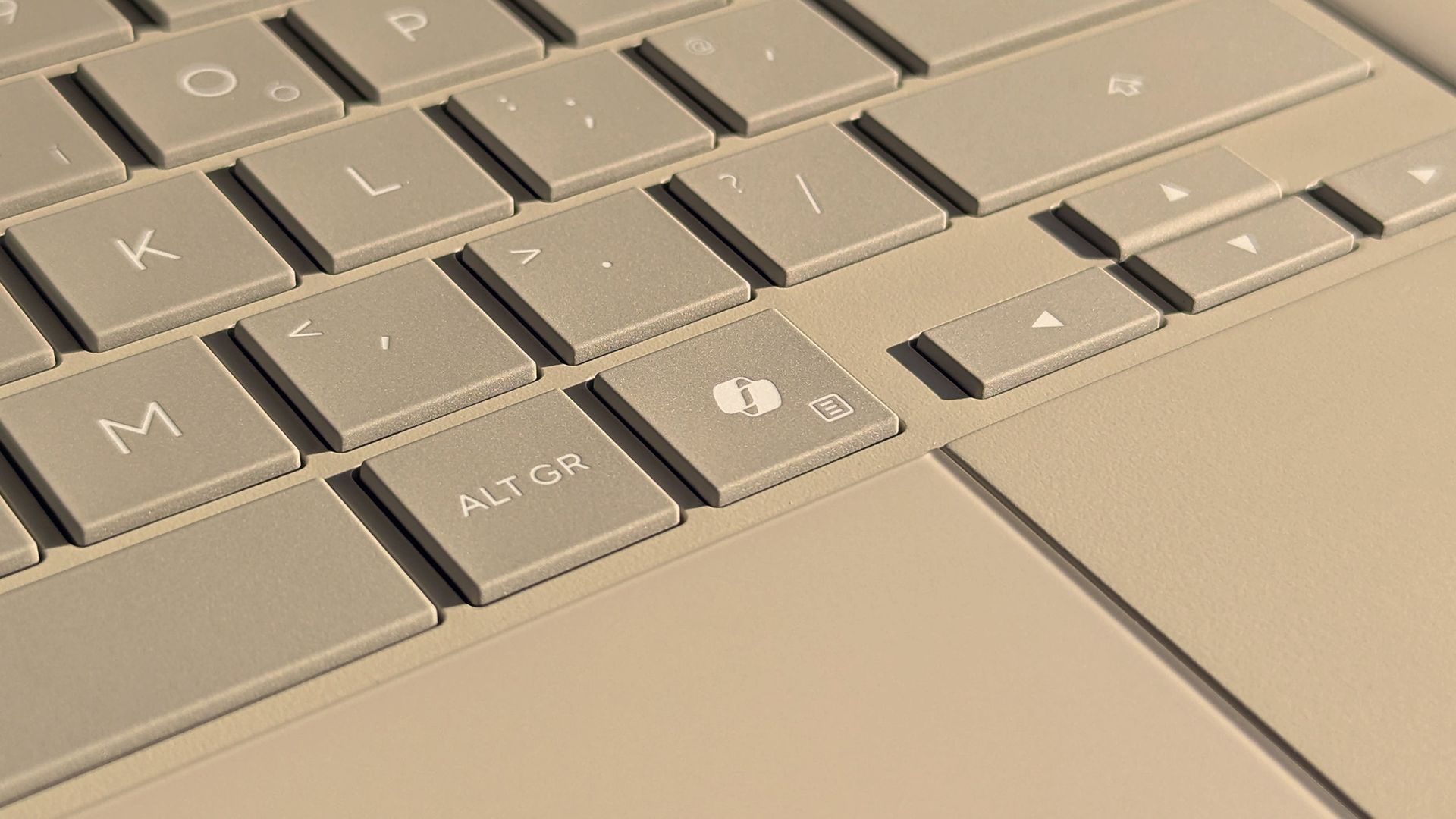
That leaves some of us in a strange spot. Many purchased Copilot+ PCs because that was the only way to get a new model of certain laptops. People can enable or disable AI features as they'd like, but Copilot+ PCs feature a Copilot key that is useless to a lot of people.

There are non-Copilot+ PCs and keyboards that feature a Copilot key. But because of the recent change regarding Copilot+ PCs, people online have complained about their Copilot+ PCs having a Copilot key, so I made this guide.

So, what can you do if you spent hundreds, or even thousands, of dollars on a laptop to get the latest specs only to find a key on your keyboard wasted? Luckily, Microsoft considered this quandary and made it possible to remap the Copilot key.

Windows 11 allows you to customize what the Copilot key does, but the options are limited. You can set the key to open Search, open Copilot, or launch an app.

If you want more control over what the Copilot key does (pun intended), you can use PowerToys to remap the key.

You can also spend a few dollars to cover up the Copilot logo and replace it with whatever you'd like to remap that key to.

How to remap Copilot key in Windows 11

This is the easiest option, but it has serious limitations.

  • Open the Settings app on Windows 11.
  • Open Bluetooth & devices.
  • Open Keyboard.
  • Click the dropdown menu next to Customize Copilot key on keyboard.
  • Select Search, Copilot, or Open an app.

The option to remap the Copilot key shipped to Windows 11 this year, so you need to make sure your PC is up to date to use the feature.

How to remap Copilot key with PowerToys

If you want to remap the Copilot key to do something other than launch Search, Copilot, or an app, you need to use a separate application. PowerToys includes a Keyboard Manager that does the trick.

Because the Copilot key is treated by Windows 11 as a shortcut and not as a single key, you need to use the option to remap a shortcut.

I found this process easier to complete using the classic Keyboard Manager within PowerToys. You can do this by toggling Try the new editor off.

Keyboard Manager within Microsoft PowerToys

If you are running the latest version of PowerToys, you may find it easier to use the classic editor rather than the new editor. (Image credit: Future)
  • Install PowerToys.
  • Open PowerToys.
  • Open the Keyboard Manager tool.
  • Make sure Keyboard Manager is enabled.
  • Select Remap a shortcut.
  • Select Add shortcut remapping.
  • Set the shortcut to Windows + Shift + Ctrl + F23.
  • Set the action to whatever you'd like (such as Ctrl (Right)).

Since few keyboards have an F23 key, I found it easier to use the classic editor in Keyboard Manager. Our colleagues at Tom's Hardware were the first to discover that the Copilot key is actually a shortcut using F23.

PowerToys | Free at GitHub | Free at Microsoft Store

This collection of utilities includes a large library of features to enhance the Windows experience. PowerToys is designed with power users in mind, but it has handy features for people who just use their PC for everyday computing too.View Deal

How to cover the Copilot key

Even if you remap the Copilot key, the logo will still appear on your keyboard. If you dislike keys mismatching what they input on your PC, you may want to cover up the Copilot key.

Unfortunately, how easy that will be depends on the color of your keyboard. It's very easy to find keyboard stickers in black or white. This listing on Amazon includes stickers in white, black, and in various languages.

If you have a Surface with a gray keyboard or a colorful Type Cover, you may struggle to find a sticker that matches the color of your keys. You may have better luck on eBay or Etsy, but since items there are often custom made, I won't recommend a specific set of stickers.

If you find stickers to replace the Copilot key on your PC and want to make sure other people know about them, comment below or reach out to me on social media and I'll update this piece.

Click to join us on r/WindowsCentral

Join us on Reddit at r/WindowsCentral to share your insights and discuss our latest news, reviews, and more.

Microsoft Teams is losing its Copilot chat list shortcut next month

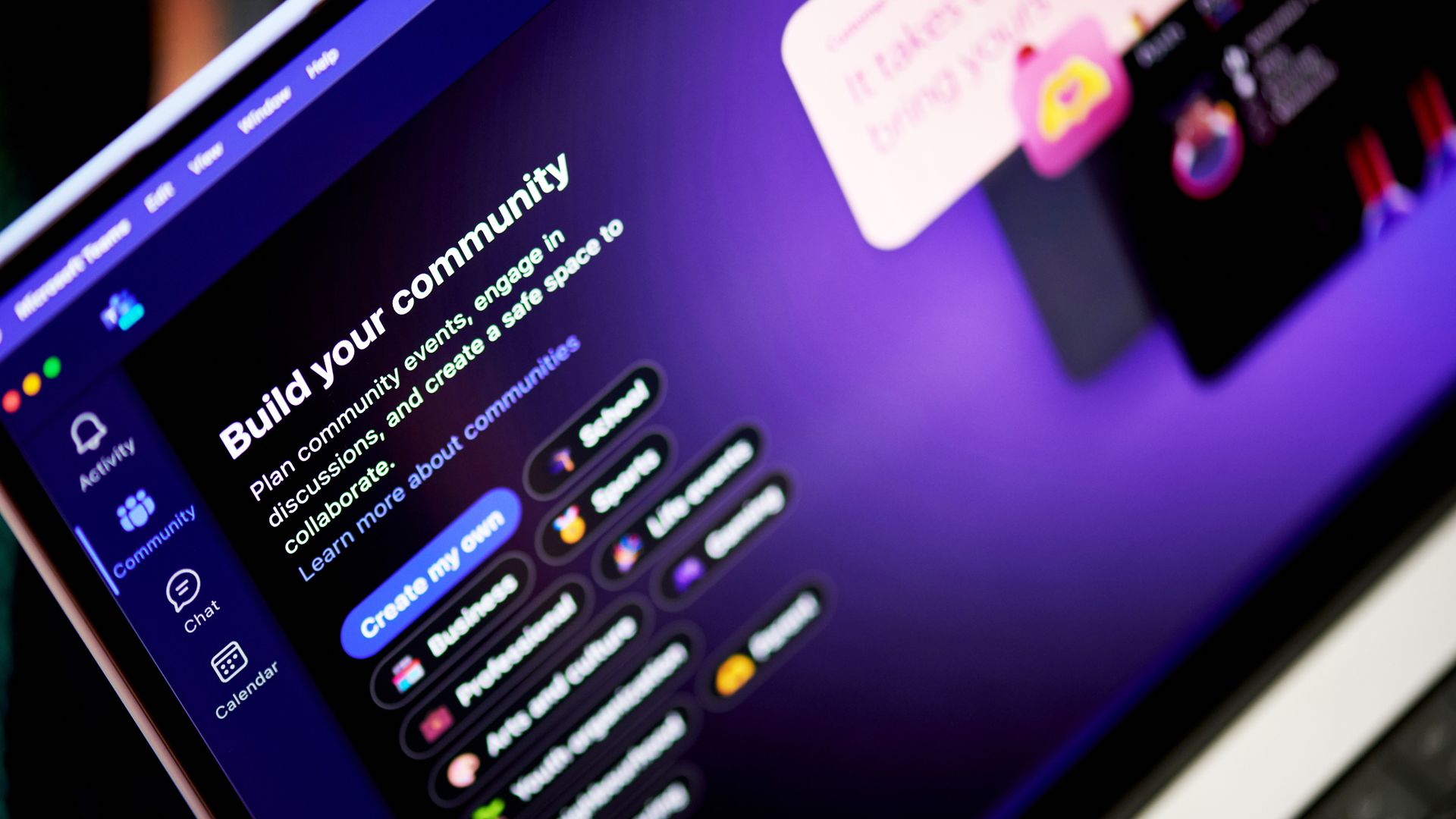
Microsoft Teams will no longer show a shortcut to the Copilot app in the Teams chat list. The change is expected to roll out in mid-to-late October and will affect the desktop and web versions of Teams.

Right now, there are two ways to navigate to Copilot within Teams and the two entry points lead to different experiences. Microsoft explained the need for the change through the Microsoft 365 Message Center (archived here):

"Today, users can access Copilot either from the Teams chat list or from the Copilot app in the Teams app bar. Beginning in October 2026, we will remove the Copilot entry point from the Teams chat list and direct users to access Copilot through the Copilot app. The Copilot app provides access to the full set of Copilot capabilities, while the chat list entry point provides a more limited experience."

The Copilot shortcut in the Teams chat list made Copilot more visible, but that entry point led to a limited experience. My guess is that some people only knew about the Teams chat list icon and ended up using a limited version of Copilot.

After October, there will be a single entry point for Copilot in Teams and those who use it will be presented with the full experience.

The mobile versions of Teams are unaffected by this change.

Copilot in flux

Jacob Andreou is on stage in front of a screen displaying

Microsoft wants AI to feel more natural for non-enterprise customers. "Autopilot" is a digital teammate that automates tasks and connects things across Microsoft 365. (Image credit: Microsoft)

Copilot finds itself in a state of flux. Microsoft just announced a massive shift in its Copilot strategy. A major update to Copilot flips the approach Microsoft is taking. Rather than have Copilot sprinkled across Microsoft 365, Copilot will act as a unified workspace that connects documents, conversations, data, and tasks.

Microsoft CEO Satya Nadella went as far as to call the update a new operating system. Three new landing spots for Copilot will provide new ways to interact with the tool, such as Home serving as a landing spot. Changes then permeate throughout relevant Microsoft 365 apps.

The exact features and experiences you will see will depend on what type of Microsoft 365 subscription you have.

More details about Copilot are expected at Microsoft Ignite in November. The key takeaway for now is that while Microsoft is shifting where it uses the Copilot moniker and how people access Copilot, the AI tool is very much an integral part of the company's plans.

Based on the upcoming change to Teams, it's clear that Copilot will still be accessible through apps. But Microsoft may emphasize different experiences or streamline the entry points to the tool.

Click to join us on r/WindowsCentral

Join us on Reddit at r/WindowsCentral to share your insights and discuss our latest news, reviews, and more.

❌