Vue normale

Microsoft is testing deeper Phone Link integration in Windows 11, but does anyone actually use it?

Windows Insiders have new features to try out, including improved Windows Search and an upgraded Phone Link. The changes come with Windows 11 Insider Build 26300.9032, which is now available through the Experimental Preview Channel.

The improved Windows Search is customizable, including some options that were already available. You can enable or disable integration with your personal Microsoft account or work or school account. You can also set Search to look through your OneDrive or not search your cloud storage.

The most recent addition of automatically expanding indexing in Windows Search based on your activity can also be enabled or disabled with a toggle.

Phone Link keeps getting better

The changes to Phone Link are more significant, but I wonder how many people they will affect. Based on comments here and on social media, it feels like Phone Link is a good idea that few people actually use daily. But Microsoft continues to improve it, so there must be a healthy user base.

In the most recent Windows Insider build, Phone Link can show more activity at a glance. Hovering over a recent message or notification in the recent section of the Start menu will show a preview of content. That experience is rolling out gradually, though, so you may not see it even if you're on the latest build.

Microsoft has big plans for Phone Link and even has a dedicated Messages app in the works that will support SMS conversations. Our Senior Editor Zac Bowden reported that the new features "are being explored and prototyped internally," but that they might change or not ship.

Eventually, Phone Link may integrate with the Windows shell rather than existing as a standalone app on top of Windows 11.

Microsoft has also played around with integrating Windows 11 and smartphones directly rather than through Phone Link. There's probably a place for both, but I'm curious if you have a preference regarding how to connect a smartphone and a PC.

Blank Pixel

Windows 11 Insider Preview Build 26300.9032

Search

  • Windows Search can now automatically expand its indexing scope based on your activity, using signals like recent files and frequently accessed locations. This helps ensure that relevant files across your device are discoverable without requiring manual indexing configuration.
  • To manage this feature, go to Settings > Privacy & security > Search.

Phone Link

  • The phone companion experience in Start already helps you keep up with activity from your mobile device. With today's update, you can see even more at a glance.
  • Get more from your latest activities: Hover over a recent message or notification in the Recent section to preview its content directly in Start. There's no need to pick up your phone or open the item to see what's new.
  • Whether you're checking a message or deciding if a notification needs attention, these updates make it easier to stay informed and keep your focus.
  • This experience is gradually rolling out to Insiders on the Experimental channel with a minimum Phone Link build of 1.26021.3.0. Go to Phone Link > Settings > Start menu personalization.

Settings

  • We've improved search in the Settings app to help you discover and navigate to settings more quickly. Search now surfaces results from more areas within Settings, with improved ranking to help relevant settings appear higher in results.

Adaptive hibernate policy

  • Updates to the adaptive hibernate policy increase instances of instant-on resumes from Modern Standby and increase battery preservation at the low end of the battery. Noticeable changes include less hibernation while the battery is above 80% and hibernating sooner when the battery is below 10%.

Start menu

  • Fixed an issue causing the Start menu to crash for some Insiders recently when dragging apps.

Taskbar

  • Fixed a recent issue where, when the taskbar was in an overflow state, hovering over the preview thumbnail for an app window in the overflow area would immediately dismiss it.

File Explorer

  • File Explorer Home now preserves the state of sections (expanded or collapsed), so you can pick up where you left off.
  • We've addressed an issue that caused the address bar contents to be cleared when entering edit mode by clicking near the right end of the bar.
  • We've improved the reliability of File Explorer when dragging files to a disconnected network drive.
  • This update addresses an issue where files stored on a DFS mapped drive could be incorrectly treated as originating from the internet after the device started while disconnected from the network and later reconnected. This could cause File Explorer's Preview pane to display the message, "The file you are attempting to preview could harm your computer," or cause files copied from the DFS drive to receive an unexpected Mark of the Web.

Windows Spotlight

  • Made some underlying changes to help improve reliability for Windows Spotlight on the lock screen.

Storage

  • This update fixes an issue that affects File History automatic backups to network shares using Server Message Block (SMB). Backups didn't work because Windows showed a false "invalid credentials" error when connecting to SMB shares.

Click to join us on r/WindowsCentral

Join us on Reddit at r/WindowsCentral to share your insights and discuss our latest news, reviews, and more.

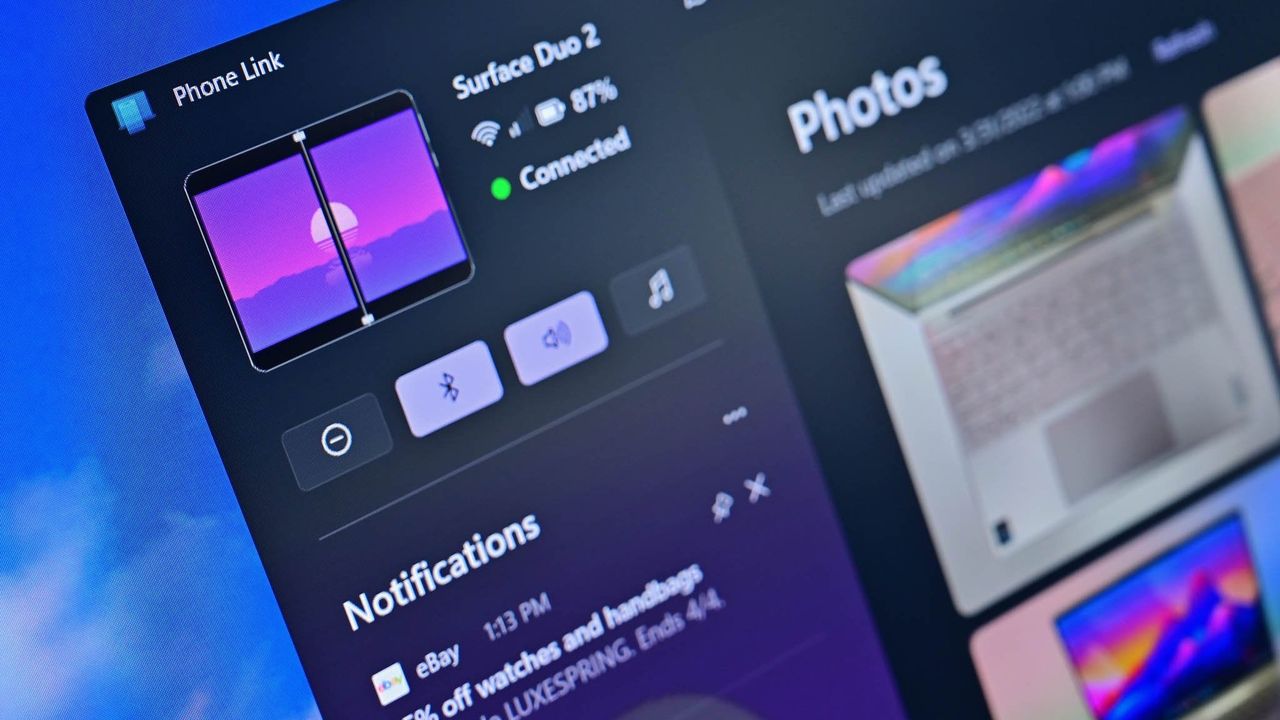
Image of Phone Link on Windows.

Image of Phone Link on Windows.
Microsoft promises to fix Windows 11 for 8GB PCs, but it put the cart before the horse with low-memory Surfaces

Windows Central

Windows 11 is being fixed, and that’s not just lip service. Microsoft is making meaningful changes to its operating system. Menus are being decluttered, legacy components are being revamped, and features like Xbox Mode are reshaping Windows 11.

Just this week, we saw that Microsoft has plans to fix context menus on Windows 11 and get rid of the page-tall menus that plague PCs. Microsoft also committed to making Windows 11 perform better on systems with only 8GB of RAM.

I’ve talked about Windows 11's improvements several times this year in the Windows Wrap. Generally speaking, I’m happy that they’re happening but confused about Microsoft's timing. On top of questions like "Why did it take several years to make Windows 11 look nice?" There are also usability questions like "Why did Microsoft start selling a Surface with only 8GB of RAM before optimizing Windows 11 to work on that machine?"

Now, don’t get me wrong, Windows 11 can run on a system with only 8GB of RAM. I think many tests performed online are done in bad faith. Some people have dozens of Chrome browser tabs open and a bunch of apps running at once and then complain about performance.


You can get work done on a PC with that amount of memory, as proven by our own Cale Hunt, who tested Windows 11’s memory optimization by limiting his PC to 8GB of RAM.

But by Microsoft’s own admission, Windows 11 needs to be better on low-memory systems. With the cost of RAM skyrocketing and not looking like it will go down at any point in the near future, it’s more important than ever for Microsoft to optimize Windows 11.

Biggest News of the Week

Windows 11
Windows 11 context menu
Windows 11 Start Logo
Angled close up of an LG PC monitor displaying an on screen menu for Picture Mode presets including Custom, Vivid, HDR Effect, Reader, Cinema, sRGB, and DCI-P3 over a purple cityscape background.

Earlier this year, Microsoft started selling Surface PCs with only 8GB of RAM, specifically the Surface Pro 12-inch and Surface Laptop 13-inch. I appreciate the gesture. In today’s economy, getting a PC with too much RAM or too much storage for your everyday needs can cost hundreds of dollars extra.

I covered several Surface deals this week, including some options that are up to $450 off. While that is a significant savings, those deals are all on models of the Surface Pro (13-inch) with 16GB of RAM. It’s still difficult to find that type of Surface Pro under $1,200.

Many people just want a PC that’s reliable and that can handle their everyday tasks. Even those shopping in more premium categories, such as Surface, often prioritize design and form factor over getting the highest specs. For those types of customers, an 8GB RAM Surface makes sense, but not if Windows 11 is still a problem.

Microsoft put the cart before the horse with the 8GB Surface PCs. The tech giant responded to the RAM crisis with more affordable PCs, but Microsoft failed to optimize Windows 11 for lower memory first.

To me, that shows a disconnect between the Windows and Surface teams at Microsoft.

Shopping with Sean

Until Microsoft fully optimizes Windows 11 for PCs with only 8GB of RAM, you might feel a bit of a pinch in performance with that amount of memory. The current discounts on Surface Pro get you more memory without having to pay as much of a premium.

The best Surface Pro deals are spread across Amazon and Best Buy this week.

CPU: Snapdragon X2 Elite
GPU: Qualcomm Adreno
RAM: 16GB
SSD: 1TB

This Surface Pro is both the best deal of the day and the highest spec'd configuration you can get through Amazon. It pairs the new Snapdragon X2 Elite with 16GB of RAM and 1TB of SSD storage. Plus, it has a lovely OLED screen for deep blacks and high contrast.

👉 See at AmazonView Deal

CPU: Snapdragon X2 Elite
GPU: Qualcomm Adreno
RAM: 16GB
SSD: 512GB

This is the Goldilocks model of the Surface Pro, balancing high-end specs like an OLED screen with value for money. At $300 off, it has the highest discount available through Best Buy. Its Dune color is stunning as well and a personal favorite.

👉 See at Best BuyView Deal

CPU: Snapdragon X2 Elite
GPU: Qualcomm Adreno
RAM: 16GB
SSD: 512GB

This Surface Pro has all the same specs as the Dune model highlighted above, but in a sleek black color.

👉 See at Best BuyView Deal

CPU: Snapdragon X2 Plus
GPU: Qualcomm Adreno
RAM: 16GB
SSD: 512GB

If you love the form factor of the Surface Pro but don't need the Snapdragon X2 Elite, this model is a great bargain that still features plenty of storage and RAM.

👉 See at AmazonView Deal

CPU: Snapdragon X2 Plus
GPU: Qualcomm Adreno
RAM: 16GB
SSD: 256GB

This is the most affordable Surface Pro you can grab. Its Snapdragon X2 Plus delivers snappy performance for everyday computing and you still get 16GB of RAM. Just be aware that it has only 256GB of storage.

👉 See at Best BuyView Deal

The biggest perk here is wireless functionality. You can detach the keyboard and type comfortably while keeping the tablet propped up at eye level, which is a lifesaver on cramped desks or airplane trays.

👉 See at Best BuyView Deal

Click to join us on r/WindowsCentral

Join us on Reddit at r/WindowsCentral to share your insights and discuss our latest news, reviews, and more.

Microsoft's Surface Pro 12-inch 1st Edition (2025) powered by Qualcomm Snapdragon X Plus processor.

Microsoft's Surface Pro 12-inch 1st Edition (2025) powered by Qualcomm Snapdragon X Plus processor.

Poll: How do you feel about Microsoft's "improvements" to Windows 11?

My mom hated Windows 8. That's an understatement; she despised it. Like so many others who had grown used to the Start menu and general interface of previous versions, Windows 8 came as a jarring change to my mom.

But a funny thing happened when Windows 10 came out; my mom was reluctant to upgrade. Despite hating Windows 8 and Windows 8.1, she had grown used to them and made them fit her workflow. Having to relearn yet another interface was extra work that my mom was slow to sign up for.

She eventually upgraded to Windows 10 and later Windows 11, but her experience and her frustrations were not unique. Sometimes the enemy you know is better than the one you don't, even if you got to know that enemy begrudingly.

So, what does this have to do with Windows 11? Windows 11's upcoming Patch Tuesday update has a feature that I believe will elicit a similar reaction to my mom being presented with Windows 10.

Starting next month, Windows 11's File Explorer will show file sizes using the appropriate units (KB, MB, and GB). That means you'll no longer see a file that's 1,500,000 KB. Instead, you'll see that file listed as 1.5GB.

I believe many will see this change as an improvement. Dealing with millions of KB can be awkward, especially when other parts of Windows use different units. But part of me would love the option to keep everything in KB.

Because File Explorer has stuck with KB for so long, I've gotten used to scanning file sizes based on how many digits they are. After next month's update, I could have a file that's 400KB right between files that are 400MB. While the larger files would be clearly labeled, I've learned to expect files listed in KB after years of use, so there will be a learning curve.

I'm curious how people feel about these types of changes. Do you embrace what Microsoft deems an improvement to Windows 11, or are you frustrated with a feature or layout you're familiar with being changed?

Microsoft could always keep options for legacy features and new options, but if that happens for decades, you end up with a bloated OS. Take a look at the soon-to-be revamped context menus of Windows 11 if you want to see what years of tacking things on does to an operating system.

Click to join us on r/WindowsCentral

Join us on Reddit at r/WindowsCentral to share your insights and discuss our latest news, reviews, and more.

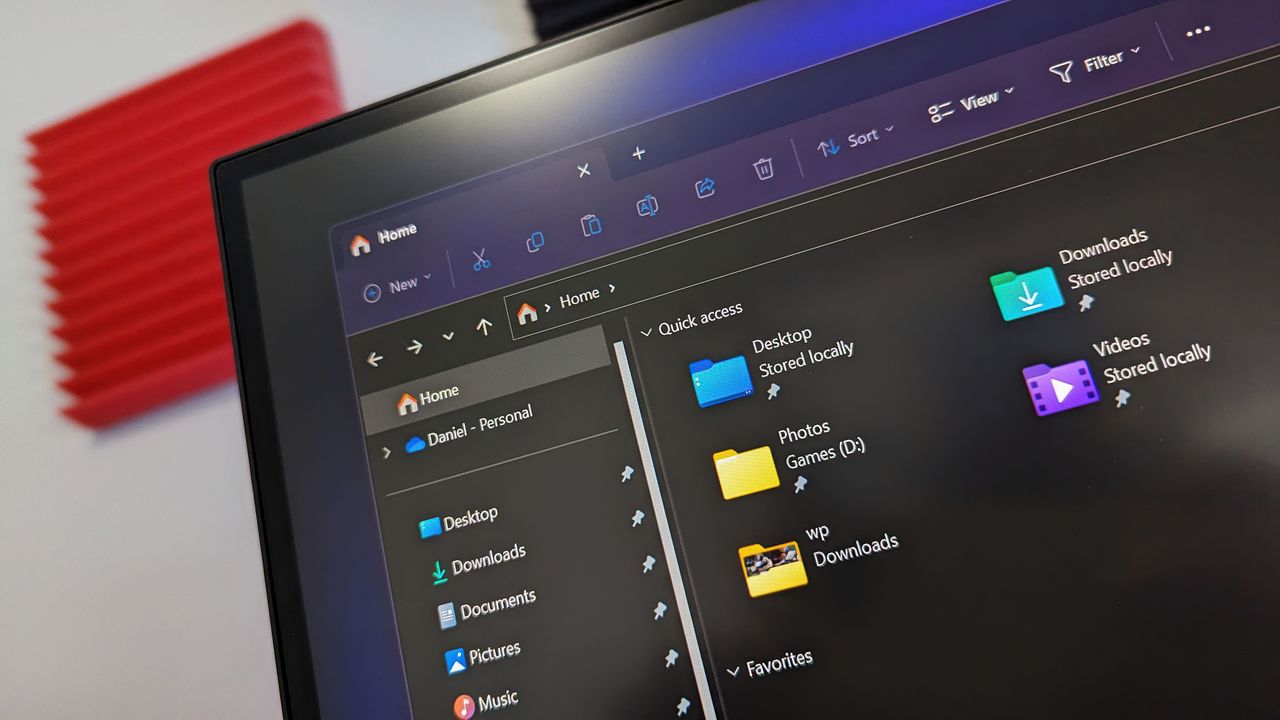
File Explorer from Windows 11

File Explorer from Windows 11

LG's defense of installing adware on Windows 11 proves the company is hopeless

LG got caught showing ads for McAfee to people who dared to plug in a monitor. An investigation by Gamers Nexus revealed that plugging in certain LG monitors triggered Windows Update to automatically download the LG Monitor App Installer without user consent. This wasn't just a display driver; it was a utility app.

The saga required Microsoft to step in and pressure LG to stop putting adware onto people's computers.

"We’ve connected with the team at LG and as an immediate next step, they have agreed to disable the McAfee pop-up from their app," said Windows chief Pavan Davuluri. "We appreciate LG working with us toward a shared goal of a better experience for our mutual customers."

LG has since stopped shoving adware onto people's PCs, but the company's official statement on the matter makes me question if any lessons have been learned.

"LG Electronics reiterates that McAfee is not installed automatically and is never installed without the user’s explicit consent," said LG in a statement shared with Windows Central and other outlets.

The company added, "During a limited period in the United States, a McAfee trial offer was also presented as an optional recommendation. McAfee was never installed automatically and always required a separate user choice and consent."

LG was never accused of installing McAfee without user consent, at least not by any reputable outlets I've seen. The company was accused of installing the LG Monitor App Installer without permission. That app is essentially a portal to other LG apps. It also controversially showed ads for McAfee.

I argue that no software should be installed without permission. Even more relaxed users would expect a monitor to install an app that's actually related to the monitor, not a showcase for other apps such as McAfee.

I chuckled at the part of the statement that read, "After reviewing customer feedback, LG removed the McAfee recommendation." I suppose that's one way to refer to the backlash and Microsoft intervening.

In case anyone from LG is still confused about definitions, installing an app without permission that shows ads for McAfee is adware. You don't have to install McAfee without consent for it to be adware.

Below is LG's full statement with emphasis provided by the company.

LG's full statement

"LG Electronics reiterates that McAfee is not installed automatically and is never installed without the user’s explicit consent.

The LG Monitor App Installer was designed to help monitor owners discover optional LG applications that enhance productivity, customization and monitor performance.

When compatible LG monitors are connected, the Installer can make related software available to help customers access monitor-specific features and functionality.

During a limited period in the United States, a McAfee trial offer was also presented as an optional recommendation. McAfee was never installed automatically and always required a separate user choice and consent. After reviewing customer feedback, LG removed the McAfee recommendation.

The LG Monitor App Installer does not collect personal information from customers' devices. Its function is to identify compatible monitor models and present applications supported by those models."

Blank Pixel

Click to join us on r/WindowsCentral

Join us on Reddit at r/WindowsCentral to share your insights and discuss our latest news, reviews, and more.

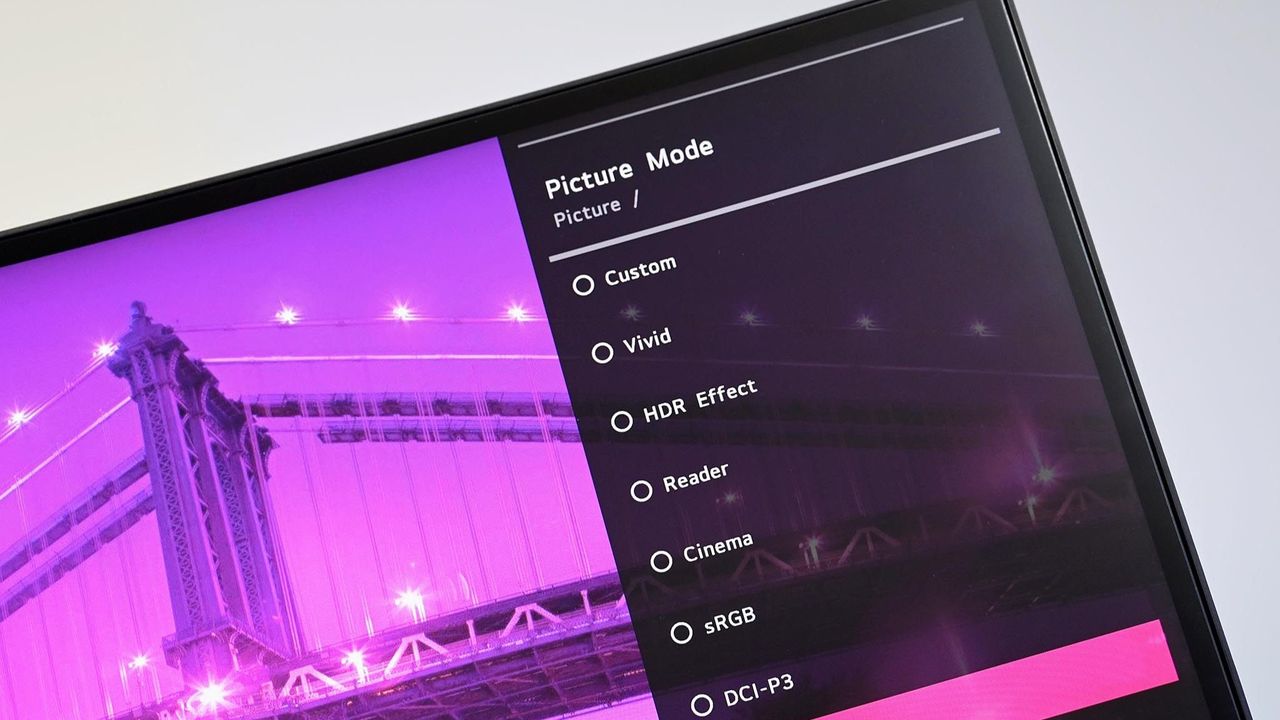
Angled close up of an LG PC monitor displaying an on screen menu for Picture Mode presets including Custom, Vivid, HDR Effect, Reader, Cinema, sRGB, and DCI-P3 over a purple cityscape background.

Angled close up of an LG PC monitor displaying an on screen menu for Picture Mode presets including Custom, Vivid, HDR Effect, Reader, Cinema, sRGB, and DCI-P3 over a purple cityscape background.

I've covered hundreds of apps for Windows Central, and I personally recommend these 6 to fix Windows 11 and replace Microsoft's apps

I've covered over 100 apps during my time at Windows Central. From powerful video editors to tiny utilities that change a hyper-specific part of Windows 11, there are a massive number of apps to install on a PC.

Sean Endicott

Sean Endicott News Writer Windows Central

(Image credit: Future)

What I'm working on this week: I'm performing a clean install of Windows 11 on my PC and rebuilding my work setup with my favorite customization apps and tools.

One of my favorite categories of apps is those that enhance, improve, or replace the everyday computing experience. For example, on my smartphone I have several extensions to clean up the mobile browsing experience.

When it comes to Windows 11, I'm quick to install a third-party replacement of a default app, a tweaker that improves a default experience, or to use an app to replicate core functionality of a built-in app.

On top of providing unique functionality that enhances your computing experience, each of these apps can also be used to replace a built-in part of Windows 11 or a dedicated Microsoft app.

As I rebuild my clean Windows 11 installation this week, these will be the first six apps I download to replace Microsoft's defaults.

My top Windows 11 apps

Microsoft Editor is fine for catching stray commas, but it struggles with more complex editing. Gemini catches subtle phrasing errors and provides suggestions to restructure paragraphs, refine flow, and adjust tone.View Deal

Microsoft Whiteboard feels bloated, is web-based, and is going away for non-business users. Markerpad is a lightweight whiteboard app that runs natively on Windows 11 and loads quickly.View Deal


This clipboard manager lives on the side of your screen and supports drag-and-drop. I use it in conjunction with the built-in Windows Clipboard, but you could easily rely on Edge Drop and never have to press WIN + V.View Deal


This file management app blazes a trail ahead of Windows 11's built-in File Explorer by experimenting with new features and testing new layouts before Microsoft.View Deal


Microsoft PowerToys is a collection of utilities that often outshine similar tools on Windows 11. For example, FancyZones is more powerful than snapping windows. One of my colleagues, Richard Devine, even uses PowerToys Run instead of the Start menu.View Deal


This app places widgets to the empty spaces of the Windows 11 taskbar. Even in beta, the app provides a better widget experience than Windows 11's built-in widgets panel.View Deal

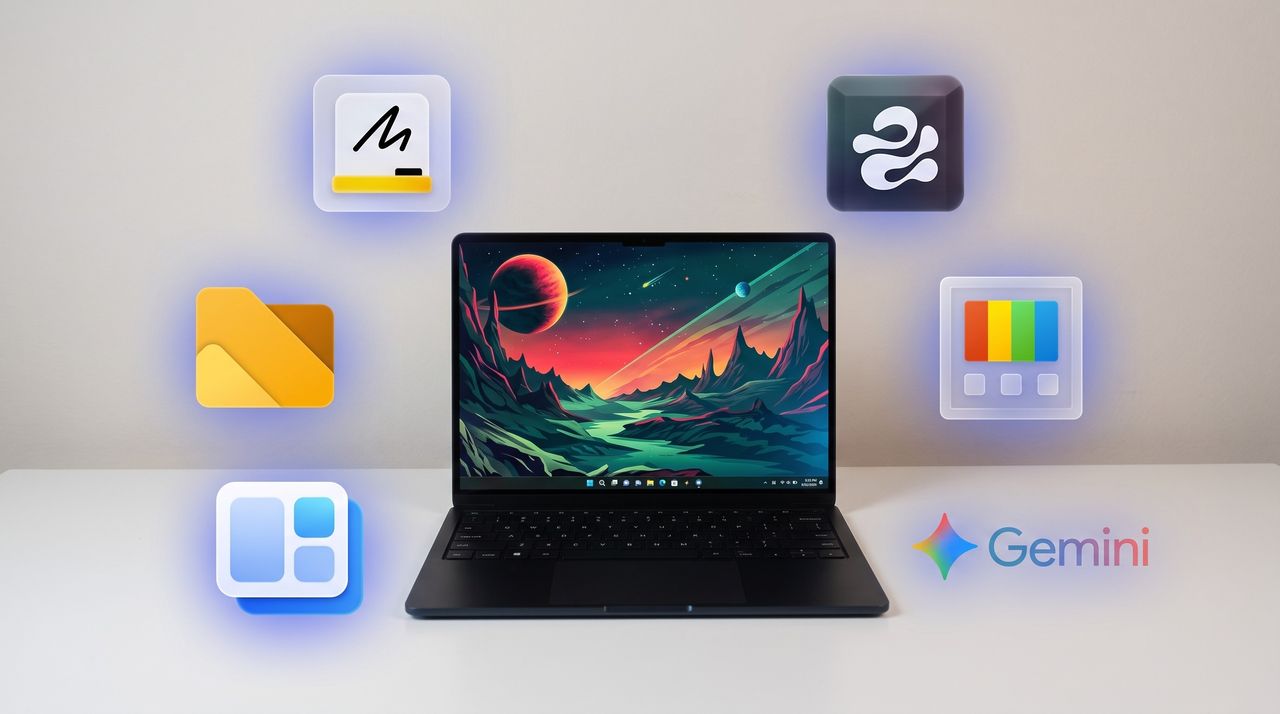
A black Windows laptop sitting on a white desk with six glowing app icons floating around it, including Microsoft Whiteboard, Edge Drop, PowerToys, Google Gemini, WidBar, and Files.

A black Windows laptop sitting on a white desk with six glowing app icons floating around it, including Microsoft Whiteboard, Edge Drop, PowerToys, Google Gemini, WidBar, and Files.

I spoke with the developer behind Endstate, a new app that fixes one of the worst parts of setting up a fresh Windows PC

Windows power users, PC builders, and admins have a new tool at their disposal that makes it easy to restore a PC after reinstalling Windows or setting up a new PC. The app, called Endstate, streamlines the process of reinstalling applications and can also restore your settings and preferences within supported apps.

Endstate is a free app designed for Windows, though Linux and macOS support are on the way. You can grab Endstate through GitHub.

I spoke with the developer of Endstate to better understand where the app is now and where it could evolve in the future.

Endstate uses WinGet and Chocolatey, which allow it to install a massive library of applications available across those package managers. But the real standout feature is that Endstate can capture the settings of your app into a zip file to make restoration simple.

When you reinstall Windows or set up a new PC, you have to install your required apps as well. A package manager like Chocolatey or WinGet can streamline that process, but the restored applications will be set to their factory defaults. All the toggles and settings you spent time customizing are reset to their base state.

Endstate supports settings restoration on 357 apps right now. Among those supported are some big-name apps such as MSI Afterburner, Adobe Lightroom Classic, VS Code, Windows Terminal, PowerToys, Git, Obsidian, OBS Studio, Notepad++ and ShareX.

Settings restoration is separate from app restoration. If an app is available through Chocolatey or WinGet but does not support settings restore, Endstate can still install the app.

Restoring settings is also done on a per-app basis.

You can use Endstate without an account and the app works offline.

Windows vs iOS and Android

Despite any Apple marketing campaigns about how many apps there are on iOS, Windows trounces all other operating systems when it comes to app selection. That is in part because everything from ancient programs to modern web apps works on Windows 11.

Because of the legacy support on Windows 11, we don't get all the benefits of modern applications on PCs. For example, any iOS or Android user may have read this article and been confused because saving and restoring app settings is commonplace on smartphones.

But on Windows 11, Endstate fills a notable gap. With only 357 apps that support settings restoration, Endstate has a ways to go before matching the native experience on iOS and Android, but it's still nice to see. I hope more app developers embrace Endstate and make it possible to save and restore settings.

Click to join us on r/WindowsCentral

Join us on Reddit at r/WindowsCentral to share your insights and discuss our latest news, reviews, and more.

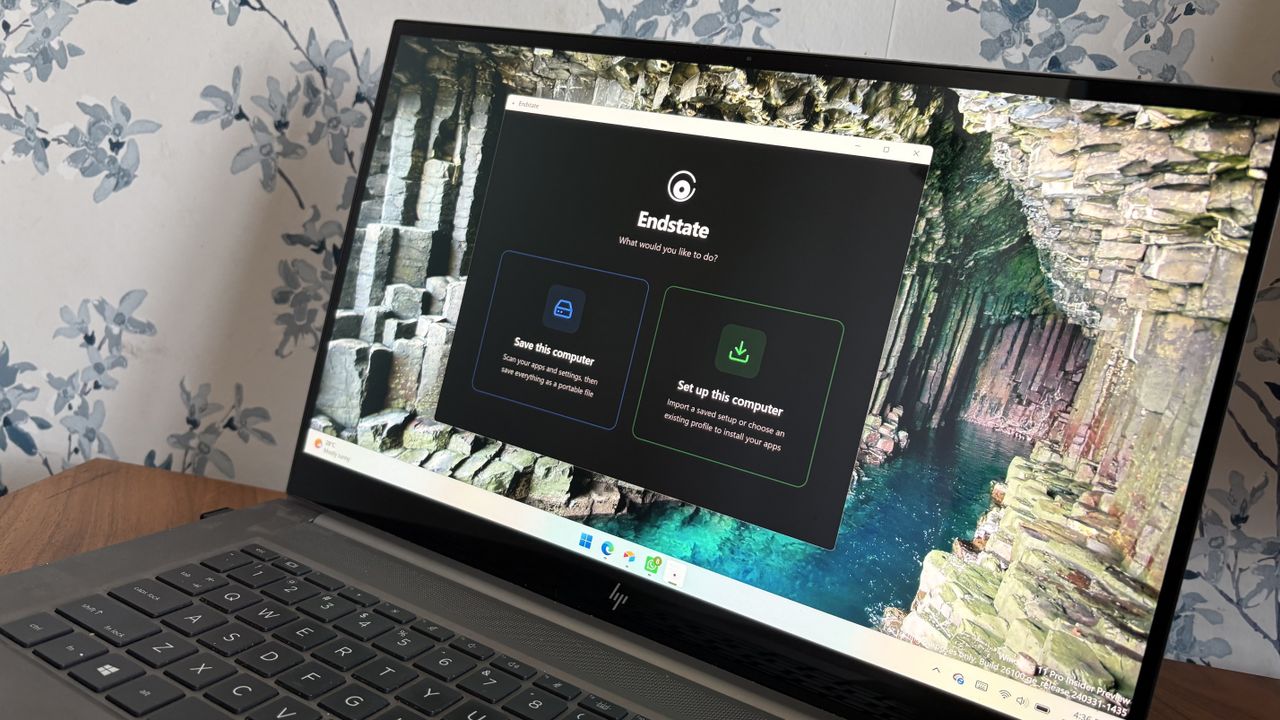
An HP laptop displaying the Endstate app on Windows 11 with options to "Save this computer" or "Set up this computer."

An HP laptop displaying the Endstate app on Windows 11 with options to "Save this computer" or "Set up this computer."

Microsoft’s new Surface Pro finally feels worth its price — Snapdragon X2 models get massive $450 back-to-school cut

Microsoft's Surface Pro is on sale just in time for back-to-school season. The flagship 2-in-1 runs on Qualcomm's Snapdragon X2 Elite or Snapdragon X2 Plus processor, both of which promise a significant performance bump over the last generation.

A bunch of Surface Pro models are on sale right now across various retailers. I've listed the biggest deals below, starting with the 21% discount on the Surface Pro with Snapdragon X2 Elite, 16GB of RAM, and 1TB of storage.

CPU: Snapdragon X2 Elite
GPU: Qualcomm Adreno
RAM: 16GB
SSD: 1TB

This Surface Pro is both the best deal of the day and the highest spec'd configuration you can get through Amazon. It pairs the new Snapdragon X2 Elite with 16GB of RAM and 1TB of SSD storage. Plus, it has a lovely OLED screen for deep blacks and high contrast.

👉 See at AmazonView Deal

CPU: Snapdragon X2 Elite
GPU: Qualcomm Adreno
RAM: 16GB
SSD: 512GB

This is the Goldilocks model of the Surface Pro, balancing high-end specs like an OLED screen with value for money. At $300 off, it has the highest discount available through Best Buy. Its Dune color is stunning as well and a personal favorite.

👉 See at Best BuyView Deal

CPU: Snapdragon X2 Elite
GPU: Qualcomm Adreno
RAM: 16GB
SSD: 512GB

This Surface Pro has all the same specs as the Dune model highlighted above, but in a sleek black color.

👉 See at Best BuyView Deal

CPU: Snapdragon X2 Plus
GPU: Qualcomm Adreno
RAM: 16GB
SSD: 512GB

If you love the form factor of the Surface Pro but don't need the Snapdragon X2 Elite, this model is a great bargain that still features plenty of storage and RAM.

👉 See at AmazonView Deal

CPU: Snapdragon X2 Plus
GPU: Qualcomm Adreno
RAM: 16GB
SSD: 256GB

This is the most affordable Surface Pro you can grab. Its Snapdragon X2 Plus delivers snappy performance for everyday computing and you still get 16GB of RAM. Just be aware that it has only 256GB of storage.

👉 See at Best BuyView Deal

The biggest perk here is wireless functionality. You can detach the keyboard and type comfortably while keeping the tablet propped up at eye level, which is a lifesaver on cramped desks or airplane trays.

👉 See at Best BuyView Deal

Why buy a Surface Pro

Surface pro open with Windows 11 wallpaper

(Image credit: Microsoft)

The main reason to grab a newer Surface Pro is the processor you'll get. The Snapdragon X2 Plus and Snapdragon X2 Elite offer over a 50% graphics improvement over the last gen.

That performance bump helps everything from photo editing to everyday productivity tasks feel smoother.

Microsoft refined the design of the Surface Pro over more than a decade, resulting in a premium device that defines the category. There are good reasons why Apple and other companies try to copy the Surface Pro.

While imitation is a form of flattery, the Surface Pro still stands out because of its built-in kickstand that makes it easy to prop up. That kickstand-centered design is best taken advantage of with the Surface Pro Flex Keyboard, which happens to be discounted right now.

The Surface Pro Flex Keyboard that's on sale is compatible with the new Surface Pro that launched this year. If you're worried about compatibility, you can double-check your device on Microsoft's support document about Surface Pro keyboards.

The Surface Pro Flex Keyboard can be used wirelessly or when physically attached. If you've ever tried to use a laptop or a 2-in-1 on an airplane tray table or tiny desk, you'll know the struggle of feeling cramped. The Surface Pro Flex Keyboard lets you have the keyboard on your lap or a table while the PC sits elsewhere.

Like other PCs, the Surface Pro has crept up in price over the last year or so. The high price tag of the Surface Pro was the main complaint about the PC when it was announced. The current deals on the Surface Pro alleviate that issue, at least temporarily.

Click to join us on r/WindowsCentral

Join us on Reddit at r/WindowsCentral to share your insights and discuss our latest news, reviews, and more.

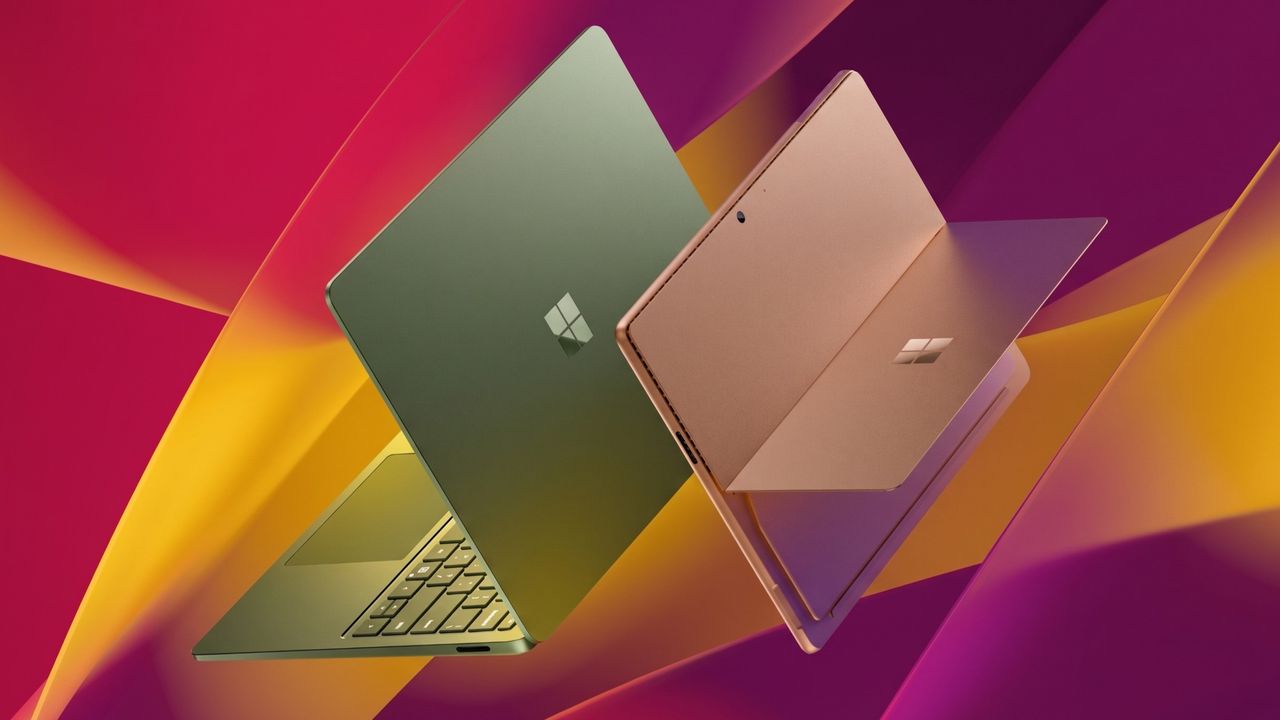
Surface Pro and Surface Laptop side by side on colorful background

Surface Pro and Surface Laptop side by side on colorful background

Quote of the day by Phil Spencer: "A future where every screen is an Xbox" — Halo: Campaign Evolved on PS5 proves why Asha Sharma had to abandon a flawed plan

When Asha Sharma was named Xbox CEO, some on the web screamed about the fact that she was not a gamer. But the first few months of her tenure have shown why sometimes it's best to have a person who understands business in charge of a multi-billion-dollar gaming empire.

Here are some lessons that Xbox has had to learn or relearn this year under Sharma: Exclusives matter, Xbox starts with console, and it's not realistic to expect Xbox Game Pass to have 77 million subscribers when there are only an estimated 30 million Xbox consoles around.

Back in 2024, then Xbox CEO Phil Spencer said he wanted a "Future Where Every Screen Is An Xbox." It's been over two years since that memo was sent to Microsoft employees and leaked. In that time, we've seen Microsoft ship exclusives to PlayStation, reverse course, and straddle the barrier between consoles and PCs.

This is a future where Xbox is everywhere—consistent with our promise to empower players to “play the games you want, with the people you want, anywhere you want.

Phil Spencer (2024)

Spencer's vision was flawed. Taking the box out of Xbox never made sense. While cloud gaming extends the Xbox experience, the best experience requires dedicated hardware.

Sharma emphasized that fact in her exclusive interview with us earlier this year:

"I am committed to 'returning to Xbox,' and that starts with console, that starts with hardware. You will hear more about that soon."

But worse than taking the box out of Xbox was the idea that you could take the Xbox out of Xbox. Microsoft needs its console to stand out, and making everything under the sun an Xbox goes directly against that.

Microsoft put Halo on PlayStation 5 in a move our Jez Corden called "brand suicide." In February 2027, we'll see Fable launch and then God of War: Laufey launch the next day.

In just two days, PlayStation 5 owners will gain two massive games, but Xbox owners will get just one.

Hardware needs a reason to exist

A medieval hero from Fable in green and brown stands before a cracked stone wall carved with the PlayStation logo, glowing Xbox emblem on their back amid grass and yellow flowers.

Fable could have been a console mover for Xbox, but instead it will be part of a great week for PlayStation. (Image credit: Playground Games | Microsoft, Sony Interactive Entertainment Inc.)

Spencer's vision was flawed in terms of practicality, but I understand why people would wish it could work. In a perfect world, we'd all be able to play all our favorite games on any device.

But the reality is that exclusive content is at the core of platforms in 2026, and that's even more true when it comes to gaming. How many people would buy a Nintendo Switch 2 if all of its best games were available on the Xbox Ally X? Why would anyone buy an Xbox Series X or Xbox Series S if the PlayStation 5 had all of Xbox's games plus a bunch of Sony exclusives?

God of War Laufey launches 1 day before Fable early access on PS5.It's a sad reminder of how dumb Xbox's multiplat strategy was long term. Xbox is inadvertently advertising that PS5 has more content, and that Xbox customers are not important to MSFT.https://t.co/RukYP4IOYUJuly 27, 2026

Perhaps in another timeline in some parallel universe where PlayStation is actually for the players, we'd see Xbox and PlayStation games appear on both platforms. But we don't live in that world.

Sony reportedly has plans to pull back from PC gaming and not release single-player games on Windows PCs or Steam. That move was likely made because the next Xbox console is a PC at its core.

That means that Sony would rather lose out on all PC sales for its upcoming single-player games than have those same games be playable on the next Xbox console.

With Sony making moves like that, Microsoft can't afford to put its exclusive games on PlayStation.

Click to join us on r/WindowsCentral

Join us on Reddit at r/WindowsCentral to share your insights and discuss our latest news, reviews, and more.

Xbox Games Showcase 2025

Xbox Games Showcase 2025

Microsoft’s accessibility push remains the single best part of covering Windows 11

Windows Insiders have a new build of Windows 11 to install, and it comes with some exciting improvements for accessibility. The biggest change is to Voice Access, which can now isolate your voice to better control your PC while in a crowded room.

Voice Access allows you to control your PC with only your voice. Once you launch the feature, a dock appears and stays along the top of your screen. That bar shows commands as you enter them, which helps confirm what you've said to your computer.

At the moment, using Voice Access in a room with background noise can be tricky. But that will change with the update to Windows 11 that's now in testing. That upgrade is just the latest in a long string of accessibility improvements from Microsoft.

Microsoft and accessibility

Windows 10 added eye tracking in 2017. The feature lets you type with your eyes.

Microsoft has prioritized accessibility for a long time. It's genuinely one of the most endearing aspects of the company. Here are just a few of the Windows features and pieces of hardware we've covered over the past few years that are part of Microsoft's push to make technology more accessible.

Our Mauro Huculak has an excellent piece on 7 accessibility features in Windows 11 that make life easier for everyone.

Windows 11, and earlier versions of Windows, have a massive library of features that make computing more accessible.

Microsoft has an extensive support document about all the accessibility features in Windows.

Accessibility is about everyone. When Microsoft develops a feature or accessory with one type of user in mind, there's often a knock-on effect. For example, Read Aloud in Microsoft Edge makes PDFs more accessible, but it also improves reading comprehension and lets you multitask while hearing what's on your screen.

I use Read Aloud every day to proof read my articles. I find that listening as I read improves comprehension and helps me spot typos or other mistakes.

New and improved accessibility in Windows 11

The latest Windows Insider build includes several improvements to accessibility features. Voice Access now supports Voice Isolation, which filters out other speakers and background noise.

It's a small change that makes it possible to use Voice Access in a broader range of work environments. If you rely on Voice Access, a shared office can cause frustration.

Hybrid and in-office work often places colleagues too close to each other to use Voice Access. Voice Isolation allows someone who needs the feature to control a PC to work in the same space as their coworkers.

The same Insider build brings support for displays that use the HID (Human Interface Device) standard to Narrator. That standard enabled plug and play support for braille displays and is backed by Microsoft, Apple, and other tech giants.

Here's the change log for Windows 11 Insider Preview Build 29634.1000 that relates to accessibility.

Windows 11 Insider Preview Build 29634.1000

Voice Isolation in Voice Access

  • We’re introducing Voice Isolation, a new option in Voice Access that helps it focus on your voice, even when others are speaking nearby. Whether you’re in a shared office, an open floor plan, or at home with family around, Voice Isolation filters out other voices and background noise so Voice Access can better understand you. All processing happens privately on your device.
  • Getting started
    Voice Access now offers three speech recognition modes under Voice Access settings > Improve speech recognition:
    • Voice Isolation — Filters out other speakers and background noise (one-time voice setup required).
    • Remove background noise only — Filters out non-speech sounds like typing or door slams. No additional setup needed.
    • No filtering — Default microphone input with no additional processing.
  • To set up Voice Isolation, select it from the menu and follow the short, guided setup where you’ll read a brief paragraph aloud so Voice Access can learn your voice. It only takes a minute, and your voice data never leaves your device

Narrator

Braille displays now connect instantly with Narrator

  • We’re making refreshable braille displays easier to use in Windows. Narrator now supports displays that use the HID standard — an open industry standard for braille displays. If your display supports HID, simply connect it via USB and start reading — true plug-and-play with no additional setup required. For Bluetooth, pair your HID braille display in Settings > Bluetooth & devices just like any other accessory, and you can work wirelessly without being tethered to your PC.
  • Compatible HID displays include models like the Orbit Reader 20, Orbit Slate 340, Freedom Scientific Focus 40, and APH Mantis Q40.
  • HID braille displays now work during the initial Windows setup experience (OOBE) over USB — meaning users who are deaf-blind can set up their PC independently, right from the first screen. You can customize braille input and output options anytime in Settings > Accessibility > Narrator > Braille.

Blank Pixel

Click to join us on r/WindowsCentral

Join us on Reddit at r/WindowsCentral to share your insights and discuss our latest news, reviews, and more.

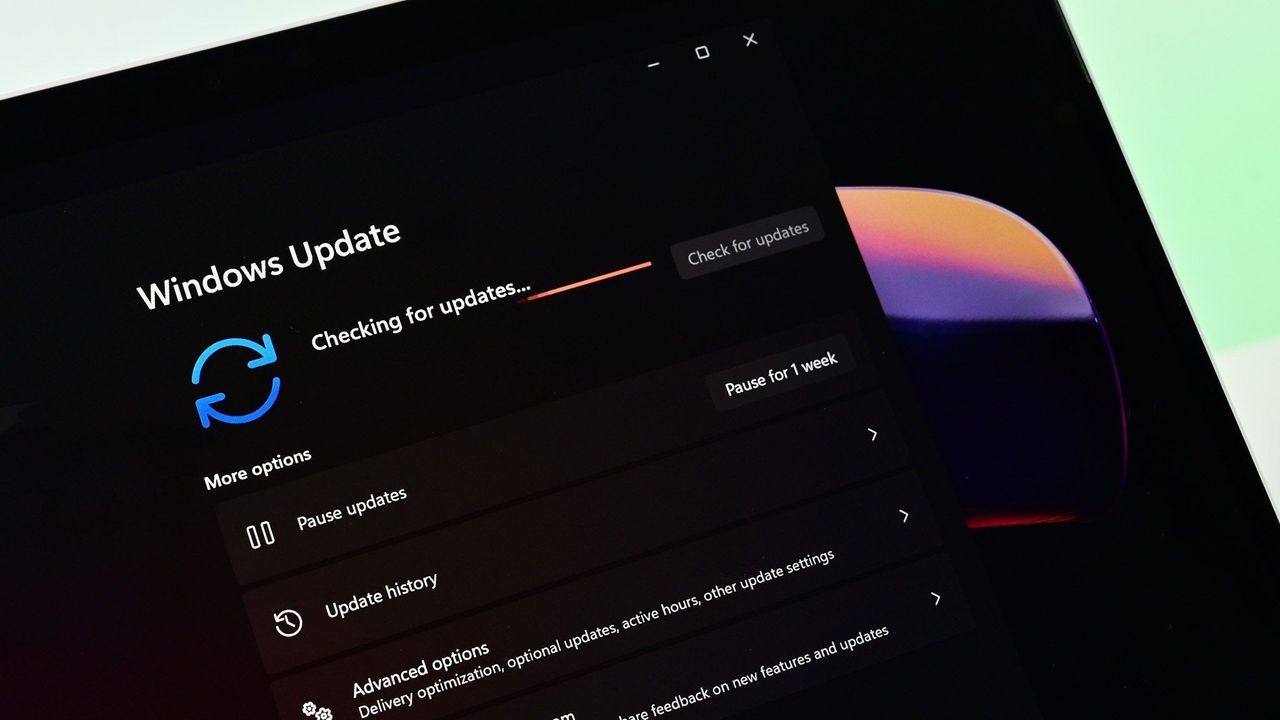
Windows 11 update in Settings app

Windows 11 update in Settings app

A cheap ergonomic mouse just showed me what the MX Vertical has been missing all along (and exposed its biggest flaw)

For the past few years, a Logitech MX Vertical has sat on my desk. I've grown to love the mouse so much that I even take it with me when I travel despite it not folding down or being compact in any way. So, when ProtoArc reached out to me about a newer, budget-friendly ergonomic mouse, I was skeptical that Logitech had anything to learn.

The Logitech MX Vertical fits in my hand well, lets my arm rest at a natural angle, charges through USB-C, and has aged well. The ProtoArc EM11 Pro is not exactly a direct competitor to the Logitech MX Vertical since the two mice are in different price brackets. But there are relatively few angled mice out there, at least in comparison to flat mice, so it's natural to pit the ProtoArc EM11 Pro against the Logitech MX Vertical.

Using the ProtoArc EM11 Pro made me realize a few areas the Logitech MX Vertical lags. If Logitech ever refreshed its ergonomic mouse, it should take some lessons from ProtoArc.

Grip and palm fit

Close-up of a hand holding the Logitech MX Vertical ergonomic mouse in a natural handshake grip position on a black mousepad.

The flat front of the Logitech MX Vertical does not fill my curved fingers. (Image credit: Future)

The ProtoArc EM11 Pro and the Logitech MX Vertical fill my hand differently. Logitech's mouse lies flush against my palm as my hand contours around the mouse. But the flat front of that mouse leaves a small gap between my fingers and the buttons.

In contrast, the ProtoArc EM11 Pro has an elongated base with a curve that tapers down at a sharper angle than the Logitech MX Vertical. As a result, the mouse does not feel flush against my palm. But the front of the mouse is curved, making the space behind the buttons feel more comfortable.

I'd love to have a mouse that combines the best of both designs since neither mouse is perfect.

Two wheels are better than one

Close-up of a hand gripping the dark gray ProtoArc EM11 Pro ergonomic mouse, showcasing the thumb rest, silver scroll wheel, and vibrant orange side buttons.

I didn't realize the value of a horizontal scroll wheel until I tried one. (Image credit: Future)

ProtoArc's ergonomic mouse has two scroll wheels, one set for vertical navigation and the other for scrolling horizontally. I didn't realize how much I wanted two scroll wheels until I navigated Excel and Google Sheets with a pair of wheels. I've always just held Shift on my keyboard and used the single scroll wheel when I needed to move horizontally in a spreadsheet, but having a second wheel feels much smoother. It also requires less movement, which is a key part of ergonomic setups.

Silent clicks for quiet workspaces

Close-up front view of the Logitech MX Vertical mouse showing the top scroll wheel and right-click buttons, with the ProtoArc EM11 Pro partially visible blurred in the background.

The Logitech MX Vertical can be a bit noisy. In contrast, the ProtoArc EM11 Pro is practically silent. (Image credit: Future)

I work from home, so I don't have any coworkers to irritate with mouse clicking. If anything, my 10-month-old daughter enjoys the Logitech MX Vertical's clicky buttons since she often sits on my lap and plays with my mouse and keyboard.

But if you work in an open office or sit next to someone at school or work, you probably don't want to hear clicking all day. The ProtoArc EM11 Pro is almost completely silent when clicked.

Why I'm sticking with the Logitech MX Vertical

Logitech should take some lessons from the ProtoArc EM11 Pro, but ProtoArc also has some homework to do. ProtoArc's mouse has some lovely features, but I think it either needs a design tweak or an option for people with different-sized hands.

The angle of my hand doesn't feel natural when using the ProtoArc EM11 Pro. The flared bottom makes my hand want to turn over more than I'd like.

Try as I might, I can't find a way to hold the ProtoArc EM11 Pro that feels comfortable. If I place the side of my hand alongside the base, my fingers don't align properly with the buttons. If I slide my hand down so that my fingers align with the buttons, my hand awkwardly presses against the base.

The curvature of the ProtoArc EM11 Pro also makes it feel like I have to curve my hand a bit, rather than rest at a neutral angle.

Ergonomic mice have a learning curve, so I tried ProtoArc's for a while to see if I'd adjust, and it just hasn't — ahem — clicked. But that may be specific to my hand size and shape. I've known people who disliked the feel of the Logitech MX Vertical, so a lot of this comes down to specific users.

Overall, ProtoArc packed its ergonomic mouse with features other companies should envy. I just wish the mouse fit in my hand as well as the Logitech MX Vertical.

This ergonomic mouse allows your arm to rest at a natural angle to reduce fatigue and strain. It's held up incredibly well throughout my years of use.

Windows Central review:⭐⭐⭐⭐⭐View Deal

This budget-friendly ergonomic mouse has two scroll wheels, can connect through a dongle or Bluetooth, and is practically silent when used.View Deal

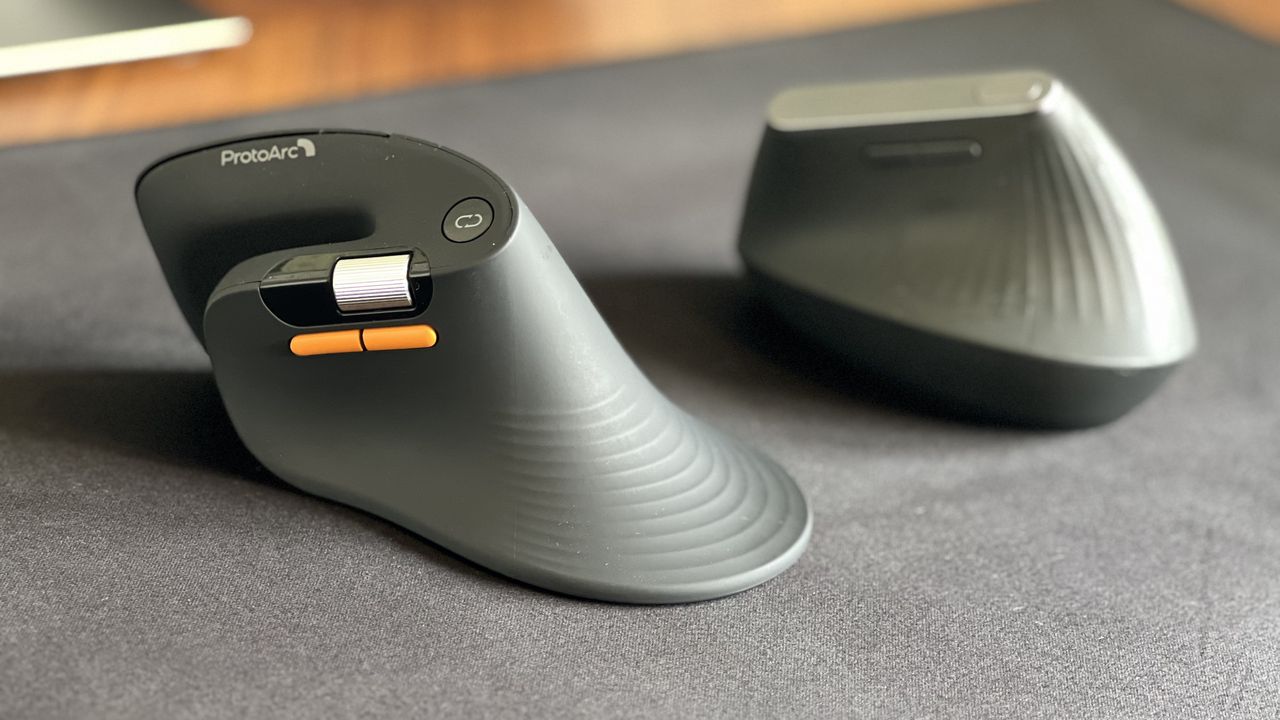
Side-by-side view of the ProtoArc EM11 Pro ergonomic mouse in the foreground with its orange side buttons and scroll wheel, next to the Logitech MX Vertical mouse sitting on a black desk mat.

Despite its low price, the ProtoArc EM11 Pro has features I miss when switching back to my Logitech MX Vertical.

❌