
❌

Vue normale

Prime Day hasn't started, but the XPS 13 is already $200 off

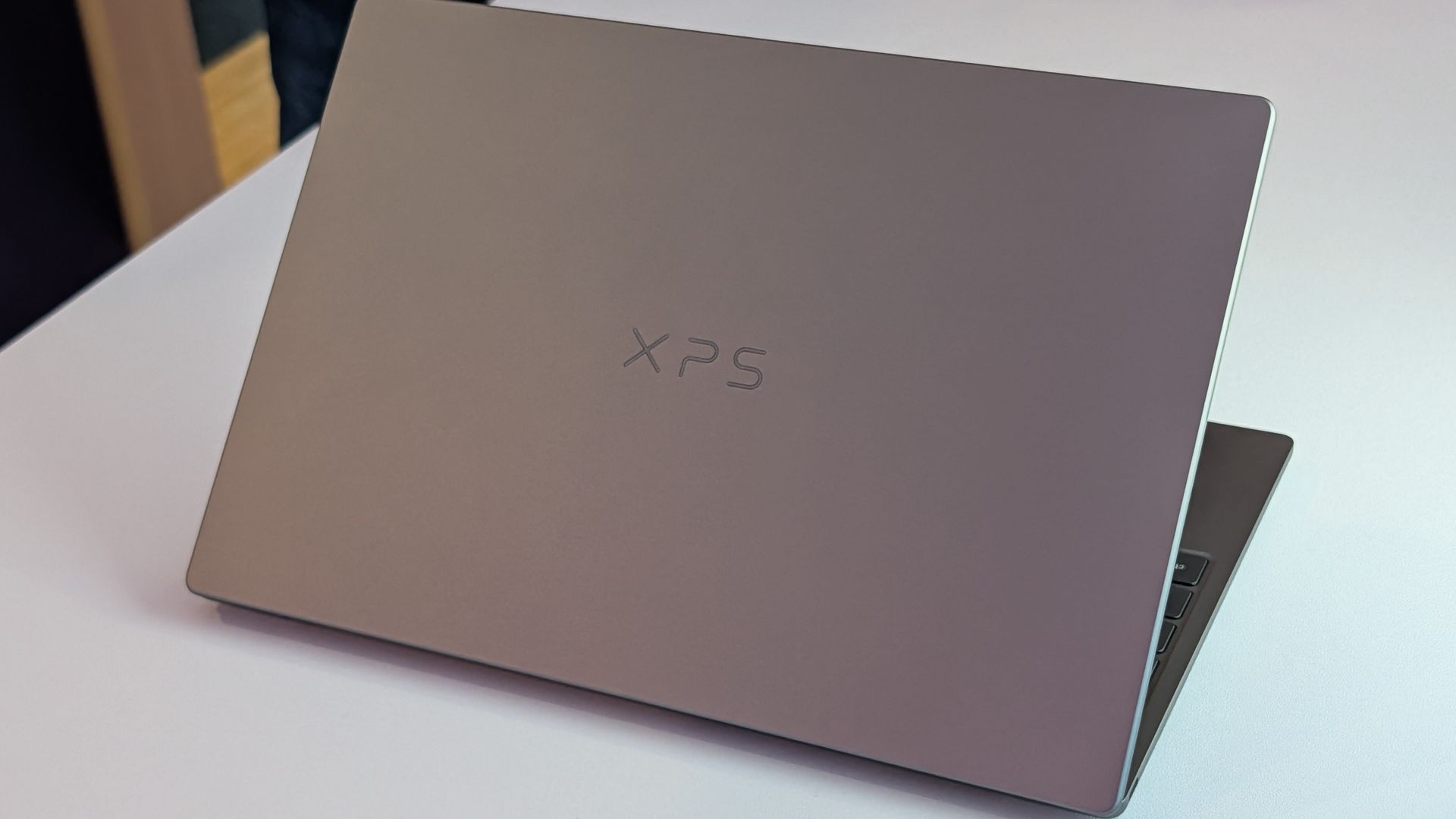
Prime Day starts on October 6, 2026, but arguably the best laptop deal of the week is already here. A $200 discount on the XPS 13 drops the XPS 13 to $799.99. There's even a version of the XPS 13 discounted to $599.99 if you only need 8GB of RAM.

Of course, it isn't actually a Prime Day deal. The discount is through Best Buy, making it a "Techtober" deal. But do you really care why you're saving $200 on what our expert calls "the perfect starter PC"?

"Dell's new XPS 13 is the new best deal in laptops, surpassing the MacBook Neo with a better display, ports, build quality, and performance for the same price." — Zac Bowden, Senior Editor, Windows CentralView Deal

This version of the XPS 13 is incredibly affordable, especially when discounted. It does, however, come with just 8GB of RAM. That's fine for some users, but make sure it will meet your demands before placing an order.View Deal

Laptops this good are rarely in this price range due to the ongoing RAM crisis and other component shortages. Dell created this version of the XPS 13 to be more affordable, but premium laptops with this feature set and design now normally cost $1,000.

👉Is Windows 11 on 8GB of RAM really that bad?

The XPS 13 that came out this year earned a 4.5 out of 5 from both Tom's Hardware and Tom's Guide. Our colleagues complimented the laptop's 2.5K screen, incredible battery life, and excellent speakers.

Matt Safford from Tom's Hardware called the new XPS 13 "an excellent Windows-based answer to the MacBook Neo." I agree with his take, though I question how many people genuinely debate between a Windows laptop and a MacBook.

The XPS 13 is a thin-and-light laptop with a refined design. It has several features that "discount" laptops lack (I'm looking at you, MacBook Neo). For example, the XPS 13 has backlit keys, an IR sensor for facial recognition, and support for Wi-Fi 7. Toss in a pair of Thunderbolt 4 ports and a 120Hz display and it's easy to see why our Zac Bowden said he was "shocked" at the value of the laptop when he went hands-on with the XPS 13.

Click to join us on r/WindowsCentral

Join us on Reddit at r/WindowsCentral to share your insights and discuss our latest news, reviews, and more.
Forget the flashy AI features, this is the Copilot update that matters

Microsoft Copilot has changed a lot over the past month. Microsoft recently outlined its broader plan for a unified AI experience across Microsoft 365, but it also shipped several new Copilot features users can try right now.

Microsoft rounded up the changes in a recent blog post, highlighting updates across Copilot Chat, Teams, Word, PowerPoint, SharePoint, and OneDrive. The updates expand Copilot to more services and add new features across Microsoft's software suite:

  • "New design and functionality for Copilot Chat
  • Plugins, connectors, and Work IQ enhancements to the Copilot App
  • Teams Phone agent for Copilot in Teams Phone
  • Citations and image modifications for Copilot in Word
  • Skills and connectors for Copilot in PowerPoint
  • General availability for Copilot in SharePoint
  • General availability for Copilot in OneDrive"

Microsoft outlined several new features, but one stood out to me: citations in Copilot responses.

Copilot can be a useful tool, but it has limits. If you've ever asked Copilot to handle a task that depends on current information, you've probably run into those limits. AI tools can also struggle when interpreting historical, legal, or highly specialized material.

Now, Microsoft Word can show its sources for specific Copilot answers. You can then click the source to confirm the information provided by Copilot.

"Citations in Copilot responses in Word let users see the sources behind Copilot’s answers. Users can view citations to relevant web and work content directly in the response," explains Microsoft.

"This provides greater transparency and helps users understand where Copilot’s information comes from."

Hallucinations are one problem, but AI tools can also misinterpret legitimate sources and present incorrect conclusions. In some cases, an AI tool can misread context and produce an incorrect response. I've had Copilot share the exact opposite of the truth before.

Citations with links allow you to check the source material and make sure Copilot understood the context of the source and extracted the correct information.

Windows Central take

I've found that Copilot (and other AI tools) can make up seemingly authentic sources of information. If you ever use the tool for meaningful work, you need to double-check original sources and assume Copilot will make mistakes.

Of course, that fact could be used to argue that you just should not use Copilot for work. But there's probably a middle ground where Copilot helps draft or gather information while a human verifies the final output.

In general chats with Copilot, you should ask for a source and press Copilot if it continues to speak in generalities. The new feature in Word simplifies that process and ensures that there's a verifiable source of content generated by Copilot.

Click to join us on r/WindowsCentral

Join us on Reddit at r/WindowsCentral to share your insights and discuss our latest news, reviews, and more.
Prepare for Microsoft's Windows and Surface event with these cutting-edge features for Insiders

Microsoft's Windows 11 and Surface event is only a couple of days away. At the event, we expect to hear a recap of improvements made to the operating system as part of the Windows K2 initiative. But why simply watch people talk about updates when you can test them out yourself?

Many of the biggest changes to Windows 11 have already shipped through Windows 11 version 26H2. But items that are still in the works are being tested among Windows Insiders. A flurry of five builds shipped recently.

👉Don’t miss Microsoft’s October 7 Windows & Surface keynote — here’s how to tune in and follow the biggest reveals

Many of the changes are rolling out to multiple builds, such as added support for Unicode 17.0. Below, I've outlined all the updates and improvements rolling out to Windows Insiders. Make sure to check the channels noted below to see what's on the way to your PC.

Unicode (Beta, Experimental)

  • We've updated Windows text shaping support for Unicode 17.0, helping Windows correctly display and shape newly encoded characters and scripts. Unicode 17.0 added 4,803 characters, including support for four newly encoded scripts: Beria Erfe, Sidetic, Tai Yo, and Tolong Siki.
  • These updates help keep Windows text support current as the Unicode Standard evolves and improve support for languages and writing systems used by people around the world.

Settings (Beta, Experimental)

  • We're making performance improvements to the Settings home page, which should result in reduced loading times in certain scenarios.

Settings (Experimental (Future Platforms))

  • Updated Settings > Apps > Installed apps to show the version number at the top level for packaged apps, as it already does for other apps.

Recovery (Beta, Experimental 

  • We're adding a new entry point for Cloud Rebuild under Settings > System > Recovery, making it easier to access the feature from Settings.

Windows Recovery (Beta (26H1))

  • We're introducing Cloud rebuild, a new recovery option that restores a Windows 11 PC to a clean, known-good state by performing a full OS reinstall, even when Windows won't boot. Unlike Reset this PC, Cloud rebuild downloads both the target Windows image and the device's drivers from Windows Update, so the device comes back fully functional without USB media, without a custom image, and without depending on the health of the currently installed OS.
  • In this preview, you can try Cloud rebuild today:
    • Start it directly from the Windows Recovery Environment (WinRE) by selecting Troubleshoot > Recovery and uninstall > Cloud rebuild.
    • Connect over wired Ethernet or a Wi-Fi network from within WinRE.
    • Review the target Windows build, edition, and language, then confirm the data-loss warning before the rebuild begins.

File Explorer (Experimental)

  • Address Bar now supports '~' , making it quicker to navigate directly to your user profile folder and subfolders (e.g., "~\AppData").

File Explorer (Experimental (Future Platforms))

  • This update adjusts how the preview pane handles files downloaded from the web. For HTML files, a new Preview anyway button lets you acknowledge the warning and preview the file. Non-HTML files, such as PDFs, are now previewed automatically.
  • Fixed an issue causing the previews in File Explorer to have an unexpected bar in the middle in recent flights.

File Explorer (Experimental (26H1))

  • Customizations
    • Improved File Explorer to keep folder view customizations, such as sorting and icon size preferences, consistent across different access paths and apps.
  • Address bar improvements
    • The address bar now supports paths containing double backslashes and quotation marks, for example, C:\Users\user or "C:\Users\user", improving compatibility with a wider range of inputs.
    • Improved reliability of the address bar suggestion dropdown so it now consistently closes after an item is selected.
  • Refinements to the rename experience
    • Fixed an issue where text would be repeatedly selected while renaming items in folder views.
    • Fixed an issue where updated names with case-only changes weren't immediately reflected in folder views across local and cloud storage.

Windows Magnifier (Experimental (26H1), Beta (26H1))

  • Magnifier now gives you more control over how you zoom. You can type an exact zoom percentage directly in the Magnifier toolbar to land on precisely the level you need.
  • We've also added preset step increments (5%, 10%, 25%, 50%, 100%, 150%, 200%, and 400%) to the Settings dropdown, so you can jump to common levels in a single click. Whether you need a subtle boost or a dramatic close-up, Magnifier adapts to how you want to zoom.

Cloud rebuild (Experimental (26H1))

  • We're updating Cloud rebuild, the recovery option that restores a Windows 11 PC to a clean, known-good state by performing a full OS reinstall, with two additions.
  • Cloud rebuild can now sanitize the device's drives as part of the rebuild. When you start a rebuild in WinRE, choose Remove files if you're keeping the PC, or Remove & sanitize files before recycling, returning, or reassigning it. The sanitize option uses the storage hardware's erase capability to securely erase data before Windows is reinstalled and is irreversible.
  • IT administrators can now configure and start a Cloud rebuild remotely through the Recovery CSP, using either the currently installed build or a target build you specify.

Windows Share (Experimental (Future Platforms))

  • Added the ability to pin your favorite apps in the Windows share window.

Family Safety (Experimental (Future Platforms))

  • Improved family safety messaging when applications are blocked because of age-restricted parental controls.

Taskbar (Experimental (Future Platforms))

  • Fixed a few small visual polish issues when using the taskbar in alternate positions.

Audio (Experimental (Future Platforms))

  • Fixed an issue affecting certain USB Audio Class 1.0 devices, including some multichannel audio headsets, that could prevent the device from working correctly after installing the latest updates.

Remote Desktop (Experimental (Future Platforms))

  • Fixed an issue causing Remote Desktop to not use the correct window size after recent flights.

Other (Experimental (Future Platforms))

  • Fixed an issue causing some Insiders to experience extreme lag over time after updating to the last two flights.

These changes aren't as substantial as the new features and upgrades in Windows 11 version 26H2, but they help create a smoother computing experience.

My favorite improvements are those rolling out to Windows Magnifier. Fine-tune controls make it much easier to create the best experience for your specific screen. The presets make it easy to jump incrementally, but I prefer entering the magnification manually.

Click to join us on r/WindowsCentral

Join us on Reddit at r/WindowsCentral to share your insights and discuss our latest news, reviews, and more.

Windows Wrap: Microsoft must show us why Windows still matters in 2026 and beyond

Windows Central

It looks like Microsoft is wrapping up its Windows and Surface efforts for 2026 to be able to focus on the future. Last week the company announced refreshes to the Surface Pro 12-inch and Surface Laptop 13-inch. This week, Microsoft rolled out Windows 11 version 26H2.

With a bunch of Surface announcements in the rearview mirror and another update to Windows 11 rolling out, Microsoft can point its followers to the future. The description of the Windows and Surface event next week says, "Join us live... for a look at what's next from Windows, Surface, and NVIDIA."

I hope Microsoft has some exciting news in store for its event. Windows and Surface have been far from exciting lately. It is possible to market boring products, of course, but they have to be reliable.

This week Microsoft announced Windows 11 version 26H2 and called it a "predictable and low-disruption update." If Microsoft wants to win back consumers, it needs to either be cutting edge or actually deliver predictable and low-disruption updates. It feels like for the last few years we've gotten neither.

Biggest News of the Week

Windows 11 Start button
First images of Microsoft's Surface Pro 12-inch tablet PC.
Close-up of a silver laptop deck featuring a Snapdragon X2 Elite Copilot+PC sticker alongside Energy Star and HDMI badges.
Qualcomm Snapdragon 865
Qualcomm
Docker Desktop for Windows using the WSL2 backend on ARM
Windows 11

Microsoft has had to release multiple out-of-band updates in 2026. Some bugs required multiple patches to fix. It's gotten so bad that most of our articles about Windows 11 updates are met with comments asking what will break this time.

Unfortunately, the commenters have been proven right several times. One serious bug made Outlook, OneDrive, Dropbox, and other cloud-backed apps inoperable. Another issue froze Remote Desktop and caused audio failures. At one point users couldn't even install a Windows 11 update, forcing Microsoft to pull that update.

If Microsoft is going to undercut its events and trim down its Surface lineup, it needs to double down on reliability. Next week, we should get some answers about Microsoft's plans.

Windows and Surface event

Surface Laptop Ultra

(Image credit: Windows Central / Zac Bowden)

A boring but bug-free Windows 11 update may be a welcome change of pace, but it makes me curious about what Microsoft will discuss at its Windows and Surface event next week. Considering Windows 11 version 26H2 is already rolling out, the focus is likely the future of Windows.

Does Microsoft have something up its sleeve? Has the tech giant learned a lesson about how to build consumer hype? Or are we due for another on-stage announcement about AI and how new PCs can run models locally?

I'm sure there are developers interested in the potential of the Surface Laptop Ultra and RTX Spark for AI development, but there are hundreds of millions of Windows users who care very little about AI. Microsoft needs to at least throw some scraps our way to keep us interested.

Shopping with Sean

Amazon's October Prime Day is next week, but there are already some great deals live. Competing retailers are trying to beat Amazon to the punch, resulting in big savings.

A trio of laptops are the best deals of the week. I'm partial toward the Lenovo Yoga Slim 7x because of its thin design but the Samsung Galaxy Book6 and Dell 14S are also great choices.

14S 14" 2K Touchscreen Laptop (Intel Core Ultra 7 355 2026, 16GB RAM, 512GB SSD, Copilot+): was $1599.99 now $899.99

"The Dell 14S is a compelling choice for a variety of users thanks to its long-lasting battery life (and) relatively affordable price." ~ Sean Riley, Freelance Writer, Tom's Guide

Tom's Guide review: ⭐⭐⭐⭐View Deal

Yoga Slim 7x: was $1299.99 now $969.99

"The Slim 7x (Gen 11) is a laptop I can see fitting in perfectly with students, home business pros, and casual users who simply want a laptop for around $1,199 (even less when it's on sale) that feels like it should cost a lot more." — Cale Hunt, Windows CentralView Deal

Samsung Galaxy Book6: was $1449.99 now $947

"I’ve been using the Samsung Book 6 for a while now and honestly it’s been solid. It’s lightweight, looks premium, and the battery easily gets me through most of the day. Performance is smooth for studying, browsing, videos, and everyday work." ~ VALENTIN, customer review

4.8 out of 5 Stars (based on 40 Best Buy customer reviews)View Deal

Click to join us on r/WindowsCentral

Join us on Reddit at r/WindowsCentral to share your insights and discuss our latest news, reviews, and more.

❌