Vue normale
-
BleepingComputer
-
Microsoft Teams to get AI-powered, context-aware phishing detection
Microsoft has announced plans to add AI-powered phishing detection to Teams messages starting in early November 2026. [...]

-
BleepingComputer
-
Microsoft: Windows Server 2016 reaches end of support in January
Microsoft says Windows Server 2016 will stop receiving security updates after it reaches the end of support in January 2027. [...]
Microsoft: Windows Server 2016 reaches end of support in January
-
BleepingComputer
-
Microsoft shares how to fix broken Exchange Online EWS apps
Microsoft says IT admins can re-enable the retired Exchange Web Services (EWS) API in Exchange Online to fix EWS apps that have stopped working. [...]
Microsoft shares how to fix broken Exchange Online EWS apps
-
Windows Central - News, Forums, Reviews, Help for Windows 10 and all things Microsoft.

-
A cleaner, faster File Explorer context menu is rolling out to Windows 11 Insiders
Full Release NotesBeta Preview Build 26220.9757Experimental Preview Build 26340.9767Beta (26H1) Preview Build 28020.3292Experimental (26H1) Preview Build 28120.3302Experimental (Future Platforms) Preview Build 29695.1001Microsoft's redesigned File Explorer context menu could make navigating Windows 11 feel faster and more personal. The company has started testing a new right-click menu that reduces clutter by moving less common options out of the way while keepin
A cleaner, faster File Explorer context menu is rolling out to Windows 11 Insiders
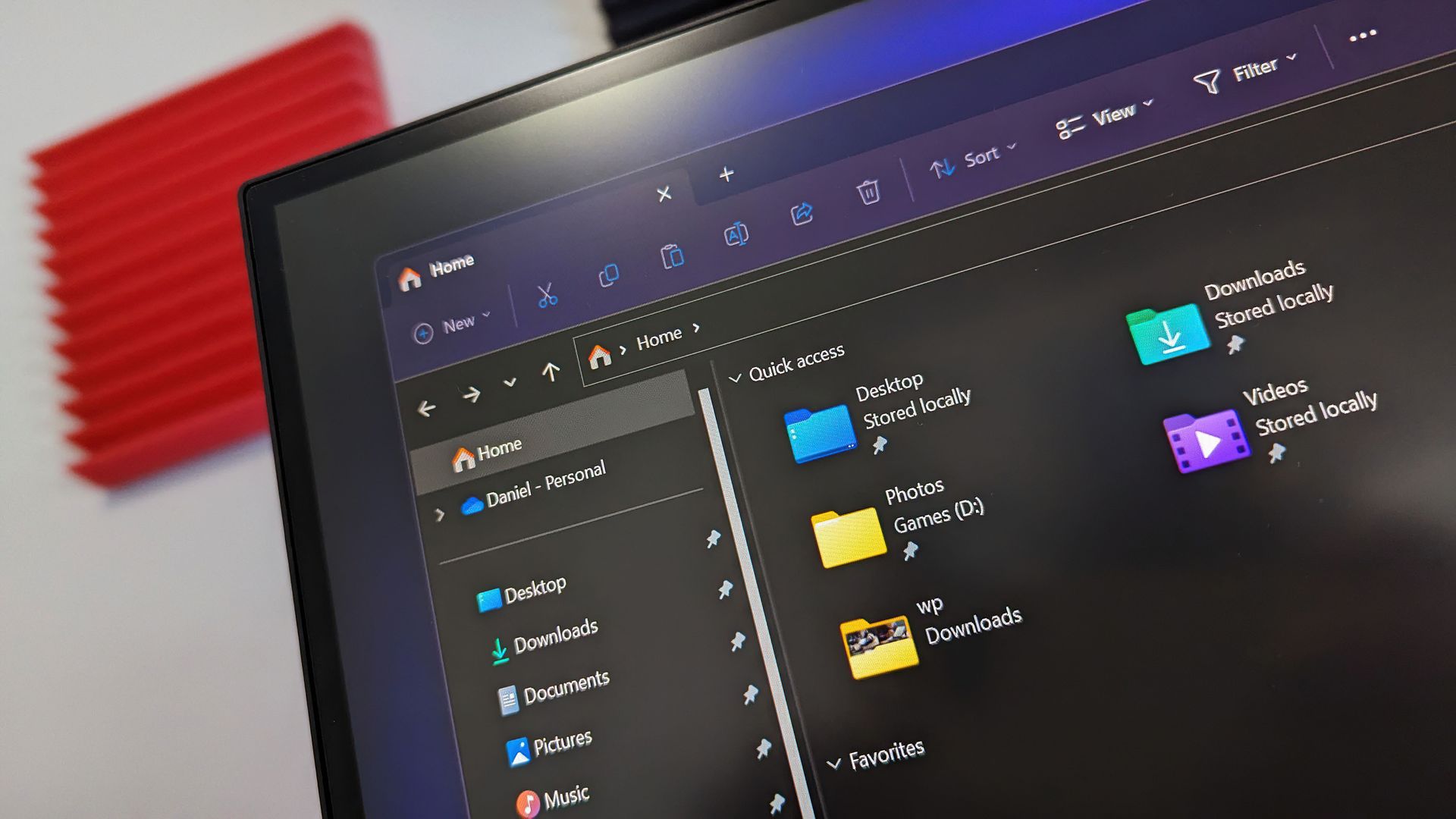
Microsoft's redesigned File Explorer context menu could make navigating Windows 11 feel faster and more personal. The company has started testing a new right-click menu that reduces clutter by moving less common options out of the way while keeping frequently used actions easy to access.
That new context menu is available for Windows Insiders in the Beta channel. Microsoft also shipped four other Insider builds of Windows 11 today that includes
File Explorer (Beta)
Introducing the new, redesigned context menu in File Explorer
- We're rolling out an updated context menu experience in File Explorer, designed to feel faster, cleaner, and easier to tailor to the way you work. The new design reduces top-level clutter, keeps commonly used actions easy to access, and adds a new Settings experience that gives you more control over what appears in the menu. As we continue refining this experience with Insider feedback, our goal is to make right-click feel more responsive, predictable, and personal.
- We've also added a new teaching tip you might see as a first-time experience to help you learn about the customization options.
Settings (Beta)
- We're making performance improvements to the Settings home page which should result in reduced loading times in certain scenarios.
Windows Insider Program (Experimental)
- We've added the ability to filter Feature flags by enablement state.
Quick Settings (Experimental)
- We're beginning to roll out a new Mobile devices experience in Quick Settings, making it easier to take quick phone actions (such as ring your phone) without breaking your flow on Windows.
- With your supported Android phone connected, everyday actions are now just a click away. You can turn Do Not Disturb on before a meeting, change your phone's ringer mode, and play a sound to find your phone nearby.
- It's a simpler, faster way to manage your phone from the place you already use for quick Windows actions, helping your PC and phone work better together throughout the day.
- Capabilities can vary by phone platform and device configuration. The initial experience provides the most complete set of controls for Android phones, while iPhone support starts with a more limited status-focused experience.
Check your internet speed directly from Quick Settings
- We're making it faster and easier to check the performance of your internet connection in Windows. Windows Insiders can now run an internet speed test and see the results directly in Quick Settings, without being redirected to a browser.
- Start a test from the new Speed test Quick Setting, from the Wi-Fi or Cellular flyout, or by right-clicking the network icon in the system tray and selecting Test internet speed. While the test runs, Quick Settings shows its progress and results, including download speed, upload speed, and ping.
- Because the test runs against your active internet connection, you can quickly understand how your current connection is performing without leaving your workflow. This updated experience builds on the internet speed test we previously introduced for Windows Insiders, bringing the test and its results directly into Windows.
Magnifier (Experimental)
- We've added a Keyboard shortcut for Magnifier toggle in Settings > Accessibility > Magnifier. It lets you choose whether pressing Windows logo key + Plus (+) launches Magnifier.
- The shortcut stays on by default, so nothing changes unless you want it to. If you find that Magnifier starts by accident, or the shortcut conflicts with another app or keyboard layout, turn the toggle off. You can still start Magnifier from Settings, and you can turn the shortcut back on at any time.
Microsoft 365 subscription in Windows (Experimental)
- We're introducing a new inline experience that makes it easier for Microsoft 365 subscribers to manage their subscriptions in Windows. Subscribers who have recurring billing turned off can now turn it back on directly in Windows Settings, without leaving for a separate webpage. To get started, select Turn on recurring billing or Set up recurring billing from the Windows Settings Home page, the Accounts page, or the Start menu.
File Explorer (Experimental)
- Improved progress indication when navigating to locations that take longer to load, such as network drives, making it easier to see that loading is underway.
Narrator (Experimental)
- Narrator now supports additional languages for math reading, including Greek, Hungarian, Indonesian, Norwegian (Bokmål), Polish, Russian, Swedish, and Vietnamese.
Widgets (Experimental)
- The Widgets picker now has a standard Windows dialog frame and supports light and dark title bars. It also removes the blank space previously left for an icon.
Taskbar (Experimental)
- Fixed an issue with the previous update where explorer.exe wouldn't load after logging in, preventing the taskbar and other elements that rely on it from loading.
Unicode (Beta 26H1, (Experimental (26H1))
- This update provides Windows text shaping support for Unicode 17.0, helping Windows correctly display and shape newly encoded characters and scripts. Unicode 17.0 added 4,803 characters, including support for four newly encoded scripts: Beria Erfe, Sidetic, Tai Yo, and Tolong Siki. These updates help keep Windows text support current as the Unicode Standard evolves and improve support for languages and writing systems used by people around the world.
Start menu (Experimental (26H1))
- This update makes the Start menu more personal with several customizations.
- You can choose between a small or large Start menu, in addition to the Automatic (default) option that's available today. To customize this setting, go to Settings > Personalization > Start > Start menu size.
- The Recommended section is renamed Recent in the Start menu and on the Start settings page (Settings > Personalization > Start).
- You can now hide your name and profile picture in Start by going to Settings > Personalization > Start > Hide your name and profile picture on Start.
- The Start menu settings page is now redesigned with section-level toggles to independently show or hide Pinned, Recent, and All.
Manage camera, microphone, and location access for desktop apps (Experimental (26H1))
- Windows Insiders can now manage camera, microphone, and location permissions for individual desktop apps. Previously, access for traditional desktop applications was managed through a single device-wide setting.
- With this update, you can review and control access on an app-by-app basis, giving you greater visibility into which apps are requesting access to sensitive resources and more control over your privacy choices. Our goal is to make privacy permissions easier to understand and manage across the wide range of desktop apps people use every day.
Recovery (Experimental (26H1))
- We're adding a new entry point for Cloud Rebuild under Settings > System > Recovery, making it easier to access the feature from Settings.
File Explorer (Experimental (26H1))
- We've sharpened file thumbnails in the Recommended section on the Home page so they're crisper and easier to read.
Magnifier (Experimental (26H1), Experimental (Future Platforms))
- A new contrast theme toggle for a lower-glare screen. If bright screens are uncomfortable, many people use color inversion to reduce glare. However, inversion changes everything on screen, including photos, charts, and videos. With this update, we're introducing a new contrast theme toggle in Magnifier.
- Reduce glare with a single toggle. Turn on a contrast theme directly from the Magnifier toolbar for a more comfortable viewing experience.
- Choose the contrast theme that works best for you. The dark theme is applied by default, and you can choose which contrast theme the toggle uses under Settings > Accessibility > Magnifier.
- Photos, videos, and charts keep their original colors. Unlike color inversion, the contrast theme recolors the interface without touching your photos, charts, or videos, so they keep their real colors.
- Color inversion is still here. This isn't a replacement. If you use inversion today, it works exactly as it always has. The contrast theme is a separate, purpose-built option to reduce glare when you want a darker interface without inverting colors.
Family Safety (Experimental (Future Platforms))
- Improved family safety messaging when applications are blocked because of age-restricted parental controls.
Windows Setup (Experimental (Future Platforms))
- The digital safety of users and supporting families is central to how we think about the Windows experience. We're improving information on parental controls and their availability during Windows setup, so families can more easily understand available protections and make informed choices from the very beginning.
Network (Experimental (Future Platforms))
- Fixed an issue causing internet access to stop working for some Insiders after the last two flights.
Hyper-V (Experimental (Future Platforms))
- Fixed an issue where some applications that used HCS-managed virtual machines experienced issues when sharing host folders with Linux VMs using Plan9. Folders shared from the Windows host using Plan9 didn't appear or couldn't be accessed in the guest environment.
Other (Experimental (Future Platforms))
- Fixed an issue causing some Insiders to see an unexpectedly high volume of ESENT events after the latest flights.
- Fixed an underlying issue in the latest flights causing Insiders using VMware to experience frequent green screen bugchecks with error PFN_SHARE_COUNT.
Microsoft has been hard at work decluttering Windows 11. While those efforts continue, it seems Microsoft is putting more emphasis on improving the built-in Windows 11 apps as well. Even the Camera app received some updates recently.
File Explorer is a core part of the Windows 11 experience, so it's nice to see it being upgraded as well.

Join us on Reddit at r/WindowsCentral to share your insights and discuss our latest news, reviews, and more.
-
Windows Central - News, Forums, Reviews, Help for Windows 10 and all things Microsoft.

-
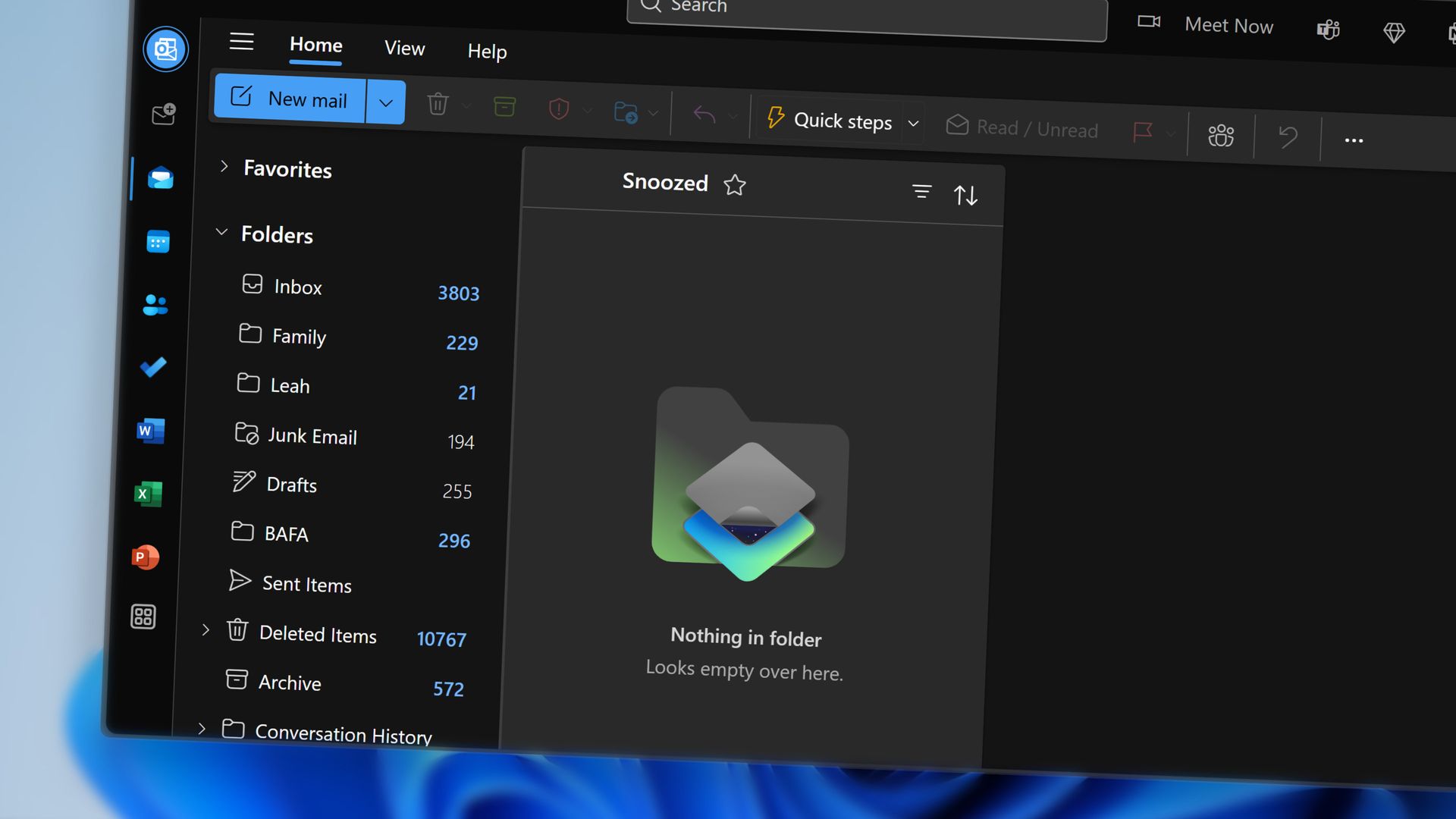
Microsoft pulls the plug on Outlook's AI inbox assistant
If you get too many emails to handle, you'll soon have to find a way to manage without the help of Copilot. Microsoft plans to retire the Prioritize My Inbox feature in Outlook, which uses Copilot to organize your inbox.The feature will be retired from all Outlook clients as part of a "cleanup effort" being made by Microsoft. The company explained the change through the Microsoft 365 Message Center (archived here).The retirement process starts on October 26, 2026
Microsoft pulls the plug on Outlook's AI inbox assistant
If you get too many emails to handle, you'll soon have to find a way to manage without the help of Copilot. Microsoft plans to retire the Prioritize My Inbox feature in Outlook, which uses Copilot to organize your inbox.
The feature will be retired from all Outlook clients as part of a "cleanup effort" being made by Microsoft. The company explained the change through the Microsoft 365 Message Center (archived here).
The retirement process starts on October 26, 2026, and will continue gradually until the feature is completely rolled back by the end of March 2027.
The Prioritize My Inbox feature uses Copilot to study how you work and show you emails that are most important to your workflow. The tool surfaces relevant emails from your inbox based on your past behavior, but you can also use filters to adjust how content appears.
The feature is adaptive and context-aware, so it works in a fundamentally different way than Focused Inbox or other similar features. Prioritize My Inbox also supports personalized prompts that include an example of what you consider to be a high-priority email.
Microsoft appeared quite excited about the feature when unveiling it last year. Matthew Marzynski, a principal product manager in Microsoft Digital at the time, stated:
“Imagine if everybody could have their own assistant who screens and presents you with the most impactful actions. Prioritize My Inbox is sort of like having your own personal assistant. This can increase your responsiveness, generate time savings, focus your priorities, and help you to align to business-critical communications. It also offers relief by lowering the stress we feel when faced with a huge, unread inbox.”
Mark Stratford, a senior product manager at Microsoft, said the feature "revolutionizes email and where we will get to in the future."
Now, just over one year later, the feature is on the chopping block. Microsoft shared little about why the feature is being retired, apart from saying the rollback will help create a simpler Outlook Copilot experience.

Join us on Reddit at r/WindowsCentral to share your insights and discuss our latest news, reviews, and more.
-
Windows Central - News, Forums, Reviews, Help for Windows 10 and all things Microsoft.

-
I tried the free app that makes Windows 11 HDR work the way it should
HDR is a feature that's becoming ever more useful for Windows users who want to boost brightness, improve color, and deepen contrast. Unfortunately, Windows 11's handling of HDR is too annoying for many users to bother with.GitHub user VantaCode420 has created a solution with their Smart HDR Manager app, available for free to download and enjoy. It so far has 218 stars on GitHub despite still being in the relatively early stages of development, and I can see why
I tried the free app that makes Windows 11 HDR work the way it should
HDR is a feature that's becoming ever more useful for Windows users who want to boost brightness, improve color, and deepen contrast. Unfortunately, Windows 11's handling of HDR is too annoying for many users to bother with.
GitHub user VantaCode420 has created a solution with their Smart HDR Manager app, available for free to download and enjoy.
It so far has 218 stars on GitHub despite still being in the relatively early stages of development, and I can see why now that I've been using it on a couple of PCs.
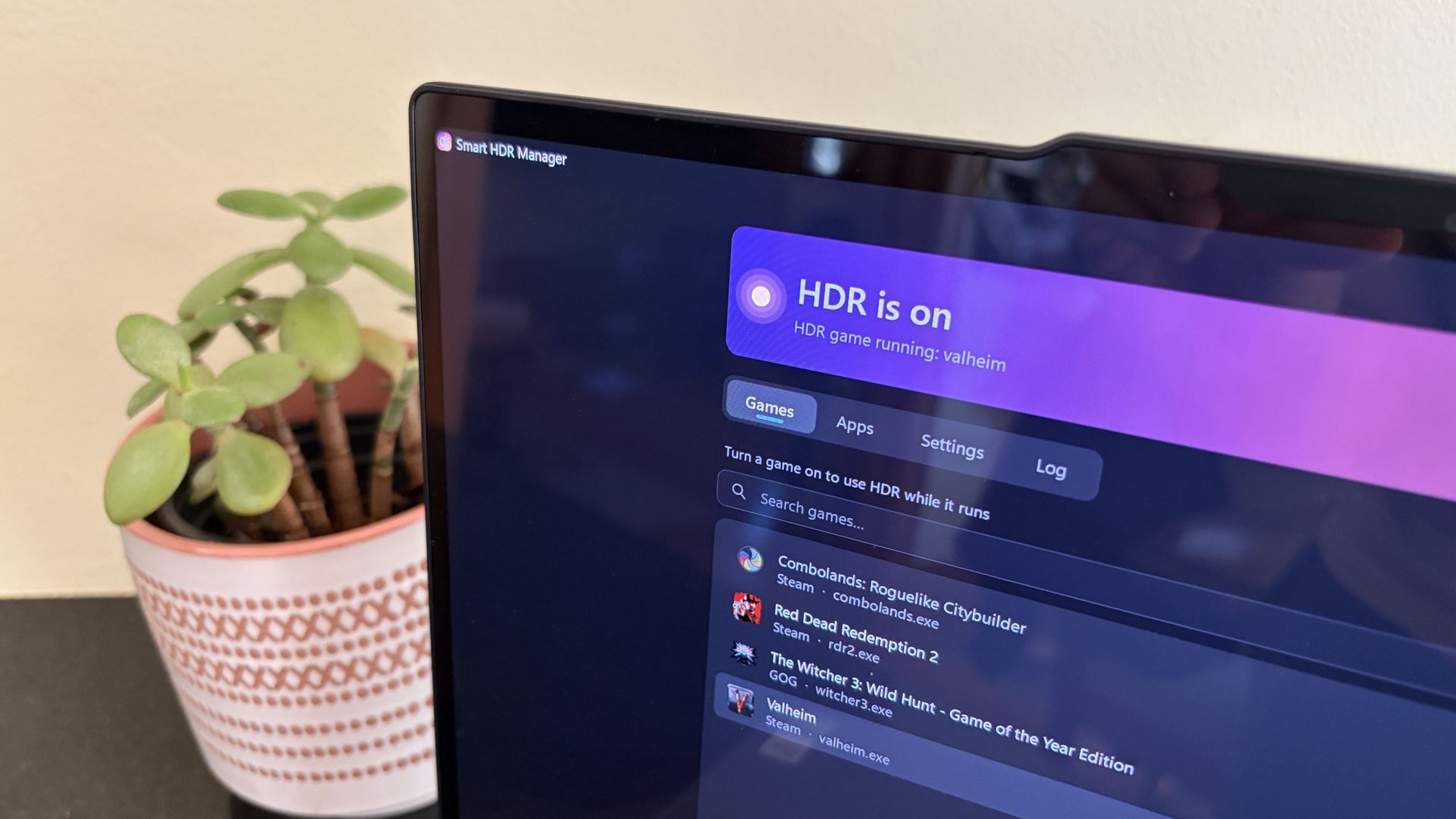
Smart HDR Manager turns HDR into a "set and forget" perk on Windows 11
Smart HDR Manager essentially bridges the gap between Windows HDR and the content you're playing or viewing on your PC.
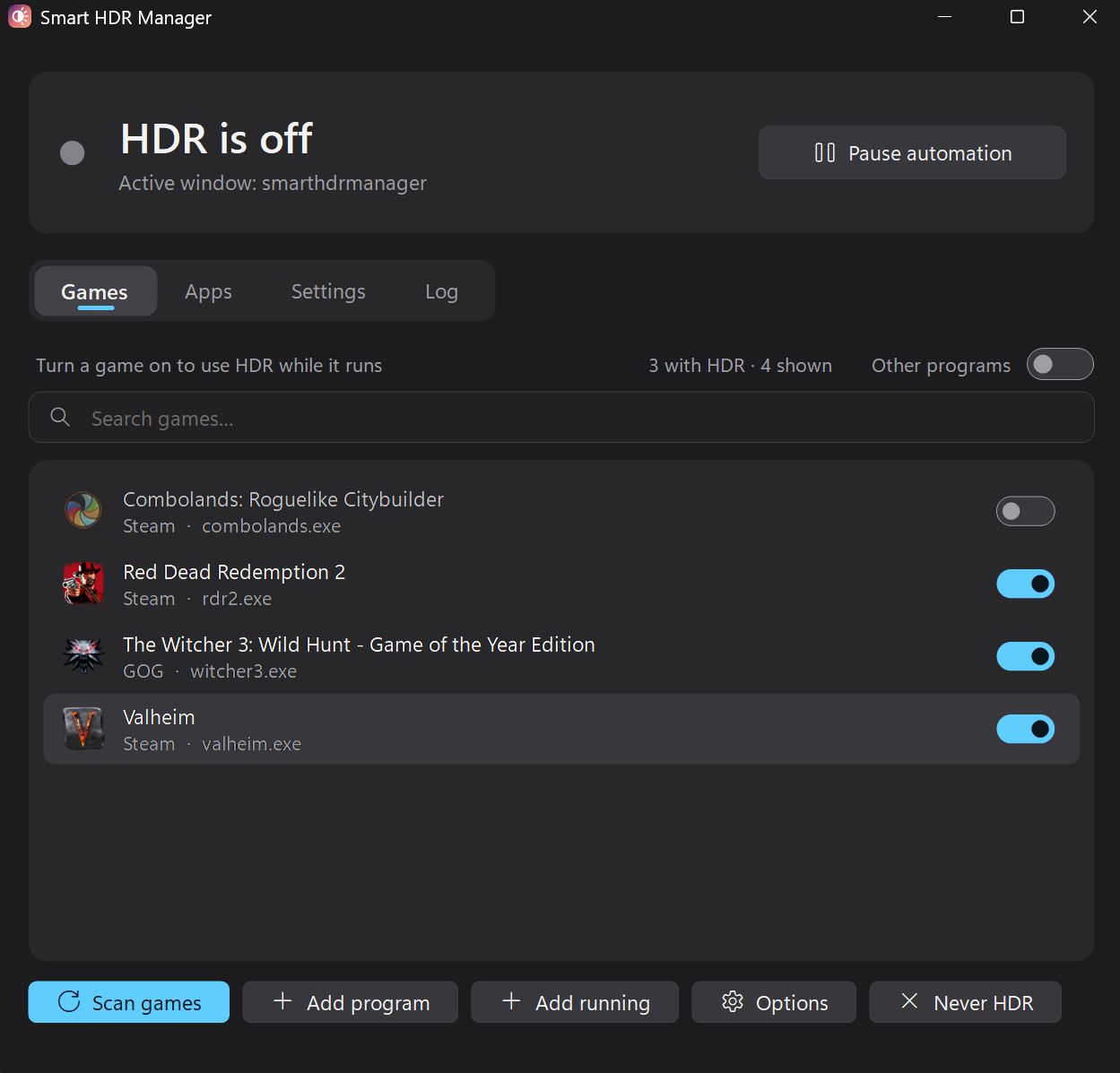
When a game launches or an HDR video starts playing, Smart HDR Manager automatically makes the switch from SDR to HDR on your system. When you close the game or finish watching a video, it automatically reverts Windows to SDR.
Within the app, you can automatically scan your system for games held in apps like Steam, Xbox, and Epic, or you can manually add each one that you want to enjoy in HDR.
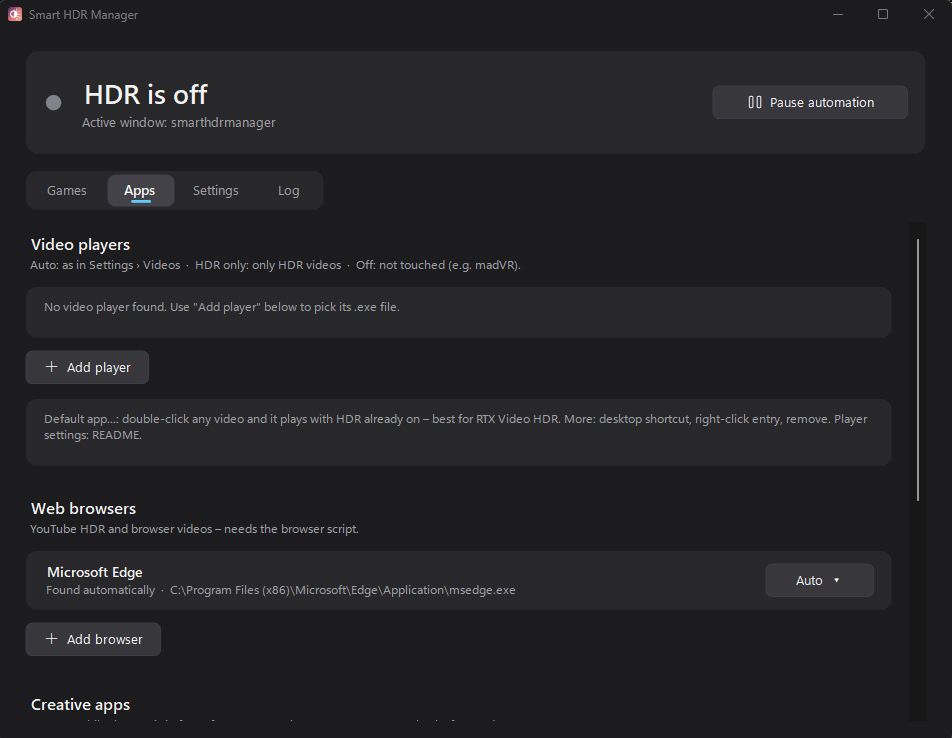
A separate "Apps" tab is home to video players, web browsers, creative apps, and streaming software like OBS Studio and Streamlabs.
On the note of web browsers, those who don't mind a couple of minutes of extra work can create a Tampermonkey script to automatically recognize YouTube HDR videos within Edge or Chrome. The GitHub page has full instructions on how to do this.
One final trick for those with NVIDIA RTX GPUs is RTX Video HDR support. It can turn SDR videos into HDR automatically, just as long as you have HDR enabled in the NVIDIA app's RTX Video Enhancements section.
Windows Central's take
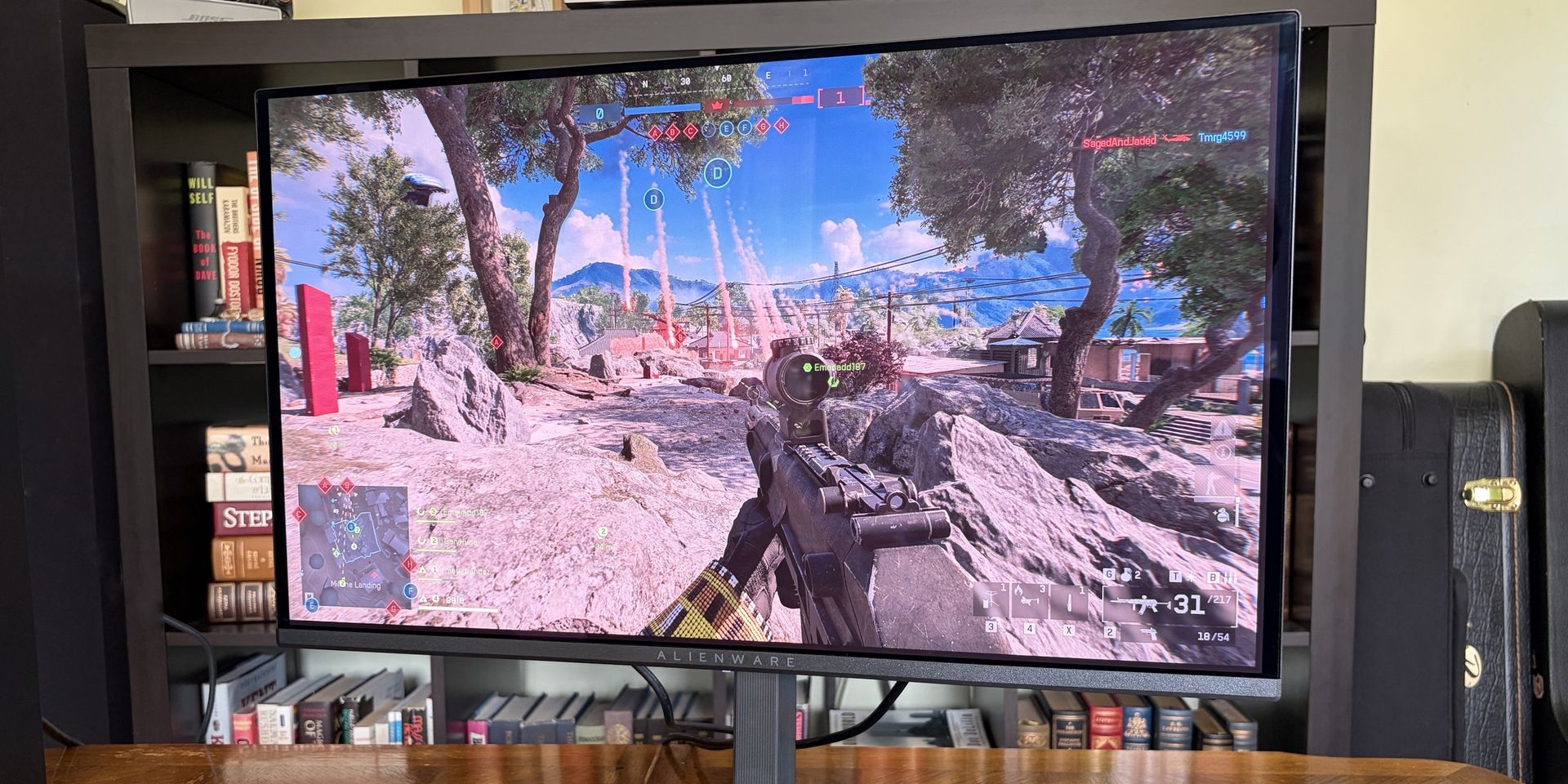
I didn't care much about HDR until I upgraded full-time to an OLED monitor. Now, with the deep color and contrast afforded by the OLED panel, it's something that I want to use as much as possible, where applicable.
That's really the biggest issue that most Windows users have with HDR; it doesn't kick on automatically when HDR content is being displayed. You have to enable it manually before viewing or playing content, and it doesn't turn off when you're finished.
Why isn't this a native feature to Windows? That's a question I can't answer.
Leaving HDR enabled across Windows without any actual HDR content in view leads to washed-out colors and odd SDR mapping. It's something that I imagine just about everyone who's mucked around with stock HDR implementation on Windows has experienced.
Smart HDR Manager is a work in progress, but I haven't yet had any issues while playing games or while watching videos. It turns HDR on when I need it, and turns it off when I don't.
Why isn't this a native feature of Windows? That's a question I can't answer. I'm just glad someone took care of the problem. Try out Smart HDR Manager on standard Windows or Windows on ARM. The latter is still in an experimental stage, but it seems to be working well so far.

Join us on Reddit at r/WindowsCentral to share your insights and discuss our latest news, reviews, and more.
-
Windows Central - News, Forums, Reviews, Help for Windows 10 and all things Microsoft.

-
I spent weeks hunting this Windows wallpaper. It was worth it.
When Microsoft announced the first wave of RTX Spark laptops, many were intrigued by the superchips inside the PCs. But I went a bit more surface-level, pun intended. During the Windows and Surface event, eagle-eyed viewers spotted a striking wallpaper across the new laptops.The wallpaper is reminiscent of Windows 11's Bloom wallpaper, but it stands out for having a single curve and contrasting colors. As much as I like the Bloom wallpaper, it's been remixed seve
I spent weeks hunting this Windows wallpaper. It was worth it.
When Microsoft announced the first wave of RTX Spark laptops, many were intrigued by the superchips inside the PCs. But I went a bit more surface-level, pun intended. During the Windows and Surface event, eagle-eyed viewers spotted a striking wallpaper across the new laptops.
The wallpaper is reminiscent of Windows 11's Bloom wallpaper, but it stands out for having a single curve and contrasting colors. As much as I like the Bloom wallpaper, it's been remixed several times by Microsoft and enthusiasts, so it's time for a new Windows wallpaper.
Sadly, Microsoft did not release the image after unveiling the new laptops. I waited with anticipation for the release of the RTX Spark laptops, but even when the Surface Laptop Ultra review went live, the new wallpaper was nowhere to be found. Microsoft even mocks us by having a blacked-out version of the wallpaper on the retail listing of the Surface Laptop Ultra.
Desperate to get my hands on the new wallpaper, I scoured reviews of the ASUS ProArt P16, HP OmniBook Ultra 16, and Surface Laptop Ultra only to be disappointed.
But a hero emerged, saving me from settling for an AI recreation of the wallpaper. Discord user TechosaurusRex discovered the wallpaper in the app files for Microsoft's Retail Demo Experience. Seemingly, Microsoft's plan was to tease us by showing the wallpaper on display retail units but not include the image on purchased PCs.
Luckily, TechosaurusRex stepped up and shared the wallpaper, ending my quest. Sadly, the above version is compressed to ensure our site loads quickly. I'll share the full resolution version as soon as possible.

Join us on Reddit at r/WindowsCentral to share your insights and discuss our latest news, reviews, and more.
-
TheWindowsClub News

-
Meta Muse is coming to Windows 11 using MXC Integration
Microsoft confirmed that Meta Muse is coming to Windows 11 using MXC (Microsoft Execution Containers) integration. Microsoft announced this at a Windows and Surface event in San Francisco. No official release date has been disclosed yet. This post covers important highlights of this update. Meta Muse is coming to Windows 11 using MXC Integration Muse […] The post Meta Muse is coming to Windows 11 using MXC Integration appeared first on TheWindowsClub News.
Meta Muse is coming to Windows 11 using MXC Integration
Microsoft confirmed that Meta Muse is coming to Windows 11 using MXC (Microsoft Execution Containers) integration. Microsoft announced this at a Windows and Surface event in San Francisco. No official release date has been disclosed yet. This post covers important highlights of this update. Meta Muse is coming to Windows 11 using MXC Integration Muse […]
The post Meta Muse is coming to Windows 11 using MXC Integration appeared first on TheWindowsClub News.
-
TheWindowsClub News

-
Project Zenith from Microsoft explained
Microsoft has announced Project Zenith, a ready-to-code, distraction-free Windows experience to help developers build apps, AI tools, and agents faster. The experience combines a preconfigured Windows setup with powerful hardware that can handle demanding AI tasks on high-end PCs. In this article, we explain what Project Zenith is, what it includes, and how it supports […] The post Project Zenith from Microsoft explained appeared first on TheWindowsClub News.
Project Zenith from Microsoft explained
Microsoft has announced Project Zenith, a ready-to-code, distraction-free Windows experience to help developers build apps, AI tools, and agents faster. The experience combines a preconfigured Windows setup with powerful hardware that can handle demanding AI tasks on high-end PCs. In this article, we explain what Project Zenith is, what it includes, and how it supports […]
The post Project Zenith from Microsoft explained appeared first on TheWindowsClub News.