Microsoft has announced that it's removing the app compatibility layer that allows 32-bit Windows apps to run on 64-bit installs of the OS with the next version of Windows Sever, officially labeled Windows Server 2028. For the first time, the OS will not ship by default with the WoW64 compatibility later that enabled 32-bit apps to run on 64-bit Windows.The last 32-bit version of Windows Server shipped in 2008, with all subsequent releases being 64-bit only. The
Microsoft has announced that it's removing the app compatibility layer that allows 32-bit Windows apps to run on 64-bit installs of the OS with the next version of Windows Sever, officially labeled Windows Server 2028. For the first time, the OS will not ship by default with the WoW64 compatibility later that enabled 32-bit apps to run on 64-bit Windows.
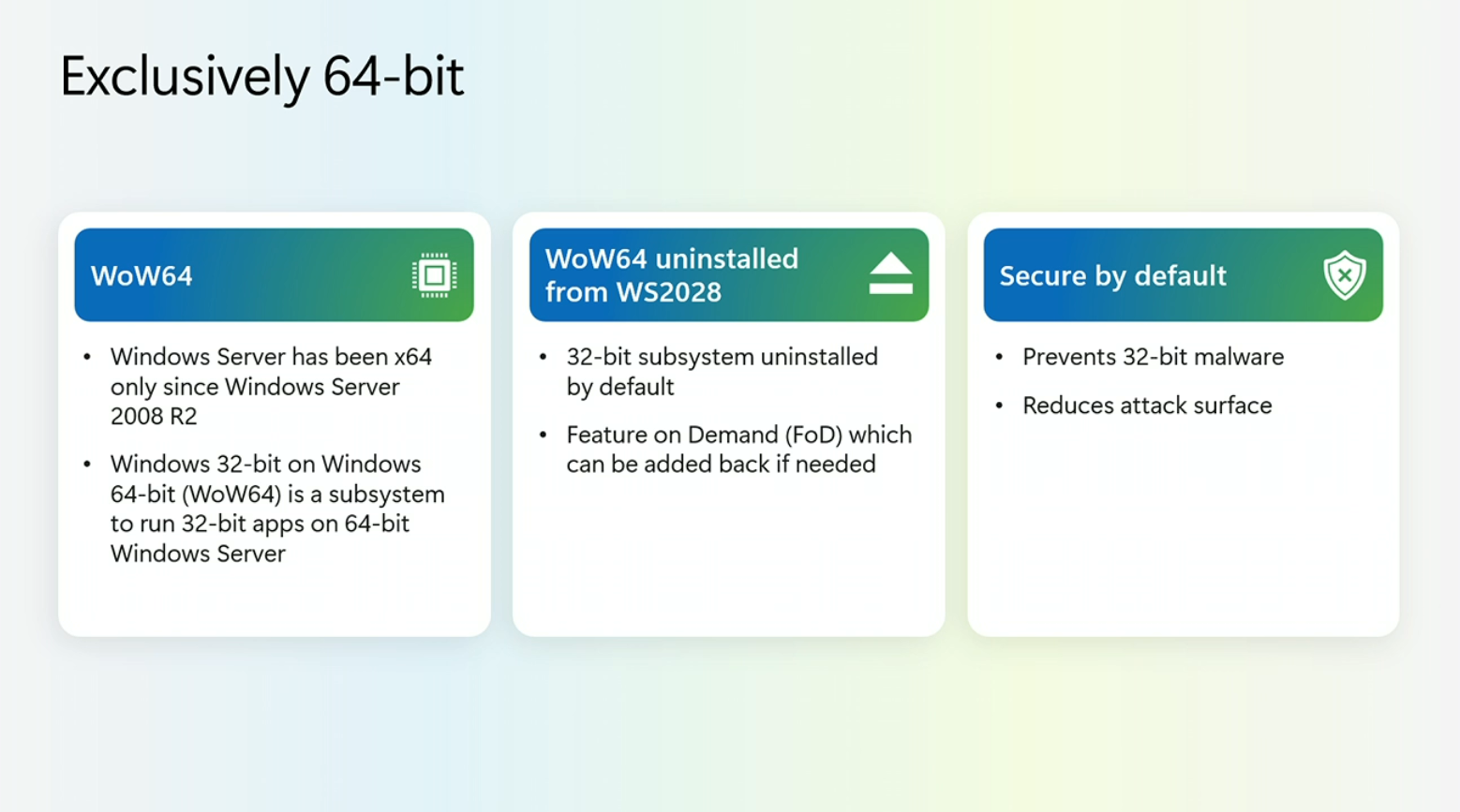
The last 32-bit version of Windows Server shipped in 2008, with all subsequent releases being 64-bit only. The WoW64 subsystem shipped on 64-bit Windows to allow 32-bit Windows apps to continue running on 64-bit versions of Windows. But now, with Windows Server 2028, that 32-bit compatibility layer will now be an optional component that you can install manually if needed.
"We're actually going to remove the WoW64 subsystem," Microsoft Program Manager, Elden Christensen says. "What this is going to do is make the system more secure in specifically around 32-bit malware. So 32-bit malware won't be able to run on Windows Server 2028." So it sounds like the main reason for removing WoW64 is security, but it should also slim down the overall OS install size too.
Windows Server 2028 will be exclusively 64-bit by default. (Image credit: Microsoft)
Currently, this change is just for Windows Server, with client editions of Windows such as Windows 11 continuing to ship with the WoW64 subsystem by default. Most Windows apps you use today are already 64-bit native, with a few exceptions still shipping exclusively as 32-bit binaries.
With that in mind, I don't expect the next version of Windows 11 to follow Windows Server by removing 32-bit app compatibility, at least not yet. WoW64 may become a feature you can uninstall if you don't want it, but I suspect Windows 11 will continue to ship with WoW64 preinstalled for the foreseeable future.
The next version of Windows Server is expected to debut sometime in 2028, as its name implies. Microsoft is on a predictable three year release cadence for Windows Server versions, with the last version shipping in 2025.
Join us on Reddit at r/WindowsCentral to share your insights and discuss our latest news, reviews, and more.
Windows 11's last update of the year is here, and it's a big one. The KB5132057 update introduces a new Windows Search experience that brings better performance, a new design, and inline actions. The update also improves Windows Hello, XBOX Mode, widgets, and several other parts of Windows 11.While I love Windows 11 widgets more than most, even I point to the new Search experience as the headline feature of this update. Search in Windows 11 has drawn complaints f
Windows 11's last update of the year is here, and it's a big one. The KB5132057 update introduces a new Windows Search experience that brings better performance, a new design, and inline actions. The update also improves Windows Hello, XBOX Mode, widgets, and several other parts of Windows 11.
While I love Windows 11 widgets more than most, even I point to the new Search experience as the headline feature of this update.
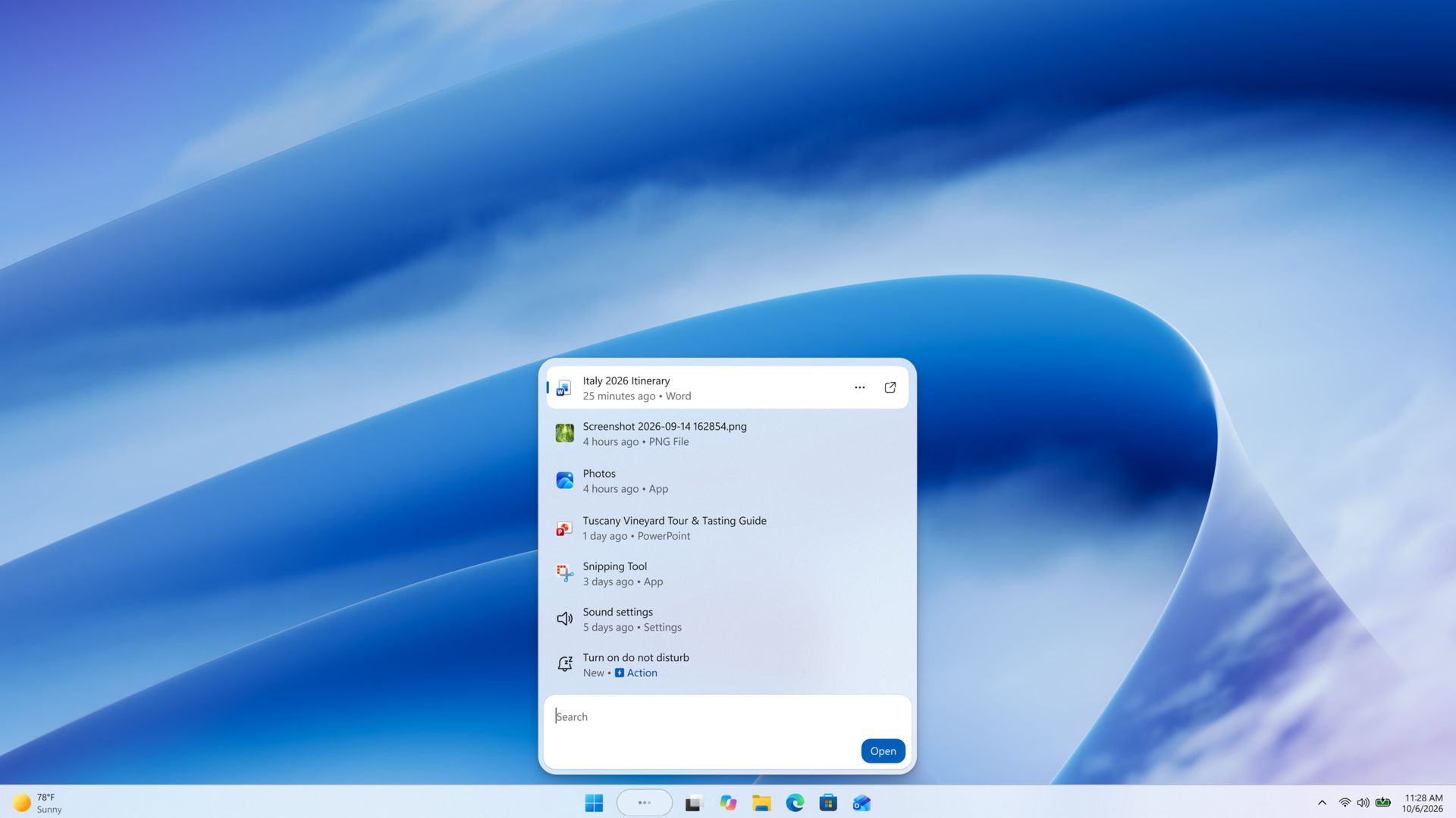
Search in Windows 11 has drawn complaints for years. The new search fixes smaller frustrations, such as handling typos more effectively, while also surfacing richer information about files, including details about when they were last modified.
Microsoft's new Search experience for Windows 11 is about more than finding files or apps. It can perform tasks, like switching your PC to light mode or dark mode.
Microsoft slows down updates over the holiday season, so there won't be a non-security preview update in the second part of November or in December. The normal update cycle will resume in January 2027.
Luckily for Windows enthusiasts and those who want a better computing experience, this update gives us quite a bit to play with.
KB5132057 is a non-security feature update. It's generally available now, but as an optional release. You can jump into the Settings app on Windows 11 and opt to get the update right away. Alternatively, you can wait until it rolls out on Patch Tuesday in December.
The new Search experience and most of the big changes are part of a gradual rollout, so even if you update your PC to the latest version of Windows 11, it may be a while before you get specific features. Microsoft details the update and how it works in a support document.
Windows 11 KB5132057 Update
[Windows Search]
New! This update introduces a new Windows Search experience with a streamlined design, improved performance, and new ways to complete tasks directly from search.
Streamlined design: Windows Search now displays results in a single, simplified list, making it easier to scan and find what you need. The updated experience also improves performance and memory efficiency.
Inline actions: You can now complete common tasks directly from Windows Search without opening Settings. For example, you can turn on dark mode or Bluetooth, adjust screen brightness, mute your device, or arrange open windows. If you have an Android phone connected through Phone Link, you can also call or text contacts and use phone actions like “Find my phone” and “Do Not Disturb.”
Richer, more relevant results: Preview files directly in Windows Search and see details like when a file was last modified, where it's saved, and who created it. You can also get quick answers about weather, stocks, and facts without leaving search. Windows Search also better recognizes typos and synonyms, so you'll find what you need even when your search terms aren't an exact match.
New! Windows Hello facial recognition can now temporarily brighten your screen to help you sign in when you're in a dark or dimly lit room. To turn on this feature, go to Settings > Accounts > Sign-in options > Facial recognition (Windows Hello) and turn on Automatically adjust screen brightness during face recognition.
[Run dialog]
New! The Run dialog has been updated with a more modern design and improved usability. You can try the new experience by going to Settings > System > Advanced and turning on New Run dialog. For more information, see The new Run dialog: faster, cleaner, and more capable.
[XBOX Mode]
This update brings Quick settings to the Gaming Task View navigation bar in XBOX mode, giving you access to the full set of Quick settings available on the Windows taskbar without having to leave XBOX mode.
[Widgets]
New! Windows can now notify you when a new widget becomes available after you install an app. Select the notification to open the Widgets Board, where the new widget is highlighted so you can quickly add it to your board.
[File Explorer]
New! Search from This PC in File Explorer is now indexer-based, making it much faster and consistent with search from File Explorer Home.
[Settings]
New! Discover your account benefits. Windows Settings now makes it easier to find the benefits and services available with your Microsoft account.
[Screen capture]
New! This update changes the border displayed during screen capture from yellow to red, making it easier to identify when a capture session is active.
[Mouse cursor]
New! The new Pointer indicator makes it easier for people with low vision to locate and use the mouse pointer. To turn it on, go to Settings > Accessibility > Mouse pointer and touch and enable Pointer indicator. After you enable the setting, press Windows logo key + Ctrl + Shift + X to turn the pointer indicator on or off. This update also improves mouse pointer performance during screen captures, reducing visible cursor latency in scenarios such as game streaming.
[Magnifier]
New! This update adds a Keyboard shortcut for Magnifier toggle in Settings > Accessibility > Magnifier. It lets you choose whether pressing Windows logo key + Plus (+) starts Magnifier. The shortcut is on by default.
New! Magnifier now includes a help menu that makes it easier to discover key features and access relevant support resources. You can also open Feedback Hub directly from Magnifier to share feedback.
[Narrator]
New! Narrator now supports math reading in additional languages: Greek, Hungarian, Indonesian, Norwegian (Bokmål), Polish, Russian, Swedish, and Vietnamese.
[Live captions]
New! Live captions now gives you more control over which audio is transcribed. In Live captions settings, you can choose to caption system audio, microphone audio, or both. This makes it easier to caption an in-person conversation without including system audio or follow audio from your PC during a meeting or while watching a video.
[Keyboard shortcuts]
New! If you accidentally trigger the keyboard shortcut for Sticky Keys, Filter Keys, or Toggle Keys, you can now turn it off directly from the prompt that appears. You can still manage notifications and sounds for these features under Settings > Accessibility > Keyboard > Notification preferences.
[Voice typing]
This update improves reliability of configuring voice typing settings.
[Web sign-in]
New! Web sign-in is now supported on Microsoft Entra hybrid joined devices, in addition to Microsoft Entra joined devices. At the lock screen, you can sign in without a password by using a FIDO2 security key, a passkey on your phone, or a Temporary Access Pass (TAP). After you sign in, Windows gets a Kerberos ticket, so access to on-premises file shares and internal sites continues to work. For more information, see Web sign-in for Windows.
[RemoteApp]
This update fixes an issue that might cause an extra character to appear at the beginning of Japanese text entered in RemoteApp applications.
[TPM]
This update fixes an issue that might cause boot failures or TPM initialization errors on Arm-based systems that use a TPM 2.0 Command Response Buffer (CRB) interface.
[Security]
This update improves the security key sign-in experience. The "Other user" icon has been removed from the PIN entry screen for a simpler appearance. On devices with display-based NFC readers, a new on-screen indicator shows where to tap your security key during sign-in. The indicator adjusts to the device's screen orientation, making it easier to locate the NFC reader.
Join us on Reddit at r/WindowsCentral to share your insights and discuss our latest news, reviews, and more.
Xiaomi's Watch S5 41mm, Smart Band 11, and Clip earbuds go global. Compare features, battery life, prices, compatibility, and regional availability.
The post Xiaomi Watch S5, Smart Band 11, Clip Earbuds Go Global appeared first on TechRepublic.

 Connexion