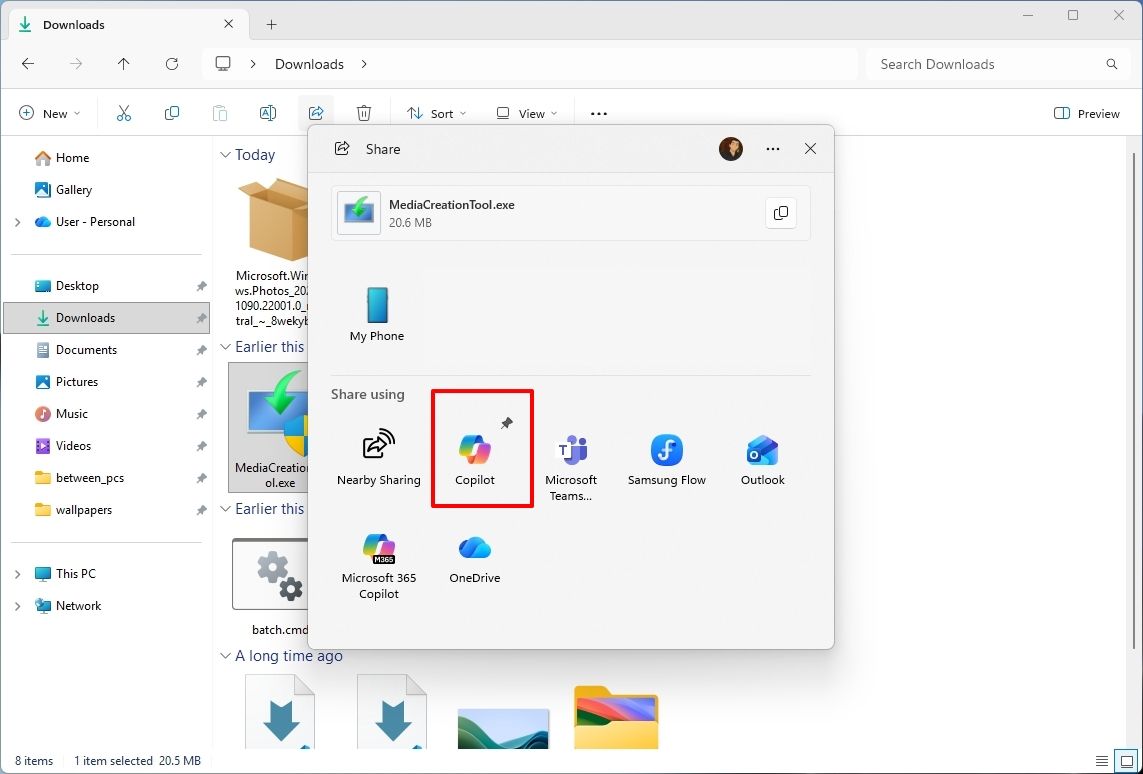
Microsoft will remove eight OneDrive Copilot shortcuts from File Explorer starting in November 2026, changing how users access AI-powered file tools.
The post Microsoft Is Removing 8 Copilot Shortcuts From File Explorer — Here’s What Stays appeared first on TechRepublic.
SameMovie saves movies and full TV seasons as MP4 or MKV files you can watch on a flight or anywhere offline.
The post Pay $100 Once to Download Shows From 1,000+ Sites for Offline Viewing appeared first on TechRepublic.
Microsoft is working on a small yet meaningful change to the lock screen and sign-in experience on Windows 11 that will streamline the authentication process that users must go through to log into their desktop. The current Windows sign-in flow requires the user to manually select the method of authentication they wish to use to login. If you've set up a PIN, face unlock, and fingerprint unlock, the only method of authentication that is active is the one you manu
Microsoft is working on a small yet meaningful change to the lock screen and sign-in experience on Windows 11 that will streamline the authentication process that users must go through to log into their desktop.
The current Windows sign-in flow requires the user to manually select the method of authentication they wish to use to login. If you've set up a PIN, face unlock, and fingerprint unlock, the only method of authentication that is active is the one you manually click on to use on the lock screen.
This is a huge gripe of mine, and it's super frustrating when you want to login using your face, but Windows has selected PIN or fingerprint. It means your webcam isn't looking for you in that moment, and you have to manually switch to face unlock to force Windows into checking for your face and logging in.
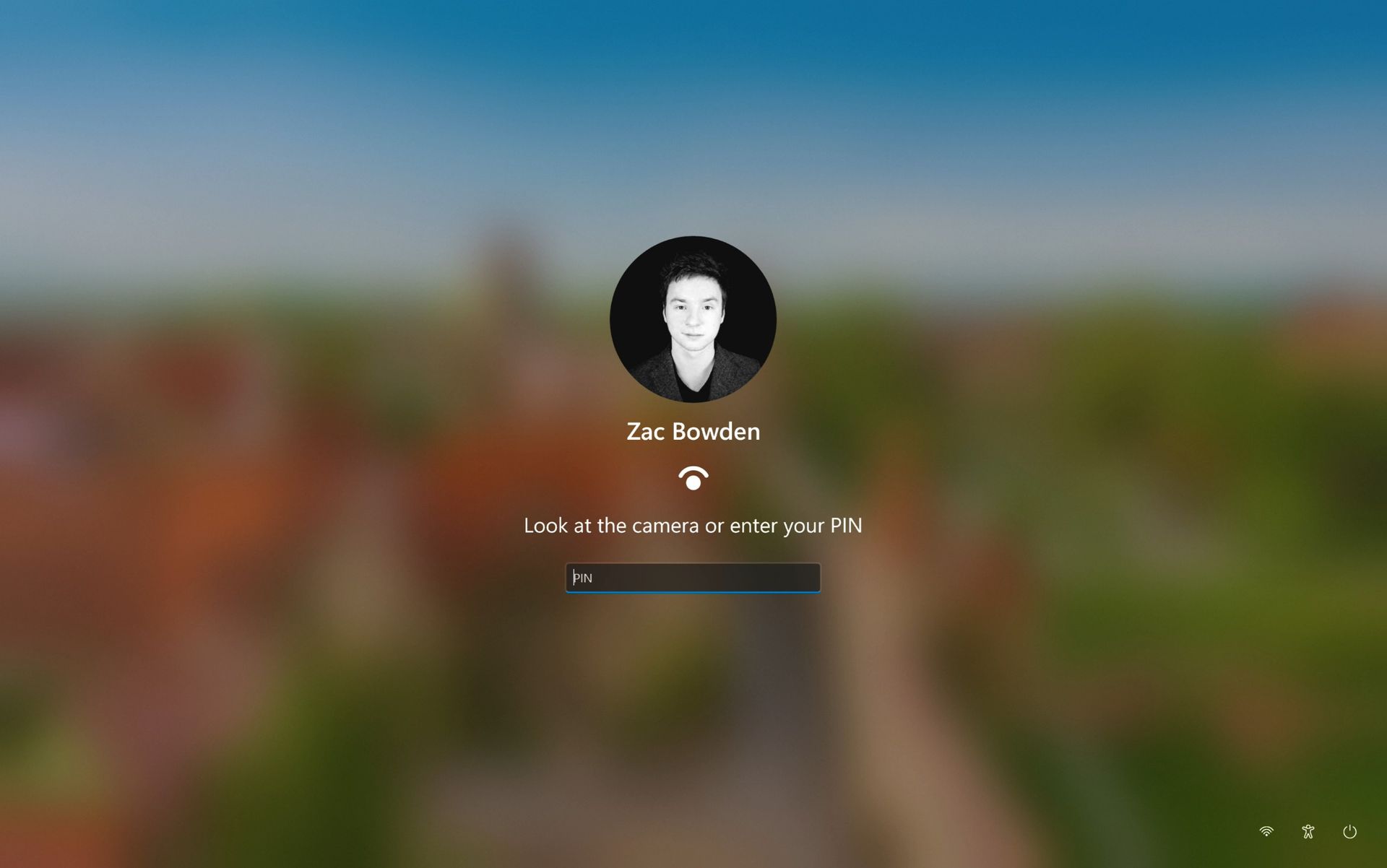
Well, it looks like this is finally changing. In the latest Windows 11 preview builds, a hidden feature ID enables a new experience that automates this. Now, by default, the PIN box is always on show, but face unlock and fingerprint unlock are also active and ready to authenticate at the same time.
No longer does the user need to manually choose their login method. (Image credit: Zac Bowden / Windows Central)
This means users no longer need to manually select the login method of their choice. Windows will automatically capture whichever biometric authentication method is set up, even when the PIN box is on screen. This also means the lock screen looks cleaner as a result, as the options to choose which authentication method you want to use is no longer displays as it's not necessary. It's also faster for those with biometric authentication enabled.
I really like this change, as it encourages Windows to keep trying my face unlock even if it fails the first time. Of course, there's an eventual timeout if it fails too many times, but I find it is able to log me in before it ever reaches that point. Also, being able to just type my PIN without having to manually select the PIN option first is also great.
Microsoft is yet to announce this new sign-in flow, but I suspect it won't be long until it's officially put into testing as it's already very polished and has been in the works for a number of months now. What do you think? Is this a good change for the Windows lock screen? Let us know in the comments.
Join us on Reddit at r/WindowsCentral to share your insights and discuss our latest news, reviews, and more.
Windows 11 offers controls for diagnostic data, location access, clipboard syncing, and personalized recommendations. Here's how to review seven privacy settings and understand their trade-offs.
The post 7 Windows 11 Privacy Settings You Should Check in 2026 appeared first on TechRepublic.
Windows 11 offers controls for diagnostic data, location access, clipboard syncing, and personalized recommendations. Here's how to review seven privacy settings and understand their trade-offs.
In what may be one of the year's least surprising stories, Microsoft's VP of Product Design, Diego Baca, has explained how AI is being used to help designers after being asked whether it's possible to launch a "fleet of viable agents" to address issues in Windows 11. On AI agents, 100% agree. I’m not the best person to speak to the engineering side, but AI has already helped our design team accelerate significantly. We’re even seeing designers contribute directly
In what may be one of the year's least surprising stories, Microsoft's VP of Product Design, Diego Baca, has explained how AI is being used to help designers after being asked whether it's possible to launch a "fleet of viable agents" to address issues in Windows 11.
On AI agents, 100% agree. I’m not the best person to speak to the engineering side, but AI has already helped our design team accelerate significantly. We’re even seeing designers contribute directly to code fixes that improve craft, consistency, and quality. That’s exciting progress, and we’re only getting started.
Microsoft acknowledges Windows 11's longstanding design inconsistencies as AI helps accelerate improvements across the operating system. (Image credit: Microsoft)
“Consistency across Windows is something we all want, and it’s an active workstream we’re continuing to accelerate,” he explained.
And to be fair, I have to agree. Windows 11 is now five years old (that's made me feel so old), yet parts of the operating system still feel like they're lacking the modern stylings, almost as though some of it still belongs in Windows 7, or even earlier, as Windows Latest points out in its own take.
Don't get me wrong, Microsoft has made progress, particularly with its efforts to modernize Windows Search, Run, and other legacy interfaces using WinUI 3. But I do wish these inconsistencies had been addressed before Windows 11 launched, though perhaps I’m wishing for too much.
Baca also acknowledged the criticism, admitting, “Finally, I completely recognize that people expect more from Windows. We expect more from ourselves, too.”
Finally, he added that Microsoft hopes to “earn back your enthusiasm for Windows through what we deliver, not just what we say.” It’s a refreshingly open response, and one I massively appreciate. How do you feel about Diego Baca's comments? Let me know in the comments and be sure to take part in our poll below:
Join us on Reddit at r/WindowsCentral to share your insights and discuss our latest news, reviews, and more.
Microsoft is testing a way to update Edge without forcing a restart, potentially letting you keep working while it switches to a more secure version.Browser updates can interrupt your work, so you might put off restarting the browser. However, this can delay important security fixes. Microsoft's solution aims to solve both problems by updating Edge in the background while keeping compatible tabs open. The project is still an early experiment, not a feature you ca
Microsoft is testing a way to update Edge without forcing a restart, potentially letting you keep working while it switches to a more secure version.
Browser updates can interrupt your work, so you might put off restarting the browser. However, this can delay important security fixes. Microsoft's solution aims to solve both problems by updating Edge in the background while keeping compatible tabs open.
The project is still an early experiment, not a feature you can use today. Microsoft says the prototype isn't part of Edge's production code or the Chromium project.
Microsoft wants Edge updates to be seamless
Currently, browser updates require a restart to safely switch to a newer version. Although Microsoft Edge can restore your open tabs afterward, restarting can still interrupt your work. Microsoft's prototype aims to change that by downloading an update in the background and moving the browser and its supporting processes to the newer version while keeping your work available.
For example, imagine you're filling out a long online form when a security update becomes available. Instead of asking you to restart Edge and interrupt your work, the browser would update in the background while you continue working.
Microsoft demonstrated the prototype in a video, and when the company clicked the "Update" button, the browser switched to the new version while keeping compatible tabs open. Eventually, the goal is to apply updates automatically without requiring users to click anything.
One limitation is that existing tabs can stay open only if they're compatible with the new version. Other tabs will switch to the updated version when you navigate to them.
AI makes faster security updates more important
(Image credit: Future | Daniel Rubino)
The project isn't only about convenience. Microsoft notes that AI is accelerating vulnerability discovery and changing the pace of attacks, increasing the need to roll out security fixes more quickly. The company describes the time between a security fix becoming available and an update being applied as the "patch gap." During this period, users who don't install the fix remain vulnerable.
A security update can only protect you after apply it. Restarts add friction to that gap: people may keep a browser open for days because they are in the middle of something important.
Microsoft
The requirement to restart the browser can also make the problem worse when people postpone updates because they don't want interruptions. As a result, applying security updates faster could reduce the time users remain exposed to known vulnerabilities.
So, when can we use it?
This isn't built into the current version of the browser, so don't go through the settings trying to find the option. Microsoft says that the prototype isn't part of the browser or the Chromium project. Instead, the company is sharing its work early and inviting developers and other organizations to collaborate on this project.
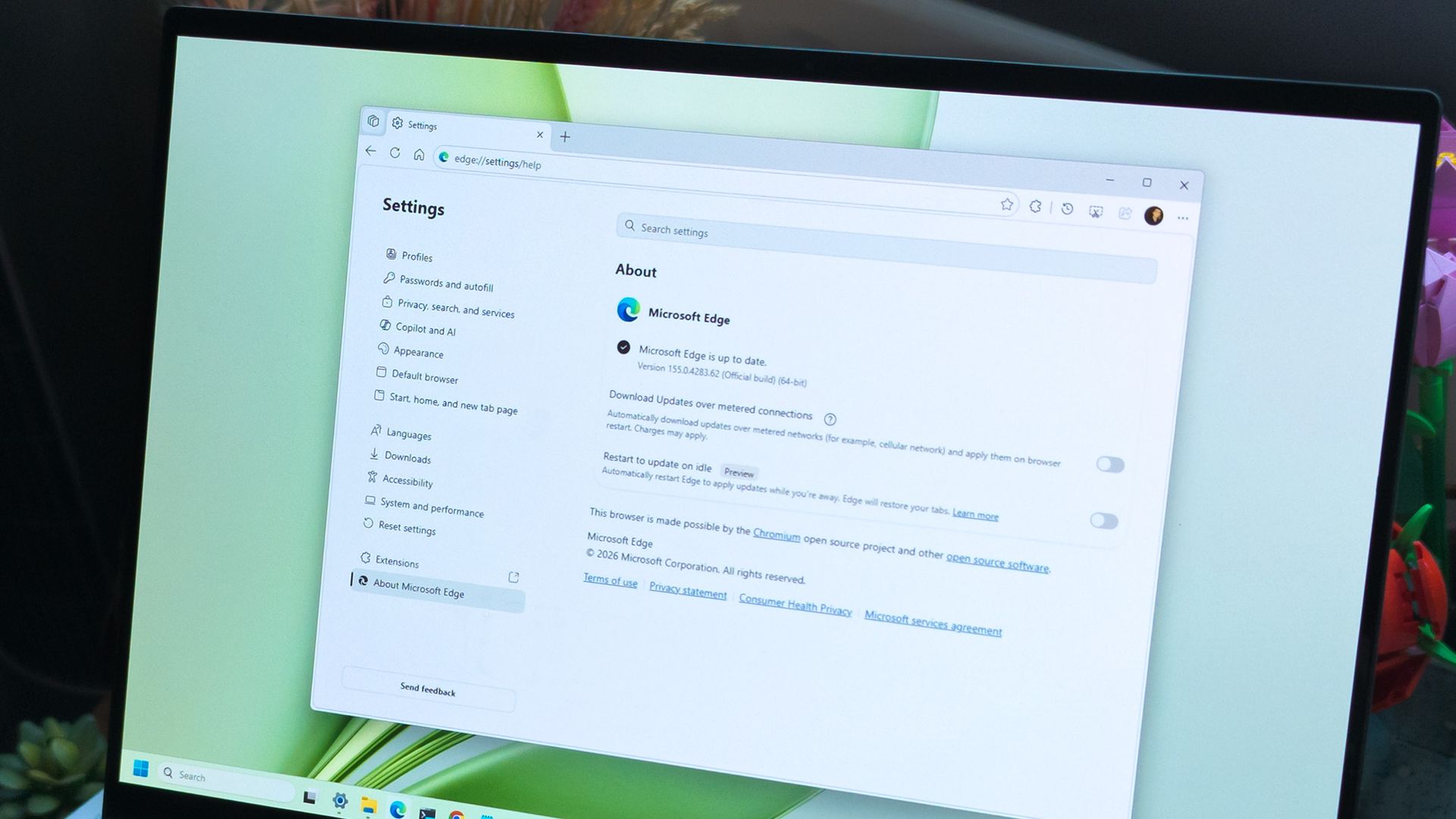
Edge already has an update option for idle devices
(Image credit: Daniel Rubino / Windows Central)
While the company continues developing its new update mechanism, Microsoft Edge already offers a feature called "Restart to update on idle," previously known as "Instant Updates."
The feature restarts Edge when your device is idle, installs the update, and reopens your tabs. It still requires a restart, but the interruption happens when you're not using the browser.
What's next?
For now, Microsoft Edge's existing update options help reduce delays, while the seamless-updates prototype offers a glimpse of what could come next. Microsoft hasn't announced when, or whether, this approach will become available. The company is sharing the prototype early to encourage collaboration with the community.
However, we'll have to wait and see whether the concept will make it into a future version of the browser. What are your thoughts on this new way to update the browser? Let me know in the comments.
More resources
Explore more in-depth how-to guides, troubleshooting advice, and essential tips to get the most out of Windows 11 and 10. Start browsing here:
In this episode of the Windows Central Podcast, Daniel Rubino and Zac Bowden regroup following a week of extensive hands-on hardware testing and benchmarking. The central focus is the initial review wave for the Surface Laptop Ultra and the broader Nvidia RTX Spark mobile platform.Zac details his full review of the Surface Laptop Ultra, highlighting its MacBook-inspired design improvements, haptic touchpad, outstanding audio, sleep battery efficiency, and magneti
In this episode of the Windows Central Podcast, Daniel Rubino and Zac Bowden regroup following a week of extensive hands-on hardware testing and benchmarking. The central focus is the initial review wave for the Surface Laptop Ultra and the broader Nvidia RTX Spark mobile platform.
Zac details his full review of the Surface Laptop Ultra, highlighting its MacBook-inspired design improvements, haptic touchpad, outstanding audio, sleep battery efficiency, and magnetic USB-C connector—while contrasting its 2,000-nit Mini-LED display against competing Tandem OLED panels. Daniel shares first impressions of two rival RTX Spark flagships: the ultralight 3.9 lb ASUS ProArt P16 and the robust HP OmniBook Ultra 16.
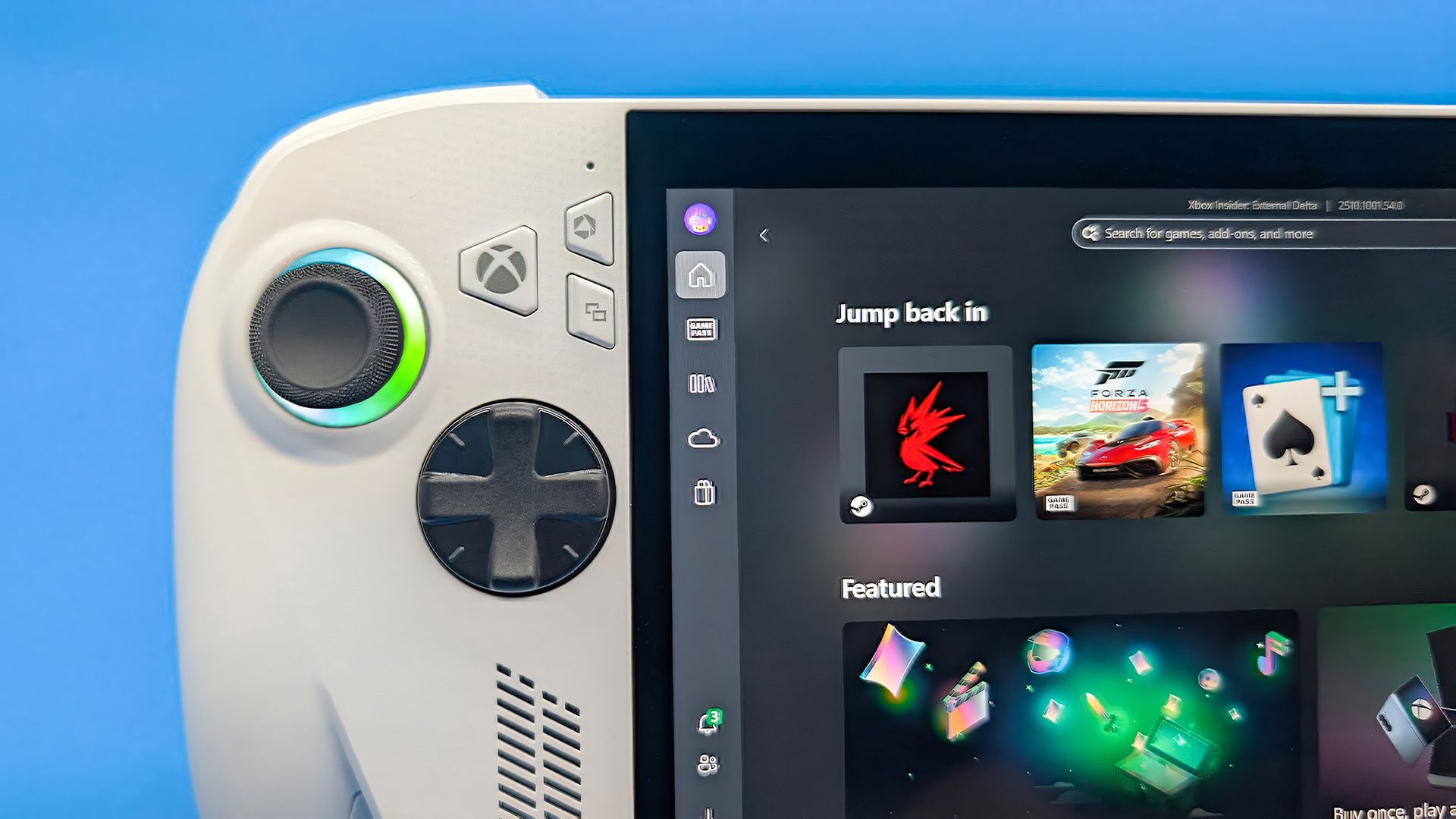
The hosts dig into real-world local AI and agentic workflows (including tests with Hermes Agent and local LLMs), explain the critical architectural advantage of configurable unified memory allocations for GPUs, discuss gaming performance with DLSS/frame gen, and showcase the newly launched ASUS ROG Xbox Ally X20 handheld console bundle featuring XREAL AR glasses.
This episode of the Windows Central Podcast is sponsored by Surfshark VPN. Unlimited devices, access your content from anywhere, and auto-block malware on Windows, Edge, and other platforms from $2.50/mo, with 3 months extra FREE. Sign up today!
[01:44] – Introduction: Daniel and Zac kick off Episode 407, outlining their week spent benchmarking and testing retail RTX Spark laptops and handhelds.
[05:51] – Surface Laptop Ultra Design & Build: Zac breaks down the chassis aesthetics, MacBook Pro styling parallels, lack of a notch, seamless lid lip design, and weight (4.5 lbs).
[08:00] – The Mini-LED Display: Deep dive into Microsoft’s 2,000-nit Mini-LED panel, evaluating ghosting zones (1,344 dimming zones), glossy reflections, and comparisons to Tandem OLED screens.
[13:09] – Battery Life & Standby Sleep Performance: Real-world longevity on the 92 Wh battery (10–12 hours light use) and standout sleep endurance matching Apple Silicon.
[15:18] – Magnetic Breakaway USB-C: Testing the breakaway angle, data capabilities, and custom charging brick interoperability.
[18:04] – RTX Spark CPU & Gaming Benchmarks: Breakdown of 20-core multi-threaded CPU output versus single-core scores, plus gaming results with DLSS in titles like Cyberpunk 2077 (approaching RTX 4070/5060 laptop levels).
[25:59] – Local AI & Unified Memory Allocation: Why configurable system RAM sharing to the GPU CUDA cores enables large local LLM deployment that traditional gaming laptops cannot match.
[29:11] – Agentic AI Experiments: Practical workflows with Hermes Agent, desktop automation in Photoshop, automatic folder cleanup, and local data safety risks.
[46:00] – Speakers, Haptics & Missing Copilot+ Features: Praise for the class-leading haptic signals and audio alongside the notable delay of Windows Recall and semantic search on RTX Spark.
[53:56] – ASUS ProArt P16 Review Preview: Daniel highlights the 3.9 lb featherweight design, dual-fan thermals, 4K anti-reflective touch options, and port selection.
[58:50] – HP OmniBook Ultra 16 Breakdown: Frame build quality, rear tower exhaust design, Zero-Lattice Gen 2 keyboard, and compact 140W GaN charger.
[01:06:08] – PCIe SSD Speed Shootout: Massive speed discrepancies across devices—Surface’s 14,000 MB/s drive vs. HP's 10,000 MB/s and ASUS’s variable read speeds.
[01:14:55] – ASUS ROG Xbox Ally X20 Handheld Impressions: Translucent chassis, 7.4-inch 120Hz anti-reflective OLED panel, Z2 Extreme performance, and testing the bundle with XREAL AR glasses.
[01:24:02] – Live Audience Q&A: Viewer questions regarding boot/restart bugs, NVMe expansion, OneDrive Microsoft 365 storage allocation backlash, and future low-tier RTX Spark silicon.
Have a question you want us to answer on the podcast? Send it to us at [email protected]
Windows 11 Photos is getting a faster editor, improved viewer, and connected gallery. Here's what's changing and when the update arrives.
The post Windows 11 Photos Gets a 25% Faster Editor — Here’s Who Gets It First appeared first on TechRepublic.
Microsoft's October Windows Server updates may disrupt Exchange email. Here's what administrators need to know about the temporary workaround.
The post Microsoft Warns Windows Server Updates May Disrupt Exchange Email — Here’s the Workaround appeared first on TechRepublic.
Microsoft just celebrated 12 years of the Windows Insider Program by sharing a collection of wallpapers. But the origin of those wallpapers has drawn a bit of criticism. It turns out that they were not made on a Surface Laptop Ultra or, in fact, any Windows 11 device. Instead, they were created using a Mac.Rafael Rivera checked the properties of the wallpapers and noticed that they were created using the Mac version of Adobe Photoshop.New Windows Insider email: "
Microsoft just celebrated 12 years of the Windows Insider Program by sharing a collection of wallpapers. But the origin of those wallpapers has drawn a bit of criticism. It turns out that they were not made on a Surface Laptop Ultra or, in fact, any Windows 11 device. Instead, they were created using a Mac.
Rafael Rivera checked the properties of the wallpapers and noticed that they were created using the Mac version of Adobe Photoshop.
Rivera noted in a follow-up post on X that the images were made by Microsoft's in-house design team. If accurate, that precludes the possibility of a contracted company happening to use Macs in their normal workflow and being commissioned to make the images.
Even if the images were made by a contracted company, Microsoft would have a little bit of egg on its face because that would indicate that even a creator that works with Microsoft prefers to use an Apple product.
Windows Central take
I don't think this is a big deal, but the situation has emerged at an awkward time. Microsoft is in the middle of refreshing Windows 11. The tech giant just shared a massive blog post positioning Windows 11 as a selling point to buy a new PC.
Having Windows Insider wallpapers created on a Mac opens the door to jokes like "even Microsoft staff prefer Mac."
It's perfectly reasonable for Microsoft to use tools created by another company. It's not as if Microsoft should force its design team to use the new Photos app instead of Photoshop. Creators, and any worker, need to use tools that can get the job done.
But considering Adobe Photoshop is available on Windows 11, it's a bit strange that Microsoft couldn't send a few Windows 11 PCs over to its design team.
Alternatively, Microsoft could call up ASUS and make a deal to get some ProArt P16 laptops to the design team. Our friends at Tom's Guide said "The ASUS ProArt P16 is an outstanding laptop for creativity."
Microsoft is finally giving Copilot+ PCs more capabilities on Windows 11. After the disastrous launch of Copilot+ PCs in 2024 which ultimately led to the company retiring the brand as a marketing asset this year, Microsoft has announced Hybrid intelligence, a new wave of AI features that will utilize on-device processing and the cloud.If you thought the Copilot+ PC promise of NPU-powered local AI experiences was dead, I wouldn't blame you. Microsoft has been slow
If you thought the Copilot+ PC promise of NPU-powered local AI experiences was dead, I wouldn't blame you. Microsoft has been slow to build out NPU-based AI features on Windows 11, with Click To Do and Semantic Search being the last Copilot+ PC exclusive features to launch over a year ago.
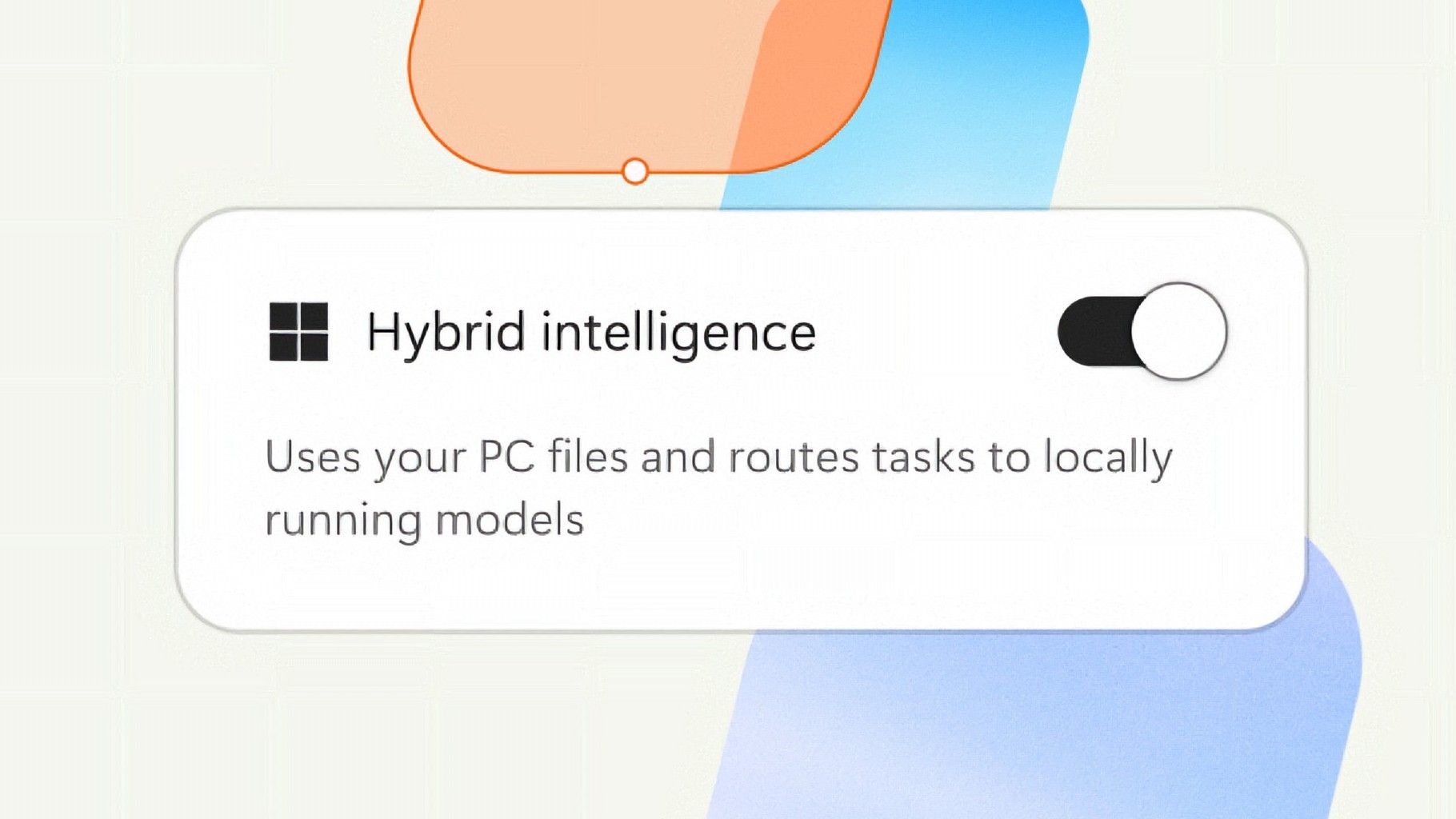
But that seems to be finally changing with "Hybrid intelligence," a part of which is being built directly into the Copilot app on Windows 11 and will intelligently route AI tasks and experiences between on-device processing and the cloud on Copilot+ PCs. Here's what's coming soon to Windows 11:
Local context: With your permission, Copilot can understand relevant content on your PC, including files and recent activity, bringing local context into the flow of work.
Local actions: Copilot can take action on your behalf across Windows, helping complete tasks like organizing files, assessing device diagnostics, troubleshooting issues, coding, and carrying out workflows directly on your device.
Local models: Copilot can tap into AI models running on your PC, using local compute for the right tasks while combining it with cloud intelligence when needed.
Hybrid Intelligence looks to be a natural evolution of Copilot+ PCs. Microsoft is finally giving this AI hardware more to do, with the ability to reach out to the cloud when required for more complex workloads. These Hybrid Intelligence features enhance the new Copilot Home, Code, and Autopilot experiences that were recently announced.
"Copilot understands your PC, takes action with your permission, and uses local models when it makes sense, with you in control at every step," Microsoft says. "Copilot features powered by hybrid intelligence are expected to begin rolling out on Copilot+ PCs in the coming months."
(Image credit: Microsoft)
Microsoft says Hybrid intelligence requires Copilot+ PC compatibility, which naturally implies that these new AI experiences will lean on the NPU for local processing, as that's one of the hardware requirements for meeting the Copilot+ PC feature bar.
Microsoft believes that a hybrid approach to AI will be the way forward for computing. It's important for PCs to have local AI compute power and capabilities to reduce pressure on data centers, and it's also important for privacy and security reasons too.
Agents on Windows are being heavily pushed as a local AI experience, though it requires PCs with powerful GPUs and lots of system memory to really take advantage of. The NPU is not powerful enough to handle most large language models at current, and so is reserved for less power intensive tasks and automations.
The company has also announced Aion Instruct, an on-device AI model that replaces Phi Silica and runs on not just the NPU, but GPU and even CPU in some cases. It's a small language model capable of handling text generation, instruction following, and web tasks.
Microsoft has confirmed that the Copilot+ PC brand is going away as a marketing asset, but it will continue to exist as a feature set. OEMs and Microsoft itself have stopped calling their new Surface PCs Copilot+ PCs, even though they are all Copilot+ PC compatible.
Now, the Copilot+ PC moniker is simply a checkbox on a spec sheet, and it looks like Hybrid intelligence PCs is the new marketing term that Microsoft wants to get in front of as many people as possible.
Join us on Reddit at r/WindowsCentral to share your insights and discuss our latest news, reviews, and more.
Microsoft just celebrated 12 years of the Windows Insider Program by sharing special wallpapers with Insiders. The images are all reminiscent of the Windows Bloom wallpaper that ships with Windows 11 and that has been remixed several times by Microsoft and enthusiasts.I'm partial toward the blue version, likely because I learned how to use a PC on Windows 95. There are also white, green, orange, and purple variants as well as several dark-theme wallpapers.This di
Microsoft just celebrated 12 years of the Windows Insider Program by sharing special wallpapers with Insiders. The images are all reminiscent of the Windows Bloom wallpaper that ships with Windows 11 and that has been remixed several times by Microsoft and enthusiasts.
I'm partial toward the blue version, likely because I learned how to use a PC on Windows 95. There are also white, green, orange, and purple variants as well as several dark-theme wallpapers.
This direct download link should get you all of the wallpapers, but you should also see them in an email from Microsoft if you're a Windows Insider.
Microsoft shared the following message alongside the wallpapers:
"Thank you for 12 incredible years, Windows Insiders!
From exciting program changes to meetups that brought us together in the past year, you're at the heart of it all. As a thank-you, we created new backgrounds for all Insiders inspired by 12 years of the Windows Insider Program and the latest Surface design aesthetic."
The Windows Insider Program has been around for 12 years, but it has shifted in structure in that time. I've been an Insider since the beginning, as have many members of our team at Windows Central. In that time, we've seen everything from major Windows features not being tested with Windows Insiders to feedback directly shaping the future of Windows.
Windows Insider meetups also returned this year, giving the community a chance to meet in person and interact with the Windows product team directly. The first Windows Insider meetup was in Seattle, Washington. Later, events took place in New York City (USA), Hyderabad (India), Taipei (Taiwan), San Francisco (USA), and London (UK).
I'm happy to see the Windows Insider Program on the right track. Microsoft is engaging with the community and shaping Windows 11 based on feedback.
Microsoft has shown the positive impact of listening to feedback through its recent changes to Xbox. Sometimes grabbing low-hanging fruit and addressing the top community concerns is exactly what's needed.
The wallpapers shared by Microsoft are a small gesture thanking Windows Insiders, but such gestures can go a long way. Ignored Insiders become Insiders who disengage from the Windows Insider Program, and that hurts all Windows users in the long run.
Join us on Reddit at r/WindowsCentral to share your insights and discuss our latest news, reviews, and more.
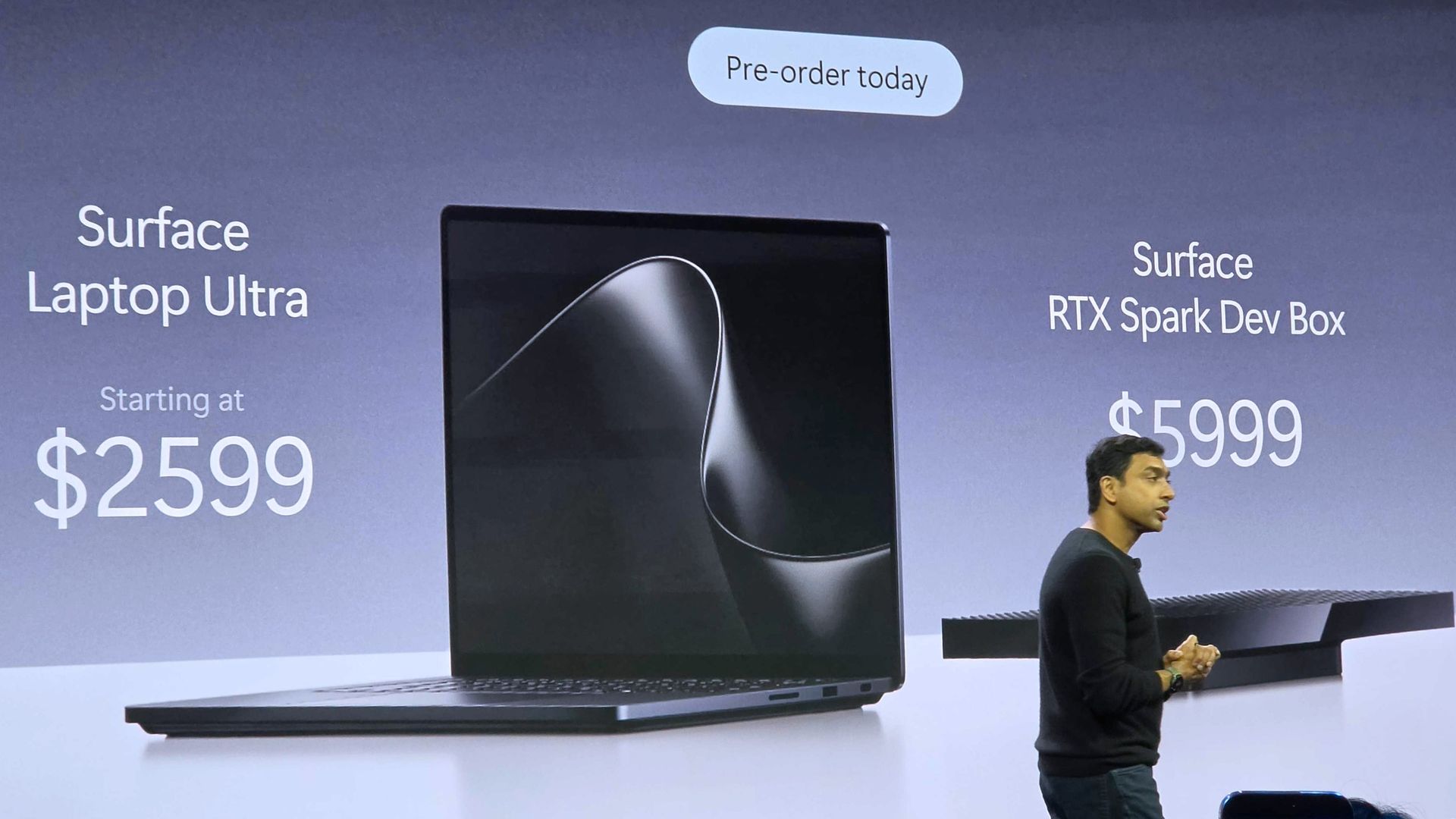
Microsoft fully unveiled its Surface Laptop Ultra this week. While we've known about the PC for months, we lacked key details and were not able to review the Surface Laptop Ultra until recently.That all changed when Microsoft CEO Satya Nadella, Microsoft Windows lead Pavan Davuluri, and NVIDIA CEO Jensen Huang took the stage to showcase the first wave of RTX Spark laptops.Microsoft and other PC makers like HP and Lenovo launched the first laptops powered by NVIDI
Microsoft fully unveiled its Surface Laptop Ultra this week. While we've known about the PC for months, we lacked key details and were not able to review the Surface Laptop Ultra until recently.
That all changed when Microsoft CEO Satya Nadella, Microsoft Windows lead Pavan Davuluri, and NVIDIA CEO Jensen Huang took the stage to showcase the first wave of RTX Spark laptops.
Microsoft and other PC makers like HP and Lenovo launched the first laptops powered by NVIDIA's new superchip, and initial impressions are quite promising.
With hardware from OEMs impressing reviewers and NVIDIA's chip delivering on many of its promises, attention shifts toward the operating system running on those laptops.
Biggest News of the Week
Microsoft published a massive blog post this week highlighting improvements to Windows 11.
While there are genuinely nice additions to Windows 11, the focus of Microsoft’s blog post took a specific angle that made me ask a question: “Is Windows 11 a selling point?”
After breaking down the new Search experience, sped up File Explorer, expanded customization options, and other features, Microsoft took the opportunity to promote PC sales.
Microsoft said:
"A new PC is a meaningful purchase, and the value should show up in more than a spec sheet. A modern Windows 11 PC brings together responsive everyday performance with more intuitive, connected and personal experiences, all supported by hardware designed for how you interact, create and play, from touch, pen and tactile feedback to immersive gaming experiences. The reason to upgrade is not just one feature; it is how all these experiences work together to make more of your day feel effortless."
Using Windows 11 as a sales tool indicates that Microsoft thinks the operating system is a selling point.
The vast majority of changes and upgrades will also ship to pre-existing PCs, so the entire premise is a bit odd. But that’s probably a post for another day. My main focus is that Microsoft heard feedback, made changes, and is now using those changes to sell PCs.
When rounding up reviews of the Surface Laptop Ultra, I noticed that several experts compared the laptop to a MacBook Pro. As much as it may pain some Windows enthusiasts to admit, the MacBook Pro is the gold standard for laptops in the eyes of many.
With Microsoft copying and competing with the MacBook Pro on the hardware side of things, the remaining question is if Windows 11 compares favorably to macOS.
A significant number of developers use Macs, and Microsoft wants to compete in that space. The Surface Laptop Ultra has the design and AI power to get devs to take a closer look. The question is whether Windows 11 will keep those devs around or drive them away.
Shopping with Sean
You knew my shopping suggestion of the week would be the Surface Laptop Ultra. This is the most powerful Surface in years, and arguably the most exciting in just as long.
Just make sure that you're the target audience for the Surface Laptop Ultra before spending thousands of dollars. Our Senior Editor does a great job breaking down the strengths and weaknesses of the PC in his Surface Laptop Ultra review. There, he also makes it clear who the laptop is for and who should just admire the device from afar.
Microsoft
Surface Laptop Ultra
Surface Laptop Ultra is Microsoft's flagship and most powerful Windows PC. It can be configured with up to 128GB RAM, and ships with NVIDIA's new RTX Spark SoC. It's great for creative workflows and software development, and those who want to run local AI and LLMs directly on their device.
Pros
Premium build quality
High-resolution screen
Excellent keyboard
Haptic trackpad is amazing
Good sound quality
Useful ports selection
Cons
Mini LED not best-in-class
No presence sensing features
Okay battery life
Currently missing all Copilot+ features
Join us on Reddit at r/WindowsCentral to share your insights and discuss our latest news, reviews, and more.
On Windows 11, Microsoft is overhauling the Windows Search feature to make it faster, more accurate, and more useful. The experience will go beyond finding apps, files, and settings by letting users perform common tasks directly from the Taskbar. At the same time, upcoming improvements will add file previews, richer web results, and Copilot integration.The redesigned Search experience is in development, but a preview is already rolling out through the Windows Ins
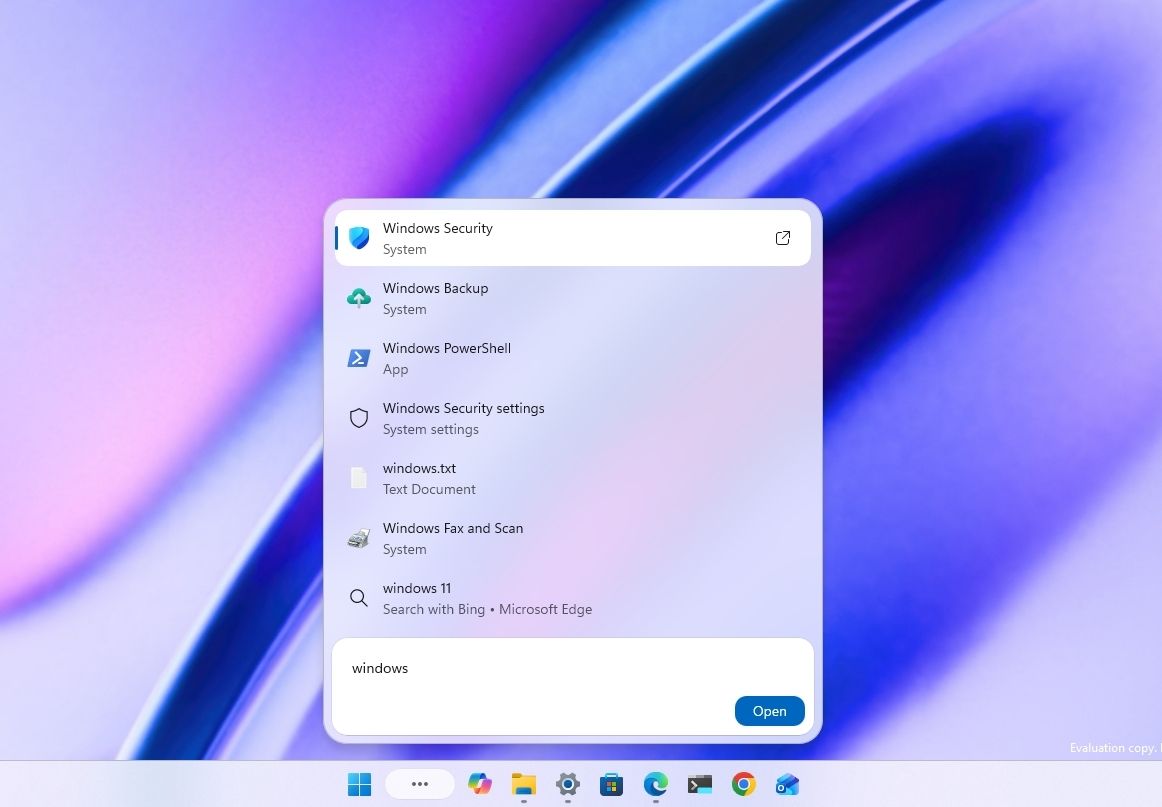
On Windows 11, Microsoft is overhauling the Windows Search feature to make it faster, more accurate, and more useful. The experience will go beyond finding apps, files, and settings by letting users perform common tasks directly from the Taskbar. At the same time, upcoming improvements will add file previews, richer web results, and Copilot integration.
The redesigned Search experience is in development, but a preview is already rolling out through the Windows Insider Program, with more features planned for later this year and a deeper integration with the Start menu planned for 2027.
Here's what you need to know about the new Windows 11 Search experience.
What is the new Windows 11 Search experience?
The traditional Windows Search experience has been designed primarily to find apps, files, settings, and web results. However, its performance and ability to understand search queries have always been questionable.
(Image credit: Mauro Huculak)
The new Windows Search experience addresses these limitations with a redesigned interface built on WinUI 3, which Microsoft says improves performance and reduces memory usage. It also improves search accuracy by better matching typos and synonyms.
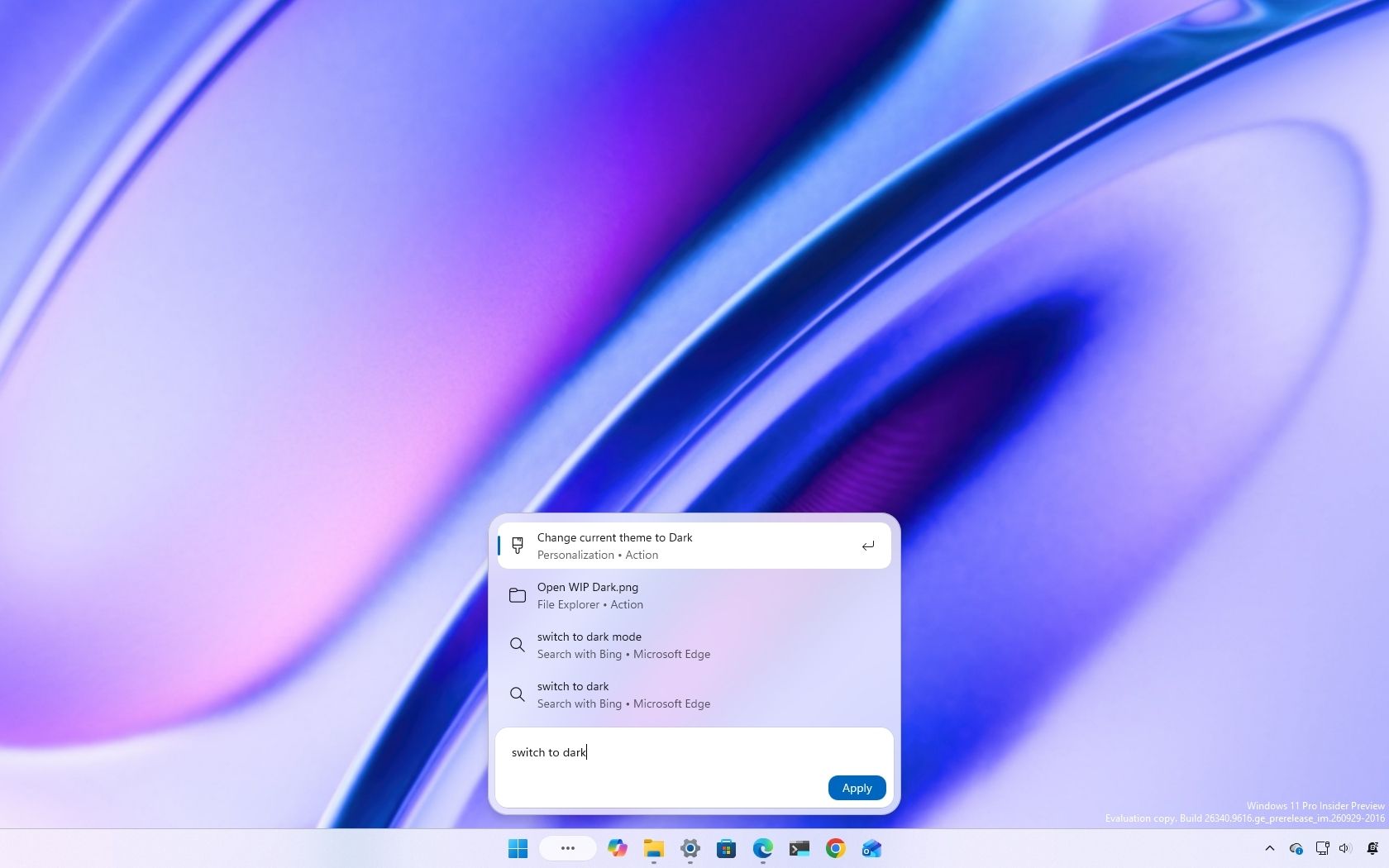
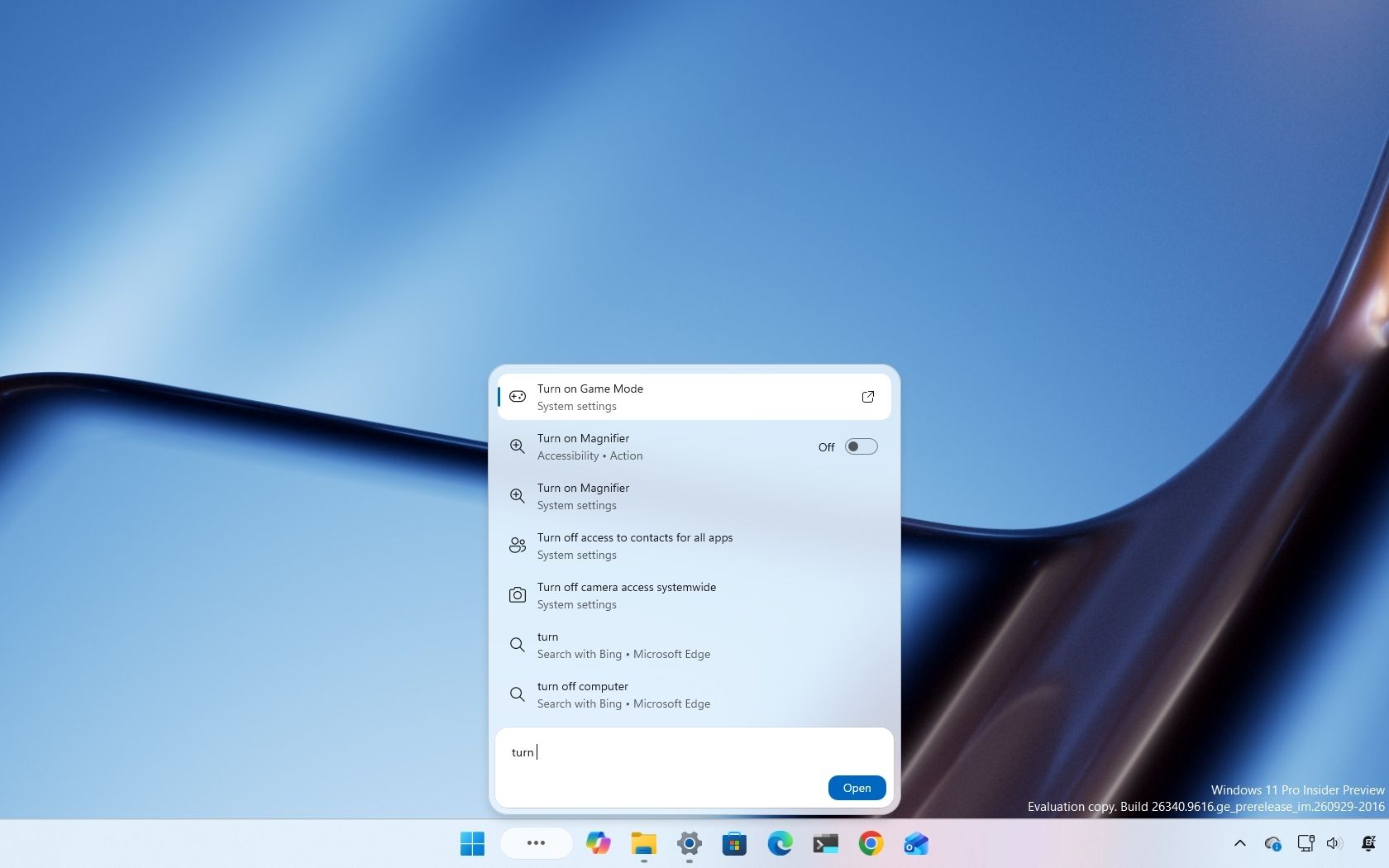
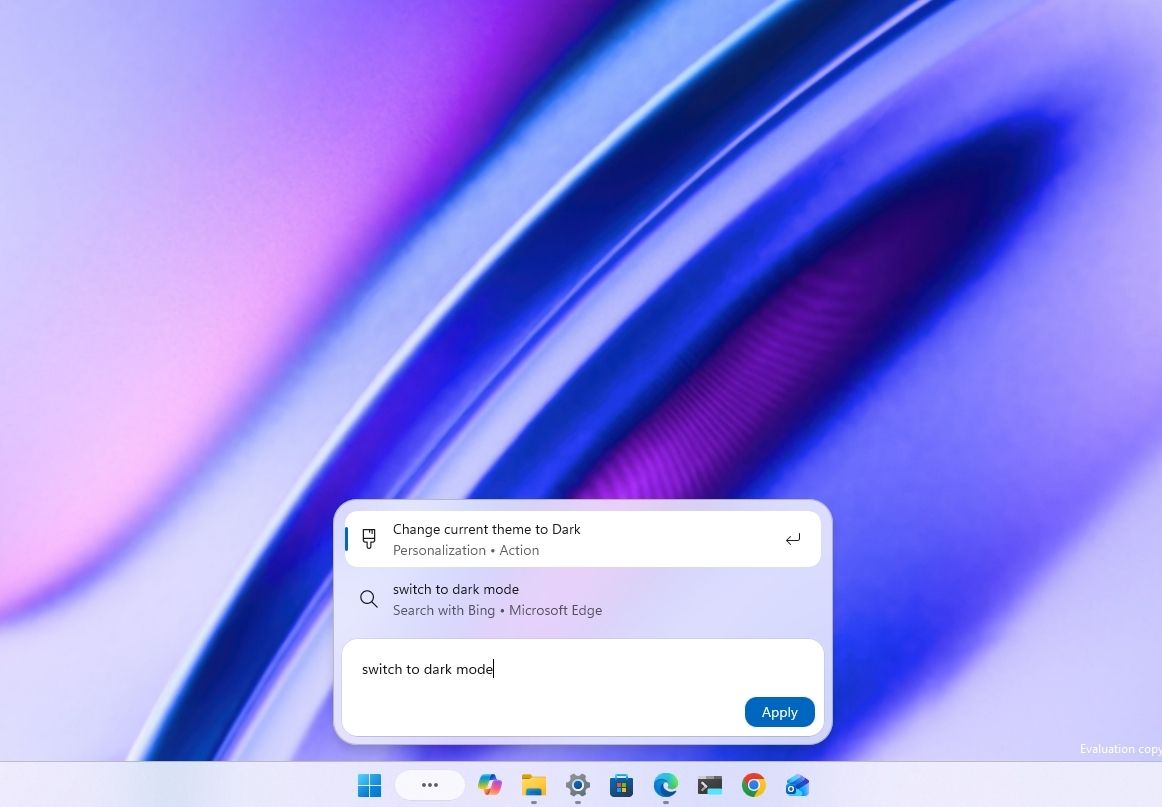
Beyond finding things, the new Search lets you perform certain actions directly from the Search box in the Taskbar. For example, you can type "switch to dark mode," "turn on Bluetooth," or "mute" to change a setting or adjust your computer without opening another app or navigating through additional screens.
Microsoft is also working on richer file previews, more detailed search results, and inline web answers that let you find information without leaving the experience. The company also plans to integrate Copilot into the experience, allowing users to ask questions and view answers directly in the Search interface before opening the Copilot app to expand the conversation.
What can you do with the new Windows Search?
The new Windows Search retains the core functionality of the legacy experience, letting you find apps, files, settings, and web results, but it also introduces new capabilities.
For example, you can perform certain actions directly from the Search box, such as switching to Dark mode, enabling Bluetooth, adjusting the volume, or arranging windows on the screen.
(Image credit: Mauro Huculak)
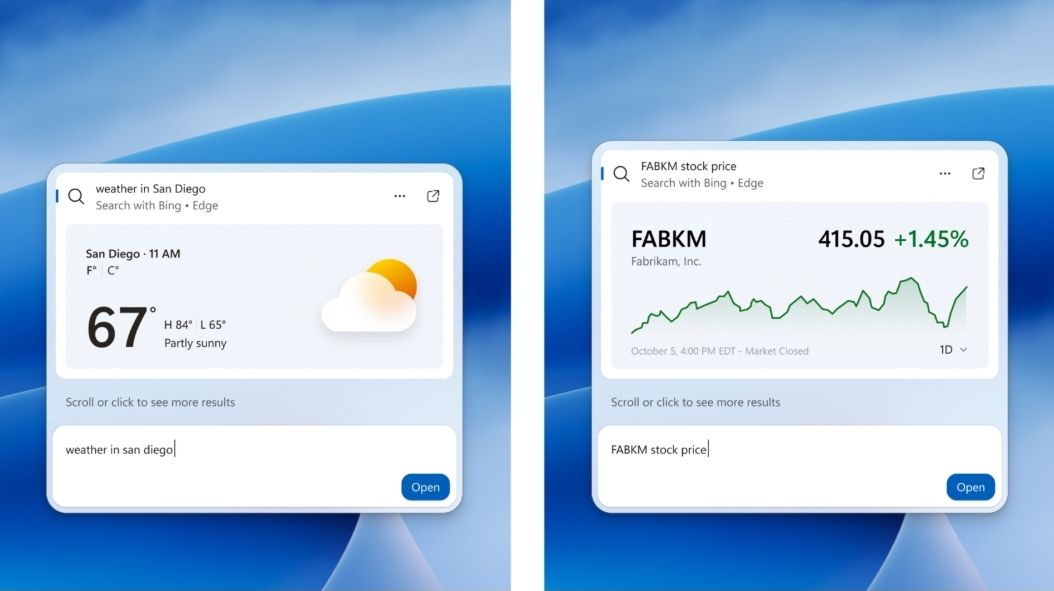
In future updates, Windows Search will add inline file previews and richer web results, including information cards for queries related to weather, stock prices, and other topics.
Microsoft is also working on Copilot integration, allowing Search to recognize questions that could benefit from a more detailed answer and display an AI-generated response directly in the interface. Selecting the response can then open the Copilot app for further assistance.
How do you enable the new Windows Search experience?
The new Windows Search experience is still under development and is currently available to Insiders in the Experimental channel for versions 26H2 and 26H1. To try it, your computer must be running build 26340.9616 for version 26H2 or build 28120.3181 for version 26H1 or a later release.
If the feature doesn't appear after installing the latest preview build, Microsoft says you can enable it manually by navigating to Settings > Windows Update > Windows Insider Program > Feature flags. After enabling the feature, restart your computer to apply the changes.
Does the new Windows Search require a Copilot+ PC or an NPU?
No. When I asked Microsoft whether the new Windows Search experience would be limited to devices with an NPU, the company explained that its inline actions use a small machine-learning (ML) model that runs locally on the computer's main processor. The model interprets the user's request and matches it to the appropriate action.
Microsoft also clarified that this isn't generative AI powered by a small language model (SLM) or a large language model (LLM). As a result, the feature doesn't require an NPU and will be available on computers without one.
Can Windows Search perform actions on a connected phone?
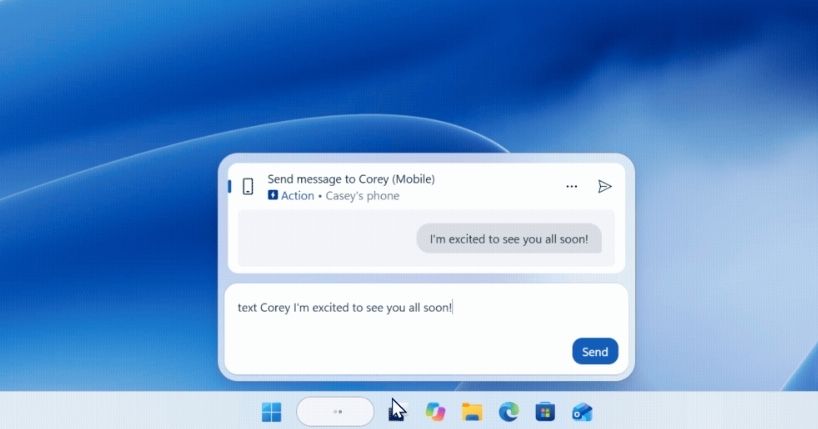
Not yet, but Microsoft is working on a new capability that will let users send text messages directly from Windows Search on computers connected to a phone through the Phone Link and Link to Windows apps.
(Image credit: Microsoft)
Will the new Windows Search replace Start menu search?
Microsoft plans to bring the new Windows Search experience to the Start menu in 2027. For now, the Start menu continues to use the existing Search experience while the company keeps working on the new design. Microsoft hasn't explicitly confirmed whether the new experience will completely replace the current Search interface.
In the past, the company also worked on a similar feature called "Ask Copilot," which users could enable or disable through Taskbar settings. However, the current version of Windows 11 doesn't offer an option to turn off the new Search experience and continue using the legacy version on the Taskbar.
Does the new Windows Search use AI to perform actions?
The new Windows Search doesn't use AI to perform actions. This isn't generative AI. Instead, it uses a small ML model to match the user's intent to the action. As a result, the feature doesn't require an NPU and will be available on computers without one.
What improvements are coming to Windows Search?
The new version of Windows Search will include a new interface design that's significantly smaller than the legacy version. However, it'll include inline previews and richer file details, making it easier to identify documents, presentations, and photos without opening them.
(Image credit: Microsoft)
Search will also display richer web results, including information about weather, stock prices, and general questions, directly in the interface.
Microsoft is also adding filters to help users narrow search results by category, such as files. In addition, the company plans to integrate Copilot into Taskbar Search, letting users get AI-generated answers inline and open the Copilot app for a more detailed conversation.
Will the new Windows Search integrate with Copilot?
Yes. Microsoft is working on integrating Copilot into the new Windows Search experience. The planned capability will let users ask questions and see AI-generated answers directly in the Search interface. Selecting an answer can open the Copilot app for further interaction.
(Image credit: Microsoft)
The company says the opt-in experience will begin rolling out to select markets later this year.
When will the new Windows Search experience be available?
Microsoft began rolling out the new Windows Search experience to Insiders in the Experimental channel for versions 26H2 and 26H1 on October 7, 2026.
The company plans to introduce richer search results and other improvements later this year, with Copilot integration initially rolling out as an opt-in feature in select markets.
Microsoft also plans to bring the new Search experience to the Start menu in 2027. The company hasn't announced a general availability date for all Windows 11 users.
Windows Central's Take
I like that Microsoft is taking a more cautious approach to AI with the new Windows Search. The core experience isn't being powered by Copilot, and the inline actions use a small machine learning model running locally on the CPU rather than generative AI. The company is also making Copilot integration optional, which is the right approach for this type of feature. I want the operating system to be more useful without making AI feel like a requirement to get things done.
We'll have to wait to see how well Search performs in everyday use, especially when finding files and settings. Microsoft has redesigned core experiences before, and a cleaner interface doesn't mean much if results aren't reliable or users lose control. If the company can improve Search while keeping Copilot optional and avoiding unnecessary clutter, this could be a significant improvement.
What are your thoughts about the new Search for Windows 11? Let me know in the comments.
More resources
Explore more in-depth how-to guides, troubleshooting advice, and essential tips to get the most out of Windows 11 and 10. Start browsing here:
Windows 11 has a new Gaming Task View for XBOX mode that helps users hop back to the desktop or adjust power options for a device. That feature is now in testing among Windows Insiders.Full Release NotesBeta Preview Build 26220.9739Experimental Preview Build 26340.9750Beta (26H1) Preview Build 28020.3262Experimental (26H1) Preview Build 28120.3272Release Preview Build 26200.9807/26300.9807Release Preview Build 28000.3351Microsoft released builds in every Windows
Windows 11 has a new Gaming Task View for XBOX mode that helps users hop back to the desktop or adjust power options for a device. That feature is now in testing among Windows Insiders.
Microsoft released builds in every Windows Insider channel to wrap up the week. I've listed all the changes below except those exclusive to the Release Preview channel since those features have largely been in testing before today.
While the update to XBOX mode is the headline feature of these builds, there are several other welcome changes. For example, Windows Hello can now temporarily brighten your screen to help you sign in when in a dark room.
Gaming (Beta, Experimental)
Gaming Task View has a new navigation bar that makes it easier to exit to desktop and edit power options. (Image credit: Microsoft)
We're introducing a refreshed Gaming Task View experience in XBOX mode, featuring a new navigation bar that provides quick access to Exit to Desktop and Power Options. This update makes key system actions easier to access while gaming.
Magnifier (Beta)
Magnifier now understands each of your displays
More and more of the work people do happens across more than one screen. You draft on one display and keep source material open on another. You fill in a form while a reference document sits beside it. Those extra displays can be more helpful when each one can do its own job, and now Magnifier supports exactly that.
To use this update, set your monitors to Extend in System > Display, not Duplicate, so Windows treats each screen as its own space.
Every screen keeps its own view at its own zoom. In earlier versions of Magnifier, zooming in stretched a single magnified view across all of your displays, so one screen's zoom followed you everywhere and screen edges blurred together. With this update, each monitor's boundary is respected, and each monitor can have its own zoom percentage. Your writing screen can be at 300% while your reference screen stays at 150%, and the magnified view no longer spills from one display into the next. This behavior matters because different tasks and screen resolutions often require different levels of magnification to remain comfortable to read.
Setting the zoom on each screen is easy. Choose whichever method feels natural:
Move your mouse pointer onto the screen you want to adjust, then press Windows key + Plus (+) or Windows key + Minus (-), or hold Ctrl + Alt and rotate your mouse wheel.
Set the percentages directly in Accessibility > Magnifier.
Drag the Magnifier toolbar onto a specific screen to adjust that screen from its on-screen controls.
Per-monitor zoom is turned on by default. If you prefer the classic behavior where a single zoom spans all of your displays, you can turn per-monitor zoom off at any time from either the Magnifier toolbar or Accessibility > Magnifier. You can turn it back on whenever you like.
Keep the view that matters, right where you need it
As you move your mouse from screen to screen, the magnified view naturally follows your pointer. Sometimes this might cause you to lose sight of the content that you're actively working on.
Viewport locking keeps that view in place. For example, you might be drafting an email based on a section of a document open on another display. Position that display so the paragraph you need is in view, press Ctrl + Windows key + K, and the screen holds its view steady while you move your cursor over to write. The locked screen stays fully live and interactive, so you can glance back, click, or copy from it whenever you need to, and its view stays put until you release it.
A message appears on the screen when it's locked, so you always know what's being held. To lock or unlock a screen, point your mouse at that screen and press Ctrl + Windows key + K again. To release everything at once, press Windows key + Esc to dismiss all locks. You can change the lock shortcut to Ctrl + Alt + P in Accessibility > Magnifier.
Settings - Home (Beta)
We're beginning to expand the new Device Info Card experience for Settings Home to additional markets globally. Available for Windows Insiders signed in with their Microsoft account, the Device Info Card provides a quick snapshot of your PC's key specifications and usage. From the card, you can go directly to Settings > System > About to see more detailed information about your PC.
The improved Privacy & security page in Windows Settings helps you find the Camera, Microphone, and Location privacy controls more easily. It groups similar controls across the page and brings usage information from deeper linked pages onto this page.
File Explorer (Beta)
Key file information, such as name, location, and date, now appears in a consistent layout on the File Explorer search results page, making search results easier to scan.
File Explorer (Experimental)
Improved responsiveness of folder views so they update and sort correctly when files and folders are added or renamed.
Family Safety (Beta, Beta (26H1), Experimental (26H1))
Improved family safety messaging when applications are blocked because of age-restricted parental controls.
Other (Beta, Experimental)
Improved shutdown reliability, reducing the chance of a hang on shutdown in certain cases.
The dialog for certain system messages, like low battery and permissions, should use the expected modern design again.
Other (Beta (26H1), Experimental (26H1))
Fixed an issue with msmpeg2ac3dec.dll which was leading to some apps and games crashing recently.
Web sign-in (Experimental)
Web sign-in now works on Microsoft Entra hybrid joined devices. Before this update, it was only available on Microsoft Entra joined devices. You can sign in to Windows at the lock screen with a passwordless credential: a FIDO2 security key, a passkey on your phone, or a Temporary Access Pass (TAP). You don't need a password. Once you're signed in, Windows gets a Kerberos ticket, so on-premises file shares and internal sites keep working. For more information, see Use web sign-in to enable passwordless sign-in in Windows.
Windows Hello (Experimental)
Windows Hello facial recognition can temporarily brighten your screen to help you sign in when you're in a dark or dimly lit room.
To turn on this feature, go to Settings > Accounts > Sign-in options > Facial recognition (Windows Hello) and turn on Automatically adjust screen brightness during face recognition.
Windows Search (Experimental)
Addressed underlying issues that could cause search to appear missing or stop working after the previous update, including if you rapidly clicked the search icon repeatedly.
Search (Experimental (26H1))
Search home has been simplified to reduce visual clutter and make it easier to get back to recent searches quickly.
Search does a better job showing where a result comes from, whether it's an app, setting, file, web result, or Store suggestion, so it's easier to tell what you're looking at and where you'll go before you click.
A new setting in Settings > Privacy & security > Search lets you choose whether web and Microsoft Store suggestions appear alongside local results.
Run (Experimental)
Improved the window position when using an Arabic or Hebrew display language.
Improved performance of the Run dialog when navigating to very large folders.
Fixed an issue where your text might unexpectedly disappear if you started typing too quickly after opening Run.
Made a few other small visual fixes and refinements.
Pointer Indicator (Experimental (26H1))
We're introducing the Pointer Indicator accessibility setting. This feature enables Windows users with low vision to easily locate and use their cursor to increase productivity and efficiency when using a Windows device.
To enable this experience, go to Settings > Accessibility > Mouse pointer and touch, and enable the Pointer indicator setting. You can also search for the setting by name. When the setting is enabled, you can toggle it on or off with the keyboard shortcut, Windows logo key + Ctrl + Shift + X.
Live Captions (Experimental (26H1))
We're improving Live Captions with a new Include Screen Reader audio setting, which is off by default. With the setting off, Live Captions won't transcribe audio from screen readers such as Narrator, JAWS, and NVDA, keeping captions focused on microphone and system audio.
Taskbar
New! This update improves animations of app window previews when you move the mouse across app icons in the taskbar.
This update improves the underlying state persistence of taskbar settings related to multiple monitors across monitor connections and disconnections.
Since revamping the Windows Insider Program earlier this year, Microsoft has sped up its release schedule for builds. As a result, we often end the week with a batch of five or six new builds to check out.
Join us on Reddit at r/WindowsCentral to share your insights and discuss our latest news, reviews, and more.
As part of the Windows Insider Program, Microsoft released several preview builds of Windows 11 in early October, some of which rolled out new features and improvements, while others played catch-up by bringing already announced changes to other channels. During the first two weeks of October, the software giant made available the first preview of the new Windows Search experience. We also saw the new Battery widgets and more. Microsoft also revealed a new option
As part of the Windows Insider Program, Microsoft released several preview builds of Windows 11 in early October, some of which rolled out new features and improvements, while others played catch-up by bringing already announced changes to other channels.
During the first two weeks of October, the software giant made available the first preview of the new Windows Search experience. We also saw the new Battery widgets and more.
Microsoft also revealed a new option to sanitize the hard drive when using the Cloud Rebuild feature, plus improvements to File Explorer, Share, and more.
In the Experimental channel, we've seen builds 28120.3181, 26340.9616, 26340.9596, 28120.3151, 29683, and 29680. In the Beta channel, the company released builds 26220.9606, 28020.3172, 26220.9587, and 28020.3142.
In this recap, I'll highlight the latest and most noteworthy changes available through the Windows Insider Program.
Biggest improvements from the Windows Insider Program in October 2026
In this recap, I'll highlight the latest and most noteworthy changes available through the Windows Insider Program.
Windows Search overhaul
Starting with the release of build 26340.9616 for version 26H2, Microsoft began the gradual rollout of the new Windows Search experience.
(Image credit: Mauro Huculak)
The new experience features an entirely new interface using WinUI 3, designed to make search faster and more efficient while using less memory.
Perhaps the most notable change is the new inline actions that let you perform tasks directly from the Search box. For example, you can switch between the light and dark mode, enable Bluetooth, adjust brightness, arrange windows, and more.
In addition, the company is adding improvements to help Windows Search understand you better, including better handling of typos and synonyms.
The new Search experience is currently available in versions 26H2 and 26H1 as a preview through the Experimental channel.
Battery new widget
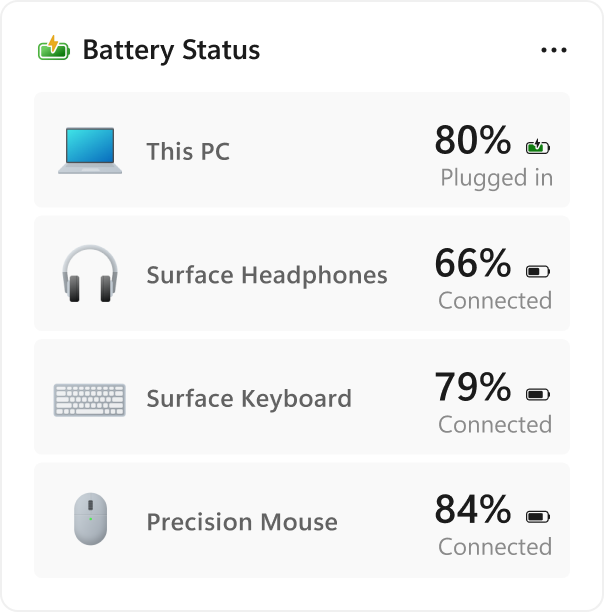
Also, Windows 11 build 26340.9616 ships with the new Battery Status widget, which tracks your computer and peripherals' battery levels without having to resort to third-party tools.
(Image credit: Microsoft)
The widget is available from the Widgets dashboard> Add widgets > Battery Status.
Once the widget is enabled, you'll see the battery level of your laptop as well as your mouse, keyboard, headphones, and more.
Task Manager new processes group
Although Task Manager isn't getting another makeover, an updated version improves how it handles process groups, letting apps combine separate background processes into a single category instead of relying on traditional parent-child process trees.
Microsoft says that this should make it easier to view how an app uses system resources. Currently, this works only in Microsoft Defender.
File Explorer faster navigation
The company has also made small but welcome improvements to File Explorer with the release.
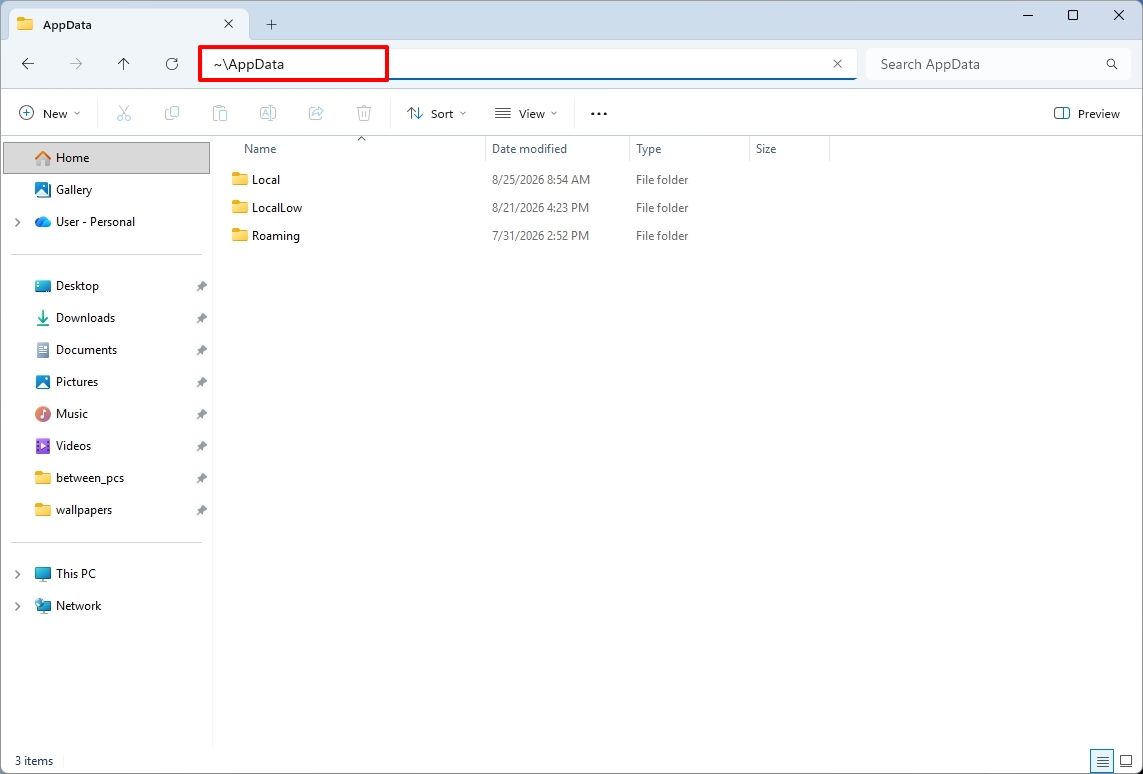
For instance, on build 26340.9596 for version 26H2, you can now use the "~" character to quickly open your profile folder or subfolder, for example, "~\AppData".
(Image credit: Mauro Huculak)
As part of the File Explorer changes, on builds 28120.3151 and 28020.3142 for version 26H1, Microsoft rolled out improvements to keep folder view customizations, such as sorting and icon size preferences, consistent across different access paths and apps.
The update also improves address bar support for paths with double backslashes and quotation marks.
Finally, in this wave of updates, build 29680 for the Future Platforms version, you'll find an updated version of the file manager that now handles previews for downloaded files from the internet.
When using the preview pane, HTML files will show a preview after you acknowledge the warning, while non-HTML files, such as PDFs, will show previews automatically.
Cloud Rebuild improvements
Cloud Rebuild is a new recovery feature that helps you reinstall the operating system when your computer has problems or won't boot.
Unlike other recovery options, this feature uses Windows Update to download installation files and drivers without needing bootable USB media.
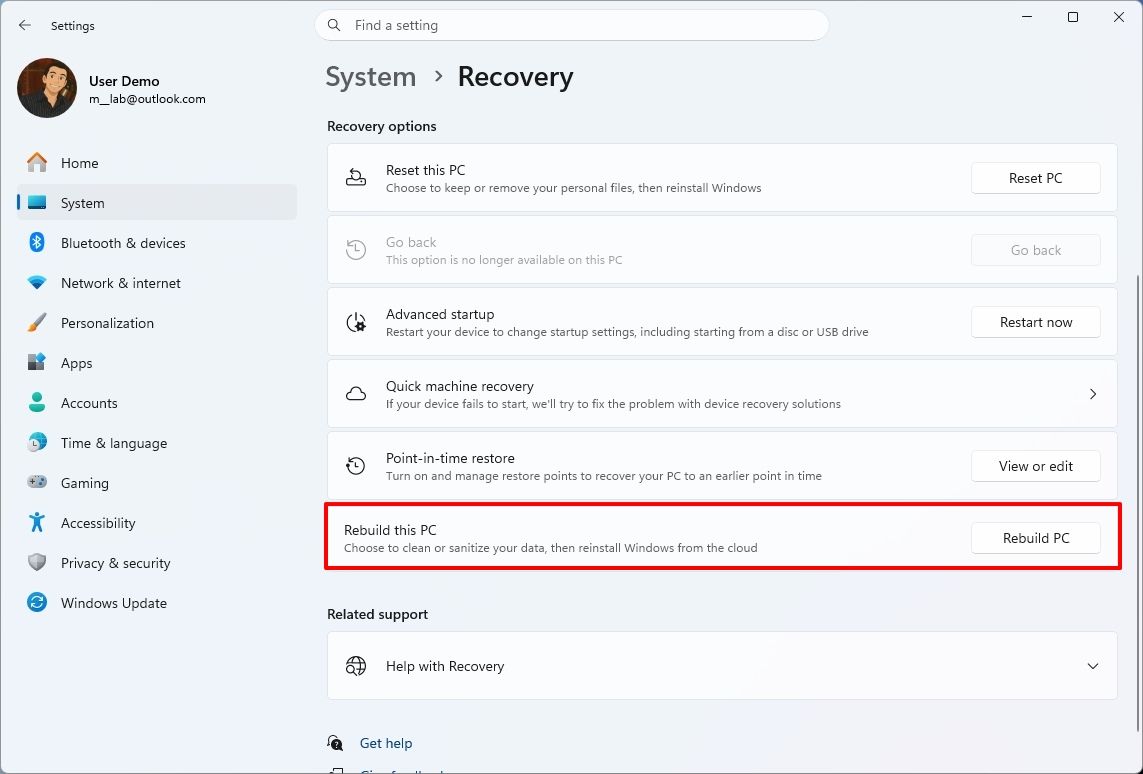
This recovery feature is still in preview, but in build 26340.9596 for version 26H2 and build 26220.9587 for version 25H2, you'll now find a new "Rebuild this PC" option on the Recovery page in Settings, making it easier to access.
(Image credit: Mauro Huculak)
Also, in builds 28120.3151 and 28020.3142 for version 26H1, the Cloud Rebuild feature added a new "Remove & sanitize files" option to securely erase data before reinstalling the operating system, which is useful when recycling or reassigning a computer.
This update also lets admins configure and start a Cloud Rebuild remotely using Recovery CSP.
Narrator's new math reading
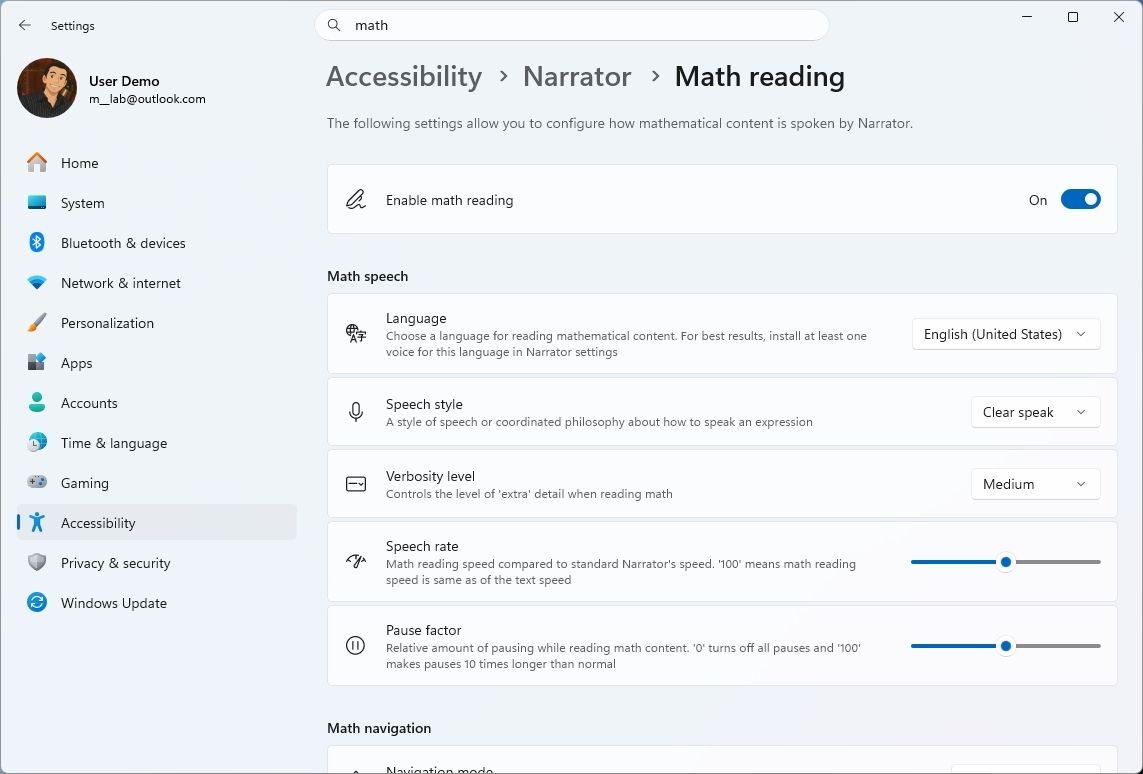
As part of the updates for version 26H1 (builds 28120.3151 and 28020.3142), Microsoft also updated the Windows Narrator feature with a more natural way to read and explore math equations.
According to the company, on supported apps from the Microsoft 365 suite, such as PowerPoint and Word, Windows Narrator can now read equations as structured expressions.
In addition, a new math navigation mode allows you to explore an equation one part at a time.
(Image credit: Mauro Huculak)
You can use the "Narrator key + Alt + N," and then use the arrows to move through fractions, exponents, and roots. You can also use "Esc" to exit the mode.
The new math capability also works on supported web content in Microsoft Edge and Google Chrome.
Magnifier with updated controls
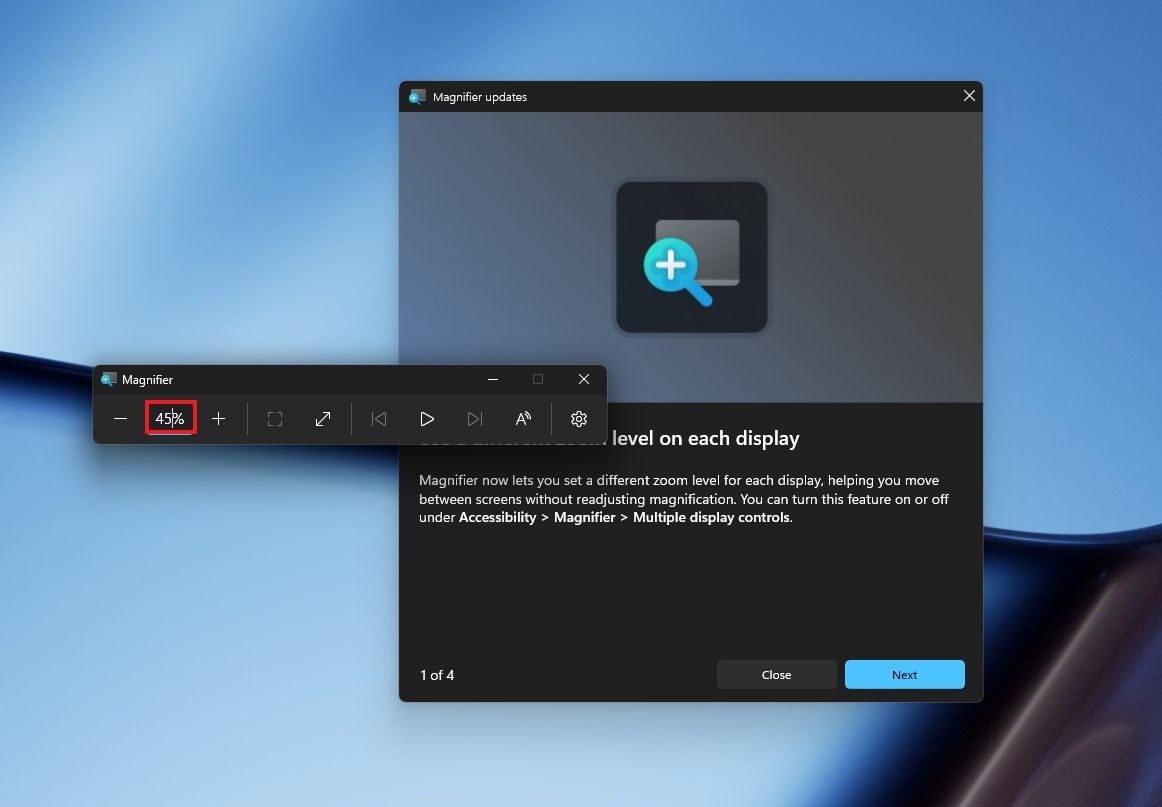
In this wave of updates, the Magnifier lets you enter the exact zoom percentage directly in the toolbar instead of relying on the presets.
(Image credit: Mauro Huculak)
In addition, in the settings, the preset option now includes more increments up to 400 percent.
Windows Share customization
Although the Windows Share experience remains largely the same, Microsoft has added the ability to pin your favorite apps directly in the Share interface in the Experimental channel for Future Platforms.
(Image credit: Mauro Huculak)
This change makes it easier to find your favorite apps that you use often when sharing.
Installed apps page tweak
Finally, starting with build 29680, the "Installed apps" page now shows the version number at the top level under the Apps settings section for package apps.
Windows Central's Take
I'd put the new Windows Search, Cloud Rebuild, and File Explorer improvements at the top of this list. Search is becoming more useful for everyday tasks, Cloud Rebuild is getting better options for recovering a computer and securely erasing its data, and File Explorer is addressing small annoyances that can make file management frustrating.
These changes can make Windows 11 more practical without requiring users to learn an entirely new way of doing things.
I hope Microsoft continues to improve these core features instead of leaving them behind in favor of bigger, flashier additions.
Which of these three improvements would you most like to see arrive on your PC? Let me know in the comments.
More resources
Explore more in-depth how-to guides, troubleshooting advice, and essential tips to get the most out of Windows 11 and 10. Start browsing here:
Faire tourner un modèle de langage en local sur son PC, avec llama.cpp, ça marche très bien, mais ça demande quand même de mettre un peu les mains dans le cambouis. Il faut aller chercher le binaire, trouver
le bon fichier GGUF sur Hugging Face
et lancer le serveur en ligne de commande.
Heureusement, léquipe de ggml-org, celle qui développe justement llama.cpp, souhaite soulager notre peine en nous proposant pour Windows 11 une petite app baptisée Llama (Ouais, c'est original com
Faire tourner un modèle de langage en local sur son PC, avec llama.cpp, ça marche très bien, mais ça demande quand même de mettre un peu les mains dans le cambouis. Il faut aller chercher le binaire, trouver
le bon fichier GGUF sur Hugging Face
et lancer le serveur en ligne de commande.
Heureusement, léquipe de ggml-org, celle qui développe justement llama.cpp, souhaite soulager notre peine en nous proposant pour Windows 11 une petite app baptisée Llama (Ouais, c'est original comme nom ^^) qui se loge dans la zone de notification et qui fait tout le taf à votre place.
C'est en fait un portage pour Windows de
Llama for Mac
, qui est lui aussi dans la barre des menus de macOS. Côté install, suffit de récupérer le fichier .msixbundle dans les Releases du dépôt, vous double-cliquez dessus, et c'est parti mon kiki. Si vous avez déjà un llama.exe sur votre machine, l'app s'en servira, sinon elle en téléchargera un toute seule. Et bien sûr, le code est sous licence MIT, avec un petit copyright au nom de Hugging Face quand même.
Une fois que c'est en place, l'icône ouvre un petit panneau de commande avec une liste de modèles recommandés à télécharger en un clic. Vous pouvez aussi chercher n'importe quel modèle GGUF du Hub directement depuis cette liste, ou coller l'identifiant d'un dépôt. L'app vérifie également au passage s'il vous reste assez de place sur le disque avant de lancer le téléchargement ! (Moi j'ai 4 To et je suis toujours PLEIN, j'en ai marre ^^)
Bref... en cliquant sur un modèle, vous choisissez sa taille de contexte, et pour chaque option, l'app vous donne une estimation de la mémoire consommée, qu'elle récupère dans l'en-tête du fichier GGUF. C'est très pratique pour savoir avant de le lancer si ça va tenir dans votre fichue machine. Et comme les modèles sont stockés dans le cache standard de Hugging Face, bah ils sont partagés avec llama.cpp et les autres outils qui l'utilisent, ce qui évite d'avoir des doublons de plusieurs gigas sur le disque.
Mais le truc le plus sympa, je crois c'est le raccourci Alt+Espace qui, peu importe ce que vous êtes en train de faire, ouvre une fenêtre avec l'interface web du chat IA près à vous répondre, un peu à la manière de Spotlight sur Mac. Et quand vous la refermez, hé bien elle se planque simplement au lieu de se fermer ce qui fait qu'elle se réaffiche instantanément avec votre conversation dès que vous en avez besoin.
Par contre, dommage, ce raccourci est codé en dur et il n'y a aucun réglage pour en changer. Donc si une autre app squatte déjà Alt+Espace, comme PowerToys Run dont c'est le raccourci par défaut, hé bien Llama vous prévient mais ça n'ira pas plus loin. A moins que vous changiez le raccourci par défaut de
PowerToys Run
.
Côté vie privée, Llama n'envoie aucune data de télémétrie et vos prompts restent sur votre machine. Et comme l'app pilote un serveur llama.cpp qui expose une API REST, la fiche d'un modèle vous proposera même une requête curl toute prête afin de brancher vos autres outils dessus.
Attention si
Smart App Control
est activé sur votre PC, il se peut que Windows bloque llama.exe, qui n'est pas signé (contrairement au paquet MSIX de l'app). Dans ce cas, le serveur ne démarrera pas et l'app ne servira à rien. Si vous êtes concerné, il faudra donc patienter ou contourner Smart App Control.
Microsoft just shared a massive blog post recapping major Windows 11 changes, including new Photos app features, an improved Search experience, expanded phone integration, and gaming improvements.Many of the changes highlighted by Microsoft have already been announced, or even fully detailed elsewhere. But with Windows 11 in the middle of a significant refresh, gathering them all in one place is useful.While much of the post focuses on previously known improvemen
Microsoft just shared a massive blog post recapping major Windows 11 changes, including new Photos app features, an improved Search experience, expanded phone integration, and gaming improvements.
Many of the changes highlighted by Microsoft have already been announced, or even fully detailed elsewhere. But with Windows 11 in the middle of a significant refresh, gathering them all in one place is useful.
While much of the post focuses on previously known improvements, Microsoft also used it to introduce a few genuinely new additions, including the redesigned Photos app and an Xbox anniversary game bundle for eligible PC buyers.
Here's a quick rundown of the features Microsoft highlighted:
New Photos app
Advanced Shader Delivery (ASD)
Windows 11 performance improvements
Faster Start menu
Faster File Explorer
Faster Search
Faster Snipping Tool
Faster Settings
Memory optimizations
Reduced Widgets memory usage
Reduced update times
Bluetooth and AirPods improvements
Windows Hello improvements
A push to improve driver quality
Expanded Phone Link features
Microsoft Ink Canvas
Advanced Haptics
Improved accessibility
One of the biggest changes is the new Search experience that allows you to perform actions from the taskbar. The new Search is faster, supports inline actions, and lets you perform tasks without opening related apps or settings menus. The new Search is already in testing among Windows Insiders.
Microsoft explains that improvements to Windows 11 results in an experience that feels up to 20 percent more responsive. That improvement comes as the result of several efforts from Microsoft, such as optimizing memory management and streamlining in-box apps.
The company also highlights that Windows 11 is more reliable and customizable than before. Over the past year the Widgets Panel has been cleaned, the taskbar has gained the option to be placed on other parts of your screen, and Windows Update has been improved.
Microsoft specifically highlighted Bluetooth improvements, including AirPods pairing that it says is up to 15 seconds faster.
The new Windows Search is faster, more efficient, and supports inline actions. (Image credit: Microsoft)
On the gaming side of things, Advanced Shader Delivery (ASD) reduces the initial load time of games by delivering precompiled shaders. Forza Horizon 6 and Gears of War: E-Day are supported now and more titles should gain support in the future.
The improvements to Windows 11 will help anyone with an up-to-date PC, but it's clear Microsoft is taking the opportunity to suggest people buy a new PC. As part of that effort, the company has an Xbox 25th Anniversary bundle that includes over $500 worth of games. The collection includes several major titles, including Skyrim Special Edition, Halo: Combat Evolved Anniversary, Age of Empires II Definitive Edition, Minecraft Dungeons, and Gears of War: Reloaded.
"A new PC is a meaningful purchase, and the value should show up in more than a spec sheet," says Microsoft. "The reason to upgrade is not just one feature; it is how [experiences] work together to make more of your day feel effortless."
Microsoft shared a commitment to listen to feedback earlier this year. The company followed up with several improvements as part of its Windows K2 initiative. It's taken time for those promises to move from feedback and Insider testing to broader availability, but Windows 11 is now seeing some of its most significant changes in years.
The real question is whether these improvements change buying behavior. Microsoft clearly believes a faster, more reliable Windows experience can help convince people to upgrade.
Join us on Reddit at r/WindowsCentral to share your insights and discuss our latest news, reviews, and more.
A Windows 11 update is disrupting Remote Desktop connections for some business users. Microsoft identifies the affected security feature and a workaround.
The post Windows 11 Remote Desktop Fails After Update — Microsoft Points to Security Feature appeared first on TechRepublic.
A Windows 11 update is disrupting Remote Desktop connections for some business users. Microsoft identifies the affected security feature and a workaround.
Tiny11 Builder, l'outil qui fabrique des ISO de Windows 11 sans les applis préinstallées et
que je vous avais présenté
, dispose maintenant d'une vraie appli de bureau. Elle est en pré-version et vous épargne surtout de devoir lancer vous-même à la main la fameuse tripoté de scripts PowerShell (qui restent quand même dans le dépôt Github).
Je l'ai donc testée dans une machine virtuelle Windows 11 ARM histoire de vous faire un petit retour sur cette nouvelle version.
D'abord au lan
Tiny11 Builder, l'outil qui fabrique des ISO de Windows 11 sans les applis préinstallées et
que je vous avais présenté
, dispose maintenant d'une vraie appli de bureau. Elle est en pré-version et vous épargne surtout de devoir lancer vous-même à la main la fameuse tripoté de scripts PowerShell (qui restent quand même dans le dépôt Github).
Je l'ai donc testée dans une machine virtuelle Windows 11 ARM histoire de vous faire un petit retour sur cette nouvelle version.
D'abord au lancement, l'appli réclame les droits administrateur, puis elle vous fait choisir un mode (Le mode Tiny11 allège Windows, le mode Core coupe aussi les mises à jour et Defender, et le mode Custom vous laisse choisir). L'appli sait également télécharger l'ISO officielle de Microsoft à votre place, dans l'architecture et la langue de la machine, ce qui donne chez moi un Windows 11 ARM 26H2 en version Pro en français.
Le téléchargement de l'ISO ARM64 en français, directement depuis l'appli
Le mode Tiny11, celui que j'ai pris, retire donc les applis fournies avec Windows ainsi que les binaires d'Edge, de WebView2 et d'OneDrive, mais il conserve Windows Update, Defender et l'environnement de récupération actif. À l'écran, ça se résume donc à 38 "groupes de suppression" et aucune action avancée.
Le mode Tiny11
Il ne reste ensuite qu'à cliquer sur Build, avec le mode Turbo activé et au bout de 40 à 50 minutes (je suis sur une VM donc c'est lent), vous aurez une belle ISO allégée. Par exemple, chez moi, l'ISO produite fait 5,38 Go, contre environ 7,95 Go au départ (l'image source contenait les 3 éditions de Windows et en sortie, je n'en ai plus qu'une).
Fin de construction, 49,5 minutes plus tard, pour une ISO de 5,38 Gio
Ensuite, il y a le mode Core qui désactive Windows Update et Defender et supprime la récupération, sans retour possible. L'auteur conseille de réserver ça aux machines virtuelles de test. Le mode Tiny11, lui, garde les mises à jour, mais une mise à jour de fonctionnalités peut donc réinstaller des applis et des réglages que vous auriez viré avant.
Autrement dit, soit vous gardez les mises à jour et l'allègement peut parfois sauter, soit vous gardez l'allègement en vous passant de ces mises à jours.
Ensuite, reste le mode Custom, où vous cochez tout vous-même, avec le risque de casser Windows.
Ne comptez pas trop non plus sur l'outil pour contourner quoi que ce soit puisque les réglages du compte local et les vérifications matérielles ne sont pas garantis sur les nouvelles versions, et que rien ne contourne la licence ni l'activation, donc il vous faudra toujours une clé
ou lire cet article
.
Voilà, c'est donc à récupérer sur
GitHub
pour ceux qui veulent s'amuser à se faire des ISO custom de Windows (que vous testerez au préalable dans une VM évidemment, histoire de vérifier que tout fonctionne bien car je le rappelle, Tiny11 Builder est encore une pré-version.)

 Connexion