❌

Vue normale

A cleaner, faster File Explorer context menu is rolling out to Windows 11 Insiders

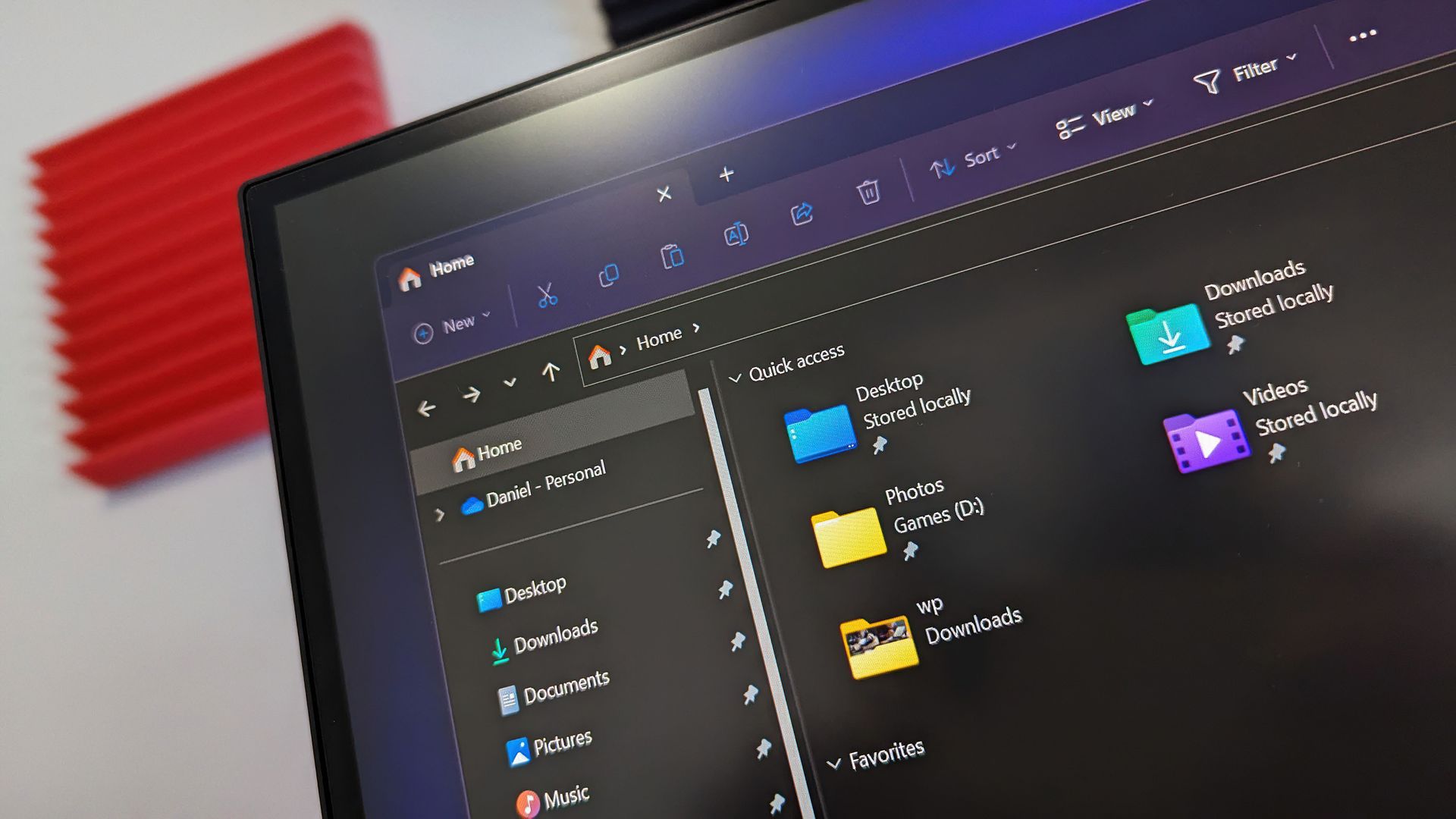
Microsoft's redesigned File Explorer context menu could make navigating Windows 11 feel faster and more personal. The company has started testing a new right-click menu that reduces clutter by moving less common options out of the way while keeping frequently used actions easy to access.

That new context menu is available for Windows Insiders in the Beta channel. Microsoft also shipped four other Insider builds of Windows 11 today that includes

File Explorer (Beta)

Introducing the new, redesigned context menu in File Explorer

  • We're rolling out an updated context menu experience in File Explorer, designed to feel faster, cleaner, and easier to tailor to the way you work. The new design reduces top-level clutter, keeps commonly used actions easy to access, and adds a new Settings experience that gives you more control over what appears in the menu. As we continue refining this experience with Insider feedback, our goal is to make right-click feel more responsive, predictable, and personal.
  • We've also added a new teaching tip you might see as a first-time experience to help you learn about the customization options.

Settings (Beta)

  • We're making performance improvements to the Settings home page which should result in reduced loading times in certain scenarios.

Windows Insider Program (Experimental)

  • We've added the ability to filter Feature flags by enablement state.

Quick Settings (Experimental)

  • We're beginning to roll out a new Mobile devices experience in Quick Settings, making it easier to take quick phone actions (such as ring your phone) without breaking your flow on Windows.
  • With your supported Android phone connected, everyday actions are now just a click away. You can turn Do Not Disturb on before a meeting, change your phone's ringer mode, and play a sound to find your phone nearby.
  • It's a simpler, faster way to manage your phone from the place you already use for quick Windows actions, helping your PC and phone work better together throughout the day.
  • Capabilities can vary by phone platform and device configuration. The initial experience provides the most complete set of controls for Android phones, while iPhone support starts with a more limited status-focused experience.

Check your internet speed directly from Quick Settings

  • We're making it faster and easier to check the performance of your internet connection in Windows. Windows Insiders can now run an internet speed test and see the results directly in Quick Settings, without being redirected to a browser.
  • Start a test from the new Speed test Quick Setting, from the Wi-Fi or Cellular flyout, or by right-clicking the network icon in the system tray and selecting Test internet speed. While the test runs, Quick Settings shows its progress and results, including download speed, upload speed, and ping.
  • Because the test runs against your active internet connection, you can quickly understand how your current connection is performing without leaving your workflow. This updated experience builds on the internet speed test we previously introduced for Windows Insiders, bringing the test and its results directly into Windows.

Magnifier (Experimental)

  • We've added a Keyboard shortcut for Magnifier toggle in Settings > Accessibility > Magnifier. It lets you choose whether pressing Windows logo key + Plus (+) launches Magnifier.
  • The shortcut stays on by default, so nothing changes unless you want it to. If you find that Magnifier starts by accident, or the shortcut conflicts with another app or keyboard layout, turn the toggle off. You can still start Magnifier from Settings, and you can turn the shortcut back on at any time.

Microsoft 365 subscription in Windows (Experimental)

  • We're introducing a new inline experience that makes it easier for Microsoft 365 subscribers to manage their subscriptions in Windows. Subscribers who have recurring billing turned off can now turn it back on directly in Windows Settings, without leaving for a separate webpage. To get started, select Turn on recurring billing or Set up recurring billing from the Windows Settings Home page, the Accounts page, or the Start menu.

File Explorer (Experimental)

  • Improved progress indication when navigating to locations that take longer to load, such as network drives, making it easier to see that loading is underway.

Narrator (Experimental)

  • Narrator now supports additional languages for math reading, including Greek, Hungarian, Indonesian, Norwegian (Bokmål), Polish, Russian, Swedish, and Vietnamese.

Widgets (Experimental)

  • The Widgets picker now has a standard Windows dialog frame and supports light and dark title bars. It also removes the blank space previously left for an icon.

Taskbar (Experimental)

  • Fixed an issue with the previous update where explorer.exe wouldn't load after logging in, preventing the taskbar and other elements that rely on it from loading.

Unicode (Beta 26H1, (Experimental (26H1))

  • This update provides Windows text shaping support for Unicode 17.0, helping Windows correctly display and shape newly encoded characters and scripts. Unicode 17.0 added 4,803 characters, including support for four newly encoded scripts: Beria Erfe, Sidetic, Tai Yo, and Tolong Siki. These updates help keep Windows text support current as the Unicode Standard evolves and improve support for languages and writing systems used by people around the world.

Start menu (Experimental (26H1))

  • This update makes the Start menu more personal with several customizations.
  • You can choose between a small or large Start menu, in addition to the Automatic (default) option that's available today. To customize this setting, go to Settings > Personalization > Start > Start menu size.
  • The Recommended section is renamed Recent in the Start menu and on the Start settings page (Settings > Personalization > Start).
  • You can now hide your name and profile picture in Start by going to Settings > Personalization > Start > Hide your name and profile picture on Start.
  • The Start menu settings page is now redesigned with section-level toggles to independently show or hide Pinned, Recent, and All.

Manage camera, microphone, and location access for desktop apps (Experimental (26H1))

  • Windows Insiders can now manage camera, microphone, and location permissions for individual desktop apps. Previously, access for traditional desktop applications was managed through a single device-wide setting.
  • With this update, you can review and control access on an app-by-app basis, giving you greater visibility into which apps are requesting access to sensitive resources and more control over your privacy choices. Our goal is to make privacy permissions easier to understand and manage across the wide range of desktop apps people use every day.

Recovery (Experimental (26H1))

  • We're adding a new entry point for Cloud Rebuild under Settings > System > Recovery, making it easier to access the feature from Settings.

File Explorer (Experimental (26H1))

  • We've sharpened file thumbnails in the Recommended section on the Home page so they're crisper and easier to read.

Magnifier (Experimental (26H1), Experimental (Future Platforms))

  • A new contrast theme toggle for a lower-glare screen. If bright screens are uncomfortable, many people use color inversion to reduce glare. However, inversion changes everything on screen, including photos, charts, and videos. With this update, we're introducing a new contrast theme toggle in Magnifier.
  • Reduce glare with a single toggle. Turn on a contrast theme directly from the Magnifier toolbar for a more comfortable viewing experience.
  • Choose the contrast theme that works best for you. The dark theme is applied by default, and you can choose which contrast theme the toggle uses under Settings > Accessibility > Magnifier.
  • Photos, videos, and charts keep their original colors. Unlike color inversion, the contrast theme recolors the interface without touching your photos, charts, or videos, so they keep their real colors.
  • Color inversion is still here. This isn't a replacement. If you use inversion today, it works exactly as it always has. The contrast theme is a separate, purpose-built option to reduce glare when you want a darker interface without inverting colors.

Family Safety (Experimental (Future Platforms))

  • Improved family safety messaging when applications are blocked because of age-restricted parental controls.

Windows Setup (Experimental (Future Platforms))

  • The digital safety of users and supporting families is central to how we think about the Windows experience. We're improving information on parental controls and their availability during Windows setup, so families can more easily understand available protections and make informed choices from the very beginning.

Network (Experimental (Future Platforms))

  • Fixed an issue causing internet access to stop working for some Insiders after the last two flights.

Hyper-V (Experimental (Future Platforms))

  • Fixed an issue where some applications that used HCS-managed virtual machines experienced issues when sharing host folders with Linux VMs using Plan9. Folders shared from the Windows host using Plan9 didn't appear or couldn't be accessed in the guest environment.

Other (Experimental (Future Platforms))

  • Fixed an issue causing some Insiders to see an unexpectedly high volume of ESENT events after the latest flights.
  • Fixed an underlying issue in the latest flights causing Insiders using VMware to experience frequent green screen bugchecks with error PFN_SHARE_COUNT.

Microsoft has been hard at work decluttering Windows 11. While those efforts continue, it seems Microsoft is putting more emphasis on improving the built-in Windows 11 apps as well. Even the Camera app received some updates recently.

File Explorer is a core part of the Windows 11 experience, so it's nice to see it being upgraded as well.

Click to join us on r/WindowsCentral

Join us on Reddit at r/WindowsCentral to share your insights and discuss our latest news, reviews, and more.
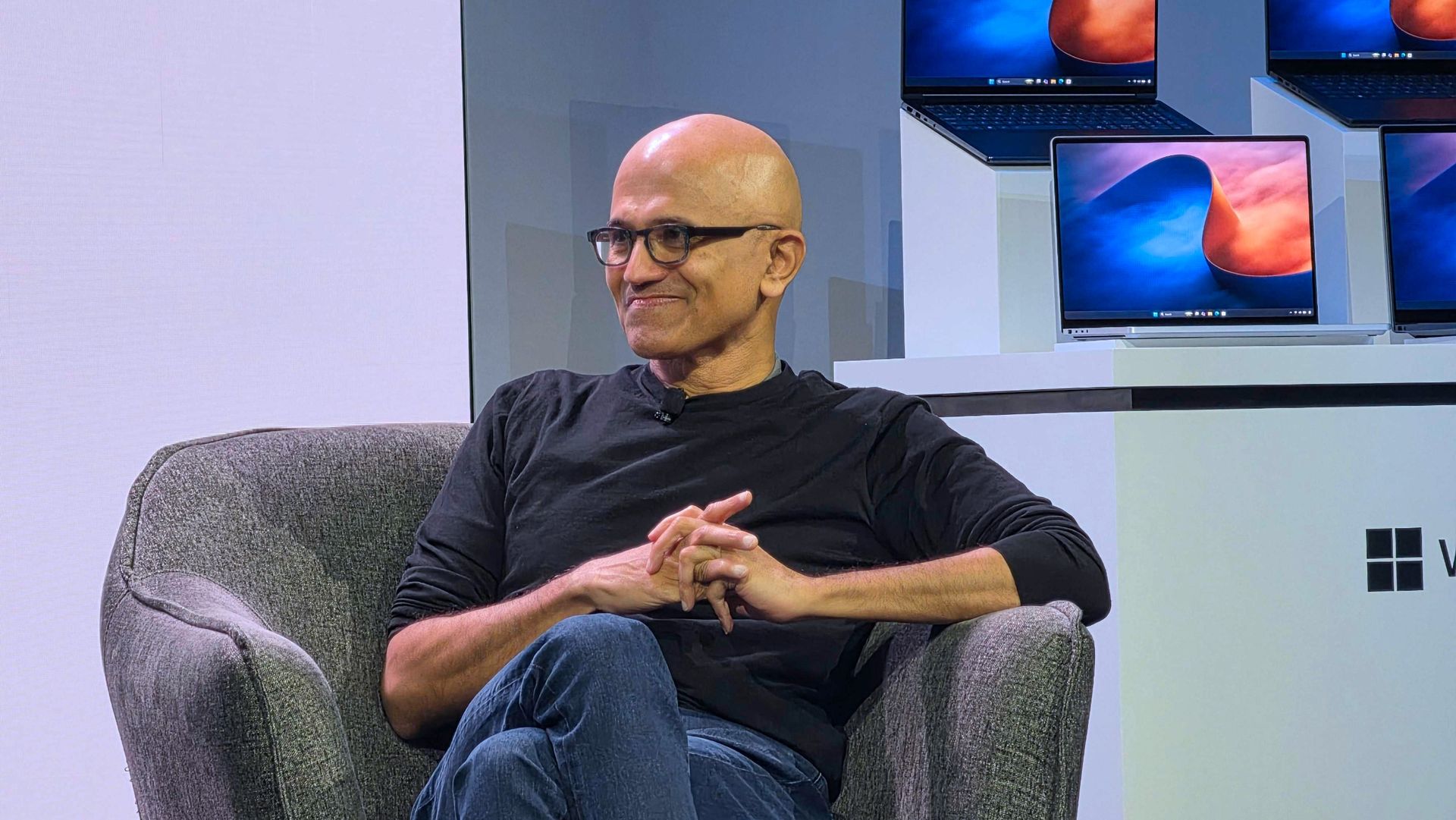
I spent weeks hunting this Windows wallpaper. It was worth it.

When Microsoft announced the first wave of RTX Spark laptops, many were intrigued by the superchips inside the PCs. But I went a bit more surface-level, pun intended. During the Windows and Surface event, eagle-eyed viewers spotted a striking wallpaper across the new laptops.

The wallpaper is reminiscent of Windows 11's Bloom wallpaper, but it stands out for having a single curve and contrasting colors. As much as I like the Bloom wallpaper, it's been remixed several times by Microsoft and enthusiasts, so it's time for a new Windows wallpaper.

Sadly, Microsoft did not release the image after unveiling the new laptops. I waited with anticipation for the release of the RTX Spark laptops, but even when the Surface Laptop Ultra review went live, the new wallpaper was nowhere to be found. Microsoft even mocks us by having a blacked-out version of the wallpaper on the retail listing of the Surface Laptop Ultra.

Abstract Microsoft wallpaper featuring a smooth curved blue shape against a blurred orange and purple gradient background.

(Image credit: Microsoft)

Desperate to get my hands on the new wallpaper, I scoured reviews of the ASUS ProArt P16, HP OmniBook Ultra 16, and Surface Laptop Ultra only to be disappointed.

But a hero emerged, saving me from settling for an AI recreation of the wallpaper. Discord user TechosaurusRex discovered the wallpaper in the app files for Microsoft's Retail Demo Experience. Seemingly, Microsoft's plan was to tease us by showing the wallpaper on display retail units but not include the image on purchased PCs.

Luckily, TechosaurusRex stepped up and shared the wallpaper, ending my quest. Sadly, the above version is compressed to ensure our site loads quickly. I'll share the full resolution version as soon as possible.

Click to join us on r/WindowsCentral

Join us on Reddit at r/WindowsCentral to share your insights and discuss our latest news, reviews, and more.

Nvidia’s New Driver Targets Game Stutter — Which RTX GPUs and Games Benefit?

23 octobre 2026 à 05:59

Nvidia's latest RTX driver adds shader stutter improvements. Here's which GPUs and games support the feature and what it means for PC performance.

The post Nvidia’s New Driver Targets Game Stutter — Which RTX GPUs and Games Benefit? appeared first on TechRepublic.

  • ✇WinCentral
  • Windows 11 26H2 Is Here: AI Settings, Smarter Search, and Better Android Connectivity
    Microsoft has officially kicked off the rollout for its latest major annual feature update, Windows 11, version 26H2. Packed with intelligent system tools, deep hardware optimizations, and long-requested customization options, this release makes the Windows desktop experience feel smoother, smarter, and significantly more connected. Rather than overhauling the entire user interface, 26H2 focuses on refined […]
     

Windows 11 26H2 Is Here: AI Settings, Smarter Search, and Better Android Connectivity

Par : Nisha
22 octobre 2026 à 05:29
Microsoft has officially kicked off the rollout for its latest major annual feature update, Windows 11, version 26H2. Packed with intelligent system tools, deep hardware optimizations, and long-requested customization options, this release makes the Windows desktop experience feel smoother, smarter, and significantly more connected. Rather than overhauling the entire user interface, 26H2 focuses on refined […]

  • ✇WinCentral
  • Chrome Gains Edge’s Best Accessibility Feature: Native “Page Colors” Built Right In
    For years, Microsoft Edge has quietly built a reputation as the power-user’s browser when it comes to built-in accessibility features. While both Edge and Google Chrome share the same underlying Chromium rendering engine, Microsoft has consistently pushed ahead by adding native, granular customization tools that go well beyond basic browser extensions. One standout feature introduced […]
     

Chrome Gains Edge’s Best Accessibility Feature: Native “Page Colors” Built Right In

Par : Nisha
22 octobre 2026 à 05:07
For years, Microsoft Edge has quietly built a reputation as the power-user’s browser when it comes to built-in accessibility features. While both Edge and Google Chrome share the same underlying Chromium rendering engine, Microsoft has consistently pushed ahead by adding native, granular customization tools that go well beyond basic browser extensions. One standout feature introduced […]

Stop Believing the Hype: That Hidden Windows 11 Taskbar Right-Click Menu Isn’t Coming to Your PC

Par : Nisha
22 octobre 2026 à 04:55
Every few months, the tech news cycle hits a dry spell, and like clockwork, breathless headlines begin popping up across tech blogs: “Secret Windows 11 Feature Revealed!” or “Microsoft is Finally Testing a Quick Right-Click Menu to Move Your Taskbar!” If you have spent any time on Windows forums or tech news aggregators recently, you […]

  • ✇TheWindowsClub News
  • Windows Settings are now backed up by default
    Microsoft officially released Windows 11 26H2 for all users. You can install it via Windows 11 Settings. With Windows 11 version 26H2, Windows Settings are now backed up by default on all eligible enterprise devices. This feature makes it easier to restore your settings and preferences when you move to a new computer. This article […] The post Windows Settings are now backed up by default appeared first on TheWindowsClub News.
     

Windows Settings are now backed up by default

6 octobre 2026 à 11:50

Windows Settings backed up by defaultMicrosoft officially released Windows 11 26H2 for all users. You can install it via Windows 11 Settings. With Windows 11 version 26H2, Windows Settings are now backed up by default on all eligible enterprise devices. This feature makes it easier to restore your settings and preferences when you move to a new computer. This article […]

The post Windows Settings are now backed up by default appeared first on TheWindowsClub News.

Microsoft Is Removing 8 Copilot Shortcuts From File Explorer — Here’s What Stays

21 octobre 2026 à 10:19

Microsoft will remove eight OneDrive Copilot shortcuts from File Explorer starting in November 2026, changing how users access AI-powered file tools.

The post Microsoft Is Removing 8 Copilot Shortcuts From File Explorer — Here’s What Stays appeared first on TechRepublic.

Microsoft is streamlining Windows 11's sign-in experience, here's how

Microsoft is working on a small yet meaningful change to the lock screen and sign-in experience on Windows 11 that will streamline the authentication process that users must go through to log into their desktop.

The current Windows sign-in flow requires the user to manually select the method of authentication they wish to use to login. If you've set up a PIN, face unlock, and fingerprint unlock, the only method of authentication that is active is the one you manually click on to use on the lock screen.

This is a huge gripe of mine, and it's super frustrating when you want to login using your face, but Windows has selected PIN or fingerprint. It means your webcam isn't looking for you in that moment, and you have to manually switch to face unlock to force Windows into checking for your face and logging in.

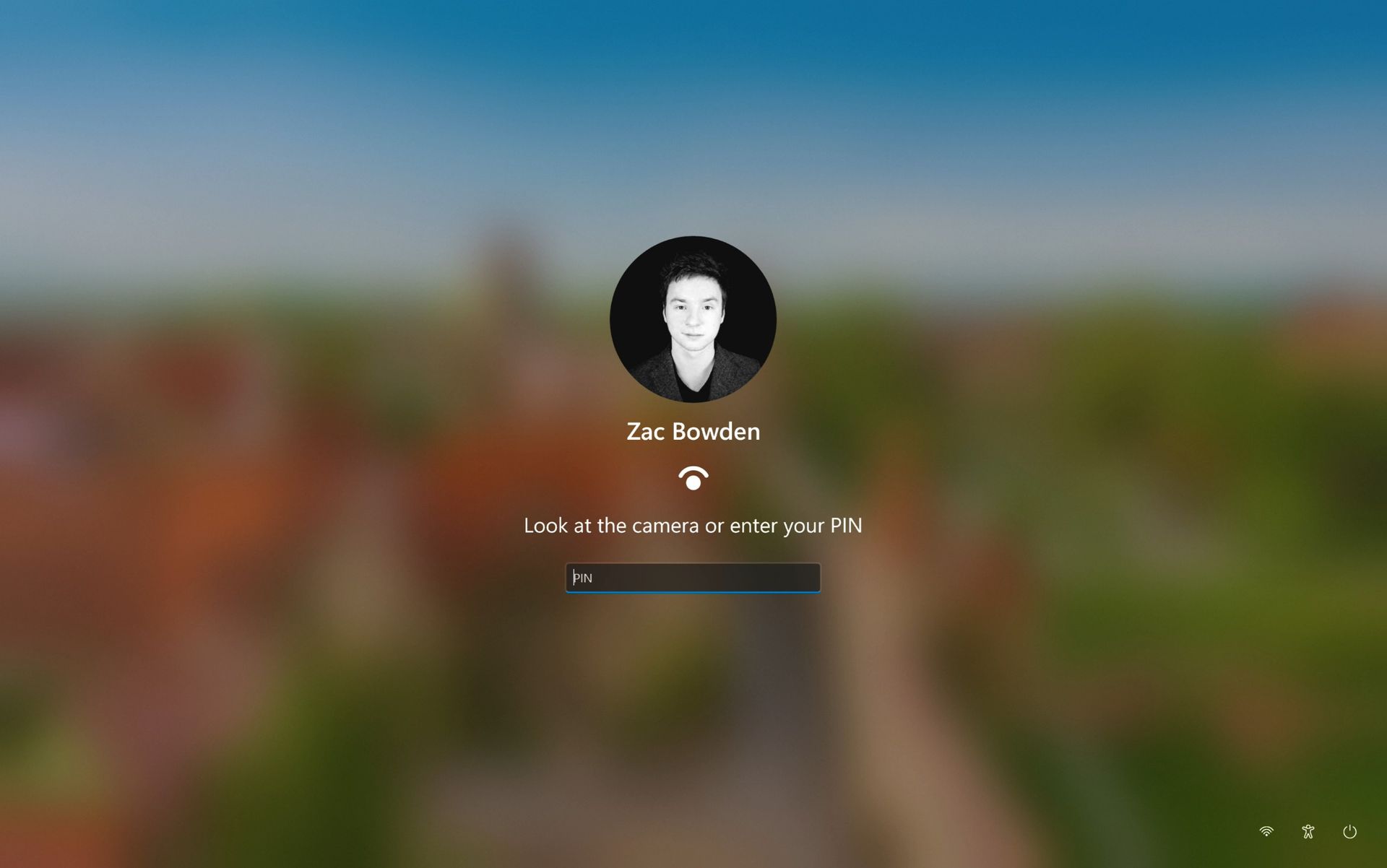
Well, it looks like this is finally changing. In the latest Windows 11 preview builds, a hidden feature ID enables a new experience that automates this. Now, by default, the PIN box is always on show, but face unlock and fingerprint unlock are also active and ready to authenticate at the same time.

The new sign-in flow on Windows 11

No longer does the user need to manually choose their login method. (Image credit: Zac Bowden / Windows Central)

This means users no longer need to manually select the login method of their choice. Windows will automatically capture whichever biometric authentication method is set up, even when the PIN box is on screen. This also means the lock screen looks cleaner as a result, as the options to choose which authentication method you want to use is no longer displays as it's not necessary. It's also faster for those with biometric authentication enabled.

I really like this change, as it encourages Windows to keep trying my face unlock even if it fails the first time. Of course, there's an eventual timeout if it fails too many times, but I find it is able to log me in before it ever reaches that point. Also, being able to just type my PIN without having to manually select the PIN option first is also great.

Microsoft is yet to announce this new sign-in flow, but I suspect it won't be long until it's officially put into testing as it's already very polished and has been in the works for a number of months now. What do you think? Is this a good change for the Windows lock screen? Let us know in the comments.

Click to join us on r/WindowsCentral

Join us on Reddit at r/WindowsCentral to share your insights and discuss our latest news, reviews, and more.

Microsoft Surface Laptop Ultra Cheat Sheet: Price, Specs, Features, and More

21 octobre 2026 à 06:07

Explore the Microsoft Surface Laptop Ultra's price, specs, Nvidia RTX Spark AI performance, battery life, and key features before buying.

The post Microsoft Surface Laptop Ultra Cheat Sheet: Price, Specs, Features, and More appeared first on TechRepublic.

7 Windows 11 Privacy Settings You Should Check in 2026

20 octobre 2026 à 09:29

Windows 11 offers controls for diagnostic data, location access, clipboard syncing, and personalized recommendations. Here's how to review seven privacy settings and understand their trade-offs.

The post 7 Windows 11 Privacy Settings You Should Check in 2026 appeared first on TechRepublic.

Windows 11's design boss admits it needs work, while AI fixes OS inconsistencies

In what may be one of the year's least surprising stories, Microsoft's VP of Product Design, Diego Baca, has explained how AI is being used to help designers after being asked whether it's possible to launch a "fleet of viable agents" to address issues in Windows 11.

On AI agents, 100% agree. I’m not the best person to speak to the engineering side, but AI has already helped our design team accelerate significantly. We’re even seeing designers contribute directly to code fixes that improve craft, consistency, and quality. That’s exciting progress, and we’re only getting started.

Diego Baca, Microsoft

Now, this all comes shortly after an Xbox Business Strategist spiraled on X over how everyone is using AI, expressing frustration with the pretense that people aren't. That said, I do appreciate Baca’s honesty here. I always find that kind of candor refreshing.

Windows 11 still has a consistency problem

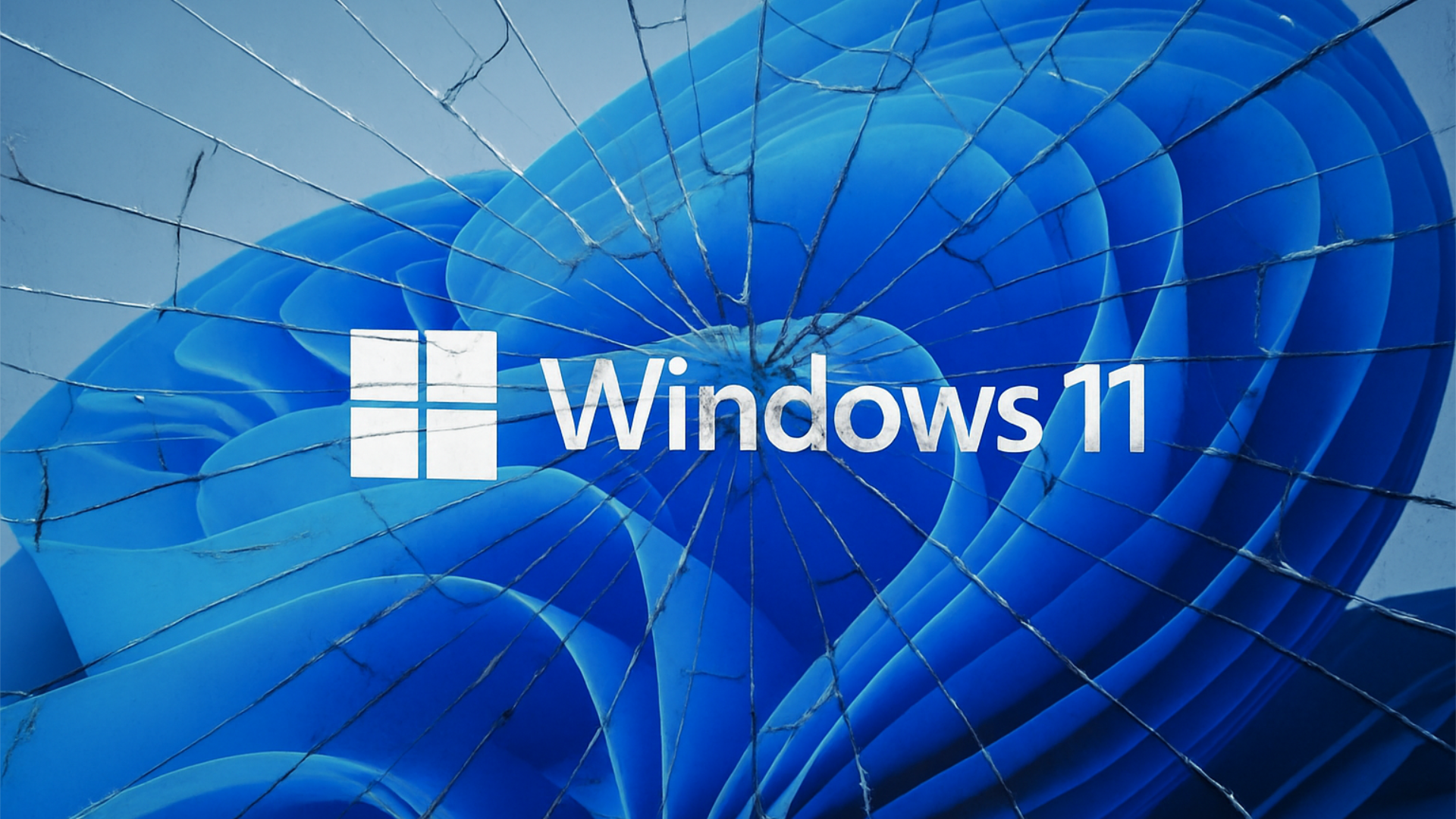
Windows 11 logo displayed over the default blue Windows wallpaper with a shattered glass effect across the image.

Microsoft acknowledges Windows 11's longstanding design inconsistencies as AI helps accelerate improvements across the operating system. (Image credit: Microsoft)

Interestingly, Baca's post on X (formerly Twitter) also acknowledged something Windows users have been complaining about for years in his reply to tech enthusiast Chris Pirillo, and that's consistency:

“Consistency across Windows is something we all want, and it’s an active workstream we’re continuing to accelerate,” he explained.

And to be fair, I have to agree. Windows 11 is now five years old (that's made me feel so old), yet parts of the operating system still feel like they're lacking the modern stylings, almost as though some of it still belongs in Windows 7, or even earlier, as Windows Latest points out in its own take.

Don't get me wrong, Microsoft has made progress, particularly with its efforts to modernize Windows Search, Run, and other legacy interfaces using WinUI 3. But I do wish these inconsistencies had been addressed before Windows 11 launched, though perhaps I’m wishing for too much.

Baca also acknowledged the criticism, admitting, “Finally, I completely recognize that people expect more from Windows. We expect more from ourselves, too.”

Finally, he added that Microsoft hopes to “earn back your enthusiasm for Windows through what we deliver, not just what we say.” It’s a refreshingly open response, and one I massively appreciate. How do you feel about Diego Baca's comments? Let me know in the comments and be sure to take part in our poll below:

Click to join us on r/WindowsCentral

Join us on Reddit at r/WindowsCentral to share your insights and discuss our latest news, reviews, and more.
Microsoft wants Edge to install security updates without restarting

Microsoft is testing a way to update Edge without forcing a restart, potentially letting you keep working while it switches to a more secure version.

Browser updates can interrupt your work, so you might put off restarting the browser. However, this can delay important security fixes. Microsoft's solution aims to solve both problems by updating Edge in the background while keeping compatible tabs open.

The project is still an early experiment, not a feature you can use today. Microsoft says the prototype isn't part of Edge's production code or the Chromium project.

Microsoft wants Edge updates to be seamless

Currently, browser updates require a restart to safely switch to a newer version. Although Microsoft Edge can restore your open tabs afterward, restarting can still interrupt your work. Microsoft's prototype aims to change that by downloading an update in the background and moving the browser and its supporting processes to the newer version while keeping your work available.

For example, imagine you're filling out a long online form when a security update becomes available. Instead of asking you to restart Edge and interrupt your work, the browser would update in the background while you continue working.

Microsoft demonstrated the prototype in a video, and when the company clicked the "Update" button, the browser switched to the new version while keeping compatible tabs open. Eventually, the goal is to apply updates automatically without requiring users to click anything.

One limitation is that existing tabs can stay open only if they're compatible with the new version. Other tabs will switch to the updated version when you navigate to them.

AI makes faster security updates more important

Image of Microsoft's new Copilot Mode option for its Edge web browser in July 2025.

(Image credit: Future | Daniel Rubino)

The project isn't only about convenience. Microsoft notes that AI is accelerating vulnerability discovery and changing the pace of attacks, increasing the need to roll out security fixes more quickly. The company describes the time between a security fix becoming available and an update being applied as the "patch gap." During this period, users who don't install the fix remain vulnerable.

A security update can only protect you after apply it. Restarts add friction to that gap: people may keep a browser open for days because they are in the middle of something important.

Microsoft

The requirement to restart the browser can also make the problem worse when people postpone updates because they don't want interruptions. As a result, applying security updates faster could reduce the time users remain exposed to known vulnerabilities.

So, when can we use it?

This isn't built into the current version of the browser, so don't go through the settings trying to find the option. Microsoft says that the prototype isn't part of the browser or the Chromium project. Instead, the company is sharing its work early and inviting developers and other organizations to collaborate on this project.

Edge already has an update option for idle devices

Microsoft Edge Update Restart

(Image credit: Daniel Rubino / Windows Central)

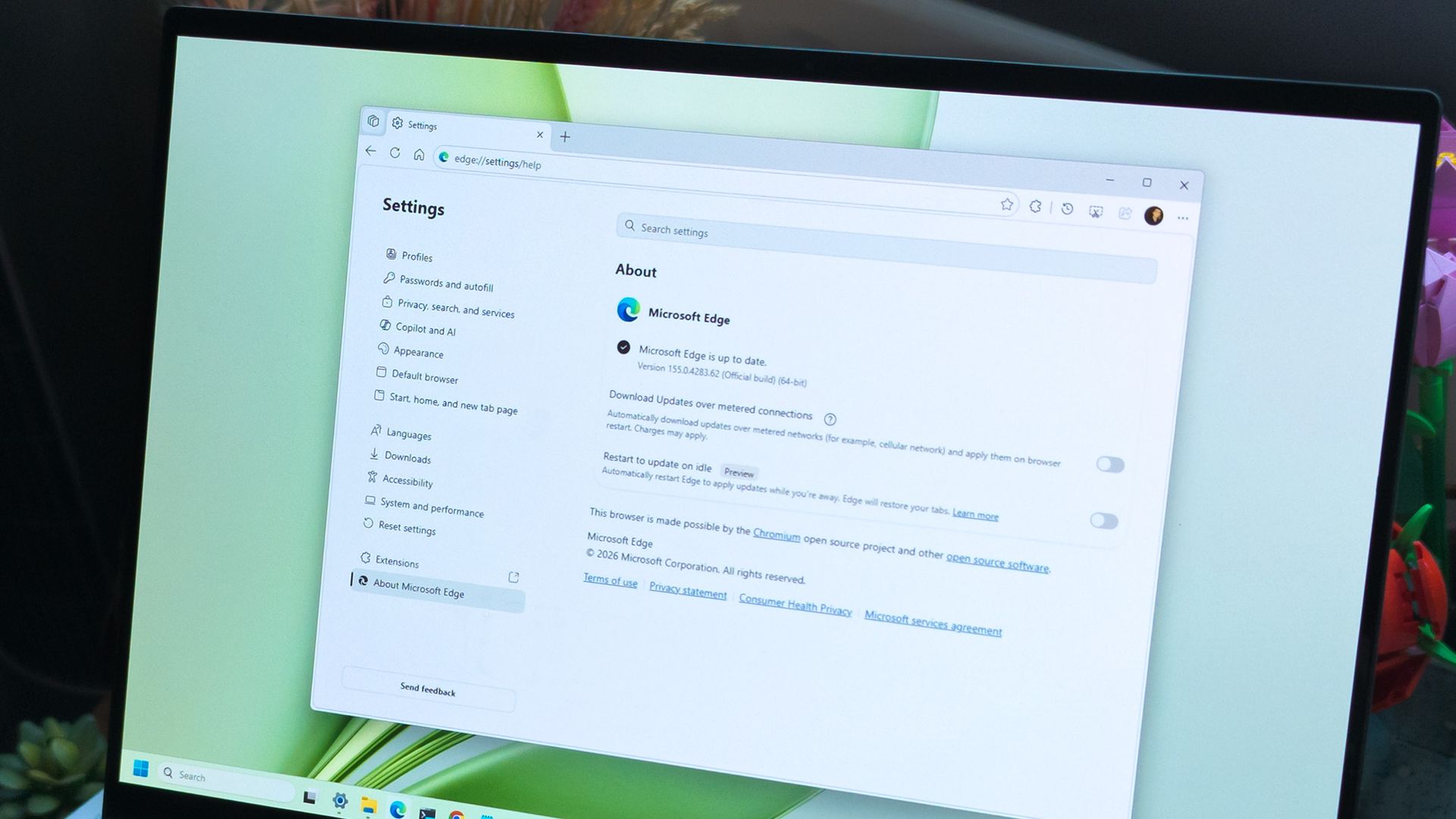
While the company continues developing its new update mechanism, Microsoft Edge already offers a feature called "Restart to update on idle," previously known as "Instant Updates."

The feature restarts Edge when your device is idle, installs the update, and reopens your tabs. It still requires a restart, but the interruption happens when you're not using the browser.

What's next?

For now, Microsoft Edge's existing update options help reduce delays, while the seamless-updates prototype offers a glimpse of what could come next. Microsoft hasn't announced when, or whether, this approach will become available. The company is sharing the prototype early to encourage collaboration with the community.

However, we'll have to wait and see whether the concept will make it into a future version of the browser. What are your thoughts on this new way to update the browser? Let me know in the comments.

More resources

Explore more in-depth how-to guides, troubleshooting advice, and essential tips to get the most out of Windows 11 and 10. Start browsing here:

Click to join us on r/WindowsCentral

Join us on Reddit at r/WindowsCentral to share your insights and discuss our latest news, reviews, and more.
Podcast: Surface Laptop Ultra and RTX Spark reviewed!

In this episode of the Windows Central Podcast, Daniel Rubino and Zac Bowden regroup following a week of extensive hands-on hardware testing and benchmarking. The central focus is the initial review wave for the Surface Laptop Ultra and the broader Nvidia RTX Spark mobile platform.

Zac details his full review of the Surface Laptop Ultra, highlighting its MacBook-inspired design improvements, haptic touchpad, outstanding audio, sleep battery efficiency, and magnetic USB-C connector—while contrasting its 2,000-nit Mini-LED display against competing Tandem OLED panels. Daniel shares first impressions of two rival RTX Spark flagships: the ultralight 3.9 lb ASUS ProArt P16 and the robust HP OmniBook Ultra 16.

The hosts dig into real-world local AI and agentic workflows (including tests with Hermes Agent and local LLMs), explain the critical architectural advantage of configurable unified memory allocations for GPUs, discuss gaming performance with DLSS/frame gen, and showcase the newly launched ASUS ROG Xbox Ally X20 handheld console bundle featuring XREAL AR glasses.

This episode of the Windows Central Podcast is sponsored by Surfshark VPN. Unlimited devices, access your content from anywhere, and auto-block malware on Windows, Edge, and other platforms from $2.50/mo, with 3 months extra FREE. Sign up today!

  • [01:44] – Introduction: Daniel and Zac kick off Episode 407, outlining their week spent benchmarking and testing retail RTX Spark laptops and handhelds.
  • [05:51] – Surface Laptop Ultra Design & Build: Zac breaks down the chassis aesthetics, MacBook Pro styling parallels, lack of a notch, seamless lid lip design, and weight (4.5 lbs).
  • [08:00] – The Mini-LED Display: Deep dive into Microsoft’s 2,000-nit Mini-LED panel, evaluating ghosting zones (1,344 dimming zones), glossy reflections, and comparisons to Tandem OLED screens.
  • [13:09] – Battery Life & Standby Sleep Performance: Real-world longevity on the 92 Wh battery (10–12 hours light use) and standout sleep endurance matching Apple Silicon.
  • [15:18] – Magnetic Breakaway USB-C: Testing the breakaway angle, data capabilities, and custom charging brick interoperability.
  • [18:04] – RTX Spark CPU & Gaming Benchmarks: Breakdown of 20-core multi-threaded CPU output versus single-core scores, plus gaming results with DLSS in titles like Cyberpunk 2077 (approaching RTX 4070/5060 laptop levels).
  • [25:59] – Local AI & Unified Memory Allocation: Why configurable system RAM sharing to the GPU CUDA cores enables large local LLM deployment that traditional gaming laptops cannot match.
  • [29:11] – Agentic AI Experiments: Practical workflows with Hermes Agent, desktop automation in Photoshop, automatic folder cleanup, and local data safety risks.
  • [46:00] – Speakers, Haptics & Missing Copilot+ Features: Praise for the class-leading haptic signals and audio alongside the notable delay of Windows Recall and semantic search on RTX Spark.
  • [53:56] – ASUS ProArt P16 Review Preview: Daniel highlights the 3.9 lb featherweight design, dual-fan thermals, 4K anti-reflective touch options, and port selection.
  • [58:50] – HP OmniBook Ultra 16 Breakdown: Frame build quality, rear tower exhaust design, Zero-Lattice Gen 2 keyboard, and compact 140W GaN charger.
  • [01:06:08] – PCIe SSD Speed Shootout: Massive speed discrepancies across devices—Surface’s 14,000 MB/s drive vs. HP's 10,000 MB/s and ASUS’s variable read speeds.
  • [01:14:55] – ASUS ROG Xbox Ally X20 Handheld Impressions: Translucent chassis, 7.4-inch 120Hz anti-reflective OLED panel, Z2 Extreme performance, and testing the bundle with XREAL AR glasses.
  • [01:24:02] – Live Audience Q&A: Viewer questions regarding boot/restart bugs, NVMe expansion, OneDrive Microsoft 365 storage allocation backlash, and future low-tier RTX Spark silicon.

Have a question you want us to answer on the podcast? Send it to us at [email protected]

Hosts:

Subscribe to the Windows Central Podcast

If you like the show, please let us know by give us a rating on your podcast platform of choice. It really helps us!

LIVE Video Podcast

You can watch the live, uncut version of the Windows Central Podcast on our YouTube channel!

Click to join us on r/WindowsCentral

Join us on Reddit at r/WindowsCentral to share your insights and discuss our latest news, reviews, and more.
Windows 11 Photos Gets a 25% Faster Editor — Here’s Who Gets It First

20 octobre 2026 à 01:00

Windows 11 Photos is getting a faster editor, improved viewer, and connected gallery. Here's what's changing and when the update arrives.

The post Windows 11 Photos Gets a 25% Faster Editor — Here’s Who Gets It First appeared first on TechRepublic.

Microsoft's Windows Insider wallpapers were made on a Mac

Microsoft just celebrated 12 years of the Windows Insider Program by sharing a collection of wallpapers. But the origin of those wallpapers has drawn a bit of criticism. It turns out that they were not made on a Surface Laptop Ultra or, in fact, any Windows 11 device. Instead, they were created using a Mac.

Rafael Rivera checked the properties of the wallpapers and noticed that they were created using the Mac version of Adobe Photoshop.

New Windows Insider email: "we created new backgrounds for all Insiders inspired by 12 years of the Windows Insider Program and the latest Surface design aesthetic"https://t.co/4gzu6wPcWOCreated on a Mac. https://t.co/0d8HgHlvh0October 15, 2026

Rivera noted in a follow-up post on X that the images were made by Microsoft's in-house design team. If accurate, that precludes the possibility of a contracted company happening to use Macs in their normal workflow and being commissioned to make the images.

Even if the images were made by a contracted company, Microsoft would have a little bit of egg on its face because that would indicate that even a creator that works with Microsoft prefers to use an Apple product.

Windows Central take

I don't think this is a big deal, but the situation has emerged at an awkward time. Microsoft is in the middle of refreshing Windows 11. The tech giant just shared a massive blog post positioning Windows 11 as a selling point to buy a new PC.

Having Windows Insider wallpapers created on a Mac opens the door to jokes like "even Microsoft staff prefer Mac."

It's perfectly reasonable for Microsoft to use tools created by another company. It's not as if Microsoft should force its design team to use the new Photos app instead of Photoshop. Creators, and any worker, need to use tools that can get the job done.

But considering Adobe Photoshop is available on Windows 11, it's a bit strange that Microsoft couldn't send a few Windows 11 PCs over to its design team.

Alternatively, Microsoft could call up ASUS and make a deal to get some ProArt P16 laptops to the design team. Our friends at Tom's Guide said "The ASUS ProArt P16 is an outstanding laptop for creativity."

The best news for whoever made the Windows Insider Program anniversary images is that Adobe Photoshop works on Windows on Arm, so it should run smoothly on any of the new RTX Spark laptops.

Click to join us on r/WindowsCentral

Join us on Reddit at r/WindowsCentral to share your insights and discuss our latest news, reviews, and more.
Windows 11's Hybrid Intelligence features will breathe new life into NPUs

Microsoft is finally giving Copilot+ PCs more capabilities on Windows 11. After the disastrous launch of Copilot+ PCs in 2024 which ultimately led to the company retiring the brand as a marketing asset this year, Microsoft has announced Hybrid intelligence, a new wave of AI features that will utilize on-device processing and the cloud.

If you thought the Copilot+ PC promise of NPU-powered local AI experiences was dead, I wouldn't blame you. Microsoft has been slow to build out NPU-based AI features on Windows 11, with Click To Do and Semantic Search being the last Copilot+ PC exclusive features to launch over a year ago.

But that seems to be finally changing with "Hybrid intelligence," a part of which is being built directly into the Copilot app on Windows 11 and will intelligently route AI tasks and experiences between on-device processing and the cloud on Copilot+ PCs. Here's what's coming soon to Windows 11:

  • Local context: With your permission, Copilot can understand relevant content on your PC, including files and recent activity, bringing local context into the flow of work. 
  • Local actions: Copilot can take action on your behalf across Windows, helping complete tasks like organizing files, assessing device diagnostics, troubleshooting issues, coding, and carrying out workflows directly on your device. 
  • Local models: Copilot can tap into AI models running on your PC, using local compute for the right tasks while combining it with cloud intelligence when needed. 

Hybrid Intelligence looks to be a natural evolution of Copilot+ PCs. Microsoft is finally giving this AI hardware more to do, with the ability to reach out to the cloud when required for more complex workloads. These Hybrid Intelligence features enhance the new Copilot Home, Code, and Autopilot experiences that were recently announced.

"Copilot understands your PC, takes action with your permission, and uses local models when it makes sense, with you in control at every step," Microsoft says. "Copilot features powered by hybrid intelligence are expected to begin rolling out on Copilot+ PCs in the coming months."

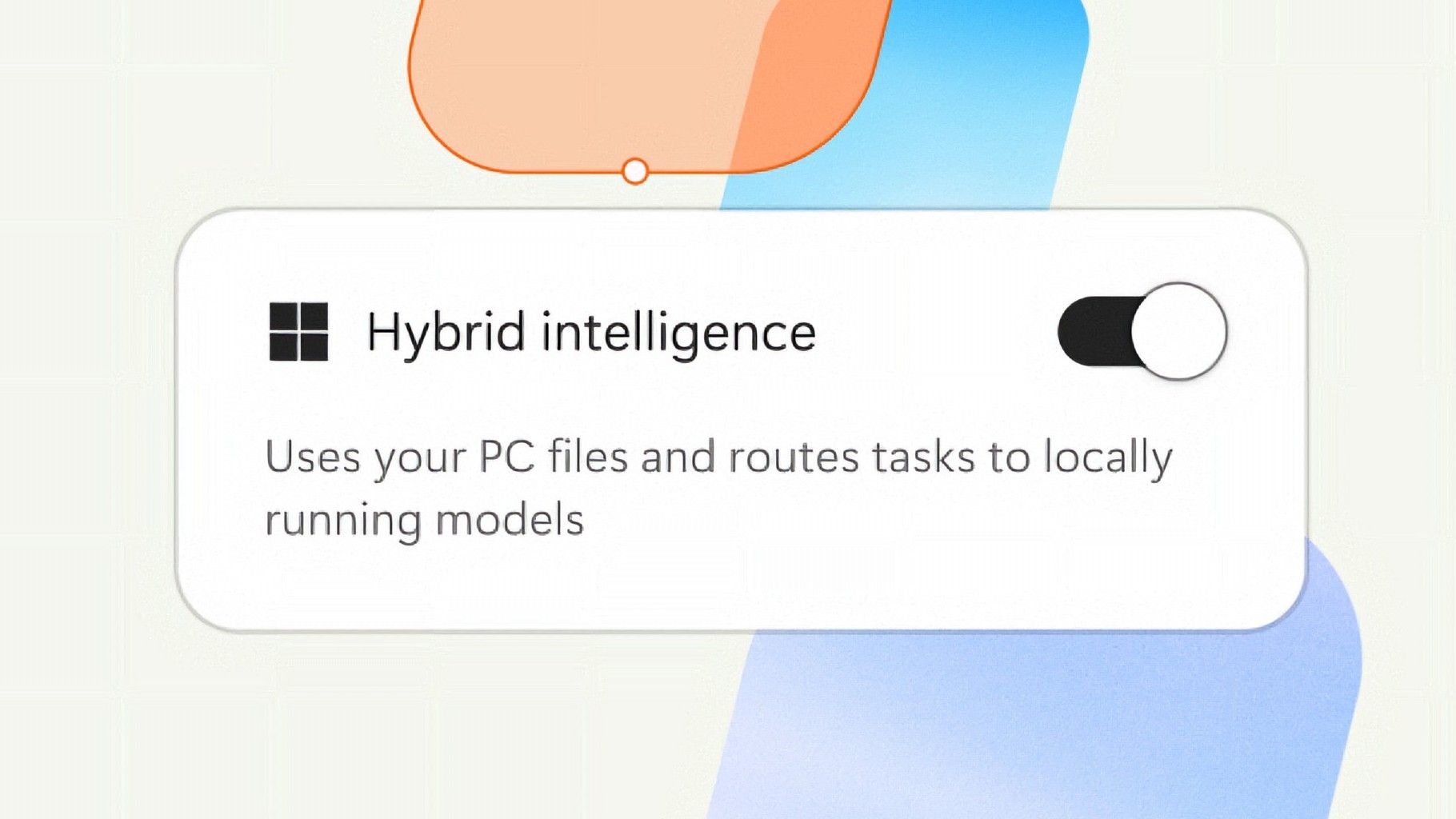
Hybrid Intelligence logo

(Image credit: Microsoft)

Microsoft says Hybrid intelligence requires Copilot+ PC compatibility, which naturally implies that these new AI experiences will lean on the NPU for local processing, as that's one of the hardware requirements for meeting the Copilot+ PC feature bar.

Microsoft believes that a hybrid approach to AI will be the way forward for computing. It's important for PCs to have local AI compute power and capabilities to reduce pressure on data centers, and it's also important for privacy and security reasons too.

Agents on Windows are being heavily pushed as a local AI experience, though it requires PCs with powerful GPUs and lots of system memory to really take advantage of. The NPU is not powerful enough to handle most large language models at current, and so is reserved for less power intensive tasks and automations.

The company has also announced Aion Instruct, an on-device AI model that replaces Phi Silica and runs on not just the NPU, but GPU and even CPU in some cases. It's a small language model capable of handling text generation, instruction following, and web tasks.

Microsoft has confirmed that the Copilot+ PC brand is going away as a marketing asset, but it will continue to exist as a feature set. OEMs and Microsoft itself have stopped calling their new Surface PCs Copilot+ PCs, even though they are all Copilot+ PC compatible.

Now, the Copilot+ PC moniker is simply a checkbox on a spec sheet, and it looks like Hybrid intelligence PCs is the new marketing term that Microsoft wants to get in front of as many people as possible.

Click to join us on r/WindowsCentral

Join us on Reddit at r/WindowsCentral to share your insights and discuss our latest news, reviews, and more.
Microsoft celebrates 12 years of Windows Insiders with free wallpapers

Microsoft just celebrated 12 years of the Windows Insider Program by sharing special wallpapers with Insiders. The images are all reminiscent of the Windows Bloom wallpaper that ships with Windows 11 and that has been remixed several times by Microsoft and enthusiasts.

I'm partial toward the blue version, likely because I learned how to use a PC on Windows 95. There are also white, green, orange, and purple variants as well as several dark-theme wallpapers.

This direct download link should get you all of the wallpapers, but you should also see them in an email from Microsoft if you're a Windows Insider.

Microsoft shared the following message alongside the wallpapers:

"Thank you for 12 incredible years, Windows Insiders!

From exciting program changes to meetups that brought us together in the past year, you're at the heart of it all. As a thank-you, we created new backgrounds for all Insiders inspired by 12 years of the Windows Insider Program and the latest Surface design aesthetic."

The Windows Insider Program has been around for 12 years, but it has shifted in structure in that time. I've been an Insider since the beginning, as have many members of our team at Windows Central. In that time, we've seen everything from major Windows features not being tested with Windows Insiders to feedback directly shaping the future of Windows.

Microsoft refocused on the Windows Insider Program by refreshing it earlier this year. Since that refresh, we've seen more Insider builds per week and significant upgrades being tested in those builds.

Windows Insider meetups also returned this year, giving the community a chance to meet in person and interact with the Windows product team directly. The first Windows Insider meetup was in Seattle, Washington. Later, events took place in New York City (USA), Hyderabad (India), Taipei (Taiwan), San Francisco (USA), and London (UK).

I'm happy to see the Windows Insider Program on the right track. Microsoft is engaging with the community and shaping Windows 11 based on feedback.

Microsoft has shown the positive impact of listening to feedback through its recent changes to Xbox. Sometimes grabbing low-hanging fruit and addressing the top community concerns is exactly what's needed.

The wallpapers shared by Microsoft are a small gesture thanking Windows Insiders, but such gestures can go a long way. Ignored Insiders become Insiders who disengage from the Windows Insider Program, and that hurts all Windows users in the long run.

Click to join us on r/WindowsCentral

Join us on Reddit at r/WindowsCentral to share your insights and discuss our latest news, reviews, and more.

  • ✇WinCentral
  • The Ancient Code Inside Windows 11: Why Microsoft Can’t Ditch MS-DOS File Names
    The MS-DOS Ghost Inside Windows 11: Why Microsoft Can’t Delete the Past If you poke around under the hood of a modern, high-powered Windows 11 machine running on state-of-the-art silicon, you will stumble upon a digital relic from a bygone era: the 8.3 file naming convention. Yes, the classic MS-DOS standard—which restricts file names to […]
     

The Ancient Code Inside Windows 11: Why Microsoft Can’t Ditch MS-DOS File Names

Par : Nayan
19 octobre 2026 à 01:39
The MS-DOS Ghost Inside Windows 11: Why Microsoft Can’t Delete the Past If you poke around under the hood of a modern, high-powered Windows 11 machine running on state-of-the-art silicon, you will stumble upon a digital relic from a bygone era: the 8.3 file naming convention. Yes, the classic MS-DOS standard—which restricts file names to […]

Windows Wrap: The best PC Microsoft has ever made — and the OS that might be holding it back

Windows Central

Microsoft fully unveiled its Surface Laptop Ultra this week. While we've known about the PC for months, we lacked key details and were not able to review the Surface Laptop Ultra until recently.

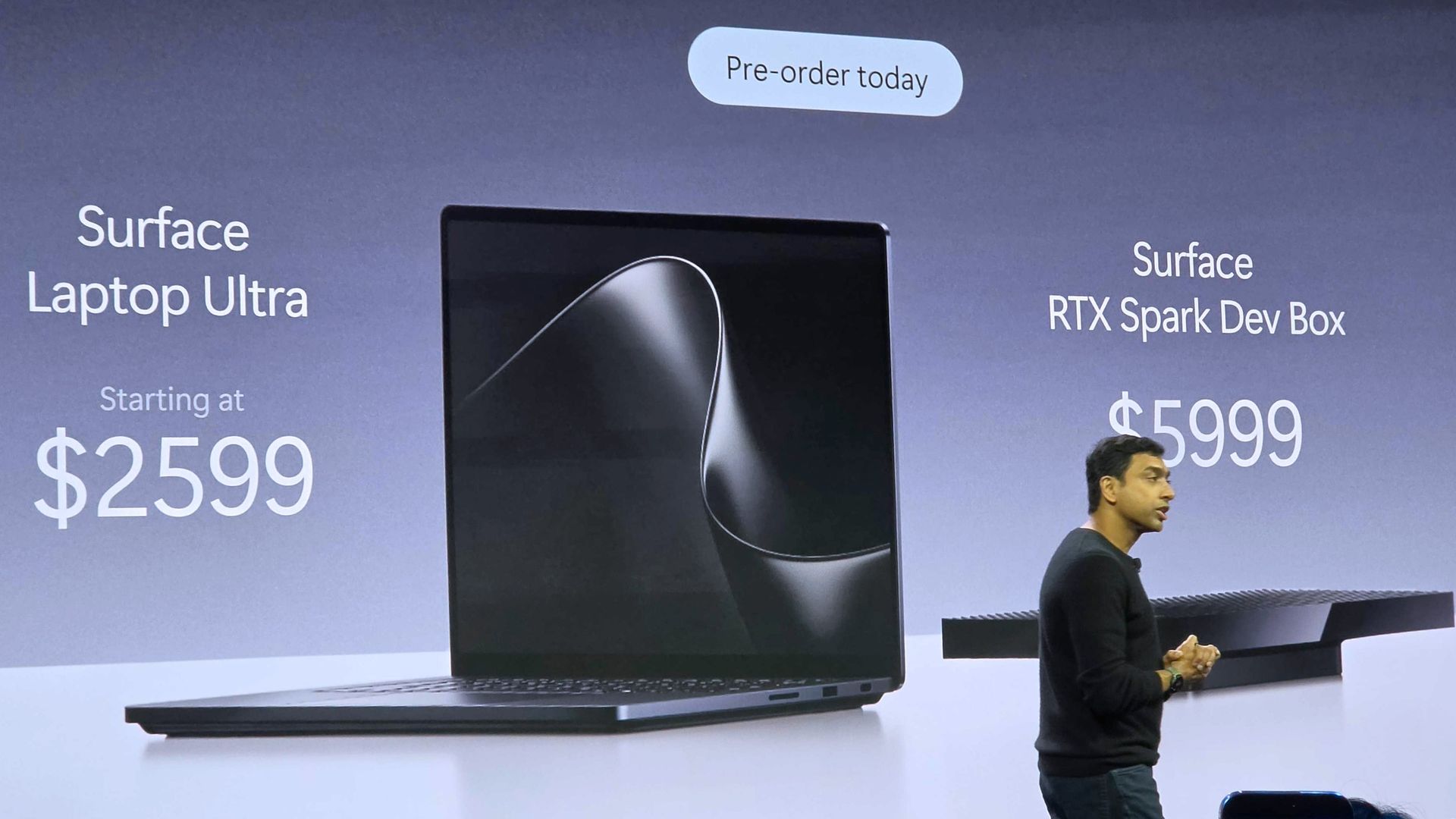
That all changed when Microsoft CEO Satya Nadella, Microsoft Windows lead Pavan Davuluri, and NVIDIA CEO Jensen Huang took the stage to showcase the first wave of RTX Spark laptops.

Microsoft and other PC makers like HP and Lenovo launched the first laptops powered by NVIDIA's new superchip, and initial impressions are quite promising.

With hardware from OEMs impressing reviewers and NVIDIA's chip delivering on many of its promises, attention shifts toward the operating system running on those laptops.

Biggest News of the Week

Surface Laptop Ultra
WinUI Gallery graphic
Microsoft 365 home page on a Razer laptop
Dell XPS 13 with Snapdragon
An Amazon tablet on a wooden desk with a chat window open on the display. A keyboard accessory, stylus, and letter tiles spelling

Microsoft published a massive blog post this week highlighting improvements to Windows 11.

While there are genuinely nice additions to Windows 11, the focus of Microsoft’s blog post took a specific angle that made me ask a question: “Is Windows 11 a selling point?”

After breaking down the new Search experience, sped up File Explorer, expanded customization options, and other features, Microsoft took the opportunity to promote PC sales.

Microsoft said:

"A new PC is a meaningful purchase, and the value should show up in more than a spec sheet. A modern Windows 11 PC brings together responsive everyday performance with more intuitive, connected and personal experiences, all supported by hardware designed for how you interact, create and play, from touch, pen and tactile feedback to immersive gaming experiences. The reason to upgrade is not just one feature; it is how all these experiences work together to make more of your day feel effortless."

Using Windows 11 as a sales tool indicates that Microsoft thinks the operating system is a selling point.

The vast majority of changes and upgrades will also ship to pre-existing PCs, so the entire premise is a bit odd. But that’s probably a post for another day. My main focus is that Microsoft heard feedback, made changes, and is now using those changes to sell PCs.

When rounding up reviews of the Surface Laptop Ultra, I noticed that several experts compared the laptop to a MacBook Pro. As much as it may pain some Windows enthusiasts to admit, the MacBook Pro is the gold standard for laptops in the eyes of many.

With Microsoft copying and competing with the MacBook Pro on the hardware side of things, the remaining question is if Windows 11 compares favorably to macOS.

A significant number of developers use Macs, and Microsoft wants to compete in that space. The Surface Laptop Ultra has the design and AI power to get devs to take a closer look. The question is whether Windows 11 will keep those devs around or drive them away.

Shopping with Sean

You knew my shopping suggestion of the week would be the Surface Laptop Ultra. This is the most powerful Surface in years, and arguably the most exciting in just as long.

Just make sure that you're the target audience for the Surface Laptop Ultra before spending thousands of dollars. Our Senior Editor does a great job breaking down the strengths and weaknesses of the PC in his Surface Laptop Ultra review. There, he also makes it clear who the laptop is for and who should just admire the device from afar.

Microsoft - Surface Laptop Ultra - 15

Microsoft
Surface Laptop Ultra

Surface Laptop Ultra is Microsoft's flagship and most powerful Windows PC. It can be configured with up to 128GB RAM, and ships with NVIDIA's new RTX Spark SoC. It's great for creative workflows and software development, and those who want to run local AI and LLMs directly on their device.

Pros

  • Premium build quality
  • High-resolution screen
  • Excellent keyboard
  • Haptic trackpad is amazing
  • Good sound quality
  • Useful ports selection

Cons

  • Mini LED not best-in-class
  • No presence sensing features
  • Okay battery life
  • Currently missing all Copilot+ features

Click to join us on r/WindowsCentral

Join us on Reddit at r/WindowsCentral to share your insights and discuss our latest news, reviews, and more.
❌