Connexion
Microsoft Teams to get AI-powered, context-aware phishing detection
23 octobre 2026 à 14:54
Microsoft has announced plans to add AI-powered phishing detection to Teams messages starting in early November 2026. [...]


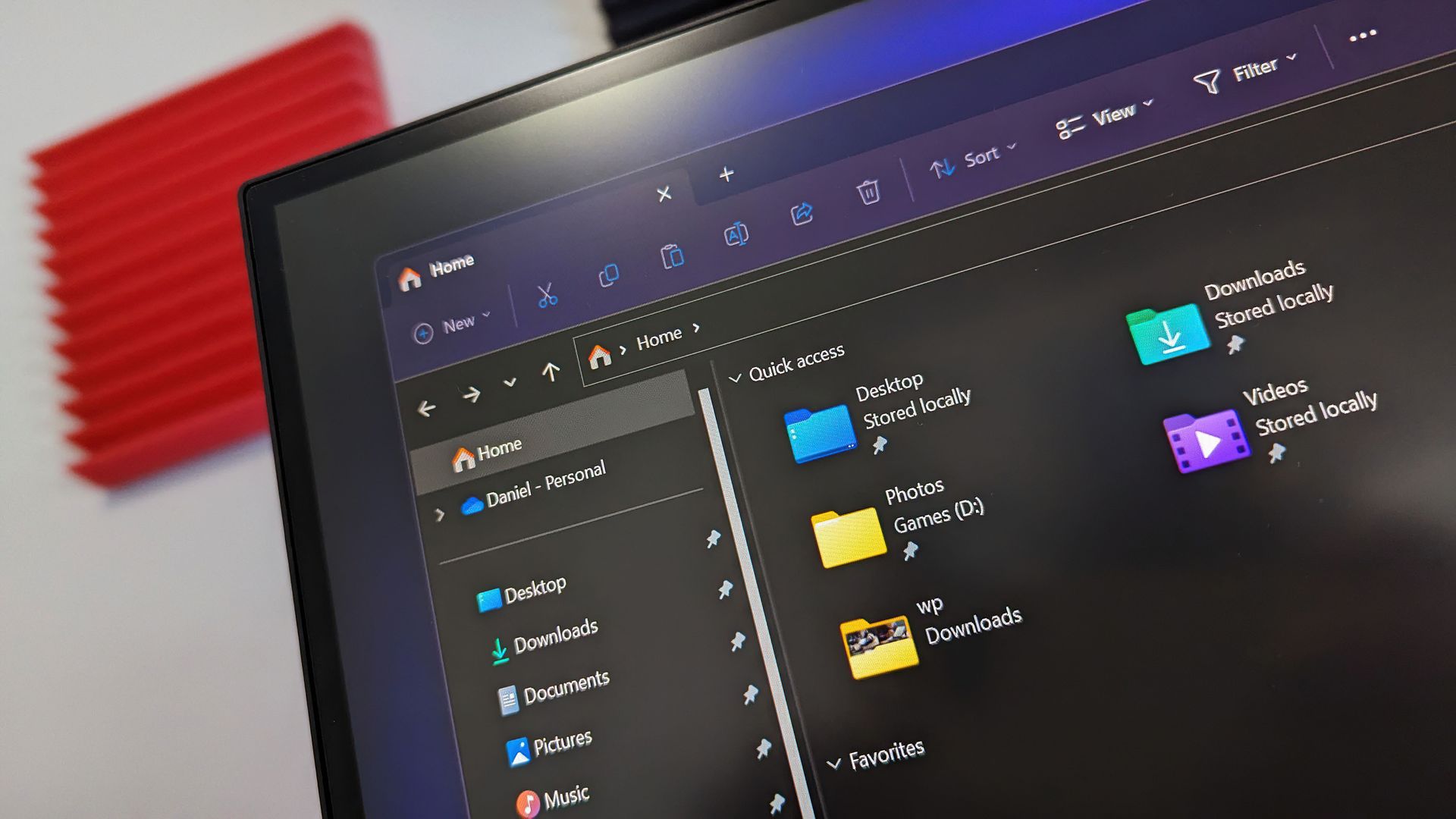
Microsoft's redesigned File Explorer context menu could make navigating Windows 11 feel faster and more personal. The company has started testing a new right-click menu that reduces clutter by moving less common options out of the way while keeping frequently used actions easy to access.
That new context menu is available for Windows Insiders in the Beta channel. Microsoft also shipped four other Insider builds of Windows 11 today that includes
Introducing the new, redesigned context menu in File Explorer
Check your internet speed directly from Quick Settings
Microsoft has been hard at work decluttering Windows 11. While those efforts continue, it seems Microsoft is putting more emphasis on improving the built-in Windows 11 apps as well. Even the Camera app received some updates recently.
File Explorer is a core part of the Windows 11 experience, so it's nice to see it being upgraded as well.

Join us on Reddit at r/WindowsCentral to share your insights and discuss our latest news, reviews, and more.
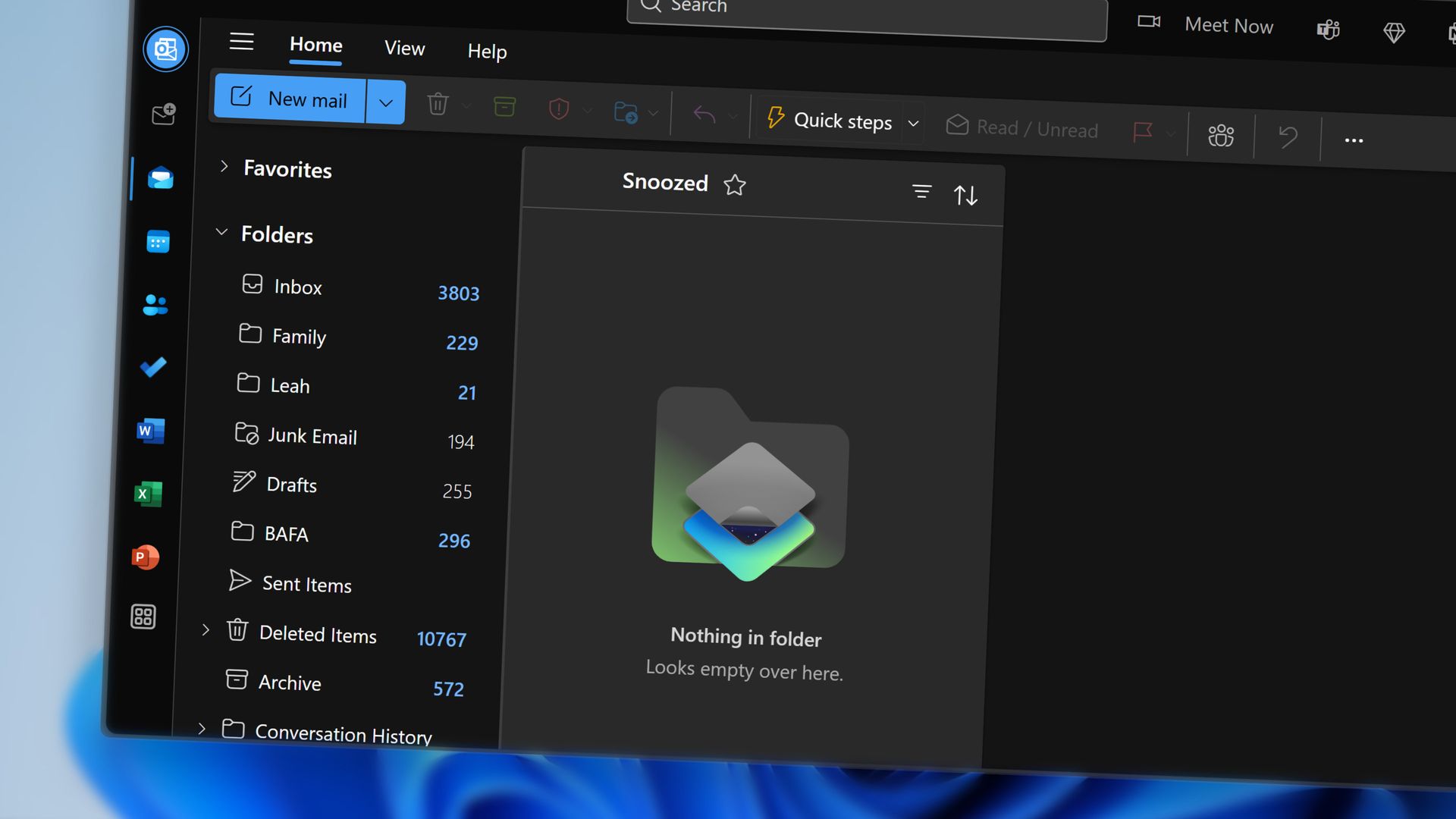
If you get too many emails to handle, you'll soon have to find a way to manage without the help of Copilot. Microsoft plans to retire the Prioritize My Inbox feature in Outlook, which uses Copilot to organize your inbox.
The feature will be retired from all Outlook clients as part of a "cleanup effort" being made by Microsoft. The company explained the change through the Microsoft 365 Message Center (archived here).
The retirement process starts on October 26, 2026, and will continue gradually until the feature is completely rolled back by the end of March 2027.
The Prioritize My Inbox feature uses Copilot to study how you work and show you emails that are most important to your workflow. The tool surfaces relevant emails from your inbox based on your past behavior, but you can also use filters to adjust how content appears.
The feature is adaptive and context-aware, so it works in a fundamentally different way than Focused Inbox or other similar features. Prioritize My Inbox also supports personalized prompts that include an example of what you consider to be a high-priority email.
Microsoft appeared quite excited about the feature when unveiling it last year. Matthew Marzynski, a principal product manager in Microsoft Digital at the time, stated:
“Imagine if everybody could have their own assistant who screens and presents you with the most impactful actions. Prioritize My Inbox is sort of like having your own personal assistant. This can increase your responsiveness, generate time savings, focus your priorities, and help you to align to business-critical communications. It also offers relief by lowering the stress we feel when faced with a huge, unread inbox.”
Mark Stratford, a senior product manager at Microsoft, said the feature "revolutionizes email and where we will get to in the future."
Now, just over one year later, the feature is on the chopping block. Microsoft shared little about why the feature is being retired, apart from saying the rollback will help create a simpler Outlook Copilot experience.
Join us on Reddit at r/WindowsCentral to share your insights and discuss our latest news, reviews, and more.
HDR is a feature that's becoming ever more useful for Windows users who want to boost brightness, improve color, and deepen contrast. Unfortunately, Windows 11's handling of HDR is too annoying for many users to bother with.
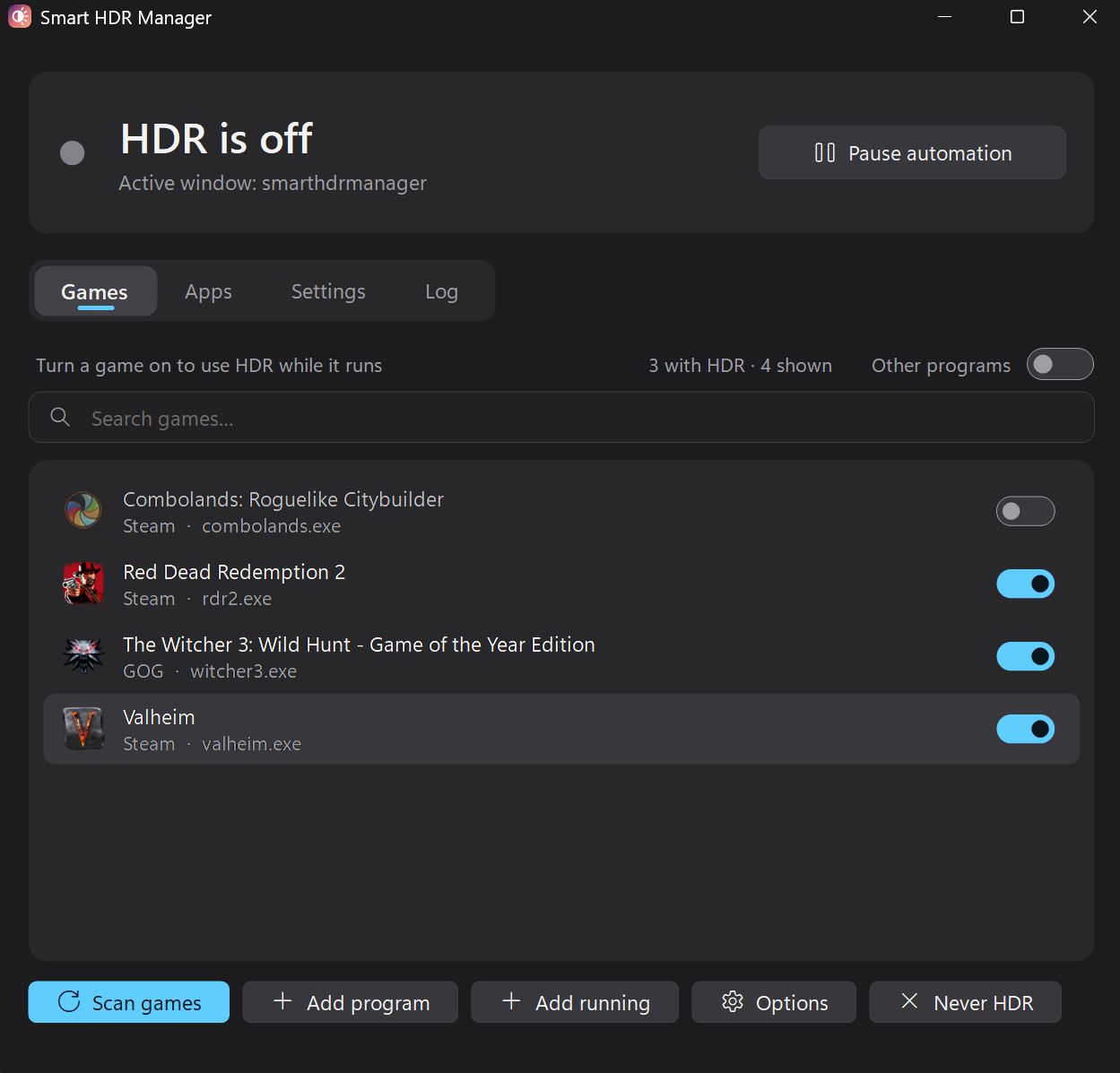
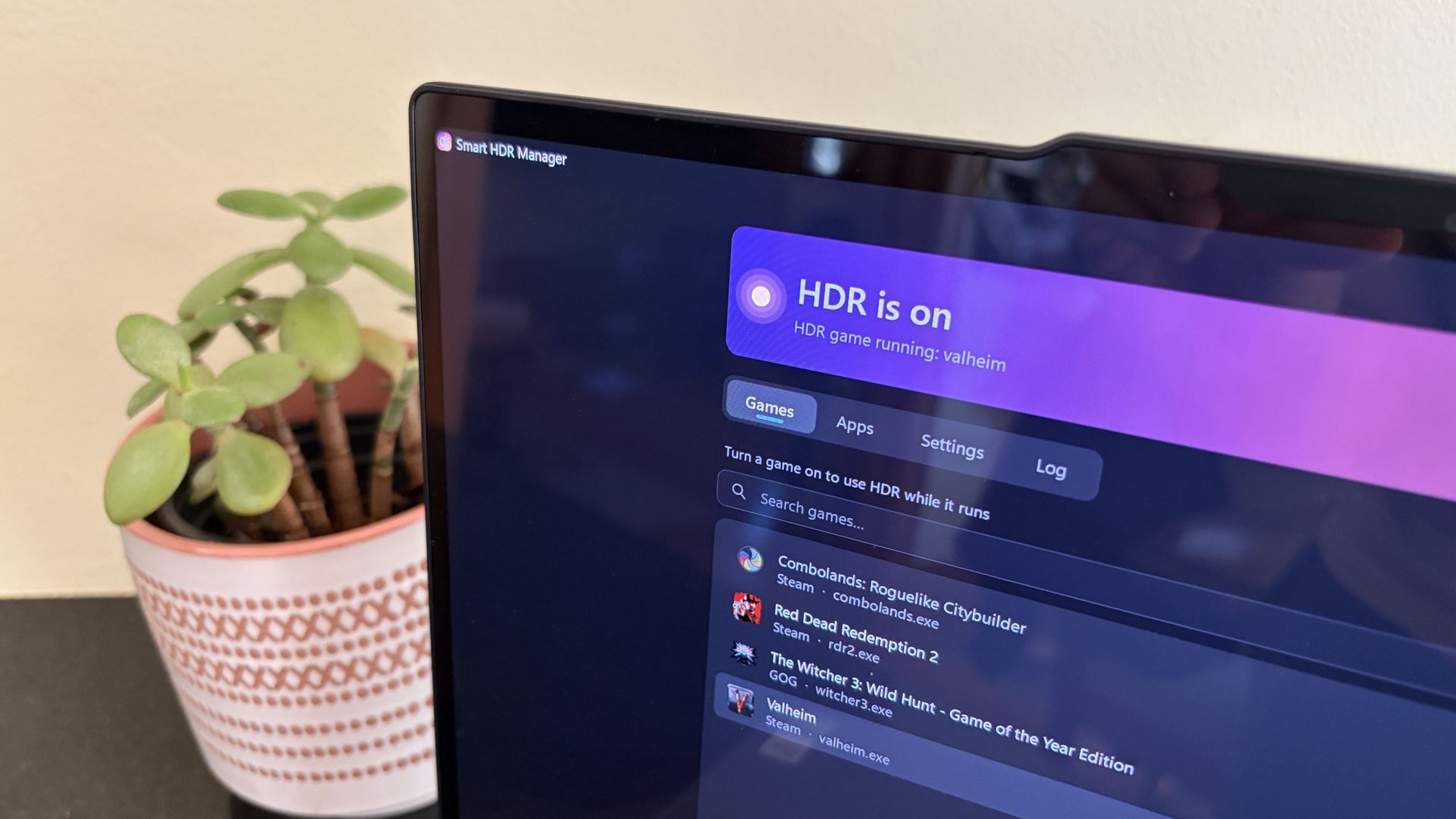
GitHub user VantaCode420 has created a solution with their Smart HDR Manager app, available for free to download and enjoy.
It so far has 218 stars on GitHub despite still being in the relatively early stages of development, and I can see why now that I've been using it on a couple of PCs.
Smart HDR Manager essentially bridges the gap between Windows HDR and the content you're playing or viewing on your PC.
When a game launches or an HDR video starts playing, Smart HDR Manager automatically makes the switch from SDR to HDR on your system. When you close the game or finish watching a video, it automatically reverts Windows to SDR.
Within the app, you can automatically scan your system for games held in apps like Steam, Xbox, and Epic, or you can manually add each one that you want to enjoy in HDR.
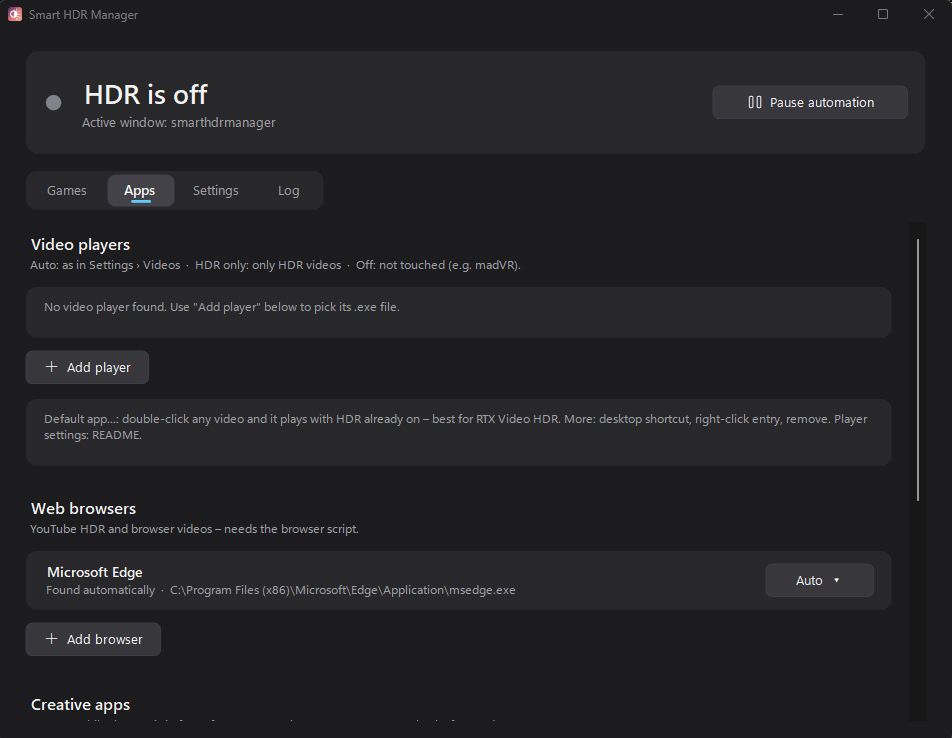
A separate "Apps" tab is home to video players, web browsers, creative apps, and streaming software like OBS Studio and Streamlabs.
On the note of web browsers, those who don't mind a couple of minutes of extra work can create a Tampermonkey script to automatically recognize YouTube HDR videos within Edge or Chrome. The GitHub page has full instructions on how to do this.
One final trick for those with NVIDIA RTX GPUs is RTX Video HDR support. It can turn SDR videos into HDR automatically, just as long as you have HDR enabled in the NVIDIA app's RTX Video Enhancements section.
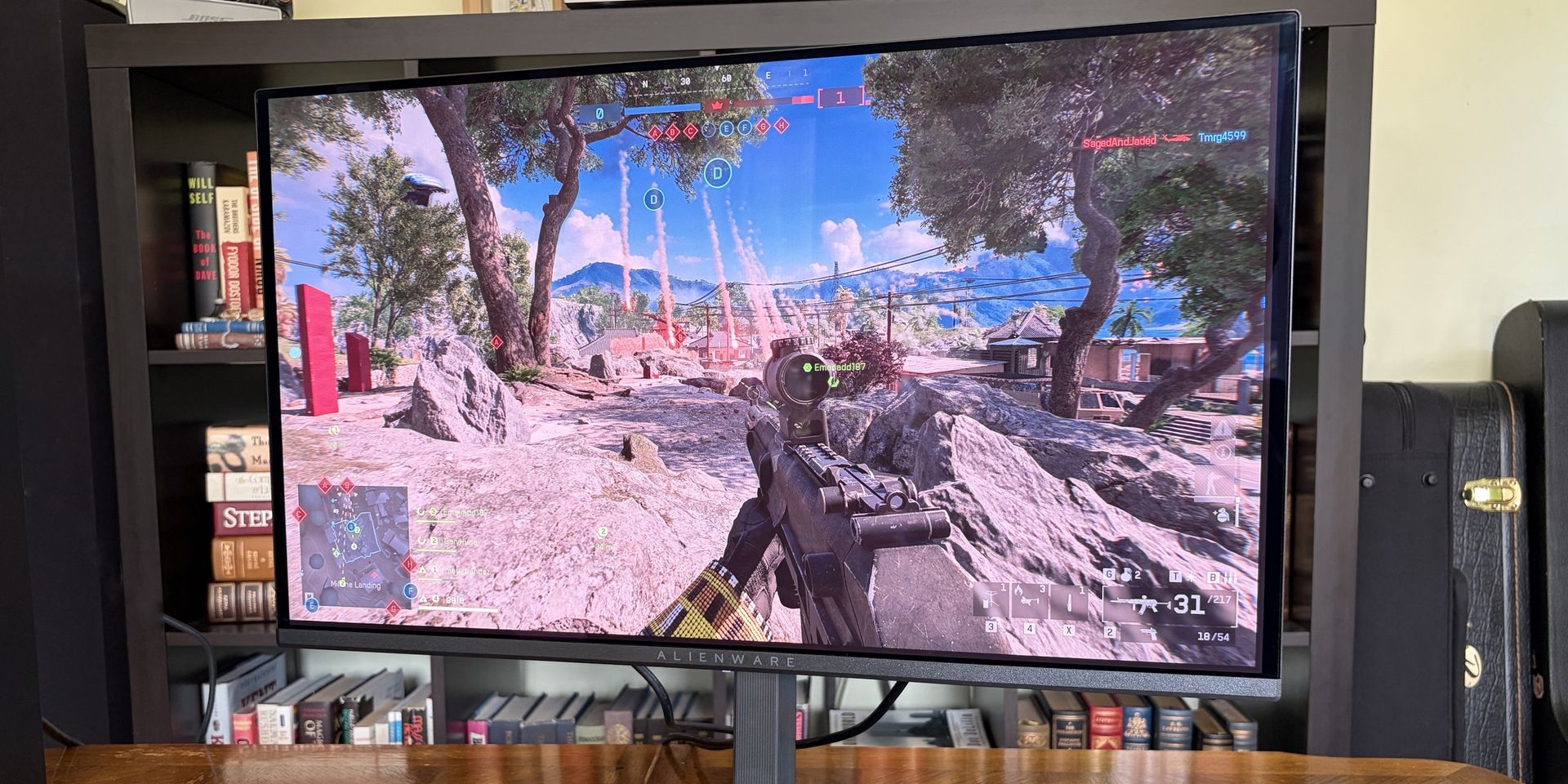
I didn't care much about HDR until I upgraded full-time to an OLED monitor. Now, with the deep color and contrast afforded by the OLED panel, it's something that I want to use as much as possible, where applicable.
That's really the biggest issue that most Windows users have with HDR; it doesn't kick on automatically when HDR content is being displayed. You have to enable it manually before viewing or playing content, and it doesn't turn off when you're finished.
Why isn't this a native feature to Windows? That's a question I can't answer.
Leaving HDR enabled across Windows without any actual HDR content in view leads to washed-out colors and odd SDR mapping. It's something that I imagine just about everyone who's mucked around with stock HDR implementation on Windows has experienced.
Smart HDR Manager is a work in progress, but I haven't yet had any issues while playing games or while watching videos. It turns HDR on when I need it, and turns it off when I don't.
Why isn't this a native feature of Windows? That's a question I can't answer. I'm just glad someone took care of the problem. Try out Smart HDR Manager on standard Windows or Windows on ARM. The latter is still in an experimental stage, but it seems to be working well so far.
Join us on Reddit at r/WindowsCentral to share your insights and discuss our latest news, reviews, and more.
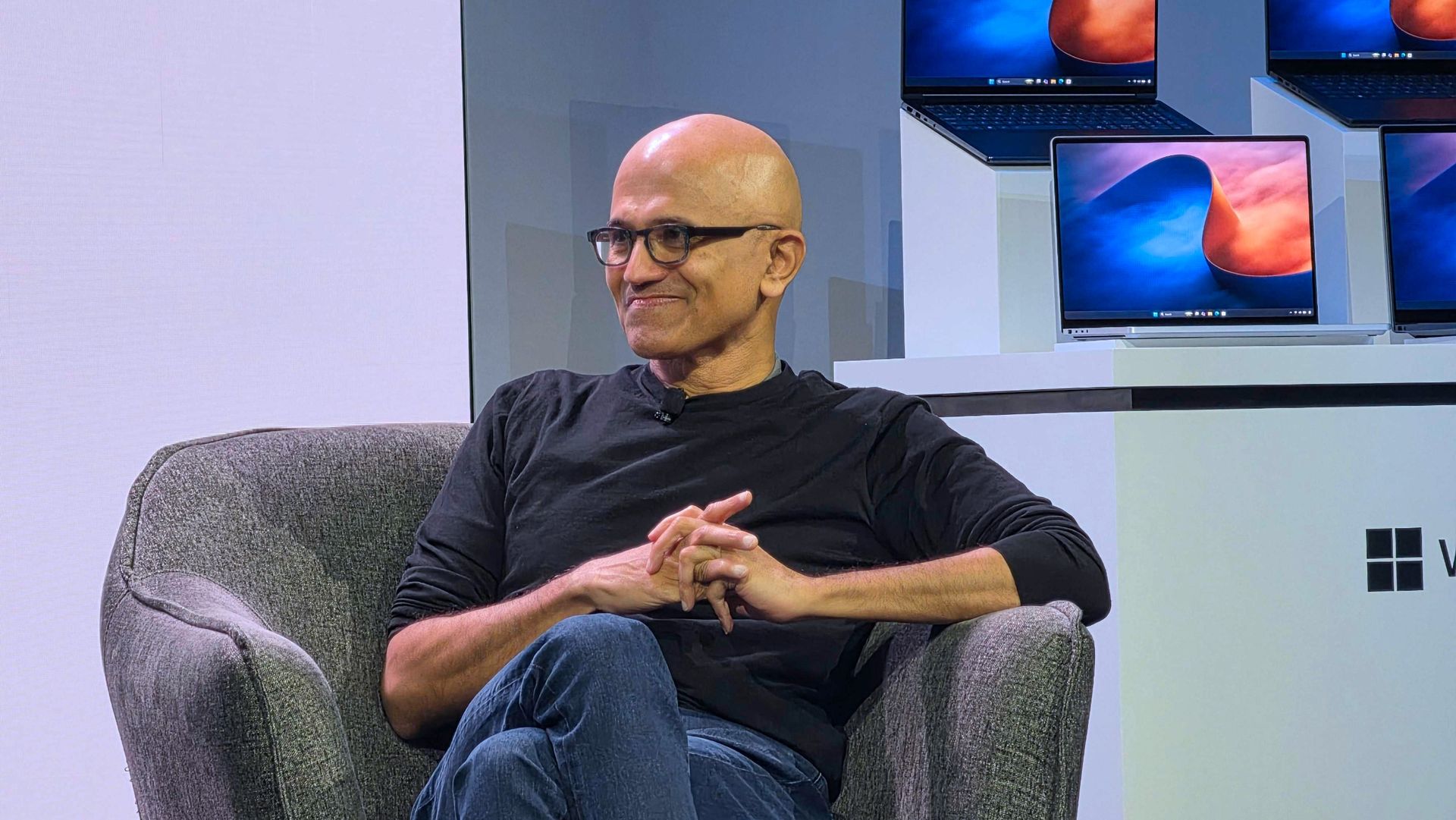
When Microsoft announced the first wave of RTX Spark laptops, many were intrigued by the superchips inside the PCs. But I went a bit more surface-level, pun intended. During the Windows and Surface event, eagle-eyed viewers spotted a striking wallpaper across the new laptops.
The wallpaper is reminiscent of Windows 11's Bloom wallpaper, but it stands out for having a single curve and contrasting colors. As much as I like the Bloom wallpaper, it's been remixed several times by Microsoft and enthusiasts, so it's time for a new Windows wallpaper.
Sadly, Microsoft did not release the image after unveiling the new laptops. I waited with anticipation for the release of the RTX Spark laptops, but even when the Surface Laptop Ultra review went live, the new wallpaper was nowhere to be found. Microsoft even mocks us by having a blacked-out version of the wallpaper on the retail listing of the Surface Laptop Ultra.
Desperate to get my hands on the new wallpaper, I scoured reviews of the ASUS ProArt P16, HP OmniBook Ultra 16, and Surface Laptop Ultra only to be disappointed.
But a hero emerged, saving me from settling for an AI recreation of the wallpaper. Discord user TechosaurusRex discovered the wallpaper in the app files for Microsoft's Retail Demo Experience. Seemingly, Microsoft's plan was to tease us by showing the wallpaper on display retail units but not include the image on purchased PCs.
Luckily, TechosaurusRex stepped up and shared the wallpaper, ending my quest. Sadly, the above version is compressed to ensure our site loads quickly. I'll share the full resolution version as soon as possible.
Join us on Reddit at r/WindowsCentral to share your insights and discuss our latest news, reviews, and more.
Microsoft confirmed that Meta Muse is coming to Windows 11 using MXC (Microsoft Execution Containers) integration. Microsoft announced this at a Windows and Surface event in San Francisco. No official release date has been disclosed yet. This post covers important highlights of this update. Meta Muse is coming to Windows 11 using MXC Integration Muse […]
The post Meta Muse is coming to Windows 11 using MXC Integration appeared first on TheWindowsClub News.
Microsoft has announced Project Zenith, a ready-to-code, distraction-free Windows experience to help developers build apps, AI tools, and agents faster. The experience combines a preconfigured Windows setup with powerful hardware that can handle demanding AI tasks on high-end PCs. In this article, we explain what Project Zenith is, what it includes, and how it supports […]
The post Project Zenith from Microsoft explained appeared first on TheWindowsClub News.
Microsoft will remove eight OneDrive Copilot shortcuts from File Explorer starting in November 2026, changing how users access AI-powered file tools.
The post Microsoft Is Removing 8 Copilot Shortcuts From File Explorer — Here’s What Stays appeared first on TechRepublic.
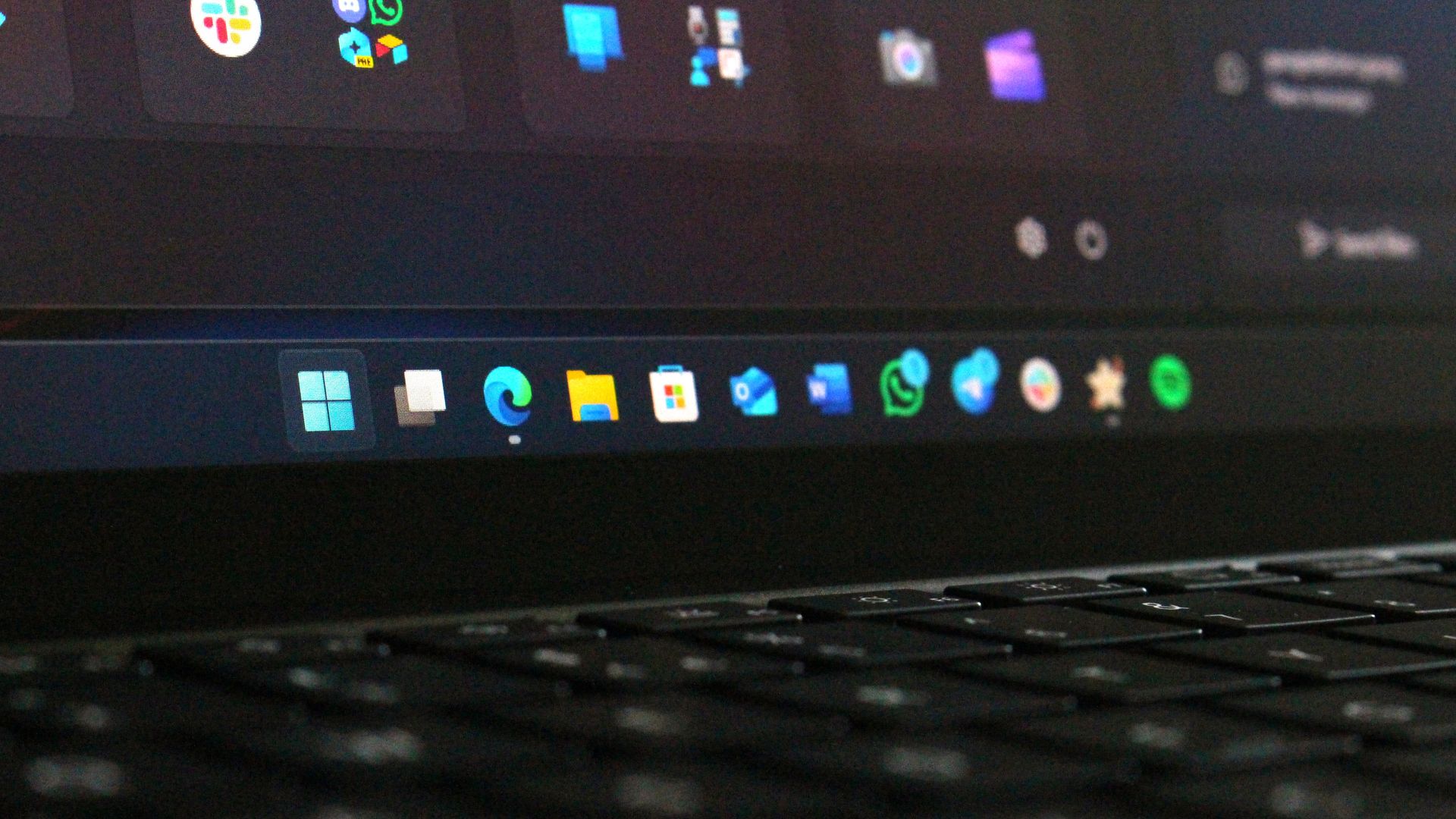
Microsoft is working on a small yet meaningful change to the lock screen and sign-in experience on Windows 11 that will streamline the authentication process that users must go through to log into their desktop.
The current Windows sign-in flow requires the user to manually select the method of authentication they wish to use to login. If you've set up a PIN, face unlock, and fingerprint unlock, the only method of authentication that is active is the one you manually click on to use on the lock screen.
This is a huge gripe of mine, and it's super frustrating when you want to login using your face, but Windows has selected PIN or fingerprint. It means your webcam isn't looking for you in that moment, and you have to manually switch to face unlock to force Windows into checking for your face and logging in.
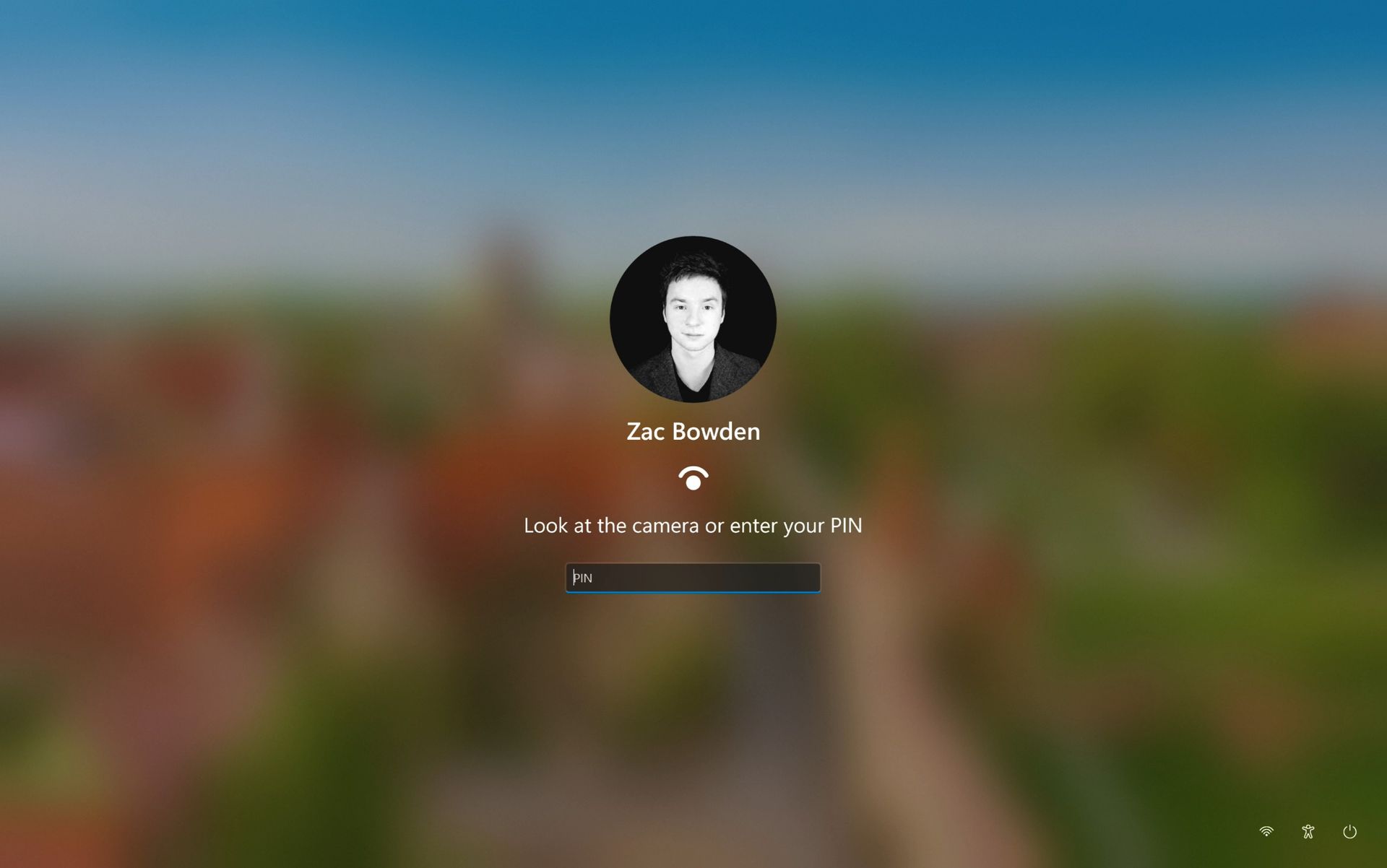
Well, it looks like this is finally changing. In the latest Windows 11 preview builds, a hidden feature ID enables a new experience that automates this. Now, by default, the PIN box is always on show, but face unlock and fingerprint unlock are also active and ready to authenticate at the same time.
This means users no longer need to manually select the login method of their choice. Windows will automatically capture whichever biometric authentication method is set up, even when the PIN box is on screen. This also means the lock screen looks cleaner as a result, as the options to choose which authentication method you want to use is no longer displays as it's not necessary. It's also faster for those with biometric authentication enabled.
I really like this change, as it encourages Windows to keep trying my face unlock even if it fails the first time. Of course, there's an eventual timeout if it fails too many times, but I find it is able to log me in before it ever reaches that point. Also, being able to just type my PIN without having to manually select the PIN option first is also great.
Microsoft is yet to announce this new sign-in flow, but I suspect it won't be long until it's officially put into testing as it's already very polished and has been in the works for a number of months now. What do you think? Is this a good change for the Windows lock screen? Let us know in the comments.
Join us on Reddit at r/WindowsCentral to share your insights and discuss our latest news, reviews, and more.
Explore the Microsoft Surface Laptop Ultra's price, specs, Nvidia RTX Spark AI performance, battery life, and key features before buying.
The post Microsoft Surface Laptop Ultra Cheat Sheet: Price, Specs, Features, and More appeared first on TechRepublic.
Microsoft will no longer be part of a multibillion-dollar data center in Loughton, Essex, England, according to a report by The Telegraph. The planned data center is set to have thousands of NVIDIA processors and was originally planned to start operating next year. Now, major questions surround the project's future.
The data center, which is being planned by Nscale, will be part of a wave of data centers opening in the UK, assuming plans come to fruition.
Microsoft's recent decision could affect the future of the data center, but the power grid is another pressing concern. Nscale has been told by grid operators that the required power supply for the data center will not be available until 2030.
The problems could be connected. The Guardian reports that Microsoft withdrew from the project because of the power grid concerns.
Microsoft was the only company that had publicly committed to plans to use the data center. It's unclear if other tech giants will step in to fill the void.
Despite Microsoft's reported cancellation of plans to be involved with the Essex data center, Microsoft and Nscale continue to have a professional relationship. The Telegraph reports that over 40 percent of Nscale's $103 billion in contracted revenue comes from Microsoft. The Essex data center was only believed to be a small part of that even before Microsoft changed its plans.
"We remain committed to both the Loughton project and the UK and we are exploring alternative power sources for the site, in addition to other expansion sites in the UK," said Nscale. The company added,
"Our relationship with Microsoft remains strong and long-term."
As demand for processing power increases, Microsoft finds itself increasingly at the center of data center headlines. Just in the UK, there are three ongoing stories about Microsoft and data centers.
Almost 45,000 people have signed a petition to prevent the construction of a data center in Leeds, England. Over in Slough, England, politicians and residents have debated the construction of a different data center.
Now, Microsoft has withdrawn its planned involvement in what could become the UK's largest data center.
It seems inevitable that data centers will pop up around the world. There's a good chance that a site only a few miles from my house will have a data center in the near future. I live in Nottingham, England. A former coal plant that has been shut down is expected to house a data center.
Despite several tech giants calling for AI development to be slowed down or paused, demand for data processing is accelerating. I suppose the data centers have to be built somewhere, but I confess I'm not thrilled at the prospect of one being so close to my house.
Data centers can pollute the local environment and emit noise pollution into the surrounding area. They can also raise energy prices nearby and put stress on the local grid.
Join us on Reddit at r/WindowsCentral to share your insights and discuss our latest news, reviews, and more.
Windows 11 offers controls for diagnostic data, location access, clipboard syncing, and personalized recommendations. Here's how to review seven privacy settings and understand their trade-offs.
The post 7 Windows 11 Privacy Settings You Should Check in 2026 appeared first on TechRepublic.
In what may be one of the year's least surprising stories, Microsoft's VP of Product Design, Diego Baca, has explained how AI is being used to help designers after being asked whether it's possible to launch a "fleet of viable agents" to address issues in Windows 11.
On AI agents, 100% agree. I’m not the best person to speak to the engineering side, but AI has already helped our design team accelerate significantly. We’re even seeing designers contribute directly to code fixes that improve craft, consistency, and quality. That’s exciting progress, and we’re only getting started.
Diego Baca, Microsoft
Now, this all comes shortly after an Xbox Business Strategist spiraled on X over how everyone is using AI, expressing frustration with the pretense that people aren't. That said, I do appreciate Baca’s honesty here. I always find that kind of candor refreshing.
Interestingly, Baca's post on X (formerly Twitter) also acknowledged something Windows users have been complaining about for years in his reply to tech enthusiast Chris Pirillo, and that's consistency:
“Consistency across Windows is something we all want, and it’s an active workstream we’re continuing to accelerate,” he explained.
And to be fair, I have to agree. Windows 11 is now five years old (that's made me feel so old), yet parts of the operating system still feel like they're lacking the modern stylings, almost as though some of it still belongs in Windows 7, or even earlier, as Windows Latest points out in its own take.
Don't get me wrong, Microsoft has made progress, particularly with its efforts to modernize Windows Search, Run, and other legacy interfaces using WinUI 3. But I do wish these inconsistencies had been addressed before Windows 11 launched, though perhaps I’m wishing for too much.
Baca also acknowledged the criticism, admitting, “Finally, I completely recognize that people expect more from Windows. We expect more from ourselves, too.”
Finally, he added that Microsoft hopes to “earn back your enthusiasm for Windows through what we deliver, not just what we say.” It’s a refreshingly open response, and one I massively appreciate. How do you feel about Diego Baca's comments? Let me know in the comments and be sure to take part in our poll below:
Join us on Reddit at r/WindowsCentral to share your insights and discuss our latest news, reviews, and more.
Nvidia RTX Spark laptops start at $2,599. Explore local AI capabilities, compatibility checks, and the cost and security trade-offs IT teams should assess.
The post Nvidia RTX Spark Brings Local AI Agents to Windows Laptops appeared first on TechRepublic.
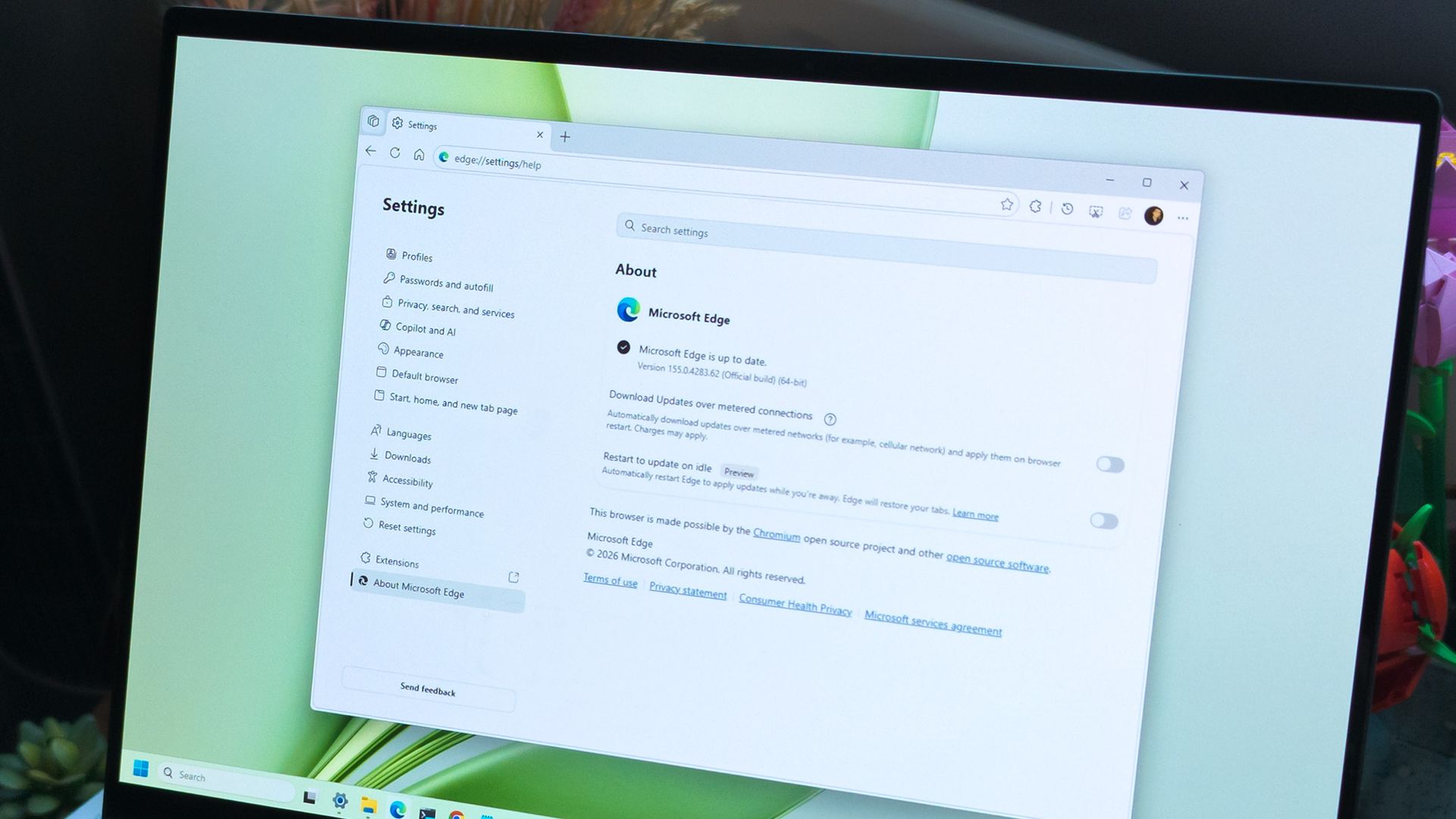
Microsoft is testing a way to update Edge without forcing a restart, potentially letting you keep working while it switches to a more secure version.
Browser updates can interrupt your work, so you might put off restarting the browser. However, this can delay important security fixes. Microsoft's solution aims to solve both problems by updating Edge in the background while keeping compatible tabs open.
The project is still an early experiment, not a feature you can use today. Microsoft says the prototype isn't part of Edge's production code or the Chromium project.
Currently, browser updates require a restart to safely switch to a newer version. Although Microsoft Edge can restore your open tabs afterward, restarting can still interrupt your work. Microsoft's prototype aims to change that by downloading an update in the background and moving the browser and its supporting processes to the newer version while keeping your work available.
For example, imagine you're filling out a long online form when a security update becomes available. Instead of asking you to restart Edge and interrupt your work, the browser would update in the background while you continue working.
Microsoft demonstrated the prototype in a video, and when the company clicked the "Update" button, the browser switched to the new version while keeping compatible tabs open. Eventually, the goal is to apply updates automatically without requiring users to click anything.
One limitation is that existing tabs can stay open only if they're compatible with the new version. Other tabs will switch to the updated version when you navigate to them.
The project isn't only about convenience. Microsoft notes that AI is accelerating vulnerability discovery and changing the pace of attacks, increasing the need to roll out security fixes more quickly. The company describes the time between a security fix becoming available and an update being applied as the "patch gap." During this period, users who don't install the fix remain vulnerable.
A security update can only protect you after apply it. Restarts add friction to that gap: people may keep a browser open for days because they are in the middle of something important.
Microsoft
The requirement to restart the browser can also make the problem worse when people postpone updates because they don't want interruptions. As a result, applying security updates faster could reduce the time users remain exposed to known vulnerabilities.
This isn't built into the current version of the browser, so don't go through the settings trying to find the option. Microsoft says that the prototype isn't part of the browser or the Chromium project. Instead, the company is sharing its work early and inviting developers and other organizations to collaborate on this project.
While the company continues developing its new update mechanism, Microsoft Edge already offers a feature called "Restart to update on idle," previously known as "Instant Updates."
The feature restarts Edge when your device is idle, installs the update, and reopens your tabs. It still requires a restart, but the interruption happens when you're not using the browser.
For now, Microsoft Edge's existing update options help reduce delays, while the seamless-updates prototype offers a glimpse of what could come next. Microsoft hasn't announced when, or whether, this approach will become available. The company is sharing the prototype early to encourage collaboration with the community.
However, we'll have to wait and see whether the concept will make it into a future version of the browser. What are your thoughts on this new way to update the browser? Let me know in the comments.
Explore more in-depth how-to guides, troubleshooting advice, and essential tips to get the most out of Windows 11 and 10. Start browsing here:
Join us on Reddit at r/WindowsCentral to share your insights and discuss our latest news, reviews, and more.