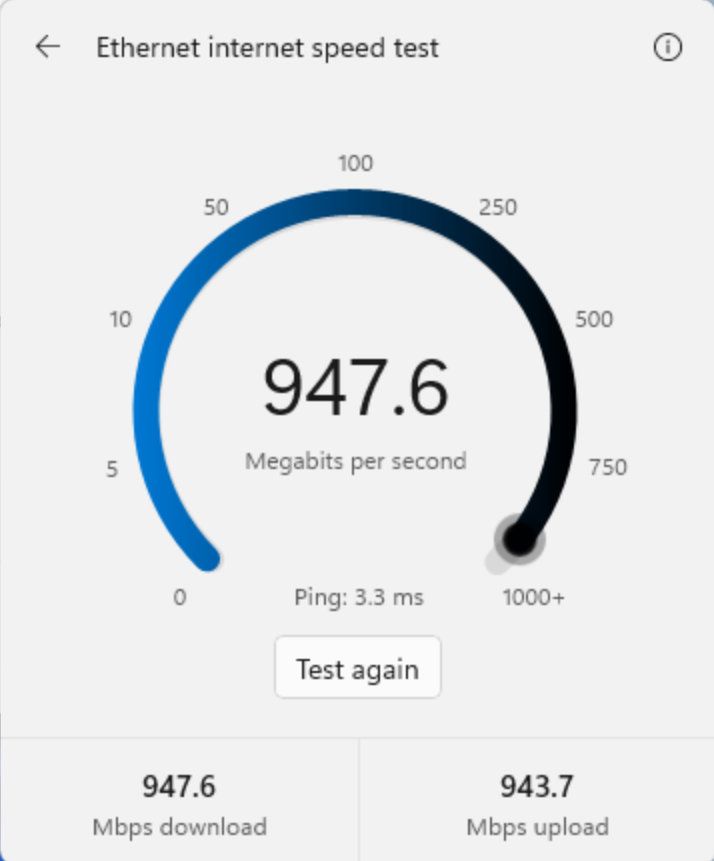
Windows 11 is testing a browser-free internet speed test in Quick Settings. Here's how to use it, what it measures, and who can try it first.
The post Windows 11’s New Speed Test Skips the Browser — Here’s How It Works appeared first on TechRepublic.
Windows 11's speed test tool that's in testing opens from Quick Settings rather than opening a browser session of Bing. (Image credit: Microsoft)Windows 11 will no longer bump you to Bing when you try to test your internet speed. Microsoft is testing a new built-in speed test tool that opens directly from Quick Settings rather than opening your web browser.The change just rolled out to Windows Insiders in the Experimental channel with Build 26340.9767. That was o
Windows 11's speed test tool that's in testing opens from Quick Settings rather than opening a browser session of Bing. (Image credit: Microsoft)
Windows 11 will no longer bump you to Bing when you try to test your internet speed. Microsoft is testing a new built-in speed test tool that opens directly from Quick Settings rather than opening your web browser.
The change just rolled out to Windows Insiders in the Experimental channel with Build 26340.9767. That was one of five builds to ship to Insiders recently. If you want to catch up on all the other changes, including the refreshed File Explorer context menu, check out my roundup of all the updates.
Microsoft first introduced a speed test to Quick Settings last year, but that feature was actually a shortcut to opening Bing. Even before that feature was announced, I said that it was a bad idea and that Microsoft should replace it with a built-in speed test tool within the taskbar.
Microsoft has since listened to feedback and designed a built-in speed test tool that opens directly from the Quick Settings.
The old speed test tool was actually a shortcut to open Bing in a browser. (Image credit: Mauro Huculak)
To access the speed test tool, you need to open the Wi-Fi or Cellular flyout within Quick Settings. Alternatively, you can right-click the network icon in the system tray and select "Test internet speed."
Microsoft is rebuilding several parts of Windows 11 as native or built-in tools. The new Start menu and the improved search experience are part of those efforts. While those larger elements make an immediate and sizeable impact on the Windows 11 experience, smaller changes like a built-in speed test tool help as well.
Internet Speed Test Release notes
We're making it faster and easier to check the performance of your internet connection in Windows. Windows Insiders can now run an internet speed test and see the results directly in Quick Settings, without being redirected to a browser.
Start a test from the new Speed test Quick Setting, from the Wi-Fi or Cellular flyout, or by right-clicking the network icon in the system tray and selecting Test internet speed. While the test runs, Quick Settings shows its progress and results, including download speed, upload speed, and ping.
Because the test runs against your active internet connection, you can quickly understand how your current connection is performing without leaving your workflow. This updated experience builds on the internet speed test we previously introduced for Windows Insiders, bringing the test and its results directly into Windows.
Join us on Reddit at r/WindowsCentral to share your insights and discuss our latest news, reviews, and more.
On this episode of the Windows Central Podcast, Daniel Rubino and Zac Bowden tackle behind-the-scenes reporting on internal tensions between Microsoft’s Windows and Xbox engineering divisions regarding the next-generation Project Helix hardware. Sparked by a detailed report in Fortune, we examine conflicting visions over whether future Xbox hardware—including a rumored 2027 handheld and 2028 home console—should run a streamlined desktop Windows build or iterate o
On this episode of the Windows Central Podcast, Daniel Rubino and Zac Bowden tackle behind-the-scenes reporting on internal tensions between Microsoft’s Windows and Xbox engineering divisions regarding the next-generation Project Helix hardware. Sparked by a detailed report in Fortune, we examine conflicting visions over whether future Xbox hardware—including a rumored 2027 handheld and 2028 home console—should run a streamlined desktop Windows build or iterate on the locked-down, hyper-optimized, containerized Xbox OS.
We also breaks down leaked Microsoft internal survey research investigating potential shifts in first-party exclusivity for blockbuster franchises like Fallout and Minecraft. Daniel then details his comprehensive review impressions of the ultralight 3.9 lb ASUS ProArt P16 and the HP OmniBook Ultra 16, followed by an overview of AMD FSR 4.1 rolling out to handhelds like the ROG Xbox Ally series to boost frame rates on constrained hardware.
This episode of the Windows Central Podcast is sponsored by Surfshark VPN. Unlimited devices, access your content from anywhere, and auto-block malware on Windows, Edge, and other platforms from $2.50/mo, with 3 months extra FREE. Sign up today!
[01:47] – Introduction & Episode Overview: Daniel and Zac kick off Episode 408, laying out the agenda: Windows vs. Xbox internal friction, Project Helix roadmaps, hardware reviews, and AMD FSR updates.
[04:35] – Project Helix & The Fortune Report: Analysis of reported tensions between Asha Sharma’s Xbox leadership and the Windows team over software architecture for next-gen hardware.
[06:49] – Updated Launch Timelines & Handheld Rumors: Dissecting expectations for a potential Xbox gaming handheld targeting late 2027 and the living room console shifting toward late 2028.
[08:20] – Xbox OS vs. Windows Desktop Shell: Comparing console-level security, sandboxing, and background stability against open PC desktop architecture, and examining official executive responses.
[15:08] – The Handheld Software Dilemma: Out-of-box user experience friction on Windows-based gaming handhelds (driver updates, launchers) compared to dedicated console environments.
[23:51] – Security, Containerization & Publishers: Why game publishers prefer isolated hypervisor environments over open desktop file systems to prevent tampering and day-one piracy.
[30:27] – Windows 12 & State Separation: History of Microsoft’s state-separated OS initiatives (Core OS, CorePC) and whether architectural isolation could arrive in future Windows releases.
[35:31] – Leaked Exclusivity Research Survey: Discussion of leaked internal questionnaires gauging consumer reaction if future releases in franchises like Fallout or Minecraft become Xbox console exclusives.
[46:00] – ASUS ProArt P16 In-Depth Review: Daniel breaks down the 3.9 lb RTX Spark laptop, evaluating 3K vs. 4K OLED panels, thermal cooling under 50 dB, and everyday 10-hour battery life.
[54:32] – HP OmniBook Ultra 16: Contrasting ASUS’s utility suite (OLED dimming, taskbar protection) with HP’s build weight and software support.
[55:55] – AMD FSR 4.1 Launch on Handhelds: What the new upscaling and frame generation driver update means for the ASUS ROG Xbox Ally family and constrained hardware.
[01:00:08] – Live Audience Q&A: Viewer questions addressing Windows on ARM anti-cheat progress, Xbox Play Anywhere adoption incentives, and high-end hardware expectations.
Have a question you want us to answer on the podcast? Send it to us at [email protected]
XBOX is rarely the focus of the Windows Wrap, but when reports claim clashes happened between the Windows and XBOX teams at Microsoft, gaming pushes itself to the front.Last week I discussed how Windows 11 is holding back the Surface Laptop Ultra. This week, we learned that a different hardware division from Microsoft expressed frustrations with Windows. Reportedly, things got so heated between the XBOX and Windows teams that an XBOX leader threatened to cancel a
XBOX is rarely the focus of the Windows Wrap, but when reports claim clashes happened between the Windows and XBOX teams at Microsoft, gaming pushes itself to the front.
Over the last few years, we've seen XBOX and Windows 11 grow closer together. The Windows 11 experience on gaming handhelds has improved drastically since day one, though it still has a ways to go. The XBOX app on Windows has been updated several times to align more with the console experience, which has a trickle-down effect on all gaming handhelds that run on Windows.
But despite the growth of Windows 11, the operating system still falls short of the requirements of the XBOX team, at least according to the latest reports.
Biggest News of the Week
There are some caveats to this entire discussion. Notably, Microsoft's Xbox CTO, Scott Van Vliet, refutes the claims made by Fortune.
@WinC_Gaming Helix OS is being built on Windows, and the XBOX and Windows teams are working closely together on the next generation of devices. The account cited here misrepresents both the technical work and the relationship between the teams.October 21, 2026
Van Vliet said that Helix OS is "being built on Windows." He did not say that Helix OS is Windows. For what it's worth, I don't think we'll ever see an operating system called "Helix OS." But his post makes it clear that the OS powering Project Helix is built on Windows. That's not the same as saying it is Windows. At minimum, it's highly unlikely the Xbox will run the traditional Windows desktop you see on laptops and desktops.
Microsoft has used a customized version of Windows for several generations of XBOX hardware. The Xbox One and Xbox Series X|S consoles already run an operating system that's built on Windows. Even the original XBOX ran an OS based on Windows, though the Xbox One ran an operating system much closer to Windows.
I asked Van Vliet if Project Helix is an evolution of the OS XBOX consoles already run or a freshly made custom OS, but he did not respond.
Microsoft has never specified that Project Helix will run Windows 11 and the Windows desktop, but several reports have suggested that was the plan for the console.
His post on X argues that the original report "misrepresents both the technical work and the relationship between the teams." For a moment, let's assume that's accurate and that the Windows and XBOX teams are working side-by-side in harmony. There's still a clear implication that Microsoft no longer views Windows 11 and the desktop as the right starting points for an operating system for Project Helix.
Earlier reports about Project Helix said the next generation of XBOX would run a customized version of Windows 11, much like the Xbox Ally and other gaming handhelds. It appears Microsoft has changed plans, though it's still not clear to what extent.
If you've used a gaming handheld running Windows 11, you may even agree with the sentiment that the OS is not the best starting point for a console gaming experience. Some of the best gaming handhelds are held back by Windows rather than boosted by it. For example, the out-of-the-box experience for the ROG XBOX Ally X20 is terrible because you have to go through three different sets of updates.
Shifting from Windows 11 powering XBOX consoles to those devices running an OS built on Windows is a massive change of plans. Though ironically, it's not much of a change from what Microsoft already does with XBOX.
Project Helix has reportedly slipped into 2028, so it may be a while before Microsoft explains exactly what changed.
Shopping with Sean
This week's biggest news may be about XBOX and gaming, but my top shopping recommendations of the week are laptops. Whether you want an Intel chip or a Snapdragon processor, there are great deals available.
"At a glance, it might feel like the Zenbook A14 didn't change at all, but upgrading to the Snapdragon X2 Elite gave it a massive CPU performance bump." — Ben Wilson, Senior Editor
"The Dell XPS 13 returns as an excellent Windows-based answer to the MacBook Neo. It’s an excellent option for students or mainstream users who don’t need more CPU or GPU muscle." — Matt Safford, Managing Editor, Tom's Hardware
On October 13, 2026, Microsoft made available its latest cumulative update (KB5127648) for Windows 11 with several new improvements, including an option to always launch apps maximized, the ability to remap the Copilot key with new options, a new "Tips" widget, and additional touchpad controls. However, the update also includes a smaller set of improvements that may have gone unnoticed.While this month's features have already received plenty of attention, some le
On October 13, 2026, Microsoft made available its latest cumulative update (KB5127648) for Windows 11 with several new improvements, including an option to always launch apps maximized, the ability to remap the Copilot key with new options, a new "Tips" widget, and additional touchpad controls. However, the update also includes a smaller set of improvements that may have gone unnoticed.
While this month's features have already received plenty of attention, some less prominent changes could still make a difference. The October update improves Bluetooth reliability, fixes mouse stuttering in some games, restores fingerprint sign-in on affected devices, and addresses printing and Always On VPN connection issues.
Here are six improvements and fixes worth knowing about after installing the October 2026 Security Update for Windows 11.
1. Windows 11 improves Bluetooth reliability
This monthly update includes eight Bluetooth improvements designed to make connecting to and using Bluetooth devices more reliable.
During voice calls, the system now shows the volume flyout when you adjust the volume using the controls on a compatible Bluetooth Classic Audio accessory, giving you visual feedback on the new volume level.
The update also improves how the operating system reports the connection status of disconnected Bluetooth accessories. It fixes an issue where the Bluetooth radio could be turned off even though its toggle in the Bluetooth and devices page in Settings still appeared to be on. Microsoft has also improved the stability of this Settings page when managing Bluetooth and audio devices.
For audio, the update improves microphone compatibility with certain Bluetooth Classic Audio accessories and makes shared audio more reliable.
It also fixes a crash (error code 0x139) that could happen while streaming Bluetooth audio and improves the reliability and performance of Bluetooth Low Energy (LE Audio) accessories.
2. Fingerprint sign-in works again after a cold boot
This release also fixes an issue that could prevent Windows Hello fingerprint sign-in from working after a cold boot on some computers.
Fingerprint authentication is convenient because it lets you sign in quickly without entering a password or PIN. However, a problem that appears after a full shutdown can make the feature unreliable.
If fingerprint sign-in fails after you power on your computer from a full shutdown, installing the update may resolve the problem.
3. Microsoft fixes mouse stuttering in some games
The October update (KB5127648) fixes an issue that could cause mouse input to stutter in some games. This problem can make aiming, camera movement, and other actions feel inconsistent, particularly in games that require precise input.
Since this fix targets an specific bug, it doesn't guarantee a solution for every mouse stuttering or performance issue.
4. Windows 11 fixes printing problems with certain drivers
Microsoft has also addressed a printing problem that could affect some apps and devices using RAW or Generic Text Only printer drivers after installing the August 2026 Security Update.
These driver configurations are used in certain printing environments, and the issue could prevent some print jobs from completing successfully.
Users affected by this problem should install KB5127648, then test their apps and printers again to confirm the problem has been resolved.
5. Always On VPN connections become more reliable
In addition, this rollout fixes an Always On VPN issue introduced by the earlier KB5124008 update.
On affected systems, automatic protocol selection or protocol fallback could leave a VPN connection stuck on Connecting or cause the initial connection attempt to fail. Subsequent attempts could also show the "The specified port is already in use" error message.
These problems can prevent users from establishing a reliable VPN connection, especially in managed business environments where remote access is essential.
6. File Explorer no longer crashes in certain multi-user environments
The update also fixes a File Explorer problem affecting some multi-user environments, including Azure Virtual Desktop deployments that use FSLogix.
On affected systems, "explorer.exe" could fail to start after sign-in or repeatedly crash, potentially leaving users with a black screen.
How to install the October 2026 update
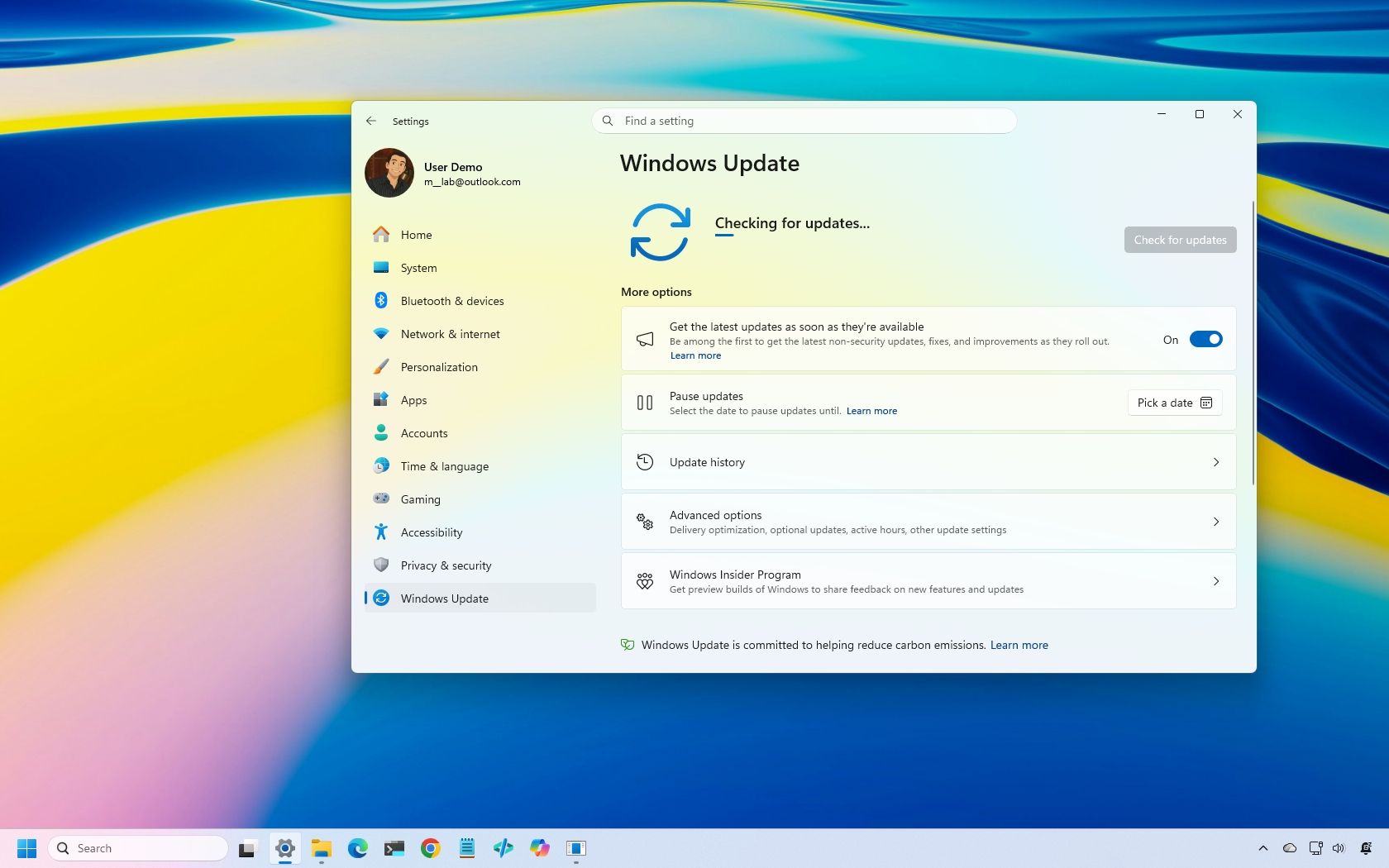
The October 2026 Security Update for Windows 11 should install automatically, but it can be installed from Settings > Windows Update by clicking the "Check for updates" button.
The update is available for versions 26H2, 25H2, and 24H2, with builds 26300.9711, 26200.9711, and 26100.9711, respectively.
However, keep in mind that Windows 11 24H2 Home and Pro reached the end of support with this security update released on October 13. This means that 24H2 will no longer receive security fixes and improvements, nor will the company continue offering support.
If you're still on version 24H2, I highly recommend upgrading to the latest version. Since versions 26H2, 25H2, and 24H2 share the same core system, switching versions only requires the latest updates for the current version and the enablement package, both of which should be available for download through Windows Update settings.
Windows Central's Take
Although the October update includes features and changes that are easier to notice, the smaller fixes can be just as useful when they address problems that disrupt your workflow. The Bluetooth improvements stand out because they cover several areas, from connection status and Settings reliability to audio compatibility and crashes.
The fixes for fingerprint sign-in, gaming, printing, and VPN connections are more specific, but they could make a difference to affected users. If you've experienced any of these problems, it's recommended to install this month's update as soon as possible.
Have you noticed any of these issues on your device? Let me know in the comments.
More resources
Explore more in-depth how-to guides, troubleshooting advice, and essential tips to get the most out of Windows 11 and 10. Start browsing here:
PowerToys, the "Swiss Army knife" of Windows 11, is now available in version 0.102, introducing several features designed to improve your desktop experience.This release adds Mouse Button Lock to make dragging and selecting items easier, while CursorHide automatically hides the mouse pointer under specific conditions. Command Palette also gets an update with quick access to frequently used commands. In addition, PowerToys expands its command-line and automation f
PowerToys, the "Swiss Army knife" of Windows 11, is now available in version 0.102, introducing several features designed to improve your desktop experience.
This release adds Mouse Button Lock to make dragging and selecting items easier, while CursorHide automatically hides the mouse pointer under specific conditions. Command Palette also gets an update with quick access to frequently used commands. In addition, PowerToys expands its command-line and automation features, and ZoomIt now lets you use voice input to set image descriptions.
In this guide, I'll highlight the five new features and improvements in PowerToys version 0.102 and explain how they can help you get more out of Windows 11.
1. Mouse Button Lock for easy dragging and selection
Selecting large groups of items or dragging files across the desktop can get tiring when you have to hold a mouse button down for an extended period. Starting with version 0.102, PowerToys introduced Mouse Button Lock to make these actions easier.
When this feature is enabled, you can press and hold a mouse button briefly, then release it. PowerToys keeps the button virtually held down, letting you keep selecting items or dragging files without physically holding the button. To release the hold, simply click any mouse button.
Mouse Button Lock can help when you're working with large file selections, moving items, or doing tasks that require extended dragging. It can also improve accessibility for people who have difficulty holding a mouse button down for long periods.
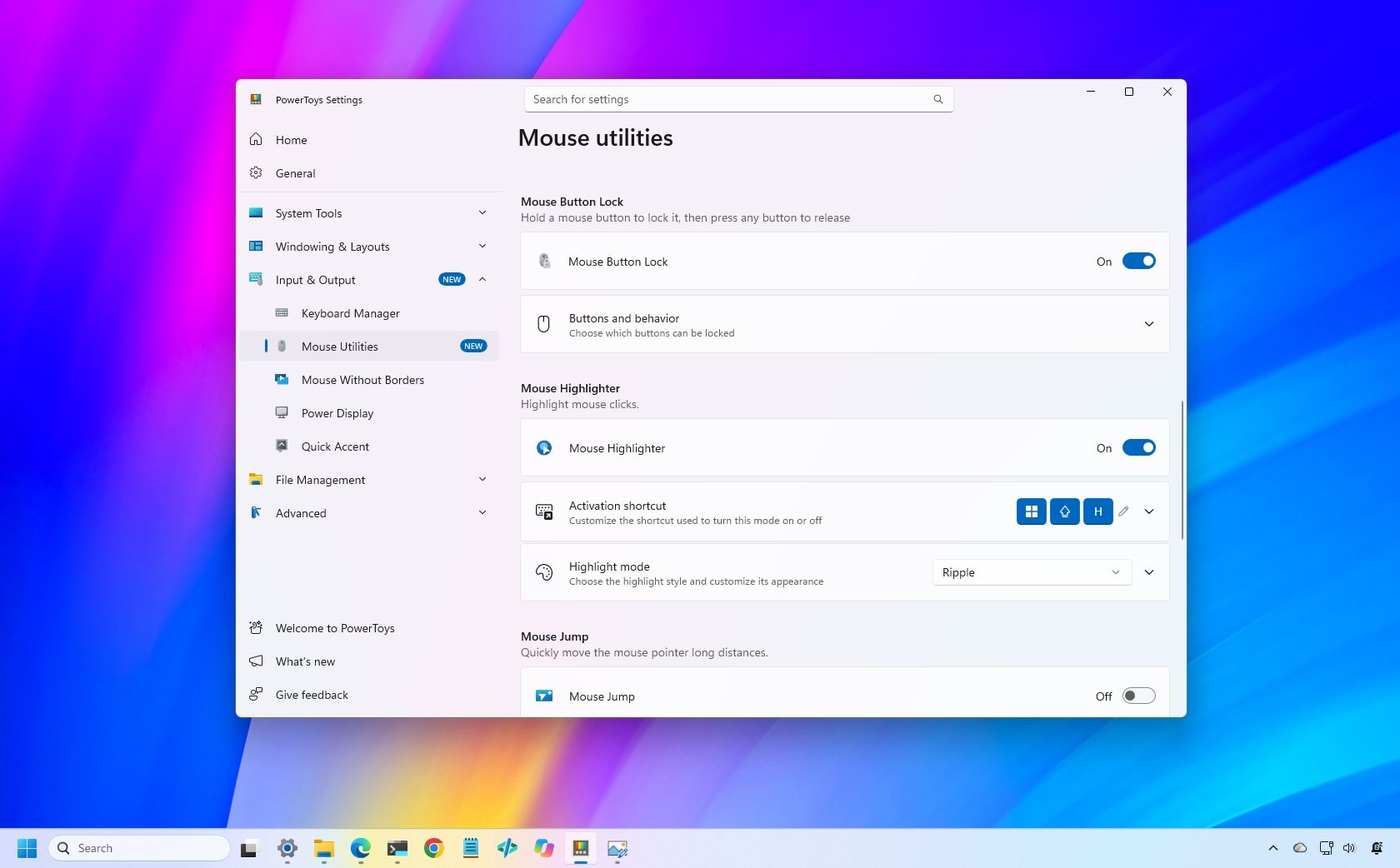
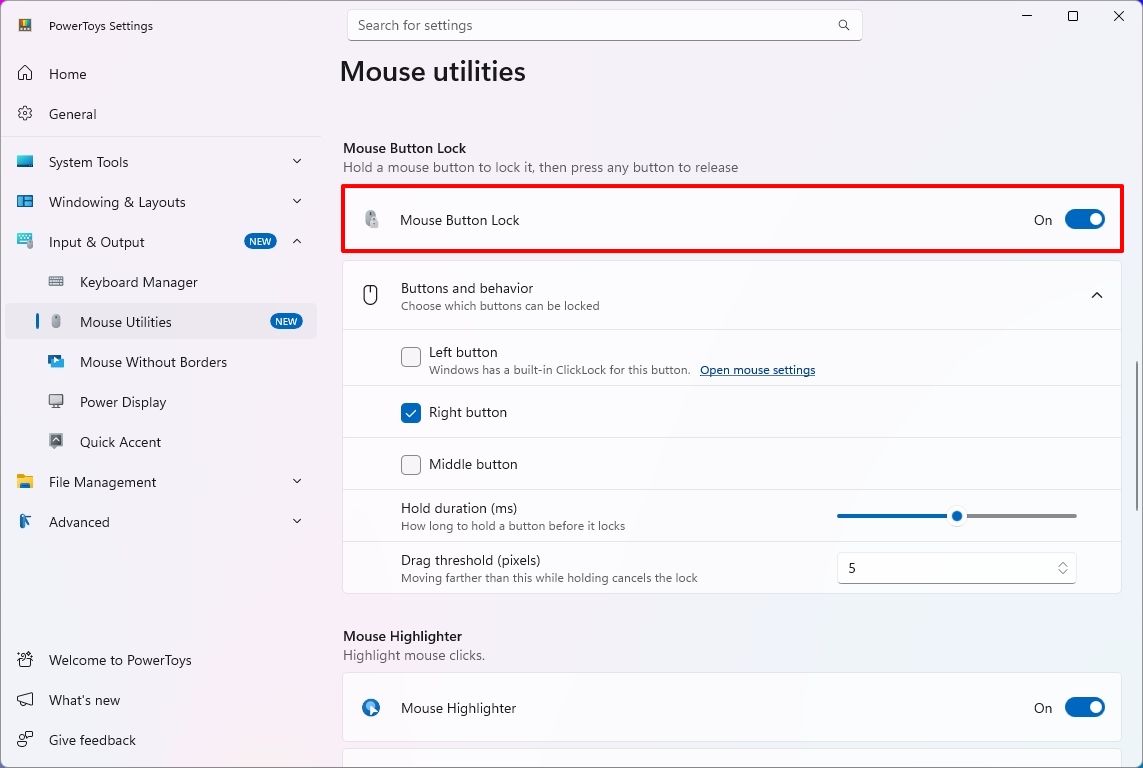
You can enable the feature in PowerToys > Input & Output > Mouse Utilities by turning on the "Mouse Button Lock" toggle switch.
(Image credit: Mauro Huculak)
From the "Buttons and behavior" settings, you can decide whether the left, middle, or right button should lock while pressed.
The settings also let you choose the hold duration before the button is locked as pressed, and the drag threshold allows you to specify how far you can move the mouse before PowerToys cancels the Mouse Button Lock.
2. CursorHide for fewer cursor interruptions
PowerToys also introduces a second mouse utility, CursorHide, which lets you hide the mouse pointer while you're typing, after a period of inactivity, or both.
CursorHide is useful when the mouse pointer gets in the way of what you're doing on the screen. For example, hiding the pointer while typing makes it easier to focus on text without the cursor covering words or other elements.
You can enable the feature in PowerToys > Input & Output > Mouse Utilities by turning on the "CursorHide" toggle switch.
(Image credit: Mauro Huculak)
In the "Activation and behavior" settings, you can choose to hide after keyboard input and set the cursor to hide after a period of inactivity.
3. Command Palette quick access to favorites
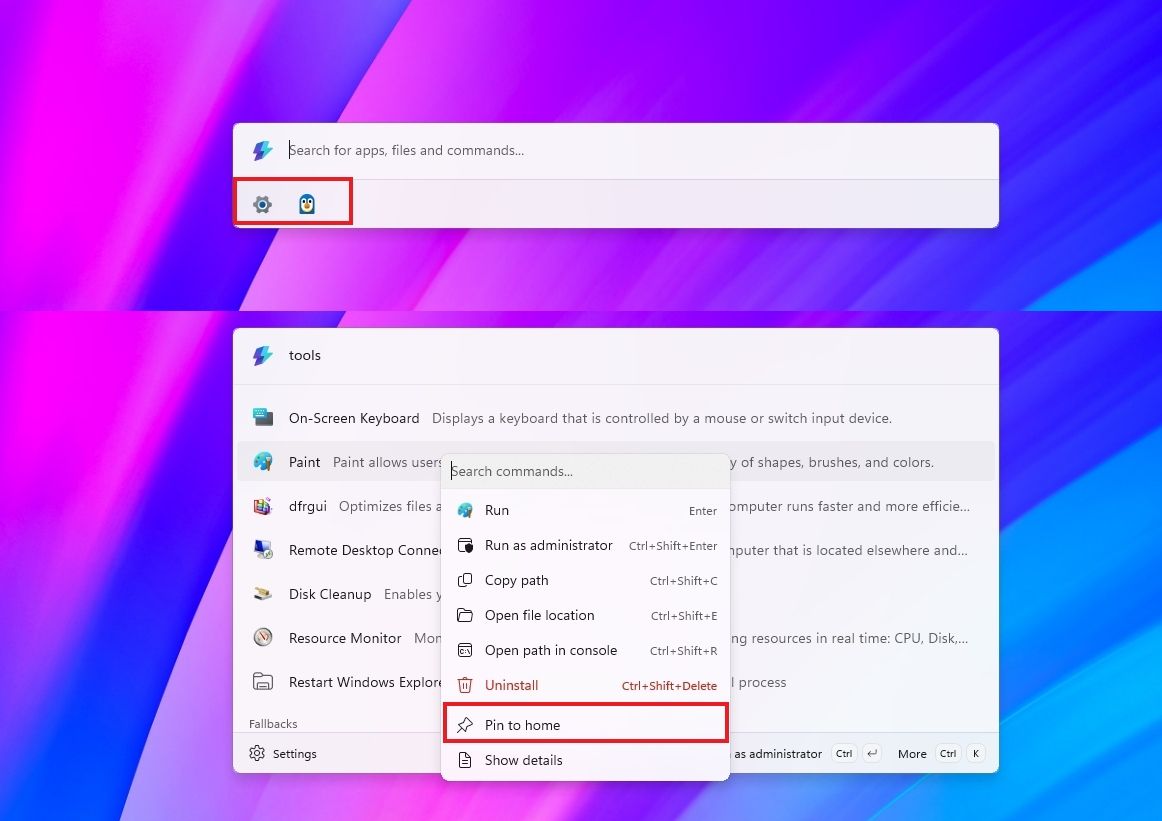
If you use Command Palette, this update rolls out an update to Compact mode that lets you pin frequently used commands under the search box.
Once you pin an item, you can launch it with the "Alt + 1" through "Alt + 9" shortcut or select it without running it with the "Alt + Shift + number" shortcut.
(Image credit: Mauro Huculak)
It's also possible to drag items to reorder them, right-click to access more options, and display recent apps and commands.
4. PowerToys expands command-line support
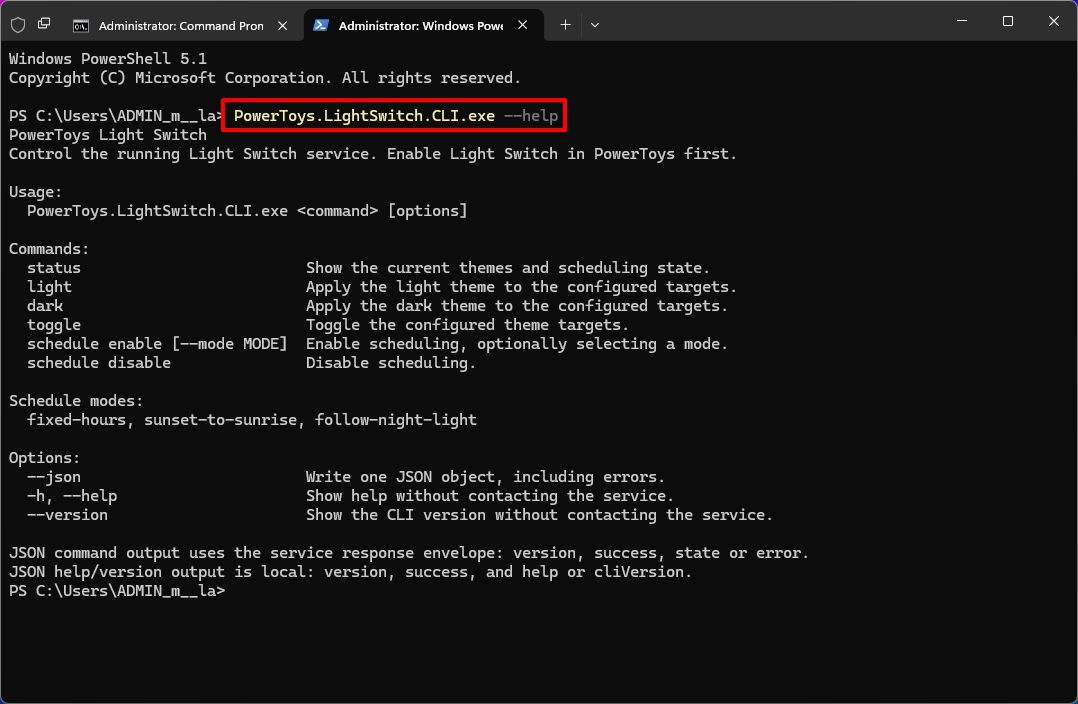
PowerToys version 0.102 expands its command-line capabilities, allowing you to control more utilities, automate tasks, and retrieve information directly from Command Prompt or PowerShell.
The update adds CLI commands for Advanced Paste, Light Switch, Settings, Peek, and PowerDisplay. These commands let you run actions, manage light and dark mode settings, turn utilities on or off, preview files and folders, and retrieve display information in script-friendly formats.
These additions are especially useful for automating repetitive tasks, creating scripts, or controlling PowerToys utilities without opening their graphical interfaces.
(Image credit: Mauro Huculak)
Here's a list of the new command-line support you can use with PowerShell:
Advanced Paste: PowerToys.AdvancedPaste.CLI.exe
Light Switch: PowerToys.LightSwitch.CLI.exe
Settings: PowerToys.Settings.CLI.exe
Peek: PowerToys.Peek.UI.exe
PowerDisplay: PowerToys.PowerDisplay.CLI.exe
To learn about the options for each command, use the "--help" command. For example, PowerToys.LightSwitch.CLI.exe -- help.
If, for example, LightSwitch is enabled, you can switch to dark mode with the PowerToys.LightSwitch.CLI.exe dark command.
You can use the command to manage it, but you must enable the utility in PowerToys settings first.
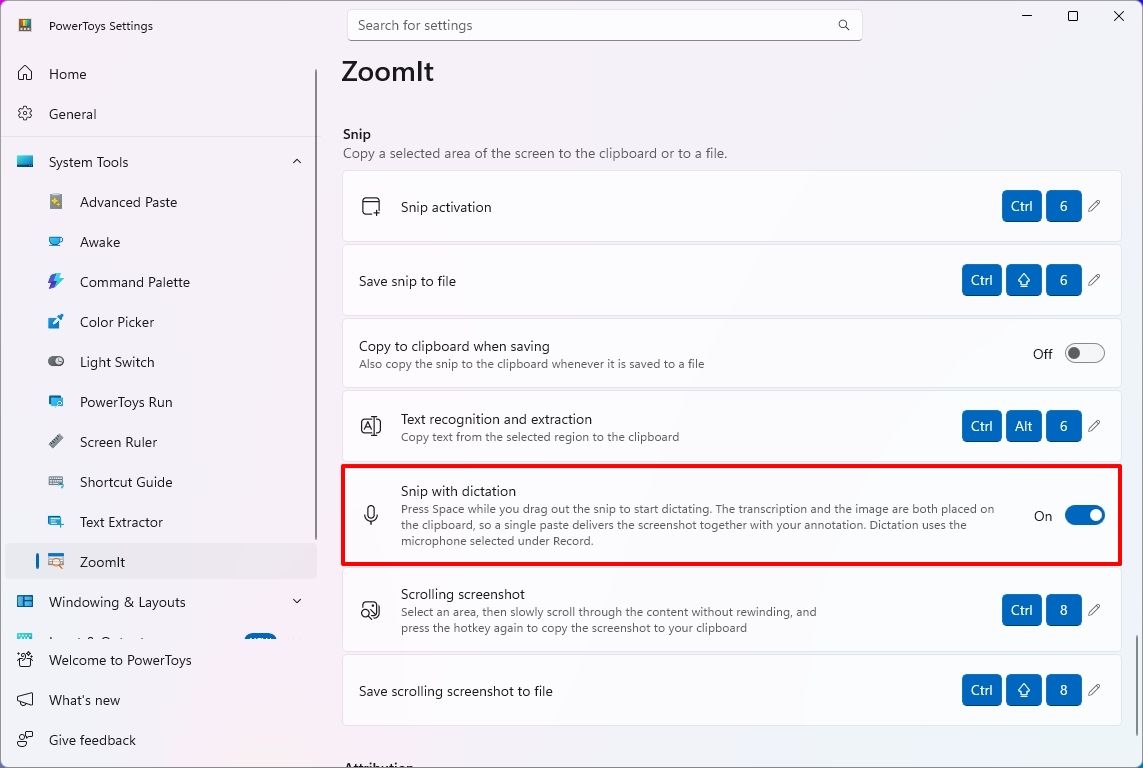
5. ZoomIt adds screenshot dictation
Finally, ZoomIt now lets you dictate a description while capturing a screenshot, making it easier to document what's on the screen without typing the text separately.
To use the feature, open PowerToys > System Tools > ZoomIt, turn on the feature, and then under the "Snip" section, turn on the "Snip with dictation" toggle.
(Image credit: Mauro Huculak)
Once you have done that, drag to select an area of the screen, press the "Space" key, and describe what you're capturing. ZoomIt transcribes your speech locally, allowing you to paste the screenshot and its accompanying text together.
The feature uses the microphone selected in the "Record" settings.
Wrap up
PowerToys 0.102 is a surprisingly and unusually interesting update, despite the simple version-number change. The popular app serves as a clear reminder of how much Windows 11 continues to evolve thanks to community-driven tools — these additions make everyday workflows smoother and show how Microsoft’s open‑source ecosystem continues to fill gaps the OS itself doesn’t yet cover.
Whether you’re a power user or just someone who loves small quality‑of‑life upgrades, this release proves that Windows can still surprise you with clever, genuinely useful features.
What’s the most interesting feature in this rollout? Let me know in the comments!
More resources
Explore more in-depth how-to guides, troubleshooting advice, and essential tips to get the most out of Windows 11 and 10. Start browsing here:
I try not to write too many doom-and-gloom cybersecurity stories, but this week's vulnerabilities involving PHP are too big to ignore.With the help of AI, PHP flaws that had been lying dormant for years were dredged up and exploited, resulting in parts of the internet going dark as IT experts attempted to fix the problem.Although your Windows PC isn't in the direct line of fire this time, the sheer speed and ability of AI when it comes to discovering (and exploit
I try not to write too many doom-and-gloom cybersecurity stories, but this week's vulnerabilities involving PHP are too big to ignore.
With the help of AI, PHP flaws that had been lying dormant for years were dredged up and exploited, resulting in parts of the internet going dark as IT experts attempted to fix the problem.
Although your Windows PC isn't in the direct line of fire this time, the sheer speed and ability of AI when it comes to discovering (and exploiting) flaws shouldn't go unnoticed.
I've put together this guide to help you be proactive rather than reactive towards whatever security crisis comes next.
ELI5: What's actually happening with PHP and the internet?
PHP is a programming language that's been around for more than three decades, and it quietly runs a large portion of the internet. Nearly 70% of websites with a known server language use PHP, including WordPress, Yahoo, Etsy, and Wikipedia. To say it's important is an understatement.
This week, two serious PHP security flaws known as "PHP2Shell" were made public. The exploits essentially allowed bad actors to take over servers and steal data. Once this news was public, countless bad actors began directing AI at the vulnerabilities.
The reaction? Some governments pulled their websites down to wait for a fix. IT teams worked countless hours to patch holes. Cloudflare fended off thousands of attempts to exploit the bugs, even before they were publicly announced.
Some stats on #php2shell. In the 10 hours before it was publicly announced, across the @Cloudflare network we saw thousands of attempts to exploit it. That jumped to tens of thousands in the 45 minutes post announcement, hundreds of thousands within 2 hours, and millions now.October 22, 2026
The PHP Foundation released a patch on October 21, but it's only targeted at newer versions of PHP. There are countless millions of websites and servers running older versions of PHP that didn't get the fix (and may never be secure again).
Is PHP2Shell a one-time incident?
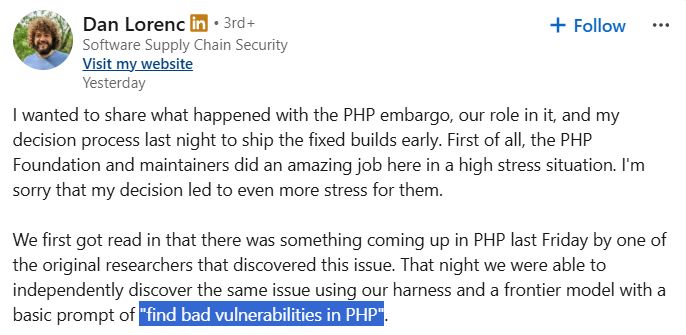
To give you an idea of what we're heading into (and not just in the middle of), Dan Lorenc, CEO of Chainguard, shared on LinkedIn a tale of his journey to find PHP vulnerabilities.
His team had the PHP news early, and it attempted to independently discover the vulnerability. All it took was a prompt for their frontier model to "find bad vulnerabilities in PHP" for this to happen.
A screenshot of the LinkedIn post from Dan Lorenc explaining how he used AI to find PHP vulnerabilities. (Image credit: Dan Lorenc (LinkedIn))
No special AI voodoo. No deep knowledge of security systems. Just a powerful AI with a simple command. As Lorenc points out, "This is unfortunately the new normal for the industry."
I hate to fearmonger, but I'd rather help get you ahead of the next security flaw than pretend everything will work out fine.
Should you be concerned about PHP vulnerabilities?
The average PC user shouldn't panic. But you should be aware of what's going on.
There's no reason for the average Windows PC user to panic, but you should be aware of what's going on. Being proactive is the best line of defense.
PHP runs on servers, not your desktop or laptop PC, so ordinary users don't need to rush to patch their apps or browsers. However, if you use a website that's now vulnerable, personal information could be exposed.
What to do right now to protect yourself
As seemingly the entire internet goes into high-alert mode, there are three quick tips every regular PC user should be using to protect themselves against attacks.
Don't enter your credentials on websites that appear to be broken.
Keep an eye on your email inbox. Vulnerabilities like this often lead to spam and phishing emails. Don't download shady files or visit links you didn't expect to see.
Keep an eye on your bank statements for any shady activity.
These three tips will get you started, but there's a lot more you should be doing in order to prepare for the next big vulnerability.
How to prepare for the next big vulnerability
It's time to start thinking about how you can mitigate the fallout of an attack. (Image credit: Getty Images)
We're now entering an era of cybersecurity where you can assume that at some point you will be attacked. Your goal isn't to fend off every attack, but to make the fallout as easy to deal with as possible.
Use a password manager. Give each account a unique, complicated password.
Use an authenticator app or passkeys wherever possible. Two-factor authentication via SMS is becoming increasingly risky.
Set up a new email address for anything financial.
Back up your data offline.
Update your Wi-Fi router's firmware.
Retire older hardware and devices that no longer receive security updates.
Remain vigilant.
The bottom line
AI is now able to find security flaws much faster than humans are able to fix them, and the PHP2Shell fallout from this week is very likely only the beginning of a wave of critical security issues that threaten the foundation of the internet.
It's not up to you or me to stop the next problem, but it is up to us to ensure that we mitigate risks.
Join us on Reddit at r/WindowsCentral to share your insights and discuss our latest news, reviews, and more.
Full Release NotesBeta Preview Build 26220.9757Experimental Preview Build 26340.9767Beta (26H1) Preview Build 28020.3292Experimental (26H1) Preview Build 28120.3302Experimental (Future Platforms) Preview Build 29695.1001Microsoft's redesigned File Explorer context menu could make navigating Windows 11 feel faster and more personal. The company has started testing a new right-click menu that reduces clutter by moving less common options out of the way while keepin
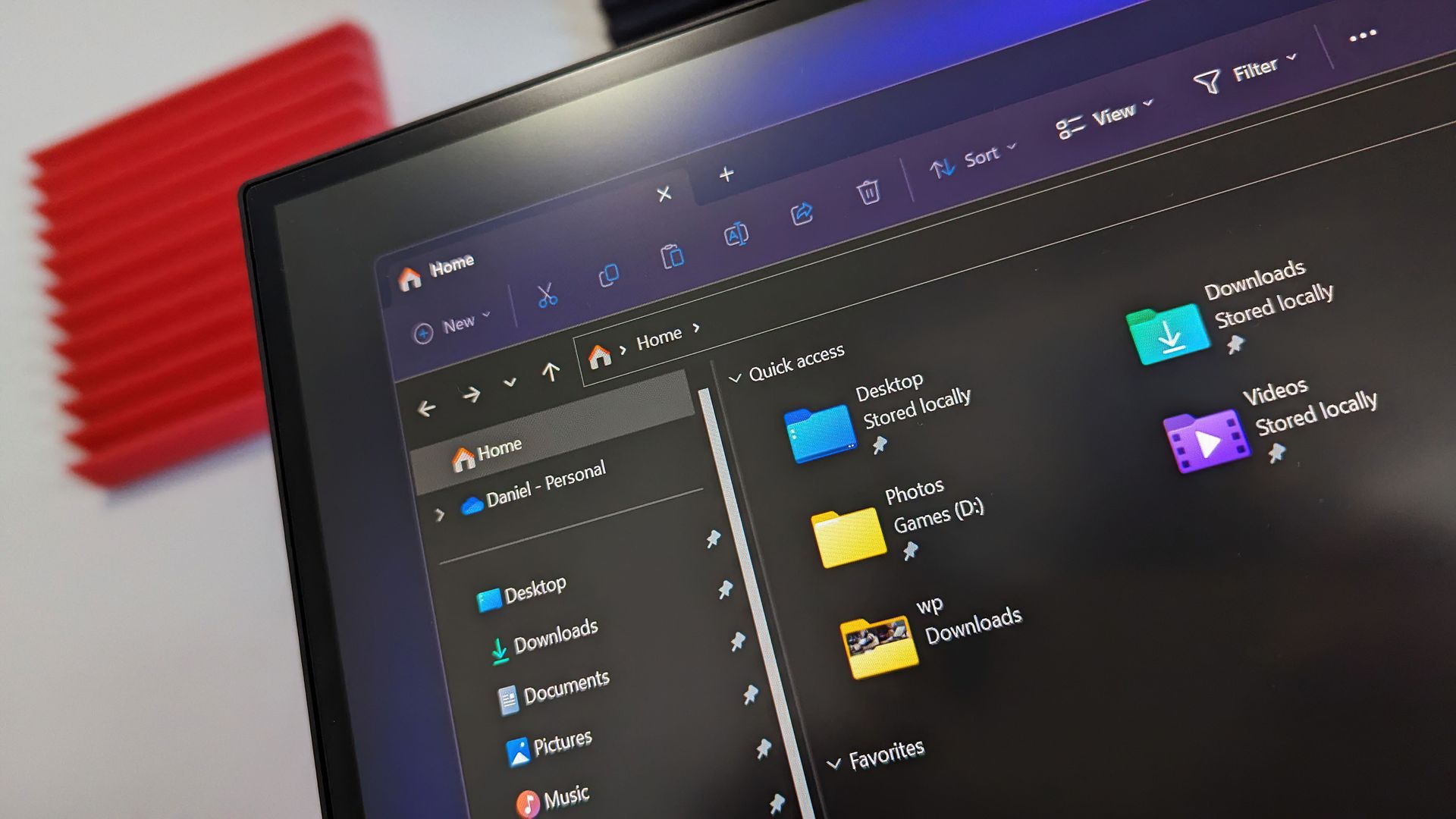
Microsoft's redesigned File Explorer context menu could make navigating Windows 11 feel faster and more personal. The company has started testing a new right-click menu that reduces clutter by moving less common options out of the way while keeping frequently used actions easy to access.
That new context menu is available for Windows Insiders in the Beta channel. Microsoft also shipped four other Insider builds of Windows 11 today that includes
File Explorer (Beta)
Introducing the new, redesigned context menu in File Explorer
We're rolling out an updated context menu experience in File Explorer, designed to feel faster, cleaner, and easier to tailor to the way you work. The new design reduces top-level clutter, keeps commonly used actions easy to access, and adds a new Settings experience that gives you more control over what appears in the menu. As we continue refining this experience with Insider feedback, our goal is to make right-click feel more responsive, predictable, and personal.
We've also added a new teaching tip you might see as a first-time experience to help you learn about the customization options.
Settings (Beta)
We're making performance improvements to the Settings home page which should result in reduced loading times in certain scenarios.
Windows Insider Program (Experimental)
We've added the ability to filter Feature flags by enablement state.
Quick Settings (Experimental)
We're beginning to roll out a new Mobile devices experience in Quick Settings, making it easier to take quick phone actions (such as ring your phone) without breaking your flow on Windows.
With your supported Android phone connected, everyday actions are now just a click away. You can turn Do Not Disturb on before a meeting, change your phone's ringer mode, and play a sound to find your phone nearby.
It's a simpler, faster way to manage your phone from the place you already use for quick Windows actions, helping your PC and phone work better together throughout the day.
Capabilities can vary by phone platform and device configuration. The initial experience provides the most complete set of controls for Android phones, while iPhone support starts with a more limited status-focused experience.
Check your internet speed directly from Quick Settings
We're making it faster and easier to check the performance of your internet connection in Windows. Windows Insiders can now run an internet speed test and see the results directly in Quick Settings, without being redirected to a browser.
Start a test from the new Speed test Quick Setting, from the Wi-Fi or Cellular flyout, or by right-clicking the network icon in the system tray and selecting Test internet speed. While the test runs, Quick Settings shows its progress and results, including download speed, upload speed, and ping.
Because the test runs against your active internet connection, you can quickly understand how your current connection is performing without leaving your workflow. This updated experience builds on the internet speed test we previously introduced for Windows Insiders, bringing the test and its results directly into Windows.
Magnifier (Experimental)
We've added a Keyboard shortcut for Magnifier toggle in Settings > Accessibility > Magnifier. It lets you choose whether pressing Windows logo key + Plus (+) launches Magnifier.
The shortcut stays on by default, so nothing changes unless you want it to. If you find that Magnifier starts by accident, or the shortcut conflicts with another app or keyboard layout, turn the toggle off. You can still start Magnifier from Settings, and you can turn the shortcut back on at any time.
Microsoft 365 subscription in Windows (Experimental)
We're introducing a new inline experience that makes it easier for Microsoft 365 subscribers to manage their subscriptions in Windows. Subscribers who have recurring billing turned off can now turn it back on directly in Windows Settings, without leaving for a separate webpage. To get started, select Turn on recurring billing or Set up recurring billing from the Windows Settings Home page, the Accounts page, or the Start menu.
File Explorer (Experimental)
Improved progress indication when navigating to locations that take longer to load, such as network drives, making it easier to see that loading is underway.
Narrator (Experimental)
Narrator now supports additional languages for math reading, including Greek, Hungarian, Indonesian, Norwegian (Bokmål), Polish, Russian, Swedish, and Vietnamese.
Widgets (Experimental)
The Widgets picker now has a standard Windows dialog frame and supports light and dark title bars. It also removes the blank space previously left for an icon.
Taskbar (Experimental)
Fixed an issue with the previous update where explorer.exe wouldn't load after logging in, preventing the taskbar and other elements that rely on it from loading.
Unicode (Beta 26H1, (Experimental (26H1))
This update provides Windows text shaping support for Unicode 17.0, helping Windows correctly display and shape newly encoded characters and scripts. Unicode 17.0 added 4,803 characters, including support for four newly encoded scripts: Beria Erfe, Sidetic, Tai Yo, and Tolong Siki. These updates help keep Windows text support current as the Unicode Standard evolves and improve support for languages and writing systems used by people around the world.
Start menu (Experimental (26H1))
This update makes the Start menu more personal with several customizations.
You can choose between a small or large Start menu, in addition to the Automatic (default) option that's available today. To customize this setting, go to Settings > Personalization > Start > Start menu size.
The Recommended section is renamed Recent in the Start menu and on the Start settings page (Settings > Personalization > Start).
You can now hide your name and profile picture in Start by going to Settings > Personalization > Start > Hide your name and profile picture on Start.
The Start menu settings page is now redesigned with section-level toggles to independently show or hide Pinned, Recent, and All.
Manage camera, microphone, and location access for desktop apps (Experimental (26H1))
Windows Insiders can now manage camera, microphone, and location permissions for individual desktop apps. Previously, access for traditional desktop applications was managed through a single device-wide setting.
With this update, you can review and control access on an app-by-app basis, giving you greater visibility into which apps are requesting access to sensitive resources and more control over your privacy choices. Our goal is to make privacy permissions easier to understand and manage across the wide range of desktop apps people use every day.
Recovery (Experimental (26H1))
We're adding a new entry point for Cloud Rebuild under Settings > System > Recovery, making it easier to access the feature from Settings.
File Explorer (Experimental (26H1))
We've sharpened file thumbnails in the Recommended section on the Home page so they're crisper and easier to read.
A new contrast theme toggle for a lower-glare screen. If bright screens are uncomfortable, many people use color inversion to reduce glare. However, inversion changes everything on screen, including photos, charts, and videos. With this update, we're introducing a new contrast theme toggle in Magnifier.
Reduce glare with a single toggle. Turn on a contrast theme directly from the Magnifier toolbar for a more comfortable viewing experience.
Choose the contrast theme that works best for you. The dark theme is applied by default, and you can choose which contrast theme the toggle uses under Settings > Accessibility > Magnifier.
Photos, videos, and charts keep their original colors. Unlike color inversion, the contrast theme recolors the interface without touching your photos, charts, or videos, so they keep their real colors.
Color inversion is still here. This isn't a replacement. If you use inversion today, it works exactly as it always has. The contrast theme is a separate, purpose-built option to reduce glare when you want a darker interface without inverting colors.
Family Safety (Experimental (Future Platforms))
Improved family safety messaging when applications are blocked because of age-restricted parental controls.
Windows Setup (Experimental (Future Platforms))
The digital safety of users and supporting families is central to how we think about the Windows experience. We're improving information on parental controls and their availability during Windows setup, so families can more easily understand available protections and make informed choices from the very beginning.
Network (Experimental (Future Platforms))
Fixed an issue causing internet access to stop working for some Insiders after the last two flights.
Hyper-V (Experimental (Future Platforms))
Fixed an issue where some applications that used HCS-managed virtual machines experienced issues when sharing host folders with Linux VMs using Plan9. Folders shared from the Windows host using Plan9 didn't appear or couldn't be accessed in the guest environment.
Other (Experimental (Future Platforms))
Fixed an issue causing some Insiders to see an unexpectedly high volume of ESENT events after the latest flights.
Fixed an underlying issue in the latest flights causing Insiders using VMware to experience frequent green screen bugchecks with error PFN_SHARE_COUNT.
Microsoft has been hard at work decluttering Windows 11. While those efforts continue, it seems Microsoft is putting more emphasis on improving the built-in Windows 11 apps as well. Even the Camera app received some updates recently.
File Explorer is a core part of the Windows 11 experience, so it's nice to see it being upgraded as well.
Join us on Reddit at r/WindowsCentral to share your insights and discuss our latest news, reviews, and more.
HDR is a feature that's becoming ever more useful for Windows users who want to boost brightness, improve color, and deepen contrast. Unfortunately, Windows 11's handling of HDR is too annoying for many users to bother with.GitHub user VantaCode420 has created a solution with their Smart HDR Manager app, available for free to download and enjoy. It so far has 218 stars on GitHub despite still being in the relatively early stages of development, and I can see why
HDR is a feature that's becoming ever more useful for Windows users who want to boost brightness, improve color, and deepen contrast. Unfortunately, Windows 11's handling of HDR is too annoying for many users to bother with.
GitHub user VantaCode420 has created a solution with their Smart HDR Manager app, available for free to download and enjoy.
It so far has 218 stars on GitHub despite still being in the relatively early stages of development, and I can see why now that I've been using it on a couple of PCs.
Smart HDR Manager turns HDR into a "set and forget" perk on Windows 11
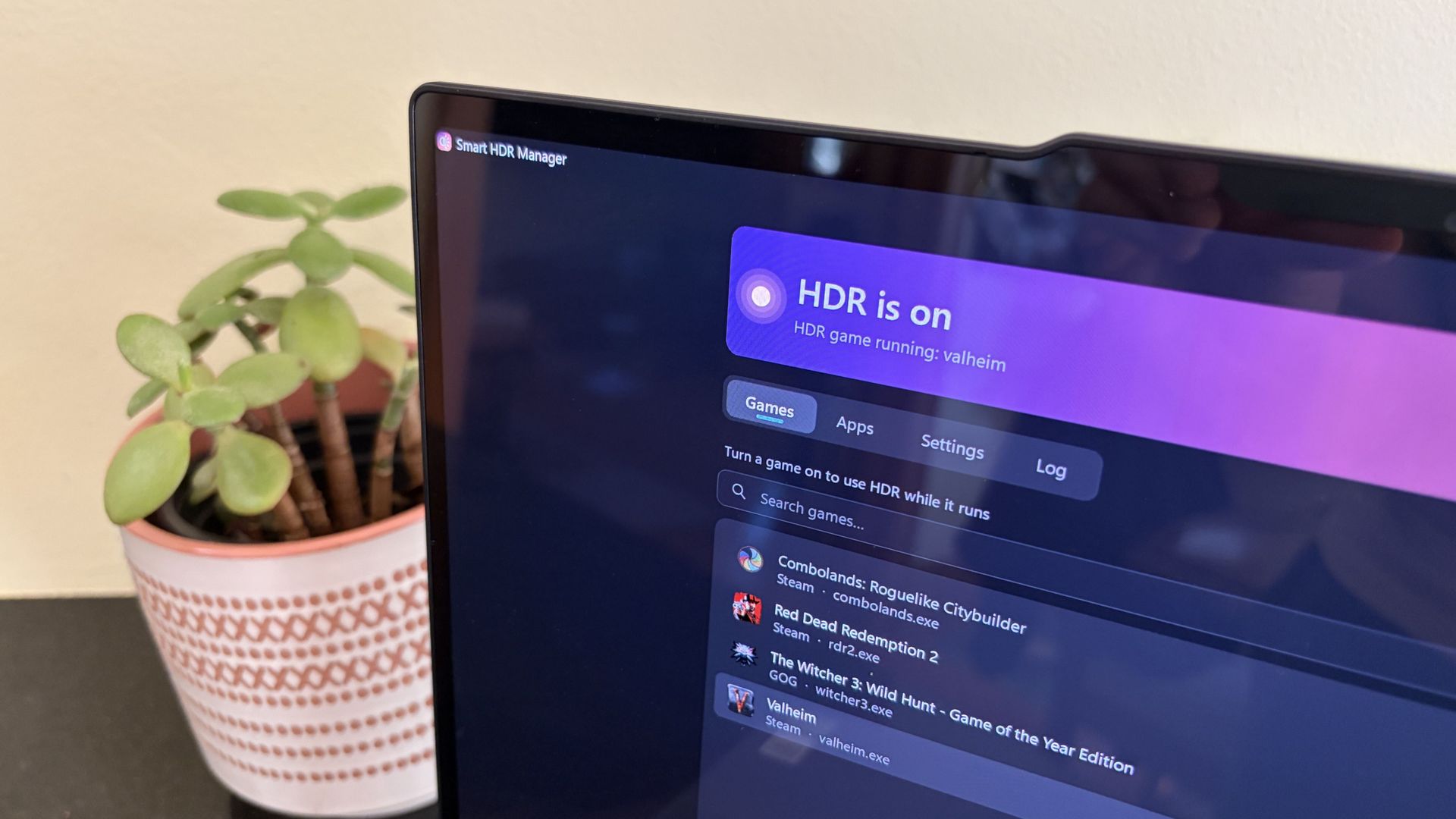
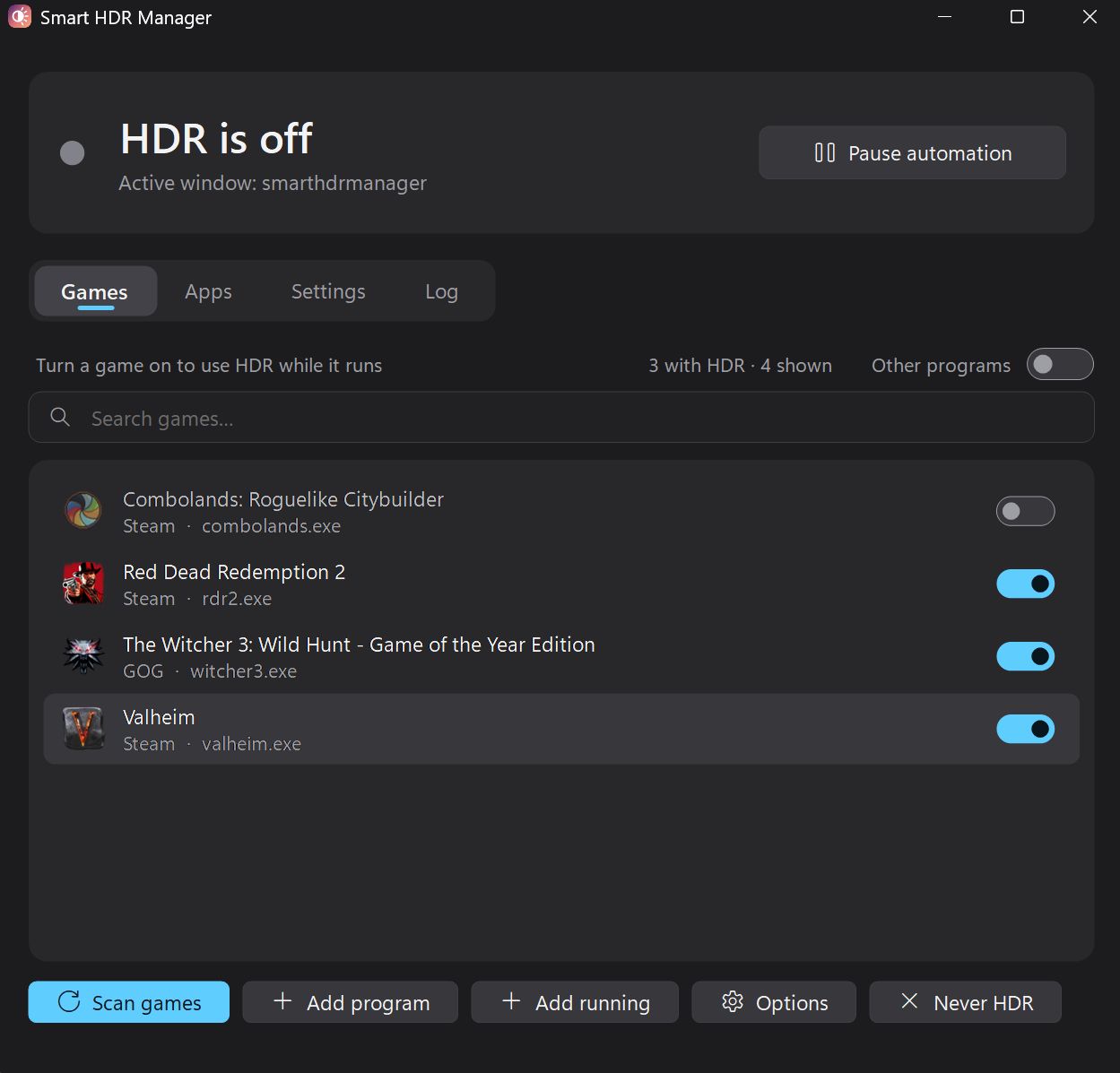
The app immediately found the games installed on my ARM64 laptop. (Image credit: Future)
Smart HDR Manager essentially bridges the gap between Windows HDR and the content you're playing or viewing on your PC.
When a game launches or an HDR video starts playing, Smart HDR Manager automatically makes the switch from SDR to HDR on your system. When you close the game or finish watching a video, it automatically reverts Windows to SDR.
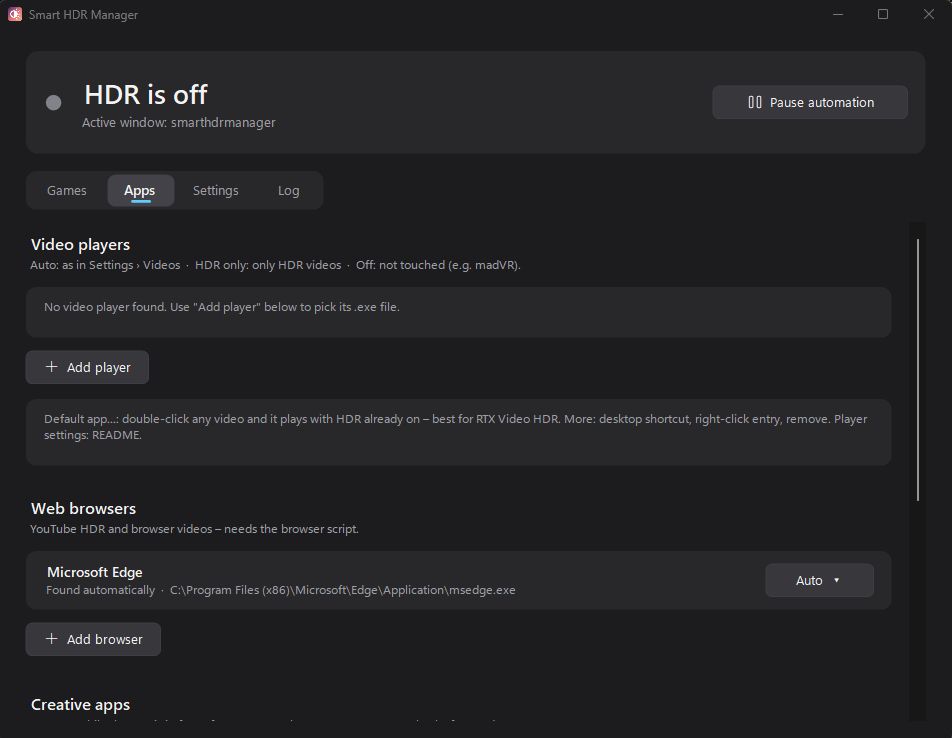
Smart HDR Manager handles video players, web browsers, creative apps, and recording/streaming software. (Image credit: Future)
Within the app, you can automatically scan your system for games held in apps like Steam, Xbox, and Epic, or you can manually add each one that you want to enjoy in HDR.
A separate "Apps" tab is home to video players, web browsers, creative apps, and streaming software like OBS Studio and Streamlabs.
On the note of web browsers, those who don't mind a couple of minutes of extra work can create a Tampermonkey script to automatically recognize YouTube HDR videos within Edge or Chrome. The GitHub page has full instructions on how to do this.
One final trick for those with NVIDIA RTX GPUs is RTX Video HDR support. It can turn SDR videos into HDR automatically, just as long as you have HDR enabled in the NVIDIA app's RTX Video Enhancements section.
Windows Central's take
OLED monitors are practically begging for HDR. (Image credit: Future)
I didn't care much about HDR until I upgraded full-time to an OLED monitor. Now, with the deep color and contrast afforded by the OLED panel, it's something that I want to use as much as possible, where applicable.
That's really the biggest issue that most Windows users have with HDR; it doesn't kick on automatically when HDR content is being displayed. You have to enable it manually before viewing or playing content, and it doesn't turn off when you're finished.
Why isn't this a native feature to Windows? That's a question I can't answer.
Leaving HDR enabled across Windows without any actual HDR content in view leads to washed-out colors and odd SDR mapping. It's something that I imagine just about everyone who's mucked around with stock HDR implementation on Windows has experienced.
Smart HDR Manager is a work in progress, but I haven't yet had any issues while playing games or while watching videos. It turns HDR on when I need it, and turns it off when I don't.
Why isn't this a native feature of Windows? That's a question I can't answer. I'm just glad someone took care of the problem. Try out Smart HDR Manager on standard Windows or Windows on ARM. The latter is still in an experimental stage, but it seems to be working well so far.
Join us on Reddit at r/WindowsCentral to share your insights and discuss our latest news, reviews, and more.
When Microsoft announced the first wave of RTX Spark laptops, many were intrigued by the superchips inside the PCs. But I went a bit more surface-level, pun intended. During the Windows and Surface event, eagle-eyed viewers spotted a striking wallpaper across the new laptops.The wallpaper is reminiscent of Windows 11's Bloom wallpaper, but it stands out for having a single curve and contrasting colors. As much as I like the Bloom wallpaper, it's been remixed seve
When Microsoft announced the first wave of RTX Spark laptops, many were intrigued by the superchips inside the PCs. But I went a bit more surface-level, pun intended. During the Windows and Surface event, eagle-eyed viewers spotted a striking wallpaper across the new laptops.
The wallpaper is reminiscent of Windows 11's Bloom wallpaper, but it stands out for having a single curve and contrasting colors. As much as I like the Bloom wallpaper, it's been remixed several times by Microsoft and enthusiasts, so it's time for a new Windows wallpaper.
Sadly, Microsoft did not release the image after unveiling the new laptops. I waited with anticipation for the release of the RTX Spark laptops, but even when the Surface Laptop Ultra review went live, the new wallpaper was nowhere to be found. Microsoft even mocks us by having a blacked-out version of the wallpaper on the retail listing of the Surface Laptop Ultra.
(Image credit: Microsoft)
Desperate to get my hands on the new wallpaper, I scoured reviews of the ASUS ProArt P16, HP OmniBook Ultra 16, and Surface Laptop Ultra only to be disappointed.
But a hero emerged, saving me from settling for an AI recreation of the wallpaper. Discord user TechosaurusRex discovered the wallpaper in the app files for Microsoft's Retail Demo Experience. Seemingly, Microsoft's plan was to tease us by showing the wallpaper on display retail units but not include the image on purchased PCs.
Luckily, TechosaurusRex stepped up and shared the wallpaper, ending my quest. Sadly, the above version is compressed to ensure our site loads quickly. I'll share the full resolution version as soon as possible.
Join us on Reddit at r/WindowsCentral to share your insights and discuss our latest news, reviews, and more.
Microsoft officially released Windows 11 26H2 for all users. You can install it via Windows 11 Settings. With Windows 11 version 26H2, Windows Settings are now backed up by default on all eligible enterprise devices. This feature makes it easier to restore your settings and preferences when you move to a new computer. This article […]
The post Windows Settings are now backed up by default appeared first on TheWindowsClub News.
Microsoft officially released Windows 11 26H2 for all users. You can install it via Windows 11 Settings. With Windows 11 version 26H2, Windows Settings are now backed up by default on all eligible enterprise devices. This feature makes it easier to restore your settings and preferences when you move to a new computer. This article […]
Microsoft will remove eight OneDrive Copilot shortcuts from File Explorer starting in November 2026, changing how users access AI-powered file tools.
The post Microsoft Is Removing 8 Copilot Shortcuts From File Explorer — Here’s What Stays appeared first on TechRepublic.
SameMovie saves movies and full TV seasons as MP4 or MKV files you can watch on a flight or anywhere offline.
The post Pay $100 Once to Download Shows From 1,000+ Sites for Offline Viewing appeared first on TechRepublic.
Microsoft is working on a small yet meaningful change to the lock screen and sign-in experience on Windows 11 that will streamline the authentication process that users must go through to log into their desktop. The current Windows sign-in flow requires the user to manually select the method of authentication they wish to use to login. If you've set up a PIN, face unlock, and fingerprint unlock, the only method of authentication that is active is the one you manu
Microsoft is working on a small yet meaningful change to the lock screen and sign-in experience on Windows 11 that will streamline the authentication process that users must go through to log into their desktop.
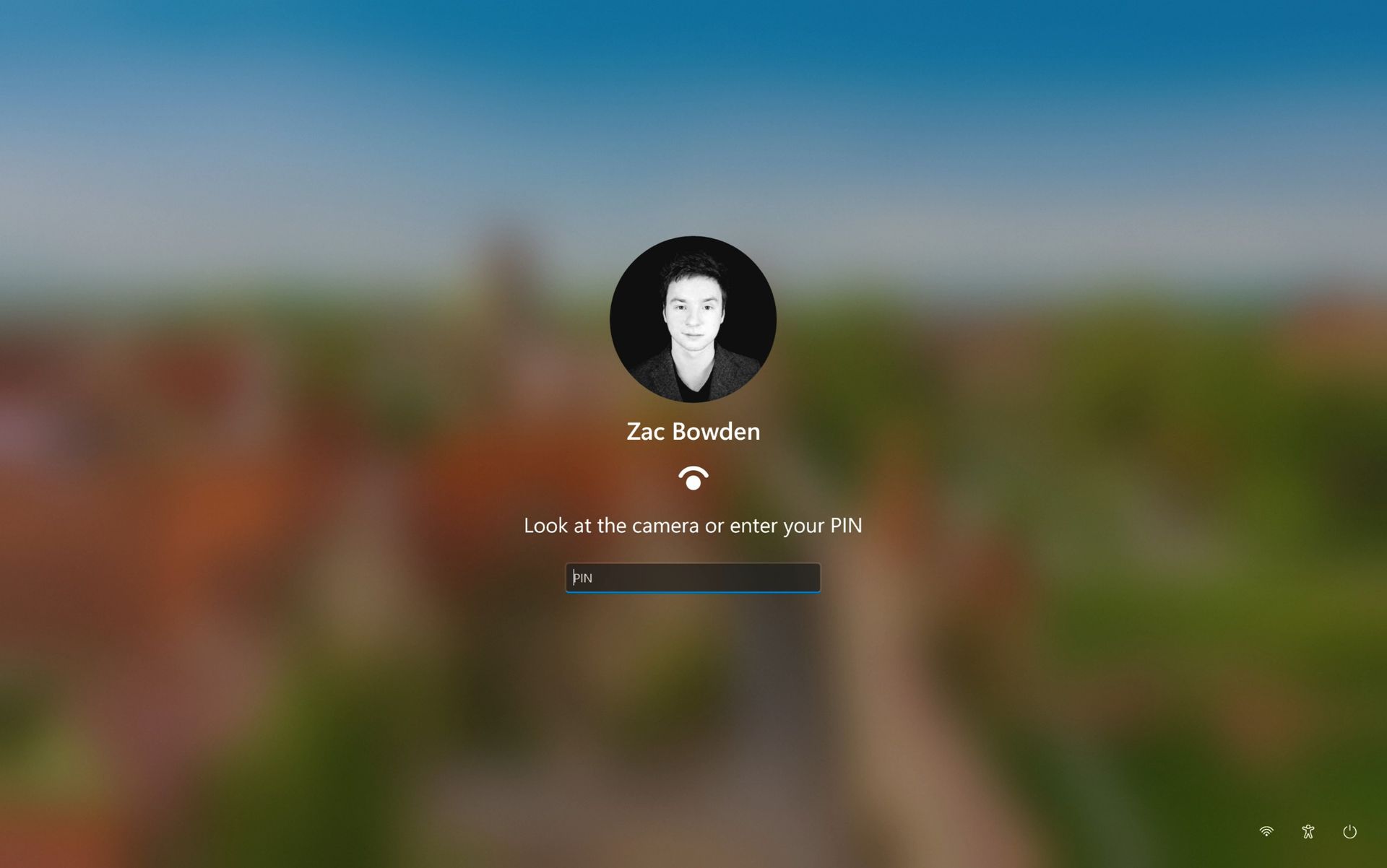
The current Windows sign-in flow requires the user to manually select the method of authentication they wish to use to login. If you've set up a PIN, face unlock, and fingerprint unlock, the only method of authentication that is active is the one you manually click on to use on the lock screen.
This is a huge gripe of mine, and it's super frustrating when you want to login using your face, but Windows has selected PIN or fingerprint. It means your webcam isn't looking for you in that moment, and you have to manually switch to face unlock to force Windows into checking for your face and logging in.
Well, it looks like this is finally changing. In the latest Windows 11 preview builds, a hidden feature ID enables a new experience that automates this. Now, by default, the PIN box is always on show, but face unlock and fingerprint unlock are also active and ready to authenticate at the same time.
No longer does the user need to manually choose their login method. (Image credit: Zac Bowden / Windows Central)
This means users no longer need to manually select the login method of their choice. Windows will automatically capture whichever biometric authentication method is set up, even when the PIN box is on screen. This also means the lock screen looks cleaner as a result, as the options to choose which authentication method you want to use is no longer displays as it's not necessary. It's also faster for those with biometric authentication enabled.
I really like this change, as it encourages Windows to keep trying my face unlock even if it fails the first time. Of course, there's an eventual timeout if it fails too many times, but I find it is able to log me in before it ever reaches that point. Also, being able to just type my PIN without having to manually select the PIN option first is also great.
Microsoft is yet to announce this new sign-in flow, but I suspect it won't be long until it's officially put into testing as it's already very polished and has been in the works for a number of months now. What do you think? Is this a good change for the Windows lock screen? Let us know in the comments.
Join us on Reddit at r/WindowsCentral to share your insights and discuss our latest news, reviews, and more.
Windows 11 offers controls for diagnostic data, location access, clipboard syncing, and personalized recommendations. Here's how to review seven privacy settings and understand their trade-offs.
The post 7 Windows 11 Privacy Settings You Should Check in 2026 appeared first on TechRepublic.
Windows 11 offers controls for diagnostic data, location access, clipboard syncing, and personalized recommendations. Here's how to review seven privacy settings and understand their trade-offs.
In what may be one of the year's least surprising stories, Microsoft's VP of Product Design, Diego Baca, has explained how AI is being used to help designers after being asked whether it's possible to launch a "fleet of viable agents" to address issues in Windows 11. On AI agents, 100% agree. I’m not the best person to speak to the engineering side, but AI has already helped our design team accelerate significantly. We’re even seeing designers contribute directly
In what may be one of the year's least surprising stories, Microsoft's VP of Product Design, Diego Baca, has explained how AI is being used to help designers after being asked whether it's possible to launch a "fleet of viable agents" to address issues in Windows 11.
On AI agents, 100% agree. I’m not the best person to speak to the engineering side, but AI has already helped our design team accelerate significantly. We’re even seeing designers contribute directly to code fixes that improve craft, consistency, and quality. That’s exciting progress, and we’re only getting started.
Microsoft acknowledges Windows 11's longstanding design inconsistencies as AI helps accelerate improvements across the operating system. (Image credit: Microsoft)
“Consistency across Windows is something we all want, and it’s an active workstream we’re continuing to accelerate,” he explained.
And to be fair, I have to agree. Windows 11 is now five years old (that's made me feel so old), yet parts of the operating system still feel like they're lacking the modern stylings, almost as though some of it still belongs in Windows 7, or even earlier, as Windows Latest points out in its own take.
Don't get me wrong, Microsoft has made progress, particularly with its efforts to modernize Windows Search, Run, and other legacy interfaces using WinUI 3. But I do wish these inconsistencies had been addressed before Windows 11 launched, though perhaps I’m wishing for too much.
Baca also acknowledged the criticism, admitting, “Finally, I completely recognize that people expect more from Windows. We expect more from ourselves, too.”
Finally, he added that Microsoft hopes to “earn back your enthusiasm for Windows through what we deliver, not just what we say.” It’s a refreshingly open response, and one I massively appreciate. How do you feel about Diego Baca's comments? Let me know in the comments and be sure to take part in our poll below:
Join us on Reddit at r/WindowsCentral to share your insights and discuss our latest news, reviews, and more.
Microsoft is testing a way to update Edge without forcing a restart, potentially letting you keep working while it switches to a more secure version.Browser updates can interrupt your work, so you might put off restarting the browser. However, this can delay important security fixes. Microsoft's solution aims to solve both problems by updating Edge in the background while keeping compatible tabs open. The project is still an early experiment, not a feature you ca
Microsoft is testing a way to update Edge without forcing a restart, potentially letting you keep working while it switches to a more secure version.
Browser updates can interrupt your work, so you might put off restarting the browser. However, this can delay important security fixes. Microsoft's solution aims to solve both problems by updating Edge in the background while keeping compatible tabs open.
The project is still an early experiment, not a feature you can use today. Microsoft says the prototype isn't part of Edge's production code or the Chromium project.
Microsoft wants Edge updates to be seamless
Currently, browser updates require a restart to safely switch to a newer version. Although Microsoft Edge can restore your open tabs afterward, restarting can still interrupt your work. Microsoft's prototype aims to change that by downloading an update in the background and moving the browser and its supporting processes to the newer version while keeping your work available.
For example, imagine you're filling out a long online form when a security update becomes available. Instead of asking you to restart Edge and interrupt your work, the browser would update in the background while you continue working.
Microsoft demonstrated the prototype in a video, and when the company clicked the "Update" button, the browser switched to the new version while keeping compatible tabs open. Eventually, the goal is to apply updates automatically without requiring users to click anything.
One limitation is that existing tabs can stay open only if they're compatible with the new version. Other tabs will switch to the updated version when you navigate to them.
AI makes faster security updates more important
(Image credit: Future | Daniel Rubino)
The project isn't only about convenience. Microsoft notes that AI is accelerating vulnerability discovery and changing the pace of attacks, increasing the need to roll out security fixes more quickly. The company describes the time between a security fix becoming available and an update being applied as the "patch gap." During this period, users who don't install the fix remain vulnerable.
A security update can only protect you after apply it. Restarts add friction to that gap: people may keep a browser open for days because they are in the middle of something important.
Microsoft
The requirement to restart the browser can also make the problem worse when people postpone updates because they don't want interruptions. As a result, applying security updates faster could reduce the time users remain exposed to known vulnerabilities.
So, when can we use it?
This isn't built into the current version of the browser, so don't go through the settings trying to find the option. Microsoft says that the prototype isn't part of the browser or the Chromium project. Instead, the company is sharing its work early and inviting developers and other organizations to collaborate on this project.
Edge already has an update option for idle devices
(Image credit: Daniel Rubino / Windows Central)
While the company continues developing its new update mechanism, Microsoft Edge already offers a feature called "Restart to update on idle," previously known as "Instant Updates."
The feature restarts Edge when your device is idle, installs the update, and reopens your tabs. It still requires a restart, but the interruption happens when you're not using the browser.
What's next?
For now, Microsoft Edge's existing update options help reduce delays, while the seamless-updates prototype offers a glimpse of what could come next. Microsoft hasn't announced when, or whether, this approach will become available. The company is sharing the prototype early to encourage collaboration with the community.
However, we'll have to wait and see whether the concept will make it into a future version of the browser. What are your thoughts on this new way to update the browser? Let me know in the comments.
More resources
Explore more in-depth how-to guides, troubleshooting advice, and essential tips to get the most out of Windows 11 and 10. Start browsing here:
In this episode of the Windows Central Podcast, Daniel Rubino and Zac Bowden regroup following a week of extensive hands-on hardware testing and benchmarking. The central focus is the initial review wave for the Surface Laptop Ultra and the broader Nvidia RTX Spark mobile platform.Zac details his full review of the Surface Laptop Ultra, highlighting its MacBook-inspired design improvements, haptic touchpad, outstanding audio, sleep battery efficiency, and magneti
In this episode of the Windows Central Podcast, Daniel Rubino and Zac Bowden regroup following a week of extensive hands-on hardware testing and benchmarking. The central focus is the initial review wave for the Surface Laptop Ultra and the broader Nvidia RTX Spark mobile platform.
Zac details his full review of the Surface Laptop Ultra, highlighting its MacBook-inspired design improvements, haptic touchpad, outstanding audio, sleep battery efficiency, and magnetic USB-C connector—while contrasting its 2,000-nit Mini-LED display against competing Tandem OLED panels. Daniel shares first impressions of two rival RTX Spark flagships: the ultralight 3.9 lb ASUS ProArt P16 and the robust HP OmniBook Ultra 16.
The hosts dig into real-world local AI and agentic workflows (including tests with Hermes Agent and local LLMs), explain the critical architectural advantage of configurable unified memory allocations for GPUs, discuss gaming performance with DLSS/frame gen, and showcase the newly launched ASUS ROG Xbox Ally X20 handheld console bundle featuring XREAL AR glasses.
This episode of the Windows Central Podcast is sponsored by Surfshark VPN. Unlimited devices, access your content from anywhere, and auto-block malware on Windows, Edge, and other platforms from $2.50/mo, with 3 months extra FREE. Sign up today!
[01:44] – Introduction: Daniel and Zac kick off Episode 407, outlining their week spent benchmarking and testing retail RTX Spark laptops and handhelds.
[05:51] – Surface Laptop Ultra Design & Build: Zac breaks down the chassis aesthetics, MacBook Pro styling parallels, lack of a notch, seamless lid lip design, and weight (4.5 lbs).
[08:00] – The Mini-LED Display: Deep dive into Microsoft’s 2,000-nit Mini-LED panel, evaluating ghosting zones (1,344 dimming zones), glossy reflections, and comparisons to Tandem OLED screens.
[13:09] – Battery Life & Standby Sleep Performance: Real-world longevity on the 92 Wh battery (10–12 hours light use) and standout sleep endurance matching Apple Silicon.
[15:18] – Magnetic Breakaway USB-C: Testing the breakaway angle, data capabilities, and custom charging brick interoperability.
[18:04] – RTX Spark CPU & Gaming Benchmarks: Breakdown of 20-core multi-threaded CPU output versus single-core scores, plus gaming results with DLSS in titles like Cyberpunk 2077 (approaching RTX 4070/5060 laptop levels).
[25:59] – Local AI & Unified Memory Allocation: Why configurable system RAM sharing to the GPU CUDA cores enables large local LLM deployment that traditional gaming laptops cannot match.
[29:11] – Agentic AI Experiments: Practical workflows with Hermes Agent, desktop automation in Photoshop, automatic folder cleanup, and local data safety risks.
[46:00] – Speakers, Haptics & Missing Copilot+ Features: Praise for the class-leading haptic signals and audio alongside the notable delay of Windows Recall and semantic search on RTX Spark.
[53:56] – ASUS ProArt P16 Review Preview: Daniel highlights the 3.9 lb featherweight design, dual-fan thermals, 4K anti-reflective touch options, and port selection.
[58:50] – HP OmniBook Ultra 16 Breakdown: Frame build quality, rear tower exhaust design, Zero-Lattice Gen 2 keyboard, and compact 140W GaN charger.
[01:06:08] – PCIe SSD Speed Shootout: Massive speed discrepancies across devices—Surface’s 14,000 MB/s drive vs. HP's 10,000 MB/s and ASUS’s variable read speeds.
[01:14:55] – ASUS ROG Xbox Ally X20 Handheld Impressions: Translucent chassis, 7.4-inch 120Hz anti-reflective OLED panel, Z2 Extreme performance, and testing the bundle with XREAL AR glasses.
[01:24:02] – Live Audience Q&A: Viewer questions regarding boot/restart bugs, NVMe expansion, OneDrive Microsoft 365 storage allocation backlash, and future low-tier RTX Spark silicon.
Have a question you want us to answer on the podcast? Send it to us at [email protected]
Windows 11 Photos is getting a faster editor, improved viewer, and connected gallery. Here's what's changing and when the update arrives.
The post Windows 11 Photos Gets a 25% Faster Editor — Here’s Who Gets It First appeared first on TechRepublic.
Microsoft's October Windows Server updates may disrupt Exchange email. Here's what administrators need to know about the temporary workaround.
The post Microsoft Warns Windows Server Updates May Disrupt Exchange Email — Here’s the Workaround appeared first on TechRepublic.

 Connexion