❌

Vue normale

  • ✇Yanko Design
  • Logitech’s MX Master 4 Developer Edition Is a Mouse Full of Coding Easter Eggs
    Productivity mice aren’t usually the most expressive things on a desk. Their unusual curves and extra buttons often say more about work than the person doing it. Logitech’s MX Master 4 Developer Edition takes a slightly different approach, covering its familiar shape in programming references. The limited-edition mouse keeps the standard model’s features, but gives developers something a little more personal to reach for. Rather than stick to a single muted color, the mouse pairs light gray but
     

Logitech’s MX Master 4 Developer Edition Is a Mouse Full of Coding Easter Eggs

Par : JC Torres
28 octobre 2026 à 04:15

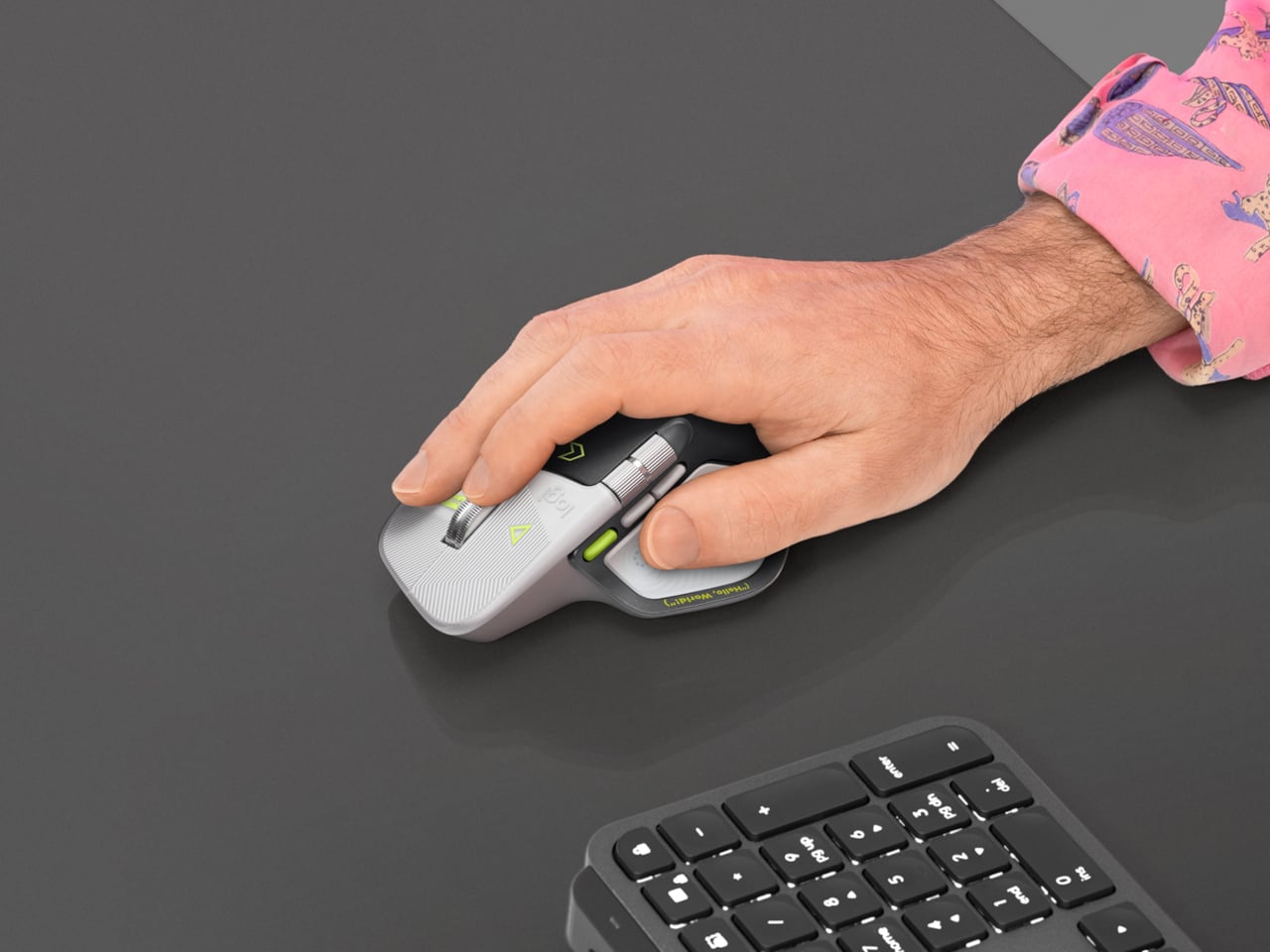
Productivity mice aren’t usually the most expressive things on a desk. Their unusual curves and extra buttons often say more about work than the person doing it. Logitech’s MX Master 4 Developer Edition takes a slightly different approach, covering its familiar shape in programming references. The limited-edition mouse keeps the standard model’s features, but gives developers something a little more personal to reach for.

Rather than stick to a single muted color, the mouse pairs light gray buttons with a dark palm rest and bright yellow-green accents. Fine circuit-like lines spread across the front, while coding symbols sit beside the controls. It’s a busier treatment than the regular version, of course, but the graphics follow the mouse’s existing divisions instead of covering everything in one continuous pattern.

Designer: Logitech

Some references are easier to recognize than others. A Hello, World greeting runs along the thumb rest, while smaller markings include 0xFF + 1 and 09.17. Logitech links those last two to Programmers’ Day and the Linux kernel’s release date. You don’t have to understand them to use the mouse, thankfully, although knowing the references does make its decoration feel rather less random.

Underneath that artwork, the familiar sculpted body remains, including a raised back and a broad platform for your right thumb. That thumb gets quite a few responsibilities, with a horizontal scroll wheel, side buttons, and the Haptic Sense Panel within reach. The asymmetric shape hasn’t become ambidextrous for this edition, so left-handed programmers are still left admiring the graphics from the wrong side.

The MagSpeed wheel handles the more familiar business of moving through long documents and code. It switches between stepped scrolling and free-spinning movement, letting you work line by line or move farther through a page. The thumb wheel provides horizontal navigation, which is useful when the thing you’re working on refuses to fit neatly inside a window, as spreadsheets have a habit of doing.

The ripples on the thumb panel hint at another kind of feedback. Rather than relying entirely on what happens onscreen, the mouse can deliver vibrations for supported actions and notifications. Logitech lets users adjust their intensity and customize app-specific feedback through Logi Options+. That doesn’t mean every application suddenly gains a sense of touch, but compatible interactions can have a physical cue.

Pressing the panel also opens Actions Ring, an onscreen collection of shortcuts arranged around the cursor. You can assign tools and macros through Options+, putting frequently used commands near where you’re already working. There is a small irony here, however. Despite the Linux reference on the shell, Logitech doesn’t provide a Linux version of Options+ for configuring that particular shortcut system.

The Developer Edition is listed for US preorder at $119.99, with shipping scheduled to start October 31, 2026. Since its functions match the standard MX Master 4, the choice comes down to how much personality you’d like under your hand. Existing owners won’t find new capabilities here, though the temptation to coordinate a keyboard, desk mat, and everything else remains.

The post Logitech’s MX Master 4 Developer Edition Is a Mouse Full of Coding Easter Eggs first appeared on Yanko Design.
  • ✇Yanko Design
  • The $100 Keypad That Puts Each AI Coding Tool Behind Its Own Button
    Every developer juggling AI agents right now knows the feeling of context switching until the whole workflow blurs together. Copilot suggests something in one window, Claude Code runs a task in another, and a dozen prompts live scattered across notes and muscle memory. The Logitech MX Keypad exists to collapse all of that into nine small screens sitting next to the keyboard, each one a physical shortcut into a specific piece of that chaos. Every key on the keypad carries its own full-color LCD
     

The $100 Keypad That Puts Each AI Coding Tool Behind Its Own Button

Par : JC Torres
8 septembre 2026 à 10:20

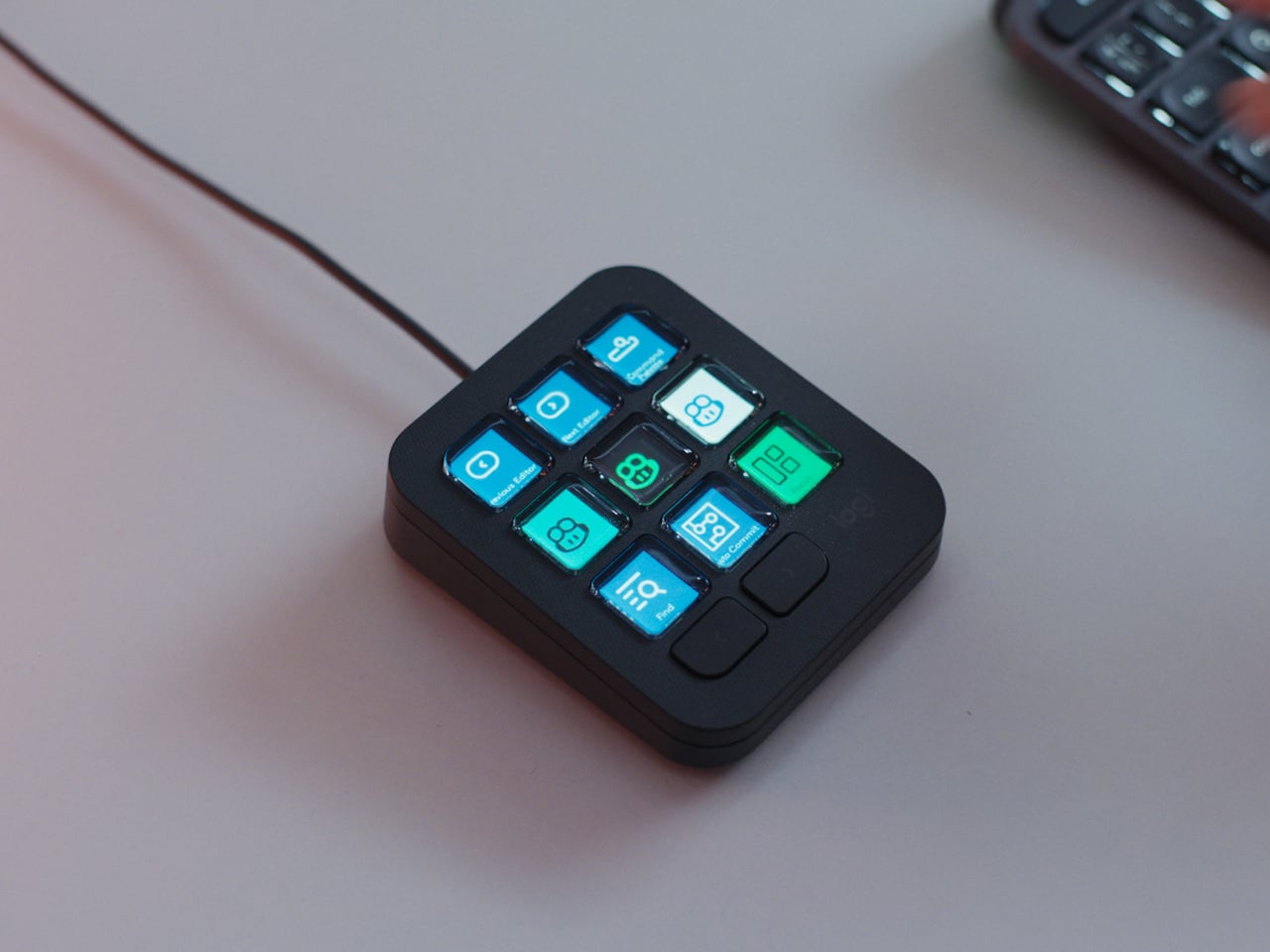
Every developer juggling AI agents right now knows the feeling of context switching until the whole workflow blurs together. Copilot suggests something in one window, Claude Code runs a task in another, and a dozen prompts live scattered across notes and muscle memory. The Logitech MX Keypad exists to collapse all of that into nine small screens sitting next to the keyboard, each one a physical shortcut into a specific piece of that chaos.

Every key on the keypad carries its own full-color LCD display, so instead of memorizing which function key does what, you glance down and see an icon that actually represents the command underneath it. Press one, and it can refactor a function, trigger a prompt macro, or hand off a task to an AI agent entirely. That small visual feedback loop turns an abstract keyboard shortcut into something closer to a labeled button on a control panel.

Designer: Logitech

What makes the hardware worth paying attention to is where Logitech chose to draw the compatibility line. Instead of building this around one coding environment, the MX Keypad works across GitHub Copilot, Claude Code, VS Code, and IntelliJ IDEA at once. A developer bouncing between an IDE and a terminal-based AI agent doesn’t need separate tools for each, just a different page of keys pulled up on the same nine buttons.

That pattern of paging matters more than it sounds. The keypad can hold multiple profiles, so switching from a Python project running through Copilot to a JavaScript refactor handled by Claude Code becomes a single tap rather than a mental reset. Anyone who has lost a train of thought hunting through browser tabs for the right prompt will recognize the value in never breaking eye contact with the code itself.

Underneath the surface, the MX Keypad ships with prebuilt plugins that Logitech had developers test directly against real coding platforms, rather than shipping generic templates and hoping they fit. An SDK opens the door further, letting teams build their own tools around internal workflows, while a community marketplace means the plugin library keeps growing without waiting on Logitech’s own release schedule.

None of that ambition comes wrapped in bulky, wasteful materials either. The body is made with recycled plastics, keeping the hardware in line with the sustainability commitments Logitech has built into its broader MX ecosystem. It is a small detail, but for a device meant to live permanently on a desk, it matters that the object itself doesn’t feel disposable.

At $99.99, the MX Keypad occupies a strange but clarifying position in a developer’s setup. It doesn’t replace a keyboard, and it doesn’t try to be an AI tool in its own right. Instead, it works like a translator between fast-moving human intent and the growing swarm of coding agents developers now manage daily, one labeled key at a time.

The post The $100 Keypad That Puts Each AI Coding Tool Behind Its Own Button first appeared on Yanko Design.

❌