With Sony planning to stop making discs for games and revoke access to movies and TV shows people paid for, physical media is more important than ever. Xbox is considering a disc-to-digital program for Project Helix, proving Microsoft weighs the importance of physical media when making decisions.But the physical media debate isn't really about discs; it's about control. People want to control the content and devices they've purchased. Microsoft's newly expanded o
But the physical media debate isn't really about discs; it's about control. People want to control the content and devices they've purchased. Microsoft's newly expanded options for resetting PCs showcase how choice and control can be given to consumers.
Like many, I've spoken out against Sony's plans and advocated for physical media to be preserved. So, it might come as a surprise to hear that I'm happy about the new option to reset a Windows 11 PC that relies entirely on the cloud and does not use a USB drive.
While I advocate for physical media to preserve ownership of games and movies, when it comes to the pure utility of fixing a broken PC, convenience wins.
A new feature called Cloud rebuild is in testing on Windows 11. It lets you restore a PC to a clean state without needing an external drive.
What is Cloud rebuild on Windows 11?
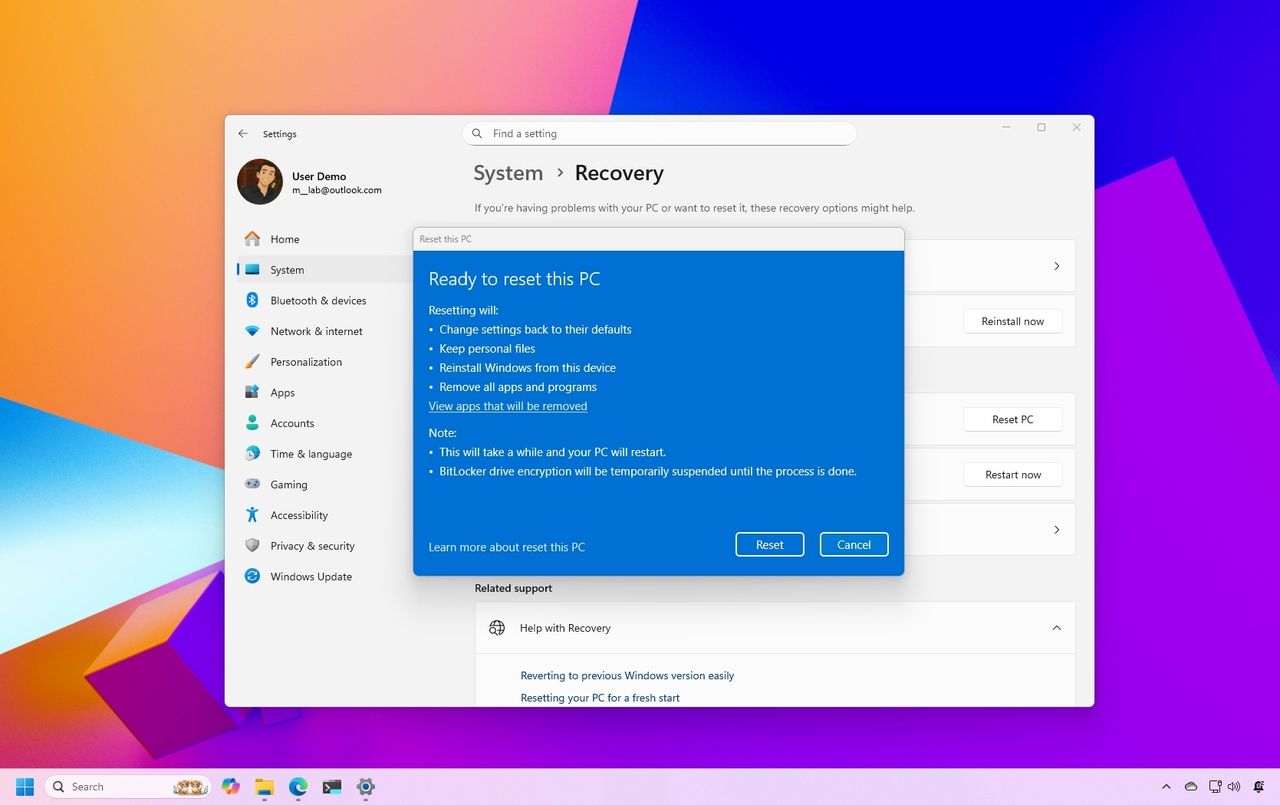
Microsoft has added a new option to reset your PC by using the cloud, but the previous options remain in place. (Image credit: Daniel Rubino / Windows Central)
Cloud rebuild is a feature that lets you reinstall Windows and your PC's drivers by using the internet. Rather than requiring a USB drive that's been set up, you can reset your PC entirely through the cloud.
"Unlike Reset this PC, Cloud rebuild downloads both the target Windows image and the device's drivers from Windows Update, so the device comes back fully functional without USB media, without a custom image, and without depending on the health of the currently installed OS."
While Reset this PC and Cloud rebuild both let you recover your PC, they differ in important ways apart from the fact that one uses a USB drive and the other uses the cloud.
Reset this PC gives you the option to retain your personal files, which could save vital content from being lost. But even if you have an external USB install drive ready to go, you can only use Reset this PC if Windows is bootable.
The feature also requires you to have manually created a USB installer ahead of time on a working computer.
In contrast, Cloud rebuild works even if your PC refuses to boot. The downside is that it does not provide an option to maintain apps and files.
Cloud rebuild brings your PC to a clean slate with Windows working and device drivers in place.
The biggest advantage of Cloud rebuild is reliability. Cloud rebuild doesn't rely on a tool you've set up in advance or ensured was formatted correctly. It just pulls a fresh image and drivers through Windows Update.
All my files are stored on OneDrive and backed up elsewhere, so I don't need the option to retain my files. It would save a bit of time after a reset, but it's not essential.
Cloud rebuild does depend on having an internet connection, so a USB installer is still the safer option for people in low‑connectivity environments.
Let the people decide
Of course, having the option to use a USB drive or the cloud is best. While I personally prefer Cloud rebuild for restoring my PC, I want both options to be available. Many people prefer to have physical tools they know are reliable and that can run locally.
That's what the current debate about physical media comes down to: choice and control. The vast majority of game sales are digital, but people want the option to own physical media.
Windows 11 management is the same way. Some will rely on the cloud while others will have USB drives to reset their PC and SSDs stored away to back up files.
Cloud rebuild is the better option for my workflow, but the point isn’t to replace USB recovery. It’s to give people the choice and control. Just like physical media, recovery tools shouldn’t be taken away; they should coexist.
Join us on Reddit at r/WindowsCentral to share your insights and discuss our latest news, reviews, and more.
Windows 11 reset to factory settings
Windows 11 is testing a new Cloud rebuild feature to reset your PC without a USB drive.
Microsoft is using AI to protect Windows against attackers. The development represents an arms race because AI is also being used increasingly to find vulnerabilities modern tech, as highlighted by The Hacker News.Hackers can use AI to find and take advantage of vulnerabilities that could then be weaponized. It's not just discovery that's been sped up, reverse engineering security flaws is now a quicker process because of AI. That means attackers can find flaws a
Microsoft is using AI to protect Windows against attackers. The development represents an arms race because AI is also being used increasingly to find vulnerabilities modern tech, as highlighted by The Hacker News.
Hackers can use AI to find and take advantage of vulnerabilities that could then be weaponized. It's not just discovery that's been sped up, reverse engineering security flaws is now a quicker process because of AI. That means attackers can find flaws and quickly take advantage of them before traditional methods of protection could take effect.
To combat those malicious actors and evolving tactics, Microsoft is deploying MDASH (Multi-Model Agentic Scanning Harness) at scale across Windows.
Pavan Davuluri, EVP of Windows and Devices at Microsoft, shared a blog post about the new methods the company is using to protect Windows.
"The fastest way to reduce customer exposure is to find issues before attackers can use them," said Davuluri. "Windows is expanding its ability across the platform to find issues earlier, accelerate the engineering work to fix them, strengthen validation, and deliver timely, high-quality updates that keep customers protected."
Using AI to identify potential flaws, prioritize fixes, and scale discovery across the codebase of Windows lets Microsoft quickly roll out protection to customers.
To scale MDASH to Windows, a dedicated cloud infrastructure was set up for scanning for potential flaws. A separate prove pipeline then is used to eliminate false positives. The Windows engineering team can then act on the most likely candidates that need addressing.
Microsoft will expand its use of AI for scanning and proving to other parts of the company.
Using AI to improve work
When Microsoft announced 4,800 layoffs across the company, its leaders emphasized that the eliminated roles are not being replaced by AI. People across a wide range of sectors are concerned about automation taking human jobs.
The approach Microsoft is using to scan for issues and streamline the selection process of candidates to address represents AI helping people rather than replacing workers.
When speaking of improving internal systems and practices, Davuluri said, "That means using AI to help identify potential issues earlier in the development process, while relying on human expertise to evaluate findings, make risk-based decisions and ensure fixes meet the quality bar customers expect."
The end result is that more security updates will be included in each security release, which should protect PCs from the growing number of attacks.
Join us on Reddit at r/WindowsCentral to share your insights and discuss our latest news, reviews, and more.
Suface Laptop for Business 8th Edition with a black keyboard and a modern design, displaying a blue abstract swirl on its screen, set against a light gradient background.
Suface Laptop for Business 8th Edition with a black keyboard and a modern design, displaying a blue abstract swirl on its screen, set against a light gradient background.
It looks like Microsoft is planning to make a small but interesting (ok, maybe not that interesting) change to Windows 11 in the coming weeks, one that has us scratching our heads a bit. The company has revealed (albeit accidentally) that it's making the search box that appears on the Taskbar and in the Start menu a little taller, by 4 whole pixels.4 pixels doesn't sound like much of a change, but it is a noticeable difference, if you can believe it. The change m
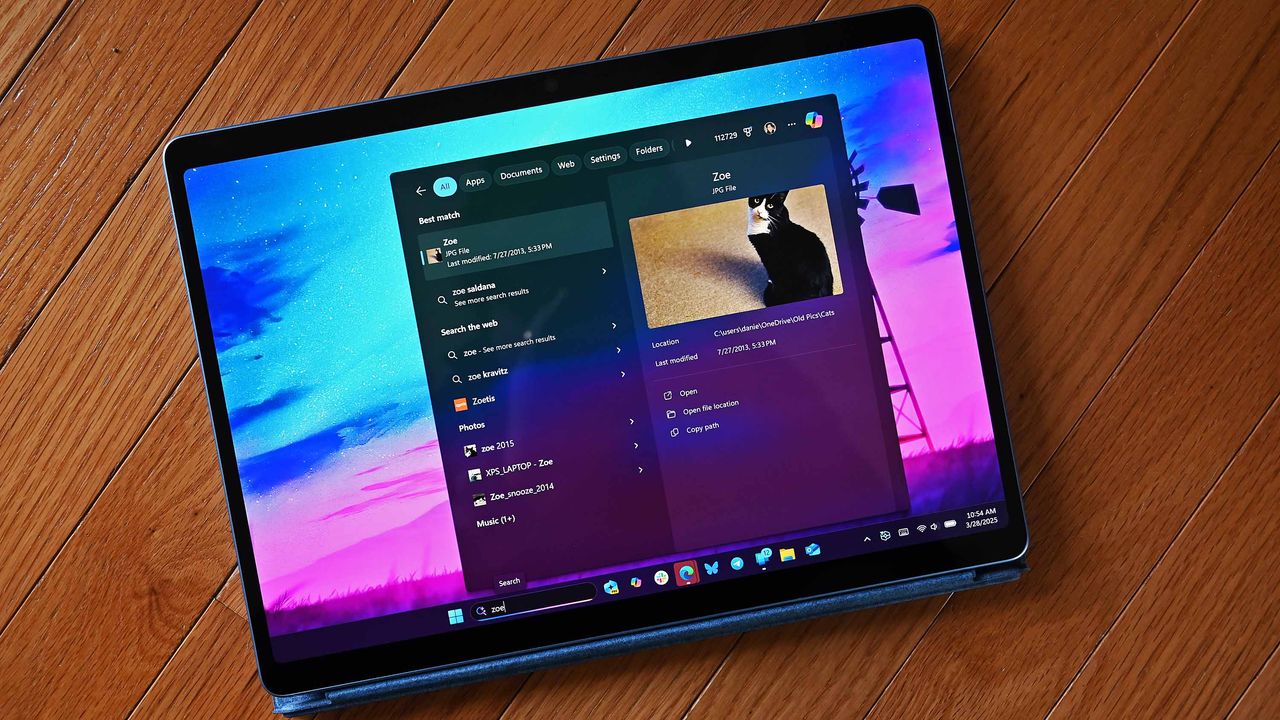
It looks like Microsoft is planning to make a small but interesting (ok, maybe not that interesting) change to Windows 11 in the coming weeks, one that has us scratching our heads a bit. The company has revealed (albeit accidentally) that it's making the search box that appears on the Taskbar and in the Start menu a little taller, by 4 whole pixels.
4 pixels doesn't sound like much of a change, but it is a noticeable difference, if you can believe it. The change makes the search box appear chunkier, taking up more visible space above and below it, and bringing it closer to the top edge of the Taskbar itself and slightly pushing content down in Start.
Here's a before and after of the Start menu and Taskbar, in gif format so that it loops making the difference very easy to identify:
Notice how things shift slightly when the thicker search box is enabled. (Image credit: Zac Bowden / Windows Central)
Microsoft hasn't explained why it's making this change, but if I had to guess, I'd say the change is being made to align it with the Ask Copilot search box appearance, which differs from the existing Windows Search search box.
Ask Copilot is an alternative search experience coming soon to the Taskbar on Windows 11 that incorporates Copilot chat directly into the user interface. It's currently aimed at commercial customers, and includes a thicker but narrower search box that appears on the Taskbar when enabled.
Ask Copilot is a separate UI to the standard Windows Search experience, and needs to be manually enabled before you can use it. That's why I think Microsoft is making the default search box 4 pixels taller, as the company likes the look of Ask Copilot and would like that appearance to apply to the default search box too.
Here's a closer look at the search box on the Taskbar comparing the new height to the old height. See, it is a noticeable difference! Investigative journalism at its finest on display here.
Top: The new taller search box. Bottom: The current search box. (Image credit: Zac Bowden / Windows Central)
Either way, you can likely expect to see the search box in the Start menu and on the Taskbar get slightly bigger in the coming months, as Microsoft begins rolling out the change to Insiders before making it generally available to all. The change was unveiled in a changelog for a recent Windows 11 preview build, but a Microsoft engineer has since confirmed to me that the change isn't yet being previewed.
Windows 11 includes several built-in tools to help keep storage usage under control on your computer. Features like Storage Sense, the Temporary Files settings page, and Storage Recommendation can help you reclaim storage with ease, making third-party cleanup utilities less essential than they once were.However, those features don't clean everything. If you want more control over temporary files, browser data, app caches, and privacy-related files, BleachBit is o
Windows 11 includes several built-in tools to help keep storage usage under control on your computer. Features like Storage Sense, the Temporary Files settings page, and Storage Recommendation can help you reclaim storage with ease, making third-party cleanup utilities less essential than they once were.
However, those features don't clean everything. If you want more control over temporary files, browser data, app caches, and privacy-related files, BleachBit is one tool you have to try. It's free, open source, and, unlike many PC "optimizer" apps, it focuses on cleaning unnecessary files rather than promising unrealistic performance improvements.
In this how-to guide, I'll explain what BleachBit does, how to use it on Windows 11, which settings I recommend, and which features you should avoid unless you understand exactly what they do.
What is BleachBit?
BleachBit is a free and open-source cleanup utility for Windows 11 that removes temporary files, caches, logs, browsing data, and other unnecessary files created by the operating system and many third-party apps.
Unlike many commercial cleanup tools, BleachBit doesn't include advertisements, bundled tools, or premium features. Instead, it gives you complete control over what gets removed and explains every cleaning option before you run it.
Rather than replacing the built-in cleanup tools available on Windows 11, I see BleachBit as an additional utility for users who want more control over what gets cleaned.
Why use BleachBit?
Although Windows 11 already provides several storage management tools, BleachBit adds several more capabilities.
For example, cleaning the system's temporary files as well as those junk files created by third-party apps. You can also use the tool to clean temporary browser data, such as cache, history, and downloads.
In addition, BleachBit provides secure file shredding to make recovery more difficult and wipes free storage space on supported drives.
Finally, the tool offers command-line support for scripting and automation, and there's a portable version that you can use without installation.
The biggest advantage is flexibility. Instead of cleaning everything automatically, BleachBit lets you decide exactly what should (and shouldn't) be removed.
Install BleachBit on Windows 11
Installing BleachBit is straightforward. You can download either the standard installer or the portable version, then launch the application. However, the quickest way to install the app is by running the winget install --id BleachBit.BleachBit command in Command Prompt (admin).
(Image credit: Mauro Huculak)
For most cleanup tasks, running it in normal mode is enough. Some system cleaning options may require administrator privileges.
Once opened, you'll notice a list of apps and cleaning categories on the left, along with a brief description of each option as you select it.
Always run Preview first
One feature I recommend using every time is Preview. Instead of immediately deleting files, the "Preview" option scans your system, estimates how much storage space can be reclaimed, and shows exactly what BleachBit intends to remove.
(Image credit: Mauro Huculak)
Even if you've used BleachBit before, I still recommend running the Preview option first.
Recommended cleanup options
For routine maintenance, I recommend starting with categories that are generally safe to remove.
For example, from the "System" section, some good choices include:
Temporary files.
Logs.
Clipboard.
Recycle Bin.
Update uninstallers.
(Image credit: Mauro Huculak)
Usually, these items consume storage over time without affecting your daily workflow.
For browser cleaning, I suggest being more selective. Clearing cached files occasionally is perfectly reasonable, but deleting cookies will sign you out of websites, and removing session data will close saved browsing sessions.
Unless you're troubleshooting a browser issue or intentionally clearing your browsing activity, I usually leave those options unchecked.
The same advice applies to app caches. While they're generally safe to clear, some apps may take longer to launch the next time because they'll need to recreate those files.
(Image credit: Mauro Huculak)
As mentioned above, cleaning actions may require using the tool in Expert mode. If you receive the prompt, open the BleachBit main menu, select "Preferences," and choose the "Expert mode" option located in the "General" tab.
Securely delete sensitive files
BleachBit includes a built-in file shredder for permanently deleting sensitive files (and folders).
Unlike sending a file to the Recycle Bin (or even deleting it permanently with the "Shift + Delete" shortcut), secure shredding overwrites the file's contents before removing it, making recovery using standard data recovery tools much more difficult.
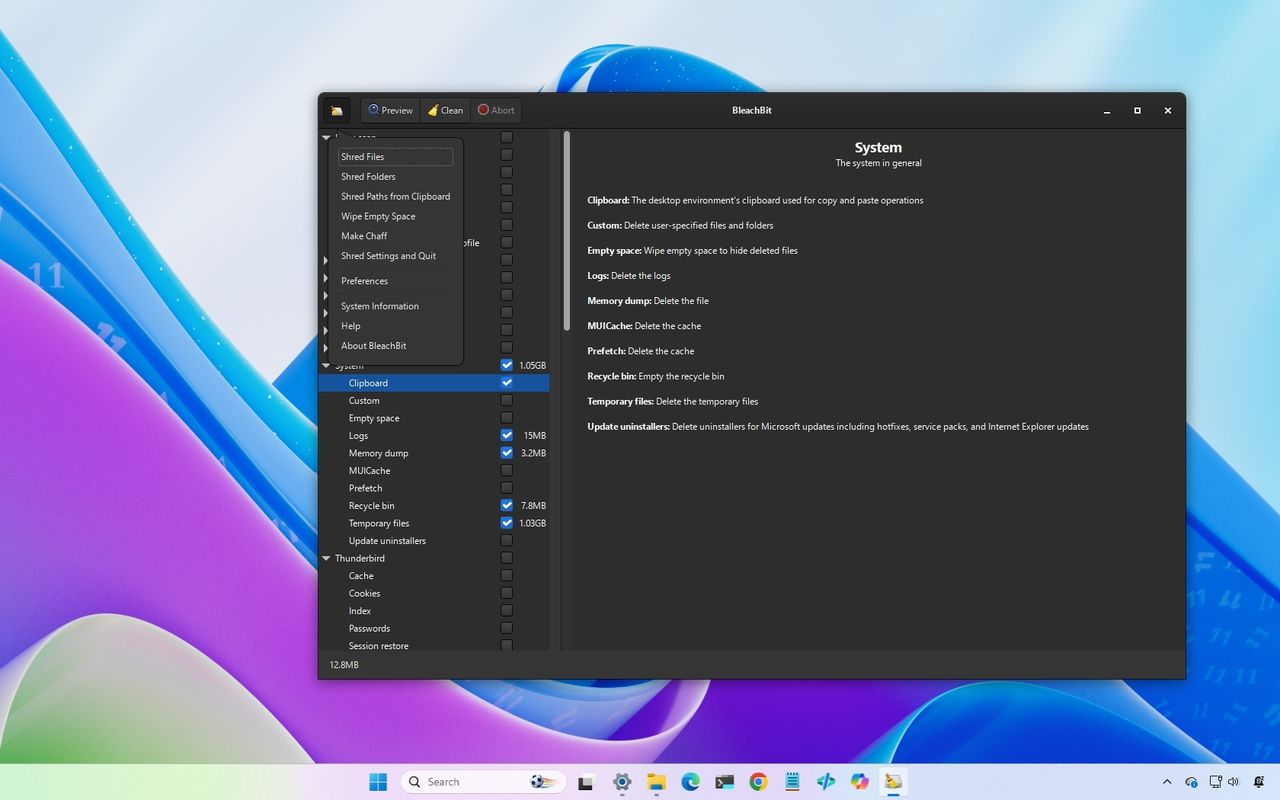
If you want to use this feature, open the BleachBit menu (the first icon at the top-left), choose the "Shred Files" option, then select the file to delete.
(Image credit: Mauro Huculak)
This feature is useful when you're deleting confidential content, financial records, or other sensitive files you don't want recovered later.
Wipe free disk space
The open-source tool can also overwrite unused space on a drive to remove traces of files that were previously deleted through the Recycle Bin.
This feature is intended primarily for drives before selling, donating, or retiring a computer, or for secondary drives.
The feature is available from the BleachBit main menu by selecting the "Wipe Empty Space" option and choosing the drive you want to clean.
(Image credit: Mauro Huculak)
I don't recommend running free-space wiping as part of regular maintenance because it takes time and provides little benefit for everyday use.
If you're preparing a device for resale, the Reset this PCfeature is generally the better approach.
One feature you won't find
One thing that BleachBit doesn't offer is a Registry cleaner.
I actually consider that an advantage. For years, Registry cleaners have been marketed as a way to improve performance in the operating system, but in practice, they rarely provide measurable benefits. Worse, removing the wrong Registry entries can cause apps or the system itself to behave unexpectedly.
Microsoft doesn't include a Registry cleaner on Windows 11, and I don't think most users should use one.
By focusing on cleaning unnecessary files instead of modifying the Registry, BleachBit avoids one of the biggest sources of risk associated with older computer optimization suites.
Does BleachBit make Windows 11 faster?
Not directly. When you delete temporary files, you can free up storage space and occasionally resolve issues caused by bad caches, but it won't make your computer faster.
If Windows 11 feels sluggish because your drive is nearly full, cleanup may help. However, performance issues are usually caused by factors such as not enough memory, older hardware, too many startup apps, malware, or software conflicts, not because your temporary files folder is too large (at least not the majority of the time).
Should you use BleachBit?
If you're comfortable with the built-in cleanup tools available on Windows 11, you may never need another maintenance utility.
However, if you want additional control over browser data, temporary files, app caches, privacy-related cleanup, secure file shredding, and other advanced maintenance tasks, you may benefit from BleachBit.
The open-source nature, easy-to-use interface, and decision to avoid questionable features like Registry cleaning make it one of the few utilities for cleaning up Windows 11 and one of the few alternatives to CCleaner.
Windows Central's Take
In the many years I've used the desktop version of Windows, I've tested and relied on countless cleanup utilities. Some of them were genuinely useful at the time, but many were eventually discontinued, acquired by other companies, or changed so much that they no longer offered the same experience.
Over time, I've become much more selective about the tools I recommend, especially when it comes to software that makes changes to the operating system.
More often than not, I recommend learning and using the built-in tools. However, BleachBit takes a different approach, and that's why I think it stands out. It focuses on cleaning files, not "fixing" the operating system, and I appreciate that it skips gimmicks like Registry cleaning that can do more harm than good.
If you decide to use it, my advice is not to treat it like a one-click optimization tool. Take advantage of the Preview feature, understand what each option does, and only clean what you actually need. If you use it that way, I think BleachBit is one of the few maintenance utilities that still deserve a spot in your toolkit.
What are your thoughts about BleachBit? Do you prefer Windows 11's built-in cleanup tools, or do you use a third-party utility? Let me know in the comments.
More resources
Explore more in-depth how-to guides, troubleshooting advice, and essential tips to get the most out of Windows 11 and 10. Start browsing here:
A curious issue has surfaced among Windows Insider testers running the latest Windows 11 Experimental 26H1 builds. Several users have reported that the Feature Flags page has disappeared entirely after updating to Build 28120.2387 or Build 28120.2374. While the issue does not appear to affect everyone, it has generated discussion across the Insider community as […]
A curious issue has surfaced among Windows Insider testers running the latest Windows 11 Experimental 26H1 builds. Several users have reported that the Feature Flags page has disappeared entirely after updating to Build 28120.2387 or Build 28120.2374. While the issue does not appear to affect everyone, it has generated discussion across the Insider community as […]
A Pixel 11 pricing leak suggests Google may drop 128GB storage and start all models at 256GB, potentially raising entry prices.
The post Google Pixel 11: Pricing Leak Reveals Bigger Storage, Higher Costs appeared first on TechRepublic.

 Connexion