Vue lecture

You don't have to wait for Microsoft to get a battery widget on Windows 11

Windows 11 will soon feature a Battery Status widget that you can pin to the Widget Board or your PC's lock screen. The feature is still in the works at the moment, but you don't have to wait for it to be finished. Third-party app "Battery Flyout" already supports a Battery Status widget and is available right now.

Just like Microsoft's widget that's in progress, Battery Flyout's widget shows the battery status of your PC and connected devices. It's a quick way to check if your keyboard, mouse, or other accessories are charged.

The Widget Board has been underutilized since it launched in 2021. There are fewer than 100 widgets available, many of which are tremendously niche. I hope the existence of the Battery Status widget indicates that Microsoft is going to invest the time needed to grow the library of Windows 11 widgets.

Microsoft has made some other improvements to the Widget Board lately, such as turning off the MSN feed by default. I hope this is a turning point for the feature. If not, at least we can rely on third-party developers to use the space.

Battery Flyout already has it 😉 https://t.co/hxFqHSJJxJSeptember 8, 2026

If you had a previous version of Battery Flyout installed, you may need to update the app before being able to use the widget.

As a built-in feature of Windows 11, the Battery Status widget will be available for free. Battery Flyout costs $3.19 (on sale from $3.99). But some lucky Windows Central readers will be able to get Battery Flyout for free. The app's developer shared a code for a giveaway and I'll run that on the r/windowscentral subreddit. Make sure to subscribe there and keep an eye out.

Battery Flyout lets you monitor the battery life of your Windows 11 PC and connected Bluetooth accessories, including mice, keyboards, and pens. It features a dedicated widget for the Widgets Board, native ARM64 support, and detailed power usage insights.

Click to join us on r/WindowsCentral

Join us on Reddit at r/WindowsCentral to share your insights and discuss our latest news, reviews, and more.

  •  

Windows 11's Project Zenith cuts clutter for developers and promises a "distraction-free" experience

A "ready-to-code distraction-free Windows experience" is on the way for developers. Microsoft just detailed how Windows 11 will be optimized for people with developer-class devices.

The idea behind Project Zenith is to save developers time by preinstalling apps and having Settings pre-enabled that are optimized for development. For example, File Explorer will show file extensions, hidden files, and the full path in the title bar.

Those options are not new, but they can take a while to set up when you also have to install a bunch of apps and tweak other settings.

We already knew about some of these experiences because of announcements made at Build 2026, but we now know a name for the project and more information about how Windows 11 will be optimized for developer-class devices.

Those devices will be able to run 30B+ parameter models locally and unmetered and use a variety of tools out of the box. Windows Terminal and Visual Studio Code are pinned to the Taskbar by default. GitHub Copilot, PowerToys, WinAppCLI, and Windows Dev Skills will also be preinstalled, according to The Verge.

Project Zenith will launch first on AMD's Ryzen AI Halo devices, but it will make its way to other systems over the coming months.

To classify as a developer-class device, a system will need at least 64 GB of unified memory and at least 250 GB/s memory bandwidth.

Blank Pixel

The best version of Windows 11

A natural response to Microsoft's blog post is to ask, "don't we all want a distraction-free Windows experience?" I don't know anyone clamoring for more distractions on their PC. But I believe Project Zenith is specific to developers for a good reason.

Many developers have a similar workflow or rely on a set of tools. What would be considered a useful preinstalled app for developers would be viewed as bloat for general users.

Similarly, the enabled settings viewed as useful by developers would make Windows 11 feel crowded for everyday computing.

A better approach would be to tailor Windows 11 to different use cases. We're starting to see that with Xbox Mode on Windows 11 and now Project Zenith for developers.

Of course, Project Zenith devices, PCs running Xbox Mode, and all other Windows 11 devices benefit from the general improvements to Windows 11, such as reducing memory usage and improving Search and File Explorer. Many of those changes can be seen in the latest major update to Windows 11.

Click to join us on r/WindowsCentral

Join us on Reddit at r/WindowsCentral to share your insights and discuss our latest news, reviews, and more.

  •  

Microsoft is finally making it easier to mute Teams without hiding from your boss

Microsoft Teams will soon let you temporarily pause notifications for a set period of time. Teams already has a variety of mute functions, but the new feature should make it easier to quiet down anything from Teams for a bit.

The feature starts rolling out this month and should be available to all users by early October.

The Microsoft 365 Message Center Archive has a record of the change:

"Microsoft Teams will introduce a new capability that allows users to temporarily pause notifications for a selected period of time. This feature gives users greater control over interruptions, helps reduce notification overload, and enables focused work, meetings, and other activities without requiring changes to existing notification settings."

All versions of Teams will have the option to temporarily pause Teams notifications for a set duration. The feature will be accessible through the profile menu in the upper-right corner of Teams.

The new capability in Teams is a bit like "Focus" in Windows 11, though it's specific to Teams. If you're working on a project, you may want to receive notifications through Windows 11 but keep Teams quiet.

Many workers have to use a variety of communication platforms. Pausing Teams notifications for a while could come in handy when presenting on Zoom. Microsoft accidentally shared discussions about other companies during a presentation by having a Teams notification appear. Pausing notifications would have prevented that.

It appears that one of the key differences in using this new feature compared to Do Not Disturb is how you'll appear to your colleagues. Setting Teams to Do Not Disturb is simple and effective, but it changes your public status indicator to red. I believe pausing notifications will leave your status unchanged.

Muting channels in Teams is also an existing feature, but it is done on a per-channel or per-chat basis. Pausing notifications should work across the board.

Neowin first spotted the new feature for Teams, but at the time details were scarce. Microsoft has since detailed how the feature will work and how the option differs from other methods of muting Teams.

It's unclear if pausing notifications will sync across all of your devices or if it is on a per-instance basis. I would hope there is an option to sync the pausing or pick which devices will continue to receive notifications.

Blank Pixel

Click to join us on r/WindowsCentral

Join us on Reddit at r/WindowsCentral to share your insights and discuss our latest news, reviews, and more.
  •  

Don't call it an XPS: Dell unveils new 14-inch laptop to compete with MacBook Neo

Dell just announced a new laptop to take on Apple's MacBook Neo. The Dell 14S is a colorful laptop designed for college students and young adults, which helps the PC compete with the MacBook Neo's colorful range.

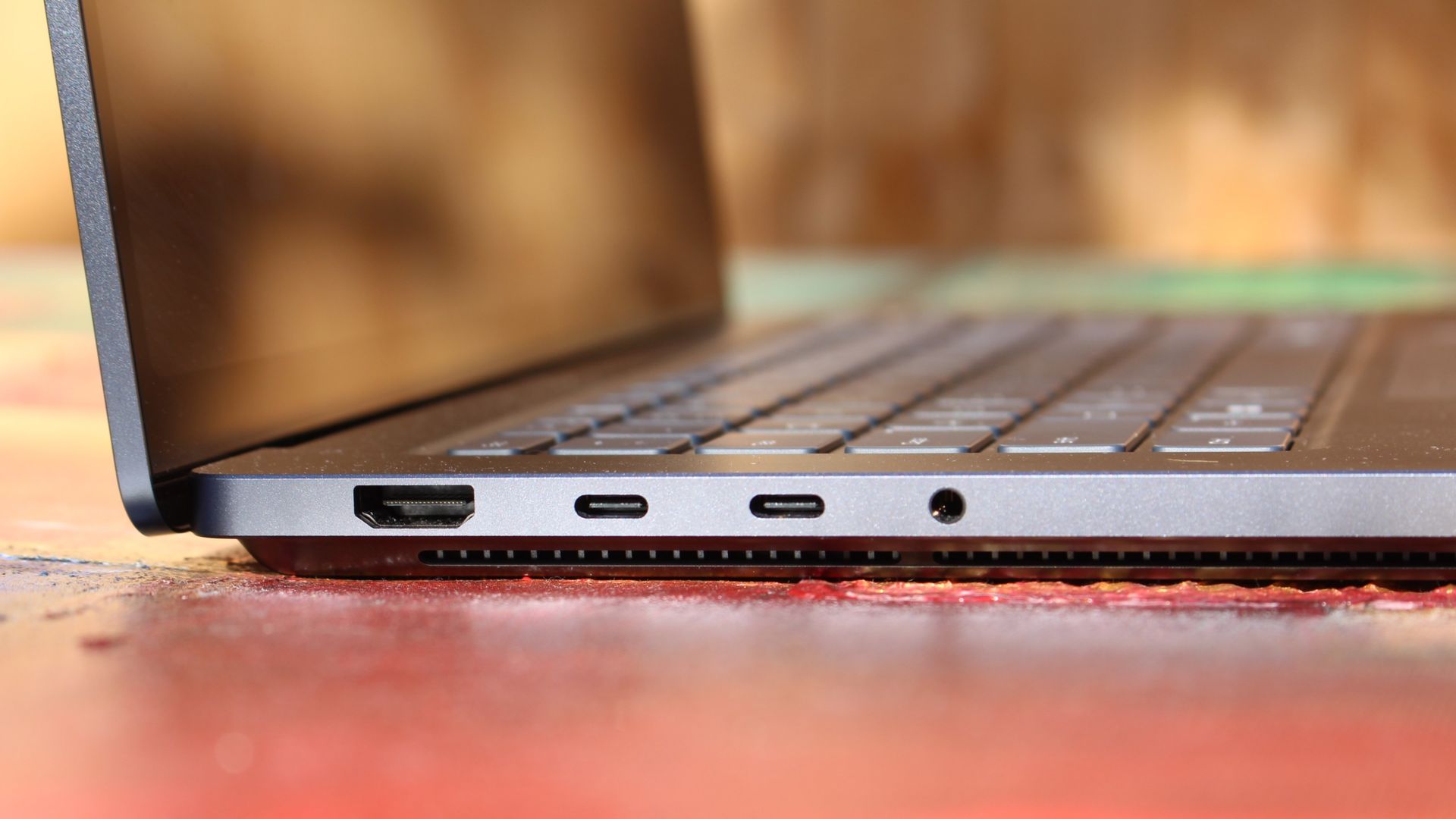
The Dell 14S should be a budget-friendly PC, though Dell has not released pricing for the laptop yet. The laptop has an aluminum body and a nice selection of ports, including two USB 3.2 Type-C ports, an HDMI port, and a 3.5mm headphone jack.

The Dell 14S and the Dell XPS 13 released earlier this year both compete with the MacBook Neo, but they do so in different ways. The XPS 13 has a better display, Wi-Fi 7, a backlit keyboard, and is a more premium device.

The Dell 14S promises all-day battery life, is available in several colors, and has a 16:10 display.

People who were intrigued by the low price of the MacBook Neo but want the look of a premium laptop running Windows 11 will likely prefer the newest XPS 13. Those who like the colorful tone of the MacBook Neo but want a lightweight and affordable device running Windows 11 will probably lean toward the Dell 14S.

Blank Pixel

Dell's confusing naming scheme

Dell is still struggling with naming its products. The company abandoned the XPS lineup and got rid of its entire consumer-focused strategy but has since backtracked and brought back XPS. But the company seems confused on what XPS means to customers.

If you head over to Dell's webpage about the New Dell 14S, you'll see a comparison chart that includes the New Dell 14, New Dell 14S, and Dell 14S. Incredibly, they are quite different from each other.

Listing two laptops side-by-side and having one labeled as "new" is fine. It's somewhat similar to how car companies handle naming, though the automotive industry often just attaches a year within parentheses.

Sticking with that analogy, if you look at a 2025 Honda Civic and a 2026 Honda Civic, they should be somewhat similar vehicles. Barring a complete overhaul, a new version of a model should resemble its predecessor.

If there is an overhaul, it's usually a linear progression, such as when Dell shifted from the old-old XPS to the once-new-but-now-old XPS.

If you did not already know which of the below PCs were XPS laptops, could you easily guess which are in that family of devices?

Dell XPS 13
Zac Bowden / Windows Central
Close up image of the new Dell XPS 14 for 2026.
Future | Daniel Rubino
Overhead view of a person wearing a denim jacket typing on the light blue Dell 14S laptop in Washed Denim while sitting on a couch next to a sleeping golden dog.
Dell

What is an XPS device in 2026? The new XPS 14 is a premium device featuring an Intel Core Ultra 7 processor or more powerful processor. The not-so-new but still great XPS 14 shares a similar design and also has an Intel Core Ultra 7 chip, albeit an older one.

So, XPS laptops are premium machines with high-end processors and a design resembling the XPS laptops from recent years, correct? Nope. The XPS 13 from this year is a budget-focused PC with options powered by an Intel Core Ultra 3 chip.

Other differences stand out, such as the latest XPS 13 having options with 8GB of RAM compared to the 16GB minimum of the new XPS 14.

Please understand, I think the latest XPS 13 and XPS 14 are excellent laptops. I predict the Dell 14S will also be a solid PC. But I don't understand what Dell is doing with its XPS brand. The company seems to have remembered that consumers value the XPS brand and has chosen to etch the XPS logo onto things willy-nilly.

Click to join us on r/WindowsCentral

Join us on Reddit at r/WindowsCentral to share your insights and discuss our latest news, reviews, and more.
  •  

This app's massive update supercharges power management on Windows 11

I love tiny utilities. If I find a useful flyout, widget, or Taskbar tweak, I'm likely to install it right away. A recent update to Battery Flyout brings power management and tracking to the Taskbar, and it even supports a new widget!

Battery Flyout is a third-party app made by Michał Łeptuch. It lets you switch power modes easily and provides charts about your PC's battery usage.

Some of the features in Battery Flyout are already in Windows 11, but they are spread out across the Settings app and other areas. Battery Flyout brings those options together and makes information and shortcuts easily accessible.

A screenshot of the Battery Flyout application on Windows 11 showing battery metrics, power settings, and usage statistics.
Michał Łeptuch
A screenshot of the Battery Flyout application on Windows 11 showing battery metrics, power settings, and usage statistics.
Michał Łeptuch
A screenshot of the Battery Flyout application on Windows 11 showing battery metrics, power settings, and usage statistics.
Michał Łeptuch
A screenshot of the Battery Flyout application on Windows 11 showing battery metrics, power settings, and usage statistics.
Michał Łeptuch
A screenshot of the Battery Flyout application on Windows 11 showing battery metrics, power settings, and usage statistics.
Michał Łeptuch
A screenshot of the Battery Flyout application on Windows 11 showing battery metrics, power settings, and usage statistics.
Michał Łeptuch

Łeptuch develops several apps that improve the overall Windows 11 experience, including Calendar Flyout. I spoke with him about the major update to Battery Flyout ahead of its release. Here's the full change log:

  • Migrated the app from UWP to Windows App SDK (WinUI 3) on .NET 10 with Native AOT
  • Added a full native ARM64 build
  • Switched the app to run in Efficiency mode by default
  • Removed third-party dependencies in favor of a custom-built system for handling power and battery events
  • Added support for multiple batteries
  • Added a more detailed chart style for battery levels
  • Added the ability to switch chart colors between the default theme and your system accent color
  • Added detailed technical information for each installed battery to the flyout
  • Added a view of the apps consuming the most power to the flyout
  • Replaced the old battery report with the new Power report, covering battery and system summary, per-battery details, app trends, recommendations, and resource usage
  • Added the option to choose the units used in reports, including energy and temperature
  • Added a new Actions module to automate tasks triggered by specific battery or power events
  • Added a widget for the Windows Widgets board showing battery level and charging status
  • Expanded support for Apple and Samsung devices, with more of them now reporting battery status
  • Added the option to hide the device list when it's empty
  • Updated the Bluetooth device icons shown in the flyout's device list
  • Added the option to completely disable Bluetooth device scanning
  • Added a keyboard shortcut to open the flyout
  • Added the ability to change where the flyout appears on your desktop
  • Added automatic flyout and context menu positioning for the taskbar layout options introduced in the Windows 11 August 2026 update
  • Added the ability to set notifications for any battery level, for both the device and connected Bluetooth devices
  • Added the option to set how long notifications stay on screen
  • Added support for the Polish language
  • Made various minor visual refinements
  • Updated the tray icon font and improved its rendering
  • Made general stability and performance improvements

Blank Pixel

A significant change that will affect all Battery Flyout users is that the app has been migrated from UWP to WinUI 3. That change brings better performance and taps into improvements Microsoft is making to WinUI 3 on Windows 11.

Battery Flyout should also use less battery than before since it now runs in Efficiency mode by default.

Similar to iOS and Android, Battery Flyout now has a dedicated page for viewing which apps are consuming the most power.

Some of the improvements will only affect a subset of users but are welcome additions. Battery Flyout now supports multiple batteries, which is useful for the small group of devices with multiple batteries.

The update also brings some under-the-hood improvements, such as switching away from third-party dependencies.

Perhaps the change aimed at the smallest niche is the addition of a Battery Flyout widget for the Windows 11 Widgets panel. That panel, which is built into every single Windows 11 PC, infamously features far fewer than 100 widgets. Battery Flyout will fit nicely between the barely functional Spotify widget and the Tic-Tac-Toe widget.

A recent update to this app improves performance, adds native ARM64 support, and shows more information about the power usage of your PC and apps.

Click to join us on r/WindowsCentral

Join us on Reddit at r/WindowsCentral to share your insights and discuss our latest news, reviews, and more.
  •  

Dear Microsoft, where is the Surface to showcase all these improvements to Windows 11?

Windows Central

A major Windows 11 update is just around the corner. Microsoft just shipped Windows 11 version 26H2 to the Release Preview Channel and general rollout of the update starts in a few weeks.

The upcoming update to Windows 11 includes UI changes such as the ability to move the Taskbar and under-the-hood improvements. It's a more substantial change than we've seen in previous years, which begs the question, "Where is the Surface to showcase all these improvements to Windows 11?"

Microsoft appears serious about its push to improve Windows 11 and listen to feedback about the operating system. The first real wave of improvements is essentially here, so why isn't there someone on stage showing them on a Surface?

Biggest News of the Week

Windows 11 Start button
Snapdragon X Elite logo
A Windows 11 desktop showing the taskbar aligned to the top of the screen with centered app icons and a search bar. The Start menu is open below the top taskbar, displaying pinned apps and category folders over a colorful pink, purple, and green gradient background.
A laptop screen displaying Windows 11, featuring the

Microsoft is a gigantic company and its teams often don’t talk to each other enough to create full unity of design. I talked about this last week in the Windows Wrap when discussing the app situation on Windows 11. While Microsoft is working to fix many of its inbox apps, it's not addressing the same inconsistencies across Microsoft 365, Teams, and other apps.

Microsoft has shuffled things around over the years, combining Surface with Windows and changing how leadership is structured. But right now it feels like Windows and Surface are distant. Microsoft does not have a unified marketing push to highlight all the changes to Windows 11. There isn’t an announced event or upcoming device that would showcase the major Windows 11 improvements that will ship to PCs in only a couple of weeks.

Surface is supposed to show the best of Windows and Microsoft will miss an opportunity unless it has an ace up its sleeve. Microsoft used to announce Surface hardware in April and October. I’d love to see Microsoft surprise us with something that showcases Windows 11.

Windows and Snapdragon

Microsoft Surface Pro 11 with Qualcomm Snapdragon X Elite

The Surface Pro 11 was one of many Surface devices that demonstrated what Snapdragon-powered PCs can do. (Image credit: Daniel Rubino)

Microsoft did a good job pairing Windows 11 and Snapdragon developments. At one point the Surface Pro X showed that a Snapdragon-powered PC can be fanless. Microsoft later shifted away from that, instead emphasizing the power efficiency and unplugged performance offered by Snapdragon PCs.

But the principal remained the same; Microsoft used it’s flagship hardware to highlight improvements to Windows 11 on Arm. Microsoft's faith in Snapdragon also pushed other PC manufacturers to make laptops powered by Qualcomm's chips. Snapdragon PCs are sold side-by-side with laptops powered by Intel or AMD chips.

Of course, it’s easier to use Windows 11 to show hardware improvements when there are concrete examples such as improve battery life or better unplugged performance. Microsoft has more of a mountain to climb when it comes to marketing the ability to move the taskbar and improved start menu. Under the hood improvements are tricky to show off.

That challenge is why I asked earlier this month if the next major Windows 11 update should be Windows 12. But that’s precisely why Microsoft needs to use Surface to highlight the improvements to Windows 11. Without a major marketing push about an OS upgrade, Microsoft needs to use its other resources to make sure shoppers know that this isn’t the same old Windows 11.

Click to join us on r/WindowsCentral

Join us on Reddit at r/WindowsCentral to share your insights and discuss our latest news, reviews, and more.

Surface Laptop Studio 2 photos

Surface Laptop Studio 2 photos

  •  

Microsoft Edge update adds Apple sign-in and scam protection, but officially ends Edge Drop and real-time video translation

Microsoft gives and Microsoft takes away. The latest update to Microsoft Edge adds the ability to sign in to the browser using an Apple account. It also adds a feature that automatically unsubscribes you from notifications related to scams.

But the same update also marks the official end of several Microsoft Edge features, including Edge Drop and real-time video translation.

Here are all the new features and changes that ship with the latest version of Edge, as detailed by Microsoft:

  • Automatically unsubscribe users from notifications sent by scam and malicious sites. Microsoft Edge now helps further protect users from malicious web notifications. When a notification leads users to a site that Microsoft Defender SmartScreen blocks as a scam, phishing, or malware page, Edge automatically stops that source from sending users further notifications. Edge lets users know when this happens. Users can review and restore any of these sites anytime under edge://settings/privacy/sitePermissions/allPermissions/notificationsNote: This is a controlled feature rollout. If you don't see this change, check back as we continue the rollout.
  • Sign in to Edge with an Apple account. Users can now sign in to Microsoft Edge using an Apple account in addition to the Microsoft account from the profile menu and Edge sign-in screen. Available for Windows and macOS devices. Admins can control availability to this feature using the NonMicrosoftAccountSignInEnabled policy. Note: This is a controlled feature rollout. If you don't see this change, check back as we continue the rollout.
  • Real-time video translation retirement. Real-time video translation is being retired through a gradual rollout. Availability may vary across environments during the rollout. The LiveVideoTranslationEnabled policy will be deprecated in a future update.
  • Enhanced Key Icon with Credential Details, Copy Actions, and Notes. The key icon in Edge's address bar now lets users click into any saved credential to view a detailed panel. From there, users can copy a username, reveal and copy a password, and add personal notes to each login. Keep track of security questions, account purpose, or recovery details right alongside credentials, without opening Settings or the full password manager. Note: This is a controlled feature rollout. If you don't see this change, check back as we continue the rollout.
  • Drop is retired. We're simplifying Microsoft Edge. Drop is retired in Microsoft Edge version 152.
  • New Copilot Cowork policy. Copilot Cowork may perform tasks such as creating tabs, taking screenshots, and interacting with web pages. Admins can now control availability of this feature using the CopilotCoworkToolActionsEnabled policy, which corresponds to the Allow Cowork to take actions on your behalf setting in edge://settings/ai. This policy applies only when Cowork Browsing is enabled at the tenant level in the M365 admin center.
  • Clarification of WebView2 DowngradeVersion policy. The DowngradeVersion policy allows admins to temporarily roll back specific applications to a previous WebView2 Evergreen Runtime version (N-1 or N-2). The policy requires an exact 4-part numeric WebView2 Runtime version, for example 151.0.2178.0. Admins can find the exact 4-part version number in the Microsoft Edge release notes for Stable Channel. Major-version-only values are not supported. If no exact matching folder is found, the policy has no effect and the runtime defaults to the BrowserExecutableFolder policy or the Evergreen runtime, which is the default auto-updating runtime.
  • Update for LocalNetworkAccessRestrictionsTemporaryOptOut policy. The planned removal of the LocalNetworkAccessRestrictionsTemporaryOptOut policy has been updated. The policy is now scheduled for removal after Microsoft Edge version 156; previously it was version 152.
  • Updated Copilot policy. Admins can now control availability of the video transcription feature using the EdgeEntraCopilotPageContext policy, which corresponds to the Allow Copilot to transcribe your video setting in edge://settings/ai.

I was always a fan of Edge Drop and will be sad to see it go. The feature let you send messages, files, and photos to yourself. All of the content you sent through Edge Drop lived in a single thread. The feature was powered by OneDrive, making it easy to find backups of the content.

But Edge Drop lived in the Sidebar of Edge, meaning it competed with Copilot for space within the browser. Microsoft never officially confirmed Copilot was a factor in the retirement of Edge Drop, but I suspect the AI tool was at least a small factor.

Click to join us on r/WindowsCentral

Join us on Reddit at r/WindowsCentral to share your insights and discuss our latest news, reviews, and more.
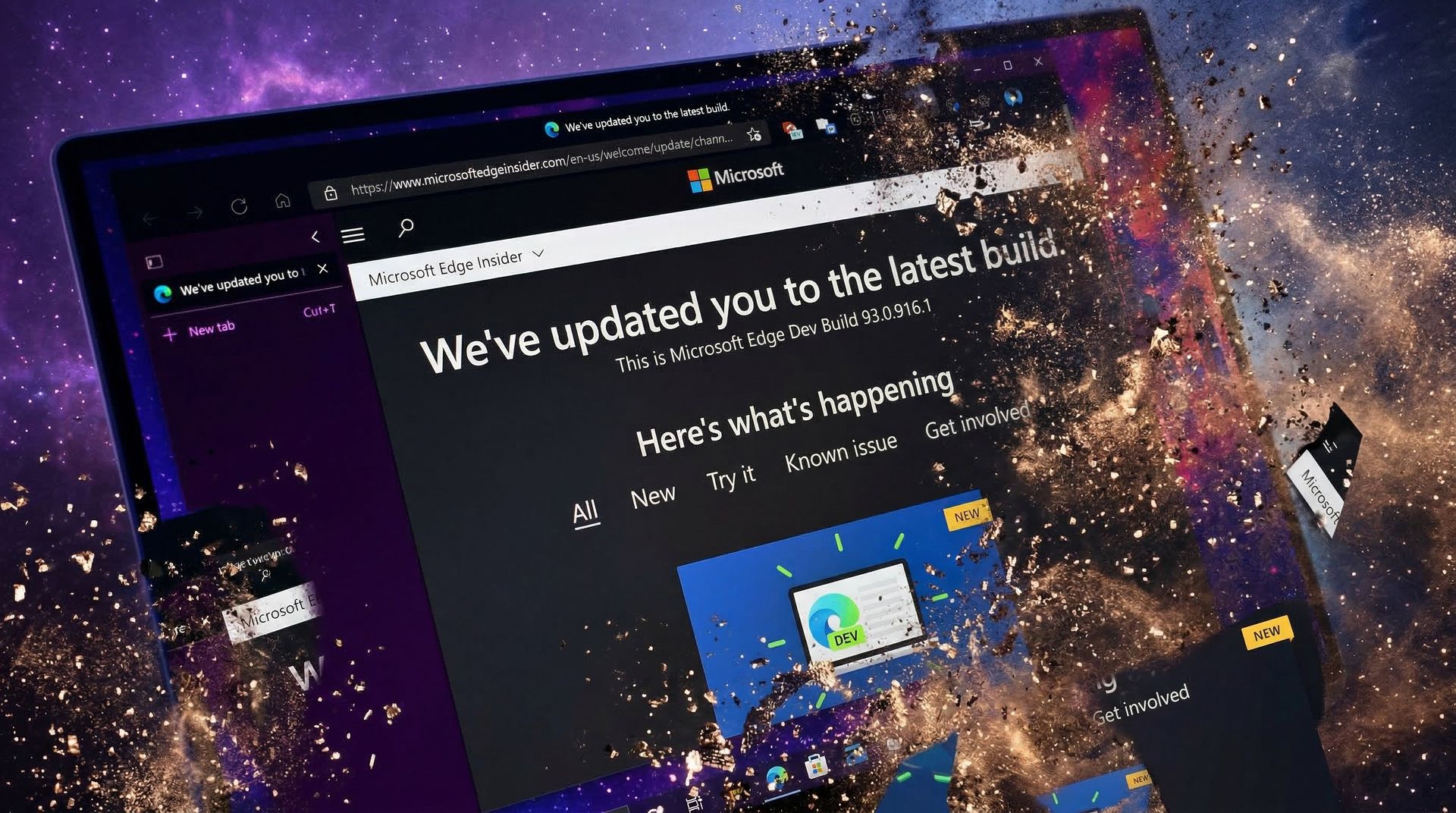
A laptop screen displaying a Microsoft Edge Insider page with text "We've updated you to the latest build" and update details. The background is a gradient of blue and purple tones.

A laptop screen displaying a Microsoft Edge Insider page with text "We've updated you to the latest build" and update details. The background is a gradient of blue and purple tones.

  •  

$5.4 billion Microsoft data center vs 41,000 petitioners — "Stopping this project is one of the most significant steps we could take"

Over 41,000 people have signed a petition to prevent the construction of Microsoft's hyperscale data center in Leeds, England. The petition was started by a collective of 100 people but has since garnered support from thousands of people, including local residents.

Microsoft received the go-ahead to build the data center in April when the Leeds City Council unanimously approved the project, though a final decision requires permission from the local Chief Planning Officer. In total, three data center buildings totaling around 424,000 sq ft and the required power and water infrastructure will be built.

The data center will stand on the former Skelton Grange power station site, which used to have two coal-fired power stations. Those stations have since been demolished.

Those in favor of the project cite that 740 jobs will be created during the building phase and that over 350 permanent roles will come as a result of the new data center being built. A piece from the Leeds Times focuses largely on the potential positive outcomes of the project.

Blank Pixel

People opposed to the project highlight the potential environmental impact of the data center.

"There is overwhelming evidence that this site would pose a risk to the health and wellbeing of local residents, and the surrounding environment," reads the petition to prevent the construction of the data center.

The petition flags the large amount of water needed to cool the chips in the data center any time outside temperatures rise above about 29 degrees Celsius (84.2 degrees Fahrenheit). England is at the tail end of one of its hottest summers on record.

Microsoft CEO Satya Nadella spoke on water requirements for data centers earlier this year. Nadella claimed that "the daily water usage over the course of an entire year is roughly equivalent to what a single restaurant would use."

The Microsoft CEO's remarks were general and did not specifically address concerns about the future data center in Leeds.

Microsoft is working on new cooling technologies to reduce how much water data centers require.

Power usage is also a concern raised by the petition:

"The site would use truly vast amounts of energy to power, making it by far the single biggest carbon emitter in Leeds. Over its planned 60 year lifetime it is projected to release more than 200,000,000 tonnes of carbon dioxide. This is almost the equivalent of one year of the UK’s entire emissions."

Microsoft reportedly used more power than 100 nations in 2024. The growing use of AI will require more power going forward as more data centers are built.

The Leeds Planning Committee has already approved the construction of Microsoft's data center in Leeds. The final decision on the project will come from Chief Planning Officer Martin Elliot.

The petition claims there was "insufficient scrutiny of the project’s impacts" before the project was approved. The makers of the petition hope to prevent the final approval of the project and suggest potential legal action could follow to challenge the construction.

Click to join us on r/WindowsCentral

Join us on Reddit at r/WindowsCentral to share your insights and discuss our latest news, reviews, and more.
Microsoft logo

Microsoft logo

  •  

Your phone may soon be able to shut down or restart your PC with just a couple of taps

Microsoft's Link to Windows app for Android may soon support restarting or shutting down a computer or putting a PC to sleep. Code within the app was discovered that suggests the functionality is on the way, but nothing has been confirmed by Microsoft at this time.

Windows Latest found evidence suggesting that a pairing of Link to Windows and Phone Link will soon gain greater control of your PC. It's already possible to lock your PC from your Android phone, but the code suggests support for other actions is on the way.

I occasionally forget to turn off my PC, especially since I work from home and can get distracted after my work day ends. Being able to shut down my PC remotely without having to set up a Remote Desktop would be a nice option.

The feature could also come in handy if you need to leave your PC running unattended for a while. The other day I had to download a bunch of large files and knew my PC had to run for a while. If the new Link to Windows feature had been available, I could have shut down my PC after I knew the files were downloaded.

Putting your PC to sleep through Link to Windows will work a bit differently, according to Windows Latest. A warning message discovered by the outlet states, "After it’s asleep, it will be disconnected from this device. You need to go to your PC to wake it up."

Separate warnings appear when you try to restart or shut down your PC in the middle of an update.

Microsoft continues to work on integrating the smartphone and PC experience. The tech giant expanded the connection between devices by adding a section to the Start menu on Windows 11. Microsoft is also testing several flyouts and menus that will make it easier to connect your phone and your PC.

Blank Pixel

Click to join us on r/WindowsCentral

Join us on Reddit at r/WindowsCentral to share your insights and discuss our latest news, reviews, and more.
Samsung Galaxy Book3 Pro 14-inch laptop (2023)

Microsoft makes it easy to connect your Windows 11 PC and your Android smartphone through Phone Link and Link to Windows.

  •  

I can't believe Microsoft is this desperate to push AI — its latest rebrand reeks of corpo speak

The Microsoft 365 Roadmap is gone. This week, the site was rebranded as the "AI at Work Roadmap." The baffling change raises questions about what's going on at Microsoft and why its leaders think they can label anything as AI.

The roadmap lets you track features and updates to a variety of apps and services from Microsoft. Microsoft justifies the name change by highlighting that the roadmap now includes features from Dynamics 365, Power Platform, and Dataverse as well.

But the AI at Work Roadmap still details plans for thousands of features that have nothing to do with AI.

Neowin's Usama Jawad shared an editorial on Microsoft's latest rebrand already, and I'll echo some of the same thoughts. But some decisions are so astonishingly stupid that they require editorials from multiple outlets.

The name isn't even accurate

Microsoft Teams app seen displayed on a smartphone screen and a Microsoft Teams logo on a laptop in the background.

The "AI at Work Roadmap" lists hundreds of features that have nothing to do with AI. (Image credit: Getty Images | SOPA Images)

Microsoft is so eager to push AI that its decision makers have not even considered if the new name of the Microsoft 365 Roadmap is accurate. Yes, the roadmap includes AI features across the Microsoft 365 suite. It also now outlines changes to Dynamics 365, Power Platform, and Dataverse.

But there are a massive number of features discussed in the roadmap that do not use AI in any way. Let's look at the entries that appear on the "AI at Work Roadmap" when filtered to list anything new or updated within the last week.

  • Microsoft Teams: Coordinated meetings support on Teams Rooms on Android
  • Outlook: Manage multiple inbox rules at once.
  • Microsoft Teams: Hide organizer name in the calendar view on Teams Panels and MTR-A
  • Microsoft Teams: Breakout room support on Teams Rooms on Android
  • Microsoft Teams: Report a message or an external user for security concerns in Gov clouds.

As far as I can tell, none of those are AI features. Perhaps there's some AI-written code in there or AI working in the background, but I doubt anyone would refer to breakout rooms support as an AI feature.

Microsoft, what are we doing here? Have we reached a point of desperation so extreme that the option to hide an organizer name needs to fall under the AI umbrella? I suppose if every single feature to ever ship to Microsoft 365 is considered AI, that metrics measuring AI use will trend upward.

A history of bad branding

Microsoft 365 home page on a Razer laptop

Microsoft rebranded its Office subscription to "Microsoft 365" several years ago. (Image credit: Jennifer Young - Windows Central)

Microsoft already had an established brand name recognized around the world in "Office." But the tech giant decided to rebrand its productivity suite as Microsoft 365. While that decision drew criticism, it at least made sense because Microsoft 365 includes several pieces of software that are not Office apps.

In 2025, Microsoft announced the baffling decision to rebrand Microsoft 365 as "Microsoft 365 Copilot." Our Executive Editor Jez Corden took Microsoft to task for that, and rightly so:

"The rebrand of Microsoft Office was dumb to start with, trampling on a legacy spanning decades. The second rebrand attaching Copilot is even more dumb, and follows the Copilot+ PC thought process of firmly putting the cart several miles before the horse. Copilot hasn't earned the right to be showcased alongside [technological] cultural milestones like Microsoft Excel or Microsoft Word."

Microsoft went on a spree in which it renamed a bunch of services to include some form of Copilot. The company had so many types of Copilots that it had to merge Copilot and Microsoft 365 Copilot.

Microsoft's dumbest rebrand in history just got EVEN dumber. https://t.co/qtzIvgLyfjJanuary 16, 2025

That obsession with Copilot begs another question: If Microsoft needs to rename the Microsoft 365 Roadmap to mention AI, why not call it the Microsoft 365 Copilot Roadmap? I'd still hate the change but at least it would be somewhat consistent.

The idea of slapping "AI" onto anything is still silly, but at least Microsoft would be reusing a name that appears elsewhere.

Click to join us on r/WindowsCentral

Join us on Reddit at r/WindowsCentral to share your insights and discuss our latest news, reviews, and more.
Windows 11

Windows 11

  •  

You now have a bit more time before Microsoft takes away your Whiteboard

Microsoft Whiteboard is a popular tool for collaboration and jotting notes. Soon, some users will lose access to the app, but the exact cutoff date has shifted.

This week, Microsoft sent a message outlining the new timeline for the retirement of legacy whiteboards:

"Microsoft Whiteboard is retiring legacy whiteboards and the standalone app. Migration to OneDrive-backed whiteboards must be completed by September 25, 2026. Legacy whiteboards will be deleted October 16, 2026, and the standalone app deprecated November 30, 2026. Users must migrate or export content before these dates."

Microsoft is moving storage for Microsoft Whiteboard to OneDrive for Business. Because of that migration, those using personal accounts will lose access to any saved content. Microsoft gave people a short period to upgrade to Microsoft 365 for Business, migrate to other tools, or back up content, but personal users now have a bit more time to make a decision and act.

Blank Pixel

The new key dates were emphasized by Microsoft:

  • September 25, 2026
    • Migration tooling for legacy enterprise whiteboards is retired.
    • Users with personal Microsoft accounts can no longer create or edit whiteboards.
  • October 16, 2026 - Legacy whiteboards are permanently deleted.
  • November 30, 2026 - The standalone Microsoft Whiteboard app is deprecated.

Retirement of personal accounts and the migration of business accounts were originally set for August 22, 2026. Viewing and exporting was going to be supported until September 5, 2026. Microsoft has pushed back the deadlines significantly.

Early voting in our poll about whiteboard apps suggests that Microsoft Whiteboard is quite popular. Currently, 54 percent of participants list Microsoft Whiteboard as their preferred whiteboard app.

With Microsoft forcing out personal users of the app, many will have to look elsewhere. If you need a whiteboard app that focuses on offline use, I recommend Markerpad. Miro is a better alternative for those who need to collaborate.

Click to join us on r/WindowsCentral

Join us on Reddit at r/WindowsCentral to share your insights and discuss our latest news, reviews, and more.
Microsoft Whiteboard

Microsoft Whiteboard

  •  

PowerToys Window Hopper is a must-have feature for Windows 11, especially if you live within your browser

Stop me if you've heard this before: The latest PowerToys update adds a utility that should be baked into Windows 11. It's one of those features that feels like a natural extension of your PC. Using it is so seamless, in fact, that after a while you may forget that the utility is part of PowerToys rather than just part of Windows 11.

The above situation happens a lot with PowerToys. Tools like Color Picker, CursorWrap, and PowerDisplay integrate perfectly with Windows 11 and offer features millions of people would benefit from. The latest addition to PowerToys, Window Hopper, falls into the same category.

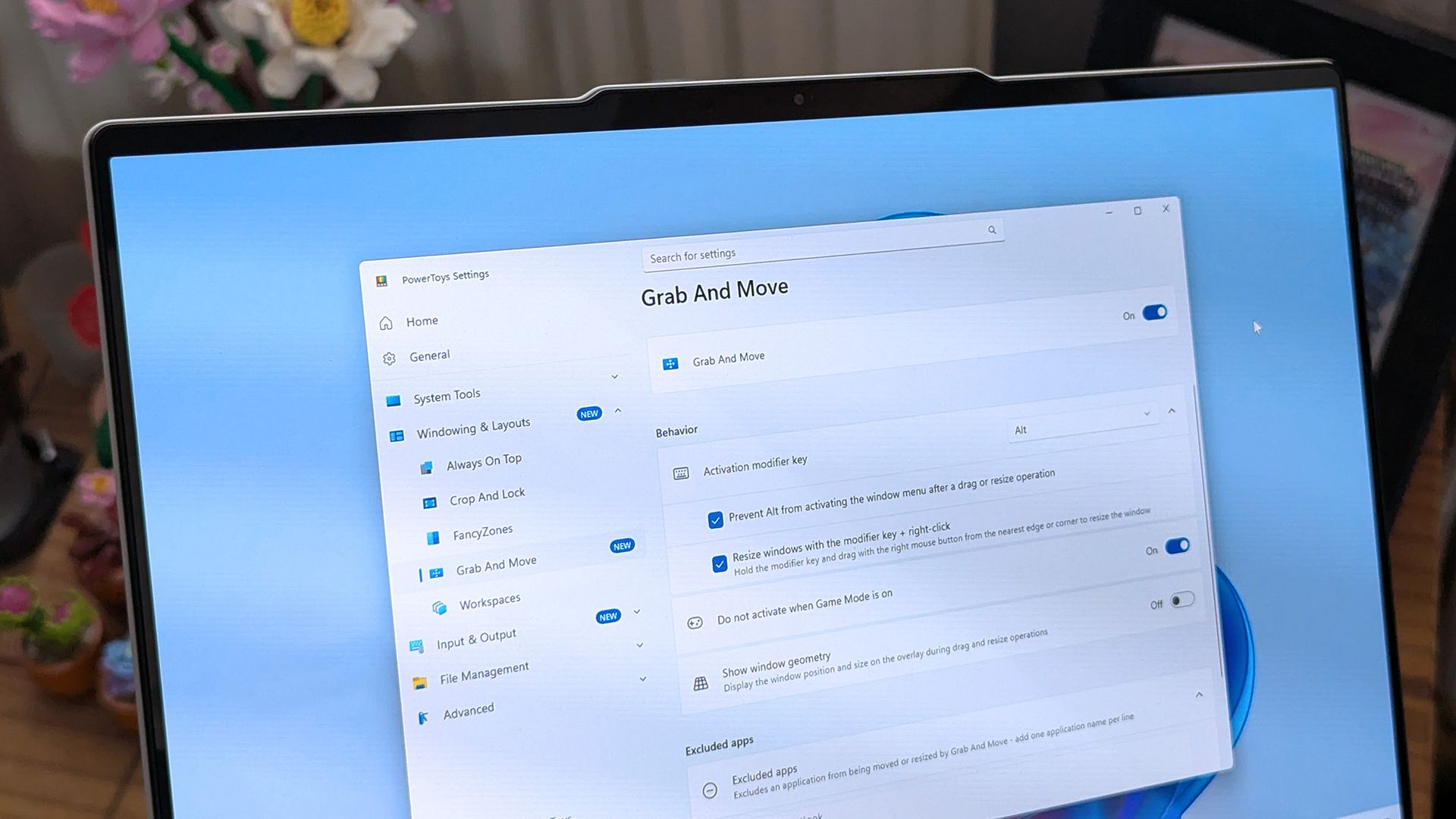
PowerToys just received an update that adds a new utility and improves what was already one of the best apps on Windows 11. PowerToys v0.101.2362.0 adds Window Hopper, a feature that's basically Alt + Tab but for switching between instances of a specific app.

You can activate Window Hopper by pressing Alt + backtick (that's the ` in the upper-left corner of your keyboard). Holding Alt and pressing backtick again cycles you through any open windows of the same app you're already in.

You can also customize the shortcut for Window Hopper through the settings page in PowerToys.

For example, if you live in your browser and keep a bunch of windows open, you can swap between them without having to Alt + Tab across all of your other apps. Window Hopper works with any app that can have multiple windows open, including File Explorer.

I use separate browser windows for research, writing, Airtable, and Slack. I often have to snap these side-by-side or group them together. But being able to cycle between just the browser windows through a keyboard shortcut changes my workflow.

As is usually the case, the full change log for the latest PowerToys update is massive. It details Window Hopper, the improvements to the update experience, the compact version of Command Palette, and much more.

Rather than rehash that all here, I'll point you to the official GitHub page for PowerToys. I wanted to specifically highlight Window Hopper because it's one of those utilities that I used once and immediately knew would be a part of my workflow.

PowerToys | Free at GitHub | Free at Microsoft Store

This collection of utilities includes a large library of features to enhance the Windows experience. PowerToys is designed with power users in mind, but it has handy features for people who just use their PC for everyday computing too.

Click to join us on r/WindowsCentral

Join us on Reddit at r/WindowsCentral to share your insights and discuss our latest news, reviews, and more.

A laptop screen displaying Windows 11, featuring the "Grab And Move" settings window of PowerToys. The desktop background is colorful and vibrant.

A laptop screen displaying Windows 11, featuring the "Grab And Move" settings window of PowerToys. The desktop background is colorful and vibrant.

  •  

Windows 11 will soon let you control unified memory, just in time for NVIDIA RTX Spark

Windows 11 will soon let you pick how much unified memory is reserved for graphics and AI. The feature is hidden in a recent Windows Insider build (29648) and was discovered by X user @XenoPanther.

Unified memory is high-bandwidth memory that can be shared between a CPU, GPU, and other processors. Traditionally, PCs with discrete graphics cards have dedicated VRAM (video memory) that lives separately from other memory.

Unified memory is still relatively new to PCs. The upcoming NVIDIA RTX Spark lets you use up to 128GB of unified RAM. AMD's Ryzen AI Max already features unified RAM.

Apple popularized the concept of unified memory with its M-Series chips, though the technology is not exclusive to Apple.

If the unified memory feature in testing rolls out, Windows 11 will have a key differentiator from macOS.

Here is how the Unified Memory settings will appear (Under System > Advanced) https://t.co/eN8Gs0BYKs pic.twitter.com/2OpiBrWspZAugust 21, 2026

Microsoft's new feature lets Windows 11 users "reserve additional unified memory for graphics and AI intensive games and applications." The setting would help ensure smooth performance for certain types of workloads that require a lot of memory.

Normally, Windows manages shared memory dynamically, shifting resources back and forth as apps demand them. That approach works fine for general multitasking, but it runs into problems with heavy workloads like local AI inference or 3D gaming.

When memory is shared like that, background OS tasks and apps can contend for the same pool of RAM. That competition can cause latency spikes, frame drops, or total out-of-memory crashes when you're trying to run something demanding.

By letting users reserve memory, workloads with high demands for graphics and AI have uninterrupted access to high-speed memory.

The feature is not finished and has not been announced by Microsoft, so it requires some extra work to see. You can force it to appear using ViveTool.

I'd recommend waiting until the feature enters testing or even ships to general users before using it. In most cases, it's worth letting Microsoft work out any issues and polish the experience rather than use a hidden feature.

Blank Pixel

Click to join us on r/WindowsCentral

Join us on Reddit at r/WindowsCentral to share your insights and discuss our latest news, reviews, and more.

Surface Laptop Ultra running Premiere Pro

The Surface Laptop Ultra is powered by an RTX Spark chip that features unified memory.

  •  

Microsoft accidentally admits new Outlook looks bad

The new Outlook is ugly and needs to be covered up. That's the message being sent out by Microsoft if you read between the lines. A new option setting in Outlook on the web and the new Outlook for Windows makes those experiences look like classic Outlook.

Microsoft claims that the option is being added to help those transitioning from classic Outlook to the new Outlook. But if the difference is so jarring that it requires a skin to make the new Outlook palatable, Microsoft has larger issues to deal with.

Microsoft details the option in a message sent out through the Microsoft 365 Message Center:

"We're introducing a new optional setting in Outlook on the web and the new Outlook for Windows that adjusts the experience to more closely resemble classic Outlook for Windows. When enabled, the setting applies coordinated changes across the Outlook experience, including visual styling, layout, typography, icons, and selected interactions.

This update is designed to help users who are transitioning from classic Outlook by providing a more familiar experience while maintaining the capabilities of the new Outlook."

The theme will be disabled by default for most users. As part of a phased rollout, Microsoft will enable the classic Outlook theme for "some users moving from classic Outlook to the new Outlook."

I've admittedly mixed snark into this piece, but that's because the new Outlook is terrible. Our Senior Editor Zac Bowden explained how the new Outlook was not ready for prime time back in 2024. The situation has barely improved.

A question posed on a Microsoft Learn page asks, "Why Does New Outlook Suck???" That post is from this year, not the early days of the new Outlook. Others on the web have asked similar questions or expressed frustration with the new Outlook.

The new Outlook is a web wrapper. There's debate over whether the new Outlook is a native app, but the key takeaway is that it performs worse than classic Outlook in several ways.

The fact that Microsoft had to make Mail & Calendar inoperable to try to get people to switch to the new Outlook is telling. The new theme option is another sign that people still want classic Outlook on their PCs.

Blank Pixel

Click to join us on r/WindowsCentral

Join us on Reddit at r/WindowsCentral to share your insights and discuss our latest news, reviews, and more.
Deleted emails in Microsoft Outlook

Deleted emails in Microsoft Outlook

  •  

A faster OS and UI fixes won't save Windows 11 if Microsoft's apps remain laggy web wrappers

Windows Central

Microsoft continues to improve Windows 11. Just this past week, the company began testing new context menus with Windows Insiders and revamped the ancient AutoPlay dialog box.

The Windows K2 initiative to improve the operating system is going so well that I've asked if the next big update should be Windows 12. But fixing the Windows experience is about more than context menus and a unified user interface. Even if Windows is fixed, Microsoft needs to make better apps.

If a person logs onto a PC running a beautiful and zippy version of Windows 11, they won't care about the OS if Microsoft Teams takes too long to load. Microsoft needs to lead by example by making the best Windows apps.

Biggest News of the Week

Windows 11 context menu
Windows 11
Windows 11 Dan Lowres Iphone
Images of Qualcomm's new Snapdragon X2 Elite Extreme processor, benchmarks from reference design laptops, and pictures from the announcement at the Snapdragon Summit (2025).

To give Microsoft credit, work is being done to improve some apps. Rudy Huyn, a well-known Windows developer who worked on the Microsoft Store, is putting a team together to improve Windows apps. That team is still in its infancy, so we will have to wait to see the results.

But Microsoft's app issue isn't just about having a team dedicated to in-box apps or hiring good developers. It's about the direction Microsoft pushes those developers. Microsoft Teams and other Microsoft apps have been "rebuilt from the ground up" or "refreshed with performance in mind" several times over the years. But the underlying problem still exists. Microsoft made the wrong choice by going all-in on web apps, and it needs to course correct.

Huyn's team is all about native apps, but it's not clear right now how many apps will fall under its umbrella. Will we see a new native version of Outlook? What about Microsoft Teams? If Huyn's team is just focused on in-box apps, some of the most-used apps on Windows 11 will remain laggy web apps.

Plus, several of Microsoft's biggest apps aren't even in the same part of the company as Huyn's team. If Microsoft fixes the Photos app, OneDrive, and other in-box apps, but Teams is still laggy, Microsoft is still delivering a poor user experience.

Shopping with Sean

Speaking of apps, this week's top deal is on the ever-popular Microsoft 365. That software suite is massively discounted right now if you bundle it with NordVPN. You'll get the best value if you use both Microsoft 365 and NordVPN, but the bundle is more affordable than Microsoft 365 on its own.

365 Personal (12 months) + NordVPN: was $149.98 now $61.99

This bundle is the most affordable way to get a year of Microsoft 365. As an added bonus, it comes with a year of NordVPN Basic, which is a $49.99 value on its own.View Deal

365 Family (12 months) + NordVPN: was $179.98 now $84.99

Microsoft 365 Family provides access to the software suite for up to six people. Each of those users will have their own copy of apps like Word, PowerPoint, and Excel plus 1TB of OneDrive storage. This bundle also includes a free year of NordVPN Basic.View Deal

Click to join us on r/WindowsCentral

Join us on Reddit at r/WindowsCentral to share your insights and discuss our latest news, reviews, and more.
Outlook Client Hero

Outlook Client Hero

  •  

Microsoft is finally updating one of Windows 11’s oldest dialog boxes with a full WinUI redesign

Microsoft's makeover of Windows 11 continues. A refreshed AutoPlay dialog box headlines the latest Windows Insider build.

That experience is more than a palette swap or color change. Microsoft rebuilt the experience with WinUI. That brings better performance, more visual consistency with the modern parts of Windows 11, and better responsiveness to text scaling.

The AutoPlay dialog box is a relatively small feature, but it has looked outdated for years. Microsoft's current push to polish Windows 11 includes smaller fixes like updating the AutoPlay dialog box and bigger improvements like optimizing Windows 11 for systems with 8GB of RAM.

The redesigned Windows 11 AutoPlay dialog box in dark mode, showing action options for a connected device named

The AutoPlay dialog box is the latest part of Windows 11 to get a modern overhaul. (Image credit: Microsoft)

Several Windows Insider builds shipped today, but I'll focus on the one available through the Experimental Channel. If you want to catch up on the smaller releases, you can check out Microsoft's collection of release notes.

Build 26340.9233

Modernized AutoPlay experience

  • We've updated the AutoPlay dialog that helps you choose the preferred experience when devices are connected to your PC, such as a phone, camera, or removable drive. Rebuilt with WinUI, the refreshed experience is more consistent with the rest of Windows, supports dark mode, and continues to provide the familiar AutoPlay actions you use today. The experience is also more responsive to text scaling and display settings. Notifications for this dialog are now docked in the notification center for easy access.

Accessibility

A simpler way to open apps maximized

  • We're introducing a new accessibility setting, Open apps maximized, that automatically maximizes app windows when they open, so you no longer have to do it yourself every time. This small change removes a bit of everyday friction, whether you use a screen reader or magnification, work in tablet mode, or simply prefer a consistent, full-screen workspace.
  • To turn it on, go to Settings > Accessibility > Visual effects, and turn on Open apps maximized. Once enabled, Windows maximizes app windows for you as they open. Give it a try, and let us know how it works for you.

Manage camera, microphone, and location access for desktop apps

  • Windows Insiders can now manage camera, microphone, and location permissions for individual desktop apps. Previously, access for traditional desktop applications was managed through a single device-wide setting.
  • With this update, you can review and control access on an app-by-app basis, giving you greater visibility into which apps are requesting access to sensitive resources and more control over your privacy choices. Our goal is to make privacy permissions easier to understand and manage across the wide range of desktop apps people use every day.

What's changing

  • Allow or deny access for each desktop app individually.
  • Go to Settings > Privacy & security > CameraMicrophone, or Location to review and manage permissions.
  • Apps that haven't yet accessed a resource prompt for permission the first time access is requested.

What stays the same

  • Existing app permission decisions are preserved.
  • Apps previously granted access continue to have access.
  • Apps previously denied access remain denied.
  • No action is required, and no settings are reset.
  • Existing enterprise policies continue to function as designed. We're exploring additional management capabilities.

Notes

  • Most desktop apps appear with clear app attribution. However, some apps that rely on shared system components, browser-hosted experiences, or similar technologies might appear under a different name than expected.
  • Some desktop apps might appear as Unsigned if Windows can't verify publisher information. Only grant access to apps you recognize and trust.

File Explorer

  • PDF and non-HTML files downloaded from the web can now be previewed automatically in the preview pane.

Microsoft Store

  • This update provides support for in-app purchases in packaged WinUI 3 apps that require elevation, helping developers offer purchases through Microsoft's integrated commerce platform.

Taskbar

  • Fixed an issue in the latest builds causing taskbar animations to briefly work and then stop working.

Input

  • Fixed an issue in the latest builds causing the mouse cursor not to be visible in certain apps.

Other

  • Fixed an issue from the last flight causing Settings > Windows Update > Windows Insider Program > Flags to appear empty even though flags were available.
  • Updated Settings > Apps > Installed apps to show the version number at the top level for packaged apps, as it already does for other apps.

This update also includes some improvements we already knew about, including the option to open apps maximized.

Build 26340.9233 also adds the option to manage camera, microphone, and location permissions on a per-app basis for desktop apps. Previously, that choice was limited to UWP/MSIX applications.

Blank Pixel

Click to join us on r/WindowsCentral

Join us on Reddit at r/WindowsCentral to share your insights and discuss our latest news, reviews, and more.
Windows 11

Windows 11

  •  

Microsoft has a new way to twist your arm to use Edge, this time on mobile

Microsoft Edge for Android has some new image themes in testing. The latest Edge Canary build has some snazzy backgrounds, but to set them you have to make Edge your default browser.

It's a strange requirement that may ruffle some feathers, but there's always a chance it will change. The requirement to set Edge as your default browser to use the themes only appears in Edge Canary. That rule may not roll out to general availability.

The change was spotted by Leo Varela, who tracks updates and changes to Edge and other browsers.

Microsoft has added new image themes in Edge Canary for Android, but to use them as your NTP background, you have to set Edge as your default browser. All browsers use tactics to motivate you to make them your default, and Edge is no exception 🤷 https://t.co/sK1xv7W0RC pic.twitter.com/VVIPywivm2August 21, 2026

Microsoft has a long history of trying to convince people to use Edge. Some efforts, such as adding unique features are viewed as fair play. Other tactics, such as Windows 11 making it more difficult to switch your default browser, have been met with criticism.

A recent survey commissioned by the Browser Choice Alliance suggests that switching away from Edge is too difficult. But that survey relates to PC users. Microsoft has a different battle on Android.

Instead of having hundreds of millions of users with PCs that already have Edge installed, Microsoft needs to convince people to download Edge for Android. Then, the tech giant needs to get people to set Edge as their default browser, which is no easy task.

I imagine the amount of people who have installed Edge on their phones but have not set the browser as their default is small. Considering how niche Edge is on Android, anyone who goes out of their way to install it probably plans to use Edge.

Some Samsung phones come with Edge preinstalled, so perhaps the new picture themes in Edge are designed to sway those users.

Of course, Microsoft is not alone in using aggressive methods to push a browser. Google and Apple have also pushed Chrome and Safari, respectively.

I'm curious to see how effective locking picture themes behind a default setting requirment will be for Edge.

Blank Pixel

Click to join us on r/WindowsCentral

Join us on Reddit at r/WindowsCentral to share your insights and discuss our latest news, reviews, and more.
In this photo illustration a Microsoft Edge logo of a web browser developed by Microsoft is seen on a smartphone and a pc screen.

In this photo illustration a Microsoft Edge logo of a web browser developed by Microsoft is seen on a smartphone and a pc screen.

  •  

This Microsoft 365 bundle deal gets you a year of NordVPN for free

Microsoft 365 is a must-have software suite for millions of people. I've had a subscription since the days of SkyDrive and Office 365. I stack up whenever I find a great deal. Whether you're an experienced subscription stacker or paying for your first Microsoft 365 subscription, now is a great time thanks to a pair of deals.

Newegg has discounts on two bundles, one that comes with Microsoft 365 Personal and NordVPN ($61.99) and one that comes with Microsoft 365 Family and NordVPN ($84.99). Both bundles get you 12 months of each included piece of software.

365 Personal (12 months) + NordVPN: was $149.98 now $61.99

This bundle is the most affordable way to get a year of Microsoft 365. As an added bonus, it comes with a year of NordVPN Basic, which is a $49.99 value on its own.View Deal

365 Family (12 months) + NordVPN: was $179.98 now $84.99

Microsoft 365 Family provides access to the software suite for up to six people. Each of those users will have their own copy of apps like Word, PowerPoint, and Excel plus 1TB of OneDrive storage. This bundle also includes a free year of NordVPN Basic.View Deal

Is now a good time to subscribe to Microsoft 365?

Right now is a great time to subscribe to Microsoft 365.

I've kept track of the best Microsoft 365 deals for years. Every once in a while, the most affordable way to get a subscription is to pick up a bundle. Even if you have no intention of ever using NordVPN, the bundled prices for Microsoft 365 and NordVPN are lower than the cost of Microsoft 365 on its own.

I don't mean to discount NordVPN. It's a great service on its own and I have used it regularly for years as well. I just assume people seeing this bundle are more interested in Microsoft 365. If you use both Microsoft 365 and NordVPN, the current bundles are incredible.

FAQ

Can you stack Microsoft 365?

Yes, it is possible to stack Microsoft 365 subscriptions, meaning you can extend your current plan rather than having to wait for your current subscription to expire. Microsoft 365 allows customers to stack up to five years.

Can I use Microsoft 365 on multiple devices?

Yes, Microsoft 365 apps are available across just about every operating system and type of device. You can use those apps on up to five devices at once with your Microsoft 365 subscription.

Does Microsoft 365 come with OneDrive storage?

Yes. Each Microsoft 365 user gets 1TB of OneDrive cloud storage. That means a Microsoft 365 Personal subscription comes with 1TB of storage and a Microsoft 365 Family subscription comes with up to 6TB (1TB per user).

What is NordVPN?

NordVPN is a highly rated VPN that can improve the security of devices by hiding your IP address and rerouting internet traffic. It can also encrypt data and bypass regional locks for streaming content.

Microsoft 365 and NordVPN Cyber Monday deal

Microsoft 365 and NordVPN Cyber Monday deal

  •  

Microsoft Surface and other Windows on Arm PCs can't use Outlook or Teams right now

A Windows 11 update appears to break Microsoft Teams and Outlook on Windows on Arm PCs. Issues started popping up after the rollout of KB5121003, which began shipping this month on Patch Tuesday.

Brian Stringfellow shared details about the problem through a Microsoft Learn report. Several people in that thread have similar issues.

PCs affected by the issue, including Stringfellow's Surface Laptop 7, see Microsoft Teams and Outlook close almost immediately after being opened. Specifically, the new Outlook is affected. Classic Outlook still works on PCs affected by the bug.

The problem seems to affect a variety of Windows on Arm devices. Julius Heng shared their experience:

"I have the exact same issue on Omnibook 3 running snapdragon. After the initial setup, Ms Teams works, but next day it doesnt work. It will have a white screen on teams and it will close right after it open. I tried various method, including reinstall webview 2 etc. None of it works. I tried to roll back all the update and it doesnt work. After did a factory reset Ms Teams works again. But to my dismay, the windows update itself and it breaks Teams again. right now, i'm back to square. Really hope that there's some way to rectify this."

It's not clear at this time why the issue is occuring or why the problem is limited to Windows on Arm PCs.

User Alex-L, who is listed as a moderator and Microsoft External Staff on Microsoft Learn, reported that similar issues are occurring on a variety of Windows on Arm systems:

"At this point, very similar symptoms on different Snapdragon/ARM64 systems. While these reports suggest a possible common factor, no one in this public forum can confirm Microsoft's internal investigations, determine the root cause, or verify whether this is a known issue affecting all ARM64 devices. Microsoft does not currently list a known issue for KB5121003 in the official release notes."

While we wait for official confirmation from Microsoft and a fix for the issue, users with Windows on Arm PCs may have to fall back to other versions of Outlook and Teams that are unaffected by the bug.

Click to join us on r/WindowsCentral

Join us on Reddit at r/WindowsCentral to share your insights and discuss our latest news, reviews, and more.
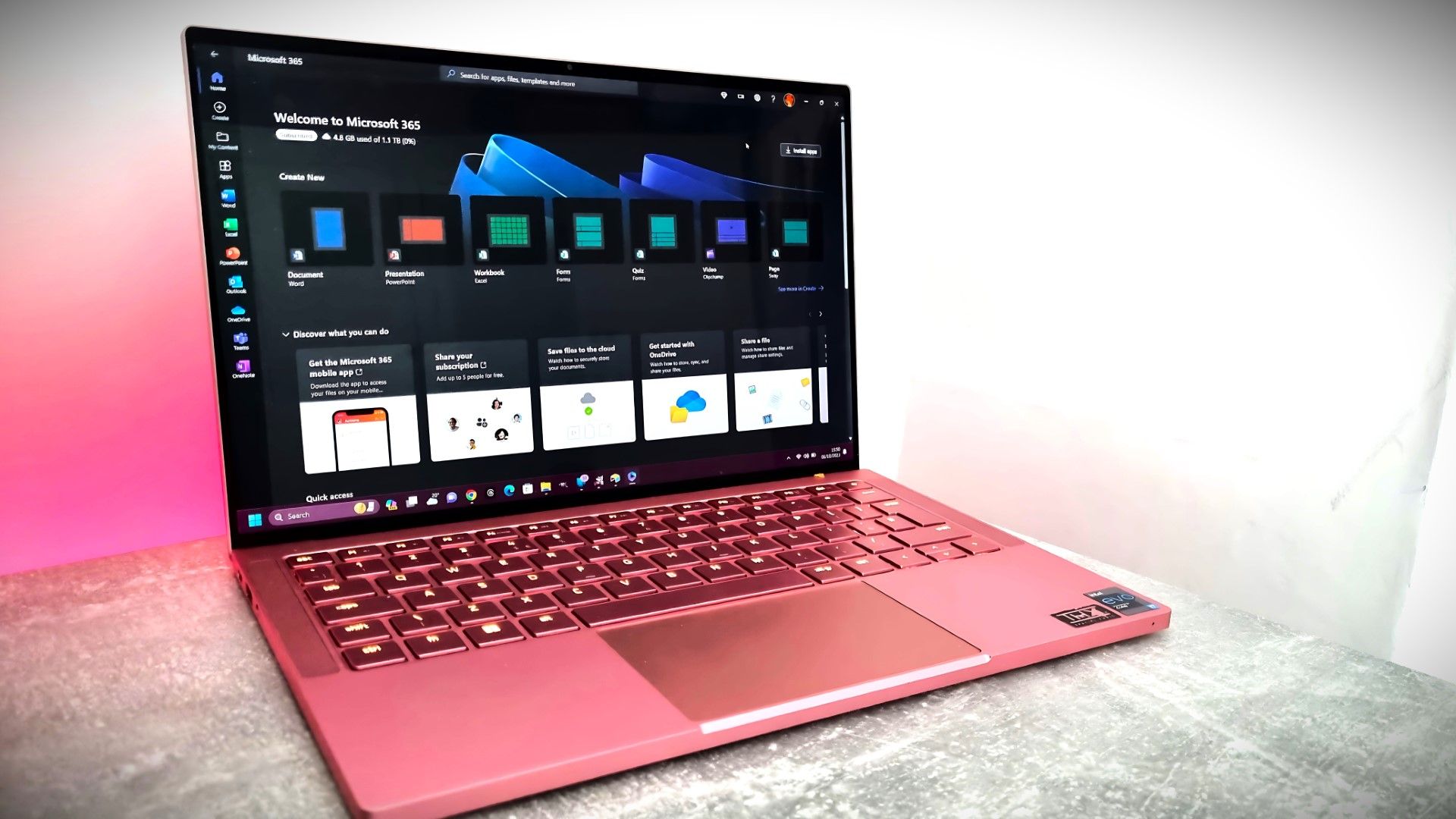
Microsoft's Surface Pro 12-inch 1st Edition (2025) powered by Qualcomm Snapdragon X Plus processor.

Microsoft's Surface Pro 12-inch 1st Edition (2025) powered by Qualcomm Snapdragon X Plus processor.

  •  

The man behind PowerToys is most excited about these features that ship next week

PowerToys is one of my favorite Windows apps and a must-have for people who want to get the most out of Windows 11. We often highlight new and upcoming features for PowerToys, but we rarely get to hear about the most exciting features in the eyes of Niels Laute.

Next week, PowerToys will receive several improvements, including a compact option for Command Palette and a ripple effect for Mouse Highlighter. Laute, who is the project manager of PowerToys and WinUI, shared the features and changes he's looking forward to.

As PM of PowerToys, Laute oversees the development of one of the best free Windows apps. But the app is worked on by several people. Over 300 pull requests contributed to next week's update, and Laute thanked the team for their efforts.

Next week's PowerToys release is looking good 👀!The team and our amazing community have merged almost 300 PRs, packed with quality-of-life improvements, stability fixes, and polish across the suite :)!Here's some of my favorite (small) improvements coming 🧵:August 18, 2026

We've known about some of these changes because of the PowerToys preview. For example, on-device Phi Silica support has been in testing over the last two weeks. But next week the changes will ship to everyone using PowerToys.

Command Palette is similar to Spotlight on macOS. Another way to look at it is as what Windows Search should be. The utility can launch apps, open settings, and trigger actions quickly.

Command Palette is a powerful tool, but it can take up quite a bit of space on your screen. Next week's update to PowerToys brings the option to use a compact view for Command Palette.

Command Palette is getting compact mode! pic.twitter.com/DA7RzmUSgzAugust 18, 2026

Mouse Highlighter is a handy tool that lets you find your mouse cursor. It can save you some time if you use multiple monitors or an ultrawide display. But it can feel a bit heavy-handed since it grays out your screen to highlight the cursor. The upcoming ripple effect is more subtle.

Mouse Highlighter getting new Ripple effects! @ClintRutkas has been cooking with this one 🚀. pic.twitter.com/MzDycvsgBvAugust 18, 2026

Phi Silica is a small language model (SLM). It's perhaps best known for being the model that powers Copilot+ PC features such as Click to Do and on-device rewriting in Word and Outlook.

@khmyznikov added Phi Silica support for Advanced Paste 🚀! So you will be able to take advantage of your NPU for AP on a Copilot+ PC! pic.twitter.com/sR60TT51W1August 18, 2026

Phi Silica and other features have been in preview testing for a bit. The next update to PowerToys will make it easier to get preview updates.

New update UX that addresses a bunch of reported issues - and the ability to opt-in our new preview channel! pic.twitter.com/Cs8oDjXqt6August 18, 2026

Change logs for PowerToys are famously long and detailed, so you can expect the "gazillion" fixes Laute mentions to be listed next week.

And so much more! Shortcut Guide is much smoother now and has built-in search, a gazillion CmdPal bugfixes (thanks @AkaWizardPrime!) and perf and stability fixes across the board. Oh, and a brand new utility to look forward too :)!Stay tuned!August 18, 2026

I'll update this piece when the new version of PowerToys rolls out and add the complete change log.

PowerToys | Free at GitHub | Free at Microsoft Store

This collection of utilities includes a large library of features to enhance the Windows experience. PowerToys is designed with power users in mind, but it has handy features for people who just use their PC for everyday computing too.

Click to join us on r/WindowsCentral

Join us on Reddit at r/WindowsCentral to share your insights and discuss our latest news, reviews, and more.
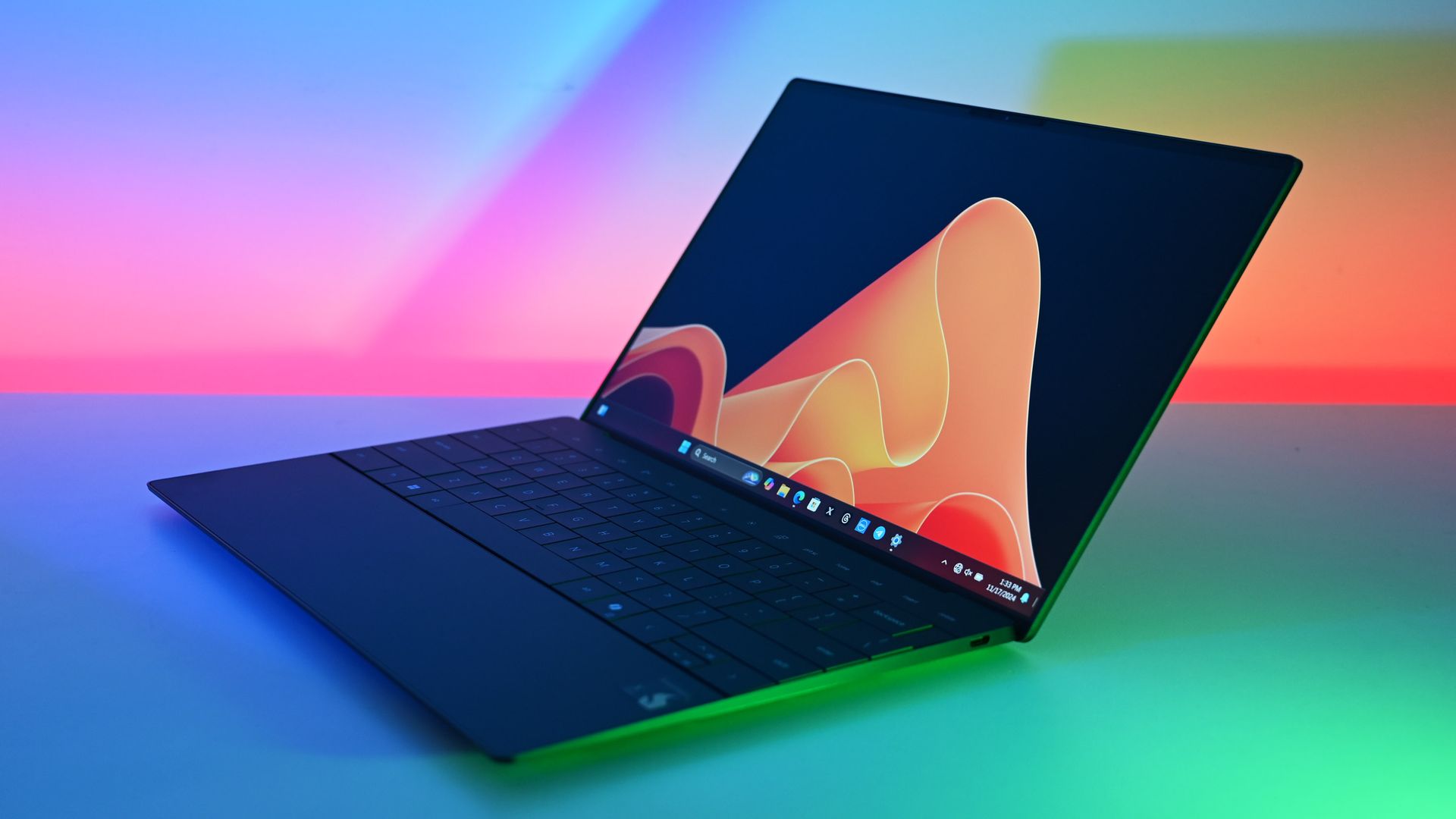
A laptop screen displaying Windows 11, featuring the "Grab And Move" settings window of PowerToys. The desktop background is colorful and vibrant.
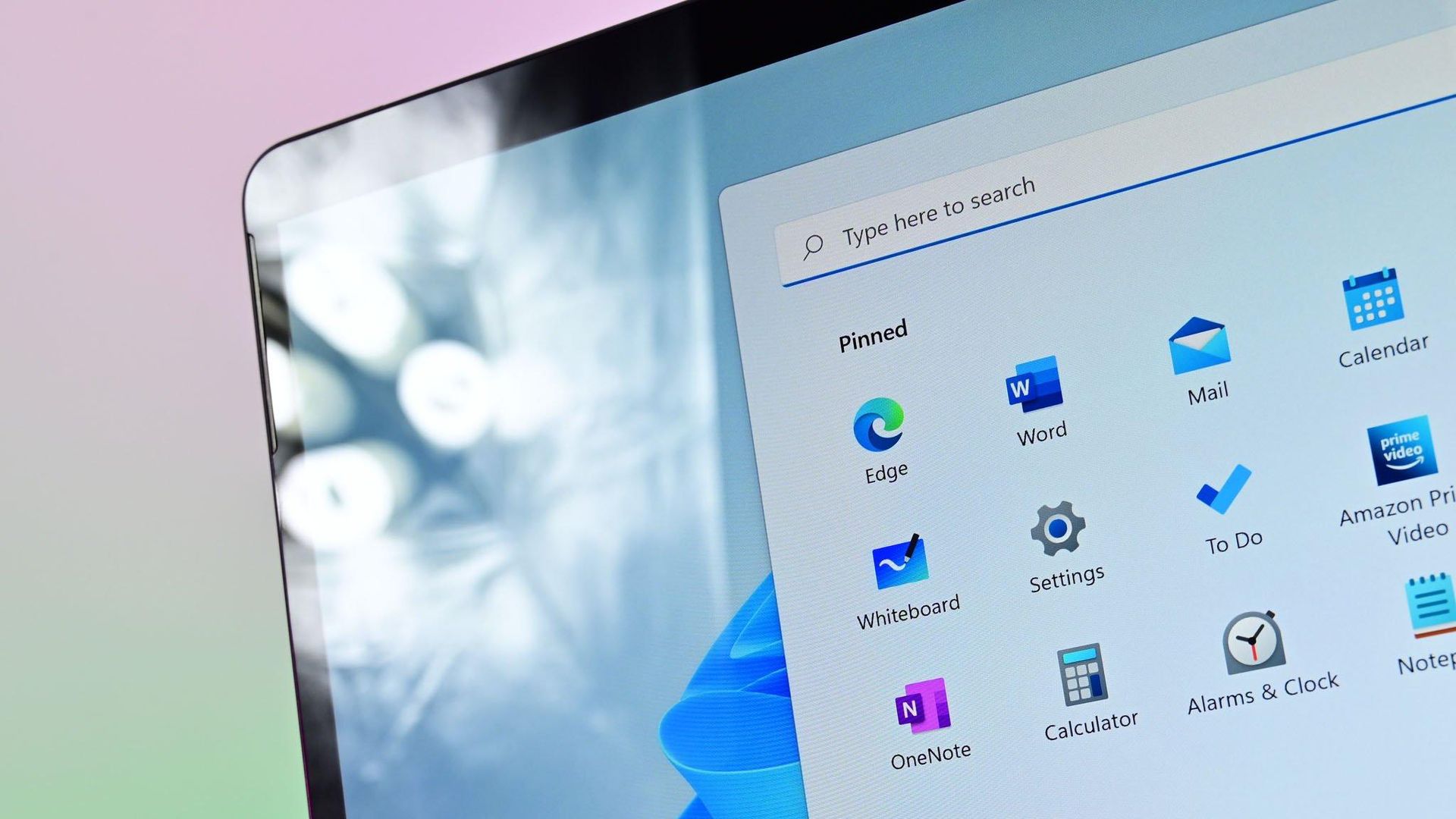
A laptop screen displaying Windows 11, featuring the "Grab And Move" settings window of PowerToys. The desktop background is colorful and vibrant.

  •  
❌