WhenI reviewed the MSI Claw 8 EX AI+ a few months back, I noted how it was a generational jump over AMD’s latest Zen 2 chips found in competing handheld gaming PCs, and when combined with Intel XeSS, it really gave gamers the ultimate handheld we’ve been yearning for.
But there were two problems. One was price. Due to RAM and NAND shortages due to demand for AI compute, MSI had to jack the price by at least $500, putting it at an MSRP of $1,799, which is kind of absurd.
The other was, surprisingly, extremely tight supply. Despite being sold at Best Buy, Amazon, Newegg, and B&H, it sold out everywhere within 24 hours (often due to preorders).
Since its release, that resupply still hasn’t happened. All those retailers are still listing it as out of stock as of me writing this today, and this seems to regularly happen with MSI and its Intel-based handhelds (whether it’s MSI's or Intel’s fault, I’m trying to find out).
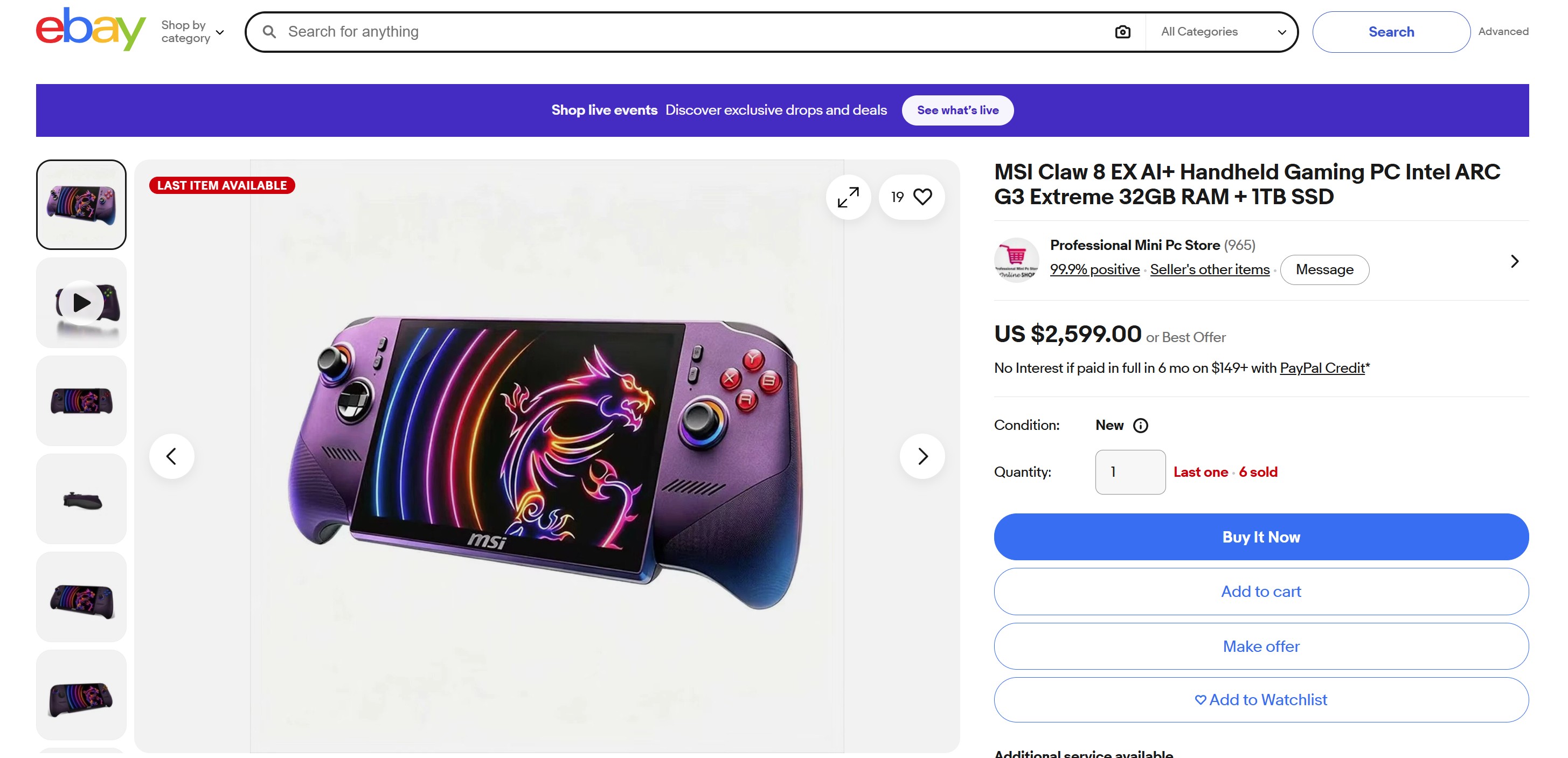
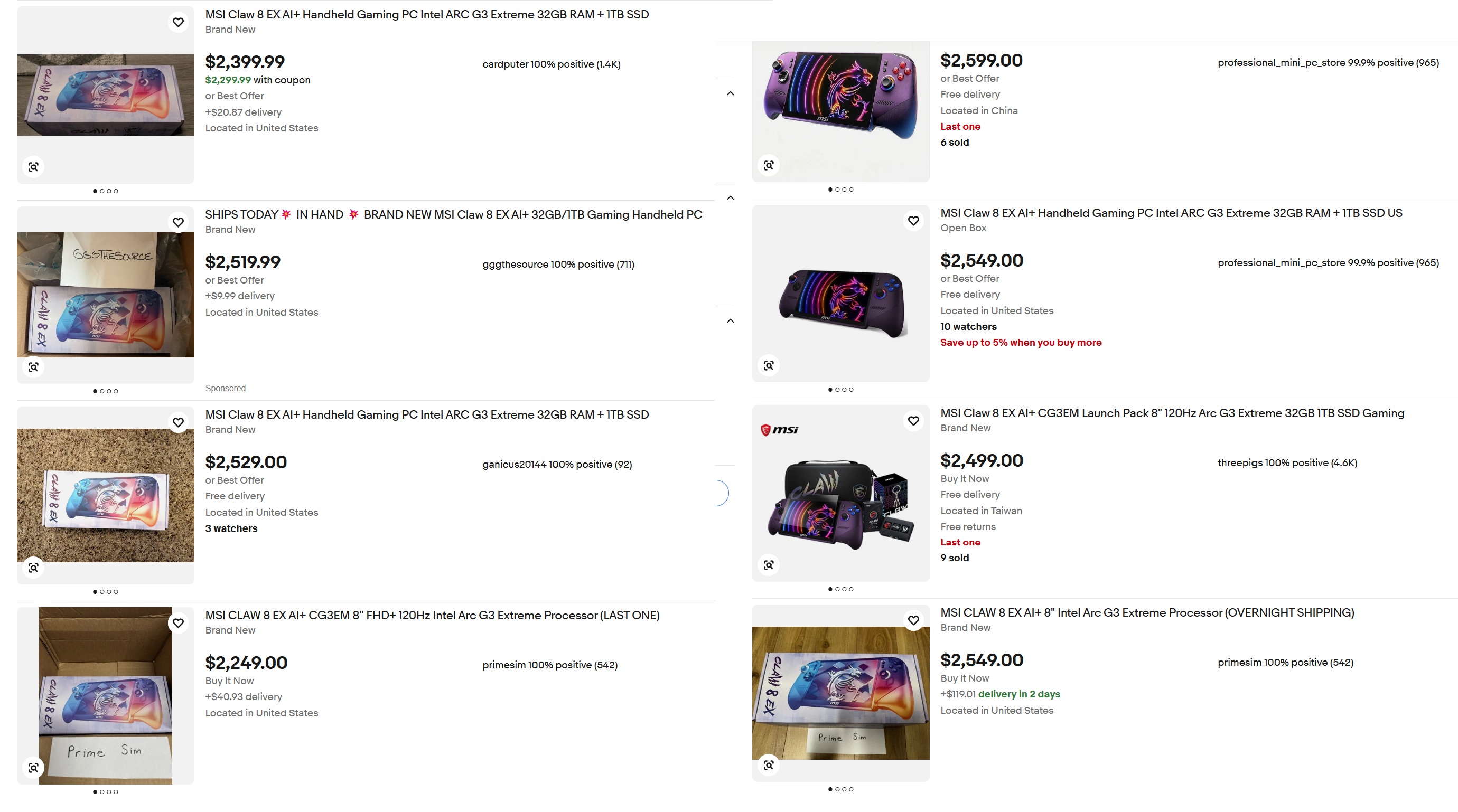
So, out of curiosity, I checked eBay to see what that scene was like for the MSI Claw 8 EX AI+, and sure enough, some online stores are selling the hard-to-find handheld, but at an even more exorbitant $2,599 – which is an $800 surcharge over retail!
ebay | MSIebay | MSI
You may be thinking, but sure, it’s eBay, and people can list items for any price, but are people buying them? The answer appears to be yes. One retailer, seen in the above screenshot, had seven of them in stock but has already sold six, giving a real FOMO to anyone eyeing that last one.
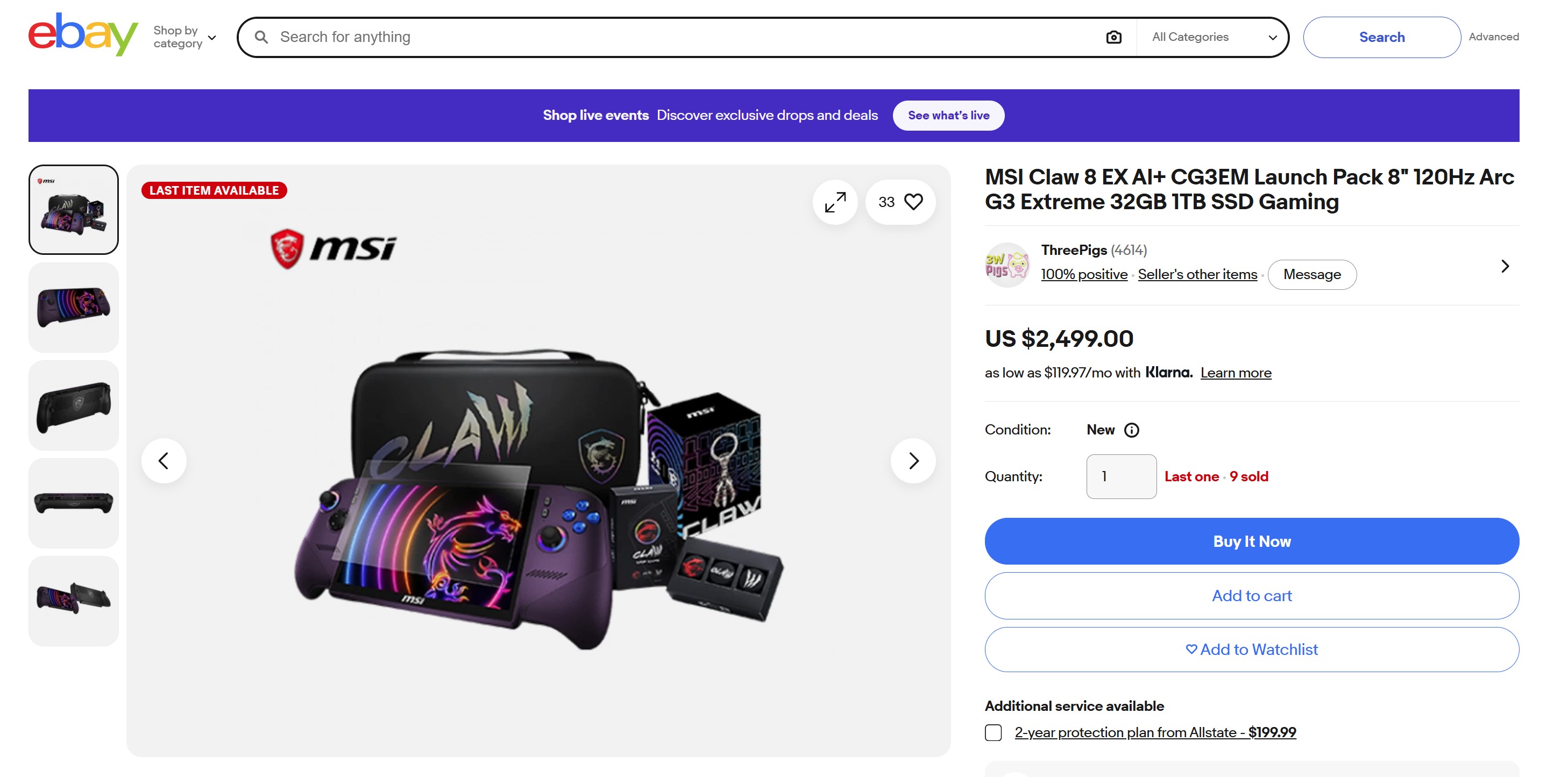
To be fair, I did find a seller with one in stock for $2,299.99 (after coupon, plus $20 shipping), so you’re “only” paying $500 over MSRP. Another seller had nine available, with one remaining for $2,499.
Some of the many hard to find MSI Claw 8 AI EX+ handheld gaming PC auctions on eBay. (Image credit: ebay | MSI)
But you get the point. Not only is the MSI Claw 8 EX AI+ insanely expensive at retail, but its shortage is driving up its price by $500 to $800, with people buying it. It’s why I’ve always noted on our podcast that PC gaming is recession-proof. No matter how bad the economy gets, or how high prices go, there is usually someone willing to pay for it.
For whatever reason, Lenovo can’t keep it in stock, so much so that it eventually removed it from its own website despite excellent reviews and, yes, demand for it, as people were paying $650 over retail just to have one.
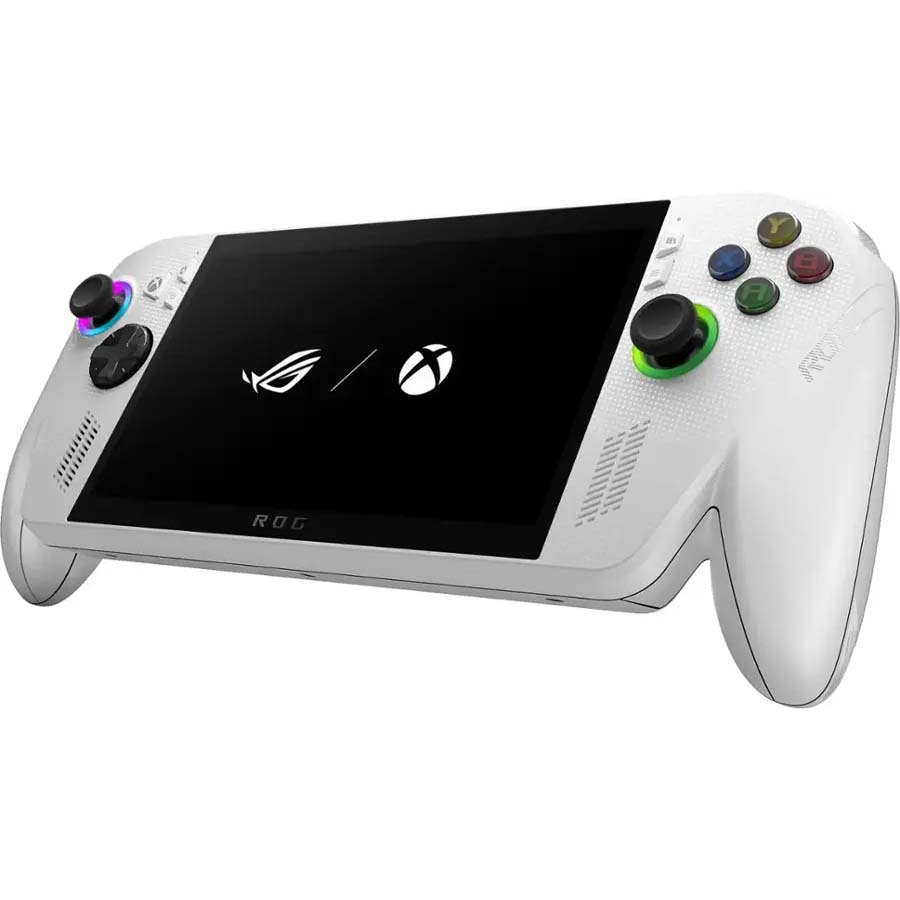
Interestingly, ASUS has been the king of “you want it, just buy it,” as the original ROG Ally and the newer ROG Xbox Ally and Ally X are still widely available online and at your local Best Buy. Moreover, ASUS hasn’t even raised the price, keeping them at $599 and $999, respectively.
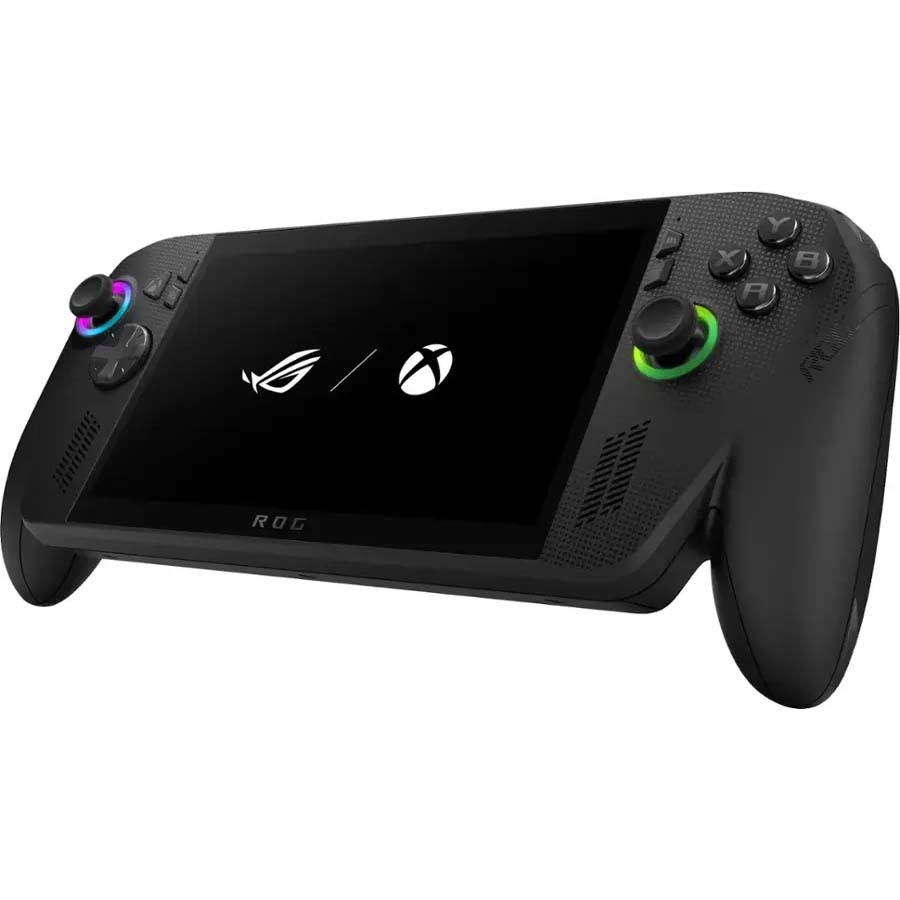
The ROG Xbox Ally features a 7-inch 1080p, 120Hz touchscreen and includes an AMD Ryzen Z2 A processor, 16GB LPDDR5 RAM, 512GB PCIe 4.0 SSD, and a 60Wh battery. It's designed for PC gaming across various services.
The premium Xbox Ally X has a more powerful AMD Ryzen AI Z2 Extreme processor, 24GB RAM, 1TB SSD. It's a better choice for people who want to play more graphically demanding PC games.
I hope ASUS can maintain those stock and price levels, as both devices are really solid choices for those looking into handheld gaming. Sure, the Ally X pales in performance to the new MSI Claw 8 EX AI+, but it’s still a really good experience with an outstanding design (a design that will improve with the forthcoming Xbox Ally X20 anniversary edition that features a larger OLED display and many smaller fixes; I expect to be reviewing that when it releases, so stay tuned).
So where does that leave you in this silicon soap opera? Has the RAM/NAND crunch shoved your handheld plans into “maybe in 2028” territory, or are you already rationalizing a purchase with phrases like “long-term investment” and “I deserve this”?
Let me know in the comments what your breaking point is for handheld pricing — and whether $2,599 is where you draw the line, or merely where your wallet starts quietly begging for mercy.
Join us on Reddit at r/WindowsCentral to share your insights and discuss our latest news, reviews, and more.
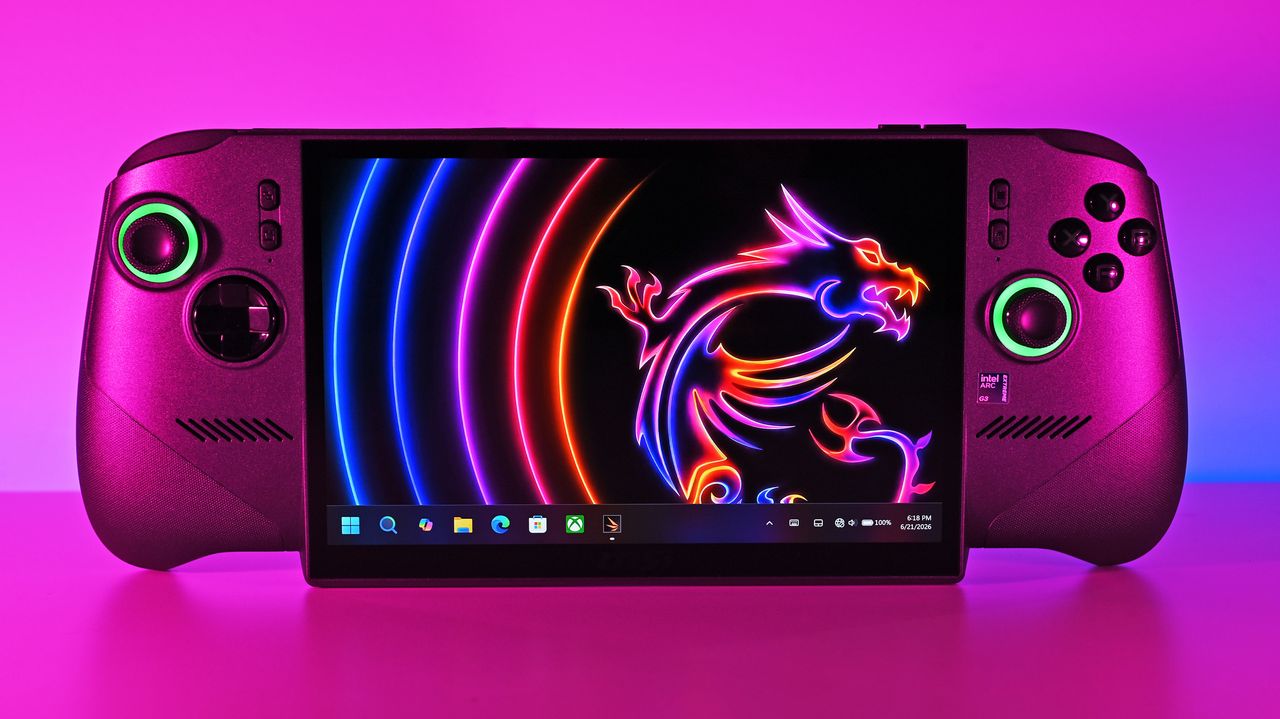
Front shot of the MSI Claw 8 EX AI+ under vibrant pink lighting, displaying the Windows 11 taskbar and a neon dragon wallpaper on its large screen.
Front shot of the MSI Claw 8 EX AI+ under vibrant pink lighting, displaying the Windows 11 taskbar and a neon dragon wallpaper on its large screen.
I’ll be honest: I’ve never liked Apple’s notch design. I find it intrusive, and the whole “Dynamic Island” thing always felt like a marketing trick to justify a hardware compromise.
So when I saw Notchify pop up on Reddit, my first thought was, why would anyone want that on Windows?
That said, if you're a bit horrified at the idea, I mean, I totally get it. But hear me out.
What Notchify does
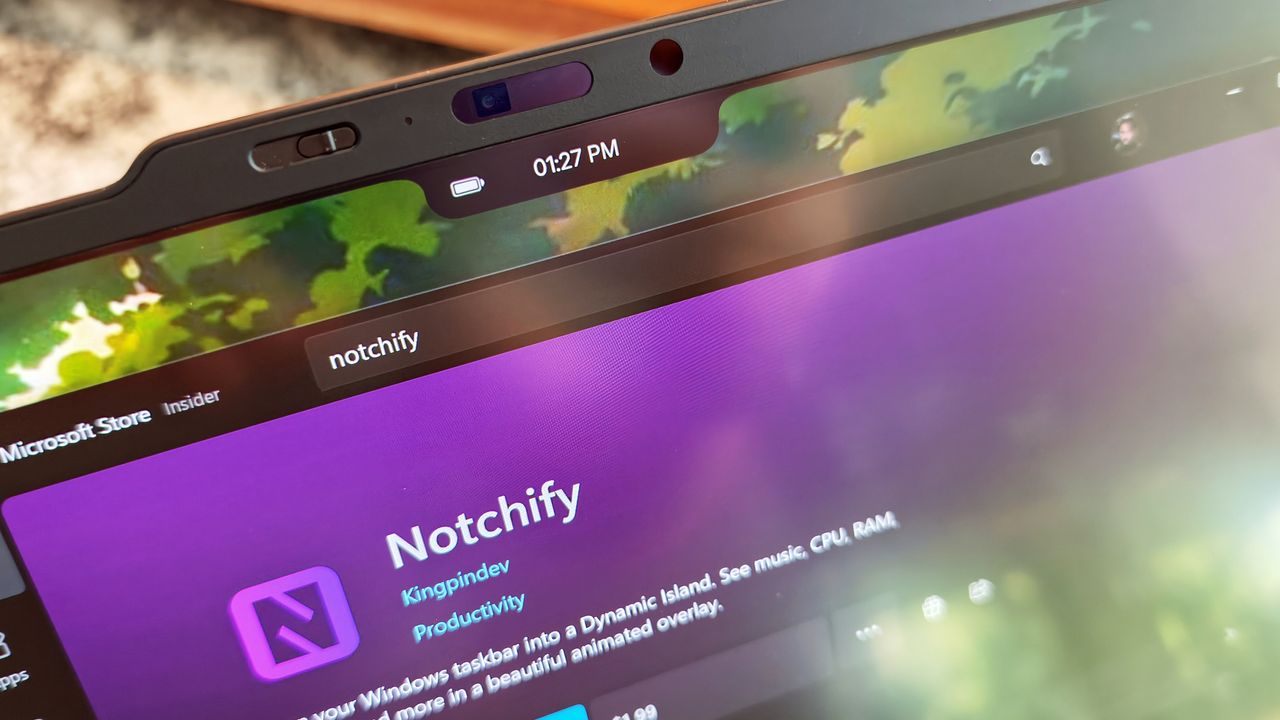
At its core, Notchify is pretty simple. The app creates a “fake” notch or “island” at the top of your screen. And yes, its functionality is what actually saves it. You can use it to display notifications, media playback controls, weather, battery, timers, microphone indicators, and more.
There's even a built-in clipboard for copied content and quick access.
You can see some of it in action in the above embedded video.
The settings are straightforward. You can toggle between Island (disconnected) and Notch (connected) modes, pick which monitor it appears on, and decide if it should launch at startup.
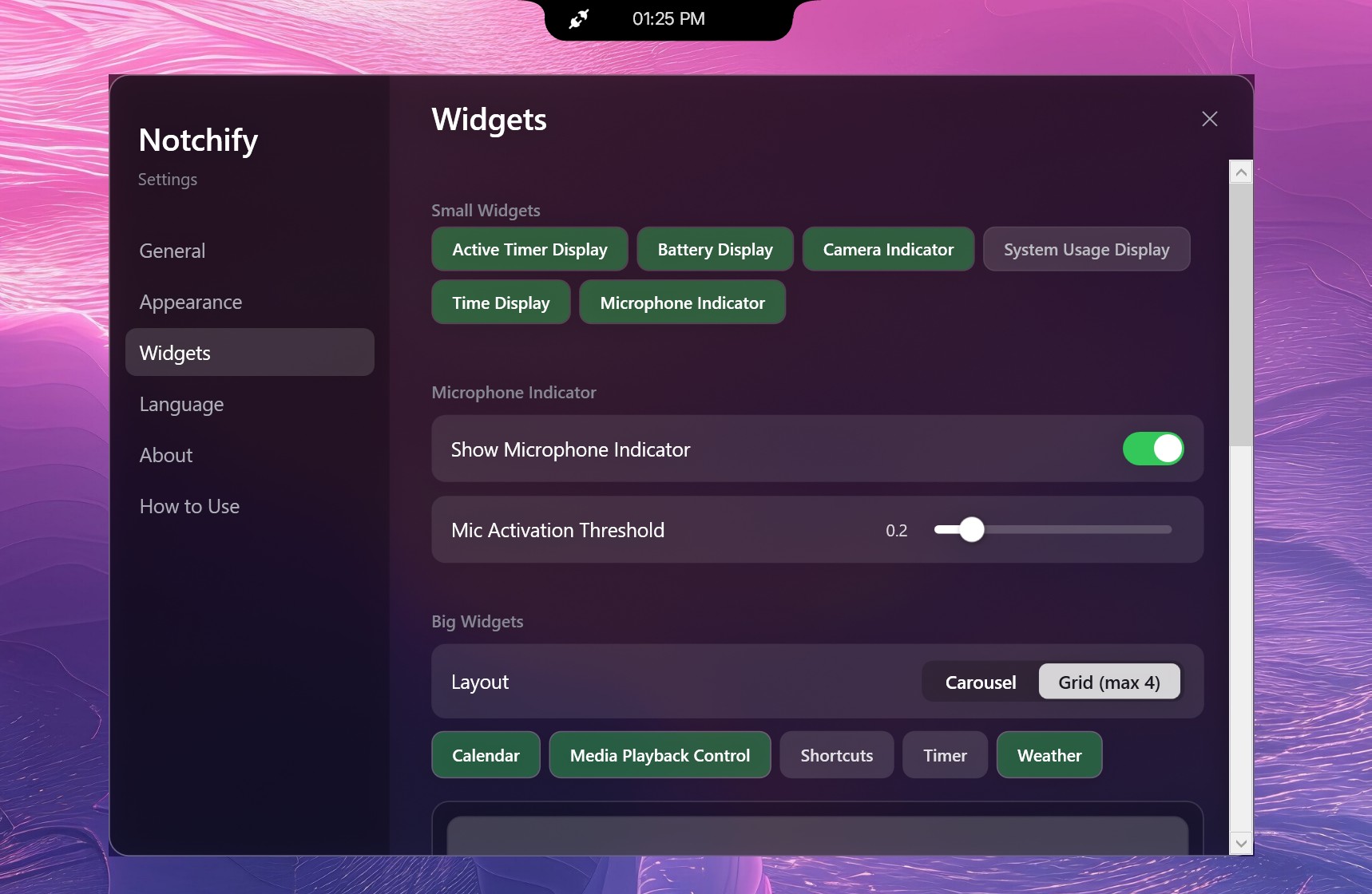
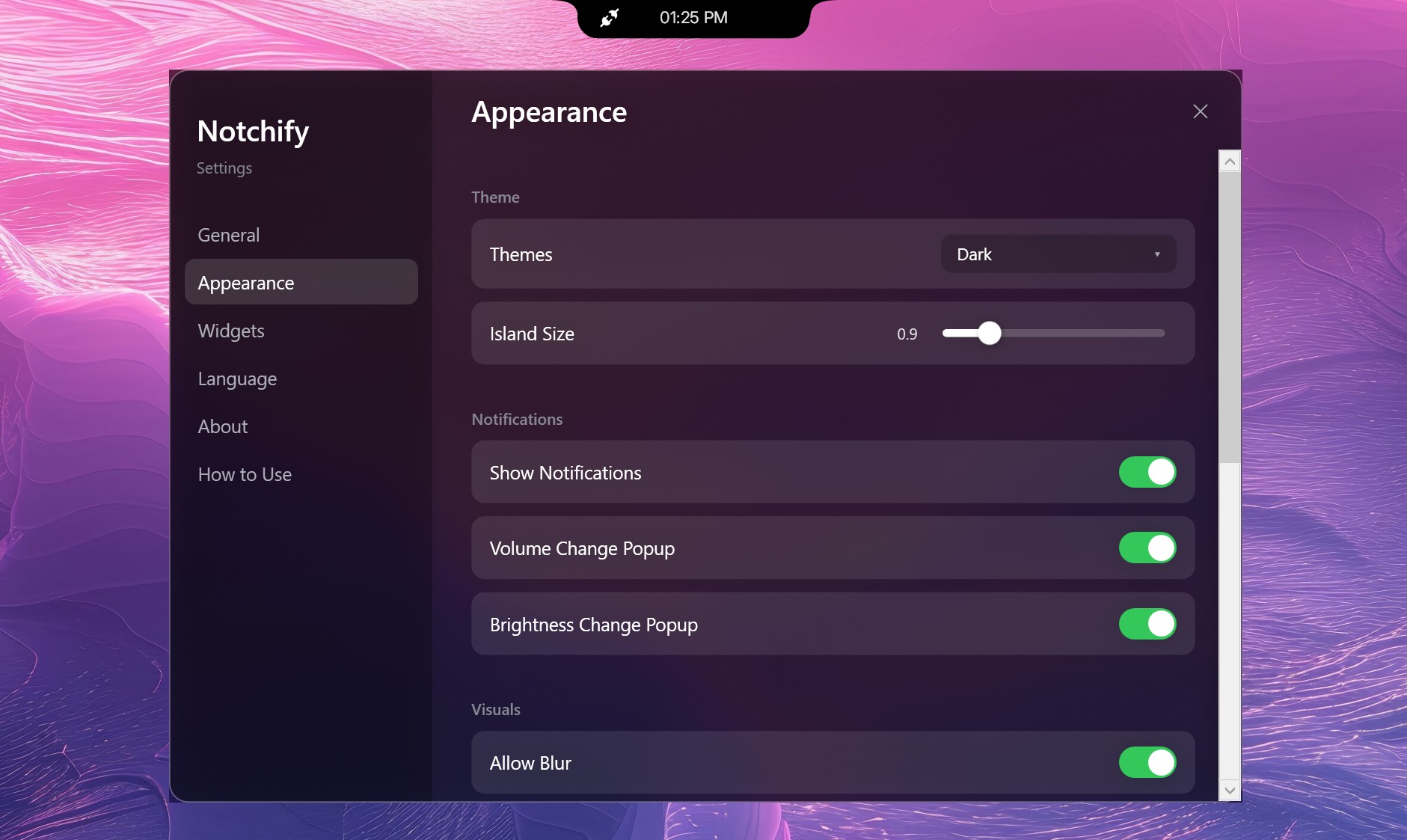
The Appearance tab lets you adjust the theme, blur, and popup behavior for volume or brightness changes. The Widgets section is where the fun begins, as you can mix and match small widgets like battery display, time, and microphone indicators, or go big with calendar, weather, and media playback.
The notch lives on your PC as "always on top," and when you mouse over it, it expands with whatever info you chose it to display. The animations are a bit janky, but it works.
It’s clean, modern, and surprisingly polished for an indie project. The dark theme looks great.
Why I ended up liking it (mostly)
Some of the settings and options for Notchify. (Image credit: Daniel Rubino)
I use a massive 52-inch Dell Ultrasharp monitor, and one of the downsides of that much screen real estate is that my eyes are constantly darting around for notifications, time, or playback controls.
Notchify fixes that by putting everything in one place.
I still don’t love the idea of a notch (it’s not my aesthetic), but I can’t deny how practical it is. Having a small, centralized hub for quick info saves me from scanning the corners of my display. It’s one of those things that quietly improves workflow without demanding attention.
And if you've listened to me on our podcast, you know my big beef with Windows 11 is how I can't adjust where notifications appear from, which seems dumb in 2026.
For anyone switching from macOS to Windows 11, Notchify might even make the transition easier. It brings a familiar visual cue while adding more flexibility than Apple’s version ever offered, and that's kinda cool.
Probably the most obvious issue is that Windows 11 doesn't "wrap" around the app, so when running apps full screen (like your web browser), you may end up blocking access to some features. And no, you can't move it around, which was a bit surprising.
The best part of this story isn’t just the app; it’s the community that helped shape it. On Reddit, user GuppyFarmer posted a detailed breakdown of Notchify’s CPU usage, pointing out that it was higher than expected. Instead of brushing it off, the developer responded, thanked them, and used the data to fix the issue.
That kind of interaction is what makes indie development fun. Constructive feedback, not just complaints, helps these projects grow. GuppyFarmer’s analysis gave the dev exactly what they needed to optimize performance, and the result is a smoother, more efficient app for everyone.
Too often, feedback online turns into negativity. Here, it turned into progress.
My takeaway
More options for theme and design in Notchify. (Image credit: Daniel Rubino)
The app costs $1.99 after the free trial, which feels completely fair for what it offers. It’s not bloated, it’s not subscription-based, and it’s updated based on real user input. That’s the kind of indie pricing model I’ll always support.
I still don’t want a notch on my laptop or desktop, but Notchify convinced me that the idea can be useful when done right. It’s a small, clever utility that adds genuine functionality to Windows, and maybe it'll inspire some other creations to solve some problems.
And hey, it proves what many of us already know: good ideas don’t have to come from big companies. Sometimes, a single developer with a Reddit post can create something that feels fresh and helpful.
If you’re curious, give the free trial a spin. You might find yourself liking it more than you expect.
Join us on Reddit at r/WindowsCentral to share your insights and discuss our latest news, reviews, and more.
Close-up of a laptop screen showing a black notch overlay with a battery icon and time display above the Microsoft Store page for the Notchify app.
My reverse notch on the Lenovo X1 Carbon, counter-matched by Notchify, is truly diabolic.
Magnetic keyboards used to feel like a side quest in the keyboard world. You either bought one from a tiny boutique brand and hoped the firmware wasn’t held together with duct tape, or you ignored the whole category because it felt too experimental.
Now Razer has stepped in with its first Hall Effect Magnetic Huntsman keyboards, and that changes everything. When a company with global retail presence decides magnetic switches matter, it suddenly becomes a lot easier for regular players to try the tech without worrying about sketchy support or limited availability.
Razerhad no input, nor did it see the contents of this review, prior to publication.
Design and build
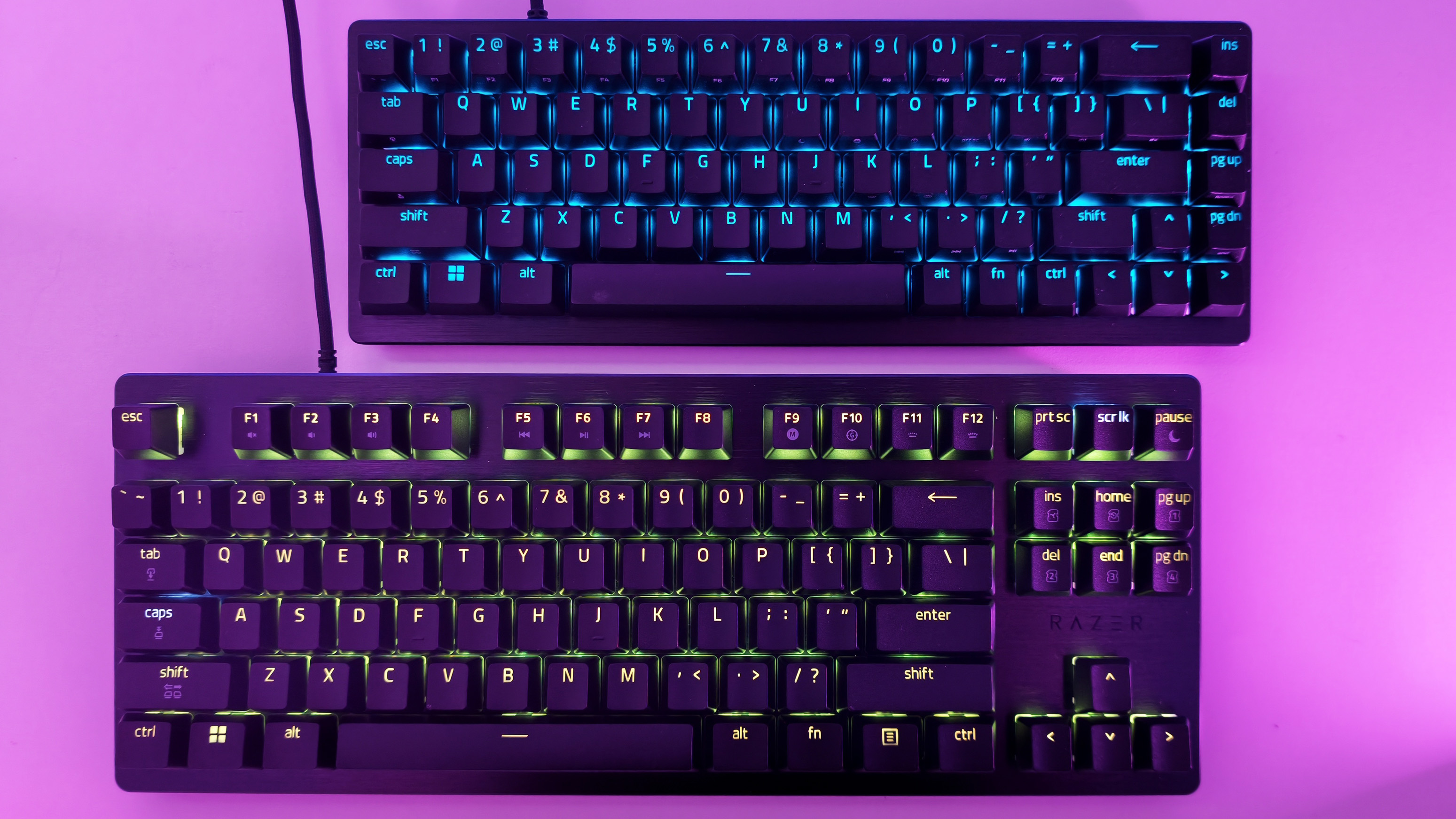
Top-down comparison of the Razer Huntsman V3 HE Mini 65% keyboard (top, cyan RGB) and TKL keyboard (bottom, green RGB) on a pink surface. (Image credit: Daniel Rubino)
Both keyboards share the same DNA: aluminum top plate, doubleshot PBT keycaps, and dense internal foam that gives each keystroke a quieter, more muted sound. Razer told me they added extra lubrication and a “very dense layer of foam to absorb high‑pitch pinging noises,” and I can hear the difference. These boards sound cleaner than the Huntsman AK and even the V3 Pro.
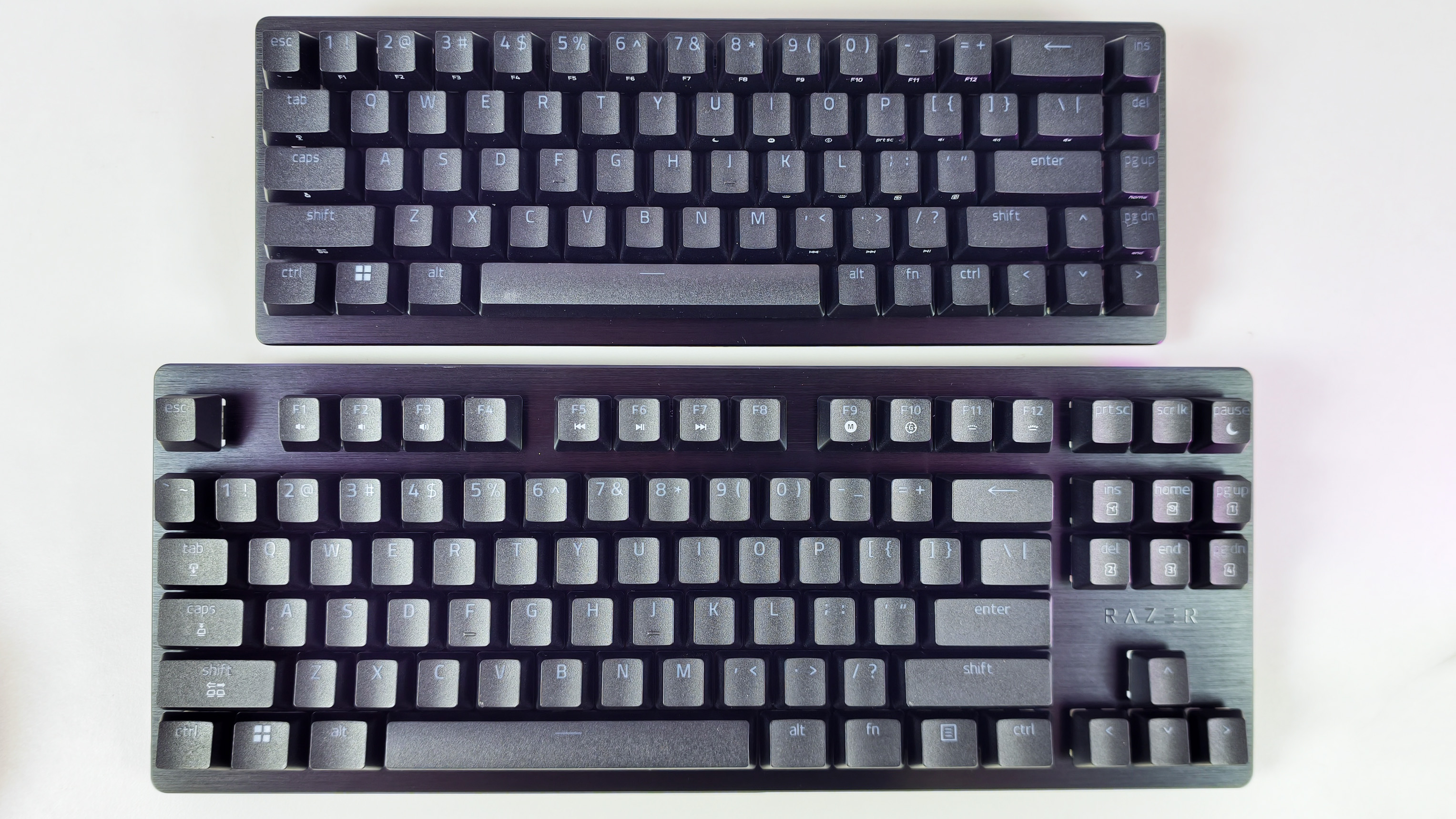
The TKL gives you the arrow keys and navigation cluster, which I prefer for writing and general use. The Mini 65% keeps the arrows but trims the rest, which frees up desk space and feels great for shooters.
Razer confirmed both models have full feature parity, so you’re choosing layout, not capability.
Magnetic switches explained
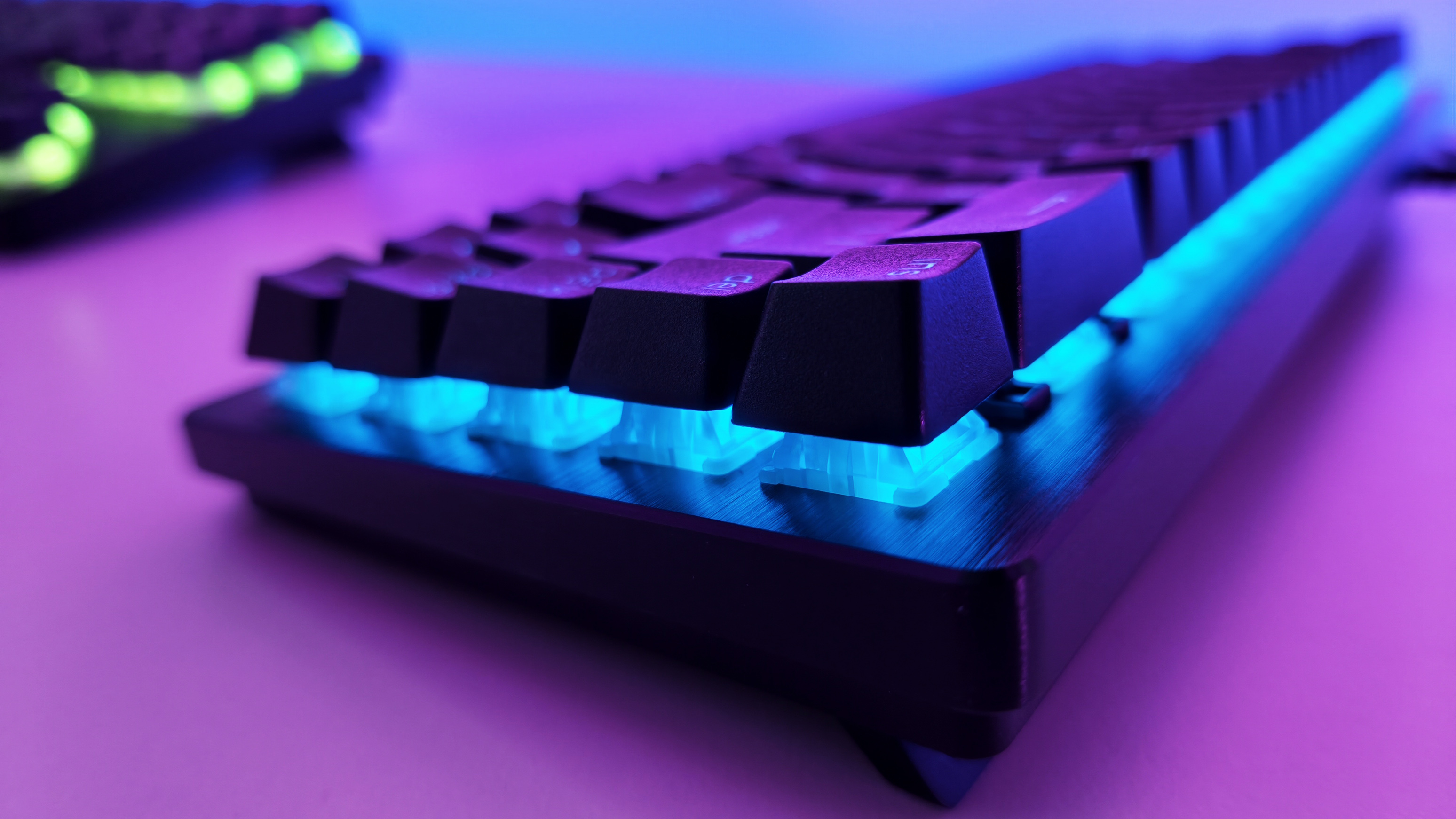
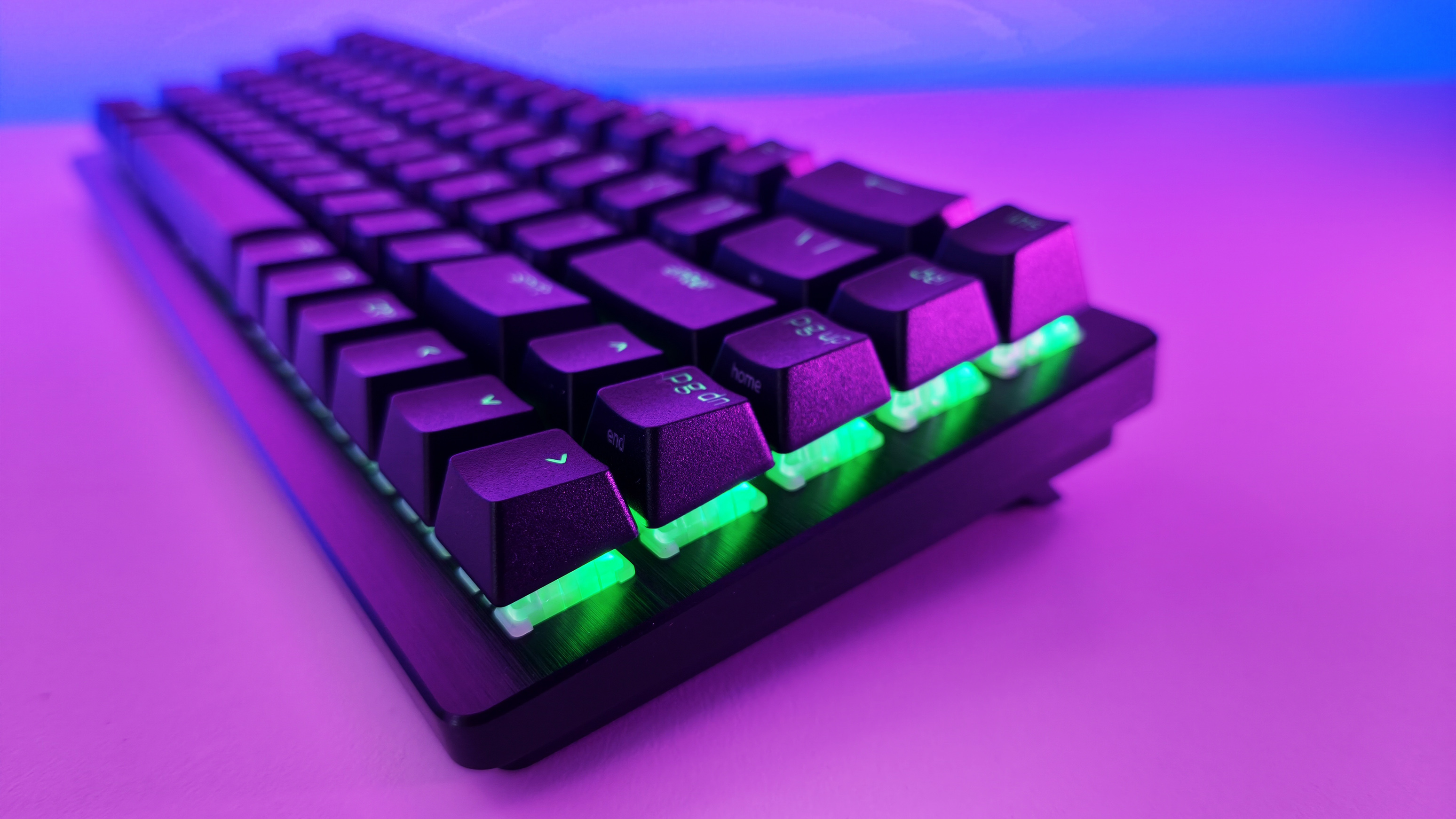
Low-angle close-up of a black Razer gaming keyboard with vibrant cyan RGB backlighting glowing under the keycaps. (Image credit: Daniel Rubino)
Hall Effect switches use magnets and sensors to track key travel. There’s no physical contact point, which means the keyboard can detect exactly how far a key has moved. That unlocks features that optical or mechanical switches can’t do as well.
Razer calibrates every switch at the factory. They told me:
"Hall Effect boards are prone to interference from environmental factors… metal desks, magnets, metal objects."
Instead of pretending this isn’t an issue, Razer built a calibration tool directly into Synapse. If your desk or environment causes drift, you can reset the keyboard back to factory accuracy in three guided steps. I didn’t run into interference myself, but I like knowing the fix is built in.
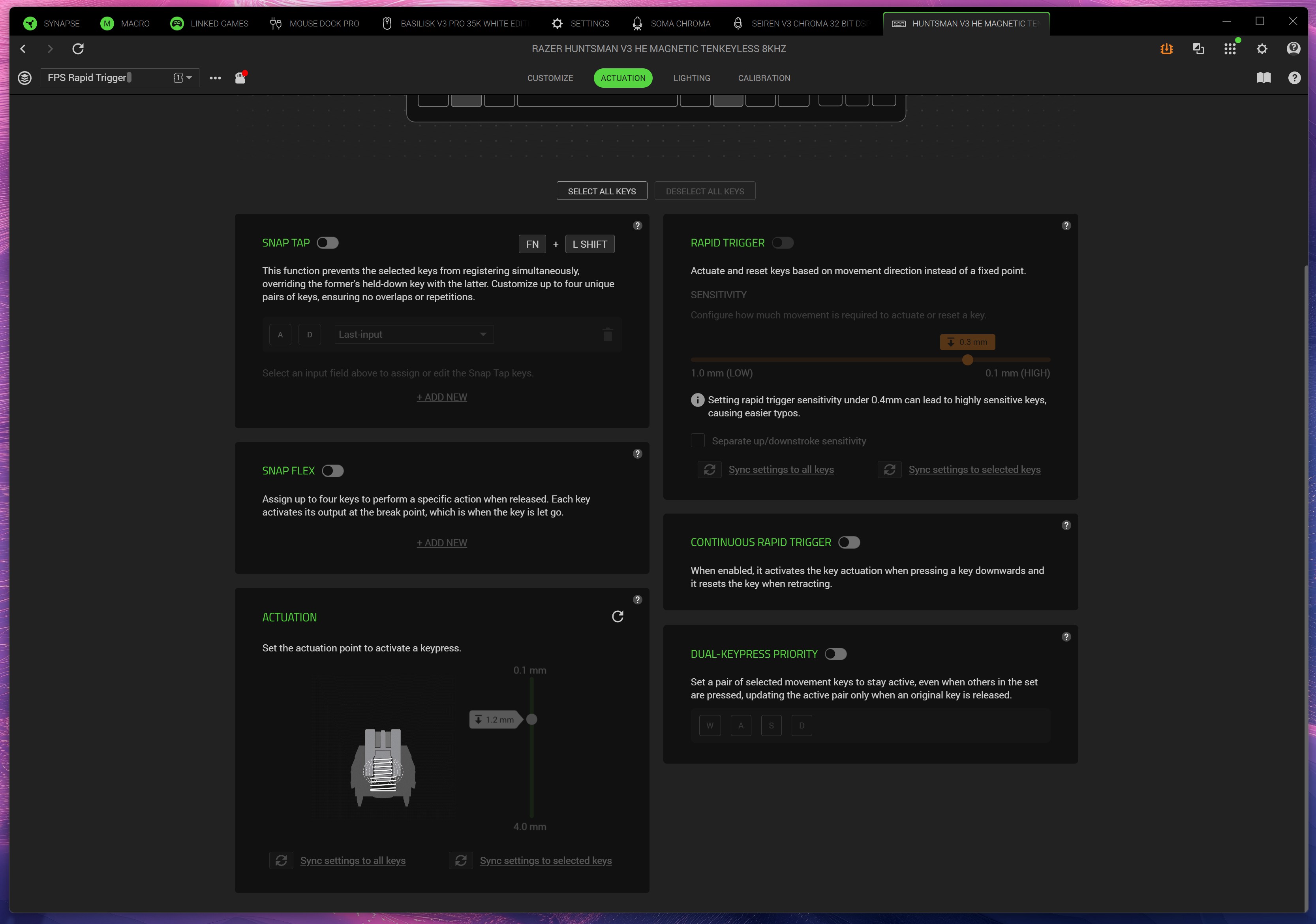
Actuation is fully adjustable from 0.1 mm to 4.0 mm, and you can tune each key individually. I set WASD to 1.2 mm for shooters and left the rest at 2.0 mm for typing. The onboard adjustment tools make this easy.
Razer also claimed:
“We are the most accurate Hall Effect board available to players.”
They admitted true 0.1 mm accuracy is impossible because “pushing two magnets together is damn near impossible,” but their margin of error is small enough that I never noticed inconsistency.
Latency and performance
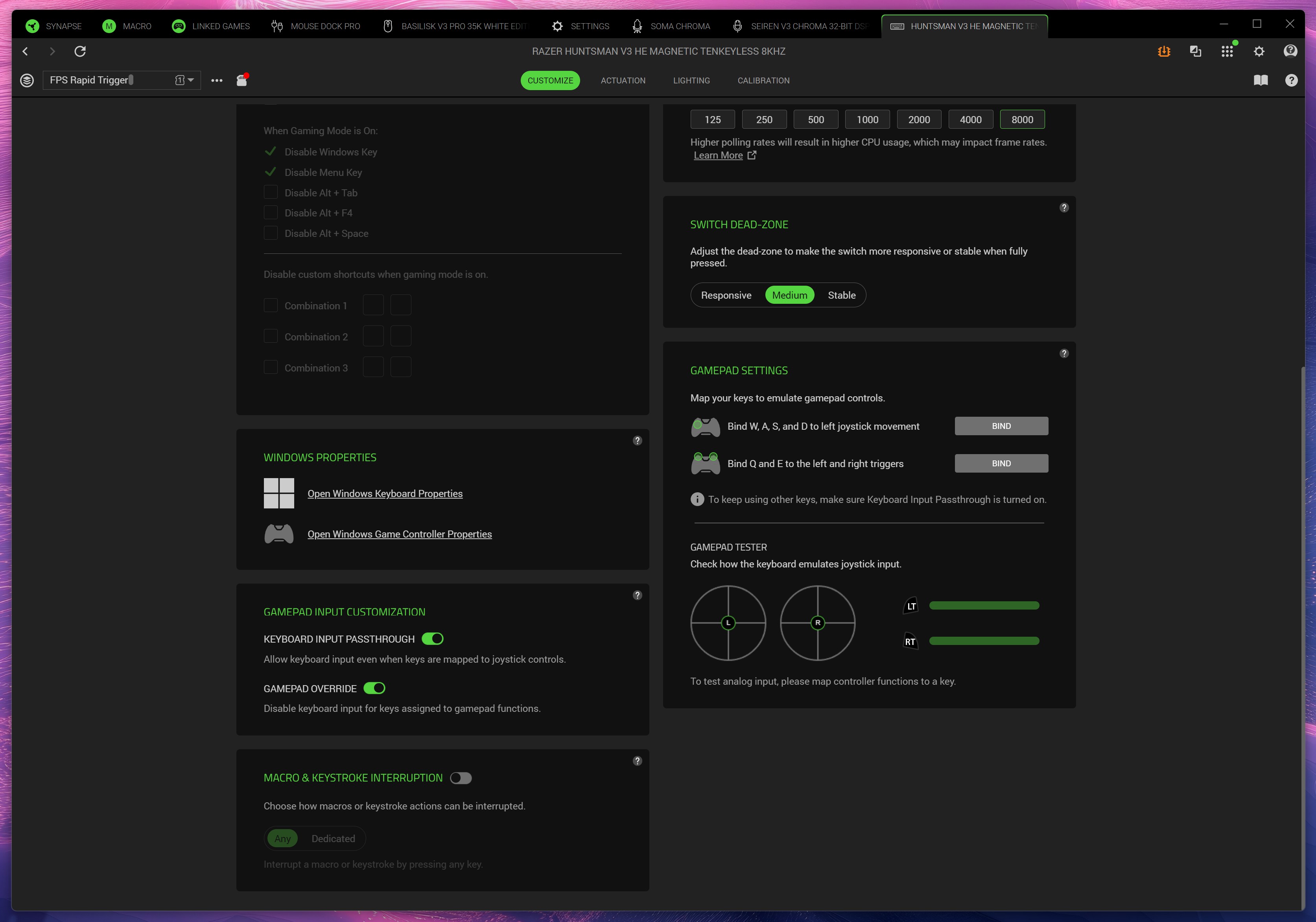
Screenshot of Razer Synapse software displaying customizable options for polling rate, gamepad settings, and macros on the Huntsman V3 HE. (Image credit: Daniel Rubino)
Razer pairs the switches with true 8000 Hz HyperPolling. They measured the HE Magnetic at 0.6 ms latency, which is only 0.12 ms behind their analog optical switches. That’s impressive for a first‑generation magnetic design and still faster than other Hall Effect keyboards by about eight percent.
I can’t measure latency myself, but the keyboards feel snappy. Movements in Counter‑Strike 2 and Valorant felt crisp, and Rapid Trigger made counter‑strafing easier.
Movement‑focused features
Screenshot of Razer Synapse software displaying Actuation tab settings for the Huntsman V3 HE, including actuation point, Rapid Trigger, and Snap Tap. (Image credit: Daniel Rubino)
This is where the HE Magnetic line stands out. Razer didn’t just add magnetic sensing. It built a suite of features that take advantage of it.
Rapid Trigger — Keys reset as soon as they start moving upward. This helps you stop moving faster in shooters, which tightens your hitbox and improves accuracy.
Snap Tap — This prevents two directional keys from actuating at the same time. If you press D while holding A, the keyboard prioritizes the latest input. It makes counter‑strafing more reliable.
Snap Flex — You can bind two actions to a single press. For example, pulling a grenade pin and jumping at the same time. It simplifies multi‑key combos.
Dynamic Keystroke — Up to four actions can be assigned to a single key based on press depth and release. This is powerful and a little scary. I’m curious to see what players come up with.
Dual‑Keypress Priority — This keeps diagonal movement stable. If you’re holding W and A, pressing D won’t override the movement until you release A.
Good Molly, that's a lot of software tech, but while it may not make a difference if you play Brotato (like me; don't judge, it's great), for first-person competitive shooters, it all can absolutely improve your performance and enjoyment of the game. There is a bit of a learning curve here, and all of that is optional to use, but while Razer sometimes catches flak for Synapse, I can't help but feel these are some real value-plays.
Now, some of these are "launch-exclusive" to the HE Magnetic line, for now, but Razer hinted that these features will eventually trickle out to other Huntsman keyboards, likely in the coming months.
TKL vs Mini 65%
Top-down view comparing the compact Razer Huntsman V3 HE Mini 65% keyboard (top) and the larger TKL keyboard (bottom) on a white desk. (Image credit: Daniel Rubino)
I think most people buying keyboards today know Tenkeyless (TKL) versus Mini 65%, but just in case you don't, here's the recap, as I’ve used both layouts for years, and the choice is simple.
Choose the TKL if:
You type a lot
You want dedicated navigation keys
You prefer a familiar layout
Choose the Mini 65% if:
You want more mouse space
You travel or attend LANs
You want a compact gaming setup
Both keyboards have identical features. You’re choosing workflow, not capability.
Personally, I go TKL or even Compact / 96% Full‑Size like the 2026 Razer Huntsman Signature Edition ($499), as I like having media keys and arrow keys but detest numberpads.
Mini-65% is adorable and shockingly portable (great!), but you may end up missing some functions if you use it for more than competitive-ish gaming. No arrow keys is a move; let's just say that.
Either way, it's great that Razer gives you the choice.
Pricing and competition
The $499 Razer Hunstman Signature Edition (2026) is a very unique offering. (Image credit: Daniel Rubino)
The new Razer Huntsman V3 HE Magnetic TKL is $139.99, and the Mini is $119.99. That’s cheaper than Razer’s Pro models and competitive with other magnetic keyboards. Some boutique Hall Effect boards cost more and don’t have Razer’s distribution or warranty support. That alone makes these easier to recommend.
Launch date is today, July 30, so they should be available globally and shipping out to third-party sellers, including Amazon (HE Magnetic TKL; HE Magnetic Mini 65%) and Best Buy.
Typing and sound
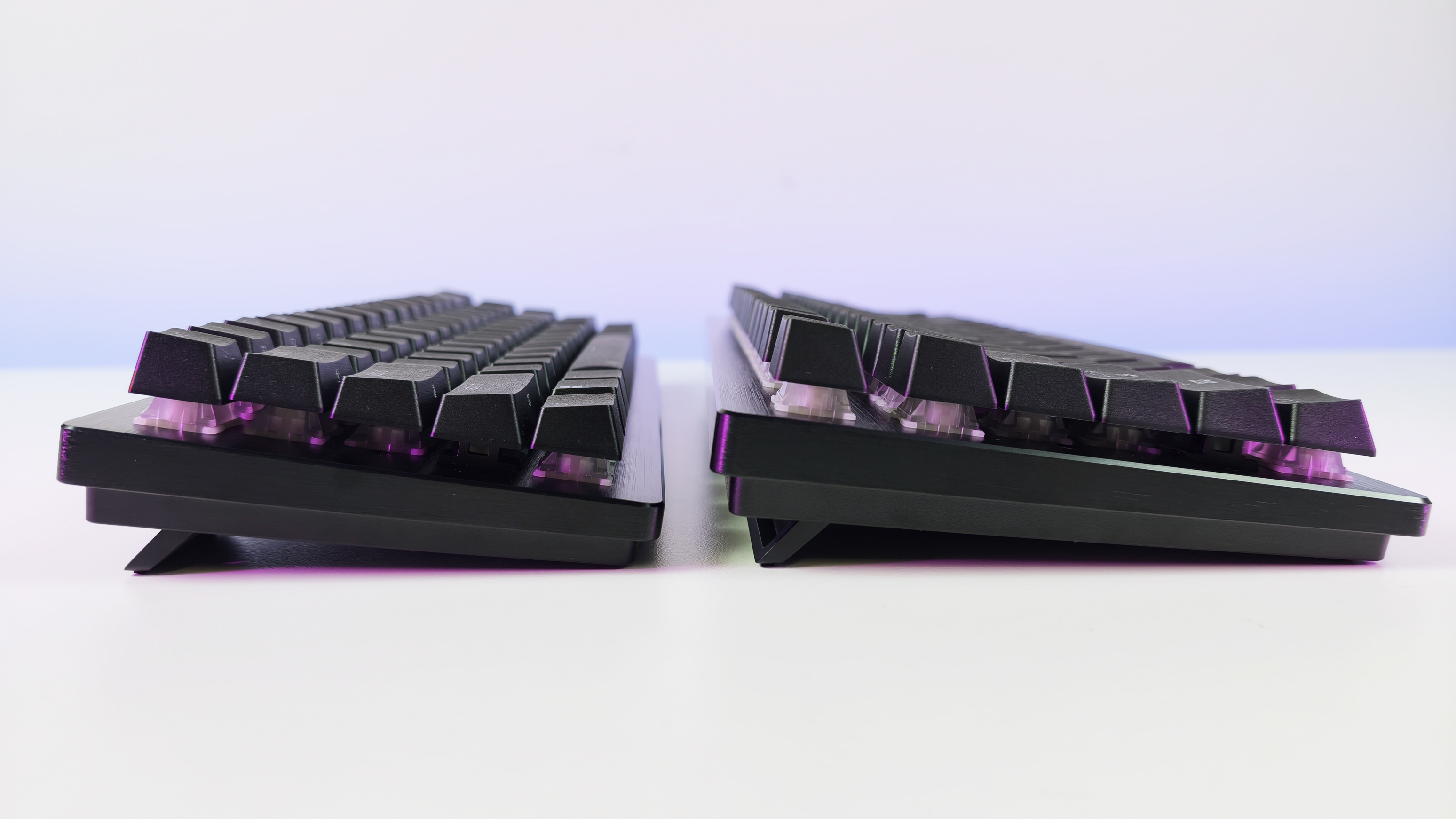
Side-profile comparison of the Razer Huntsman V3 HE Mini 65% and TKL keyboards, showing their incline and height on kickstands. (Image credit: Daniel Rubino)
Typing feels smooth and consistent. The foam and lubrication help, and the magnetic sensing gives each key a clean, predictable feel. I prefer deeper actuation for writing, and the keyboards handled that well.
Gaming felt great with shallow actuation and Rapid Trigger.
Should you buy the Huntsman V3 HE Magnetic?
(Image credit: Daniel Rubino)
You should buy this if ...
✅ You play competitive shooters
✅ You want adjustable actuation
✅ You want movement‑priority features
✅ You like what Razer is cookin'
You should not buy this if ...
❌ You only need a simple keyboard
❌ You don’t care about magnetic sensing
❌ You prefer optical switches
❌You want wireless options
I give the Huntsman V3 HE Magnetic line a 4.5 out of 5. Razer took magnetic switches and made them accessible, polished, and backed by a major brand. The keyboards feel great, the features matter, and the layouts cover both mainstream and compact preferences.
The Huntsman family may be getting crowded, but these new models earn their place, and we'll be updating our best gaming keyboards guide shortly.
And as someone who has gone through something like 5 of these Huntsman variations in the past months, all I can say is I don't think I'll be jumping to anything else anytime soon. Even as someone who does more gaming on their MSI Claw 8 EX AI+ and Xbox Series X, these Huntsman just feel good to use, whether for typing or gaming.
TKL
Razer
Razer Huntsman V3 He Magnetic TKL 8khz
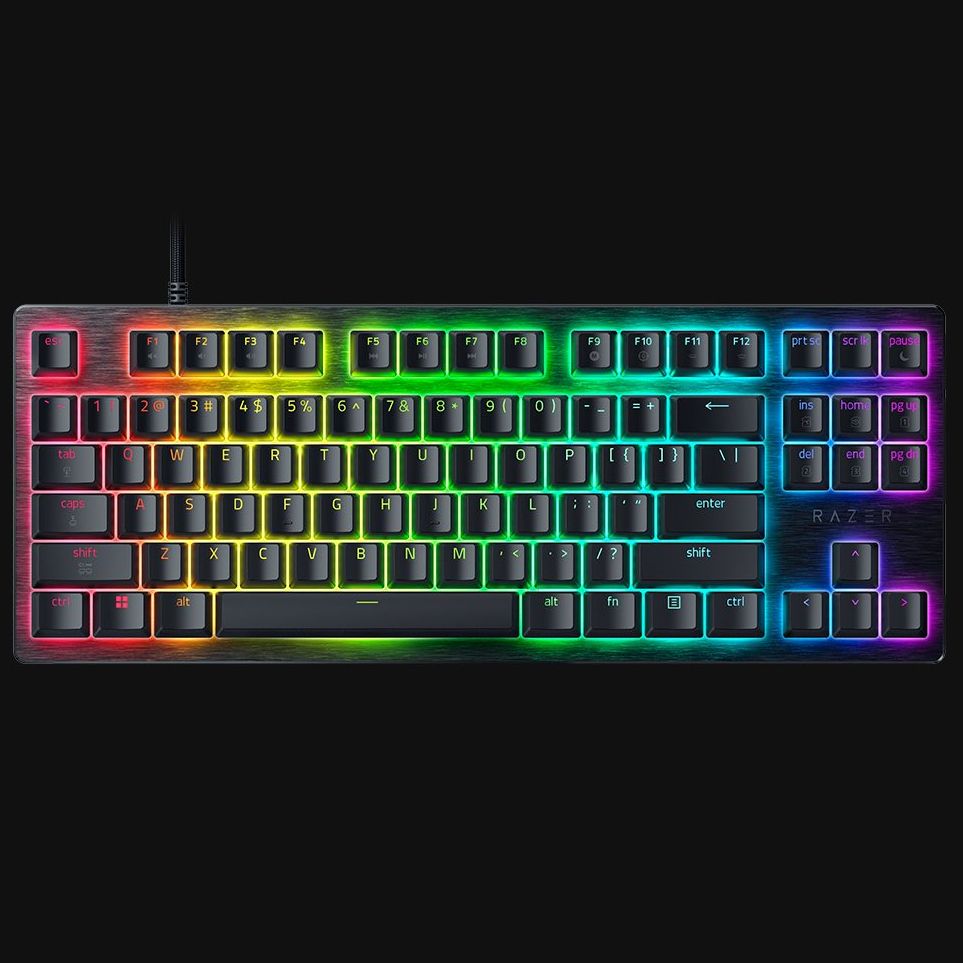
With adjustable actuation from 0.1–4.0 mm, Rapid Trigger, Snap Tap, Snap Flex and Dynamic Keystroke, Razer’s HE Magnetic TKL give players granular control over inputs and movement — and back it with factory calibration, a 100‑million keystroke rating and on-demand recalibration via Synapse.
Mini
Razer
Razer Huntsman V3 He Magnetic Mini 65% 8khz
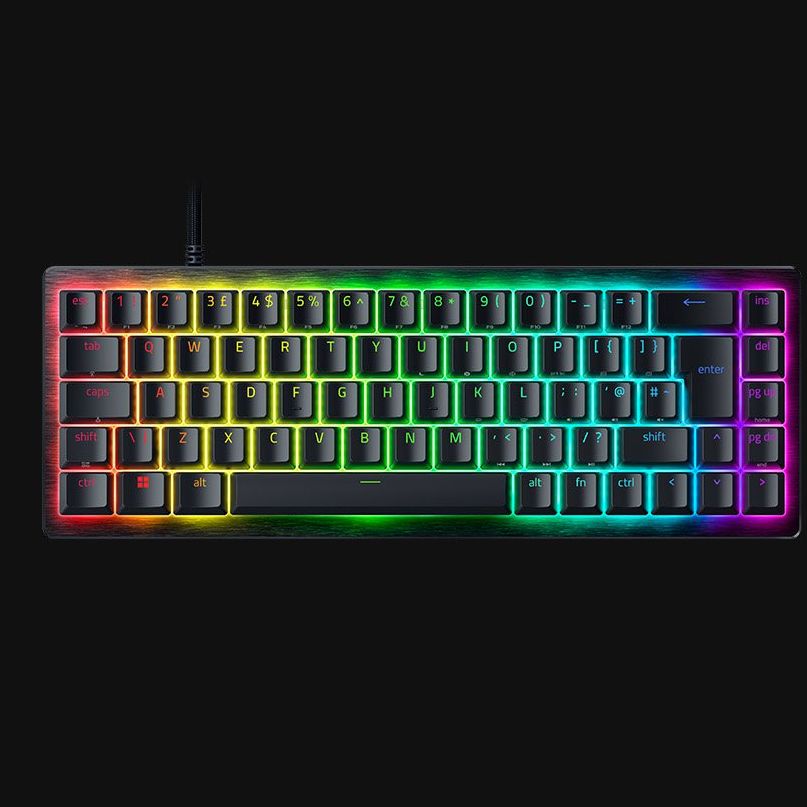
The Huntsman V3 HE Magnetic line pairs Hall Effect magnetic sensing with 8,000 Hz HyperPolling and deep per-key customization to deliver a top-tier competitive keyboard experience. This Mini 65% version pairs down to the most minimal design.
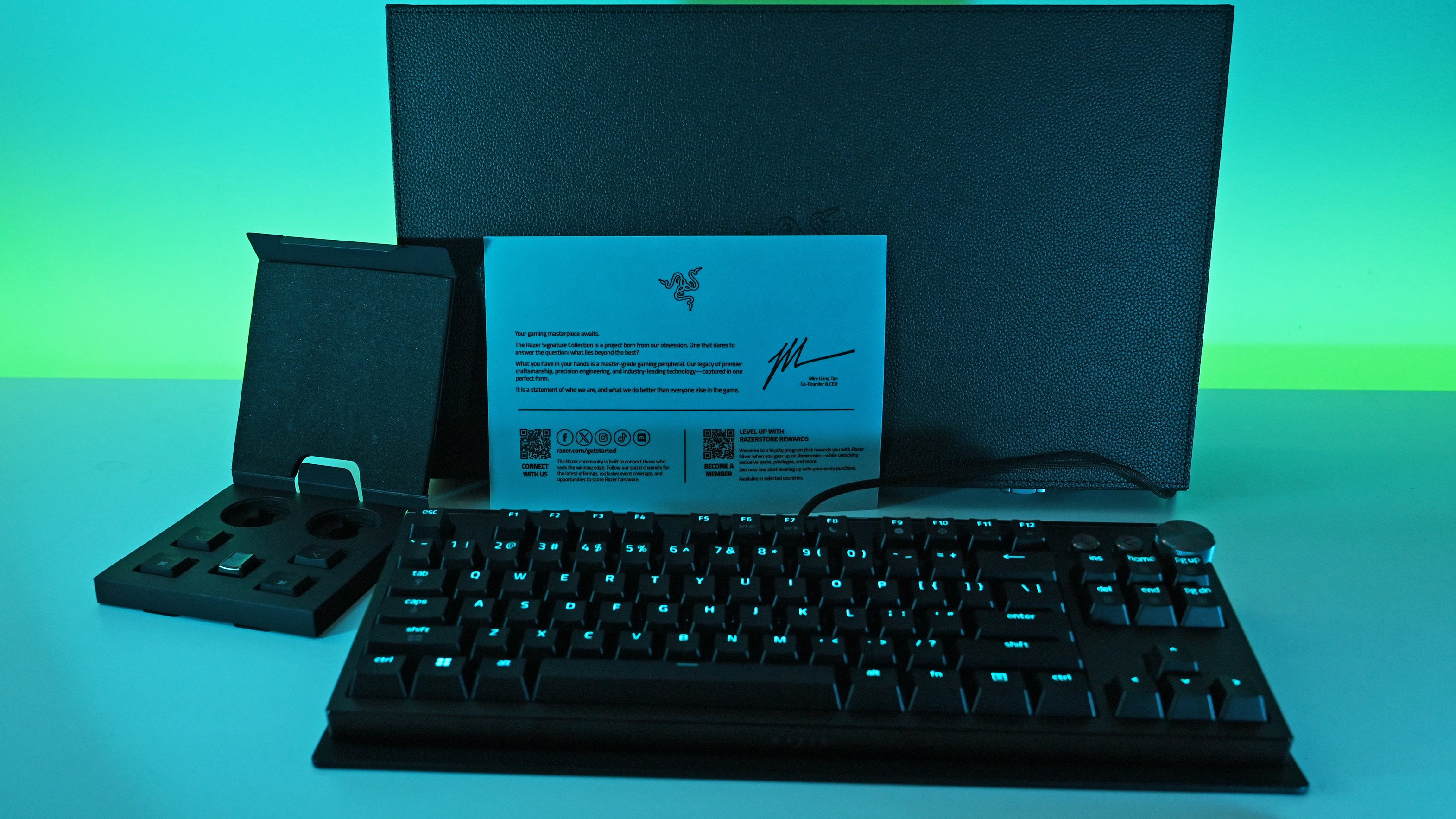
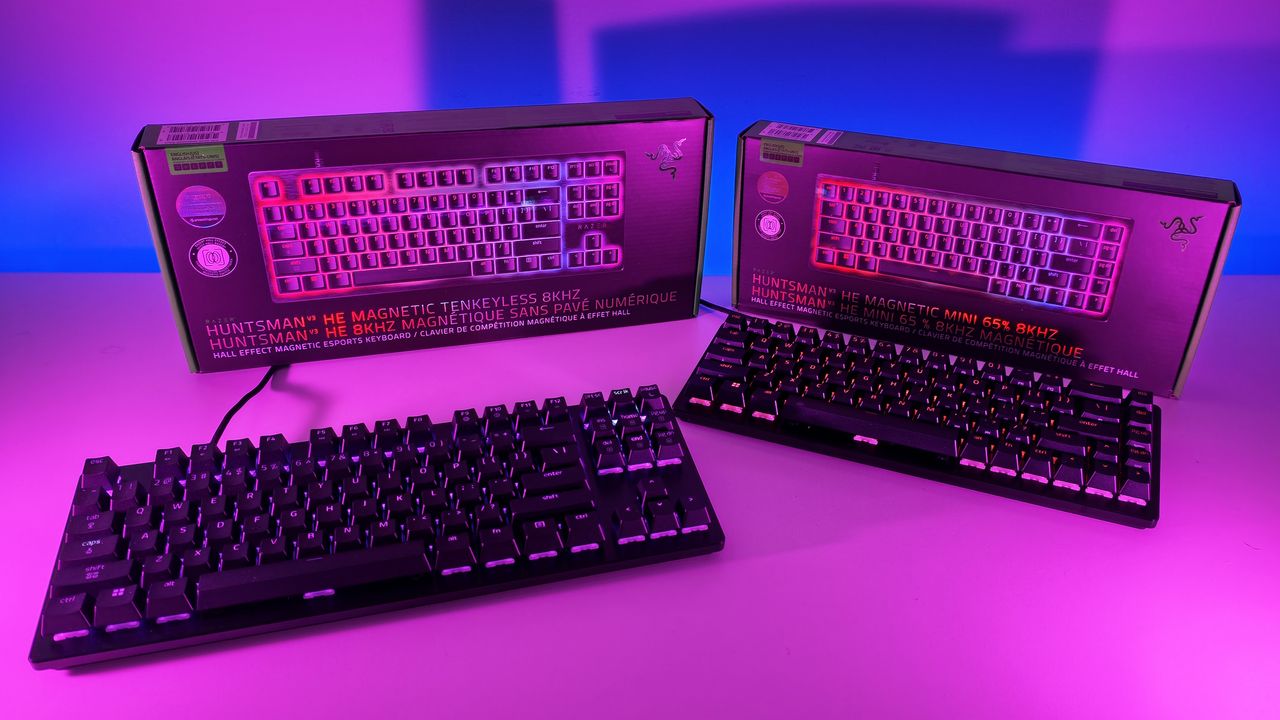
Low-angle shot of Razer Huntsman V3 HE TKL and Mini 65% keyboards with RGB backlighting placed in front of their retail packaging.
Low-angle shot of Razer Huntsman V3 HE TKL and Mini 65% keyboards with RGB backlighting placed in front of their retail packaging.
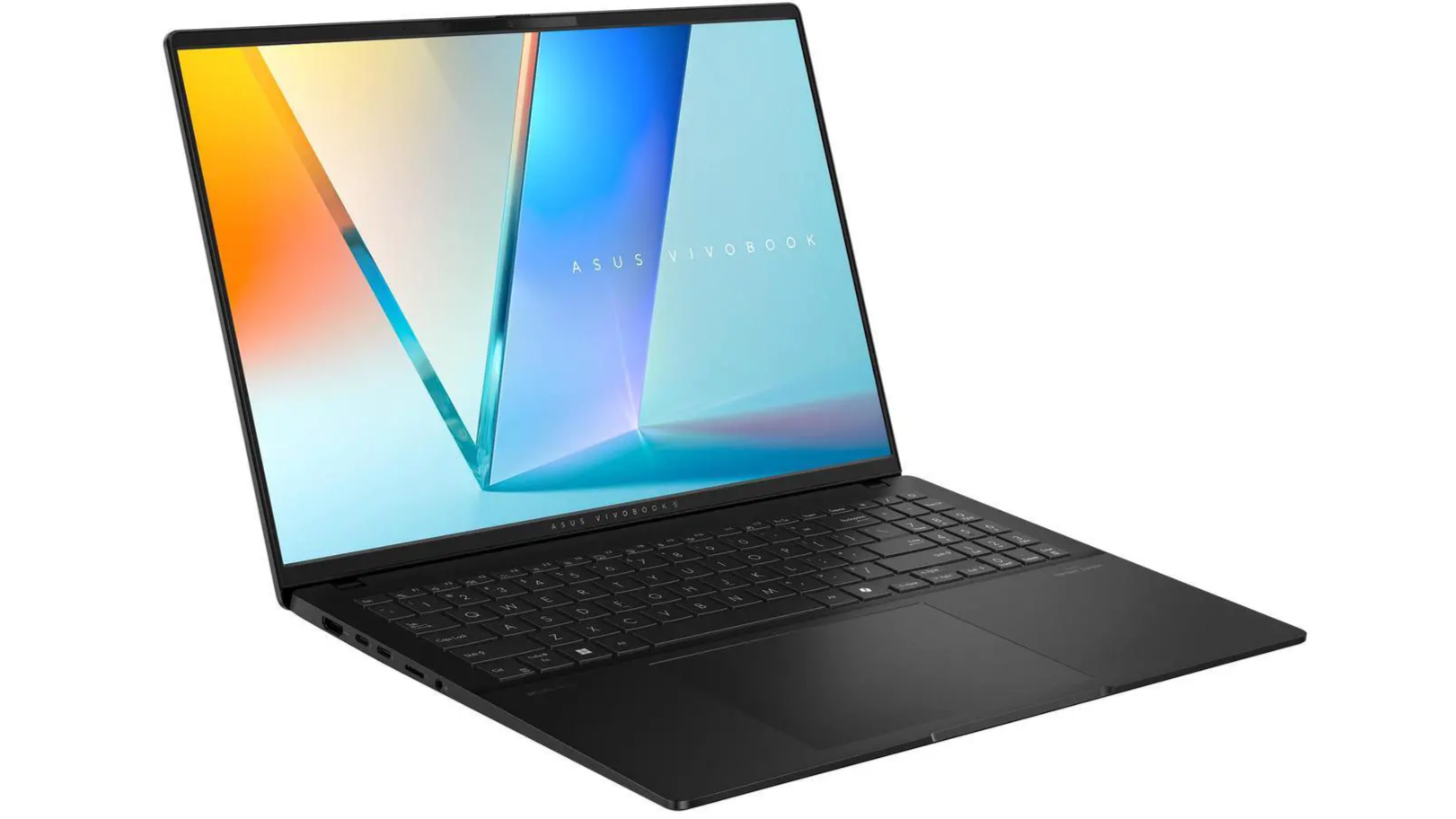
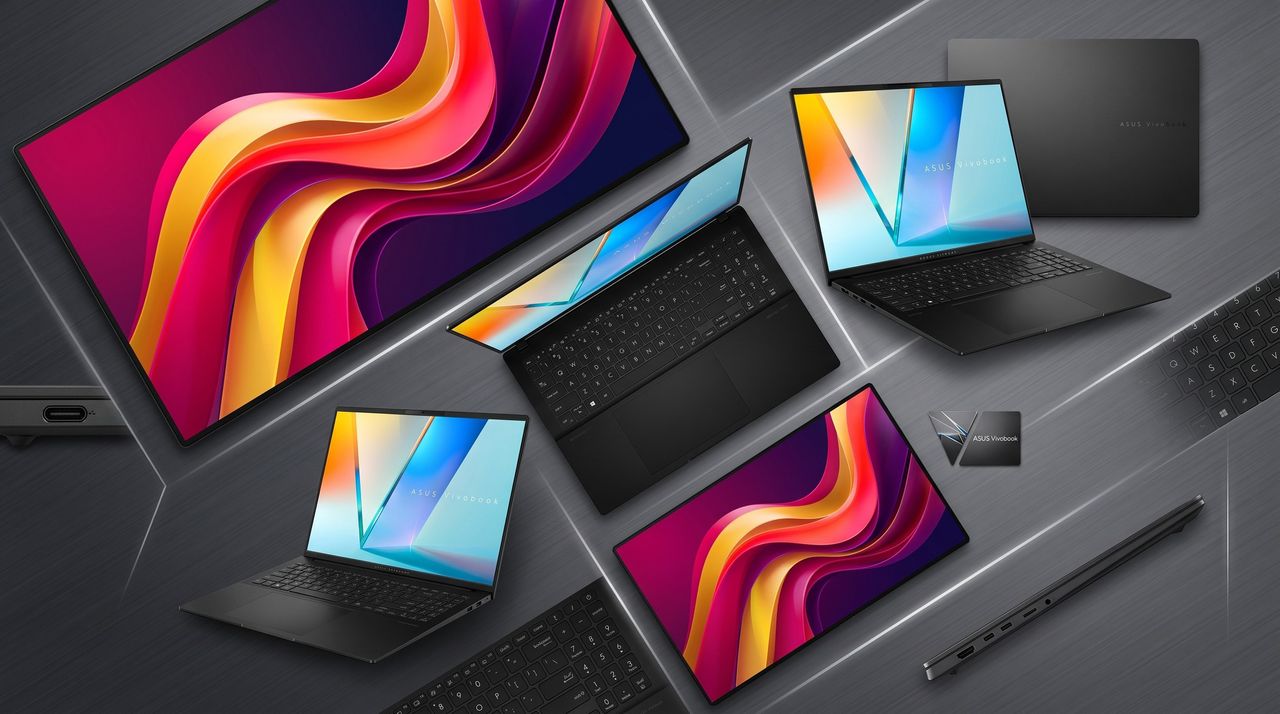
If you’ve been waiting for a laptop deal that actually feels like a steal, this is it. The ASUS Vivobook 16 OLED, now just $1,159 (down from $1,599), is one of those rare machines that delivers more than you expect for the price. It’s a 16‑inch notebook with flagship specs, a stunning display, and Intel’s latest Core Ultra 7 processor built for serious performance.
It’s the kind of deal that makes you double‑check the listing to make sure nothing’s missing. Spoiler: nothing is. You get a full‑power H‑series chip, 32GB of RAM, 1TB of storage, and a 3K OLED display in a chassis that’s only 0.55 inches thick and weighs 3.31 pounds.
The ASUS Vivobook 16 OLED is a rare find at this price. You get a 3K OLED display, 32GB of RAM, a fast Intel Core Ultra 7 processor, and a thin 3.31 lb chassis with long battery life. It is a powerful, modern laptop that stays light, looks premium, and handles heavy workloads without costing a fortune.View Deal
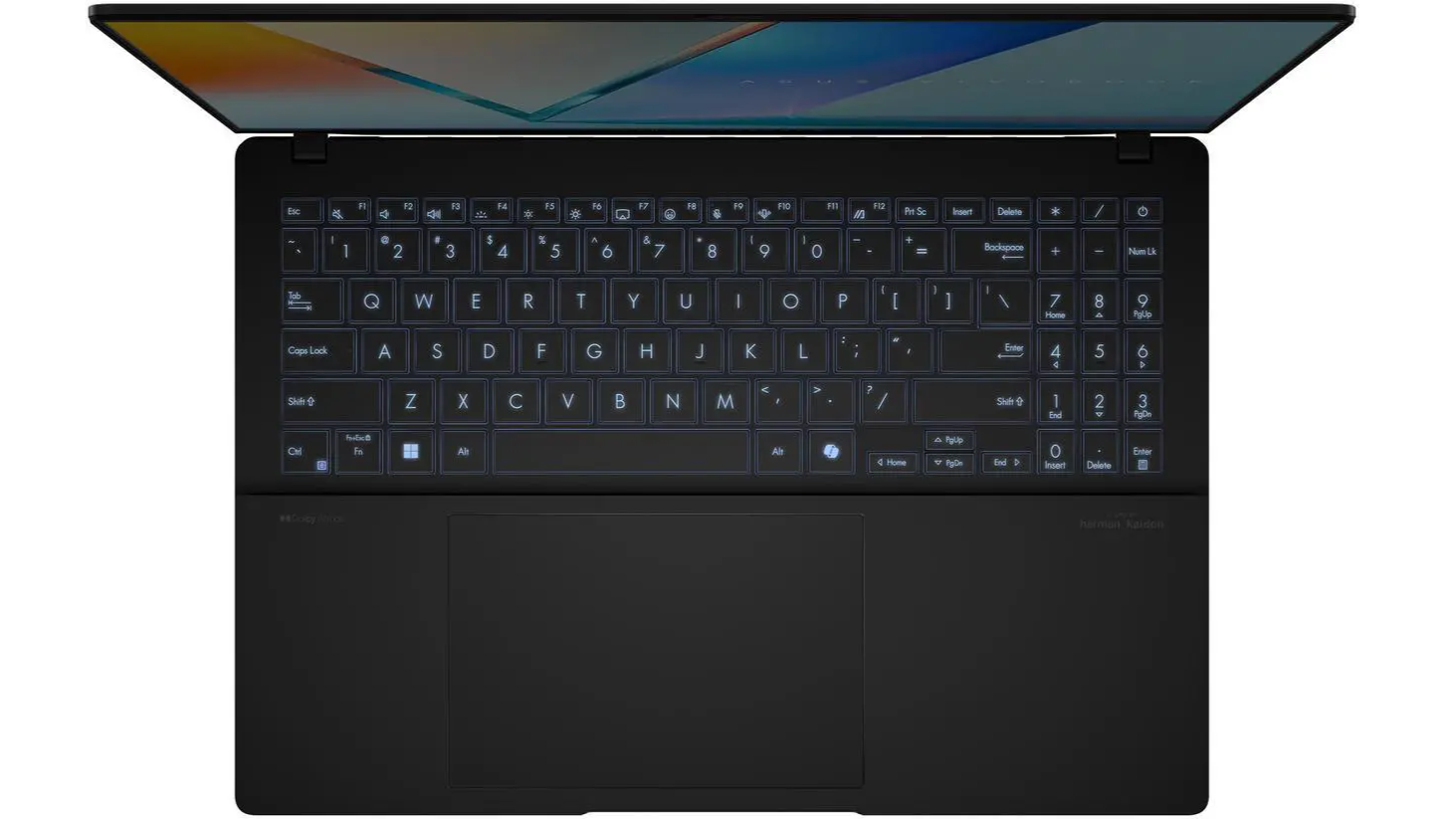
That’s what makes this Vivobook deal stand out. You’re getting a machine that’s already built for the next generation of computing, complete with Intel’s new Core Ultra 7 processor and a dedicated Copilot key (hey, some people think it's a selling point), at a price that feels normal.
The Core Ultra 7 255H is part of Intel’s new H‑series lineup, designed for high‑performance laptops that can handle creative workloads, gaming, and multitasking without breaking a sweat. Paired with Intel Arc graphics, it’s capable of light gaming, video editing, and productivity tasks that would slow down most midrange systems.
Specs that matter
ASUS didn’t cut corners here. The Vivobook 16 OLED features a 2880×1800 Lumina OLED display that delivers deep blacks, vivid color, and true HDR contrast. It’s the kind of panel that makes everything look better, from spreadsheets to streaming.
Under the hood, you get 32GB of LPDDR5X memory and a 1TB PCIe 4.0 SSD, which means instant responsiveness and plenty of space for creative work. The ASUS IceCool Thermal Technology with dual fans and 97 iceblades keeps the system cool even under load, while the 75Wh battery promises up to 16 hours of runtime.
Despite the power, it’s impressively portable. At 0.55 inches thin and 3.31 pounds, it’s lighter than most 16‑inch laptops and built with a reinforced steel frame that feels solid without being bulky.
ASUS also added thoughtful touches: Dolby Atmos audio by Harman Kardon, Wi‑Fi 7 certification, and an RGB ErgoSense keyboard with Windows 11’s new Dynamic Lighting support. It’s a subtle upgrade that makes the laptop feel more premium than its price suggests.
Ready for what’s next
(Image credit: ASUS)
The dedicated Copilot key is a small but telling detail. It’s a sign of where Windows laptops are heading — toward integrated features that help with writing, summarizing, and creative tasks. The Vivobook 16 OLED is ready for that future right out of the box, with Intel’s AI Boost NPU handling on‑device workloads efficiently.
That means faster photo editing, smarter background blur in video calls, and better battery life when using modern Windows features. It’s hardware that will matter as Windows 11 evolves through 2026 and beyond.
The bigger picture
The timing of this deal could not be better. With component costs rising and manufacturers shifting focus to premium laptops, midrange buyers are getting squeezed. The Vivobook 16 OLED breaks that trend by offering flagship performance at a mainstream price.
It’s proof that not every high‑end laptop has to cost two grand. ASUS managed to deliver a machine that feels premium without the markup, and deals like this will only get rarer as the market adjusts to new pricing norms.
Bottom line
If you want a laptop that looks great, runs fast, and feels ready for the next few years, this Vivobook 16 OLED deal is hard to beat. It’s thin, light, powerful, and genuinely premium.
With 32GB of RAM, a 3K OLED display, and Intel’s latest Core Ultra 7 processor, this is the kind of deal that feels like it slipped through the cracks. Grab it before prices catch up.
Join us on Reddit at r/WindowsCentral to share your insights and discuss our latest news, reviews, and more.
Press images of the ASUS Vivobook S16 laptop for 2026 with Intel Core Ultra processor.
Press images of the ASUS Vivobook S16 laptop for 2026 with Intel Core Ultra processor.
It was inevitable. Razer has successfully attached Chroma RGB to mice, keyboards, streaming keylights, mousepads, microphones, and probably a stray toaster if you leave it in their California design headquarters long enough (see their history of weird and experimental hardware). So, it was only a matter of time before they targeted the ultimate piece of battle station real estate: your backside.
Do you absolutely need a glowing throne that dynamically syncs with your desktop gameplay? No, of course not. Your skill in Valorant isn't going to magically jump three tiers just because your headrest is radiating neon green. But do we desperately want it anyway? Yes, obviously. It’s Razer, and adding immersive RGB to things we didn't know needed it is exactly why we love them.
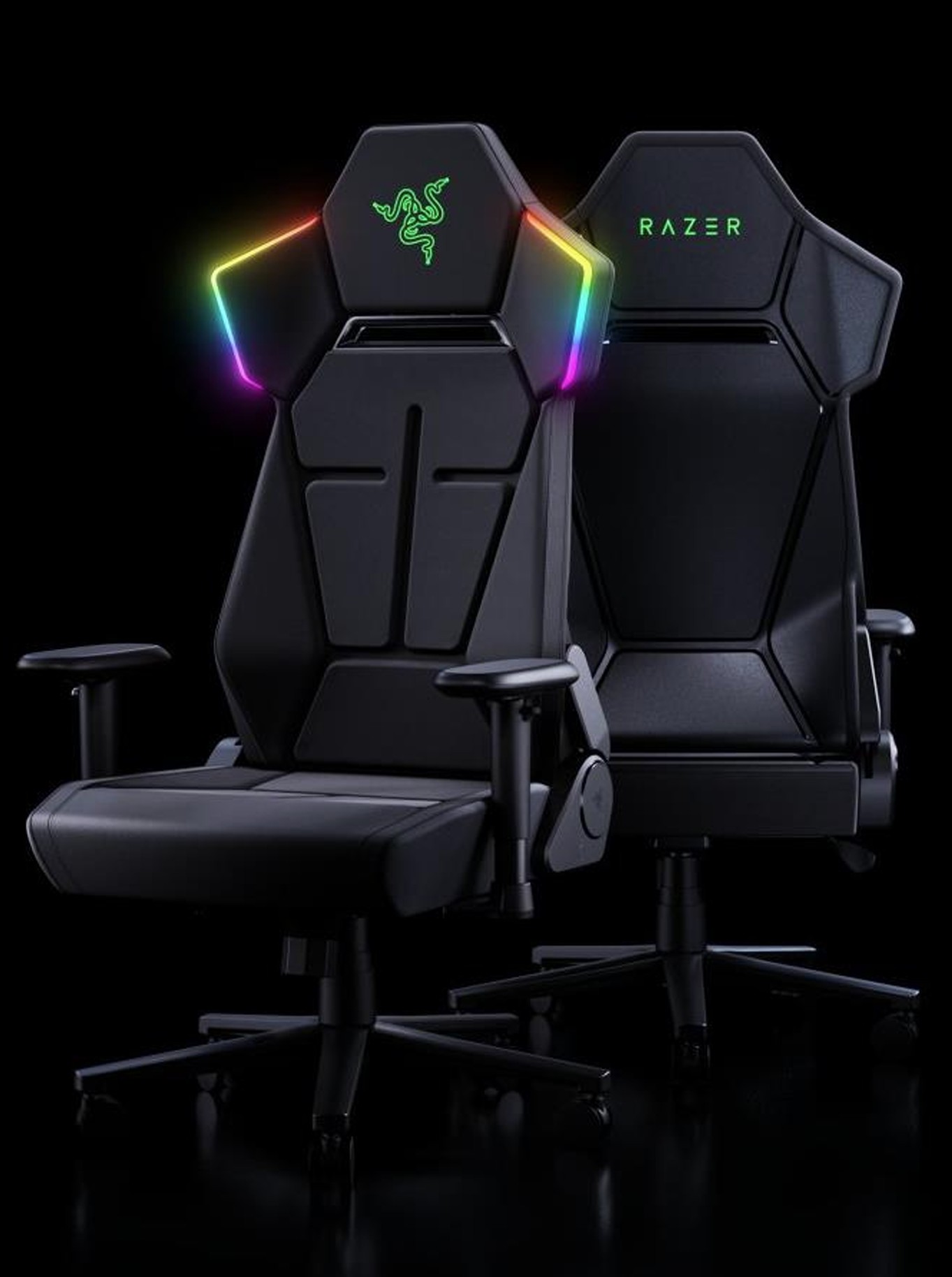
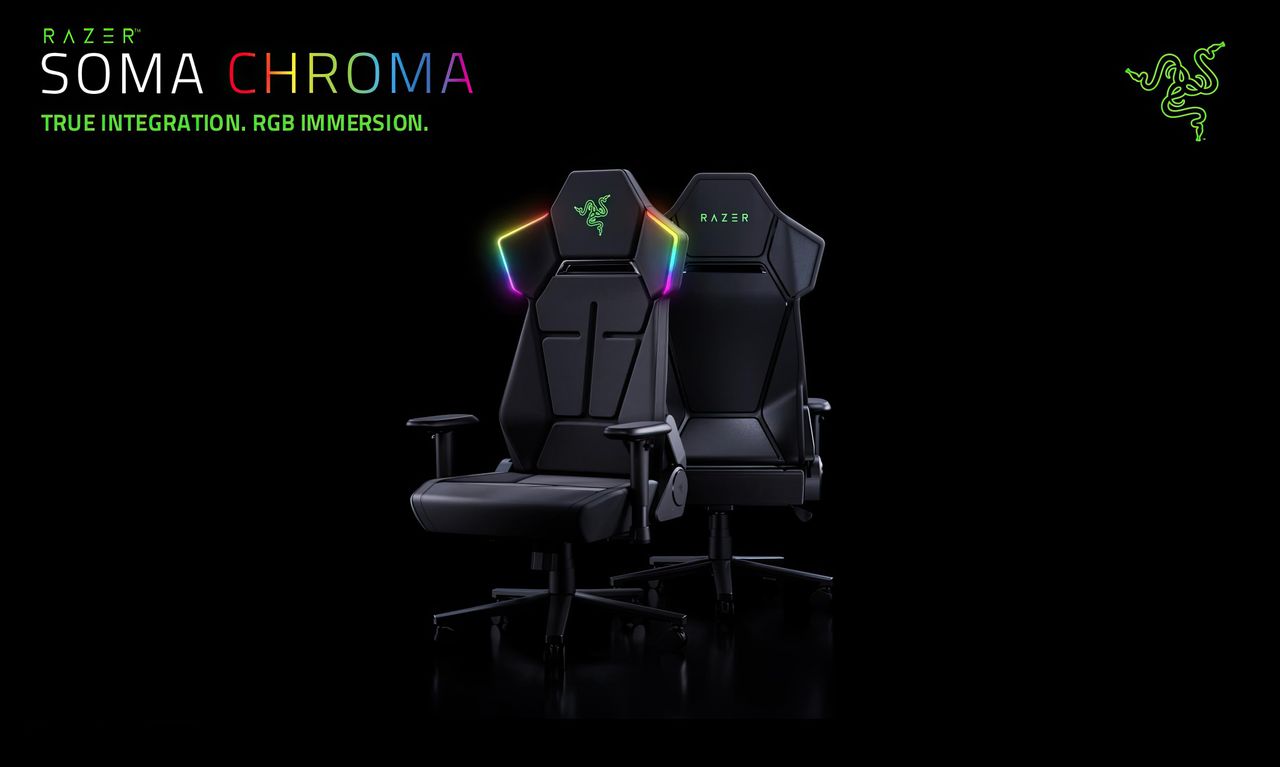
The Razer Soma Chroma is the wireless RGB gaming chair your setup did not know it needed. It blends reactive lighting with all‑day comfort and cuts cable clutter entirely thanks to an ultra‑low latency HyperSpeed wireless connection powered by a simple USB‑C power bank. The dual‑density cold‑cured foam seat and built‑in ergonomic lumbar arch keep your posture neutral and your backside relaxed through marathon sessions.View Deal
The light show: Completely wireless RGB immersion
(Image credit: Razer)
The marquee feature here is the fully integrated, reactive RGB lighting embedded seamlessly into the headrest's shoulder wings. Powered by the venerable Razer Chroma RGB engine, it hooks directly into the Chroma SDK to react in real-time to in-game events across more than 300 integrated titles—including heavy hitters like Fortnite, Valorant, and Cyberpunk 2077. If you aren’t actively gaming, you can cycle through 10 dynamic presets and 16.8 million colors via Razer Synapse to perfectly dictate your setup's vibe.
But here is the genuinely clever bit: it's entirely wireless. Nobody wants to roll their chair over a rigid power cord and accidentally yank a $4,000 gaming rig off their desk. Instead, the Soma Chroma transmits data wirelessly via ultra-low latency Razer HyperSpeed 2.4 GHz for your PC, alongside Bluetooth LE for mobile devices.
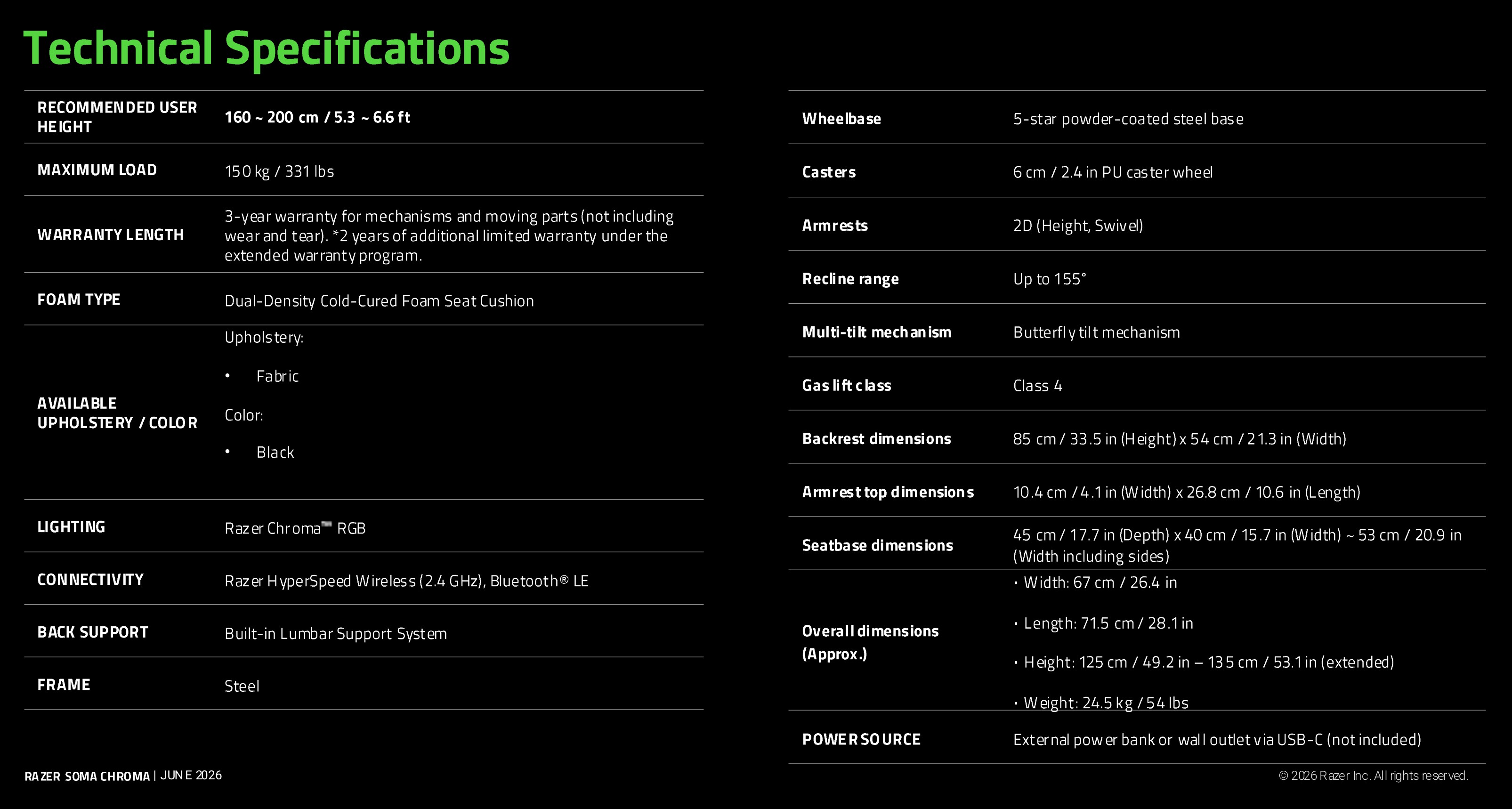
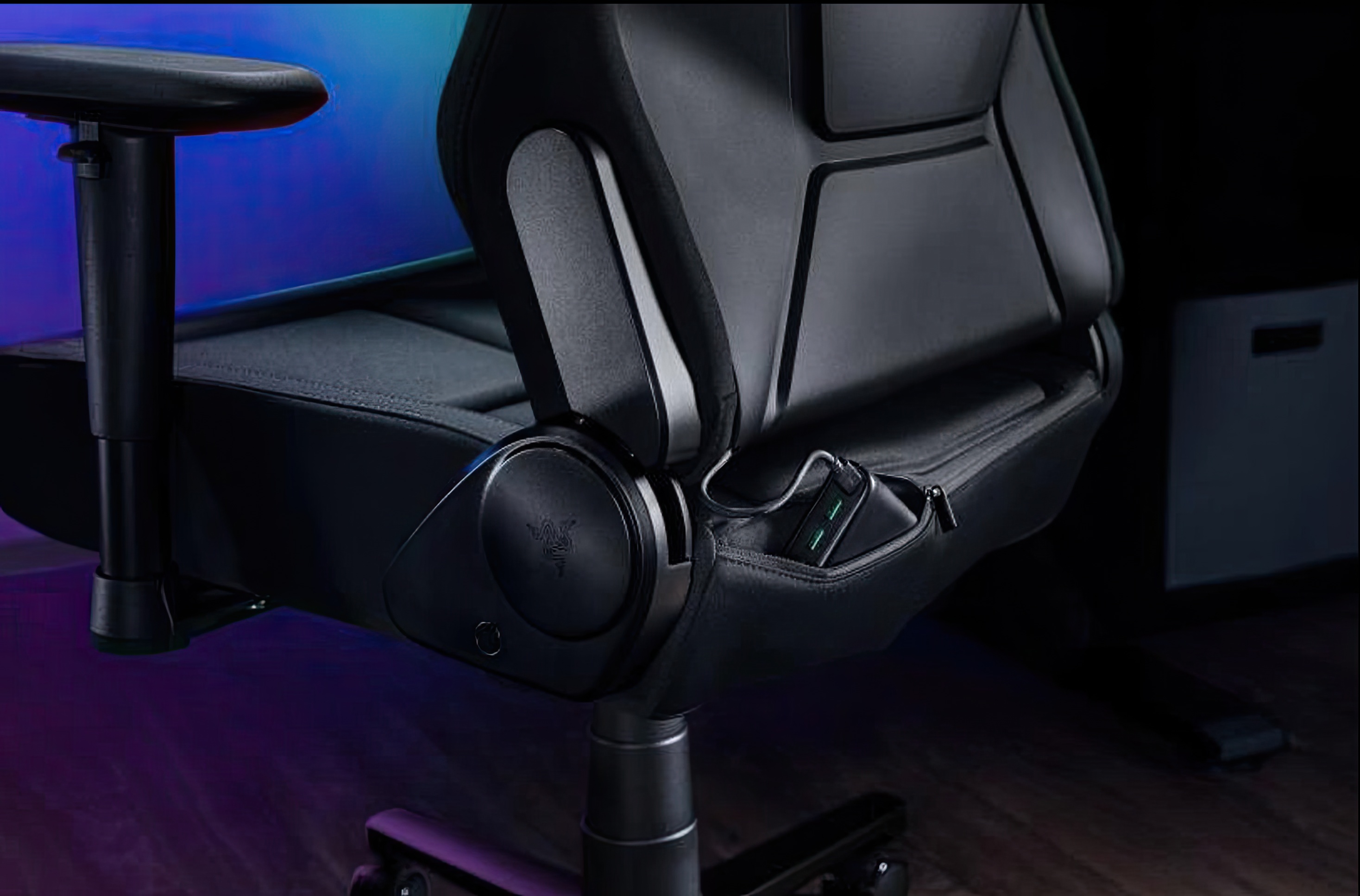
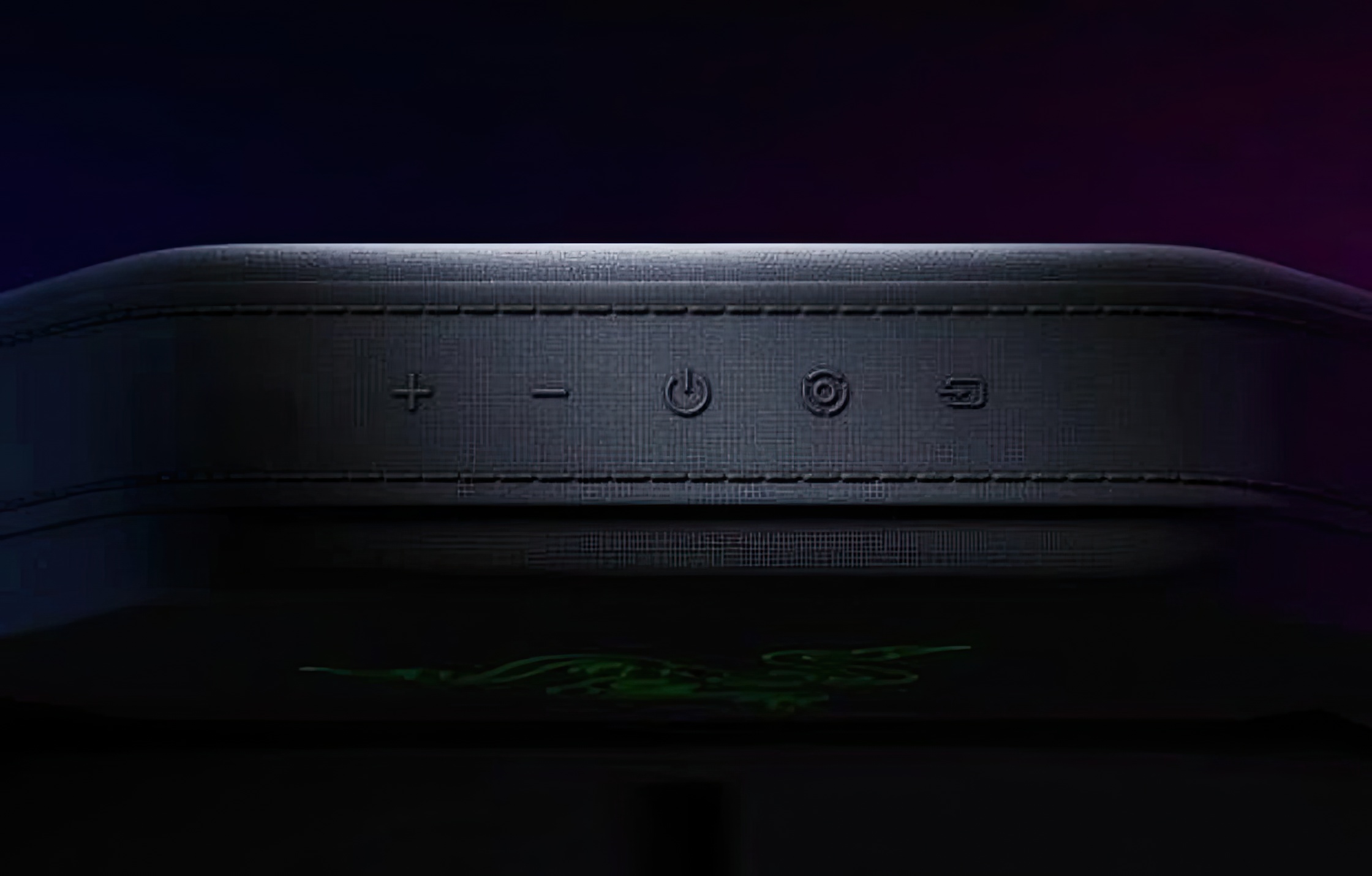
To juice the actual LEDs, Razer integrated a tidy storage pocket on the back designed to house a standard external power bank (they recommend a hefty 20,000 mAh or larger unit pushing 20W+ and PD 2.0+) via an included 200 mm USB-C cable. If you don't care about a clean, wire-free aesthetic, you can also just run it straight to a wall adapter. There’s even a built-in control panel directly on the edge of the seat base to let you tweak brightness, cycle effects, or switch wireless inputs on the fly without opening an app.
Comfort Check: Saving our posteriors from the Iskur V2
The Razer Iskur V2 from our recent review. (Image credit: Future)
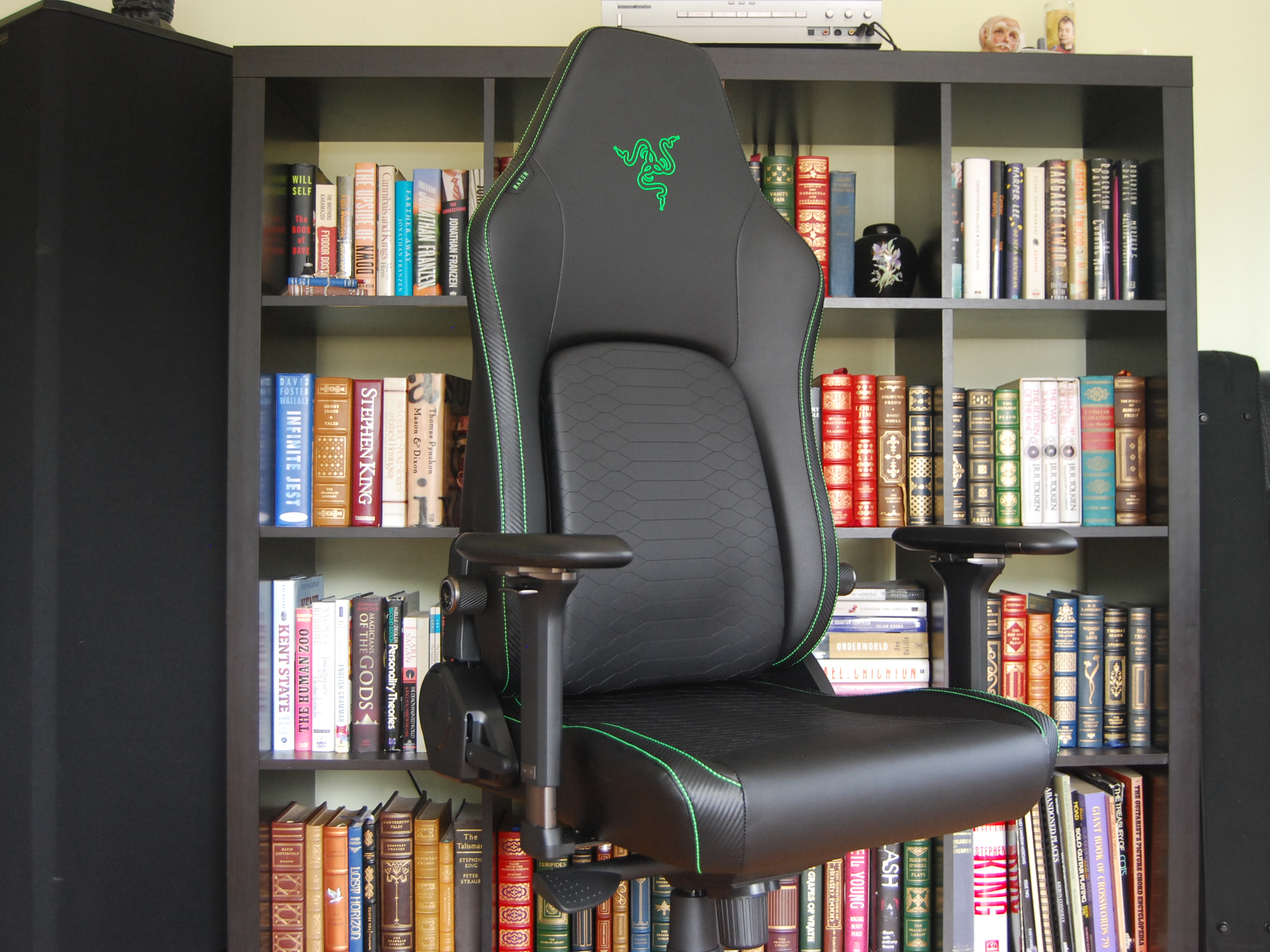
When Razer dropped the original Iskur, it blew us away with an aggressive, mechanical piston-powered lumbar support system. The premium Iskur V2 doubled down on that adaptive lumbar tech, earning massive praise for back health—but it also brought a punishingly firm seat pan. Meanwhile, the mid-range Iskur V2 X ($299) offered a much softer high-density foam seat but stripped out the adjustable lumbar support completely.
The Soma Chroma chart-corrects here with a brand-new Dual-Density Cold-Cured Foam Seat Cushion. It utilizes two distinct layers working in tandem: a softer upper layer that contours snugly to your body, sitting atop a firmer base layer that maintains its structural integrity over time. The goal is to keep the seat from collapsing or hardening prematurely during marathon sessions while actually offering plush, pressure-relieving comfort.
For back health, Razer ditched the complex, dial-driven mechanical pieces of the Iskur series in favor of a Built-In Ergonomic Lumbar Arch. It's a static, contoured support curve integrated directly into the backrest. While you lose the active left-and-right swiveling of the Iskur V2, you get a reliable curve that won’t shift out of place like a loose lumbar pillow.
Where the features got trimmed
Where the powerbank gets stowed for a "wireless" RGB experience. (Image credit: Razer)
To hit that $499.99 sweet spot while packing custom diffusers, a wireless control module, and a built-in control panel, Razer did have to make a few expected concessions:
2D Armrests: The Soma Chroma features basic 2D armrests limited strictly to height and swivel adjustments, a noticeable step down from the highly maneuverable 4D armrests on the Iskur V2 that slide and twist every which way.
No Built-in Haptics: If you were hoping this would natively integrate the bone-shaking directional haptics of the recently released Razer Freyja gaming cushion, you're out of luck. This is strictly a visual show, though you could easily strap a Freyja onto it if you want the ultimate rumble-and-glow cocktail (and I'll probably do that, since I have one of those).
On the mechanical side, it remains a total tank. You get a reinforced steel frame, a 5-star powder-coated steel wheelbase, a Class 4 gas lift, and premium 6 cm PU caster wheels—the latter being a massive upgrade over the friction-heavy plastic wheels that held back the Iskur V2. It reclines up to 155° with a butterfly tilt mechanism, safely supports up to 150 kg (331 lbs), and comfortably accommodates gamers up to 6'6".
Our review unit just arrived!
Yes, there are buttons on top of the headrest to control the RGB Chroma. (Image credit: Razer)
The shining throne literally just rolled through our doors. We'll be assembling it, unboxing our beefiest power banks, and seeing if the dual-density foam can truly save our glutes during late-night gaming sessions.
Stay tuned for our full, deep-dive review coming shortly (and you'll be able to see it on future Windows Central Podcasts).
The Razer Soma Chroma is the wireless RGB gaming chair your setup did not know it needed. It blends reactive lighting with all‑day comfort and cuts cable clutter entirely thanks to an ultra‑low latency HyperSpeed wireless connection powered by a simple USB‑C power bank. The dual‑density cold‑cured foam seat and built‑in ergonomic lumbar arch keep your posture neutral and your backside relaxed through marathon sessions.View Deal
Join us on Reddit at r/WindowsCentral to share your insights and discuss our latest news, reviews, and more.
Press images of the Razer Chroma gaming chair, in black, with RGB lighting on the headrest
Press images of the Razer Chroma gaming chair, in black, with RGB lighting on the headrest
The Razer Seiren V3 Pro arrives as a pro‑level streaming microphone that finally feels like the centerpiece of Razer’s recent run of impressive peripherals. It pairs studio‑grade hardware — a large 30 mm dynamic capsule, USB‑C and XLR outputs, and tactile controls — with deep Synapse software and Chroma RGB flair, aiming to satisfy both serious creators and RGB enthusiasts.
This review cuts through the marketing: I’ll show what the mic actually sounds like, how its software and features stack up against rivals, and whether it’s worth swapping in for your current setup.
Razerhad no input, nor did it see the contents of this review, prior to publication.
What it is
The Razer Seiren V3 Pro ($249.99 / €289.99) is a hybrid dynamic microphone tailored specifically for streamers, podcasters, and music producers.
At its heart sits a custom 30 mm dynamic capsule purpose-built to capture broadcast-style depth and natural warmth.
Structurally, it features a robust, resonance-resistant zinc unibody frame paired with an integrated, vibration-dampened adjustable arm mount.
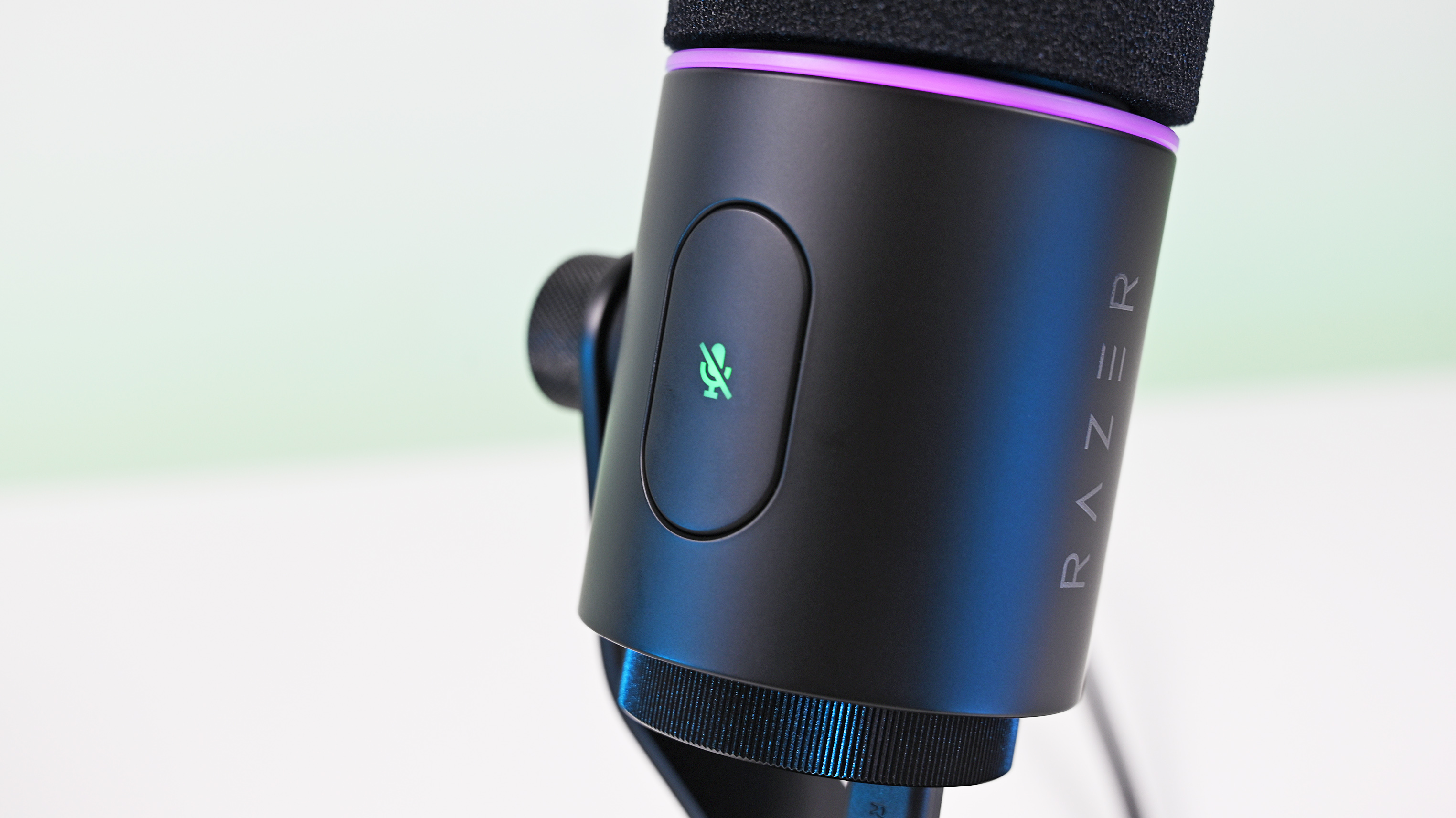
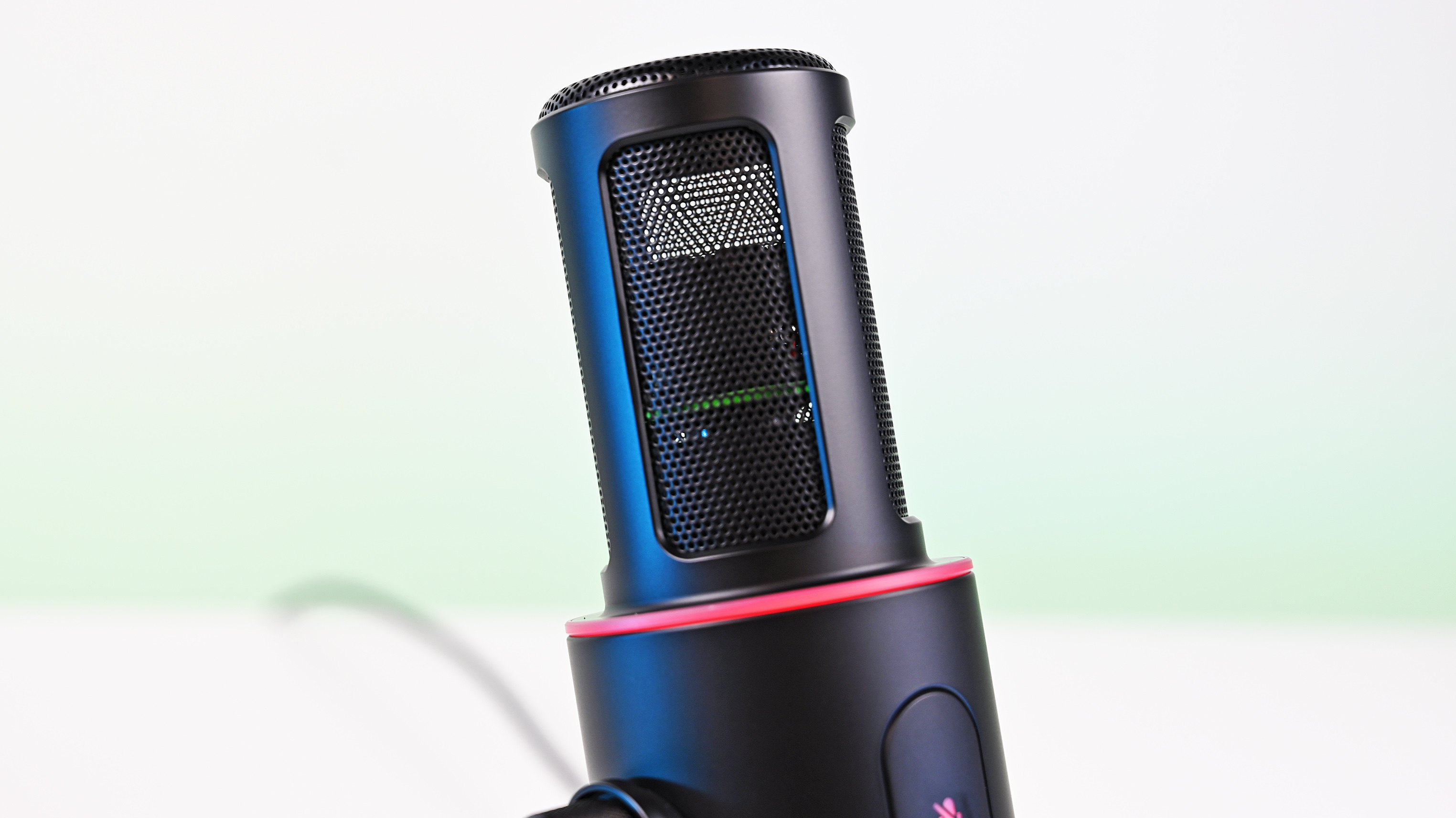
To round out its premium aesthetic, it includes a gorgeous Razer Chroma RGB lighting ring that doubles as a real-time status and live mute indicator, which can be enabled by the mic button.
Quick set up
(Image credit: Daniel Rubino)
Unboxing the Razer Seiren V3 Pro is refreshingly simple. Unlike many high-end microphones that leave you scrambling to buy external accessories, this mic is entirely ready to rock right out of the box.
It features an included desktop stand, a built-in shock absorber, and a removable pop filter. Just plug it in via the included USB Type-C cable, complete a quick configuration, and you are up and running.
If you want to jump into the pro tier immediately, you can just as easily route an XLR cable (not included) straight from the base into an audio interface or mixer.
It’s a frictionless setup that gives you studio-grade enhancements with zero technical expertise required.
How it's different
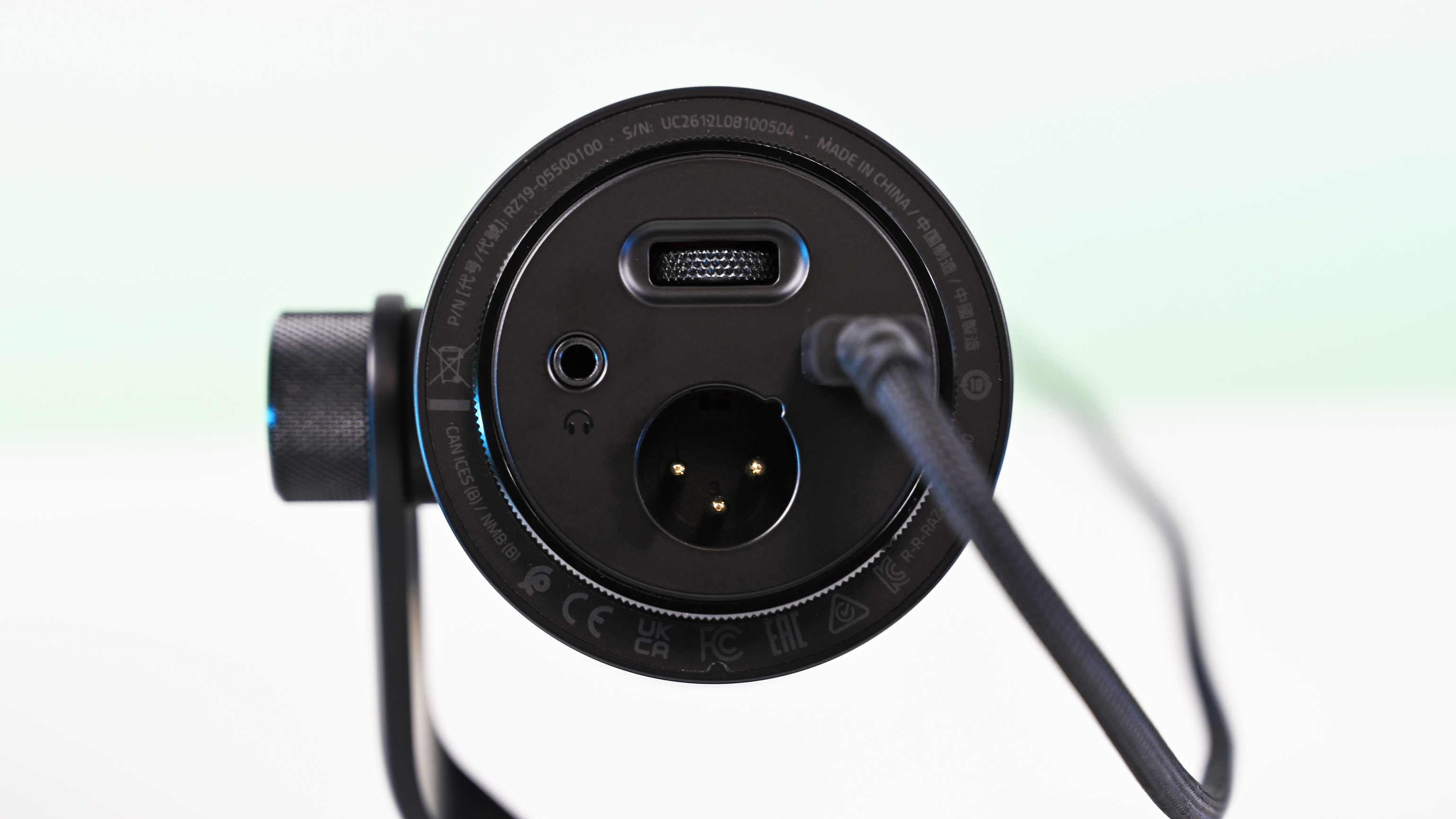
USB, XLR, microphone port, and gain control are on the bottom of the Seiren V3 Pro. (Image credit: Daniel Rubino)
The Seiren V3 Pro separates itself from the pack by flawlessly bridging mainstream USB convenience and professional XLR performance.
Its primary direct competitor in this hybrid category is the HyperX Flipcast, which we've also reviewed. However, the Seiren V3 Pro secures a massive hardware victory right away: it includes a high-quality desktop stand and integrated shock mount in the box, whereas the Flipcast notoriously ships without a stand or boom arm, forcing an immediate extra purchase.
Furthermore, the software support here is on an entirely different level. While HyperX’s NGENUITY app offers rudimentary controls, Razer Synapse unlocks deep, granular audio customization:
32-Bit Float Support: Available via Synapse, this format captures a dramatically wider dynamic range to effectively eliminate digital clipping and distortion.
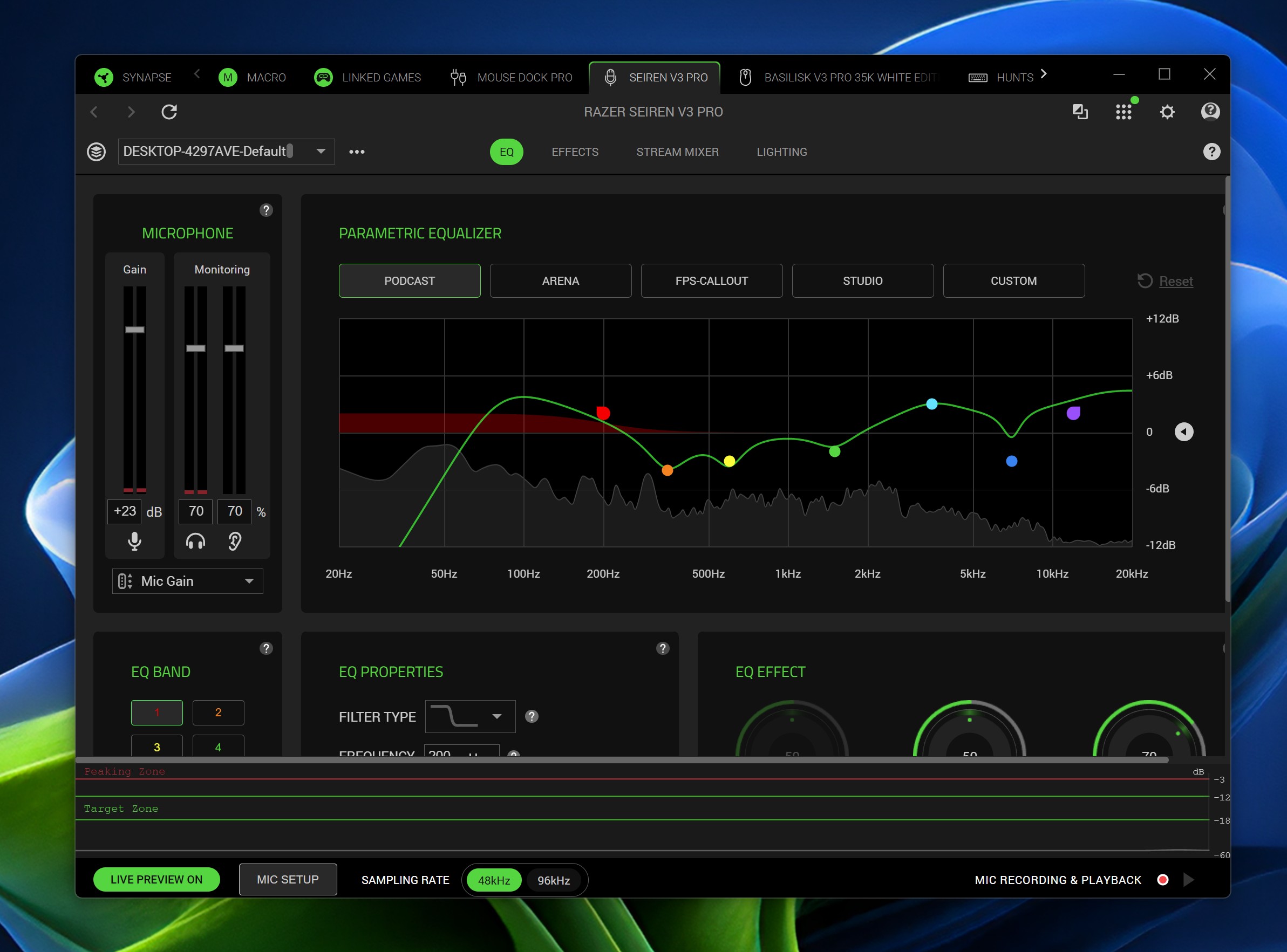
Advanced Audio DSP: Houses an advanced parametric EQ, noise gate, compressor, limiter, and AI noise remover directly powered by an onboard hardware engine.
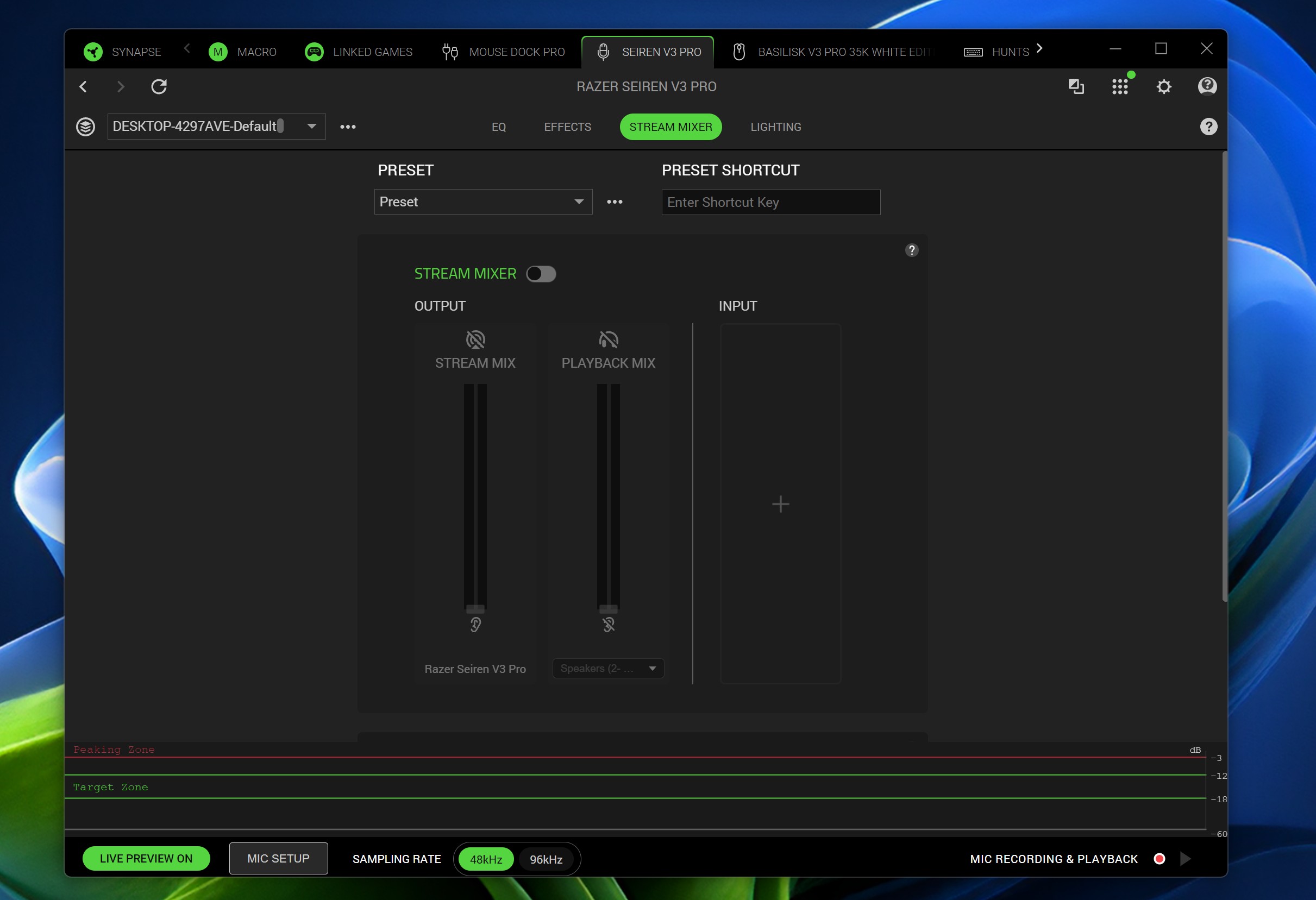
Synapse Advanced Mixing: Allows for multi-channel stream routing right within the application interface.
What it's great at
A big mute button on the side is enabled/disabled with a light tap, so you don't disturb the mic while on a mount. (Image credit: Daniel Rubino)
The biggest hardware triumph here is the dual-connectivity workflow. Having both USB-C and XLR connections on one microphone offers massive advantages, though it comes with standard hybrid trade-offs:
The Pros: It provides immense versatility. Newcomers can start with a simple, plug-and-play desktop configuration and seamlessly transition into an advanced analog signal chain down the road without buying a new microphone. Interestingly, you can keep both the USB and XLR cables plugged in simultaneously and dynamically switch between them on your Windows PC.
The Cons: You are paying a premium for dual internal electronics, and advanced Synapse software functions (like 32-bit float, the parametric EQ, and advanced mixing) are strictly limited to the digital USB connection.
During testing, there wasn't a noticeable difference in tonal warmth when swapping between the two connections, but the USB interface emerged as the clear favorite for me purely because it unlocks Synapse's superior sound features and DSP suite.
My experience otherwise with the mic has been great. You can hear it in action in the short review video accompanying this article, as well as on our recent Windows Central Podcast, Episode #396.
For now, I plan to keep using this mic over my HyperX ProCast. While the ProCast is an excellent, gold-sputtered large-diaphragm XLR condenser, it is strictly analog, requires 48V phantom power, and entirely lacks the modern digital conveniences, RGB integration, and software agility that make the Seiren V3 Pro so effortless to use daily.
Plus, while the ProCast had an original MSRP of $199.99 and dropped as low as $99.99 on sale, it now appears to be discontinued and increasingly hard to find, completely out of stock at both Best Buy and HyperX.
Daniel RubinoDaniel RubinoDaniel Rubino
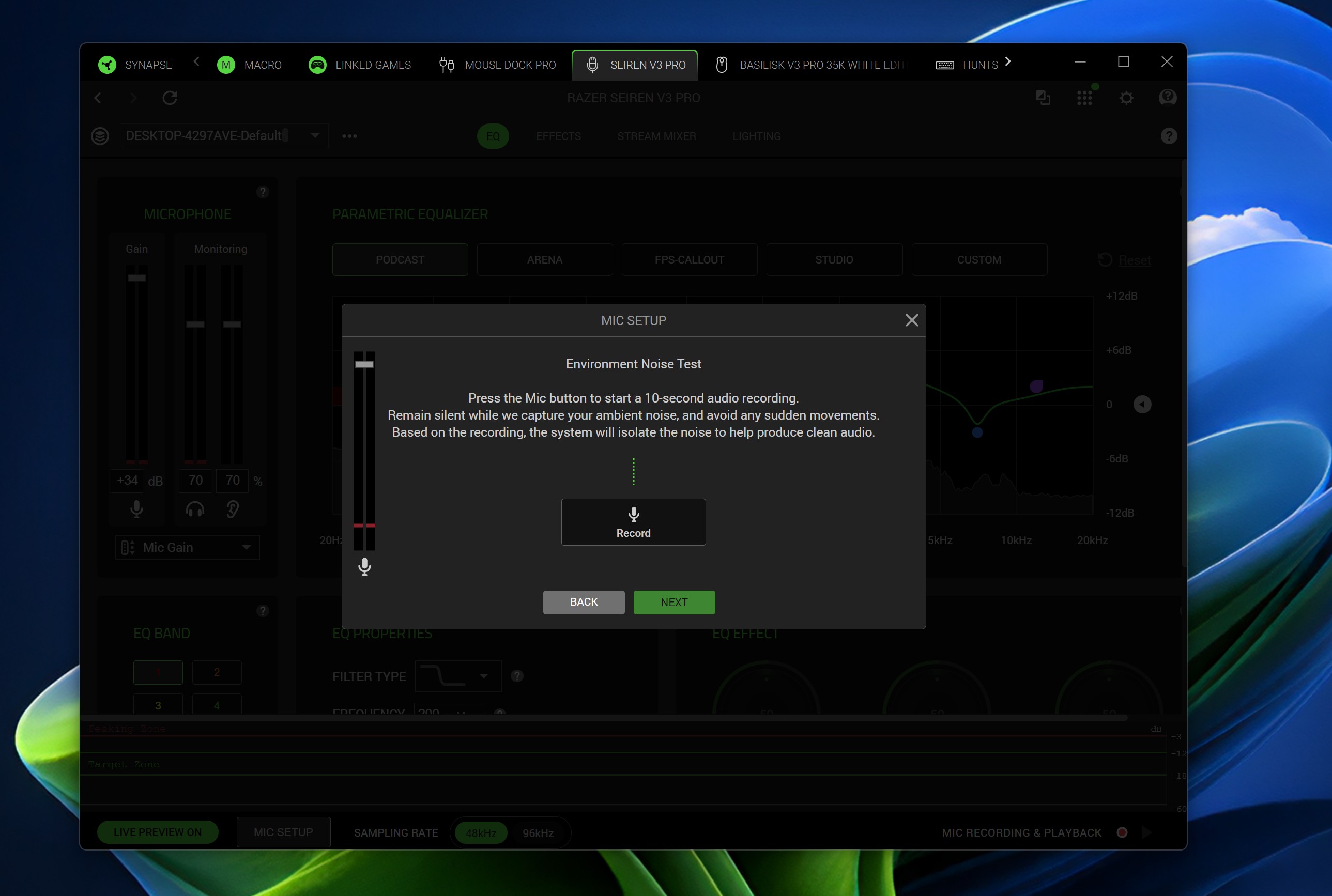
The Razer Synapse software features offer brilliant audio tuning, particularly the automatic environment noise test and AI noise remover. They do a spectacular job of silencing background hums and room reflections.
The Razer Synapse setup here was awesome: Hit a button and record yourself talking for 10 seconds. Hit another button and say nothing for 10 seconds. Then answer a few questions, e.g., what is your goal here (streamer, podcast, general, etc.) and what do you have fans running, environmental noise, etc. From that data, the system suggests your tuning, which you can then accept, and you're done. You can re-run the process anytime in Synapse should anything change.
The only minor catch is that the aggressive noise cancellation can occasionally cut your voice out a bit during quieter moments. Because of this, some manual tweaking of the noise gate threshold may still be needed to get it dialed in perfectly.
Finally, if you are already invested in Razer’s ecosystem—sporting a Razer keyboard, mouse, or monitor—adding this mic beautifully completes the package. The Chroma RGB ring integrates flawlessly into your existing lighting profiles, satisfying RGB enthusiasts while giving clear visual feedback on your live mute status via the tap-to-mute sensor.
Who's it for
The mic is "naked" without its pop-filter, which slides off. (Image credit: Daniel Rubino)
This microphone is built for the forward-thinking content creator. It is perfect for game streamers, podcasters, and hybrid musicians who want beautiful aesthetic flair and USB simplicity today, but demand the studio-grade security of an XLR output as their production setup grows.
Should you buy the Razer Seiren V3 Pro?
I ended up liking the Seiren V3 Pro more than I expected, largely due to the software and DSP controls. (Image credit: Daniel Rubino)
You should buy it if ...
✅ You want USB‑C now, XLR later.
✅ You use Razer Synapse/Chroma and want full integration.
✅ You need onboard DSP (32‑bit float, AI noise removal) to cut post‑work.
You should not buy this if ...
❌ You prefer a pure XLR, software‑free workflow.
❌ You’re on a tight budget and don’t need RGB or Synapse.
❌You need full feature parity on macOS without Windows Synapse.
Admittedly, my "you should not buy ifs" here are nitpicky. You can just use this as an XLR mic with a software-free workflow if you want and not worry about USB or software. But there are also more affordable XLR-only mics, hence the con.
At $249.99, Razer positions the Seiren V3 Pro firmly in the higher-end premium tier compared to the HyperX Flipcast (which currently sits at $179.99 against a $229.99 MSRP) and the now-evaporated ProCast.
However, for me, the incredible Razer Synapse DSP more than makes up for that higher cost. The sheer quality of the out-of-the-box hardware processing saves massive time in post-production. I didn't expect that to be the big selling point, but it's clever software and the kind of "don't think about it" setups I prefer.
While you could look at other heavy hitters at this price point like the Shure MV7+ or SteelSeries Alias Pro, Razer brings an unmatched physical build quality, out-of-the-box completeness, and ecosystem synergy to your desk. It delivers studio sound, simply and effortlessly.
Razer
Razer Seiren V3 Pro Microphone
Razer's new studio‑grade mic with 32‑bit float clarity, USB/XLR flexibility, built‑in DSP and pop filter, RGB status ring, and durable zinc design for clean, professional sound in streaming or recording setups.
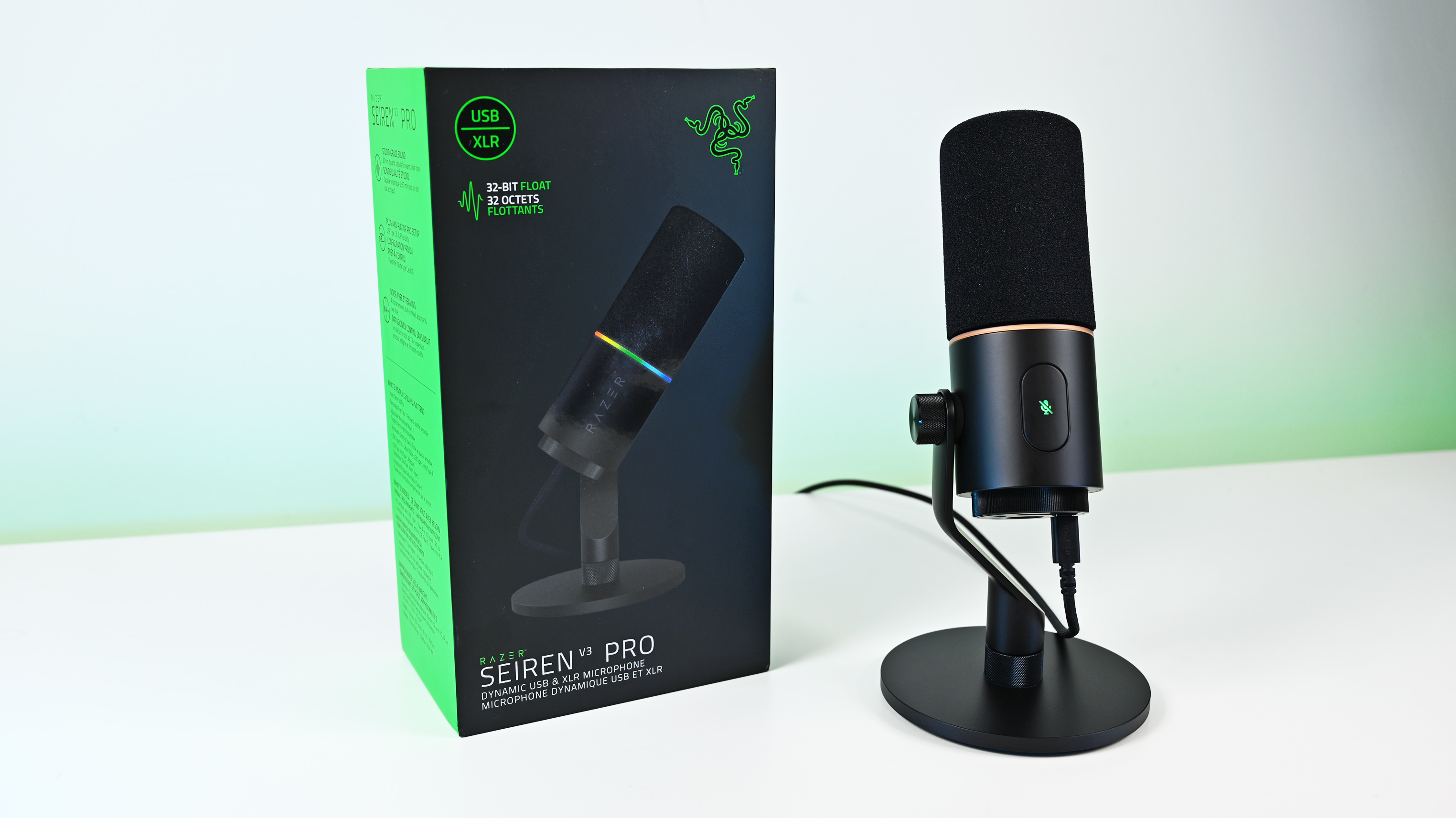
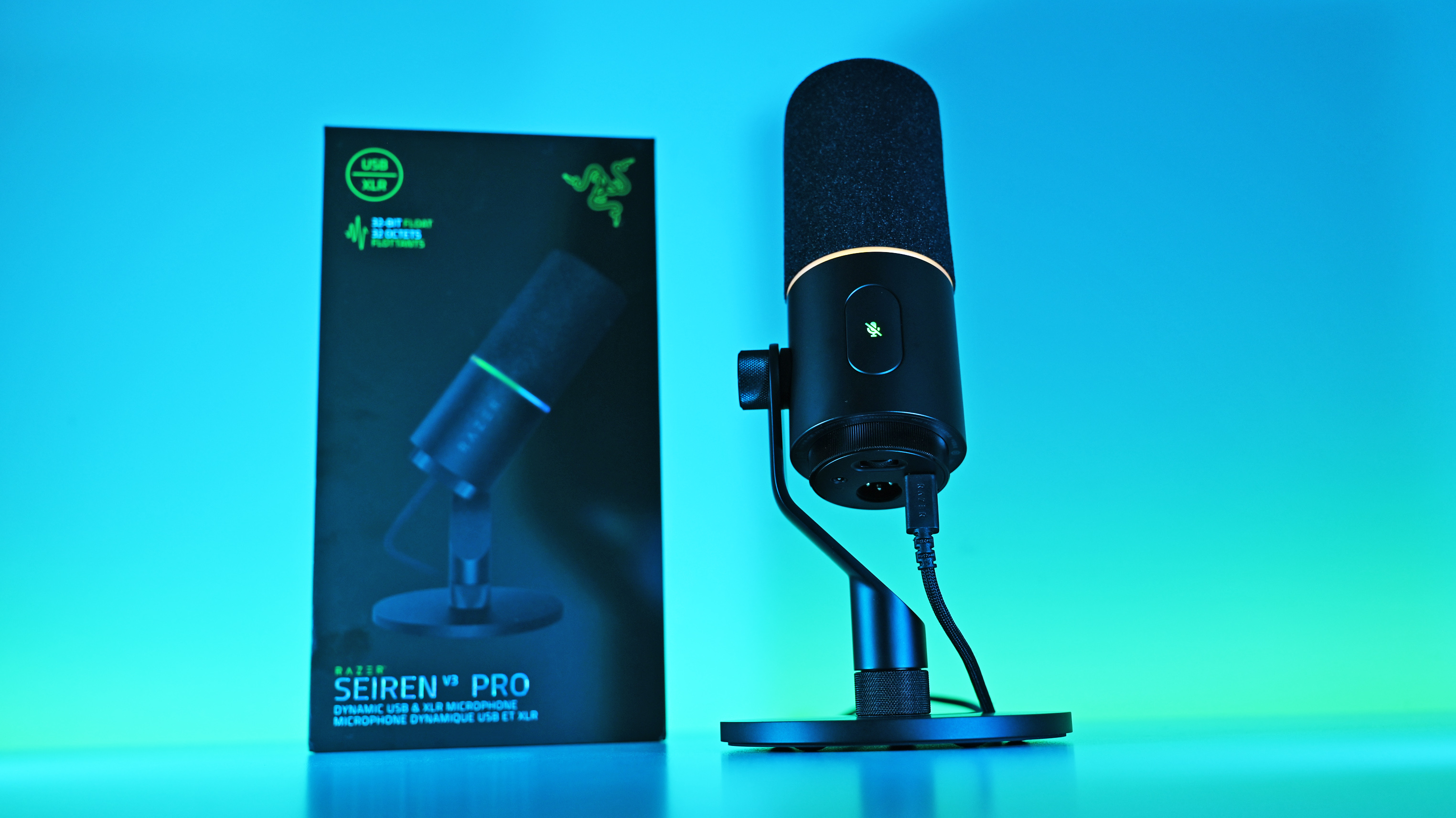
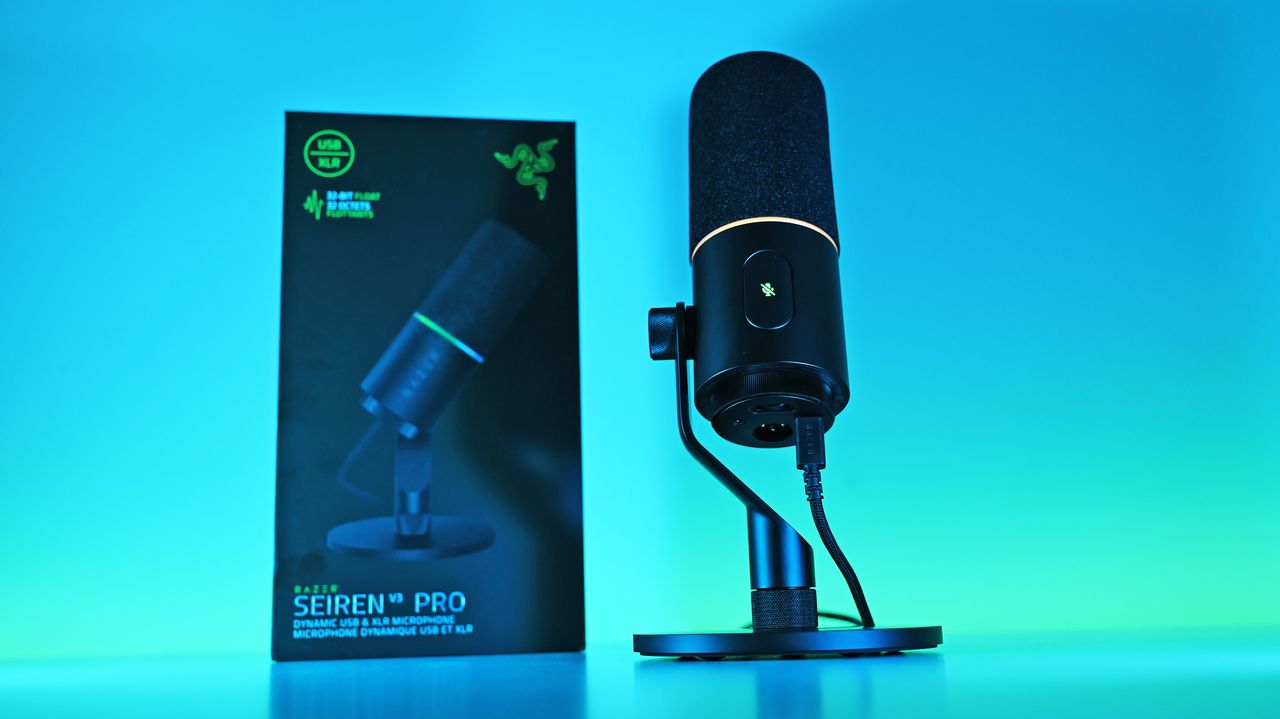
Low-angle shot of the Razer Seiren V3 Pro mic plugged into a USB-C cable next to its box, illuminated by a vivid blue and cyan background.
Low-angle shot of the Razer Seiren V3 Pro mic plugged into a USB-C cable next to its box, illuminated by a vivid blue and cyan background.
Razer is doubling down on the "Pro" in its Huntsman lineup. The new V3 Pro TKL 8KHz takes the already excellent V3 platform and injects it with a massive 8,000Hz HyperPolling boost, improved acoustics, and the game-changing Snap Tap technology. Aimed squarely at the esports crowd, this $169.99 deck offers unparalleled customization for actuation and reset points.
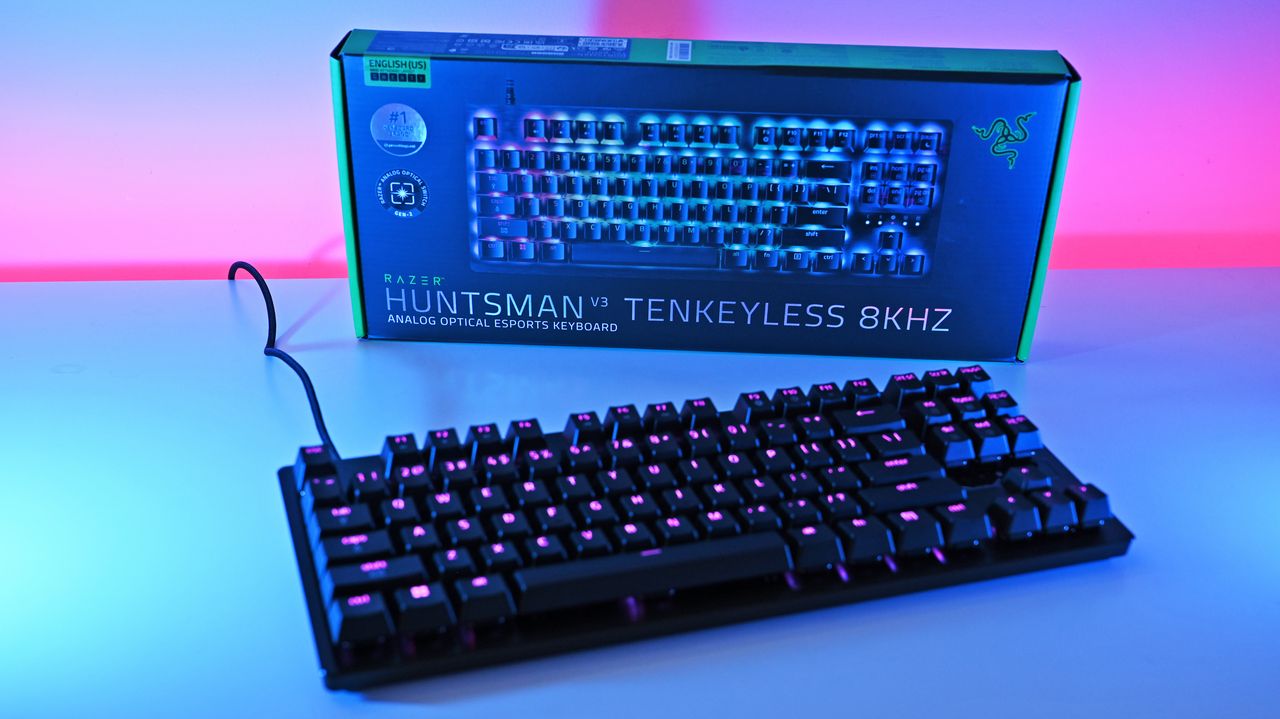
A Razer Huntsman V3 Tenkeyless keyboard with RGB lighting in front of its box. A vibrant pink and blue background creates an energetic, high-tech feel.
A Razer Huntsman V3 Tenkeyless keyboard with RGB lighting in front of its box. A vibrant pink and blue background creates an energetic, high-tech feel.
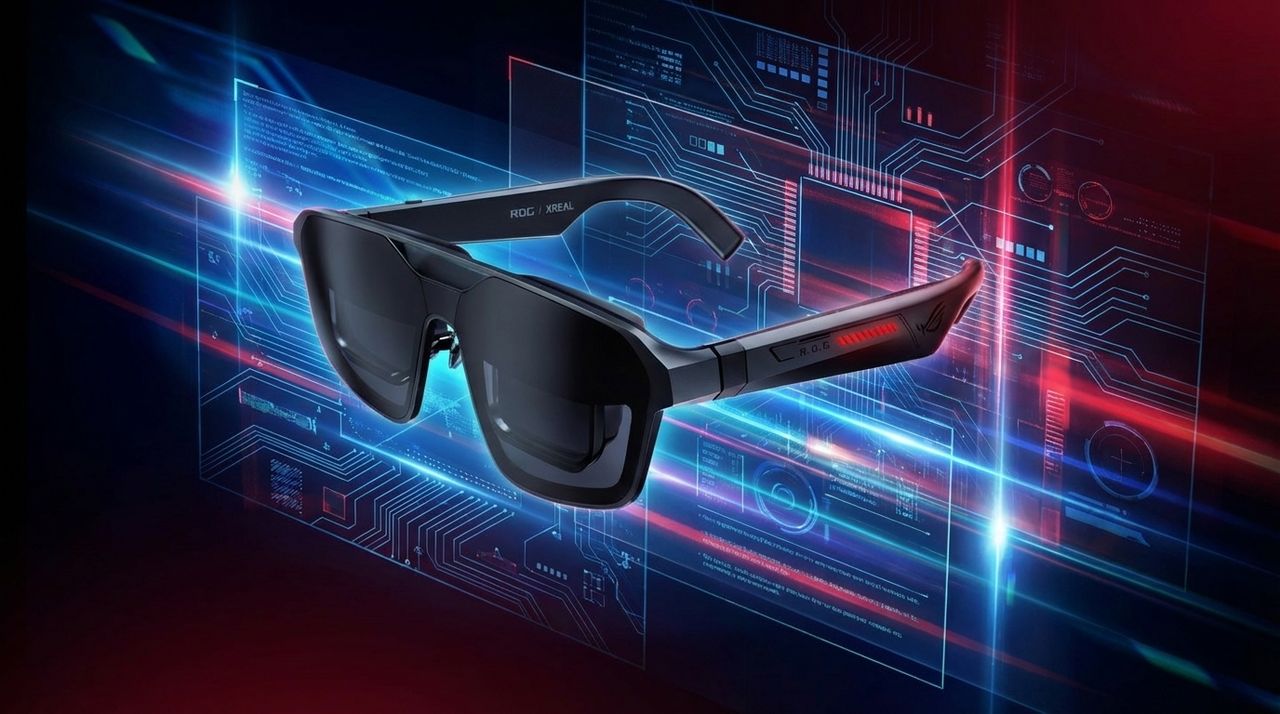
ROG and XREAL are officially launching the ROG XREAL R1 gaming AR glasses worldwide, bringing the first 240Hz micro‑OLED wearable display to gamers. With a 171-inch virtual screen, 3DoF spatial modes, and tight ROG Ally integration, the R1 aims to redefine portable play. Our full Windows Central review is coming soon.
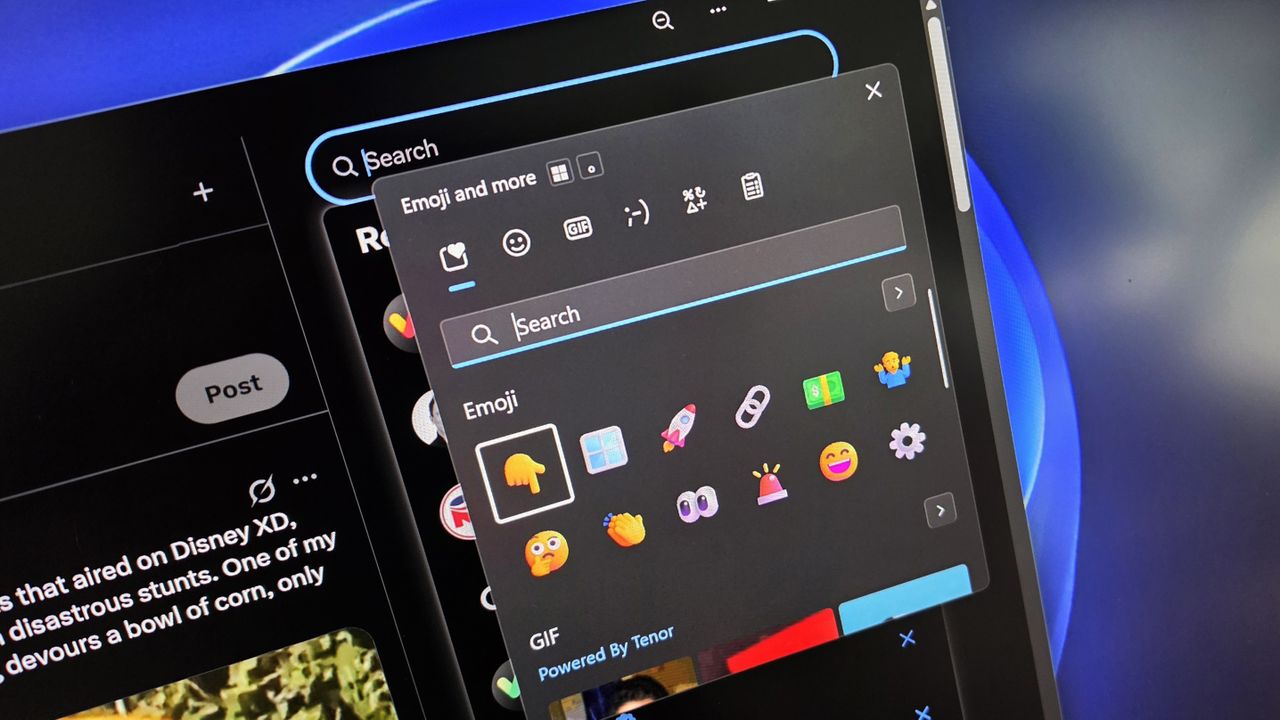
Windows 11’s emoji picker can randomly break and lose its search box, leaving the feature almost unusable. The issue appears to be tied to how the UI loads, and when it happens, the picker won’t show any way to filter or find emojis. Fortunately, a quick trick reliably restores the search bar without restarting the system or digging through settings.
A computer interface shows an open emoji and GIF selection sidebar, overlaying a dark-themed app. Colorful emojis are featured on a sleek digital screen.
A computer interface shows an open emoji and GIF selection sidebar, overlaying a dark-themed app. Colorful emojis are featured on a sleek digital screen.
Microsoft has a problem with its Universal Windows Platform (UWP) and what it means for developers and consumers. Here is how they plan to fix that and why it means ignore phones.
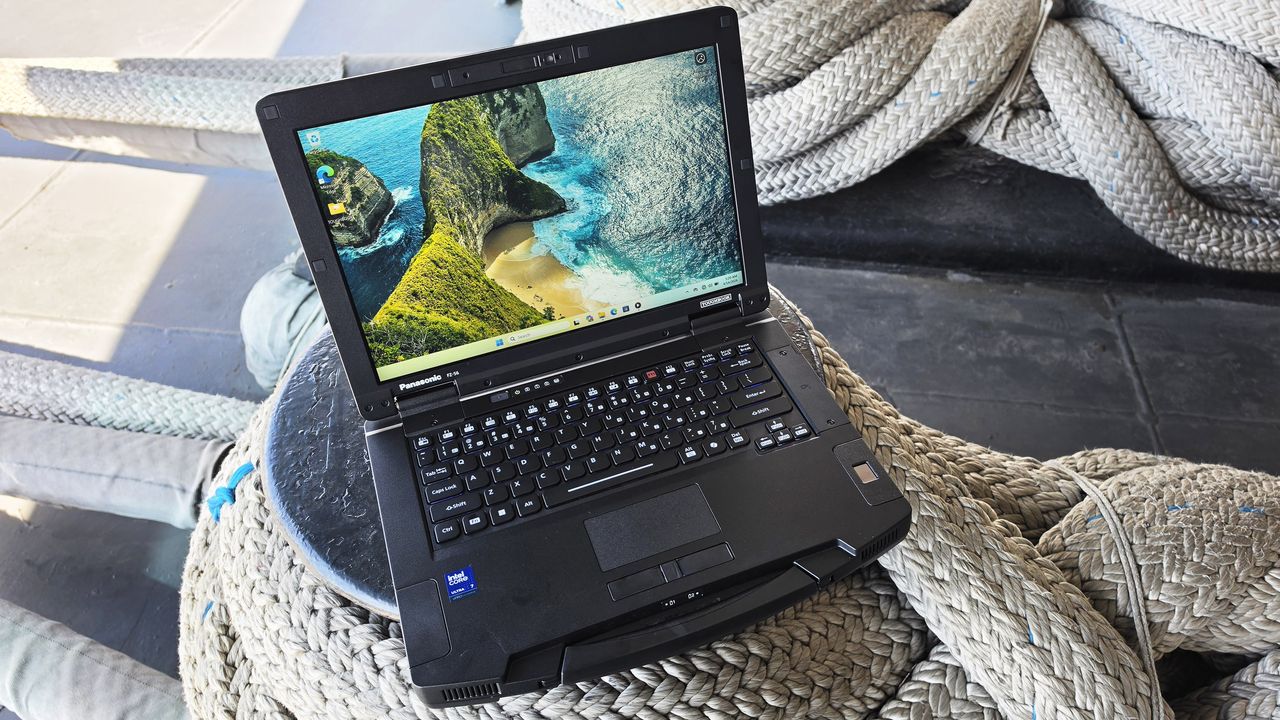
The Panasonic Toughbook 56 tightens up what made the 55 MK3 useful and adds faster networking, newer Intel Series 2 CPUs, Wi‑Fi 7, and a stronger security stack — all in a highly modular package built for long field deployments.
A rugged laptop with a seashore wallpaper is placed on thick, coiled ropes, suggesting durability and adventure. Sunlight casts soft shadows on the scene.
A rugged laptop with a seashore wallpaper is placed on thick, coiled ropes, suggesting durability and adventure. Sunlight casts soft shadows on the scene.
Our subreddit is quickly becoming one of the best places for Windows, Surface, Xbox, and PC fans to talk directly with us and with each other. Here’s why we built it — and why you might want to join.
Photo of the r/windowscentral subreddit on a laptop display
Photo of the r/windowscentral subreddit on a laptop display
Microsoft Edge for Android and iOS can finally place the web search bar where it belongs: at the bottom of the screen. The bottom address bar was a favorite feature of the old Internet Explorer found in Windows Phone.
Microsoft Edge for Android with the bottom web address bar enabled on the new Samsung Galaxy S25 Ultra.

 Connexion