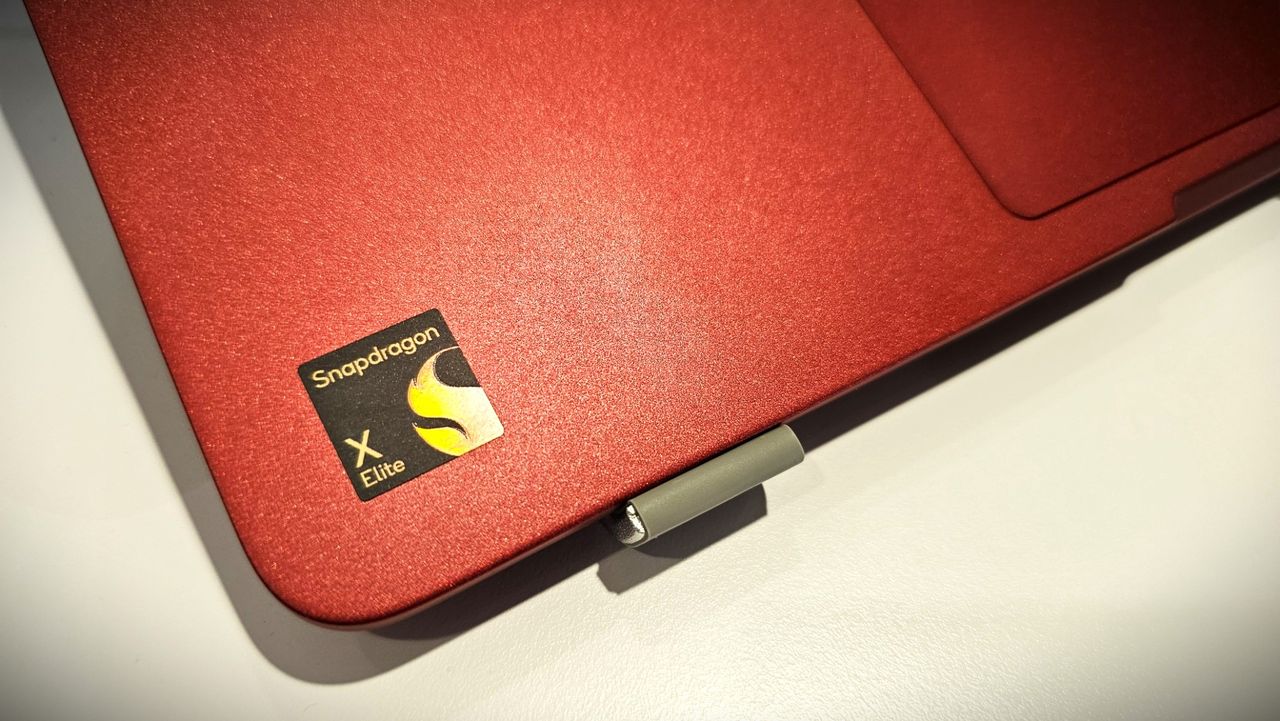
Microsoft has published a new blog post celebrating significant progress around the Windows on Arm platform over the last year. The company is excited to welcome NVIDIA to the Windows on Arm family with its RTX Spark SoC later this year, joining the Qualcomm Snapdragon X platform and solidifying the Windows on Arm platform as here to stay.
"The market is sending a clear signal: more silicon providers and more OEM partners are investing in Windows on Arm because customer demand is growing for these powerful and efficient Windows devices and experiences," says Klaus Diaconu, Partner Director at Microsoft. "In the fall of 2026, devices from Microsoft Surface, ASUS, Dell, HP, Lenovo, and MSI will be available [with RTX Spark.]"
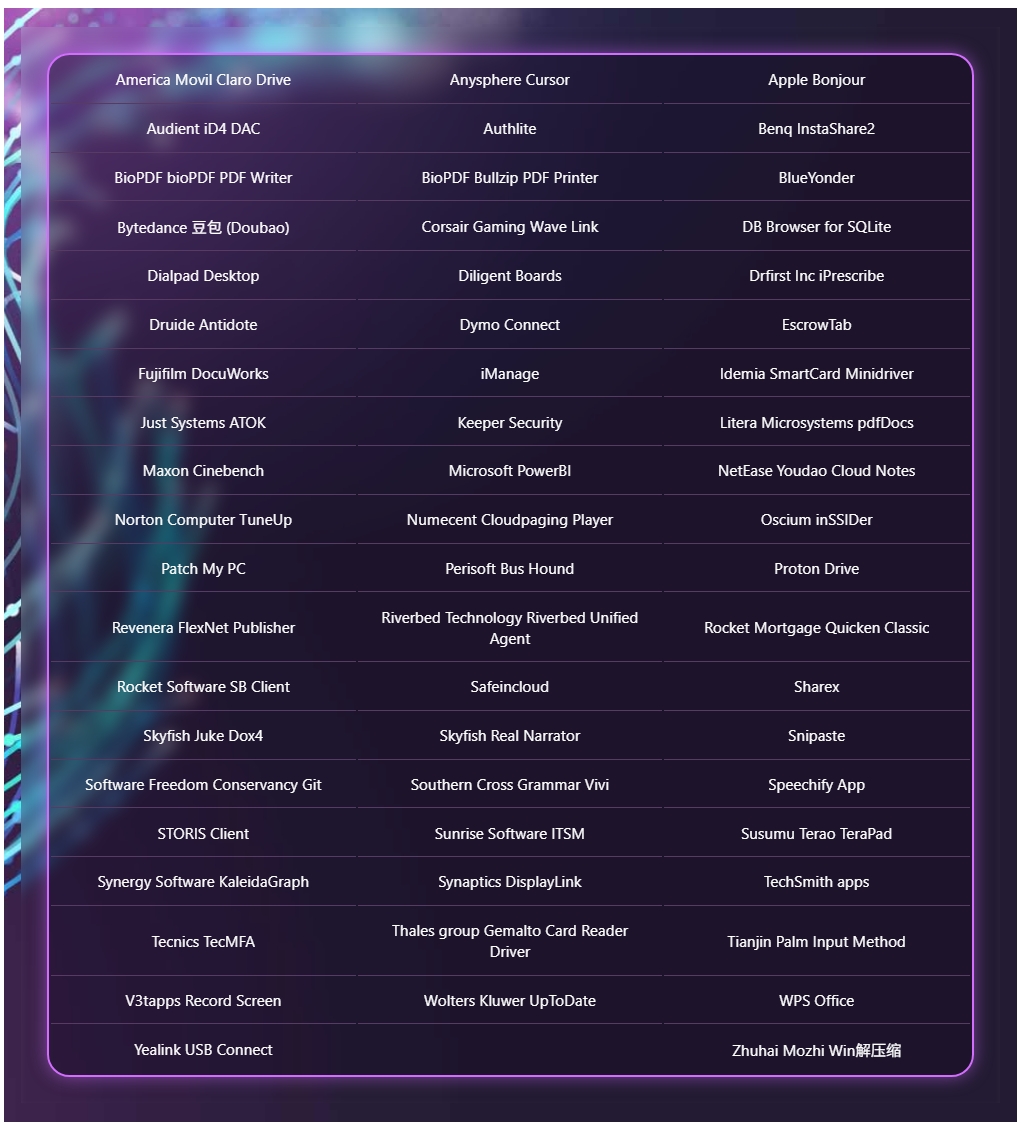
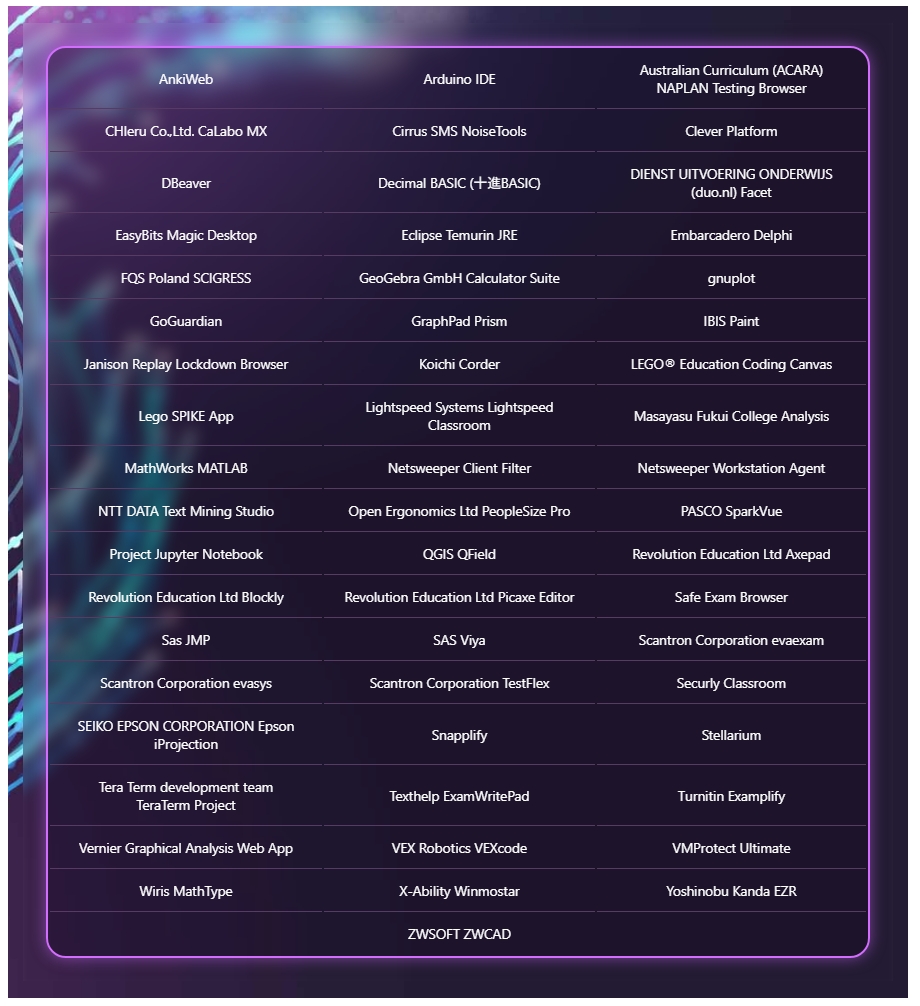
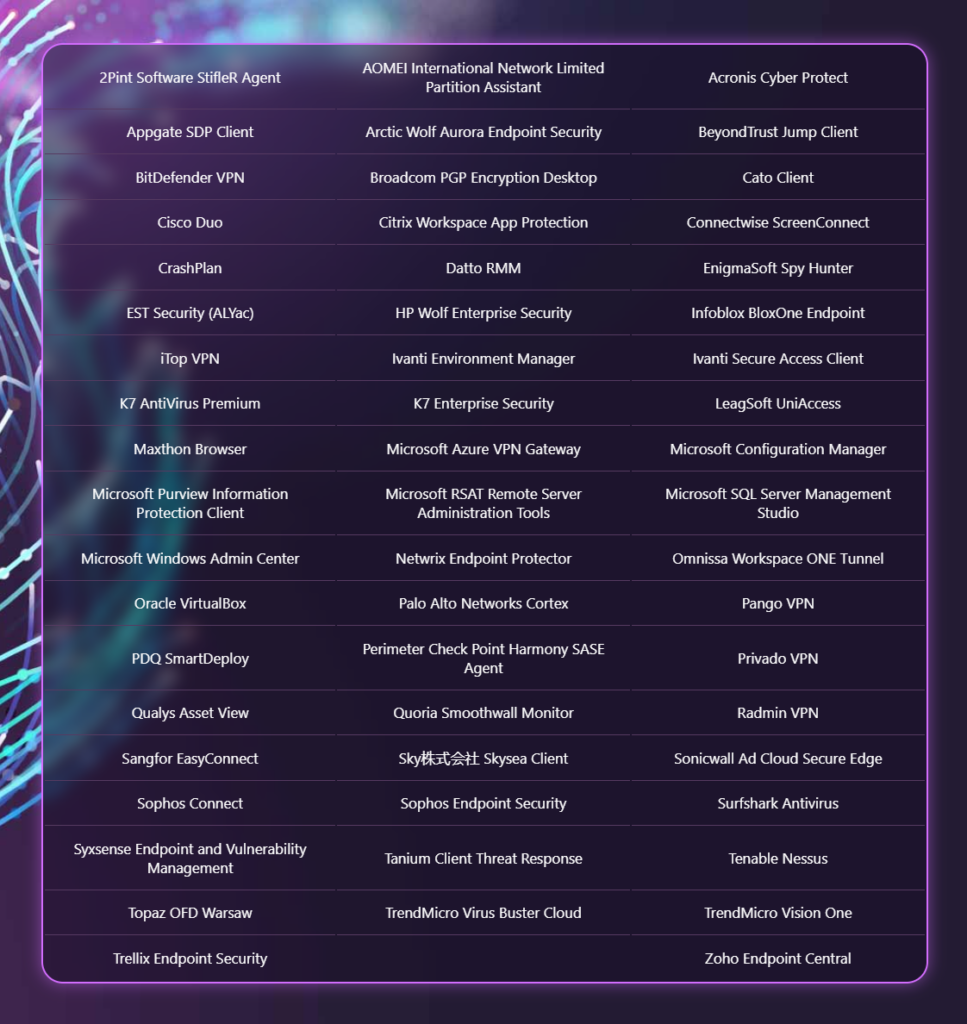
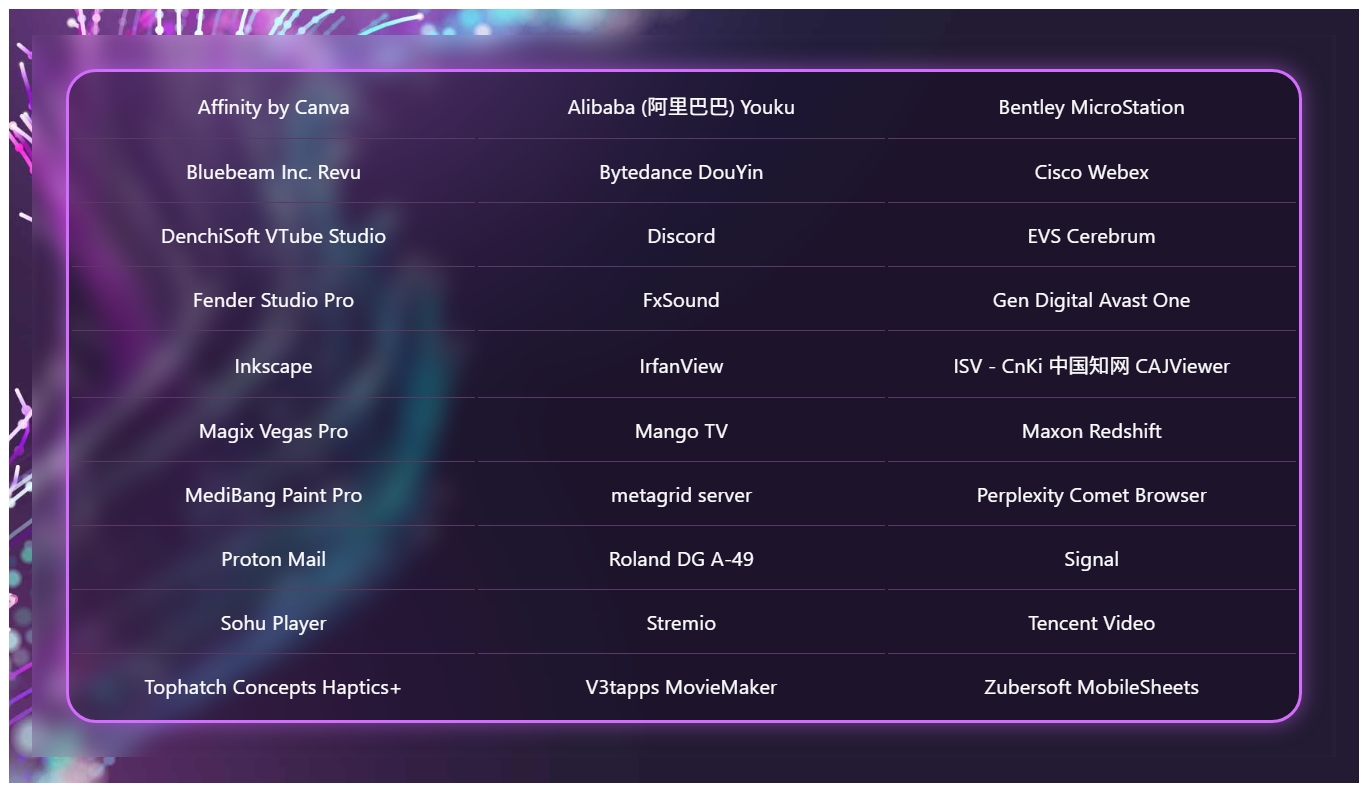
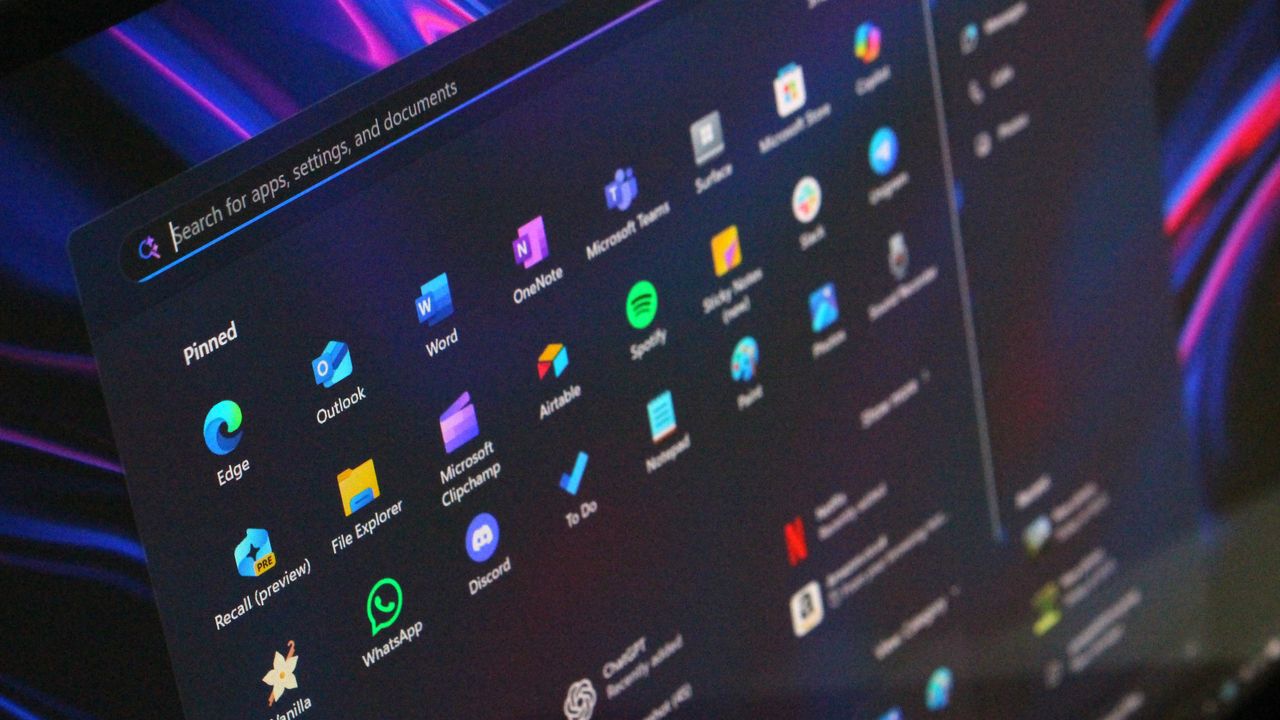
In addition to highlighting silicon and hardware makers bringing Windows on Arm to market, Microsoft is also excited to spotlight Windows apps that are now available on the Arm platform, including STEM and education apps, security apps, productivity apps, creativity apps, entertainment and media apps.
MicrosoftMicrosoftMicrosoftMicrosoft
"Productivity apps remain the cornerstone of how people get work done on Windows. Whether managing projects, collaborating with teammates, organizing information, or communicating across teams, these apps are essential to our customers’ daily work. The growing list of productivity apps now available reflects both customer demand and increasing momentum from developers building with Arm as a first-class Windows platform."
Some of the highlights include apps like Sharex, Proton Mail, Signal, Discord, FxSound, and more. In fact, Microsoft says there are now over 7,000 compatible Windows on Arm apps being tracked on the "Works on WOA" website, which the company recommends as a comprehensive source for app compatibility information.
While most mainstream apps are now natively supported on Arm, there are still Windows apps that don't yet have an Arm native version. With the Windows Prism emulation layer, these apps still run on Windows on Arm, and on the latest Arm PCs they feel native thanks to improvements to performance from both the silicon and software.
"Windows on Arm is no longer defined by potential, but by a rapidly expanding ecosystem of devices with apps available across workloads that customers depend on most," Microsoft states. "As developers continue to invest in Arm-native experiences and compatibility, customers gain more choices, flexibility, and confidence in adopting the next generation of Windows devices."
Join us on Reddit at r/WindowsCentral to share your insights and discuss our latest news, reviews, and more.
In this week's episode of the Windows Central Podcast, Daniel Rubino and Zac Bowden break down the latest Windows 11 insider features, focusing heavily on major overhauls coming to context menus, File Explorer polish, and options to force apps to open full-screen. They also dive into a surprising new Signal 65 processor study highlighting how Qualcomm's Snapdragon X2 chips stack up against Intel and AMD, wrap up recent Windows 11 improvements from March onward, and touch on various tech ecosystem shifts.
This episode of the Windows Central Podcast is sponsored by Surfshark VPN. Unlimited devices, access your content from anywhere, and auto-block malware on Windows, Edge, and other platforms from $2.50/mo, with 3 months extra FREE. Sign up today!
00:00 — Introduction & Welcome: Daniel Rubino and Zach Bowden kick off Episode 402 of the Windows Central Podcast.
03:45 — Qualcomm Snapdragon X2 vs. Intel & AMD: Analyzing the Signal 65 processor study results, showing how Qualcomm beats out Intel and AMD chips in recent laptop testing.
10:15 — Windows 11 Context Menu Overhaul: Breaking down new customizable, faster context menus in Windows 11 Insider builds, including default cleanups and third-party app management.
24:30 — File Explorer Improvements: Reviewing massive performance updates, elimination of freezing/hang delays, and better UI polish for File Explorer.
42:10 — Forcing Apps to Open Full-Screen: Discussing the new Windows settings toggle that allows users to automatically launch apps in full-screen mode.
52:00 — Recap of Windows 11 K2 Features & General State of the OS: A look back at the overall quality-of-life improvements rolled out to Windows 11 since March.
1:05:15 — Wrap-Up & Outro: Final thoughts, social media handles, and sign-offs until next week's episode.
Have a question you want us to answer on the podcast? Send it to us at [email protected]
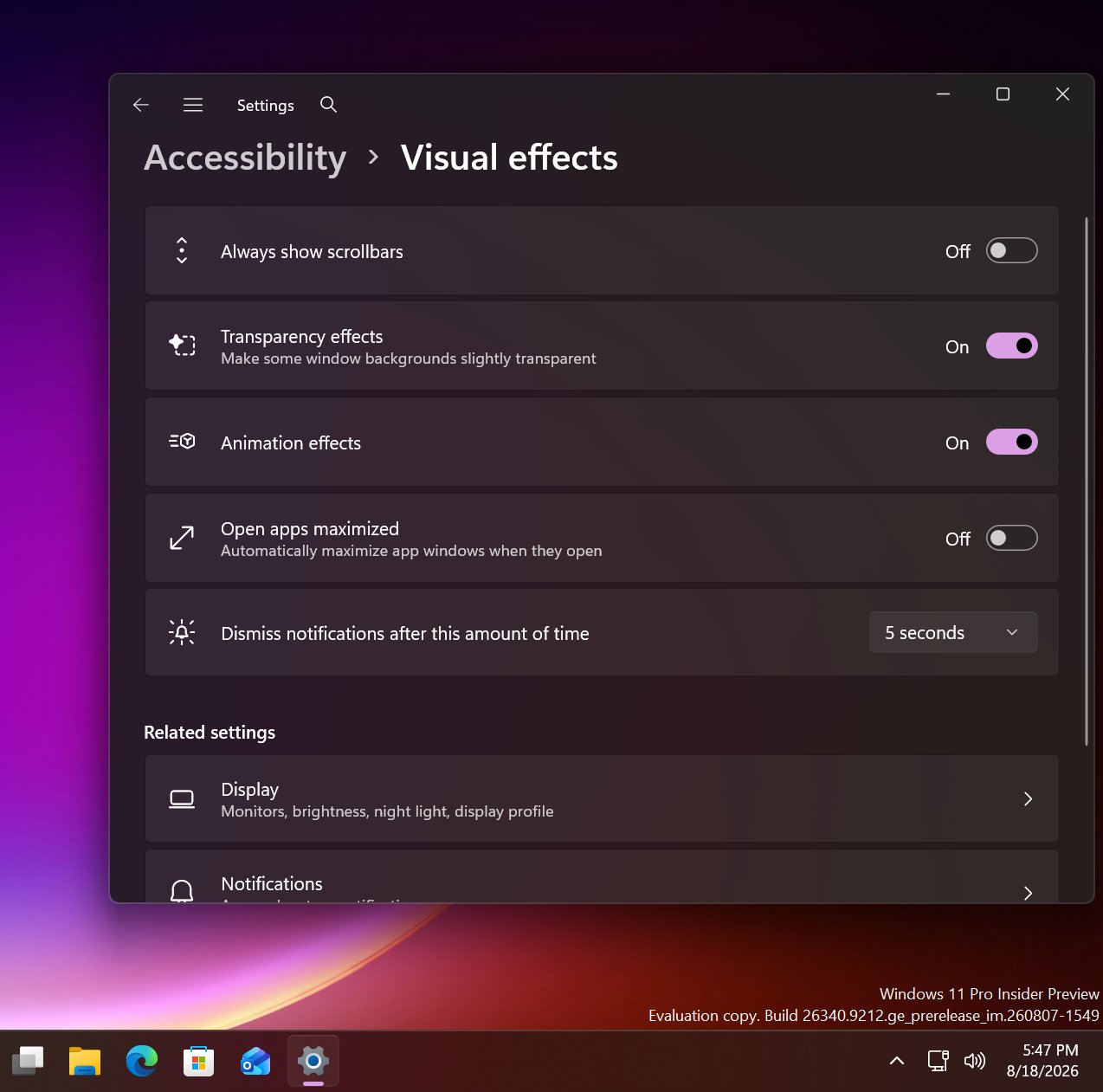
It looks like Microsoft is working on a new feature for Windows 11 that will allow users to configure the behavior of apps when they first open. Right now, pretty much all Windows app will open in windowed mode, until manually set to open maximized by the user. But in the latest Windows 11 preview builds, a new option has been discovered that changes this.
First spotted by phantomofearth, the new option appears in the accessibility area of Windows Settings. The option reads: "Automatically open app windows maximized when they open" with the ability to toggle it on or off. When enabled, all Windows apps will opened in a maximized state by default, meaning the user will no longer be forced to do so for every app they open.
This feature will be great for devices with relatively small screens. PCs with screen sizes of less than 13-inches will benefit greatly from this. On my Surrface Pro 12-inch for example, I almost always find apps are easer to use when maximized as the screen it just too small to enjoy using apps in windowed mode.
The new toggle to force apps to open full screen in Settings. (Image credit: Phantomofearth on X)
This will be especially beneficial for devices with sub 10-inch screens or less, like the Surface Go line or more commonly, PC handheld gaming devices like the Xbox ROG Ally X, which has a 7-inch screen. Windows is famously not very optimized for these small screen sizes, but letting users open apps full screen will make the experience a little better.
It's also beneficial for PCs where the screen may be far away from the user, such as with a PC under a living room TV that's used primarily for watching movies or playing games. In that instance, you wouldn't want apps opening in windowed mode basically ever, and so this option will come in handy.
For a while, Windows 11 included an automatic behavior change that forced apps to open maximized on PCs with small screens, but at some point that behavior stopped. Now, it seems Microsoft is going to give users the option to enable this on any screen size, which makes more sense.
These quality of life improvements are great to see, and another example of Microsoft making WIndows 11 more customizable. Recently, it announces a whole wave of new customization options for the Start menu and context menus, with more customization to come in the next few months.
Join us on Reddit at r/WindowsCentral to share your insights and discuss our latest news, reviews, and more.
Last year, Microsoft announced a major update coming to the Taskbar on Windows 11 that would allow users to swap out the Windows Search box for one powered by Copilot. Dubbed "Ask Copilot," this new experience would let users interact with Copilot straight from the Taskbar, while maintaining support for searching for apps and files.
Since its announcement, the feature has slowly rolled out in preview to a small subset of users. Most of those users are commercial customers utilizing the Microsoft 365 Copilot app, but a version for consumers was also being developed for the standard Microsoft Copilot app.
At least, that was true until a few months back, when an update to the consumer-facing Copilot app removed support for it. Since then, Ask Copilot has only worked with the Microsoft 365 Copilot app, but with the announcement that the consumer Copilot and Microsoft 365 Copilot are merging under one app experience, Ask Copilot is disappearing once more.
"As we implement these changes, we're temporarily disabling Ask Copilot on the taskbar to update the new experience and incorporate your feedback," a Microsoft changelog has confirmed. The company doesn't explain what user feedback it's taking onboard, or if the Ask Copilot experience will change in any meaningful way. For now, it's no longer in testing.
If you've been using Ask Copilot on the Taskbar, the latest updates to the Copilot app and Microsoft 365 Copilot app will result in the feature disappearing, restoring the standard Windows Search experience automatically.
The UI between Ask Copilot and Windows Search is different. In fact, the two experiences are handled by entirely separate teams at Microsoft. Windows Search is, naturally, developed by the Windows team, whereas Ask Copilot is built by the Copilot and Microsoft 365 AI teams.
Recent upgrades to the Windows Search experience confirm that Ask Copilot is always going to be a separate, optional experience for users who want it. Windows Search is still the primary search experience on Windows, and is being redesigned to remove clutter, ads, and prioritize more accurate and speedy results.
The Ask Copilot search pane is similarly decluttered, but includes a chat box for initiating conversations with Copilot, along with shortcut buttons in the Taskbar for launching into Copilot Vision. If you're someone who has been looking forward to the Ask Copilot experience, it looks like you're going to be waiting a while longer before it begins shipping.
Join us on Reddit at r/WindowsCentral to share your insights and discuss our latest news, reviews, and more.
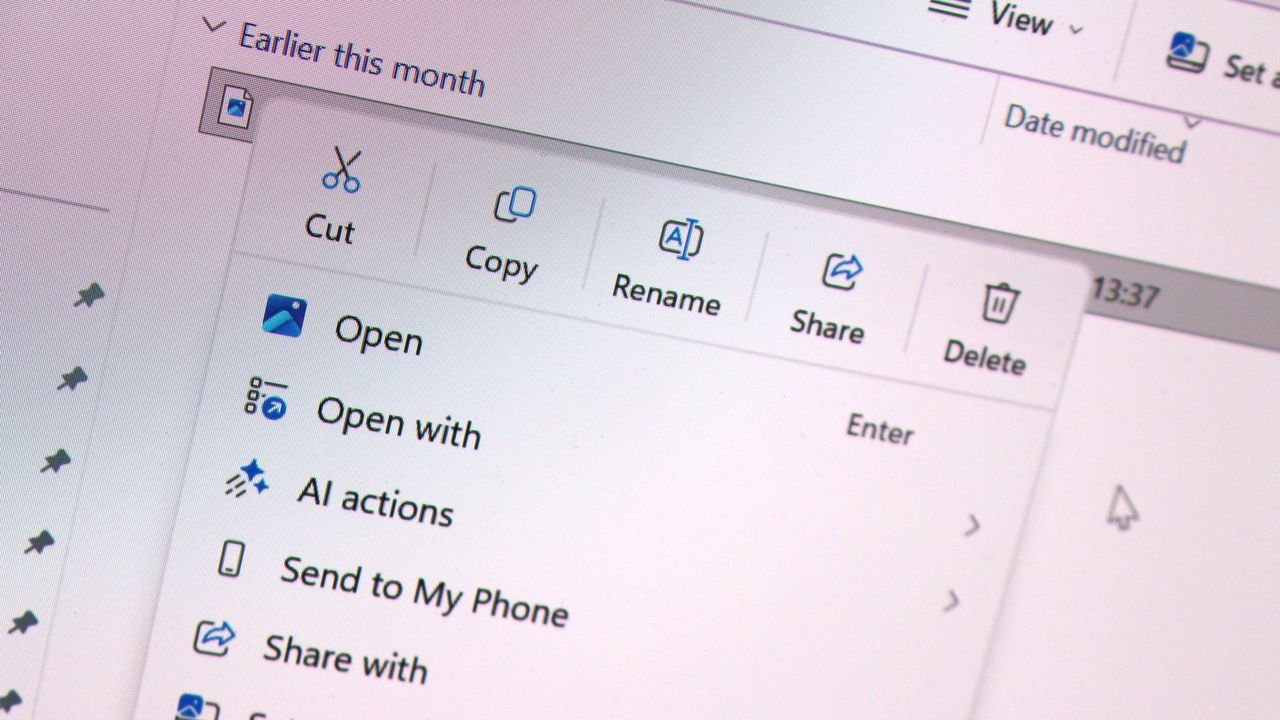
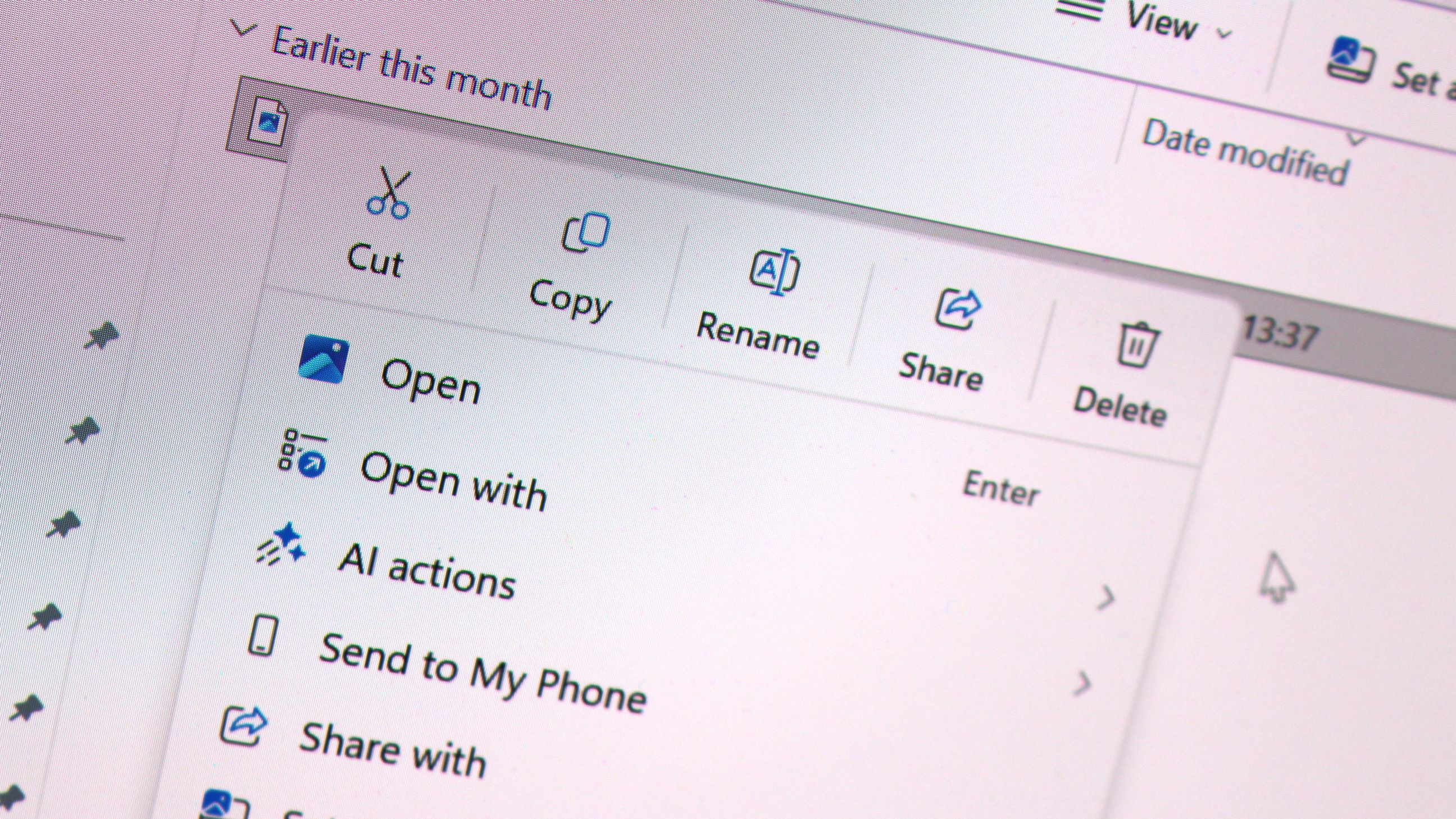
Microsoft has today announced a set of major improvements coming to the context menus that appear in File Explorer and the desktop on Windows 11 that are designed to make the right-click experience faster, less cluttered, and more customizable.
I first revealed Microsoft's plans to overhaul the context-menu system on Windows 11 last month, and now the company has confirmed those plans. In fact, it's already rolling out preview builds with the new context menu system in place, ready for Windows Insiders to begin testing and provide feedback on.
Microsoft says that it knows the context menu system on Windows 11 today is not in a good place. "The menu became cluttered and sluggish, and we recognized the need to dramatically reduce the time between right-clicking and having a menu that’s fully ready to use," says Microsoft engineer Michael Novak in a blog post published today.
"Today, we’re excited to announce an updated context menu that delivers a faster, simpler, and more customizable experience. The new design reduces top-level clutter, keeps commonly used actions easy to access, and introduces a new Settings experience that gives you more control over what appears in the menu."
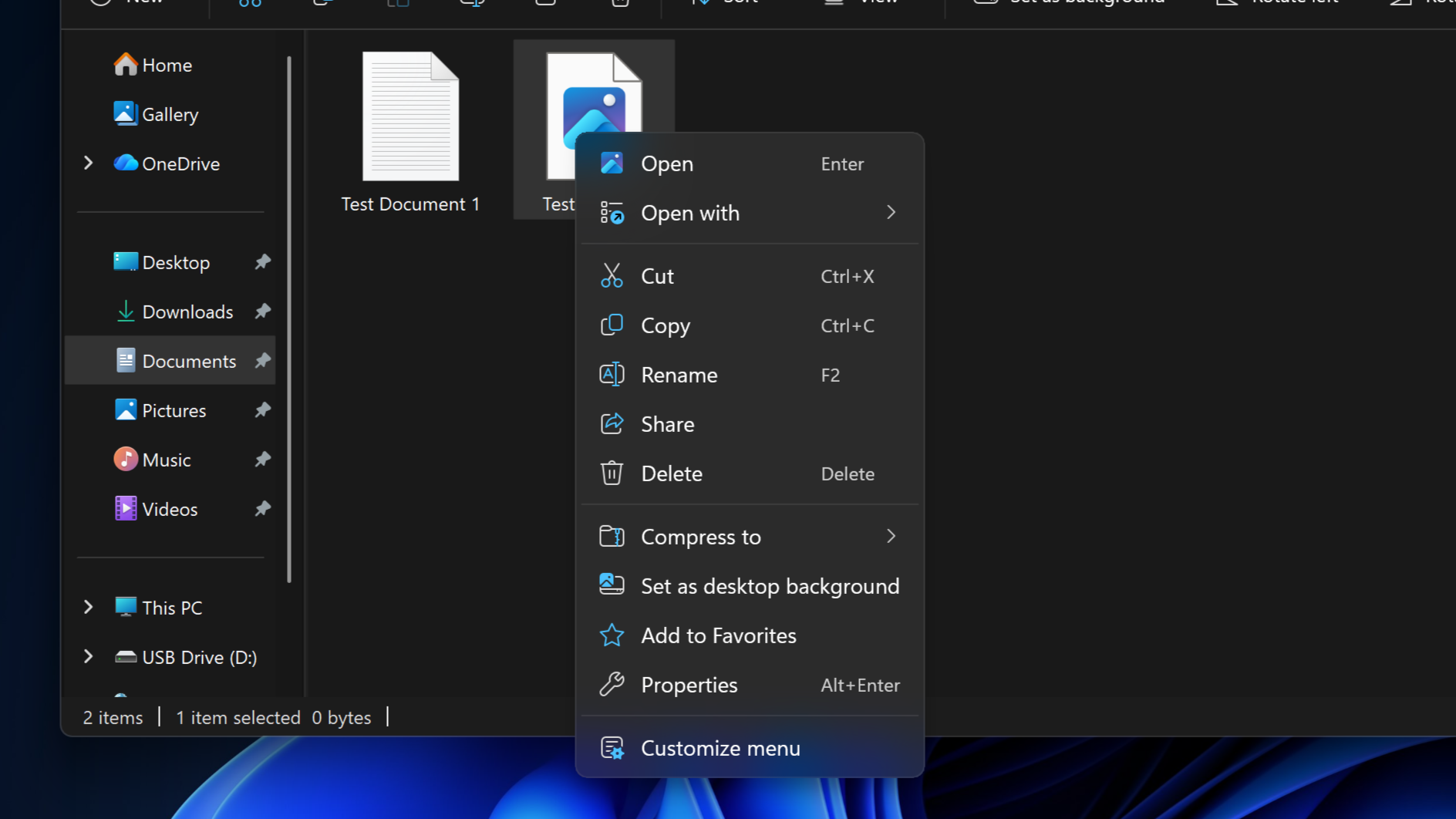
I went hands-on with the new context menu system over the weekend, and I can confirm that the new right-click experience is a major improvement over what is shipping on Windows 11 currently. The new default layout is much less cluttered, with less actions immediately presented to the user in exchange for a much faster response time.
Microsoft is finally letting users customize the context menus too. You can now enable and disable whichever actions you want, as well as show or hide app extensions from third-party apps. This is great for when an app installs itself into your context menus without permission, as you can now hide them from view.
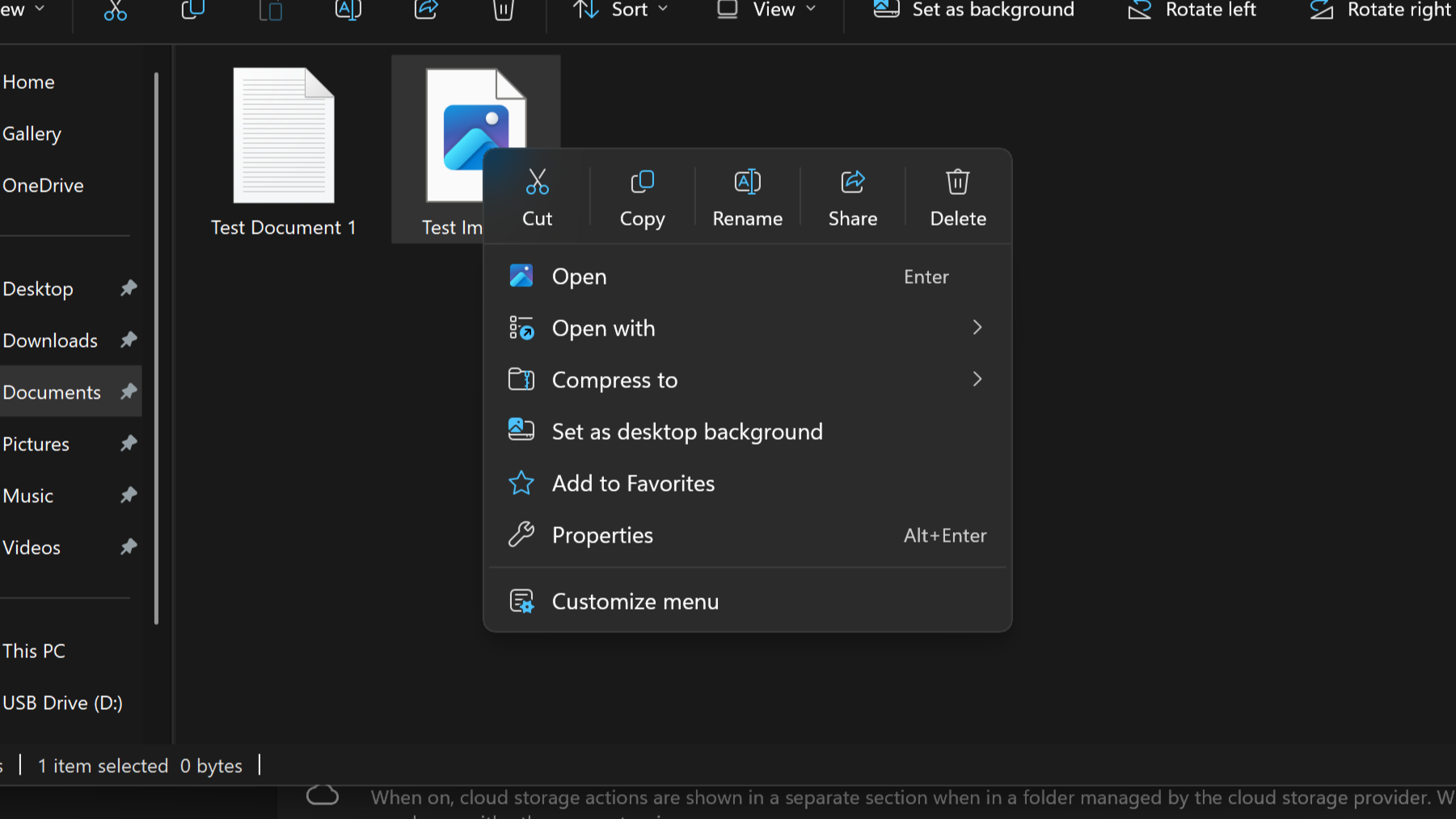
It's even going so far as to allow users to restore the Windows 10 context menu layout within the modern Windows 11 context menu system. Until now, Windows 11's context menu has placed "primary actions" such as cut, copy, and paste into a horizontal view along the top of the menu. Windows 10's context menu placed those actions vertically alongside everything else, and now Windows 11 is letting users restore that layout for users that want it.
"We know many people have years of muscle memory from the Windows 10 menu, so we’ve added options to bring that feel back. You can list the main commands (Cut, Copy, Paste, Rename, Delete, and Share) inline directly in the menu instead of as a row of icons, and you can move Properties down to the very bottom."
These are genuinely good quality of life improvements coming to Windows 11, and Windows Insiders can download the latest Windows 11 preview builds to begin testing them today. Given that they only just entered preview, I expect we won't see them begin shipping to everyone until later in the fall.
Join us on Reddit at r/WindowsCentral to share your insights and discuss our latest news, reviews, and more.
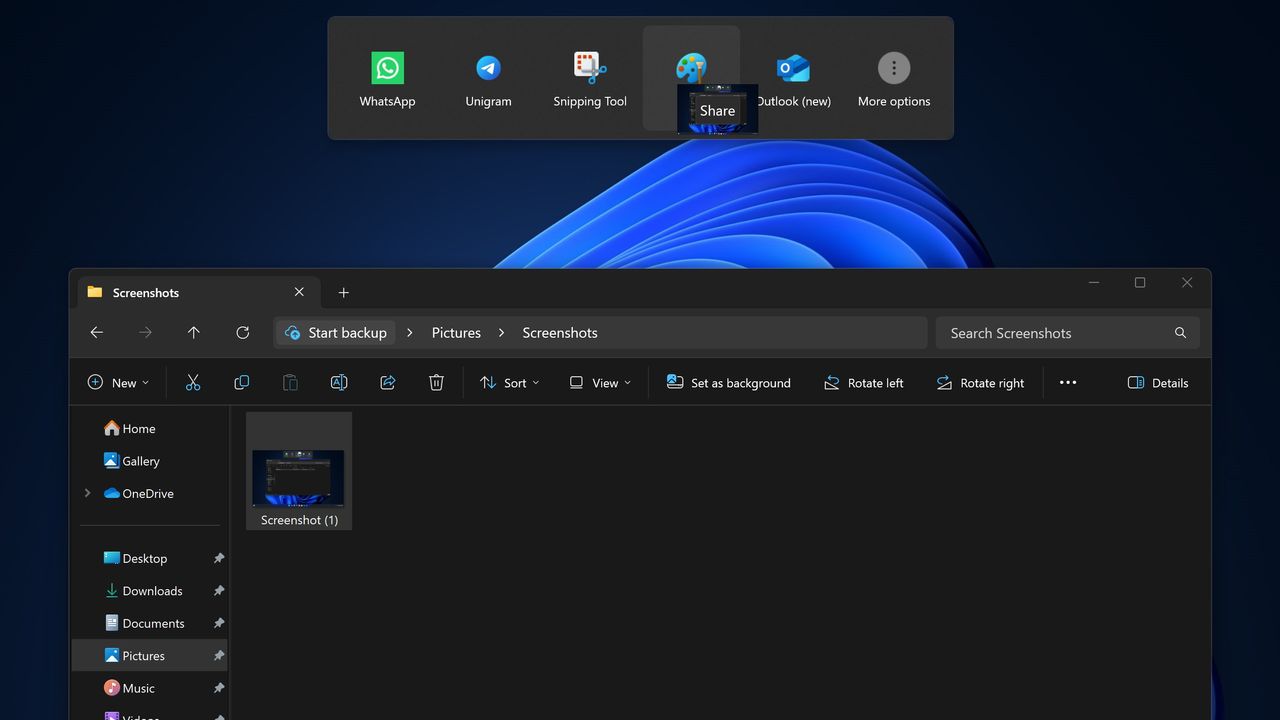
Microsoft has announced that it's disabling its unique Drag Tray file sharing experience on Windows 11 after feedback from Insiders. After initially rolling out to a small subset of users a number of months ago, it appears the company is now scrapping the concept in favor of something else.
"Based on feedback, we're removing the experience in this build," Microsoft says. "We're continuing to explore improvements in this area and look forward to sharing more about a future replacement experience in a later update."
The Drag Tray experience was a unique way of sharing files from the File Explorer on Windows 11. It has been in testing for well over a year, and appeared at the top of the screen whenever a user grabbed a file with their cursor. Users would be able to drag the file to the top of the screen and drop the file into an app to instantly share it.
The feature works well on paper, but users online complained about the feature when it first began rolling out, with some calling it frustrating and annoying. While some users found it useful, most users did not like its implementation and sought out guides to disable it.
Windows 11 features multiple ways of sharing files. Most users share files by right-clicking on the file in particular, and clicking share, which opens a dedicated share UI window that makes it easy to send the file to contacts or apps that are installed. The drag tray was supposed to be a faster and easier to use alternative.
Microsoft hasn't yet revealed what will replace the Drag Tray, if anything. While the company says that it's exploring improvements in this area, there's no guarantee that the Drag Tray in this implementation will survive. Given the pushback it received from users originally, it's unlikely to return in its current form.
If you're using Windows 11 with the Insider Program, you'll notice the Drag Tray is gone as of the latest preview builds. If you're running production builds of Windows 11, Drag Tray is still available, but it's likely only a matter of time before Microsoft removes it from shipping builds of the OS too.
Join us on Reddit at r/WindowsCentral to share your insights and discuss our latest news, reviews, and more.
Windows 11's new file sharing interface.
The Drag Tray sharing feature, which is now being removed.
Last month, I revealed that Microsoft was hard at work on a redesigned context menu system for Windows 11 that's designed to make them faster and more customizable. Now, we've got our first look at the new context menu customization features, discovered hidden in the latest Windows 11 preview builds, and I've been trying them out!
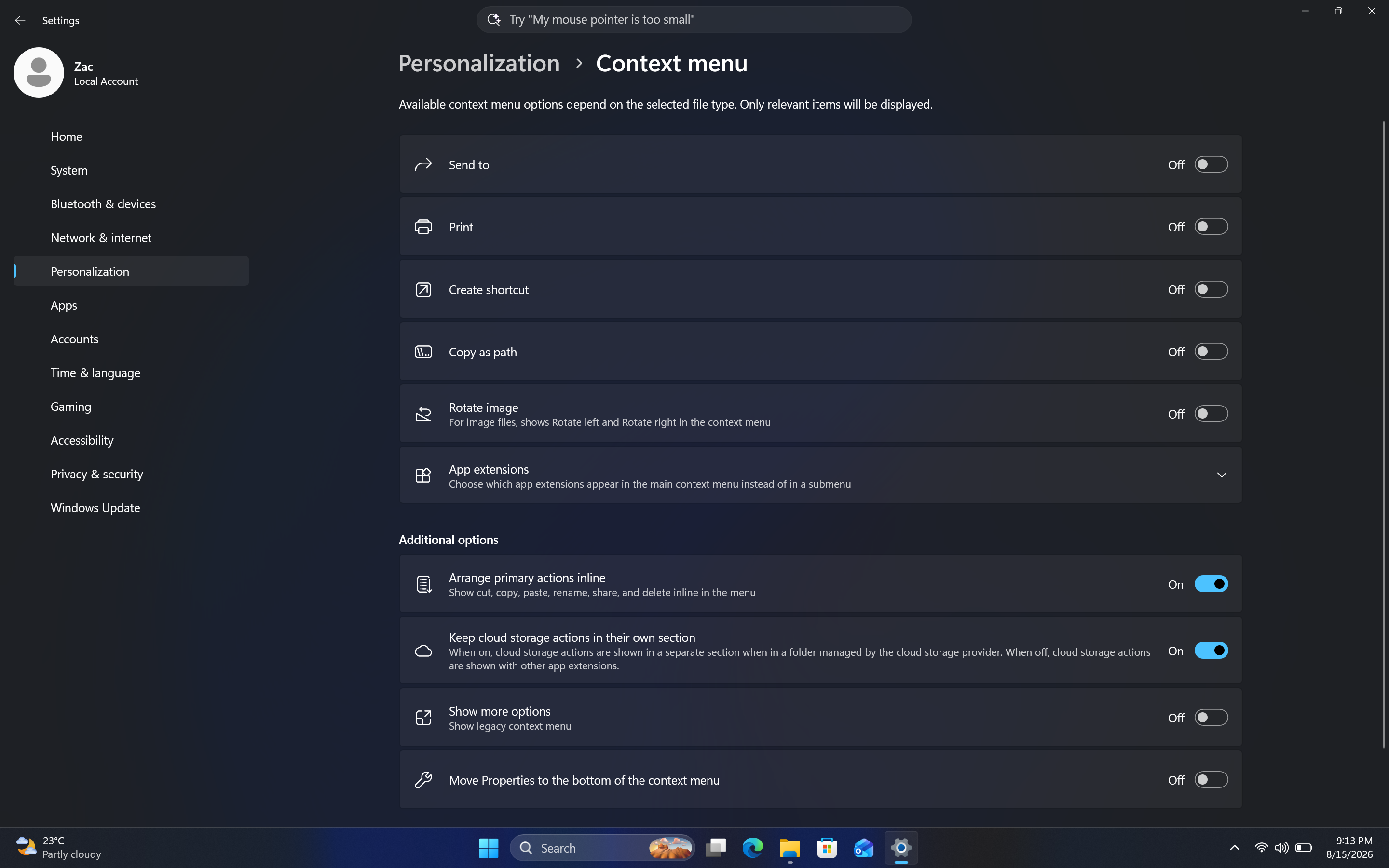
Soon, you'll see a new customize menu option appear at the bottom of the context menu. When selected, you'll be taken into the Windows Settings app where you'll see a wide array of new options that allow you to configure the layout and actions that appear within the context menu.
The toggleable actions presented to the user are:
Send to
Prin
Create shortcut
Copy as path
Rotate image
App extensions
Arrange primary actions inline
Keep cloud storage actions in their own section
These options allow users to hide certain actions that they might not often use, speeding up the context menu in the process. Additionally, Microsoft is adding an option that lets you change how actions like cut, copy, and paste appear within the menu.
By default, these primary actions appear at the top of the menu in a horizontal layout. This new option will let users restore how they used to appear on Windows 10 and older, where they are listed vertically alongside the other actions within the menu.
It's also worth noting that by default, the context menu has most actions disabled automatically. That means the context menu will be fast for users automatically when these changes roll out, and you'll have to head into the customization options to add back any actions you find useful.
The new customization options for the context menu are quite in-depth.Windows CentralThis is the new default layout for context menus.Windows CentralAnd here's what it looks like when you set primary actions to appear vertically. Just like old times!Windows Central
These new customization options are really great to see, and show that Microsoft is finally listening to feedback when it comes to common UI surface such as the context menu.
The legacy Windows context menu is also still present, and while it no longer appears as an option in the context menu by default, you can still go in and enable that action if that's something you find yourself using. Notably, there's still no option to set the legacy context menu to be the default experience.
In the meantime, we know the new customizable context menu options are imminent, with an announcement from Microsoft expected in the next week or two.
Thanks to phantomofearth for discovering and helping me enable the feature to try out!
Join us on Reddit at r/WindowsCentral to share your insights and discuss our latest news, reviews, and more.
Earlier this year, Microsoft announced big updates for the Start menu and Taskbar on Windows 11 that would address users biggest complaints and bring highly requested features and functionality to the OS. Those changes include the ability to move and resize the Taskbar, as well as customize the size and different sections that appear within the Start menu.
Those features have been in public preview ever since, but those outside of the Windows Insider Program are yet to experience these new features. Now however, Microsoft has confirmed that it's now gearing up to ship the updated Taskbar and Start menu to everyone next month, as the features are now in the final Windows Preview Channel before public rollout.
As of yesterday, the movable and resizable Taskbar, along with the customizable Start menu, and other polish and quality of life improvements, made their way to the Windows 11 Release Preview Channel. This is the last stop before features begin shipping in public, non-Insider updates.
You can finally move the Taskbar to the top (and sides) of the screen! (Image credit: Screenshot: Mockup by Windows Central / PC: Edited with Gemini)
Usually, when a feature lands in the Release Preview Channel, it's no more than two or three weeks away from appearing in a public update. Usually, that's with the non-security feature preview update that drops at the end of every month, followed by the security-focused Patch Tuesday which is released on the second Tuesday of every month.
That means if everything goes according to plan, the new Taskbar and Start menu updates will begin rolling out later this month for users with the "Get the latest updates as soon as they're available" toggle in Windows Update switched on, and next month for everyone else.
This is the big user experience update people have been waiting for on Windows 11 this year. The ability to move and resize the Taskbar made headlines when it was announced that it was coming to Windows 11 earlier this year, with a lot of Windows 10 holdouts claiming that the lack of this feature was one reason why they hadn't yet moved to Windows 11.
Microsoft is slowly but surely ensuring that Windows 10 users feel comfortable with the move to Windows 11, and ensuring that functionality that Windows 10 already has is also available on Windows 11 is one way of doing that. Being able to turn off entire sections of Start, as well as resize the menu itself, will be useful for those who enjoyed tweaking the Windows 10 Start menu too.
The new customizable Start menu options. (Image credit: Zac Bowden / Windows Central)
If you don't want to wait any longer, you can join the Windows Insider Release Preview Channel today to get access to the new features as soon as possible. The quality of code in the Release Preview Channel is usually representative of the final product, meaning the code being previewed in the Release Preview channel now is what will begin shipping in the next handful of weeks.
If you do choose to enroll in the Release Preview channel, be warned that Microsoft is rolling out the new Start menu and Taskbar in waves, so you may not see it right away. This will likely also be the case when the update is released generally, as Microsoft utilized a phased and measured rollout approach to ensure the new features aren't breaking things.
Microsoft has many more quality of life improvements in the works for Windows 11, many of which are expected to begin shipping towards the end of this year and into 2027. Improvements such as better performance and responsiveness in apps and UI surfaces like the Start menu are still to come, as the OS begins adopting WinUI across more areas of the interface.
Join us on Reddit at r/WindowsCentral to share your insights and discuss our latest news, reviews, and more.
Join Zac Bowden and Jez Corden on this week’s Windows Central Podcast as they dive deep into unreleased Microsoft hardware, AI developments, and big Xbox announcements!
The Lost "Surface Phone" Prototype: Zach and Jez dissect newly leaked images and video of an unreleased 2013-era Microsoft-built Windows Phone prototype, reminiscing about the Lumia era, Nokia’s acquisition, and what could have been.
Microsoft Copilot’s Super App & AI Disillusionment: A look at the rollout of the new unified Copilot experience (merging consumer and Microsoft 365 features), dropped functionalities (Group Chat, Podcast mode, Deep Research), and a frank discussion on AI hype, practical workflows, and "AI psychosis".
Xbox Backward Compatibility Coming to Windows PC: The hosts break down the official announcement of original Xbox/Xbox 360 emulation on Windows, potential licensing hurdles, Play Anywhere integration, and upcoming achievement support.
Gaming Rumors & Franchise Future: Updates on The Elder Scrolls VI codename rumors (Sentinel), long development cycles across Bethesda/Obsidian, and a candid critique of the state of the Halo franchise following Halo Campaign Evolved and project cancellations.
New Xbox Console Features & Live Q&A: A discussion of the upcoming "Platinum Trophy" achievement equivalent, party/mic audio in Game DVR captures, and a live Q&A touching on Windows K2 progress, mobile shells for Windows on ARM, MSN's automation, and modern foldable vs. slab phones.
This episode of the Windows Central Podcast is sponsored by Surfshark VPN. Unlimited devices, access your content from anywhere, and auto-block malware on Windows, Edge, and other platforms from $2.50/mo, with 3 months extra FREE. Sign up today!
Have a question you want us to answer on the podcast? Send it to us at [email protected]
Back in May, Microsoft confirmed that it was working on a Copilot super app that would merge the different consumer Copilot and productivity Copilot experiences under one app. Until now, Copilot and Microsoft 365 Copilot have been targeted at different users, but starting today those apps are being merged into one.
"We're updating Copilot to create a simpler, more cohesive experience for everyone," a new Microsoft Support document says. "Depending on the account and device you use, you will see changes to the Copilot app including changes to appearance and functionality, such as navigation, feature availability, or sign-in experience."
The unified Copilot experience begins its rollout today, but not everyone will see it right away. Microsoft says the experience will land on mobile first, with the unified Copilot on Windows and macOS being an opt-in experience at first, made available over the coming weeks.
The rollout should make it easier to move between using Copilot as an AI assistant for personal matters and using Copilot for productivity based tasks. For most people, not much will change with the unified app, which will simply appear as "Copilot" now. With that said, Microsoft does say that some features are going away with the unification. Those features include:
Group Chat
All group chat threads, messages, and images will not carry forward after August 18, 2026.
Users must manually copy or download anything they want to keep.
Podcasts
The Podcasts feature is being fully retired on August 18, 2026.
Users will no longer be able to create or access podcasts in Copilot after this date.
Individual podcast files can still be downloaded before retirement.
Deep Research
Deep Research is being retired for consumer users starting August 18, 2026.
Existing Deep Research content will remain accessible, but the feature itself will no longer be available.
For those using Copilot with a work or school account, Microsoft says the unified Copilot app is also coming to those accounts too. The personal and commercial accounts will be separated within the app, meaning data from your work or school account won't be shared with your personal account, and vice versa. "Work and personal accounts remain separate. Your organization's security, privacy, compliance, and administrative controls continue to apply when you use Copilot with your work or school account."
For those using the personal consumer Copilot app, you will notice an updated UI that more similarly matches the Microsoft 365 Copilot app. Those who use the Microsoft 365 Copilot app likely won't notice much of a difference, outside of the rebranded app to just "Copilot," along with a slightly updated logo.
For those curious, this is the new Microsoft Copilot icon and branding. Can you tell the difference? No, us neither.
The new Copilot logo is very similar to the old one. (Image credit: Microsoft)
Lastly, Microsoft has confirmed that all your Copilot data (except for the features that are being taken away) will migrate automatically to the new experience, meaning users won't need to do anything to ensure their chats and data are carried forward. All of that will happen automatically when the unified app lands on your device.
The unified Copilot experience begins its rollout today, though it's happening in waves so most users won't see the changes right away. Worldwide rollout for the mobile starts today, with rollout for Windows and macOS expected to start in mid September. Here's the full rollout schedule:
Mid‑August 2026 — Worldwide rollout begins for mobile and web apps; early‑access opt‑in opens for Windows and Mac apps; copilot.cloud.microsoft URL available in Frontier for testing.
Late August 2026 — Standard rollout of the URL redirect begins.
Mid‑September 2026 — Worldwide rollout begins for Windows and Mac apps.
Late September 2026 — Deferred rollout of the URL redirect begins for the web app.
Microsoft's unification of Copilot is a long time coming, and one that is setting the company up to deliver a Copilot super app experience that can do everything across Microsoft's platforms and services. It never made sense for Microsoft to split Copilot up between consumer- and productivity-based use cases, especially since users commonly want to do both.
Join us on Reddit at r/WindowsCentral to share your insights and discuss our latest news, reviews, and more.
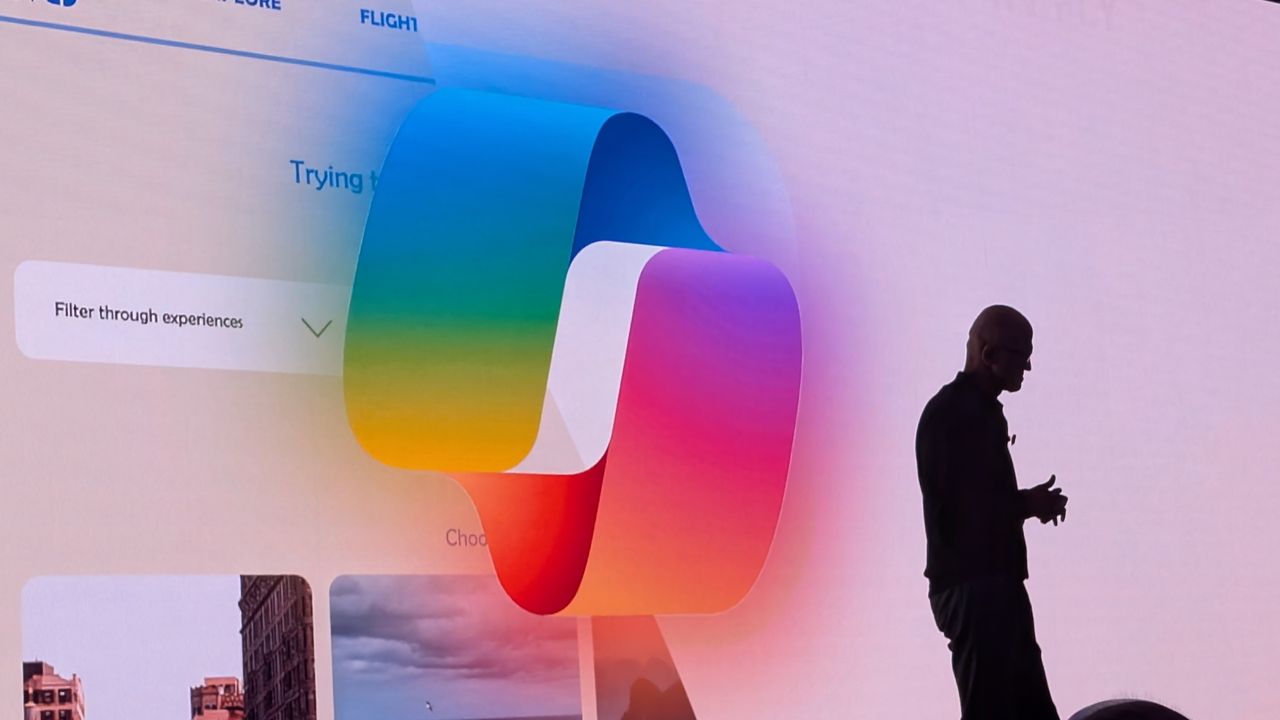
Microsoft CEO Satya Nadella in front of the Microsoft Copilot AI logo.
Yesterday, Microsoft rolled out the latest Windows 11 updates for all users across version 24H2, 25H2, and 26H1. For users running version 24H2 and 25H2, this latest patch includes a number of nice to see quality of life improvements in the way of performance and reliability upgrades in a number of key areas.
According to the changelog, which includes improvements that began rolling out as part of last month's optional feature update, the KB5101684 update includes reliability upgrades for explorer.exe, which will make opening things like Jump Lists and recent files faster. Additionally, Microsoft says this update will also make sharing files and switching between desktops with Task View faster too.
The reliability improvements don't end there, either. This update also includes reliability upgrades for the Windows lock screen and sign-in screen, which will be most noticeable on PCs with low amounts of RAM available. There are also startup reliability upgrades for the Start menu and Taskbar, which should make those interfaces appear quicker when powering up.
Furthermore, Microsoft says that this update also makes the post-update process less resource intensive, meaning your PC will feel faster to use immediately after an update is installed. Previously, Windows Updates required a clean-up phase after install which could be quite resource intensive on certain PCs.
The good news is all of these performance and reliability upgrades apply regardless of the amount of RAM your system has. You should notice a more responsive system if you have 8GB or 128GB of RAM.
Here's a rundown of the reliability-focused improvements in the latest update:
This update improves explorer.exe reliability, including when opening Jump Lists and recent files, when sharing files and folders, and when using Task View and multiple desktops.
This update improves the reliability of the Windows sign-in and lock screens, especially when system memory is low. It also improves the reliability of the Start menu and taskbar during startup.
This update improves reliability of loading the system tray area of the taskbar when using the taskbar on touch devices in a tablet posture.
The update improves the reliability of Start menu view preferences, ensuring your selected view is retained.
This update includes changes to update clean-up logic to improve system performance immediately following an update.
This update improves app search to better handle typos and partial app names when finding installed apps.
These reliability and performance upgrades are in addition to the many other quality of life improvements shipping as part of the KB5101684 update, including improvements to File Explorer, Windows Hello, Windows Search, system sounds, and more.
Microsoft recently announced a renewed commitment to making Windows 11 better on PCs with 8GB RAM, and it appears we're already seeing the fruits of that labor. While there's plenty of more optimizations to come, it's good to see Microsoft already moving to address this weak point on Windows.
Microsoft has been delivering genuinely nice improvements to Windows 11 over the last few months, all of which have been addressing issues with the OS around performance and reliability. This latest update continues that crusade, meaning your PC will feel better to use as of the latest updates.
Join us on Reddit at r/WindowsCentral to share your insights and discuss our latest news, reviews, and more.
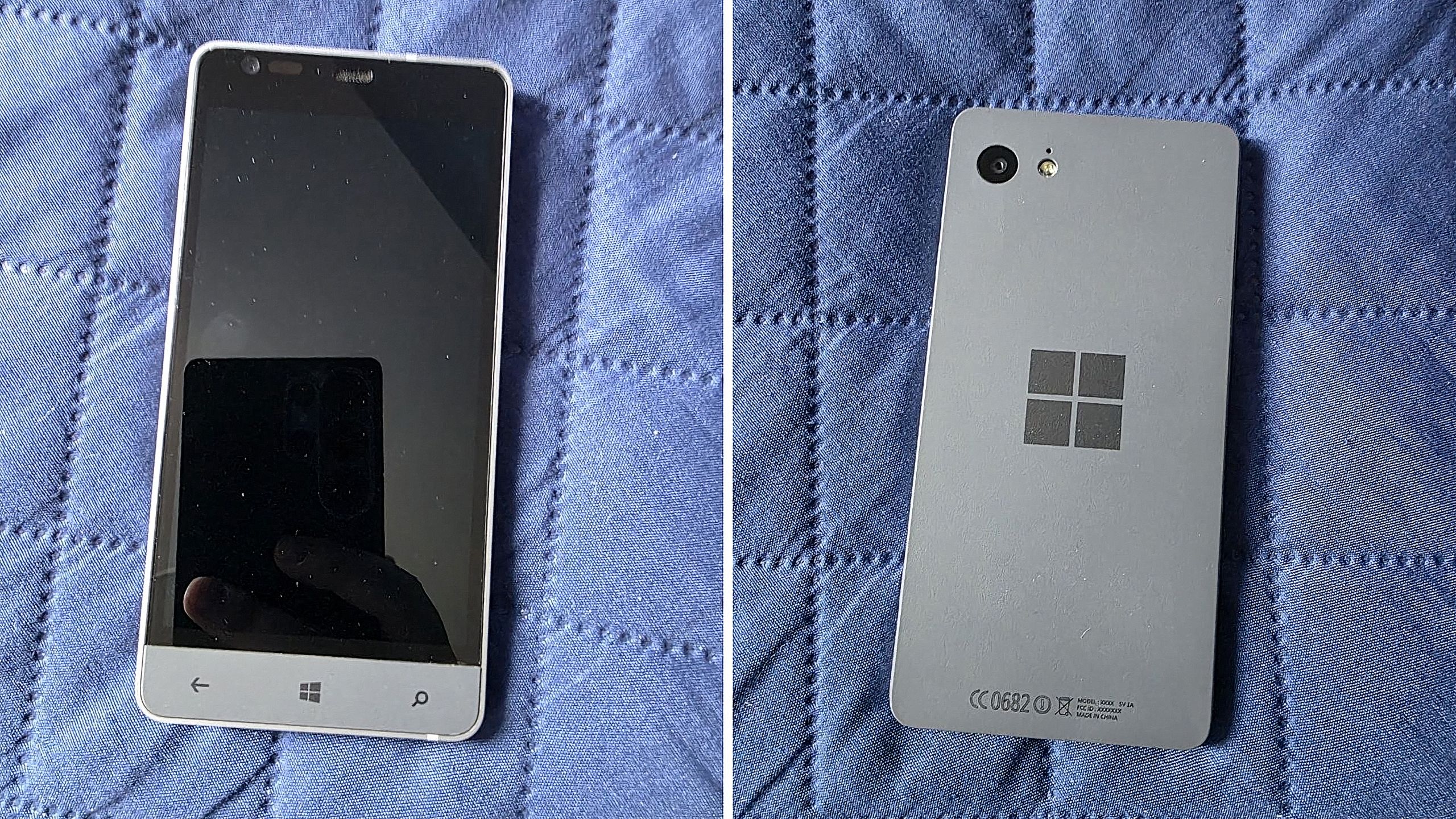
Before Microsoft acquired Nokia, the company was heavily rumoured to be working on its own in-house Windows Phone device that was expected to ship in 2014 under the Surface moniker alongside its Surface Pro device. Unfortunately for Windows Phone fans, such a device never saw the light of day, but newly published images of a mysterious prototype might have just given us our first and only look at what Microsoft was exploring internally.
Possibly codenamed Raven, there isn't much information available about this prototype, other than the fact that it’s from the 2013-2014 time frame and is running an early pre-release build of Windows Phone 8.1. It’s powered by an unknown Qualcomm chip, has a 720p screen, features a Microsoft logo on the back, and a silver metal frame that matches the colour of the Surface 2 that released that same year.
We can see in the photos that it has dedicated hardware keys for navigation, which are also coated in the same silver color as the chassis. The build of Windows Phone that it’s running appears to be from September 2013, and is from an internal development branch building towards what eventually became Windows Phone 8.1.
Real images of this mysterious Windows Phone prototype. (Image credit: Telegram/Discord)
While not viewable in the images, I understand the device features individual up and down volume buttons and a camera button on the right-hand side of the device, and a power button on the top of the device. It also features a micro-USB port and headphone jack on the bottom side, and a SIM card slot on the left side.
This is likely one of dozens of prototype designs that Microsoft’s hardware teams cooked up during this era, but it’s certainly a fascinating look at what could have been, and it does look so clean. Development on this device was likely paused once Microsoft moved to acquire Nokia in 2014.
Back in 2013, I remember hearing from sources that Microsoft was experimenting with the concept of a "Skype Phone," a Windows Phone device with mobile data that utilized Skype for calls and messaging instead of traditional carrier networks. Perhaps this device was going to be that? Who knows.
The Surface Phone we eventually got arrived as the Surface Duo, which started development in 2016 and launched to the public in 2020. In that time, Microsoft shipped Nokia designs in the form of the Lumia 640, 650, 950, and 550 running Windows Phone, before abandoning the platform in 2017.
Join us on Reddit at r/WindowsCentral to share your insights and discuss our latest news, reviews, and more.
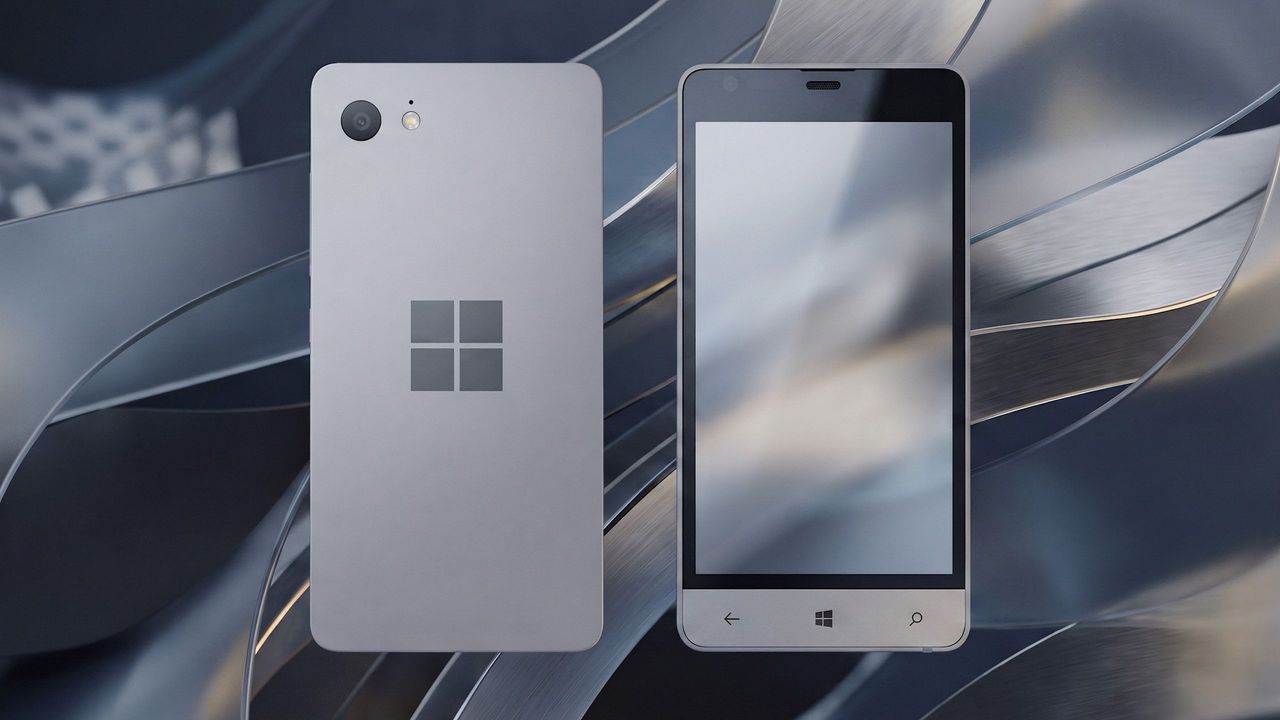
Surface Phone Render
Render based on real images of the prototype (seen below.)
According to a new report from Taiwanese publication United Daily News (UDC,) Microsoft is raising the cost of Windows license fees for hardware makers by a much higher amount than normal. According to the report, certain OEMs are seeing licensing price hikes of between 7% and 10%.
Usually, Microsoft raises Windows license fees for OEMs by a low digit percentage, making this 7% to 10% increase much more significant than normal. "A PC brand executive stated that Microsoft increases licensing fees for Windows OEMs (device manufacturers) every year. In the past, licensing fees mostly increased by single digits each year, but starting in July this year, the average increase has reached 7% to 10%, which is a significant increase compared to previous years," UDC says.
Of course, the cost of the Windows license fee is usually (at least partially) passed onto the consumer buying a computer, and UDC claims that their source says laptop pricing is already being impacted by these recent license fee increases. Microsoft charges different OEMs their own fees for Windows, so the exact increase in cost will differ for each hardware maker.
Regardless, with the ongoing memory component shortage, PCs have already seen astronomical price increases over the last year, with experts claiming that we haven't yet seen the worst of it. With Microsoft raising prices higher than usual on Windows licenses, it feels like the Redmond giant is adding extra fuel to the fire.
Windows Central reached out to Microsoft for comment regarding this story, but the company declined to provide one.
To be clear, the Windows license fee price hikes only apply to OEMs building hardware that ships with Windows. The cost of buying a license for Windows 11 as a consumer remains unchanged, being $99 for Windows 11 Home and $199 for Windows 11 Pro.
The ongoing component crisis has made computing unaffordable for many people. PCs that used to target the $600-$800 price bracket now cost close to $1,000. And flagship Windows laptops that used to cost $1,200-1,500 are now closer to $2,000. Even Apple has been hit by the shortage, being forced to raise prices by hundreds of dollars across its Mac lineup. Microsoft's own Surface line was hit especially hard, with the flagship Surface Pro and Surface Laptop being $400-$500 more expensive than the last-gen models.
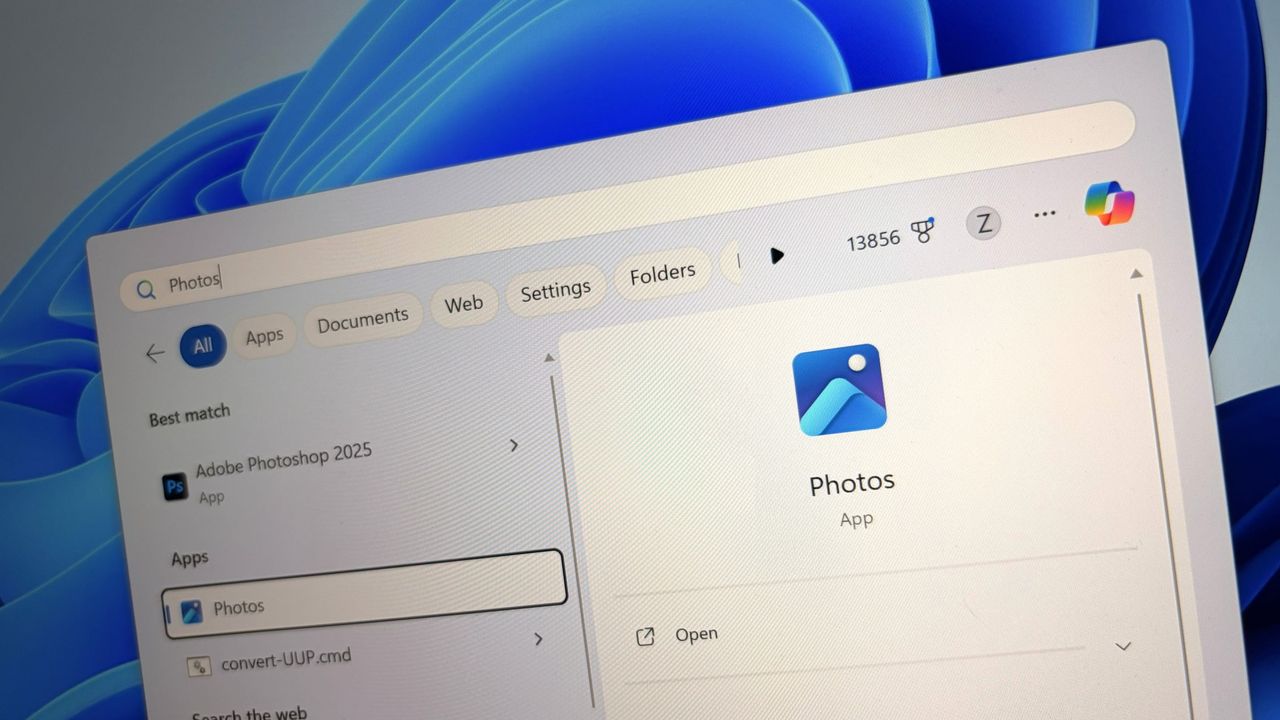
Last week, users began noticing a new app appearing in their Start menu on Windows 11, titled "OneDrive Photos" which was being forcibly installed by the OS. Naturally, this caused outrage among users who aren't interested in using OneDrive for photo storage, resulting in pushback online.
Now, Microsoft's EVP of Apps and Agents, Jeff Teper, has taken to X to explain what happened. He confirms that the OneDrive Photos app is an incubation project, which wasn't supposed to rollout as widely as it did. "We are incubating a new photos experience in OneDrive that went more broadly than it should have in Windows. We’re fixing that. Windows Photos will always give you the option of local and cloud photos and the choice to use OneDrive or not."
It's unclear why Microsoft thinks it needs to build a dedicated OneDrive Photos app, especially when Windows comes preinstalled with an already competent photo viewer that does a good job of handling photos stored in OneDrive. The new OneDrive Photos app is a web app, which is heavy on RAM usage and not very responsive.
Although Microsoft has confirmed that the rollout of OneDrive Photos was an error, the company does say that it's still looking forward to delivering this new experience soon. "We're very excited for you to try out OneDrive's photos features on desktop, web, and mobile and hear your feedback."
It's unclear if Microsoft intends to re-hide the OneDrive Photos app from appear on PCs where it shouldn't. On my PC, I can still see the new Photos (Preview) appearing in Windows Search, which opens the OneDrive Photos experience. This isn't the first time Microsoft has been caught automatically installing new apps on Windows 11. The OS has frequently been accused of automatically installing apps like Microsoft 365 Copilot, much to the dismay of users who don't want it.
The good news is it appears Microsoft is listening to the feedback, and publicly acknowledging that it made an error with the rollout of the OneDrive Photos app is confirmation that it saw the backlash and understands that a lot of users don't want this new experience. Hopefully that means the company won't forcibly install it next time.
Join us on Reddit at r/WindowsCentral to share your insights and discuss our latest news, reviews, and more.
In a new tweet, Partner Director of Design at Microsoft, March Rogers, has confirmed that there are no plans to introduce a customizable UI transparency slider on Windows 11, after users asked for a feature similar to the Liquid Glass slider that was recently added to the next version of iOS.
For a long time, Windows has featured transparency and blur effects. However, Windows has never natively supported adjusting how strong those effects are. Users have the option to turn transparency on and off, but there's no fine-tuning options for those effects to be found in the OS.
Third-party apps such as Windhawk do allow for customizing these effects, but this customization is not natively supported by the OS on its own. As such, it's natural to find that there are users out there who wish they could adjust these settings without being forced to download a third-party app first.
Rogers confirms that there are no plans to introduce a transparency slider on Windows 11 at current. "We think hard about who will benefit from the investment, usability and accessibility considerations. We also look at our community of developers (like the amazing Windhawk project) who may already be providing what users need. We won't be making immediate changes to the transparency options already in Windows, but we love getting your feedback."
It sounds like Microsoft has looked at this option, and has found that it's not a priority at the moment, which is understandable. Windows 11 has much bigger issues that needs fixing right now, and the company is focused entirely on delivering those improvements first.
The beauty of Windows is that it's an open-platform, meaning third-party developers can easily builds tools and apps that modify the Windows experience. Windhawk is a powerful suite of customization enhancements for Windows that lets users customize everything from the Start menu design to blur effects across the OS.
It's very refreshing to see Microsoft be so open about the design process for Windows 11 these days. I'm frequently checking the X accounts of many Microsoft employees these days, as they are always responding to Windows Insiders with explanations about new features and feedback from users.
While a transparency slider isn't on the cards for Windows 11 right now, Microsoft is working on a number of new customization options for the OS. There's a new customizable Start menu coming very soon, along with a redesigned context menu that will also be user customizable.
For the longest time, Windows has suffered from an inconsistent user interface design. It started with Windows 8, but got worse over the lifespan of Windows 10, with various levels of UI design, frameworks, context menus, iconography, and more getting thrown into the mix across the many different versions of Windows 10.
In fact, Windows 10's inconsistent UI design became so bad that it began contributing to people's dislike of Windows, citing its perceived lack of polish and craft as a reason to avoid it over competitors like Apple's macOS, a platform that takes pride in how it looks and feels to use.
So with Windows 11, Microsoft began addressing this problem. The debut of Windows 11 in 2021 was a huge step in the right direction, attempting to modernize a number of Windows UI surfaces with a consistent design language using the company's WinUI framework.
Slowly but surely, older and inconsistent UI surfaces were updated with modernized alternatives that match the design of Windows 11. Things like the volume and brightness control, file share dialog, context menus, and more were updated with a more consistent design that look great.
This was introduced in 2022, replacing the Windows 8 one. (Image credit: Microsoft)
More recently, Microsoft has improved dark mode across the Windows 11 interface, making it more consistent in apps like File Explorer where much of it was missing dark mode support and contributed to the "Windows never feels finished" allegations that have haunted the platform for years.
It's been a few months since Microsoft announced its plans to bring WinUI to more areas of the OS, and work has been slowly progressing. The company has already confirmed that it's rewriting the Start menu with WinUI, which should make it faster and more responsive. But there's more interfaces that the company is yet to announce that we know is also in the works.
Modernized File Properties
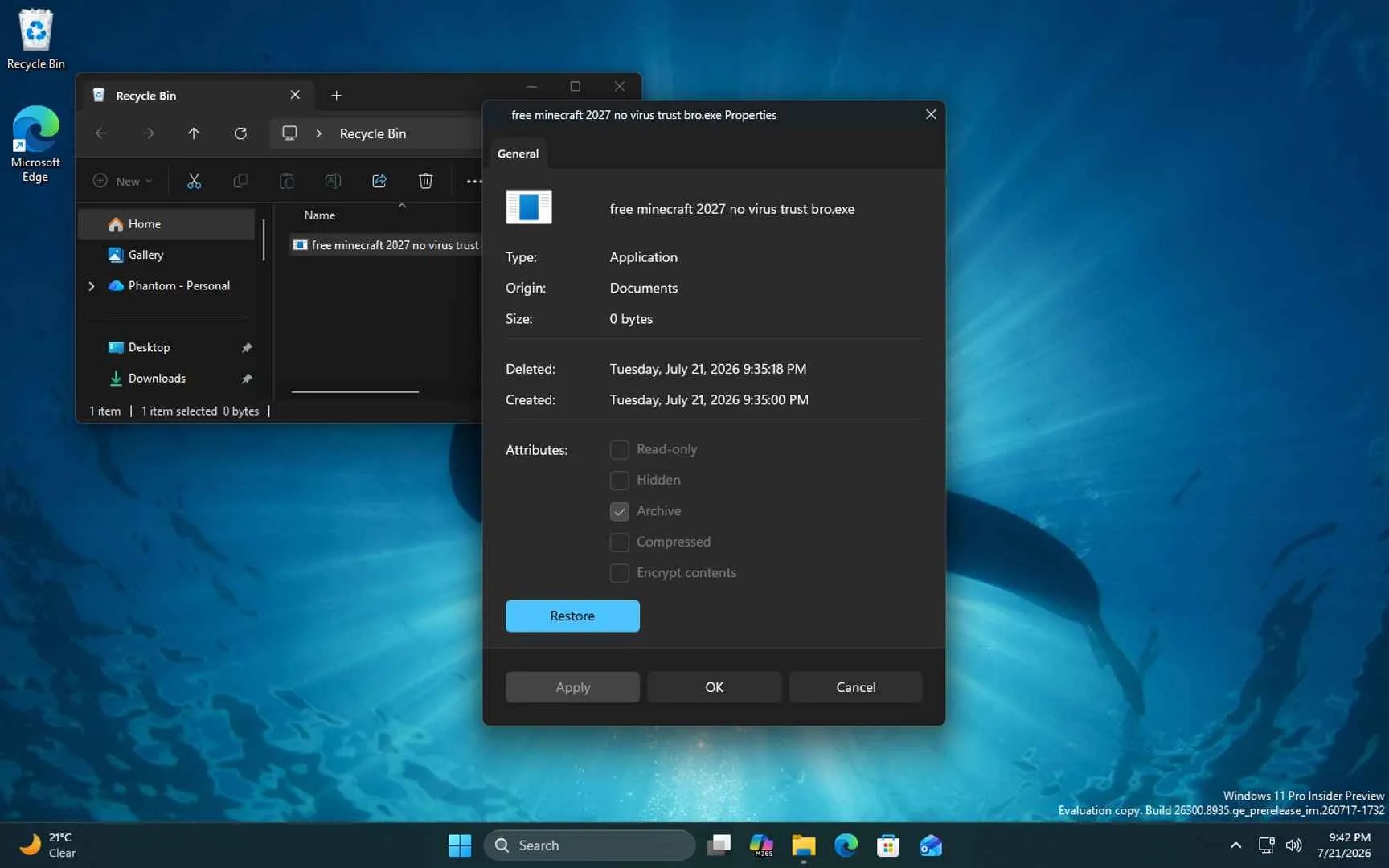
The modernized File Properties dialog coming soon. (Image credit: Windows Central)
First up, recent Windows 11 preview builds have confirmed that Microsoft is rebuilding the File Properties dialog in File Explorer with WinUI. This is one area of the File Explorer that hasn't been touched in well over a decade, meaning it still doesn't even support dark mode.
This legacy interface is being rewritten with WinUI, and the first sightings of this work were spotted in a recent preview build, albeit only when viewing the properties of a file in the Recycle Bin.
With that said, we know Microsoft is planning to bring this modernized experience to the entire File Properties experience, meaning right-clicking and selecting properties on a file in File Explorer will soon present you with a consistent design that matches the Windows 11 aesthetic.
Modernized Autoplay Menu
Not yet updated, this interface is from Windows 8 (Image credit: Windows Central)
This interface hasn't been touched since Windows 8, and is one of few areas of the OS that still utilize Microsoft's old Metro design language. The menu that appears when you plug in a USB drive or insert a disc is being modernized with WinUI, which will bring a consistent Windows 11 design to the aged interface.
Microsoft has confirmed this work is underway, but is yet to give us a look at the new interface, though we know it will support both light and dark mode unlike the current version. For now, we'll just have to imagine what such a modernized menu might possibly look like. Still, it's good to know the work is happening.
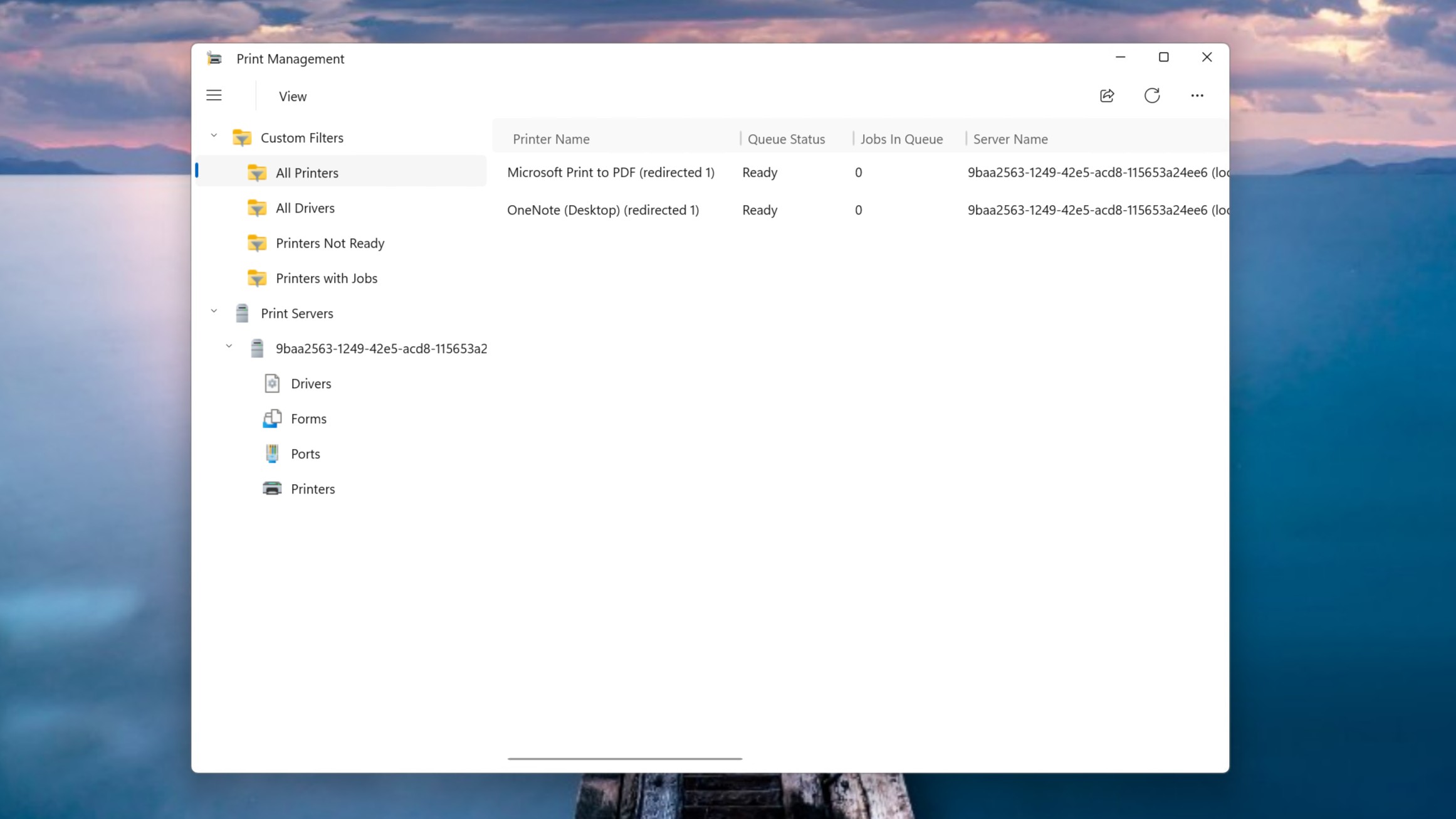
Modernized Print Management
A WinUI powered Print Management app replaces the old MMC-based one. (Image credit: Windows Central)
It's not the sexiest feature in the world, but it looks like Microsoft is building a modern version of the Print Management experience with WinUI, replacing a decades old interface with something that looks like it was designed for Windows 11. And yes, it supports dark mode now.
This is the first MMC-based interface we're seeing get the WinUI treatement, which bodes well for future modernizations of apps like Disk Management, Computer Management, and more. These 90s era interfaces have plagued the Windows experience for years, so it's very reassuring to see Microsoft is finally working on WinUI versions of these apps.
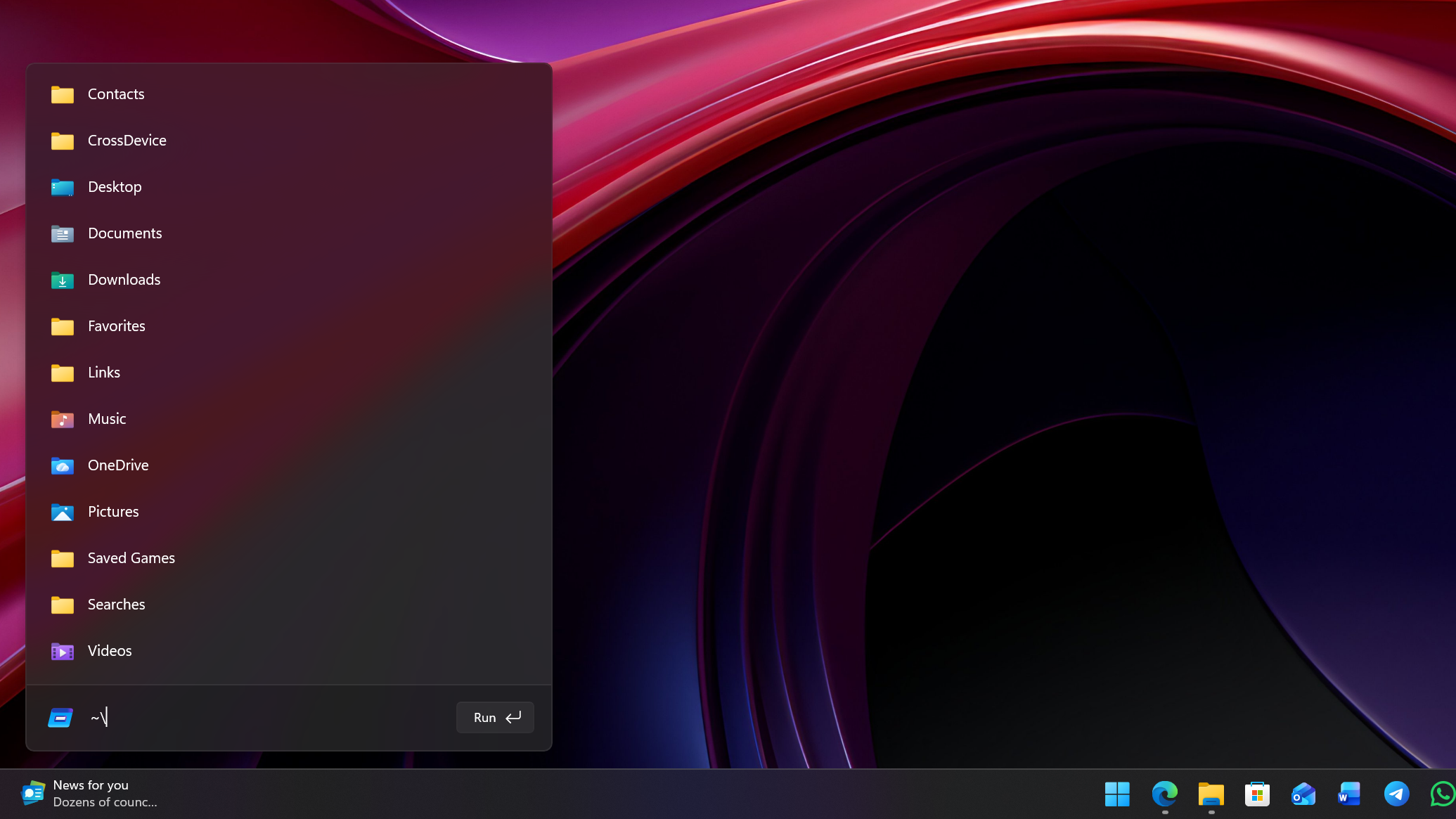
Modernized Run Dialog
The new Run dialog is better in basically every way. (Image credit: Windows Central)
Microsoft has already announced and shipped preview builds with this redesigned interface, but the company is rebuilding the classic Windows Run dialog with WinUI, now with support for both light and dark mode, and features from PowerToys.
The company says the new UI is both better looking, more functional, and faster than the legacy Run box it replaces. With that said, it appears the modern Run interface will be shipping as an option that users will have to manually enable first if they want to see it.
The new Run interface also includes the ability to type ~\ for quick access to your home directory, and it will also show app icons when applicable in your recent search list, which is a nice touch.
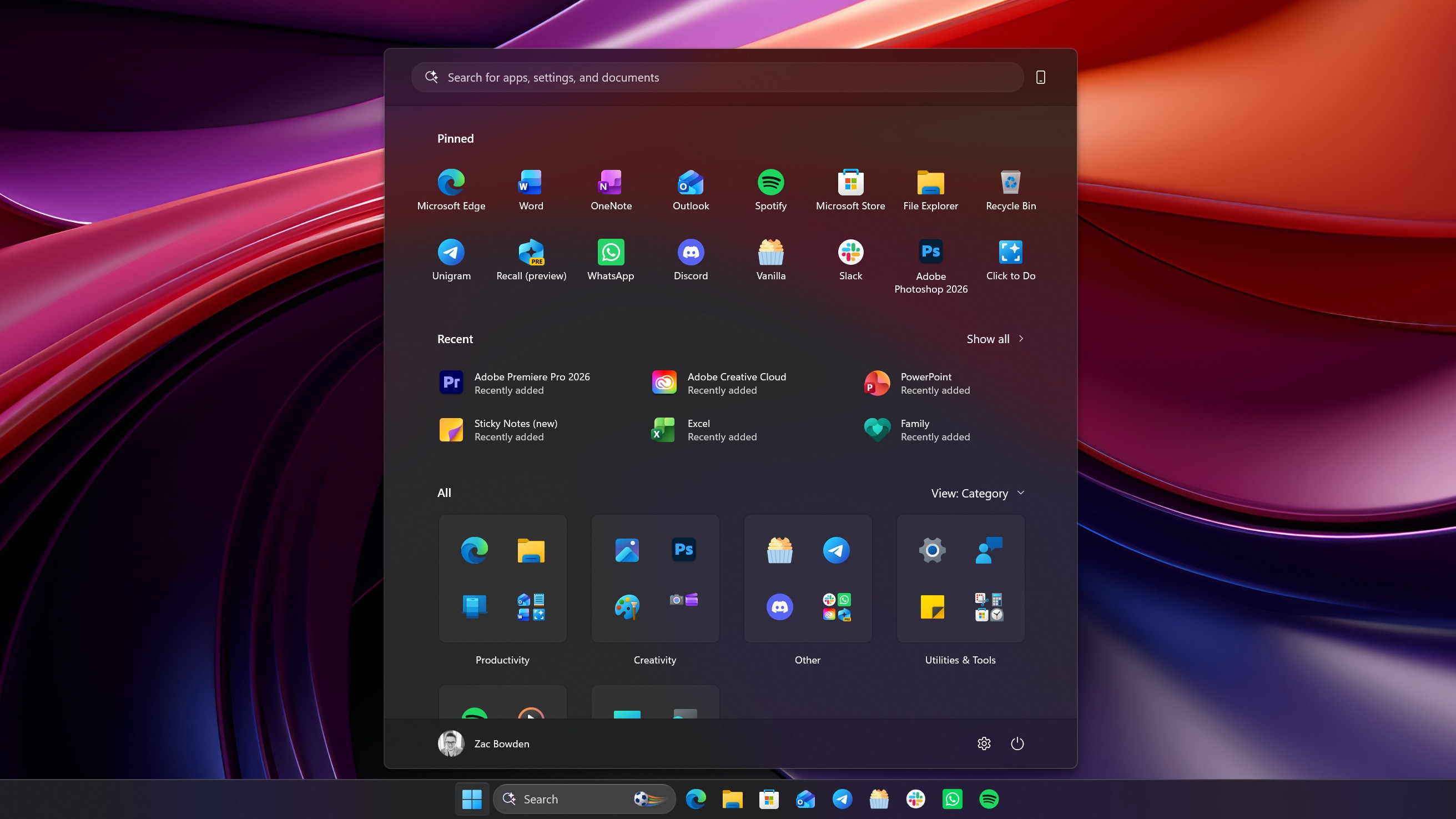
Rewritten Start Menu
It may not look different, but the Start menu is being rewritten with WinUI too. (Image credit: Windows Central)
As mentioned up top, Microsoft has already confirmed that it's rebuilding the Start menu with WinUI, but we're yet to hear more about what that's going to entail for the end user.
So far, we know the goal of the WinUI rewrite is to make the Start menu faster and take up less system resources. This should mean (very) slightly less memory usage for the Start menu, as many WinUI interfaces will share a System Compositor, which is how Microsoft intends to make WinUI faster.
It's unclear if Microsoft is planning to redesign the Start menu alongside the WinUI rewrite. Last I checked, this was not in the plan. While there may be some minor UI differences and adjustments between the current Start menu and WinUI Start menu, I understand that the company intends to keep the experiences mostly the same.
This makes sense given Microsoft just launched new customization options for the existing Start menu, which would be odd to change so soon.
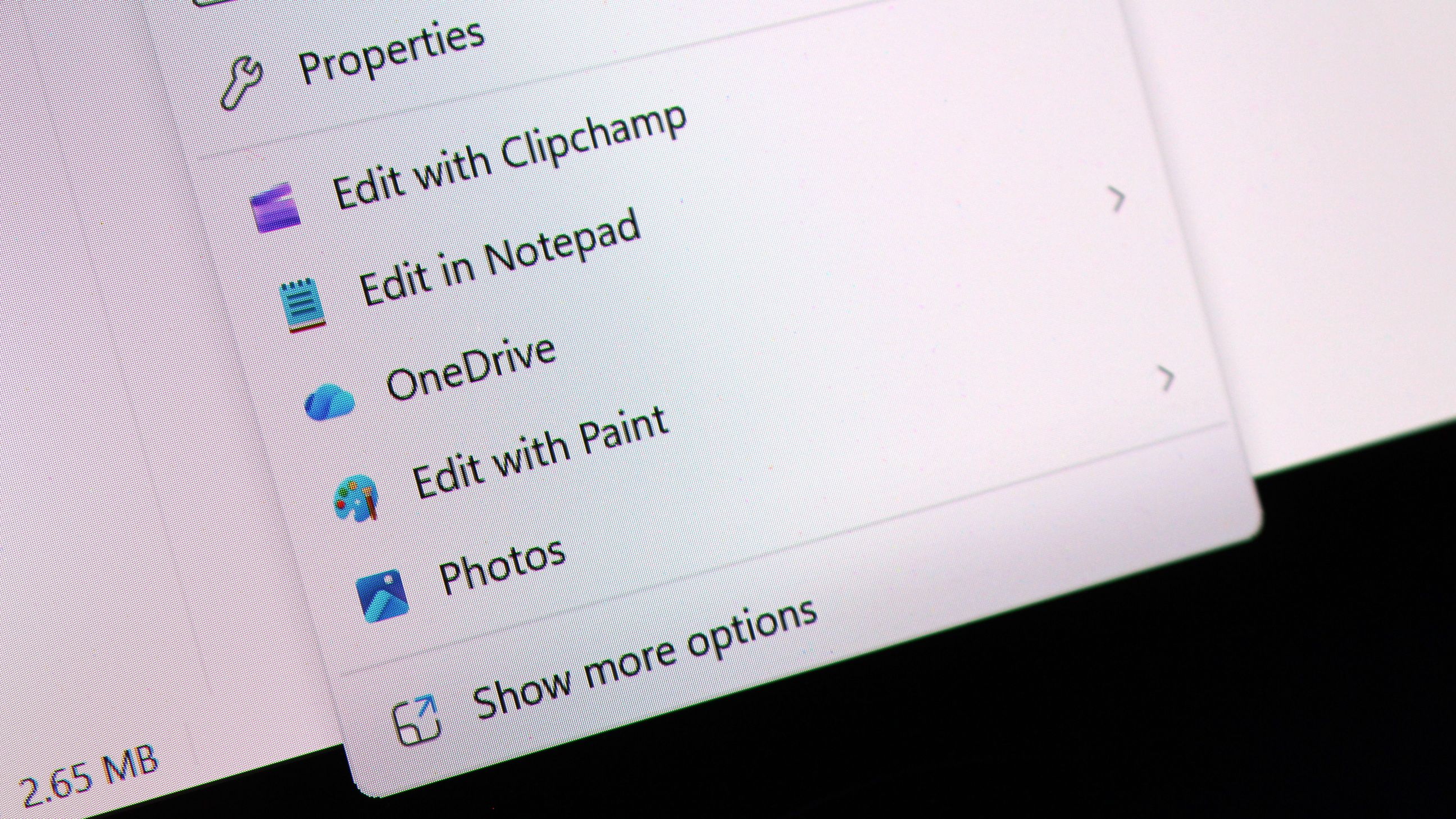
Compact Context Menus
While technically not old, context menus are getting an overhaul. (Image credit: Zac Bowden / Windows Central)
While not technically a legacy interface, context menus on Windows 11 are a mess, and Microsoft is working to redesign them so that they are faster, more responsive, and most importantly, more customizable.
Coming this year, Windows 11's context menus will be updated with a new compact design that's smaller and lighter, meaning they won't lag or take as long to open, especially when there's lots of actions and items within the menu.
Microsoft is also planning to let users customize which items appear within the context menu, as well as configure the order in which those items appear. This means users will be able to hide certain actions and apps from the context menu if they don't use them.
With that work ongoing, it's likely that we're going to see even more older and outdated parts of the Windows experience updated with modern WinUI designs. While certain legacy interfaces will likely continue to exist for years to come, it looks like Microsoft is exploring where it can best implement new UIs as fast as possible without breaking compatibility.
Moving more parts of the Windows UI under a consistent UI framework should result in better performance and reduced memory usage, which should make the OS feel faster and less bloated, thanks to that new System Compositor that's in the works that is designed to manage all WinUI interfaces across the Windows Shell.
It's good to see Microsoft once again focused on polish and craft. It helps make Windows feel more unified and cared about, something that has not been so obvious in recent years and in my opinion has eroded confidence in the platform. Hopefully Microsoft will continue to focus on craft for years to come.
Join us on Reddit at r/WindowsCentral to share your insights and discuss our latest news, reviews, and more.
Halo: Campaign Evolved launched just days ago, and it appears Microsoft is moving quickly to make cuts at Halo Studios now that the game is out. A number of developers who were previously employed at Halo Studios have posted on LinkedIn today confirming that some roles have been laid off. (via Insider Gaming)
Halo Studios producer Nick Treitman confirmed that he was impacted by the layoffs, stating that "after 6.5 years working on Halo and dodging just as many rounds of layoffs - it has finally caught up to me. I have nothing but love for Halo and the folks at the studio, this is just a tough reality in the gaming industry right now."
Paul Morris, listed as Scrum Master at Halo Studios, also confirmed that his role had been impacted by layoffs this week. "Today, I learned my time at Halo Studios will be coming to an end following the successful launch of our latest game, Halo: Campaign Evolved. I know this is one of the most challenging job markets our industry has seen, and I know the road ahead won’t be easy."
A number of other Halo Studio employees have updated their LinkedIn pages confirming that they are now available for work. The layoffs come as new reports claim Halo: Campaign Evolved's development was troubled throughout, taking up more resources than originally planned and causing other projects such as a Halo multiplayer game to be canceled.
Unfortunately for the studio, this led to development being more complex, with third-party studio Abstraction struggling to meet deadlines imposed by Halo Studios and being ultimately kicked off the project, forcing Halo Studios to scrap much of the work done by Abstraction and rebuild assets in the Blam engine instead.
If this story sounds familiar, that's because it closely mirrors the development of Halo: Infinite. That game also suffered from a troubled development cycle, with contractors struggling to meet deadlines and work in the Slipspace Engine (which was just the Blam engine with a new name.)
Now, with layoffs impacting Halo Studios, it's clear that Microsoft is moving forward with its confirmed 3,200 layoffs, 1,600 of which were already made back in July.
Join us on Reddit at r/WindowsCentral to share your insights and discuss our latest news, reviews, and more.
Master Chief wearing green tactical armor and a gold visor, holding a futuristic assault rifle inside a glowing blue geometric corridor structure.
Master Chief wearing green tactical armor and a gold visor, holding a futuristic assault rifle inside a glowing blue geometric corridor structure.
Earlier this year, Microsoft announced that it was moving to address Windows 11's biggest issues and criticisms from users in an effort to win back trust from customers and reposition Windows once more as a viable alternative to macOS and Linux, something people actually want to use over the competition.
It was nice to see Microsoft outline its roadmap and plan for Windows 11, but I wasn't prepared for just how fast the company would start delivering on the promises it was making. Since March, Microsoft has previewed and even shipped many improvements to Windows 11 that are the direct result of its Windows K2 initiative, all designed to fix Windows 11.
I've been testing these new Windows 11 builds over the last few months, and there are 5 big changes and improvements that stand out as super exciting. Some of these improvements are already shipping, whereas others are still in preview.
A new and improved Windows Update
Windows Update is now much smarter and doesn't get in the way anymore (Image credit: Zac Bowden / Windows Central)
Updates on Windows have always been frustrating, so much so Microsoft made it a point of focus for its Windows K2 effort. In the last few months, Microsoft has shipped multiple changes and improvements to Windows Update which are designed to make it more reliable, and more importantly, less annoying.
The first big change is ensuring driver, framework, and security updates are now all timed to install at the same time. Previously, any update could require the user to restart at any time. Now, Windows Update will only ask you to restart once a month, as the update system now installs those driver and framework updates alongside security patches.
That's in addition to being able to pause updates indefinitely now, so even when the one time a month that Windows asks you to restart finally rolls around, users have the option to say no and postpone the restart for as long as they need. Even when an update is pending restart, the option to shut down or restart without installing said update is now present.
Microsoft has even made it so users can skip installing updates when setting up a PC for the first time, meaning it now takes just a few minutes to get right into using your new PC instead of the 20+ minutes it used to take when installing the latest update was a requirement before reaching the desktop.
All of these Windows Update improvements are already shipping to all Windows 11 users, which is a crazy quick turn around.
Less ads and AI across the OS
Widgets no longer includes MSN ads and sponsored content. (Image credit: Zac Bowden / Windows Central)
Microsoft is also removing Bing and MSN ads from Windows Search, in preview now. The search pane itself is now a long list or recent search queries and items, with nonsense like the Bing wallpaper of the day and other sponsored content no longer appearing at all. Even search results that reach out to the web no longer include sponsored content.
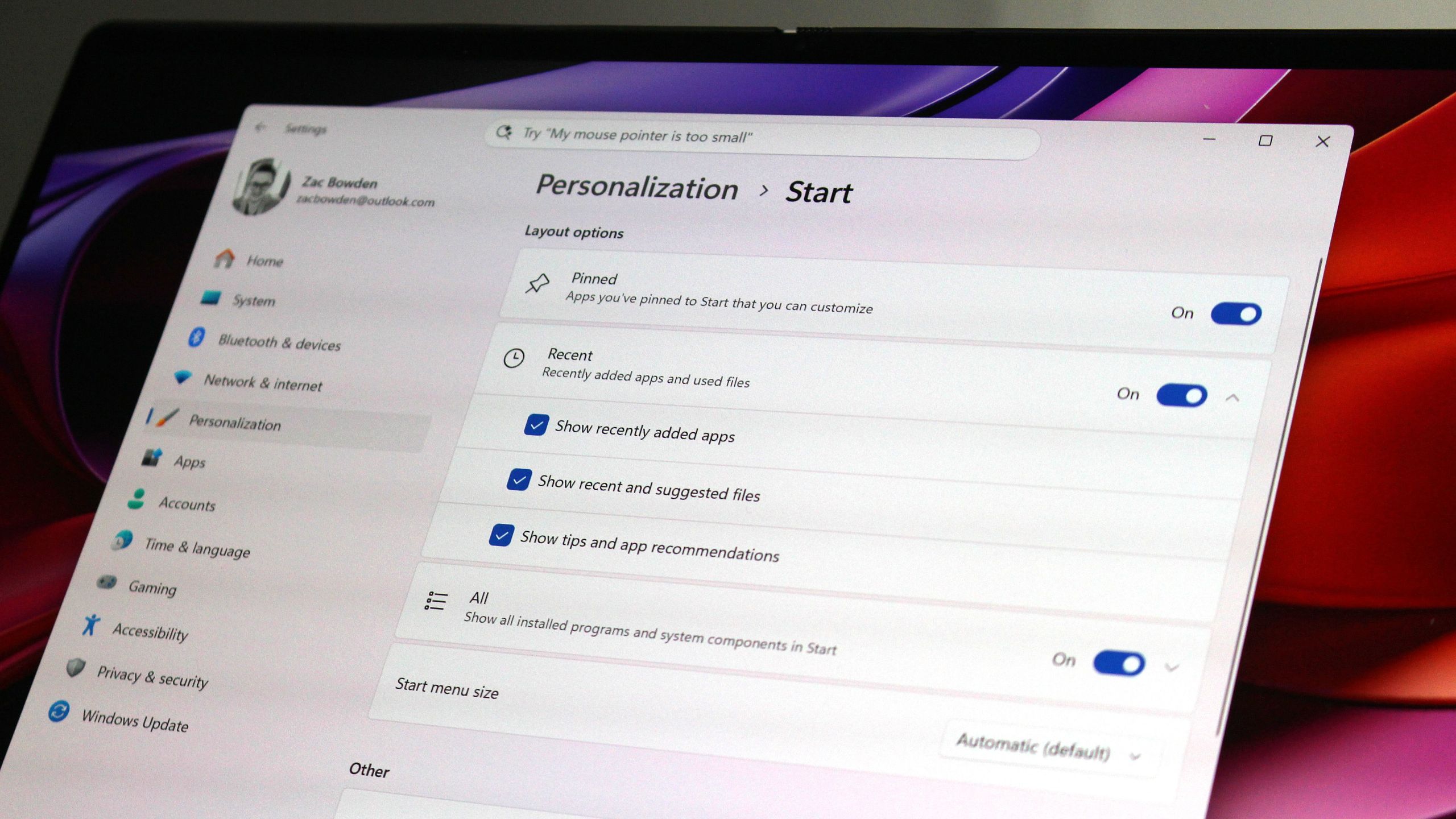
The Start menu now also has more granular controls over the kind of content that appears in there. The "Recommended" feed has been renamed to the "Recents" feed and no longer shows recommended apps and websites that came across as more advertising. Users even have the option to remove the Recents feed entirely now, which is great.
Copilot used to plague every inbox app and UI surface you could think of on Windows 11, but today it only appears in a few very specific areas. It still exists as a standalone app on Windows 11, but the Copilot button no longer exists in apps like Photos and Notepad. Microsoft has even removed the "Ask Copilot" option in File Explorer.
Better performance and reliability
Windows 11 is now faster and more reliable, with a focus on reducing memory usage. (Image credit: Zac Bowden / Windows Central)
One big area of focus for Microsoft is the overall performance and reliability of Windows 11, which many agree has slipped over the last few years. The good news is Microsoft has already delivered several improvements on this front, with more to come in the following weeks.
The first big change is the new "Low Latency Profile" feature that shipped just a few weeks ago. It's an invisible change that makes opening apps, context menus, and flyouts from the Taskbar much more responsive by silently increasing CPU frequency when these common actions take place.
This is something other OS platforms do which allows them to remain feeling snappy, even under heavy load, and now Windows 11 has the same behavior. This has outright fixed the issue users sometimes have where things like the Start menu don't always appear immediately when clicked. That's a thing of the past now.
Microsoft is also improving the performance of WinUI interfaces across the system via a new System Compositor which reduces latency and memory overhead across the OS so that these modern interfaces are consistently responsive. There's even a new Run dialog built with WinUI that is faster than the old Win32 version.
Opening and navigating through file trees in File Explorer is faster too, and searching for files and apps on Windows 11 is now more consistent. Two character search is already shipping, which makes finding content a little bit easier.
Customizable Taskbar and Start menu
There are many new customization options coming to Start (Image credit: Zac Bowden / Windows Central)
One of the biggest issues people have with Windows 11 is how it took away customizable options for areas of the system like the Start menu or Taskbar. Microsoft has heard that feedback, and is already publicly testing a new Taskbar and Start menu that can be user customized.
The Taskbar can now be repositioned just like on Windows 10, allowing the user to move it to the left, right and top of the display if that's where they want it. There's also a new resize option letting users make it smaller like the Windows 10 one could.
The Start menu is also getting more customization options. Users can hide entire segments of Start, such as the Recents feed, Pinned apps, or All Apps area. They can toggle on or off the Phone Link companion, and disable Start entirely if they don't ever use it.
And there's more to come
Context menus are getting a redesign and better customizability. (Image credit: Zac Bowden / Windows Central)
Above are all the new improvements that I've tested and are either shipping or in public testing via the Windows Insider Program. These are the real changes and features that can be tried and tested as we speak, not just empty promises or ideas. It's all available to download and try out right now.
There's still more to come too, stuff that isn't yet in public preview testing. Microsoft has confirmed it's working to move more parts of the OS to WinUI for faster performance, such as the Start menu and areas of File Explorer. There's an effort to reduce the footprint of the OS in the works too, which should make the OS less resource intensive at idle.
For the features that are yet to ship outside of preview, I understand that Microsoft is aiming to get the bulk of these improvements out of the door before the end of 2026, with some expected in 2027.
SI'm so very impressed with how quickly Microsoft has turned Windows 11 around so far. I haven't felt this positive about the features and changes being actively made to Windows in a really long time, to the point where it feels weird to not have anything to really complain about. All of my biggest issues with Windows 11 have either already been addressed, or are in the process of being addressed.
It's a great time to be a Windows user again.
Join us on Reddit at r/WindowsCentral to share your insights and discuss our latest news, reviews, and more.
In this episode of the Windows Central Podcast, Daniel Rubino and Zac Bowden sit down with Marcus Ash, Corporate Vice President of Design and Research for Windows at Microsoft. The discussion centers on the user experience vision for Windows 11, balancing modernization with legacy app compatibility, and optimizing system efficiency across diverse hardware configurations.
This episode of the Windows Central Podcast is sponsored by Surfshark VPN. Unlimited devices, access your content from anywhere, and auto-block malware on Windows, Edge, and other platforms from $2.50/mo, with 4 months extra FREE. Sign up today!
Design Philosophy in Windows 11: Marcus Ash discusses how design decisions are shaped by user feedback, telemetry, and modern workflow requirements.
Optimizing Performance for Low-RAM Devices (8GB): A deep dive into full-stack optimizations—ranging from kernel memory scheduling to UI process management—to ensure smooth performance on 8GB RAM hardware.
Modernizing Legacy Tools vs. Backward Compatibility: Discussion on how Microsoft approaches updating older OS utilities (e.g., Control Panel, Registry Editor) while protecting enterprise compatibility and muscle memory.
Web Tech, WebView2, and Modern UI: Exploring the role of web-based interface components in Windows 11, including trade-offs between agility, feature delivery, and resource utilization.
Have a question you want us to answer on the podcast? Send it to us at [email protected]
Microsoft's CVP of Design and Research for Windows and Devices, Marcus Ash sat down with the Windows Central Podcast to discuss ongoing work around Windows 11's UI, and how the company is moving to finally eradicate the OS of legacy cruft while maintaining backward compatibility where possible.
We started with Control Panel, which is everyone's go-to as a measurement for the progress the company has made to modernize Windows. Microsoft first began modernizing the Control Panel with Windows 8 over 13 years ago, and the work still isn't complete over a decade later.
Unsurprisingly, Ash says that the reason this has taken so long is that Microsoft prides itself on compatibility with legacy tooling and workflows, so it can't just rush in and modernize everything without first ensuring the modern replacements maintain functionality with what came before.
"That's why things like Control Panel get tricky, because if a customer has a driver or has something that depends on that legacy functionality, we just have to be careful about not breaking that compatibility promise," Ash said. "When we finally get things in Settings, we will then deprecate places say in Control Panel where we don't need that function anymore, we can carry it forward."
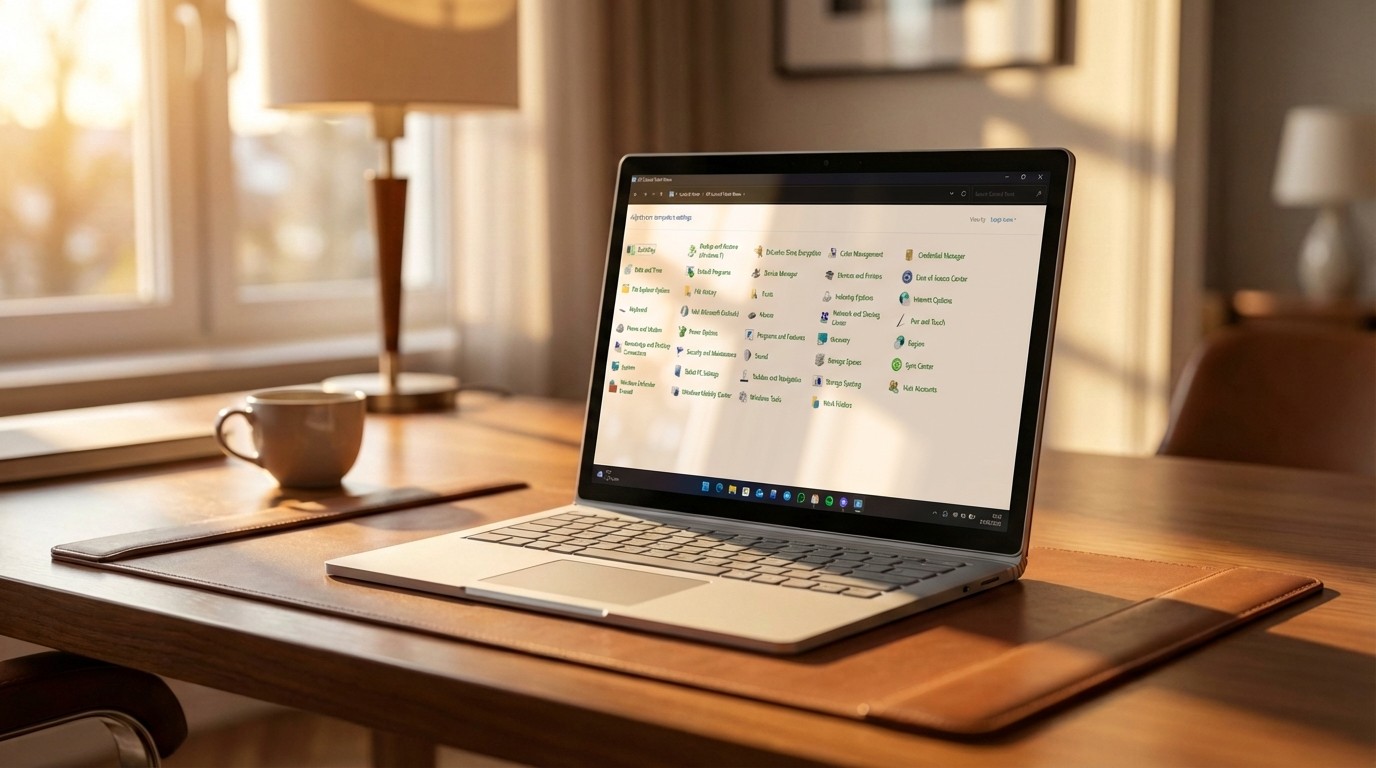
Control Panel still exists in Windows 11 today. (Image credit: Screenshot: Windows Central / Laptop: Edited with Gemini)
Ash highlights that modernizing legacy interfaces is as much about designing and building the new interface as it is about developing the tooling and UI frameworks to support the functionality required to build that modern interface, all while carrying forward the same capabilities, featureset, and performance.
"It also requires us to do work in WinUI 3 and some of these frameworks so that we can move things over at a rate that we think, one, customers can adopt and not break promises, but also just make sure we can test and we have the framework that supports all the things that our customers need. So we are pushing really hard to try to modernize, but we're also proud of the progress."
Ash says that legacy support in Windows is a strength of the platform, not a weakness. With that said, the company is exploring ways it can modernize legacy apps and interfaces while maintaining that legacy support. "There will be cases where, because of a customer that wants something that's important to them, we'll have some legacy UI, but even there we're trying to look and see: are there ways that through tooling and through better approaches we can just reduce that over time?"
In case you've ever wondered how Microsoft goes about choosing which legacy interfaces to modernize, Ash breaks down the process, confirming that "it's based on usage, telemetry, feedback. It's based on: where do we think the tooling is ready to move that surface forward? ... we just keep going through that and trying to make sure that over time, the amount of legacy UI that a customer would see in their day-to-day experience just gets smaller and smaller."
Microsoft is slowly but surely modernizing apps like File Explorer with WinUI. (Image credit: Phantomofearth on BlueSky)
"We look at user journeys. Like if you were to look at File Explorer and you were to think about all the functions that happen in File Explorer, we then look left-to-right and say, okay, for this particular dialogue, where did the user start and where does the user end? So it's not just pick one dialogue, it's pick the full user journey of the things that the customer is trying to do."
Ash even teases that the company is looking at how it can evolve its tooling that that one day it can tackle modernizing apps like the Registry Editor. "I would say the common things that we look at are the top things that users/customers want: File Explorer and some of the big apps. But even things like Regedit and some of the tooling, we're already starting to take a look at and figure out: how would we attack this problem so that we keep a compatibility promise AND we can modernize these frameworks."
It's clear that Microsoft is eager to move Windows forward with modern designs that are consistent with its current design language, but that the company must ensure that these modernizations don't interrupt workflows or break compatibility. That's ultimately why it's taken so long for Microsoft to modernize legacy UIs across Windows, because the UI frameworks and tooling required to do it need to be built-out to ensure legacy support first.
Our interview dives into more topics, including optimizing the OS for 8GB RAM devices and why Microsoft sometimes chooses WebView2 over WinUI in certain apps and interfaces. Be sure to watch the whole interview on our YouTube!
The Windows Central Podcast is sponsored by Surfshark VPN. Unlimited devices, access your content from anywhere, and auto-block malware on Windows, Edge, and other platforms from $2.50/mo, with 4 months extra FREE. Register today!
Join us on Reddit at r/WindowsCentral to share your insights and discuss our latest news, reviews, and more.

 Connexion