Vue lecture

New Windows 11 feature will make using handheld gaming devices and small tablets easier: Ability to force apps to open in full screen coming soon

It looks like Microsoft is working on a new feature for Windows 11 that will allow users to configure the behavior of apps when they first open. Right now, pretty much all Windows app will open in windowed mode, until manually set to open maximized by the user. But in the latest Windows 11 preview builds, a new option has been discovered that changes this.

First spotted by phantomofearth, the new option appears in the accessibility area of Windows Settings. The option reads: "Automatically open app windows maximized when they open" with the ability to toggle it on or off. When enabled, all Windows apps will opened in a maximized state by default, meaning the user will no longer be forced to do so for every app they open.

This feature will be great for devices with relatively small screens. PCs with screen sizes of less than 13-inches will benefit greatly from this. On my Surrface Pro 12-inch for example, I almost always find apps are easer to use when maximized as the screen it just too small to enjoy using apps in windowed mode.
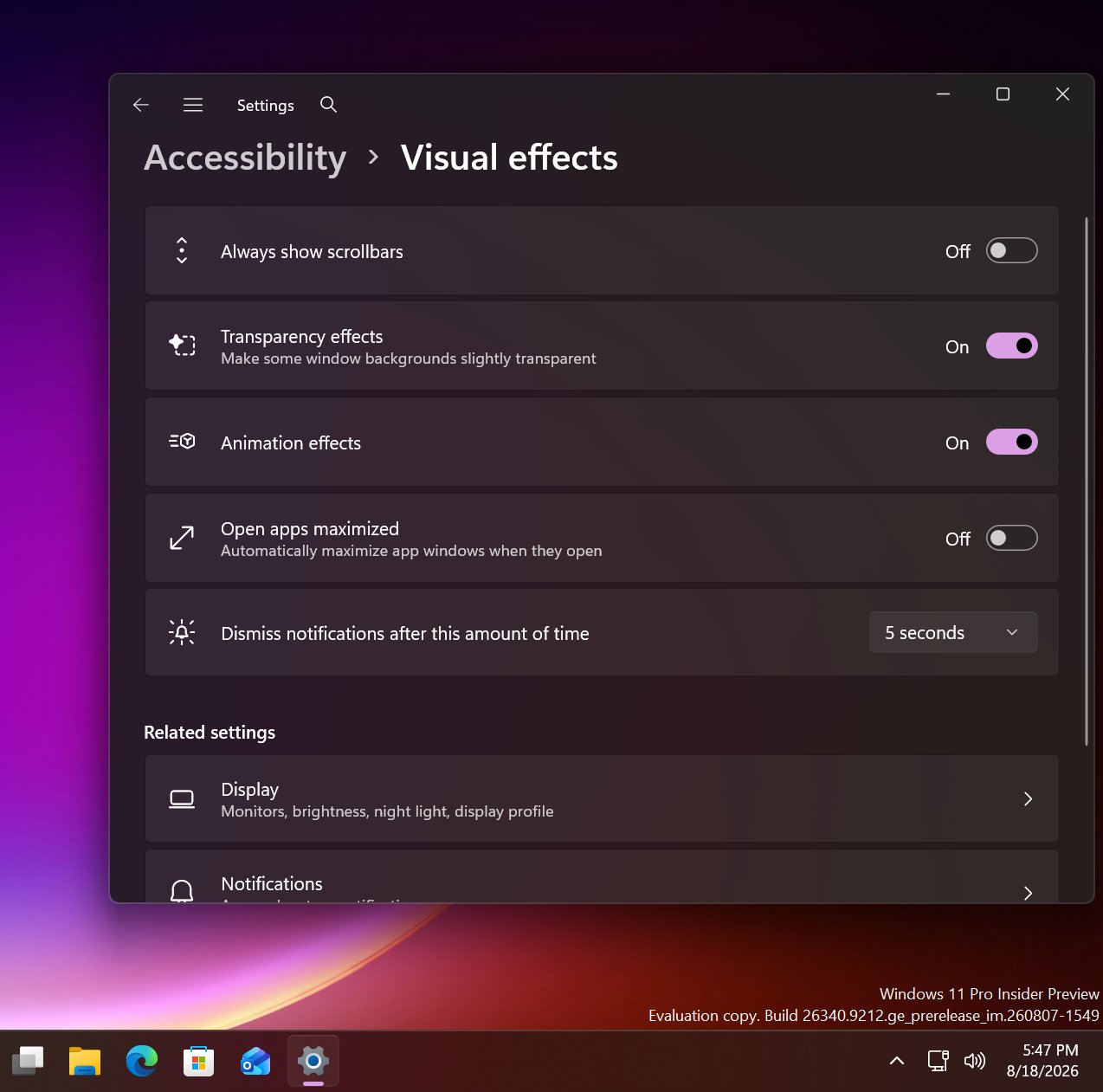
New option to open apps maximized in Windows Settings

The new toggle to force apps to open full screen in Settings. (Image credit: Phantomofearth on X)

This will be especially beneficial for devices with sub 10-inch screens or less, like the Surface Go line or more commonly, PC handheld gaming devices like the Xbox ROG Ally X, which has a 7-inch screen. Windows is famously not very optimized for these small screen sizes, but letting users open apps full screen will make the experience a little better.

It's also beneficial for PCs where the screen may be far away from the user, such as with a PC under a living room TV that's used primarily for watching movies or playing games. In that instance, you wouldn't want apps opening in windowed mode basically ever, and so this option will come in handy.

For a while, Windows 11 included an automatic behavior change that forced apps to open maximized on PCs with small screens, but at some point that behavior stopped. Now, it seems Microsoft is going to give users the option to enable this on any screen size, which makes more sense.

These quality of life improvements are great to see, and another example of Microsoft making WIndows 11 more customizable. Recently, it announces a whole wave of new customization options for the Start menu and context menus, with more customization to come in the next few months.

Click to join us on r/WindowsCentral

Join us on Reddit at r/WindowsCentral to share your insights and discuss our latest news, reviews, and more.

Windows 11 window app controls

Windows 11 window app controls
  •  

Microsoft disables Windows 11's new "Ask Copilot" Taskbar feature to "incorporate feedback" as it pivots to unified Copilot app

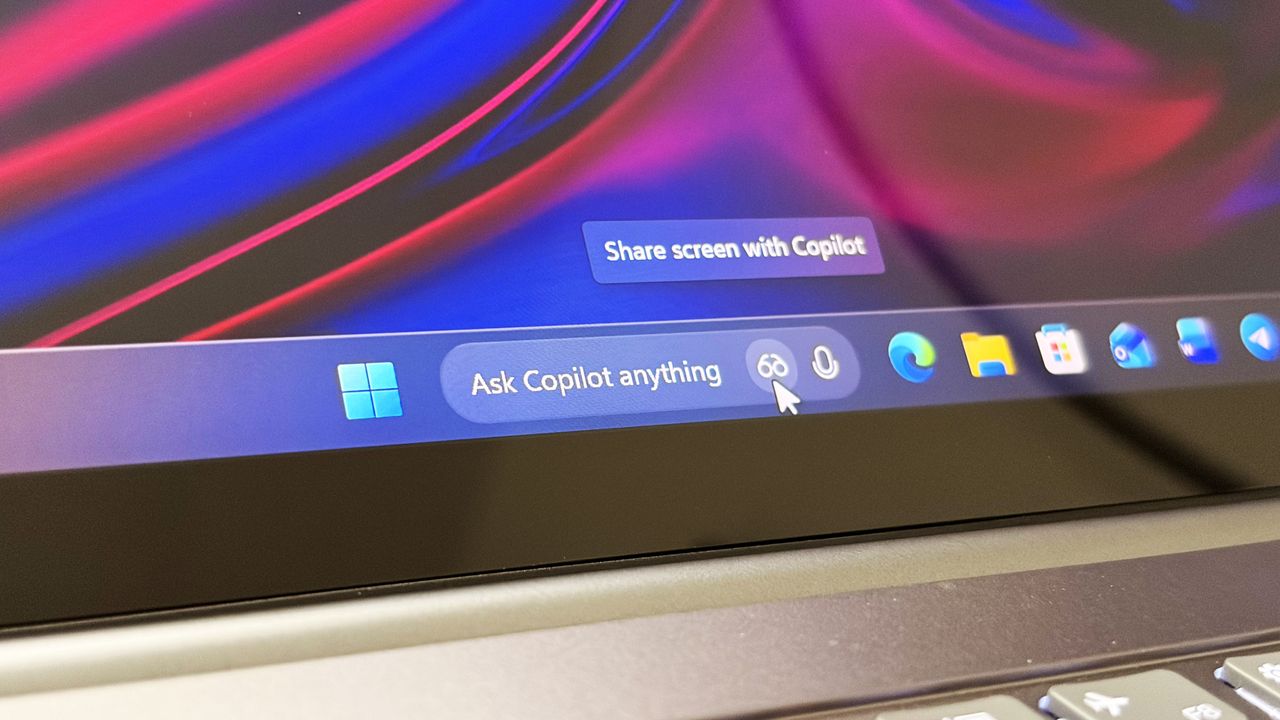
Last year, Microsoft announced a major update coming to the Taskbar on Windows 11 that would allow users to swap out the Windows Search box for one powered by Copilot. Dubbed "Ask Copilot," this new experience would let users interact with Copilot straight from the Taskbar, while maintaining support for searching for apps and files.

Since its announcement, the feature has slowly rolled out in preview to a small subset of users. Most of those users are commercial customers utilizing the Microsoft 365 Copilot app, but a version for consumers was also being developed for the standard Microsoft Copilot app.

At least, that was true until a few months back, when an update to the consumer-facing Copilot app removed support for it. Since then, Ask Copilot has only worked with the Microsoft 365 Copilot app, but with the announcement that the consumer Copilot and Microsoft 365 Copilot are merging under one app experience, Ask Copilot is disappearing once more.

"As we implement these changes, we're temporarily disabling Ask Copilot on the taskbar to update the new experience and incorporate your feedback," a Microsoft changelog has confirmed. The company doesn't explain what user feedback it's taking onboard, or if the Ask Copilot experience will change in any meaningful way. For now, it's no longer in testing.

If you've been using Ask Copilot on the Taskbar, the latest updates to the Copilot app and Microsoft 365 Copilot app will result in the feature disappearing, restoring the standard Windows Search experience automatically.

The UI between Ask Copilot and Windows Search is different. In fact, the two experiences are handled by entirely separate teams at Microsoft. Windows Search is, naturally, developed by the Windows team, whereas Ask Copilot is built by the Copilot and Microsoft 365 AI teams.

Recent upgrades to the Windows Search experience confirm that Ask Copilot is always going to be a separate, optional experience for users who want it. Windows Search is still the primary search experience on Windows, and is being redesigned to remove clutter, ads, and prioritize more accurate and speedy results.

The Ask Copilot search pane is similarly decluttered, but includes a chat box for initiating conversations with Copilot, along with shortcut buttons in the Taskbar for launching into Copilot Vision. If you're someone who has been looking forward to the Ask Copilot experience, it looks like you're going to be waiting a while longer before it begins shipping.

Click to join us on r/WindowsCentral

Join us on Reddit at r/WindowsCentral to share your insights and discuss our latest news, reviews, and more.

Ask Copilot search box on the Taskbar

Ask Copilot search box on the Taskbar

  •  

Microsoft admits Windows 11's context menus are "cluttered and sluggish": Announces major upgrades to the right-click menu that increases performance and customizability

Microsoft has today announced a set of major improvements coming to the context menus that appear in File Explorer and the desktop on Windows 11 that are designed to make the right-click experience faster, less cluttered, and more customizable.

I first revealed Microsoft's plans to overhaul the context-menu system on Windows 11 last month, and now the company has confirmed those plans. In fact, it's already rolling out preview builds with the new context menu system in place, ready for Windows Insiders to begin testing and provide feedback on.

Microsoft says that it knows the context menu system on Windows 11 today is not in a good place. "The menu became cluttered and sluggish, and we recognized the need to dramatically reduce the time between right-clicking and having a menu that’s fully ready to use," says Microsoft engineer Michael Novak in a blog post published today.

"Today, we’re excited to announce an updated context menu that delivers a faster, simpler, and more customizable experience. The new design reduces top-level clutter, keeps commonly used actions easy to access, and introduces a new Settings experience that gives you more control over what appears in the menu."

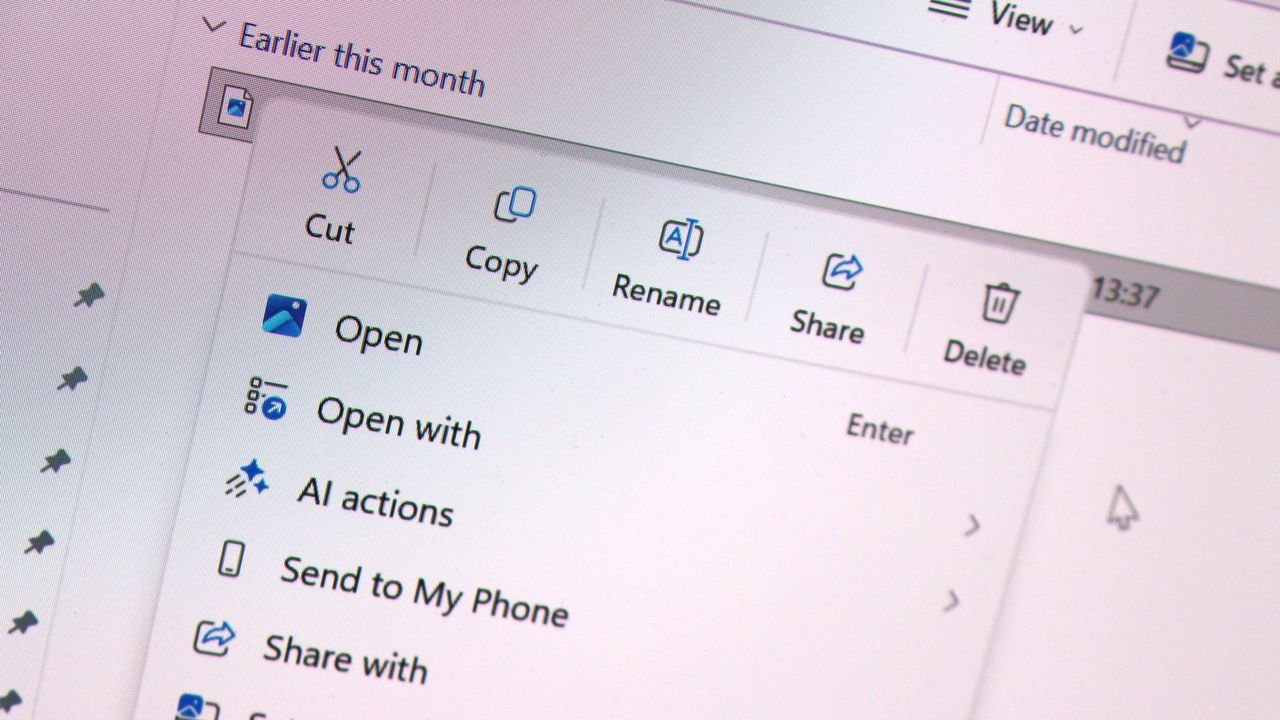
I went hands-on with the new context menu system over the weekend, and I can confirm that the new right-click experience is a major improvement over what is shipping on Windows 11 currently. The new default layout is much less cluttered, with less actions immediately presented to the user in exchange for a much faster response time.

Microsoft is finally letting users customize the context menus too. You can now enable and disable whichever actions you want, as well as show or hide app extensions from third-party apps. This is great for when an app installs itself into your context menus without permission, as you can now hide them from view.

It's even going so far as to allow users to restore the Windows 10 context menu layout within the modern Windows 11 context menu system. Until now, Windows 11's context menu has placed "primary actions" such as cut, copy, and paste into a horizontal view along the top of the menu. Windows 10's context menu placed those actions vertically alongside everything else, and now Windows 11 is letting users restore that layout for users that want it.

"We know many people have years of muscle memory from the Windows 10 menu, so we’ve added options to bring that feel back. You can list the main commands (Cut, Copy, Paste, Rename, Delete, and Share) inline directly in the menu instead of as a row of icons, and you can move Properties down to the very bottom."

These are genuinely good quality of life improvements coming to Windows 11, and Windows Insiders can download the latest Windows 11 preview builds to begin testing them today. Given that they only just entered preview, I expect we won't see them begin shipping to everyone until later in the fall.

Click to join us on r/WindowsCentral

Join us on Reddit at r/WindowsCentral to share your insights and discuss our latest news, reviews, and more.

Windows 11 Context Menus

Windows 11 Context Menus

  •  

Microsoft pulls "frustrating" Drag Tray file sharing feature from Windows 11 in latest preview builds: Promises to "explore improvements" after feedback from users

Microsoft has announced that it's disabling its unique Drag Tray file sharing experience on Windows 11 after feedback from Insiders. After initially rolling out to a small subset of users a number of months ago, it appears the company is now scrapping the concept in favor of something else.

"Based on feedback, we're removing the experience in this build," Microsoft says. "We're continuing to explore improvements in this area and look forward to sharing more about a future replacement experience in a later update."

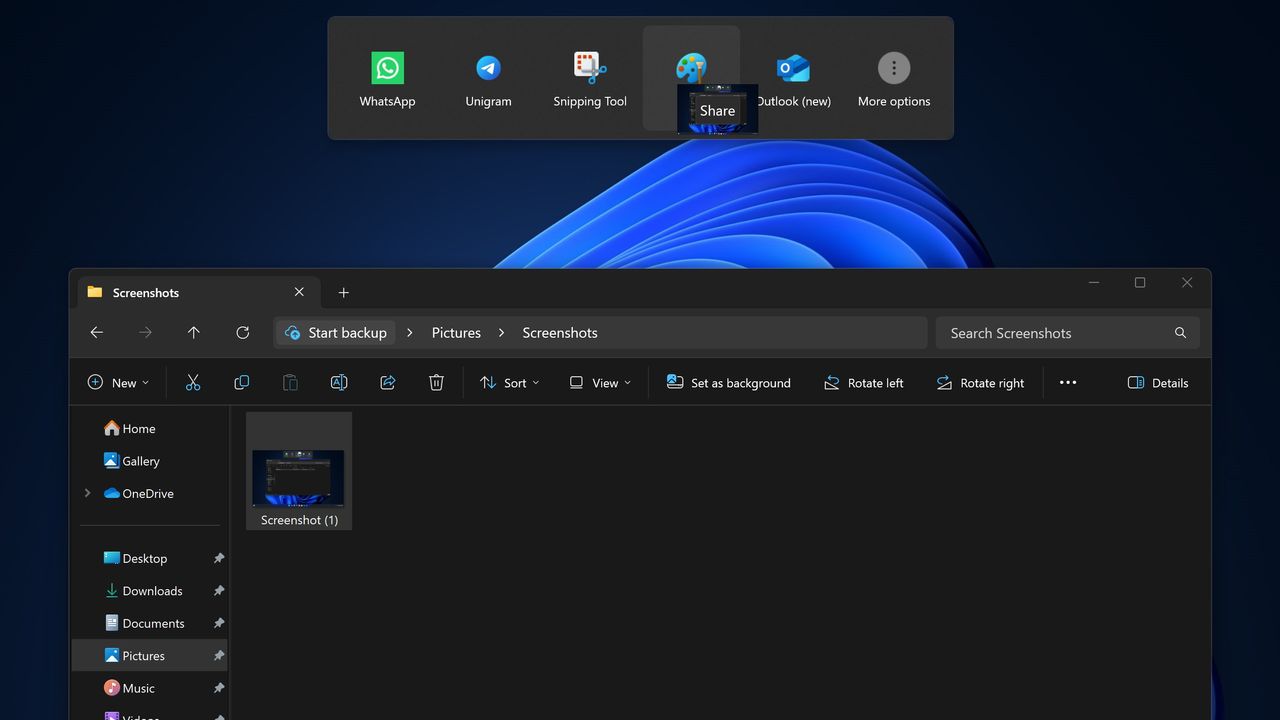
The Drag Tray experience was a unique way of sharing files from the File Explorer on Windows 11. It has been in testing for well over a year, and appeared at the top of the screen whenever a user grabbed a file with their cursor. Users would be able to drag the file to the top of the screen and drop the file into an app to instantly share it.

The feature works well on paper, but users online complained about the feature when it first began rolling out, with some calling it frustrating and annoying. While some users found it useful, most users did not like its implementation and sought out guides to disable it.

Windows 11 features multiple ways of sharing files. Most users share files by right-clicking on the file in particular, and clicking share, which opens a dedicated share UI window that makes it easy to send the file to contacts or apps that are installed. The drag tray was supposed to be a faster and easier to use alternative.

Microsoft hasn't yet revealed what will replace the Drag Tray, if anything. While the company says that it's exploring improvements in this area, there's no guarantee that the Drag Tray in this implementation will survive. Given the pushback it received from users originally, it's unlikely to return in its current form.

If you're using Windows 11 with the Insider Program, you'll notice the Drag Tray is gone as of the latest preview builds. If you're running production builds of Windows 11, Drag Tray is still available, but it's likely only a matter of time before Microsoft removes it from shipping builds of the OS too.

Click to join us on r/WindowsCentral

Join us on Reddit at r/WindowsCentral to share your insights and discuss our latest news, reviews, and more.

Windows 11's new file sharing interface.

The Drag Tray sharing feature, which is now being removed.

  •  
❌