Connexion

XBOX made generational leaps with each console — So, what happens next?
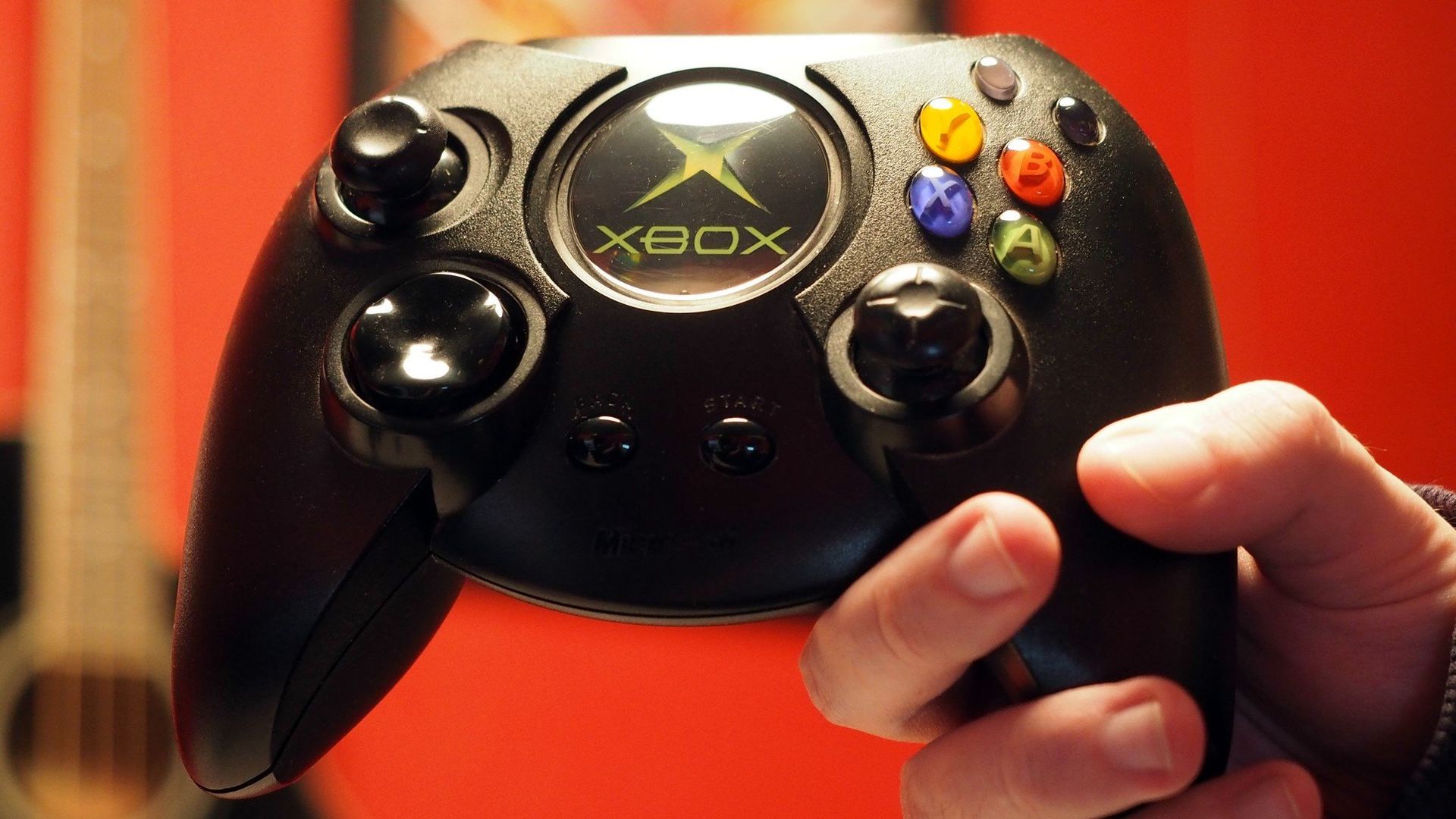
The official XBOX 25th anniversary is approaching fast, with November 15 flanked on both sides by plans for special hardware, celebratory merchandise, and a wave of themed cosmetics from Microsoft's gaming division.

It's almost hard to comprehend, given that I remember the much-anticipated launch of the original XBOX quite clearly.
But time marches on, and XBOX has proven it can iterate its hardware and innovate its experiences over the years.
So, in another mix of self-indulgent nostalgia and reflection on how far the technology has come, I'm looking back at how far performance has leaped across these console generations, from the original XBOX to the Series X and beyond.
XBOX (2001)
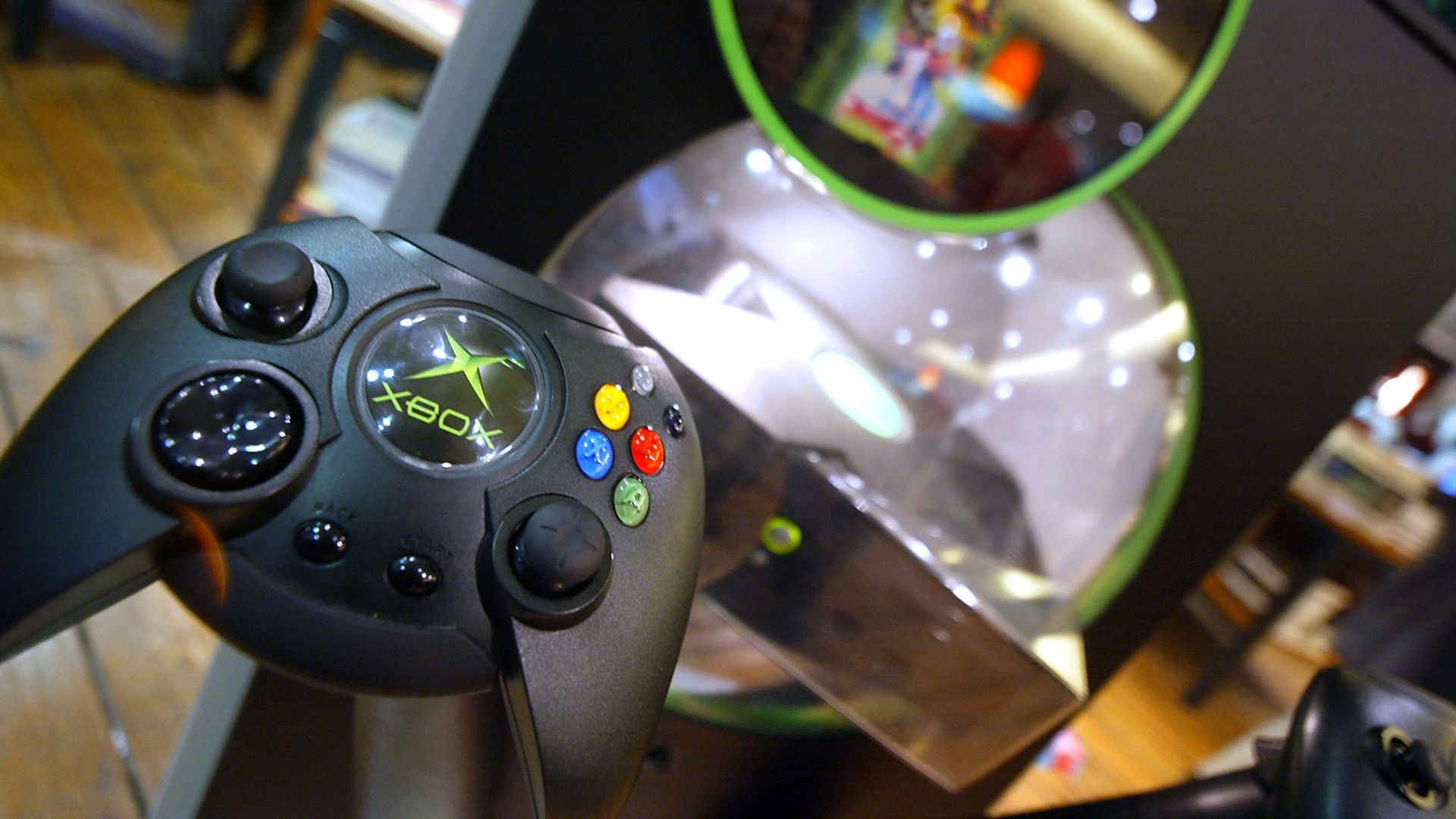
Microsoft's first console was comically gigantic and heavy, packed with parts that felt at home in a mid-to-high-tier desktop PC of the time. Its DVD drive sat alongside a 3.5-inch hard drive with 8–10 GB of space, connected via old-school IDE ribbon cables, and together they made up most of the heft. Some of my braver friends replaced their HDDs, requiring injected softmods to work.
Deeper inside, Intel provided a modified Pentium III x86 CPU built on a 180 nm process, which it has since scaled down incredibly far to the latest 18A process node used in its mainstream chips. Running at 733 MHz, the processor sat alongside 64 MB of DDR RAM (that's megabytes, not gigabytes) clocked at 200 MHz and an NVIDIA GeForce 3-based GPU at 233 MHz.
Looking back, it's fascinating how the OG XBOX resembled many of my friends' PCs at the time; we either paired Intel CPUs with NVIDIA GPUs or opted for AMD CPUs with ATI (later acquired by AMD) GPUs. It wasn't a permanent partnership for Microsoft, but it powered a compelling competitor to Sony's PlayStation 2, even if it remained out of reach for my teenage self.
XBOX 360 (2005)
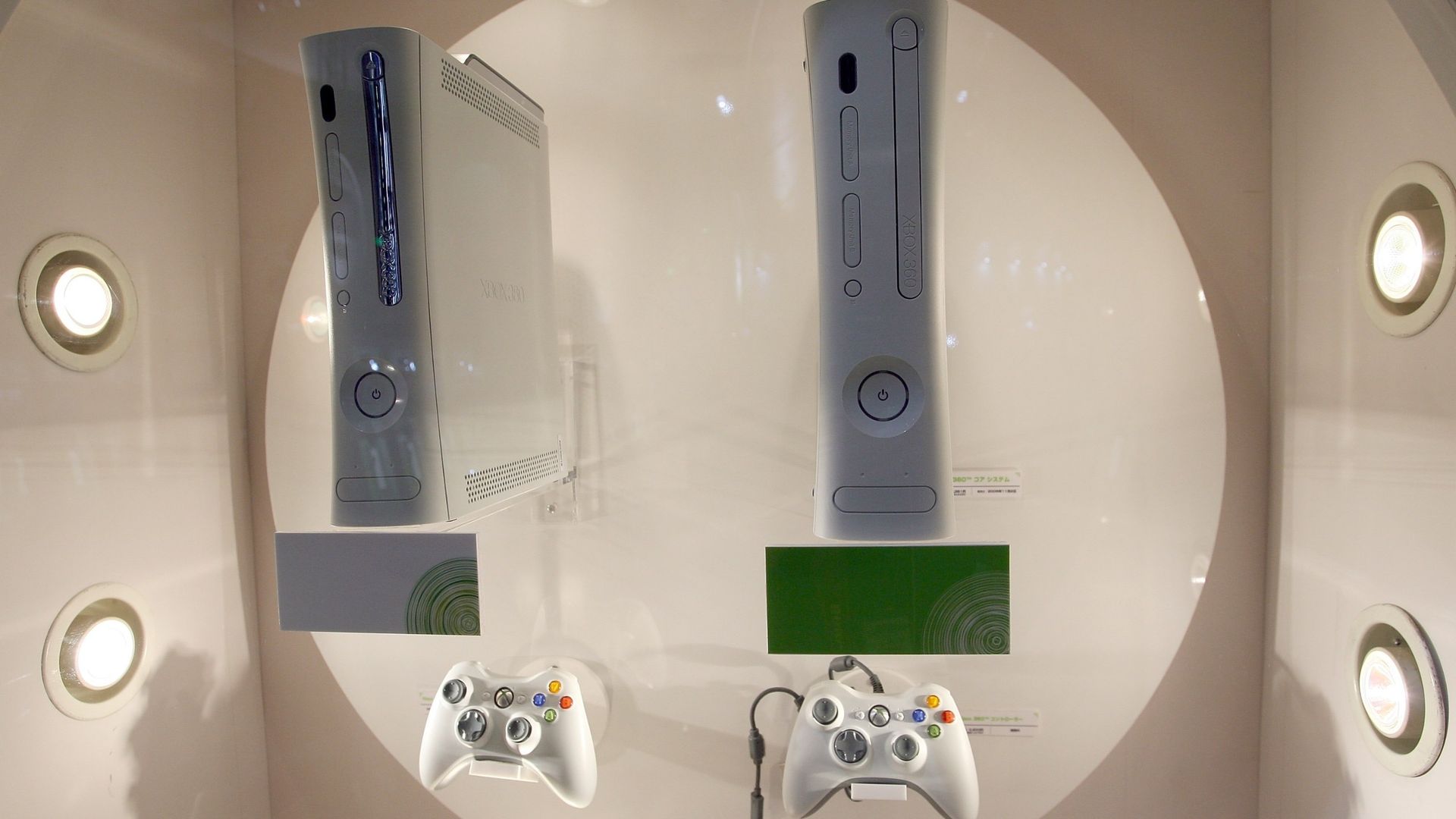
Design-wise, this slim console was a far cry from its behemoth predecessor. Sure enough, the XBOX 360 made an instant impression on me and an even faster dent in my first self-earned paychecks. This time, Microsoft opted for a 64-bit PowerPC-based CPU design from IBM, moving further away from traditional PC architecture, with a massive clock speed jump to 3.2 GHz in its tri-core chip.
This leap to a multi-core processor makes direct clock speed comparisons a little moot, but it's still impressive to see how far the XBOX jumped in one generation. Its unified memory moved from DDR SDRAM to 512 MB of GDDR3 RAM clocked at 700 MHz for eight times more capacity and triple the bandwidth, and the GPU swapped teams to the ATI-designed 'Xenos' at 500 MHz.
Storage space is where it gets harder to define, because Microsoft offered so many different models, redesigns, and expandable add-ons. The earliest XBOX 360 consoles I saw ranged from selling with no hard drive at all to a 'Premium' model with a 20 GB HDD in the box. For game discs, Microsoft kept DVDs, but increased the read speed and moved to a SATA-connected, dual-layer disc drive.
XBOX One (2013)
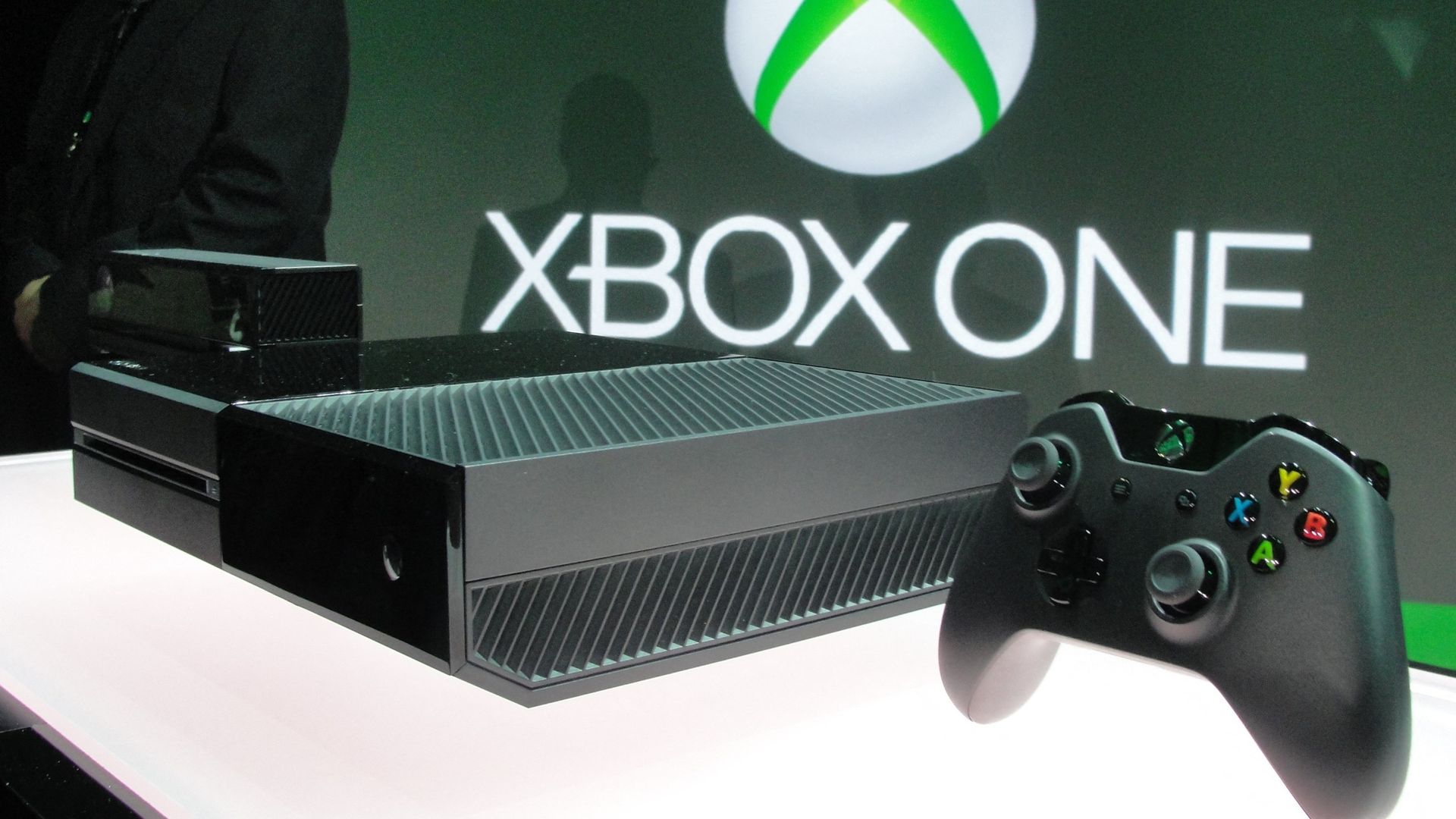
Ah, the all-in-one entertainment unit. I bought into the XBOX ONE so eagerly because I wanted to play Quantum Break, but I was also intrigued by its appeal as a TV tuner with live programming snapped to the side of my screen. Of course, I'd never get the promised DVR function, and the Kinect 2.0 sensor did little more than collect dust, but the console still had its gaming appeal.
This is when Microsoft's consoles started resembling PCs again, with an octo-core AMD Jaguar CPU running x86-64 instructions, clocked at 1.75 GHz. It wasn't as mind-blowing as the XBOX 360's evolution, but the XBOX ONE came with 8GB of DDR3 RAM for a 16x generational memory capacity leap; all part of a new console that was generally easier for game developers to target.
This is also where Microsoft's modern AMD era began, building a GPU running at 853 MHz into its singular APU and delivering raw graphical compute performance about five times faster than the XBOX 360. Storage saw a huge jump to 500 GB to support game installations, and Microsoft finally adopted Blu-ray with a BD-ROM disc drive, but games were already going digital.
XBOX Series X (2020)
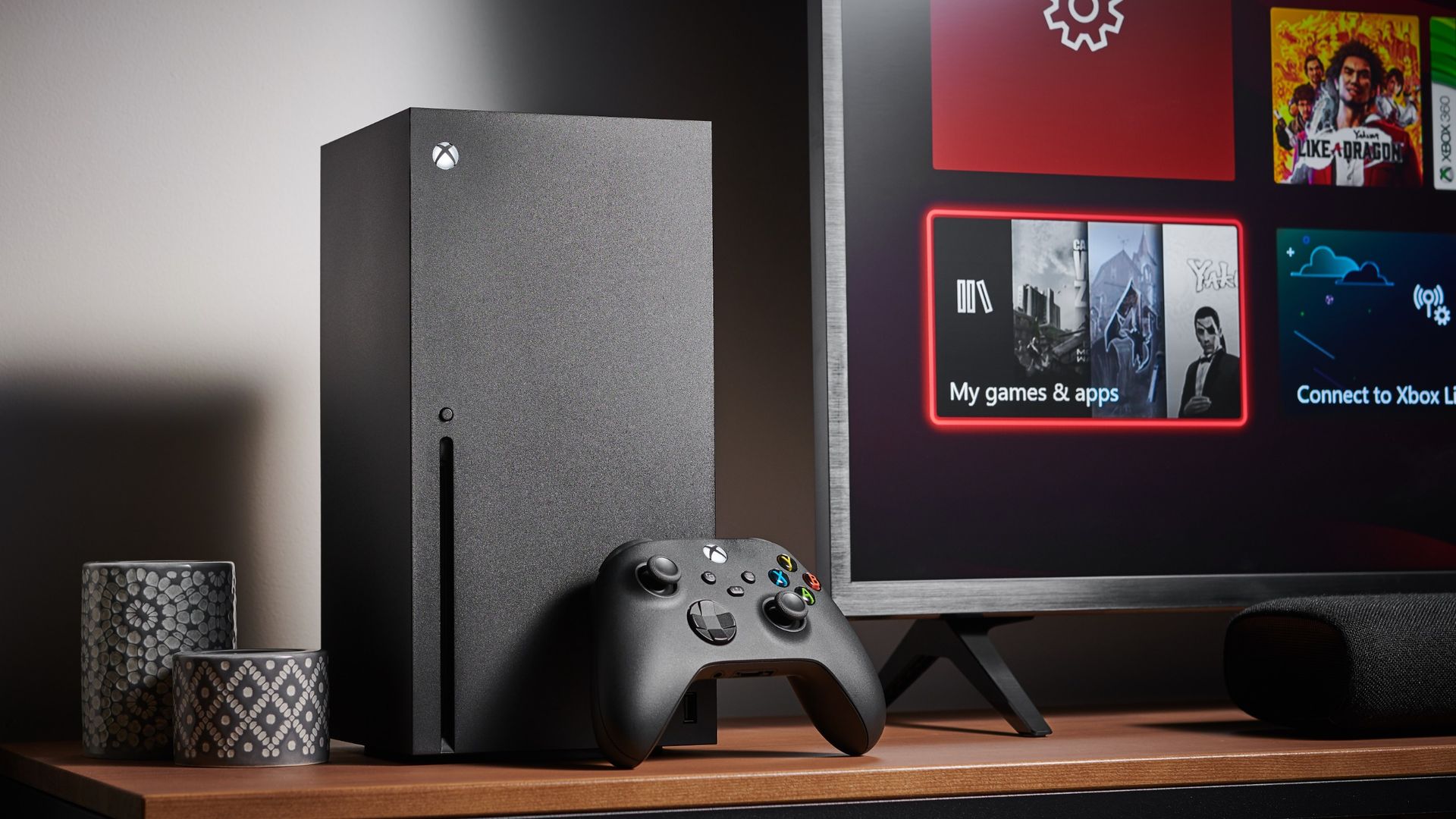
Yes, the current generation is almost six years old. We're once again entering an age of speculation about what comes next, but the XBOX Series X (and Series S) remain the brand's primary focus. There's even a transparent green 'Xbox Series X25' special edition console and controller launching in November, though I'm still quite satisfied with my original Series X|S variants.
The specs have more nuance these days, but the AMD octo-core Zen 2 CPU runs at 3.66 GHz, paired with an AMD RDNA 2 GPU at 1.82 GHz in another custom APU. For unified memory, Microsoft moved up to 16 GB of GDDR6 RAM, while storage starts with a 1 TB PCIe 4.0 NVMe SSD, depending on the model you choose. Proprietary external storage also returned this generation, up to 4 TB.
An Ultra HD Blu-ray drive was also standard at launch, but later 'All-Digital' models have dropped it, in keeping with an ongoing trend shift towards digital gaming. Some major releases are already launching without physical media, and it's reasonable to assume that the Series X could be Microsoft's last console to support them by default.
XBOX Project Helix (2028?)
So, what comes next? We already know that Project Helix will be "powered by a custom AMD SoC", much like the APUs in previous XBOX consoles, and that high-end visuals are a focus for the brand. Ray-tracing technology, in particular, delivers incredibly realistic lighting, reflections, and shadows, but it's demanding on any hardware, which is where AI comes in.
AMD's FidelityFX Super Resolution (FSR) upscaling tech is already making its way to current-gen XBOX consoles via FSR 4.1, and early testing with beta drivers on XBOX Ally handheld gaming PCs shows some promise for improved visual fidelity at the same performance. A new AI-assisted upscaler seems likely for the next XBOX, but it'll depend on what AMD can support with its hardware plans.
(Project Helix will) likely be the most PC-like console yet, but at a severe cost.
Of course, the utterly gigantic elephant in the room right now is the ongoing memory crisis. Shortages have pushed up the cost of components and completely removed some of the highest-end consumer GPUs from sale, as major brands like NVIDIA focus on hardware for large-scale artificial intelligence platforms instead. It'll likely be the most PC-like console yet, but at a severe cost.
Its literal cost will continue to be the most pressing prediction posed by long-serving XBOX gamers. Both of the Series X|S consoles already suffered a price hike, which has many wondering what they'll have to pay for the next-generation console. Is $1,000+ a realistic expectation, or can Microsoft pull some favors to offset the inflated manufacturing costs? Let's see what 2027 reveals.

Join us on Reddit at r/WindowsCentral to share your insights and discuss our latest news, reviews, and more.