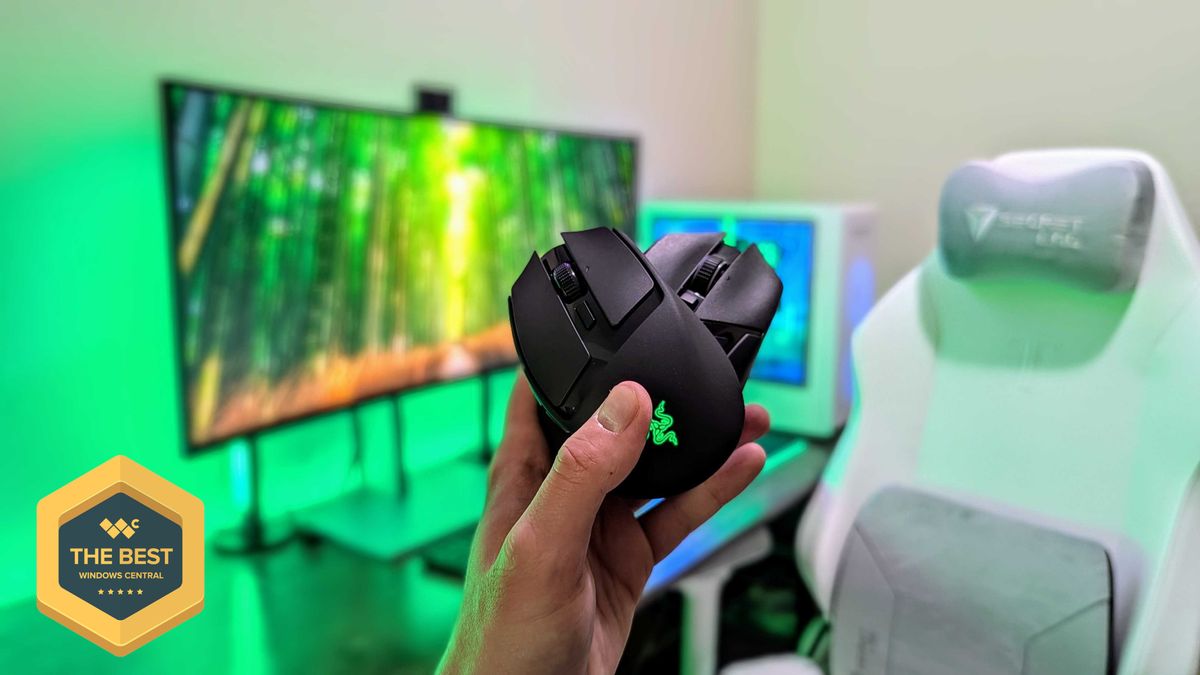
Razer, one of my favorite manufacturers that has produced some of the best PC gaming accessories I've ever used, has released a new mouse built to conquer any game you throw at it — the Razer Naga V3 Pro.
This gadget is the long-awaited evolution of the Razer Naga V2 Pro, which takes everything we loved about its predecessor (which we gave a near-perfect review score) and refines it to create the ultimate PC gamer mouse.
Here's what you need to know about the Razer Naga V3 Pro and where you can buy it.
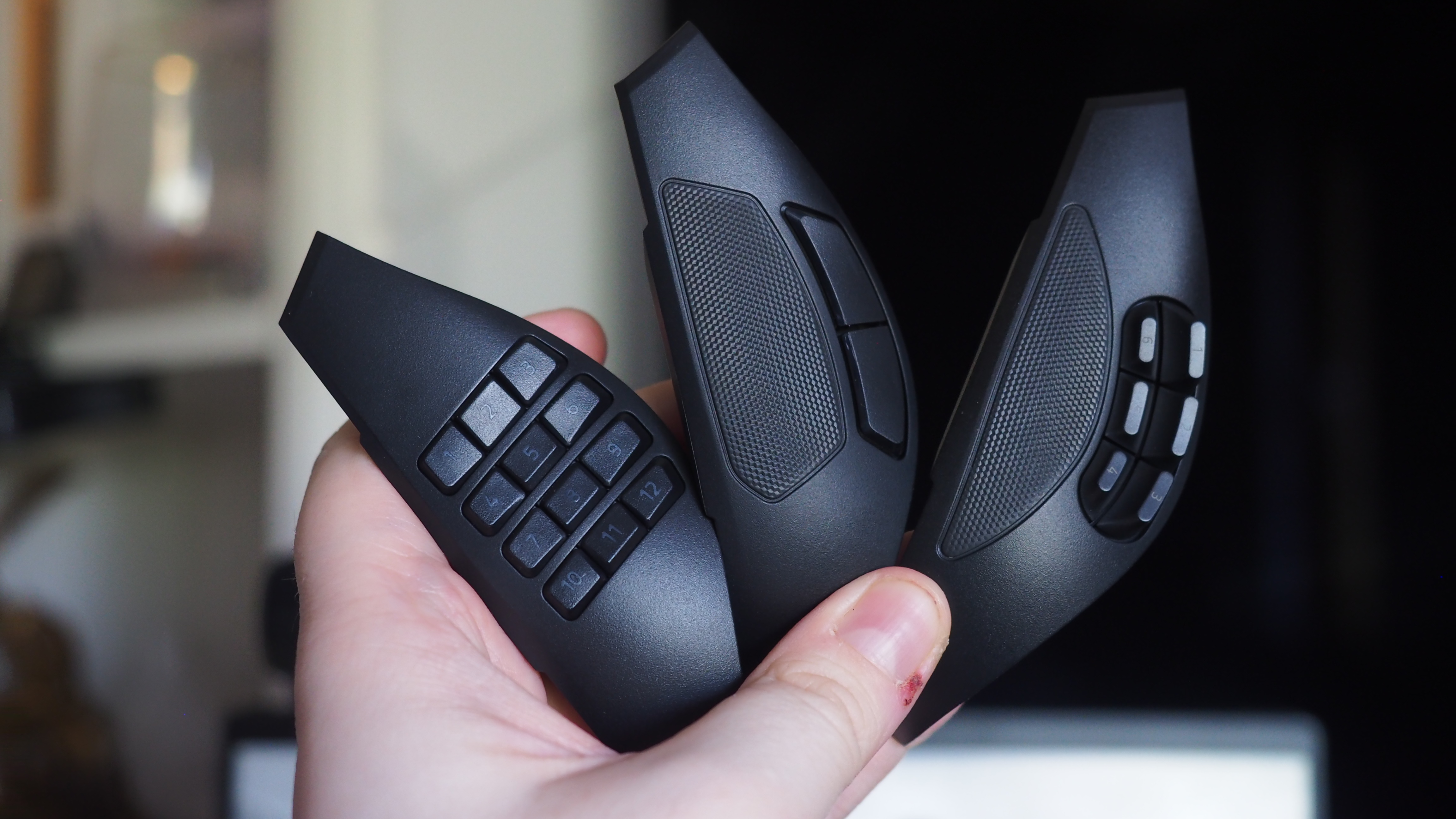
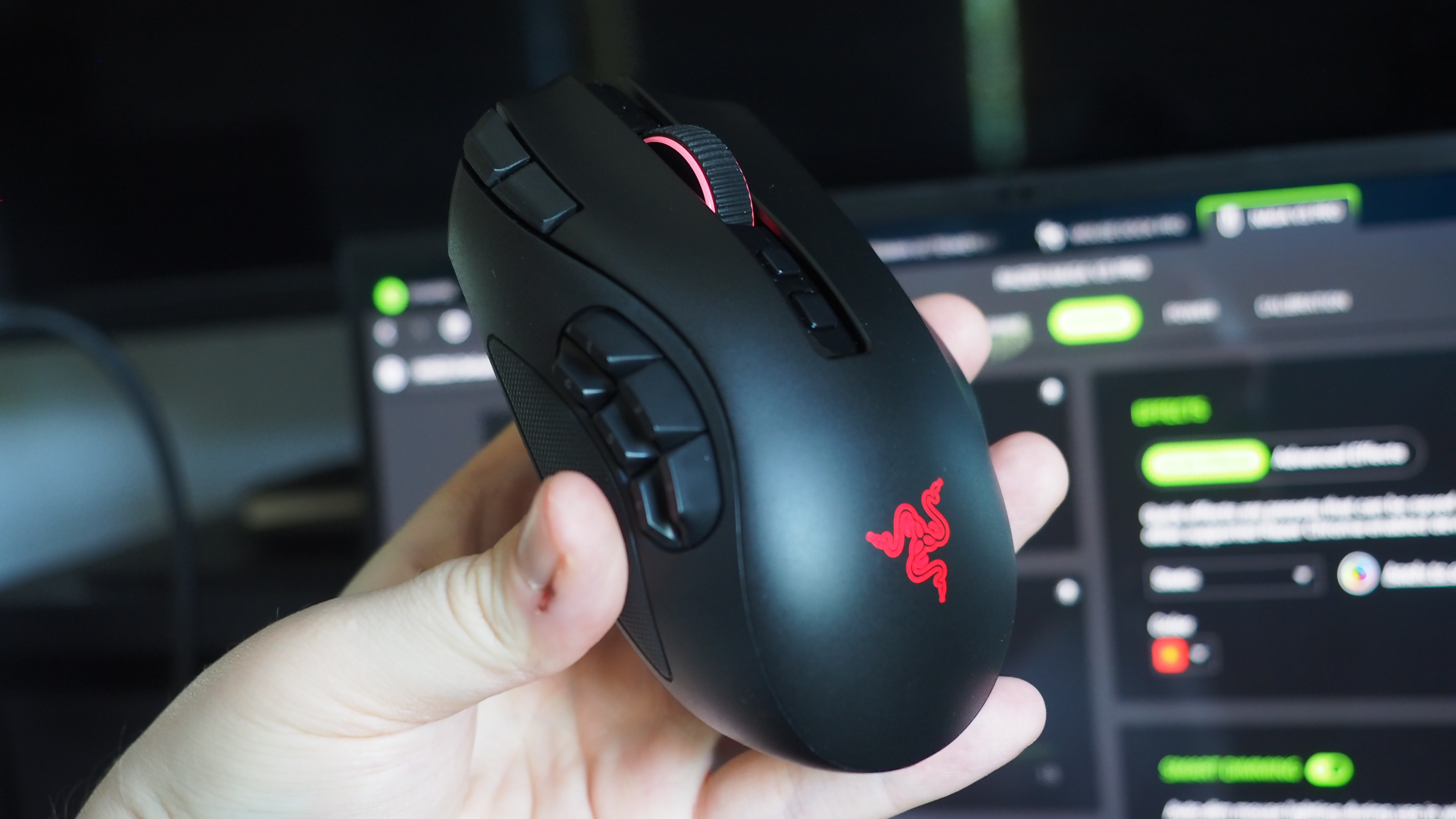
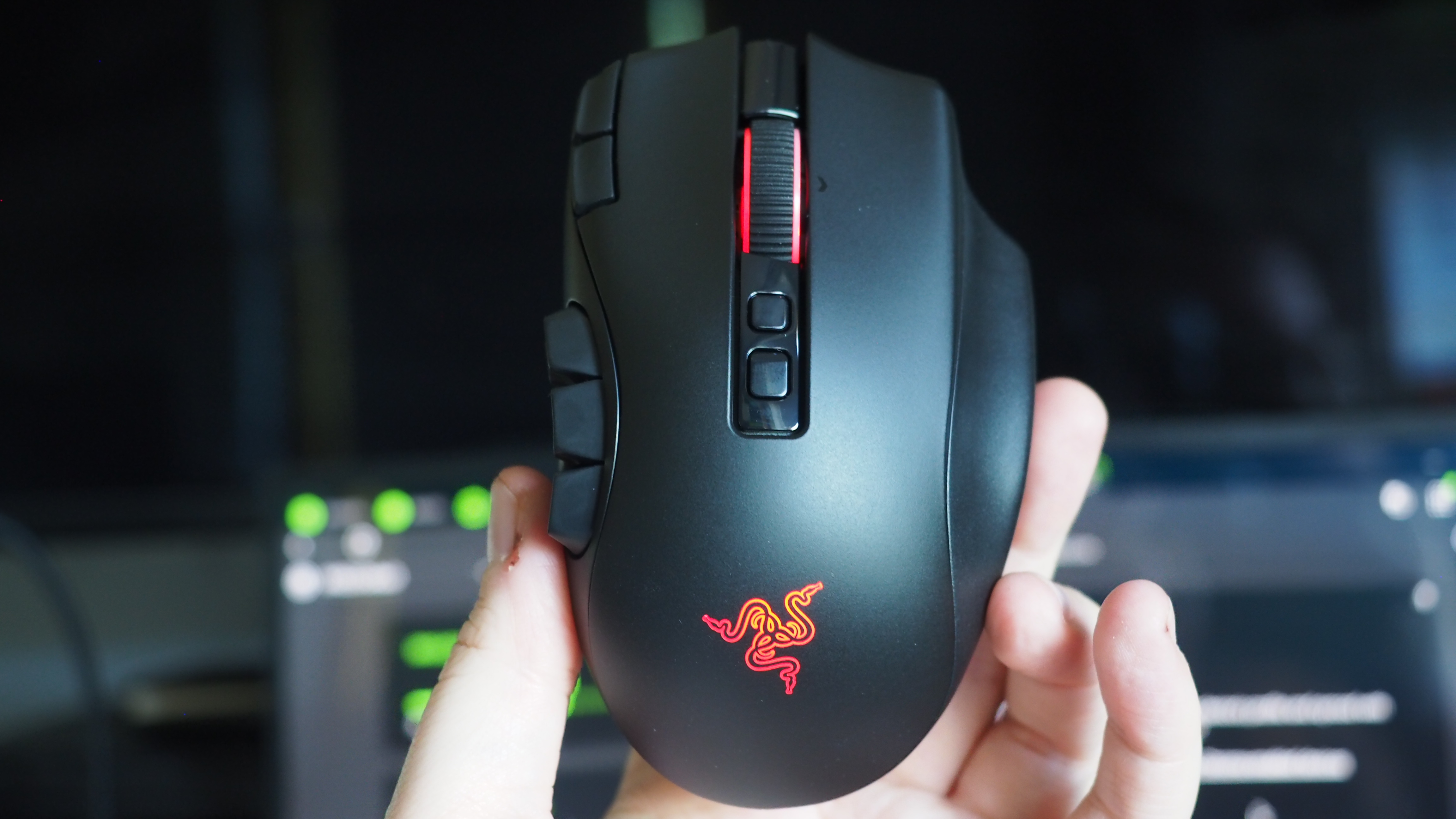
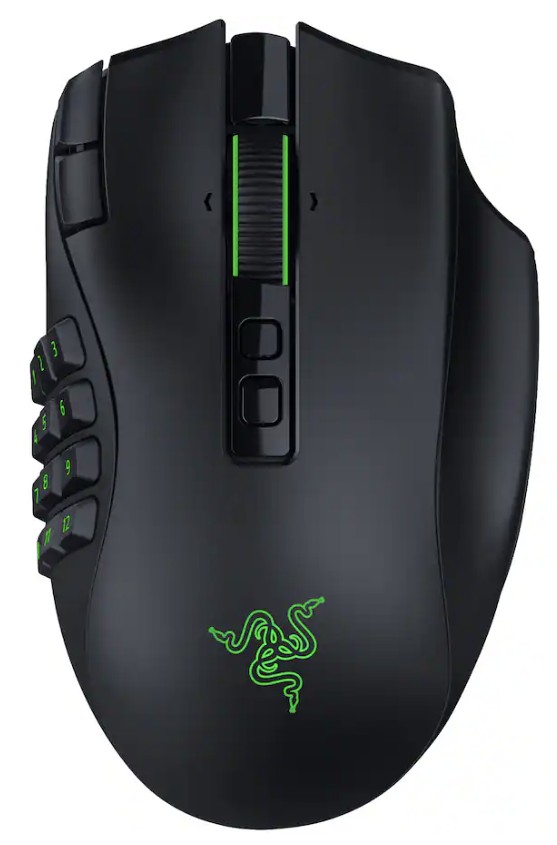
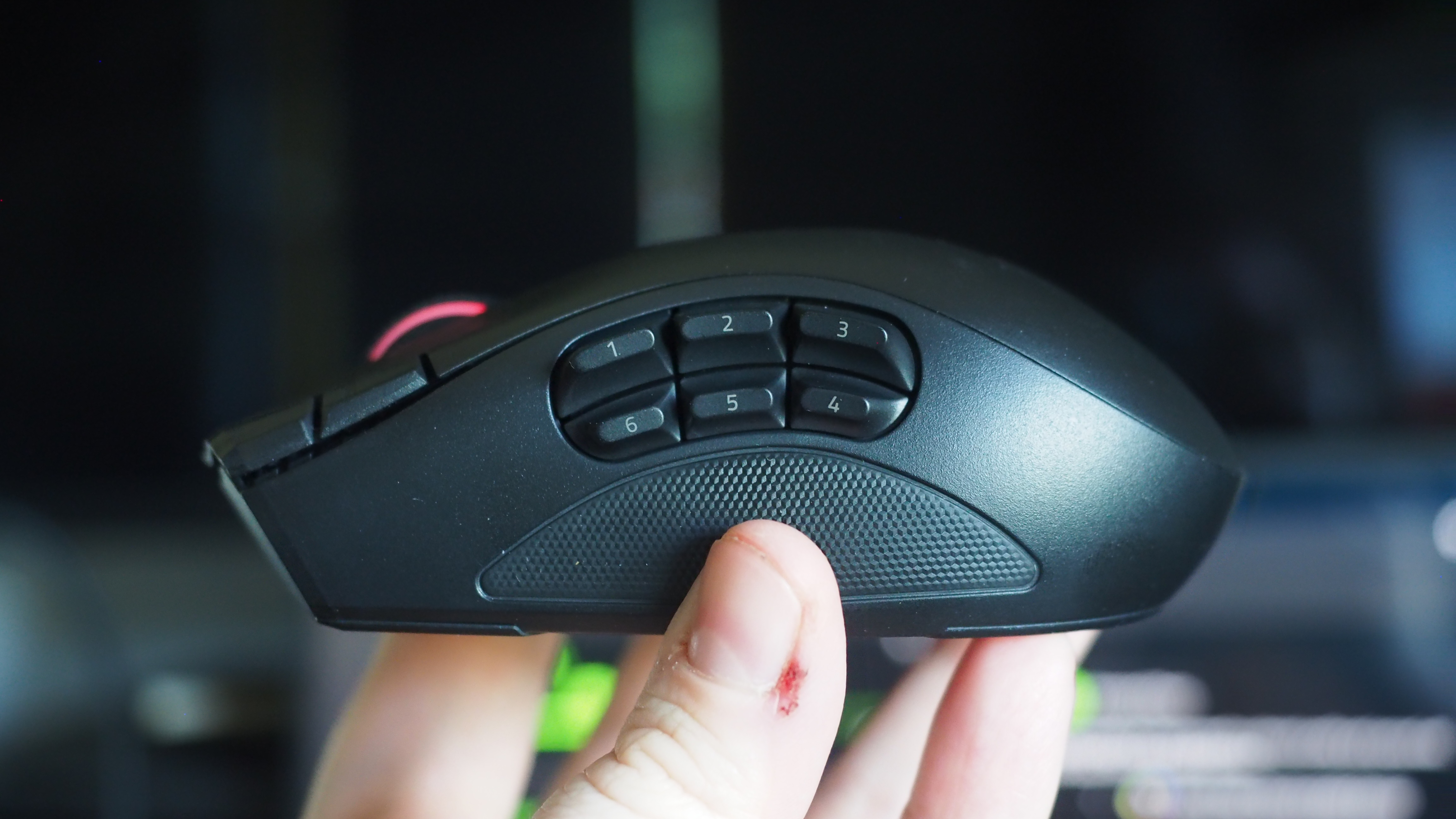
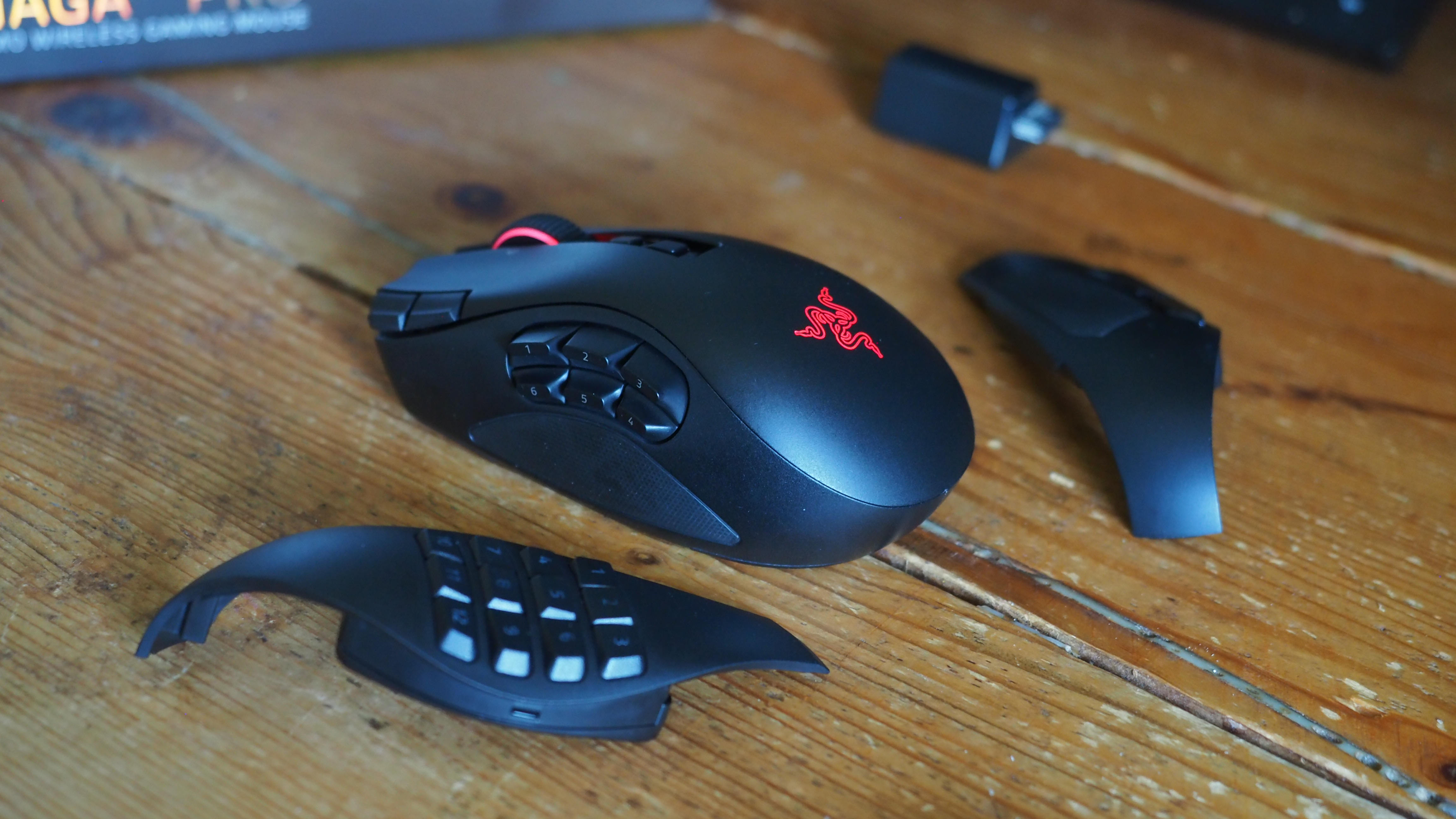
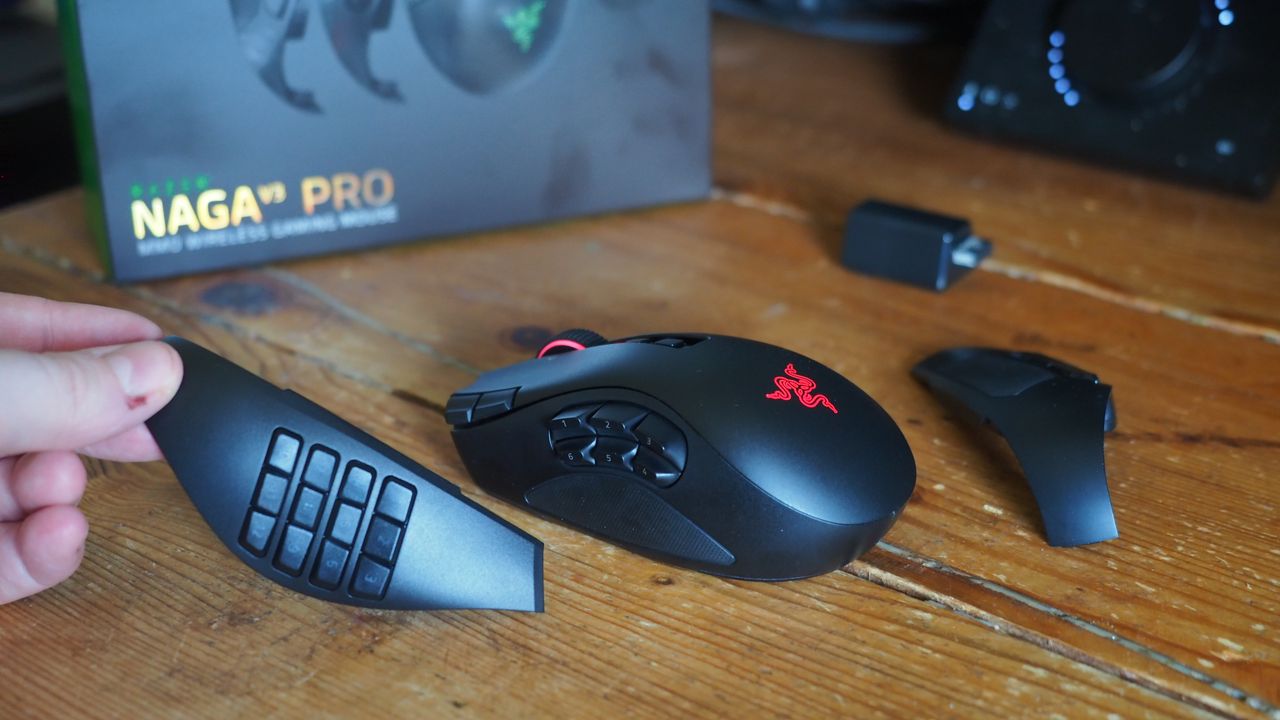
The side plates of the Razer Naga V3 Pro gamer mouseWindows Central | Jez CordenSide view of the Razer Naga V3 Pro MouseWindows Central | Jez CordenTop view of the Razer Naga V3 Pro MouseWindows Central | Jez Corden
The Razer Naga V3 Pro mouse is equipped with cutting-edge tech to improve input detection speeds and swappable button plate configurations so that it can handle a wide variety of game genres.
Its biggest selling points include:
23 programmable buttons and three interchangeable side button plates (a 12-button MMORPG plate, a 6-button MOBA plate, and a 2-button FPS plate).
A Razer HyperScroll Tilt Wheel Gen-2 with new dual tactile, free-spin, and smart-reel modes to adjust its scrolling speeds to a user's preference.
A Razer Optical Mouse Switches Gen-4 to give its buttons an upgraded lifecycle up to 100-million clicks, cleaner and faster input detection, tactile feedback, and a zero-bounce optical design to prevent accidental misclicks.
A Razr Focus Pro 50K Optical Sensor Gen-3 with precise mouse-movement detection and adjustable sensitivity that can go as high as 50,000 DPI.
Polling rates from 1000Hz to 8000Hz to help improve the mouse's input accuracy and detection speed.
A lightweight build of 117g (with the 12-button MMORPG plate attached) so it's not so heavy to move for the wrist while allowing it to be moved more quickly when making sharp turns in first-person action games.
A battery life of 155 hours on HyperSpeed connectivity (2.4GHz).
This mouse is Razer's next amazing premium outing for MMORPGs, MOBAs, FPS titles, and more
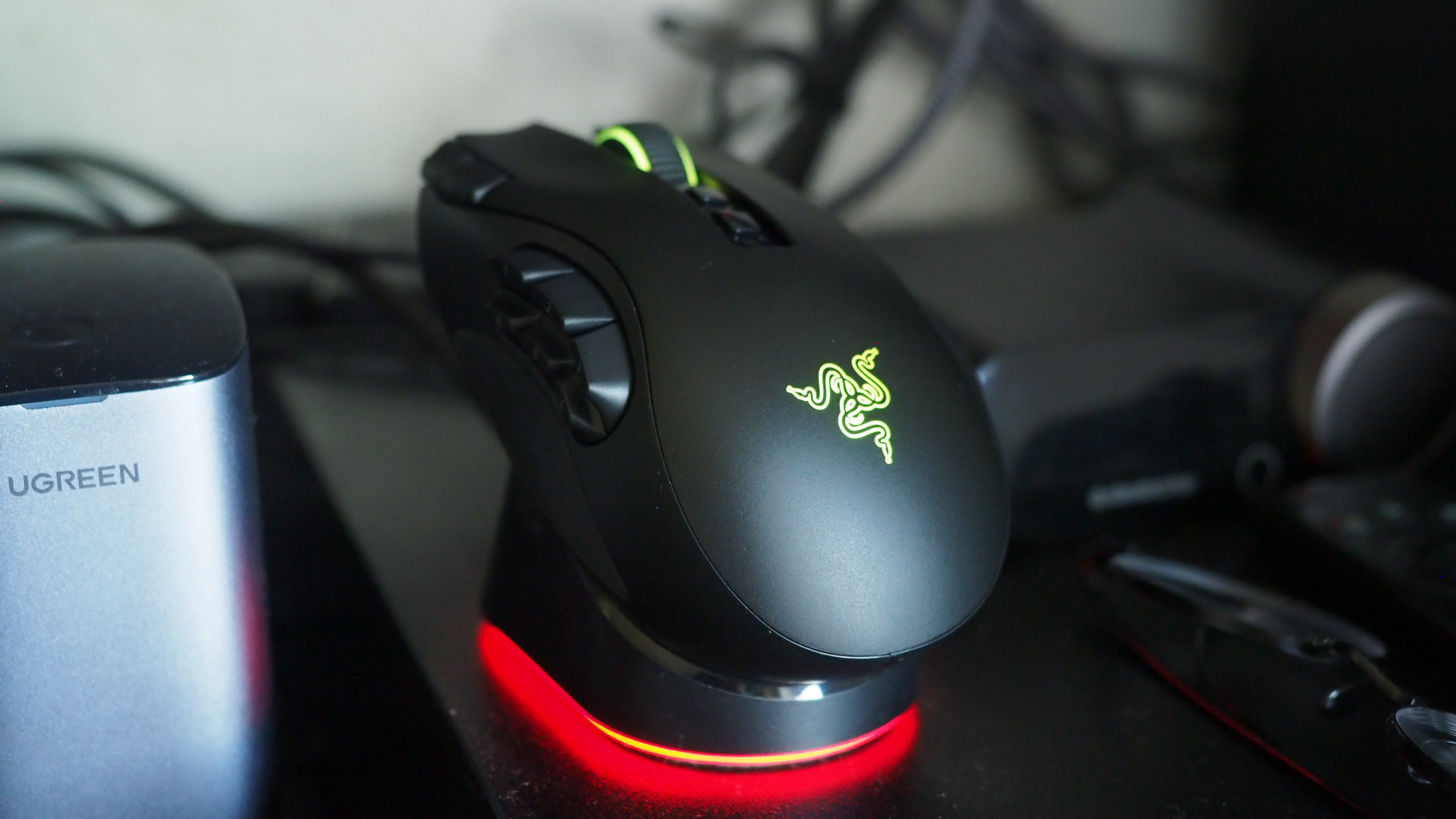
The Razer Naga V3 Pro gamer mouse on a base charger (Image credit: Windows Central | Jez Corden)
Our resident PC gaming accessory expert, Jez Corden, reviewed the Razer Naga V3 Pro and found it to be one of the best PC mice he's used so far this year. Jez praised it for possessing dozens of programmable buttons, the best-in-class software solution, and a premium feel that emphasizes tactility.
So, if you generally play input-heavy PC games and you want to get your hands on the Razer Naga V3 Pro, it will cost $179.99/£179.99/€199.99 at select digital retailers including Best Buy, directly from Razer.com, and at physical RazerStores.
Dominate any PC game imaginable with the Razer Naga V3 Pro Wireless mouse, complete with three swappable button plates, a Focus Pro 50K Optical Sensor Gen‑3 with 50,000 max DPI, 23 programmable inputs, and many more rich features.View Deal
Join us on Reddit at r/WindowsCentral to share your insights and discuss our latest news, reviews, and more.
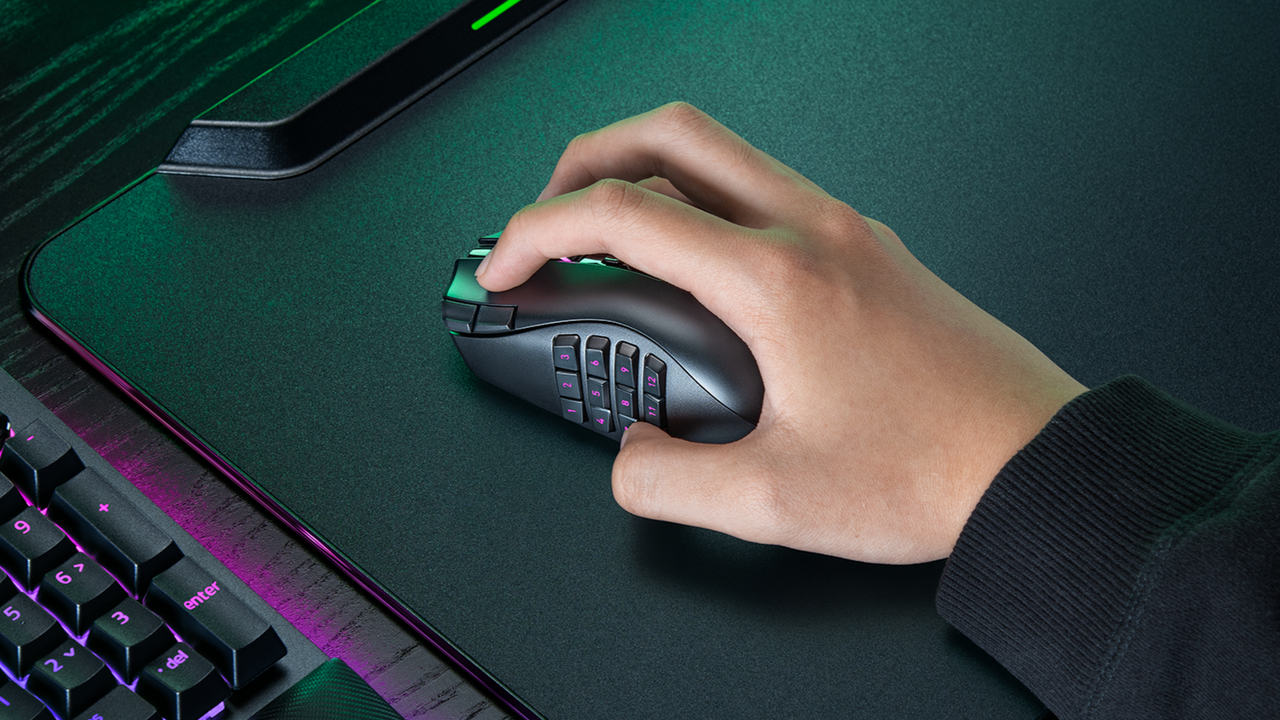
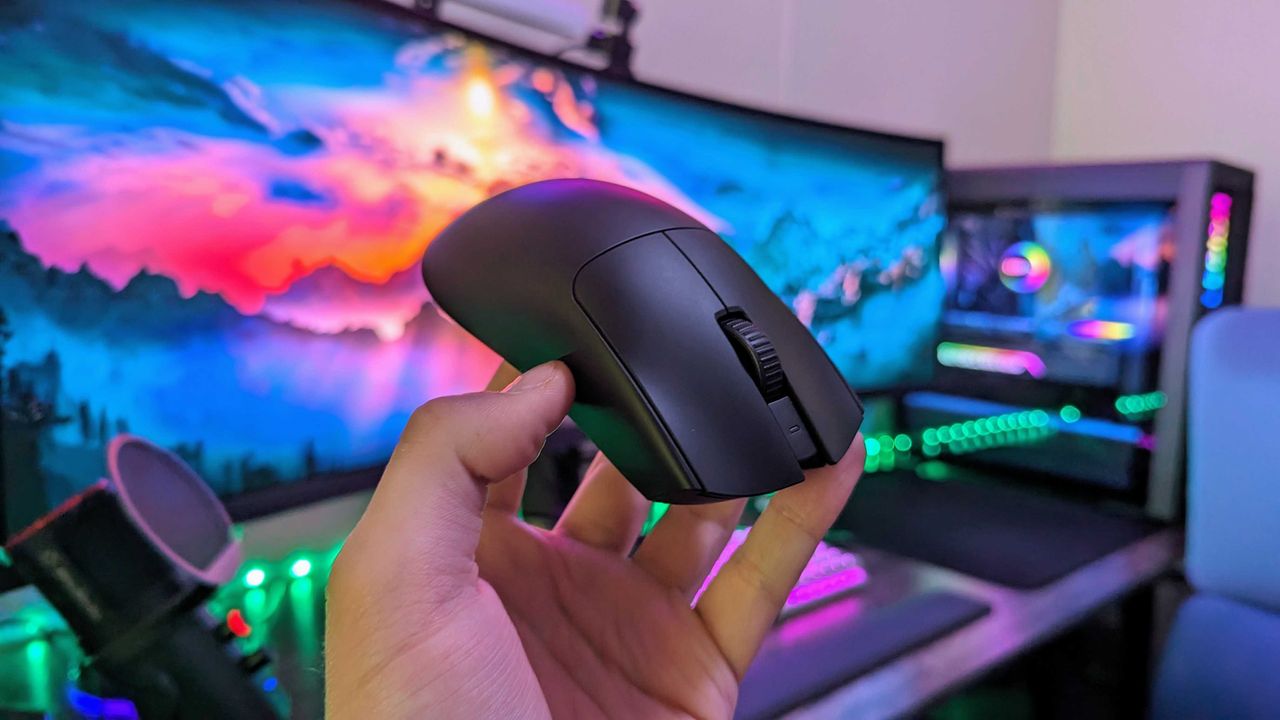
A hand holding a Razer Naga V3 Pro mouse on a mouse mat next to a Razer keyboard
Take your PC gaming skills to the next level with the Razer Naga V3 Pro mouse.
I've been using Razer mice for decades, and have tested dozens upon dozens of iterations of the firm's products. I'm also a dedicated MMORPG and MOBA player on PC, flipping between games like World of Warcraft and Heroes of the Storm as seasons wax and wane.
For the Warcraft-faithful, I play a Demonology Warlock, which has been simplified over the years, but in previous expansions I had anywhere up to 30+ keybinds for playing the class effectively in PvE and PvP. It was a bit like learning a musical instrument back in the day, particularly when you throw in battle potions, trinkets and other additional buttons.
As such, I've tended towards Razer mice with extra inputs to make my gaming life easier. I had no idea how much easier it was going to get until I went palm-on with the new Razer Naga V3 Pro — which is quite easily one of the best mice of 2026.
Razer Naga V3 Pro: Specs and price
MMO player's best friend. (Image credit: Windows Central | Jez Corden)
The Razer Naga V3 Pro builds on its predecessor in a variety of ways, but chief among those is the inclusion of a further three configurable inputs, bringing the maximum total to 23 (and many, many more if you use HyperShift and other modifier keys).
1000 Hz native; upgradeable to true 8000 Hz (Mouse Dock Pro / HyperPolling Dongle); HyperSpeed Wireless (2.4 GHz), Bluetooth LE, USB-C wired
Battery & Lighting
Up to 155 hours (HyperSpeed); 3-zone RGB (logo, wheel, 12-button plate); 5 onboard profiles
Materials & Accessories
100% PTFE feet; USB-A to USB-C cable; HyperSpeed dongle; compatible with Mouse Dock Pro & HyperFlux V2
Dimensions & Weight
119.5 × 75.5 × 43.5 mm; 117 g base weight; Side plates: 12-button (20 g), 6-button (17 g), 2-button (15 g)
Price & Availability
$179.99 USD / £179.99 GBP / €199.99 EUR — Available worldwide Aug 11, 2026
Razer also doubled down on durability with reinforced molding processes for the switches, which the firm says will now last up to and potentially beyond 100 million actuations.
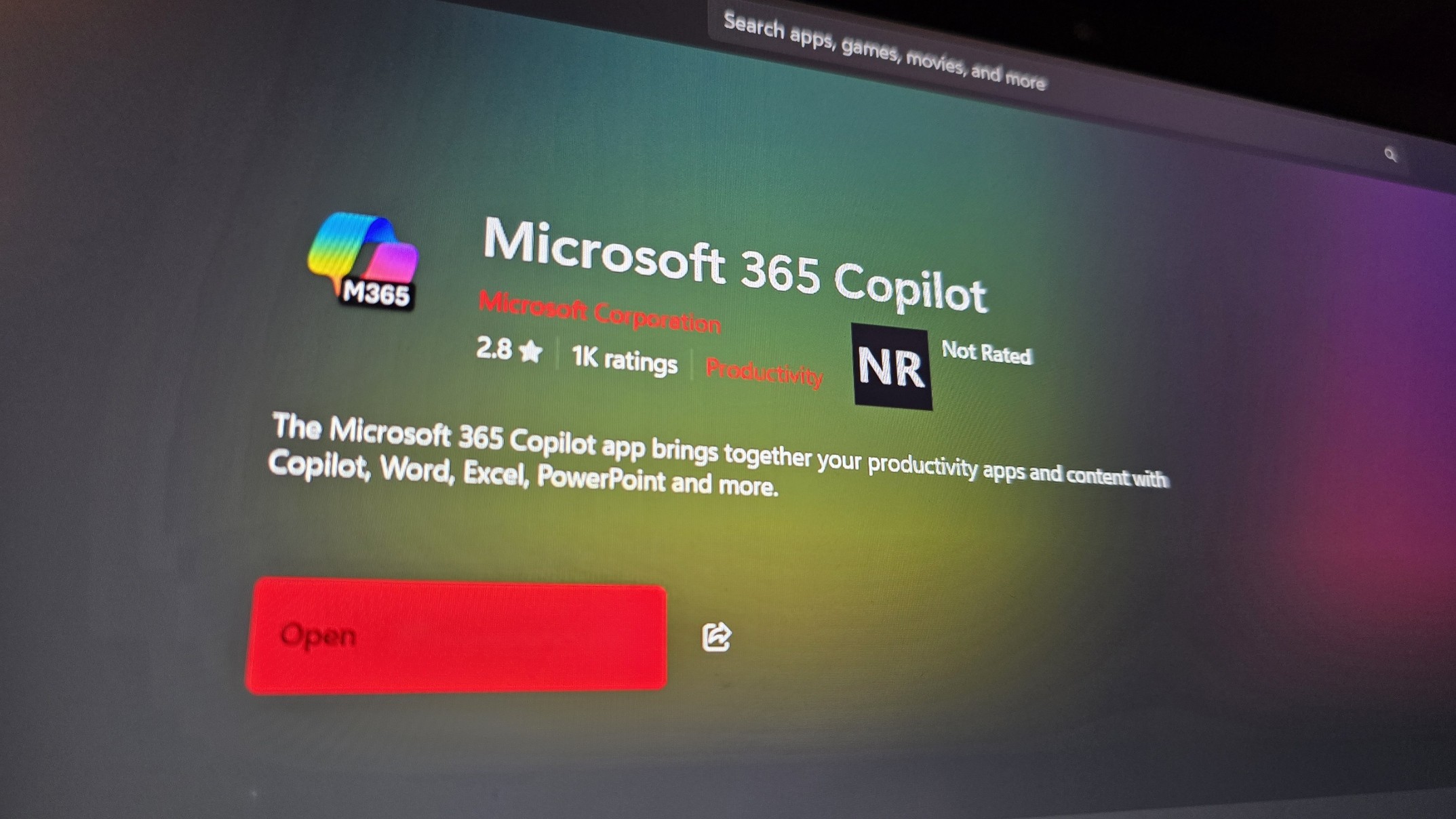
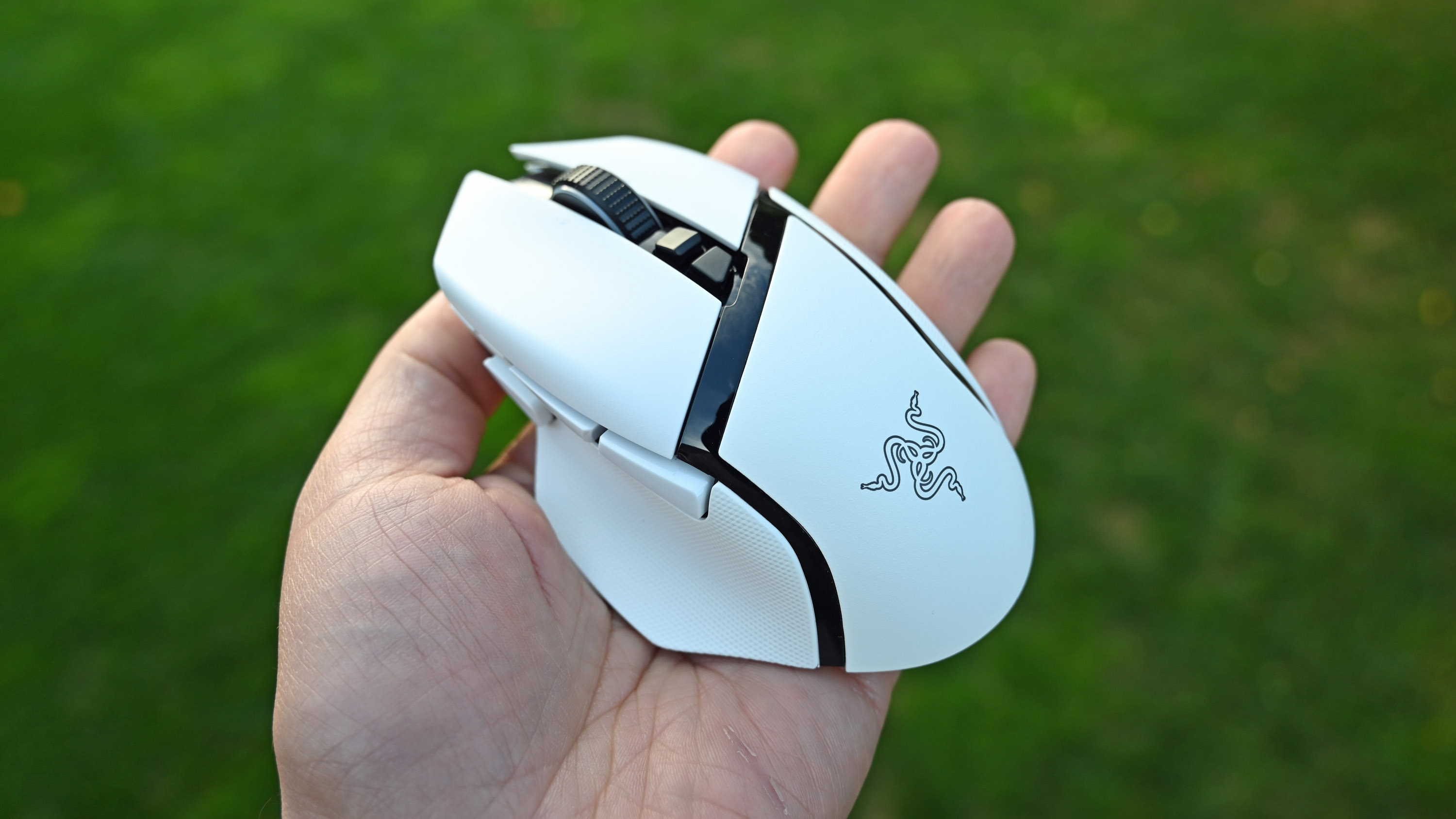
The obvious headline feature is the magnetic button plates that can be customized at will, adding between two, six, and twelve additional buttons. Razer has also included a uniquely configurable scroll wheel that comes with haptic feedback capabilities.
The mouse goes into general availability on August 11, 2026, and will set you back $179.99 from Best Buy in the United States.
Razer Naga V3 Pro: Features
Three's a crowd they say. Not here. (Image credit: Windows Central | Jez Corden)
The Razer Naga range has long been designed with MMO and MOBA gameplay in mind, adding a huge amount of additional inputs via a unique magnetic side plate feature.
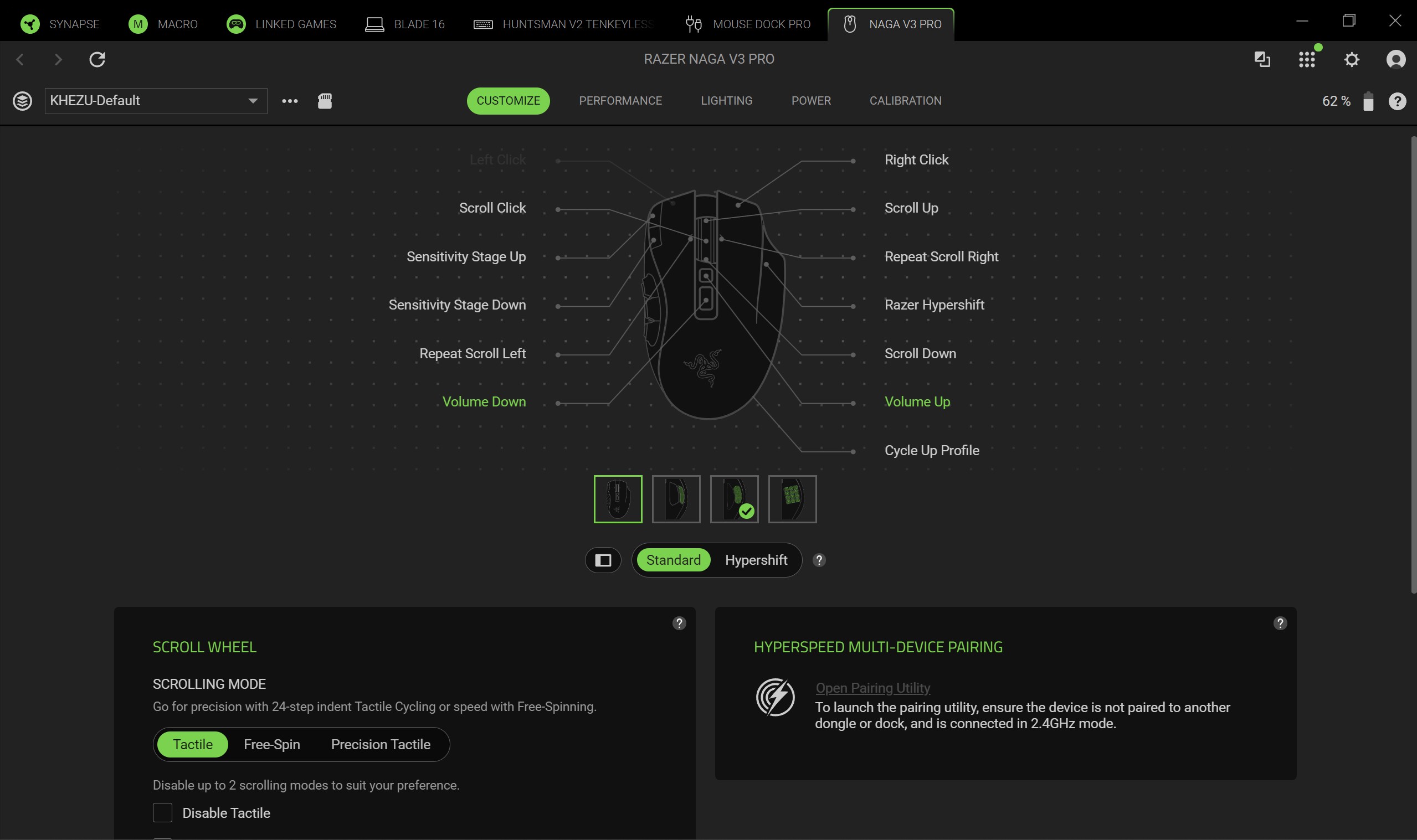
Razer has enhanced the force of the magnets to ensure it feels well and truly part of the mouse when connected, and I can say without doubt that it well and truly does. The buttons can be programmed at will using Synapse, and modified further with a ring-finger button that defaults to Razer's dedicated "Hyper Shift" modifier key. Of course, all of these can be reconfigured too.
What struck me immediately when going palm-on was the new scroll wheel. Razer has included some unique functionality here that I've not experienced previously in other mice. You can set it to free-wheeling mode, which allows it to quite literally spin indefinitely under its own weight. There's also a standard step-stop function that most users will be familiar with, but also a precision-stop feature that adds some haptic feedback and shortens the actuation for rapid hot bar or weapon switching with more forceful control.
There is a parade of other buttons and functions too. The DPI rates have been placed in the top right corner of the mouse out of the way, requiring a little more intent to reach to prevent accidents, I suppose. There are two buttons below the scroll wheel, and the scroll wheel itself can be tilted and clicked for additional inputs too.
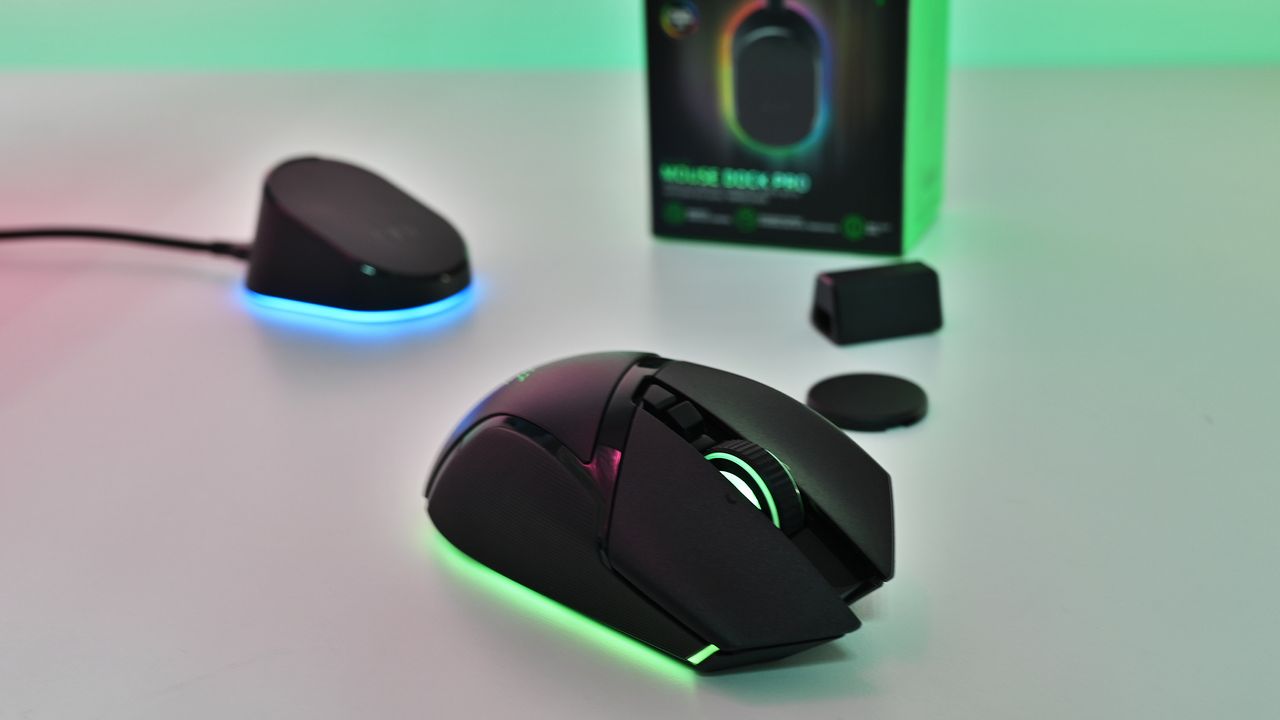
It sports 155 hours of battery life out of the box, and supports Razer's new Mouse Dock as well as its wireless Hyper Flux charging mouse mat. Either plugged in or connected to a compatible Hyper Speed dongle, this bad boy can go all the way up to 8,000 Hz. You will not be left wanting for speed.
Razer Naga V3 Pro: Comfort and usage
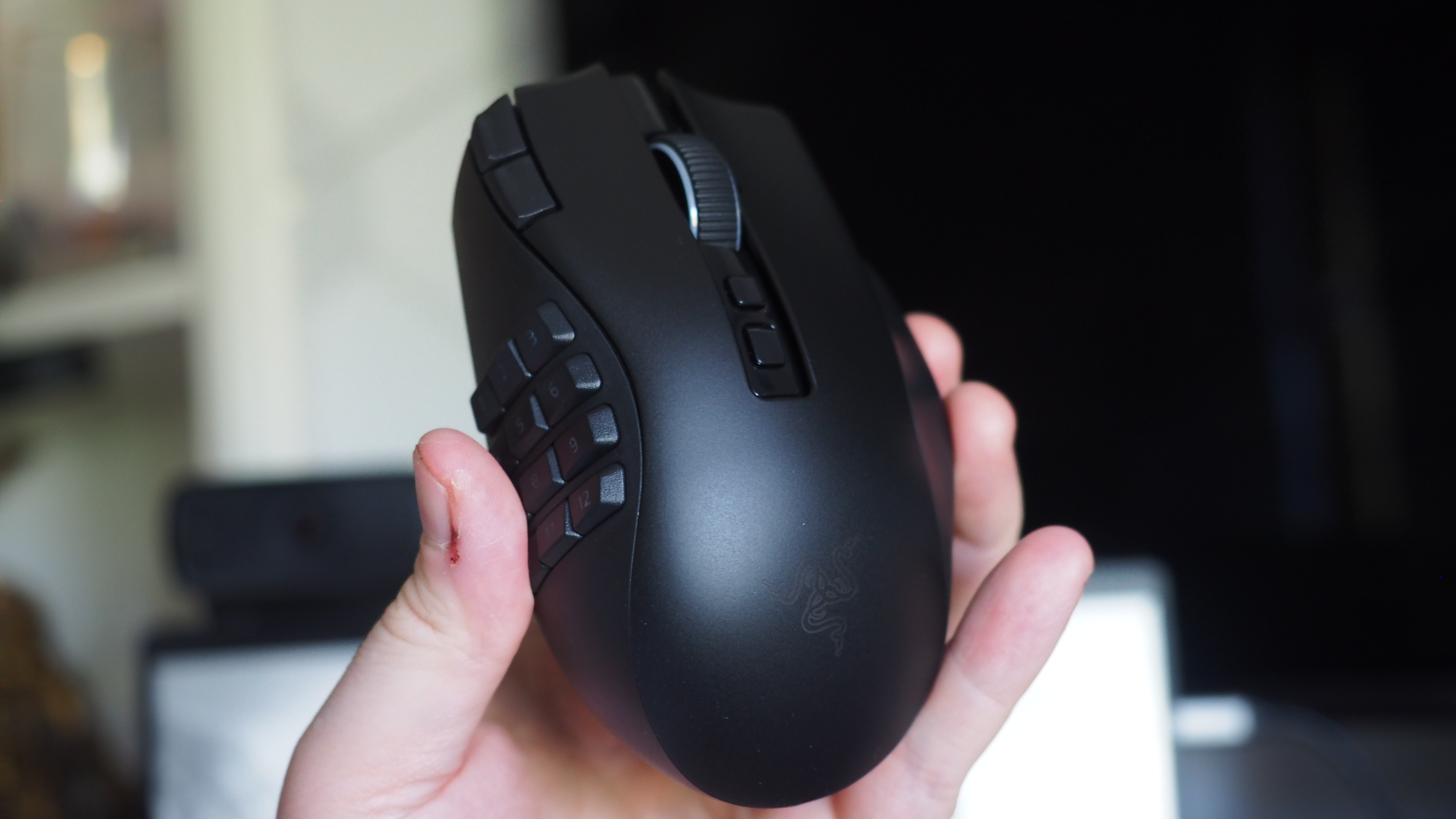
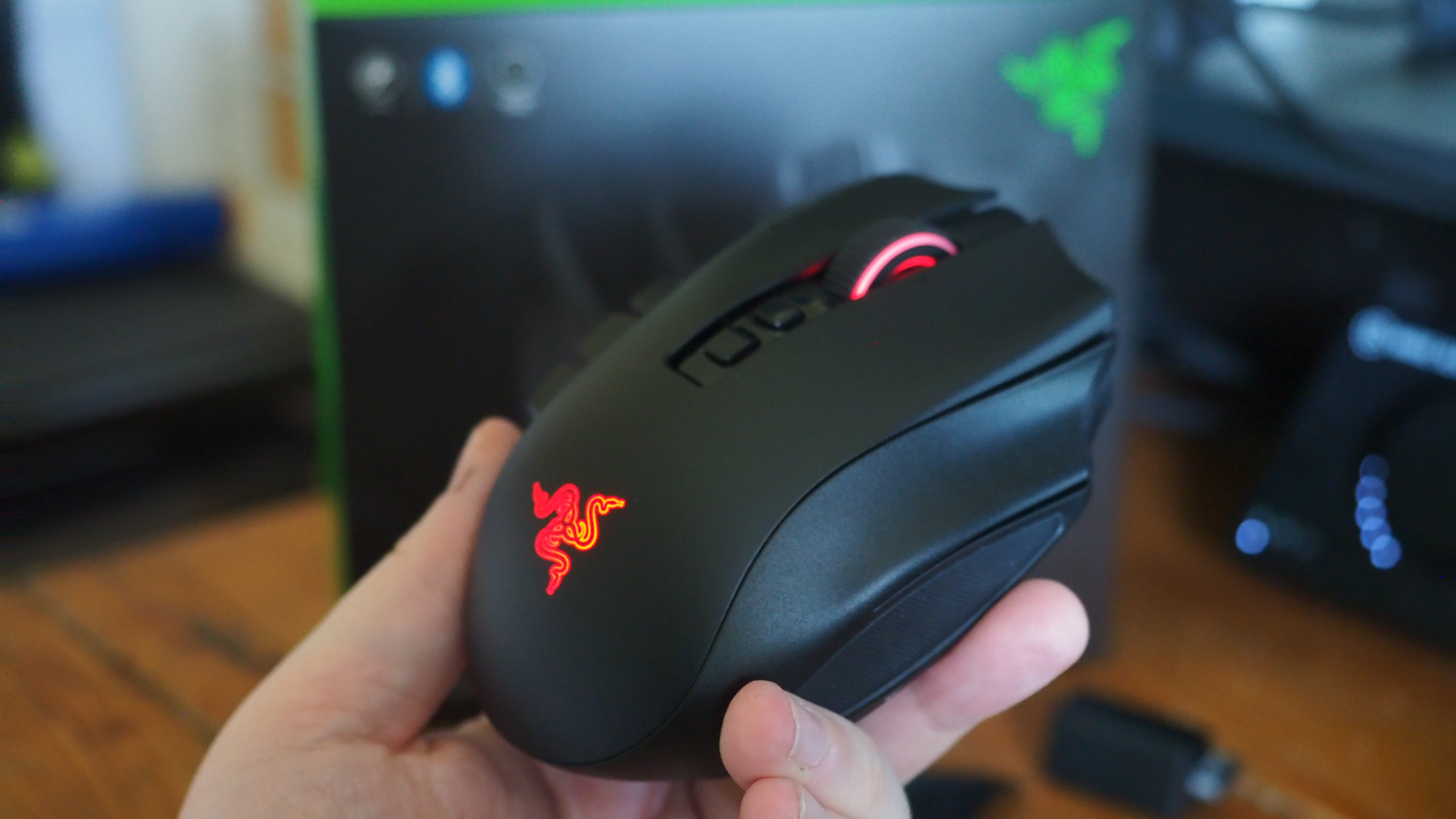
All the buttons. Windows Central | Jez CordenLight weight, maximum function. Windows Central | Jez CordenIt feels good in the hand, although some users may find it a little too high. Windows Central | Jez CordenRazer magnetic charge dock capable, but not included. Windows Central | Jez Corden
How does it feel to actually use, though? I dropped into a couple of World of Warcraft raids and played a few games of Heroes of the Storm to get a feel for it, but it was in games like Age of Empires where it truly felt transformative.
As noted, you can add up to 12 extra buttons with the side plate feature. It does take some getting used to, and I think Razer could've perhaps done a bit more to help differentiate the keys, particularly on the 12-button plate. The six button plate felt like the sweet spot for me, given that the profile of the buttons made them easier to memorize, but also I didn't find it as hard to squeeze my thumb backwards to hit the keys closest to my palm.
Indeed, you might struggle with this mouse if you don't have the most flexible hands. I found its palm hump to be a bit tall for my tastes (small ass hands maybe, or perhaps poor desk ergonomics on my end), but overall it was incredibly comfortable. I suspect most people won't have any issues with it. I also suspect that it was designed quite intentionally to be "palm grippy" to facilitate the fact users will be reaching for buttons on the side more often than on other mice.
Six buttons felt like the sweet spot for me. (Image credit: Windows Central | Jez Corden)
There are probably neuroscientific reasons for this, but it does feel genuinely more intuitive to actuate inputs on the same hand as your movement intentions. Perhaps it stems from my console-oriented history in some ways, but I found it a lot easier to drop Guldan's ult with a mouse swipe and mouse click, as opposed to lining up my mouse with a keyboard press.
For Age of Empires, it was particularly fun binding various quick keys directly to the mouse. Assigning regiments, bypassing certain menus, and being able to select specific units instantly from anywhere won't make up for my lack of skill with RTS, but it did boost the fun factor.
Razer Synapse is a fantastic piece of software that ties everything together. It's still better than solutions from other companies by a country mile. Configure RGB lighting, set up profiles for specific games, configure literally all the things — quick and easy.
Sync all the Razer things. (Image credit: Windows Central)
Some of the less useful features include Razer's macro functionality, which will sadly get you banned in a lot of online games for "automation."
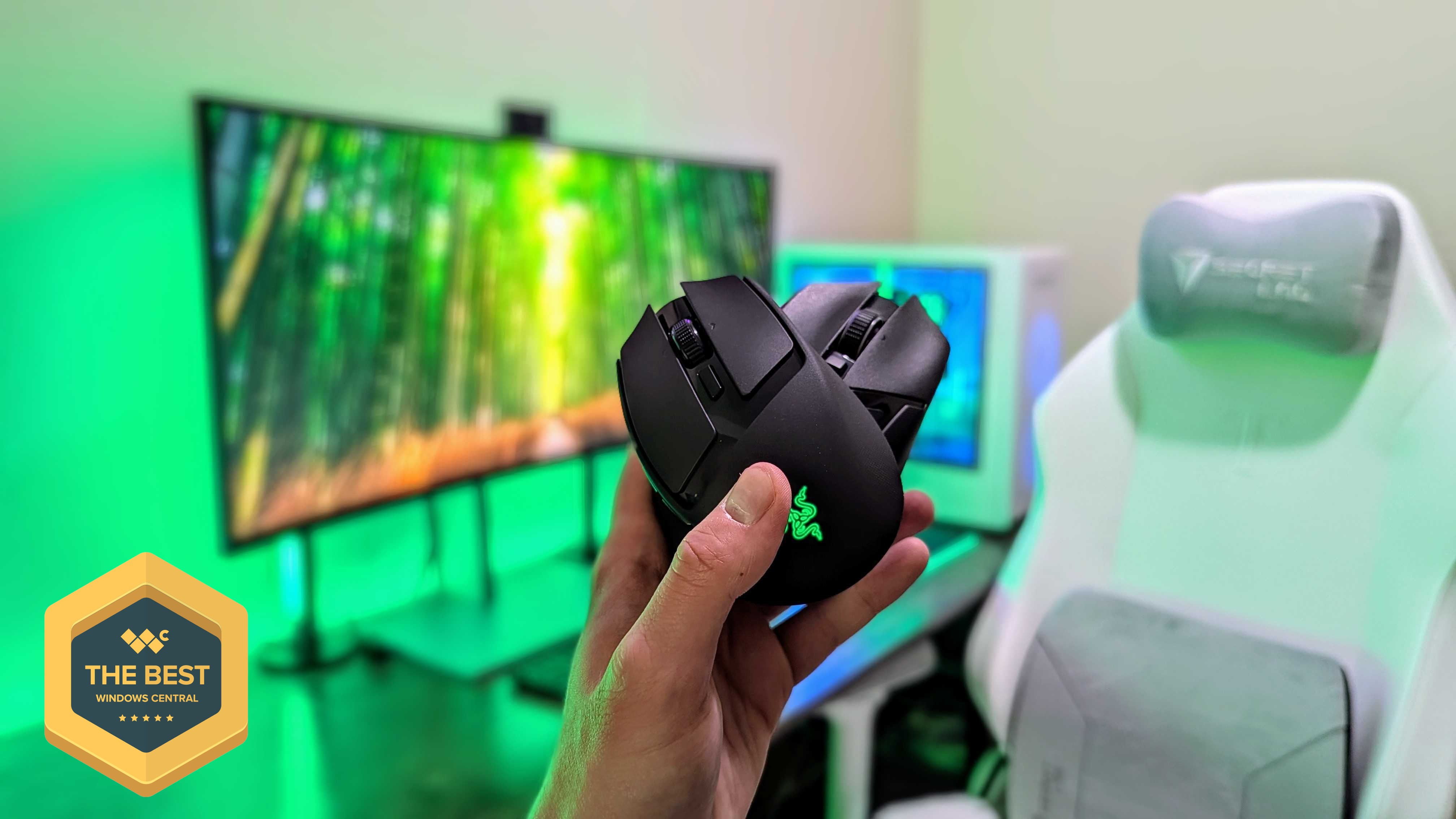
The Naga V3 Pro also comes with an AI assistant key by default, which lets you bind certain Copilot prompts to mouse inputs for some reason. You can turn it off, but it's 2026 so everything has to have some kind of "AI" feature in it apparently, even if it's effectively useless. Perhaps this might become more useful if Microsoft ever ships agents to consumers, but as for right now it feels like boardroom fluff. Thankfully, that's the only "feature" here I could describe as such. Practically everything else is genuinely useful and represents a demonstrable upgrade.
There is a lot of functionality in the Razer Naga V3 Pro, and you won't need all of it all of the time. It is designed primarily for people who want maximum control over their games, and indeed, it is priced as such.
Razer Naga V3 Pro: Conclusion
It ain't cheap! (Image credit: Windows Central | Jez Corden)
The Razer Naga V3 Pro is a tour de force of functionality, with unmatched versatility for practically every genre of game you can throw at it. FPS, RTS, MOBA, MMORPG, and beyond — even the most control-complex games fall before the Naga and its capacity to inject intuitiveness into the least intuitive games and control schemes possible.
But yes, it will require configuring to get there. That's ultimately who it's designed for, though; people who play more complex games to a hardcore level, and want their peripherals to reflect their desire to configure and control their experience.
You should buy this if ...
✅ You play complex input-heavy games like MMORPGs and RTS.
✅ You like to configure your controls to the nth degree.
✅ You prefer your inputs on your mouse, rather than your keyboard.
You should not buy this if ...
❌ You find configuring keybinds exhaustive and annoying.
❌ You have particularly small hands (you might find its height uncomfy).
❌ Price might be a concern.
This will become my default mouse moving forward. Being able to effectively keybind number keys 5, 6, 7, 8, 9, 0, etc. without needing to physically reach away from WASD is a big boost in some games I play.
However, I am cognizant of the fact that I got the review unit here. Almost $200 for a mouse is tough to justify unless you're particularly passionate about the functionality the Razer Naga V3 Pro is going to provide for you. For configuration enthusiasts, there's well and truly nothing better than the Razer Naga V3 Pro right now.
Razer
Naga V3 Pro
"Stay one step ahead—no matter how the game changes."
Join us on Reddit at r/WindowsCentral to share your insights and discuss our latest news, reviews, and more.
Razer Naga V3 Pro mouse
Customize the thumb buttons with a variety of options for maximum MMO-bility. Yes, I just made up a word; it's Monday, and I can.
For the past few years, a Logitech MX Vertical has sat on my desk. I've grown to love the mouse so much that I even take it with me when I travel despite it not folding down or being compact in any way. So, when ProtoArc reached out to me about a newer, budget-friendly ergonomic mouse, I was skeptical that Logitech had anything to learn.
The Logitech MX Vertical fits in my hand well, lets my arm rest at a natural angle, charges through USB-C, and has aged well. The ProtoArc EM11 Pro is not exactly a direct competitor to the Logitech MX Vertical since the two mice are in different price brackets. But there are relatively few angled mice out there, at least in comparison to flat mice, so it's natural to pit the ProtoArc EM11 Pro against the Logitech MX Vertical.
Using the ProtoArc EM11 Pro made me realize a few areas the Logitech MX Vertical lags. If Logitech ever refreshed its ergonomic mouse, it should take some lessons from ProtoArc.
Grip and palm fit
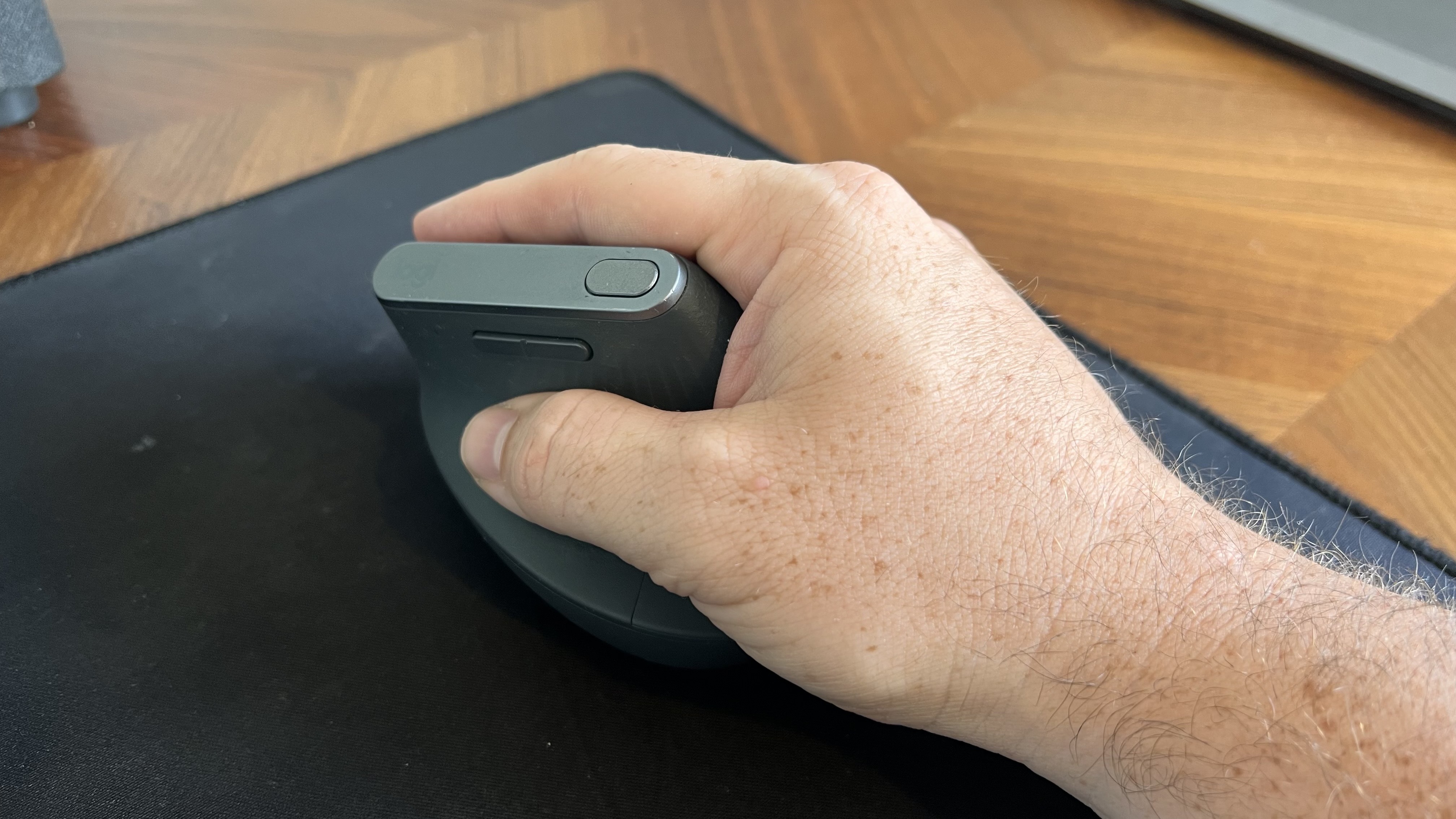
The flat front of the Logitech MX Vertical does not fill my curved fingers. (Image credit: Future)
The ProtoArc EM11 Pro and the Logitech MX Vertical fill my hand differently. Logitech's mouse lies flush against my palm as my hand contours around the mouse. But the flat front of that mouse leaves a small gap between my fingers and the buttons.
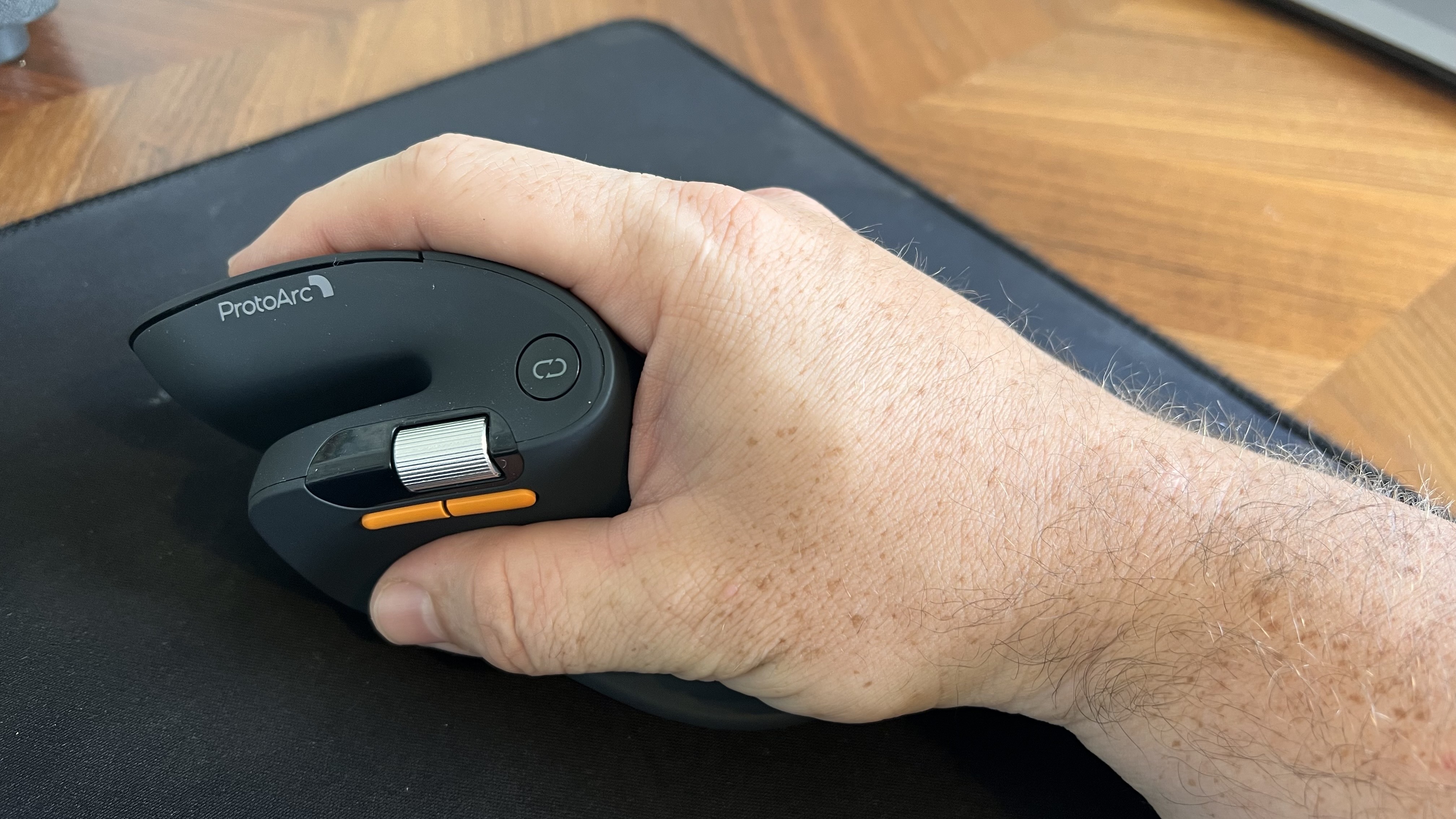
In contrast, the ProtoArc EM11 Pro has an elongated base with a curve that tapers down at a sharper angle than the Logitech MX Vertical. As a result, the mouse does not feel flush against my palm. But the front of the mouse is curved, making the space behind the buttons feel more comfortable.
I'd love to have a mouse that combines the best of both designs since neither mouse is perfect.
Two wheels are better than one
I didn't realize the value of a horizontal scroll wheel until I tried one. (Image credit: Future)
ProtoArc's ergonomic mouse has two scroll wheels, one set for vertical navigation and the other for scrolling horizontally. I didn't realize how much I wanted two scroll wheels until I navigated Excel and Google Sheets with a pair of wheels. I've always just held Shift on my keyboard and used the single scroll wheel when I needed to move horizontally in a spreadsheet, but having a second wheel feels much smoother. It also requires less movement, which is a key part of ergonomic setups.
Silent clicks for quiet workspaces
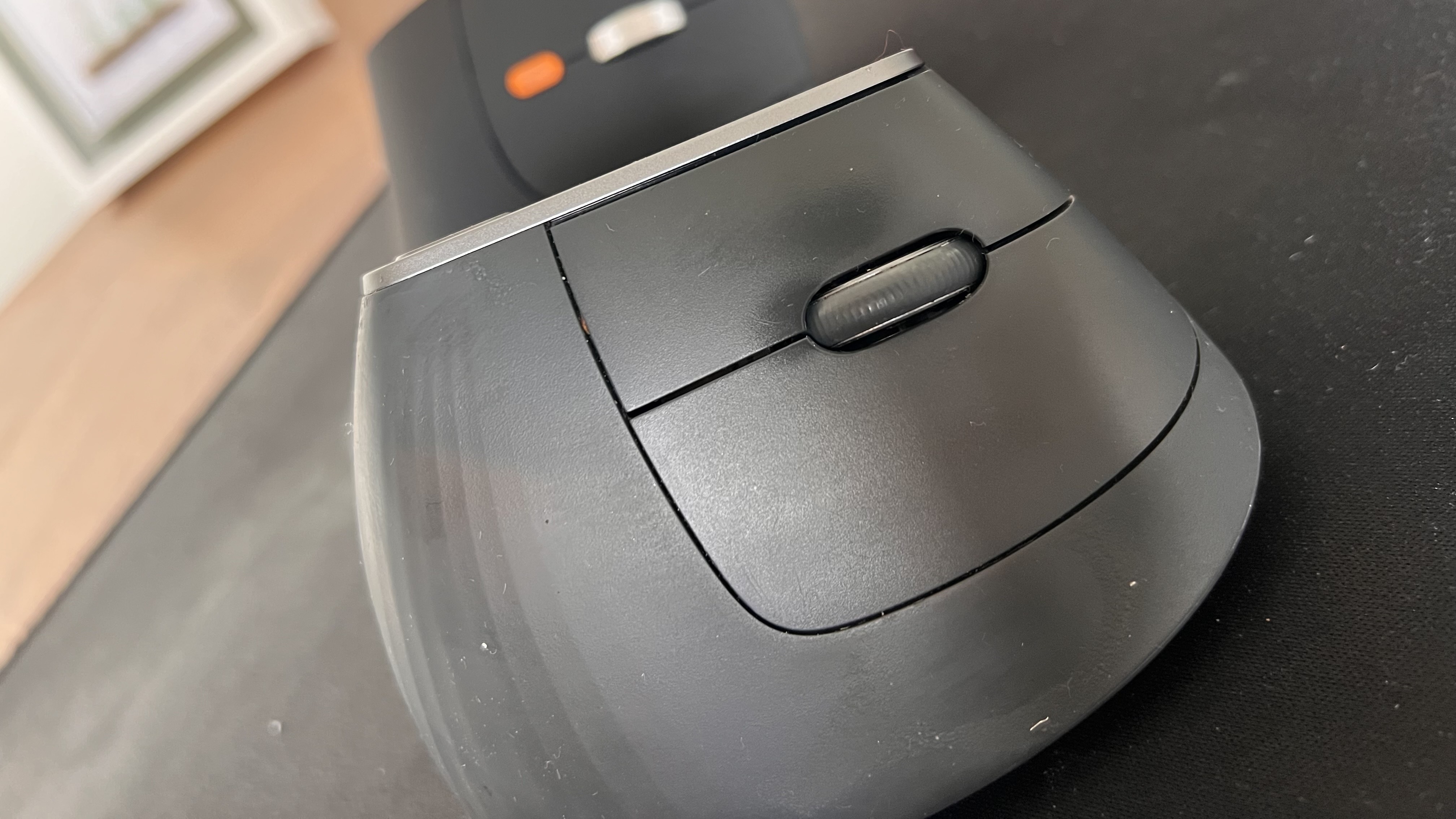
The Logitech MX Vertical can be a bit noisy. In contrast, the ProtoArc EM11 Pro is practically silent. (Image credit: Future)
I work from home, so I don't have any coworkers to irritate with mouse clicking. If anything, my 10-month-old daughter enjoys the Logitech MX Vertical's clicky buttons since she often sits on my lap and plays with my mouse and keyboard.
But if you work in an open office or sit next to someone at school or work, you probably don't want to hear clicking all day. The ProtoArc EM11 Pro is almost completely silent when clicked.
Why I'm sticking with the Logitech MX Vertical
Logitech should take some lessons from the ProtoArc EM11 Pro, but ProtoArc also has some homework to do. ProtoArc's mouse has some lovely features, but I think it either needs a design tweak or an option for people with different-sized hands.
The angle of my hand doesn't feel natural when using the ProtoArc EM11 Pro. The flared bottom makes my hand want to turn over more than I'd like.
Try as I might, I can't find a way to hold the ProtoArc EM11 Pro that feels comfortable. If I place the side of my hand alongside the base, my fingers don't align properly with the buttons. If I slide my hand down so that my fingers align with the buttons, my hand awkwardly presses against the base.
The curvature of the ProtoArc EM11 Pro also makes it feel like I have to curve my hand a bit, rather than rest at a neutral angle.
Ergonomic mice have a learning curve, so I tried ProtoArc's for a while to see if I'd adjust, and it just hasn't — ahem — clicked. But that may be specific to my hand size and shape. I've known people who disliked the feel of the Logitech MX Vertical, so a lot of this comes down to specific users.
Overall, ProtoArc packed its ergonomic mouse with features other companies should envy. I just wish the mouse fit in my hand as well as the Logitech MX Vertical.
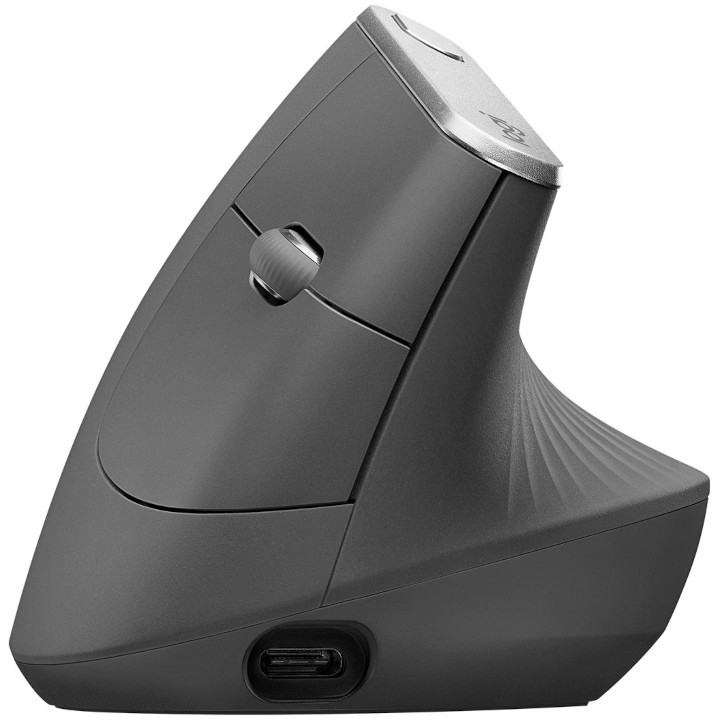
This ergonomic mouse allows your arm to rest at a natural angle to reduce fatigue and strain. It's held up incredibly well throughout my years of use.
This budget-friendly ergonomic mouse has two scroll wheels, can connect through a dongle or Bluetooth, and is practically silent when used.View Deal
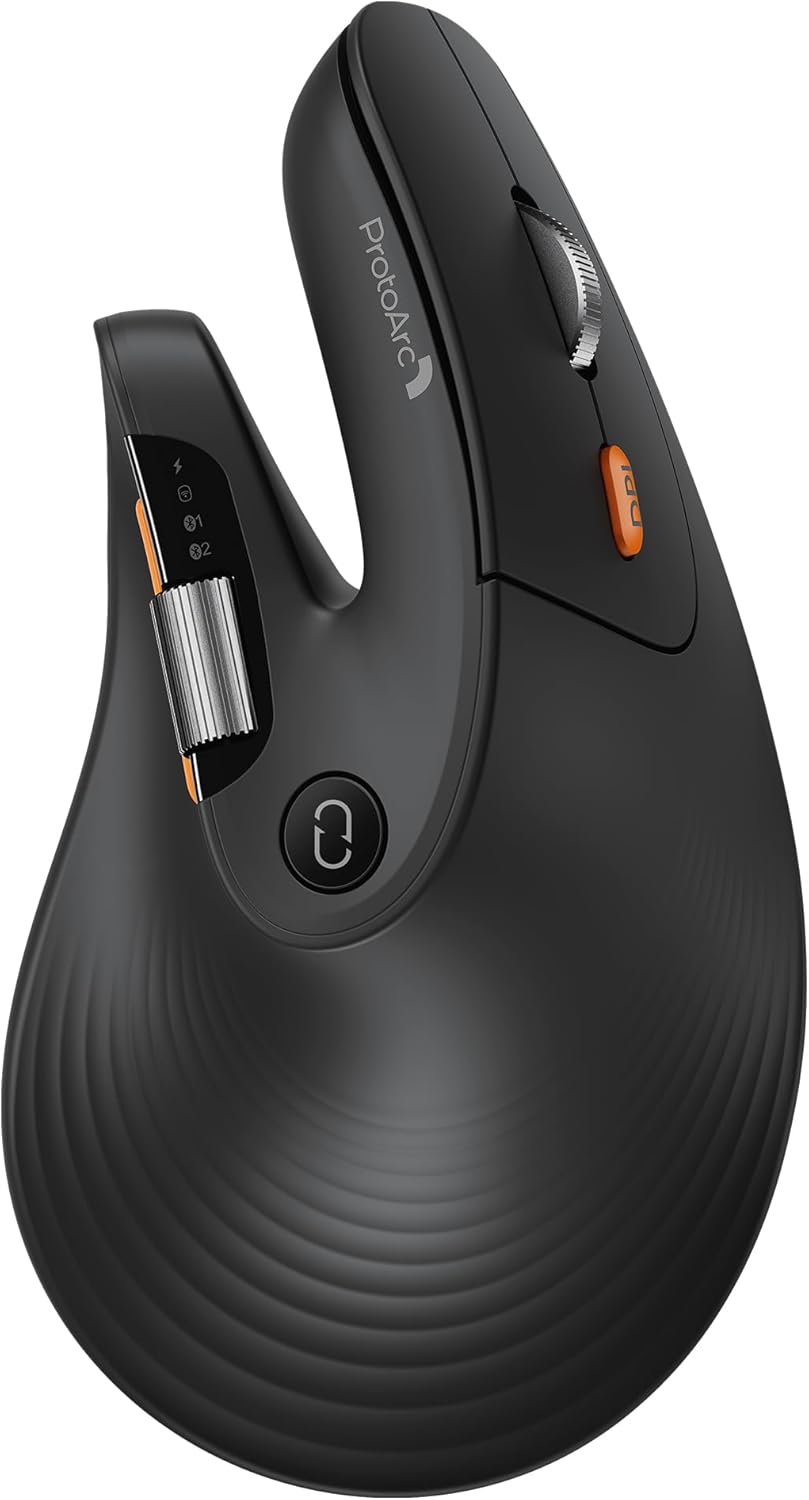
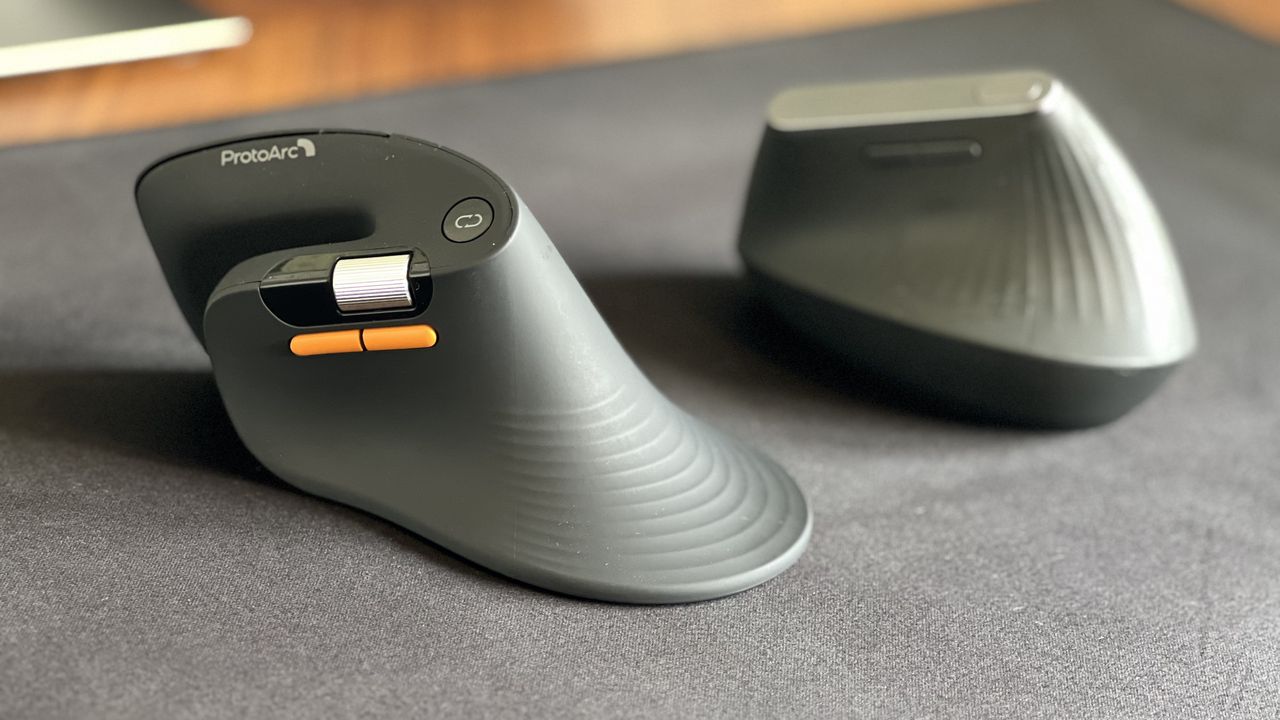
Side-by-side view of the ProtoArc EM11 Pro ergonomic mouse in the foreground with its orange side buttons and scroll wheel, next to the Logitech MX Vertical mouse sitting on a black desk mat.
Despite its low price, the ProtoArc EM11 Pro has features I miss when switching back to my Logitech MX Vertical.
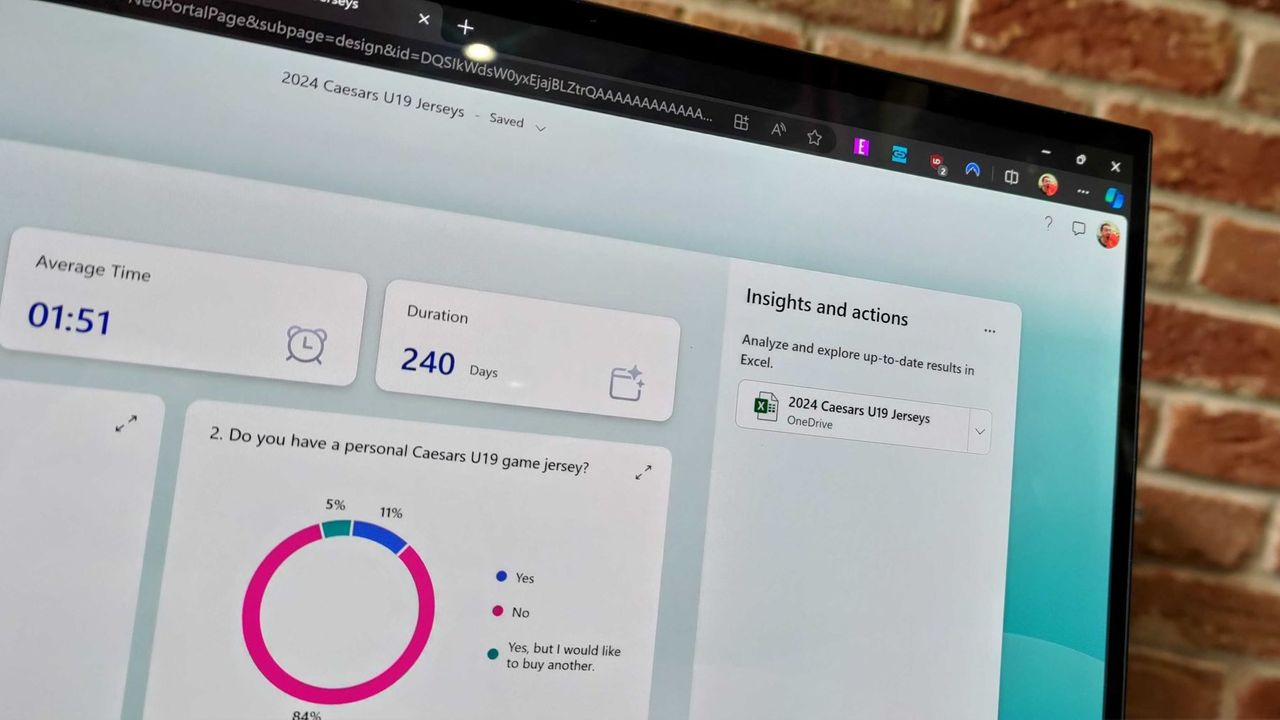
Microsoft Forms just got a major upgrade thanks to Copilot. Microsoft 365 Copilot chat now lives within Microsoft Forms, adding a familiar tool to those who use AI in Word, Excel, and PowerPoint.
Copilot in Microsoft Forms can suggest improvements to your polls and forms and present insights from responses.
The Copilot integration is available now to users with Microsoft 365 commercial Copilot licenses.
Microsoft listed all the changes to Forms in a blog post:
Smarter suggestions & refinements: Get targeted recommendations to improve your form’s structure, clarity, and effectiveness. Copilot can also apply refinements directly to the form, so you can save time making edits – just describe what you want, and watch Copilot make it happen.
Deeper analysis: Copilot can now analyze your results in-depth to provide clear insights and actionable takeaways for you and your team. You can even ask follow-up questions to help parse and summarize your data and unlock your next step.
More settings: Review and update form settings with ease, such as applying custom thank-you messages and close dates, so your form is ready to send. You can also adjust question settings in bulk, such as making questions required.
Open-ended chat: Copilot chat gives you access to a broad world of capabilities, whether you’re seeking inspiration on survey topics or consulting on how to configure your form – the possibilities are broad with Copilot at your fingertips.
Basic branching: Apply basic branching logic directly through the agent. (Note that some complex scenarios are not yet supported, and you should continue to review your branching logic prior to sending your forms.)
I use Microsoft Forms to gather feedback from my American football team. I admit that I first tried it because my job centers around knowing Microsoft products. But after using Microsoft Forms for a while, I grew to prefer it over Google Forms.
Microsoft Forms can sync with Excel documents, making it much easier to stay on top of responses. I'm deeply entrenched in the Microsoft ecosystem, so anything that works seamlessly with the rest of my workflow gets bonus points in my book.
I also prefer some of the features of Microsoft Forms, such as question-level branching. That feature makes filling out forms feel smoother when a poll includes branching questions because it keeps you on the same page.
The layout of Microsoft Forms also presents results quicker because if you want to look at a chart, you don't need to open a separate spreadsheet.
The new Copilot experience in Forms could also be a boon to the platform, though I'll have to see it in action to judge. In my experience, Copilot as a general tool is good at suggesting improvements, performing bulk edits, and creating summaries, so it should thrive within Microsoft Forms.
Join us on Reddit at r/WindowsCentral to share your insights and discuss our latest news, reviews, and more.
Amazon Gaming Week has a PC gamer's special discount for the Razer Viper V3 Pro gaming mouse. For just this week, you will be able to get your hands on this stellar accessory with 8K polling, 35,000 DPI, and comfy ergonomics at a 31% discount.
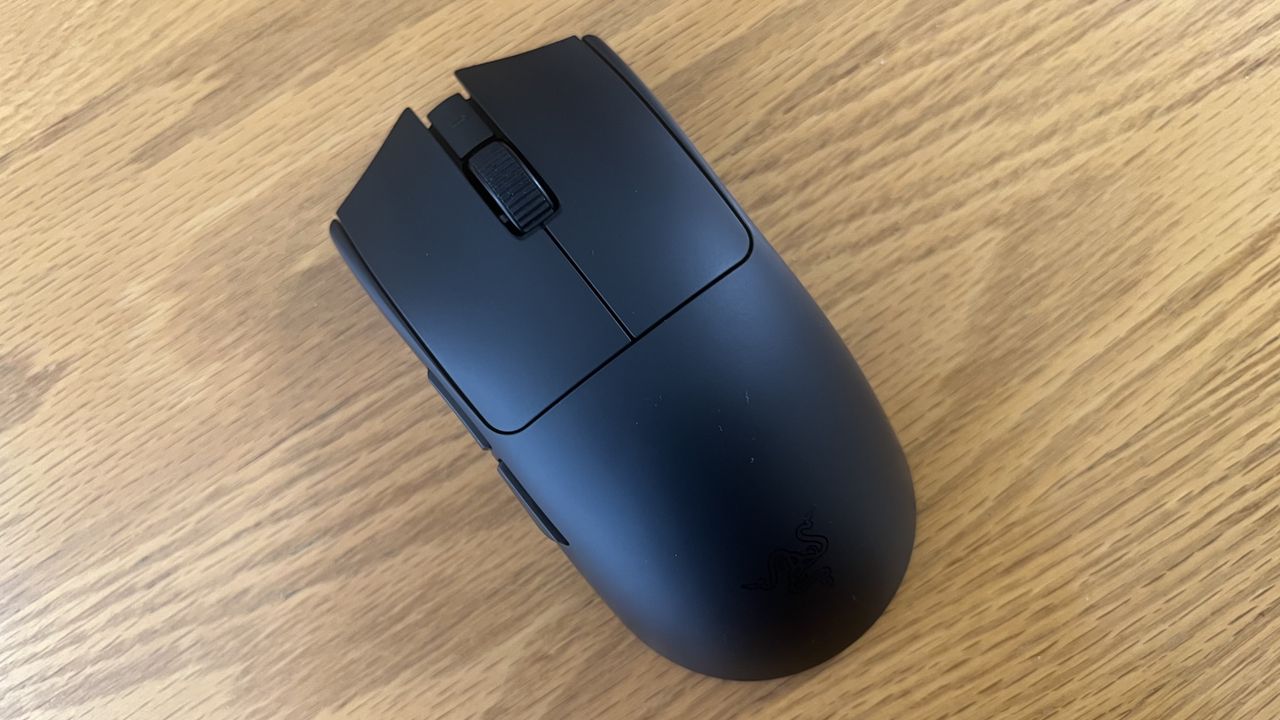
Image of the Razer Viper V3 Pro wireless gaming mouse.
Microsoft Excel was originally created as competition for Lotus 1-2-3, which has had lasting effects on my favorite spreadsheet software. Here's how a small shortcut taken in the '80s has lasted through until 2026.
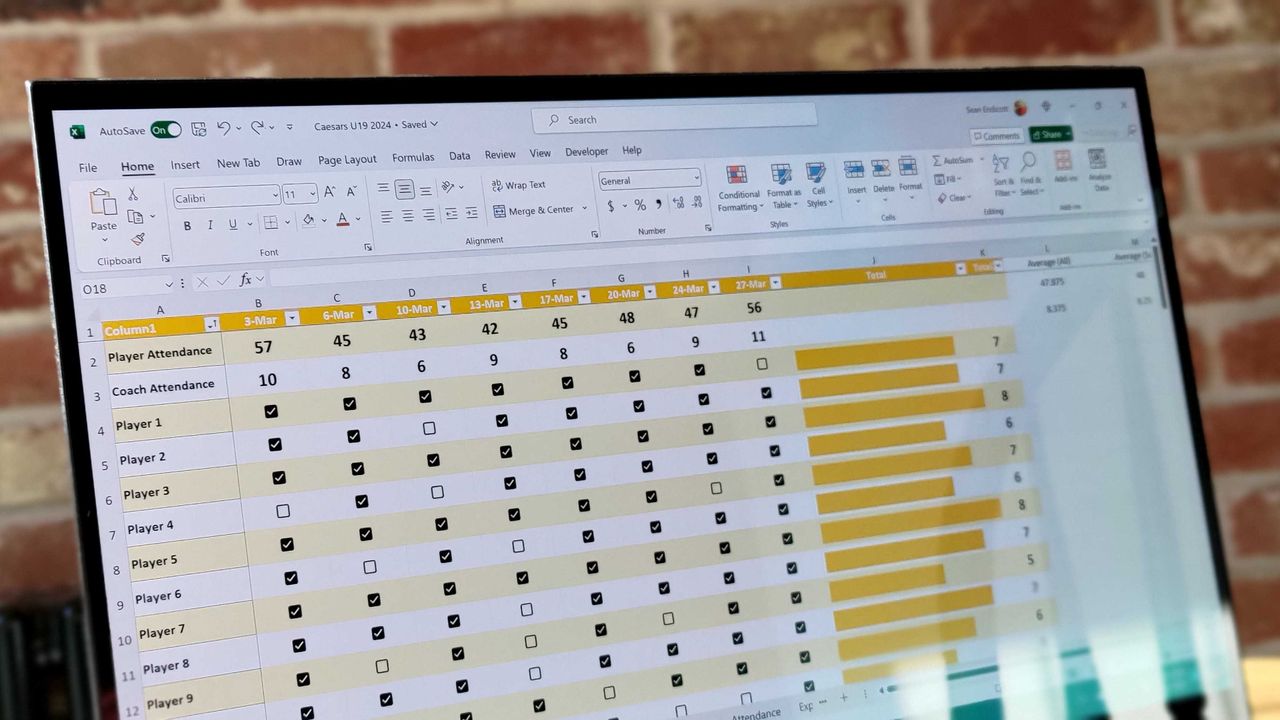
Excel spreadsheet with checkboxes
The upcoming checkboxes feature in Microsoft Excel makes it easy to visualize certain data.
Razer's Viper V4 Pro gaming mouse improves upon its predecessor, though it's still very expensive. Even so, it's a top-tier option for competitive players.
The Razer Viper V4 Pro
The Razer Viper V4 Pro is a refresh of its popular predecessor, and improves upon it with a variety of elevated features and functionalities.
Microsoft is stripping Copilot Chat from Office sidebars for non-licensed users on April 15, 2026, rebranding the included version as "Copilot Chat (Basic)."
The Microsoft 365 Copilot logo appears on a smartphone screen in the Apple app store
Copilot Chat users will need to use the Microsoft 365 Copilot app rather than rely on an integrated version of Copilot in Office.
Amazon has a big discount on the Razer Basilisk V3 Pro gaming mouse, a superb option we loved in 2022 for its extremely responsive sensors and design that still holds up today.
A new update for Word has changed how the app handles new documents. Going forward, the app will automatically save everything to OneDrive with autosave enabled.
Microsoft 365 is down to $64.99 for Personal and $99.99 for Family. You can stack up to 5 years and get Word, Excel, OneDrive, and AI features at a major discount.
Microsoft 365 app on Windows 11 with shortcuts to create documents in Word, PowerPoint, Excel, and other Microsoft 365 applictions.
I've been using the tiny and mighty Razer Basilisk Mobile, a wireless gaming mouse designed for ultimate portability. It's awesome for those who want to downsize.
Image of the Razer Basilisk Mobile wireless gaming mouse.
Microsoft Office is one of the world's most recognizable brands, used by billions. The first rebrand to "Microsoft 365" was dumb by itself, but yesterday, the firm made it even dumber.
Razer just updated its Basilisk V3 Pro with a brand-new optical sensor to make it more performant than ever, but existing owners don't need to worry about upgrading.

 Connexion