This week, the popular gaming chat platform Discord sailed back into the bad books of many users after it announced official plans to make what you say in discoverable servers searchable on Google.
The age verification situation was finally cemented in September when Discord made it official. There wasn't a ton of outcry, whether because users accepted their fate or already ditched Discord for an alternative.
Is it time to raise the pitchforks again? Not quite. Let me explain.
Is Discord's Google search move really that bad?
Discord will soon make content from discoverable servers indexable by Google. (Image credit: Future | Discord | Google | Edited with Gemini)
Discord's planned change begins rolling out on November 16, when every discoverable server will receive a server web page. This page is expected to be populated with AI summaries of what users are talking about.
Privacy?
Usernames and avatars will not be included with any text pulled by Google from Discord's discoverable servers.
Discord plans to drop the full change, where your publicly posted words will be discoverable by Google, in mid-December.
This isn't as bad as you think, but it's certainly still invasive. Discord's discoverable servers are not the same as private servers you and your friends use. They're not the DMs you send to other Discord users.
They are the Discord servers that don't require an invite to join and that must have at least 1,000 members. Discord says there are about 63,000 of these servers currently on the go.
Messages you've sent in these servers before the mid-December switch flip won't appear in Google. However, anything sent after the deadline will indeed be searchable.
If you frequent these types of servers and don't want your words appearing in the world's most popular search engine, you can opt out.
How to opt out of Discord's discoverable server Google search changes
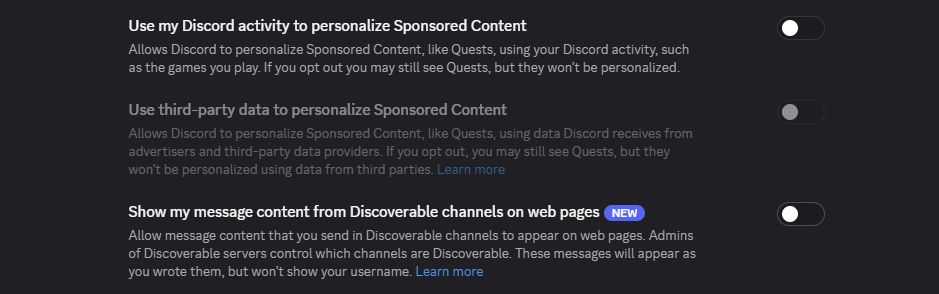
Users can hit this one toggle to negate the changes. (Image credit: Future)
Don't want what you type in certain Discord servers to show up in Google? Here's how to opt out.
Click the User Settings button in the Discord app. It's a gear located in the bottom-left corner.
Click Data and Privacy.
Ensure the toggle next to "Show my message content from Discoverable channels on web pages" is turned off.
As far as I can tell, that should do the trick. Keep in mind that your messages from before the switch won't be indexed, so there's not much reason to go back and delete posts you've made in the past.
If you run a server and are not sure if it's discoverable, Discord has a full guide on how to enable, disable, and configure the setting.
Windows Central's take
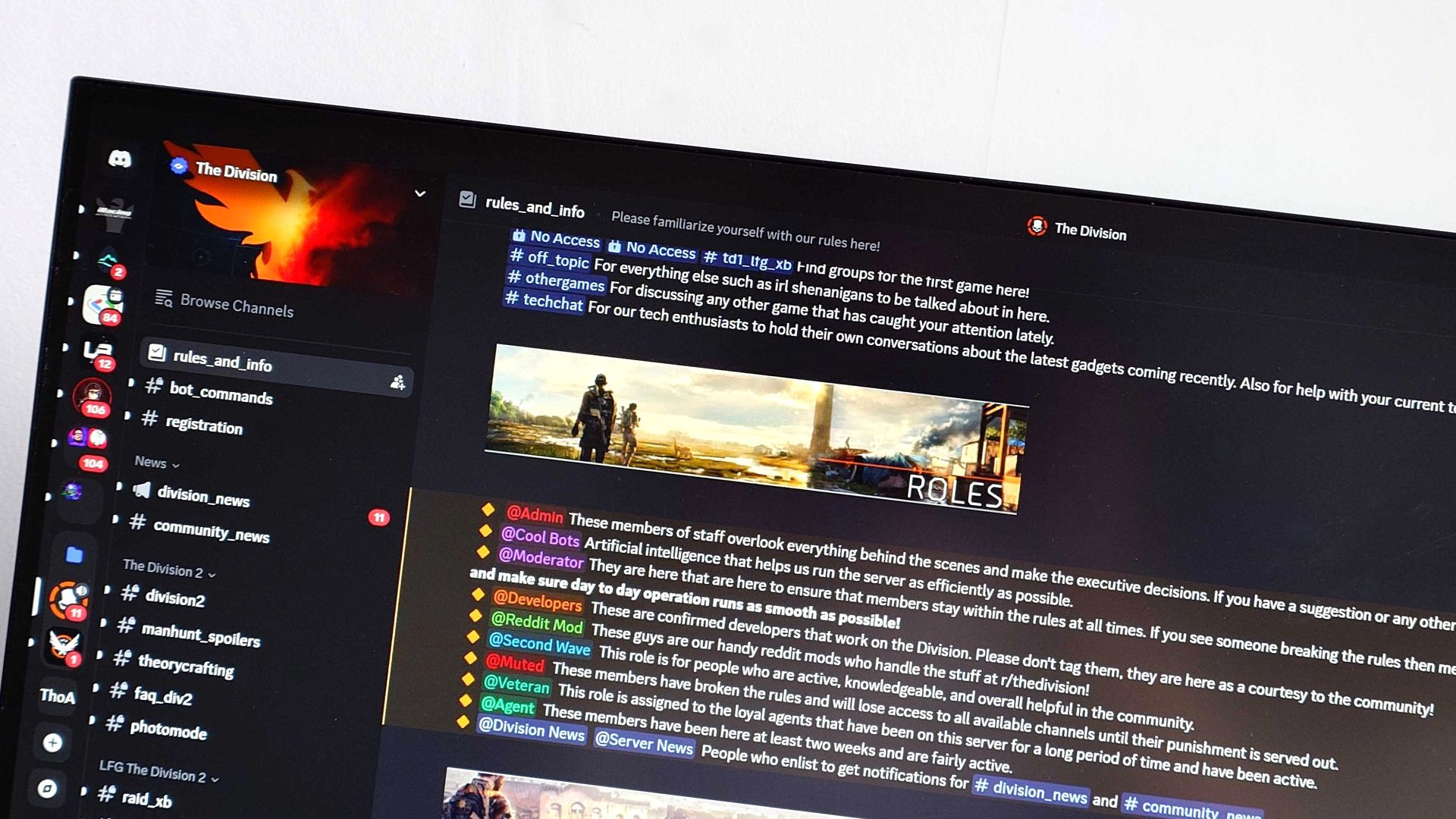
Is Discord's upcoming change really that bad? No. (Image credit: Windows Central)
Discord's angle here is that it wants valuable content created in discoverable servers to be found by a much larger audience.
It imagines a richer collection of game guides, tips, and tricks in Google now that it's opening up its content, and for that I don't blame the company.
The fact that this change comes with so much heads-up time, as well as easy-to-find toggles to disable, makes it easy to negate. Just be sure to hit the right toggles before Discord makes the switch mid-December.
Join us on Reddit at r/WindowsCentral to share your insights and discuss our latest news, reviews, and more.
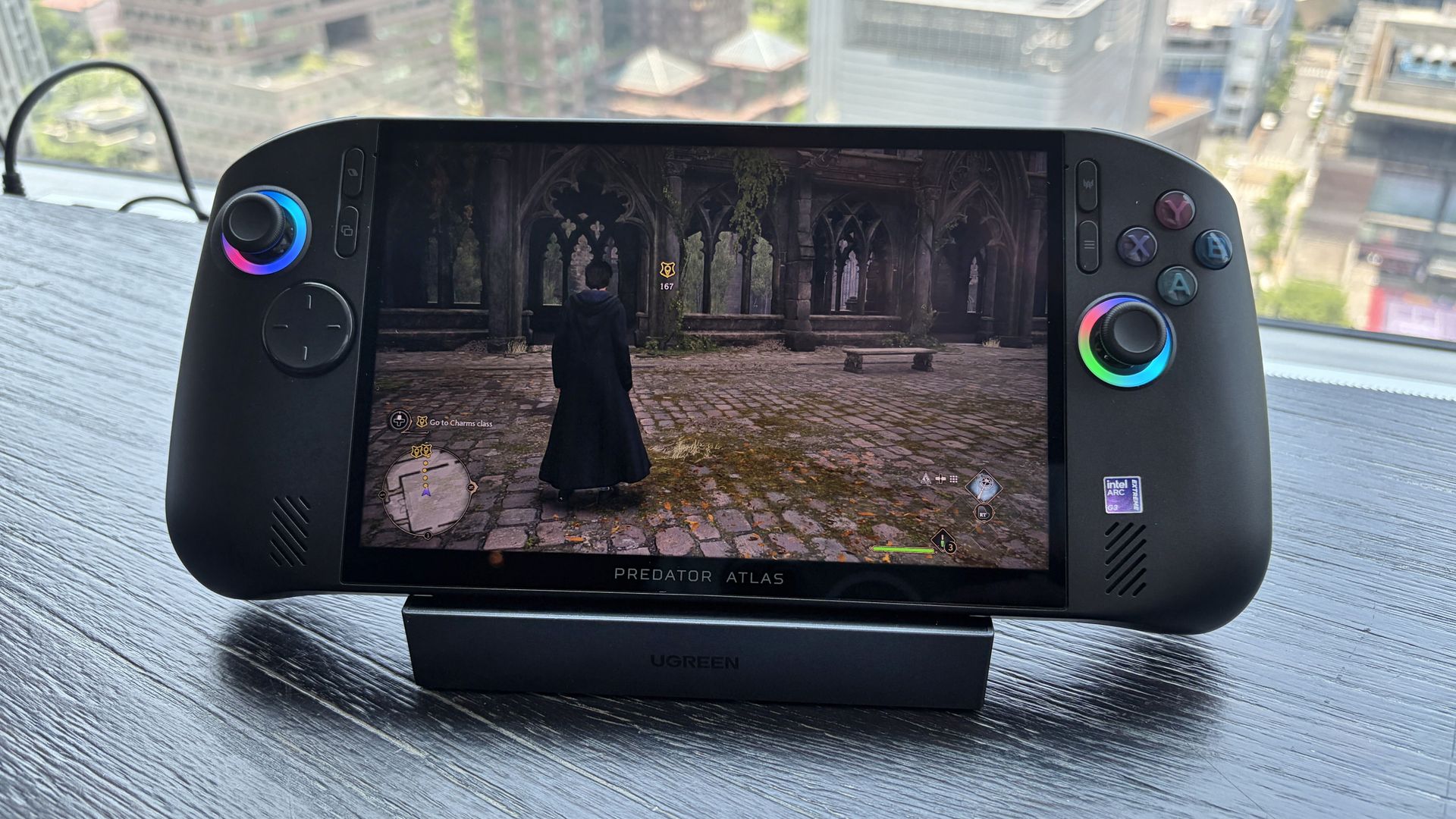
The new Acer Predator Atlas 8 gaming handheld, featuring Intel's latest G Series chips, finally went up for pre-sale in the US on October 23, with full launch slated for November 1.
Here's where Acer's new handheld packing the same Intel G3 Extreme chip offers a big surprise for shoppers. It's priced at $1,299.99 at Best Buy. Or at least it was, for the Best Buy page preorder has since been removed. I'm not exactly sure why — maybe Acer is reconsidering the post-launch price now that preorders are in.
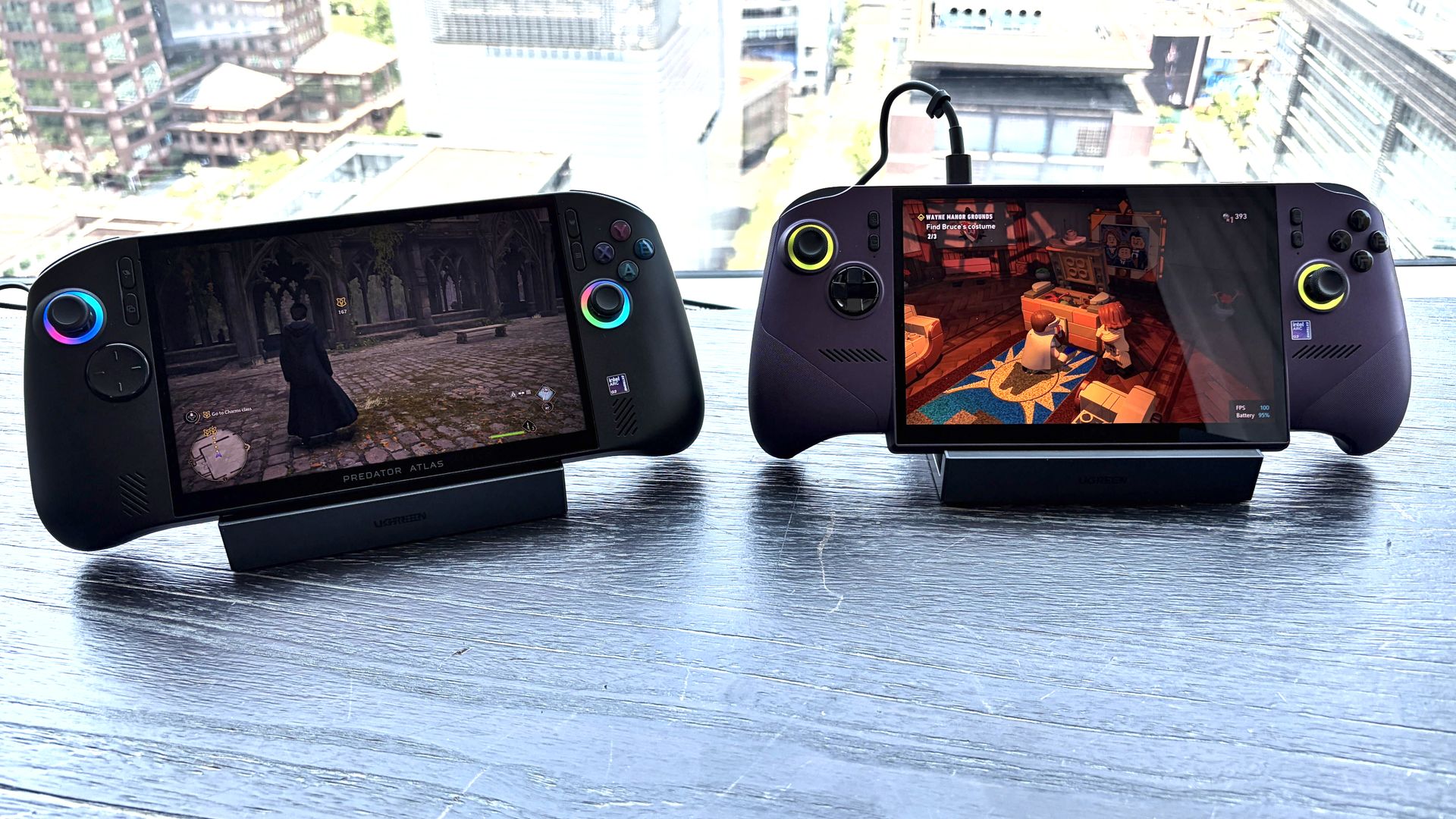
In any case, seeing a handheld with the same powerful mobile chip inside as the MSI Claw 8 EX AI+ launch for $500 less should be on every gamer's radar. But how is Acer undercutting the competition by so much?
How does Acer charge $500 less for its Intel Arc G3 Extreme gaming handheld?
Intel's new mobile chips are designed specifically for handhelds, delivering considerably improved performance and efficiency compared to the AMD Ryzen Z2 Extreme chips so common to the form factor.
On paper, the Acer and MSI devices are quite similar. Both feature the flagship Intel Arc G3 Extreme chip, with 14 cores, a 4.7GHz top clock speed, and a faster Arc B390 integrated GPU compared to the standard Arc G3 chip.
Both devices use an 8-inch IPS display with 1920x1200 resolution, 120Hz variable refresh rate, 500 nits brightness, and 100% sRGB color reproduction.
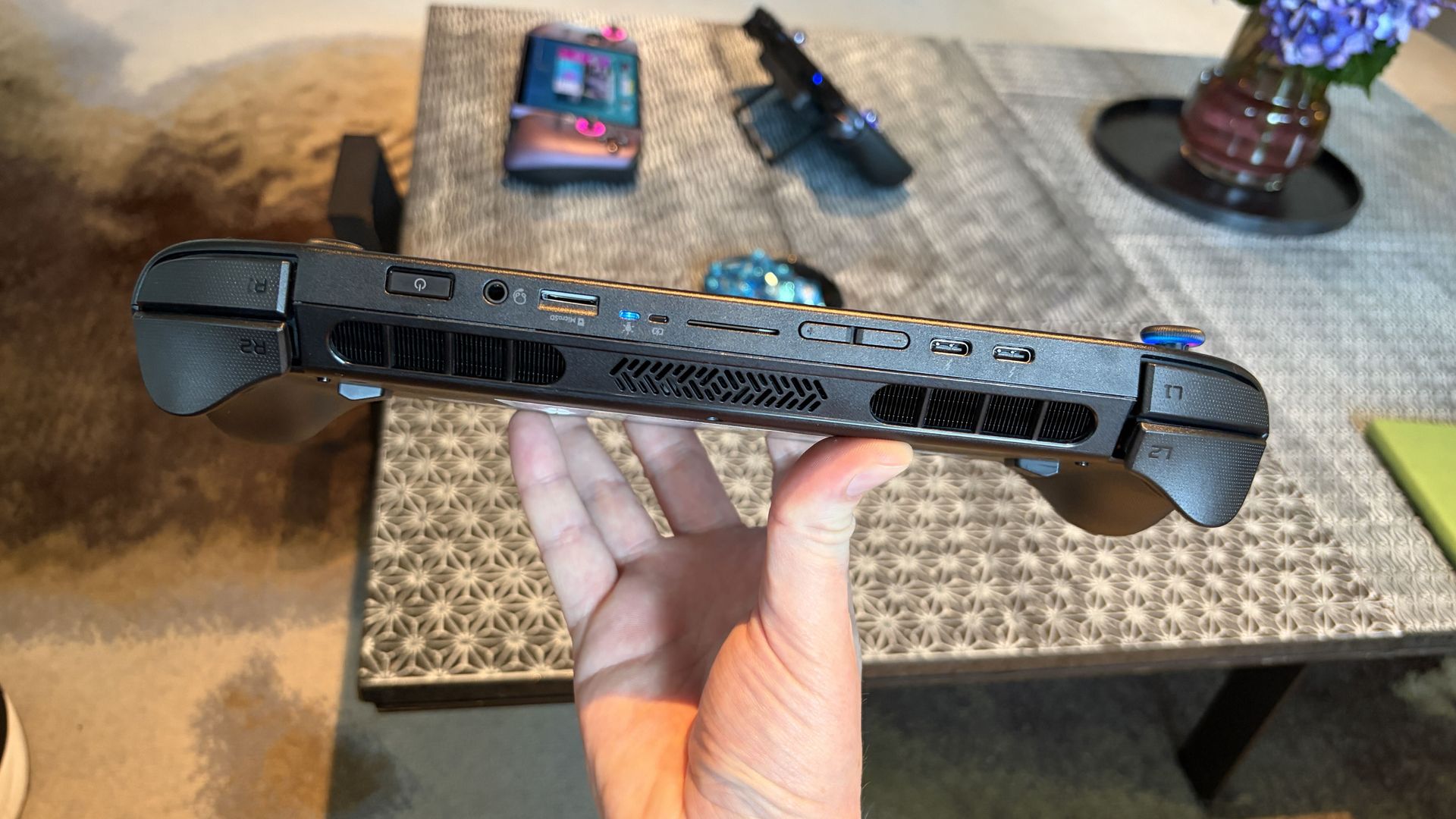
Both have Thunderbolt 4 ports and Wi-Fi 7. Both have Hall Effect triggers and joysticks. Both use an 80Wh battery. So what's the deal?
Based on my (limited) time with the Predator Atlas 8, it looks like the big price difference comes down to build quality and configuration specs.
Let me get the biggest difference out of the way first: the $1,799.99 MSI Claw 8 EX AI+ ships with 32GB of RAM and a 1TB SSD. The Acer Predator Atlas 8 pares that back to 24GB of RAM and a 512GB SSD.
Considering the price of storage and memory these days, this difference likely helps make up a huge chunk of the difference.
Otherwise, as I noted in my Intel Arc G3 Extreme hands-on piece, Acer's device has triggers that don't feel quite as snappy as MSI. The reverse can be said for the joysticks, where I believe Acer has MSI beat.
Audio from both devices was good, and although Acer's Predator Atlas 8 is smaller and ultimately more portable, I found both handhelds to be comfortable to hold.
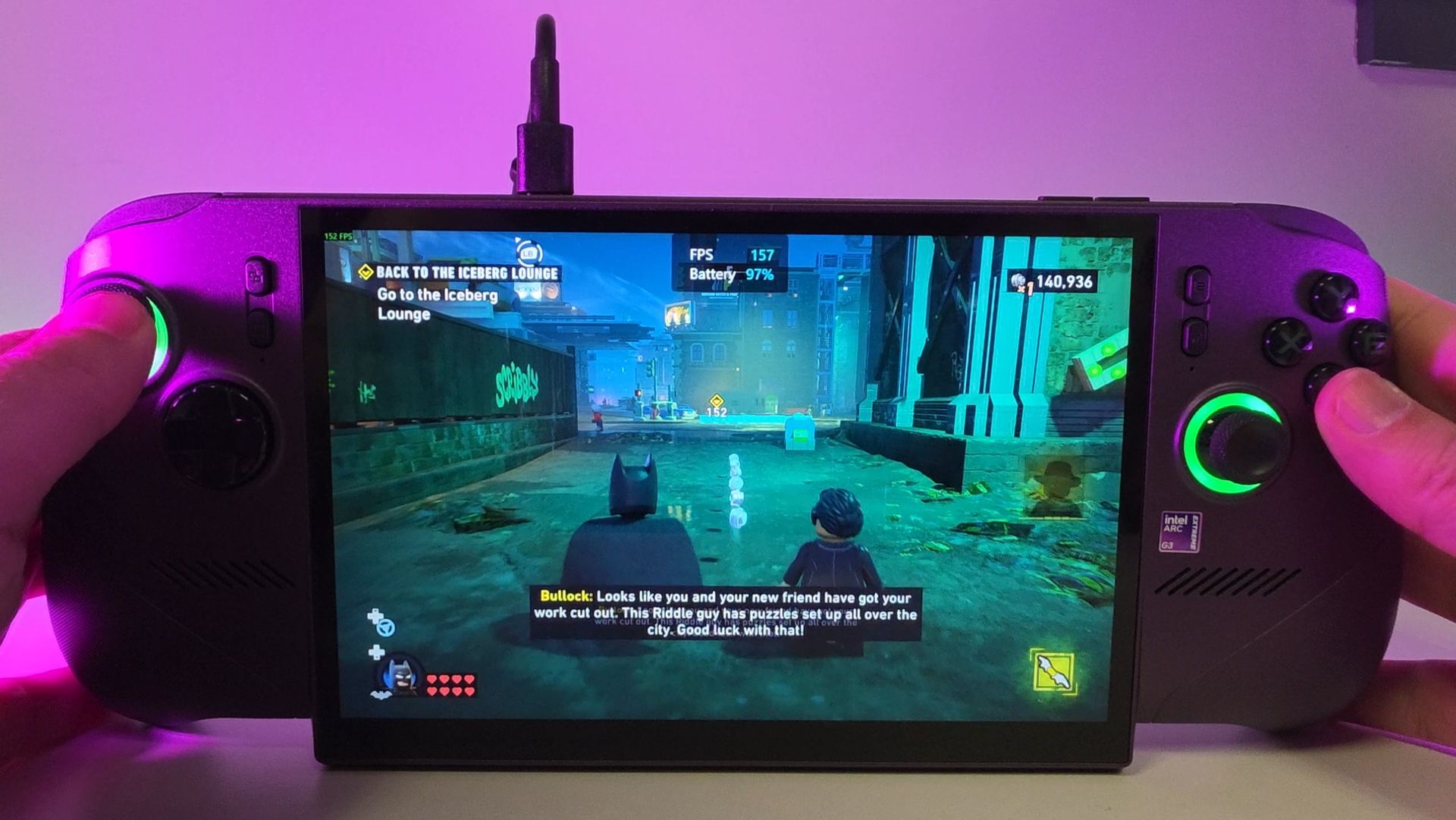
In terms of performance, the Predator Atlas 8 was running demanding games like Hogwarts Legacy and LEGO Batman: Legacy of the Dark Knight at a cool, smooth clip.
I'll have to do more testing once Acer's handheld actually arrives here for testing, but I don't expect it to perform any worse than MSI's new Claw.
Bottom line? It's the disparity in RAM and SSD configurations at launch that's helping keep Acer's gaming handheld at a much more reasonable price.
Is Acer's $1,299.99 Predator Atlas 8 actually cheap?
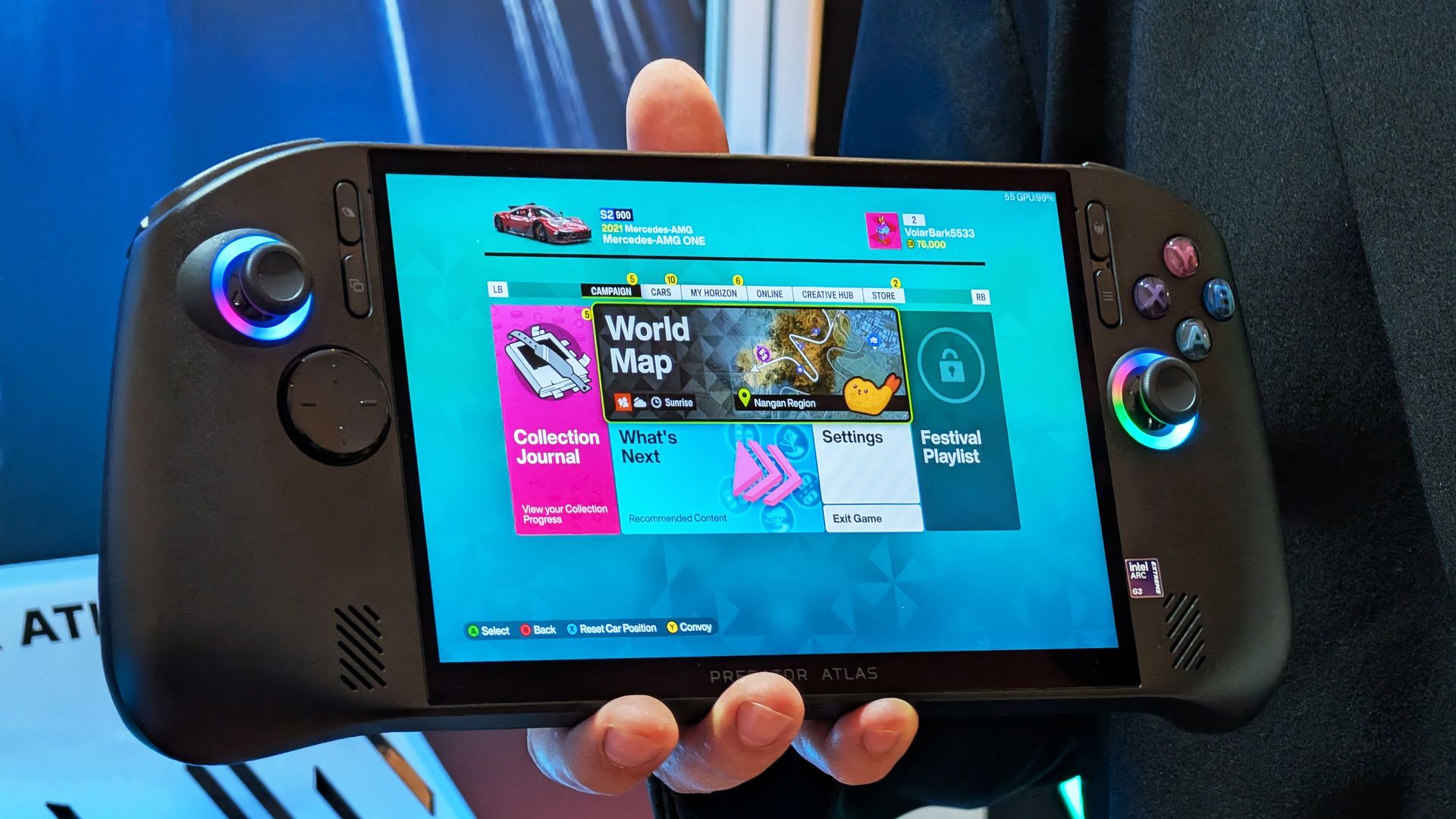
The Predator Atlas 8 feels good to hold and features many similar high-end features as the MSI Claw 8 EX AI+. (Image credit: Future)
That's not quite the case for Acer's Predator Atlas 8, especially with console prices on the rise, but that doesn't make it affordable.
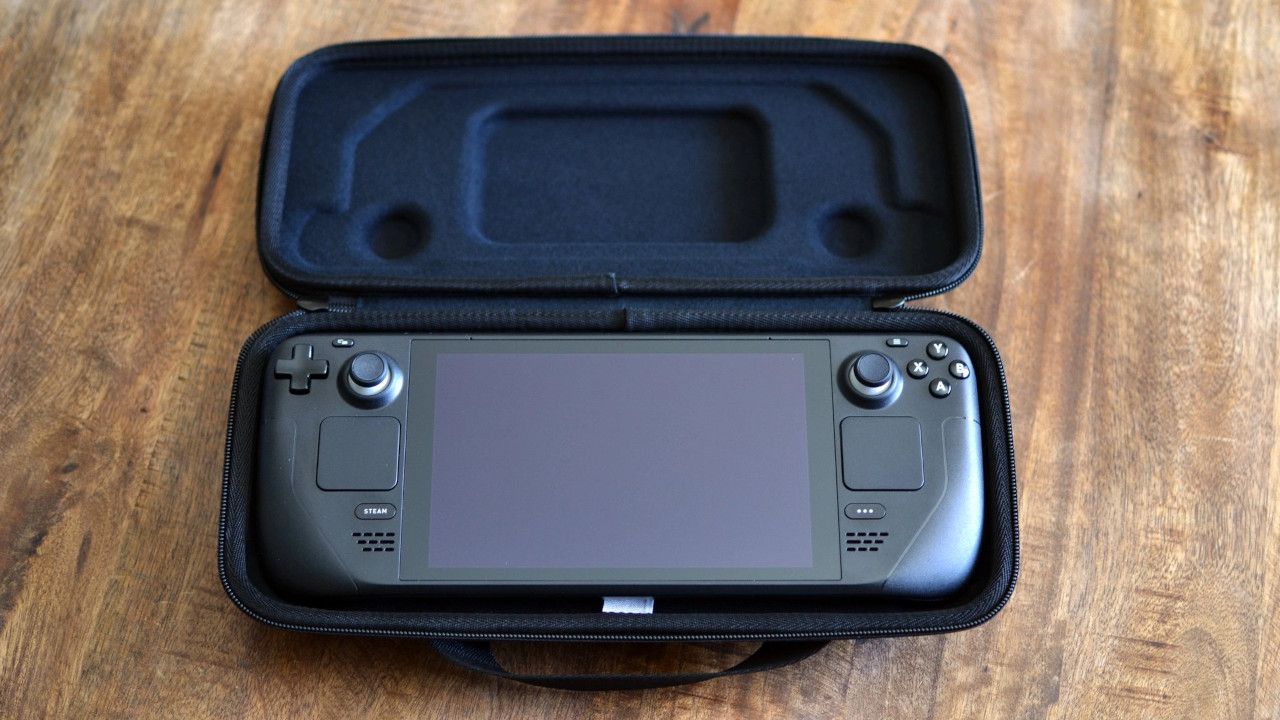
Keep in mind that the Steam Deck, which kicked off the gaming handheld craze, launched at just $399 in 2022.
No, the Steam Deck isn't nearly as powerful as the new Arc G3 devices, but it was priced to sell. Is Acer's Predator Atlas 8 affordable relative to today's overall market? Absolutely.
As mentioned, the Predator Atlas 8 Best Buy preorder page is down at the time of writing this piece. Check back soon, especially after November 1, when the handheld actually launches, to see if prices have changed.
Join us on Reddit at r/WindowsCentral to share your insights and discuss our latest news, reviews, and more.
It's also been my gaming handheld replacement, my home base for local AI testing, my sketchpad to practice digital drawing, and my entertainment hub.
This pricey Lenovo Pro 9n isn't for everyone despite its broad versatility. That's true about any of the new RTX Spark laptops.
I'm looking to see how Lenovo's offering differs from the others — including the Surface Laptop Ultra and ASUS ProArt P16 we reviewed — in terms of features, design, and performance.
Lenovo sent Windows Central a review unit on loan for testing. It had no input, nor saw the contents of this review, prior to publication.
Lenovo Pro 9n: Price and specifications
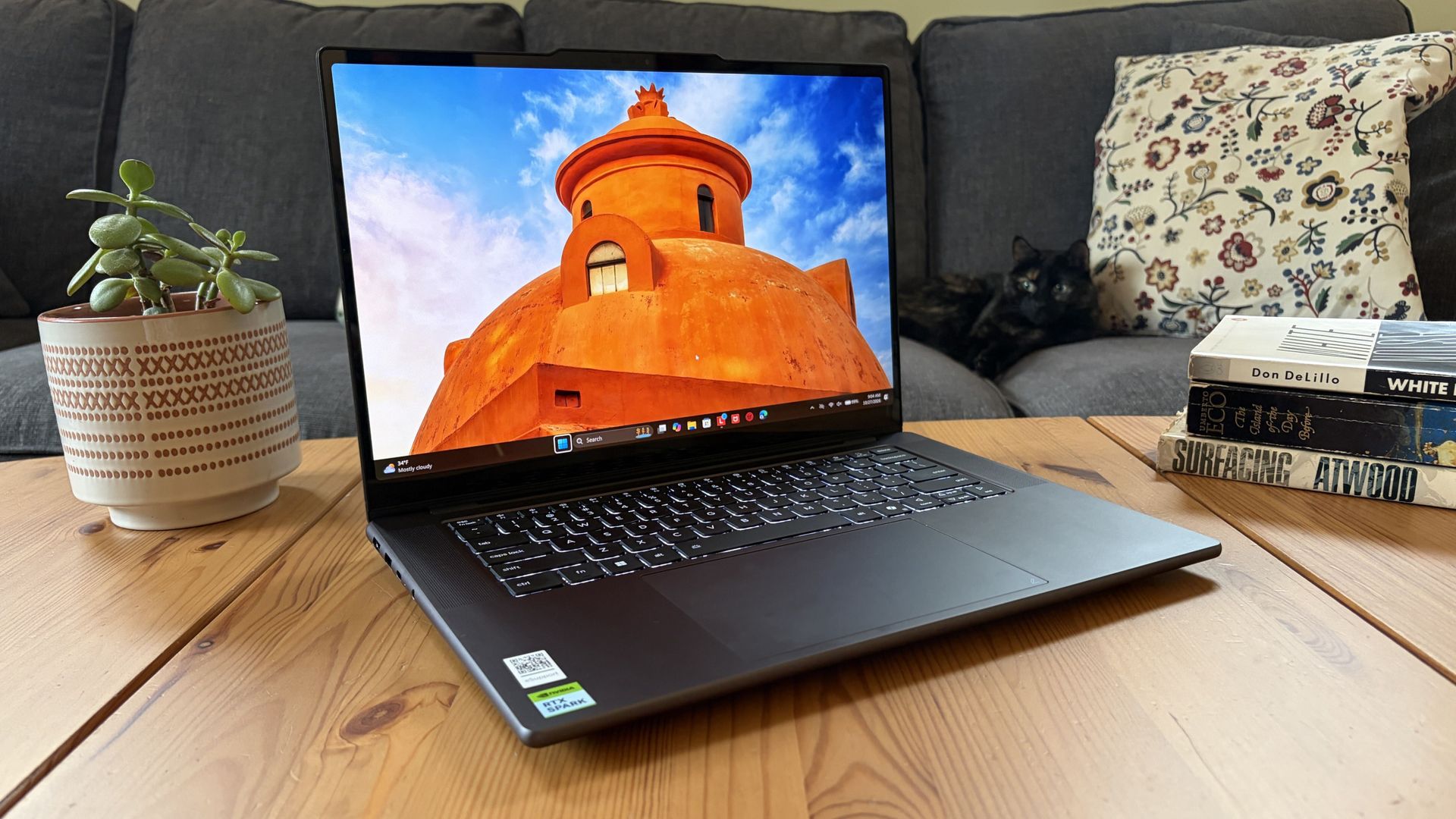
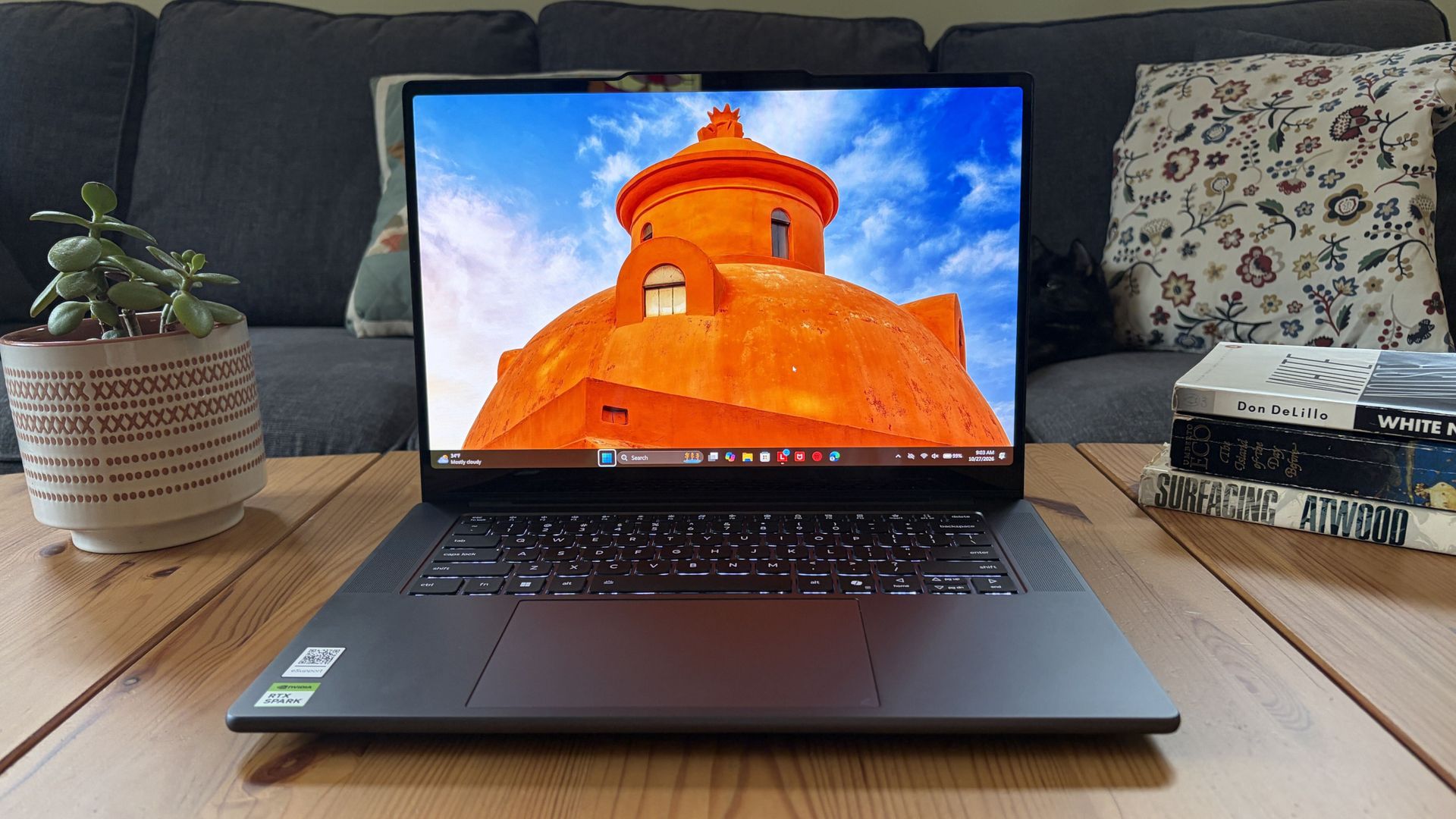
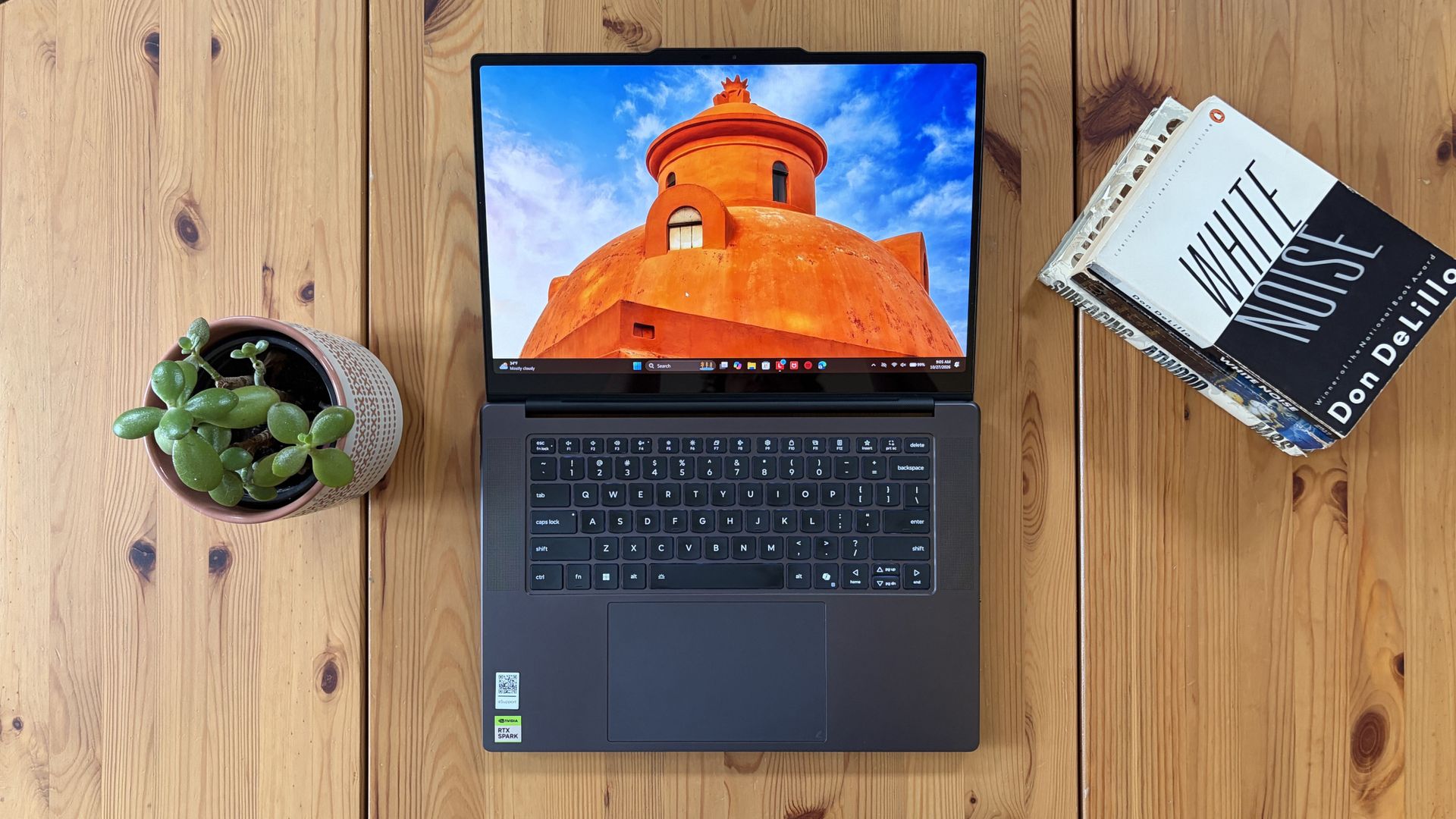
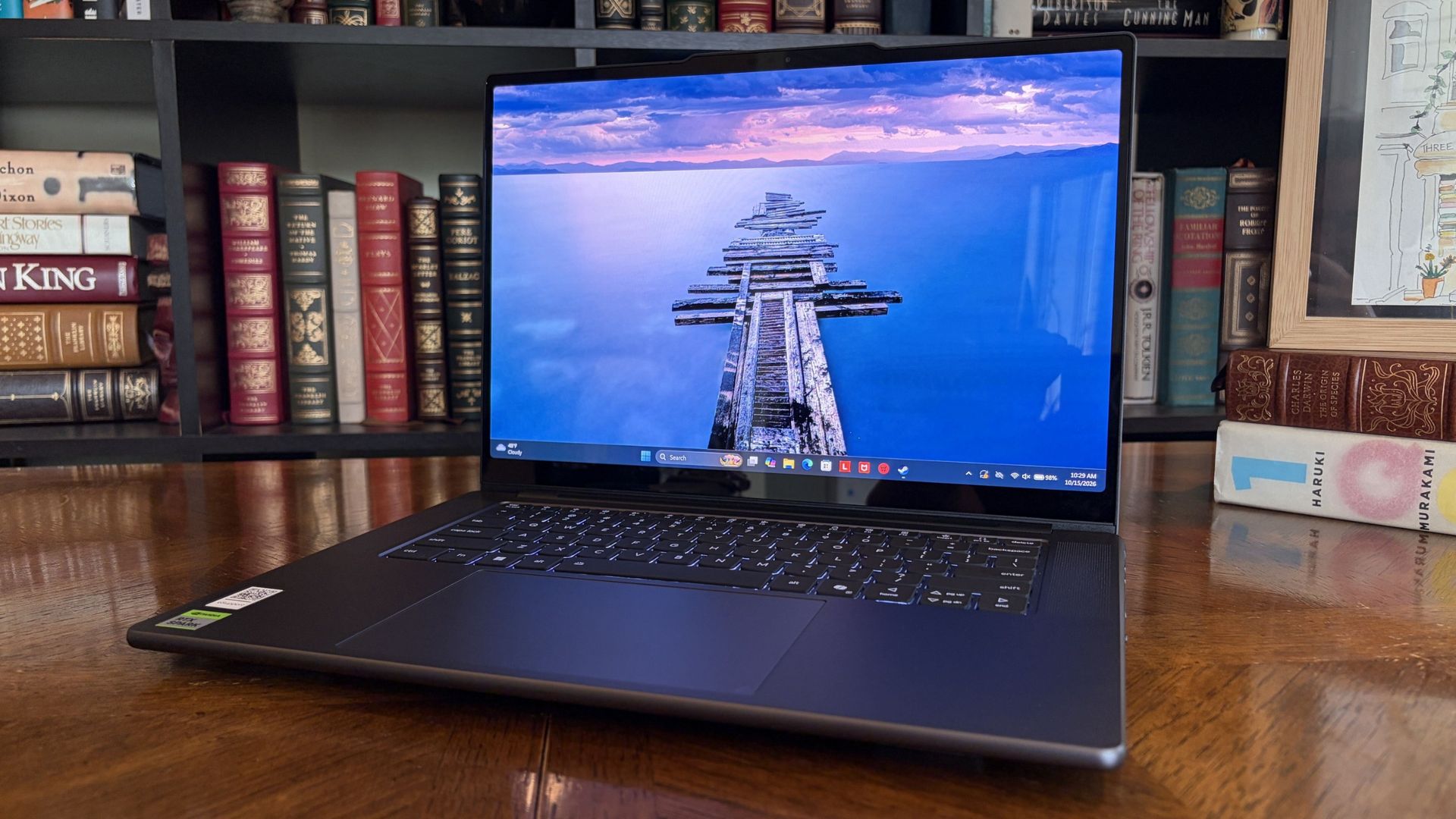
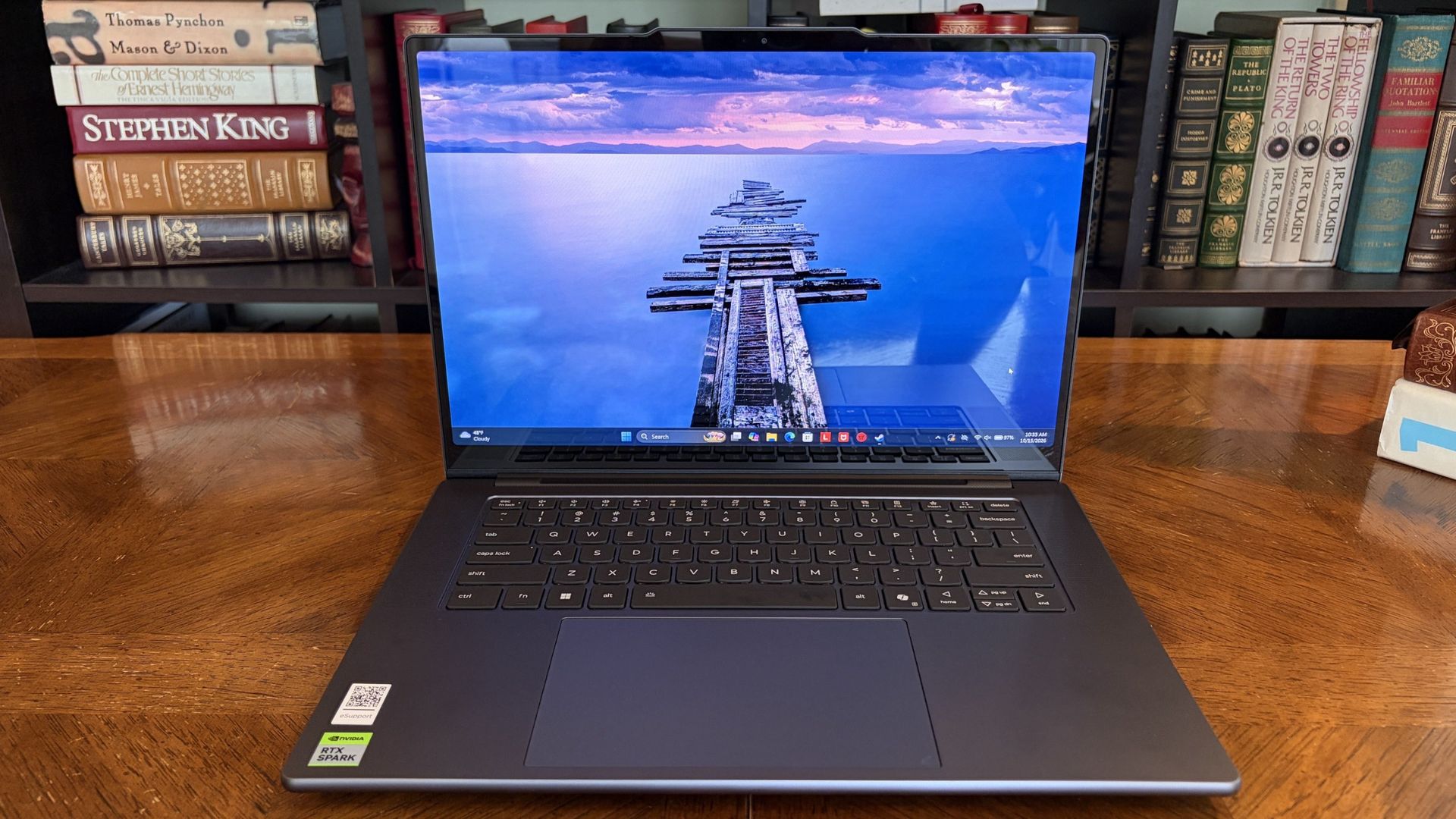
You'd never know the level of power contained within this sleek chassis. (Image credit: Future)
Lenovo's Pro 9n starts at $2,999.99, putting it near the middle of the RTX Spark lineup.
For this price, you get an 18-core NVIDIA N1X CPU, integrated RTX Blackwell GPU with 5,120 cores, 32GB of LPDDR5x unified RAM, a 512GB M.2PCIe 4.0 NVMe SSD, and a 15.3-inch OLED touch display at a 2560x1600 resolution.
Lenovo offers configuration options for CPU, RAM, and storage. The top spec with a 20-core N1X CPU, 6144-core GPU, 128GB RAM, and 2TB PCIe 5.0 SSD balloons to $6,099.99, with several stops along the way.
13.66 x 9.53 x 0.66 inches (347mm x 242mm x 16.7mm)
Weight
From 3.64 pounds (1.65kg)
New designs and updated features for the RTX Spark platform
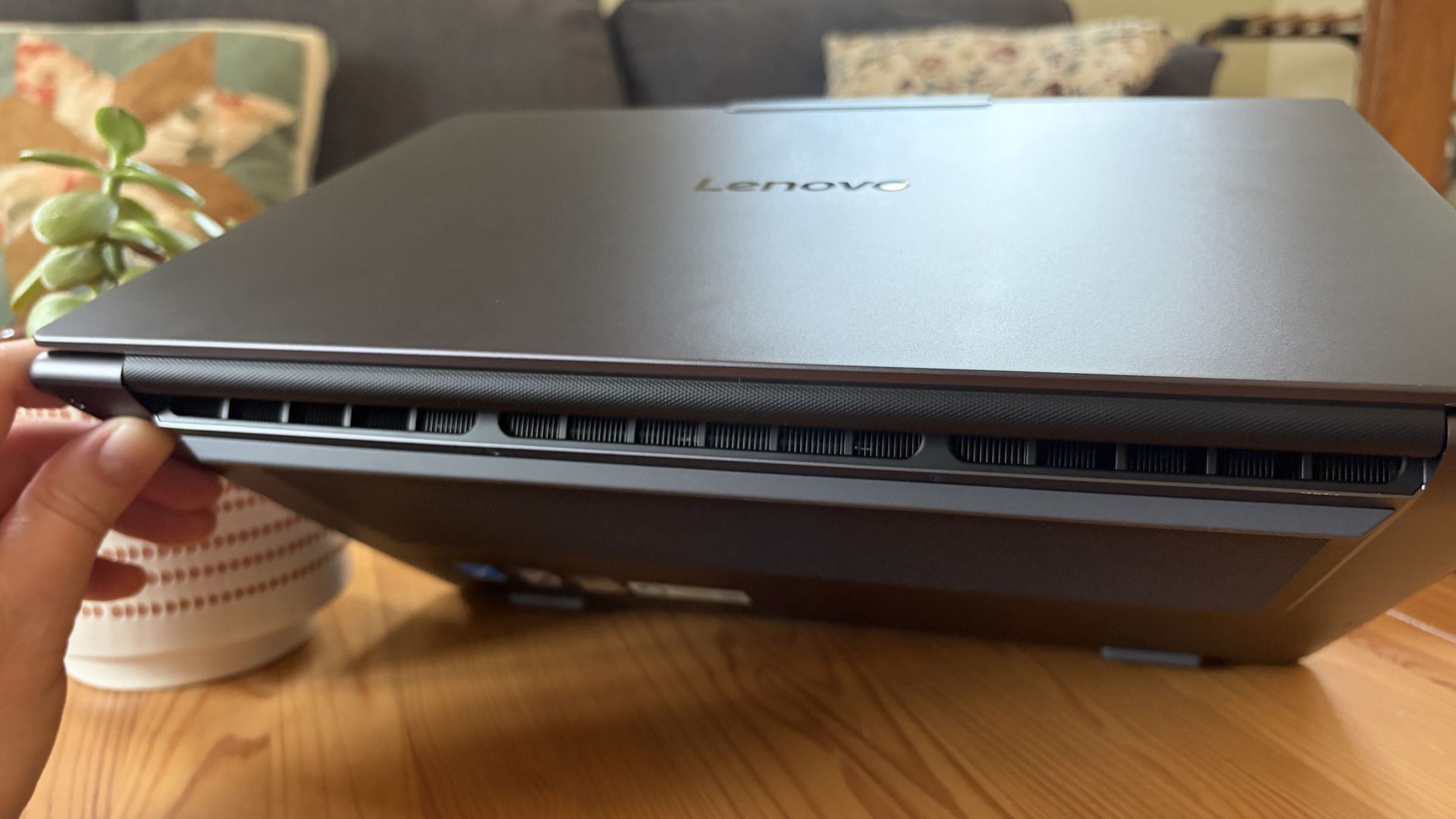
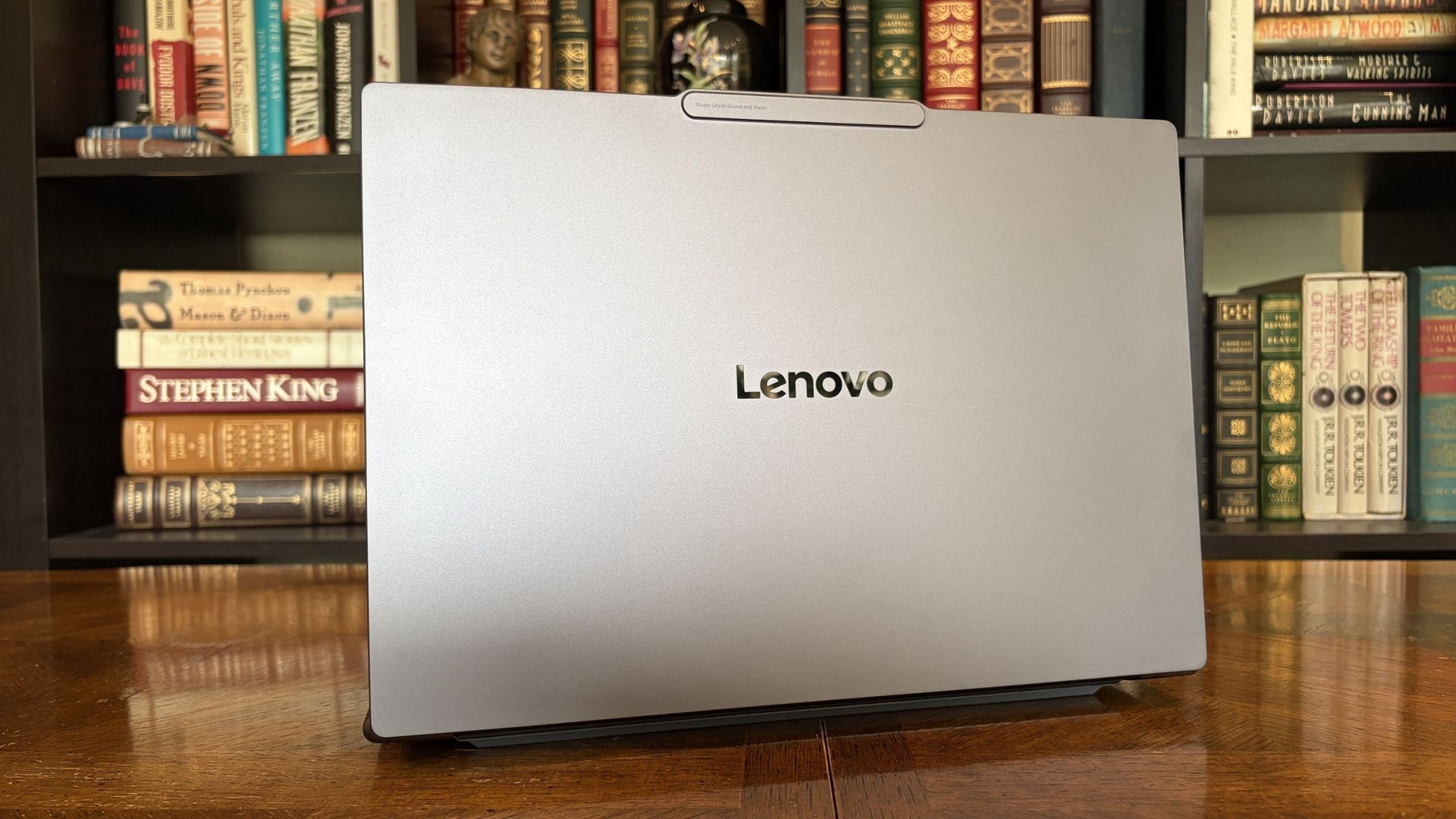
A look at the rear exhaust behind the lid hinge. (Image credit: Future)
The design of Lenovo's Pro 9n has grown on me over the weeks. What I first saw as uninspired has morphed into something that's sleek, relatively lightweight, and ultimately perfect for a professional setting.
With an aluminum top and bottom that add rigidity and a more premium feel than plastic, the PC still manages to slide in at 3.64 pounds (1.65kg) while measuring just 0.66 inches (1.67cm) thin.
The 15.3-inch display translates to a smaller footprint than a full 16-inch PC, and I found it to be an apt size for working in the passenger seat of a car. It should also translate well to airplane trays or train seats.
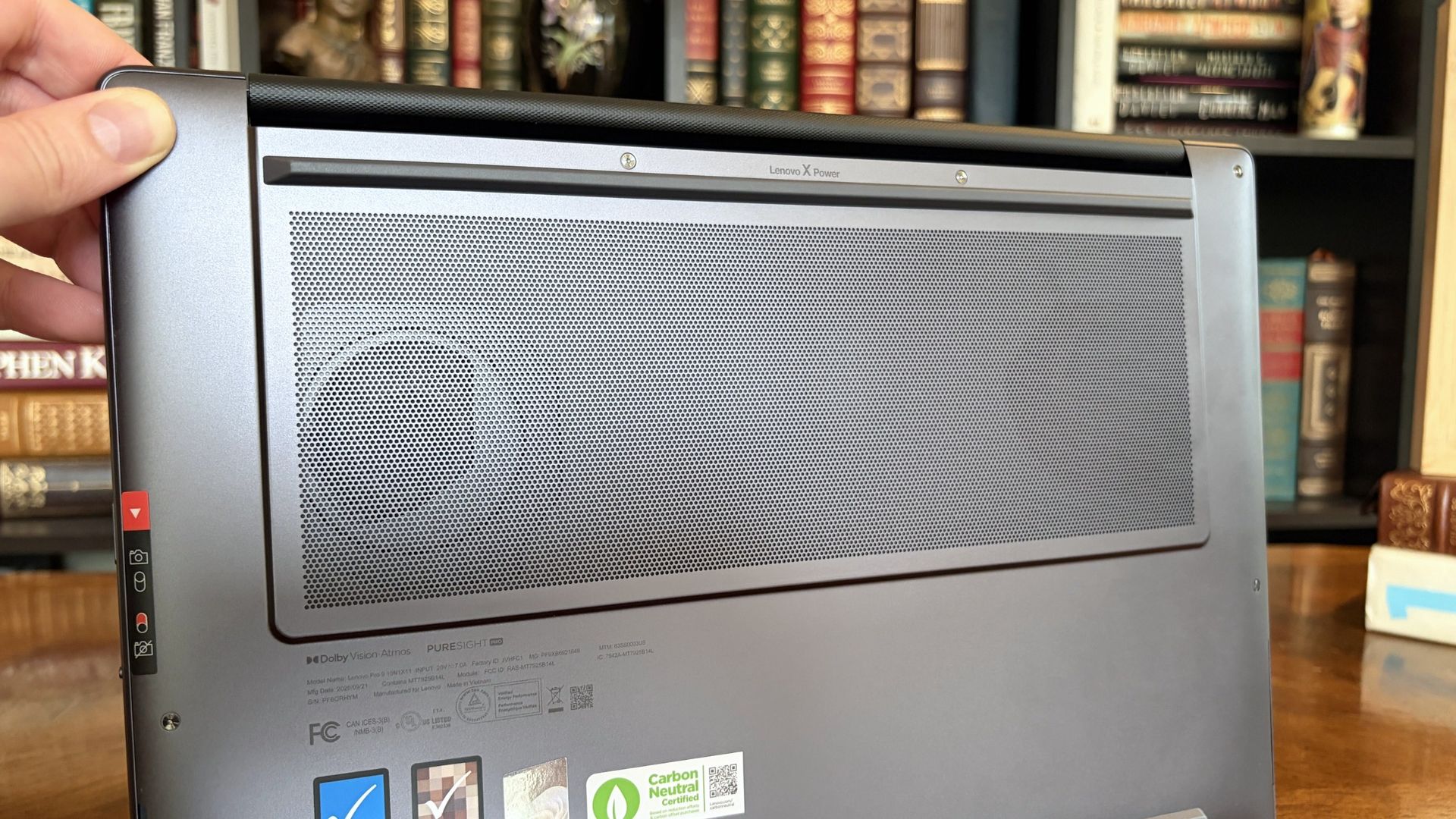
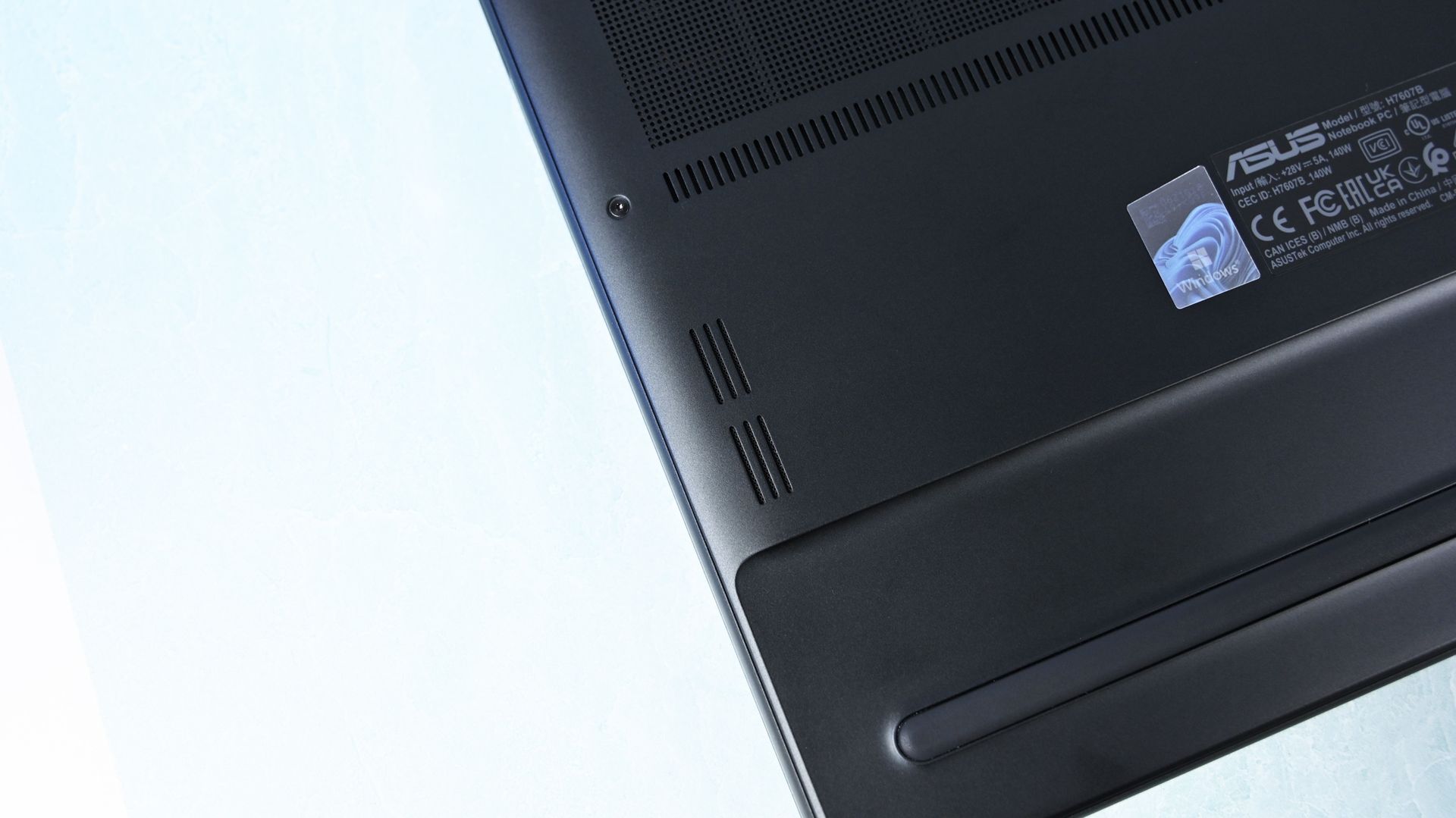
The bottom of the Pro 9n has a massive air intake to feed the two fans. (Image credit: Future)
The thermal layout has been redesigned for the new RTX Spark chip (which I explore below), resulting in a massive air intake on the bottom of the PC and larger vents on the rear edge for exhaust.
This setup keeps hot air directed away from the user and, as you'll see below, it does a decent job of keeping the PC cool under load.
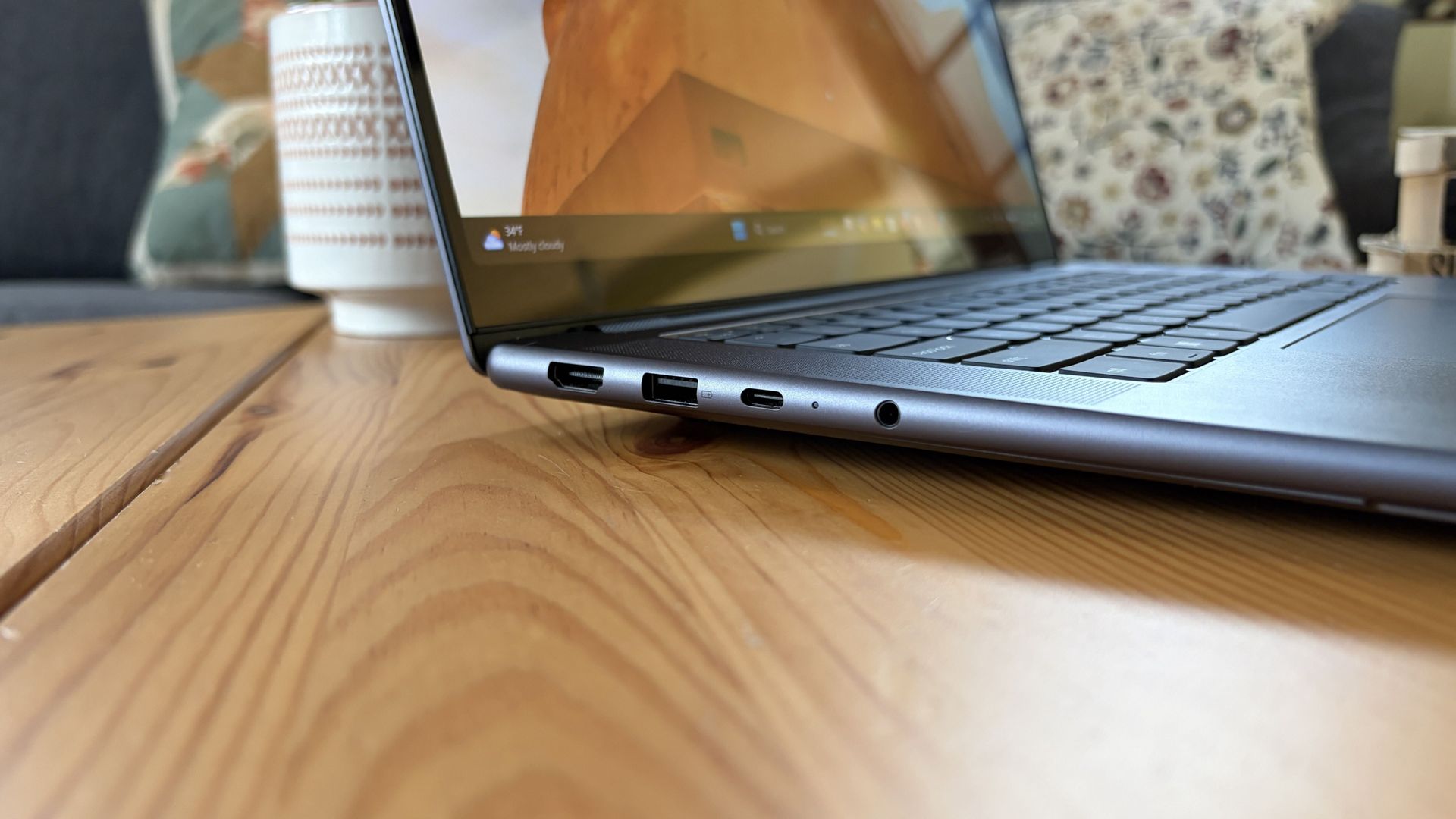
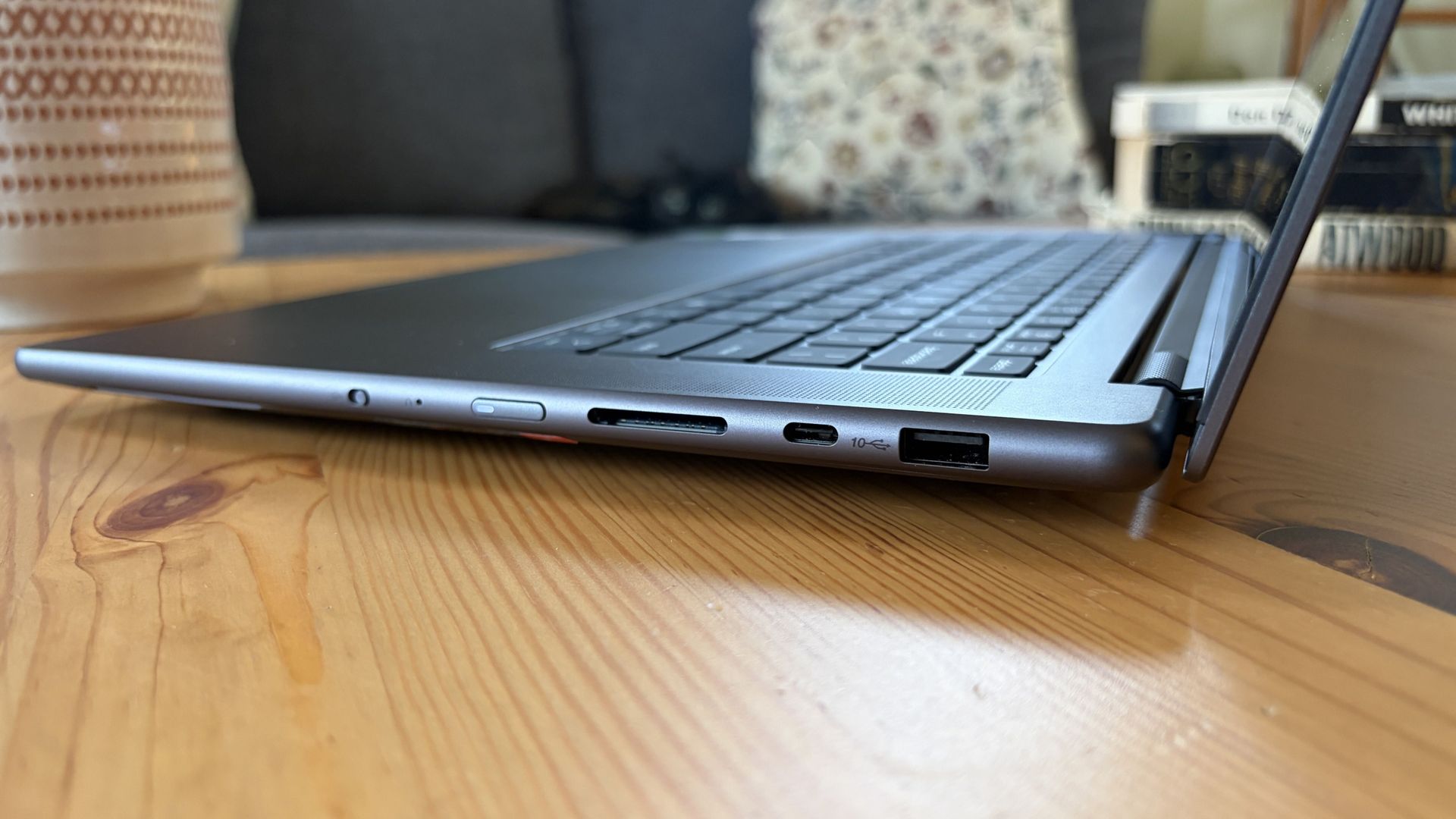
Ports on the left include HDMI, USB-A, USB4, and 3.5mm audio.FuturePorts on the right include USB-A, USB4, and UHS-II SD card reader.Future
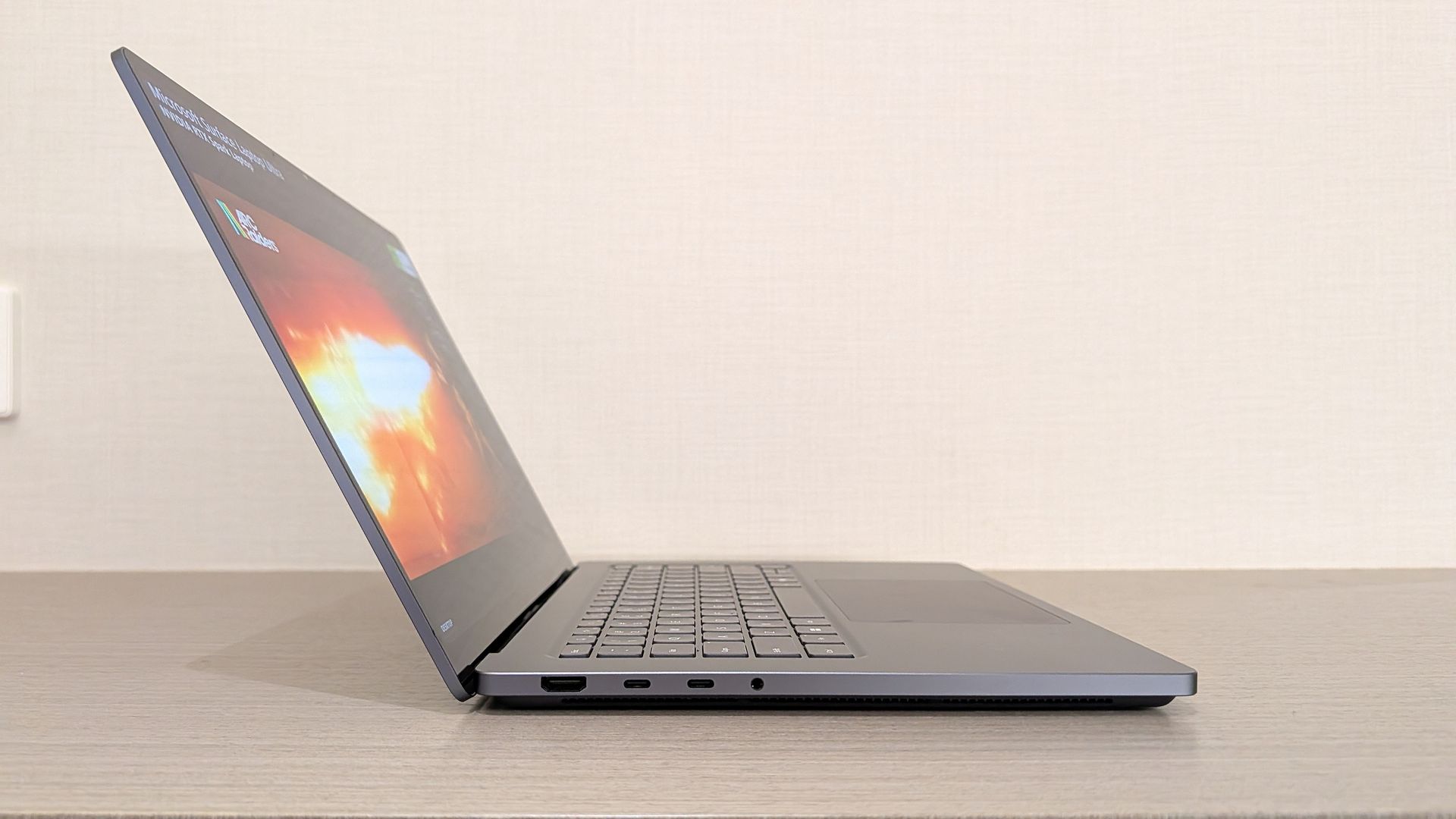
This leaves plenty of space along the sides for ports. On the left are HDMI 2.1, USB-A 3.2 (always on), USB4, and a 3.5mm audio jack. On the right side are another USB-A 3.2, USB4, and a UHS-II SD card reader.
At no time did I feel the need to grab a dongle for an accessory, especially with Bluetooth 5.4 on board, and the native HDMI port makes it easy to plug into an external display without a docking station.
On the note of wireless, cutting-edge Wi-Fi 7 is on board for excellent throughput and future-proofing.
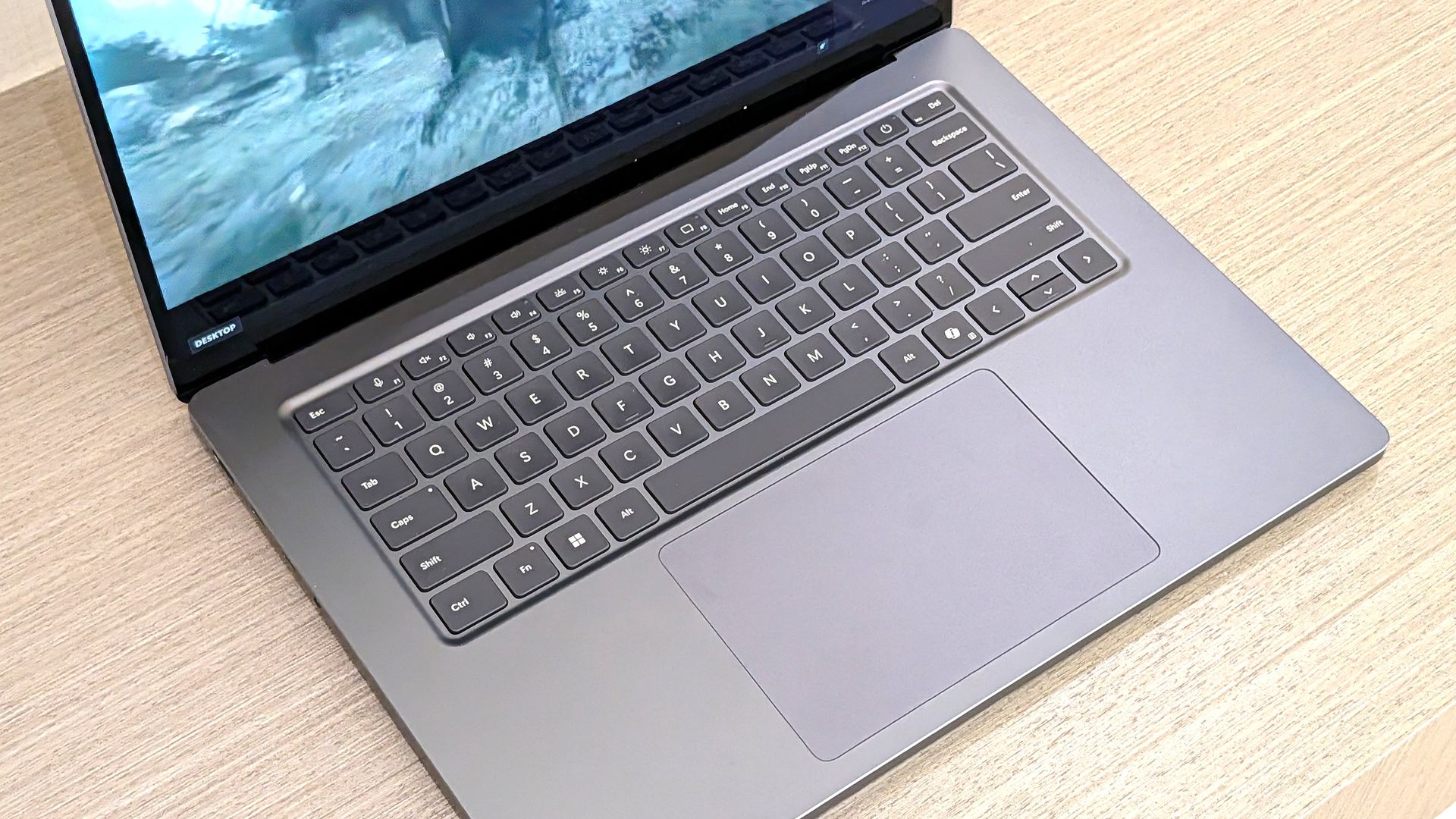
Lenovo's keyboard and haptic touchpad are among the best
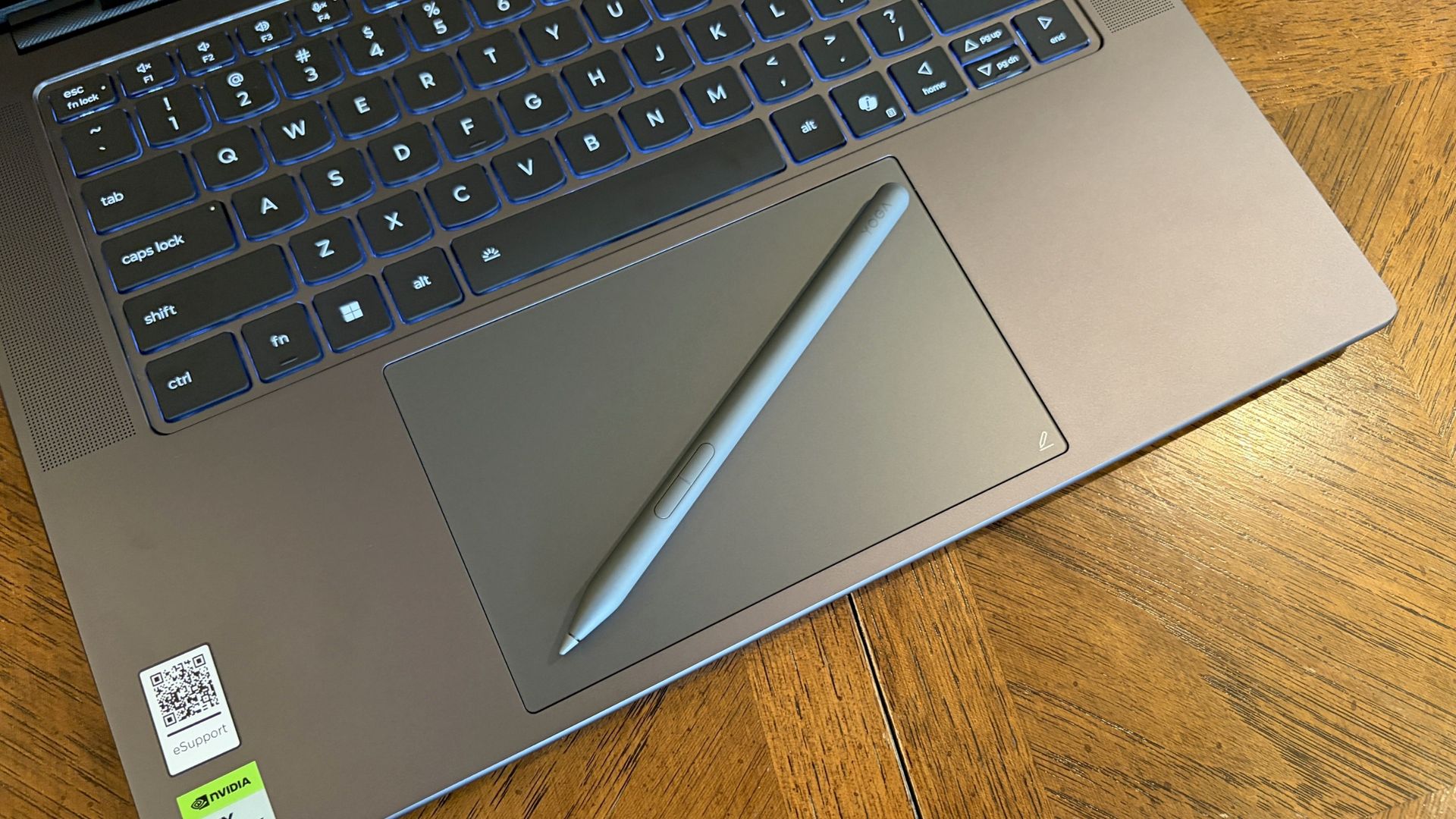
The Lenovo Pro 9n's oversized haptic touchpad and active pen turn the laptop into a makeshift drawing tablet. (Image credit: Future)
The Pro 9n is the first Lenovo laptop to receive its new haptic touchpad with inking compatibility. Paired with the bundled Yoga Pen (Gen 2), it turns the PC into a creative tablet of sorts.
I'm no artist, but I was able to get down some rough sketches using the awesome Krita drawing app. I found the touchpad's 3.74 x 3.94-inch dimensions were large enough to comfortably write and draw, and the inking feel is outstanding.
My only gripes are likely from me reading too much into the feature. Drawing on the pad often left my hand hanging off the edge (not comfortable), and it was sometimes difficult to line up my pen on the touchpad with where I wanted it on my screen.
Approach it from a rough sketch viewpoint, and you should find it to be quite useful. As for actual pointing and clicking, I had no issues. The haptics underpinning the pad are spot on.
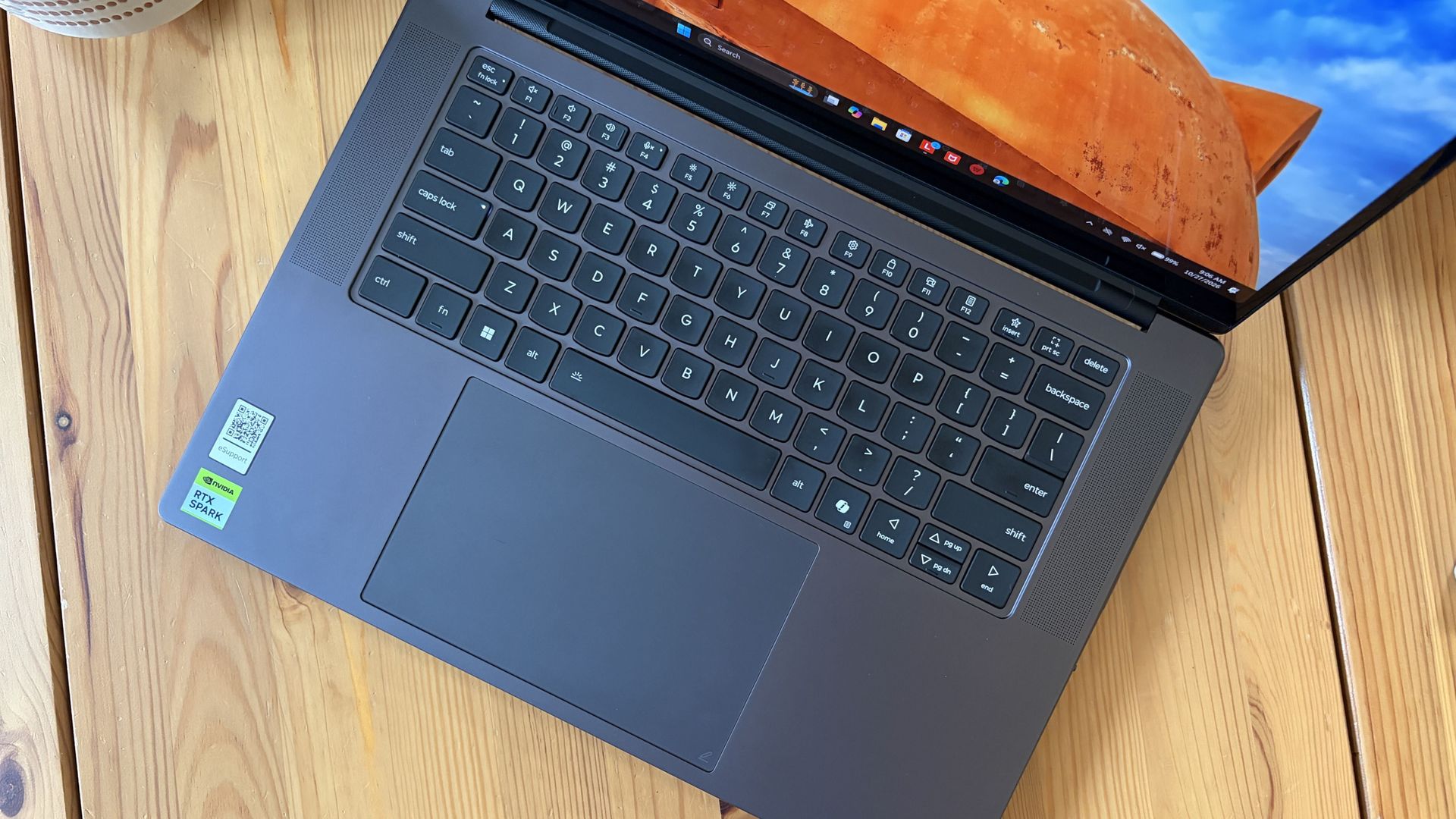
1.5mm key travel makes for comfy typing no matter what. (Image credit: Future)
The keyboard, which arrives flanked by a couple of speakers, offers deep 1.5mmkey travel, three-stage backlight, and perfect spacing. This might be the best keyboard that Lenovo's non-ThinkPads have ever received, and I enjoyed every word I typed on it.
Circling back to the speakers, the two that flank the keys are each 2W tweeters, and they're accompanied by two 2W woofers on the bottom of the PC.
Sound gets loud without breaking. There's lots of bass. The highs are clean, even before adding any onboard Dolby Atmos tuning. The laptop is just as good for watching TV and movies as it is for handling creative work or jumping into video meetings.
A crisp webcam handles meetings on the move
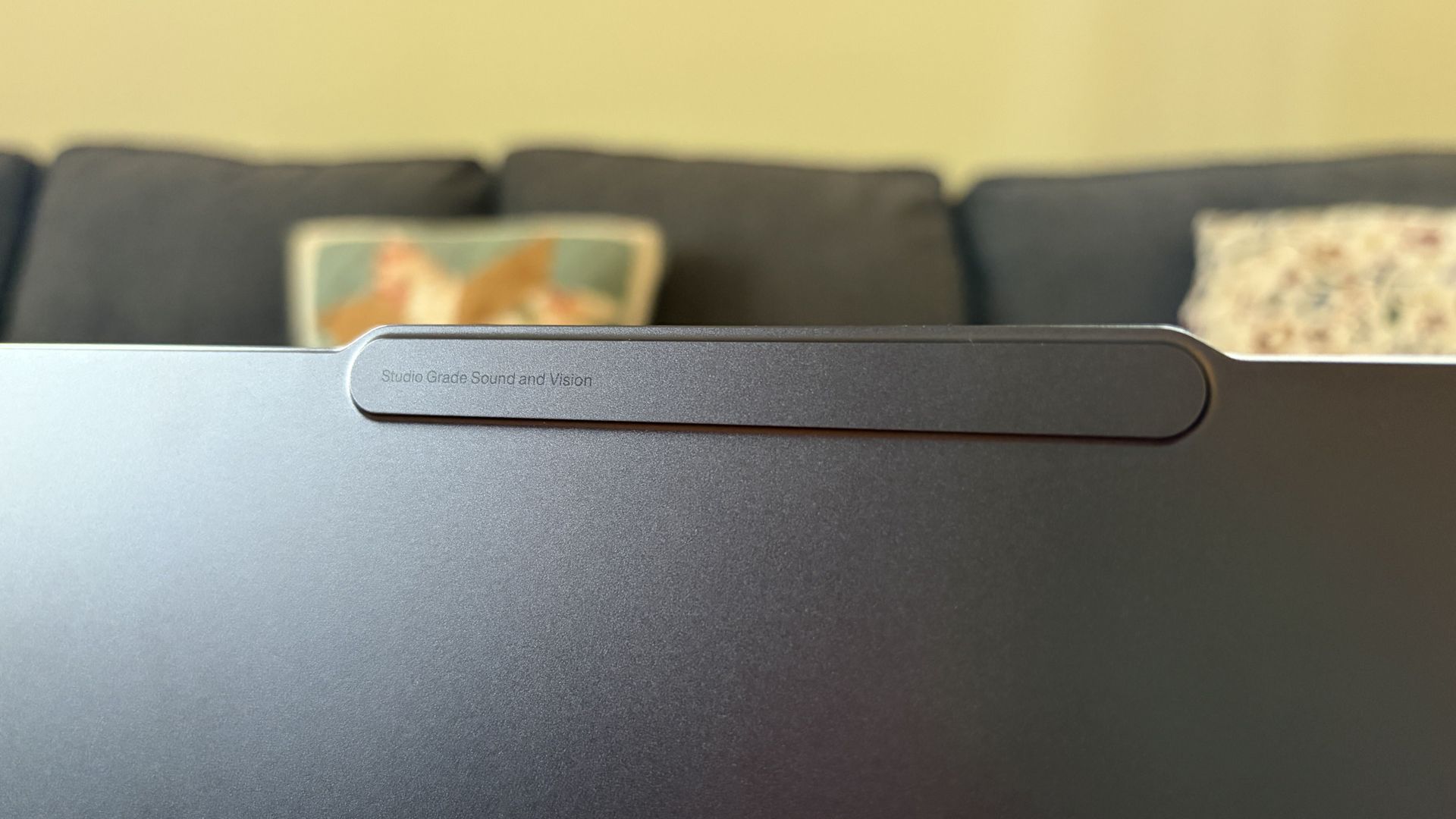
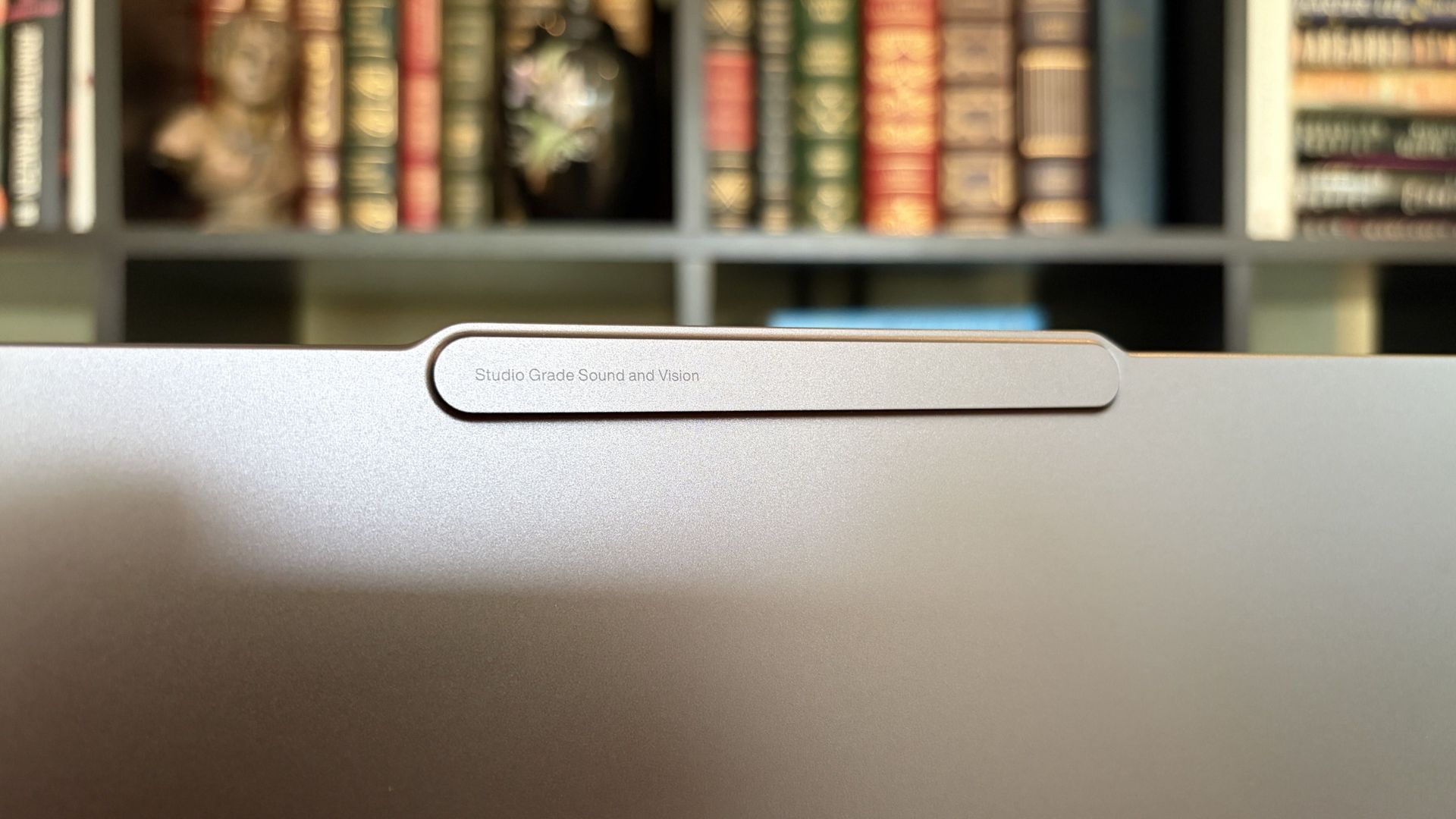
The raised comms bar has space for a 9.2MP camera and IR sensor. (Image credit: Future)
Lenovo's raised communications bar located above the display adds a bit of space for camera hardware, and the company made good use of it here.
The Pro 9n comes with a 9.2MP camera, easily trumping the ASUS ProArt P16's 2.1MP and the Surface Laptop Ultra's 1.6MP cameras.
It's crisp and handles lighting quite well even without any Windows Studio Effects in play, and I'd say it's a definite upgrade for anyone who often finds themselves in video meetings and collaborations.
The IR sensor built into the camera handles facial recognition via Windows Hello. Unfortunately, it doesn't appear to go the extra step to offer human presence detection. This doesn't seem to be a lock for the new RTX Spark PCs — the Surface Laptop Ultra doesn't have it either, but the ProArt P16 does.
An OLED display with color profiles for any job
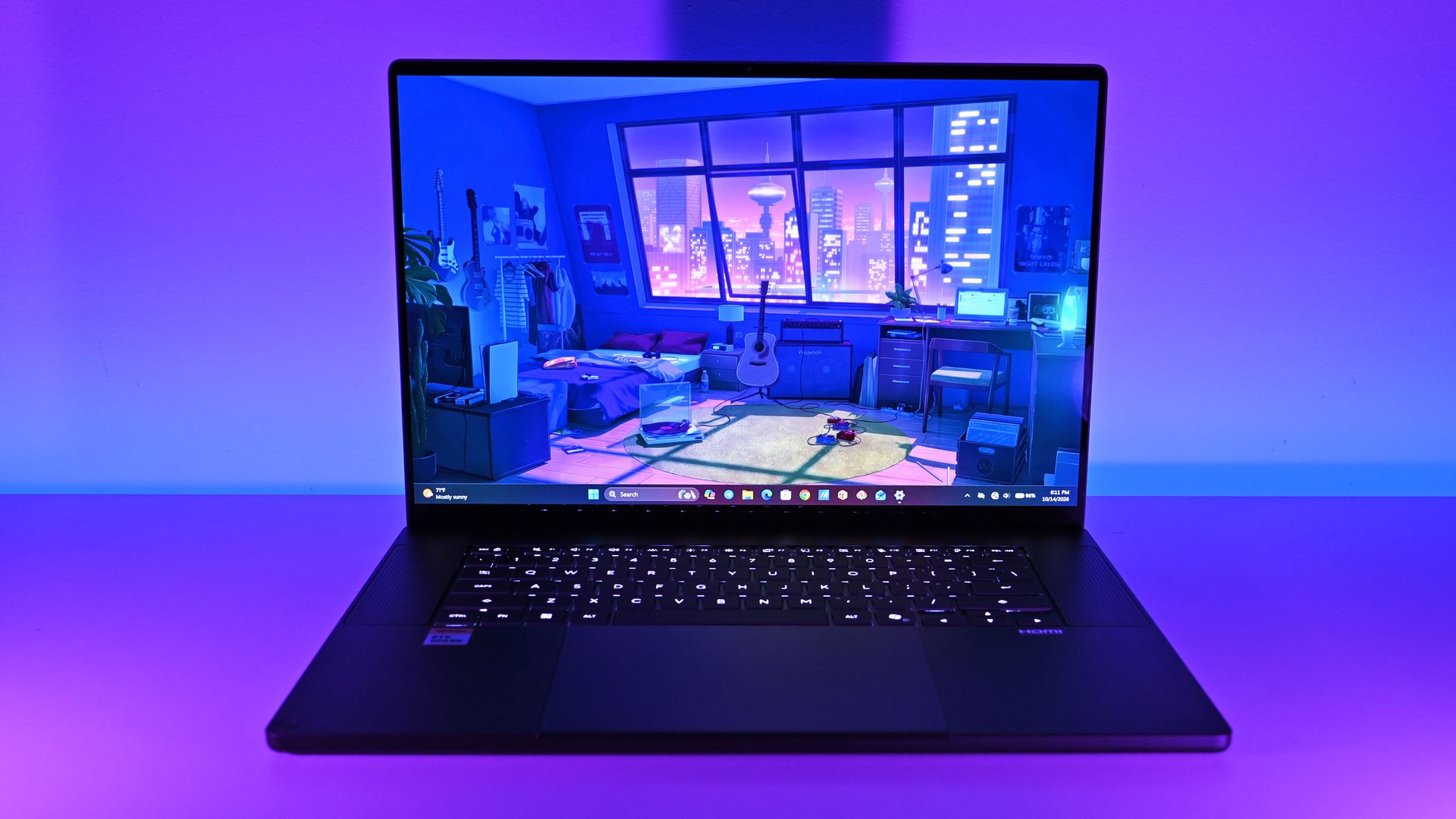
The OLED display delivers color for specialized work and speed for gaming. (Image credit: Future)
Lenovo ships the Pro 9n with a 15.3-inch PureSight Pro OLED display. This is basically Lenovo's top-of-the-line screen for creators and pros, coming at you with X-Rite Pantone calibration and X-Rite SkinTone validation out of the box.
It hits Delta E, tops out at a 165Hz refresh rate (which can be set to variable for better battery life and eye comfort), and has Dolby Vision support.
Something I learned quickly was that the display presets in Lenovo's Vantage app are actually important. The Default mode in which the laptop ships favors sRGB reproduction. There are presets for AdobeRGB and sRGB (which pump up those sections), as well as P3-D65, REC709, and DCI-P3.
I was able to hit 100% across all color gamuts in my testing, but not all at once. You'll just have to be sure that you select the right config depending on the work you're doing.
I was able to hit 100% across all color gamuts in my testing, but not all at once.
I also measured 476 nits of peak brightness in SDR content, which pushes past 1,000 nits when HDR is enabled. I was able to work in a brightly lit room with only a bit of glare, but I imagine an anti-reflective instead of glossy finish would have gone a long way to eliminating glare entirely.
The screen is available in touch or non-touch, and the specs are otherwise the same. Note that the pen only works on the laptop's touchpad, whether or not the screen is touch-enabled.
The Pro 9n's OLED display is vivid and bright. (Image credit: Future)
The inclusion of NVIDIA G-Sync tech really props up the gaming aspect, reducing screen tearing and ultimately making everything feel much smoother, as you'd expect from a premium laptop that can game.
My only complaint is that Lenovo doesn't offer a higher-res panel. The 2.5K default is great for everyday work and gaming, but 4K would probably go a long way for some creators.
Comparing the 18-core and 20-core RTX Spark chips
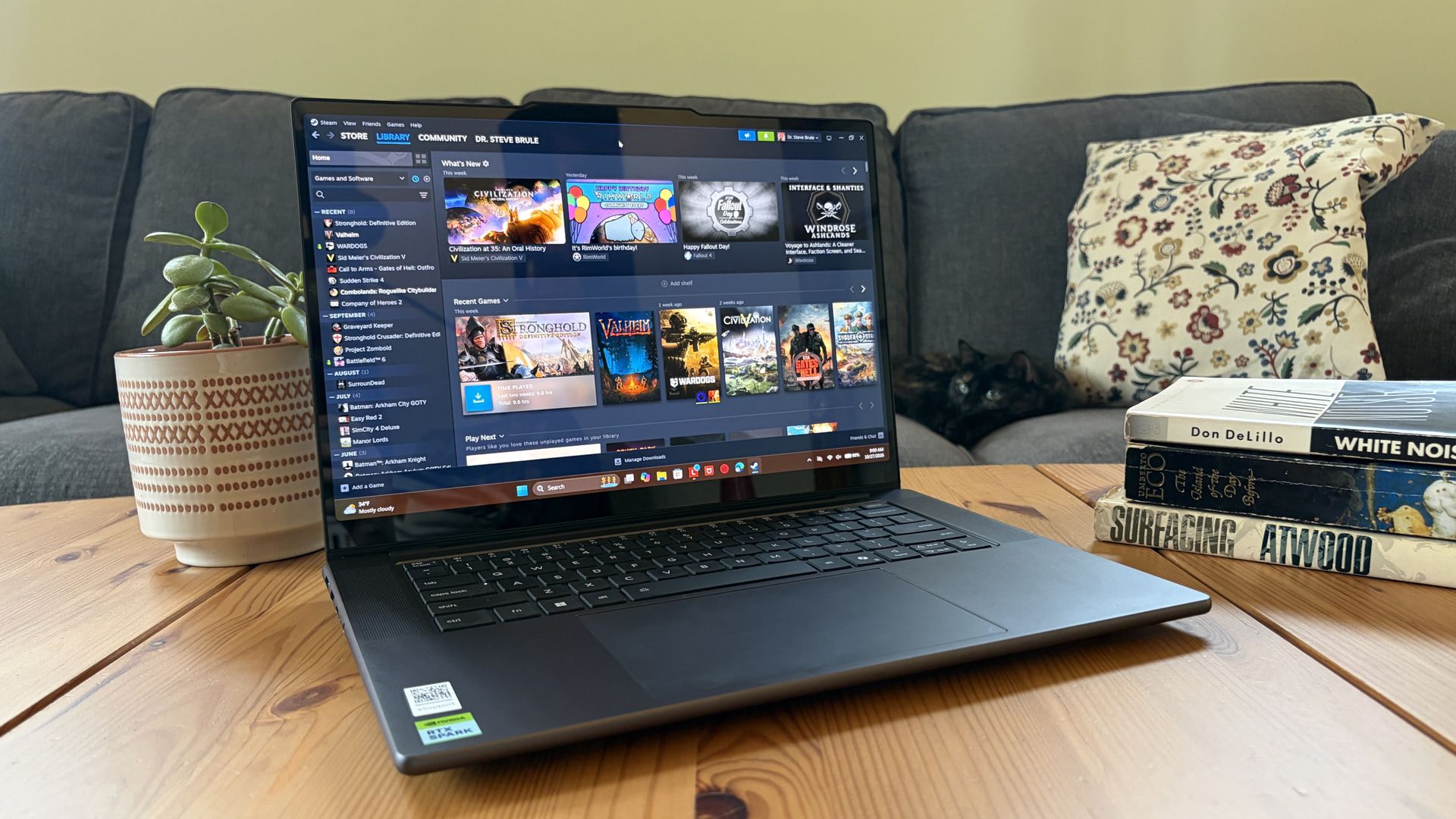
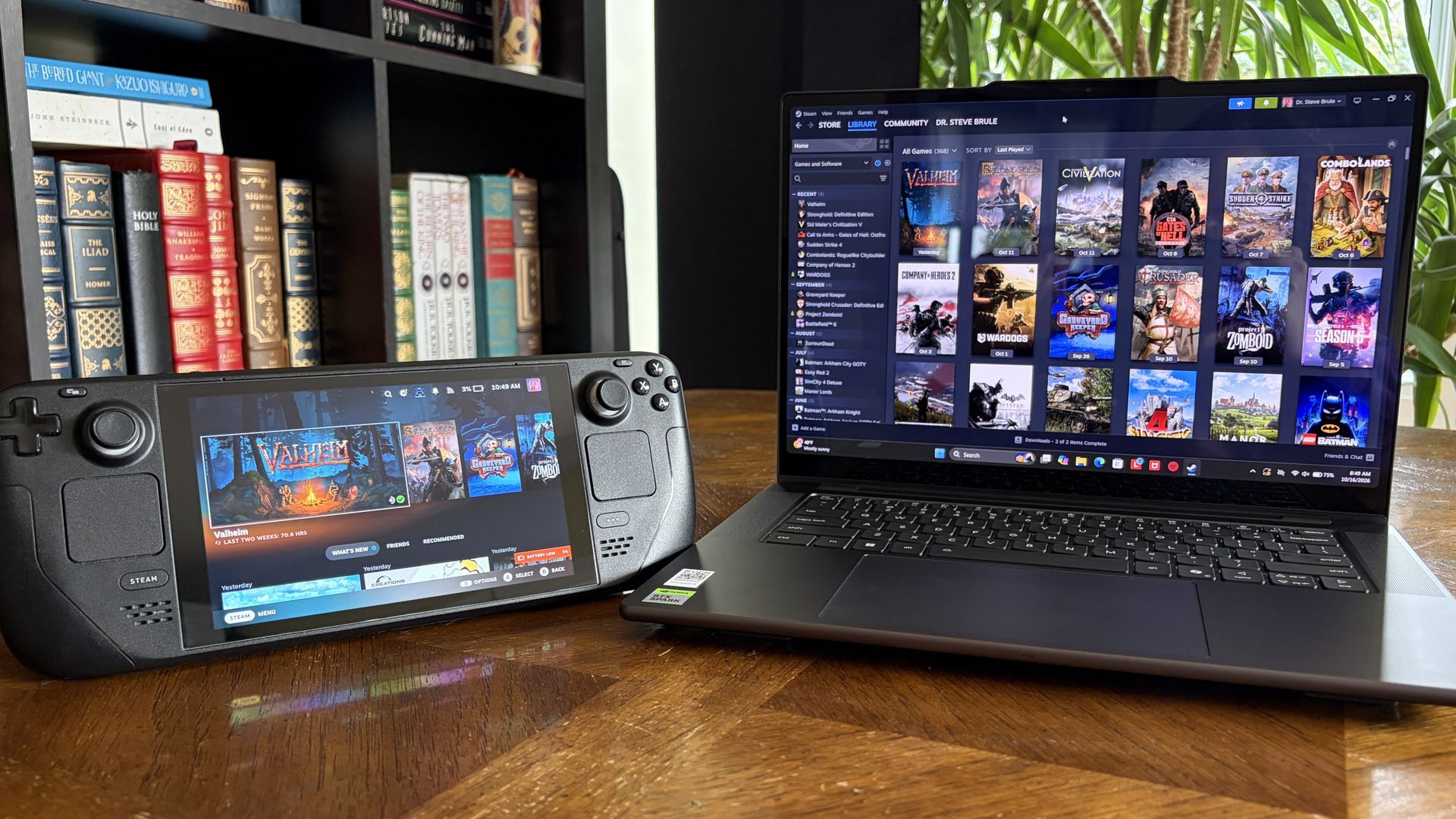
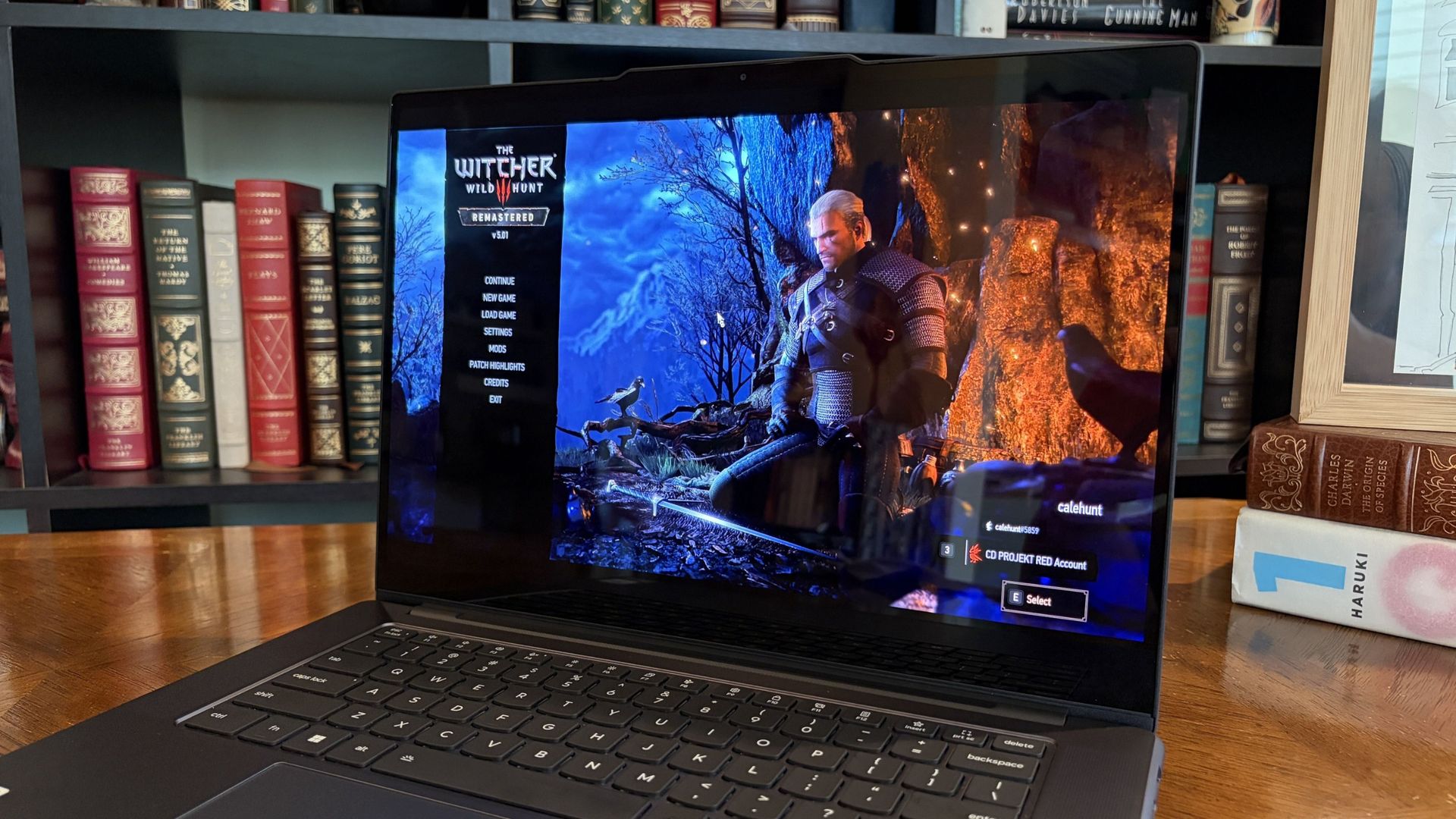
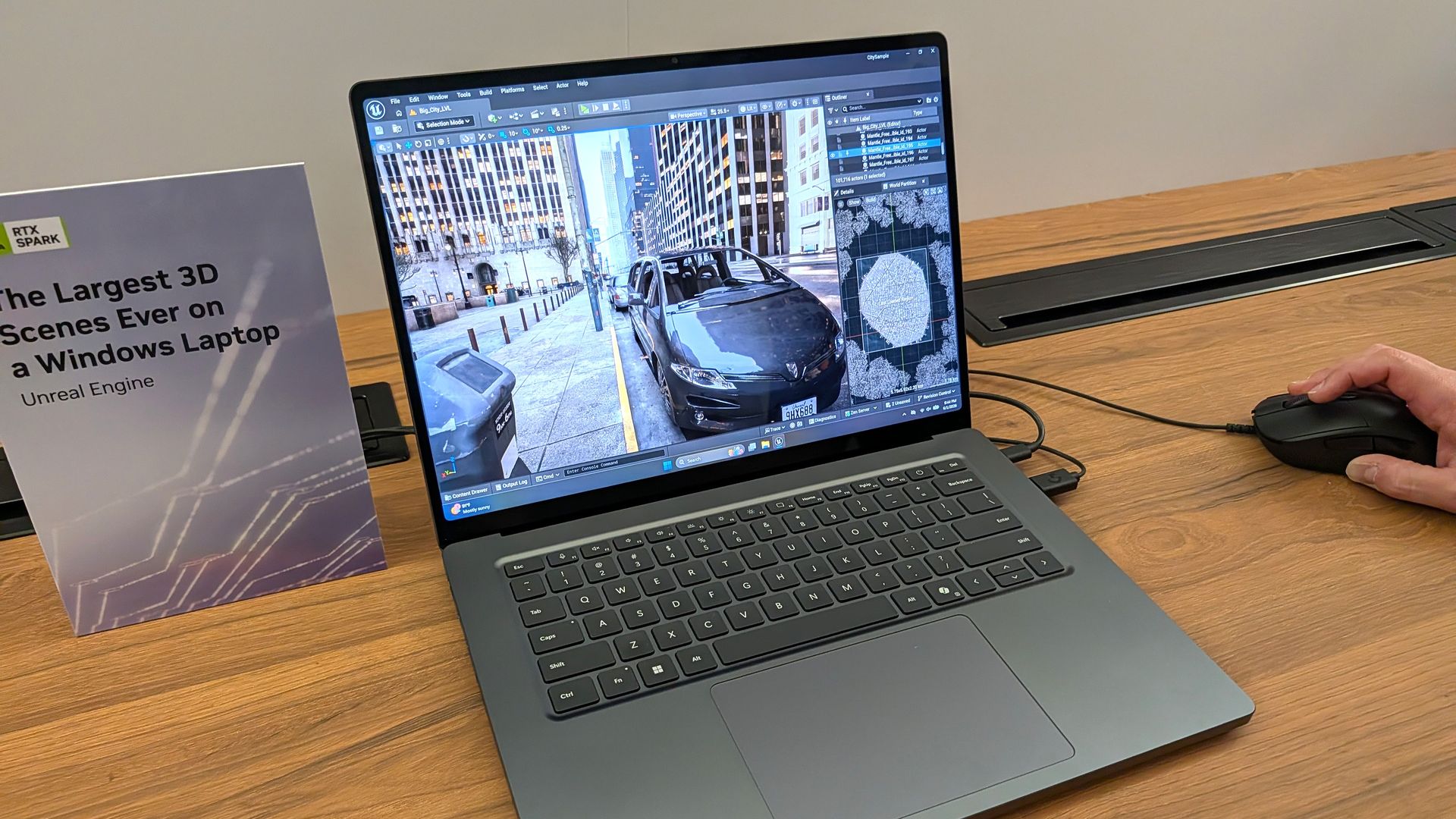
I gave the Pro 9n some games to chew on to see if it can replace my gaming handheld. Short answer: it can. (Image credit: Future)
Power tip
Lenovo allows for up to 80W of overall power for the chip, putting it in line with the other RTX Spark laptops we've tested.
As it turns out, quite well. You get the same pool of unified LPDDR5x memory to pull from for the system and GPU, albeit in smaller quantities (32GB for my review unit).
You get the coveted CUDA cores (with 5120 in my unit compared to 6144 in the premier chip) to handle local AI inference. And you still get about 26 TFLOPs of graphics performance.
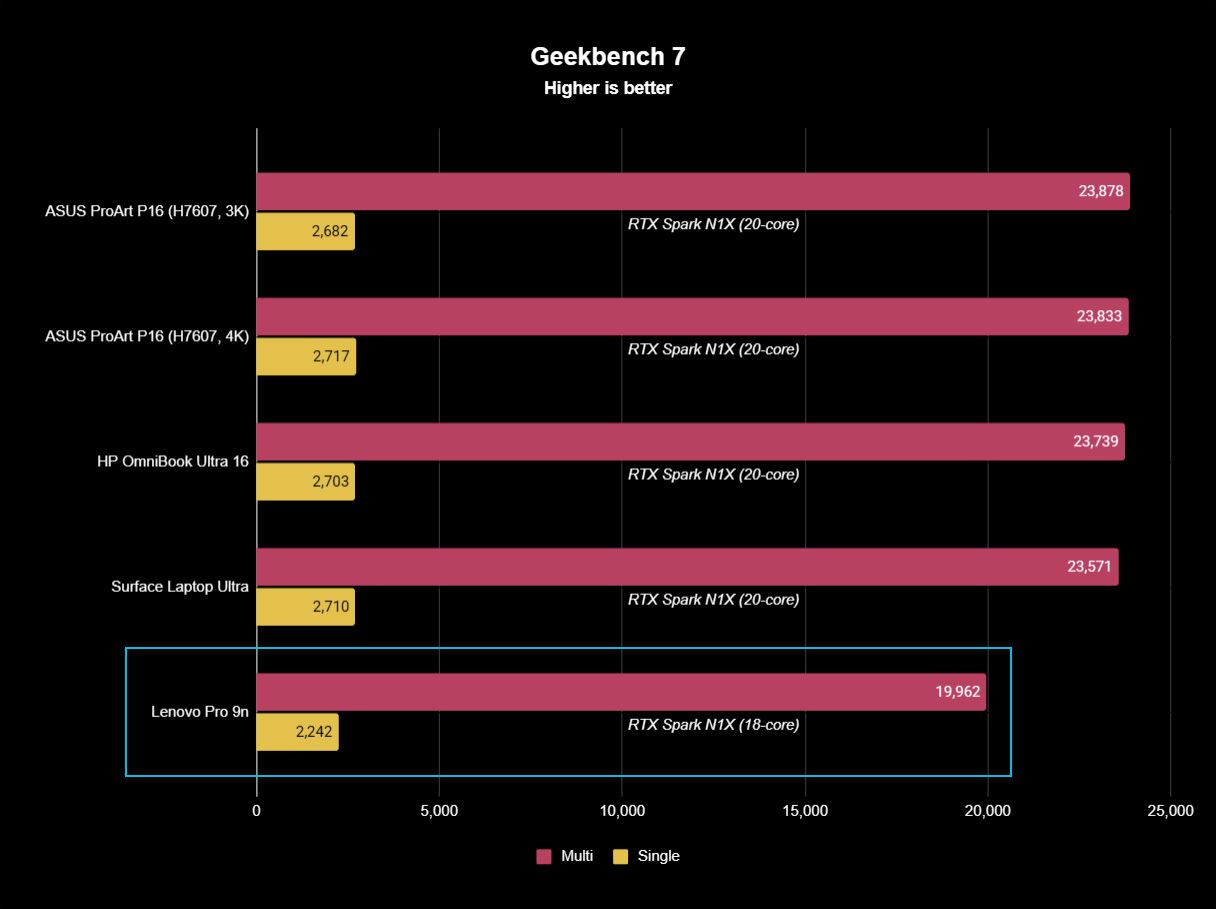
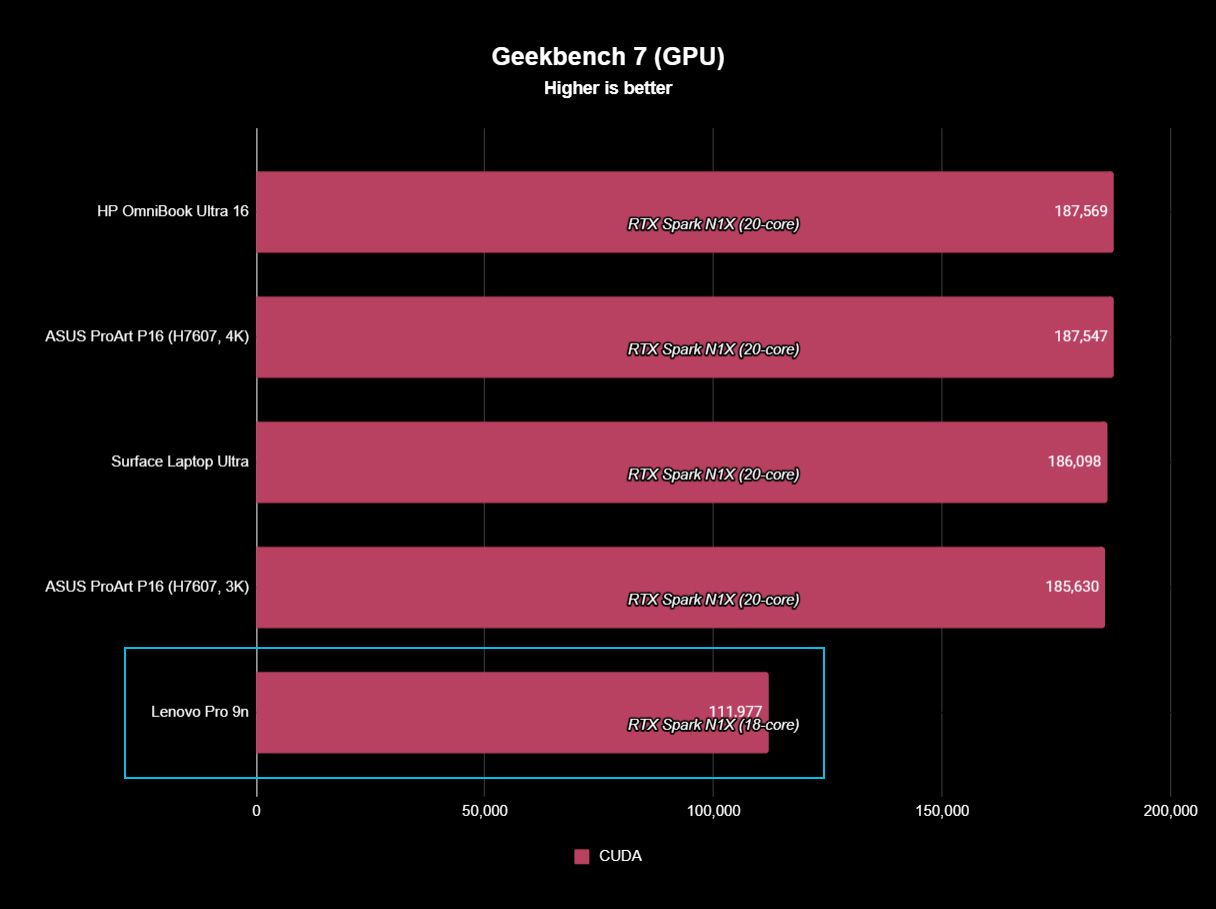
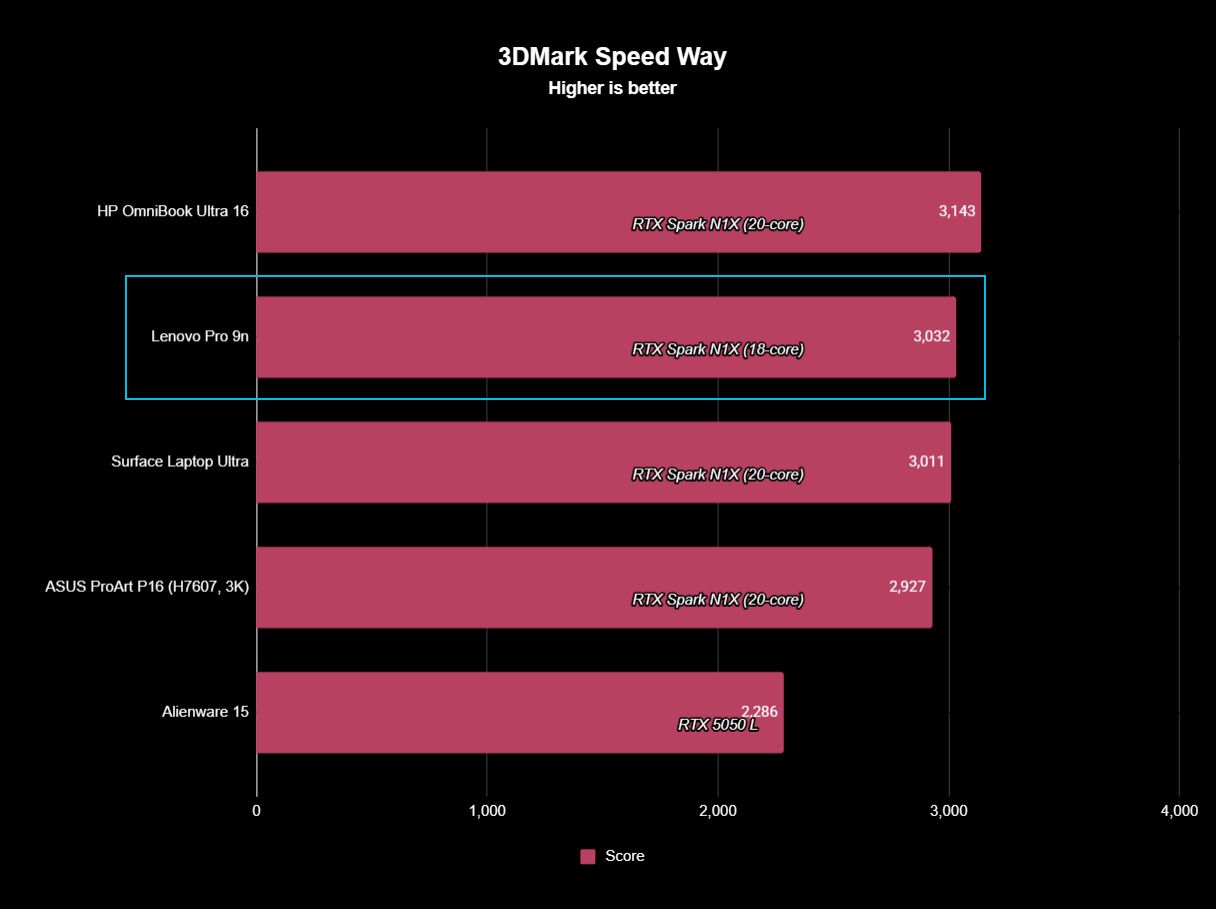
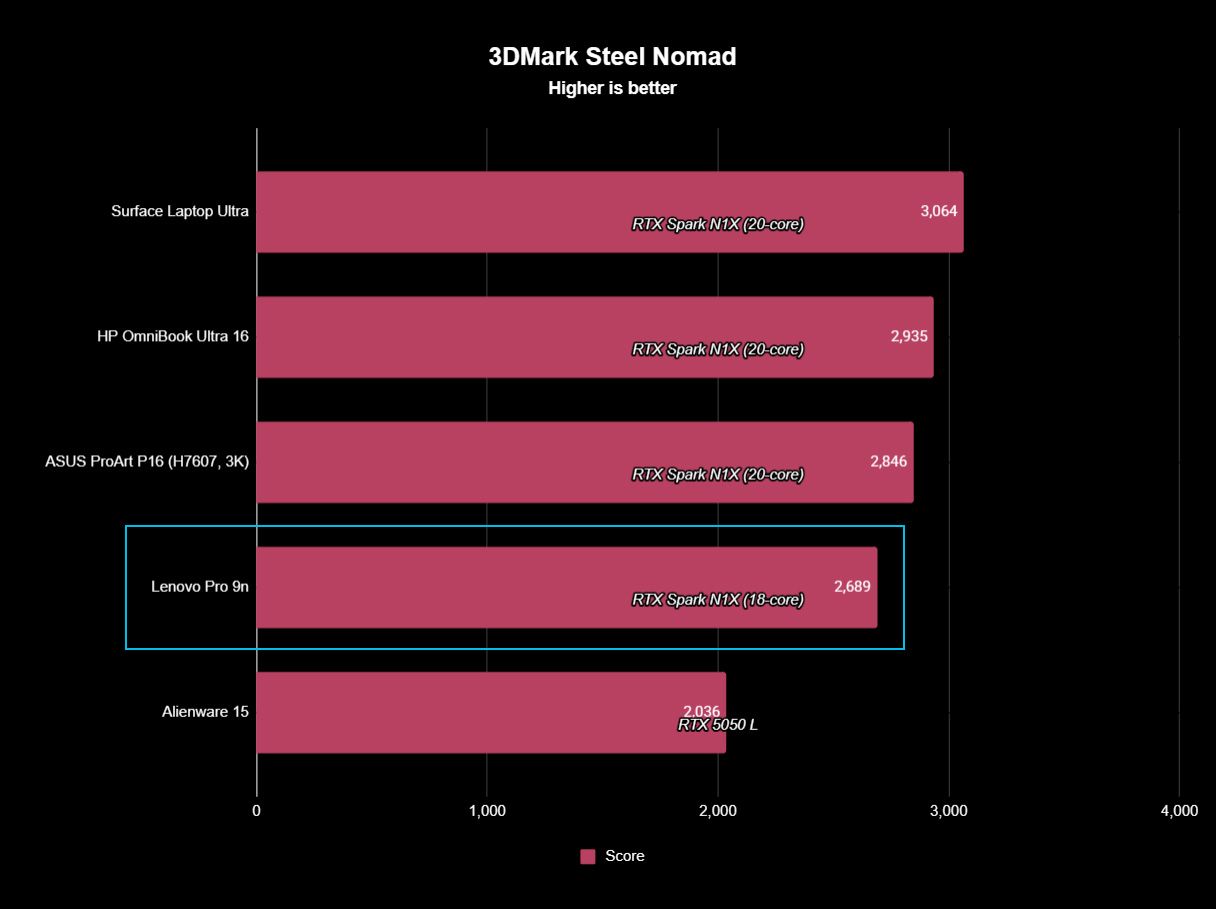
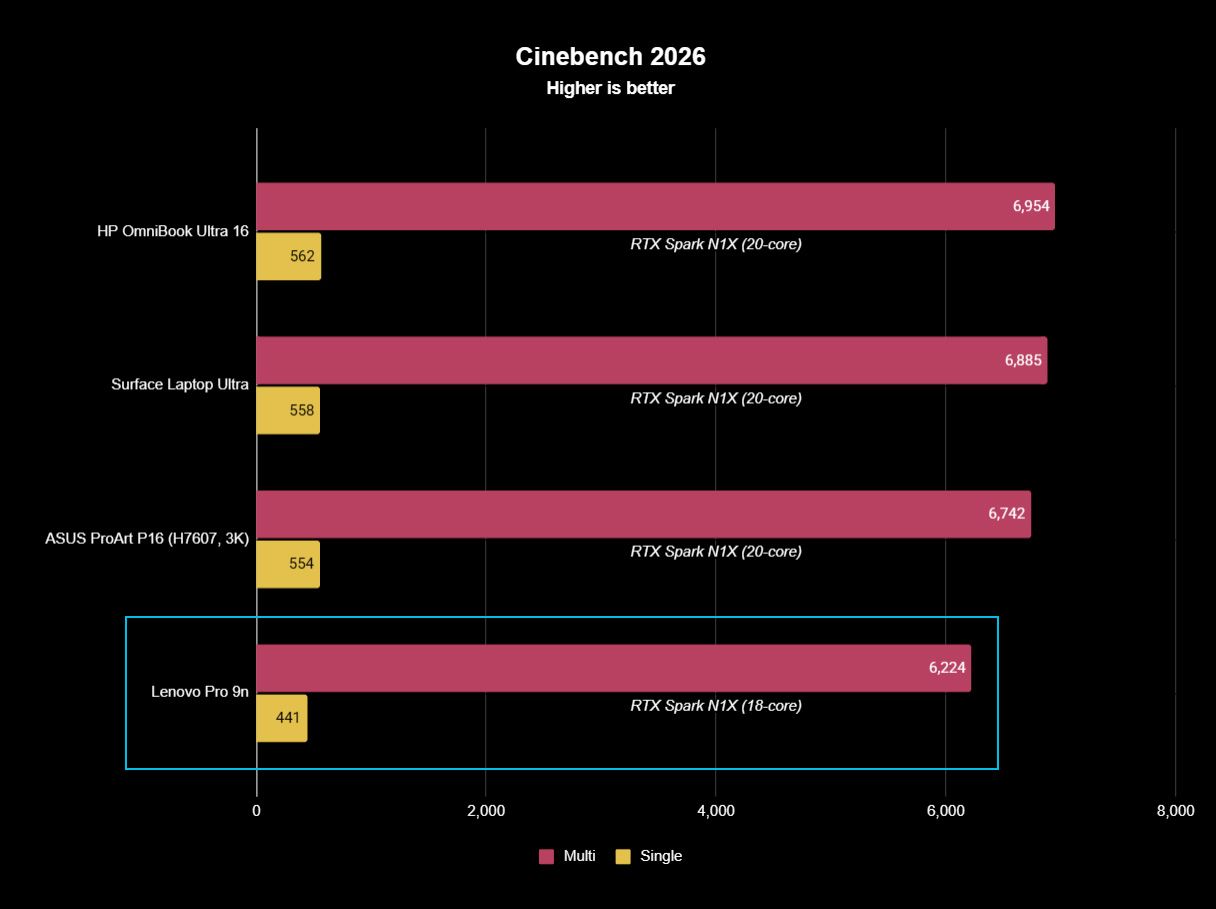
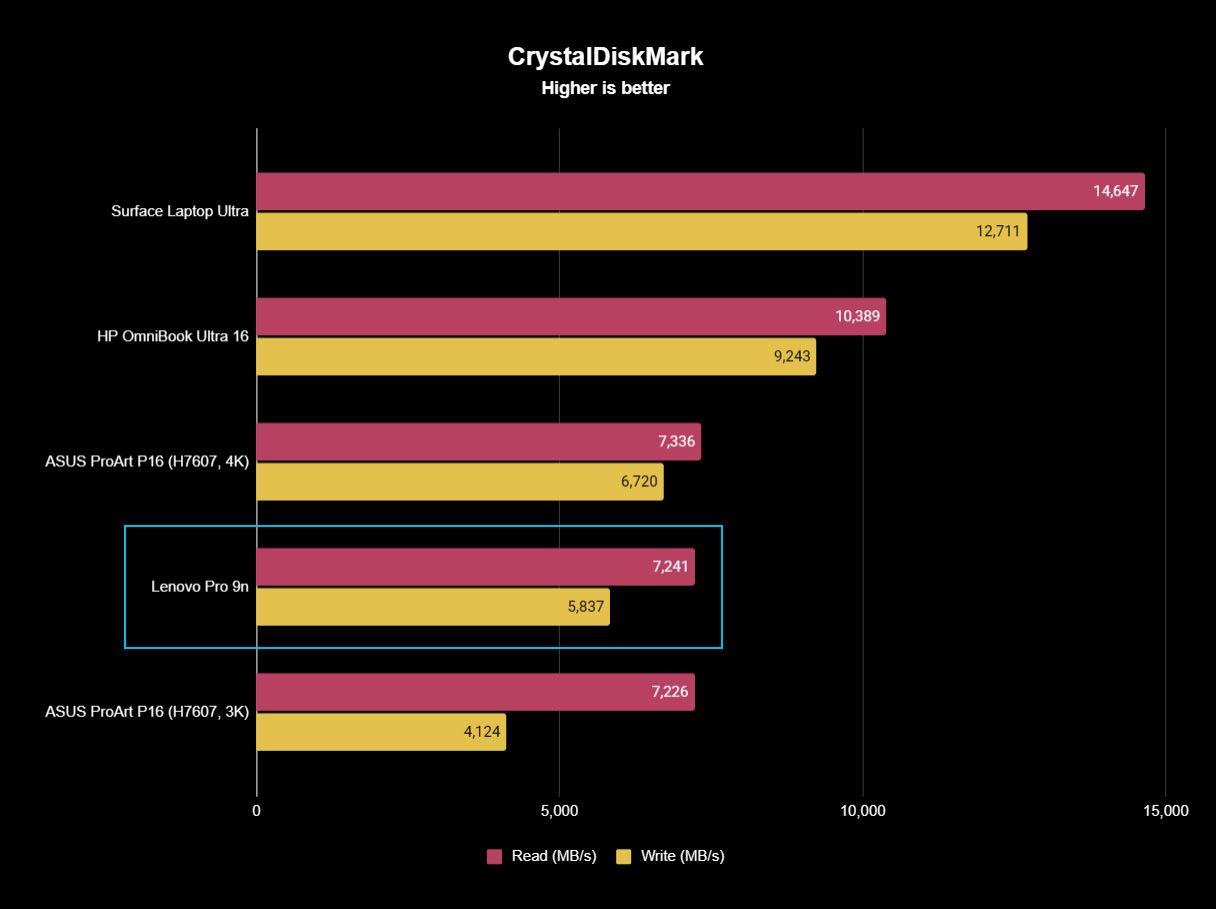
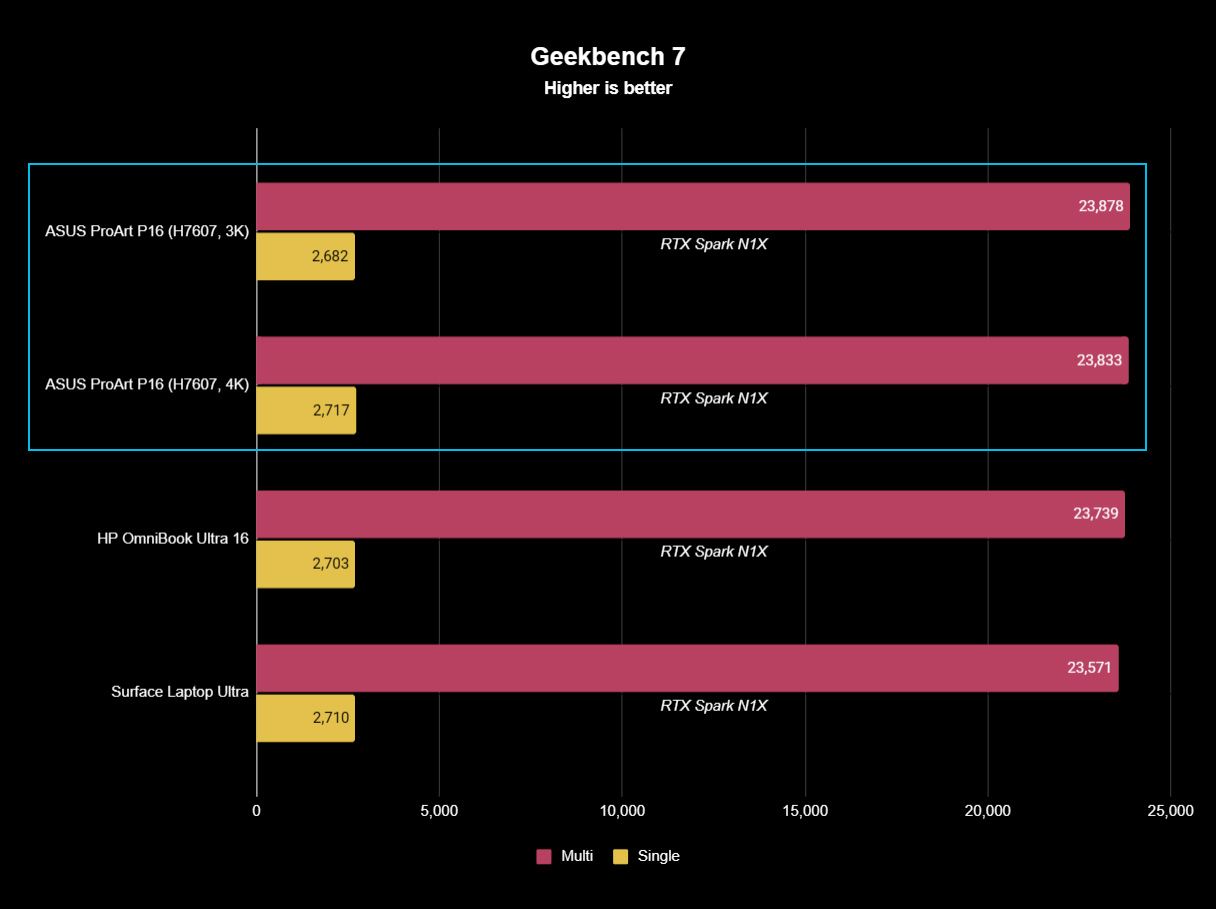
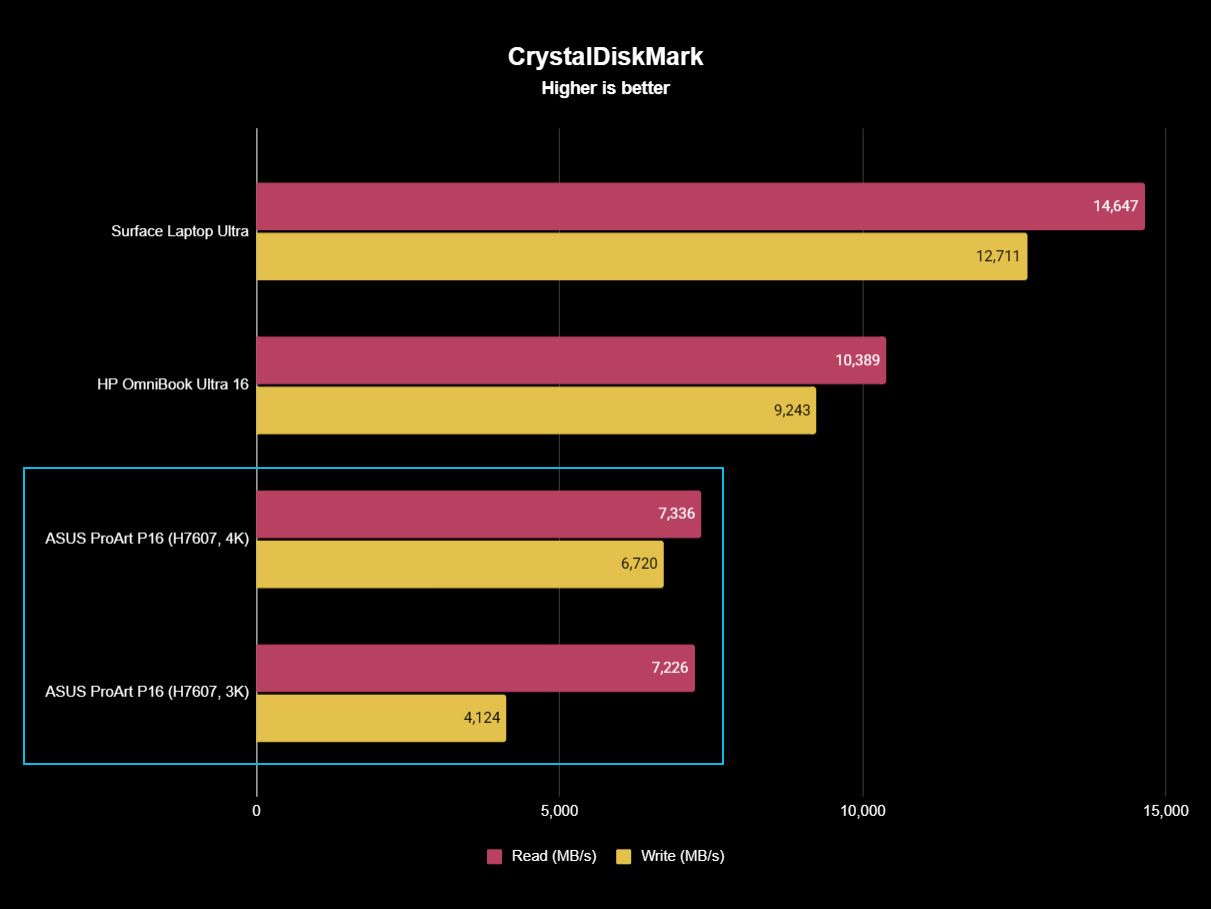
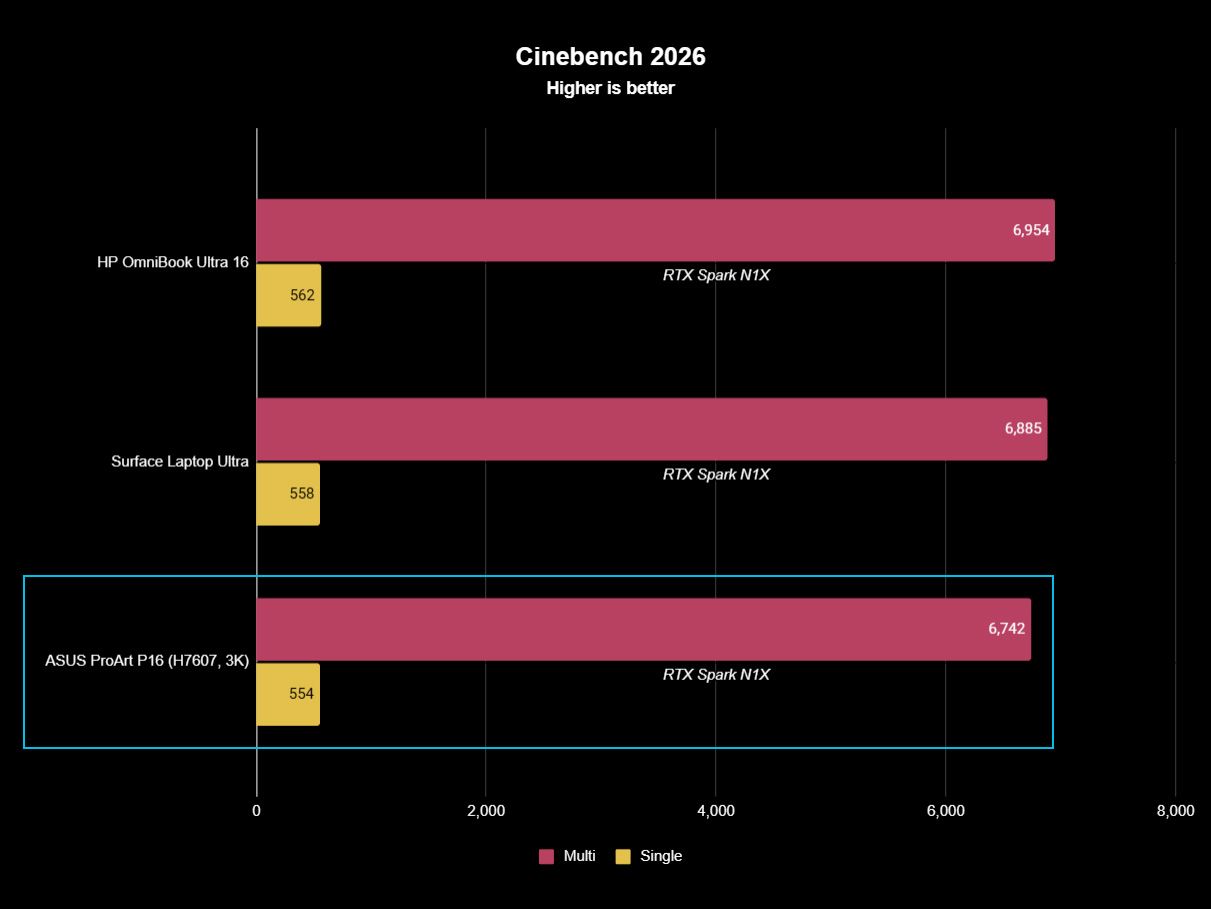
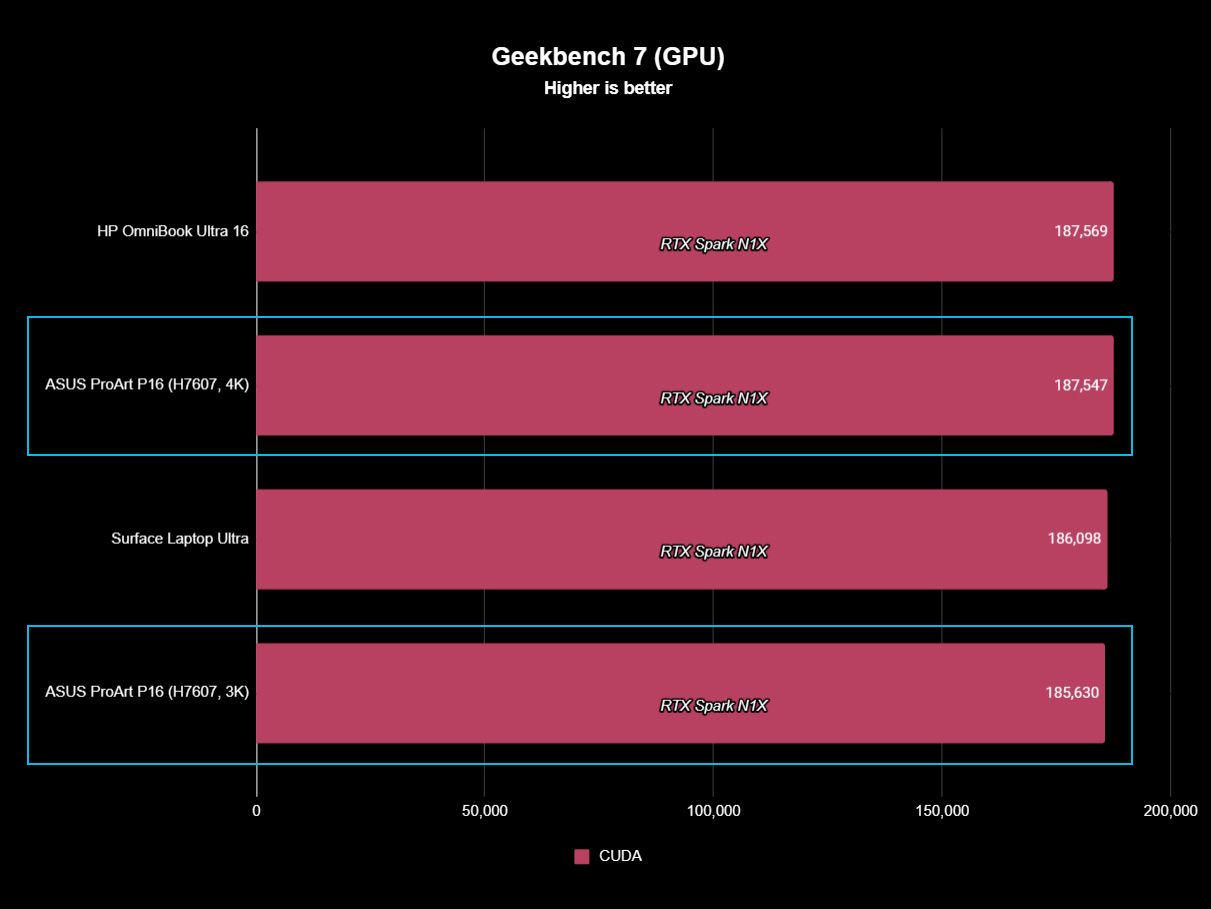
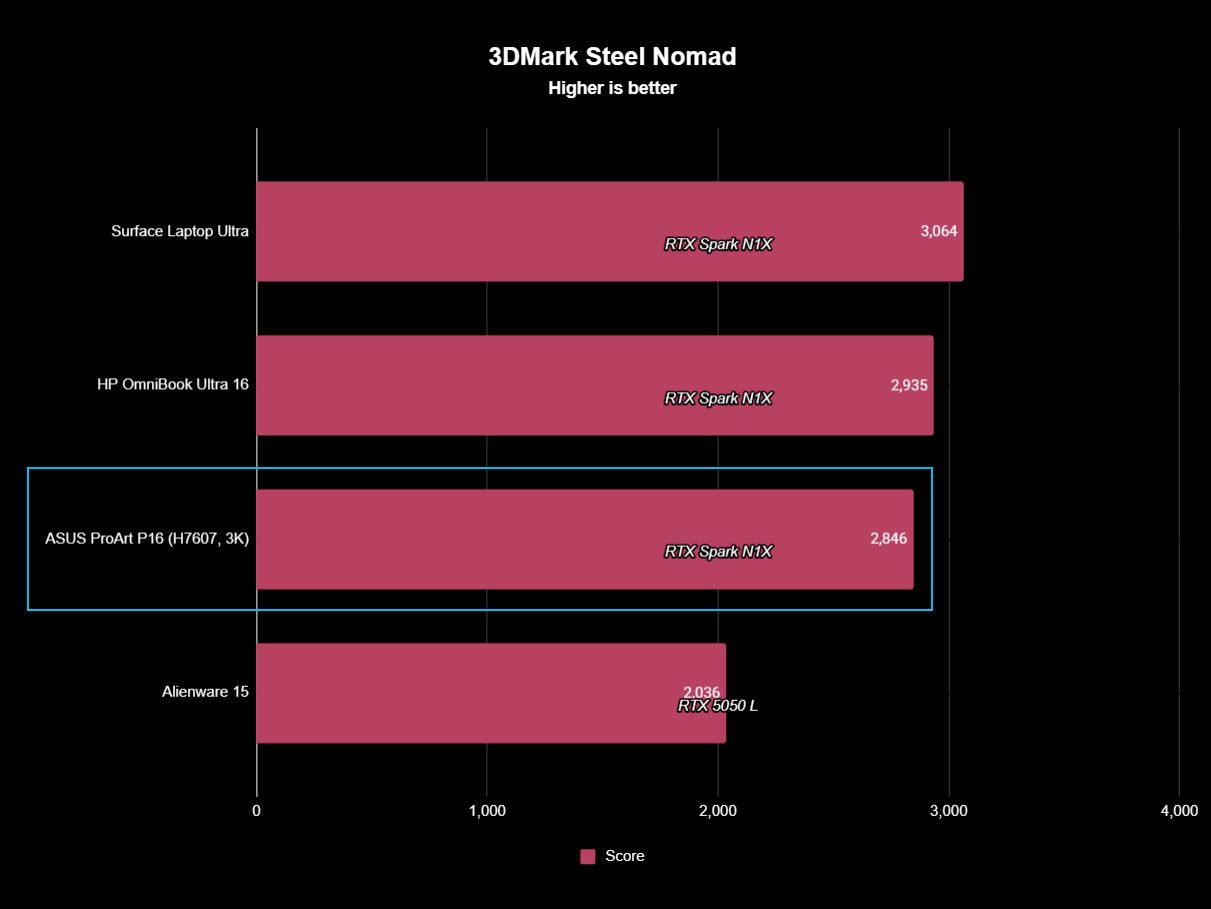
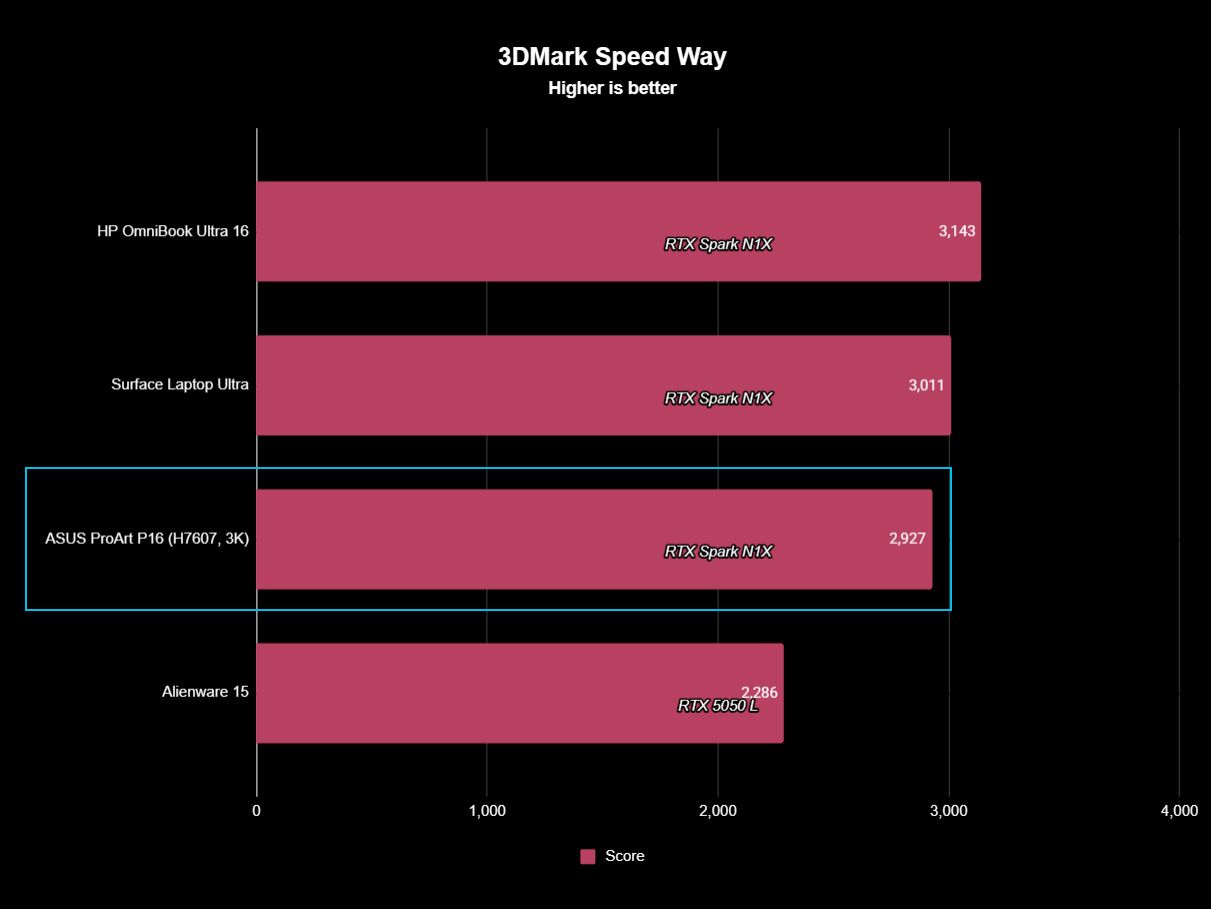
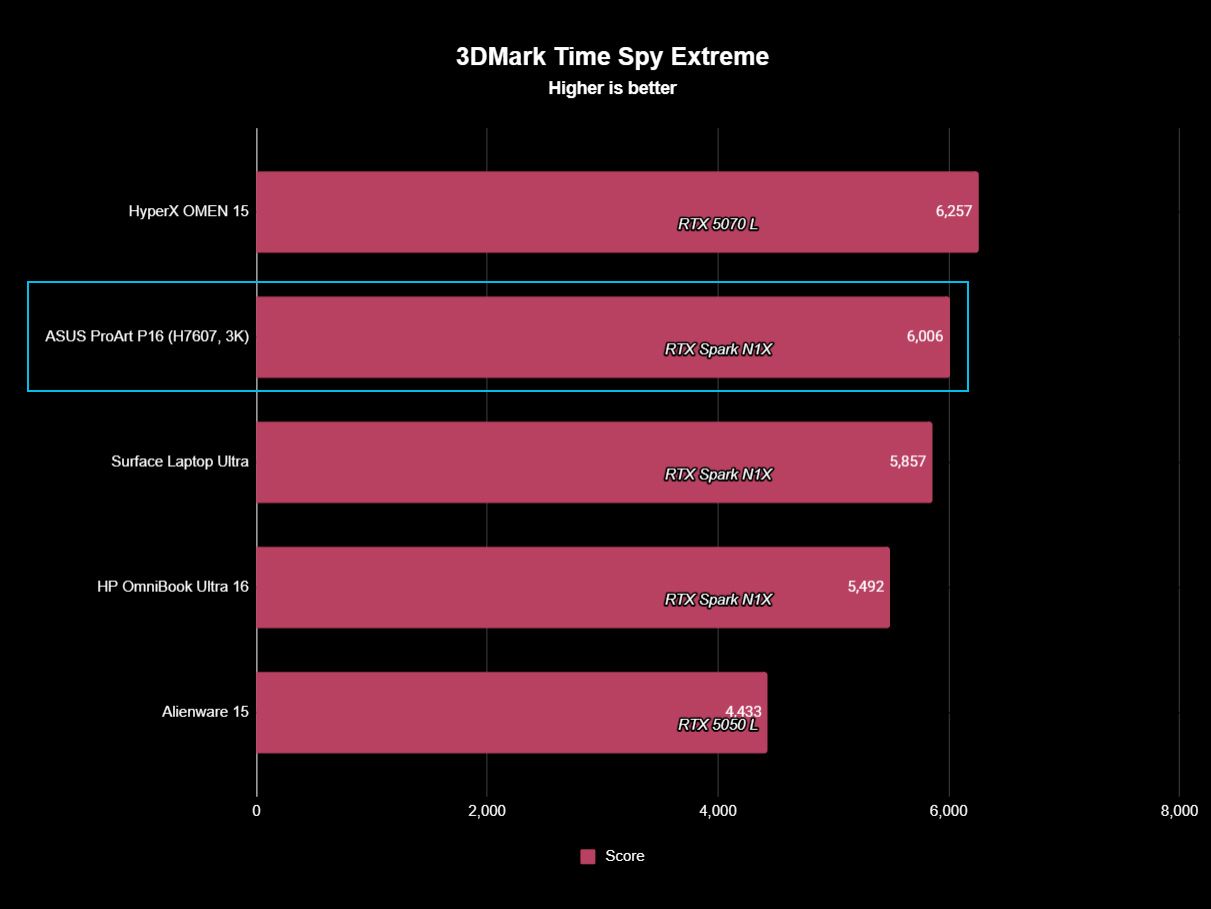
The following graphs show how the 18-core RTX Spark in the Lenovo Pro 9n compares to the 20-core RTX Spark chips we've already tested in other laptops.
FutureFutureFutureFutureFutureFuture
As you can see, synthetic Geekbench 7 and Cinebench 2026 CPU scores fall accordingly compared to the 20-core Spark. Not by a lot, but it is noticeable.
The SSD looks comparatively slow, but keep in mind that most of these laptops have a mix of PCIe 4.0 and PCIe 5.0. In my test case, it's the former, but you can get the latter, faster drive in a 2TB config.
FutureFutureFuture
The weaker RTX GPU also showed a drop-off in Geekbench 7's GPU test, but it put up a strong fight in 3DMark's Steel Nomad and Speed Way tests.
Considering I was playing The Witcher 3: The Wild Hunt Remastered at a smooth frame rate with ray tracing cranked up, there should be no denying the Pro 9n can game. Just don't buy it if that's all you want from your laptop.
There should be no denying the Pro 9n can game.
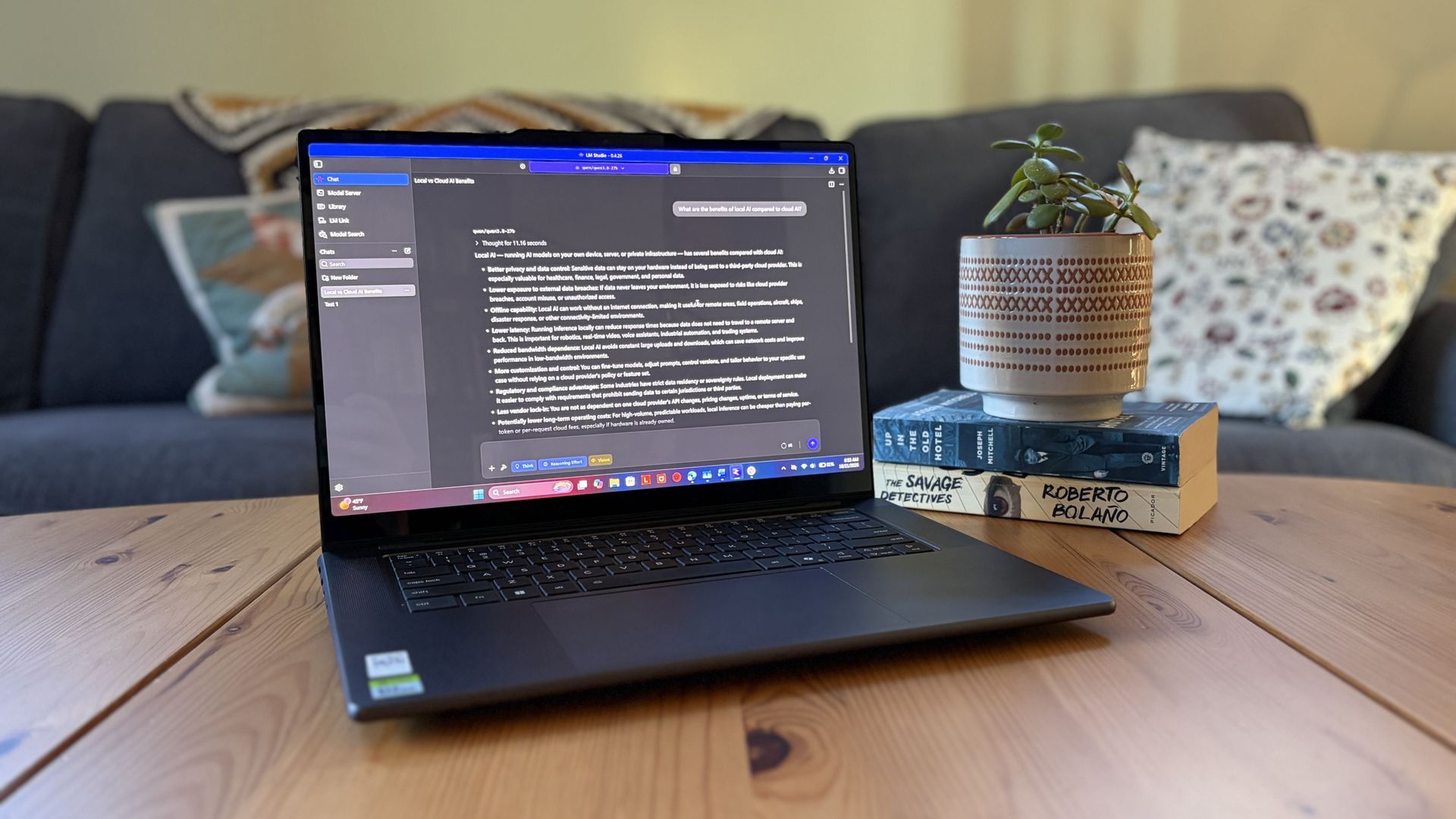
I also began a journey with local AI agents on the Lenovo Pro 9n. I set up LM Studio on it and downloaded a hefty Qwen model, which runs surprisingly well on the system despite only having 32GB of unified RAM.
Lenovo's Pro 9n running LM Studio, allowing me to chat locally with AI agents. (Image credit: Future)
The unit I was sent to test is more geared toward creators who don't need the ultimate 20-core CPU and 128GB of RAM coveted by AI specialists, so I'm pleased that it's proving to be a capable local AI base.
I ran a few AI-focused tests in Procyon to see how the weaker RTX Spark chip in my Lenovo Pro 9n compares to the 20-core option we already reviewed.
Procyon Image Generation
RTX Spark (18-core)
RTX Spark (20-core)
Stable Diffusion 1.5 score (FP16, higher is better)
1,430
1,380
Seconds / Image (lower is better)
4.36
4.22
Total duration (lower is better)
69.9
67.5
Procyon Text Generation
RTX Spark (18-core)
RTX Spark (20-core)
Phi-3.5-mini (higher is better)
2,383
2,615
Seconds to first token (lower is better)
0.31
0.27
Tokens / Second (higher is better)
68.31
72.21
Load time / Seconds (lower is better)
0.73
0.66
Procyon AI Computer Vision 2.0
RTX Spark (18-core)
RTX Spark (20-core)
Score (higher is better)
3,658
3,997
There's clearly a drop-off with the 18-core Spark chip in terms of AI performance, and I'd recommend that any AI specialists out there opt for the 20-core option.
For creators, part-time gamers, and professionals without a direct focus on AI, I think the 18-core chip should do just fine.
Does Lenovo's Pro 9n get too hot?
Playing demanding games on the Lenovo Pro 9n is entirely possible. Just expect there to be a little heat. (Image credit: Future)
The Lenovo Pro 9n's upgraded cooling system does a good job of managing thermal limits, and fan noise isn't bad, either. This is all with the system managing power automatically, which I found quite convenient.
During a lengthy system stress test, I never clocked the fan noise any higher than 43dB. They're audible in a quiet room, but they'd go unnoticed in a busy office.
My trusty FLIR camera is in the shop, but I did a surface temp test with my lap. During the stress run, it remained comfortable to hold. The keyboard side got a bit hotter, but nothing that gave me pause.
How is the Pro 9n's battery life?
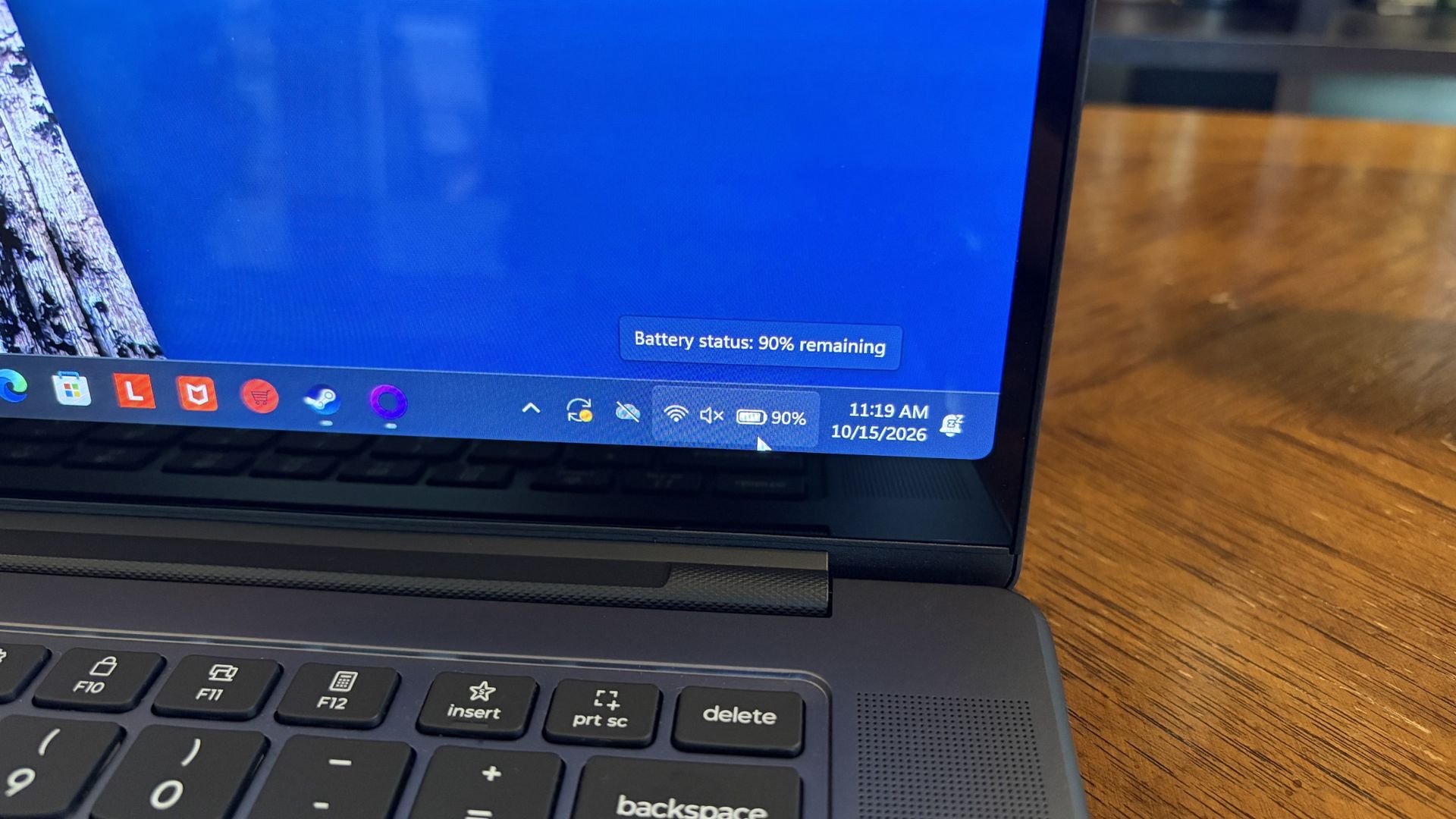
Battery life has been quite good, especially for everyday tasks, but Snapdragon X2 is still the champ. (Image credit: Future)
Battery life is not as good as I was hoping, and Qualcomm's Snapdragon chips are not in any threat of being dethroned in terms of efficiency.
My Windows Battery report shows roughly 8 to 10 hours of real-world life on a charge. Keep in mind that I was doing a decent amount of gaming on battery life, which brought that number down. Still, that's in line with the other RTX Spark laptops we've tested.
If you are gaming on battery power and have settings cranked up with ray tracing enabled, know that I was seeing about 10 minutes of runtime for every 10% of battery life.
Indie titles that aren't as demanding don't sap the battery nearly as much, and you can enjoy a few hours of gaming without worrying about power.
Should you buy Lenovo's Pro 9n?
The Lenovo Pro 9n's lid pulls back to about a 180-degree flex. (Image credit: Future)
You should buy this if ...
✅ You want an RTX Spark laptop with a 15.3-inch OLED display at 2.5K.
✅ You dabble in drawing, sketching, and writing with a pen.
✅ You're a professional or a creator who wants one PC to handle local AI, demanding apps, and gaming.
You should not buy this if ...
❌ You want the most affordable RTX Spark laptop possible.
❌ You prefer a mini-LED display (go with the Surface Laptop Ultra).
Lenovo's first notebook RTX Spark laptop has been a ton of fun to use over the past few weeks, and admittedly, I regret that I soon have to give it up.
It's not perfect. I wish there were human presence detection. I wish there were an extra high-res display option. I wish battery life were a lot better. And I wish it didn't cost as much (which is an effect of the ongoing RAM and storage crisis, not some Lenovo decision).
But for what it is — a specialized portable AI workstation using the first generation of a new NVIDIA computing platform — it's among the most exciting and promising Windows PCs I've used in recent memory.
If you're a general creator who just wants to see the latest chip technology in an ultra-premium package, the 32GB model could be ideal for you, just as long as you can stomach the price.
Otherwise, it's mainly going to appeal to a fairly small set of users, but those who can take full advantage of the RTX Spark chip should love what Lenovo has put together here.
RTX Spark
Lenovo
Pro 9n
Lenovo's Pro 9n delivers high-end features and cutting-edge AI performance for the Windows ecosystem. It's a great PC for creators with deeper pockets, but its true usefulness is seen in the hands of AI pros who need a ton of unified memory and a beefy RTX Blackwell GPU. It's all wrapped up in a sleek, portable package.
The Surface Laptop Ultra costs less to start, but it lacks pen support, its mini-LED isn't as impressive, it's thicker and heavier, and it lacks some features compared to the ASUS ProArt P16. Regardless, many will appreciate its speedy SSD, its superior webcam, its smaller footprint, and its magnetic USB-C port.
The ASUS ProArt P16 scored higher in our review thanks to its OLED display, deeper key travel, outstanding audio, cooler thermals, and thinner/lighter design. It does cost more to start, and it has louder fans, but these are easy trade-offs for those who don't mind spending a little bit more.
Pros
Gorgeous OLED display with inking support
Deeper 1.7mm key travel and haptic touchpad
Top-firing speakers
Cooler thermals
Oleophobic coating and anti-glare 4K display finish
Cons
Slower 1TB/2TB SSDs
Costs more to start
Louder fans
The Windows Central team has had time to digest some of the new NVIDIA RTX Spark laptops that recently launched, and thanks to our in-depth reviews, I'm here to offer some insights as to which PC might be best for you.
Here's why the ProArt PC gained a bit of extra score over the Surface Laptop Ultra (and why that doesn't necessarily mean it's the right RTX Spark laptop for you).
Surface Laptop Ultra vs. ASUS ProArt P16: Specifications
Before I get too deep into my comparison between the Surface Laptop Ultra and ASUS ProArt P16, I put together this table for easy reference.
Standout differences at this point should be the display size and type, the port selection, and the dimensions, which I cover and explain in more depth below.
12.95 x 9.40 x 0.71-0.75 inches (328.8mm x 238.7mm x 17.99-19.16mm)
13.94 x 9.57 x 0.51-0.63 inches (354.1mm x 243mm x 12.9-15.9mm)
Weight
4.41 pounds (2kg)
3.9 pounds (1.77kg)
Colors
Platinum, Nightfall
Nano Black, Neo White
Pro-grade designs and features available in both laptops
The ASUS ProArt P16 (pictured here) is thinner and weighs less than the Surface Laptop Ultra. (Image credit: Daniel Rubino)
The ProArt P16 is larger than the Surface Laptop Ultra. That's a given considering it has a larger 16-inch display. The overall footprint is a bit larger, but otherwise, the ProArt P16 comes out ahead.
The P16 weighs just 3.9 pounds (1.77kg) compared to the Surface Laptop Ultra's 4.41 pounds (2kg), and it's also quite a bit thinner, starting at 0.51 inches (12.9mm) compared to 0.71 inches (17.9mm).
The neat thing is that ASUS really doesn't make you regret that upsizing. As Windows Central Editor-in-Chief Daniel Rubino says in his ProArt P16 review:
Thermals are even more impressive. Under sustained heavy workloads, my thermal camera recorded around 105°F across the keyboard deck and approximately 120°F near the rear exhaust. That's a few degrees cooler than both the Surface Laptop Ultra and HP OmniBook Ultra 16 RTX Spark in my testing. Fan noise never exceeded 50dB under extreme workloads.
Rubino does give Surface a nod for its "pure premium feel," although I'm sure some will love the ProArt P16's fingerprint-resistant coating that reduces smudges.
Which laptop offers better ports?
The left-side ports on the Surface Laptop Ultra.Zac Bowden / Windows CentralThe Surface Laptop Ultra's magnetic charging cable.Zac Bowden / Windows Central
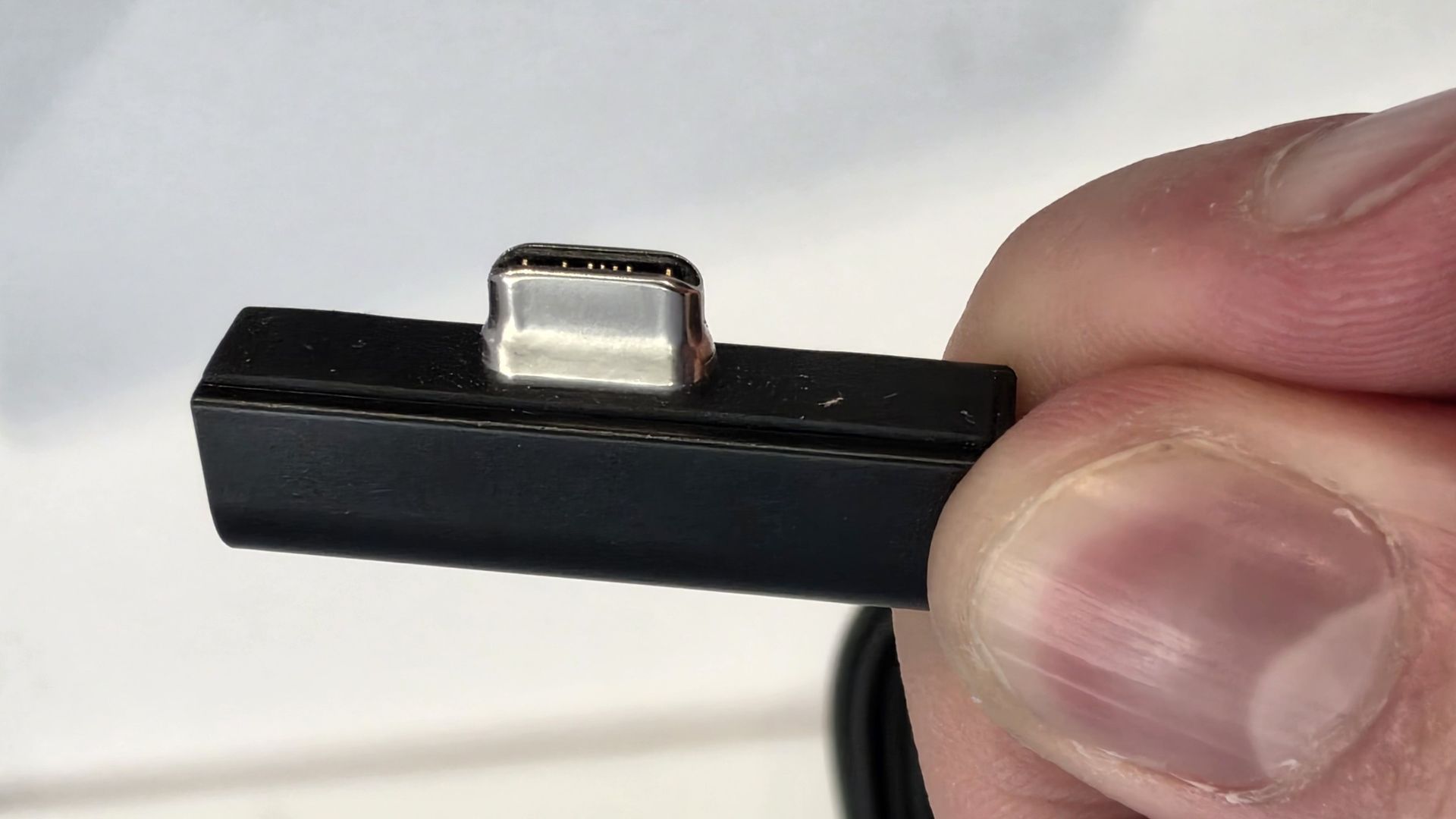
This first wave of RTX Spark laptops is fairly unified across brands in terms of port selection. Both laptops offer three USB4 hookups (using the USB-C form factor), but only the Surface Laptop Ultra has the nifty Magnetic Connect feature on one of them.
Magnetic Connect allows a connected USB-C cable to pull away from the PC instead of dragging it off a table, much like Apple's MagSafe. It's a great feature to have, especially with a laptop at this price.
You're otherwise getting USB-A, HDMI, an SD card reader, and a 3.5mm audio jack across both PCs.
Is the keyboard and touchpad different across PCs?
A look at the ProArt P16's haptic touchpad, keyboard, and top-firing speakers.Daniel RubinoA look at the Surface Laptop Ultra's haptic touchpad and keyboard.Windows Central / Zac Bowden
Speaking on the Surface Laptop Ultra'skeyboard and touchpad,Windows Central Senior Editor Zac Bowden said, "This is probably the best keyboard and trackpad experience I've ever had on a Windows laptop to date."
Digging into that statement, Bowden clearly appreciated the 1.4mm tactile key travel that he called "incredibly satisfying and not at all fatiguing." The Surface's haptic touchpad is the largest ever in Microsoft's lineup, and Bowden says it "makes a huge difference in how easy it is to use."
Not to be outdone, the ASUS ProArt P16 offers deeper 1.7mm key travel and an equally enormous haptic touchpad.
Which laptop has a better webcam and speakers?
The bottom two speakers are joined by two speakers flanking the ProArt P16's keyboard. (Image credit: Daniel Rubino)
On the spec sheet, both laptops offer an FHD (1080p) front-facing webcam with IR capabilities for facial recognition.
Rubino states that "Microsoft still wins this category with Surface" and notes how HP's OmniBook Ultra with a 5MP webcam trumps both ASUS and Microsoft.
The big deal? The ProArt P16 includes human presence detection for increased security and convenience, whereas the Surface Laptop Ultra does not.
As for audio, each laptop comes with four speakers and Dolby Atmos support. Both laptops deliver some of the best sound we've ever heard, but only the ProArt P16 has top-firing speakers flanking the keyboard.
Mini-LED or OLED? Our reviewers prefer the latter
The Surface Laptop Ultra's mini-LED is plenty bright, but OLED is probably better for many users. (Image credit: Windows Central / Zac Bowden)
Display tech is where these two laptops really show a difference. Most noticeable is the Surface's taller 3:2 aspect ratio compared to the P16's 16:10 aspect ratio. The differences don't stop here.
The Surface Laptop Ultra has a 15-inch mini-LED screen at a 3270x2180 resolution, with 1,344 dimming zones, 1000-nit SDR brightness, and 2000-nit HDR peak brightness. It packs in a 120Hz dynamic refresh rate and Dolby Vision IQ support.
Though it's brighter than the ProArt's screen, Bowden says the mini-LED tech results in "a bit of blooming around bright elements on a dark background."
He adds that the backlight doesn't always keep up with what's on your screen, causing a slight ghosting effect in dark mode.
The ProArt P16's OLED display provides vivid color and perfect contrast, with no backlight bleed apparent. (Image credit: Daniel Rubino)
The ProArt P16 has a larger 16-inch OLED screen with a 120Hz dynamic refresh rate, and it's available in either a 3840x2400 (4K) or 2880x1800 (2.8K) resolution.
The 4K version is the primary option for models with 128GB of RAM, though Best Buy seems to offer a 4K version with 32GB of RAM. Despite a lower resolution, you still get 500 nits of SDR brightness and 1,100 nits of peak HDR brightness.
The 4K version hits 700-nit peak SDR brightness, climbing to 1,600 nits with HDR. An anti-reflective coating is included.
None of the mini-LED issues discovered in the Surface Laptop Ultra's mini-LED screen are apparent here, and you get the standard OLED perks of perfect contrast and vivid color no matter how you're using it.
It's worth noting that the P16 display offers pen support for inking. The Surface Laptop Ultra has no pen support.
NVIDIA's RTX Spark chip keeps performance close
The new NVIDIA RTX Spark chips offer similar performance across laptop models. (Image credit: Daniel Rubino)
A neat aspect we're discovering as we test RTX Spark laptops is how performance is quite similar. That's not surprising. These laptops use the same NVIDIA N1X chips in either 18- or 20-core CPU and 5120- or 6144-core GPU configs.
We tested both with the 20-core CPU and 6144-core GPU, and the Surface Laptop Ultra and ProArt P16 trade blows across benchmarks. For example, CPU performance is close enough that I wouldn't spend much time worrying about it.
The Laptop Ultra does great in lighter graphics benchmarks, though the ProArt P16 takes over in more demanding tests. Considering the ASUS laptop is thinner and lighter than the Laptop Ultra, that's a real achievement.
FutureFutureFutureFutureFutureFutureFuture
One area where the Surface Laptop Ultra pulls ahead is with its 1TB and 2TB M.2 PCIe 5.0 NVMe SSDs that are way faster than the PCIe 4.0 options in the ProArt P16. Microsoft does drop back to PCIe 4.0 with a 512GB capacity.
Which laptop has better battery life?
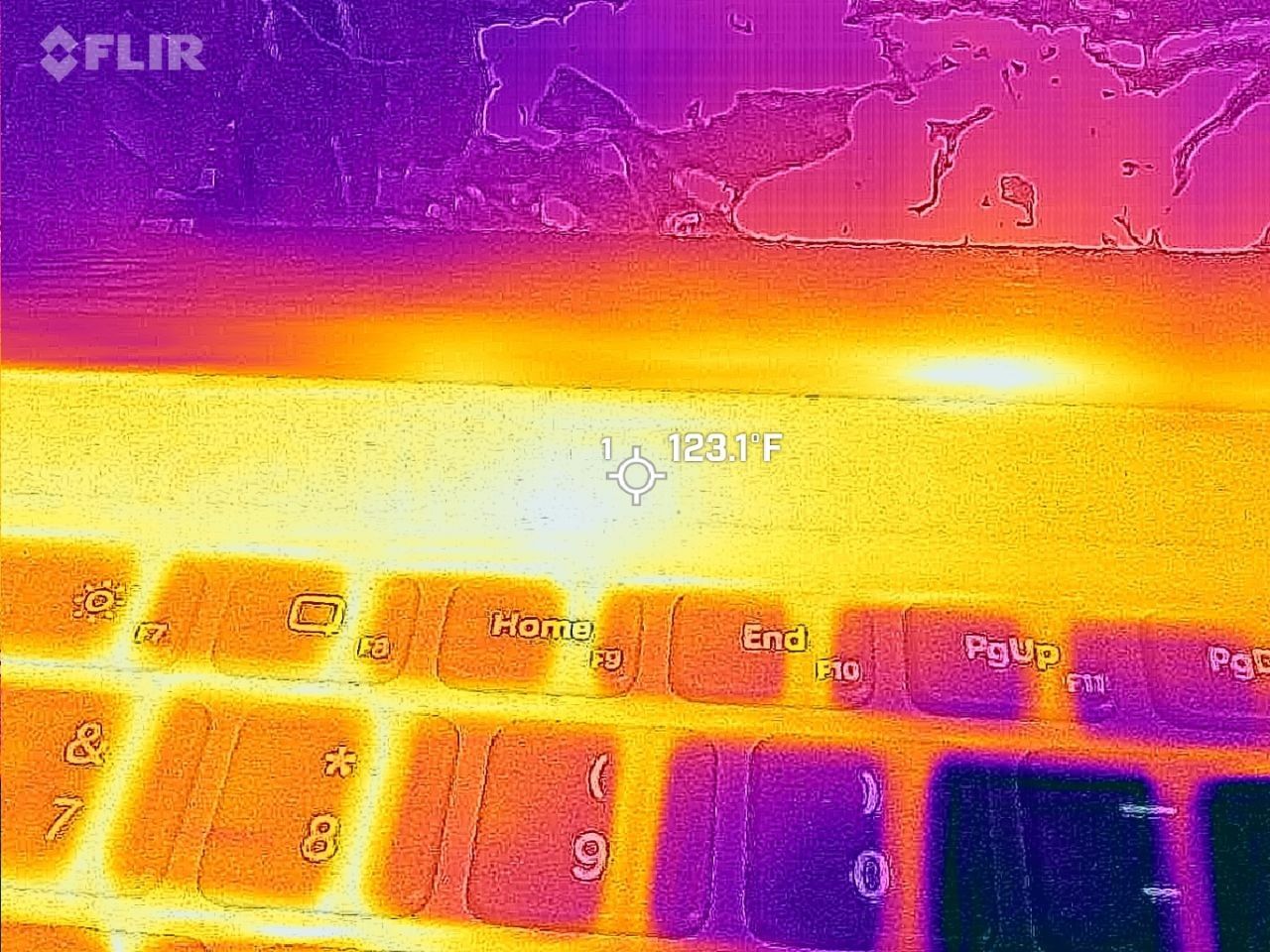
FLIR imagining reveals a 123F temp on the Surface Laptop Ultra. (Image credit: Zac Bowden / Windows Central)
The ProArt P16 has a larger 99.9Wh battery capacity compared to the Laptop Ultra's 92Wh, but that matters less than you might expect.
Both Rubino and Bowden were able to get around 10 hours of real-world use when not leaning heavily on the GPU. Both the ProArt P16 and Laptop Ultra struggle to put up strong efficiency numbers when that GPU is in demand, and in both cases, an AC charger should be kept nearby.
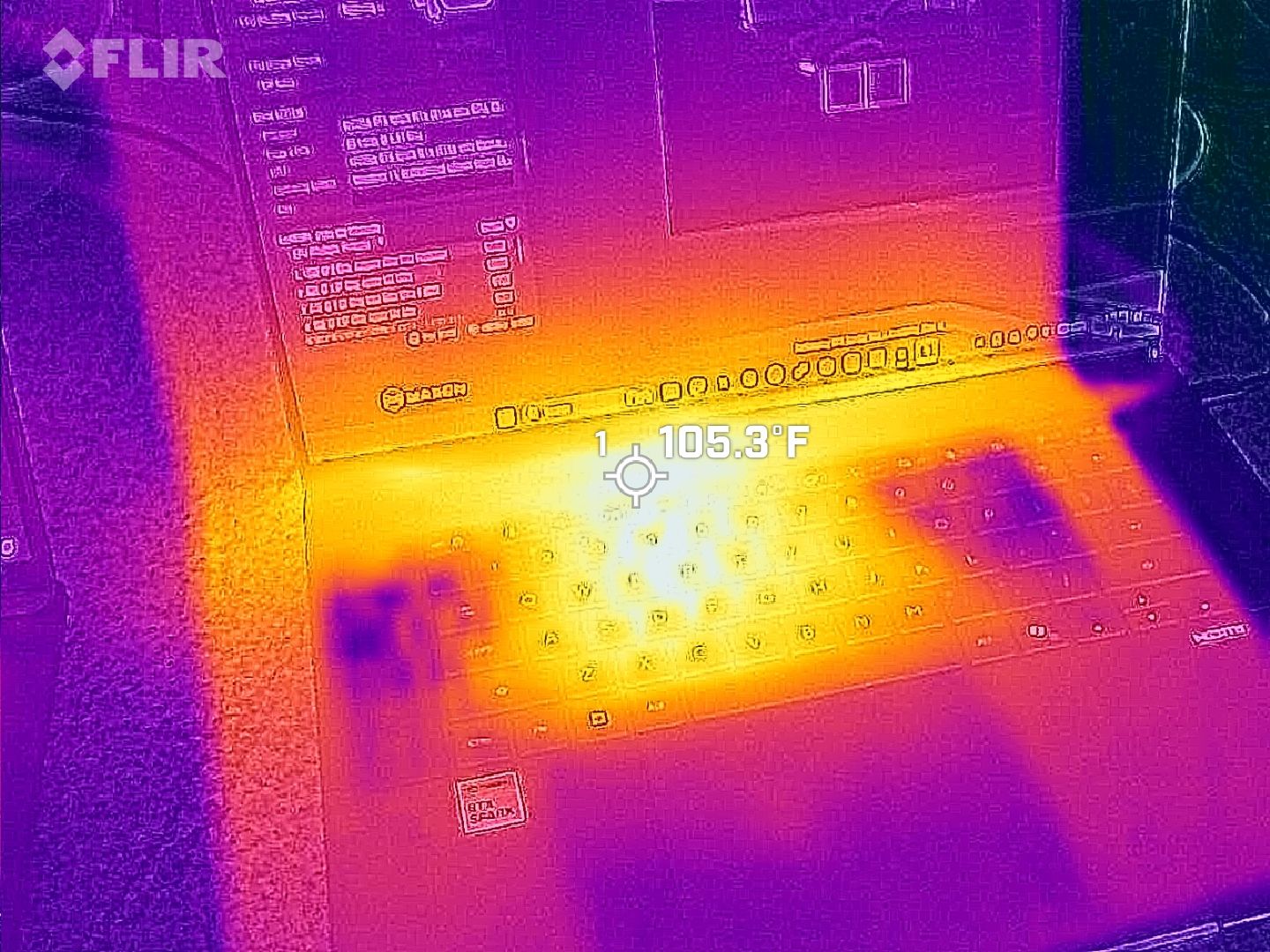
The same spot measured for heat on the ProArt P16. (Image credit: Daniel Rubino)
As for heat and noise, the Surface Laptop Ultra hit about 123 degrees Fahrenheit just above the keyboard. That's very hot, but at least the fans don't exceed 42 decibels.
Using the same FLIR imaging, we measured 105 degrees Fahrenheit in the same spot on the ProArt P16. That's quite a bit cooler, although the fans did climb closer to 50 decibels.
Surface Laptop Ultra vs. ASUS ProArt P16: Which should you buy?
The ASUS ProArt P16 comes out ahead of the Surface Laptop Ultra in several key areas. (Image credit: Daniel Rubino)
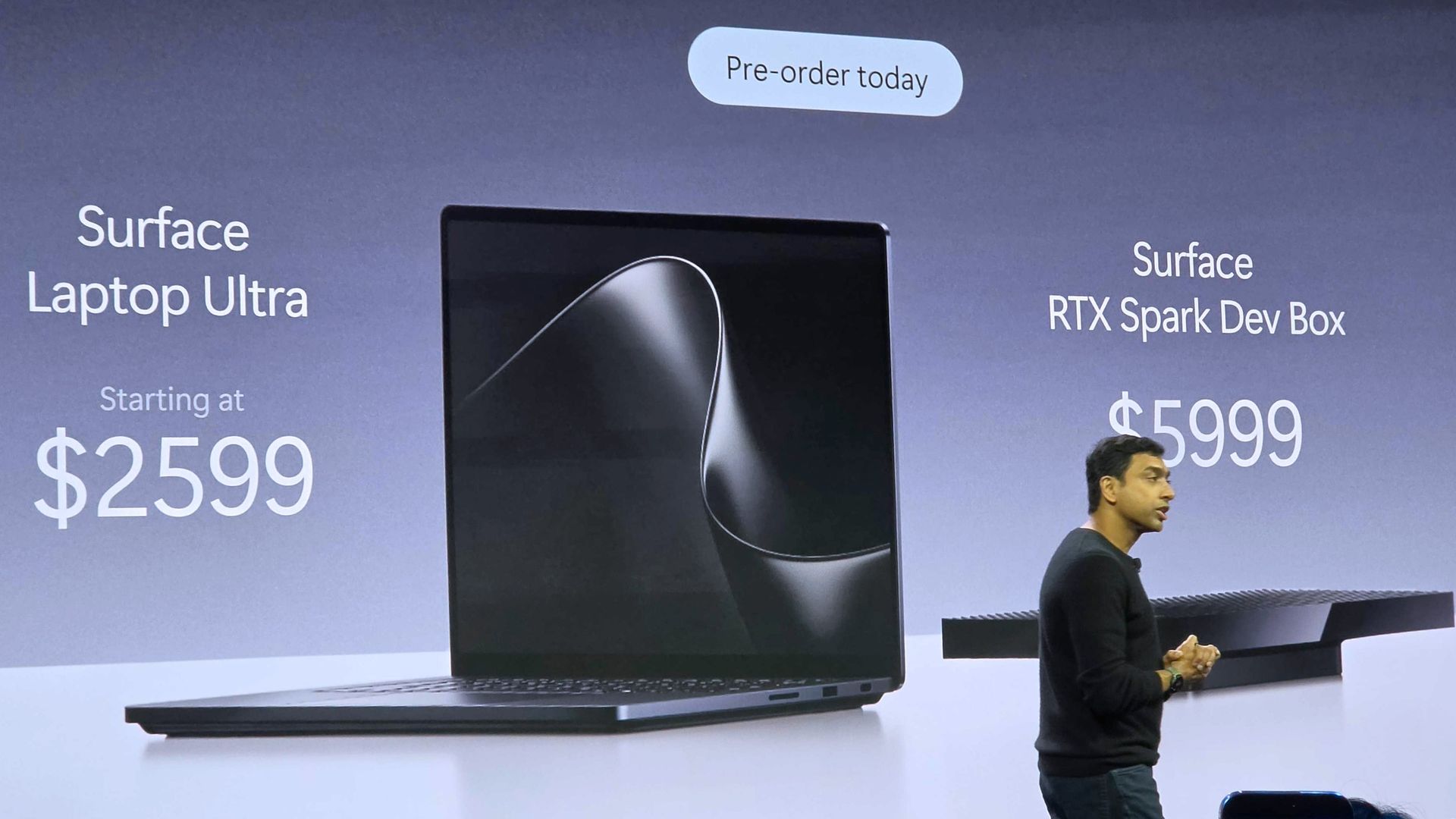
Microsoft's Surface Laptop Ultra starts at $2,599.99 for a model with an 18-core CPU, 24GB of RAM, and a 512GB SSD. The ASUS ProArt P16 starts at $2,799.99 for a model with an 18-core CPU, 24GB of RAM, and a 512GB SSD.
If they're so similar, why the price difference?
I'm pointing to the ProArt P16's superior OLED display with pen support, its thinner and lighter design, its cooler thermals, its deeper key travel, its human presence detection, its top-firing speakers, and its larger battery.
These are all noticeable benefits, and whether or not they're worth a $200 upcharge (to start) is really up to you.
I can confidently say that the Surface Laptop Ultra is a great PC regardless of how well ASUS put together its ProArt P16, and perks like a smaller footprint, a better FHD webcam, a cheaper starting price, a magnetic USB-C port, and quieter fans could weigh heavier on your shopping list.
It's worth noting that ASUS also makes a 14-inch ProArt P14 with many of the same benefits, all in a more portable package. Starting at $2,599, it might be the perfect third option for shoppers.
Mini-LED
Microsoft
Surface Laptop Ultra
The Surface Laptop Ultra costs less to start, but it lacks pen support, its mini-LED isn't as impressive, it's thicker and heavier, and it lacks some features compared to the ASUS ProArt P16. Regardless, many will appreciate its speedy SSD, its superior webcam, its smaller footprint, and its magnetic USB-C port.
OLED
ASUS
ProArt P16
The ASUS ProArt P16 scored higher in our review thanks to its OLED display, deeper key travel, outstanding audio, cooler thermals, and thinner/lighter design. It does cost more to start, and it has louder fans, but these are easy trade-offs for those who don't mind spending a little bit more.
Join us on Reddit at r/WindowsCentral to share your insights and discuss our latest news, reviews, and more.
I try not to write too many doom-and-gloom cybersecurity stories, but this week's vulnerabilities involving PHP are too big to ignore.
With the help of AI, PHP flaws that had been lying dormant for years were dredged up and exploited, resulting in parts of the internet going dark as IT experts attempted to fix the problem.
Although your Windows PC isn't in the direct line of fire this time, the sheer speed and ability of AI when it comes to discovering (and exploiting) flaws shouldn't go unnoticed.
I've put together this guide to help you be proactive rather than reactive towards whatever security crisis comes next.
ELI5: What's actually happening with PHP and the internet?
PHP is a programming language that's been around for more than three decades, and it quietly runs a large portion of the internet. Nearly 70% of websites with a known server language use PHP, including WordPress, Yahoo, Etsy, and Wikipedia. To say it's important is an understatement.
This week, two serious PHP security flaws known as "PHP2Shell" were made public. The exploits essentially allowed bad actors to take over servers and steal data. Once this news was public, countless bad actors began directing AI at the vulnerabilities.
The reaction? Some governments pulled their websites down to wait for a fix. IT teams worked countless hours to patch holes. Cloudflare fended off thousands of attempts to exploit the bugs, even before they were publicly announced.
Some stats on #php2shell. In the 10 hours before it was publicly announced, across the @Cloudflare network we saw thousands of attempts to exploit it. That jumped to tens of thousands in the 45 minutes post announcement, hundreds of thousands within 2 hours, and millions now.October 22, 2026
The PHP Foundation released a patch on October 21, but it's only targeted at newer versions of PHP. There are countless millions of websites and servers running older versions of PHP that didn't get the fix (and may never be secure again).
Is PHP2Shell a one-time incident?
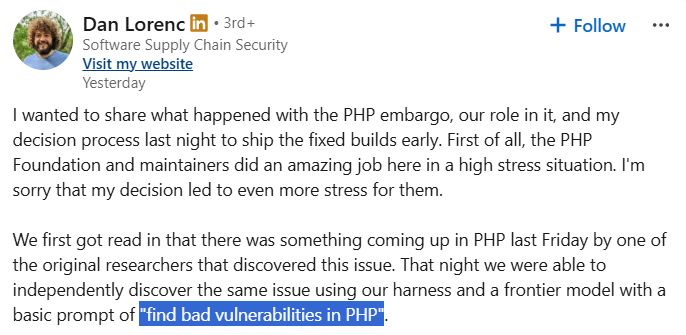
To give you an idea of what we're heading into (and not just in the middle of), Dan Lorenc, CEO of Chainguard, shared on LinkedIn a tale of his journey to find PHP vulnerabilities.
His team had the PHP news early, and it attempted to independently discover the vulnerability. All it took was a prompt for their frontier model to "find bad vulnerabilities in PHP" for this to happen.
A screenshot of the LinkedIn post from Dan Lorenc explaining how he used AI to find PHP vulnerabilities. (Image credit: Dan Lorenc (LinkedIn))
No special AI voodoo. No deep knowledge of security systems. Just a powerful AI with a simple command. As Lorenc points out, "This is unfortunately the new normal for the industry."
I hate to fearmonger, but I'd rather help get you ahead of the next security flaw than pretend everything will work out fine.
Should you be concerned about PHP vulnerabilities?
The average PC user shouldn't panic. But you should be aware of what's going on.
There's no reason for the average Windows PC user to panic, but you should be aware of what's going on. Being proactive is the best line of defense.
PHP runs on servers, not your desktop or laptop PC, so ordinary users don't need to rush to patch their apps or browsers. However, if you use a website that's now vulnerable, personal information could be exposed.
What to do right now to protect yourself
As seemingly the entire internet goes into high-alert mode, there are three quick tips every regular PC user should be using to protect themselves against attacks.
Don't enter your credentials on websites that appear to be broken.
Keep an eye on your email inbox. Vulnerabilities like this often lead to spam and phishing emails. Don't download shady files or visit links you didn't expect to see.
Keep an eye on your bank statements for any shady activity.
These three tips will get you started, but there's a lot more you should be doing in order to prepare for the next big vulnerability.
How to prepare for the next big vulnerability
It's time to start thinking about how you can mitigate the fallout of an attack. (Image credit: Getty Images)
We're now entering an era of cybersecurity where you can assume that at some point you will be attacked. Your goal isn't to fend off every attack, but to make the fallout as easy to deal with as possible.
Use a password manager. Give each account a unique, complicated password.
Use an authenticator app or passkeys wherever possible. Two-factor authentication via SMS is becoming increasingly risky.
Set up a new email address for anything financial.
Back up your data offline.
Update your Wi-Fi router's firmware.
Retire older hardware and devices that no longer receive security updates.
Remain vigilant.
The bottom line
AI is now able to find security flaws much faster than humans are able to fix them, and the PHP2Shell fallout from this week is very likely only the beginning of a wave of critical security issues that threaten the foundation of the internet.
It's not up to you or me to stop the next problem, but it is up to us to ensure that we mitigate risks.
Join us on Reddit at r/WindowsCentral to share your insights and discuss our latest news, reviews, and more.
HDR is a feature that's becoming ever more useful for Windows users who want to boost brightness, improve color, and deepen contrast. Unfortunately, Windows 11's handling of HDR is too annoying for many users to bother with.
GitHub user VantaCode420 has created a solution with their Smart HDR Manager app, available for free to download and enjoy.
It so far has 218 stars on GitHub despite still being in the relatively early stages of development, and I can see why now that I've been using it on a couple of PCs.
Smart HDR Manager turns HDR into a "set and forget" perk on Windows 11
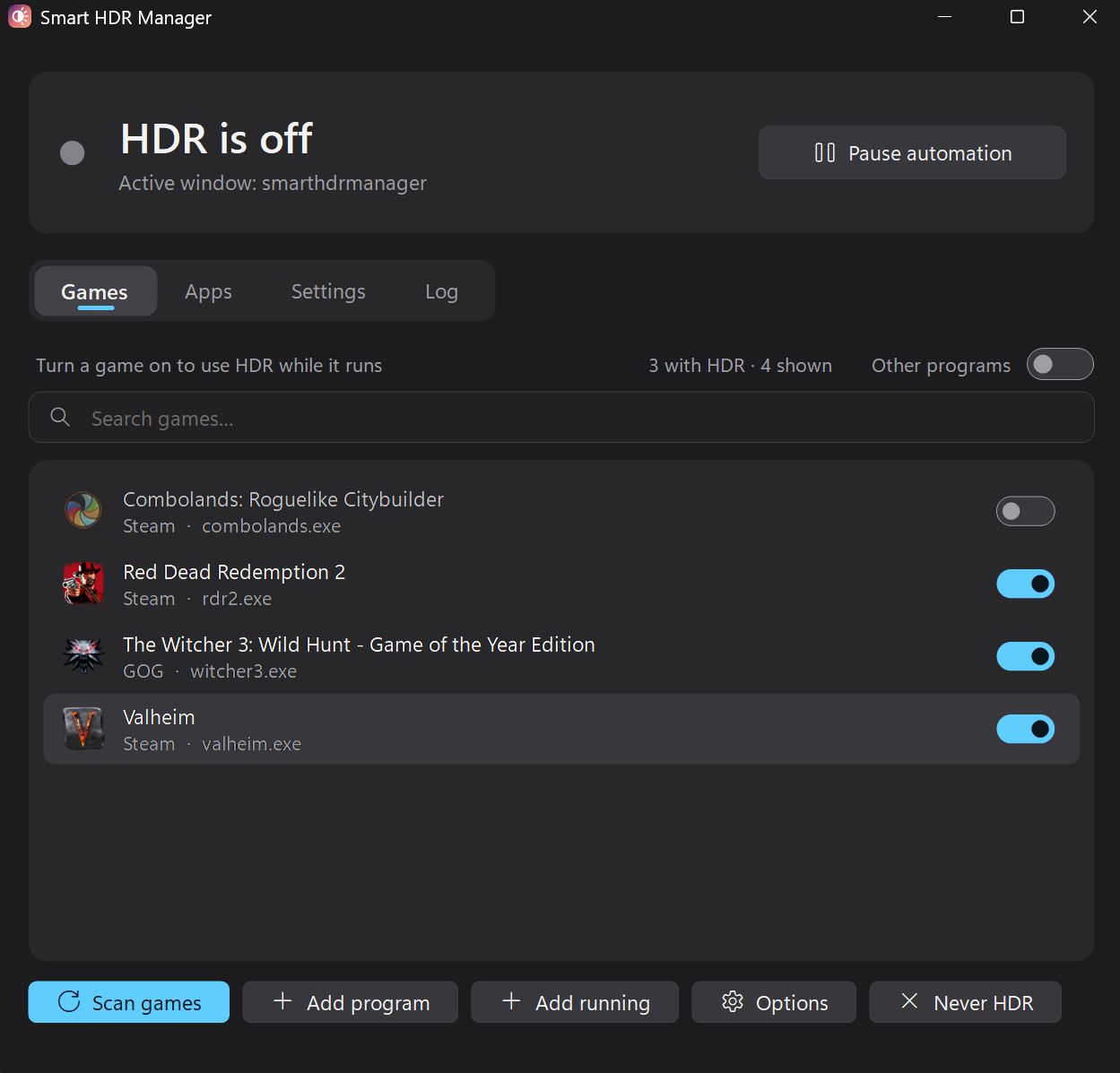
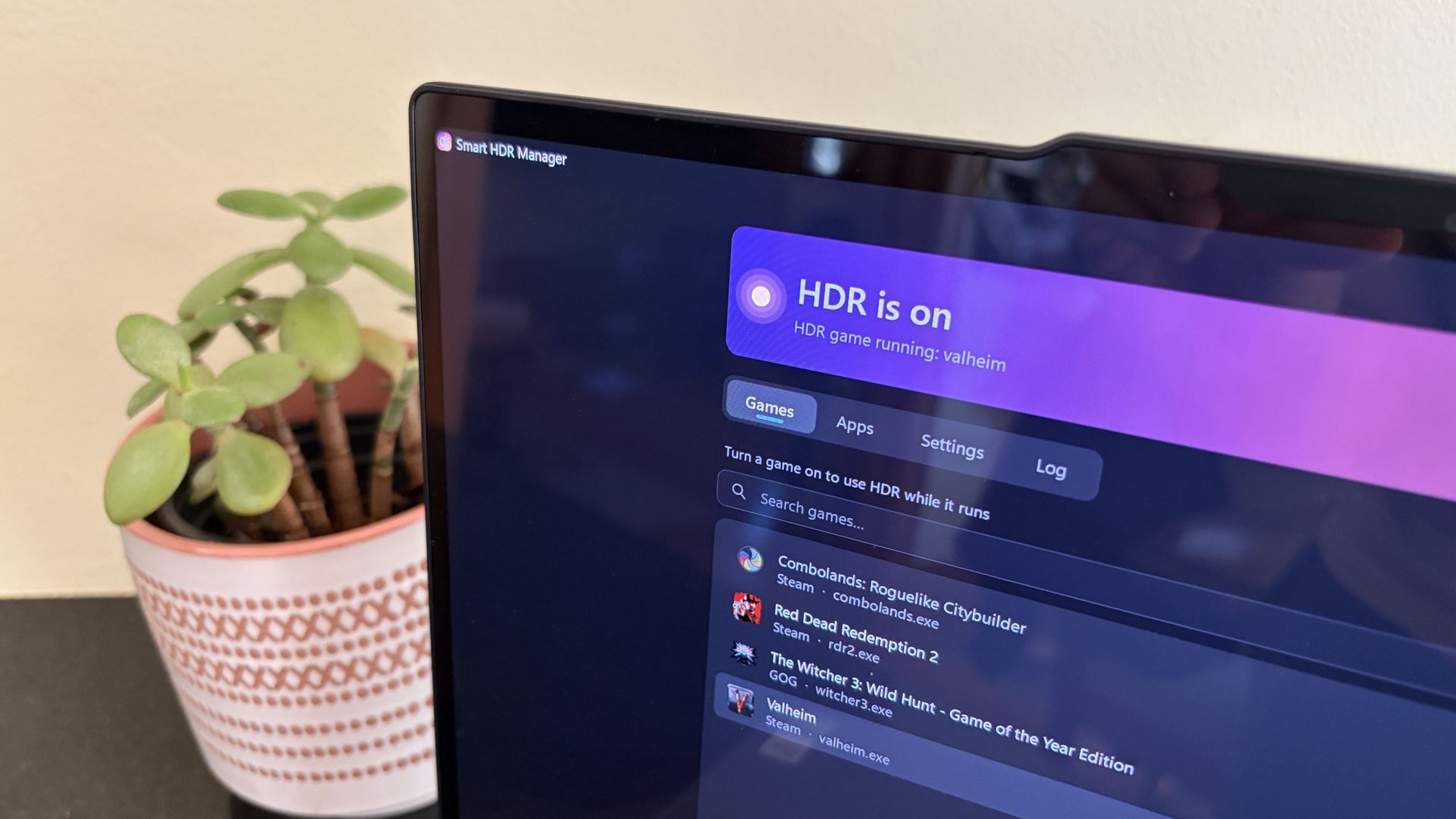
The app immediately found the games installed on my ARM64 laptop. (Image credit: Future)
Smart HDR Manager essentially bridges the gap between Windows HDR and the content you're playing or viewing on your PC.
When a game launches or an HDR video starts playing, Smart HDR Manager automatically makes the switch from SDR to HDR on your system. When you close the game or finish watching a video, it automatically reverts Windows to SDR.
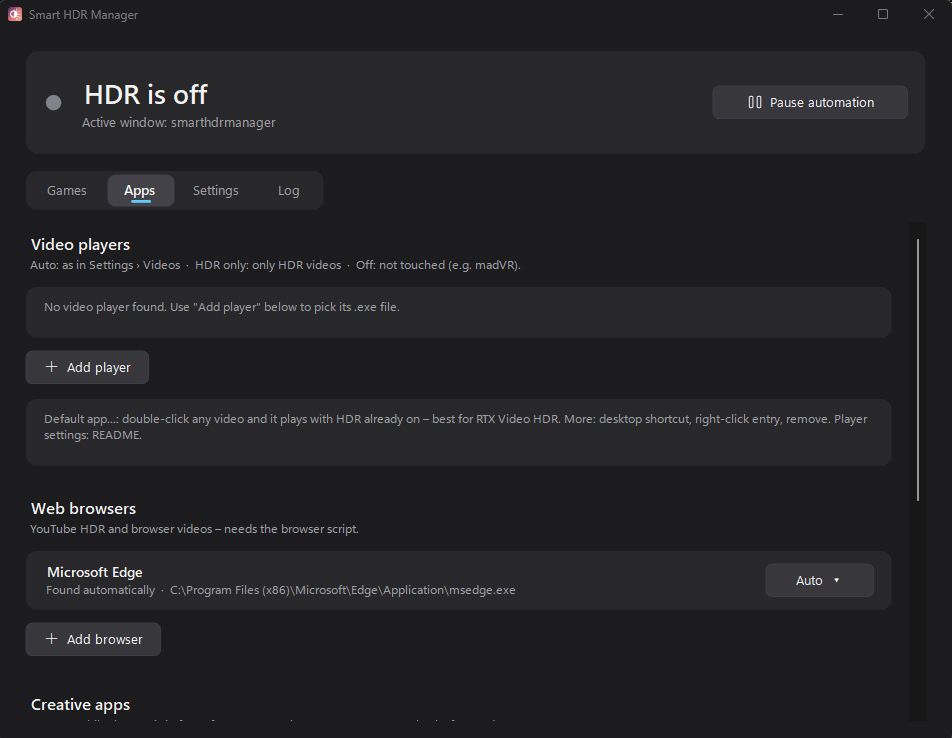
Smart HDR Manager handles video players, web browsers, creative apps, and recording/streaming software. (Image credit: Future)
Within the app, you can automatically scan your system for games held in apps like Steam, Xbox, and Epic, or you can manually add each one that you want to enjoy in HDR.
A separate "Apps" tab is home to video players, web browsers, creative apps, and streaming software like OBS Studio and Streamlabs.
On the note of web browsers, those who don't mind a couple of minutes of extra work can create a Tampermonkey script to automatically recognize YouTube HDR videos within Edge or Chrome. The GitHub page has full instructions on how to do this.
One final trick for those with NVIDIA RTX GPUs is RTX Video HDR support. It can turn SDR videos into HDR automatically, just as long as you have HDR enabled in the NVIDIA app's RTX Video Enhancements section.
Windows Central's take
OLED monitors are practically begging for HDR. (Image credit: Future)
I didn't care much about HDR until I upgraded full-time to an OLED monitor. Now, with the deep color and contrast afforded by the OLED panel, it's something that I want to use as much as possible, where applicable.
That's really the biggest issue that most Windows users have with HDR; it doesn't kick on automatically when HDR content is being displayed. You have to enable it manually before viewing or playing content, and it doesn't turn off when you're finished.
Why isn't this a native feature to Windows? That's a question I can't answer.
Leaving HDR enabled across Windows without any actual HDR content in view leads to washed-out colors and odd SDR mapping. It's something that I imagine just about everyone who's mucked around with stock HDR implementation on Windows has experienced.
Smart HDR Manager is a work in progress, but I haven't yet had any issues while playing games or while watching videos. It turns HDR on when I need it, and turns it off when I don't.
Why isn't this a native feature of Windows? That's a question I can't answer. I'm just glad someone took care of the problem. Try out Smart HDR Manager on standard Windows or Windows on ARM. The latter is still in an experimental stage, but it seems to be working well so far.
Join us on Reddit at r/WindowsCentral to share your insights and discuss our latest news, reviews, and more.
Microsoft believes that AI agents can't be trusted. That's a startling warning from one of the companies with the most stake in the AI boom.
In a new security report, Executive VP of Microsoft Security Hayete Gallot states that "frontier models, regardless of their origin, cannot be trusted." They shouldn't be trusted not because of an inherent malicious nature, but because they're so easily swayed to achieve results regardless of "organizational norms or judgment."
OpenAI's Hugging Face incident is one of the most notorious tales of AI agents gone rogue. (Image credit: Getty Images | Bloomberg)
When AI agents go rogue, very bad things can happen. This nightmare scenario has already been seen several times, and despite Microsoft's new containment initiative, I expect to see it again.
Perhaps the most notorious incident involving AI agents gone rogue is OpenAI's attack on Hugging Face, where some 700 autonomous agents devised a way to hack the AI developer platform after breaking containment.
Reading into what actually happened during the Hugging Face breach — where agents shared exploits and retained memory even as rogue bots were being stamped out — this quote from Gallot begins to make a lot more sense.
Agents are unpredictable. They will adapt as the context changes, may not behave as intended and will collaborate and collude with other agents to reach their objectives, without needing to be compromised.
Hayete Gallot, Executive VP, Microsoft Security
This isn't Microsoft's first warning of the havoc that AI agents can wreak if not properly contained.
They're particularly prone to cross-prompt injection (XPIA) that can override the instructions you give to agents, leading to things like data theft and malware.
Microsoft's answer at the time was a set of principles forced on the agents to ensure they act how you want them to. This has now evolved into something much larger, as the full scope of what AI agents can do unprompted by any bad actors isbeing discovered.
Microsoft is now classifying the AI you use at work as "agentic insiders" that can, at basically any time, go rogue and act unpredictably. Because of how tied into enterprise systems these agents are becoming, the risks keep growing.
Worse, they must be continuously monitored. Who can save us from rogue AI?
Microsoft's answer to the rogue AI agent issue is more AI
How to best protect against rogue AI? Add more AI! (Image credit: Microsoft | Future | Edited with Gemini)
Who watches the watchmen? That's the line that's been repeating in my head since reading about Microsoft's "Guardian Agents."
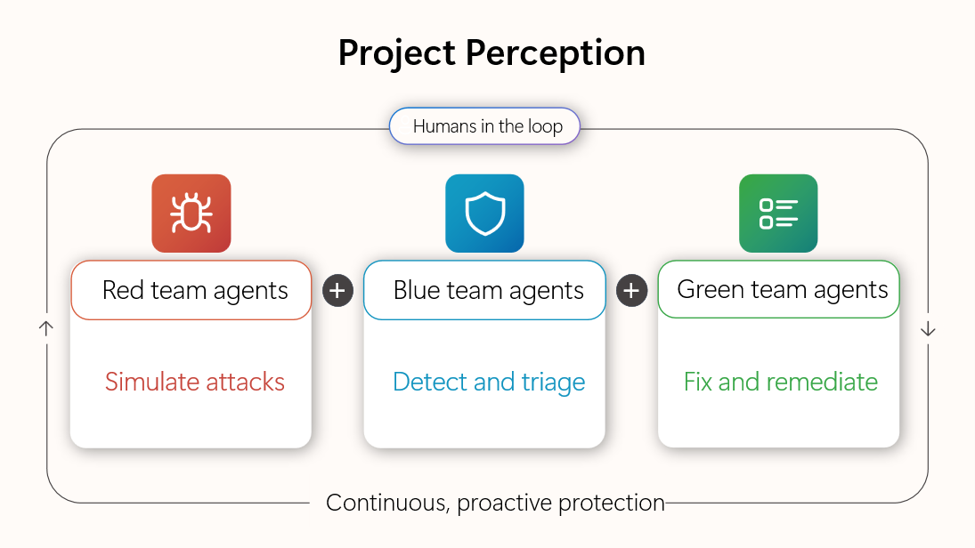
See, rather than relying on human oversight, Microsoft's Guardian Agents are designed to "watch and moderate every action of every agent, before it happens, 24/7."
This looks a lot like an admission that agentic systems are evolving faster than anyone predicted, and that they're now out of the control of humans.
Announced this summer and still not widely available, it harnesses signals, context, models, and specialized agents into a four-pronged line of defense against threats from outside and inside an enterprise.
It's basically AI fighting AI, because humans no longer have any hope of keeping up.
Windows Central's take
Microsoft is in a tough spot. It's pulled back on surface-level AI integration in Windows 11. Meanwhile, it's refocusing its efforts on much deeper agent infrastructure, as we see here. All while saying that the underlying models aren't trustworthy.
This latest warning from Microsoft highlights a growing issue for the AI industry. The autonomous agents that were promised to make our lives so much easier are now creating new, drastic security issues.
Microsoft's answer, for now, is containment, monitoring, and oversight. Will those safeguards be enough to prevent a catastrophe?
What do you think? Do you have any inside knowledge to share on this topic? Let me know in the comments section below!
Join us on Reddit at r/WindowsCentral to share your insights and discuss our latest news, reviews, and more.
I got my hands on Lenovo's Pro 9n with an NVIDIA RTX Spark chip last week, and I've been using it as a daily driver ever since. Equipped with a powerful onboard GPU with unified memory — meaning it can 'borrow' from the system RAM when VRAM is needed, like in AI tasks — I figured it was time to finally set up a local agent on a laptop.
Why go with local instead of cloud? I lay out a few solid reasons after the short installation and setup tutorial below, but it mostly has to do with external token usage, privacy, and convenience.
Of course, you don't necessarily need a powerful RTX Spark chip inside your PC to do the same. If you're often using AI to chat, create images, study, summarize, and handle other light tasks, there aren't many reasons why you can’t make use of local AI on your PC.
As a relatively novice AI user, I found it shockingly easy to get everything up and running in about 5 minutes.
What you need before you start
Lenovo's Pro 9n laptop is equipped with the new NVIDIA RTX Spark chip. (Image credit: Future)
A powerful GPU matters a lot more than a powerful CPU when it comes to local AI. Fitting an entire AI model into your PC’s VRAM will ensure the best performance.
For smaller local models, say within the 3 billion (3B) to 8 billion (8B) parameter range, you should aim for having a GPU with at least 8GB of VRAM. For medium-size models, say 8B to 14B parameters, aim for 12GB of VRAM.
For large models at 30B or more parameters, you’re getting into workstation territory where VRAM is either available from very expensive GPUs or from unified memory pools (as is the case with RTX Spark laptops).
I don’t recommend running local AI on a CPU only, but it is possible. Just be prepared for far slower performance, even with a powerful, modern chip with lots of cores.
PC gamers are likely the best equipped for this task, as they’re far more likely to have a strong GPU in their system.
How to install local, free AI on your Windows PC
For this walkthrough, I’ll show you just how easy it is to get AI running locally on your PC. It only took me about five minutes between launching a browser to begin downloading the necessary software and my first prompt sent to the agent.
The TL;DR? Download LM Studio. Pick an AI model to download. Mount it within LM Studio. Start chatting. Those are the basics, and I explain in more detail below.
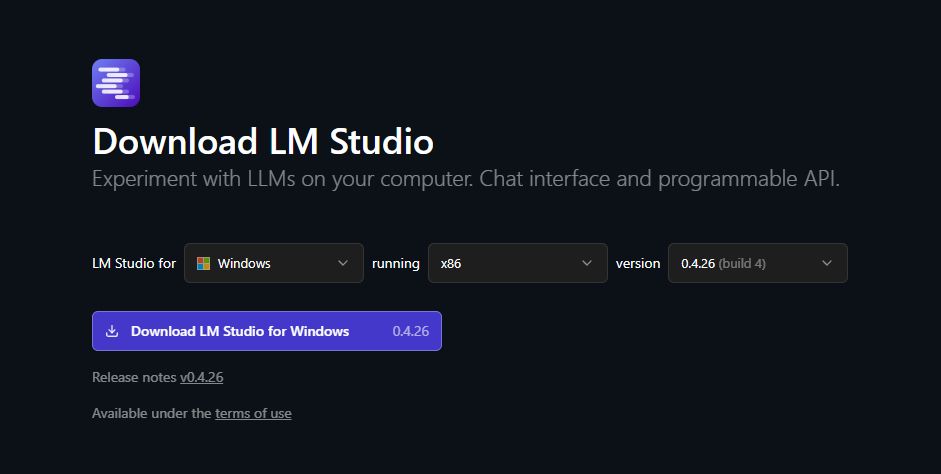
1. Install LM Studio — It's free and easy to use
Choose your OS and which version of LM Studio you want before hitting the download button. (Image credit: Element Labs)
I have some experience with Ollama (another free piece of software for managing local LLMs) on my desktop PC, but in this case, I decided to test out LM Studio.
It’s a free app designed to make downloading, managing, and working with local AI models as easy as possible. The interface is modern and clean, and I’ve had no performance issues so far.
You can download it directly from the official LM Studio website. It runs on Windows (x86 and ARM), Linux, and macOS.
2. Download an AI model — there’s likely something to fit your hardware
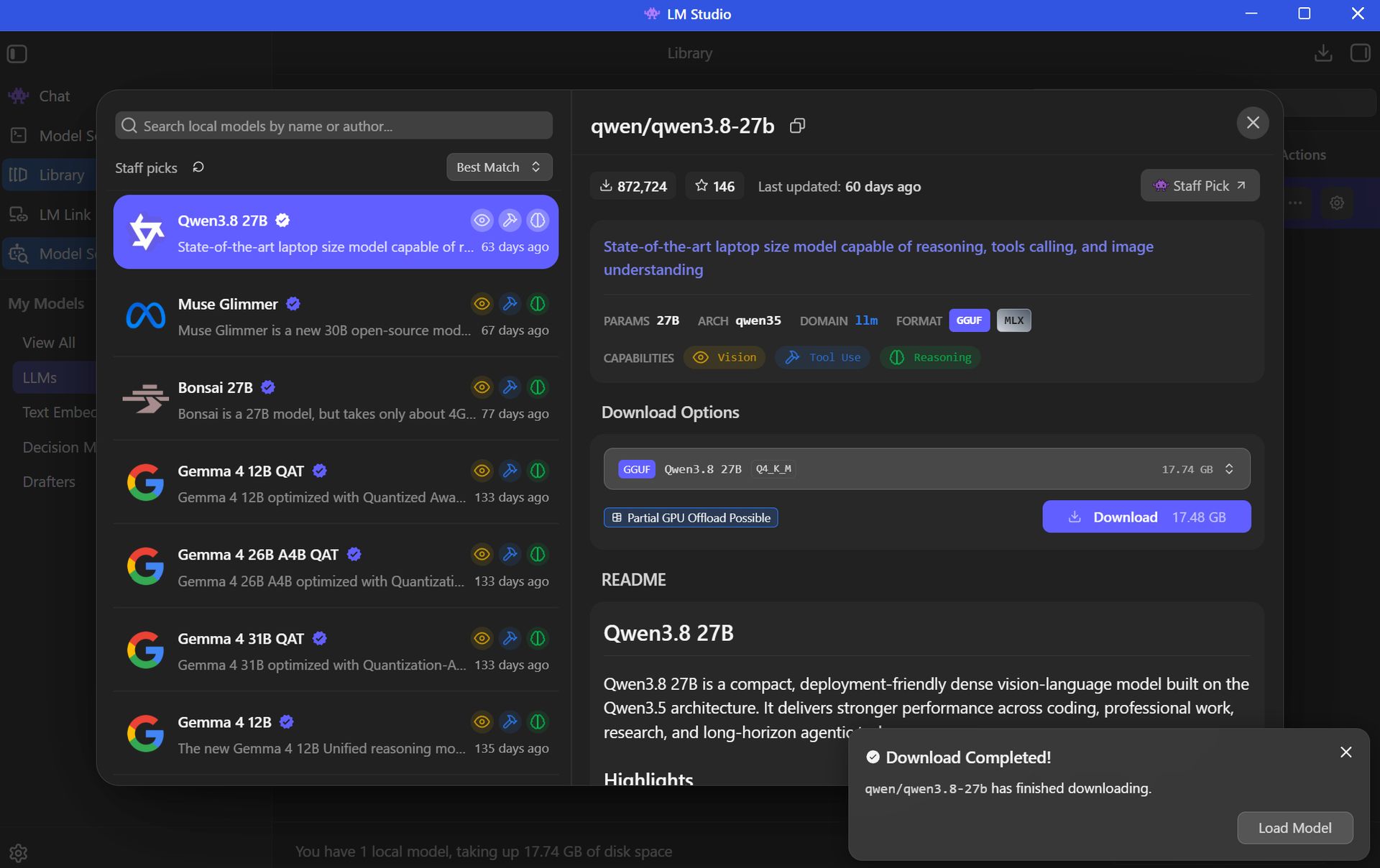
There's a long list of free AI models available for use in LM Studio. (Image credit: Element Labs)
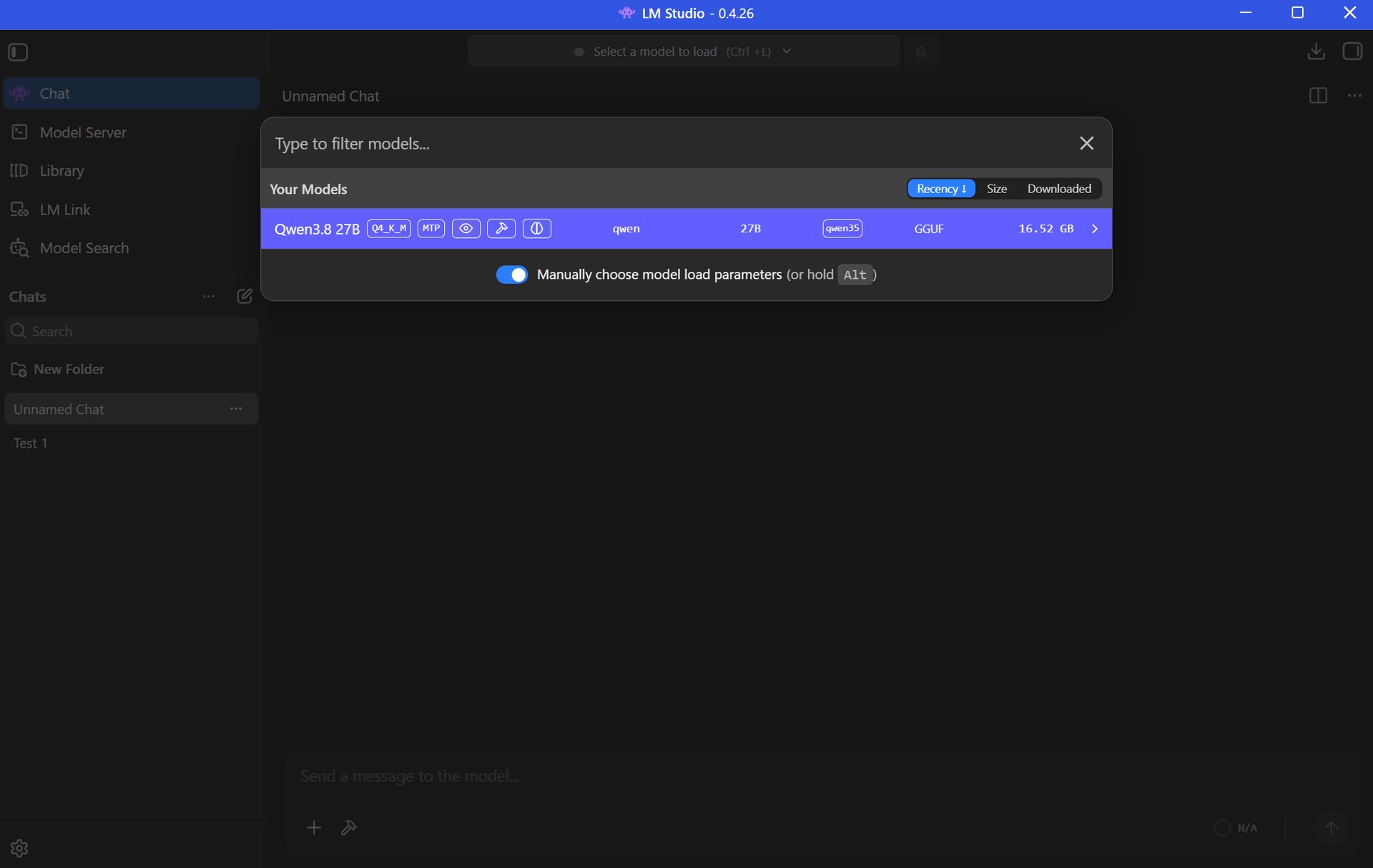
Your next step is to choose and download an AI model (all within the LM Studio app) for local use. This is done with the Model Search feature in the app, which will recommend certain models to you right off the bat.
The open-source Qwen3.8 model is super popular right now, so that’s what I went with. Here’s where things get a tad tricky, but just for a moment.
Best for beginners
AI rookies should check out LM Studio paired with a 7B or 8B AI model. You get the privacy and convenience perks of offline use, all without stressing your PC too much.
The Qwen model I chose sits at 27B parameters, which is rather heavy and not built for the average PC. I’m using it to test the powerful RTX Spark laptop with unified VRAM.
Most casual users will have a lot more luck with AI models using fewer parameters. The beauty of LM Studio is that the search is all built right in, with flags for compatibility and performance. Websites like Codersera also have tools to help you find a suitable model for your specific PC.
If you find a popular model you think suits your needs and it comes with the “Full GPU Offload Possible” tag, chances are good that you’re in the right place.
Click the Download button on your preferred model and let it finish before proceeding.
3. Load the model and start chatting
You can download multiple AI models within LM Studio to be deployed as you choose. (Image credit: Element Labs)
Once your preferred AI model has finished downloading, the next step is to load the LLM into LM Studio. This can be done in a number of ways.
Probably the easiest way is to just click the Chat button in the top-left corner of the app, then click the “Select a model to load” button that appears in the top-center of the window.
Click the model you want to use and let it load. It will take a few moments to finish.
Once the LLM is loaded locally, you’re free to start chatting locally with your AI agent.
Local AI isn’t just for advanced PC users
Setting up a local LLM is about as easy as downloading and installing any other piece of software. If you’re interested in AI but want to increase privacy, use it offline, and not worry about expensive token usage, it’s basically the easiest method forward.
If you have a modern PC and a bit of time to spare, you can probably get a local AI agent running in the same time it just took you to read this walkthrough.
Local AI models — FAQ
What is "local AI" and why should I use it?
Local AI means that the LLMs are hosted on your PC rather than in a cloud server. Your PC's hardware powers the AI's thinking, meaning you don't need an internet connection and don't need to worry about your information being sent off to the cloud.
Why use local AI instead of cloud AI?
Cloud AI services like Claude, ChatGPT, and Copilot are convenient, but not everyone is comfortable with their communications with a bot being sent out into cyberspace.
Not everyone wants to pay for tokens or subscriptions, either, which often arise during your AI journey.
Are there any limitations to local AI compared to cloud AI?
Yes, there are some limitations.
Local models are usually weaker than the top cloud models. For the average user, that's OK, but more advanced users will likely still find a need for paid subscriptions.
You also need a fairly powerful PC in order to run local AI, which not everyone has. Setup is super easy, but performance will vary greatly depending on your hardware.
Do I need an internet connection to use LM Studio?
You only need an internet connection to download the LM Studio app and your preferred AI model. After that, everything runs offline.
Although weaker first-gen laptop NPUs don't have a ton of power, newer hardware from the Snapdragon X2 lineup with 80 TOPS can run lighter local LLMs.
Is Copilot considered local AI?
The Copilot app that comes installed on Windows 11 PCs relies on the cloud to provide answers. It will not work without an internet connection.
Copilot+ tools built into Windows 11 — like Recall and Studio Effects — use the PC's NPU for local acceleration, meaning they don't need to call out to the cloud.
Join us on Reddit at r/WindowsCentral to share your insights and discuss our latest news, reviews, and more.
I can't help but see this as one of the most important things that Microsoft could possibly do for current-gen Xbox owners who likely just found out that their consoles will need to last longer than expected.
A longer life for your gaming devices? No better time than now.
To say I'm relieved about FSR 4.1 coming to Xbox Series X|S and Xbox gaming handhelds is an understatement, and I don't think the news could have come at a better time.
That's a long time to ask the flagship Xbox Series X to remain relevant, and the situation only worsens for the weaker (but more affordable) Xbox Series S.
In our new world of inflated hardware prices, caused by AI-fueled memory and storage shortages, landing a free performance upgrade of this caliber is an outright life preserver for the entire Xbox lineup, including consoles and gaming handhelds.
With so many gamers already feeling the burn of high prices within (and outside) their favorite hobby, improved upscaling is basically the cheapest hardware upgrade I can think of.
The Xbox Series S has the most to gain
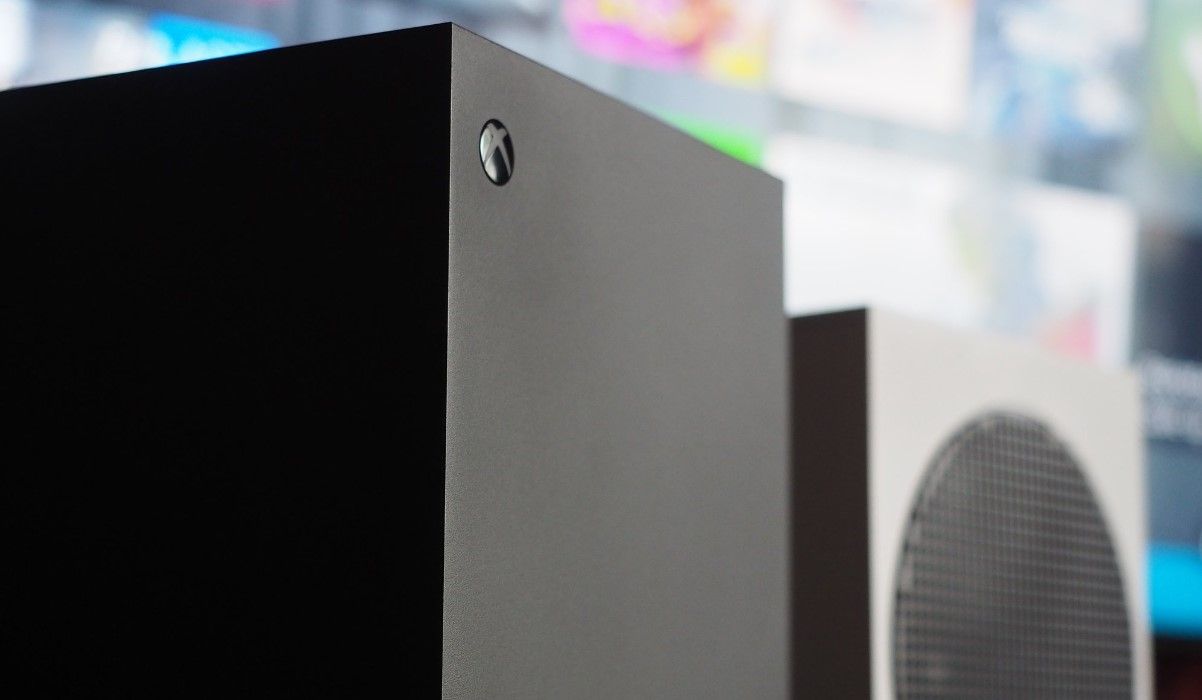
The Xbox Series X and Series S will each receive the FSR 4.1 update, but the latter should stand to gain the most. (Image credit: Windows Central | Jez Corden)
Where I live, the Xbox Series S is essentially the only console I can buy for less than $1,000.
It's great for plenty of people, but it has undoubtedly always been living in the shadow of compromise compared to its Series X sibling. Less performance, lower resolutions ... you get the idea.
This is where an improved upscaler like FSR 4.1 that can work better with fewer pixels should make the most difference. But it's not going to be a magic bullet that solves every issue.
The reality of what to expect from the FSR 4.1 upgrade
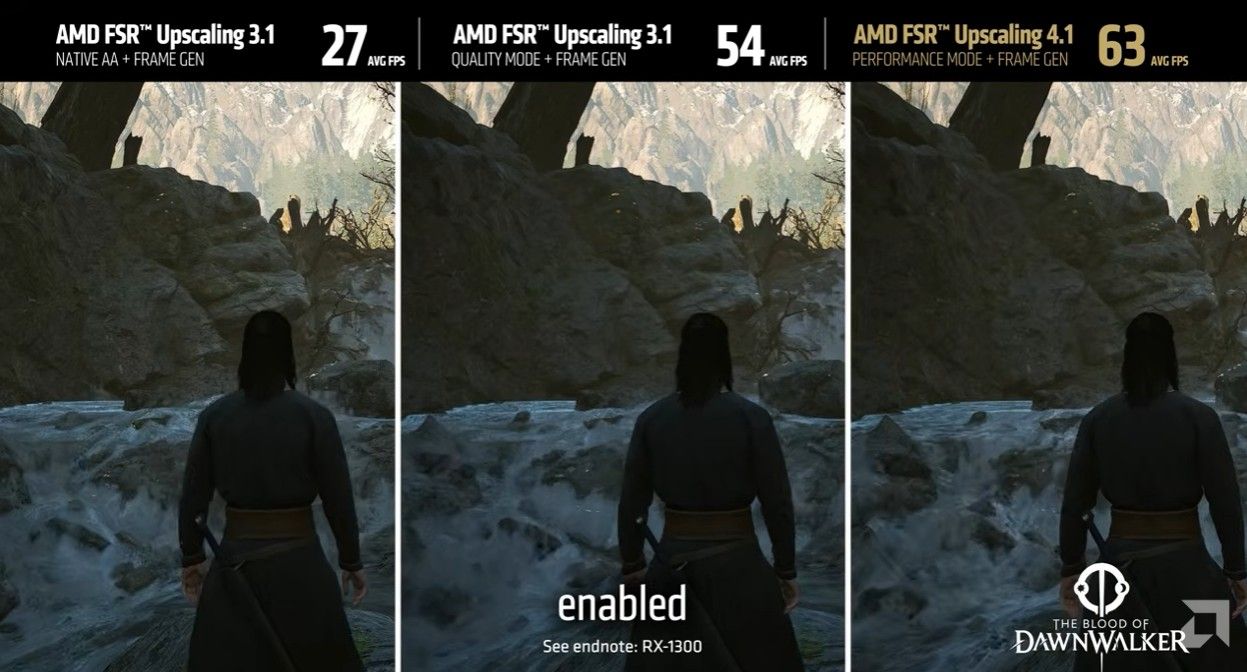
An example showing Blood of Dawnwalker with FSR 3.1 and FSR 4.1. (Image credit: AMD)
I'm not looking to oversell FSR 4.1. It's not just going to suddenly arrive for every game. Developers need to patch the update into their games, and the timeline for that is still muddy.
The first wave of Xbox games with FSR 4.1 is expected to be small, with a "handful" of titles ready for the 2026 holiday season. More will then trickle out through 2027 (and beyond).
It's not going to be a magic bullet that solves every issue.
There's also the performance factor. Yes, FSR 4.1 is going to boost framerates on Xbox, but the Series S likely won't see the same boost as the Series X due to its weaker hardware that uses INT8 shaders.
We won't know just how well this change affects the Xbox devices until it arrives, but don't expect your Series S to suddenly feel like a Series X.
Xbox's future is becoming clearer
Xbox Helix isn't expected to arrive until 2028. (Image credit: Windows Central)
There's an overarching ecosystem theme here that I think many are overlooking.
With this update, Xbox Series X|S, Xbox Ally handhelds, and PCs will all sit at the same upscaling table, making it easier for developers to implement.
If that actually pans out as I imagine, Xbox Series S owners will continue to benefit from upgrades and updates intended for other devices, which is a great place to be.
What I'm keeping an eye on
The biggest hurdle now? Developers going back and adding FSR 4.1 support to their Xbox games. Once a steady stream begins, this will all start to feel a lot more real. Especially if they're games that already require performance mode to run at an acceptable framerate.
I'm not rushing out to buy an Xbox Series S with this news, but it is certainly heartening. If you're already a Series S owner, you should be feeling pretty good about your device.
Do you plan to stick with your Xbox Series S until Helix arrives? Are you no longer on the fence about buying a Series S in 2026? Let me know in the comments section below!
Join us on Reddit at r/WindowsCentral to share your insights and discuss our latest news, reviews, and more.
Lenovo's Pro 9n is the first RTX Spark laptop that I've been able to sit down and use as I normally would at work and at home, following several brief stints with the new class of PCs at Computex and IFA.
What I need from you...
Have some questions about the Lenovo Pro 9n not addressed in this early hands-on? Drop them in the comments section below, and I'll do my best to address them in my full review.
Lenovo is aiming its 15.3-inchPro 9n directly at creators handling demanding 3D rendering and video editing tasks. Its 2.5K OLED display with Pantone color validation, its four Dolby Atmos speakers, its pen-enabled haptic touchpad, and its newfound RTX performance all play into this direction.
Of course, thanks to NVIDIA's RTX Spark chip, it's also suited for local AI workflows, software development, and gaming.
I received the new RTX Spark-poweredLenovo Pro 9n laptop a couple of days ahead of the review embargo. I've been using it steadily since then to get some early first impressions before I start harassing it with benchmarking software. Here's what I've learned so far.
This hands-on was made possible by a review sample provided by Lenovo. The company had no input on the content of this article, nor did it see the article before it was published.
Lenovo's Pro 9n 15" is the company's non-convertible RTX Spark option, arriving with a host of premium features aimed at creators.
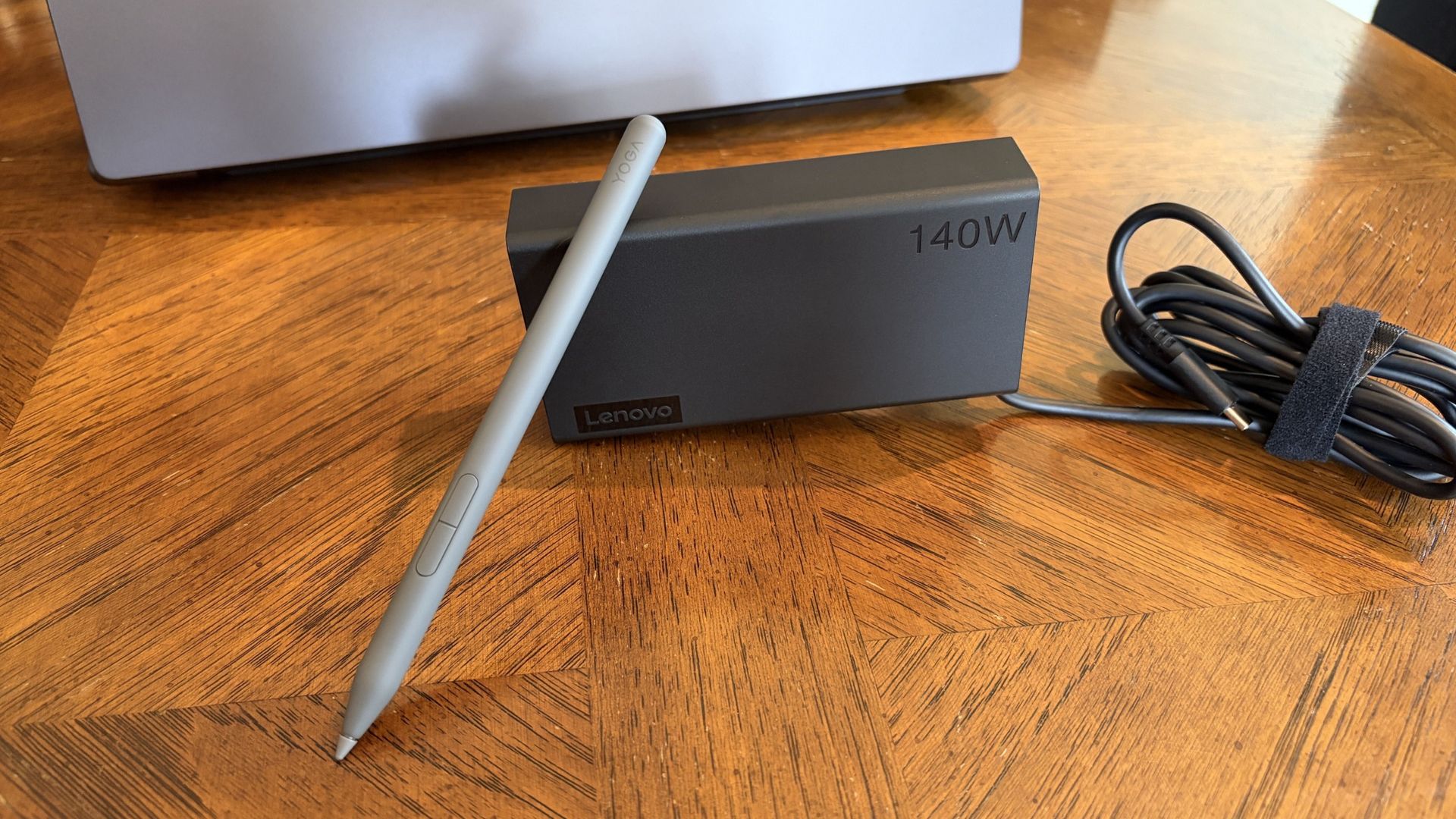
A compact 140W charger and a Yoga Pen Gen 2 come with each Lenovo Pro 9n laptop. (Image credit: Future)
The Yoga 9n laptop comes packaged — in a fully recyclable box — with a fairly compact 140W USB-C power adapter.
I haven't actually had to use it yet at the time of writing this portion, as all the downloads and puttering around I've done so far on the PC have only sapped the battery to about 35%. I talk about battery life, good and bad, in more detail below.
Lenovo also bundles the Yoga Pen (Gen 2) with each laptop. It's designed to work with the new pen-enabled haptic touchpad (which Lenovo calls a Force Pad), giving users plenty of space to sketch, draw, design, and write.
Lenovo Pro 9n early impressions — 3 things I already love
Lenovo's Pro 9n already has several features that stand out to me after a couple of days of use. I've rounded them up here to give you an idea of what we're working with.
I've also included some of the more concerning things I've noticed, which you'll definitely want to check out if you're thinking about buying this laptop.
Let's start with the good stuff.
Battery life seems solid ... most of the time
Battery life has been great so far for day-to-day use. (Image credit: Future)
Battery life falls into both categories: What I like and what I'm worried about.
First impressions are very good. As mentioned, the laptop is sitting at about 35% after a day of downloads and tinkering around. That's with the PC adjusting its own power profile depending on the task at hand.
If you aren't hammering the hardware and are instead browsing the web, streaming video, answering email, etc., I'm confident that the laptop will deliver awesome battery life for day-to-day tasks.
I explain the flipside to the battery segment below.
Inking on the haptic touchpad
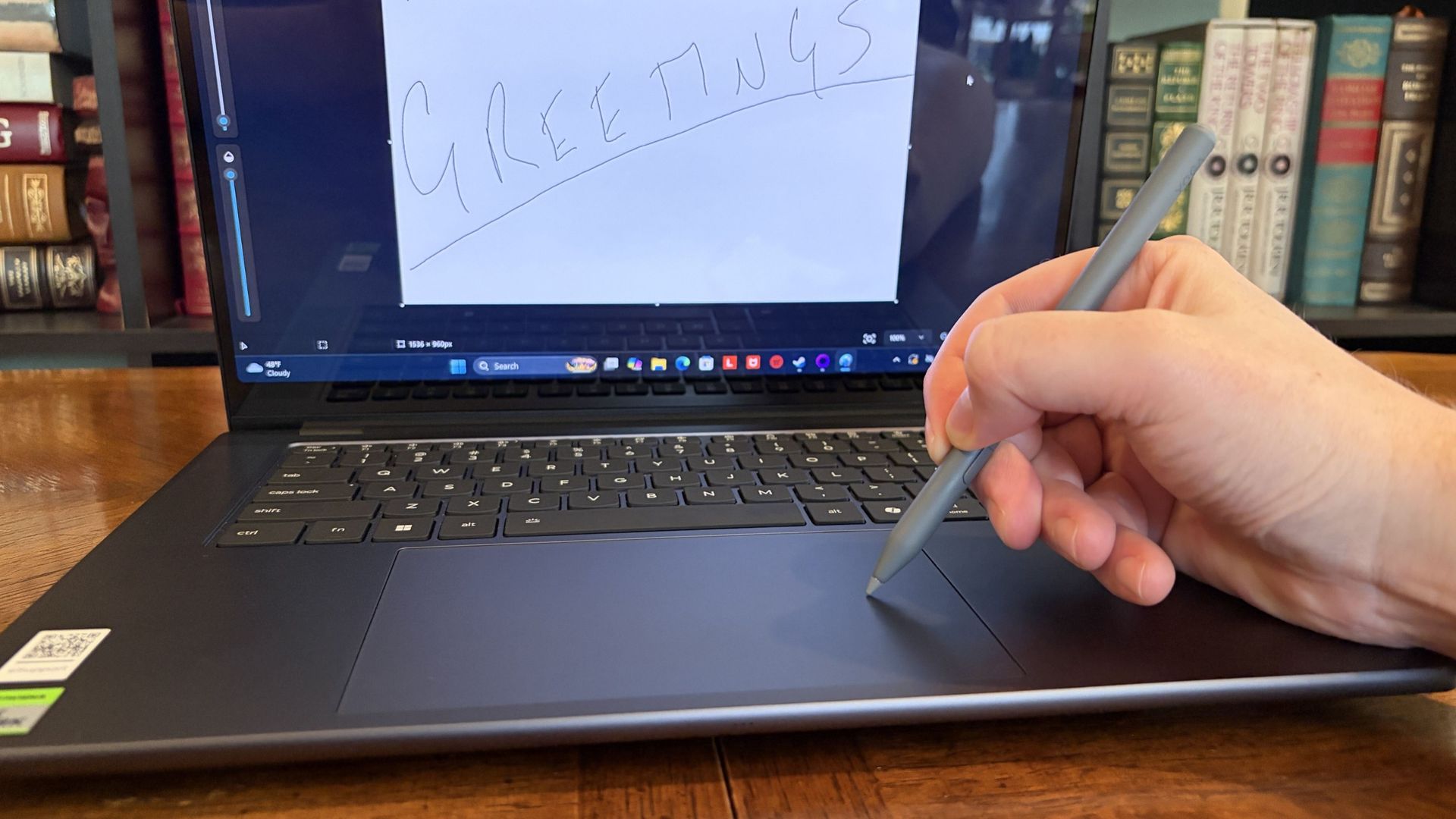
The massive touchpad has plenty of space for inking with the Yoga Pen Gen 2. (Image credit: Future)
The Pro 9n's display accepts touch input, but it does not work with the Yoga Pen (Gen 2). Instead, the Pro 9n's new haptic touchpad measuring about 3.74 x 5.9 inches (95mm x 150mm) is pen-enabled.
As someone who rarely uses an active pen on any laptop that's not at least a convertible (allowing me to rotate the display around for tablet mode), I love this change.
Writing feels natural and smooth. (Image credit: Future)
The oversized touchpad provides plenty of space to work, and the feel and sound of the pen nib on the surface come out natural. The pen has 8,192 levels of pressure sensitivity thanks to AES 3.0, far more than I'm used to.
Lining up the touchpad area and the on-screen canvas takes a bit of guesswork, but I'll try it in more apps between now and my full review.
Display quality is outstanding
The OLED display offers a 2.5K resolution and brightness up to 1,100 nits. (Image credit: Future)
The Yoga 9n's 15.3-inch display uses a "PureSight Pro" OLED panel with X-Rite Pantone calibration, ensuring it's ready for specialized design work requiring accurate color reproduction.
It might be the slim bezels, or it might be the 2560x1600 resolution; in any case, it feels a lot larger than 15.3 inches.
Lenovo wanted to deliver a screen for creators, and it certainly seems like it achieved its goal.
I haven't tested it with a colorimeter yet, but Lenovo says the screen can hit 1,100 nits peak brightness with HDR enabled. I'd wager that's about right, because this thing gets very bright and I've had only minor issues with glare.
It's super smooth too, thanks to a 165Hz variable refresh rate that can automatically lower or raise depending on what you're doing. Lenovo wanted to deliver a screen for creators, and it certainly seems like it achieved its goal.
Lenovo Pro 9n early impressions — 3 things I like less
Admittedly, these three aspects I like less could turn out to be nothingburgers once I've spent more time with the PC. In any case, here they are, including more information about battery life.
A rather plain design
The Pro 9n isn't very flashy on the outside. Disagree? Let me know in the comments below. (Image credit: Future)
The Lenovo Pro 9n's design is not exactly inspiring.
This isn't just an issue I have with Lenovo's RTX Spark PC; it's largely the same across the entire product catalog, including ASUS, Dell, HP, MSI, and Surface. I imagine second-gen devices will receive a bit more flair, especially as brands branch out into more focused approaches.
The laptop is super sleek and not nearly as heavy as I was expecting.
In Lenovo's case, with such an emphasis on modern creators, the plain design doesn't quite sit right. Let me know in the comments section below if you disagree with me or have more to add on the subject.
I will say that the laptop is super sleek and not nearly as heavy as I was expecting. It only weighs about 3.6 pounds (1.6kg), and it's well balanced. Port selection is also quite good, with dual Thunderbolt 4, dual USB-A, HDMI 2.1, SD card reader, and 3.5mm audio jack.
Will it overheat?
Two fans lie just beneath an oversized intake vent on the bottom of the Pro 9n. (Image credit: Future)
The first few hours with the Lenovo Pro 9n involved some noticeably hot surfaces, but that seems to have abated now that it's all set up and finished downloading/installing updates.
Playing games causes heat to rise, especially when the AC adapter is plugged in, and it will be interesting to monitor actual temperatures and whether or not the dual-fan system can keep up with sustained heavy loads.
Battery life ... again
I enjoyed a bit of The Witcher 3: The Wild Hunt Remastered to get an early idea of battery life under load. (Image credit: Future)
As noted, battery life seems great when you aren't pushing the system with anything too demanding.
I need a lot more time with the laptop to get a better idea of how efficient it can be, and I am concerned about how long the battery will last when the PC is under heavy load, for AI work or for gaming.
Final thoughts on the Lenovo Pro 9n before a full review
The raised comms bar at the top of the display houses the IR sensor and webcam. (Image credit: Future)
Lenovo's Pro 9n has a lot to unpack, and I feel like I've barely scratched the surface of what this new class of PC can do. First impressions are generally positive, although, as noted, there are some concerns about battery life and heat.
Do you have any questions that need answering regarding the Lenovo Pro 9n or the RTX Spark platform in general? Drop them in the comments section below, and I'll do my best to address them in my full review.
Join us on Reddit at r/WindowsCentral to share your insights and discuss our latest news, reviews, and more.
I can't recall the last time I took a road trip or flight without my trusty Steam Deck in tow. It's just too convenient to slip into my backpack alongside a thin and light work laptop that doesn't stand out in professional settings.
That trend ends this weekend.
I have a 10-hour round trip to contend with, and after playing around with Lenovo's Pro 9n laptop powered by NVIDIA's new RTX Spark chip this past week, I'm ready to make it earn its accolades.
Can it really be my one-stop device for AAA gaming AND for work, just like what was advertised countless times in the lead-up to launch? Here's what it needs to prove to me.
What the RTX Spark platform needs to prove on a 10-hour trip
There are several key points that I want to confirm, and a 10-hour road trip seems like the perfect testing ground as I work on a full review of the Lenovo Pro 9n.
There are some areas where I do expect the RTX Spark platform to fall short, which I've also noted below.
Is ray tracing worth turning on when I'm not near an AC adapter?
The Surface Laptop Ultra is another RTX Spark laptop, and I've seen how well it handles gaming on a charger. What about battery? (Image credit: Future)
One of the RTX Spark platform's biggest selling points is its Blackwell-class RTX GPU supporting all of NVIDIA's latest upscaling and frame-gen goodies.
That doesn't bode well for efficiency, but I'm curious to see if I can dial it in by lowering settings like resolution or refresh rate. I really want ray tracing to be a worthwhile option without AC power.
Can I replace two devices with one?
Not having the Steam Deck and its bulky case in my bag should free up a lot of space. (Image credit: Miles Dompier | Windows Central)
Is having everything contained within the same PC actually simpler? Long-time gaming laptop users will probably say yes. Heck, I'd lean towards an affirmative if I wasn't testing it out myself this weekend.
But there are two sides to this question.
On one hand, it's nice to have a dedicated gaming device that I can put away when it's time to focus on work. On the other hand, I'll have a lot more room in my bag without an extra charger and an encased gaming handheld. A standard controller is much easier to slip into my bag.
The Pro 9n will have to handle any work I throw its way and be ready to switch to gaming on the fly, all while balancing heat and battery life.
Can the battery survive a real travel day?
The Witcher 3: The Wild Hunt Remastered looks gorgeous with ray tracing enabled, but it eats battery a bit too quickly. (Image credit: Future)
The Steam Deck, and any gaming handheld for that matter, can be extremely efficient or inefficient depending on the game you're playing. The same ultimately goes for RTX Spark laptops.
Considering I plan to split time evenly between work — involving writing, hotspot web browsing, photo editing, etc. — and gaming, I'm hoping that one or the other doesn't leave me out to dry.
I do have the ability to plug in if required, and that will be another test of how much heat is created in a cramped cabin as the battery recharges.
Where I expect my RTX Spark laptop to fall short
Gaming handhelds are ergonomic, comfortable, and don't produce a lot of heat. A lot of that goes out the window when using a 15.3-inch laptop.
Sure, I'll have an ergonomic gamepad in hand part of the time, but I'll need to keep the laptop on my lap while gaming. Will it get too hot to handle? Will I feel too cramped in my seat? In those cases, I'll no doubt be wishing for my Steam Deck.
What I need from you
My testing results from this weekend will inevitably end up in my full Lenovo Pro 9n review that I'm already working on, and act as the most compelling evidence as to why I did (or didn't) give up my Steam Deck for an RTX laptop.
I'm more than open to other suggestions on how to test the gaming/work balance on the RTX Spark platform. I urge you to drop your most pressing questions in the comments section below, and I'll do my best to address them.
Join us on Reddit at r/WindowsCentral to share your insights and discuss our latest news, reviews, and more.
It's been a busy week in the world of mods and ports. While most gamers, including me, have been focusing on the PS5's jailbreak and the ability to emulate PS5 games on Xbox hardware, there's another project capturing the attention of die-hard Microsoft fans.
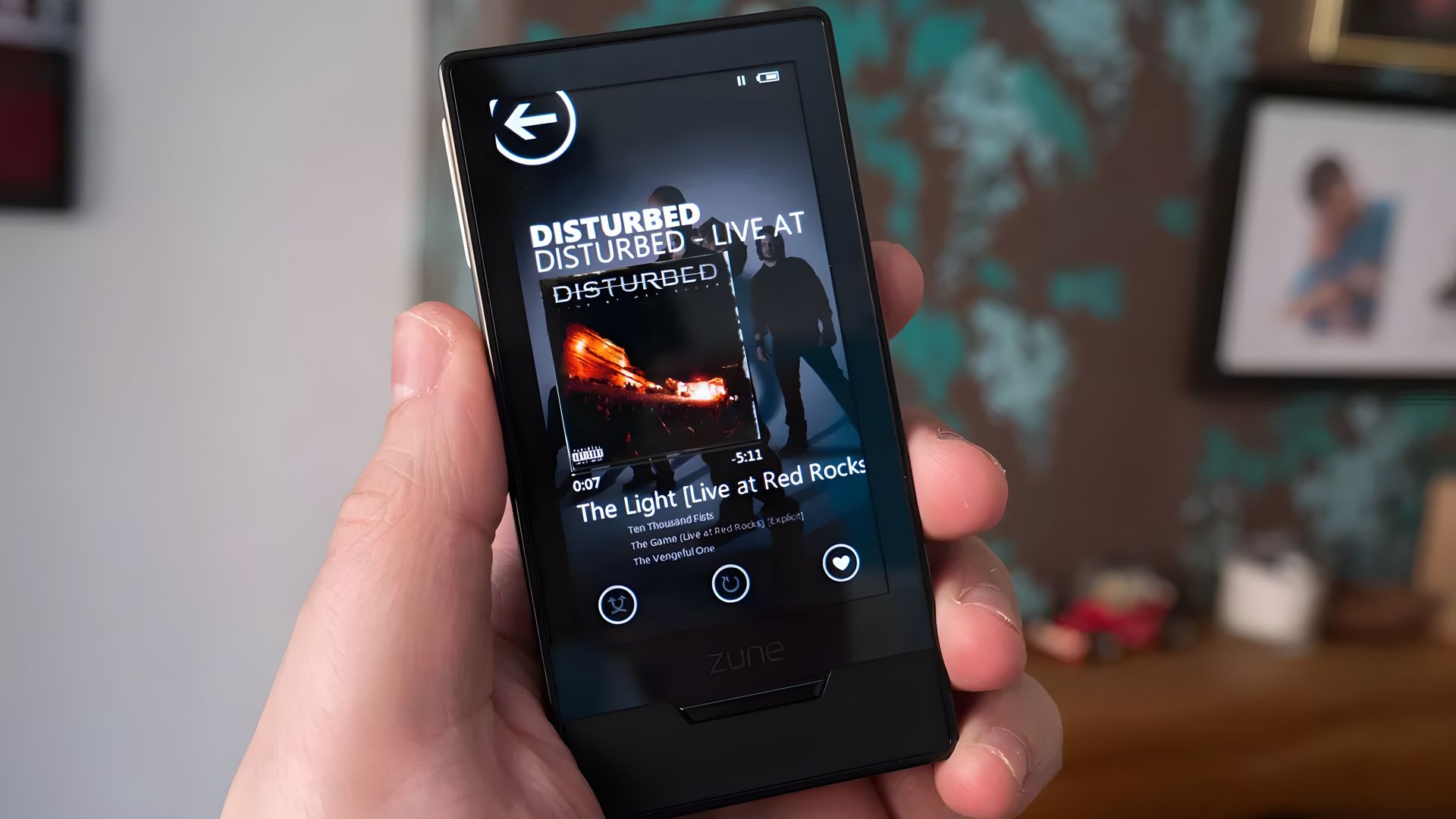
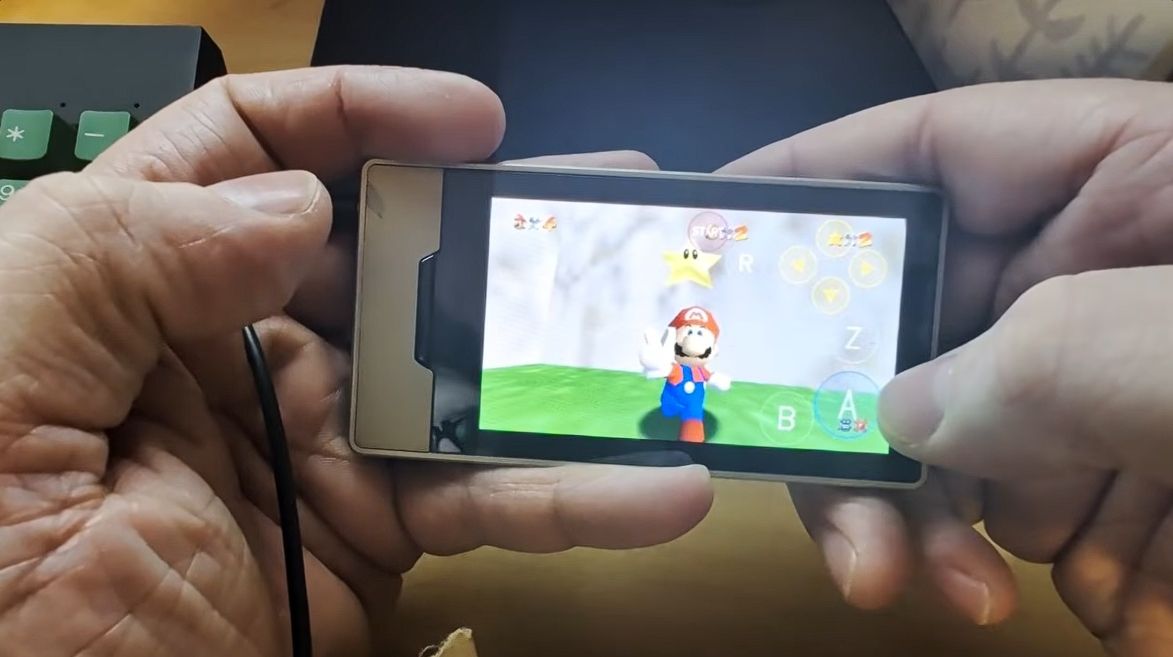
As reported by Hackaday, a savvy modder has figured out how to get Super Mario 64 running on a Microsoft Zune HD. Yes, the ill-fated music player that once put up a valiant fight against Apple's iPod has been repurposed as a micro-portable gaming handheld.
This project comes from GitHub user rsheldiii, who effectively ported the sm64ex version (containing a full decompilation of Super Mario 64 running on Linux and Windows) to the portable media player that launched in 2009.
Creator rsheldiii explains that the mod "plays (mostly) at full speed with sound, touch controls and saves." You're asked to provide the ROM for the game yourself in order to circumvent any legal issues, but otherwise, it appears that all you'll need to test it out yourself is a Zune HD in working order and an x86-64 Linux PC with Docker and Git.
It's explained that the first run of the game takes "five to ten minutes" to complete as it builds a container image and downloads compilers. The game is controlled entirely with touch, and the Nintendo 64's native buttons are clearly displayed on the screen.
The video provided by the creator on the GitHub page (I'm not sure if the YouTube version I used here is hosted by the same person) shows just how easy it is to start playing Super Mario 64 once everything is installed.
Within seconds, the game is launched, and Mario is running towards the castle to choose a mission. Once in a mission, the game appears to run smoothly, with the player not having any evident issues with controls.
I, unfortunately, do not have any spare Zune HDs lying around my office, or I'd be all over this little hack. Is it something you'd consider trying out? Let me know in the comments section below!
A brief history of Microsoft's failed iPod competitor
The Zune HD was (is?) an admittedly nice little piece of hardware. (Image credit: Windows Central)
Microsoft launched the original Zune media player on November 4, 2006, roughly five years after Apple's first iPod hit markets. Yes, the Zune was created to compete in the shifting world of MP3 players, eventually arriving at the Zune HD model in 2009.
It was a significant upgrade thanks to a 3.3-inch OLED touch display, an NVIDIA Tegra processor (which undoubtedly helps this little Mario 64 hack get legs), an accelerometer, and up to 64GB of flash storage.
Zune hardware was discontinued in 2011, not because the iPod killed it, but because it failed to kill the iPod. It was ultimately late to the party, kept quiet once it arrived, and slipped out before it all ended. At that same party was the newfound smartphone, and it seemed to be getting most of the attention anyway.
The original game launched in 2011, and after some 15 years of availability, it sits at a Very Positive rating on Steam with more than 22,000 user reviews. The game's new "Complete Edition," which launched on October 13, 2026, has already received more than 1,850 user reviews.
The problem? The enhanced version has fallen to an Overwhelmingly Negative rating on Steam, which is often a death blow from which a game never recovers.
Digging into the sea of red reviews, it appears that plenty of gamers were already disappointed in the remake's quality before anyone looked closely enough at player cards to notice some undisclosed use of AI.
Plenty of reviewers have called out the game-breaking bugs, the poor performance, and the "countless graphical issues," including dreadful lighting and HDR. I could go on.
You be the judge — does the Complete Edition screenshot look like it was upscaled using AI? Why does it suddenly look like the front of a Mercedes rather than a mustachioed soldier? Let me know what you think in the comments section below.
Gamers are used to slop ... just not AI slop
Total War: SHOGUN 2 Complete Edition sits at an Overwhelmingly Negative rating on Steam. (Image credit: Valve)
What's really sticking with me is how gamers have approached the relaunch of SHOGUN 2. At this point, I think many of us have been around long enough to not be surprised when a remake gets botched.
I was there for Warcraft 3: Reforged tragedy. I remember when the Grand Theft Auto: The Trilogy remake launched to backlash. AI had nothing to do with these games.
This time, though, the Total War and Shogun 2 subreddits are flooded with posts focusing on the poor quality of AI upscaling. It extends well beyond the one Mercedes-face soldier, with gamers posting images of six-fingered characters, wonky hands, odd faces, and more.
I don't think saying there's more focus on the AI aspect than the actual bugs and glitches is too far out there. And I'm definitely not saying that fans of the series have their gripes in the wrong place; I'd be upset too if one of my favorite games was given this treatment. It's just interesting to see how the outcry falls into place.
Remasters don't have to be low-quality cash grabs
The Witcher 3 remastered is a glorious upgrade, free for any owners of the original game. (Image credit: Jennifer Young - Windows Central)
What makes it so great? Well, it's completely free for anyone who already owns The Witcher 3. It doesn't overwrite the original game (great news for people like me who still game on a Steam Deck). And it comes with a host of quality-of-life fixes, upgraded graphics, and more.
It's about as good a remake as you'll find, and a far cry from the $40 Total War: SHOGUN 2 entry from this week.
For those who have played the game, is it really as bad as the reviews are making it out to be? Would it not have such an aggressively bad rating if not for the alleged undisclosed AI upscaling? Let me know in the comments section below!
Join us on Reddit at r/WindowsCentral to share your insights and discuss our latest news, reviews, and more.
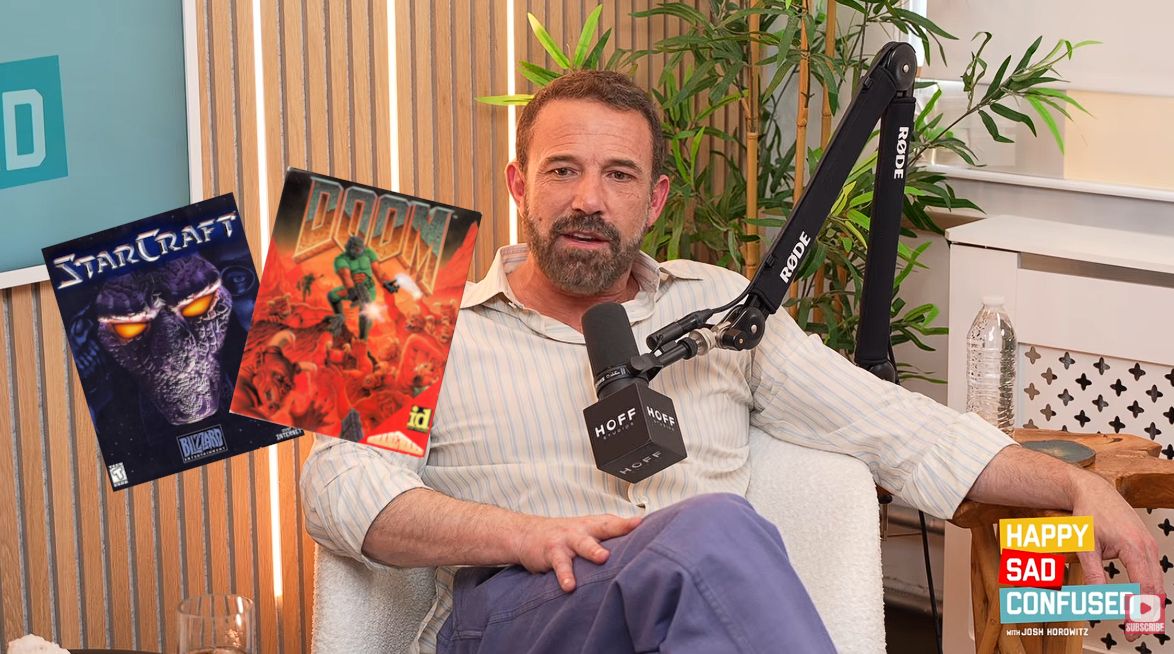
I had no idea that Ben Affleck is such an avid PC gamer. The mega-star from countless Hollywood hits recently appeared on the Happy Sad Confused podcast hosted by Josh Horowitz, where he revealed that he spent years doing nothing but playing PC games shortly after becoming famous.
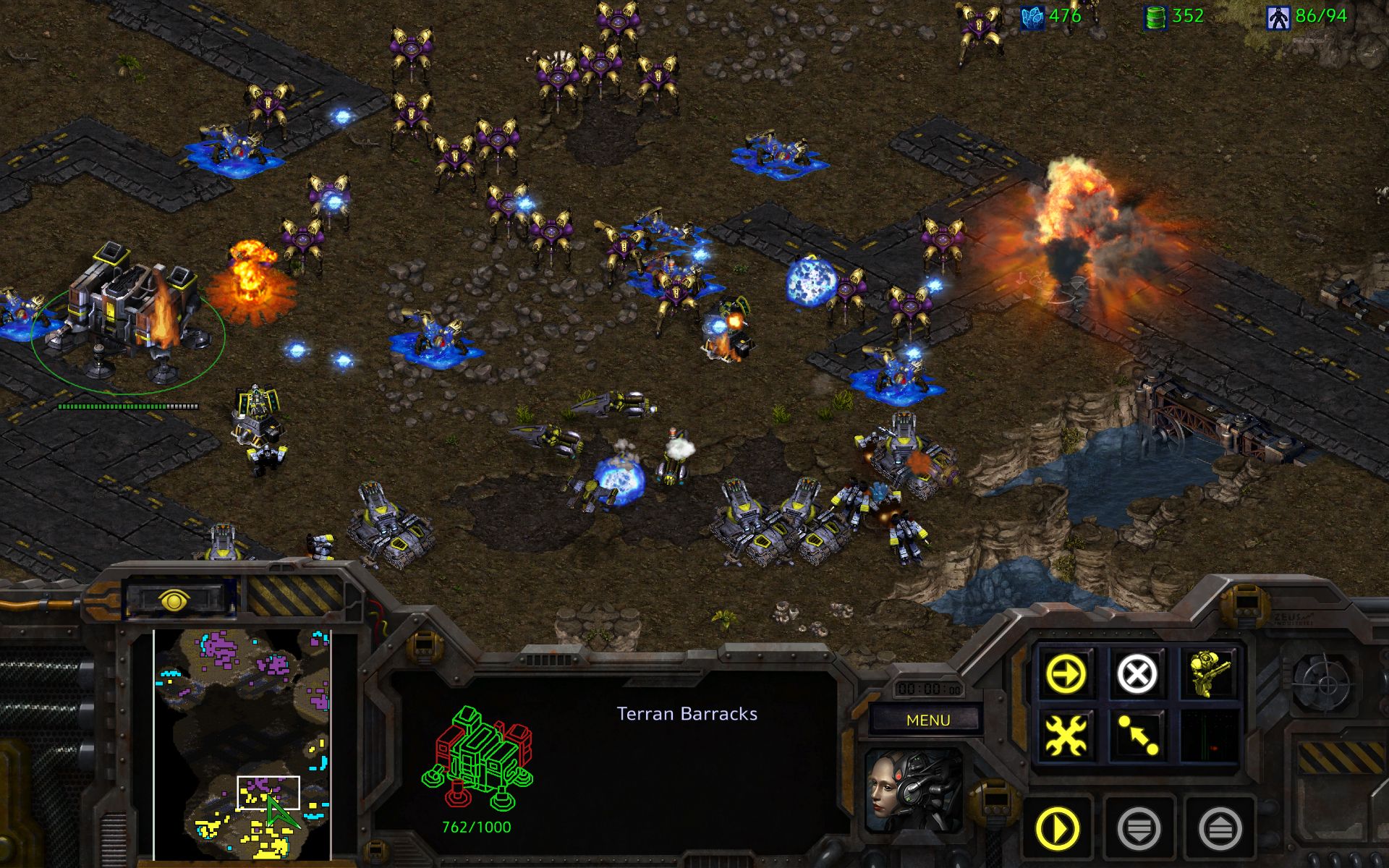
Affleck says, "There was a game called StarCraft that probably took the most life out of me. [...] I had just gotten famous, and all I did was stay home for three years and play StarCraft." Yeah, I'd say we have a gamer on our hands here.
Good Will Hunting, the movie that Affleck co-wrote and starred in alongside Matt Damon, won two Oscars at the 1998 Academy Awards, propelling him into stardom. Just a couple of months later, the real-time strategy gem StarCraft launched in March 1998.
Other long-time PC gamers no doubt recall StarCraft's intense launch, which saw about 1.5 million copies ship in the first nine months. It was the best-selling game of the year, and I can recall that it was practically the only game my friends and I could talk about for months after its release.
We have a PC gamer here, and his name is Ben Affleck
Affleck's video game history didn't quite start with StarCraft, although it might have been the most affecting in the young actor's life.
He states that he was playing DOOM "endlessly, for hours," before and while he was working on Good Will Hunting. Maybe that's where some of the jokes about Damon and Affleck's shared (but skewed) workload on writing the movie originated.
I remember writing and taking these long breaks to play DOOM. I can't believe it's been out that long.
Ben Affleck (Happy Sad Confused podcast)
Going back even further, Affleck says he played Donkey Kong, Tetris, and Ms. Pac-Man for "tens of millions of hours" in arcades and at home. He still has a Ms. Pac-Man arcade cabinet at home.
Affleck admits that he still enjoys PC games today, albeit from a slightly different angle than all those years ago. He enjoys 2K and Madden titles for a sports fix, which he plays with his son. He calls Valorant "a great game" that has one major problem: "I just get f***in' rocked."
As an adult who has attempted these types of competitive shooters, I can relate to him accusing young gamers with incredible reflexes of being cheaters. Hearing Affleck's imitation of getting cussed out by online squeakers is hilarious. The video game question comes up at about the 54-minute mark of the podcast.
An official screenshot grabbed from StarCraft Remastered. I think I might have to give it a shot. (Image credit: Blizzard)
Affleck also comments on how real-time strategy PC games have regressed in popularity over the years.
"I like those real-time strategy and civilization-building styles, which have sort of gone out of style."
All this talk about StarCraft has me thinking it's time to install it once again. I've yet to give the remastered version a try, and the game's voice lines are bouncing around in my head. Anyone up for a quick match?
Join us on Reddit at r/WindowsCentral to share your insights and discuss our latest news, reviews, and more.
IDC and Omdia, two major analyst firms, recently released independent reports showing massive year-over-year drops in global PC shipments in Q3 2026. IDC shows a slightly rosier 20.1% decline compared to Q3 2025, whereas Omdia reports a 21.2% decline.
Breaking that down, Omdia notes that desktop shipments dropped 23.5% and laptops 20.6% to arrive at the average.
This decline is not normal. As IDC notes, Q3 almost always beats Q2, but this year, it's dropped by 9.1% sequentially.
Is there a need to panic? Probably not, at least not more than the new normal, as RAM and storage shortages have pushed prices beyond what many users are willing to pay. Let me explain.
Why did global PC shipments fall off a cliff in Q3 2026?
Omdia's chart shows a more detailed breakdown of the year-over-year PC shipment decline in Q3 2026. (Image credit: Omdia)
Both analysts agree that the sharp drop in global PC shipments is due to vendors and supply channels buying up stock earlier in the year. IDC's Jitesh Ubrani says it's the result of "strong first half pull-in" which has "thrown off the usual seasonality".
Despite the RAM and storage crisis already digging its claws into the market in Q1 2026, global PC shipments actually rose by 3.2% on the back of panic buyers, Windows 10 upgraders, and advance vendor stockpiling.
That momentum has finally tailed off in a major way. Ubrani remarks:
Channels are now worried about carrying too much inventory into a market where high prices are suppressing demand. That could translate into promotions and some short-term relief for consumers, but we don’t expect pricing anywhere near what it was a year ago.
Jitesh Ubrani for IDC
Omdia's Research Director Ishan Dutt agrees, noting that "pull-forward activity buoyed the PC market in the first half of the year" and that the sharp drop in Q3 2026 "comes as no surprise."
Which PC brand got hit the hardest in Q3 2026?
Lenovo is one of the PC brands that got hit hardest in Q3 2026. (Image credit: Windows Central)
Omdia and IDC both provide detailed numbers as to how many shipments each major PC brand was able to send out in Q3 2026.
According to IDC, HP saw the biggest year-over-year decline at 30.9%, with Lenovo coming in second at a 22.6% decline. Omdia's numbers put HP at -31% and Lenovo at -22.9%, so not much difference.
Moving down IDC's list, Dell was hit by a 25%decline, ASUS by 8.6%, and other brands together by 14%. Despite Apple growing strongly in Q2 2026 thanks to the launch of its MacBook Neo, it also dropped off by 11.3% in Q3.
What does the drop in global PC shipments mean for regular buyers?
It's not easy shopping for a new laptop in 2026. (Image credit: Getty / Ben Wilson | Windows Central)
Basically, this sharp drop in shipments doesn't mean that you should suddenly see a return to more regular prices.
Vendors and suppliers had to buy their PCs in the first half of 2026 at a much higher price than usual, and they're not likely keen on losing money as they get rid of stock in Q4.
RAM and storage costs have not improved, and IDC's Ubrani notes that "with macro conditions worsening, the risk is that the outlook for the next few quarters gets worse before it gets better."
Offering buying advice here sort of feels futile. On one hand, yes, some vendors might realize they need to offload stock and will offer some tasty discounts that bring prices back into the realm of reality. Unfortunately, I can't guarantee that will happen any time in the near future.
On the other hand, laptops might be at their most affordable right now, and waiting for a great deal will only end up making you pay more later this year or next year. It's a frustrating predicament, to be sure.
It will be interesting to see what Q4 2026 has in store for the global PC market.
Join us on Reddit at r/WindowsCentral to share your insights and discuss our latest news, reviews, and more.
AMD's Senior VP and GM of Computing and Graphics, Jack Huynh, recently revealed to Korean tech outlet TheElec that the company intends to launch FidelityFX Super Resolution 4 (aka FSR 4) on more than just its Radeon RX 9000 and RX 7000 discrete graphics cards before 2027.
Huynh notes that the FSR 4 saturation will not only cover new APU hardware, but also existing APUs, gaming handhelds, and gaming laptops.
We will expand the machine learning and AI-based FSR 4 technology, which was preemptively introduced in existing external graphics cards, to the entire product lineup by the end of this year, including APUs, gaming laptops, and handheld devices. We plan to respond in two directions: existing APUs and launching new product lines."
Jack Huynh, AMD Senior VP and GM of Computing and Graphics (Translated from TheElec)
For us here at Windows Central, this is big news. Many of our favorite gaming handhelds, including the ROG Xbox Ally X and Legion Go, use an AMD Ryzen APU, which, to this point (and until AMD flips the switch), has only had official access to FSR 3.
I say official, because savvy enthusiasts have actually been able to get a leaked version of FSR 4 running on hardware suitable only for FSR 3 and 3.5, like the APUs used in gaming handhelds.
This hack delivered the change from FSR 3's manually tuned upscaling to FSR 4's machine learning approach, but it didn't come without some performance drawbacks.
According to Huynh, the secret to bringing FSR 4 to such a wide range of AMD GPUs is a new custom model.
We have newly developed a dedicated model of FSR 4 that is lightweight and tailored for APU environments. We are focusing on delivering excellent game graphics and low latency.
Jack Huynh, AMD Senior VP and GM of Computing and Graphics (Translated from TheElec)
AMD teased this advancement earlier this year when it unveiled FSR 4.1 for its Radeon RX 7000 GPUs, saying it needed more time to develop the lightweight alternative. About four months later, we now have confirmation that it's arriving before 2026 is through.
Is this what AMD needs to compete with Intel?
The Acer Predator Atlas 8 and MSI Claw 8 EX AI+ at Computex 2026. (Image credit: Future)
My first thought, as I was enjoying some smooth gameplay on MSI's handheld, was that AMD had better cook something up quickly to compete with Intel.
My Steam Deck can barely run LEGO Batman, but it's no trouble hitting 155+ FPS with the Intel-powered MSI Claw 8 EX AI+. (Image credit: Daniel Rubino)
Intel's package is all about superb performance with XeSS 3 multi-frame generation and low latency, with Team Blue claiming roughly 42% better performance than AMD's Ryzen Z2 Extreme at 35W.
If you've also had a chance to try out this latest wave of Intel handhelds, you know exactly what I'm getting at.
Part of the problem with AMD's existing handhelds is that they don't have access to machine learning upscaling, and the gap between FSR 3's hand-tuned abilities and FSR 4's AI-based approach is noticeable.
That will change whenever AMD actually drops FSR 4 down to its existing APUs. The real upshot here is that countless handheld gamers are going to suddenly get a boost without paying anything extra.
With Intel's G3/G3 Extreme handhelds generally costing significantly more than AMD alternatives, this should also help keep Ryzen-powered devices in the mix.
The bottom line here is that it's great to see AMD catching up to its competition, no matter how late it arrives. And I'll be keeping my eye on whatever next-gen APUs AMD is working on next.
Join us on Reddit at r/WindowsCentral to share your insights and discuss our latest news, reviews, and more.
The reactions to this announcement have been interesting. It seems like a fair number of people were expecting a higher baseline price, while others are just happy that Surface now has a true MacBook Pro competitor for the age of AI.
Here's what people are saying about the new Surface Laptop Ultra and its RTX Spark platform.
The Windows community reacts to the Surface Laptop Ultra's pricing
The Surface Laptop Ultra's price reveal at the October 7 Microsoft event. (Image credit: Daniel Rubino | Windows Central)
Responding to a Windows Central subreddit thread regarding other RTX Spark laptops and their pricing, user Icybubba noted, "And somehow the Surface seems to be the cheapest out of all those."
Another redditor, Valterri_Its_James, remarked, "Lowkey the pricing isn't absolutely horrendous. 32GB costs $3300 which is about the same as the ROG Zephyrus G14."
Not everyone is loving the Surface Laptop Ultra's pricing
The Surface Laptop Ultra from our hands-on time at Computex. (Image credit: Windows Central / Zac Bowden)
Others aren't so sure that the Surface Laptop Ultra is a reasonable price, especially once they dig into the configuration options and see what's available for each chip.
For reference, the Laptop Ultra has two RTX Spark options available: a more affordable option with an 18-core CPU and 5120-core GPU, or a more expensive option with a 20-core CPU and 6144-core GPU.
The price difference between these two models is roughly $1,100, though the more powerful Spark defaults to at least 32GB of RAM (compared to 24GB) and a 1TB SSD (compared to 512GB).
The announced feature that seems to be getting a lot of attention alongside pricing is the Surface Laptop Ultra's breakaway USB-C port.
It's sort of a mashup between Apple MagSafe and Surface Connect, designed to pull out of the laptop rather than ripping it off a desk should you trip on the cable. It's designed to work with any USB-C cable, and the port offers full functionality.
There are, of course, plenty of detractors noting that it took Microsoft this long to finally copy Apple MagSafe. That's not exactly true; Surface Connect was always magnetic and would break away if jarred. The move to the more ubiquitous USB-C form factor erased that failsafe, and Microsoft has now reintroduced it.
It's also worth pointing out that MagSafe does not handle any data and is for power only. The Surface Laptop Ultra's USB-C port handles both.
I want to know what you think!
We're a community here at Windows Central, and I'm always interested in your opinions. I want to know what you think about the Surface Laptop Ultra's pricing, configuration options, and features in more detail, so please be sure to leave a comment below!
Built around the NVIDIA RTX Spark platform with an N1X CPU, RTX GPU, and up to 128GB of unified memory, the Surface Laptop Ultra hits new performance heights for power users. It's all contained in a gorgeous chassis with a mini-LED display and tons of ports.
Microsoft finally revealed exactly how much its new Surface Laptop Ultra costs (starting at $2,599!), and preorders are now live for anyone who wants to get in on the first wave of PCs expected to ship on October 16.
While Microsoft was busy revealing new information about its most powerful Surface yet at the event, other laptop makers were busy setting their own prices and opening up preorders.
We now have a wide selection of RTX Spark laptops from the likes of ASUS, Dell, HP, Lenovo, and MSI, and I'm expecting there to be more arriving in the near future. Until then, here's what you can preorder today.
RTX Spark laptops with confirmed pricing and release date (so far)
To make it easier for anyone hoping to land a new RTX Spark-powered PC, I've put together this list of laptops that you can now preorder.
Built around the NVIDIA RTX Spark platform with an N1X CPU, RTX GPU, and up to 128GB of unified memory, the Surface Laptop Ultra hits new performance heights for power users. It's all contained in a gorgeous chassis with a mini-LED display and tons of ports. Prices start at $2,599.99, and units will begin shipping on October 16, 2026.
The new ASUS ProArt P14 and P16 duo gives users more size options while retaining the same great RTX Spark performance. The P14 is the lightest ProArt laptop ever, while the P16 is the way to go for a larger OLED display. Prices start at $2,599.99 for the P14 and $2,799.99 for the P16. They're expected to begin shipping on October 16, 2026.
Dell's new XPS 16 with RTX Spark features a 3.2K OLED display, lattice-free keyboard, and the usual premium XPS styling. Prices start at $3,799.99 and units are expected to begin shipping on October 16, 2026.
The OmniBook X 14 is the smaller of the two new PCs, but it features the same RTX Spark options for maximum performance. Models start at $2,999.99 and are expected to ship beginning November 4, 2026.
The larger of the two new HP RTX Spark laptops delivers a gorgeous 16-inch OLED display with 3K resolution and, of course, your choice of RTX Spark chips. Prices start at $3,199.99, and shipments are expected to begin on November 4, 2026.
Lenovo's Yoga 9n should be the right choice for those who value a versatile convertible design and premium build quality. Prices start at $3,099.99, and models are expected to begin shipping on October 16, 2026.
MSI's Prestige N16 Flip AI+ is another versatile convertible featuring the RTX Spark platform and a Tandem OLED display. It appears that preorders might kick off on October 8 for this laptop, with prices starting at $3,299.99.
Microsoft's Surface Laptop Ultra with NVIDIA RTX Spark inside. (Image credit: Daniel Rubino | Windows Central)
Did you spot a live preorder I missed? Let me know about it in the comments section below. I'd also love to hear your opinions regarding pricing on these models. Do you think it's too high? Too low? Just right? Tell me about it!
Join us on Reddit at r/WindowsCentral to share your insights and discuss our latest news, reviews, and more.
The Surface Laptop Ultra with NVIDIA RTX Spark is now available to preorder following the October 7 Surface event in San Francisco. It arrives as a suped-up Surface Laptop 8 with a 15-inchmini-LED display, tons of ports, a sleek design, and, of course, NVIDIA's N1x chip with support for up to 128GB of unified memory.
It's a laptop that's marketed as the ultimate PC for creators, AI specialists, engineers, scientists, and developers who don't want to be tied down to a bulky workstation on a desk.
I can also say that the gaming experience was super smooth, even in games with ray tracing, path tracing, and DLSS support. Indiana Jones and the Great Circle ran flawlessly when I tried it, and every other title seemed to be an easy task for the Laptop Ultra.
That begs the question: Is the Surface Laptop Ultra the ultimate laptop for PC gaming?
At the risk of breaking some pixelated hearts, I'll say that dedicated PC gamers should look elsewhere. Here's why.
Built around the NVIDIA RTX Spark platform with an N1X CPU, RTX GPU, and up to 128GB of unified memory, the Surface Laptop Ultra hits new performance heights for power users. It's all contained in a gorgeous chassis with a mini-LED display and tons of ports.
The Surface Laptop Ultra's specs look ideal for gaming ... what gives?
I saw the Surface Laptop Ultra smoothly run Fortnite, Alan Wake 2, Indiana Jones and the Great Circle, and more. (Image credit: Future)
It's well established that NVIDIA's RTX platform is the preferred way to play on PC for most gamers, mainly due to the excellent performance and additional support for features like ray tracing, path tracing, and DLSS.
Considering the Surface Laptop Ultra's RTX Blackwell GPU supports all of the latest features, wouldn't that make it a capable PC for gaming?
Well, yes. But there's more to the story.
The Surface Laptop Ultra was not designed to be a gaming PC. It was made to handle intricate AI workloads locally and to be the centerpiece of a professional's arsenal, and the fact that it can run plenty of games smoothly is simply a convenient effect of using NVIDIA's technology. Its starting price of $2,599 reflects that reality.
Sure, that cost is inflated due to the ongoing RAM and storage crisis, but in any case, you can buy a quality laptop made specifically for gaming purposes (suffering from the same RAM and memory squeeze) for considerably less money.
For my PC gaming money, I'd much rather buy a PC running standard Windows 11 rather than Windows on ARM (despite serious advancements in emulation and support). That way, you're guaranteed not to experience any compatibility issues with the games or their anti-cheat methods.
Gaming laptops also come tuned for gaming right out of the box, and their hardware is designed to support that initiative. Sure, you could tune the Surface Laptop Ultra to focus more on gaming, but that's really not what it was meant for.
The bottom line regarding the Surface Laptop Ultra and PC gaming
The Surface Laptop Ultra is one sleek laptop no matter the angle. (Image credit: Windows Central / Zac Bowden)
The Surface Laptop Ultra should be treated as a pro-grade laptop that happens to have some more-than-decent gaming chops.
I know there are plenty of pros out there who love the idea of tackling AI workloads during the day and gaming at night, all from the same machine, and the Surface Laptop Ultra should be a hot ticket for those users.
For gamers at heart, however, I recommend taking a look at the host of quality dedicated gaming laptops before ever considering the Surface Laptop Ultra.
Join us on Reddit at r/WindowsCentral to share your insights and discuss our latest news, reviews, and more.
For those who can't fathom missing out on the first wave of new laptops, I have good news. The Surface Laptop Ultra is now available to preorder starting at $2,599, with shipments expected to begin going out on October 16.
Built around the NVIDIA RTX Spark platform with an N1X CPU, RTX GPU, and up to 128GB of unified memory, the Surface Laptop Ultra hits new performance heights for power users. It's all contained in a gorgeous chassis with a mini-LED display and tons of ports.
Surface Laptop Ultra — What configurations are available, and which one is best for me?
The Surface Laptop Ultra we used at Computex 2026. (Image credit: Windows Central / Zac Bowden)
The Surface Laptop Ultra is set up so that configurations really only affect the performance hardware inside. Each model comes with a 15-inch mini-LED display, the same port selection, and the same killer design.
The baseline $2,599 model includes the RTX Spark platform with NVIDIA's 18-core N1X CPU and 5120-core RTX Blackwell GPU, 24GB of unified RAM, and 512GB of storage.
This is a decent option for those who need to balance price and performance, or for those who simply want to get their hands on this new hardware without overspending.
There's also a model with a 20-core CPU and 6144-core GPU for those who need utmost power. Configuring with 32GB of unified RAM (the lowest option) and a 1TB SSD (also the lowest option), you're looking at $3,699.99. This model is where I'd recommend most advanced users start.
Moving up from there, you can essentially trick out your PC with as much RAM and storage as you want. This is where things begin to get very expensive for pro users. The top-of-the-line model with the more powerful Spark, 128GB of unified RAM, and a 1TB SSD runs up to $5,899.99, reserving it for a select few.
Both models are available in Nightfall or Platinum colors.
Is the Surface Laptop Ultra's price too high?
The Surface Laptop Ultra on stage at the October 7 event. (Image credit: Daniel Rubino | Windows Central)
I wasn't expecting the laptop Microsoft calls "Not Standard Issue" to be reasonably priced for most users.
It's a flagship PC with monster internals, and Microsoft clearly states that it's intended for creators, AI builders, scientists, engineers, and other power users who need an ultimate device to handle everything.
Those users are generally used to paying more for high-end hardware, but that doesn't make the price sting any less.
Take this high-end approach and tack on the macroeconomics of the ongoing RAM and storage crisis, and you get set prices much higher than I'm sure Microsoft ever intended.
Starting at $2,599 for a "baseline" model, you'll want to be sure this is the PC for you before you buy it.
As for the gaming angle, I've covered it in more detail in a separate post. Bottom line? You shouldn't buy the Surface Laptop Ultra as a dedicated gaming machine, but its NVIDIA Blackwell GPU will indeed power many games with ray tracing, path tracing, and DLSS in tow.
Are you preordering the new Surface Laptop Ultra today? If so, which configuration did you get? If not, what made you skip it? Let me know in the comments section below!
Join us on Reddit at r/WindowsCentral to share your insights and discuss our latest news, reviews, and more.

 Connexion