❌

Vue lecture

Microsoft fixes 6 frustrating Windows 11 problems in October update

On October 13, 2026, Microsoft made available its latest cumulative update (KB5127648) for Windows 11 with several new improvements, including an option to always launch apps maximized, the ability to remap the Copilot key with new options, a new "Tips" widget, and additional touchpad controls. However, the update also includes a smaller set of improvements that may have gone unnoticed.

While this month's features have already received plenty of attention, some less prominent changes could still make a difference. The October update improves Bluetooth reliability, fixes mouse stuttering in some games, restores fingerprint sign-in on affected devices, and addresses printing and Always On VPN connection issues.

Here are six improvements and fixes worth knowing about after installing the October 2026 Security Update for Windows 11.

1. Windows 11 improves Bluetooth reliability

This monthly update includes eight Bluetooth improvements designed to make connecting to and using Bluetooth devices more reliable.

During voice calls, the system now shows the volume flyout when you adjust the volume using the controls on a compatible Bluetooth Classic Audio accessory, giving you visual feedback on the new volume level.

The update also improves how the operating system reports the connection status of disconnected Bluetooth accessories. It fixes an issue where the Bluetooth radio could be turned off even though its toggle in the Bluetooth and devices page in Settings still appeared to be on. Microsoft has also improved the stability of this Settings page when managing Bluetooth and audio devices.

For audio, the update improves microphone compatibility with certain Bluetooth Classic Audio accessories and makes shared audio more reliable.

It also fixes a crash (error code 0x139) that could happen while streaming Bluetooth audio and improves the reliability and performance of Bluetooth Low Energy (LE Audio) accessories.

2. Fingerprint sign-in works again after a cold boot

This release also fixes an issue that could prevent Windows Hello fingerprint sign-in from working after a cold boot on some computers.

Fingerprint authentication is convenient because it lets you sign in quickly without entering a password or PIN. However, a problem that appears after a full shutdown can make the feature unreliable.

If fingerprint sign-in fails after you power on your computer from a full shutdown, installing the update may resolve the problem.

3. Microsoft fixes mouse stuttering in some games

The October update (KB5127648) fixes an issue that could cause mouse input to stutter in some games. This problem can make aiming, camera movement, and other actions feel inconsistent, particularly in games that require precise input.

Since this fix targets an specific bug, it doesn't guarantee a solution for every mouse stuttering or performance issue.

4. Windows 11 fixes printing problems with certain drivers

Microsoft has also addressed a printing problem that could affect some apps and devices using RAW or Generic Text Only printer drivers after installing the August 2026 Security Update.

These driver configurations are used in certain printing environments, and the issue could prevent some print jobs from completing successfully.

Users affected by this problem should install KB5127648, then test their apps and printers again to confirm the problem has been resolved.

5. Always On VPN connections become more reliable

In addition, this rollout fixes an Always On VPN issue introduced by the earlier KB5124008 update.

On affected systems, automatic protocol selection or protocol fallback could leave a VPN connection stuck on Connecting or cause the initial connection attempt to fail. Subsequent attempts could also show the "The specified port is already in use" error message.

These problems can prevent users from establishing a reliable VPN connection, especially in managed business environments where remote access is essential.

6. File Explorer no longer crashes in certain multi-user environments

The update also fixes a File Explorer problem affecting some multi-user environments, including Azure Virtual Desktop deployments that use FSLogix.

On affected systems, "explorer.exe" could fail to start after sign-in or repeatedly crash, potentially leaving users with a black screen.

How to install the October 2026 update

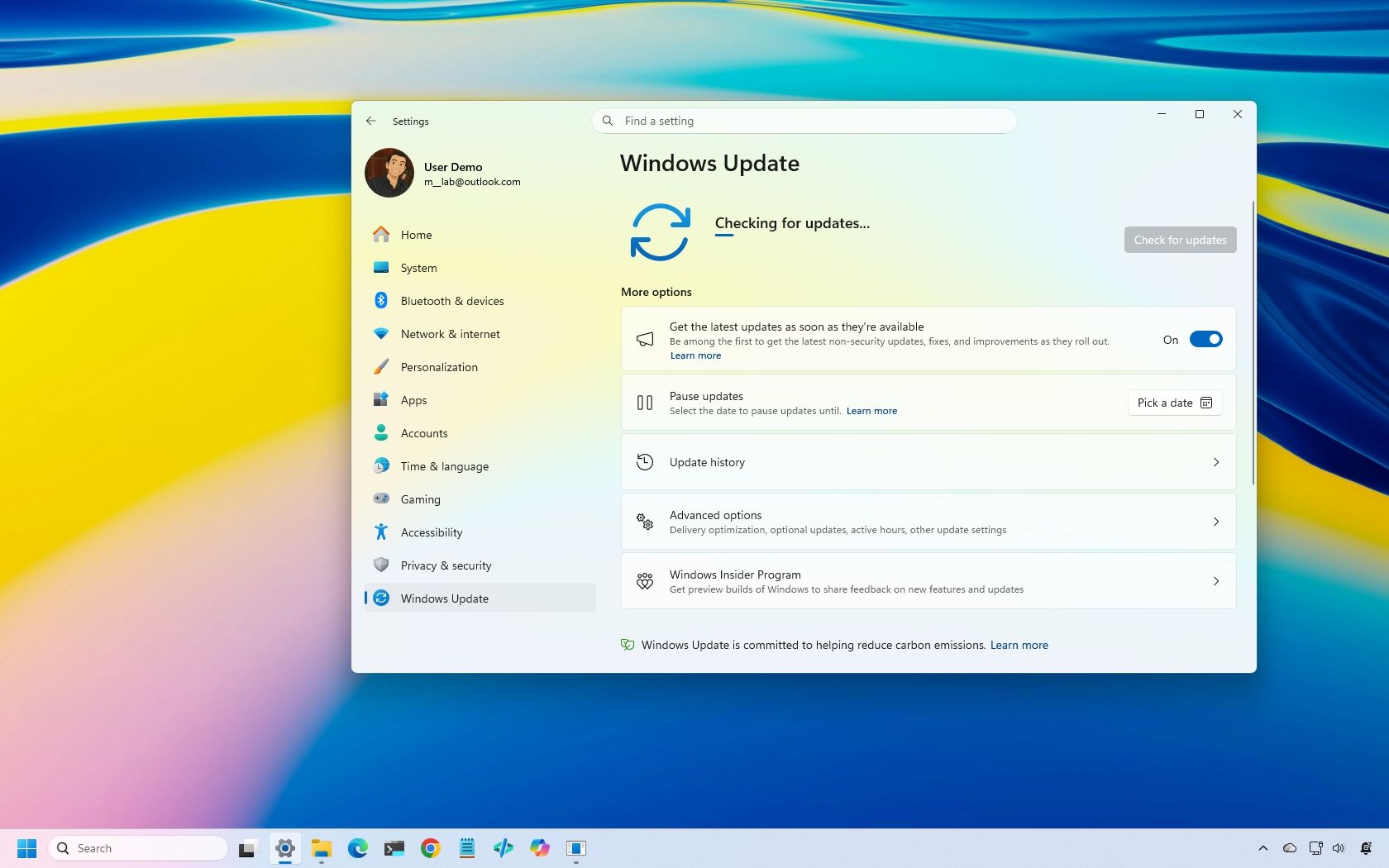
The October 2026 Security Update for Windows 11 should install automatically, but it can be installed from Settings > Windows Update by clicking the "Check for updates" button.

The update is available for versions 26H2, 25H2, and 24H2, with builds 26300.9711, 26200.9711, and 26100.9711, respectively.

However, keep in mind that Windows 11 24H2 Home and Pro reached the end of support with this security update released on October 13. This means that 24H2 will no longer receive security fixes and improvements, nor will the company continue offering support.

If you're still on version 24H2, I highly recommend upgrading to the latest version. Since versions 26H2, 25H2, and 24H2 share the same core system, switching versions only requires the latest updates for the current version and the enablement package, both of which should be available for download through Windows Update settings.

Windows Central's Take

Although the October update includes features and changes that are easier to notice, the smaller fixes can be just as useful when they address problems that disrupt your workflow. The Bluetooth improvements stand out because they cover several areas, from connection status and Settings reliability to audio compatibility and crashes.

The fixes for fingerprint sign-in, gaming, printing, and VPN connections are more specific, but they could make a difference to affected users. If you've experienced any of these problems, it's recommended to install this month's update as soon as possible.

Have you noticed any of these issues on your device? Let me know in the comments.

More resources

Explore more in-depth how-to guides, troubleshooting advice, and essential tips to get the most out of Windows 11 and 10. Start browsing here:

Click to join us on r/WindowsCentral

Join us on Reddit at r/WindowsCentral to share your insights and discuss our latest news, reviews, and more.
  •  

I found 5 new ways PowerToys can make Windows 11 easier to use with version 0.102

PowerToys, the "Swiss Army knife" of Windows 11, is now available in version 0.102, introducing several features designed to improve your desktop experience.

This release adds Mouse Button Lock to make dragging and selecting items easier, while CursorHide automatically hides the mouse pointer under specific conditions. Command Palette also gets an update with quick access to frequently used commands. In addition, PowerToys expands its command-line and automation features, and ZoomIt now lets you use voice input to set image descriptions.

In this guide, I'll highlight the five new features and improvements in PowerToys version 0.102 and explain how they can help you get more out of Windows 11.

1. Mouse Button Lock for easy dragging and selection

Selecting large groups of items or dragging files across the desktop can get tiring when you have to hold a mouse button down for an extended period. Starting with version 0.102, PowerToys introduced Mouse Button Lock to make these actions easier.

When this feature is enabled, you can press and hold a mouse button briefly, then release it. PowerToys keeps the button virtually held down, letting you keep selecting items or dragging files without physically holding the button. To release the hold, simply click any mouse button.

Mouse Button Lock can help when you're working with large file selections, moving items, or doing tasks that require extended dragging. It can also improve accessibility for people who have difficulty holding a mouse button down for long periods.

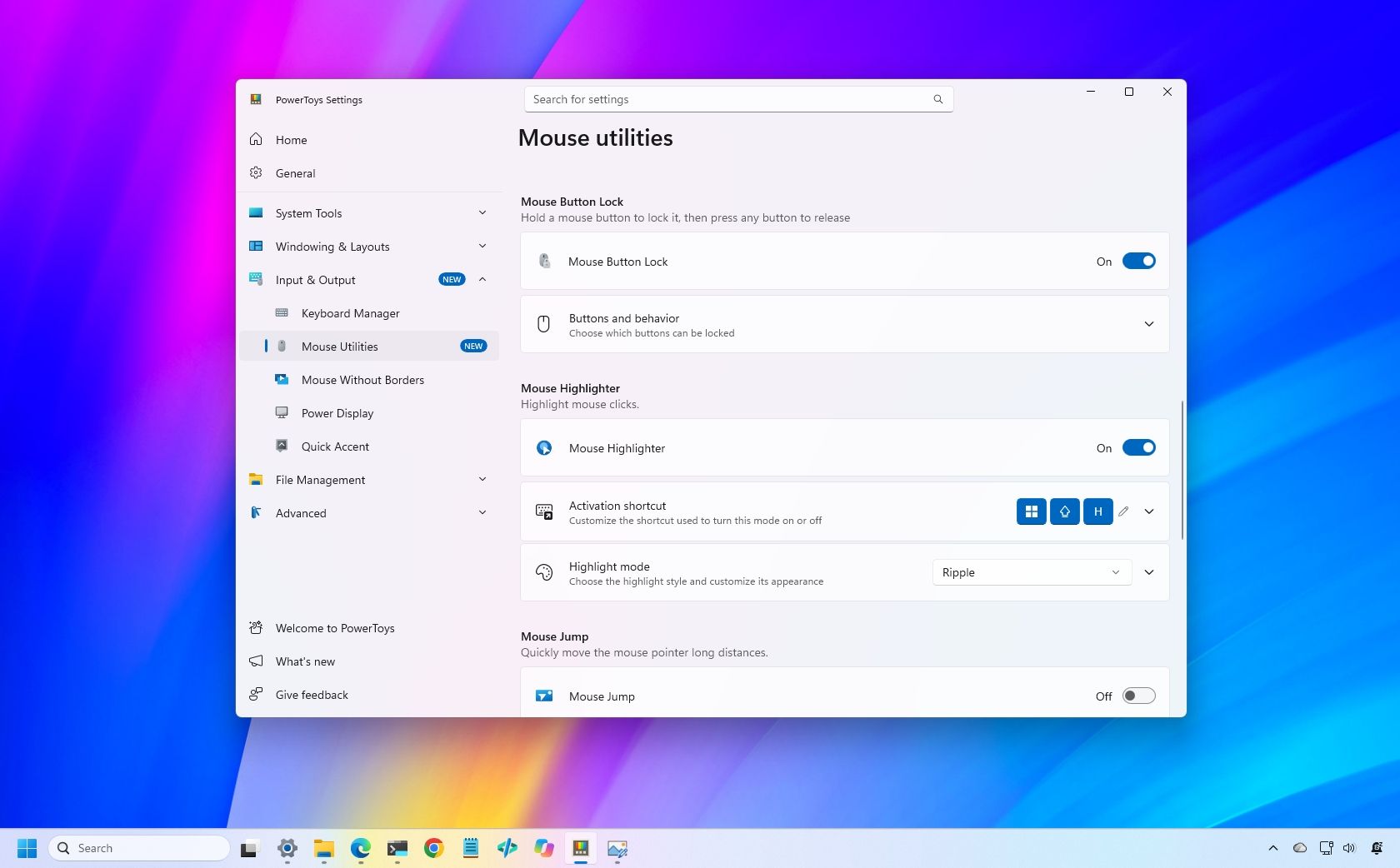
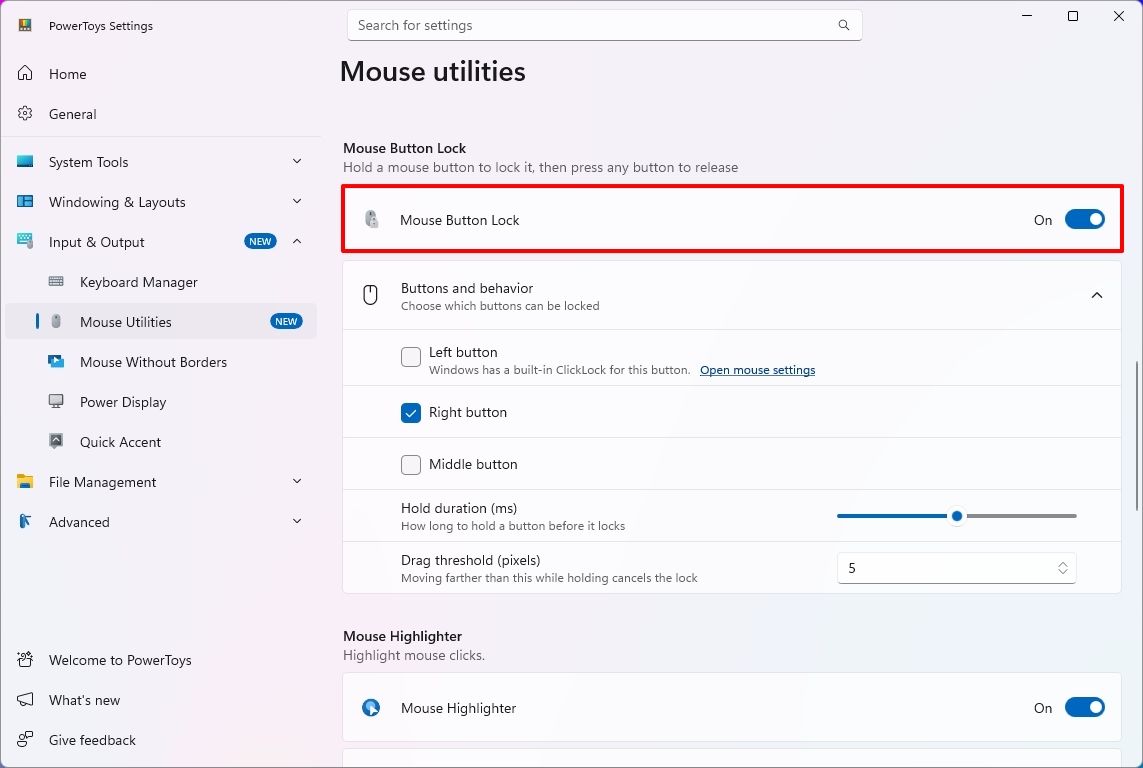
You can enable the feature in PowerToys > Input & Output > Mouse Utilities by turning on the "Mouse Button Lock" toggle switch.

PowerToys Mouse Button Lock settings and enable option.

(Image credit: Mauro Huculak)

From the "Buttons and behavior" settings, you can decide whether the left, middle, or right button should lock while pressed.

The settings also let you choose the hold duration before the button is locked as pressed, and the drag threshold allows you to specify how far you can move the mouse before PowerToys cancels the Mouse Button Lock.

2. CursorHide for fewer cursor interruptions

PowerToys also introduces a second mouse utility, CursorHide, which lets you hide the mouse pointer while you're typing, after a period of inactivity, or both.

CursorHide is useful when the mouse pointer gets in the way of what you're doing on the screen. For example, hiding the pointer while typing makes it easier to focus on text without the cursor covering words or other elements.

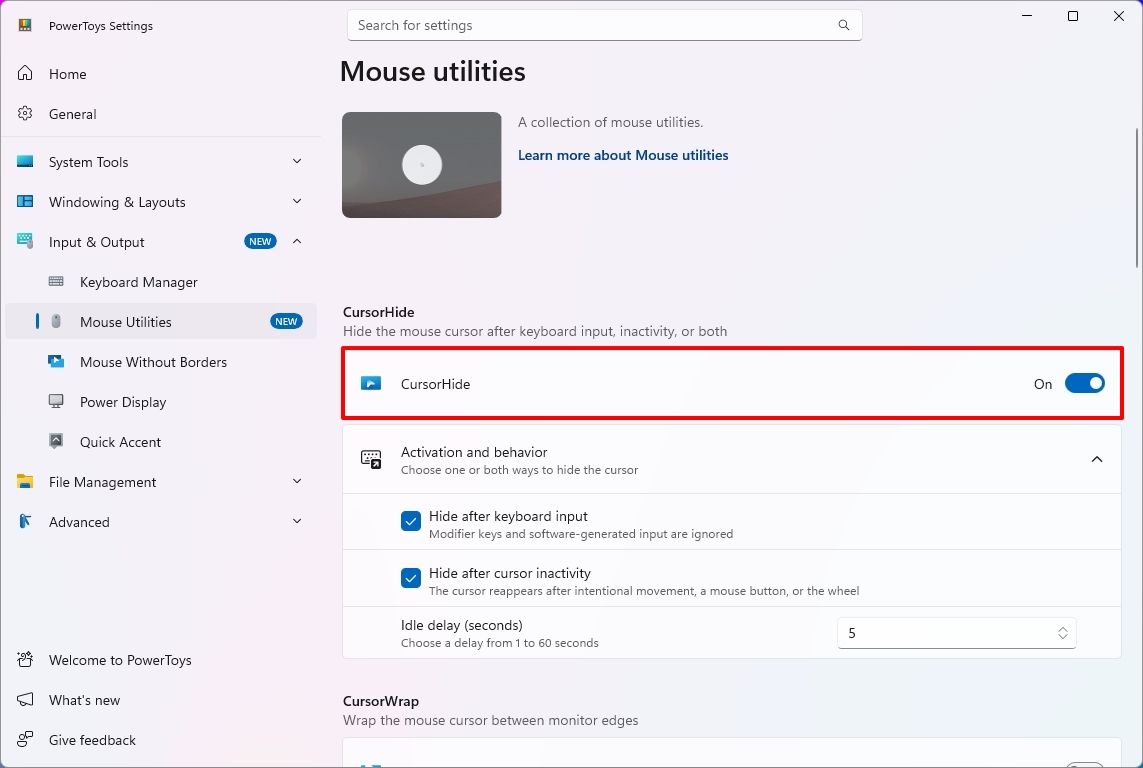
You can enable the feature in PowerToys > Input & Output > Mouse Utilities by turning on the "CursorHide" toggle switch.

PowerToys mouse utilities settings showing the CursorHide option.

(Image credit: Mauro Huculak)

In the "Activation and behavior" settings, you can choose to hide after keyboard input and set the cursor to hide after a period of inactivity.

3. Command Palette quick access to favorites

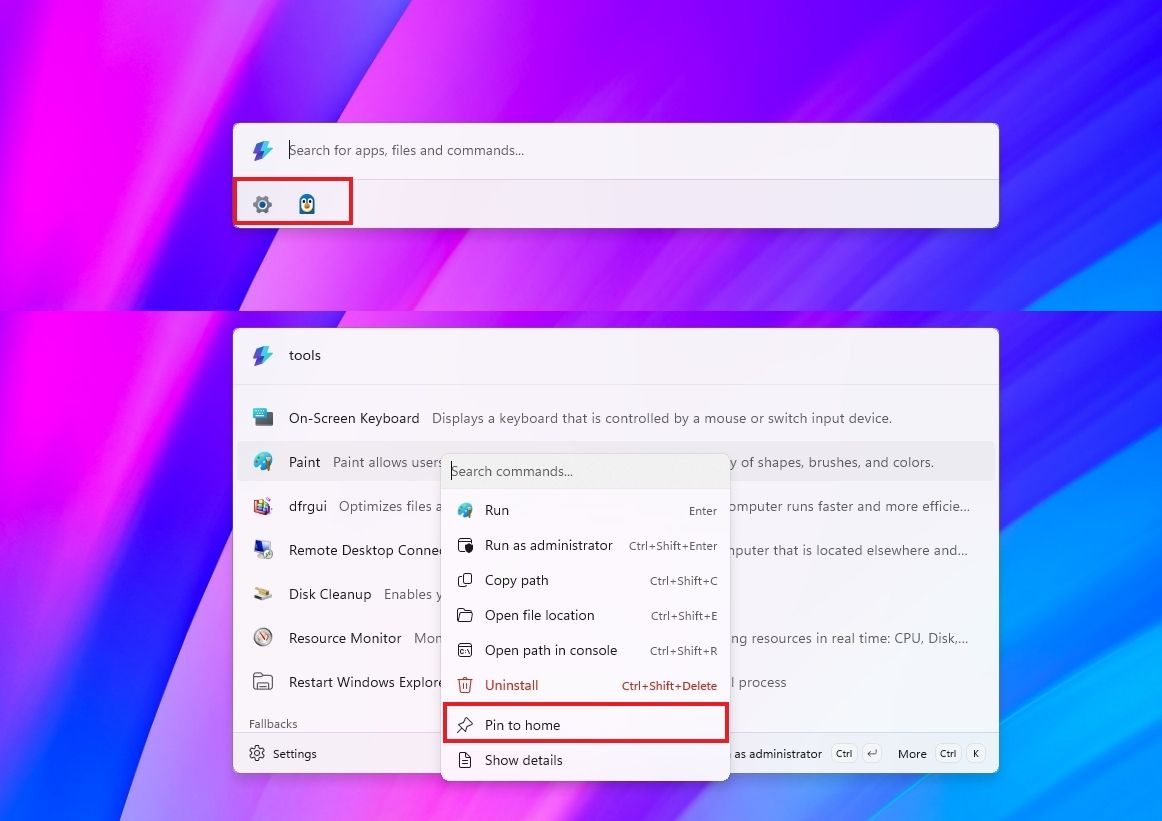
If you use Command Palette, this update rolls out an update to Compact mode that lets you pin frequently used commands under the search box.

Once you pin an item, you can launch it with the "Alt + 1" through "Alt + 9" shortcut or select it without running it with the "Alt + Shift + number" shortcut.

Command Palette showing pinned items and pin items to home option.

(Image credit: Mauro Huculak)

It's also possible to drag items to reorder them, right-click to access more options, and display recent apps and commands.

4. PowerToys expands command-line support

PowerToys version 0.102 expands its command-line capabilities, allowing you to control more utilities, automate tasks, and retrieve information directly from Command Prompt or PowerShell.

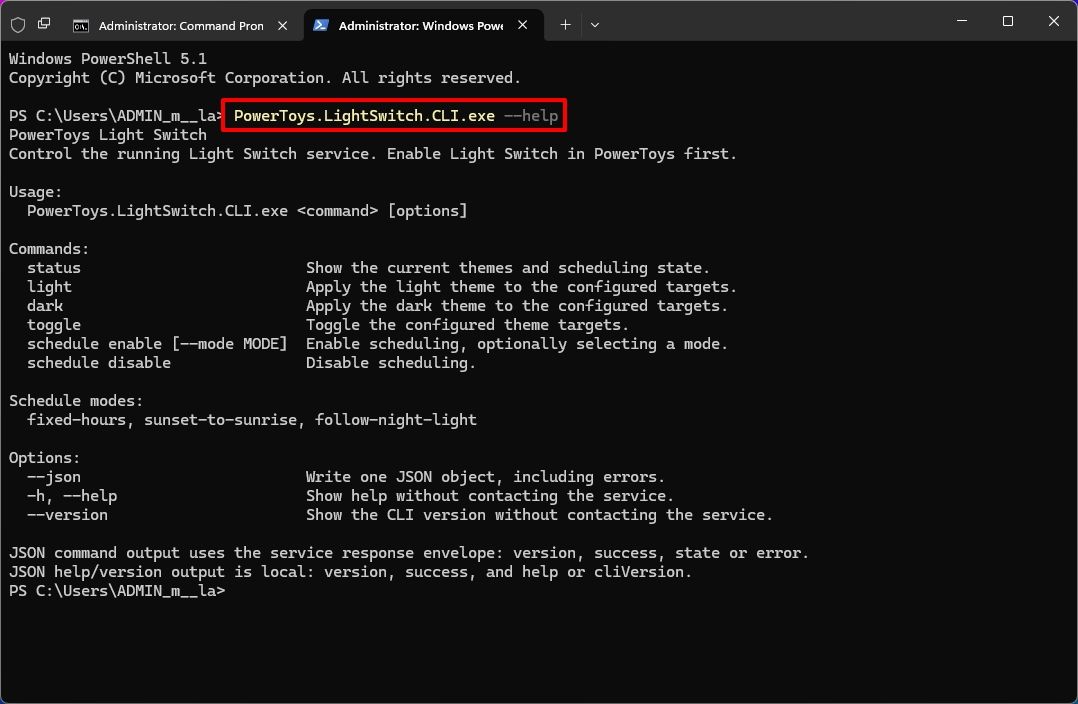
The update adds CLI commands for Advanced Paste, Light Switch, Settings, Peek, and PowerDisplay. These commands let you run actions, manage light and dark mode settings, turn utilities on or off, preview files and folders, and retrieve display information in script-friendly formats.

These additions are especially useful for automating repetitive tasks, creating scripts, or controlling PowerToys utilities without opening their graphical interfaces.

PowerToys command-line tool example in PowerShell.

(Image credit: Mauro Huculak)

Here's a list of the new command-line support you can use with PowerShell:

  • Advanced Paste: PowerToys.AdvancedPaste.CLI.exe
  • Light Switch: PowerToys.LightSwitch.CLI.exe
  • Settings: PowerToys.Settings.CLI.exe
  • Peek: PowerToys.Peek.UI.exe
  • PowerDisplay: PowerToys.PowerDisplay.CLI.exe

To learn about the options for each command, use the "--help" command. For example, PowerToys.LightSwitch.CLI.exe -- help.

If, for example, LightSwitch is enabled, you can switch to dark mode with the PowerToys.LightSwitch.CLI.exe dark command.

You can use the command to manage it, but you must enable the utility in PowerToys settings first.

5. ZoomIt adds screenshot dictation

Finally, ZoomIt now lets you dictate a description while capturing a screenshot, making it easier to document what's on the screen without typing the text separately.

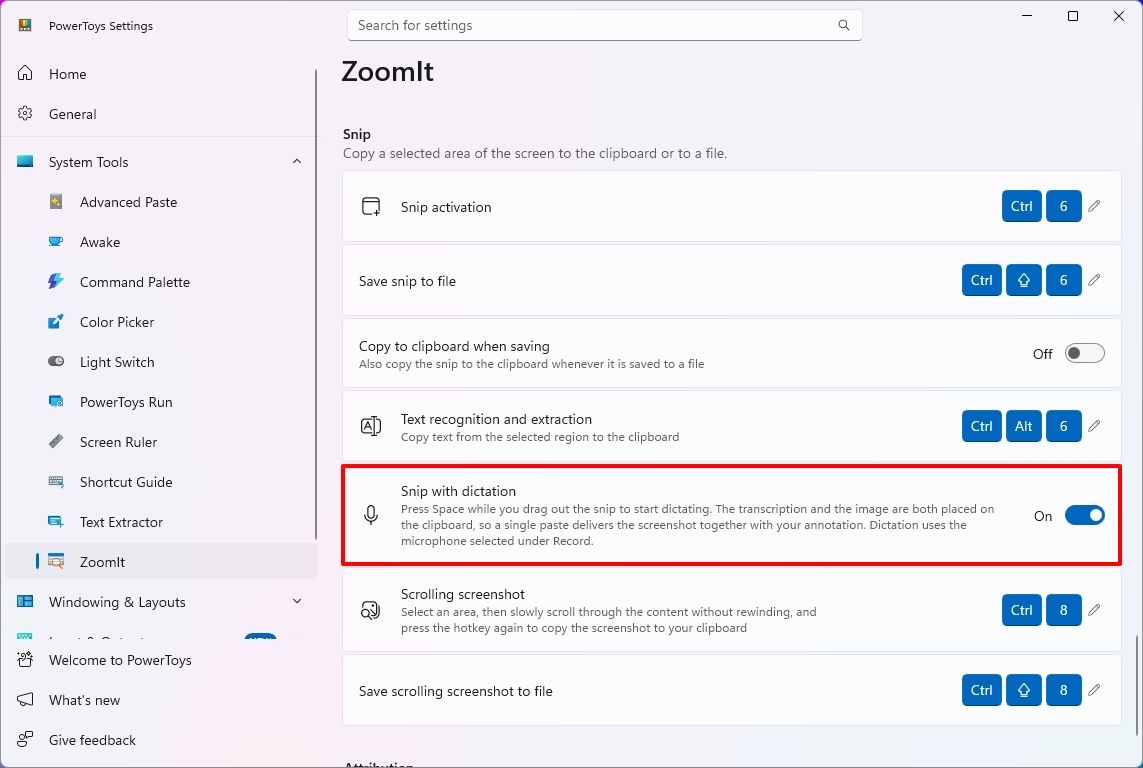
To use the feature, open PowerToys > System Tools > ZoomIt, turn on the feature, and then under the "Snip" section, turn on the "Snip with dictation" toggle.

PowerToys ZoomIt page showing the Snip with dictation option.

(Image credit: Mauro Huculak)

Once you have done that, drag to select an area of the screen, press the "Space" key, and describe what you're capturing. ZoomIt transcribes your speech locally, allowing you to paste the screenshot and its accompanying text together.

The feature uses the microphone selected in the "Record" settings.

Wrap up

PowerToys 0.102 is a surprisingly and unusually interesting update, despite the simple version-number change. The popular app serves as a clear reminder of how much Windows 11 continues to evolve thanks to community-driven tools — these additions make everyday workflows smoother and show how Microsoft’s open‑source ecosystem continues to fill gaps the OS itself doesn’t yet cover.

Whether you’re a power user or just someone who loves small quality‑of‑life upgrades, this release proves that Windows can still surprise you with clever, genuinely useful features.

What’s the most interesting feature in this rollout? Let me know in the comments!

More resources

Explore more in-depth how-to guides, troubleshooting advice, and essential tips to get the most out of Windows 11 and 10. Start browsing here:

Click to join us on r/WindowsCentral

Join us on Reddit at r/WindowsCentral to share your insights and discuss our latest news, reviews, and more.
  •  
❌