❌

Vue lecture

Keychron T1 HE Wireless Mouse Lets You Bring the Trackball Closer to Your Thumb
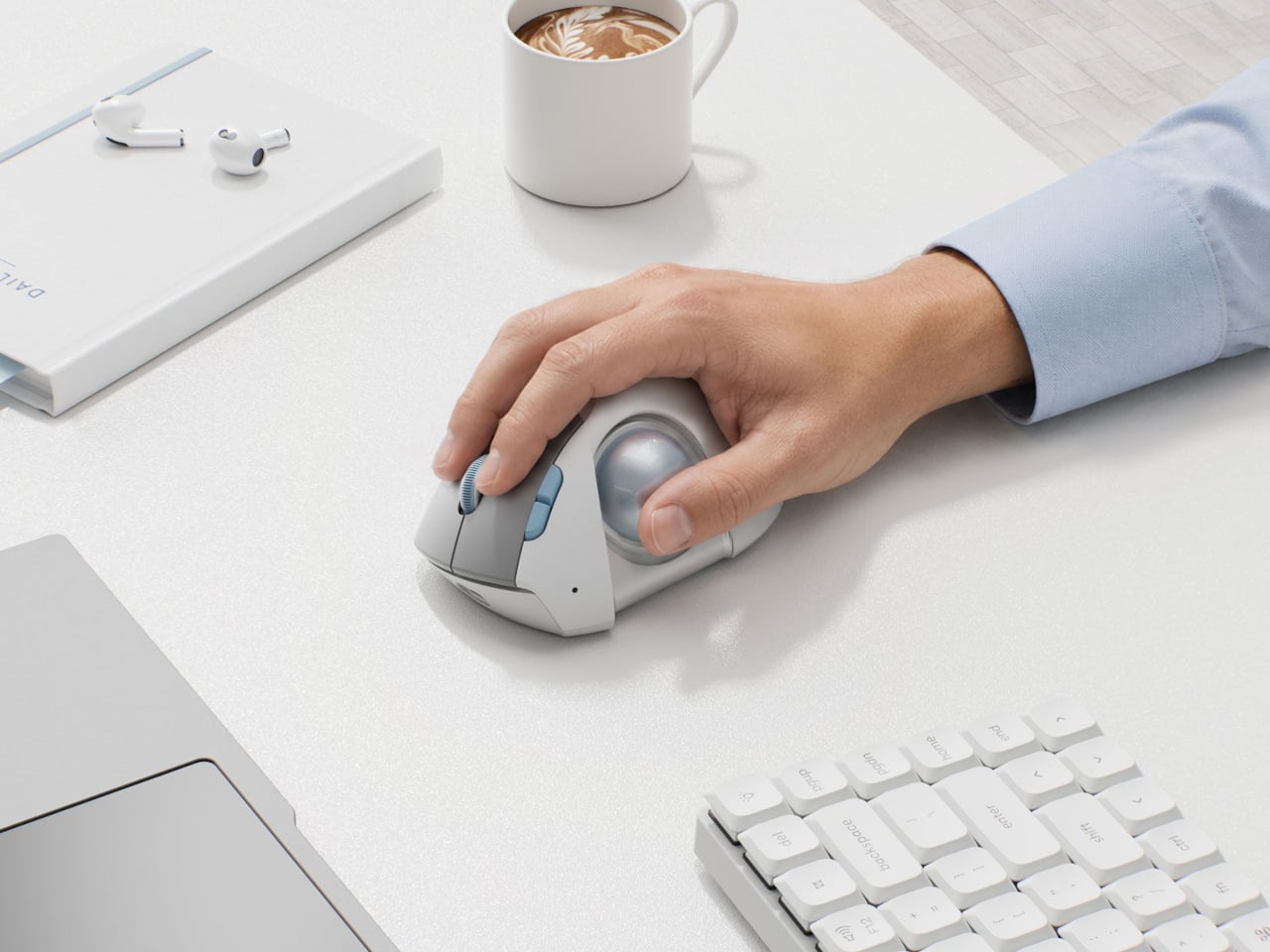
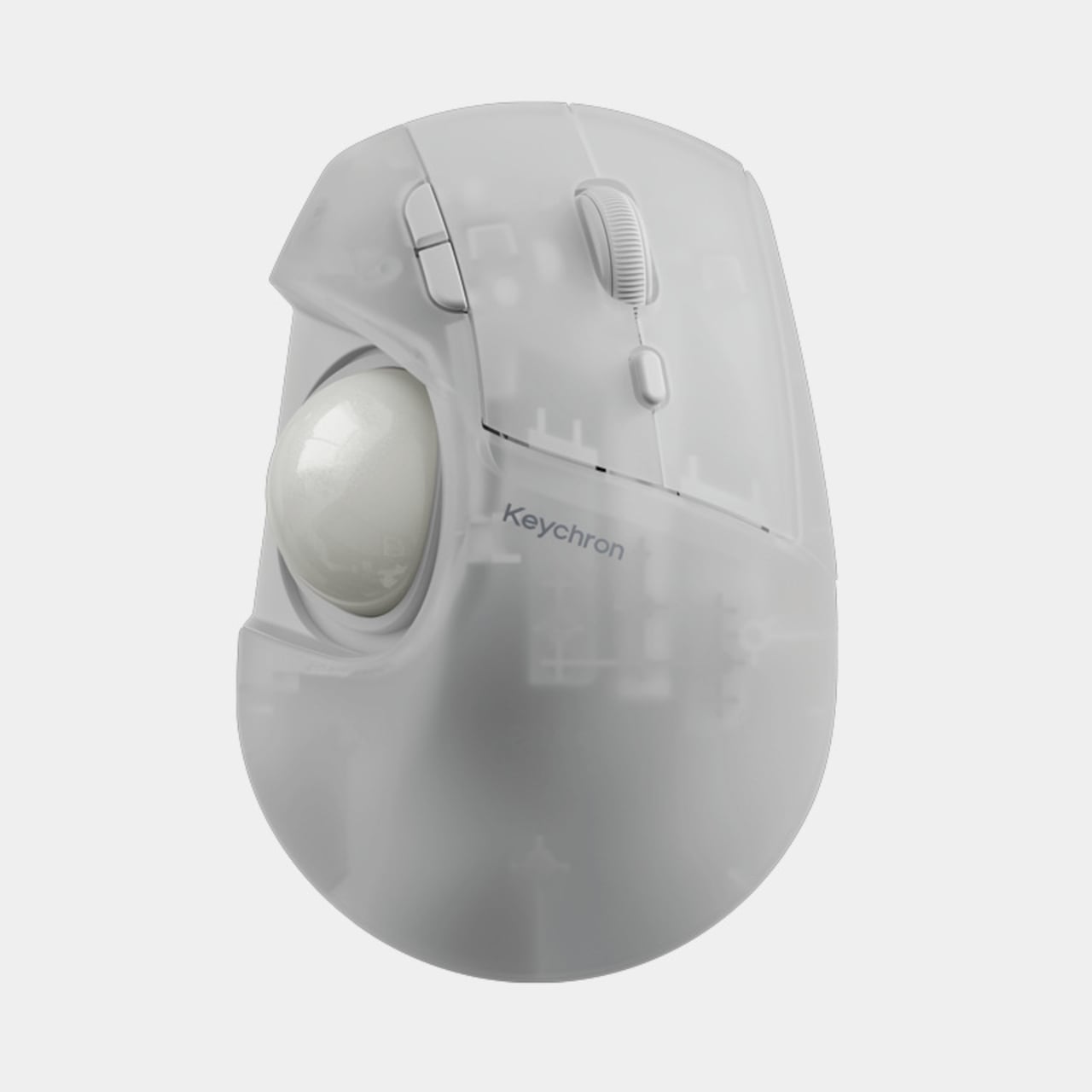
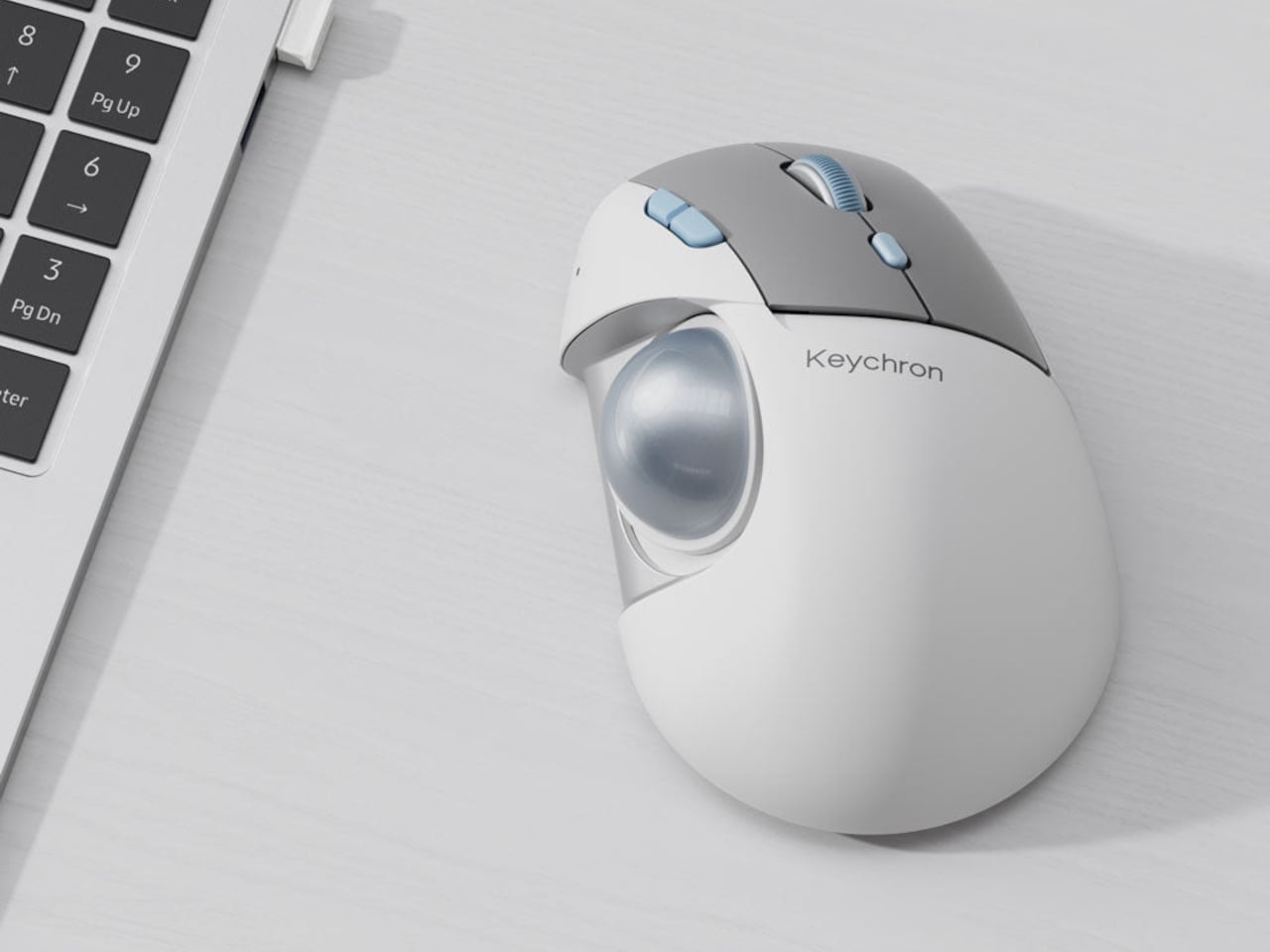
Computer mice ask people with very different hands to get along with the same fixed shape. Trackballs change how you move the cursor, but their ball can still sit just beyond a comfortable thumb reach. Keychron’s upcoming T1 HE Wireless Trackball Mouse adds an adjustment that addresses that mismatch, letting you reposition the ball without replacing the rest of the mouse around it.

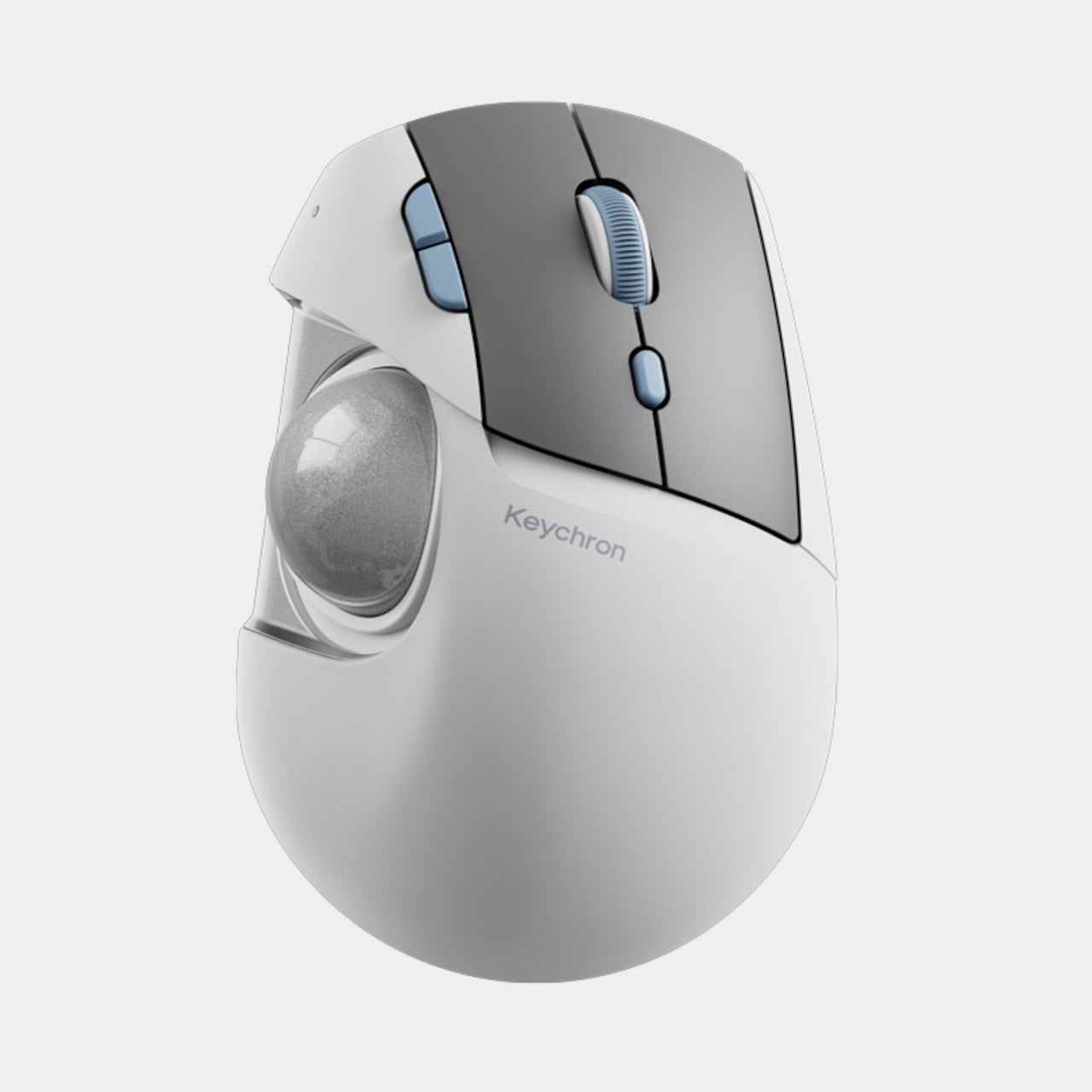
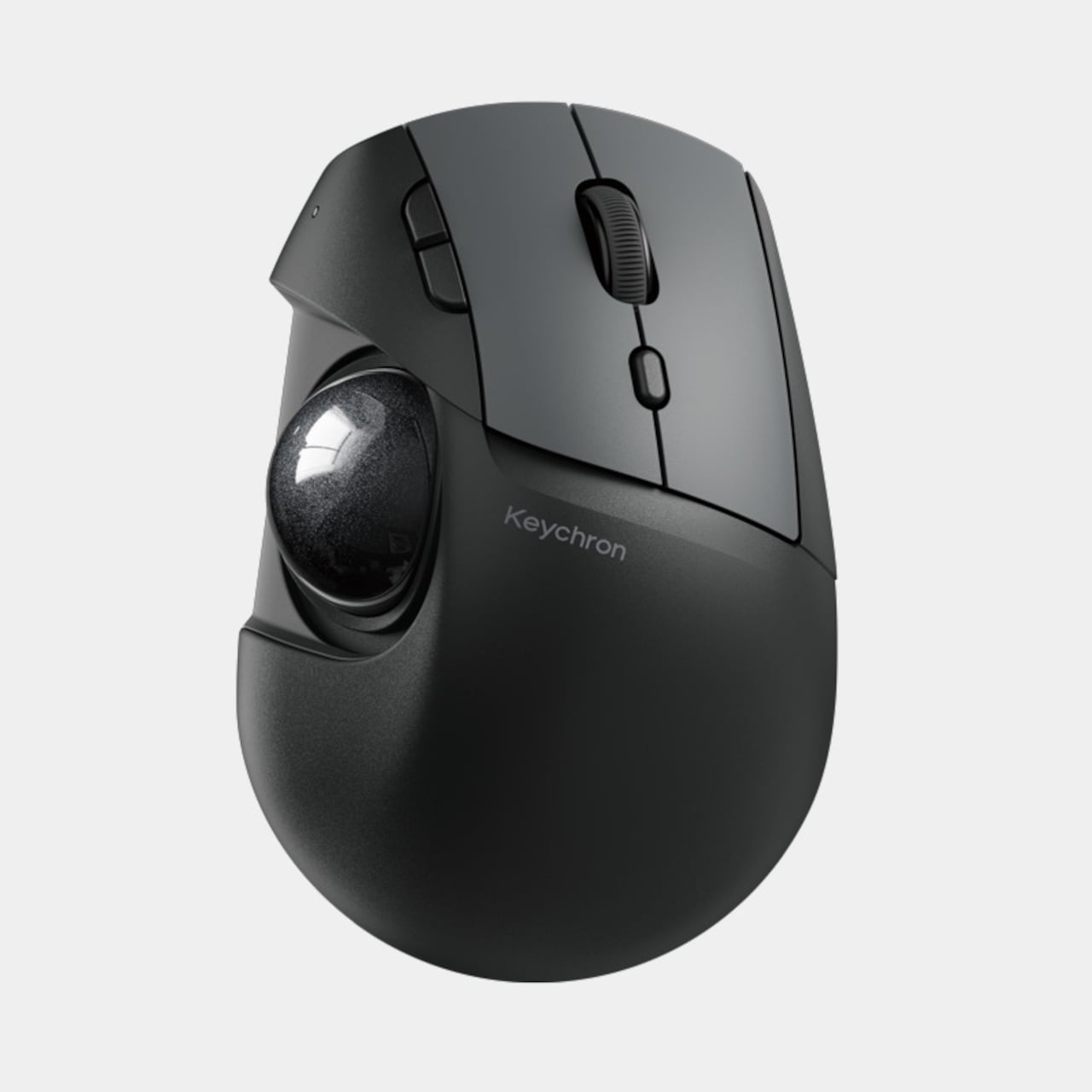
The egg-shaped body keeps the arrangement familiar, with a broad palm area, two main buttons, and a scroll wheel above the ball. The white version adds gray button panels and pale blue accents, while black and translucent finishes offer different personalities. This is a right-handed layout, though, so moving the ball doesn’t turn it into an equally accommodating option for your other hand.

Designer: Keychron
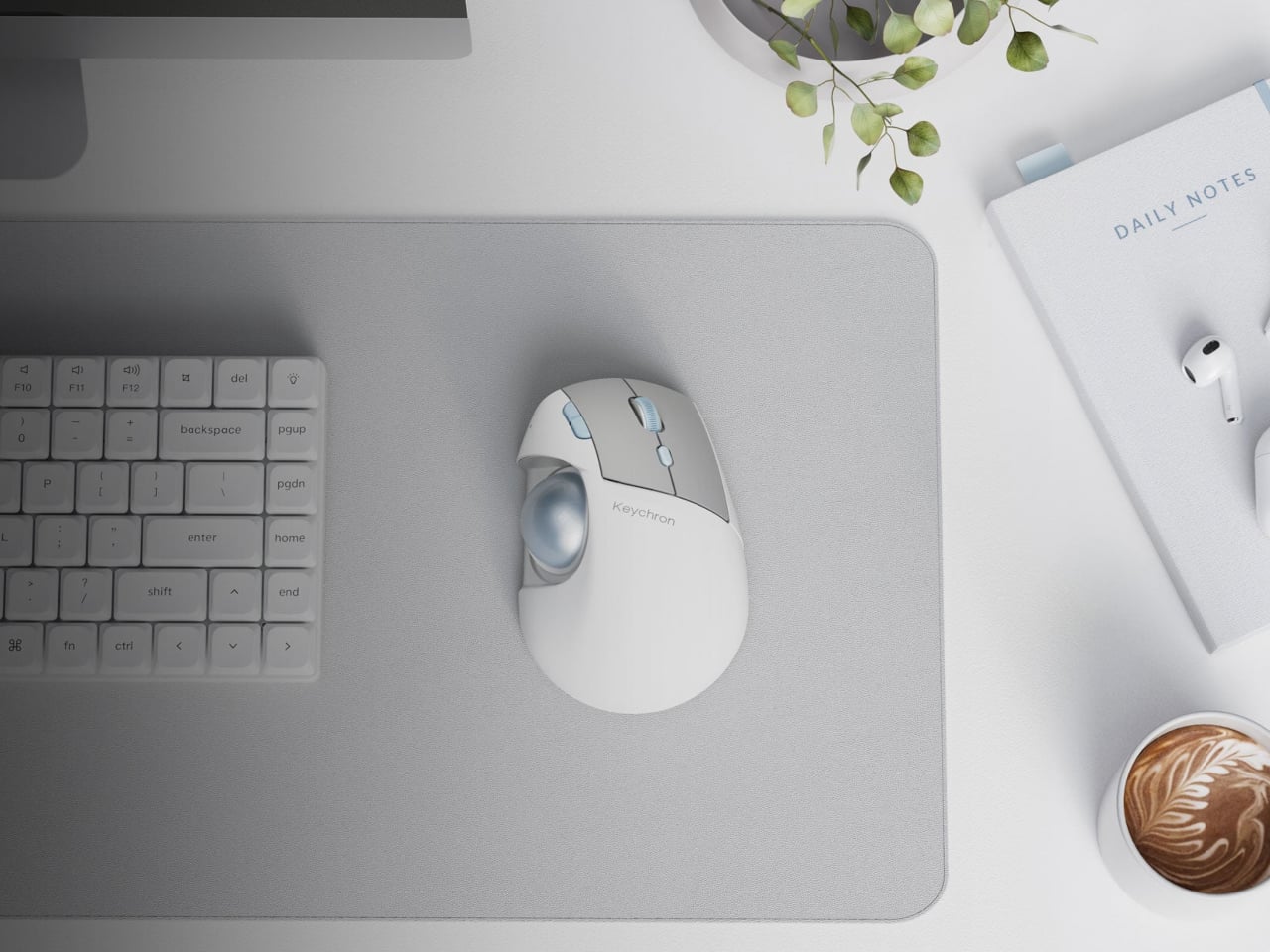
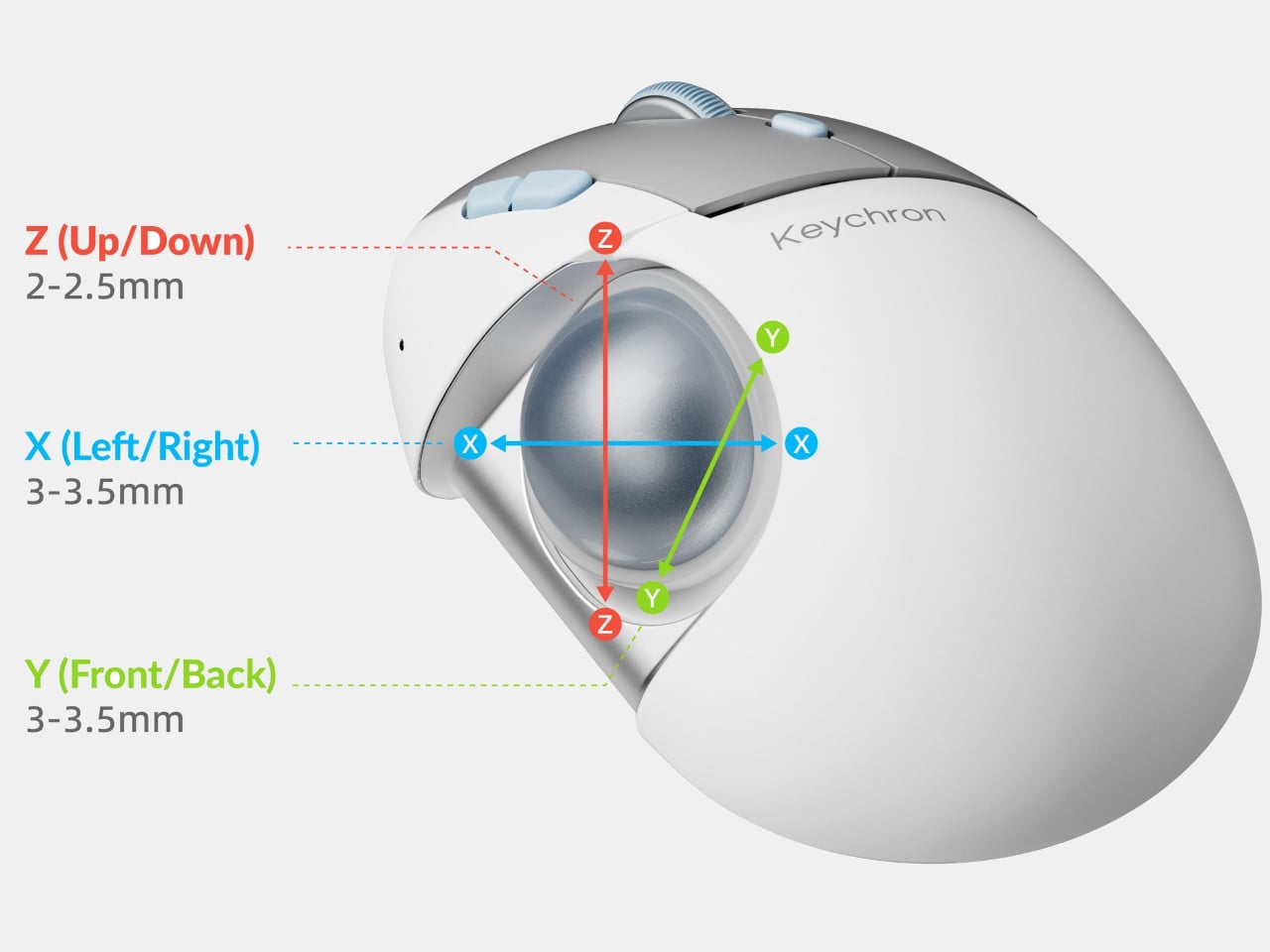
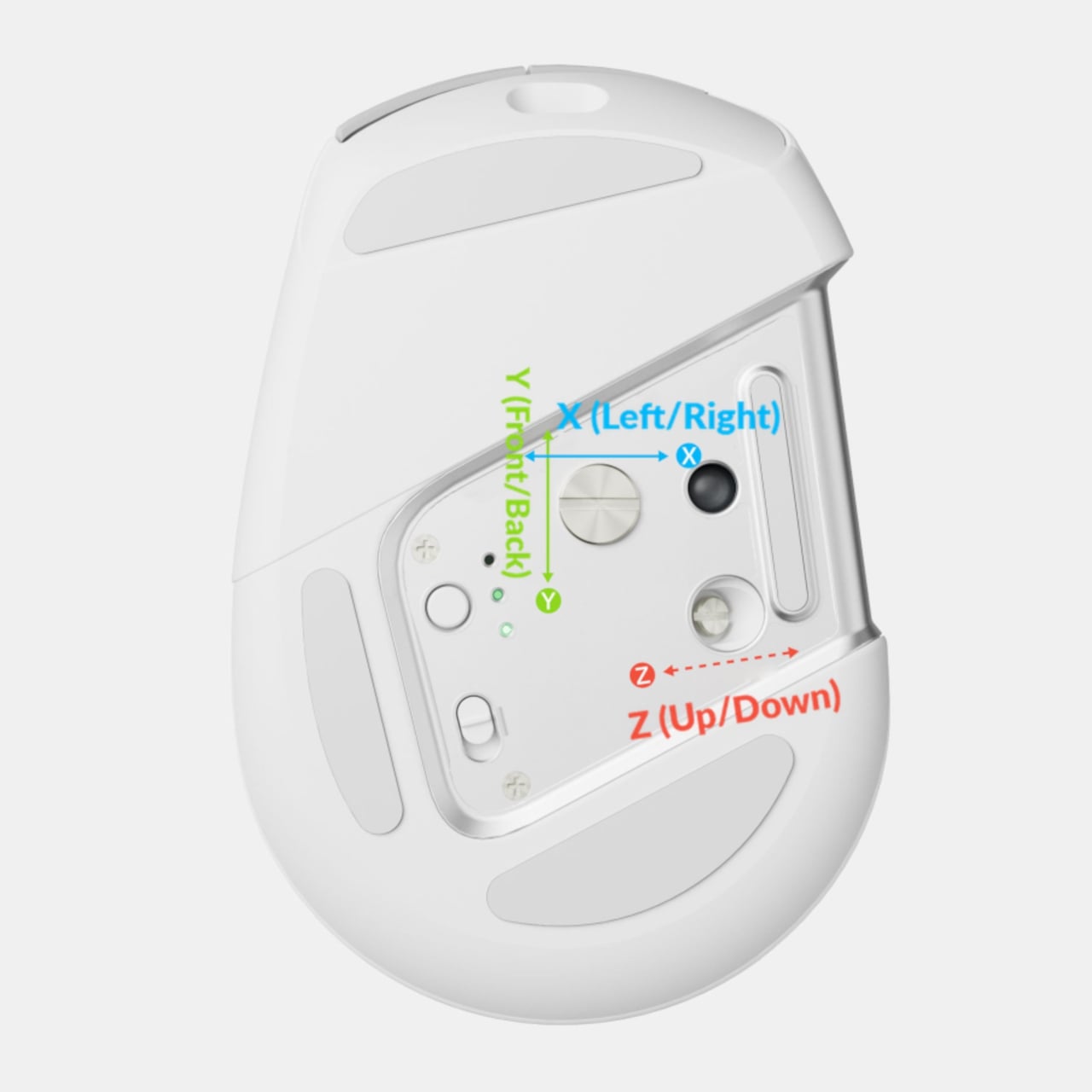
Underneath, adjusters let you shift the ball assembly sideways, forward and backward, or up and down. There’s roughly 3mm to 3.5mm of horizontal adjustment and 2mm to 2.5mm vertically. Those aren’t dramatic distances, but the intention is to bring the ball toward your thumb’s resting position, rather than asking you to keep stretching across the same fixed gap.

Once positioned, the mouse stays put while your thumb rolls the 1.34-inch ball to move the pointer. That could make more sense on a crowded desk than repeatedly clearing a path for a conventional mouse. The ball also lifts out for cleaning, giving you direct access to the socket underneath without making occasional cleaning a reason to dismantle the entire mouse housing.
The clicks have their own adjustment, courtesy of Keychron’s MagOptic switches. Optical mode provides one way to register a press, while magnetic mode lets you choose among 11 actuation settings and enables Rapid Trigger. In practical terms, you’re changing when a press registers and resets. You could select an earlier trigger point without needing to replace a switch or take the casing apart.

Those settings live in Keychron Launcher, a browser-based tool that also handles button remapping, shortcuts, and macros. Onboard memory keeps your configuration with the mouse when you change computers. There’s a connection requirement worth knowing: configuration uses a wired or 2.4 GHz link, not Bluetooth. You can avoid installing a dedicated desktop app, but you can’t do every adjustment over every connection.
Bluetooth can remember up to three devices, alongside the separate 2.4 GHz receiver option and wired USB-C operation. That gives a shared desktop and laptop setup several ways to connect without changing the mouse itself. Plugging in also lets you continue working while it charges, which is a useful fallback when the battery runs down halfway through whatever you were supposed to finish.

Notebookcheck reports a $59.99 international preorder price, with shipping expected around the end of the month. That remains an estimate, and adjustment alone doesn’t establish that this mouse will feel right in your hand. Still, it gives you something to change before giving up on trackballs altogether, particularly if a fixed ball position was what made your last attempt feel rather awkward.
The post Keychron T1 HE Wireless Mouse Lets You Bring the Trackball Closer to Your Thumb first appeared on Yanko Design.
  •  

8BitDo’s Forest Wonder Keyboard Puts Tiny Pixel Animals Among the Keys

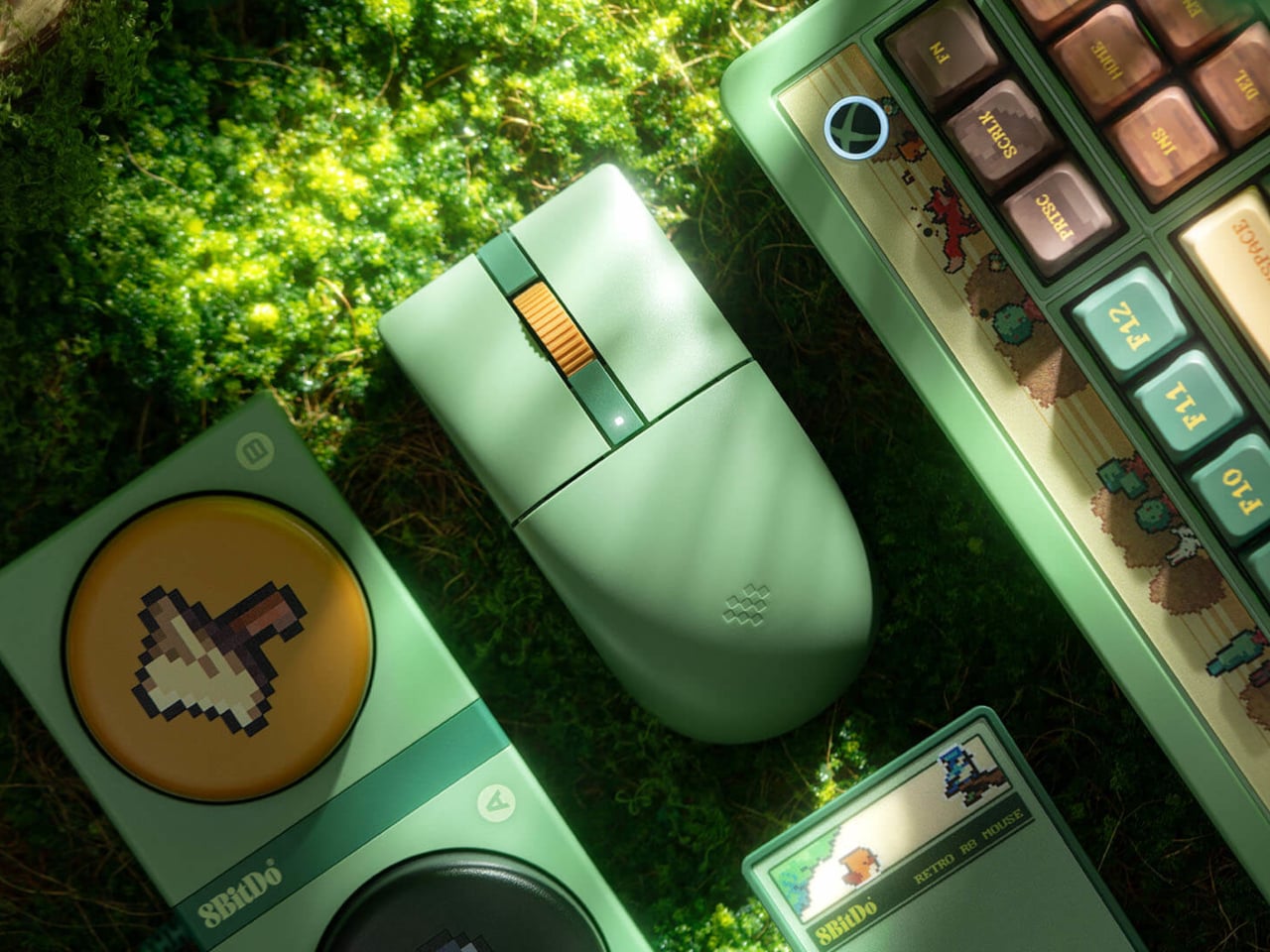
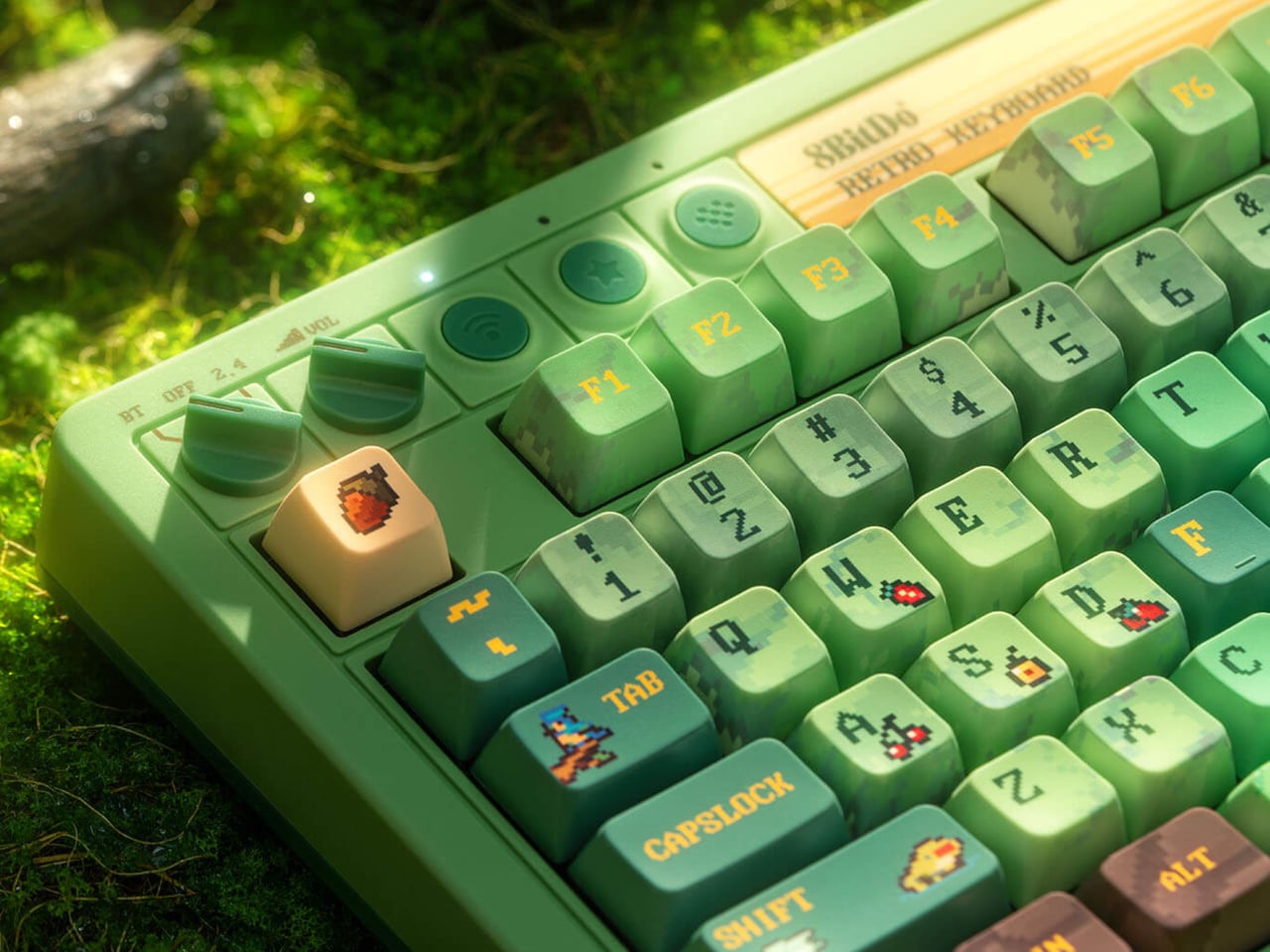
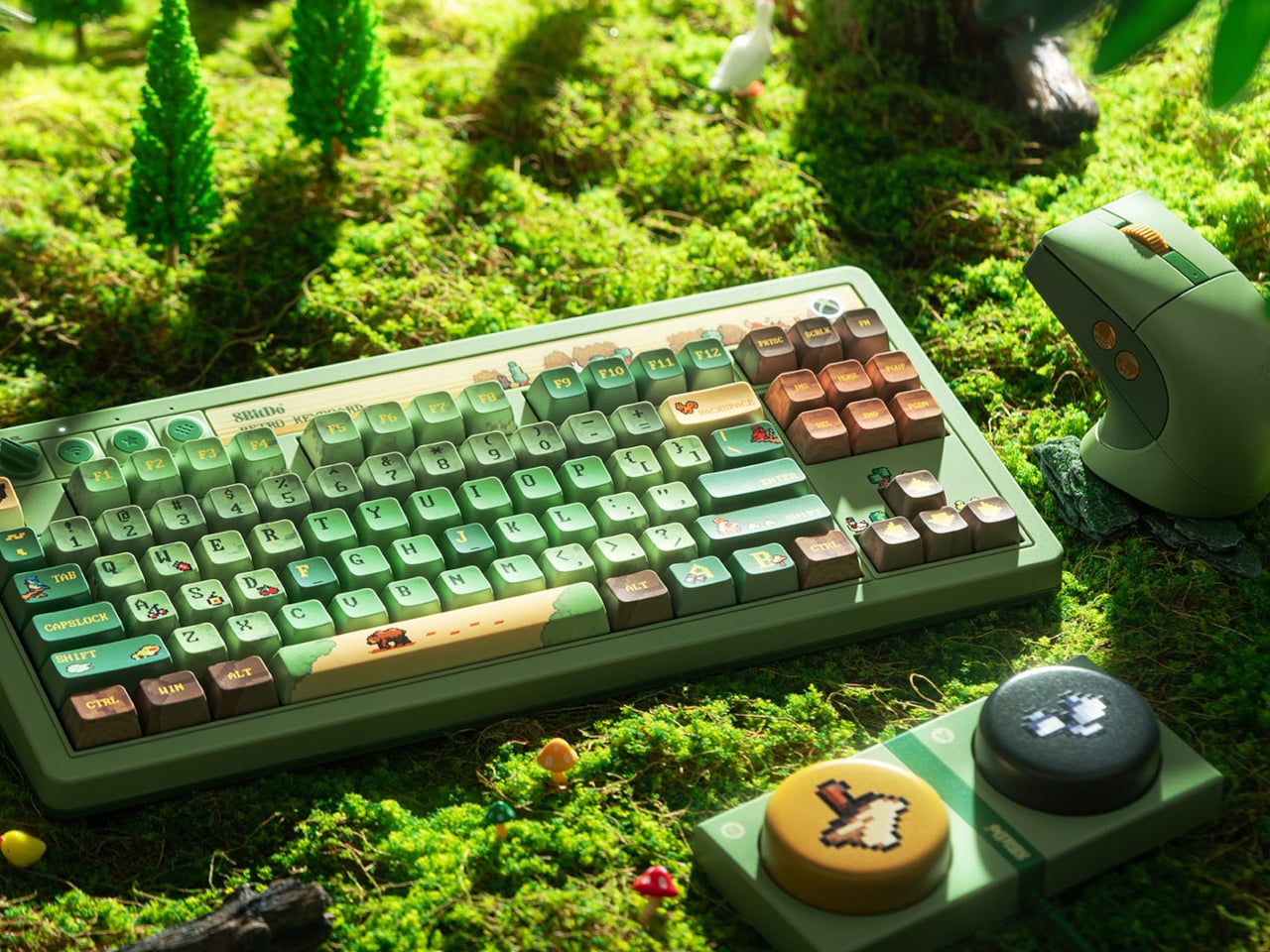
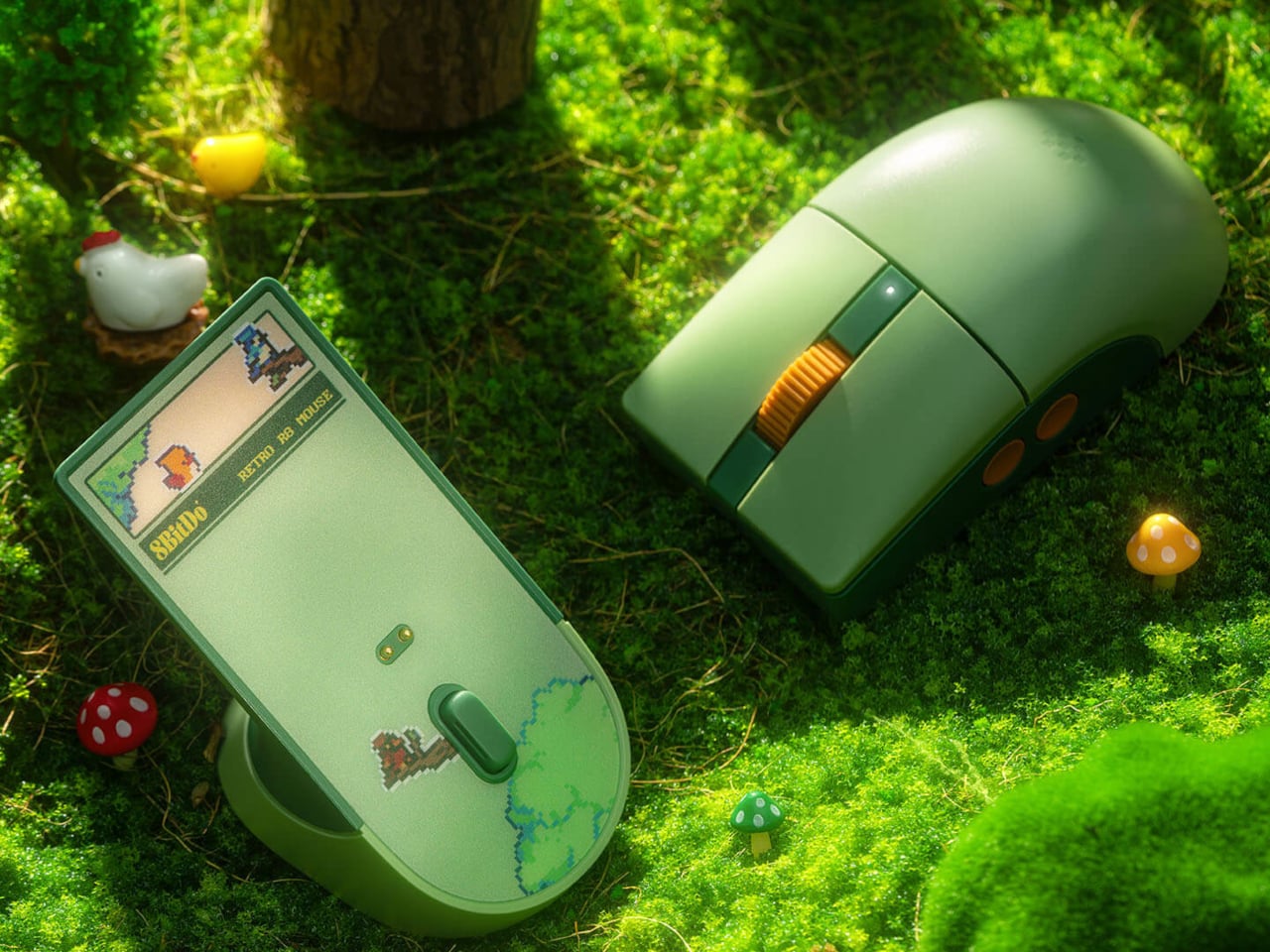
A keyboard can take you into a forest before you’ve even opened a game. 8BitDo’s Forest Wonder Retro 87 Mechanical Keyboard and Retro R8 Mouse turn familiar desktop hardware into a pixel woodland, complete with tiny animals, leafy greens, and brown keys that suggest patches of earth. The matching pair gives a gaming desk some personality without making everything look like equipment for a spaceship.

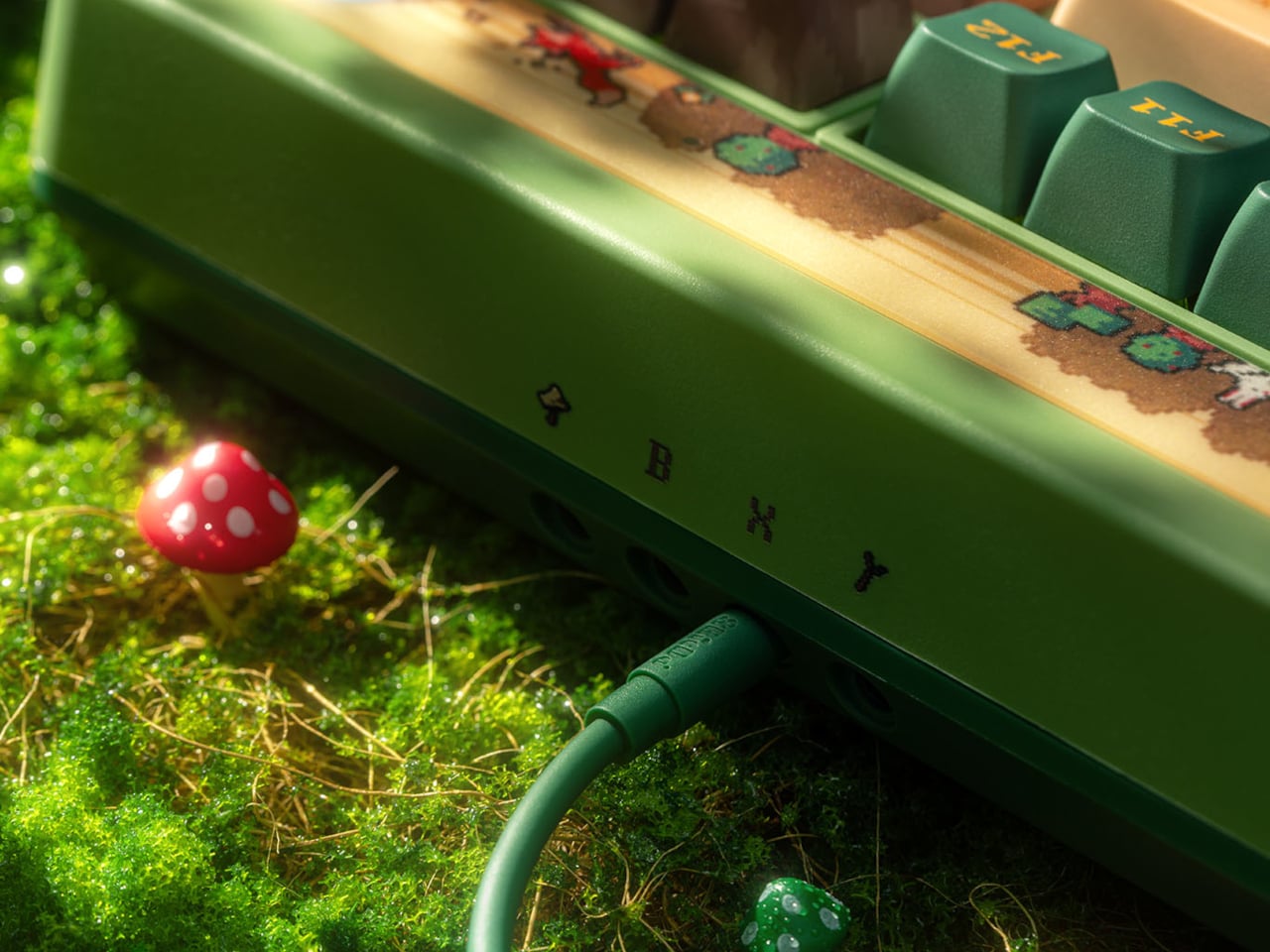
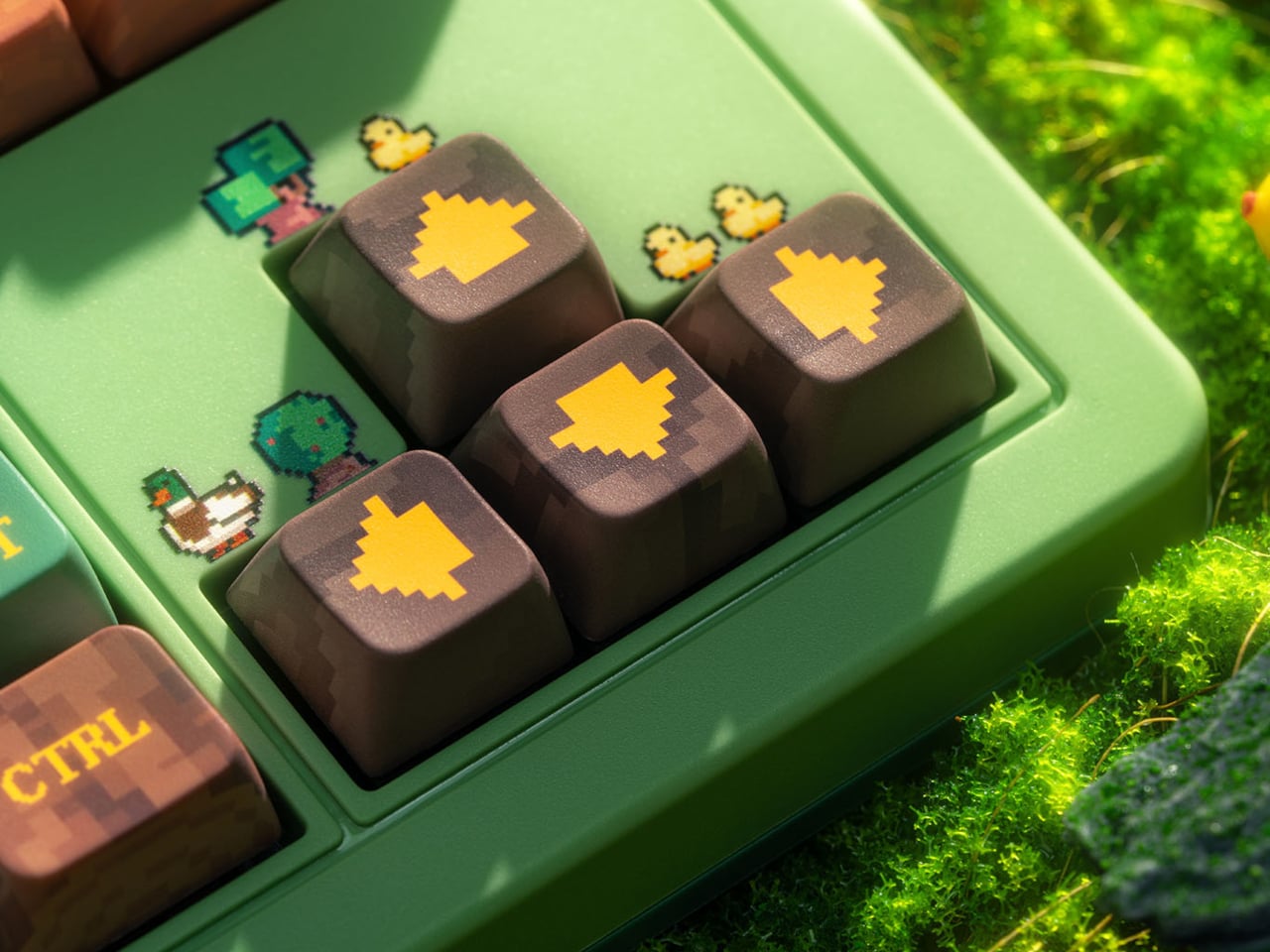
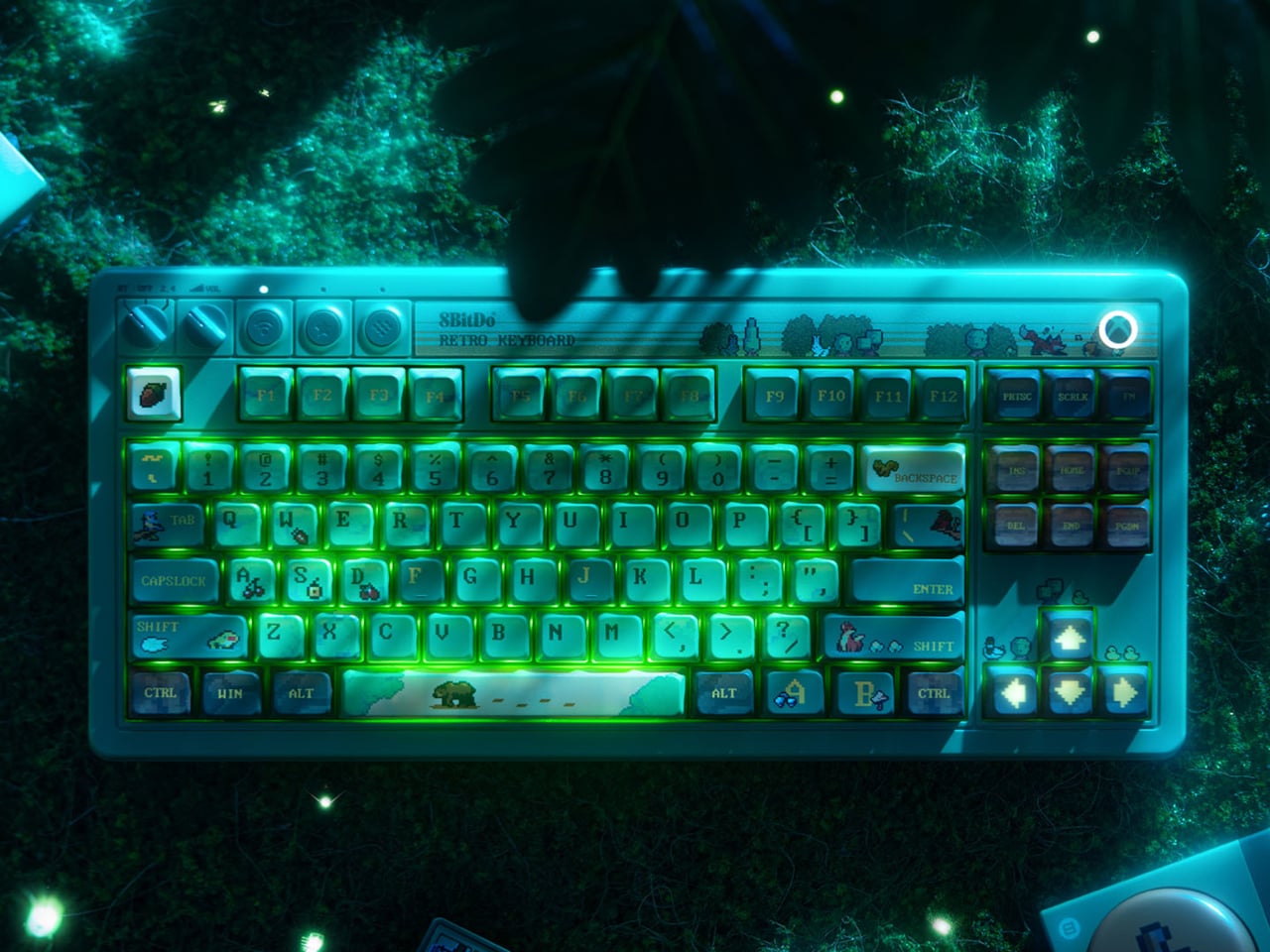
The keyboard carries that theme across its dye-sublimated PBT keycaps, scattering little creatures and fruit among the letters. A pale spacebar becomes a path through green surroundings, while yellow arrows stand out against brown directional keys. It’s an unusually busy landscape, although the familiar layout keeps everything where you’d expect it. There’s no number pad, leaving more room beside it for the mouse.

Designer: 8BitDo

Underneath are Core Green tactile switches, co-developed with Kailh, which you can replace on the hot-swappable board. You aren’t committed to the original switches if your preferences change, though the woodland artwork stays with the keycaps. Eight RGB lighting modes add another layer of decoration, giving the colorful keyboard a glow that can follow you from daytime work into an evening game.

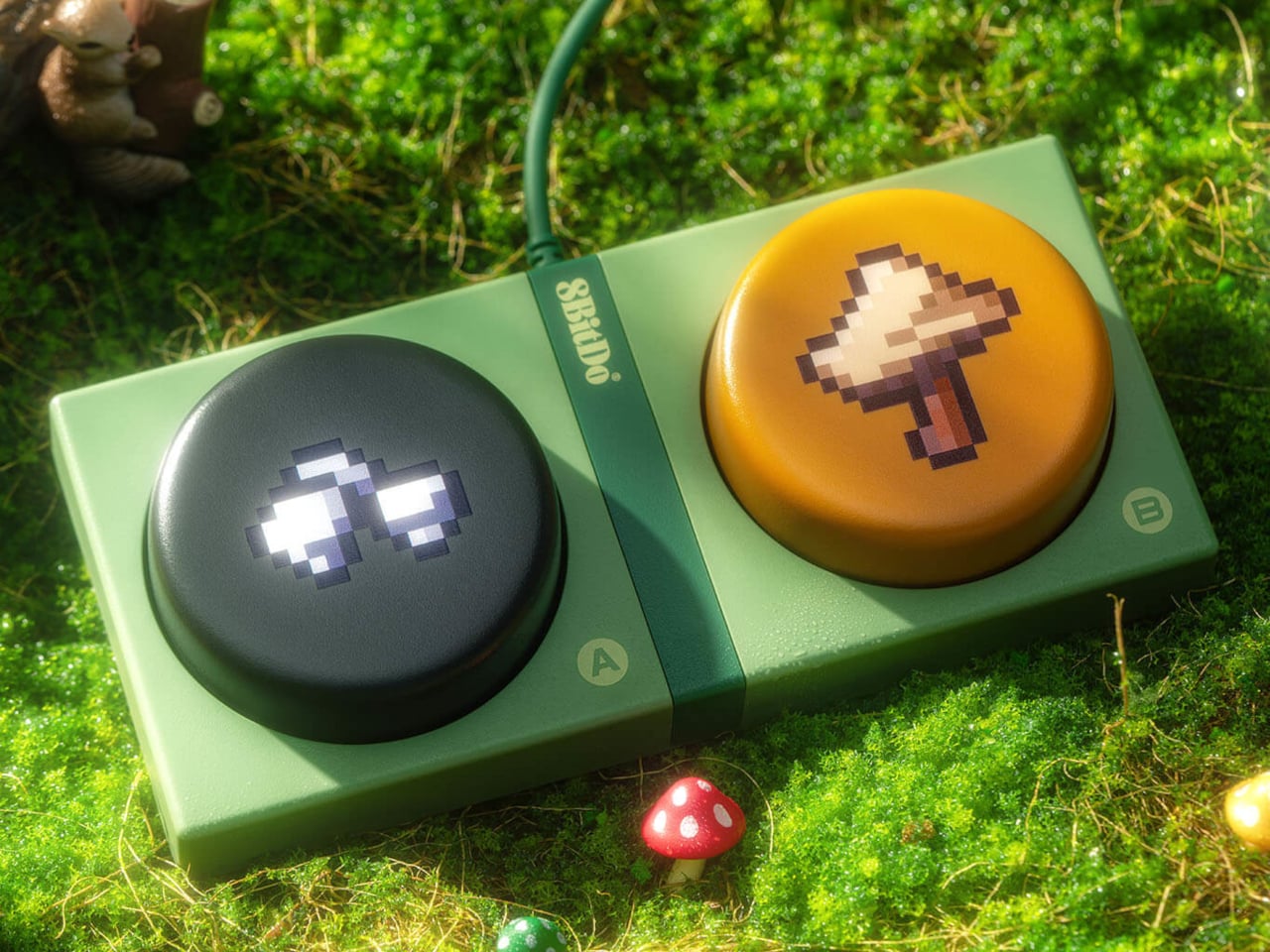
Physical controls along the top handle connections, volume, and button mapping, keeping those adjustments away from combinations of letter keys. The included Dual Super Buttons take that approach somewhere rather less subtle. Their oversized round surfaces carry pixel artwork, including an axe, and can trigger assigned shortcuts or macros. Even a routine command gets a conspicuously big button to call its own.

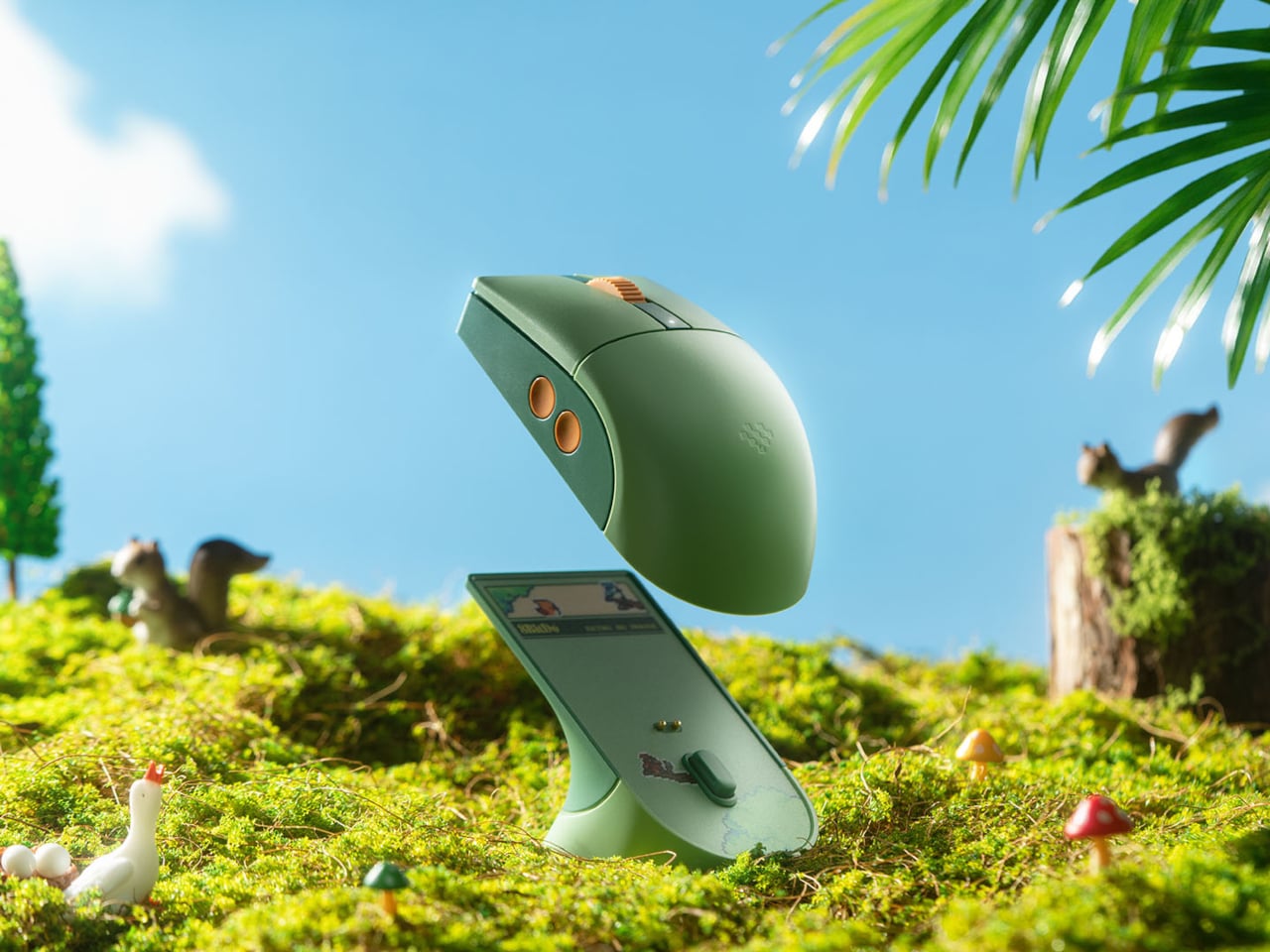
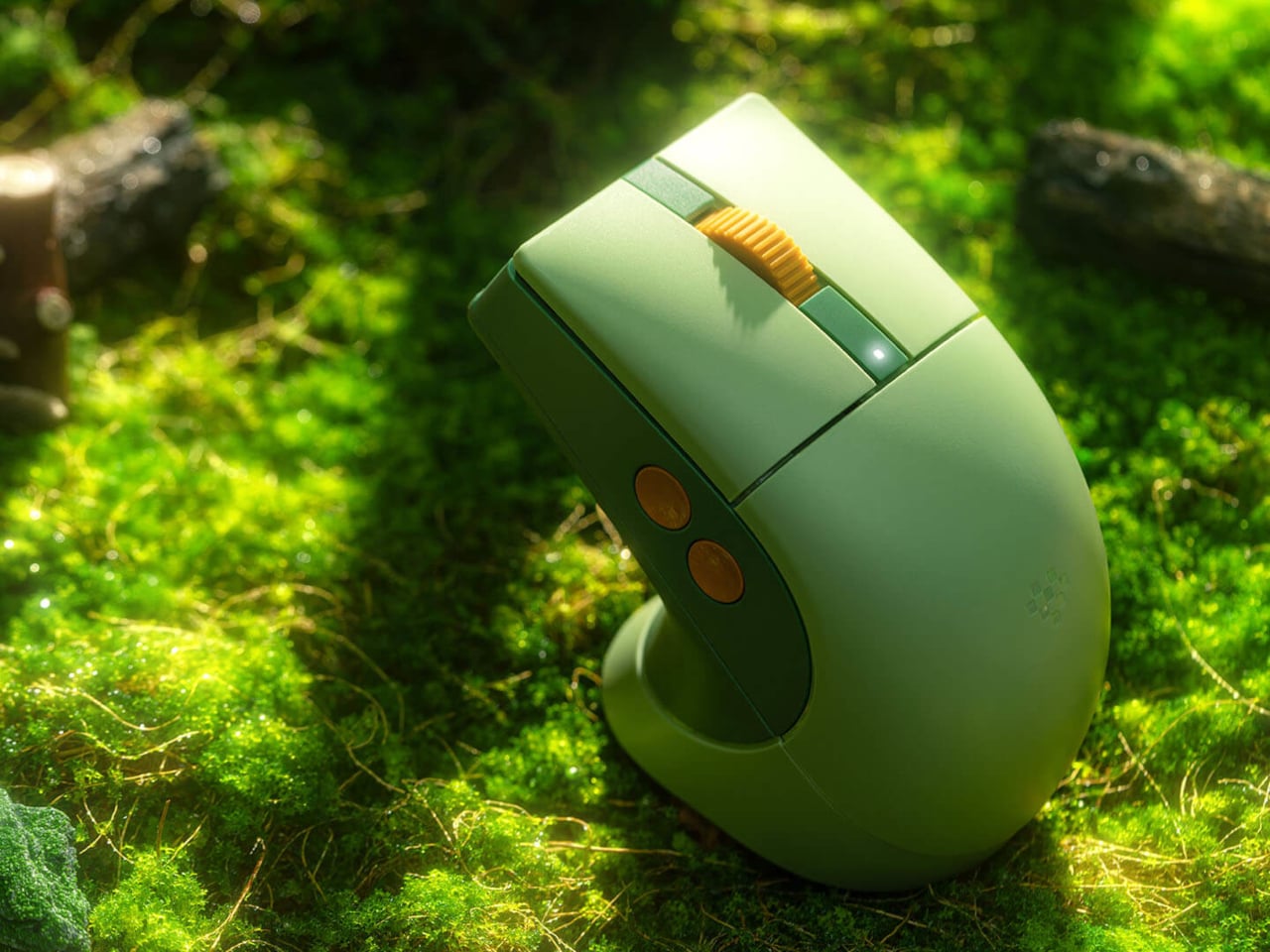
The mouse is quieter, visually speaking. Its rounded green shell leaves most of the tiny woodland scenes to the keyboard and charging dock, with a yellow scroll wheel and side buttons providing the contrast. Four programmable side buttons and left- or right-hand modes offer flexibility beyond the styling. You can adjust their assignments through 8BitDo’s PC software rather than accepting the defaults.

That dock gives the mouse a place to recharge without plugging a cable into it whenever the battery runs low. It also houses the wireless receiver and serves as a signal extender, according to 8BitDo. The keyboard has its own magnetic receiver compartment underneath. Small storage details like these matter when the alternative is a missing dongle somewhere in your overflowing drawer.

Both devices support Bluetooth, 2.4 GHz wireless, and wired USB, with Windows and Android listed as supported platforms. The Xbox branding needs explanation, though. It’s an official license, not a substitute for checking console compatibility. The keyboard’s Xbox button opens Game Bar on Windows, making its purpose much closer to your gaming PC than the logo might lead you to believe.

The keyboard is listed at $119.99 and the mouse at $59.99, sold separately rather than as a bundle. That leaves room to bring home just the part you want, without replacing everything already on your desk. A plain mouse wouldn’t frighten the keyboard’s little animals away, of course, although the matching dock does give them somewhere else to continue their pixel adventures.

The post 8BitDo’s Forest Wonder Keyboard Puts Tiny Pixel Animals Among the Keys first appeared on Yanko Design.
  •  

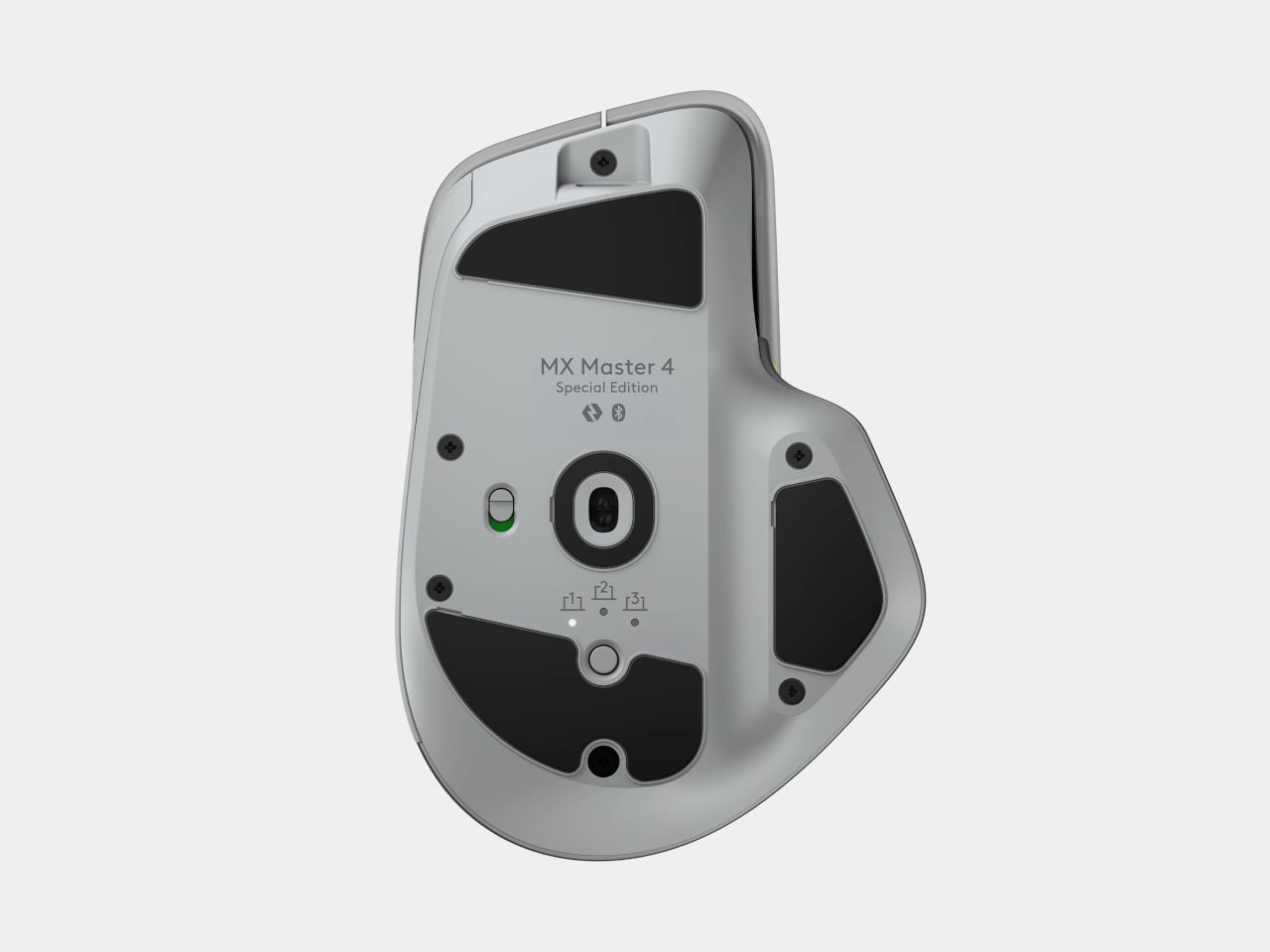
Logitech’s MX Master 4 Developer Edition Is a Mouse Full of Coding Easter Eggs

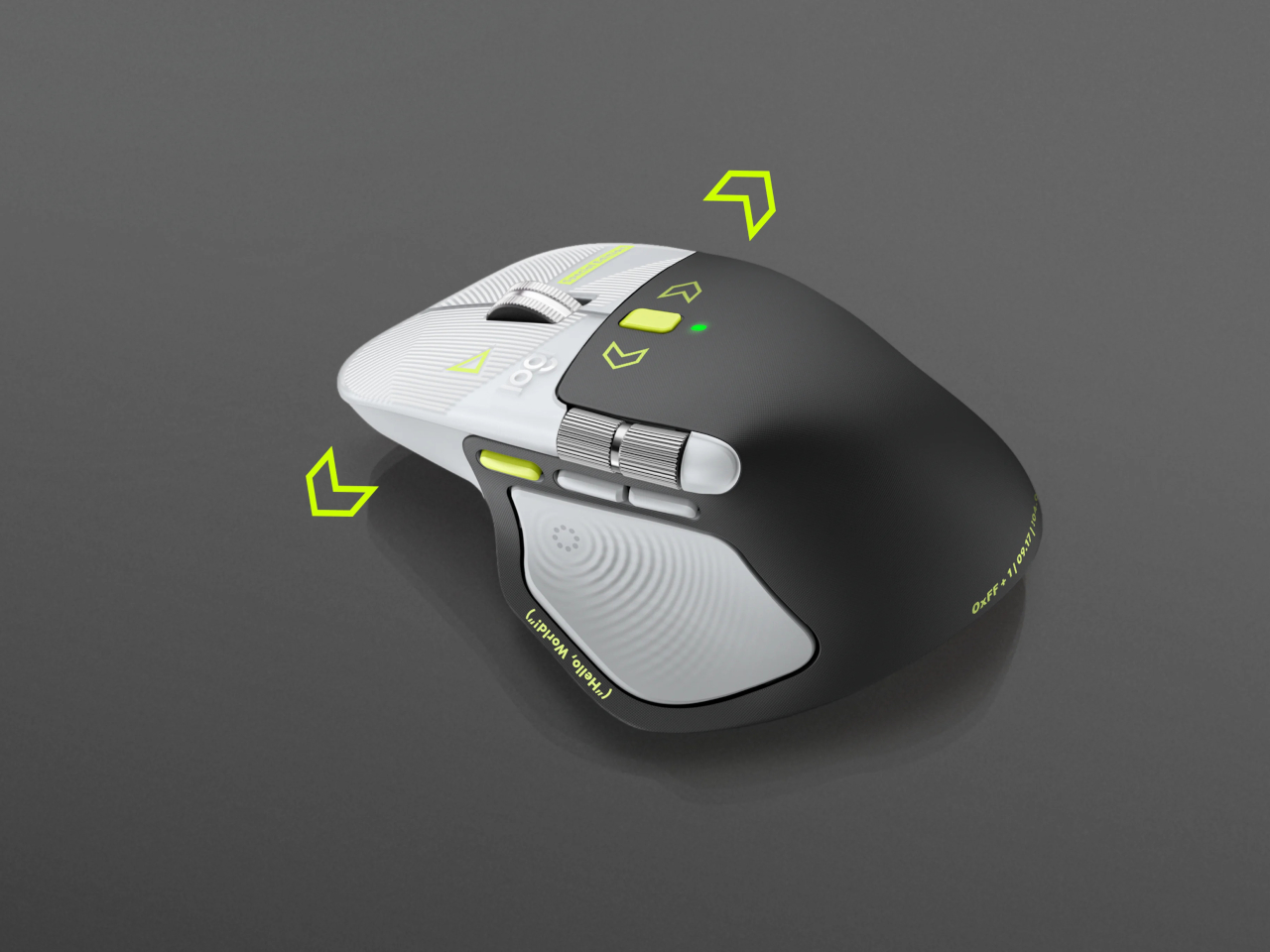
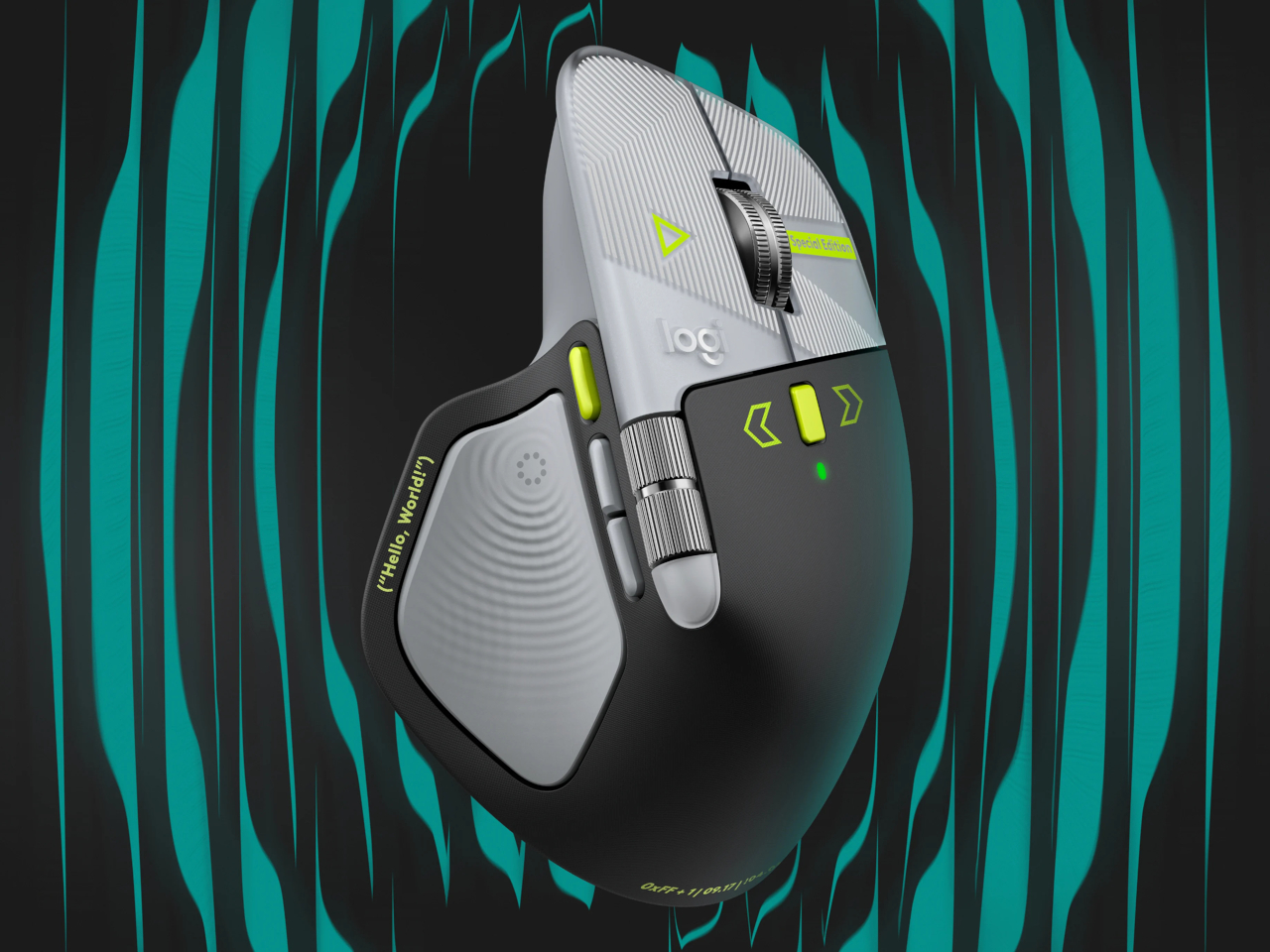
Productivity mice aren’t usually the most expressive things on a desk. Their unusual curves and extra buttons often say more about work than the person doing it. Logitech’s MX Master 4 Developer Edition takes a slightly different approach, covering its familiar shape in programming references. The limited-edition mouse keeps the standard model’s features, but gives developers something a little more personal to reach for.

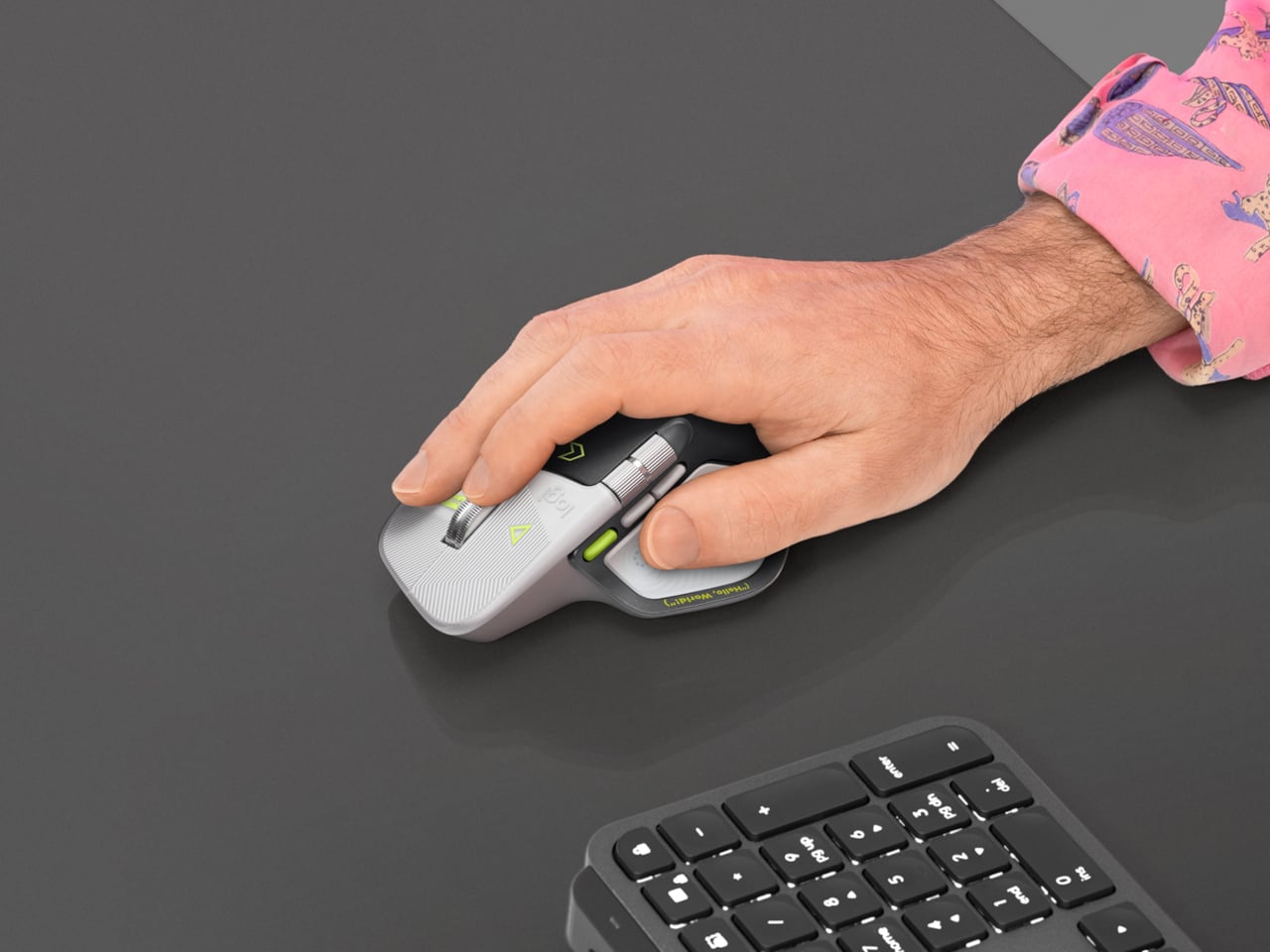
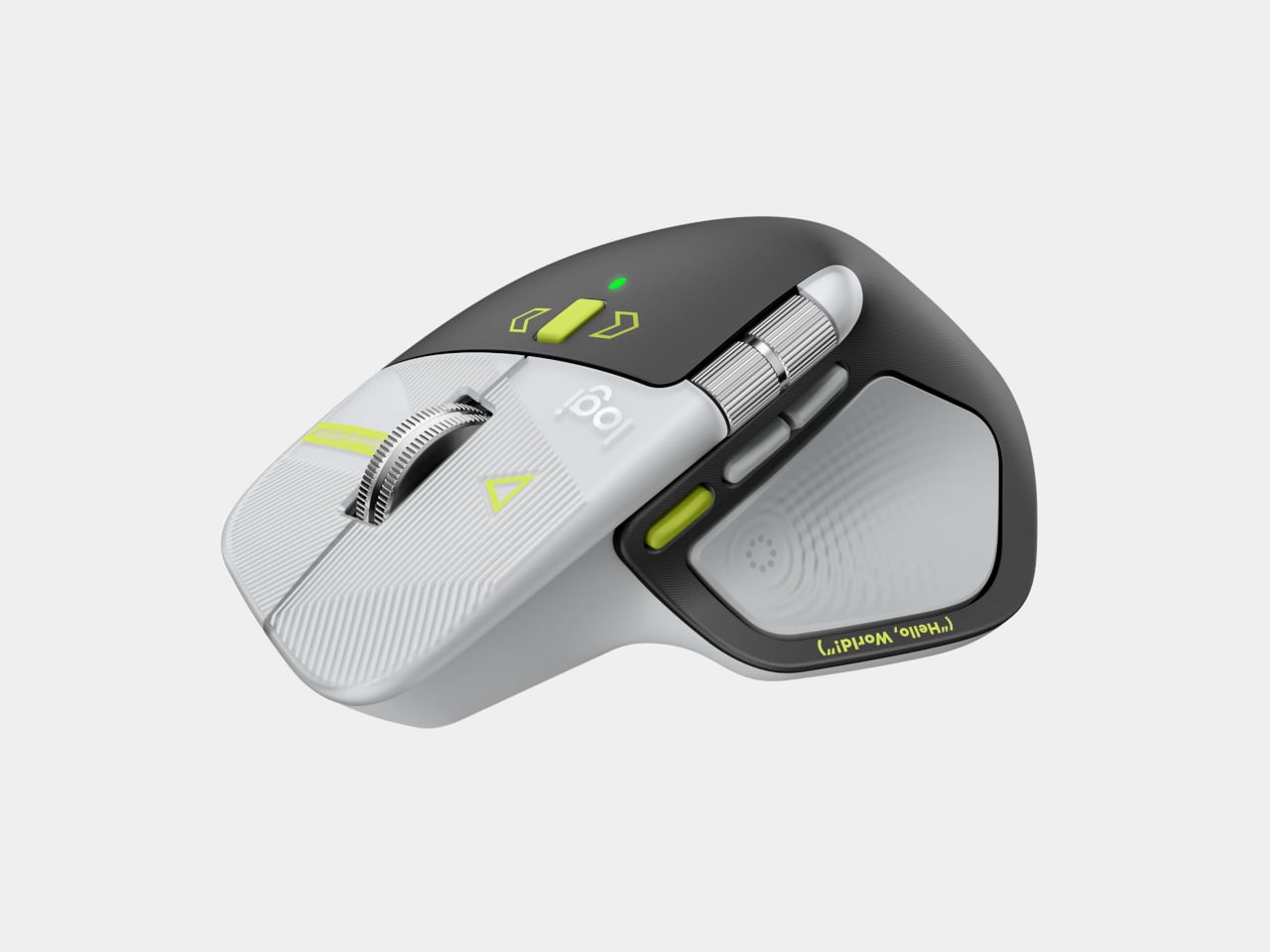
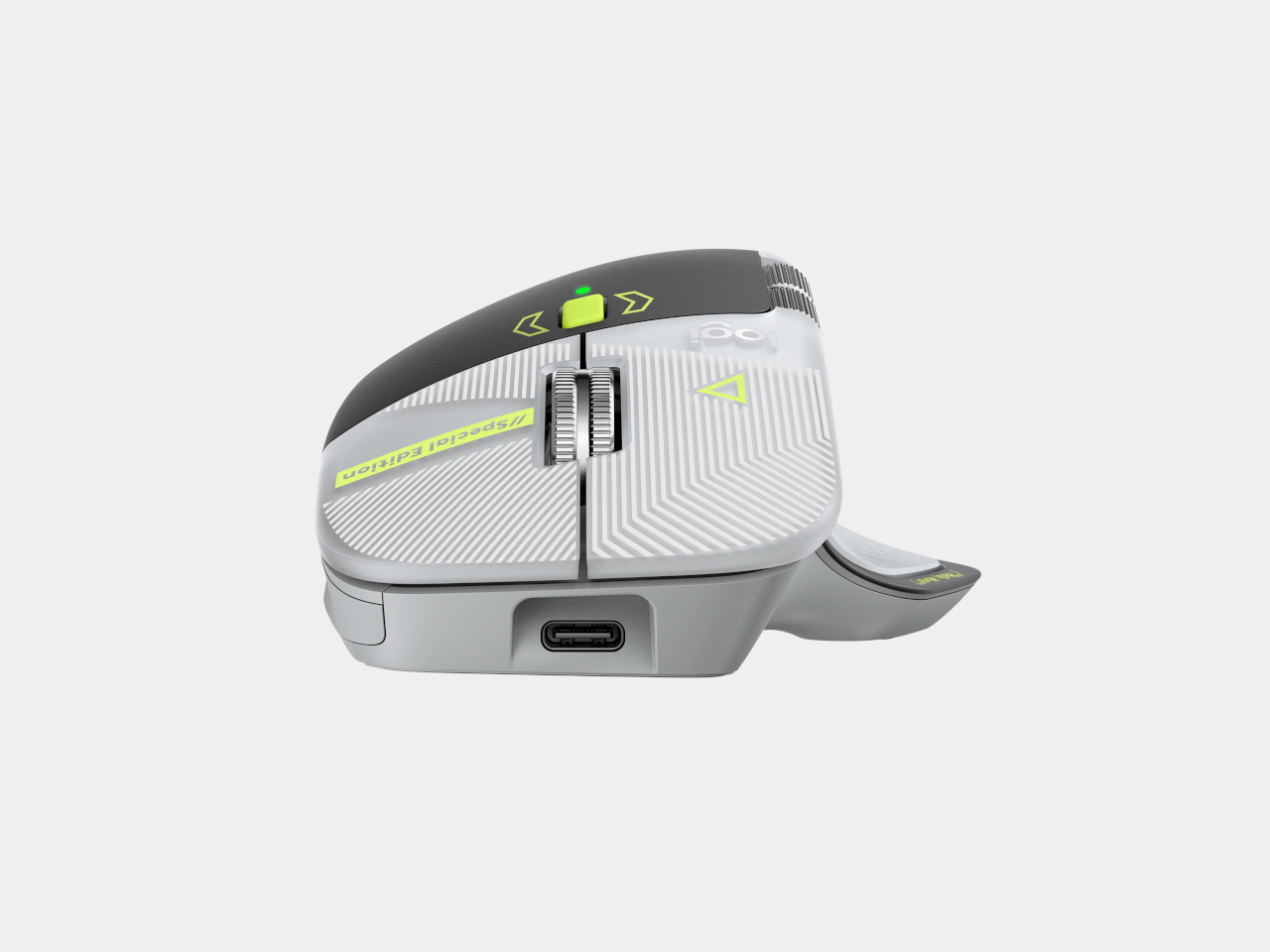
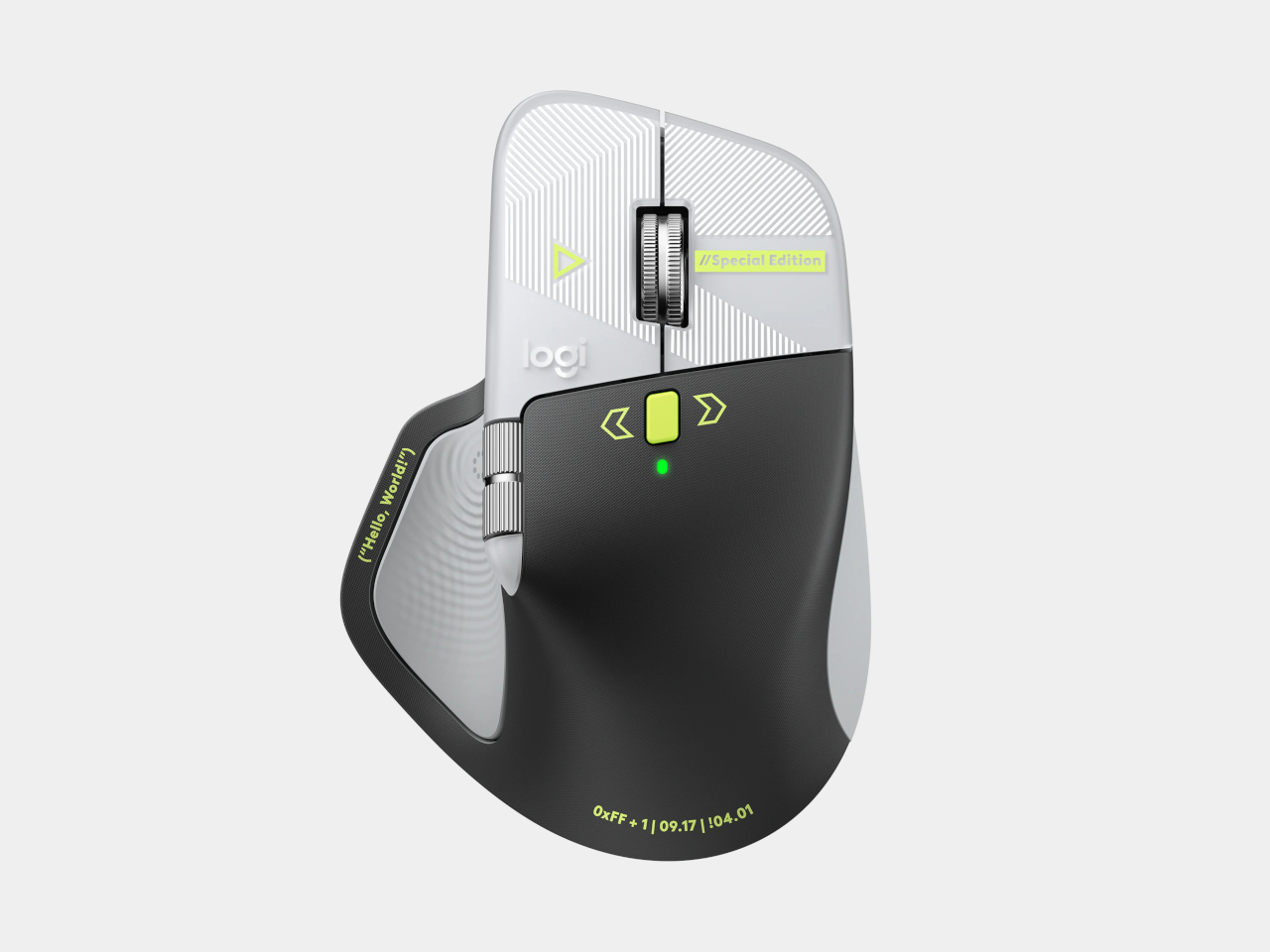
Rather than stick to a single muted color, the mouse pairs light gray buttons with a dark palm rest and bright yellow-green accents. Fine circuit-like lines spread across the front, while coding symbols sit beside the controls. It’s a busier treatment than the regular version, of course, but the graphics follow the mouse’s existing divisions instead of covering everything in one continuous pattern.

Designer: Logitech

Some references are easier to recognize than others. A Hello, World greeting runs along the thumb rest, while smaller markings include 0xFF + 1 and 09.17. Logitech links those last two to Programmers’ Day and the Linux kernel’s release date. You don’t have to understand them to use the mouse, thankfully, although knowing the references does make its decoration feel rather less random.

Underneath that artwork, the familiar sculpted body remains, including a raised back and a broad platform for your right thumb. That thumb gets quite a few responsibilities, with a horizontal scroll wheel, side buttons, and the Haptic Sense Panel within reach. The asymmetric shape hasn’t become ambidextrous for this edition, so left-handed programmers are still left admiring the graphics from the wrong side.

The MagSpeed wheel handles the more familiar business of moving through long documents and code. It switches between stepped scrolling and free-spinning movement, letting you work line by line or move farther through a page. The thumb wheel provides horizontal navigation, which is useful when the thing you’re working on refuses to fit neatly inside a window, as spreadsheets have a habit of doing.

The ripples on the thumb panel hint at another kind of feedback. Rather than relying entirely on what happens onscreen, the mouse can deliver vibrations for supported actions and notifications. Logitech lets users adjust their intensity and customize app-specific feedback through Logi Options+. That doesn’t mean every application suddenly gains a sense of touch, but compatible interactions can have a physical cue.

Pressing the panel also opens Actions Ring, an onscreen collection of shortcuts arranged around the cursor. You can assign tools and macros through Options+, putting frequently used commands near where you’re already working. There is a small irony here, however. Despite the Linux reference on the shell, Logitech doesn’t provide a Linux version of Options+ for configuring that particular shortcut system.

The Developer Edition is listed for US preorder at $119.99, with shipping scheduled to start October 31, 2026. Since its functions match the standard MX Master 4, the choice comes down to how much personality you’d like under your hand. Existing owners won’t find new capabilities here, though the temptation to coordinate a keyboard, desk mat, and everything else remains.

The post Logitech’s MX Master 4 Developer Edition Is a Mouse Full of Coding Easter Eggs first appeared on Yanko Design.
  •  
❌