The Windows 11 Start menu has received a lot of updates recently, but if you want to fully customize your Start menu, you need to use an app like Start11. A major update to Start11 is now in beta, and it brings a bunch of new features.
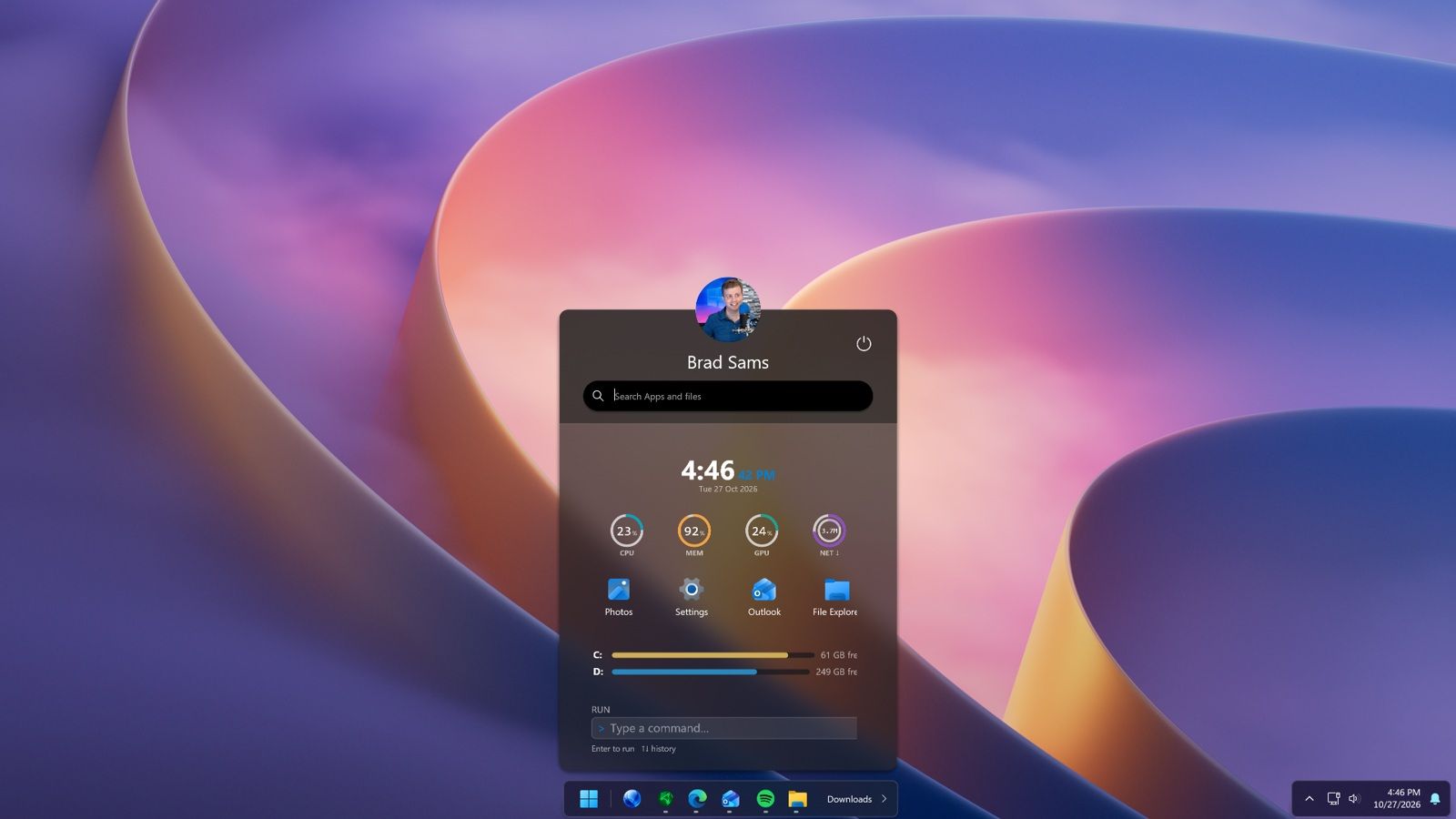
Start11 v3 adds support for widgets within the Start menu. There are 20 widgets available at launch, though most are fairly straightforward. Widgets like a clock or calendar may serve better as proof of concept than a core part of the Start menu.
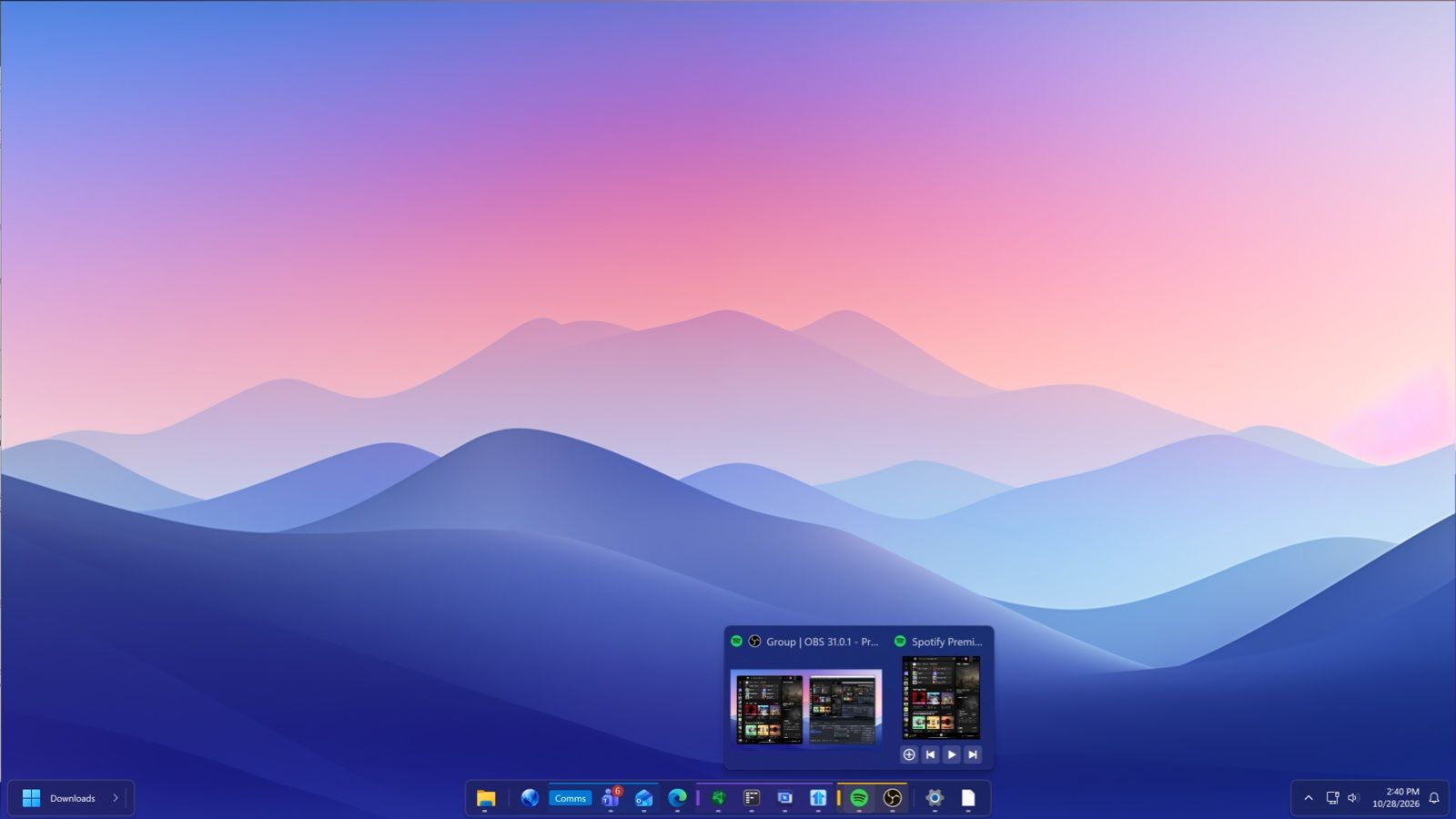
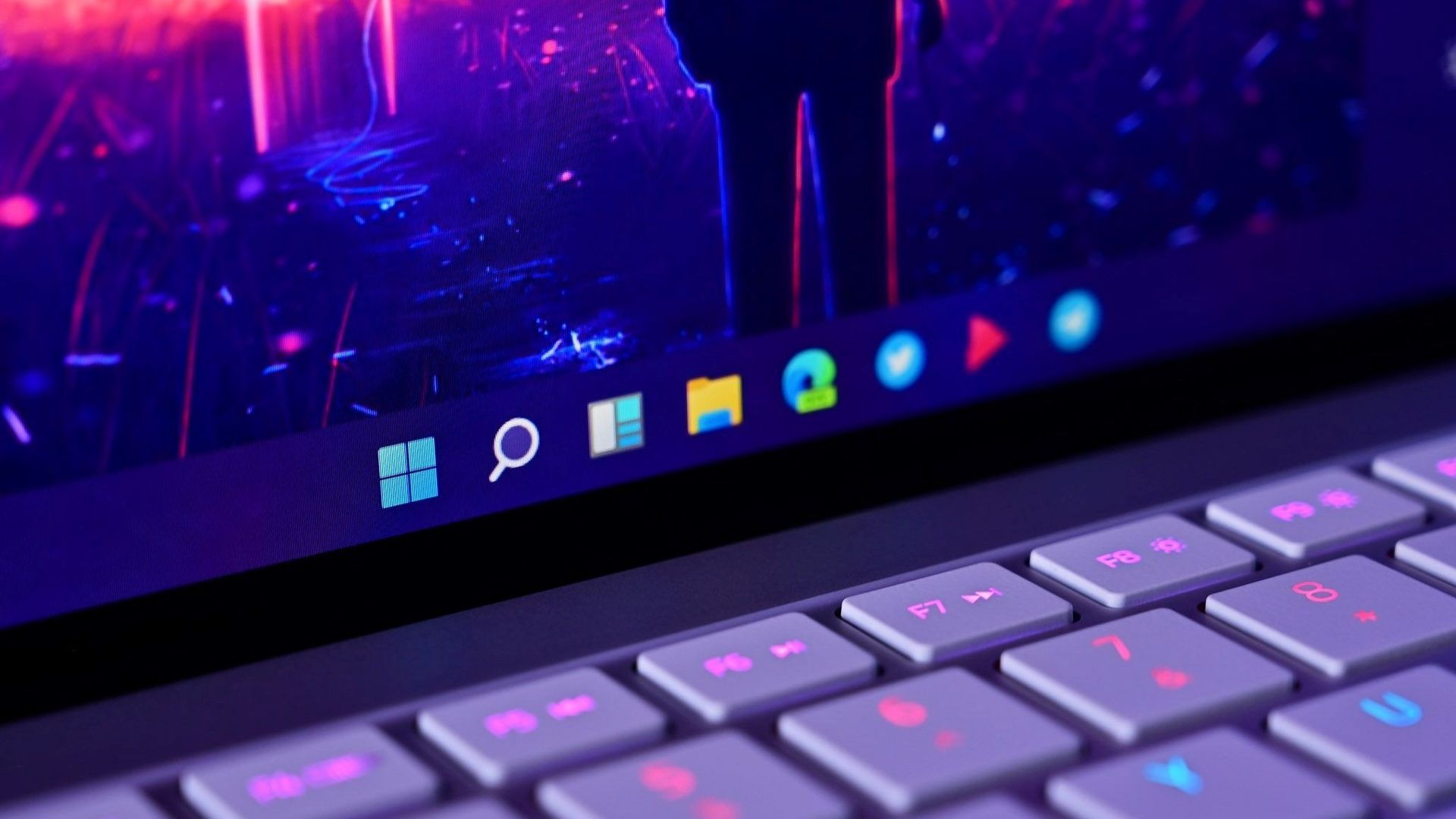
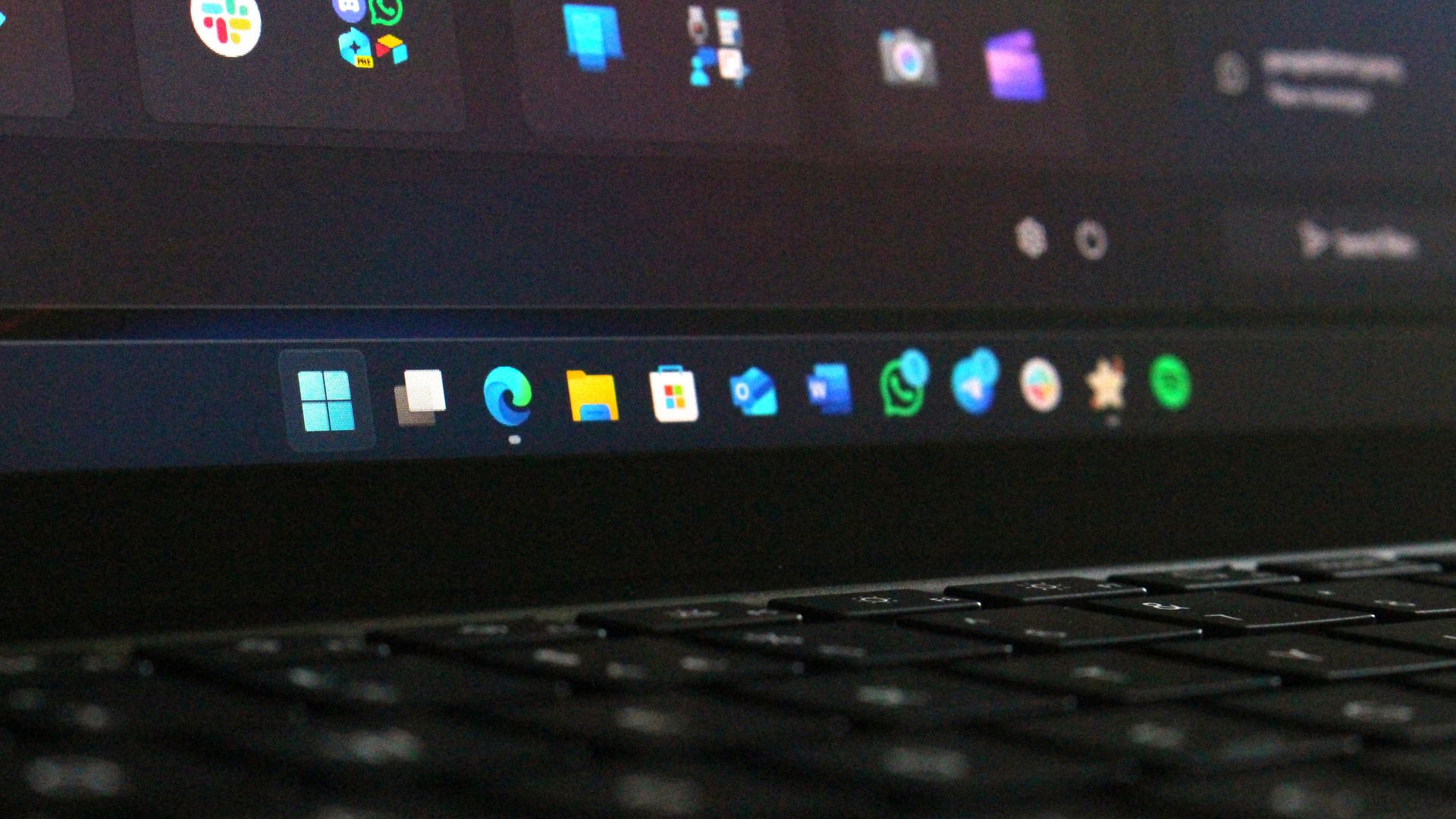
The updated app also adds Taskbar Islands, which are a dock-like experience. They feel a little bit like macOS because they split the taskbar into smaller pieces that do not take up an entire section at the bottom of your screen. But the Taskbar Islands very much match the overall design and feel of Windows 11.
Start11 v3 introduces Taskbar Islands and app grouping, letting users organize related apps and create a more dock-like taskbar experience. (Image credit: Stardock)
Start11 adds support for grouping applications directly in the taskbar by holding Alt and dragging applications together. You can pin those groups as workspaces to launch multiple apps with a single click.
A new button in the taskbar provides quick access to recently closed applications, overflow items, and taskbar tools.
Stardock also added the ability to explore Start menu layouts from the community.
As much as I love apps that customize the look of Windows 11 and add new features, I only keep a few installed on my PC. Start11 is on the short list of apps I install right away, alongside PowerToys.
With Microsoft's recent improvements to the Start menu, an app like Start11 needs to do more to stand out. Start11 v3 does that with taskbar islands, widgets in the Start menu, and other new features.
(per year): was $10 now $8 Start11 lets you customize the Windows Start menu with several layouts, visual styles, and positioning options. If Microsoft's default Start menu isn't quite right for your workflow, Start11 gives you plenty of alternatives. Right now, it's on sale for $8 while v3 is in beta.View Deal
Join us on Reddit at r/WindowsCentral to share your insights and discuss our latest news, reviews, and more.
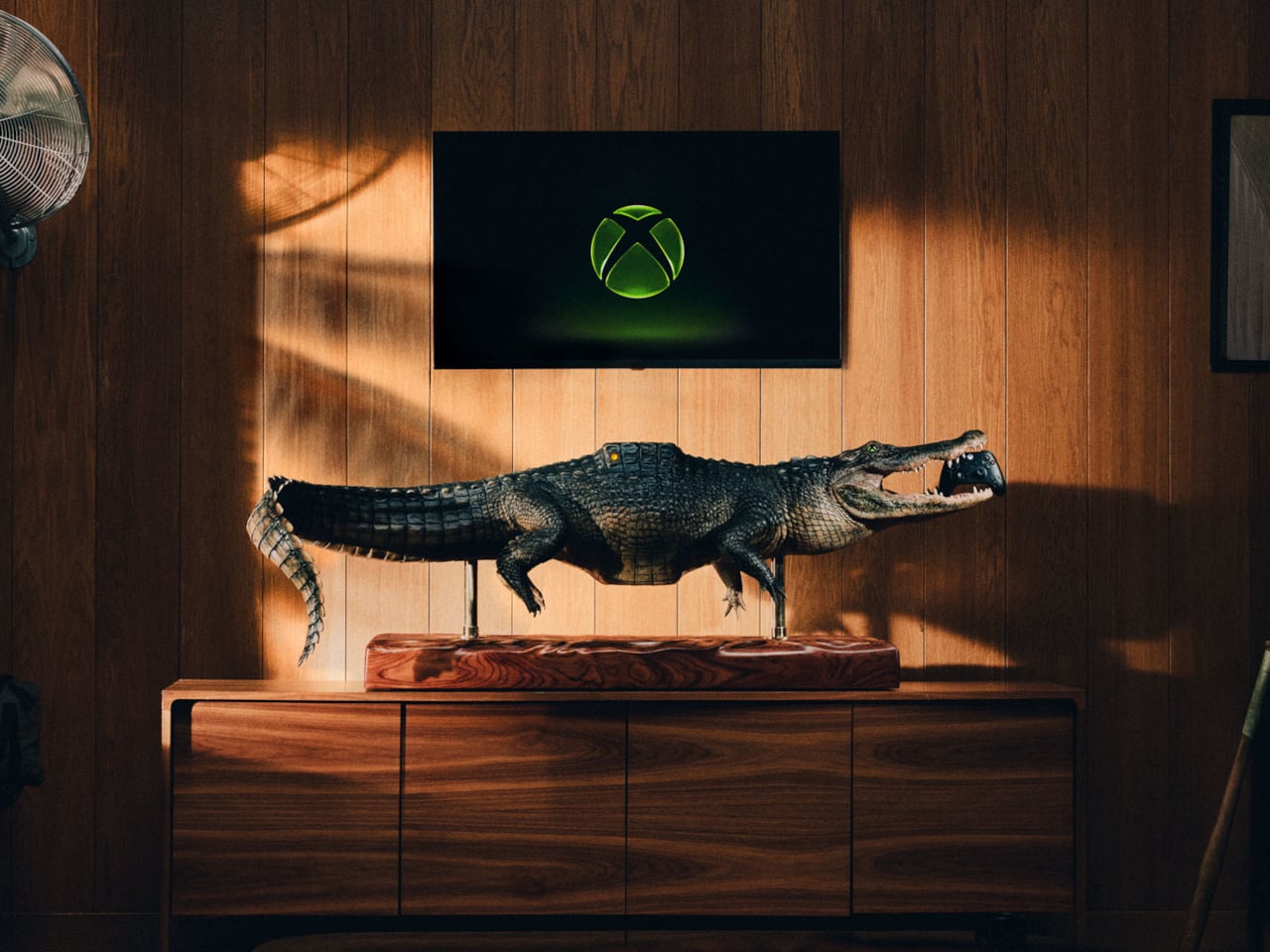
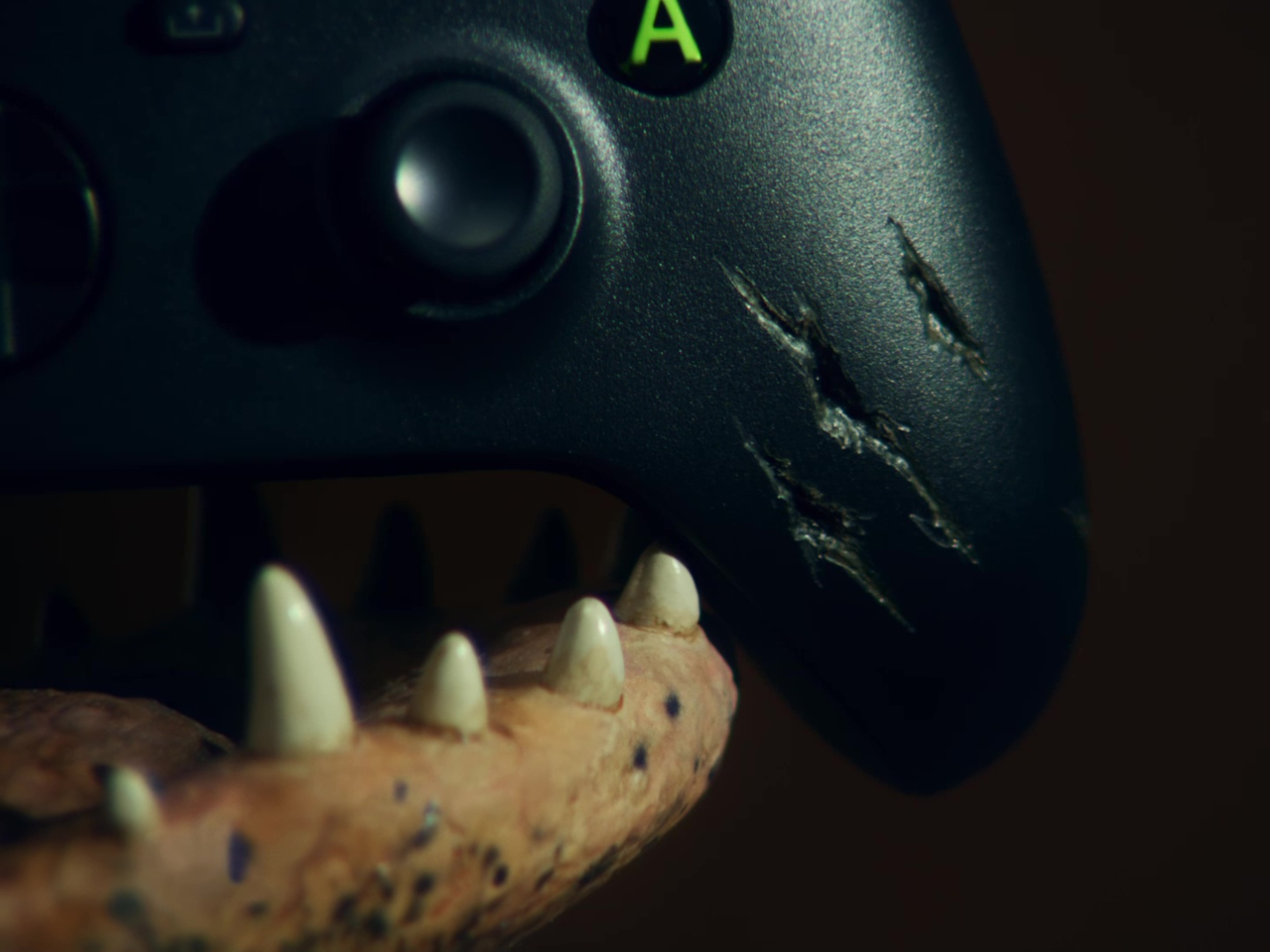
Finding a place for a game console usually means clearing a shelf, not making room for a reptile. Microsoft’s Xbox Series X-BITE puts a working Series X inside an artificial alligator measuring more than five feet long. The one-off creation trades a discreet electronics box for something closer to a wildlife exhibit, complete with a controller between its teeth.
The alligator rests on slim posts above a rectangular, wood-grain base, with its legs hanging below and its tail curling toward the floor. Dark, ridged scales and a lighter belly give it the appearance of a mounted specimen. That familiar display format does much of the work, making the oversized enclosure feel deliberately theatrical rather than like an ordinary console wearing a novelty cover.
A raised section on its back interrupts those scales, with an illuminated Xbox Nexus symbol worked into the surface. It’s the clearest clue that the animal has supposedly swallowed something it shouldn’t. The branding stays small against the length of the body, allowing the fabrication to carry the joke before the glowing logo explains why there’s an alligator underneath your television in the first place.
The head gets a less subtle treatment. Xbox-green irises surround pupils shaped around the Nexus symbol, turning the creature’s stare into another brand reference. Between the open jaws sits a custom Xbox Wireless Controller with artificial bite marks. It gives the sculpture a little unfinished business, as though the console wasn’t quite enough of a meal and the accessories were next on the menu.
The commission went to creature-effects specialists, who used 3D modeling, sculpting, and fabrication to build the animal around the hardware. That process gives a promotional console the attention normally associated with a film prop. Florida supplied the inspiration, according to Xbox, although the animal itself is entirely artificial. No actual alligators were used or harmed in creating this unusually elaborate console enclosure.
For the person who eventually owns it, the obvious challenge is finding a suitable place to put it. More than five feet of reptile won’t disappear into the usual gap beside a television. Its long base asks for a substantial display surface, and the raised mounting makes the whole assembly something to plan a room around rather than tuck away.
There’s also a qualification behind the playable-console claim. Xbox says the Series X inside works, but its fine print recommends the finished creation for display. The announcement doesn’t explain ventilation, access to ports, or servicing inside the sculpted body. That leaves a distinction between functioning hardware and a practical replacement for the console you switch on every evening after work.
Only one Series X-BITE exists, and it’s being offered through a sweepstakes rather than a retail release. There isn’t a shelf price to weigh against a standard console or a choice of less toothy finishes. The appeal is owning the fabrication itself, with a working Xbox as its unlikely inhabitant. The controller has a home, provided you don’t mind the teeth.
What do these stories have in common? To me, they're evidence that the standard tech market model is breaking down in the face of unprecedented hardware shortages.
Laptops and desktop PCs keep rising in price, even as they're stripped of memory and storage. Xbox consoles have never been pricier. The latest gaming handhelds, including the MSI Claw 8 EX AI+, are ballooning in price, to the point that they cost as much as a high-end gaming laptop from just a few years ago.
Consumer hardware that used to brute-force its way to acceptable performance in Windows, games, and beyond is no longer on the table for a lot of people because of AI-inflated prices.
What's left? Microsoft, despite its major role in the AI race, can't directly make hardware cheaper. It can, however, make it last longer by focusing on optimizations and innovations that offset the current economic reality that's keeping old hardware in our hands.
Windows 11 running better on 8GB PCs is part of a bigger picture
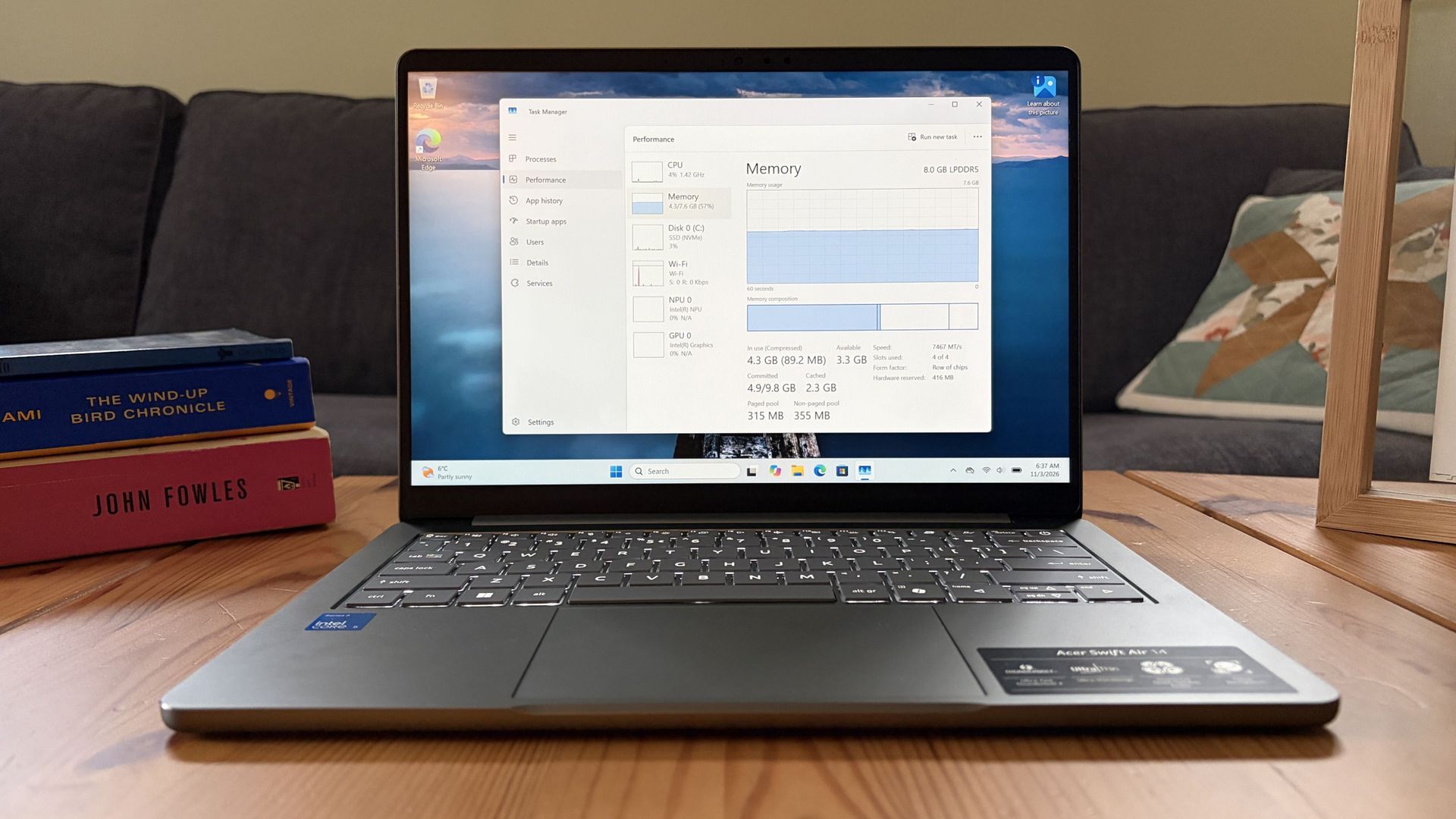
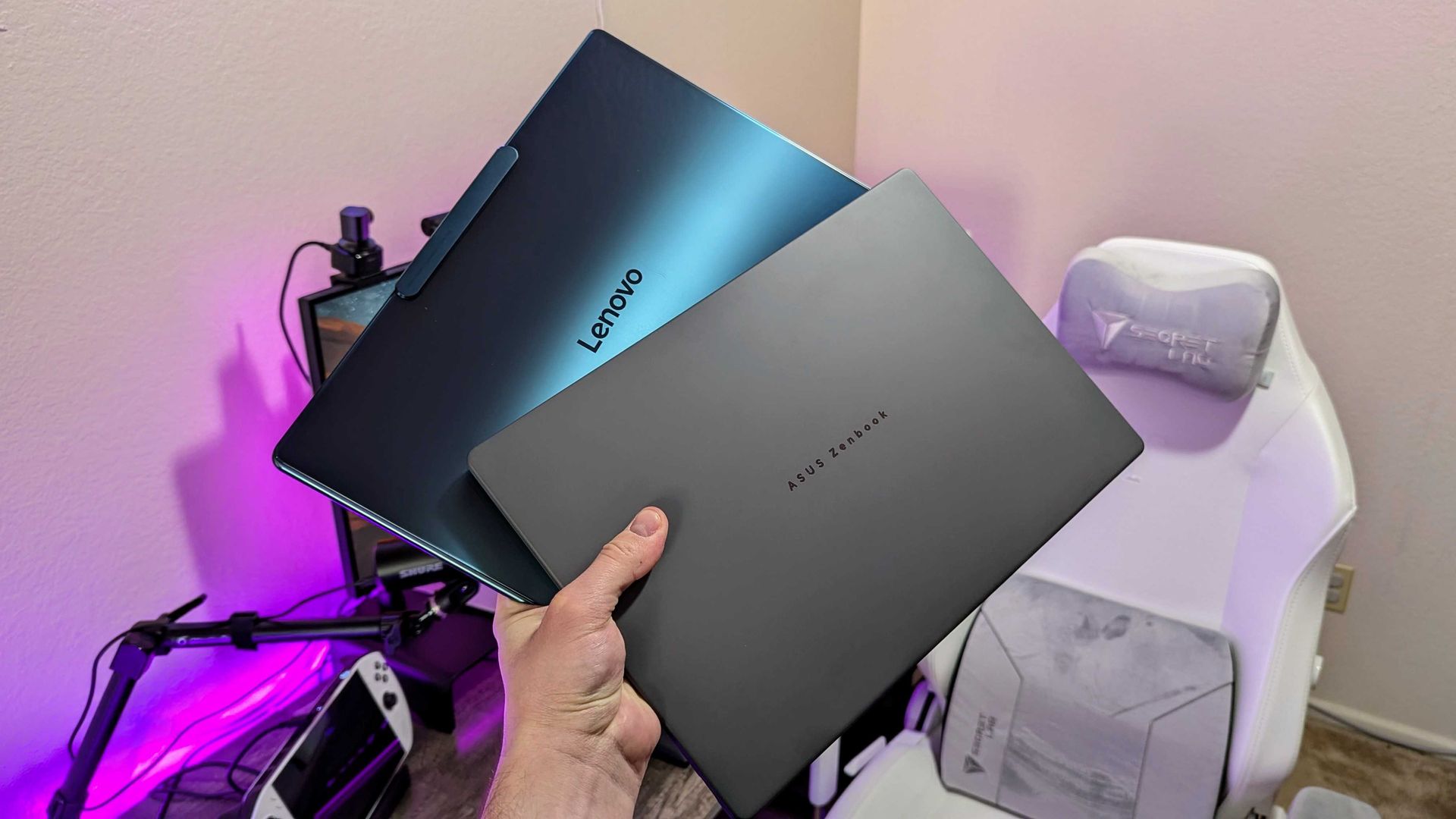
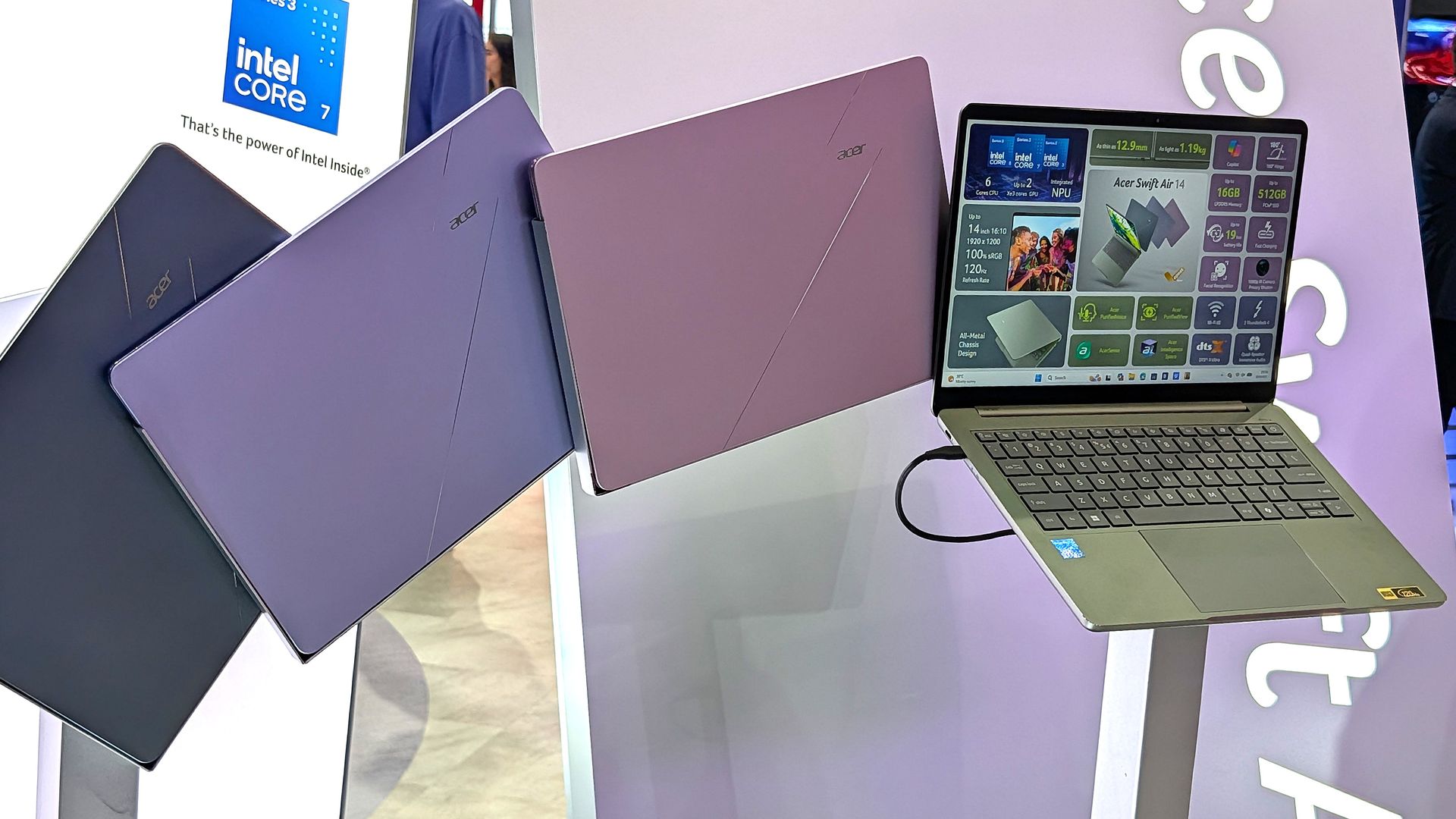
The Acer Swift Air 14 with 8GB RAM, on which I tested RAM usage in Windows 11 26H2. (Image credit: Future)
The bigger story surrounding Windows 11's 8GB improvements is that Microsoft is putting significant engineering efforts into improving the OS for low-end hardware. And it's not afraid to show it off.
To me, this is a reversal of tradition. For what feels like all my life until recently, the answer to a sluggish PC was to upgrade the hardware. Microsoft and its OEMs loved this tradition, of course, because it let them sell more products.
The Copilot+ PC initiative only lasted for a couple of years.
Now, the focus is shifting to making the hardware we have feel like it can indeed last until an upgrade becomes affordable.
This shift comes a couple of years after Microsoft's massive Copilot+ PC initiative, which I'm sure was conceived as an ultimate ploy to get users to buy new hardware.
That didn't turn out so well for Microsoft. The AI tools built into the OS failed to capture the whimsy of the average user. Adoption was slow, no doubt largely because of rising prices. The Copilot+ PC badge was eventually phased out in September 2026.
Microsoft must have realized at some point during this transition that the millions of Windows users still running old hardware are not going to upgrade any time soon.
Optimization used to be a nice bonus when it arrived, but it's now becoming a major pillar in Microsoft's consumer strategy.
AMD's FSR 4.1 will held extend the life of consoles and handhelds
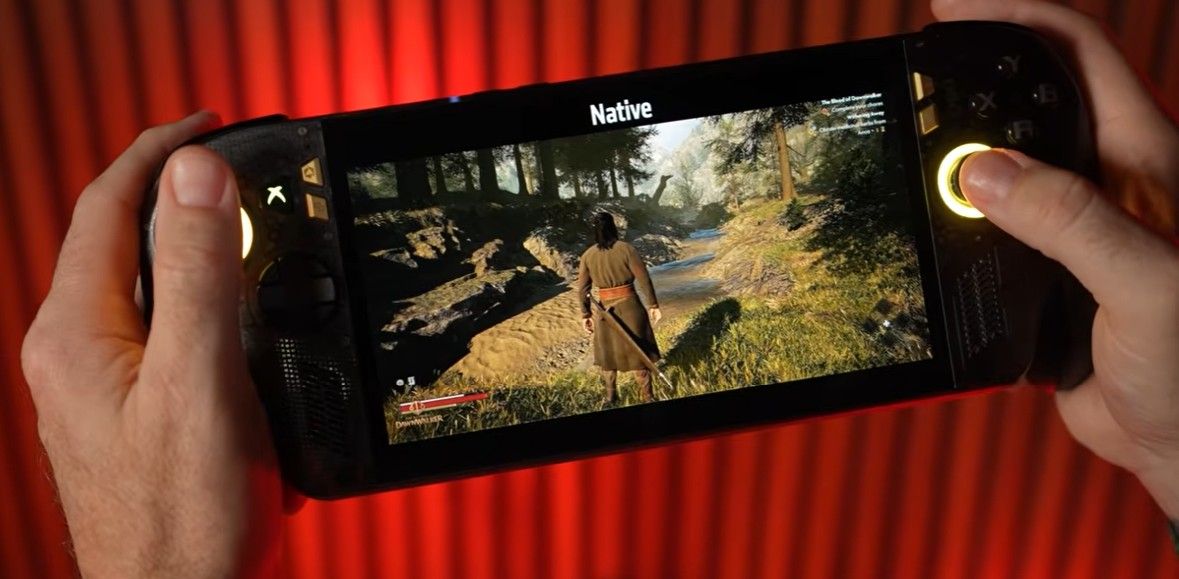
AMD FSR 4.1 running on the ROG Xbox Ally. (Image credit: AMD)
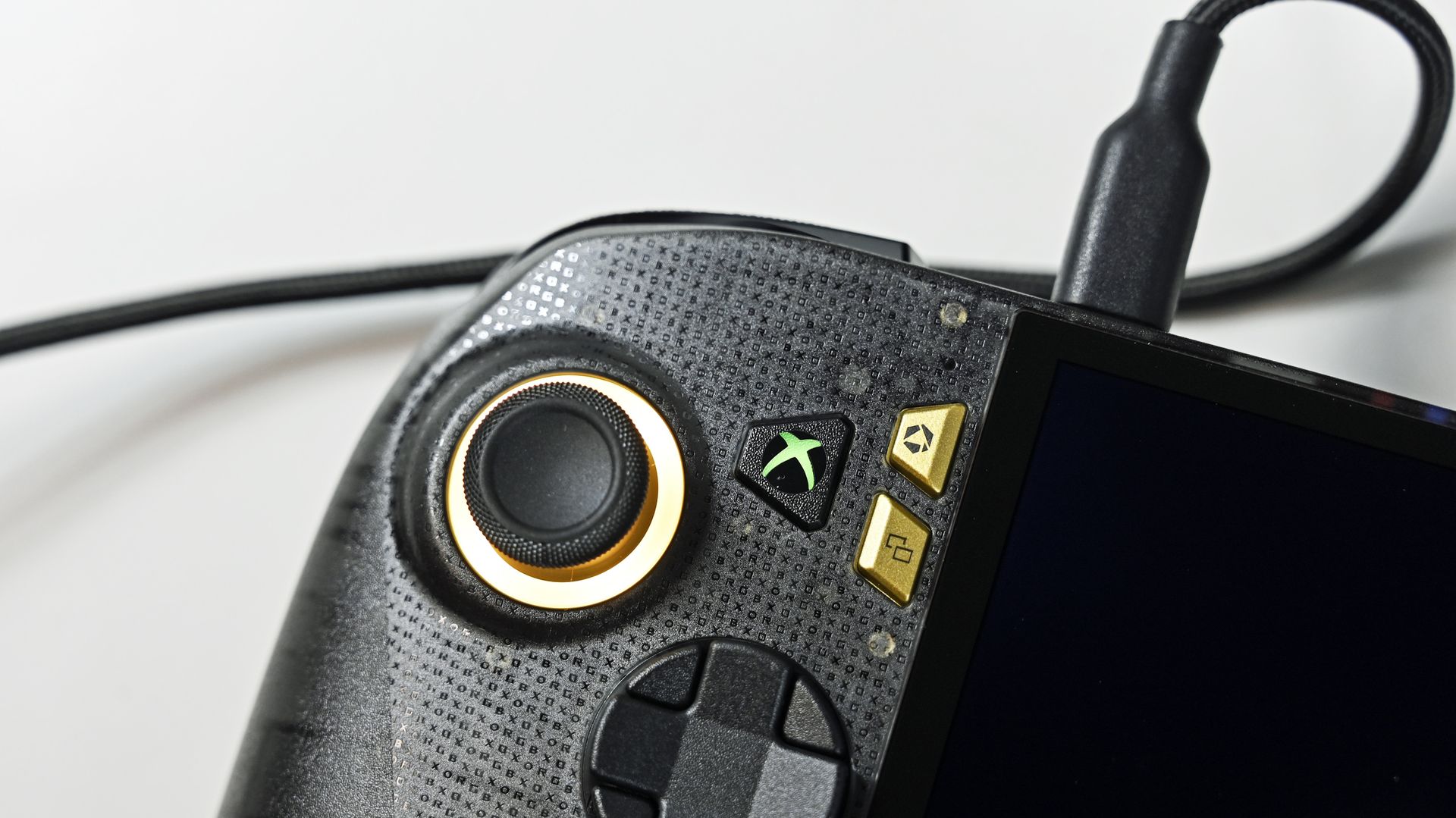
It won't turn your Xbox into a supercomputer, but it is the next best thing to buying an entirely new device with more power. This is particularly important as rumors of the next-gen Xbox Helix's $1200-$1800 price begin to swirl.
Helix is so far expected to cost somewhere between $1200-$1800 when it launches. (Image credit: Microsoft | XBOX)
If Helix indeed launches at that price, Microsoft has to know that adoption won't be fast. But the company also knows it can't afford to lose those Xbox gamers.
Keeping the Series X|S relevant longer into the future ensures that gamers keep buying Game Pass subscriptions, keep buying new games, and, ultimately, remain inside the ecosystem.
Microsoft doesn't really need people to buy new PCs
PC sales are no longer such a big part of Microsoft's business model. (Image credit: Windows Central | Zachary Boddy)
Microsoft used to make ungodly amounts of money from licensing Windows on PCs. However, it's arrived at a point where licenses are a tiny fraction of revenue. It's all about the subscriptions now, including Game Pass, Microsoft 365, OneDrive, Copilot, Azure, and many more.
Don't get me wrong; I'm sure Microsoft would still love to be selling a ton of PCs. That's just good for business. That's not what's happening these days. PC sales are on a steep decline because of rising prices.
But as long as people are still using some sort of Windows PC that doesn't frustrate them with sluggish performance, there's a good chance that Microsoft will receive at least one monthly payment and remain within the ecosystem.
The current upgrade cycle is stuck in place
Unbelievably high RAM and storage prices have halted the tech upgrade cycle for a lot of people. (Image credit: Windows Central | Jez Corden)
Microsoft realized at some point that the upgrade cycle we're currently in is going to last for a lot longer than usual, especially as prices keep climbing.
And although I'm sure there were external circumstances playing a role in these recent optimizations I laid out, the big story is that Microsoft knows software is the answer to unaffordable hardware.
Do you agree with my opinions above? Do you think we'll be seeing a lot more software optimization in the years to come if PC prices don't drop? Do you think this is all just a small bandage on a seeping wound? Let me know in the comments section below!
Join us on Reddit at r/WindowsCentral to share your insights and discuss our latest news, reviews, and more.
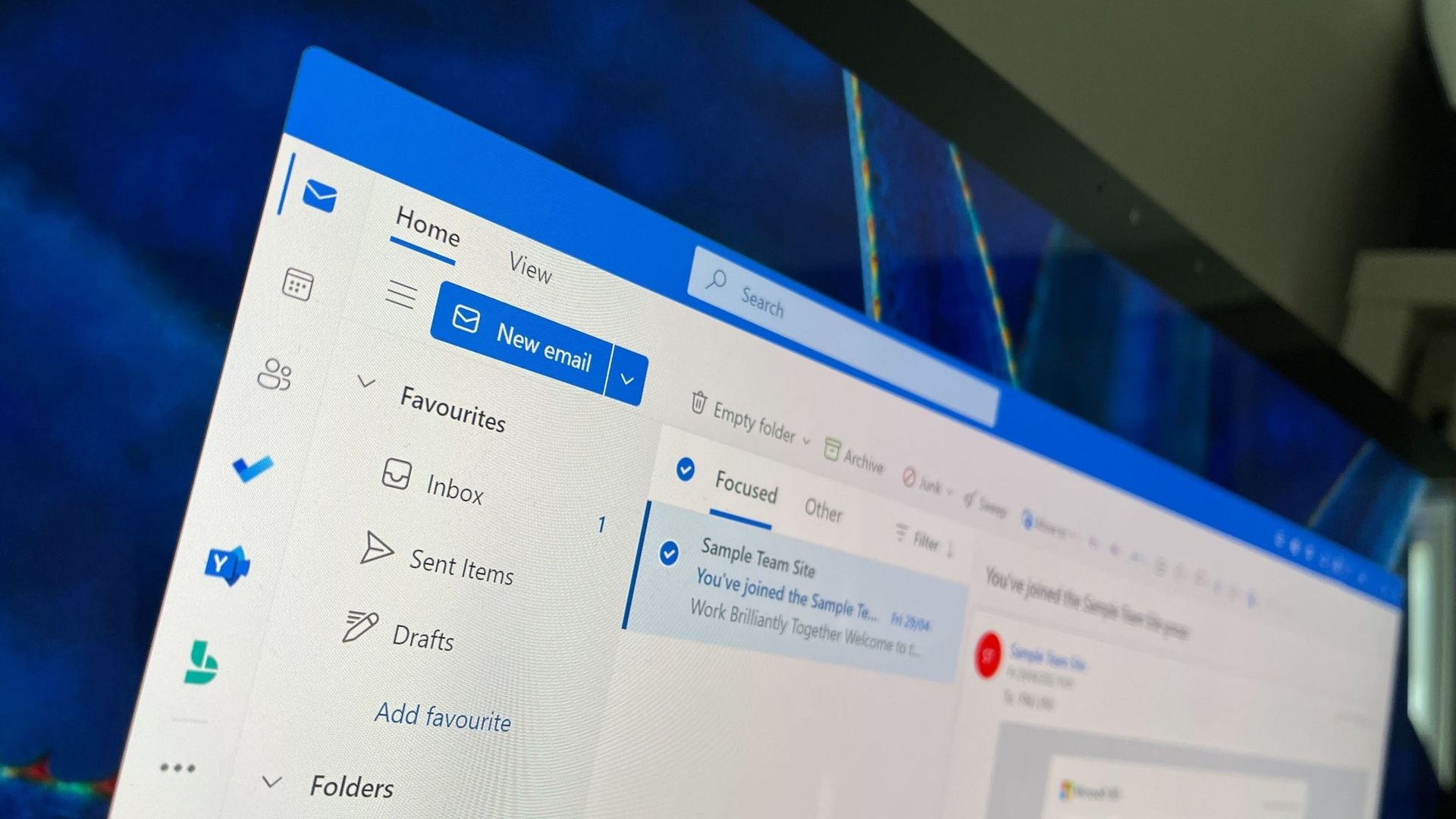
Searching for a specific email in Outlook can prove challenging. Outlook search can sometimes return irrelevant results while missing the exact email you need. Microsoft is looking to improve that frustrating experience with a revamped search.
The new search has a feature that genuinely removes the most frustrating part of Outlook for me. That phrase is thrown around a lot online and is often clickbait, but I mean it here emphatically.
Outlook now handles stop words better. Those words, such as "the," "and," and "is," often clog search results with irrelevant emails. I can't tell you how many times those tiny words have led to terrible searches that made me fish through the results that appear chronologically.
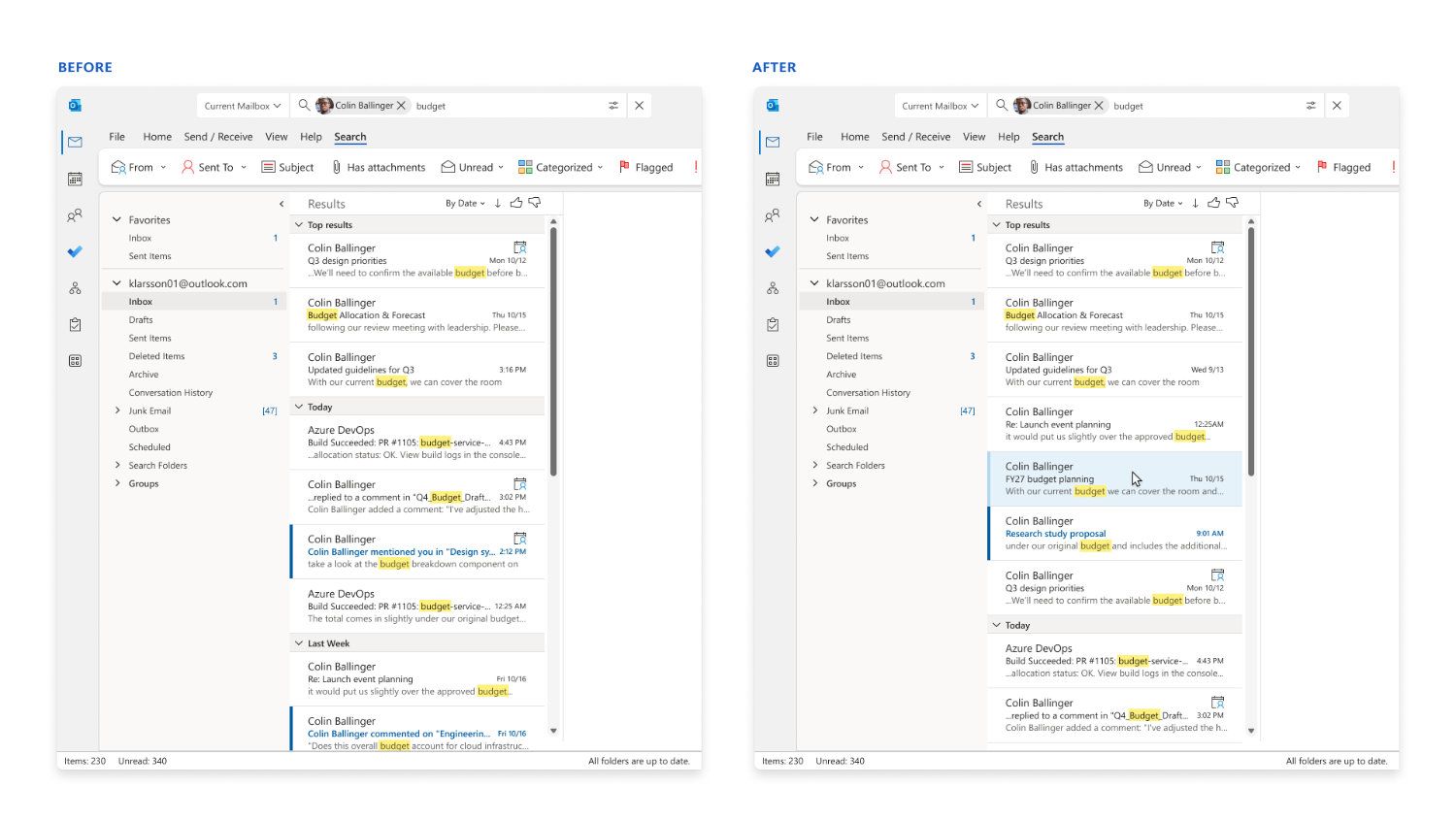
Microsoft's example from a blog post shows how drastically different the results are when searching "the FY27 budget" using the old Outlook search versus the new one.
Microsoft's example shows how Outlook's updated search ranks relevant emails higher in the results instead of surfacing messages that only happen to contain common search terms. (Image credit: Microsoft)
The improvements highlighted by Microsoft center around ranking emails better. Microsoft focused on three areas when building the new search tool in Outlook: better ranking, improved performance when connectivity is poor, and a tighter feedback loop.
When you search for an email within Outlook, you will see seven ranked results rather than three. Those emails are ranked based on recency, sender, how much the message has been interacted with, and other factors. Expanding the number of ranked messages presented should show users more relevant emails while also helping Microsoft improve its ranking systems over time.
The new ranking layout is available across several versions of Outlook, including the new and Classic versions.
There are other upgrades as well. Classic Outlook now automatically falls back to locally indexed content when connectivity is poor. That same functionality is on the way to new Outlook but will ship later.
Users of Classic Outlook should also see faster search results. Microsoft also said recent improvements reduced latency for the slowest 5% of Outlook searches.
The improved rankings in Outlook are the result of a small language model ranker built specifically for Outlook. That model is trained through distillation, meaning it is built under the supervision of a larger model.
Distillation helps Outlook search be more efficient than if it had to run a larger model just to look through and rank emails.
I'd probably be okay with using a larger model in Outlook if it cut out irrelevant results that appear simply for using an article or common verb like "is." I bet I'd still save some time that way. But I don't have to test that theory because the new Outlook search is lightweight.
Join us on Reddit at r/WindowsCentral to share your insights and discuss our latest news, reviews, and more.
Microsoft has claimed before that things "seem faster," but is there any juice behind this new claim? I decided to find out myself by running some tests on an 8GB laptop in my office.
The results will likely be surprising to some, especially once we get into the heavier workloads below.
How I tested Windows 11's responsiveness on an 8GB laptop
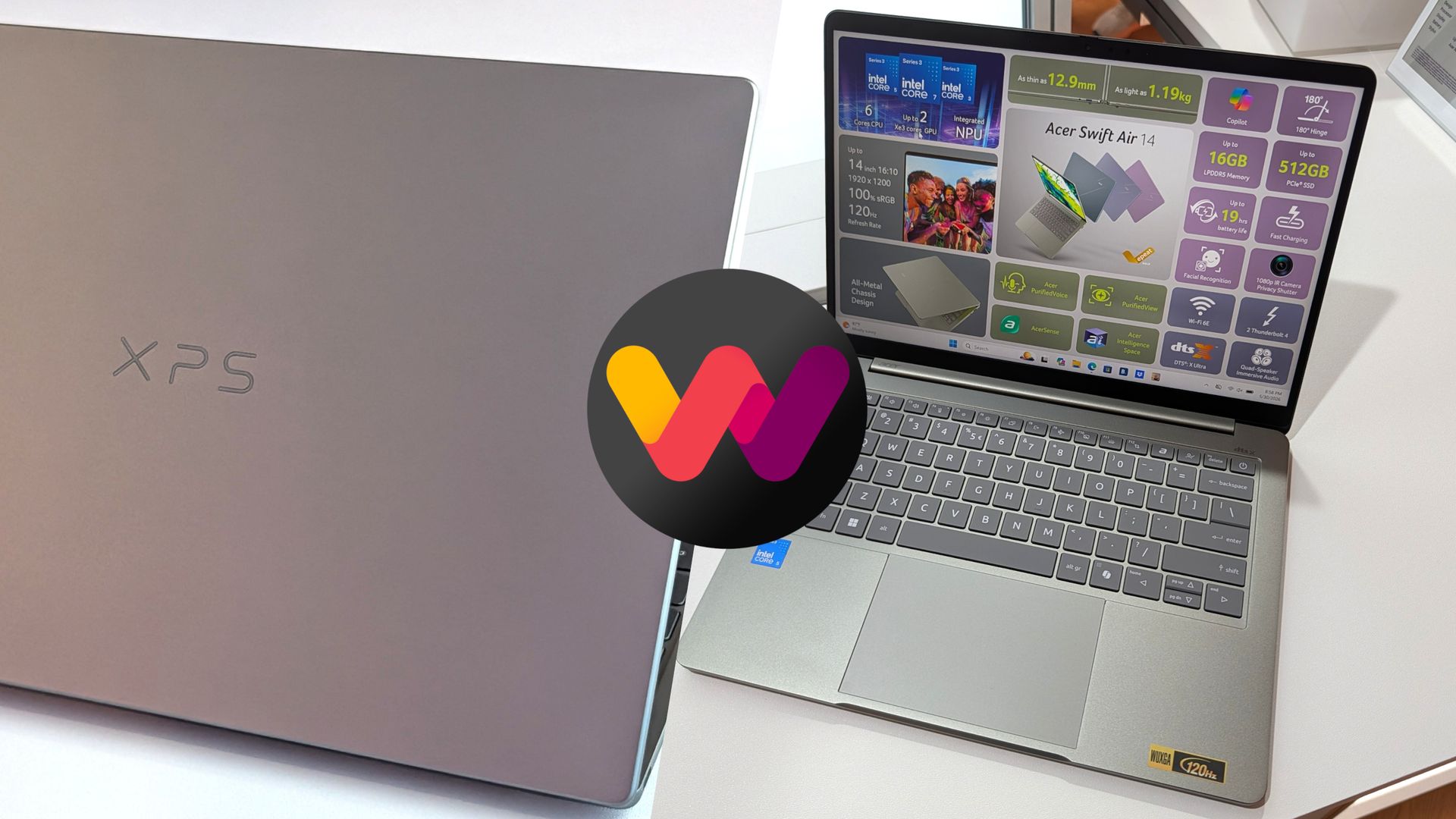
Dell's XPS 13 and Acer's Swift Air 14 are both from a new group of 8GB laptops running on Intel Core Series 3 chips. (Image credit: Future)
I installed a barebones version of Windows 11 25H2 (262000.7019) from about a year ago on an Acer Swift Air 14 with an Intel Core 5 320 CPU, 8GB of LPDDR5x RAM, and a 512GB M.2 PCIe 3.0 NVMe SSD.
I didn't touch the page file (4524MB), and I only installed the necessary drivers before beginning my tests. I used the Best Performance power profile for all tests.
Once I'd completed all tests on 25H2, I upgraded to Windows 11 26H2 (26300.9711), which was released in October. Same system, same drivers, same programs.
Microsoft used telemetry data from things like Search, Settings, File Explorer, and Snipping Tool to measure responsiveness. I took a look at RAM usage instead; lower usage generally means fewer hiccups and interruptions, leading to an overall better experience.
Testing Windows 11's fresh-boot memory footprint with 8GB of RAM
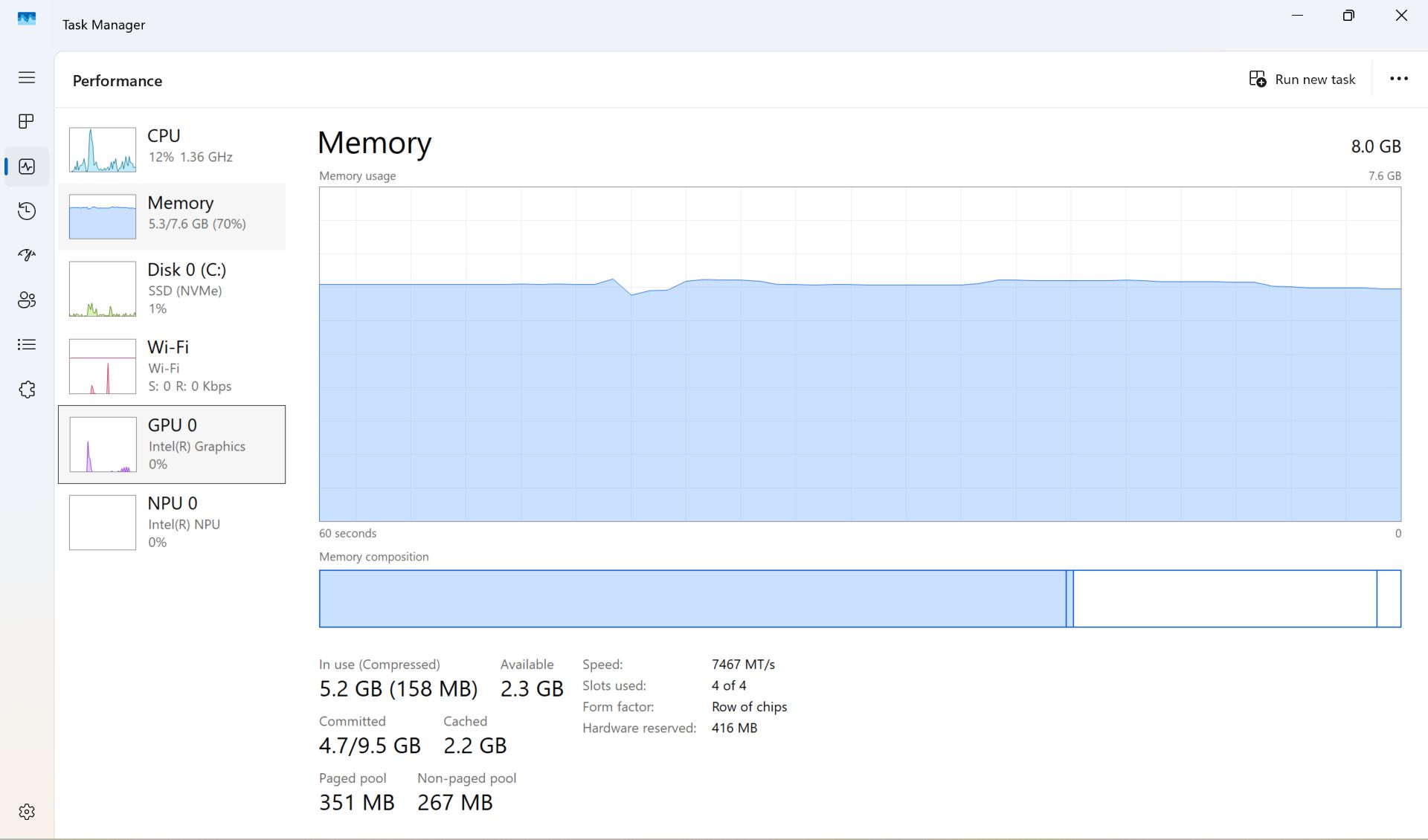
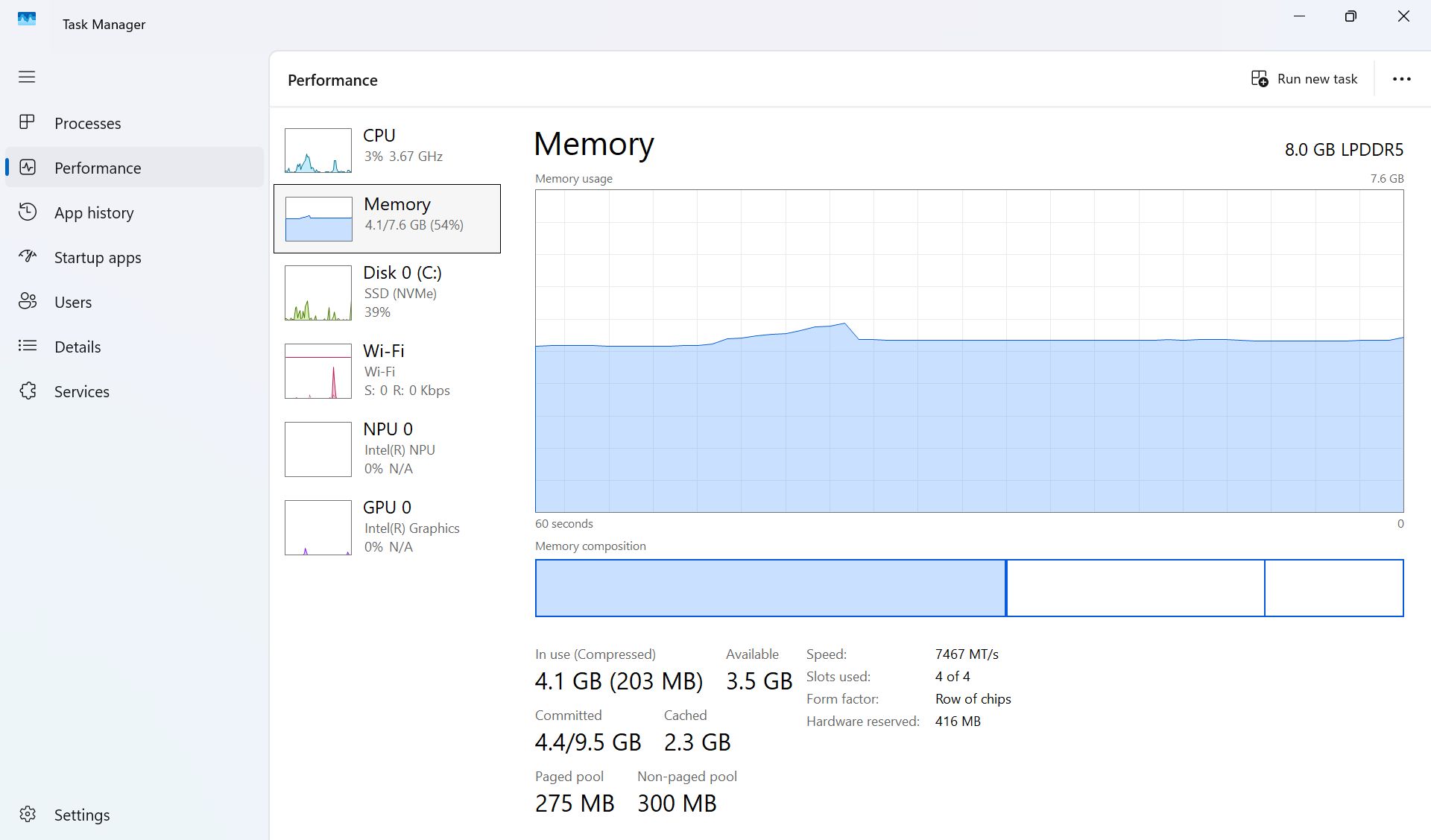
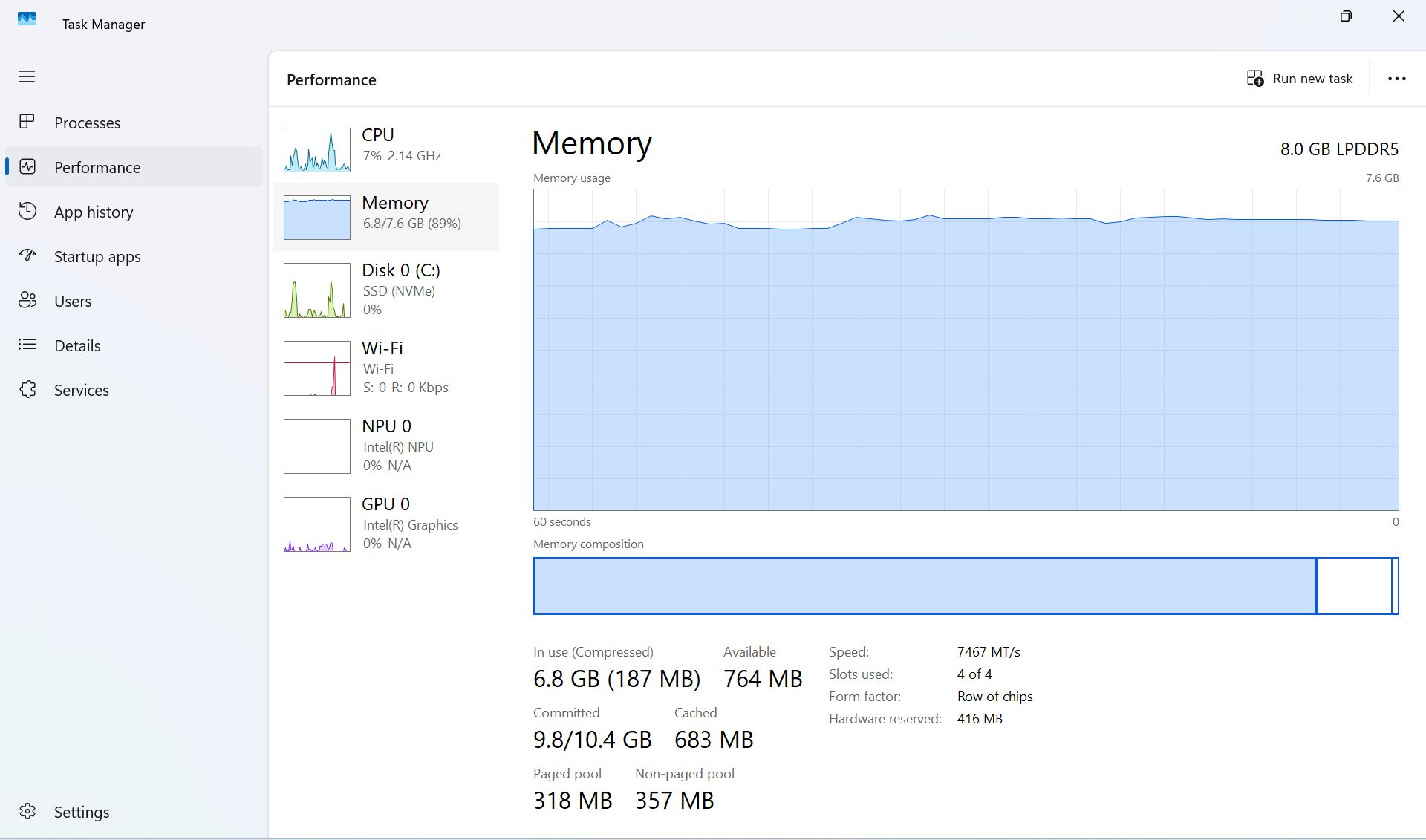
Windows 11 25H2's baseline memory usage after a fresh boot.FutureWindows 11 26H2's baseline memory usage after a fresh boot.Future
For this test, I checked both new and old versions of Windows 11 about 10 minutes after booting the PC. This gives me a baseline to work with. I opened no additional apps and just let the system idle.
Windows 11 25H2 (262000.7019)
Windows 11 26H2(26300.9711)
Total RAM Usage
5.3GB
4.1GB ^
Available RAM
2.3GB
3.5GB ^
Paged / Non-Paged Pool
351MB / 257MB
275MB / 300MB ^
Cached
2.2GB
2.3GB ^
Committed
4.7GB/9.5GB
4.4GB/9.5GB ^
The older Windows 11 25H2 version was eating up 5.3GB of RAM in this scenario, leaving 2.3GB free. Windows 11 26H2 dropped RAM usage to 4.1GB, leaving 3.5GB free. That's a big drop.
Although both commits are the same at 9.5GB, Windows 11 26H2 uses slightly less at 4.4GB compared to 4.7GB.
TL;DR: Windows 11 26H2 is well ahead in the boot test where no additional apps are running, using significantly less RAM than 25H2.
Testing common workloads in Windows 11 with 8GB of RAM
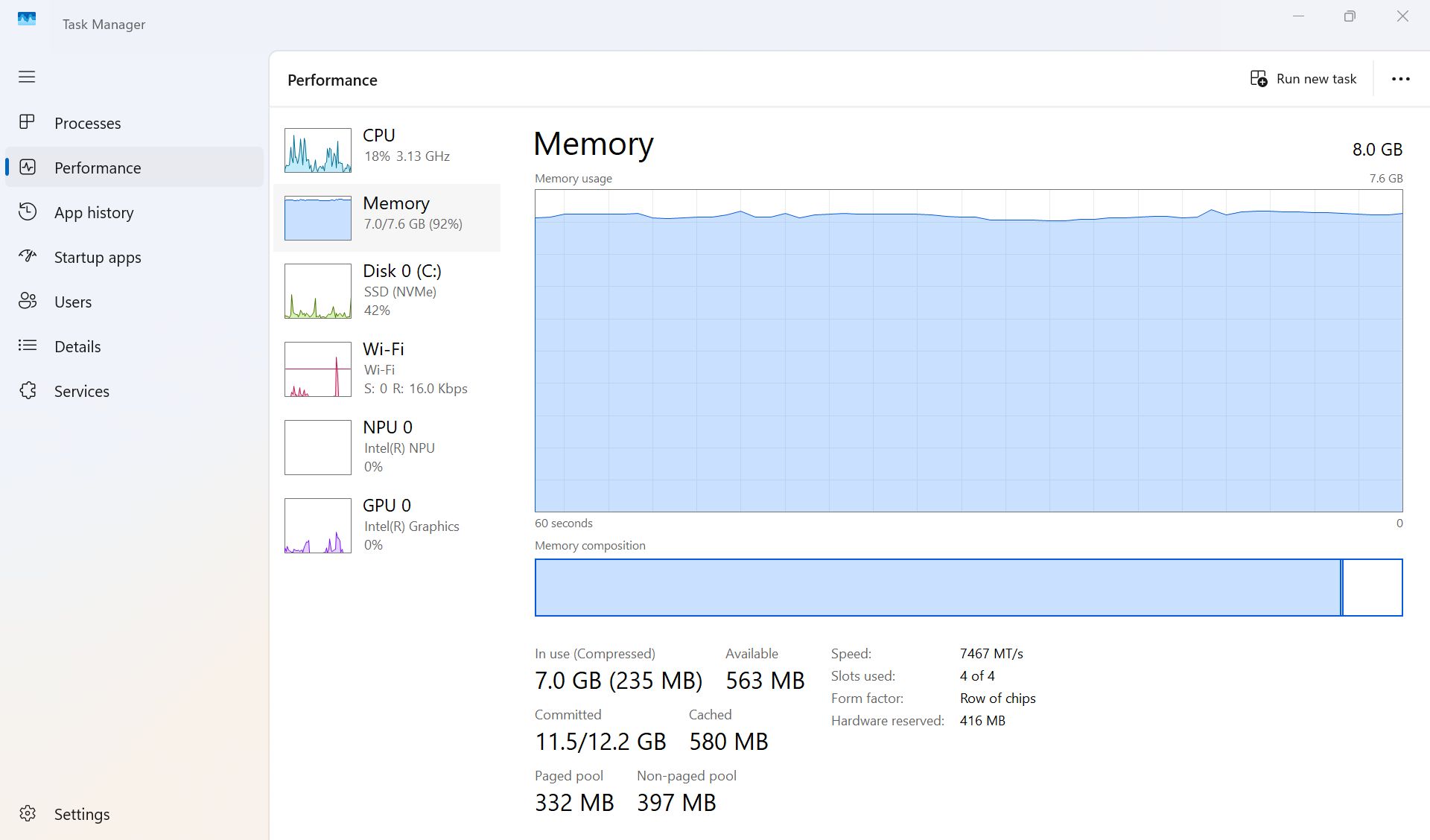
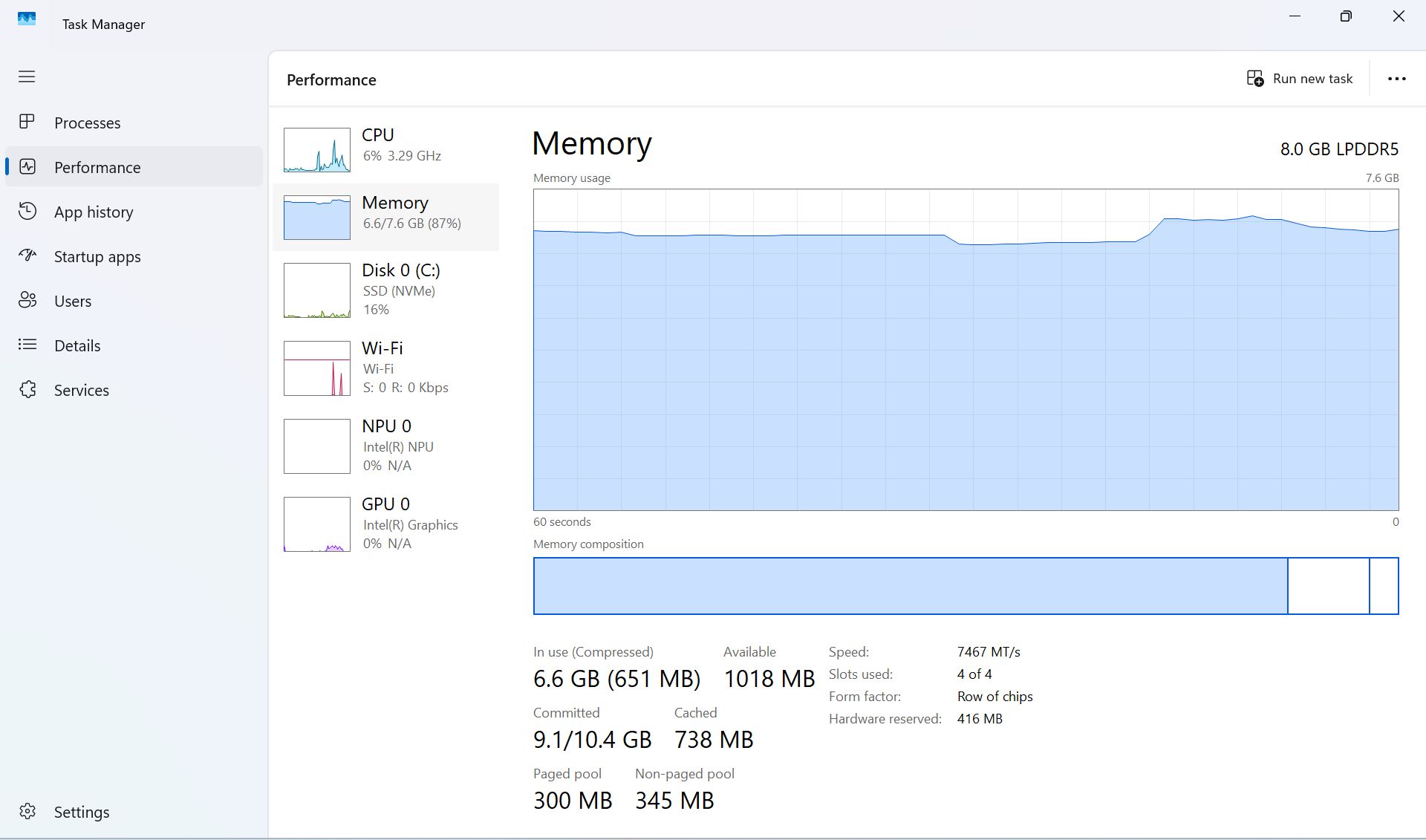
Windows 11 25H2 memory usage in a common workload.FutureWindows 11 26H2 memory usage in a common workload.Future
Now that I've established a baseline, I put together a test to see how each PC handles an average user's daily workload.
I opened 10 tabs in Edge with a mix of Windows Central, Reddit, YouTube, Gmail, X, Amazon, etc. I also opened a Word document, Slack messenger, and the Spotify app.
Windows 11 25H2 (262000.7019)
Windows 11 26H2(26300.9711)
Total RAM Usage
7.0GB
6.6GB ^
Available RAM
563MB
1018MB ^
Paged / Non-Paged Pool
332MB/397MB
300MB/345MB ^
Cached
580MB
738MB ^
Committed
11.5GB/12.2GB
9.1GB/10.4GB ^
Windows 11 25H2 climbed to 7.0GB RAM usage, while 26H2 hit just 6.6GB. That's about a 0.4GB improvement. Windows 11 26H2 was able to keep its cache larger while also committing less RAM at 10.4GB compared to 12.2GB.
For reference, committed memory indicates how much RAM the PC is setting aside for operations. In this case, 12.2GB of RAM committed includes physical system RAM and virtual memory (set by the page file). Committing less RAM keeps your system from clogging up, so this is good news.
TL;DR: Windows 11 26H2 keeps its lead under load, actively using less RAM and allocating less RAM overall.
Testing heavy workloads in Windows 11 with 8GB of RAM
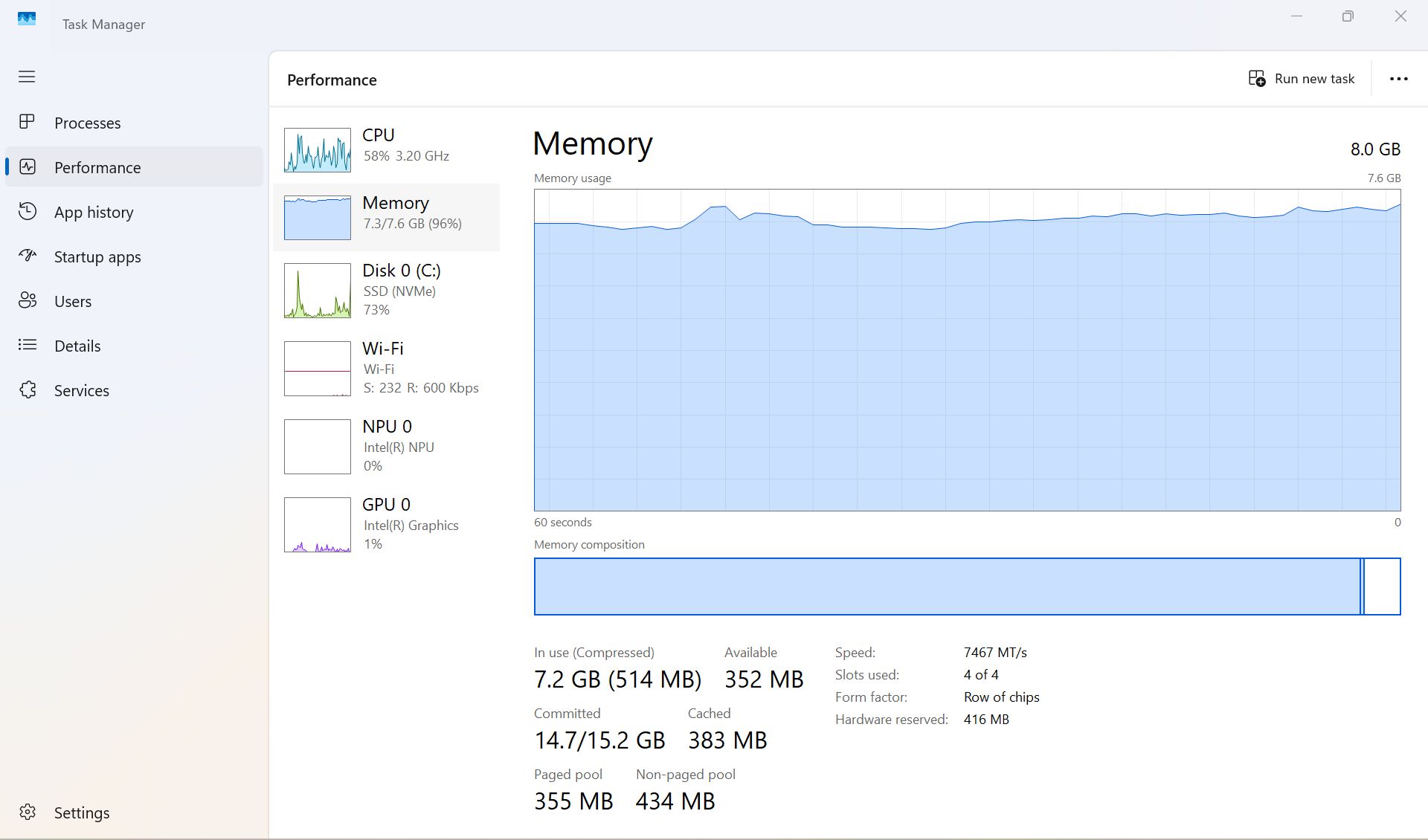
Windows 11 26H2 memory usage in an extreme workload.FutureWindows 11 25H2 memory usage in an extreme workload.Future
I opened Edge (with 20 tabs), a Word document, an Excel spreadsheet, Spotify, Slack, Microsoft Store, the Photos app, File Explorer, and GIMP simultaneously for this test.
Windows 11 25H2 (262000.7019)
Windows 11 26H2(26300.9711)
Total RAM Usage
7.3GB
6.8GB ^
Available RAM
352MB
764MB ^
Paged / Non-Paged Pool
355MB/434MB
318MB/357MB ^
Cached
383MB
638MB ^
Committed
14.7GB/15.2GB
9.8GB/10.4GB ^
You can see the 7.3GB total RAM usage on 25H2 and just 6.8GB on 26H2. That's a good sign, but there's some nuance.
Windows 11 25H2 began requiring more RAM than the system could provide, which led to paging and swapping, which led to disk usage spikes as the PC moved increasingly to virtual RAM.
Windows 11 26H2 also saw some disk usage spikes, especially when jumping around between apps and tabs, but not quite as severe.
The big number that stands out is committed RAM. 25H2 has 15.2GB allocated, while 26H2 has just 10.4GB allocated. Overall, the system is still using less RAM.
TL;DR: Heavy workloads bog down any 8GB system, but Windows 11 26H2 puts up a much more responsive fight than 25H2 from a year ago.
Windows Central's take
Acer's Swift Air 14 that I used for testing (pictured here at Computex). (Image credit: Zac Bowden / Windows Central)
The shortage is also forcing PC brands to raise prices. To offset costs, these brands are also reintroducing 8GB RAM models. This has led to plenty of discourse as to whether or not that's enough memory for modern Windows 11, which I explored in June.
In my opinion, Microsoft is A) listening to its user base that has been asking for a more streamlined Windows 11, and B) making it easier for OEMs to sell 8GB laptops to a wider range of people.
I'm here for it. There's no reason Windows 11 should be bogging down a system with 8GB of RAM, especially if it's just being used for common tasks. Compared to almost exactly one year ago, it definitely appears that the work was well worth the time.
Join us on Reddit at r/WindowsCentral to share your insights and discuss our latest news, reviews, and more.
Microsoft has detailed a number of changes and improvements that it has made to Windows 11 over the last handful of months that are designed to improve the OS for devices that have just 8GB of RAM. The company says that as of today, Windows 11 is more RAM-efficient and faster on PCs with limited memory compared to a year ago.
"On 8 GB PCs, Windows is now up to 20% more responsive, and multitasking is up to 40% faster in our lab test" Microsoft CVP Pavan Davaluri says. "We’re approaching this in three parts: making better use of the memory in every Windows 11 PC, protecting the interactions that need to feel instant even under load, and ensuring key apps and Windows require less memory."
Recent Windows 11 updates have changed how the OS preloads background services and apps on PCs with 8GB RAM. Now, the OS will no longer preload things like the Widgets Board on these devices with 8GB RAM or less, which frees up RAM for other tasks and activities.
Microsoft also says that it has worked with teams across Windows, Office, and Edge to reduce the amount of RAM these apps use, resulting in up to 900MB of RAM being given back to the system for other tasks. A large chunk of those savings came from Office apps, which add up to 350MB of RAM freed for the system.
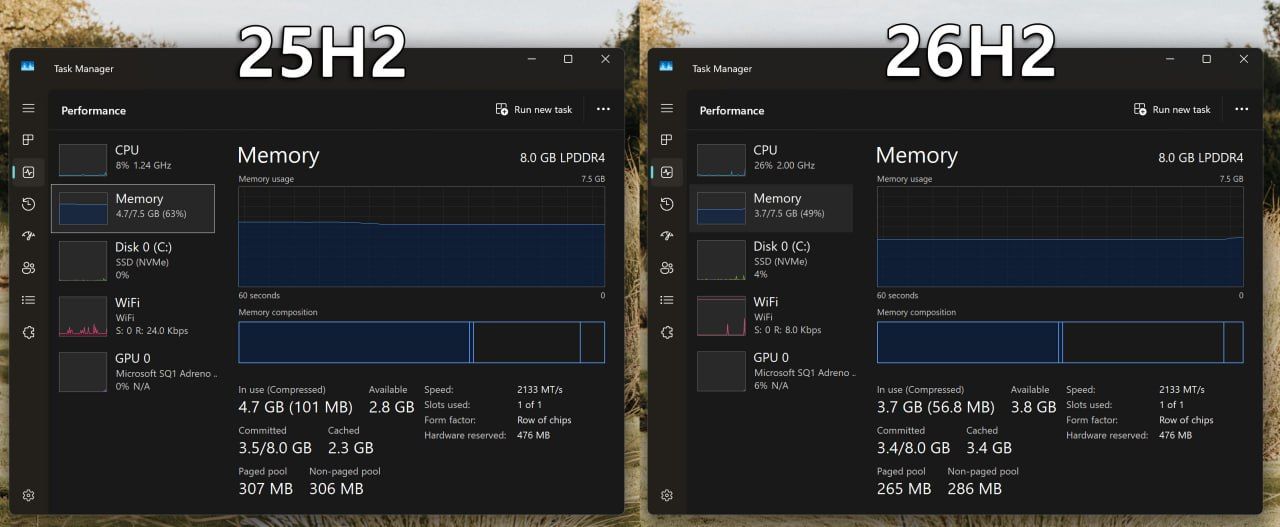
You'll notice the OS uses less RAM at idle now. (Image credit: Windows Central)
There are also consolidation efforts around behind the scenes technology that should also free up system memory. A number of web-powered interfaces across the system are now powered by the same engine, rather than individual engines, and a number of web experiences are being rewritten as native WinUI experiences that use less RAM.
In fact, if you install Windows 11 version 25H2 from a year ago, and compared it to the latest version of Windows 11 with the latest OS updates installed, you'll find that even at idle, Windows is now using significantly less RAM compared to before. These improvements appear to be very real.
Additionally, the company is enforcing "memory budgets" on OEM hardware with limited RAM. This should stop hardware makers from preloading 8GB RAM devices with unnecessary bloatware, reserving preload for the most important services.
These improvements are all in the name of ensuring Windows 11 runs well on 8GB RAM. Windows 11's performance on limited RAM PCs was pulled into the spotlight earlier this year when MacBook Neo shipped, which revealed that macOS is well optimized for 8GB RAM.
Now, Microsoft is eager to let people know that it has made the necessary improvements to Windows 11 to ensure that it too is well optimized for 8GB RAM. Here's a rundown of some other improvements it has made to the OS over the last year:
Memory compression already helps Windows keep more of your work in faster memory. Next, we’re making it even smarter and more efficient to get the most out of your system performance.
Windows features and apps will share common parts instead of each carrying its own. Search and Widgets will share one web engine, and so will OneDrive and Photos for memory savings across all four apps.
Apps and experiences built on WinUI 3, including File Explorer, Notepad, Paint, and the new Windows search are being designed to open faster and use less memory.
Together with PC makers and silicon partners, we’re optimizing how much memory your PC needs to reserve for its hardware, leaving more available for Windows and the apps you use.
We’re also working with third-party app developers to help their apps use memory more efficiently.
Of course, Windows 11 technically officially supports 4GB RAM PCs, and I'm told these optimizations also apply to those devices too. If you're running Windows 11 on 4GB RAM, you should see notable improvements to performance and multitasking with the latest OS updates.
But are these improvements going to be enough for users? Let us know what you think in the comments below!
Join us on Reddit at r/WindowsCentral to share your insights and discuss our latest news, reviews, and more.
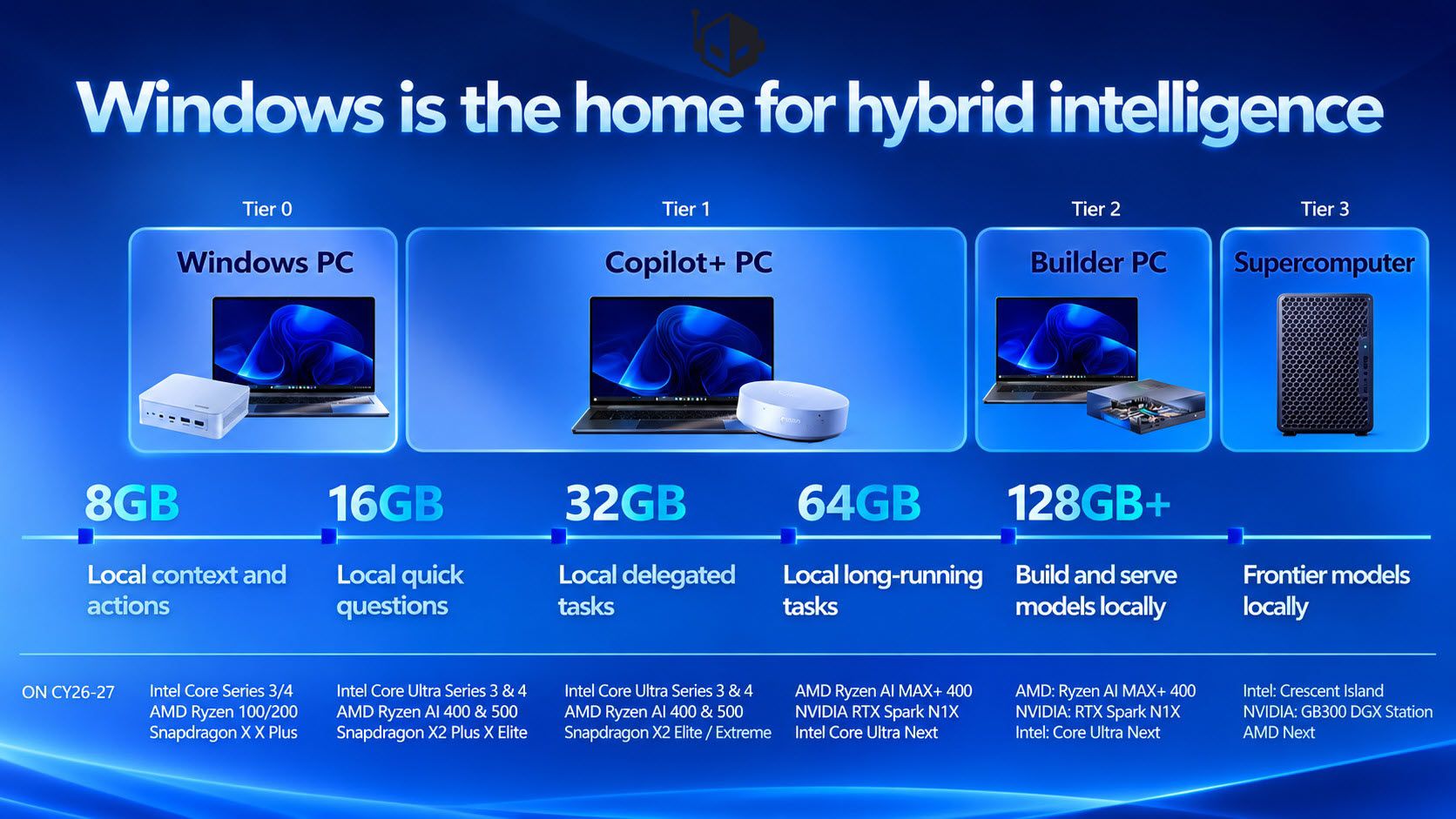
Microsoft's plans for AI PCs include everything from laptops with only 8GB of RAM to supercomputers with over 128GB of RAM. The company's roadmap was outlined in slides shared on X by user "HXL."
One slide, labeled "Windows is the home for hybrid intelligence" shows four tiers of PCs. The lowest one, Tier 0, is Windows PCs with 8GB of RAM that are powered by Intel Core Series 3 or 4, AMD Ryzen 100 or 200, and Snapdragon X or X Plus.
Tier 1 covers Copilot+ PCs with 16GB to 64GB of RAM. That tier spans a broad range of specs, from consumer-focused processors like the Snapdragon X2 Plus to the much more powerful AMD Ryzen AI MAX+ 400.
Tier 2 is builder PCs for building and running AI models locally. The hardware in that tier overlaps with the high end of Tier 1. It includes PCs powered by Intel Core Ultra Next, NVIDIA RTX Spark, and AMD Ryzen AI MAX+ 400.
The highest tier is for supercomputers designed to run frontier models locally. Those devices run on processors you'd never see in a consumer PC, such as Intel Crescent Island, NVIDIA GB300 DGX Station, and AMD Next chips.
Microsoft's roadmap is built around hybrid intelligence, with AI workloads split between local hardware and the cloud depending on the demands of each task. (Image credit: Microsoft (via user "HXL" on X))
What stands out most about the roadmap isn't the hardware itself but Microsoft's continued emphasis on hybrid intelligence. Rather than viewing local and cloud computing as competing approaches, Microsoft intends to use both.
We already knew that Copilot+ PCs required at least 16GB of RAM and that Microsoft had plans for workstations and supercomputers with top-end specs. NVIDIA's RTX Spark launched recently and powers several tier 2 PCs, such as the Surface Laptop Ultra.
Sam Altman may not be thrilled that Microsoft's AI roadmap includes PCs with more than 128GB of RAM. (Image credit: Getty Images | NurPhoto / Edit: Windows Central )
Microsoft's dream for AI computing is more like a nightmare for OpenAI CEO Sam Altman. He recently claimed that it's "actually quite terrible" for people to have RAM on their own computers. One theory is that OpenAI and other tech giants would prefer AI workloads to rely on centralized compute resources that can then be sold as a service.
Altman did not mention that specifically, but his comments suggest he views compute power as a resource AI companies have more of a right to than people do.
Microsoft has very different plans for AI in the form of hybrid intelligence. Rather than relying solely on cloud computing or local processing, people using hybrid intelligence will use a mixture of both.
We're still in the early days of hybrid intelligence, but a likely scenario is one in which users utilize the local compute power they have and then summon the cloud to complete tasks as needed. That setup would allow PCs across the entire roadmap to access AI.
Tier 0 and Tier 1 devices could perform less demanding tasks depending on their exact specs and lean more heavily on the cloud for compute-heavy workloads. Tier 2 and Tier 3 PCs would mostly stick to local processing but have the cloud as an option for exceptionally demanding projects.
Join us on Reddit at r/WindowsCentral to share your insights and discuss our latest news, reviews, and more.
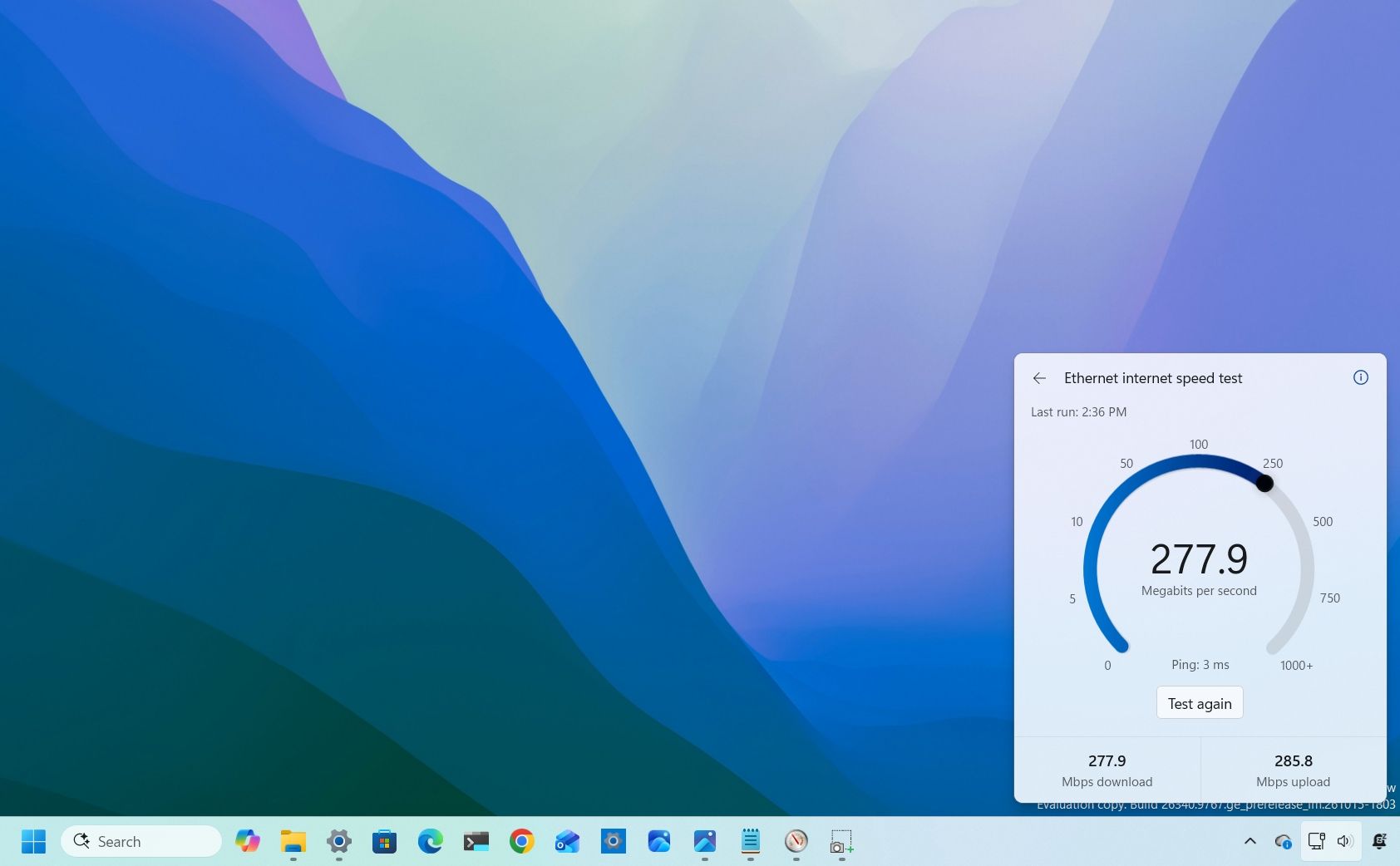
Windows 11 has a new speed test feature in the works that will allow you to check your PC's connectivity without having to open a browser or a separate app. The feature is already in testing with Windows Insiders and looks promising so far.
Windows 11 already has a shortcut for testing internet speed, but it's simply a button that opens Bing's speed test in a web browser. The new speed test feature is built-in, making it feel like part of Windows 11 rather than a tacked-on browser shortcut.
The addition has been well-received and sparked positive discussions online. Our Mauro Huculak said, "Windows 11 needs more features like this," and his wish may come true.
Marcus Ash, lead of Design and Research across Windows & Devices, discussed the new speed test feature and how the tool was created. According to Ash, the new speed test feature is the result of an agentic AI workflow guided by a real person.
"This is where I see a lot of potential in AI," said Ash. "Using agentic workflows and WinUI 3 to build more integrated Windows experiences. Getting from idea to customer value faster. Without AI slop. That is the way."
AI is under heavy scrutiny for a variety of reasons. Many criticize "vibe coding," which often results in low-quality projects. But there is a place for AI in certain workflows.
After looking at Ash's comment, it's easy to see why Microsoft chose to attach the term "Copilot" to many of its AI products. The company's leaders view AI as a tool that works alongside people to streamline workflows while still leaning on the guidance of human expertise.
Considering the positive reception of the new speed test tool, it seems likely that other parts of Windows 11 will be built with a similar workflow. I'm curious to see if they will all be well-received or if some people will push back solely due to the use of AI.
What do you think about Microsoft using AI as part of its development process? Let us know in the comments!
Join us on Reddit at r/WindowsCentral to share your insights and discuss our latest news, reviews, and more.
I recently highlighted an app that allows you to click and drag the taskbar to reposition it on Windows 11. In my piece, I said that "changing [the taskbar's] position still requires digging through Settings." That phrase and other parts of my piece led to a discussion online about the nature of coverage and being positive or negative when discussing apps and features.
What stuck with me wasn't whether my wording was too harsh. It was the question of how we should respond when companies explain why a feature isn't necessary, especially when history shows those same features often arrive later.
Biggest News of the Week
I want to be clear about the nature of this piece. Baca's response to my article sparked this discussion, but it's not meant to call him out or criticize him. Every interaction I've had with Baca has been positive and I appreciate how much he interacts with the community on X and other platforms.
Baca was promoted to Vice President of Design at Microsoft in August. I've noticed a distinct increase in user engagement since then from both Baca and other members of Microsoft's design team.
I would also be a hypocrite if I criticized Microsoft for not looking at feedback and then ignored feedback myself. I echo Baca's sentiment that listening to feedback is important even if someone ultimately decides to go in another direction than what's suggested. Understanding how other people think can shape how we view things in the future.
For the record, the headline of the article is and always has been "This free app makes moving the Windows 11 taskbar so much easier"I have changed the wording within the article where the quote you mentioned appears, which, again, was not the headline. But I should say that I don't agree with your take. This was not meant in a negative tone.Windows 10 users that might have heard about Windows 11's new movable Taskbar may not know that its implementation is different. "You still need" meaning that while it can be moved now, you'll still need an app to restore the same draggable behaviors that you had on Windows 10. That's just us being clear about the experience.However, I do appreciate you explaining more about how you designed the movable experience on Windows 11! I like the W11 implementation a lot. Again, I want to be clear: "You still need" never once showed up in the headline. This was only ever present beneath the header as part of the article on the page.October 31, 2026
Explaining why your product lacks a feature that's available anywhere is easy. Defending why your product does not have a popular feature seen in other products is difficult. Justifying adding a feature after arguing against its value for years is almost impossible.
We've seen this with Apple and its touchscreen MacBook. Steve Jobs famously mocked the concept of a touchscreen laptop over a decade ago. In a similar manner, Tim Cook compared devices like the Surface Pro to combining a toaster and a refrigerator only for Apple to later release the iPad Pro, which is clearly similar to the Surface Pro in design.
Years after Steve Jobs argues vertical touch surfaces were "ergonomically terrible," Apple announced a touchscreen MacBook. (Image credit: Lance Ulanoff / Future)
Relating this back to Microsoft, the company tried to justify why the taskbar was immovable when Windows 11 shipped. Back in 2022, Tali Roth, head of product of Windows Core Experiences at Microsoft, explained why that was the case:
"When it comes to something like actually being able to move the taskbar to different locations on the screen, there's a number of challenges with that. When you think about having the taskbar on the right or the left, all of a sudden the reflow and the work that all of the apps have to do to be able to understand the environment is just huge...
And when you look at the data, while we know there is a set of people that love it that way and, like, really appreciate it, we also recognize that this set of users is really small compared to the set of other folks that are asking for other features. So, at the moment, we are continuing to focus on things that I hear more pain around."
In Roth's defense, she did not claim a movable taskbar was a broken concept. But she did say the effort to make it work was huge and that only a small set of users were passionate about the feature.
I doubt the amount of effort required changed dramatically. The number of users interested in the feature has likely remained relatively consistent as well, so why was a movable taskbar a top priority in Windows K2?
That's why I'm hesitant to treat explanations for missing features as the final word. Microsoft's reasons for not prioritizing taskbar positioning in 2022 did not make users wrong for wanting the feature, and they did not make criticism of that decision invalid. If anything, the feature later becoming a Priority 0 item proves that those complaints were worth making in the first place.
High expectations, not hostility
One of my first editions of Windows Wrap focused on holding a mirror up to Microsoft. (Image credit: Future | Edited with Gemini)
I love that Microsoft is improving Windows 11. I think the Windows K2 initiative is one of the most important consumer-focused initiatives the company has had in years. I also think it's okay to be critical while also noting improvements.
I am often critical of Microsoft and its products, but it's not for kicks or clicks. It comes from a genuine hope for the OS to improve. As I said back in January:
"My frustration with Windows 11 and Microsoft doesn't come from a place of "hate" — it comes from a place of high expectations. Whether Microsoft chooses to listen to its core enthusiasts or continues its current path toward an AI-bloated future remains to be seen. In the meantime, it's worth facing a mirror toward Redmond."
I've argued since March that Windows 11 isn't doomed and that Microsoft is fixing the operating system. But much of that change was inspired by passionate, and often negative, feedback — the squeaky wheel gets the grease and all that.
So, I may think twice about being overly negative about Microsoft in the future, but after doing so I'm still likely to press "Publish" on an article calling for change.
Join us on Reddit at r/WindowsCentral to share your insights and discuss our latest news, reviews, and more.
Microsoft has resolved a known issue that prevented some users from activating the Smart App Control security feature after installing the October 2026 KB5127648 Windows 11 security update. [...]
In this episode of the Windows Central Podcast, Daniel Rubino and Zac Bowden break down the latest wave of Windows 11 Insider preview builds and major industry hardware shifts.
The episode begins with an overview of incoming Windows 11 quality-of-life updates, including File Explorer context menu overhauls, controller-friendly Xbox Quick Settings for gaming handhelds, deeper Phone Link integration in the taskbar, native speed tests, and rich, actionable search results. Zac also details controversial security adjustments to Windows Hello that force screen-brightening in low-light environments.
From there, we dissect Apple’s sudden embrace of touchscreen technology and OLED displays on the M5 MacBook Pro, comparing Apple’s historical messaging to current market demands. We follow up on the ongoing display debates surrounding the Surface Laptop Ultra's Mini-LED implementation (addressing local dimming claims and ghosting fixes), before examining Big Tech’s massive AI capital expenditure trends, market adjustments, and live audience Q&A questions.
This episode of the Windows Central Podcast is sponsored by Surfshark VPN. Unlimited devices, access your content from anywhere, and auto-block malware on Windows, Edge, and other platforms from $2.50/mo, with 3 months extra FREE. Sign up today!
TIMESTAMPS:
00:00 Pre-show Setup & Tech Checks
02:13 Welcome to Episode 409 & Agenda Overview
03:51 Testing $699–$799 Budget Windows Laptops
06:24 File Explorer Context Menu Overhaul & Quick Turnaround
Microsoft Edge now launches up to 15% faster on eligible Windows 11 PCs, with greater gains under heavy workloads. Here's when the improvement applies.
Transitioning to a new computer has traditionally been a rite of passage plagued by external hard drives, network cables, and tedious manual copy-pasting. For Windows users, a glimmer of hope arrived when Microsoft introduced a streamlined PC-to-PC migration framework. However, in typical Redmond fashion, convenience has taken a back seat to cloud monetization. Microsoft has […]
Microsoft spent October testing a surprisingly useful collection of Windows 11 features, and after digging through the latest preview builds, I found several changes that could make a noticeable difference in how you use your PC.
Some address long-standing frustrations. Microsoft is finally experimenting with a customizable right-click menu, while the Start menu is getting more controls over its size and contents. Windows 11 can also run an internet speed test without kicking you into a browser, and traditional desktop apps are gaining more granular privacy controls.
There are smaller improvements worth knowing about, too, including phone controls in Quick Settings, smarter Windows Hello behavior in low light, accessibility improvements, and changes aimed at handheld gaming.
Microsoft tested these features across eight Windows 11 preview builds during the second half of October. I've gone through the changes and pulled out the ones I think actually matter.
Biggest improvements from the Windows Insider Program in October 2026
Let's dive into the most noteworthy changes since my last roundup.
Windows 11 finally lets you customize the context menu
Windows 11 build 26220.9757 introduces a redesigned context menu with new customization options that let you simplify the interface and control which commands appear when right-clicking files and folders.
The updated menu reduces clutter by moving additional app commands into a new "App extensions" submenu. This keeps the main menu focused on frequently used actions while providing access to extensions added by installed applications.
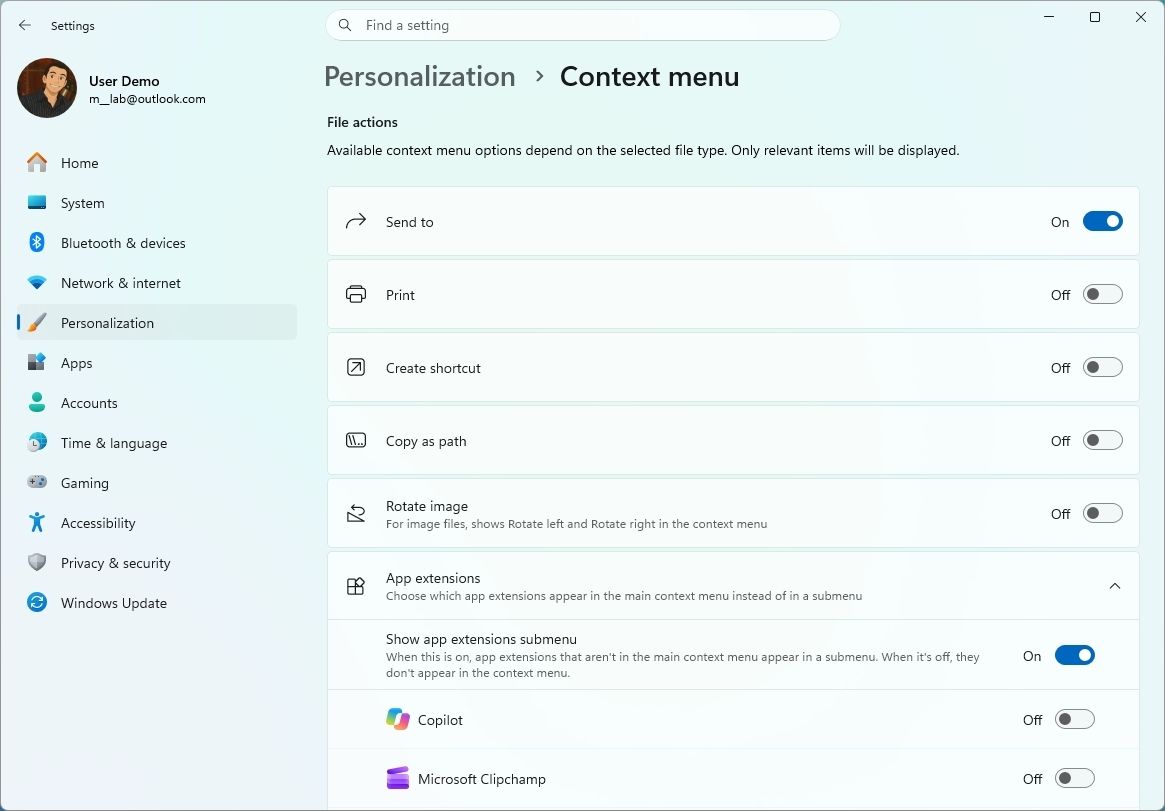
The new "Customize menu" option opens a dedicated page under Settings > Personalization, where you can control the menu's layout and available commands.
(Image credit: Mauro Huculak)
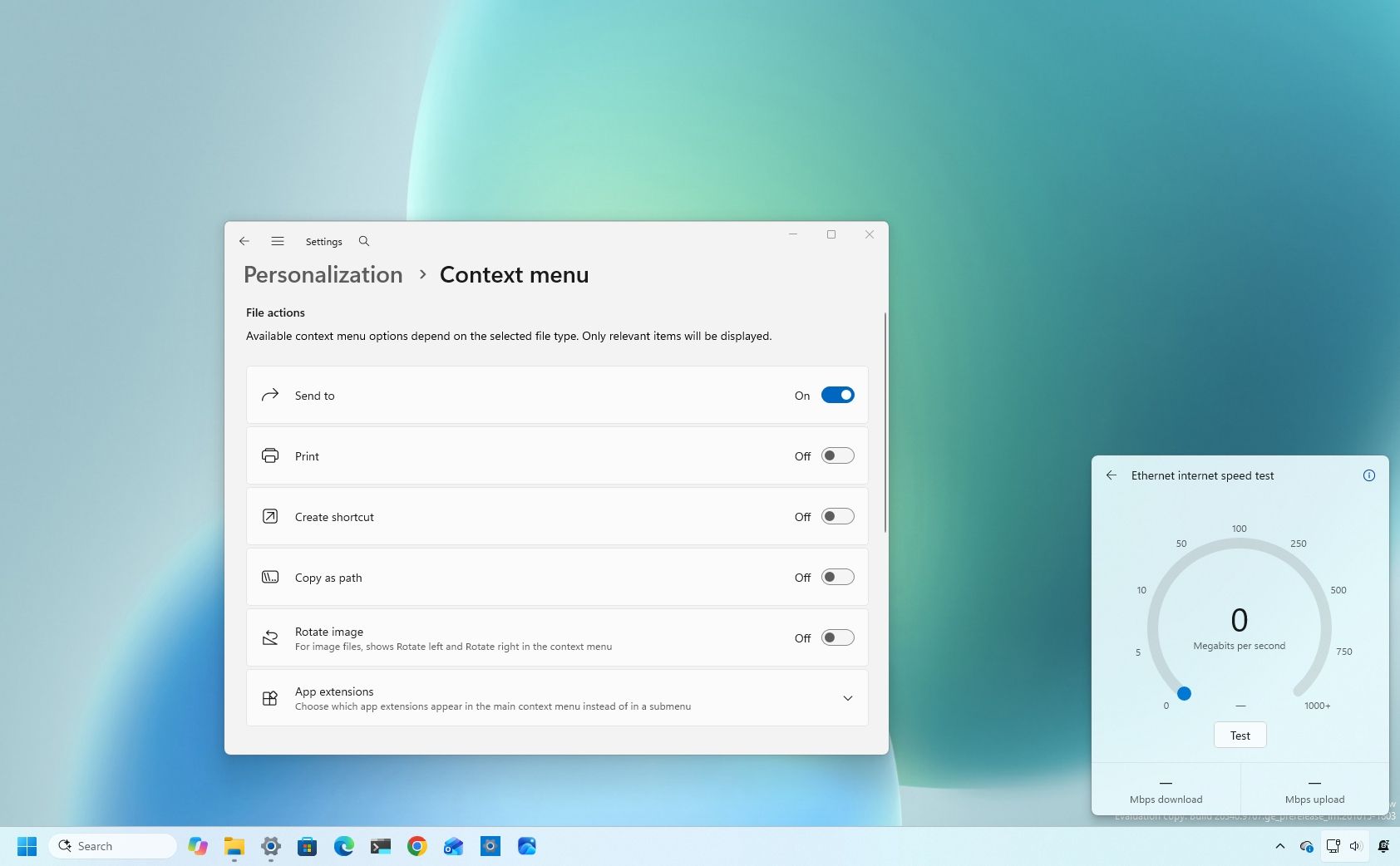
Under "File actions," you can choose which options appear directly in the main menu, including "Send to," "Print," "Create shortcut," "Copy as path," and "Rotate image." "Send to" and "Print" are also new additions to the modern context menu design.
The customization options extend to application integrations. You can choose whether the "App extensions" submenu appears in the main menu and select which application extensions remain directly accessible.
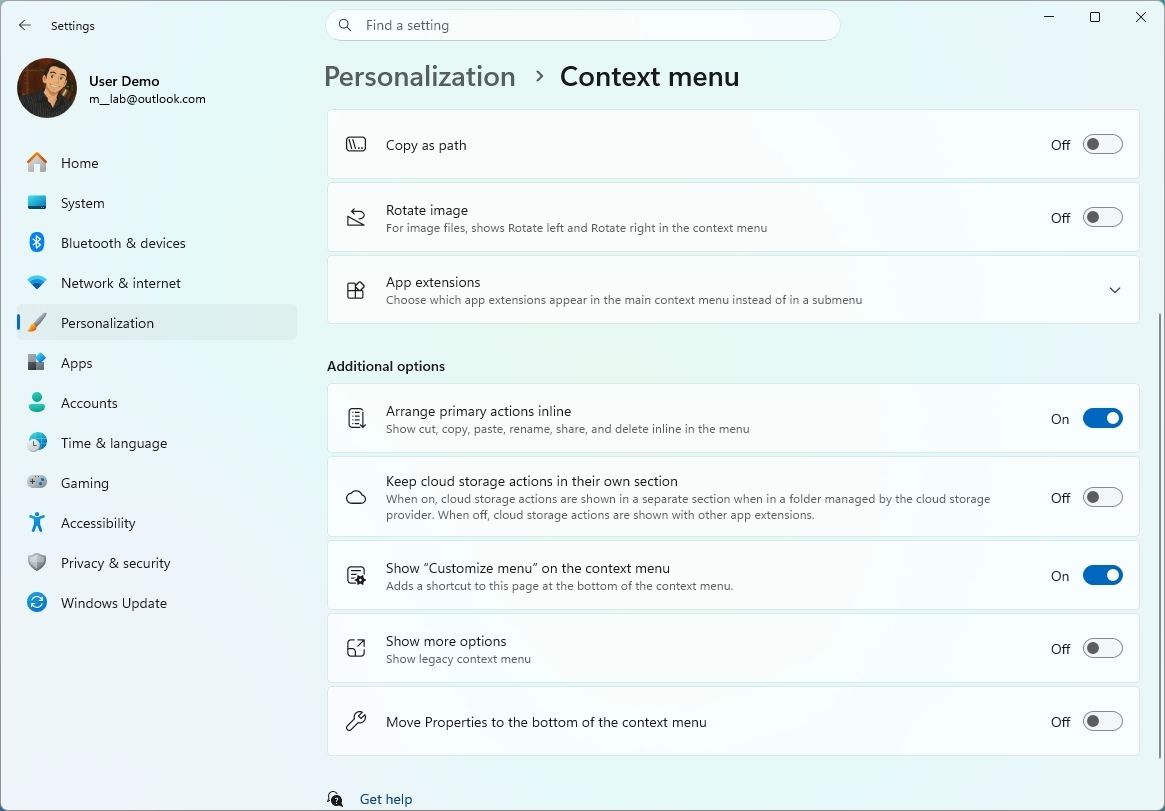
The new settings let you arrange primary commands, such as Cut and Paste, vertically instead of using the horizontal layout introduced with the modern design. You can also move "Properties" to the bottom of the menu to restore its familiar placement.
(Image credit: Mauro Huculak)
For those who prefer the classic experience, Windows 11 now lets you bring back the "Show more options" entry. You can also continue opening the traditional context menu by holding Shift while right-clicking a file or folder.
Internet speed test without a browser
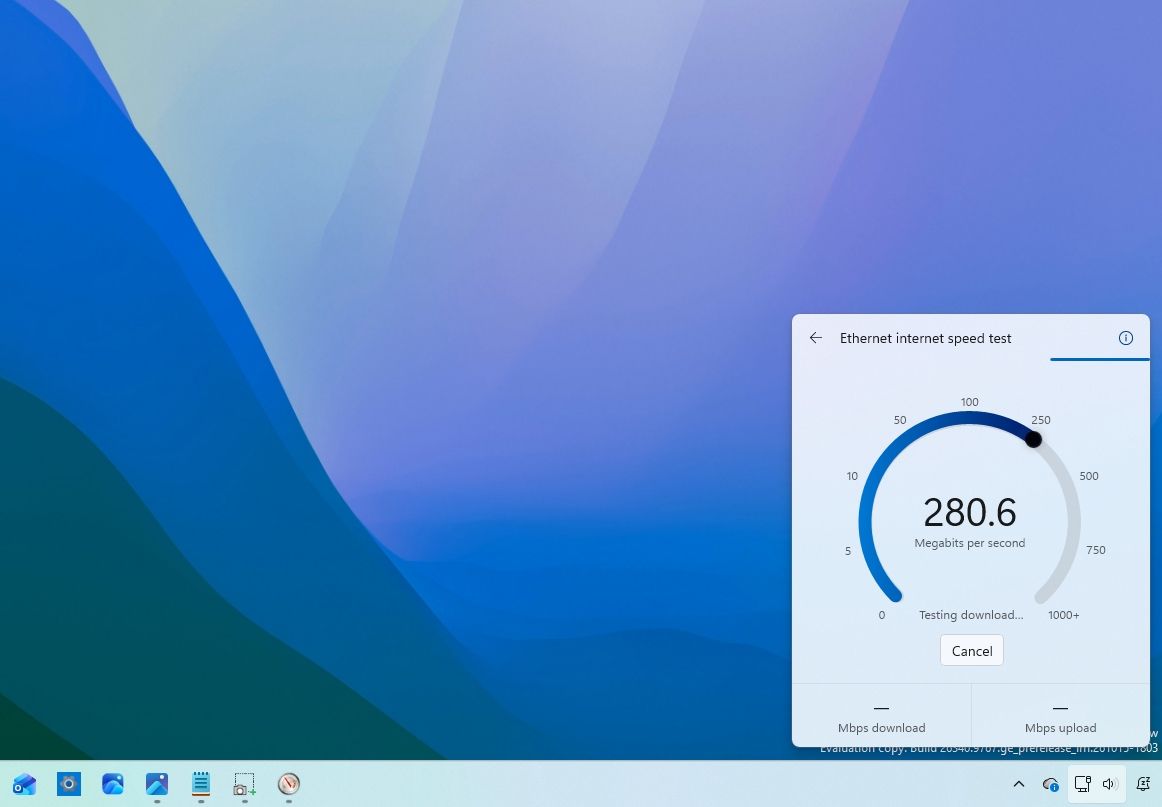
Starting with build 26340.9767 in the Experimental channel for version 26H2, the Windows team is refreshing the "Speed test" feature with a native interface in the Quick Settings that allows you to test your internet connection without leaving the desktop.
(Image credit: Mauro Huculak)
If you recall, the feature isn't new, but the previous version was an option that opened Bing in the Microsoft Edge browser to perform a speed test with the online tool.
In the new design, the feature is still using the same Speed Test service in the backend, but the tests happen within the desktop experience.
You can also access the feature from the Wi-Fi or Cellular flyout, or by right-clicking the network icon and choosing the "Test internet speed" option.
The Start menu is finally getting more customization
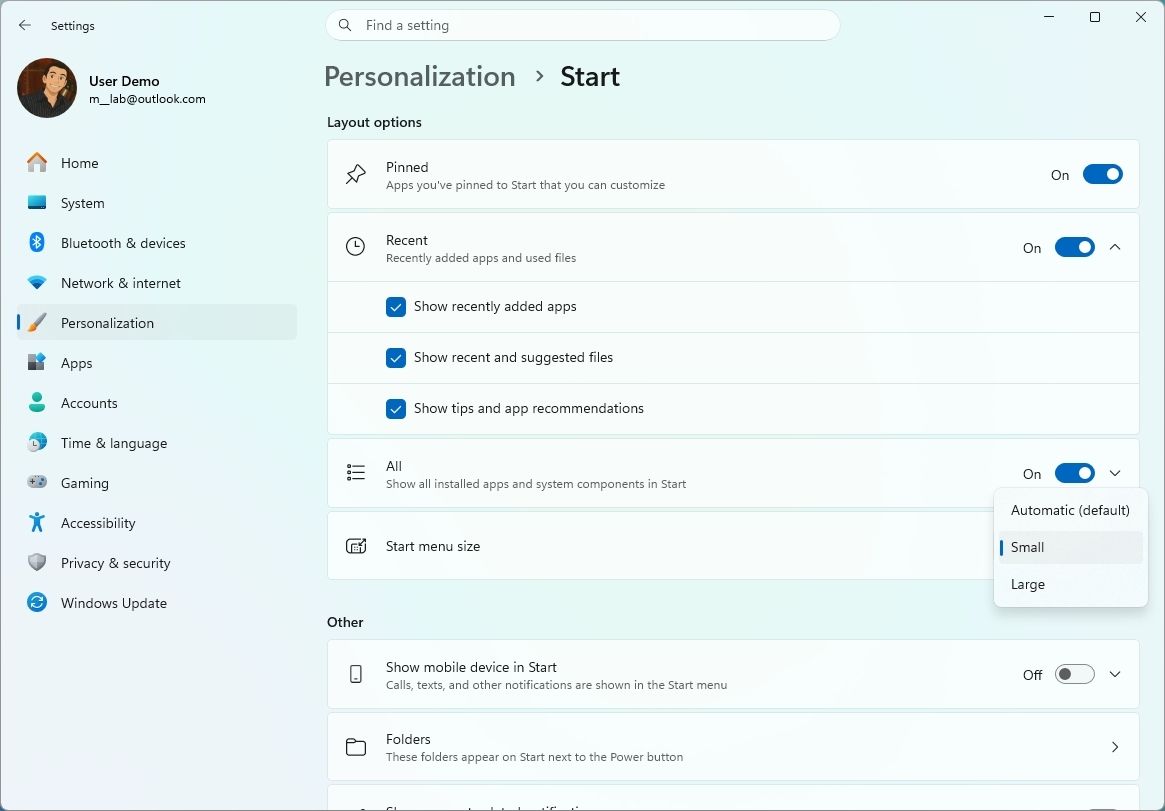
As part of version 26H1, build 26220.9739 introduces new Start menu customization options, including the ability to choose a "Small," "Large," or "Automatic" layout under Settings > Personalization > Start, using the "Start menu size" option.
(Image credit: Mauro Huculak)
Microsoft also renames the "Recommended" section to "Recent" in both the Start menu and its Settings page.
In addition, users can now hide their name and profile picture from Start and independently show or hide the "Pinned," "Recent," and "All" sections using the redesigned Start settings page.
Windows 11 is giving you more control over desktop app permissions
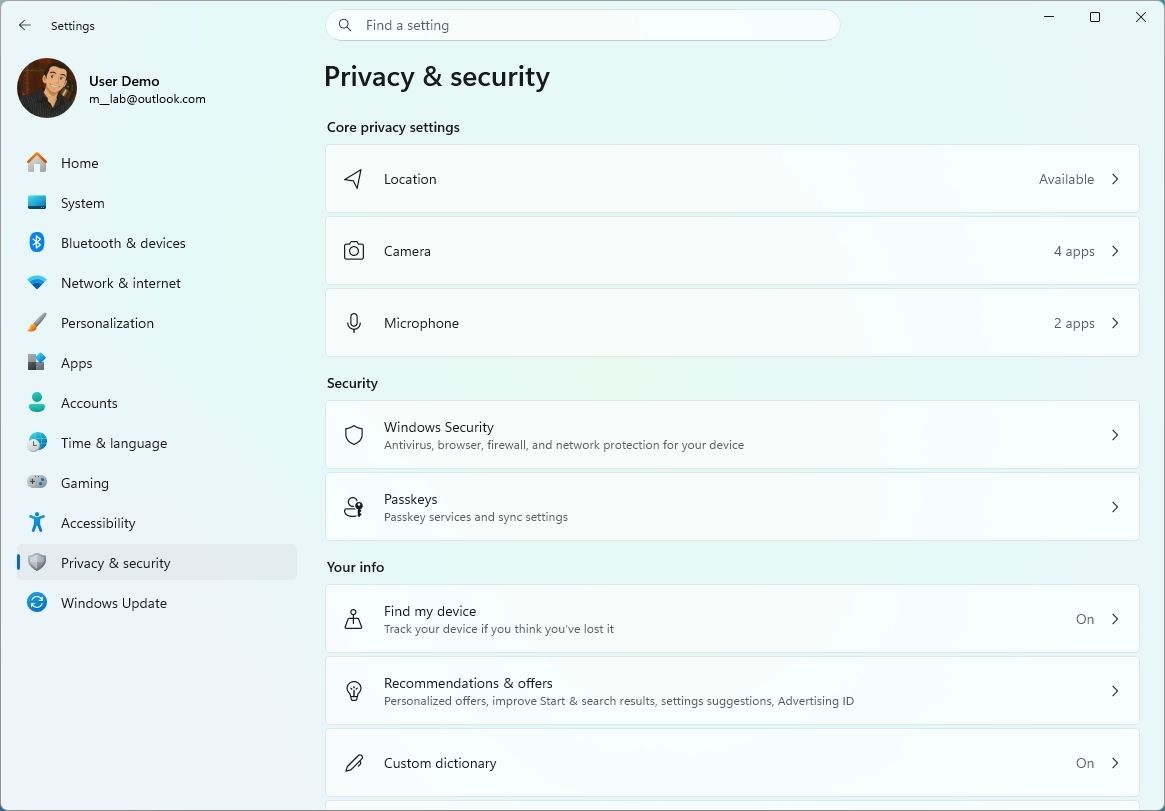
In the "Privacy & security" section of the Settings app, the Windows team introduced per-app permissions for camera, microphone, and location access, giving users more control over the sensitive resources traditional desktop apps can use.
(Image credit: Mauro Huculak)
Now, inside the Camera, Microphone, or Location settings, users can view and allow or deny access for individual apps. Apps that have not previously accessed a resource will prompt for permission when they first request access.
The update preserves existing permissions, so previously allowed apps retain access and denied apps remain blocked. No action is required, and existing settings are not reset.
Enterprise policies continue to work as designed, although Microsoft is exploring additional management capabilities.
Also, most desktop apps appear with clear names, but some that rely on shared system components or browser-hosted experiences may appear under unexpected names.
Finally, apps with unverified publishers may appear as "Unsigned," so users should grant permissions only to applications they recognize and trust.
These changes for privacy are available with the release of build 26220.9739.
Finally, in build 28020.3262, the "Privacy & security" page gets an update that improves the organization of specific settings, including Camera, Microphone, and Location privacy controls.
Your phone controls are moving into Quick Settings
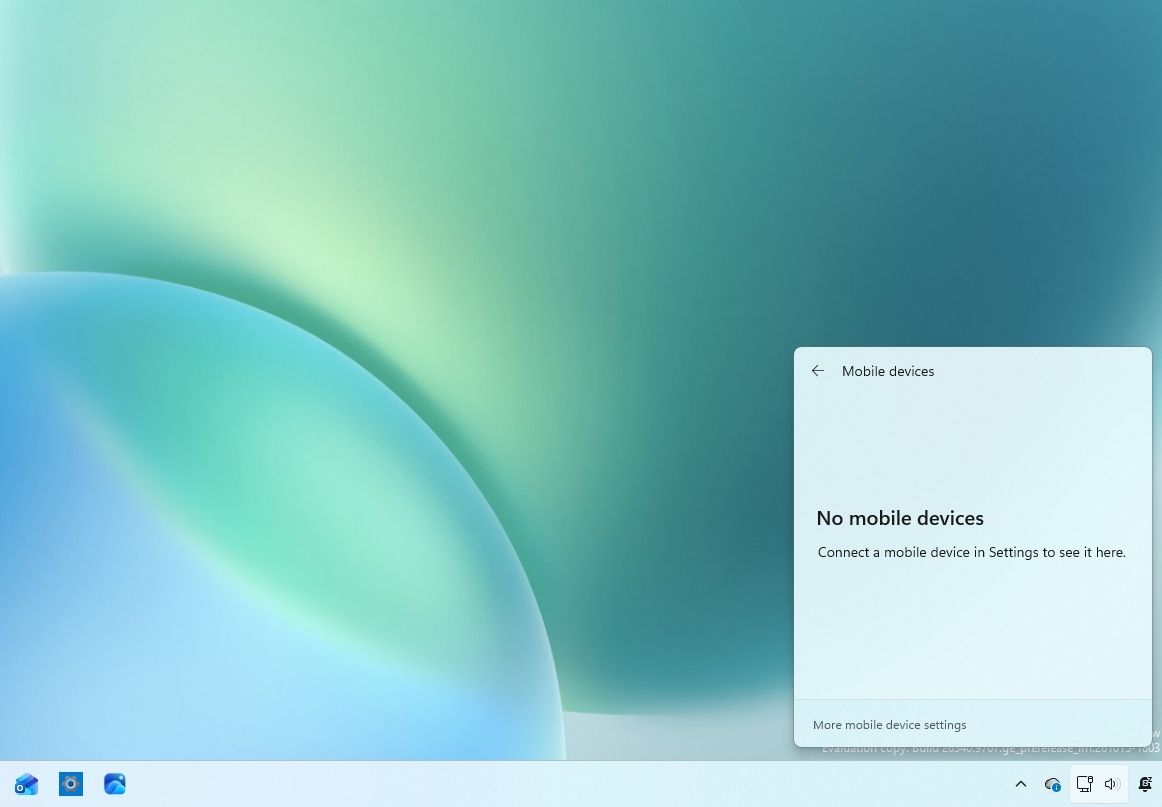
In Quick Settings, you'll also find a new "Mobile devices" flyout that lets you control your phone without interrupting your workflow.
(Image credit: Mauro Huculak)
If you're connecting a supported Android phone, you can check its battery, change the ringer, remotely play sound to find your phone, and enable Do Not Disturb.
This new interface is available starting with build 26340.9767 in the Experimental channel.
XBOX mode new Task View
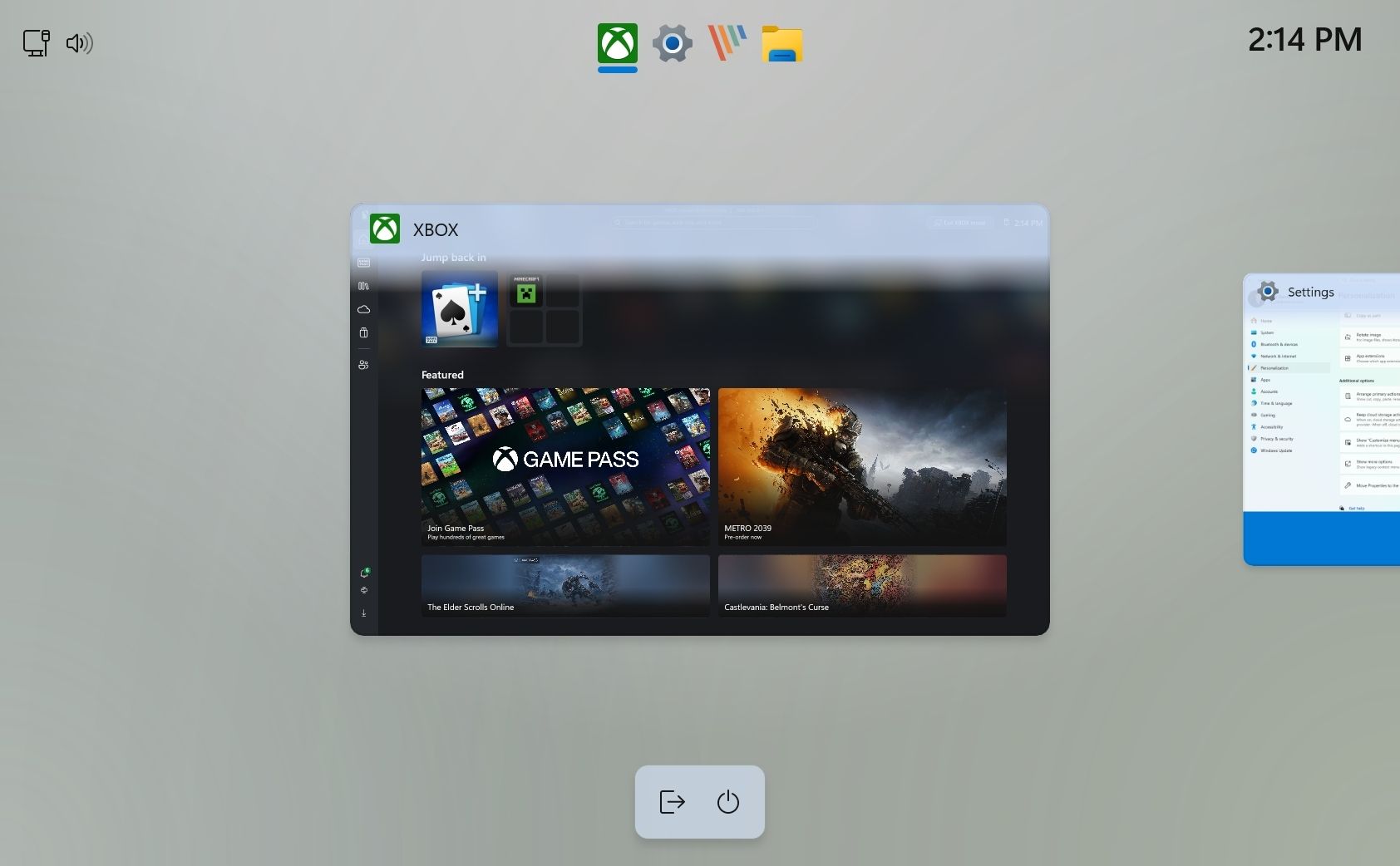
Starting with builds 26340.9750 and 26220.9739, Windows 11 introduces an updated Task View interface when XBOX mode is enabled.
(Image credit: Mauro Huculak)
The new interface adds a navigation bar that gives quick access to "Exit to Desktop" and "Power Options" while using the gaming controller.
Feature flags are getting easier to manage
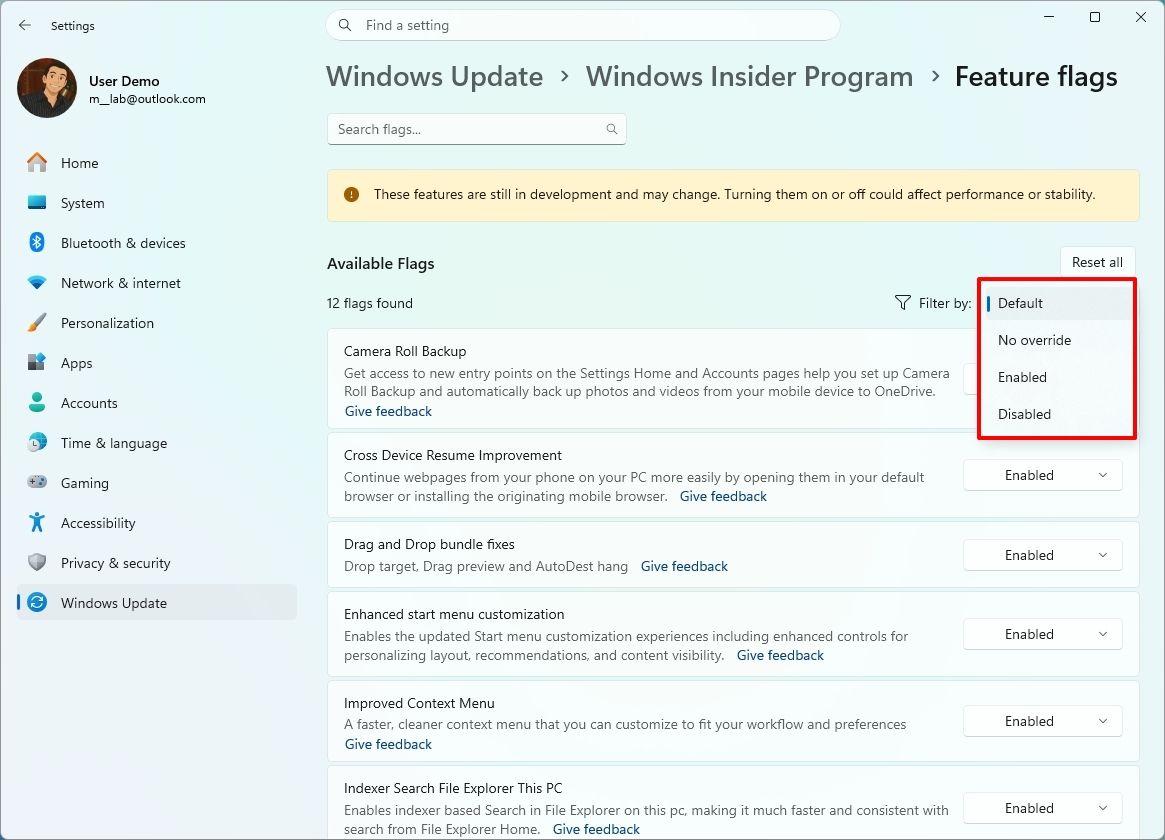
On the Feature flags page, you won't see major changes, but a new "Filter by" option lets you find and review components you can turn on or off in the installation.
(Image credit: Mauro Huculak)
Windows Hello can brighten your screen when it can't see you
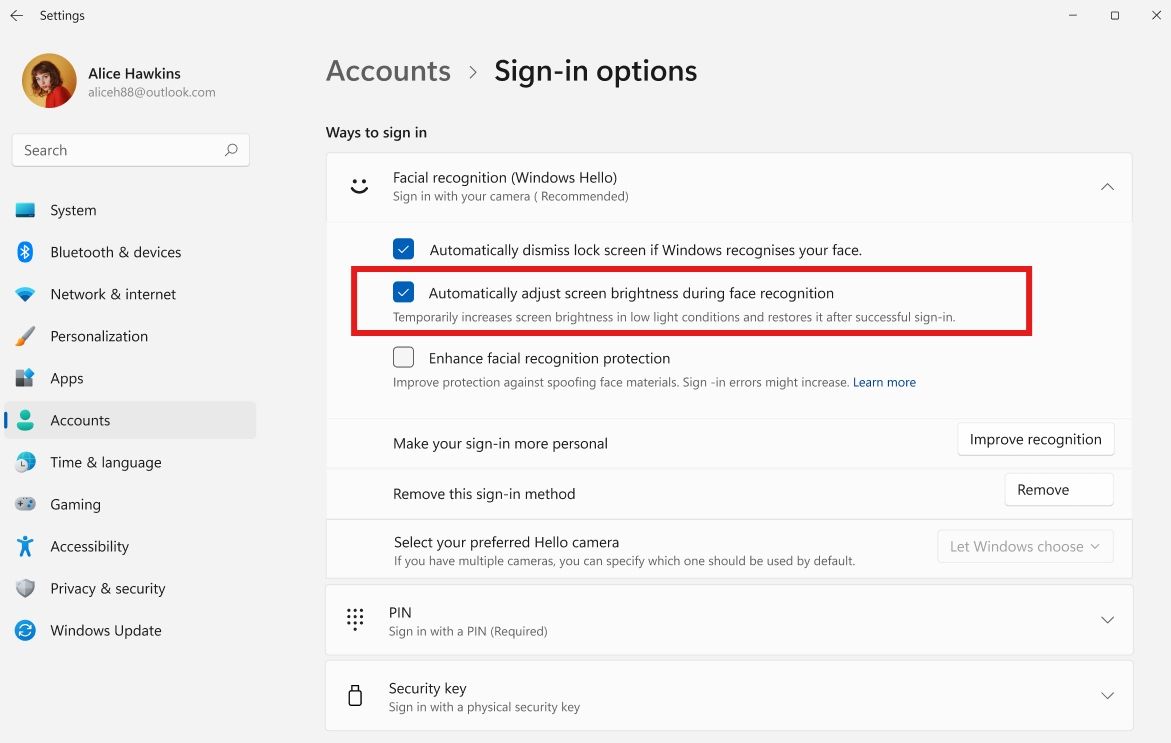
Another worthy improvement can be found in Windows Hello. Starting with build 26340.9750, a new option lets the system automatically adjust screen brightness to provide more light and improve the authentication experience when using Windows Hello Facial recognition.
The feature is called "Automatically adjust screen brightness during face recognition" and is available in Settings > Accounts > Sign-in options > Facial recognition (Windows Hello).
(Image credit: Microsoft)
Magnifier improvements
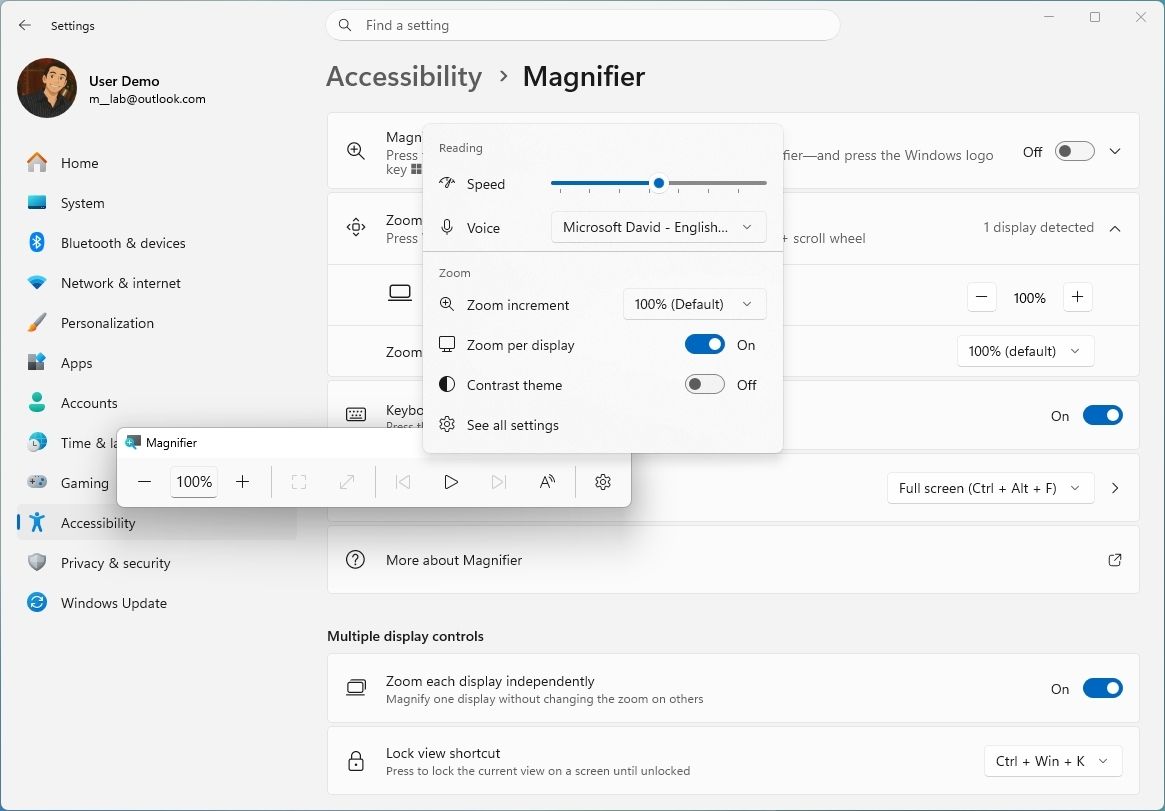
In build 26220.9739, the development team released an updated version of the Magnifier experience to support independent zoom levels for each monitor in "Extend" mode (Settings > System > Display), preventing the magnified view from spilling across screens.
Users can set different zoom percentages for each display using the "Windows key + Plus (+)," "Windows key + Minus (-)," or "Ctrl + Alt + mouse wheel," adjust the percentages in Settings > Accessibility > Magnifier, or move the Magnifier toolbar to the screen they want to adjust.
(Image credit: Mauro Huculak)
Per-monitor zoom is enabled by default, but users can turn it off from the Magnifier toolbar or Settings to restore the traditional behavior of a single magnified view spanning all displays.
The update also introduces viewport locking, which keeps a monitor's magnified view in place while users move their pointer to another screen. This lets users reference content on one display while working on another without losing sight of the information.
The locked screen stays live and interactive, letting users click, read, or copy content while its view stays fixed. A notification indicates when a screen is locked. Users can lock or unlock an individual display by pointing to it and using the "Ctrl + Windows key + K" shortcut, customize the shortcut to "Ctrl + Alt + P" under Settings > Accessibility > Magnifier, or use the "Windows key + Esc" shortcut to release all locks.
In build 28120.3302, Microsoft adds a new contrast theme toggle to Magnifier to help reduce screen glare without changing the original colors of photos, videos, and charts. Users can enable a contrast theme directly from the Magnifier toolbar, with the dark theme applied by default. The preferred contrast theme can be selected under Settings > Accessibility > Magnifier.
Unlike color inversion, which changes colors across the screen, the new option adjusts the appearance while preserving the original colors of visual content. One last thing to note is that color inversion remains available as a separate feature.
Home Device Info card
In addition, build 26220.9739 added the Device Info Card on the Settings Home page to more markets.
The new card offers a quick overview of the device's key specifications and usage for users logged in with a Microsoft account. Clicking the link will open the "About" settings page.
Recovery improvements
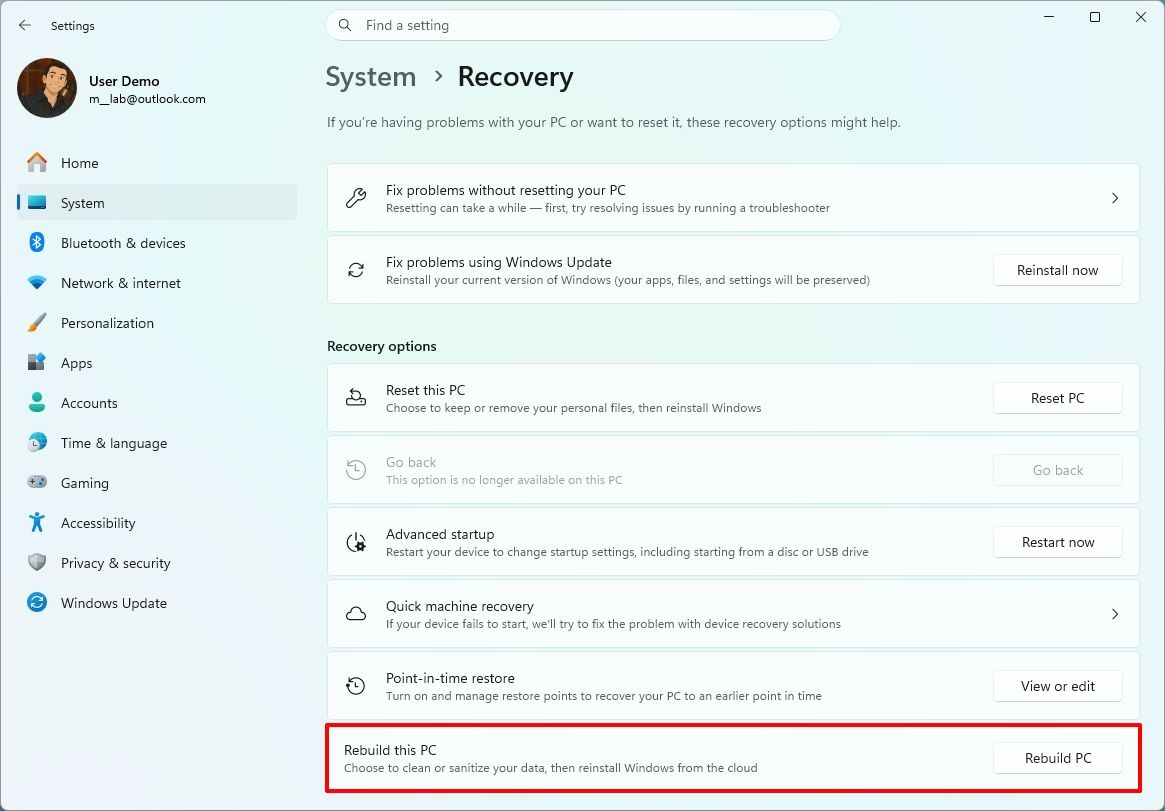
Build 26220.9739 for version 26H1 also adds a new "Rebuild this PC" entry point for Cloud Rebuild under Settings > System > Recovery, making the feature easier to find and access directly from the Settings app.
(Image credit: Mauro Huculak)
Search experience declutter
The Windows team has also simplified the Search home interface to reduce visual clutter and make recent searches easier to access.
Search results now show clearer source indicators, helping users distinguish between apps, settings, files, web results, and Microsoft Store suggestions before opening them.
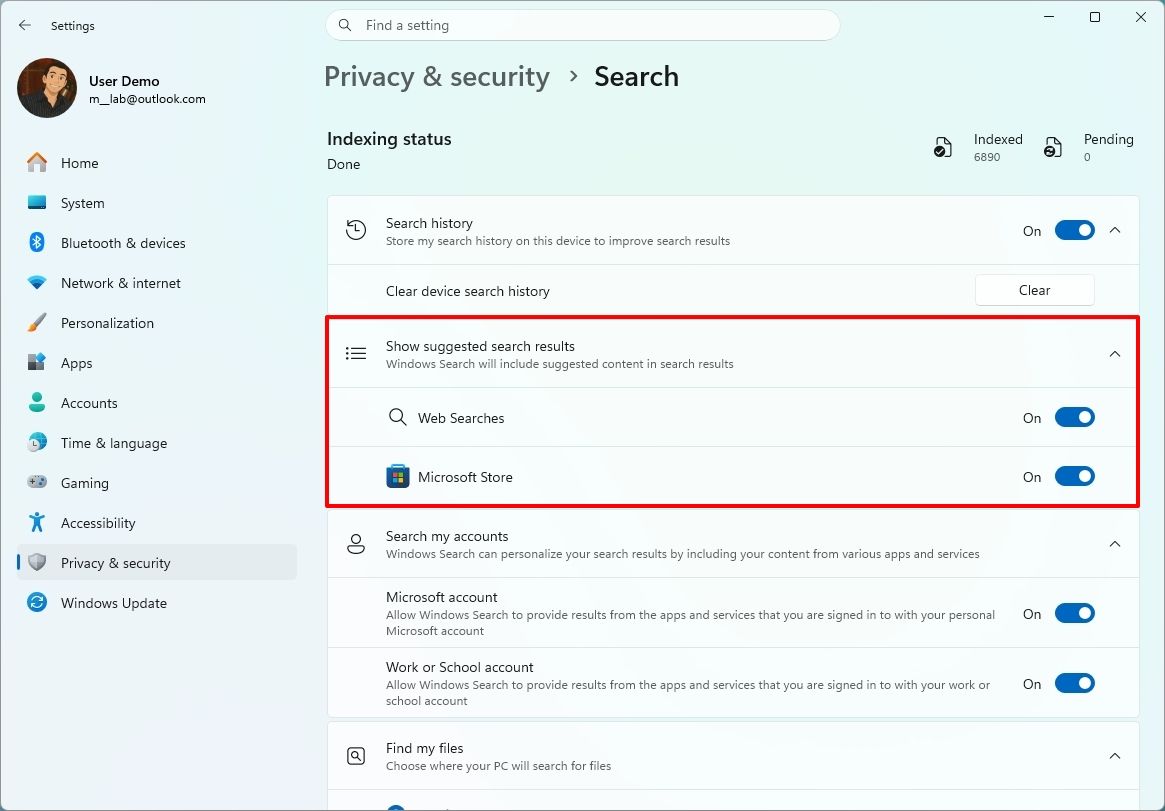
Finally, and perhaps more importantly, a new option under Settings > Privacy & security > Search also lets users choose whether web and Microsoft Store suggestions appear alongside local search results.
(Image credit: Mauro Huculak)
Although these improvements have been available in other builds, they became available for version 26H1 with the release of build 28020.3262.
Pointer Indicator accessibility feature
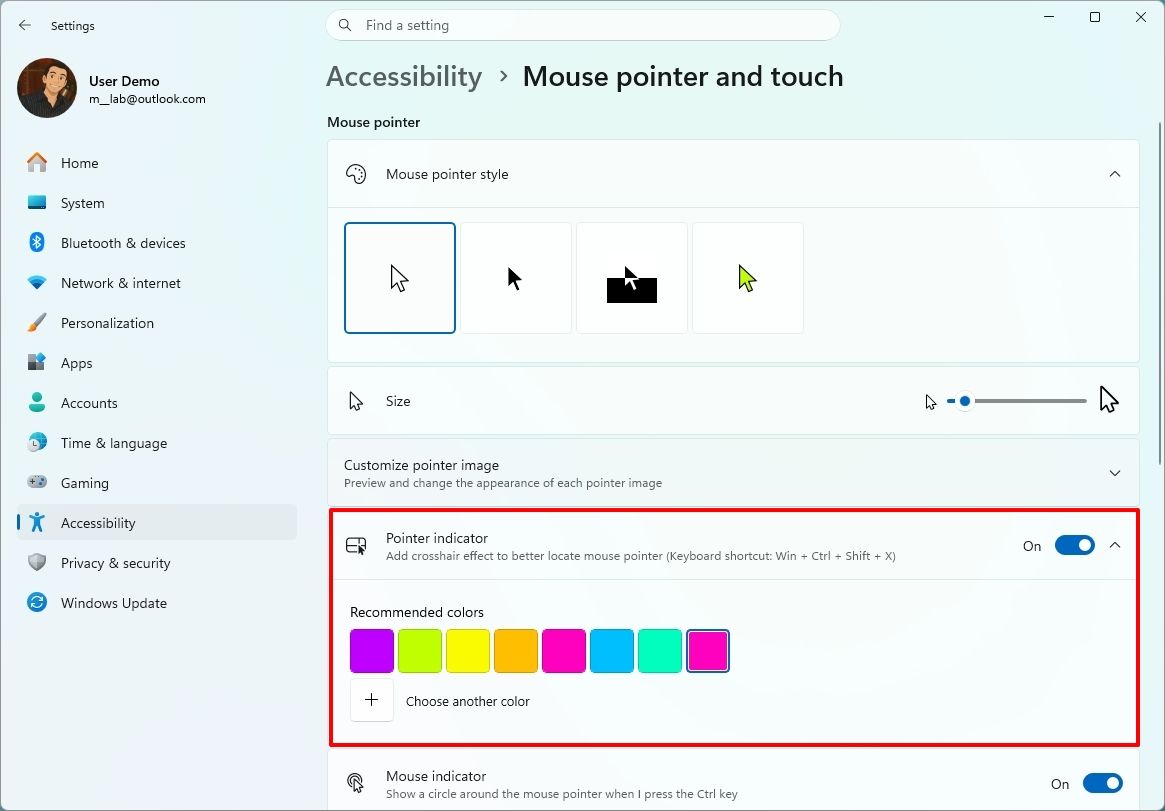
As part of the accessibility features in build 28020.3262, Microsoft introduced the Pointer Indicator to help users with low vision locate their mouse cursor more easily.
(Image credit: Mauro Huculak)
You can enable the feature under Settings > Accessibility > Mouse pointer and touch. Once enabled, users can toggle "Pointer Indicator" on or off using the "Windows key + Ctrl + Shift + X" keyboard shortcut.
Live Captions improvements
In build 28020.3262, the Windows team also added a new "Include Screen Reader audio" setting for Live Captions.
The option is turned off by default, preventing Live Captions from transcribing audio from screen readers such as Narrator, JAWS, and NVDA.
This keeps captions focused on microphone and system audio unless you choose to include screen reader audio.
Microsoft 365 billing interface built in
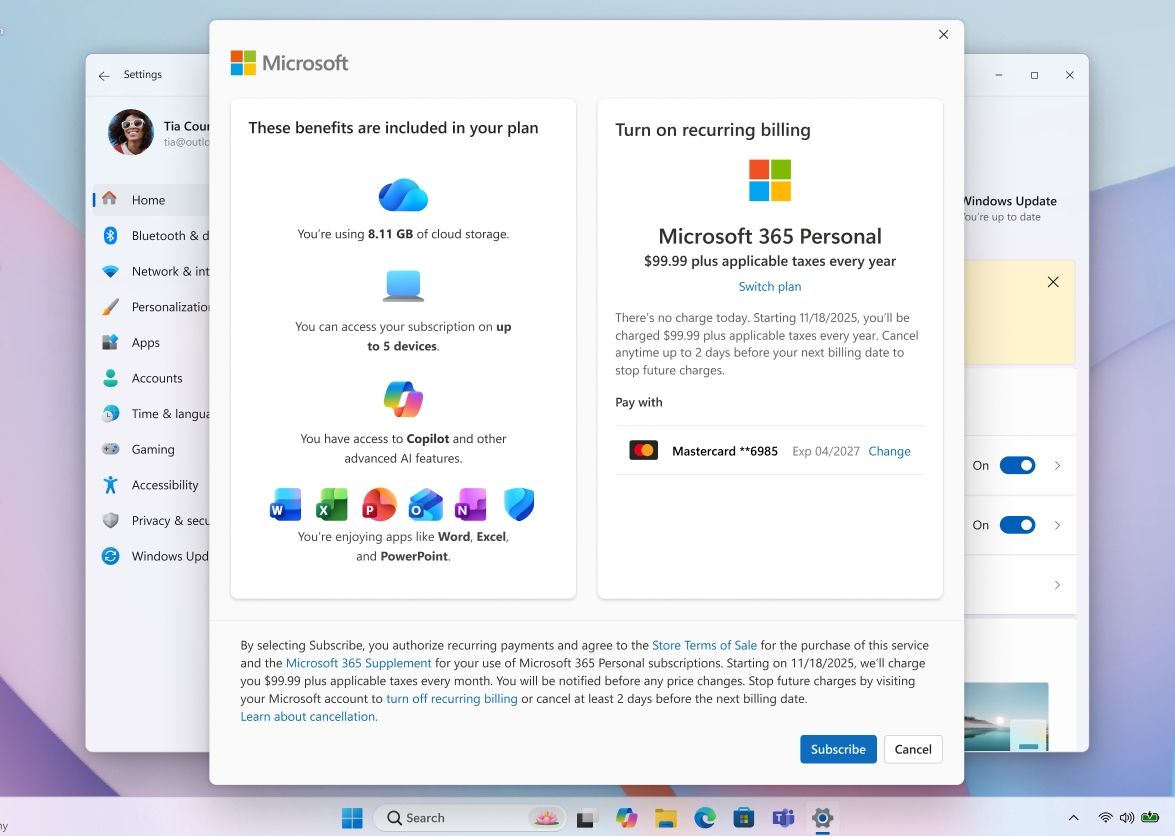
In a continued effort to make it easier to take your money, Microsoft is building a new native interface that allows Microsoft 365 subscribers to turn on recurring billing without having to open their account details in a web browser.
(Image credit: Microsoft)
Microsoft is testing this interface in build 26340.9767 through the Experimental channel.
Windows Central's Take
Microsoft is making some genuinely good decisions here. I'm particularly interested in the redesigned context menu, because giving users control over what appears when they right-click could finally address one of the most frustrating changes Microsoft introduced with Windows 11.
The new Start menu controls follow the same theme. Being able to resize Start, hide sections you don't use, and remove your profile information gives users more say over an interface Microsoft has kept surprisingly rigid. Per-app privacy permissions for traditional desktop applications are another meaningful improvement that Windows should arguably have offered much sooner.
Even the smaller additions make sense. I would rather run an internet speed test directly from Quick Settings than have Windows launch a browser, and automatically increasing screen brightness when Windows Hello needs help recognizing you is exactly the kind of subtle feature that can make Windows feel smarter without getting in the way.
I'm much less enthusiastic about Microsoft building a native interface for turning Microsoft 365 recurring billing back on. Windows 11 already spends plenty of time encouraging users to sign in, subscribe, or enable Microsoft services. I'd rather see Microsoft devote that attention to the unfinished and inconsistent parts of Windows itself.
Taken together, though, this is a promising batch of changes. The features I'm most excited about aren't flashy. They give users more control, remove unnecessary steps, and make familiar parts of Windows less frustrating to use. I want to see more of that.
Which of these Windows 11 changes would make the biggest difference on your PC? Let me know in the comments.
More resources
Explore more in-depth how-to guides, troubleshooting advice, and essential tips to get the most out of Windows 11 and 10. Start browsing here:
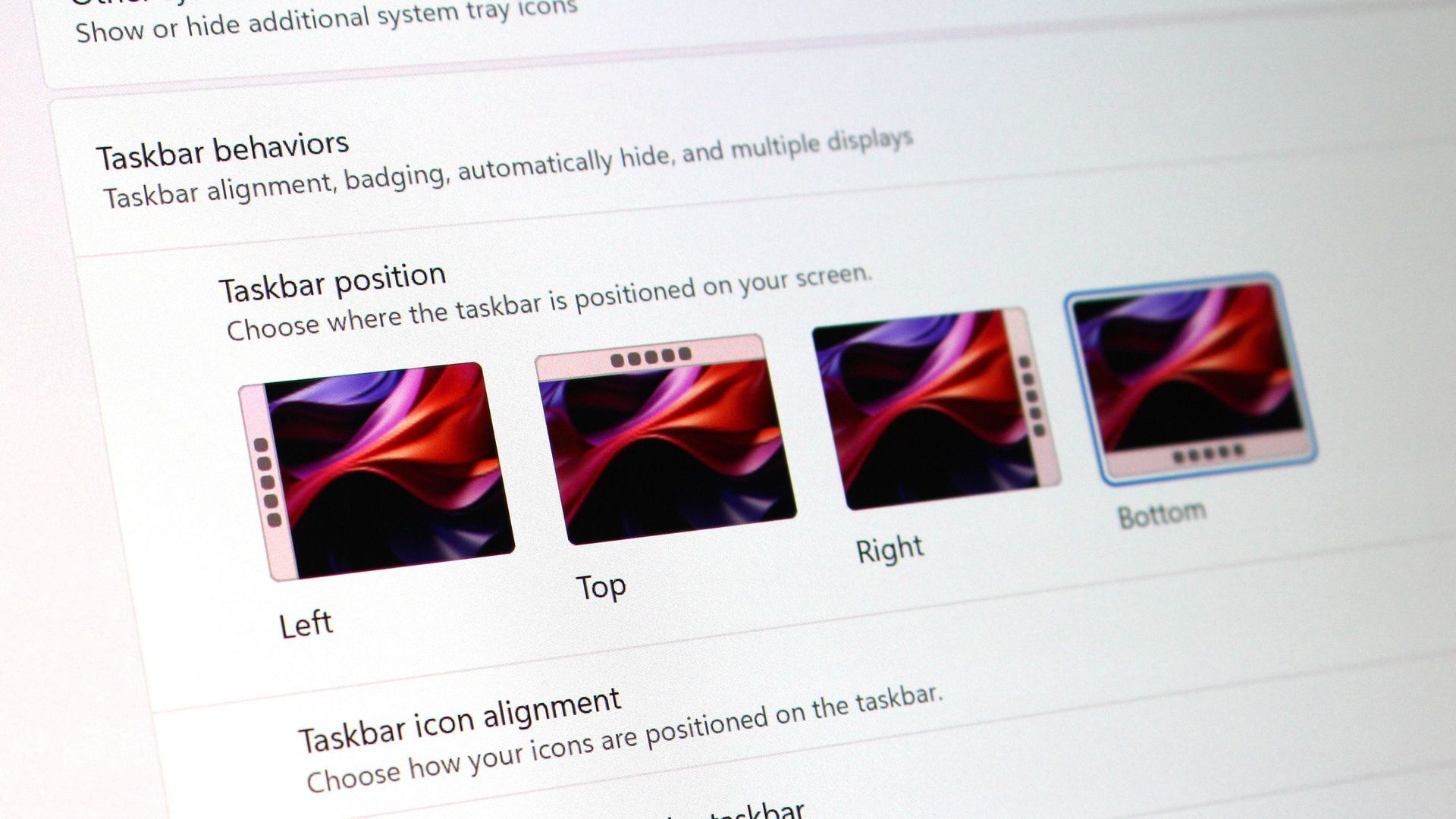
Microsoft has explained why you cannot drag the new movable Taskbar on Windows 11, a feature that was present on Windows 10 but failed to make the move to Windows 11 when it gained the ability to move the Taskbar earlier this year.
Vice President of Design at Microsoft, Diego Baca, explains that the inability to drag the Taskbar to move it is a "deliberate design decision," confirming that such behavior will not be coming to Windows 11 any time soon.
"From our research, dragging the taskbar to reposition it can lead to accidental movements, which is one of the reasons “Lock the taskbar” existed in previous versions of Windows," Baca said. "We also found that changing the taskbar position isn’t something people do frequently."
Baca continues: "We felt that providing a discoverable setting, just one right-click away, was a more intentional and predictable experience. It’s a deliberate design decision, not a missing capability."
The options for repositioning the Taskbar on Windows 11. (Image credit: Zac Bowden / Windows Central)
Microsoft is making it clear that the ability to drag and drop the Taskbar to move and resize it isn't coming to Windows 11, which I'm sure some long-time Windows users will be sad to hear. Baca says that most people don't move the Taskbar once they have placed it where they like, and so the ability to drag it to move it on the fly doesn't make much sense.
On Windows 10, moving the Taskbar was as simple as right-clicking it, unchecking "Lock the taskbar" and then dragging the Taskbar to your desired location. On Windows 11, it requires right-clicking the Taskbar, opening Windows Settings, then selecting your desired location within an app.
While not as straight forward as before, I agree that this method is tidier and reduces accidental movement that could sometimes occur when users unlocked the Taskbar on Windows 10 and forgot about it. You could also resize Windows 10's Taskbar by dragging the top of it, another feature that hasn't made the jump to Windows 11, likely for the same reasons.
It's good to see Microsoft being more open about why certain features aren't available on Windows 11. The company has made strides to be more transparent with fans and Insiders about design decisions and processes, and we love to see it.
Join us on Reddit at r/WindowsCentral to share your insights and discuss our latest news, reviews, and more.
Windows 11 and wallpapers go together like peanut butter and jelly. Many of our laptop reviews are met with comments asking about our wallpapers. Microsoft deals with the same fervor for images. I spent weeks trying to find the wallpaper shown off during the RTX Spark event.
Unfortunately, like the Jedi Archives, Microsoft's publicly shared collection of wallpapers is incomplete. The company has not shared that wallpaper from the RTX Spark event, but it has shared several images inspired by the Surface Laptop Ultra.
The official Microsoft Surface account shared a thread with a bunch of wallpapers. The collection includes an image that looks like an x-ray of the Surface Laptop Ultra, a rendering of the engineering to make that laptop, and some more abstract artwork inspired by the PC.
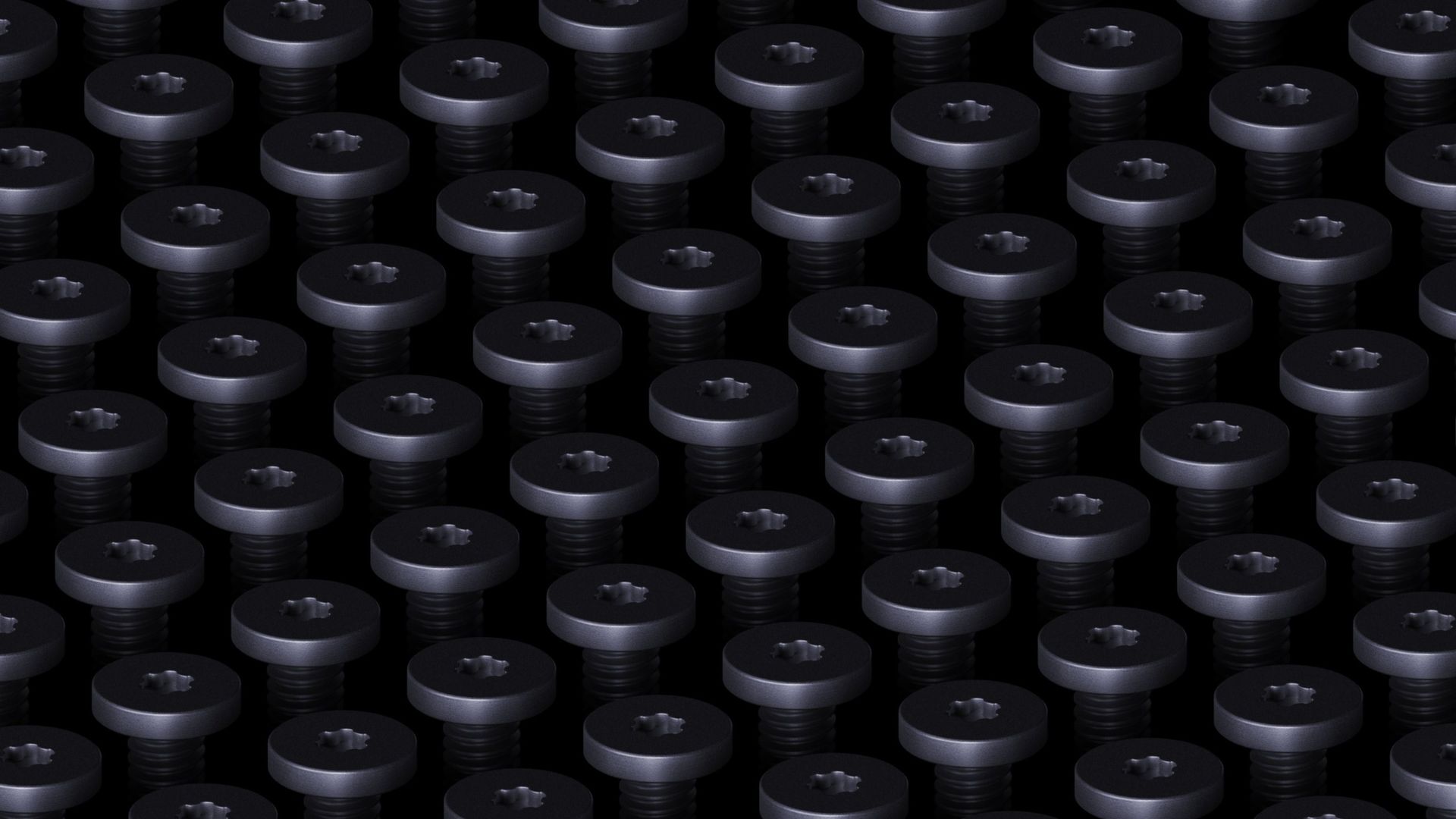
But one image immediately caught my eye. In the X post stating "It's all about the details," Microsoft shared an image of a grid of screws used in the Surface Laptop Ultra's construction.
As much as I love a good torque screw (side-eye at proprietary screws), that's not what drew my attention. What piqued my interest was that I first thought the image was the Galactic Senate from Star Wars. All it needs is a floating podium and an emergency powers vote.
Tell me I’m not the only one who saw the galactic senate at first.October 30, 2026
It turns out I'm not the only person whose brain jumped straight to Coruscant. My X post has drawn several replies and messages from people who saw the same thing.
I was tempted to make the headline of this piece something along the lines of "So this is how liberty dies, with glorious wallpapers," but I figured some people would not know the meme and assume I'm being negative.
For those who don't know, a famous scene from Star Wars Episode III sees Padmé Amidala watch the Senate cheer the rise of the Galactic Empire, prompting her famous line, "So this is how liberty dies... with thunderous applause."
In that scene, you'll see the senate chambers that Microsoft's new wallpaper resembles.
Star Wars jokes aside, the best way to download any of these wallpapers is to use the "Load in 4K" option on X. To do this, press and hold the image to bring up the share menu, then select "Load in 4K." This worked for me on iOS and I believe it's available on Android. As far as I can tell it is not an option on Windows or the web, so you'll have to grab the wallpaper from your phone and send it to your PC.
I quite enjoy the wallpapers shared by Microsoft and hope the company continues to release these types of images.
If you're similarly enthusiastic about the background of your desktop, you should check out the Microsoft Design website.
Join us on Reddit at r/WindowsCentral to share your insights and discuss our latest news, reviews, and more.
Microsoft Edge will soon launch faster on Windows 11 by using a feature no other browser has, at least for now. Accelerated app launch is a new feature on Windows 11 that streamlines the process of launching an app.
In the case of Edge, the browser sees a 15 percent launch speed improvement because of the feature. If you're multitasking heavily on your PC, the app could launch up to 33 percent faster.
The version of Edge with accelerated app launch support ships with the October 2026 non-security update for Windows 11. That update, known as KB5127936, is available now as an optional release. It also includes the updated context menu as well as Cloud Rebuild.
Accelerated app launch requires both the app and Windows 11 to work together. Since Edge is the built-in browser on Windows 11, it should come as no surprise that Microsoft first shipped the feature to Edge.
Without accelerated app launch, clicking a link to open Edge requires Windows to determine whether Edge is already running. Doing so requires Windows to start an intermediary process that looks around for an instance of Edge. Microsoft explains that you probably won't notice sluggishness during this process on a freshly booted PC, but that you can notice things slow down when multitasking.
Accelerated app launch sends a registration request to Windows when the browser is launched initially. Windows can then find that registration quickly the next time you launch Edge through a link.
Because of how the feature works, you'll only see those launch speed improvements after Edge has already been opened and is running in the background.
The feature works in the Start menu, Taskbar, and supported links that open in Edge by default.
Not a selling point for Microsoft Edge
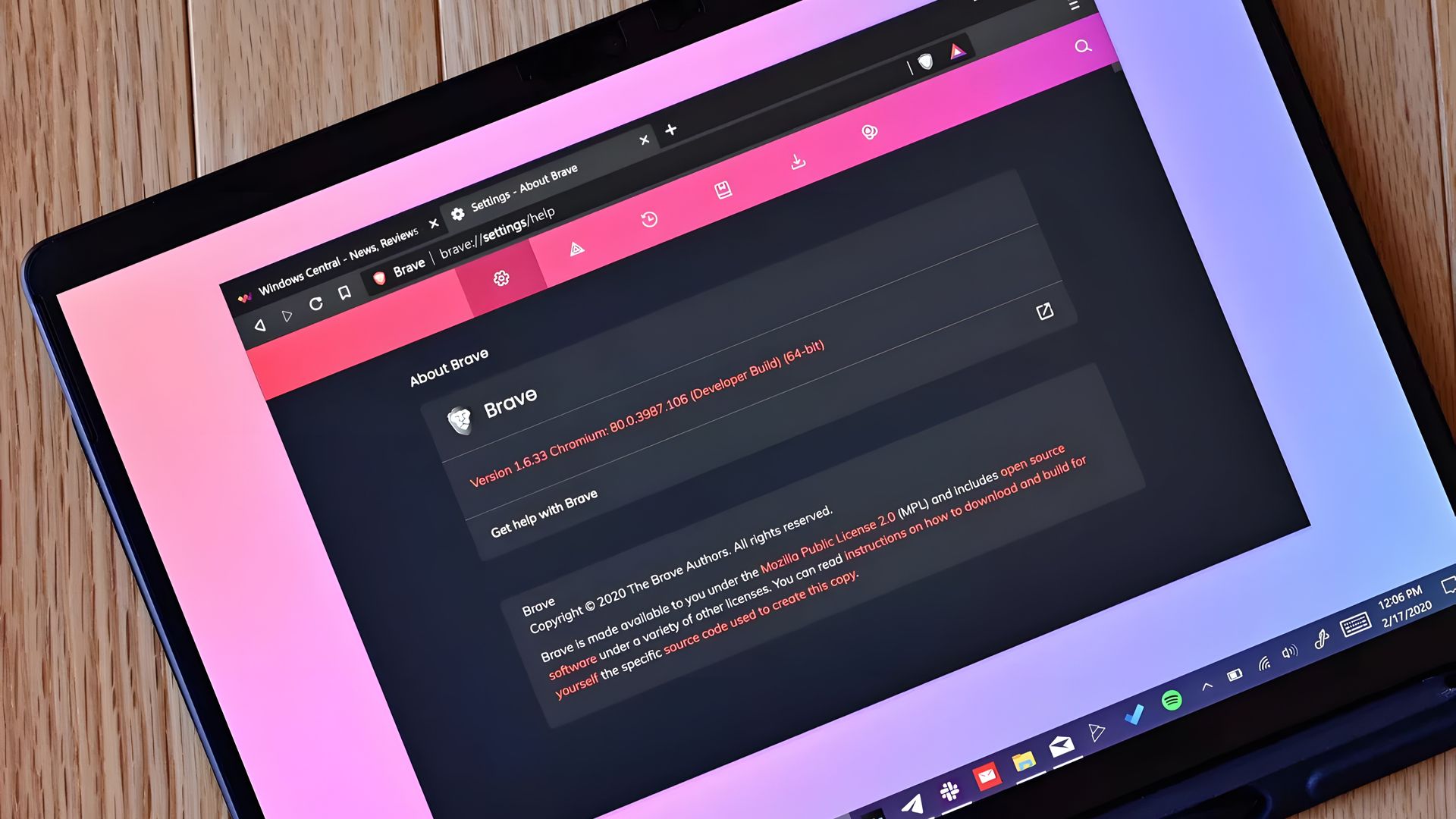
Microsoft is contributing the code for accelerated app launch to Chromium, so browsers such as Brave, Vivaldi, and Chrome can implement the feature. (Image credit: Windows Central)
Support for accelerated app launch is a nice addition to Edge, but it won't be a feature that convinces people to switch browsers. Microsoft is contributing its work related to the feature to Chromium, so other Chromium-based browsers can benefit from accelerated app launches on Windows.
As far as I can tell, there's nothing stopping non-Chromium browsers from doing the same thing, it would just require more work.
Microsoft is also working on opening PDF files using the feature.
So rather than an exclusive feature for Edge, accelerated app launch will help improve the overall Windows 11 experience by reducing how long it takes to open apps.
Join us on Reddit at r/WindowsCentral to share your insights and discuss our latest news, reviews, and more.
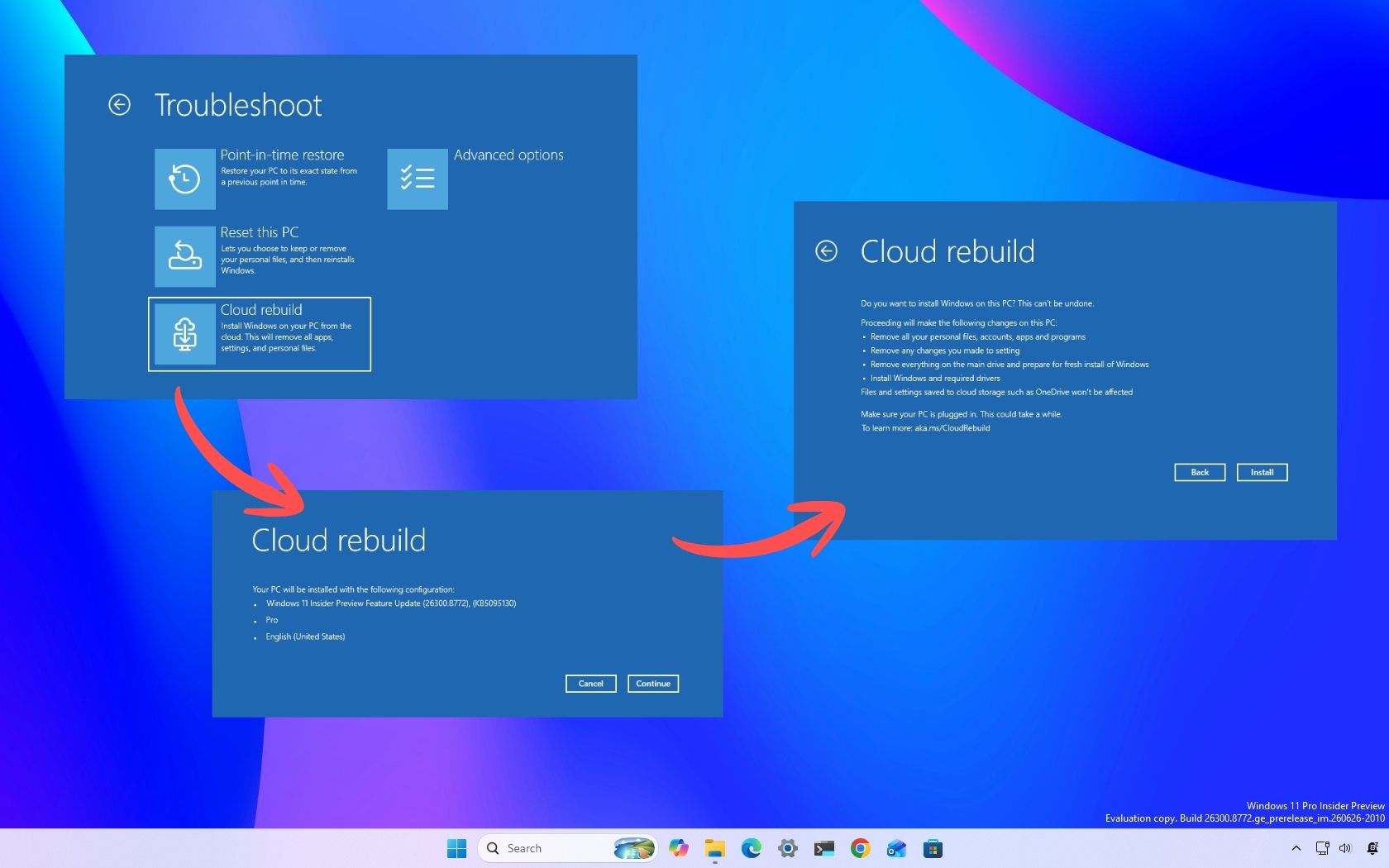
A new feature called Cloud Rebuild allows you to perform a full system reinstall for your Windows 11 PC without USB media or a custom image. The feature can even work without relying on the integrity of the currently installed operating system.
Cloud Rebuild downloads Windows and your device drivers, allowing for a seamless install.
The new feature is available through the latest non-security feature update for Windows 11, which is known as KB5127936. That update is available as an optional release. The feature should make its way to everyone relatively soon.
Windows 11 already included a Cloud Download recovery option, but Cloud Rebuild goes further by downloading both Windows and device drivers from Windows Update and by not relying on the integrity of the existing installation. Cloud Rebuild allows you to reinstall Windows 11 on a device that is unbootable.
Since Cloud Rebuild performs a full system reinstall, you should have all of your important files backed up before using it if at all possible. You also need to have your PC connected to the internet and plugged in to a power source while Cloud Rebuild runs.
For some users, Cloud Rebuild could eliminate the need to create recovery USB drives ahead of time, since Windows can now download the operating system and required drivers directly from Microsoft's servers when disaster strikes.
Because Cloud Rebuild is part of a gradual release, you may not see it right away. Going into the Windows 11 Settings app and enabling the toggle for "Get the latest updates as soon as they're available" will help you get the feature quicker, but does not guarantee you'll receive it right away.
Here's how Microsoft describes Cloud Rebuild in its release notes. You can also read more about the feature in Microsoft documentation.
Cloud Rebuild
New! This update introduces Cloud rebuild, a new recovery option that reinstalls Windows 11 using a Windows image and device drivers downloaded from Windows Update, including when Windows is unable to start. No USB media or custom image is required. Cloud rebuild includes:
Drive sanitization: Choose to remove your files or securely erase data using the storage hardware’s erase capability before Windows is reinstalled. Sanitization is irreversible.
Remote management: IT administrators can configure and start a Cloud rebuild remotely through the Recovery CSP using either the currently installed build or a specified target build.
To start Cloud rebuild:
In Windows, go to Settings > System > Recovery, and then select Rebuild PC. The device restarts into the Windows Recovery Environment and starts Cloud rebuild.
Alternatively, if Windows can't start, the device enters the Windows Recovery Environment automatically after repeated boot failures. From the Windows Recovery Environment (WinRE), select Troubleshoot > Recovery and uninstall > Cloud rebuild.
Connect to a wired Ethernet or Wi-Fi network.
Review the target Windows build, edition, and language, and then confirm the data loss warning before the rebuild begins. You can choose whether to remove files or remove and sanitize files prior to Windows reinstalling.
Join us on Reddit at r/WindowsCentral to share your insights and discuss our latest news, reviews, and more.

 Connexion