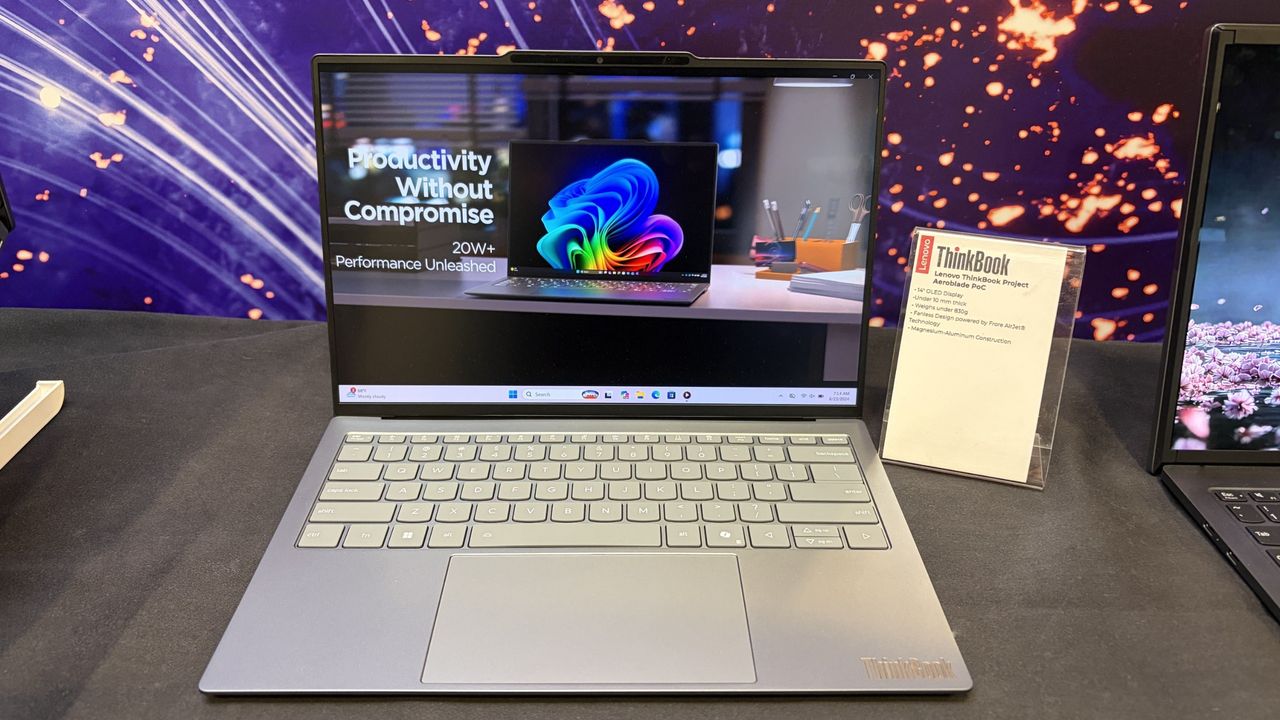
CES 2027 is almost here, and Windows Central is officially joining the Best of Show Awards at CES 2027 to recognize the most exciting PCs, gaming hardware, components, accessories, and innovations heading to Las Vegas.
If your company is bringing something new to CES 2027 that deserves the attention of the Windows Central editorial team, we want to see it.
The Windows Central Best of Show CES 2027 Awards will recognize the products and technologies that rise above a huge field of new hardware. That could mean an exceptional laptop, a groundbreaking gaming device, next-generation PC silicon, a clever accessory, or an ambitious new idea that pushes its category forward.
Here's how to make sure your product is in the running.
How to enter the Windows Central CES 2027 Awards
Products entered for consideration must be new or materially updated since CES 2026 and have a presence at CES 2027.
Entries close December 10, 2026, so manufacturers and PR representatives should submit eligible products as soon as possible.
Each entry costs $300 and requires information about the exhibiting company and nominated product, including a product image, URL, and a description of up to 750 words detailing the product and its innovation.
Companies can submit more than one product, with no limit on the number of eligible entries.
CES 2027 Awards entries at a glance
Entries close: December 10, 2026
Entry fee: $300 per entry
Eligibility: Products must be new or materially updated since CES 2026 and have a presence at CES 2027
Winners announced: January 6, 2027
Multiple products: Companies may submit multiple eligible products
What products is Windows Central looking for?
Windows Central covers the technology at the heart of the modern PC ecosystem, with a particular focus on Windows PCs, laptops, PC gaming, processors, graphics, displays, accessories, and the innovations pushing these categories forward.
We're looking beyond specifications and marketing claims for products that distinguish themselves through design, performance, functionality, value, innovation, or a genuinely new approach to an existing category.
Areas we're particularly interested in for CES 2027 include:
Best Innovation — A product, technology, or concept that meaningfully pushes its category forward.
Best Laptop — An outstanding new portable PC with the design, performance, features, or overall experience to stand apart.
Best Gaming Laptop — The gaming laptop that impresses us most through performance, design, display technology, features, or a combination of them all.
Best Business Laptop — A standout PC designed for professionals and the modern workplace.
Best Desktop PC — From gaming towers to innovative all-in-one systems, the desktop that catches our editors' attention.
Best Mini PC — Small PCs that deliver an exceptional combination of performance, design, connectivity, or versatility.
Best Gaming Handheld — The most impressive new portable gaming device or major advancement in handheld PC gaming.
Best CPU — The processor technology that stands out most among the new silicon shown at CES.
Best GPU — New graphics hardware that pushes PC gaming, computing, or creative performance forward.
Best PC Component — Motherboards, memory, storage, cooling, power supplies, and other hardware worthy of recognition.
Best Display — Exceptional monitors and display technologies for productivity, creativity, or gaming.
Best Gaming Accessory — Controllers, keyboards, mice, headsets, and other hardware that makes playing on PC or Xbox better.
Best PC Accessory — Docks, webcams, peripherals, and other gear that meaningfully improves the PC experience.
Best AI Innovation — Hardware or software that demonstrates a genuinely useful or innovative application of AI.
Best Concept — The experimental hardware, prototype, or forward-looking idea that gives us the most compelling glimpse of what could come next.
These categories aren't exhaustive. Windows Central's editors may add, combine, or adjust awards based on the products and technologies we encounter at CES 2027. CES has a habit of producing devices nobody saw coming, and we want room to recognize them.
What makes a Windows Central CES award winner?
We're looking for products that give us a reason to stop, take notice, and want to know more.
Sometimes that's a major technological breakthrough. Sometimes it's exceptional execution: a laptop with a fantastic design, a gaming device that meaningfully improves the experience, impressive new silicon, a clever accessory that solves a real problem, or a new form factor that suddenly makes an unusual idea seem obvious.
Not every great product needs to reinvent its category. Execution matters just as much as ambition.
CES is also one of the year's great showcases for experimental technology. That's why we're interested in concepts and prototypes alongside products headed to store shelves. Today's strange CES experiment can sometimes offer an early glimpse at the PCs and gaming hardware we'll be using years from now.
Why enter the Windows Central CES 2027 Awards?
Every eligible entry gives the Windows Central editorial team an opportunity to see what your company is bringing to CES before the show begins.
Our editors may contact entrants ahead of or during CES to arrange an in-person demonstration, giving us the opportunity to experience nominated products for ourselves.
Winners will receive an official Best of Show at CES 2027 trophy and will have the opportunity to license the official digital award winner's badge for use in brand marketing.
Most importantly, entering puts your product in front of the Windows Central team as we search CES for the hardware and innovations that deserve recognition.
The deadline for CES 2027 Best of Show entries is December 10, 2026.
Don't wait until we're walking the show floor in Las Vegas. If you've built one of the year's most interesting new PCs, components, gaming devices, accessories, or technologies, we want to see it.
Enter your product for the Windows Central Best of Show CES 2027 Awards
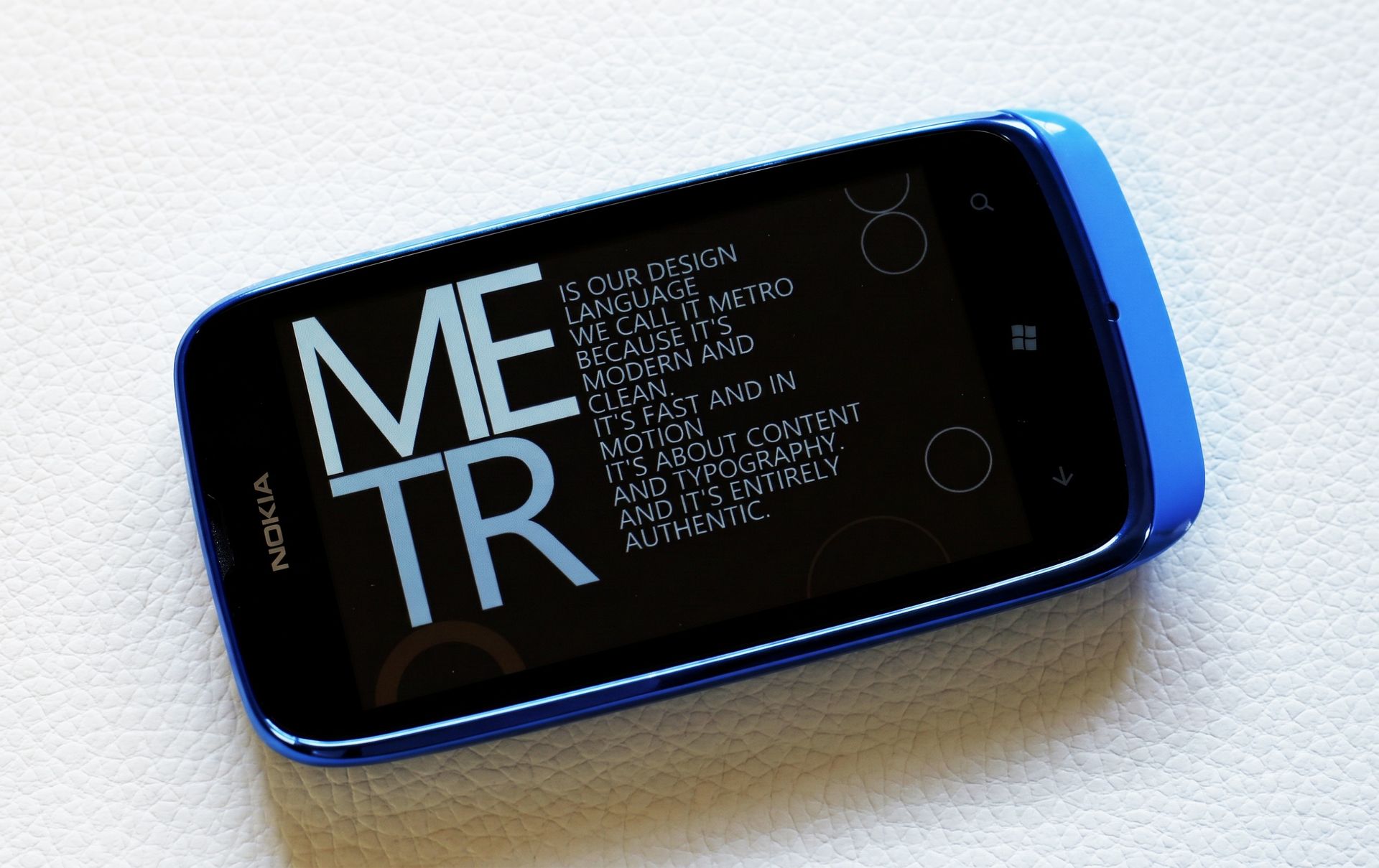
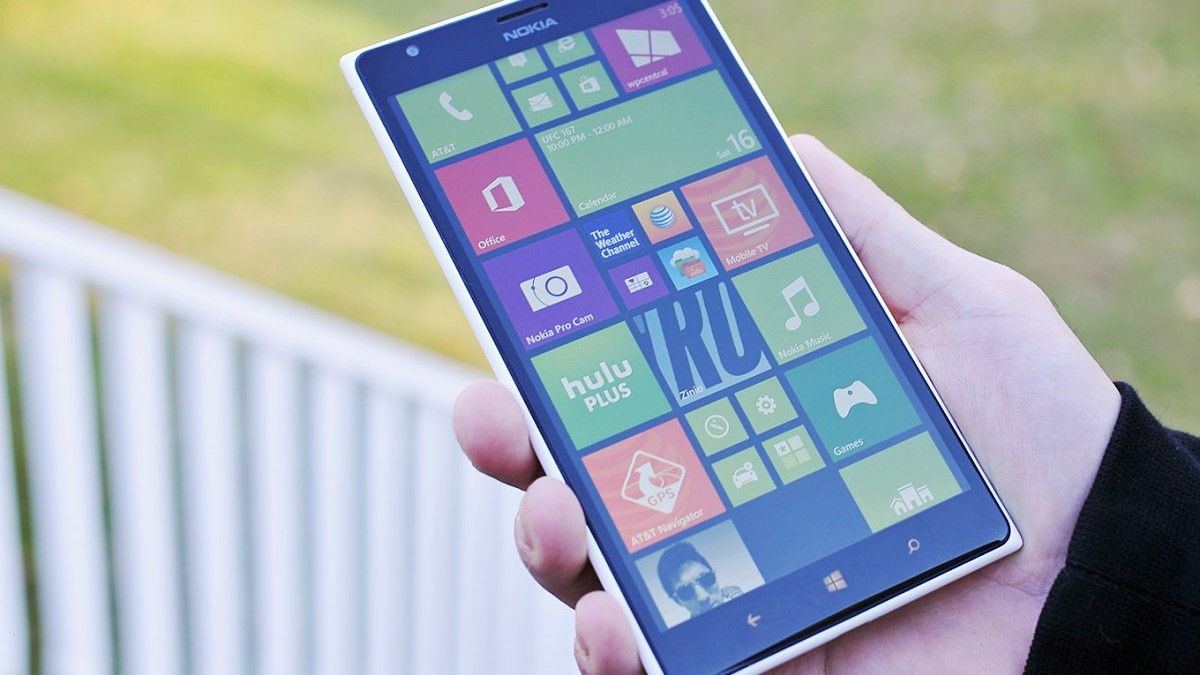
For anyone who lived through the Windows Phone era, Metro (later called Modern UI) was more than Microsoft's latest design language. It was a statement.
Microsoft spent years being accused of following the rest of the technology industry, but with Metro, the company took a very different path. Typography became part of the interface. Content pushed aside ornamental chrome. Motion wasn't simply decoration. Even the edges of the screen became part of the experience, with text and imagery deliberately disappearing beyond them to suggest that there was more waiting for you.
It was bold, occasionally divisive, and absolutely Microsoft.
Now, nearly two decades after some of those ideas started taking shape, my longtime acquaintance David V. Kimball has made what I believe may be the first truly definitive documentary about where Metro came from, the people responsible for it, and how its influence spread across Microsoft.
And after watching the teaser and following this project as David has worked on it over the years, I think it finally gives this fascinating era of Microsoft history something it has never really had: closure.
The story of Metro, told by the people who built it
As noted in the video description, the documentary traces Microsoft's evolving design ambitions from Encarta and Media Center through Zune, Windows Phone, Windows 8, Xbox, and beyond.
More importantly, David went directly to the people who were there.
The documentary includes conversations with Bill Flora, Thamer Abanami, Joe Belfiore, J Allard, Thomas Markert, Ben Rudolph, Laura Butler, Alfred Astort-Tubert, Bill Buxton, Jez Corden, and Rob Tiffany, among others, and I think that's a huge deal.
Metro's history has often been told backward, through the commercial failure of Windows Phone and the backlash surrounding Windows 8. It's easy to look at how everything ended and reduce the entire movement to Live Tiles, a Start screen people argued about, and Microsoft's ultimately unsuccessful attempt to build a third mobile ecosystem.
But that's an incomplete version of what happened.
Metro represented something much larger inside Microsoft. It was an attempt to establish a distinct design philosophy that could stretch across devices and experiences, influencing Zune, Windows Phone, Xbox, Windows 8 and, eventually, products such as Microsoft Band and HoloLens.
For a while, Microsoft actually had something exceedingly rare in technology: a design language you could recognize almost immediately without seeing a logo.
Six years of digging through Microsoft's design history
(Image credit: Daniel Rubino)
I've known David going all the way back to the Windows Phone days, which makes seeing this documentary finally come together particularly satisfying.
This has been an on-again, off-again passion project for him for roughly six years. More than simply collecting memories about Windows Phone, he has spent that time assembling the larger story and tracking down material from Microsoft's design history that most of us have never seen.
David tells me he has early concept material for Zune, Media Center, and Windows Phone that he isn't sure has ever been made public, alongside the interviews that form the backbone of the documentary.
That archival material could make the documentary particularly special.
Tech history has a habit of preserving finished products while losing the messy creative process that produced them. We remember what shipped. We don't necessarily get to see the experiments, discarded concepts, arguments, influences, and people behind those decisions.
Metro deserves that treatment because, successful or not, Microsoft's designers were taking a genuine risk.
Finally, some closure
(Image credit: Microsoft)
That's ultimately what makes David's documentary so compelling to me.
Nearly 90 minutes devoted to Metro might sound excessive to anyone who wasn't there. For those of us who watched this design language spread across Microsoft's products, saw the excitement surrounding Windows Phone, and then watched much of it come crashing down, it feels overdue.
There are plenty of stories about why Windows Phone failed and why Windows 8 became so controversial.
There have been far fewer opportunities to hear the story from the passionate designers and product people who actually tried to build Microsoft's alternative vision of what modern computing should look like.
They deserve credit for taking that chance.
And almost two decades after those ideas began coalescing inside Microsoft, I'm glad someone finally took the time to preserve their story.
David V. Kimball's Metro UI documentary premieres on YouTube on Friday, November 20, at 1 p.m. Pacific / 4 p.m. Eastern / 9 p.m. UK.
Join us on Reddit at r/WindowsCentral to share your insights and discuss our latest news, reviews, and more.
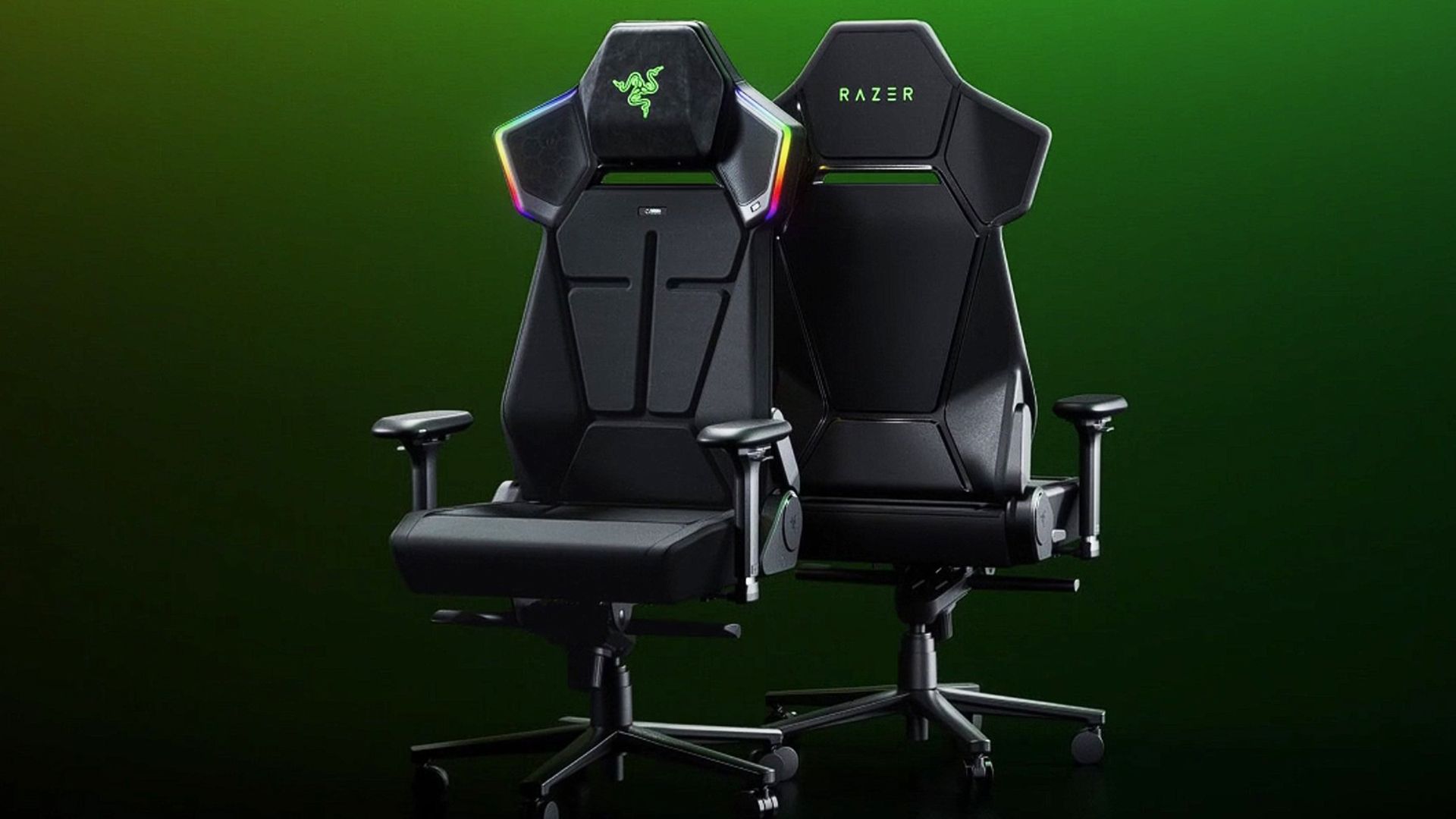
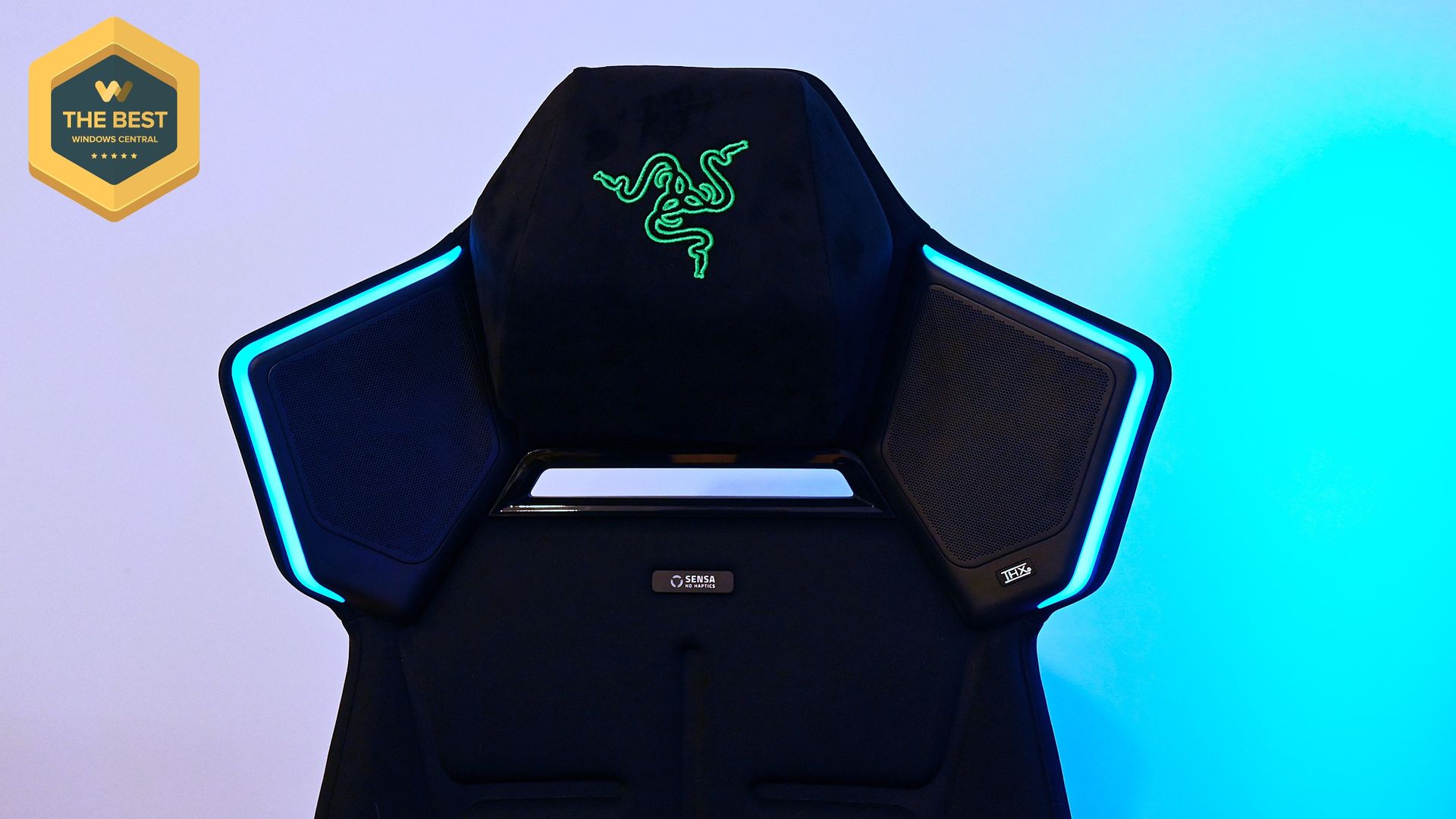
Well, they finally did it. Gaming chairs have been more or less the same idea for years: make them comfortable, make them adjustable, slap some suitably aggressive styling on them, and call it a day. Razer has been teasing something considerably more ambitious for years, culminating in Project Madison at CES 2026 in January. The concept was basically a chair that became part of the game itself, combining haptics, surround sound, and RGB lighting into one ridiculous-looking package.
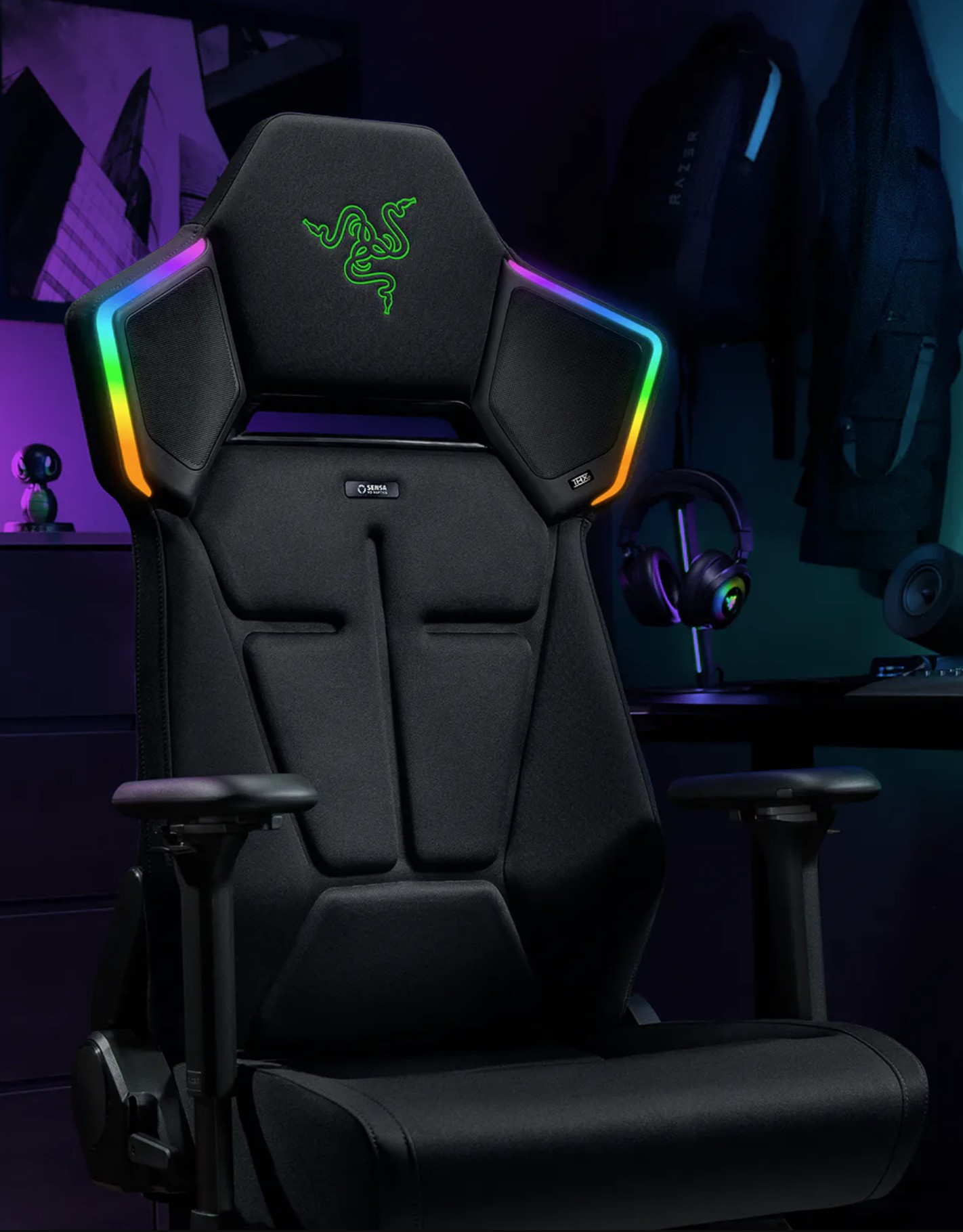
Now that concept is something you can actually buy. The $999 Razer Soma Pro takes everything I liked about the recent Soma Chroma and crams six Sensa HD haptic motors, integrated THX Spatial Audio, Chroma RGB, and some genuinely useful hardware upgrades into it.
After using it for games, movies, music, and even my daily Google Meet calls, I'm kind of amazed Razer actually pulled this thing off. Even more surprising? I thought it would cost a lot more.
Razer had no input, nor did it see the contents of this review, prior to publication.
Razer Soma Pro: Pricing and setup
(Image credit: Razer)
Let’s get the obvious thing out of the way: Yes, the Razer Soma Pro costs $999.
That is a lot of money for a gaming chair. But before my briefing, we were guessing internally that this thing would land somewhere around $1,400. When Razer revealed that it was squeezing under $1,000, my reaction was basically, “Oh, that’s actually not bad.”
Hear me out.
Razer’s Freyja haptic cushion (see our review) costs $299 by itself. The Soma Chroma is $499. Now add integrated THX Spatial Audio speakers, Chroma RGB, six haptic motors, 4D armrests, a powder-coated aluminum alloy wheelbase, and a few other upgrades. Understanding that, $999 starts to make a lot more sense.
Assembly was also shockingly painless. It took me about 25 minutes, with screws conveniently pre-installed halfway and everything packaged and presented extremely well. Razer even includes its little cloth installation gloves, which are unnecessary but always a nice touch.
You can watch the video above, which I didn't have access to during my review, so you're lucky you.
My sole complaint was connecting the haptics in the seat to the upper chair. The instructions basically show two wires connecting (drawing). Unfortunately, one cable is hidden inside the rear pouch, and the tiny four-pin connector needs to line up just right. That part took far more swearing than building the rest of the chair.
Still, a chair this complex and it's easy to set up? A win for Razer's engineers.
Razer Soma Pro: This is what Soma was building toward
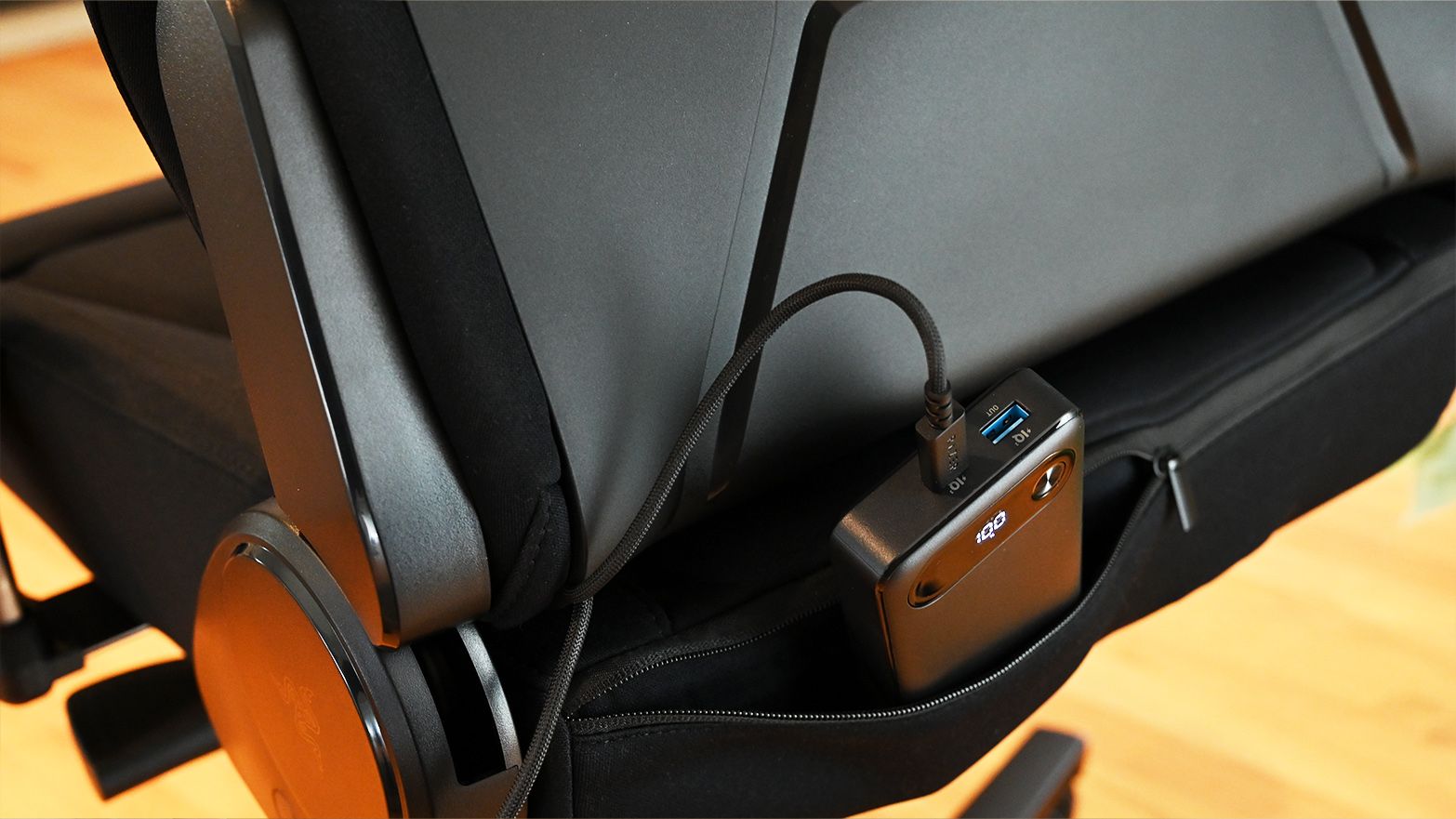
A hidden rear pouch lets you power the Soma Pro from a USB-C battery pack for a completely untethered setup. (Image credit: Daniel Rubino)
Physically, the Soma Pro should look familiar if you read my Soma Chroma review. And that’s a good thing.
The fabric-covered chair uses the same dual-density, cold-cured foam concept it is extremely comfortable for long gaming and working sessions.
I still prefer the Razer Iskur V2’s excellent adjustable lumbar system, though. The Soma Pro uses a fixed built-in lumbar arch, likely because stuffing haptic hardware throughout the backrest complicates matters. It works, but I miss the Iskur’s flexibility.
Everything else feels like Soma turned up another level. You get 4D armrests instead of 2D, a nicer aluminum alloy base (vs. steel), a frog tilt mechanism (vs. butterfly), and my favorite small improvement: a magnetic head cushion.
It’s genius. There’s no ugly strap. You just stick it to the chair and slide it up or down. Done. Why has no one done this before?
The Soma Pro is hefty at 63.3 pounds, although I managed to take mine from the garage up the stairs in my split-level house without destroying a wall or pulling my back, so make what you will of that.
Razer Soma Pro: The haptics are the star
Six Sensa HD haptic motors turn the Soma Pro from a comfortable chair into something you can actually feel games through. (Image credit: Daniel Rubino)
The easiest way to describe the Soma Pro is that Razer basically built Freyja into Soma.
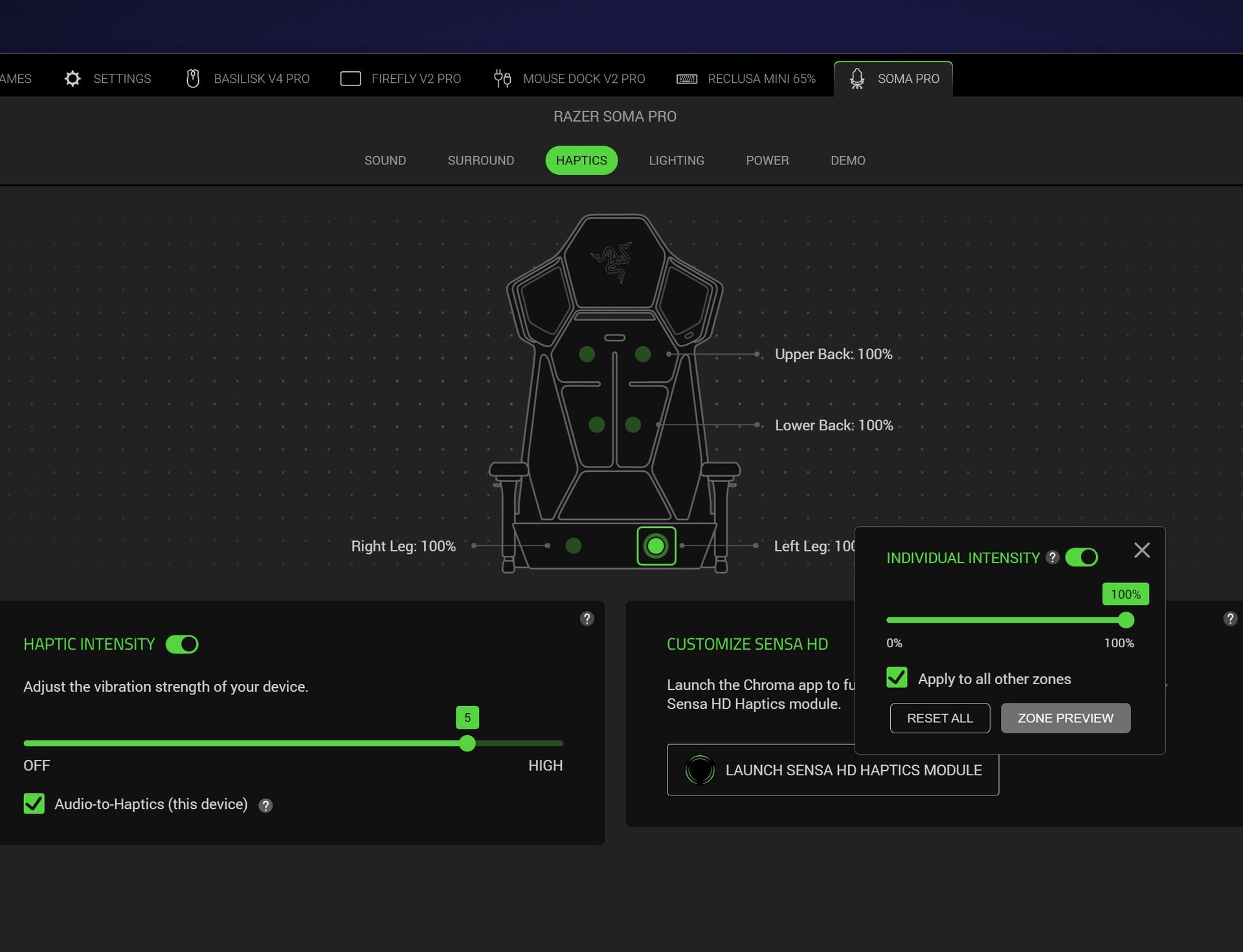
Six Sensa HD haptic motors are spread across four zones, with four actuators behind your back and another two underneath your thighs. You can adjust each zone independently in Synapse or change everything together.
I mostly ignored the fine-tuning and set the overall intensity to five out of six.
Let me tell you: this thing is a real butt rumbler.
The difference with native Sensa HD games is that effects can be deliberately mapped to what's happening. During my testing, Marvel Rivals demonstrated how these directional effects can move around the chair rather than feeling like somebody simply bolted a giant rumble motor underneath you.
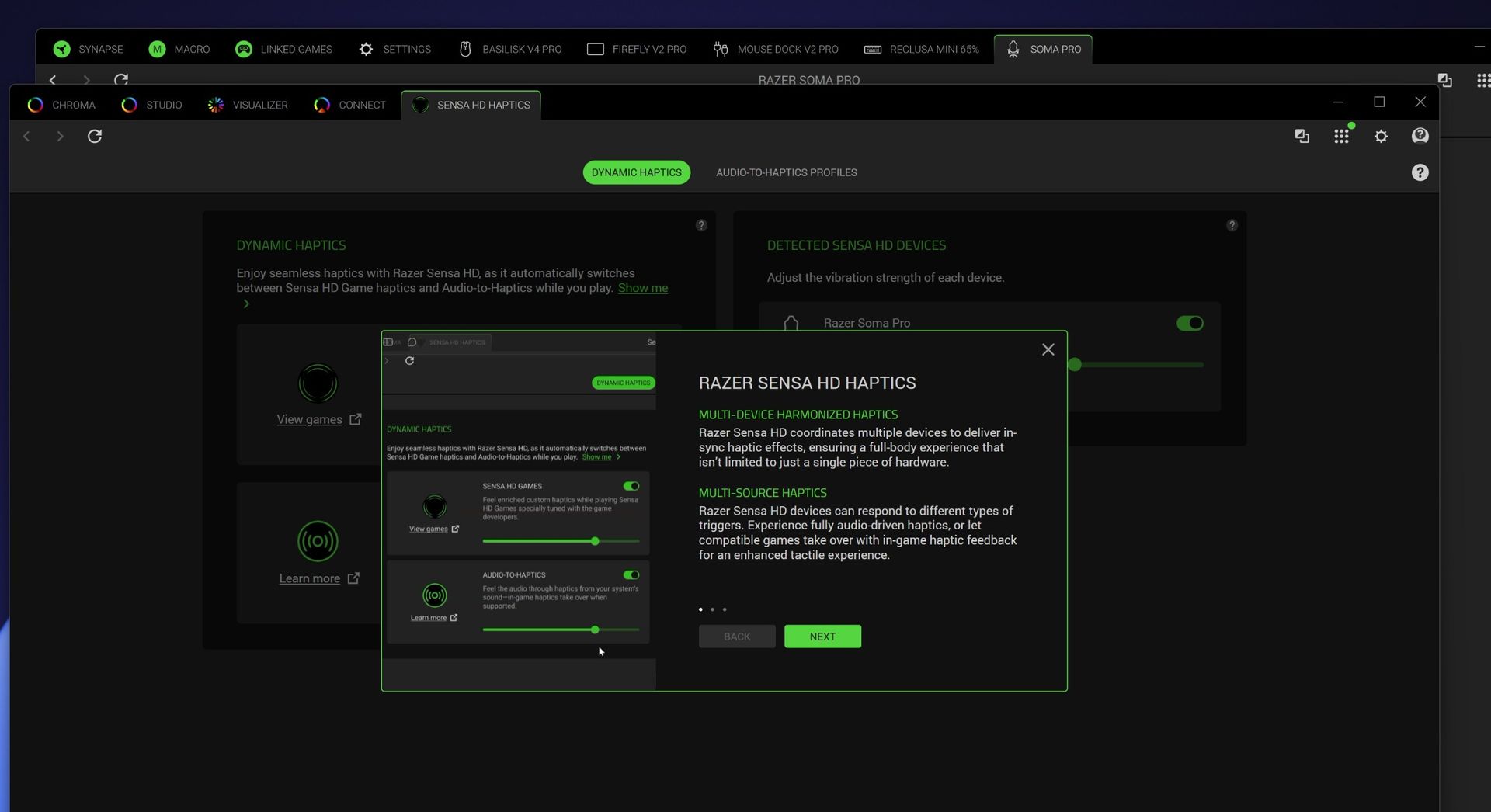
Razer Synapse software screenshot displaying Sensa HD Haptics settings for the Razer Soma Pro with an informational pop-up on multi-device haptics (Image credit: Daniel Rubino)
But Audio-to-Haptics might be my favorite feature because it dramatically expands what you can use the hardware with. The system analyzes regular audio and translates appropriate moments into physical feedback. Movies, trailers, music, and games without native Sensa support can all make the chair react.
Screenshot of Razer Synapse software showing the Soma Pro haptic controls and settings. (Image credit: Daniel Rubino)
I spent time playing Deep Rock Galactic: Survivor, which certainly wasn't the carefully prepared demo environment Razer used to sell me on the technology. It didn't matter. Between the audio, haptics, and the rest of my Chroma gear flashing along around me, I was just sitting there thinking: This freaking rules.
Razer Soma Pro: Wait, the speakers are actually great
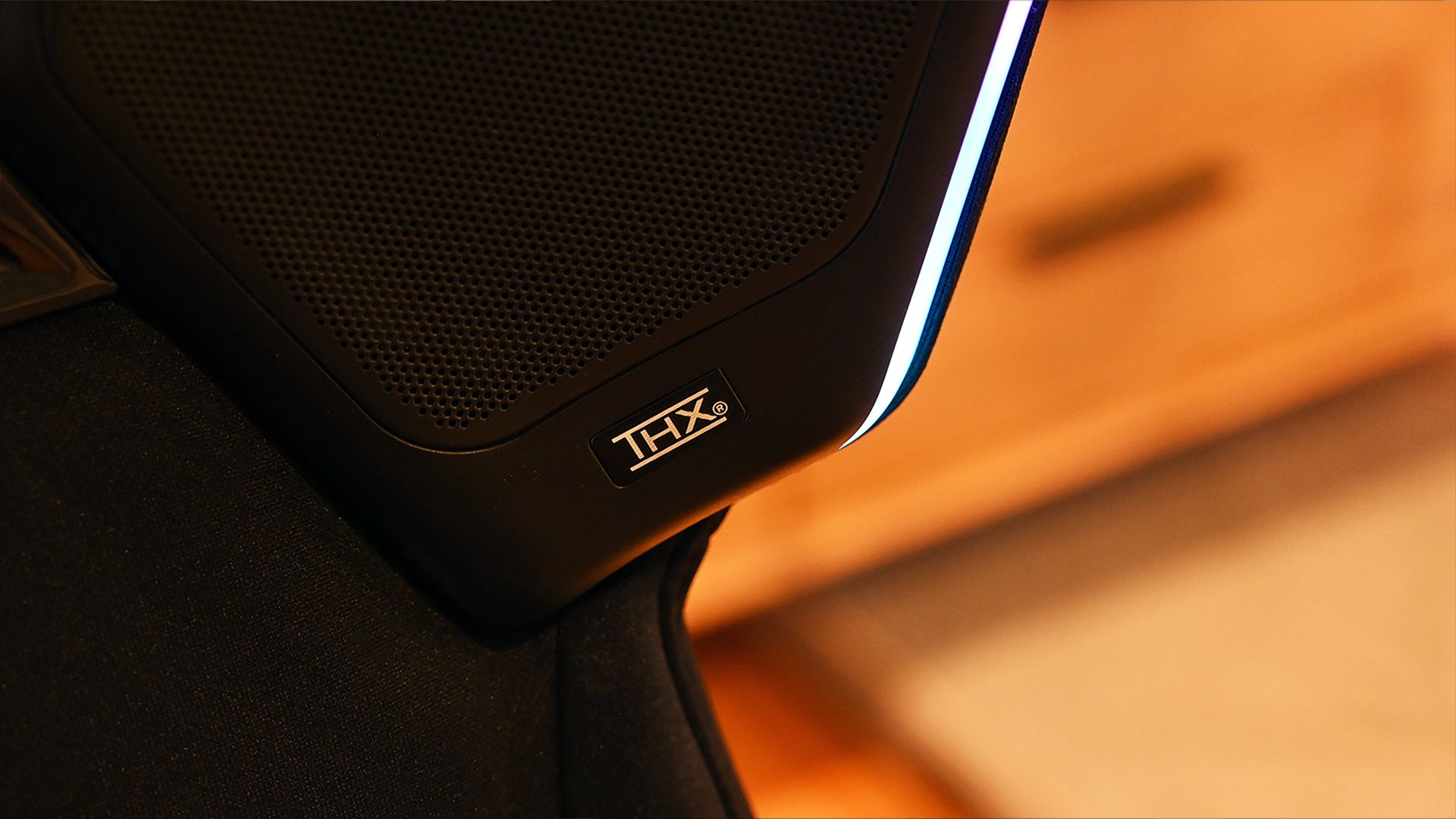
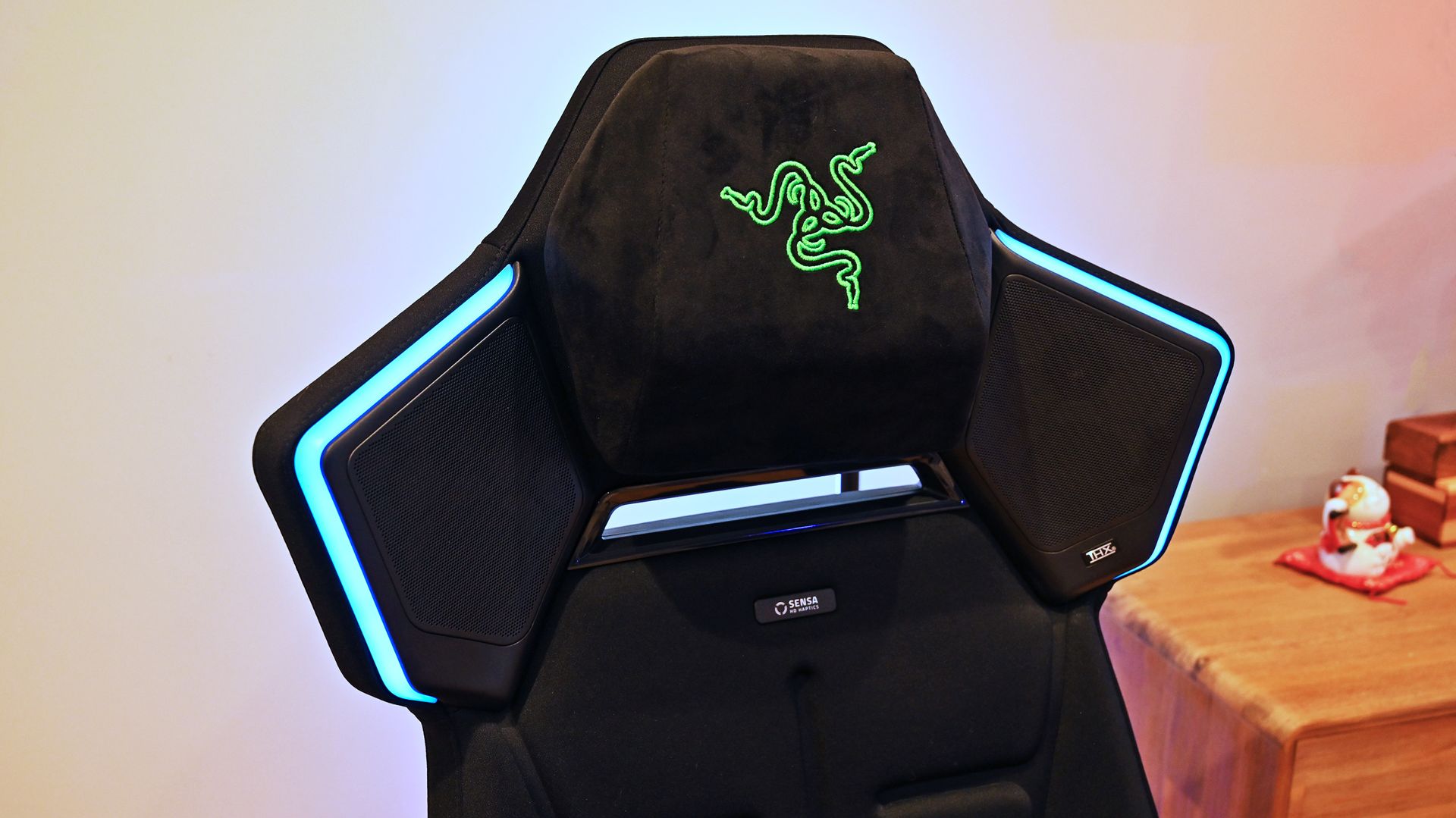
Built-in THX Spatial Audio speakers were one of my biggest surprises, sounding great even without separate desktop speakers. (Image credit: Daniel Rubino)
The biggest surprise might be the speakers.
The RGB “wings” from Soma Chroma make considerably more sense on the Pro because they now house the THX Spatial Audio system. Used by themselves, the speakers are almost like wearing really good open-ear headphones. Audio sits around you without isolating you from the room.
They’re good enough that I’ve even been using them for my daily Google Meet calls, which is a bit hilarious.
Things get seriously interesting when you already have desktop speakers. Synapse lets the Soma Pro work as the rear portion of a larger surround setup, with your existing speakers handling the front channels.
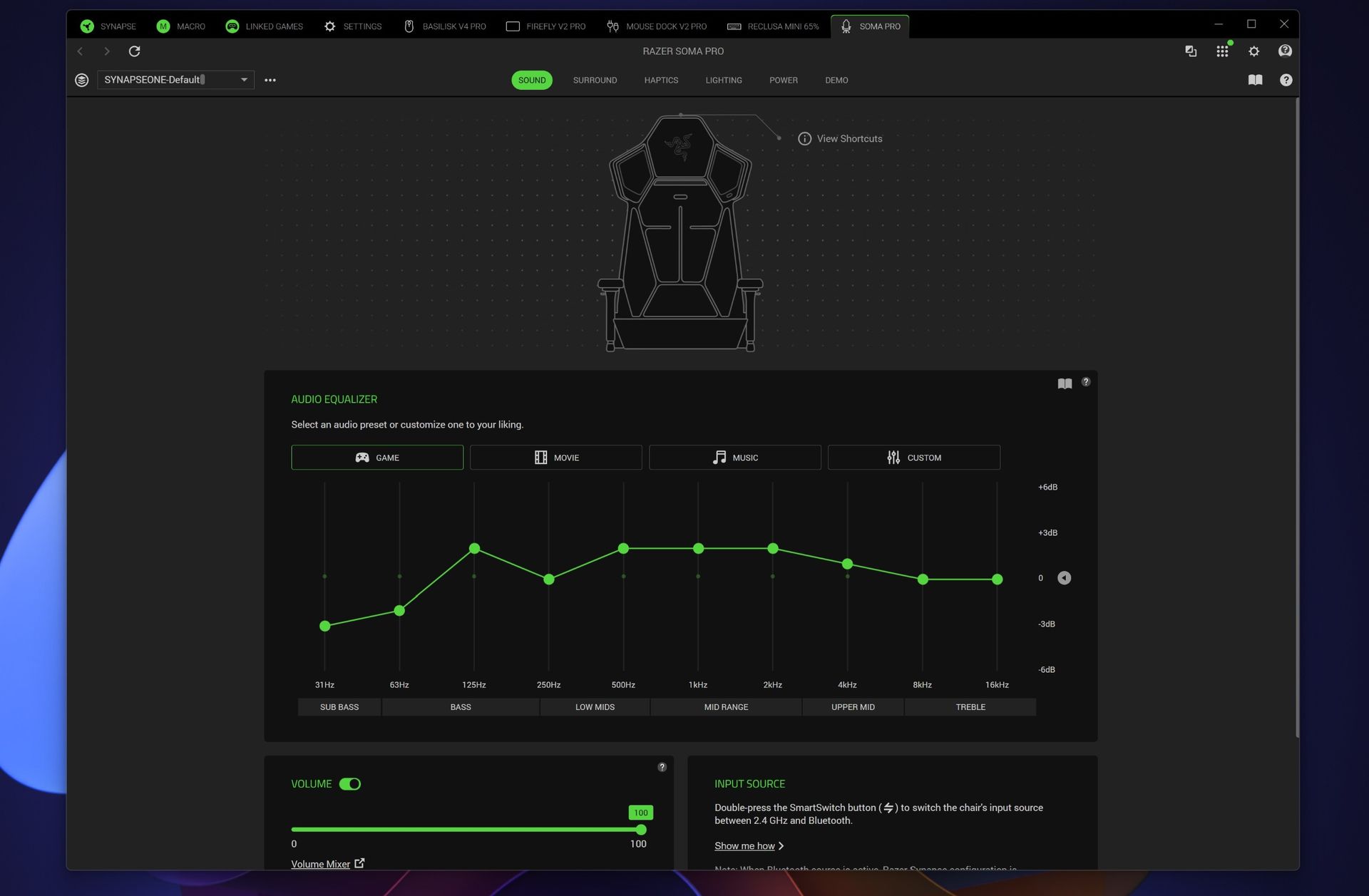
Razer Synapse screenshot showing the Razer Soma Pro sound tab with a chair wireframe, a 10-band audio equalizer on the Game preset, and volume sliders. (Image credit: Daniel Rubino)
You can independently adjust front and rear volume, EQ, balance, and delay to synchronize everything. Pair the chair with something like Razer’s Nommo V2 Pro or Leviathan V2 Pro, and the combination of front sound, rear THX audio, and physical haptic feedback creates an absolutely fantastic gaming environment.
Synapse deserves a shoutout here, too. Considering how many things this chair does, the software is remarkably easy to understand. The controls are logically broken out across sound, surround, haptics, lighting, and power, and I rarely felt like I needed instructions to figure something out.
Razer Soma Pro: Power, RGB, and everything else
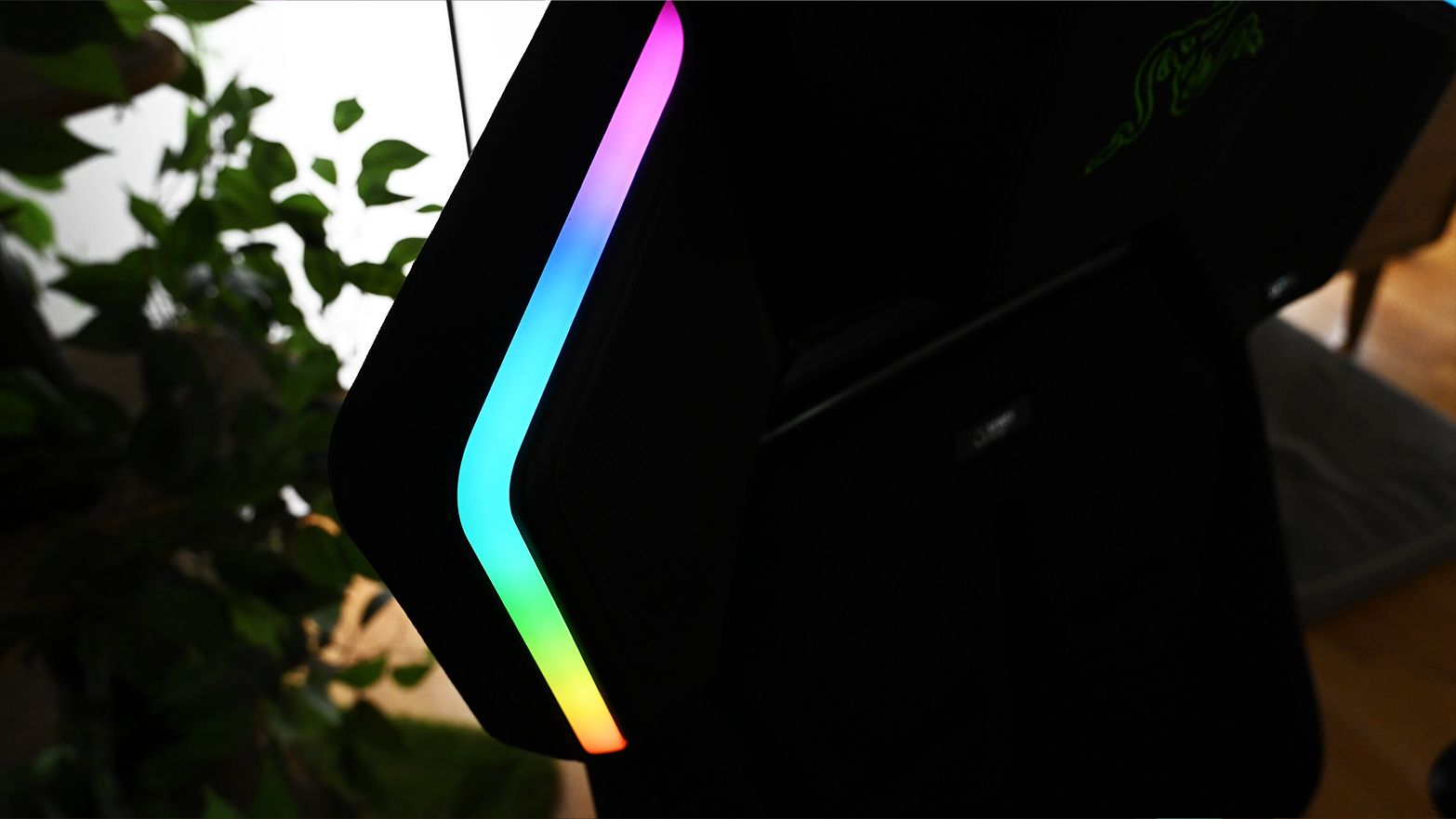
Chroma RGB outlines the Soma Pro’s speaker wings and can synchronize with the rest of your Razer setup. (Image credit: Daniel Rubino)
Like the Soma Chroma, the Pro can run from any generic external USB-C powerbank (not included) or remain plugged in using its included braided extension cable. You'll need at least a 45W PD 2.0-capable power source.
For Soma Chroma, wireless power makes the chair feel magically cordless. With the Soma Pro, I'm more inclined to leave it plugged in. Speakers plus six haptic motors and RGB make uninterrupted power considerably more useful.
The Chroma side remains exactly as gloriously excessive as you'd expect. My Reclusa Mini 65%, Basilisk V4 Pro, Firefly V2 Pro, and Soma Pro can all react together, turning my desk into a magnificent symphony of light.
None of this is necessary in life, but damn if it ain't awesome.
Should you buy the Razer Soma Pro?
Here’s where everything comes together: magnetic head cushion, THX speakers, Sensa HD Haptics, and Chroma RGB. (Image credit: Daniel Rubino)
You should buy this if...
✅You want one of the most immersive PC gaming setups currently possible
✅You already own Razer Chroma or Razer audio hardware
✅You want haptics without adding a separate Freyja cushion
✅You want a genuinely comfortable premium gaming chair
You should not buy this if...
❌$999 for a gaming chair is beyond your budget
❌Adjustable lumbar support matters more to you than haptics
❌You have no interest in RGB, spatial audio, or tactile gaming
I wasn't expecting the Soma Pro to win me over this completely.
This is an incredible gaming chair in every sense. The haptics aren’t just a novelty you forget about after a few uses. The speakers deliver real, immersive sound. And beneath all the tech, it remains a genuinely comfortable chair.
Razer also deserves credit for making the Soma lineup modular around different budgets. If you only want RGB, there's the $499 Soma Chroma. The $569 Soma Sensa HD Haptics focuses on tactile feedback. The $999 Soma Pro throws basically everything Razer knows about gaming immersion into one chair.
After living with it, I wouldn't take any of the electronics out.
The Soma Pro is one of the coolest gaming gadgets I've tested in a long time. It's fun, extraordinarily well thought-out, comfortable, and unlike anything else sitting in my gaming setup.
And yes, apparently I now have very strong opinions about whether my gaming chair should shake my butt.
Immersion
Razer
Soma Pro
The Razer Soma Pro combines the company’s excellent Soma gaming chair with Sensa HD Haptics, THX Spatial Audio, and Chroma RGB for one of the most immersive gaming experiences I’ve tried. At $999, it’s undeniably expensive, but considering everything Razer packed into it, I’m actually surprised it doesn’t cost more.
Join us on Reddit at r/WindowsCentral to share your insights and discuss our latest news, reviews, and more.
And yet the Razer keyboard I keep coming back to isn't a Huntsman.
It's the Reclusa.
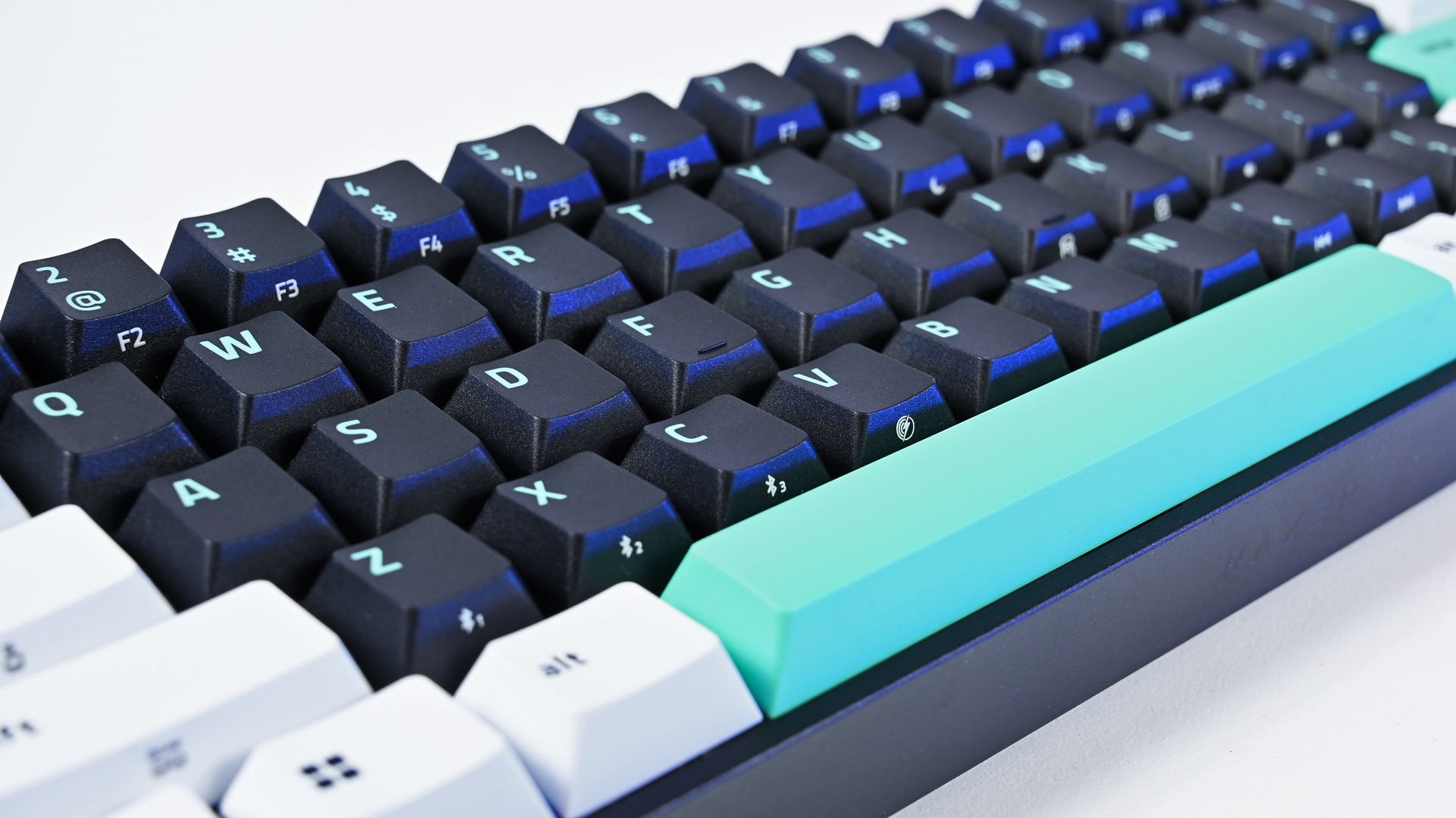
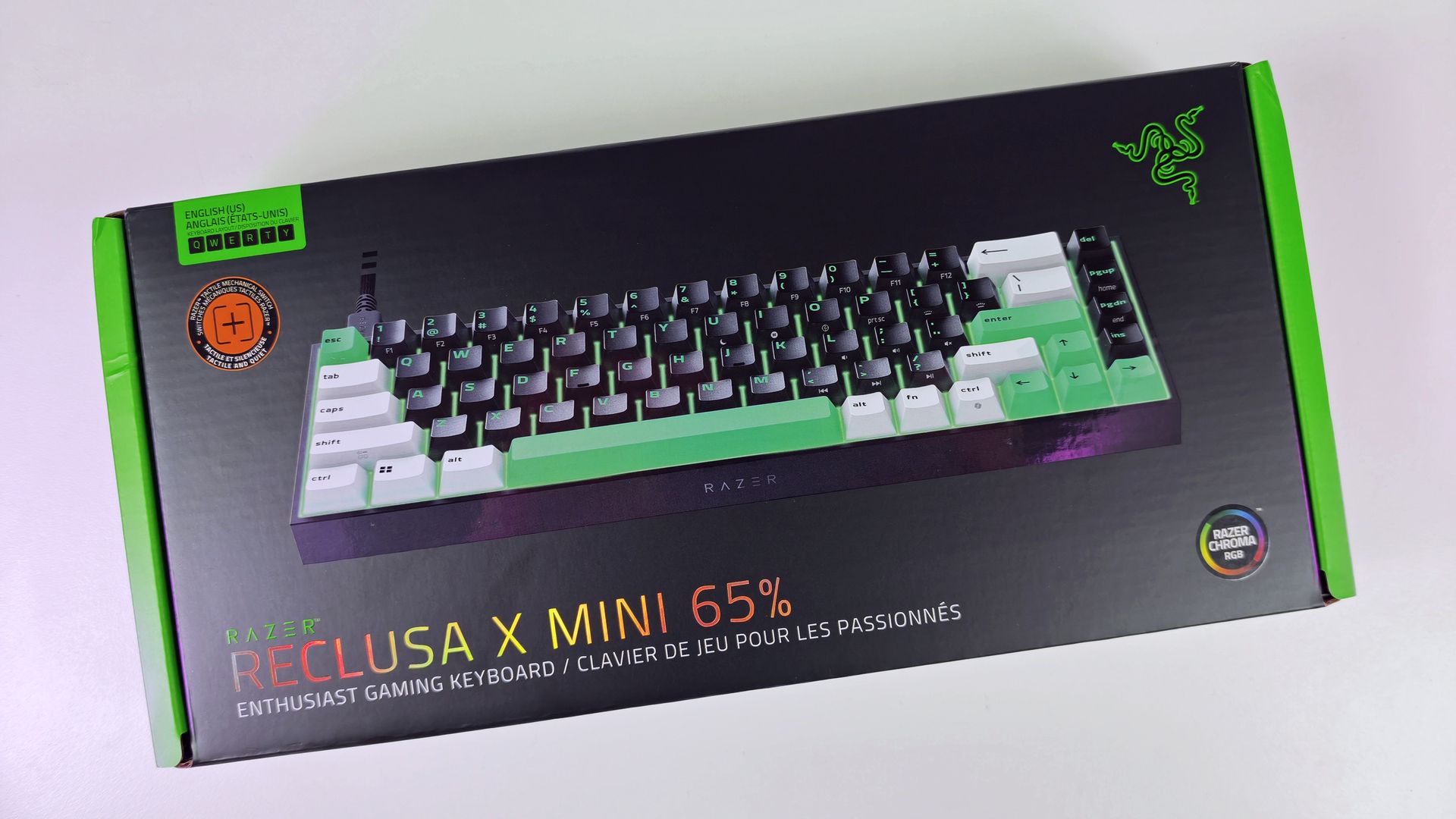
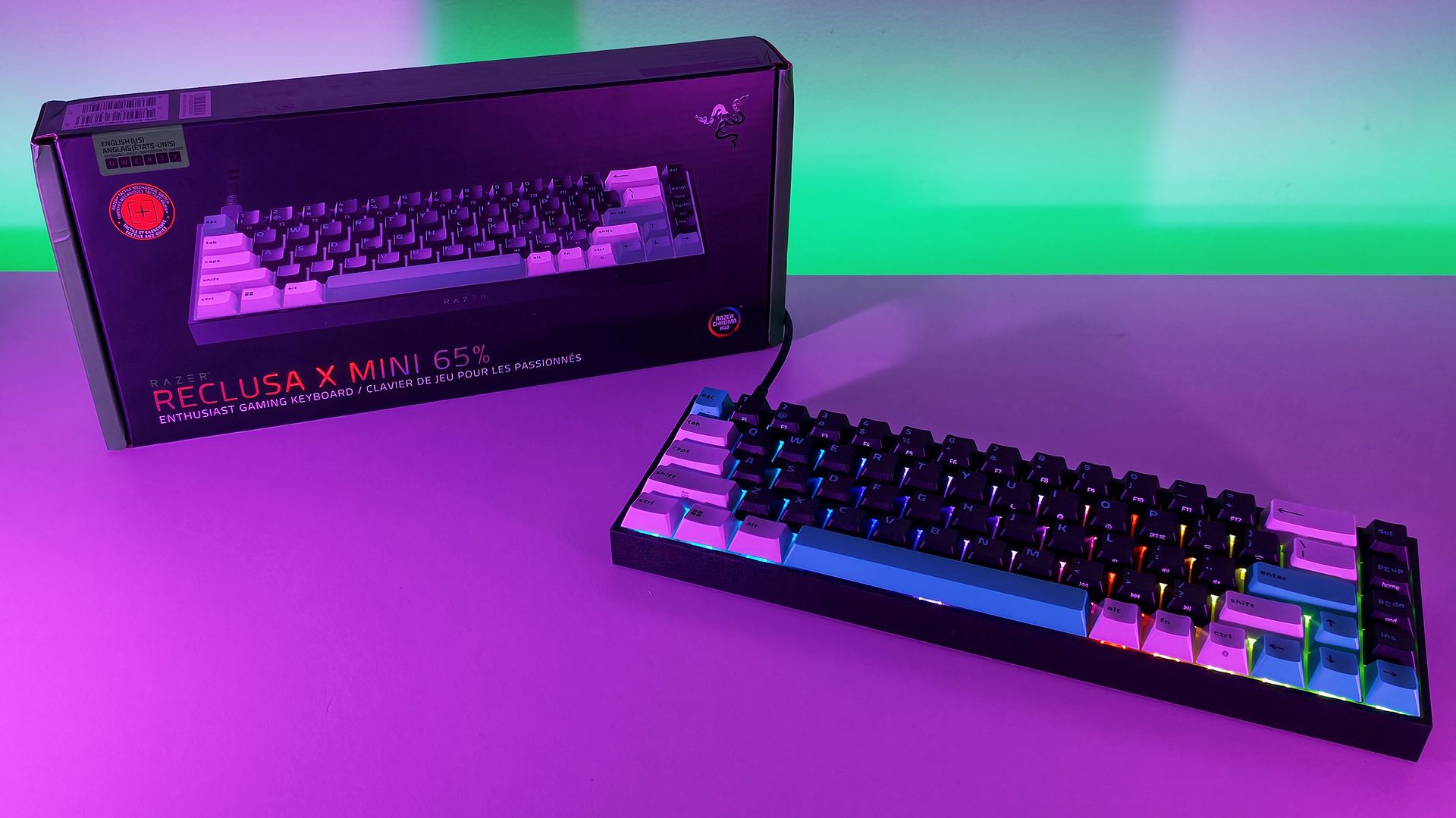
Razer first introduced this new enthusiast-focused family with the Reclusa X Mini 65%, a remarkably good little $49.99 keyboard with hot-swappable mechanical switches, dual-layer dampening, south-facing LEDs, and that distinctive black, white, and mint-green tri-tone design. I loved typing on it, and its price-to-quality ratio made it ridiculously easy to recommend.
Now we have its considerably more ambitious sibling.
At $129.99 (Best Buy or Razer.com), the Razer Reclusa Mini 65% costs $80 more, but Razer has stuffed most of its premium gaming technology inside while preserving what attracted me to the cheaper keyboard in the first place.
I've used it as my primary keyboard for two weeks. And despite having plenty of alternatives sitting nearby, I don't particularly want to switch back.
Razer had no input, nor did it see the contents of this review, prior to publication.
Same Reclusa formula, considerably more hardware
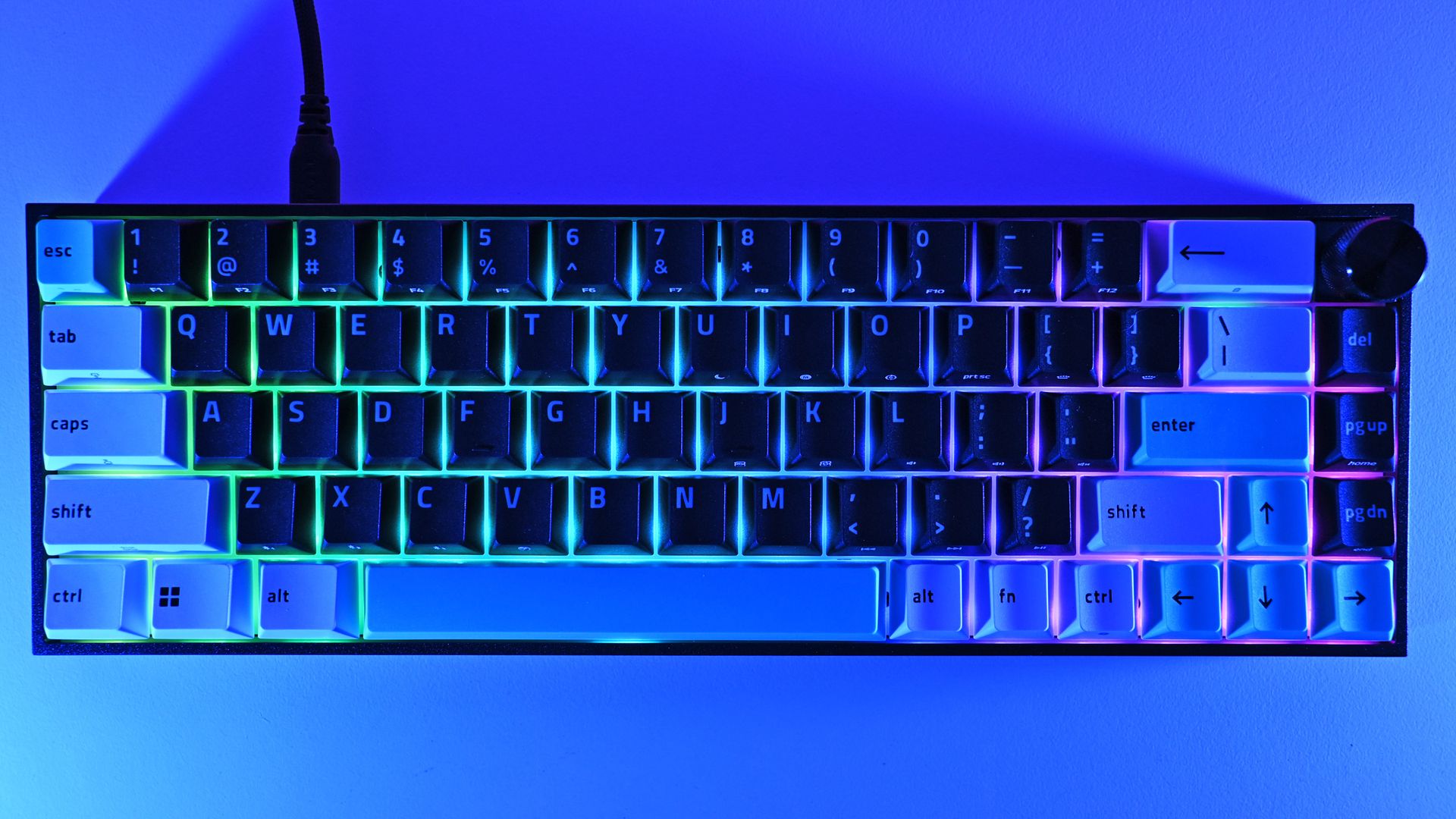
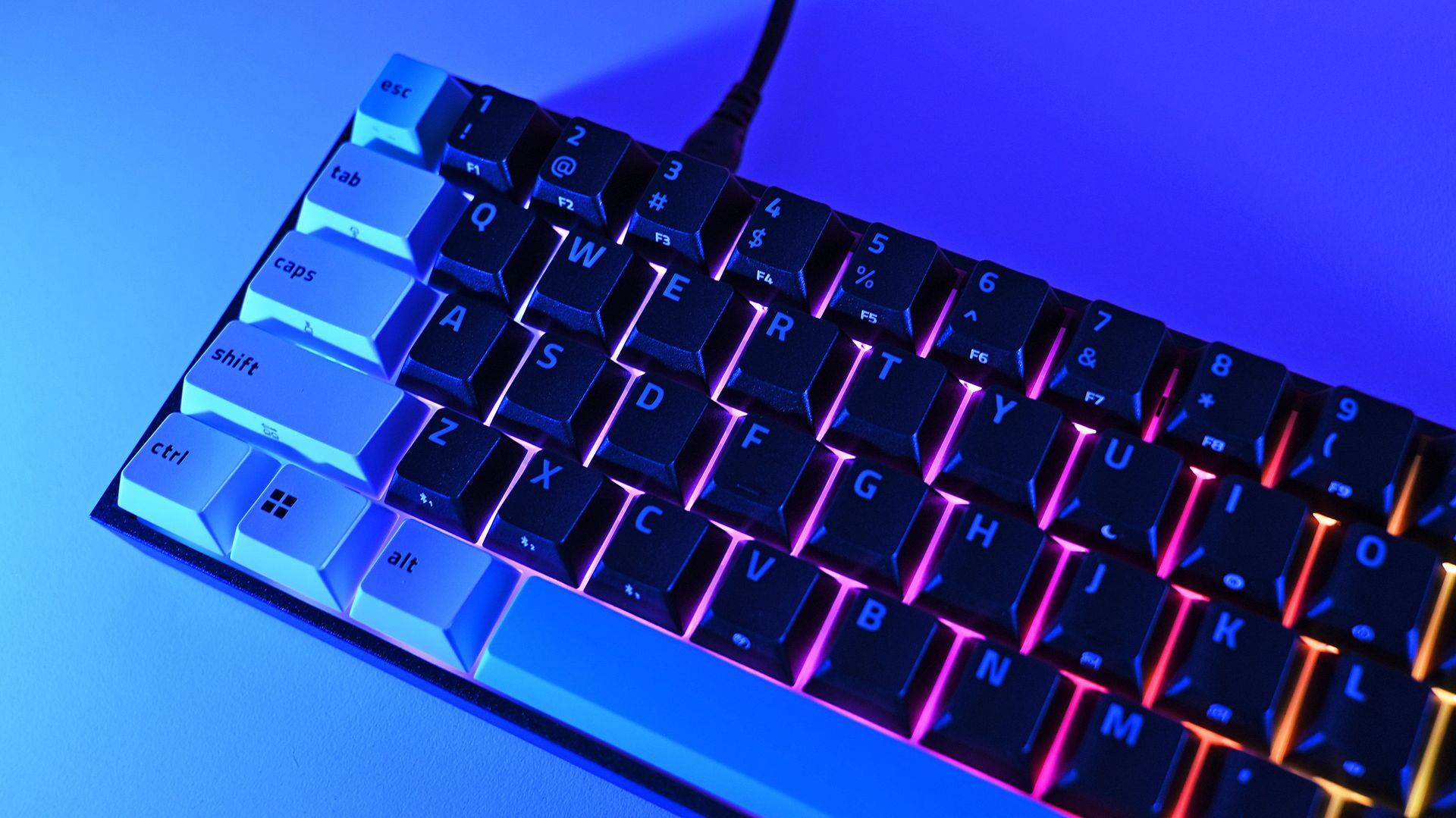
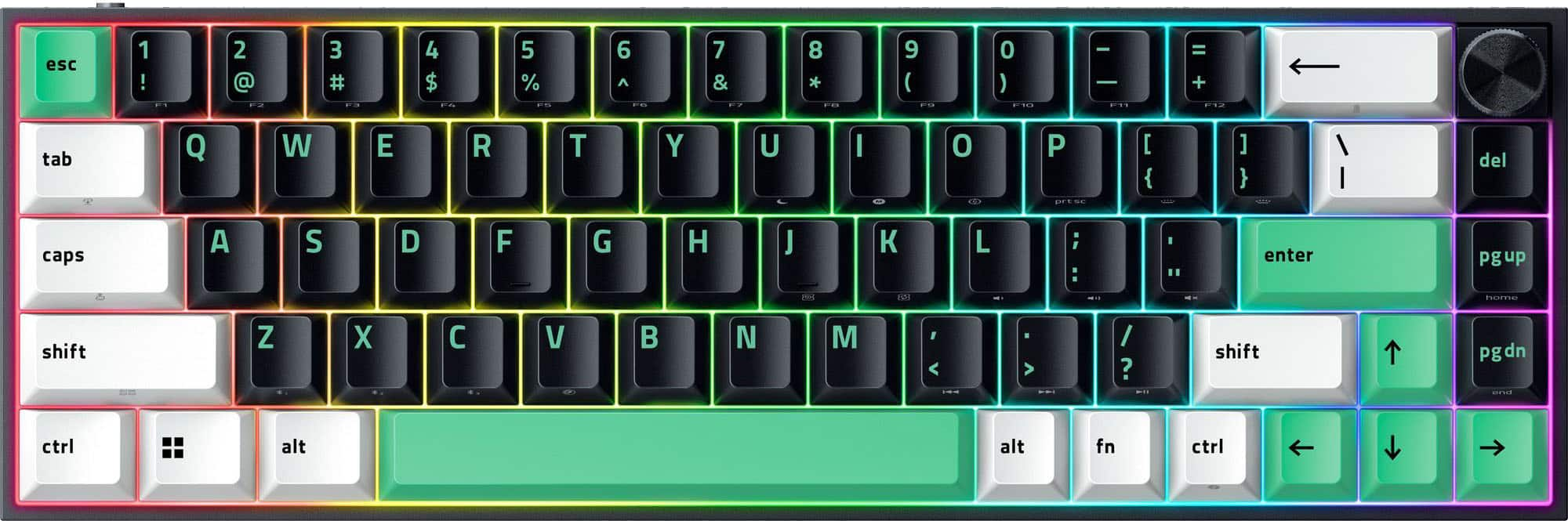
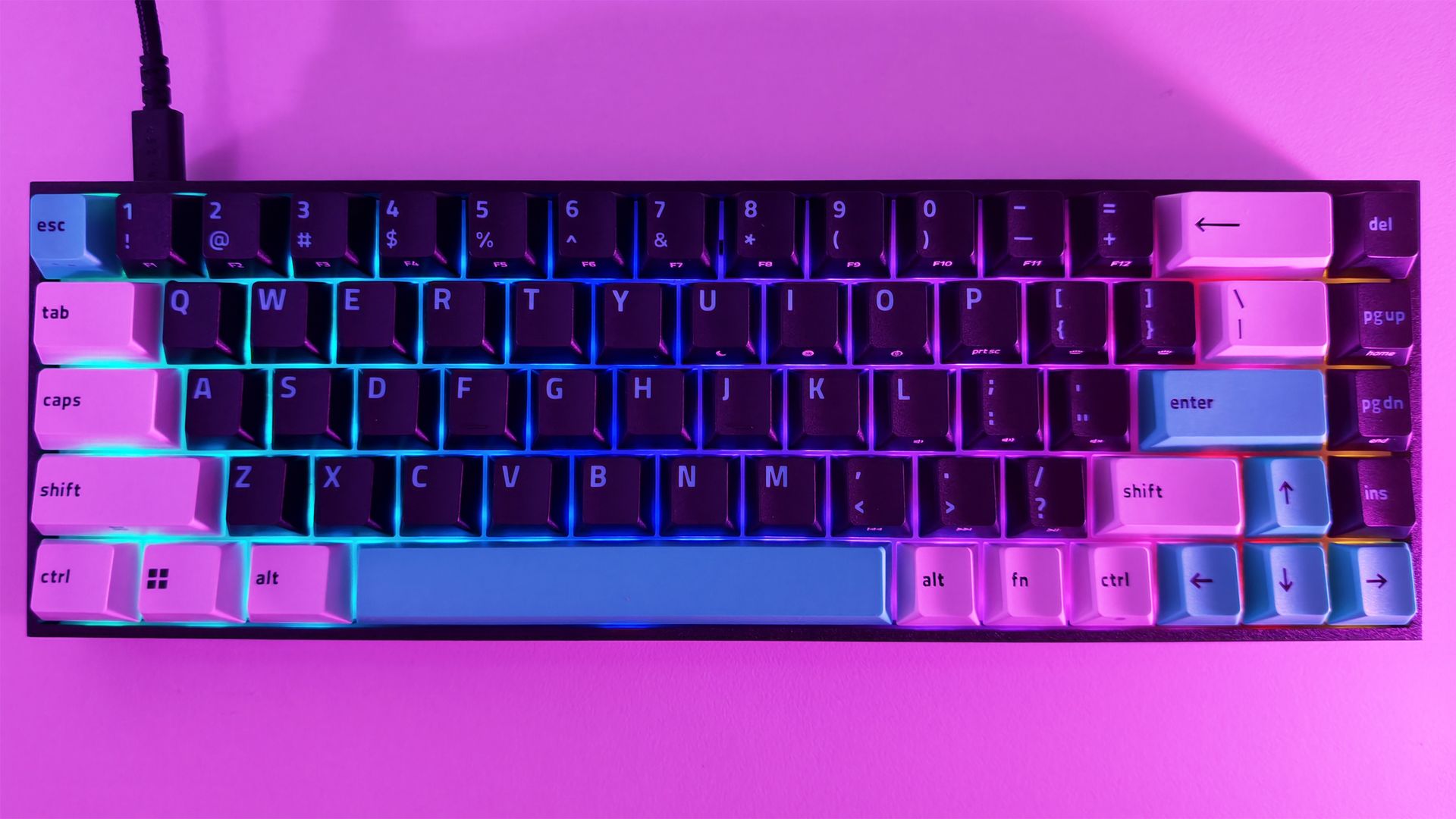
The compact 65% layout preserves dedicated arrow keys while eliminating the function row and numpad, leaving considerably more room on your desk. (Image credit: Daniel Rubino)
The overall aesthetic of the Raze Resclusa Mini 65% remains fantastic.
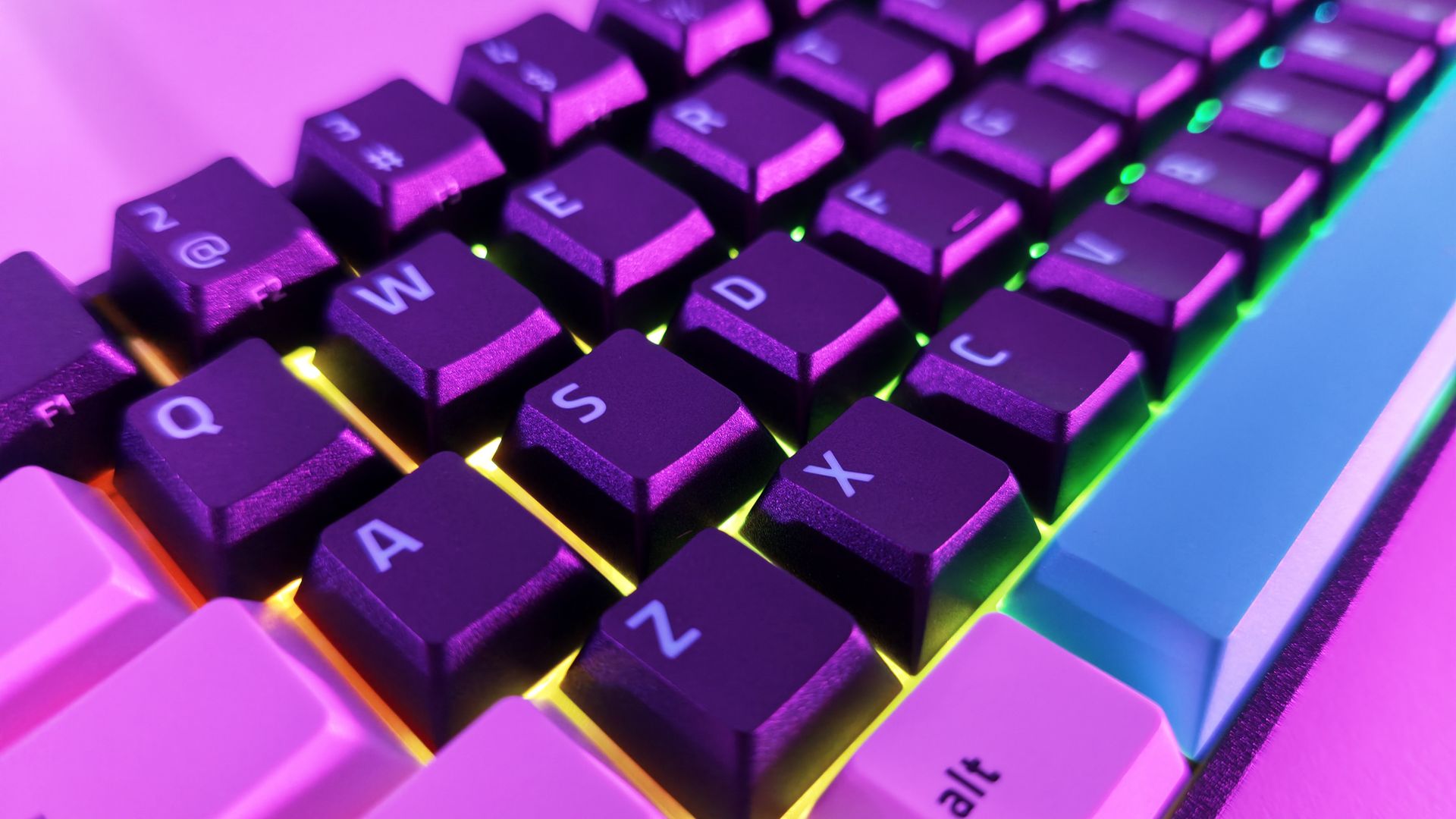
You still get the compact 65% layout, tri-tone keycaps, and bright mint accents that prevent this from becoming another anonymous black gaming rectangle. The lighting comes from south-facing per-key RGB LEDs rather than shine-through legends.
After two weeks as my primary keyboard, I don't want to take the Reclusa Mini 65% off my desk.
I do miss having the legends themselves illuminated, especially in a dark room, but I understand the decision. The Reclusa is supposed to feel like Razer's enthusiast keyboard family, rather than another variation of Huntsman.
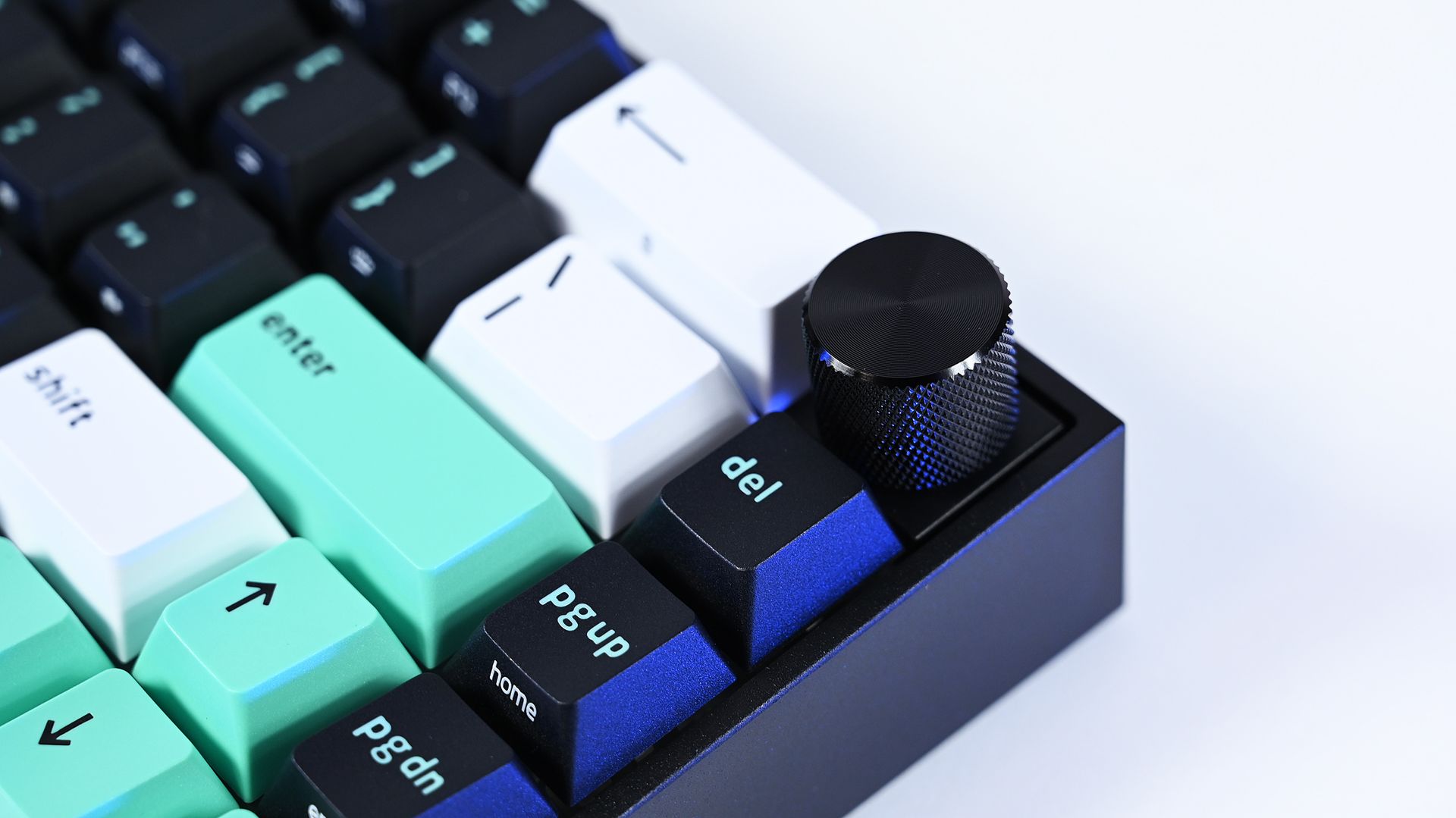
Where the premium model immediately wins me over is the multifunction dial in the upper-right corner. After missing dedicated media controls on the Reclusa X, having a conveniently positioned dial back for volume and other controls makes a surprisingly big difference to my everyday use.
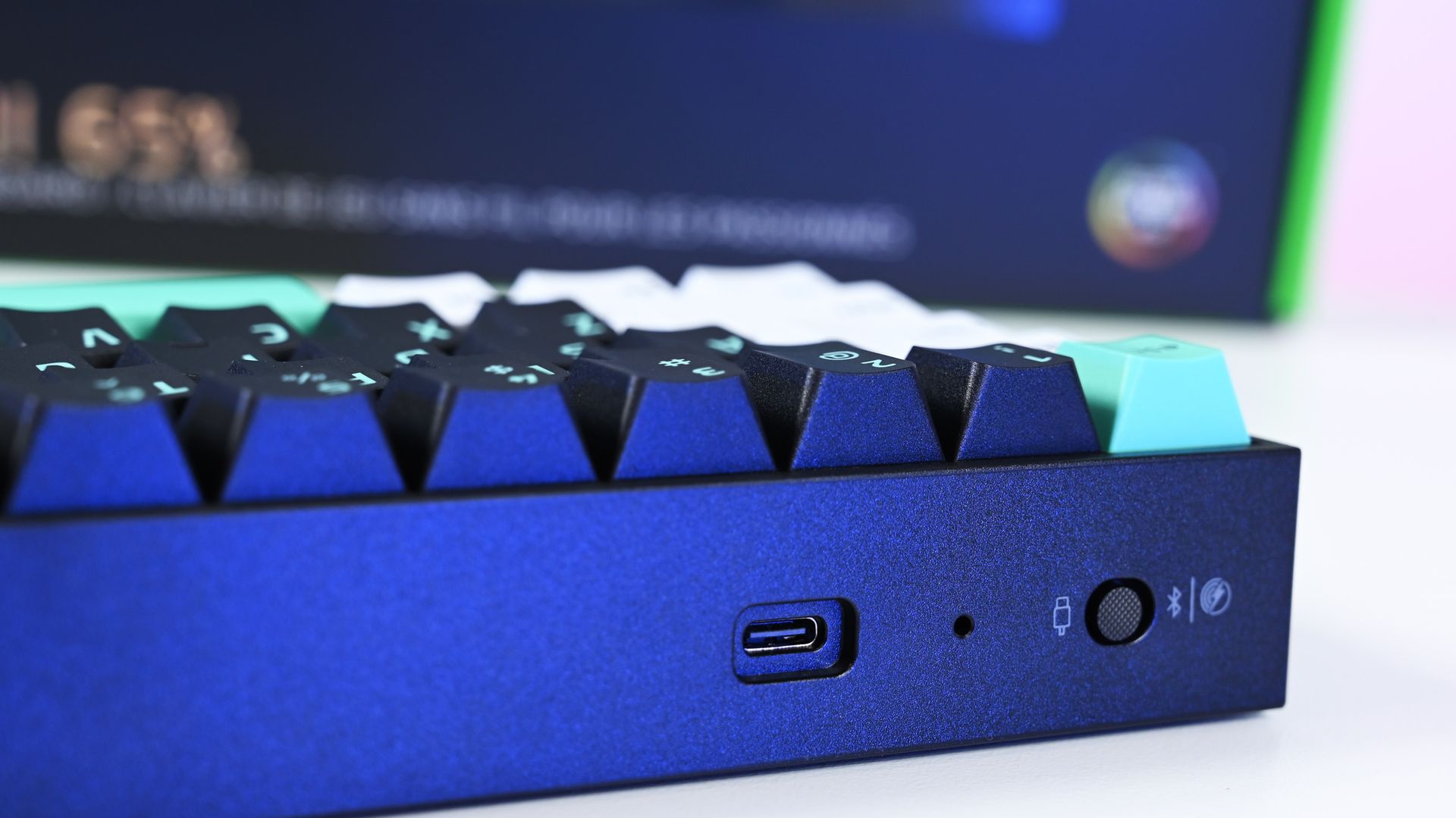
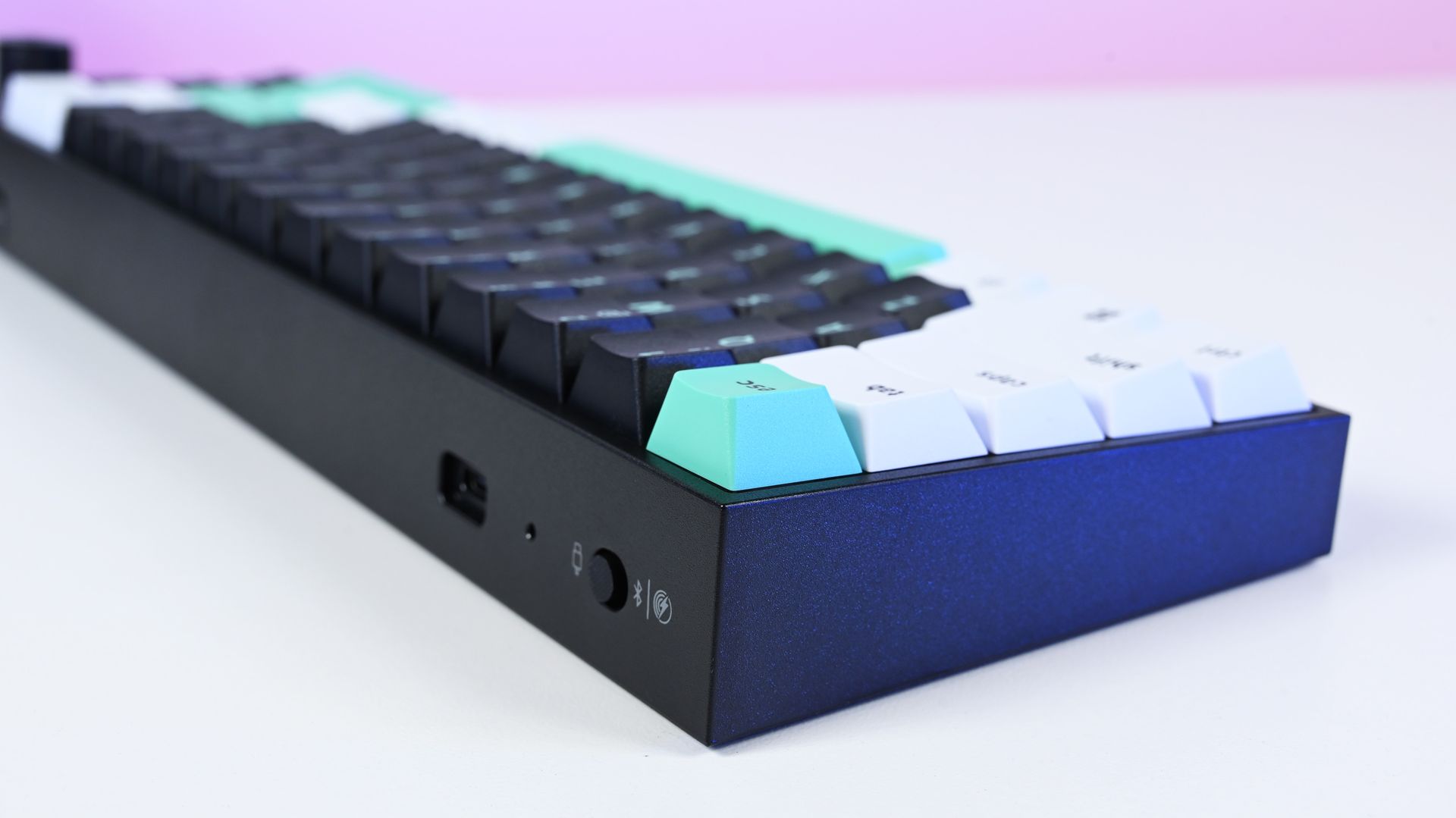
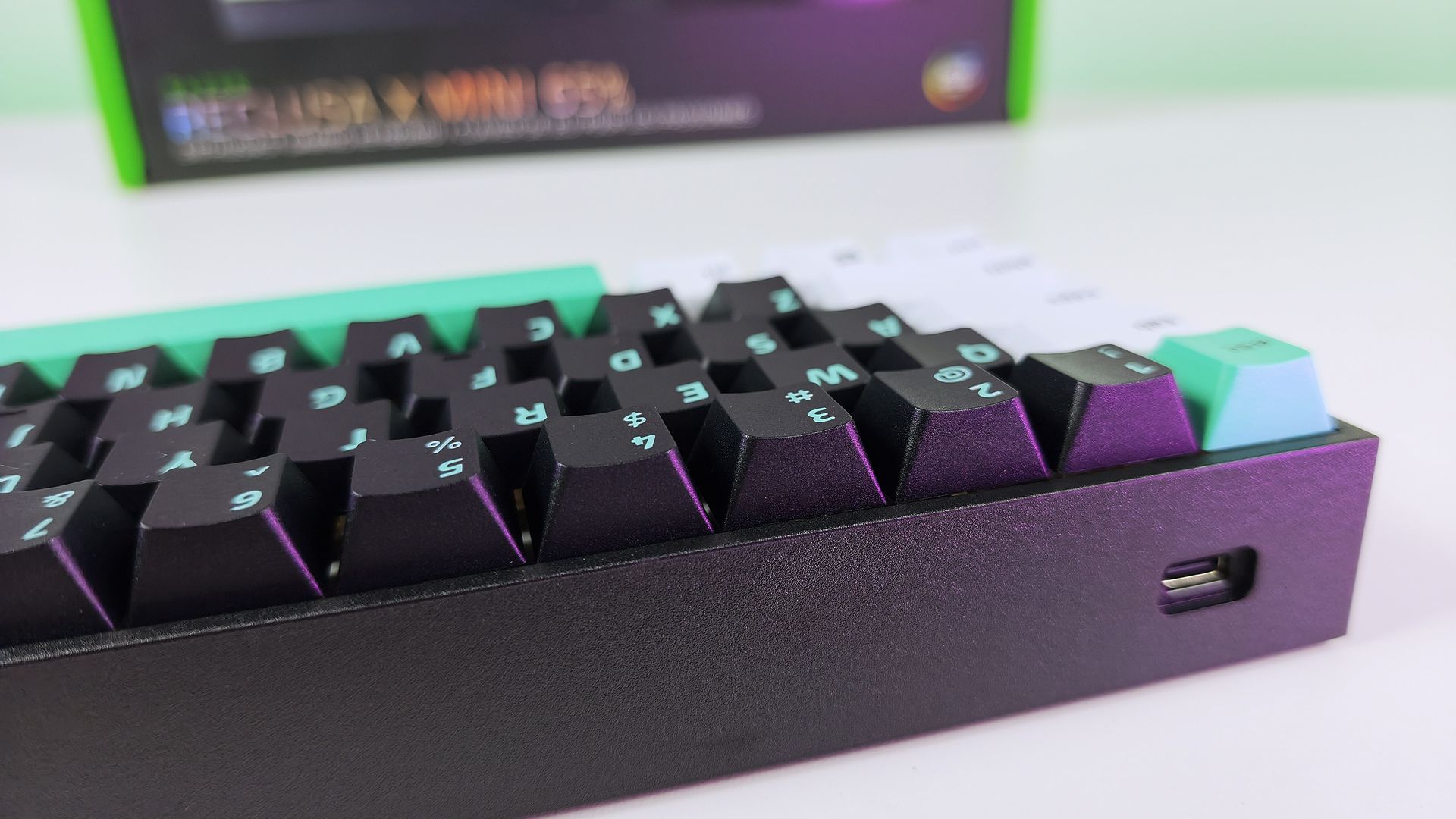
The Reclusa Mini 65% supports wired USB-C, Bluetooth, and 2.4GHz Razer HyperSpeed Wireless, with up to 8,000Hz polling available when wired. (Image credit: Daniel Rubino)
There's also more going on underneath those keycaps.
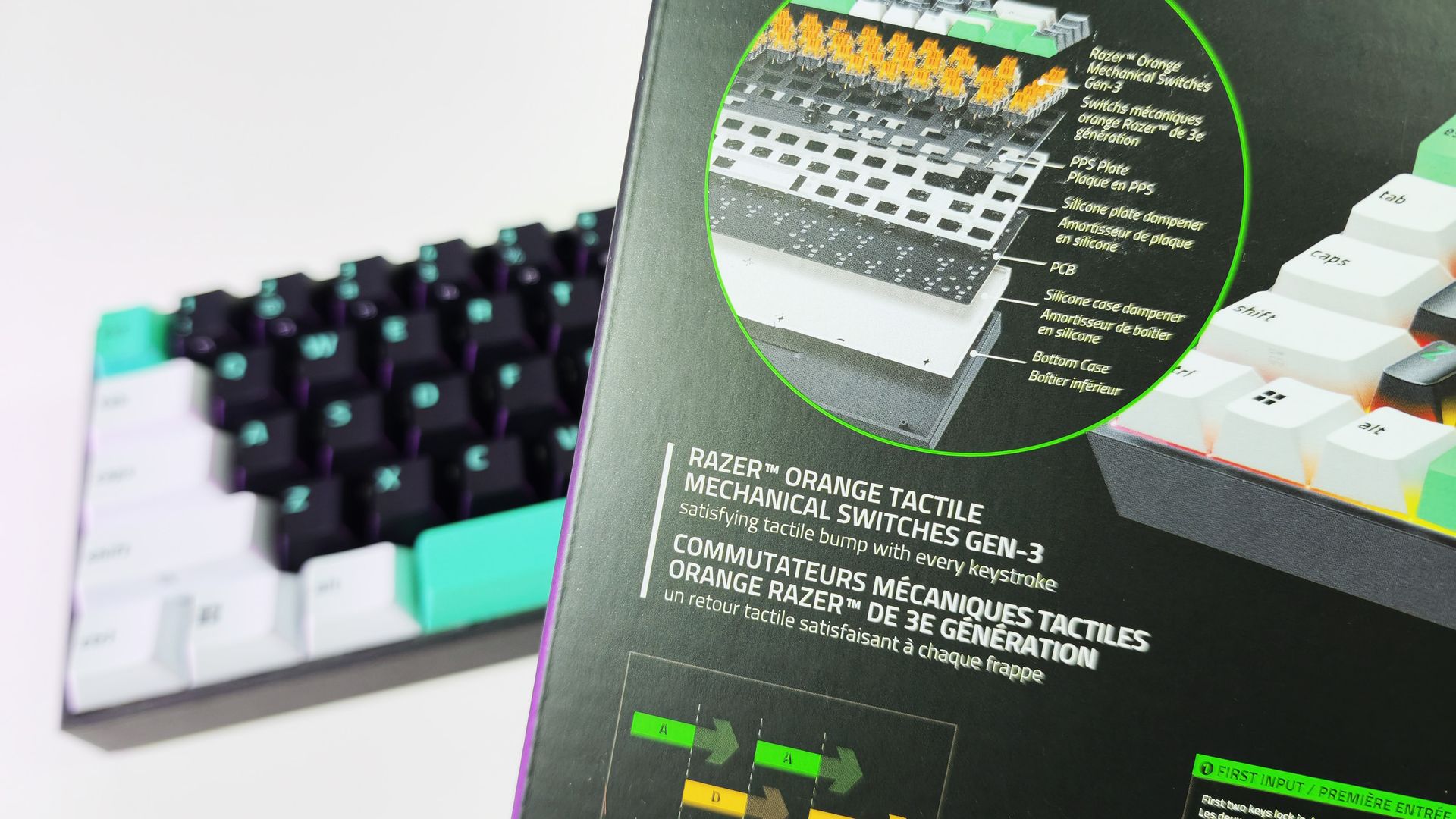
Razer uses a PPS plate, lubricated stabilizers, IXPE switch foam, and dual-layer silicone dampening. According to my product briefing, the IXPE layer was specifically added over the Reclusa X's acoustic system to further reduce unwanted resonance.
I can totally hear (and feel) it.
The Reclusa Mini sounds more controlled and dampened than the X. It's audible without producing the higher-pitched clacking that can become irritating in an office. The best way I can describe it is a satisfying"plunk."
Few gaming keyboards I've used strike this balance between excellent everyday typing, enthusiast customization, and genuinely advanced competitive features.
More importantly, this is probably the best typing experience I've had on any Razer keyboard.
That's quite a claim, considering how many Razer keyboards I've tested this year. I mean, they've all been great, but my hands feel happy with this one.
Reclusa goes magnetic
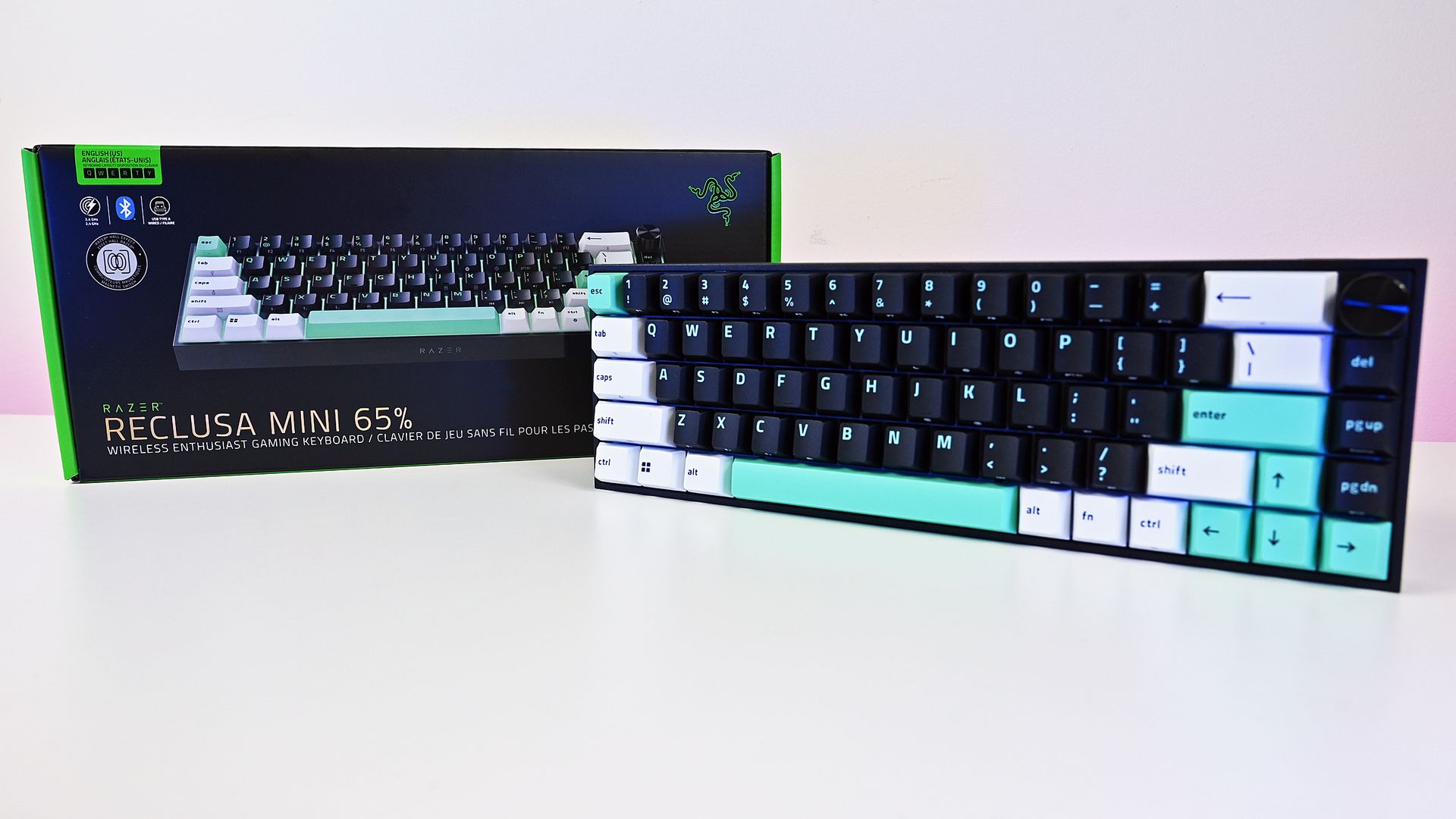
The Reclusa Mini 65% keeps the excellent tri-tone aesthetic of the cheaper Reclusa X, mixing black, white, and mint-green doubleshot ABS keycaps. (Image credit: Daniel Rubino)
The biggest change is replacing the X's conventional mechanical switches with Razer's linear Hall Effect Magnetic switches (read our primer on HE switches for controllers to get an idea of why they're great).
Actuation can be adjusted anywhere from 0.1mm to 4.0mm, compared with the fixed 2mm actuation of the Reclusa X, and the magnetic switches are hot-swappable for compatible third-party alternatives.
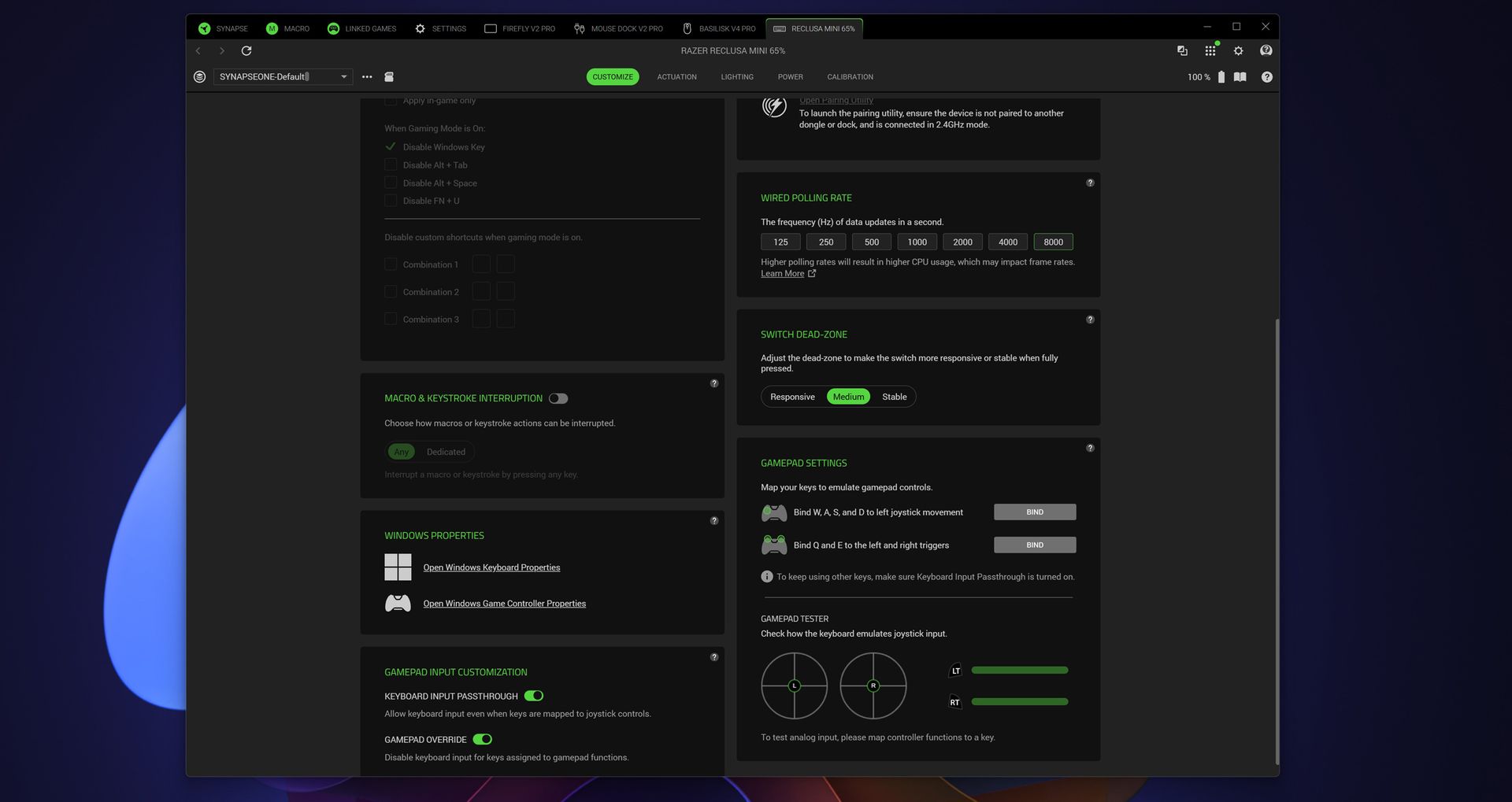
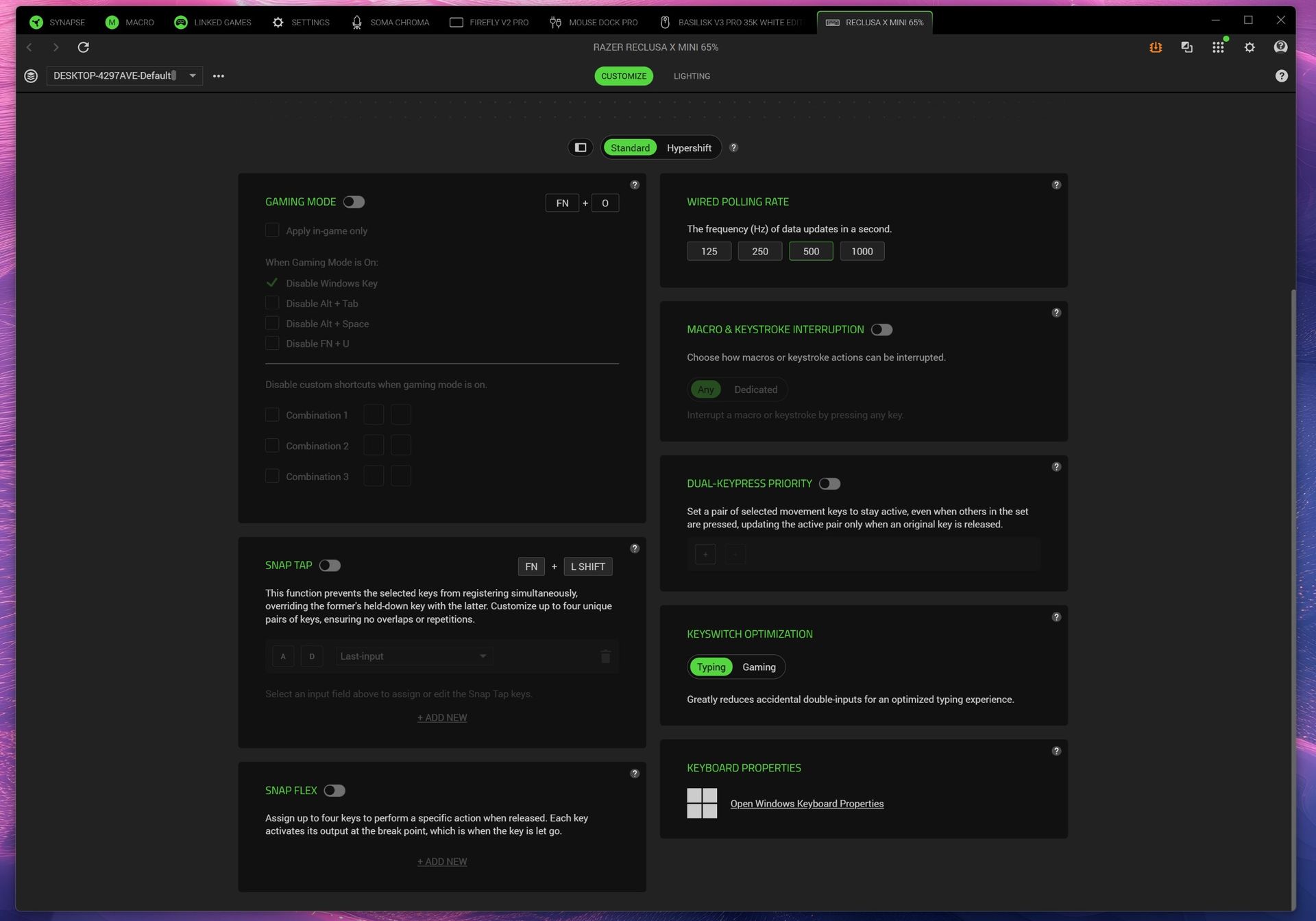
Razer Synapse exposes even more enthusiast-level controls, including up to 8,000Hz wired polling, switch dead-zone adjustment, and gamepad input customization. (Image credit: Daniel Rubino)
That opens the door to Razer's current collection of advanced input features, including Rapid Trigger, Snap Tap, Snap Flex, Dynamic Keystroke, and Dual-Keypress Priority (I explain those a bit more in my recent Huntsman review). Razer Synapse, its love/hated software, also provides individual switch calibration, something particularly useful if you begin swapping magnetic switches.
There's an enormous amount to play with, or you can just use some of the presets and not worry about it.
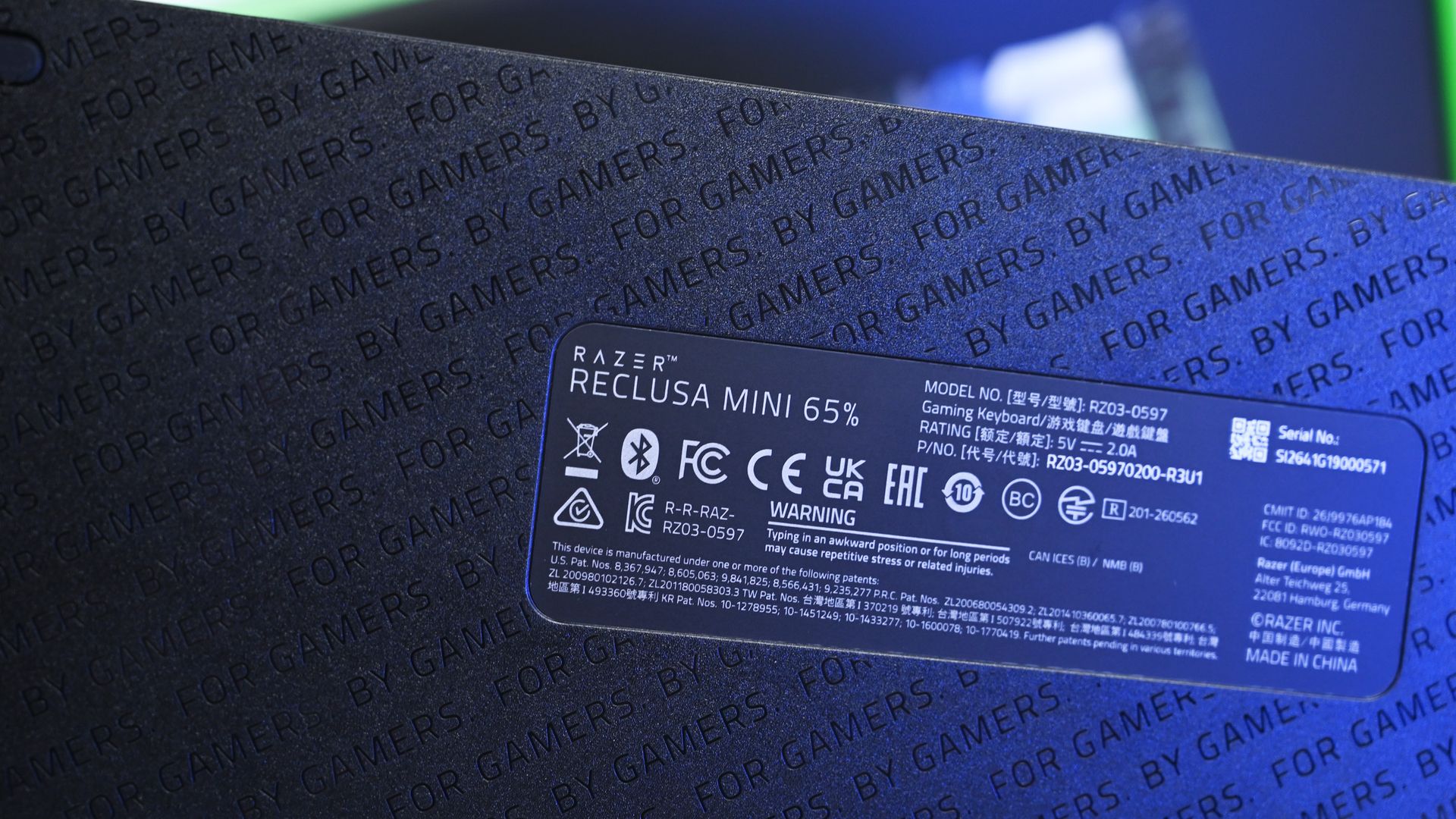
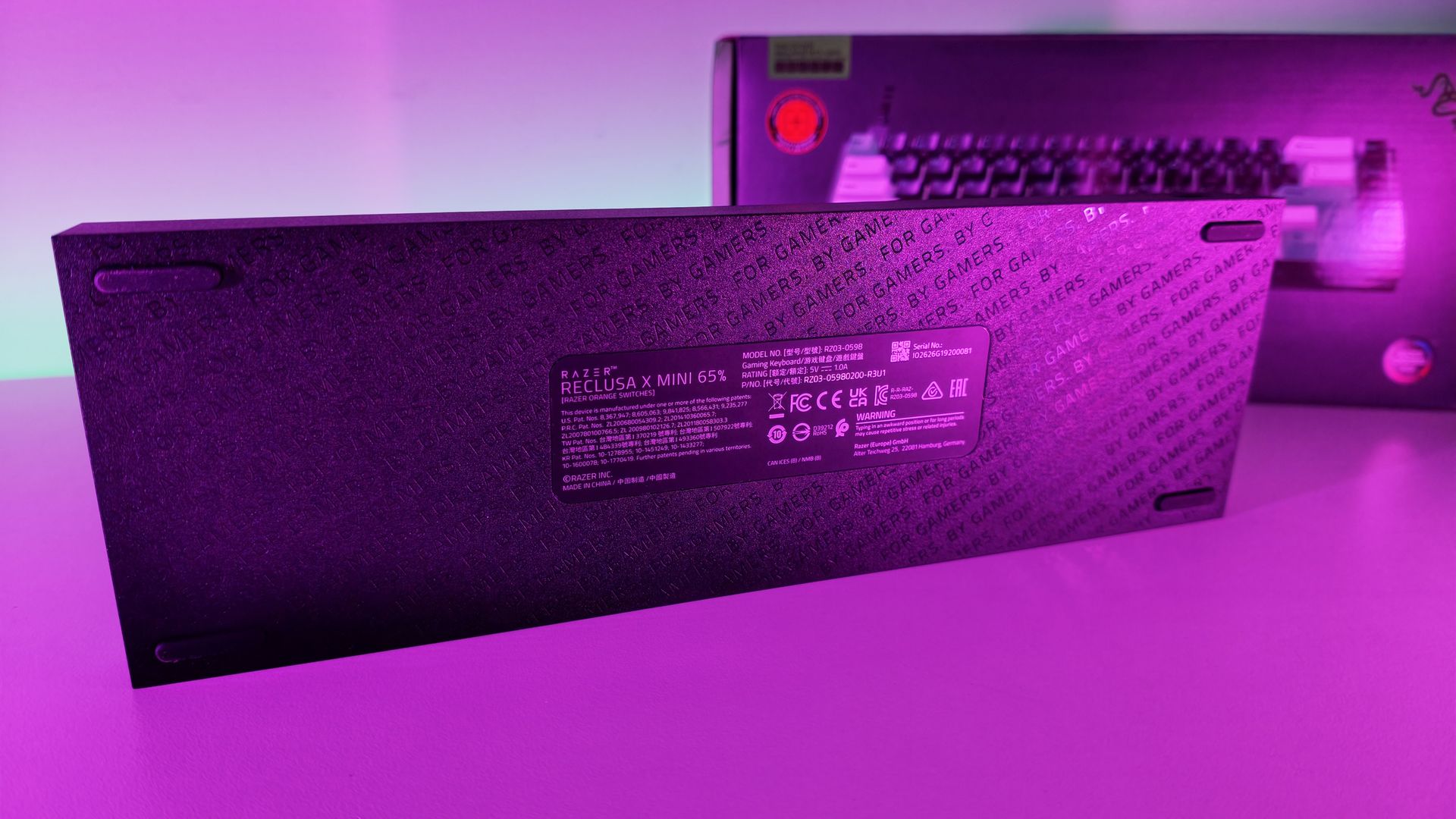
Even the underside receives some attention with Razer's repeating "FOR GAMERS. BY GAMERS." pattern, although there are no adjustable rear feet. (Image credit: Daniel Rubino)
I won't pretend every person buying this board needs to spend hours configuring individual actuation points, either. I'm perfectly happy using the Reclusa as a fantastic typing keyboard most of the day and taking advantage of its speed while gaming.
But if you're the kind of player who does obsess over these settings, Razer gives you the tools.
Polling jumps from 1,000Hz on the Reclusa X to 8,000Hz when wired, while wireless operates at up to 1,000Hz. The Reclusa Mini also supports 2.4GHz HyperSpeed, Bluetooth, wired USB-C, multi-device HyperSpeed pairing, and switching between three Bluetooth devices.
That's the real argument for paying $129.99.
An awkward $80 question
This little multifunction dial is a surprisingly important upgrade for me, restoring convenient volume control that I sorely missed on the cheaper Reclusa X. (Image credit: Daniel Rubino)
Ironically, the Reclusa Mini 65%'s biggest competitor might be Razer's own $49.99 Reclusa X Mini 65%.
I gave that keyboard 4.5 stars in my review because it nailed the fundamentals for an almost comically low price.
The premium Reclusa is better. It feels more substantial, sounds better, adds wireless connectivity, returns my beloved dial, dramatically expands switch configuration and brings Razer's current Hall Effect gaming technology along for the ride.
At $129.99, it's also competitively positioned within the enthusiast Hall Effect market. For context, Razer's own Huntsman V3 HE Magnetic TKL launched at $139.99, while the Mini 65% was $119.99. Wooting's plastic 60HE v2 launched at $179.99, with its aluminum version reaching $239.99.
A physical selector quickly switches between wired USB-C, Bluetooth, and Razer HyperSpeed Wireless connectivity, one of the biggest upgrades over the $49.99 Reclusa X. (Image credit: Daniel Rubino)
If you're plugging a keyboard into one PC, don't care about Rapid Trigger or adjustable actuation, and just want something excellent to type and game on, save the $80. The X remains absurdly good.
The Razer Reclusa Mini 65% delivers the best typing experience I've had on any Razer keyboard.
It's also worth mentioning the lack of adjustable rear feet. Curiously, this didn't bother me despite normally raising the back of my keyboards. The default angle works well enough that I stopped thinking about it.
And naturally, 65% remains 65%. I love the extra mouse space and compact footprint. If you depend on a function row or numpad, nothing about this keyboard will change your mind.
Should you buy the Razer Reclusa Mini 65%?
South-facing per-key Razer Chroma RGB creates an underglow around the keycaps, although I do miss having illuminated legends when using the keyboard at night. (Image credit: Daniel Rubino)
You should buy this if...
✅You loved the idea of the Reclusa X but wanted Razer's premium gaming technology.
✅You want adjustable Hall Effect switches, Rapid Trigger, 8KHz wired polling, and serious customization.
✅You need both excellent wireless connectivity and wired performance.
✅Typing feel and keyboard acoustics matter as much to you as gaming performance.
✅You want a compact keyboard without sacrificing a multifunction dial.
You shouldn't buy this if...
❌You don't need wireless or Hall Effect gaming features. Buy the $49.99 Reclusa X and pocket the $80.
❌You need a full-size or TKL layout.
❌Adjustable rear feet are important to your typing position.
Bottom line
I'm almost annoyed by how much I like this keyboard.
I've got Huntsmans. Lots of Huntsmans. Some of them have more premium materials, some have different switches, and one I've reviewed costs nearly four times as much.
But for the last two weeks, the Reclusa Mini 65% has been the keyboard sitting in front of me, and I'm in no rush to replace it.
Razer's $49.99 Reclusa X remains the rational recommendation for most people. It nails the core fundamentals and punches ludicrously far above its price. The $129.99 Reclusa Mini takes that unusually good foundation and adds the stuff enthusiasts and competitive gamers are more likely to appreciate: magnetic switches, adjustable actuation, 8KHz polling, sophisticated input controls, wireless connectivity, better acoustics, and that incredibly handy dial.
Do I need any of it?
Probably not.
But I'm keeping it on my desk anyway.
Razer
Razer Reclusa Mini 65% Wireless Gaming Keyboard
The Razer Reclusa Mini 65% takes the excellent foundation of the $49.99 Reclusa X and piles on nearly every enthusiast feature I could ask for: adjustable Hall Effect switches, Rapid Trigger, 8,000Hz wired polling, Bluetooth and HyperSpeed wireless, hot-swappable magnetic switches, better dampening, and my beloved media dial.
Join us on Reddit at r/WindowsCentral to share your insights and discuss our latest news, reviews, and more.
The weird thing about reviewing the HP OmniBook Ultra 16 is that I really like this laptop. After three weeks with it, I have very few complaints about actually using it.
HP's build quality is fantastic. The 3K OLED display is one of my favorites on any laptop I've used this year. Its new keyboard is excellent, the haptic touchpad is huge, battery life is surprisingly good, and NVIDIA's RTX Spark delivers exactly the kind of performance I expected.
Then I pick it up.
At 4.9 pounds, the OmniBook Ultra 16 weighs a full pound more than the ASUS ProArt P16 I recently reviewed, despite delivering largely the same RTX Spark performance. ASUS's laptop is thinner and lighter, has similarly excellent thermals and an OLED display, and includes a few premium features HP inexplicably left out.
That's a problem because after testing several RTX Spark laptops, raw performance is becoming one of the least interesting ways to distinguish between them.
So, as much as I like HP's OmniBook Ultra 16, the question after three weeks isn't whether it's good. It's whether HP has given me enough reasons to carry around that extra pound.
HP and NVIDIAhad no input, nor did it see the contents of this review, prior to publication.
Price and specs: The 32GB model makes a lot of sense
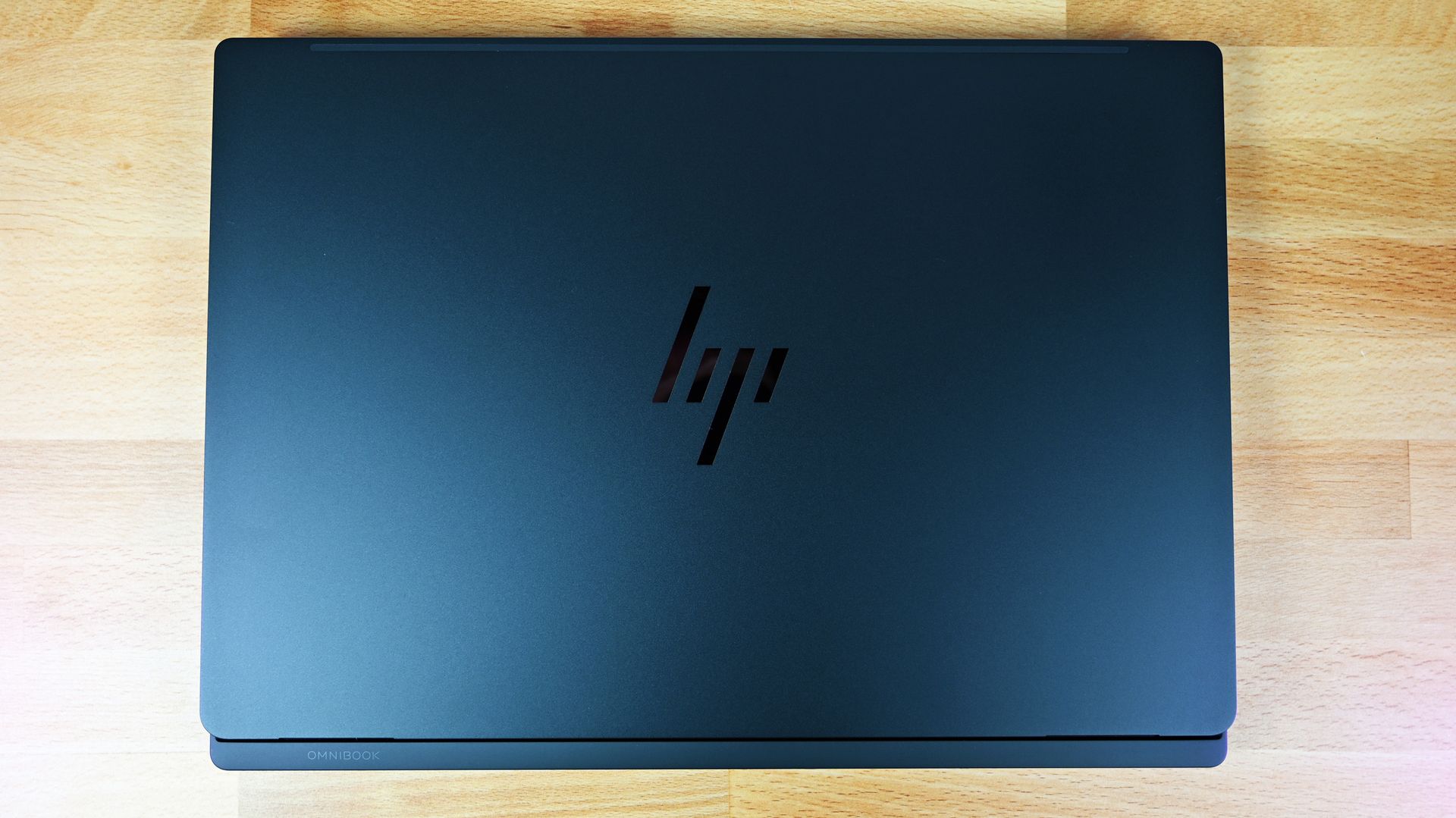
Top-down view of the closed HP OmniBook Ultra 16 RTX Spark. (Image credit: Daniel Rubino)
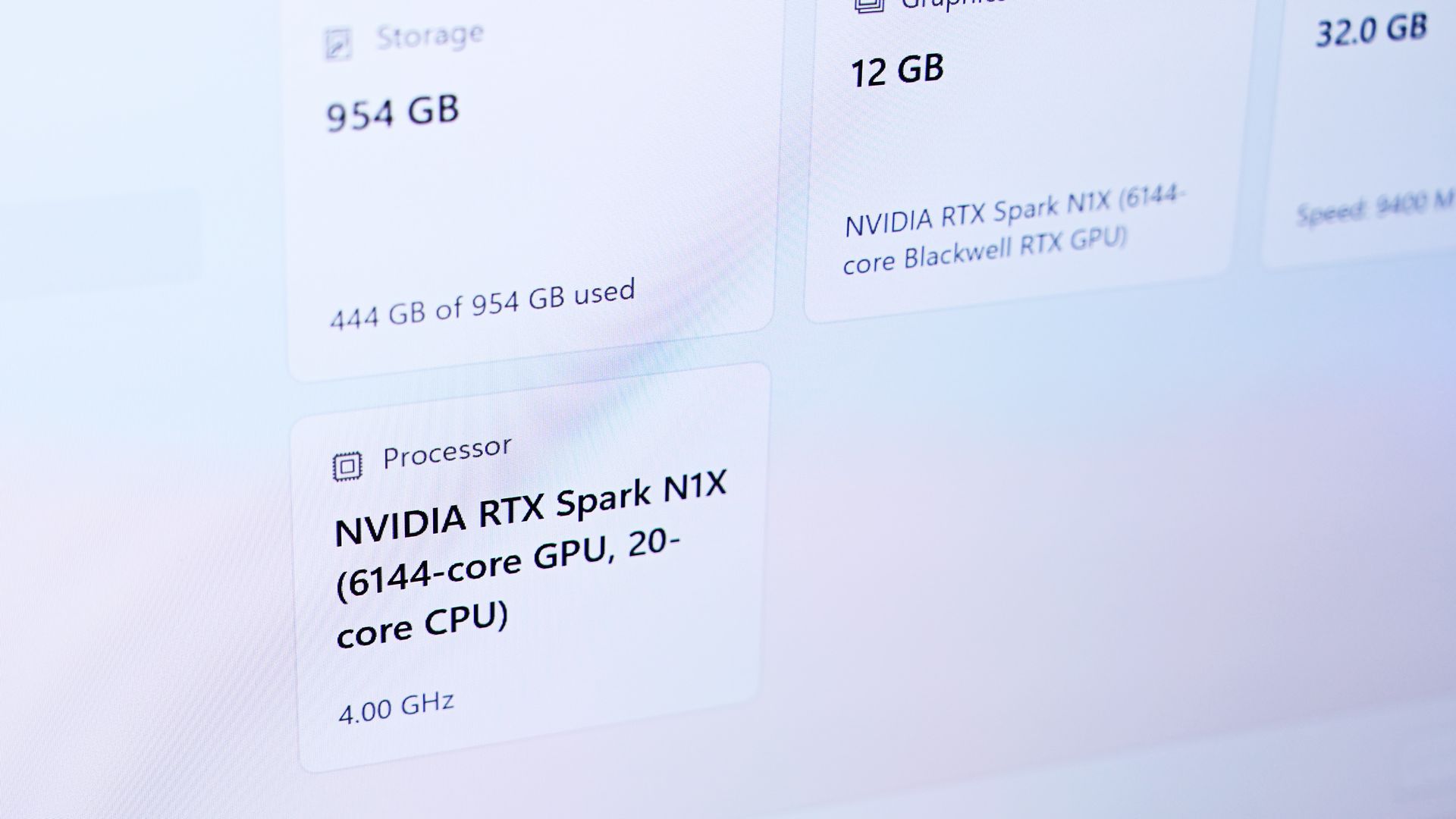
I tested the OmniBook Ultra 16 with NVIDIA's 20-core RTX Spark N1X, 32GB of unified memory, a 1TB SSD, and a 16-inch 2880 x 1800 OLED touchscreen.
In fact, this might be the RTX Spark configuration I'd recommend to more people. If you're doing video and photo editing, light CAD or 3D work, or beginning to experiment seriously with local AI models, 32GB gives you access to NVIDIA's new platform without spending workstation money on memory you might never use.
For people who will use it, however, HP scales RTX Spark considerably higher, including configurations with up to 128GB of unified memory. That's where this architecture gets especially interesting for running larger local models and working with bigger datasets. HP also sells a 64GB/2TB configuration with LPDDR5X-9400 memory and a PCIe Gen5 SSD.
Design: HP might actually beat ASUS, until you pick it up
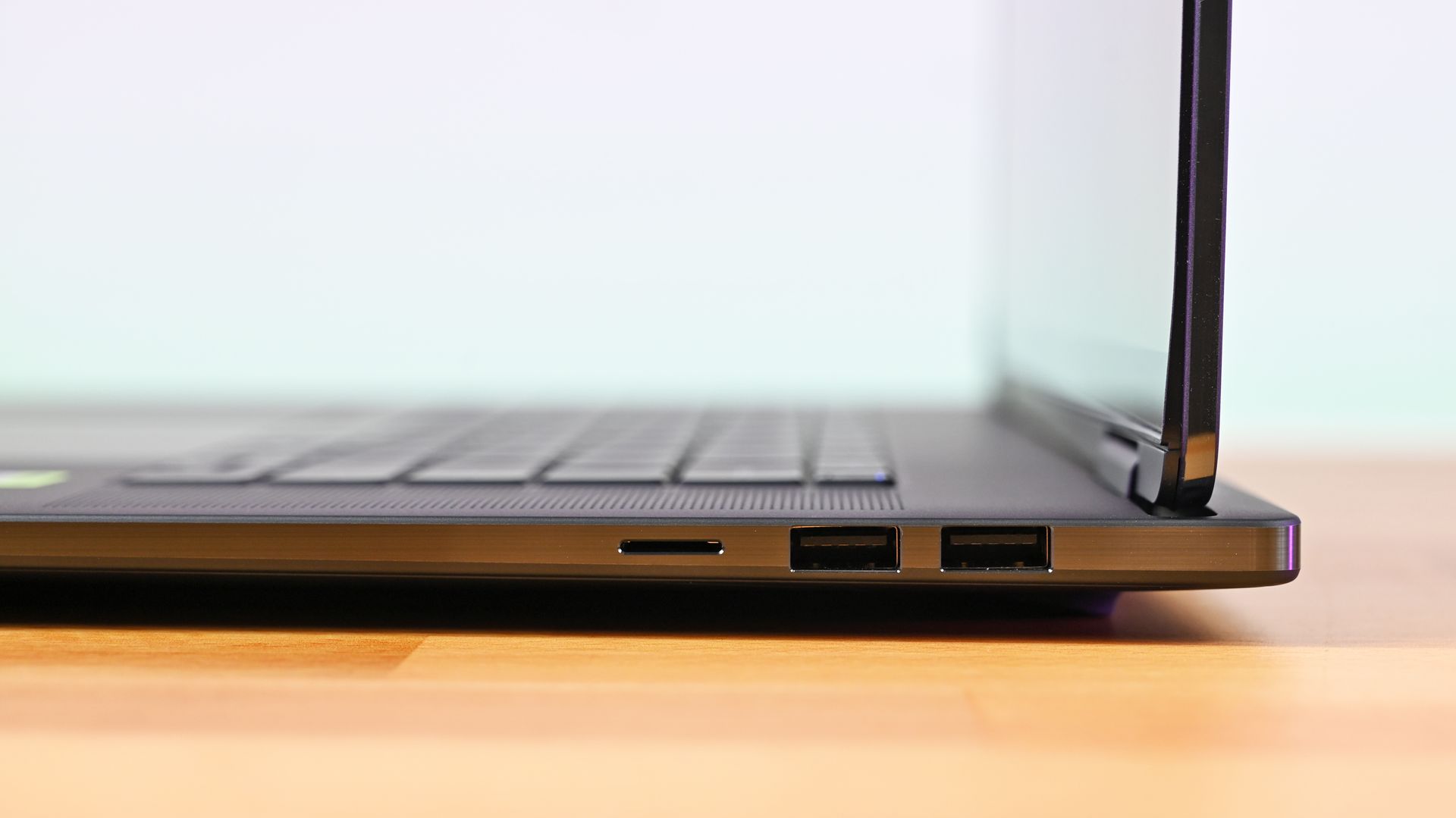
Profile view of the right ports and upright screen hinge on the HP OmniBook Ultra 16, with dual USB-A ports and micro SD. (Image credit: Daniel Rubino)
HP knows how to make premium hardware, and I think the OmniBook Ultra 16's overall build quality is a smidge better than the ASUS ProArt P16.
The three-piece CNC-machined aluminum chassis feels exceptionally solid. Eclipse Gray looks fantastic and has a lovely texture that also does an unusually good job resisting fingerprints.
Then there's HP's tower hinge and trunk architecture. Beyond looking cool, the design creates additional room behind the hinge for airflow and rear exhaust. HP combines that with two 79-blade fans, three heat pipes, and internal temperature monitoring, with the system designed to sustain up to 70W.
The results are good, although not dramatically better than ASUS.
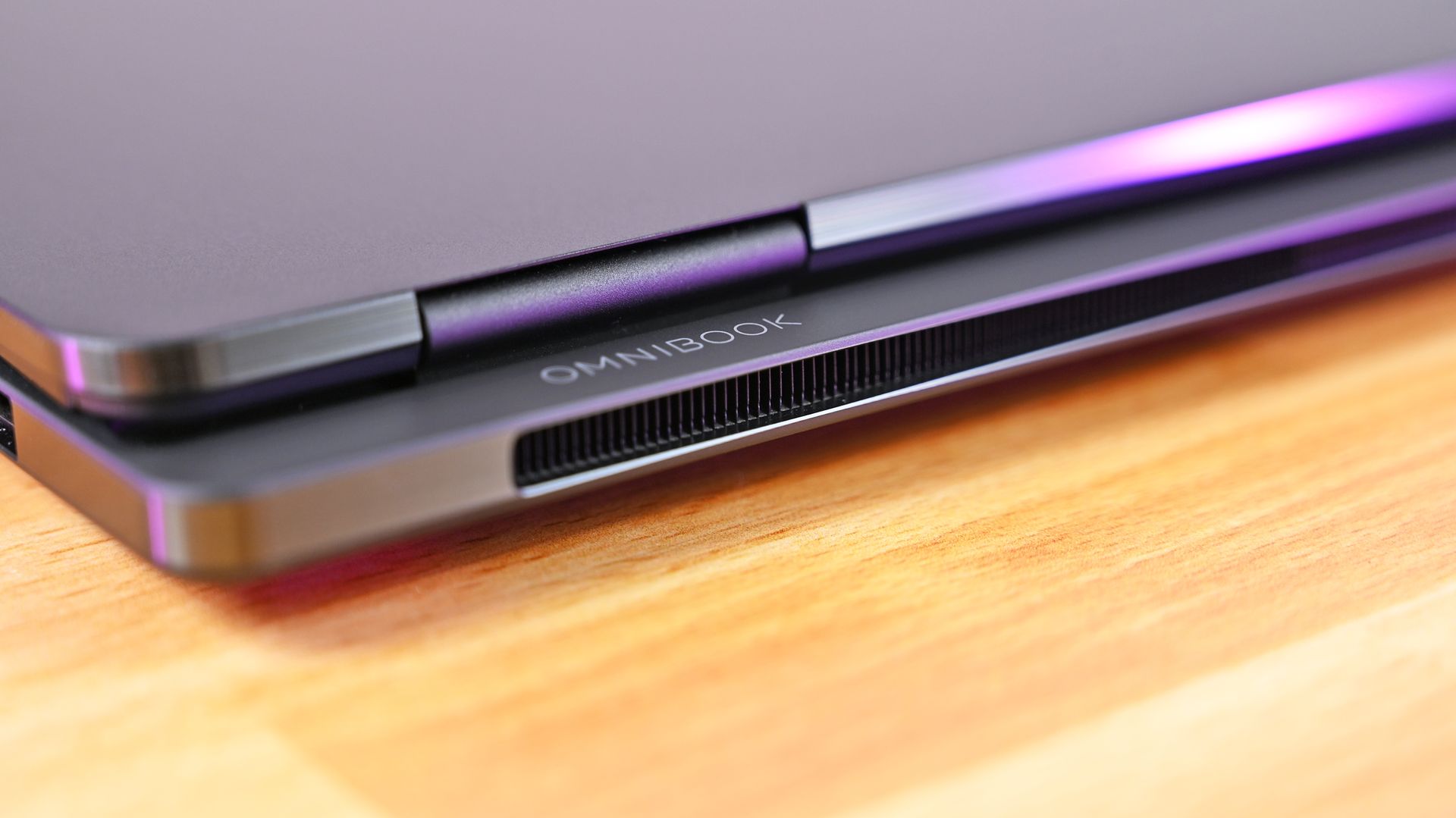
Slick design! Rear view of the HP OmniBook Ultra 16 RTX Spark, showing the cooling grille and hinge. (Image credit: Daniel Rubino)
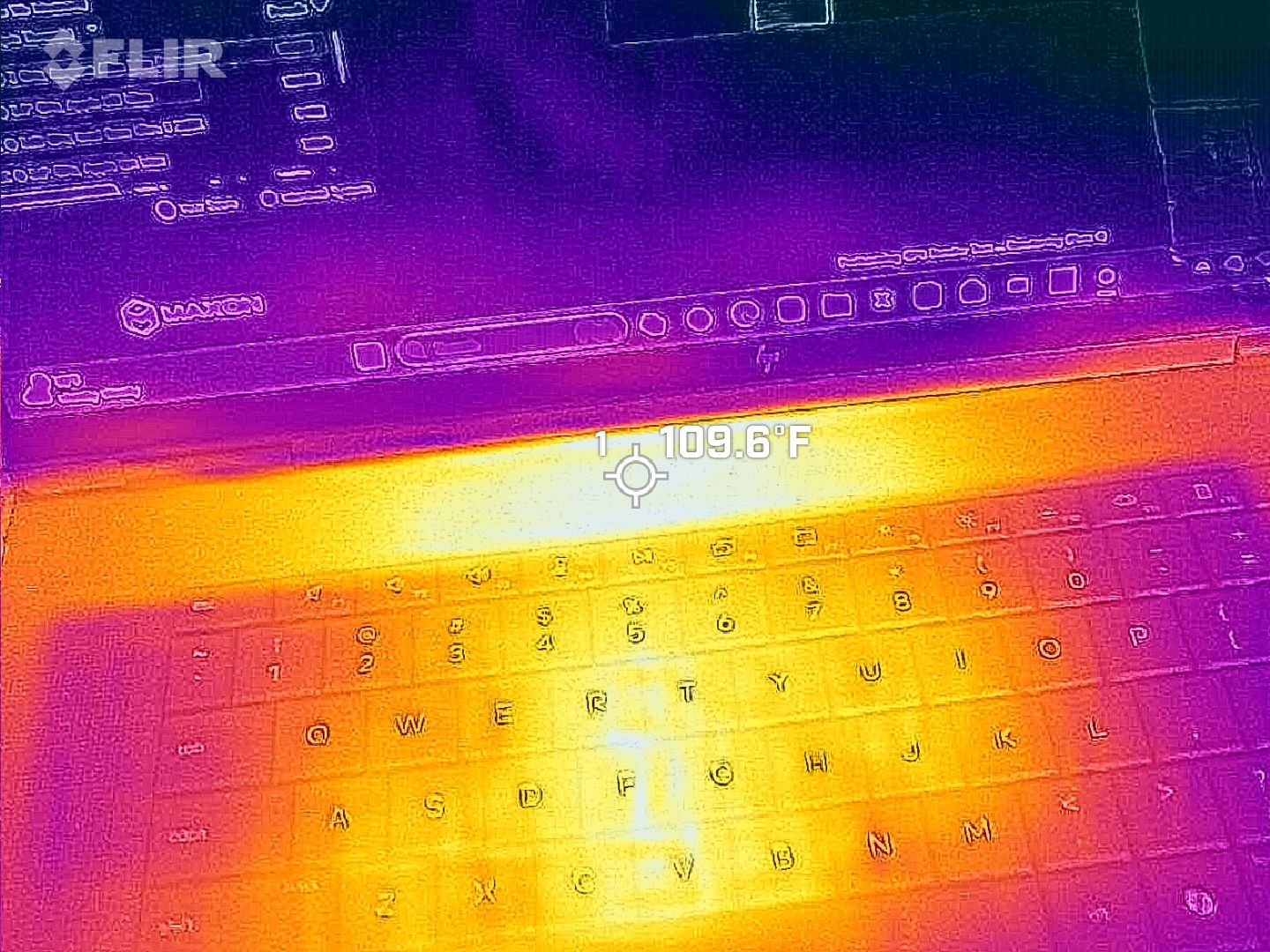
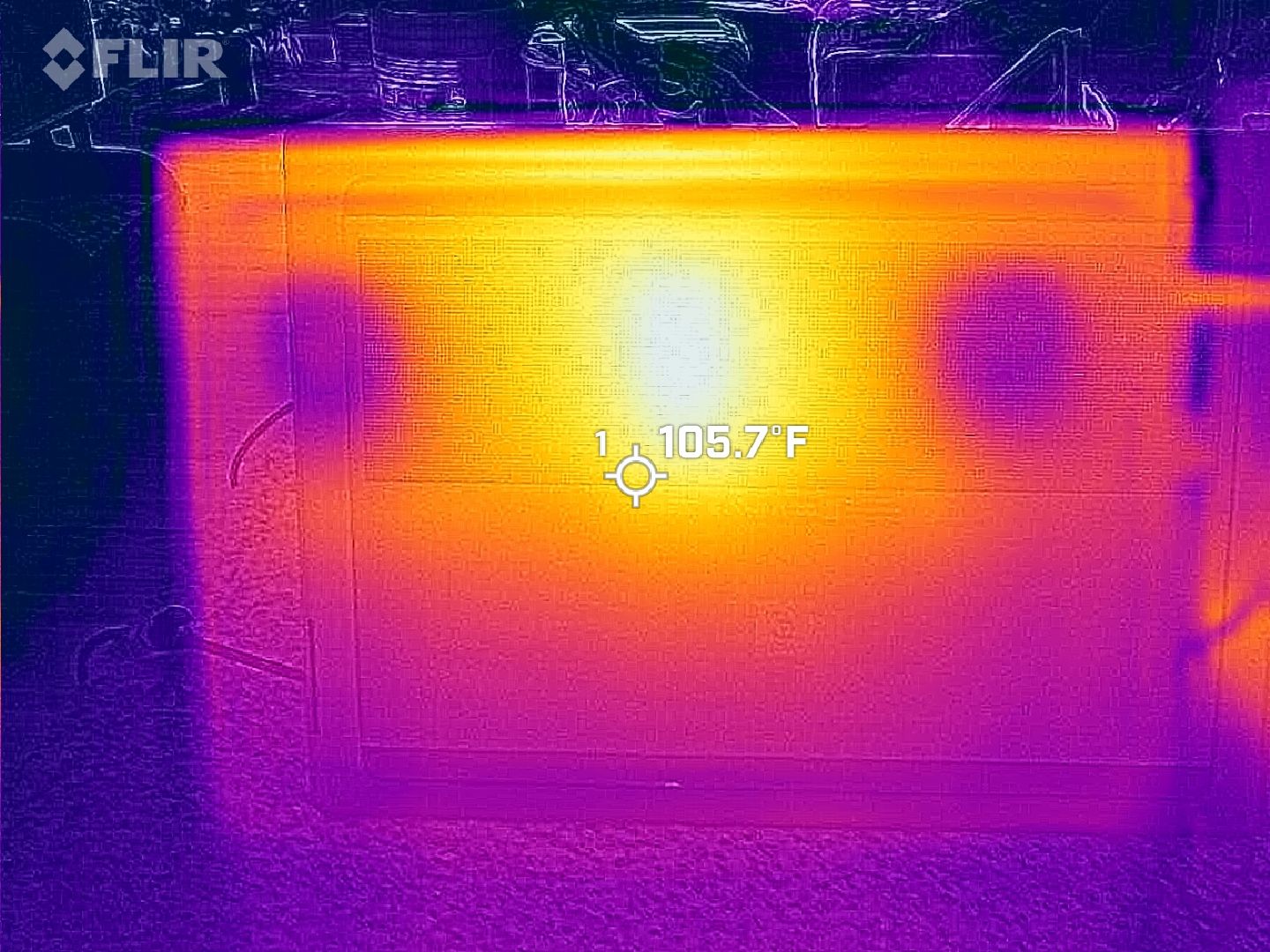
My OmniBook reached around 113 degrees Fahrenheit (45 degrees Celsius) at its hottest point under a sustained load and generally ran slightly warmer than my ProArt P16. That's nothing I'd consider concerning or even notice during regular use. The fans are also excellent and broadly comparable to ASUS, generally remaining below 50dB.
Daniel RubinoDaniel RubinoDaniel RubinoDaniel Rubino
I just don't see a huge thermal payoff for the added bulk.
Because, yes, this thing weighs 4.9 pounds.
That's an entire pound heavier than the 3.9-pound ProArt P16. Even Microsoft's Surface Laptop Ultra comes in around 4.5 pounds.
HP's compact matte black 140W GaN power adapter is an excellent addition. (Image credit: Daniel Rubino)
Leave the HP on a desk and none of this matters. Carry it around every day, and ASUS suddenly becomes much more appealing.
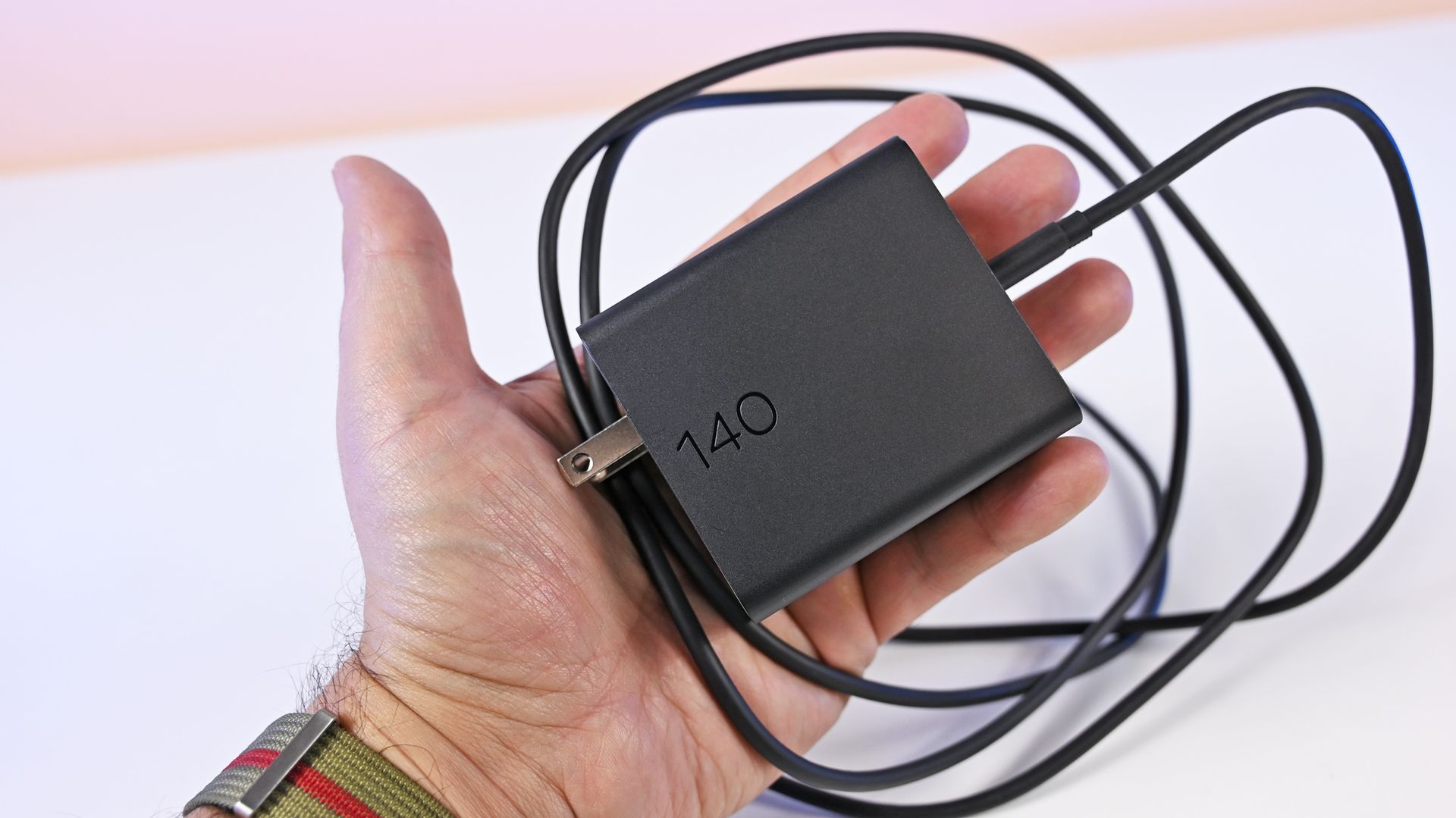
Ironically, HP makes up some of that difference with the best charger I've seen on an RTX Spark PC. The included 140W GaN charger is remarkably small, uses a detachable Type-C cable, and has folding prongs. HP says it's 43% smaller and 28% lighter than its previous adapter.
Display, keyboard, and touchpad: Some of HP's best work
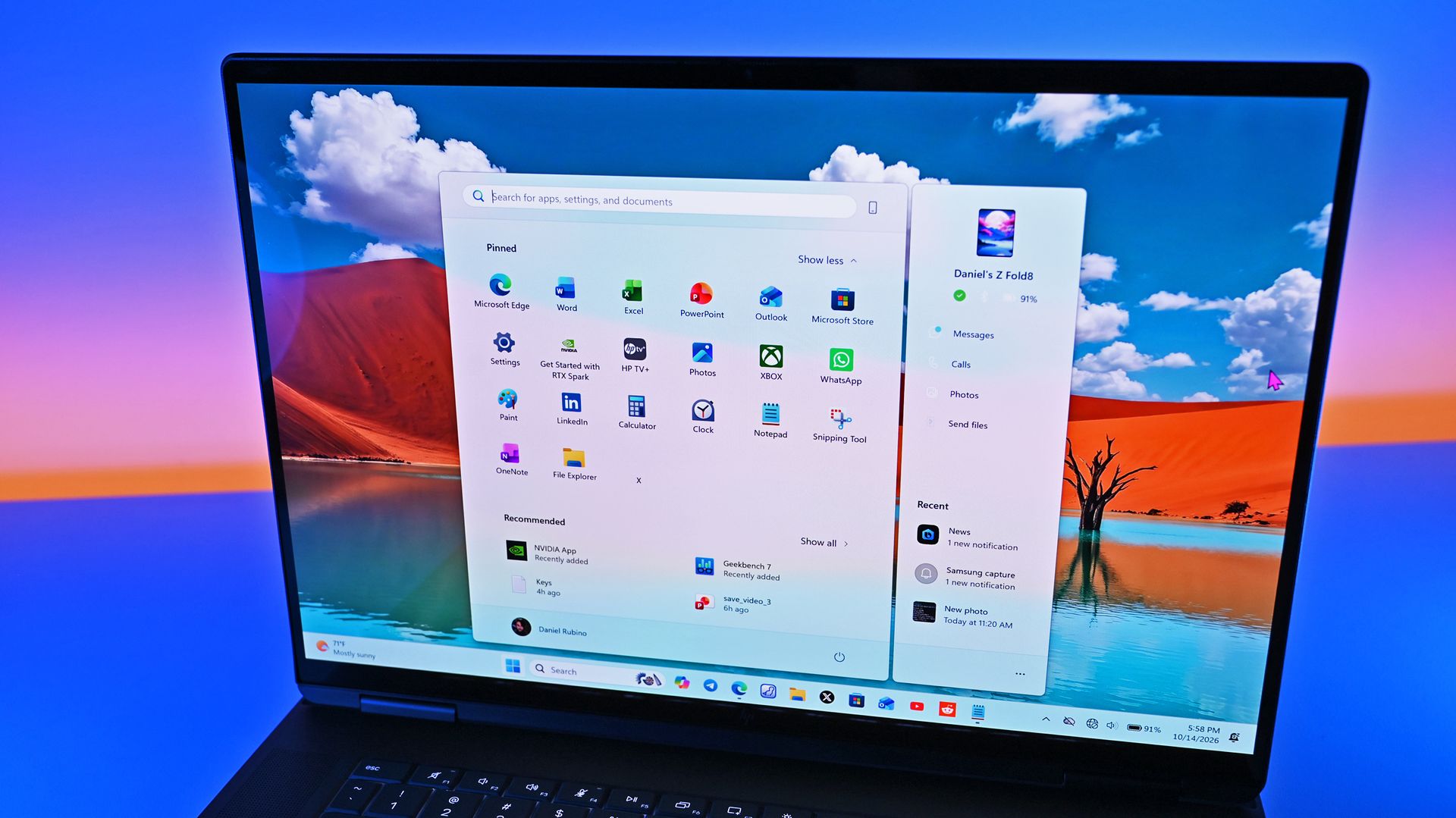
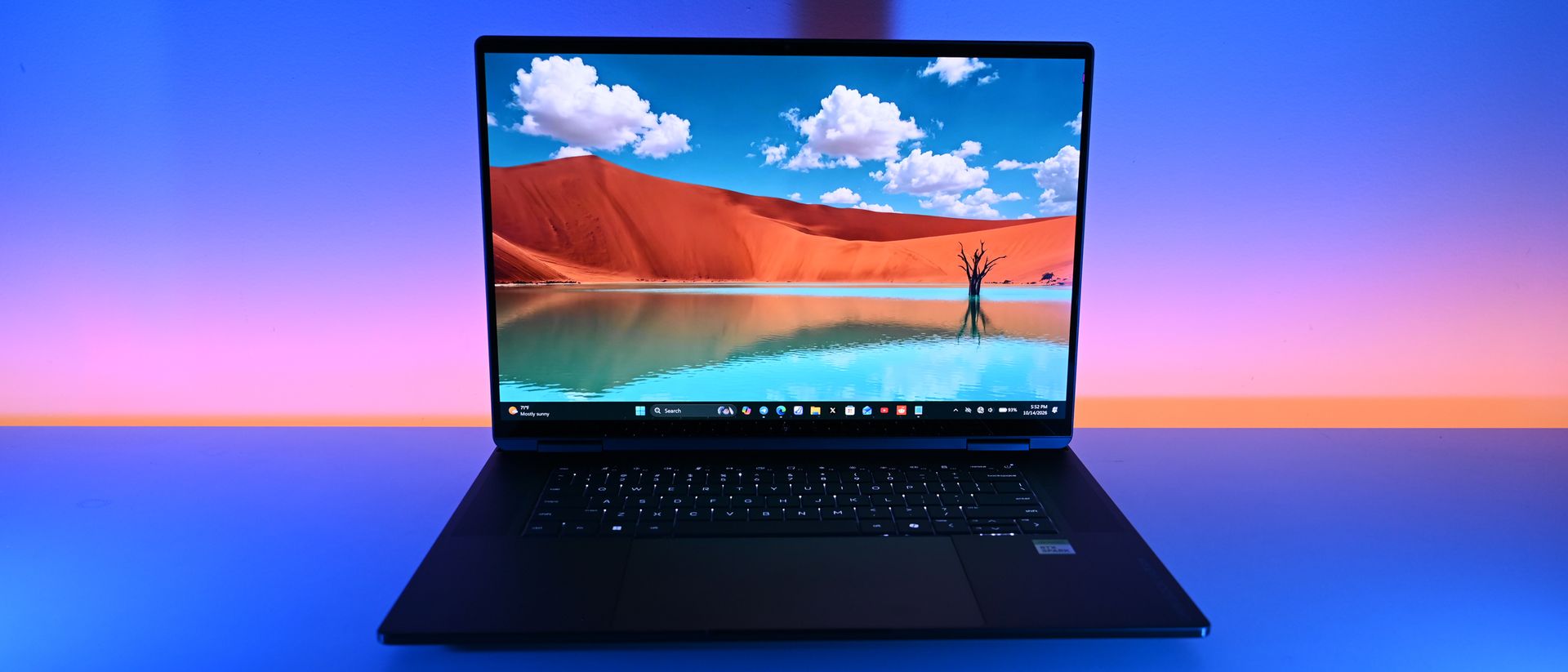
HP's OLED panel is really well done. (Image credit: Daniel Rubino)
The 3K OLED touchscreen might be my favorite thing about this laptop.
ASUS also has a fantastic OLED panel, but HP's looks slightly more natural to me. Colors appear clean and balanced without becoming excessively saturated.
HP rates it at 2880 x 1800 resolution, up to 120Hz (VRR), 500 nits SDR, 1,100 nits HDR, and 100% DCI-P3.
Daniel RubinoDaniel RubinoDaniel RubinoDaniel Rubino
It's glossy, although surprisingly tolerable for someone like me who complains about glossy laptop displays all the time. Reflections bother me considerably less here than on Surface Laptop Ultra.
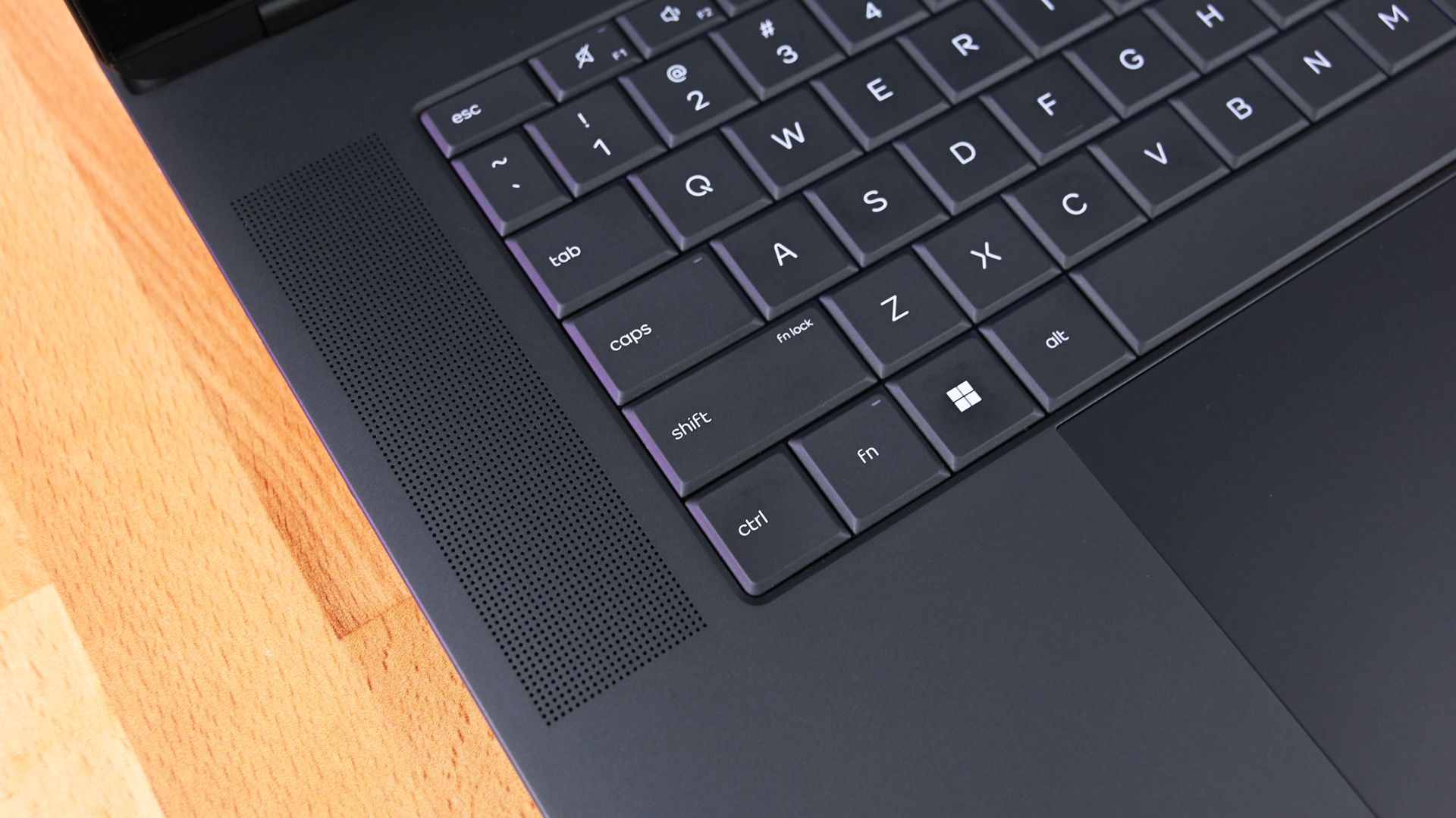
The second-generation latticeless keyboard is another winner. HP says it increased the spacing between keys and deepened the key dishes based on feedback from its first attempt, and whatever it did worked.
It looks great, feels precise, and is genuinely fun to type on.
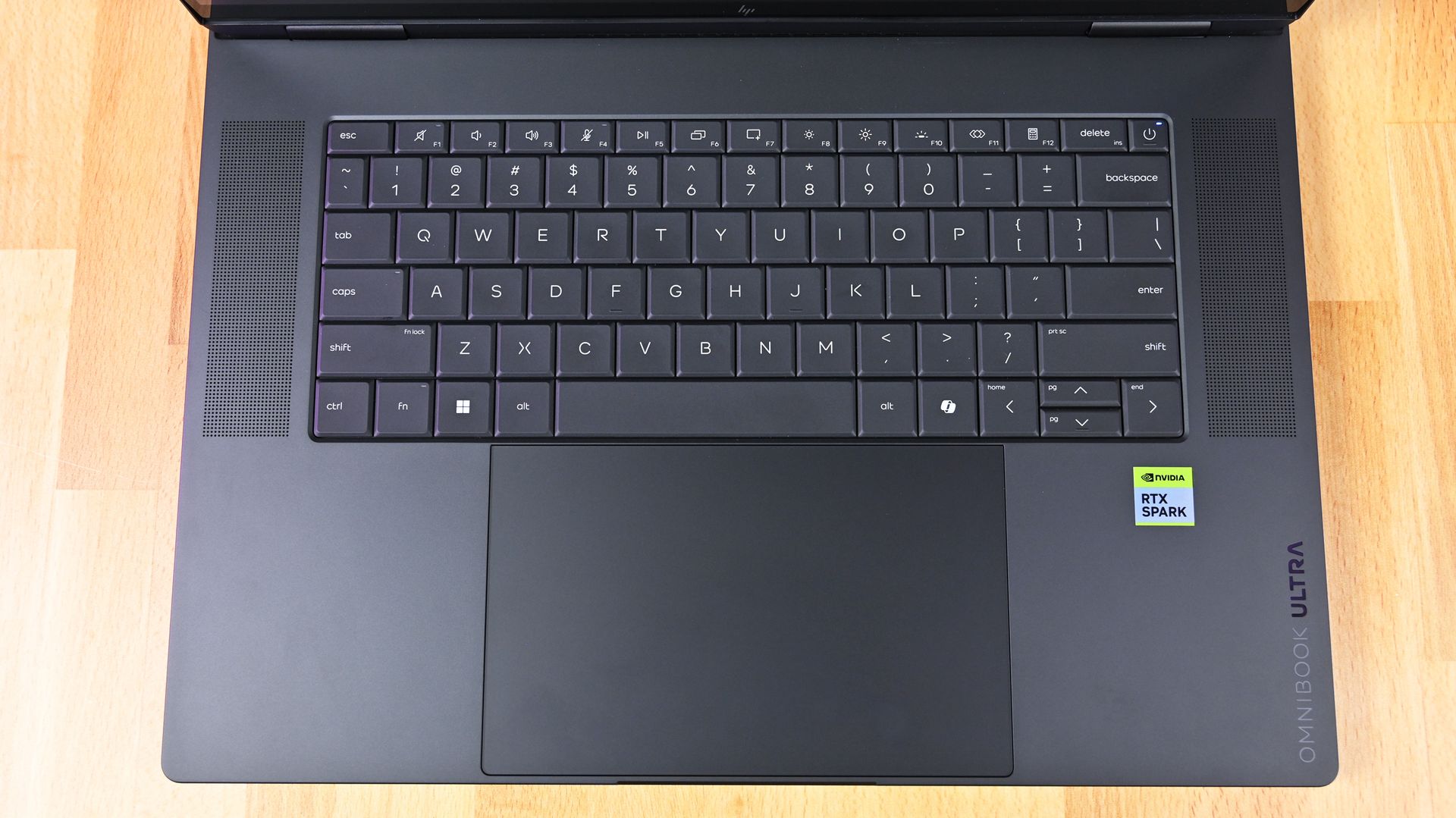
Overhead top-down view of the HP OmniBook Ultra 16 RTX Spark keyboard deck, flanked by dual speaker grilles. (Image credit: Daniel Rubino)
My complaint is the backlighting. You get only two brightness levels versus three on ASUS, and there's no ambient light sensor, so you're manually switching it on and off.
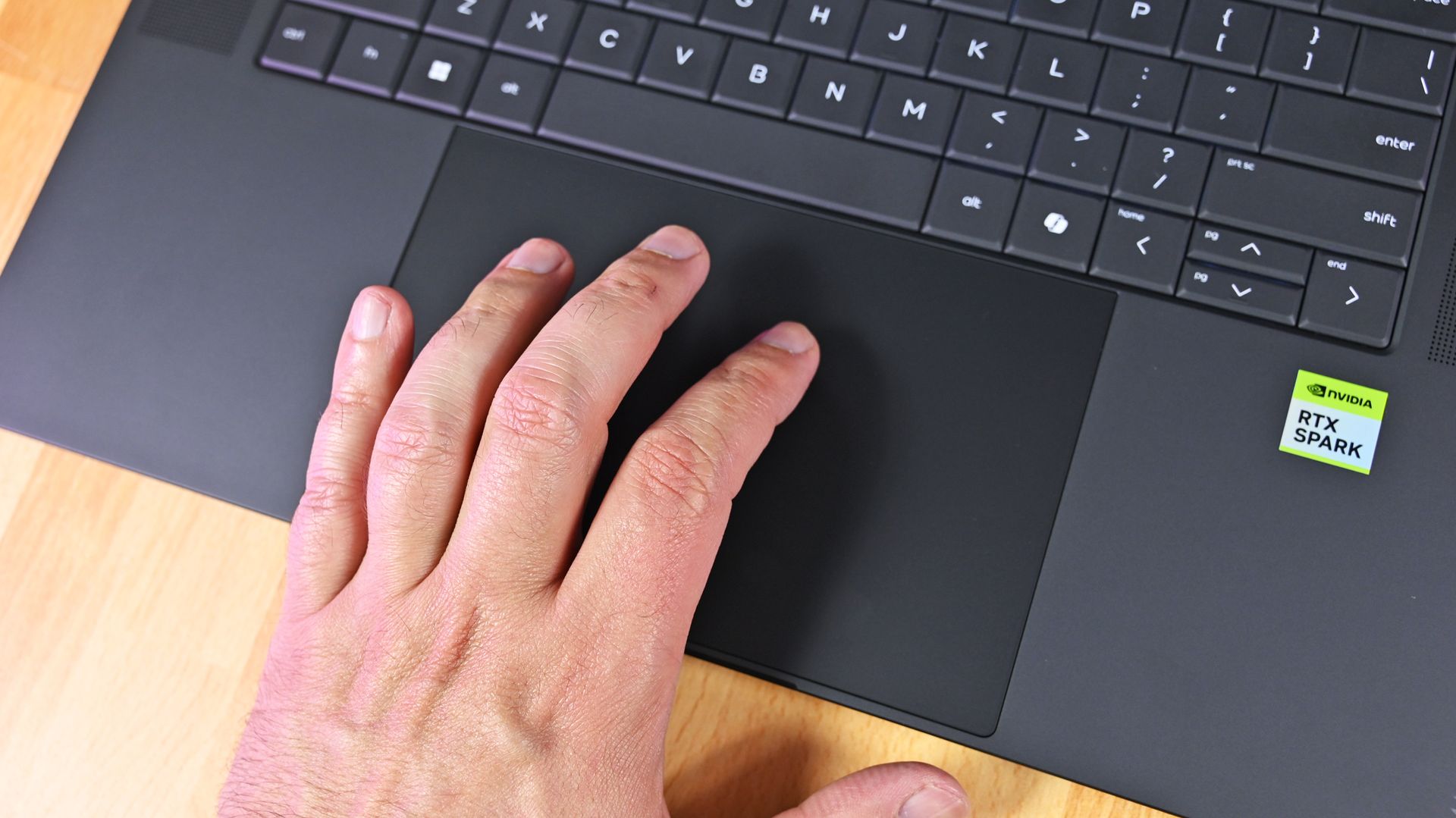
The enormous haptic touchpad is also excellent, with crisp, consistent feedback across its entire surface. Yet bizarrely, it doesn't support Windows 11 Haptic Signals like ASUS and Surface do (which means it chose an older haptic design).
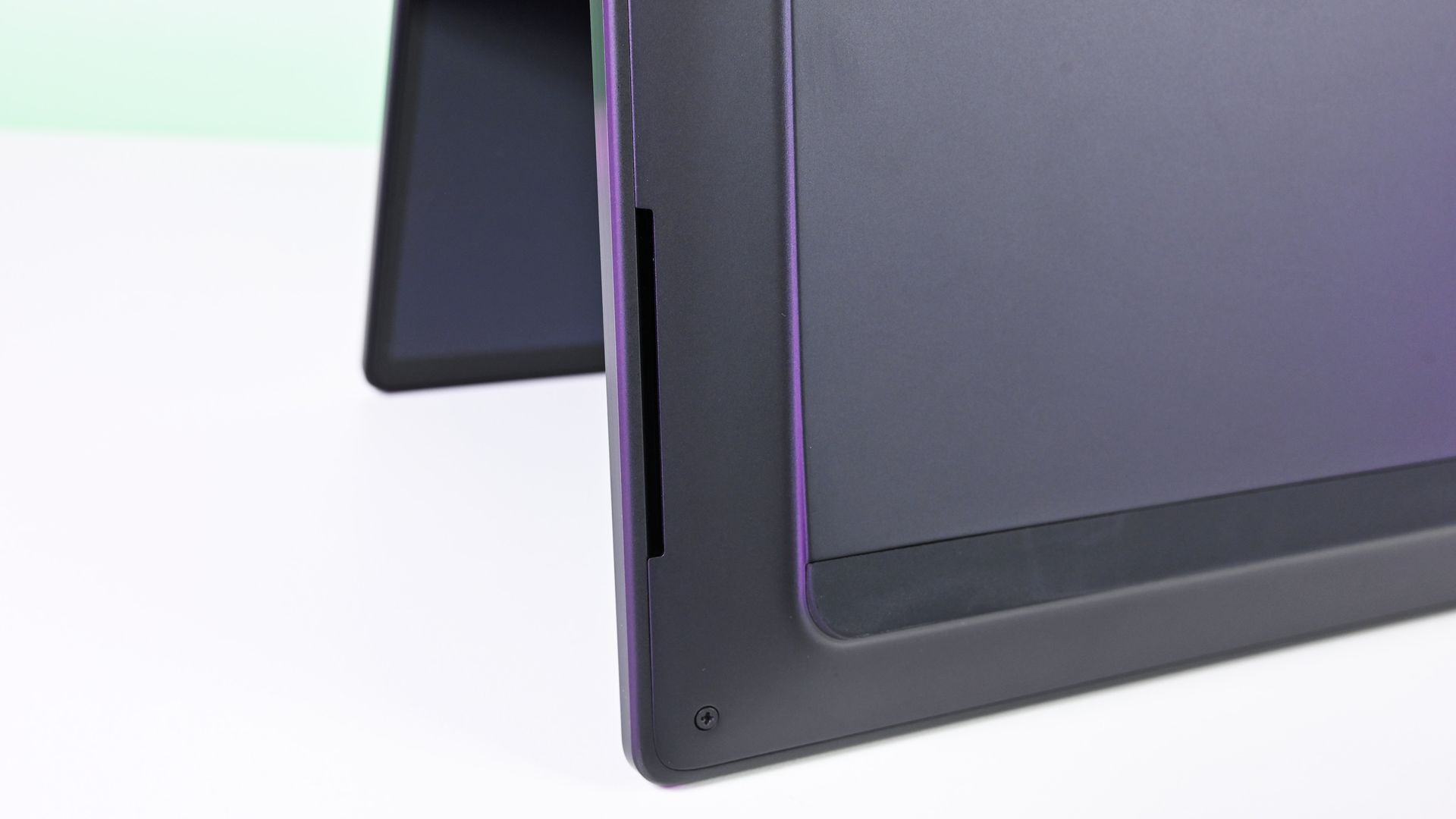
The bottom edge and corner of the HP OmniBook Ultra 16 RTX Spark chassis, showing an elongated speaker cutout. (Image credit: Daniel Rubino)
HP also skips ASUS's adaptive color and ambient light sensors, although it does provide human presence detection. Kind of weird to be missing those first two sensors on such a premium Windows laptop, not gonna lie.
Audio is excellent and roughly comparable to ASUS, while the 5MP webcam is simply okay. It's somewhat soft but perfectly usable. For that audio, you get a quad-speaker system that combines two speakers and a tweeter with DTS X Ultra and spatial audio. I generally prefer Dolby Atmos (which is what ASUS and Surface use), but DTS X Ultra is fine here.
Ports: Plenty of them, but why are both USB-C ports over here?
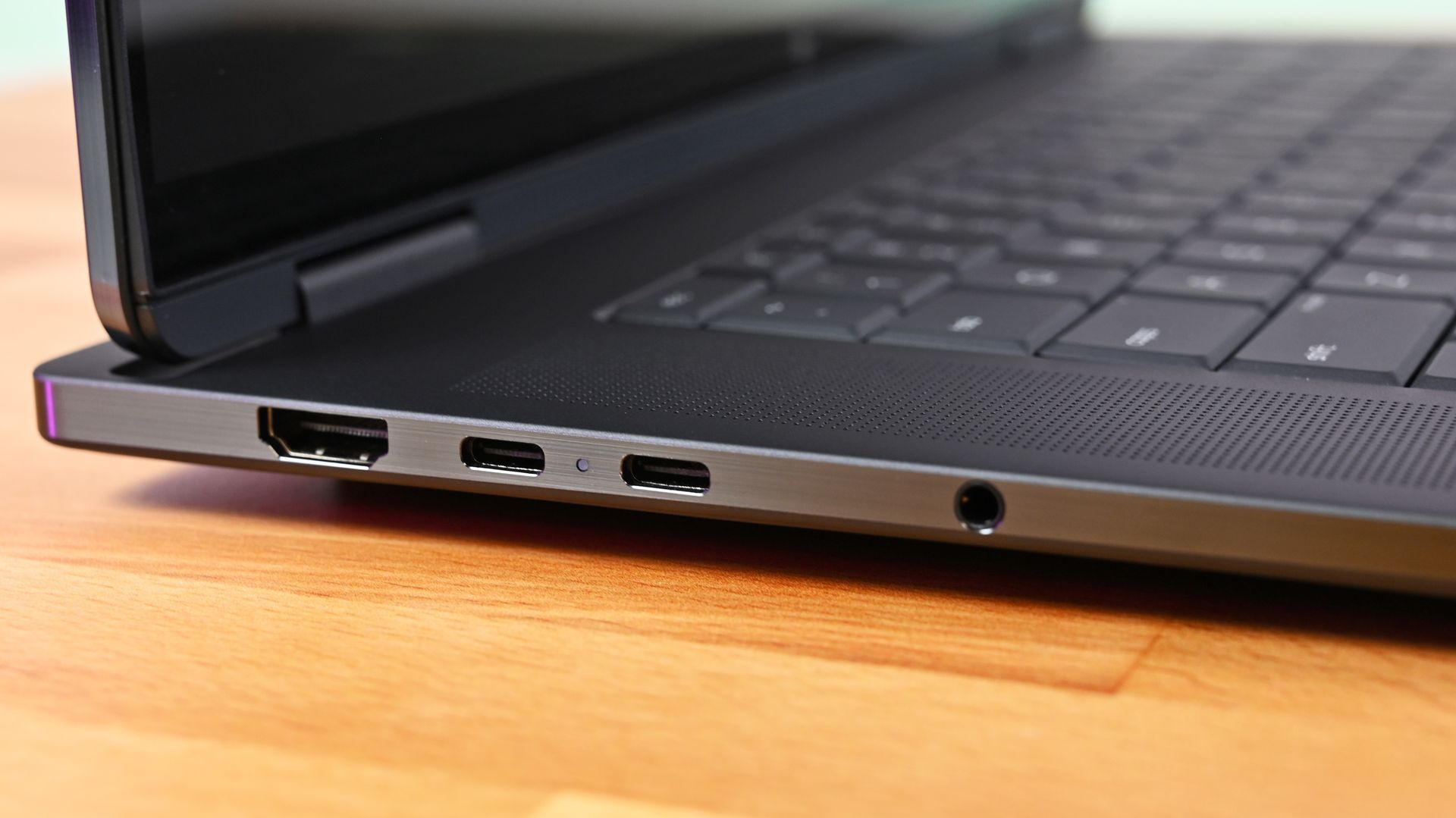
Close-up profile of the left edge of the HP OmniBook Ultra 16 RTX Spark, showing an HDMI port, two USB-C ports with an LED status light, and a 3.5mm headphone jack. (Image credit: Daniel Rubino)
HP gives you HDMI 2.1, two USB-C ports, two USB-A ports, MicroSD, and a headphone jack.
That's a great selection, particularly those two legacy Type-A ports.
Unfortunately, both USB-C connections are on the left side, and since that's also how you charge the laptop, cable placement is less flexible than ASUS (personally, I feel one Type-C on either side is a better design decision).
The second-generation latticeless keyboard is another winner… It looks great, feels precise, and is genuinely fun to type on
The software loadout is peculiar, too. My system came with McAfee, which I immediately removed, yet several HP utilities I'd expect on one of the company's flagship laptops, including HP Support, weren't installed, so you get fewer bonus device configuration options, unlike the MyASUS app, which is ideal.
None of these are serious problems. They're just odd omissions at this price.
RTX Spark performance: Stop worrying about tiny differences
(Image credit: Daniel Rubino)
After testing multiple RTX Spark PCs, I've reached a straightforward conclusion: don't buy one based on tiny benchmark victories.
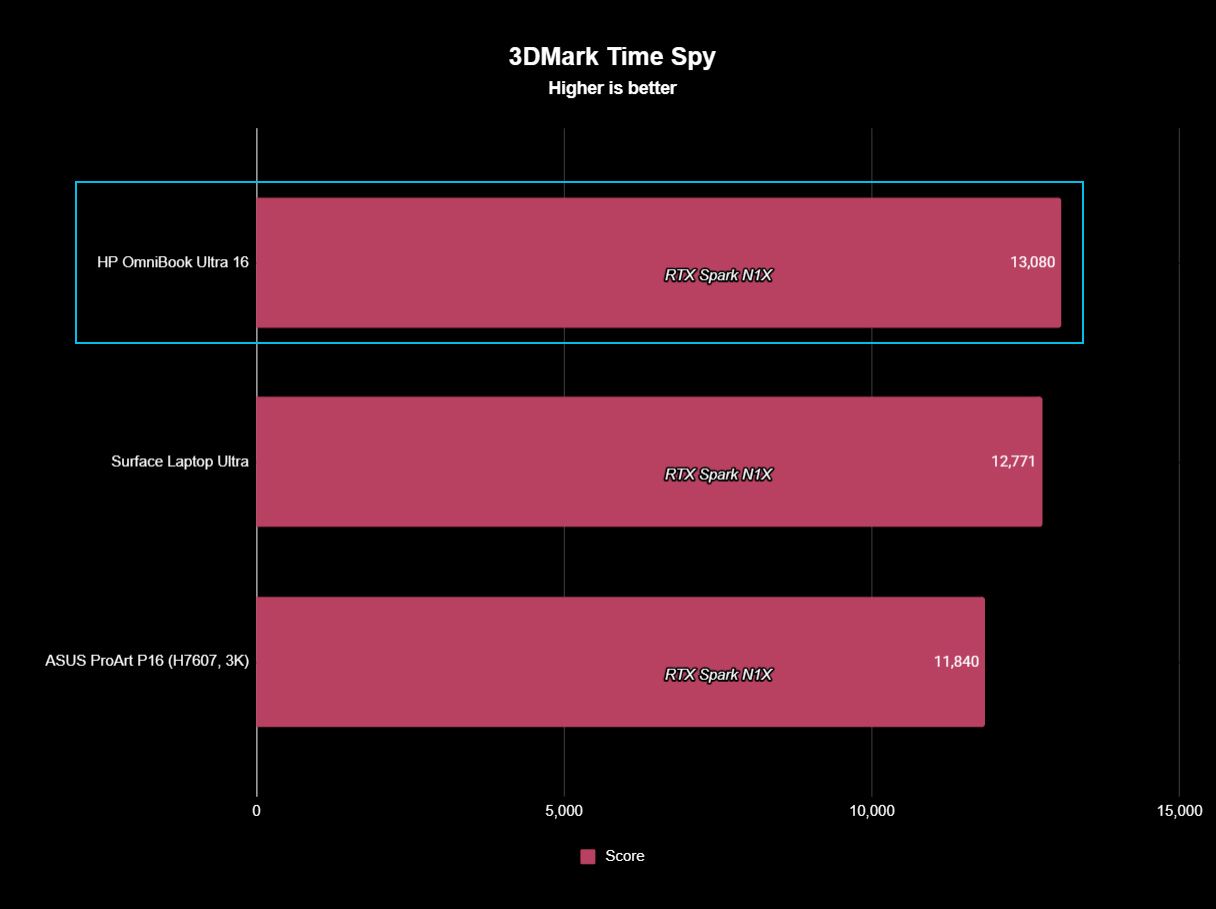
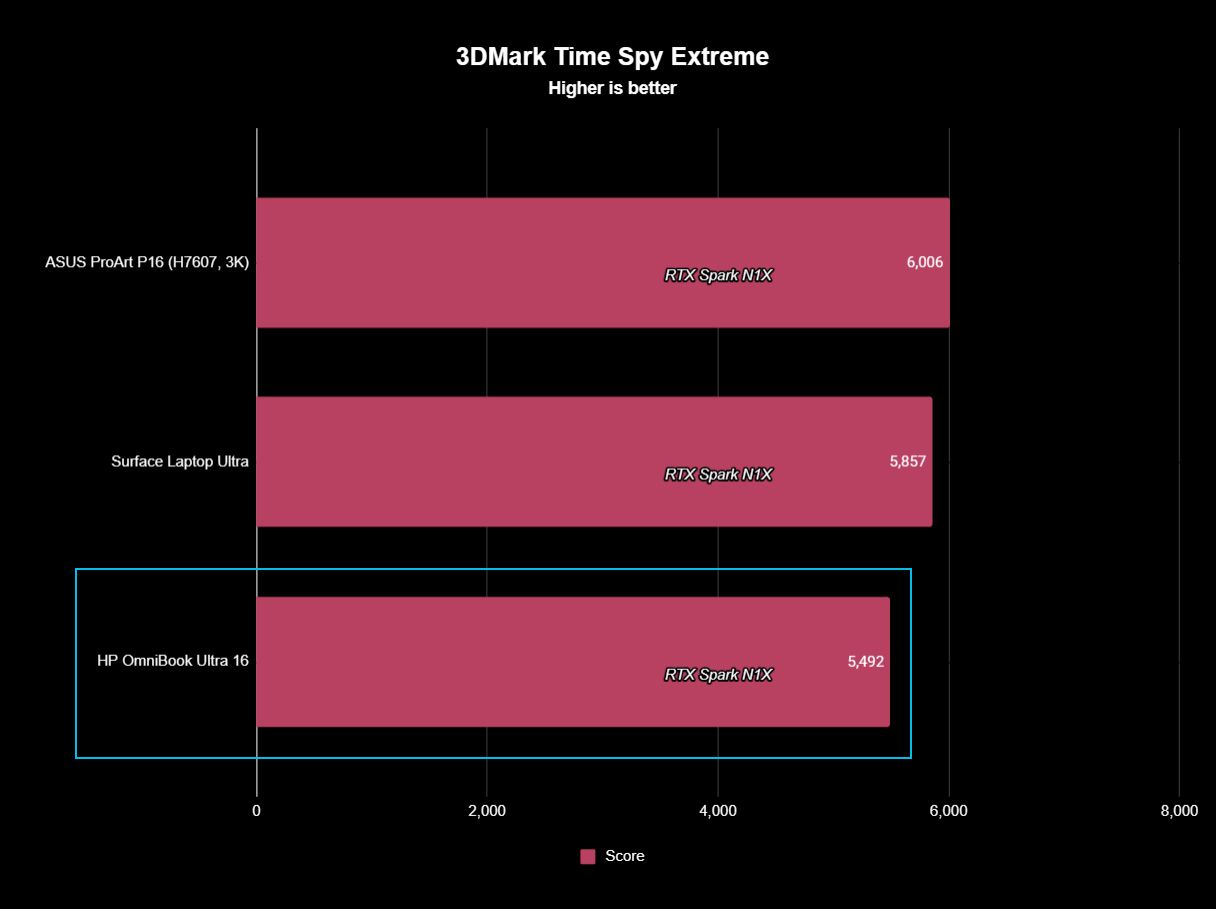
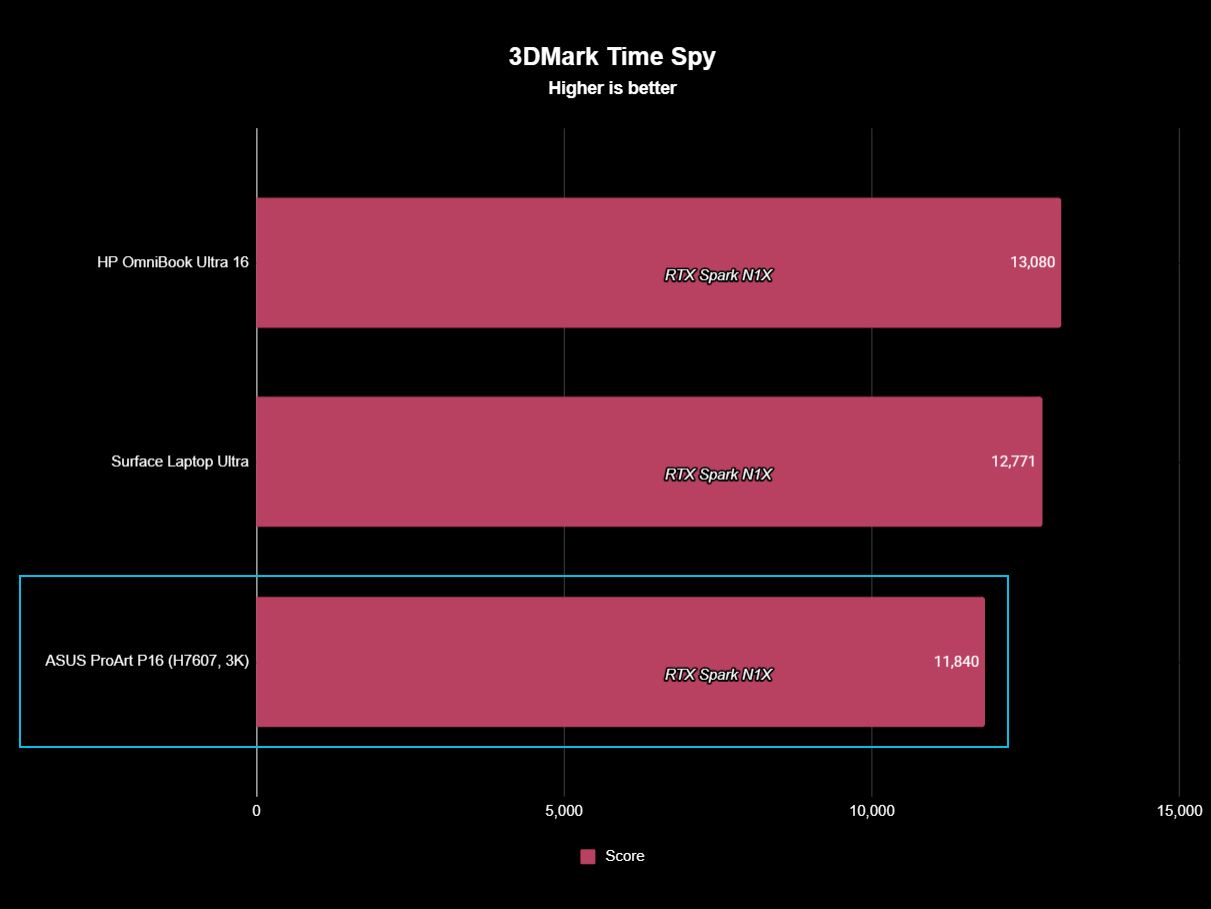
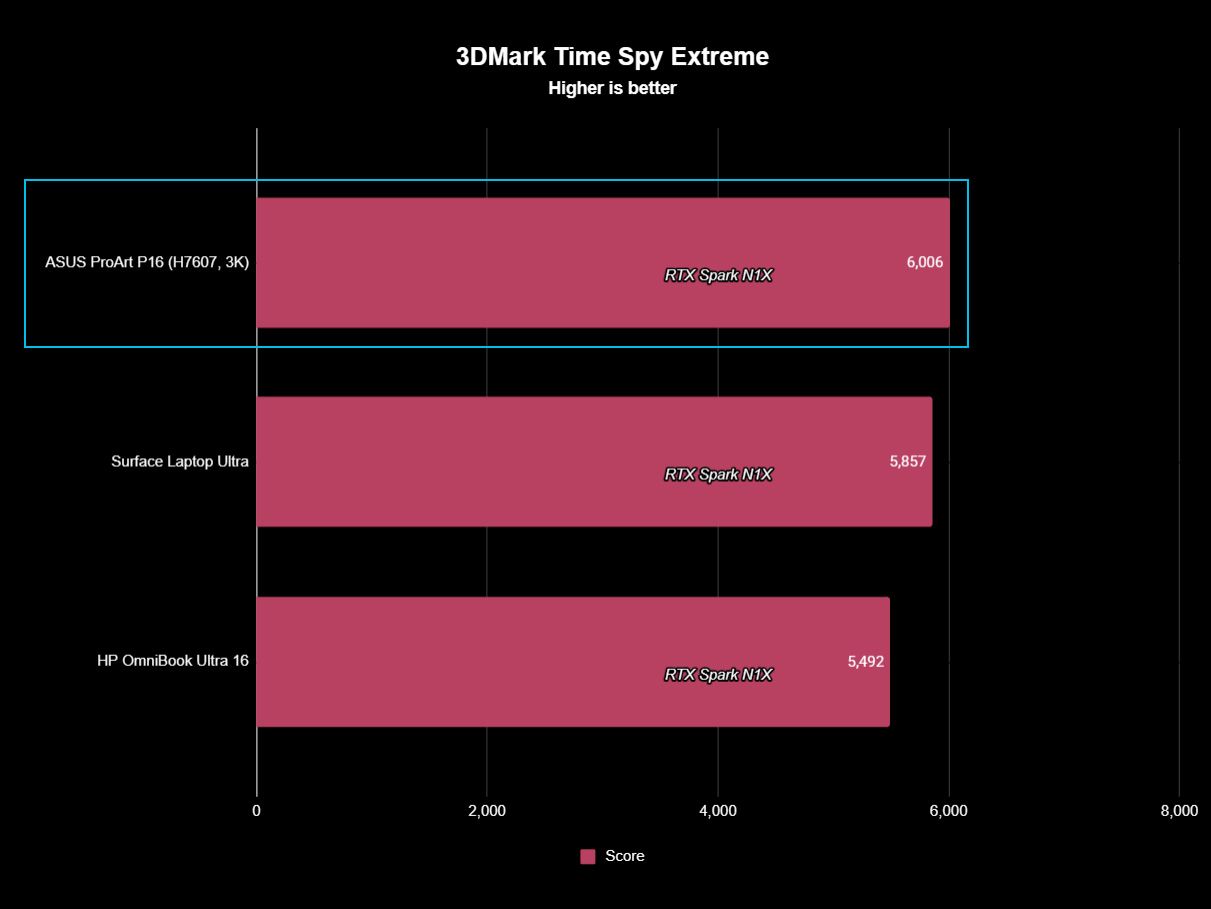
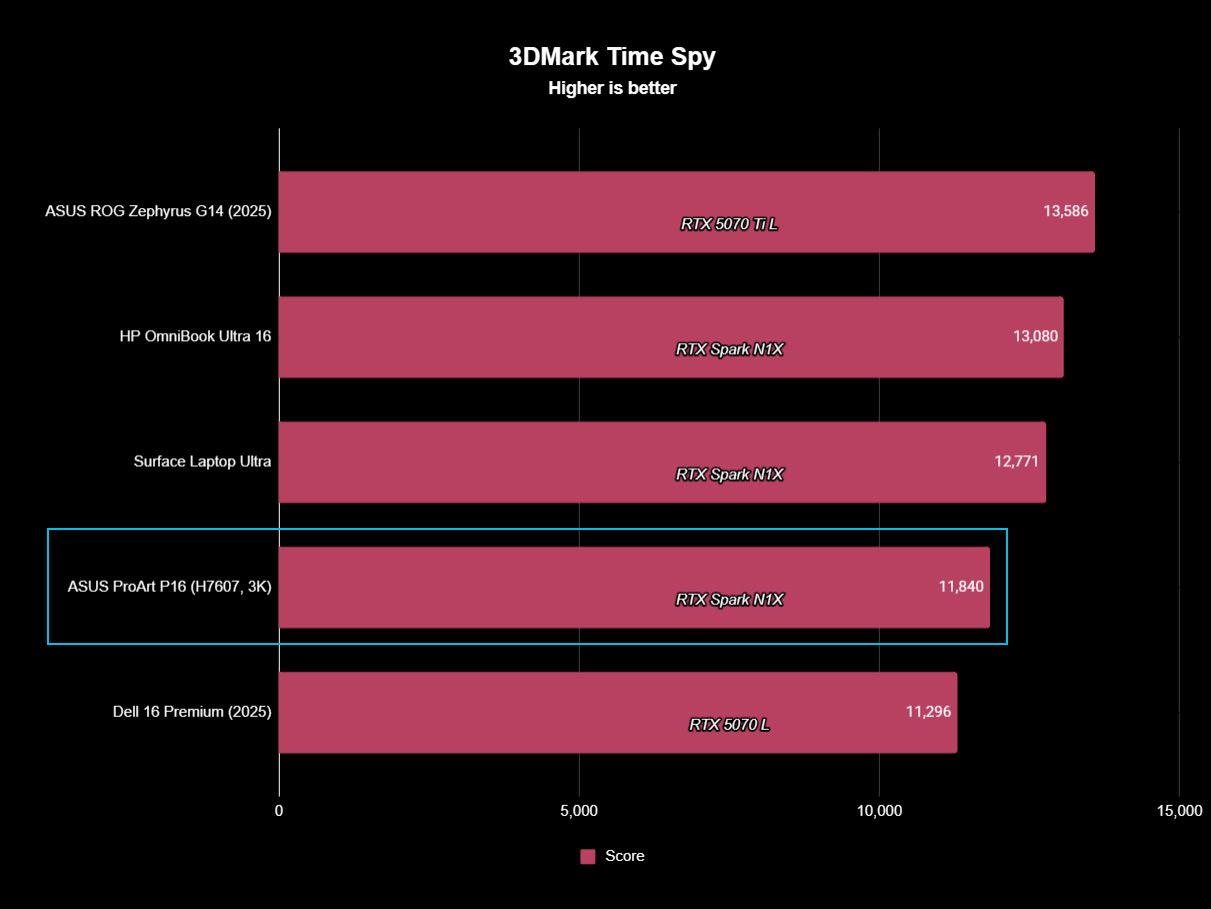
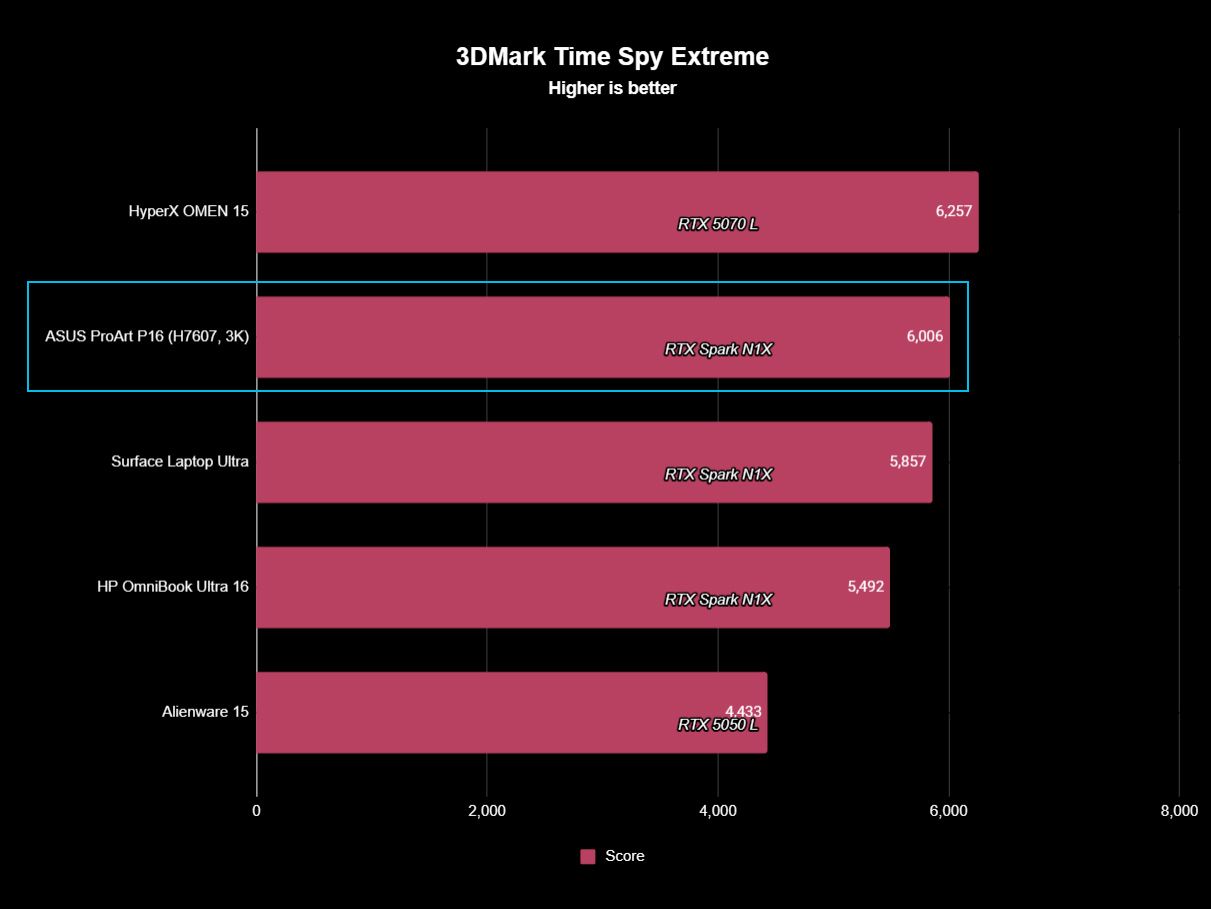
My OmniBook scored 13,080 in 3DMark Time Spy, ahead of Surface's 12,771 and ASUS's 11,840. Time Spy Extreme reversed things, with ASUS hitting 6,006 versus 5,857 for Surface and 5,492 for HP.
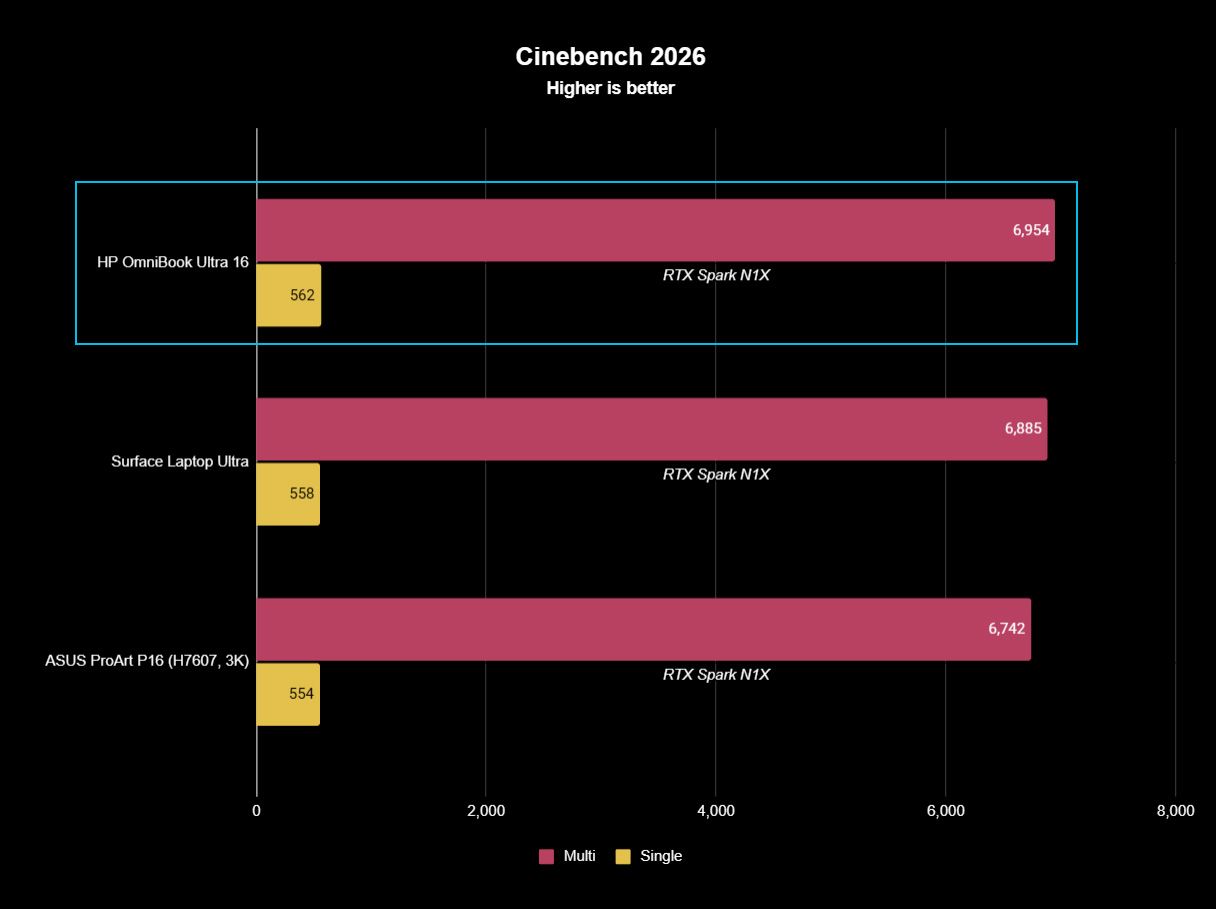
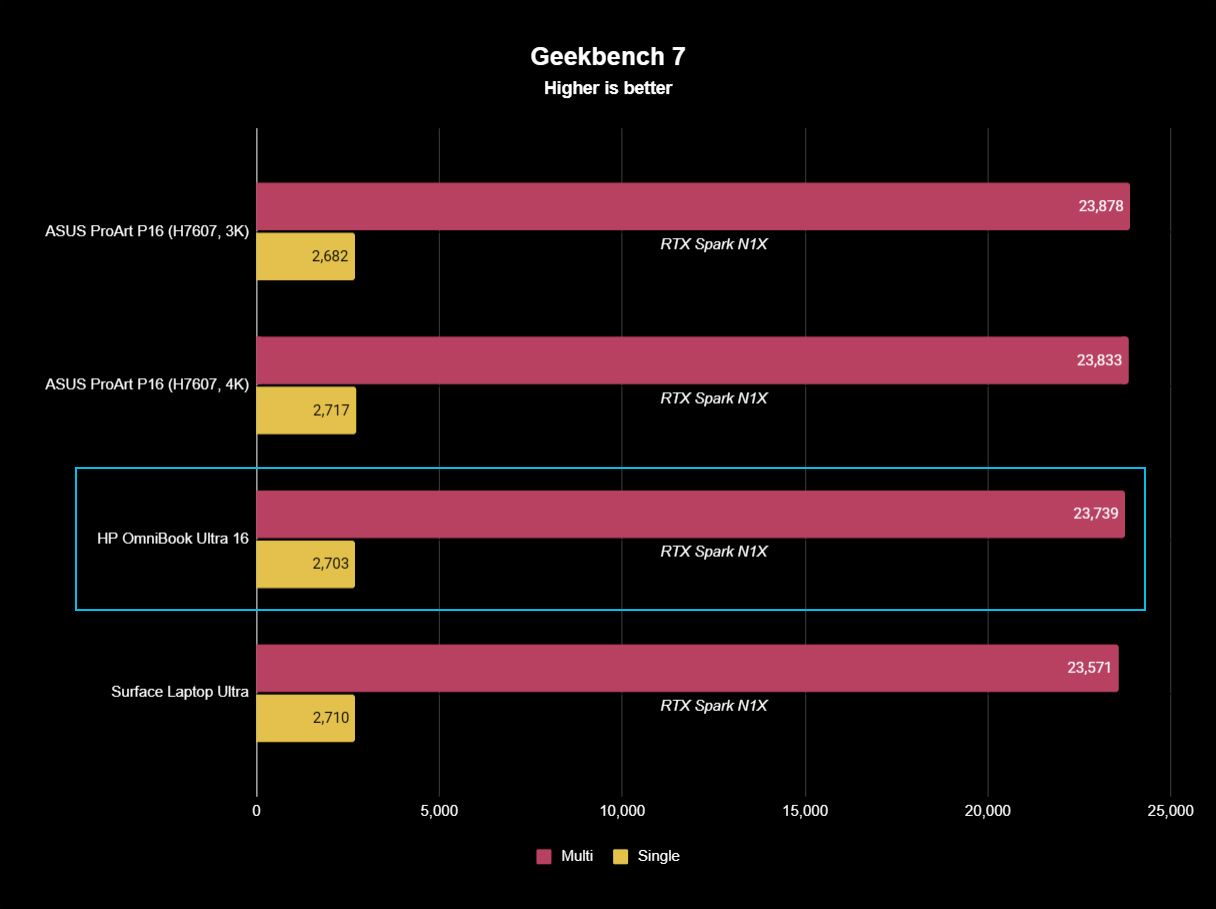
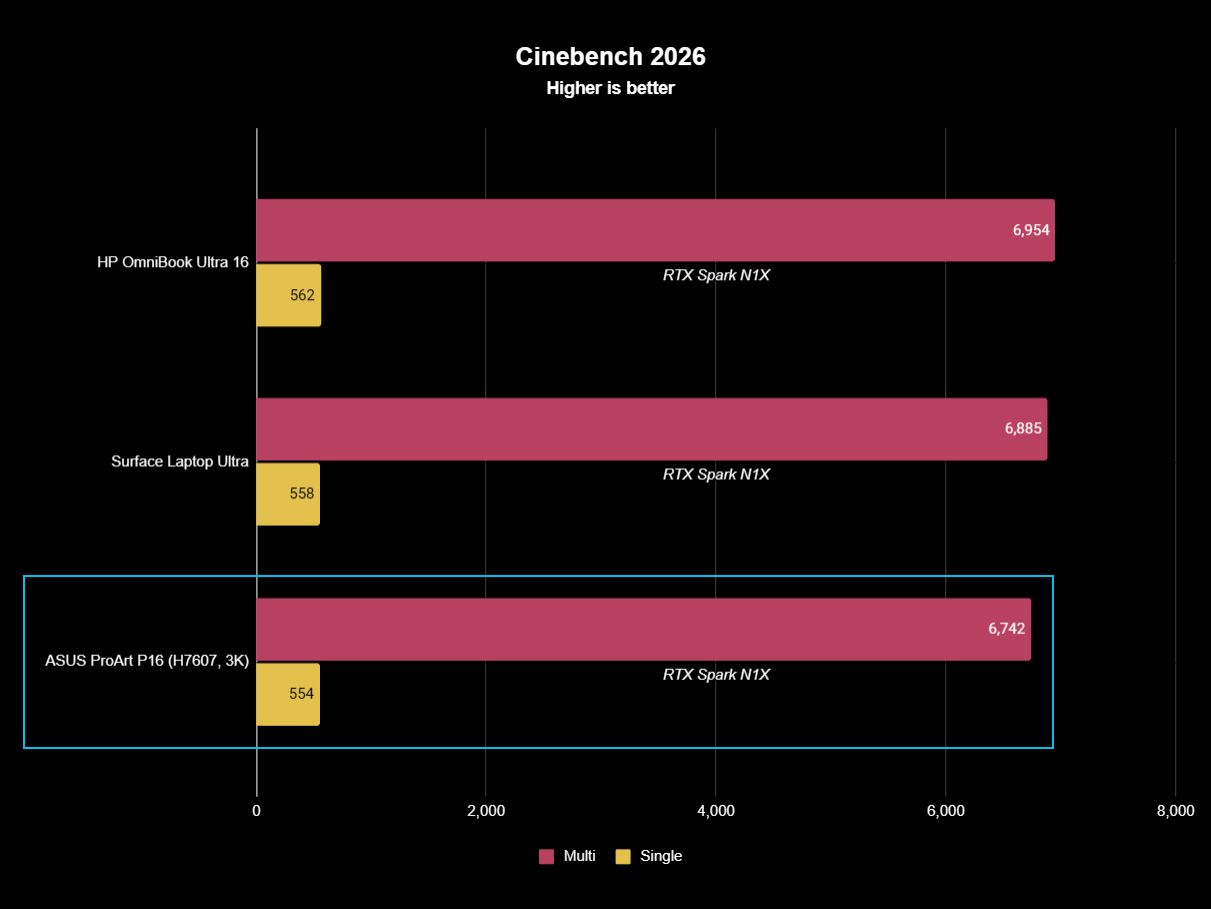
Cinebench 2026 tells a similar story. HP scored 6,954 multi-core and 562 single-core, while Geekbench 7 results among these machines are effectively interchangeable.
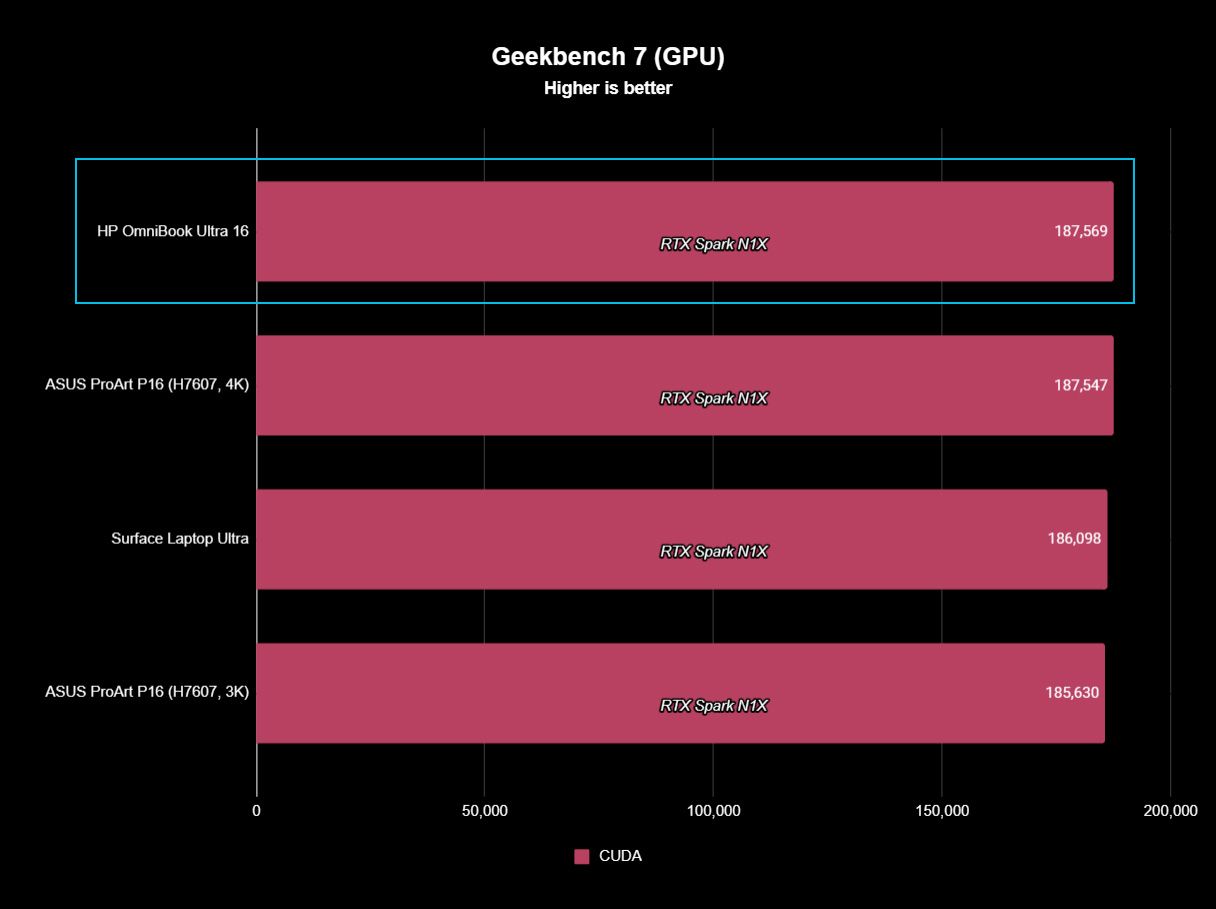
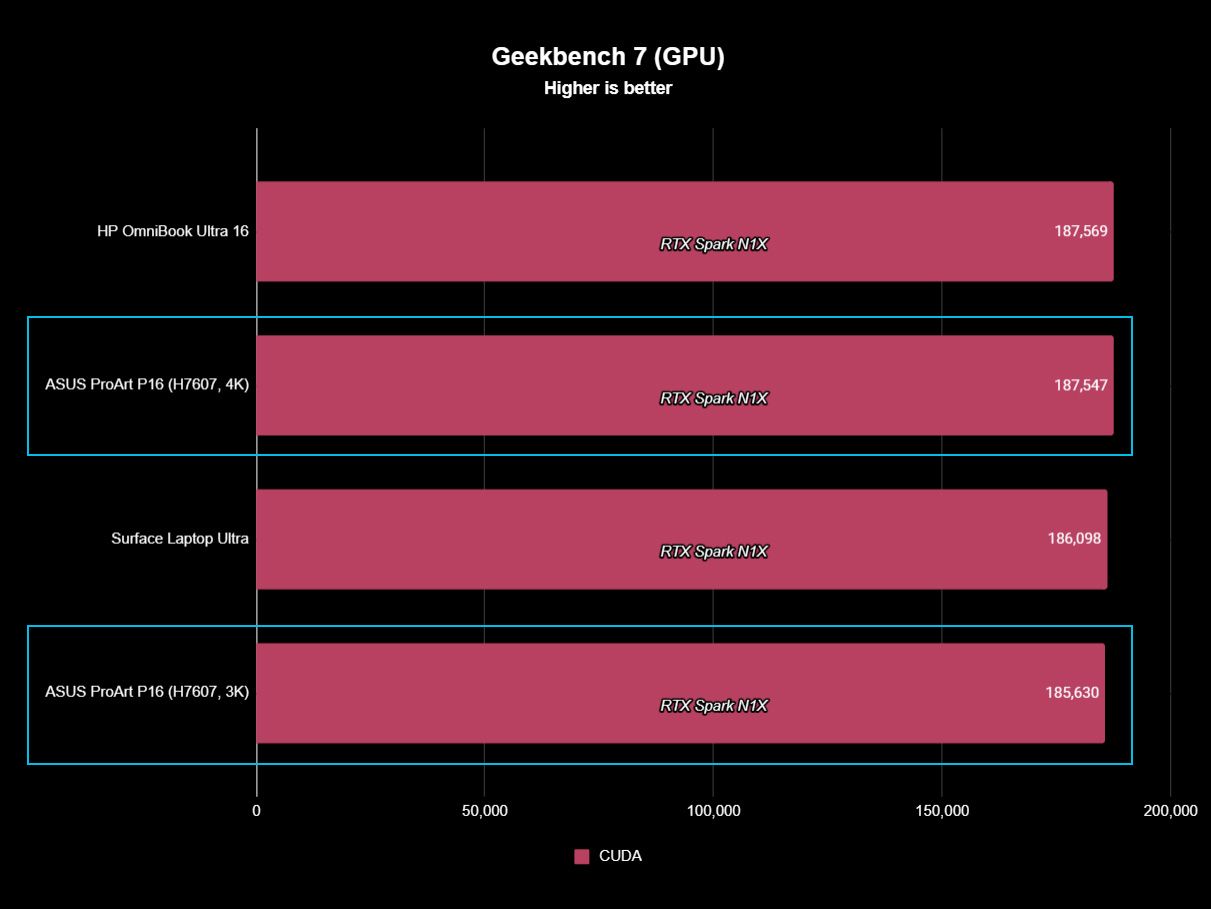
Even GPU compute is remarkably close. HP reached 187,569 in Geekbench 7 CUDA, compared to 187,547 for my 4K ASUS configuration.
FutureFutureFutureFutureFutureFutureFutureFuture
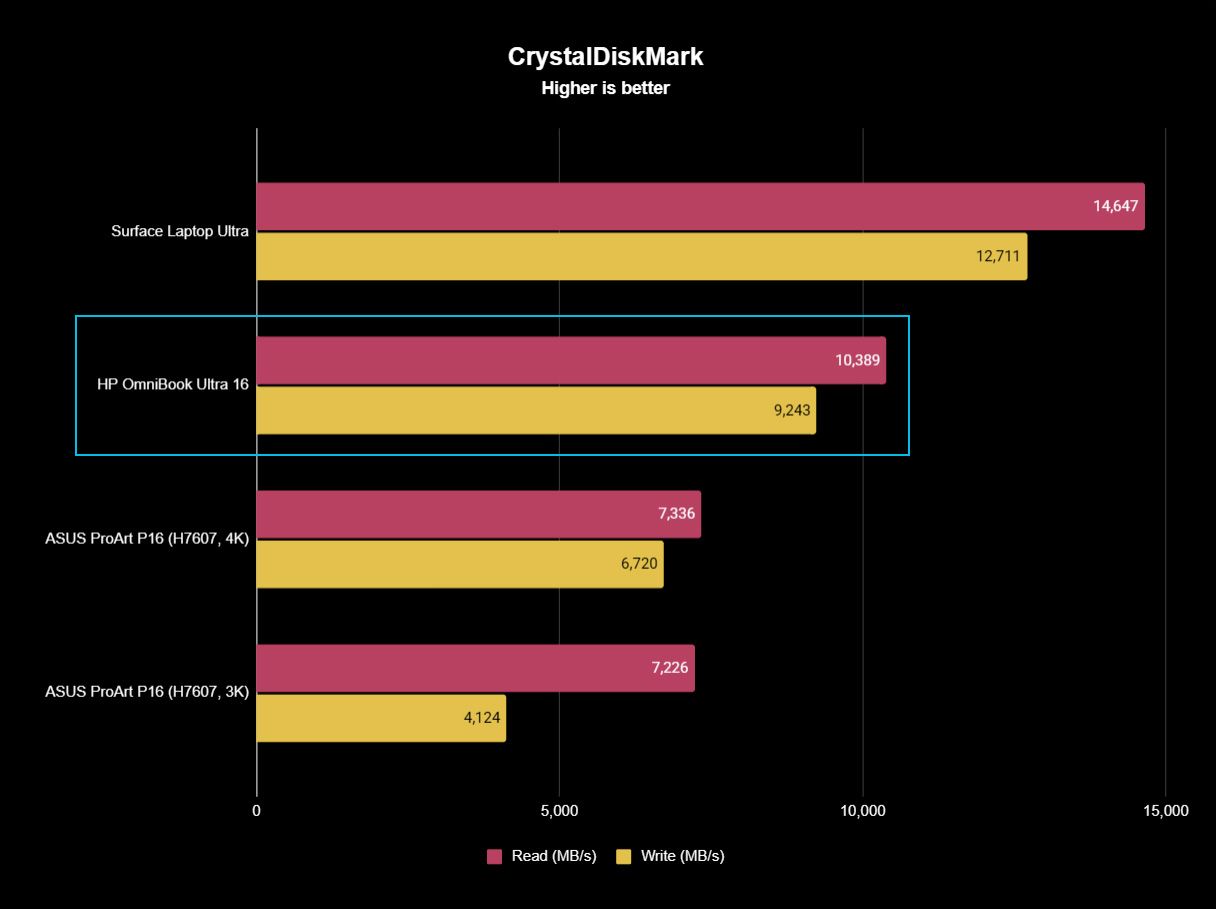
The exception is storage. HP's SSD reached an excellent 10,389MB/s read and 9,243MB/s write, substantially ahead of my ASUS configurations, although Surface was faster still.
Gaming performance was similarly close to ASUS in my testing. RTX Spark isn't a dedicated gaming platform, but gaming performance is very good, especially paired with that 120Hz OLED.
The takeaway is increasingly obvious: choose your RTX Spark laptop based on the laptop, not a few percentage points in a synthetic benchmark.
Battery life: Better than I expected
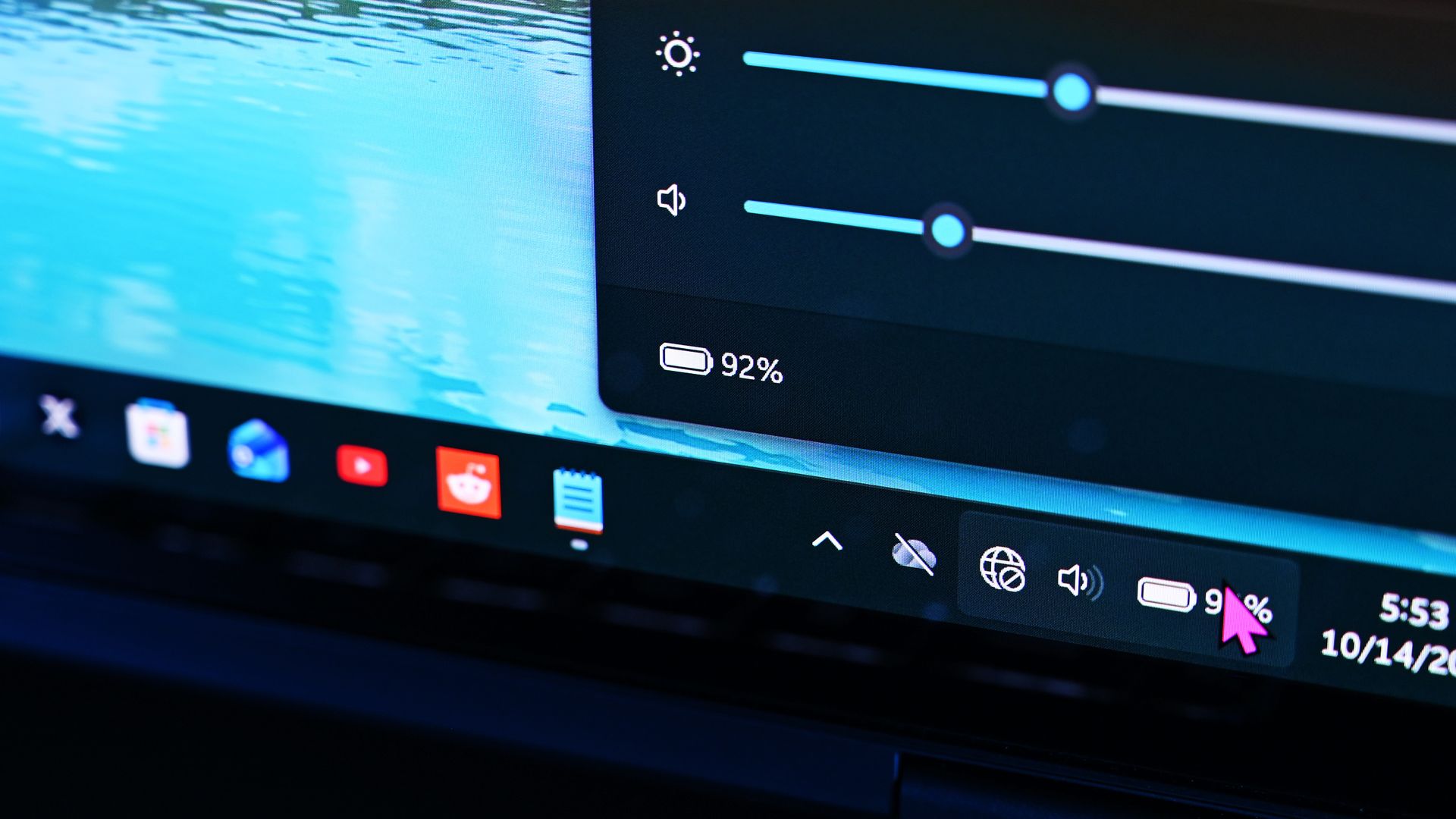
HP's RTX Spark laptop does decently well on battery life, in line with other RTX Spark models. (Image credit: Daniel Rubino)
Using Windows Battery Report to track my real-world light-to-medium everyday usage, the OmniBook Ultra 16 peaked at 11 hours and 18 minutes.
That's broadly comparable to ASUS, although in practice the HP feels like it can stretch slightly longer.
ASUS fights back with phenomenal standby behavior. My ProArt P16 resumes almost instantly and loses very little battery while sleeping. HP can take noticeably longer coming back from hibernation.
It's a small distinction, but one I've noticed after living with both.
Obviously, once you go heavy workloads and hammer that GPU for intense local AI sessions, gaming, or video editing, you're going to cut that usage time in half.
Should you buy the HP OmniBook Ultra 16?
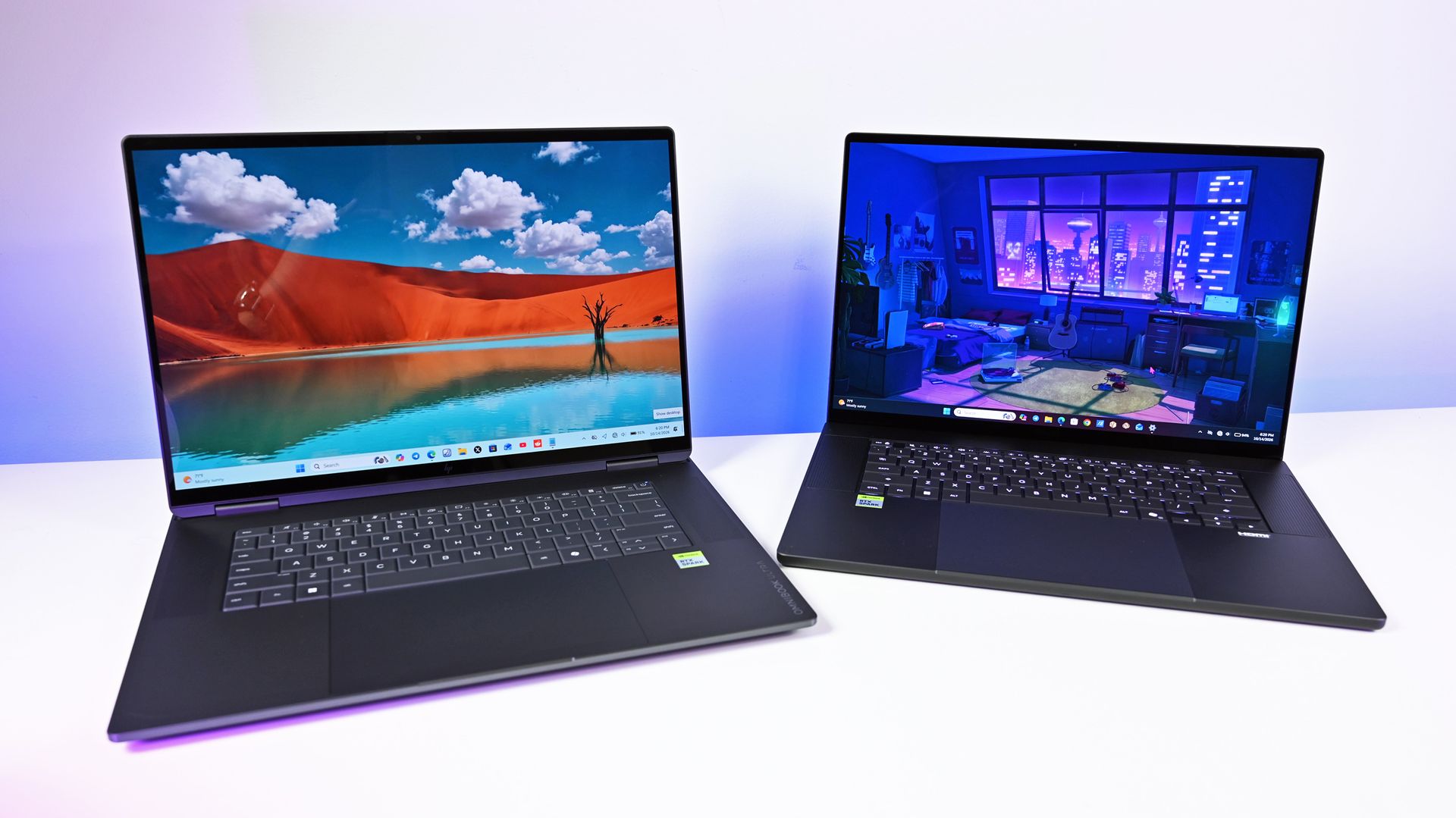
The HP OmniBook laptop on the left and the ASUS ProArt P16 on the right. (Image credit: Daniel Rubino)
You should buy this if ...
✅You want a premium RTX Spark laptop without jumping to 64GB or 128GB
✅You care about build quality, display quality, and the everyday laptop experience
✅You find it significantly cheaper than the ASUS ProArt P16
You should not buy this if ...
❌You want the lightest RTX Spark laptop you can get
❌You want a convertible RTX Spark PC with pen support
❌You expect every premium convenience at this price
If the OmniBook Ultra 16 existed in a vacuum, I'd probably score it higher than 4 out of 5.
I've genuinely enjoyed using it for the last three weeks. HP's build quality is exceptional, the OLED display is fantastic, the keyboard and touchpad are among the company's best, audio is great, battery life is good, and performance has been consistently excellent.
At Best Buy's current $2,799.99, the 32GB configuration is also one of the more compelling ways to get into RTX Spark without spending thousands more on memory you may never need.
Unfortunately for HP, ASUS exists.
The ProArt P16 delivers essentially the same performance with excellent thermals, an equally premium experience, and more of the little features I'd expect at this price, all while weighing a full pound less.
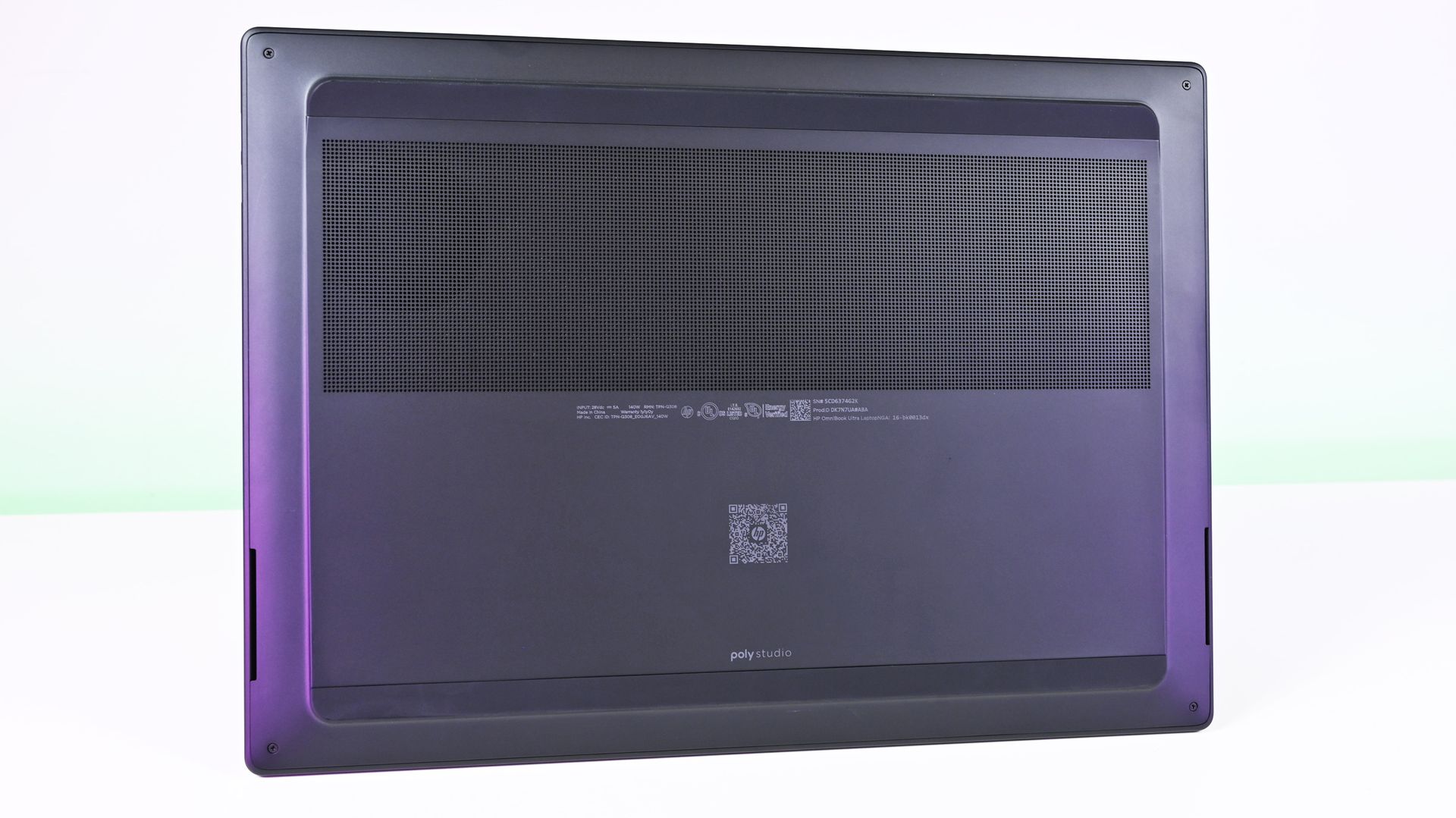
Underside view of the HP OmniBook Ultra 16 RTX Spark showing the large horizontal perforated intake cooling vent. (Image credit: Daniel Rubino)
There’s also Lenovo, which gives RTX Spark shoppers another compelling alternative. Our Lenovo Pro 9n review found an excellent 15.3-inch clamshell with a 2.5K OLED display, strong performance, and a particularly interesting pen-enabled haptic touchpad. It’s also substantially lighter than the HP, which makes the OmniBook Ultra 16’s 4.9-pound weight even harder to ignore. Lenovo separately offers a larger Yoga 9n 2-in-1 for buyers who want the added versatility of a convertible design.
That leaves HP in a slightly awkward middle ground. Lenovo has its convertible versatility, ASUS has portability and an exceptional overall feature set, and Surface Laptop Ultra offers Microsoft’s distinctive premium hardware.
HP’s build quality is fantastic. The 3K OLED display is one of my favorites on any laptop I’ve used this year.
The OmniBook Ultra 16 competes extremely well on build quality, display, performance, and everyday usability, but it doesn't have one defining advantage beyond potentially being the better value when discounted.
At $2,799, however, that last point shouldn't be underestimated. If the HP is several hundred dollars cheaper than its closest competitors when you're shopping, I'd happily buy it.
HP
Omnibook Ultra 16 RTX Spark
HP OmniBook Ultra 16 pairs NVIDIA RTX Spark performance with a premium, remarkably thin design aimed at creators, developers, and enthusiasts. It’s built for demanding creative work and local AI, with enough versatility to serve as an everyday high-end laptop.
Join us on Reddit at r/WindowsCentral to share your insights and discuss our latest news, reviews, and more.
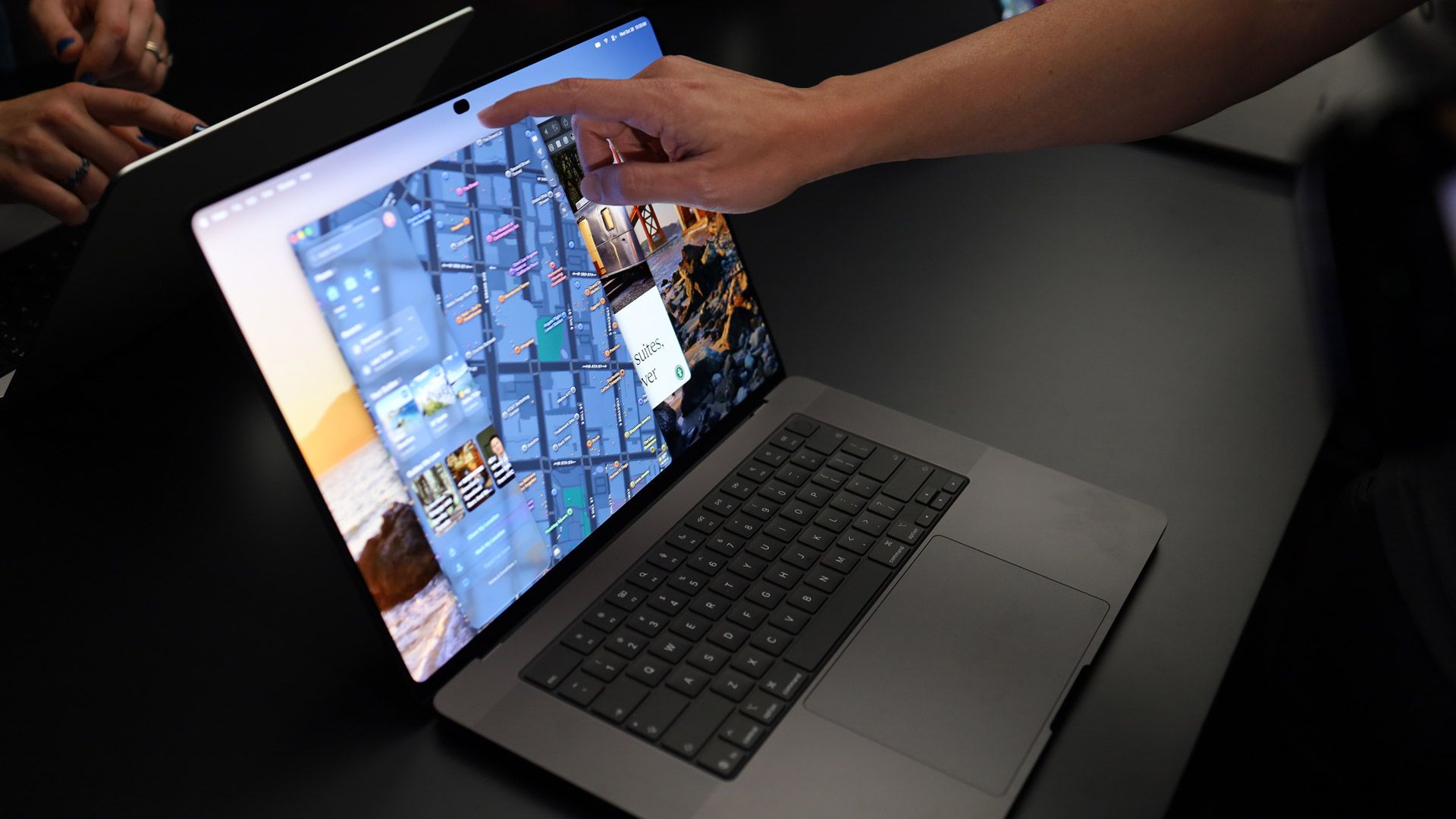
Apple has finally made a touchscreen MacBook Pro, and you know what? Good.
I’ve been using touchscreen Windows laptops for well over a decade. Microsoft made touch central to Windows with Windows 8 in 2012, and PC makers have spent the years since experimenting with convertibles, detachable keyboards, pens, dual-screen PCs, foldable displays, and nearly every combination of those ideas imaginable.
Now Apple has decided touch belongs on a Mac, too.
There’s an obvious temptation here to point and laugh, particularly given how long Apple spent telling everyone that touchscreen laptops were a bad idea. But I don’t think Apple adopting touch in 2026 is really the problem. Technology improves. Consumer behavior changes. Companies reconsider old assumptions. Ideas that didn't make sense 15 years ago can make considerably more sense today.
Companies should be allowed to change their minds. In fact, I wish more of them would.
What bothers me is the corporate absolutism that so often comes before the reversal, and how readily consumers absorb those talking points and repeat them as though they were established technological truths.
Your favorite company is not your friend
(Image credit: Lance Ulanoff / Future)
Steve Jobs didn't merely say that Apple wasn't interested in making a touchscreen Mac. In 2010, he argued that vertical touch surfaces were “ergonomically terrible” and that after using one for an extended period, “your arm wants to fall off.”
Apple continued defending that philosophy long after Jobs. Craig Federighi argued that reaching up to touch a screen was fatiguing, while John Ternus explained Apple's position in 2021 by saying the iPad was optimized for touch and the Mac for indirect input.
And now we have a touchscreen MacBook Pro.
Apparently, our arms have recovered.
I mean, Windows 10 came out 11 years ago and abandoned the Windows 8 approach you're criticizing.More importantly, what exactly is Apple doing here that Windows 10/11 haven't already done conceptually?The article praises Apple for keeping the familiar desktop UI while making elements more touch-friendly, adding touch gestures, increasing spacing between controls, and supporting things like pinch-to-zoom.That's essentially the post-Windows 8 approach Microsoft has been using for years: keep the desktop, accommodate touch where useful, and dynamically adjust parts of the UI for touch input.Windows 8 deserves plenty of criticism, but using it as the comparison in 2026 sidesteps 11 years of Windows development.If there's something fundamentally new about Apple's approach here, I'm genuinely curious what it is.October 28, 2026
But there was never anything inherently ridiculous about occasionally touching your laptop screen! You don't use a touchscreen PC by spending eight hours with your arm suspended in front of you like you're directing traffic. You type. You use the touchpad. You use a mouse. And sometimes a button is sitting right there on the screen, so you reach up and tap it.
That's it. Nobody needed a grand philosophical argument for why that was useful.
Microsoft certainly got plenty wrong with Windows 8, especially its attempt to aggressively redesign a desktop operating system around touch. But the underlying idea that a computer could accommodate a keyboard, mouse, pen and your fingers was perfectly reasonable. Windows laptop makers proved that years ago.
Yet because Apple didn't want to make that computer, the company's decision somehow became evidence among some of its most devoted followers that these computers shouldn't exist at all.
That's the part I think is worth remembering.
We've watched this happen before
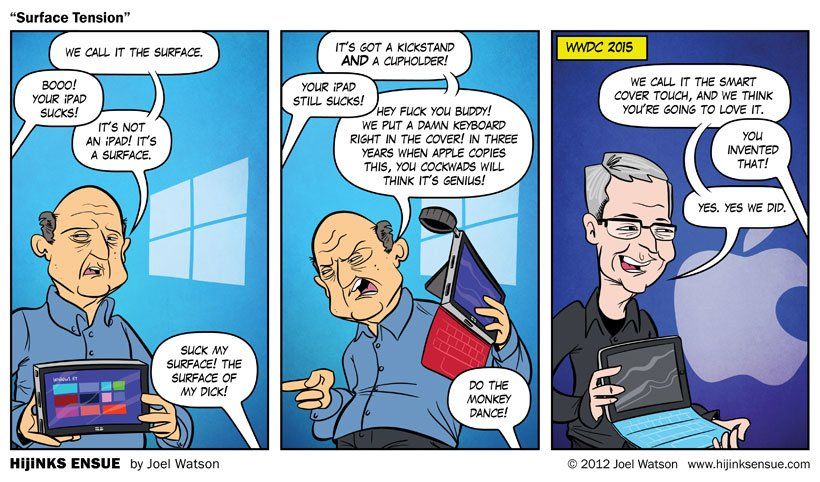
This 2012 comic by Joel Watson proves the point. (Image credit: Hijinks Ensue/Joel Watson (2012))
And touch isn't an isolated example.
When Microsoft was trying to blur the line between tablets and PCs with Surface, Tim Cook famously compared converging products to combining a toaster and a refrigerator. Years later, Apple built the iPad Pro and paired it with increasingly sophisticated keyboard and trackpad accessories. The implementation is Apple's own, but the supposedly absurd idea of a tablet increasingly behaving like a laptop doesn't seem quite so absurd anymore.
I've seen the same attitude around foldables and devices like Surface Duo. Years ago, I found myself explaining to Apple fans, practically like children, why someone might find value in a large display that folds into something much smaller and more pocketable. The response inevitably centered on all the reasons folding phones were unnecessary, compromised, gimmicky, or "solving a problem that didn't exist" (the line always used by people with no imagination).
Now Apple is making foldable devices too.
And again, good. I want Apple to make these products. Competition drives improvement, and Apple entering a category can push everyone else forward. I recently discussed on Schwab Network (above) how strategically important the iPhone Duo is, and its growing pains—or whether it’s the perfect $2,000 phone—are less of a concern in the long term.
This isn't an admonishment of Apple for adopting ideas that competitors got to first. It's an admonishment of the corporate theater that often precedes those reversals, and especially of consumers who willingly participate in it.
Stop turning corporate PR into your personality
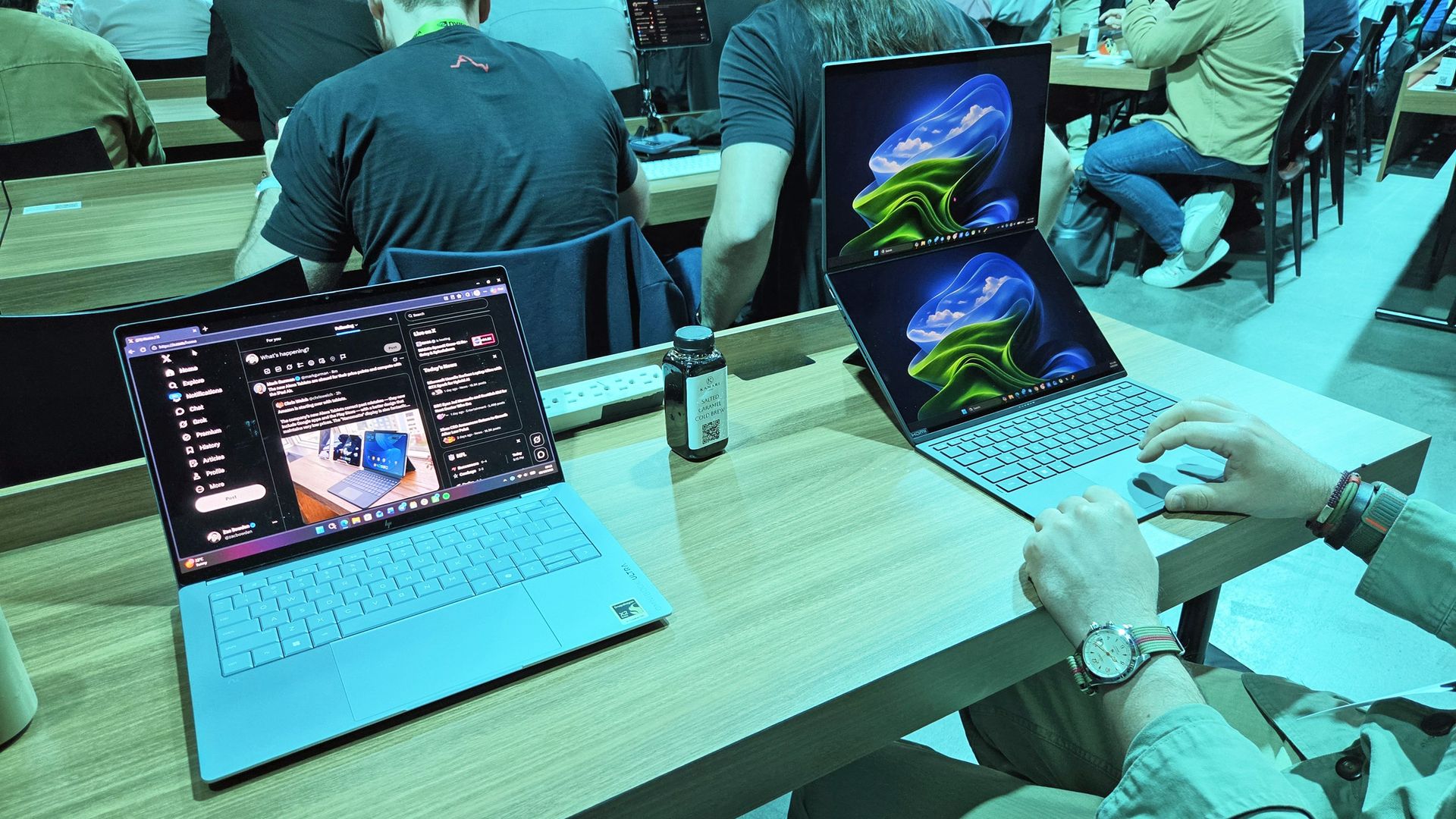
Me using the ASUS ZenBook Duo dual-screen laptop at an NVIDIA event on October 8th, 2026. (Image credit: Zac Bowden)
Every technology company does some version of this. Microsoft does it. Google does it. Samsung does it. Apple does it.
I've interviewed enough executives over the years to know the standard response when you ask why a product doesn't have some particular piece of technology. You usually get something along the lines of: We're watching the technology, we're talking to our customers, and when we think the experience is right, we'll consider it.
That's corporate PR, but it's also a perfectly respectable answer.
What companies shouldn't do, and what consumers absolutely shouldn't help them do, is transform today's product limitation into some grand design philosophy explaining why the missing technology is actually stupid.
(Anyone else remember Apple not making large iPhones because your thumb couldn't reach across the screen? yeaaahh...)
Companies have roadmaps. They have price targets, manufacturing constraints, engineering limitations, internal politics, and products they aren't ready to announce. Sometimes they haven't figured something out yet. Sometimes a competitor simply got there first.
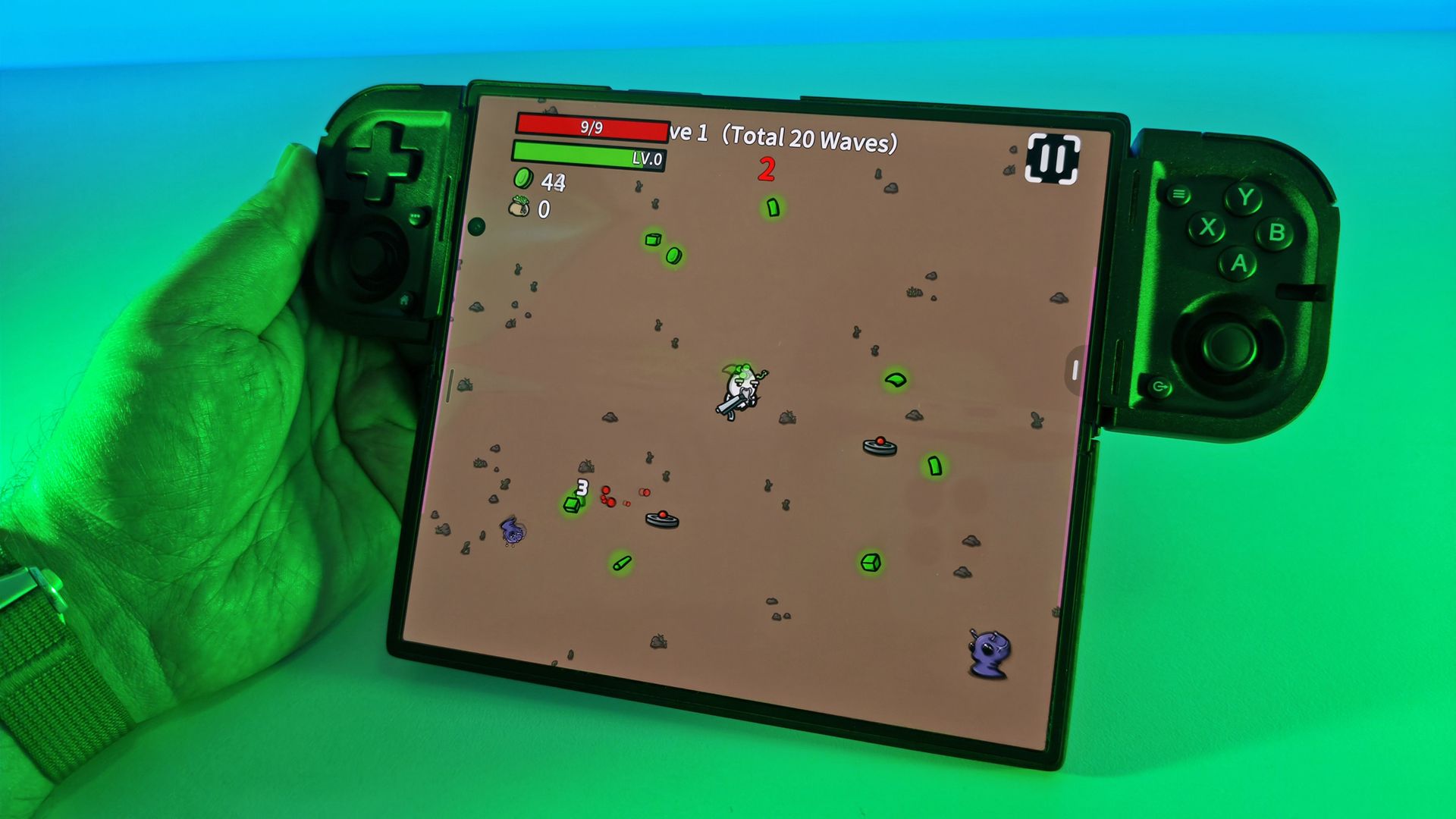
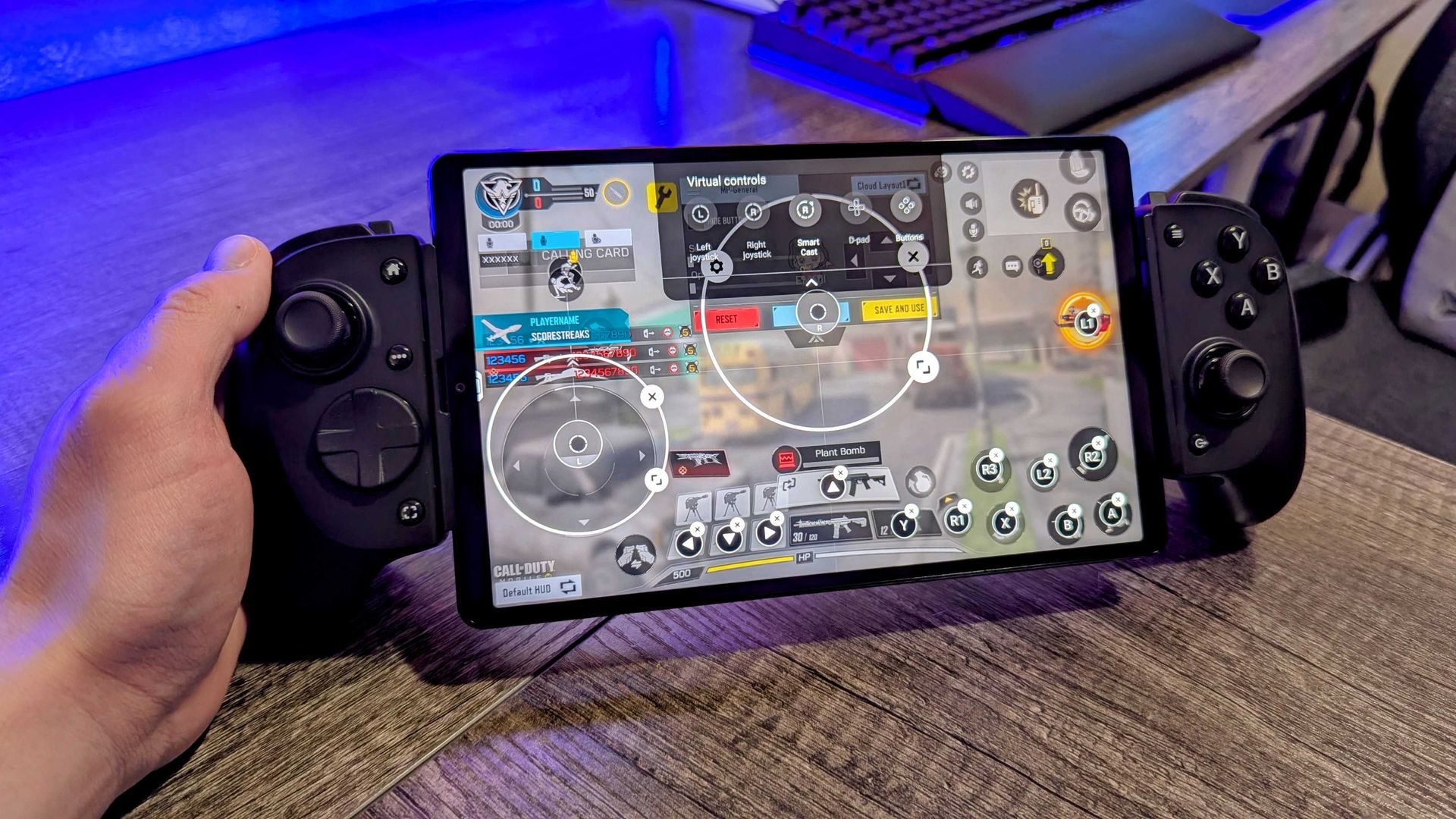
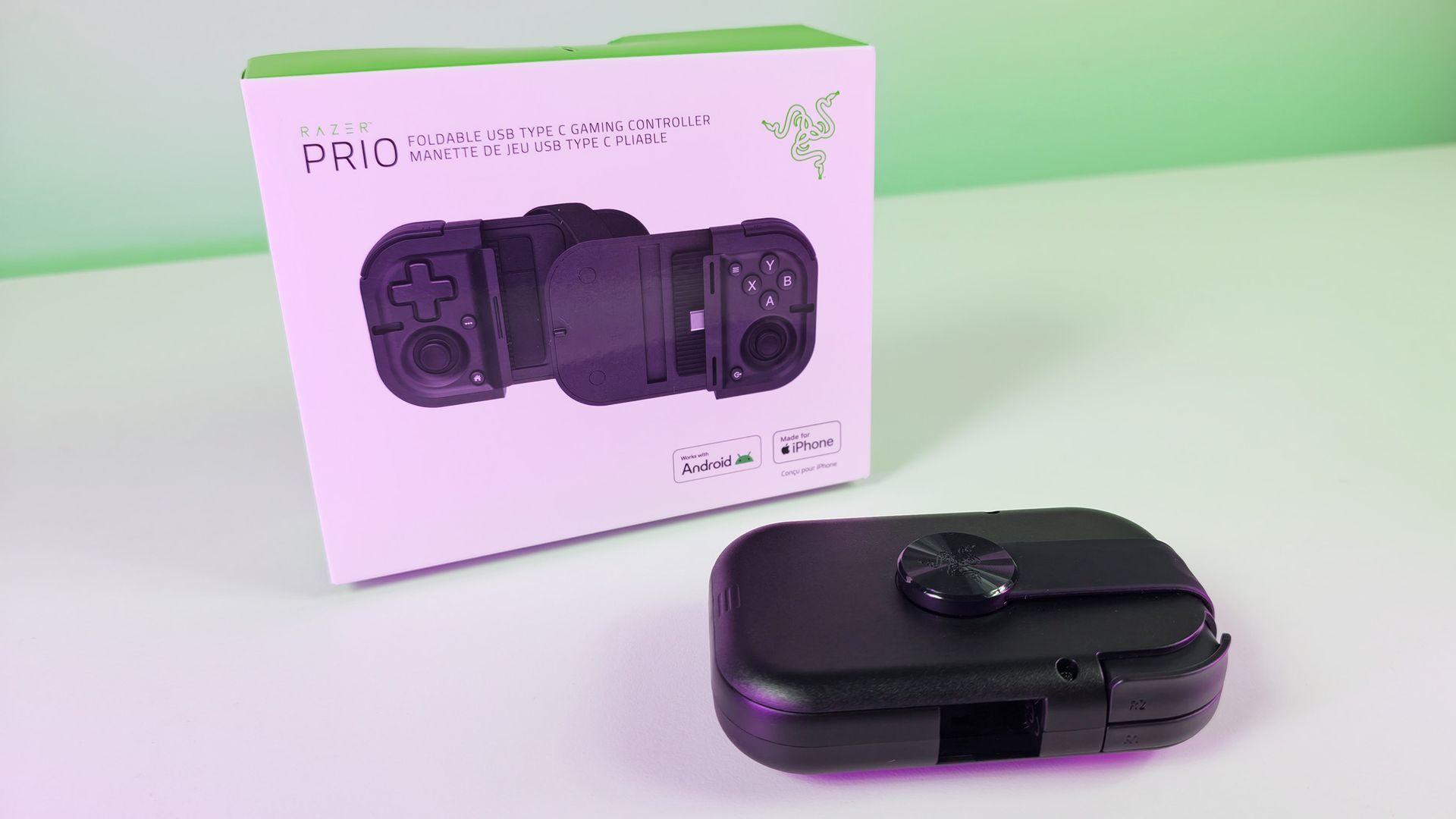
Turns out, foldable devices are fun. Seen here: Samsung Galaxy Z Fold7 and Razer Prio controller. (Image credit: Daniel Rubino)
And sometimes they're just wrong. Steve Jobs, Tim Cook, and Craig Federighi were wrong. And it wasn't the tech that changed; it was the opinion.
Consumers and the technology press shouldn't turn those temporary business realities into articles of faith.
Apple is particularly good at controlling the language around its products, which makes resisting this tendency even more important. When Apple doesn't offer something, there's often an impulse among its most ardent supporters to rationalize the omission and explain why nobody really needs it anyway.
Then Apple ships it, and suddenly it's useful.
That's why the lesson of the touchscreen MacBook Pro isn't that Apple lost, and Windows won. Frankly, that kind of platform-war thinking is just another version of the same problem.
@OABlanchard @TheRichWoods "He wouldn't be saying it today."Speaking for the dead now are we?October 28, 2026
The lesson is much simpler: stop putting corporations on pedestals.
You don't work for these companies. You don't owe them ideological consistency. Buy the products you like. Praise them when they're good. Criticize them when they're bad. And when an executive explains why a technology their competitors already offer is unnecessary, ridiculous, inelegant, or something customers don't want, maybe don't adopt that argument as part of your identity.
Because a few years from now, they may be standing onstage trying to sell it to you.
And when that happens, changing their mind is perfectly fine. Pretending they never told you otherwise is something else entirely.
But tell me, am I wrong or missing something? What do you think about Apple suddenly being interested in foldables and touchscreen laptops in 2026? Let me know in the comments.
Join us on Reddit at r/WindowsCentral to share your insights and discuss our latest news, reviews, and more.
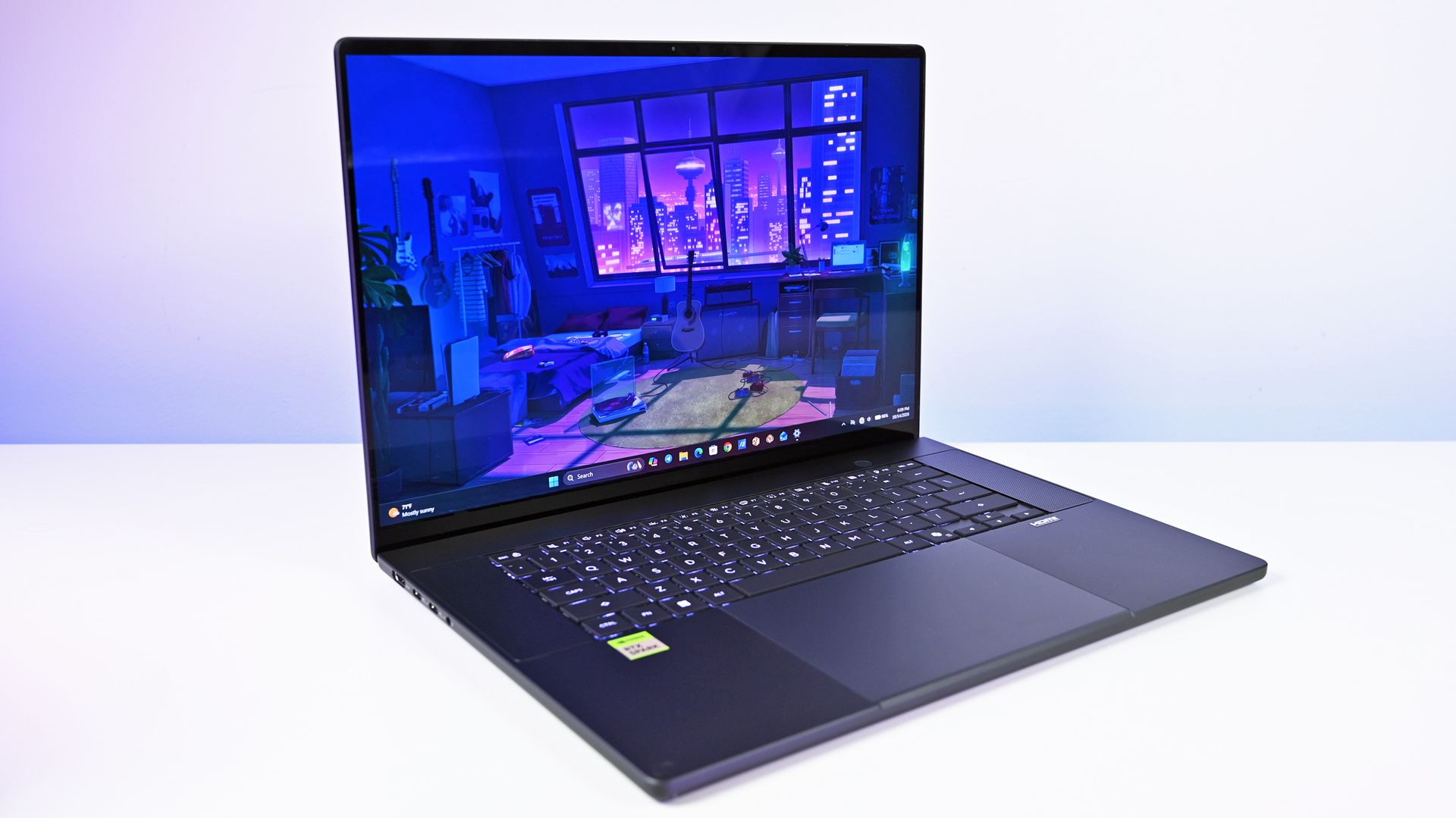
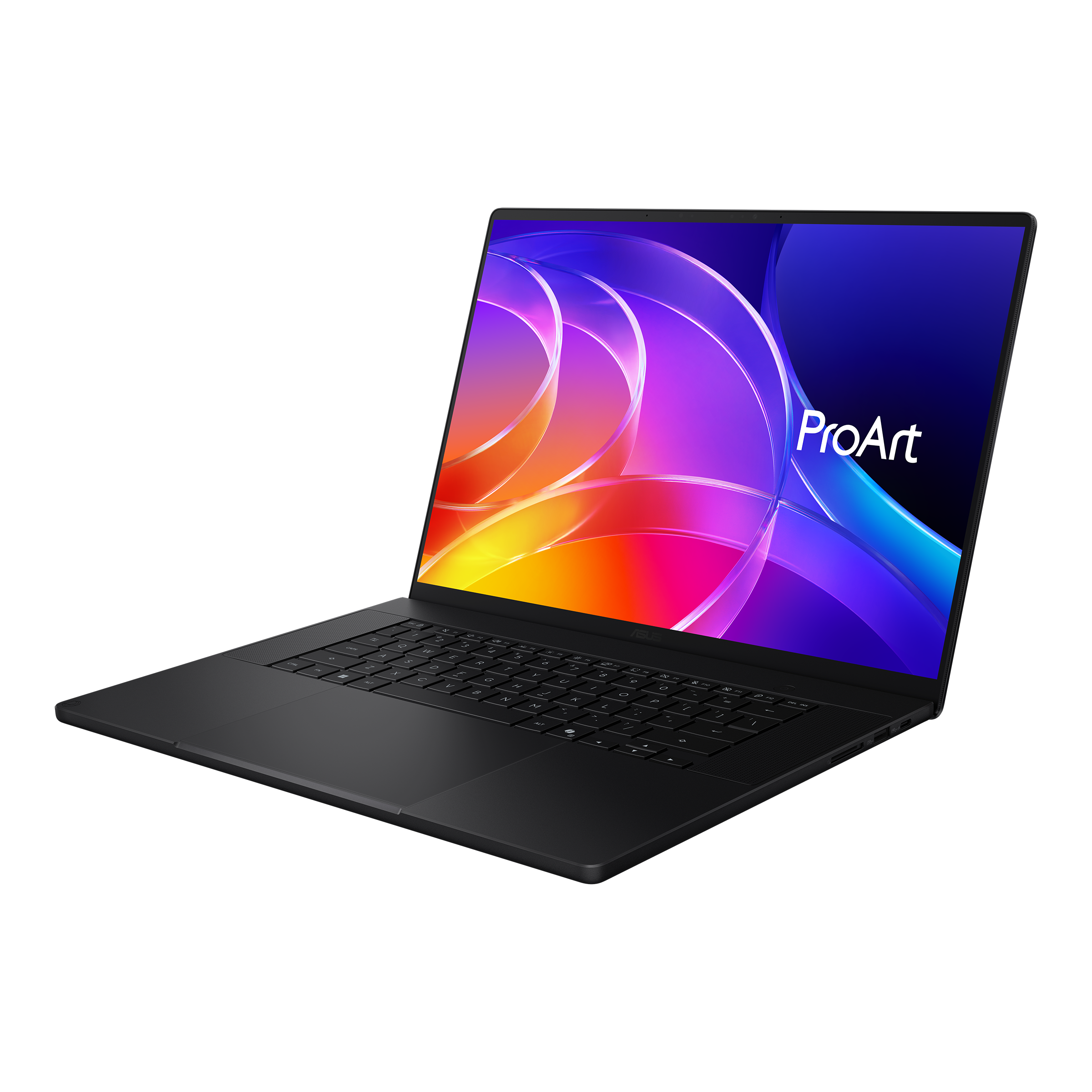
The ASUS ProArt P16 with RTX Spark is one of the best Windows laptops I've ever used. It's also one of the easiest to recommend to the wrong person.
That distinction matters when laptops start at $2,799.99 and go up to nearly $7,000, but I have a good reason for this caveat.
ASUS has designed this new ProArt P16 (H7607) primarily for people who create more than they consume: developers, engineers, AI enthusiasts, 3D artists, video editors, and professionals experimenting with increasingly sophisticated local AI and agentic workflows.
Indeed, NVIDIA's RTX Spark N1X combines a 20-core Grace CPU, 6,144-core Blackwell RTX GPU, native CUDA support, and up to 128GB of unified LPDDR5X memory. ASUS says the latter configuration can even run LLMs with up to 120 billion parameters.
If CUDA, local inference, LLMs, agentic workflows, GPU memory, or ComfyUI mean absolutely nothing to you, there are better laptops for your money.
If those terms interest you, even if you're just starting to learn about them, things get much more interesting, and you'll want to read on.
ASUS and NVIDIAhad no input, nor did it see the contents of this review, prior to publication.
ASUS ProArt P16: Price and specifications
(Image credit: Daniel Rubino)
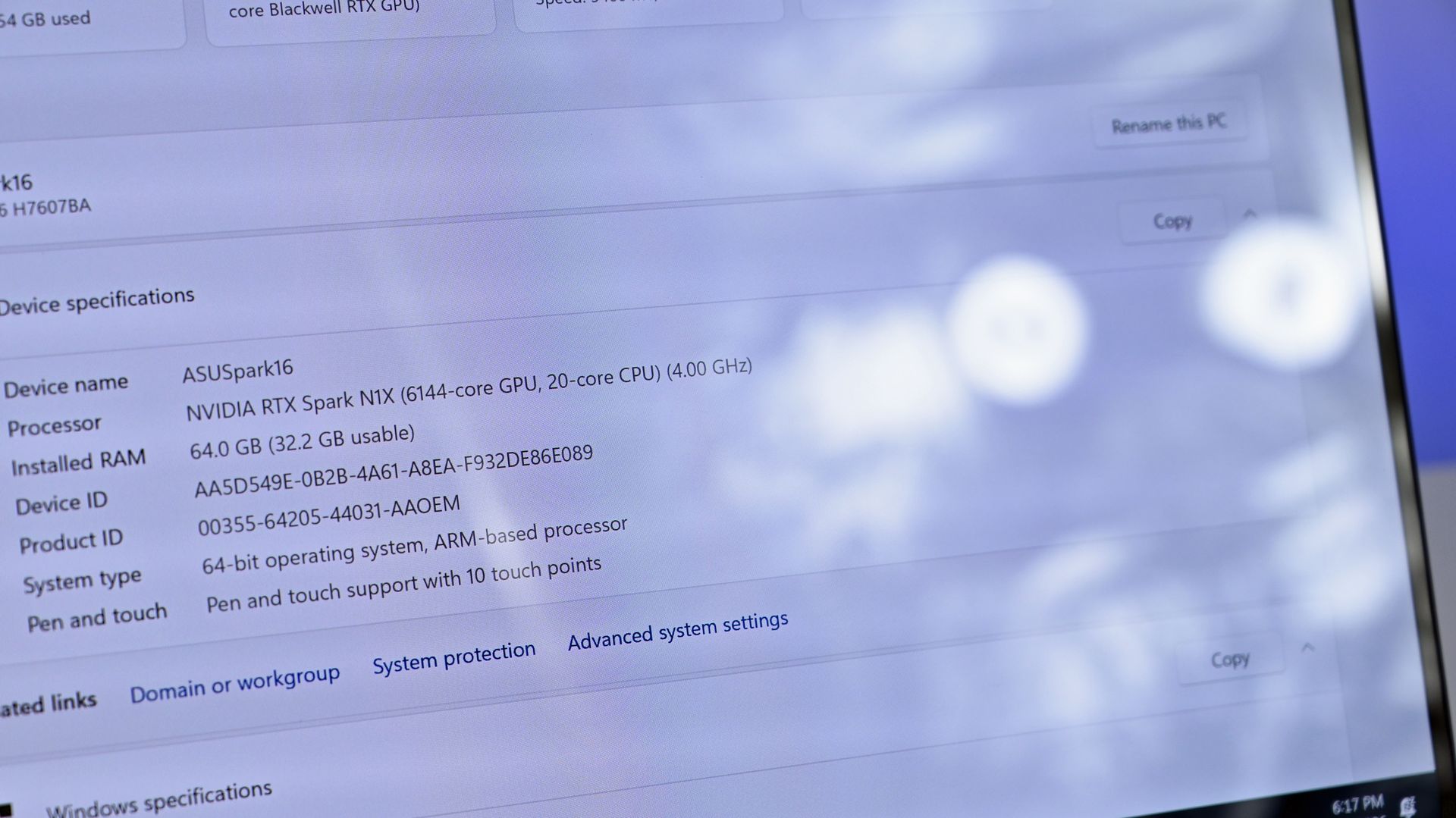
I focused on two configurations for this review. My 3K Nano Black unit packs 64GB RAM and a 1TB SSD for $4,399.99, while the top model jumps to 128GB RAM, 2TB storage, and a 4K OLED for $6,999.99.
ASUS also offers Nano Black and Neo White, although configuration choices are strangely interdependent. Changing color can alter the display and Windows edition, so pay attention when ordering. ASUS currently lists Windows 11 Home and Pro, 3K and 4K OLED options, and memory capacities reaching 128GB.
But you can go even lower, as Best Buy's $2,799 model still has that 4K OLED, but 512GB of storage (you can add more later) and 24GB of RAM (obviously, RAM is the cost multiplier here in late 2026).
And don't confuse this H7607 model with the existing (and slightly older) AMD-powered ProArt P16 H7606. RTX Spark makes the H7607 a fundamentally different computer.
ASUS ProArt P16: Design and hardware
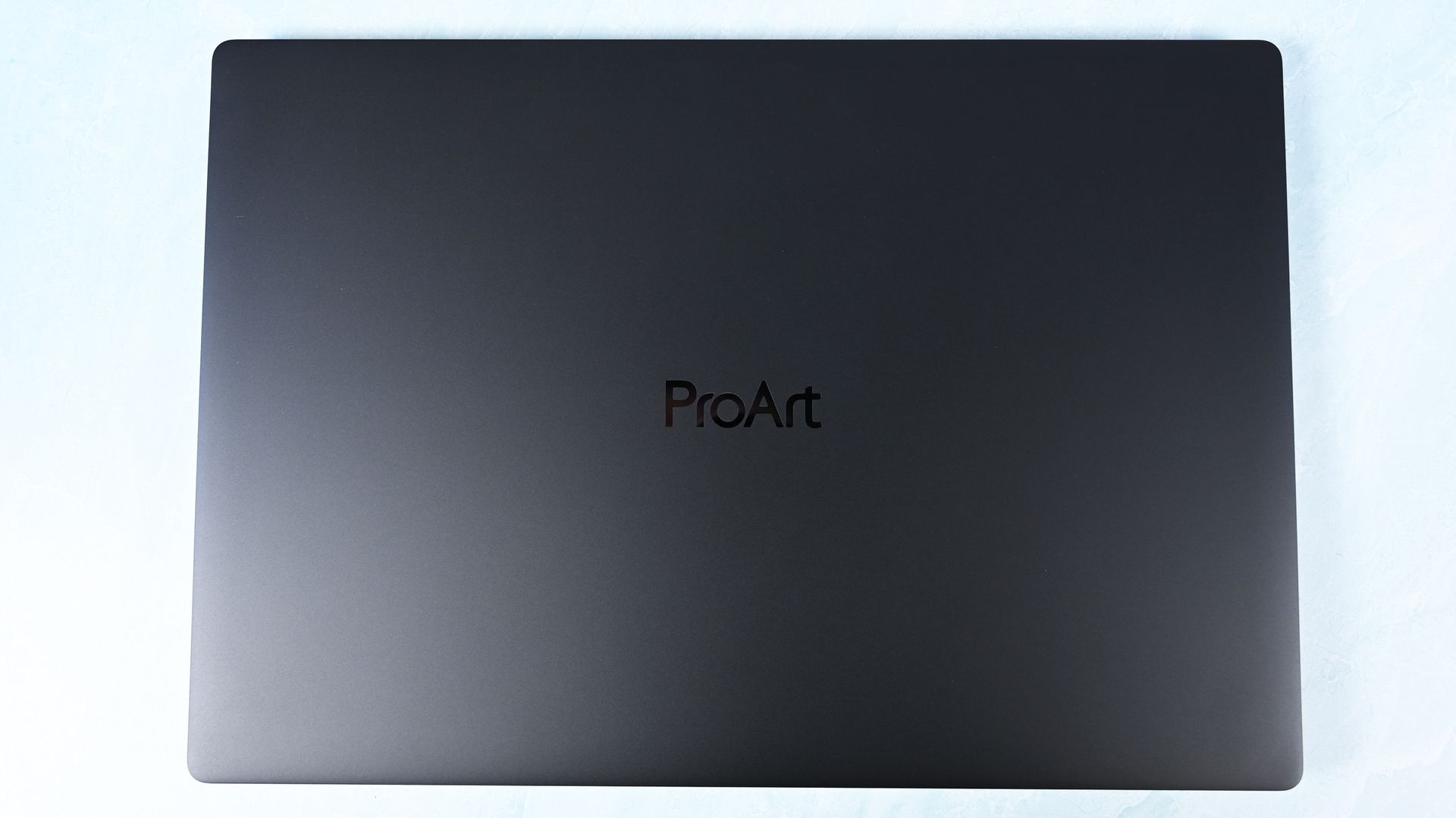
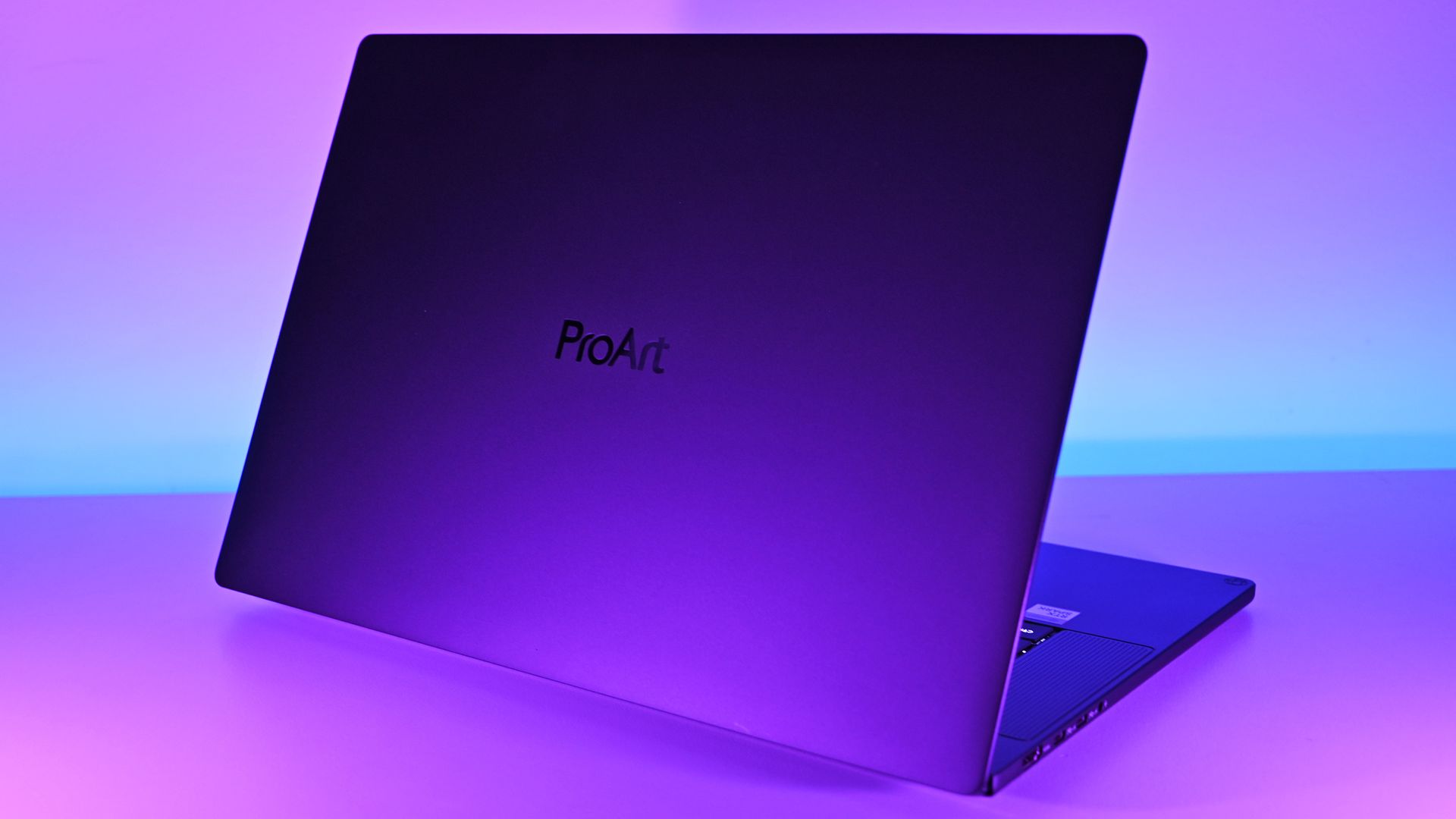
ASUS keeps it simple for the lid. (Image credit: Daniel Rubino)
This may be ASUS's greatest achievement with the ProArt P16.
At just 3.9 pounds, it's remarkably light for a 16-inch workstation, undercutting the 4.5-pound Surface Laptop Ultra, 4.7-pound 16-inch MacBook Pro, and especially HP's surprisingly hefty 4.9-pound OmniBook Ultra 16 RTX Spark.
You absolutely feel the difference.
The ProArt measures just 0.51 to 0.63 inches thick, yet ASUS still squeezes in an enormous 99.9Wh battery.
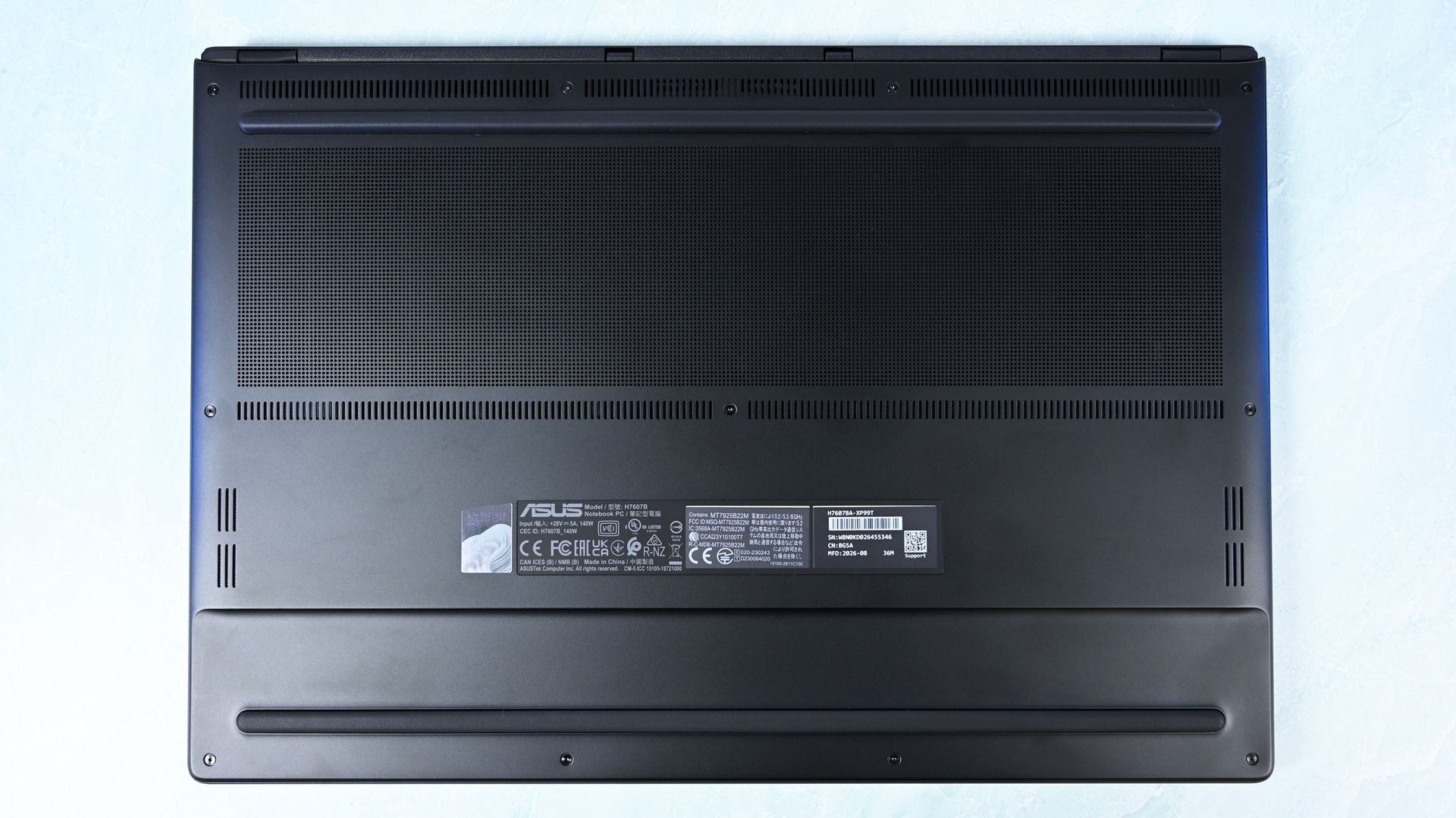
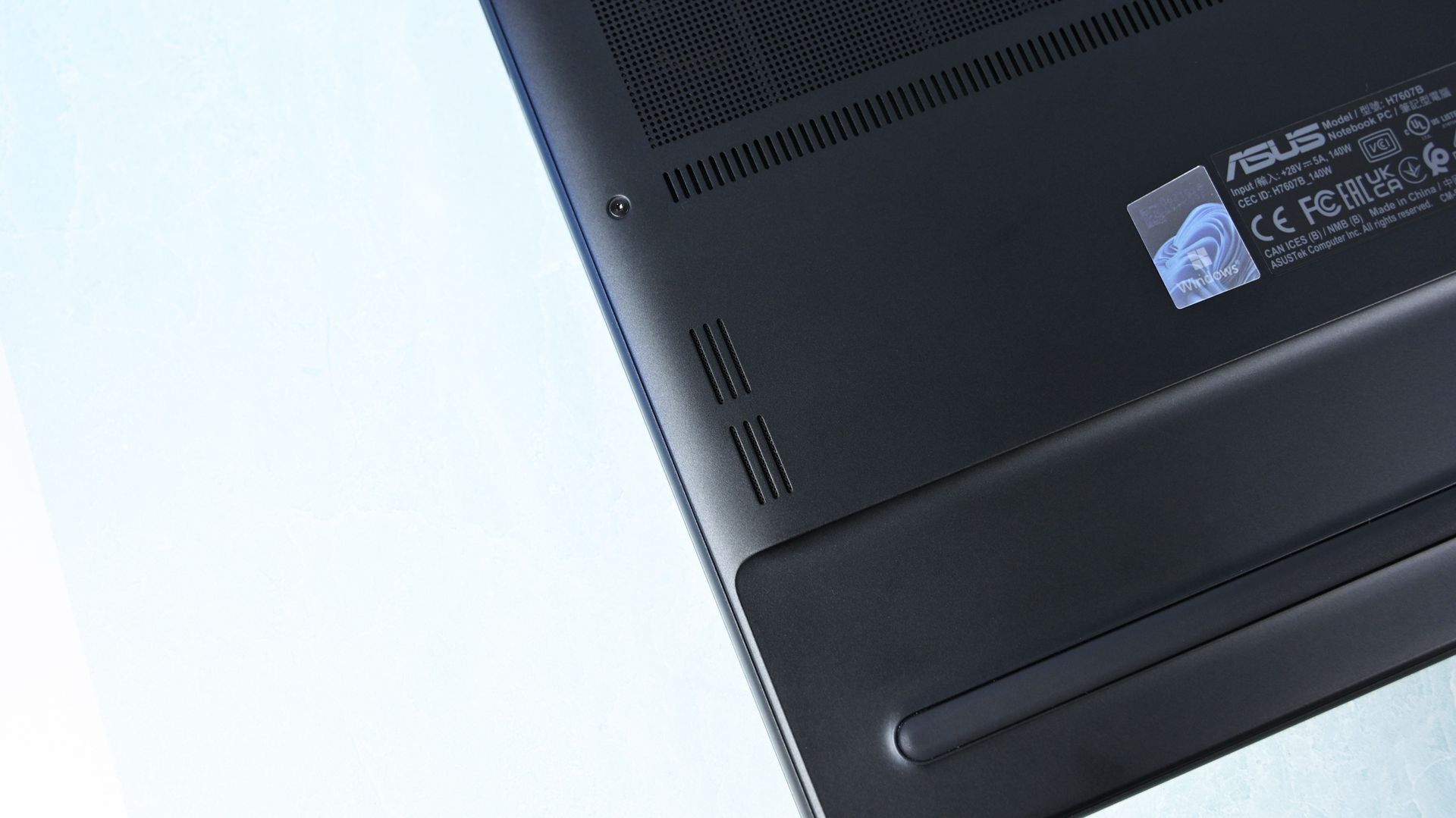
There's one giant grill on the bottom of the ProArt P16 for ventilation, followed by some smaller areas. (Image credit: Daniel Rubino)
Build quality is excellent. I'd give Microsoft and HP a very slight advantage for pure premium feel, but ASUS wins enough other categories that I hardly care. For instance, Nano Black's fingerprint-resistant coating also works surprisingly well. As someone who despises smudgy black laptops, I appreciate details like this.
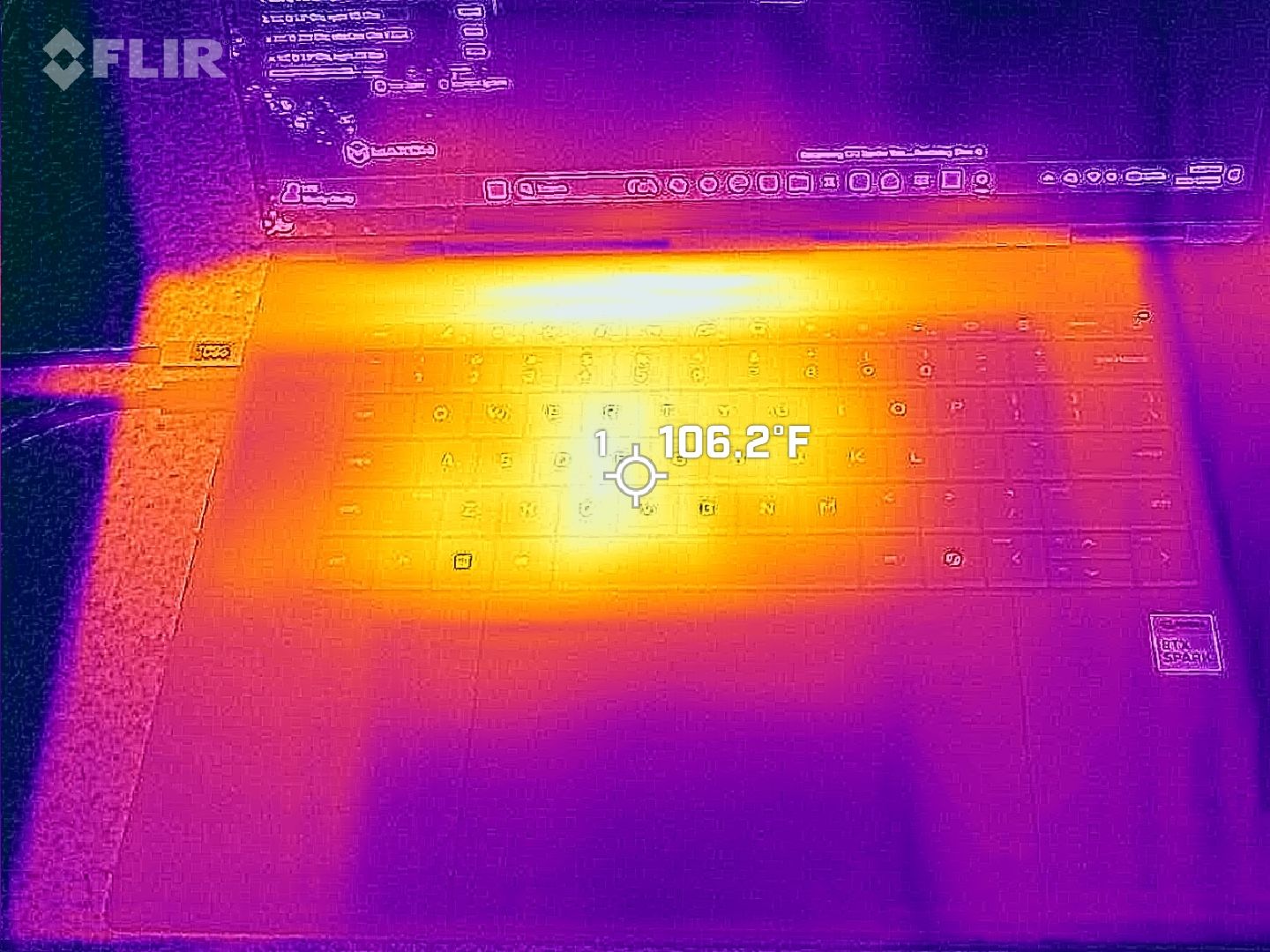
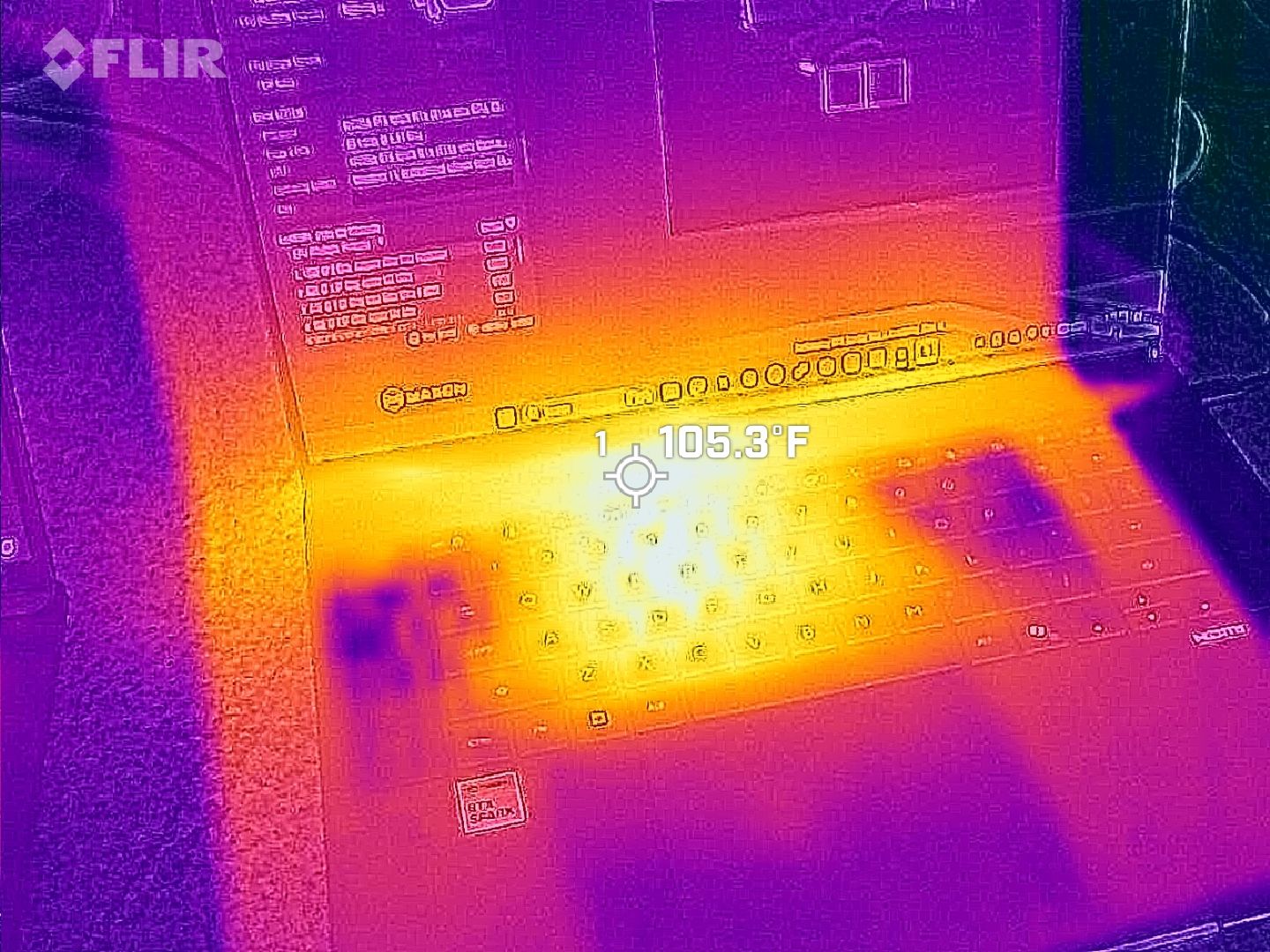
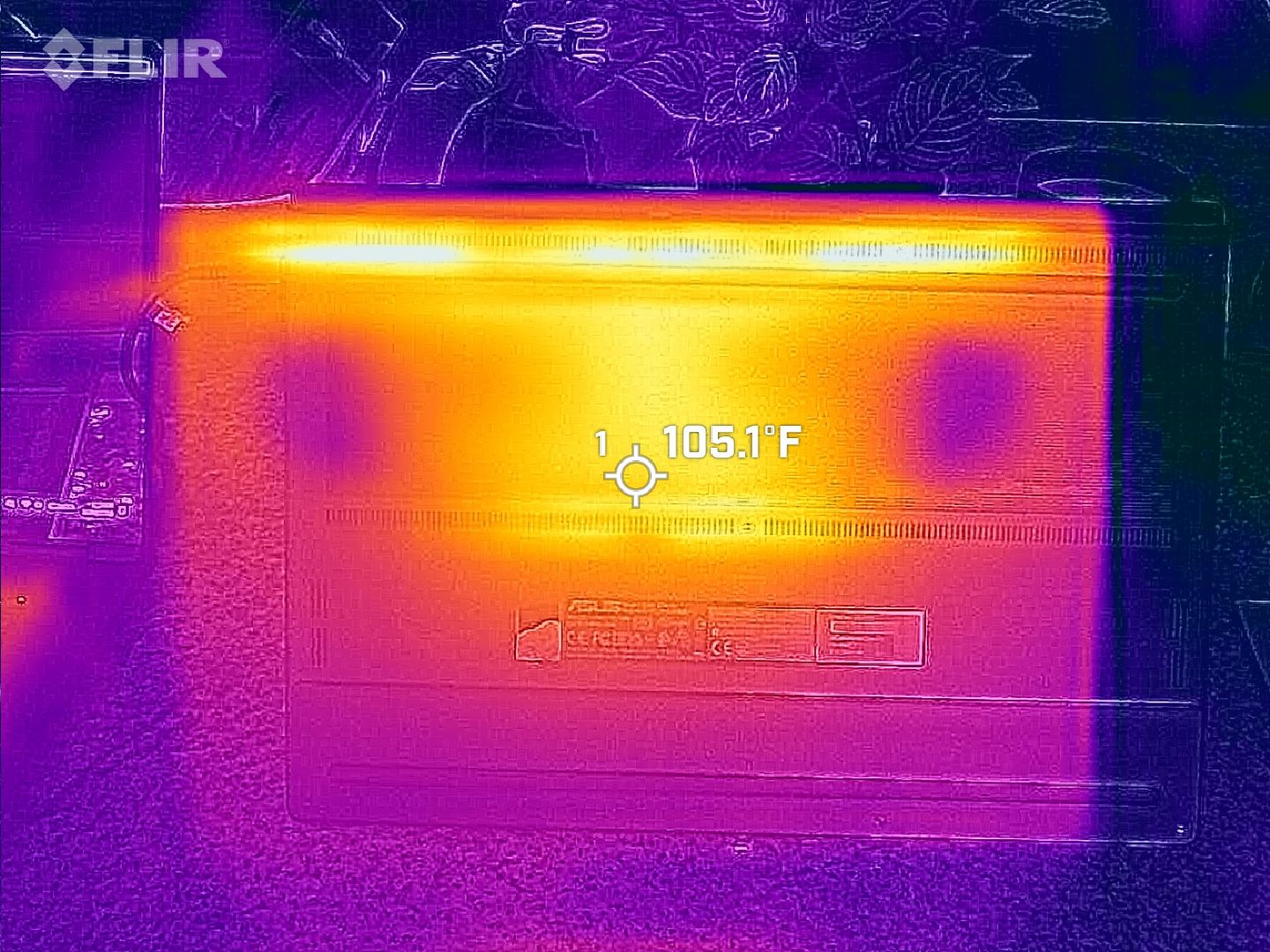
Thermals are even more impressive. Under sustained heavy workloads, my thermal camera recorded around 105°F across the keyboard deck and approximately 120°F near the rear exhaust. That's a few degrees cooler than both the Surface Laptop Ultra and HP OmniBook Ultra 16 RTX Spark in my testing. Fan noise never exceeded 50dB under extreme workloads.
For something this thin, that's outstanding, since I expected sacrifices in both areas, not the opposite.
Daniel RubinoDaniel Rubino
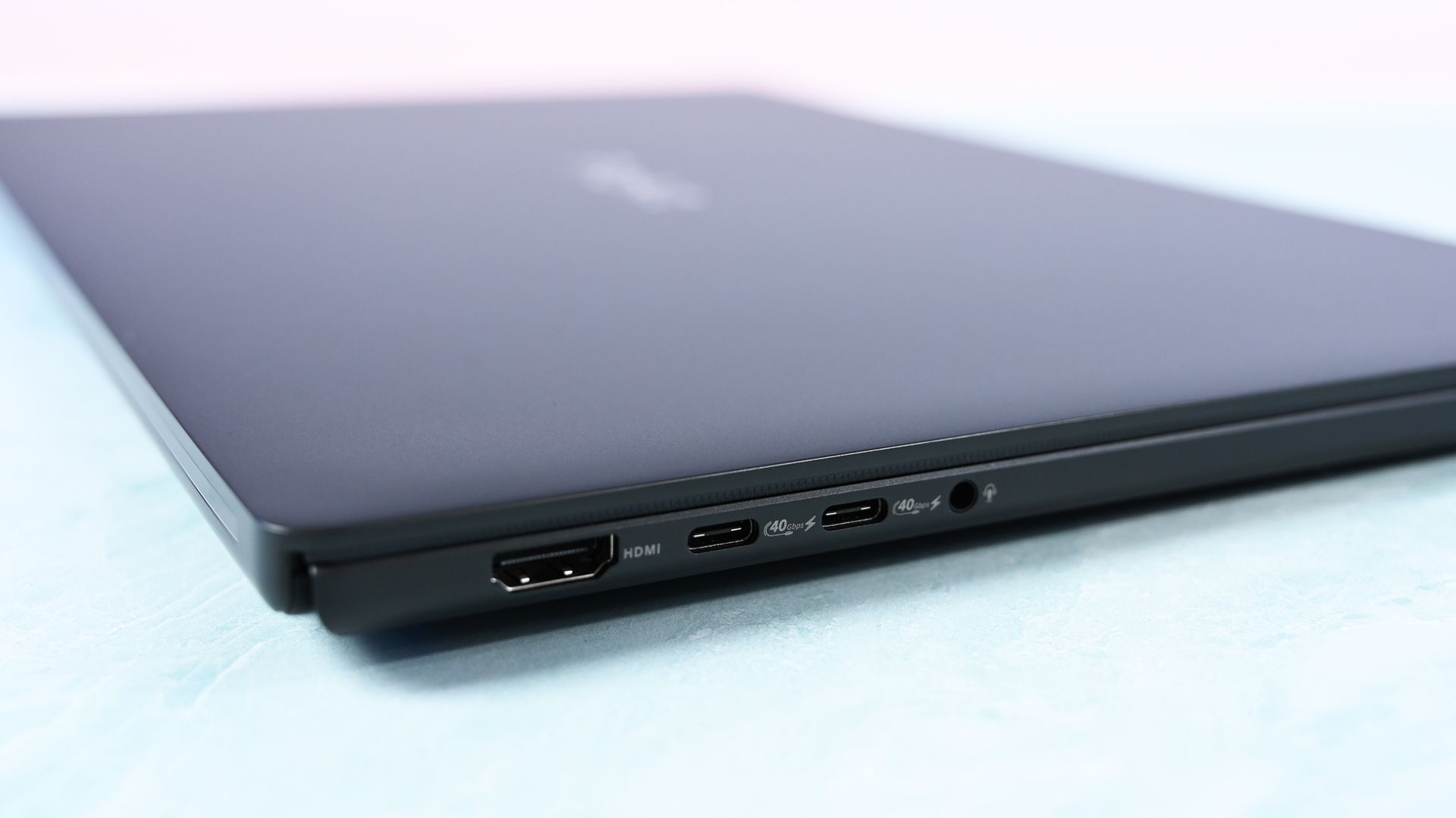
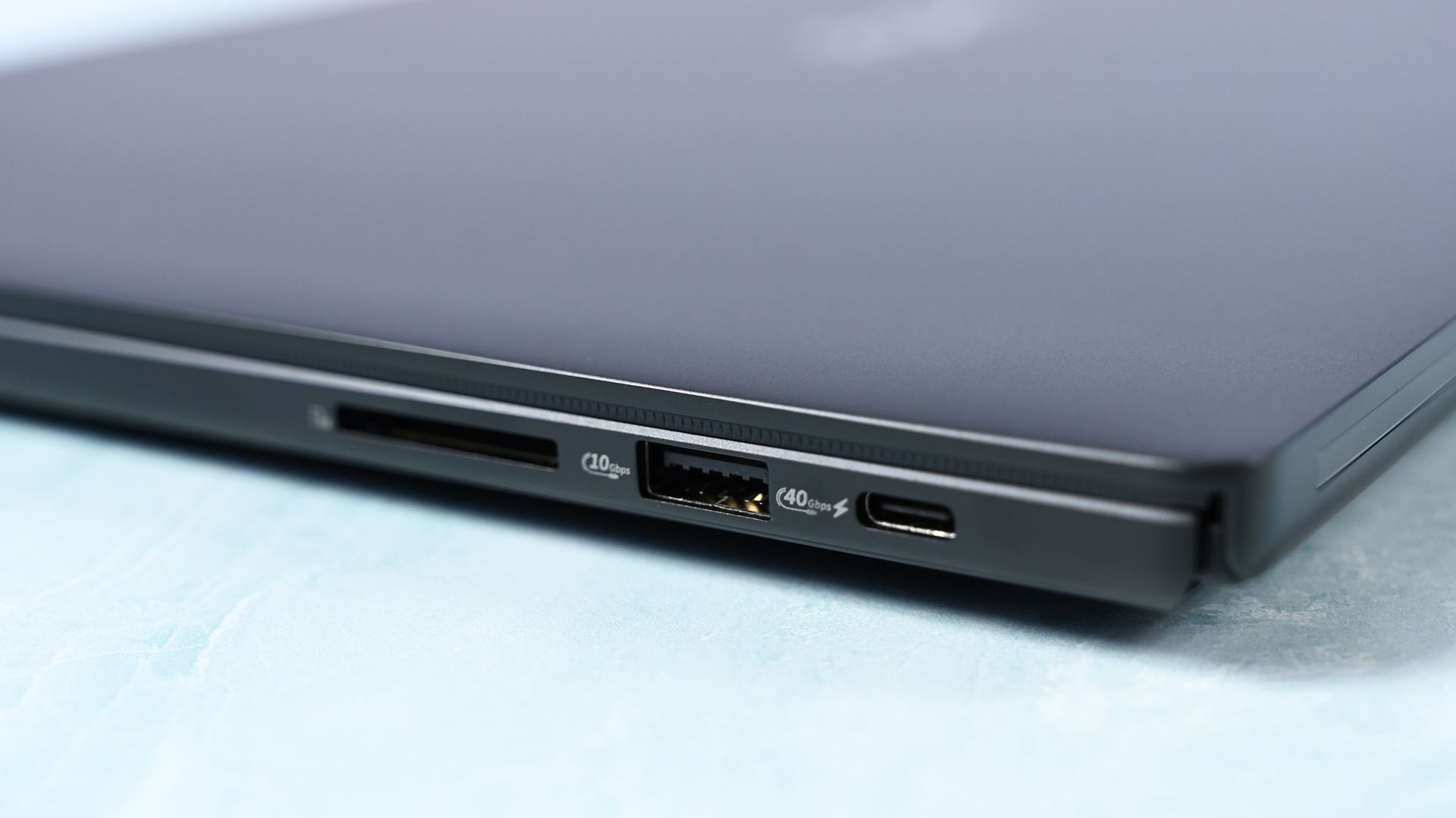
Connectivity is arguably best-in-class for RTX Spark laptops. It has three USB4 Type-C ports, with two on the left and one on the right, so I can charge from either direction, plus USB-A, HDMI 2.1b, a headphone jack, and a full-size SD card reader. To me, this is the right port configuration for this demographic on an RTX Spark laptop. I wish more companies would split Type-C ports on either side for easier charging, but some still don't.
All these small conveniences add up.
ASUS ProArt P16: Display, keyboard, touchpad, and audio
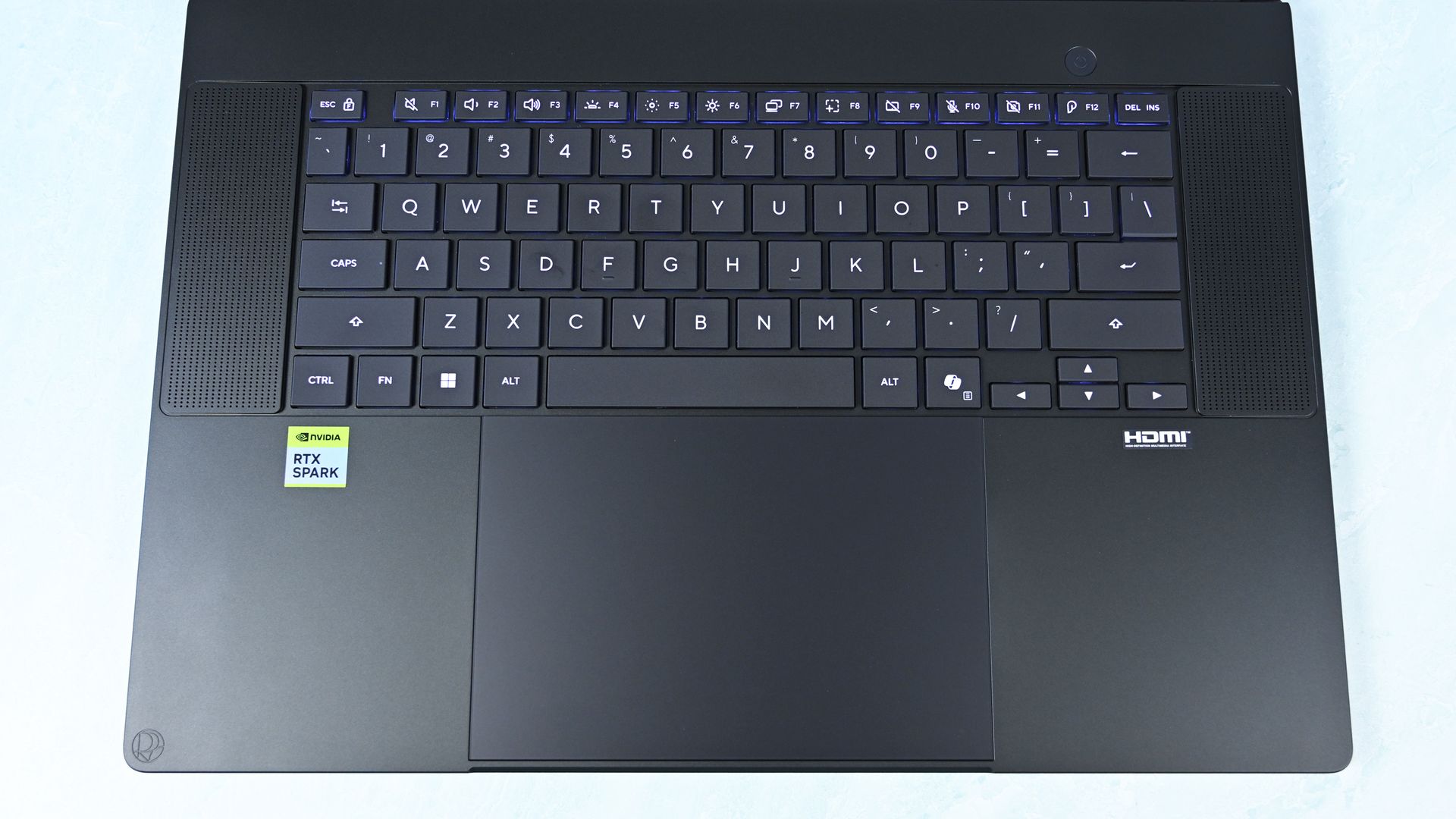
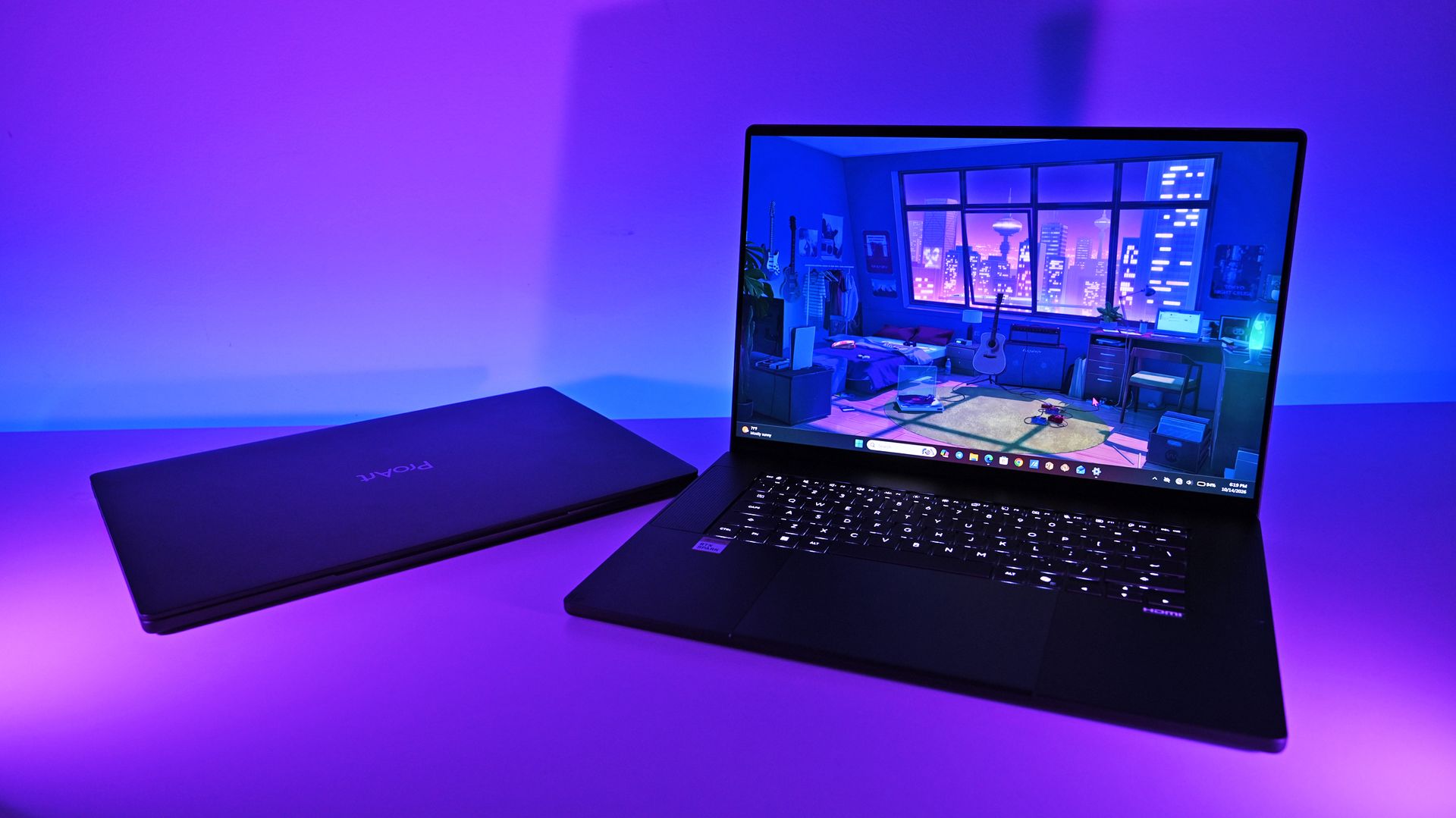
Top-down view of the ProArt 16's basic but solid keyboard deck showing flanking speaker grilles, power button, and huge touchpad. (Image credit: Daniel Rubino)
Both displays are gorgeous 16-inch OLED touchscreens with 100% DCI-P3 coverage, HDR support, and variable refresh rate from 30 to 120Hz. The 3K panel runs at 2880 x 1800 and peaks at 1,100 nits for HDR, while the 4K panel runs at 3840 x 2400, peaks at 1,600 nits for HDR, and adds ASUS's excellent anti-reflection treatment.
It's also worth noting that you get presence detection, an auto-brightness sensor, and adaptive (ambient) color, which are extra bonus display features I like to see at this price point.
Here's my controversial advice: I'd get the 3K display.
Placing both laptops together, I routinely guessed incorrectly when trying to identify them by resolution alone. Pixel peeping exposes the difference, but at normal viewing distances, 3K is plenty for 16 inches.
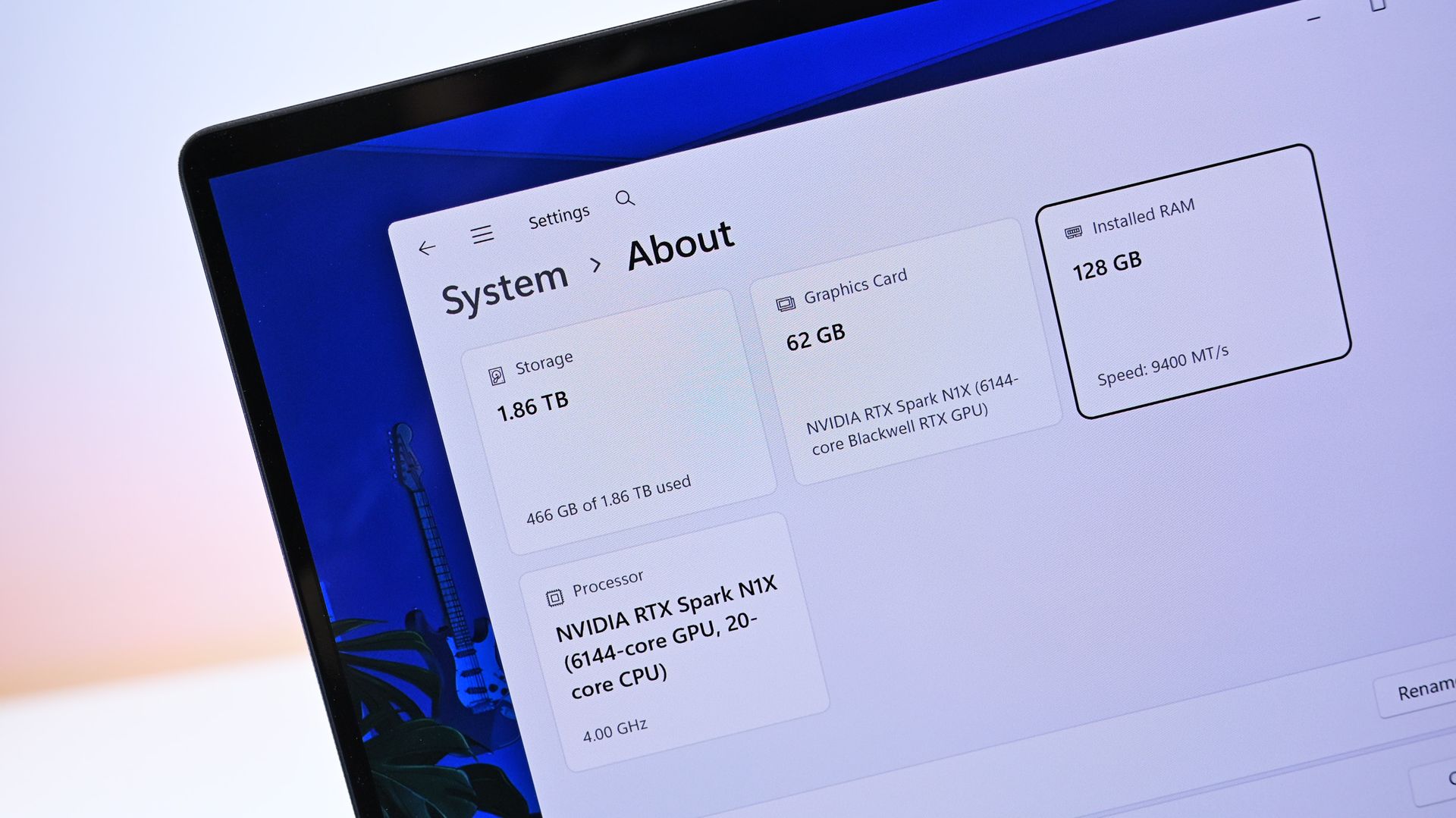
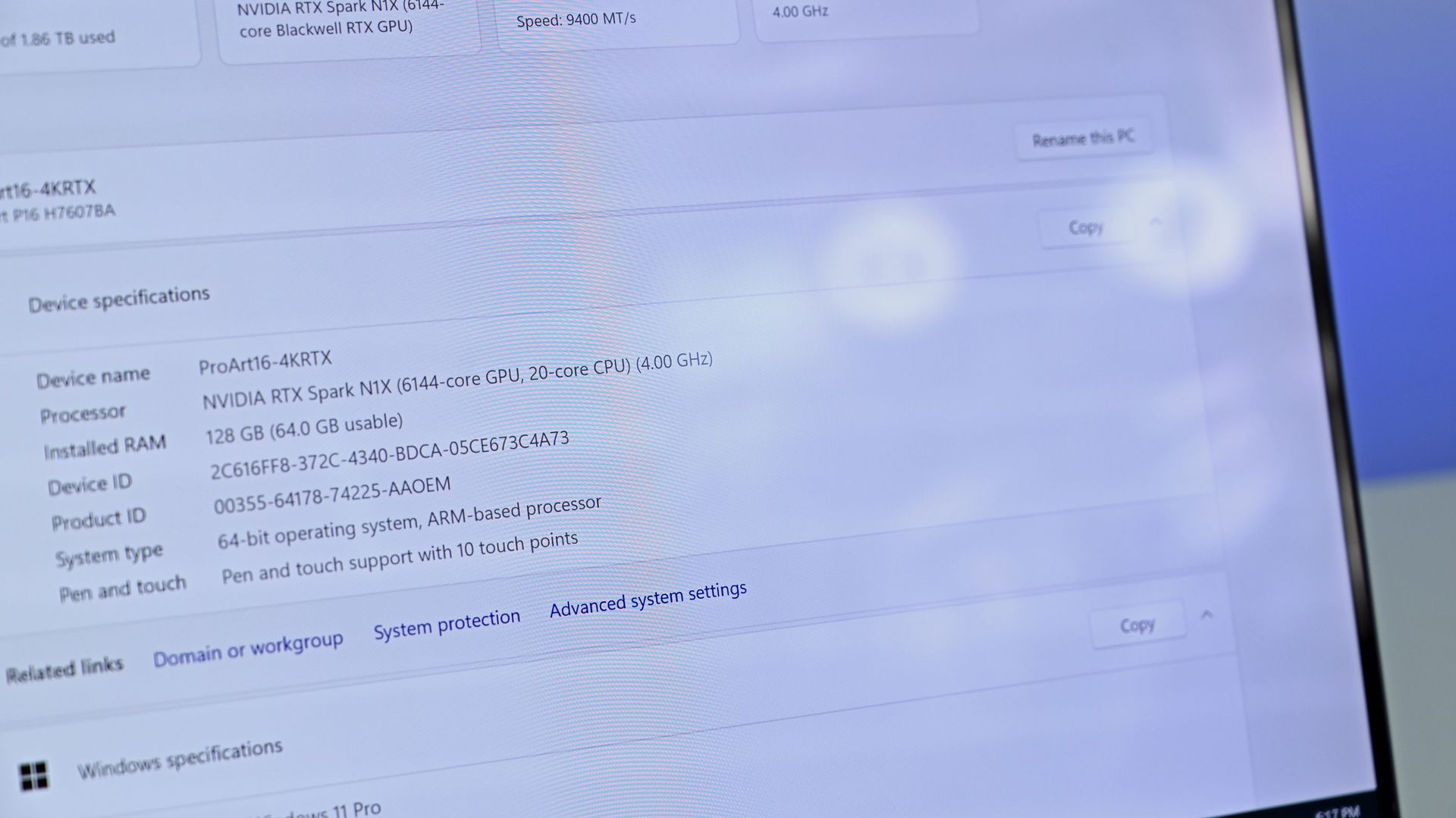
Close-up of Windows system specs showing 128 GB RAM in the $6,999 model. (Image credit: Daniel Rubino)
Unfortunately, ASUS forces the 4K configuration if you want 128GB RAM (unless you go through Best Buy, which has a 32GB model). I wish there were a 3K anti-reflective, 128GB option. That said, as someone who is a stickler for glossy displays, the 3K one is pretty good for glare, considering how much it bothers me.
I've also encountered extremely subtle flickering on my 4K unit. ASUS tells me a fix is coming, but I could also have a bum unit, so I have to have a chat with them about it.
Daniel RubinoDaniel Rubino
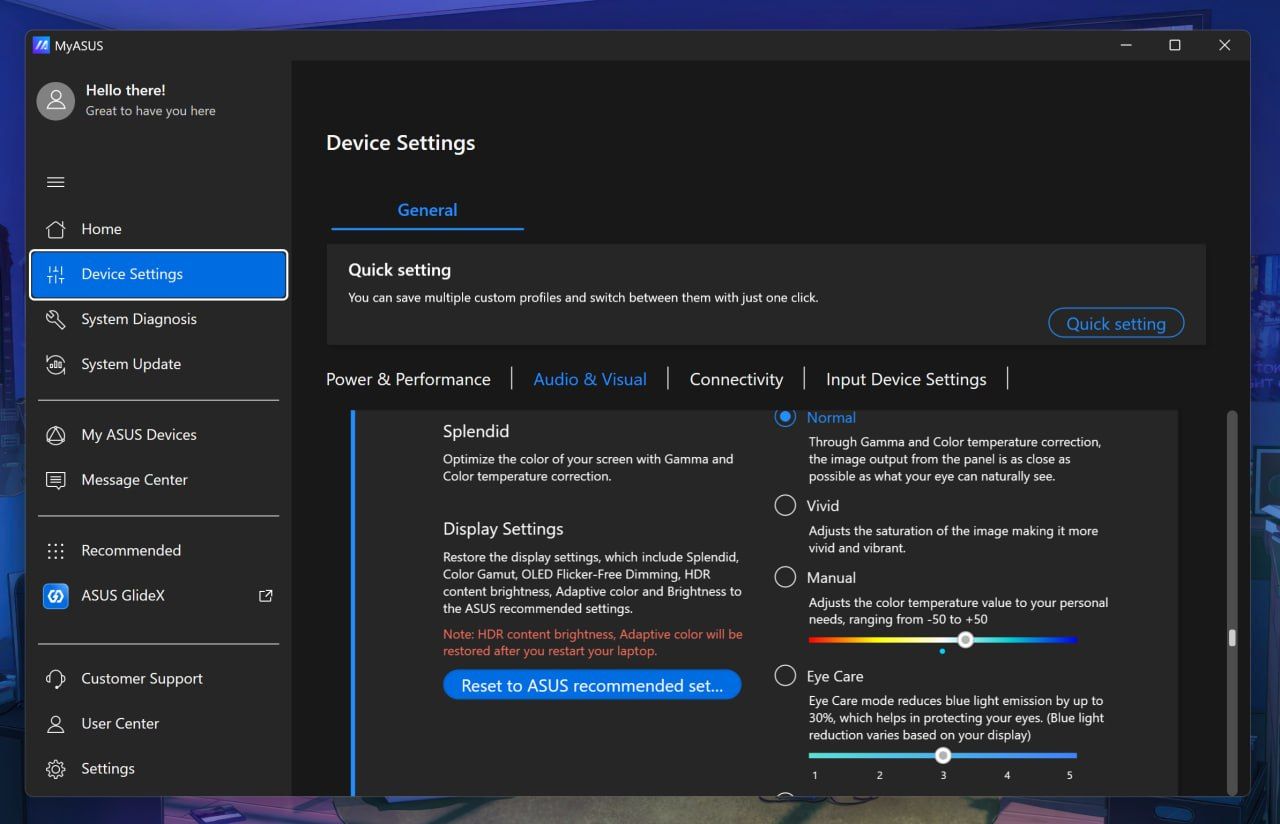
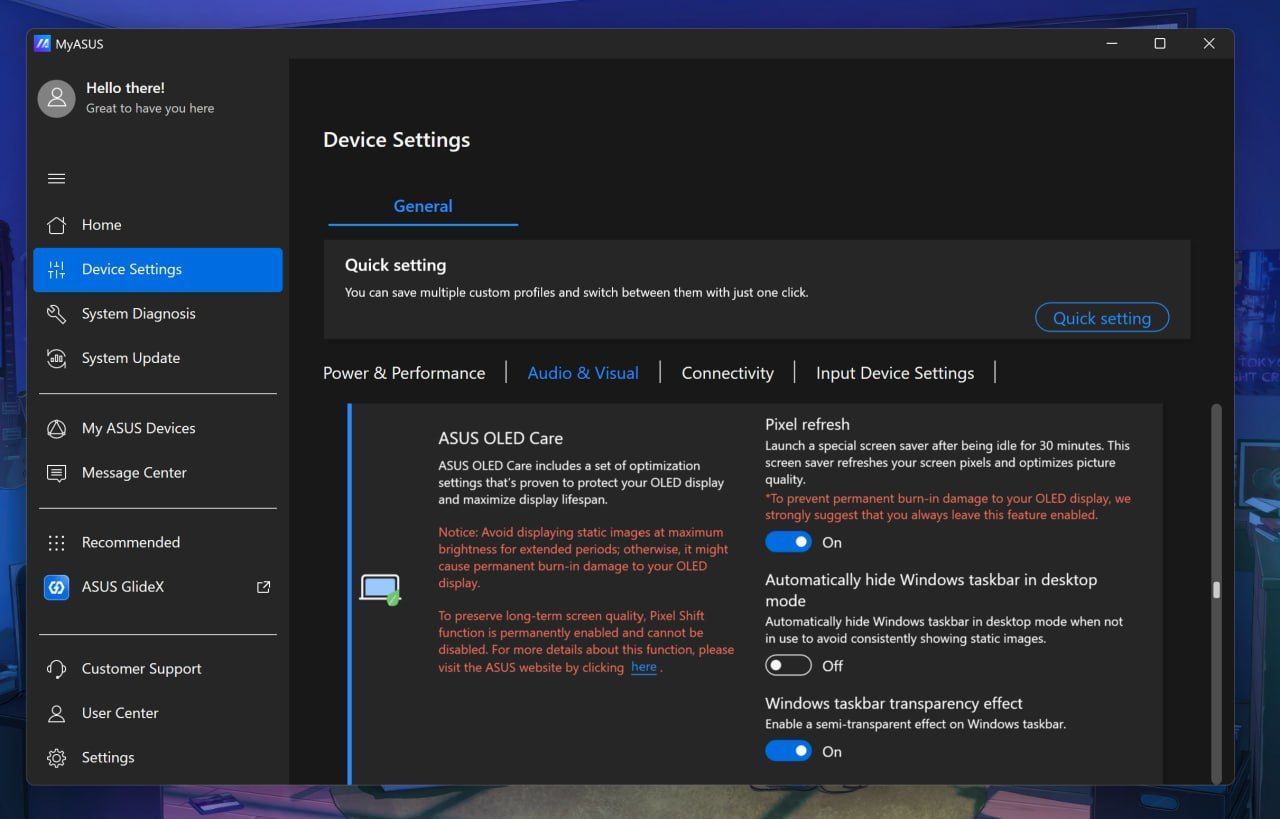
ASUS deserves enormous credit for its display controls, though. MyASUS (its main control and configuration app) provides profiles, color gamut controls, OLED flicker-free dimming, pixel refresh, burn-in mitigation, and other OLED Care options. You can even directly adjust memory allocation to the integrated GPU, which is particularly relevant on a unified-memory machine.
Daniel RubinoDaniel RubinoDaniel Rubino
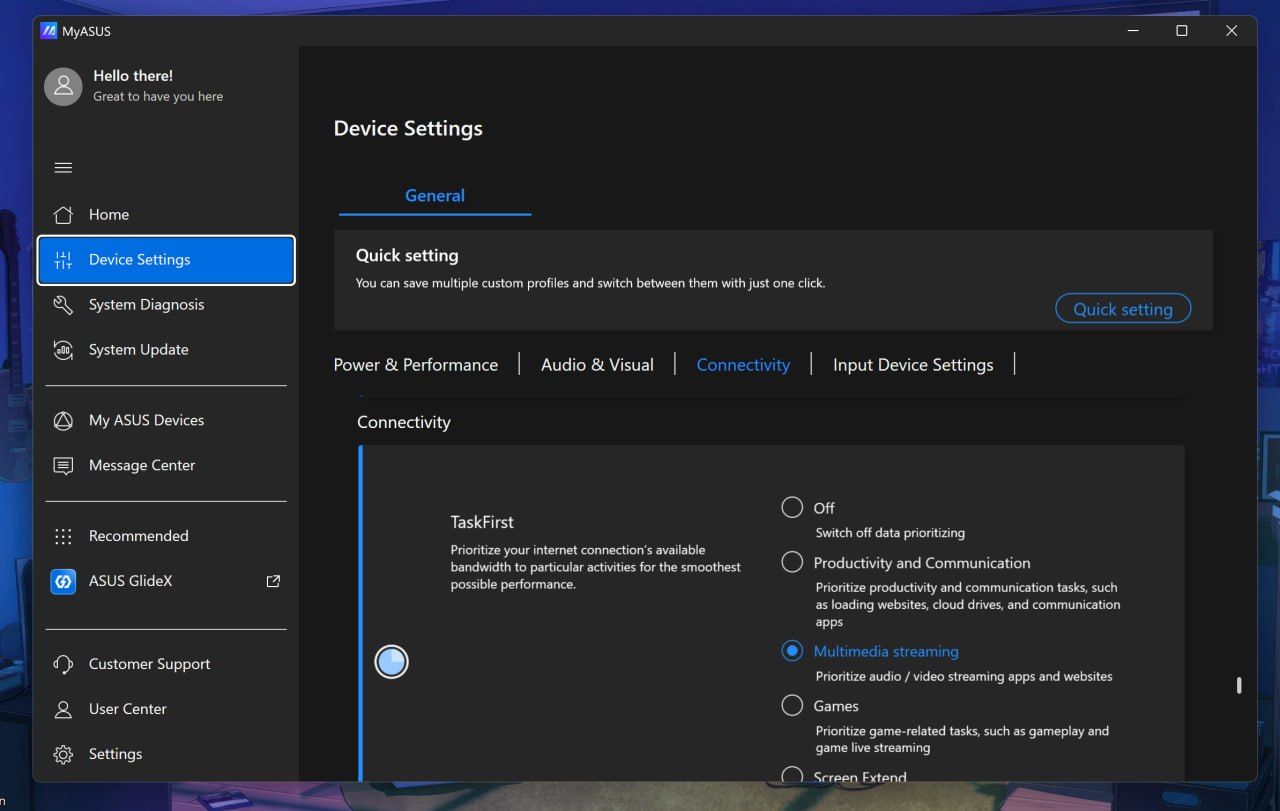
Overall, I think ASUS has the best out-of-the-box software, at least compared to HP and Microsoft, with the most configuration options for audio, connectivity, display, gestures, and more, not to mention direct driver updates from ASUS, warranty info, etc. I rarely praise OEM apps, but this is the way to do it.
This is also the part where I lament some pre-installed junkware, except I didn't find any on either laptop. These are relatively clean installs (except for whatever you dislike about Microsoft's inbox apps).
3-stage, timed backlight for the keyboard is excellent. (Image credit: Daniel Rubino)
The keyboard is similarly excellent, with springy keys, 1.7mm travel, and a three-stage backlight with automatic sensing.
The enormous haptic touchpad might be even better. Haptic feedback feels superb; it supports Windows Haptic Signals, and ASUS adds gestures for brightness, volume, playback, and ScreenXpert. Those gestures are quirky, but also completely optional.
Close-up of the laptop underside corner showing downward-firing speaker cutouts. (Image credit: Daniel Rubino)
The four-speaker Dolby Atmos system is outstanding, and among the best I've heard from a Windows laptop. The 2.1MP webcam is less impressive on paper, particularly against HP's 5MP camera, but ASUS's processing produces a surprisingly sharp picture. Microsoft still wins this category with Surface.
There's even support for the optional $129 ASUS Pen 2.0. Using a pen on a traditional clamshell laptop remains awkward, but it's surprisingly handy for signing documents, marking up images, or quickly diagramming something.
ASUS ProArt P16: RTX Spark and performance
(Image credit: Daniel Rubino)
Unified memory allows the CPU and GPU to access the same large pool rather than dividing system RAM and dedicated GPU VRAM into much smaller fixed buckets. With up to 128GB available, that changes what can realistically be done locally with large AI models, complex 3D scenes, development workloads, high-resolution video, and anything else that can consume enormous amounts of GPU memory.
Then there's CUDA, NVIDIA's massively established parallel computing platform and ecosystem. For developers and creators, CUDA acceleration is fundamental to everything from AI frameworks and local inference to scientific computing and applications like Blender. Having massive unified memory alongside a CUDA-capable Blackwell RTX GPU is what makes RTX Spark particularly interesting.
I've already been experimenting with Osaurus and Hermes, combining models including Gemma 4 26B A4B, GPT-OSS-20B, Qwen3VL-8B, and Raptor 0.6 4B. I'm still learning local AI and agentic computing myself, and I'll be updating this review and writing more about that journey as I figure out what works, what doesn't, and what you can realistically accomplish locally.
FutureFuture
Looking across all my benchmarks, however, there's another interesting conclusion: which RTX Spark laptop you buy matters considerably less for raw performance than you might expect.
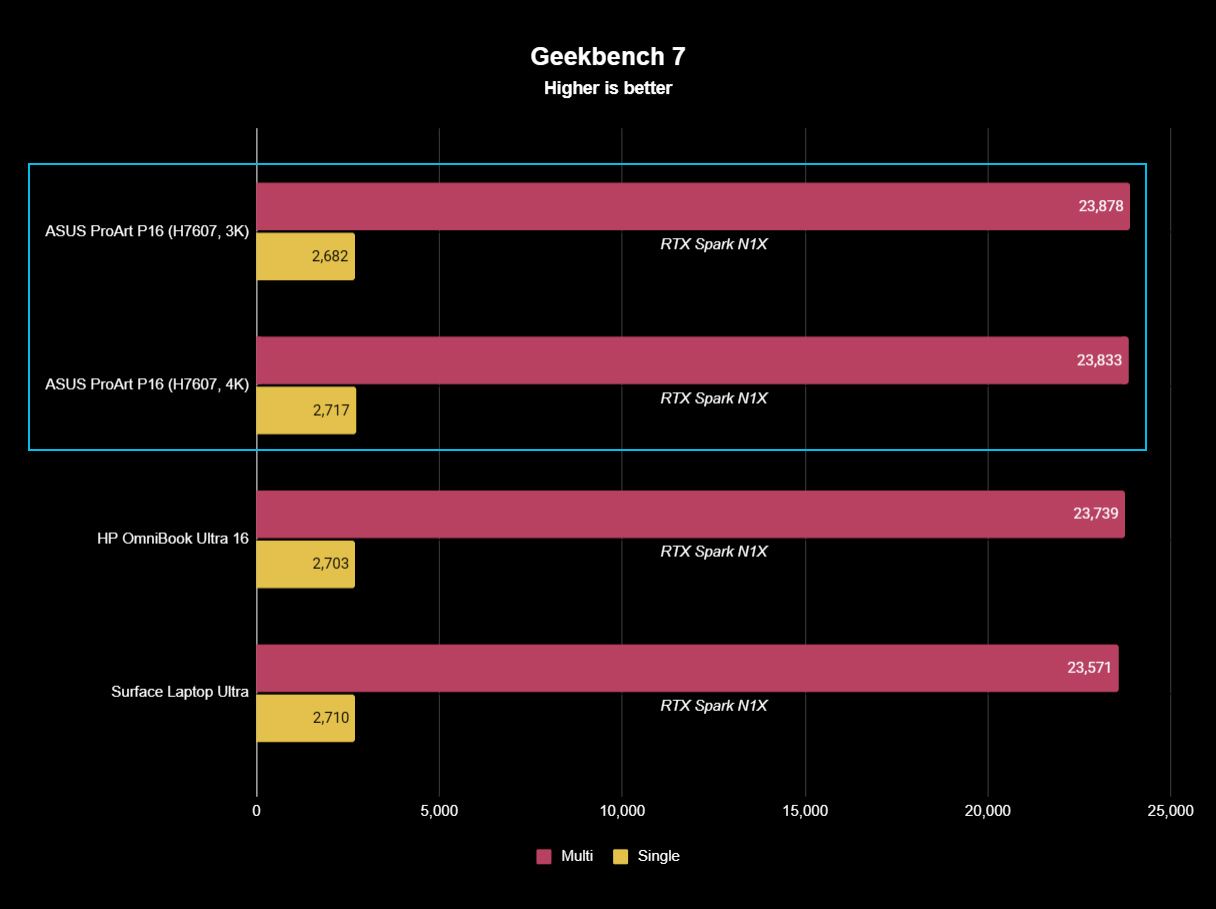
The ProArt P16, Surface Laptop Ultra, and HP OmniBook Ultra 16 (review forthcoming) trade places depending on the benchmark, but they're generally clustered surprisingly close together. In Geekbench 7, for instance, the ASUS actually posts the best multi-core result of the three, while single-core performance is separated by barely anything. CUDA testing is essentially a three-way tie. The 4K ASUS scored 187,547 against HP's 187,569, a difference so tiny it is meaningless.
That's good evidence of how consistent NVIDIA's N1X platform is between manufacturers.
FutureFutureFutureFutureFuture
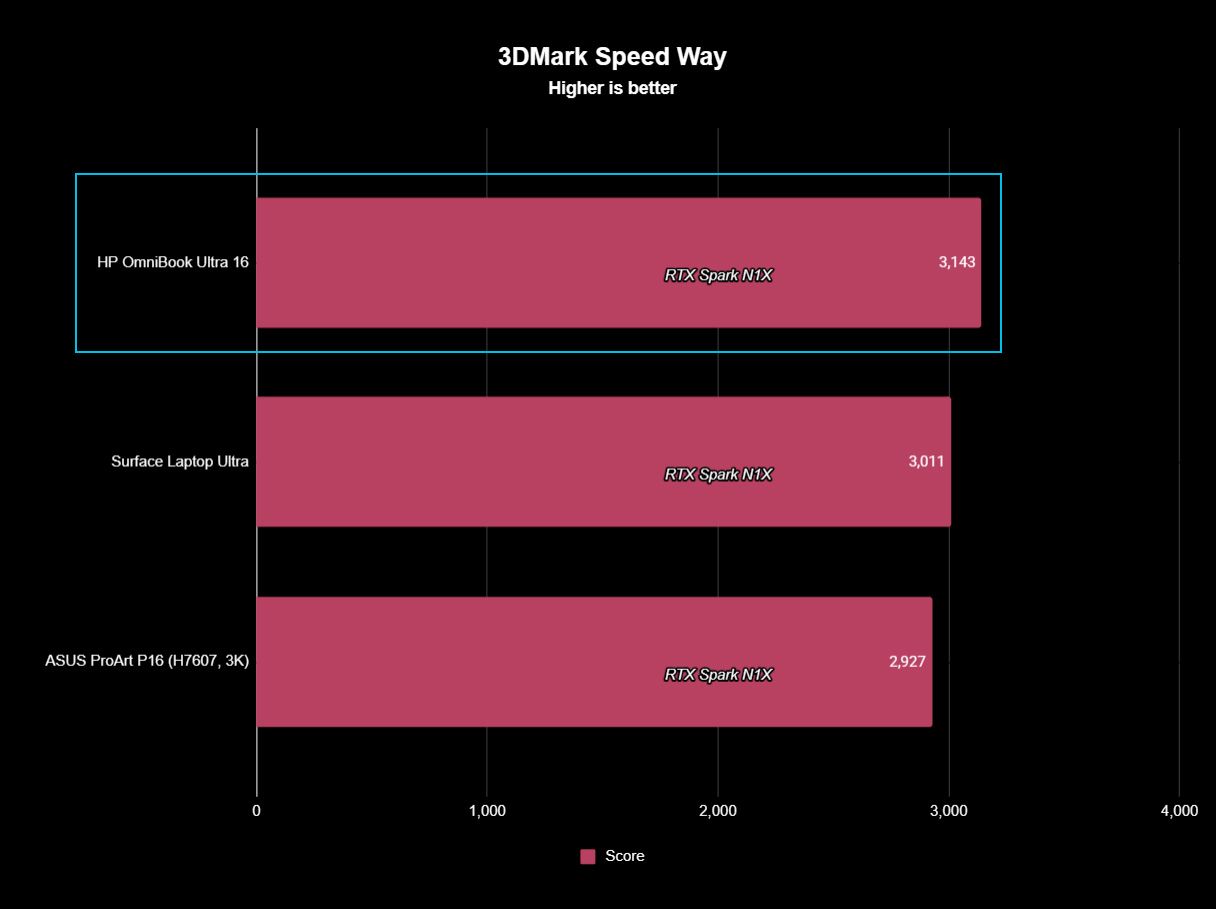
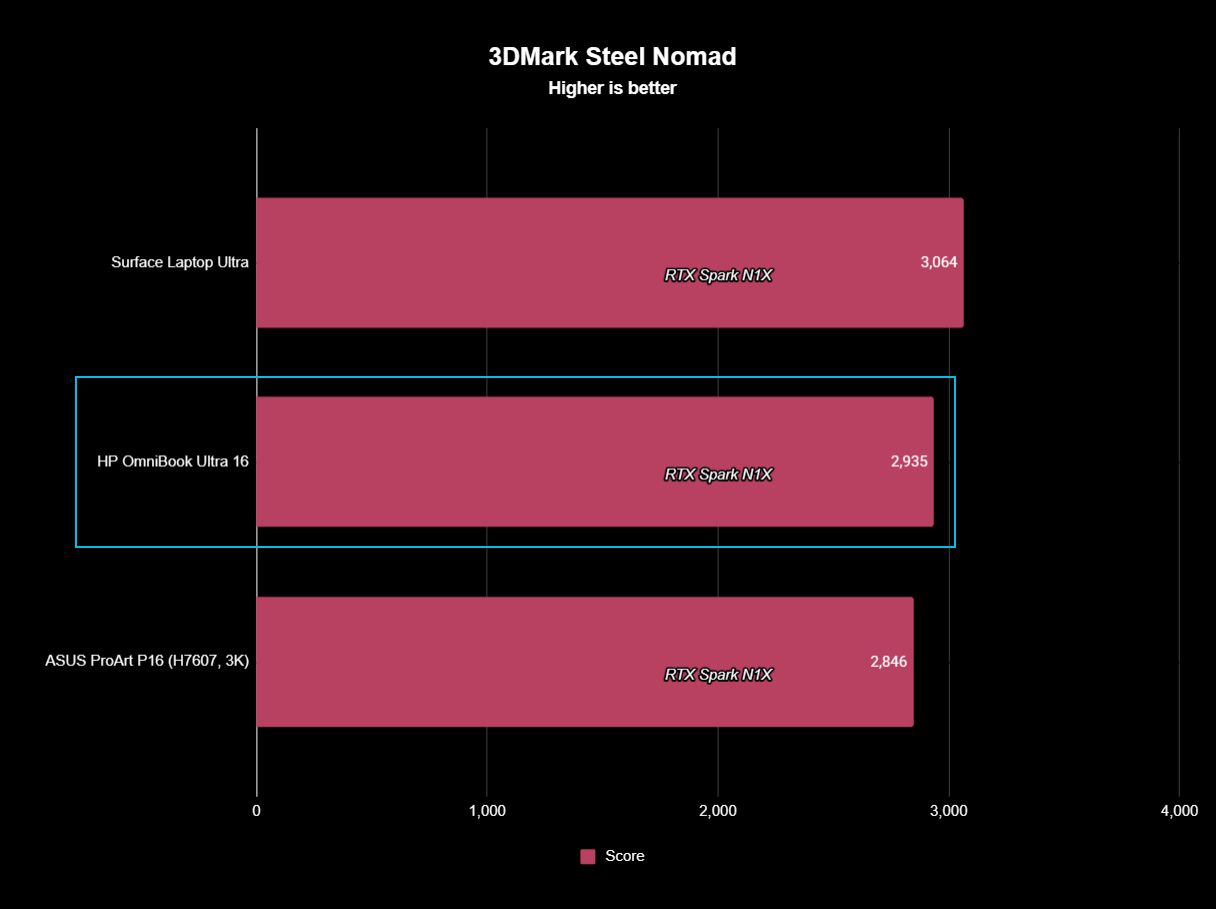
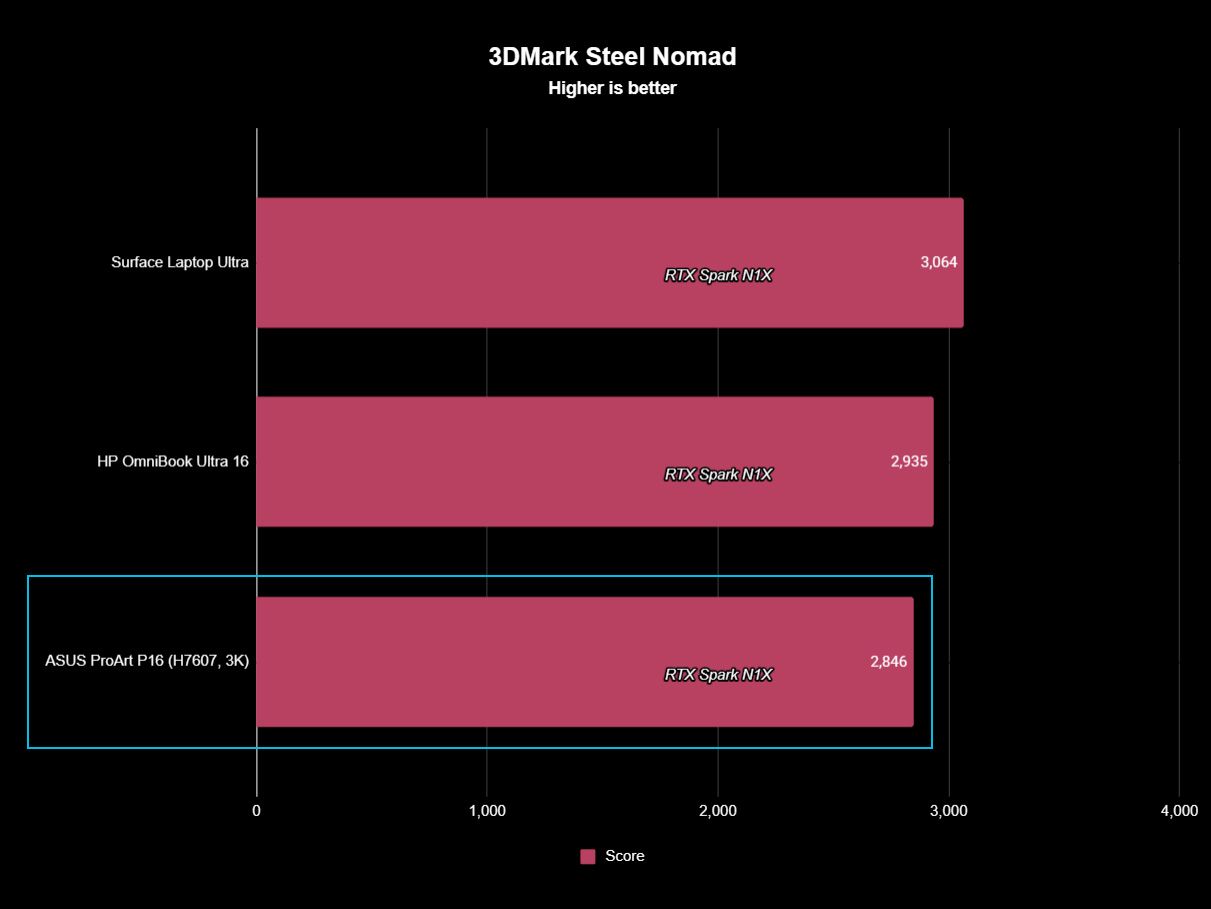
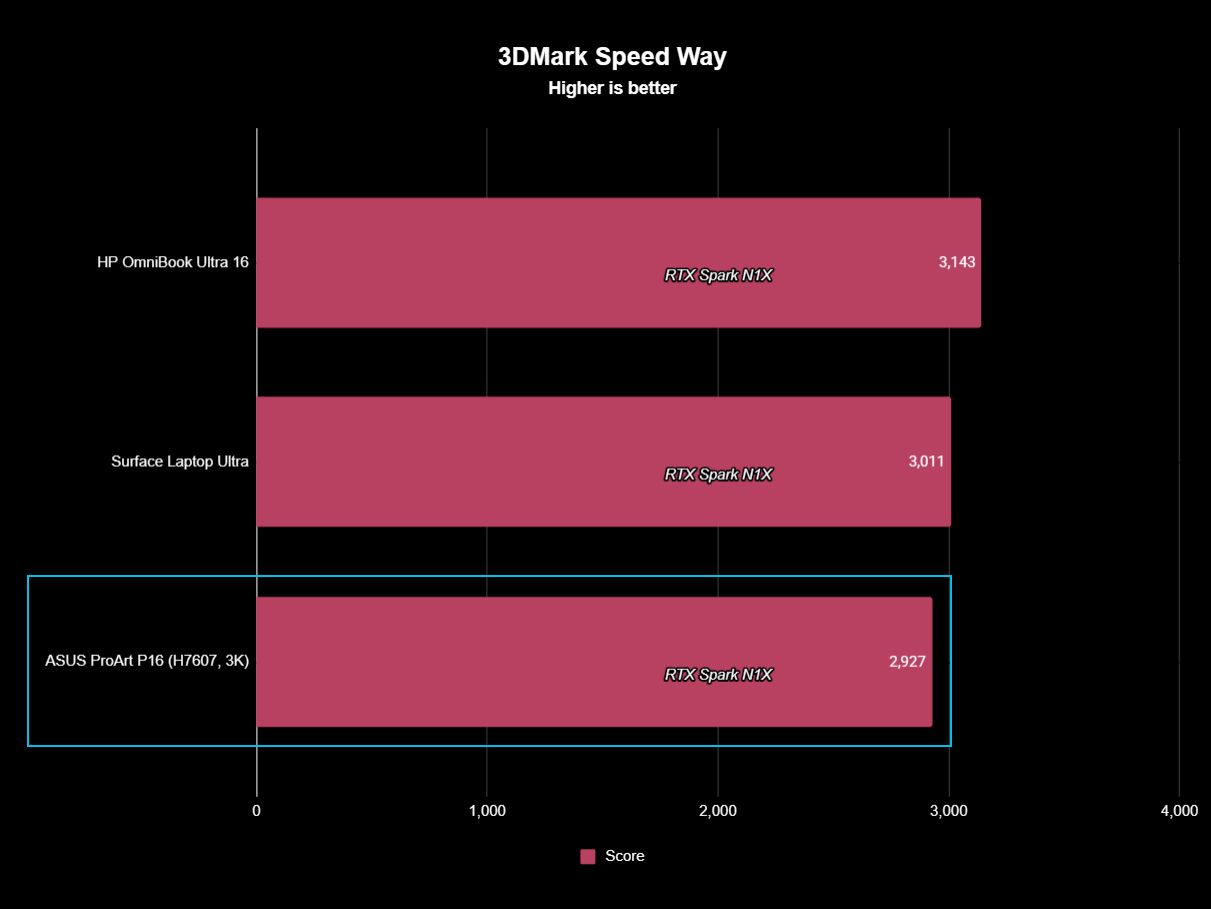
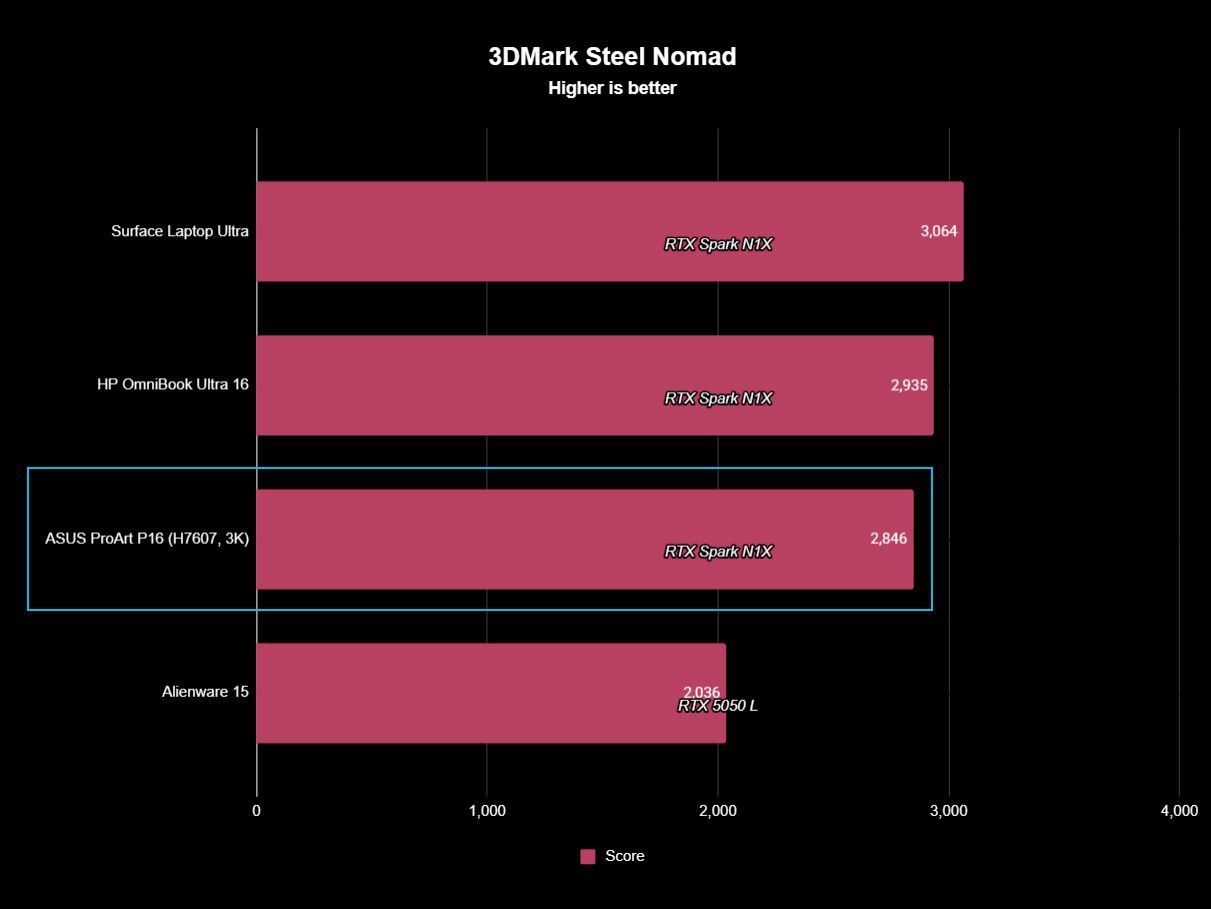
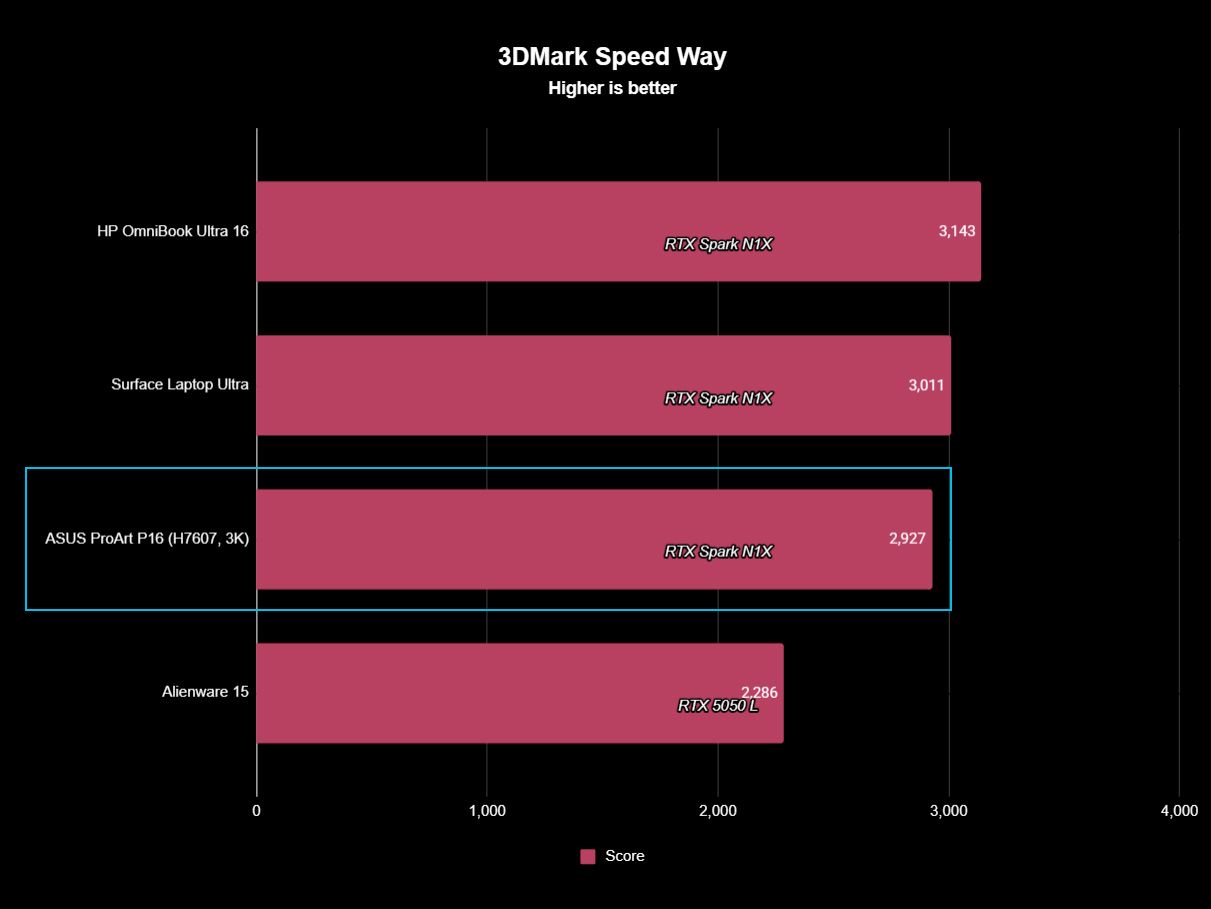
Graphics benchmarks reveal somewhat more variation. The ProArt P16's 11,840 result in 3DMark Time Spy trails the Surface Laptop Ultra's 12,771 and HP's 13,080 by around 7% and 9%, respectively. Speed Way and Steel Nomad tell roughly the same story, with ASUS usually sitting a few percentage points behind Microsoft and HP.
Yet even that isn't universal. In the heavier Time Spy Extreme test, the ProArt P16 actually beats both of them, scoring 6,006 compared to 5,857 for Surface and 5,492 for HP.
In other words, I wouldn't declare any of these RTX Spark laptops the definitive performance winner. We're talking about variations of the same extraordinarily powerful NVIDIA platform, and the rankings shift depending on the workload.
It's also worth remembering what ASUS has achieved physically. At 3.9 pounds and as little as 0.51 inches thick, the ProArt P16 is substantially lighter than its RTX Spark rivals while still maintaining excellent temperatures and relatively restrained fan noise. Some performance variation could plausibly be the consequence of fitting N1X into a thinner, lighter thermal envelope, but ASUS certainly hasn't compromised performance enough that I'd choose a much heavier laptop based on these benchmark differences alone.
(Image credit: Future)
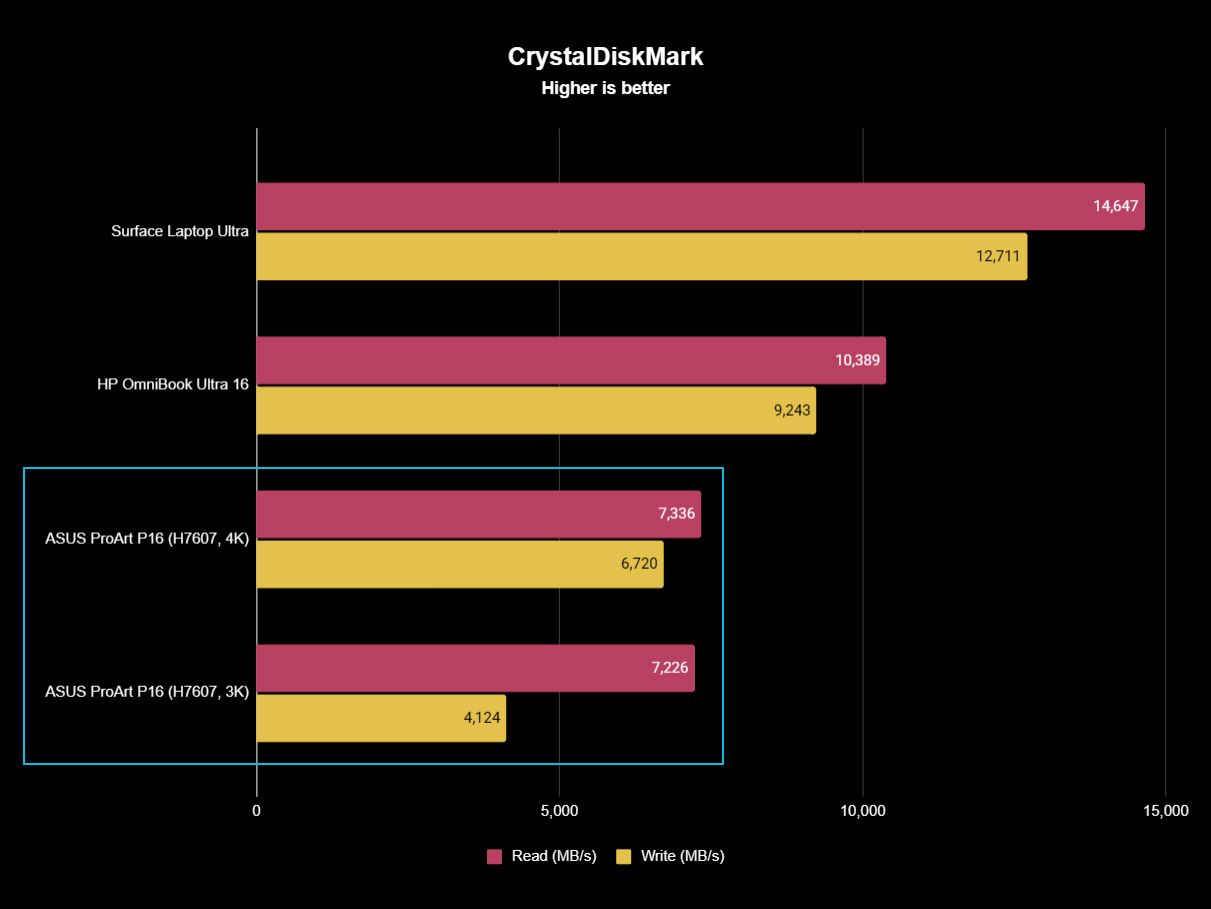
The one performance result I would criticize is the SSD.
Both ASUS configurations are well behind the competition. Sequential reads hover around 7,300 MB/s, compared with 10,389 MB/s on the HP and a massive 14,647 MB/s on the Surface Laptop Ultra. Writes vary considerably between my ASUS configurations, too, from 4,124 MB/s on the 3K model to 6,720 MB/s on the 4K machine. Microsoft reached 12,711 MB/s.
Those ASUS numbers aren't slow in isolation, and Windows still feels exceptionally responsive, but this is a $2,800 to $7,000 workstation. Faster storage should come with the territory. At least ASUS provides a second PCIe 5.0 M.2 slot for expansion, so you can add a seriously fast SSD later.
Daniel RubinoDaniel Rubino
Gaming performance is also surprisingly good. I've played Gears of War: E-Day at maximum settings without issue, while Minecraft Dungeons II looked and played fantastic aside from occasional frustrating stutters. NVIDIA's latest Game Ready Driver appears to have fixed the latter on my machine, which suggests some of RTX Spark's early gaming quirks may improve as drivers mature.
And RTX Spark is legitimately fast here. Time Spy places the ProArt P16 ahead of the RTX 5070-equipped Dell 16 Premium, while Steel Nomad and Speed Way put it comfortably ahead of an RTX 5050 Laptop GPU. A conventional gaming laptop remains the smarter purchase if gaming is your priority, but RTX Spark owners certainly don't need a second computer just to play PC games.
FutureFutureFutureFuture
Ultimately, that's the performance story of the ProArt P16: ASUS gives up remarkably little despite building one of the lightest and thinnest RTX Spark laptops I've tested. Its N1X CPU and CUDA performance are right up there with Surface and HP; GPU performance is sometimes a little behind and sometimes ahead, and the only consistent disappointment is the SSD.
For a machine that's almost a full pound lighter than HP's OmniBook Ultra 16, I'll happily make that trade.
ASUS ProArt P16: Battery life
(Image credit: Daniel Rubino)
Battery life is good given what's inside (a 99.9 WHr battery, the legal limit), though Apple and Qualcomm still have an obvious efficiency advantage here, and I expect NVIDIA to improve over the coming years.
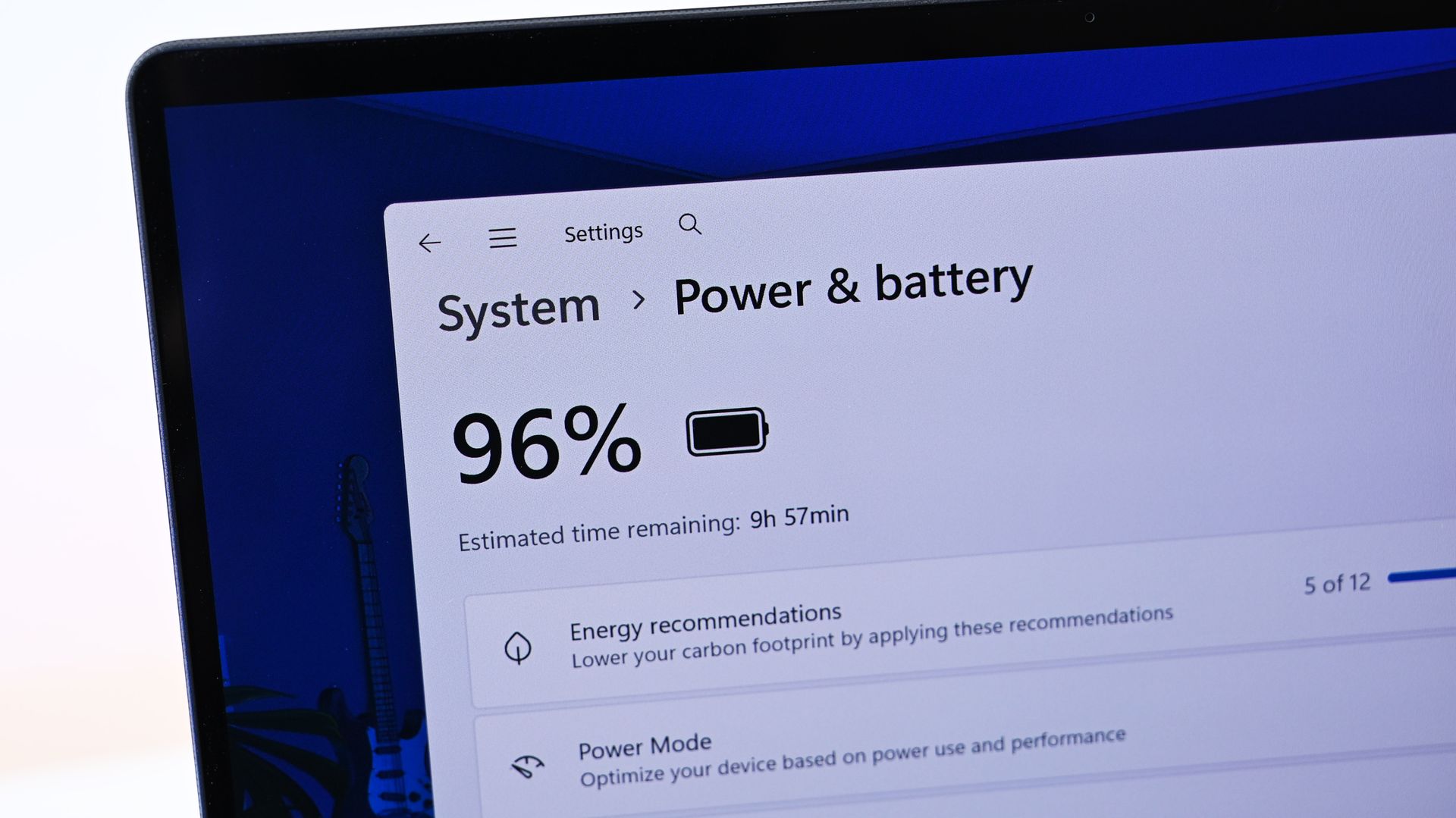
The Windows Battery Report recorded 9 hours and 58 minutes of real-world usage averaged over several weeks, including web browsing, video, messaging, and lighter creative work, basically standard laptop work with more focus on multimedia production and some lighter local AI work.
Hammer the GPU continuously with rendering, AI, or gaming and expect substantially less. Physics eventually wins.
Still, I can't say I've ever had a Windows laptop this powerful, this capable, and this thin/ligyht, and still get that kind of "regular" battery life.
Standby performance is exceptional. Leaving the ProArt P16 overnight resulted in less than 1% battery loss over 14 hours, finally making this Windows laptop behave the way I expect a modern premium portable PC to.
The included 140W USB-C charger is slightly bigger than HP's, though still compact, and ASUS gets bonus points for the excellent thick braided cable.
ASUS ProArt P16: Should you buy it?
(Image credit: Daniel Rubino)
✅You should buy this if ...
You know the benefits of unified memory and CUDA
You want the best RTX Spark laptop
You want to learn about cutting-edge agentic AI workflows
You need a light, very capable workstation for 3D creation, video editing, or coding
❌You should not buy this if ...
You think this is just a gaming laptop in disguise
You don't know what agentic AI is and don't care to learn about it
You spend most of your time consuming content instead of creating it
So, should you buy the ASUS ProArt P16 with RTX Spark? Probably not.
And I mean that as a compliment.
The ProArt P16 H7607 is a specialized workstation for people operating near the frontier of what portable Windows computers can do. Someone mainly browsing the web, writing documents, editing the occasional photo, or even gaming can get an excellent laptop for dramatically less money.
But developers, creators, 3D professionals, AI researchers, and people seriously experimenting with local models and agentic workflows finally have what Windows has desperately needed: a thin, premium laptop that combines massive unified memory with NVIDIA RTX graphics and CUDA.
That's a really big deal.
Both ASUS ProArt P16 models in 3K and 4K variations. (Image credit: Daniel Rubino)
ASUS then wraps that technology in what is arguably the best RTX Spark chassis on the market. And I mean that. ASUS has been killing it on design and features over the last 3 years.
At 3.9 pounds, the laptop almost feels impossibly light (for its class). The OLED display is beautiful, the keyboard and haptic touchpad are excellent, the speakers are outstanding, the ports are plentiful, the thermals are exceptional, and ASUS offers a level of hardware customization through MyASUS that competitors should copy.
Even the weird stuff is charming. My $4,399 3K review unit included ASUS's excellent $99 ProArt MD301 mouse and a protective sleeve, while the $6,999 128GB machine inexplicably included neither. ASUS notes that bundled accessories vary by country and territory, so your experience may differ.
Left: HP OmniBook Ultra 16. Right: ASUS ProArt P16. (Image credit: Daniel Rubino)
One caveat: Those 24GB and 32GB Best Buy models are, I think, perfect, more general laptops for creators whowant a premium Windows 11 experience with the latest technology. That's an easy recommendation if you can afford it.
The SSD should be faster, battery life can't match the best Snapdragon X2 or Apple Silicon laptops, and $7,000 is still an extraordinary amount of money for any laptop (though about $150 cheaper than a similarly spec'd MacBook Pro 16).
Yet none of those complaints change my overall impression.
The ASUS ProArt P16 is one of the best laptops I've ever used. For the relatively small group of people who can actually exploit everything RTX Spark offers, it may also be one of the most exciting Windows PCs in years.
And if you're simply curious about local AI and want to learn where personal computing may be heading next, the ProArt P16 deserves a spot very near the top of your shortlist.
RTX Spark
ASUS
ProArt P16 (h7607)
The ASUS ProArt P16 combines NVIDIA's powerful RTX Spark platform with up to 128GB of unified memory, outstanding OLED displays, superb thermals, and a remarkably thin 3.9-pound chassis. It's an extraordinary Windows workstation, but most people shouldn't buy one.
Join us on Reddit at r/WindowsCentral to share your insights and discuss our latest news, reviews, and more.
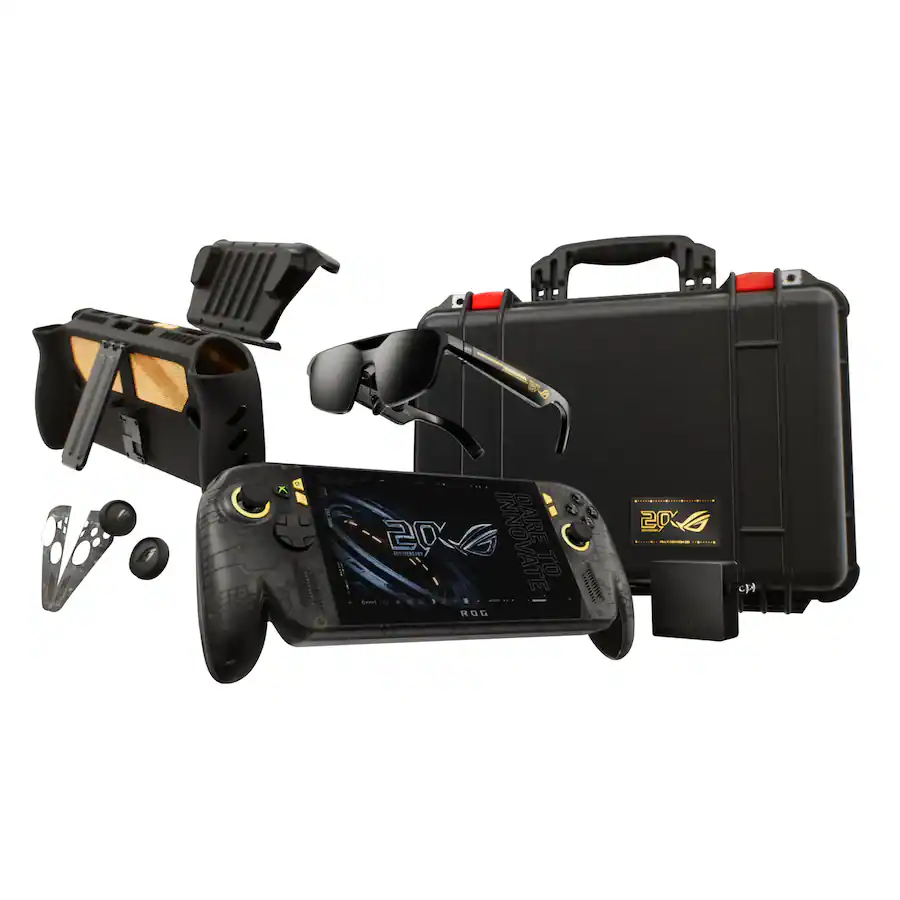
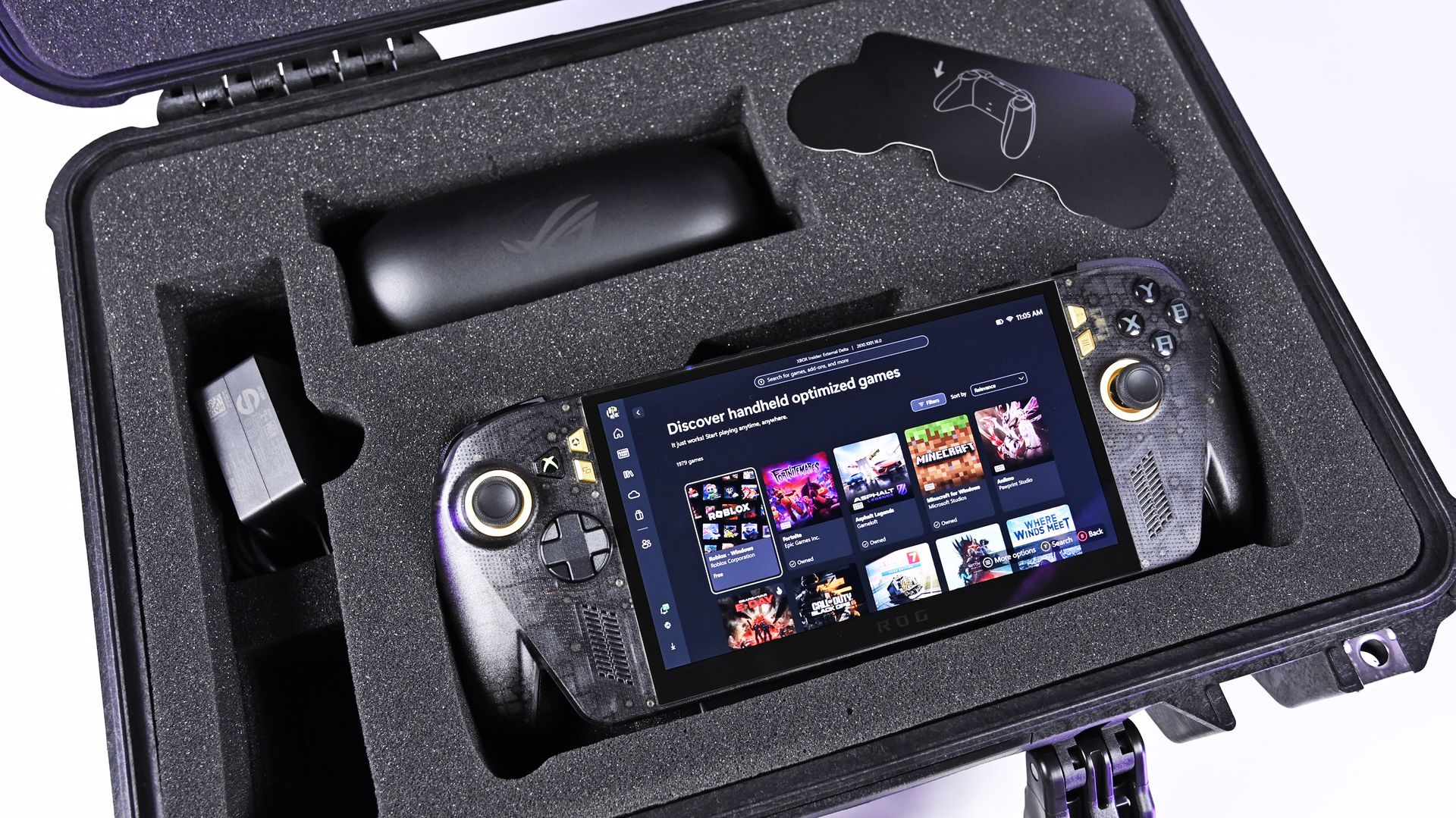
It was just a few days ago that I was unboxing the new ASUS ROG XBOX Ally X20, which went on sale just five days ago on October 15th, and now both the handheld ($1,299) and the $2,499 bundle (handheld + XREAL glasses, dBrand skin) are sold out at both Best Buy and ASUS.com.
Indeed, I'm not even saying they sold out today, but rather that today was the first day I checked to see if there was any inventory left. Going by a Reddit thread, it appears it sold out sometime yesterday or Sunday.
That's a very impressive metric, when you consider the pricing here. The current ROG XBOX Ally X is available for $999, while this refreshed model (which is better in every way) is $300 more. And the $2,500 bundle is also no joke, especially for what many would consider a secondary gaming PC.
Sure, we can attribute this to limited production and a finite inventory on hand, but it’s worth noting that preorders began almost two months ago on August 25th, giving ASUS ample time to prepare for demand.
And we know there was demand. Looking at our internal numbers for click-throughs, we saw back in August an unusually high amount of interest in the ROG XBOX Ally X20, more than you might expect from the most expensive ROG Ally to date.
A lot of this goes back to what I've been saying for years: Gaming is one of the few price-proof areas in tech, practically insulated from the harsh economic realities that many people are facing, on top of the overall higher prices attributed to AI-driven demand for RAM and NAND (storage).
ASUS
ROG Xbox Ally X20
A refined celebration of ASUS’s gaming legacy, the Ally X20 Anniversary Edition pairs its upgraded Ryzen AI Z2 Extreme chip with a vibrant 7.4‑inch OLED HDR display and a boosted 80 Wh battery. It’s a sleeker, more efficient Windows gaming handheld built to mark the milestone with sharper visuals, quieter thermals, and longer play sessions.
Whether a recession, a pandemic, a RAM shortage, or a crypto mining craze (remember that?), gamers are almost always willing to fork over big bucks to have the latest gear. It's one reason that, despite some of the doom-and-gloom over PC sales in the last decade, gaming PCs grew year-over-year consistently.
Front view of the ROG Ally X20 handheld, which is in very high demand. (Image credit: Daniel Rubino)
If you haven't followed this story closely, you'd be forgiven for thinking this is just a simple refresh of last year's XBOX Ally X, albeit with an OLED panel replacing the IPS.
That ... would be way oversimplifying it.
Yes, the same AMD Z2 Extreme and 24GB of RAM are here (albeit slightly faster memory), so overall performance is very much the same, but ASUS basically completely rebuilt this entire device with all new components. In fact, I've been documenting all the changes that I've noticed and collected from talking to ASUS and from past press events.
So, here's what's actually new:
Larger 7.4-inch OLED panel (up from 7.0 IPS)
1,400 nits peak HDR (no HDR before)
600 nits peak SDR (was 500 before)
Dolby Vision support
Corning Victus + DXC anti-reflection coating
Smaller bezels
Redesigned airflow channel specifically for cooling the OLED panel
Completely redesigned PCB USB4 ports
Upgraded fan and heatsink fins for better cooling
Hybrid metal dome switches for a more tactile D-pad
Transforming D-pad
TMR joysticks (Hall-effect style)
LEDs increased from 2 to 4 per stick
Quieter, more tactile ABXY buttons
Realigned shoulder buttons
Smoked black translucent housing
Rubberized ergonomic grips
Upgraded microSD Express slot (up to ~1 GB/s)
And this translates into a major real-world difference in terms of fit and finish, as well as overall enjoyment of the device, which is why so many people are praising the build quality.
While Intel's G3 Extreme trounces AMD in performance, the overall gaming experience on the ROG XBOX Ally X20 is very likely the best of any handheld. Plus, a faster AMD or newer Intel chip would have driven the price up even further (see MSI's $1,800 Claw).
Of course, the one pain point is still ... Windows 11. At least for the out-of-the-box experience (OOBE), but we'll talk about that another time. Once you're set up, the Ally X20 is top-tier.
ROG XBOX Ally X20 is getting great reviews
(Image credit: ASUS)
It's worth noting that reviews, both professional and from consumers, have been near-universal in their acclaim for the ROG XBOX Ally X20.
Yeah, Best Buy only has 10 reviews posted, but it's a solid 5.0 across the board, with some noting, "This is the single most refined PC handheld ... I’ve tried." and "it might be the best quality handheld device in the market," and "ASUS Definitely hit it out of the park with this one."
Going by more professional reviews, IGN says the OLED takes the machine "to a completely new level" and argues that the extra $300 is"absolutely worth it" if you have the cash. Notebookcheck is similarly effusive, calling the OLED a "game changer" and describing the image quality as "simply stunning."
And one of my favorite YouTube channels, 128KB, dedicated to handheld gaming, also gave high praise (you can see the podcast embed above).
That kind of word of mouth goes a long way, and ASUS seems to have quite a hit on its hands despite the current market circumstances.
Of course, my review is coming out shortly, but spoiler alert: I don't differ much from most of the other conclusions. Sure, "The X20 should have been the original Ally X last year" is a common theme, but OLED displays this small with variable refresh were hard to come by in 2025, so ASUS went with what it could mass-produce at the time.
The Ally X20 selling out across every configuration shows just how aggressively ASUS has captured the handheld gaming PC conversation. This launch isn’t a blip or a lucky surge; it’s a clear sign that ASUS understands what Windows handheld buyers want and is willing to push the category forward faster than anyone else.
When a premium bundle disappears instantly, it tells you the audience is hungry, confident, and ready to invest in hardware that feels genuinely next‑gen. ASUS, in my opinion (and others'), set a new bar, and the rest of the industry now has to decide whether it can keep up with the pace ASUS just established.
Anyway, let me know in the comments what you think about the state of handheld gaming in 2026, and whether the ROG XBOX Ally X20 is on your radar (if it comes back in stock).
ASUS
ROG Xbox Ally X20 Bundle
Twenty years of ROG innovation, marked by the limited ROG Edition 20 lineup in an exclusive colorway. The ROG XBOX Ally X20 Bundle carries that celebration forward, pairing the handheld with the ROG XREAL R1 Edition 20 Gaming AR glasses to create a complete gaming setup that travels with you.
Join us on Reddit at r/WindowsCentral to share your insights and discuss our latest news, reviews, and more.
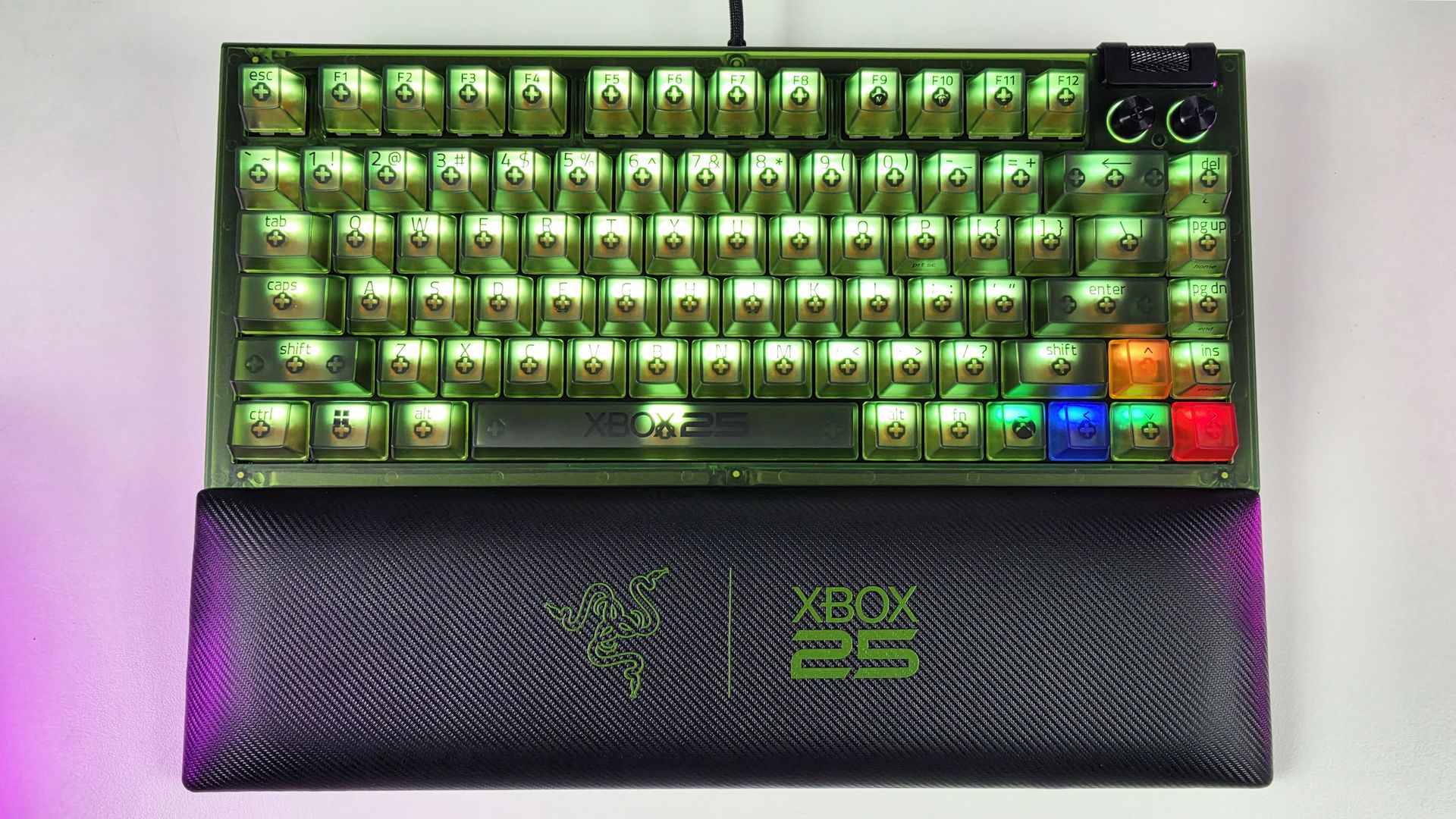
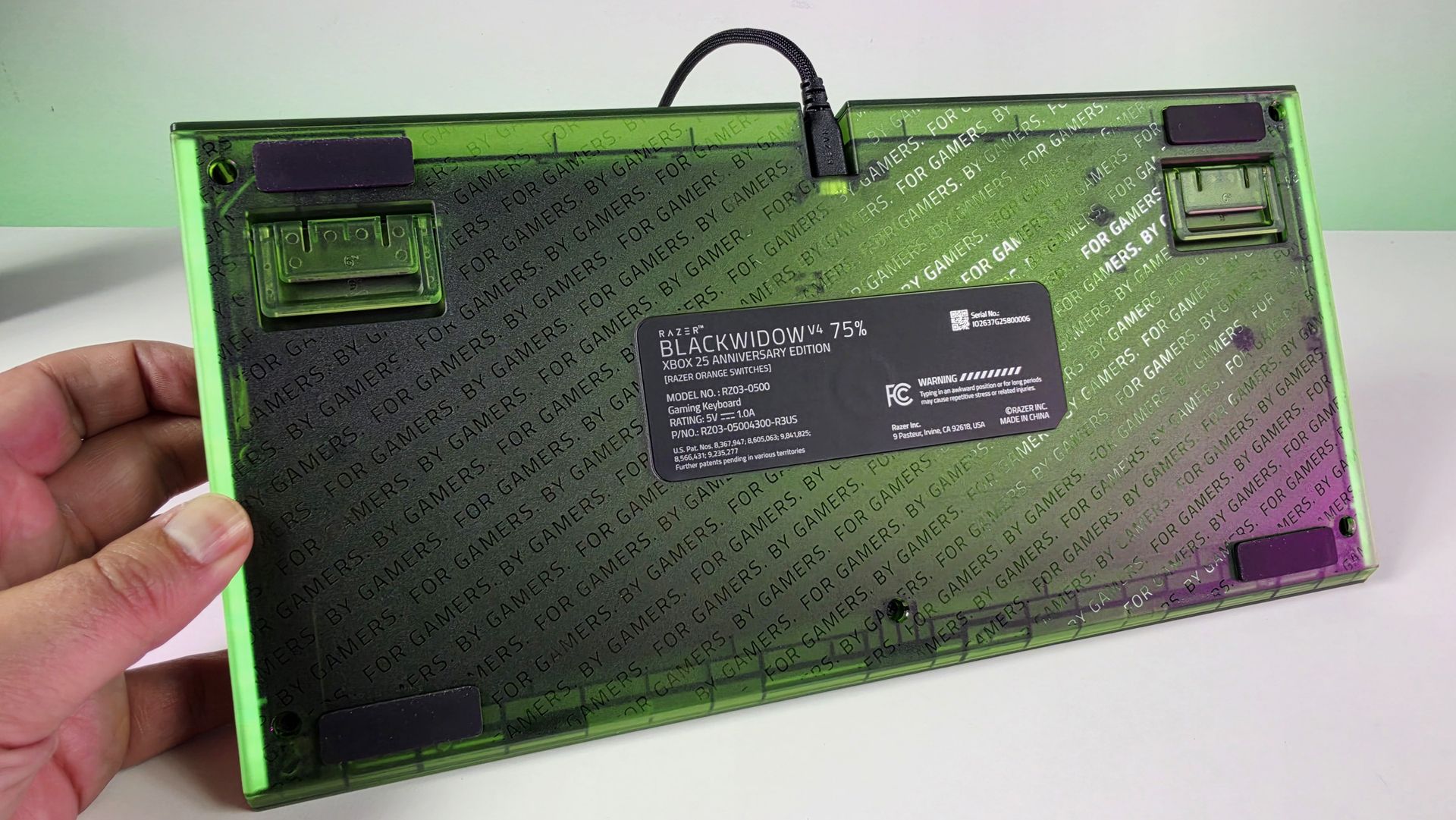
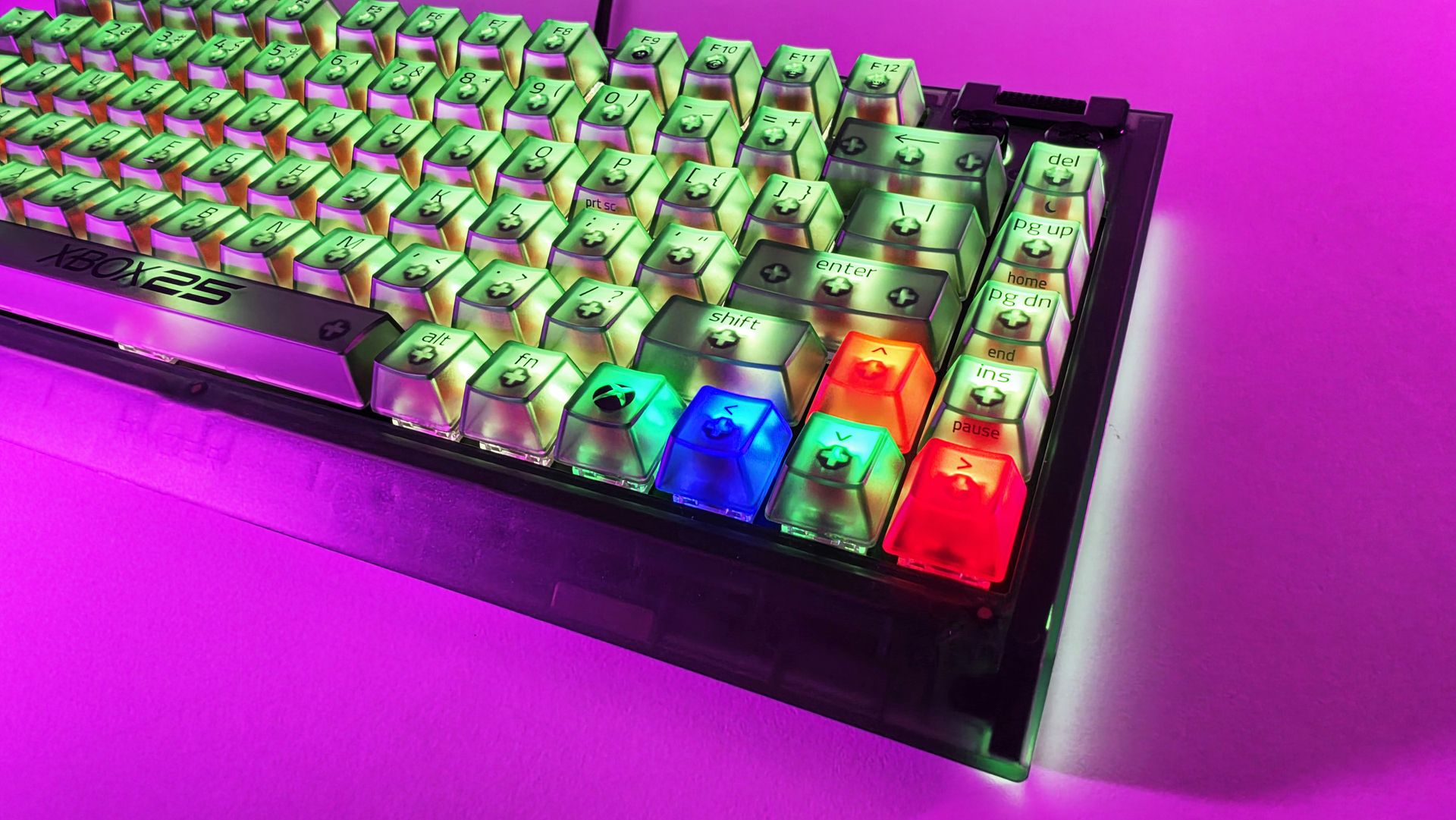
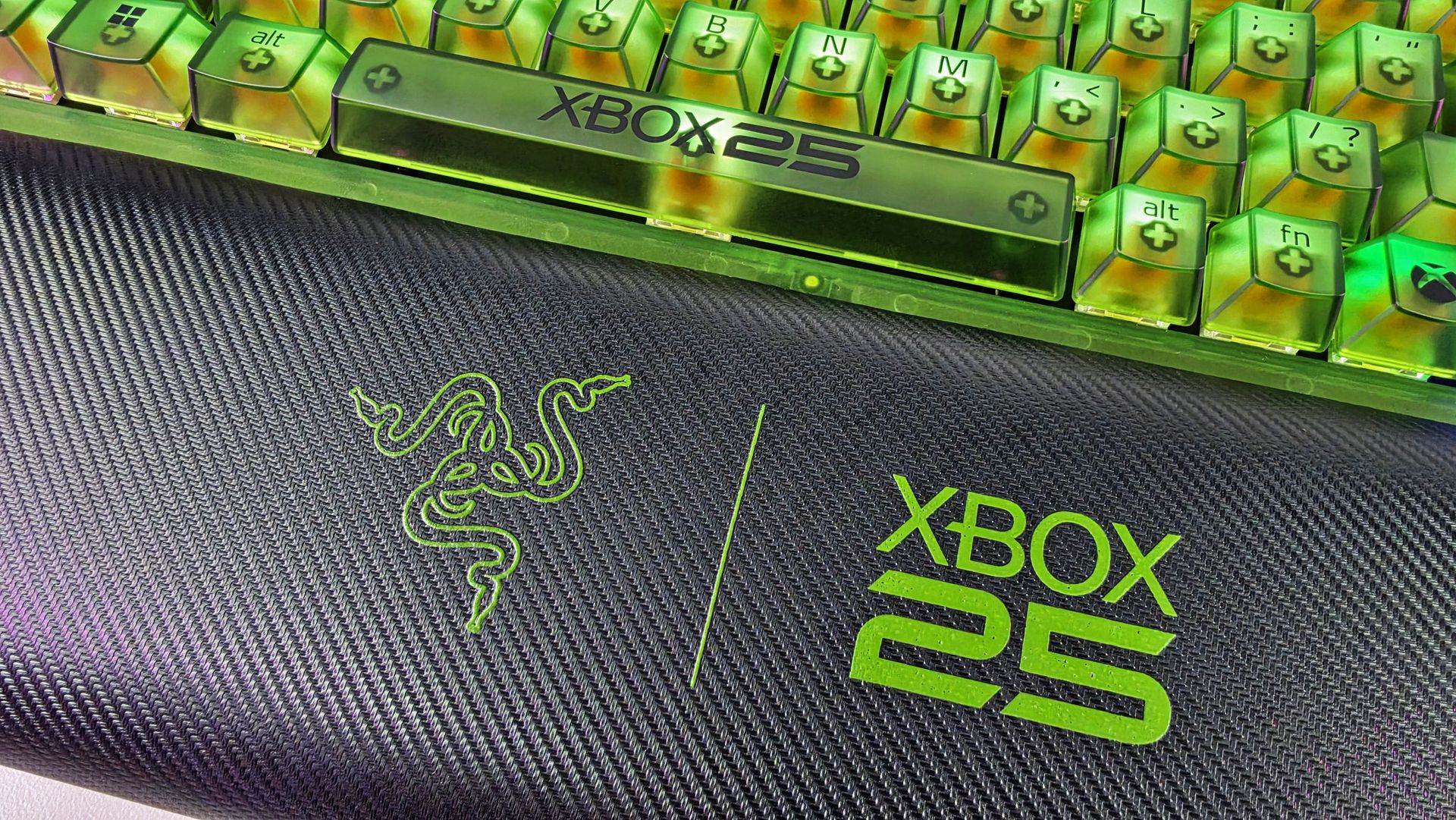
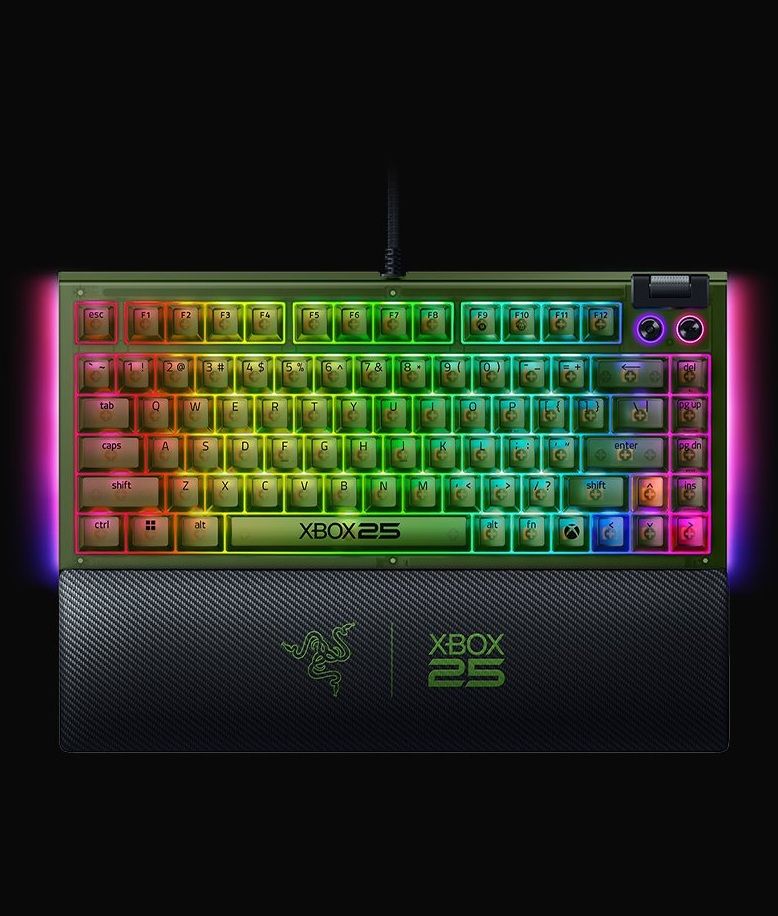
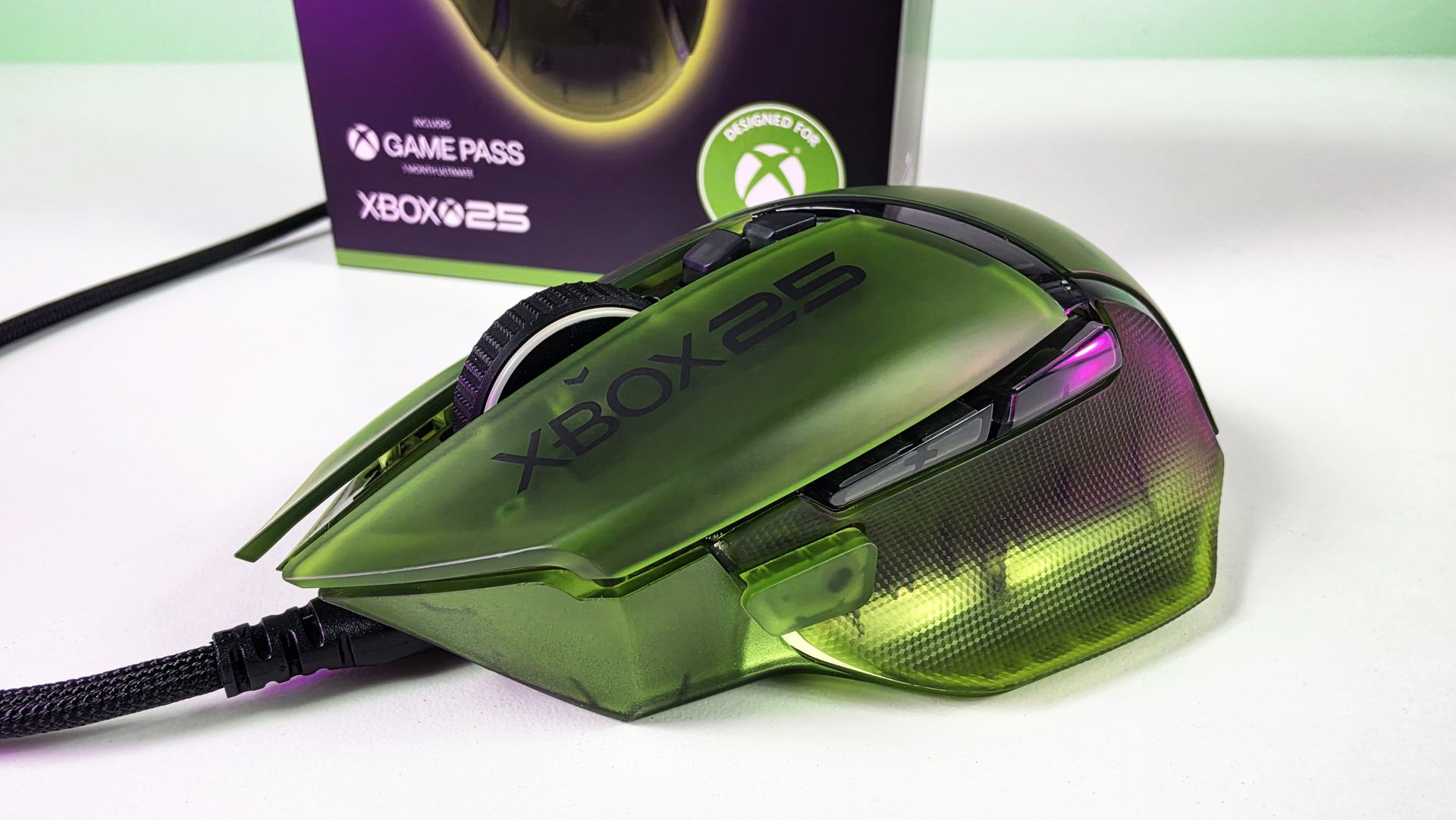
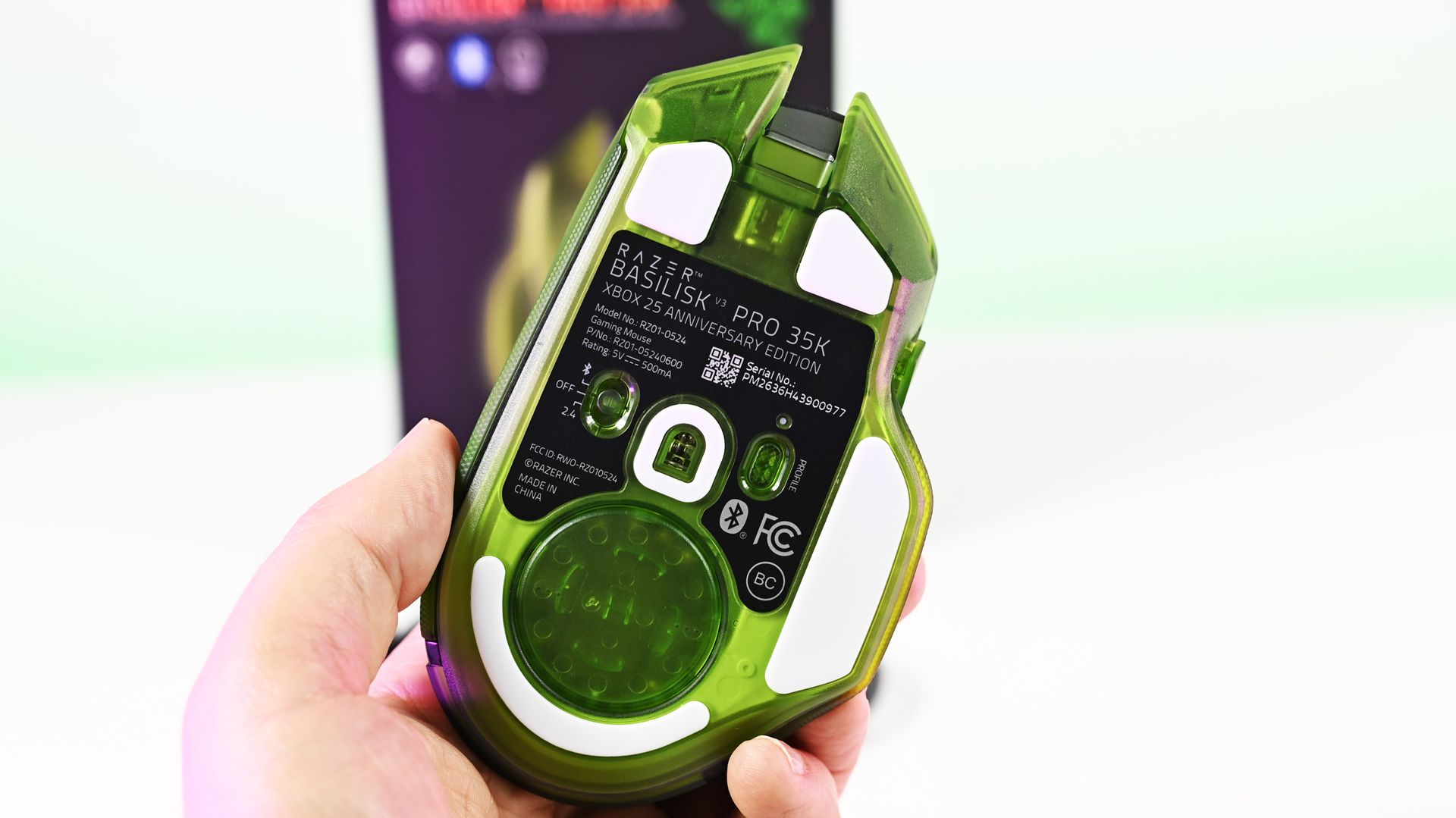
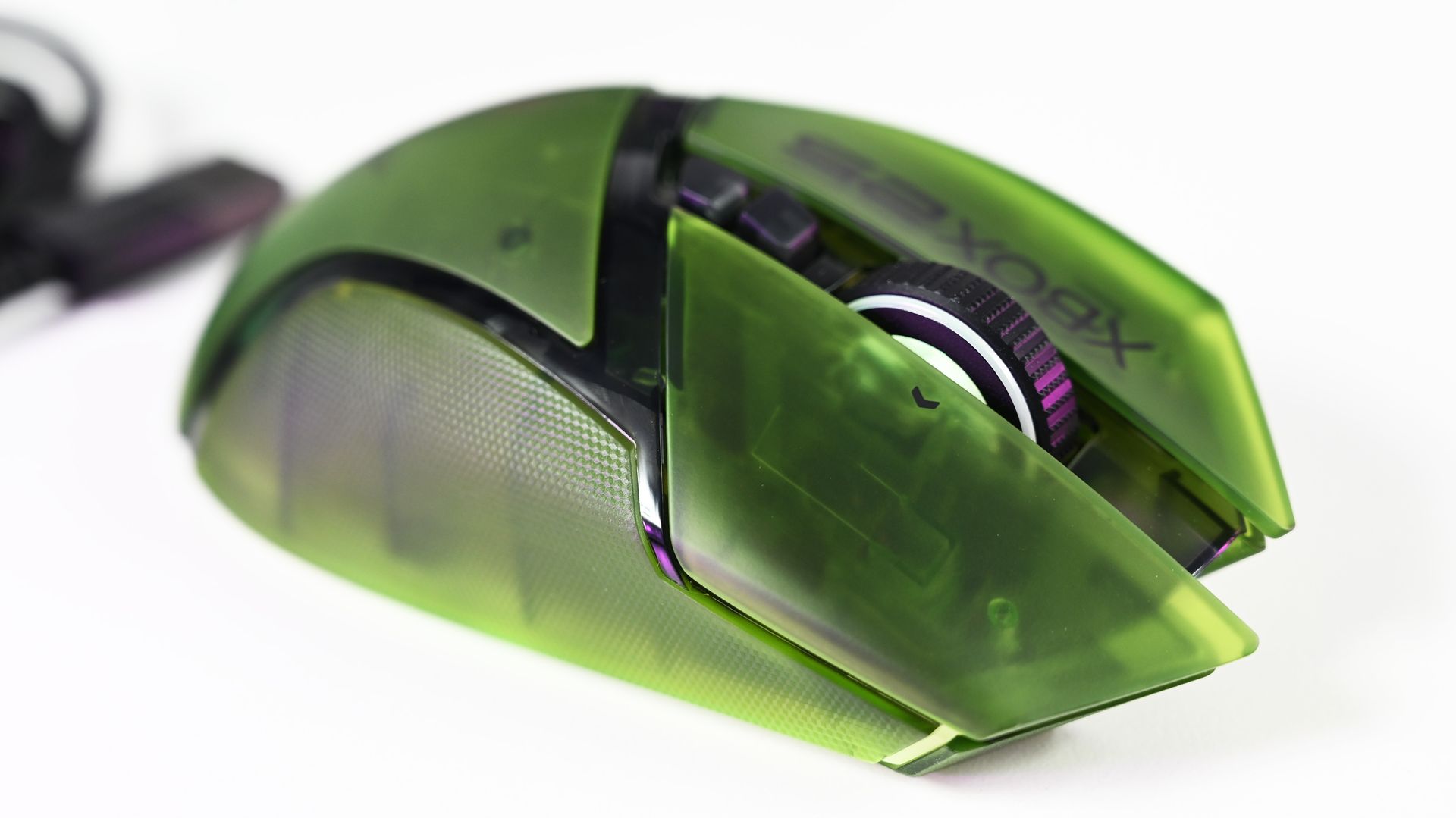
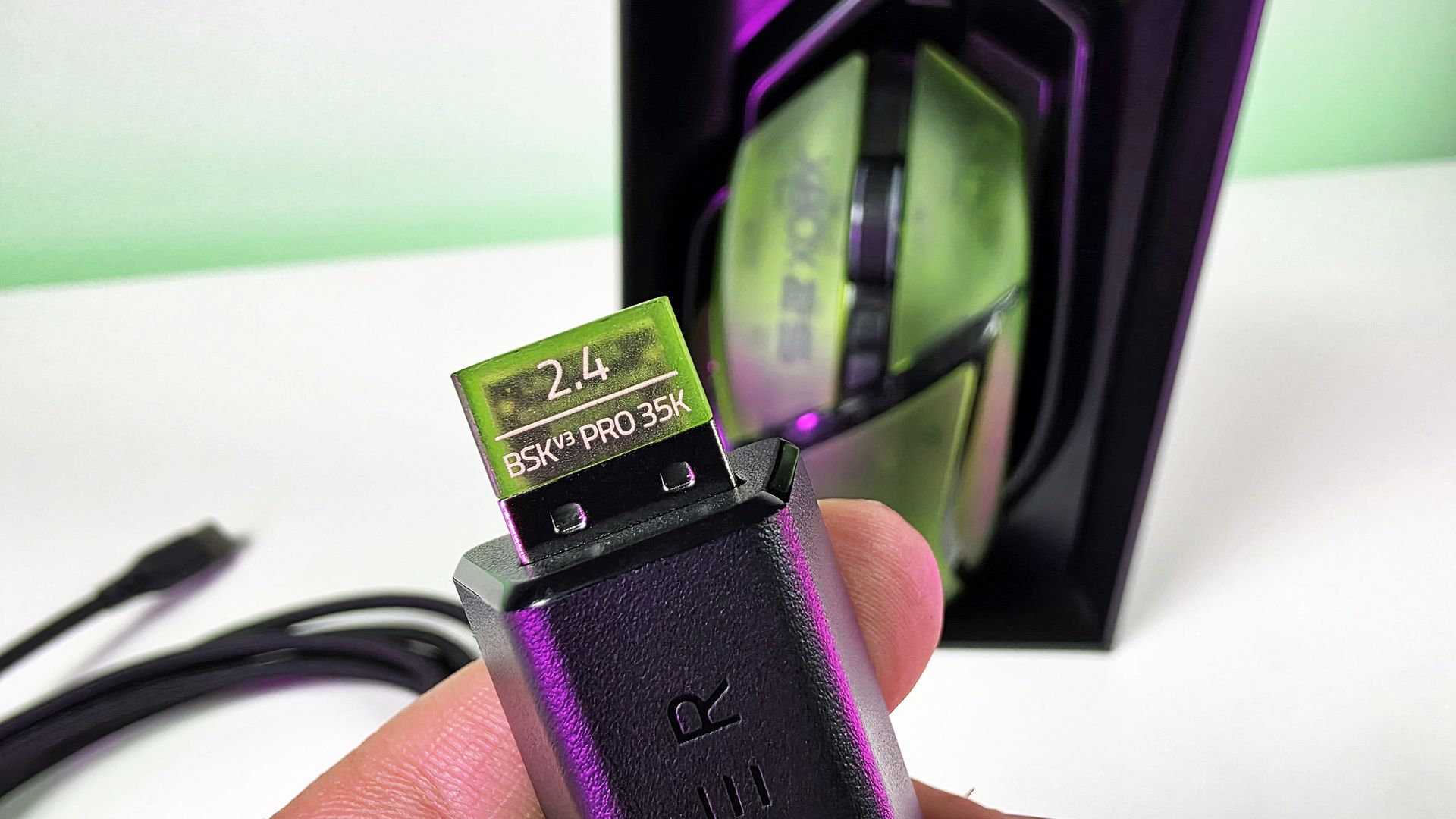
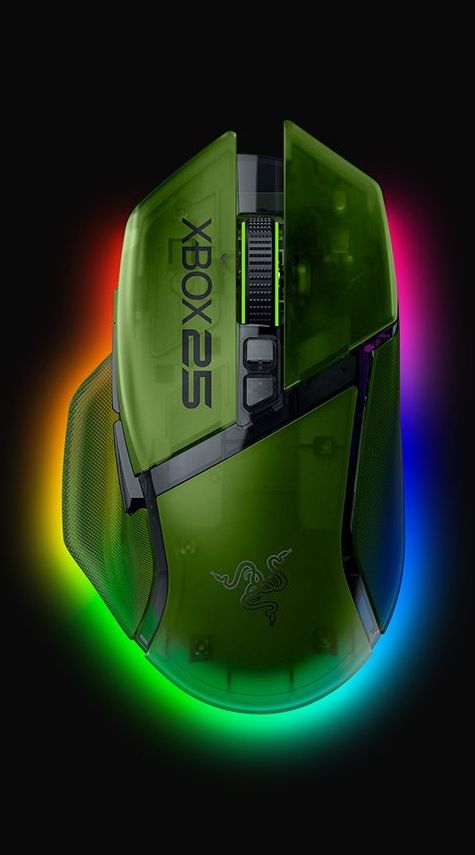
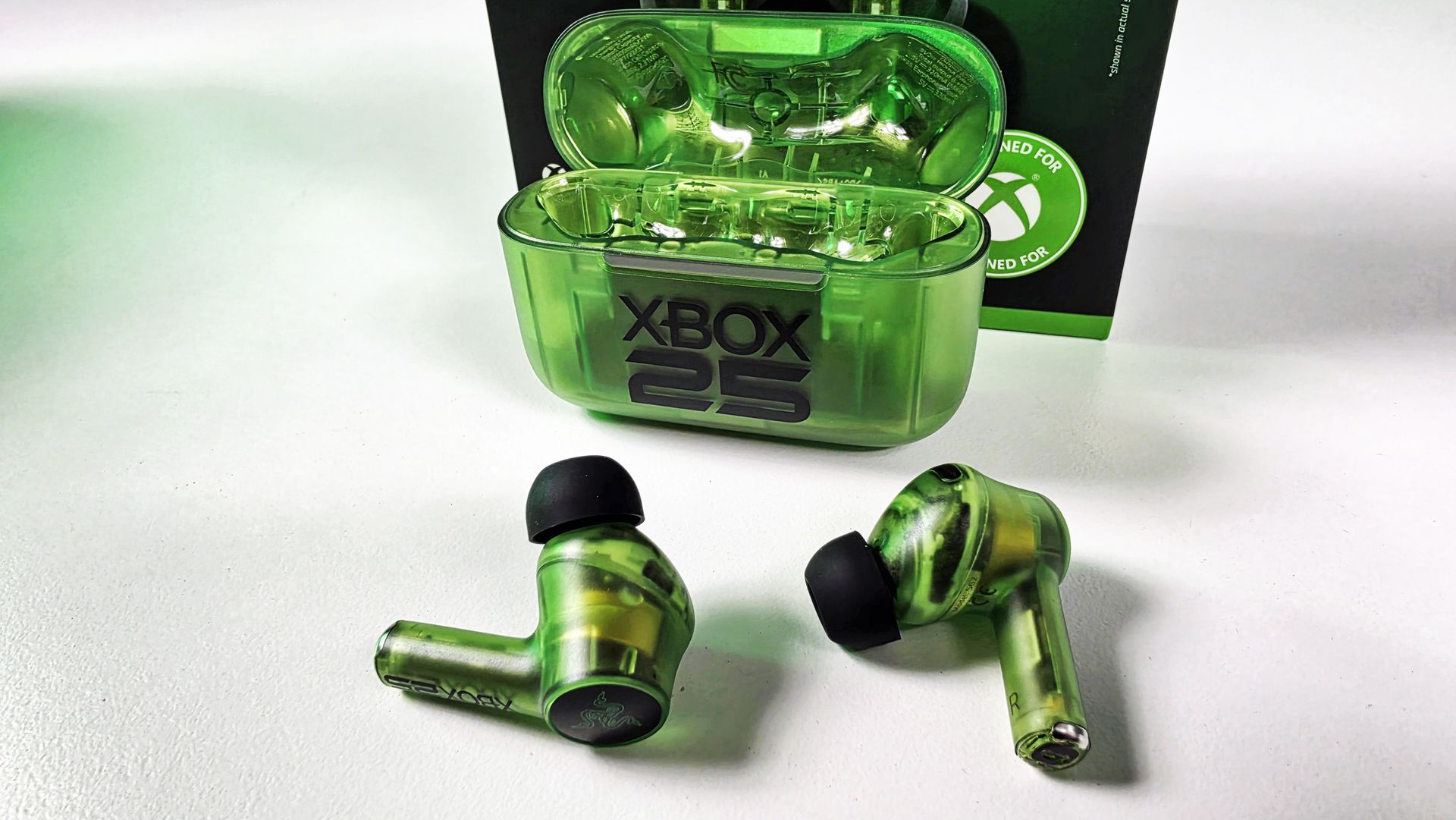
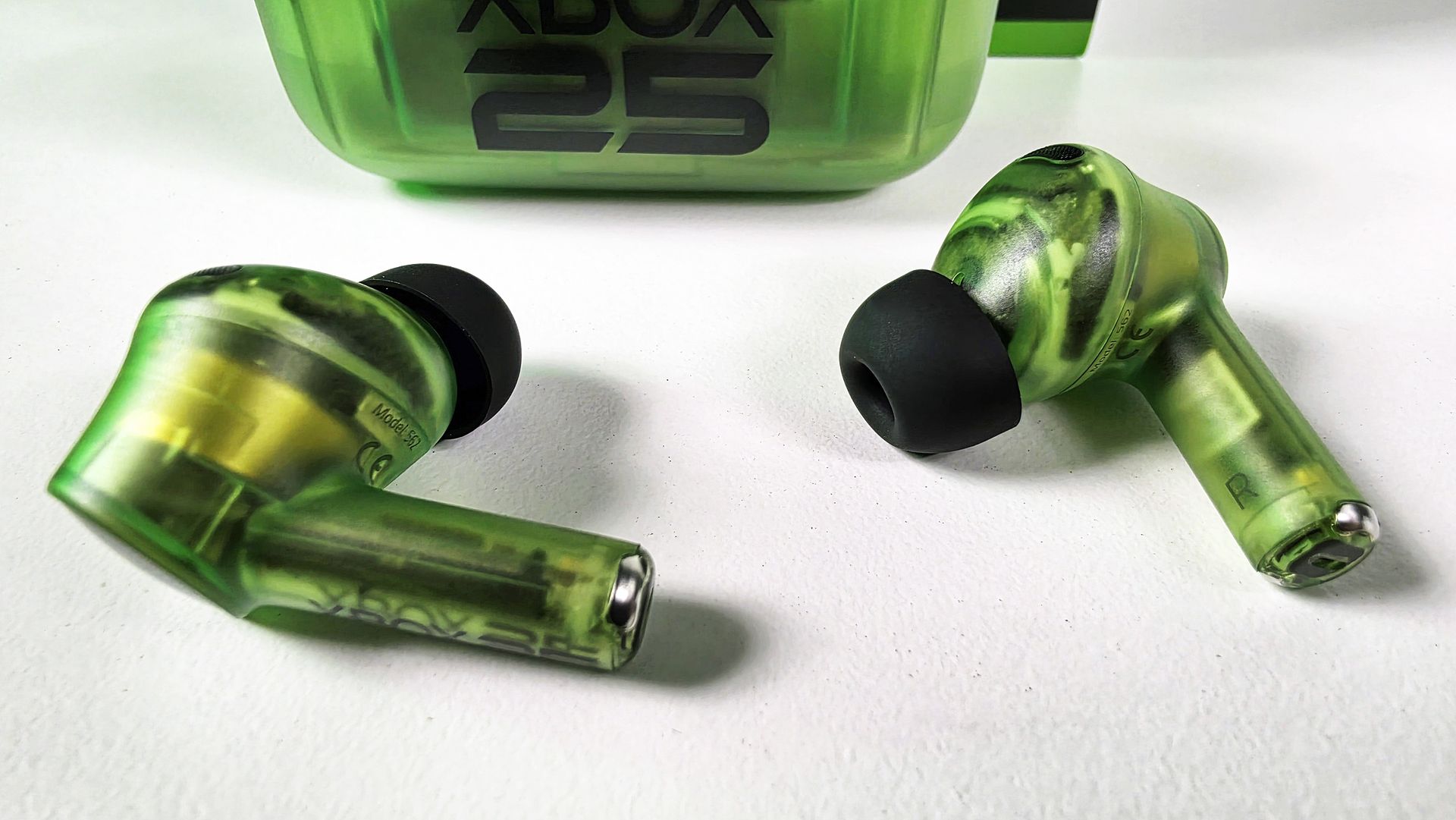
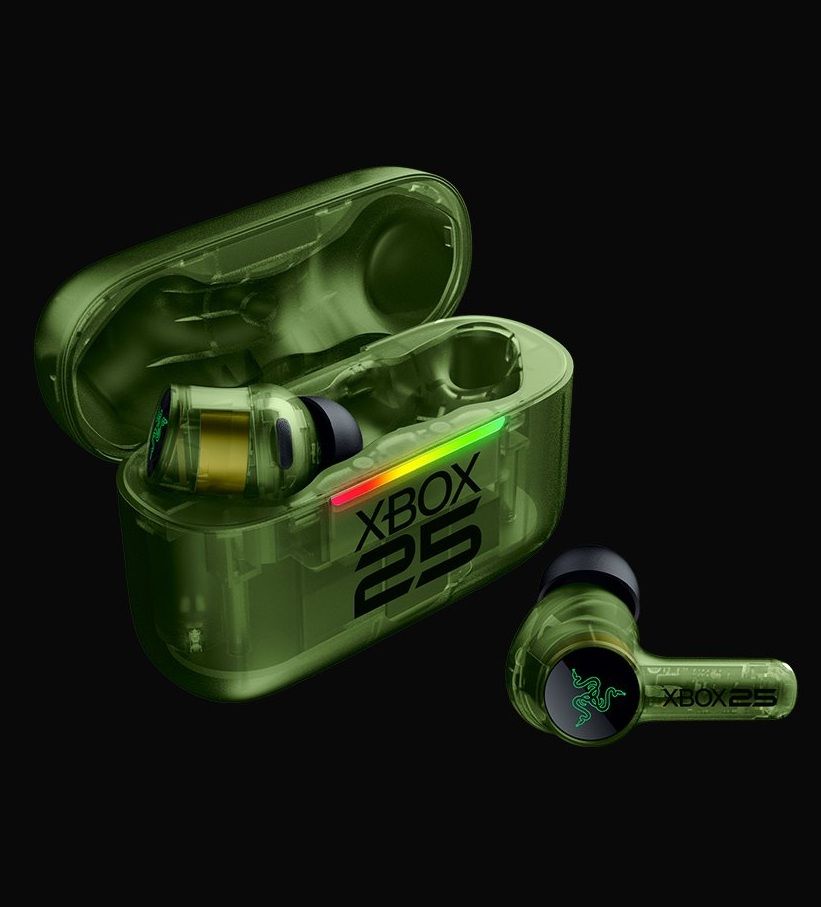
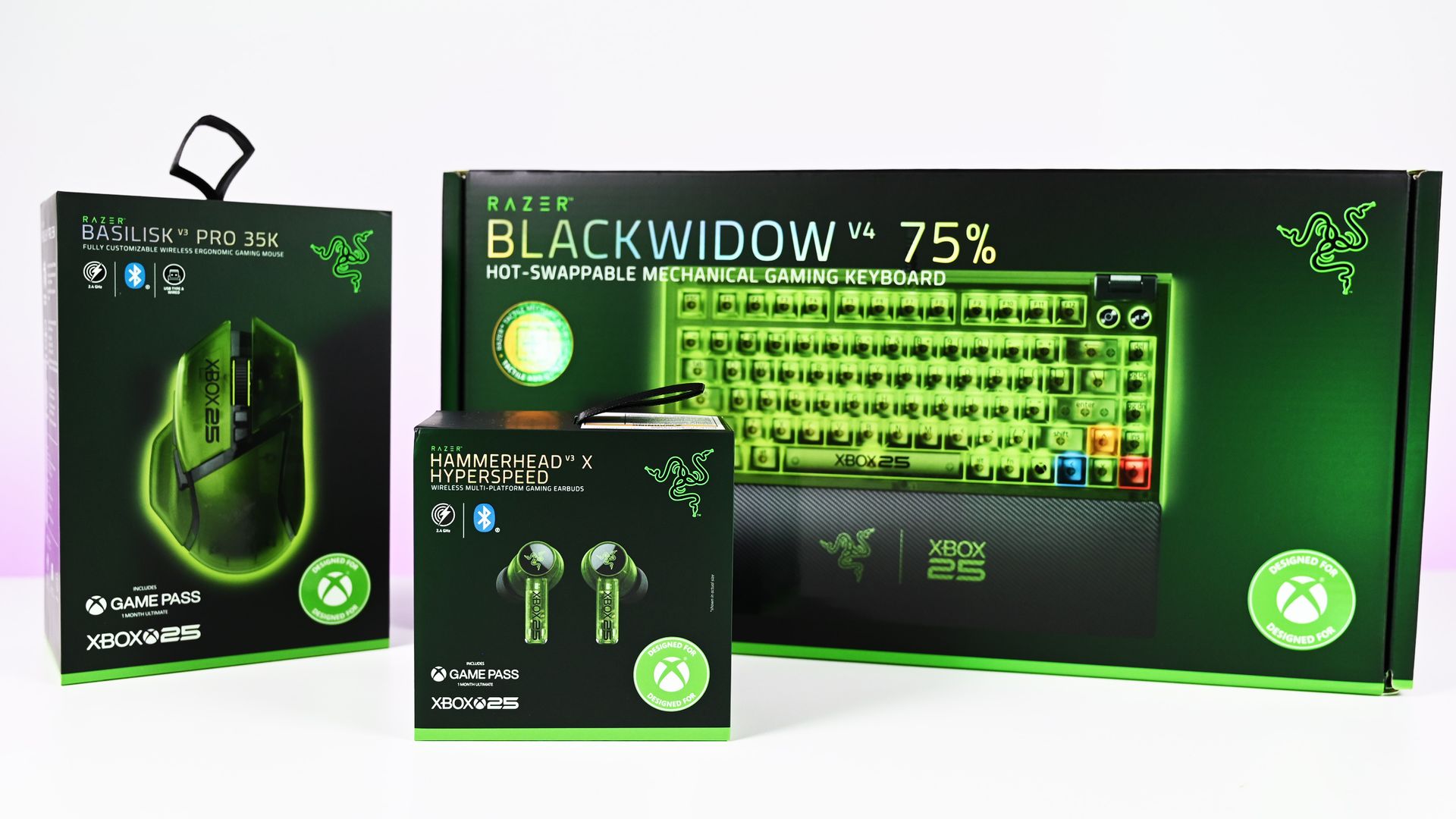
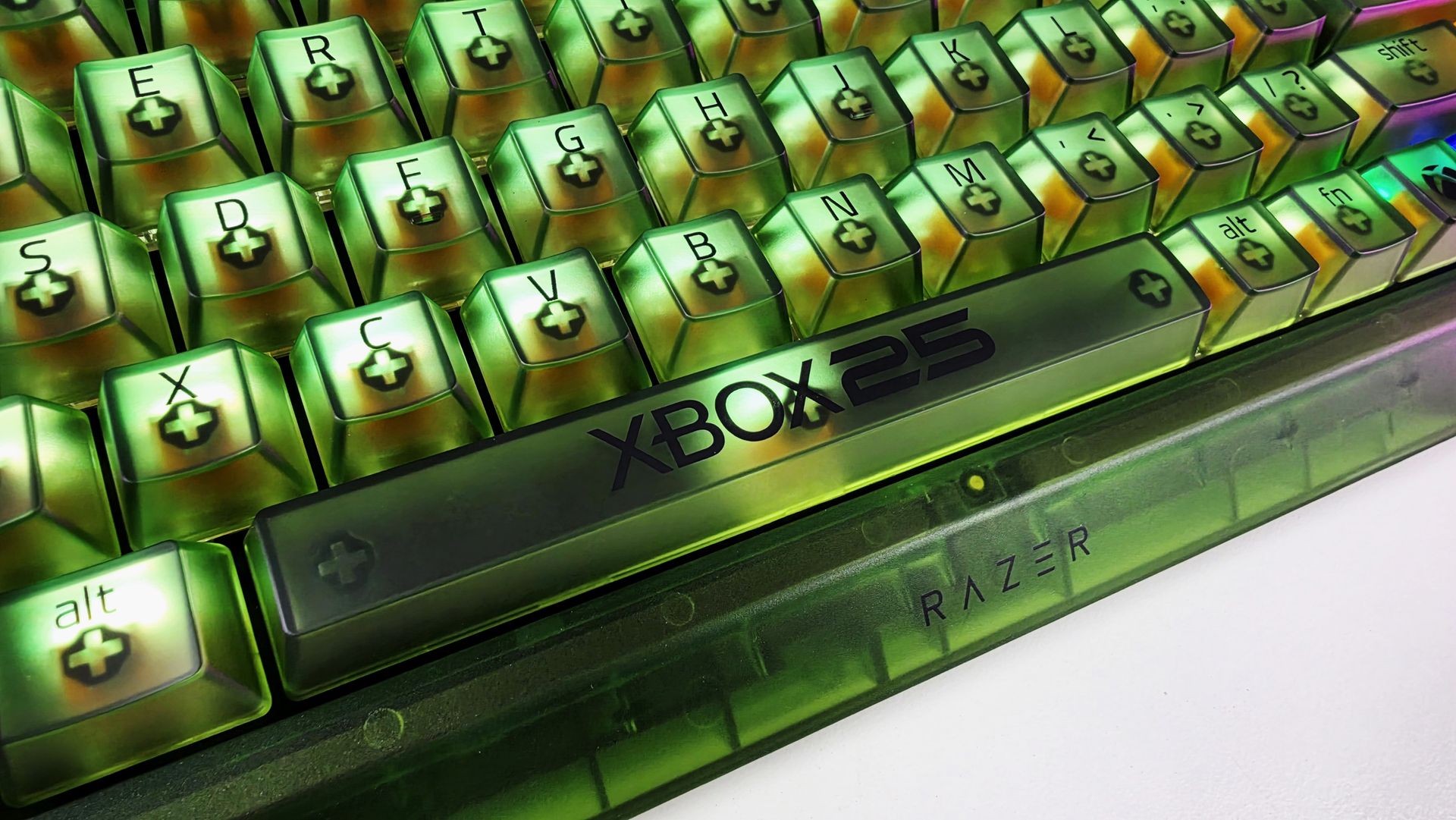
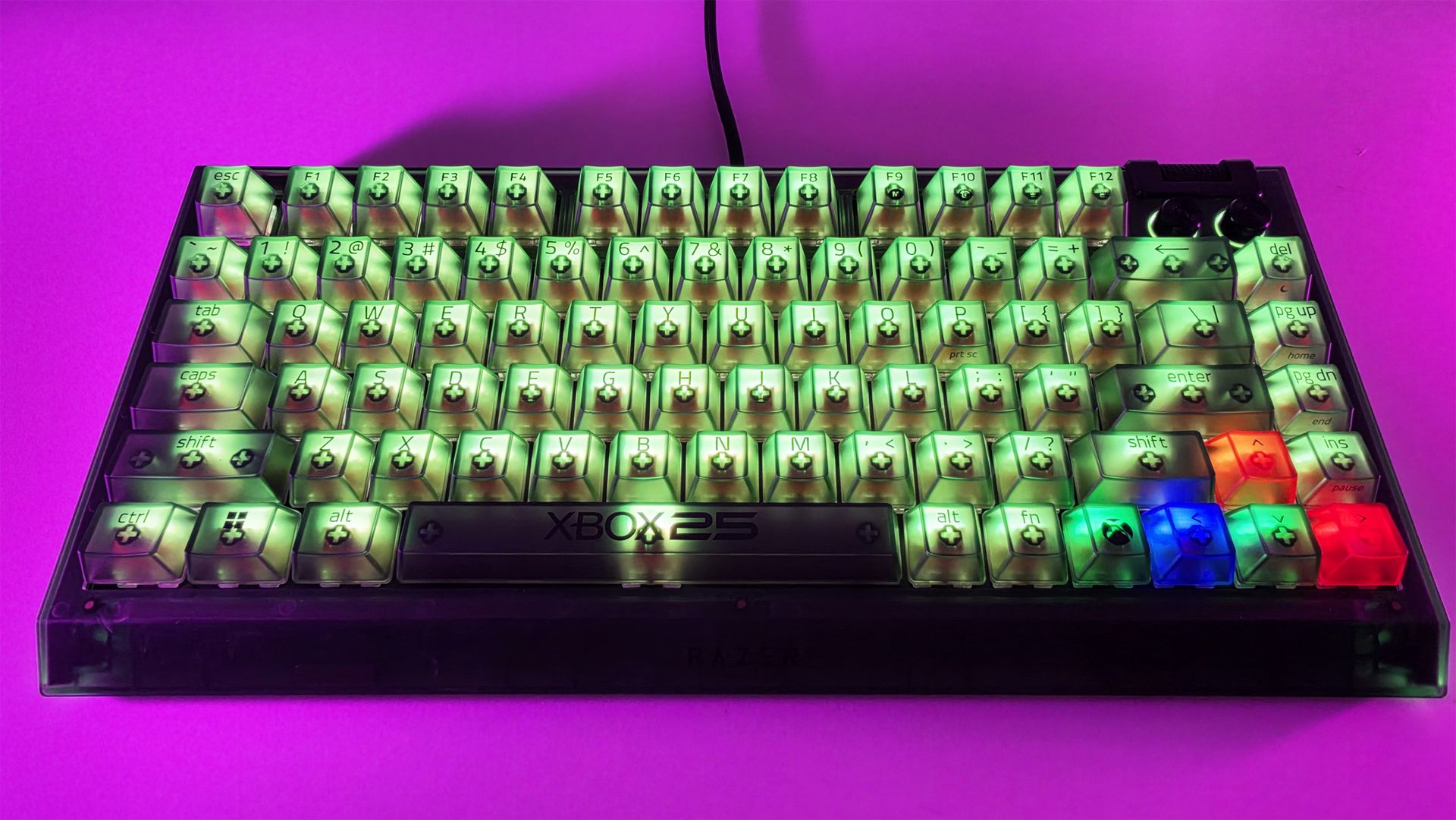
Xbox turns 25 this year, and if you're going to commemorate a quarter-century of one of gaming's most recognizable brands, slapping a green logo onto some existing hardware isn't going to cut it.
Thankfully, Razer didn't phone it in.
The new Razer | XBOX 25 Anniversary Collection (now available) takes three existing Razer products, the BlackWidow V4 75%, Basilisk V3 Pro 35K, and Hammerhead V3 X HyperSpeed, and transforms them with translucent green shells, Xbox detailing, and some fantastic use of RGB lighting. Razer officially announced the limited-edition collection in August, describing it as a collaboration with Xbox celebrating 25 years of the brand.
I've now spent some time with all three, and there's one product that immediately stands above the rest.
The keyboard is ridiculously good.
The BlackWidow V4 75% is the star of the show
Top-down view of the Razer BlackWidow V4 75% Xbox 25th Anniversary keyboard and wrist rest. (Image credit: Daniel Rubino)
If I could only buy one thing from this collection, it would unquestionably be the BlackWidow V4 75%.
It's absolutely awesome-looking in person.
The translucent green chassis and keycaps make exceptionally good use of Razer's Chroma lighting because you're not simply seeing RGB through the legends. The light spills through the translucent structure of the keyboard itself, illuminating the switches and keys and giving the whole thing this glowing, almost radioactive Xbox-green appearance.
My photos don't really do it justice. I've generally kept mine predominantly green for obvious reasons, but you aren't locked into the Xbox color scheme. Razer Chroma gives you full RGB customization, including per-key lighting, while the keyboard also has two-sided underglow.
Even the bottom of this keyboard looks great. (Image credit: Daniel Rubino)
There are some lovely smaller touches, too. The spacebar carries the XBOX 25 branding; there are Xbox-inspired symbols scattered across the keycaps, and the familiar ABXY colors appear around the arrow cluster. Razer has even included a dedicated Xbox key for opening Game Bar.
But perhaps my favorite finishing touch is sitting in front of the keyboard.
Sure, you can customize the RGB using Synapse, but out of the box, I love the default color profile. (Image credit: Daniel Rubino)
The included magnetic wrist rest has Razer and XBOX 25 branding prominently printed on it in green, and that's the type of detail that pushes this beyond feeling like a basic special-edition colorway. It completes the look.
Even the wrist rest gets some branding love. (Image credit: Daniel Rubino)
Razer uses its Orange Tactile Switches Gen-3 here, while retaining the BlackWidow V4 75%'s hot-swappable design.
At $209.99 on Razer.com, it's admittedly not cheap. But if I'm buying something specifically because it's a limited Xbox 25th-anniversary edition, I want it to actually feel special. This does.
BLACKWIDOW V4 75%: $209.99 If you’re looking for more customization and immersion, meet your XBOX enthusiast needs with a compact, hot-swappable mechanical keyboard featuring Razer Chroma RGB and Razer Orange Tactile Mechanical Switches Gen‑3.View Deal
The Basilisk V3 Pro 35K completes the look
Arguably one of the best combo gaming and ergo mice around, the Basilisk V3 Pro 35K in translucent green looks superb. (Image credit: Daniel Rubino)
I'm already a fan of the Basilisk line, and underneath the translucent green makeover, this remains a very capable wireless gaming mouse. You get Razer's Focus Pro 35K Optical Sensor Gen-2, HyperScroll Tilt Wheel, 13 customizable controls, HyperSpeed Wireless connectivity, and Chroma RGB.
Razer lists up to 140 hours of battery life over HyperSpeed Wireless as well.
However, once again, it's the execution of the anniversary design that makes the difference.
(Image credit: Future)
The translucent green upper shell lets you see hints of the mouse's internal structure, while XBOX 25 branding runs down the side. RGB lighting beneath the mouse creates a bright green glow that makes it look fantastic beside the BlackWidow.
Honestly, if you're getting the keyboard, you really should just get the mouse too (sorry about your wallet).
Close-up top view of the Razer Basilisk V3 Pro 35K Xbox 25th Anniversary gaming mouse featuring a translucent green shell and Xbox 25 branding. (Image credit: Future)
There's even a translucent green 2.4GHz wireless dongle! Nobody needed to do that. Razer did it anyway, and that's precisely my point about this collection. Everywhere I look, there's another little bit of attention to detail.
This was completely unecessary, but Razer really went all out for the theme here🫡. (Image credit: Daniel Rubino)
The Basilisk costs $179.99 on Razer.com. Yes, Razer has subsequently moved the Basilisk family forward, so you're not buying the newest generation simply because this is a new Xbox edition. But considering what you're really paying for here, namely an excellent mouse transformed into a collectible anniversary design, I'm not going to complain too much.
BASILISK V3 PRO 35K: $179.99 Packed with cutting-edge technology, unleash your full potential with an XBOX-themed RGB gaming mouse that redefines the boundaries of performance, customization, connectivity, and control.View Deal
The Hammerhead V3 X HyperSpeed does exactly what it needs to
(Image credit: Daniel Rubino)
Finally, there are the Hammerhead V3 X HyperSpeed earbuds.
I've been using these with my ASUS Xbox Ally X, where they've made a great little companion for handheld gaming. They sound great, and the transparent green design is wonderfully nostalgic without looking cheap.
The earbuds themselves are translucent right down through the stems, while the charging case gets the same treatment with a large XBOX 25 logo across the front. It's distinctive without Razer needing to reinvent the product underneath.
(Image credit: Daniel Rubino)
To be clear, I'm not sure what else Razer could have done here.
These support both Razer HyperSpeed Wireless over 2.4GHz and Bluetooth 5.3, including Razer SmartSwitch, alongside up to 35 hours of total battery life. They're also IPX4-rated, and Razer lists surround-sound support across Xbox and PC.
At$119.99 on Razer.com, they're also the least expensive route into the collection.
HAMMERHEAD V3 X HYPERSPEED: $119.99 Experience seamless audio with the ultimate wireless gaming earbuds. Equipped with Razer HyperSpeed Wireless, Razer SmartSwitch Dual Wireless, and THX Spatial Audio, stay connected, competitive, and fully immersed on Xbox and beyond.View Deal
This is how you do an anniversary collection
(Image credit: Future)
The three anniversary models carry roughly a $10 to $20 premium over their standard counterparts, depending on the product. That's the sort of "special edition tax" I can live with when I'm actually getting something special in return.
And, in my opinion, Razer really went over the top here.
There's a consistency across all three products that makes them feel like an actual collection, rather than three unrelated products that happen to share a logo and color. Put the BlackWidow and Basilisk together on a desk, and they look fantastic.
The translucent green plastic immediately evokes Xbox, while the XBOX 25 logos, custom keycaps, ABXY colors, wrist-rest embroidery, RGB implementation, and even that ridiculous little green wireless dongle demonstrate that somebody cared about sweating the details.
🤌It's so cool looking! (Image credit: Daniel Rubino)
And that's ultimately why I like these so much.
Razer started with some of its best hardware rather than using Xbox's anniversary to dress up cheaper peripherals, and then went far enough with the aesthetic changes that they feel genuinely unique.
The Razer | XBOX 25 Anniversary Collection is available to order from October 20, with the BlackWidow V4 75% at $209.99, Basilisk V3 Pro 35K at $179.99, and Hammerhead V3 X HyperSpeed at $119.99.
These are limited edition, so don't be shocked if they sell out.
If I were choosing only one, I'd take the BlackWidow without hesitation. (But let's be honest: the keyboard and mouse belong together.)
A+ from me, Razer. This is how you do anniversary hardware.
Hit me up in the comments if you have any questions while I still have these on hand! And you can follow the rest of our XBOX 25 coverage as we round out 2026.
Join us on Reddit at r/WindowsCentral to share your insights and discuss our latest news, reviews, and more.
Pokémon turns 30 this year, which means those of you who remember playing Pokémon Red and Blue on a Game Boy are now old enough to have disposable income. Razer apparently understands the assignment.
Razer has announced three new Pokémon-themed gaming headsets featuring Charizard, Lucario, and Sylveon, expanding a collection that already proves Pokémon merchandise does not have to be confined to plushies, trading cards, and whatever extraordinarily expensive piece of cardboard you just lost an eBay auction for.
Technically, none of these headsets is new. Razer is giving existing models Pokémon makeovers rather than launching new hardware. Charizard and Lucario get versions of the Razer BlackShark V3 X HyperSpeed, while Sylveon adorns the wired Razer Kraken V4 X. They're being released as part of Pokémon's ongoing 30th anniversary celebrations.
That's fine by me. Sometimes I don't need a revolutionary new driver architecture. Sometimes I just want Charizard on my head.
Charizard wins the headset battle, obviously
Razer BlackShark V3 X HyperSpeed Charizard Edition headset in black and orange, featuring flame graphics. (Image credit: Razer)
I've got the BlackShark V3 X HyperSpeed Charizard Edition here for photography, and Razer wisely resisted the temptation to simply make the entire thing bright orange.
Instead, there's a black exterior with fiery red Charizard artwork across the earcups and headband, contrasting against orange ear cushions and headband padding. The result looks unmistakably Pokémon without resembling something stolen from a ten-year-old's bedroom.
It also helps that Charizard remains one of the most immediately recognizable Pokémon ever created. The original Generation I Pokémon is officially Fire/Flying type, despite decades of childhood logic insisting that the giant fire-breathing dragon surely had to be Dragon type.
Razer BlackShark V3 X HyperSpeed Charizard Edition retail box. (Image credit: Daniel Rubino)
Underneath that paint job is the regular Razer BlackShark V3 X HyperSpeed, which starts at $99.99 without the Pokémon treatment. It uses Razer's second-generation TriForce 50mm drivers and 2.4GHz HyperSpeed wireless, with Bluetooth and USB connectivity also available. Razer lists the standard model at just 270g.
The Charizard tax, therefore, works out to $20, with this edition carrying a $119.99 MSRP in the United States. (And for some reason, it's at Target for $139.99, but you can pick it up today, at least!)
If you're still reading this, I'm sure you've paid more for considerably less sensible Pokémon-related things.
Daniel RubinoDaniel RubinoDaniel RubinoDaniel Rubino
It's worth emphasizing that the V3 X isn't the flagship BlackShark. That distinction belongs to the BlackShark V3 Pro, which Windows Central's Zachary Boddy reviewed last year. He called the V3 Pro "the closest to perfection I've ever seen a gaming headset reach," praising Razer for addressing seemingly every complaint about the previous generation.
Basically, the "X" versions of Razer products are more budget-friendly, as the V3 Pro is $249.99.
If Pokémon isn't enough to dictate your purchasing decision, we've also extensively tested the competition in our best Xbox headsets guide.
Pokémon
Razer
BlackShark V3 X Hyper Speed (Charizard edition)
The Razer BlackShark V3 X Hyper Speed – Charizard Edition unleashes Charizard’s fiery determination into an officially licensed Pokémon wireless gaming headset, perfect for staying locked in and ready to roast the competition on PC, console, and mobile.
Team Lucario has entered the chat
Razer BlackShark V3 X HyperSpeed Lucario Edition headset in blue and black, featuring aura designs on cyan earcups. (Image credit: Razer)
If Charizard is a little too "look at me, I'm on fire" for your tastes, Lucario gets exactly the same BlackShark V3 X HyperSpeed treatment for $119.99.
Razer describes the design as inspired by Lucario's "calm intensity," and the blue finish certainly makes it the more restrained of the pair. The actual Pokémon is Fighting/Steel type, which makes attaching it to a competitive gaming headset feel appropriately on-brand.
Same headset, same 50mm Gen-2 drivers, same HyperSpeed wireless. Your decision essentially comes down to which monster you'd rather have watching over your K/D ratio.
Lucario gets a slight head start in the US, too. It's available exclusively from Target from October 7, while Charizard launches October 13 through Razer.com and Target. Both are also headed to broader retail in Latin America, Europe, Australia, and New Zealand.
And then there's Sylveon
The new Pastel pink Razer Kraken V4 X Sylveon Edition wired headset. (Image credit: Razer)
Sylveon goes in an entirely different direction, and not just aesthetically.
The Razer Kraken V4 X Sylveon Edition is a wired headset with 40mm TriForce drivers, a retractable HyperClear cardioid microphone, and Chroma RGB lighting (sweet). It comes decked out in Sylveon's characteristic pink-and-blue color scheme.
It's wonderfully unapologetic.
Sylveon is a Fairy-type Pokémon and one of Eevee's evolutions, officially categorized as the "Intertwining Pokémon." Its ribbon-like feelers can apparently send out a soothing aura that erases hostility, which frankly sounds like technology every Call of Duty voice-chat lobby desperately needs.
The Sylveon Kraken V4 X costs $109.99 and launches October 13 exclusively through Target in the United States, with wider retail availability across Latin America, Europe, Australia, and New Zealand.
I choose you, Charizard
There's obviously no technical reason to replace a perfectly good headset purely because Razer printed a Pokémon on it. This is merchandising. Razer knows it, Pokémon knows it, I know it, and your wallet is about to find out.
But that's also rather missing the point.
The BlackShark V3 X HyperSpeed is already a lightweight wireless headset offering 2.4GHz, Bluetooth, and USB connectivity. For an extra $20, Pokémon fans can get essentially the same hardware dressed as Charizard or Lucario. Sylveon fans have a slightly cheaper, wired alternative with RGB.
And having actually seen the Charizard edition outside Razer's immaculate press renders, I'll say this: it's pretty damn cool.
The independent testing firm's latest research examined the standard 18-core Snapdragon X2 Elite X2E-88-100 in Lenovo's Slim 7x, comparing it against Intel's Core Ultra X7 358H inside Dell's banger XPS 14 and AMD's Ryzen AI 7 445 in Lenovo's Yoga 7a 14.
This time, the focus shifted from large 16-inch flagship laptops to the increasingly important premium 14-inch category, where thermal constraints, battery life, and efficiency matter just as much as peak performance.
The most consistent finding in the data is that the Snapdragon system does not need to be set to a higher power profile to reach its top-tier performance, while the x86 systems do.
Signal65 Report
Luckily for Qualcomm, which commissioned the study, the results largely mirror the earlier Extreme-chip study. Qualcomm's platform led in CPU performance, AI workloads, productivity, and most battery-focused tests while also coming in significantly below the price of the Intel system evaluated.
Comparing specifications of Lenovo Slim 7x, Dell XPS 14, and Lenovo Yoga 7a 14 laptops powered by Snapdragon, Intel Core Ultra, and AMD Ryzen processors. (Image credit: Signal65)
However, that does not mean Qualcomm won everything. Intel continues to hold meaningful advantages in graphics performance (exemplified to perfection in MSI’s latest handheld gaming PC), and the XPS 14 remains one of the most premium Windows laptops available today. Still, the latest findings strengthen the argument that Snapdragon's lead is no longer limited to a halo product, nor a quirk of its Extreme chip.
Let's dive into the numbers, and then break down what it really means, as there is some nuance here.
Strong CPU results, even without the flagship chip
Bar chart comparing plugged-in Geekbench 7 single-core and multi-core CPU scores for Snapdragon X2E-88-100, Core Ultra X7 358H, and Ryzen AI 7 445. (Image credit: Signal65)
In Geekbench 7, the Snapdragon-powered Lenovo Slim 7x posted a multi-core score of 24,016, compared to 18,360 for the Intel-powered XPS 14. Single-core performance also favored Qualcomm, with a score of 3,237 against Intel's 2,602.
According to Signal65, that translates into leads of 31% and 24%, respectively, favoring Qualcomm.
Those numbers are especially notable because they are not solely the result of having more CPU cores. While Qualcomm's 18-core design certainly helps in heavily threaded workloads, the single-core advantage points to meaningful architectural gains from the second-generation Oryon design as well.
Cinebench 2026 rendering scores for Snapdragon X2E-88-100, Core Ultra X7 358H, and Ryzen AI 7 445 across multi and single-thread tests. (Image credit: Signal65)
The company also maintained substantial leads in Cinebench 2026 rendering tests and across Microsoft's Office applications as measured by UL Procyon. In the productivity benchmark, Snapdragon led Intel by 10% in Best Performance mode and retained a smaller advantage in the default Balanced profile.
For buyers who spend most of their day in Word, Outlook, PowerPoint, Edge, and Teams, those productivity-oriented results may matter more than synthetic benchmark scores.
Qualcomm's AI advantage continues
Comparing plugged-in AI inference scores for Snapdragon X2E-88-100, Core Ultra X7 358H, and Ryzen AI 7 445 under Best Performance and Balanced modes. (Image credit: Signal65)
AI remains one of Qualcomm's strongest categories.
In UL Procyon AI Computer Vision, the Snapdragon system scored 4,360 compared to Intel's 2,302. Even in the newer AI CV 2.0 WinML benchmark, which routes through Microsoft's Windows ML framework rather than a vendor-specific path, Qualcomm maintained a lead of roughly 31% over Intel.
That distinction is important because it better reflects the way many Windows AI experiences are expected to work going forward. Basically, a benchmark that favors proprietary software optimizations is useful, but a benchmark that preserves the advantage through a common Windows layer is arguably more relevant.
Battery performance remains a major story
Battery runtime in hours for Snapdragon X2E-88-100, Core Ultra X7 358H, and Ryzen AI 7 445 in video playback, web browsing, and office tasks. (Image credit: Signal65)
One of the headline findings from the earlier Snapdragon X2 Elite Extreme study was that Qualcomm gave up remarkably little performance when running unplugged. Qualcomm has been touting this advantage since the first gen of Snapdragon X.
The trend continues here.
Across six benchmarks, the Snapdragon system retained an average of97% of its plugged-in Balanced-mode performance. Intel retained 95%, while the AMD system retained 74%. According to Signal65, the Snapdragon-powered laptop led every CPU, productivity, and AI benchmark tested on battery.
Critically, we must remember that OEMs, especially on Intel and AMD systems, have leverage on AC/DC performance choices, meaning a company like Lenovo could have its AMD system perform worse on battery ... in order to get better battery life. Companies do this to find what they think is a balance for their intended customer, even if the explanation is opaque.
I wrote about this AMD-throttling issue back in 2021, because I found it frustrating, deceptive, and disappointing. Not much has changed in 2026, apparently.
Battery efficiency in min/Wh for Snapdragon X2E-88-100, Core Ultra X7 358H, and Ryzen AI 7 445 across video, Chrome, and Office tests. (Image credit: Signal65)
The battery life data was also favorable for Qualcomm, particularly because the three laptops used nearly identical battery capacities.
The Slim 7x (Qualcomm) lasted 16.1 hours in local video playback compared to 14.4 hours for the XPS 14 (Intel). In a Chrome browsing rundown, the Snapdragon laptop reached 11.2 hours versus 8.6 hours for Intel's machine.
There was one significant exception. Intel won the sustained Procyon Office battery test, posting 17.4 hours compared to Qualcomm's 14.3 hours. Signal65 argues that Snapdragon completed more work during that test, making the outcome more nuanced than a simple battery-life loss, but the result remains one of Intel's clearest victories in the report.
This is where I think the conversation becomes more interesting than benchmark charts.
The Snapdragon machine tested was a $1,999 Lenovo Slim 7x. The Intel competitor was a $2,749 Dell XPS 14. That $750 difference looms over nearly every chart in the report.
At the same time, it is difficult to discuss the XPS 14 purely as a processor comparison.
Dell's laptop is widely regarded as one of the most premium Windows notebooks on the market, with exceptional build quality, materials, industrial design, and one of the best displays available in the category. The Signal65 report acknowledges that these are comparisons of complete retail systems rather than isolated silicon measurements.
Dell XPS 14 screen displaying a battery status pop-up showing 80% remaining with an estimated 15 hours of battery life. (Image credit: Daniel Rubino)
That matters because buyers are not choosing between just processors. They are choosing between laptops, aka the full package.
The display difference is particularly worth mentioning. Signal65 did not evaluate screen quality, but Dell's OLED-equipped XPS 14 has generally been considered one of the standout displays in the Windows ecosystem. Some buyers may reasonably decide that premium construction, display quality, and graphics performance justify paying more.
It's also worth pointing out that Dell's display is a VRR 120Hz at 2880 x 1800, while the Slim 7x is just 1920 x 1200 at 60Hz (both are OLED). Anyone worth their salt in comparing laptops and battery life knows the display is, by far, the number one draw on power, so while I do believe Qualcomm's chip here is better, a pinch of salt is needed for battery life results.
Intel still has a meaningful win: GPU
Dell's XPS 14 with Intel has a powerful Arc B390. (Image credit: Daniel Rubino)
The strongest argument for Intel remains graphics, something the company has been working very hard at in recent years.
In 3DMark Steel Nomad Light, Intel's Arc B390 outperformed Qualcomm's Adreno X2-90 GPU by roughly 23% in both DirectX 12 and Vulkan testing. That's the same GPU powering the beastly MSI Claw 8 EX AI+ gaming handheld, which crushes AMD in the same space.
The practical consequence is that the Intel system's wins require the user to be plugged in and to have selected the right mode, while the Snapdragon system's wins do not.
Signal65 Report
For users who prioritize integrated graphics performance, gaming, or creative workloads that benefit from stronger GPU hardware, Intel still has a compelling case.
That advantage becomes harder to defend when price enters the discussion, which is why Signal65 ultimately concludes that Snapdragon delivers better performance per dollar across the tested systems. According to the study, Qualcomm's laptop delivered roughly 2.15 times Intel's value when normalized across selected CPU, rendering, and AI benchmarks.
Final thoughts
Lenovo Yoga Slim 7x (Gen 9) with Qualcomm Snapdragon X2 Elite processor. (Image credit: Windows Central | Zachary Boddy)
As with the previous report, this study was commissioned by Qualcomm, a fact readers should keep in mind. Signal65 remains an independent testing organization, but commissioned research naturally benefits from additional scrutiny.
Even with that caveat, the broader pattern is becoming difficult to ignore. I also trust the results.
The earlier Snapdragon X2 Elite Extreme report established that Qualcomm's flagship laptop chip could outperform competing Intel and AMD systems. This latest study suggests those advantages extend well beyond the top, hard-to-find SKU.
That may be the more consequential finding.
Flagship products are important for headlines, but the laptops that shape a market tend to be the mainstream premium systems people actually purchase. If Qualcomm can deliver strong CPU performance, class-leading AI results, competitive battery life, and lower pricing with a standard 18-core Snapdragon X2 Elite, the company has moved beyond proving a point and started building a sustainable competitive position in the Windows laptop market.
From my experience with both systems, I prefer Qualcomm since they usually run cooler and quieter, and my overall Windows 11 experience feels faster and smoother. That said, I have to admit Intel’s Core Ultra 3 series has really closed the gap — they’re genuinely impressive chips.
If anything, the bigger subtext with this story is just how far AMD has fallen out of this space. We recently covered how no modern Surface PCs opt for AMD, and it's not because of "not enough product" as Microsoft claims. It's because Microsoft knows they're not as good as what Intel and Qualcomm offer, full stop.
The bigger takeaway from these results is not that Qualcomm won another benchmark comparison. It's that Qualcomm appears to have successfully scaled its advantages beyond a halo product. Intel now faces a more difficult reality: competing not only against Snapdragon's fastest chip, but against the one that is likely to ship in far more laptops.
Join us on Reddit at r/WindowsCentral to share your insights and discuss our latest news, reviews, and more.
Panasonic's TOUGHBOOK lineup turns 30 this year (see my earlier coverage of the new TOUGHBOOK 55), and after attending the company's product briefing in a very rainy New York City, I'm convinced the future of rugged computing isn't just about surviving drops, rain, and extreme temperatures.
It's about becoming the intelligent edge computer that sits at the center of everything.
That might sound like marketing fluff until you see the demos. One station showed a military drone feeding reconnaissance data back to a TOUGHBOOK for local analysis. Another demonstrated how police fleets can connect vehicle diagnostics directly into a TOUGHBOOK-based management system, allowing departments to track everything from VINs and odometer readings to fuel levels, fault codes, and maintenance schedules.
In other words, Panasonic's new TOUGHBOOK 34 and TOUGHBOOK G3 are increasingly becoming mission-critical data hubs for the people who protect, rescue, repair, and support the rest of us.
And yes, they're still absurdly rugged.
Thirty years later, the mission remains the same
Panasonic TOUGHBOOK 34 laptop on a table playing video footage of drone operators. (Image credit: Daniel Rubino)
One theme came up repeatedly throughout Panasonic's presentation: purpose-built computing.
As Panasonic executives noted, their customers aren't buying laptops to answer email from a coffee shop. These systems are deployed in police cruisers, ambulances, utility trucks, military vehicles, warehouses, disaster zones, and industrial sites where failure is not an option.
As Panasonic put it during the briefing, "our devices are purpose-built," adding that workers are often operating in "extreme heat, extreme cold, vibration, water, dust" and environments where "lives are on the line."
A soldier in tactical gear and gloves holding the back of the Panasonic TOUGHBOOK 34 tablet. (Image credit: Panasonic TOUGHBOOK)
That philosophy has helped TOUGHBOOK carve out a niche that practically nobody else occupies.
While consumer laptops compete over OLED displays and thinness, Panasonic spends its time figuring out how to keep a device communicating over private 5G networks during storm response operations.
Meet the TOUGHBOOK 34 and TOUGHBOOK G3
Panasonic TOUGHBOOK FZ-34 Windows 11 tablet, showing its black screen and front control buttons. (Image credit: Daniel Rubino)
This launch introduces two new fully rugged 2-in-1 systems.
According to Mike Smola, Senior Director of Product Management at Panasonic Connect North America:
"No two workers, no two vehicles, and no two workflows are exactly alike. Some jobs call for a larger product with more workspace and more versatility."
That's really the story here.
The smaller TOUGHBOOK G3 with keyboard attachment has the familar built in handle for easy carrying. (Image credit: Daniel Rubino)
The TOUGHBOOK 34 features a larger 12.4-inch display and is designed for users who spend significant time in vehicles, command centers, or managing information-dense workflows. The G3 uses a more compact 10.1-inch form factor that's easier to carry into the field.
As one Panasonic executive explained during the public safety discussion:
"Fire and EMS leverage both sizes: the larger TOUGHBOOK 34 for in-vehicle CAD and command control, and the compact G3 in the back of ambulances for patient care."
The biggest upgrade is AI
The latest TOUGHBOOKs feature Intel's 3rd-gen Core Ultra series processors with built-in NPUs for local AI processing. (Image credit: Daniel Rubino)
The headline feature across both devices is the move to Intel's latest Core Ultra platform.
Both systems now offer Intel Core Ultra 5 335H and Ultra X7 368H processors complete with onboard NPUs and AI acceleration capabilities. Panasonic is increasingly positioning these devices as AI-ready edge computers capable of processing information locally without relying on cloud connectivity.
Panasonic had a punch-test demo set up where you could punch a TOUGHBOOK as hard as you could, which was quite entertaining. (Image credit: Daniel Rubino)
That matters more than you might think.
During the federal customer panel, Panasonic highlighted a scenario that's becoming increasingly common in military and government environments.
As Panasonic's federal team explained:
"Deployed military personnel aboard ships or in tactical environments often operate without network connectivity due to operational security." AI-capable processing on TOUGHBOOK devices allows personnel to perform tactical, medical, and technical searches without depending on a remote connection."
Close-up of the upper rugged chassis of a Panasonic TOUGHBOOK 34 showing an attached coiled stylus tether with a built-in pen. (Image credit: Daniel Rubino)
For most consumers, AI means generating images or summarizing documents. But for military users, it can mean analyzing information locally while disconnected from networks entirely.
That's a very different use case.
From military drones to local AI analysis
The Teledyne FLIR ION-series tactical reconnaissance drones are often used by military with the Panasonic TOUGHBOOK range. (Image credit: Daniel Rubino)
The most interesting demonstration I saw involved a tactical drone setup.
Panasonic demonstrated how rugged computing platforms can work alongside systems such as the Teledyne FLIR ION-series tactical reconnaissance drones that are commonly used by military, government, and emergency-response organizations.
While separate physical controls handle flight operations, the TOUGHBOOK effectively becomes the intelligence terminal. Drone imagery and reconnaissance data can be brought onto the device, recorded, analyzed, and processed locally using onboard computing resources.
I didn't watch the drone take flight during the event, but seeing Panasonic position the TOUGHBOOK as the AI-capable analysis point for tactical aerial systems offered a very real glimpse into how these machines are used beyond traditional laptop duties.
That use case also aligns with Panasonic's announcement that both devices support unmanned systems control and UAV ground-control applications in federal environments
TOUGHBOOKs are becoming smarter police tools, too
(Image credit: Daniel Rubino)
The police vehicle demonstration may have been even more compelling.
Rather than focusing on dispatch software alone, Panasonic showed how TOUGHBOOK systems can act as fleet intelligence platforms.
Through Panasonic's TOUGHCommand ecosystem, agencies can connect vehicle systems and pull operational data directly into the computer. Information such as vehicle identification, odometer readings, fuel levels, speed data, maintenance information, and diagnostic information can all be surfaced through a centralized dashboard.
Close-up of a Panasonic FZ-55 display running fleet intelligence software, showing map tracking data for a Ford F-250. (Image credit: Daniel Rubino)
The really interesting layer sits on top of that data.
Panasonic's new Command Intelligence features allow IT teams and fleet managers to query those systems using AI and natural-language questions rather than digging through massive databases manually.
That turns the TOUGHBOOK into something closer to a command-and-control platform, instead of just a rugged laptop.
For organizations managing hundreds or thousands of vehicles, that could be a substantial value-add beyond the hardware itself.
The modularity advantage nobody else offers
An electric screwdriver tightening a screw into a modular expansion panel on the back of a black Panasonic TOUGHBOOK G3 tablet. (Image credit: Daniel Rubino)
Having reviewed the G2 and covered Panasonic's rugged lineup for years, the thing that continues to impress me isn't the drop testing or waterproofing.
It's the modularity.
The TOUGHBOOK 34 and G3 both feature Panasonic's xPAK ecosystem, allowing users to swap hardware modules as needs change. Options include barcode scanners, additional USB ports, serial ports, smart card readers, fingerprint readers, networking hardware, and more.
Panasonic's goal is simple: one device should adapt to many jobs.
Close-up of the rear panel of a rugged Panasonic TOUGHBOOK G3, displaying opened xPAK expansion port, cooling vents, an Intel Core Ultra sticker, and serial tag. (Image credit: Daniel Rubino)
A warehouse worker can add scanning capabilities. A utility technician can prioritize GPS and connectivity. An automotive technician can add legacy ports for vehicle diagnostics.
Instead of replacing the entire computer when requirements evolve, customers can reconfigure it. More importantly, this can be done locally without sending out the TOUGHBOOK back to Panasonic to be reconfigured. Not only is that time-consuming, but if the PC is used by the government and it has sensitive data on the drives, it limits who can even touch that laptop.
That's a surprisingly rare concept in modern computing.
Better displays, stronger connectivity, longer life
Close-up of the lower bezel on a Panasonic TOUGHBOOK FZ-34 tablet, featuring hardware function buttons (P1-P4) and speaker. (Image credit: Daniel Rubino)
The hardware itself receives meaningful updates, too.
For the TOUGHBOOK 34, Panasonic increased the screen size from 12 inches to 12.4 inches while moving to a 3:2 aspect ratio that's better suited to productivity work. Executives noted that the revised resolution and scaling choices allow users to view more information with less scrolling.
(Image credit: Panasonic TOUGHBOOK)
The G3 retains its 10.1-inch format but benefits from updated display tuning, 2-to-1000-nit brightness control, and improved readability for outdoor work.
Panasonic also highlighted a new glove and rain touch experience on the TOUGHBOOK 34.
As the company explained:
"You don't want the end user to take off gloves to touch the screen." Users can switch between glove and standard touch modes using programmable controls.
I actually tried this myself, and while it's still a bit clunky to operate a touchscreen with heavy gloves on, it can be done through this technology.
A Panasonic TOUGHBOOK G3 rugged tablet docked to a keyboard base, standing open on a white desk like a laptop. (Image credit: Daniel Rubino)
Connectivity receives substantial improvements as well.
Compared to the older G2 generation, the G3 moves from 4G LTE options to modern 5G support, upgrades Wi‑Fi 6 to Wi‑Fi 7, and advances Bluetooth 5.1 to Bluetooth 5.4 while adding broader support for private cellular deployments.
For the people actually relying on these systems, those upgrades matter far more than benchmark scores.
A reminder that some PCs have jobs to do
Many outdoor professions require the ruggedness that TOUGHBOOK brings to the Windows PC space. (Image credit: Panasonic TOUGHBOOK)
The most fascinating thing about Panasonic's new TOUGHBOOKs isn't that they're rugged. We already knew that, but what's changing is their role.
Thirty years after the first TOUGHBOOK arrived, Panasonic increasingly views these systems as secure, connected, AI-capable edge computers that happen to survive conditions most laptops would never tolerate.
Whether they're helping analyze drone feeds, supporting first responders through FirstNet and private 5G networks, managing vehicle fleets, or keeping utility workers connected during outages, the TOUGHBOOK 34 and G3 demonstrate that laptops can still be specialized tools built for serious missions.
And after an afternoon spent getting hands-on with Panasonic's latest hardware, that may be the most interesting thing about them. Panasonic is building the computers that many of the people protecting, rescuing, and serving the rest of us depend on every day, and I still find that inspiring.
There are plenty of USB microphones aimed at gamers these days, but few come from a company with the audio credentials of Shure. For more than 100 years, Shure has built microphones for musicians, broadcasters, performers, and recording professionals, with products like the SM58 and SM7 becoming industry standards along the way. During a recent briefing with me, Shure described the new MV6 lineup as part of its effort to bring that expertise to creators who want professional-quality audio without the cost and complexity that often comes with traditional XLR gear.
That's what immediately appealed to me about the new MV6 Gen 2 ($169). I've spent the last 15 years using microphones for the Windows Central Podcast, livestreams, media appearances, and interviews. I've used plenty of microphones from Razer, HyperX, Blue, and others, but somehow this was my first extended experience with a Shure. After several weeks of testing, including an appearance on TWiT Episode 1101 where I received compliments on the audio quality afterward, I can see why the company has such a strong reputation among podcasters and broadcasters.
The MV6 Gen 2 may be marketed as a gaming microphone, but after using it, that label feels a little too narrow. This is a microphone for anyone who wants better voice quality without needing an audio interface, mixer, XLR cables, or a degree in audio engineering.
Shurehad no input, nor did it see the contents of this review, prior to publication.
What's new with the Shure MV6 USB Gaming Microphone Gen 2?
The new Shure MV6 USB Gaming Microphone Gen 2 now comes in a white option, as well. (Image credit: Shure)
I didn't review the original MV6, but most reviews of the first-generation model praised its strong audio quality, easy setup, and excellent value while noting that customization was relatively limited compared to some competitors.
Shure appears to have taken that feedback seriously.
The second-generation MV6 focuses primarily on expanding user control through software and onboard DSP processing rather than reinventing the hardware itself. The microphone still ships with Shure's "sounds great out of the box" philosophy, but users now have significantly more flexibility if they want to fine-tune their audio.
New features include:
Adjustable Auto Level controls with configurable target levels
New Adaptation Rate settings that determine how quickly gain recovers after volume spikes
Adjustable Real-Time Denoiser intensity
New Speech, Singing, and Instrument presets
A full 5-band EQ for advanced tuning
White and black color options
A longer included USB-C cable
The ability to disable the microphone's touch-sensitive mute button
Enhanced DSP processing and customization through the MOTIV Mix software suite
Perhaps most importantly, Shure accomplished this without turning the MV6 into a microphone that demands constant tweaking.
During my briefing, product manager T Banks repeatedly emphasized that users shouldn't need to understand gain staging, EQ curves, or audio engineering to get excellent results. The advanced controls are there if you want them, but the microphone is designed to sound great from the moment it's plugged in.
Shure MV6 USB Gaming Microphone Gen 2: Price and specifications
Direct bottom-up view of the Shure MV6 Gen 2 microphone displaying its 3.5mm headphone jack and USB-C port. (Image credit: Daniel Rubino)
At $169, the MV6 Gen 2 lands squarely in one of the most competitive segments of the USB microphone market.
That's a price bracket occupied by products like the Razer Seiren V3 Chroma 32-bit and HyperX QuadCast 2 S, both of which offer feature-rich experiences and recognizable gaming branding. The Shure takes a different approach. Instead of trying to out-RGB the competition, it leans heavily on audio quality, DSP processing, and the company's professional heritage.
On paper, the specifications are solid:
Dynamic cardioid microphone
USB-C connectivity
24-bit / 48 kHz audio
Adjustable Auto Level processing
Real-Time Denoiser
Digital Popper Stopper
High-pass filter
5-band EQ
3.5mm monitoring jack
Windows, macOS, iOS, and Android support
Basically, these are all the things I want and need in a mic, and none of the extra stuff that I don't.
Shure MV6 USB Gaming Microphone Gen 2: Design and setup
Close-up shot of the Shure MV6 Gen 2 microphone capsule with the foam windscreen off, showing the inner ribbed cage. (Image credit: Daniel Rubino)
The MV6 Gen 2 won't be mistaken for a gaming centerpiece.
Compared to the RGB-heavy HyperX QuadCast 2 S or the eye-catching Razer Seiren V3 Chroma, the Shure looks almost understated. The cylindrical design, compact desktop stand, and minimal branding prioritize functionality over personality.
Personally, I like that approach, but I also like glowy things.
The MV6 disappears into the background during video calls and recordings rather than demanding attention. It feels more like a professional tool than a gaming accessory.
Setup is about as painless as USB microphones get. Connect the included USB-C cable, select the device in Windows, and start talking.
One of the more interesting insights from my conversation with Shure involved the company's decision to omit XLR entirely. Shure believes many creators are paying extra for XLR connectivity (like the $249 Razer Seiren V3 Pro) they never actually use. By focusing exclusively on USB and investing heavily in onboard DSP, the company was able to keep costs lower while delivering audio quality that approaches much more complex setups.
Having owned mixers and used XLR microphones myself, I completely understand that reasoning. For most people, this approach makes more sense.
Shure MV6 USB Gaming Microphone Gen 2: MOTIV Mix software
(Image credit: Daniel Rubino)
The MOTIV Mix software is where many of the Gen 2 improvements come to life.
My first impression was admittedly amusing. The installer feels surprisingly old-school, almost like a utility from an earlier Windows era. Once installed, however, the application is refreshingly straightforward.
That's a good thing.
Companies often fall into the trap of treating audio software like a cockpit. MOTIV Mix feels more like a well-organized control panel.
One of my favorite additions is the ability to disable the microphone's touch-sensitive mute button on the side. The mute function works extremely well, maybe a little too well. I accidentally triggered it more than once while adjusting the microphone, so being able to disable it entirely turned out to be an unexpectedly useful feature.
Auto Level and Adaptation Rate
Auto Level is enabled by default and serves as Shure's answer to automatic gain control.
The new system allows users to set different output targets while also adjusting how quickly the microphone responds after loud volume spikes. According to Shure, this feature was added after feedback from gamers who found the first-generation microphone could take too long to recover after sudden loud reactions.
For streamers, podcasters, and excitable gamers, it's a genuinely useful improvement.
Monitor Mix
Monitor Mix lets users balance their own voice against system audio heard through connected headphones.
Anyone who records podcasts, livestreams, or interviews will appreciate having direct control over that monitoring experience without needing external hardware.
(Image credit: Daniel Rubino)
Tone and Advanced EQ
The Tone section illustrates Shure's overall philosophy particularly well.
Users who don't want to learn EQ can simply slide between Dark, Natural, and Bright tonal profiles. Those who want deeper control can switch to a five-band EQ and manually adjust key frequencies.
It's an elegant balance between simplicity and flexibility.
Real-Time Denoiser
One of the standout Gen 2 upgrades.
The original MV6 offered denoising, but Gen 2 allows users to adjust its intensity. Whether you're recording in a quiet office or trying to overcome computer fans, HVAC systems, or general background noise, the Denoiser provides meaningful control over how aggressively the microphone cleans up your environment.
Popper Stopper and High Pass Filter
The Digital Popper Stopper is designed to reduce plosive sounds caused by hard "P" and "B" consonants. During testing, it worked well enough that I never felt compelled to add an external pop filter.
The High Pass Filter can be set to 75Hz or 150Hz, helping reduce low-frequency rumble from HVAC systems, vibrations, and other environmental noise. Combined with the denoiser, it's surprisingly effective.
Shure MV6 USB Gaming Microphone Gen 2: Audio quality
This is where the MV6 Gen 2 earns its asking price.
Throughout my testing, voices consistently sounded warm, natural, and broadcast-ready with remarkably little effort. The microphone's dynamic capsule does an excellent job focusing on the speaker while minimizing distractions from the surrounding room.
(You can listen to how it sounds above during my 3+ hour guest appearance on This Week in Tech a few weeks ago.)
More importantly, it sounds good before you open the software.
That might sound obvious, but it's becoming surprisingly rare. Many gaming microphones feel like they require software processing to reach their full potential. The MV6 Gen 2 starts from an already excellent baseline and simply gives you tools to refine it further.
That philosophy came up repeatedly during my conversation with Shure. I compared its audio approach to brands like Bose, where tuning and DSP should complement the product rather than compensate for its shortcomings. The expectation is that users plug it in and immediately sound better.
In my experience, that's exactly what happens.
Against the Razer Seiren V3 Chroma 32-bit, I generally preferred Shure's warmer, more natural vocal presentation for podcasting and spoken-word content. The Razer offers more visual flair and creator-focused effects (and the auto-tuning setup in Synapse is great), but the MV6 sounded more like a broadcast microphone.
Compared to the HyperX QuadCast 2 S, the Shure again prioritizes voice quality over spectacle. The HyperX remains one of the best-looking microphones on the market, while the MV6 feels more focused on delivering clean, professional audio.
Neither comparison is a knock against Razer or HyperX. Instead, it highlights how different Shure's priorities are. This feels like an audio company that happens to be making a gaming microphone rather than a gaming company trying to make an audio product.
Shure MV6 USB Gaming Microphone Gen 2: Competition
Razer Seiren V3 Chroma microphone offers similar capabilities to the Shure MV6 Gen 2, but with a lot more typical gaming RGB flair. (Image credit: Daniel Rubino)
If RGB lighting, aesthetics, and streamer-focused visual features are top priorities, either competitor may be the better fit.
If audio quality is the top priority, the MV6 Gen 2 presents an extremely compelling argument.
Shure's competitive advantage isn't lighting, software effects, or gaming branding. It's more than 100 years of microphone experience combined with DSP technology that originated from the company's broader professional audio business.
That heritage is difficult to replicate.
Should you buy it?
✅You should buy this if ...
You want excellent audio without needing XLR hardware
You podcast, stream, create videos, or appear in meetings regularly
You value audio quality more than RGB lighting
You want useful DSP features that work automatically
❌You should not buy this if ...
RGB lighting and visual customization are important to you
You want a microphone with multiple polar patterns
You prefer software ecosystems as polished as Synapse or NGENUITY
Final thoughts
(Image credit: Daniel Rubino)
The Shure MV6 USB Gaming Microphone Gen 2 feels less like a gaming microphone and more like a professional USB microphone that happens to be affordable enough for gamers (or anyone who just needs a good mic that's not XLR-level).
For a first-time Shure user, that's probably the biggest compliment I can give it. After years of seeing Shure microphones dominate podcasts and broadcasts, I finally understand why so many creators trust the brand. The sound quality is excellent, the setup is effortless, the DSP features are genuinely useful, and the software gives you just enough control without becoming overwhelming.
My only real criticism is that MOTIV Mix lacks some of the visual polish and ecosystem refinement found in competing software suites. Beyond that, there isn't much to complain about.
At $169, the MV6 Gen 2 delivers exactly what Shure set out to achieve: professional-grade audio that simply works.
Professional Grade
Shure
MV6 USB Gaming Microphone Gen 2
Engineered specifically for PC gaming, streaming, and content creation, the MV6 Gen 2 brings Shure's professional broadcast technology to more creators, including those purchasing their first dedicated microphone and looking to elevate their sound beyond a headset.
Join us on Reddit at r/WindowsCentral to share your insights and discuss our latest news, reviews, and more.
Today during its Copilot event, Microsoft announced a major update to said Copilot, and after going through the material myself, it’s clear the company is aiming for something bigger than a simple AI upgrade.
In a surprise to no one, Copilot is becoming the center of the Microsoft 365 experience. Instead of living inside individual apps (yes, we're all tired of that), it now acts as a unified workspace that connects your documents, conversations, data, and tasks. This shift shows how Microsoft wants AI to feel natural for everyday users, not just enterprise customers (even though the latter will benefit the most).
Microsoft CEO Satya Nadella set the tone for this direction in his keynote. He thanked the Frontier program participants and connected Copilot’s evolution to Microsoft’s long‑standing mission “to empower every person and every organization on the planet to achieve more.” He described this new era of AI as a continuation of that goal, shaped by two design principles. The first is keeping humans “in the flow of work,” and the second is helping organizations build systems that learn continuously. Nadella said the aim is to design AI so that people stay in control of their tools and use them to expand their own ambition and creativity.
Satya Nadella gestures on stage in front of a white slide reading "Empower every person and every organization on the planet to achieve more," facing an audience. (Image credit: Microsoft)
He also talked about how Copilot reflects a deeper shift in how Microsoft thinks about intelligence. “AI has to be shaped in such a way that it’s working for your firm to create and retain more knowledge,” he explained. That idea of compounding human expertise is central to Copilot’s design. It treats intelligence as something that grows through use and collaboration. Nadella’s framing gives the new Copilot a clear purpose. It is meant to amplify human judgment through context, automation, and shared knowledge rather than replace it. Hearing him describe it this way makes the rest of the update feel more intentional and more connected to Microsoft’s long‑term strategy.
This brings us to the actual news with three new Copilot experiences called Home, Code, and Autopilot, each focused on a different part of work. Together they create a more complete picture of what Microsoft thinks productivity should look like in the AI era.
"Home", a place where work actually comes together
Microsoft CEO Satya Nadella thanking the frontier ecosystem and attendees. (Image credit: Microsoft)
Home should be obvious. It's the new landing spot for Copilot. When you open it, you'll see your recent activity, suggestions for what to tackle next, and a clear view of the tasks Copilot can help with. It seems more like a dashboard than a chat window. You can do the usual AI stuff like asking Copilot to draft a document, summarize a meeting, or help prepare for a presentation, and everything stays connected across Word, Excel, PowerPoint, and Teams.
Microsoft is also improving how Copilot works inside those apps. PowerPoint keeps slides on brand automatically, Excel explains changes in plain language, and Word can refine a document while you collaborate with teammates. It seems to be more cohesive than before, and it makes Copilot feel like part of the workflow instead of a separate tool.
At least that's the goal here.
Home also includes a new feature called Today, which acts like a personal command center. It highlights missed emails, meetings, and tasks, and it helps you catch up quickly.
In typical Microsoft fashion, not everyone gets this on day one. Today enters private preview in October, and Microsoft plans to expand it across Outlook and Teams later this year.
"Code", a way to build without being a developer
Code" and live interface code snippets, with an audience and camera equipment in the foreground." src="https://cdn.mos.cms.futurecdn.net/Km8kgZdAwWwedYEWprjMA4-1920-80.jpg" mos="" align="right" fullscreen="1" width="2408" height="1355" attribution="" endorsement="" class="pull-rightinline expandable">
Jacob Andreou stands on stage talking about the new Copilot Code feature. (Image credit: Microsoft)
Code is one of the most interesting additions, in my opinion. It uses the same underlying technology as GitHub Copilot, but it’s designed for anyone who wants to automate something or build a simple app without writing code. Basically, I can describe what I want in plain language, and Copilot creates it inside my Microsoft 365 environment.
The result might be a dashboard, a workflow, or a lightweight app that connects to live business data.
I think this is a smart move for Microsoft because it opens up automation to people who have never touched a line of code (including myself). Developers still get deep integration with GitHub Copilot, but everyday users get a way to create tools that fit their needs. Code runs in a secure sandbox, connects to Microsoft IQ for context, and syncs with the rest of the workspace.
Basically, as noted in the event, creating apps via Code feels the same as creating (and sharing) a Word document, which is certainly intriguing.
Code enters the Frontier program later this month, with broader availability "coming soon," likely before year's end.
"Autopilot", a teammate that keeps working
A visual representation of Autopilot is shown on stage by Microsoft's Jacob Andreou. (Image credit: Microsoft)
Autopilot, previously known as Scout, I believe, is the most ambitious part of the new Copilot. It acts like a digital teammate that manages ongoing work. I can give it a name, a role, and a goal, and it handles tasks like scheduling meetings, managing reviews, and keeping projects moving. It sounds very Meta Muse-ish, but it's better equipped for Microsoft customers, as it works across Teams, Outlook, and other apps, and it keeps going even when you are offline.
Autopilot has its own identity inside a Microsoft 365 tenant, which means it can participate in conversations, track decisions, and follow up on action items. It understands how an organization operates, and it uses that context to make smart choices.
This kind of automation could change how teams handle routine work, freeing people to focus on strategy and creativity instead of logistics.
A smarter foundation for everything
Diving into all the nitty-gritty enterprise jargon (forgive me), we can say that all of this is powered by Microsoft IQ, a unified intelligence layer that connects data, workflows, and context across the Microsoft ecosystem.
Basically, Copilot now understands not just your documents, but your business environment. With Fabric IQ and Work IQ, it can pull insights from Dynamics 365, Power Platform, and other systems, which helps break down silos and reduce the need to switch between apps.
Microsoft is also introducing a plugin registry that lets IT teams and developers extend Copilot with custom or partner-built integrations. It’s similar to an app ecosystem, but built for AI. This gives organizations more control and flexibility, and it helps Copilot adapt to different industries and workflows.
Since AI costs are becoming a real concern, Microsoft is adding FinOps for AI, a framework for managing and optimizing AI spending. Businesses can choose between fixed-cost subscriptions or usage-based billing. Copilot’s Auto mode selects the best option for each task based on accuracy, speed, and cost. It’s a practical way to keep AI powerful and predictable.
Why This Matters
Microsoft's new (new new) Copilot with slogan. (Image credit: Microsoft)
After reading through everything, it’s clear that Microsoft is treating Copilot as the future of its productivity ecosystem. I think we've always known that was the goal here, but it's taken Microsoft a few iterations and market maturity for AI/LLMs to get to this next level, based on customer feedback.
The company is blending creativity, automation, and collaboration into one experience that feels more personal and more capable than before. For small businesses, this means the same AI that powers enterprise workflows will soon feel approachable and useful in everyday tasks. For Microsoft, it’s a strategic shift that positions Copilot as the centerpiece of its long-term vision, which, let's be honest, is the right move.
What about regular non-business consumers? Well, you'll get access to some or all of this based on your M365 Premium or Pro subscription. Whether you make use of it all depends on your goals.
We’ll see more of this at Microsoft Ignite in November, but even now, the direction is obvious. Copilot is becoming the place where work happens, and Microsoft is building the tools to make that feel natural for everyone.
Join us on Reddit at r/WindowsCentral to share your insights and discuss our latest news, reviews, and more.
Mobile gaming controllers have come a long way over the last few years, but they all suffer from one common flaw: they're rarely as portable as the phones they're designed to enhance.
That's always seemed ironic to me. Smartphones fit in our pockets, but many mobile controllers require a dedicated carrying case or space in a backpack. At that point, I often find myself wondering why I didn't just bring a handheld gaming PC instead.
That's exactly the problem the new $99Razer Prio aims to solve.
Rather than chasing the biggest grips or most console-like ergonomics, Razer built something fundamentally different. The Prio folds into a compact package measuring just 107mm by 67mm when closed, making it roughly credit card-sized in length and width, while weighing only 101 grams.
It's the first mobile controller I've used that genuinely disappears into a pocket.
And that's what makes it special.
Razerhad no input, nor did it see the contents of this review, prior to publication.
A clever design that solves a real problem
The Razer Prio mobile controller (folded) next to the Xiaomi 17T Pro with a rather large 6.83 inches display. (Image credit: Daniel Rubino)
The Prio's standout feature is its unique folding mechanism.
Using an interlocking design, each half rotates and folds inward, transforming from a compact rectangle into a full mobile controller. Razer's engineers deserve credit here because this doesn't feel like a gimmick. It's solving a legitimate problem that nearly every competing product ignores.
The trade-off, however, is that setup isn't immediately intuitive.
The first few times I unfolded the Prio, I found myself fumbling with the locking mechanism and trying to remember exactly which piece rotated where. Razer could absolutely improve the onboarding experience with clearer instructions.
Fortunately, the learning curve doesn't last long. After a handful of uses, unfolding the controller becomes second nature, and you begin to appreciate just how clever the entire design is.
More importantly, because it's so small, I actually carried it around.
That's a bigger compliment than it may sound. Many mobile controllers are technically portable but not especially convenient. The Prio is different because you can toss it in a pocket and completely forget it's there until you need it.
Small controls, surprisingly good results
Top-down view of the unfolded Razer Prio controller without a phone, showing its central bridge, USB-C plug, D-pad, face buttons, and dual analog sticks. (Image credit: Daniel Rubino)
Once unfolded, the Prio reveals a complete controller layout that includes dual thumbsticks, a D-pad, bumpers, triggers, face buttons, and dedicated function buttons.
Naturally, any controller this compact requires compromises.
The thumbsticks are noticeably smaller than what you'd find on a traditional controller, and the face buttons reflect the Prio's portable-first design philosophy. If you're expecting Xbox controller levels of comfort, you'll need to temper expectations.
That said, I liked using them more than I expected.
The D-pad feels tactile and responsive, the face buttons provide good feedback, and the thumbsticks are particularly interesting. Razer uses capacitive thumbsticks with contactless sensors that can detect movement without relying on traditional mechanical contacts. In theory, that means improved durability and resistance to stick drift compared with conventional designs.
The thumbsticks are tiny, but it sure beats onscreen controls any day. (Image credit: Daniel Rubino)
During testing with games like Brotato and Xbox Cloud Gaming titles, controls felt accurate and responsive. Because the Prio connects directly through USB-C rather than Bluetooth, I also never noticed any input lag, pairing issues, or connectivity problems.
No Bluetooth and USB-C also means the Prio itself never needs charging, which again adds to the convenience factor, as it's one less thing to think about if you want a quick gaming sesh at the doctor's office.
The triggers deserve a special mention. They're perfectly usable, but they're also one of the areas where the compact size makes itself known. The L2 and R2 triggers feel a little unusual compared to traditional controllers and are somewhat clickier than expected. They get the job done, but nobody is going to mistake them for premium full-sized controller triggers.
Better than touch controls, and that's what matters
How the Prio (bottom) compares to the Razer Edge 5G (above). (Image credit: Daniel Rubino)
The Prio isn't designed to be the most ergonomic controller available. It's designed to be the controller you're willing to carry every day.
During longer gaming sessions of around an hour, the smaller controls do start to make their presence known. My hands were definitely more aware of the compact design than they would be with something like a Kishi V3 Pro.
The top shoulder buttons are decent on the Razer Prio. (Image credit: Daniel Rubino)
But here's the thing: I'd still choose the Prio over touchscreen controls every single time.
In fact, that's the comparison that matters most.
Playing action games with virtual buttons often causes hand fatigue and cramping much faster than using the Prio. The tactile controls provide actual feedback, keep your thumbs off the display, and make games considerably more comfortable to play.
If you're already gaming primarily with on-screen controls, the Prio feels like a massive quality-of-life upgrade.
Wide compatibility and a surprisingly good software experience
The Prio technically works with the Samsung Galaxy Z Fold7, but you can only use it unfolded. It's a bit clunky, but super fun to use! (Image credit: Daniel Rubino)
Razer says the Prio supports USB-C smartphones up to 188mm in length and cases up to 15mm thick. It also works with both Android phones and modern USB-C iPhones.
My foldable phones like the Samsung Galaxy Z Fold7 worked too, albeit with a caveat. Ironically, I found the best experience with my Fold devices was actually in their unfolded tablet mode. While that may seem counterintuitive for such a compact controller, gaming on a larger foldable display paired with the Prio was surprisingly enjoyable.
The included spacers and bumpers also make fitting phones straightforward, even when using cases. For instance, I had no issues using the Prio with my Samsung Galaxy S26 Ultra with a Pitaka case (you just have to swap out or remove the internal bumper/pads).
Then there's Razer Cortex.
Rear of the Razer Prio on the Xioami 17T Pro smartphone with a 6.83 inche display. (Image credit: Daniel Rubino)
The dedicated Cortex button launches Razer's gaming software, which automatically gathers installed games into a centralized library. The experience feels somewhat similar to using a Steam Deck or handheld gaming PC launcher, making it easier to jump into games without digging through app drawers.
The controller supports not only mobile games but also cloud and remote streaming services, including Xbox Cloud Gaming, Steam Link, PlayStation Remote Play, and Razer PC Remote Play.
One limitation worth mentioning is that not every mobile game benefits from the Prio. Some popular titles remain locked to portrait orientation. Games like 1945 Air Force and Raiden Fighter simply aren't designed around horizontal controller gameplay, so the Prio doesn't add much value there.
For more console-style mobile games, however, it's an excellent fit.
Competition
The $149 Razer Kishi V3 Pro is bigger and more premium, but really not pocketable like the Razer Prio. (Image credit: Windows Central | Zachary Boddy)
The Prio's biggest competition may come from within Razer's own lineup.
The Razer Kishi V3 and Kishi V3 Pro offer larger controls, better ergonomics, and a more traditional controller experience. They're excellent options for couch gaming or tossing in a backpack.
The Prio takes a different approach.
Those controllers are portable. The Prio is pocketable. That distinction ends up making all the difference.
Sure, there are some other great options like the Backbone One Xbox Edition ($109), Abxylute S9 ($99), and even Razer's Razer Kishi Ultra, which all got excellent reviews from us and are great mobile controllers, but none of them are .... well, pocketable.
Should you buy it?
Folded black Razer Prio mobile controller resting in front of its white product box. It's a bit thick (and mostly hollow), but still easily fits into a pocket. (Image credit: Daniel Rubino)
✅You should buy this if...
You want a pocketable mobile controller
You want a step up from on-screen controls
You cloud game or play horizontally-formatted games
❌You shouldn't buy this if...
You have a foldable phone (maybe)
You prefer more comfort over portability
The Razer Prio succeeds because it understands the assignment.
Rather than trying to become another bulky mobile controller, it prioritizes portability without sacrificing too much functionality. The result is a controller that's more comfortable than touchscreen gaming, more practical than many competitors, and genuinely easy to keep with you every day.
At $99.99, it sits right on the edge of what feels reasonable. Personally, I think $79.99 would be the sweet spot. But Razer also made the smart decision not to push pricing too close to the far more premium Kishi V3 Pro ($149.99), and there are certainly more expensive mobile controllers on the market.
The controls are small. The setup is initially quirky. The all-black design could use a splash of classic Razer green.
None of those complaints change the fundamental reality: the Prio solves a real problem.
And if you've ever left a mobile controller at home because it was simply too big to carry around, the Razer Prio might be exactly what you've been waiting for.
Pocketable
Razer
Prio
The Razer Prio isn’t out to win any “biggest, cushiest controller” awards—it’s gunning for the gold in portability. With a clever foldable design that shrinks down to about the size of a credit card, it’s one of the rare mobile controllers you might actually slip into your pocket instead of leaving it to gather dust at home.
Join us on Reddit at r/WindowsCentral to share your insights and discuss our latest news, reviews, and more.
Even my jaw dropped a bit when I was getting briefed on it, as very few Razer products hit below $50, especially when not on sale.
Of course, the $49.99 question is it any good? To be fair, I'm a bit biased against 65% keyboards (I miss my media keys), but I've spent the last 10 days using it, and let's just say the price wasn't the only surprise.
Let's get into the pros, cons, and who this is for.
Razerhad no input, nor did it see the contents of this review, prior to publication.
Razer Reclusa X Mini 65%: Price and specifications
Direct top-down view of the Razer Reclusa X Mini 65% keyboard showing its black, white, and teal keycaps. (Image credit: Daniel Rubino)
The Reclusa X Mini 65% launches at just $49.99 (Razer.com, Amazon; I expect Best Buy to get it eventually), making it one of the most affordable mechanical keyboards Razer has released in recent memory. That's especially notable when you consider it isn't cutting corners on enthusiast-friendly features such as hot-swappable switches, south-facing LEDs, pre-lubed stabilizers, per-key RGB lighting, and support for Razer's competitive gaming technologies.
Among its highlights are Razer's Gen-3 Orange tactile switches, compatibility with both 3-pin and 5-pin mechanical switches, dual-layer silicone dampening, and a new tri-tone visual design that immediately separates it from the rest of Razer's keyboard portfolio.
The biggest surprise with the Reclusa X Mini 65% is just how good it feels to type on.
I'm generally not a huge fan of 65% keyboards. I miss dedicated media controls, and shrinking a layout inevitably introduces compromises. Yet after a few days with the Reclusa, I found myself reaching for it more often than expected.
Razer describes them as delivering a tactile bump with quieter operation and improved consistency, while maintaining a 100-million keystroke lifespan. In practice, they're some of my favorite tactile switches Razer has produced, even compared to the more expensive Huntsman line.
The keys feel snappy, springy, and responsive, with excellent travel and a satisfying bottom-out characteristic that's surprisingly difficult to describe. The closest comparison is that each keystroke feels deliberate, controlled, and rewarding.
Every press feels crisp and energetic, with just enough tactility to make long typing sessions genuinely enjoyable.
The keyboard's dual-layer silicone dampening helps elevate the experience further. Razer specifically tuned the board to reduce resonance and hollow acoustics, and it shows.
The overall sound profile sits somewhere between mid-volume and clacky. Meanwhile, the space bar and backspace produce a deeper, more pronounced thock that adds personality without becoming distracting.
Surprisingly, no risers on the bottom of the Reclusa X Mini 65%. (Image credit: Daniel Rubino)
For a $50 keyboard, the construction is also impressive.
My review unit measured roughly 710 grams, giving it enough heft to stay planted on the desk. The chassis doesn't feel flimsy, cheap, or hollow. The matte finish does a great job resisting fingerprints, and the included braided USB-C cable is the same type of quality cable Razer ships with more expensive products.
The hot-swappable design is another major selling point.
Users can install both 3-pin and 5-pin switches without soldering, making the board approachable for newcomers while still appealing to enthusiasts. Razer even notes that the keyboard can be opened through screws in the top plate for additional modifications, although doing so may affect warranty coverage according to the FAQ
The Razer Reclusa X Mini 65% has a very solid body with a single Type-C port on the left-hand side. (Image credit: Daniel Rubino)
I experimented with swapping switches and found the process straightforward. More importantly, I never felt a pressing need to do so. The stock experience is already strong enough that many users will be perfectly happy leaving it untouched.
The new tri-tone keycap design is another win.
Razer says the design is intended to give the keyboard a distinctive visual identity, and it succeeds. Combined with south-facing RGB LEDs, the Reclusa feels like one of Razer's clearest nods yet toward the custom keyboard crowd.
Gaming features that actually matter
Screenshot of Razer Synapse and the multiple gaming features for the Razer Reclusa X Mini 65% keyboard. (Image credit: Daniel Rubino)
The Reclusa X Mini 65% also includes Snap Tap, Snap Flex, and Dual-Keypress Priority, technologies aimed primarily at competitive players.
Snap Tap helps prioritize directional inputs for cleaner counter-strafing behavior, while Snap Flex can bind two actions to a single keystroke for more consistent multi-input actions. Dual-Keypress Priority is designed to maintain movement consistency when overlapping directional inputs occur.
Close-up of the included Doubleshot ABS, tri-tone design keycaps and RGB. (Image credit: Daniel Rubino)
During a few gaming sessions in Call of Duty and DOOM: The Dark Ages, the keyboard behaved exactly as I'd expect from a modern Razer gaming board. The features worked as advertised, though none fundamentally changed my experience during limited testing.
The more important takeaway is that entry-level pricing doesn't mean sacrificing gaming-focused functionality.
What I don't like
(Image credit: Daniel Rubino)
The 65% form factor itself remains my biggest complaint.
That's more personal preference than a flaw, but users accustomed to dedicated media keys, function rows, or larger layouts may feel constrained. That said, I like typing so much on this; I haven't switched back yet, so that's saying something.
Another drawback is the lack of adjustable feet.
The keyboard sits completely flat, and there are no built-in risers to alter the typing angle. Some users will appreciate the low profile, but I would have liked additional adjustment options.
The Reclusa feels premium where it matters most, but a pair of flip-out feet would have completed the package.
RGB lighting is also merely good rather than exceptional. It gets the job done, but don't expect the depth, diffusion, and visual impact of premium Razer boards like the Huntsman V3 Pro series.
Finally, Synapse remains a potential sticking point. While Razer has been increasingly expanding web-based support options across its ecosystem, some users still prefer products that avoid software requirements entirely.
Should you buy it?
(Image credit: Daniel Rubino)
✅You should buy this if...
You want a quality mechanical keyboard under $50
You want hot-swappable switches without entering the custom keyboard rabbit hole
You enjoy tactile switches and satisfying typing acoustics
You want enthusiast-friendly features from a major gaming brand
❌You shouldn't buy this if...
You need a full-size or TKL layout
Dedicated media controls are a must-have
Adjustable typing angles are important to you
You want flagship-tier RGB lighting
Final thoughts
The Reclusa X Mini 65% feels like the beginning of something larger for Razer.
The company explicitly describes the model as the debut of a new enthusiast-focused Reclusa family and "the first step in the Reclusa journey." While Razer hasn't announced additional models, the messaging strongly suggests the line will expand into other sizes and configurations over time.
If that's the plan, this is an excellent start.
At just $49.99, the Reclusa X Mini 65% delivers a surprisingly refined typing experience, useful gaming features, broad customization potential, and a build quality that belies its budget-friendly price. I still prefer larger layouts, but that's the highest compliment I can give this keyboard: despite my reservations about 65% boards, I genuinely enjoyed using it.
Who should buy it?
The Razer Reclusa X Mini 65% is ideal for gamers and keyboard enthusiasts looking for a genuinely good mechanical keyboard without spending triple digits. If you've been curious about hot-swappable keyboards, custom keycaps, and enthusiast-focused features but don't want to dive headfirst into the custom keyboard rabbit hole, this is one of the easiest and most affordable entry points Razer has offered.
It'll also be a great gift for young aspiring gamers this holiday season.
Razer
Reclusa X Mini 65%
A remarkably affordable enthusiast keyboard that combines hot-swappable switches, excellent tactile feedback, and a premium feel into a package that punches well above its $49.99 asking price.
Join us on Reddit at r/WindowsCentral to share your insights and discuss our latest news, reviews, and more.
While none of these additions are major enough to warrant their own showcase, they're all pulling Xbox in the same direction: making the platform feel more personal.
This latest update suggests Xbox sees that shift coming and wants to be the platform that adapts to the player rather than asking the player to adapt to it, and I like where that is going.
Looking through the feature list, it becomes clear that Microsoft's biggest focus is reducing friction, not just adding new features for the sake of it.
Xbox Streaming preferences menu highlighting the option "Allow downloads while cloud gaming" with a checked box. (Image credit: Microsoft | XBOX)
That philosophy appears in the new cloud gaming improvements. Xbox Insiders can nowcontinue downloading games in the background while streaming, reducing one of the small but persistent friction points that come with digital gaming.
These updates may not be groundbreaking, but they represent the kind of quality-of-life improvements that users want, which contribute to making a platform feel more refined and complete.
The new personalization features tell a similar story.
Being able to select startup animations from different eras of Xbox history may sound like a cosmetic addition, but it reflects a growing recognition that players often have a deeper connection to gaming platforms than companies traditionally acknowledge.
Users can now pick from Xbox One, Xbox One X, Xbox Series X|S, or We Are Xbox, which is kinda cool.
Xbox System Startup menu displaying startup animation choices like Xbox One and Series X|S alongside a TV preview screen. (Image credit: Microsoft | XBOX)
Remote Play is also getting some new improvements.
The company is now testing support for up to 1440p streaming and higher video bitrates through Xbox Remote Play for Xbox Series X|S users in select Insider rings. The technical upgrade matters, but the broader implication matters more.
A few years ago, Remote Play felt like an extra feature. Today, it feels increasingly central to Microsoft's vision (though we're not thrilled with those new Cloud gaming caps).
Microsoft has spent years talking about making Xbox available wherever players want to play. At first, that messaging was often interpreted as a cloud gaming pitch. What we're seeing now is something more nuanced.
Xbox Badge Showcase menu displaying user profile badges with options to remove or hide them. (Image credit: Microsoft | XBOX)
Microsoft now seems more interested in letting players decide which parts of Xbox's history they want to keep with them.
That trend extends to profile customization, where users can choose which achievements and badges are visible and which remain private. If Nintendo's strength is iconic franchises and PlayStation's strength is prestige gaming, Xbox's emerging niche may be flexibility.
Play your games where you want.
Show off your profile how you want.
Start your console how you want.
Access your library how you want.
That seems to be a definable pattern, at least for this update.
Finally, Microsoft is also testing a new Voice Clarity feature for Xbox Series X|S, designed to reduce background noise and improve voice communication in party chat and supported games. Clear communication remains one of the foundations of online gaming, particularly in co-op and competitive titles, so this is a nice nod.
The update also arrives alongside broader backend improvements aimed at making Xbox parties more reliable and secure.
Again, there's no single standout feature here (although you may disagree), but the bigger picture is that Microsoft is apparently focusing on letting users make Xbox reflect more of their personality and preferences. That's something PC fans are used to, but it's a bit new for console users, where you're more boxed in (pardon the pun).
Of course, you could always say this is what Xbox should have been like for years now, but I'm happy to see these changes and like this direction of giving users more choice.
At a time when hardware is becoming unaffordable, the Xbox user experience is becoming the real battleground to keep fans interested, and Microsoft seems to have gotten the message.
Join us on Reddit at r/WindowsCentral to share your insights and discuss our latest news, reviews, and more.
Over the last several years, the company has become the PC industry's unofficial concept lab, routinely showing off hardware that seems pulled from science fiction. We've seen rollable displays that grow taller, gaming laptops that transform into ultrawide displays, foldable PCs, attachable screens, rotating displays, and enough unusual form factors to make even the most adventurous laptop enthusiast pause for a moment.
Some of those ideas have remained concepts. Others have eventually become real products. The ThinkBook Plus Gen 6 Rollable (yes, they actually ship some of these!) is perhaps the best example, evolving from an eye-catching prototype into an actual shipping device. But even as Lenovo's concepts have become increasingly impressive from an engineering perspective, I've often found myself wondering how many of them actually solve a problem that regular laptop buyers have. Making a display expand is certainly cool. Convincing people they need it is the harder challenge.
That's why Project Swan immediately stood out to me.
Lenovo's Project Swan laptop in "normal" mode at 14-inches. (Image credit: Future)
Officially, it's another Lenovo proof-of-concept device, but after spending time with it in person, I came away thinking this may be the company's most practical display concept yet. Not because it's the most ambitious, but because it's arguably the least ambitious.
And that's exactly why it works.
Lenovo finally found a sensible use for a rollable display?
The Lenovo ThinkBook Project Swan begins life as a fairly normal-looking 14-inch laptop.
At 17.9mm thick and weighing 1.6kg (3.5lbs), it isn't trying to break weight records or compete with ultra-premium featherweight notebooks (like Lenovo's new AeroBlade concept). Instead, the focus is on creating a laptop that's comfortable to carry throughout the day while offering something extra when users return to their desk, settle into a hotel room, or need more space for serious work.
That "something extra" is a rollable display that expands horizontally into a 17-inch 16:9 workspace.
Unlike Lenovo's previous rollable designs, which generally expanded vertically, Project Swan widens itself by extending the display out to the sides. It's all done with a touch of a button (see my video below), and it only takes a few seconds.
The result feels much more like using a traditional external monitor than using an experimental form factor. You suddenly have enough room for side-by-side documents, large spreadsheets, dashboards, presentations, browser windows, Teams chats, and everything else that tends to compete for space on a 14-inch screen.
Lenovo's Project Swan laptop in extended mode, where the display reaches 17 inches. (Image credit: Future)
The transformation is dramatic enough to get attention, but conservative enough to feel practical. During my hands-on session, that was the first thing that struck me about the device.
Many of Lenovo's earlier concepts felt designed to answer the question, "Can we do this?"
Project Swan feels far more interested in answering the question, "Would people actually want this?"
That's a subtle distinction, but it's an important one.
This feels like the next step in Lenovo's display experiments
Lenovo Project Swan concept laptops side-by-side, demonstrating the screen in standard view versus expanded rollable view. (Image credit: Lenovo)
Project Swan didn't emerge in a vacuum. In many ways, it feels like the natural evolution of everything Lenovo has been experimenting with over the last few years.
The ThinkBook Plus Gen 6 Rollable demonstrated that expandable OLED displays could successfully transition from concept to commercial product. Lenovo's Legion rollable gaming laptop concept showed how flexible displays could create an ultrawide experience without requiring users to carry an enormous machine. Other projects explored foldable displays, secondary screens, and entirely new ways of interacting with PCs.
As impressive as many of those concepts were, some occasionally felt like technology showcases first and products second.
Project Swan reverses that equation.
Lenovo ThinkBook Plus (Gen 6) laptop and its vertical rollable display at CES 2025. (Image credit: Windows Central | Zachary Boddy)
Rather than dramatically changing how people interact with a laptop, it simply gives them more screen real estate when they need it and gets out of the way when they don't. That's a much easier benefit for consumers to understand and, perhaps more importantly, a much easier benefit to justify paying for.
After all, most people already know the dilemma.
A 14-inch laptop is ideal for travel. A larger display is ideal for work.
Project Swan attempts to deliver both.
The idea makes sense. The challenges are obvious.
Read image of the Project Swan laptop cover and its motorized rollable display. (Image credit: Lenovo)
That isn't to say there aren't trade-offs.
The first thing I noticed when using the expanded display was that the system becomes somewhat top-heavy. That's hardly surprising given the additional display hardware housed in the lid, but it was noticeable enough that I'd expect Lenovo's engineers to still be looking at ways to refine the balance.
Pricing is another obvious concern.
Rollable OLED displays aren't cheap (it's $3,499 for the ThinkBook Plus Gen 6 Rollable), and if Project Swan ever becomes a commercial product, it's almost certainly going to carry a premium compared to a traditional clamshell laptop. The value proposition may be easier to understand than some other concept devices, but consumers still need to be convinced that expandable screen space is worth the additional cost.
Then there's the question everyone asks whenever a company unveils a rollable or foldable display.
How durable is it?
Flexible OLED technology has improved dramatically over the last few years, but long-term reliability remains an important consideration. How will the mechanism hold up after years of daily use? What happens after thousands of expansion cycles? Will buyers trust a laptop that contains moving display components?
The technology may be ready, but consumer confidence isn't something that can be engineered overnight.
The bigger question is whether people want these new form factors
That's really the challenge facing every laptop manufacturer right now.
The industry has spent years experimenting with alternatives to the traditional clamshell design. Foldable PCs promised tablet-sized displays that fit inside a laptop footprint. Dual-screen systems like the Lenovo Yoga 9i attempted to replace physical keyboards with additional displays. Rollable devices have explored several different directions entirely.
Some enthusiasts love these ideas, but many consumers remain perfectly happy with the laptops they already own.
That's what makes Project Swan so interesting to me. It isn't asking users to learn a new workflow or completely rethink how they use a PC. Instead, it's enhancing something people already understand: bigger screens are often better, but bigger laptops are harder to carry.
Whether that argument ultimately resonates with buyers remains an open question, but it's certainly the clearest pitch Lenovo has made for a rollable display so far.
Lenovo deserves credit for keeping the experimentation alive
Front view of the open grey Lenovo Project Swan concept laptop with its rollable screen expanded horizontally beyond the keyboard base. (Image credit: Lenovo)
Even if Project Swan never reaches store shelves, I appreciate what Lenovo is doing here.
The PC industry can sometimes become obsessed with processor upgrades, AI features, and specification sheets while overlooking more fundamental questions about how people actually use their devices. Lenovo's concepts consistently ask those questions, even when the answers occasionally seem, well, strange.
What's refreshing about Project Swan is that it feels grounded in reality. The company isn't trying to reinvent personal computing or create an entirely new category. Instead, it's exploring a straightforward idea that almost everyone who has worked on a laptop can relate to.
Sometimes you want a compact machine for travel.
Sometimes you wish that same machine had a much larger screen.
Project Swan is the most convincing attempt I've seen yet to bridge that gap.
I still have concerns about durability, balance, pricing, and whether consumers are truly interested in another alternative laptop design. But after trying it for myself, I'm more optimistic about this concept than many of Lenovo's previous experiments.
Ironically, that's because it feels less ambitious. Rather than trying to change how we work, Project Swan simply gives us a little more room to do it.
And that may be exactly what makes it one of Lenovo's most promising concepts yet.
Let me know in the comments what you think about Project Swan. Should Lenovo continue to push this concept of an expanding display, or focus more on other ideas (and if so, which ones)?
Join us on Reddit at r/WindowsCentral to share your insights and discuss our latest news, reviews, and more.
Competition for Apple's MacBook Neo is heating up.
Just days after Dell unveiled a new 14-inch laptop designed to take on Apple's latest mainstream notebook, Lenovo is entering the fight with something considerably more interesting: a laptop that lets you express your personality instead of forcing you to settle for silver, gray, or slightly darker gray.
I recently got to see Lenovo's new IdeaPad Vibe lineup in person in New York City, and while the company talked plenty about AI, processors, and battery life, the thing that immediately stood out to me was how different these laptops look compared to almost everything else on the market.
Most PC makers treat color options as an afterthought. Lenovo is making them the product.
(Image credit: Daniel Rubino)
The new IdeaPad Vibe will be available in seven Pantone-developed colors, including Chill Blue, Zen Green, Spicy Gold, Radiant Coral, Dreamy Violet, Lowkey Grey, and Moody Blue. Lenovo says the colors were developed alongside the Pantone Color Institute and are designed to reflect different moods, personalities, and lifestyles.
And that's just the beginning.
As shown in Lenovo's custom configurator (below), users will be able to mix and match chassis colors and keyboard colors to create something uniquely theirs. The company is also offering swappable custom keycaps, adding another layer of personalization that is virtually unheard of in the mainstream laptop space.
The configurator demo I saw almost felt like building a custom character in a video game rather than buying a laptop, and reminded me of the XBOX Design Lab for custom controllers.
Demo of the web creation tool to let you customize the new IdeaPad Vibe. (Image credit: Daniel Rubino)
In fact, my biggest complaint about the IdeaPad Vibe is that there might be too much choice.
That's obviously a good problem to have, but after looking through the various color combinations, shell finishes, and processor options, I could already imagine spending far too much time trying to decide which configuration to order (I know because I tried).
That's not a sentence I ever expected to write about a Windows laptop.
Lenovo IdeaPad Vibe in Zen Green and black keycaps. (Image credit: Lenovo)
Of course, a laptop can't survive on colors alone, and thankfully Lenovo seems to have put together a genuinely compelling package underneath all that personality.
The IdeaPad Vibe comes in both 14-inch and 15-inch sizes and starts at just 1.3kg (2.87 pounds) for the smaller model. OLED display options are available with up to 100% DCI-P3 color coverage, while IPS models can offer refresh rates up to 120Hz.
Lenovo is also packing in practical features including dual SSD slots, Wi-Fi 7, USB-A and USB-C ports, HDMI, a MicroSD card reader, and a 5MP IR webcam with a privacy shutter.
AMD, Qualcomm or Intel (eventually)
Lenovo IdeaPad Vibe in Dreamy Violet. (Image credit: Lenovo)
Then there's the processor selection.
For launch, buyers can choose between AMD Ryzen AI 400 series configurations and Qualcomm Snapdragon X models (we're not clear on exactly which Snapdragon X chip, or even if it's X2), while Intel-based versions will arrive later. AMD models support up to 32GB of upgradeable memory and up to 1TB of SSD storage, while Snapdragon versions offer up to 24GB of memory and the same dual-slot storage flexibility.
Personally, I'd go Qualcomm.
We've reached a point where Snapdragon X PCs consistently deliver excellent everyday performance while also offering some of the best battery life available in the Windows ecosystem. The combination of a lightweight chassis, Copilot+ PC capabilities on supported configurations, and Qualcomm's efficiency makes the Snapdragon version particularly appealing to me.
That isn't to say AMD isn't tempting. AMD's advantage here is flexibility. The Ryzen AI configurations support memory upgrades up to 32GB and offer optional 50Wh or 65Wh battery configurations, making them attractive for enthusiasts who want more control over their hardware.
What impressed me most during my hands-on time wasn't any single specification. It was how cohesive the overall package felt.
The laptops looked premium, felt solid in the hand, and didn't come across as budget systems despite their surprisingly aggressive pricing. That's important because Lenovo isn't positioning the IdeaPad Vibe as a niche fashion accessory. This is meant to be a mainstream Windows laptop that happens to have far more personality than its competitors.
And right now, that may be enough to help it stand out.
Final thoughts
Lenovo IdeaPad Vibe in Chill Blue. (Image credit: Lenovo)
Apple's MacBook Neo has clearly encouraged PC makers to rethink the mainstream laptop category. Dell has already responded with its own fresh take on the formula with its just-announced Dell 14S, and now Lenovo is bringing something completely different to the table: customization.
Instead of asking buyers which shade of gray they prefer, Lenovo is asking what their "vibe" is.
That's a much more interesting question, even if a bit on the nose and a tad cringey.
The Lenovo IdeaPad Vibe with AMD processorslaunches inOctober 2026 starting at $699.99, while Qualcomm Snapdragon X models will follow in November 2026 with the same $699.99 starting price. Intel is only listed as coming later.
And after seeing them in person, I think Lenovo may have stumbled onto something other PC makers have forgotten: technology can be personal, but it can also be fun.
Join us on Reddit at r/WindowsCentral to share your insights and discuss our latest news, reviews, and more.
Most are fascinating engineering exercises that are never destined for store shelves. They're designed to spark conversation, generate headlines, and give us a glimpse into what might be possible someday. Some do come to market, like rollable display PCs.
Lenovo's new Project AeroBlade concept feels different.
Officially, it's one of the company's latest proof-of-concept devices, unveiled as part of its annual wave of experimental hardware at IFA 2026. Unofficially? I think there's a very good chance we're looking at Lenovo's next big premium laptop platform.
After getting hands-on with AeroBlade, I walked away convinced this isn't some far-future moonshot. If you told me a shipping version appears within the next year, I wouldn't be surprised in the slightest.
Motherboard and AeroJet cooling system. (Image credit: Future)
And it can't happen soon enough.
Project AeroBlade is a 14-inch laptop that measures under 10 mm thin and weighs less than 830 grams (1.8lbs). That's lighter than many tablets with keyboard covers attached, yet Lenovo claims performance remains comparable to today's ThinkPad X1 Carbon class of Intel-powered laptops. According to Lenovo, the system achieves this through a completely reimagined thermal design built around its Active Flow cooling architecture developed alongside Frore Systems.
That's the entire motherboad for this laptop👀! (Image credit: Daniel Rubino)
Those numbers don't really hit you until you pick it up.
The first thing that struck me wasn't the thickness. It was the weight. Or rather, the lack of it.
The AeroBlade almost feels unfinished when you lift it because your brain expects more mass. Premium laptops have gotten thinner over the last decade, but reducing weight has become increasingly difficult without introducing compromises. AeroBlade somehow manages to feel substantial and premium while remaining almost shockingly light.
Lenovo says the chassis uses a magnesium-aluminum construction paired with a high screen-to-body OLED display, Thunderbolt 4 connectivity, and Wi-Fi 7. On paper, it sounds like a modern flagship ultrabook. In person, it feels like somebody accidentally removed half the laptop. That's a compliment.
What makes AeroBlade truly interesting, however, isn't how thin it is; it's how Lenovo got there.
The fan is dead. Long live AirJet.
Entire Frore AirJet solid-state cooling strip assembly with copper heat sinks and ribbon cables. (Image credit: Daniel Rubino)
For decades, laptop cooling has largely followed the same formula.
A processor generates heat. Heat pipes move that heat toward a heatsink. One or more fans blow air through the system and out of vents.
The design has evolved, but the fundamentals haven't changed much.
Frore Systems wants to change that.
AirJet is a solid-state active cooling solution that replaces traditional laptop fans with tiny cooling chips that use vibrating membranes to generate airflow. Instead of spinning fan blades, AirJet creates high-velocity pulsating air jets that remove heat while operating at extremely low noise levels. Frore describes it as the world's first solid-state active cooling chip.
One AirJet Mini Slim module is only 2.65mm thick, consumes up to 1 watt of power, removes up to 5.25 watts of heat, and generates significantly higher back pressure than traditional fans. The technology was specifically designed for ultra-thin devices where conventional cooling becomes difficult or impossible.
Close-up of two Frore AirJet Mini Slim solid-state cooling chips installed on a copper heat pipe strip above gray laptop keyboard keys showing how they are placed in the laptop. (Image credit: Daniel Rubino)
The clever part is that these modules don't need the large internal spaces required by traditional fans.
Instead of designing a laptop around cooling hardware, manufacturers can distribute AirJet modules throughout the chassis in different locations.
That flexibility is both the technology's greatest strength and its biggest challenge.
During conversations at the event, it became clear why we've seen AirJet demonstrations for a few years but haven't yet seen a flood of mainstream laptops using it.
Exploded diagram revealing the internal layers, motherboard, and Frore AirJet solid-state cooling modules of a Lenovo AeroBlade concept laptop. (Image credit: Lenovo)
This isn't a simple parts swap.
OEMs have spent decades designing motherboards, thermal layouts, and internal structures around conventional fans. AirJet requires engineers to rethink much of that architecture. The cooling solution may be smaller, but integrating it properly involves substantial redesign work throughout the entire system.
That's a lot of engineering investment.
But judging by AeroBlade, the payoff might be worth it.
A laptop with almost no compromises
Rendering of the Lenovo ThinkBook AeroBlade laptop. (Image credit: Lenovo)
The most impressive thing about AeroBlade is that Lenovo doesn't appear to be treating fanless computing as a compromise.
Traditionally, when manufacturers build ultra-thin fanless systems, performance becomes the sacrifice. The device is quiet and portable, but sustained workloads eventually cause thermal throttling.
Lenovo's pitch is essentially the opposite.
Side view of an ultra-thin grey laptop standing open at a 90-degree angle, highlighting its extremely slender display and base. (Image credit: Lenovo)
The company believes Active Flow can deliver sustained AI and productivity performance without the compromises typically associated with fanless PCs. The only noise I noticed during my brief hands-on came under heavier workloads, where there was a faint whooshing sound from moving air. It was subtle enough that I had to actively listen for it.
What I didn't notice were intake vents covering the bottom of the chassis. Hooray!
That's because the cooling system works differently than traditional laptop designs. Air management has largely been pushed toward the rear of the system, creating a cleaner and more minimalist design.
Super thin, but still room for some Type-C ports. (Image credit: Daniel Rubino)
The result is a device that feels almost impossibly refined, and that's why I think AeroBlade is a big deal.
Most laptop innovation over the last few years has focused on AI accelerators, NPUs, display tech, and silicon improvements. Those things are important, but they're largely invisible to users (well, maybe not displays, but still).
In many ways, cooling technology determines what kind of laptop manufacturers can build.
Lenovo could make impossibly thin and light (compared to what we are used to), or use that extra space for a larger battery for absurd laptop longevity. It opens a bunch of engineering doors and options.
The concept that doesn't feel like a concept
Lenovo loves showing proof-of-concept devices, and many never become products.
But the company's track record also shows that some of its most interesting concepts eventually make the jump to production after enough refinement (I'm hoping Lenovo's Legion handheld foldable concept is one of those).
AeroBlade feels like one of those projects. Indeed, this was my first question to Lenovo, as proof-of-concept is often wacky designs, rolling displays, dual displays ... things that look weird but could be useful.
Super thin and light laptop with no vents? Who wouldn't want this? I don't think we really need a focus group to see if it's a good idea!
The hardware already looks polished. The underlying technology exists. The user benefits are immediately obvious. And perhaps most importantly, the industry is constantly searching for ways to make laptops thinner, lighter, quieter, and more efficient.
AirJet checks every one of those boxes.
Will this technology replace fans in gaming laptops with RTX-class graphics anytime soon? Probably not.
But for premium ultraportables, enterprise notebooks, all-in-one desktops, handheld gaming PCs, and productivity-focused systems, I think we're looking at one of the most significant advances in PC design we've seen in years. (We've already openly wondered about Aerojet in a Steam Deck 2).
So, yeah, ironically, the biggest innovation at Lenovo's event wasn't AI.
It was airflow.
Join us on Reddit at r/WindowsCentral to share your insights and discuss our latest news, reviews, and more.

 Connexion