Microsoft plans to begin the Windows 11 July 2026 Security Update on Tuesday, July 14, 2026. In this seventh month of the year, the company is rolling out several new features and improvements for existing features. In addition, this update is expected to deliver a number of bug fixes.
In this new quality update, Microsoft will be introducing brand new features, including the Point-in-time Restore recovery feature and the Screen tint accessibility feature.
This release also introduces the new Windows Update changes that allow users to pause updates indefinitely. The Widgets feature receives a few changes to make the experience quieter and less distracting.
Furthermore, in this release, users will also find changes to the Windows Magnifier, a new default for installing printers using Windows Ready Print support, as well as improvements to the Settings app, File Explorer, Bluetooth, network virtualization, touchpad, and much more.
In this guide, I'll highlight the most significant changes in the July 2026 Security Update for Windows 11 versions 25H2 and 24H2, since both are identical.
Windows 11's new features arriving in July
As per usual, the company uses the Controlled Feature Rollout (CFR) technology to roll out new improvements gradually, so it may take some time before you see them.
Point-in-time Restore recovery feature
Starting with the July 2026 Security Update, Microsoft is introducing Point-in-time Restore, a new recovery feature designed to quickly roll back a system to a previous good working state.
The feature works automatically and creates restore points that include settings, files, and apps using the Volume Shadow Copy Service (VSS), allowing you to recover your computer when an issue arises.
Point-in-time Restore comes enabled by default in the Home and Pro editions of the operating system. However, the system must have at least 200GB of storage.
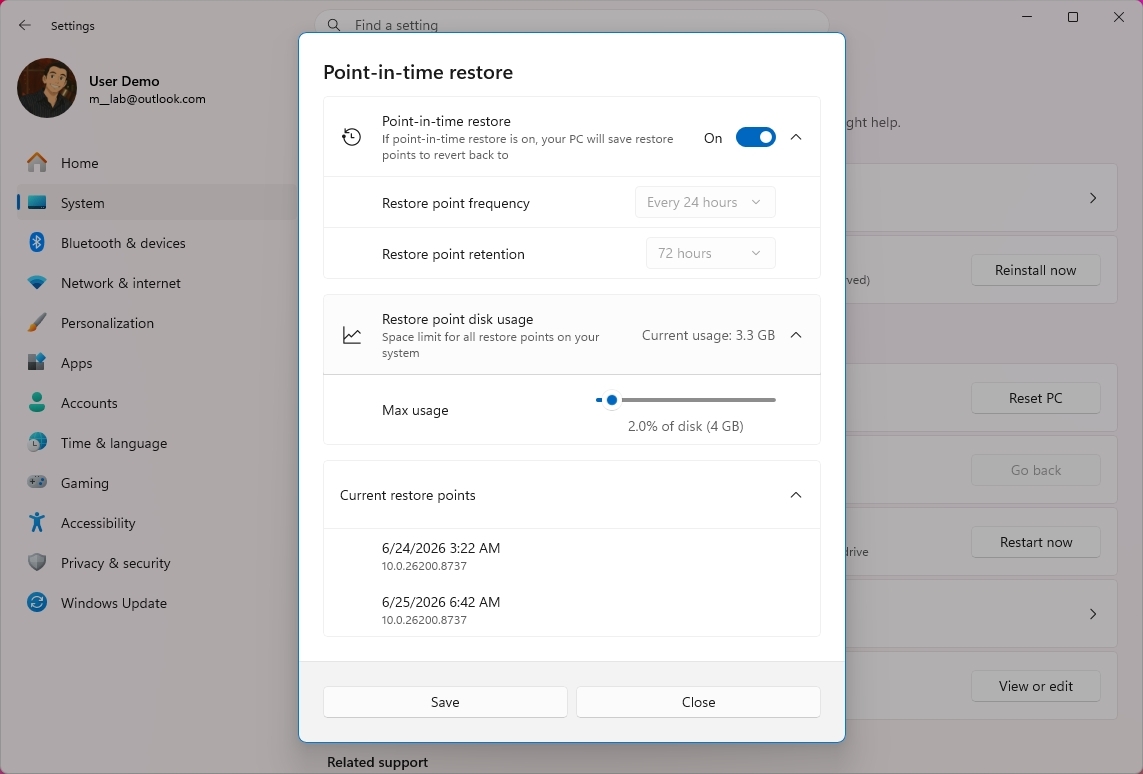
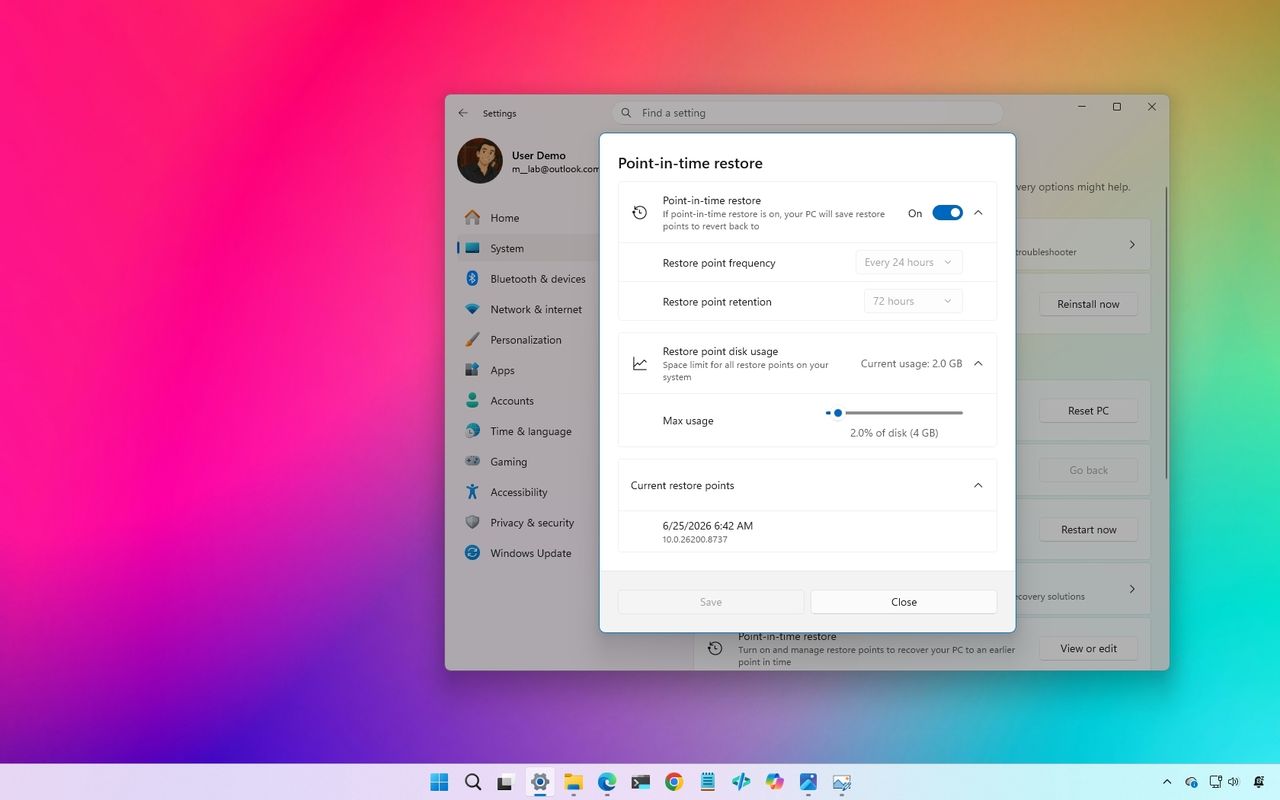
You can always control the feature in Settings > System > Recovery by using the "View or edit" button. On the page, you can turn the recovery feature on or off, configure the restore point frequency and retention, and decide how much storage the feature uses.
(Image credit: Mauro Huculak)
At the bottom, the feature will also notice the most recent restore points.
If something is working correctly, you can always access the feature from the Windows Recovery Environment (WinRE), and from the "Point-in-time Restore" page, select the restore point to recover your device.
Screen tint accessibility feature
In this update, the company is also rolling out Screen tint. This accessibility feature applies an overlay color on the screen designed to reduce eye strain and improve viewing comfort.
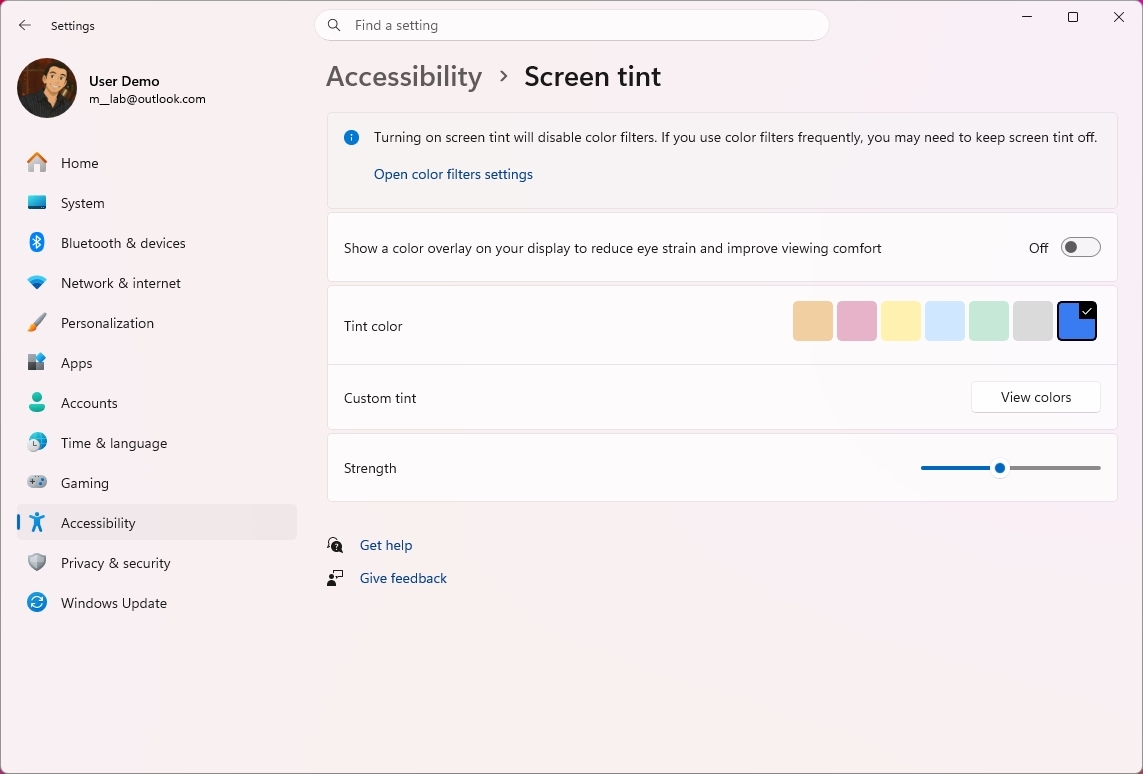
The feature is available in Settings > Accessibility > Screen tint. Once enabled, you can choose from one of the six preset color overlays or create a custom color.
(Image credit: Mauro Huculak)
In addition, there is a slider to control the overlay strength.
While the Screen tint feature seems similar to the Night Light feature, they are different, and they can work alongside each other. However, this feature automatically turns off Color filters and vice versa.
Windows Update new controls
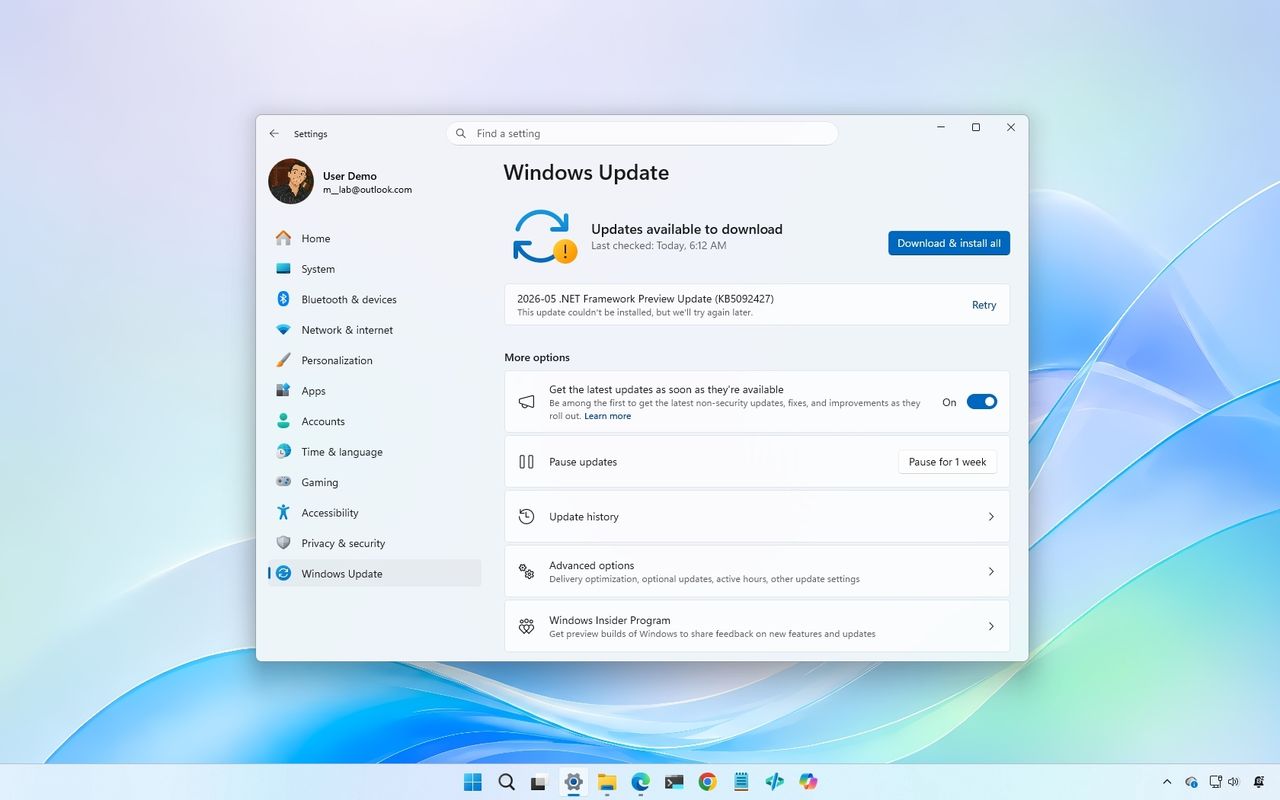
Windows Update is getting a major upgrade. In this release, Microsoft is adding the ability to pause updates indefinitely, which seems to be the closest we'll get to completely turning off automatic updates.
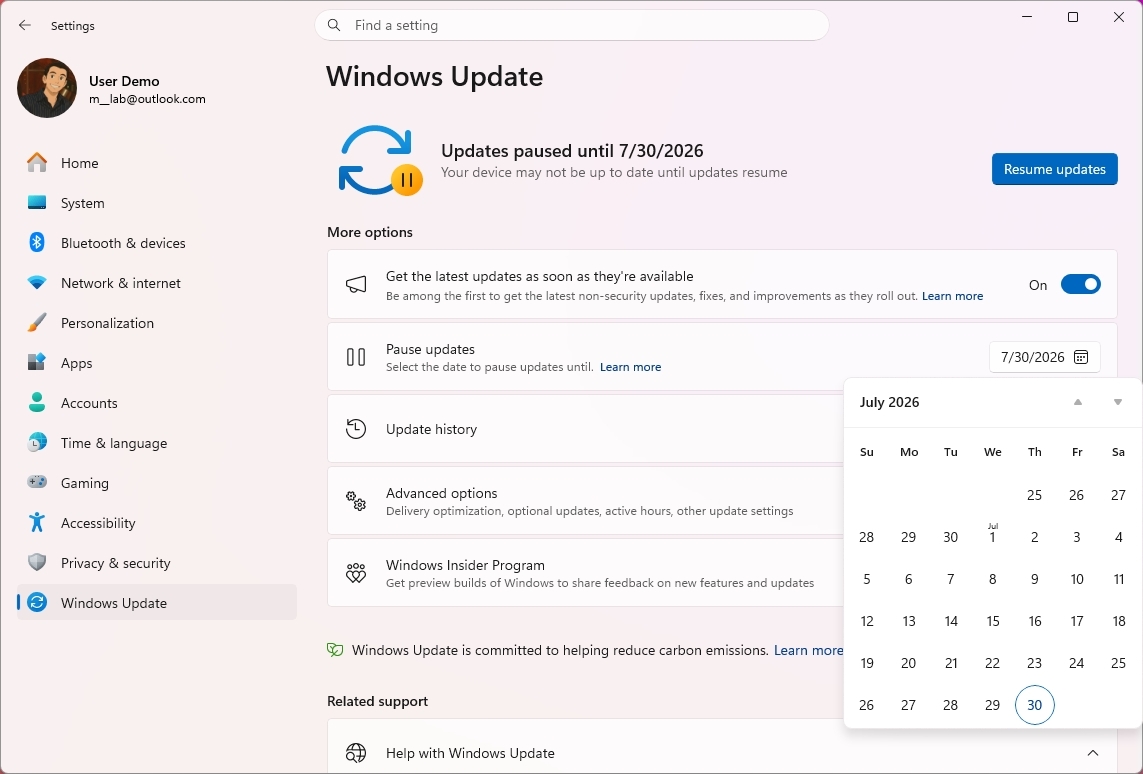
As part of the changes, the "Pause updates" option now includes a calendar view that lets you pause automatic updates for up to 35 days. However, you can re-pause updates as many times as you want.
(Image credit: Mauro Huculak)
The only caveat is that if you want to postpone updates for more than 35 days, you'll need to manually pause them again. Otherwise, the system will download and install updates automatically as soon as the scheduled expiration expires.
Widgets with less distracting defaults
The company is trying to make the experience quieter and less distracting.
(Image credit: Mauro Huculak)
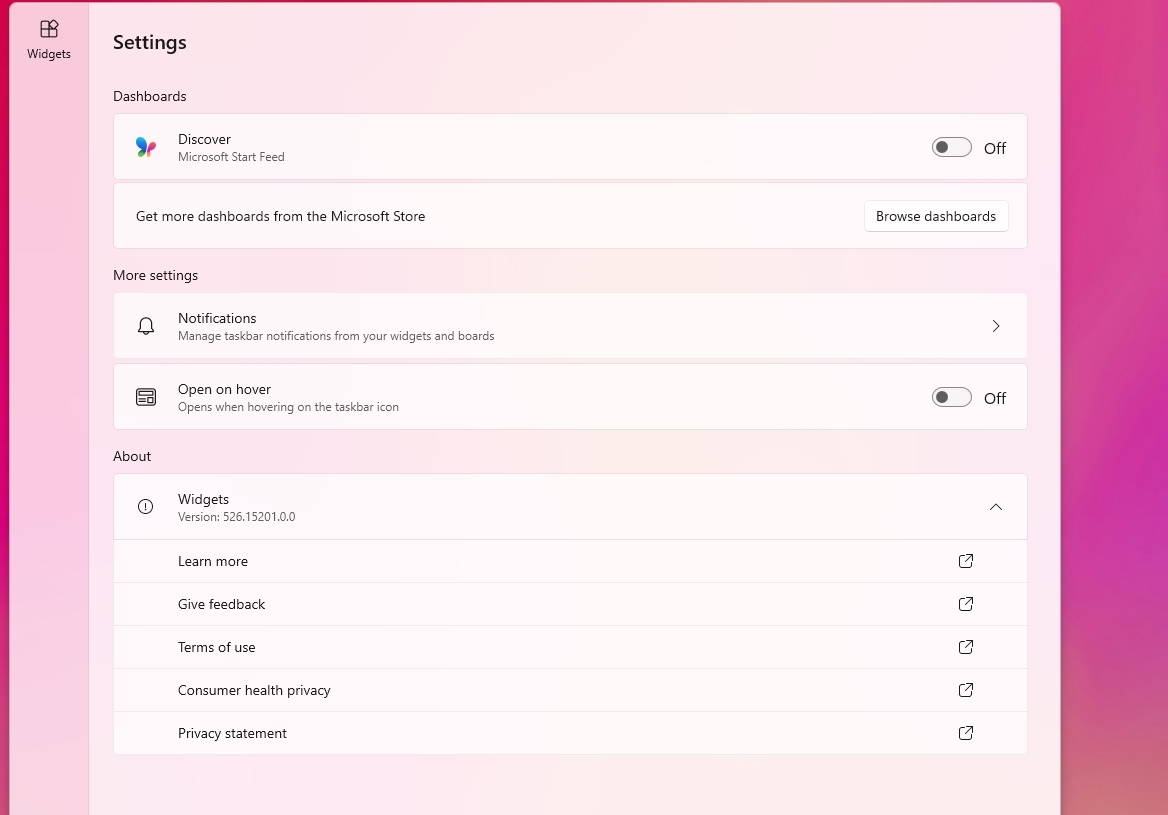
Widgets now open directly to the dashboard on first use, with hover activation disabled and notifications and Taskbar badges minimized by default.
The experience also offers more control over notifications and personalization settings, allowing users to customize Widgets from the Settings menu.
The dashboard icons can display the number of alerts, while badges clear automatically after leaving the dashboard. Microsoft notes that some settings will continue to adapt based on usage patterns to help limit interruptions.
This update also includes improvements to reliability, responsiveness, and overall visual quality across the Widgets experience.
Windows Magnifier improvements
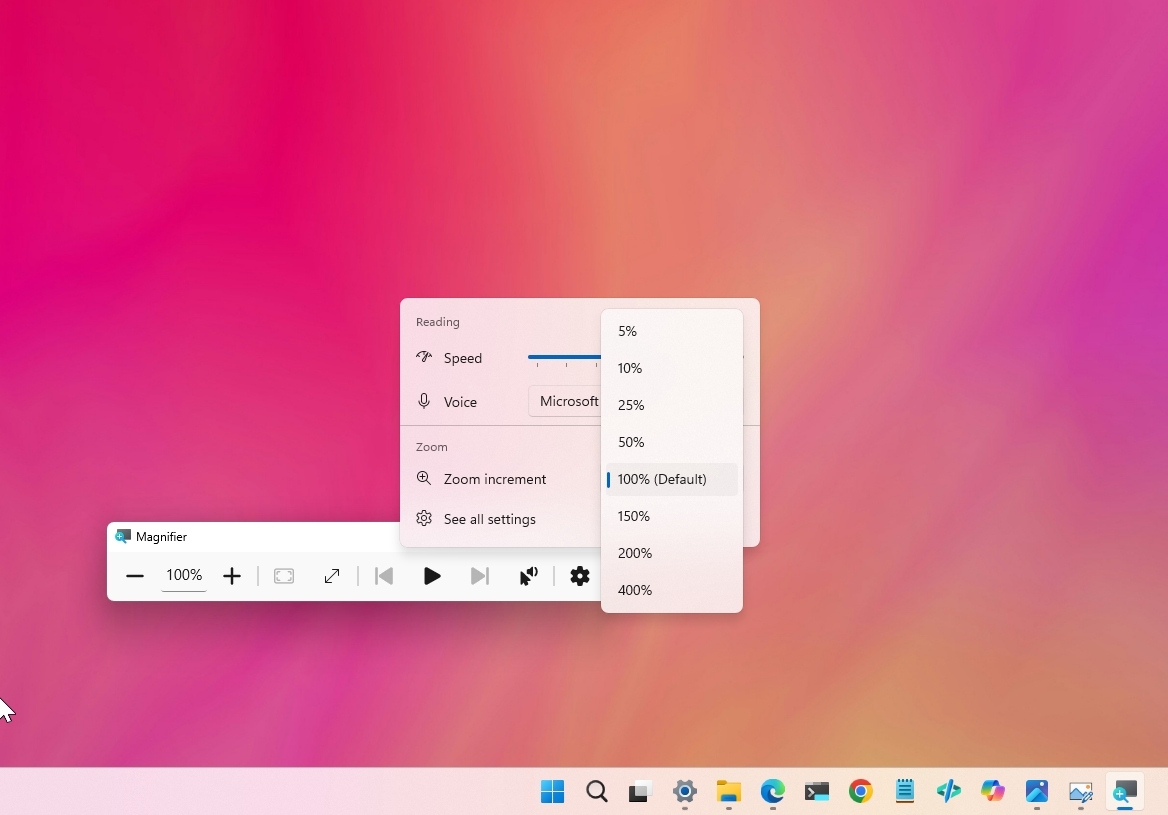
In a continued effort to improve accessibility features, the software giant is also updating the Magnifier with more granular controls, allowing you to enter exact percentage values rather than having to use the zoom buttons to increase or decrease the zoom level.
(Image credit: Mauro Huculak)
Also, in the settings flyout, the zoom adjustment now allows users to set increments up to 400 percent.
Printer default changes
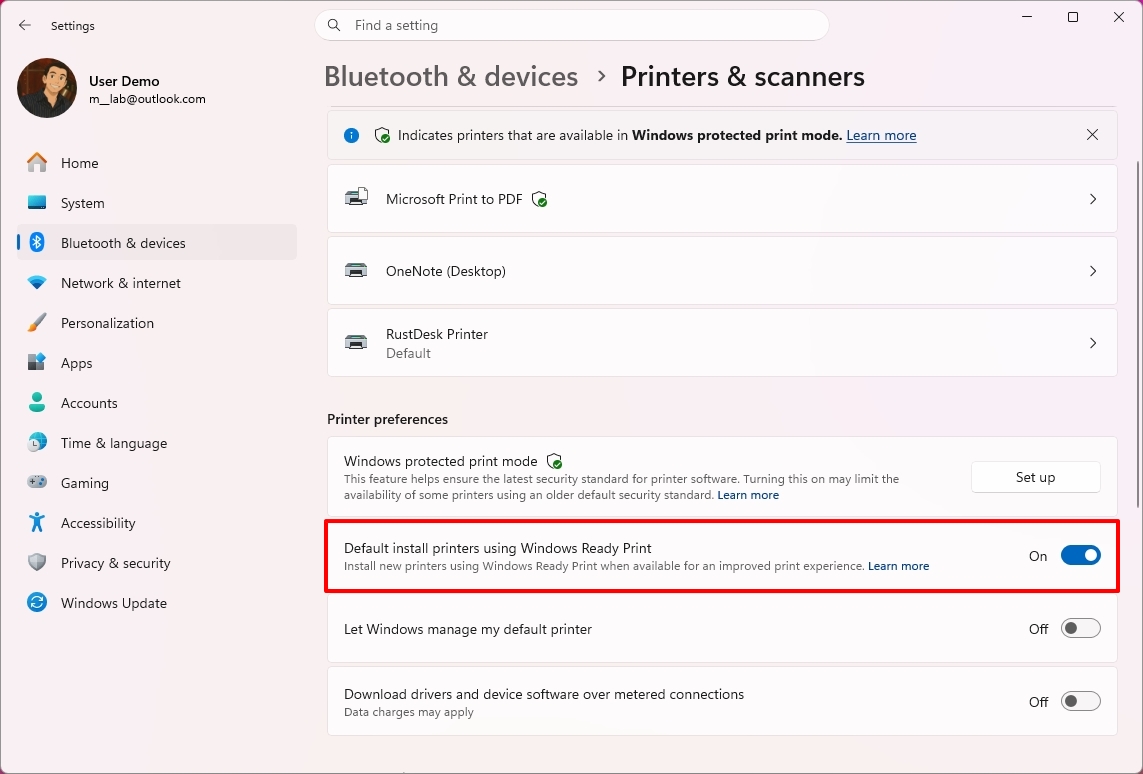
Starting with the quality update for July 2026, the operating system will install printers by default using the Internet Printing Protocol (IPP), provided the device is supported.
(Image credit: Mauro Huculak)
If you prefer to revert this configuration, open Settings > Bluetooth & devices > Printers & scanners, and turn off the "Default install printer using Windows Ready Print" option.
Location settings improvements
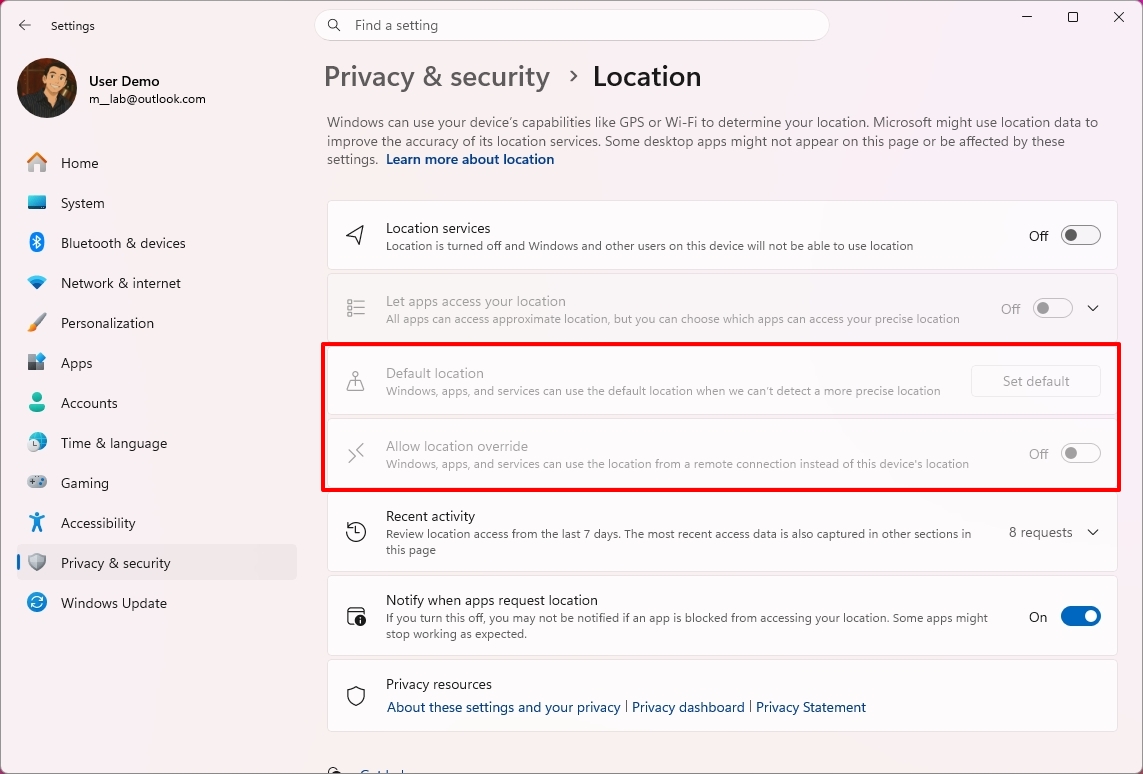
Microsoft is making location settings easier to understand in Settings > Privacy & Security > Location.
(Image credit: Mauro Huculak)
When location services are turned off, options such as "Default location" and "Allow location override" no longer appear active, since apps and services cannot access location data.
As a result, these settings will now be greyed out until location services are enabled, helping clarify when the options are available and reducing confusion.
File Explorer improvements
After installing this quality update, you'll notice that File Explorer will launch faster thanks to new speed improvements.
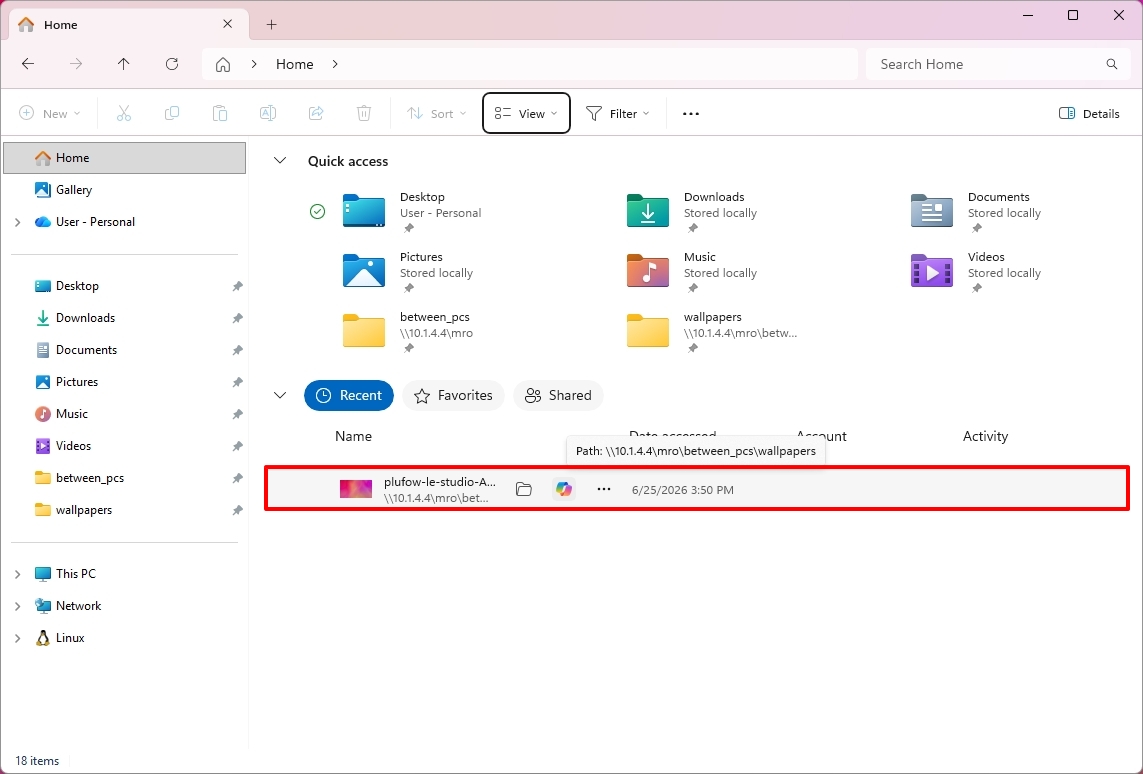
Also, on the Home page, when hovering over files, users who are logged in with a work or school account should now see options like "Open file location" and "Ask Copilot."
(Image credit: Mauro Huculak)
In addition, the address bar now supports paths with double backslashes and quotation marks, making it easier to paste or type folder paths from different sources.
Continuing with the improvements to the address bar, the experience now closes more reliably after selecting an option. Finally, File Explorer improves its ability to rename files.
Bluetooth changes
Microsoft is rolling out a series of Bluetooth improvements focused on reliability, compatibility, and audio performance.
For example, Windows 11 now keeps the microphone mute status synchronized between the system audio controls and Bluetooth headphones that include dedicated mute buttons or indicators, providing a more consistent experience during calls.
The update also improves compatibility with certain audio accessories. For instance, AirPods should enter pairing mode faster, and Beats Studio Pro headphones should offer more reliable microphone performance.
Voice calls on devices that support the Hands-Free Profile (HFP) should be more reliable. LE Audio accessories can begin playing audio faster while the microphone is active, and Windows 11 stability has been improved for some systems affected by Bluetooth-related driver issues.
The operating system will no longer incorrectly display a "Remove failed" message when a Bluetooth device cannot be removed because the Bluetooth radio is unavailable or has changed since the device was paired.
In addition, the "Bluetooth & devices" settings page has been updated to provide a more stable and consistent experience.
Connection reliability has also been enhanced. Classic Bluetooth audio devices can reconnect more quickly after a computer resumes from hibernation. At the same time, LE Audio accessories should maintain more reliable connections when switching between devices and recover more smoothly from temporary disconnections.
Phone Link improvements
Microsoft is improving how phone calls are handled between Windows 11 and a connected smartphone through Phone Link.
When you place a call from your paired phone, the audio will stay on the phone while it rings, then switch to the computer only after you answer the call on Windows 11.
This change helps prevent audio from switching between devices unexpectedly before the call connects.
The update also improves the "Do Not Disturb" experience. When Do Not Disturb is enabled, incoming calls from a connected phone will no longer ring through the computer, reducing interruptions while you're working.
Voice Typing and Voice Access
As you speak, Voice Typing and Voice Access can now refine the text in real time. In addition, the feature improves its capability to adapt to background noise. However, this is only available for Copilot+ PCs.
Furthermore, Voice Access and Voice Typing are now available in German, Spanish, and French.
Networking changes
The software giant is introducing several networking improvements focused on reliability, performance, and virtualization.
For virtualized environments, Confidential Virtual Machines (CVMs) now use SR-IOV hardware acceleration by default to improve network performance. At the same time, a networking configuration issue affecting nested Hyper-V setups has been fixed to ensure virtual machines are provisioned correctly.
The update also enhances the reliability of the networking stack. It reduces some Wi-Fi-related blue screen errors, improves cellular (WWAN) connectivity, and adds better support for IPv6-based VPN connections.
In addition, Microsoft has improved compatibility with certain third-party VPN solutions and server configurations that use SR-IOV networking. Network adapter settings and bindings are now also preserved during operating system upgrades, helping prevent networking configurations from being reset after an operating system update.
Touchpad changes
If you use a compatible touchpad, there's a touchpad customization option that lets you adjust the size of the bottom-right right-click area.
In Settings > Bluetooth & devices > Touchpad, you can choose between "Default," "Small," "Medium," or "Large" to control how much of the touchpad responds to a one-finger right-click.
This feature is available only on devices with a pressable touchpad surface. If your computer manufacturer provides touchpad customization through its own software, the system will display a "Custom" option to reflect those settings.
Windows Central's Take
I find it interesting that one of the biggest additions in this update is a feature designed to help when Windows 11 breaks rather than when everything is working perfectly.
Microsoft has spent the last few years talking a lot about AI, Copilot, and new experiences, but Point-in-time Restore addresses a much more fundamental problem. Every user eventually runs into a bad update, problematic driver, or software conflict. When that happens, recovery tools suddenly become far more important than whatever new feature was added to the Start menu.
The Windows Update changes also stand out to me because they give users a little more breathing room. The software giant clearly isn't interested in letting people permanently turn off updates, but repeatedly extending the pause period feels like a practical compromise between security and user control.
As for the rest of the update, I see it as evidence that Microsoft is continuing to chip away at long-standing annoyances. Faster File Explorer performance, Bluetooth reliability improvements, and less intrusive Widgets aren't headline-grabbing changes. However, they're often the updates that have the biggest impact on how the system feels after months of daily use.
Which feature in the July 2026 update are you most looking forward to trying on Windows 11? Let me know in the comments.
More resources
Explore more in-depth how-to guides, troubleshooting advice, and essential tips to get the most out of Windows 11 and 10. Start browsing here:
Windows 11 brings major changes to the Start menu and Taskbar in 2026, finally giving users more control over customization.
Microsoft spent the first years of Windows 11 simplifying the Start menu and Taskbar, often at the expense of features that users had relied on for years. In 2026, the company is correcting its direction.
In recent preview builds, the operating system has revealed a growing list of improvements that bring more customization and control back to the experience. From Taskbar positioning and resizing to Start menu layouts and recommendation controls, the software giant is restoring capabilities that many users have been complaining about since the original release of Windows 11.
However, the company's approach isn't about recreating Windows 10. Instead, Microsoft is rebuilding these experiences around the design principles of Windows 11 while giving users more flexibility than they have today.
Microsoft is giving users more control over the Taskbar
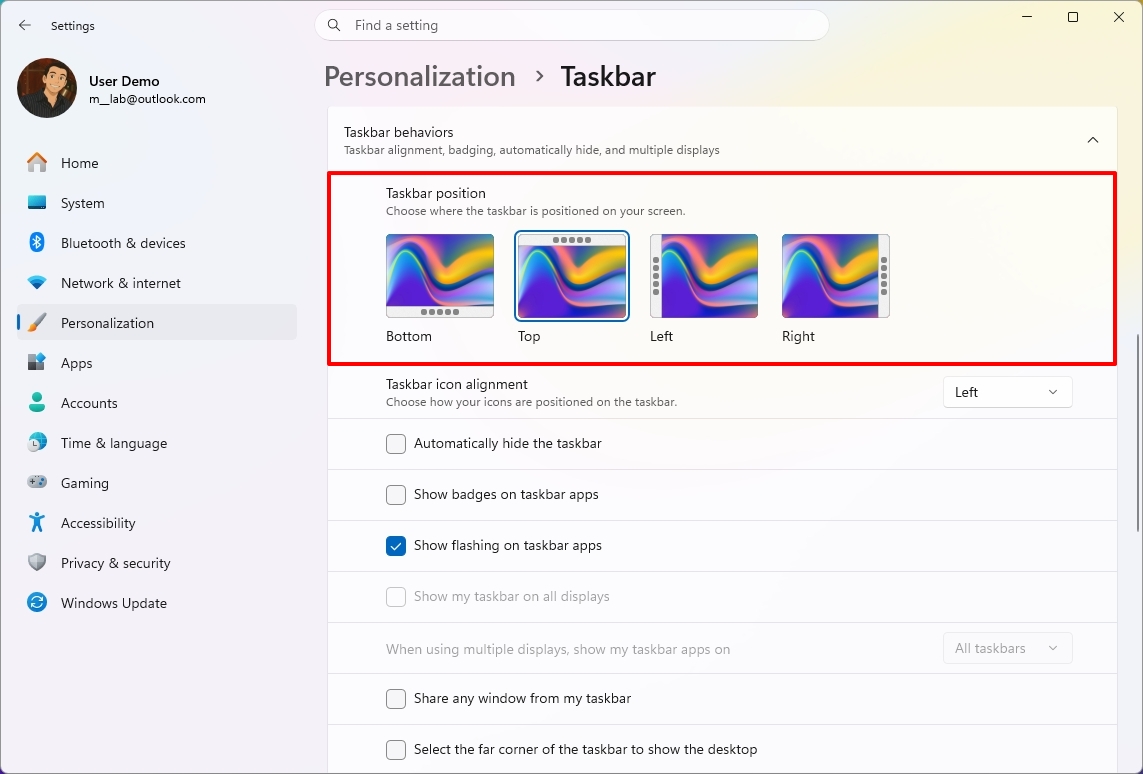
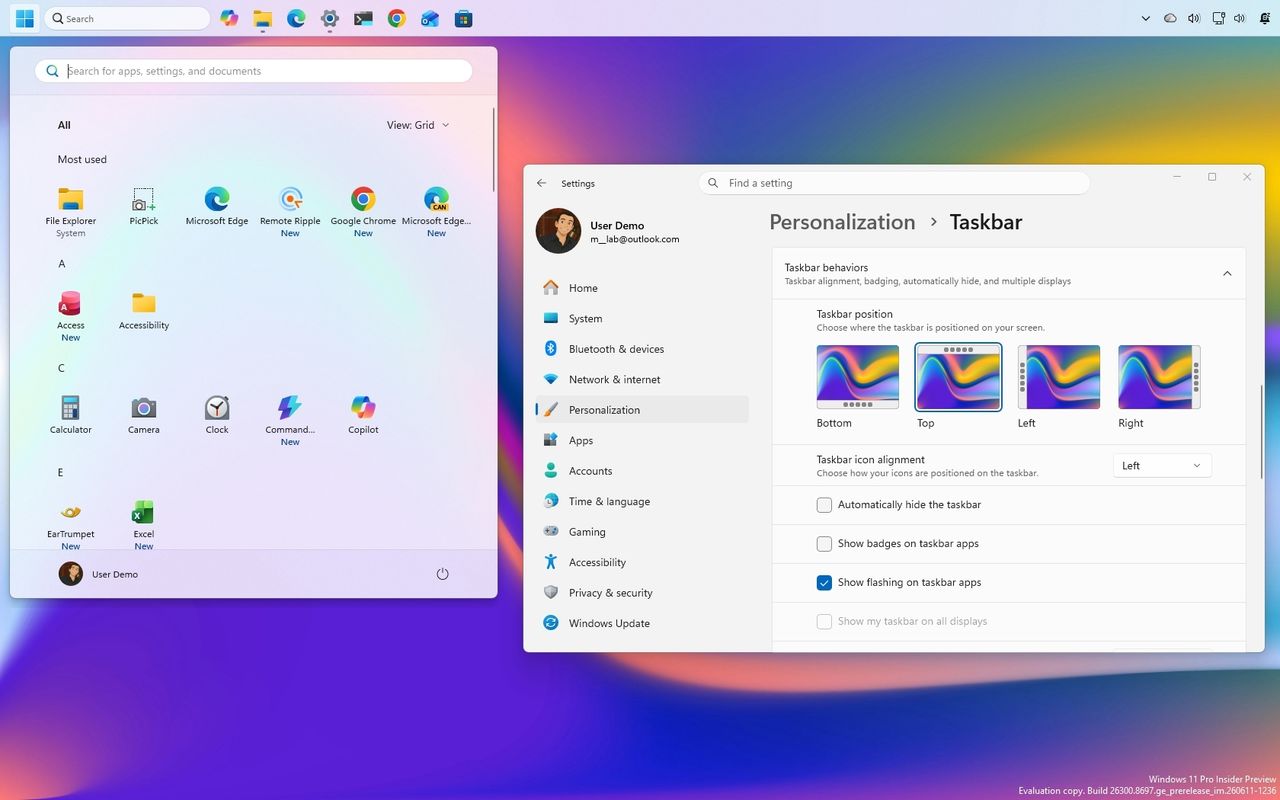
The biggest change is the reversal of positioning controls. Users will once again be able to place the Taskbar to the top, left, right, or bottom edge of the screen.
(Image credit: Mauro Huculak)
For many users, this feature never should have disappeared in the first place. The ability to place the Taskbar where it works best has been part of the operating system for decades.
At the same time, the company isn't restoring the exact Windows 10 experience. Previously, users could unlock the Taskbar and drag it directly to a different edge of the screen, or change its position through the Settings app. On Windows 11, changing the position requires using the option available through the Settings app, more specifically in the Taskbar settings under the "Taskbar behaviors" section.
(Image credit: Mauro Huculak)
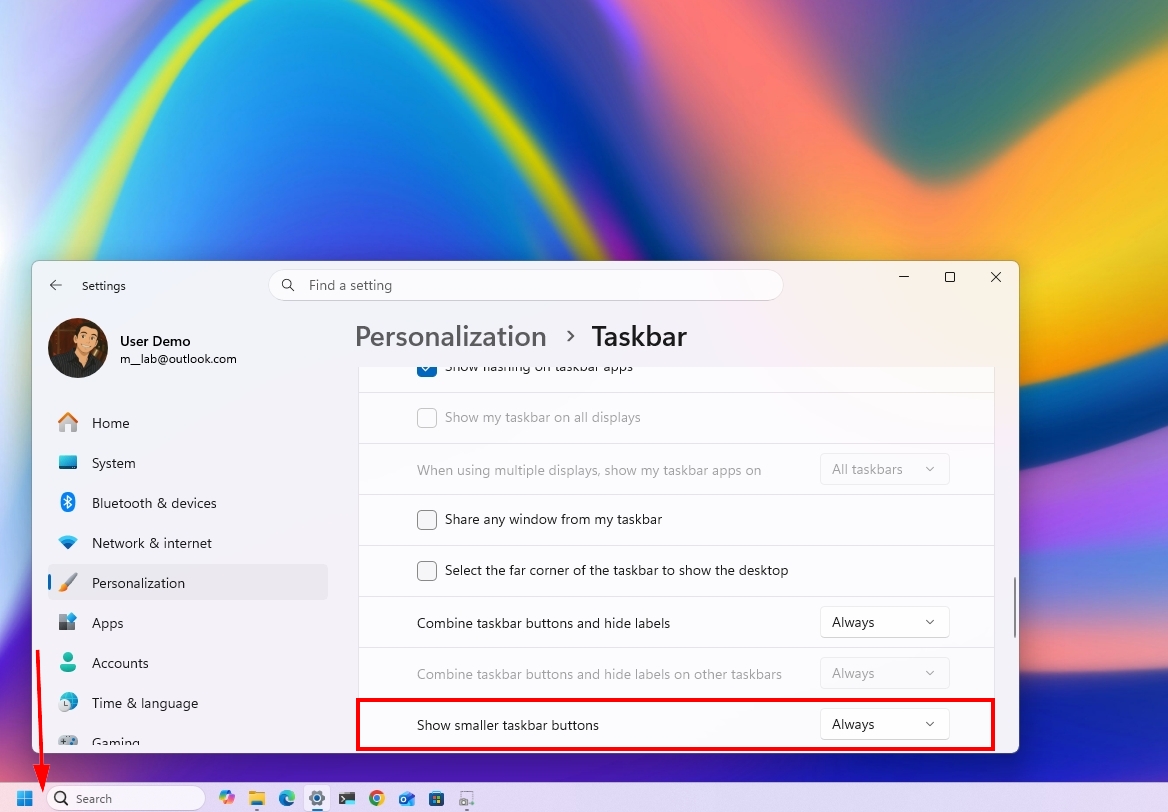
Taskbar sizing is also making a comeback. However, the company is updating the "Show smaller taskbar buttons" option so that enabling it makes the buttons and Taskbar smaller, not just the buttons.
(Image credit: Mauro Huculak)
The feature improves flexibility, but it still doesn't offer the same freedom available on Windows 10, where users could manually resize the Taskbar and even create multi-row layouts.
The Start menu is finally becoming more customizable
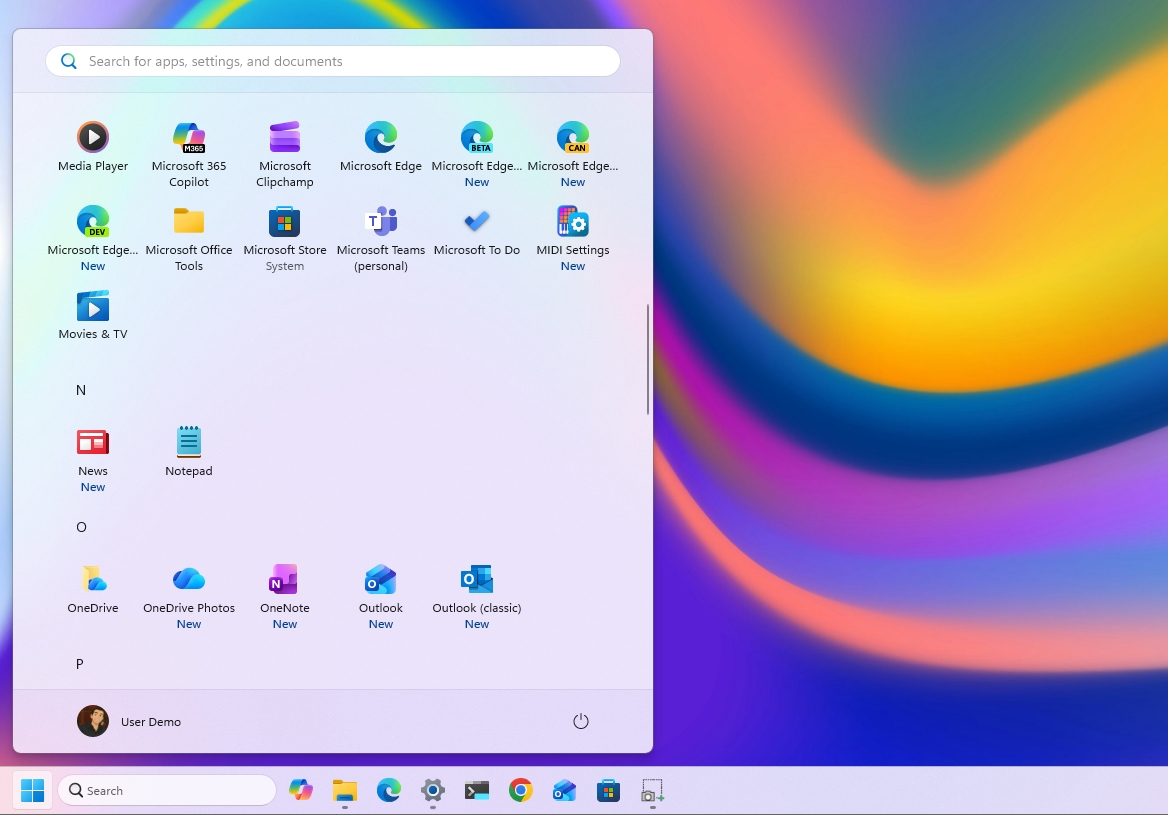
The Start menu is being updated with some of the most significant improvements since the operating system's launch.
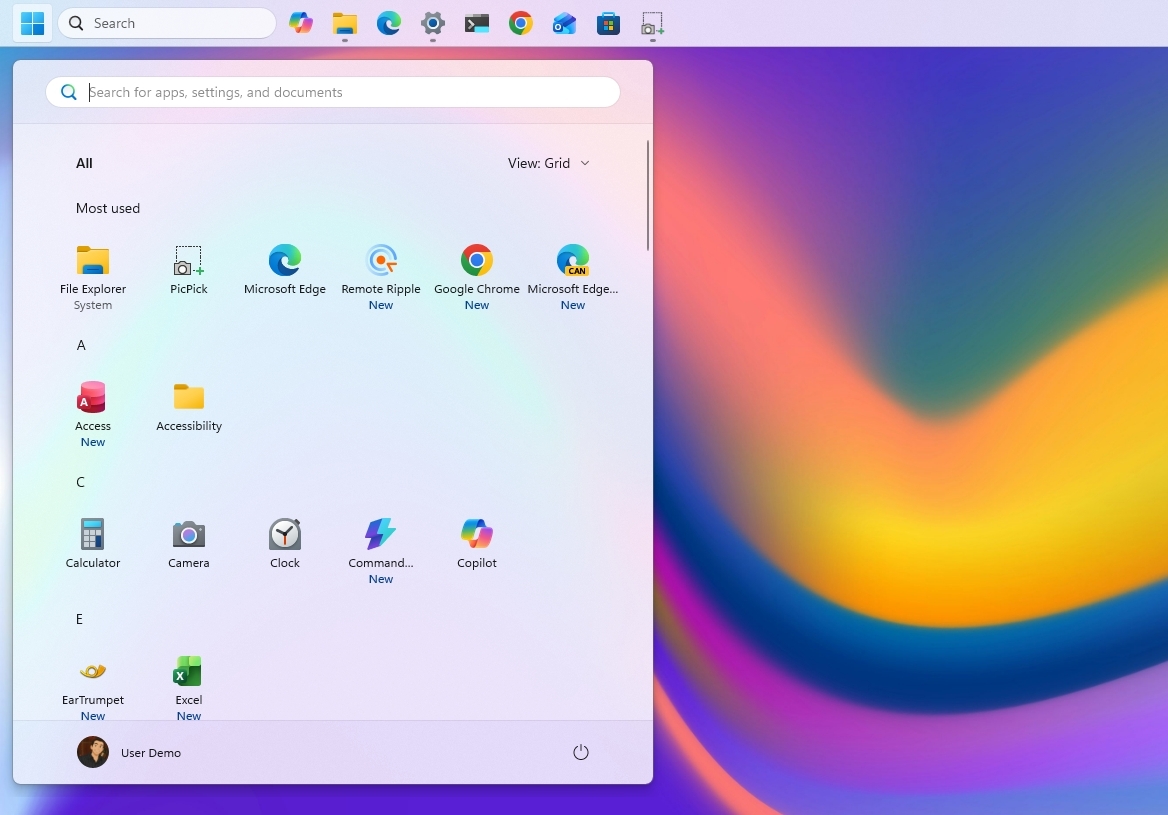
One of the biggest additions is support for different Start menu sizes. Instead of relying entirely on the automatic layout, users will be able to choose between different menu configurations based on their preferences.
(Image credit: Mauro Huculak)
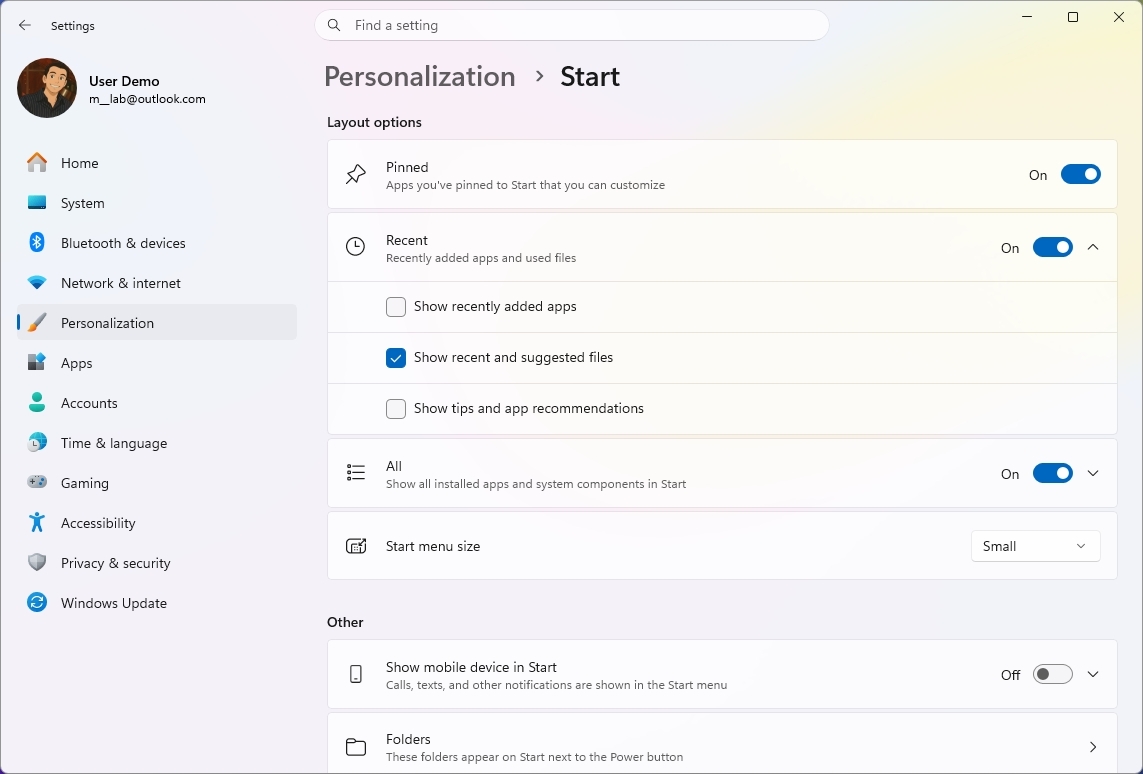
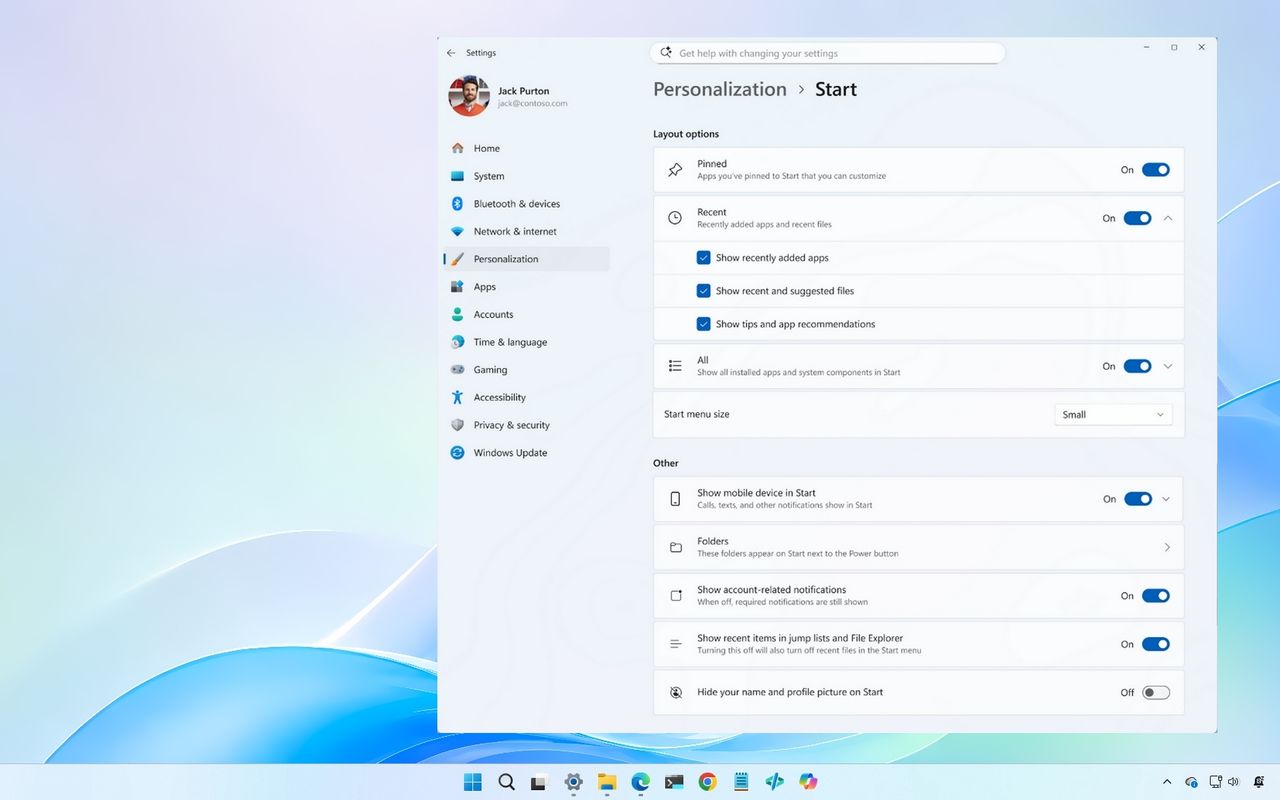
You will find these settings on the updated "Start" page from the Settings app.
Microsoft is also introducing dedicated controls to show or hide sections such as Pinned, Recommended, and All apps. These changes address one of the most common complaints about the Start menu, which has often felt too limited compared to previous versions of the operating system.
(Image credit: Mauro Huculak)
The company is also separating recommendation settings from recent files and activity history. As a result, users will gain more granular control over what appears in the Start menu without affecting other parts of the operating system.
(Image credit: Mauro Huculak)
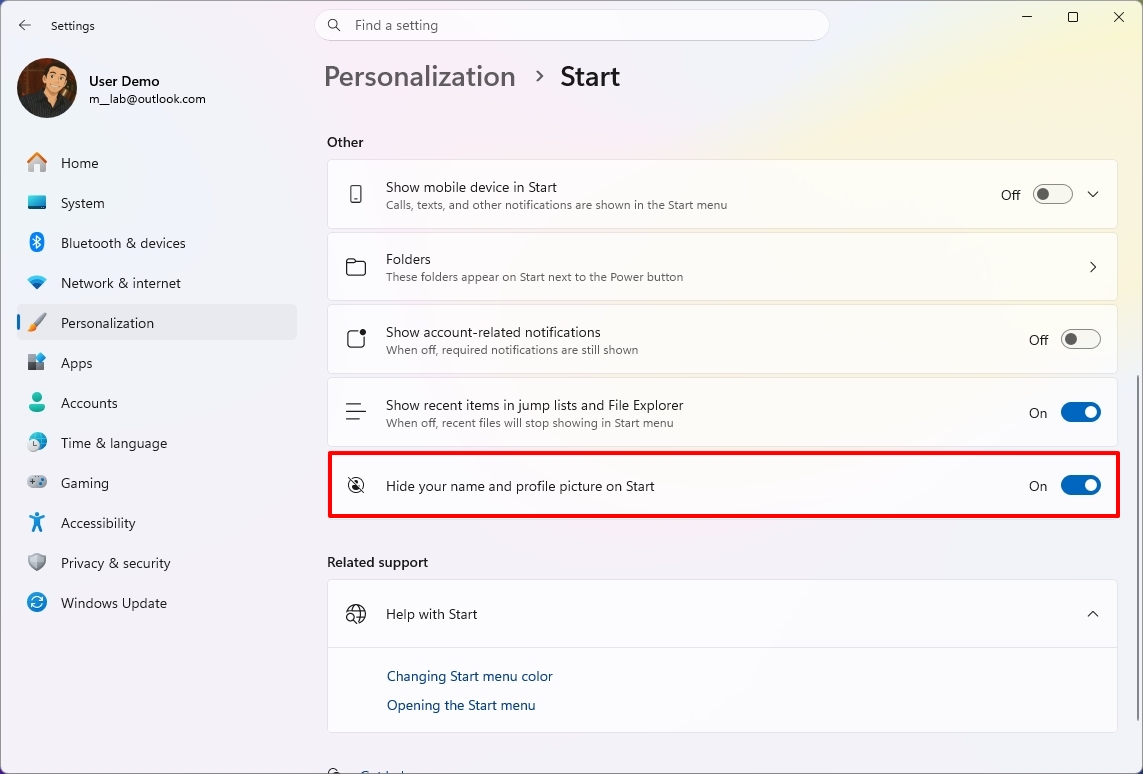
Privacy is also receiving attention, with a new option that lets users hide their account name and profile picture from the Start menu.
These changes reflect a broader shift in Microsoft's strategy
The Start menu and Taskbar updates are part of Microsoft's wider Windows K2 initiative, an effort focused on improving performance, reliability, and usability across Windows 11.
While much of that work happens behind the scenes, the Start menu and Taskbar provide visible evidence that Microsoft's priorities have evolved since 2021.
When this version of Windows launched, the company emphasized simplicity and consistency, even when it meant removing long-standing customization features. A lot of users felt those decisions made the operating system less flexible than Windows 10.
The changes expected to roll out in 2026 suggest Microsoft is rethinking and taking a more balanced approach. Rather than limiting customization in the name of simplicity, the company is finding ways to offer more control while preserving the modern design introduced on Windows 11.
Windows 11 is becoming a more flexible operating system
Microsoft's reinstatement of Taskbar positioning and sizing, Start menu layouts, and recommendation controls may not seem revolutionary on their own. However, these changes represent one of the most notable shifts.
The company is not abandoning its vision for Windows 11, nor is it trying to turn the operating system into Windows 10. Instead, the company is acknowledging that flexibility remains one of the operating system's greatest strengths.
For years, many of the conversations around Windows 11 focused on features that were removed. In 2026, the conversation is increasingly focused on the features Microsoft is bringing back and what that says about the operating system's future direction.
Windows Central's Take
I think the most interesting part of these Start menu and Taskbar changes isn't any individual feature. It's what they reveal about Microsoft's evolving approach to Windows 11.
When the operating system launched in 2021, the software giant removed a noticeable amount of customization in favor of simplicity. The Taskbar lost positioning and resizing controls, and the Start menu became significantly more limited compared to Windows 10. At the time, those choices felt deliberate, almost like a firm design reset.
In 2026, that direction looks less fixed. The reintroduction of Taskbar positioning and resizing options, along with more granular Start menu controls, suggests Microsoft is recalibrating how much flexibility the operating system should offer without undoing its modern design language.
What are your thoughts on the Start menu and Taskbar changes coming to Windows 11? Let me know in the comments.
More resources
Explore more in-depth how-to guides, troubleshooting advice, and essential tips to get the most out of Windows 11 and 10. Start browsing here:
Recovering your Windows 11 PC just got easier. This week, Microsoft rolled out point-in-time restore for Windows 11 to general users. The feature creates restore points automatically that you can revert to if there's an issue with your computer.
Point-in-time restore is available to Enterprise, Pro, and Home users of Windows 11. According to Microsoft, the feature can recover a PC in minutes rather than hours.
When you have Point-in-time restore enabled, the feature automatically captures the system state of your PC, including Windows, installed apps, system and app configurations, settings, and your local files.
By default, restore points are captured every 24 hours, but you can configure that to a different cadence if you're an Enterprise user.
The feature is on by default on Windows Home and Windows Pro devices as long as they are not under enterprise management. Point-in-time restore is off by default for some enterprise-managed systems until Windows 11 version 26H2is installed.
If a PC has an OS volume size under 200GB, point-in-time restore will be disabled by default.
Microsoft already had other features that are somewhat similar, such as System Restore and point-in-time restore for Windows 365 Enterprise. But both of those have key differences when compared to point-in-time restore for Windows 11.
System Restore requires manual capture of an image and does not include user files as part of the restore point. It's also accessible through the Control Panel rather than system settings and takes up more space on your PC.
Point-in-time restore for Windows 11 also provides benefits to IT admins, since the feature can be remotely managed with a wide set of controls.
Point-in-time for Windows 365 Enterprise is for Cloud PCs. It's also limited to Enterprise users.
Over two million devices had point-in-time restore enabled while the feature was in public preview. Microsoft said it used the time in preview to improve the feature based on feedback.
Join us on Reddit at r/WindowsCentral to share your insights and discuss our latest news, reviews, and more.
Microsoft has confirmed that the next Windows 11 version coming this year will be Windows 11 version 26H2, keeping with the usual annual format of releasing a new OS version in the second half of the year.
Just like Windows 11 version 25H2 and version 24H2 before it, version 26H2 will be based on the same 2024 platform release. That means the version 25H2 update won't be a big one, sharing the same featureset as version 25H2 and the same platform improvements as 24H2.
"Windows 11, version 26H2 continues the move toward a more predictable and efficient servicing model. This model helps reduce disruption while helping your organization stay secure and up to date. By building on a shared platform and delivering innovation continuously, Windows enables you to focus less on large upgrade projects and more on delivering value to your users."
As 26H2 is based on the same platform release as 25H2 and 24H2, the 26H2 release will share:
The same source code base
The same security and quality updates
The same compatibility validation
That means it will be easy for individuals as enterprises to upgrade to the new version this fall, as there won't be any validation or compatibility concerns to be worried about. If it works on 25H2 or 24H2, it'll work on 26H2.
Microsoft has confirmed that 26H2 won't be made available to all Windows 11 users, however. If you're running Windows 11 version 26H1, you won't be able to upgrade to version 26H2 this fall. This is because version 26H1 is a special offshoot version of Windows 11 built specifically for Qualcomm Snapdragon X2 and NVIDIA RTX Spark devices.
Version 26H1 is based on a newer platform release than the one that powers 24H2, 25H2, and 26H2, which means 26H1 is technically on a newer codebase than the upcoming 26H2. That's why users on 26H1 won't be offered an upgrade to 26H2 this fall.
Microsoft does say that those on 26H1 will be offered an upgrade to a newer OS version in the future, but it's yet to confirm when that will be. I suspect those on 26H1 will be offered an upgrade to 27H2 towards the end of next year instead.
The company has confirmed that version 26H2 is coming soon, but is yet to provide an actual date for release. I expect we'll see rollout begin towards the end of September or into the month of October, as has historically been the case.
Join us on Reddit at r/WindowsCentral to share your insights and discuss our latest news, reviews, and more.
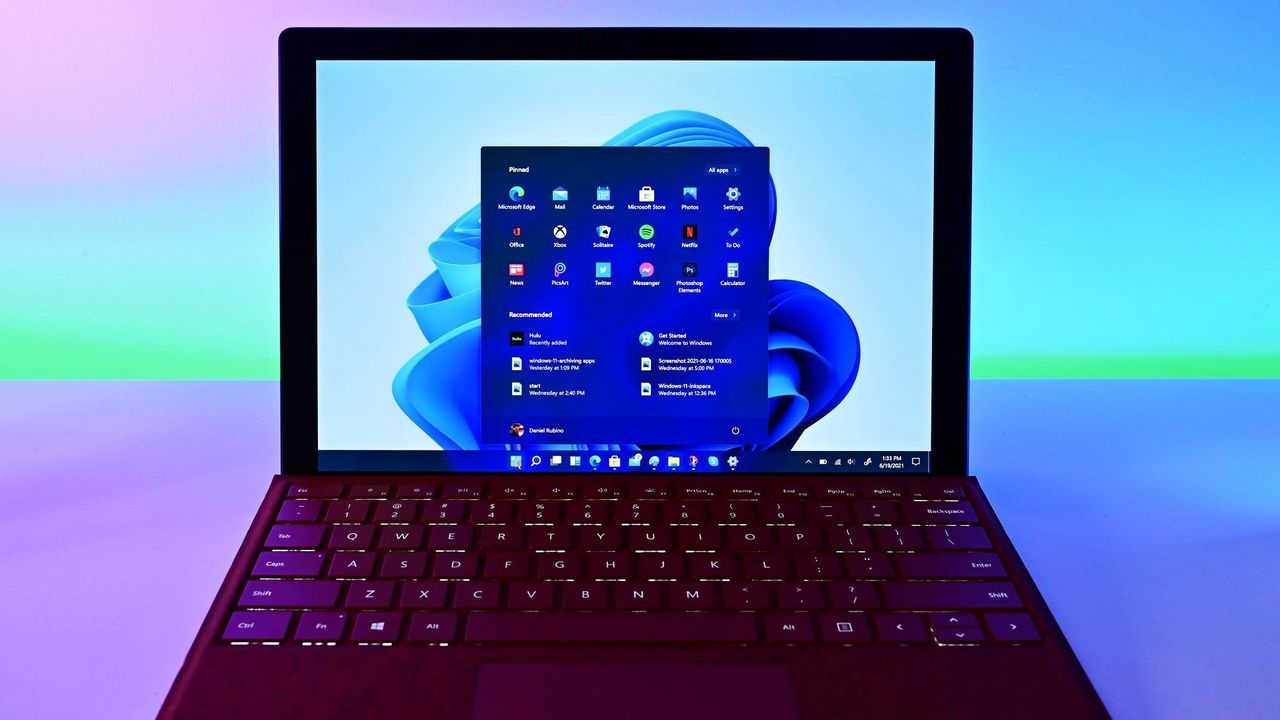
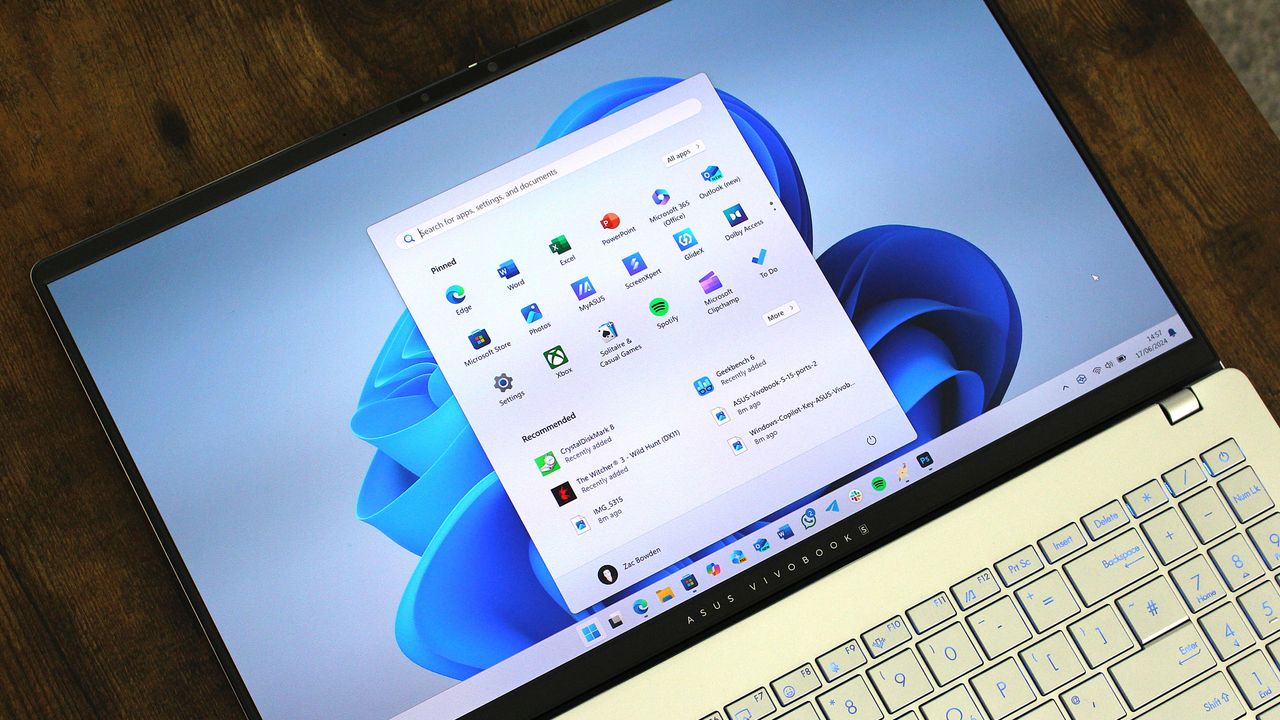
Microsoft is finally fixing the Windows 11 Start menu with resizing, section toggles, and improved recommendation controls. Here's all you need to know.
Windows 11 update KB5089573 is now generally available as Microsoft's non-security preview update for May, and is packing genuinely notable performance improvements.
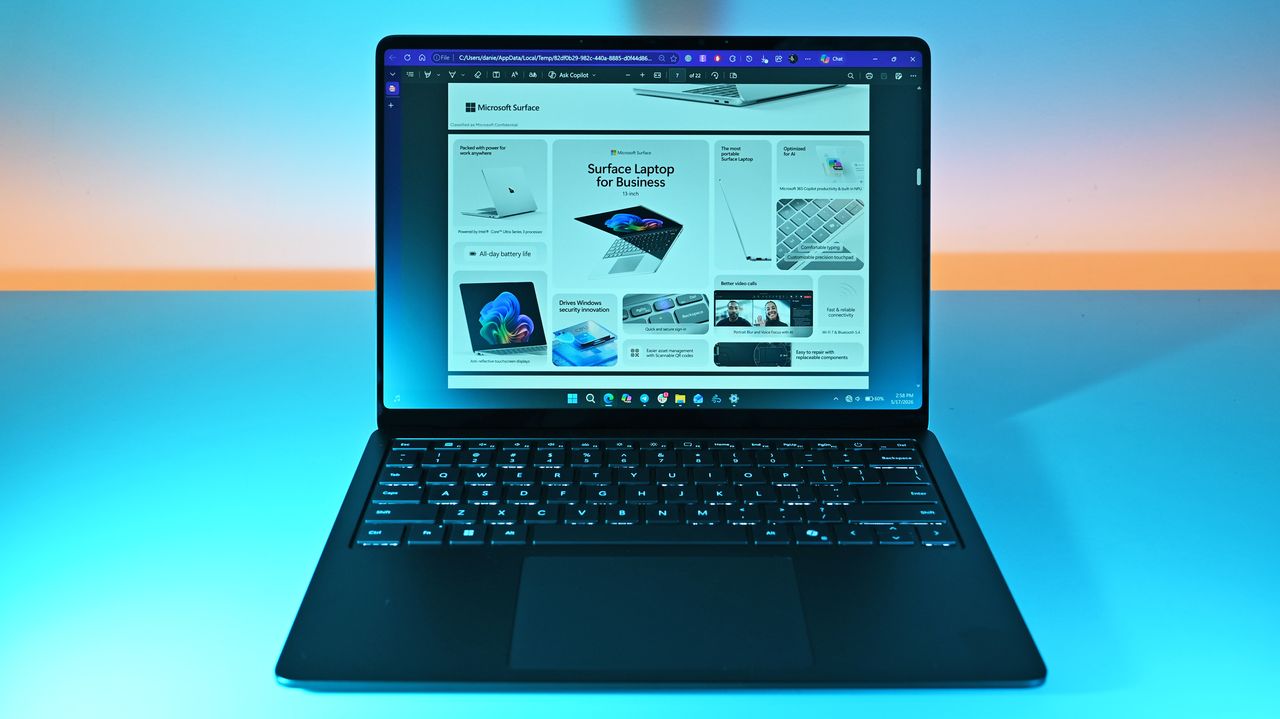
This year’s Spring Surface drop arrived with no event, no excitement, and no clear strategy; just another quiet refresh at a time when the brand needs direction.
Laptop on a desk displaying a webpage about Surface Laptop for Business. The screen shows colorful product images and text. Soft pink and blue lighting in the background.
Laptop on a desk displaying a webpage about Surface Laptop for Business. The screen shows colorful product images and text. Soft pink and blue lighting in the background.
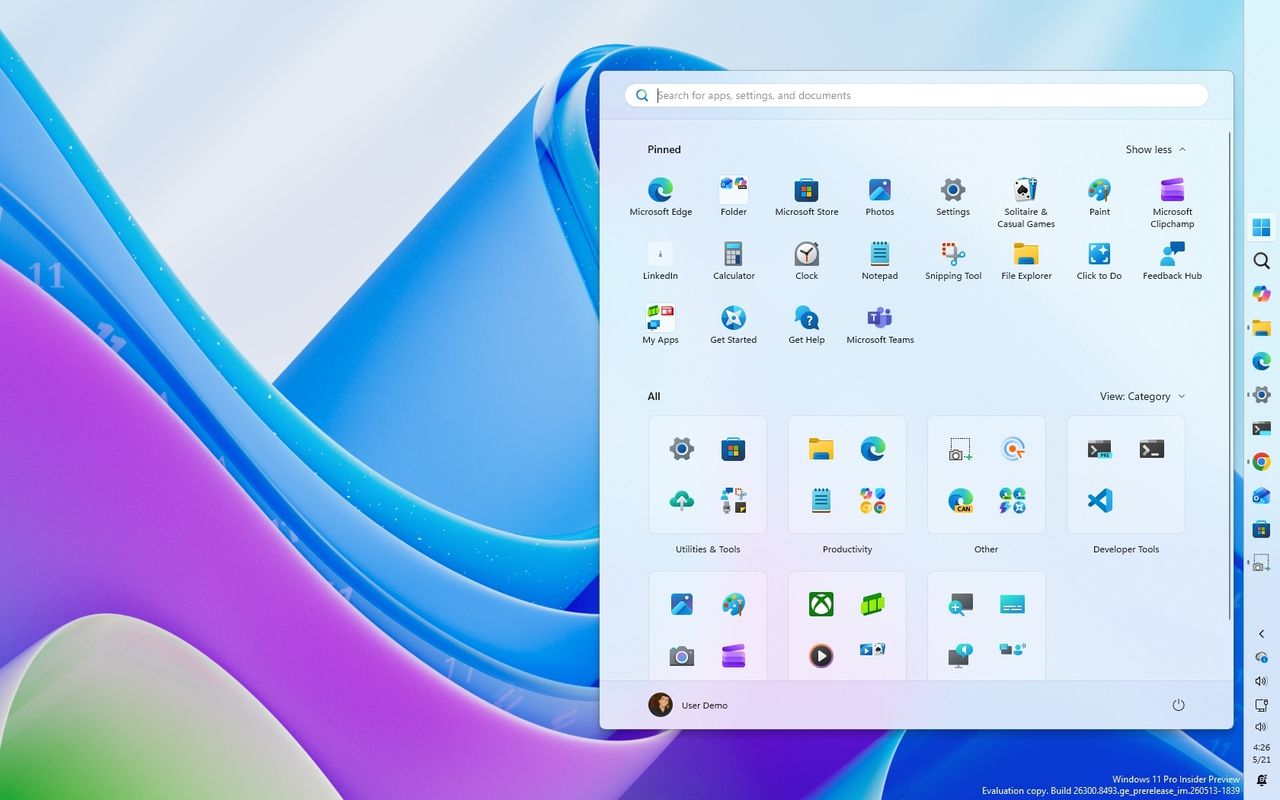
Microsoft brings back Taskbar positioning and smaller Taskbar options on Windows 11, though some Windows 10 features remain missing.
Windows 11 desktop with colorful wave background. A Start menu overlay shows pinned apps like Microsoft Edge and Teams, organized by category in a grid layout.
Windows 11 desktop with colorful wave background. A Start menu overlay shows pinned apps like Microsoft Edge and Teams, organized by category in a grid layout.
Microsoft is rolling out new customization options for the floating Copilot button in Word, Excel, and PowerPoint after many users complained that the feature blocked important content while working on documents and spreadsheets. The company is now giving users more control over where the Copilot Dynamic Action Button appears and how it behaves across Microsoft […]
Microsoft is continuing its rapid evolution of Windows 11 with the release of Experimental Preview Build 26300.8497, giving Windows Insiders another early look at features that could shape the future of the desktop experience. The latest experimental build focuses heavily on accessibility improvements, taskbar customization, UI refinements, and insider testing stability. It also highlights Microsoft’s […]
Nos confrères de chez
Phoronix
ont publié un comparatif des performances du tout nouveau Ryzen 9 9950X3D2 d'AMD sous deux systèmes : Windows 11 et Ubuntu 26.04 LTS. Le verdict est sans appel, Linux prend une avance très nette sur Windows sur la majorité des charges de travail testées.
Petit point pour ceux qui décrochent dès qu'on parle de processeur. Le 9950X3D2, c'est une variante Dual Edition du processeur haut de gamme d'AMD pour le grand public. Elle embarque 16 cœurs, 32 threads, et surtout une particularité plutôt rare : une mémoire cache 3D (le V-Cache, une couche de mémoire ultra-rapide empilée physiquement sur la puce) présente sur les deux blocs de cœurs, là où les versions précédentes n'en avaient que sur un seul.
En pratique, les deux moitiés du processeur peuvent piocher dans une grosse réserve de mémoire rapide, ce qui accélère pas mal de calculs gourmands.
Phoronix a fait tourner ses batteries de benchmarks habituelles : compilation de code, encodage vidéo, calcul scientifique, rendu 3D, base de données. Sur la majorité de ces tests, Ubuntu 26.04 arrive devant Windows 11, parfois de quelques pourcents, parfois beaucoup plus selon la charge. Quand on additionne tout, ça donne une moyenne nettement à l'avantage du pingouin.
C'est un constat qui revient quasi à chaque test du genre depuis plusieurs années. Linux fait souvent mieux tourner les processeurs serveur ou les CPU multi-cœurs musclés que Windows, notamment parce que son ordonnanceur (le bout du système qui décide quel programme tourne sur quel cœur et à quel moment) est plus malin avec les architectures complexes.
AMD, avec son design en deux blocs séparés et son cache 3D asymétrique, est typiquement le genre de processeur où ça compte vraiment.
Côté Windows, c'est un peu toujours la même histoire. Microsoft a fait des efforts ces dernières années pour mieux gérer les Ryzen, mais le système traîne encore quelques inefficacités et un fond plus lourd. Pour un gamer pur, ça n'a probablement pas grand impact. Mais pour un développeur, un créateur de contenu ou quelqu'un qui compile son propre code, l'écart commence vraiment à avoir du sens.
On peut d'ailleurs se demander si AMD finira par sortir une version officiellement labellisée Linux. Pour l'instant, rien d'annoncé. Mais bon, qu'un constructeur grand public reconnaisse explicitement que son matos tourne mieux sous Linux serait déjà une petite révolution culturelle.
Microsoft is finally testing a movable Taskbar in Windows 11, reversing a controversial design decision that has frustrated users since the OS launched.
Windows 11 Start Logo
The Taskbar is no longer limited to the bottom of screens on Windows 11.
Microsoft selectively patches BitLocker recovery issue for Windows 11 25h2, leaving Windows 10 and Windows Server users waiting for updates.
Two computer windows are open on a desktop. The left window shows "BitLocker Drive Encryption" settings, and the right one shows "Trusted Platform Module Management." The background features a blue abstract swirl.
Two computer windows are open on a desktop. The left window shows "BitLocker Drive Encryption" settings, and the right one shows "Trusted Platform Module Management." The background features a blue abstract swirl.

 Connexion