Vue lecture

Microsoft is testing deeper Phone Link integration in Windows 11, but does anyone actually use it?

Windows Insiders have new features to try out, including improved Windows Search and an upgraded Phone Link. The changes come with Windows 11 Insider Build 26300.9032, which is now available through the Experimental Preview Channel.

The improved Windows Search is customizable, including some options that were already available. You can enable or disable integration with your personal Microsoft account or work or school account. You can also set Search to look through your OneDrive or not search your cloud storage.

The most recent addition of automatically expanding indexing in Windows Search based on your activity can also be enabled or disabled with a toggle.

Phone Link keeps getting better

The changes to Phone Link are more significant, but I wonder how many people they will affect. Based on comments here and on social media, it feels like Phone Link is a good idea that few people actually use daily. But Microsoft continues to improve it, so there must be a healthy user base.

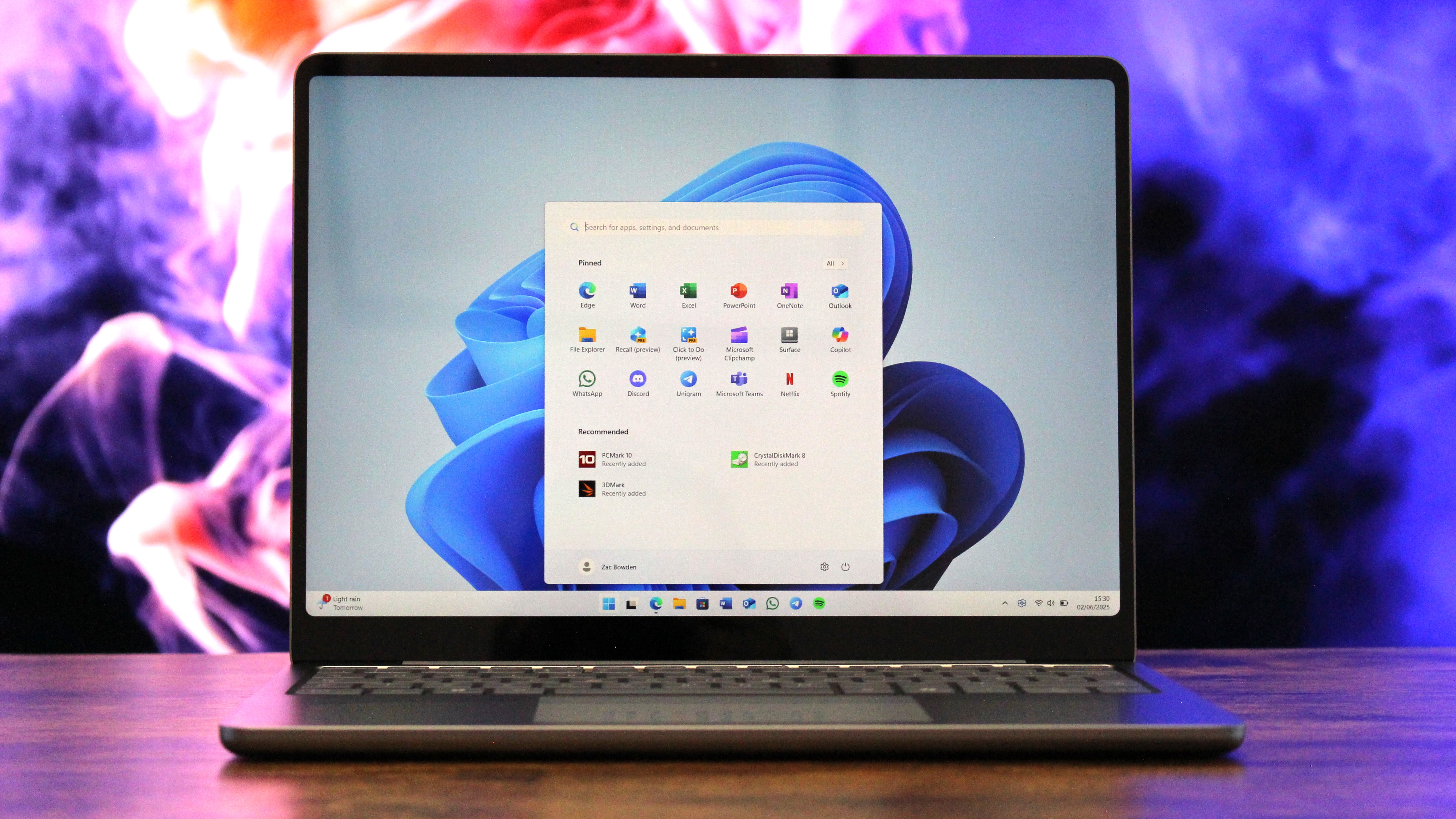
In the most recent Windows Insider build, Phone Link can show more activity at a glance. Hovering over a recent message or notification in the recent section of the Start menu will show a preview of content. That experience is rolling out gradually, though, so you may not see it even if you're on the latest build.

Microsoft has big plans for Phone Link and even has a dedicated Messages app in the works that will support SMS conversations. Our Senior Editor Zac Bowden reported that the new features "are being explored and prototyped internally," but that they might change or not ship.

Eventually, Phone Link may integrate with the Windows shell rather than existing as a standalone app on top of Windows 11.

Microsoft has also played around with integrating Windows 11 and smartphones directly rather than through Phone Link. There's probably a place for both, but I'm curious if you have a preference regarding how to connect a smartphone and a PC.

Blank Pixel

Windows 11 Insider Preview Build 26300.9032

Search

  • Windows Search can now automatically expand its indexing scope based on your activity, using signals like recent files and frequently accessed locations. This helps ensure that relevant files across your device are discoverable without requiring manual indexing configuration.
  • To manage this feature, go to Settings > Privacy & security > Search.

Phone Link

  • The phone companion experience in Start already helps you keep up with activity from your mobile device. With today's update, you can see even more at a glance.
  • Get more from your latest activities: Hover over a recent message or notification in the Recent section to preview its content directly in Start. There's no need to pick up your phone or open the item to see what's new.
  • Whether you're checking a message or deciding if a notification needs attention, these updates make it easier to stay informed and keep your focus.
  • This experience is gradually rolling out to Insiders on the Experimental channel with a minimum Phone Link build of 1.26021.3.0. Go to Phone Link > Settings > Start menu personalization.

Settings

  • We've improved search in the Settings app to help you discover and navigate to settings more quickly. Search now surfaces results from more areas within Settings, with improved ranking to help relevant settings appear higher in results.

Adaptive hibernate policy

  • Updates to the adaptive hibernate policy increase instances of instant-on resumes from Modern Standby and increase battery preservation at the low end of the battery. Noticeable changes include less hibernation while the battery is above 80% and hibernating sooner when the battery is below 10%.

Start menu

  • Fixed an issue causing the Start menu to crash for some Insiders recently when dragging apps.

Taskbar

  • Fixed a recent issue where, when the taskbar was in an overflow state, hovering over the preview thumbnail for an app window in the overflow area would immediately dismiss it.

File Explorer

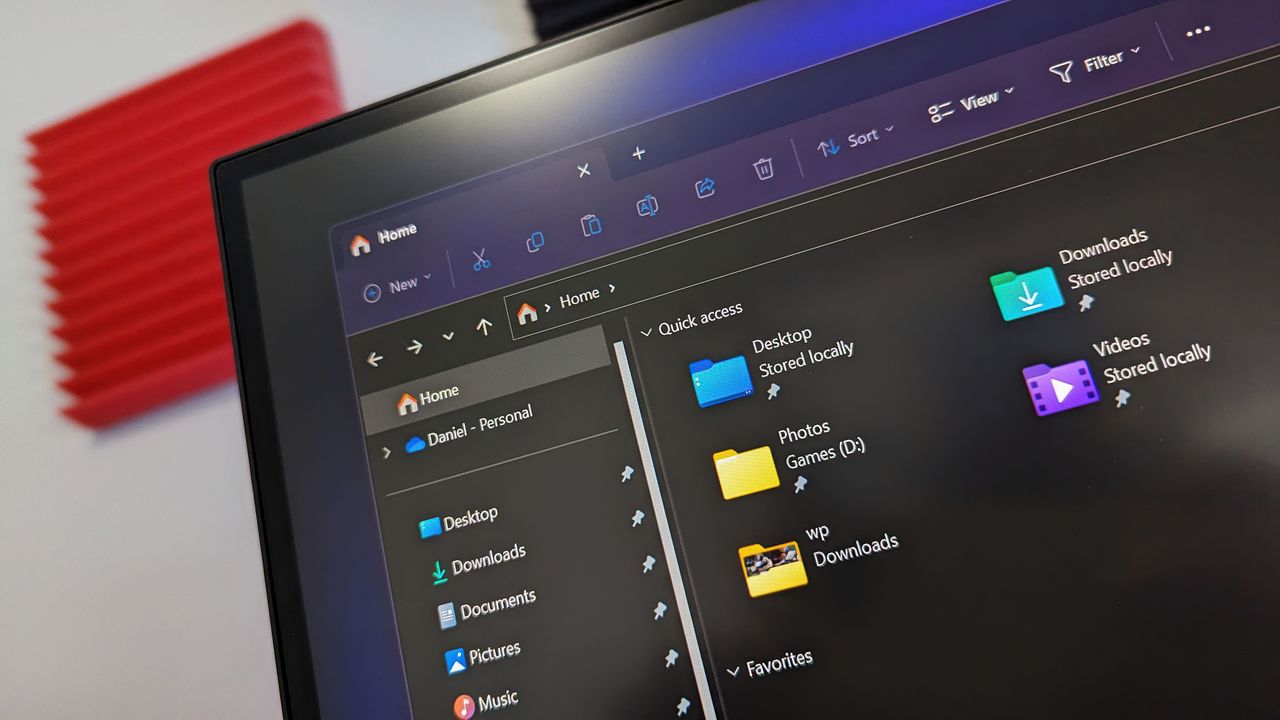
  • File Explorer Home now preserves the state of sections (expanded or collapsed), so you can pick up where you left off.
  • We've addressed an issue that caused the address bar contents to be cleared when entering edit mode by clicking near the right end of the bar.
  • We've improved the reliability of File Explorer when dragging files to a disconnected network drive.
  • This update addresses an issue where files stored on a DFS mapped drive could be incorrectly treated as originating from the internet after the device started while disconnected from the network and later reconnected. This could cause File Explorer's Preview pane to display the message, "The file you are attempting to preview could harm your computer," or cause files copied from the DFS drive to receive an unexpected Mark of the Web.

Windows Spotlight

  • Made some underlying changes to help improve reliability for Windows Spotlight on the lock screen.

Storage

  • This update fixes an issue that affects File History automatic backups to network shares using Server Message Block (SMB). Backups didn't work because Windows showed a false "invalid credentials" error when connecting to SMB shares.

Click to join us on r/WindowsCentral

Join us on Reddit at r/WindowsCentral to share your insights and discuss our latest news, reviews, and more.

Image of Phone Link on Windows.
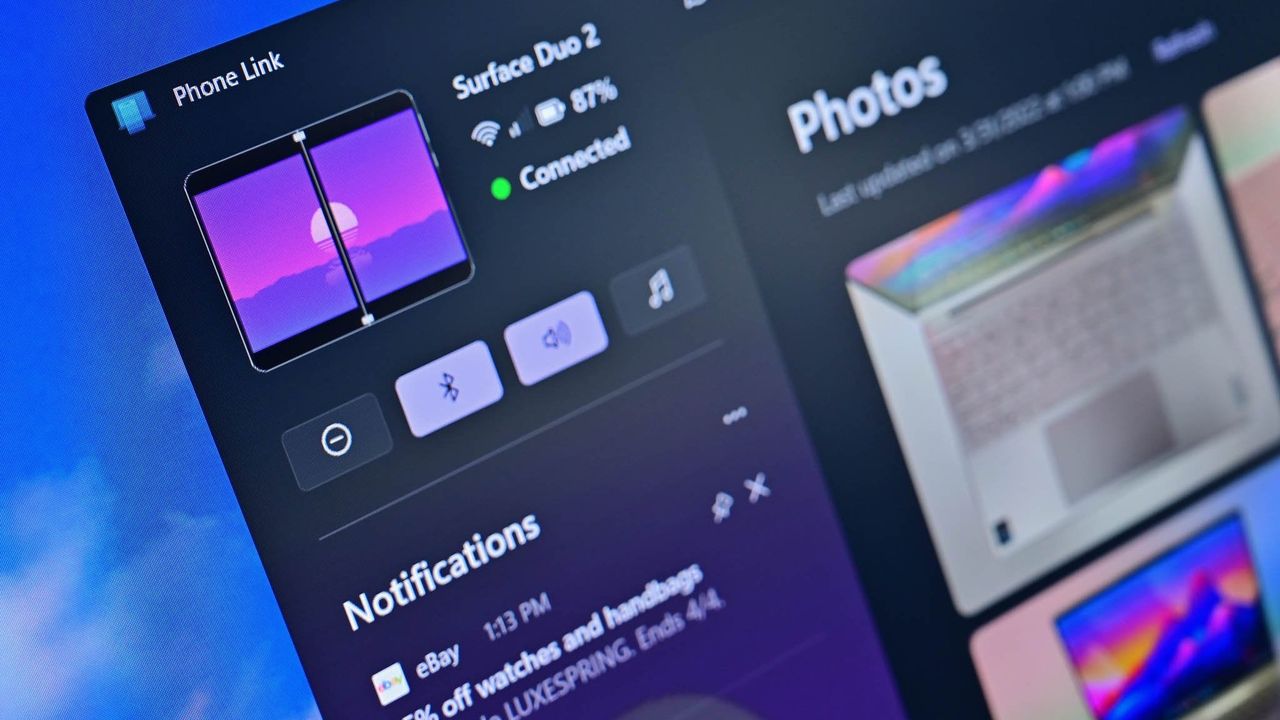
Image of Phone Link on Windows.
  •  

Microsoft promises to fix Windows 11 for 8GB PCs, but it put the cart before the horse with low-memory Surfaces

Windows Central

Windows 11 is being fixed, and that’s not just lip service. Microsoft is making meaningful changes to its operating system. Menus are being decluttered, legacy components are being revamped, and features like Xbox Mode are reshaping Windows 11.

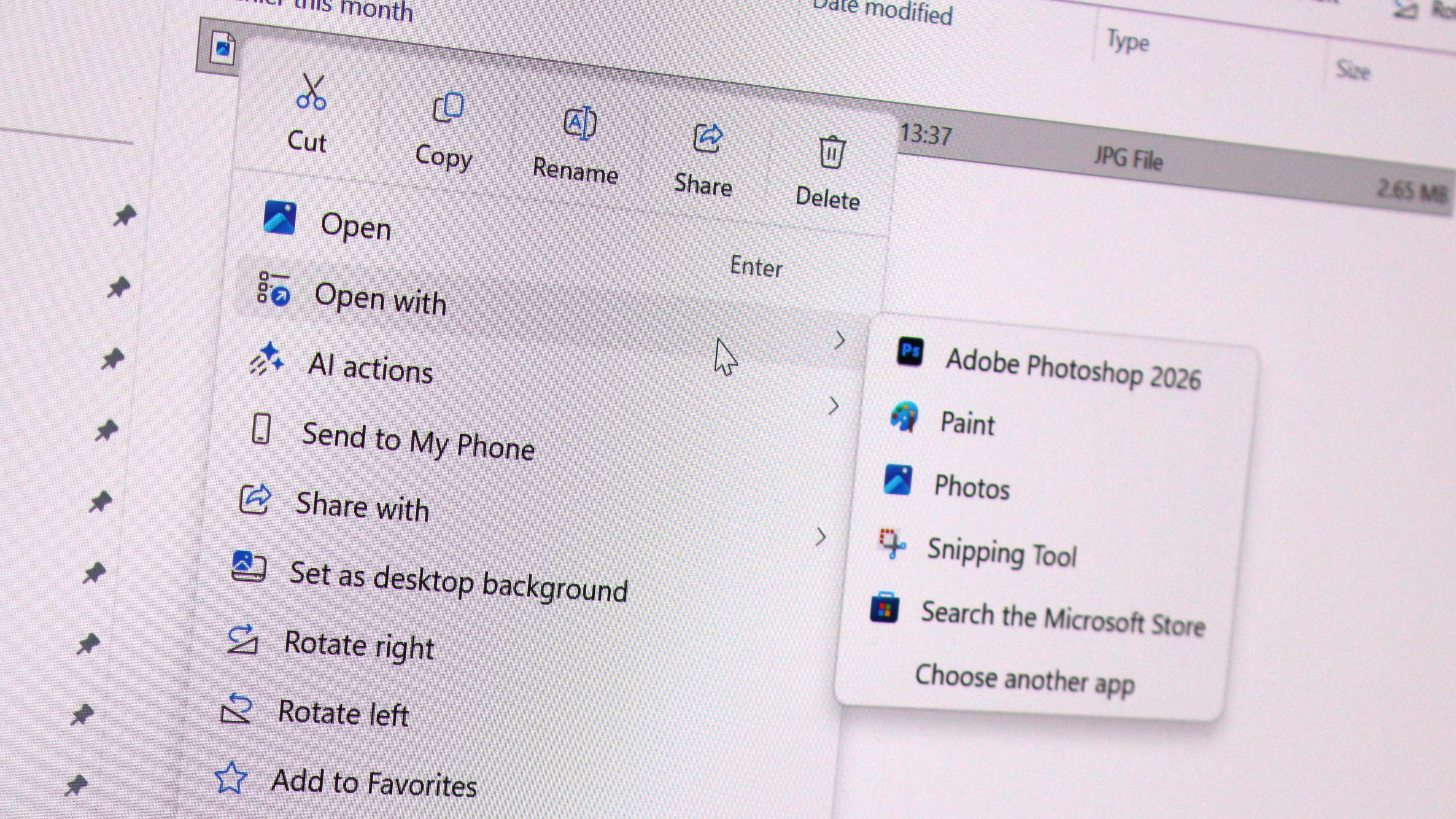
Just this week, we saw that Microsoft has plans to fix context menus on Windows 11 and get rid of the page-tall menus that plague PCs. Microsoft also committed to making Windows 11 perform better on systems with only 8GB of RAM.

I’ve talked about Windows 11's improvements several times this year in the Windows Wrap. Generally speaking, I’m happy that they’re happening but confused about Microsoft's timing. On top of questions like "Why did it take several years to make Windows 11 look nice?" There are also usability questions like "Why did Microsoft start selling a Surface with only 8GB of RAM before optimizing Windows 11 to work on that machine?"

Now, don’t get me wrong, Windows 11 can run on a system with only 8GB of RAM. I think many tests performed online are done in bad faith. Some people have dozens of Chrome browser tabs open and a bunch of apps running at once and then complain about performance.


You can get work done on a PC with that amount of memory, as proven by our own Cale Hunt, who tested Windows 11’s memory optimization by limiting his PC to 8GB of RAM.

But by Microsoft’s own admission, Windows 11 needs to be better on low-memory systems. With the cost of RAM skyrocketing and not looking like it will go down at any point in the near future, it’s more important than ever for Microsoft to optimize Windows 11.

Biggest News of the Week

Windows 11
Windows 11 context menu
Windows 11 Start Logo
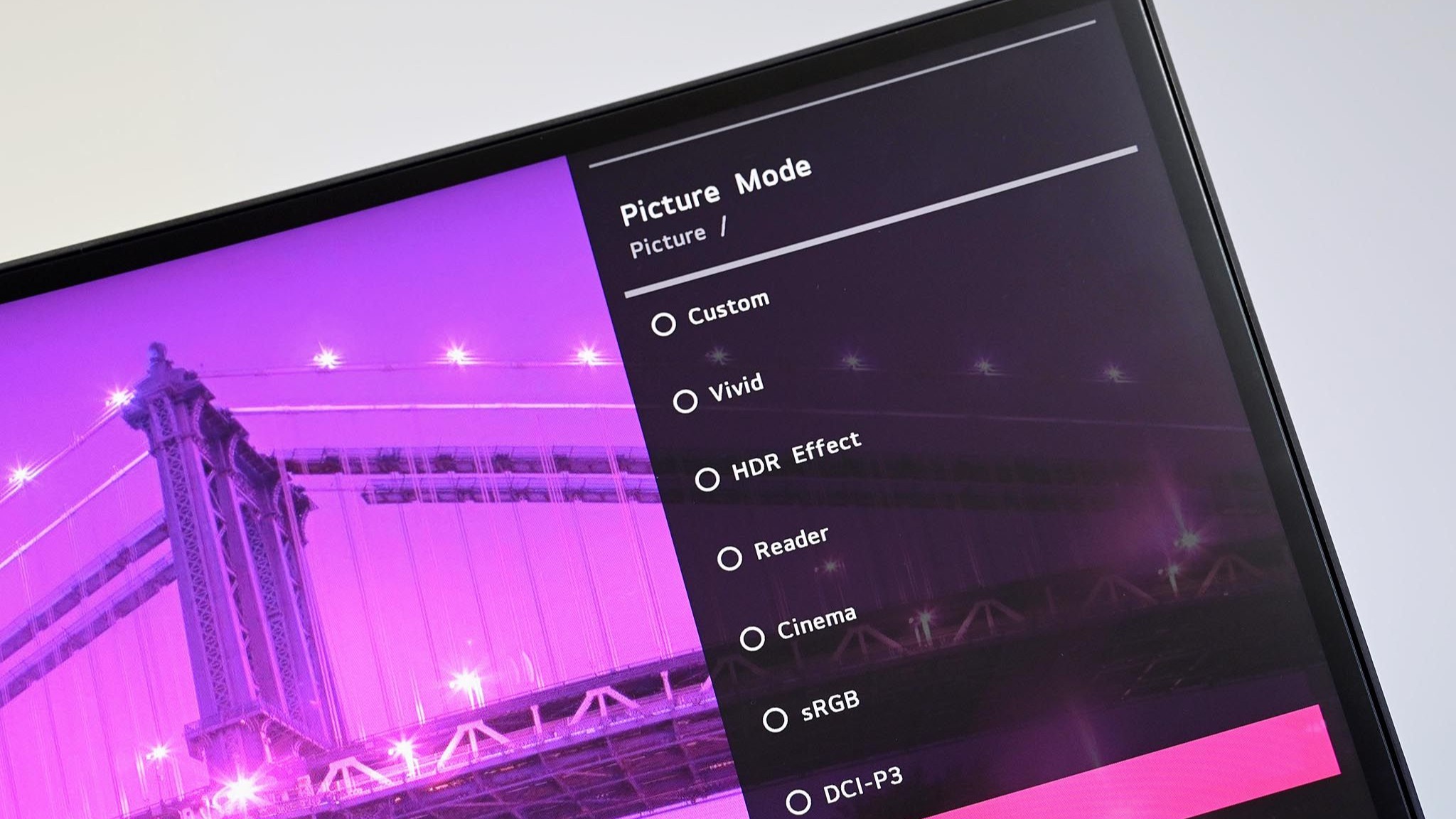
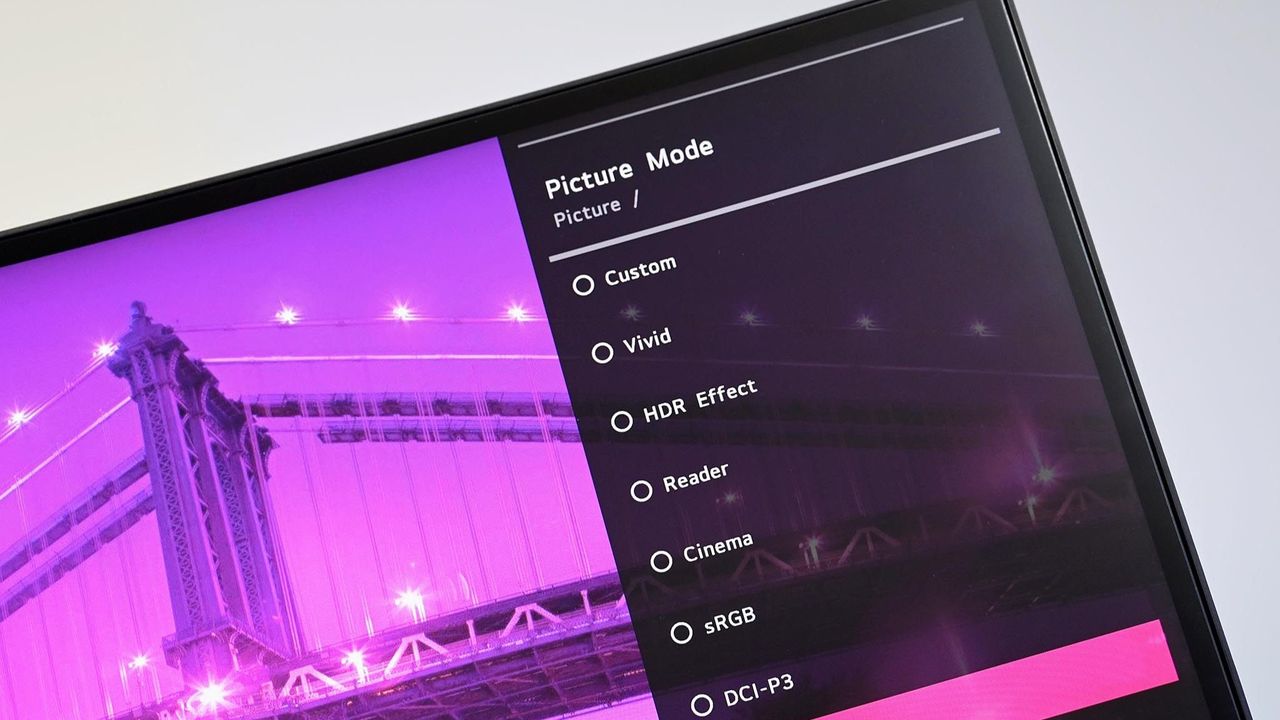
Angled close up of an LG PC monitor displaying an on screen menu for Picture Mode presets including Custom, Vivid, HDR Effect, Reader, Cinema, sRGB, and DCI-P3 over a purple cityscape background.

Earlier this year, Microsoft started selling Surface PCs with only 8GB of RAM, specifically the Surface Pro 12-inch and Surface Laptop 13-inch. I appreciate the gesture. In today’s economy, getting a PC with too much RAM or too much storage for your everyday needs can cost hundreds of dollars extra.

I covered several Surface deals this week, including some options that are up to $450 off. While that is a significant savings, those deals are all on models of the Surface Pro (13-inch) with 16GB of RAM. It’s still difficult to find that type of Surface Pro under $1,200.

Many people just want a PC that’s reliable and that can handle their everyday tasks. Even those shopping in more premium categories, such as Surface, often prioritize design and form factor over getting the highest specs. For those types of customers, an 8GB RAM Surface makes sense, but not if Windows 11 is still a problem.

Microsoft put the cart before the horse with the 8GB Surface PCs. The tech giant responded to the RAM crisis with more affordable PCs, but Microsoft failed to optimize Windows 11 for lower memory first.

To me, that shows a disconnect between the Windows and Surface teams at Microsoft.

Shopping with Sean

Until Microsoft fully optimizes Windows 11 for PCs with only 8GB of RAM, you might feel a bit of a pinch in performance with that amount of memory. The current discounts on Surface Pro get you more memory without having to pay as much of a premium.

The best Surface Pro deals are spread across Amazon and Best Buy this week.

CPU: Snapdragon X2 Elite
GPU: Qualcomm Adreno
RAM: 16GB
SSD: 1TB

This Surface Pro is both the best deal of the day and the highest spec'd configuration you can get through Amazon. It pairs the new Snapdragon X2 Elite with 16GB of RAM and 1TB of SSD storage. Plus, it has a lovely OLED screen for deep blacks and high contrast.

👉 See at AmazonView Deal

CPU: Snapdragon X2 Elite
GPU: Qualcomm Adreno
RAM: 16GB
SSD: 512GB

This is the Goldilocks model of the Surface Pro, balancing high-end specs like an OLED screen with value for money. At $300 off, it has the highest discount available through Best Buy. Its Dune color is stunning as well and a personal favorite.

👉 See at Best BuyView Deal

CPU: Snapdragon X2 Elite
GPU: Qualcomm Adreno
RAM: 16GB
SSD: 512GB

This Surface Pro has all the same specs as the Dune model highlighted above, but in a sleek black color.

👉 See at Best BuyView Deal

CPU: Snapdragon X2 Plus
GPU: Qualcomm Adreno
RAM: 16GB
SSD: 512GB

If you love the form factor of the Surface Pro but don't need the Snapdragon X2 Elite, this model is a great bargain that still features plenty of storage and RAM.

👉 See at AmazonView Deal

CPU: Snapdragon X2 Plus
GPU: Qualcomm Adreno
RAM: 16GB
SSD: 256GB

This is the most affordable Surface Pro you can grab. Its Snapdragon X2 Plus delivers snappy performance for everyday computing and you still get 16GB of RAM. Just be aware that it has only 256GB of storage.

👉 See at Best BuyView Deal

The biggest perk here is wireless functionality. You can detach the keyboard and type comfortably while keeping the tablet propped up at eye level, which is a lifesaver on cramped desks or airplane trays.

👉 See at Best BuyView Deal

Click to join us on r/WindowsCentral

Join us on Reddit at r/WindowsCentral to share your insights and discuss our latest news, reviews, and more.

Microsoft's Surface Pro 12-inch 1st Edition (2025) powered by Qualcomm Snapdragon X Plus processor.

Microsoft's Surface Pro 12-inch 1st Edition (2025) powered by Qualcomm Snapdragon X Plus processor.

  •  

Poll: How do you feel about Microsoft's "improvements" to Windows 11?

My mom hated Windows 8. That's an understatement; she despised it. Like so many others who had grown used to the Start menu and general interface of previous versions, Windows 8 came as a jarring change to my mom.

But a funny thing happened when Windows 10 came out; my mom was reluctant to upgrade. Despite hating Windows 8 and Windows 8.1, she had grown used to them and made them fit her workflow. Having to relearn yet another interface was extra work that my mom was slow to sign up for.

She eventually upgraded to Windows 10 and later Windows 11, but her experience and her frustrations were not unique. Sometimes the enemy you know is better than the one you don't, even if you got to know that enemy begrudingly.

So, what does this have to do with Windows 11? Windows 11's upcoming Patch Tuesday update has a feature that I believe will elicit a similar reaction to my mom being presented with Windows 10.

Starting next month, Windows 11's File Explorer will show file sizes using the appropriate units (KB, MB, and GB). That means you'll no longer see a file that's 1,500,000 KB. Instead, you'll see that file listed as 1.5GB.

I believe many will see this change as an improvement. Dealing with millions of KB can be awkward, especially when other parts of Windows use different units. But part of me would love the option to keep everything in KB.

Because File Explorer has stuck with KB for so long, I've gotten used to scanning file sizes based on how many digits they are. After next month's update, I could have a file that's 400KB right between files that are 400MB. While the larger files would be clearly labeled, I've learned to expect files listed in KB after years of use, so there will be a learning curve.

I'm curious how people feel about these types of changes. Do you embrace what Microsoft deems an improvement to Windows 11, or are you frustrated with a feature or layout you're familiar with being changed?

Microsoft could always keep options for legacy features and new options, but if that happens for decades, you end up with a bloated OS. Take a look at the soon-to-be revamped context menus of Windows 11 if you want to see what years of tacking things on does to an operating system.

Click to join us on r/WindowsCentral

Join us on Reddit at r/WindowsCentral to share your insights and discuss our latest news, reviews, and more.

File Explorer from Windows 11

File Explorer from Windows 11

  •  

LG's defense of installing adware on Windows 11 proves the company is hopeless

LG got caught showing ads for McAfee to people who dared to plug in a monitor. An investigation by Gamers Nexus revealed that plugging in certain LG monitors triggered Windows Update to automatically download the LG Monitor App Installer without user consent. This wasn't just a display driver; it was a utility app.

The saga required Microsoft to step in and pressure LG to stop putting adware onto people's computers.

"We’ve connected with the team at LG and as an immediate next step, they have agreed to disable the McAfee pop-up from their app," said Windows chief Pavan Davuluri. "We appreciate LG working with us toward a shared goal of a better experience for our mutual customers."

LG has since stopped shoving adware onto people's PCs, but the company's official statement on the matter makes me question if any lessons have been learned.

"LG Electronics reiterates that McAfee is not installed automatically and is never installed without the user’s explicit consent," said LG in a statement shared with Windows Central and other outlets.

The company added, "During a limited period in the United States, a McAfee trial offer was also presented as an optional recommendation. McAfee was never installed automatically and always required a separate user choice and consent."

LG was never accused of installing McAfee without user consent, at least not by any reputable outlets I've seen. The company was accused of installing the LG Monitor App Installer without permission. That app is essentially a portal to other LG apps. It also controversially showed ads for McAfee.

I argue that no software should be installed without permission. Even more relaxed users would expect a monitor to install an app that's actually related to the monitor, not a showcase for other apps such as McAfee.

I chuckled at the part of the statement that read, "After reviewing customer feedback, LG removed the McAfee recommendation." I suppose that's one way to refer to the backlash and Microsoft intervening.

In case anyone from LG is still confused about definitions, installing an app without permission that shows ads for McAfee is adware. You don't have to install McAfee without consent for it to be adware.

Below is LG's full statement with emphasis provided by the company.

LG's full statement

"LG Electronics reiterates that McAfee is not installed automatically and is never installed without the user’s explicit consent.

The LG Monitor App Installer was designed to help monitor owners discover optional LG applications that enhance productivity, customization and monitor performance.

When compatible LG monitors are connected, the Installer can make related software available to help customers access monitor-specific features and functionality.

During a limited period in the United States, a McAfee trial offer was also presented as an optional recommendation. McAfee was never installed automatically and always required a separate user choice and consent. After reviewing customer feedback, LG removed the McAfee recommendation.

The LG Monitor App Installer does not collect personal information from customers' devices. Its function is to identify compatible monitor models and present applications supported by those models."

Blank Pixel

Click to join us on r/WindowsCentral

Join us on Reddit at r/WindowsCentral to share your insights and discuss our latest news, reviews, and more.

Angled close up of an LG PC monitor displaying an on screen menu for Picture Mode presets including Custom, Vivid, HDR Effect, Reader, Cinema, sRGB, and DCI-P3 over a purple cityscape background.

Angled close up of an LG PC monitor displaying an on screen menu for Picture Mode presets including Custom, Vivid, HDR Effect, Reader, Cinema, sRGB, and DCI-P3 over a purple cityscape background.

  •  

I've covered hundreds of apps for Windows Central, and I personally recommend these 6 to fix Windows 11 and replace Microsoft's apps

I've covered over 100 apps during my time at Windows Central. From powerful video editors to tiny utilities that change a hyper-specific part of Windows 11, there are a massive number of apps to install on a PC.

Sean Endicott

Sean Endicott News Writer Windows Central

(Image credit: Future)

What I'm working on this week: I'm performing a clean install of Windows 11 on my PC and rebuilding my work setup with my favorite customization apps and tools.

One of my favorite categories of apps is those that enhance, improve, or replace the everyday computing experience. For example, on my smartphone I have several extensions to clean up the mobile browsing experience.

When it comes to Windows 11, I'm quick to install a third-party replacement of a default app, a tweaker that improves a default experience, or to use an app to replicate core functionality of a built-in app.

On top of providing unique functionality that enhances your computing experience, each of these apps can also be used to replace a built-in part of Windows 11 or a dedicated Microsoft app.

As I rebuild my clean Windows 11 installation this week, these will be the first six apps I download to replace Microsoft's defaults.

My top Windows 11 apps

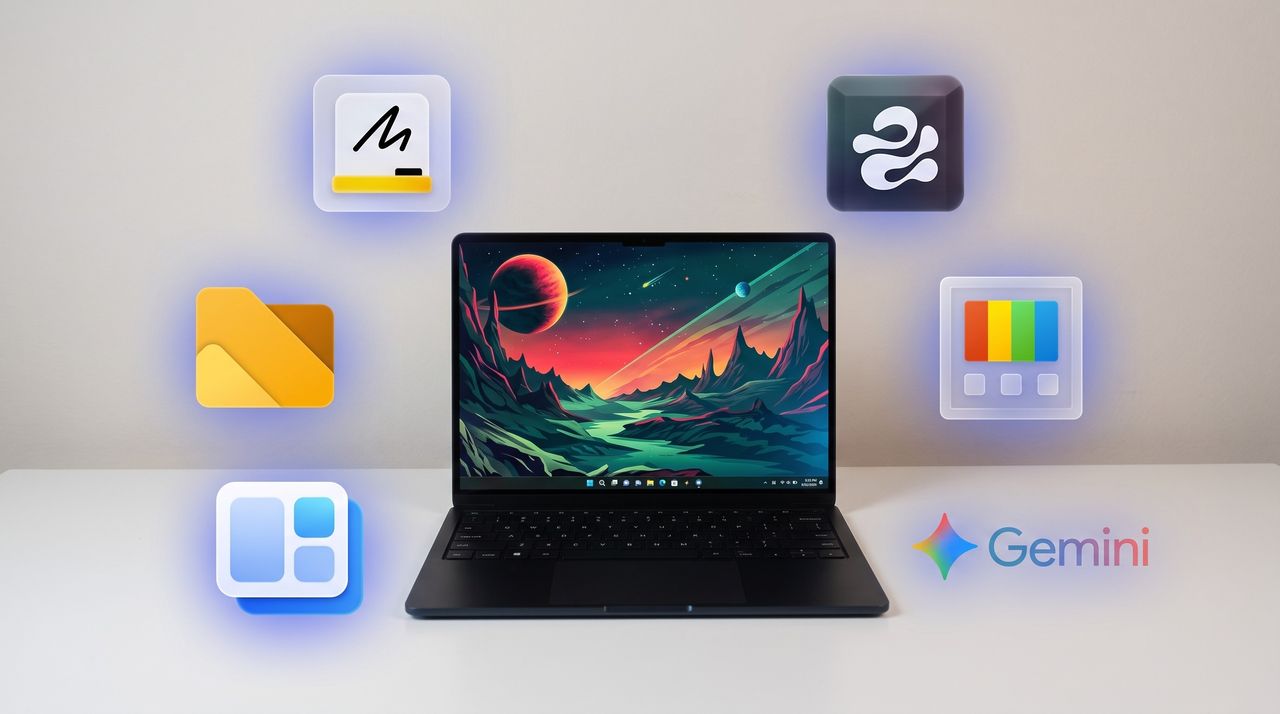
Microsoft Editor is fine for catching stray commas, but it struggles with more complex editing. Gemini catches subtle phrasing errors and provides suggestions to restructure paragraphs, refine flow, and adjust tone.View Deal

Microsoft Whiteboard feels bloated, is web-based, and is going away for non-business users. Markerpad is a lightweight whiteboard app that runs natively on Windows 11 and loads quickly.View Deal


This clipboard manager lives on the side of your screen and supports drag-and-drop. I use it in conjunction with the built-in Windows Clipboard, but you could easily rely on Edge Drop and never have to press WIN + V.View Deal


This file management app blazes a trail ahead of Windows 11's built-in File Explorer by experimenting with new features and testing new layouts before Microsoft.View Deal


Microsoft PowerToys is a collection of utilities that often outshine similar tools on Windows 11. For example, FancyZones is more powerful than snapping windows. One of my colleagues, Richard Devine, even uses PowerToys Run instead of the Start menu.View Deal


This app places widgets to the empty spaces of the Windows 11 taskbar. Even in beta, the app provides a better widget experience than Windows 11's built-in widgets panel.View Deal

A black Windows laptop sitting on a white desk with six glowing app icons floating around it, including Microsoft Whiteboard, Edge Drop, PowerToys, Google Gemini, WidBar, and Files.

A black Windows laptop sitting on a white desk with six glowing app icons floating around it, including Microsoft Whiteboard, Edge Drop, PowerToys, Google Gemini, WidBar, and Files.

  •  

I spoke with the developer behind Endstate, a new app that fixes one of the worst parts of setting up a fresh Windows PC

Windows power users, PC builders, and admins have a new tool at their disposal that makes it easy to restore a PC after reinstalling Windows or setting up a new PC. The app, called Endstate, streamlines the process of reinstalling applications and can also restore your settings and preferences within supported apps.

Endstate is a free app designed for Windows, though Linux and macOS support are on the way. You can grab Endstate through GitHub.

I spoke with the developer of Endstate to better understand where the app is now and where it could evolve in the future.

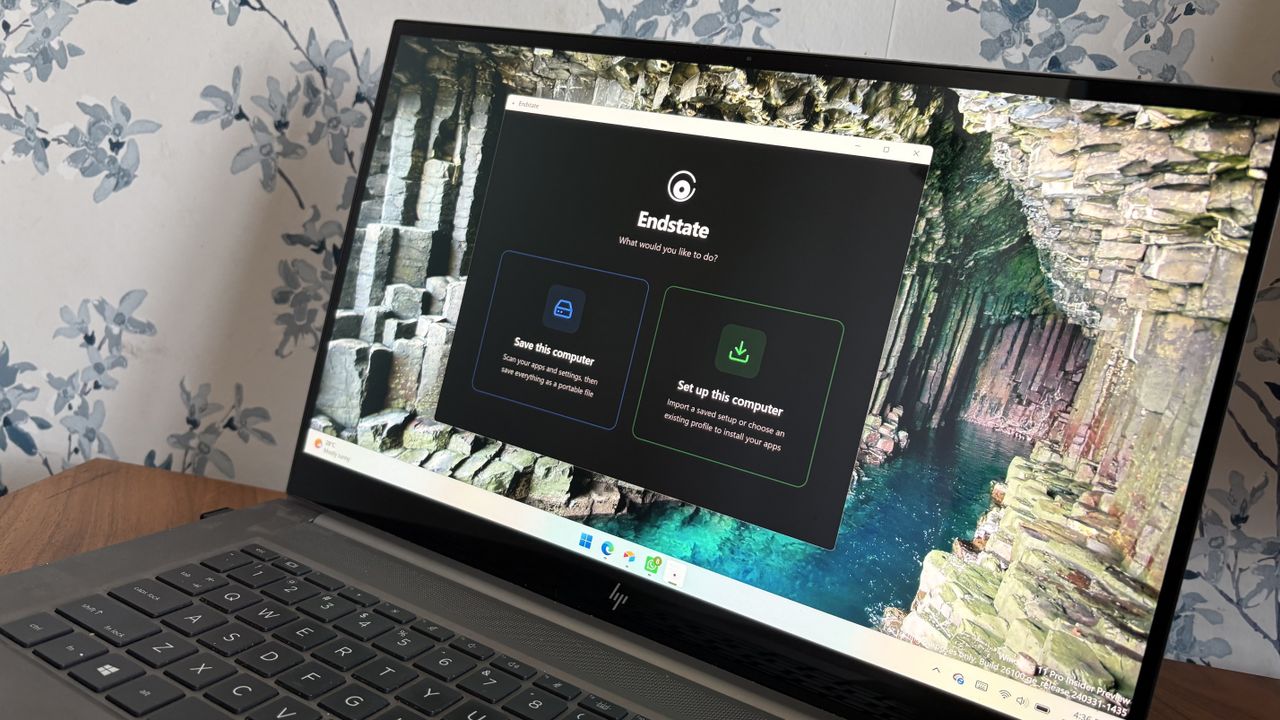
Endstate uses WinGet and Chocolatey, which allow it to install a massive library of applications available across those package managers. But the real standout feature is that Endstate can capture the settings of your app into a zip file to make restoration simple.

When you reinstall Windows or set up a new PC, you have to install your required apps as well. A package manager like Chocolatey or WinGet can streamline that process, but the restored applications will be set to their factory defaults. All the toggles and settings you spent time customizing are reset to their base state.

Endstate supports settings restoration on 357 apps right now. Among those supported are some big-name apps such as MSI Afterburner, Adobe Lightroom Classic, VS Code, Windows Terminal, PowerToys, Git, Obsidian, OBS Studio, Notepad++ and ShareX.

Settings restoration is separate from app restoration. If an app is available through Chocolatey or WinGet but does not support settings restore, Endstate can still install the app.

Restoring settings is also done on a per-app basis.

You can use Endstate without an account and the app works offline.

Windows vs iOS and Android

Despite any Apple marketing campaigns about how many apps there are on iOS, Windows trounces all other operating systems when it comes to app selection. That is in part because everything from ancient programs to modern web apps works on Windows 11.

Because of the legacy support on Windows 11, we don't get all the benefits of modern applications on PCs. For example, any iOS or Android user may have read this article and been confused because saving and restoring app settings is commonplace on smartphones.

But on Windows 11, Endstate fills a notable gap. With only 357 apps that support settings restoration, Endstate has a ways to go before matching the native experience on iOS and Android, but it's still nice to see. I hope more app developers embrace Endstate and make it possible to save and restore settings.

Click to join us on r/WindowsCentral

Join us on Reddit at r/WindowsCentral to share your insights and discuss our latest news, reviews, and more.

An HP laptop displaying the Endstate app on Windows 11 with options to "Save this computer" or "Set up this computer."

An HP laptop displaying the Endstate app on Windows 11 with options to "Save this computer" or "Set up this computer."

  •  

Microsoft’s new Surface Pro finally feels worth its price — Snapdragon X2 models get massive $450 back-to-school cut

Microsoft's Surface Pro is on sale just in time for back-to-school season. The flagship 2-in-1 runs on Qualcomm's Snapdragon X2 Elite or Snapdragon X2 Plus processor, both of which promise a significant performance bump over the last generation.

A bunch of Surface Pro models are on sale right now across various retailers. I've listed the biggest deals below, starting with the 21% discount on the Surface Pro with Snapdragon X2 Elite, 16GB of RAM, and 1TB of storage.

CPU: Snapdragon X2 Elite
GPU: Qualcomm Adreno
RAM: 16GB
SSD: 1TB

This Surface Pro is both the best deal of the day and the highest spec'd configuration you can get through Amazon. It pairs the new Snapdragon X2 Elite with 16GB of RAM and 1TB of SSD storage. Plus, it has a lovely OLED screen for deep blacks and high contrast.

👉 See at AmazonView Deal

CPU: Snapdragon X2 Elite
GPU: Qualcomm Adreno
RAM: 16GB
SSD: 512GB

This is the Goldilocks model of the Surface Pro, balancing high-end specs like an OLED screen with value for money. At $300 off, it has the highest discount available through Best Buy. Its Dune color is stunning as well and a personal favorite.

👉 See at Best BuyView Deal

CPU: Snapdragon X2 Elite
GPU: Qualcomm Adreno
RAM: 16GB
SSD: 512GB

This Surface Pro has all the same specs as the Dune model highlighted above, but in a sleek black color.

👉 See at Best BuyView Deal

CPU: Snapdragon X2 Plus
GPU: Qualcomm Adreno
RAM: 16GB
SSD: 512GB

If you love the form factor of the Surface Pro but don't need the Snapdragon X2 Elite, this model is a great bargain that still features plenty of storage and RAM.

👉 See at AmazonView Deal

CPU: Snapdragon X2 Plus
GPU: Qualcomm Adreno
RAM: 16GB
SSD: 256GB

This is the most affordable Surface Pro you can grab. Its Snapdragon X2 Plus delivers snappy performance for everyday computing and you still get 16GB of RAM. Just be aware that it has only 256GB of storage.

👉 See at Best BuyView Deal

The biggest perk here is wireless functionality. You can detach the keyboard and type comfortably while keeping the tablet propped up at eye level, which is a lifesaver on cramped desks or airplane trays.

👉 See at Best BuyView Deal

Why buy a Surface Pro

Surface pro open with Windows 11 wallpaper

(Image credit: Microsoft)

The main reason to grab a newer Surface Pro is the processor you'll get. The Snapdragon X2 Plus and Snapdragon X2 Elite offer over a 50% graphics improvement over the last gen.

That performance bump helps everything from photo editing to everyday productivity tasks feel smoother.

Microsoft refined the design of the Surface Pro over more than a decade, resulting in a premium device that defines the category. There are good reasons why Apple and other companies try to copy the Surface Pro.

While imitation is a form of flattery, the Surface Pro still stands out because of its built-in kickstand that makes it easy to prop up. That kickstand-centered design is best taken advantage of with the Surface Pro Flex Keyboard, which happens to be discounted right now.

The Surface Pro Flex Keyboard that's on sale is compatible with the new Surface Pro that launched this year. If you're worried about compatibility, you can double-check your device on Microsoft's support document about Surface Pro keyboards.

The Surface Pro Flex Keyboard can be used wirelessly or when physically attached. If you've ever tried to use a laptop or a 2-in-1 on an airplane tray table or tiny desk, you'll know the struggle of feeling cramped. The Surface Pro Flex Keyboard lets you have the keyboard on your lap or a table while the PC sits elsewhere.

Like other PCs, the Surface Pro has crept up in price over the last year or so. The high price tag of the Surface Pro was the main complaint about the PC when it was announced. The current deals on the Surface Pro alleviate that issue, at least temporarily.

Click to join us on r/WindowsCentral

Join us on Reddit at r/WindowsCentral to share your insights and discuss our latest news, reviews, and more.

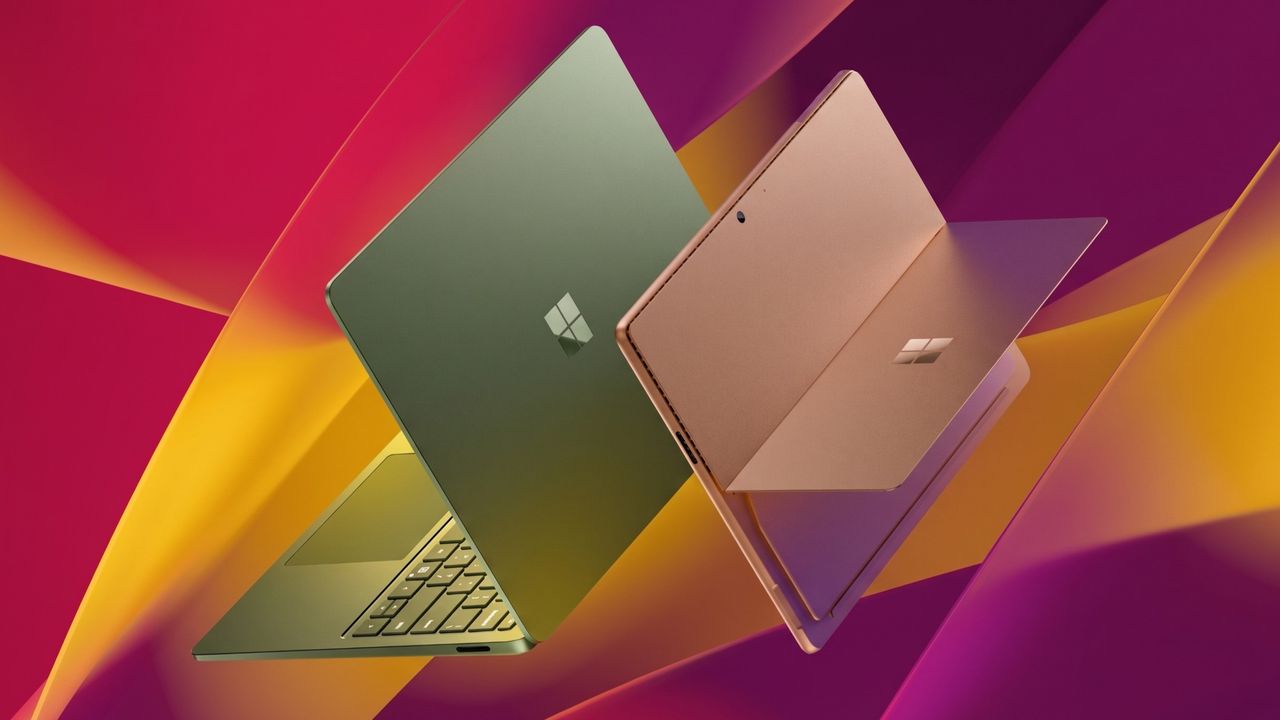
Surface Pro and Surface Laptop side by side on colorful background

Surface Pro and Surface Laptop side by side on colorful background

  •  

Quote of the day by Phil Spencer: "A future where every screen is an Xbox" — Halo: Campaign Evolved on PS5 proves why Asha Sharma had to abandon a flawed plan

When Asha Sharma was named Xbox CEO, some on the web screamed about the fact that she was not a gamer. But the first few months of her tenure have shown why sometimes it's best to have a person who understands business in charge of a multi-billion-dollar gaming empire.

Here are some lessons that Xbox has had to learn or relearn this year under Sharma: Exclusives matter, Xbox starts with console, and it's not realistic to expect Xbox Game Pass to have 77 million subscribers when there are only an estimated 30 million Xbox consoles around.

Back in 2024, then Xbox CEO Phil Spencer said he wanted a "Future Where Every Screen Is An Xbox." It's been over two years since that memo was sent to Microsoft employees and leaked. In that time, we've seen Microsoft ship exclusives to PlayStation, reverse course, and straddle the barrier between consoles and PCs.

This is a future where Xbox is everywhere—consistent with our promise to empower players to “play the games you want, with the people you want, anywhere you want.

Phil Spencer (2024)

Spencer's vision was flawed. Taking the box out of Xbox never made sense. While cloud gaming extends the Xbox experience, the best experience requires dedicated hardware.

Sharma emphasized that fact in her exclusive interview with us earlier this year:

"I am committed to 'returning to Xbox,' and that starts with console, that starts with hardware. You will hear more about that soon."

But worse than taking the box out of Xbox was the idea that you could take the Xbox out of Xbox. Microsoft needs its console to stand out, and making everything under the sun an Xbox goes directly against that.

Microsoft put Halo on PlayStation 5 in a move our Jez Corden called "brand suicide." In February 2027, we'll see Fable launch and then God of War: Laufey launch the next day.

In just two days, PlayStation 5 owners will gain two massive games, but Xbox owners will get just one.

Hardware needs a reason to exist

A medieval hero from Fable in green and brown stands before a cracked stone wall carved with the PlayStation logo, glowing Xbox emblem on their back amid grass and yellow flowers.

Fable could have been a console mover for Xbox, but instead it will be part of a great week for PlayStation. (Image credit: Playground Games | Microsoft, Sony Interactive Entertainment Inc.)

Spencer's vision was flawed in terms of practicality, but I understand why people would wish it could work. In a perfect world, we'd all be able to play all our favorite games on any device.

But the reality is that exclusive content is at the core of platforms in 2026, and that's even more true when it comes to gaming. How many people would buy a Nintendo Switch 2 if all of its best games were available on the Xbox Ally X? Why would anyone buy an Xbox Series X or Xbox Series S if the PlayStation 5 had all of Xbox's games plus a bunch of Sony exclusives?

God of War Laufey launches 1 day before Fable early access on PS5.It's a sad reminder of how dumb Xbox's multiplat strategy was long term. Xbox is inadvertently advertising that PS5 has more content, and that Xbox customers are not important to MSFT.https://t.co/RukYP4IOYUJuly 27, 2026

Perhaps in another timeline in some parallel universe where PlayStation is actually for the players, we'd see Xbox and PlayStation games appear on both platforms. But we don't live in that world.

Sony reportedly has plans to pull back from PC gaming and not release single-player games on Windows PCs or Steam. That move was likely made because the next Xbox console is a PC at its core.

That means that Sony would rather lose out on all PC sales for its upcoming single-player games than have those same games be playable on the next Xbox console.

With Sony making moves like that, Microsoft can't afford to put its exclusive games on PlayStation.

Click to join us on r/WindowsCentral

Join us on Reddit at r/WindowsCentral to share your insights and discuss our latest news, reviews, and more.

Xbox Games Showcase 2025

Xbox Games Showcase 2025

  •  

Microsoft’s accessibility push remains the single best part of covering Windows 11

Windows Insiders have a new build of Windows 11 to install, and it comes with some exciting improvements for accessibility. The biggest change is to Voice Access, which can now isolate your voice to better control your PC while in a crowded room.

Voice Access allows you to control your PC with only your voice. Once you launch the feature, a dock appears and stays along the top of your screen. That bar shows commands as you enter them, which helps confirm what you've said to your computer.

At the moment, using Voice Access in a room with background noise can be tricky. But that will change with the update to Windows 11 that's now in testing. That upgrade is just the latest in a long string of accessibility improvements from Microsoft.

Microsoft and accessibility

Windows 10 added eye tracking in 2017. The feature lets you type with your eyes.

Microsoft has prioritized accessibility for a long time. It's genuinely one of the most endearing aspects of the company. Here are just a few of the Windows features and pieces of hardware we've covered over the past few years that are part of Microsoft's push to make technology more accessible.

Our Mauro Huculak has an excellent piece on 7 accessibility features in Windows 11 that make life easier for everyone.

Windows 11, and earlier versions of Windows, have a massive library of features that make computing more accessible.

Microsoft has an extensive support document about all the accessibility features in Windows.

Accessibility is about everyone. When Microsoft develops a feature or accessory with one type of user in mind, there's often a knock-on effect. For example, Read Aloud in Microsoft Edge makes PDFs more accessible, but it also improves reading comprehension and lets you multitask while hearing what's on your screen.

I use Read Aloud every day to proof read my articles. I find that listening as I read improves comprehension and helps me spot typos or other mistakes.

New and improved accessibility in Windows 11

The latest Windows Insider build includes several improvements to accessibility features. Voice Access now supports Voice Isolation, which filters out other speakers and background noise.

It's a small change that makes it possible to use Voice Access in a broader range of work environments. If you rely on Voice Access, a shared office can cause frustration.

Hybrid and in-office work often places colleagues too close to each other to use Voice Access. Voice Isolation allows someone who needs the feature to control a PC to work in the same space as their coworkers.

The same Insider build brings support for displays that use the HID (Human Interface Device) standard to Narrator. That standard enabled plug and play support for braille displays and is backed by Microsoft, Apple, and other tech giants.

Here's the change log for Windows 11 Insider Preview Build 29634.1000 that relates to accessibility.

Windows 11 Insider Preview Build 29634.1000

Voice Isolation in Voice Access

  • We’re introducing Voice Isolation, a new option in Voice Access that helps it focus on your voice, even when others are speaking nearby. Whether you’re in a shared office, an open floor plan, or at home with family around, Voice Isolation filters out other voices and background noise so Voice Access can better understand you. All processing happens privately on your device.
  • Getting started
    Voice Access now offers three speech recognition modes under Voice Access settings > Improve speech recognition:
    • Voice Isolation — Filters out other speakers and background noise (one-time voice setup required).
    • Remove background noise only — Filters out non-speech sounds like typing or door slams. No additional setup needed.
    • No filtering — Default microphone input with no additional processing.
  • To set up Voice Isolation, select it from the menu and follow the short, guided setup where you’ll read a brief paragraph aloud so Voice Access can learn your voice. It only takes a minute, and your voice data never leaves your device

Narrator

Braille displays now connect instantly with Narrator

  • We’re making refreshable braille displays easier to use in Windows. Narrator now supports displays that use the HID standard — an open industry standard for braille displays. If your display supports HID, simply connect it via USB and start reading — true plug-and-play with no additional setup required. For Bluetooth, pair your HID braille display in Settings > Bluetooth & devices just like any other accessory, and you can work wirelessly without being tethered to your PC.
  • Compatible HID displays include models like the Orbit Reader 20, Orbit Slate 340, Freedom Scientific Focus 40, and APH Mantis Q40.
  • HID braille displays now work during the initial Windows setup experience (OOBE) over USB — meaning users who are deaf-blind can set up their PC independently, right from the first screen. You can customize braille input and output options anytime in Settings > Accessibility > Narrator > Braille.

Blank Pixel

Click to join us on r/WindowsCentral

Join us on Reddit at r/WindowsCentral to share your insights and discuss our latest news, reviews, and more.

Windows 11 update in Settings app

Windows 11 update in Settings app

  •  

A cheap ergonomic mouse just showed me what the MX Vertical has been missing all along (and exposed its biggest flaw)

For the past few years, a Logitech MX Vertical has sat on my desk. I've grown to love the mouse so much that I even take it with me when I travel despite it not folding down or being compact in any way. So, when ProtoArc reached out to me about a newer, budget-friendly ergonomic mouse, I was skeptical that Logitech had anything to learn.

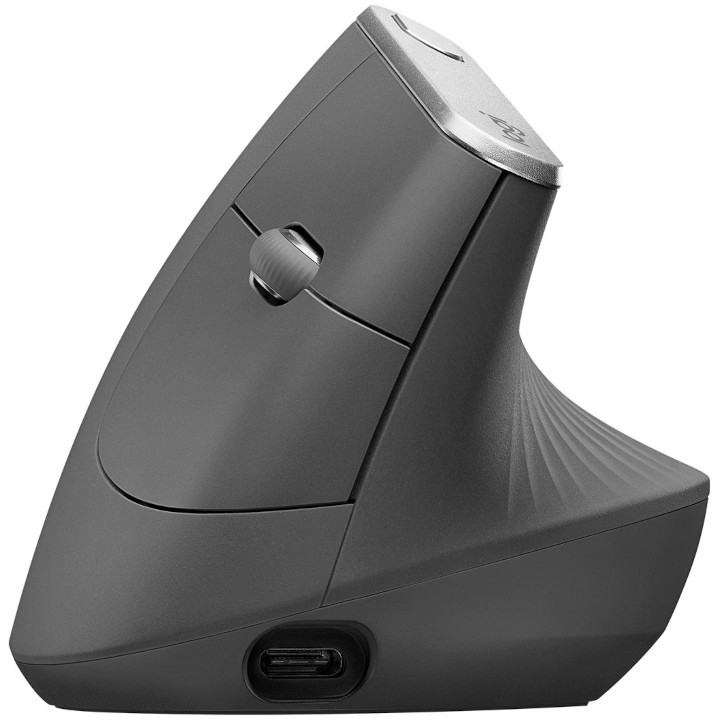
The Logitech MX Vertical fits in my hand well, lets my arm rest at a natural angle, charges through USB-C, and has aged well. The ProtoArc EM11 Pro is not exactly a direct competitor to the Logitech MX Vertical since the two mice are in different price brackets. But there are relatively few angled mice out there, at least in comparison to flat mice, so it's natural to pit the ProtoArc EM11 Pro against the Logitech MX Vertical.

Using the ProtoArc EM11 Pro made me realize a few areas the Logitech MX Vertical lags. If Logitech ever refreshed its ergonomic mouse, it should take some lessons from ProtoArc.

Grip and palm fit

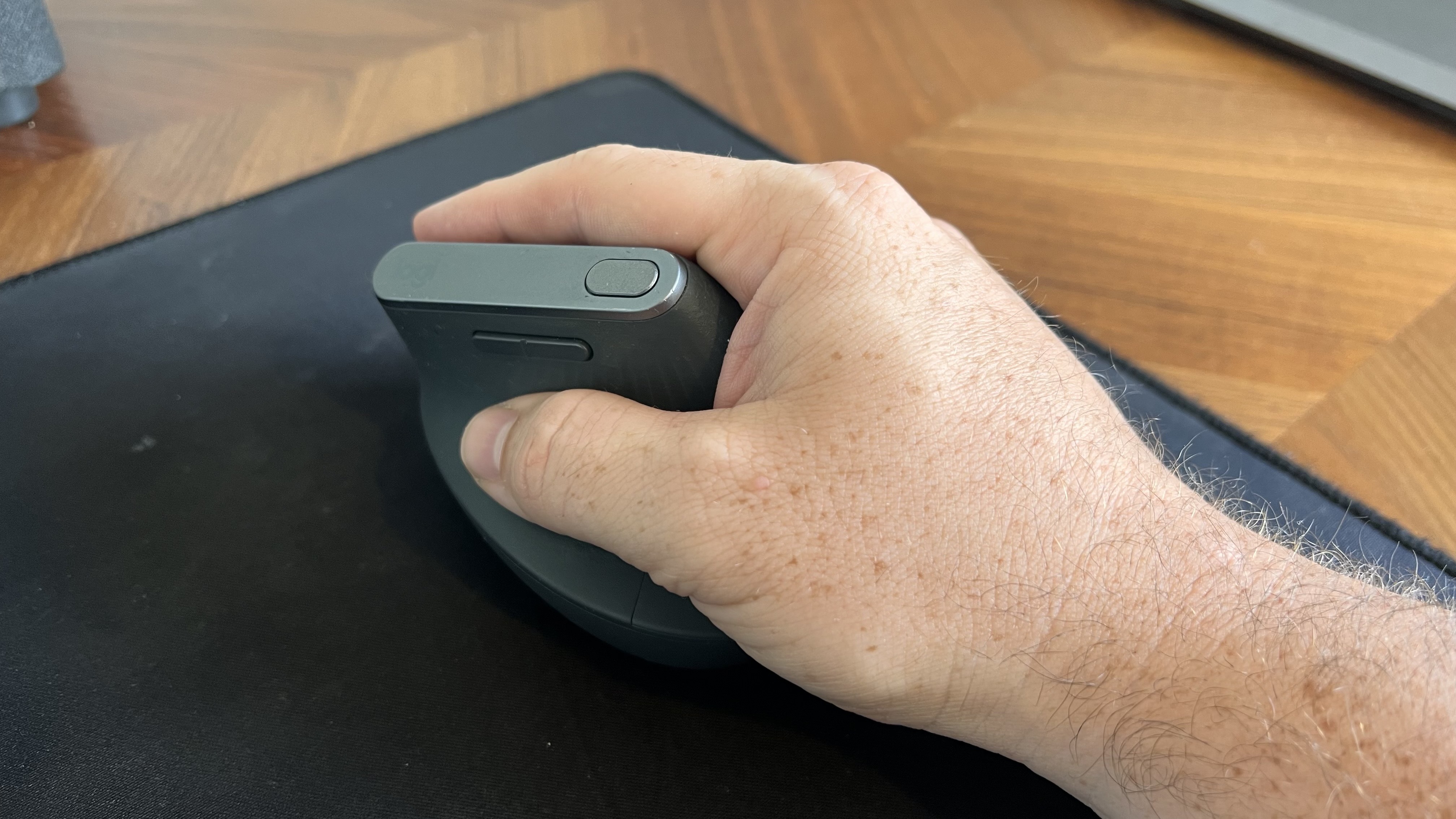
Close-up of a hand holding the Logitech MX Vertical ergonomic mouse in a natural handshake grip position on a black mousepad.

The flat front of the Logitech MX Vertical does not fill my curved fingers. (Image credit: Future)

The ProtoArc EM11 Pro and the Logitech MX Vertical fill my hand differently. Logitech's mouse lies flush against my palm as my hand contours around the mouse. But the flat front of that mouse leaves a small gap between my fingers and the buttons.

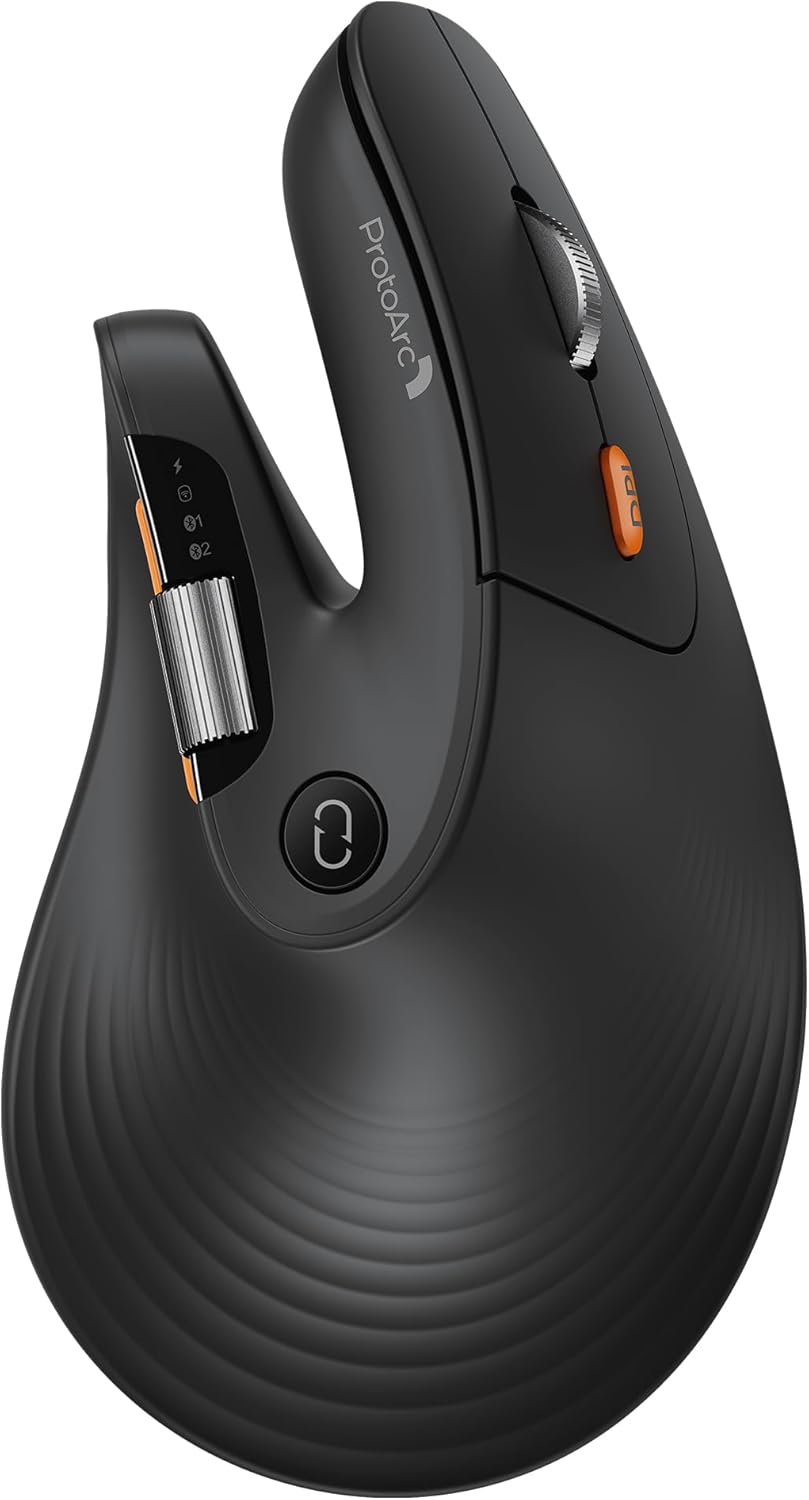
In contrast, the ProtoArc EM11 Pro has an elongated base with a curve that tapers down at a sharper angle than the Logitech MX Vertical. As a result, the mouse does not feel flush against my palm. But the front of the mouse is curved, making the space behind the buttons feel more comfortable.

I'd love to have a mouse that combines the best of both designs since neither mouse is perfect.

Two wheels are better than one

Close-up of a hand gripping the dark gray ProtoArc EM11 Pro ergonomic mouse, showcasing the thumb rest, silver scroll wheel, and vibrant orange side buttons.

I didn't realize the value of a horizontal scroll wheel until I tried one. (Image credit: Future)

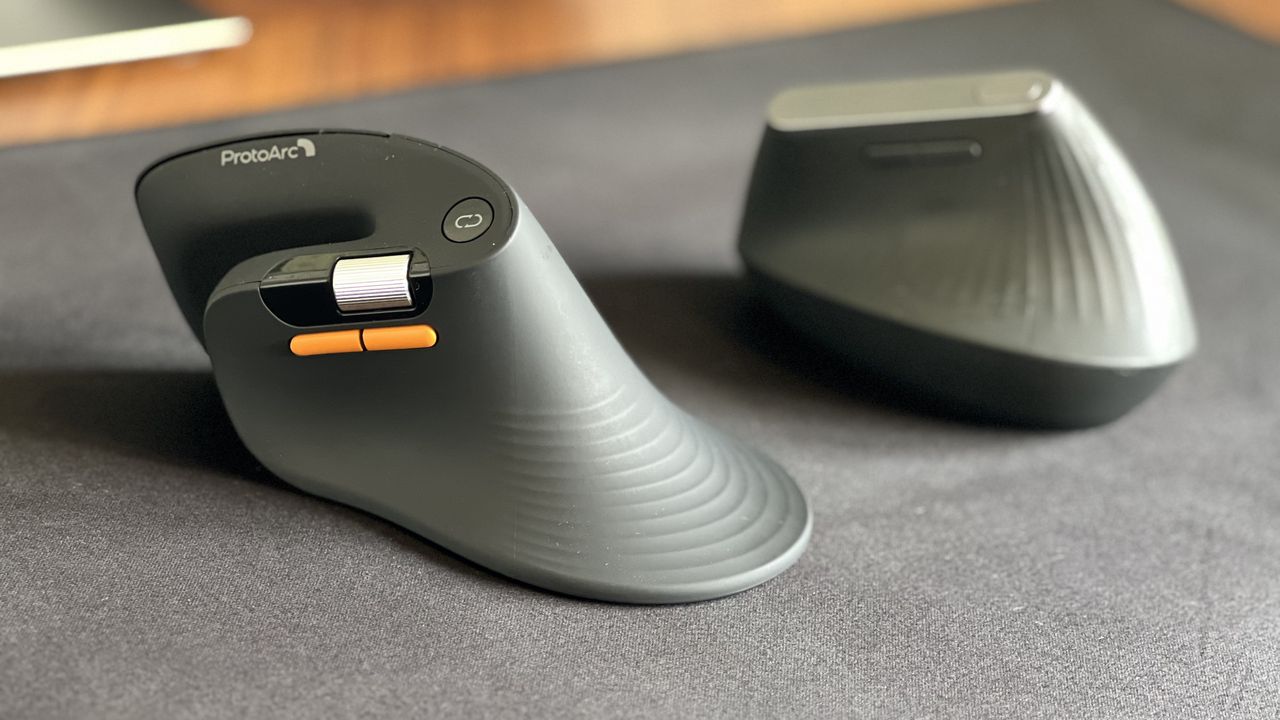
ProtoArc's ergonomic mouse has two scroll wheels, one set for vertical navigation and the other for scrolling horizontally. I didn't realize how much I wanted two scroll wheels until I navigated Excel and Google Sheets with a pair of wheels. I've always just held Shift on my keyboard and used the single scroll wheel when I needed to move horizontally in a spreadsheet, but having a second wheel feels much smoother. It also requires less movement, which is a key part of ergonomic setups.

Silent clicks for quiet workspaces

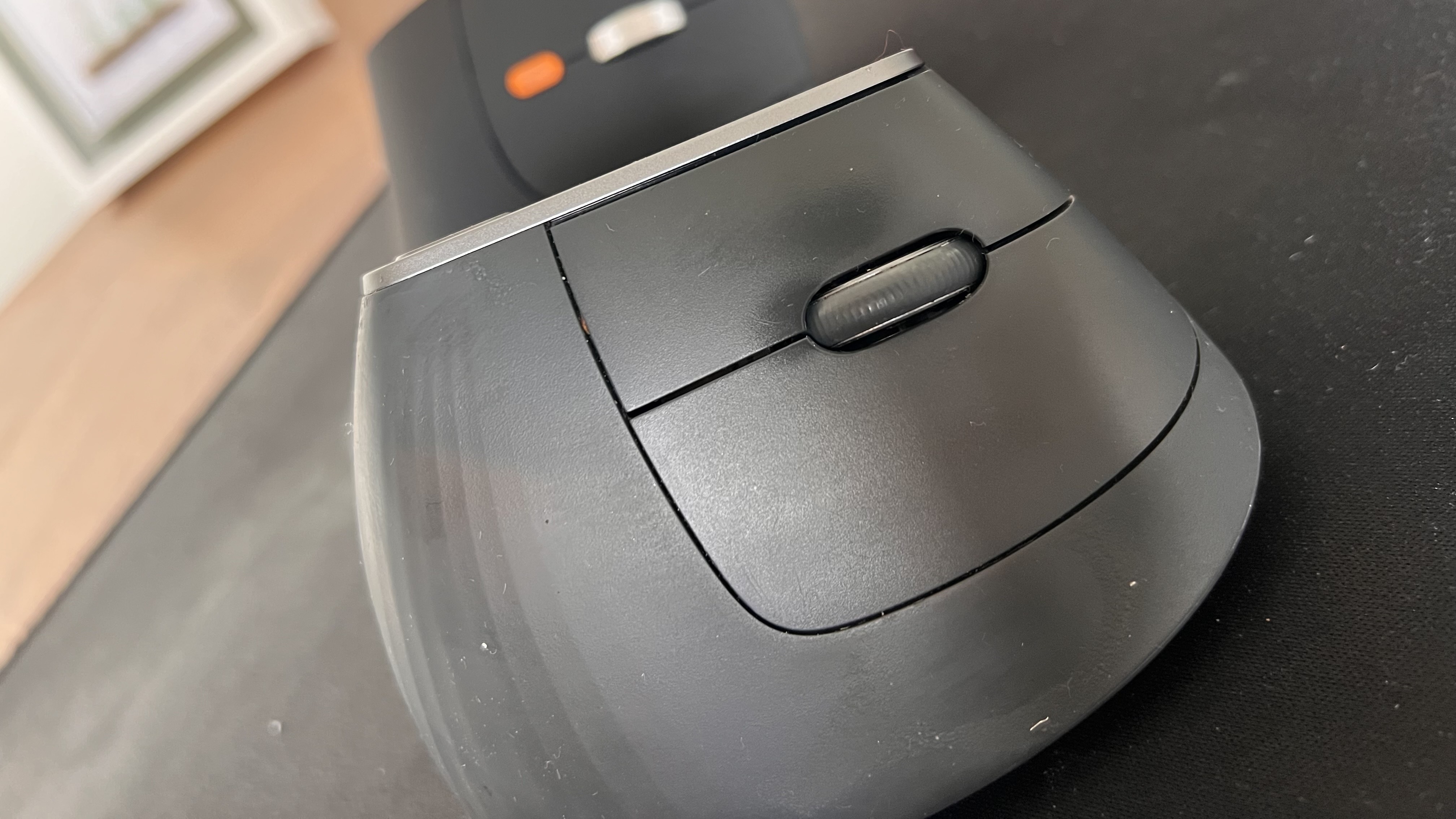
Close-up front view of the Logitech MX Vertical mouse showing the top scroll wheel and right-click buttons, with the ProtoArc EM11 Pro partially visible blurred in the background.

The Logitech MX Vertical can be a bit noisy. In contrast, the ProtoArc EM11 Pro is practically silent. (Image credit: Future)

I work from home, so I don't have any coworkers to irritate with mouse clicking. If anything, my 10-month-old daughter enjoys the Logitech MX Vertical's clicky buttons since she often sits on my lap and plays with my mouse and keyboard.

But if you work in an open office or sit next to someone at school or work, you probably don't want to hear clicking all day. The ProtoArc EM11 Pro is almost completely silent when clicked.

Why I'm sticking with the Logitech MX Vertical

Logitech should take some lessons from the ProtoArc EM11 Pro, but ProtoArc also has some homework to do. ProtoArc's mouse has some lovely features, but I think it either needs a design tweak or an option for people with different-sized hands.

The angle of my hand doesn't feel natural when using the ProtoArc EM11 Pro. The flared bottom makes my hand want to turn over more than I'd like.

Try as I might, I can't find a way to hold the ProtoArc EM11 Pro that feels comfortable. If I place the side of my hand alongside the base, my fingers don't align properly with the buttons. If I slide my hand down so that my fingers align with the buttons, my hand awkwardly presses against the base.

The curvature of the ProtoArc EM11 Pro also makes it feel like I have to curve my hand a bit, rather than rest at a neutral angle.

Ergonomic mice have a learning curve, so I tried ProtoArc's for a while to see if I'd adjust, and it just hasn't — ahem — clicked. But that may be specific to my hand size and shape. I've known people who disliked the feel of the Logitech MX Vertical, so a lot of this comes down to specific users.

Overall, ProtoArc packed its ergonomic mouse with features other companies should envy. I just wish the mouse fit in my hand as well as the Logitech MX Vertical.

This ergonomic mouse allows your arm to rest at a natural angle to reduce fatigue and strain. It's held up incredibly well throughout my years of use.

Windows Central review:⭐⭐⭐⭐⭐View Deal

This budget-friendly ergonomic mouse has two scroll wheels, can connect through a dongle or Bluetooth, and is practically silent when used.View Deal

Side-by-side view of the ProtoArc EM11 Pro ergonomic mouse in the foreground with its orange side buttons and scroll wheel, next to the Logitech MX Vertical mouse sitting on a black desk mat.

Despite its low price, the ProtoArc EM11 Pro has features I miss when switching back to my Logitech MX Vertical.

  •  

Windows 11 trades noisy Bing ads for the clean search experience it always needed — plus other updates you should know about this week

Windows Central

Can you hear that? It's the sound of capitalism crumbling. After years of pushback against ads, Microsoft has finally given in and decided to make a cleaner Search experience in Windows 11.

Sarcastic quips aside, Search is genuinely going to improve. Microsoft unveiled a massive upgrade to Search this week that will improve the accuracy of results, shift away from relying on the web, and yes, remove ads and promotional material.

The improved search will prioritize local results over grabbing information from the web. You'll even be able to customize whether web and Microsoft Store suggestions appear alongside local results at all. Search should also be more forgiving of typos, which should reduce frustration.

The upcoming improvements to Search were the biggest Windows 11 story of the week, but several other topics trended as well.

Biggest News of the Week

Semantic Search coming to Windows 11.
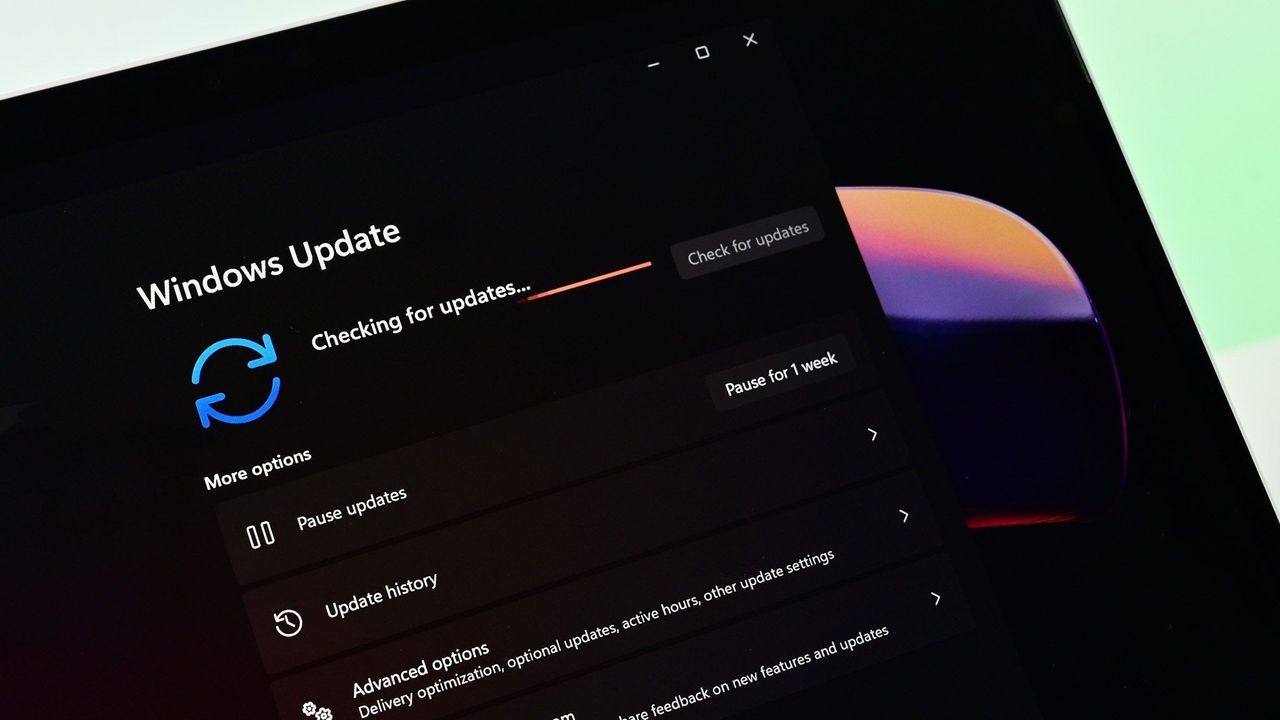
Windows Update in checking for update mode
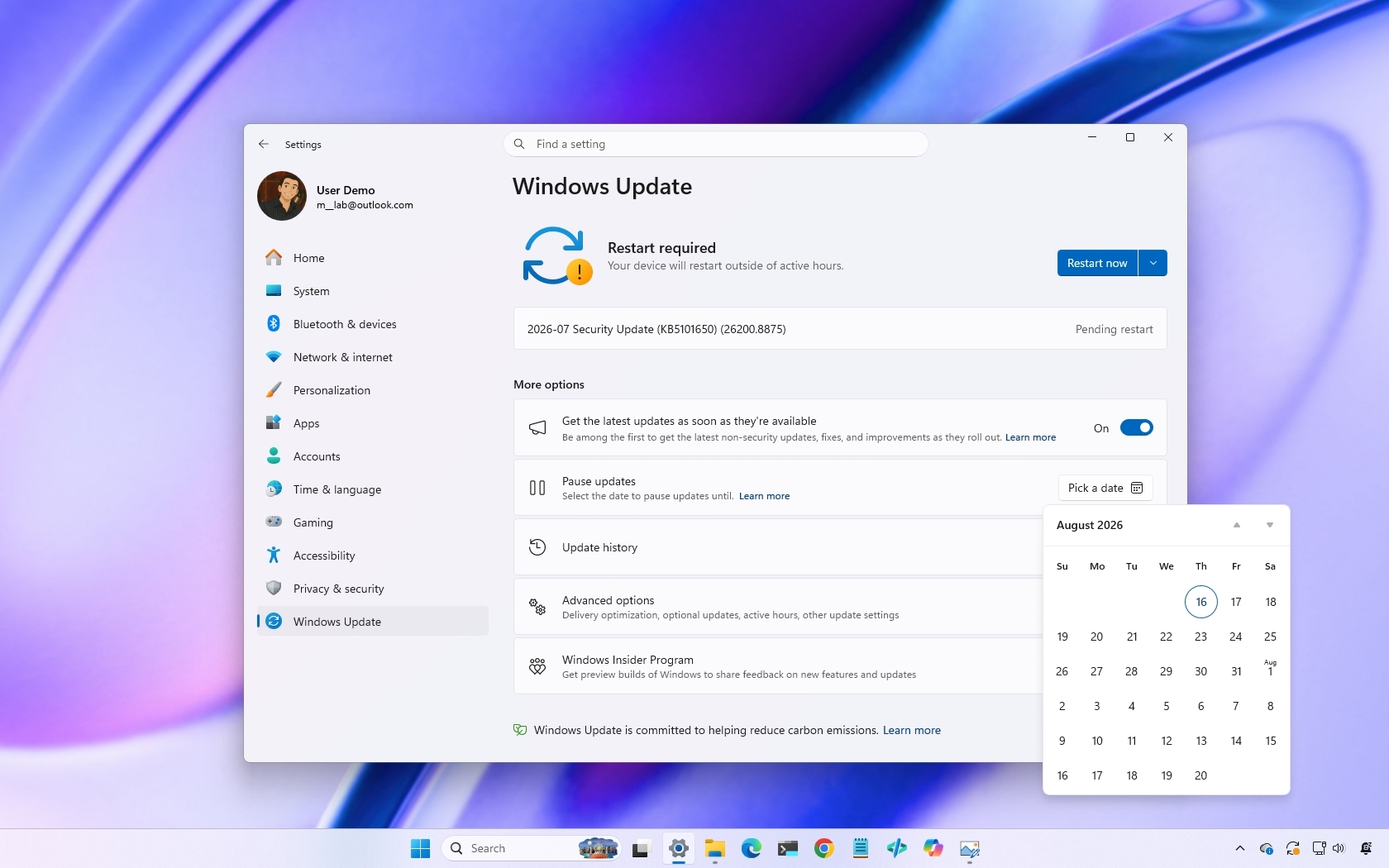
Windows 11 desktop showing the Windows Update settings installing the July 2026 Security Update.
Windows 11 desktop with the Start menu open and showing the new Account Control design.
Windows Updates
Microsoft's new AI-driven Semantic Search is now available for those on the Windows Insider Release Preview.

I'd argue that Windows 11 never should have placed ads within Search in the first place. Certainly, Windows 11 Pro should have been ad-free. I'm glad to see Microsoft listen to feedback and get rid of some ads. I just think it's wild that the tech giant needs to be pushed in that direction.

I'm happy to see Microsoft did more than remove ads and call it a day. The new Search experience is better across the board. Our Zac Bowden was impressed after going hands-on with the feature.

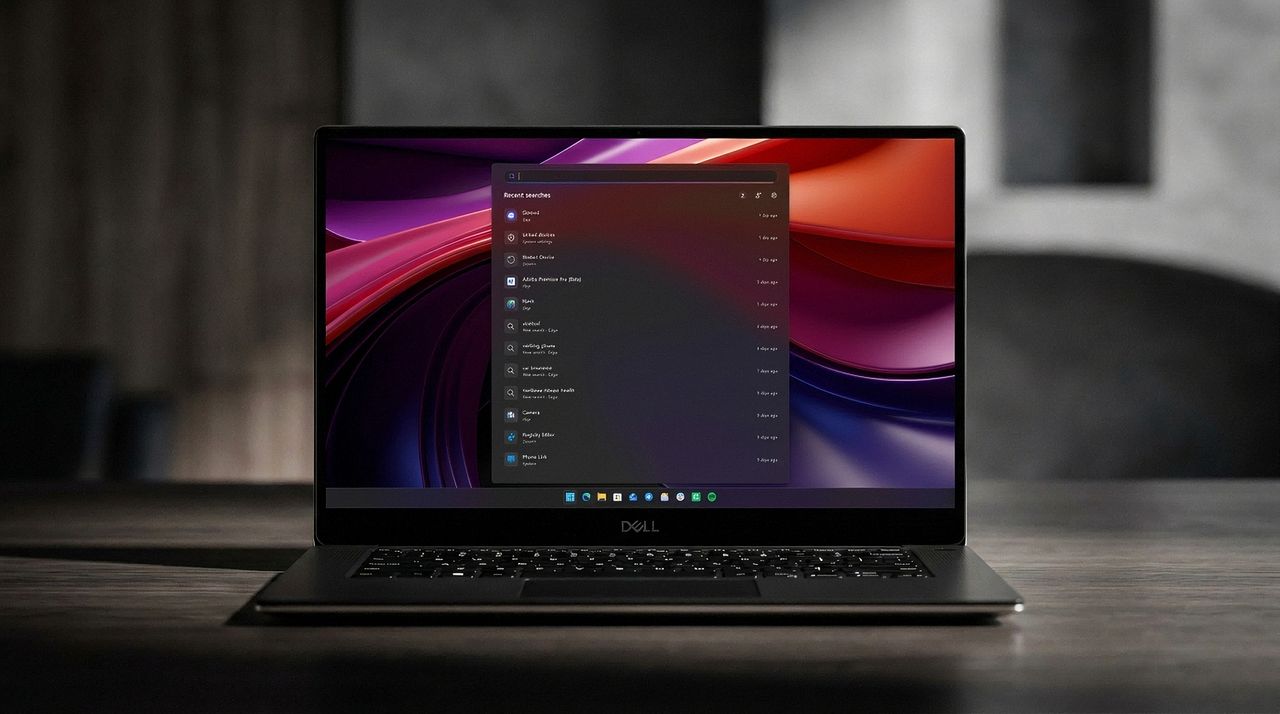
I'm very impressed with the new experience. Right off the bat, the search pane is no longer a noisy mess of Bing ads and sponsored content. It's a clean list of recent searches, exactly what you'd expect from a search pane.

Zac Bowden, Senior Editor, Windows Central

As always with updates like this, you can focus on the fact that Microsoft should have launched Windows 11 in this state rather than be strong-armed into making search usable. Alternatively, you can choose to be happy that Windows 11 is finally getting fixed. I choose the latter.

Shopping with Sean

Laptop deals have cooled off a bit, but you can still save hundreds of dollars on the Samsung Galaxy Book6 or the HP OmniBook Ultra 14. Both are excellent laptops with gorgeous displays and snappy performance.

If you're a gamer, make sure to check out the Xbox Ultimate Game Sale that's now live. Hundreds of games are discounted in what might be one of Microsoft's best-ever sale events.


"I’ve been using the Samsung Book 6 for a while now and honestly it’s been solid. It’s lightweight, looks premium, and the battery easily gets me through most of the day. Performance is smooth for studying, browsing, videos, and everyday work." ~ VALENTIN, customer review

4.8 out of 5 Stars (based on 40 Best Buy customer reviews)View Deal

HP's new OmniBook Ultra is the best Snapdragon X2 laptop we've tested yet, complete with a gorgeous design, incredible keyboard and trackpad, best-in-class touchscreen OLED display, and incredible battery life and performance.

Windows Central review: ⭐⭐⭐⭐⭐View Deal

Click to join us on r/WindowsCentral

Join us on Reddit at r/WindowsCentral to share your insights and discuss our latest news, reviews, and more.

New Windows Search UX

New Windows Search UX

  •  

This new Windows 11 clipboard utility is genuinely great, but I think the name is holding it back

A new clipboard manager for Windows 11 is here, and it's better than Microsoft's in a few key ways. "Edge Drop" is still in its early stages of development, but the current preview build is very promising.

Edge Drop is a clipboard manager that can also be used for some light file management. It stays tucked away on the left side of your screen until you swipe your mouse over it or use a keyboard shortcut (Alt + C).

The app supports text, images, and several file types. Any item you copy on Windows 11 is added to Edge Drop by default. You can also drag items into Edge Drop.

Drag and drop functionality makes it easy to grab a few files, place them in Edge Drop, and then paste them somewhere else.

Edge Drop supports stacking content together, which I find useful for organizing projects. I'd love to see stacks work with different content types, such as text and images.

The developer of Edge Drop, AdiArtist, shared the app on Reddit. You can download Edge Drop through the app's website and read more about it on GitHub.

As a quick note, I wouldn't get used to the name of the app. Microsoft already has a feature named "Edge Drop." Even though that browser feature is being retired, I suspect Microsoft will want to protect the name.

Windows 11 Clipboard vs Edge Drop

Windows 11 Clipboard History

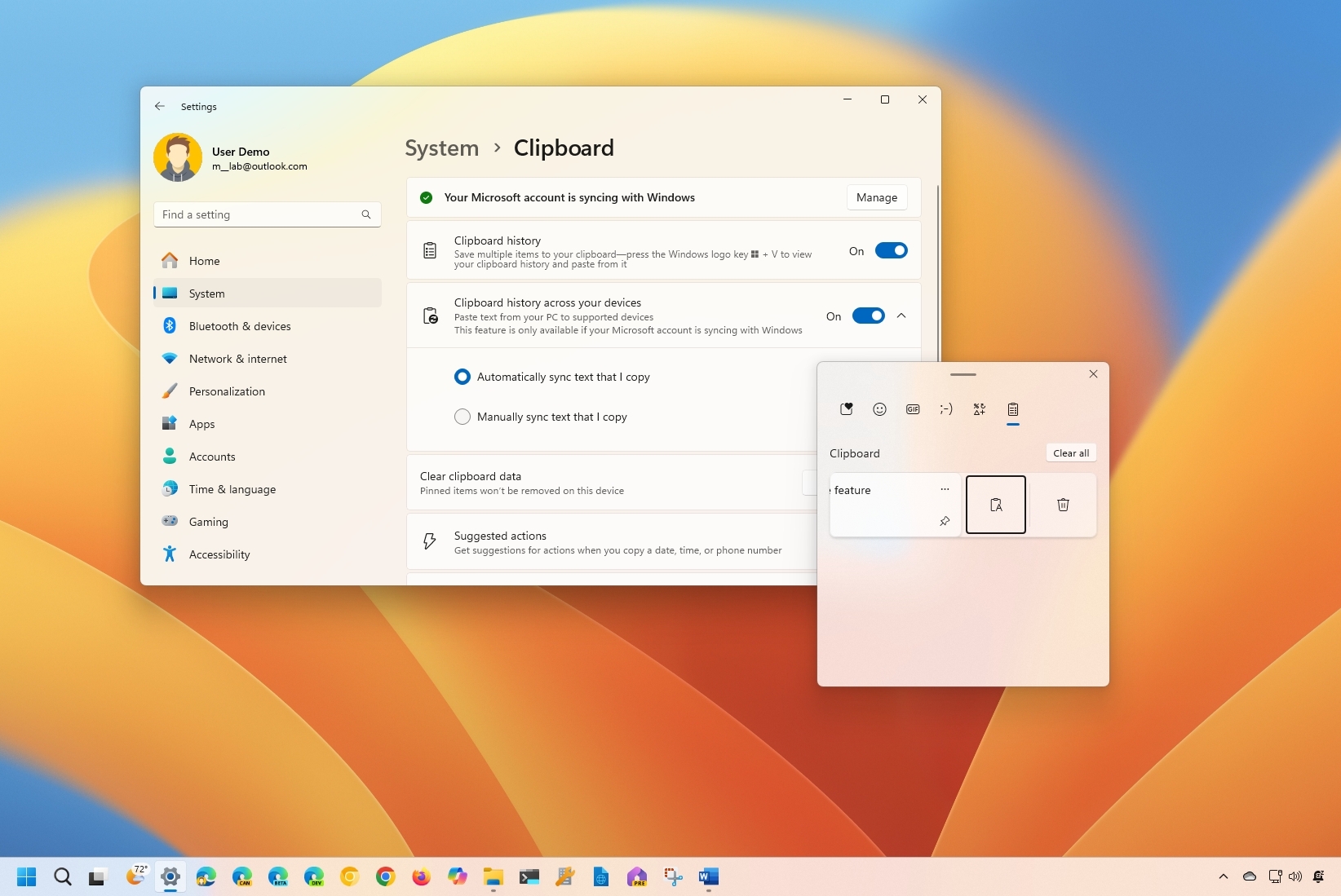
Windows 11's Clipboard can be summoned with a shortcut and supports pinning items. (Image credit: Mauro Huculak)

Windows 11 already has a robust, built-in clipboard history that you can summon with Win + V. It supports pinning items, syncing across devices, and has been an integral part of my workflow for years. Even with Edge Drop installed, I'm not abandoning it.

Where Windows 11's clipboard is heavily keyboard-driven, Edge Drop is more built for the mouse. If you're working on a creative project, dragging and dropping items into organized stacks feels completely natural.

It reminds me of when I reviewed the HyperSpace TrackPad Pro (which, sadly, was canceled). Using that trackpad shifted my workflow; editing video with it felt entirely different than navigating a webpage. It didn't replace my mouse, but it became a perfect companion tool.

I feel the same way about Edge Drop. It’s a convenient, mouse-oriented clipboard manager that’s always just a gesture away, and it has earned a permanent spot right alongside Windows 11's default clipboard.

Blank Pixel

Click to join us on r/WindowsCentral

Join us on Reddit at r/WindowsCentral to share your insights and discuss our latest news, reviews, and more.

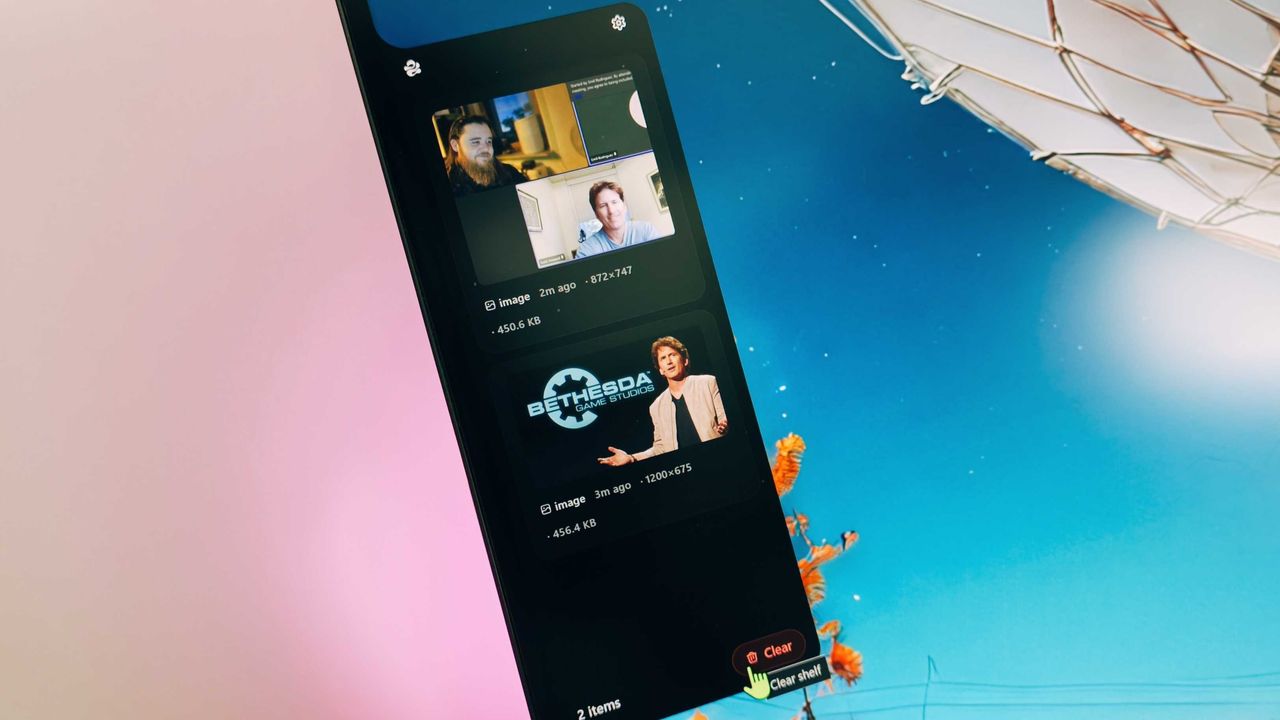
The Edge Drop app interface displayed on a monitor, showing a list of shared images and a cursor hovering over the "Clear" button.

Edge Drop is a third-party clipboard manager for Windows 11 that tucks away on the side of your screen.

  •  

This Surface is the only laptop that supports Windows 11's best new feature

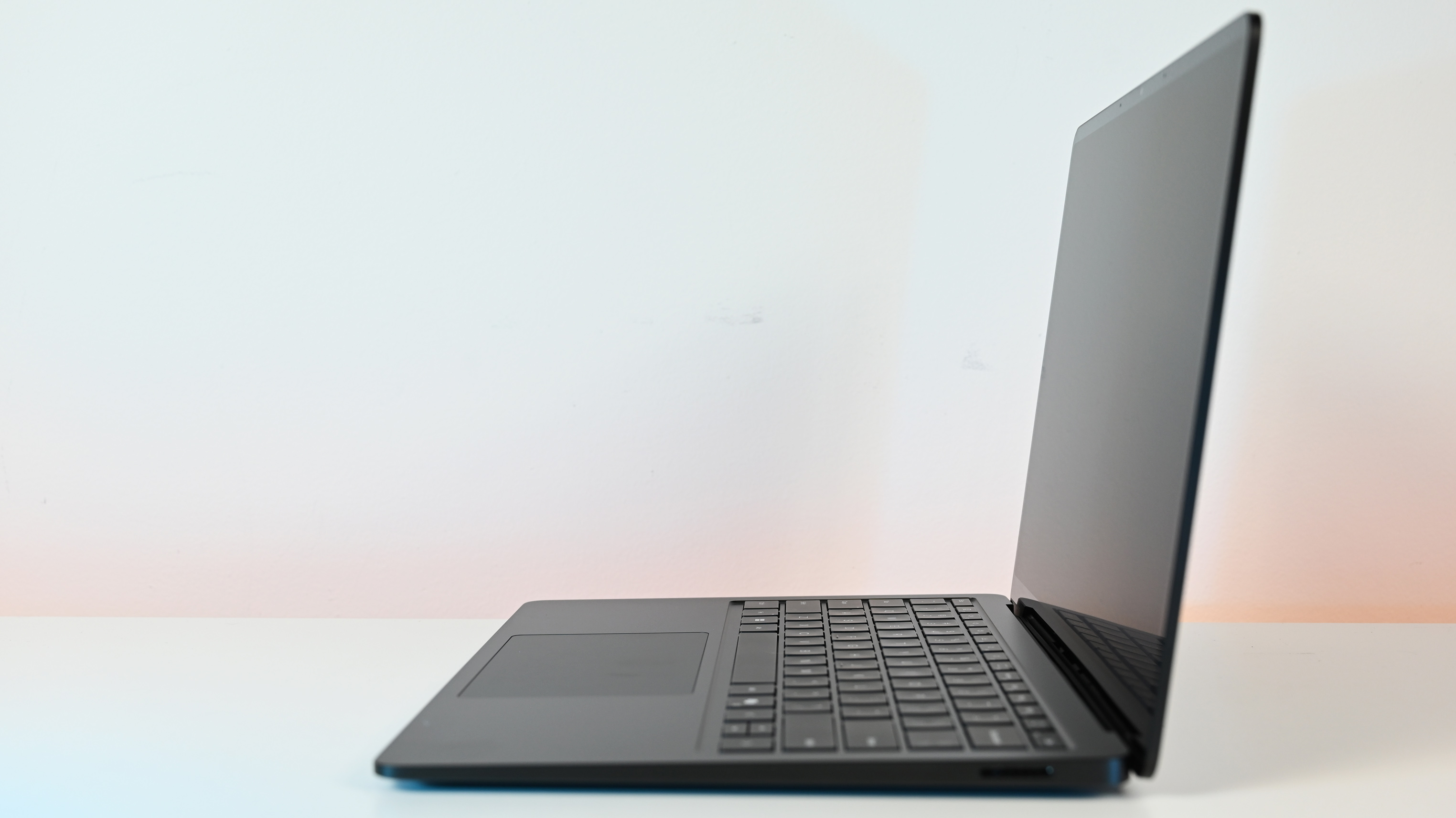
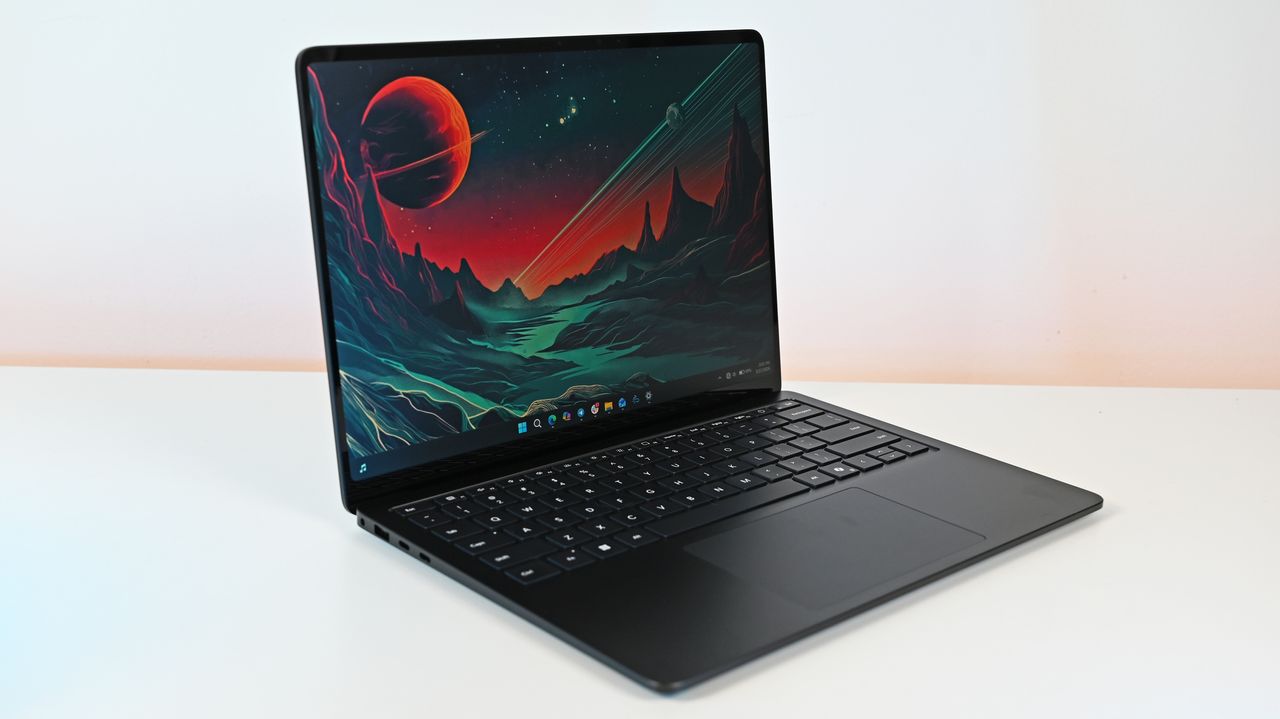
Microsoft's Surface Laptop 8 launched this summer, sporting new Snapdragon X2 chips. The flagship laptops promise a premium experience, better battery life than the previous generation, and improved graphics performance.

The bump in performance is expected considering the Surface Laptop 8 has a brand-new chip inside, so a different improvement is more noteworthy. The Surface Laptop 8 is one of the only devices to support Windows 11's new advanced haptics feature. It's the only laptop to support the feature.

Shop all Best Buy Surface deals

Advanced haptics sends a subtle bump through a touchpad, mouse, or stylus to let you feel Windows 11. For example, rearranging windows on your screen through Snap Layouts gives a clear indication of when you've hovered over a different layout.

Our Senior Editor Zac Bowden said "Windows 11's new 'Haptic Signals' feature is a quality of life upgrade [he] didn't realize the OS needed until [he] tried it." Now, you can experience the same thing since the Surface Laptop 8 is available for purchase.

CPU: Snapdragon X2 Plus
GPU: Qualcomm Adreno
RAM: 16GB
SSD: 512GB

The Surface Laptop 8 introduces Microsoft's new Dune colorway, giving a warm aesthetic to an otherwise unassuming PC.

👉 See at BestBuy.comView Deal

CPU: Snapdragon X2 Elite
GPU: Qualcomm Adreno
RAM: 16GB
SSD: 512GB

This Surface Laptop 8 runs on the Snapdragon X2 Elite, which lets it tackle tasks all day without running out of battery life.

👉 See at BestBuy.comView Deal

Why should I care about advanced haptics?

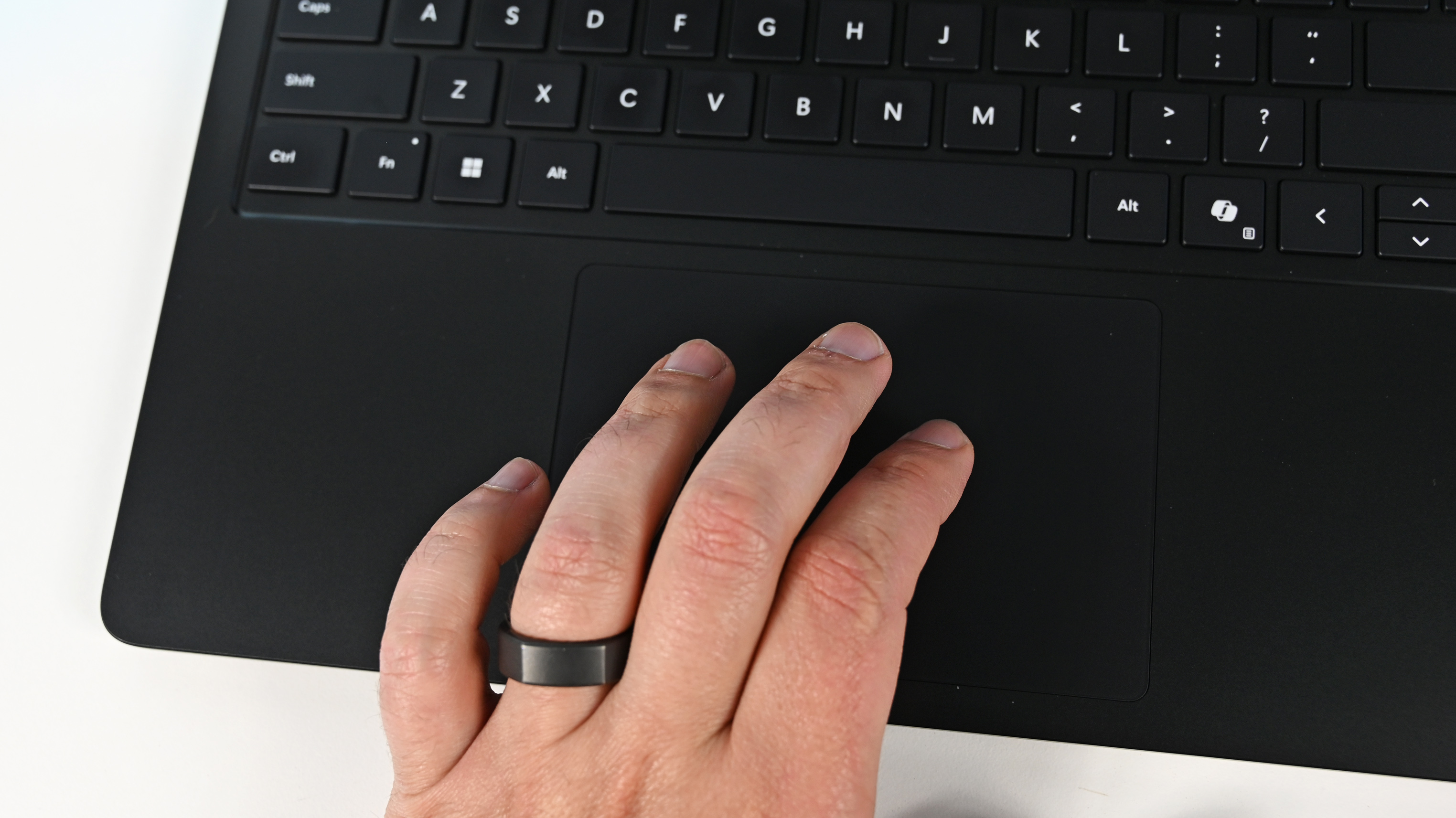
A hand wearing a black ring rests on the touchpad of a Surface Laptop for Business 8th Edition. The laptop keyboard is visible, highlighting the Shift, Ctrl, and Alt keys.

The haptic touchpad of the Surface Laptop 8 sends subtle vibrations when you perform certain actions, such as moving a file within File Explorer. (Image credit: Daniel Rubino)

As a quick point of clarity, the Surface Laptop 8 with Snapdragon X2 is what recently became available. Microsoft launched the Surface Laptop 8 for Business earlier this year. The business model runs on an Intel processor and comes with features you likely do not need as a general user.

Both the consumer and business versions of the Surface Laptop 8 support advanced haptics, but I recommend the consumer model to most people.

Advanced haptics is one of those small touches that makes Windows 11 feel polished. I appreciate UI changes and other Windows 11 improvements, but I'm more interested in features like advanced haptics because it changes the hands-on experience with a PC — quite literally.

"The new advanced haptic touchpad is a joy to use. It provides subtle tactile cues that confirm your actions," said our Editor-in-Chief Daniel Rubino in our Surface Laptop 8 review.

Our friends at Tom's Guide came away similarly impressed when reviewing the Surface Laptop 8:

"I’m also fond of the touchpad, which delivers satisfying haptic feedback when pressed. With some apps, you will even feel haptics when hovering over the X button on a window, which is quite fun and intuitive."

Right now, Windows 11 is the main way that you'll experience advanced haptics. But there's an API for the feature, so third-party developers can leverage it. Filmora, Affinity, and other third-party apps either already support the feature or will soon.

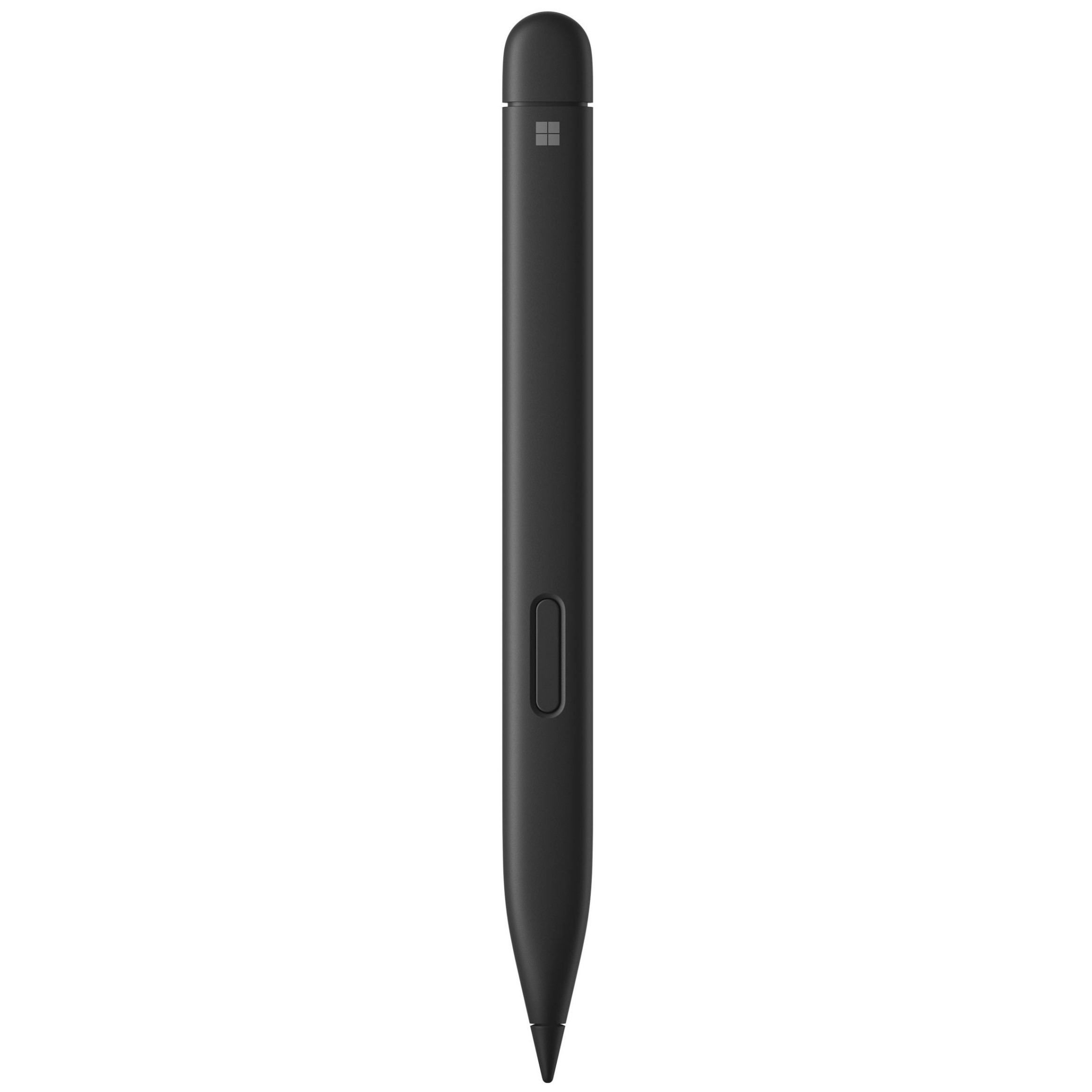
The only other way to use Windows 11's advanced haptics feature is to have a Logitech MX Master 4 or a supported stylus like the Surface Slim Pen 2. Over time, more devices should support the feature, but the Surface Laptop 8 beat everything else to the punch.

Click to join us on r/WindowsCentral

Join us on Reddit at r/WindowsCentral to share your insights and discuss our latest news, reviews, and more.

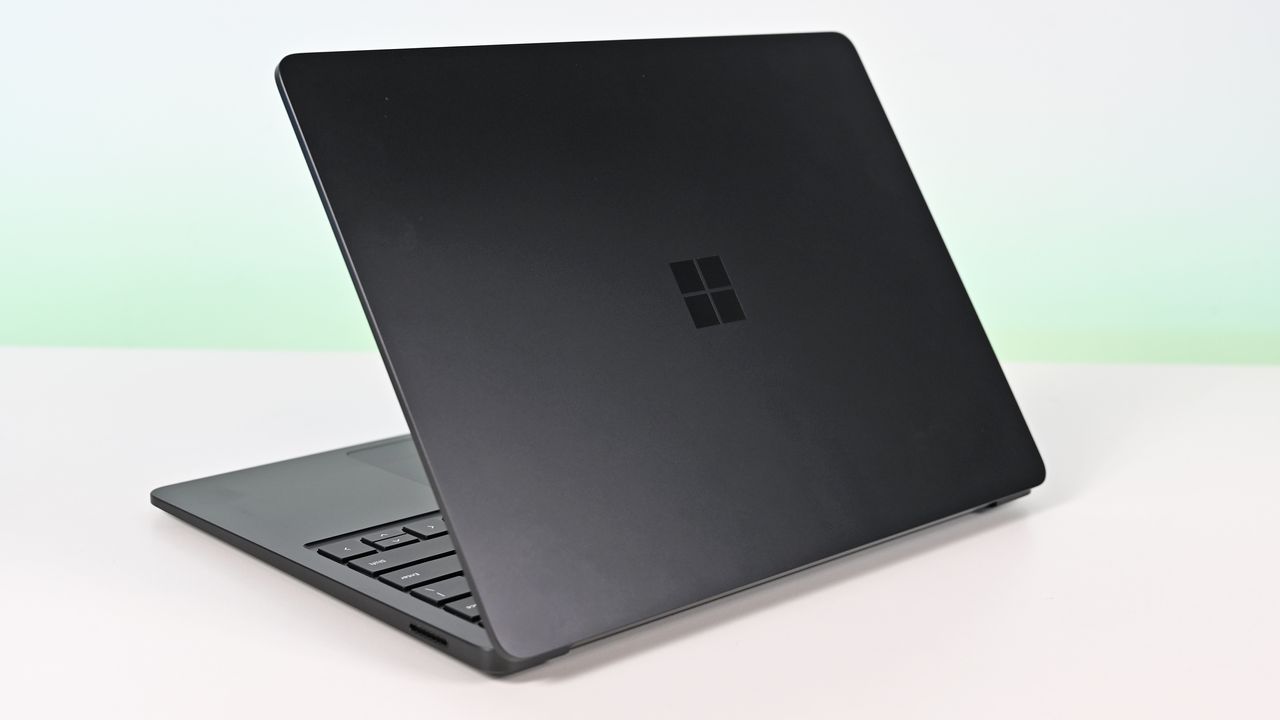
Surface Laptop for Business 8th Edition with a closed screen featuring a Windows logo, resting on a white surface. The background is a soft gradient from light blue to green.

Surface Laptop for Business 8th Edition with a closed screen featuring a Windows logo, resting on a white surface. The background is a soft gradient from light blue to green.

  •  

Xbox adds 52 more titles to 'Stream Your Own Games,' including Black Ops 6 and indie classics

Dozens of games were just made available to stream through Xbox Cloud Gaming. Those titles are now supported by the "Stream Your Own Games" part of Xbox Game Pass that lets you stream supported titles through the cloud.

As popular as playing titles that come with Xbox Game Pass is, many of the best Xbox games do not come with the subscription. Stream Your Own Games allows you to play many of your favorite titles to your phone, tablet, PC, or other supported devices.

This month's collection of newly supported games includes several popular titles such as Call of Duty: Black Ops 6 and Assassin's Creed Black Flag Resynced.

The folks over at True Achievements gathered together the complete list:

Game Title

#Blud

A Hat in Time

Absolver

Ascend to Zero

Assassin's Creed Black Flag Resynced

Beat Cop

Blightbound

Bō: Path of the Teal Lotus

Bravely Default Flying Fairy HD Remaster

Buckshot Roulette

Call of Duty: Black Ops 6

Carto

Disc Room

D-topia

Exit the Gungeon

Fade to Silence

Forager

Gato Roboto

Hotline Miami 2: Wrong Number

I Hate Running Backwards

Ikenfell

Lock's Quest

Metal Wolf Chaos XD

Minit

Monaco 2

Monaco: What's Yours is Mine

Monster Jam Steel Titans

My Friend Pedro

Olija

Pepper Grinder

Phantom Abyss

Pikuniku

Protodroid DeLTA

Shadow Warrior

Shadow Warrior 2

Shadow Warrior 3: Definitive Edition

South of the Circle

Stories Untold

Supraland

Tamashika

Temtem

The Messenger

The Mound: Omen of Cthulhu

The Occupation

The Talos Principle: Reawakened

Void Bastards

Wandersong

Wildfire

Winds of Arcana: Ruination

Wizard with a Gun

World of Tanks Modern Armor

Wuthering Waves

To use the Stream Your Own Games feature, you need to purchase a copy of the game and be subscribed to Xbox Game Pass. You can be subscribed to Game Pass Essential, Premium, or Ultimate to stream your games.

Originally, the Stream Your Own Games library only had 50 games. It's steadily grown since then and supported games now number in the hundreds. Over 70 new titles were added this May.

You can check out the complete gallery of supported games on Xbox's website.

Xbox Game Pass Ultimate

Subscribe to Xbox Game Pass Ultimate and play day one Xbox games whichever way you'd like, on Xbox consoles, PC, or even through the Cloud on a wide range of devices. Going with this tier means you never miss out on anything coming to the service.

See at: Amazon | Best Buy | CDKeysView Deal

Click to join us on r/WindowsCentral

Join us on Reddit at r/WindowsCentral to share your insights and discuss our latest news, reviews, and more.

Body Shield feature in Call of Duty Black Ops 6

Call of Duty: Black Ops 6 is one of 52 titles supported by Xbox Game Pass' "Stream Your Own Games."

  •  

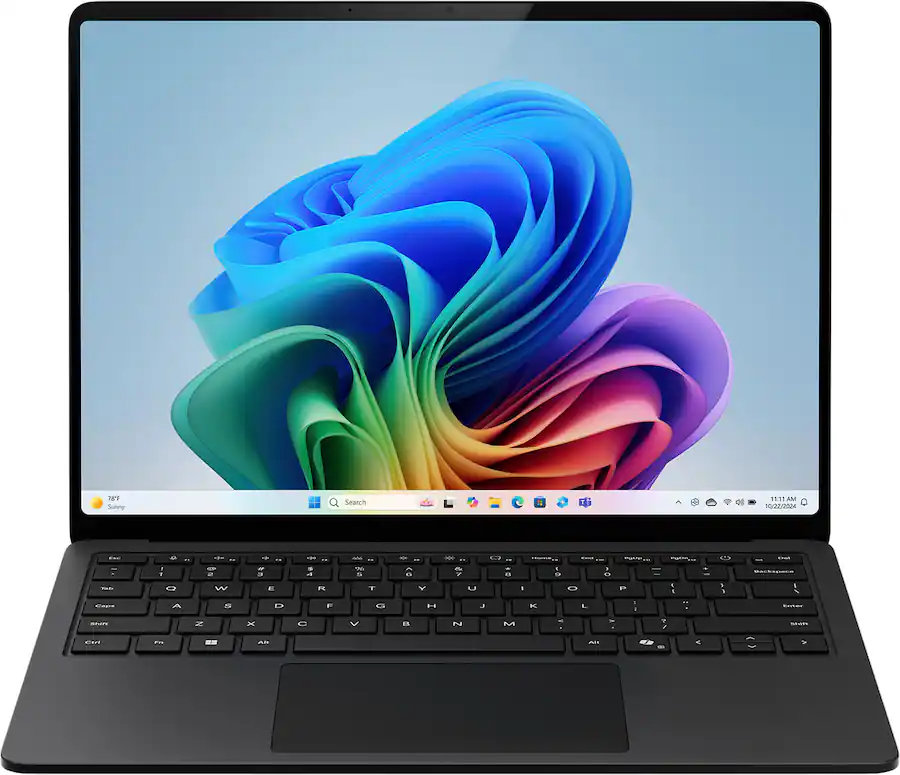
Microsoft's Snapdragon X2 Surface Laptop 8 and Pro 12 for Business are now available

The most exciting new Surface features in years are now available on a PC with a Snapdragon X processor. The Surface Laptop 8 for Business can now be purchased with a Snapdragon X2 Plus or Snapdragon X2 Elite.

For those who prefer a 2-in-1 over a traditional laptop, the Surface Pro 12 for Business (13-inch) is also available with a Snapdragon X2 chip. Like its clamshell sibling, the Surface Pro for Business also had an Intel model launch earlier this year.

The official names of the new PCs are "Surface Pro for Business 12th Edition" and "Surface Laptop for Business 8th Edition" but I've referred to them as the Surface Pro 12 for Business and Surface Laptop 8 for Business in this piece for ease of reading.

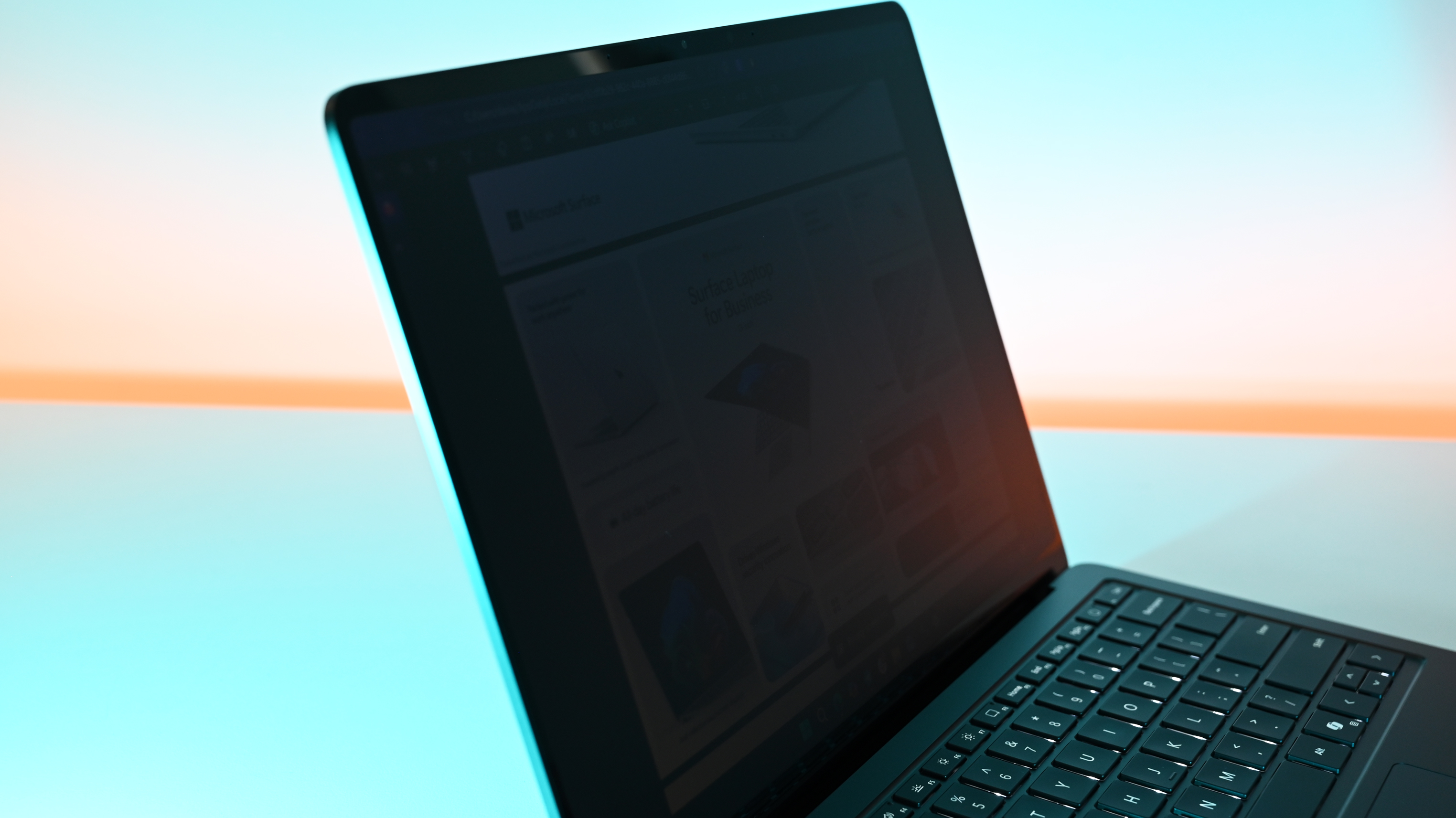
The standout feature of this year's Surface lineup is the privacy screen seen in the Surface Laptop 8 for Business. That display can be set to obscure content on your screen when people try to view it at an angle. It's similar to Samsung's screen on the Galaxy S26 Ultra.

The built-in privacy screen of the Surface Laptop 8 for Business combats creeping eyes from all angles, as opposed to third-party privacy screen protectors that only work from the sides.

The Intel version of the Surface Laptop 8 for Business launched earlier this year and received high marks from our Editor-in-Chief. The vast majority of what makes that laptop great extends to the Surface Laptop 8 for Business with Snapdragon X2, which are now available to order.

Demonstration of Surface Laptop for Business 8th Edition's privacy screen engaged, making the slightly tilted laptop's display difficult to read due to being so dim.

The Surface Laptop 8 for Business is the only version with the built-in privacy screen. (Image credit: Daniel Rubino)

The haptic trackpad of the Surface Laptop 8 for Business is also a key addition. Thanks to a recent update to Windows 11, you can now feel the operating system and supported apps as you interact with them. Haptic buzzes occur when you drag files in File Explorer or perform certain actions.

The Surface Laptop 8 for Business is one of few devices to support the new haptic experience.

The new Surface Pro 12 for Business is largely a spec bump when compared to its predecessor. The Snapdragon X2 chip inside delivers better graphics performance than the first-gen Snapdragon X.

The Surface Pro has matured over more than a decade of refinement, so it's hard to complain about Microsoft sticking with what works.

What's special about Surface for Business PCs?

When Microsoft first introduced Snapdragon X chips to its Surface hardware, a split was formed that saw Intel on business PCs and Snapdragon X on consumer hardware. That's no longer the case, since you can order Snapdragon X processors in consumer or business PCs.

Notably, there are no new Intel-powered Surface PCs for consumers in 2026.

There are several differences between the consumer and business models of the latest Surface devices. Here are the features seen only on the business side:

  • Pre-installed Windows 11 Pro or Enterprise
  • Integrated Privacy Screen option
  • Advanced Exchange Warranty service
  • Device Firmware Configuration Interface (DFCI) cloud management
  • Windows Autopilot tenant pre-registration
  • Access to the cloud-based Surface Management Portal
  • Native corporate domain onboarding pathways during initial setup
  • Intel models available

Most of the features seen in the Surface for Business PCs are options general consumers would never use. The exception being the privacy screen that I wish was available on consumer versions of the Surface Laptop.

One key difference between the Snapdragon X2-powered Surface Pro 12 for Business and its Intel counterpart is that you can only get 5G connectivity with the Intel model.

Anyone can purchase a Surface for Business device. You don't need to own a business or have some sort of special account. But again, you're likely paying for unneeded features compared to the consumer Surface PCs unless you really need a privacy screen.

Blank Pixel

Click to join us on r/WindowsCentral

Join us on Reddit at r/WindowsCentral to share your insights and discuss our latest news, reviews, and more.

A sleek laptop with a black keyboard and a modern design, displaying a blue abstract swirl on its screen, set against a light gradient background.

A sleek laptop with a black keyboard and a modern design, displaying a blue abstract swirl on its screen, set against a light gradient background.

  •  

Windows 11's latest update will let you pause updates indefinitely

Windows 11's monthly Patch Tuesday update is here, and it's one of the biggest of the year. In addition to the usual group of bug fixes and security updates, the July Patch Tuesday update includes some major new features.

Our Mauro Huculak broke down the 13 features that matter most from Windows 11's July 2026 update. The update is substantial and includes new ways to recover your PC, improve accessibility, and update Windows.

As is normally the case for Windows 11 Patch Tuesday updates, we've known what was on the way for weeks. Microsoft rolled out the latest features and changes to Windows 11 through a preview update toward the end of last month.

Ironically, the biggest change in this update is that it will allow you to pause updates indefinitely. Starting with this build you can stop your PC from getting updates for up to 35 days and then re-pause updates.

The downside is that you have to manually pause updates again if you want to stop them for more than 35 days.

Point-in-time Restore is another big addition. The feature lets you roll back a system to a previous working state. Windows 11 automatically creates restore points that include settings, files, and apps.

Widgets are better following the update as well. You now have greater control over notifications and personalization settings. Opening the widgets panel will open the dashboard on first use.

The full release notes for the update are shared in a Microsoft support document and listed below.

Windows 11 July 2026 Update (gradual rollout)

  • [Point-in-time restore for Windows] New! This flexible recovery feature helps you quickly roll back your PC, including apps, settings, and personal files, to a recent automatic restore point. It helps reduce downtime and simplifies troubleshooting when issues occur. To learn more, see Point-in-time restore for Windows.
  • [Windows Update] New! A calendar experience in Windows Update Settings (Settings > Windows Update) lets you pause updates by choosing an end date, for up to 35 days. You can extend the pause by selecting a different end date and re‑pause updates as needed. For more information, see Pause updates in Windows.
  • [Widgets] New! A quieter, more focused Widgets experience helps reduce interruptions and improves default settings and notification controls:
    • Reduce distractions: Widgets no longer open on hover. Notifications and taskbar badges are minimized by default.
    • Simpler: Open to the Widgets dashboard by default on first use.
    • Customize: Configure Widgets how you want by selecting Settings in the navigation bar, then changing any of the default settings.
    • Stay informed: Dashboard icons show the number of alerts, and badges clear automatically when you leave a dashboard.
    • Adjusted defaults: Some default settings are preserved based on usage, while others adjust to reduce interruptions.
    • Performance improvements: This update provides improved reliability, responsiveness, and visual quality across the Widget experience.
  • [Accessibility] New! This update makes your screen easier to see and customizes your zoom experience:
    • Screen tint: Apply a full-screen color overlay to help reduce eye strain and improve readability. Choose from preset tint options, adjust the intensity, or turn it on automatically. Find this feature in Settings > Accessibility.
    • Magnifier: Enter a zoom percentage directly and change it in increments in the Magnifier window for more precise, flexible control.
    • Magnifier settings menu: You can now also modify zoom increments directly from the magnifier bar instead of navigating to Windows Settings each time.
  • [File Explorer]
    • New! When you hover over a file in File Explorer Home, commands such as Open file location and Ask Copilot appear as quick actions. This experience is now supported for work and school accounts (Entra ID).1
    • Improves the speed and performance of File Explorer launch.2
    • This update improves File Explorer responsiveness when mounting disk images.
    • The address bar now supports paths containing double backslashes and quotation marks (for example, C:\\Users\\user or "C:\Users\user"), improving compatibility with a wider range of inputs.
    • The address bar suggestion dropdown is more reliable and now consistently closes after an item is selected.
    • This update addresses an issue on File Explorer Home where OneDrive files could appear duplicated in the Favorites section.
    • This update includes several refinements to the Rename experience:
      • Addresses an issue where text was repeatedly selected when renaming items in folder views.
      • Addresses an issue where case-only name changes were not immediately reflected in folder views for items stored locally or in the cloud.
  • [Bluetooth] This update improves reliability and performance when connecting to and using Bluetooth devices:
    • New! Windows now keeps the microphone mute state in sync between the audio mixer and the Hands-Free Profile (HFP) for a more consistent experience with Bluetooth headphones with mute buttons or indicators.
    • Accessory compatibility workarounds: Improves compatibility with specific Bluetooth audio devices, helping AirPods appear faster in pairing mode and improving microphone reliability on Beats Studio Pro headphones.
    • Bluetooth audio stability:
      • Improves overall Windows stability with certain PC manufacturer drivers (error code 0x9F).
      • Improves Bluetooth reliability for voice calls when using Classic Audio devices with the Hands-Free Profile (HFP).
      • Reduces time for LE Audio accessories to start playing audio while using the microphone.
    • Device management: Windows will no longer show a “Remove failed” message when attempting to remove Bluetooth devices if the Bluetooth radio is unavailable or has changed since pairing.
    • Settings experience: Improves stability when using the Bluetooth & devices settings page for a smoother, more consistent experience.
    • Connection reliability and responsiveness:
      • Reduces the time it takes for classic Bluetooth audio devices to reconnect after Windows resumes from hibernation.
      • Improves reliability when LE Audio accessories disconnect, such as when another device (for example, a phone) connects.
      • Improves reliability of LE Audio streaming after a connection is lost and restored.
  • [Bluetooth and Phone Link] This update improves audio routing for calls made through a connected phone:
    • When an outgoing call is dialed from a paired phone, audio remains on the phone while ringing and transfers to the PC only when the call is answered from the PC.
    • When Do Not Disturb is enabled on Windows, incoming call audio from a paired phone no longer rings on the PC.
  • [Voice access and voice typing] **New!**⁠ You can now use voice access and voice typing in French, German, and Spanish. As you speak, your PC improves your text in real time. It corrects grammar, punctuation, and recognition errors, and helps improve clarity—even in the presence of background noise. This makes dictation smoother and reduces the need for manual edits.3
  • [Audio] This update improves the reliability of the inbox HD Audio driver.
  • [Taskbar] This update improves the reliability of opening the Start menu when selecting the left edge of the taskbar when the icons in the taskbar are left-aligned.
  • [Networking]
    • This update includes networking improvements for virtualized environments. Confidential Virtual Machines (CVMs) now use SR-IOV hardware acceleration by default for improved network throughput, and a configuration issue in nested Hyper-V virtualization network setup has been corrected to ensure reliable VM network provisioning.
    • This update improves the reliability of the Windows networking stack. It reduces bug checks (blue screen errors) related to Wi-Fi power and improves cellular (WWAN) connectivity, including support for IPv6 VPNs. Compatibility with third-party VPN software and SR-IOV configurations on server hardware is also improved. Network adapter settings and bindings are now preserved across OS upgrades.
  • [Printing] New! New printer installations use Internet Printing Protocol (IPP) by default when supported, simplifying setup and improving reliability. For details about third-party driver deprecation, see End of Servicing Plan for Third-Party Printer Drivers on Windows. To control this behavior, use the toggle in Settings > Bluetooth & devices > Printers & scanners > Default install printers using Windows Ready Print. For more information, see Introducing Windows Ready Print and modernized driver selection. For more information, see Introducing Windows Ready Print and Modernized Driver Selection.
  • [Windows Subsystem for Linux (WSL)] The update improves usage of WSL in mirrored networking mode with VPNs.
  • [Display and graphics]
    • Improves the reliability of rendering content while scrolling for certain apps spanning across multiple monitors.
    • Improves the reliability and persistence of applying color profiles.
  • [Location services] This update changes how some location settings are displayed in Settings > Privacy & Security > Location to help with clarity. When location services are turned off, settings like Default location and Allow location override don't immediately apply, since location information is not given to apps or services. These settings will now be greyed out when location services are off to reduce confusion over when they take effect.
  • [Search] This update improves the reliability of setting Search related group policies.
  • [Input]
    • New! You can now customize the size of the right-click zone in Settings > Bluetooth & devices > Touchpad. Choose from default, small, medium, or large to control how much of the bottom-right corner responds to a single-finger right-click. This setting is only available on touchpads with a pressable surface. If your device manufacturer provides customization through their own app, a Custom option will appear to reflect those settings.
    • This update improves recognition of English characters when using Japanese handwriting.
  • [General performance] Improves the time to shut down Background Intelligent Transfer Service (BITS) when you turn off your PC.
  • [General Reliability] This update improves the reliability of explorer.exe. It addresses issues on the login and lock screens related to third-party credential providers, reduces the probability of taskbar icons appearing as blank gray placeholders, and improves navigation to Home in File Explorer during OneDrive sync. It also improves explorer.exe reliability when switching between desktops, enhances app launch with shell extensions, and using acrylic blur effects in the Start menu, Settings, and the lock screen.
  • [Apps] Resolves an issue where some installers and applications could show unexpected elevation (UAC) prompts after installing KB5089549.
  • [Remote Desktop] This update refreshes the dialog design when you enable Remote Desktop in Settings > System > Remote Desktop.
  • [Graphics Kernel] Improves memory-management policy that allows PCs with more than 32GB of installed memory to run larger local AI models.

Windows 11 July 2026 Update (gradual rollout)

  • [Secure Boot] With this update, Windows quality updates include additional high confidence device targeting data, increasing coverage of devices eligible to automatically receive new Secure Boot certificates. Devices receive the new certificates only after demonstrating sufficient successful update signals, maintaining a controlled and phased rollout.
  • [Authentication] This update improves Netlogon secure channel connections between domain controllers, enabling successful connections from member servers to domain controllers set up before 2025.
  • [Emoji Panel Update] The emoji panel (Windows key + period (⁠.⁠)) now uses GIPHY for GIF content following the deprecation of Google’s Tenor API. Starting June 30, 2026, install the latest Windows update to continue using GIFs in the Emoji panel. If you don’t update, you will see a "GIF service is not available" error in the panel. Installing the latest Windows update will restore access to GIFs.
  • [Networking] This update improves how your device connects to shared network resources. Connections used by apps and system features, such as the NetUseAdd function, now work more reliably, including unauthenticated (null session) connections.
  • [Recycle Bin (known issue)] Fixed: This update addresses an issue where the confirmation dialog might display an internal Recycle Bin file name instead of the original file name when permanently deleting a file. This issue might occur after installing the June 2026 security update (KB5094126).
  • [Storage] This update improves disk space usage for the CapabilityAccessManager.db-wal file.
  • [Taskbar] This update improves notification badge display across your apps. Notification counts and badge visuals now update correctly, helping you stay up to date with new activity.
  • [File Explorer] This update fixes an issue where the OneDrive shortcut in File Explorer stops working when File Explorer is run with administrative mode.
  • [Notification badges (known issue)] Fixed: This update addresses an issue where notification badge counts for some applications such as Microsoft Teams and WhatsApp, might not refresh correctly. As a result, badge indicators might continue to display outdated notification counts until the application is restarted or badge count is refreshed.

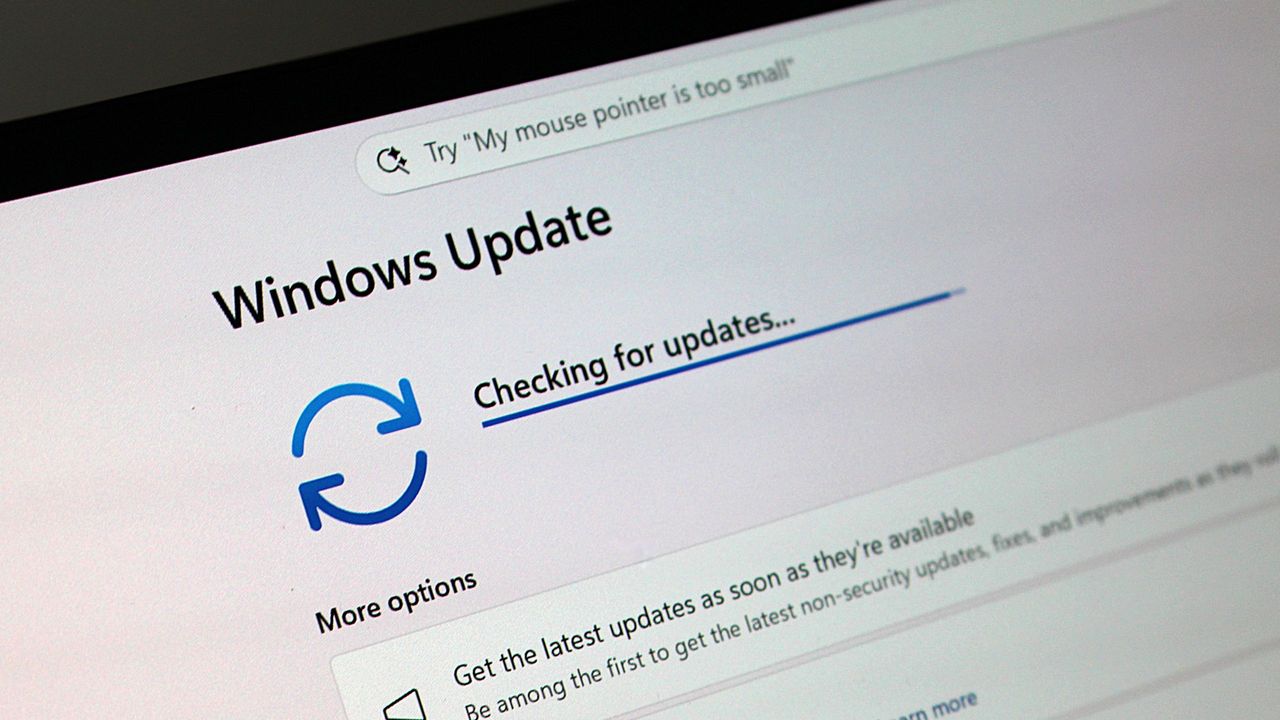
You can download this month's Patch Tuesday update through the Windows Settings app. Clicking the "Check for updates" button within the "Windows Update" section should start the process.

Alternatively, you can download the update through the Microsoft Update Catalog.

Blank Pixel

Click to join us on r/WindowsCentral

Join us on Reddit at r/WindowsCentral to share your insights and discuss our latest news, reviews, and more.

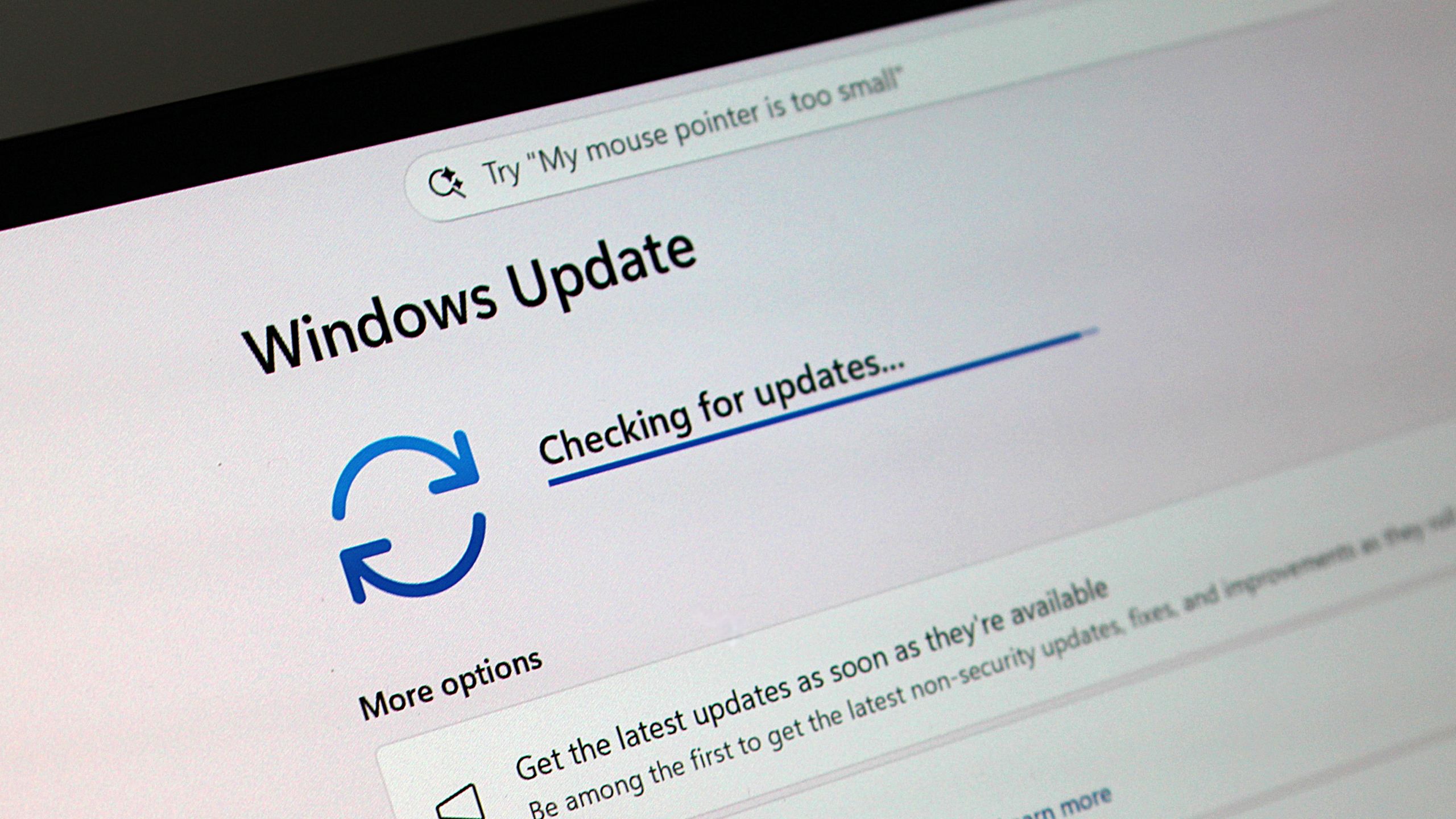
Windows Update in checking for update mode

Windows Update in checking for update mode

  •  

Windows Movie Maker still beats Clipchamp in an important way

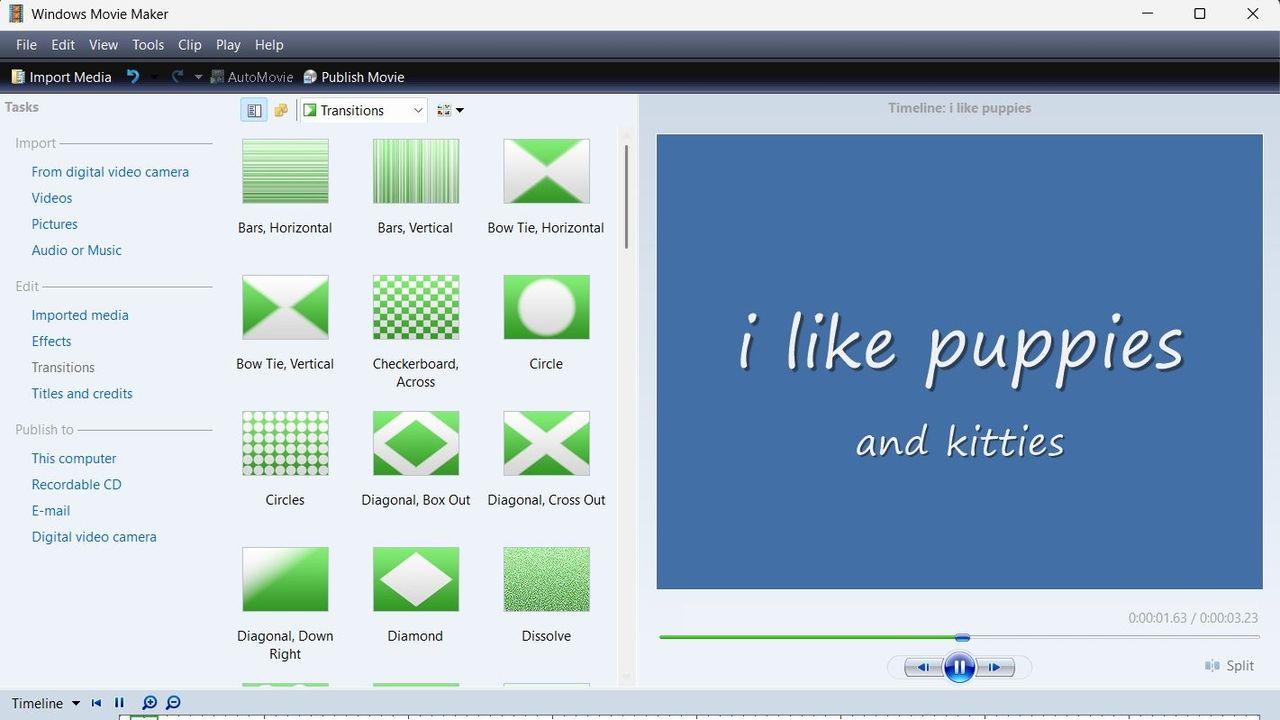
If you ever feel like you need a break from social media and influencers, you may long for the more fun-focused video content of yesteryear. Windows Movie Maker was a simple program for creating videos, and it can now be yours once again.

The folks at The Internet Archive uploaded Windows Movie Maker 6.0, making it easily accessible and preserving it. The app has been tested on Windows 7, Windows 10, and Windows 11.

Downloading ancient technology can be a fun way to see how far things have changed over the years. Generally, Windows and its built-in apps have improved since the year 2000. But the modern movie-making app on Windows, Clipchamp, falls short of Windows Movie Maker in one key area.

Clipchamp now requires you to sync content to OneDrive to edit video projects. Media within your projects can be stored locally, but the projects cannot be edited unless you save the project to OneDrive.

That controversial change arguably broke Clipchamp. The app still works, but it does not feel like an app that should be bundled with Windows 11. Instead, it feels like a cloud-based app you should download alongside Microsoft 365.

Windows Movie Maker may lack the modern features of Clipchamp, but at least it works offline.

Ever wanted to use Windows Movie Maker 6.0 again but unsure where to get it for modern Windows?Well, "want" no longer! I've uploaded a setup for exactly that on The Internet Archive. Tested on Windows 7, 10, & 11, all working on each.Get it here:https://t.co/yEnF0sZv7n pic.twitter.com/LhozBBGtWNJune 30, 2026

Perhaps Microsoft could justify requiring OneDrive to edit videos if projects could easily extend across devices, but that's not the case. Microsoft retired Clipchamp for iOS last month, meaning you can no longer export video files from that app. Users are now encouraged to uninstall Clipchamp from any iOS devices.

Microsoft never even made an Android version of Clipchamp, so the company has effectively restricted the app solely to the desktop. There is a web version of Clipchamp, but it is optimized for desktop use.

How to download Windows Movie Maker for Windows 11

Windows Movie Maker was not meant for modern versions of Windows, but it can run on Windows 11 or Windows 10. The download link for the program is available through the Internet Archive.

As a warning, I had to refresh the page a few times to get the link to work. The Internet Archive claimed it was a bad link for some reason, but it does work after refreshing.

The file is available in several formats. I'd argue the easiest to use is the executable file because many people have clicked to install one of those before.

To install Windows Movie Maker, you'll need to click through the installation steps, agree to some terms, and click finish.

Blank Pixel

Click to join us on r/WindowsCentral

Join us on Reddit at r/WindowsCentral to share your insights and discuss our latest news, reviews, and more.

A screenshot of Windows Movie Maker showing a range of transitions.

Windows Movie Maker looks clunky by modern standards, but at least it supports offline editing.

  •  

Your Snapdragon X PC just took a step toward becoming a true gaming laptop

Qualcomm continues to flirt with gaming on its Snapdragon X processors. The latest update to Snapdragon Control Panel redesigns game library navigation, improves the software update experience, and helps you get the latest Hexagon NPU drivers.

The overall gaming experience on Snapdragon X PCs will be better following the update, though you won't see a graphics boost.

Snapdragon Control Panel is a piece of software that helps you optimize your gaming experience on PCs powered by Snapdragon X chips.

A bump to version 2026.2.0 brings several notable improvements. Qualcomm shared the change log for the latest Snapdragon Control Panel update on Reddit.

What’s new in Snapdragon Control Panel 2026.2.0.0

✨ User interface improvements

  • Redesigned Game Library navigation to be more consistent and intuitive, including clearer favorites add/remove behavior.
  • Redesigned the Software Update page with a consistent experience for Snapdragon Control Panel, Adreno GPU drivers, and Hexagon NPU drivers.
  • Improved update status feedback so users can more easily understand available updates and current installation state.
  • Removed the top-level back button to simplify navigation.
  • Expanded the clickable areas for items in the Help dialog.
  • Added support for saving and restoring the navigation sidebar state.

🧠 Hexagon NPU driver updates

  • Get access to the latest Hexagon NPU driver releases directly from Snapdragon Control Panel.

🎮 One-Click Game Optimization robustness improvements

  • Improved the reliability of One-Click Game Optimization workflows, including optimization, revert, and refresh behavior.
  • Note: One-Click Game Optimization is currently supported only on first generation Snapdragon® X Series devices.

🛠️ General improvements and bug fixes

  • Includes additional reliability, usability, and maintenance fixes across Snapdragon Control Panel.

Gaming on Snapdragon X PCs is in an interesting spot in 2026. It's very clear that Qualcomm aims for its Snapdragon X chips to power gaming PCs eventually, but most mentions of gaming on the processors feel reserved.

When Qualcomm announced the Snapdragon X2 Elite Extreme and Snapdragon X2 Elite last year, the company failed to mention gaming once. But when laptops with those chips launched, gaming capabilities were highlighted.

"Best Commuter Laptop: extreme performance for multitasking, gaming, and creation," reads the ASUS listing for the Zenbook A16 (emphasis added).

Just two months after unveiling the Snapdragon X2 Elite Extreme and Snapdragon X2 Elite, Qualcomm announced Snapdragon Control Panel. That program lets users optimize game settings and update game drivers.

Meanwhile, other companies have been working to improve gaming on Snapdragon X PCs. Logitech G HUB gained support for Windows on Snapdragon earlier this year.

YouTuber "Ghobso Gaming" tested over 200 games on the Surface Pro 11 with a Snapdragon X Plus, and many titles performed well. They have since run tests on laptops with the Snapdragon X2 Elite. I'll follow up with them and do another piece on that soon.

Our Ben Wilson played some games on the Zenbook A16 with a Snapdragon X2 Elite Extreme as well. Overall, gaming on Snapdragon X PCs is better than ever.

At some point, Qualcomm may fully embrace the gaming capabilities of Snapdragon X chips and make that a major part of its marketing. Until or unless that happens, the company will continue to work with partners to optimize gaming on Snapdragon X.

Blank Pixel

Click to join us on r/WindowsCentral

Join us on Reddit at r/WindowsCentral to share your insights and discuss our latest news, reviews, and more.

Studio photos of the 2026 ASUS Zenbook A16 laptop featuring the new Qualcomm Snapdragon X2 Elite Extreme processor.

The ASUS Zenbook A16, which runs on a Snapdragon X2 Elite Extreme, can run many popular games well.

  •  

Microsoft’s powerful new Snapdragon X2 Surface PCs are here, and they're more than a spec bump

The highly anticipated upgrades to the Surface Pro and Surface Laptop just launched. Both PCs pack the latest Snapdragon X2 processors from Qualcomm, promising better performance while still delivering great battery life.

The biggest upgrade in the lineup is performance. Microsoft promises up to 53% faster graphics performance on the Surface Pro than the previous generation. The Surface Laptop sees an even larger bump of up to 58% when compared to the last generation.

Those improvements are thanks to the Snapdragon X2 processors inside the Surface Laptop and Surface Pro.

Now, Best Buy has a wide range of configurations available for the Surface Laptop and Surface Pro. I've included a mix of various colors, storage options, and processors. But there are plenty of other configurations up for grabs if you want to mix and match.

Shop all Best Buy Surface deals

The new chips from Qualcomm perform well and let your PC last all day. Exact performance will vary based on the full specs of a PC, but the Snapdragon X2 Elite competes with Apple's M4 Pro. The Snapdragon X2 Plus stands toe-to-toe with Apple's M3 Pro.

Benchmarks and spec sheets aside, any Surface with a Snapdragon X2 chip will handle a wide range of workloads and tackle productivity tasks easily.

While the Snapdragon X2 chips are the stars of the show, they're not the only upgrades worth checking out in the new Surface Laptop and Surface Pro.

CPU: Snapdragon X2 Plus
GPU: Qualcomm Adreno
RAM: 16GB
SSD: 512GB

This Dune-colored Surface Laptop stands out in a sea of black and silver laptops. It does not come with Dave Bautista, but it does feature a Snapdragon X2 Plus.

👉 See at BestBuy.comView Deal

CPU: Snapdragon X2 Elite
GPU: Qualcomm Adreno
RAM: 16GB
SSD: 512GB

This sleek Surface Laptop is unassuming with its clean, black finish, but it's a portable powerhouse with a Snapdragon X2 Elite.

👉 See at BestBuy.comView Deal

CPU: Snapdragon X2 Plus
GPU: Qualcomm Adreno
RAM: 16GB
SSD: 512GB

This Surface Laptop has a 15-inch, 3K display with the 3:2 aspect ratio Surface is known for. It provides an excellent space to work without taking up too much space in your bag.

👉 See at BestBuy.comView Deal

CPU: Snapdragon X2 Plus
GPU: Qualcomm Adreno
RAM: 16GB
SSD: 256GB

This is the best choice for those who love the Surface Pro form factor but don't need the most expensive processor or a massive amount of storage. It's the most affordable way to get the latest Surface Pro.

👉 See at BestBuy.comView Deal

CPU: Snapdragon X2 Elite
GPU: Qualcomm Adreno
RAM: 16GB
SSD: 512GB

This Surface Pro balances high-end specs with value. It features a Snapdragon X2 Elite, 13-inch OLED display, 16GB of RAM, and 512GB of storage.

👉 See at BestBuy.comView Deal

The first Surface Pro Flex Keyboard launched alongside the Surface Pro 11. The accessory is still the best way to use your Surface Pro like a laptop, and it can also be used when detached for even more flexibility.

👉 See at BestBuy.comView Deal

The Surface Slim Pen 2 is excellent for natural note-taking and drawing, and it now supports Windows 11's updated haptic feedback experience to give you tactile cues while you navigate.

👉 See at BestBuy.comView Deal

What's new with the latest Surface Pro and Surface Laptop?

A sleek laptop with a black keyboard and a modern design, displaying a blue abstract swirl on its screen, set against a light gradient background.

(Image credit: Daniel Rubino)

There are more display options than ever across the Surface lineup. The new Surface Pro is available with either an OLED display or an LCD screen. The new Surface Laptop 15-inch has a screen with 262 PPI, which is much higher than the last generation offered.

But the new Surface Pro and Surface Laptop are more than a spec bump. While they share much of their designs with the last generation, both offer a new way to use haptics.

The Surface Laptop now features a haptic trackpad that allows you to feel Windows 11 and supported apps. The Surface Pro delivers a similar experience when paired with the latest Surface Slim Pen.

The new experience comes courtesy of Windows 11's new haptic feedback system. That system sends subtle vibrations when you perform certain tasks, such as dragging files in File Explorer or snapping windows.
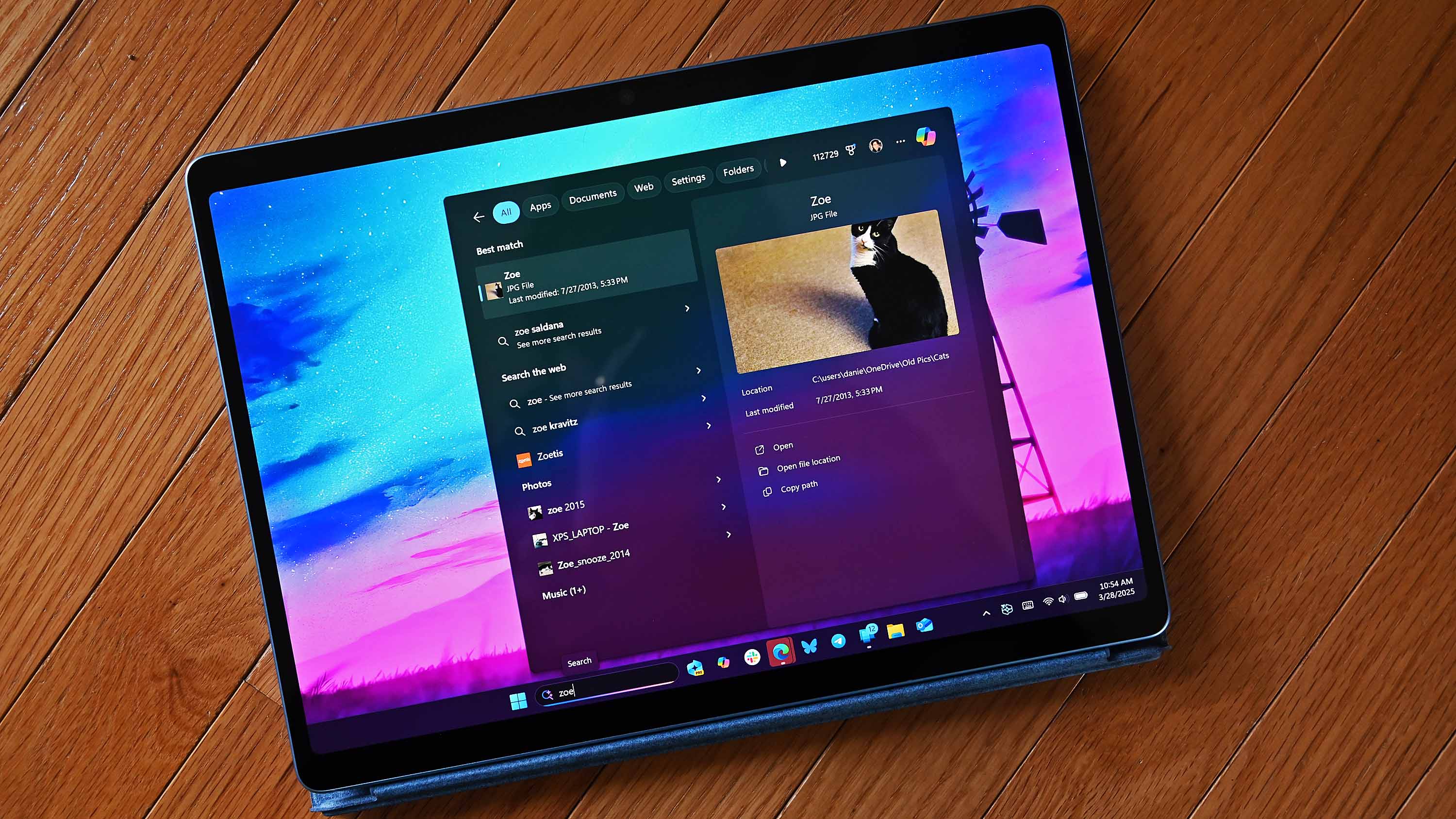
The new Surface Laptop and Surface Pro build on over a decade of refinement by Microsoft. The overall form factor has matured, but Microsoft has figured out how to squeeze innovation from designs that were already almost perfect.

Click to join us on r/WindowsCentral

Join us on Reddit at r/WindowsCentral to share your insights and discuss our latest news, reviews, and more.

Surface Laptop for Business 8th Edition sits open on a white surface, displaying a vibrant sci-fi landscape wallpaper with a red planet and mountainous terrain.

Surface Laptop for Business 8th Edition sits open on a white surface, displaying a vibrant sci-fi landscape wallpaper with a red planet and mountainous terrain.

  •  

Microsoft’s emissions just jumped 25% because AI datacenters are exploding in size, and dropping renewable credits finally exposed how much power the company is burning to fuel its AI ambitions

Microsoft’s latest sustainability report sparked claims that the company produced 34 million metric tons of carbon emissions in a single year. That figure was never reported by the company. What the report actually shows is a 25 percent year‑over‑year increase driven by AI datacenter expansion and Microsoft’s decision to stop buying unbundled renewable energy certificates.
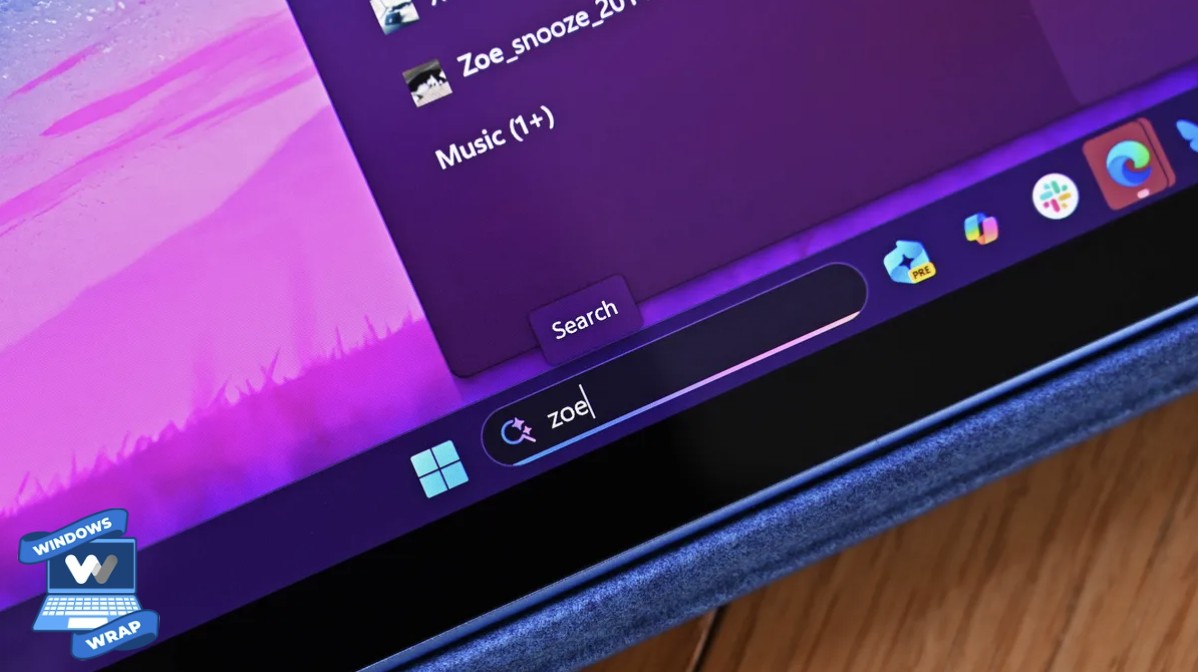
The Microsoft Environmental Sustainability Report shows a complicated progression of rising emissions caused by AI datacenters, controversial "greenwashing" tactics, and enough wiggle room to leave space for debate.
Real emissions vs estimated emissions

When I first read the coverage surrounding the Microsoft Environmental Sustainability Report, it seemed like a clear case of AI hurting the planet and a tech giant callously damaging the environment. I was ready to write a piece calling out Microsoft for setting carbon neutral goals and then increasing carbon emissions by 25% in a single year.

But as I do with any story I cover, I went to the source material and did some digging. What surprised me is that the Microsoft Environmental Sustainability Report does not indicate unbridled burning of fuel to power AI datacenters. Instead, it shows efforts to reduce emissions and make meaningful changes.

I want to be clear, AI datacenters do create high carbon emissions. Microsoft is not faultless when it comes to energy use or pollution. I think there is a lot more the company could do to help the environment. I also think there's some misunderstood data seeping onto social media and throughout the web.

A chart from the Microsoft Environmental Sustainability Report illustrating emmissions and hypothetical emission rates.

The most recent Microsoft Environmental Sustainability Report shows the actual emissions of the company (solid line) compared to the estimated emissions if Microsoft had not taken steps to reduce its emissions. (Image credit: Microsoft)

The above chart from the Microsoft Environmental Sustainability Report shows Microsoft's actual reported emissions over the years and the estimated emissions without select interventions. The footnote on the chart directs to a clarifying statement on the estimate. I'll include the full footnote here but highlight the most relevant text:

"The solid line represents Microsoft’s reported greenhouse gas emissions (Scopes 1, 2, and 3) for FY20–FY25, prepared in accordance with GHG Protocol and management’s criteria, and uses a market-based emissions approach. The dotted line represents an illustrative counterfactual scenario of estimated emissions had select, discrete carbon reduction initiatives not been undertaken. These initiatives include energy efficiency improvements for XBOX consoles, renewable energy purchases, sustainable aviation fuel (SAF) and sustainable marine fuel (SMF) certificates, and supply chain decarbonization of Surface devices. The difference between the two lines is an estimate of emissions avoided through these specific initiatives relative to a scenario without those initiatives occurring. This estimate is directional in nature, does not represent the full scope of Microsoft’s decarbonization efforts, and is not part of our reported greenhouse gas inventory. It should not be interpreted as a comprehensive measure of total emissions reductions or as additive to other carbon reduction or removal claims."

Basically, the chart shows Microsoft's actual emissions and then a rough estimate of how much the company would have emitted had it not taken steps to reduce its carbon footprint. But Microsoft did take those steps. Microsoft did not have 34 million metric tons of carbon emissions in the last year. The actual emissions figure is 20 million metric tons.

That's still a massive amount of emissions, and 20 million metric tons is a 25% increase year-over-year, but there's some needed context.

What are unbundled renewable energy certificates?

Climeworks facility in Iceland

Microsoft has several plans to reduce carbon emissions, including a 10-year partnership with Climeworks for direct air capture. (Image credit: Windows Central | Jez Corden)

Microsoft's carbon emissions increased by 25% in a single year. The increase was driven primarily by Microsoft's expansion of datacenter infrastructure and the fact that the company paused the purchase of unbundled renewable energy certificates.

In February 2025, Microsoft announced that it "ceased purchasing non-additional, unbundled renewable energy certificates." That decision led to the massive jump in emissions seen in the recently published sustainability report (in conjunction with AI datacenter infrastructure expansion).

Renewable energy certificates (RECs) represent the legal ownership of the "renewable-ness" of generated electricity. Unbundled RECs are sold separately from the electricity itself.

The United States Environmental Protection Agency notes that "Unbundled Renewable Energy Certificates (RECs) refer to RECs that are sold, delivered, or purchased separately from electricity. RECs provide no physical delivery of electricity to customers and as such the customer is purchasing power from a separate entity than the one selling them the REC."

The separation of generated electricity from the legal ownership of the "renewable-ness" is controversial (that phrase comes straight from the EPA).

Many, including myself, view unbundled RECs as a form of greenwashing. Microsoft or any other company can legally say they are powered by renewable electricity without actually using the electricity that was generated.

The defense is that buying unbundled RECs financially contributes to the development of renewable energies.

Microsoft did not refer to unbundled RECs as a form of greenwashing, but its statement is telling:

"While we continue to apply the carbon fee to investments in emissions reductions, we have ceased purchasing non-additional, unbundled renewable energy certificates. We are refocusing the use of these funds on more long-term, higher-impact investments across carbon reduction, carbon removal, and clean electricity procurement. These interventions are expected to more effectively help us achieve our goal of becoming carbon negative by 2030 and may take us out of carbon-neutral position."

Microsoft implied that unbundled RECs are not the most effective way to have a long-term positive impact on the environment.

The rest of the report

The Microsoft Environmental Sustainability Report is 65 pages of dense information. It links to several external resources as well. If it were a paper report, there'd be a good joke here about an environmental report killing so many trees.

A large portion of the report is dedicated to discussion about Microsoft's use of water, which is a critical component of its environmental strategy. Notably, Microsoft replenished more water than it withdrew in the year.

Because of the size of the report, I've focused on the carbon emissions of Microsoft, but I suggest people read the entire report to get perspective on what's being done and where Microsoft still falls short.

Click to join us on r/WindowsCentral

Join us on Reddit at r/WindowsCentral to share your insights and discuss our latest news, reviews, and more.

Microsoft Fairwater Datacentre

Microsoft's Fairwater Datacenter is one of the most powerful datacenters in the world. It is one of many datacenters contributing to Microsoft's spike in carbon emissions.

  •  
❌