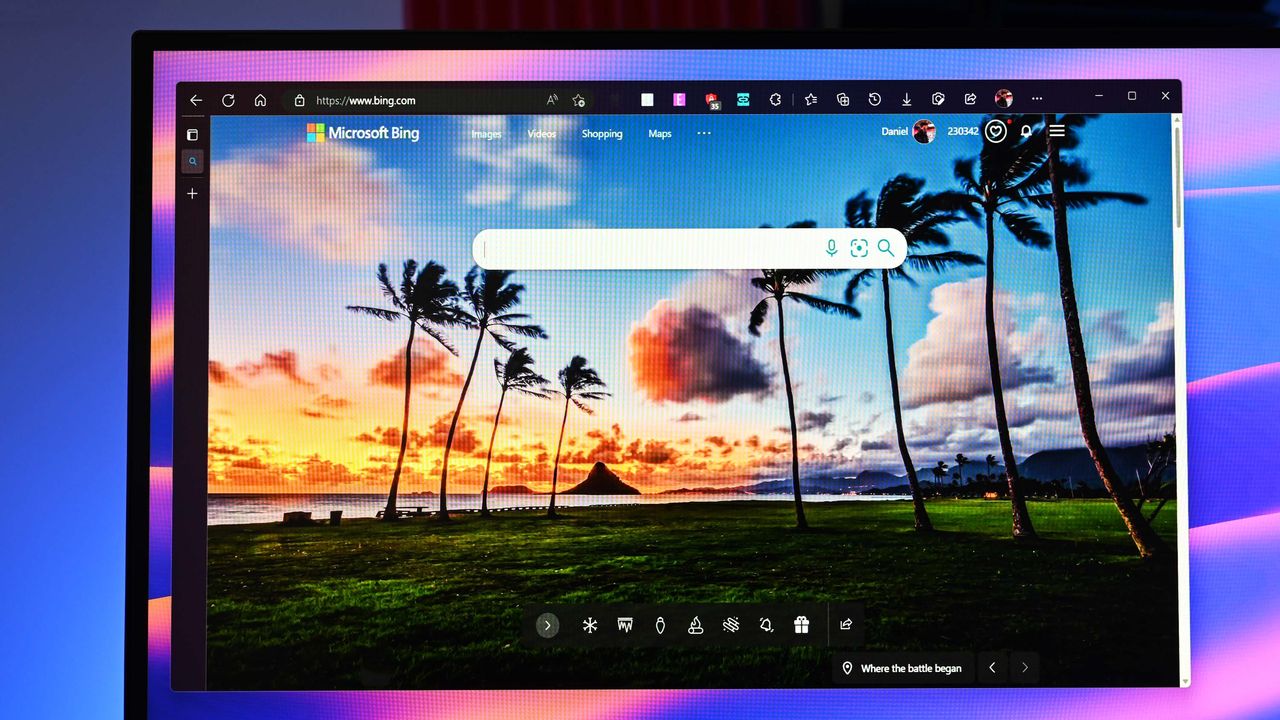
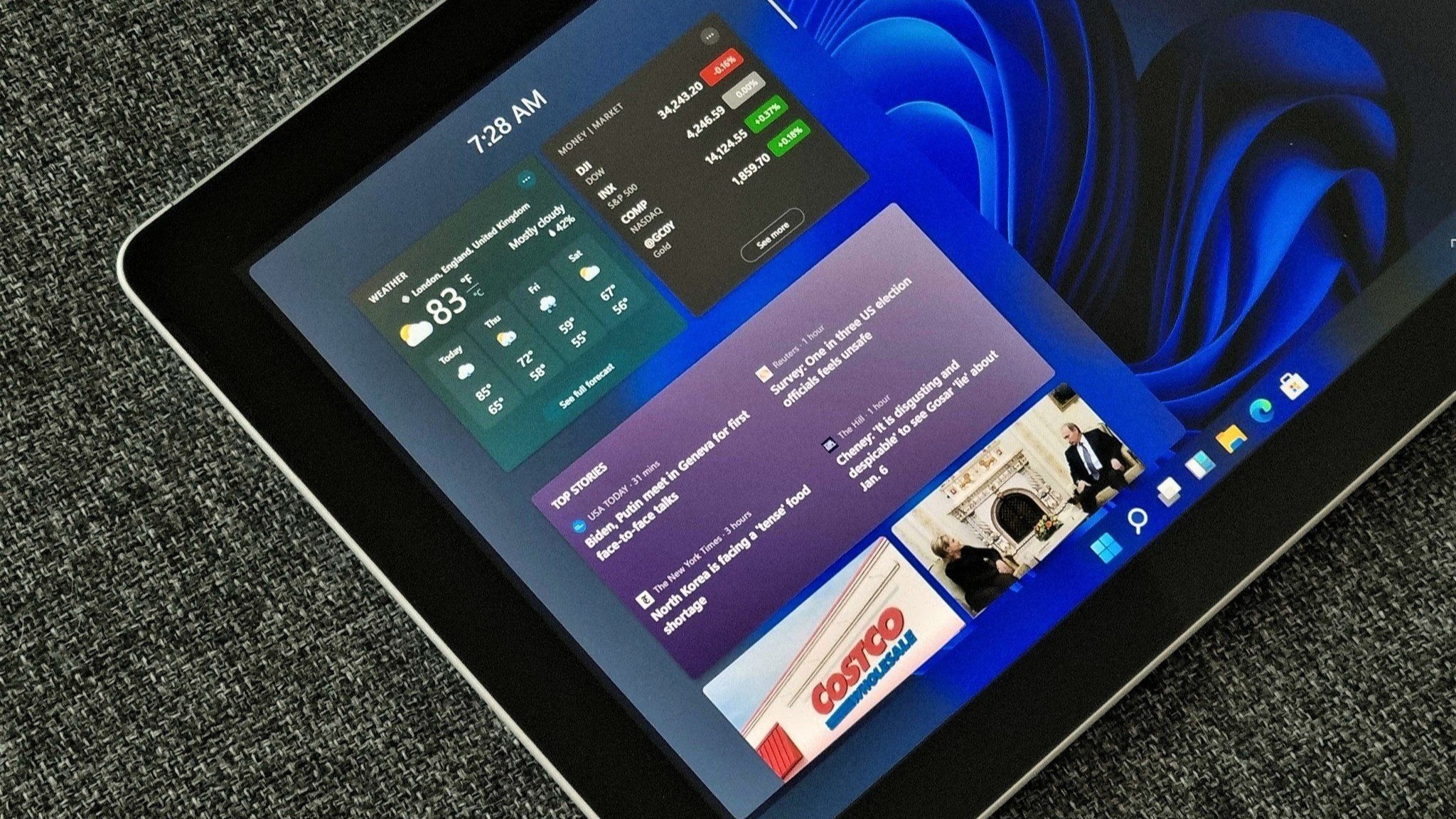
Microsoft is too pushy with its Edge browser, according to a recent survey shared by the Browser Choice Alliance. Polling 2,000 adults in the United States provided some insight regarding how easy it is to switch browsers on Windows 11 and if the operating system respects user choice.
Microsoft has been criticized for years for pushing Edge. Windows 11 introduced settings that make changing the default browser more complicated, such as a person electing to change their default only affected certain file types. The situation has improved a bit over the years, but it's still surprisingly difficult to just tell Windows 11 to never use Edge.
It's important to note that the Browser Choice Alliance includes several members that compete directly with Microsoft Edge. Chrome, Vivaldi, and Opera are all part of the alliance. That does not discount the experience of the people surveyed, but it provides some context.
Many members of the Browser Choice Alliance would benefit from more freedom about browser choice and simpler default settings. I would argue that those would also be good things for everyday users as well.
With that in mind, here are some of the highlights of what the Browser Choice Alliance found through its survey:
86 percent of those surveyed believe they should have primary control over their default browser and 80 percent want "one-click browser default."
26 percent of participants have Edge as their default browser compared to only 19 percent who say they would choose Edge as their default browser.
72 percent of participants who tried to change their default browser within the last two years ran into challenges, such as Edge being recommended and applications or links opening in Edge despite that browser not being set as default.
29 percent of those surveyed claim Windows system updates "contributed to their browser preference being changed or reset."
Older adults often struggle with setting their default browser.
44 percent of those surveyed ages 65 or older claimed changing their default browser was complex. Only 15 percent of people ages 18 to 44 said the same.
61 percent of participants 65 or older said they were not confident setting their default browser.
The survey results are not surprising, except perhaps that 14 percent of participants do not think they should be able to pick their default browser.
Microsoft is so eager to push people to use its Edge browser that when forced to give users more choices by the EU, Microsoft only shipped those changes within the EU. The company could have used that as an opportunity to just give people greater control over their PCs, but it didn't.
The fact that MSEdgeRedirect and EdgeDeflector ever existed is a stain on Microsoft's reputation. Those tools, which forced links to open with your default browser either don't work or are limited now.
Microsoft claimed having widgets or other system components open in Edge regardless of if Edge is the default helps ensure the best end-to-end experience. Many, including myself, question the validity of that claim.
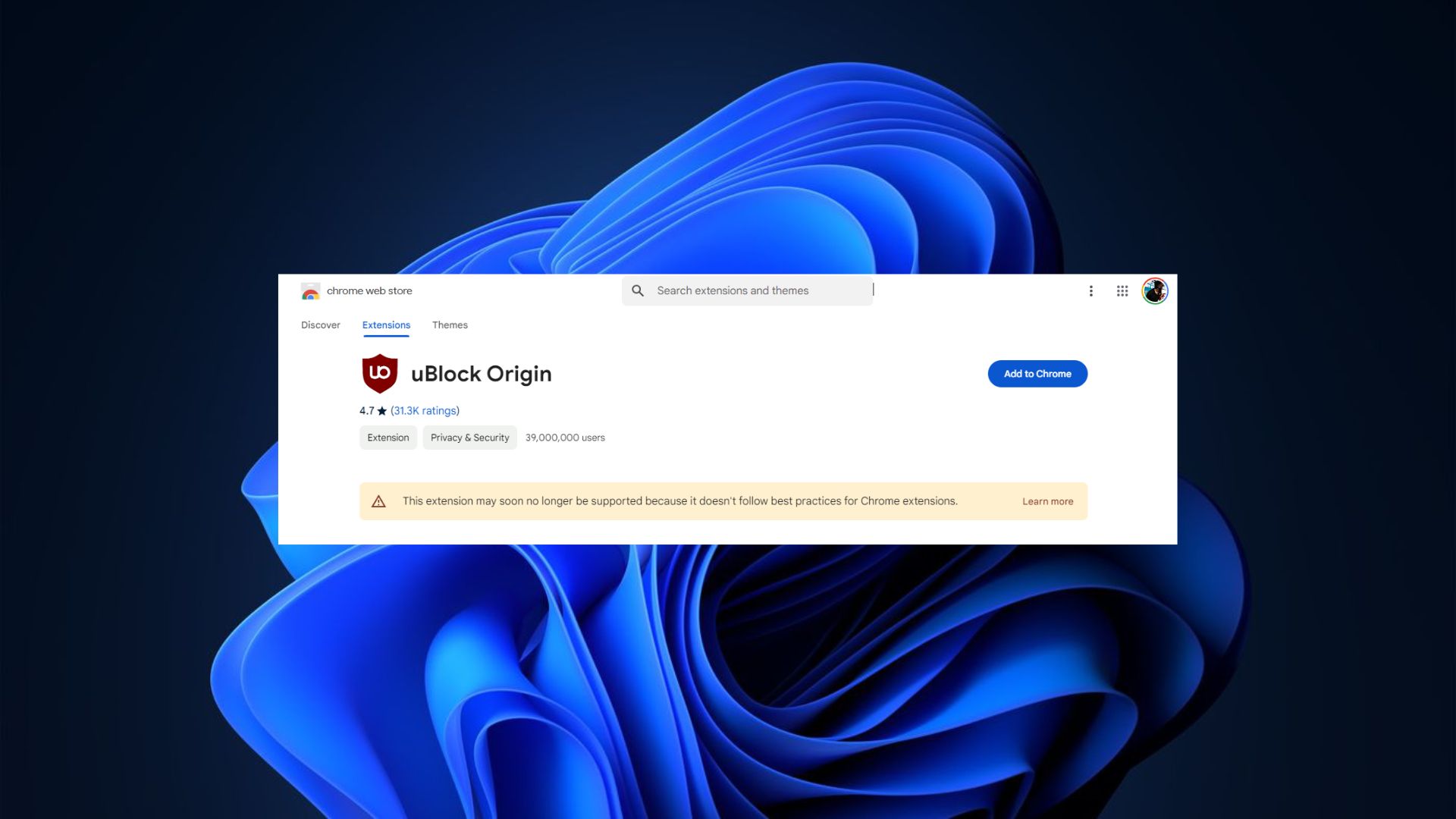
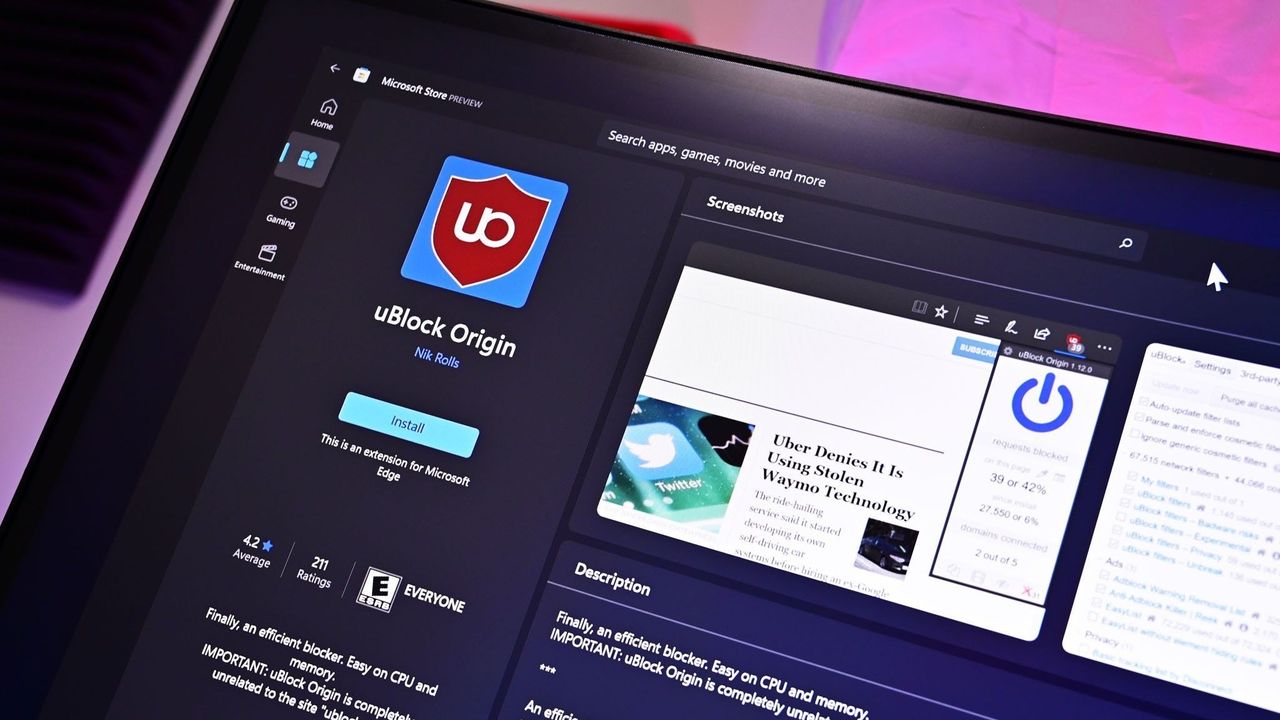
With Microsoft following in the footsteps of Google by discontinuing support for MV2 extensions, uBlock Origin will no longer work in Edge. That extension is a must-have for some users, so they may be on the lookout for a new browser. But based on the recent survey performed by the Browser Choice Alliance, changing to a different default browser may be more challenging than it should be.
Join us on Reddit at r/WindowsCentral to share your insights and discuss our latest news, reviews, and more.
Microsoft Edge will soon drop support for Manifest Version 2 (MV2), which means uBlock Origin will stop working in the browser. But Windows 11 users still have some browsing options that will support uBlock Origin and other MV2 extensions.
The Firefox account on X shared a simple message in response to an article about Edge ending support for certain extensions: "Firefox support for uBlock Origin is not going anywhere."
Brave shared a longer message, which emphasized that "Brave will keep supporting uBlock Origin" and that Brave hosts uBlock Origin and other MV2 extensions on its own servers. To enable MV2 extensions in Brave, you need to go to Settings > Extensions > Manifest v2 extensions.
Brave also has a built-in ad blocker that's unaffected by the MV2 changes.
Firefox runs on the Quantum browser engine, which is built specifically for that browser and is separate from Chromium. Brave is a Chromium browser. With both Chromium and non-Chromium options, people have a variety of ways to continue to use uBlock Origin.
Why are some browsers stopping uBlock Origin from working?
MV2 is an extension platform that developers can build upon. That older platform is being replaced by Manifest Version 3 (MV3), which is more secure and provides better performance than MV2.
The transition from MV2 to MV3 brings improvements, but it also removes support for the WebRequest API, which lets ad blockers dynamically intercept and block requests before they load.
The side effect of the transition is that uBlock Origin no longer works.
Since uBlock Origin Lite is an MV3 extension, it does not dynamically intercept content before it loads.
It's about more than blocking ads
uBlock Origin no longer works on Google Chrome and will soon stop working on Microsoft Edge. (Image credit: Kevin Okemwa | Windows Central)
In our recent poll about ad blockers, over 70% of respondents said they use uBlock Origin. Since that poll appeared in a piece about Edge ending support for uBlock Origin, the results are a bit self-selective, but still interesting. Even among those already interested in uBlock Origin news, 12% said they use uBlock Origin Lite.
While uBlock Origin Lite blocks many ads, it does not process ads in the same way as uBlock Origin. The full version of uBlock Origin intercepts the ads entirely, which reduces bandwidth usage and improves browser performance.
If you've ever loaded a web page and noticed that ads appear to be slowing things down, uBlock Origin would help in that situation but uBlock Origin Lite would not.
Join us on Reddit at r/WindowsCentral to share your insights and discuss our latest news, reviews, and more.
Microsoft Edge may soon let you sign in with an Apple account. The latest Canary build of Edge includes flags that, if enabled, let you sign into the browser with your Apple account.
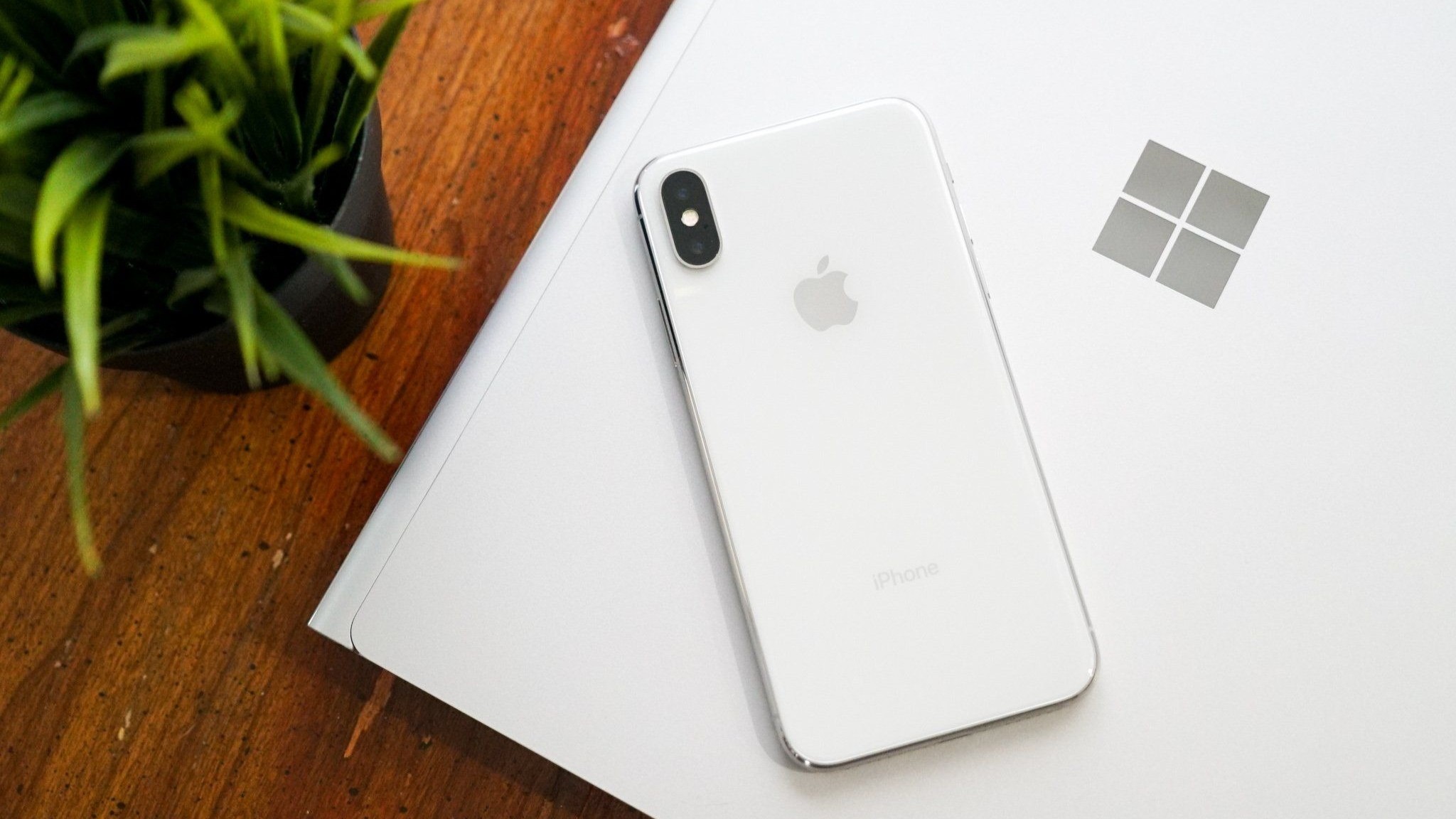
Using your Apple account within Edge will make it easier to keep your bookmarks, history, and other content synced across your phone and your PC. Many people, including myself, use a computer running Windows 11 and an iPhone.
The change was spotted by Leo Varela, who often leaks or highlights features in Edge and other browsers.
In Edge Canary for desktop there are a couple of new flags to enable support for signing in with an Apple account. Microsoft added support for Google accounts some time ago and has now added support for Apple accounts: https://t.co/34BBm0b3Wipic.twitter.com/BNMrpB8pkOAugust 10, 2026
Microsoft did not initially plan to support non-Microsoft accounts within Edge. Google account support rolled out recently and now support for Apple accounts appears to be on the way.
Of course, you could use Edge without any account at all. The browser works without requiring signing in. But syncing data and some other features require using some sort of account to sign in.
Windows Central take
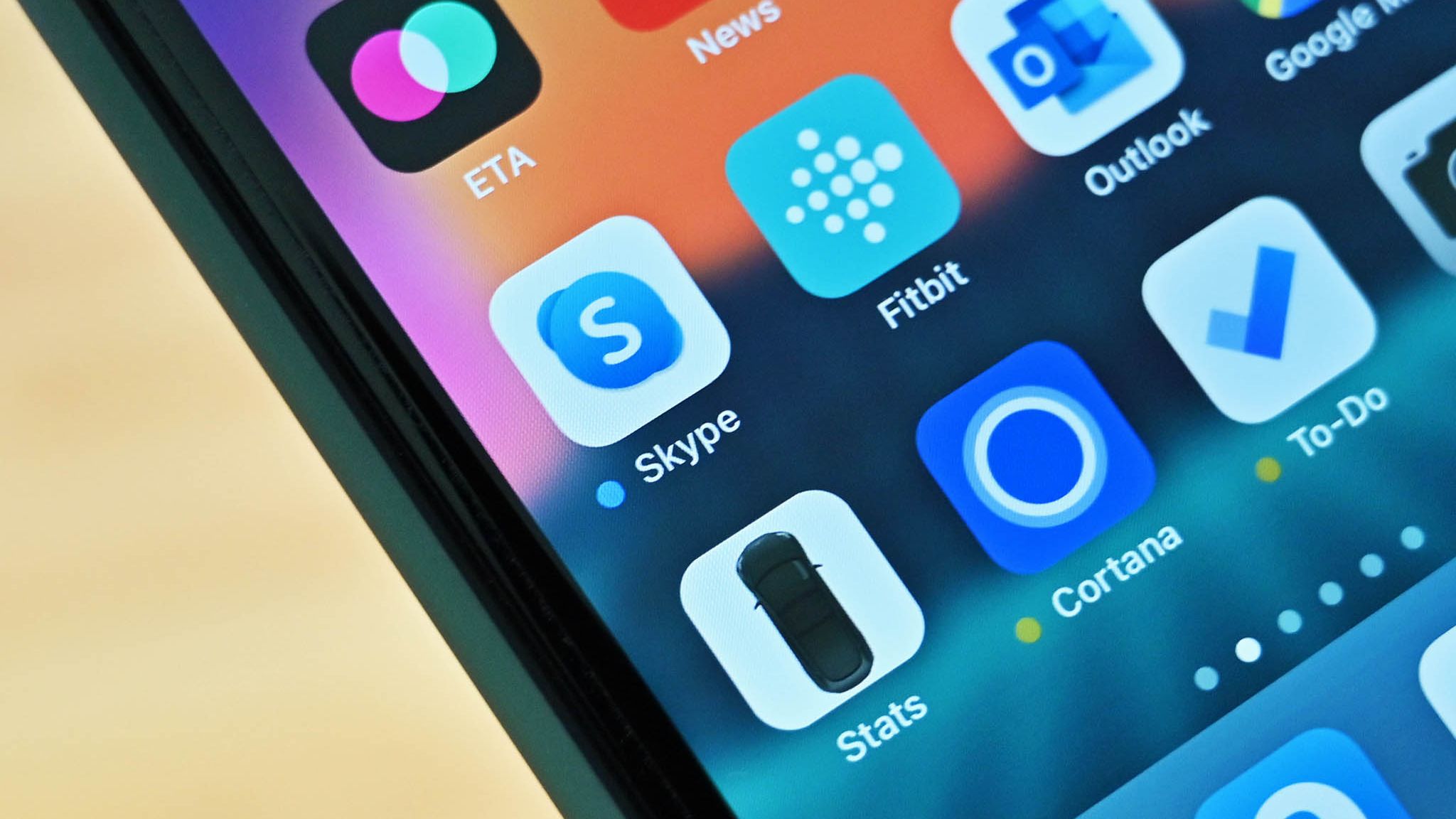
Microsoft once pushed its apps aggressively on iOS and Android. Since 2015, the company has shut down several apps and left others in maintenance mode. (Image credit: Windows Central)
It's interesting to see how Microsoft's cross-platform app strategy has shifted over the years. Some apps have been available on other platforms for over a decade, but Microsoft increased its efforts to have a presence on iOS and Android after shutting down Windows Phone.
With no phone operating system of its own, Microsoft aimed to provide a premier experience for its services on Android and iOS to meet people where they are. Microsoft bought up popular apps like Wunderlist and SwiftKey to make a Microsoft experience on mobile platforms made by Google and Apple.
These days, several Microsoft apps feel like abandonware and others lag behind the competition. The glory days of the "iPhone Pro" are over.
I do appreciate flexibility when it comes to signing in to Edge, but I can't help but wonder if adding support for Google and Apple accounts is an admission that Microsoft can't even get people to use a Microsoft account in Microsoft Edge.
Rather than trying to force users into the Microsoft umbrella, the company seems to be accepting its mobile reality. It is finally conceding that to keep PC users on Edge, it has to let them live inside Google and Apple's account ecosystems instead.
Join us on Reddit at r/WindowsCentral to share your insights and discuss our latest news, reviews, and more.
Microsoft PowerToys will soon add on-device support for Phi Silica. Microsoft called that small language model (SLM) "small but mighty" when announcing it in 2024. Now, that model is available for Advanced Paste in the latest PowerToys preview.
Advanced Paste is a utility in PowerToys that formats content from your clipboard. It supports several formats, including plain text, markdown, and JSON. You can also use it to extract text from images using OCR and transcode audio and video files.
When first launched, Advanced Paste required an OpenAI API key, but PowerToys later added support for other models. Azure OpenAI, OpenAI, Gemini, and Mistral are cloud services that work with Advanced Paste. Foundry Local and Ollama both work with the feature locally.
Phi Silica is now available as an option for local AI processing in the latest preview.
While you may not have heard of Phi Silica, you've likely heard of tools it powers if you have a Copilot+ PC. Click to Do and on-device rewriting in Word and Outlook are powered by Phi Silica.
Phi Silica uses the NPU of a device, which helps with efficiency.
The GitHub page for PowerToys lists all the changes in the latest preview. Here are the highlights from the same page:
View the changelog ↴
PowerToys v0.101.2211.0 Highlights
Advanced Paste: Added an on-device Phi Silica provider and more per-action AI customization options.
Command Palette: Improved dialog handling, icon loading, memory cleanup, theme behavior, and dock performance monitoring.
Window management: Improved shutdown behavior across FancyZones, Grab And Move, and Always On Top, and made Always On Top borders render solidly at full opacity.
Keyboard Manager: Fixed the elevated Run Program browse flow in the new editor.
Mouse Jump: Moved Mouse Jump to the newer WinUI app architecture and packaged its new binaries into signed release builds.
Settings: Added an update channel selector and a guided Bug Report flow with progress and a GitHub shortcut.
Quick Accent: Made press-and-hold activation cancel cleanly so the picker appears only when intended.
Preview releases: Added dedicated preview-release versioning and update-channel support so preview builds can be published and tested independently from stable releases.
PowerToys has a growing library of utilities, so there's a lot to look at in the latest preview even if you do not care about AI. Command Palette will perform better and Window management has been improved across FancyZones, Grab And Move, and Always On Top.
This collection of utilities includes a large library of features to enhance the Windows experience. PowerToys is designed with power users in mind, but it has handy features for people who just use their PC for everyday computing too.
Join us on Reddit at r/WindowsCentral to share your insights and discuss our latest news, reviews, and more.
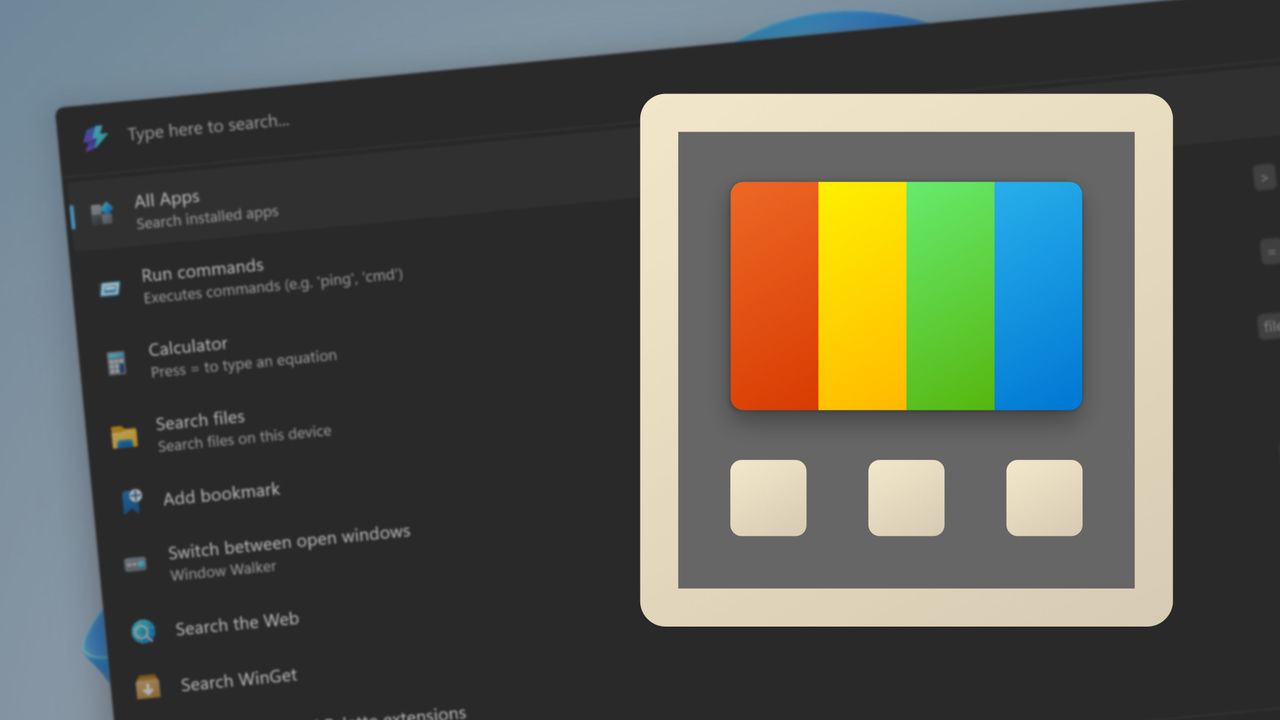
PowerToys logo appearing over PowerToys on Windows 11
PowerToys logo appearing over PowerToys on Windows 11
Like millions of other people, I have a Windows 11 PC and an iPhone. I'm envious of some of the ways Macs and iPhones connect, but I still rely on Windows 11 for everyday work and my hobbies.
AirDrop is one of the features I want the most when looking over the digital fence at my friends who are fully in the Apple ecosystem. While you cannot use AirDrop on a PC, there are some great alternatives.
"Does anyone actually have a good way to transfer files between an iPhone and a Windows PC?" asked Reddit user Palunath in the r/Windows11 subreddit. Users responded with several options, but two stood out: Blip and LocalSend.
Reddit delivered with both those recommendations. I downloaded both and have used them over the last week. I'm hardly the first person to highlight these apps, but if people are asking for AirDrop alternatives on Windows 11, they likely haven't heard of Blip and LocalSend.
Top pick: Blip
Transferring files is quicker and easier if both of your devices are on the same network, but Blip works when on different networks as well.
Blip is my top pick. It's easy to use, has an interface that feels familiar, and it's extremely fast. It's similar to AirDrop but without the Apple exclusivity.
Blip supports sending files and folders without any size limits (Blip's website says "99TB? Game on").
Not having to zip folders is a big plus, as is being able to send large photo files.
Blip is free for non-commercial use. If you're a business user or want priority speed, you can subscribe for $25 per user per month.
Signing up for Blip is easy and just requires entering your email and confirming the code you're sent.
Connecting an iPhone and a PC can be awkward unless you have the right apps. (Image credit: Future)
LocalSend works very well, but its structure has some pros and cons. Because it works through your network, it works without the internet. It's also incredibly fast, assuming your Wi-Fi network has quick speeds.
LocalSend doesn't require an account or logging in. Your devices from the network just appear within the app. You can mark devices as favorites to streamline sharing as well.
You can send files to a single recipient or multiple recipients as well, which makes LocalSend feel a bit more like AirDrop.
LocalSend is open-source, fully offline, and peer-to-peer, so it's a great choice for people who value privacy.
The obvious drawback is that LocalSend is for sending files locally. If you just need to send files at home or work when devices are on the same network, LocalSend provides a seamless experience.
OneDrive and iCloud
Blip and LocalSend are made for sharing files on demand. If you want to sync entire folders or all of your files, you can use apps like OneDrive or iCloud.
In my experience, these apps are much slower at syncing and sending files, but they're a great way to back up content.
Join us on Reddit at r/WindowsCentral to share your insights and discuss our latest news, reviews, and more.
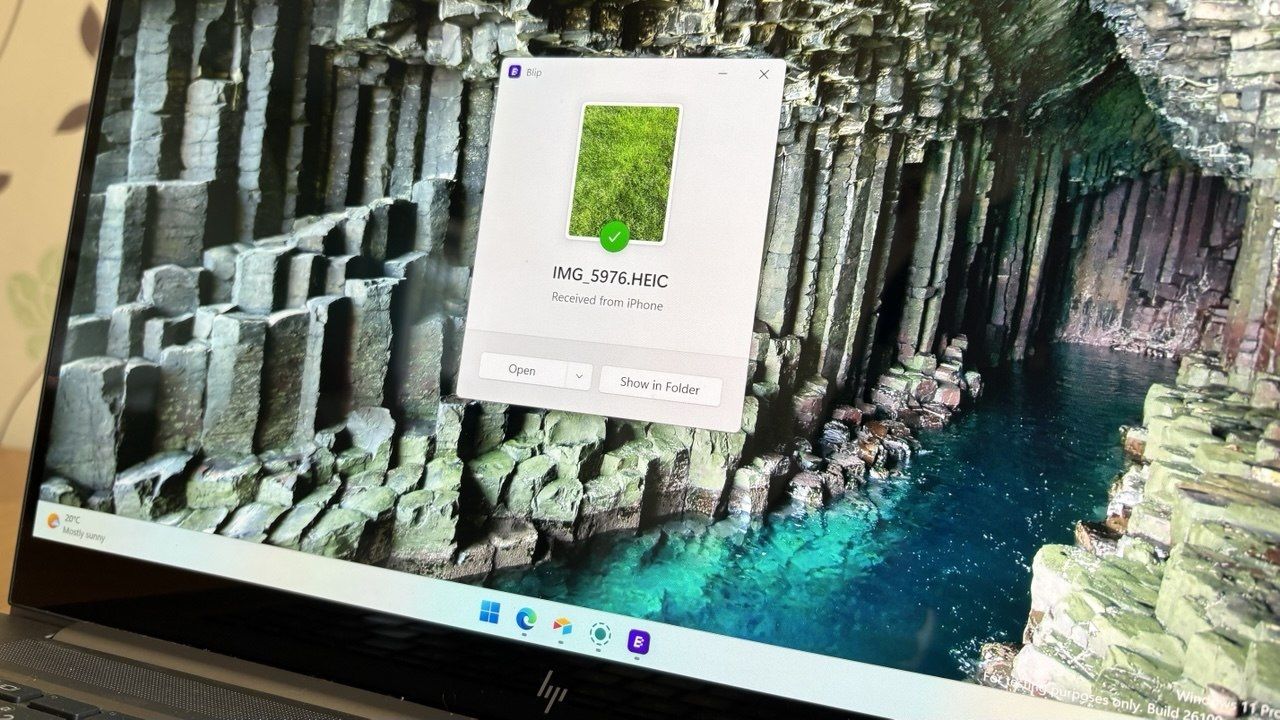
A laptop screen displaying a Windows 11 desktop with a Blip file transfer pop-up window confirming a photo was received from an iPhone.
Blip feels natural and makes it easy to send and receive files between an iPhone and a PC.
Microsoft accidentally shipped the new OneDrive Photos app to millions of PCs recently. Microsoft EVP of Apps and Agents Jeff Teper explained that the app was shipped earlier than intended.
We now have more details about the OneDrive Photos app, courtesy of the Microsoft 365 Roadmap. While the app was rolled out to PCs accidentally, Microsoft plans to release it in the future. When the app does ship (on purpose), there will be options to manage it or uninstall it.
"OneDrive is adding administrative controls for the Photos experience on Windows. Organizations can manage whether users sign in with personal Microsoft accounts. These controls help IT teams align OneDrive Photos with their access, data governance, and device-management requirements."
That feature should start rolling out this month. Considering that the OneDrive Photos app was accidentally installed on some managed PCs that were unable to use the app, these administrative controls should be a welcome addition.
"OneDrive is giving people more control over their Windows experience by allowing them to uninstall the OneDrive Photos experience independently. Removing the Photos experience does not uninstall the OneDrive app, interrupt file sync, or delete photos and files. This provides a clear removal option for people who prefer to manage their photos with another app."
That feature is expected to roll out next month. As always, roadmap dates are estimates and subject to shift.
Those entries, which were first spotted by Neowin, were only added to the Microsoft 365 Roadmap after the accidental rollout and following backlash. We may see more details on the roadmap about OneDrive Photos soon.
The main question surrounding the OneDrive Photos app is why it needs to exist at all. Microsoft's Photos app for Windows already integrates with OneDrive. The OneDrive Photos app is a web-based experience that is less native and seemingly against the current goals Microsoft has set to improve its first-party apps.
Join us on Reddit at r/WindowsCentral to share your insights and discuss our latest news, reviews, and more.
Microsoft OneDrive logo with clouds and artificial intelligence imagery
Microsoft OneDrive logo with clouds and artificial intelligence imagery
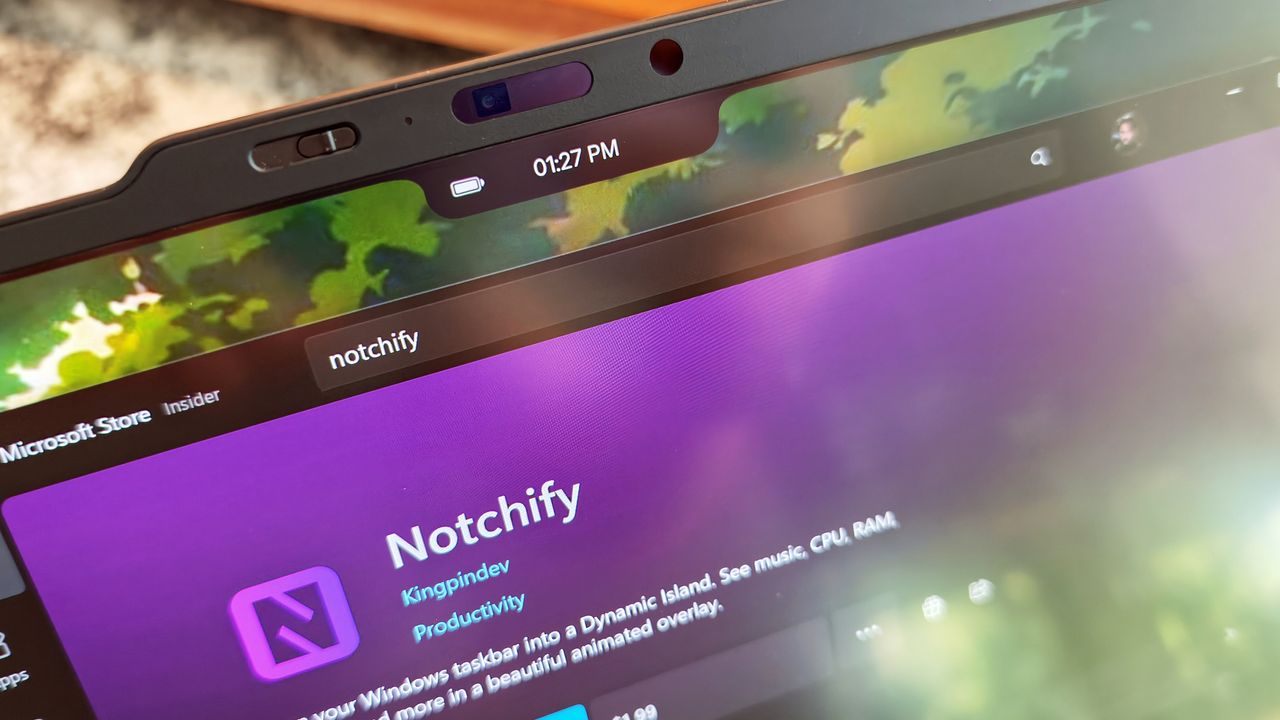
I’ll be honest: I’ve never liked Apple’s notch design. I find it intrusive, and the whole “Dynamic Island” thing always felt like a marketing trick to justify a hardware compromise.
So when I saw Notchify pop up on Reddit, my first thought was, why would anyone want that on Windows?
That said, if you're a bit horrified at the idea, I mean, I totally get it. But hear me out.
What Notchify does
At its core, Notchify is pretty simple. The app creates a “fake” notch or “island” at the top of your screen. And yes, its functionality is what actually saves it. You can use it to display notifications, media playback controls, weather, battery, timers, microphone indicators, and more.
There's even a built-in clipboard for copied content and quick access.
You can see some of it in action in the above embedded video.
The settings are straightforward. You can toggle between Island (disconnected) and Notch (connected) modes, pick which monitor it appears on, and decide if it should launch at startup.
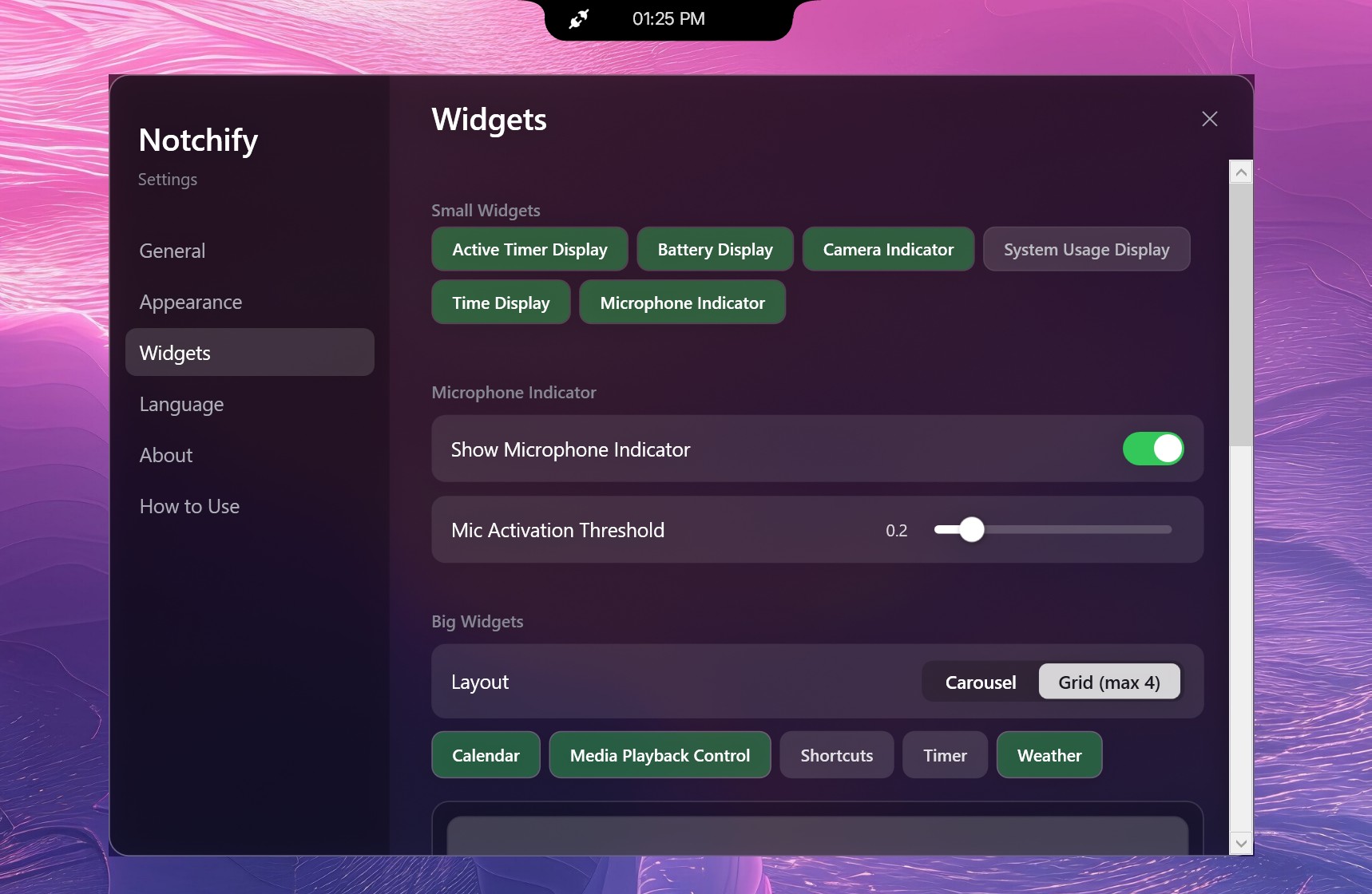
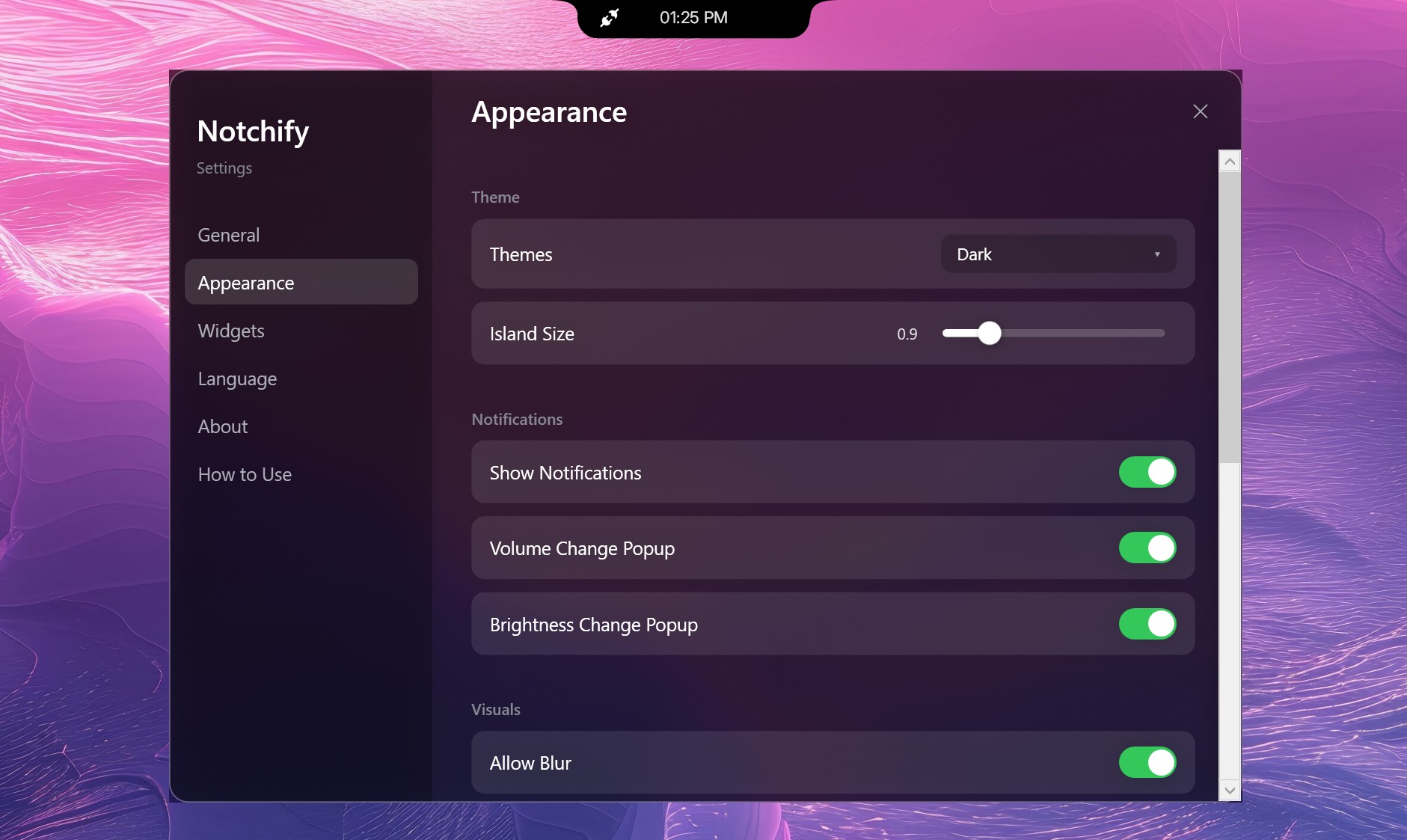
The Appearance tab lets you adjust the theme, blur, and popup behavior for volume or brightness changes. The Widgets section is where the fun begins, as you can mix and match small widgets like battery display, time, and microphone indicators, or go big with calendar, weather, and media playback.
The notch lives on your PC as "always on top," and when you mouse over it, it expands with whatever info you chose it to display. The animations are a bit janky, but it works.
It’s clean, modern, and surprisingly polished for an indie project. The dark theme looks great.
Why I ended up liking it (mostly)
Some of the settings and options for Notchify. (Image credit: Daniel Rubino)
I use a massive 52-inch Dell Ultrasharp monitor, and one of the downsides of that much screen real estate is that my eyes are constantly darting around for notifications, time, or playback controls.
Notchify fixes that by putting everything in one place.
I still don’t love the idea of a notch (it’s not my aesthetic), but I can’t deny how practical it is. Having a small, centralized hub for quick info saves me from scanning the corners of my display. It’s one of those things that quietly improves workflow without demanding attention.
And if you've listened to me on our podcast, you know my big beef with Windows 11 is how I can't adjust where notifications appear from, which seems dumb in 2026.
For anyone switching from macOS to Windows 11, Notchify might even make the transition easier. It brings a familiar visual cue while adding more flexibility than Apple’s version ever offered, and that's kinda cool.
Probably the most obvious issue is that Windows 11 doesn't "wrap" around the app, so when running apps full screen (like your web browser), you may end up blocking access to some features. And no, you can't move it around, which was a bit surprising.
The best part of this story isn’t just the app; it’s the community that helped shape it. On Reddit, user GuppyFarmer posted a detailed breakdown of Notchify’s CPU usage, pointing out that it was higher than expected. Instead of brushing it off, the developer responded, thanked them, and used the data to fix the issue.
That kind of interaction is what makes indie development fun. Constructive feedback, not just complaints, helps these projects grow. GuppyFarmer’s analysis gave the dev exactly what they needed to optimize performance, and the result is a smoother, more efficient app for everyone.
Too often, feedback online turns into negativity. Here, it turned into progress.
My takeaway
More options for theme and design in Notchify. (Image credit: Daniel Rubino)
The app costs $1.99 after the free trial, which feels completely fair for what it offers. It’s not bloated, it’s not subscription-based, and it’s updated based on real user input. That’s the kind of indie pricing model I’ll always support.
I still don’t want a notch on my laptop or desktop, but Notchify convinced me that the idea can be useful when done right. It’s a small, clever utility that adds genuine functionality to Windows, and maybe it'll inspire some other creations to solve some problems.
And hey, it proves what many of us already know: good ideas don’t have to come from big companies. Sometimes, a single developer with a Reddit post can create something that feels fresh and helpful.
If you’re curious, give the free trial a spin. You might find yourself liking it more than you expect.
Join us on Reddit at r/WindowsCentral to share your insights and discuss our latest news, reviews, and more.
Close-up of a laptop screen showing a black notch overlay with a battery icon and time display above the Microsoft Store page for the Notchify app.
My reverse notch on the Lenovo X1 Carbon, counter-matched by Notchify, is truly diabolic.
If you use uBlock Origin on Microsoft Edge, it's time to start looking at alternatives. Microsoft has shared a timeline for the transition away from Manifest Version 2 (MV2) extensions. That transition will end support for uBlock Origin on Edge, alongside a small group of other extensions.
Microsoft aims to fully transition consumers away from MV2 extensions by the end of 2026. Some users will start seeing notices about the change this month (August 2026). Microsoft will then gradually turn off MV2 extensions by default over the coming months.
Enterprise users will be transitioned away from MV2 extensions in 2027.
It's not a surprise that MV2 support is being discontinued. In fact, the surprise is that we finally have a confirmed date for the end of support. Microsoft has had MV2 support on the chopping block for ages but had not committed to a firm cutoff date.
MV2 and its replacement Manifest Version 3 (MV3) are extension platforms that developers can build upon. There are technical differences between the two, the most notable is that MV3 limits the WebRequest API, which allows ad blockers to dynamically intercept and block network requests before they load.
Since Edge is built on Chromium, which is Google's open-source engine, Google pushing MV3 affects Microsoft Edge.
This shift to MV3 is not arbitrary; there are practical benefits to the switch. MV3 is more secure and provides better performance than MV2. Some believe the transition to MV3 is being pushed to give Google more control over ads on the web, though that is up for debate.
The end of MV2 support will affect several extensions, but the biggest one is uBlock Origin. I suspect few would care about the end of MV2 support if uBlock Origin were unaffected.
Microsoft states that 95% of the top MV2 extensions in the Edge Add-ons store have been moved to MV3. There are only 58 MV2-based extensions in the Edge Add-on Store at all. Only three of those MV2-based extensions do not have MV3-based equivalents available.
There is a version of uBlock Origin that works with MV3, though it's uBlock Origin Lite. That extension lacks some of the granular controls of the full version. It also works differently in the background, hiding most content rather than preventing items from loading.
Many people could replace uBlock Origin with uBlock Origin Lite without issue, but power users could struggle with the change. Some people plan to switch browsers before changing ad blockers.
Microsoft Outlook has a handful of changes in the works that will make it easier to stay on top of emails and events. Some of the upgrades, such as drag and drop support for rescheduling events, will change how you interact with Outlook, while others are smaller upgrades.
All of the improvements are detailed on the Microsoft 365 Roadmap. I've taken five of the most exciting entries from that roadmap and gathered them in the chart below.
Feature
Description
Rollout Start
Platform
Filter messages by events
You can now filter your messages for calendar invitations. Simply go to the filter and select Events from the drop down.
August 2026
Android and iOS
Copilot Chat pop-out for Outlook for Mac and iPad
Copilot Chat remains accessible within an Outlook app window but now can also be popped out to float over the main Outlook app window. Popping out Copilot Chat allows people to switch contexts or have more space for what they are working on in Outlook and control the space and form that Copilot Chat takes on screen. When you open Copilot chat and click the pop-out button, Copilot will open separately over the main Outlook window.
August 2026
iPad and Mac
Drag and drop
You can now reschedule events by dragging them to a new time slot in your calendar. This feature is available in day and multi day views.
August 2026
Android and iOS
Insert signature image from OneDrive
Users can now insert images into their email signature directly from OneDrive, in addition to the device photo library.
August 2026
Android and iOS
All day events to show up more clearly in the Mail module calendar preview
We're making it easier to tell when receiving meeting invites that conflict with scheduled Out of Office time or Busy All Day events, on Outlook Web and Outlook for Windows.
August 2026
Desktop and web
Being able to filter messages to only show those with calendar invitations will save me a lot of time. I get a lot of calendar invites from my wife to coordinate our schedules, but I also get a lot of emails from my wife about other things.
After finding those events, I'll be able to move them around in Outlook by dragging and dropping them. Since we have a young child, we often need to move things to different times of the day to align with naptime. I wish drag and drop support was on the way to the web version of Outlook as well, but the roadmap entry only mentions iOS and Android.
Which features would you like to see added to Outlook? Are there any improvements on the way that you're especially excited about? Let us know in the comments!
Join us on Reddit at r/WindowsCentral to share your insights and discuss our latest news, reviews, and more.
In most modern homes, people rarely depend on a single shared computer anymore. Instead, most families use a combination of Windows 11 laptops, macOS devices, Android phones, iPhones, tablets, smart TVs, and cloud services, all connected through the same home network. The problem is that one weak device can compromise the entire network.
As digital life spreads across more devices and services, security gaps become easier to overlook. Attackers increasingly target the weakest link, often a device without proper protection, outdated software, or a misconfigured app.
TL;DR
The risk: Users today rely on multiple devices, accounts, and platforms.
The solution: All-in-one protection makes digital safety easy by eliminating coverage gaps between different operating systems.
Bitdefender Total Security: Provides a seamless multi-device coverage starting point for Windows 11, macOS, iOS, and Android.
Bitdefender Premium Security: Includes integrated privacy tools, such as an unlimited VPN, to remove data caps and protect public connections.
Bitdefender Ultimate Security: Offers identity-first digital protection with identity theft insurance and real-time monitoring.
Fragmented security increases household risk because attackers exploit the weakest device
Using different security solutions across devices creates an unbalanced level of protection. A Windows 11 laptop might have an antivirus installed, while a child's Android tablet might not, and this inconsistency can create openings that malicious individuals can exploit.
Can one vulnerable device really compromise the whole home?
Yes. Modern cyberattacks often use lateral movement, meaning malware on one device can scan the network for others. If one device (laptop, tablet, or phone) is compromised, it can expose other devices in the network.
According to the 2025 Verizon Data Breach Investigations Report, around 60 percent of breaches involve the human element, including non‑malicious actions such as mistakes, misconfigurations, or falling for phishing scams.
When each device in the home uses a different security solution, the chances of mistakes increase.
Why all‑in‑one protection solves this problem
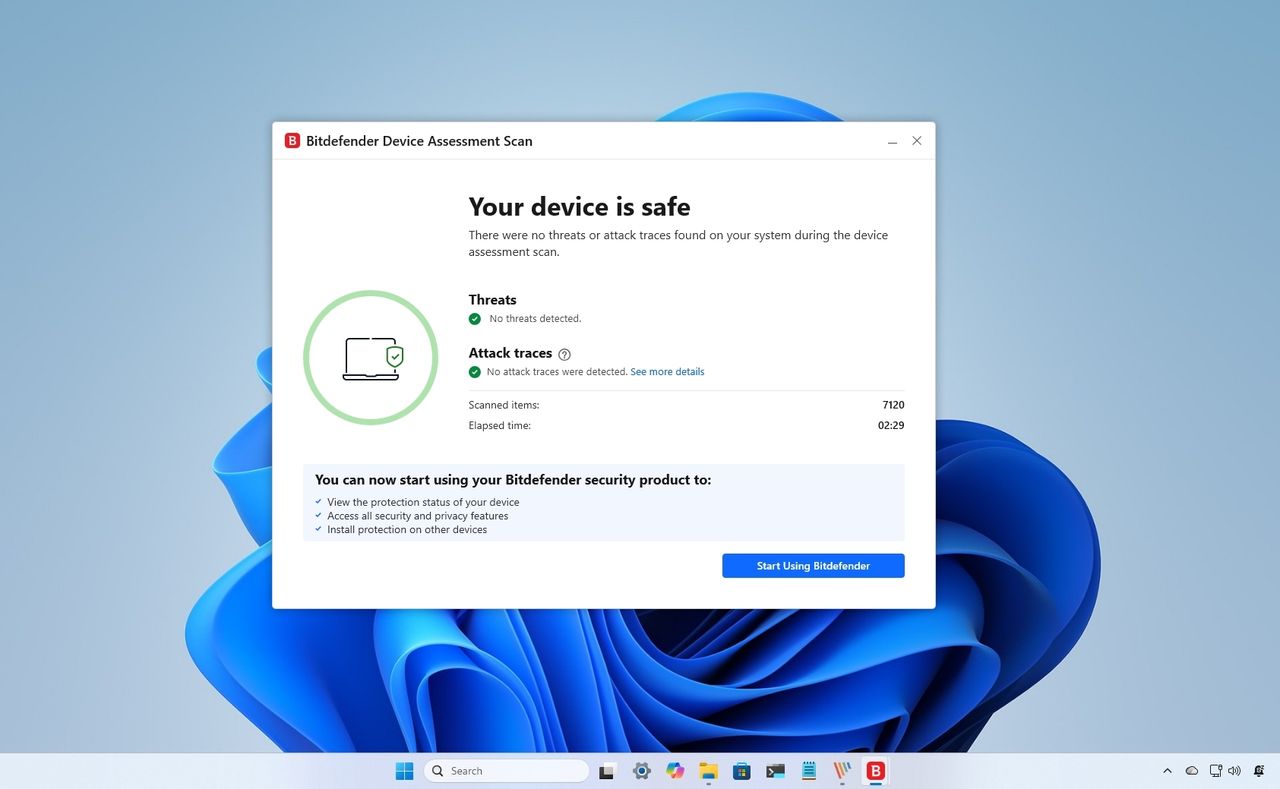
A single security solution reduces that configuration friction. Instead of juggling different apps, settings, and alerts, every device follows the same protection solution. This reduces the number of decisions families must make, and fewer decisions mean fewer gaps.
(Image credit: Bitdefender )
Why is an all-in-one suite better than several specialized apps?
Because it removes configuration friction, using a unified protection means all your devices use the same security system, so you don't have to worry about differences between Android and Windows 11. Everything is built on a single platform, helping eliminate potential weak points that attackers could exploit.
Bitdefender Total Security provides seamless multi‑device coverage
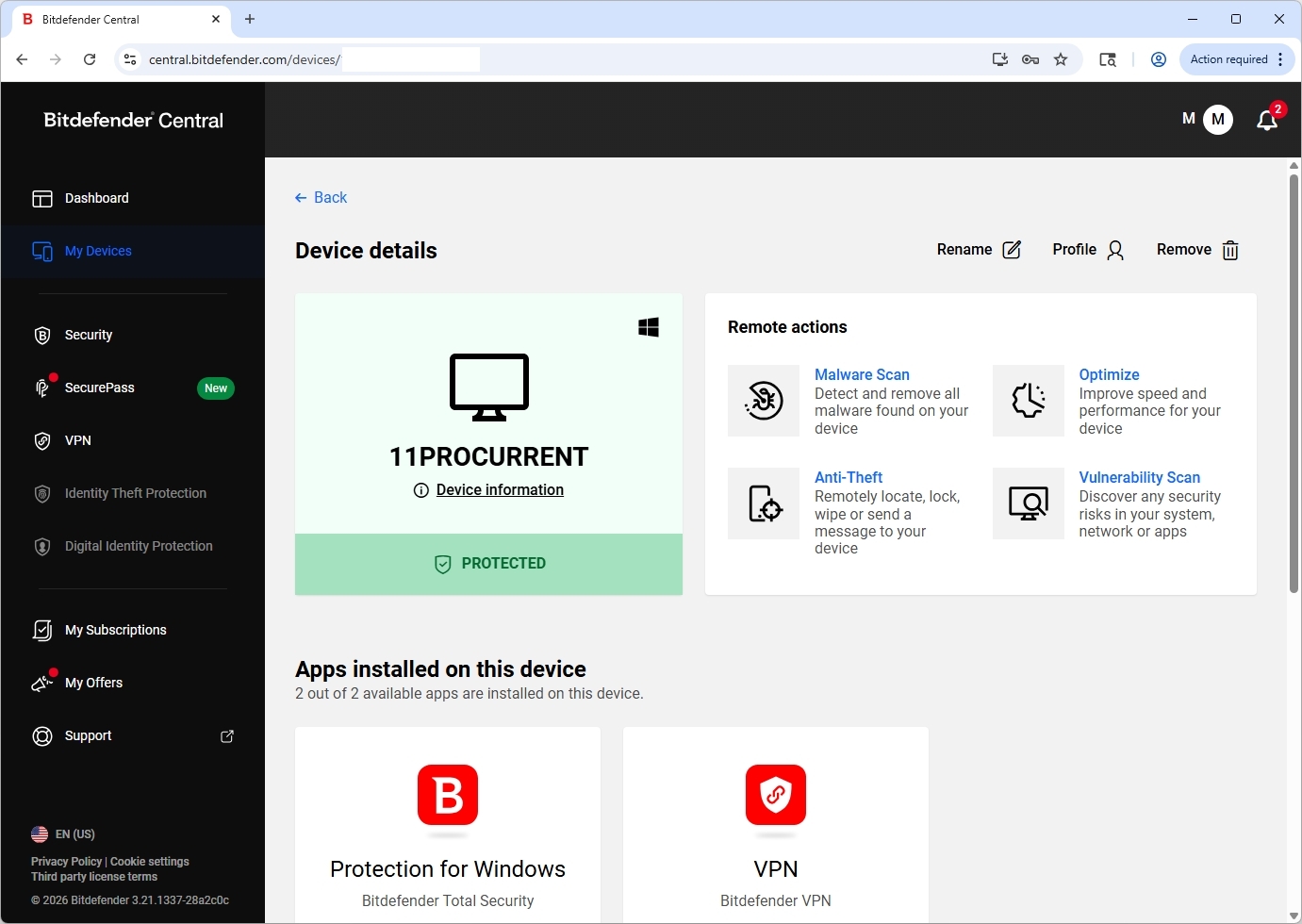
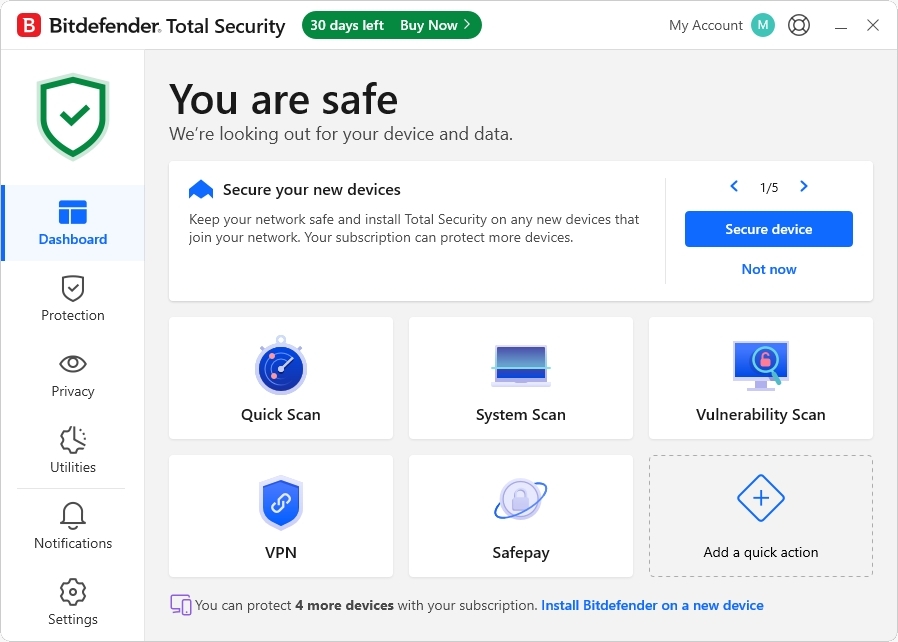
A single defense system is the appropriate solution for busy homes because it stops the manual labor required to stay safe. Bitdefender Total Security is designed as a single protection layer for mixed devices in the home. It brings Windows 11, macOS, iOS, and Android under one unified dashboard.
(Image credit: Future)
Key features of the Total Security tier:
Central dashboard: It monitors the security status of every family device from a single location.
Real‑time protection: Uses advanced threat detection to block malware, ransomware, and zero‑day threats.
Integrated privacy tools: It includes webcam and microphone protection to alert you when apps attempt unauthorized access.
Bitdefender consistently ranks at the top of independent laboratory tests. In the latest AV‑Comparatives Real‑World Protection Test, Bitdefender achieved a 99.5 percent protection rate with one of the lowest false‑positive scores.
Users can start with Antivirus Plus for essential protection on a single device before moving to full-suite plans.
Bitdefender Premium Security removes common limitations like VPN data caps
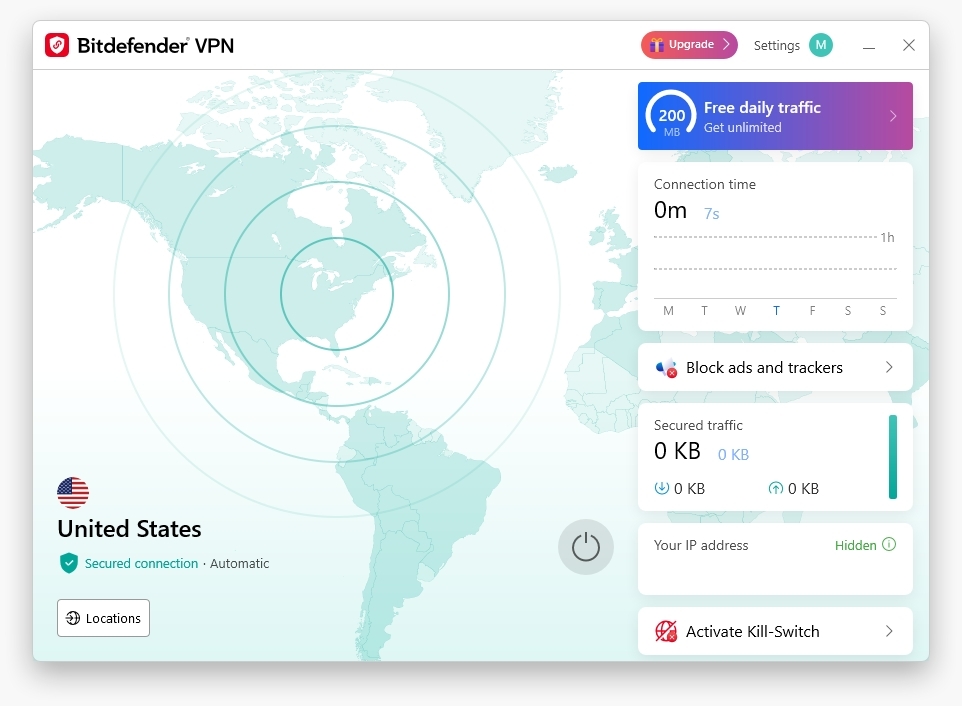
While the standard "Total Security" suite is robust, the jump to Premium Security is where all-in-one protection is the more practical choice because it removes common limitations, such as VPN data caps, that often lead users to avoid certain security features altogether.
(Image credit: Future)
Is upgrading to Bitdefender Premium Security worth it?
Yes, for most homes, upgrading to Bitdefender Premium Security is worth it, especially if you regularly use public Wi-Fi, travel often, or work remotely. An unlimited VPN adds a layer of protection by encrypting your internet traffic without the hassle of data limits.
Why is an integrated password manager helpful?
Integration creates an easier-to-manage experience. Bitdefender's Password Manager is great for shared households because it helps family members generate strong, unique passwords, as well as sync them across devices and reduce password reuse, a major cause of account compromise.
Bitdefender Ultimate Security adds identity‑first protection for modern home
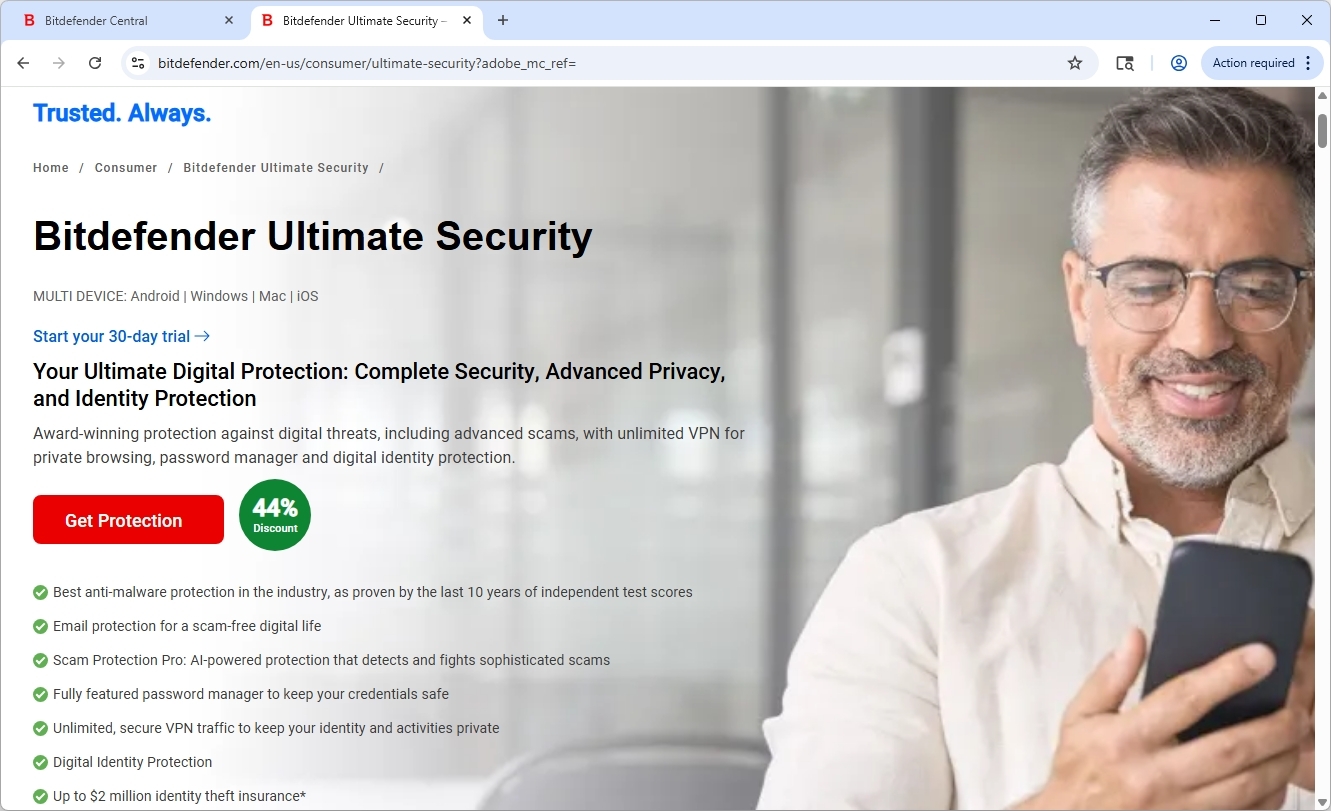
Device protection still matters, but these days your personal data is just as exposed. Families share devices, accounts, and the same wireless network, which creates more chances for information to slip through the cracks. Bitdefender Ultimate Security focuses on that risk, adding tools aimed at protecting financial and personal data, not just the devices themselves.
It offers up to $2 million in identity theft insurance.
Access to restoration specialists.
What happens if your identity is stolen?
Bitdefender's specialists help guide you through restoring your identity, credit, and accounts, a process that can otherwise take a long time.
Bitdefender plan comparison
Feature
Total Security
Premium Security
Ultimate Security
Device Protection
Up to 5 devices
Up to 5 devices
Up to 5 devices
Unlimited VPN
No (200MB/day)
Yes
Yes
Password Manager
Yes
Yes
Yes
Identity Monitoring
No
No
Yes
ID Theft Insurance
No
No
Up to $2M
FAQs about common household security questions
Do I need an antivirus solution on every device?
Yes. Even devices that don't traditionally get viruses can be used as entry points for attackers.
Can an infected device compromise other devices on my network?
Yes. Some malware is capable of scanning your home network and attempting to access other devices.
Is an all‑in‑one suite better than using separate apps?
Yes, for most homes, the unified protection reduces the chances of misconfigurations and improves management.
Is the VPN upgrade worth it?
If you usually connect to public Wi‑Fi or travel, an unlimited Bitdefender Premium VPN is a worthy upgrade.
Bottom line
A security setup is only as good as how well it’s maintained across your devices. When protection is split between different apps and services, it's easy for something to get missed. An all-in-one approach reduces that complexity by bringing device security, account protection, and privacy tools into one place.
Bitdefender brings device protection, privacy tools, and identity monitoring under one system, reducing the complexity that usually causes security gaps at home.
For larger households managing multiple users and devices, Family Plans provide centralized protection and easier subscription management across the entire home network.
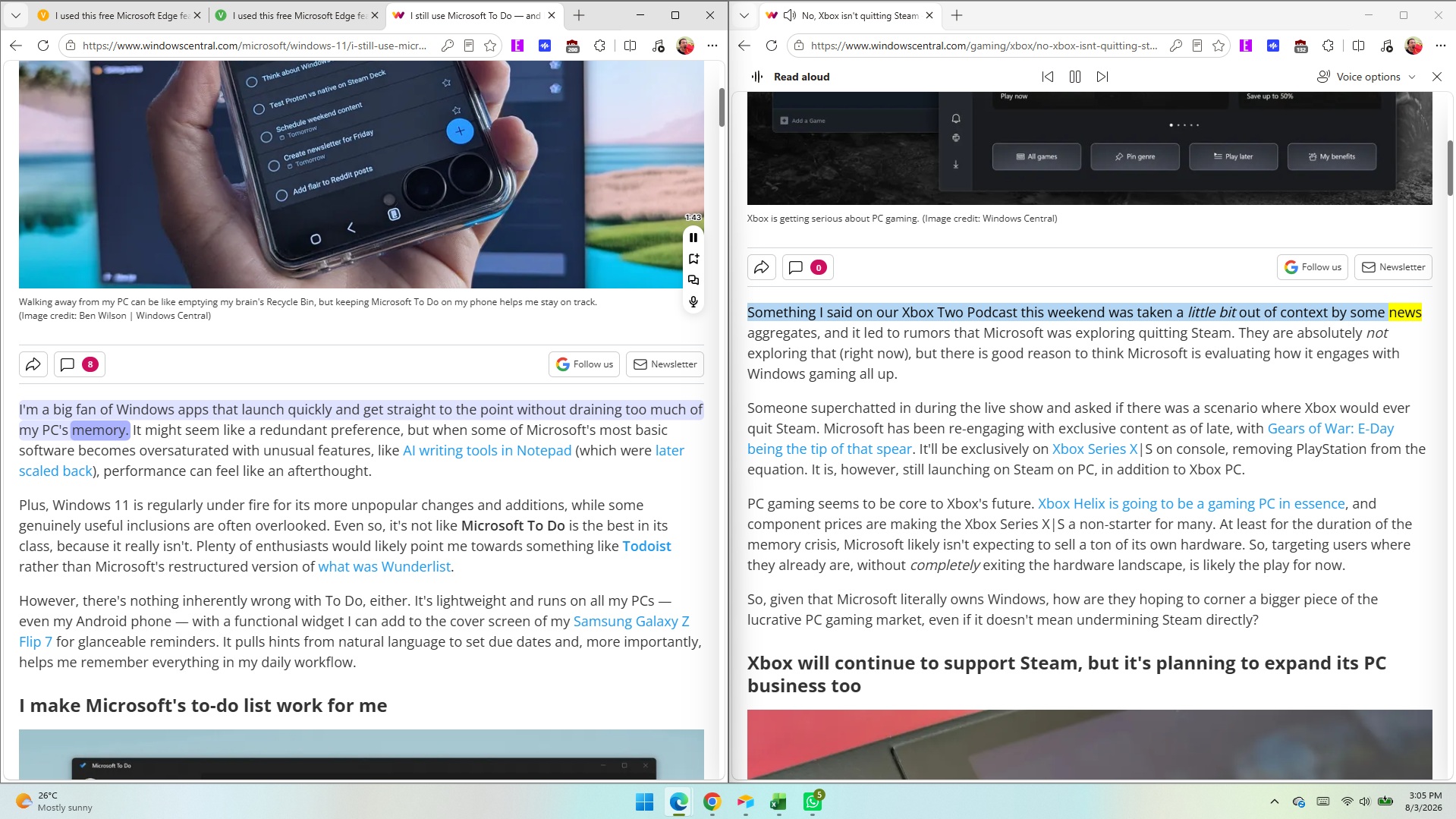
Microsoft Edge has a lot of built-in features that go unnoticed. Read Aloud has been part of Edge for a long time, and I use it all the time to review articles and listen to content. But after weeks of testing, I understand how Edge's Read Aloud feature stacks up against a dedicated tool for text-to-speech.
Speechify launched a Windows app earlier this year that adds real-time text-to-speech and voice typing to PCs. There was already a Speechify web extension, which is what I used for testing here. Speechify shared Premium access with me to help me assess their app and extension, so I've had several months to get used to them and compare them to alternatives.
Interestingly, Speechify and Read Aloud in Edge excelled in different areas.
Accuracy and cadence
Speechify (left) offers smoother natural voices and page navigation, but Edge's built-in Read Aloud toolbar (right) handles basic text-to-speech for free. (Image credit: Future)
Read Aloud supports a large library of voices. These are fun to play around with since there are quite a few English options sporting different accents.
All of the voices marked as "Natural" in Read Aloud sound fluid and are easy to understand. Occasionally, the feature will pause for a moment as it decides where to jump to next on a page (more on that below).
Read Aloud finds text well and presents pages using voice, allowing you to multitask or absorb content through both reading and listening.
While Edge's voices sound fluid, Speechify's voices sound more natural. They sound as if a voice actor is in a booth reading to you. There's a bit more bass in each voice and more depth than what's in Edge.
Speechify has several celebrity voices, which to be honest I'm not too fussed about. I don't need robot Gwyneth Paltrow to read me the latest Xbox news, but it's an option if you'd like her to.
Voices in Speechify are labeled based on their key characteristic, such as "Velvety" or "Easygoing." The "Resonant" Dominic voice would be a great choice to read the next Sarah J. Maas novel, but I don't think he's the best option for tech news.
Because Speechify's voices are clear and natural-sounding, you can play them at faster speeds before they sound ridiculous. I'm able to play Speechify voices at over 2.2x speed and still understand them. Edge's Read Aloud voices max out at around 2x speed before they're difficult to understand.
Dealing with the modern web
The modern web is full of inserts, page breaks, ads, and other components. When you read an article online, you rarely see a large block of uninterrupted text. In fact, my editor would tell me off if I published a piece of just text.
In order for articles to be visually engaging, publishers place block quotes, embedded posts, videos, and other items. When you read an article, you scan over certain content without thinking. If you spend a lot of time on the web, you've learned what should be read as part of an article, such as a block quote, and what is separate, like a list of related pieces.
Microsoft Edge's Read Aloud feature has not learned the same lessons. It will jarringly jump between the main text of a piece and a "You May Like" section.
In contrast, Speechify sticks with the main text of an article and hops over inserts that are off-topic. In my testing, Speechify correctly identifies the content I'd like read, such as block quotes, but bypasses things I'd want to circle back to later and click.
Both Read Aloud in Edge and Speechify hopped past ads in my experience, which is nice.
This app adds voice typing and text-to-speech to Windows. It can read PDFs, web pages, or documents and can be used to convert spoken words to text with correct punctuation.
A subscription also gets you more features within the web extension.
Note that the free version of the Speechify app is limited to slower listening speeds, fewer voices, and text-to-speech (voice typing requires Premium). Voice typing is free within the extension.View Deal
Is Edge Read Aloud better than Speechify?
Speechify works well and sounds natural, but it's difficult to justify its cost when Edge can do much of the same for free. (Image credit: Speechify | Edited with Gemini)
Edge's Read Aloud feature is surprisingly solid for a free tool that's built into Microsoft's browser. If you only care about listening to the web, it's the better choice for most people.
Speechify is not worth its subscription cost if you only plan to use it to listen to articles out loud. A large portion of Speechify's value comes from its dictation features.
Don't get me wrong, Speechify is very good at reading websites and documents out loud. I prefer how it handles ads, text blocks inserted into pieces, and other website components. I also prefer the voices in Speechify.
But Edge's built-in Read Aloud feature works well and is free. Paying $29 per month is a large investment to listen to articles.
If you need to dictate text and listen to articles, I'd suggest trying Speechify.
Join us on Reddit at r/WindowsCentral to share your insights and discuss our latest news, reviews, and more.
Microsoft Edge Vertical Tabs
Microsoft Edge has a built in Read Aloud feature that can read articles.
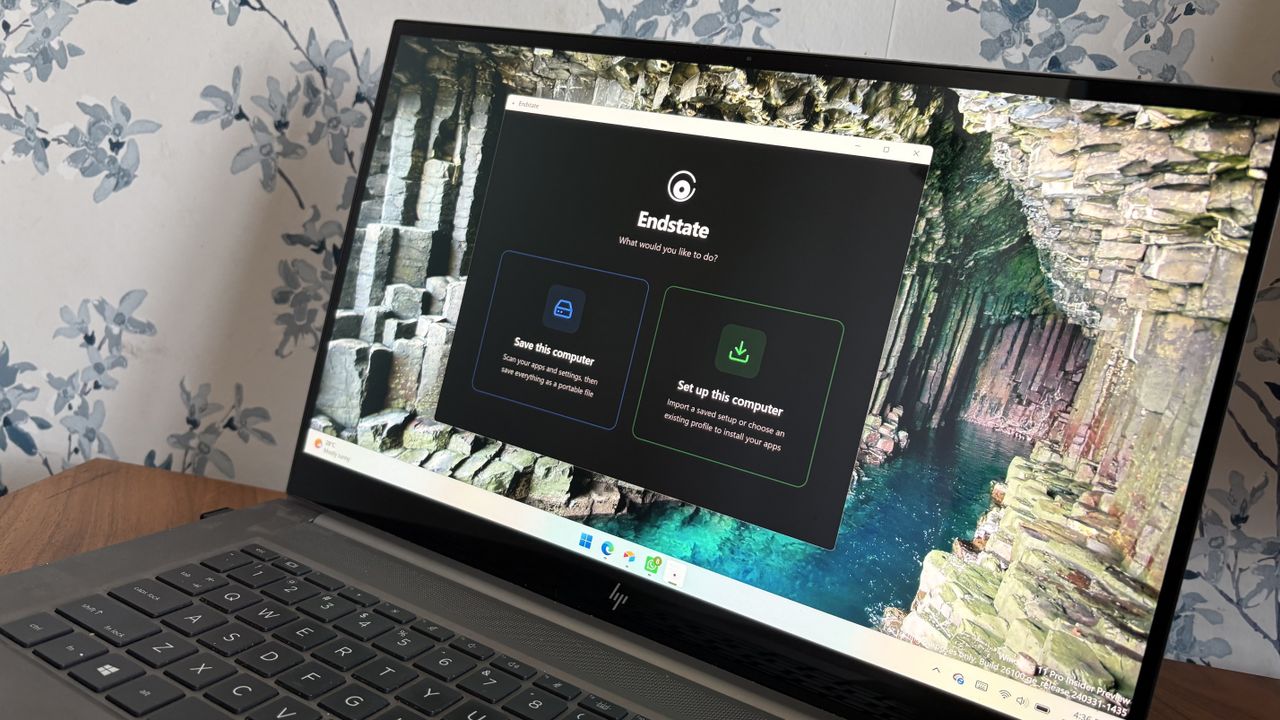
Windows power users, PC builders, and admins have a new tool at their disposal that makes it easy to restore a PC after reinstalling Windows or setting up a new PC. The app, called Endstate, streamlines the process of reinstalling applications and can also restore your settings and preferences within supported apps.
Endstate is a free app designed for Windows, though Linux and macOS support are on the way. You can grab Endstate through GitHub.
I spoke with the developer of Endstate to better understand where the app is now and where it could evolve in the future.
Endstate uses WinGet and Chocolatey, which allow it to install a massive library of applications available across those package managers. But the real standout feature is that Endstate can capture the settings of your app into a zip file to make restoration simple.
When you reinstall Windows or set up a new PC, you have to install your required apps as well. A package manager like Chocolatey or WinGet can streamline that process, but the restored applications will be set to their factory defaults. All the toggles and settings you spent time customizing are reset to their base state.
Endstate supports settings restoration on 357 apps right now. Among those supported are some big-name apps such as MSI Afterburner, Adobe Lightroom Classic, VS Code, Windows Terminal, PowerToys, Git, Obsidian, OBS Studio, Notepad++ and ShareX.
Settings restoration is separate from app restoration. If an app is available through Chocolatey or WinGet but does not support settings restore, Endstate can still install the app.
Restoring settings is also done on a per-app basis.
You can use Endstate without an account and the app works offline.
Windows vs iOS and Android
Despite any Apple marketing campaigns about how many apps there are on iOS, Windows trounces all other operating systems when it comes to app selection. That is in part because everything from ancient programs to modern web apps works on Windows 11.
Because of the legacy support on Windows 11, we don't get all the benefits of modern applications on PCs. For example, any iOS or Android user may have read this article and been confused because saving and restoring app settings is commonplace on smartphones.
But on Windows 11, Endstate fills a notable gap. With only 357 apps that support settings restoration, Endstate has a ways to go before matching the native experience on iOS and Android, but it's still nice to see. I hope more app developers embrace Endstate and make it possible to save and restore settings.
Join us on Reddit at r/WindowsCentral to share your insights and discuss our latest news, reviews, and more.
An HP laptop displaying the Endstate app on Windows 11 with options to "Save this computer" or "Set up this computer."
An HP laptop displaying the Endstate app on Windows 11 with options to "Save this computer" or "Set up this computer."
A new clipboard manager for Windows 11 is here, and it's better than Microsoft's in a few key ways. "Edge Drop" is still in its early stages of development, but the current preview build is very promising.
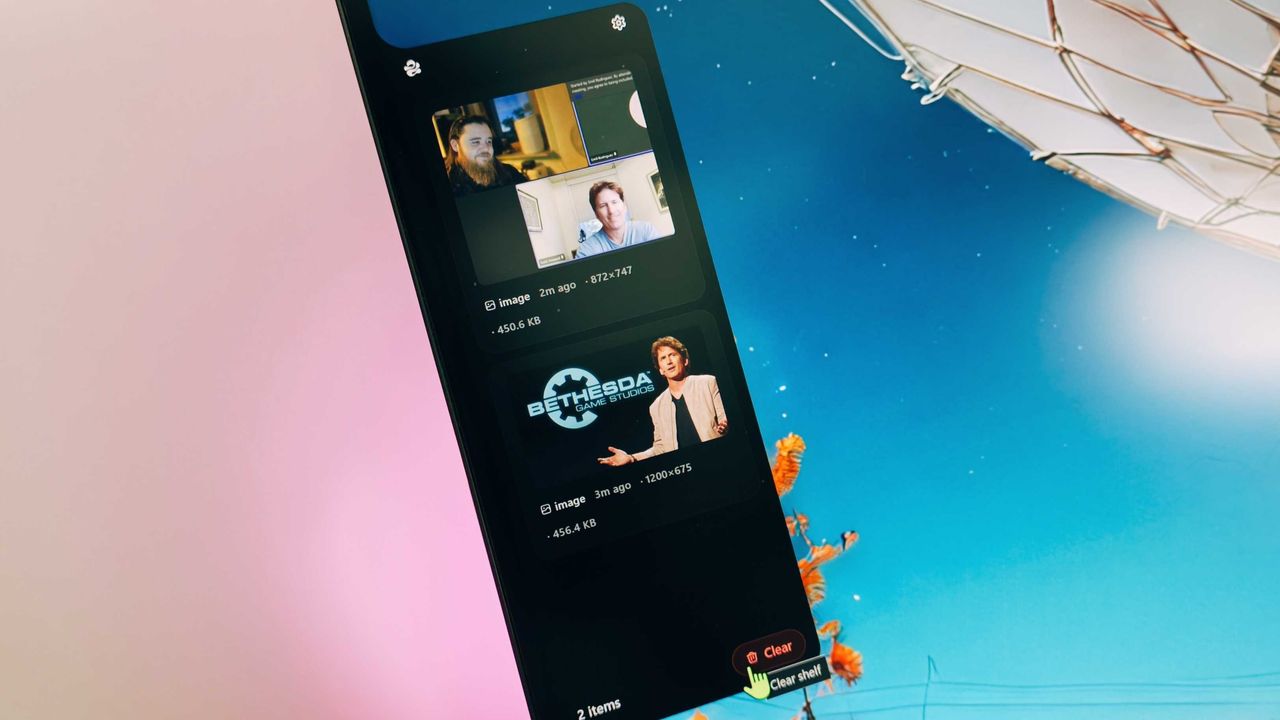
Edge Drop is a clipboard manager that can also be used for some light file management. It stays tucked away on the left side of your screen until you swipe your mouse over it or use a keyboard shortcut (Alt + C).
The app supports text, images, and several file types. Any item you copy on Windows 11 is added to Edge Drop by default. You can also drag items into Edge Drop.
Drag and drop functionality makes it easy to grab a few files, place them in Edge Drop, and then paste them somewhere else.
Edge Drop supports stacking content together, which I find useful for organizing projects. I'd love to see stacks work with different content types, such as text and images.
As a quick note, I wouldn't get used to the name of the app. Microsoft already has a feature named "Edge Drop." Even though that browser feature is being retired, I suspect Microsoft will want to protect the name.
Windows 11 Clipboard vs Edge Drop
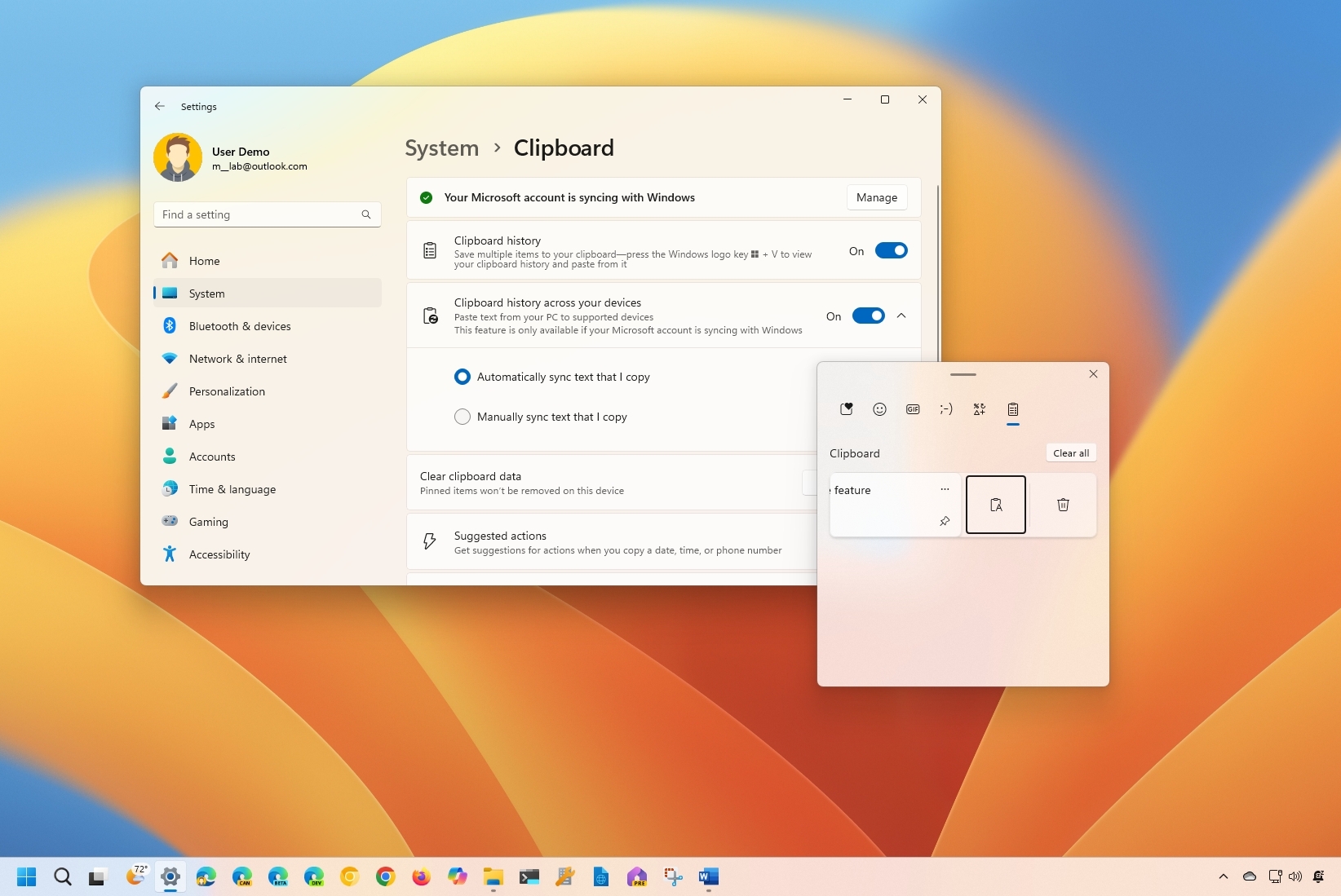
Windows 11's Clipboard can be summoned with a shortcut and supports pinning items. (Image credit: Mauro Huculak)
Windows 11 already has a robust, built-in clipboard history that you can summon with Win + V. It supports pinning items, syncing across devices, and has been an integral part of my workflow for years. Even with Edge Drop installed, I'm not abandoning it.
Where Windows 11's clipboard is heavily keyboard-driven, Edge Drop is more built for the mouse. If you're working on a creative project, dragging and dropping items into organized stacks feels completely natural.
It reminds me of when I reviewed the HyperSpace TrackPad Pro (which, sadly, was canceled). Using that trackpad shifted my workflow; editing video with it felt entirely different than navigating a webpage. It didn't replace my mouse, but it became a perfect companion tool.
I feel the same way about Edge Drop. It’s a convenient, mouse-oriented clipboard manager that’s always just a gesture away, and it has earned a permanent spot right alongside Windows 11's default clipboard.
Join us on Reddit at r/WindowsCentral to share your insights and discuss our latest news, reviews, and more.
The Edge Drop app interface displayed on a monitor, showing a list of shared images and a cursor hovering over the "Clear" button.
Edge Drop is a third-party clipboard manager for Windows 11 that tucks away on the side of your screen.
The day when AI isn't completely polarizing feels like it'll never arrive, and there's a definite divide between those for and those against.
This drama has now spilled into the Linux kernel, prompting a lengthy and firm response from its creator, Linus Torvalds (via GamingOnLinux).
It emerged as a topic referencing using AI and a tool called "Sashiko" for agentic reviews of changes to the Linux kernel. Then in swoops Torvalds to firmly put his foot down.
The full transcript of his response is below:
"Yes.
And no, that's not the position of the Linux kernel. I realize that some people really dislike AI, but this is an area where I'm willing to absolutely put my foot down as the top-level maintainer.
Linux is not one of those anti-AI projects, and if somebody has issues with that, they can do the open-source thing and fork it.
Or just walk away.
AI is a tool, just like other tools we use. And it's clearly a useful one.
It may not have been that "clearly" even just a year ago, but it's no longer in question today.
There are other questions around AI (like what the economy of it will actually look like in the end), but "is it useful" is no longer one of those questions. Anybody who doubts that clearly hasn't actually used it.
Yes, it can also be a somewhat painful tool, both for maintainer workloads and just from a "it keeps finding embarrassing bugs" standpoint.
But the solution is not to put your head in the sand and sing "La La La, I can't hear you" at the top of your voice like some people seem to do.
The solution is to make sure those LLM tools _help_ maintainers instead of just causing them pain. There's no question on that side.
We're not forcing anybody to use it, but I will very loudly ignore people who try to argue against other people from using it.
And no, AI isn't perfect. But Christ, anybody who points to the problems at AI had better be looking in the mirror and pointing at themselves at the same time.
Because it's not like natural intelligence is always all that great either.
The kernel project has been and will continue to be about the technology.
Sure, the social angle of working on open source is important and often a very motivating part of the project, but in the end that's a side benefit, not the _point_ of the project.
This is *NOT* some kind of "social warrior" project, never has been, and never will be.
In the kernel community we do open source because it results in better technology, not because of religious reasons.
And so we make decisions primarily based on technical merit. Not fear of new tools.
Linus"
Linux is not a "social warrior" project. (Image credit: Windows Central)
I can already see the pitchforks rising, but let's take a step back. While Torvalds does appear to be flexing some muscle, if you read carefully, he's also not actually advocating for AI.
"AI is a tool... And clearly a useful one." There's no ideology behind it. He's not suddenly saying that the Linux kernel is going to be built using AI. More that if it can be used to make certain parts of the process better, then it will be.
And as he says, human intelligence isn't exactly perfect, is it?
It's a sticky wicket and sure to provoke some discussion. Linux is where many of the most serious enthusiasts go, and plenty just have a fundamental opposition to AI. I'm not getting into that, because it's exhausting, and we've been round and round on the topic plenty.
I do like Torvalds' approach in addressing this, though. Unlike, say, Microsoft, there are no business interests to push and bank accounts to swell by pushing the general public into using AI. There's also an alternative; if you don't like it, you can fork it and make your own. There are already plenty of custom kernels on Linux.
He's simply being pragmatic. The genie is free from the lamp; AI is here, and ignoring it simply isn't an option. Everyone can have their own opinion, but as he states, Linux isn't a "social warrior" project. They're just trying to make the best software, and increasingly, that's going to mean folks leveraging AI. Like it or not.
Join us on Reddit at r/WindowsCentral to share your insights and discuss our latest news, reviews, and more.
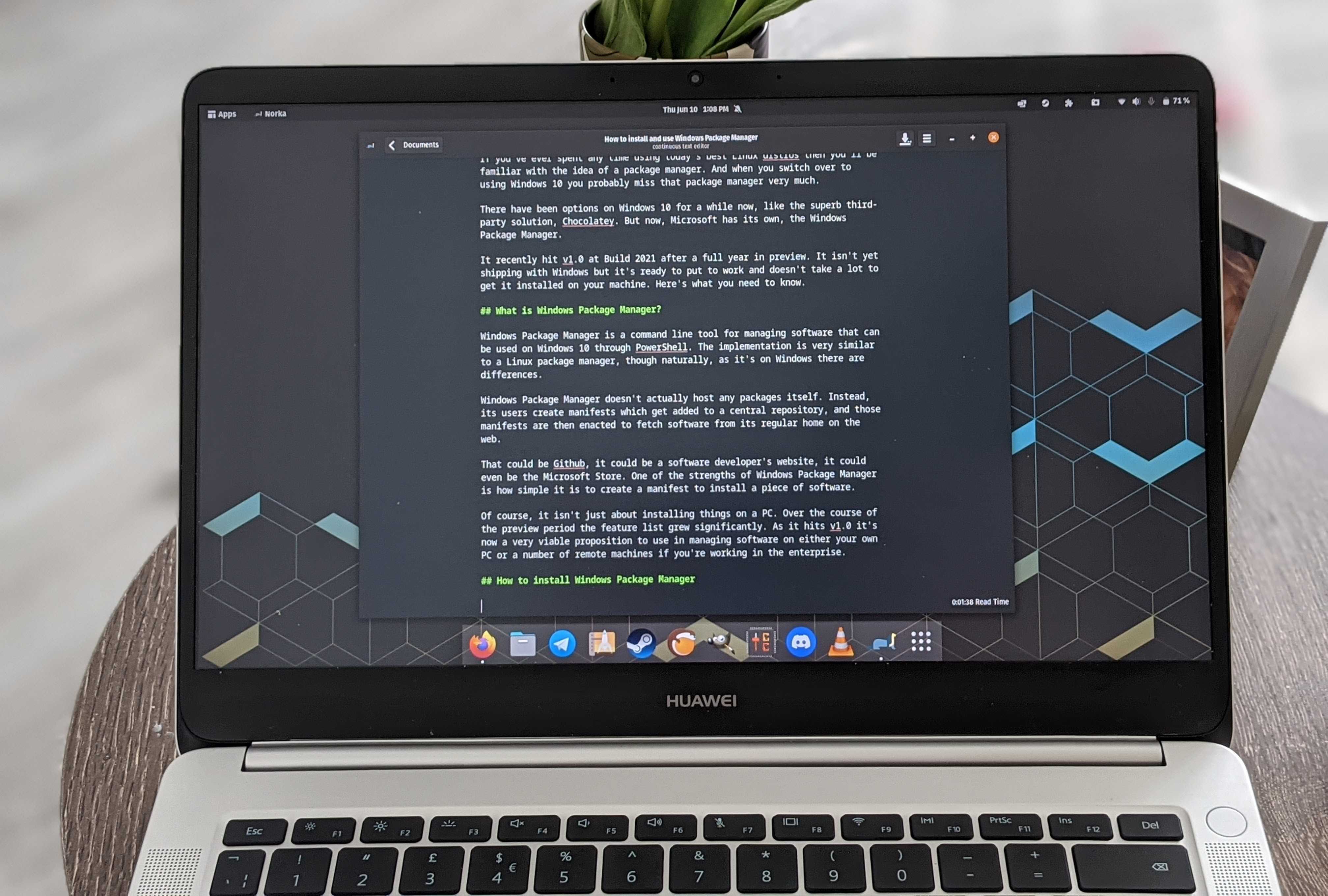
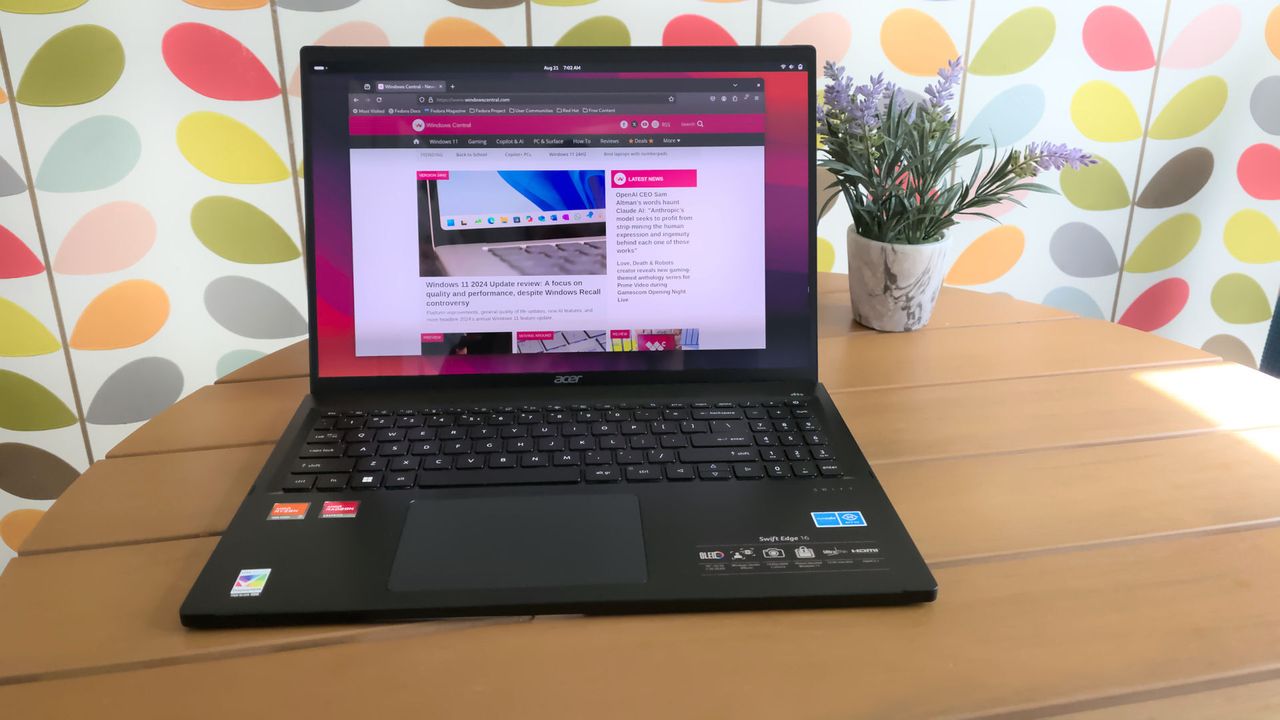
Acer Swift Edge running Linux
There's apparently no room for anti-AI sentiment when it comes to the Linux kernel anymore.
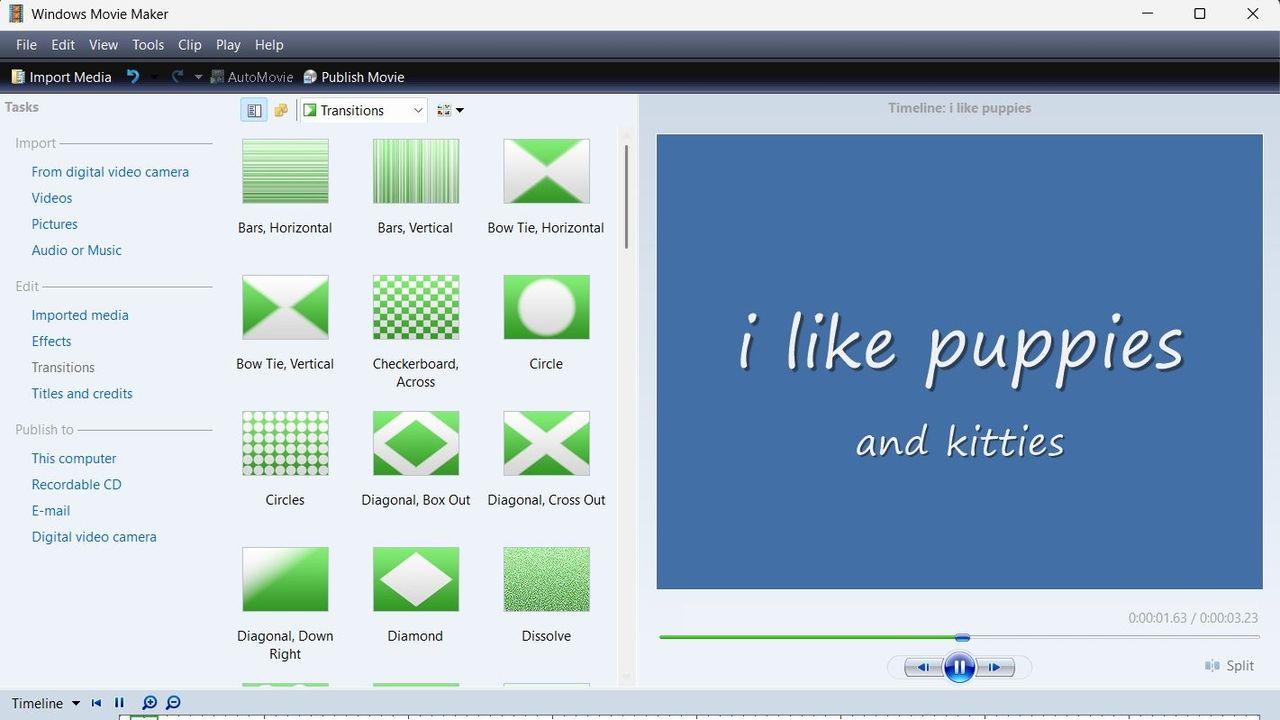
If you ever feel like you need a break from social media and influencers, you may long for the more fun-focused video content of yesteryear. Windows Movie Maker was a simple program for creating videos, and it can now be yours once again.
The folks at The Internet Archive uploaded Windows Movie Maker 6.0, making it easily accessible and preserving it. The app has been tested on Windows 7, Windows 10, and Windows 11.
Downloading ancient technology can be a fun way to see how far things have changed over the years. Generally, Windows and its built-in apps have improved since the year 2000. But the modern movie-making app on Windows, Clipchamp, falls short of Windows Movie Maker in one key area.
That controversial change arguably broke Clipchamp. The app still works, but it does not feel like an app that should be bundled with Windows 11. Instead, it feels like a cloud-based app you should download alongside Microsoft 365.
Windows Movie Maker may lack the modern features of Clipchamp, but at least it works offline.
Ever wanted to use Windows Movie Maker 6.0 again but unsure where to get it for modern Windows?Well, "want" no longer! I've uploaded a setup for exactly that on The Internet Archive. Tested on Windows 7, 10, & 11, all working on each.Get it here:https://t.co/yEnF0sZv7npic.twitter.com/LhozBBGtWNJune 30, 2026
Perhaps Microsoft could justify requiring OneDrive to edit videos if projects could easily extend across devices, but that's not the case. Microsoft retired Clipchamp for iOS last month, meaning you can no longer export video files from that app. Users are now encouraged to uninstall Clipchamp from any iOS devices.
Microsoft never even made an Android version of Clipchamp, so the company has effectively restricted the app solely to the desktop. There is a web version of Clipchamp, but it is optimized for desktop use.
How to download Windows Movie Maker for Windows 11
Windows Movie Maker was not meant for modern versions of Windows, but it can run on Windows 11 or Windows 10. The download link for the program is available through the Internet Archive.
As a warning, I had to refresh the page a few times to get the link to work. The Internet Archive claimed it was a bad link for some reason, but it does work after refreshing.
The file is available in several formats. I'd argue the easiest to use is the executable file because many people have clicked to install one of those before.
To install Windows Movie Maker, you'll need to click through the installation steps, agree to some terms, and click finish.
Join us on Reddit at r/WindowsCentral to share your insights and discuss our latest news, reviews, and more.
A screenshot of Windows Movie Maker showing a range of transitions.
Windows Movie Maker looks clunky by modern standards, but at least it supports offline editing.
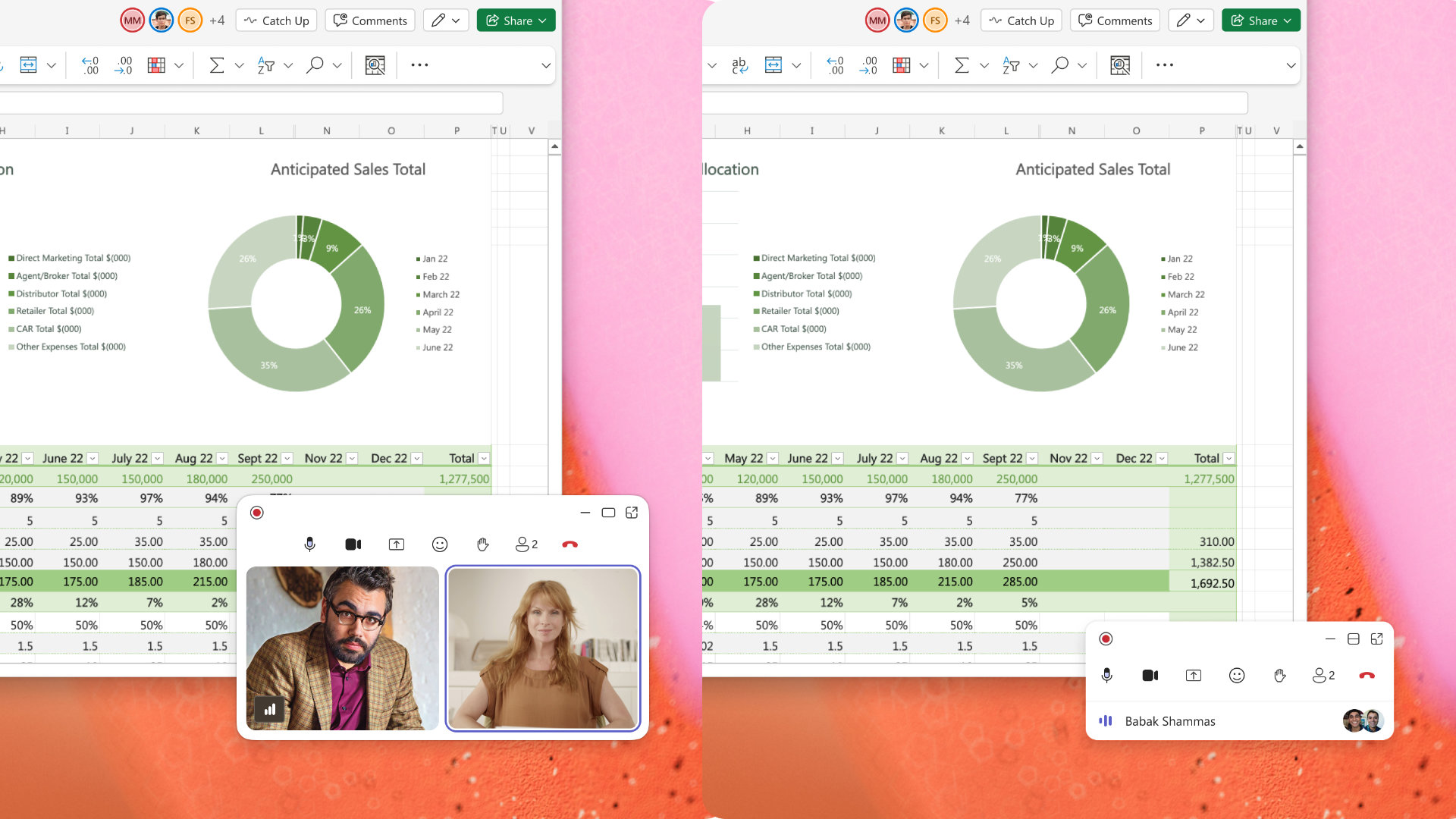
A great feature won't make it to Microsoft Teams, at least anytime soon. Microsoft began testing two minimized views in Teams earlier this year, but development of the features has been paused.
The idea was that when an active meeting window was minimized, Teams would show a minimized window with shortcuts to perform actions like raising your hand or sharing a reaction. One option called Expanded view showed up to four participant videos, while the Compact view focused on quick actions and settings.
"Updated July 7, 2026: We have paused release to GA at this time. We will communicate via Message center when we are ready to proceed. Thank you for your patience," reads the Microsoft 365 Message Center (archived here).
The views were meant to start rolling out in May 2026, but they now sit stuck in the development pipeline. Neowin spotted that the feature was paused.
Expanded view (left) and Compact view (right) would have shown shortcuts and key meeting content when the main meeting window was minimized. (Image credit: Microsoft)
There's always a chance that preview features will be changed significantly before release or cancelled. Microsoft also needs to work out any issues before shipping a change to Teams.
Microsoft did not share why it paused the development of these minimized views. They both seem like worthwhile additions to Teams that make multitasking easier. I hope Microsoft ships them to Teams eventually.
Teams gets new features regularly. The communication platform gets so many updates that Microsoft has to list changes in a monthly blog post.
But the most talked about Teams feature this year was omitted from the last roundup. Teams now has a controversial feature that lets your boss see where you are if you're connected to Wi-Fi networks at work.
Microsoft was accused of making Teams a "lapdog for your boss," but the company has made changes to the feature since first unveiling it. Microsoft delayed the rollout of that feature, changed the name of the option, and added better privacy controls.
The minimized views within Teams may go through a similar journey. We could see them in the future with altered controls, a new name, or in the same form but at a later date.
Join us on Reddit at r/WindowsCentral to share your insights and discuss our latest news, reviews, and more.
Microsoft Teams app seen displayed on a smartphone screen and a Microsoft Teams logo on a laptop in the background.
Microsoft Teams app seen displayed on a smartphone screen and a Microsoft Teams logo on a laptop in the background.
I've heard the term slop bandied around more times than I'd like recently, but today was the first time I'd heard it in the context of Amazon shopping. Meet Knockoff Shopping, the Chrome extension that de-slops your Amazon search results.
What does this mean? Well, if you've used the site at all recently to look for basic items, whether it be clothes, phone cases, or such, you'll notice that many reputable brands are now buried in a sea of items with capitalized letters. Items that appear to be coming from Temu or AliExpress.
Often, you'll be looking for something like a hairdryer, perhaps, and find an identical model listed under 3 different brand names, all trying their damnest to look like Dyson. Should I buy DRYSON, BLOWY, or the SKIBIDI RIZZ hairdryer? It's hard to decide.
Well, someone has had the gumption to create a Chrome Extension to solve this problem; it promises to filter "trademark-squat pseudo-brands (the SZHLUXes and HORUSDYs) out of your search results, so what's left are brands with a reputation to lose."
You can simply head to knockoff.shopping to get the extension and try it for yourself, but here are some more tips on getting it to work for you.
Using Knockoff
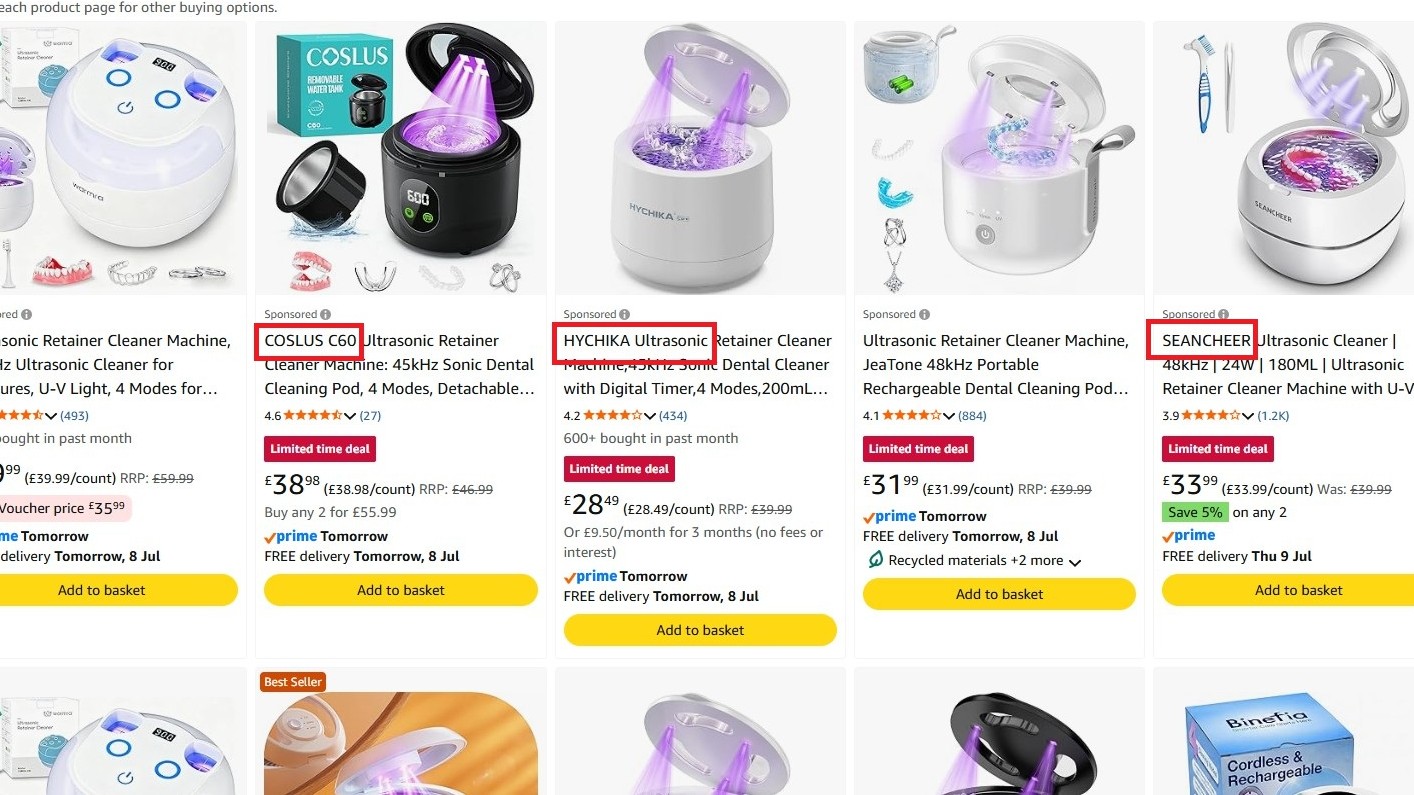
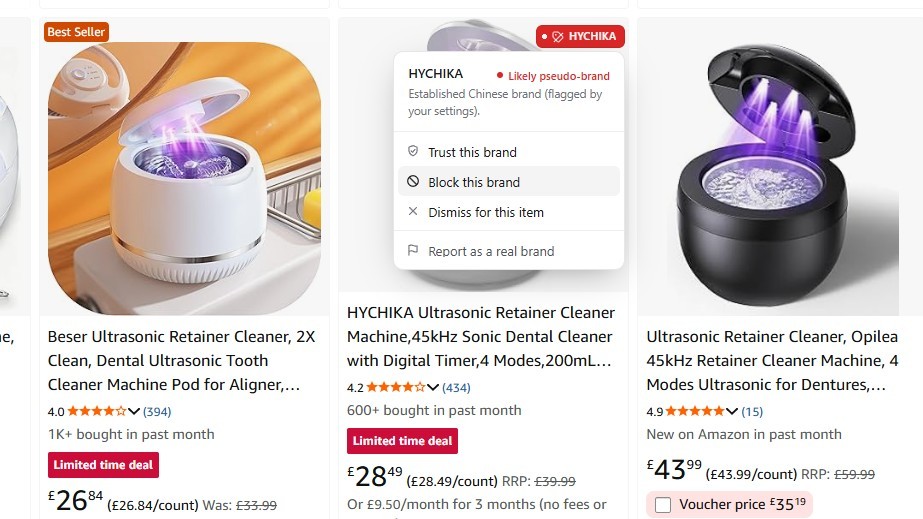
COSLUS, HYCHIKA or SEANCHEER? How can I resist? (Image credit: Jennifer Young - Windows Central)
I've had issues with these "knockoff" brands myself recently while shopping for an ultrasonic cleaner for my son's retainer. We've now ordered two seemingly identical models under different brand names, and both have given up the ghost after a week.
Third time lucky, right? Well, I'm going to use the tool to help me narrow down my search this time. As you can see in the screenshot above, when I search for the item, my results are flooded with similar-looking items from different pseudo-brands that feel the need to shout their names at me. COSLUS! HYCHIKA! SEANCHEER! BUY US!
Following my installation of the tool, I can fiddle with the options before I go on my search to add brands that I don't want to be filtered, so ANKER and UGREEN, for example, are reputable electronic brands I trust; I don't want those filtered.
(Image credit: Jennifer Young - Windows Central)
Now, upon running the search again, you can either have the tool 'dim' the dodgy results so you can still see them and make changes, or have it hide them completely. For now, I've set mine to dim results so I can start to teach it what I do and don't want to see.
(Image credit: Jennifer Young - Windows Central)
Here I have selected to block this brand permanently. On the other hand, if I see brands I trust, I can tell the tool to add them to the Allow list for me.
Creator Josh Pigford has already mentioned on his X account some brands that may be inadvertently filtered out. I don't recognize many of these, but BIODANCE and LANIEGE are at least reputable Korean skincare brands, and I would add them to my filter.
Knockoff is now live!Filter out the knockoff crap brands on Amazon.Sorry to brands like WNPETHOME, EHEYCIGA, YXYL, LU&MN, JOYIN, TOMY, GODONLIF, YOOJEE, LINGTENG, LANEIGE, VISCOO, BIODANCE, COOFANDY, BALENNZ, TOSY and LUENX.https://t.co/9mLk0EAsfGhttps://t.co/K07lMkepOWJuly 7, 2026
The tool has now helped me select a third, and hopefully more reliable, cleaner for my son's retainer. It also helped me see more clearly that many of the 'dimmed' brands were around the same price, so I paid a little more for something potentially longer lasting.
I've only just started using the tool myself, afterall it's only been a day! But others are already reporting great success with it and I hope to have even better results as I tweak what I do and don't want to see. The extension is currently only available on Google Chrome, but it's coming to Safari and Firefox soon. No word on Microsoft Edge (yet).
Join us on Reddit at r/WindowsCentral to share your insights and discuss our latest news, reviews, and more.
Have you ever wondered why minimum specs continue to creep upward? Part of the problem is that developers don't need to be as efficient as they did decades ago.
A recent video by Dave Plummer highlights the bloat of modern applications by following the journey of Plummer making a notepad that's just 2,686 bytes.
App development is complex, and there are genuinely good reasons that games and programs require such high specs in 2026. But generally speaking, programming doesn't have the constraints of yesteryear, so developers don't need to trim code.
A single app not being optimized is not that much of an issue, but when every program on your PC is bloated, problems pop up. The same productivity workflow today requires more RAM than it did in 2015.
For context, Windows 10 launched with a minimum requirement of just 1GB (for 32-bit) and 2GB of RAM (for 64-bit). Windows 11 requires at least 4GB just to boot the operating system, but most users want much more memory. It was controversial when Microsoft and other companies started offering new PCs with 8GB of RAM this year.
Plummer is best known for creating the Windows Task Manager. He also discusses programming and Windows history on his YouTube channel.
In a recent video, Plummer shared how he made a small notepad application that's smaller in size than a YouTube thumbnail.
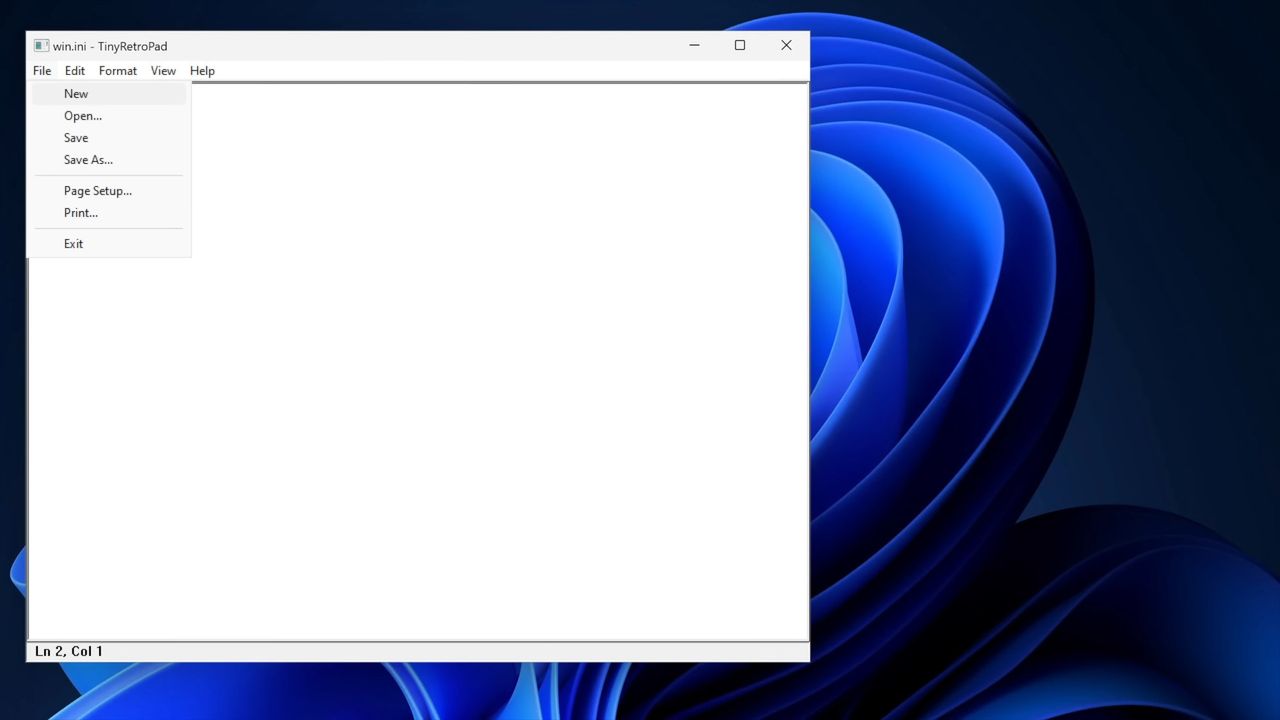
Tiny Retro Pad has the core functionality of the original Notepad app built by Microsoft. Notably, it lacks the modern features seen in Notepad, such as Copilot. Considering Notepad's addition of Copilot was mocked by many, Tiny Retro Pad is an improvement in some ways.
Making a notepad app that's under 4,096 bytes is more about working within constraints than the specific size of the final app. In the early days of Windows, there were several limits placed on developers, such as hardware caps. Having to work within those constraints forced developers to be more efficient.
Plummer was able to keep Tiny Retro Pad small by utilizing what's already in Windows.
"A tiny native Windows program does not bring along its own entire civilization. It arrives with a lunchbox and a map of the city," said Plummer.
Later in the video, he added, "The program is small because it is not carrying what the platform already has. And that is a lesson that modern software could stand to remember. Not every app needs to bundle the universe. Not every utility needs to ship with a browser engine."
Nowadays, PCs, tablets, and phones have absurd specs. Even modest devices have several gigabytes of memory and tons of storage. Those specs make modern workflows possible, but they also leave room for lazy development.
"Somehow it seems modern software manages to go the other way. You just want a text box and somehow you've imported a runtime, a layout engine, a renderer, a dependency tree, a telemetry client, an auto updater, and a small portion of Chromium," said Plummer.
No one needs a notepad application that's less than 4,000 bytes, but if more app developers focused on efficient code, Windows 11 would feel smoother across the board.
Join us on Reddit at r/WindowsCentral to share your insights and discuss our latest news, reviews, and more.
Windows interface showing an open notepad application. A dropdown menu is open and "new" is selected.
Windows interface showing an open notepad application. A dropdown menu is open and "new" is selected.
Microsoft needs to copy a new feature that makes it easier to multitask on Windows 11. But rather than Sherlocking a third-party app, Microsoft just needs to copy a concept proposed for its own app, PowerToys.
Every once in a while a feature gets added to PowerToys that makes me wonder "why isn't this part of Windows?" FancyZones immediately comes to mind, and Microsoft seems to agree since improved snapping in Windows 11 takes inspiration from that feature.
PowerToys may have another winner on its hands in AltWindowCycle, though I think a new name may be needed.
The utility allows you to switch between windows with a keyboard shortcut. It's similar to Alt + Tab, but it works within a single app. Clint Rutkas explained the tool in a GitHub pull request:
"Introduces a new utility: AltWindowCycle to quickly switch between windows from the same process using Alt + `. It works like Alt + Tab, but scoped to the app you’re already in. Perfect for juggling multiple browser windows, terminals, or editor instances."
AltWindowCycle is still in its early stages. If it is finished and made a part of PowerToys, I hope it also makes its way to Windows 11.
If it does become part of Windows 11, AltWindowCycle would help Microsoft's operating system catch up to macOS and some Linux distros, which use either Alt + \` or Cmd + ` to cycle through windows of the same app, albeit a bit differently.
Many PowerToys features are niche and would be considered bloat by non-power users if included with Windows 11. But a small shortcut that makes multitasking easier would be a natural addition to Windows 11, especially since AltWindowCycle works similarly to the well-known Alt + Tab shortcut.
This collection of utilities includes a large library of features to enhance the Windows experience. PowerToys is designed with power users in mind, but it has handy features for people who just use their PC for everyday computing too.
I love widgets. Microsoft seems much cooler on the concept. Sure, Windows 11 has a Widgets Panel, but it's barely useful due to its lack of quality widgets. That's why I was so excited to see WidBar highlighted on Reddit.
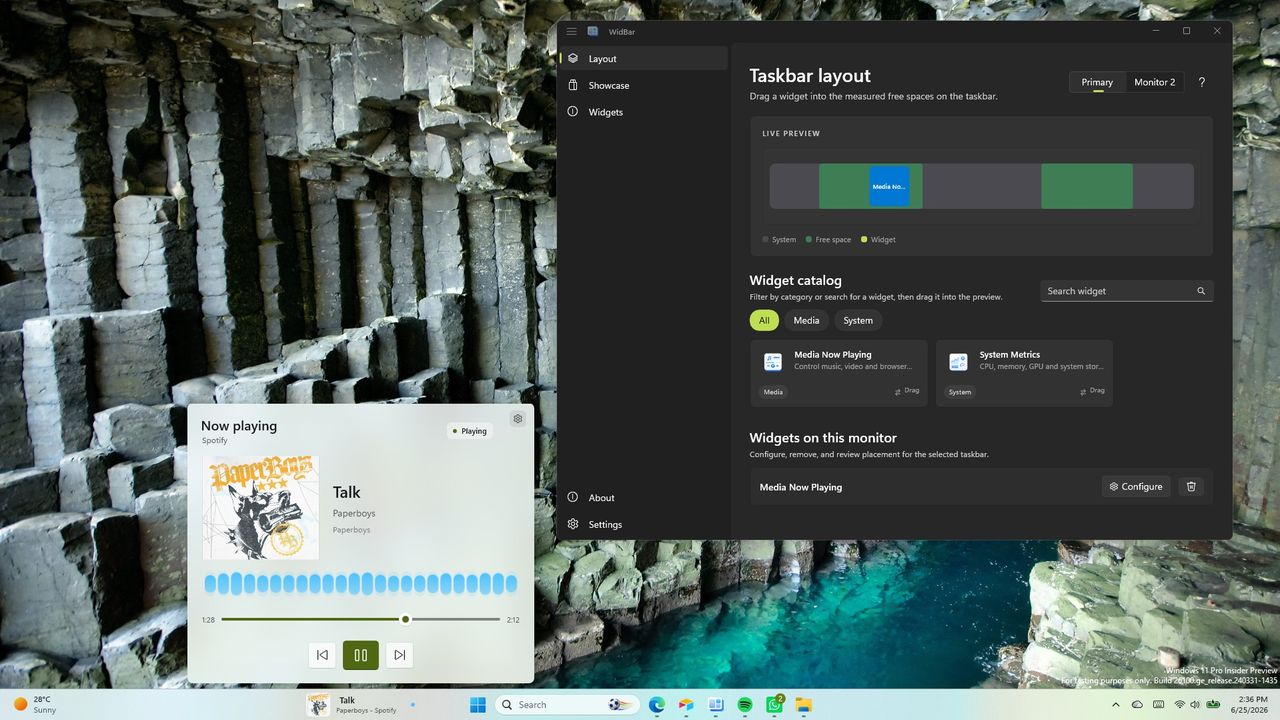
WidBar is a new app that allows you to add widgets to the empty spaces of the Windows 11 taskbar. It's still in beta, but it's off to a promising start.
The developer of WidBar, Andrea Del Bello, shared the app and detailed its progress.
At the moment, WidBar only has a pair of widgets: "Now Playing" and "System Metrics." They're basic but they do a good job showcasing the app.
Within WidBar, you can drag and drop widgets into a preview of your taskbar. Different widgets can be placed on various monitors.
This free app lets you add widgets to the empty spaces in the Windows 11 taskbar. It's still in beta, so it only has two widgets available, but developers can create their own widgets using templates.View Deal
Any developer can make widgets for WidBar. Del Bello explained how that works on Reddit:
"Each widget is just a small packaged app that you publish to the Microsoft Store like any other app, and WidBar picks it up on its own: there's no separate plugin store, no manual install into WidBar, and no approval from me. The moment your widget is installed from the Store, WidBar recognizes it automatically, it appears in the catalog, and the user can drop it onto the taskbar."
Del Bello also provided a template for making WidBar widgets on GitHub.
Putting Microsoft to shame
The Widgets Panel only has 56 widgets available.
WidBar has two supported widgets right now and is still in beta, but it already surpasses Windows 11's Widgets Panel in an important way.
Incredibly, the Widgets Panel lacks a Now Playing widget from Microsoft. Windows 11 has those controls, but they appear in the Action Center. That shows how much Microsoft thinks about the Widgets Panel.
There is a widget made by Stefan vd called "S Media Controls" that seems to fill the gap, but I've only used it briefly in testing.
Even if you give Microsoft the benefit of the doubt and argue having audio controls in the Action Center and the Widgets Panel, it won't take much to catch up.
With just two supported widgets, WidBar is well on its way to beating the Widgets Panel. There are a grand total of 56 widgets in the Microsoft Store for the Widgets Panel. And that count includes "My Tic-Tac-Toe" and several entries that appear to be money grabs that offer little functionality.
Add a clock, a calendar, a recent files shortcut and WidBar is almost 10% of the way to the entire Widgets Panel ecosystem.
Join us on Reddit at r/WindowsCentral to share your insights and discuss our latest news, reviews, and more.
Windows 11 desktop showing a widget for controlling music and the settings of an app for widgets.
Windows 11 desktop showing a widget for controlling music and the settings of an app for widgets.

 Connexion