Vue lecture

Windows 11 will soon let you control unified memory, just in time for NVIDIA RTX Spark

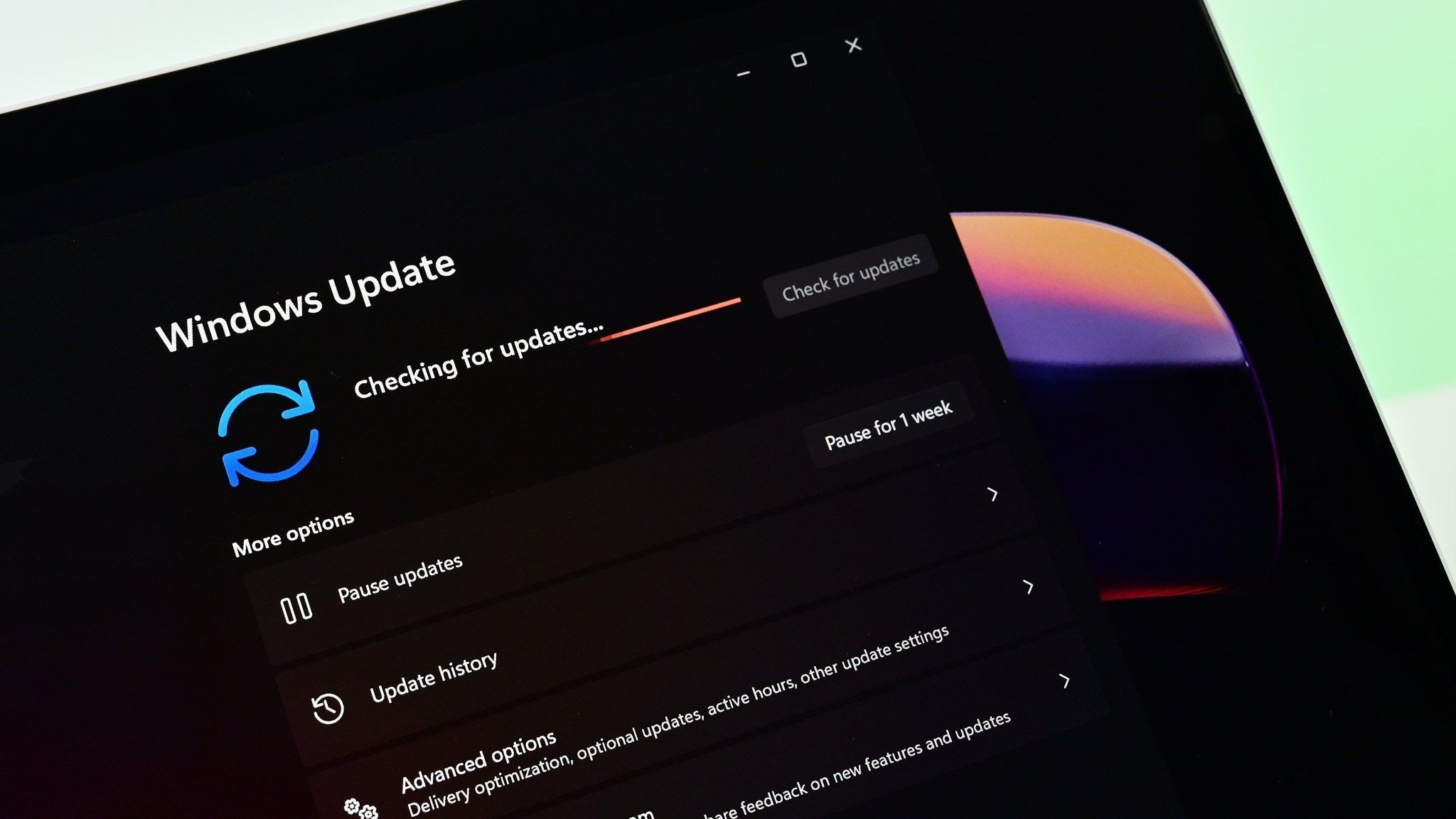
Windows 11 will soon let you pick how much unified memory is reserved for graphics and AI. The feature is hidden in a recent Windows Insider build (29648) and was discovered by X user @XenoPanther.

Unified memory is high-bandwidth memory that can be shared between a CPU, GPU, and other processors. Traditionally, PCs with discrete graphics cards have dedicated VRAM (video memory) that lives separately from other memory.

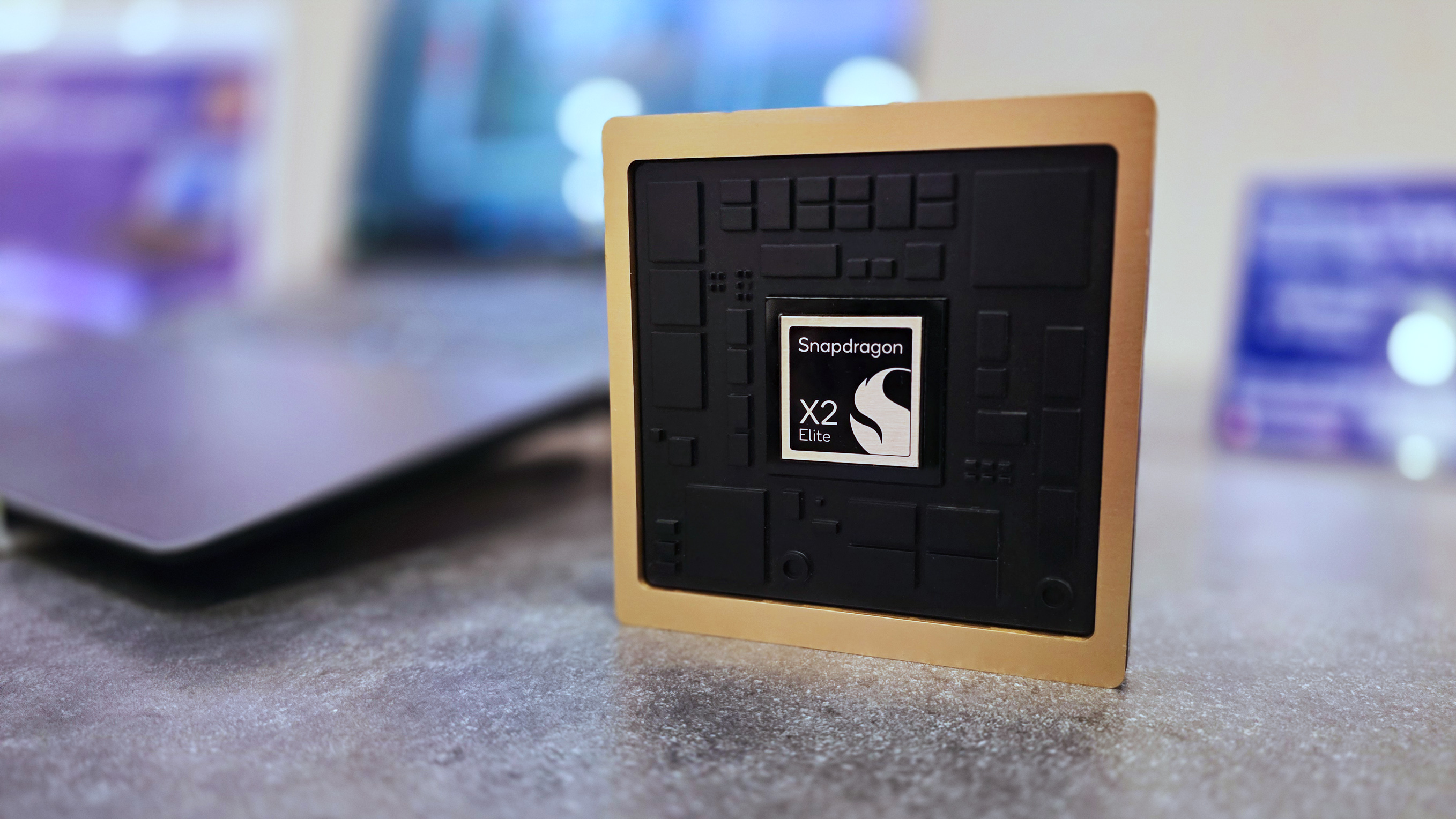
Unified memory is still relatively new to PCs. The upcoming NVIDIA RTX Spark lets you use up to 128GB of unified RAM. AMD's Ryzen AI Max already features unified RAM.

Apple popularized the concept of unified memory with its M-Series chips, though the technology is not exclusive to Apple.

If the unified memory feature in testing rolls out, Windows 11 will have a key differentiator from macOS.

Here is how the Unified Memory settings will appear (Under System > Advanced) https://t.co/eN8Gs0BYKs pic.twitter.com/2OpiBrWspZAugust 21, 2026

Microsoft's new feature lets Windows 11 users "reserve additional unified memory for graphics and AI intensive games and applications." The setting would help ensure smooth performance for certain types of workloads that require a lot of memory.

Normally, Windows manages shared memory dynamically, shifting resources back and forth as apps demand them. That approach works fine for general multitasking, but it runs into problems with heavy workloads like local AI inference or 3D gaming.

When memory is shared like that, background OS tasks and apps can contend for the same pool of RAM. That competition can cause latency spikes, frame drops, or total out-of-memory crashes when you're trying to run something demanding.

By letting users reserve memory, workloads with high demands for graphics and AI have uninterrupted access to high-speed memory.

The feature is not finished and has not been announced by Microsoft, so it requires some extra work to see. You can force it to appear using ViveTool.

I'd recommend waiting until the feature enters testing or even ships to general users before using it. In most cases, it's worth letting Microsoft work out any issues and polish the experience rather than use a hidden feature.


Blank Pixel

Click to join us on r/WindowsCentral

Join us on Reddit at r/WindowsCentral to share your insights and discuss our latest news, reviews, and more.

Surface Laptop Ultra running Premiere Pro
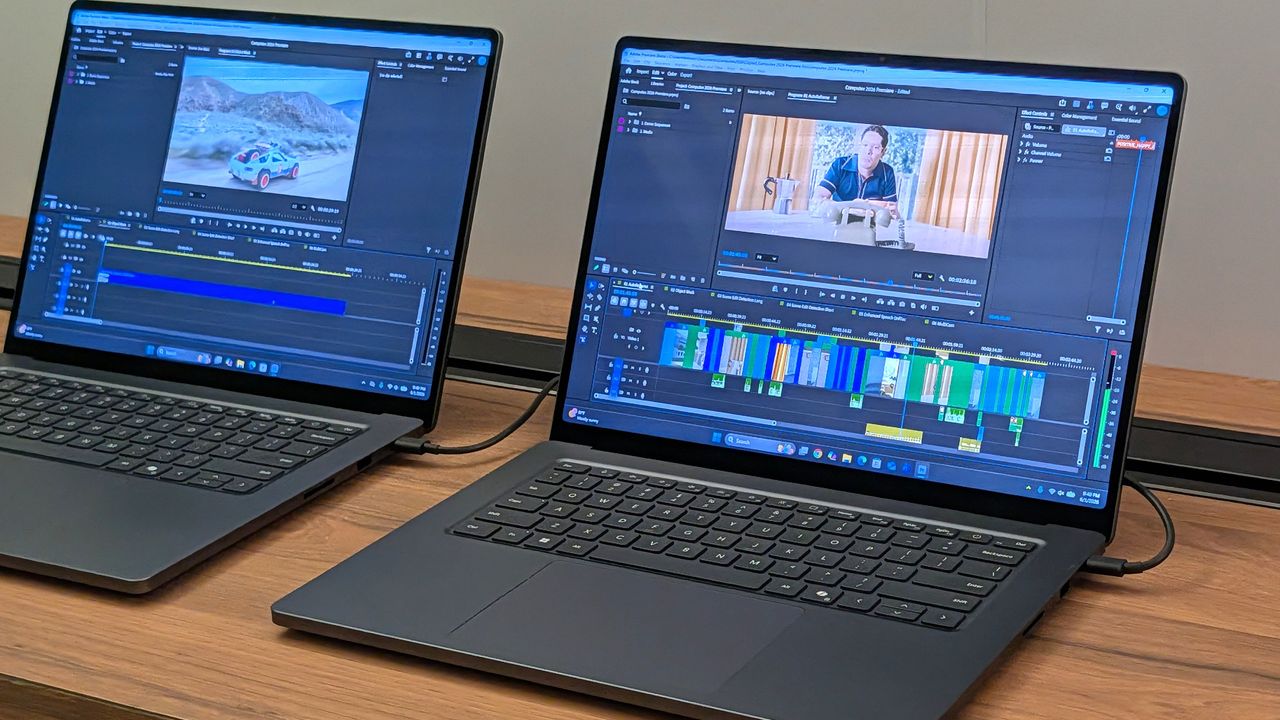
The Surface Laptop Ultra is powered by an RTX Spark chip that features unified memory.
  •  

Microsoft accidentally admits new Outlook looks bad

The new Outlook is ugly and needs to be covered up. That's the message being sent out by Microsoft if you read between the lines. A new option setting in Outlook on the web and the new Outlook for Windows makes those experiences look like classic Outlook.

Microsoft claims that the option is being added to help those transitioning from classic Outlook to the new Outlook. But if the difference is so jarring that it requires a skin to make the new Outlook palatable, Microsoft has larger issues to deal with.

Microsoft details the option in a message sent out through the Microsoft 365 Message Center:

"We're introducing a new optional setting in Outlook on the web and the new Outlook for Windows that adjusts the experience to more closely resemble classic Outlook for Windows. When enabled, the setting applies coordinated changes across the Outlook experience, including visual styling, layout, typography, icons, and selected interactions.

This update is designed to help users who are transitioning from classic Outlook by providing a more familiar experience while maintaining the capabilities of the new Outlook."

The theme will be disabled by default for most users. As part of a phased rollout, Microsoft will enable the classic Outlook theme for "some users moving from classic Outlook to the new Outlook."

I've admittedly mixed snark into this piece, but that's because the new Outlook is terrible. Our Senior Editor Zac Bowden explained how the new Outlook was not ready for prime time back in 2024. The situation has barely improved.

A question posed on a Microsoft Learn page asks, "Why Does New Outlook Suck???" That post is from this year, not the early days of the new Outlook. Others on the web have asked similar questions or expressed frustration with the new Outlook.

The new Outlook is a web wrapper. There's debate over whether the new Outlook is a native app, but the key takeaway is that it performs worse than classic Outlook in several ways.

The fact that Microsoft had to make Mail & Calendar inoperable to try to get people to switch to the new Outlook is telling. The new theme option is another sign that people still want classic Outlook on their PCs.

Blank Pixel

Click to join us on r/WindowsCentral

Join us on Reddit at r/WindowsCentral to share your insights and discuss our latest news, reviews, and more.

Deleted emails in Microsoft Outlook

Deleted emails in Microsoft Outlook

  •  

A faster OS and UI fixes won't save Windows 11 if Microsoft's apps remain laggy web wrappers

Windows Central

Microsoft continues to improve Windows 11. Just this past week, the company began testing new context menus with Windows Insiders and revamped the ancient AutoPlay dialog box.

The Windows K2 initiative to improve the operating system is going so well that I've asked if the next big update should be Windows 12. But fixing the Windows experience is about more than context menus and a unified user interface. Even if Windows is fixed, Microsoft needs to make better apps.

If a person logs onto a PC running a beautiful and zippy version of Windows 11, they won't care about the OS if Microsoft Teams takes too long to load. Microsoft needs to lead by example by making the best Windows apps.

Biggest News of the Week

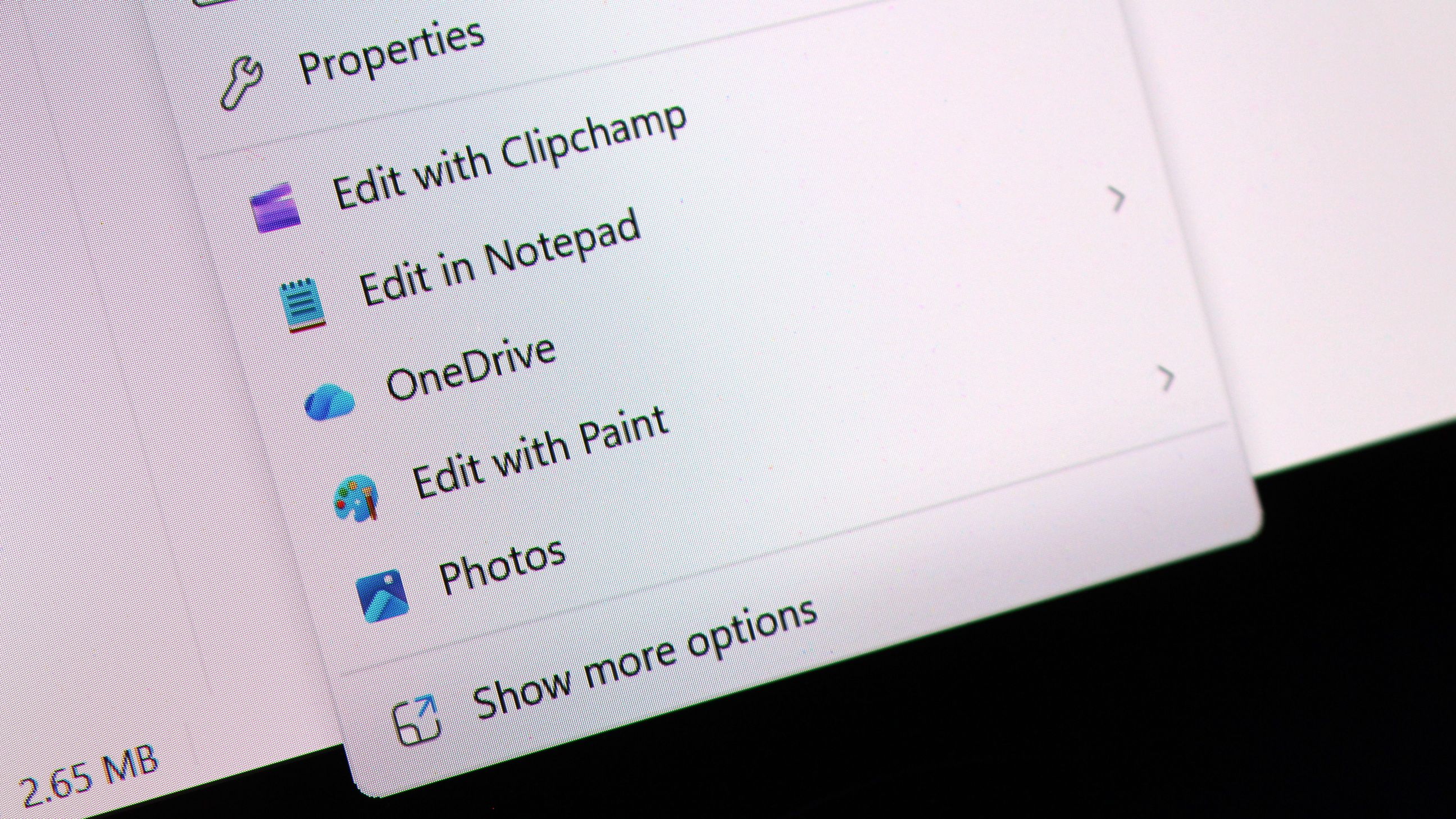
Windows 11 context menu
Windows 11
Windows 11 Dan Lowres Iphone
Images of Qualcomm's new Snapdragon X2 Elite Extreme processor, benchmarks from reference design laptops, and pictures from the announcement at the Snapdragon Summit (2025).

To give Microsoft credit, work is being done to improve some apps. Rudy Huyn, a well-known Windows developer who worked on the Microsoft Store, is putting a team together to improve Windows apps. That team is still in its infancy, so we will have to wait to see the results.

But Microsoft's app issue isn't just about having a team dedicated to in-box apps or hiring good developers. It's about the direction Microsoft pushes those developers. Microsoft Teams and other Microsoft apps have been "rebuilt from the ground up" or "refreshed with performance in mind" several times over the years. But the underlying problem still exists. Microsoft made the wrong choice by going all-in on web apps, and it needs to course correct.

Huyn's team is all about native apps, but it's not clear right now how many apps will fall under its umbrella. Will we see a new native version of Outlook? What about Microsoft Teams? If Huyn's team is just focused on in-box apps, some of the most-used apps on Windows 11 will remain laggy web apps.

Plus, several of Microsoft's biggest apps aren't even in the same part of the company as Huyn's team. If Microsoft fixes the Photos app, OneDrive, and other in-box apps, but Teams is still laggy, Microsoft is still delivering a poor user experience.

Shopping with Sean

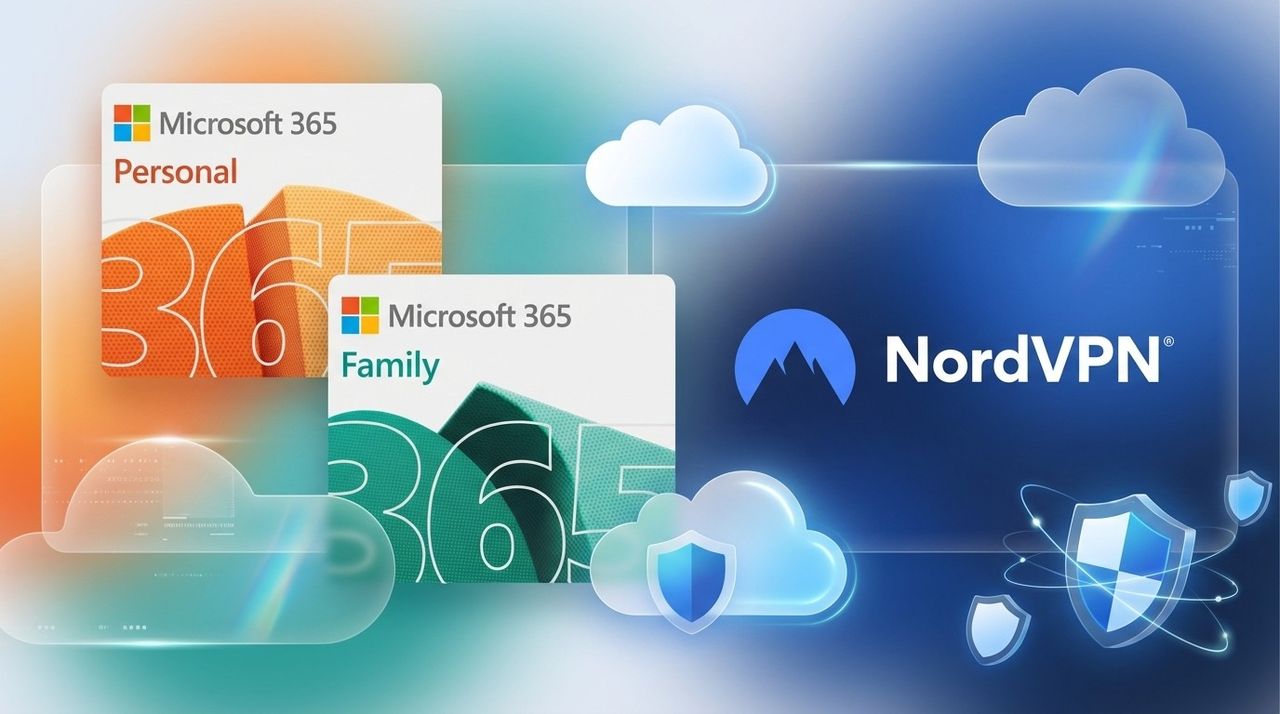
Speaking of apps, this week's top deal is on the ever-popular Microsoft 365. That software suite is massively discounted right now if you bundle it with NordVPN. You'll get the best value if you use both Microsoft 365 and NordVPN, but the bundle is more affordable than Microsoft 365 on its own.

365 Personal (12 months) + NordVPN: was $149.98 now $61.99

This bundle is the most affordable way to get a year of Microsoft 365. As an added bonus, it comes with a year of NordVPN Basic, which is a $49.99 value on its own.View Deal

365 Family (12 months) + NordVPN: was $179.98 now $84.99

Microsoft 365 Family provides access to the software suite for up to six people. Each of those users will have their own copy of apps like Word, PowerPoint, and Excel plus 1TB of OneDrive storage. This bundle also includes a free year of NordVPN Basic.View Deal

Click to join us on r/WindowsCentral

Join us on Reddit at r/WindowsCentral to share your insights and discuss our latest news, reviews, and more.

Outlook Client Hero

Outlook Client Hero

  •  

Microsoft is finally updating one of Windows 11’s oldest dialog boxes with a full WinUI redesign

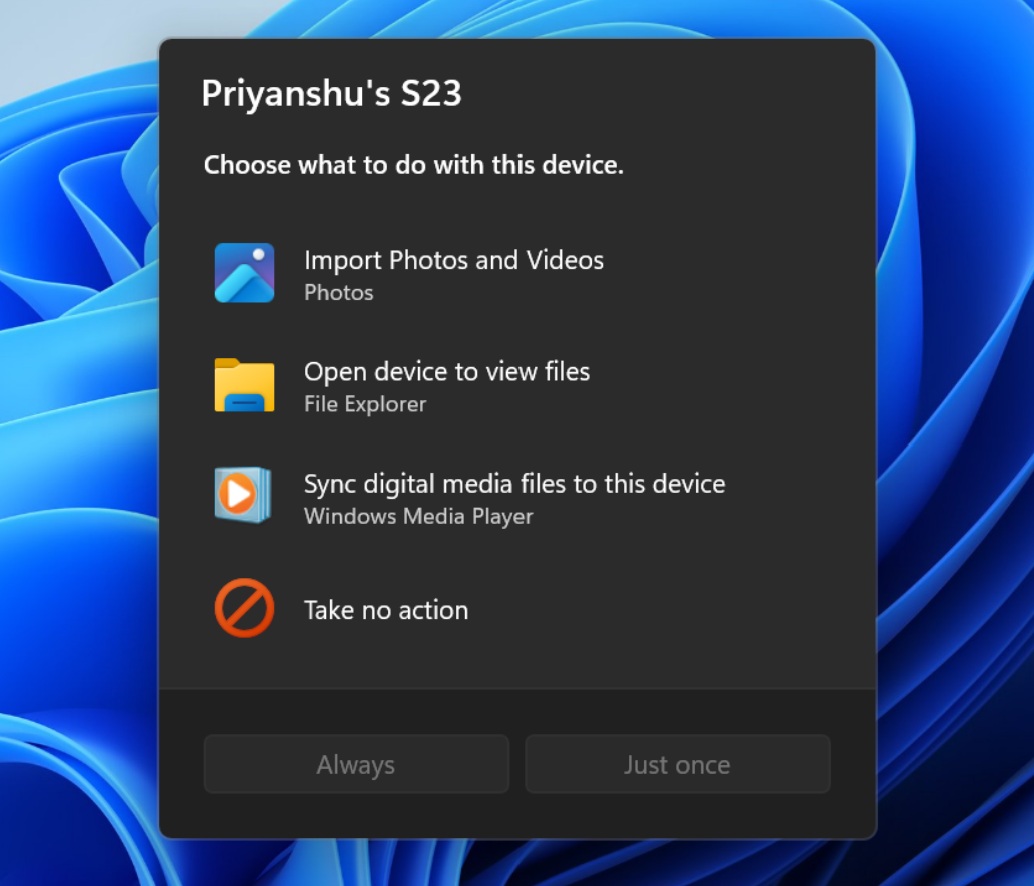
Microsoft's makeover of Windows 11 continues. A refreshed AutoPlay dialog box headlines the latest Windows Insider build.

That experience is more than a palette swap or color change. Microsoft rebuilt the experience with WinUI. That brings better performance, more visual consistency with the modern parts of Windows 11, and better responsiveness to text scaling.

The AutoPlay dialog box is a relatively small feature, but it has looked outdated for years. Microsoft's current push to polish Windows 11 includes smaller fixes like updating the AutoPlay dialog box and bigger improvements like optimizing Windows 11 for systems with 8GB of RAM.

The redesigned Windows 11 AutoPlay dialog box in dark mode, showing action options for a connected device named

The AutoPlay dialog box is the latest part of Windows 11 to get a modern overhaul. (Image credit: Microsoft)

Several Windows Insider builds shipped today, but I'll focus on the one available through the Experimental Channel. If you want to catch up on the smaller releases, you can check out Microsoft's collection of release notes.

Build 26340.9233

Modernized AutoPlay experience

  • We've updated the AutoPlay dialog that helps you choose the preferred experience when devices are connected to your PC, such as a phone, camera, or removable drive. Rebuilt with WinUI, the refreshed experience is more consistent with the rest of Windows, supports dark mode, and continues to provide the familiar AutoPlay actions you use today. The experience is also more responsive to text scaling and display settings. Notifications for this dialog are now docked in the notification center for easy access.

Accessibility

A simpler way to open apps maximized

  • We're introducing a new accessibility setting, Open apps maximized, that automatically maximizes app windows when they open, so you no longer have to do it yourself every time. This small change removes a bit of everyday friction, whether you use a screen reader or magnification, work in tablet mode, or simply prefer a consistent, full-screen workspace.
  • To turn it on, go to Settings > Accessibility > Visual effects, and turn on Open apps maximized. Once enabled, Windows maximizes app windows for you as they open. Give it a try, and let us know how it works for you.

Manage camera, microphone, and location access for desktop apps

  • Windows Insiders can now manage camera, microphone, and location permissions for individual desktop apps. Previously, access for traditional desktop applications was managed through a single device-wide setting.
  • With this update, you can review and control access on an app-by-app basis, giving you greater visibility into which apps are requesting access to sensitive resources and more control over your privacy choices. Our goal is to make privacy permissions easier to understand and manage across the wide range of desktop apps people use every day.

What's changing

  • Allow or deny access for each desktop app individually.
  • Go to Settings > Privacy & security > CameraMicrophone, or Location to review and manage permissions.
  • Apps that haven't yet accessed a resource prompt for permission the first time access is requested.

What stays the same

  • Existing app permission decisions are preserved.
  • Apps previously granted access continue to have access.
  • Apps previously denied access remain denied.
  • No action is required, and no settings are reset.
  • Existing enterprise policies continue to function as designed. We're exploring additional management capabilities.

Notes

  • Most desktop apps appear with clear app attribution. However, some apps that rely on shared system components, browser-hosted experiences, or similar technologies might appear under a different name than expected.
  • Some desktop apps might appear as Unsigned if Windows can't verify publisher information. Only grant access to apps you recognize and trust.

File Explorer

  • PDF and non-HTML files downloaded from the web can now be previewed automatically in the preview pane.

Microsoft Store

  • This update provides support for in-app purchases in packaged WinUI 3 apps that require elevation, helping developers offer purchases through Microsoft's integrated commerce platform.

Taskbar

  • Fixed an issue in the latest builds causing taskbar animations to briefly work and then stop working.

Input

  • Fixed an issue in the latest builds causing the mouse cursor not to be visible in certain apps.

Other

  • Fixed an issue from the last flight causing Settings > Windows Update > Windows Insider Program > Flags to appear empty even though flags were available.
  • Updated Settings > Apps > Installed apps to show the version number at the top level for packaged apps, as it already does for other apps.

This update also includes some improvements we already knew about, including the option to open apps maximized.

Build 26340.9233 also adds the option to manage camera, microphone, and location permissions on a per-app basis for desktop apps. Previously, that choice was limited to UWP/MSIX applications.

Blank Pixel

Click to join us on r/WindowsCentral

Join us on Reddit at r/WindowsCentral to share your insights and discuss our latest news, reviews, and more.

Windows 11

Windows 11

  •  

Microsoft has a new way to twist your arm to use Edge, this time on mobile

Microsoft Edge for Android has some new image themes in testing. The latest Edge Canary build has some snazzy backgrounds, but to set them you have to make Edge your default browser.

It's a strange requirement that may ruffle some feathers, but there's always a chance it will change. The requirement to set Edge as your default browser to use the themes only appears in Edge Canary. That rule may not roll out to general availability.

The change was spotted by Leo Varela, who tracks updates and changes to Edge and other browsers.

Microsoft has added new image themes in Edge Canary for Android, but to use them as your NTP background, you have to set Edge as your default browser. All browsers use tactics to motivate you to make them your default, and Edge is no exception 🤷 https://t.co/sK1xv7W0RC pic.twitter.com/VVIPywivm2August 21, 2026

Microsoft has a long history of trying to convince people to use Edge. Some efforts, such as adding unique features are viewed as fair play. Other tactics, such as Windows 11 making it more difficult to switch your default browser, have been met with criticism.

A recent survey commissioned by the Browser Choice Alliance suggests that switching away from Edge is too difficult. But that survey relates to PC users. Microsoft has a different battle on Android.

Instead of having hundreds of millions of users with PCs that already have Edge installed, Microsoft needs to convince people to download Edge for Android. Then, the tech giant needs to get people to set Edge as their default browser, which is no easy task.

I imagine the amount of people who have installed Edge on their phones but have not set the browser as their default is small. Considering how niche Edge is on Android, anyone who goes out of their way to install it probably plans to use Edge.

Some Samsung phones come with Edge preinstalled, so perhaps the new picture themes in Edge are designed to sway those users.

Of course, Microsoft is not alone in using aggressive methods to push a browser. Google and Apple have also pushed Chrome and Safari, respectively.

I'm curious to see how effective locking picture themes behind a default setting requirment will be for Edge.

Blank Pixel

Click to join us on r/WindowsCentral

Join us on Reddit at r/WindowsCentral to share your insights and discuss our latest news, reviews, and more.

In this photo illustration a Microsoft Edge logo of a web browser developed by Microsoft is seen on a smartphone and a pc screen.

In this photo illustration a Microsoft Edge logo of a web browser developed by Microsoft is seen on a smartphone and a pc screen.

  •  

This Microsoft 365 bundle deal gets you a year of NordVPN for free

Microsoft 365 is a must-have software suite for millions of people. I've had a subscription since the days of SkyDrive and Office 365. I stack up whenever I find a great deal. Whether you're an experienced subscription stacker or paying for your first Microsoft 365 subscription, now is a great time thanks to a pair of deals.

Newegg has discounts on two bundles, one that comes with Microsoft 365 Personal and NordVPN ($61.99) and one that comes with Microsoft 365 Family and NordVPN ($84.99). Both bundles get you 12 months of each included piece of software.

365 Personal (12 months) + NordVPN: was $149.98 now $61.99

This bundle is the most affordable way to get a year of Microsoft 365. As an added bonus, it comes with a year of NordVPN Basic, which is a $49.99 value on its own.View Deal

365 Family (12 months) + NordVPN: was $179.98 now $84.99

Microsoft 365 Family provides access to the software suite for up to six people. Each of those users will have their own copy of apps like Word, PowerPoint, and Excel plus 1TB of OneDrive storage. This bundle also includes a free year of NordVPN Basic.View Deal

Is now a good time to subscribe to Microsoft 365?

Right now is a great time to subscribe to Microsoft 365.

I've kept track of the best Microsoft 365 deals for years. Every once in a while, the most affordable way to get a subscription is to pick up a bundle. Even if you have no intention of ever using NordVPN, the bundled prices for Microsoft 365 and NordVPN are lower than the cost of Microsoft 365 on its own.

I don't mean to discount NordVPN. It's a great service on its own and I have used it regularly for years as well. I just assume people seeing this bundle are more interested in Microsoft 365. If you use both Microsoft 365 and NordVPN, the current bundles are incredible.

FAQ

Can you stack Microsoft 365?

Yes, it is possible to stack Microsoft 365 subscriptions, meaning you can extend your current plan rather than having to wait for your current subscription to expire. Microsoft 365 allows customers to stack up to five years.

Can I use Microsoft 365 on multiple devices?

Yes, Microsoft 365 apps are available across just about every operating system and type of device. You can use those apps on up to five devices at once with your Microsoft 365 subscription.

Does Microsoft 365 come with OneDrive storage?

Yes. Each Microsoft 365 user gets 1TB of OneDrive cloud storage. That means a Microsoft 365 Personal subscription comes with 1TB of storage and a Microsoft 365 Family subscription comes with up to 6TB (1TB per user).

What is NordVPN?

NordVPN is a highly rated VPN that can improve the security of devices by hiding your IP address and rerouting internet traffic. It can also encrypt data and bypass regional locks for streaming content.

Microsoft 365 and NordVPN Cyber Monday deal

Microsoft 365 and NordVPN Cyber Monday deal

  •  

Microsoft Surface and other Windows on Arm PCs can't use Outlook or Teams right now

A Windows 11 update appears to break Microsoft Teams and Outlook on Windows on Arm PCs. Issues started popping up after the rollout of KB5121003, which began shipping this month on Patch Tuesday.

Brian Stringfellow shared details about the problem through a Microsoft Learn report. Several people in that thread have similar issues.

PCs affected by the issue, including Stringfellow's Surface Laptop 7, see Microsoft Teams and Outlook close almost immediately after being opened. Specifically, the new Outlook is affected. Classic Outlook still works on PCs affected by the bug.

The problem seems to affect a variety of Windows on Arm devices. Julius Heng shared their experience:

"I have the exact same issue on Omnibook 3 running snapdragon. After the initial setup, Ms Teams works, but next day it doesnt work. It will have a white screen on teams and it will close right after it open. I tried various method, including reinstall webview 2 etc. None of it works. I tried to roll back all the update and it doesnt work. After did a factory reset Ms Teams works again. But to my dismay, the windows update itself and it breaks Teams again. right now, i'm back to square. Really hope that there's some way to rectify this."

It's not clear at this time why the issue is occuring or why the problem is limited to Windows on Arm PCs.

User Alex-L, who is listed as a moderator and Microsoft External Staff on Microsoft Learn, reported that similar issues are occurring on a variety of Windows on Arm systems:

"At this point, very similar symptoms on different Snapdragon/ARM64 systems. While these reports suggest a possible common factor, no one in this public forum can confirm Microsoft's internal investigations, determine the root cause, or verify whether this is a known issue affecting all ARM64 devices. Microsoft does not currently list a known issue for KB5121003 in the official release notes."

While we wait for official confirmation from Microsoft and a fix for the issue, users with Windows on Arm PCs may have to fall back to other versions of Outlook and Teams that are unaffected by the bug.

Click to join us on r/WindowsCentral

Join us on Reddit at r/WindowsCentral to share your insights and discuss our latest news, reviews, and more.

Microsoft's Surface Pro 12-inch 1st Edition (2025) powered by Qualcomm Snapdragon X Plus processor.

Microsoft's Surface Pro 12-inch 1st Edition (2025) powered by Qualcomm Snapdragon X Plus processor.

  •  

The man behind PowerToys is most excited about these features that ship next week

PowerToys is one of my favorite Windows apps and a must-have for people who want to get the most out of Windows 11. We often highlight new and upcoming features for PowerToys, but we rarely get to hear about the most exciting features in the eyes of Niels Laute.

Next week, PowerToys will receive several improvements, including a compact option for Command Palette and a ripple effect for Mouse Highlighter. Laute, who is the project manager of PowerToys and WinUI, shared the features and changes he's looking forward to.

As PM of PowerToys, Laute oversees the development of one of the best free Windows apps. But the app is worked on by several people. Over 300 pull requests contributed to next week's update, and Laute thanked the team for their efforts.

Next week's PowerToys release is looking good 👀!The team and our amazing community have merged almost 300 PRs, packed with quality-of-life improvements, stability fixes, and polish across the suite :)!Here's some of my favorite (small) improvements coming 🧵:August 18, 2026

We've known about some of these changes because of the PowerToys preview. For example, on-device Phi Silica support has been in testing over the last two weeks. But next week the changes will ship to everyone using PowerToys.

Command Palette is similar to Spotlight on macOS. Another way to look at it is as what Windows Search should be. The utility can launch apps, open settings, and trigger actions quickly.

Command Palette is a powerful tool, but it can take up quite a bit of space on your screen. Next week's update to PowerToys brings the option to use a compact view for Command Palette.

Command Palette is getting compact mode! pic.twitter.com/DA7RzmUSgzAugust 18, 2026

Mouse Highlighter is a handy tool that lets you find your mouse cursor. It can save you some time if you use multiple monitors or an ultrawide display. But it can feel a bit heavy-handed since it grays out your screen to highlight the cursor. The upcoming ripple effect is more subtle.

Mouse Highlighter getting new Ripple effects! @ClintRutkas has been cooking with this one 🚀. pic.twitter.com/MzDycvsgBvAugust 18, 2026

Phi Silica is a small language model (SLM). It's perhaps best known for being the model that powers Copilot+ PC features such as Click to Do and on-device rewriting in Word and Outlook.

@khmyznikov added Phi Silica support for Advanced Paste 🚀! So you will be able to take advantage of your NPU for AP on a Copilot+ PC! pic.twitter.com/sR60TT51W1August 18, 2026

Phi Silica and other features have been in preview testing for a bit. The next update to PowerToys will make it easier to get preview updates.

New update UX that addresses a bunch of reported issues - and the ability to opt-in our new preview channel! pic.twitter.com/Cs8oDjXqt6August 18, 2026

Change logs for PowerToys are famously long and detailed, so you can expect the "gazillion" fixes Laute mentions to be listed next week.

And so much more! Shortcut Guide is much smoother now and has built-in search, a gazillion CmdPal bugfixes (thanks @AkaWizardPrime!) and perf and stability fixes across the board. Oh, and a brand new utility to look forward too :)!Stay tuned!August 18, 2026

I'll update this piece when the new version of PowerToys rolls out and add the complete change log.

PowerToys | Free at GitHub | Free at Microsoft Store

This collection of utilities includes a large library of features to enhance the Windows experience. PowerToys is designed with power users in mind, but it has handy features for people who just use their PC for everyday computing too.

Click to join us on r/WindowsCentral

Join us on Reddit at r/WindowsCentral to share your insights and discuss our latest news, reviews, and more.

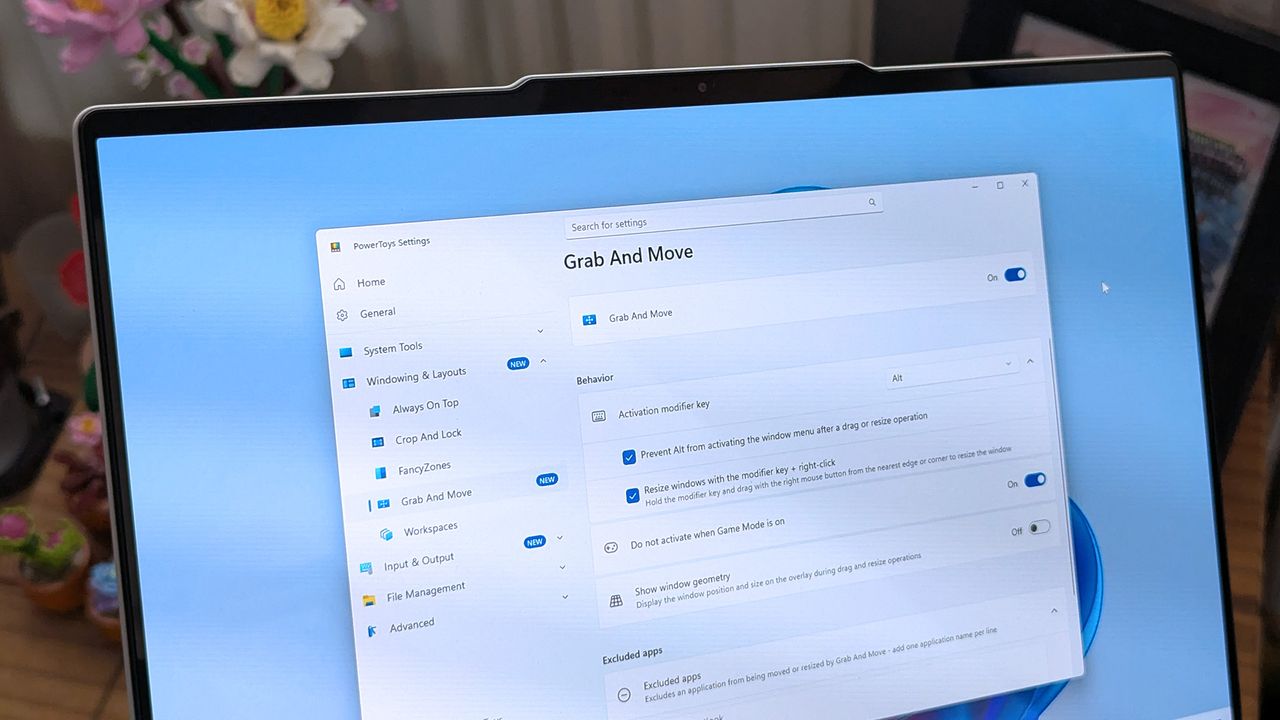
A laptop screen displaying Windows 11, featuring the "Grab And Move" settings window of PowerToys. The desktop background is colorful and vibrant.

A laptop screen displaying Windows 11, featuring the "Grab And Move" settings window of PowerToys. The desktop background is colorful and vibrant.

  •  

Oops! Qualcomm retracts key Snapdragon C benchmarks for budget laptops

Qualcomm's upcoming Snapdragon C chips are now surrounded by more question marks. Despite Qualcomm releasing benchmark comparisons last week, there are new unknowns about the processors.

Last week, Qualcomm shared details about its Snapdragon C chips online and highlighted the updated information to media outlets. I covered the news, as did several other outlets. Tom's Hardware discussed the specs and benchmarks, but it has since had Qualcomm reach out with an update.

A Qualcomm representative asked Tom's Hardware to replace slides originally shared by Qualcomm with updated versions. Unlike the slides first sent out, the new slide does not show benchmark information for how Snapdragon C chips perform when powering idle apps or when web browsing.

The remaining benchmarks are still impressive, such as Snapdragon C delivering up to two times better power efficiency than Intel N250 when running Netflix or Edge. But considering some claims have been removed, I think many people will want to see Snapdragon C in the wild before making any decisions.

Snapdragon C is a new chip from Qualcomm designed for low-cost devices that start at around $300. The chips promise power efficiency and responsive performance for budget-friendly systems.

Until recently, we knew little about the chip in terms of hard specs. But we now have core counts, benchmark comparisons, and other details.

Snapdragon C specs

CPU

Qualcomm Kryo CPU (6nm)

CPU cores

8

CPU max clock speed

3.0 GHz

GPU

Qualcomm Adreno

NPU

Qualcomm Hexagon

Memory

LPDDR5x

Maximum memory

16GB

Wi-Fi

Wi-Fi 6E, Wi-Fi 6

Bluetooth

Bluetooth 6.0

The Snapdragon C will power Windows 11 on ARM devices. That platform has improved greatly over the last few years in terms of compatibility, so much so that app compatibility is no longer a concern for Windows 11 on ARM for most users.

One of the few remaining areas where Windows 11 on ARM struggles is gaming, but since budget laptops starting at $300 are unlikely to be gaming PCs, that shouldn't be much of a concern for Snapdragon C.

Questions about Snapdragon C

When I covered the Snapdragon C benchmarks last week, I noted that the only information we had came from Qualcomm and that we'd need to see verified results from independent tests. I also highlighted that Qualcomm did not share how the chips performed when plugged in, instead leaning on unplugged performance that often favors Snapdragon processors when compared to Intel.

I did not expect the benchmarks shared by Qualcomm to become unknowns. We now have no information about the performance of those chips when powering idle apps or during web browsing.

Qualcomm did not share many details with our colleagues at Tom's Hardware about why the old slide had been changed. The company simply said the change was made to "improve clarity and relevance."

The fact that Qualcomm let the presumably incorrect or out-of-date slide go unchecked for almost a week is also worrying.

Web browsing is a key part of the budget laptop experience, so accurate benchmarks in that category will be pivotal for anyone shopping for a PC.

Blank Pixel

Click to join us on r/WindowsCentral

Join us on Reddit at r/WindowsCentral to share your insights and discuss our latest news, reviews, and more.

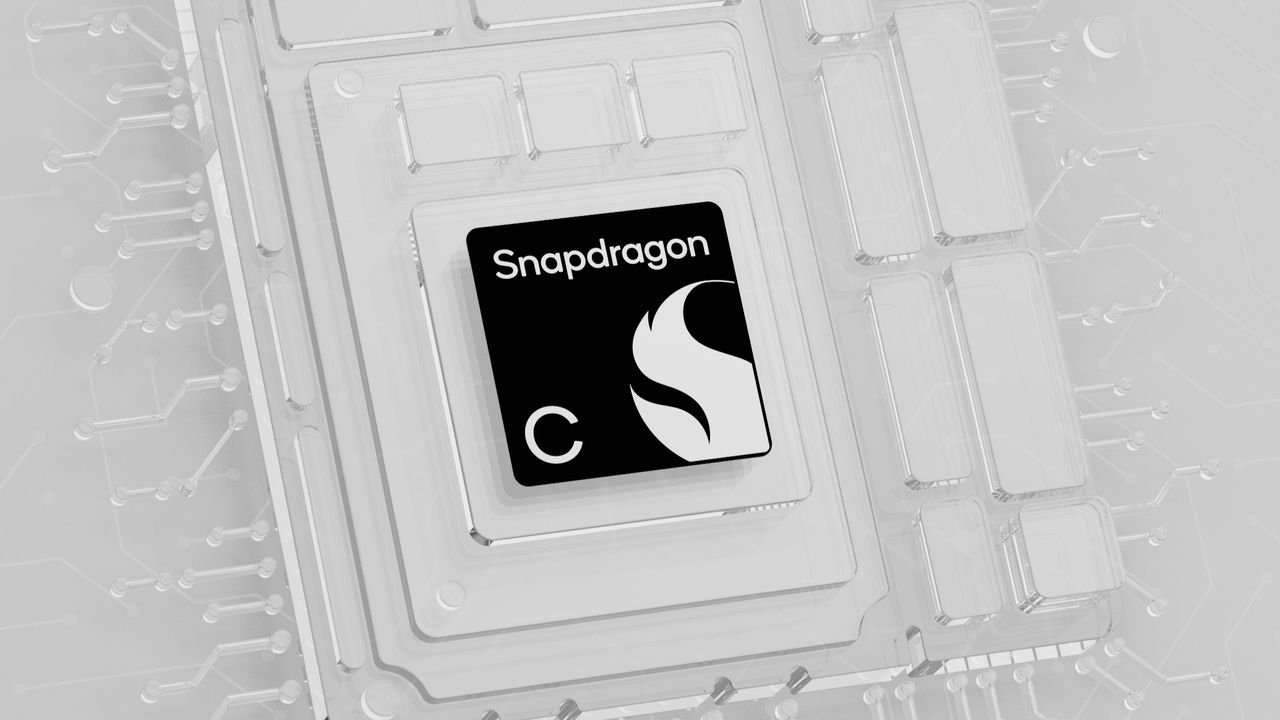
Snapdragon C logo in a white transparent environment resembling a motherboard.

Snapdragon C logo in a white transparent environment resembling a motherboard.

  •  

5 more must-have Windows 11 apps — this time from Reddit and our readers

Last month, I shared six apps I install immediately after a clean install of Windows 11 or when setting up a PC. Each of those apps enhances an experience on Windows 11 or replaces a Microsoft tool. In the case of PowerToys, it's a Microsoft tool that replaces other Microsoft tools.

Sean Endicott

Sean Endicott News Writer Windows Central

(Image credit: Future)

What I'm working on this week: I'm testing new Windows 11 apps, such as AltTabby to improve my experience at my desk.

Members of the Windows Central community and the Windows Central subreddit shared their favorite apps in the same category, and I'm gathering them all together here. I've also added AltTabby as a bonus pick and Blip, which Reddit helped me find as an AirDrop alternative for Windows.

I loved reading through all your app suggestions after my last piece, and I’d be thrilled to keep this series going. If you have even more must-have Windows 11 apps, please let me know!

5 more must-have Windows 11 apps

This app switches the theme of your PC at scheduled times, such as enabling dark mode after sunset. It's always been a bit odd that Windows does not have this as an option by default, but Auto Dark Mode does a great job.View Deal

With EarTrumpet you can control the volume of your devices and applications. It's one of those apps you set up once and then forget it's there, but you'll notice it missing if you fail to install it on a new PC.View Deal

Blip:

This app allows you to send and receive files across your devices. It's a bit like AirDrop, but it works with Windows, iOS, and Android.View Deal

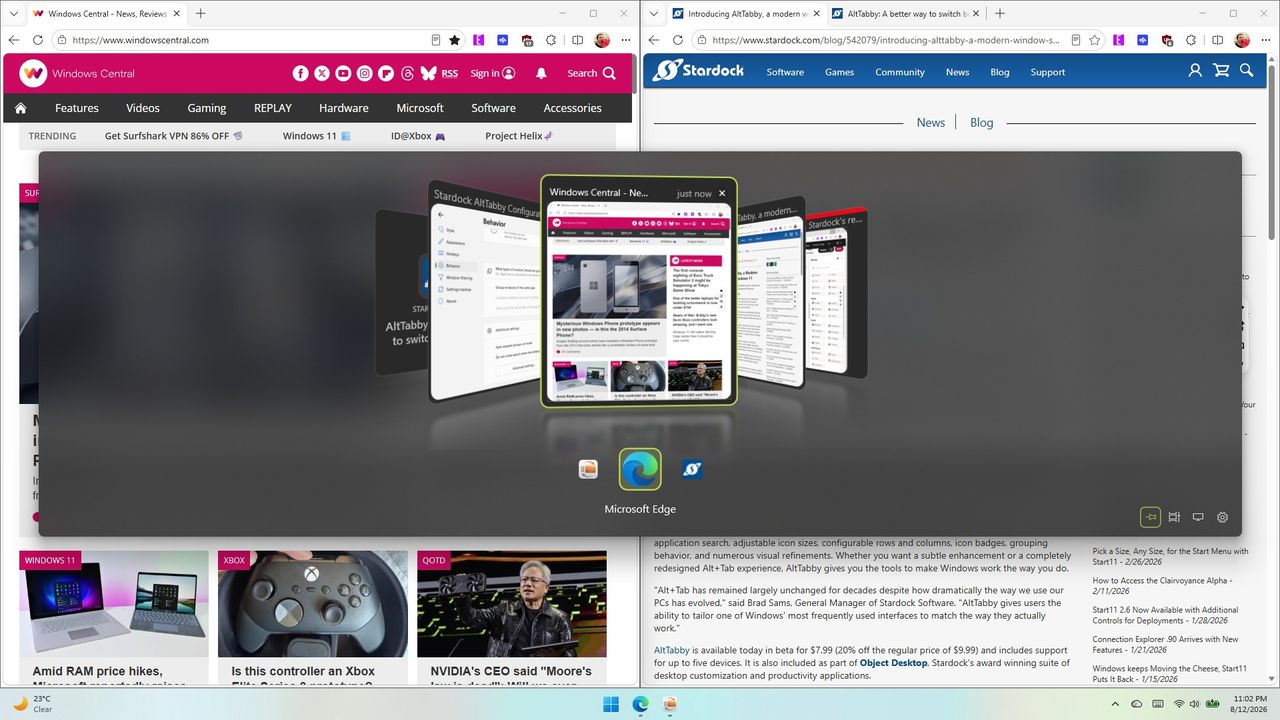
This app replaces the Alt+Tab experience on Windows 11 with one that is more customizable. You can choose between five different views, and AltTabby can learn your frequently used apps to keep them close by.View Deal

Calendar Flyout | $3.99 at Microsoft Store

This app brings back the calendar flyout from Windows 10. The flyout shows your calendar events and allows you to create new events without opening a separate app.View Deal

Screenshot of Windows 11 desktop showing Stardock's AltTabby application switcher pop-up over web browsers, displaying open windows in a 3D cover-flow style view with Microsoft Edge highlighted.

The calendar flyout experience of Windows 11 still trails behind the third-party Calendar Flyout app.

  •  

Is Microsoft Defender crashing on your PC? A bad update is breaking scans

Microsoft claims that Windows 11's built-in security tool is enough for most PC users, but that's only the case if the tool works. An issue affecting some PCs prevents security scans from being completed, leaving systems potentially vulnerable.

The problem was flagged on Reddit by user Huynh_Jovi. Several users in that thread have had issues running scans with Microsoft Defender. Both Full Scan and Quick Scan appear to be affected.

Pinned at the top of that thread is a comment by a moderator that gathers together key information on the situation.

"It appears Microsoft released a bad update to Windows Defender, causing it to crash a few seconds after attempting to perform a Full Scan or Quick Scan," reads the comment by user goretsky. They continue, stating, "Offline scans reportedly stop at around 90-93% of completion." The latest version of the Microsoft Safety Scanner is reportedly affected as well.

The exact cause of the issue has not been determined, though there are several suggested causes. The issue seems to be related to a Microsoft Security Intelligence update. Performing an upgrade to Security Intelligence Update v1.457.236.0 resolves the issue, according to Reddit users Schoonie84 and Master_Pie1940.

You don't need to hunt down that update manually. If you check for updates in the Windows Security app or through Windows Update, the latest version should appear.

There's a chance the issue appeared after Microsoft attempted to mitigate ShieldBreak, a zero-day vulnerability disclosed shortly after August's Patch Tuesday update.

Versions v1.1.26070.7 and v1.1.26080.2 of Defender are said to be affected by the issue when used with any of the following Microsoft Security Intelligence Update versions:

  • 1.457.222.0
  • 1.457.225.0
  • 1.457.226.0
  • 1.457.227.0
  • 1.457.230.0

Restoring to an older Microsoft Security Intelligence update also reportedly fixes the issue, adding weight to the theory about the cause of the problem.

Comment
 from r/antivirus

Many users have spent hours trying to address the issue. At the time of publication, there has not been official word on the problem from Microsoft, so the work of the Reddit users taking a closer look is appreciated.

Performing regular scans is an important step in securing a PC. Hopefully Microsoft can resolve the issue quickly and get word out to affected users.

In the meantime, affected users can still scan a specific folder or drive by right-clicking and selecting "Scan with Microsoft Defender."

Blank Pixel

Click to join us on r/WindowsCentral

Join us on Reddit at r/WindowsCentral to share your insights and discuss our latest news, reviews, and more.

Microsoft Defender

Microsoft Defender

  •  

Windows 11 will soon let you block camera and mic access for any individual desktop app

Windows 11 will soon give you greater control over the permissions your apps have. A new feature hidden away in the latest Experimental Insider Build (26340.9212) lets you block access to your camera and microphone on a per-app basis for Win32 apps.

The change was spotted by X user @jakub25050. Well-known Windows sleuth @phantomofearth confirmed that the change appears on their system as well when running build 26340.9212 and after enabling Win32SignatureIdentity (60730253). On X, @jakub25050 noted that they did not have to enable any feature flags.

Microsoft did not discuss the change in the official release notes for the latest Windows Insider build.

Huge changes are coming to Windows 11 privacy & security. In the latest Experimental Insider Build (26340.9212) you can now revoke access to the camera & microphone for specific Win32 apps!cc: @pavandavuluri @phantomofearth @XenoPanther @windowsinsider @zacbowden @tomwarren pic.twitter.com/0UDOrgxsXSAugust 18, 2026

This behavior will feel familiar to most people who use a smartphone, since both iOS and Android have fine-tuned privacy controls. Windows 11 has also supported this functionality for other types of apps for a while.

What's changing with Windows 11 privacy settings?

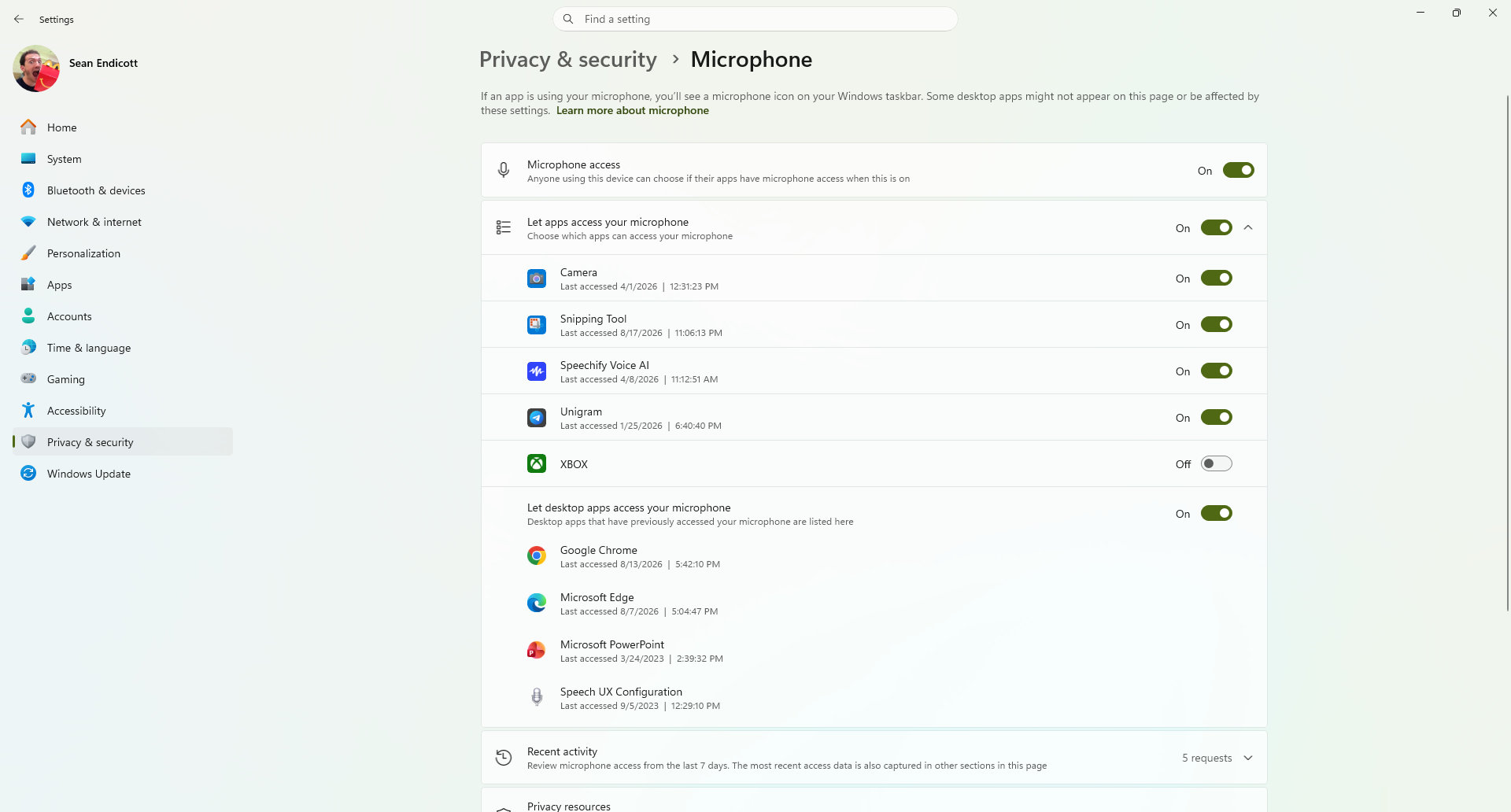
Windows 11 Settings app showing the Microphone permissions page under Privacy & security, displaying app toggles for microphone access.

Per-app options for microphone and camera permissions have been limited to certain types of apps until recently. (Image credit: Future)

Windows 11 already has an option that allows or blocks desktop apps from accessing things like your microphone or camera. But you can only enable or disable those permissions on a per-app basis for certain types of apps.

The feature in testing right now allows you to toggle camera and microphone permissions on a per-app basis for Win32 apps. That's a massive addition since many popular programs are Win32 apps, such as Discord, Chrome, and game launchers like Steam.

The current way app permissions work means that to use your webcam on a browser like Chrome, you'd also need to have your settings configured to let other desktop apps access your webcam.

I've seen some debate about when the per-app option for Win32 apps rolled out to Windows 11. While Windows 11 has had the option to grant or deny permissions for years, that choice was limited to UWP/MSIX apps and was not available for Win32 apps.

Build 26340.9212 started shipping to Insiders in the Experimental Channel on August 17, 2026. Assuming testing goes well, we could see the expanded app controls roll out to everyone in the near future.

Blank Pixel

Click to join us on r/WindowsCentral

Join us on Reddit at r/WindowsCentral to share your insights and discuss our latest news, reviews, and more.

Windows 11 Start menu dark

Windows 11 Start menu dark

  •  

A tiny change to Windows 11's File Explorer proves Microsoft can't keep everyone happy

Fixing Windows may be an impossible task, at least if the goal is to please every user. Because Windows has been around for decades and is used by billions of people, Microsoft has to be careful in how it rolls out changes to its operating system.

One of the strengths of Windows is backward compatibility, but that is a double-edged sword. Because Microsoft values legacy software and compatibility, Windows 11 is basically several operating systems stacked together under a trenchcoat.

I've argued before that unifying the look of Windows should have been a priority for decades. But even if it were, updating Windows would be a challenge. People get used to things and often dislike changes, even if they're considered improvements by many.

With changes like the overhauled Start menu and movable taskbar on the way, I shared a poll recently asking about Microsoft's improvements to Windows 11. That poll was inspired by the recent change to how file sizes are displayed in File Explorer.

40 percent of those who voted said that "Some tweaks are great, but others feel like changes for the sake of change." Another 32 percent of participants said Microsoft should "bring on the modern polish," noting that they adapt quickly and prefer clean interfaces.

Almost 30 percent of voters wanted to ensure some level of consistency, whether that be keeping legacy options (17 percent of voters) or leaving features and layouts alone (12 percent).

The fact that even our readers are split shows how divisive this topic can be. Generally speaking, our readers are tech-savvy and keep up to date with tech and new features, so they should be able to adapt to changes well. But being able to adapt is not the same as favoring the need to adapt.

At this point Microsoft cannot do it right for everyone anymore. Whatever they change, they'll disappoint someone. What one loves, the other one hates. One still uses legacy software from 30 years ago; the other one is using only brand-new apps that the employer provides.

Q-Less in comment on Windows Central

The comments on that article echoed sentiments about Microsoft not being able to please everyone, such as the quote above by "Q-Less." They also noted that "Microsoft needs to spend significant effort on change management."

Over the years, Microsoft has tried different strategies. Major OS updates such as Windows 7 or Windows 10 bring many changes at once and allow Microsoft to roll out improvements as part of a package.

Incremental updates shipped every few months let Microsoft get improvements to users quickly, but that may not be a good thing. People need time to adapt to changes, even good ones. Having an interface or experience tweaked several times in a year can be jarring.

One route Microsoft could take is adding options.

They should add a new option to set it on and off. They already have an options screen, just add it there and let people decide.

Incom2 in comment on Windows Central

I like having options, and Microsoft sometimes ships new features with a toggle to go back to the previous interface. But there's a limit on how many choices can be built into Windows 11. If Microsoft kept every option across several OS generations, Windows would be a mess.

Some want Microsoft to take the "if it ain't broke, don't fix it" approach.

Stop messing with the UI. I'm a power user/retired sys admin and I had gotten very proficient with the PERFECT Win 7 UI. Then µslop just had to change it. Then I had to spend time and effort to re-learn new ways to do everything that I had become fast and efficient at. A huge waste of time and decrease in productivity. Go ahead & fix the underlying code to make it more secure & trim out bloat, but LEAVE MY UI ALONE!

Jimbo in comment on Windows Central

Within the Windows Central community, there is debate on how to handle changes and improvements to Windows. Expand the discussion to all PC users and you have an almost deafening amount of noise to sort through.

Even when Microsoft settles on changes to Windows, the company needs to decide how to package those changes. Last week's Windows Wrap asked if the next big update should just be Windows 12.

Windows carries over much of its base when switching between major OS versions these days, so it's more about marketing than a technical definition.

Where do you stand in the debate? Do you want to see Windows modernized even if it means you'll have to adapt to changes? Or do you want Windows to stay largely the same? Let us know in the comments!

Click to join us on r/WindowsCentral

Join us on Reddit at r/WindowsCentral to share your insights and discuss our latest news, reviews, and more.

Windows 11 file Explorer

File Explorer is one of the oldest parts of Windows, making changing it a touchy subject.

  •  

GitHub’s latest outage took Copilot down with it, creating one of the most disruptive developer breakdowns we’ve seen in months — GitHub says it is now "operating normally"

GitHub is down for thousands of users, potentially costing millions of dollars in lost productivity. Outages started around 9:40 AM ET and affect API requests, pull requests, and webhooks.

The issues also affect Copilot. A massive number of developers and companies rely on GitHub and Copilot to get work done, so even a few hours of serious issues can be costly.

The official GitHub status page states:

"We are experiencing high error rates around 20% for web experiences and api traffic. Archive downloads and raw repository content downloads are experiencing an approximate 50% error rate. SAML and OIDC authentication, SCIM, and Team Sync are also impacted. We are still working to identify the root cause and will continue to post updates as we learn more and perform mitigation."

The cause of the outage is unknown at this time.

"We identified the problematic component and have taken corrective actions. There are strong signs of recovery but we are still working to completely restore service, with error rates still remaining slightly elevated. We will post further updates as recovery continues."

This is a developing story. We will update this piece as more information becomes available.
CANADA - 2025/07/20: In this photo illustration, the GitHub (Git Hub) logo is seen displayed on a smartphone screen. (Photo Illustration by Thomas Fuller/SOPA Images/LightRocket via Getty Images)

CANADA - 2025/07/20: In this photo illustration, the GitHub (Git Hub) logo is seen displayed on a smartphone screen. (Photo Illustration by Thomas Fuller/SOPA Images/LightRocket via Getty Images)

  •  

This Microsoft Outlook replacement comes with a shot of Windows Phone nostalgia

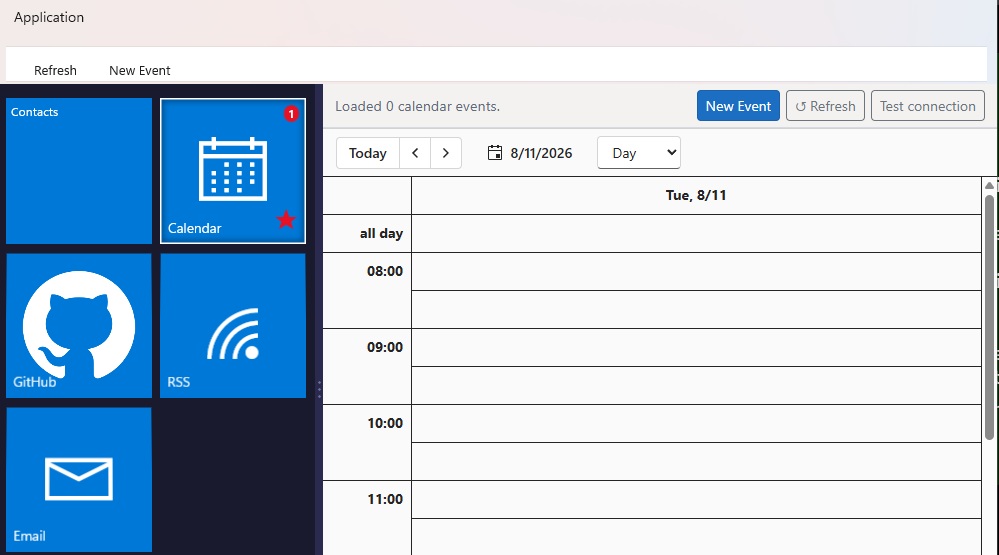
A former Microsoft engineer is working on a way to make Live Tiles relevant in 2026. Jeff Fritz, who worked at Microsoft until last month, has been showcasing an app called DayFrame on several of his recent live streams.

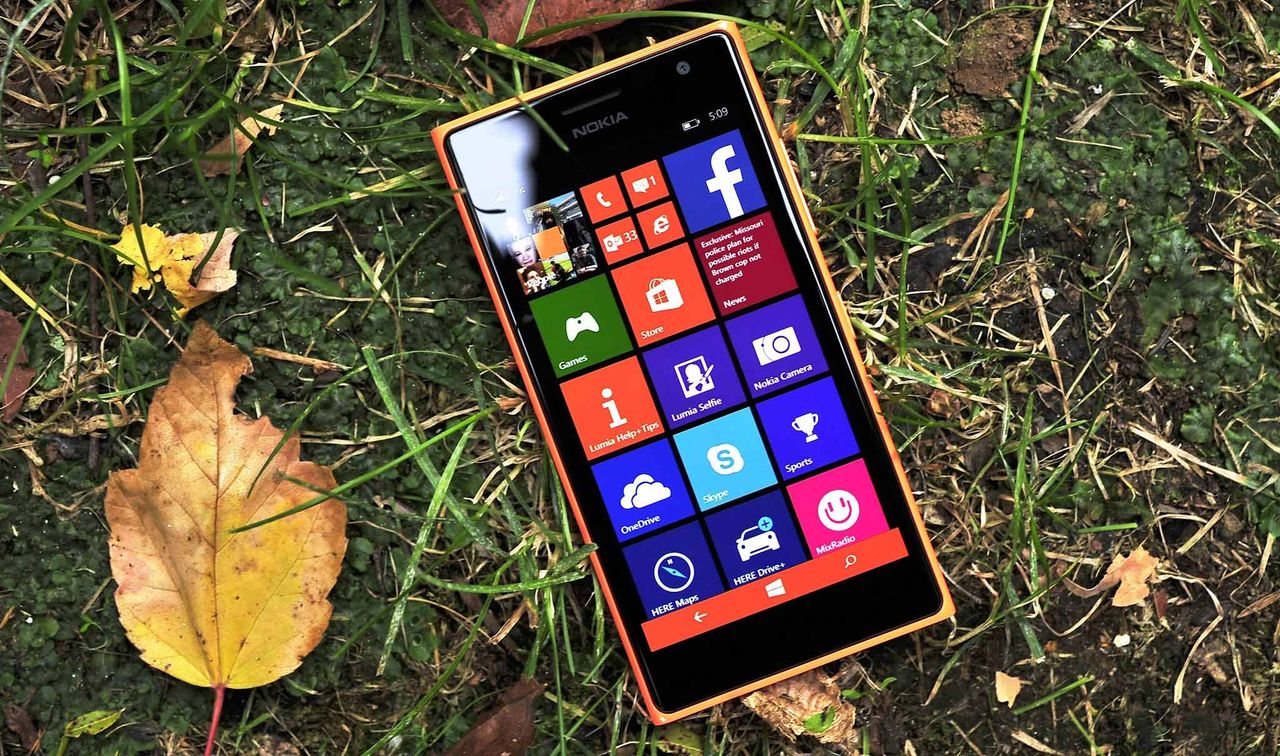
DayFrame is what happens when Windows Phone and Outlook have a baby. The app features a persistent hub with shortcuts to your email, calendar, contacts, and other tools. The layout is inspired by Windows Phone and would look natural on a Lumia smartphone.

Fans of retro Windows design will appreciate the Live -Tile-inspired interface, icons, and text. Though the app is built with classic Windows UI elements in mind, the experience won't be exclusive to PC. DayFrame will be available on both Windows and Mac when it ships.

"Instead of juggling separate apps, DayFrame gives every part of your personal world a home behind a single shell," reads the DayFrame website. "A persistent tile rail on the left keeps your modules one tap away — bold, square, unmistakably blue — while the main pane shows whatever you're focused on right now."

Screenshot of the DayFrame user interface showing a blue Metro-style navigation sidebar on the left with options for Contacts, Calendar, GitHub, RSS, and Email, alongside a daily calendar schedule view on the right.

DayFrame has several modules aimed to make it easier to juggle tasks. (Image credit: Jeff Fritz)

Sadly, the app is not available yet and is simply listed as "Coming soon." But Fritz mentioned on X that a private preview for the app should be available in the next week or so.

Fritz notes that the screenshots shown on the DayFrame website are of "real, running code," so they're more than just design mockups.

DayFrame is designed to be expanded over time. Each module is built independently and tested separately, which allows Fritz to add new modules without affecting preexisting ones.

The concept behind DayFrame is intriguing. A lot of apps feel like cookie-cutter tools made with templates. While DayFrame is inspired by Windows Phone, it takes the familiar layout and builds on it.

I'd love to see DayFrame be embraced by a community of developers after it comes out. Maybe we'll see some unique modules added to the app.

Blank Pixel

Click to join us on r/WindowsCentral

Join us on Reddit at r/WindowsCentral to share your insights and discuss our latest news, reviews, and more.

A smartphone with a colorful app tile interface lies on grass surrounded by autumn leaves. The bright screen contrasts with the earthy background.

A smartphone with a colorful app tile interface lies on grass surrounded by autumn leaves. The bright screen contrasts with the earthy background.

  •  

Microsoft is ditching the COPILOT function in Excel before it even launches

Less than one year after being launched in preview and before leaving testing, the COPILOT function in Excel is going away. The function never shipped to general availability, but it could be used by Frontier and Insider users since August 2025.

The COPILOT function allowed users to use natural language to place prompts into spreadsheets. For example, you could use it to summarize text or categorize feedback. The function could also look up information from the web.

While useful, the function had serious limits. Microsoft stated that people should not use the COPILOT function for numerical calculations, responses that require context from other parts of a workbook, or any tasks with "legal, regulatory or compliance implications."

Considering how many people use Excel for important work and calculations, those limits are quite restrictive.

Microsoft's explanation of why the feature is going away lacks details. Instead, it primarily focuses on the fact that Copilot in Excel is still available in the side pane:

"Beginning September 14, 2026, the =COPILOT function in Microsoft Excel will no longer be available. This function is currently offered as a preview feature through the Insider and Frontier programs.

Customers can continue using Copilot in Excel through the Copilot side pane, which provides many of the same AI-powered capabilities, including summarizing text, classifying data, generating content, and retrieving information from the web. This change helps streamline the Copilot experience within Excel while continuing to provide AI assistance through a supported interface."

Users will not be able to create new formulas using the COPILOT function after September 14, 2026.

Windows Central take

Microsoft Copilot on a red background

(Image credit: Windows Central | Jez Corden)

It appears Microsoft may be reining in Copilot a bit. The AI tool is still part of the company's plans, but in a more controlled manner.

Microsoft has a unified Copilot experience that merges Copilot and Microsoft 365 Copilot. We've also seen some Copilot features go away or be limited over the last few months.

Earlier this summer I argued that the free version of Copilot is starting to feel like a tech demo designed to push paid tiers. I still think that's the case, but if Microsoft is going to push Copilot, it's best to do so with a plan.

Since the launch of Copilot, it's felt like Microsoft threw everything at the wall to see what sticks. The Copilot brand was diluted and there were dozens of different apps with Copilot in the name. Anything even remotely related to AI was attached to Copilot in some way, making the term almost meaningless.

Whether it's because Microsoft decided that strategy was a mistake or it's just had enough time to assess what properly stuck, the next wave of Copilot feels more targeted.

Blank Pixel

Click to join us on r/WindowsCentral

Join us on Reddit at r/WindowsCentral to share your insights and discuss our latest news, reviews, and more.

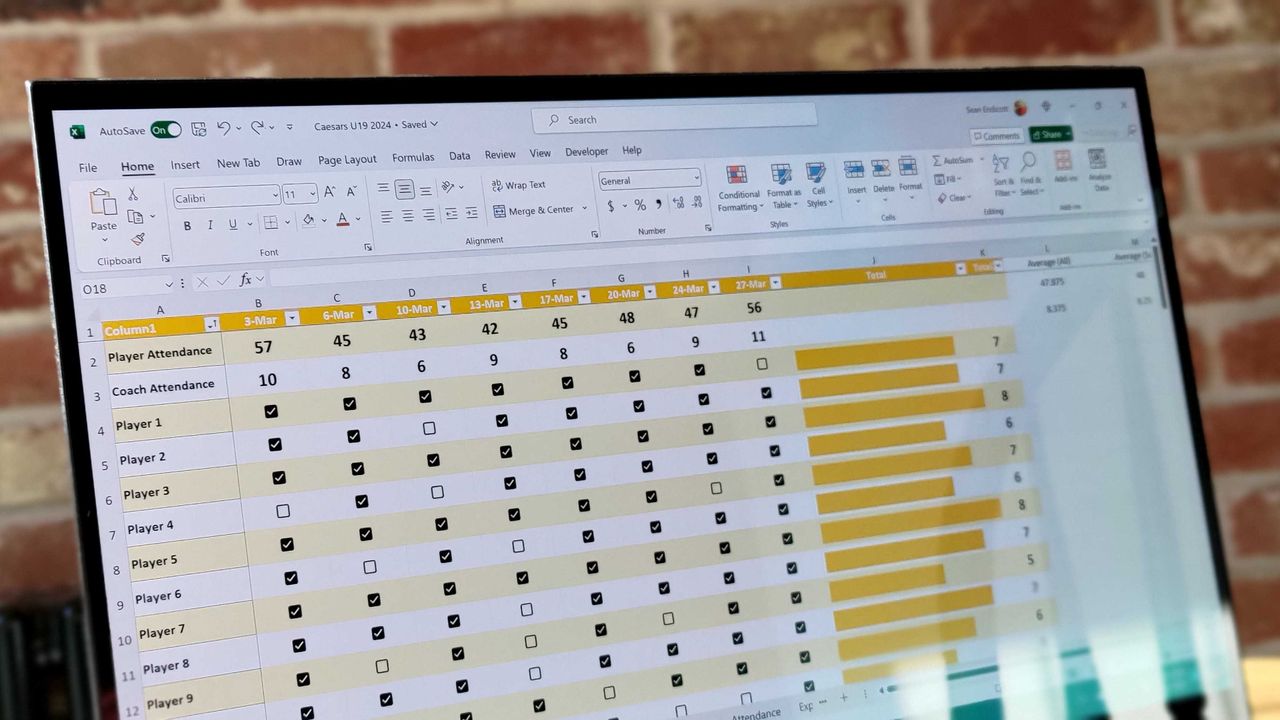
Excel spreadsheet with checkboxes

The upcoming checkboxes feature in Microsoft Excel makes it easy to visualize certain data.

  •  

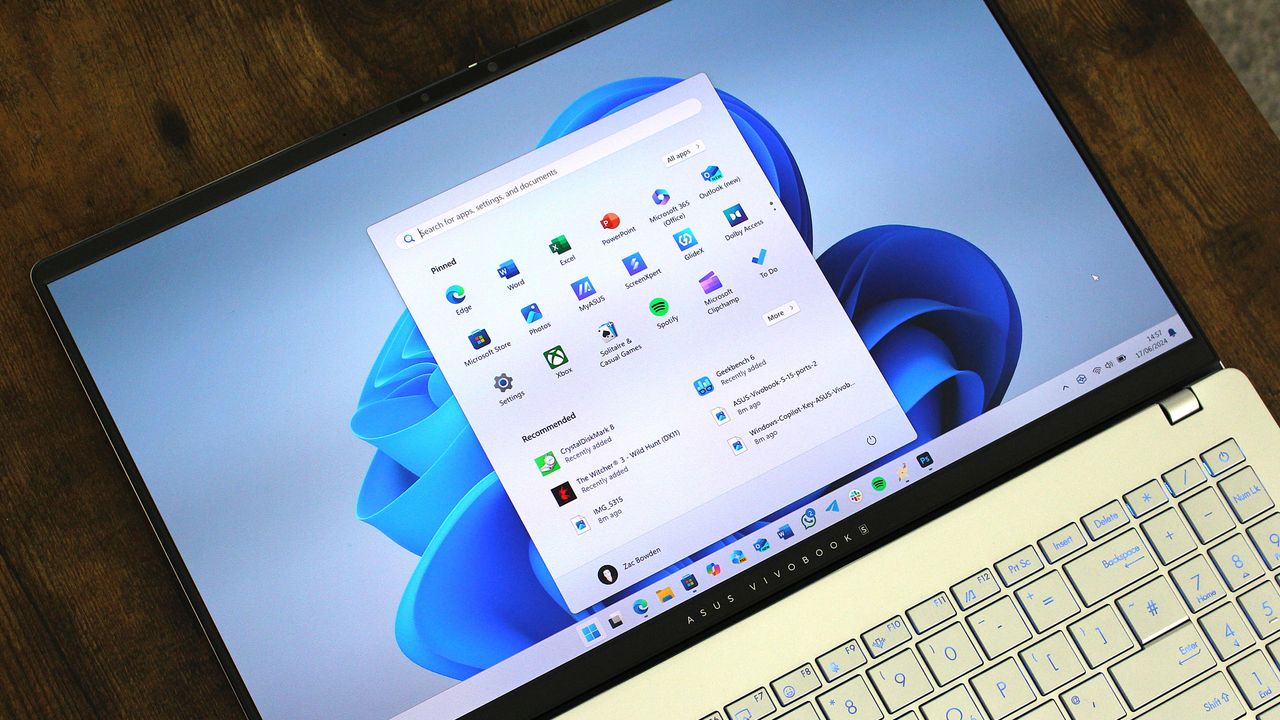
Windows 11’s upcoming overhaul adds a movable taskbar, redesigned Start menu, and faster performance — but should it just have been Windows 12?

Windows Central

Windows 11 has a major update on the way, and that update promises to address some of the loudest complaints about the operating system. August is traditionally a slow month for Windows news, but thanks to some previews of what’s on the way next month, we have a lot to talk about.

Microsoft’s refreshed taskbar, customizable Start menu, and other improvements are all in the final stages of testing. Microsoft confirmed that a major Windows update is on the way very soon. But my question is, should that major update have been Windows 12?

Biggest News of the Week

Windows 11
Windows 11 context menu
Windows 11 update in Settings app
Taskbar with settings on the Windows 11 desktop in 2026.

It’s worth asking what a new operating system even is in 2026. As opposed to historical upgrades, the kernel and underlying code base of Windows stays largely the same when jumping between major version numbers. We’re well past the days of major architectural changes or code based swaps that make old software incompatible, at least when it comes to computers.

Is a new Start menu or a revamped taskbar set of options enough to justify calling a new OS Windows 12? Perhaps a revamped Settings app or an upgraded core experience for connecting your phone to your PC is enough to do it. There’s a fine line between a UI overhaul and a fresh coat of paint when it comes to making a new operating system.

Is the Damage Already Done?

The core question about keeping the Windows 11 name or upgrading to Windows 12 is if the damage has already been done or, in other words, is it even possible to save Windows 11 in the eyes of the public?

Windows 11 launched in controversy. The minimum requirements of the operating system made millions of PCs ineligible for an upgrade. Other decisions from Microsoft, such as rebuilding the taskbar without all of the options available in previous versions of Windows, also drew criticism.

I’m among the critics of Windows 11. I’ve pointed out several of the flaws in the operating system and mistakes I feel Microsoft has made. But I’m also a newswriter for a niche website that focuses on Windows. The general public may not be so passionate.

If Windows 11 is a lost cause, Microsoft should gather together a bunch of the changes from the Windows K2 initiative and package them into Windows 12.

Learning the Right Lessons

A laptop on a wooden table displays a vibrant, colorful chrysanthemum on its screen. Background: a bookshelf lined with assorted books. Cozy ambiance.

The Lenovo Slim 7X and many other PCs are great regardless of if they are Copilot+ PCs. (Image credit: Future)

If there ever is a Windows 12, I’m worried that Microsoft would have it focused on the wrong things. One of my favorite podcasts often says Hollywood learns the wrong lessons when a movie makes money. I think that could be the case with Windows 12.

Microsoft is trying to be better with Windows 11 and its K2 initiative shows promising signs, but part of me still worries that the higher-ups of Microsoft will think AI PCs are the future and use the sales of Copilot+ PCs to justify a Windows 12 centered around artificial intelligence.

But it’s not that Copilot+ PCs are must-have devices and that consumers are running into stores to find PCs capable of running AI. If you make the models of the best-selling PCs Copilot+ PCs and then those computers continue to sell, that’s not a sign that people want Copilot+ PCs. If you cram AI into every computer on the market, you can’t then justify making Windows 12 AI-focused by saying every PC is AI capable.

A hypothetical Windows 12 should be about moving past the stains that cover Windows 11. It will have been long enough since people bought new PCs that the TPM 2.0 requirement will not be as big of a deal. Additionally, Microsoft will have fixed the major user interface issues that have drawn so many complaints over the years.

Shopping with Sean

My top pick for shoppers this week is the XPS 14 (2025). That laptop is still on sale and is still one of the best bargains available. I love the XPS 14's design and a $1,150 discount on a PC with 32GB of RAM is rare these days.

XPS 14 (Core Ultra 7 255H, 32GB RAM, 1TB SSD, Intel Arc): was $2899.99 now $1749.99

This premium laptop has a 3.2K OLED touch display, 32GB of RAM, and a gorgeous design that takes advantage of every millimeter available. It's one year old, but it's still an excellent laptop in 2026.

Note that the review of this laptop was from before the Dell 14 Premium was rebranded to the Dell XPS 14.

Tom's Guide review: ⭐⭐⭐⭐View Deal

Click to join us on r/WindowsCentral

Join us on Reddit at r/WindowsCentral to share your insights and discuss our latest news, reviews, and more.

Windows 11 Dan Lowres Iphone

Windows 11 Dan Lowres Iphone

  •  

Windows 11 is finally on the brink of restoring full taskbar movement — a reversal of one of its most controversial design decisions

After years of waiting, you will finally be able to move your taskbar on Windows 11. But you still have to wait just a bit longer.

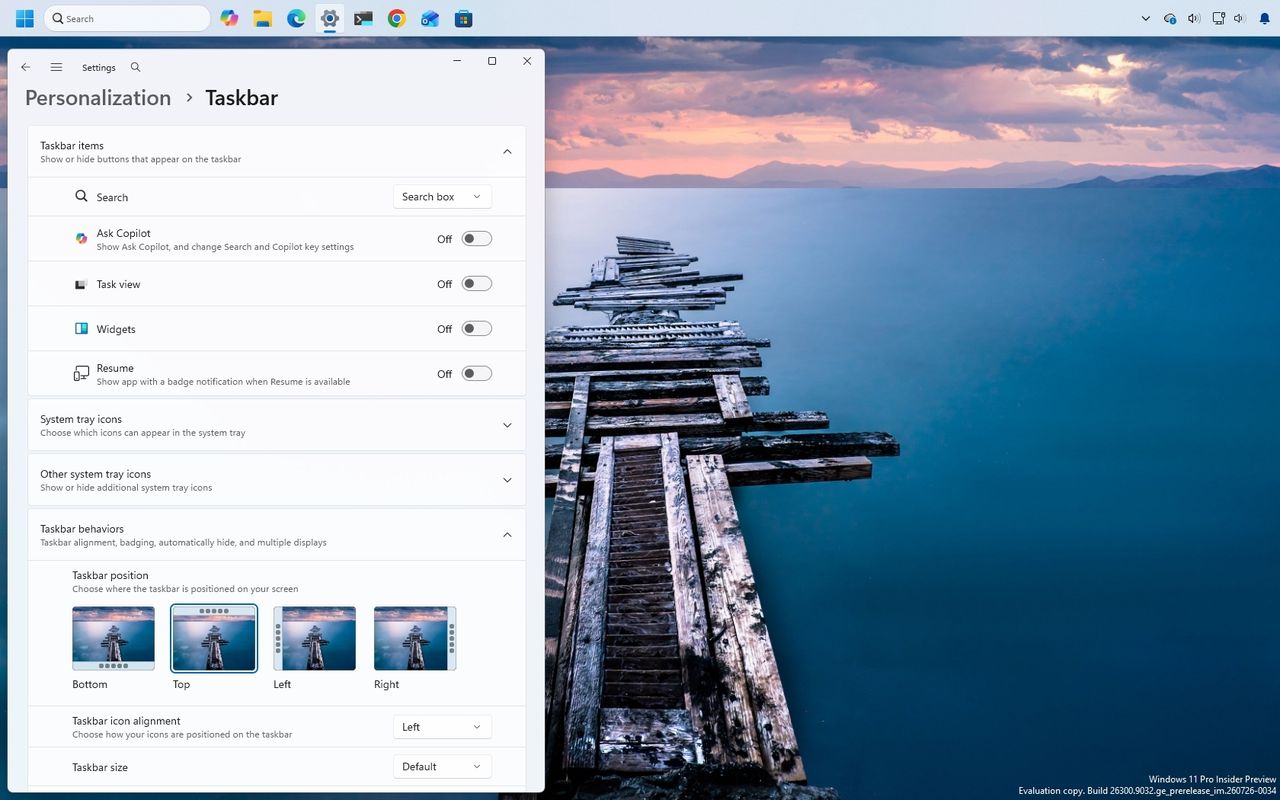
The latest Windows 11 Insider Preview builds include the option to move the taskbar to the top or either side of the screen. Assuming all goes well with testing, that change should ship with the September Patch Tuesday update. But Windows Insiders in the Release Preview Channel can start moving their taskbar right now.

The same update also brings the option to make the taskbar smaller on Windows 11, which maximizes screen space on smaller devices.

These changes should sound familiar to anyone who follows the development of Windows 11. They're among the several improvements that are on the way to Windows 11 this fall.

Other improvements include a more customizable Start menu, improved Windows Search, and a faster File Explorer.

The full change log for the latest Insider builds breaks down everything that's new.

Build 26100.9267/26200.9267

  • [Taskbar] This update gives you more ways to customize the taskbar to match how you work and make better use of screen space.
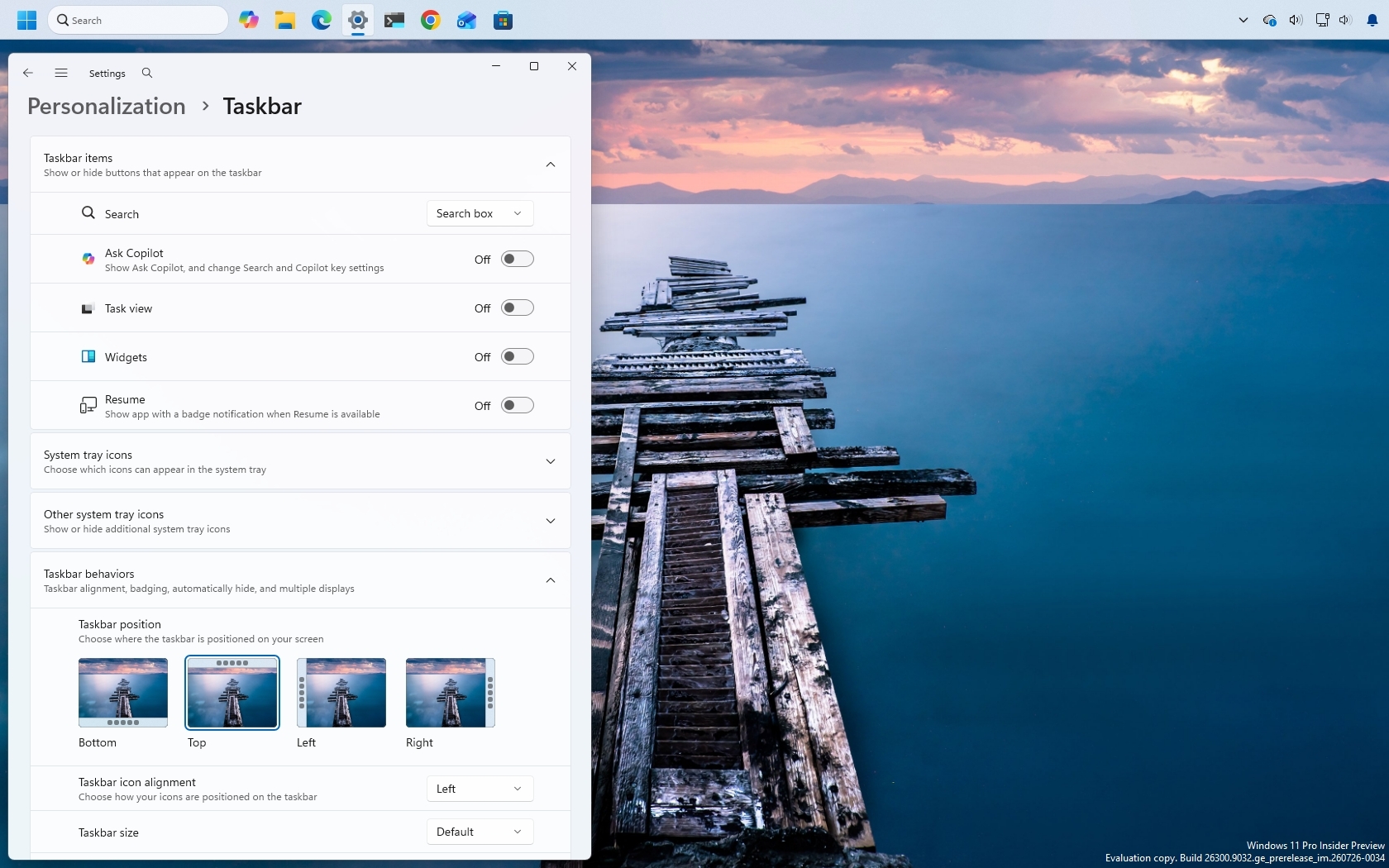
    • New! You can now choose whether the taskbar appears at the bottom, top, left, or right side of your screen. In these other positions, tooltips, flyouts, and animations still come from the taskbar, and most customization settings, such as never combining taskbar icons, work with all locations. The search box and smaller taskbar are currently supported only for top and bottom positions. To change the position of the taskbar, go to Settings > Personalization > Taskbar > Taskbar behaviors > Taskbar position.
    • New! A smaller taskbar option is now available to help maximize screen space on smaller devices. This experience reduces the size of taskbar icons and the taskbar height while maintaining access to key features such as Start, Search, and the system tray. To change your taskbar size, go to Settings > Personalization > Taskbar > Taskbar behaviors > Taskbar size. When set to Small, both the icons and the taskbar height become smaller.
    • New! The Taskbar behaviors section of the Taskbar settings page is now expanded by default for improved discoverability.
    • This update improves reliability when loading the system tray area of the taskbar on non-touch PCs.
  • [Start menu] This update makes the Start menu more personal with several customizations.
    • New! You can choose between a small or large Start menu, in addition to the Automatic (default) option that's available today. To customize this setting, go to Settings > Personalization > Start > Start menu size.
    • New! The Recommended section is renamed Recent in the Start menu and on the Start settings page (Settings > Personalization > Start).
    • New! You can now hide your name and profile picture in Start by going to Settings > Personalization > Start > Hide your name and profile picture on Start.
    • New! The Start menu settings page is now redesigned with section-level toggles to independently show or hide Pinned, Recent, and All.
  • [Windows Search] This update includes improvements that make Windows Search more dependable, easier to scan, and clearer before you select a result.
    • New! Search home is simplified to reduce visual clutter and make it easier to get back to recent searches quickly.
    • New! Search does a better job of showing where a result comes from, such as an app, setting, file, web result, or Microsoft Store suggestion. It's easier to tell what you're looking at and where you'll go before you select a result.
    • New! A new setting in Settings > Privacy & security > Search lets you choose whether web and Microsoft Store suggestions appear alongside local results.
    • New! Windows now automatically indexes your most used folders so that files in those folders appear in subsequent search results. You can control the setting in Settings > Privacy & security > Search > Automatically find additional relevant locations.
  • [File Explorer]
    • New! File Explorer Home now launches faster and is more responsive.
    • New! The Recommended section on Home now supports touch scrolling, making it easier to browse files in the carousel.
  • [General design] New! This update introduces updated progress indicators across Windows, providing a more consistent and modern experience during startup, sign-in, restart, shutdown, and update installation.
  • [Windows Share] New! This update adds the ability for users signed in with a work or school account to discover and install relevant apps directly from the share window. To manage this experience, go to Settings > System > Share and select Show suggested apps in share surfaces.
  • [Administrator protection] New! Administrator protection aims to protect free-floating admin rights for administrators. It enables users to perform administrative tasks using just-in-time privileges. Administrator protection isn't classified as a formal security boundary. It hardens security against elevation-of-privilege attacks by introducing profile separation. This feature is turned off by default and can be enabled using OMA-URI in Microsoft Intune or through Group Policy. This feature was previously disclosed in October 2025 (KB5067036) and is now beginning to roll out.
  • [Multiple desktops] Switching between virtual desktops is now smoother and more responsive.
  • [Display and graphics]
    • This update improves reliability when navigating to and interacting with Settings > System > Display.
    • This update improves the persistence of your previous brightness setting after energy saver turns off.
  • [Task Manager] This update improves reliability when displaying app history information in Task Manager.
  • [Windows Setup]
    • This update streamlines the experience for selecting a secondary keyboard during Windows setup, making it easier to skip when it isn't needed.
    • This update improves the Get Started app with new App install, Site pinning, and Theme pages to help you personalize your device and discover new features.
  • [Windows Update] This update improves restart behavior so PCs that were manually put to sleep return to sleep after completing an update, even when automatic sleep is set to Never.
  • [Network]
    • This update improves resiliency and recovery from potential VPN-related background issues that can cause processes to stop responding.
    • This update improves the output of the netsh wlan show wlanreport command for Japanese users.
  • [Input]
    • This update improves the reliability of typing with the Japanese IME by reducing potential hangs.
    • This update improves the persistence of voice typing settings for automatic punctuation and the launcher.
  • [Cryptography] The post-quantum cryptography algorithm ML-KEM can now be used as a standalone algorithm for TLS key exchange, in addition to the hybrid groups added previously.
  • [Windows Management Instrumentation Command-line (WMIC)] Starting in August 2026, Windows 11, versions 24H2 and 25H2 no longer include the Windows Management Instrumentation Command-line (WMIC) utility. WMIC is already removed by default in new installations of Windows 11, versions 24H2 and 25H2, and is no longer available as a Feature on Demand (FoD). This change affects only the WMIC utility. Windows Management Instrumentation (WMI) remains supported. To learn more, see Windows Management Instrumentation Command-line (WMIC) removal from Windows.

Almost everything new in these builds is rolling out gradually. The normal rollout only includes "Additional quality improvements," according to the change log.

Blank Pixel

Click to join us on r/WindowsCentral

Join us on Reddit at r/WindowsCentral to share your insights and discuss our latest news, reviews, and more.

Taskbar with settings on the Windows 11 desktop in 2026.

Taskbar with settings on the Windows 11 desktop in 2026.

  •  

Microsoft Defender vs. VLC: Which is causing MP3s to take 30 seconds to load?

A dramatic saga is unfolding on X, and VLC and Microsoft Defender are at the center of it. Things kicked off when video game designer Jonathan Blow criticized the open source community due to an issue he had with VLC.

A curious issue causes MP3 files to take a while to open in VLC. In some cases, opening a file can take over 30 seconds.

"Finally switched *away* from VLC *to* Microsoft Media Player, because VLC now takes 33 seconds to start playing an mp3 after clicking on it," said Blow. He added, "A large sector of open source software is in a truly embarrassing place now..."

Blow's post now shows a community note because the bug is due to Microsoft Defender, not VLC. Or at least, that's the claim of several people on X.

VideoLAN, the makers of VLC, responded to Blow:

"This is because of a « bug » from Microsoft Defender in one update of Windows 11, who magically made VLC plugins cache quarantined by Windows. Reinstalling VLC or regeneration of the plugin cache will fix this. Calling open source software embarrassing when it is a Windows update that broke it is quite disrespectful."

In response, Blow claimed that he had to fix an issue that was caused by a faulty graphics driver sent out by AMD. His post suggests that VLC should fix the issue even if the problem is caused by Microsoft Defender.

What's actually happening?

My wife would say that this is all a "storm in a teacup." I don't see the need to be as aggressive about this topic as people have been on X.

Over on Reddit, cooler heads prevailed. A discussion on the topic happened in the r/pcmasterrace subreddit. There, people focused on what's causing the issue and how to fix it.

At least some of the issue is related to Microsoft Defender. That's clear because adding VLC's folder as an exception to Defender fixes the problem, as highlighted by user "nicktheone."

If it were exclusively an issue with VLC, creating the exception within Microsoft Defender would not solve it.

You completely do not understand my tweet and thus would fail at professional software development.BTW I already pay Microsoft for Media Player and it works to an okay degree. I would happily pay someone for something better. VLC was that something better many years ago, but it…August 12, 2026

Of course, you could still debate whose responsibility it is to fix the issue. Even a bug related to Microsoft Defender could potentially be fixed by the VideoLAN team. That's certainly what Blow did while spending much of his Wednesday afternoon arguing with people on X.

How to create an exception for VLC in Microsoft Defender

You shouldn't have to create an exception for VLC in Microsoft Defender to open an MP3 in less than 30 seconds, but... here we are. Luckily, the steps to do so are simple:

  • Open Windows Security
  • Select Virus & threat protection
  • Select Manage settings
  • Select Add or remove exclusions (it's at the bottom of the page)
  • Click Add an exclusion
  • Select Folder
  • Navigate to C:\Program Files\VideoLAN
  • Click Select Folder

Before making an exclusion, VLC took about five seconds to open an MP3 on my computer. After creating an exclusion, opening the same file took under one second.

Click to join us on r/WindowsCentral

Join us on Reddit at r/WindowsCentral to share your insights and discuss our latest news, reviews, and more.

Microsoft Defender

Microsoft Defender

  •  

Classic Outlook bug breaks Copilot, but some might call it an upgrade

When does a bug become a feature? Microsoft needs to answer that question now that classic Outlook may hide the Copilot button and stop other Copilot features from working.

A bug that appears with build 20026.20182 of classic Outlook prevents access to Copilot Chat and removes Copilot entry points within the app.

"After classic Outlook for Windows updates to build 20026.20182 and higher, you no longer have Copilot Chat or Copilot entry points in Outlook," reads a Microsoft support document. "This issue happens if you have a Copilot Chat (Basic) license or a paid M365 Copilot (Premium) account."

While it's easy to joke about Copilot going missing being "addition by subtraction," the bug is likely frustrating for those that rely on Copilot within classic Outlook.

If your system is affected by the bug, the Copilot button could be missing from the top-right area above the ribbon. The Copilot icon can also go missing in the left app bar or the More Apps area.

Even if you see the Copilot icon in the Add Apps section, selecting "Open" may not do anything at all. Even if you've added Copilot through ribbon customization, the option may appear grayed out or unavailable.

Only classic Outlook is affected, meaning Copilot still appears and works as usual within the web version of Outlook and other versions. The Microsoft 365 Copilot app and web experience are also working normally, though it's worth noting Microsoft has a new unified Copilot experience rolling out.

If you need to use Copilot immediately, Microsoft suggests switching to Outlook on the web or the new Outlook app. While standard fixes like creating a new Outlook profile, clearing local cache data, re-signing into Office, or restarting Windows have been tried, Microsoft notes they don't consistently restore the missing buttons.

Click to join us on r/WindowsCentral

Join us on Reddit at r/WindowsCentral to share your insights and discuss our latest news, reviews, and more.

Microsoft CEO Satya Nadella in front of the Microsoft Copilot AI logo.

Microsoft CEO Satya Nadella in front of the Microsoft Copilot AI logo.

  •  
❌