Google has finally brought its Gemini desktop app to Windows, giving Windows 10 and Windows 11 users a much faster way to access Google’s AI without opening a browser first. The new desktop app can be summoned instantly using Alt + Space, putting Gemini over whatever you’re currently doing. Google already offers similar quick-access functionality […]
Microsoft is moving several upcoming Windows 11 features another step closer to a wider rollout. The company has released Windows 11 Release Preview builds 26100.9539 and 26200.9539 for versions 24H2 and 25H2. The update, distributed as KB5124010, brings a surprisingly large collection of new features and improvements, including changes to File Explorer, Emoji 17.0, Windows […]
Move over iPhone Duo announcement, the real news is here. Windows 11 will soon feature a few more emojis. Microsoft recently shipped Windows 11 Builds 26100.9539 and 26200.9539 to Insiders in the Release Preview Channel. Among other changes, the update adds support for Emoji 17.0.
Since these are Release Preview builds, many of the included changes have already been seen during earlier Insider testing.
Several changes have been made to File Explorer that should make for a smoother experience. Home within File Explorer now preserves the state of sections, so the next time you open the app things will be expanded or collapsed as before. Thumbnail previews for cloud files should appear more consistently as well following this update.
Emoji lovers will be happy to hear that Emoji 17.0 support comes with this build of Windows 11. Emoji 17.0 adds the distorted face, fight cloud, and hairy creature (Bigfoot) emojis.
Microsoft continues on its recent push to create more widgets. These Insider builds add a Tips widget that provides guidance about Windows features. Microsoft recently announced a battery widget that's in the works as well.
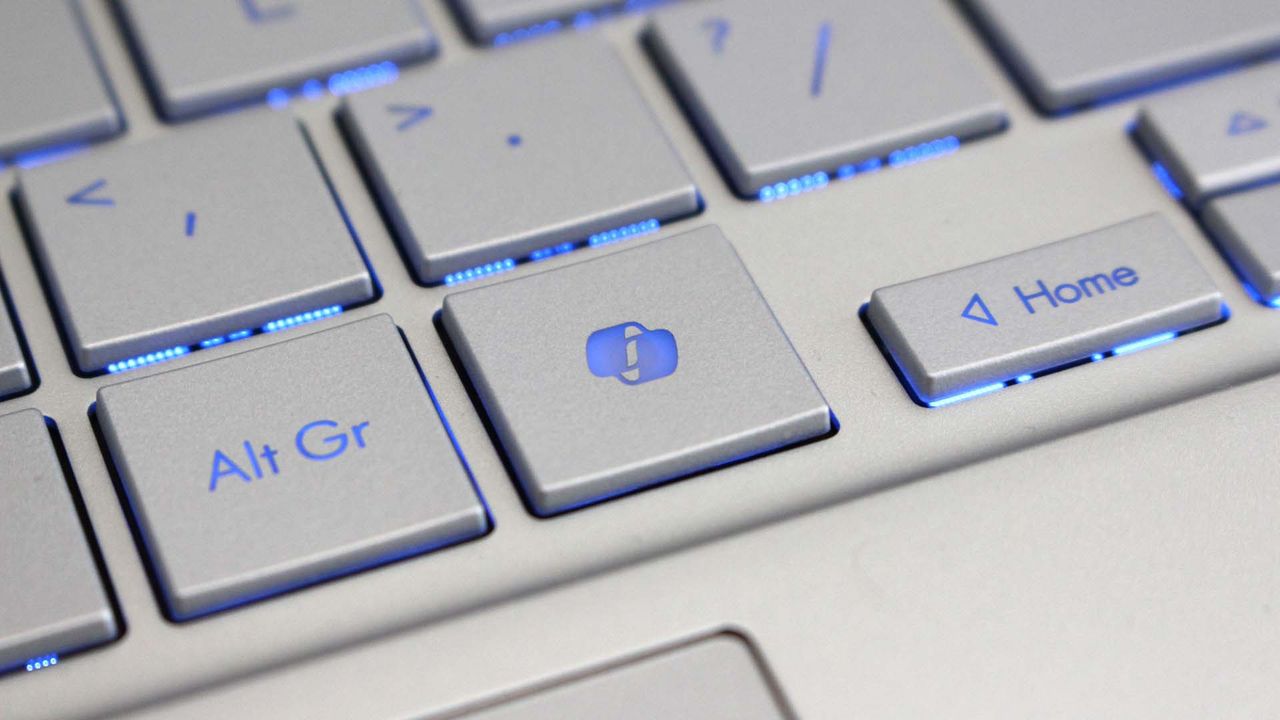
Another welcome change is the update to remap the Copilot key to function as the Right Control key or Context Menu key. Copilot already has a keyboard shortcut (Alt + Space) for those who want to use it, so having a dedicated key for a niche tool felt a bit like overkill.
New! This update adjusts how the preview pane handles files downloaded from the web. For HTML files, a new Preview anyway button lets you acknowledge the warning and preview the file. Non-HTML files, such as PDFs, are now previewed automatically.
New! File Explorer Home now preserves the state of sections (expanded or collapsed), so you can pick up where you left off.
New! This update improves the reliability of thumbnail previews for cloud files in the Details pane. The pane has also been reorganized so file properties are easier to find and review at a glance.
New! This update addresses an issue that could clear the address bar contents when entering edit mode by clicking near the right side of the address bar.
Emoji
New! This update adds support for Emoji 17.0, including new emoji such as distorted face, fight cloud, and hairy creature. To insert them, press Windows key + Period (.) to open the emoji panel.
New! This update also refines the design of several existing emoji for better consistency across platforms, including saluting face, face with peeking eye, goose, lotus, and kissing cat.
Widgets
New! This update introduces the Tips widget, which provides short, helpful guidance about Windows features. To add it to your Widgets board, open the board, select Add widgets, and then choose Tips. To add it to your lock screen, go to Settings > Personalization > Lock screen and add Tips to your lock screen widgets.
Personalization
This update includes a variety of improvements to desktop background experiences:
This update improves the reliability of the Personalization > Background page in Settings.
This update adds support for using DIB image files as desktop backgrounds.
This update improves the reliability of desktop slideshow transitions on newly created accounts.
This update improves the resolution of previews when selecting a desktop background in Personalization > Background.
This update improves the desktop background preview display in Settings for users with portrait mode monitors.
This update improves the reliability of processing desktop wallpaper changes when they happen in quick succession.
This update adds support for using slideshow wallpapers with multiple desktops, so that it won't automatically switch you back to Picture.
Bluetooth
This update contains several enhancements to improve reliability and the experience when connecting to and using Bluetooth devices:
During voice calls, the Windows shell volume flyout now appears when adjusting the volume of a Bluetooth Classic Audio accessory using the volume controls on the accessory, providing visual feedback of the new volume level.
This update improves the accuracy of the connection state displayed by Windows for accessories that have disconnected from the PC.
This update improves the stability of the Bluetooth & devices page in Settings when managing Bluetooth and audio devices.
This update resolves an issue where the Bluetooth radio could be turned off, but the radio control toggle on the Bluetooth & devices page in Settings appeared on.
This update improves Bluetooth audio stability and compatibility.
This update improves microphone compatibility with certain Bluetooth Classic Audio accessories.
This update resolves an issue that could result in a crash (error code 0x139) while streaming Bluetooth audio.
This update improves reliability and performance with LE Audio accessories.
This update improves the reliability of shared audio.
Accessibility
New! This update introduces Open apps maximized, an accessibility setting that automatically maximizes app windows as they open. It removes a bit of everyday friction whether you use a screen reader or magnification, work in tablet mode, or simply prefer a consistent, full-screen workspace. To turn it on, go to Settings > Accessibility > Visual effects and turn on Open apps maximized.
This update improves navigation of the Bluetooth quick settings page when using keyboard input, gamepad input, or Narrator.
Magnifier
New! This update brings a modernized visual refresh to Magnifier on the taskbar:
Updated icons: Magnifier's toolbar icons align with the Windows 11 visual design, giving the tool a cleaner, more modern feel.
Refined spacing and padding: The padding is adjusted with consistent spacing across the toolbar for a more polished layout.
Views, zoom controls, keyboard shortcuts, and Read Aloud all behave exactly as they did in earlier versions.
Settings
This update improves the reliability of Settings when interacting with the contents of the Settings > Bluetooth & devices > Printers & scanners page.
This update updates Settings > Apps > Installed apps to show the version number at the top level for packaged apps, as it already does for other apps.
This update improves the time picker control in Settings so that it reflects your preferred time format when you switch between 12-hour and 24-hour formats. This applies in places such as setting active hours and scheduling night light.
This update improves the persistence of the Allow multiple apps to use camera at the same time option in Settings > Bluetooth & devices > Camera.
Touchpad
New! Additional gesture controls for precision touchpads are available in Settings > Bluetooth & devices > Touchpad:
Single-finger scrolling: Scroll vertically with one finger starting from the left or right side of the touchpad.
Automatic scrolling: Keep scrolling without lifting your fingers by moving them near the edge of your touchpad while scrolling.
Previously, gesture controls for scroll and zoom speed and accelerated scrolling were released in the July 2026 update (KB5101684).
Copilot key
New! This update introduces a new Windows 11 setting that lets you remap the Copilot key to function as the Right Ctrl or Context Menu key, helping preserve familiar keyboard shortcuts and accessibility workflows. For more information, see Understand updates to the Copilot key on Windows devices.
Camera Roll
New! This update introduces Camera Roll Backup in Settings, helping eligible users protect their photos with OneDrive. You can turn on the feature from the Settings Home or Accounts page and complete setup on your mobile phone using a QR code.1
Fonts
New! This update adds support for the Garay and Beria Erfe scripts to the Ebrima font, the first Microsoft font to support both. Garay was encoded in Unicode 16.0 and Beria Erfe in Unicode 17.0.
New! This update also refines the Adlam glyph designs in Ebrima to align with the current Unicode standard and improve consistency.
Windows Recovery Environment (WinRE)
New! This update enables WinRE to automatically reuse eligible Wi-Fi profiles already saved in Windows, including supported certificate-based networks. Devices can now get online automatically during recovery scenarios such as quick machine recovery or cloud rebuild, without preconfiguring Wi-Fi credentials in WinRE. This capability is on by default, and IT admins can disable it. For more information, see Windows Recovery Environment (Windows RE).
New! This update adds a recovery remote management plug-in for extending WinRE management capabilities for mobile device management (MDM) providers. For more information, see Recovery Remote Management Overview.
Kiosk mode
The Windows key + Tab keyboard shortcut is now disabled when using a restricted user experience kiosk.
The Windows key + A and Windows key + C keyboard shortcuts are now disabled when using single-app kiosk mode.
Windows Backup
PC-to-PC Migration is no longer available. This feature, introduced through a phased rollout, previously allowed you to transfer files and settings directly from your previous PC when setting up a new Windows PC. To back up and restore your files, settings, and other supported items when moving to a new PC, use Windows Backup. For more information, see Back up and restore with Windows Backup.
Join us on Reddit at r/WindowsCentral to share your insights and discuss our latest news, reviews, and more.
Microsoft is quietly working on another small but welcome design refresh for Windows 11. The company appears to be modernizing the Temporary Files storage settings page, giving one of the operating system’s most useful cleanup tools a more up-to-date interface. The change has been spotted hidden in Windows 11 build 26340.9354, where Microsoft is testing […]
Microsoft is testing a new Windows 11 recovery feature that could make one of the most frustrating PC-repair tasks much easier: reinstalling Windows when the system refuses to boot. Windows Insiders testing the latest Beta Preview Build 26220.9343 can now access Cloud rebuild from the Windows Recovery Environment (WinRE). The feature is designed to completely […]
Windows 11 now includes new family safety features that can reduce how much adult content children are exposed to or able to view. Microsoft has a pair of blog posts on the topic, one that focuses on consumer-facing features and another that covers how APIs and Microsoft accounts are used to make the Windows experience safer.
The first change Microsoft highlighted is not a new feature, but a speed boost to an existing one. Granting parental approval is now faster than before, which allows parents and guardians to quickly approve things like additional screen time, access to specific apps, and purchases.
Speed is important when it comes to family safety. Occasionally children run into blocks when trying to access content that is required for homework or that is otherwise age-appropriate. Delayed approvals leave children sitting around and can cause frustration for kids and parents.
Microsoft has also made it easier for parents to keep track of web activity, app activity, and spending. Managing family groups has been improved as well, including options that make it simpler to add or remove members.
The importance of Microsoft accounts
Some people complain about Microsoft accounts being a requirement to use certain services. Microsoft has budged a bit in this area. For example, it's now possible to sign in to Microsoft Edge with a Google account.
But managing family safety settings relies heavily on a Microsoft account, as explained by the company:
"At Microsoft, we believe safety should be easier for families to understand and easier for developers to build into experiences for children to use. On Windows, that starts with the account. Microsoft account is a trusted foundation through which Windows brings age-appropriate protections and parental choices into more of the digital experiences encountered by children and teens every day."
Setting up accounts for children is a requirement to set parental controls for individuals. Microsoft accounts also allow Windows to know if a user is a child, teen, or adult.
Microsoft has introduced a new API to extend age awareness beyond the OS and across the entire Windows ecosystem. The Windows Age APIs can verify a user's age and then send that verification to an app without sharing personal information. It's a bit like Windows Hello but for age verification.
The new Windows Age APIs are available now to Windows Insiders and should ship to all Windows users soon.
Join us on Reddit at r/WindowsCentral to share your insights and discuss our latest news, reviews, and more.
Windows 11 will finally support automatic switching between dark mode and light mode. The most recent Windows Insider build that shipped to the experimental Channel shows strings for the feature, though we still lack key information about the option.
It's been possible to schedule shifts between light and dark mode on Windows 11 for a while, but it has required a third-party application. Auto Dark Mode works well and is a must-have app for Windows 11.
The ever-popular PowerToys can also handle theme switching through its "Light Switch" feature. PowerToys is made by Microsoft but it only recently added the Light Switch utility. It's also not built in to Windows 11.
While both those apps are great, some features need to be built into Windows 11. People shouldn't have to search for an app or install a multi-tool utility to automate theme switching.
"This prevents the mode from changing while you're working or in meetings"
"Turn on location services to automatically schedule dark mode. When location services are turned off, dark mode is active from [START] to [END]."
Since there are likely many other strings about the feature, we only have a small idea of how auto mode will work. But the snippets we can see now look promising.
It appears that the feature will support shifting between modes based on your location to better match sunrise or sunset. Alternatively, you'll be able to schedule switches for specific times.
The feature also looks like it will have the option to only switch themes when your PC is idle, which should prevent a jarring change from happening in the middle of important work.
Again, this functionality is already available on Windows 11 through apps, but I'll be happy to see it ship to Windows 11. I love tinkering with apps to customize my PC, but general users shouldn't have to do that to get such a straightforward feature.
This app switches the theme of your PC at scheduled times, such as enabling dark mode after sunset. It's always been a bit odd that Windows does not have this as an option by default, but Auto Dark Mode does a great job.View Deal
Microsoft PowerToys is a collection of utilities that often outshine similar tools on Windows 11. It already includes a utility that lets you schedule switches between light mode and dark mode.View Deal
Join us on Reddit at r/WindowsCentral to share your insights and discuss our latest news, reviews, and more.
Microsoft has released two new Windows 11 26H1 Insider Preview builds, giving Beta and Experimental testers another round of fixes to try. The Beta Channel receives Build 28020.2904, while the Experimental 26H1 channel gets Build 28120.2912. Both updates were released on September 8, 2026, and primarily focus on fixing input-related problems rather than introducing major […]
Microsoft has released a new batch of Windows 11 Insider Preview builds across the Beta and Experimental channels, bringing several practical improvements aimed at making Windows more accessible and easier to use across devices. The September 8 release includes Beta build 26620.9343 and Experimental build 26340.9354, along with separate builds for Windows 11 26H1 and […]
Pour fabriquer une application Windows native, le passage par Visual Studio était jusqu'ici la voie normale. Mais c'était sans compter sur Microsoft qui a publié
winapp
, un outil en ligne de commande qui permet de faire tout pareil directement depuis un terminal : il crée le projet, le construit, le lance avec son identité de paquet et sort le résultat sous la forme d'un fichier d'installation MSIX.
C'est encore estampillé en version "expérimentale" par ses auteurs, mais ça fonctionne déjà très bien pour des trucs basiques. C'est pour ça qu'aujourd'hui, je vous propose un petit tuto pour afficher un Hello World dans une vraie fenêtre Windows. Vous allez voir, c'est fastoche !
Ce qu'il faut avant de commencer
Il vous faut donc Windows 10 version 1809 au minimum, le mode développeur activé dans Paramètres, Système, Options avancées, et le SDK .NET 10 ou plus récent. Visual Studio, non par contre, y'en a pas besoin. Les deux installations se font via winget, dans un terminal normal :
Faites ensuite un winapp --version et vous saurez si le CLI répond.
Créez le projet
La commande new fabrique l'application à partir des modèles WinUI 3 officiels, qu'elle télécharge toute seule dès qu'on la lance. Sans option elle vous pose des questions, mais avec celles que je vous mets ci-dessous, elle ne demandera rien et prendra le modèle le plus dépouillé du lot :
winapp new --template winui --name HelloKorben --use-defaults
cd HelloKorben
Vous récupérez alors un projet C# complet, avec son manifeste de paquet et ses icônes. Et surtout, le modèle winui vous donne une fenêtre vide, ce qui tombe bien puisqu'on va écrire dedans. Notez que le pack de modèles est encore publié en 0.0.6-alpha, donc si un nom de fichier a bougé depuis, winapp new --list vous sortira la liste de ce que le vôtre propose.
Écrire le Hello World
Attention, là y'a un petit piège ! Le fichier qui décrit la fenêtre s'appelle MainWindow.xaml, sauf que ce n'est pas celui-là qu'il faut toucher. Ouvrez plutôt MainPage.xaml, qui est à la racine du projet, et remplacez son <Grid /> vide par ces quelques lignes :
<Grid>
 <TextBlock Text="Hello World !"
 HorizontalAlignment="Center"
 VerticalAlignment="Center"
 FontSize="48" />
</Grid>
Ensuite, un petit winapp run construira le projet, l'enregistrera auprès de Windows avec une identité de paquet qui pointe droit sur votre dossier de build, et le lancera. Votre fenêtre s'ouvre alors avec le Hello World au milieu :
winapp run
La fenêtre HelloKorben ouverte par winapp run, et derrière, le terminal qui vient de la construire en 12 secondes
Bon, là, on a fait un Hello World, mais bien sûr, si vous faites chauffer une IA là-dessus, vous pouvez faire des trucs un peu plus complexes sans forcément savoir coder, et tout ça, une fois encore, sans Visual Studio.
Sortir le fichier d'installation
Maintenant, à quoi bon empaqueter ?
Cette identité de paquet, ce n'est pas de la paperasse. En fait c'est elle qui ouvre à votre application les notifications natives, les associations de fichiers, les protocoles maison et les API d'IA locale de Windows. Donc si vous voulez du sérieux, il faut publier l'application compilée dans un dossier, et ça, c'est possible comme ceci directement dans votre terminal :
dotnet publish -o ./publish
L'empaquetage fabrique au passage un certificat de développement et l'installe dans le magasin Personnes de confiance de la machine mais faut que je vous prévienne, la commande qui suit réclame un terminal ouvert en admin dans lequel il faudra refaire le cd vers votre dossier de projet pour qu'il s'y retrouve.
Le MSIX signé sort dans le dossier du projet, nommé d'après le GUID du paquet
Vous obtenez alors un .msix signé, nommé d'après l'identité du paquet, sa version et son architecture, qui s'installe chez vous d'un double clic. Et cette identité, le modèle la génère sous forme de GUID : ne cherchez pas le nom de votre application dans le nom du fichier. Par contre, ne l'envoyez pas tel quel à un collègue, parce que le paquet réclamera le runtime Windows App SDK. Ajoutez --self-contained à la commande pack et le runtime partira dans le paquet. Le certificat, lui, reste un certificat de développement local : sur le PC d'en face, Windows refusera le paquet tant que ce certificat n'y sera pas installé aussi.
Maintenant, si vous vous demandez à quoi sert vraiment ce CLI, c'est surtout l'étape MSIX qui sera moins douloureuse car vous n'aurez pas besoin de lancer Visual Studio.
Microsoft has just announced a set of new Windows 11 preview builds that are packing some notable improvements and changes that are now in testing with Insiders. This week's preview builds come packing an upgraded set of settings for sound and audio devices on Windows, enhanced cross device features that sync with your phone, and new family safety options.
First up, Microsoft has introduced a new design for the volume sliders that appear in the Sound Settings area of Windows Settings. The sliders now also show audio activity for when music or video is playing in the background while you configure your settings, making it easier to dial in exactly where you want your volume.
Microsoft is also porting over more Control Panel sound settings to Windows Settings, including the ability to set default devices, and the ability to allow hardware acceleration for devices that support it.
The new live audio activity indicator. (Image credit: Microsoft)
Here's a list of the new sound settings coming to Windows 11:
We've updated the design of the volume sliders in Sound Settings so that they display audio activity on the side when audio is playing.
If your audio device supports hardware acceleration, an option to allow hardware acceleration is now available in the Advanced section of the device's properties.
You can now configure exclusive mode for an audio device in the Advanced section of the device's properties, so you don't have to go to Control Panel.
You can now configure adaptive communication sound levels, which reduce the volume of other sounds when communications activity is detected, directly in Settings.
The option to set an audio device as the default sound device for communication now always appears in Properties. The option is unavailable if the device is already the default instead of being hidden.
We've updated the text for allowing audio devices to make it clearer.
We've added a new banner when mono audio is enabled to make it clear that some properties don't take effect while mono audio is active.
We've updated the All sound devices page:
You can now change default devices from this page.
We've adjusted the page design so that you can filter whether you're viewing input or output devices.
We've added toggles so that you can choose whether to hide or show disabled, disconnected, and unplugged devices.
We've also updated the input and output audio properties pages in Settings to include jack information for devices that need it.
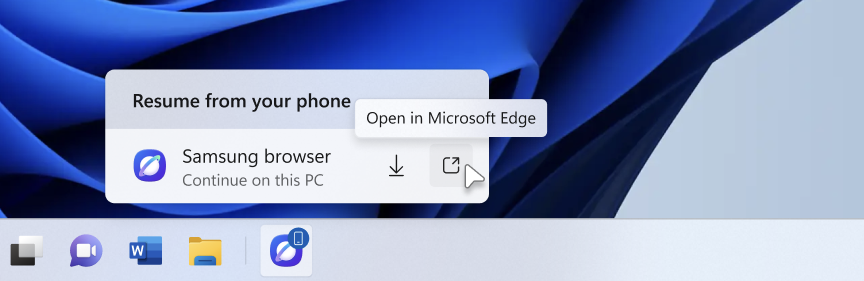
Another new feature in testing is the ability to quickly download the Windows app for a phone app that appears in the Taskbar via Phone Link. If you use the cross-device sync features that comes with Phone Link, hovering over an open app such as your phone's browser on the Taskbar will now let you quickly pick up where you left off without missing a beat.
Quickly resume web browsing activity from your phone from the Taskbar! (Image credit: Microsoft)
In addition to the new sound settings, Microsoft has announced major upgrades to the family safety features in Windows 11. The company says family safety is a top priority for the company, and is addressing key issues and concerns from parents.
Key areas of focus include:
Parental approvals for offerings like screen-time extensions, app access, and purchases now happen faster, so kids aren’t left waiting and parents stay in control.
We restored clear visibility into web and app activity so parents can trust what they see in their reports.
Made spending more transparent, with wallet balances.
We also gave adults in a family more control over their own experience, making it far easier to add, manage, or leave a family group
"Each of these improvements came from a real family experience — from issues parents told us mattered most: speed, accuracy, control, transparency, and peace of mind." Microsoft Distinguished Engineer, Rob Mauceri said. "This is the compounding effect of a team that treats every piece of customer feedback as a commitment to do better."
These improvements are welcome to see, and a sign that Microsoft continues to modernize and improve Windows 11 for the masses. These improvements are part of Microsoft's ongoing Windows K2 effort, which is focused on fixing Windows 11's biggest flaws.
Join us on Reddit at r/WindowsCentral to share your insights and discuss our latest news, reviews, and more.
Another record-setting Patch Tuesday is here for Windows 11. The operating system has a massive number of security patches and fixes that are now available to hundreds of millions of PCs.
At the time of publication, we do not have the change log of the latest updates. You can, however, grab the most recent builds through the Microsoft Update Catalog. We will update this piece as more information becomes available.
According to The Verge, this month's Patch Tuesday update includes more than 650 security fixes just for Windows. That's a six-fold increase over what we normally saw in a usual month until recently. But advances in AI have sped up the process of discovering vulnerabilities as well as the need to patch them swiftly.
This is a breaking news story. It will be updated after Microsoft releases the change log for this month's Patch Tuesday updates.
Thanks in large part to AI, it's now common to see hundreds of security patches ship on a Patch Tuesday.
AI is a useful tool for Microsoft's engineers, but it can also be used by malicious actors. We're seeing an AI arms race for discovering and patching vulnerabilities.
In addition to helping discover vulnerabilities, AI can help malicious actors take advantage of vulnerabilities that have been discovered or disclosed. That process has been accelerated greatly by AI, putting pressure on organizations and IT admins to test security patches quickly so they can be rolled out.
Join us on Reddit at r/WindowsCentral to share your insights and discuss our latest news, reviews, and more.
Last week at IFA 2026, Microsoft announced Project Zenith, the codename of a new class of devices aimed squarely at developers looking to build apps and local AI experiences on top of Windows 11. The announcement came out of the blue, which naturally caused a bit of confusion online.
So, what is it? Well, Zenith is an effort to formalize a baseline for "developer-ready" hardware: devices that meet a minimum bar for performance and are ready out of box to begin coding and compiling. This means the configuration of Windows 11 that ships on these devices is different from normal PCs, with different default settings and pre-installed apps.
To be clear: This isn't a new or different version of Windows 11. Zenith devices will almost definitely still ship with either Windows 11 Home or Pro, depending on the OEM. It's simply how Windows 11 is configured out of box that differentiates these developer-class devices from normal Windows 11 PCs.
There's seemingly also a hardware component at play, too. Microsoft says Zenith devices must ship with at least 64GB of unified memory and be capable of 250GB/s of memory bandwidth if they want to ship with this specially preconfigured version of Windows 11 for developers. All other hardware will ship with the normal configurations of Windows 11.
In recent years, there has been an uptick in developers making the switch from Windows to Mac for a variety of reasons, including OS quality issues or lack of capable hardware in the wake of Apple Silicon. Developers have also complained that it just takes too long to set up a Windows PC for development, sometimes taking hours or even days from the first power-up.
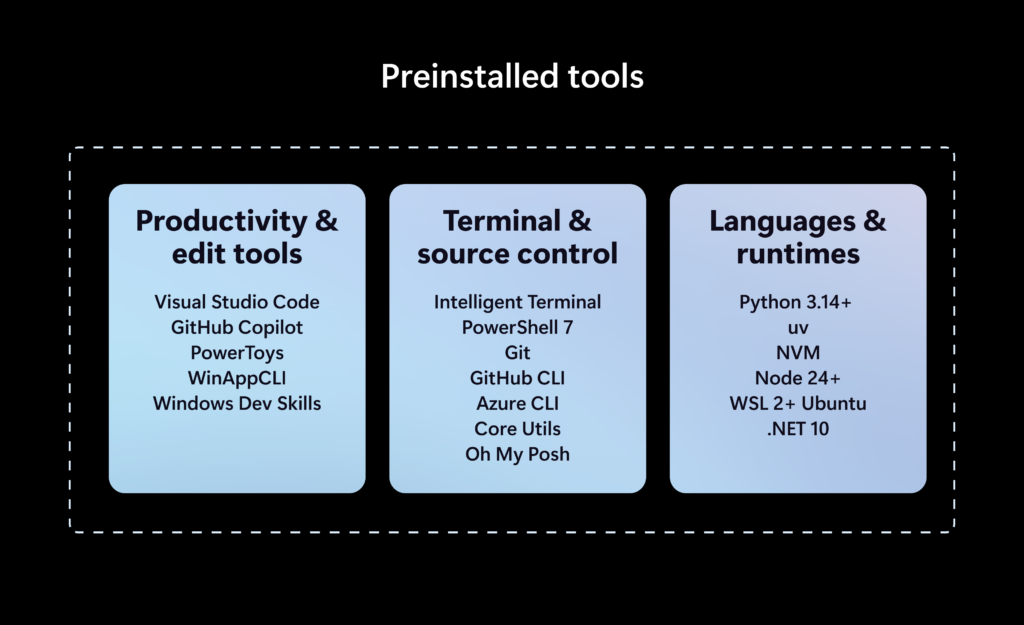
The developer-focused apps and frameworks that come preloaded on Zenith PCs. (Image credit: Microsoft)
Zenith removes this friction. These devices are certified high-end and ship from the factory in a state that is ready to code, with apps like Visual Studio and GitHub Copilot already installed and ready to go as soon as you reach the desktop. They also ship with Windows 11 in a configuration that already dials back the annoyances that developers have complained about.
Out of box, "File Explorer shows file extensions, hidden files, the full path in the title bar, and the details pane, with long-path support enabled. Recently used files and folders and sync provider tips are turned off for a cleaner workspace. In Search and Start, Command Palette is enabled, while Start menu tips and account notifications are turned off to reduce distractions."
These are small but meaningful changes to the default Windows configuration, one that can save minutes of setup time. If you're managing a fleet of developer devices, this will save you hours of configuration time. The good news is these settings aren't unique to Zenith PCs.
If you don't fancy spending the money on a new Zenith device, you can manually configure your existing Windows 11 PC to match the configuration that comes preloaded on Zenith PCs. Of course, it'll take longer to do, but you'll save yourself the cost of a new PC in the process.
Ultimately, the goal of Zenith is to signal to developers that Microsoft is listening and wants to position Windows as the preferred platform for on-device AI and app development. The first Zenith devices to ship will be ones powered by AMD's Ryzen AI Halo chips, with other chipmakers such as the RTX Spark expected to follow.
No word on which OEMs will build Zenith hardware, or when the first Zenith devices will begin shipping just yet. We'll keep you posted when we know more!
Join us on Reddit at r/WindowsCentral to share your insights and discuss our latest news, reviews, and more.
Microsoft is taking another step toward making Windows 11 a better operating system for developers with Project Zenith, a new ready-to-code Windows experience designed specifically for developer-class PCs. Announced on September 4, Project Zenith is built around a simple idea: developers should not have to spend hours configuring a new Windows machine before they can […]
A "ready-to-code distraction-free Windows experience" is on the way for developers. Microsoft just detailed how Windows 11 will be optimized for people with developer-class devices.
The idea behind Project Zenith is to save developers time by preinstalling apps and having Settings pre-enabled that are optimized for development. For example, File Explorer will show file extensions, hidden files, and the full path in the title bar.
Those options are not new, but they can take a while to set up when you also have to install a bunch of apps and tweak other settings.
We already knew about some of these experiences because of announcements made at Build 2026, but we now know a name for the project and more information about how Windows 11 will be optimized for developer-class devices.
Those devices will be able to run 30B+ parameter models locally and unmetered and use a variety of tools out of the box. Windows Terminal and Visual Studio Code are pinned to the Taskbar by default. GitHub Copilot, PowerToys, WinAppCLI, and Windows Dev Skills will also be preinstalled, according to The Verge.
Project Zenith will launch first on AMD's Ryzen AI Halo devices, but it will make its way to other systems over the coming months.
To classify as a developer-class device, a system will need at least 64 GB of unified memory and at least 250 GB/s memory bandwidth.
The best version of Windows 11
A natural response to Microsoft's blog post is to ask, "don't we all want a distraction-free Windows experience?" I don't know anyone clamoring for more distractions on their PC. But I believe Project Zenith is specific to developers for a good reason.
Many developers have a similar workflow or rely on a set of tools. What would be considered a useful preinstalled app for developers would be viewed as bloat for general users.
Similarly, the enabled settings viewed as useful by developers would make Windows 11 feel crowded for everyday computing.
A better approach would be to tailor Windows 11 to different use cases. We're starting to see that with Xbox Mode on Windows 11 and now Project Zenith for developers.
Of course, Project Zenith devices, PCs running Xbox Mode, and all other Windows 11 devices benefit from the general improvements to Windows 11, such as reducing memory usage and improving Search and File Explorer. Many of those changes can be seen in the latest major update to Windows 11.
Join us on Reddit at r/WindowsCentral to share your insights and discuss our latest news, reviews, and more.
In a new blog post, Microsoft has announced that starting in October 2026, "Memory Integrity Protection" will become enabled on more eligible devices. The feature, which is already enabled by default on most modern Windows PCs, is a kernel-level security feature designed to protect PCs from "sophisticated attacks with little or no additional configuration."
"Built on Virtualization-based Security (VBS), memory integrity helps protect critical parts of Windows from tampering," Microsoft says. "It forms a foundation for modern security innovations such as hotpatch updates that improve user experience and productivity, as well as protection."
The company says that memory integrity protection will begin being enabled by default on eligible PCs starting next month, enhancing security with no additional setup required. "Windows quality updates will begin enabling memory integrity protection on eligible devices. If not already enabled, these updates will also enable VBS, helping make additional security capabilities available"
Of course, users still have control over whether they want memory integrity protection enabled. Most Windows PCs today come with it enabled by default already, but the user is able to control whether it is turned on or off. If you've already manually disabled memory integrity protection, it won't be automatically enabled next month.
"To help ensure a reliable device experience, Windows automatically evaluates readiness before enabling memory integrity."
The automatic rollout will only really apply to older PCs that never had it enabled to begin with. For those users, this will be an invisible change that makes your PC more secure. "Memory integrity helps make this possible by allowing only trusted kernel-mode code and drivers to run."
Microsoft has been working to make Windows 11 more secure while also reducing the frequency and annoyances of Windows Update. In recent months, the company has announced a complete overhaul to the Windows Update system, reducing how often it prompts users to restart to just once a month.
With features like hotpatch on commercial editions of Windows, Microsoft is now also able to update the OS on the fly without restarting the OS. While hotpatching isn't yet available on Windows 11 Home or Pro, it's something that we would love to see on consumer editions of Windows in the future too.
Join us on Reddit at r/WindowsCentral to share your insights and discuss our latest news, reviews, and more.

 Connexion