Après avoir lu cet article de
XDA
, j'ai voulu savoir ce que pesait vraiment l'index de recherche sur mon Windows 11 tout neuf. En vrai pas grand chose... A peine quelques Mo. Puis j'ai déposé un dossier de travail assez gros dedans, et l'index a grossi comme prévu... mais ensuite quand j'ai supprimé ce dossier, l'index lui n'a jamais remaigri.
Cette base de données, c'est elle qui répond quand vous tapez trois lettres dans le menu Démarrer pour avoir des suggestions d'app et de fichiers. Tout est contenu dans le fichier Windows.db sous Windows 11 et Windows.edb sous Windows 10, et malheureusement, ce fichier peut grossir jusqu'à devenir problématique.
Ce que Windows indexe par défaut, et ce qu'il en lit
Windows 11 propose 2 périmètres. Le mode Classique, celui qui est actif si vous n'avez rien touché, et qui s'occupe de vos dossiers Documents, Images et Musique, plus le Bureau. Et le mode "Amélioré", qui lui, parcourt l'ensemble du PC.
Ça peut se régler dans les paramètres :
Le mode Classique est celui d'origine : Documents, Images, Musique et le Bureau.
Mais ce qui est mal expliqué dans la doc de Microsoft, c'est que Windows n'indexe pas QUE les noms de fichiers. Et oui, quand les fichiers contiennent du texte, leur contenu est également indexé, ce qui vous permet de rechercher par mots-clés présents dans le contenu du fichier.
Et comme le périmètre est défini par un emplacement et jamais par un volume, tout ce qui atterrit dans Documents entre dans l'index. Que ce soit vos 3 lettres de motivation ou un dossier projet contenant 40 000 fichiers... Windows ne fait pas la différence.
3 profils sont donc aux premières loges : ceux qui ont basculé sur le mode Amélioré, ceux dont le dossier Documents pointe en réalité vers leur OneDrive ou un autre dossier synchronisé, et ceux qui rangent leurs projets ou leurs machines virtuelles dans Documents.
Si vous n'êtes dans aucun des trois, la suite vous dira en trente secondes que tout va bien, vous verrez ^^
Mesurer votre index en deux gestes
Le nombre d'éléments dans cet index se lit sans aucun droit particulier. Suffit d'aller dans Paramètres, puis Confidentialité et sécurité, puis Rechercher. Le compteur "Indexé" est en haut de la page, et c'est aussi là que se trouve le choix du périmètre.
Vous obtiendrez alors un nombre en mégaoctets. Mais pour savoir s'il est réellement gros, c'est le compteur d'éléments qui fait la différence, plus que le poids. Je m'explique...
Microsoft donne des repères dans sa doc. Moins de 30 000 éléments c'est OK chez un utilisateur ordinaire. Pour un gros utilisateur, rien de choquant de monter jusqu'à 300 000 éléments. Par contre, au-delà de 400 000, des problèmes de performances peuvent commencer à apparaître. Et si vous vous demandez jusqu'où vous pouvez aller, sachez que le plafond technique est à un million d'éléments, après quoi l'indexeur se plantera comme une merde ou fera grimper le processeur, la mémoire et le disque dans les nuages.
La même commande sans les droits administrateur répond "Accès refusé".
L'essai : 3 000 fichiers qui partent, un index qui reste
J'ai monté une petite expérience pour l'occasion dans une machine virtuelle Windows 11 Pro 25H2, avec quatre cœurs et 8 Go. Départ à 462 éléments et 6,71 Mo. J'y ai déposé ensuite 3 000 fichiers texte, soit 15,94 Mo de contenu, et j'ai regardé l'index monter à 3 466 éléments pour 18,66 Mo. La base pèse donc presque aussi lourd que les fichiers qu'elle vient d'avaler !! C'est du texte brut partout, ce qui est le pire cas possible pour elle puisqu'il faut en indexer le contenu.
Ensuite j'ai supprimé les 3 000 fichiers et le compteur d'éléments est bien redescendu à 465, celui du départ, mais Windows.db lui, était toujours à 16,81 Mo. Alors que mes 465 éléments tenaient dans 6,71 Mo une heure plus tôt.... Bref, l'index a libéré ses entrées, mais pas son espace, la place étant réservée pour la prochaine fois...
Reprendre la main sans casser la recherche
Alors pour reprendre la main sur son espace disque, le bon geste, c'est l'exclusion ciblée. Allez dans Paramètres, Confidentialité et sécurité, Rechercher, puis "Ajouter un dossier exclu".
Les cibles qui valent le coup sont celles qui changent sans arrêt ou qui ne pèsent rien dans une recherche. Je pense aux dossiers de dépendances d'un projet, aux dossiers de compilation, aux caches, aux disques de machines virtuelles, au .git, aux bibliothèques de jeux et j'en passe...
Vous saurez ainsi tout de suite si ça a marché. Remontez en haut de la même page de réglages et regardez le compteur "Indexé". Il devrait diminuer du nombre de fichiers que contenait le dossier, sans que vous ayez rien d'autre à faire.
En revanche, n'excluez pas Documents ou le Bureau d'un seul bloc, et ne coupez surtout pas le service. En effet, ce bon vieux menu Démarrer ne cherche que dans l'index et Outlook classique s'appuie aussi dessus pour retrouver vos mails. Un dossier exclu devient invisible à la recherche et, ce serait dommage de ne plus pouvoir retrouver un mail, par exemple.
Le second truc à faire, c'est la reconstruction, car c'est elle qui récupère l'espace. Ouvrez les Options d'indexation avancées depuis la même page de réglages, cliquez sur Avancé, puis sur Reconstruire dans la section Dépannage. Windows prévient alors que les résultats seront incomplets pendant l'opération, mais on s'en fout, et c'est normal puisqu'il repart de zéro !! Microsoft conseille d'ailleurs de laisser l'indexeur travailler jusqu'à 24 heures, alors ne lancez pas ça cinq minutes avant d'avoir besoin de retrouver un fichier.
Le bouton Reconstruire est planqué sous Dépannage, dans les Options avancées.
Sur ma machine, l'index gonflé à 16,81 Mo est ainsi redescendu à 1 Mo, pour exactement les mêmes 465 éléments. Quatre minutes de reconstruction plus tard, et le fichier ne pesait plus que six pour cent de sa taille d'avant. Une fois que c'est fait, vous pouvez relancer la commande PowerShell. Si le chiffre n'a pas bougé d'un poil, c'est que votre index était déjà à sa taille utile, et dans ce cas, bon courage, ça veut dire que votre problème d'espace disque est ailleurs.
Microsoft just announced a Windows and Surface event for October 7, 2026. The event will be held in San Francisco and will focus on "how local AI will shape the next chapter of the PC." It will start at 10 AM PT / 1 PM ET.
Microsoft CEO Satya Nadella will be at the event, as will Surface chief Pavan Davuluri. NVIDIA CEO Jensen Huang will also be there, so we can expect to see RTX Spark discussed on stage.
RTX Spark is NVIDIA's new superchip. It powers the Surface Laptop Ultra and Surface RTX Spark Dev Box. Microsoft already announced those devices but has not shared key details yet, including pricing and availability. The event in October could be a chance to share more about the devices and the RTX Spark in general.
Microsoft is also expected to highlight improvements to Windows 11. The tech giant is deep into its Windows K2 initiative that aims to reduce pain points in the operating system and smooth the overall experience. We've seen some early wins from that initiative, such as the option to resize and move the Taskbar on Windows 11.
But Microsoft still has a long way to go before Windows 11 is redeemed in the eyes of many. Windows updates often ship with bugs and the operating system still has mismatching UI elements. Fixing Windows 11 is a large project that will take time, and Microsoft would be wise to show what it's already done to improve the OS and point to what's on the way.
While Microsoft could always surprise us with more hardware announcements, its quote about "how local AI will shape the next chapter of the PC" aligns well with devices we already know are on the way. The Surface Laptop Ultra and Surface RTX Spark Dev Box are designed to run AI locally.
Based solely on that quote, we could see Microsoft discuss Project Zenith at the event. That's the codename of a new class of devices aimed at developers that want to build apps and local AI experiences.
Join us on Reddit at r/WindowsCentral to share your insights and discuss our latest news, reviews, and more.
Microsoft is having a bit of a rough September when it comes to bugs. Another issue has been discovered in Windows 11. This time, it's Excel's copy and paste feature that's been broken by an OS update.
That bug was discovered shortly after Microsoft confirmed issues with Hyper-V Linux folder shares, Remote Desktop, and USB audio. Those have since been fixed through an out-of-band update, but the Excel bug has not been fixed yet.
"In Microsoft Excel 2024, 2021, 2019, and 2016, the paste operation might fail silently. Although users try to paste content, the source remains selected and the destination is unmodified. When this issue occurs, users receive no indication of the failure, such as a beep or error message. Microsoft is researching the issue and will post more information in this article when the information becomes available."
The September Patch Tuesday update has almost 1,000 security fixes, so it is important to install it on PCs. But it may be worth holding off a bit if your workflow would be hindered by lingering bugs.
I don't want to come across as a doomsayer. The sky is not falling because copy and paste in Excel is broken. But it's frustrating to see bugs creep into Windows 11 updates.
Microsoft is aware of negative feelings many users have toward Windows 11. The company has a Windows K2 initiative that aims to reduce pain points and improve the overall Windows 11 experience. Part of that initiative centers around improving Windows updates.
On paper, Microsoft is trying to reduce how many updates people need to install each month. But I've had to install several Windows 11 updates just in September, including the out-of-band update that fixed the audio issue.
Join us on Reddit at r/WindowsCentral to share your insights and discuss our latest news, reviews, and more.
Vous avez une carte Radeon dans le PC, et un logiciel boosté à l'IA qui refuse de se lancer ailleurs que sur de la NVIDIA ? Roooh c'est dommage ! Cet outil vous réclame probablement CUDA en dur et malheureusement, personne n'ira faire une version fonctionnelle pour votre carte AMD.
Alors on fait quoi ? On se roule en boule et on chiale ? Bah non, on installe
CUDA-for-AMD-Windows
comme des guerrier(e)s et on avance dans la vie !
Ce projet est assez unique puisqu'il n'écrit pas une seule ligne de traduction CUDA. En réalité c'est un jeu de scripts PowerShell qui monte la pile à votre place avec
ZLUDA
d'un côté, qui fait le travail de traduction depuis des années, et le
HIP SDK d'AMD
de l'autre, qui fournit les bibliothèques de calcul.
Car c'est justement ce qui manquait sous Windows. Le pilote Adrenalin vous donne le runtime, mais pour le reste de ROCm, demmerdez-vous entre un SDK officiel en retard et des compilations nocturnes buggées... Breeeeef.
Du coup, ce script d'installation fait ce tri pour vous. Il repère votre carte et son architecture gfx, vérifie que le pilote AMD et le HIP SDK sont là, télécharge une version précise de ZLUDA et, si votre programme en a besoin, LibTorch. Il compare les empreintes SHA-256 des archives, et finit en lançant le contrôle de ZLUDA sur votre machine. Une fois les prérequis AMD en place, ça tient ensuite en trois lignes :
Prévoyez quand même de la place car ce bon vieux LibTorch pèse 2,66 Go à lui seul. Notez quand même qu'un -SkipLibTorch vous en dispensera si votre logiciel ne s'en sert pas. Après ça, vous lancez votre exécutable avec run-zluda.ps1, qui pose les DLL de compatibilité à côté de lui, met les bibliothèques HIP sur le PATH et passe la main à zluda.exe.
cuBLAS, cuBLASLt, cuSPARSE et cuFFT, sont donc bien redirigés vers rocBLAS, hipBLASLt et rocSPARSE, mais pas cuDNN...
En effet, le HIP SDK Windows stable ne fournit pas la pile IA complète de ROCm, celle qu'on a sous Linux, et les contrôles cuDNN de ZLUDA se plantent sans un backend compatible MIOpen. Donc si le logiciel que vous voulez lancer tape lourdement dans les convolutions, faudra vous arrêter là. NCCL, TensorRT ou une extension CUDA maison peuvent échouer aussi...
Bref, l'auteur ne promet rien de magique ni d'universel mais ça se tente quand même selon ce que vous voulez lancer.
Ajoutez à ça qu'une seule carte est validée, la Radeon RX 9060 XT, et qu'une seule appli est réellement passée de bout en bout. On est donc sur de l'hyper expérimental
Voilà, avant de vous lancer là-dedans, regardez si vous en avez vraiment besoin car AMD a fini par apporter un support officiel de PyTorch et du HIP SDK à Windows, avec les composants ROCm 7.2.1. Sa
matrice de compatibilité
indique que côté grand public, la RX 9060 XT justement, mais aussi les RX 9070, la RX 7900 XTX et la RX 7700 sont supportés. Si votre besoin c'est donc PyTorch, moi je prendrais cette route-là à votre place car elle est native.
À récupérer sur GitHub si vous avez un logiciel qui refuse de démarrer à cause de CUDA.
Windows 11 just received an out-of-band update that addresses several issues with the operating system. The September Patch Tuesday update includes almost 1,000 security fixes and other improvements, but it also had bugs that broke folder shares in Hyper-V-based Linux virtual machines, Remote Desktop Services, and certain audio devices.
Microsoft released the out-of-band update shortly after the issues were confirmed. It should download automatically in the background if you're running Windows 11 versions 26H1, 25H2, or 24H2. You can also grab the update through the Microsoft Update Catalog.
For the sake of clarity, Microsoft refers to these types of updates as out-of-band updates, but many people refer to them as emergency updates because installing them is urgent enough to ship the fixes immediately.
Here's a quick summary of the fixes, as outlined by Microsoft:
Out-of-band updates have been released more in 2026 than in previous years. Some bugs in Windows 11 have required multiple patches.
When we publish a piece on Windows Central about a Windows 11 update, it's normal to see comments asking what the update will break. When there are inevitably issues with Windows 11, people ask "what do you expect" or something along those lines.
Obviously, if Microsoft finds issues, it needs to patch them. Emergency updates should be used when needed. My question is: why are they needed more frequently this year?
Microsoft is in the middle of an initiative to improve Windows 11 and reduce pain points in the operating system. But no one will care if they can move the Taskbar to the top of the screen or customize the Start menu if their speakers don't work.
Join us on Reddit at r/WindowsCentral to share your insights and discuss our latest news, reviews, and more.
Jusqu'à présent, personne ne l'avait remarqué, mais sur l'écran d'installation de Windows 11 Home, celui qui vous réclame un compte Microsoft avant de vous laisser aller plus loin, il y a un tout petit lien "Learn more" planqué au milieu d'un paragraphe. Personne ne clique jamais dessus mais
Bob Pony, lui, l'a fait
et magie-magie, Windows l'a propulsé directement sur la création d'un compte local.
Sur la page qui s'ouvre, on vous demande alors le nom de celui qui va utiliser cet ordi, puis derrière, c'est un mot de passe, trois questions de sécurité, et hop vous voilà sur le bureau avec votre compte local ! C'est top non ? Plus besoin de vous prendre la tête avec une invite de commandes, ou des clés de base de registre !
Plusieurs sites ont fait le test, moi je n'ai pas encore eu le temps, mais apparemment ça fonctionne très bien sur la version Home de Windows 11 mais je ne sais pas pour la version Pro.
Faut dire que ça fait un an que Microsoft ferme les autres portes du compte local. La clé de registre BypassNRO, puis la commande ms-cxh:localonlydont je vous parlais l'automne dernier
, ont été rebouchées les unes après les autres dans les préversions, avec à chaque fois la même explication foireuse : Ces bidouilles laissaient soi-disant des gens sortir du process d'installation avec une machine qui n'était pas entièrement configurée. Sauf que ce lien qui mène exactement au même compte local, lui, bah visiblement il a échappé à Microsoft... lol.
Un truc à savoir quand même avant de choisir le compte local, et
c'est Microsoft qui le dit
: le chiffrement de l'appareil ne s'activera pas tout seul. Quand vous ouvrez la session avec un compte Microsoft, il boote et la clé de récupération va se loger dans ce compte alors qu'avec un compte local, il reste inactif. Ça peut bien sûr se régler en allant dans les Paramètres, Confidentialité et sécurité, Chiffrement de l'appareil, mais faut y penser avant le jour où votre portable partira sous le bras de quelqu'un d'autre pendant que vous tapez votre meilleure sieste dans le TGV...
Alors maintenant, combien de temps tiendra cette astuce ?
Aucune idée, mais on espère tous que Microsoft laissera ça tranquille. Et si le lien a disparu quand vous lirez ces lignes, sachez qu'il reste des chemins qui passent par le média d'installation notamment via
Rufus, que je vous ai déjà présenté
. Suffit de cocher une case et hop, ça vous fera une clé USB qui ne réclamera aucun compte.
Voilà, si vous avez une machine à installer ce week-end, c'est donc le bon moment de tester cette astuce !
The latest Windows 11 update gives you plenty of reasons to upgrade, including hundreds of security fixes. But it also includes some bugs that range from frustrating to workflow-breaking.
Microsoft recently confirmed that a bug in Windows security update KB5124008 can cause some audio devices to fail. Affected systems will see one or more of the following issues:
The device displays an error in Device Manager: "This device cannot start (Code 10).”
No audio output.
Volume controls are unresponsive or remain at zero.
Sound settings are unresponsive or unavailable.
Some devices might function in standard stereo configurations but fail when using multichannel audio features, including 8-channel or 3D audio modes. Some customers have reported that they're able to restore audio in these cases by switching to 2-channel mode.
I believe my PC was affected by this bug. After installing the most recent Patch Tuesday updates, my external USB speakers stopped working, and Windows automatically defaulted my audio output back to my docked laptop's built-in speakers.
The problems only affect USB Audio Class 1.0 devices. Just about any operating system or platform that supports USB audio works with USB Audio Class 1.0. That class was the first standard for audio devices and shipped in 1998. There are USB microphones, headsets, speakers, and many other devices that fall into the category.
Because some modern platforms (most notably gaming consoles like the PS5 and Nintendo Switch) do not support newer standards, headsets and other peripherals are often made to be USB Audio Class 1.0 devices so they work everywhere.
The bug affects Windows 11 versions 26H1, 25H2, and 24H2. Microsoft has confirmed the issue but has not released a fix at this time.
You may be able to workaround the bug by switching to 2-channel mode, but that is not a permanent fix. You can also uninstall the KB5124008 update, though it may be better to just wait for an official fix or to find a workaround.
Join us on Reddit at r/WindowsCentral to share your insights and discuss our latest news, reviews, and more.
Google has finally brought its Gemini desktop app to Windows, giving Windows 10 and Windows 11 users a much faster way to access Google’s AI without opening a browser first. The new desktop app can be summoned instantly using Alt + Space, putting Gemini over whatever you’re currently doing. Google already offers similar quick-access functionality […]
Le développeur Mayuki Sawatari vient de publier
ReProgman
, un clone du Program Manager de Windows 3.1.
Ça ne vous dit rien ? C'est parce que vous êtes des bébés !
En fait, progman.exe, c'est ce truc qui servait d'interface principale à Windows avant que le menu Démarrer ne débarque avec Windows 95. Et aujourd'hui, grâce au taf de Sawatari, ça tourne aussi bien sur Windows 11 que sur macOS.
Pour ceux qui ont commencé l'informatique après 1995, faut savoir qu'avant ça, on n'avait pas de bureau, pas de barre des tâches, mais juste une grande fenêtre grise remplie de sous-fenêtres, et dans chaque sous-fenêtre y'avait des icônes de programmes alignées sur une grille. Vous double-cliquiez sur l'une d'elles, le programme se lançait, et voilà, vous aviez fait le tour de Windows !
Le groupe Main ouvert sur Windows 11, et la rangée de groupes réduits en bas de la fenêtre
Regardez bien les icônes sur cette capture : Docker, Edge et Claude rangés dans une ambiance de 1992...
Car ReProgman ne se contente pas de reproduire la déco. Au premier lancement, il scanne votre menu Démarrer (ou vos dossiers Applications si vous êtes sur Mac), transforme chaque dossier en groupe et range le tout dans son propre fichier Groups.ini. Après ça, il n'y retourne plus tout seul, et ce que vous déplacez, renommez ou supprimez dedans ne redescend jamais vers vos vrais raccourcis. Un menu permet quand même de relancer l'import à la main, et il n'ajoute alors que ce qui manque.
Du coup, vous récupérez les gestes de l'époque pour de vrai. Vous attrapez une icône, vous la lâchez dans une autre fenêtre et elle déménage, avec Ctrl enfoncé elle se copie, le menu Window vous range tout ça en cascade ou en mosaïque, et les fenêtres réduites redeviennent des icônes alignées en bas de la fenêtre principale. Même la boîte de dialogue de sortie a été refaite, à ceci près qu'elle annonce la fin de votre session ReProgman et non celle de Windows.
Maintenant, d'où ça sort comme délire ?
Hé bien, l'auteur raconte, dans un message relayé par Tom's Hardware, qu'il a simplement demandé à Claude de lui fabriquer ce clone, et que la première version obtenue en une heure était déjà plutôt correcte, même s'il a ensuite fallu rattraper les imperfections.
Ce qui est intéressant, c'est que dans son dépôt git, on trouve un document de spécification de plusieurs centaines de lignes qui décrit l'interface au pixel près, relevée sur des captures 640x480 du Windows original. Le cadre d'une fenêtre y fait 1 pixel noir, 2 pixels gris et encore 1 pixel noir, et la petite barre du menu système mesure 13 pixels sur la fenêtre principale contre 7 sur une fenêtre enfant. C'est d'ailleurs comme ça qu'on les distinguait à l'époque.... Fallait avoir l'oeil !
Si vous voulez l'essayer, ça se présente sous la forme d'un binaire autonome. Par contre sur Mac, la version distribuée n'est pas notarisée, il faudra donc lui passer un xattr -cr ReProgman.app ou utiliser
Sentinel
avant qu'elle accepte de démarrer. Ah et le code est sous licence MIT.
Le périmètre annoncé par le projet est d'ailleurs plus étroit qu'il en a l'air, puisque c'est Windows 11 en x64 et en Arm, et macOS uniquement sur Apple Silicon. Donc si vous êtes resté sur Windows 10 parce que vous aimez le risque ou sur un Mac Intel parce que vous aimez prendre votre temps, il n'y a rien pour vous amuser... Il faudra alors retourner du côté de
ce musée de vieux systèmes d'exploitation
que je vous avais montré, qui lui passe par l'émulation.
Après, je pense pas que vous y ferez votre vie mais ça vous donnera environ 30 secondes de nostalgie avant de refermer la fenêtre. C'est déjà ça de pris...
Une vidéo postée sur X montre Super Mario 64 qui tourne sur une machine ARM, sous un système qui n'est ni Windows ni Linux. Oui, c'est bien ReactOS, le clone libre de Windows, et le jeu est un exécutable x64 tout ce qu'il y a de plus banal !
Et n'allez pas croire que c'est un émulateur qu'on aurait posé sur un OS libre. Que nenni ! Pour exécuter du x64 sur de l'ARM, il faut deux trucs qui n'ont rien à voir l'un avec l'autre : un moteur qui traduit les instructions du processeur, et un système capable de faire cohabiter du code natif et du code traduit dans un même programme.
La première moitié, c'est FEX,
l'émulateur financé par Valve
dont je vous parlais en décembre. Sauf que côté Windows, FEX se limite au processeur :
sa propre documentation
précise que la traduction des appels système revient soit à Wine, soit à l'ABI du système. Tout le reste est alors à la charge de l'hôte.
Cette seconde moitié porte un nom, ARM64EC, et c'est une
invention de Microsoft
pour Windows 11 sur ARM (oui, la boîte que ReactOS passe justement son temps à recopier). Le principe consiste à compiler les bibliothèques du système en ARM64 avec une interface appelable depuis du code x64 recompilé. Du coup, un même programme mélange des morceaux natifs et des morceaux émulés, et seul ce qui doit vraiment l'être passe par l'émulateur. L'intérêt de faire comme ça, c'est surtout la vitesse !
Jusqu'ici, deux entités avaient bâti cet "étage" : Microsoft dans Windows, et
Wine depuis sa version 10
. ReactOS est donc la troisième. Son développeur Ahmed Arif a ainsi écrit son propre runtime hybride dans le ntdll du système, avec le chargeur d'images, les ponts qui rendent les fonctions natives appelables en x64, et le déroulement de pile.
Ensuite, pour vérifier que tout se tient, il fait tourner le même binaire des deux côtés, sur son ReactOS et sur un vrai Windows 11 ARM64, puis il compare.
Screenshot
Alors, est-ce que vous pouvez l'installer ?
Et bien malheureusement, non !
Tout ce boulot n'existe que dans une branche d'un fork personnel, et le dépôt officiel de ReactOS n'en contient pas la moindre ligne. Et c'est mieux pour l'instant car, comme Ahmed le dit lui-même, son fork est encore plus expérimental que ReactOS lui-même ! C'est donc à réserver aux machines virtuelles, aux cartes de développement ou aux bécanes sans données sensibles. Bref, venant d'un projet qui se présente déjà lui-même comme un système de qualité alpha, ça vous situe l'ambiance...
Move over iPhone Duo announcement, the real news is here. Windows 11 will soon feature a few more emojis. Microsoft recently shipped Windows 11 Builds 26100.9539 and 26200.9539 to Insiders in the Release Preview Channel. Among other changes, the update adds support for Emoji 17.0.
Since these are Release Preview builds, many of the included changes have already been seen during earlier Insider testing.
Several changes have been made to File Explorer that should make for a smoother experience. Home within File Explorer now preserves the state of sections, so the next time you open the app things will be expanded or collapsed as before. Thumbnail previews for cloud files should appear more consistently as well following this update.
Emoji lovers will be happy to hear that Emoji 17.0 support comes with this build of Windows 11. Emoji 17.0 adds the distorted face, fight cloud, and hairy creature (Bigfoot) emojis.
Microsoft continues on its recent push to create more widgets. These Insider builds add a Tips widget that provides guidance about Windows features. Microsoft recently announced a battery widget that's in the works as well.
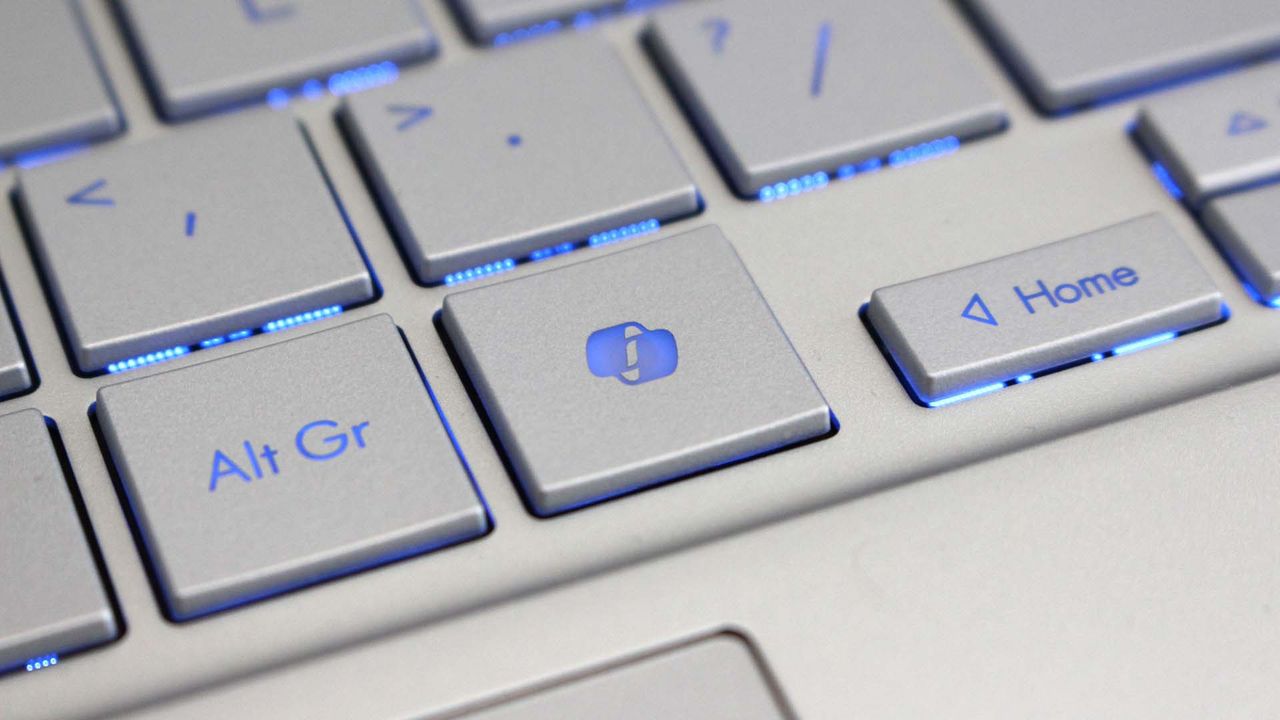
Another welcome change is the update to remap the Copilot key to function as the Right Control key or Context Menu key. Copilot already has a keyboard shortcut (Alt + Space) for those who want to use it, so having a dedicated key for a niche tool felt a bit like overkill.
New! This update adjusts how the preview pane handles files downloaded from the web. For HTML files, a new Preview anyway button lets you acknowledge the warning and preview the file. Non-HTML files, such as PDFs, are now previewed automatically.
New! File Explorer Home now preserves the state of sections (expanded or collapsed), so you can pick up where you left off.
New! This update improves the reliability of thumbnail previews for cloud files in the Details pane. The pane has also been reorganized so file properties are easier to find and review at a glance.
New! This update addresses an issue that could clear the address bar contents when entering edit mode by clicking near the right side of the address bar.
Emoji
New! This update adds support for Emoji 17.0, including new emoji such as distorted face, fight cloud, and hairy creature. To insert them, press Windows key + Period (.) to open the emoji panel.
New! This update also refines the design of several existing emoji for better consistency across platforms, including saluting face, face with peeking eye, goose, lotus, and kissing cat.
Widgets
New! This update introduces the Tips widget, which provides short, helpful guidance about Windows features. To add it to your Widgets board, open the board, select Add widgets, and then choose Tips. To add it to your lock screen, go to Settings > Personalization > Lock screen and add Tips to your lock screen widgets.
Personalization
This update includes a variety of improvements to desktop background experiences:
This update improves the reliability of the Personalization > Background page in Settings.
This update adds support for using DIB image files as desktop backgrounds.
This update improves the reliability of desktop slideshow transitions on newly created accounts.
This update improves the resolution of previews when selecting a desktop background in Personalization > Background.
This update improves the desktop background preview display in Settings for users with portrait mode monitors.
This update improves the reliability of processing desktop wallpaper changes when they happen in quick succession.
This update adds support for using slideshow wallpapers with multiple desktops, so that it won't automatically switch you back to Picture.
Bluetooth
This update contains several enhancements to improve reliability and the experience when connecting to and using Bluetooth devices:
During voice calls, the Windows shell volume flyout now appears when adjusting the volume of a Bluetooth Classic Audio accessory using the volume controls on the accessory, providing visual feedback of the new volume level.
This update improves the accuracy of the connection state displayed by Windows for accessories that have disconnected from the PC.
This update improves the stability of the Bluetooth & devices page in Settings when managing Bluetooth and audio devices.
This update resolves an issue where the Bluetooth radio could be turned off, but the radio control toggle on the Bluetooth & devices page in Settings appeared on.
This update improves Bluetooth audio stability and compatibility.
This update improves microphone compatibility with certain Bluetooth Classic Audio accessories.
This update resolves an issue that could result in a crash (error code 0x139) while streaming Bluetooth audio.
This update improves reliability and performance with LE Audio accessories.
This update improves the reliability of shared audio.
Accessibility
New! This update introduces Open apps maximized, an accessibility setting that automatically maximizes app windows as they open. It removes a bit of everyday friction whether you use a screen reader or magnification, work in tablet mode, or simply prefer a consistent, full-screen workspace. To turn it on, go to Settings > Accessibility > Visual effects and turn on Open apps maximized.
This update improves navigation of the Bluetooth quick settings page when using keyboard input, gamepad input, or Narrator.
Magnifier
New! This update brings a modernized visual refresh to Magnifier on the taskbar:
Updated icons: Magnifier's toolbar icons align with the Windows 11 visual design, giving the tool a cleaner, more modern feel.
Refined spacing and padding: The padding is adjusted with consistent spacing across the toolbar for a more polished layout.
Views, zoom controls, keyboard shortcuts, and Read Aloud all behave exactly as they did in earlier versions.
Settings
This update improves the reliability of Settings when interacting with the contents of the Settings > Bluetooth & devices > Printers & scanners page.
This update updates Settings > Apps > Installed apps to show the version number at the top level for packaged apps, as it already does for other apps.
This update improves the time picker control in Settings so that it reflects your preferred time format when you switch between 12-hour and 24-hour formats. This applies in places such as setting active hours and scheduling night light.
This update improves the persistence of the Allow multiple apps to use camera at the same time option in Settings > Bluetooth & devices > Camera.
Touchpad
New! Additional gesture controls for precision touchpads are available in Settings > Bluetooth & devices > Touchpad:
Single-finger scrolling: Scroll vertically with one finger starting from the left or right side of the touchpad.
Automatic scrolling: Keep scrolling without lifting your fingers by moving them near the edge of your touchpad while scrolling.
Previously, gesture controls for scroll and zoom speed and accelerated scrolling were released in the July 2026 update (KB5101684).
Copilot key
New! This update introduces a new Windows 11 setting that lets you remap the Copilot key to function as the Right Ctrl or Context Menu key, helping preserve familiar keyboard shortcuts and accessibility workflows. For more information, see Understand updates to the Copilot key on Windows devices.
Camera Roll
New! This update introduces Camera Roll Backup in Settings, helping eligible users protect their photos with OneDrive. You can turn on the feature from the Settings Home or Accounts page and complete setup on your mobile phone using a QR code.1
Fonts
New! This update adds support for the Garay and Beria Erfe scripts to the Ebrima font, the first Microsoft font to support both. Garay was encoded in Unicode 16.0 and Beria Erfe in Unicode 17.0.
New! This update also refines the Adlam glyph designs in Ebrima to align with the current Unicode standard and improve consistency.
Windows Recovery Environment (WinRE)
New! This update enables WinRE to automatically reuse eligible Wi-Fi profiles already saved in Windows, including supported certificate-based networks. Devices can now get online automatically during recovery scenarios such as quick machine recovery or cloud rebuild, without preconfiguring Wi-Fi credentials in WinRE. This capability is on by default, and IT admins can disable it. For more information, see Windows Recovery Environment (Windows RE).
New! This update adds a recovery remote management plug-in for extending WinRE management capabilities for mobile device management (MDM) providers. For more information, see Recovery Remote Management Overview.
Kiosk mode
The Windows key + Tab keyboard shortcut is now disabled when using a restricted user experience kiosk.
The Windows key + A and Windows key + C keyboard shortcuts are now disabled when using single-app kiosk mode.
Windows Backup
PC-to-PC Migration is no longer available. This feature, introduced through a phased rollout, previously allowed you to transfer files and settings directly from your previous PC when setting up a new Windows PC. To back up and restore your files, settings, and other supported items when moving to a new PC, use Windows Backup. For more information, see Back up and restore with Windows Backup.
Join us on Reddit at r/WindowsCentral to share your insights and discuss our latest news, reviews, and more.
Windows 11 now includes new family safety features that can reduce how much adult content children are exposed to or able to view. Microsoft has a pair of blog posts on the topic, one that focuses on consumer-facing features and another that covers how APIs and Microsoft accounts are used to make the Windows experience safer.
The first change Microsoft highlighted is not a new feature, but a speed boost to an existing one. Granting parental approval is now faster than before, which allows parents and guardians to quickly approve things like additional screen time, access to specific apps, and purchases.
Speed is important when it comes to family safety. Occasionally children run into blocks when trying to access content that is required for homework or that is otherwise age-appropriate. Delayed approvals leave children sitting around and can cause frustration for kids and parents.
Microsoft has also made it easier for parents to keep track of web activity, app activity, and spending. Managing family groups has been improved as well, including options that make it simpler to add or remove members.
The importance of Microsoft accounts
Some people complain about Microsoft accounts being a requirement to use certain services. Microsoft has budged a bit in this area. For example, it's now possible to sign in to Microsoft Edge with a Google account.
But managing family safety settings relies heavily on a Microsoft account, as explained by the company:
"At Microsoft, we believe safety should be easier for families to understand and easier for developers to build into experiences for children to use. On Windows, that starts with the account. Microsoft account is a trusted foundation through which Windows brings age-appropriate protections and parental choices into more of the digital experiences encountered by children and teens every day."
Setting up accounts for children is a requirement to set parental controls for individuals. Microsoft accounts also allow Windows to know if a user is a child, teen, or adult.
Microsoft has introduced a new API to extend age awareness beyond the OS and across the entire Windows ecosystem. The Windows Age APIs can verify a user's age and then send that verification to an app without sharing personal information. It's a bit like Windows Hello but for age verification.
The new Windows Age APIs are available now to Windows Insiders and should ship to all Windows users soon.
Join us on Reddit at r/WindowsCentral to share your insights and discuss our latest news, reviews, and more.
Windows 11 will finally support automatic switching between dark mode and light mode. The most recent Windows Insider build that shipped to the experimental Channel shows strings for the feature, though we still lack key information about the option.
It's been possible to schedule shifts between light and dark mode on Windows 11 for a while, but it has required a third-party application. Auto Dark Mode works well and is a must-have app for Windows 11.
The ever-popular PowerToys can also handle theme switching through its "Light Switch" feature. PowerToys is made by Microsoft but it only recently added the Light Switch utility. It's also not built in to Windows 11.
While both those apps are great, some features need to be built into Windows 11. People shouldn't have to search for an app or install a multi-tool utility to automate theme switching.
"This prevents the mode from changing while you're working or in meetings"
"Turn on location services to automatically schedule dark mode. When location services are turned off, dark mode is active from [START] to [END]."
Since there are likely many other strings about the feature, we only have a small idea of how auto mode will work. But the snippets we can see now look promising.
It appears that the feature will support shifting between modes based on your location to better match sunrise or sunset. Alternatively, you'll be able to schedule switches for specific times.
The feature also looks like it will have the option to only switch themes when your PC is idle, which should prevent a jarring change from happening in the middle of important work.
Again, this functionality is already available on Windows 11 through apps, but I'll be happy to see it ship to Windows 11. I love tinkering with apps to customize my PC, but general users shouldn't have to do that to get such a straightforward feature.
This app switches the theme of your PC at scheduled times, such as enabling dark mode after sunset. It's always been a bit odd that Windows does not have this as an option by default, but Auto Dark Mode does a great job.View Deal
Microsoft PowerToys is a collection of utilities that often outshine similar tools on Windows 11. It already includes a utility that lets you schedule switches between light mode and dark mode.View Deal
Join us on Reddit at r/WindowsCentral to share your insights and discuss our latest news, reviews, and more.
Pour fabriquer une application Windows native, le passage par Visual Studio était jusqu'ici la voie normale. Mais c'était sans compter sur Microsoft qui a publié
winapp
, un outil en ligne de commande qui permet de faire tout pareil directement depuis un terminal : il crée le projet, le construit, le lance avec son identité de paquet et sort le résultat sous la forme d'un fichier d'installation MSIX.
C'est encore estampillé en version "expérimentale" par ses auteurs, mais ça fonctionne déjà très bien pour des trucs basiques. C'est pour ça qu'aujourd'hui, je vous propose un petit tuto pour afficher un Hello World dans une vraie fenêtre Windows. Vous allez voir, c'est fastoche !
Ce qu'il faut avant de commencer
Il vous faut donc Windows 10 version 1809 au minimum, le mode développeur activé dans Paramètres, Système, Options avancées, et le SDK .NET 10 ou plus récent. Visual Studio, non par contre, y'en a pas besoin. Les deux installations se font via winget, dans un terminal normal :
Faites ensuite un winapp --version et vous saurez si le CLI répond.
Créez le projet
La commande new fabrique l'application à partir des modèles WinUI 3 officiels, qu'elle télécharge toute seule dès qu'on la lance. Sans option elle vous pose des questions, mais avec celles que je vous mets ci-dessous, elle ne demandera rien et prendra le modèle le plus dépouillé du lot :
winapp new --template winui --name HelloKorben --use-defaults
cd HelloKorben
Vous récupérez alors un projet C# complet, avec son manifeste de paquet et ses icônes. Et surtout, le modèle winui vous donne une fenêtre vide, ce qui tombe bien puisqu'on va écrire dedans. Notez que le pack de modèles est encore publié en 0.0.6-alpha, donc si un nom de fichier a bougé depuis, winapp new --list vous sortira la liste de ce que le vôtre propose.
Écrire le Hello World
Attention, là y'a un petit piège ! Le fichier qui décrit la fenêtre s'appelle MainWindow.xaml, sauf que ce n'est pas celui-là qu'il faut toucher. Ouvrez plutôt MainPage.xaml, qui est à la racine du projet, et remplacez son <Grid /> vide par ces quelques lignes :
<Grid>
 <TextBlock Text="Hello World !"
 HorizontalAlignment="Center"
 VerticalAlignment="Center"
 FontSize="48" />
</Grid>
Ensuite, un petit winapp run construira le projet, l'enregistrera auprès de Windows avec une identité de paquet qui pointe droit sur votre dossier de build, et le lancera. Votre fenêtre s'ouvre alors avec le Hello World au milieu :
winapp run
La fenêtre HelloKorben ouverte par winapp run, et derrière, le terminal qui vient de la construire en 12 secondes
Bon, là, on a fait un Hello World, mais bien sûr, si vous faites chauffer une IA là-dessus, vous pouvez faire des trucs un peu plus complexes sans forcément savoir coder, et tout ça, une fois encore, sans Visual Studio.
Sortir le fichier d'installation
Maintenant, à quoi bon empaqueter ?
Cette identité de paquet, ce n'est pas de la paperasse. En fait c'est elle qui ouvre à votre application les notifications natives, les associations de fichiers, les protocoles maison et les API d'IA locale de Windows. Donc si vous voulez du sérieux, il faut publier l'application compilée dans un dossier, et ça, c'est possible comme ceci directement dans votre terminal :
dotnet publish -o ./publish
L'empaquetage fabrique au passage un certificat de développement et l'installe dans le magasin Personnes de confiance de la machine mais faut que je vous prévienne, la commande qui suit réclame un terminal ouvert en admin dans lequel il faudra refaire le cd vers votre dossier de projet pour qu'il s'y retrouve.
Le MSIX signé sort dans le dossier du projet, nommé d'après le GUID du paquet
Vous obtenez alors un .msix signé, nommé d'après l'identité du paquet, sa version et son architecture, qui s'installe chez vous d'un double clic. Et cette identité, le modèle la génère sous forme de GUID : ne cherchez pas le nom de votre application dans le nom du fichier. Par contre, ne l'envoyez pas tel quel à un collègue, parce que le paquet réclamera le runtime Windows App SDK. Ajoutez --self-contained à la commande pack et le runtime partira dans le paquet. Le certificat, lui, reste un certificat de développement local : sur le PC d'en face, Windows refusera le paquet tant que ce certificat n'y sera pas installé aussi.
Maintenant, si vous vous demandez à quoi sert vraiment ce CLI, c'est surtout l'étape MSIX qui sera moins douloureuse car vous n'aurez pas besoin de lancer Visual Studio.
Microsoft has just announced a set of new Windows 11 preview builds that are packing some notable improvements and changes that are now in testing with Insiders. This week's preview builds come packing an upgraded set of settings for sound and audio devices on Windows, enhanced cross device features that sync with your phone, and new family safety options.
First up, Microsoft has introduced a new design for the volume sliders that appear in the Sound Settings area of Windows Settings. The sliders now also show audio activity for when music or video is playing in the background while you configure your settings, making it easier to dial in exactly where you want your volume.
Microsoft is also porting over more Control Panel sound settings to Windows Settings, including the ability to set default devices, and the ability to allow hardware acceleration for devices that support it.
The new live audio activity indicator. (Image credit: Microsoft)
Here's a list of the new sound settings coming to Windows 11:
We've updated the design of the volume sliders in Sound Settings so that they display audio activity on the side when audio is playing.
If your audio device supports hardware acceleration, an option to allow hardware acceleration is now available in the Advanced section of the device's properties.
You can now configure exclusive mode for an audio device in the Advanced section of the device's properties, so you don't have to go to Control Panel.
You can now configure adaptive communication sound levels, which reduce the volume of other sounds when communications activity is detected, directly in Settings.
The option to set an audio device as the default sound device for communication now always appears in Properties. The option is unavailable if the device is already the default instead of being hidden.
We've updated the text for allowing audio devices to make it clearer.
We've added a new banner when mono audio is enabled to make it clear that some properties don't take effect while mono audio is active.
We've updated the All sound devices page:
You can now change default devices from this page.
We've adjusted the page design so that you can filter whether you're viewing input or output devices.
We've added toggles so that you can choose whether to hide or show disabled, disconnected, and unplugged devices.
We've also updated the input and output audio properties pages in Settings to include jack information for devices that need it.
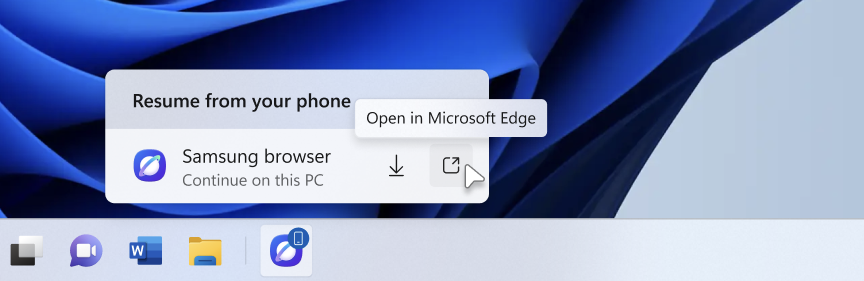
Another new feature in testing is the ability to quickly download the Windows app for a phone app that appears in the Taskbar via Phone Link. If you use the cross-device sync features that comes with Phone Link, hovering over an open app such as your phone's browser on the Taskbar will now let you quickly pick up where you left off without missing a beat.
Quickly resume web browsing activity from your phone from the Taskbar! (Image credit: Microsoft)
In addition to the new sound settings, Microsoft has announced major upgrades to the family safety features in Windows 11. The company says family safety is a top priority for the company, and is addressing key issues and concerns from parents.
Key areas of focus include:
Parental approvals for offerings like screen-time extensions, app access, and purchases now happen faster, so kids aren’t left waiting and parents stay in control.
We restored clear visibility into web and app activity so parents can trust what they see in their reports.
Made spending more transparent, with wallet balances.
We also gave adults in a family more control over their own experience, making it far easier to add, manage, or leave a family group
"Each of these improvements came from a real family experience — from issues parents told us mattered most: speed, accuracy, control, transparency, and peace of mind." Microsoft Distinguished Engineer, Rob Mauceri said. "This is the compounding effect of a team that treats every piece of customer feedback as a commitment to do better."
These improvements are welcome to see, and a sign that Microsoft continues to modernize and improve Windows 11 for the masses. These improvements are part of Microsoft's ongoing Windows K2 effort, which is focused on fixing Windows 11's biggest flaws.
Join us on Reddit at r/WindowsCentral to share your insights and discuss our latest news, reviews, and more.
Another record-setting Patch Tuesday is here for Windows 11. The operating system has a massive number of security patches and fixes that are now available to hundreds of millions of PCs.
At the time of publication, we do not have the change log of the latest updates. You can, however, grab the most recent builds through the Microsoft Update Catalog. We will update this piece as more information becomes available.
According to The Verge, this month's Patch Tuesday update includes more than 650 security fixes just for Windows. That's a six-fold increase over what we normally saw in a usual month until recently. But advances in AI have sped up the process of discovering vulnerabilities as well as the need to patch them swiftly.
This is a breaking news story. It will be updated after Microsoft releases the change log for this month's Patch Tuesday updates.
Thanks in large part to AI, it's now common to see hundreds of security patches ship on a Patch Tuesday.
AI is a useful tool for Microsoft's engineers, but it can also be used by malicious actors. We're seeing an AI arms race for discovering and patching vulnerabilities.
In addition to helping discover vulnerabilities, AI can help malicious actors take advantage of vulnerabilities that have been discovered or disclosed. That process has been accelerated greatly by AI, putting pressure on organizations and IT admins to test security patches quickly so they can be rolled out.
Join us on Reddit at r/WindowsCentral to share your insights and discuss our latest news, reviews, and more.

 Connexion