Apple's Creator Studio update brings new Cinematic video editing, Pixelmator selection tools, and Freeform AI features, alongside important subscription restrictions.
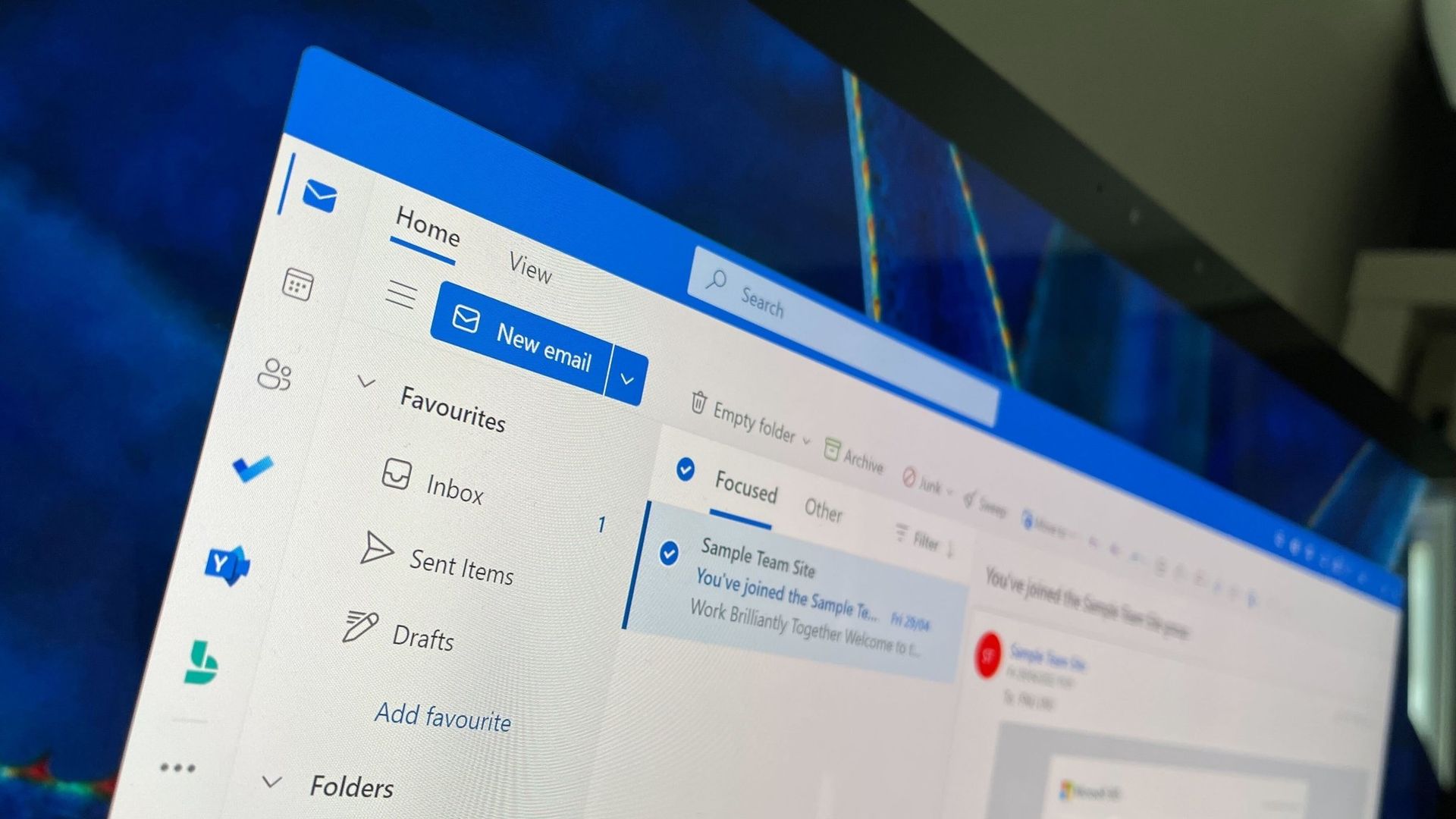
Microsoft Outlook will soon be able to save you from a costly mistake in an email. An upcoming feature will automatically spell check your emails before sending them.
Of course, Outlook already has a built-in spell check feature that highlights misspelled words and other mistakes. The new feature adds another layer of proofing by checking for spelling errors before an email is sent.
While spell check catches many mistakes as you type, it's easy to miss a typo in a long email or make an error when responding to messages. Running a final spell check before sending provides one last opportunity to catch mistakes before an email is delivered.
"If you don’t want to check spelling manually for every message—or you’re worried you might forget!—you can set Outlook to check spelling for you every time before sending emails," explains Microsoft through the Microsoft 365 Message Center (archived here).
When enabled, Outlook will review your message before it is sent and flag spelling issues that should be corrected.
The new spell check feature is expected to start rolling out mid-November, but it won't reach everyone until early December. Users in Targeted Release will be able to use the feature as soon as this month.
The new Outlook feature will sound familiar to those who have used Outlook for a long time. Classic Outlook already has the ability to check spelling before an email is sent through the "Always check spelling before sending" setting. Now, the same functionality is on the way to new Outlook.
Microsoft has spent the last several years bringing features from classic Outlook to new Outlook. Microsoft's latest update is another step toward feature parity between the two versions.
Are there any features you rely on that are still missing from new Outlook? Let us know in the comments.
Join us on Reddit at r/WindowsCentral to share your insights and discuss our latest news, reviews, and more.
A new Welcome screen is on the way to PowerToys, and it's so gorgeous that I'm a bit disappointed that most people will only see it when initially installing the app. The engaging out-of-box-experience (OOBE) uses a Windows feature called Composition, allowing it to render at 60 FPS. The clip shared on X by Niels Laute doesn't quite do the welcome screen justice due to compression, but the animation is still impressive.
This is more than just a fun animation. Creating a usable user interface that also performs well is much more difficult than creating a mockup.
Similarly to how PowerToys acts as a playground for developers to make features that occasionally get integrated into Windows 11, the new welcome screen showcases something WinUI apps can do.
Laute highlighted that the new welcome screen relies on Composition, which sits below WinUI. Developers can use it to render visual effects, and it can also manipulate UI controls because of how performant it is. If you use the Microsoft Store, you've likely seen animations that rely on Composition without realizing it.
I admit that swooning over fluid animations and interactive welcome screens is a bit nerdy. Millions of Windows 11 users will never notice what type of animation an app has. But attention to detail adds up and creates a better overall experience.
Earlier this year, I argued that faster performance won't save Windows 11 if Microsoft's apps are laggy web wrappers. The new welcome screen of PowerToys is a small change to users that would go a long way if extended to other Microsoft apps.
This collection of utilities includes a large library of features to enhance the Windows experience. PowerToys is designed with power users in mind, but it has handy features for people who just use their PC for everyday computing too.
Join us on Reddit at r/WindowsCentral to share your insights and discuss our latest news, reviews, and more.
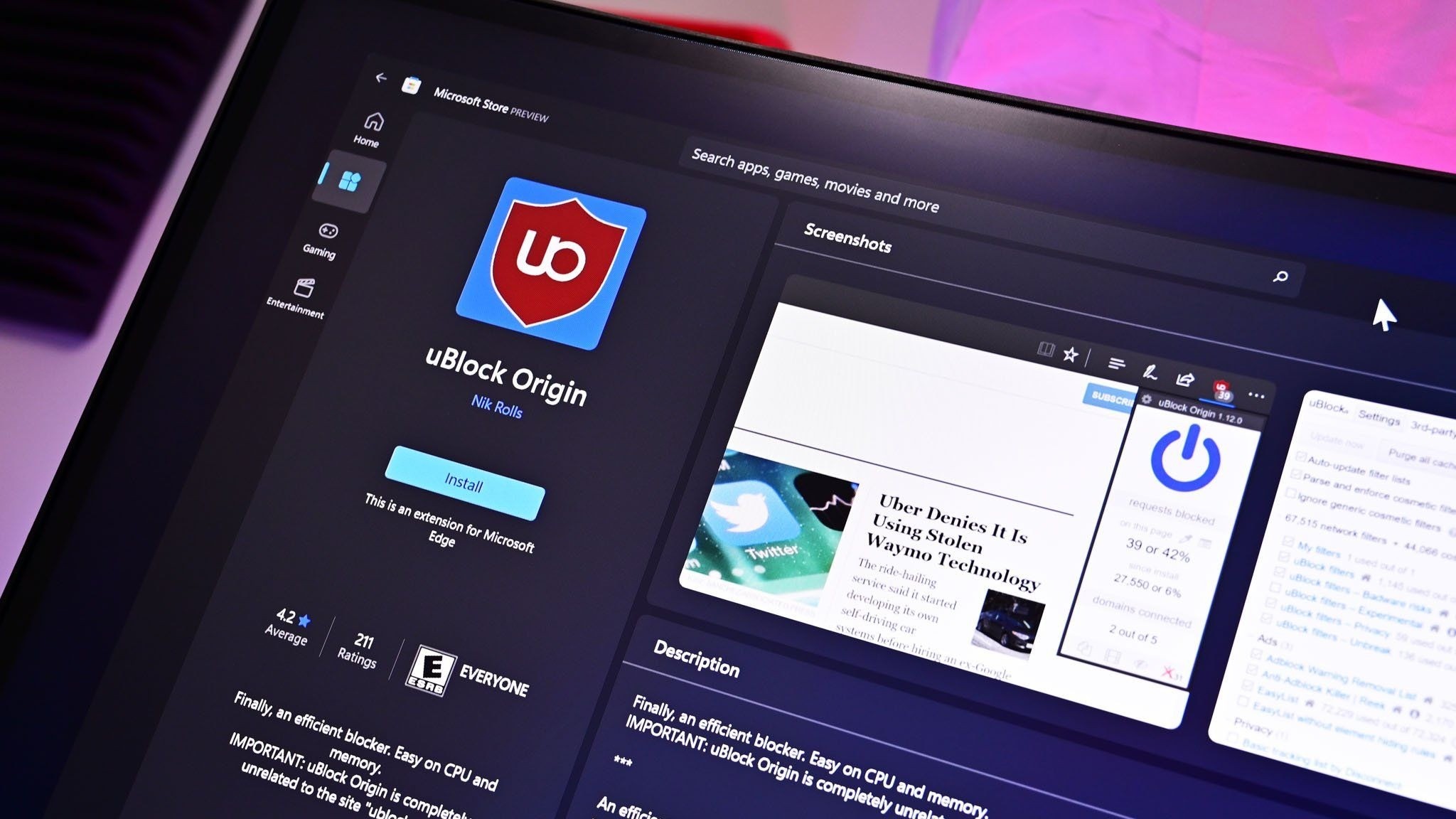
It finally happened. Earlier this week I opened Microsoft Edge and was inundated with ads. After months of warnings, uBlock Origin stopped working for me in the browser, leaving me with a choice to make: either find an alternative way to block ads in Edge or switch to a different browser.
To be transparent, I only block ads on certain websites. In fact, Windows Central is the primary reason I use an ad blocker at all. I've used uBlock Origin for years to ensure my articles appear clean and clear to our readers.
Ads help pay my bills, so I'm keenly aware that they're an important part of the web (and my life). I whitelist sites I browse regularly and often leave ad blocking disabled as I look around online. But sometimes I want to see what an article looks like with just the text and images I've placed directly. In other instances, I want to take a clean screenshot of the site for an article.
I relied on uBlock Origin for a long time and appreciated its granular controls. I was able to block certain items while approving others. For example, ad blockers sometimes falsely flag product blocks in an article. I appreciate that readers may not want to see a block about a laptop in a random piece, but if an article is literally about a specific Surface becoming available, it makes sense to show a way to purchase the PC.
Plenty of ad blockers still work on Microsoft Edge and even Google Chrome, but they function differently than uBlock Origin. Rather than intercepting requests and blocking them, many ad blockers simply mask ads. There are also limitations of what a Manifest Version 3 (MV3) extension can do, so even uBlock Origin Lite falls short of its "full fat" sibling.
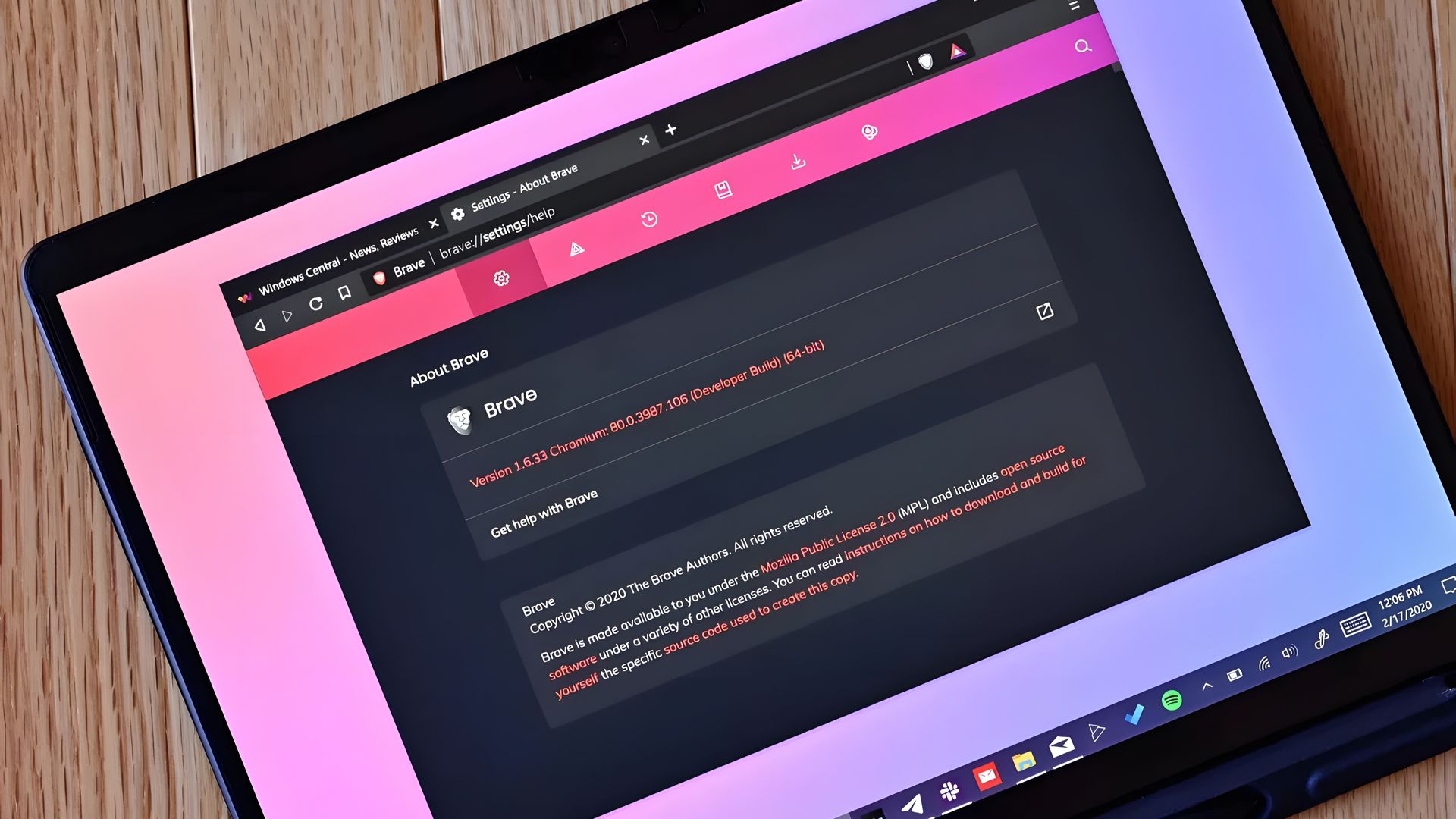
I had toyed around with switching browsers anyway. The end of uBlock Origin on Edge gave me a clean break. I initially looked at Brave because the makers of the browser have committed to keeping MV2 extensions alive. But after installing the browser, I tried using Brave Shields for a bit and found them to be quite effective.
Brave Shields also intercept network requests for ads, so blocking ads also speeds up site performance. That means I can quickly check an article, proof it or confirm it's laid out correctly, then get back to work.
Similarly to uBlock Origin, Brave lets me block specific elements with a couple of clicks. It lacks the satisfying zapper of uBlock Origin, but Brave's tools are still effective.
I'm going to just use Brave Shields for now, but knowing I could fall back to uBlock Origin if needed is comforting.
Join us on Reddit at r/WindowsCentral to share your insights and discuss our latest news, reviews, and more.
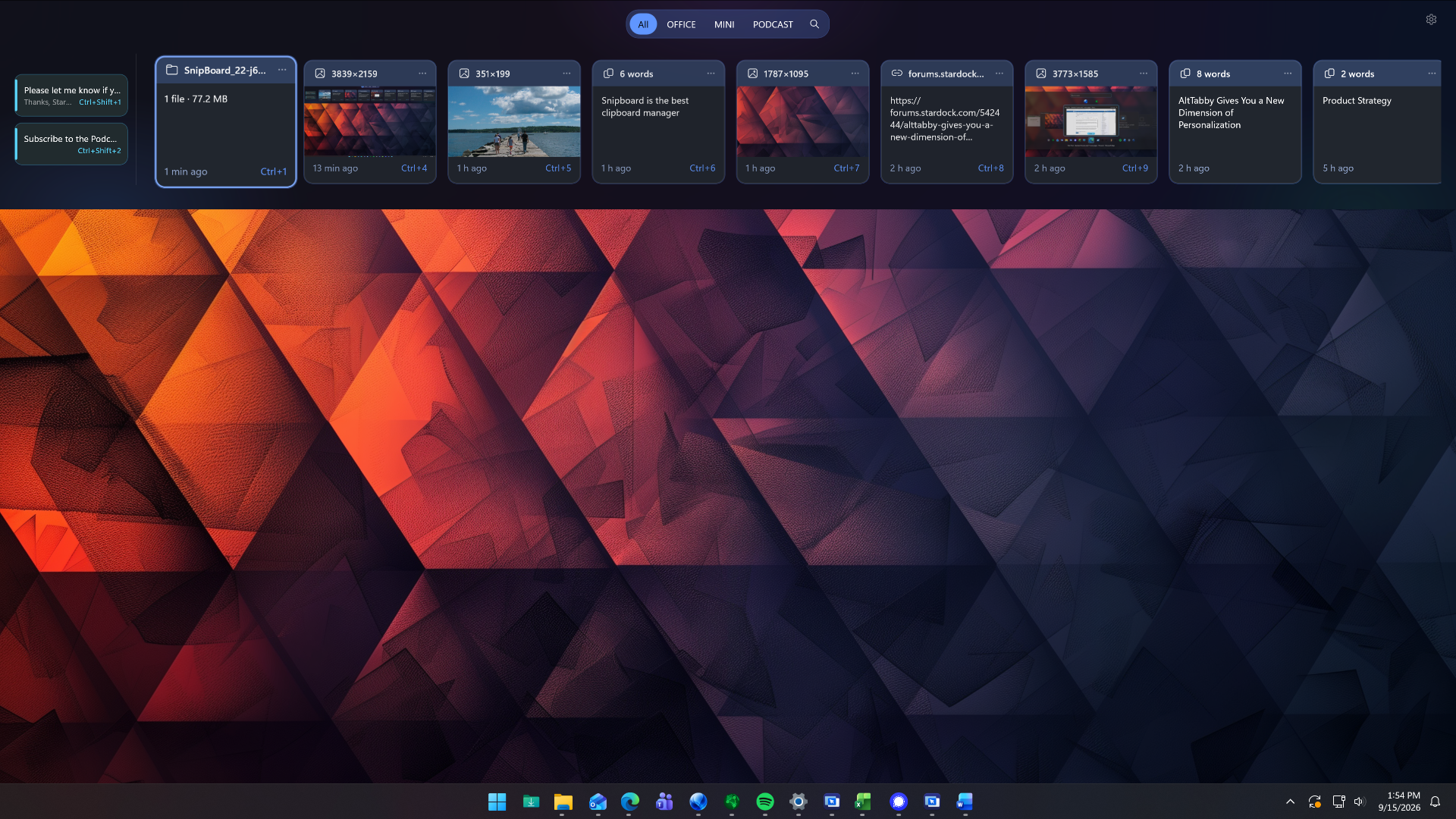
Stardock just unveiled a new app that could potentially replace the clipboard on Windows 11. Snipboard is a clipboard dock that can be pinned to any side of your screen. It supports searching your clipboard history, pinning frequently used content, and copying and pasting content across multiple PCs.
Snipboard is available as part of Object Desktop, which starts at $49.99 for an annual subscription. After Snipboard leaves beta, you will also be able to purchase it separately.
I received early access to Snipboard, but I've only had the app for about one day. So far, it's very promising and I look forward to exploring it more. Core functionality is consistent and I appreciate some of the smaller features within the app.
Stardock
Object Desktop
This productivity suite includes several apps to customize your PC and improve your workflow. It includes apps like Groupy for tab management and Start11 for customizing your Start menu. Now, it also includes the beta version of Snipboard.
When you view an item within Snipboard, you can click the ellipsis icon to see more pasting options. Among those are UPPERCASE and Keep formatting. Some apps have shortcuts for similar features, but having those shortcuts available within all apps is nice.
Other options include the ability to exclude specific applications and a Temporary mode that stops any content from being sent to other devices.
The general concept of Snipboard is not new. I covered an app called Edge Drop a few months ago that has a similar look and feature set. Snipboard feels more robust at this point, but it is made by Stardock as opposed to Edge Drop being made by a single developer.
One way that Edge Drop beats Snipboard is with drag and drop support. You can drag items into or out of Edge Drop's dock, including text or files. I'd love to see the same thing added to Snipboard.
Join us on Reddit at r/WindowsCentral to share your insights and discuss our latest news, reviews, and more.
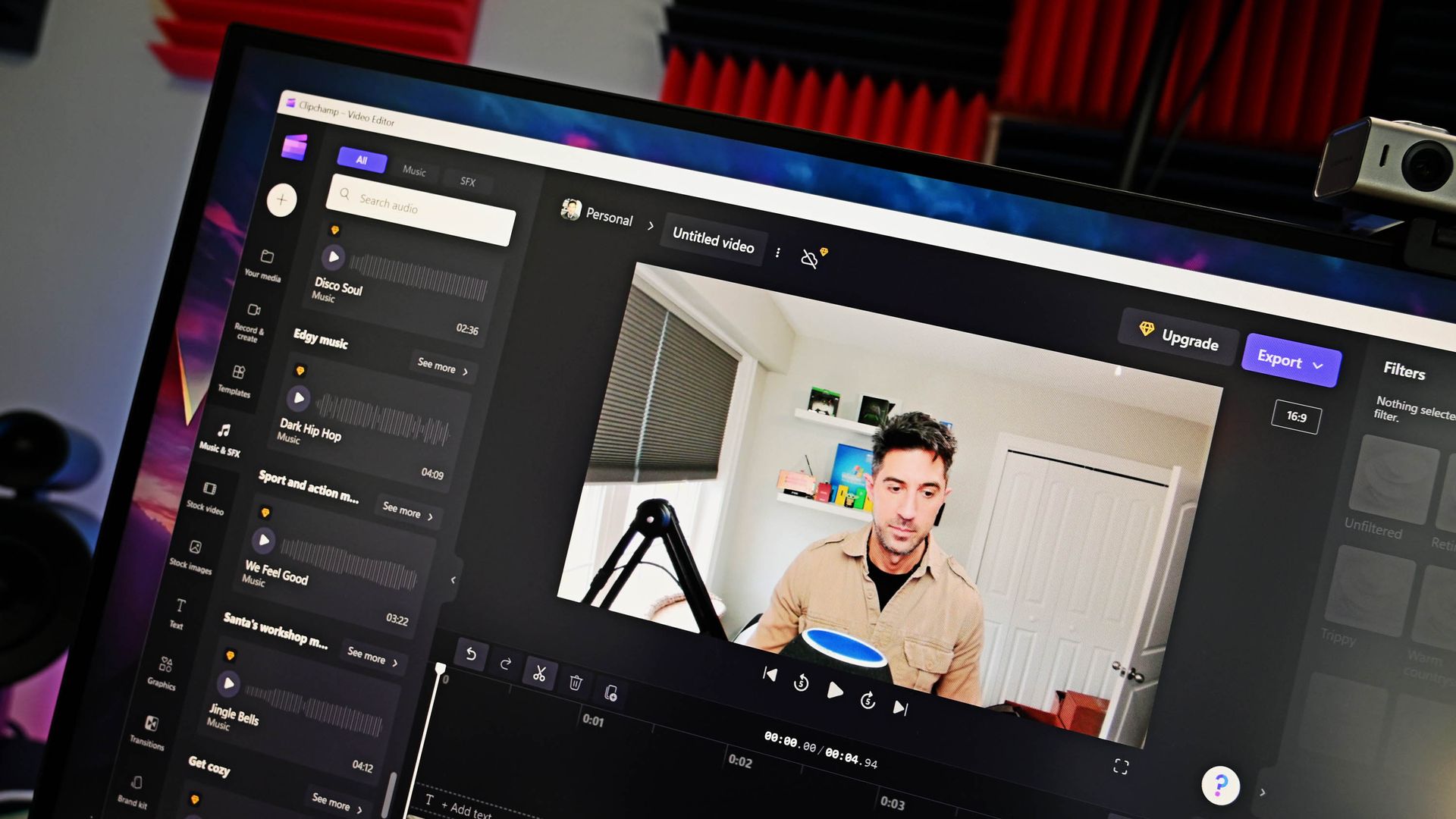
Clipchamp is the built-in video editor on Windows 11, and it has a surprisingly impressive feature list. A recent blog post by Microsoft outlines how to upscale videos to up to 4K by using Clipchamp. I've tested the feature and came away impressed.
You won't be able to take terrible footage and fix it by clicking a button in Clipchamp, but that would be an unreasonable ask of the app. What you can do is adequately scale up footage to make it viewable on larger displays or screens with a higher resolution. I tried a few different types of clips, including some with high contrast and others with objects in motion. Overall, Clipchamp handled them well.
Clipchamp upcales video by using AI-powered Video Super Resolution. The feature increases the resolution of a selected clip and adds details to make content look clearer. Upscaling is done locally on eligible Windows devices.
If you have a Copilot+ PC or a PC with a compatible NPU, Video Super Resolution will rely on that processor. But the feature can also work on compatible CPUs even if your device does not have an NPU. For example, my laptop has an 11th Gen Intel Core i9 (11950H) and an NVIDIA GeForce RTX 3070, and it was able to upscale clips in Clipchamp.
Here's how to upscale footage using Clipchamp:
Import a piece of video into your timeline. This can be done by selecting Import media.
Drag the clip into the timeline of your project.
Select the clip you would like to upscale.
On the right side of your screen, select the Upscale icon.
Select the resolution you would like to upscale your clip to.
Select Upscale.
If you don't like the result, you can restore the original clip with a single click. Note that there is no method to upscale an entire project at this time. Instead, you need to upscale specific clips.
Clipchamp is a surprisingly controversial video editor. Microsoft drew criticism by adding a requirement to use a Microsoft account to edit projects within the app. I don't like that requirement and think Microsoft could do more with Clipchamp, but if you're willing to jump through the company's hoops, Clipchamp is a capable video editor. That's even more true now that it can easily upscale videos.
Join us on Reddit at r/WindowsCentral to share your insights and discuss our latest news, reviews, and more.
Earlier this week, Microsoft confirmed a bug in Excel that breaks copy and paste. The issue was caused by the Patch Tuesday September update. That update included almost 1,000 security fixes, but it also brought some pesky bugs to the operating system.
Microsoft had to issue an out-of-band update to address broken Hyper-V Linux folder shares, Remote Desktop freezes, and USB audio failures. The company has also had to ship an update to address the copy and paste bug in Excel.
Unfortunately, the update is rather limited at this time. The fix is only for Excel 2016 and it has some known issues. Microsoft notes that if a workbook contains conditional formatting paste operations may continue to fail. The workaround to this is to use the "Paste Special" feature. Microsoft outlines the steps in a support document:
On the Home tab, select the Paste dropdown list, and then select Paste Special.
In the Paste Special window, select one of the following options:
Formulas
Formulas & Number Formatting
Values
Values & Number Formatting
Link
Microsoft is still looking into the issue and will hopefully have broader fixes soon.
Windows 11 is in the middle of a refresh that will reduce pain points in the operating system. One of the many ways Microsoft will improve Windows 11 is by smoothing the update process. People are supposed to get fewer updates each month and have updates with fewer bugs.
At least in September, that has not been the case and there is clearly still a lot of work to do. I've had to install three updates on my PC in just over one week. In my case, the second and third updates were only needed to fix problems caused by the first update.
While issues like the Excel copy and paste bug are frustrating, they usually affect a small subset of users. I happened to be in that group this month, but I don't believe this was a widespread problem.
Hopefully we will reach a point at which a monthly Patch Tuesday update plugs security holes and improves the OS without introducing any bugs that break workflows.
Join us on Reddit at r/WindowsCentral to share your insights and discuss our latest news, reviews, and more.
If web apps are freezing on your PC, you're not alone. A recently discovered issue in Microsoft Edge can cause a window to freeze and stop responding to mouse or keyboard input.
The bug rolled out in Microsoft Edge version 153, which recently shipped to general users. Microsoft confirmed the issue and recommended rolling back to Microsoft Edge version 152 as a workaround.
As much as I love a good native app, I use quite a few web apps to get work done. For several popular services, web apps are either the only option on Windows or the official apps for those services are just wrapped web apps.
Unless a wrapped web app provides additional functionality, I prefer to just use the corresponding web app within my browser of choice. For example, I can organize Slack and Airtable in browser tabs by using their web apps rather than download dedicated apps through the Microsoft Store.
An added bonus of a browser-based setup is that I can toggle between browser instances by pressing Alt+` since I use Window Hopper in PowerToys.
If your web apps are freezing, you could also bypass the issue by using a different browser. Microsoft wouldn't recommend that, of course, but Chrome, Firefox, Brave, and other popular browsers all support web apps.
If you choose to revert Edge to its previous version, you'll have to jump through a few hoops. Unfortunately, you can't just click a toggle to go back. Even downloading a file containing a previous version still takes some extra work to install. Microsoft outlines the process on its website:
Disable Microsoft Edge Updates.
Open the local Group Policy Editor and go to Computer Configuration>Administrative Templates>Microsoft Edge Update>Applications>Microsoft Edge>.
Select Update policy override and then select Enabled.
Under Options, pick Update disabled from the Policy dropdown list.
Get the MSI.
Download the MSI for the version you want to roll back to from here.
Save the MSI to your desktop.
Run the rollback command.
Open the Windows command prompt with Run as administrator.
Type the following command, where: C:\Users\username\Desktop\test is the path to the MSI you downloaded, and FileName is the name of the .msi file: C:\Users\username\Desktop\test>msiexec /I FileName.msi /qn ALLOWDOWNGRADE=1
Close and reopen Microsoft Edge to verify that the rollback worked. Under Settings and more (ALT + F), go to Settings and select About Microsoft Edge.
Join us on Reddit at r/WindowsCentral to share your insights and discuss our latest news, reviews, and more.
Windows and Windows Phone users struggled with the app gap for years, often leading to frustration when their favorite app was unavailable. But recent advances in AI have led to a different kind of problem: an explosion of development. Microsoft recently shared the challenges caused by AI accelerating the development of extensions for the Edge browser.
"How do we keep up with the pace at which the ecosystem is growing, while maintaining a high bar for quality?" asked Microsoft's Edge team.
Microsoft approves extensions that appear in the Edge Add-ons site. Since AI can speed up the process of developing or updating apps, Microsoft has more submissions to take care of. To better handle the workload, Microsoft has automated some validation checks for extensions.
The company emphasizes that it still has the same standards for an extension to pass. The automation centers around common problems so humans can focus on more complex cases.
If an extension passes enough quality checks, it will earn a "Featured" badge in the Edge Add-ons site. Microsoft now refreshes Featured badges every 15 days.
"With this more frequent cadence, high-quality extensions can earn recognition sooner, and developers receive faster feedback on their investments in quality," said Microsoft. "At the same time, users benefit from a more up-to-date view of the extensions that meet our quality standards."
The Edge Add-on site is receiving more submissions and updates due to AI, but uBlock Origin is still going away. (Image credit: Future)
Edge extensions have come a long way. The browser first required developers to put in a lot of work that was exclusive to Edge. That changed when Edge was relaunched as a Chromium browser. That switch greatly improved compatibility and resulted in more extensions being in the Edge Add-ons site.
Being based on Chromium also comes with some downsides, however. Microsoft is following in the footsteps of Google by moving from Manifest V2 to Manifest V3. There are a variety of effects of that change, but the one many care about the most is it means uBlock Origin will no longer work on Edge (it already does not work on Chrome).
Microsoft revamped the Edge Add-ons site with a better browsing experience and new categories last year. The new site shows better suggestions as you type and lets you install extensions without having to jump to a different page.
With that refresh and the recent uptick in extension submissions, it should be easier than ever to find a quality extension.
Join us on Reddit at r/WindowsCentral to share your insights and discuss our latest news, reviews, and more.
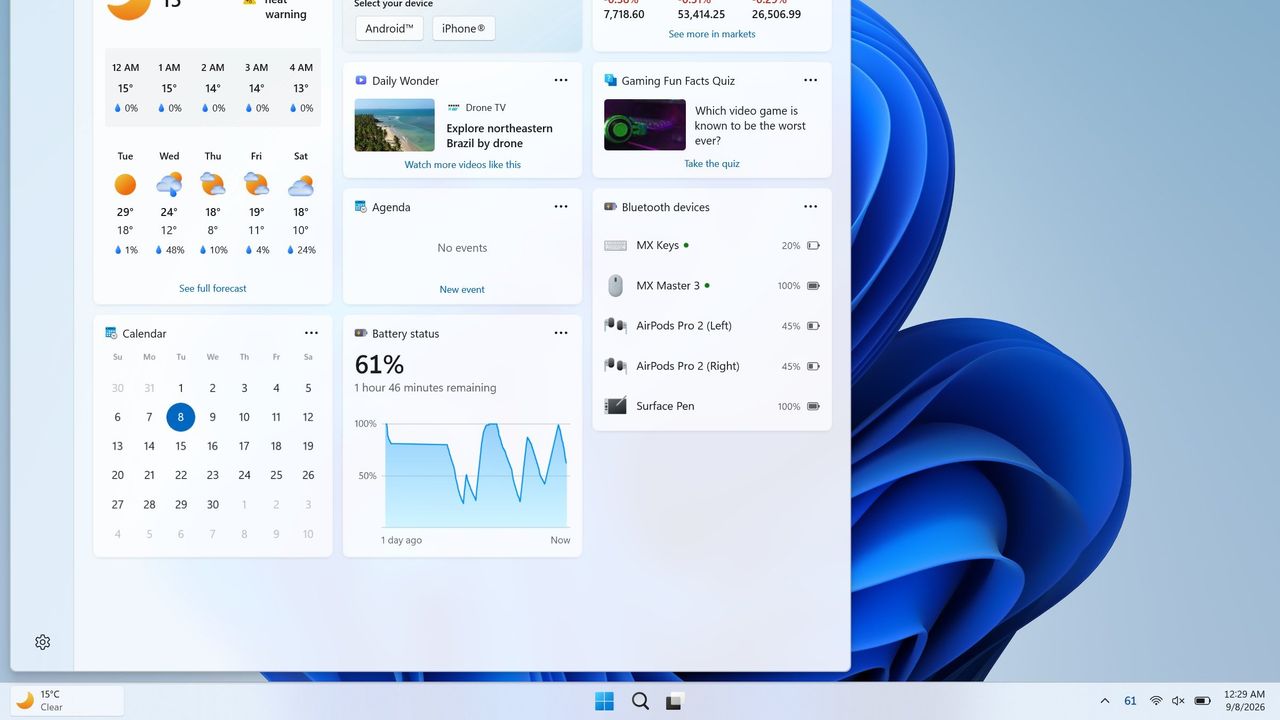
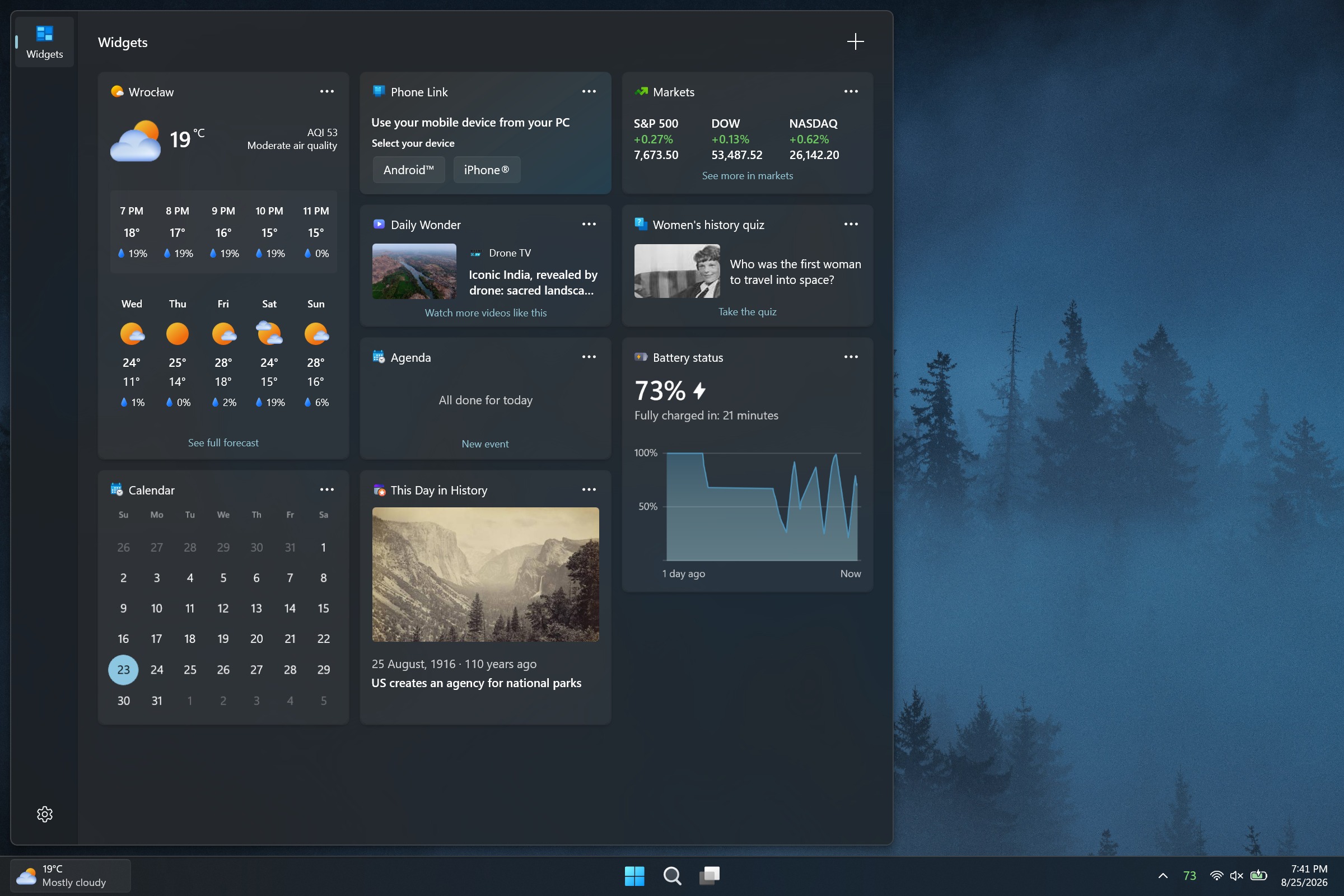
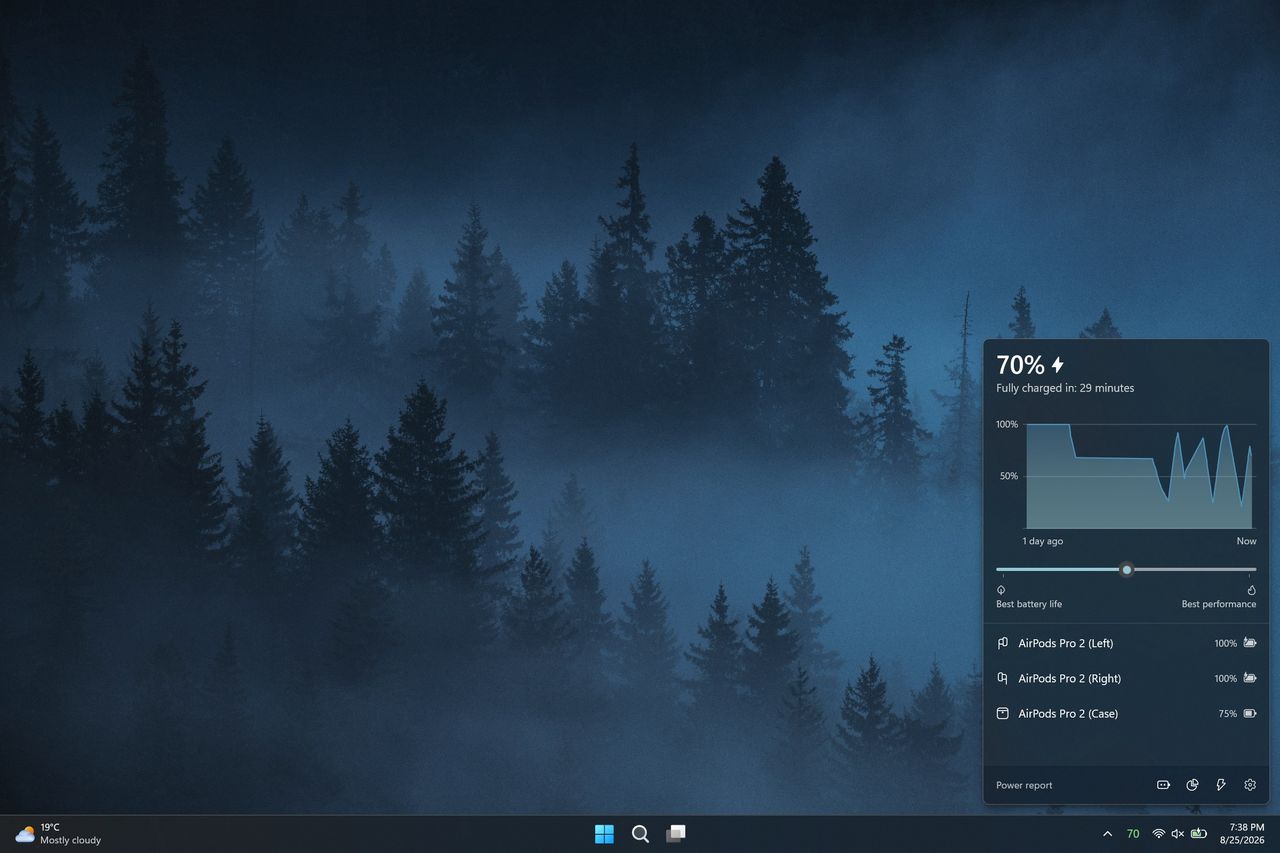
Windows 11 will soon feature a Battery Status widget that you can pin to the Widget Board or your PC's lock screen. The feature is still in the works at the moment, but you don't have to wait for it to be finished. Third-party app "Battery Flyout" already supports a Battery Status widget and is available right now.
Just like Microsoft's widget that's in progress, Battery Flyout's widget shows the battery status of your PC and connected devices. It's a quick way to check if your keyboard, mouse, or other accessories are charged.
The Widget Board has been underutilized since it launched in 2021. There are fewer than 100 widgets available, many of which are tremendously niche. I hope the existence of the Battery Status widget indicates that Microsoft is going to invest the time needed to grow the library of Windows 11 widgets.
Microsoft has made some other improvements to the Widget Board lately, such as turning off the MSN feed by default. I hope this is a turning point for the feature. If not, at least we can rely on third-party developers to use the space.
If you had a previous version of Battery Flyout installed, you may need to update the app before being able to use the widget.
As a built-in feature of Windows 11, the Battery Status widget will be available for free. Battery Flyout costs $3.19 (on sale from $3.99). But some lucky Windows Central readers will be able to get Battery Flyout for free. The app's developer shared a code for a giveaway and I'll run that on the r/windowscentral subreddit. Make sure to subscribe there and keep an eye out.
Battery Flyout lets you monitor the battery life of your Windows 11 PC and connected Bluetooth accessories, including mice, keyboards, and pens. It features a dedicated widget for the Widgets Board, native ARM64 support, and detailed power usage insights.
Join us on Reddit at r/WindowsCentral to share your insights and discuss our latest news, reviews, and more.
I love tiny utilities. If I find a useful flyout, widget, or Taskbar tweak, I'm likely to install it right away. A recent update to Battery Flyout brings power management and tracking to the Taskbar, and it even supports a new widget!
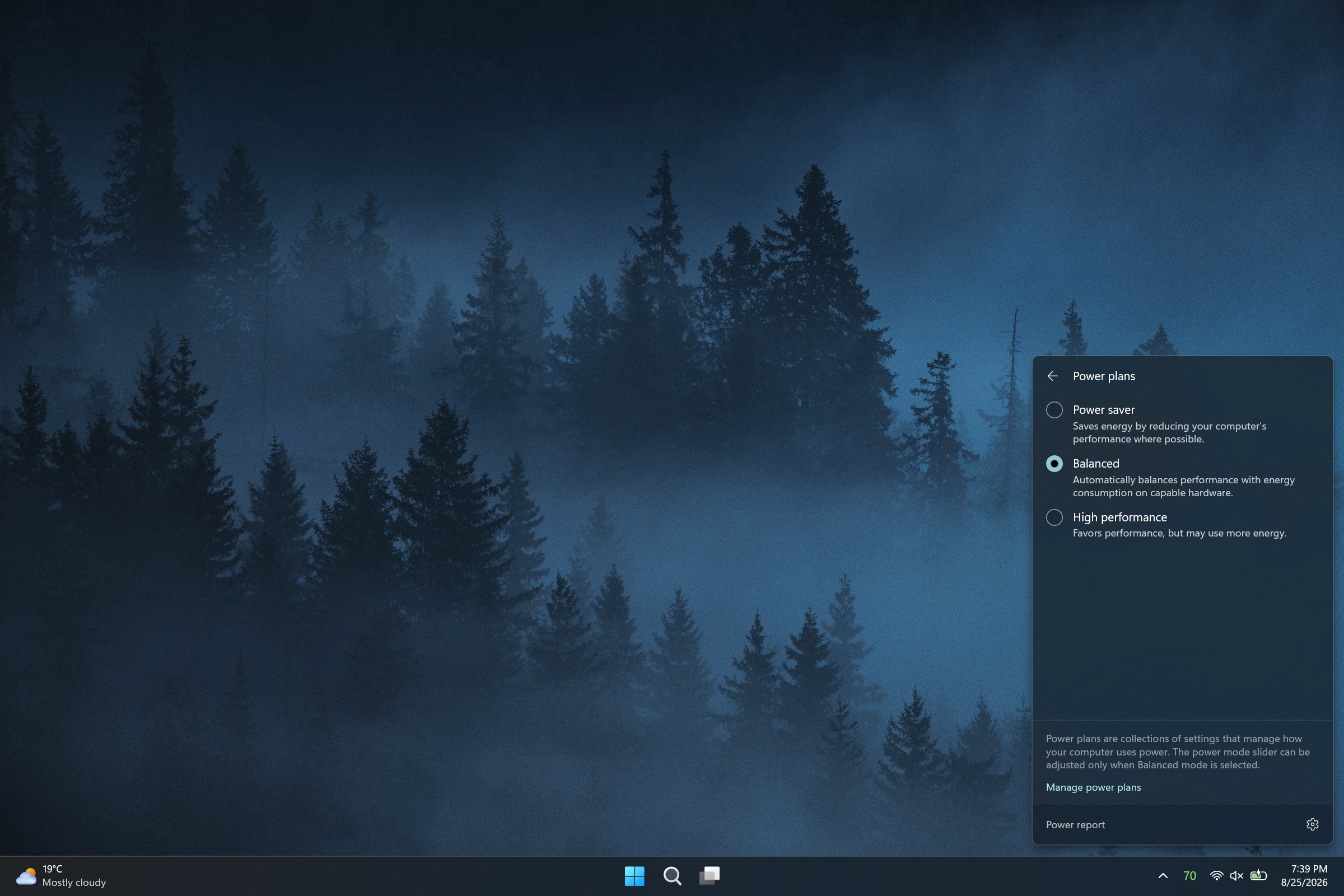
Battery Flyout is a third-party app made by Michał Łeptuch. It lets you switch power modes easily and provides charts about your PC's battery usage.
Some of the features in Battery Flyout are already in Windows 11, but they are spread out across the Settings app and other areas. Battery Flyout brings those options together and makes information and shortcuts easily accessible.
Michał ŁeptuchMichał ŁeptuchMichał ŁeptuchMichał ŁeptuchMichał ŁeptuchMichał Łeptuch
Łeptuch develops several apps that improve the overall Windows 11 experience, including Calendar Flyout. I spoke with him about the major update to Battery Flyout ahead of its release. Here's the full change log:
Migrated the app from UWP to Windows App SDK (WinUI 3) on .NET 10 with Native AOT
Added a full native ARM64 build
Switched the app to run in Efficiency mode by default
Removed third-party dependencies in favor of a custom-built system for handling power and battery events
Added support for multiple batteries
Added a more detailed chart style for battery levels
Added the ability to switch chart colors between the default theme and your system accent color
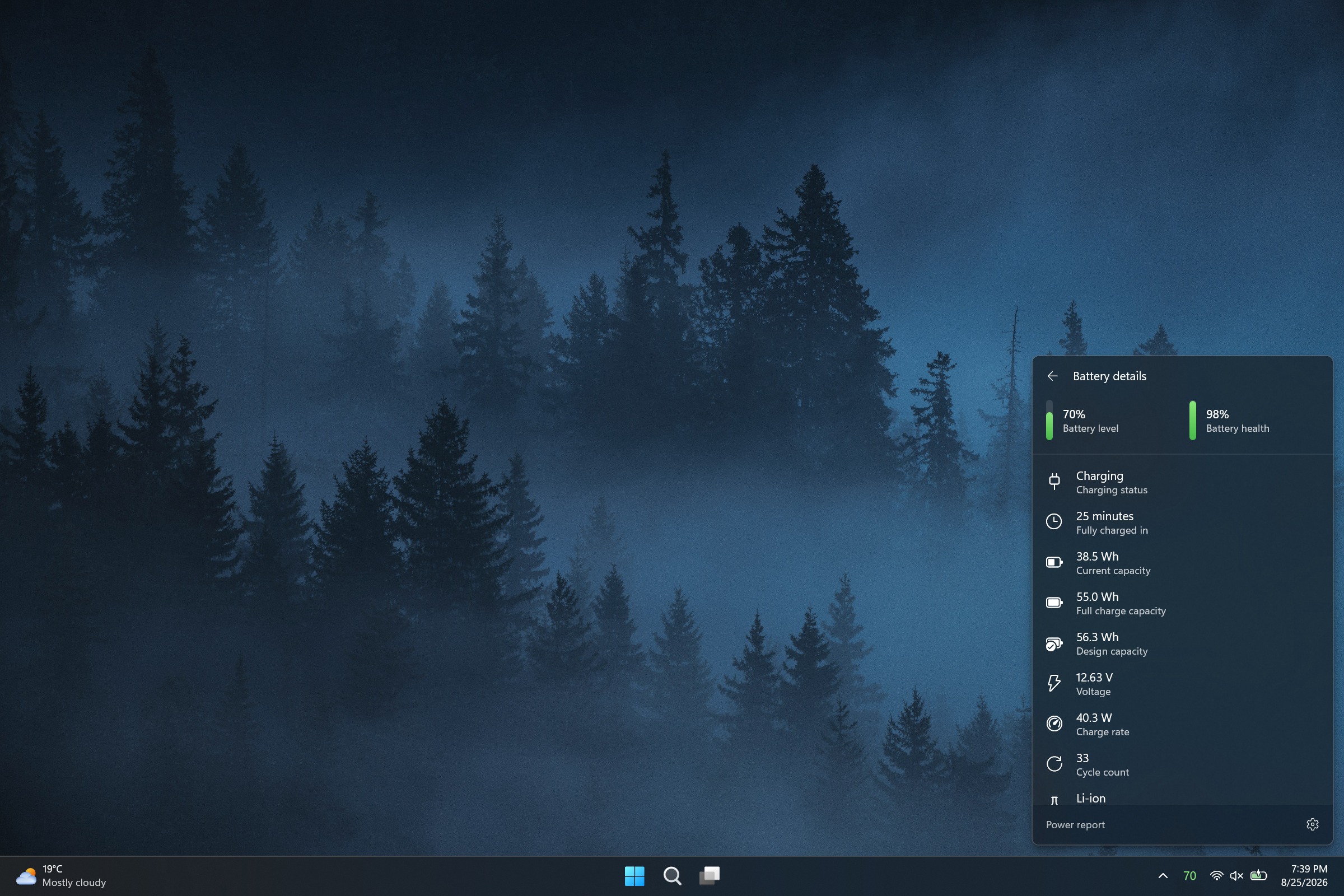
Added detailed technical information for each installed battery to the flyout
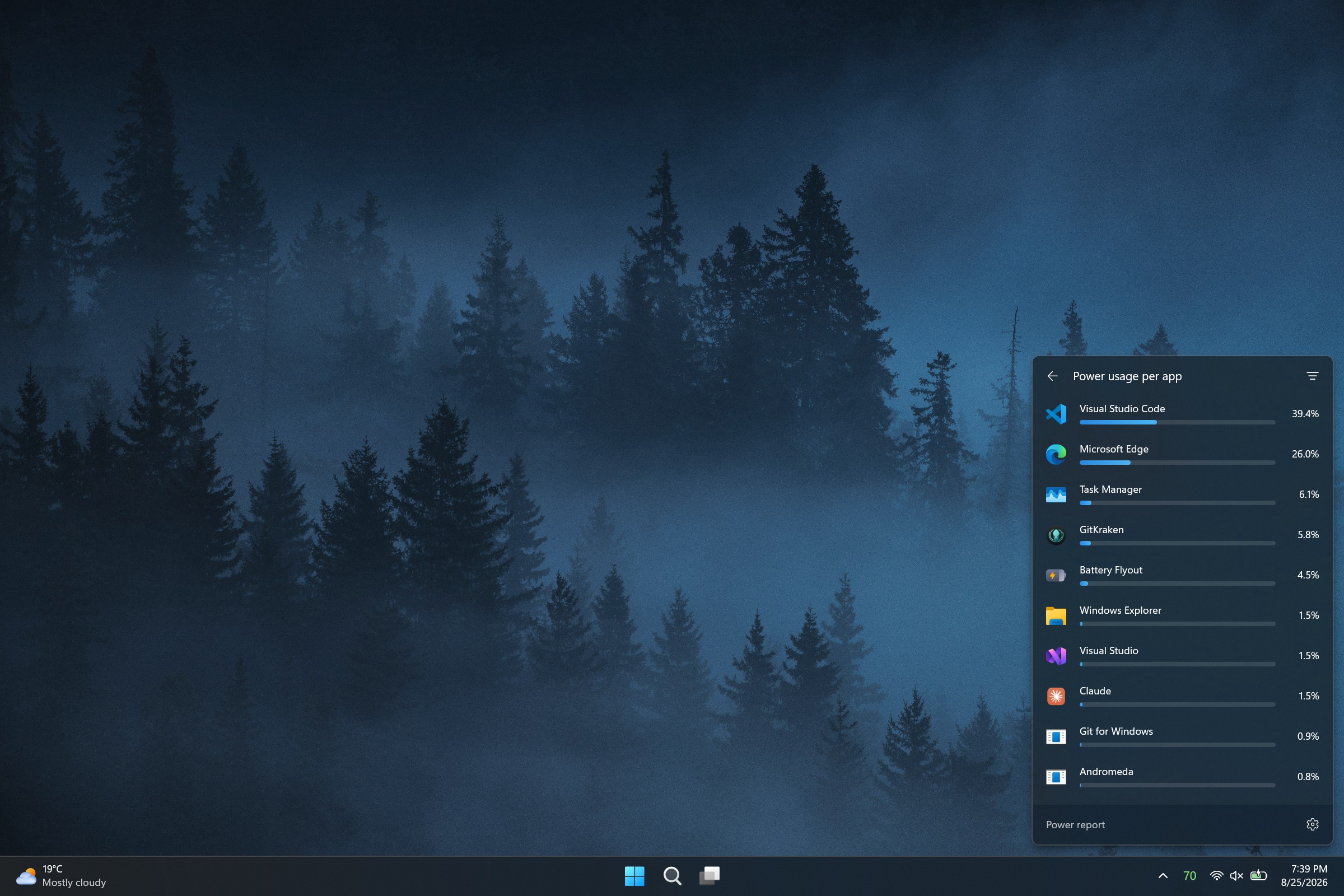
Added a view of the apps consuming the most power to the flyout
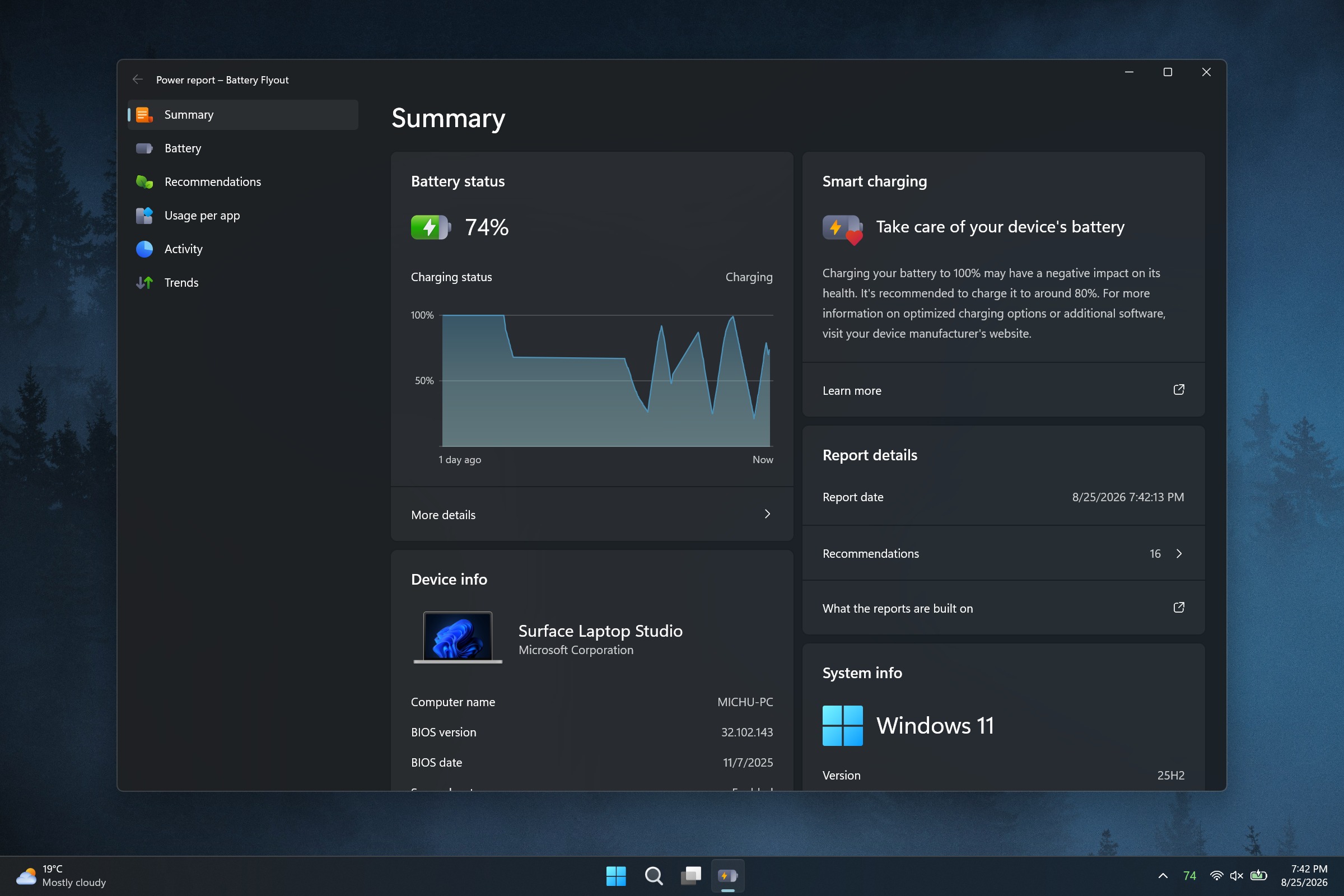
Replaced the old battery report with the new Power report, covering battery and system summary, per-battery details, app trends, recommendations, and resource usage
Added the option to choose the units used in reports, including energy and temperature
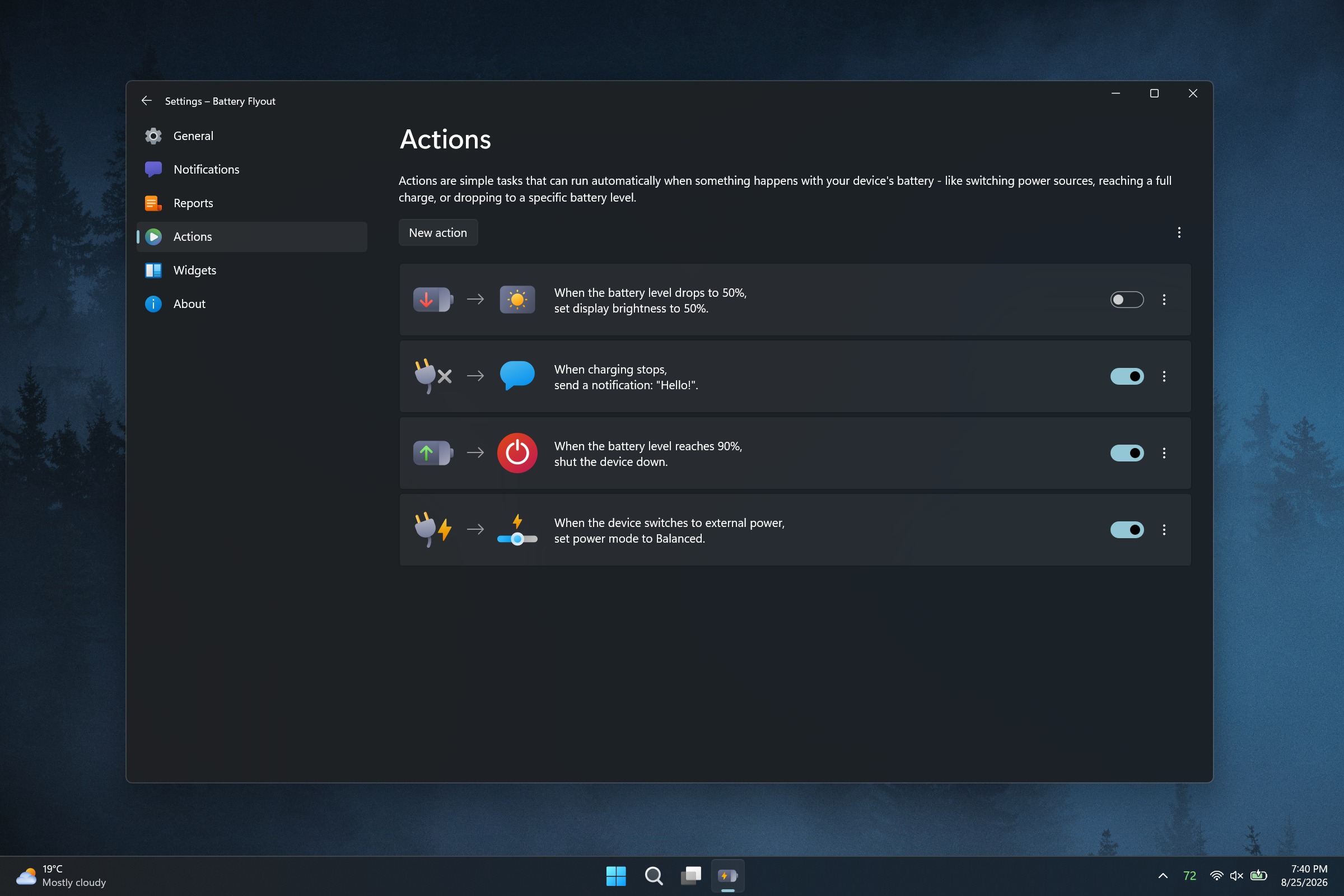
Added a new Actions module to automate tasks triggered by specific battery or power events
Added a widget for the Windows Widgets board showing battery level and charging status
Expanded support for Apple and Samsung devices, with more of them now reporting battery status
Added the option to hide the device list when it's empty
Updated the Bluetooth device icons shown in the flyout's device list
Added the option to completely disable Bluetooth device scanning
Added a keyboard shortcut to open the flyout
Added the ability to change where the flyout appears on your desktop
Added automatic flyout and context menu positioning for the taskbar layout options introduced in the Windows 11 August 2026 update
Added the ability to set notifications for any battery level, for both the device and connected Bluetooth devices
Added the option to set how long notifications stay on screen
Added support for the Polish language
Made various minor visual refinements
Updated the tray icon font and improved its rendering
Made general stability and performance improvements
A significant change that will affect all Battery Flyout users is that the app has been migrated from UWP to WinUI 3. That change brings better performance and taps into improvements Microsoft is making to WinUI 3 on Windows 11.
Battery Flyout should also use less battery than before since it now runs in Efficiency mode by default.
Similar to iOS and Android, Battery Flyout now has a dedicated page for viewing which apps are consuming the most power.
Some of the improvements will only affect a subset of users but are welcome additions. Battery Flyout now supports multiple batteries, which is useful for the small group of devices with multiple batteries.
The update also brings some under-the-hood improvements, such as switching away from third-party dependencies.
Perhaps the change aimed at the smallest niche is the addition of a Battery Flyout widget for the Windows 11 Widgets panel. That panel, which is built into every single Windows 11 PC, infamously features far fewer than 100 widgets. Battery Flyout will fit nicely between the barely functional Spotify widget and the Tic-Tac-Toe widget.
A recent update to this app improves performance, adds native ARM64 support, and shows more information about the power usage of your PC and apps.
Join us on Reddit at r/WindowsCentral to share your insights and discuss our latest news, reviews, and more.
Microsoft gives and Microsoft takes away. The latest update to Microsoft Edge adds the ability to sign in to the browser using an Apple account. It also adds a feature that automatically unsubscribes you from notifications related to scams.
But the same update also marks the official end of several Microsoft Edge features, including Edge Drop and real-time video translation.
Here are all the new features and changes that ship with the latest version of Edge, as detailed by Microsoft:
Automatically unsubscribe users from notifications sent by scam and malicious sites. Microsoft Edge now helps further protect users from malicious web notifications. When a notification leads users to a site that Microsoft Defender SmartScreen blocks as a scam, phishing, or malware page, Edge automatically stops that source from sending users further notifications. Edge lets users know when this happens. Users can review and restore any of these sites anytime under edge://settings/privacy/sitePermissions/allPermissions/notifications. Note: This is a controlled feature rollout. If you don't see this change, check back as we continue the rollout.
Sign in to Edge with an Apple account. Users can now sign in to Microsoft Edge using an Apple account in addition to the Microsoft account from the profile menu and Edge sign-in screen. Available for Windows and macOS devices. Admins can control availability to this feature using the NonMicrosoftAccountSignInEnabled policy. Note: This is a controlled feature rollout. If you don't see this change, check back as we continue the rollout.
Real-time video translation retirement. Real-time video translation is being retired through a gradual rollout. Availability may vary across environments during the rollout. The LiveVideoTranslationEnabled policy will be deprecated in a future update.
Enhanced Key Icon with Credential Details, Copy Actions, and Notes. The key icon in Edge's address bar now lets users click into any saved credential to view a detailed panel. From there, users can copy a username, reveal and copy a password, and add personal notes to each login. Keep track of security questions, account purpose, or recovery details right alongside credentials, without opening Settings or the full password manager. Note: This is a controlled feature rollout. If you don't see this change, check back as we continue the rollout.
Drop is retired. We're simplifying Microsoft Edge. Drop is retired in Microsoft Edge version 152.
New Copilot Cowork policy. Copilot Cowork may perform tasks such as creating tabs, taking screenshots, and interacting with web pages. Admins can now control availability of this feature using the CopilotCoworkToolActionsEnabled policy, which corresponds to the Allow Cowork to take actions on your behalf setting in edge://settings/ai. This policy applies only when Cowork Browsing is enabled at the tenant level in the M365 admin center.
Clarification of WebView2 DowngradeVersion policy. The DowngradeVersion policy allows admins to temporarily roll back specific applications to a previous WebView2 Evergreen Runtime version (N-1 or N-2). The policy requires an exact 4-part numeric WebView2 Runtime version, for example 151.0.2178.0. Admins can find the exact 4-part version number in the Microsoft Edge release notes for Stable Channel. Major-version-only values are not supported. If no exact matching folder is found, the policy has no effect and the runtime defaults to the BrowserExecutableFolder policy or the Evergreen runtime, which is the default auto-updating runtime.
Update for LocalNetworkAccessRestrictionsTemporaryOptOut policy. The planned removal of the LocalNetworkAccessRestrictionsTemporaryOptOut policy has been updated. The policy is now scheduled for removal after Microsoft Edge version 156; previously it was version 152.
Updated Copilot policy. Admins can now control availability of the video transcription feature using the EdgeEntraCopilotPageContext policy, which corresponds to the Allow Copilot to transcribe your video setting in edge://settings/ai.
I was always a fan of Edge Drop and will be sad to see it go. The feature let you send messages, files, and photos to yourself. All of the content you sent through Edge Drop lived in a single thread. The feature was powered by OneDrive, making it easy to find backups of the content.
But Edge Drop lived in the Sidebar of Edge, meaning it competed with Copilot for space within the browser. Microsoft never officially confirmed Copilot was a factor in the retirement of Edge Drop, but I suspect the AI tool was at least a small factor.
Join us on Reddit at r/WindowsCentral to share your insights and discuss our latest news, reviews, and more.
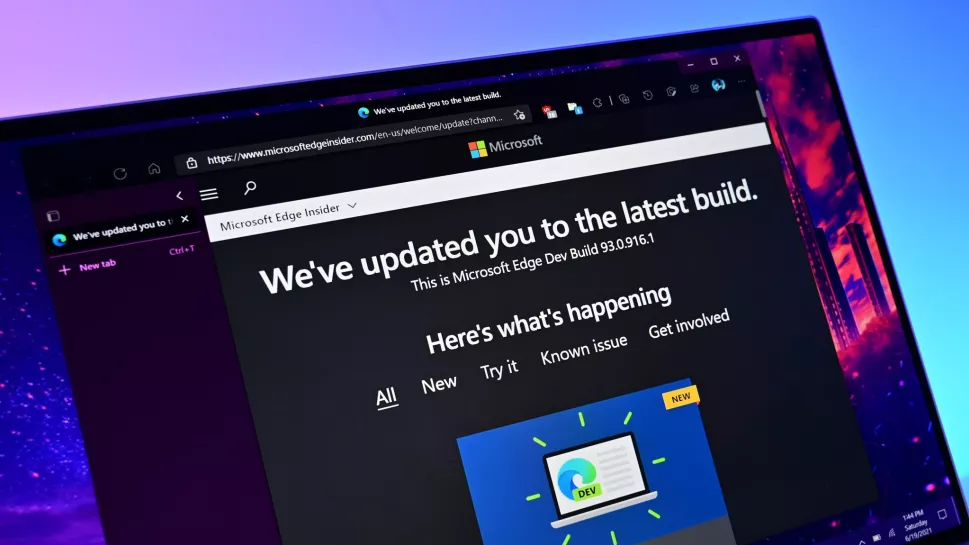
A laptop screen displaying a Microsoft Edge Insider page with text "We've updated you to the latest build" and update details. The background is a gradient of blue and purple tones.
A laptop screen displaying a Microsoft Edge Insider page with text "We've updated you to the latest build" and update details. The background is a gradient of blue and purple tones.
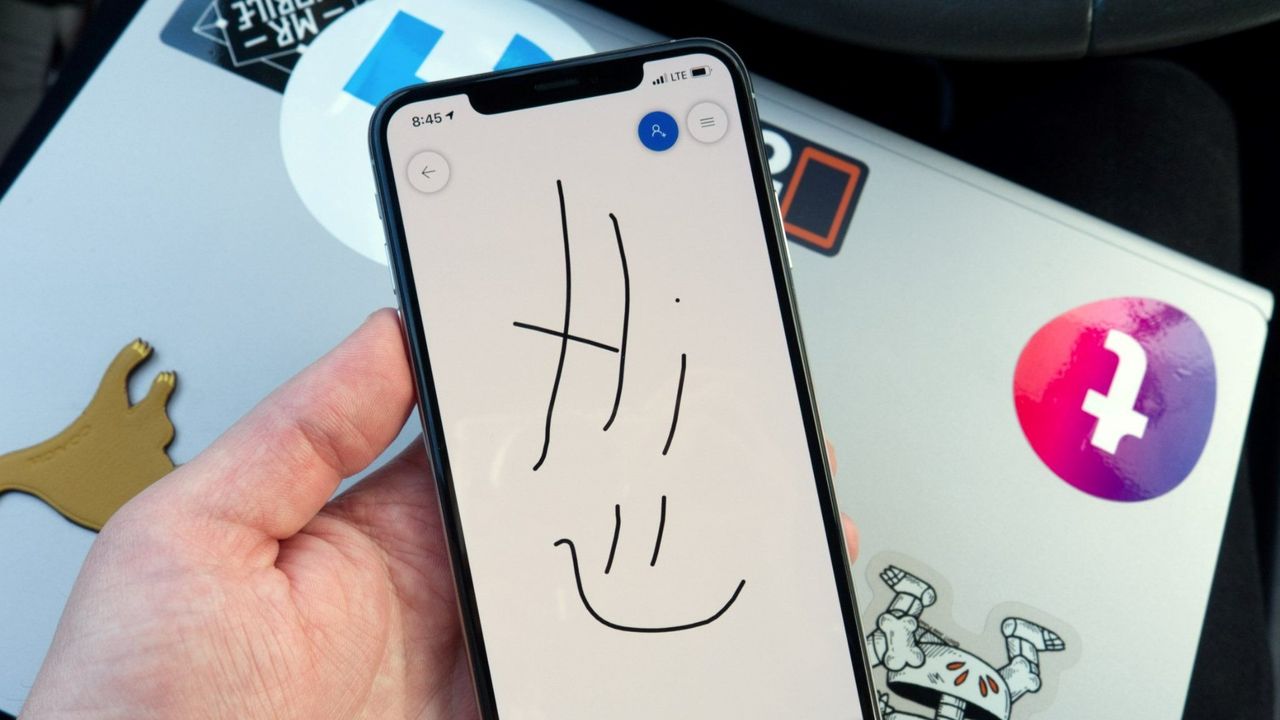
Microsoft Whiteboard is a popular tool for collaboration and jotting notes. Soon, some users will lose access to the app, but the exact cutoff date has shifted.
This week, Microsoft sent a message outlining the new timeline for the retirement of legacy whiteboards:
"Microsoft Whiteboard is retiring legacy whiteboards and the standalone app. Migration to OneDrive-backed whiteboards must be completed by September 25, 2026. Legacy whiteboards will be deleted October 16, 2026, and the standalone app deprecated November 30, 2026. Users must migrate or export content before these dates."
Microsoft is moving storage for Microsoft Whiteboard to OneDrive for Business. Because of that migration, those using personal accounts will lose access to any saved content. Microsoft gave people a short period to upgrade to Microsoft 365 for Business, migrate to other tools, or back up content, but personal users now have a bit more time to make a decision and act.
The new key dates were emphasized by Microsoft:
September 25, 2026
Migration tooling for legacy enterprise whiteboards is retired.
Users with personal Microsoft accounts can no longer create or edit whiteboards.
October 16, 2026 - Legacy whiteboards are permanently deleted.
November 30, 2026 - The standalone Microsoft Whiteboard app is deprecated.
Retirement of personal accounts and the migration of business accounts were originally set for August 22, 2026. Viewing and exporting was going to be supported until September 5, 2026. Microsoft has pushed back the deadlines significantly.
Early voting in our poll about whiteboard apps suggests that Microsoft Whiteboard is quite popular. Currently, 54 percent of participants list Microsoft Whiteboard as their preferred whiteboard app.
With Microsoft forcing out personal users of the app, many will have to look elsewhere. If you need a whiteboard app that focuses on offline use, I recommend Markerpad. Miro is a better alternative for those who need to collaborate.
Join us on Reddit at r/WindowsCentral to share your insights and discuss our latest news, reviews, and more.
Stop me if you've heard this before: The latest PowerToys update adds a utility that should be baked into Windows 11. It's one of those features that feels like a natural extension of your PC. Using it is so seamless, in fact, that after a while you may forget that the utility is part of PowerToys rather than just part of Windows 11.
The above situation happens a lot with PowerToys. Tools like Color Picker, CursorWrap, and PowerDisplay integrate perfectly with Windows 11 and offer features millions of people would benefit from. The latest addition to PowerToys, Window Hopper, falls into the same category.
PowerToys just received an update that adds a new utility and improves what was already one of the best apps on Windows 11. PowerToys v0.101.2362.0 adds Window Hopper, a feature that's basically Alt + Tab but for switching between instances of a specific app.
You can activate Window Hopper by pressing Alt + backtick (that's the ` in the upper-left corner of your keyboard). Holding Alt and pressing backtick again cycles you through any open windows of the same app you're already in.
You can also customize the shortcut for Window Hopper through the settings page in PowerToys.
For example, if you live in your browser and keep a bunch of windows open, you can swap between them without having to Alt + Tab across all of your other apps. Window Hopper works with any app that can have multiple windows open, including File Explorer.
I use separate browser windows for research, writing, Airtable, and Slack. I often have to snap these side-by-side or group them together. But being able to cycle between just the browser windows through a keyboard shortcut changes my workflow.
As is usually the case, the full change log for the latest PowerToys update is massive. It details Window Hopper, the improvements to the update experience, the compact version of Command Palette, and much more.
Rather than rehash that all here, I'll point you to the official GitHub page for PowerToys. I wanted to specifically highlight Window Hopper because it's one of those utilities that I used once and immediately knew would be a part of my workflow.
This collection of utilities includes a large library of features to enhance the Windows experience. PowerToys is designed with power users in mind, but it has handy features for people who just use their PC for everyday computing too.
Join us on Reddit at r/WindowsCentral to share your insights and discuss our latest news, reviews, and more.
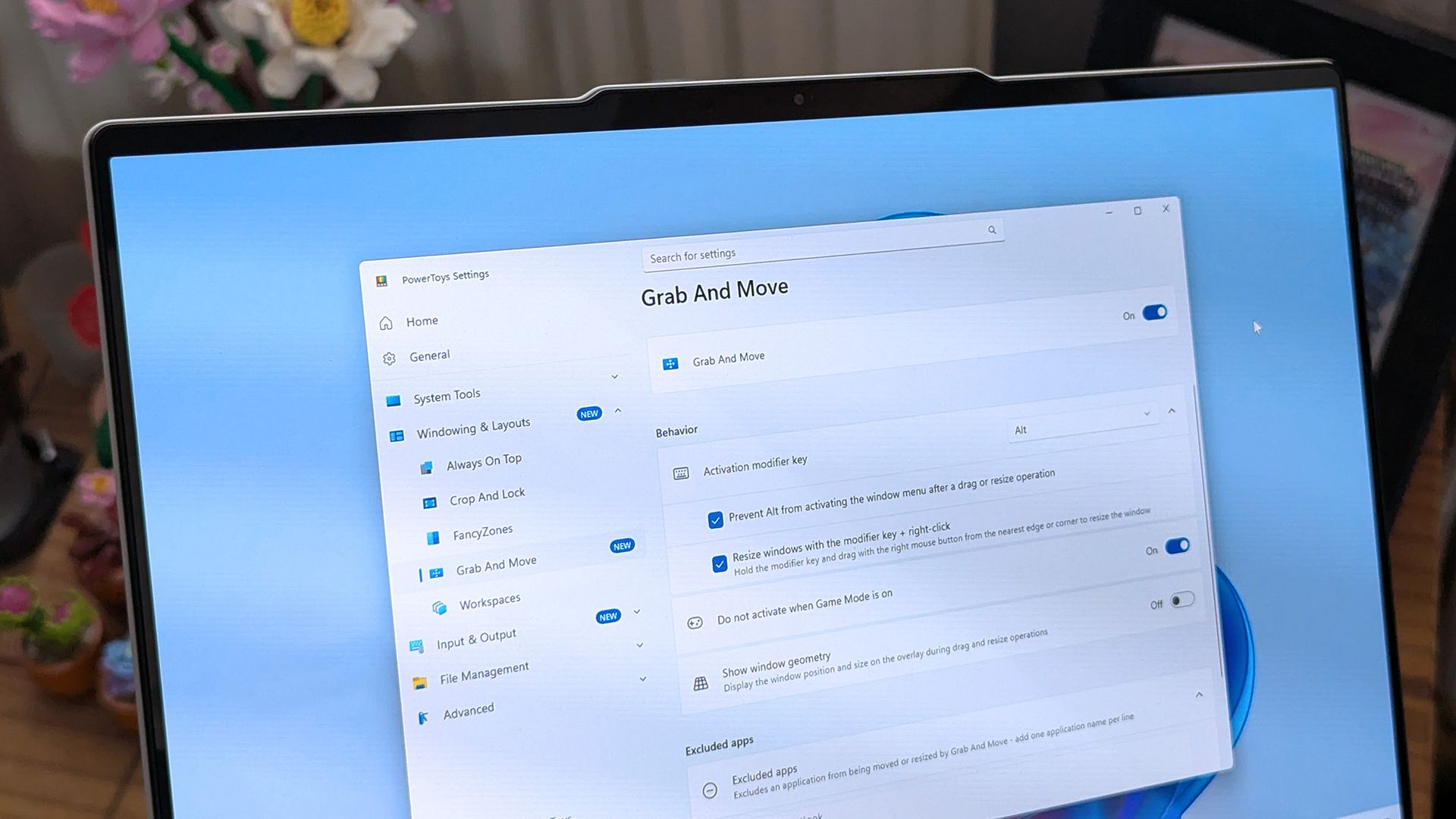
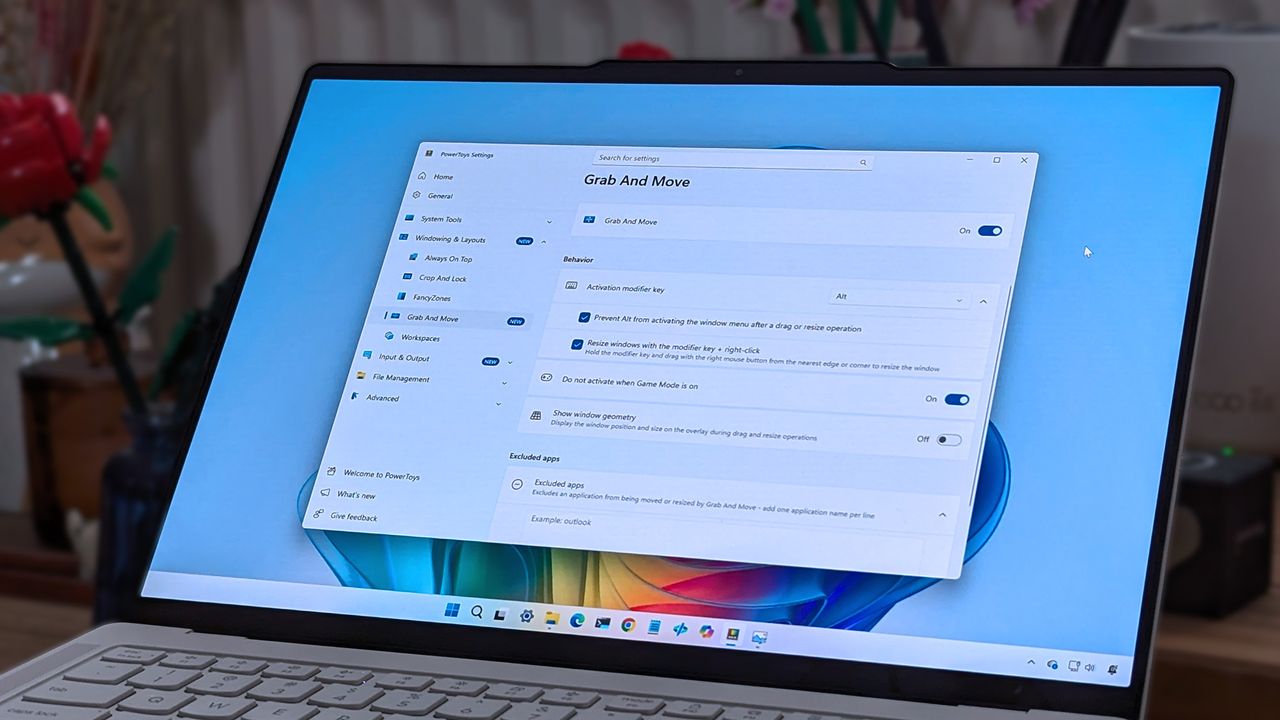
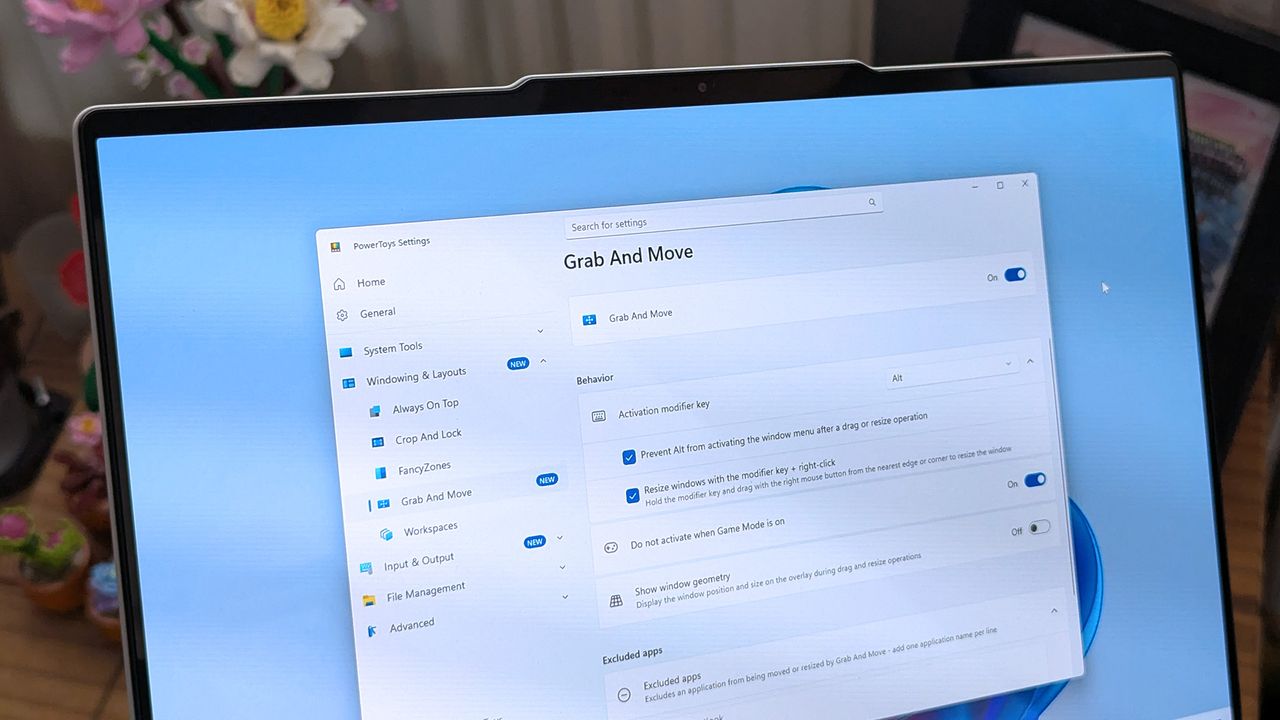
A laptop screen displaying Windows 11, featuring the "Grab And Move" settings window of PowerToys. The desktop background is colorful and vibrant.
A laptop screen displaying Windows 11, featuring the "Grab And Move" settings window of PowerToys. The desktop background is colorful and vibrant.
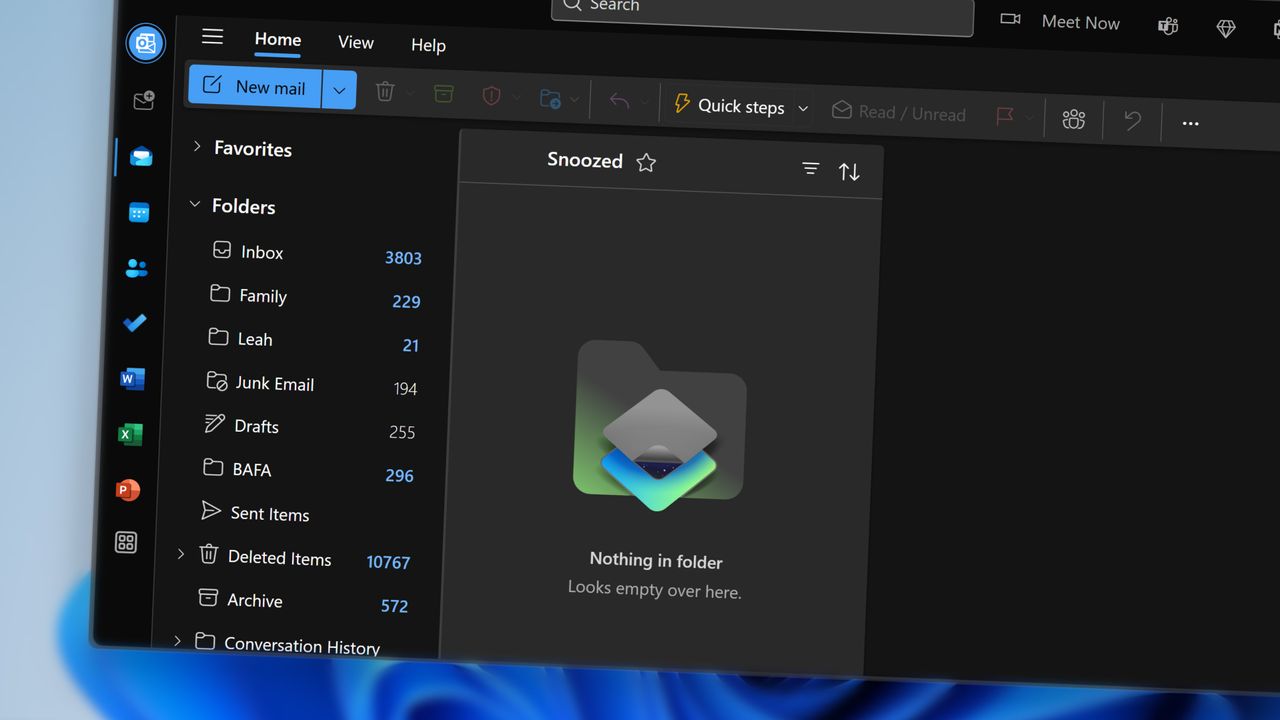
The new Outlook is ugly and needs to be covered up. That's the message being sent out by Microsoft if you read between the lines. A new option setting in Outlook on the web and the new Outlook for Windows makes those experiences look like classic Outlook.
Microsoft claims that the option is being added to help those transitioning from classic Outlook to the new Outlook. But if the difference is so jarring that it requires a skin to make the new Outlook palatable, Microsoft has larger issues to deal with.
"We're introducing a new optional setting in Outlook on the web and the new Outlook for Windows that adjusts the experience to more closely resemble classic Outlook for Windows. When enabled, the setting applies coordinated changes across the Outlook experience, including visual styling, layout, typography, icons, and selected interactions.
This update is designed to help users who are transitioning from classic Outlook by providing a more familiar experience while maintaining the capabilities of the new Outlook."
The theme will be disabled by default for most users. As part of a phased rollout, Microsoft will enable the classic Outlook theme for "some users moving from classic Outlook to the new Outlook."
I've admittedly mixed snark into this piece, but that's because the new Outlook is terrible. Our Senior Editor Zac Bowden explained how the new Outlook was not ready for prime time back in 2024. The situation has barely improved.
A question posed on a Microsoft Learn page asks, "Why Does New Outlook Suck???" That post is from this year, not the early days of the new Outlook. Others on the web have asked similar questions or expressed frustration with the new Outlook.
The new Outlook is a web wrapper. There's debate over whether the new Outlook is a native app, but the key takeaway is that it performs worse than classic Outlook in several ways.
The fact that Microsoft had to make Mail & Calendar inoperable to try to get people to switch to the new Outlook is telling. The new theme option is another sign that people still want classic Outlook on their PCs.
Join us on Reddit at r/WindowsCentral to share your insights and discuss our latest news, reviews, and more.
Microsoft Edge for Android has some new image themes in testing. The latest Edge Canary build has some snazzy backgrounds, but to set them you have to make Edge your default browser.
It's a strange requirement that may ruffle some feathers, but there's always a chance it will change. The requirement to set Edge as your default browser to use the themes only appears in Edge Canary. That rule may not roll out to general availability.
The change was spotted by Leo Varela, who tracks updates and changes to Edge and other browsers.
Microsoft has added new image themes in Edge Canary for Android, but to use them as your NTP background, you have to set Edge as your default browser. All browsers use tactics to motivate you to make them your default, and Edge is no exception 🤷 https://t.co/sK1xv7W0RCpic.twitter.com/VVIPywivm2August 21, 2026
Microsoft has a long history of trying to convince people to use Edge. Some efforts, such as adding unique features are viewed as fair play. Other tactics, such as Windows 11 making it more difficult to switch your default browser, have been met with criticism.
A recent survey commissioned by the Browser Choice Alliance suggests that switching away from Edge is too difficult. But that survey relates to PC users. Microsoft has a different battle on Android.
Instead of having hundreds of millions of users with PCs that already have Edge installed, Microsoft needs to convince people to download Edge for Android. Then, the tech giant needs to get people to set Edge as their default browser, which is no easy task.
I imagine the amount of people who have installed Edge on their phones but have not set the browser as their default is small. Considering how niche Edge is on Android, anyone who goes out of their way to install it probably plans to use Edge.
Some Samsung phones come with Edge preinstalled, so perhaps the new picture themes in Edge are designed to sway those users.
Of course, Microsoft is not alone in using aggressive methods to push a browser. Google and Apple have also pushed Chrome and Safari, respectively.
I'm curious to see how effective locking picture themes behind a default setting requirment will be for Edge.
Join us on Reddit at r/WindowsCentral to share your insights and discuss our latest news, reviews, and more.
In this photo illustration a Microsoft Edge logo of a web browser developed by Microsoft is seen on a smartphone and a pc screen.
In this photo illustration a Microsoft Edge logo of a web browser developed by Microsoft is seen on a smartphone and a pc screen.
PowerToys is one of my favorite Windows apps and a must-have for people who want to get the most out of Windows 11. We often highlight new and upcoming features for PowerToys, but we rarely get to hear about the most exciting features in the eyes of Niels Laute.
Next week, PowerToys will receive several improvements, including a compact option for Command Palette and a ripple effect for Mouse Highlighter. Laute, who is the project manager of PowerToys and WinUI, shared the features and changes he's looking forward to.
As PM of PowerToys, Laute oversees the development of one of the best free Windows apps. But the app is worked on by several people. Over 300 pull requests contributed to next week's update, and Laute thanked the team for their efforts.
Next week's PowerToys release is looking good 👀!The team and our amazing community have merged almost 300 PRs, packed with quality-of-life improvements, stability fixes, and polish across the suite :)!Here's some of my favorite (small) improvements coming 🧵:August 18, 2026
We've known about some of these changes because of the PowerToys preview. For example, on-device Phi Silica support has been in testing over the last two weeks. But next week the changes will ship to everyone using PowerToys.
Command Palette is similar to Spotlight on macOS. Another way to look at it is as what Windows Search should be. The utility can launch apps, open settings, and trigger actions quickly.
Command Palette is a powerful tool, but it can take up quite a bit of space on your screen. Next week's update to PowerToys brings the option to use a compact view for Command Palette.
Mouse Highlighter is a handy tool that lets you find your mouse cursor. It can save you some time if you use multiple monitors or an ultrawide display. But it can feel a bit heavy-handed since it grays out your screen to highlight the cursor. The upcoming ripple effect is more subtle.
Phi Silica is a small language model (SLM). It's perhaps best known for being the model that powers Copilot+ PC features such as Click to Do and on-device rewriting in Word and Outlook.
@khmyznikov added Phi Silica support for Advanced Paste 🚀! So you will be able to take advantage of your NPU for AP on a Copilot+ PC! pic.twitter.com/sR60TT51W1August 18, 2026
Phi Silica and other features have been in preview testing for a bit. The next update to PowerToys will make it easier to get preview updates.
Change logs for PowerToys are famously long and detailed, so you can expect the "gazillion" fixes Laute mentions to be listed next week.
And so much more! Shortcut Guide is much smoother now and has built-in search, a gazillion CmdPal bugfixes (thanks @AkaWizardPrime!) and perf and stability fixes across the board. Oh, and a brand new utility to look forward too :)!Stay tuned!August 18, 2026
I'll update this piece when the new version of PowerToys rolls out and add the complete change log.
This collection of utilities includes a large library of features to enhance the Windows experience. PowerToys is designed with power users in mind, but it has handy features for people who just use their PC for everyday computing too.
Join us on Reddit at r/WindowsCentral to share your insights and discuss our latest news, reviews, and more.
A laptop screen displaying Windows 11, featuring the "Grab And Move" settings window of PowerToys. The desktop background is colorful and vibrant.
A laptop screen displaying Windows 11, featuring the "Grab And Move" settings window of PowerToys. The desktop background is colorful and vibrant.
I've always been a fan of physical media, be it movies, music, or games. I'm also old enough that I grew up in a time when it's all we had; there was no Spotify or Netflix.
Slowly I'm working through it all to create digital copies for both archival purposes and convenience since there are plenty of situations where it's not practical to put a disc in a machine and consume its content.
Right now I'm working through a vast stack of CDs acquired from the days when cars had CD players, not just screens connected to your phone or directly to streaming services. But I quickly found that the app I've used for this process in the past, the stock Windows 11 Media Player, nowadays isn't up to scratch.
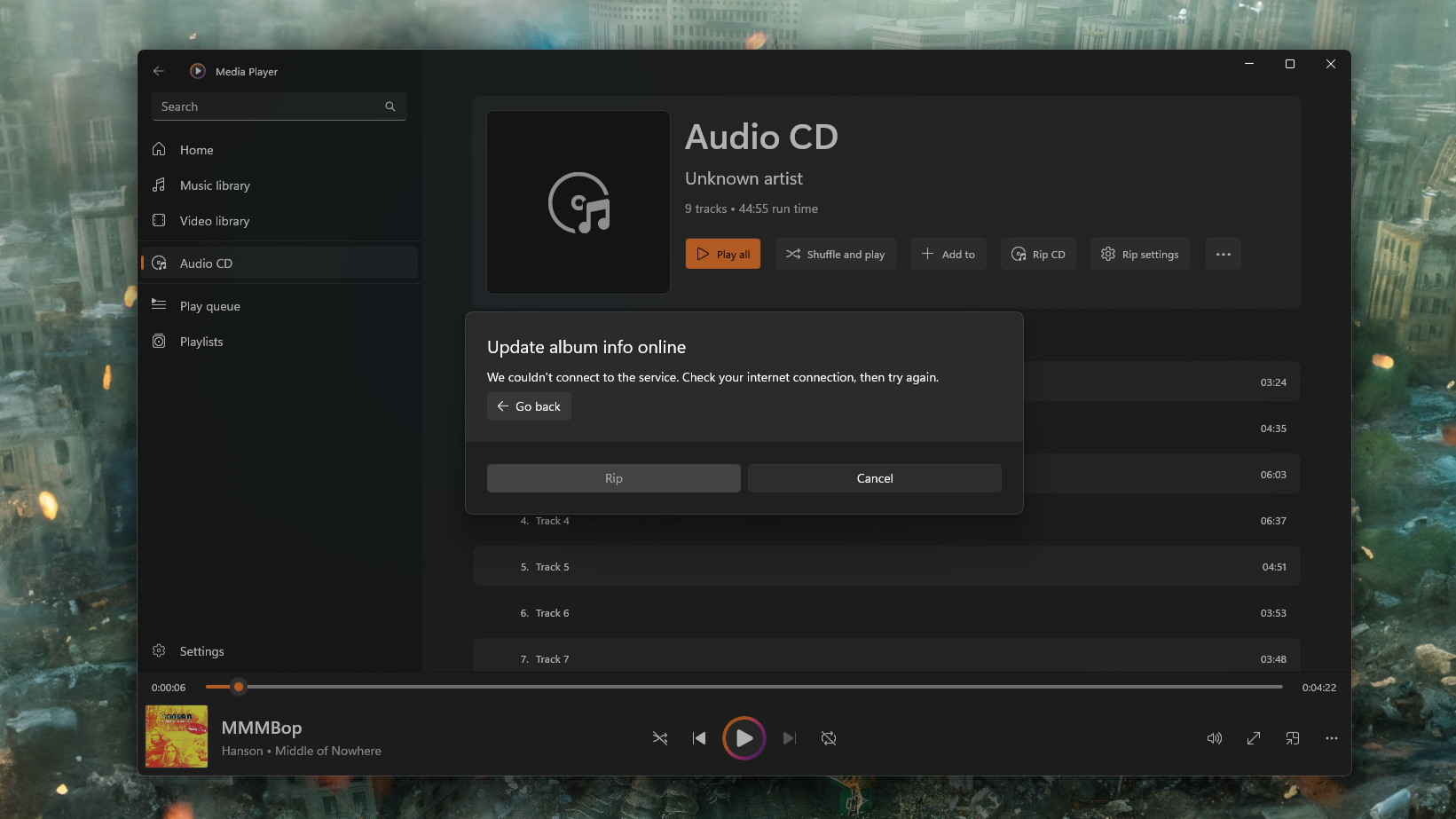
It will still rip CDs, but it's no good for the metadata anymore. Microsoft turned off the online tool that you could use to grab it, but even then, I figured I could just enter it manually, right?
Seems that doesn't work all the time, either. Even on the few CDs I have that actually have the metadata on them already. It took ripping a few discs for me to realize that information wasn't being applied to some or all tracks, and the artwork wasn't sticking, either. So I needed a replacement, and frankly, I should have just gone for this out of the gate.
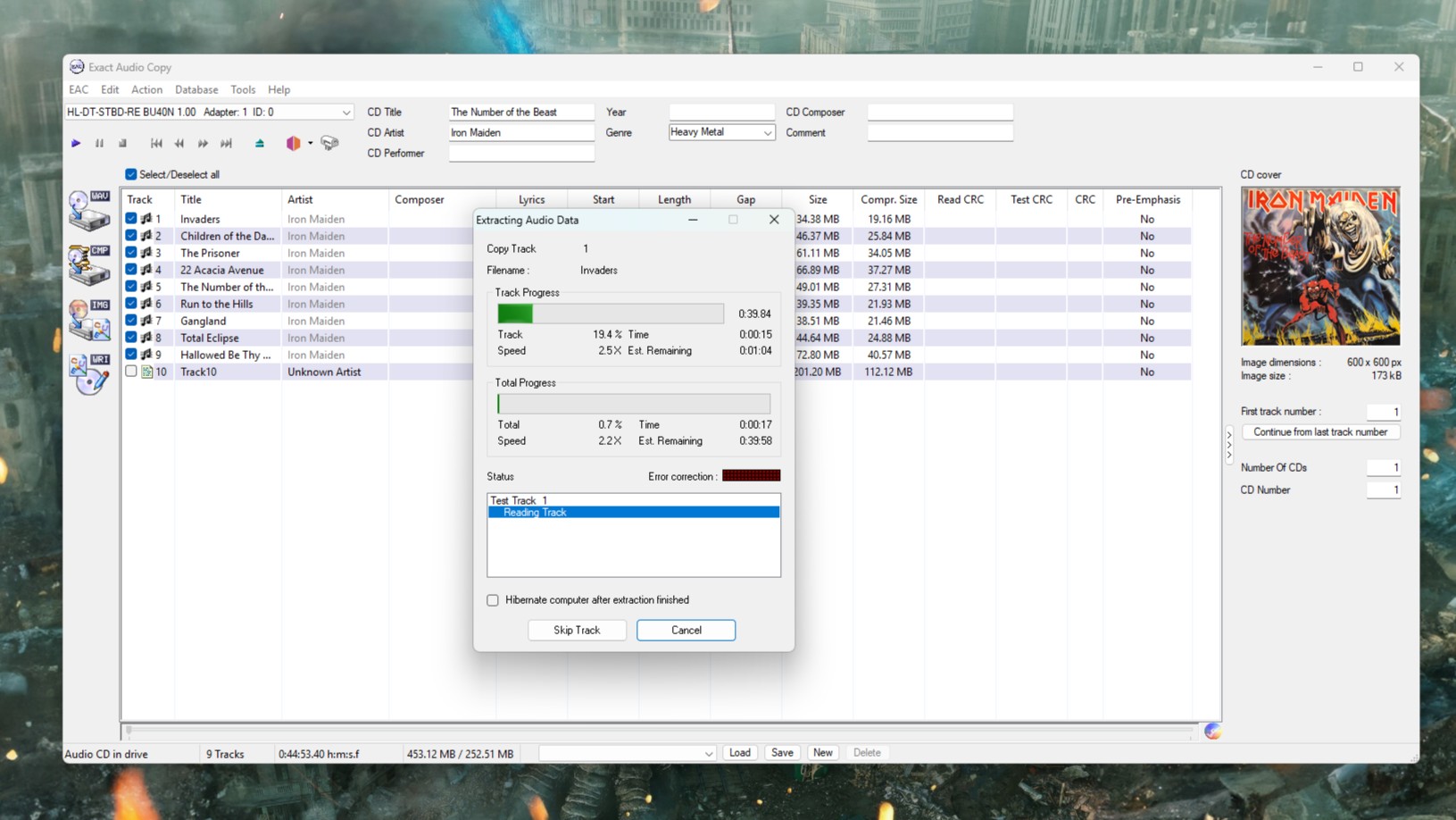
Enter Exact Audio Copy (EAC). A free app that is absurdly powerful and does the job right the first time.
Without online metadata the process takes too long anyway
If the feature doesn't work anymore why is it still there? (Image credit: Windows Central)
Admittedly, it's been a while since I last digitized a stack of CDs, and it had completely passed me by that Microsoft had turned off the service to get the information online. It's a pretty poor experience for a stock app, even if it's a feature that's increasingly used by fewer people.
A better solution would have been to update the app, allowing its users to find an alternative source of this information. There are options out there, such as MusicBrainz, a free and open-source database of metadata. Maybe I'm asking too much; after all, Microsoft didn't even update the app to remove the option to check for metadata.
It's still there; it just gives you an error if you try and use it. I actually quite like the stock Media Player app, and still use it to play music. It's simple and mostly nice to use. If it's not going to work properly, though, just remove it altogether.
Exact Audio Copy is the perfect solution
It looks a bit old school, but boy does it work. (Image credit: Windows Central)
Fortunately there is always an alternative, and in this case, it's called Exact Audio Copy (EAC). There will be folks out there that have known of this app for years and are screaming at my incompetence for not going straight to it.
But I didn't know it existed. I'm glad I do now.
This isn't a full tutorial on how to use the app, mostly because I'm doing one specific thing, but it is really powerful. There are plenty of better tutorials out there, such as this one.
All I want is an accurate rip in FLAC, a standardized filename structure, metadata, and album artwork applied. The good news is that if you just want the same thing every time, EAC will run you through a setup wizard when you first use it. From there, you shouldn't need to touch your settings again.
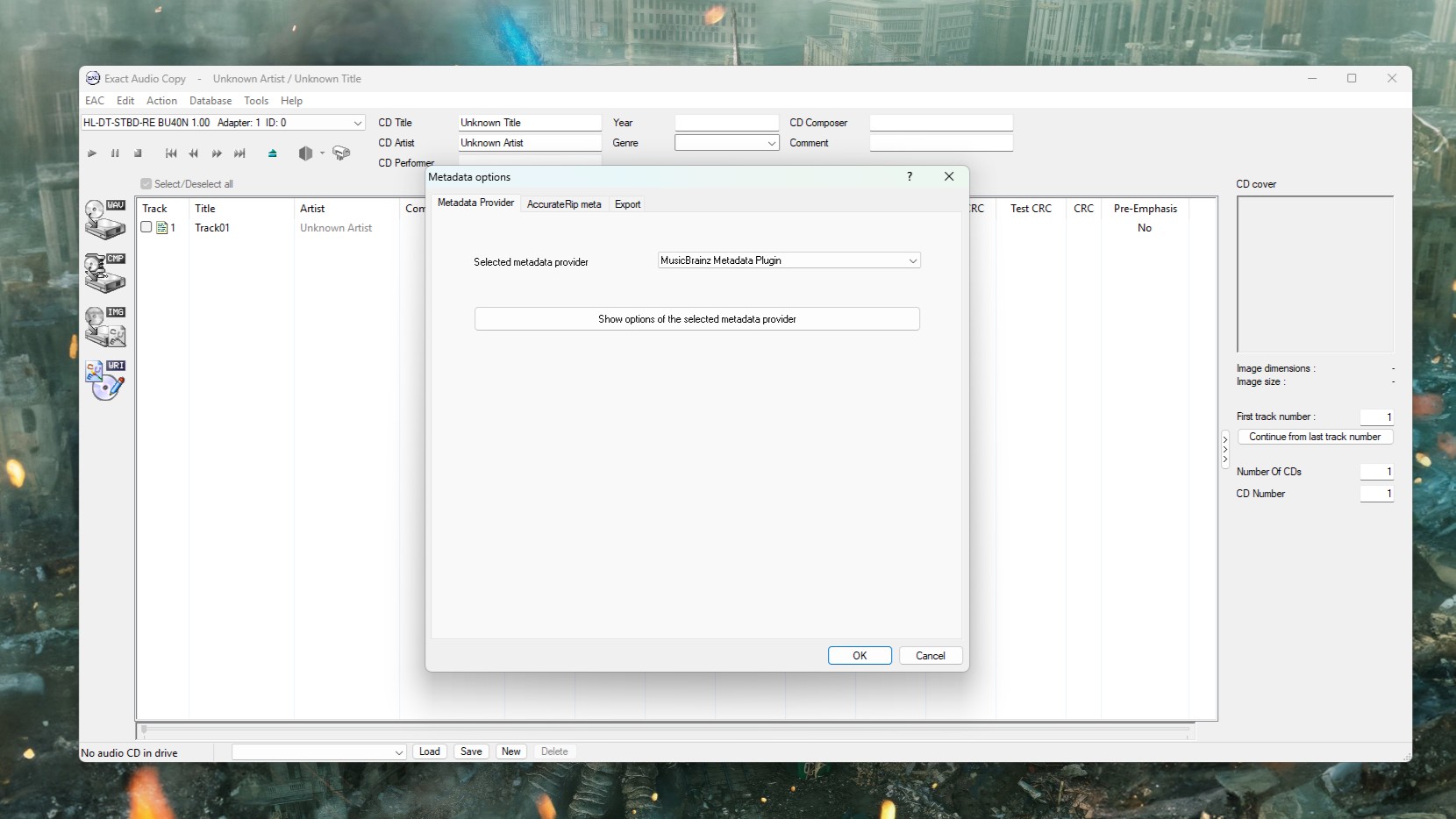
The only thing I did need to change was the metadata provider. The default option is only free for 10 rips, but you can change it within the app to MusicBrainz, which is completely free.
You don't want the default metadata provider, but you can change it to something else. (Image credit: Windows Central)
I now know I should have used this all along. AccurateRip will check your CD against a database of other exact rips to ensure yours is as perfect as it can possibly be. It can deal with scratched discs (of which I sadly own several), and it communicates directly with the hardware.
I may be underselling it, but I'm as far from an expert as there is on this stuff. There are plenty of more knowledgeable folks out there, like this post on Flemming's blog that is an excellent resource for getting set up properly.
EAC isn't the only alternative to using Media Player, but it's the one I tried first, and I'm happy. I may try and get in the weeds at some point, but for now it's doing what I need. Archiving my CDs accurately, with good quality, and all the necessary metadata.
If you've any tips or tricks to share on this process, or even an alternative worth trying, be sure to drop them in the comments below.
Join us on Reddit at r/WindowsCentral to share your insights and discuss our latest news, reviews, and more.
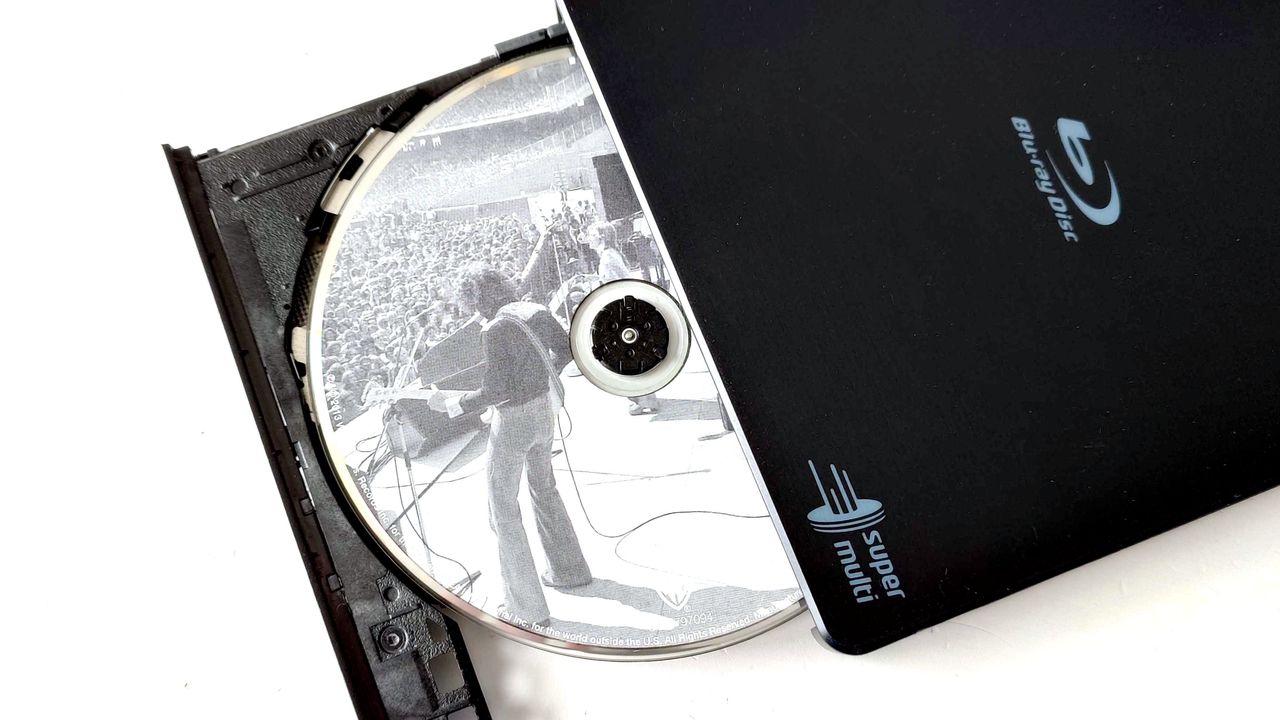
An LG USB Blu-ray drive open showing a Fleetwood Mac CD inside
A slight change of plan, but the great CD digitizing project continues.

 Connexion