❌

Vue lecture

I asked for this Teams feature years ago, and Microsoft finally delivered

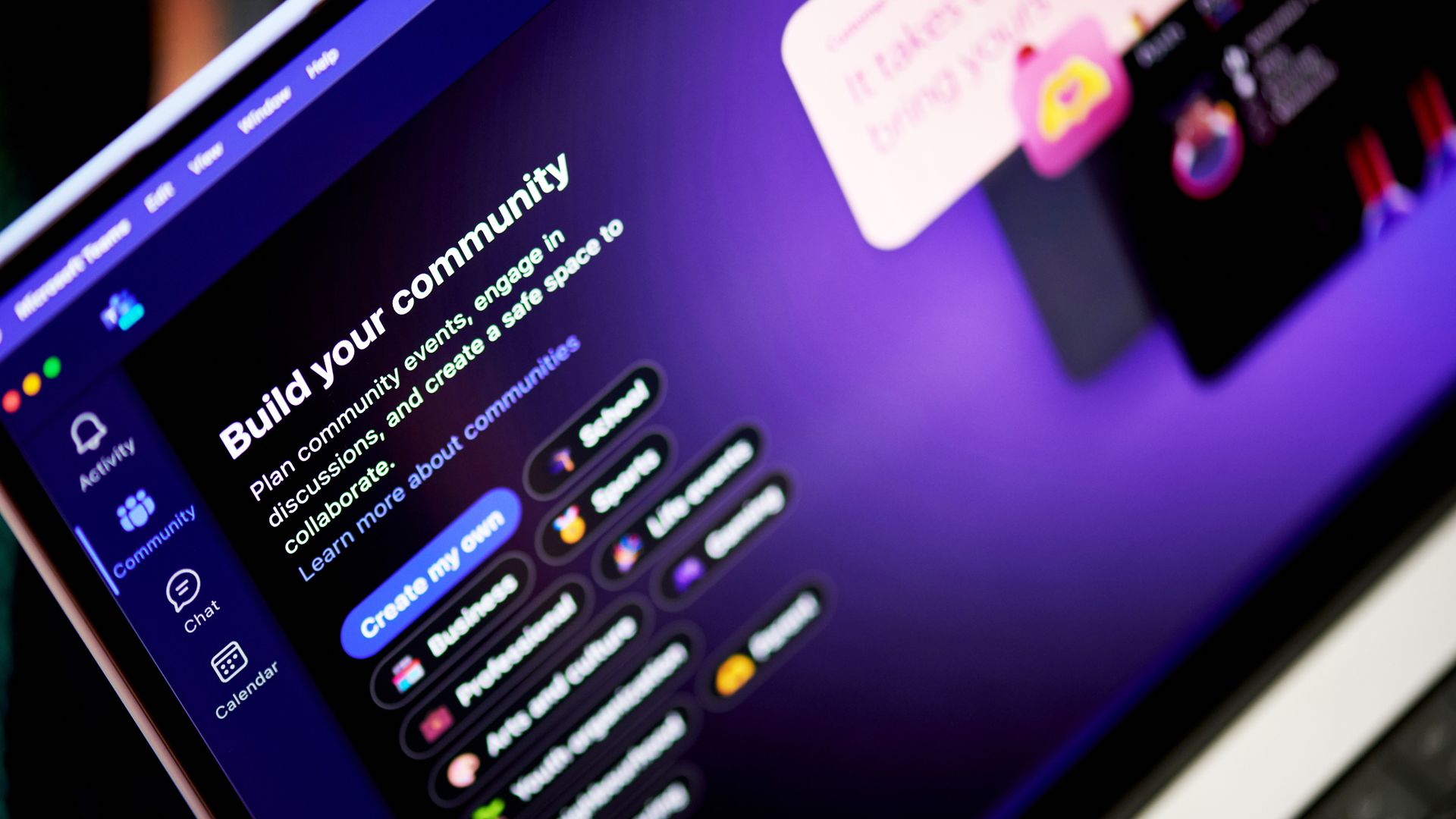
Microsoft Teams will soon have a new feature that will deliver high-quality video to event attendees. An upcoming update to Teams will add the option to share videos directly from OneDrive.

At the moment, sharing video during Teams events often requires screen sharing or embedding videos in PowerPoint. The first solution lowers quality and the second requires extra work. Being able to share a video directly from OneDrive will provide a smoother experience while also improving quality.

Microsoft detailed through the Microsoft 365 Message Center (archived here):

"Microsoft Teams will soon support sharing video directly from OneDrive during Teams events. Organizers and producers using Manage what attendees see can load videos from OneDrive and present them on stage without screen sharing a local media player or embedding videos in PowerPoint. This improvement provides smoother, higher-quality video playback for attendees and simplifies event production through built-in video playback controls."

The feature is expected to start rolling out in early November and should be available to all users by the end of December.

I run an American football team and we study film from games and practices. But because we are not attached to a specific school or building, our players and coaches are spread across the area. That makes film study events easier to schedule, but there are limits to presenting remotely. One of the biggest drawbacks is video quality.

In the past I've had to share my screen and play videos on my desktop, which is both awkward for me and a poor viewing experience for attendees. Videos shared this way can appear laggy and have lower resolution than videos played natively on a device.

I switched away from Microsoft Teams for film study a few years ago due to other changes made to Teams, but support for sharing videos directly from OneDrive will make me try Teams again.

Click to join us on r/WindowsCentral

Join us on Reddit at r/WindowsCentral to share your insights and discuss our latest news, reviews, and more.
  •  

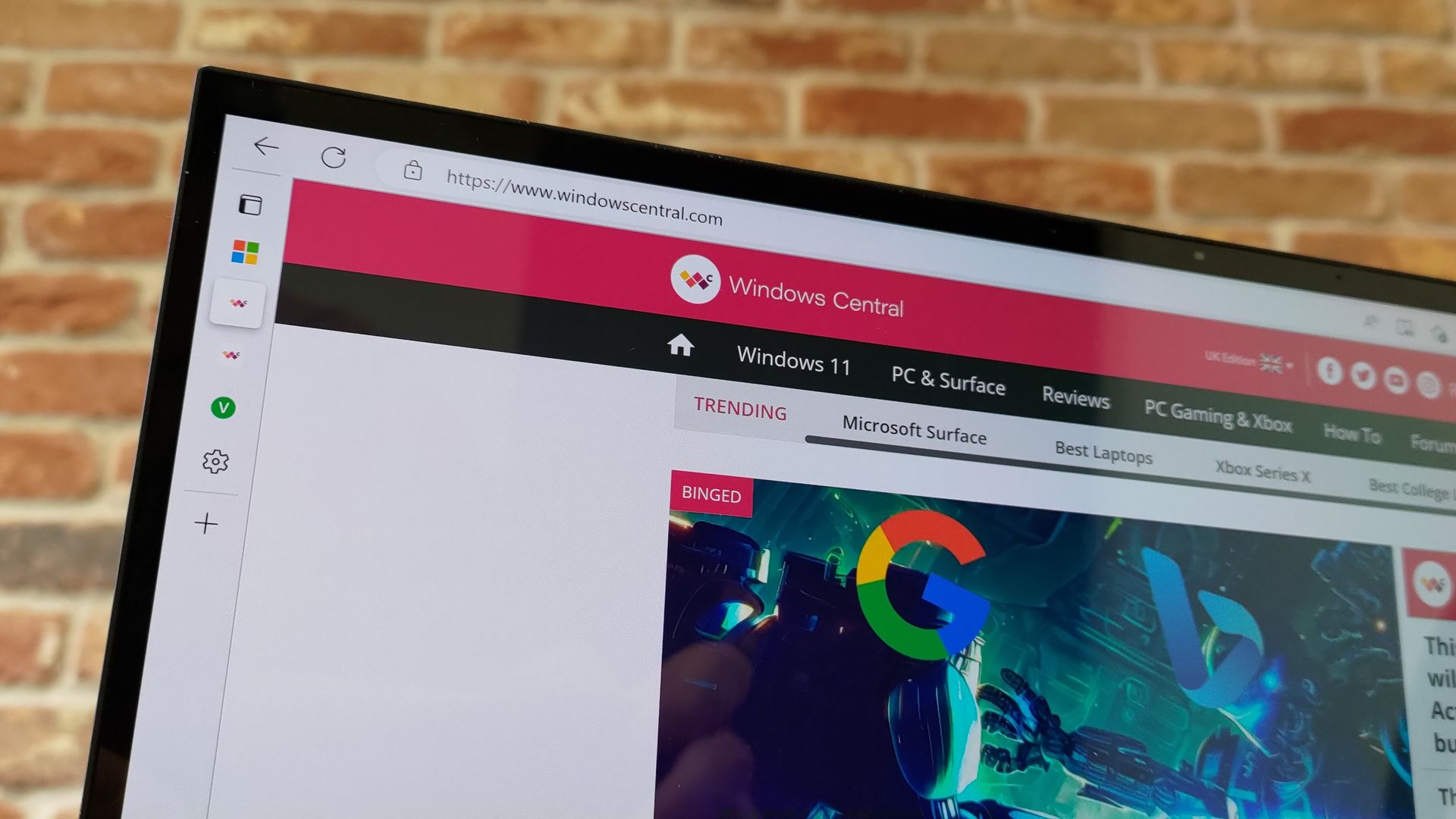
An AI magic wand could be on the way to fix Microsoft Edge

Microsoft Edge appears to have an AI tool on the way that will fix common issues within the browser. A page within the browser's settings app was spotted recently, though only for those using Edge Canary (a preview version of the app).

The feature was first spotted by Leo Varela, who keeps track of changes to Edge and Chrome. Varela noted that the icon for "Fix an issue" is a magic wand, which suggests it could be an AI tool. Microsoft often uses a similar icon to denote AI features.

Early hints of the feature appeared back in May. The latest version of Edge Canary shows a basic interface for the tool, but the feature is not functional yet.

The interface has a text box for describing an issue and also shows a list of four suggestions, such as "Fix videos that won't play" and "Help me sign in."

Edge's new "Fix an issue" settings page now displays a prompt box where you can type what you need help with. There are also four suggestion chips at the top that automatically fill the text field with prewritten prompts. Currently, clicking "Get help" throws an error: https://t.co/DUunhc4FZpSeptember 12, 2026

Earlier this year, Varela discovered the same feature in a different section of Edge's settings. That listing noted that the feature would use AI to analyze relevant diagnostic data to identify an issue and suggest a solution.

It's normal to see features like this bump along through various preview channels, but it's a bit odd that "Fix an issue" does not appear in the AI at Work Roadmap (previously known as the Microsoft 365 Roadmap).

For example, watermarking protection is on the way to Edge and is not expected to ship to the browser for months, but it is already on the AI at Work Roadmap.

Hopefully the new feature ships to Edge eventually. The latest Edge stories have included a bug freezing web apps and Microsoft removing Edge Drop and real-time video translation with an update. It would be nice to cover an addition next time.

Click to join us on r/WindowsCentral

Join us on Reddit at r/WindowsCentral to share your insights and discuss our latest news, reviews, and more.
  •  

The AI clone wars have officially reached Microsoft 365

Microsoft has a new competitor, and it's not a big name like Google or Apple. A developer named Brandon Thomas has created open-source replications of Microsoft Word, Excel, and PowerPoint using AI. Thomas made headlines recently for using AI to replicate the Adobe suite, and he has now pointed his AI agents at Microsoft 365.

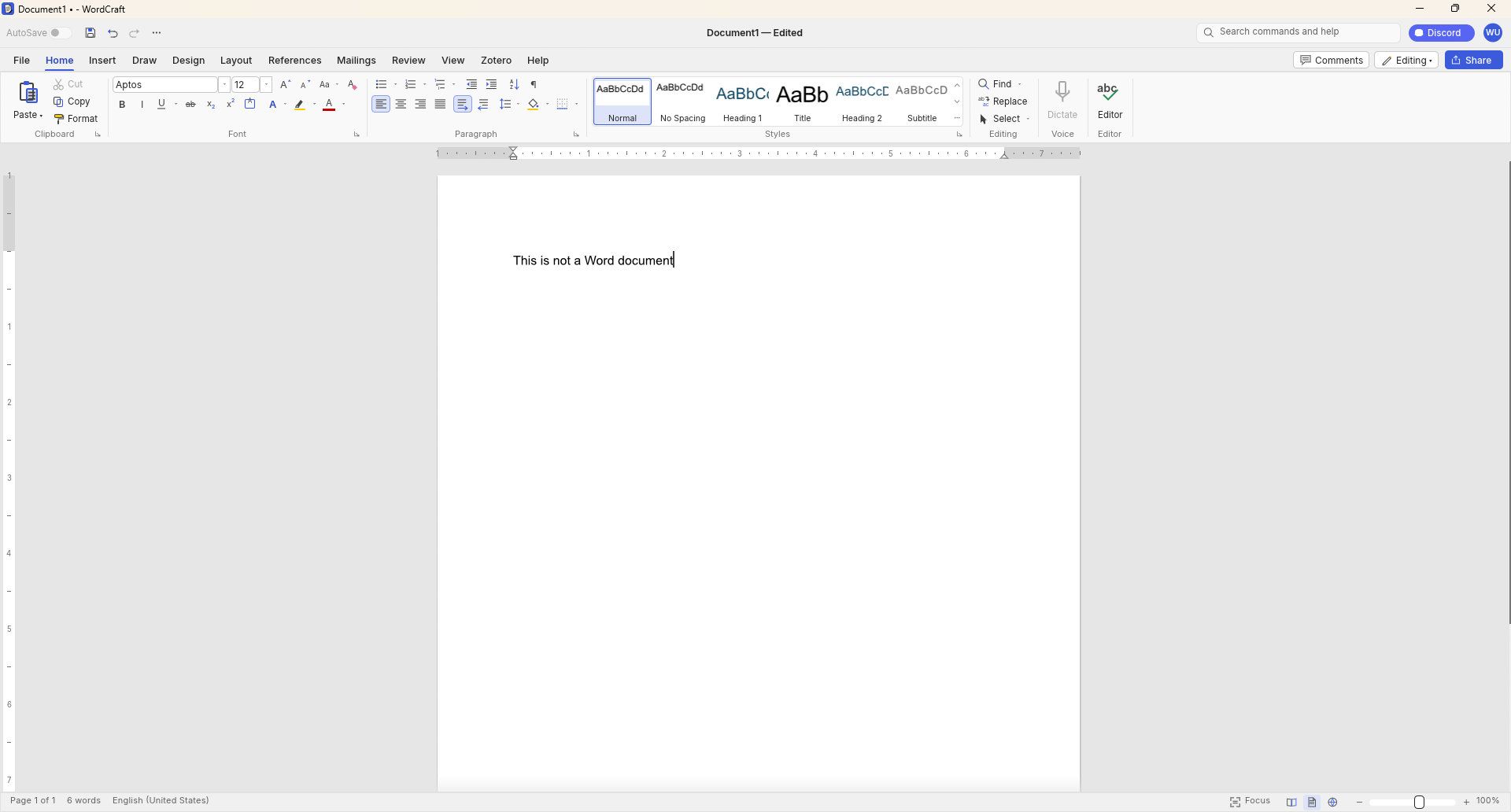
GridCraft (Excel clone), DeckCraft (PowerPoint clone), and WordCraft (Word clone) are made using Claude. They're free to download and you can read more about their development through the ArtCraft GitHub page.

WordCraft document editor running on Windows, showing a blank document with the text

WordCraft uses a familiar ribbon interface and document layout that closely resembles Microsoft Word. (Image credit: Future)

Thomas now has a growing suite of app clones that aim to replicate the functionality and design of the popular suites from Adobe and Microsoft. The situation was summed up brilliantly by Reddit user "EngFL92" who said, "Begun, the clone wars have."

Windows Central take: Proving a point

The concept of replicating apps is nothing new. LibreOffice has been available for years and there are a plethora of apps similar to Word, PowerPoint, Excel, and other Microsoft 365 applications.

WordCraft and other applications made by Thomas are important because they ask the question, "Can AI be used to replace paid industry-leading software suites."

At the moment, I'd say the answer to that question is "no." But the replica Office apps are in the alpha stage of development. We could see the feature gap close and bugs get squashed before general release, assuming Thomas decides to continue the project.

Shut your yap.Open Office / Libre Office sucks.It ate my 40 page essay during finals week.I'm paying back a grudge that has been years in the making.Stop dragging along shitty OSS software and venerating it like it's some holy relic. Let it die.October 13, 2026

Projects like this often gain notoriety quickly as they get shared online. Microsoft and Adobe are tech giants that charge a lot of money to access software. They're easy targets and I believe some of the passion against the companies is justified.

Thomas said on X that they're "paying back a grudge that has been years in the making," so there seems to be some history there.

Quite the media frenzy has formed around these apps. I suppose I'm a part of that, but I think some outlets have gone too far and argued that the AI-coded clones of the Adobe and Microsoft 365 suites are further along than they really are.

I appreciate the dedication to create apps that compete with some of the best-known software around. Projects like this can demonstrate that some people don't need to pay monthly subscriptions for their entire lives to get work done. But I'd suggest pumping the brakes on narratives along the lines of "vibe coding takes down tech giants in a month."

Click to join us on r/WindowsCentral

Join us on Reddit at r/WindowsCentral to share your insights and discuss our latest news, reviews, and more.
  •  

Microsoft is changing how developers build Windows 11 apps

Microsoft's blueprint for making Windows 11 apps has received an update that allows developers to try more experimental features. WinUI Gallery just received a bump to version 3.0, and with that update comes a new approach to experimental features.

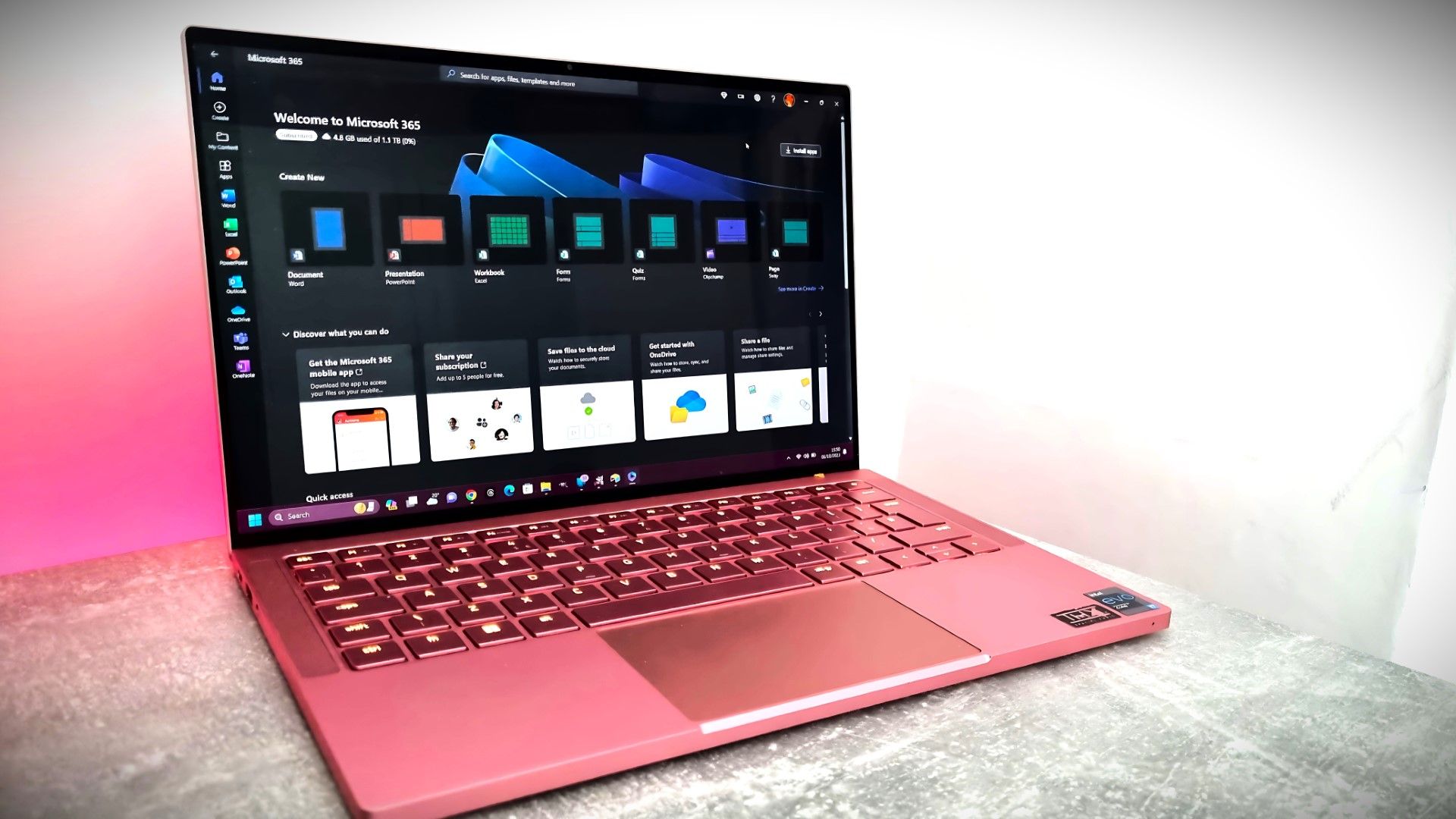
WinUI Gallery is Microsoft's sample app for developers, showing how Windows UI components work and helping app makers build software that looks and behaves like a native Windows 11 application. It's available through the Microsoft Store.

WinUI Gallery used to receive new controls after those controls had reached a stable Windows App SDK release. Because of that, Microsoft was limited in how much it could change those controls based on feedback. WinUI Gallery now includes the experimental Windows App SDK so developers can play with new controls earlier and provide feedback to Microsoft in time to drive changes.

🚀 WinUI Gallery 3.0 is here!Starting with this release, we're embracing Experimental versions of the Windows App SDK, giving you earlier access to new control/API samples so you can try them out more easily, share feedback, and help shape what's next!And this release is packed with new controls! 🚀✒️ Inking in WinUI!!📑 TableView📊 Charts🔢 Pagination control🪟 Simpler windowing APIs🎁 WrapPanel and StackLayout✨ And much more!Learn more👇:https://t.co/srgiSPUI29October 13, 2026

WinUI Gallery 3.0 also adds some quality of life changes that are outlined by Niels Laute, a Senior Product Manager at Microsoft:

  • Mouse back and forward buttons now navigate through the Gallery, just like in your browser (#2195), thanks @hoshiizumiya!
  • Search finds more. Every control page now has search tags, so searching for terms like “context menu”, “carousel”, or “WCAG” finds the right page even when the query doesn’t match the control’s name (#2185).
  • No more dead ends. When a search has no results, you now see your query, a few search tips, and a button to view all samples (#2255), thanks @Zakariathr22!

Since experimental controls are now in WinUI Gallery 3.0, there are several new samples available in the app, including TableView, Charts, and Wrap Panel and LayoutPanel. Those controls allow apps to present data in a way that's easier to digest.

WinUI Gallery is an app that everyday PC users will likely never download or even see. But it's an important tool for developers who want to create modern applications. The latest update should lead to more quality apps being available on Windows 11.

What is WinUI Gallery?

WinUI Gallery is a developer tool that acts as a digital showroom for Windows app development. Developers can see what UI elements look like on a PC by using the app and see relevant code samples to help create applications that align with Microsoft's design framework and guidelines.

Microsoft has had some form of a digital showroom since 2018, but the app has gone through a few name changes. Its current name is a bit confusing because of similar terms being used in different settings.

The latest update to WinUI Gallery brings that app to version 3.0, so it's referred to as WinUI Gallery 3.0. But despite the similar name, that is different than WinUI 3, which is the framework developers currently use.

Regardless of its slightly confusing name, WinUI Gallery is a useful tool for app development and helps push developers toward making apps that perform well and appear natural on Windows 11 PCs.

Click to join us on r/WindowsCentral

Join us on Reddit at r/WindowsCentral to share your insights and discuss our latest news, reviews, and more.
  •  

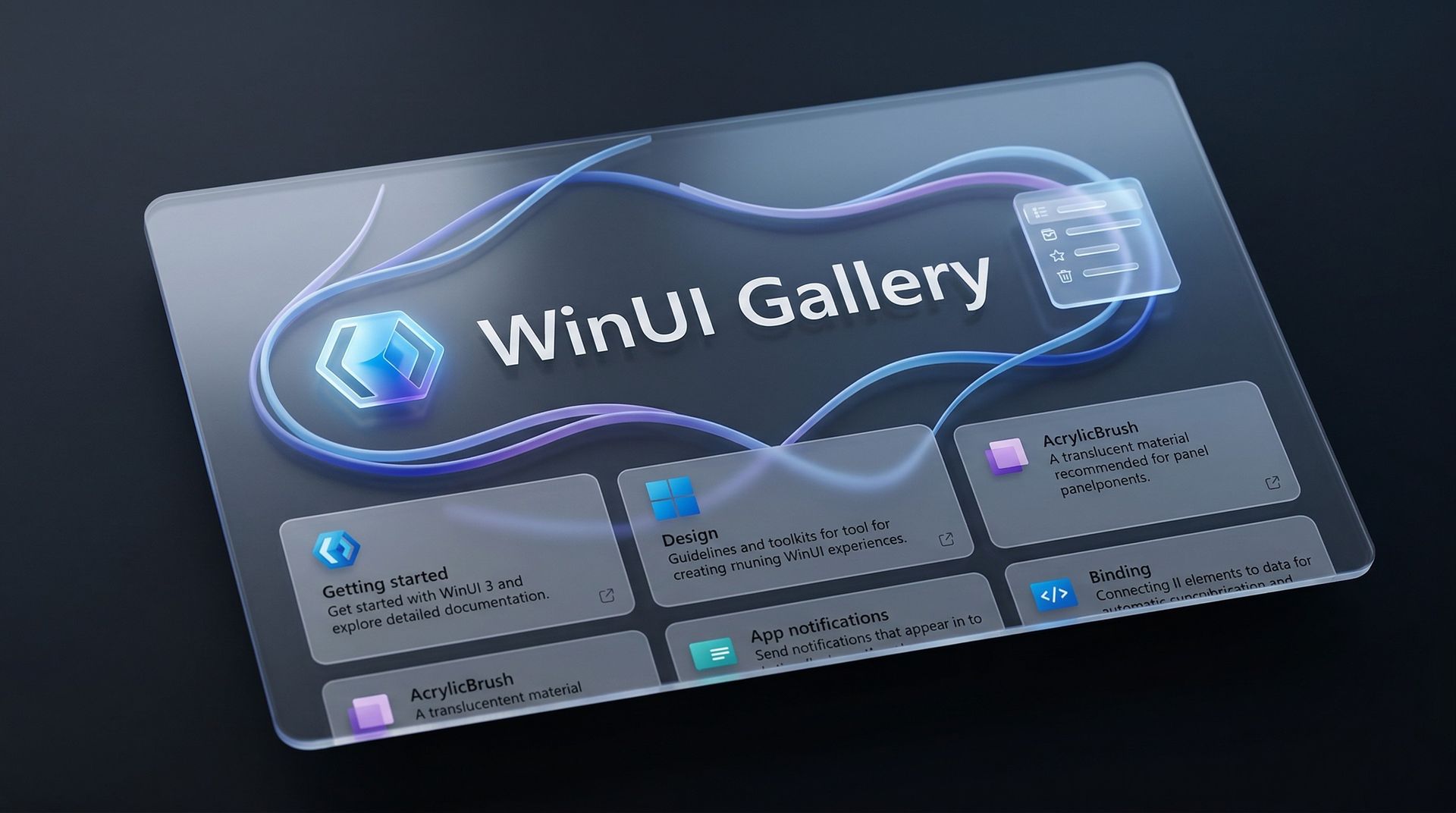
Microsoft’s week in review: Surface Laptop Ultra arrives, RTX Spark laptops go live, and Windows 11 gets buried under AI jargon

Windows Central

Windows 11 users and Surface enthusiasts had a busy week. Microsoft held an event to showcase the Surface Laptop Ultra, a new Search experience, and a bunch of AI features and integrations across Microsoft services.

Like the original Surface Pro, this week’s Windows and Surface event tried to be a 2-in-1. Unfortunately, just like the first-gen Surface Pro, the event failed to thrive in either of its two categories.

The first 20 minutes of the event felt like a Build session. That’s not a bad thing. Build is an important event for developers. But it’s not aimed at general audiences and is full of technical jargon.

Biggest News of the Week

Surface Laptop Ultra
Pavan Davuluri presenting RTX Spark laptops on stage
Microsoft Surface Laptop Ultra on stage in San Francisco
Pavan Davuluri on stage for Microsoft in San Francisco
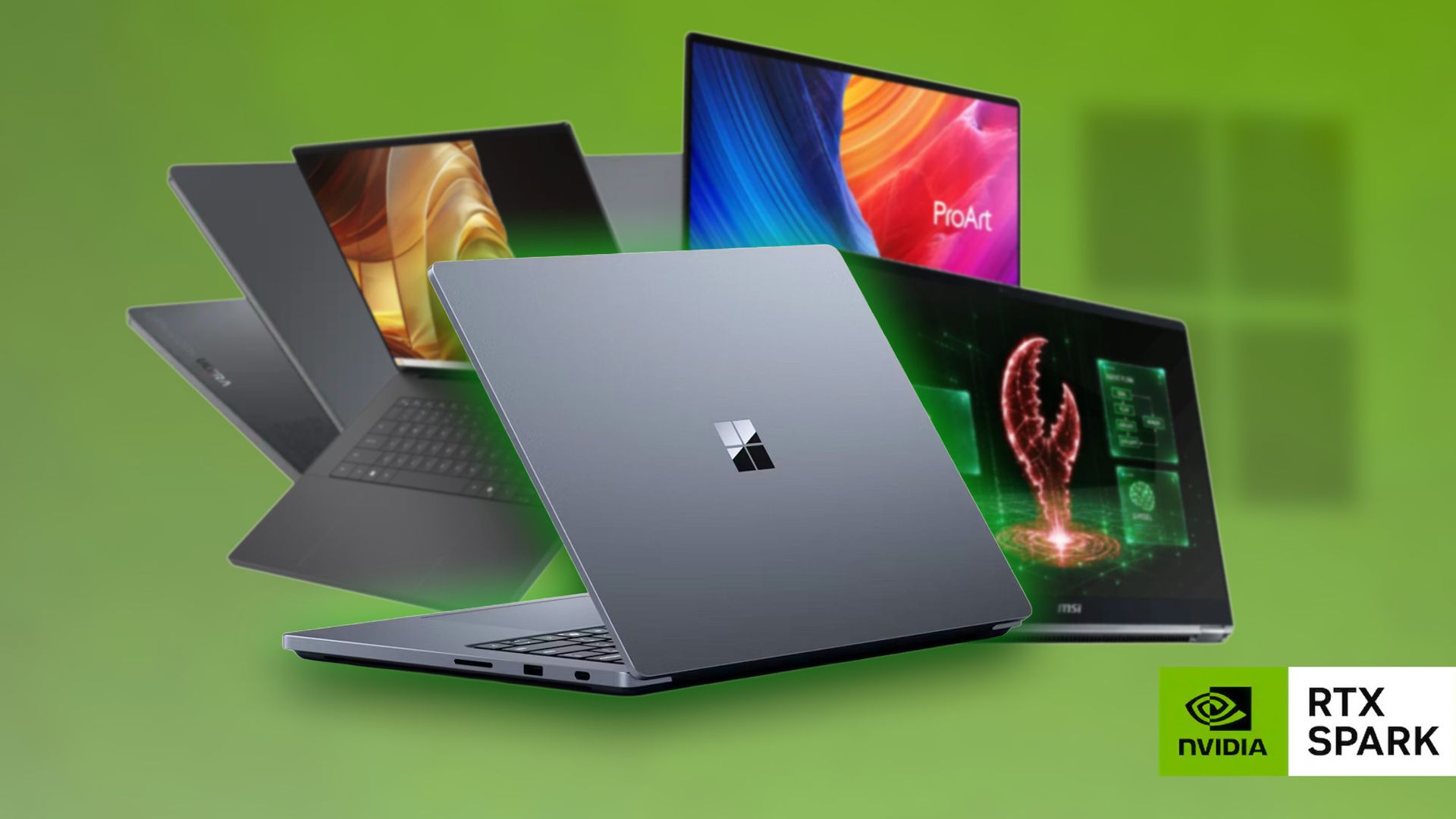
Surface Laptop Ultra, ASUS ProArt P16, MSI Prestige N16 Flip AI+, HP OmniBook Ultra 16, and Dell XPS Creator Edition curated with a green background and NVIDIA RTX Spark logo
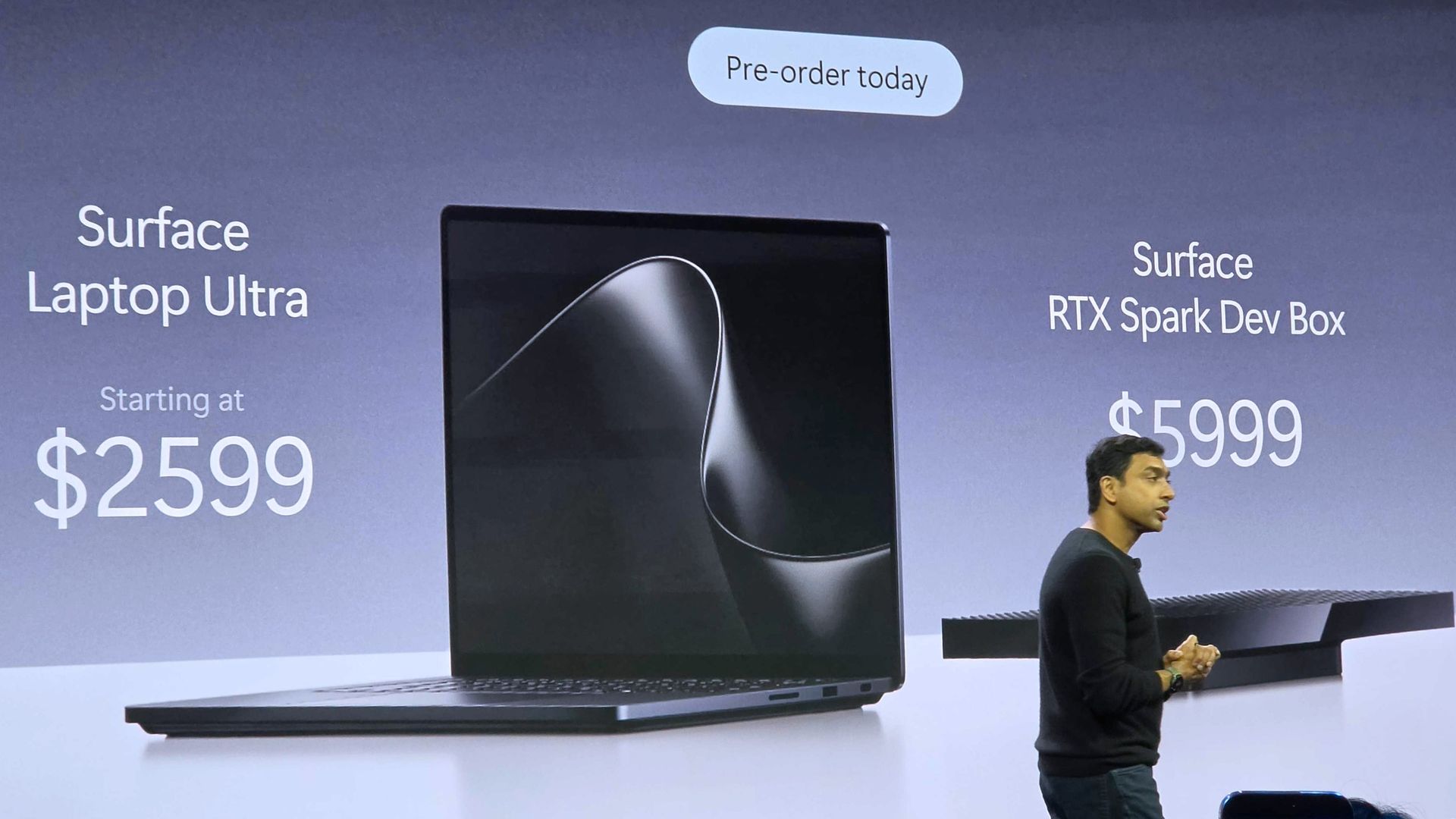
Pavan Davuluri reveals the price of the Surface Laptop Ultra and the RTX Spark Dev Box

Anyone who tuned in to the Windows and Surface event hoping for a closer look at the Surface Laptop Ultra would have glazed over at talks of Llama.cpp and Microsoft Execution Containers.

After watching several speakers focus on the technical aspects of AI and development, I assumed the entire event would be like that. Which made the rest of the event confusing.

After filling our eyes and ears with jargon and likely convincing many to stop watching, Microsoft switched gears and showed off a truly useful feature for Windows 11.

The improved Search experience is a consumer-facing feature that is a breath of fresh air to Windows 11. It looks good, is more functional than what it replaces, and according to Microsoft is more efficient while also performing better.

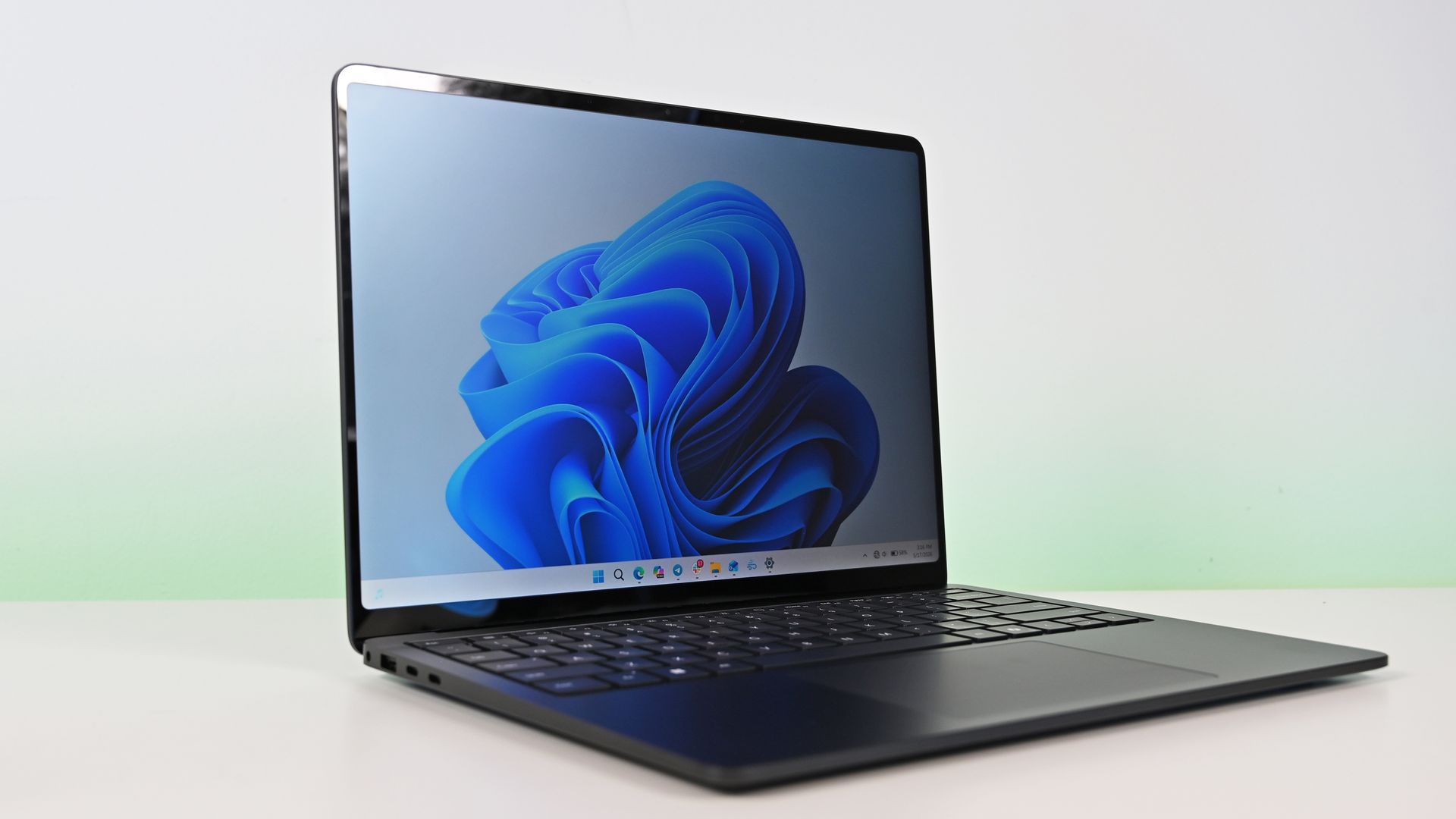
Shortly after unveiling the new Search, Microsoft shared details about the Surface Laptop Ultra. That PC is designed and priced for developers and power users, but it is intriguing to enthusiasts. On top of being the most powerful Surface ever, it has cool features like its magnetic USB-C port.

Microsoft appears confident in the Surface Laptop Ultra. The company’s website now features a banner telling people “break up with your MacBook.”

But the event wasn’t structured in a way that showed the same confidence. The event felt like someone pasted PowerPoint slides from different presentations into a single document.

Who was this event for?

I expected to be frustrated by the Windows and Surface event. I said two weeks ago that Microsoft undercut the event. And I’ve said all year that Surface has lost its identity as a brand.

While I am frustrated, it’s for an entirely different reason than I expected. Microsoft announced interesting things for Windows and Surface. I think the event lived up to its description on YouTube that promised to show "RTX Spark and new experiences designed to unlock more possibilities for developers and builders."

But I don’t think that was shown off in a way that appeals to the masses. The features and devices shown on stage may create buzz, but the event itself did not.

Shopping with Sean

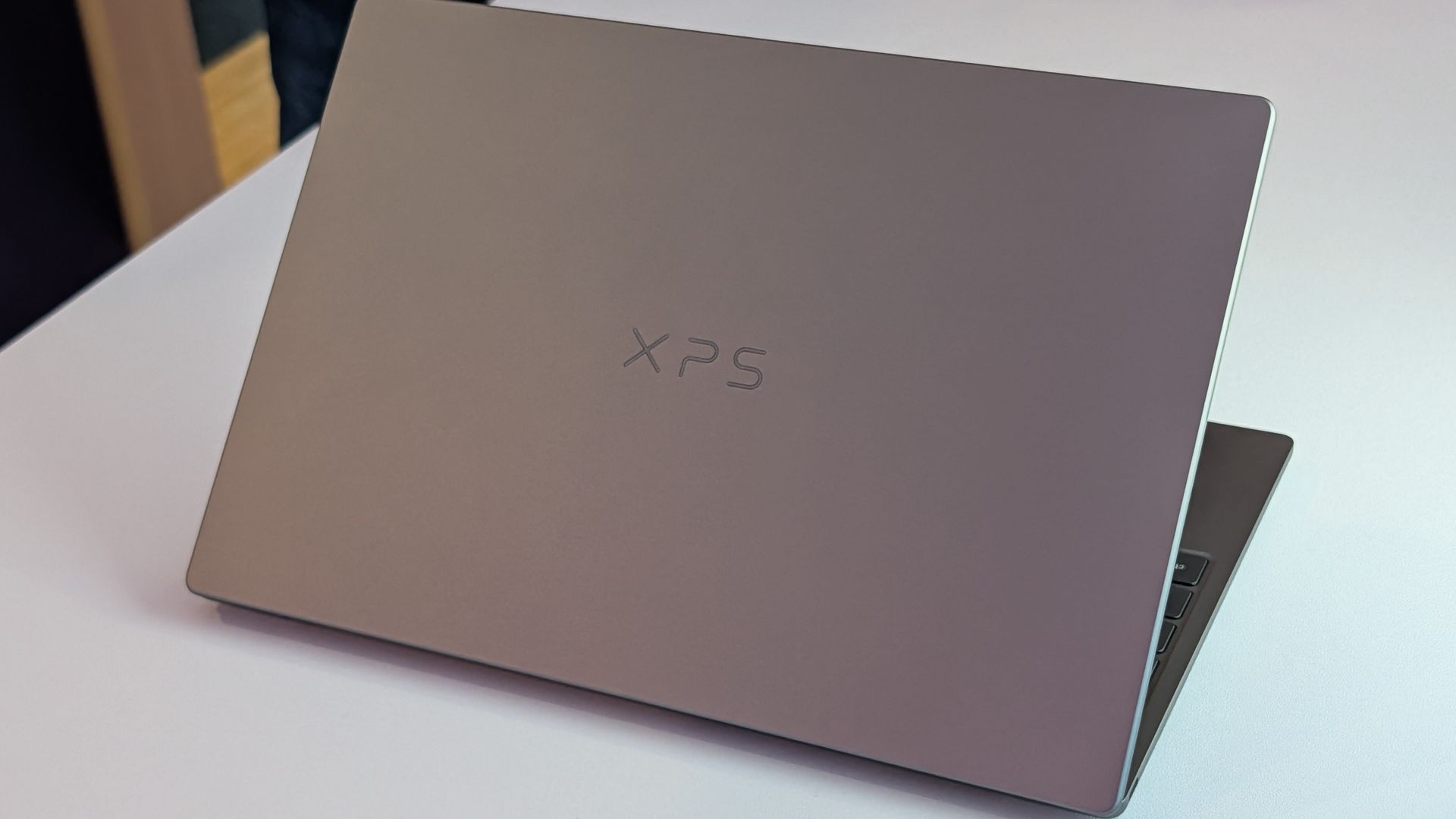
Amazon Prime Big Deal Days came and went, but some of the best tech deals are still live. My top pick is a small discount on the XPS 13 that drops the laptop to $799.99.

"Dell's new XPS 13 is the new best deal in laptops, surpassing the MacBook Neo with a better display, ports, build quality, and performance for the same price." — Zac Bowden, Senior Editor, Windows CentralView Deal

Click to join us on r/WindowsCentral

Join us on Reddit at r/WindowsCentral to share your insights and discuss our latest news, reviews, and more.
  •  

Microsoft offers MacBook owners up to $1,000 to ditch Apple for a Surface Laptop Ultra

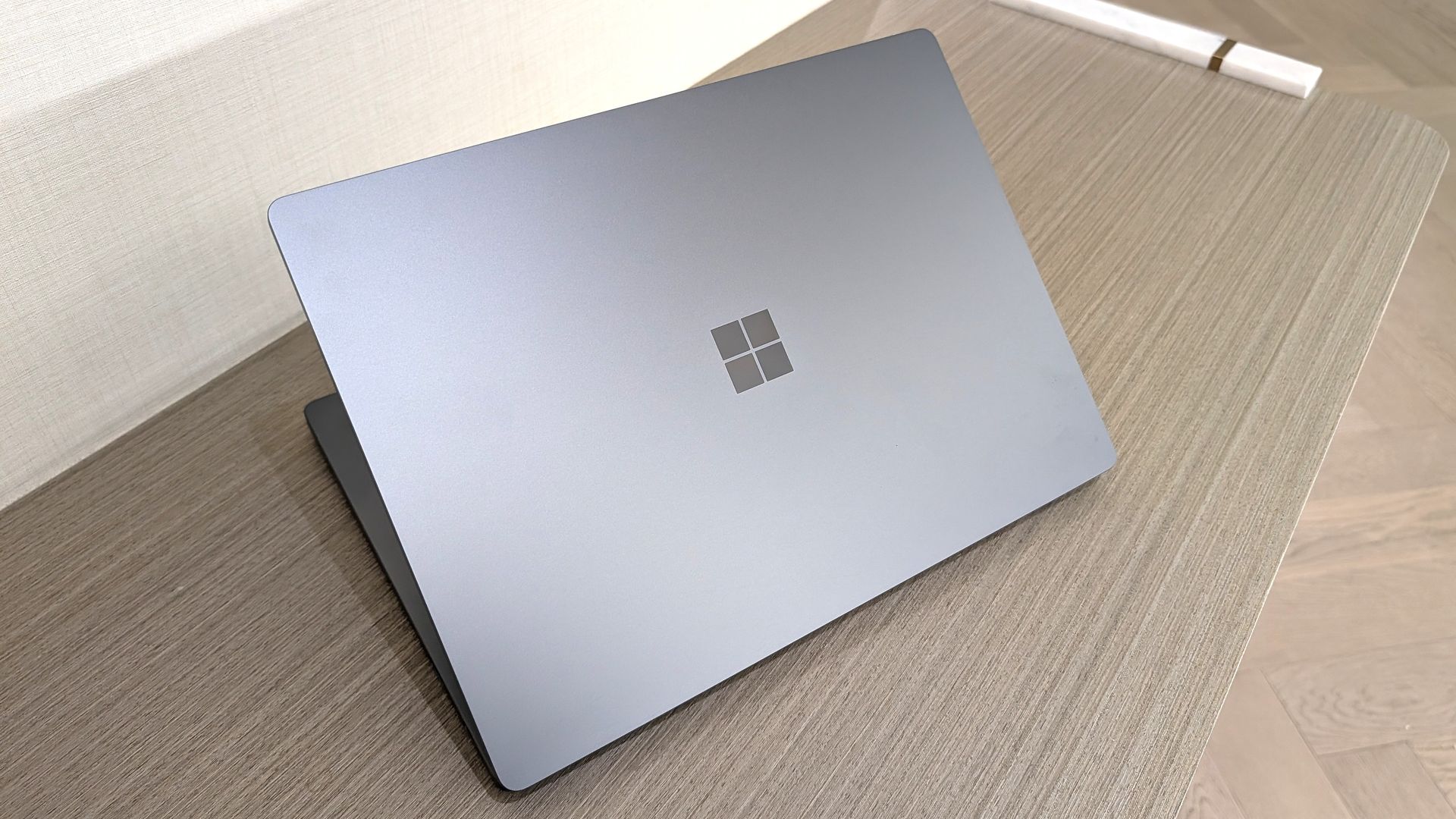
Microsoft's new Surface Laptop Ultra is here. Preorders are live and shipments start next week. The PC packs an RTX Spark processor and has a mini-LED display and a nice range of ports, including the special magnetic USB-C port.

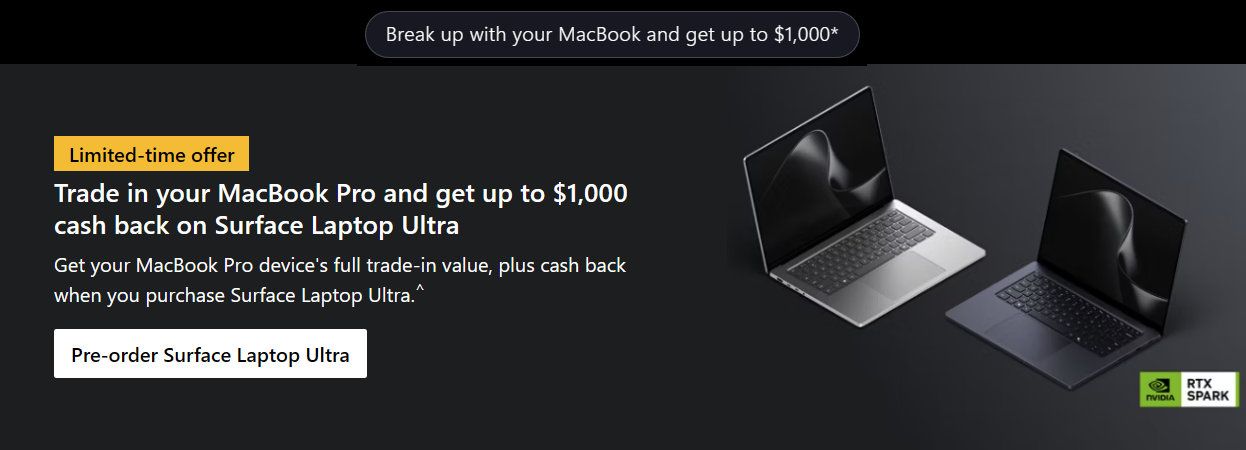
Surprisingly, the Surface Laptop Ultra has the lowest starting price of all the RTX Spark laptops. But Microsoft is pushing to compete with more than just Windows laptops. The tech giant will give you up to $1,000 cash back when you trade in a MacBook Pro and buy a Surface Laptop Ultra.

The cash back you receive would be on top of the trade-in value, not in place of it. Rather than the funds being dispensed at checkout, Microsoft will pay the cash back after receiving and evaluating your device.

"A promotional offer is extra value added to your trade-in when your device and purchase qualify," says Microsoft. "For example, you may receive a promotional bonus in addition to your device's standard trade-in value. The total amount is paid after your device is received and evaluated, not applied at checkout."


Built around the NVIDIA RTX Spark platform with an N1X CPU, RTX GPU, and up to 128GB of unified memory, the Surface Laptop Ultra hits new performance heights for power users. It's all contained in a gorgeous chassis with a mini-LED display and tons of ports. Prices start at $2,599.99, and units will begin shipping on October 16, 2026.

👉 Preorder at BestBuy.com

👉 Preorder at Microsoft.com

Microsoft Surface Laptop Ultra trade-in promotion offering up to $1,000 cash back for MacBook Pro owners.

(Image credit: Microsoft)

If you stack trade-in value with cash back, you can effectively save thousands of dollars on a Surface Laptop Ultra. Of course, that would require you to have a MacBook Pro in excellent condition that has incredibly high specs, all while wanting a Surface instead. I'm not sure how many people will check all those boxes.

Perhaps the bigger news here is that Microsoft specifically made a cash back offer targeting MacBook Pro owners. That's a clear shot at Apple and a sign that Microsoft wants to compete with what are often considered the best laptops on the market.

As you'd expect, the value of your device trade-in depends greatly on the model you're trading in and the condition that device is in. The highest trade-in value I was able to get through Microsoft's website was $2,115 for a MacBook Pro 16-inch (2025) with 128GB of RAM and 4TB of storage.

Interest in the Surface Laptop Ultra has been strong from our readers. It will be interesting to see if that sentiment is widespread and translates to sales.

Click to join us on r/WindowsCentral

Join us on Reddit at r/WindowsCentral to share your insights and discuss our latest news, reviews, and more.
  •  

Microsoft cuts 4TB from Microsoft 365 Family, sparking backlash and cancelled subscriptions

Microsoft 365 Family plans now come with 4TB less of OneDrive storage than they did until this week. Microsoft details the change in a support document.

That document frames the change as a positive because it means storage is allocated to users who need it automatically, but the public has had a different reaction. I've received several messages from disappointed users, and other outlets are rightly highlighting consumer outrage. Some people I know have already said they plan to cancel their subscription due to the change.

Regardless of how much storage an individual family actually uses, Microsoft 365 Family now includes substantially less cloud storage than it did before while costing the same amount.

I keep track of the best Microsoft 365 deals and update my piece with discounts regularly. If you know when to hunt, you can get a year of Microsoft 365 Family for $99.99 despite the normal price being $129.99 (the price of Microsoft 365 went up in January 2025). But with the massive 4TB reduction in OneDrive storage, there is no way to retain the value of Microsoft 365 Family. Even if you got it at a discount, you'd be getting less than before.

Considering Microsoft can roll out this change immediately for new and upgraded subscriptions, I understand why some people may hesitate before subscribing to Microsoft 365. Based on the Microsoft support document, Microsoft 365 Family plans will be moved to the shared storage model upon your first renewal on or after May 2, 2027.

Here is the exact phrasing from Microsoft:

"For existing Microsoft 365 Family and Premium subscribers, this change generally takes effect after the first subscription renewal on or after May 2, 2027, unless an eligible plan change occurs earlier."

I interpret that to mean that renewals made before that cutoff should not force you to the shared storage model. If that's accurate, you should be able to stack some time onto your subscription to keep a total of 6TB for a bit longer.

I'd suggest checking with Microsoft before making any purchases. If you receive confirmation from Microsoft that stacking subscriptions delays the change, please let me know. I have also reached out to Microsoft.

(12 months): was $129.99 now $99.99

This is a great deal if you know your family needs Microsoft 365 for a long time. Right now, you can get 12 months of Microsoft 365 Family for under $100.View Deal

Windows Central take

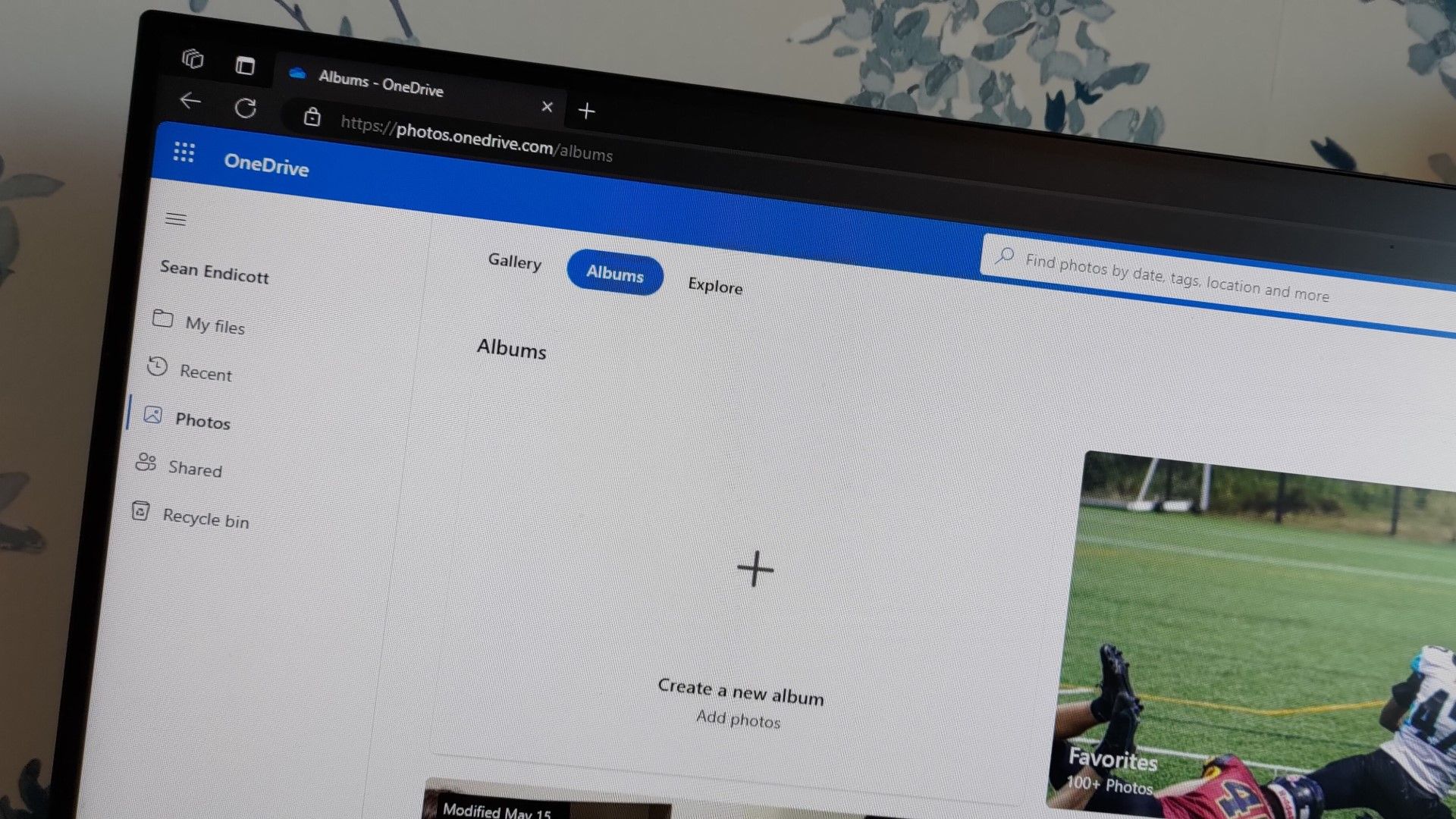
OneDrive web albums

My entire family uses OneDrive, but this reduction in storage may force us to use a different provider.

I actually understand Microsoft's argument for having shared storage across a family. I use much more cloud storage than my wife, so it would be convenient to have more than 1TB of storage accessible through my account. My daughter, who is a toddler, only "uses" cloud storage through the photos and videos I back up for her.

But sharing a pool of storage does not make up for reducing the total storage across the plan by 4TB. For my use, I'd be okay with sharing 5TB across the entire family. But any forced reduction in storage is difficult to justify.

Now, during a cost of living crisis, many people will have to look at alternatives to OneDrive or pay to have more cloud storage.

Click to join us on r/WindowsCentral

Join us on Reddit at r/WindowsCentral to share your insights and discuss our latest news, reviews, and more.
  •  

I almost want this new Windows wallpaper more than any of the RTX Spark laptops

I love a good wallpaper for my PC, and so do many members of the Windows Central community. When our Editor-in-Chief Daniel Rubino shares a review of a laptop, it's normal to see comments asking how to download his wallpaper.

Microsoft has a similar enthusiasm for wallpapers. Windows Spotlight provides an ongoing stream of excellent images that rotate regularly. The tech giant also creates or commissions wallpapers to go along with major product announcements. Windows 10, Windows 11, and Copilot+ PCs all have their own official wallpapers.

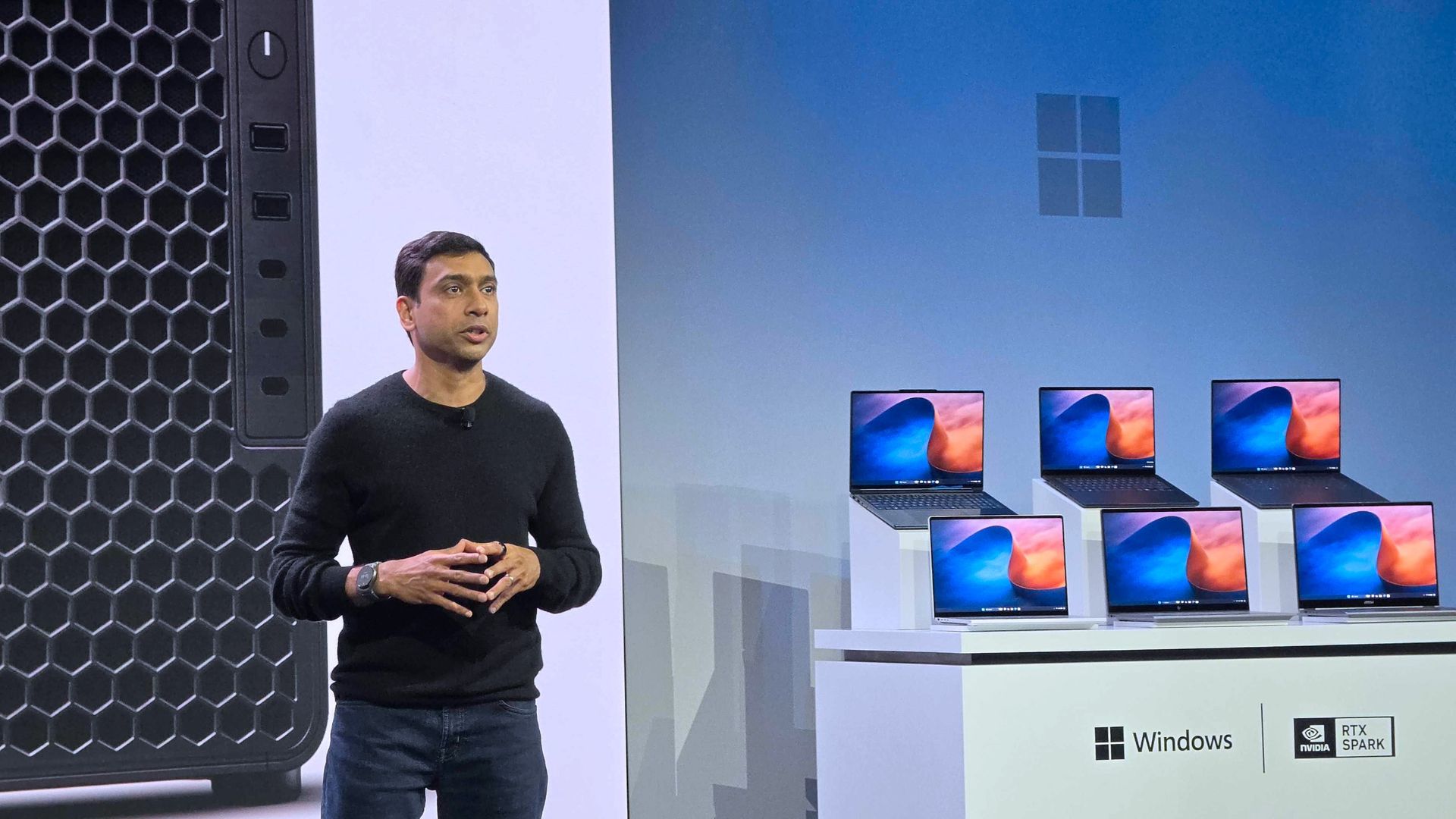
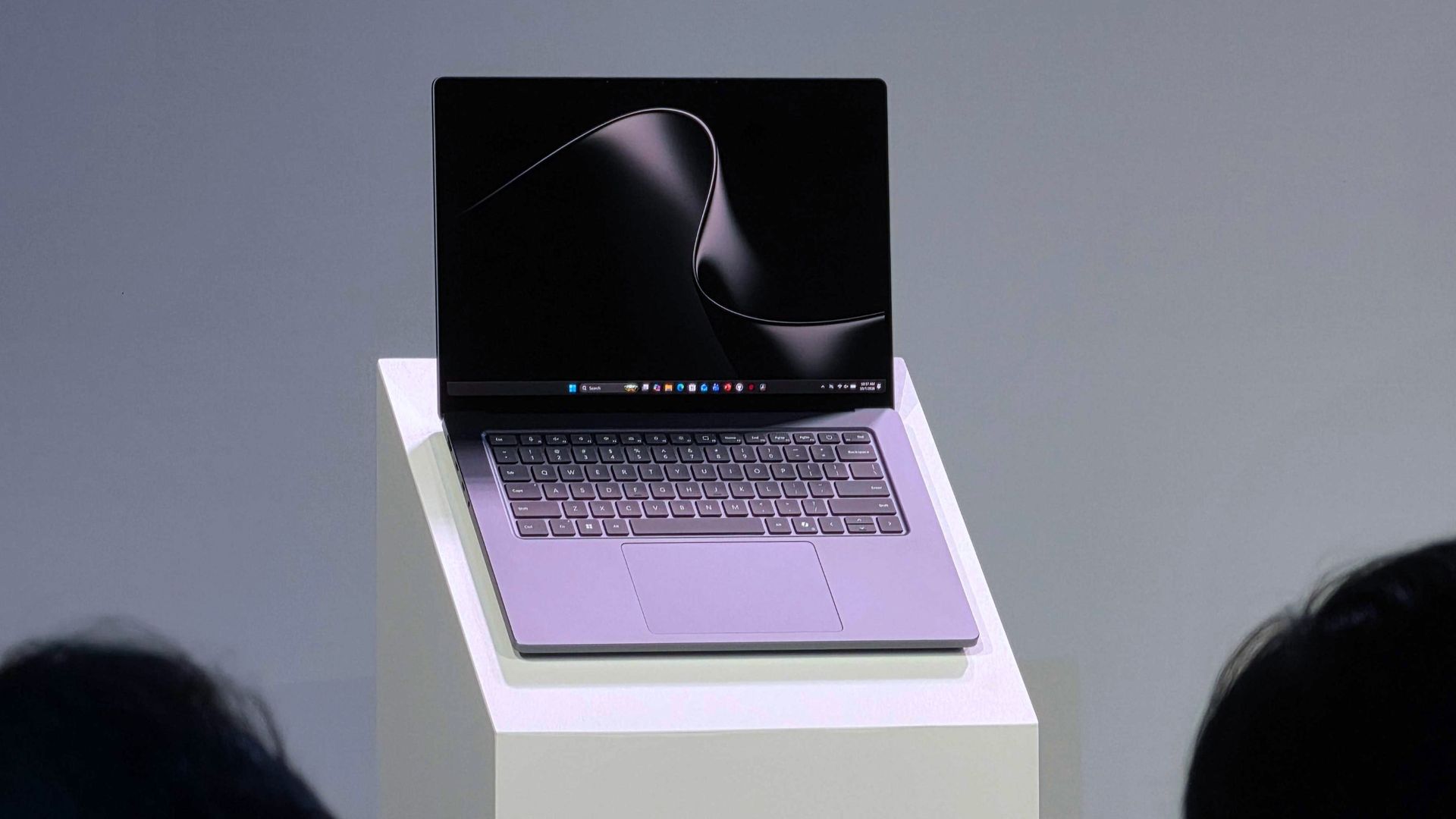
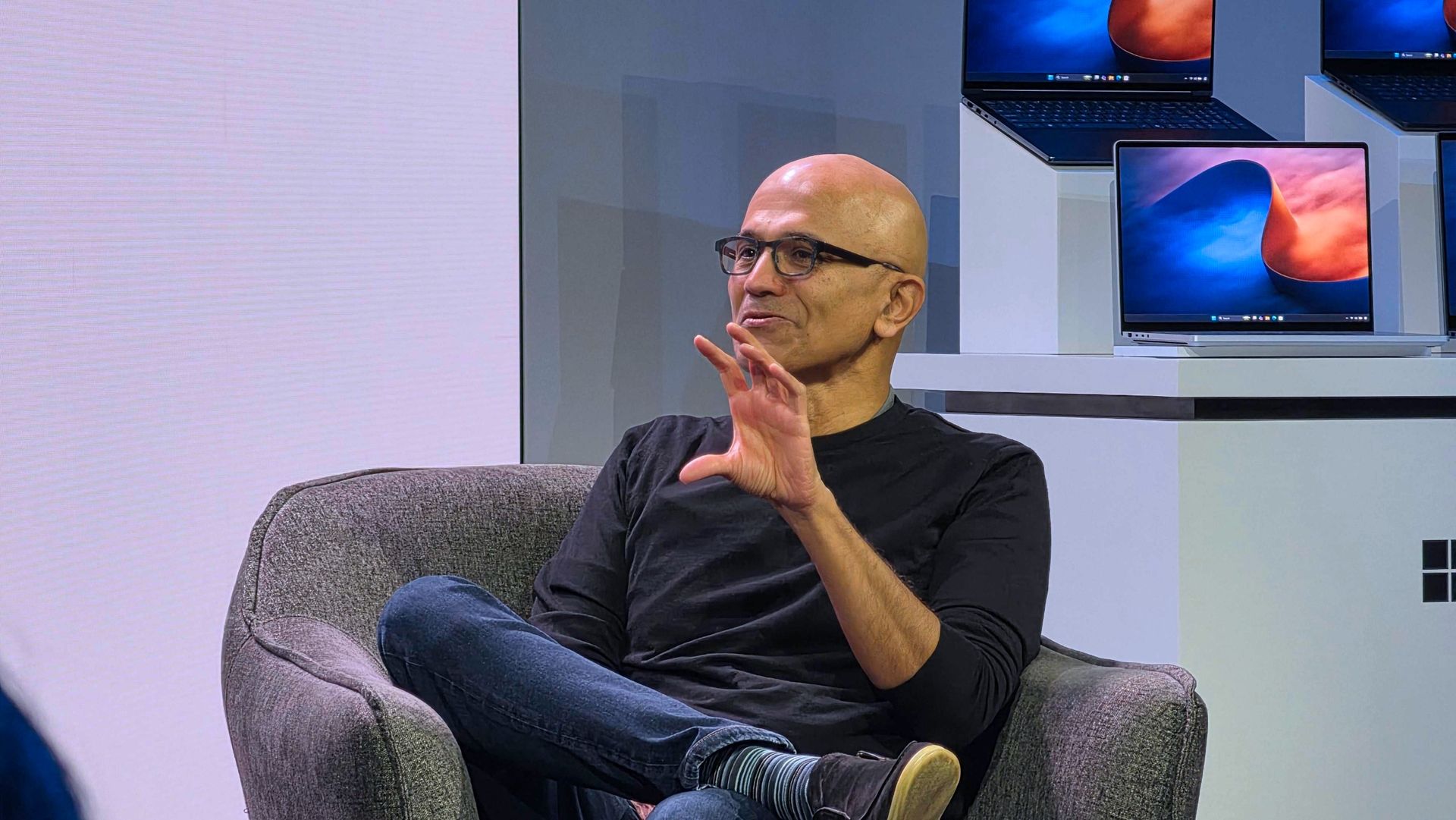
Eagle-eyed viewers of this week's Windows and Surface event spotted what appears to be a new wallpaper from Microsoft. Our Senior Editor was at the event and snapped a shot of the wallpaper displayed across several new RTX Spark laptops.

Unfortunately, Microsoft has not shared the new image, forcing fans to turn to AI.

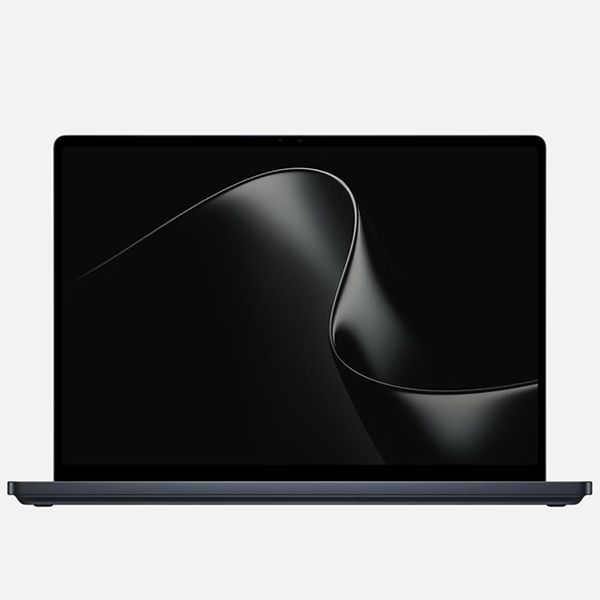
In response to Bowden's photo, X user @codejake shared a recreation of Microsoft's new wallpaper created with ChatGPT.

@zacbowden Here you go. 5K resolution via ChatGPT. https://t.co/ooS6fOAlsDOctober 7, 2026

That recreation seems to do a fair job of replicating Microsoft's image, though I'm sure there are differences that will become clearer once we get hands on the official wallpaper.

We've seen AI used to create or recreate iconic wallpapers before. Our Senior Editor Ben Wilson used Adobe Photoshop's generative AI to expand a collection of Windows wallpapers.

The legendary Windows XP wallpaper was mixed with the Windows 11 "Bliss" wallpaper by Reddit user "Left_Hovercraft451" earlier this year. I even rocked a color-shifted version of the Bliss wallpaper made to have Windows Central colors for a while.

Until Microsoft shares the new wallpaper, we may have to settle for AI recreations. The first wave of RTX Spark laptops are already available for preorder and will start shipping on October 16, 2026, so we may see the files escape into the wild sooner rather than later.

Click to join us on r/WindowsCentral

Join us on Reddit at r/WindowsCentral to share your insights and discuss our latest news, reviews, and more.
  •  

You can now test Microsoft's new Windows Search experience

At its Windows 11 and Surface event, Microsoft showed off its improved Search experience. The new Search is faster, more efficient, and has a streamlined design that should be easier to scan.

The streamlined Windows Search is about more than finding files or apps, though it can do that. Search can perform tasks, such as switching your PC to dark mode or changing the volume of your computer.

Whether you're more interested in the performance improvements or the new features, there's reason to install the latest builds of Windows 11 that shipped to the Experimental channel and the Experimental channel (26H1). Insiders in those channels can now test the refreshed Search experience with limited support for inline actions.

Microsoft's engineers must have been excited about Windows after its big event, because five Insider builds were released yesterday. Two of them include the refreshed Windows Search. Here's everything that's new across all of the builds.

Windows Search (Experimental, Experimental (26H1))

  • New Windows Search experience with inline actions: We're beginning to roll out a new Windows Search experience built on WinUI 3 that is faster, more efficient, and features a streamlined design that makes results easier to scan. We're also introducing inline actions, allowing you to quickly complete tasks directly. Turn on dark mode or Bluetooth, adjust your screen brightness, mute your device, or arrange windows from Windows Search.
  • We're improving how Windows Search understands what you're looking for, including better matching for typos and synonyms. We'll continue fine-tuning these improvements over the coming weeks. For more information detailing the new changes, check out the Windows Insider Blog.
  • English is the only supported language for this initial release.
  • After upgrading to this build, restart your device before the New Windows Search Experience feature flag is visible.

Battery status widget (Experimental)

  • As part of our continued commitment to making Widgets more useful for everyday moments, we're introducing the Battery Status widget for Insiders on newer builds. This widget provides a unified view of battery levels for your PC and peripheral devices, helping you quickly assess power status without hunting through multiple UI locations. Add it by going to Widgets board > Add widgets > Battery Status.

Narrator (Experimental (26H1))

  • Read and explore math equations with Narrator (see full description in release notes)

Kerberos enhancements (Experimental)

  • IAKerb is now enabled by default for Windows client. IAKerb is a Kerberos extension that allows Windows authentication to succeed in scenarios where traditional Kerberos can't be used because a direct connection to a domain controller is unavailable. This extension helps reduce reliance on NTLM while improving compatibility for modern authentication scenarios. For additional background, implementation details, and early preview information, see Reducing NTLM Dependency: IAKerb and LocalKDC in Windows Insider Preview.

Task Manager (Experimental)

  • Task Manager is expanding process grouping to allow apps to combine otherwise separate background processes into a single unified category rather than relying solely on traditional parent-child trees. This makes an app's resource usage easier to understand. Microsoft Defender is the first app to use this capability.

Windows Update (Experimental)

  • Fixed the issue causing some Insiders with Windows Sandbox enabled to get error 0x80073712 when attempting to install the latest updates.

Security (Experimental)

  • We've updated the security key PIN entry experience, removing the "other user" icon for a clearer sign-in experience.

Taskbar (Experimental)

  • Fixed an issue impacting some Insiders recently, which was causing the taskbar app window previews to become slower and noticeably lag over time.

Taskbar (Experimental (26H1))

  • Improved underlying state persistence of taskbar settings related to multiple monitors across monitor connections and disconnections.

Settings (Experimental)

  • Removed the backplate from the Settings icon when UAC is invoked from within Settings.

File Explorer (Experimental)

  • Added support for font preview and installation in the File Explorer and desktop context menus.

Other (Experimental)

  • Fixed an issue with msmpeg2ac3dec.dll which was leading to some apps and games crashing recently.

General (Experimental (Future Platforms))

  • Symbols were missing for our previous flight. They should be available for this one.

Widgets (Beta)

  • As part of our continued commitment to making Windows calmer and higher quality, we’re updating the default lock screen widget experience for Insiders on newer builds. With this change, Weather will be the primary widget shown on the lock screen, reducing recommended widget content and making the experience feel more focused. We're also giving users more control of personalizing the widgets on lock, curating the ones they find most useful for them. Users can access these settings by going to Settings > Personalization > Lock screen.

The new Search experience is the biggest change, but I'm also excited about the Battery Status widget that's now available to more Insiders. Microsoft has largely ignored widgets on Windows 11, so it's nice to see a useful one on its way.

Click to join us on r/WindowsCentral

Join us on Reddit at r/WindowsCentral to share your insights and discuss our latest news, reviews, and more.
  •  

Windows 11's new native Search can control your PC

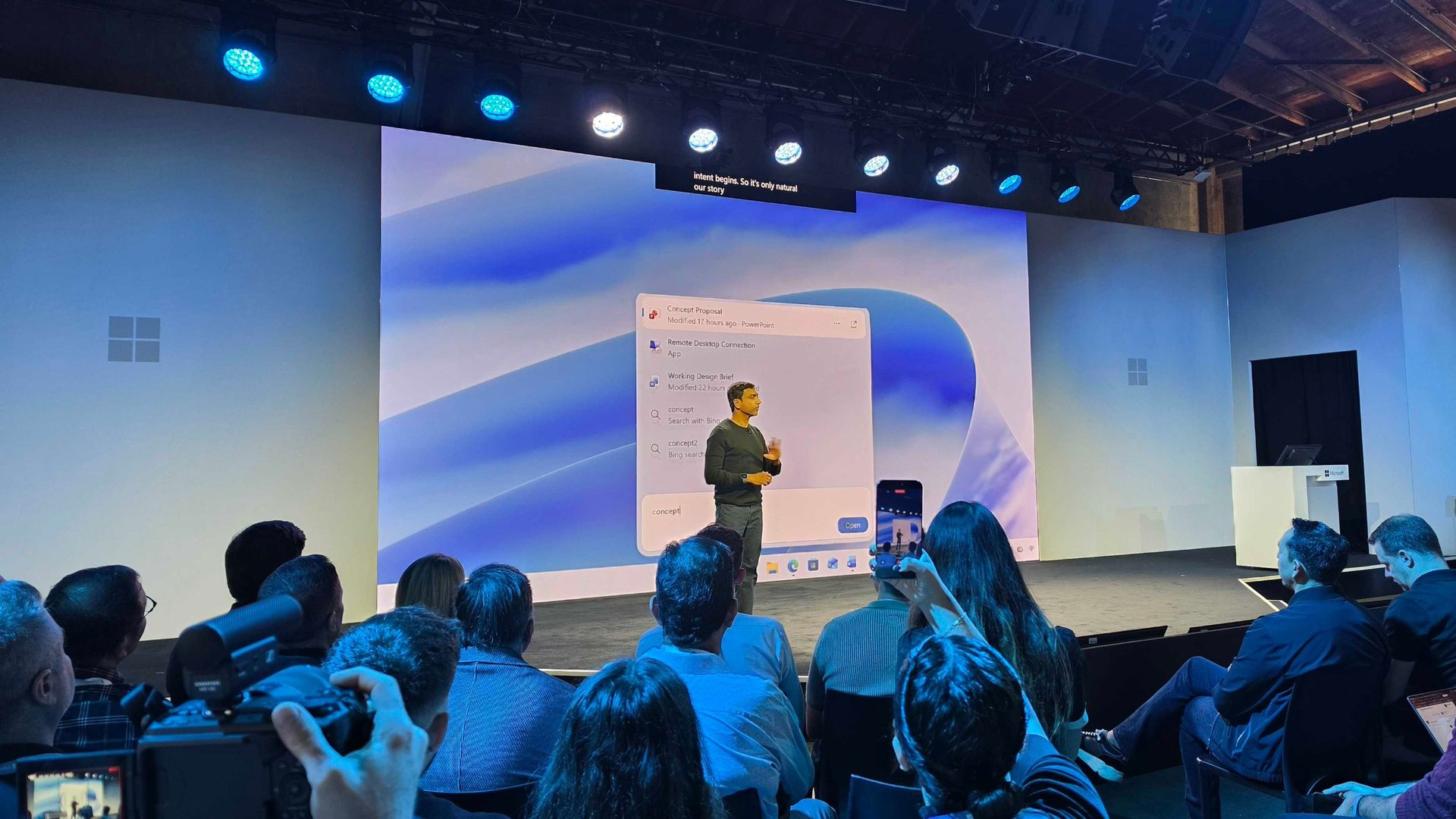
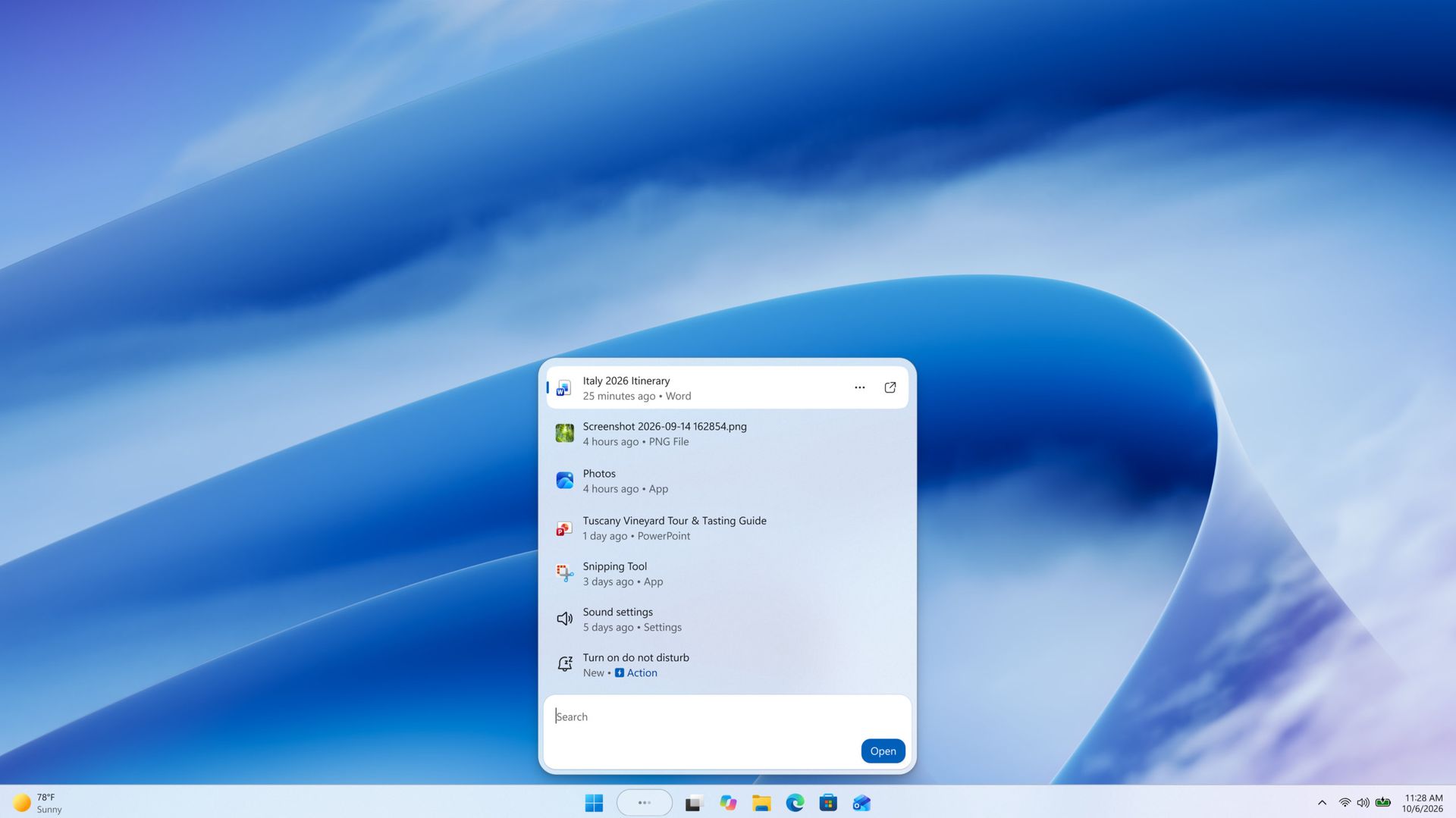
Microsoft just unveiled the new Windows Search experience at its Windows and Surface event. The new Search is more than just a search feature; it's a system composer. That means it can be used to control your PC. Microsoft's Windows lead Pavan Davuluri discussed the new Search experience on stage.

Starting this fall on Windows 11 PCs, users can take thousands of quick actions directly from Search in the Taskbar. For example, you could enable dark mode or switch your PC to Do Not Disturb. You can also adjust your microphone slider through the new Search experience.

You can even use the new Search experience to send a text message through Phone Link.

Microsoft detailed the new Search in a blog post. It also shared some examples of actions you can perform:

  • Turn something on or off. Try phrases such as “switch to dark mode”, “turn on night light,” or “turn on Bluetooth.”
  • Make a quick adjustment. Try “dim my screen” or “mute.”
  • Manage your workspace. Try “minimize all my windows,” or “arrange windows on screen.”

Copilot can be summoned through the new Search as well, showing responses directly within the user interface. You won't have to jump into a separate app to interact with Copilot. If you do want to jump to the full Copilot app, there's a shortcut to do so.

As you'd expect, the new Search experience can also be used to search for things on Windows 11. "At its core, the new Windows search experience is quicker, more efficient, so you can find your files, settings, and apps faster," said Davuluri.

The new Windows Search experience is faster and more efficient with resources because it is built on WinUI 3

Windows 11 desktop showing Microsoft's new Search experience with recent files, apps, settings controls, and quick actions available from a Taskbar search panel.

(Image credit: Microsoft)

Windows Search will better understand what you're searching for. For example, it will still be able to find items even if your input has a typo.

Microsoft will start testing the new Search experience with Windows Insiders today, October 7, 2026. It will appear first through the Experimental channel.

This piece was written during the live stream of the Windows and Surface event. Microsoft is expected to share more details about the new Search experience and other items discussed at the event. We will update this piece with more information as it becomes available.

  •  

These Bose headphones changed how I shop forever

"Babe?... Babe!? Is everything alright?" If you're in my house on a relaxing weekend afternoon, you'll often hear me trying to get a hold of my wife. I have to ask a few times, not because she's ignoring me, but because she has a pair of noise cancelling headphones on.

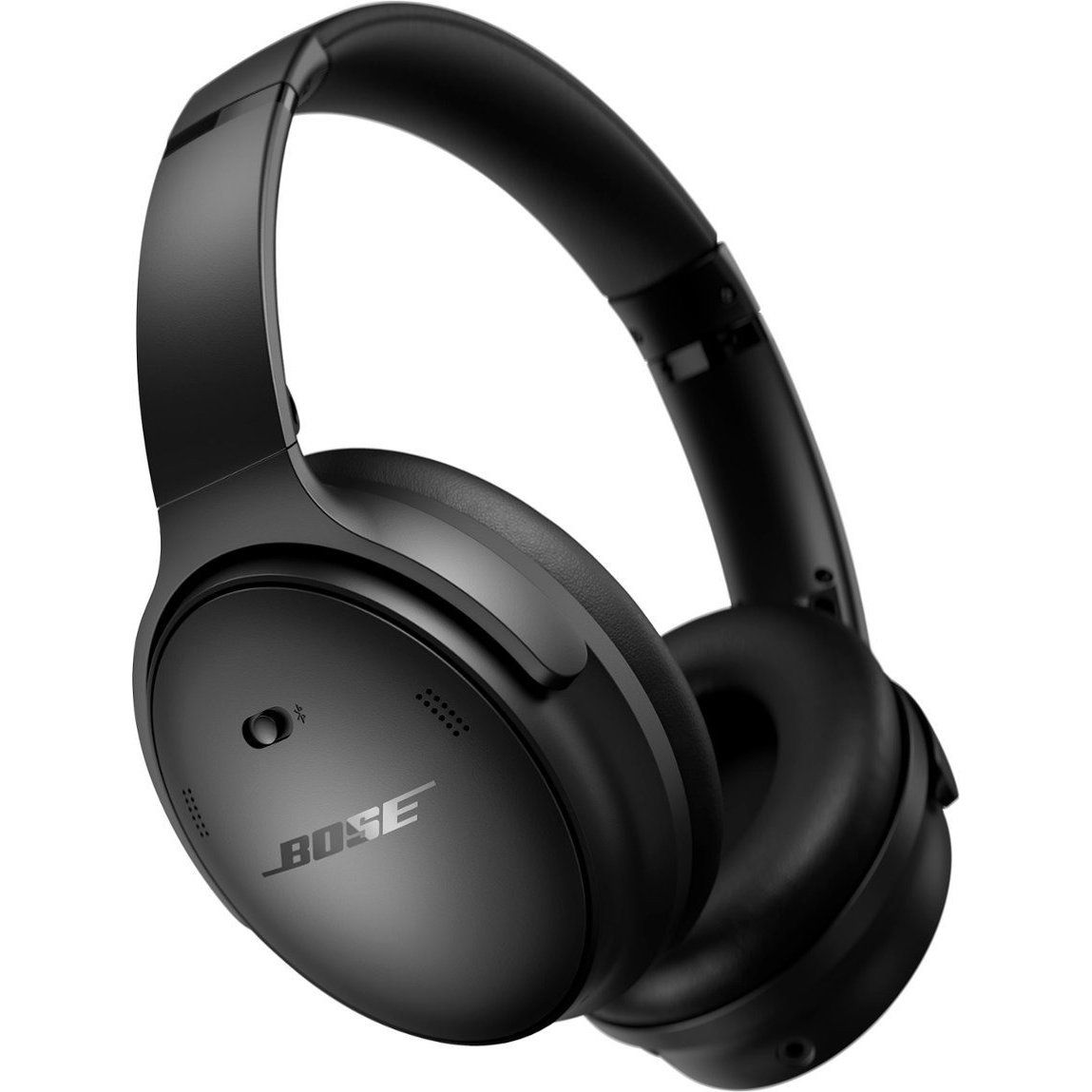
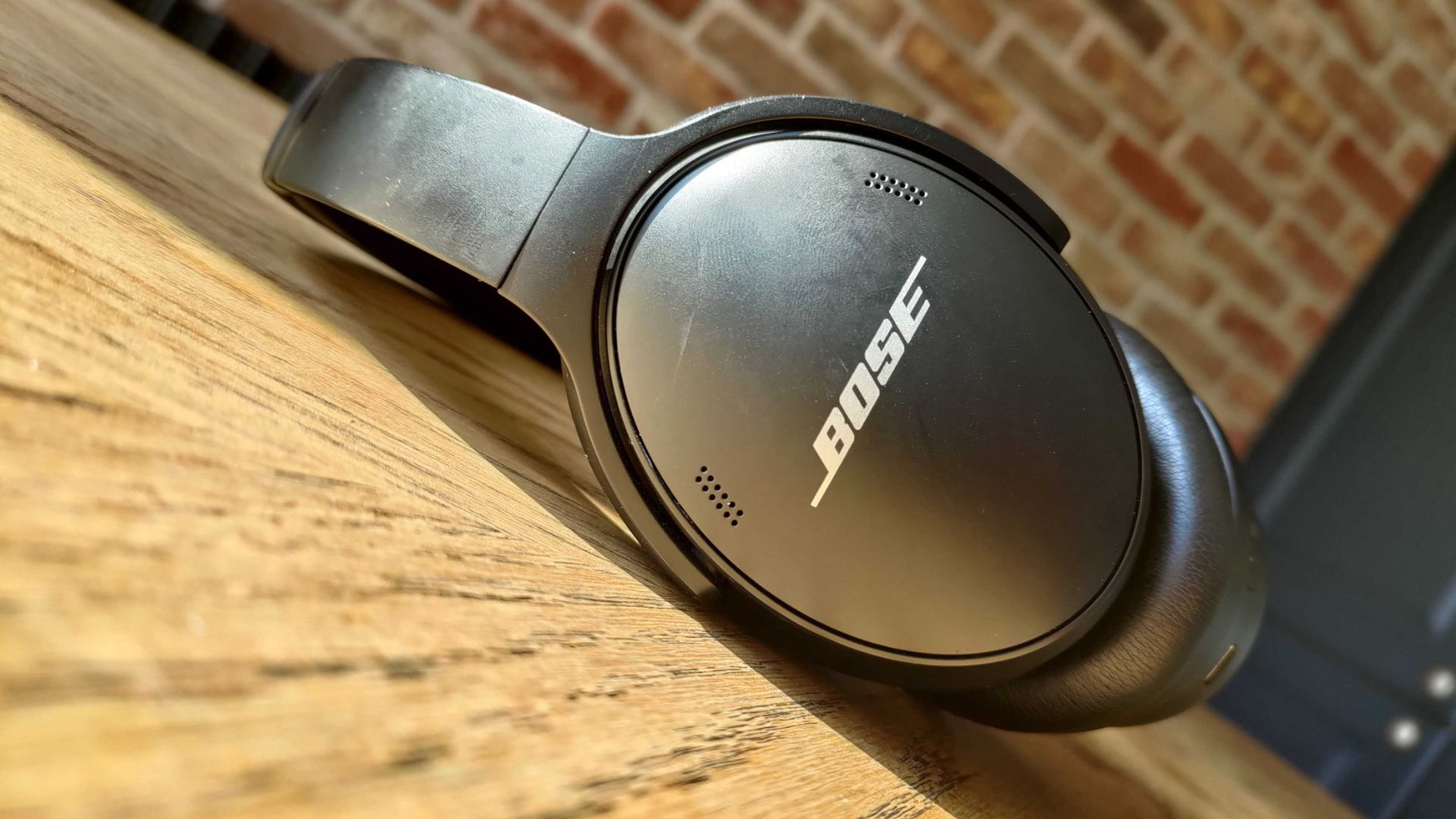
For the last couple of years, my wife has donned a pair of Bose QuietComfort Wireless Noise Cancelling Headphones. They're sleek, comfortable, and do a great job blocking out noise. And right now, they're on sale for $190 off.

QuietComfort Wireless Noise Cancelling Headphones: was $359.00 now $169.00

These noise cancelling headphones are comfortable, sound great, and last all day. They charge through USB-C, so even if they do run out of battery they're easy to top up.View Deal

You may be surprised to hear that I rarely spend a lot of money on gadgets. I love covering tech, but I try to keep my spending down when it comes to laptops, phones, and accessories. That's why it was a major shift when I bought my wife a pair of Bose QuietComfort Wireless Noise Cancelling Headphones. Back then, the headphones were newer and closer to full price.

But I wanted to splurge on a gift for my wife. She loves music, audiobooks, and podcasts, so I knew she needed a pair of headphones that she could wear all day. The headset from Bose delivered. They're comfortable, block out noise with active and passive noise cancellation, and last a long time.

They're mostly my wife's headphones, but I use them at least once a month and am frequently reminded of how much I like them. After years of heavy use they show some wear and tear (I just ordered new ear pads), but they still sound great.

The Bose QuietComfort Wireless Noise Cancelling Headphones are now a bit older, but they still deliver high-quality audio and are comfortable. They lack some of the bells and whistles you'll see in newer headsets, but they've aged well.

The $190 discount on the Bose QuietComfort Wireless Noise Cancelling Headphones makes them easy to recommend.

Do I need Prime membership for Big Deal Days?

Amazon Prime: Free 30-day trial

New members can enjoy exclusive Prime Day discounts for free and cancel anytime. After the trial, membership is $14.99/month plus tax. Includes access to games via Prime Gaming alongside Prime Video and Prime Music.

How long does Amazon Prime Big Deal Days last?

Amazon has launched this year's Prime Big Deal Days event with 48 hours of more exclusive deals, which started on Tuesday, October 6, and runs until Wednesday, October 7, 2026

Click to join us on r/WindowsCentral

Join us on Reddit at r/WindowsCentral to share your insights and discuss our latest news, reviews, and more.
  •  

New Outlook will soon check emails for spelling mistakes before they are sent

Microsoft Outlook will soon be able to save you from a costly mistake in an email. An upcoming feature will automatically spell check your emails before sending them.

Of course, Outlook already has a built-in spell check feature that highlights misspelled words and other mistakes. The new feature adds another layer of proofing by checking for spelling errors before an email is sent.

While spell check catches many mistakes as you type, it's easy to miss a typo in a long email or make an error when responding to messages. Running a final spell check before sending provides one last opportunity to catch mistakes before an email is delivered.

"If you don’t want to check spelling manually for every message—or you’re worried you might forget!—you can set Outlook to check spelling for you every time before sending emails," explains Microsoft through the Microsoft 365 Message Center (archived here).

When enabled, Outlook will review your message before it is sent and flag spelling issues that should be corrected.

The new spell check feature is expected to start rolling out mid-November, but it won't reach everyone until early December. Users in Targeted Release will be able to use the feature as soon as this month.

The new Outlook feature will sound familiar to those who have used Outlook for a long time. Classic Outlook already has the ability to check spelling before an email is sent through the "Always check spelling before sending" setting. Now, the same functionality is on the way to new Outlook.

Microsoft has spent the last several years bringing features from classic Outlook to new Outlook. Microsoft's latest update is another step toward feature parity between the two versions.

Are there any features you rely on that are still missing from new Outlook? Let us know in the comments.

Click to join us on r/WindowsCentral

Join us on Reddit at r/WindowsCentral to share your insights and discuss our latest news, reviews, and more.
  •  

I ignored the Windows app until Microsoft closed this major feature gap

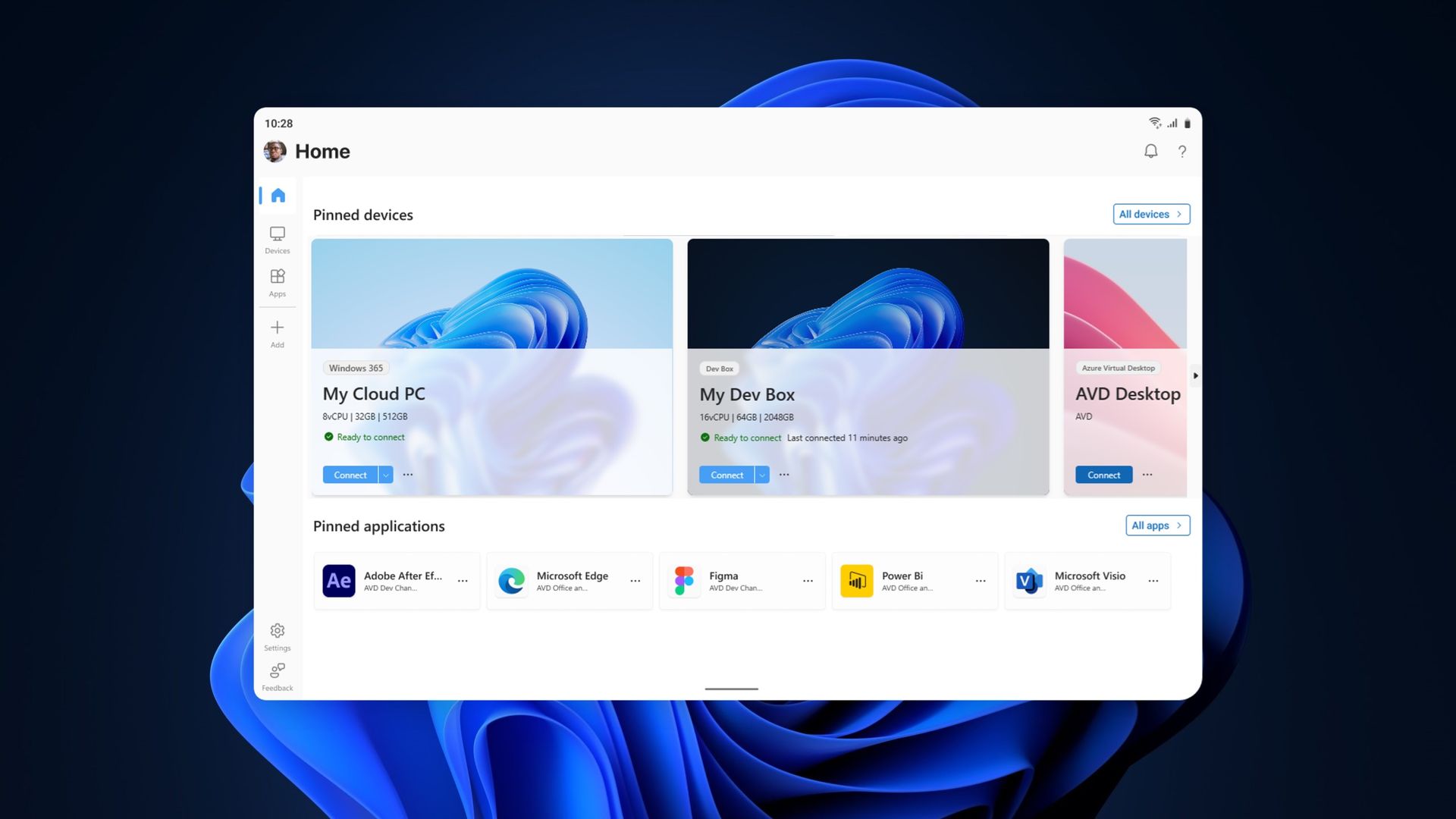
The Windows App on Windows now has a new way to connect to a Windows PC. Remote PC connections are now supported in the app, creating a unified experience for a broad range of connections.

The Windows App already supported Windows 365, Azure Virtual Desktop, and Microsoft Dev Box. Now, it also allows you to connect to a PC remotely.

The ability to connect to a PC remotely arrives in Windows App following the retirement of the Remote Desktop app. The expanded feature set of the Windows App entered testing in March and now remote PC connections are generally available.

This week's news is that remote PC connections are supported in the Windows App on Windows, but it's worth noting that the Windows App is also available on macOS, iPadOS, Android, and web browsers.

Microsoft outlines how to started with remote PC connections in the Windows App:

  1. Make sure Remote Desktop is enabled on the PC you want to connect to.
  2. Install or update Windows App from the Microsoft Store.
  3. Open Windows App and select Add a Remote PC or select the Add button.
  4. Add your remote PC using its PC name or IP address.
  5. Select Add or Add and Connect.

When I covered the migration to Windows App earlier this year, our readers listed Remote Desktop Connection (the classic mstsc.exe tool) as their preferred way to connect to a PC remotely. That method is still supported, as Microsoft retired the Remote Desktop app from the Microsoft Store rather than the built-in Remote Desktop Connection client. It will be interesting to see whether people transition to the unified Windows App.

If you used another method of connecting to a PC remotely and have switched to the Windows App, please share your experience in the comments.

Click to join us on r/WindowsCentral

Join us on Reddit at r/WindowsCentral to share your insights and discuss our latest news, reviews, and more.
  •  

Beat the scalpers by preordering the Xbox Wireless Controller X25 Special Edition

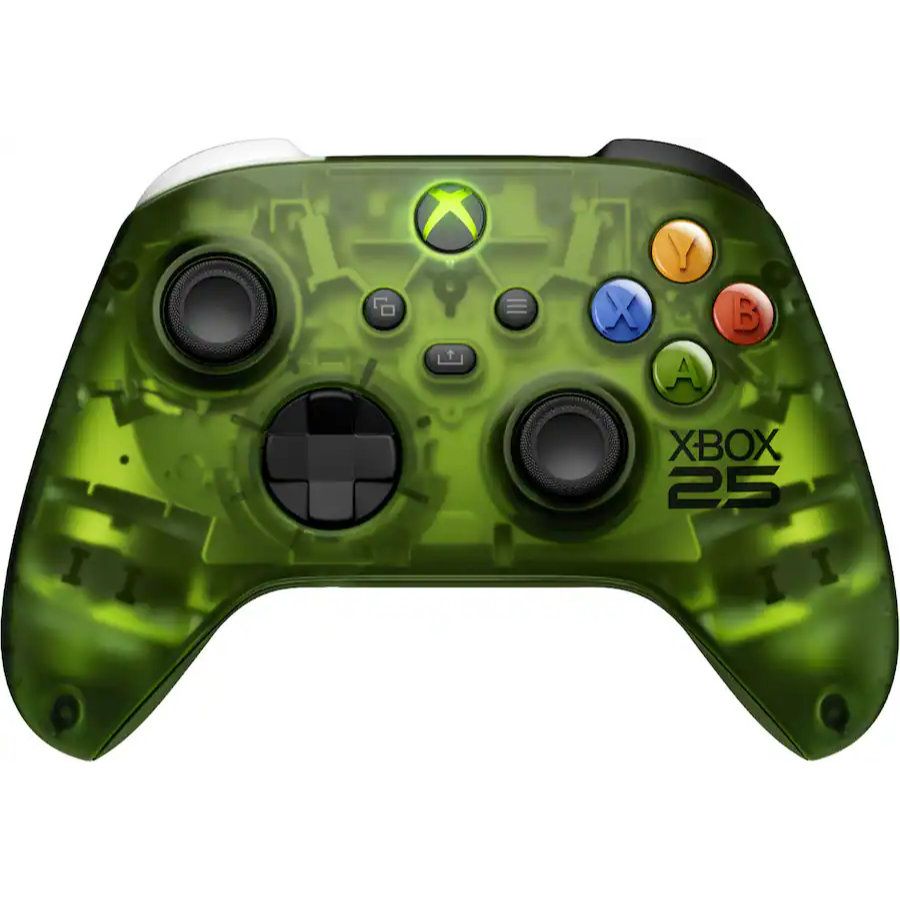
You can now beat the scalpers and ensure that you get what I believe is the most stunning Xbox controller ever made. Pre-orders for the Xbox Wireless Controller X25 Special Edition are live right now!

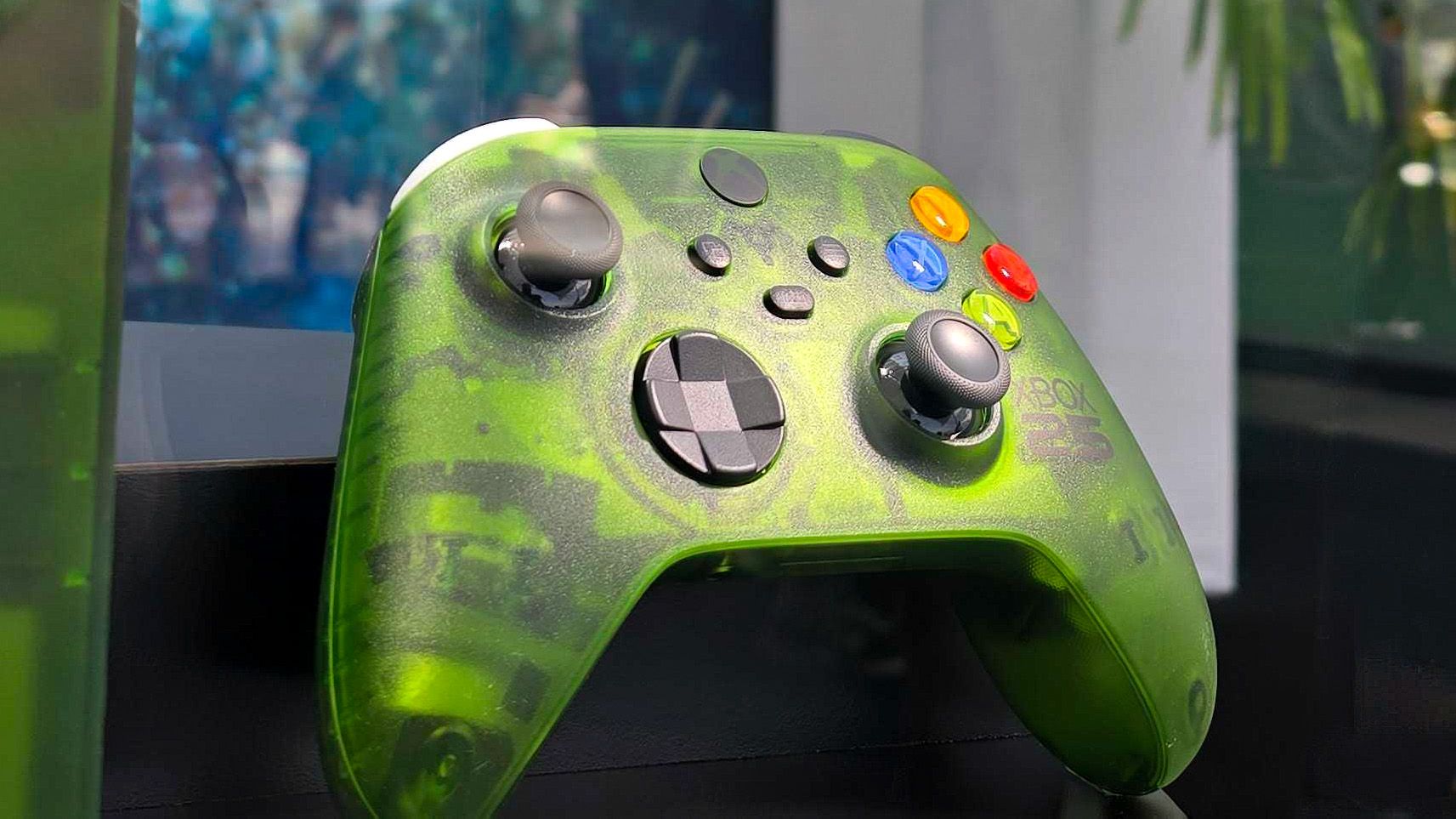
A translucent green design lets you see the internal components of the controller while also giving you a shot of nostalgia. Fans have wanted a green controller like this for years, and Xbox finally delivered.

X25 Controller: $79.00
This Xbox controller has a translucent "OG Green" shell that lets you see the internal components of the gamepad. It celebrates the 25th anniversary of Xbox with some nice touches, such as its ABXY buttons being the same colors as those on the original Xbox controller.View Deal

An ode to Xbox

Microsoft announced the Xbox Series X25 earlier this year. While that console is gorgeous, those who already have an Xbox Series X may not buy another console just for a refreshed look. But you can celebrate the 25th anniversary of Xbox without spending $899.99.

The Xbox Wireless Controller X25 Special Edition is "OG Green" and has a translucent body. Small touches such as the ABXY buttons matching the original Xbox controller add up to make a stunning controller. The bumpers are even black and white similar to the black and white buttons of the "Duke" controller.

The black Xbox button shines a green light as a throwback to the early days of Xbox. The back of the controller has a see-through panel featuring the classic XBOX logo.

Unfortunately, as with most collectible hardware, scalpers will gobble up a lot of the stock of the Xbox Wireless Controller X25 Special Edition. Locking in a pre-order early is your best bet to avoid inflated resale prices.

Whether you're enjoying the new games that were just announced at the Future Games Show at Gamescom 2026 or playing games you just converted through the Xbox disc-to-digital program, the Xbox Wireless Controller X25 Special Edition will be a gorgeous companion.

Click to join us on r/WindowsCentral

Join us on Reddit at r/WindowsCentral to share your insights and discuss our latest news, reviews, and more.
  •  

PowerToys gets a gorgeous new welcome screen — other apps should take notes

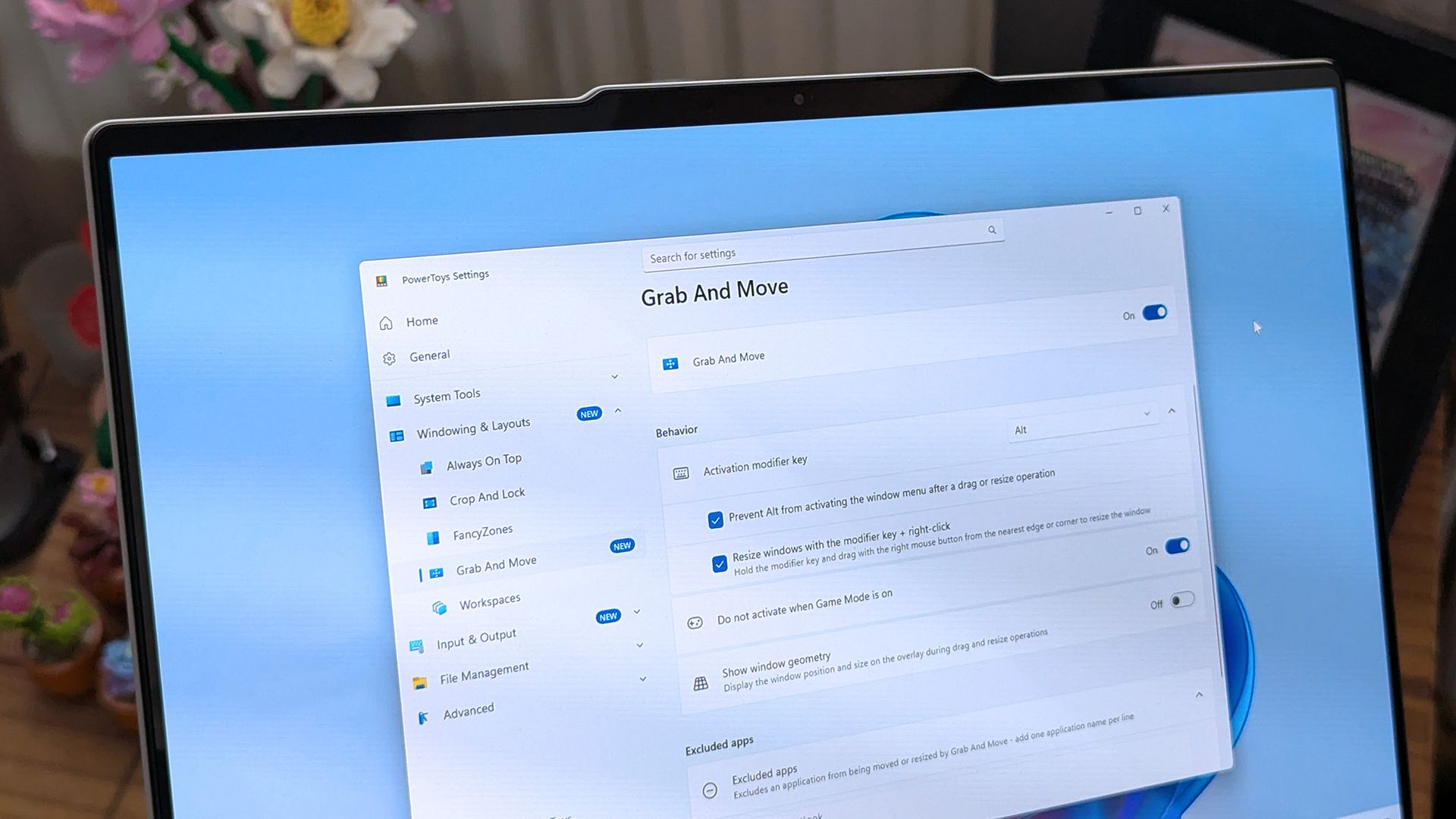
PowerToys is one of my favorite Windows apps, and the Windows Central team follows the app's development closely. Normally, I highlight new PowerToys utilities or the favorite additions of the main man behind PowerToys. But sometimes the layout of PowerToys deserves a highlight.

A new Welcome screen is on the way to PowerToys, and it's so gorgeous that I'm a bit disappointed that most people will only see it when initially installing the app. The engaging out-of-box-experience (OOBE) uses a Windows feature called Composition, allowing it to render at 60 FPS. The clip shared on X by Niels Laute doesn't quite do the welcome screen justice due to compression, but the animation is still impressive.

Composition 🤤October 5, 2026

This is more than just a fun animation. Creating a usable user interface that also performs well is much more difficult than creating a mockup.

Similarly to how PowerToys acts as a playground for developers to make features that occasionally get integrated into Windows 11, the new welcome screen showcases something WinUI apps can do.

Laute highlighted that the new welcome screen relies on Composition, which sits below WinUI. Developers can use it to render visual effects, and it can also manipulate UI controls because of how performant it is. If you use the Microsoft Store, you've likely seen animations that rely on Composition without realizing it.

A pull request on GitHub discusses the welcome screen in more detail. A Microsoft support document details the layers of Windows 11 and how Composition plays a role.

I admit that swooning over fluid animations and interactive welcome screens is a bit nerdy. Millions of Windows 11 users will never notice what type of animation an app has. But attention to detail adds up and creates a better overall experience.

Earlier this year, I argued that faster performance won't save Windows 11 if Microsoft's apps are laggy web wrappers. The new welcome screen of PowerToys is a small change to users that would go a long way if extended to other Microsoft apps.

PowerToys | Free at GitHub | Free at Microsoft Store

This collection of utilities includes a large library of features to enhance the Windows experience. PowerToys is designed with power users in mind, but it has handy features for people who just use their PC for everyday computing too.

Click to join us on r/WindowsCentral

Join us on Reddit at r/WindowsCentral to share your insights and discuss our latest news, reviews, and more.
  •  

My top Surface deals I’d actually buy during Amazon’s Big Deal Days

Prime Big Deal Days are here, and that means big savings on the hottest tech. Microsoft Surface sales slash hundreds of dollars off the Surface Pro, Surface Laptop, and Surface accessories.

Best Buy and other retailers are running competing sales alongside Prime Big Deal Days, so the best Surface deals are spread across the web. You'll also see prices fluctuate as stock runs out or sits for too long. I've scoured the web for the best Surface deals, and our team at Windows Central will keep this piece up to date with the best discounts.

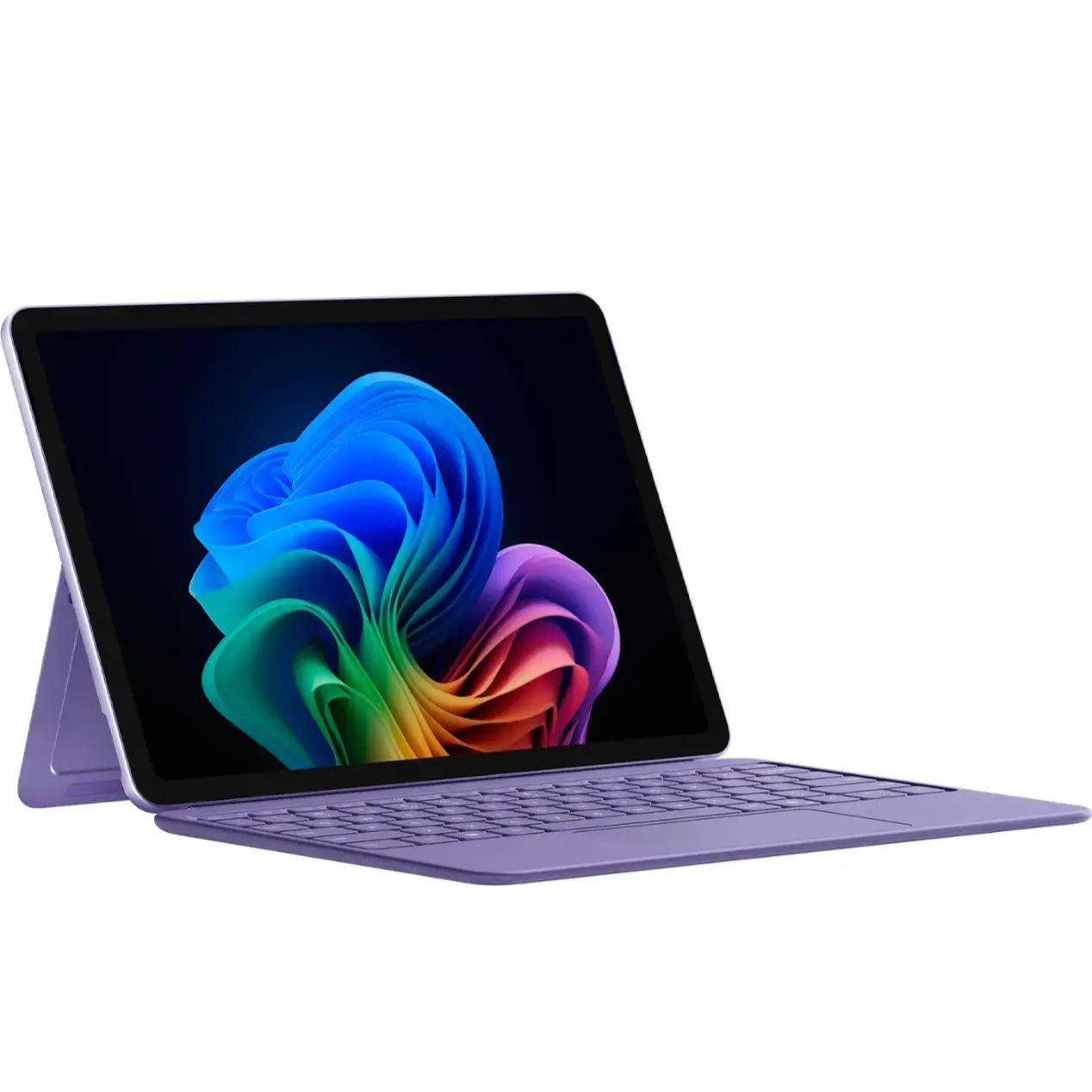
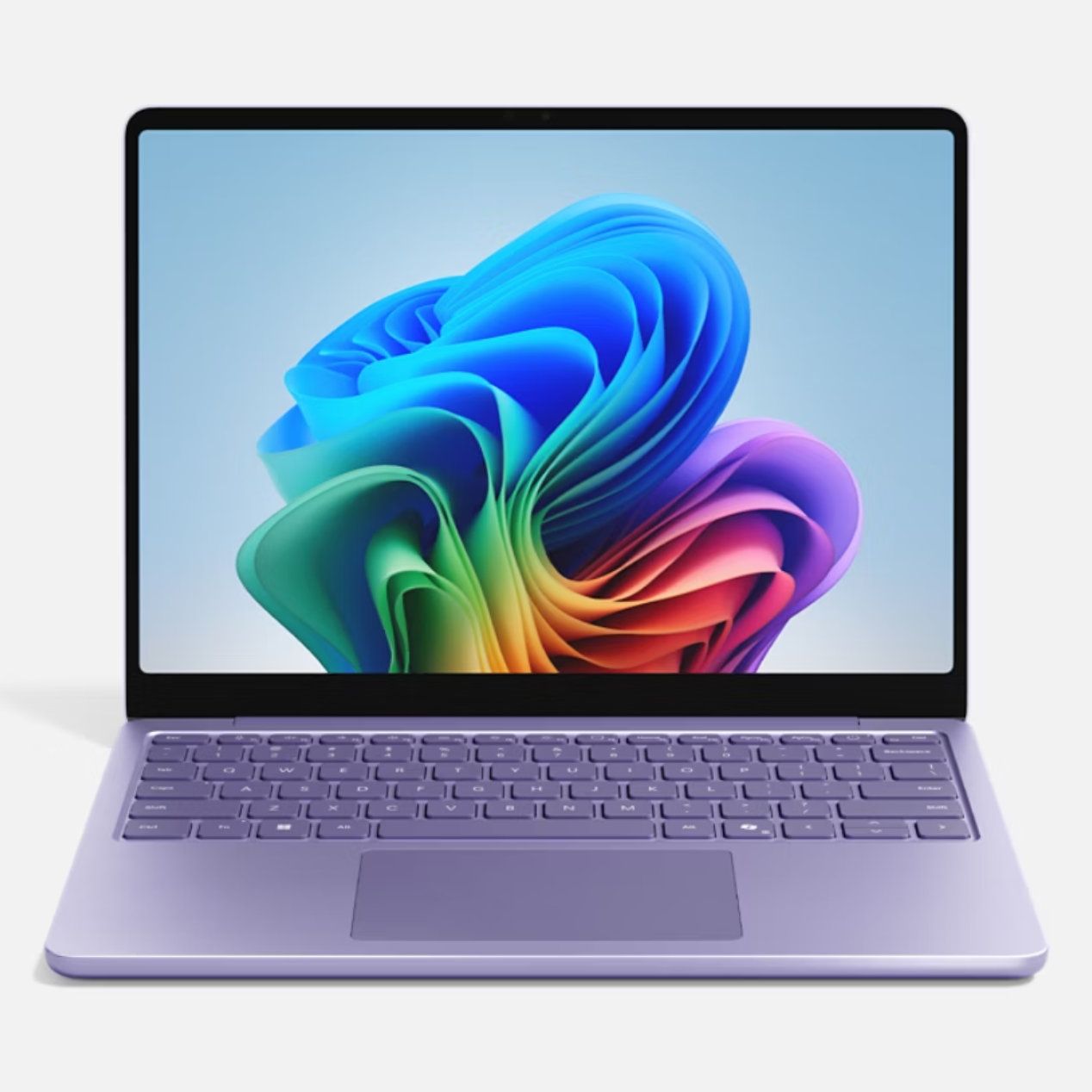
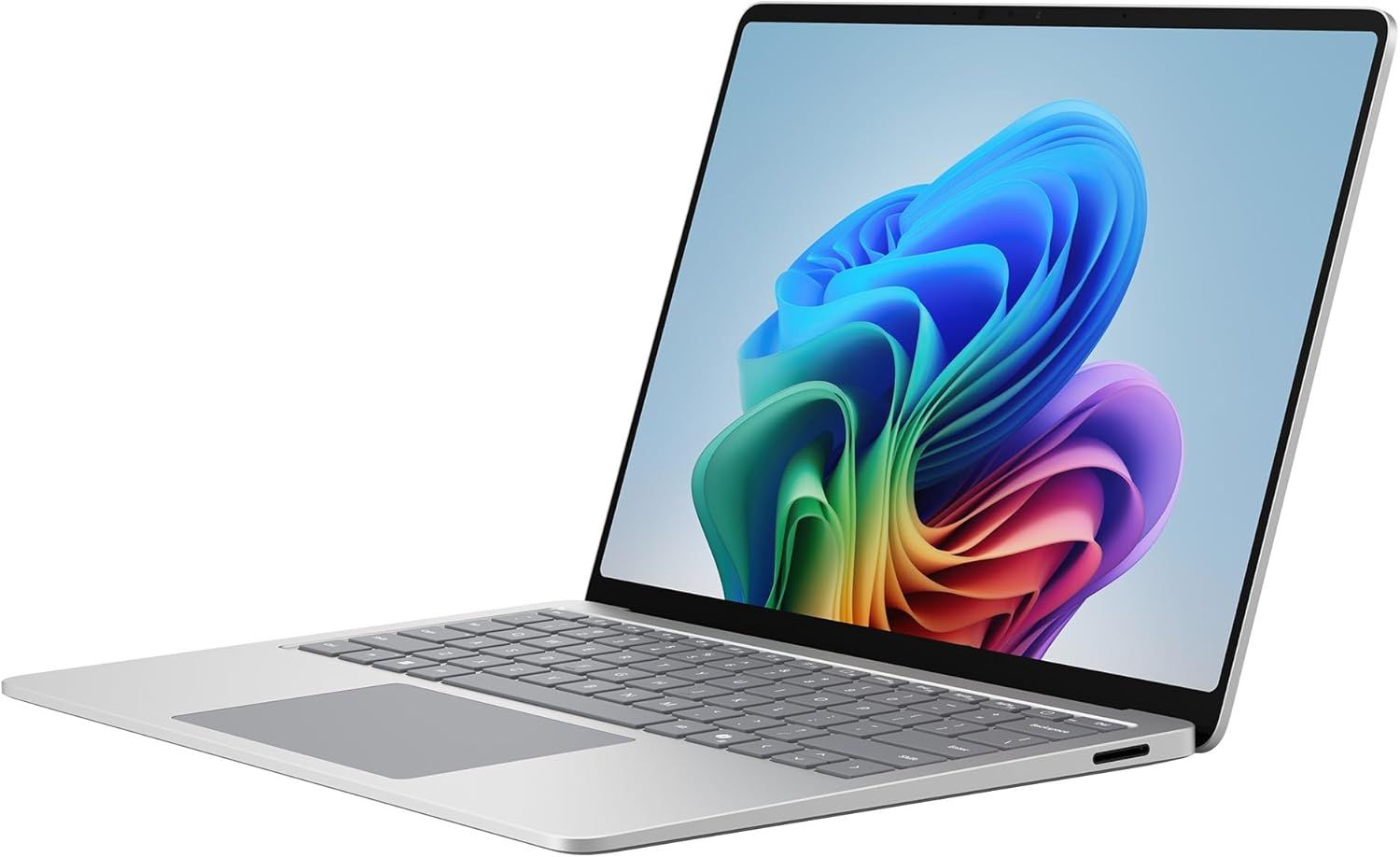
You'll notice that I don't list the Surface Pro 12-inch or Surface Laptop 13-inch below. That's because those PCs have new versions with Snapdragon X2 processors launching next week. You can still buy older models with first-gen Snapdragon X chips, but I'd recommend waiting until the new generation ships to see where prices fall on older devices.


XX

Display: XX. CPU: XX. GPU: XX. NPU: XX. RAM: XX. Storage: XX. AI PC: ✅ Copilot+ PC: ✅

👉 See at: BestBuy.com Amazon.com

Surface Pro 12-inch + Keyboard Bundle: was $899.99 now $649.99

The Surface Pro 12-inch is a smaller and more affordable alternative to the full-size Surface Pro 11. Battery life is decent, but the PC really shines thanks to the performant Snapdragon X Plus chip inside. If you want a compact and mobile 2-in-1, this is the way to go. This bundle includes a Type Cover.View Deal

Surface Laptop 13-inch: was $899.99 now $699.98

Microsoft's latest Surface Laptop is a portable and lightweight productivity powerhouse with the latest Snapdragon X Plus chip, paired with 16GB RAM, 256GB storage, and the best keyboard and trackpad one the market.View Deal

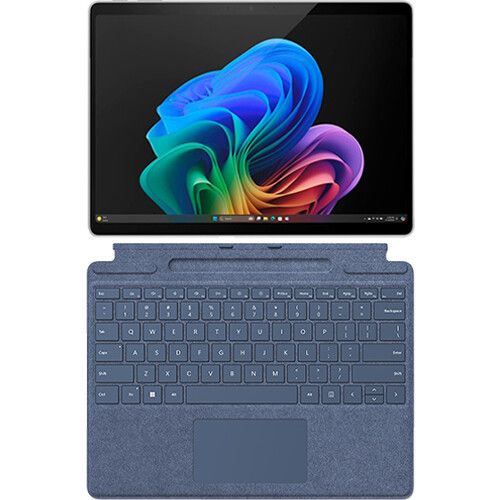
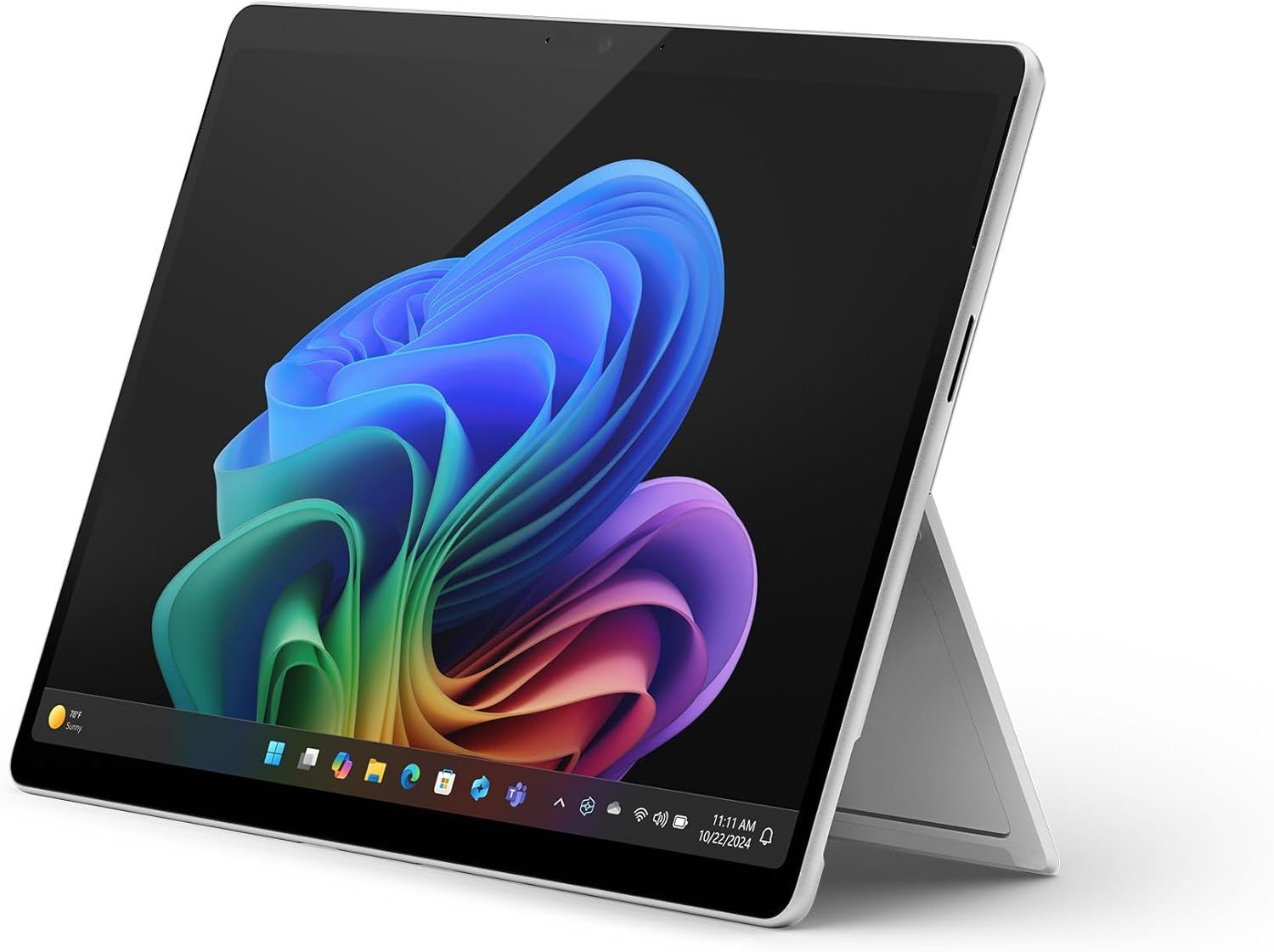
Surface Pro (13-inch)

Surface Pro + Keyboard & Pen: was $1779.98 now $1299.99

This Surface Pro bundle comes with everything you need to get work done and create on the go, including a keyboard and Surface Slim Pen. The Surface Pro in this bundle is a premium 2-in-1 that can be used as a standalone tablet or like a laptop when the keyboard is attached. This model has 16GB of RAM and 256GB of storage, which should be enough for everyday productivity, though people working with large media files may want additional cloud or external storage.View Deal

Surface Pro (13-inch): was $1499.99 now $1129.99

If you just want the Surface Pro on its own or already have a keyboard, this is a great option. The Snapdragon X2 Plus processor helps deliver excellent battery life while providing plenty of performance for everyday productivity.View Deal

Surface Laptop 8

Surface Laptop 8: was $1699.99 now $1279.99

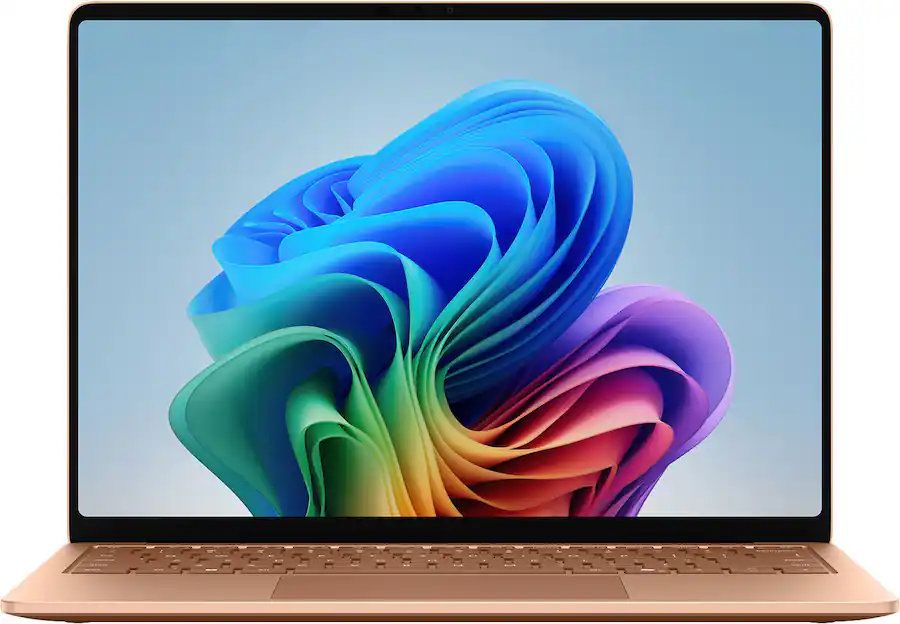
Refreshed with a Snapdragon X2 Elite processor, this Surface Laptop promises faster performance and better graphics than we've ever seen in this lineup. This model comes with 16GB of RAM and 512GB of storage, making it my top pick for everyday productivity and getting work done.View Deal

The Surface Laptop 8 with the biggest discount also happens to be one of the most beautiful models (at least in my opinion). This Surface Laptop with 16GB of RAM and 512GB of storage comes in Dune, making it stand out in a sea of silver and black laptops.View Deal

Accessories

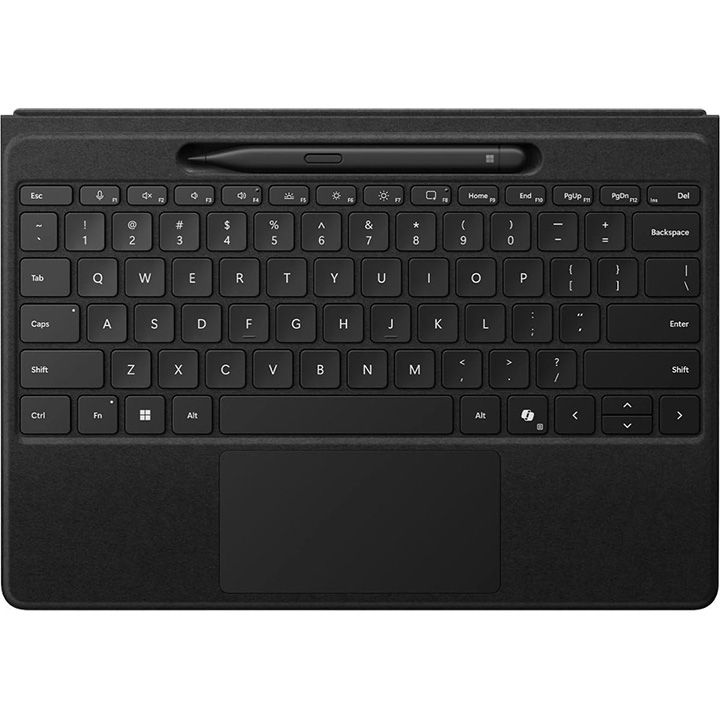
Surface Pro Flex Keyboard + Slim Pen 2: was $499.98 now $439.99

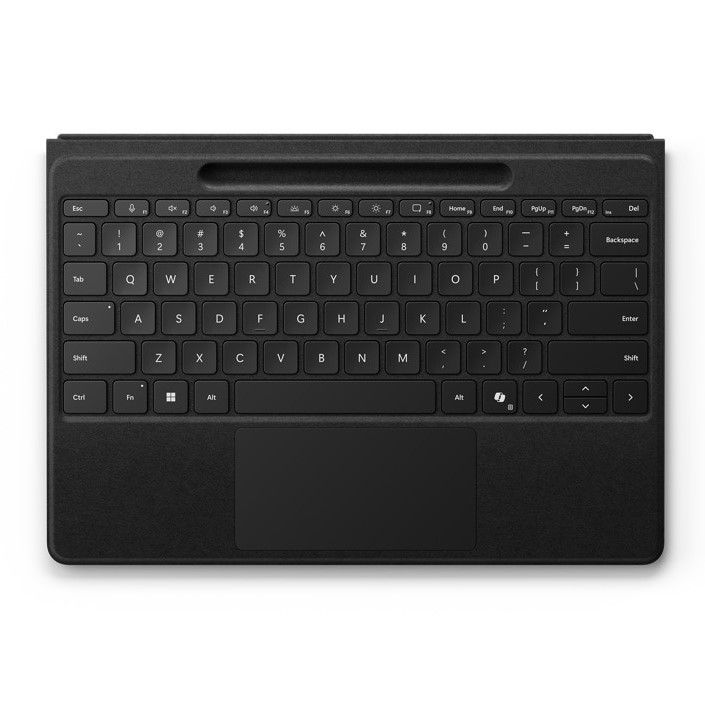
The Surface Pro Flex Keyboard can be used when connected physically to your Surface Pro or wirelessly. It's the most versatile keyboard you can get for the 2-in-1. This bundle also includes a Surface Slim Pen 2.View Deal

This is the same Surface Pro Flex Keyboard that can be used wirelessly or through a physical connection. This version does not include a Surface Slim Pen, helping keep the price lower.View Deal

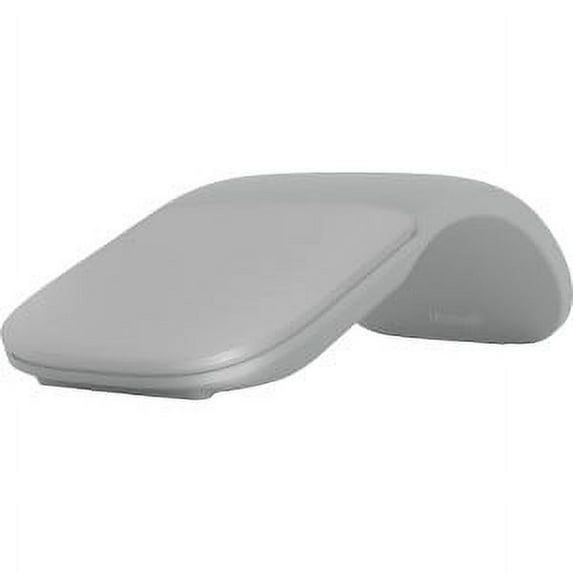
Surface Arc Mouse (Light Grey): $80.99

This mouse can lie flat for easy storage in your bag or pocket.View Deal

Do I need Prime membership for Big Deal Days?

Yes. To get all Prime Big Deal Days discounts, you'll need a paid Prime membership or, if you haven't signed up before, a 30-day free trial. Some deals are available to shoppers without Prime, but many of the event's best discounts are reserved for Prime members.

Amazon Prime: Free 30-day trial

New members can enjoy exclusive Prime Day discounts for free and cancel anytime. After the trial, membership is $14.99/month plus tax. Includes access to games via Prime Gaming alongside Prime Video and Prime Music.

Click to join us on r/WindowsCentral

Join us on Reddit at r/WindowsCentral to share your insights and discuss our latest news, reviews, and more.
  •  

Grab an XPS 13 for under $800 — the best laptop deal of the month is still going strong

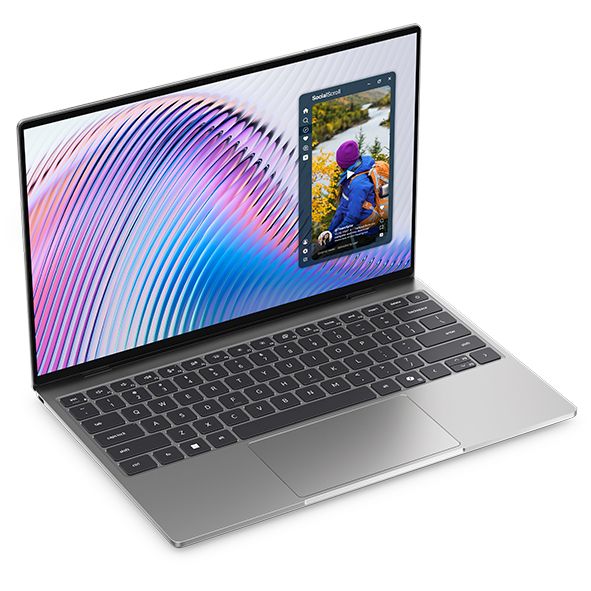
Amazon's Prime Big Deal Days are almost over, but arguably the best laptop deal of the month is still here. A $200 discount on the XPS 13 drops the XPS 13 to $799.99. There's even a version of the XPS 13 discounted to $599.99 if you only need 8GB of RAM.

Of course, it isn't actually a Prime Big Deal Day deal. The discount is through Best Buy, making it a "Techtober" deal. But do you really care why you're saving $200 on what our expert calls "the perfect starter PC"?

"Dell's new XPS 13 is the new best deal in laptops, surpassing the MacBook Neo with a better display, ports, build quality, and performance for the same price." — Zac Bowden, Senior Editor, Windows CentralView Deal

This version of the XPS 13 is incredibly affordable, especially when discounted. It does, however, come with just 8GB of RAM. That's fine for some users, but make sure it will meet your demands before placing an order.View Deal

Laptops this good are rarely in this price range due to the ongoing RAM crisis and other component shortages. Dell created this version of the XPS 13 to be more affordable, but premium laptops with this feature set and design now normally cost $1,000.

👉Is Windows 11 on 8GB of RAM really that bad?

The XPS 13 that came out this year earned a 4.5 out of 5 from both Tom's Hardware and Tom's Guide. Our colleagues complimented the laptop's 2.5K screen, incredible battery life, and excellent speakers.

Matt Safford from Tom's Hardware called the new XPS 13 "an excellent Windows-based answer to the MacBook Neo." I agree with his take, though I question how many people genuinely debate between a Windows laptop and a MacBook.

The XPS 13 is a thin-and-light laptop with a refined design. It has several features that "discount" laptops lack (I'm looking at you, MacBook Neo). For example, the XPS 13 has backlit keys, an IR sensor for facial recognition, and support for Wi-Fi 7. Toss in a pair of Thunderbolt 4 ports and a 120Hz display and it's easy to see why our Zac Bowden said he was "shocked" at the value of the laptop when he went hands-on with the XPS 13.

Click to join us on r/WindowsCentral

Join us on Reddit at r/WindowsCentral to share your insights and discuss our latest news, reviews, and more.
  •  

Forget the flashy AI features, this is the Copilot update that matters

Microsoft Copilot has changed a lot over the past month. Microsoft recently outlined its broader plan for a unified AI experience across Microsoft 365, but it also shipped several new Copilot features users can try right now.

Microsoft rounded up the changes in a recent blog post, highlighting updates across Copilot Chat, Teams, Word, PowerPoint, SharePoint, and OneDrive. The updates expand Copilot to more services and add new features across Microsoft's software suite:

  • "New design and functionality for Copilot Chat
  • Plugins, connectors, and Work IQ enhancements to the Copilot App
  • Teams Phone agent for Copilot in Teams Phone
  • Citations and image modifications for Copilot in Word
  • Skills and connectors for Copilot in PowerPoint
  • General availability for Copilot in SharePoint
  • General availability for Copilot in OneDrive"

Microsoft outlined several new features, but one stood out to me: citations in Copilot responses.

Copilot can be a useful tool, but it has limits. If you've ever asked Copilot to handle a task that depends on current information, you've probably run into those limits. AI tools can also struggle when interpreting historical, legal, or highly specialized material.

Now, Microsoft Word can show its sources for specific Copilot answers. You can then click the source to confirm the information provided by Copilot.

"Citations in Copilot responses in Word let users see the sources behind Copilot’s answers. Users can view citations to relevant web and work content directly in the response," explains Microsoft.

"This provides greater transparency and helps users understand where Copilot’s information comes from."

Hallucinations are one problem, but AI tools can also misinterpret legitimate sources and present incorrect conclusions. In some cases, an AI tool can misread context and produce an incorrect response. I've had Copilot share the exact opposite of the truth before.

Citations with links allow you to check the source material and make sure Copilot understood the context of the source and extracted the correct information.

Windows Central take

I've found that Copilot (and other AI tools) can make up seemingly authentic sources of information. If you ever use the tool for meaningful work, you need to double-check original sources and assume Copilot will make mistakes.

Of course, that fact could be used to argue that you just should not use Copilot for work. But there's probably a middle ground where Copilot helps draft or gather information while a human verifies the final output.

In general chats with Copilot, you should ask for a source and press Copilot if it continues to speak in generalities. The new feature in Word simplifies that process and ensures that there's a verifiable source of content generated by Copilot.

Click to join us on r/WindowsCentral

Join us on Reddit at r/WindowsCentral to share your insights and discuss our latest news, reviews, and more.
  •  

Prepare for Microsoft's Windows and Surface event with these cutting-edge features for Insiders

Microsoft's Windows 11 and Surface event is only a couple of days away. At the event, we expect to hear a recap of improvements made to the operating system as part of the Windows K2 initiative. But why simply watch people talk about updates when you can test them out yourself?

Many of the biggest changes to Windows 11 have already shipped through Windows 11 version 26H2. But items that are still in the works are being tested among Windows Insiders. A flurry of five builds shipped recently.

👉Don’t miss Microsoft’s October 7 Windows & Surface keynote — here’s how to tune in and follow the biggest reveals

Many of the changes are rolling out to multiple builds, such as added support for Unicode 17.0. Below, I've outlined all the updates and improvements rolling out to Windows Insiders. Make sure to check the channels noted below to see what's on the way to your PC.

Unicode (Beta, Experimental)

  • We've updated Windows text shaping support for Unicode 17.0, helping Windows correctly display and shape newly encoded characters and scripts. Unicode 17.0 added 4,803 characters, including support for four newly encoded scripts: Beria Erfe, Sidetic, Tai Yo, and Tolong Siki.
  • These updates help keep Windows text support current as the Unicode Standard evolves and improve support for languages and writing systems used by people around the world.

Settings (Beta, Experimental)

  • We're making performance improvements to the Settings home page, which should result in reduced loading times in certain scenarios.

Settings (Experimental (Future Platforms))

  • Updated Settings > Apps > Installed apps to show the version number at the top level for packaged apps, as it already does for other apps.

Recovery (Beta, Experimental 

  • We're adding a new entry point for Cloud Rebuild under Settings > System > Recovery, making it easier to access the feature from Settings.

Windows Recovery (Beta (26H1))

  • We're introducing Cloud rebuild, a new recovery option that restores a Windows 11 PC to a clean, known-good state by performing a full OS reinstall, even when Windows won't boot. Unlike Reset this PC, Cloud rebuild downloads both the target Windows image and the device's drivers from Windows Update, so the device comes back fully functional without USB media, without a custom image, and without depending on the health of the currently installed OS.
  • In this preview, you can try Cloud rebuild today:
    • Start it directly from the Windows Recovery Environment (WinRE) by selecting Troubleshoot > Recovery and uninstall > Cloud rebuild.
    • Connect over wired Ethernet or a Wi-Fi network from within WinRE.
    • Review the target Windows build, edition, and language, then confirm the data-loss warning before the rebuild begins.

File Explorer (Experimental)

  • Address Bar now supports '~' , making it quicker to navigate directly to your user profile folder and subfolders (e.g., "~\AppData").

File Explorer (Experimental (Future Platforms))

  • This update adjusts how the preview pane handles files downloaded from the web. For HTML files, a new Preview anyway button lets you acknowledge the warning and preview the file. Non-HTML files, such as PDFs, are now previewed automatically.
  • Fixed an issue causing the previews in File Explorer to have an unexpected bar in the middle in recent flights.

File Explorer (Experimental (26H1))

  • Customizations
    • Improved File Explorer to keep folder view customizations, such as sorting and icon size preferences, consistent across different access paths and apps.
  • Address bar improvements
    • The address bar now supports paths containing double backslashes and quotation marks, for example, C:\Users\user or "C:\Users\user", improving compatibility with a wider range of inputs.
    • Improved reliability of the address bar suggestion dropdown so it now consistently closes after an item is selected.
  • Refinements to the rename experience
    • Fixed an issue where text would be repeatedly selected while renaming items in folder views.
    • Fixed an issue where updated names with case-only changes weren't immediately reflected in folder views across local and cloud storage.

Windows Magnifier (Experimental (26H1), Beta (26H1))

  • Magnifier now gives you more control over how you zoom. You can type an exact zoom percentage directly in the Magnifier toolbar to land on precisely the level you need.
  • We've also added preset step increments (5%, 10%, 25%, 50%, 100%, 150%, 200%, and 400%) to the Settings dropdown, so you can jump to common levels in a single click. Whether you need a subtle boost or a dramatic close-up, Magnifier adapts to how you want to zoom.

Cloud rebuild (Experimental (26H1))

  • We're updating Cloud rebuild, the recovery option that restores a Windows 11 PC to a clean, known-good state by performing a full OS reinstall, with two additions.
  • Cloud rebuild can now sanitize the device's drives as part of the rebuild. When you start a rebuild in WinRE, choose Remove files if you're keeping the PC, or Remove & sanitize files before recycling, returning, or reassigning it. The sanitize option uses the storage hardware's erase capability to securely erase data before Windows is reinstalled and is irreversible.
  • IT administrators can now configure and start a Cloud rebuild remotely through the Recovery CSP, using either the currently installed build or a target build you specify.

Windows Share (Experimental (Future Platforms))

  • Added the ability to pin your favorite apps in the Windows share window.

Family Safety (Experimental (Future Platforms))

  • Improved family safety messaging when applications are blocked because of age-restricted parental controls.

Taskbar (Experimental (Future Platforms))

  • Fixed a few small visual polish issues when using the taskbar in alternate positions.

Audio (Experimental (Future Platforms))

  • Fixed an issue affecting certain USB Audio Class 1.0 devices, including some multichannel audio headsets, that could prevent the device from working correctly after installing the latest updates.

Remote Desktop (Experimental (Future Platforms))

  • Fixed an issue causing Remote Desktop to not use the correct window size after recent flights.

Other (Experimental (Future Platforms))

  • Fixed an issue causing some Insiders to experience extreme lag over time after updating to the last two flights.

These changes aren't as substantial as the new features and upgrades in Windows 11 version 26H2, but they help create a smoother computing experience.

My favorite improvements are those rolling out to Windows Magnifier. Fine-tune controls make it much easier to create the best experience for your specific screen. The presets make it easy to jump incrementally, but I prefer entering the magnification manually.

Click to join us on r/WindowsCentral

Join us on Reddit at r/WindowsCentral to share your insights and discuss our latest news, reviews, and more.
  •  

Windows Wrap: Microsoft must show us why Windows still matters in 2026 and beyond

Windows Central

It looks like Microsoft is wrapping up its Windows and Surface efforts for 2026 to be able to focus on the future. Last week the company announced refreshes to the Surface Pro 12-inch and Surface Laptop 13-inch. This week, Microsoft rolled out Windows 11 version 26H2.

With a bunch of Surface announcements in the rearview mirror and another update to Windows 11 rolling out, Microsoft can point its followers to the future. The description of the Windows and Surface event next week says, "Join us live... for a look at what's next from Windows, Surface, and NVIDIA."

I hope Microsoft has some exciting news in store for its event. Windows and Surface have been far from exciting lately. It is possible to market boring products, of course, but they have to be reliable.

This week Microsoft announced Windows 11 version 26H2 and called it a "predictable and low-disruption update." If Microsoft wants to win back consumers, it needs to either be cutting edge or actually deliver predictable and low-disruption updates. It feels like for the last few years we've gotten neither.

Biggest News of the Week

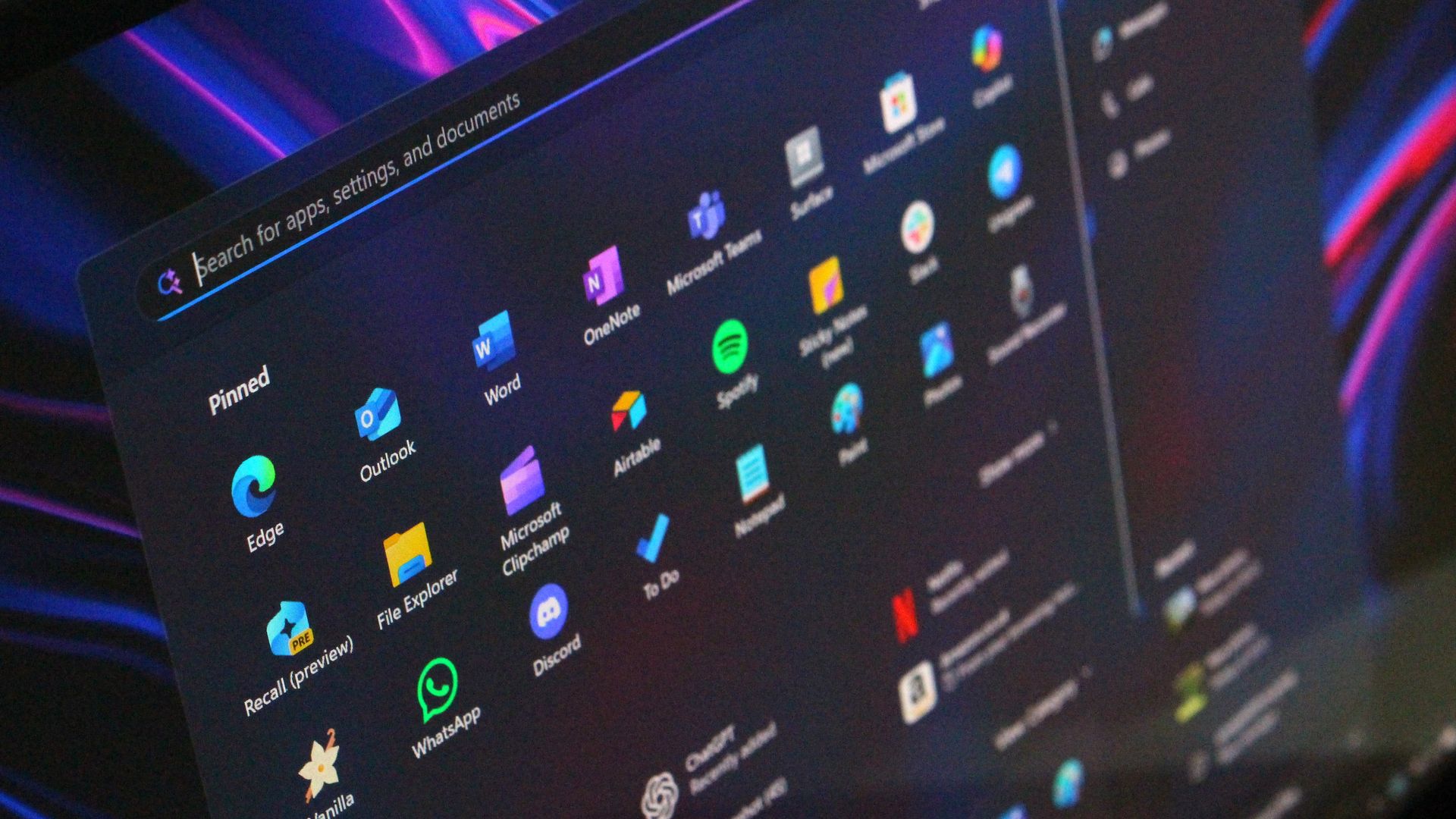
Windows 11 Start button
First images of Microsoft's Surface Pro 12-inch tablet PC.
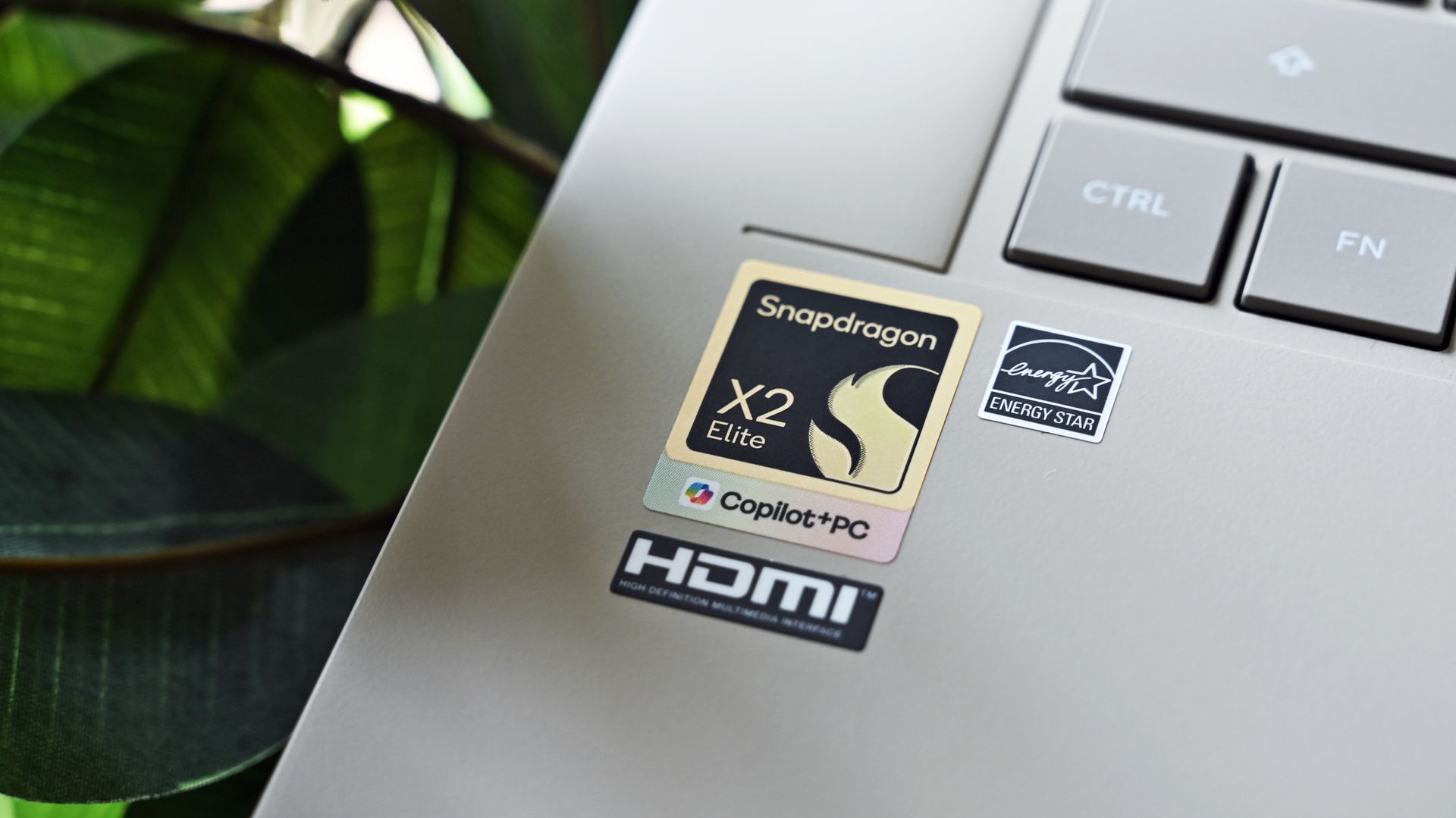
Close-up of a silver laptop deck featuring a Snapdragon X2 Elite Copilot+PC sticker alongside Energy Star and HDMI badges.
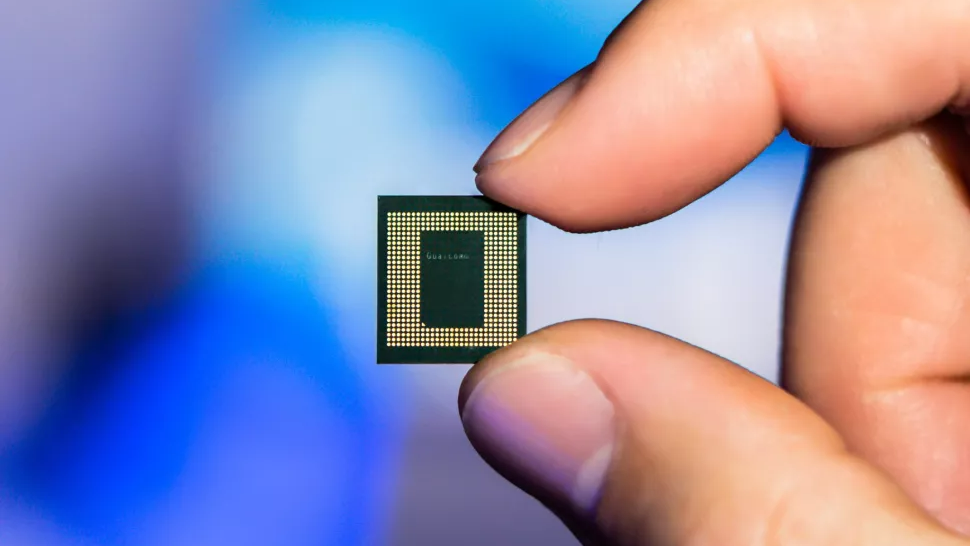
Qualcomm Snapdragon 865
Qualcomm
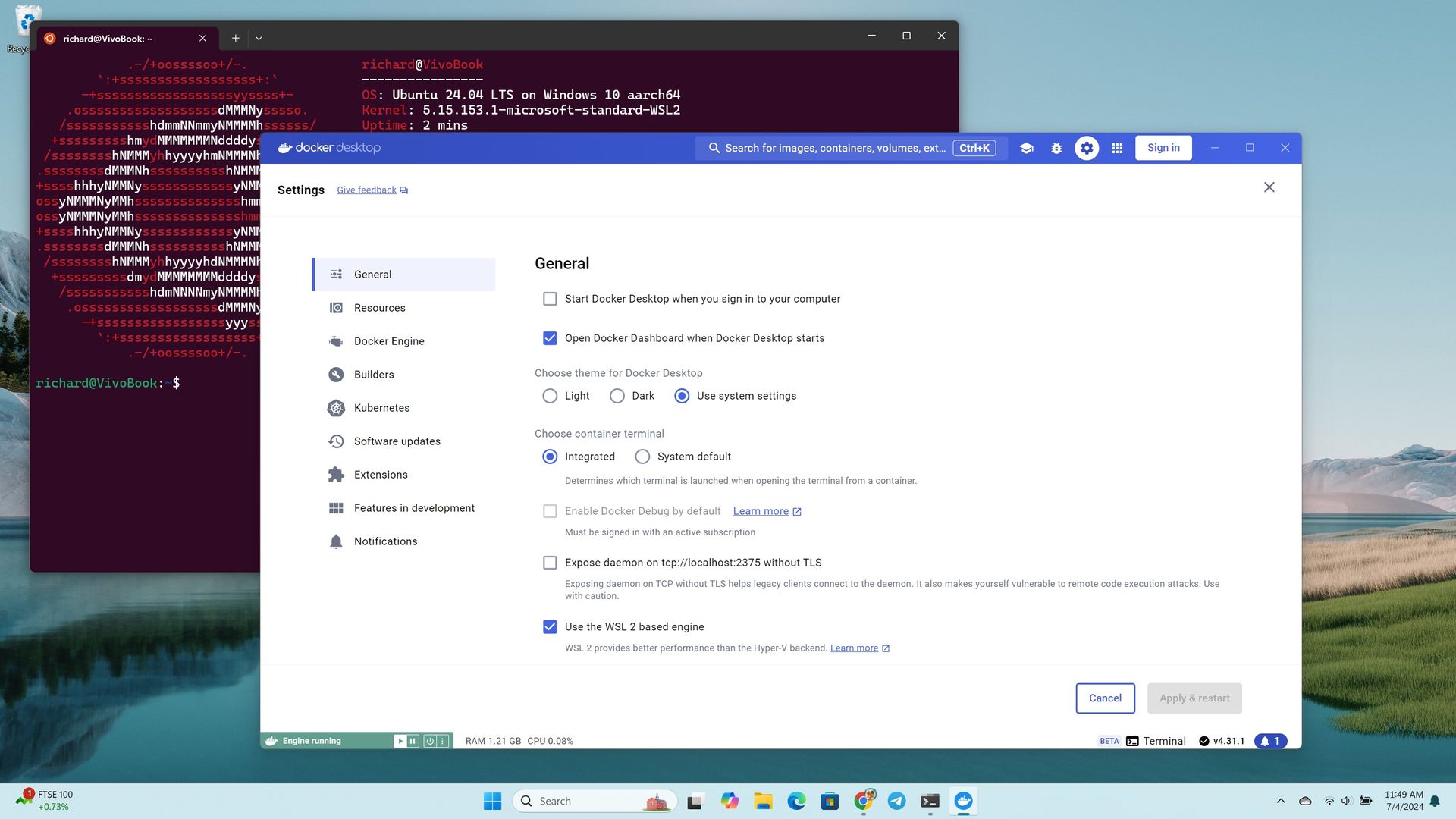
Docker Desktop for Windows using the WSL2 backend on ARM
Windows 11

Microsoft has had to release multiple out-of-band updates in 2026. Some bugs required multiple patches to fix. It's gotten so bad that most of our articles about Windows 11 updates are met with comments asking what will break this time.

Unfortunately, the commenters have been proven right several times. One serious bug made Outlook, OneDrive, Dropbox, and other cloud-backed apps inoperable. Another issue froze Remote Desktop and caused audio failures. At one point users couldn't even install a Windows 11 update, forcing Microsoft to pull that update.

If Microsoft is going to undercut its events and trim down its Surface lineup, it needs to double down on reliability. Next week, we should get some answers about Microsoft's plans.

Windows and Surface event

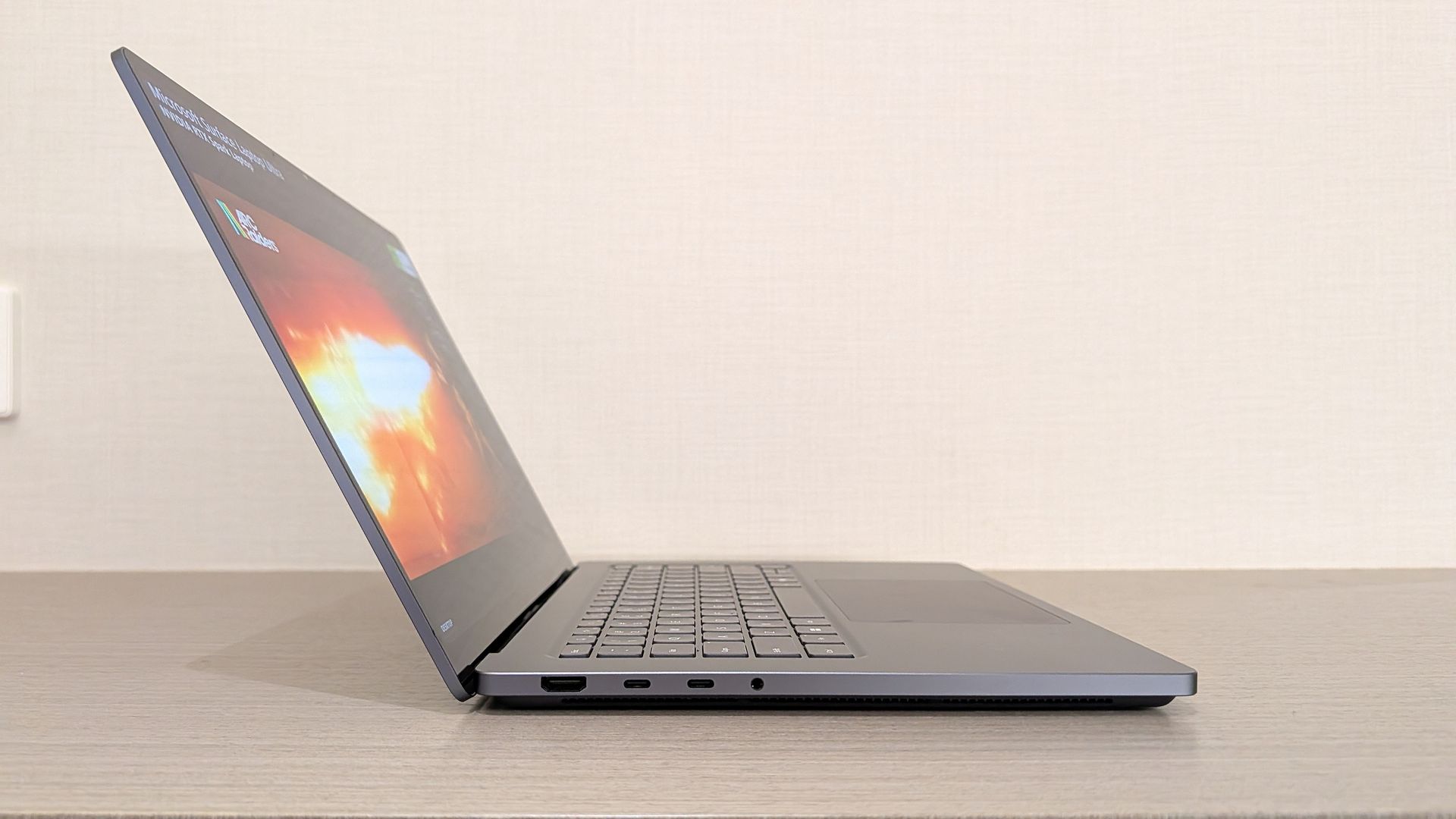
Surface Laptop Ultra

(Image credit: Windows Central / Zac Bowden)

A boring but bug-free Windows 11 update may be a welcome change of pace, but it makes me curious about what Microsoft will discuss at its Windows and Surface event next week. Considering Windows 11 version 26H2 is already rolling out, the focus is likely the future of Windows.

Does Microsoft have something up its sleeve? Has the tech giant learned a lesson about how to build consumer hype? Or are we due for another on-stage announcement about AI and how new PCs can run models locally?

I'm sure there are developers interested in the potential of the Surface Laptop Ultra and RTX Spark for AI development, but there are hundreds of millions of Windows users who care very little about AI. Microsoft needs to at least throw some scraps our way to keep us interested.

Shopping with Sean

Amazon's October Prime Day is next week, but there are already some great deals live. Competing retailers are trying to beat Amazon to the punch, resulting in big savings.

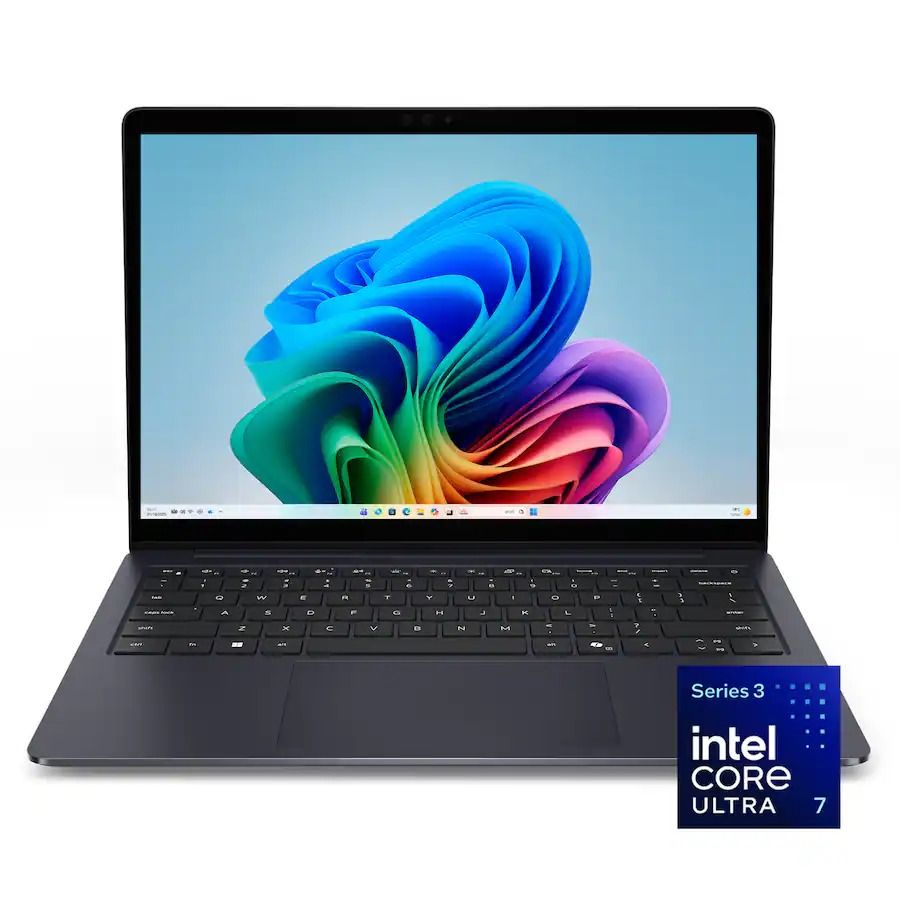
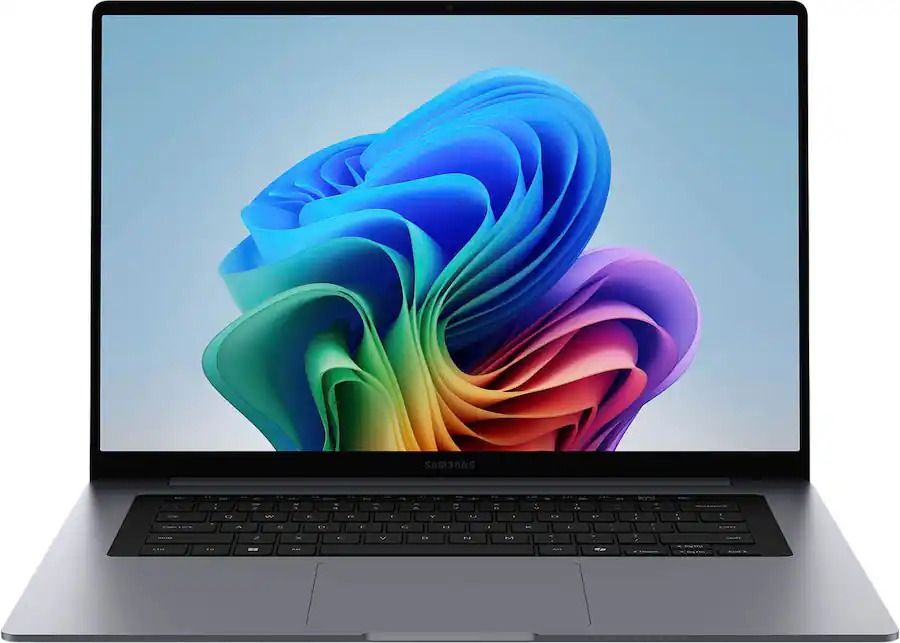
A trio of laptops are the best deals of the week. I'm partial toward the Lenovo Yoga Slim 7x because of its thin design but the Samsung Galaxy Book6 and Dell 14S are also great choices.

14S 14" 2K Touchscreen Laptop (Intel Core Ultra 7 355 2026, 16GB RAM, 512GB SSD, Copilot+): was $1599.99 now $899.99

"The Dell 14S is a compelling choice for a variety of users thanks to its long-lasting battery life (and) relatively affordable price." ~ Sean Riley, Freelance Writer, Tom's Guide

Tom's Guide review: ⭐⭐⭐⭐View Deal

Yoga Slim 7x: was $1299.99 now $969.99

"The Slim 7x (Gen 11) is a laptop I can see fitting in perfectly with students, home business pros, and casual users who simply want a laptop for around $1,199 (even less when it's on sale) that feels like it should cost a lot more." — Cale Hunt, Windows CentralView Deal

Samsung Galaxy Book6: was $1449.99 now $947

"I’ve been using the Samsung Book 6 for a while now and honestly it’s been solid. It’s lightweight, looks premium, and the battery easily gets me through most of the day. Performance is smooth for studying, browsing, videos, and everyday work." ~ VALENTIN, customer review

4.8 out of 5 Stars (based on 40 Best Buy customer reviews)View Deal

Click to join us on r/WindowsCentral

Join us on Reddit at r/WindowsCentral to share your insights and discuss our latest news, reviews, and more.
  •  
❌