❌

Vue lecture

Microsoft's new Windows 11 pitch isn't AI. It's a faster, less annoying PC

Microsoft just shared a massive blog post recapping major Windows 11 changes, including new Photos app features, an improved Search experience, expanded phone integration, and gaming improvements.

Many of the changes highlighted by Microsoft have already been announced, or even fully detailed elsewhere. But with Windows 11 in the middle of a significant refresh, gathering them all in one place is useful.

While much of the post focuses on previously known improvements, Microsoft also used it to introduce a few genuinely new additions, including the redesigned Photos app and an Xbox anniversary game bundle for eligible PC buyers.

Here's a quick rundown of the features Microsoft highlighted:

  • New Photos app
  • Advanced Shader Delivery (ASD)
  • Windows 11 performance improvements
    • Faster Start menu
    • Faster File Explorer
    • Faster Search
    • Faster Snipping Tool
    • Faster Settings
    • Memory optimizations
    • Reduced Widgets memory usage
    • Reduced update times
  • Bluetooth and AirPods improvements
  • Windows Hello improvements
  • A push to improve driver quality
  • Expanded Phone Link features
  • Microsoft Ink Canvas
  • Advanced Haptics
  • Improved accessibility

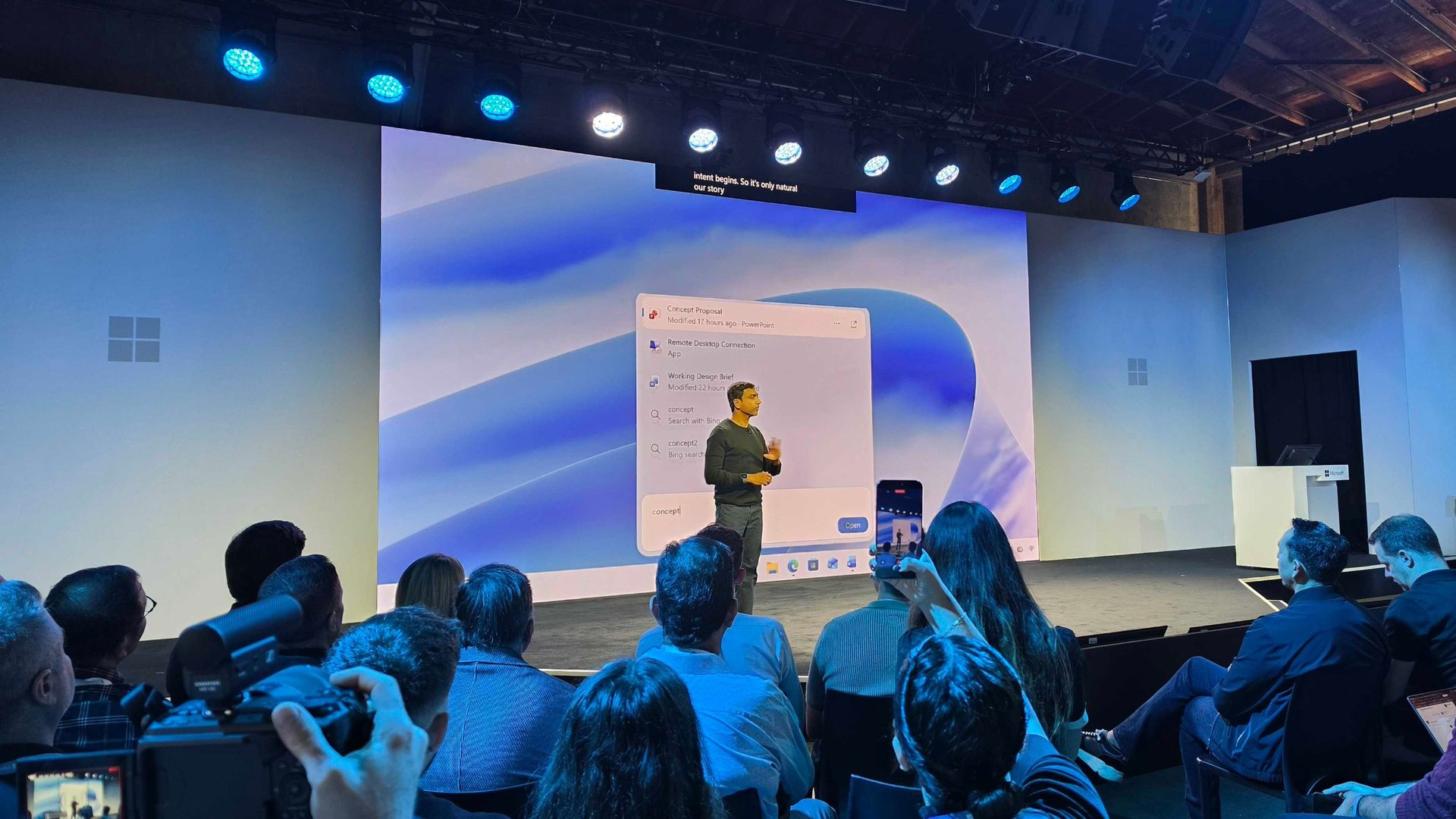
One of the biggest changes is the new Search experience that allows you to perform actions from the taskbar. The new Search is faster, supports inline actions, and lets you perform tasks without opening related apps or settings menus. The new Search is already in testing among Windows Insiders.

Microsoft explains that improvements to Windows 11 results in an experience that feels up to 20 percent more responsive. That improvement comes as the result of several efforts from Microsoft, such as optimizing memory management and streamlining in-box apps.

The company also highlights that Windows 11 is more reliable and customizable than before. Over the past year the Widgets Panel has been cleaned, the taskbar has gained the option to be placed on other parts of your screen, and Windows Update has been improved.

Microsoft specifically highlighted Bluetooth improvements, including AirPods pairing that it says is up to 15 seconds faster.
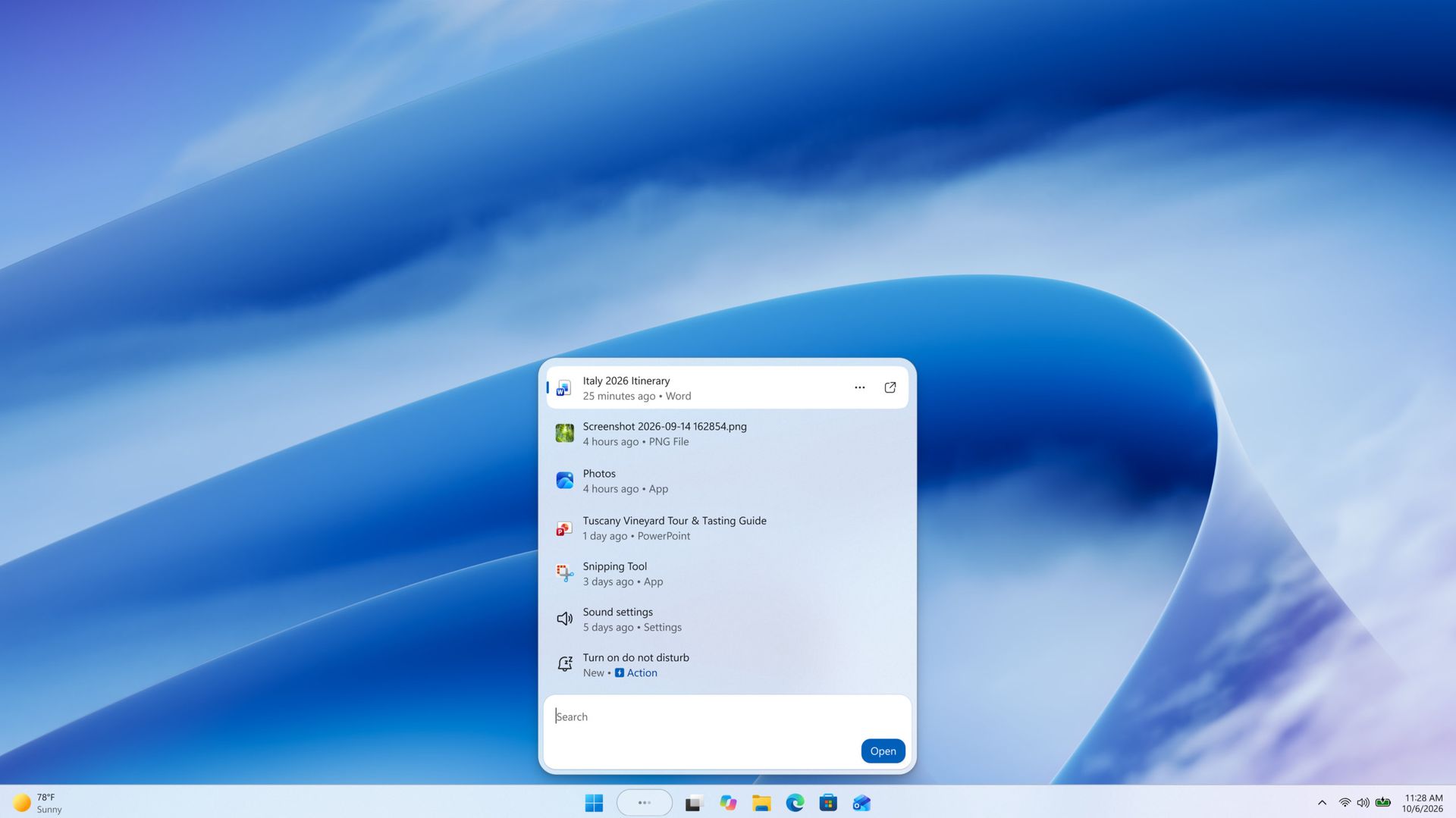
Windows 11 desktop showing Microsoft's new Search experience with recent files, apps, settings controls, and quick actions available from a Taskbar search panel.

The new Windows Search is faster, more efficient, and supports inline actions. (Image credit: Microsoft)

On the gaming side of things, Advanced Shader Delivery (ASD) reduces the initial load time of games by delivering precompiled shaders. Forza Horizon 6 and Gears of War: E-Day are supported now and more titles should gain support in the future.

The improvements to Windows 11 will help anyone with an up-to-date PC, but it's clear Microsoft is taking the opportunity to suggest people buy a new PC. As part of that effort, the company has an Xbox 25th Anniversary bundle that includes over $500 worth of games. The collection includes several major titles, including Skyrim Special Edition, Halo: Combat Evolved Anniversary, Age of Empires II Definitive Edition, Minecraft Dungeons, and Gears of War: Reloaded.

"A new PC is a meaningful purchase, and the value should show up in more than a spec sheet," says Microsoft. "The reason to upgrade is not just one feature; it is how [experiences] work together to make more of your day feel effortless."

Another Microsoft blog post highlights deals as we head into the holidays.

Microsoft shared a commitment to listen to feedback earlier this year. The company followed up with several improvements as part of its Windows K2 initiative. It's taken time for those promises to move from feedback and Insider testing to broader availability, but Windows 11 is now seeing some of its most significant changes in years.

The real question is whether these improvements change buying behavior. Microsoft clearly believes a faster, more reliable Windows experience can help convince people to upgrade.

Click to join us on r/WindowsCentral

Join us on Reddit at r/WindowsCentral to share your insights and discuss our latest news, reviews, and more.
  •  

Blaming Your Mouse for In-Game Lag? Microsoft Confirms It Was Actually Windows 11

If you’ve spent the last few weeks tweaking DPI profiles, lowering high polling rates, or eyeing an expensive replacement gaming mouse because your crosshairs suddenly jumped mid-match, hold off on spending that extra cash. Microsoft has officially acknowledged that an OS-level bug inside recent builds of Windows 11 was causing subtle mouse input stutters during […]

  •  

Tiny11 Builder - Votre ISO de Windows 11 allégée en quelques clics

Tiny11 Builder, l'outil qui fabrique des ISO de Windows 11 sans les applis préinstallées et que je vous avais présenté , dispose maintenant d'une vraie appli de bureau. Elle est en pré-version et vous épargne surtout de devoir lancer vous-même à la main la fameuse tripoté de scripts PowerShell (qui restent quand même dans le dépôt Github).

Je l'ai donc testée dans une machine virtuelle Windows 11 ARM histoire de vous faire un petit retour sur cette nouvelle version.

D'abord au lancement, l'appli réclame les droits administrateur, puis elle vous fait choisir un mode (Le mode Tiny11 allège Windows, le mode Core coupe aussi les mises à jour et Defender, et le mode Custom vous laisse choisir). L'appli sait également télécharger l'ISO officielle de Microsoft à votre place, dans l'architecture et la langue de la machine, ce qui donne chez moi un Windows 11 ARM 26H2 en version Pro en français.

Le téléchargement de l'ISO ARM64 en français, directement depuis l'appli

Le mode Tiny11, celui que j'ai pris, retire donc les applis fournies avec Windows ainsi que les binaires d'Edge, de WebView2 et d'OneDrive, mais il conserve Windows Update, Defender et l'environnement de récupération actif. À l'écran, ça se résume donc à 38 "groupes de suppression" et aucune action avancée.

Le mode Tiny11

Il ne reste ensuite qu'à cliquer sur Build, avec le mode Turbo activé et au bout de 40 à 50 minutes (je suis sur une VM donc c'est lent), vous aurez une belle ISO allégée. Par exemple, chez moi, l'ISO produite fait 5,38 Go, contre environ 7,95 Go au départ (l'image source contenait les 3 éditions de Windows et en sortie, je n'en ai plus qu'une).

Fin de construction, 49,5 minutes plus tard, pour une ISO de 5,38 Gio

Ensuite, il y a le mode Core qui désactive Windows Update et Defender et supprime la récupération, sans retour possible. L'auteur conseille de réserver ça aux machines virtuelles de test. Le mode Tiny11, lui, garde les mises à jour, mais une mise à jour de fonctionnalités peut donc réinstaller des applis et des réglages que vous auriez viré avant.

Autrement dit, soit vous gardez les mises à jour et l'allègement peut parfois sauter, soit vous gardez l'allègement en vous passant de ces mises à jours.

Ensuite, reste le mode Custom, où vous cochez tout vous-même, avec le risque de casser Windows.

Ne comptez pas trop non plus sur l'outil pour contourner quoi que ce soit puisque les réglages du compte local et les vérifications matérielles ne sont pas garantis sur les nouvelles versions, et que rien ne contourne la licence ni l'activation, donc il vous faudra toujours une clé ou lire cet article .

Voilà, c'est donc à récupérer sur GitHub pour ceux qui veulent s'amuser à se faire des ISO custom de Windows (que vous testerez au préalable dans une VM évidemment, histoire de vérifier que tout fonctionne bien car je le rappelle, Tiny11 Builder est encore une pré-version.)

Source : The Register

  •  

Windows 11 - Le lien du compte local serait déjà patché

Est-ce que vous vous souvenez de ce petit lien "Learn more" dont je vous avais parlé il y a un mois environ et qui permettait d'ouvrir un compte local lors de l'installation de Windows 11 Home sans passer par l'invite de commandes ? Eh bien Bob Pony, l'utilisateur de X qui l'avait repéré, vient de déclarer que ça avait été "discrètement" patché côté serveur .

Pour ceux qui l'avait raté, le concept c'était que sur l'écran qui vous réclame un compte Microsoft, le petit lien "Learn more" présent dans le paragraphe sous les "Sign-in options" pouvait nous envoyer direct sur la création d'un compte local. Comme ça pas de base de registre à bidouiller, ni de Wi-Fi à suspendre...

Comme quoi, une simple erreur peut engendrer beaucoup de bonheur !

Alors, c'est finito pour de bon ?

Parce qu'un correctif côté serveur, ça ne s'évite pas, hein surtout que comme le rappelle Windows Latest , l'installation repose sur des composants web, ce qui veut dire que même garder une vieille ISO sous le coude ça ne servira à rien.

Maintenant pour continuer à vous créer un compte local, c'est possible avec le célèbre Rufus , où il y a juste une case à cocher et comme ça votre clé USB ne réclamera plus aucun compte.

Bref, si vous avez une installation prévue aujourd'hui, tentez quand même le lien pour voir et me dire car pour le moment, seul Bob Pony a confirmé cette régression.

  •  

Microsoft’s week in review: Surface Laptop Ultra arrives, RTX Spark laptops go live, and Windows 11 gets buried under AI jargon

Windows Central

Windows 11 users and Surface enthusiasts had a busy week. Microsoft held an event to showcase the Surface Laptop Ultra, a new Search experience, and a bunch of AI features and integrations across Microsoft services.

Like the original Surface Pro, this week’s Windows and Surface event tried to be a 2-in-1. Unfortunately, just like the first-gen Surface Pro, the event failed to thrive in either of its two categories.

The first 20 minutes of the event felt like a Build session. That’s not a bad thing. Build is an important event for developers. But it’s not aimed at general audiences and is full of technical jargon.

Biggest News of the Week

Surface Laptop Ultra
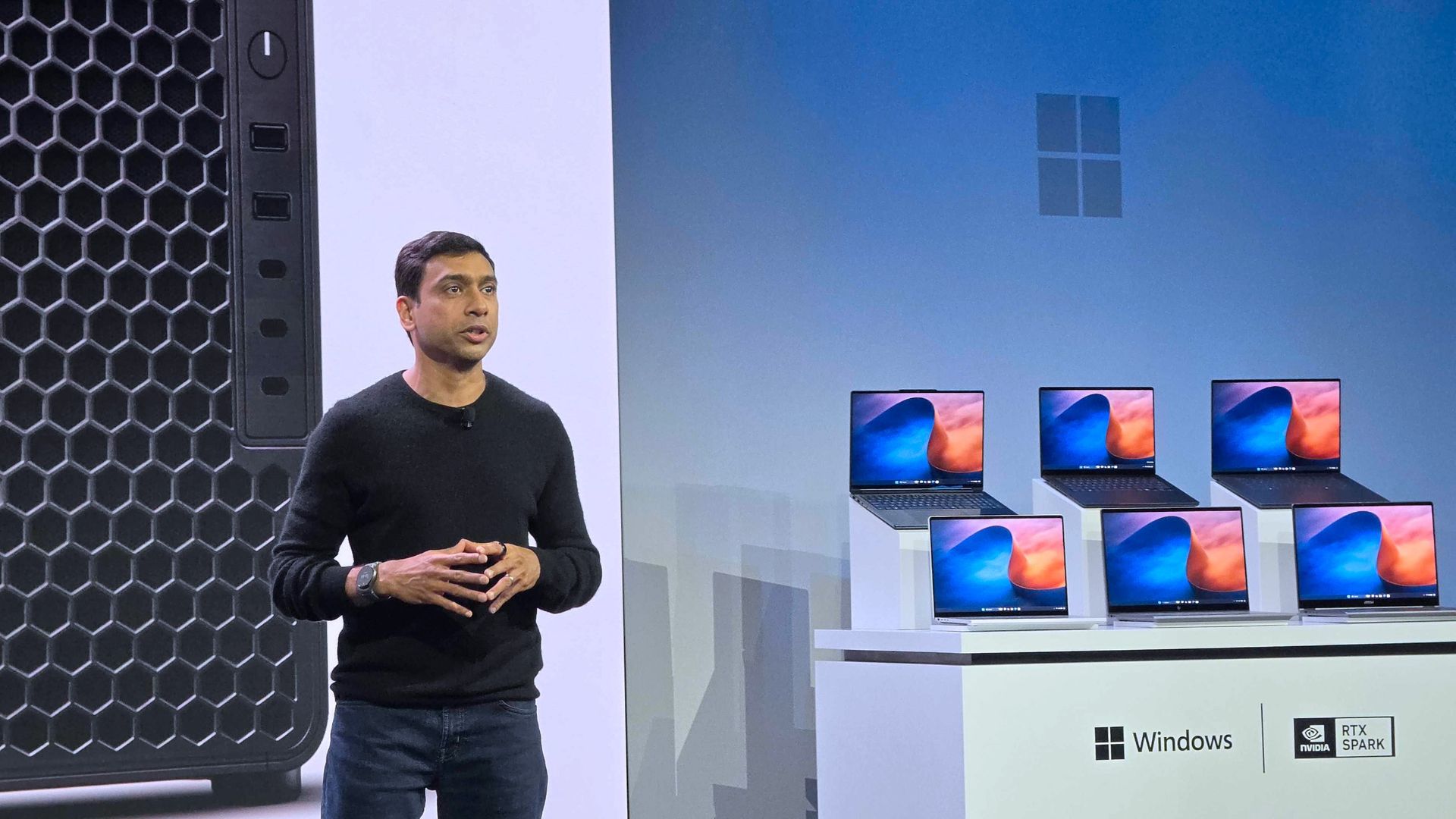
Pavan Davuluri presenting RTX Spark laptops on stage
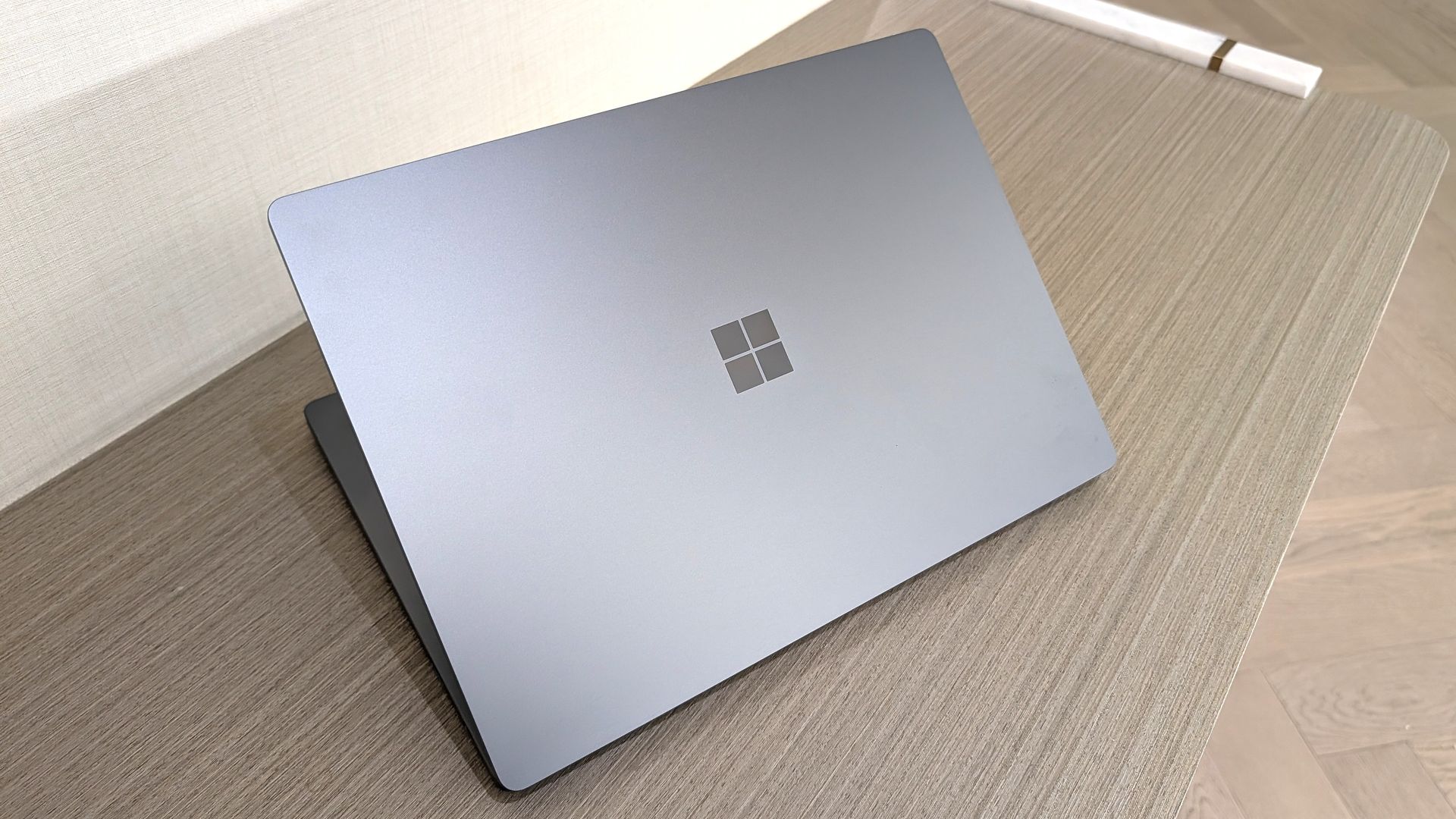
Microsoft Surface Laptop Ultra on stage in San Francisco
Pavan Davuluri on stage for Microsoft in San Francisco
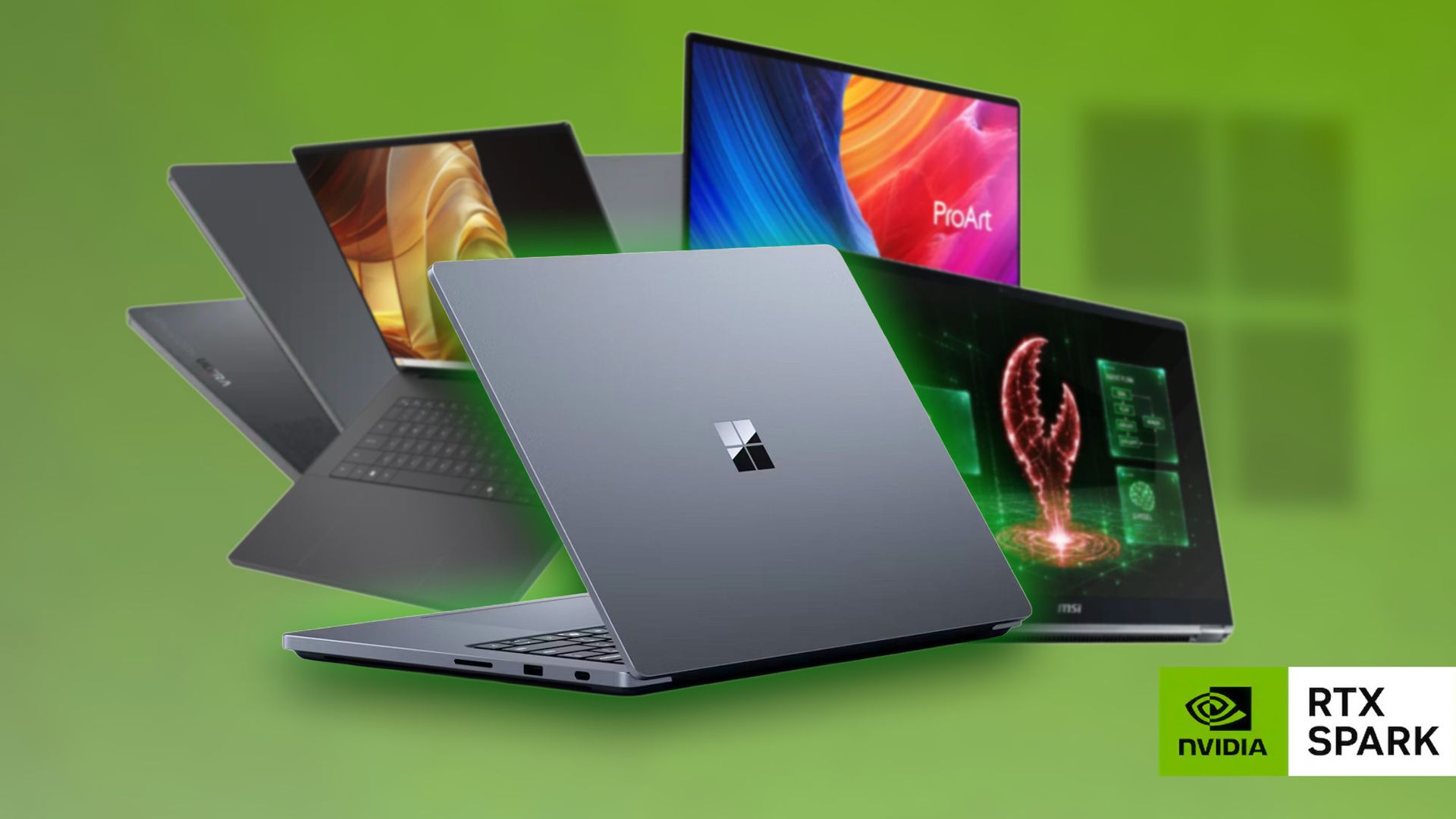
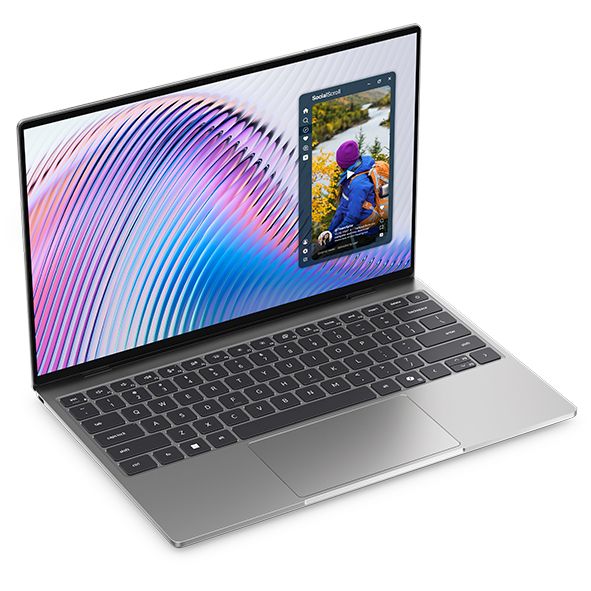
Surface Laptop Ultra, ASUS ProArt P16, MSI Prestige N16 Flip AI+, HP OmniBook Ultra 16, and Dell XPS Creator Edition curated with a green background and NVIDIA RTX Spark logo
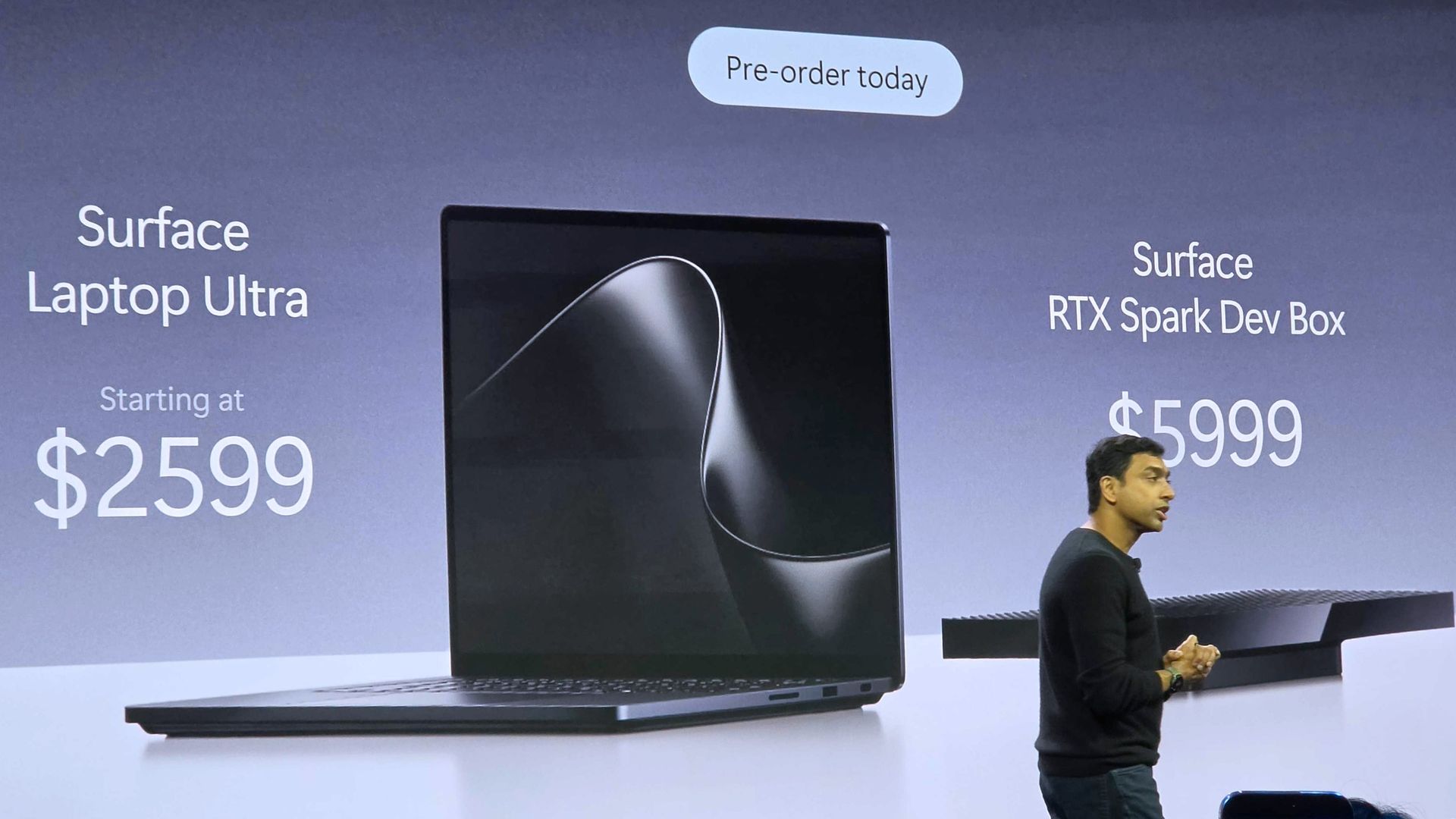
Pavan Davuluri reveals the price of the Surface Laptop Ultra and the RTX Spark Dev Box

Anyone who tuned in to the Windows and Surface event hoping for a closer look at the Surface Laptop Ultra would have glazed over at talks of Llama.cpp and Microsoft Execution Containers.

After watching several speakers focus on the technical aspects of AI and development, I assumed the entire event would be like that. Which made the rest of the event confusing.

After filling our eyes and ears with jargon and likely convincing many to stop watching, Microsoft switched gears and showed off a truly useful feature for Windows 11.

The improved Search experience is a consumer-facing feature that is a breath of fresh air to Windows 11. It looks good, is more functional than what it replaces, and according to Microsoft is more efficient while also performing better.

Shortly after unveiling the new Search, Microsoft shared details about the Surface Laptop Ultra. That PC is designed and priced for developers and power users, but it is intriguing to enthusiasts. On top of being the most powerful Surface ever, it has cool features like its magnetic USB-C port.

Microsoft appears confident in the Surface Laptop Ultra. The company’s website now features a banner telling people “break up with your MacBook.”

But the event wasn’t structured in a way that showed the same confidence. The event felt like someone pasted PowerPoint slides from different presentations into a single document.

Who was this event for?

I expected to be frustrated by the Windows and Surface event. I said two weeks ago that Microsoft undercut the event. And I’ve said all year that Surface has lost its identity as a brand.

While I am frustrated, it’s for an entirely different reason than I expected. Microsoft announced interesting things for Windows and Surface. I think the event lived up to its description on YouTube that promised to show "RTX Spark and new experiences designed to unlock more possibilities for developers and builders."

But I don’t think that was shown off in a way that appeals to the masses. The features and devices shown on stage may create buzz, but the event itself did not.

Shopping with Sean

Amazon Prime Big Deal Days came and went, but some of the best tech deals are still live. My top pick is a small discount on the XPS 13 that drops the laptop to $799.99.

"Dell's new XPS 13 is the new best deal in laptops, surpassing the MacBook Neo with a better display, ports, build quality, and performance for the same price." — Zac Bowden, Senior Editor, Windows CentralView Deal

Click to join us on r/WindowsCentral

Join us on Reddit at r/WindowsCentral to share your insights and discuss our latest news, reviews, and more.

  •  

Windows 11 26H2: how to install without waiting for Microsoft

Microsoft is gradually rolling out the Windows 11 2026 Update (version 26H2) to compatible devices. However, it's an optional install, and if you want to install it early, you'll have to switch manually.

Windows 11 version 26H2 is a small update that doesn't require a full reinstall if your device is already running version 25H2 or 24H2. However, if your hardware is still running version 23H2 (or an older version), you'll need to perform an in-place upgrade with a full reinstallation.

Also, if you plan to upgrade from Windows 10, the computer will go through the full upgrade process as well. In addition, this new version will roll out in phases, starting with devices known to have a good upgrade experience, so not every device will receive the update in the early days.

If you don't want to wait, you can manually trigger the upgrade in at least four ways, including Windows Update, the Installation Assistant, the Media Creation Tool, and an ISO file.

In this how-to guide, I'll outline the steps to upgrade from any previous version to the Windows 11 2026 Update.

Important: Although this is a non-destructive process, something can still go wrong during and after the upgrade. Consider creating a temporary backup before proceeding. You've been warned.

How to install Windows 11 2026 Update from Settings

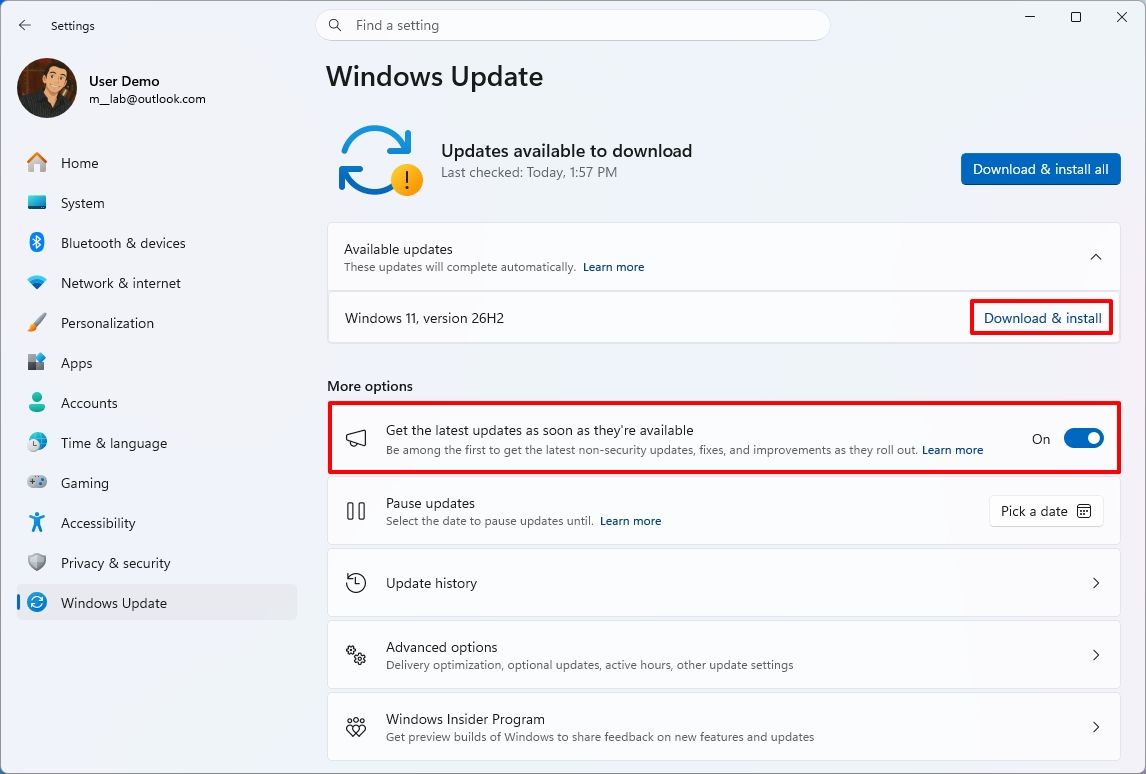
To install the new version of Windows 11 through the Windows Update settings, use these steps:

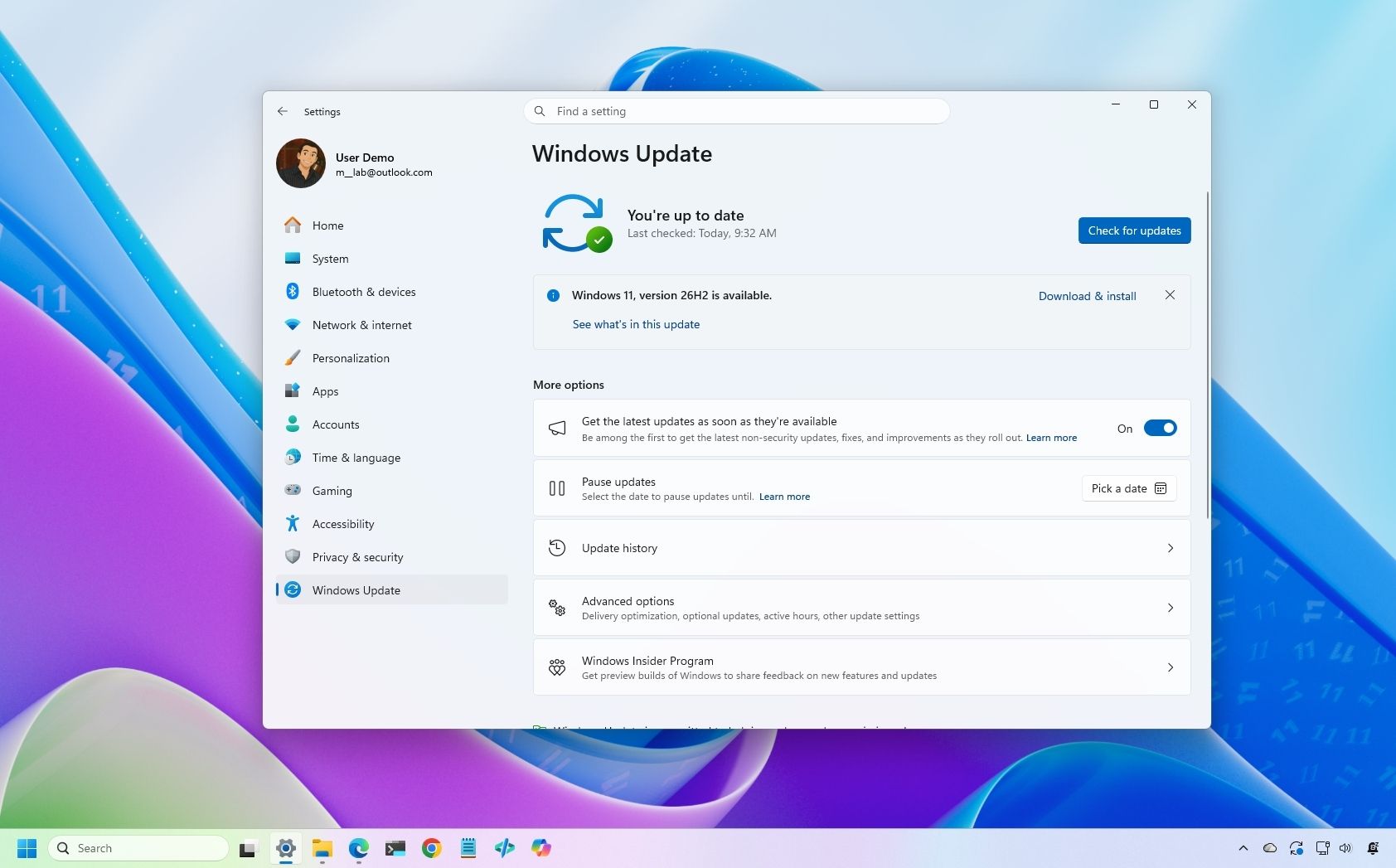
  1. Open Settings.
  2. Click on Windows Update.
  3. Turn on the "Get the latest updates as soon as they're available" toggle switch.
  4. Click the "Check for updates" button.
  5. Click the "Download and install now" button.

Windows 11 Settings showing the Windows Update settings with version 26H2.

(Image credit: Mauro Huculak)
  1. Click the Restart now button.

After you complete these steps, the installation process will apply the update to the device without requiring a full operating system reinstall.

If the upgrade option isn't available, the update likely isn't ready for your system configuration.

Also, I don't recommend using a different upgrade method, as it may cause issues and require an unnecessary reinstallation.

How to install Windows 11 2026 Update from Installation Assistant

This method should only be used to upgrade a device running version 23H2 or Windows 10. If you use this tool on version 25H2 or 24H2, you'll trigger an unnecessary in-place upgrade.

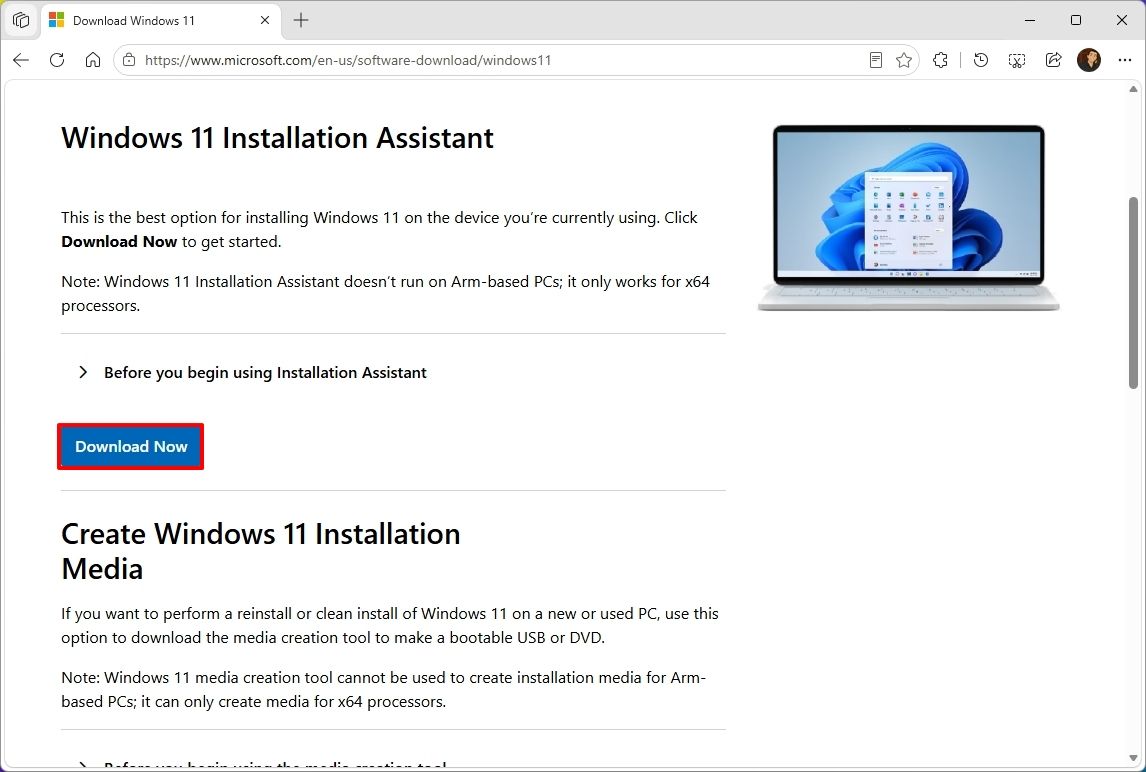
To upgrade the system to the Windows 11 2026 Update with the Installation Assistant tool, use these steps:

  1. Open this Microsoft support website.
  2. Click the Download Now button under the "Windows 11 Installation Assistant" section.

Microsoft download page highlighting the Installation Assistant download.

(Image credit: Mauro Huculak)
  • Quick tip: If you get a message that the latest version of the operating system is already installed, you likely downloaded an older version of the tool. If so, try downloading the Installation Assistant from this page.
  1. Double-click the Windows11InstallationAssistant.exe file to launch the tool.
  2. Click the "Get PC Health Check app" option to download the tool on the device (if applicable).
  3. Install the Get PC Health app following the easy on-screen directions.
  4. Open the Get PC Health app and click the "Check Now" button.
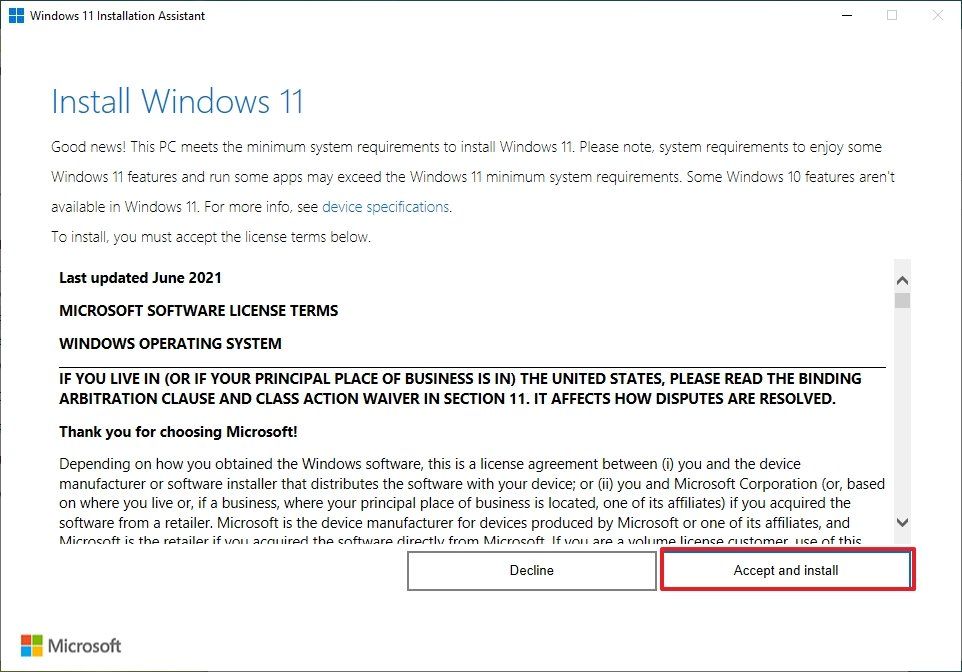
  5. Click the Refresh button on the Installation Assistant tool.
  6. Click the "Accept and install" button.

Windows 11 Installation Assistant

(Image credit: Mauro Huculak)
  1. Click the "Proceed with installation" button to begin installation.
  2. Click the Restart button.

Once you complete the steps, the tool will download the necessary files and install the new version of Windows 11, preserving your files, settings, and apps.

How to install Windows 11 2026 Update from Media Creation Tool

You should only use this tool when upgrading from an older version, such as 23H2, or Windows 10.

Although you can no longer use the Media Creation Tool to perform an in-place upgrade, you can use it to create bootable USB media to install the new version of the operating system.

This method will perform a complete reinstallation. If you're upgrading from version 25H2 or 24H2, you don't need this method. Instead, upgrade using Windows Update settings.

To use the Media Creation Tool to create a USB drive to upgrade a device, use these steps:

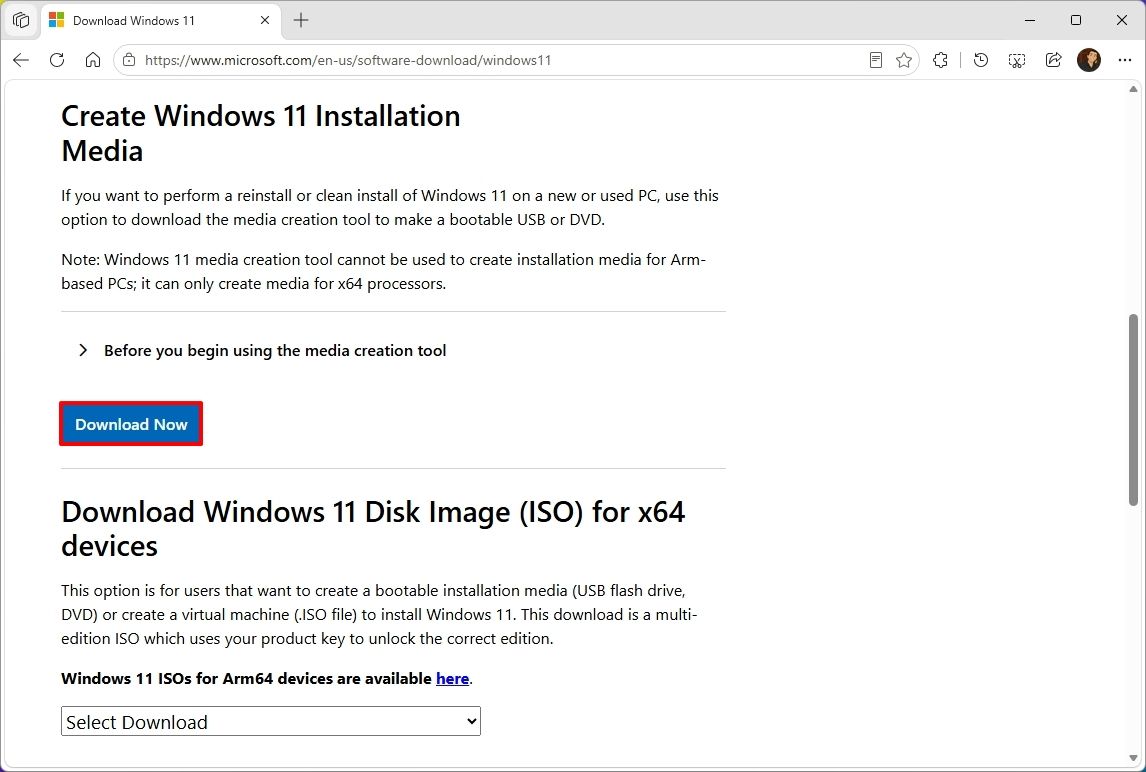
  1. Open the Microsoft support website.
  2. Click the Download Now button under the "Create Windows 11 installation media" section.

Microsoft download page showing the Media  Creation Tool option.

(Image credit: Mauro Huculak)
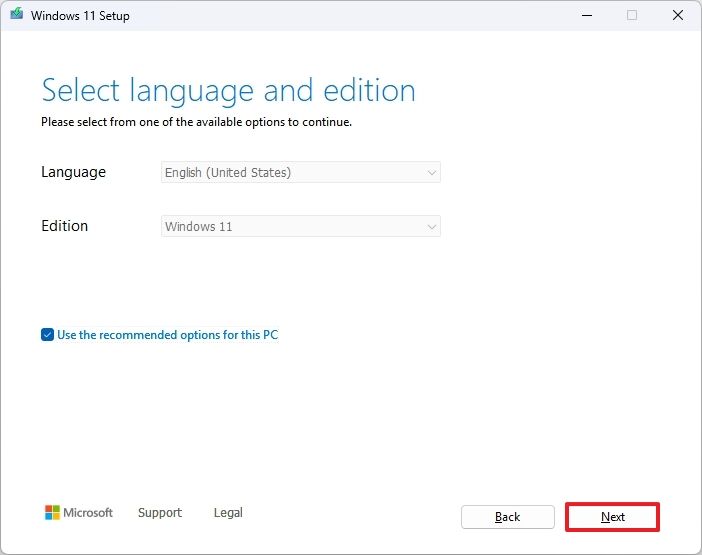
  1. Double-click the MediaCrationTool.exe file to launch the utility.
  2. Click the Accept button.
  3. Click the Next button.

Media Creation Tool language selection

(Image credit: Mauro Huculak)
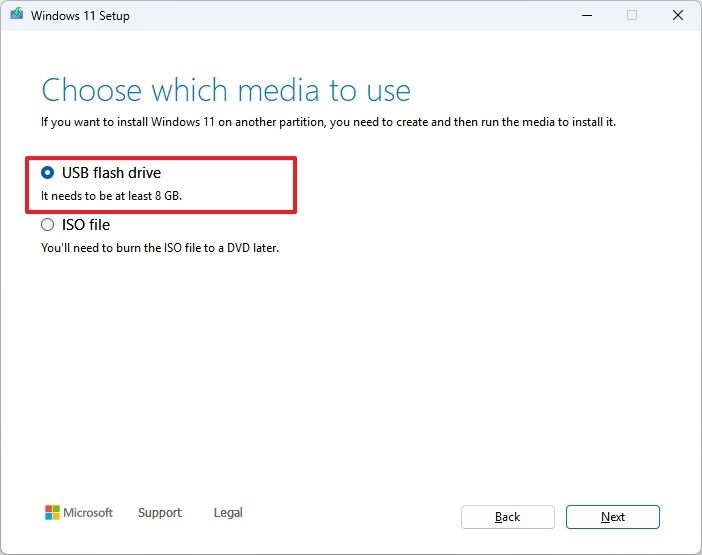
  1. Select the USB flash drive option.

Media Creation Tool USB selection

(Image credit: Mauro Huculak)
  • Quick note: You will need a USB flash drive with at least 8GB of storage. This process will erase the drive, so back up any important information first.
  1. Click the Next button.
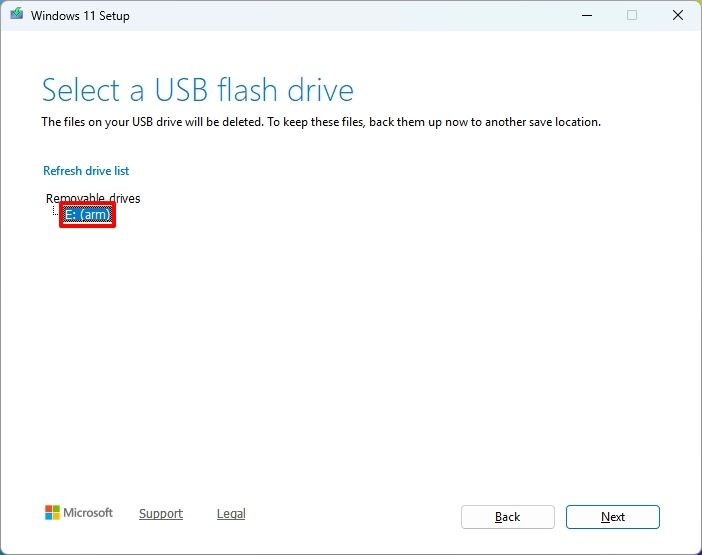
  2. Select the USB flash drive from the list.

Media Creation Tool select USB flash drive option.

(Image credit: Mauro Huculak)
  1. Click the Next button.
  2. Click the Finish button.
  3. Open File Explorer.
  4. Click on This PC in the left navigation pane.
  5. Open the USB drive with the Windows 11 2026 Update installation files.
  6. Double-click the setup.exe file.
  7. Click the Next button.
  8. Click the Accept button to agree to the terms.

Windows 11 upgrade from MCT

(Image credit: Mauro Huculak)
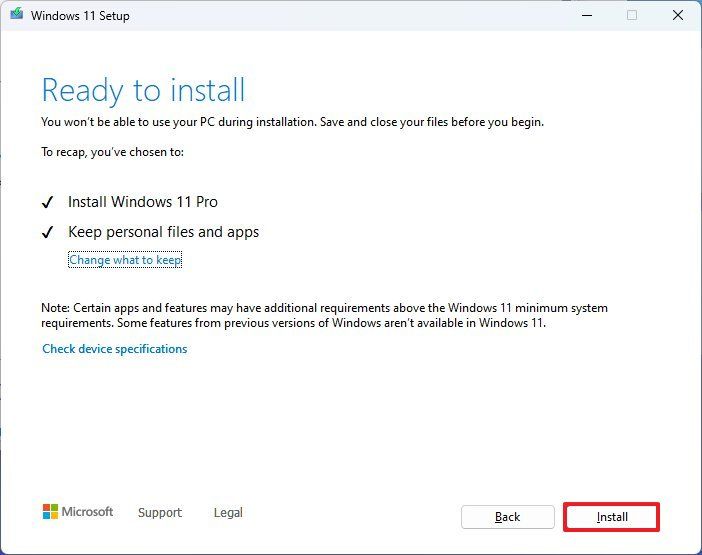
  1. Click the Install button.

After you complete these steps, Windows Setup will proceed with the in-place upgrade to version 26H2 on your device.

How to install Windows 11 2026 Update from ISO file

Finally, you can also download the Windows 11 version 26H2 ISO file to upgrade your system.

To upgrade to Windows 11 2026 Update using the official ISO file, use these steps:

  1. Open this Microsoft support website.
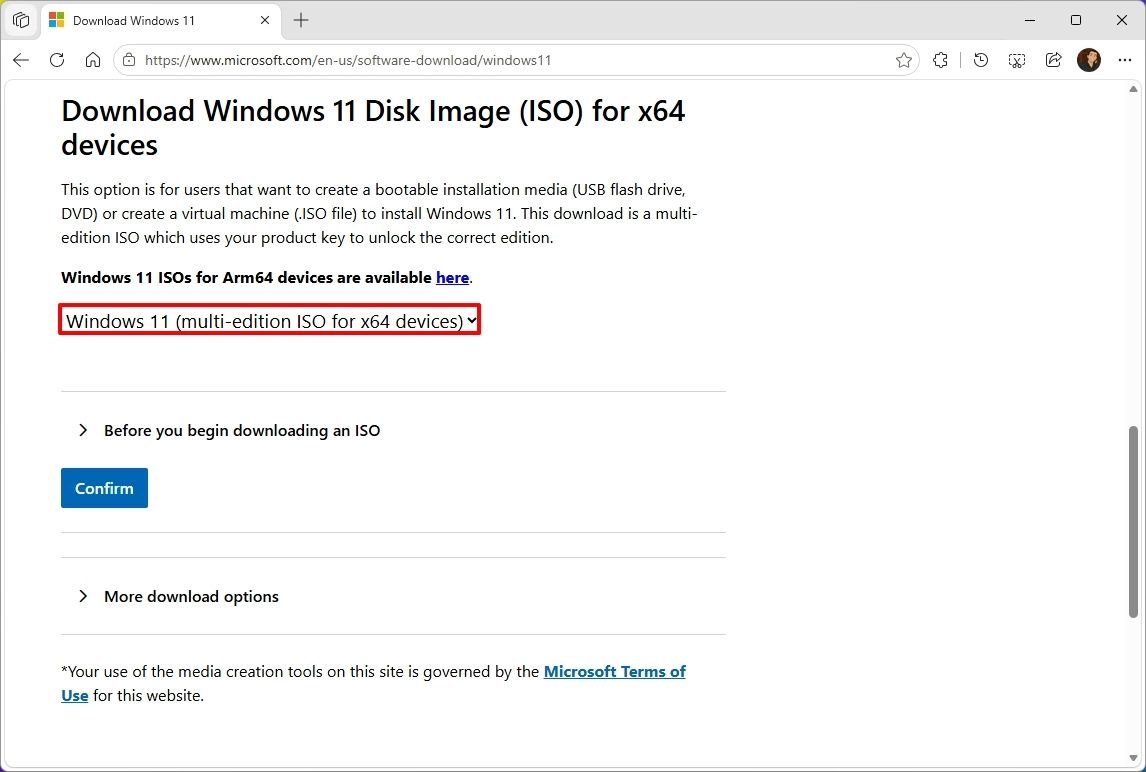
  2. Select the Windows 11 option under the "Download Windows 11 Disk Image (ISO)" section.
  3. Click the Confirm button.

Microsoft download page highlighting the ISO file download.

(Image credit: Mauro Huculak)
  1. Select the installation language.
  2. Click the Confirm button.
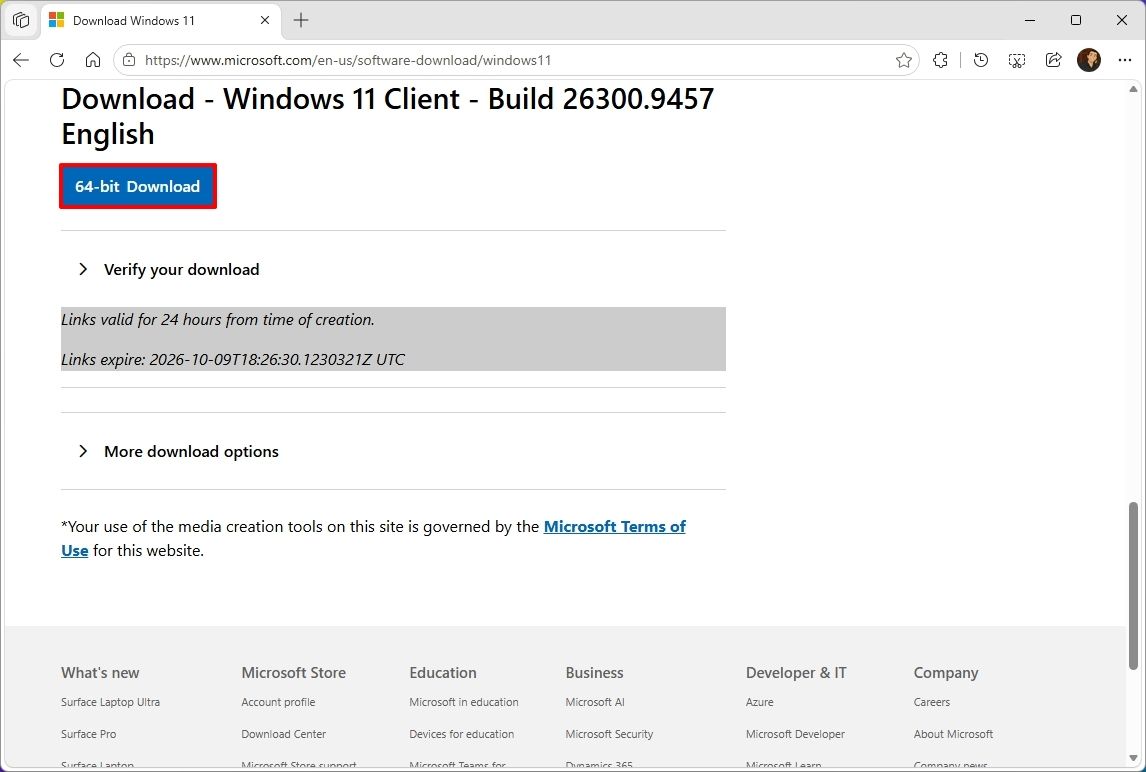
  3. Click the "64-bit Download" button to save the ISO file to the computer.

Microsoft download showing the ISO file download for Windows 11 version 26H2.

(Image credit: Mauro Huculak)
  1. Right-click the image file and select the Mount option.
  • Quick tip: If you don't see the option, another tool is likely managing the ".iso" files.
  1. Select the virtual drive from the left navigation pane (if applicable).
  2. Double-click the setup.exe file to manually launch the setup.
  3. Click the Next button.
  4. Click the Accept button to agree to the terms.
  5. Click the Install button.

Windows 11 upgrade from MCT

(Image credit: Mauro Huculak)

Once you complete the steps, the computer will upgrade to the 2026 Update, preserving your files, settings, and apps.

FAQs about installing Windows 11 2026 Update

These are common questions regarding the installation of version 25H2.

Do I need to reinstall Windows 11 to get version 26H2?

If your computer is already running Windows 11 version 25H2 or 24H2, the 26H2 update will install as a cumulative update without requiring reinstallation. If you're on version 23H2 or older, you'll need to upgrade to version 25H2 first, which does require a complete reinstall.

What are the safest ways to install the latest update?

Microsoft recommends waiting for "Windows Update" to offer the upgrade automatically. If you don't want to wait, you can use the Installation Assistant, the Media Creation Tool, or download the official ISO file.

Will the upgrade process delete my files or apps?

No, if you upgrade using Windows Update, Installation Assistant, or the ISO setup, your files, apps, and settings should remain on the computer. However, it’s always recommended to back up your data before starting the upgrade.

If you perform a clean installation, the process will delete everything on your device.

More resources

Explore more in-depth how-to guides, troubleshooting advice, and essential tips to get the most out of Windows 11 and 10. Start browsing here:

Click to join us on r/WindowsCentral

Join us on Reddit at r/WindowsCentral to share your insights and discuss our latest news, reviews, and more.

  •  

I almost want this new Windows wallpaper more than any of the RTX Spark laptops

I love a good wallpaper for my PC, and so do many members of the Windows Central community. When our Editor-in-Chief Daniel Rubino shares a review of a laptop, it's normal to see comments asking how to download his wallpaper.

Microsoft has a similar enthusiasm for wallpapers. Windows Spotlight provides an ongoing stream of excellent images that rotate regularly. The tech giant also creates or commissions wallpapers to go along with major product announcements. Windows 10, Windows 11, and Copilot+ PCs all have their own official wallpapers.

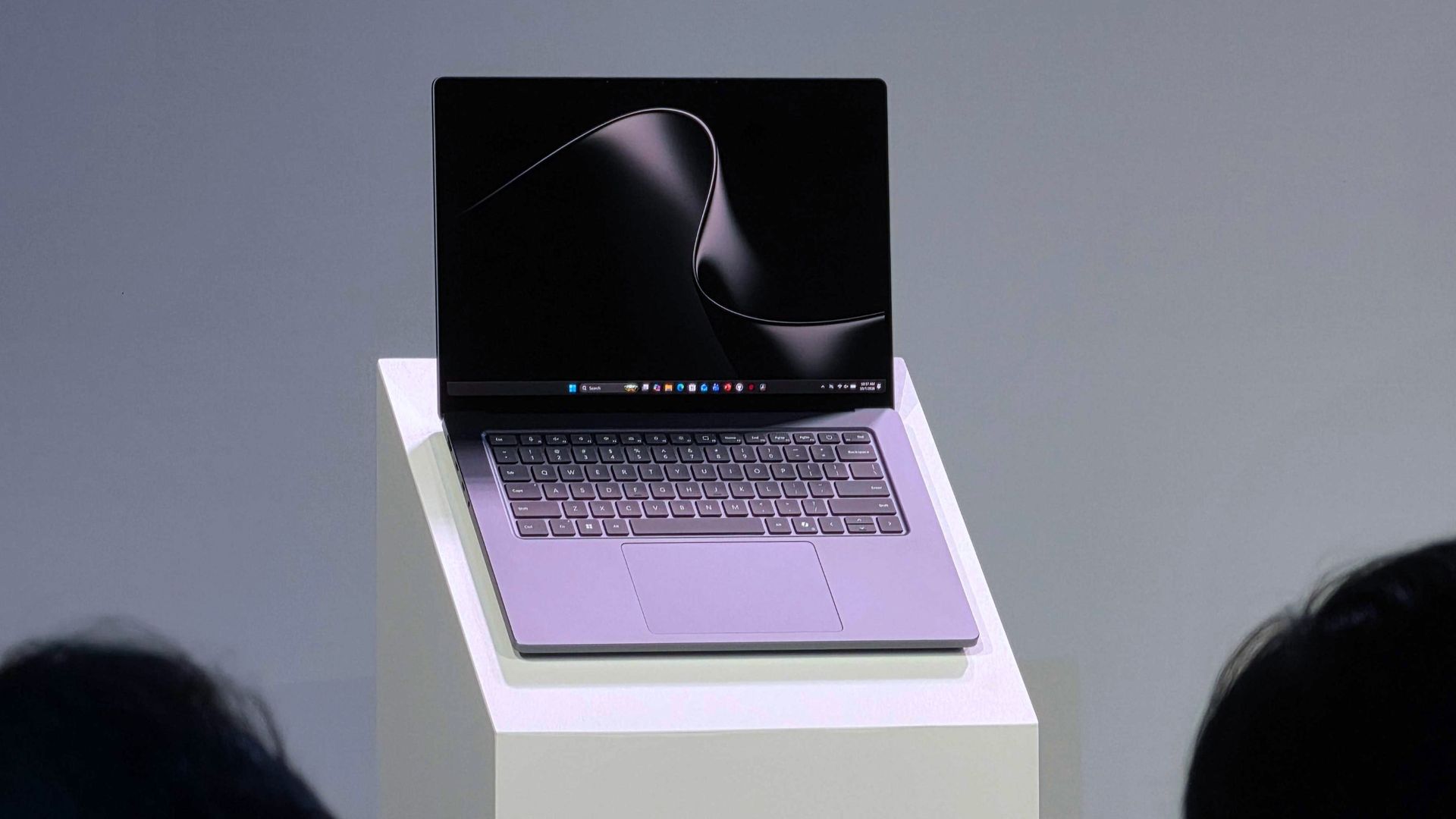
Eagle-eyed viewers of this week's Windows and Surface event spotted what appears to be a new wallpaper from Microsoft. Our Senior Editor was at the event and snapped a shot of the wallpaper displayed across several new RTX Spark laptops.

Unfortunately, Microsoft has not shared the new image, forcing fans to turn to AI.

In response to Bowden's photo, X user @codejake shared a recreation of Microsoft's new wallpaper created with ChatGPT.

@zacbowden Here you go. 5K resolution via ChatGPT. https://t.co/ooS6fOAlsDOctober 7, 2026

That recreation seems to do a fair job of replicating Microsoft's image, though I'm sure there are differences that will become clearer once we get hands on the official wallpaper.

We've seen AI used to create or recreate iconic wallpapers before. Our Senior Editor Ben Wilson used Adobe Photoshop's generative AI to expand a collection of Windows wallpapers.

The legendary Windows XP wallpaper was mixed with the Windows 11 "Bliss" wallpaper by Reddit user "Left_Hovercraft451" earlier this year. I even rocked a color-shifted version of the Bliss wallpaper made to have Windows Central colors for a while.

Until Microsoft shares the new wallpaper, we may have to settle for AI recreations. The first wave of RTX Spark laptops are already available for preorder and will start shipping on October 16, 2026, so we may see the files escape into the wild sooner rather than later.

Click to join us on r/WindowsCentral

Join us on Reddit at r/WindowsCentral to share your insights and discuss our latest news, reviews, and more.

  •  

Windows 11 Update Improves Task Manager, Fixes Windows Update Errors, and Refines Security Sign-In

Microsoft is rolling out several useful improvements to Windows 11 Insiders, focusing on clearer system resource monitoring, more reliable Windows updates, and a cleaner security sign-in experience. Included in Windows 11 Insider Experimental Preview Build 26340.9616, released on October 7, 2026, these changes address everyday usability issues rather than introducing a major visual redesign. Microsoft […]

  •  

Windows 11 Adds a Battery Status Widget to Track Your PC and Connected Devices

Microsoft is making Windows 11’s Widgets board more useful with a new Battery Status widget that lets users check the battery levels of their PC and connected peripheral devices from one place. The feature is rolling out to Windows Insiders running newer builds, giving users a convenient way to monitor power levels without navigating through […]

  •  

Windows 11 Driver Quality Initiative: How Intel’s 26H2 GPU Drivers Stop Kernel Crashes

For decades, the standard Windows experience has occasionally been disrupted by sudden Blue Screens of Death (BSOD), unexpected thermal throttling, or battery drain. While users often point fingers directly at the operating system, Microsoft has officially acknowledged a reality long understood behind closed doors: a single faulty, low-quality driver running in kernel space can bring […]

  •  

You can now test Microsoft's new Windows Search experience

At its Windows 11 and Surface event, Microsoft showed off its improved Search experience. The new Search is faster, more efficient, and has a streamlined design that should be easier to scan.

The streamlined Windows Search is about more than finding files or apps, though it can do that. Search can perform tasks, such as switching your PC to dark mode or changing the volume of your computer.

Whether you're more interested in the performance improvements or the new features, there's reason to install the latest builds of Windows 11 that shipped to the Experimental channel and the Experimental channel (26H1). Insiders in those channels can now test the refreshed Search experience with limited support for inline actions.

Microsoft's engineers must have been excited about Windows after its big event, because five Insider builds were released yesterday. Two of them include the refreshed Windows Search. Here's everything that's new across all of the builds.

Windows Search (Experimental, Experimental (26H1))

  • New Windows Search experience with inline actions: We're beginning to roll out a new Windows Search experience built on WinUI 3 that is faster, more efficient, and features a streamlined design that makes results easier to scan. We're also introducing inline actions, allowing you to quickly complete tasks directly. Turn on dark mode or Bluetooth, adjust your screen brightness, mute your device, or arrange windows from Windows Search.
  • We're improving how Windows Search understands what you're looking for, including better matching for typos and synonyms. We'll continue fine-tuning these improvements over the coming weeks. For more information detailing the new changes, check out the Windows Insider Blog.
  • English is the only supported language for this initial release.
  • After upgrading to this build, restart your device before the New Windows Search Experience feature flag is visible.

Battery status widget (Experimental)

  • As part of our continued commitment to making Widgets more useful for everyday moments, we're introducing the Battery Status widget for Insiders on newer builds. This widget provides a unified view of battery levels for your PC and peripheral devices, helping you quickly assess power status without hunting through multiple UI locations. Add it by going to Widgets board > Add widgets > Battery Status.

Narrator (Experimental (26H1))

  • Read and explore math equations with Narrator (see full description in release notes)

Kerberos enhancements (Experimental)

  • IAKerb is now enabled by default for Windows client. IAKerb is a Kerberos extension that allows Windows authentication to succeed in scenarios where traditional Kerberos can't be used because a direct connection to a domain controller is unavailable. This extension helps reduce reliance on NTLM while improving compatibility for modern authentication scenarios. For additional background, implementation details, and early preview information, see Reducing NTLM Dependency: IAKerb and LocalKDC in Windows Insider Preview.

Task Manager (Experimental)

  • Task Manager is expanding process grouping to allow apps to combine otherwise separate background processes into a single unified category rather than relying solely on traditional parent-child trees. This makes an app's resource usage easier to understand. Microsoft Defender is the first app to use this capability.

Windows Update (Experimental)

  • Fixed the issue causing some Insiders with Windows Sandbox enabled to get error 0x80073712 when attempting to install the latest updates.

Security (Experimental)

  • We've updated the security key PIN entry experience, removing the "other user" icon for a clearer sign-in experience.

Taskbar (Experimental)

  • Fixed an issue impacting some Insiders recently, which was causing the taskbar app window previews to become slower and noticeably lag over time.

Taskbar (Experimental (26H1))

  • Improved underlying state persistence of taskbar settings related to multiple monitors across monitor connections and disconnections.

Settings (Experimental)

  • Removed the backplate from the Settings icon when UAC is invoked from within Settings.

File Explorer (Experimental)

  • Added support for font preview and installation in the File Explorer and desktop context menus.

Other (Experimental)

  • Fixed an issue with msmpeg2ac3dec.dll which was leading to some apps and games crashing recently.

General (Experimental (Future Platforms))

  • Symbols were missing for our previous flight. They should be available for this one.

Widgets (Beta)

  • As part of our continued commitment to making Windows calmer and higher quality, we’re updating the default lock screen widget experience for Insiders on newer builds. With this change, Weather will be the primary widget shown on the lock screen, reducing recommended widget content and making the experience feel more focused. We're also giving users more control of personalizing the widgets on lock, curating the ones they find most useful for them. Users can access these settings by going to Settings > Personalization > Lock screen.

The new Search experience is the biggest change, but I'm also excited about the Battery Status widget that's now available to more Insiders. Microsoft has largely ignored widgets on Windows 11, so it's nice to see a useful one on its way.

Click to join us on r/WindowsCentral

Join us on Reddit at r/WindowsCentral to share your insights and discuss our latest news, reviews, and more.

  •  

Windows Search Is Getting Smarter: Microsoft Reveals What’s Coming Next

Microsoft is preparing to take Windows Search beyond its traditional role of simply finding apps, files and settings. The company has revealed that work is already underway to bring its new Search experience to the Windows 11 Start menu, while also making it work naturally across different taskbar positions and Windows configurations. The changes point […]

  •  

Windows 11 Narrator Elevates Math Accessibility with Intelligent Equation Navigation

For students, researchers, and visually impaired professionals, navigating complex mathematical equations on digital screens has historically been a tedious process. Standard screen readers often struggle with technical notation, reading out characters sequentially rather than conveying the contextual structure of fractions, matrices, or exponents. Microsoft is addressing this gap directly with a major accessibility update for […]

  •  

Windows 11 Just Upgraded Search into a Task-Executing Power Tool

For years, searching in Windows was primarily about finding things: locating a lost document, launching an application, or jumping into deep sub-menus within the Settings app. Microsoft is shifting that dynamic entirely with a major redesign rolling out to early testers. Instead of acting merely as a directory, the reimagined search bar turns into an […]

  •  
❌