The digital landscape continues to test IT administrators and security teams alike. In its latest security rollout, Microsoft has issued patches for an staggering number of security flaws, crossing the threshold of over 1,000 total issues resolved across its comprehensive product line. Out of this massive figures report, Windows alone accounts for 726 vulnerabilities, underscoring […]
Microsoft fixes 1,235 security flaws in November's Patch Tuesday, including an actively exploited Outlook zero-day. Here's what Windows users need to know.
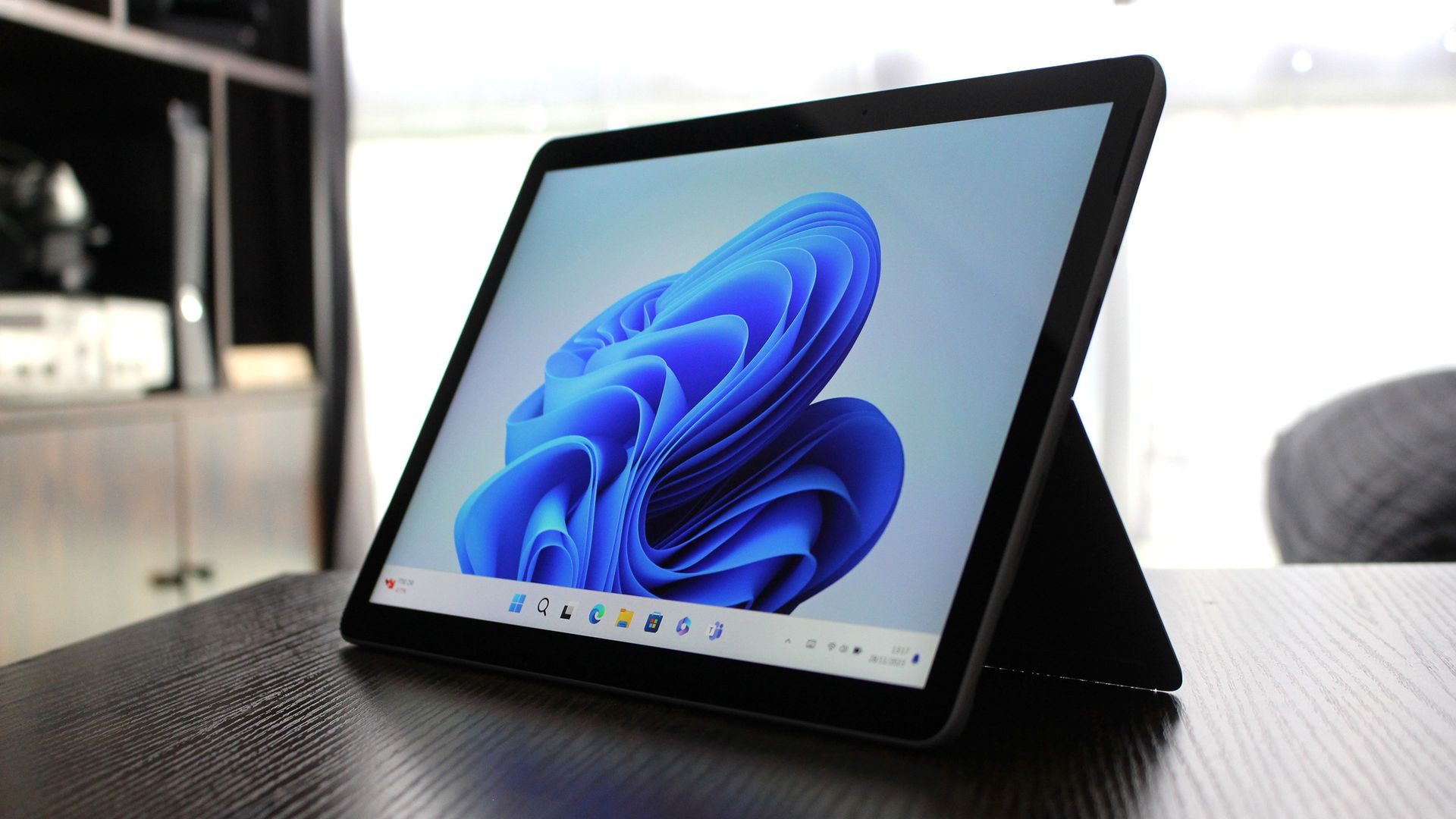
Windows 11's desktop will soon look different on your PC, and I'm not talking about the refreshed Start menu or the upgrades to the taskbar in the works. Microsoft reportedly has new default wallpapers in the works for Windows 11, and they're a bigger deal than they might initially seem.
Our Senior Editor Zac Bowden discussed the new wallpapers in the latest episode of the Windows Central Podcast. When Microsoft creates new default wallpapers for Windows, it usually signals either a new major version of Windows, such as Windows 12, or a major refresh of the current release. According to Bowden and the initial report from The Verge on the topic, the latter is far more likely.
There will reportedly be separate editions of the wallpaper for different versions of Windows 11, such as Windows 11 Pro and commercial versions of the OS.
One of the new default Windows 11 wallpapers reportedly being developed for the operating system's 2027 refresh. (Image credit: Microsoft)
We've already seen the default Windows 11 wallpaper refreshed a few times. Microsoft created a special version of the wallpaper for Copilot+ PCs and a variant for the company's 50th anniversary. While the new wallpapers that will ship in 2027 are a bit similar to Bloom, they are not simply color swaps or small tweaks. They're new images rather than just variants of Bloom.
At one point in time, Microsoft planned to ship major releases of Windows every three years, but those plans changed with the departure of Panos Panay. Microsoft released the AI-focused update to Windows 11 after the operating system had been around for three years. It appears that another major update is on the way in 2027 rather than Windows 12.
Bowden dove deeper into why Microsoft is not likely to ship Windows 12 next year. But I'm a simple man: I see nice wallpapers and I focus on those. I spent weeks hunting down the RTX Spark wallpaper and now have it set on my desktop.
The new Windows 11 wallpapers should come out with an update in 2027, but I suspect they'll leak on the web before then. You can already grab one of them now despite Microsoft not even announcing its plans for next year.
Join us on Reddit at r/WindowsCentral to share your insights and discuss our latest news, reviews, and more.
Microsoft's November 2026 Windows 11 update delivers security fixes and new features. Here's what changes, which versions qualify, and what IT teams should test.
Microsoft’s November 2026 Patch Tuesday security sweep has officially dropped, deploying a massive wave of cumulative enhancements, kernel-level fixes, and critical vulnerability patches. This cycle covers both modern operating systems and legacy enterprise environments, pushing out Windows 11 update KB5132061 alongside Windows 10 Extended Security Update (ESU) KB5131096. From PowerShell signature security enforcement to critical […]
Transitioning to a brand-new Windows 11 computer has always involved a bit of uncertainty. While cloud migration tools handle the heavy lifting of pulling down user accounts, applications, and preference files, keeping track of what was successfully restored across multiple menus could feel tedious. Microsoft’s latest updates solve this friction by introducing the Restore Summary […]
Microsoft has officially ended support for Windows 11 version 23H2, with KB5131087 being the last security update released for this specific version of the OS. Version 23H2 first shipped in October 2023, and received three years of security updates.
Microsoft already ended support for Windows 11 version 23H2 last year for users running Windows 11 Home and Pro. Today, the company has ended support for commercial editions of the OS spanning Enterprise and Education SKUs, which received an extended support lifecycle of 36 months.
"Windows 11, version 23H2 Enterprise and Education have reached end of updates," Microsoft confirms. "The November 2026 Windows security update is the last update available for these editions. Devices running these editions will no longer receive monthly security updates containing protections from the latest security threats."
Devices still running Windows 11 version 23H2 are encouraged to update to a supported version of the OS. Currently, Windows 11 version 24H2, 25H2, 26H1, and 26H1 are actively supported with feature and security updates. Home and Pro users would have already been offered an upgrade path to a more recent version of the OS.
Enterprise and Education editions will require IT intervention if they haven't already been offered an upgrade path to a newer version of the OS. Most enterprises and schools running these editions should have initiated an upgrade path to a newer version of Windows 11 at this point.
Microsoft always supports a new version of Windows 11 with two years of security updates for consumers, and three years for commercial editions. That means version 24H2 has one more year of support left for Enterprise and Education editions.
The only exception to this rule is with special LTSC and IoT editions of Windows 11. For everyone else, you need to be on the latest versions of Windows 11 to remain supported with feature and security updates. Version 26H2 is expected to remain supported until 2029 for commercial customers.
Join us on Reddit at r/WindowsCentral to share your insights and discuss our latest news, reviews, and more.
Microsoft is testing a Windows 11 update that lets users enter their PIN without waiting for Windows Hello biometrics. Here's how it works and who can try it.
"Do you want to turn on Sticky Keys?" has likely popped up on your PC at some point. That prompt appears after you press the Shift key five times and allows you to enable the feature. Soon, Windows 11 will make it easier to stop that message from appearing.
In one of the latest Windows Insider builds, Microsoft introduced an updated version of the prompt. Windows 11 will soon let you permanently disable the Sticky Keys shortcut directly from the prompt itself.
The same change is also coming to the prompt used for Filter Keys, another accessibility feature that can be enabled through a keyboard shortcut.
Windows 11 already lets you disable that shortcut, but it requires a couple of extra steps. Within Settings, you need to navigate to Accessibility > Keyboard > Sticky Keys. That section has other controls, such as turning off Sticky Keys when two keys are pressed at the same time.
The current Windows 11 prompt includes a quick link to that section of the Settings app, but the process will soon be streamlined. The updated prompt still includes a shortcut to all Sticky Keys settings.
Sticky Keys is a useful feature that improves accessibility. It lets you press one key at a time instead of holding multiple keys at once. For example, instead of pressing Ctrl + Alt + Delete simultaneously, you can press Ctrl, then Alt, then Delete.
The shortcut to enable Sticky Keys by pressing Shift five times has been part of Windows for decades. While useful, it can be triggered accidentally. Last week, I was in a creative program and pressed Shift five times as part of my normal workflow and accidentally summoned the prompt to enable Sticky Keys.
I took the opportunity to disable the shortcut through the Settings app, but soon that won't be necessary since the prompt will include a check box that prevents it from appearing again.
Join us on Reddit at r/WindowsCentral to share your insights and discuss our latest news, reviews, and more.
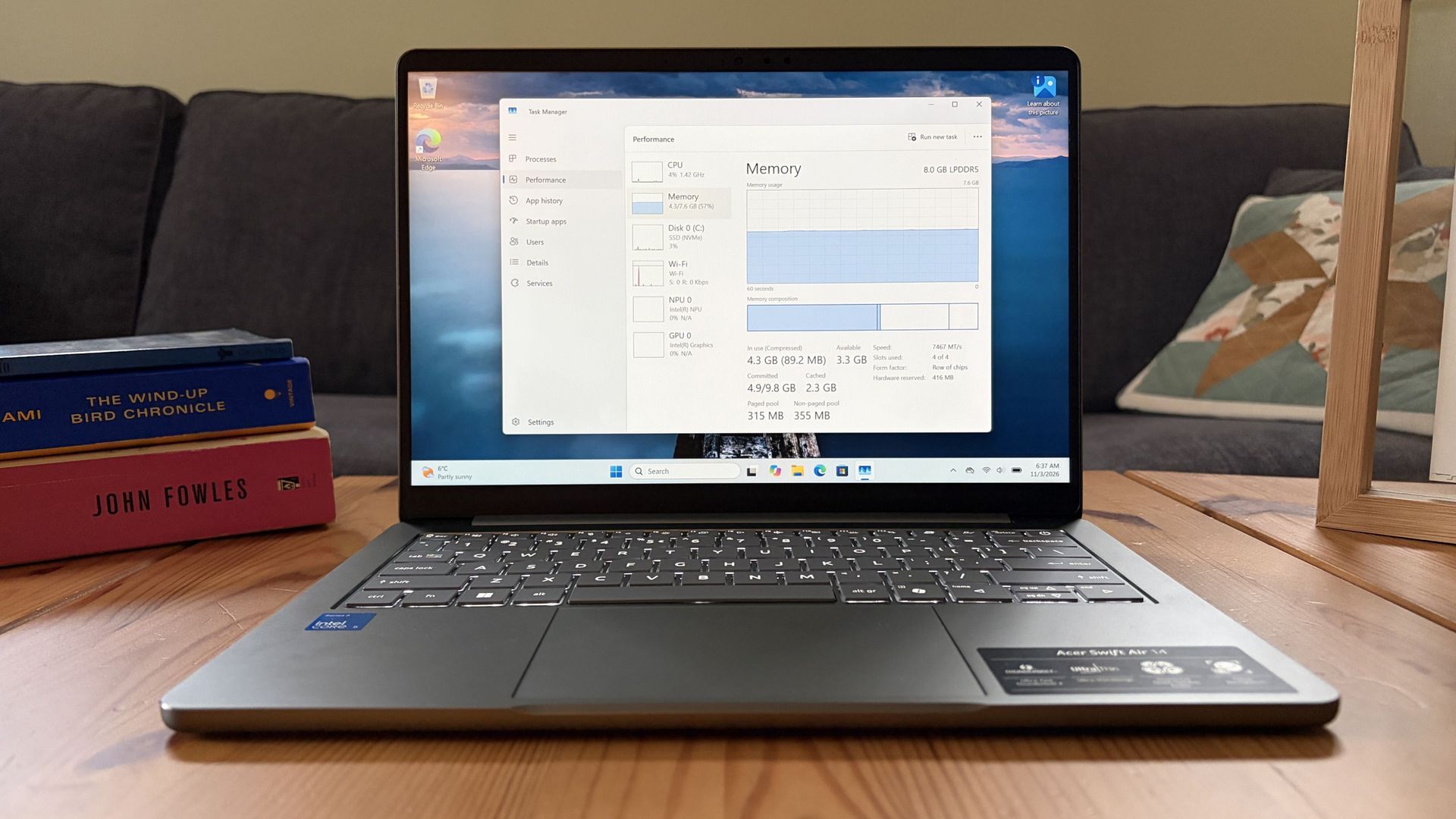
In this episode of the Windows Central Podcast, Daniel Rubino and Zac Bowden break down a major architectural efficiency victory in Windows 11 under the ongoing Windows K2 initiative: reducing memory footprint and improving responsiveness by 20% on 8 GB RAM machines through WinUI conversions, OEM memory budgets, and memory compression.
We also analyze reporting on upcoming Windows 11 default wallpaper refreshes and detail why a full-blown Windows 12 release in 2027 is looking increasingly unlikely. We discuss platform fragmentation across Germanium and Bromine codebases, component cost inflation ("Ramageddon"), and why Microsoft could move toward iterative annual OS branding rather than forced migrations.
The conversation also tracks Copilot’s new opt-in integration into Windows Search, its discontinuation on LG and Samsung smart TVs, and hands-on impressions of the major performance rewrite of the Xbox PC app on handhelds like the ROG Xbox Ally X20.
This episode of the Windows Central Podcast is sponsored by Surfshark VPN. Unlimited devices, access your content from anywhere, and auto-block malware on Windows, Edge, and other platforms from $2.50/mo, with 3 months extra FREE. Sign up today!
[05:41] – Windows 11 Uses Less RAM (Windows K2): How moving system UI to WinUI, stripping WebView dependencies, enforcing OEM memory budgets, and revamping RAM compression saves up to 1 GB on 8 GB PCs.
[09:54] – Responsiveness Benchmarks & Mac Comparisons: Testing 26H2 multitasking performance, 20% responsiveness gains, and parity with 8 GB macOS systems.
[17:26] – AI & NPU-Driven OS Optimization: Exploring machine learning prefetching to optimize system resources based on individual app usage habits.
[20:55] – Copilot App Overhaul & Reasoning Models: Daniel’s impressions of automated model selection, conversational depth, and critique of the Chromium-wrapped desktop client.
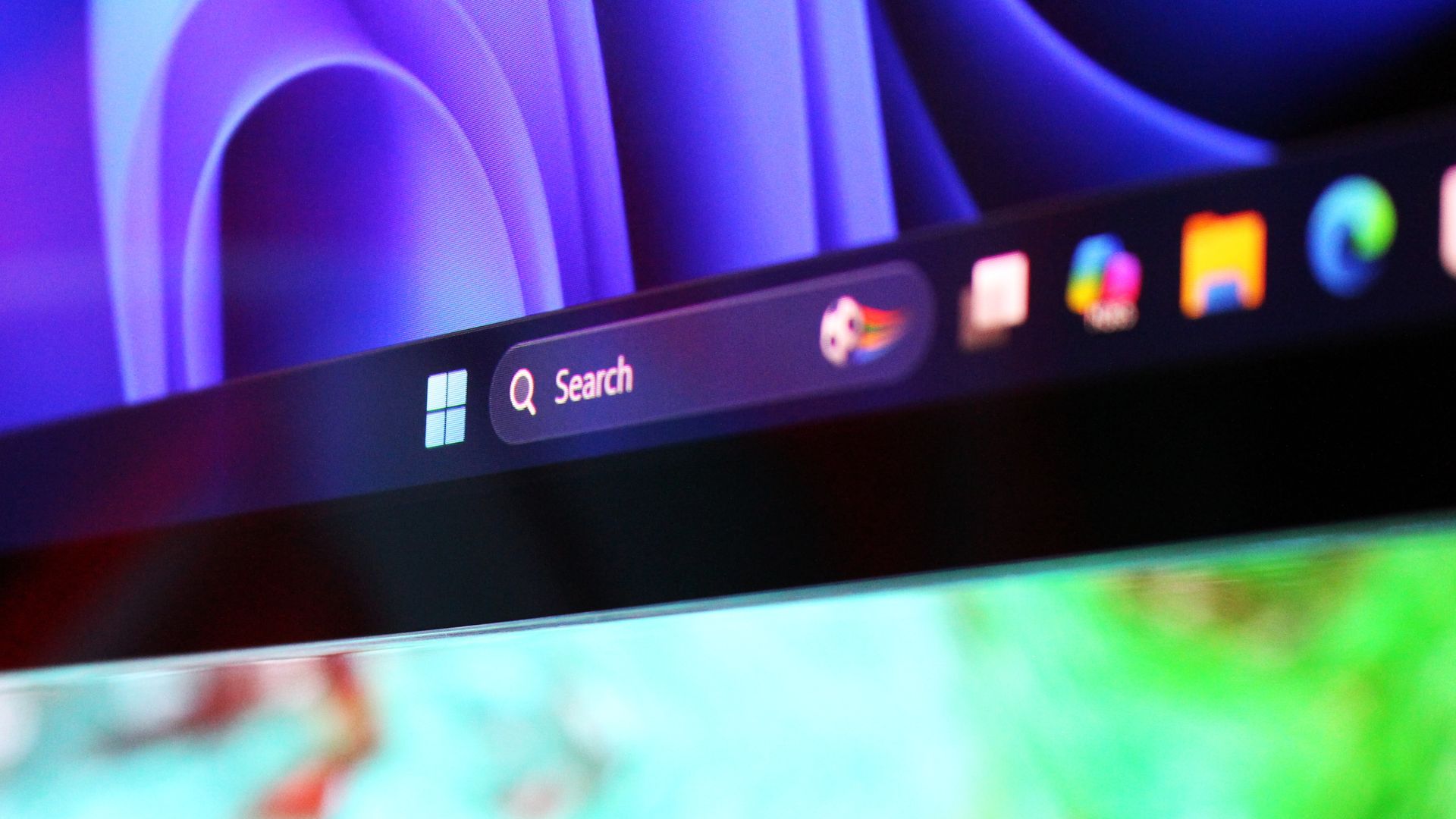
[29:39] – Copilot in Windows Search (Opt-In): The evolution of the former "Ask Copilot" taskbar feature into an optional, native WinUI search integration without forced AI prompts.
[37:27] – Copilot Discontinued on Smart TVs: Microsoft ends Copilot support on LG and Samsung smart TVs as the platform pivots away from consumer assistants toward productivity.
[44:12] – Why Windows 12 Is Unlikely in 2027: Analyzing Tom Warren's wallpaper leak, dual platform codebases (Germanium vs. Bromine), enterprise upgrade friction, and component shortages delaying an OS cycle.
[50:03] – Annual Windows Naming (Windows 27?): Comparing Microsoft's release cadence to macOS and Android annual versioning instead of disruptive numbered leaps.
[01:00:05] – Major Xbox PC App Rewrite: Massive performance boost (60% faster) on the newly overhauled Xbox Insider app, handheld scaling, and instant artwork loading on the ROG Xbox Ally X20.
Have a question you want us to answer on the podcast? Send it to us at [email protected]
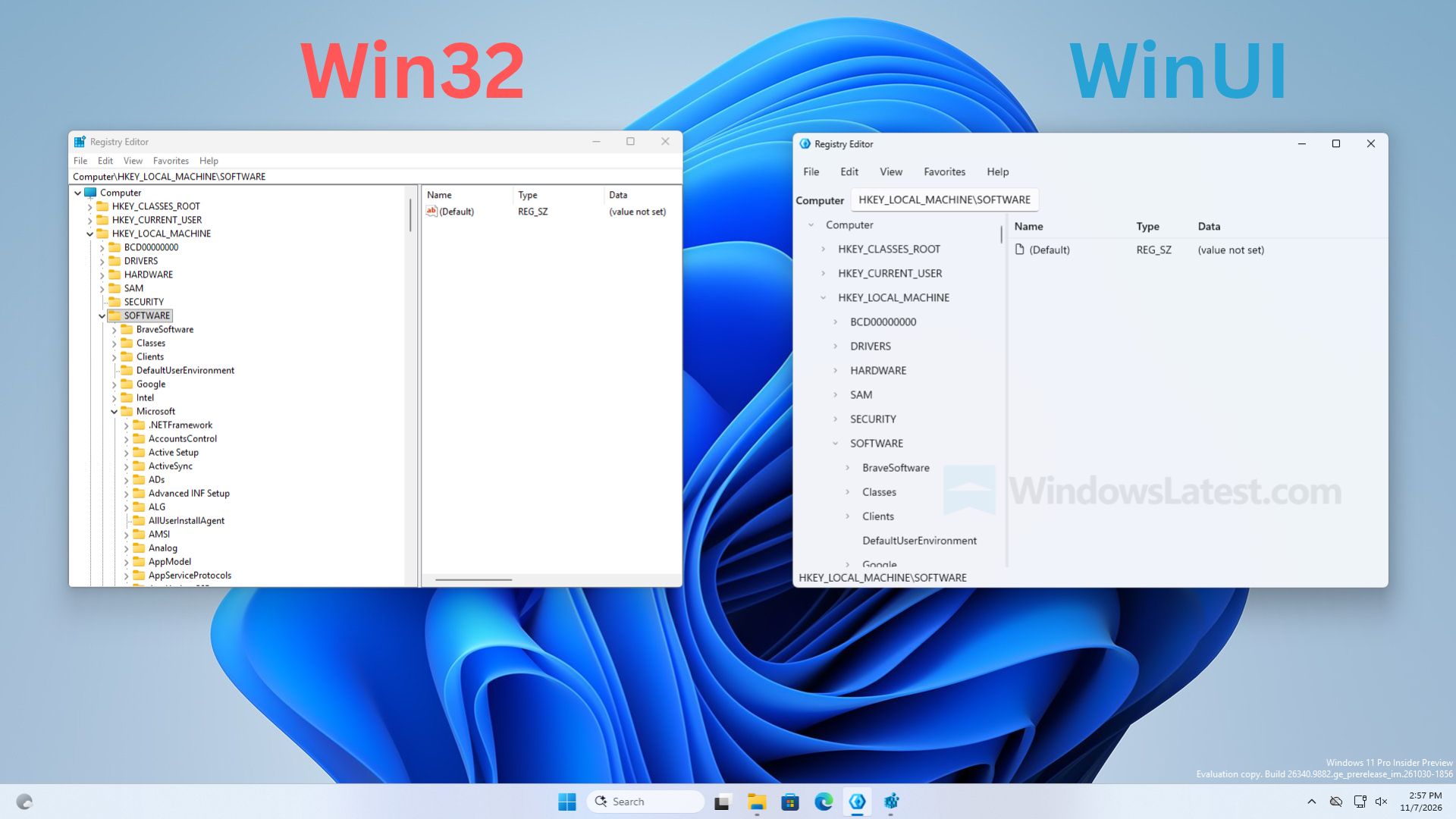
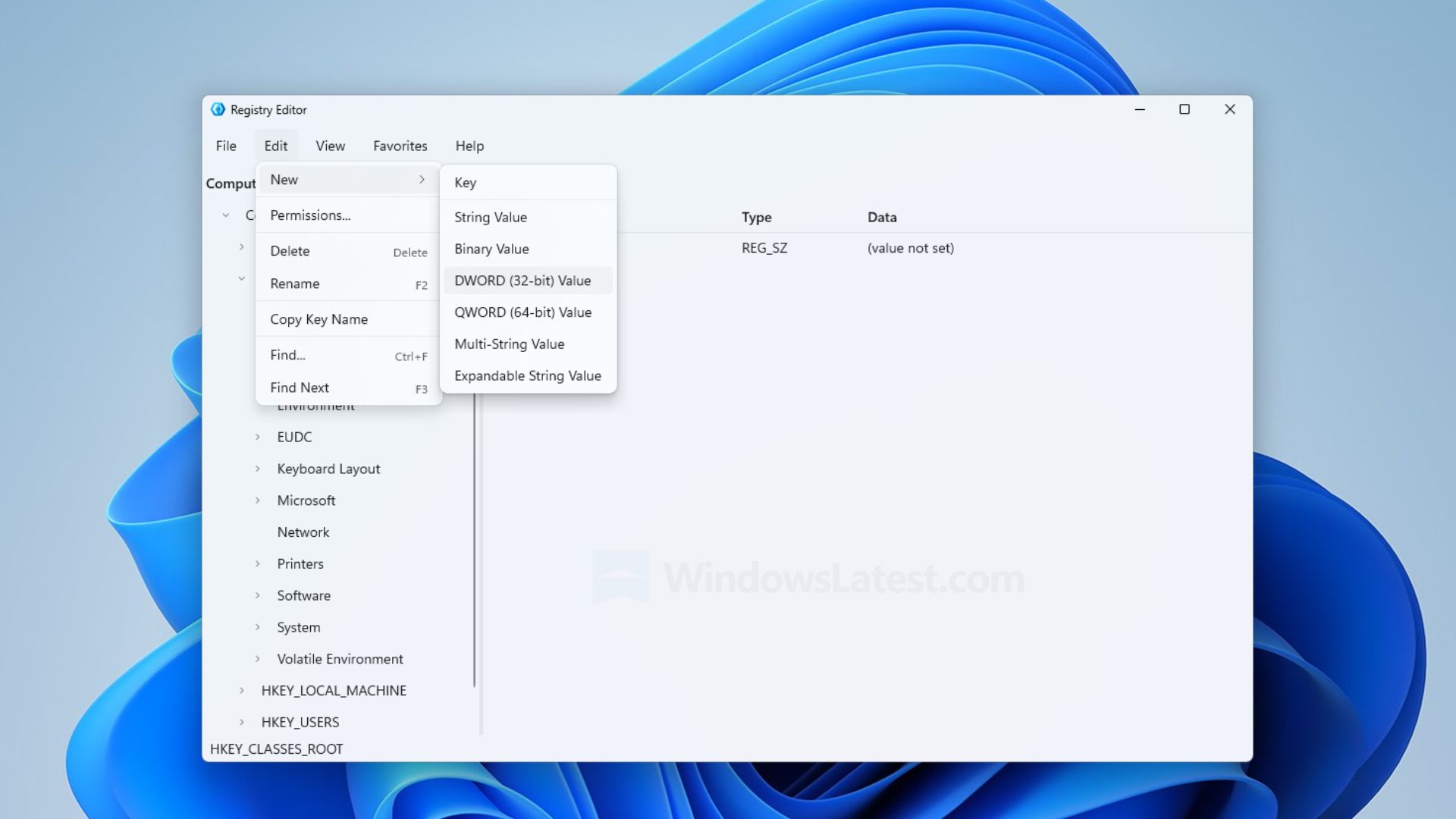
Microsoft has pushed back against reports that the company has built a modernized Registry Editor app for Windows 11, clarifying that the newly discovered modern Registry Editor is just a sample app, and not intended to ship in Windows.
Windows Latest was first to report on this new Registry Editor app, but stated within their article that the app is "not a mock-up," which led some people online to believe this app is a real replacement for the existing Registry Editor.
It appears that the app is a mockup, designed to showcase Microsoft.UI.Reactor technology, meaning it was only built to show developers what is possible with the tech and not representative of any modernization work ongoing by the Windows team.
Left: The existing Registry Editor. Right: The sample Registry Editor being mistaken for a real app. (Image credit: Windows Latest)
"It’s a sample. You say it’s the new one and then in the last line of the tweet you point out it’s a sample," Microsoft VP Scott Hanselman said in a reply to Windows Latest on X. This was followed up by a post from Windows Insider lead and CVP Marcus Ash, who said "Right. A sample. Not a developer preview of a new regedit."
So, that's confirmation from Microsoft that this new Registry Editor is not coming to Windows 11, and is just a sample app designed to showcase to developers what is possible with Microsoft.UI.Reactor.
With that said, this doesn't mean the Windows team isn't working on a modernized Registry Editor. My own sources tell me the Registry Editor is on the list for a modern rejuvenation under the Windows K2 effort, but there are other pillars and higher priority items that need to be addressed first before the Registry Editor can be tackled.
The good news is a modern Registry Editor for Windows 11 is unlikely to look like the sample app being depicted in recent reports, and that a modernized Registry Editor is on the docket for the future.
Join us on Reddit at r/WindowsCentral to share your insights and discuss our latest news, reviews, and more.
Windows 11 is getting another substantial batch of changes in November, but after going through what's coming, two improvements stand out to me: the customizable context menu and Cloud Rebuild.
The first finally gives you control over some of the clutter that has plagued Windows 11's right-click menu, while Cloud Rebuild offers a much easier way to reinstall Windows without creating a bootable USB drive.
Those are only two of the 11 changes worth knowing about this month, which also include improvements for handheld gaming, Phone Link, accessibility, Edge performance, security, and more.
Here's all you need to know about the features and changes coming in November.
1. You can finally customize Windows 11's cluttered context menu
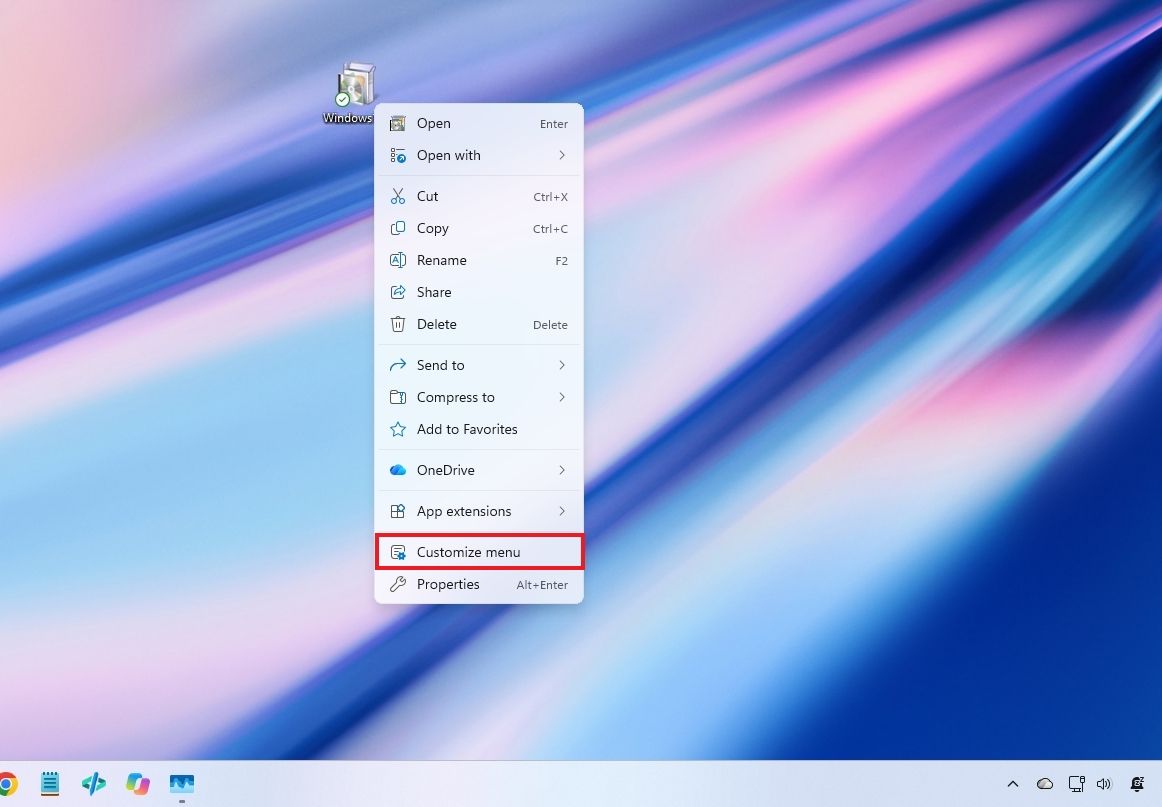
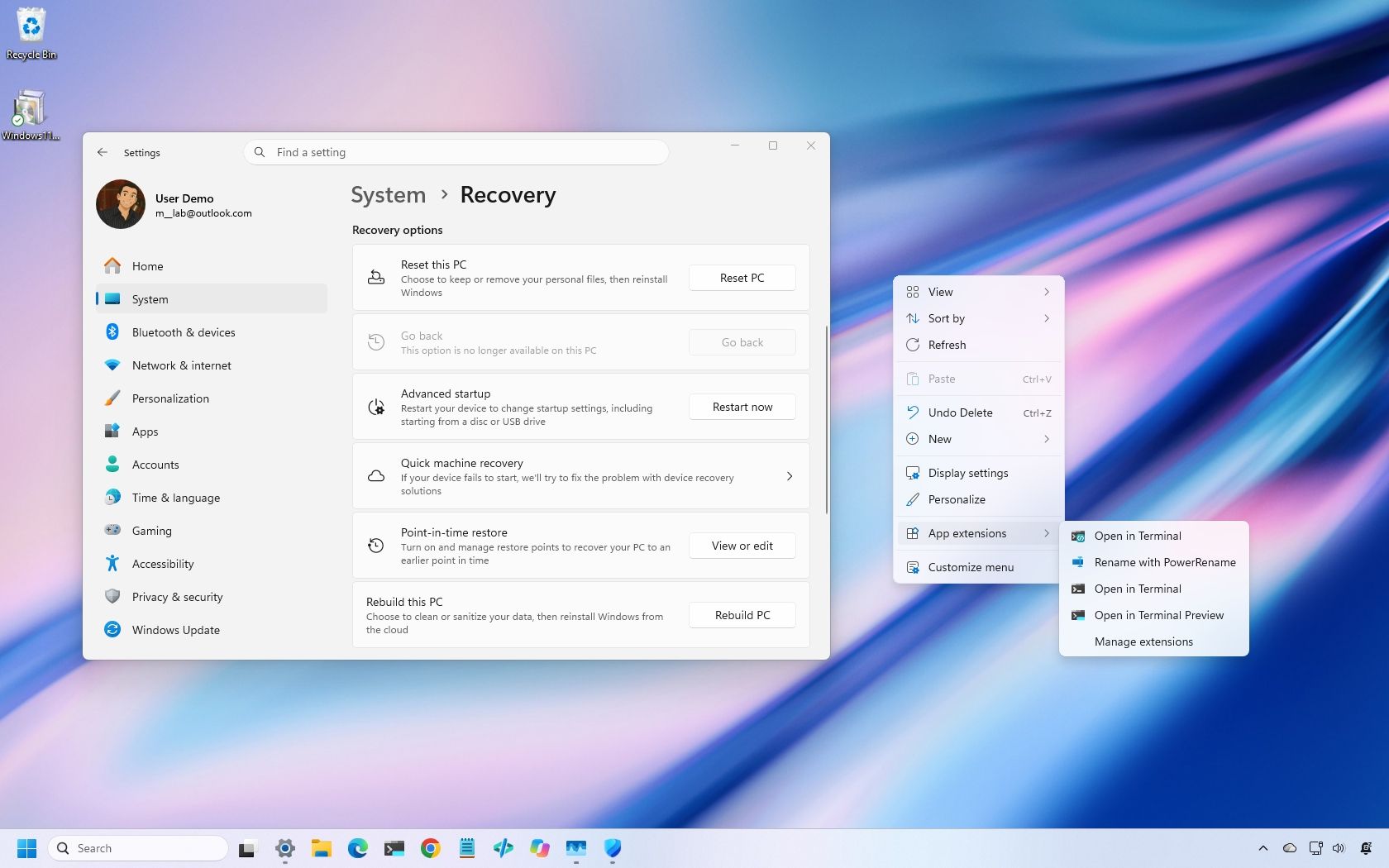
Starting with the November update, Windows 11 is getting a new context menu experience that gives you more control over the commands and app extensions that appear in the main menu.
(Image credit: Mauro Huculak)
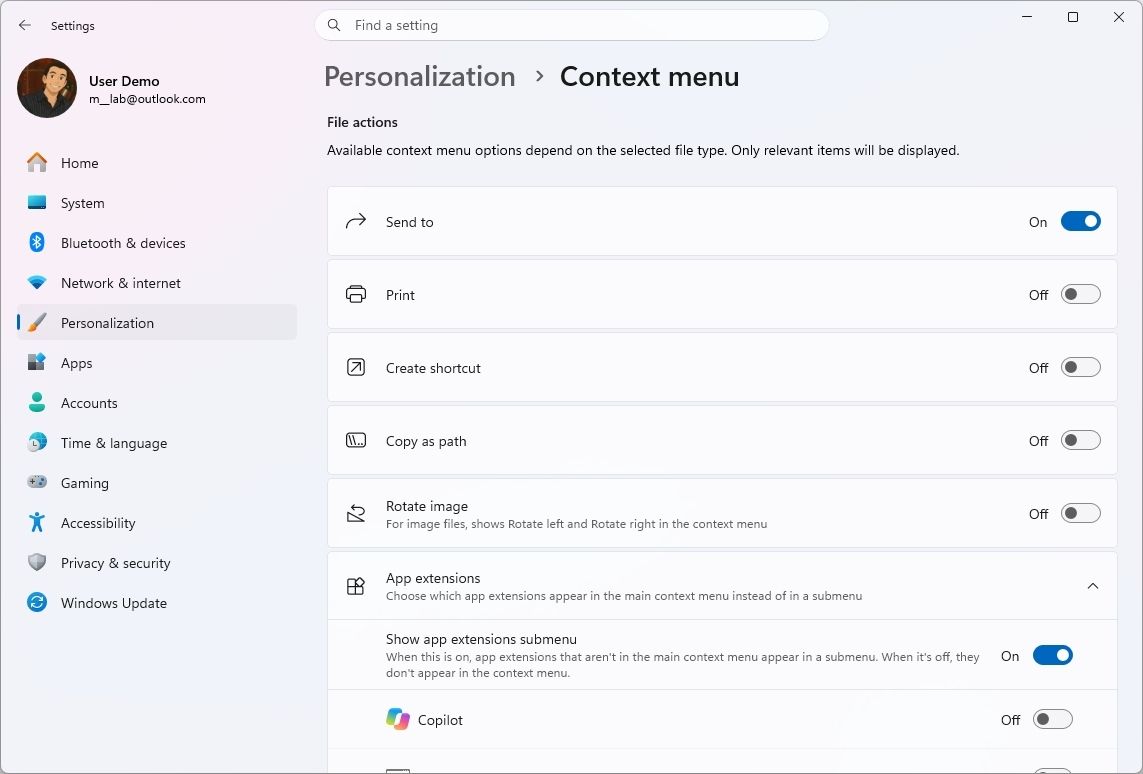
The new menu reduces clutter and makes the experience faster by moving app extensions into a separate submenu. It also introduces a "Customize menu" option at the bottom of the interface, which opens a dedicated Settings page where you can enable or disable built-in commands, add options such as "Print" and "Send to," and control which app extensions appear in the main menu or submenu.
(Image credit: Mauro Huculak)
You can also display "Cut," "Copy," "Paste," "Rename," "Delete," and "Share" as individual commands instead of showing them in a vertical view. Windows 11 also lets you move "Properties" to the bottom of the menu as it appeared on Windows 10.
To access these options, right-click a file, folder, or the desktop and select Customize menu, or open Settings > Personalization > Context menu.
You can keep the default configuration if you prefer. Holding down "Shift" while right-clicking also reveals the legacy context menu.
The ability to customize the menu is particularly useful because it gives users more control over which commands they see without forcing everyone to use the same layout.
2. Xbox mode gets easier to navigate with a controller
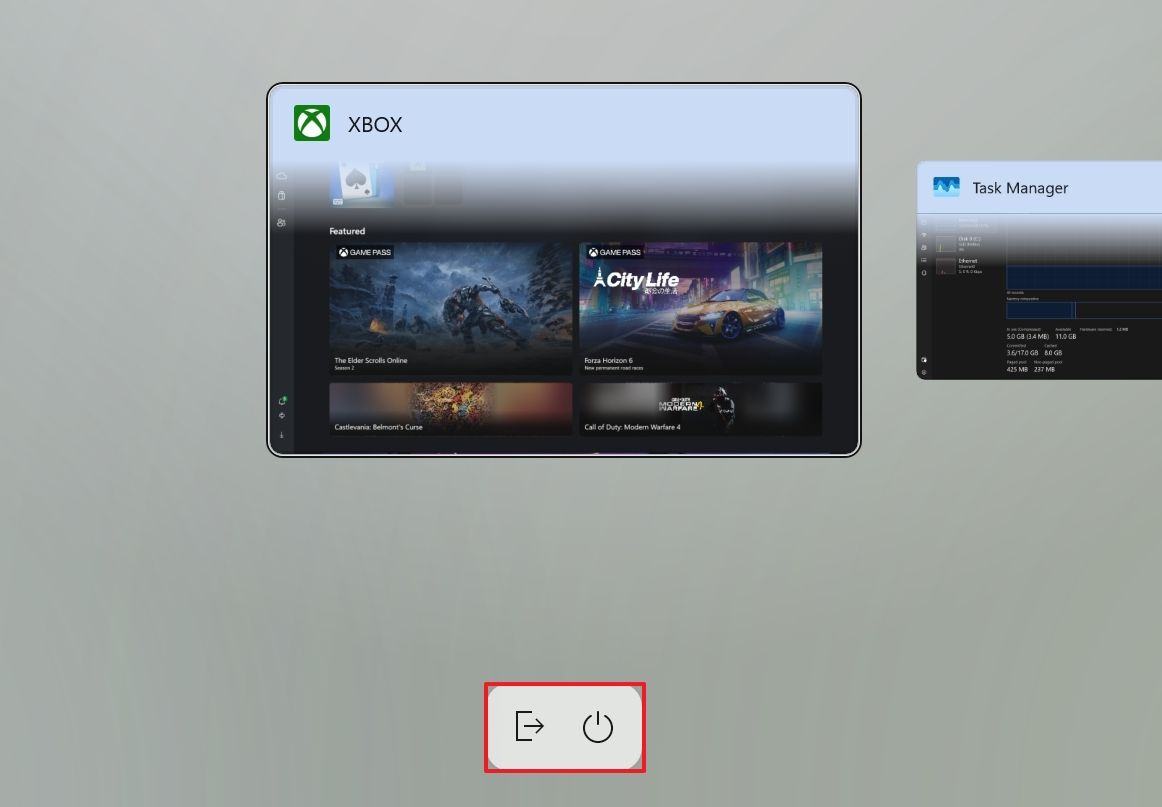
Microsoft is also refreshing the Gaming Task View experience in XBOX mode. The updated interface retains the familiar design but adds a navigation bar that makes it easier to access options such as "Exit to Desktop" and "Power Options" using a game controller.
(Image credit: Mauro Huculak)
It's a relatively small change, but it makes basic actions easier to navigate using a gaming controller.
3. Privacy controls become easier to find in Settings
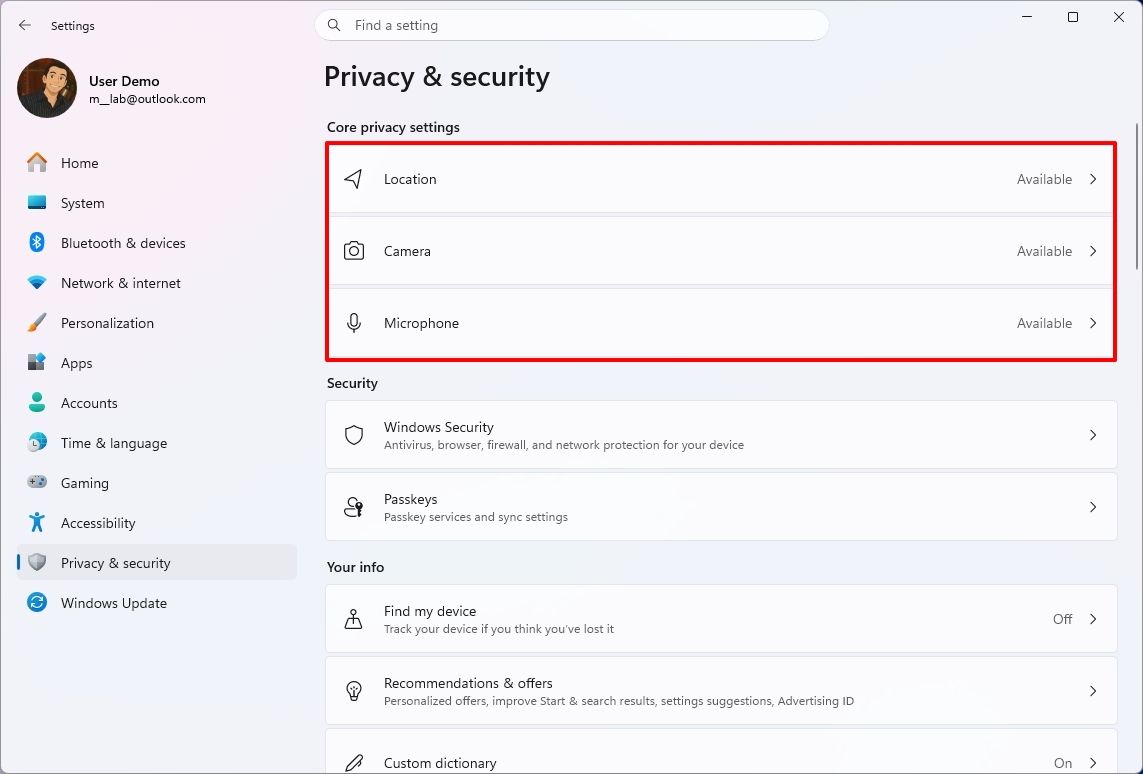
The Settings app is getting a few usability refinements. The "Privacy & security" page now groups Location, Microphone, and Camera controls more clearly, making it easier to review these permissions.
(Image credit: Mauro Huculak)
Microsoft is also expanding the "Device Info" card on the "Home" page to more markets. Available to users signed in with a Microsoft account, the card provides an overview of key hardware specifications and a shortcut to the "About" page.
The "Storage" page is also getting visual changes to its temporary files section.
These aren't major additions, but they make some commonly used Settings pages easier to navigate.
4. You can preview phone messages without opening Phone Link
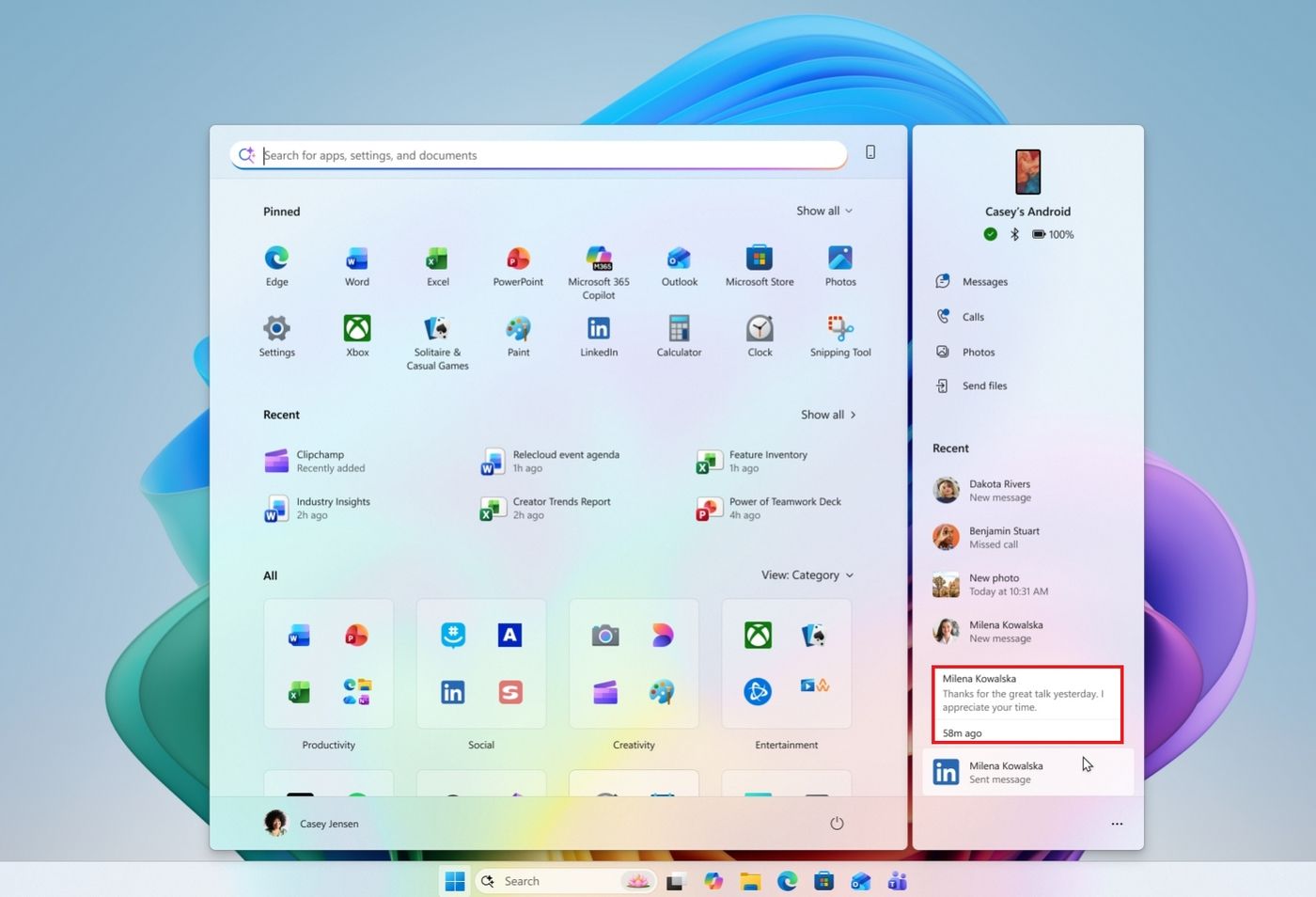
Phone Link integration is getting a small convenience improvement. When your phone is connected, you can hover over a recent message or notification in the Start menu's "Recent" section of the mobile pane to preview its contents without opening it.
(Image credit: Microsoft)
It's a minor addition, but it makes checking incoming messages more convenient without opening your phone or the Phone Link app.
5. Magnifier gets much better for multi-monitor setups
The Magnifier feature is getting three useful improvements, including independent zoom levels for multiple monitors, viewport locking, and a new contrast theme. These additions give you more control over magnified content while making it easier to work across multiple displays.
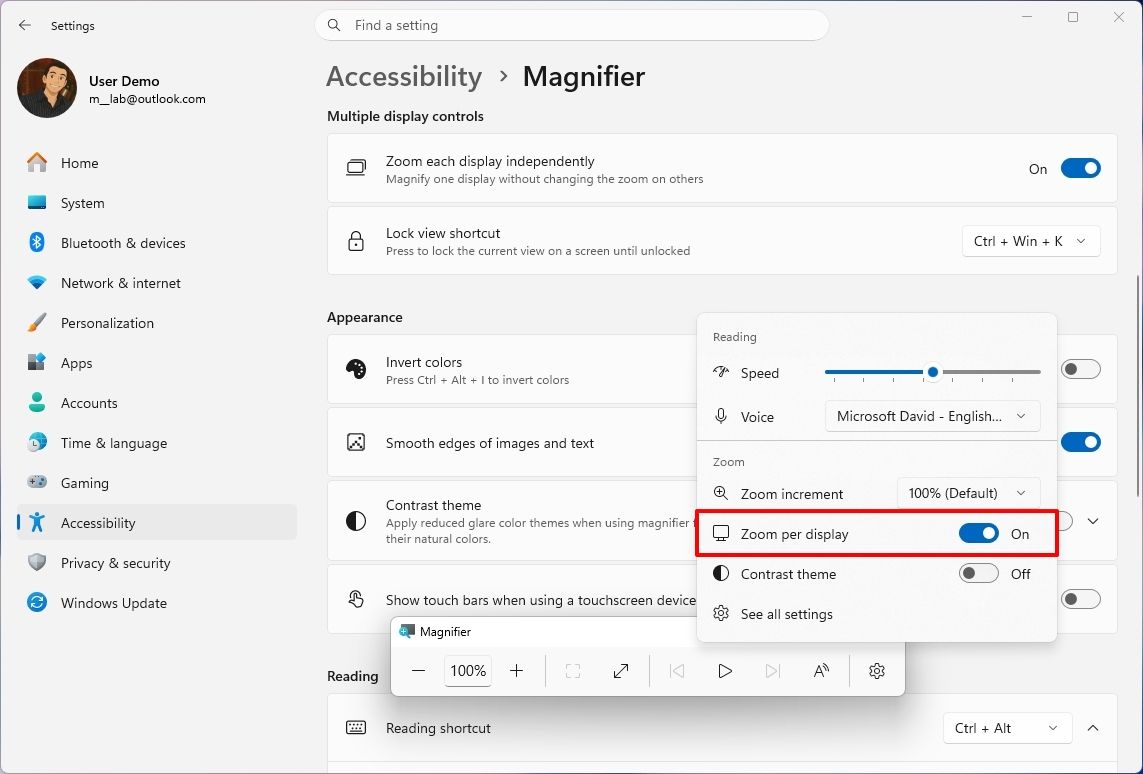
The biggest improvement is per-monitor zoom, which lets you assign a different magnification level to each display. For example, you can keep one monitor at 150 percent and another at 200 percent.
(Image credit: Mauro Huculak)
The feature is enabled by default, but displays must use "Extend" mode. Adjust each screen with the Magnifier toolbar or shortcuts ("Windows key + Plus/Minus").
Viewport locking keeps one magnified screen fixed while you move the pointer to another. Use "Ctrl + Windows key + K" to lock/unlock or "Windows key + Esc" to release all.
A new dark contrast theme reduces glare while keeping colors intact. Enable it from the Magnifier toolbar or Settings > Accessibility > Magnifier. Color inversion is separate.
6. Narrator can finally read and navigate math equations
The Narrator feature now supports reading and navigating math equations, making it easier for people with low vision to understand formulas, equations, and scientific notation.
The feature works with supported Microsoft 365 apps, including Word and PowerPoint, as well as web content in Microsoft Edge and Google Chrome.
You can use it with the "Narrator key + Alt + N" shortcut to enable math navigation, and then use the arrow keys to explore individual parts of an equation. Use the "Esc" key to exit. Math reading supports six languages, including English, German, Spanish, Finnish, and Traditional Chinese.
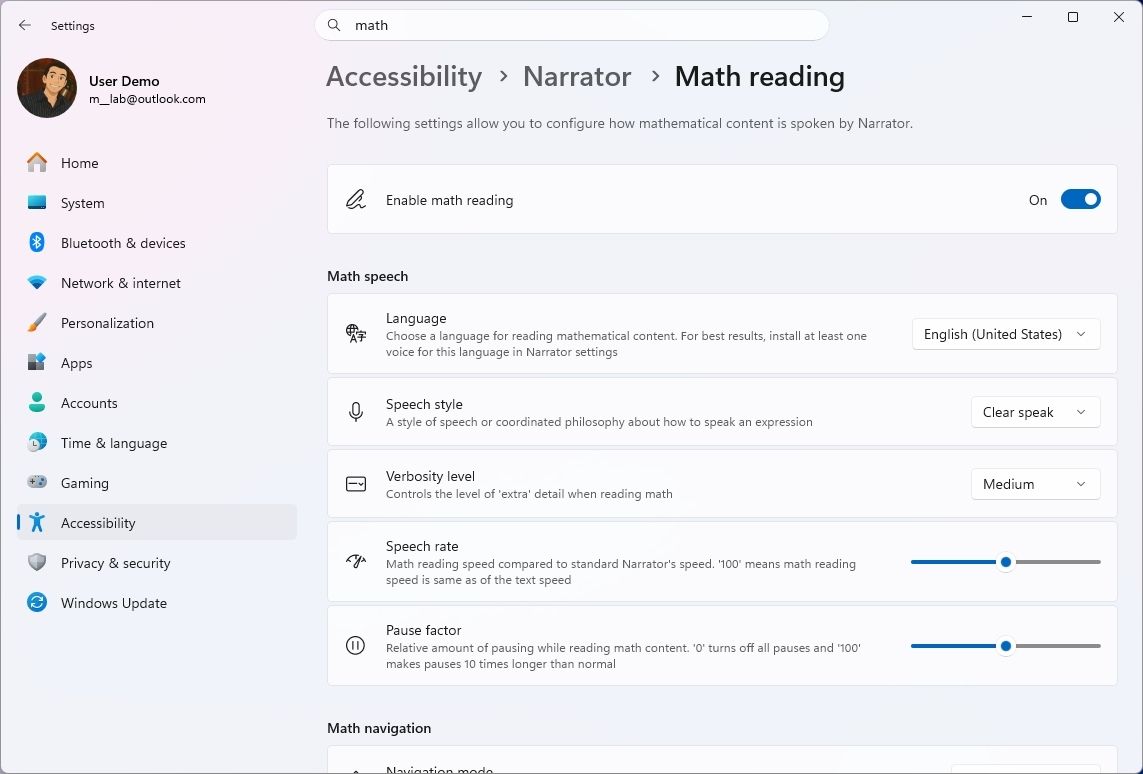
You can change the language and other preferences under Settings > Accessibility > Narrator > Math reading.
(Image credit: Mauro Huculak)
Browser support requires Microsoft Edge version 153.0.4234.32 or later, or Google Chrome version 153.0.8010.18 or later.
7. Windows Recovery can automatically reconnect to Wi-Fi
Windows 11 is making recovery easier by allowing the Windows Recovery Environment (WinRE) to reuse eligible Wi-Fi profiles saved in the main operating system.
This allows computers to connect automatically to supported wireless networks during recovery operations such as Quick Machine Recovery and Cloud Rebuild, without requiring administrators to configure Wi-Fi credentials separately during recovery.
The feature is enabled by default and supports certain certificate-based enterprise networks, though it doesn't currently support TPM-backed certificate keys. Network administrators can turn off the capability through the Recovery Configuration Service Provider (CSP).
WinRE only accesses saved network credentials when a recovery operation requires connectivity, rather than maintaining a permanent network connection.
8. You can reinstall Windows 11 from the cloud without a USB drive
I've been testing Cloud Rebuild, and eliminating the need to create installation media is easily its biggest advantage. However, I also ran into an important limitation: the feature depends on Windows Update having the drivers your PC needs.
Unlike a traditional local reinstall, it doesn't depend on the existing Windows installation or require a bootable USB drive or a custom recovery image. You can also start it from the Windows Recovery Environment when the device cannot boot.
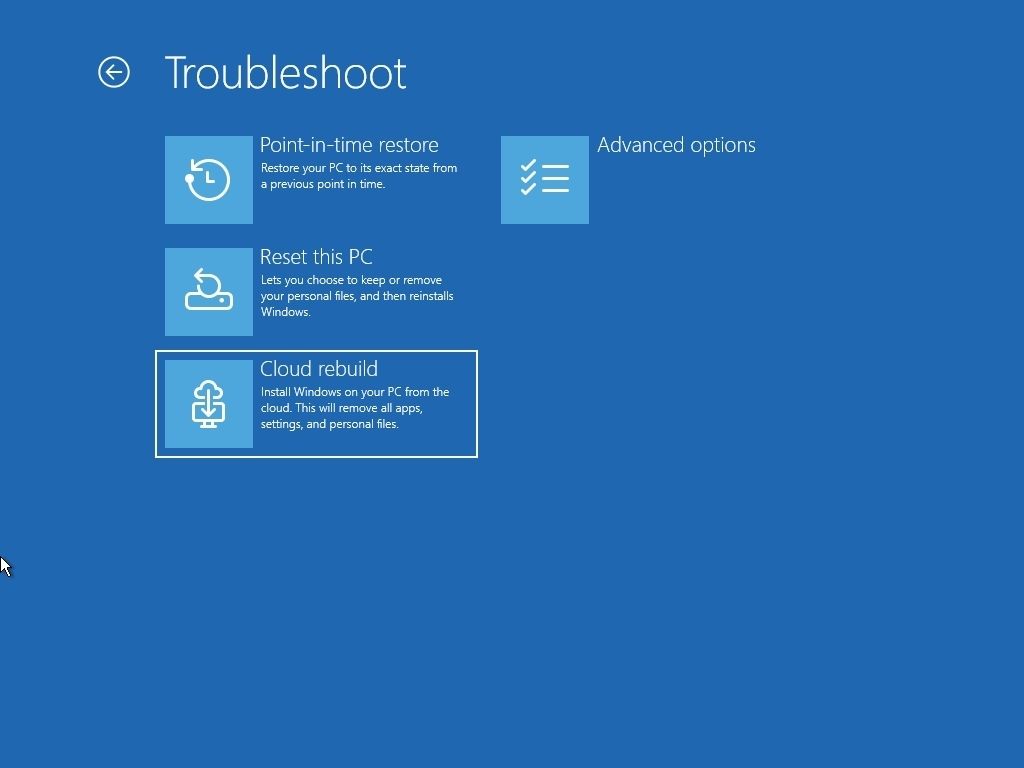
You can start the process under Settings > System > Recovery and use the "Rebuild this PC" option, or from WinRE by selecting Troubleshoot > Recovery and uninstall > Cloud Rebuild. After connecting to Ethernet or Wi-Fi, the system will display the target build, edition, and language before installation.
(Image credit: Mauro Huculak)
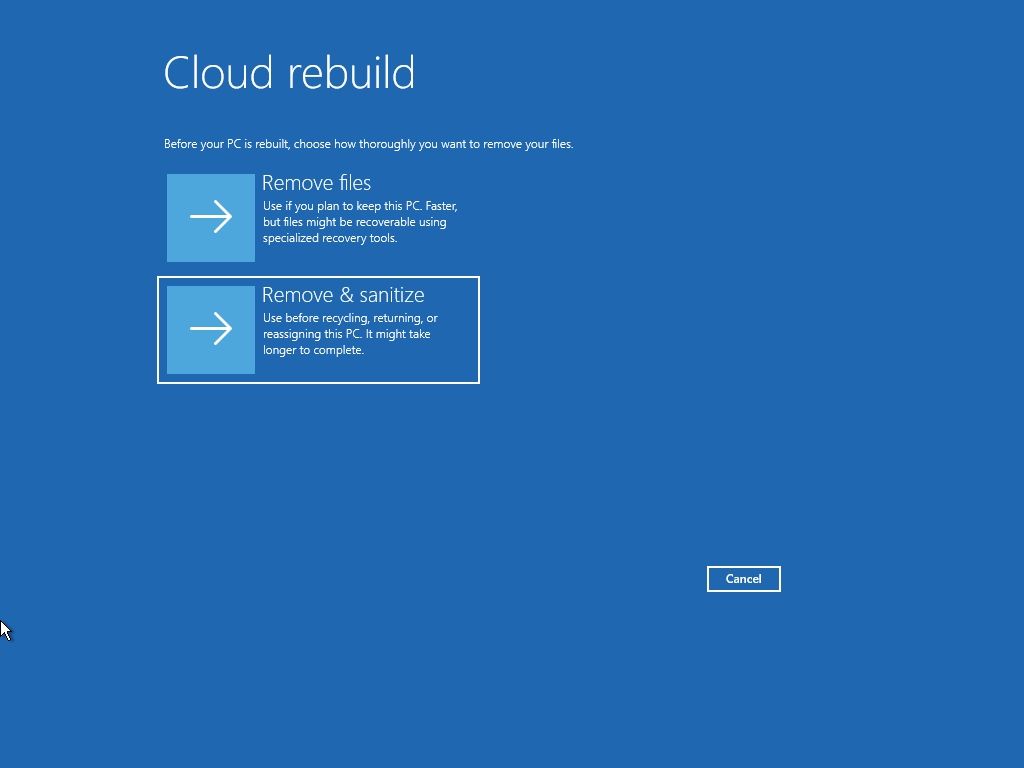
The feature includes two options to clean the drive. For example, the "Remove files" option reformats the system drive, although specialized recovery tools might still recover some data. On the other hand, the "Remove and sanitize files" option uses the storage hardware's erase capability to erase the selected drives before reinstalling the operating system. Sanitization can't be undone and can take several hours to complete.
(Image credit: Mauro Huculak)
In my testing, one of the things I like most about Cloud Rebuild is that it eliminates the need to create installation media before reinstalling Windows 11. However, my testing also revealed an important limitation. The process depends on Windows Update to find the required drivers, which means it may not work on every configuration. I encountered this problem when testing the feature inside a virtual machine.
If you plan to use Cloud Rebuild, the device must also meet some requirements. For instance, the computer needs a working recovery environment, a network connection, and compatible drivers available through Windows Update. If a required networking or storage driver isn't available, the process can fail and may require recovery media from the device manufacturer or an installation USB drive.
For managed devices, administrators can also configure and initiate Cloud Rebuild remotely through the Recovery CSP, including specifying a target Windows build. Once the reinstall finishes, the device starts the Out-of-the-Box Experience (OOBE), allowing managed devices to be automatically reprovisioned through Windows Autopilot and Microsoft Intune.
9. Microsoft Edge can launch up to 33% faster
Microsoft Edge is getting faster and more consistent launches through a new Accelerated App Launch feature. Microsoft says most users should see launch times improve by around 15 percent when Edge is already running, with gains of up to 33 percent under heavy multitasking.
The new feature lets the operating system check for an existing Edge process when you open the browser from the Start menu, Taskbar, or a supported link. In the past, the system had to start an additional process to check whether the browser was already running before forwarding the request. As a result, removing that extra step helps reduce launch delays, especially when the device is under load.
Accelerated App Launch requires Microsoft Edge version 150 or later and Windows 11 versions 26H2, 25H2, or 26H1 with the November 2026 update or later installed on the computer.
One thing I wanted to point out is that the feature isn't limited to the default system browser. Developers can also implement this feature in their apps.
10. Windows 11 gets smarter about sleep and battery life
Windows 11 is also improving its adaptive hibernate policy on devices that support Modern Standby. The system will hibernate less often when the battery charge is above 80 percent, helping the computer resume more quickly. When the charge drops below 10 percent, the system will hibernate sooner to help preserve the remaining battery power.
11. Microsoft is enabling stronger security on more PCs
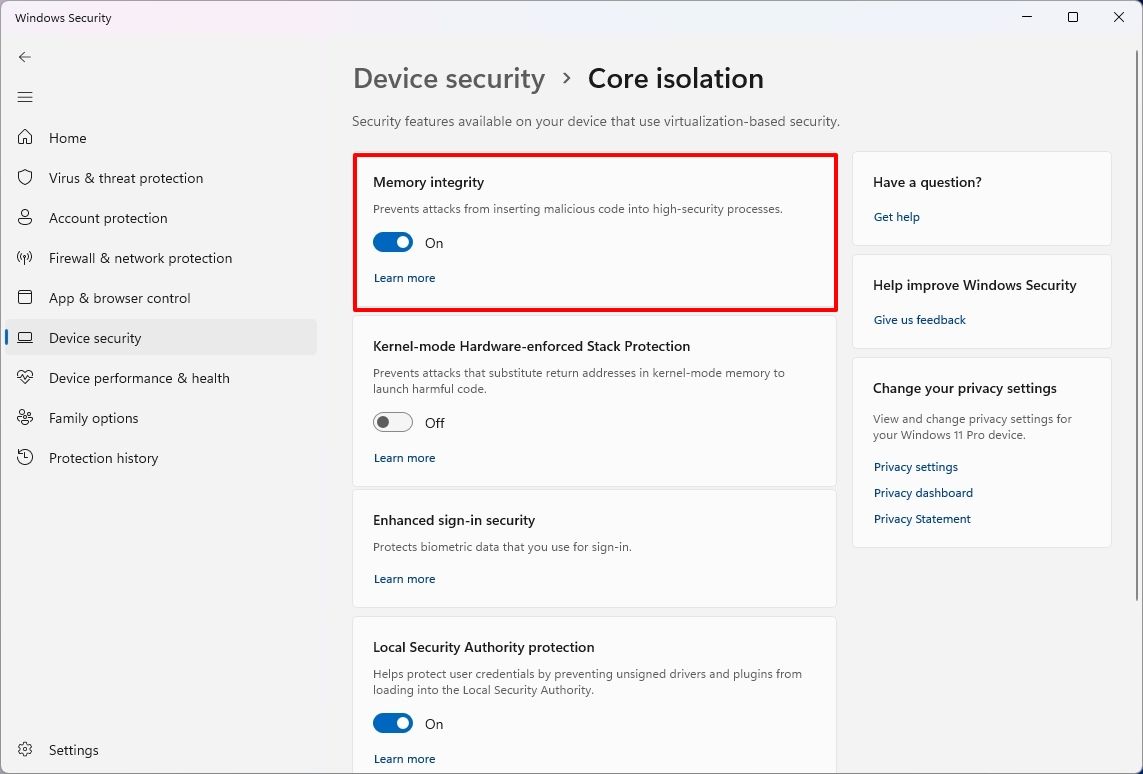
Microsoft is expanding Memory Integrity protection to more eligible devices. During updates, supported devices may automatically enable memory integrity, also known as Hypervisor-Protected Code Integrity (HVCI), to help protect the Windows kernel against malicious code.
(Image credit: Mauro Huculak)
The feature uses Virtualization-based Security (VBS) to help prevent untrusted code from modifying critical kernel components and ensures that only trusted kernel-mode code and drivers can run.
The new setting change works by checking the hardware capabilities, driver compatibility, and performance requirements before enabling the protection. The rollout also respects existing user and administrator configurations, so the system won't automatically turn memory integrity back on if it was explicitly disabled.
Although the expansion is a welcome security improvement, the feature isn't without trade-offs. Virtualization-based security can introduce performance overhead, and incompatible drivers or software can cause problems on some systems.
I wouldn't recommend turning off the protection simply because the operating system now enables it by default. If you stumble upon performance problems or hardware compatibility issues, check for updated drivers first and determine whether Memory Integrity is responsible before changing your security settings.
Windows Central's Take
Cloud Rebuild and context menu customization are easily the two November changes I'd watch most closely. Both address genuine Windows 11 pain points rather than simply adding another visual tweak or secondary feature.
Cloud Rebuild is especially promising. Being able to reinstall Windows without creating installation media could make recovery considerably easier, but my testing exposed an important limitation: it still depends on Windows Update having the drivers your PC needs. I ran into that problem while testing the feature in a virtual machine.
I'd like to see Microsoft make that process more resilient before calling it a replacement for traditional recovery media. If Microsoft can solve the driver problem, Cloud Rebuild could become one of Windows 11's most useful recovery tools.
Which November change would make the biggest difference to how you use Windows 11? Or is there something Microsoft still hasn't fixed that you'd rather see prioritized? Let me know in the comments.
More resources
Explore more in-depth how-to guides, troubleshooting advice, and essential tips to get the most out of Windows 11 and 10. Start browsing here:
When faced with a RAM shortage and dropping PC sales, companies have limited options. PC makers can't do much to increase the supply of memory chips in the short term, and expanding production takes time. That leaves app makers and developers under pressure to make their software more memory-efficient.
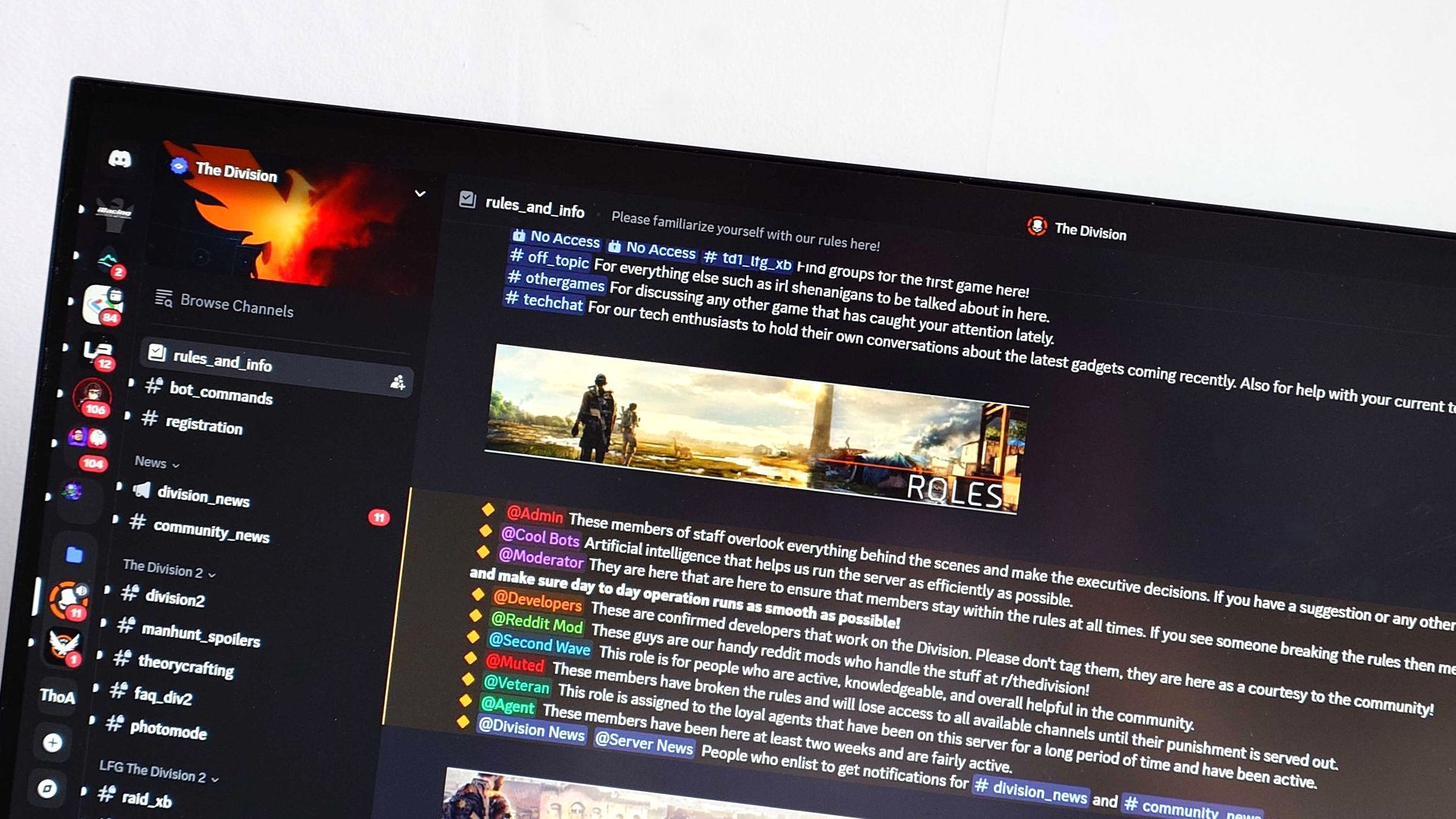
Microsoft led the charge recently in optimizing apps for systems with less RAM, though Discord also made a strong effort by ditching Electron. Everything from Windows 11 features to built-in Microsoft apps have been upgraded to use less RAM.
Microsoft is enforcing "memory budgets," such as restricting PCs with 8GB of RAM from having bloatware.
My question is, why did it take a RAM crisis for Microsoft, Discord, or any other company to care about efficiency?
Biggest News of the Week
With Microsoft and third-party developers working to make apps more efficient, PCs with only 8GB of RAM should perform better (though it's worth noting 8GB of RAM is already fine for some workflows). It's a welcome change, but I can't help but wonder why it's needed.
The latest version of Windows 11 proves that the operating system can run more efficiently than what we had even just a few months ago.
A lot of factors contributed to Windows 11 getting too bloated and RAM-hungry. The operating system has grown significantly since launch, adding features and expanding preexisting functionality. It seems that much of that growth happened without RAM overhead being a priority.
There also wasn't as much pressure to optimize apps until the RAM shortage kicked in. RAM was relatively inexpensive and many systems allowed you to upgrade later if you ever needed more memory.
Just as one example, back in 2023 we covered a deal that dropped the Corsair Vengeance 32GB 5200MHz to $180. Back then, it was noteworthy because the same module had previously cost $250. That price remained stable until about September 2025.
Now, that same RAM costs over $500.
Considering the relatively low cost of even a 32GB DDR5 RAM module back then, Windows 11 could chug along while eating up memory without affecting performance.
Now, out of necessity, Microsoft needs to optimize Windows 11 and as many apps as possible to reduce the total RAM demand across the PC industry. If companies like Discord hop on board, all the better.
Shopping with Sean
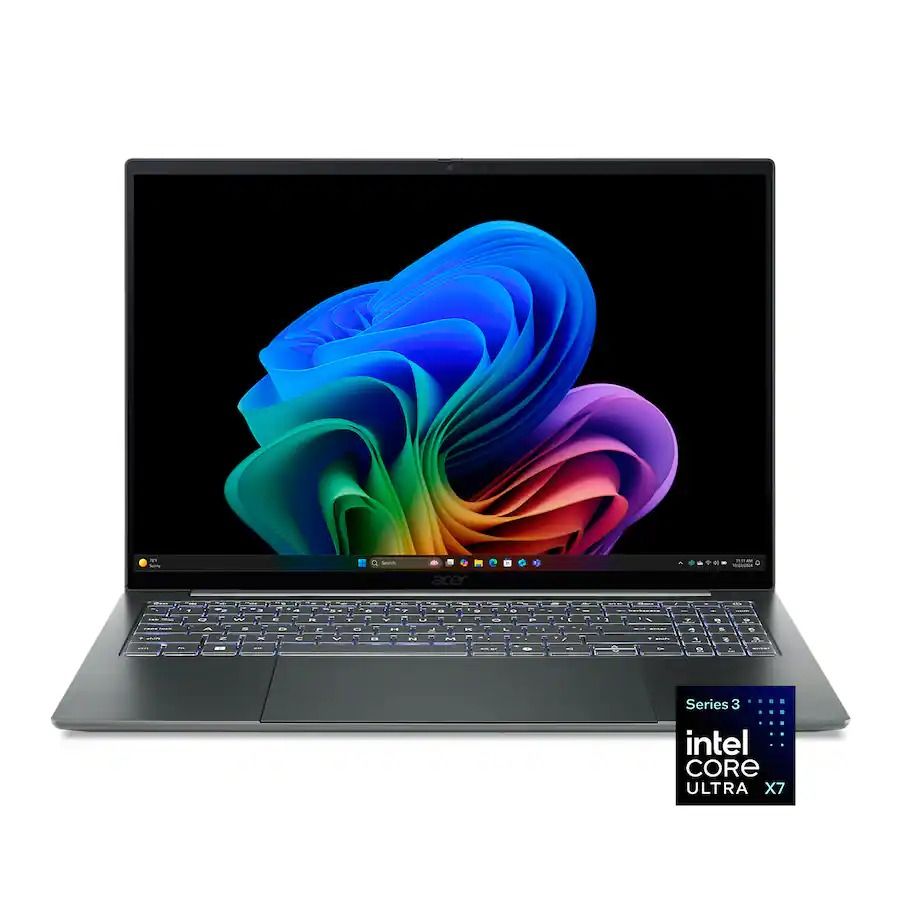
Due to the ongoing RAM shortage, it is increasingly difficult to find PCs with 16GB of RAM paired with premium specs for under $1,000. The current discount on the Acer Swift 16 AI slashes $550 off a laptop that can handle local AI workloads and creative work like video and photo editing. It also has an OLED panel our friends at Tom's Guide called its "standout feature" due to its sharp image quality and 120Hz refresh rate.
Windows Insiders have a bunch of new builds to check out. Microsoft released five Insider builds to wrap up the week, and they include everything from tiny changes and fixes to a massive update to Magnifier.
Rather than stretching a single magnified view across all of your displays, Magnifier will remember distinct zoom percentages to each monitor.
Magnifier also has a new contrast theme to reduce glare. This is different from the color inversion. Magnifier's contrast theme leaves photos, charts, and videos untouched.
The build shipping to Beta channel Insiders adds a section in the Settings app that shows how much shared storage is used across your Microsoft 365 Family plan. That plan currently includes up to 6TB of OneDrive storage spread across six users. That will soon be reduced to 2TB of OneDrive storage shared across the entire family.
Windows Update (Beta)
With this update, the Beta channel moves to Windows 11, version 26H2, with the build number increasing to Build 26320. You shouldn't expect any significant change from this build number increase alone, as it's delivered via an enablement package (eKB) update.
Windows Search (Beta, Beta (26H1))
New Windows Search experience with inline actions: A new Windows Search experience built on WinUI 3 is beginning to roll out. It's faster, more efficient, and features a streamlined design that makes results easier to scan. Inline actions let you quickly complete tasks directly. Turn on dark mode or Bluetooth, adjust your screen brightness, mute your device, or arrange windows from Windows Search.
Windows Search is improving how it understands what you're looking for, including better matching for typos and synonyms. These improvements will continue to be fine-tuned over the coming weeks. For more information about the changes, check out the Windows Insider Blog.
English is the only supported language for this initial release.
Live captions (Beta, Experimental)
Live captions now gives you control over what gets transcribed. Previously, captions used system audio, with an option to add your microphone. Now you can choose system audio, your microphone, or both, so captions follow the sound you care about. Caption an in-person conversation without picking up system audio, or follow audio from your PC during a meeting or while watching a video.
Gaming (Beta)
Quick settings is coming to the Gaming Task View navigation bar in XBOX mode, giving you access to the full set of Quick settings available on the Windows taskbar without having to leave XBOX mode.
Web sign-in (Beta)
Web sign-in now works on Microsoft Entra hybrid joined devices. Before this update, it was only available on Microsoft Entra joined devices. You can sign in to Windows at the lock screen with a passwordless credential: a FIDO2 security key, a passkey on your phone, or a Temporary Access Pass (TAP). You don't need a password. Once you're signed in, Windows gets a Kerberos ticket, so on-premises file shares and internal sites keep working. For more information, see Use web sign-in to enable passwordless sign-in in Windows.
Windows Hello (Beta, Experimental (26H1)))
Windows Hello facial recognition can temporarily brighten your screen to help you sign in when you're in a dark or dimly lit room.
To turn on this feature, go to Settings > Accounts > Sign-in options > Facial recognition (Windows Hello) and turn on Automatically adjust screen brightness during face recognition.
Windows Hello (Experimental)
Sign-in and unlock now behave more consistently and give clearer guidance. You no longer have to wait for face or fingerprint recognition to finish before entering your PIN. Use whichever method works first. At certain times, such as after a restart, you'll need your PIN first. After that, biometrics work as usual.
New Windows Hello events let IT admins see how users sign in. The sign-in experience doesn't change. In Event Viewer > Windows Logs > Security, event 4628 records the Windows Hello methods a user has set up and which method they used to sign in (PIN, face, fingerprint, or no Windows Hello). Event 4629 records failed Windows Hello sign-in attempts. Both events use the existing Audit Logon policy.
For troubleshooting, events 5010 and 7010 in Event Viewer > Applications and Services Logs > Microsoft > Windows > HelloForBusiness > Operational record each Windows Hello sign-in and unlock, along with the result.
Input (Beta)
The dialogs that ask whether you'd like to turn on Sticky Keys or Filter Keys are being updated, making it easier to dismiss these prompts permanently. If you don't use these keyboard features, you can choose not to be asked again directly from the dialog, helping you continue what you're doing with fewer interruptions.
Input (Experimental)
Live captions now gives you control over what gets transcribed. Previously, captions used system audio, with an option to add your microphone. In Live captions settings, you can now choose system audio, your microphone, or both, so captions follow the sound you care about. Caption an in-person conversation without picking up system audio, or follow audio from your PC during a meeting or while watching a video.
Settings (Beta)
Windows Settings now contains shared storage usage across Microsoft 365 Family subscriptions. A breakdown for each family member is coming soon. If your subscription was purchased after October 8, 2026, you can check the view by going to Settings > Accounts > Cloud storage. If your subscription was purchased before October 8, 2026, this view will be available for you after the first subscription renewal on or after May 2, 2027. Learn more about the changes to Microsoft 365 storage.
Settings (Experimental)
Discover your account benefits in Settings. It's now easier to discover the benefits and services available with your Microsoft account, right in Windows Settings.
File Explorer
The Address Bar now supports ~, making it quicker to navigate directly to your user profile folder and subfolders, for example, ~\AppData.
File Explorer (Beta (26H1))
PDF and non-HTML files downloaded from the web can now be previewed automatically in the Preview pane.
Math equations in Braille with Narrator (Experimental)
Building on Narrator's math reading and navigation support, the experience is expanding to refreshable Braille displays. When Narrator reads supported equations in Microsoft Word, PowerPoint, Edge, or Google Chrome, Narrator Math is now shown on your connected Braille display, letting you explore them by touch while listening to Narrator.
Math is at the heart of STEM education and learning, and this update helps students and professionals independently read, understand, and explore equations, formulas, and scientific notation with confidence.
You can choose a math format in Braille without changing your default Braille output table. Supported math output formats include Nemeth (default), UEB, CMU, Vietnamese, Swedish, LaTeX, and ASCIIMath. In Narrator Math settings, you can also customize the reading language, speech behavior, and navigation preferences.
Magnifier (Beta (26H1))
More and more of the work people do happens across more than one screen. You draft on one display and keep source material open on another. You fill in a form while a reference document sits beside it. Those extra displays can be more helpful when each one can do its own job, and now Magnifier supports exactly that.
To use this update, set your monitors to Extend in System > Display, not Duplicate, so Windows treats each screen as its own space.
Every screen keeps its own view at its own zoom. In earlier versions of Magnifier, zooming in stretched a single magnified view across all of your displays, so one screen's zoom followed you everywhere and screen edges blurred together. With this update, each monitor's boundary is respected, and each monitor can have its own zoom percentage. Your writing screen can be at 300% while your reference screen stays at 150%, and the magnified view no longer spills from one display into the next. This behavior matters because different tasks and screen resolutions often require different levels of magnification to remain comfortable to read.
Setting the zoom on each screen is easy. Choose whichever method feels natural:
Move your mouse pointer onto the screen you want to adjust, then press Windows key + Plus (+) or Windows key + Minus (-), or hold Ctrl + Alt and rotate your mouse wheel.
Set the percentages directly in Accessibility > Magnifier.
Drag the Magnifier toolbar onto a specific screen to adjust that screen from its on-screen controls.
Per-monitor zoom is turned on by default. If you prefer the classic behavior where a single zoom spans all of your displays, you can turn per-monitor zoom off at any time from either the Magnifier toolbar or Accessibility > Magnifier. You can turn it back on whenever you like.
As you move your mouse from screen to screen, the magnified view naturally follows your pointer. Sometimes this might cause you to lose sight of the content that you're actively working on.
Viewport locking keeps that view in place. For example, you might be drafting an email based on a section of a document open on another display. Position that display so the paragraph you need is in view, press Ctrl + Windows key + K, and the screen holds its view steady while you move your cursor over to write. The locked screen stays fully live and interactive, so you can glance back, click, or copy from it whenever you need to, and its view stays put until you release it.
A message appears on the screen when it's locked, so you always know what's being held. To lock or unlock a screen, point your mouse at that screen and press Ctrl + Windows key + K again. To release everything at once, press Windows key + Esc to dismiss all locks. To use a different key combination, you can switch the lock shortcut to Ctrl + Alt + P in Accessibility > Magnifier.
Magnifier new contrast theme
A new contrast theme toggle for a lower-glare screen. If bright screens are uncomfortable, many people use color inversion to reduce glare. However, inversion changes everything on screen, including photos, charts, and videos. With this update, Magnifier introduces a new contrast theme toggle.
Reduce glare with a single toggle. Turn on a contrast theme directly from the Magnifier toolbar for a more comfortable viewing experience.
Choose the contrast theme that works best for you. The dark theme is applied by default, and you can choose which contrast theme the toggle uses under Settings > Accessibility > Magnifier.
Photos, videos, and charts keep their original colors. Unlike color inversion, the contrast theme recolors the interface without touching your photos, charts, or videos, so they keep their real colors.
Color inversion is still here. This isn't a replacement. If you use inversion today, it works exactly as it always has. The contrast theme is a separate, purpose-built option to reduce glare when you want a darker interface without inverting colors.
Manage camera, microphone, and location access for desktop apps (Experimental (Future Platforms)
Windows Insiders can now manage camera, microphone, and location permissions for individual desktop apps. Previously, access for traditional desktop applications was managed through a single device-wide setting.
With this update, you can review and control access on an app-by-app basis, giving you greater visibility into which apps are requesting access to sensitive resources and more control over your privacy choices. These controls make privacy permissions easier to understand and manage across the wide range of desktop apps you use every day.
What's changing
Allow or deny access for each desktop app individually.
Go to Settings > Privacy & security > Camera, Microphone, or Location to review and manage permissions.
Apps that haven't yet accessed a resource prompt for permission the first time access is requested.
What stays the same
Existing app permission decisions are preserved.
Apps previously granted access continue to have access.
Apps previously denied access remain denied.
No action is required, and no settings are reset.
Existing enterprise policies continue to function as designed. We're exploring additional management capabilities.
Notes
Most desktop apps appear with clear app attribution. However, some apps that rely on shared system components, browser-hosted experiences, or similar technologies might appear under a different name than expected.
Some desktop apps might appear as Unsigned if Windows can't verify publisher information. Only grant access to apps you recognize and trust.
Join us on Reddit at r/WindowsCentral to share your insights and discuss our latest news, reviews, and more.
The OnePlus Open was one of the best foldables on the market when it launched. Its large displays and solid cameras were ahead of the competition, leading our colleagues at TechRadar to call it "the only foldable phone that doesn't compromise." So, how do you improve on what was already an excellent foldable? You put Windows 11 on it, of course.
Okay, that may be taking things too far, but Windows 11 does look incredible on a folding phone. I can say that with confidence because Kevin Shroff managed to get Windows 11 to run on the OnePlus Open.
To get Windows 11 onto the OnePlus Open, Shroff removed Android entirely, dimmed the external display, and focused on the large folding screen.
The project uses a combination of Windows 11, OEM firmware, and custom components. An impressive number of features work, considering the nature of the setup.
Getting Windows 11 to boot at all on the OnePlus Open is a feat, but Shroff got touch to work as well.
Several key functions do not work, however, including audio, Bluetooth, and cellular connectivity. Even charging and Wi-Fi are listed as "in progress" on the project's GitHub page.
With projects like this, it's more about seeing how far limits can be pushed than creating a daily driver. While I'd love a dual-booting foldable that can run Android and Windows 11, that's not realistic.
What could have been with Windows Phone
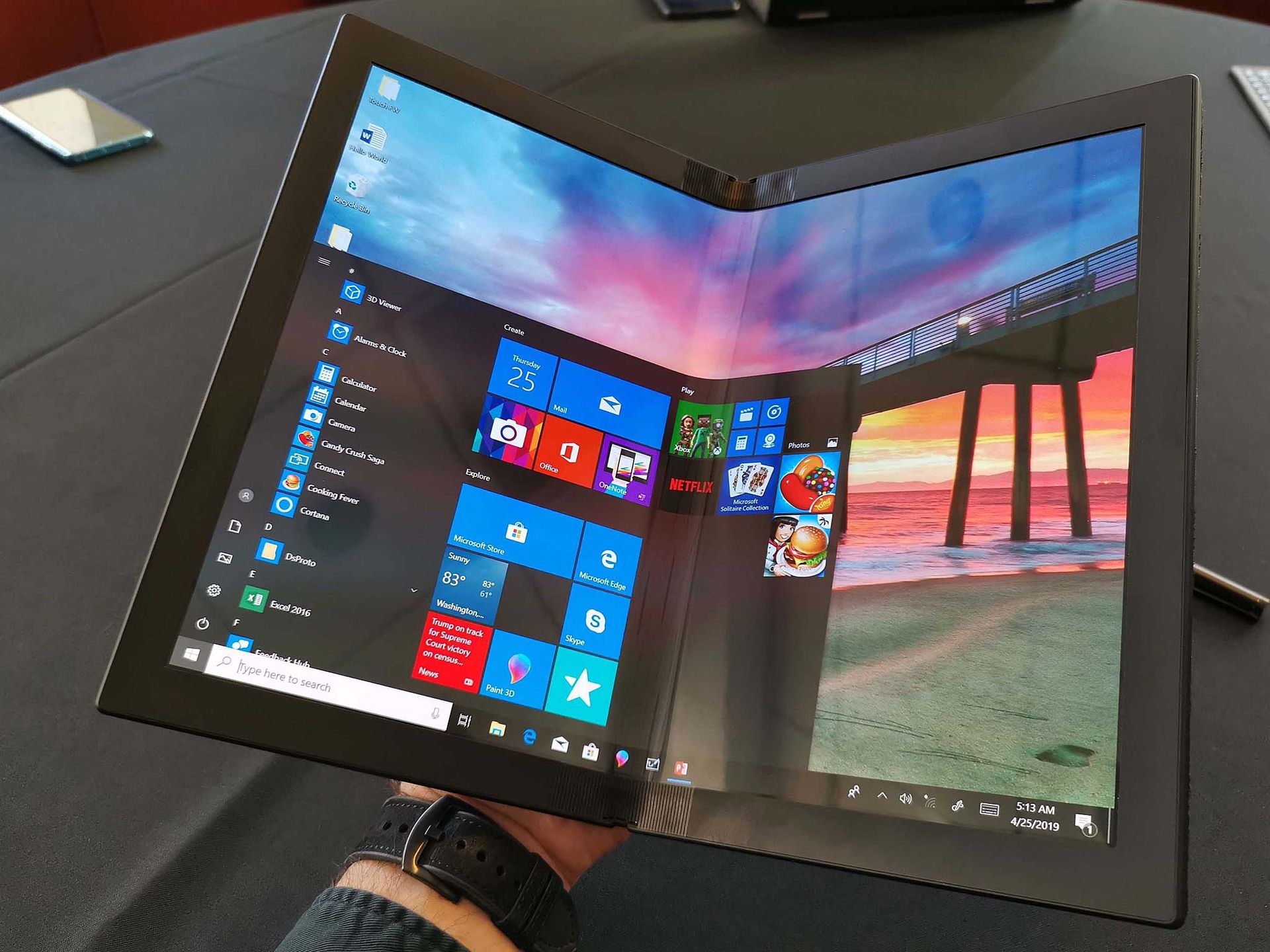
Windows 11 is more adaptable to unique aspect ratios, in part because of devices like the ThinkPad X1 Fold. (Image credit: Daniel Rubino)
Whenever I see a phone forced to run Windows, my mind jumps to thoughts of Windows Phone. I imagine that's the case for many long-time readers here at Windows Central. But seeing Windows 11 on a foldable hits differently.
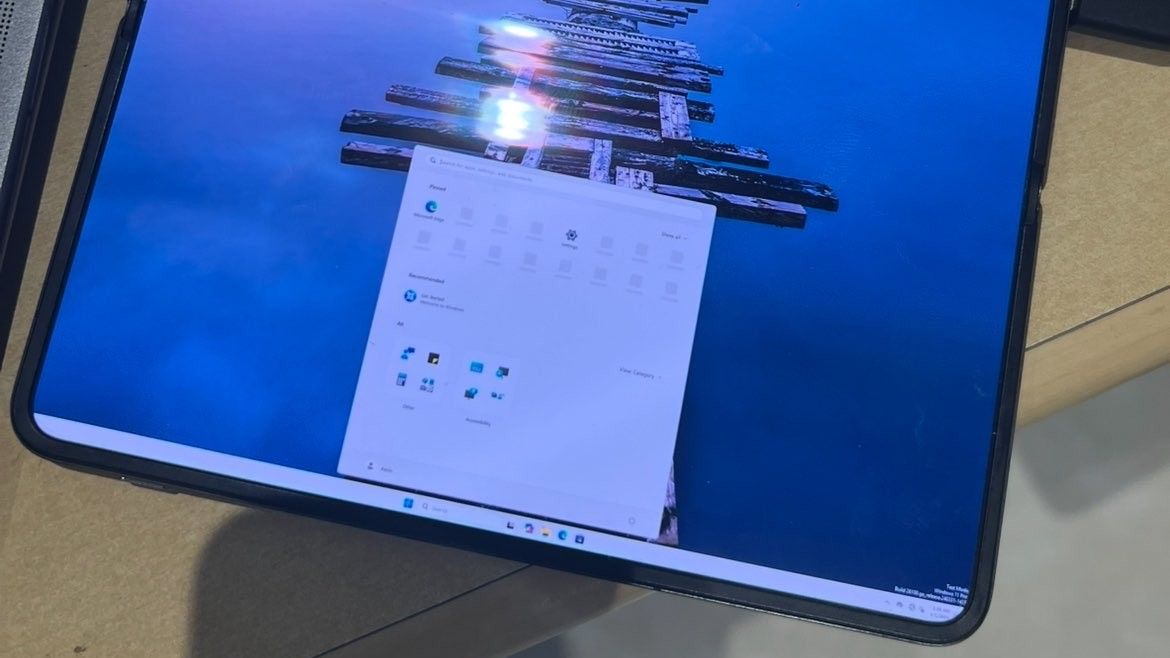
Windows 11 looks incredible on the nearly square inner display of the OnePlus Open. Because of folding laptops, dual screen PCs, and gaming handhelds, Windows 11 adapts well to screens with different aspect ratios.
The Windows 11 desktop almost looks built for devices like this. Compare Windows 11 on the OnePlus Open to Windows 10 on an early Lenovo X1 Fold.
Windows 10 looks awkward on foldables and squarer devices. (Image credit: Windows Central)
Windows 11's taskbar shrinks perfectly onto the nearly square screen of the OnePlus Open. When opened, the Start menu fills most of the screen but leaves enough room around the edges to make it clear you're still on the desktop.
Earlier this year, we saw what could have been for the Surface Duo through the iPhone Duo. Now, a passion project illustrates how Windows 11 could have scaled to a foldable Surface Duo if Microsoft ever went in that direction.
Join us on Reddit at r/WindowsCentral to share your insights and discuss our latest news, reviews, and more.
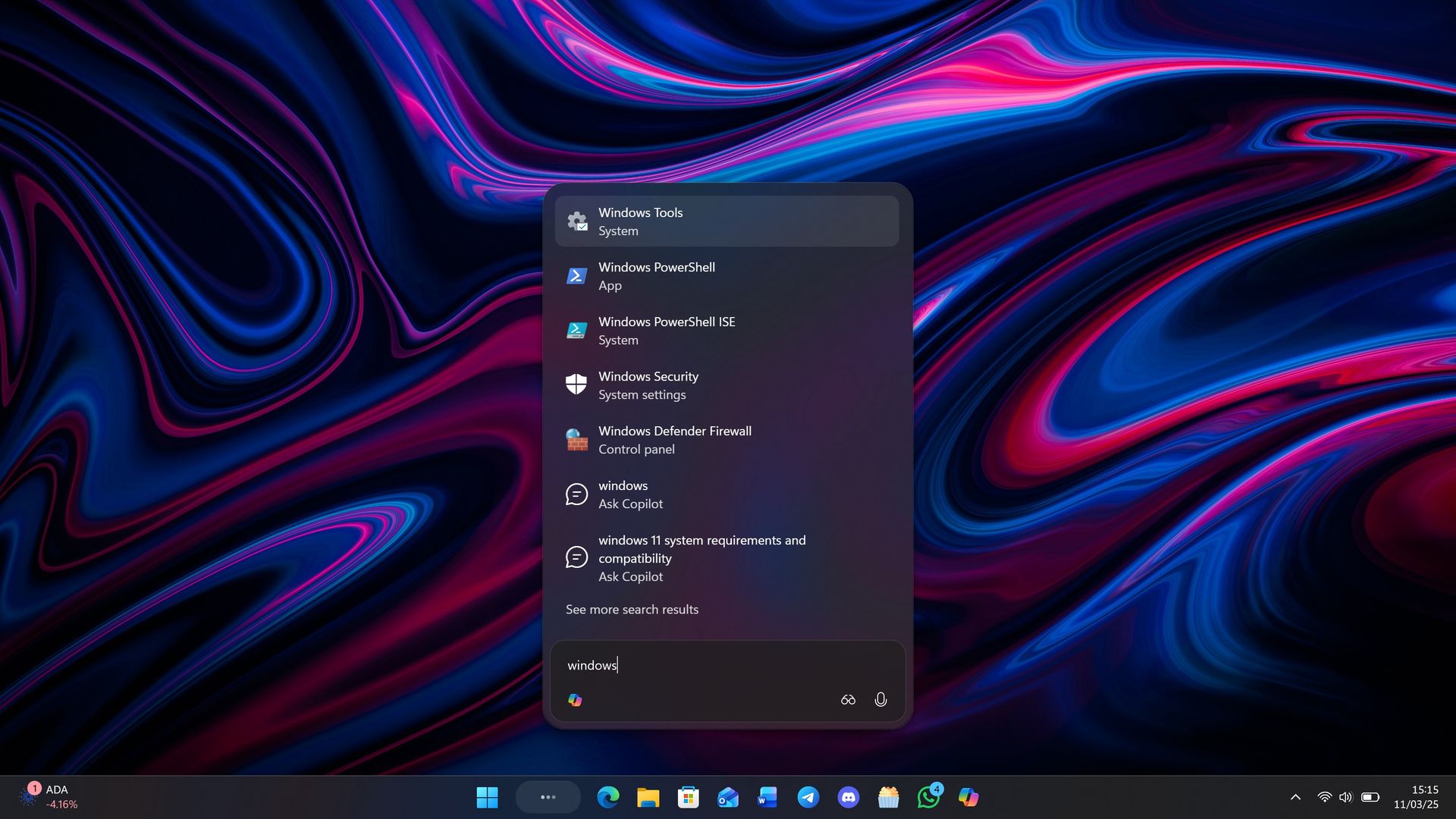
Last month, Microsoft announced a brand new, overhauled Windows Search experience that has been rebuilt from the ground up with more accurate file and app results as well as the ability to modify settings and initiate actions that you ask for.
The new Windows Search is powerful, letting users control their PC, modify settings, answer text messages, open apps, and preview images, files and rich content all from within the search UI. It reduces web content and uses native Windows UI frameworks for a faster and more fluid UX.
Microsoft has also confirmed that this new Windows Search UI will integrate Copilot later this year. This is unsurprising given the new interface builds upon the Ask Copilot experience that the company first announced last year, but never shipped outside of preview.
Ask Copilot testing was paused over the summer, likely because Microsoft decided to integrate it into this new Windows Search experience instead. The new Windows Search looks almost identical to Ask Copilot, meaning I expect the Copilot integration to function very similarly to how it already did before.
"We will also begin adding the option to integrate the new Copilot with Search on the taskbar, so you can get quick answers inline from Search, and if you want to have a richer conversation, you can jump from Search directly to the full Copilot app,"Microsoft says."This experience will be opt-in, and will first start rolling out to select markets later this year."
The good news is that unlike Ask Copilot, which had no option to turn off Copilot integration in the new interface, Microsoft says the Copilot integration in Windows Search will now be opt-in. That means users who don't want Copilot in their search UI won't have to see it.
Earlier this year, Microsoft announced that it will be reducing Copilot bloat across the Windows OS, which likely drove the decision to retire Ask Copilot and make it an optional feature in the new Windows Search instead. While both features share the same UI and backbone, Copilot will no longer be a mandatory part of it.
Microsoft says the new Windows Search will begin rolling out before the end of 2026, which is a quick turn around for a feature that was announced in October. But when you consider the fact that the new Windows Search is actually just Ask Copilot without Copilot, it becomes apparent that the feature has actually been in testing for almost a year.
Join us on Reddit at r/WindowsCentral to share your insights and discuss our latest news, reviews, and more.
Microsoft Sticking with Windows 11 for 2027: Here Is What Version 27H2 Changes For months, rumor mills across the tech industry pointed toward 2027 as the definitive landing year for “Windows 12″—a brand-new operating system iteration expected to feature a floating taskbar, heavy cloud integration, and a complete visual overhaul. However, internal roadmaps suggest Microsoft […]
As Microsoft continues to refine its enterprise and consumer operating system ecosystems, IT administrators and power users face a continuous stream of changes. Building upon the critical system hardening updates and lifecycle milestones from the official October roundup, this expanded guide takes a closer look at how modern performance optimizations, local AI processing, and hardware […]
The Windows 11 Start menu has received a lot of updates recently, but if you want to fully customize your Start menu, you need to use an app like Start11. A major update to Start11 is now in beta, and it brings a bunch of new features.
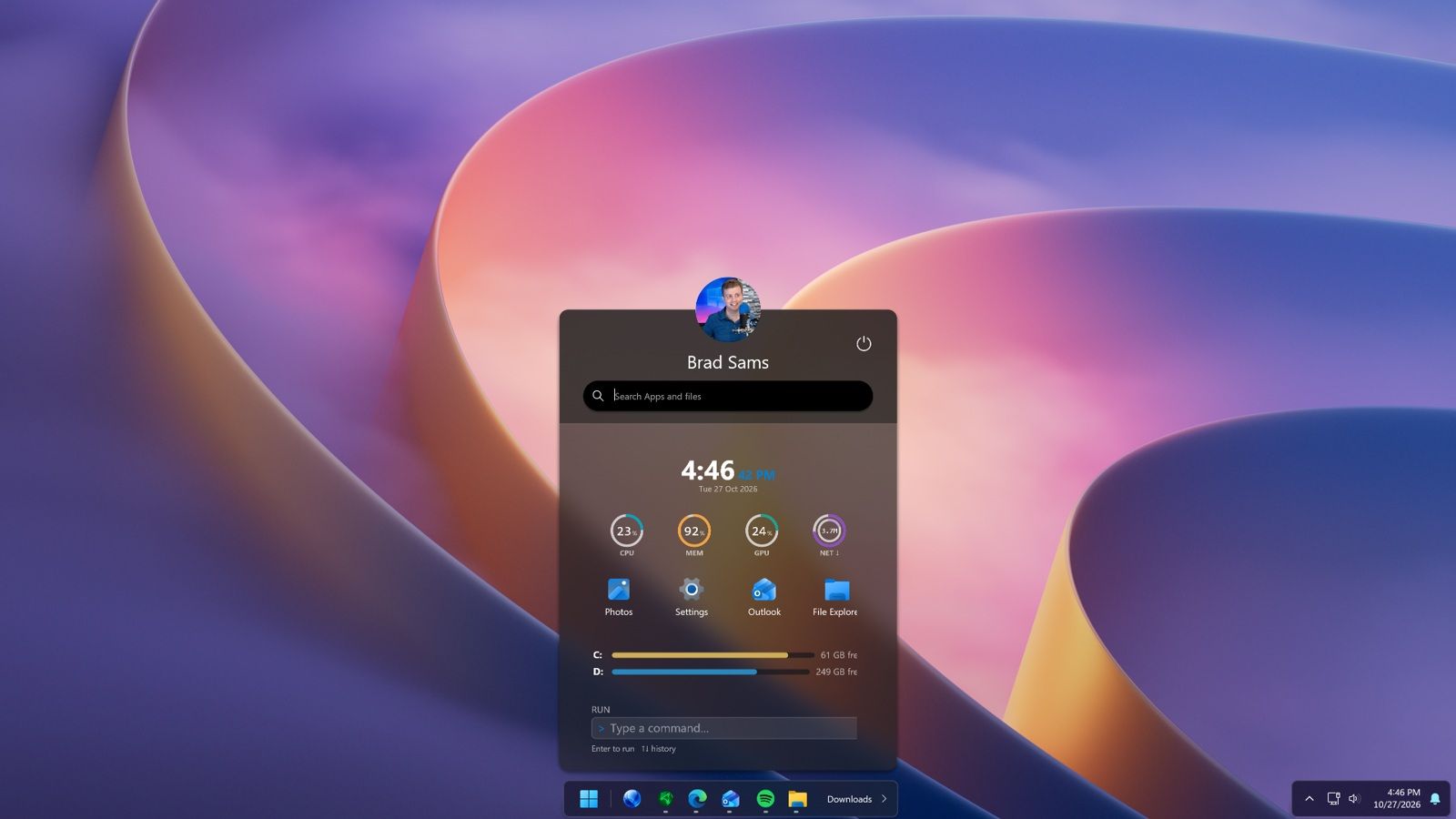
Start11 v3 adds support for widgets within the Start menu. There are 20 widgets available at launch, though most are fairly straightforward. Widgets like a clock or calendar may serve better as proof of concept than a core part of the Start menu.
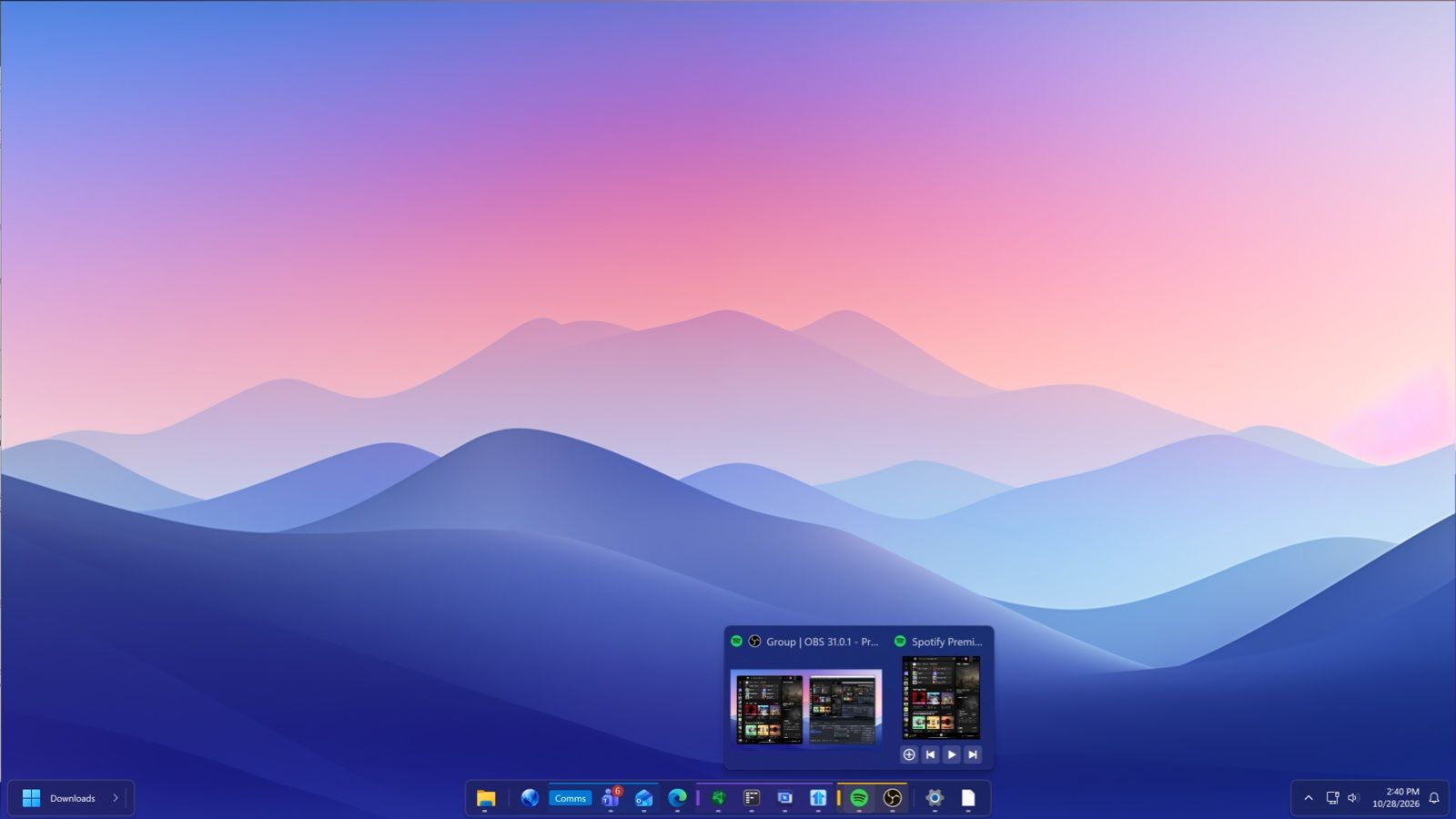
The updated app also adds Taskbar Islands, which are a dock-like experience. They feel a little bit like macOS because they split the taskbar into smaller pieces that do not take up an entire section at the bottom of your screen. But the Taskbar Islands very much match the overall design and feel of Windows 11.
Start11 v3 introduces Taskbar Islands and app grouping, letting users organize related apps and create a more dock-like taskbar experience. (Image credit: Stardock)
Start11 adds support for grouping applications directly in the taskbar by holding Alt and dragging applications together. You can pin those groups as workspaces to launch multiple apps with a single click.
A new button in the taskbar provides quick access to recently closed applications, overflow items, and taskbar tools.
Stardock also added the ability to explore Start menu layouts from the community.
As much as I love apps that customize the look of Windows 11 and add new features, I only keep a few installed on my PC. Start11 is on the short list of apps I install right away, alongside PowerToys.
With Microsoft's recent improvements to the Start menu, an app like Start11 needs to do more to stand out. Start11 v3 does that with taskbar islands, widgets in the Start menu, and other new features.
(per year): was $10 now $8 Start11 lets you customize the Windows Start menu with several layouts, visual styles, and positioning options. If Microsoft's default Start menu isn't quite right for your workflow, Start11 gives you plenty of alternatives. Right now, it's on sale for $8 while v3 is in beta.View Deal
Join us on Reddit at r/WindowsCentral to share your insights and discuss our latest news, reviews, and more.

 Connexion