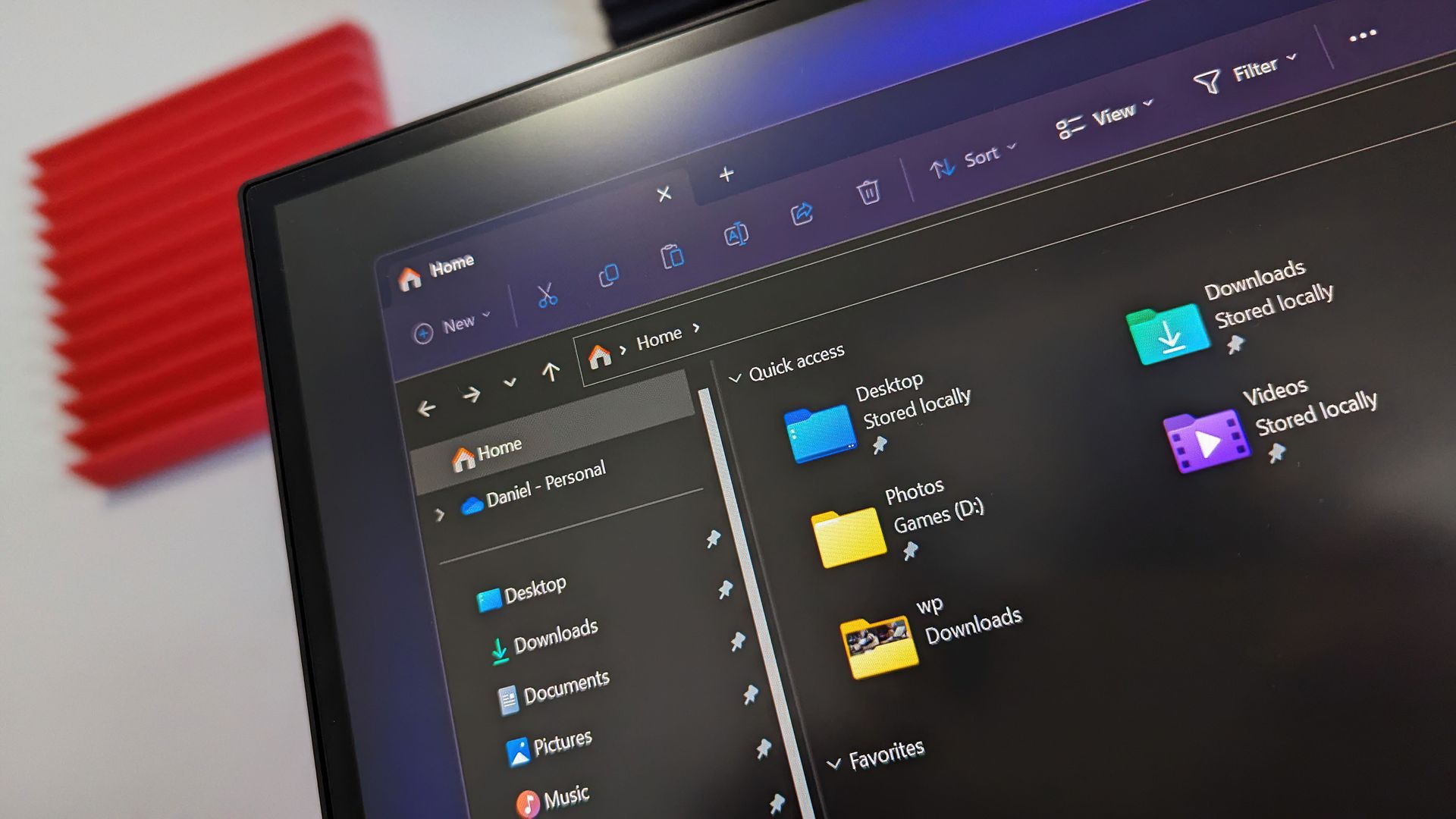
Microsoft is giving the Windows 11 Settings app a meaningful security makeover, bringing core hardware and system integrity checks out of buried legacy menus and into one clean, unified dashboard. Rolling out gradually to Insiders running Windows 11 Experimental Build 26340.10013, the new Windows baseline protection experience lets you verify at a glance whether your […]
Knowing whether a Windows PC is genuinely protected shouldn’t require digging through a maze of buried system settings, registry keys, and disconnected security menus. Yet for years, verifying that core hardware and operating system defenses are properly turned on—and haven’t been quietly disabled by misconfigurations or malicious scripts—has been surprisingly fragmented. Following its broader enterprise […]
Microsoft has announced that the next version of Windows will be the first to ship with PowerShell 7 as an in-box feature, replacing PowerShell 5.1 that ships on Windows 11 today. Version 26H2 will be the last version of Windows to ship with PowerShell 5.1 by default.
Jason Helmick, a senior product manager at Microsoft has explained the transition and what it means for PowerShell users:
"For years, PowerShell has lived in two places. Windows PowerShell 5.1 is the one in the box, and it has carried a great deal of the world’s automation: the scheduled tasks, services, and admin scripts that have run quietly for years. PowerShell 7 is the modern PowerShell: the one we develop in the open, across platforms, and where new features go."
PowerShell 7 is able to work side by side with PowerShell 5.1, meaning there isn't anything that will immediately break once PowerShell 7 begins shipping in Windows, at least for now. PowerShell 5.1 will still be included in the next version of Windows, but an undisclosed "future" version of the OS will eventually remove it, though it will still be installable as an optional feature on demand.
The company does recommend that PowerShell 5.1 users begin looking at transitioning to PowerShell 7, ensuring scripts, tasks, installers, and more are compatible with the new version. Some existing scripts will not be compatible with PowerShell 7, and so those will need to be updated or users will need to ensure PowerShell 5.1 is installed on future systems.
"Including PowerShell 7 in Windows is a milestone we’ve been working toward since PowerShell went cross-platform," Helmick says. "Many scripts run in PowerShell 7 without changes. Some need changes before they work, and some may need to keep running in Windows PowerShell 5.1. That’s because Windows PowerShell 5.1 and PowerShell 7 differ in some places."
PowerShell 7 is delivered as an MSIX, and will be updatable via the Microsoft Store, streamlining the update process for users. Currently, the next version of Windows where PowerShell 7 will replace 5.1 as the default experience is scheduled for the end of 2027, so around about a year from now.
Alongside this news, Microsoft has announced that PowerShell 5.1 is now deprecated, meaning it's no longer in active development. It will still be supported with security updates for the foreseeable future, but it will no longer get new features or quality enhancements.
Join us on Reddit at r/WindowsCentral to share your insights and discuss our latest news, reviews, and more.
During the first half of November, Microsoft rolled out several new Windows 11 preview builds across the Beta, Experimental, and Feature Platforms channels, introducing changes to Search, gaming, Windows Hello, recovery, privacy, accessibility, and more.
After testing these updates, Windows Search stood out most to me, with richer results, inline controls, app discovery, and deeper Phone Link integration. But it’s far from the only change worth watching.
In this recap, I’ll break down 18 of the most interesting Windows 11 features currently in testing, explain what they do, and share which ones I think deserve your attention.
Windows 11 builds covered in this article
For reference, the features tested in this article appear across the following Windows 11 Insider builds:
Beta: Builds 28020.3445, 28020.3382, 26220.9836, and 26320.10003
Feature Platforms: Build 29708.1001
Build 29708.1001 also includes additional changes to Windows Hello and Cloud Rebuild.
Biggest improvements from the Windows Insider Program in November 2026
Windows Search can finally do more than find things
(Image credit: Mauro Huculak)
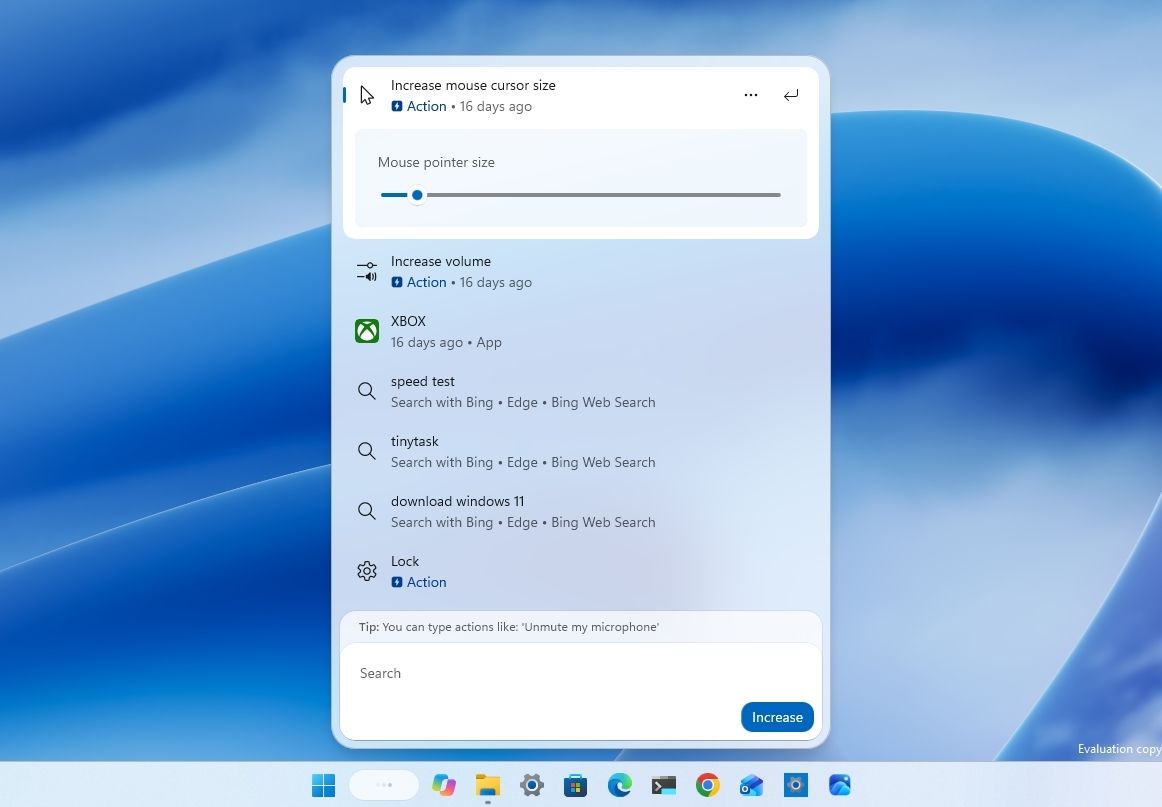
Microsoft continues expanding the new Windows Search experience, and the latest previews increasingly turn Search into a place where you can take action without opening another app or Settings page.
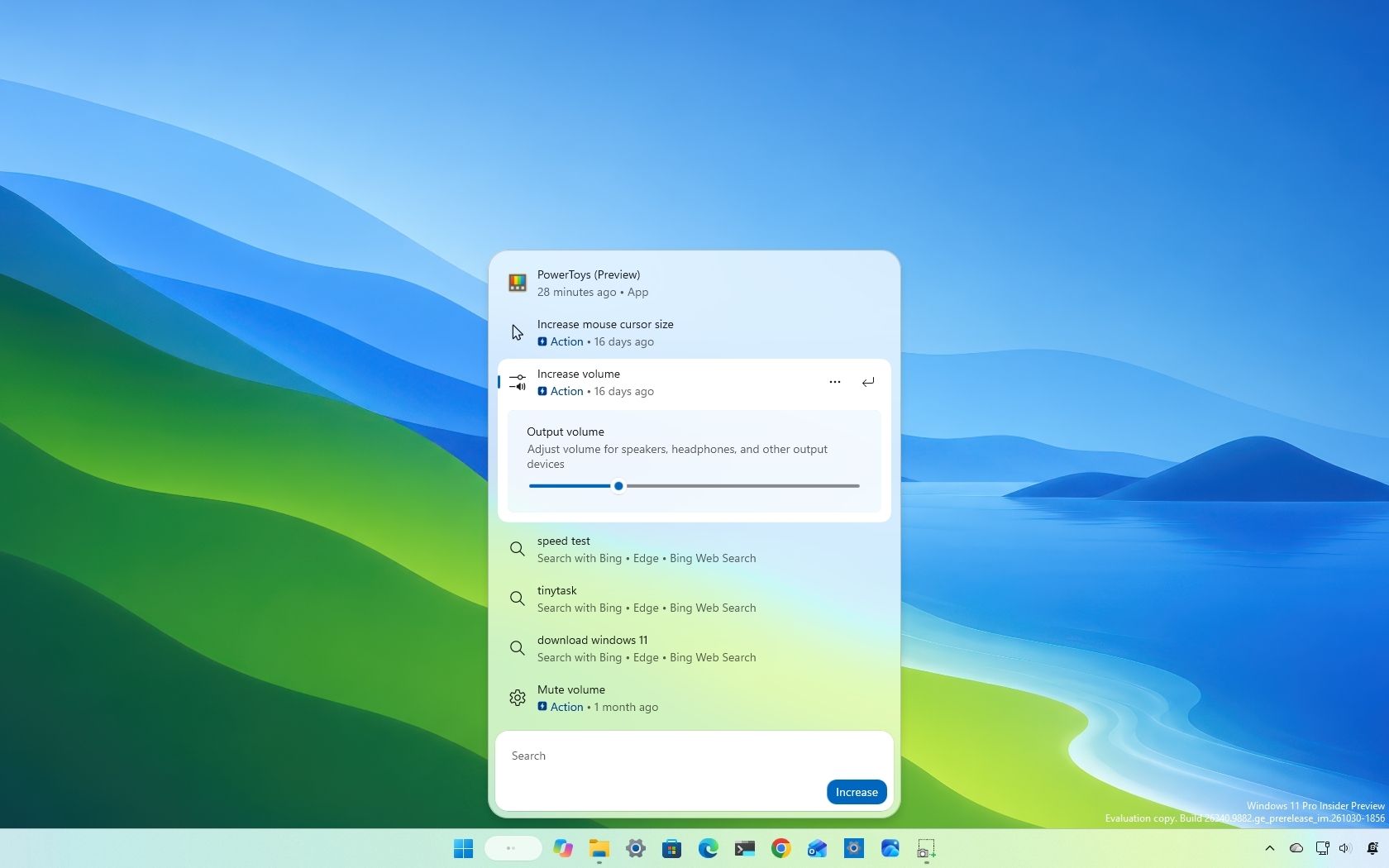
New inline controls let you adjust things such as brightness, volume, and cursor size directly from Search, while richer results, app discovery, Phone Link integration, and other additions continue expanding what the interface can do.
The ability to change system settings directly from the Search interface is a convenient addition that reduces the need to open Settings or navigate away from the Taskbar.
Microsoft is also expanding Phone Link integration. The new experience lets you make phone calls, send text messages, and control certain phone features, including Do Not Disturb, without reaching for your mobile device. This currently works with Android devices, with iPhone support planned for the future.
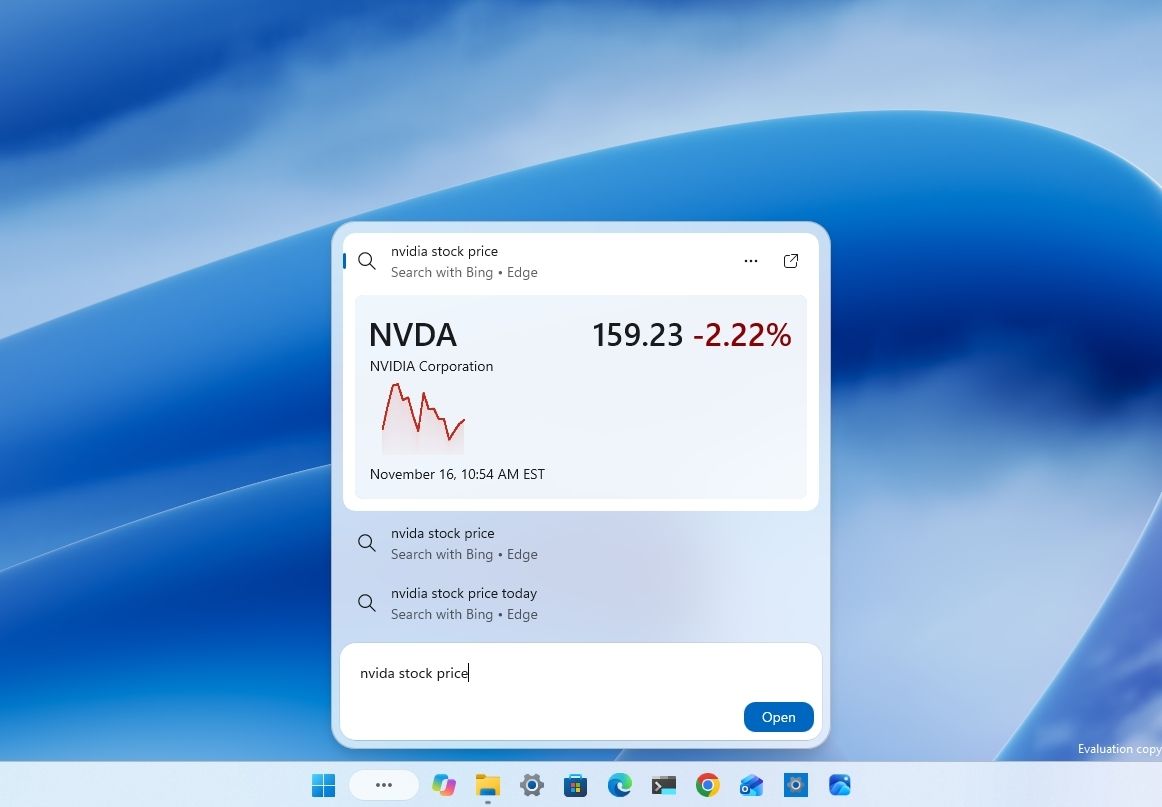
The new Windows Search experience is also getting rich search results. Instead of displaying only links and basic information, the experience can show previews and additional details, including locations, metadata, and authors. The experience also provides web answers for weather, stocks, and general facts.
(Image credit: Mauro Huculak)
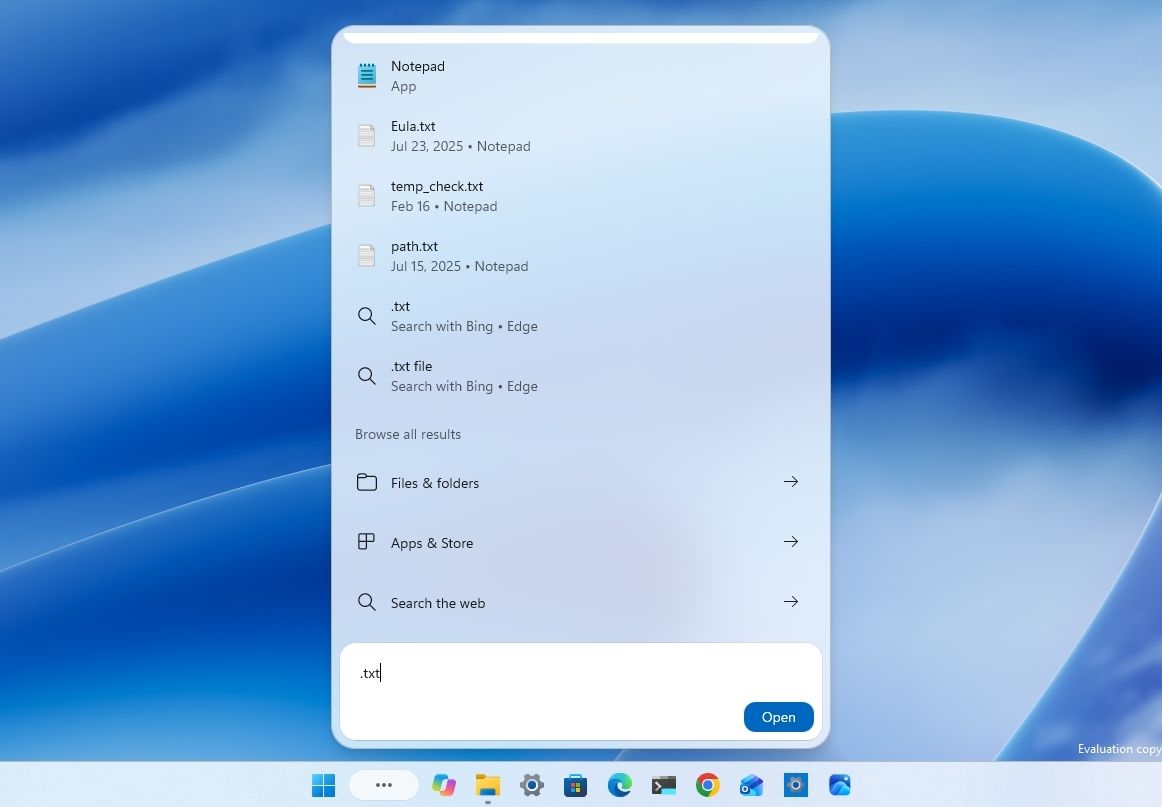
Search can also surface apps and games from the Microsoft Store. However, if you don't want these suggestions, you can turn the option off from the Search page in the Settings app.
In addition, the company is adding filters to narrow down results, including "Files & Folders," "Settings," and "Actions." These options should make it easier to find specific content without scrolling through unrelated results.
(Image credit: Mauro Huculak)
One detail I noticed is that the new Search interface now appears centered on the screen regardless of taskbar alignment. Microsoft has acknowledged this behavior and says it plans to address it in a future update.
The rollout isn't the same across every preview build of the operating system. For instance, build 26320.9876 includes an early version of the new Search integration, but its capabilities are more limited than those available in other previews.
On the other hand, build 28020.3382 also includes changes for Search, but for the older experience. These include a simpler design that reduces visual clutter and an updated setting that lets users turn off web and Microsoft Store results.
My take: Windows Search is becoming one of the more interesting parts of the desktop experience. The inline controls and Phone Link integration could save time by reducing the need to switch between apps and settings pages. However, the company still needs to refine the interface, particularly its positioning and consistency across builds.
Xbox mode gets faster controls without leaving your game
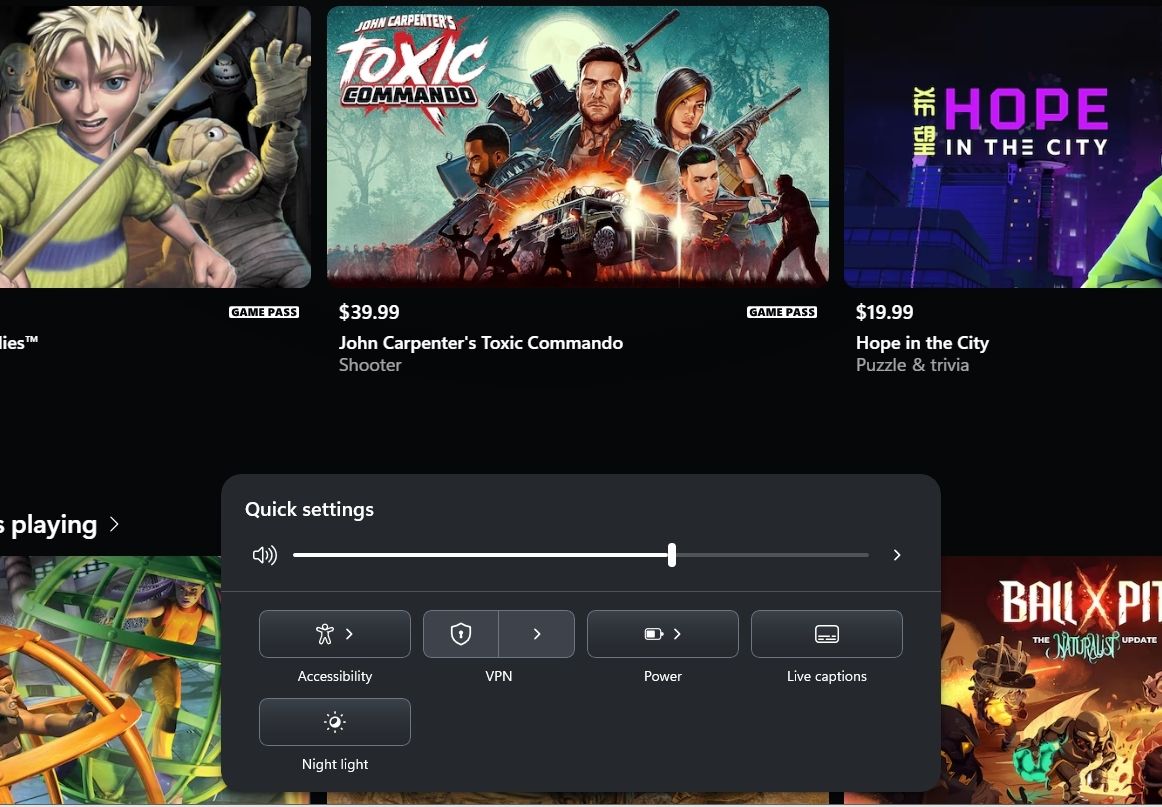
Microsoft is improving the gaming experience by making XBOX mode easier to navigate with a controller. In builds 26340.9843 and 26320.9876, Gaming Task View gains a new Quick Settings interface integrated into its navigation bar.
(Image credit: Mauro Huculak)
The interface has the same options available through Quick Settings on the Taskbar, but without leaving the gaming experience.
This is useful because switching between a game and the desktop to change a system setting can interrupt gameplay. Bringing these controls into Gaming Task View makes the operating system more convenient to use with a controller.
In build 28120.3393, Microsoft is also testing an updated Gaming Task View interface with quick access to "Exit to Desktop" and "Power Options."
My take: I like the direction that the company is taking with XBOX mode. The goal should be to make the operating system feel more like a gaming console when using a controller without taking away access to the desktop. Quick Settings and easier access to power controls are small additions, but they improve convenience.
Windows 11 puts more Microsoft 365 controls directly in Settings
The software giant continues integrating its Microsoft 365 services into Windows 11 rather than sending users to a web browser to complete every task.
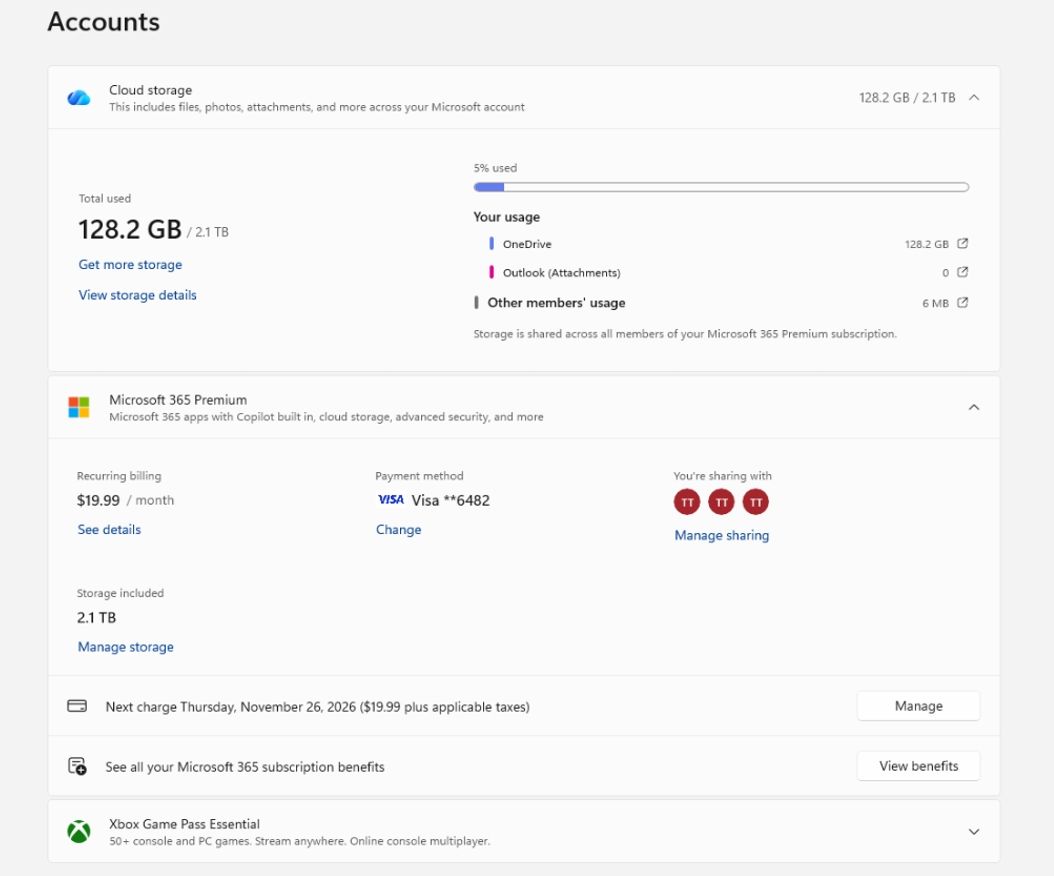
In builds 26340.9843 and 26320.9876, the company is adding a way for Microsoft 365 Family subscribers to check shared cloud storage directly from the "Accounts" section in Settings.
(Image credit: Microsoft)
However, the rollout depends on the renewal cycle of your subscription. If you purchased a subscription after October 8, 2026, you can access the new view immediately. However, those who purchased it before that date will see the information during their next subscription cycle.
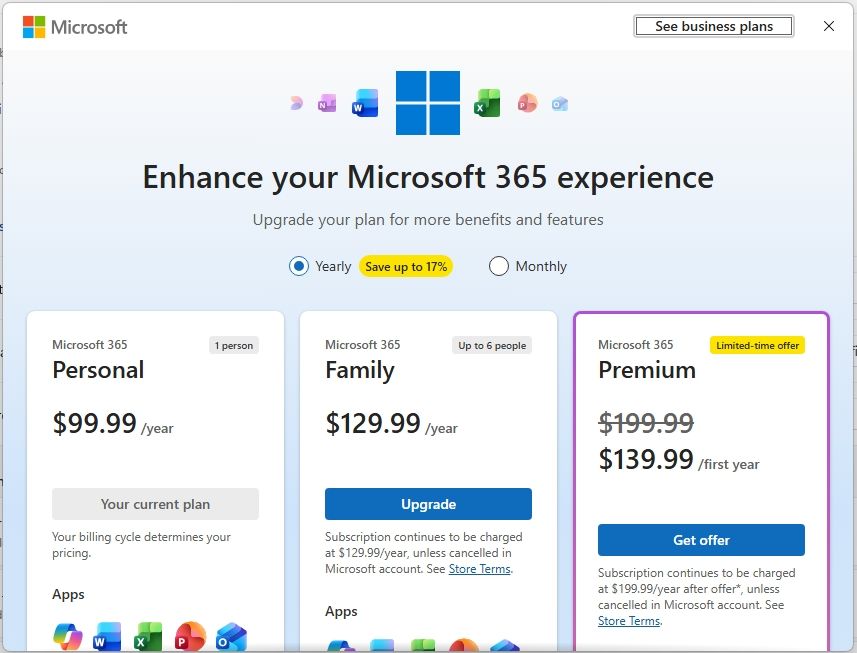
Also, in build 26340.9843, Microsoft is introducing a native interface in Settings to explore subscription upgrade options, allowing users to review available plans and complete the process without opening a browser.
(Image credit: Microsoft)
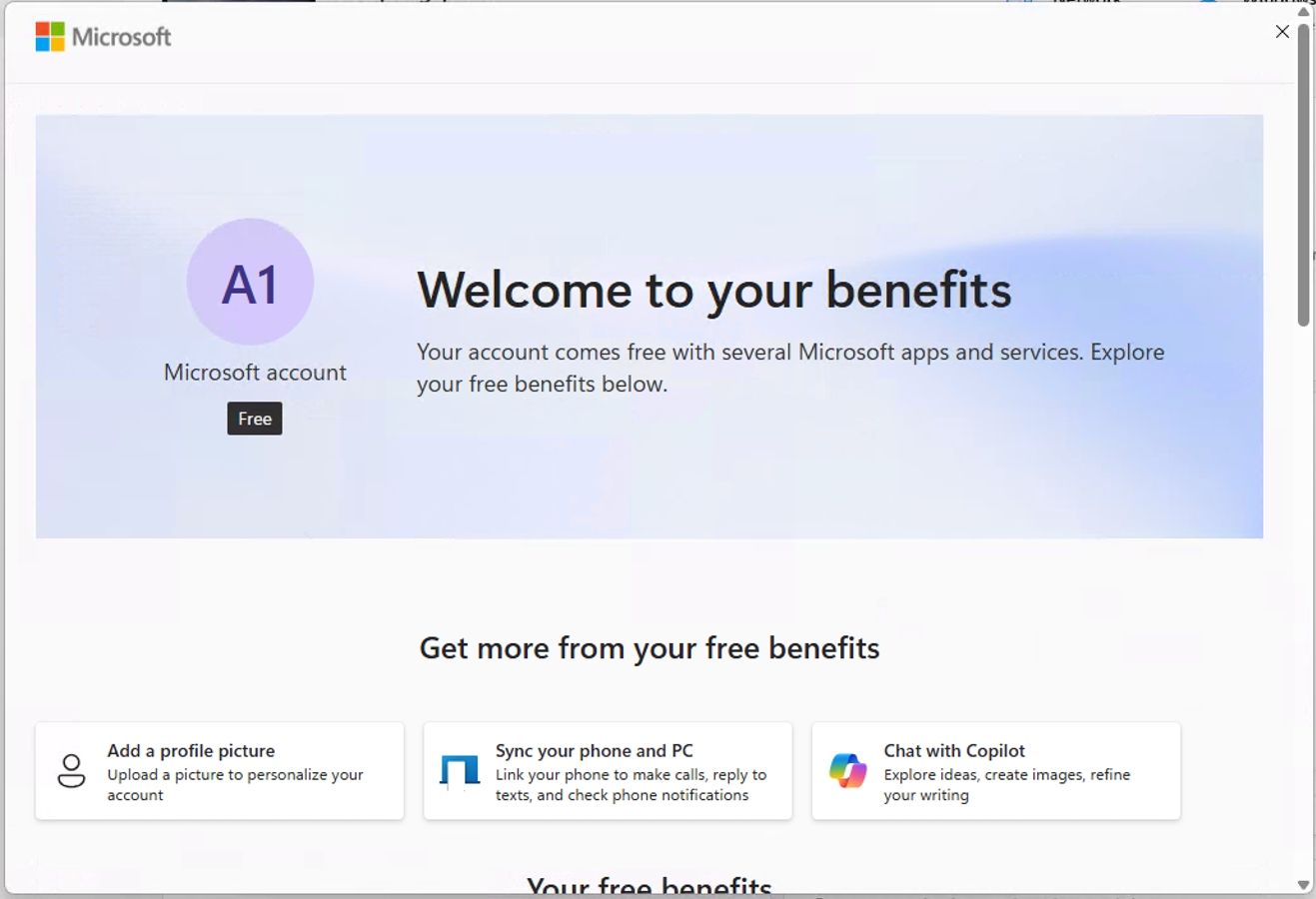
In build 26340.9882, the company is adding another Microsoft account integration to the Settings home page, making it easier to discover the benefits of using a Microsoft account.
(Image credit: Microsoft)
My take: These changes make sense because subscription information and account benefits are already closely tied to the operating system. However, I'd prefer Microsoft to improve the experience elsewhere and avoid turning Settings into another place for subscription promotions.
Windows Hello gets smarter in difficult lighting
Microsoft is improving Windows Hello to simplify authentication, improve facial recognition in low-light environments, and give administrators better visibility into sign-in activity.
One of the more useful changes arrives with build 26340.9882. The operating system now lets you enter a PIN without waiting for facial or fingerprint recognition to finish. So, you can now use whichever authentication method becomes available first for a faster sign-in experience.
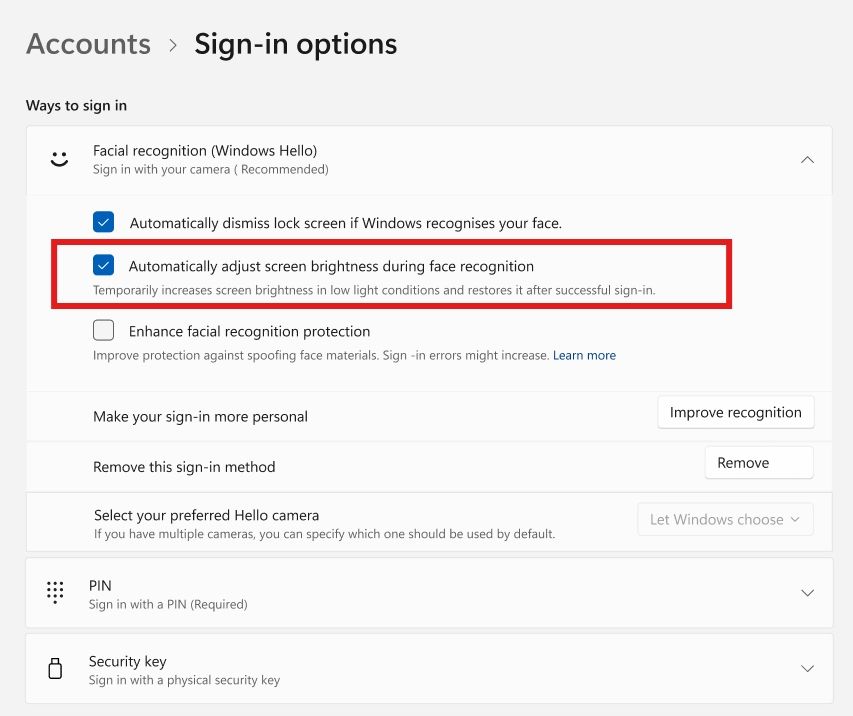
Microsoft is also improving facial recognition in environments with poor lighting. Starting with builds 26320.9876 and 28120.3454, Windows Hello can temporarily increase screen brightness to help the camera recognize your face.
You can enable this option from Settings > Accounts > Sign-in options > Facial recognition (Windows Hello) by turning on the "Automatically adjust screen brightness during face recognition" toggle switch.
(Image credit: Microsoft)
For administrators, the company is introducing additional Windows Hello auditing events. Security event 4628 records the authentication methods configured for an account and the method used to sign in, including PIN, face, fingerprint, or no Windows Hello. Event 4629 records failed sign-in attempts.
These events use the existing Audit Logon policy. In addition, network administrators can also review events 5010 and 7010 in the HelloForBusiness Operational log to examine sign-in and unlock attempts, including their results.
Also, in build 26220.9836, the Sign-in screen simplifies the security key PIN entry screen by removing the "Other user" icon.
Finally, build 29708.1001 changes Windows Hello PIN setup, letting users choose between four- and six-digit PINs without the previous restrictions on prohibited number sequences or additional complexity requirements.
My take: The ability to enter a PIN without waiting for biometric authentication is a useful change. It makes signing in faster and less frustrating when facial or fingerprint recognition takes longer than expected. Also, automatic brightness is a welcome addition because it addresses one of the limitations of facial recognition.
Live Captions lets you choose exactly what audio gets captioned
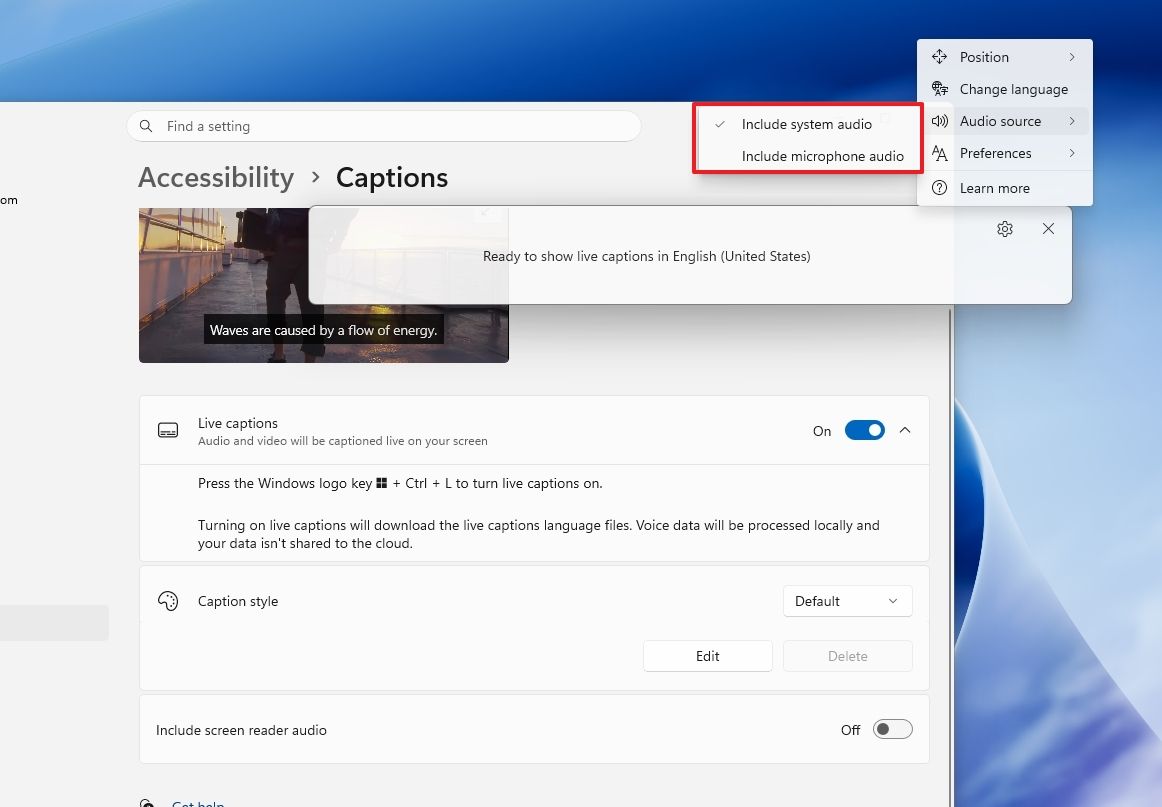
In November, the development team is making Live Captions more customizable with a new option that lets users choose which audio sources Windows 11 should transcribe.
(Image credit: Mauro Huculak)
Starting with builds 26340.9882 and 26320.9876, you can select system audio, microphone input, or both independently from Live Captions settings.
For example, you can capture an in-person conversation through the microphone without transcribing computer audio. Alternatively, you can follow audio from a video or online meeting without including microphone input.
My take: This is another welcome accessibility improvement because it gives users more control over how Live Captions works in different situations.
Cloud Rebuild can securely wipe a PC before you give it away
Windows 11 build 28020.3382 improves Cloud Rebuild with an additional option for preparing a computer before handing it to someone else.
(Image credit: Mauro Huculak)
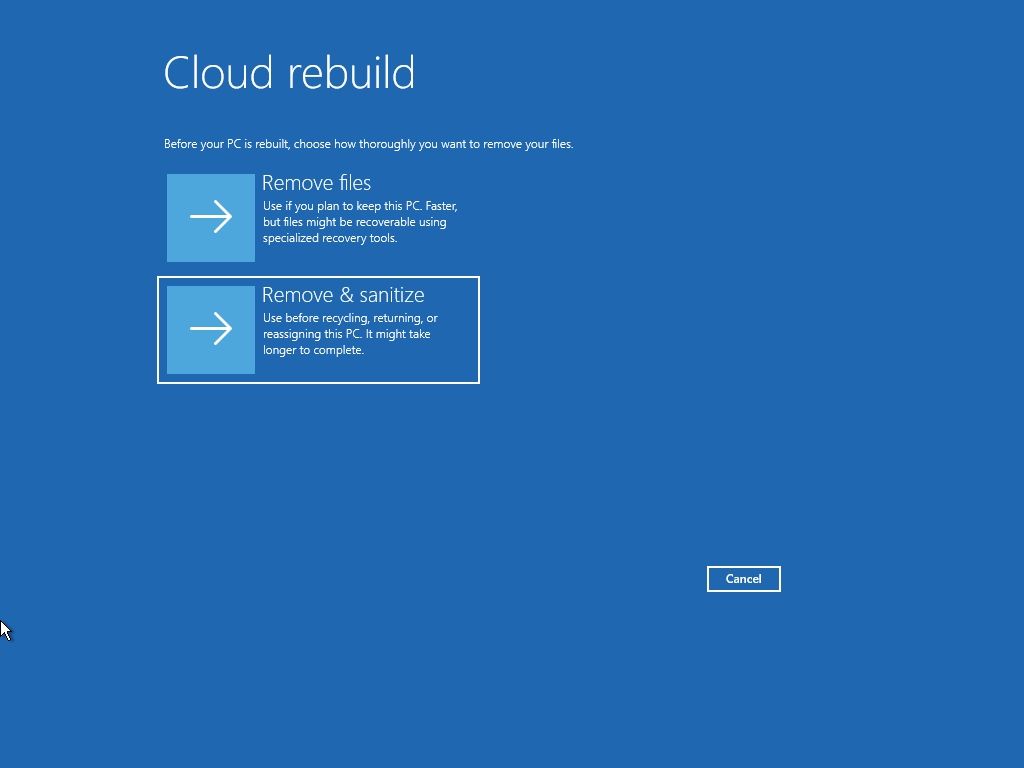
When you start a rebuild, you can now choose between "Remove files," which prepares the device for continued use, and "Remove & sanitize," which securely erases data before recycling or reassigning the computer.
The sanitization option uses the storage hardware's erase capabilities to remove data before reinstalling the operating system.
This is particularly useful when preparing a computer for another person because deleting files and reinstalling Windows 11 isn't always the best approach to protect information stored on the drive.
Network administrators can also configure and initiate Cloud Rebuild remotely through the Recovery CSP. They can use the currently installed Windows build or specify a target build for the rebuild.
Microsoft is also bringing Cloud Rebuild to the Feature Platforms channel with build 29708.1001.
My take: The secure sanitization option is one of the more important additions for people who regularly reset, reassign, or recycle computers. A standard reinstall and a secure drive erase serve different purposes, and having both options available through the recovery experience makes the process more convenient.
AutoPlay finally gets a proper Windows 11 makeover
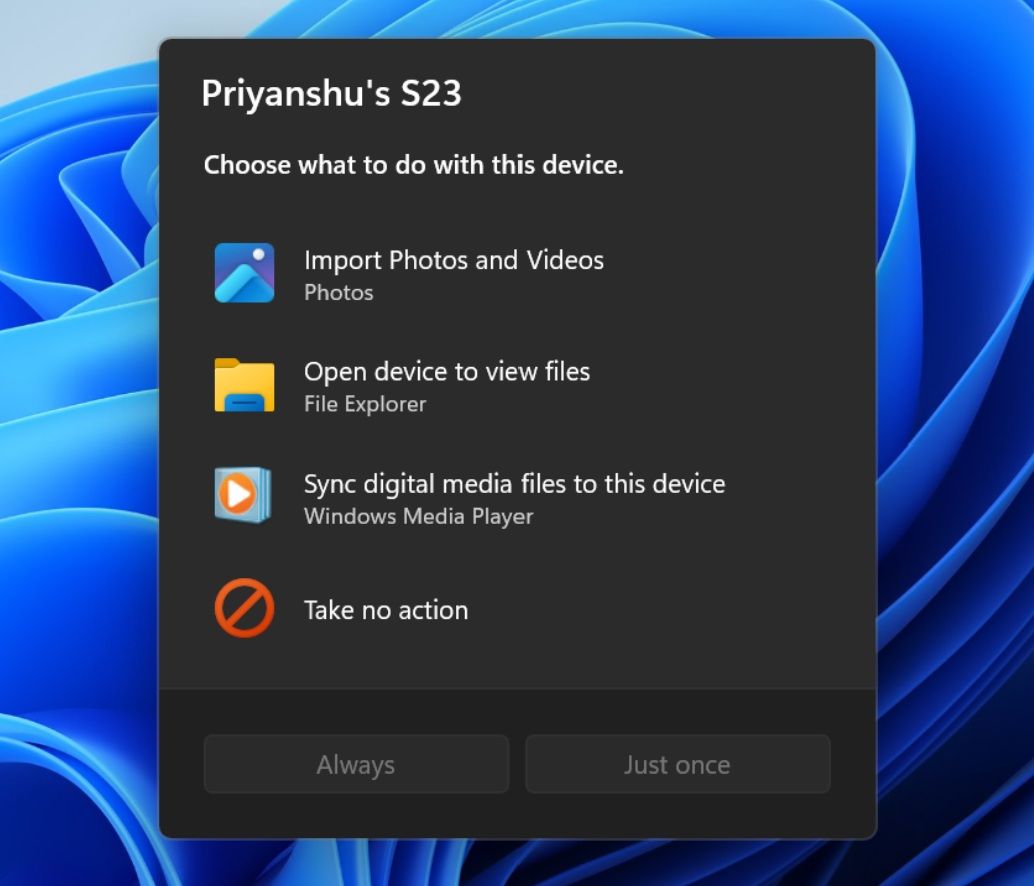
As part of the changes for builds 28020.3382 and 28120.3393, Windows 11 introduces a refreshed AutoPlay experience for connected devices, including phones, cameras, and removable drives.
(Image credit: Microsoft)
The updated dialog uses the modern interface framework available with WinUI 3, which also adds dark mode support, and retains the familiar design and options to choose what happens when you connect a device.
Furthermore, the new dialog can adapt to text scaling and display settings. Also, AutoPlay notifications now appear in Notification Center, making them easier to access later.
My take: This is more of a visual improvement than a major redesign. However, AutoPlay has remained one of the older-looking parts of the operating system, so bringing it in line with the modern interface is worthwhile.
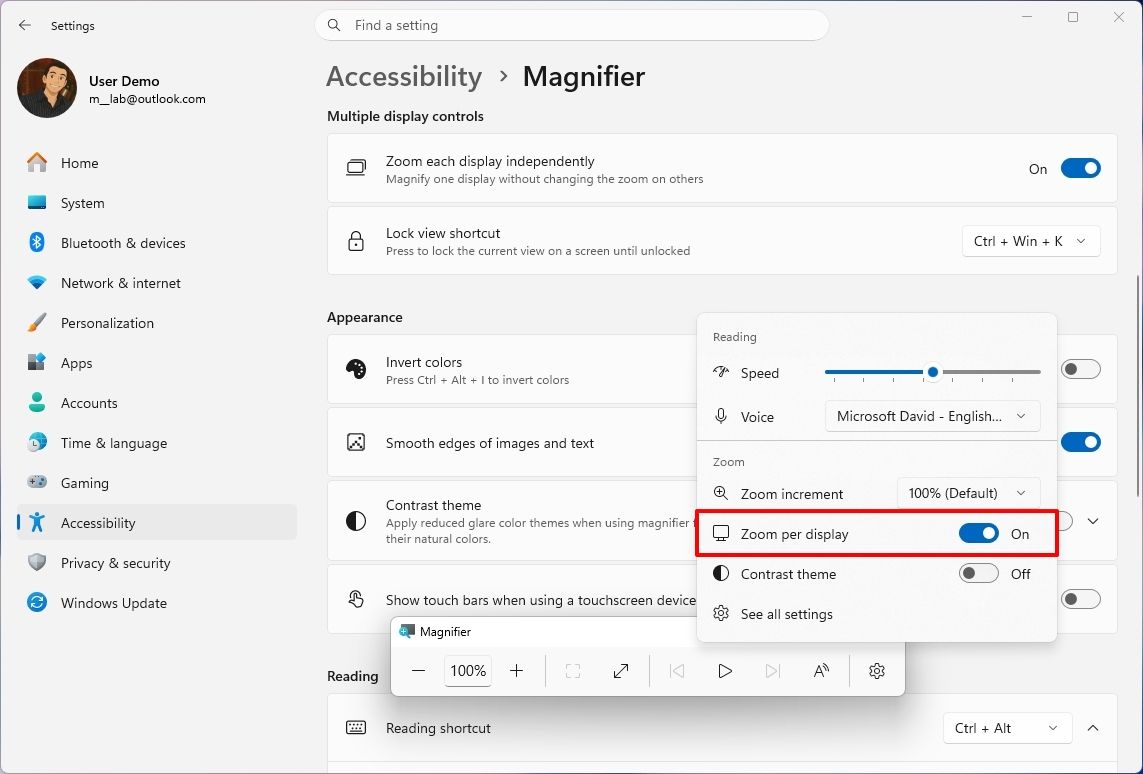
Build 28020.3445 introduces several improvements to Magnifier, including independent zoom levels for multiple monitors, the ability to lock a magnified view to a specific display, and a new contrast theme.
Independent zoom levels
The Magnifier feature can now use different magnification levels per monitor. For example, you can set your primary display to 300 percent and your secondary display to 150 percent without forcing the same zoom level across both screens.
This feature requires "Extend" display mode and is enabled by default. You can disable per-display zoom from the Magnifier toolbar or Accessibility settings to restore the traditional behavior.
(Image credit: Mauro Huculak)
Viewport locking
You can now lock a magnified view to a specific monitor while moving the pointer to another display. Also, the locked display remains interactive, so you can still click, copy, and interact with its content.
Contrast theme
In addition, Magnifier now includes a dark contrast theme that reduces screen glare while preserving the original colors of photos, videos, and other visual content.
The dark theme is enabled by default, but you can change it under Settings > Accessibility > Magnifier or through the Magnifier toolbar. The existing color inversion option remains available.
My take: This is one of my favorite improvements in this wave of updates. Independent zoom levels and viewport locking address practical limitations for people using multiple monitors. Instead of simply adding another visual effect, Microsoft is making Magnifier more useful for everyday work.
Remote Lock lets organizations secure lost Windows 11 PCs
The company is introducing Remote Lock through Microsoft Intune, giving network administrators another way to protect lost, stolen, or compromised devices.
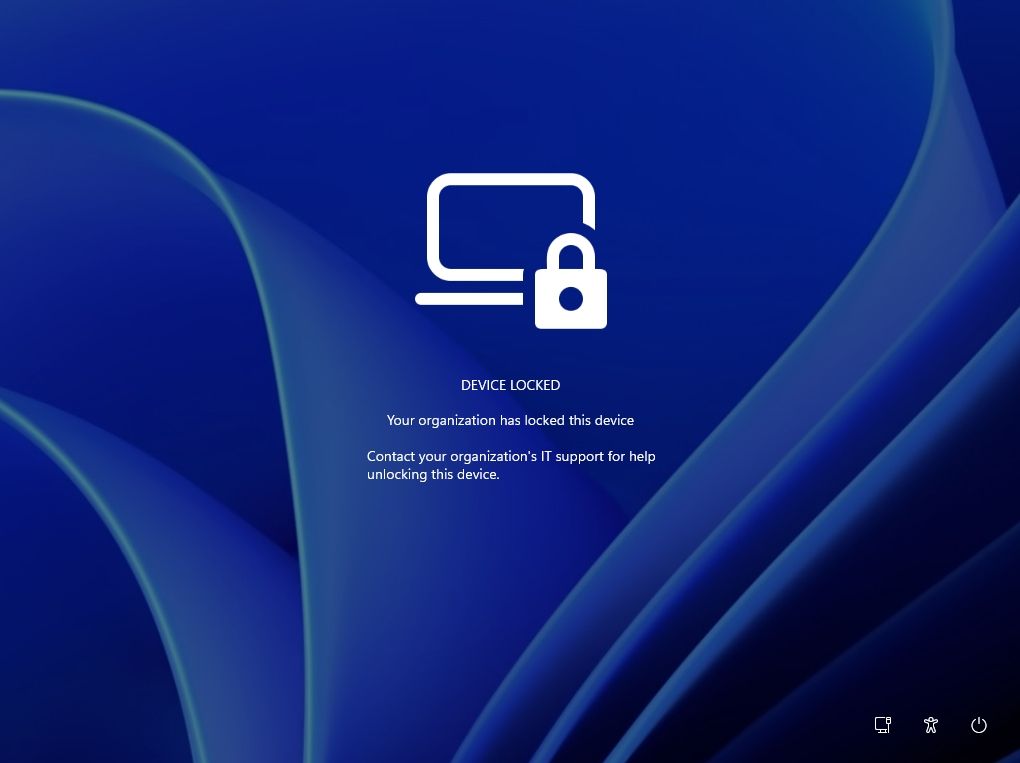
The feature lets network administrators remotely lock a computer without wiping it. The operating system signs out all active sessions, hides the regular sign-in options, and displays a "Device Locked" screen with instructions to contact the organization.
(Image credit: Microsoft)
The device remains enrolled and managed, BitLocker stays enabled, and user data remains intact. Only an administrator can remotely unlock the computer.
Administrators can also customize the lock screen with a reason for the lock and help desk contact information using the LockReason and RecoveryHint settings.
My take: Remote Lock is primarily an enterprise feature, so most home users won't need it. However, it gives organizations another option when a device is lost or potentially compromised without immediately wiping its contents.
The ancient Run dialog finally gets a Windows 11 makeover
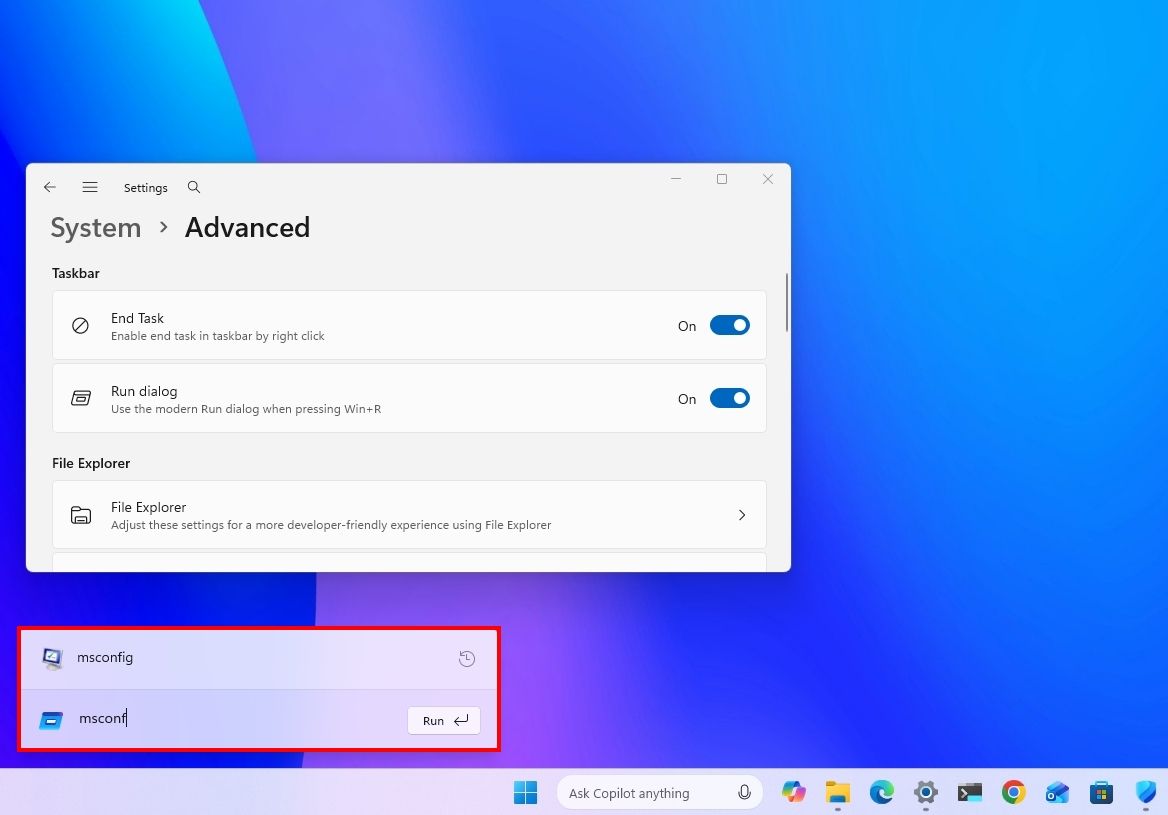
In build 28120.3542, Windows 11 introduces a refreshed Run dialog interface with updated visuals, rounded corners, a cleaner interface, and additional controls.
(Image credit: Mauro Huculak)
To try it, open Settings > System > Advanced and turn on the new "Run dialog" toggle.
My take: The Run dialog is one of those components that hasn't received much attention over the years. A visual refresh is welcome, and I do hope the company keeps improving consistency across the operating system.
BitLocker lets standard users set preboot PINs
Starting with builds 28120.3542 and 28020.3532, Windows 11 lets standard users on managed devices set a BitLocker preboot PIN without administrator privileges.
Previously, adding a TPM+PIN protector required administrator permissions. Under the appropriate policies, when a managed device doesn't have a preboot PIN configured, Windows displays a notification prompting the user to create one.
Selecting the notification opens an interface where the user can set the PIN without requiring an administrator to assist with this process.
My take: This is a security improvement for organization-managed devices. It gives organizations more flexibility in enforcing BitLocker authentication requirements while reducing the need for administrators to set up every PIN manually.
Windows 11 gets phone-style privacy controls for individual apps
Windows 11 build 26220.9836 also introduces more granular privacy controls for traditional desktop apps.
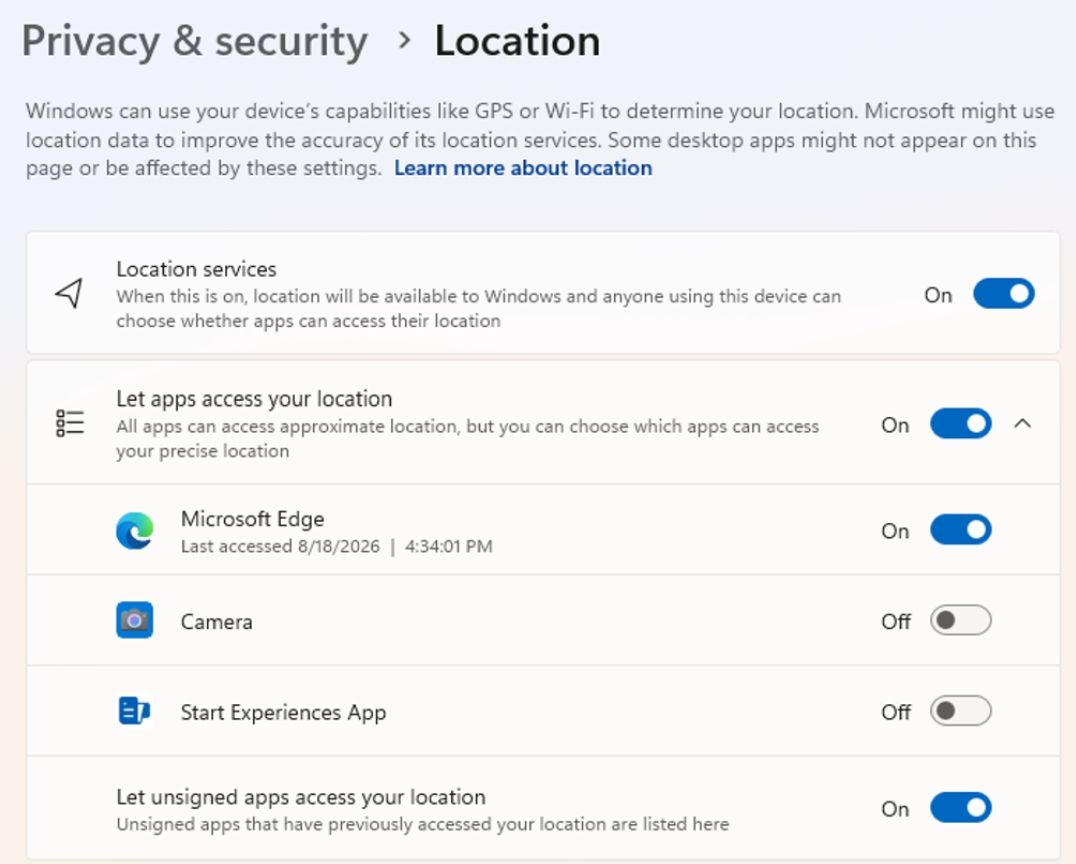
In the past, desktop apps relied on global permission settings for resources such as the camera, microphone, and location. The new experience lets you review and manage access for individual apps.
You can allow or deny access under Settings > Privacy & security > Camera, Microphone, or Location. Applications that haven't accessed a resource before will prompt for permission the first time they need it.
(Image credit: Microsoft)
Some applications may appear with unexpected names as they use shared system components or browser-hosted experiences. Others may appear as "Unsigned" when the system cannot confirm the publisher.
It's important that you only grant access to applications you recognize and trust.
My take: This is yet another small but welcome addition. Giving users more visibility into which desktop apps can access the camera, microphone, and location gets the system closer to the permission controls users already know for Microsoft Store apps.
Windows baseline protection
As part of build 26340.10013 for version 26H2 in the Experimental channel, Microsoft is building a new security feature that checks whether your computer meets the company's core hardware and system integrity requirements. It covers protections like Memory Integrity, Secure Boot, and virtualization-based security in one central location.
The baseline protection is available from Settings > Security > Baseline protection (Security baseline).
My take: Integrating these protections together gives users a simpler way to check their device's security status without navigating several different settings. The current caveat is that it's rolling out gradually, and it may take some time to reach every Insider.
Windows 11 gets a dedicated Security page
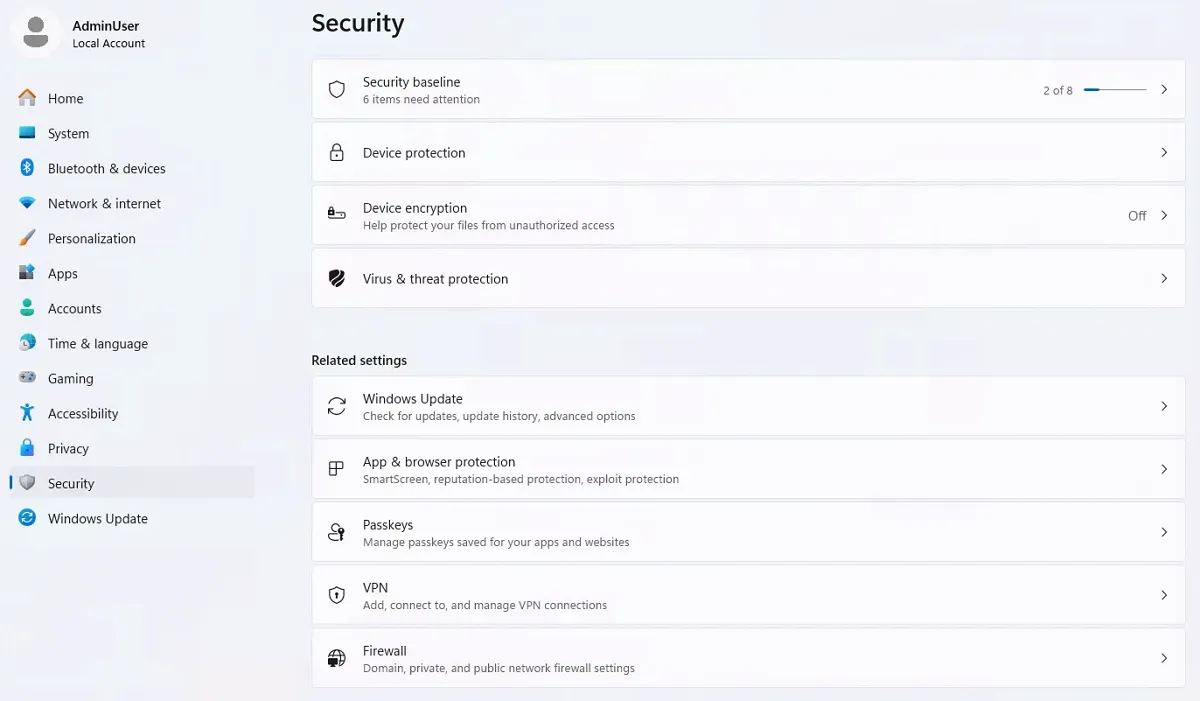
The Windows team is introducing a new "Security" page in the Settings app, splitting the existing "Privacy & security" section into two separate areas. The new "Security" page now groups essential protection features together in one place, further improving the Settings app experience as the central destination for managing security tasks.
(Image credit: Microsoft)
The new page provides access to device protection, device encryption, and malware protection.
In addition, the firewall controls are located in "Network & internet," while app and browser protection is available in the "Apps" section. Passkeys and other related options are also easier to reach from the new Security experience.
My take: A dedicated Security page is a welcome addition, as finding protection settings can many times involve switching between apps, and this change should make security a little easier to understand and manage.
Manage passkeys on security keys
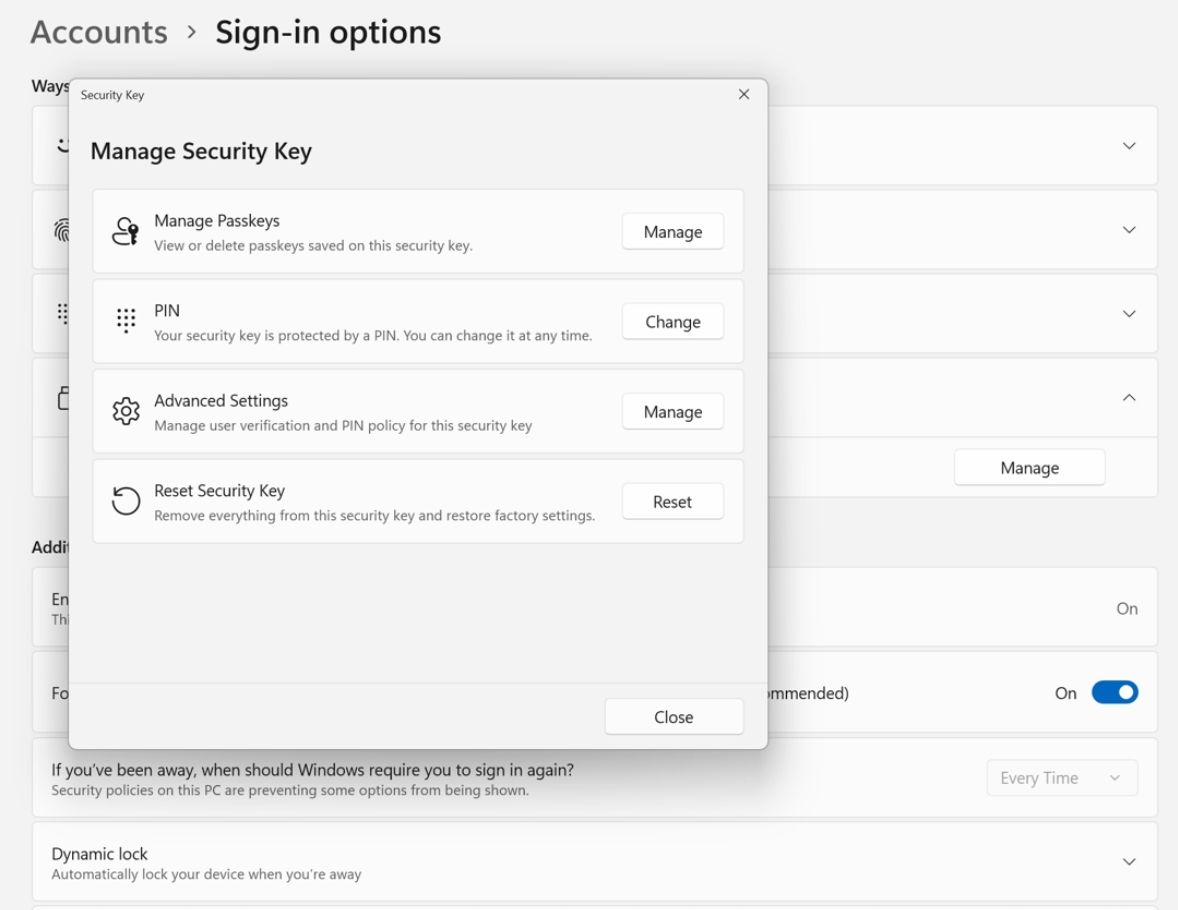
As part of the security settings rolling out with build 26340.10013, the operating system now lets you manage the passkeys stored on a FIDO2 security key and delete individual entries without resetting the entire key.
(Image credit: Microsoft)
For organizations, administrators can also configure enterprise security key policies, including minimum PIN length, mandatory user verification, and enterprise attestation.
My take: Being able to remove individual passkeys without resetting the entire security key is yet another welcome change. It makes credential management easier and saves users from setting up their other passkeys again.
Taskbar adds an open-window list view
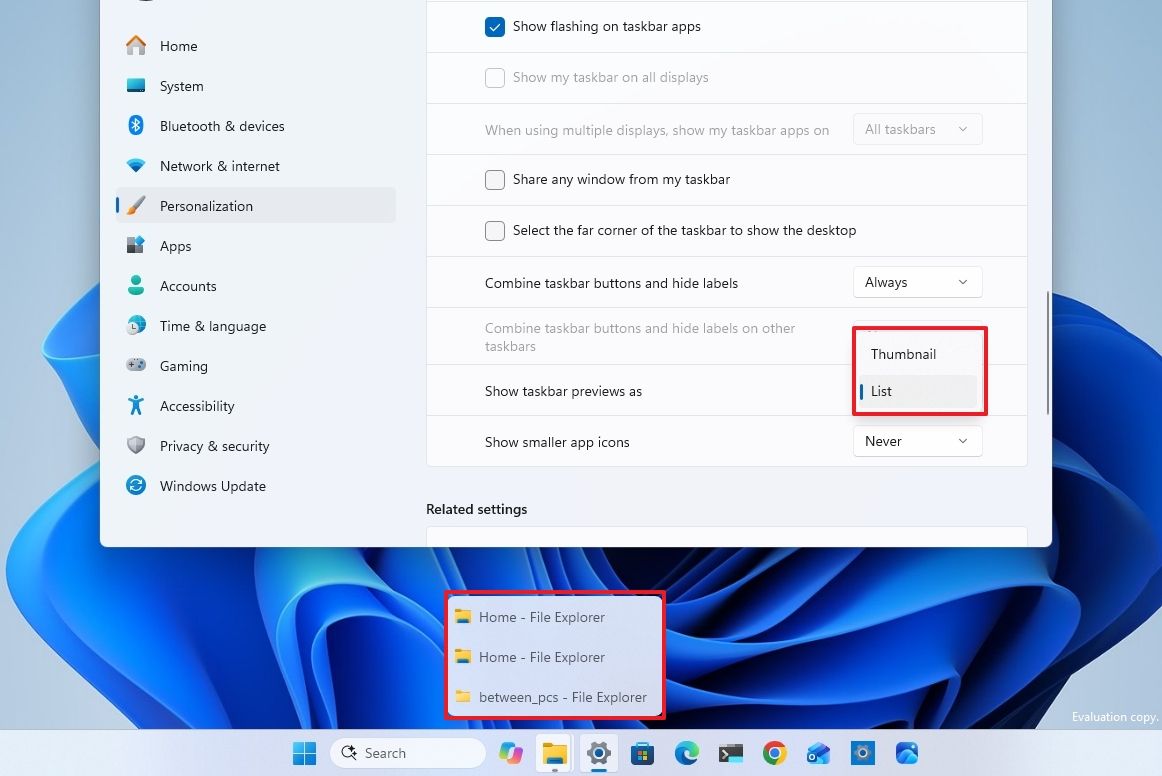
Windows 11 is getting another way to switch between an app's open windows. Instead of displaying thumbnail previews when you hover over an app on the Taskbar, you can now choose to see a list of window titles. This makes it easier to identify and select a specific window, especially when several are open.
(Image credit: Mauro Huculak)
The option is known as "Show taskbar previews as," and it's available under Settings > Personalization > Taskbar.
My take: I like this option because thumbnail previews can be useful, but a simple list can be faster and easier to navigate when you have several windows open.
Magnifier adds touchpad and touchscreen gestures
Microsoft is improving Magnifier on touch-enabled devices. In addition to the keyboard, mouse, and scroll wheel, the accessibility tool now supports touchpad and touchscreen gestures for zooming and moving around the magnified view.
According to the company, on a laptop with touchpad, you can:
Swipe up with three fingers to zoom in or swipe down to zoom out.
Move one finger as you normally would, and the magnified view follows your pointer.
Tap with three fingers to toggle between 100 percent and your previous zoom level.
On the other hand, on a touch-enabled screen, you can:
Drag with three fingers to pan around the screen.
Use three fingers, tap once, then tap again and keep your fingers down. Without lifting your fingers, drag up to zoom in or down to zoom out.
Double-tap with three fingers to toggle between 100 percent and your previous zoom level.
These gestures are enabled by default. You can turn them off individually under Settings > Accessibility > Magnifier using the "Control Magnifier with touchpad gestures and Control Magnifier with touch gestures" options.
The Magnifier toolbar also includes a Help button that provides quick access to support articles, information about new features, and Feedback Hub.
My take: These gestures make Magnifier more natural to use on touchscreens and touchpads. I also like having help and feedback options directly in the toolbar instead of making users search for them.
Switching to a local account adds BitLocker recovery key reminder
Windows 11 will now prompt users to back up their BitLocker recovery key when switching from a Microsoft account to a local account through the Settings app. The updated instructions help users protect their recovery key and avoid losing access to their encrypted data.
My take: This is actually a useful addition since backing up the encryption key may not be obvious to everyone. A reminder during the process can help prevent losing access to their encrypted data later.
File Explorer search gets faster
On build 26320.10003 through the Beta channel, searching from This PC in File Explorer now uses Windows Search indexing, making results faster and more consistent with searches from File Explorer Home.
In addition, the company is improving the progress indicator when opening locations that take longer to load, such as network drives.
My take: These improvements make File Explorer more responsive and provide clearer feedback when accessing slower network locations.
Windows Central's Take
After testing these changes, Windows Search is easily the feature I’d watch most closely. Microsoft is turning Search into something more actionable rather than simply another place to find files, apps, and web results. Inline settings controls, richer results, and Phone Link integration make the interface considerably more useful, although Microsoft still has work to do on consistency and presentation.
Magnifier is another standout, particularly for people using multiple displays. Independent zoom levels and viewport locking address longstanding limitations rather than simply changing how the feature looks.
Cloud Rebuild’s new secure sanitization option also deserves attention because it makes the recovery experience more practical when a PC is being repurposed or passed to someone else.
The remaining changes to Windows Hello, Live Captions, AutoPlay, privacy permissions, gaming controls, and security may be smaller individually, but together they show Microsoft continuing to refine parts of Windows 11 that people interact with every day.
Which of these changes would make the biggest difference on your PC, and what Windows 11 feature would you rather see Microsoft prioritize next?
More resources
Explore more in-depth how-to guides, troubleshooting advice, and essential tips to get the most out of Windows 11 and 10. Start browsing here:
Microsoft surprised us with a pair of mid-week builds of Windows 11 rather than waiting until the end of the week. Windows Insiders in the Beta channel and Experimental channel can grab an update.
The Experimental build is much larger in terms of new features. It adds the ability to see passkeys stored on a FIDO2 security key, lock compromised Windows devices through Microsoft Intune without wiping the device, and adds a preview of Microsoft Pluton Cryptographic Provider.
The taskbar also has a new option in that build. Starting with Build 26340.10013, you can set Windows 11 to show a list view for taskbar previews rather than a thumbnail.
While the changelog of the Build 26340.10013 is larger, arguably the biggest change comes with Build 26320.10003, which is available through the Beta channel. In that update, searching from "This PC" in File Explorer is now indexer-based. That should result in searches that are much faster and more consistent.
Load full changelog ↴
Experimental Preview Build 26340.10013
Advanced security key management
You can now see the passkeys stored on a FIDO2 (Fast Identity Online 2) security key and remove them one at a time, instead of resetting the entire key. Admins can also configure enterprise settings such as minimum PIN length, always-required user verification, and enterprise attestation.
Remote Lock
Remote Lock lets IT lock a lost, stolen or compromised Windows device from Microsoft Intune without wiping it. Windows signs out every active session, hides all sign-in options and shows a Device Locked screen. Nothing is erased: the device stays enrolled and managed; BitLocker stays on, and user data stays in place. Only an admin can lift it remotely, so the user picks up where they left off. Learn more: https://aka.ms/remotelock
Microsoft Pluton
We’re introducing a preview of the Microsoft Pluton Cryptographic Provider, enabling developers on supported devices to use the Pluton security processor for hardware-protected cryptographic key storage and operations through standard Windows CNG APIs. Learn more here.
Taskbar
When you hover over an app on the taskbar, Windows shows previews of its open windows to help you tell them apart and quickly see what’s in each one.
Now, you can choose to use the list view anytime. When list view is on, hovering over an app on the taskbar shows all its open windows by title in a list instead of as previews.
To turn on list view, go to Settings > Personalization > Taskbar.
BitLocker
Standard users can now set a BitLocker preboot PIN. Before this change, users without admin rights couldn't add the TPM+PIN protector. Now, standard users on managed devices can add the PIN themselves.
How it works: When the policies below apply to a device that doesn't have a PIN yet, you get a notification asking you to add one. Selecting the notification opens a window where you can set the preboot PIN.
Magnifier
Magnifier already works with your keyboard, mouse, and scroll wheel. Now it also supports touchpad and touch gestures, so you can zoom and move around in whatever way feels most natural to you.
Before you start: Make sure Magnifier is running. Press Windows key + Plus (+) to turn it on. The gestures below work while Magnifier is on.
On a touchpad
Zoom in or out: Swipe up with three fingers to zoom in or swipe down to zoom out.
Pan around the screen: Move one finger as you normally would, and the magnified view follows your pointer.
Toggle between 100% and your previous zoom level: Tap with three fingers.
On a touchscreen
Pan around the screen: Drag with three fingers.
Zoom in or out: With three fingers, tap once, then tap again and keep your fingers down. Without lifting your fingers, drag up to zoom in or down to zoom out.
Toggle between 100% and your previous zoom level: Double-tap with three fingers.
Both gesture sets are on by default. To turn either one off, go to Settings > Accessibility > Magnifier and turn off Control Magnifier with touchpad gestures or Control Magnifier with touch gestures.
Secure switch from MSA to Local account
Users who switch from MSA to local account from settings would be always prompted to back up their BitLocker recovery key with updated instructions in order to prevent any data loss.
Removal of Offline Maps
Following the April 2025 announcement of the upcoming deprecation of the Windows UWP Map control and Windows Maps platform APIs, we are removing the Offline Maps feature and related UX from Windows Settings. With the upcoming removal of the Maps control and APIs, the offline maps feature will no longer be functional. The removal includes these features in Windows Settings:
Offline Maps – located under Settings > Apps > Offline Maps
Maps storage – located under Settings > Storage > Local Disk
For resources related to the upcoming removal of the Maps control and platform APIs, see this documentation.
Remote desktop
Fixed an issue where Remote Desktop Protocol (RDP) connections might fail on the client due to a certificate mismatch after the latest flights.
Windows Spotlight
Fixed a recent issue where the Explore Background option in the context menu for Windows Spotlight for your desktop background wasn’t working.
Input
Fixed an underlying issue which was causing the mouse cursor to be unexpectedly invisible in a few different scenarios in recent flights.
Improved reliability of configuring voice typing settings.
Beta Preview Build 26320.10003
File Explorer
Search from This PC in File Explorer is now indexer-based, making it much faster and consistent with search from File Explorer Home.
Improved progress indication when navigating to locations that take longer to load, such as network drives, makes it easier to see that loading is underway.
BitLocker
Standard users can now set a BitLocker preboot PIN. Before this change, users without admin rights couldn't add the TPM+PIN protector. Now, standard users on managed devices can add the PIN themselves.
How it works: When the policies below apply to a device that doesn't have a PIN yet, you get a notification asking you to add one. Selecting the notification opens a window where you can set the preboot PIN.
There are plenty of other changes to play around with in these builds. For example, Magnifier now works with a touchscreen or a touchpad. Previously, it was limited to a keyboard, mouse, or scroll wheel.
The Experimental build also marks the end of Offline Maps. Microsoft plans to deprecate the Windows UWP Map control and Windows Maps platform APIs, so the related features need to be removed from Windows 11's settings.
Join us on Reddit at r/WindowsCentral to share your insights and discuss our latest news, reviews, and more.
Security is taking center stage in Microsoft’s latest test release for Windows Insiders. Rolling out on November 16, 2026, to testers in the Experimental Channel, this new update introduces three major security and enterprise enhancements designed to make passwordless authentication less frustrating, lost device recovery far less destructive, and hardware-backed encryption easier for developers to […]
Microsoft is back with a fresh update for Windows Insiders in the Experimental Channel, and it is packed with practical quality-of-life improvements that heavy multitaskers have been asking for. Build 26340.10013 is now rolling out for systems testing Windows 11, version 26H2, bringing a welcome usability tweak to the taskbar, finer control over hardware passkeys, […]
In Episode 411 of the Windows Central Podcast, Daniel Rubino and Zac Bowden dissect a turbulent week in the tech industry headlined by Microsoft’s nearly 24-hour global service outage. They trace how a network capacity upgrade knocked Outlook, Exchange, Teams, OneDrive, and Copilot offline across enterprises, schools, and the UK's NHS, while examining why cloud-only AI assistants leave users stranded without local offline fallbacks.
We also unpack the shocking resignation of longtime Nvidia CEO Jensen Huang following allegations of multiple affairs and export-control espionage involving shell companies shipping restricted GPUs to China, debating what leadership succession means for PC gaming and AI hardware.
On the product front, Zac reviews the latest Windows 11 Release Preview builds bringing the new floating Windows Search bar and Run dialog refresh, while Daniel celebrates Xbox's 25th anniversary with the "Xbox Playback" retrospective, Windows backward compatibility achievements, and his hands-on review of Razer's $999 haptic, speaker-equipped Razer Soma Pro gaming chair.
[01:47] – Episode begins: Daniel and Zac introduce the show's lineup: Microsoft's massive outage, Nvidia leadership fallout, Windows 11 Insider updates, Xbox's 25th anniversary, and the Razer Soma Pro chair.
[04:19] – Microsoft’s 24-Hour Global Outage: Timeline and root cause of the network capacity upgrade failure that took down Outlook, Teams, OneDrive, and Copilot worldwide.
[10:34] – Cloud Dependency vs. Local AI Models: Why Copilot going offline highlights the need for hybrid on-device AI fallbacks, alongside rising AI-driven cybersecurity threats.
[16:51] – Nvidia CEO Jensen Huang Resigns: Breaking down the espionage allegations, workplace affairs, and illicit GPU export shell companies behind Huang's sudden exit after 33 years.
[24:19] – Nvidia Succession & PC Gaming Impact: Analyzing market reactions, potential replacements (including Tim Cook rumors), and whether Nvidia will drift further away from consumer GeForce GPUs.
[34:47] – Windows 11 Insider & Release Preview Builds: Refreshed Run dialog visuals, remote device lock, and the rapid promotion of the bouncy, floating Windows Search bar to Release Preview.
[42:33] – Start Menu Search & WinUI Wishlist: The disconnect between taskbar search and Start menu search, plus hopes for desktop widgets in the upcoming WinUI Start menu overhaul.
[46:07] – Xbox 25th Anniversary & Leadership Turnaround: Assessing Asha Sharma's early tenure, hardware supply constraints, and the lack of mid-gen console revisions this cycle.
[54:11] – Xbox Playback & Windows Backward Compatibility: Exploring the Spotify Wrapped-style Xbox history recap, original Xbox titles gaining Windows achievements, and movable Xbox OS guides.
[01:05:29] – Razer Soma Pro Haptic Gaming Chair Review: Daniel’s hands-on verdict on Razer’s $999 chair featuring six haptic engines, built-in THX surround speakers, and audio-to-haptics conversion.
[01:16:15] – Post-Show Chat: Thoughts on Grand Theft Auto VI simulation tech, cozy sim games, and revisiting Mass Effect: Legendary Edition on handhelds.
Have a question you want us to answer on the podcast? Send it to us at [email protected]
Apple launched the iPhone Duo just over two months ago. Initially, several big-name apps were poorly optimized for the large folding display of the phone. That situation has improved since September, though things are far from perfect. But a new project focuses on running an entirely different operating system on the iPhone Duo rather than optimizing apps.
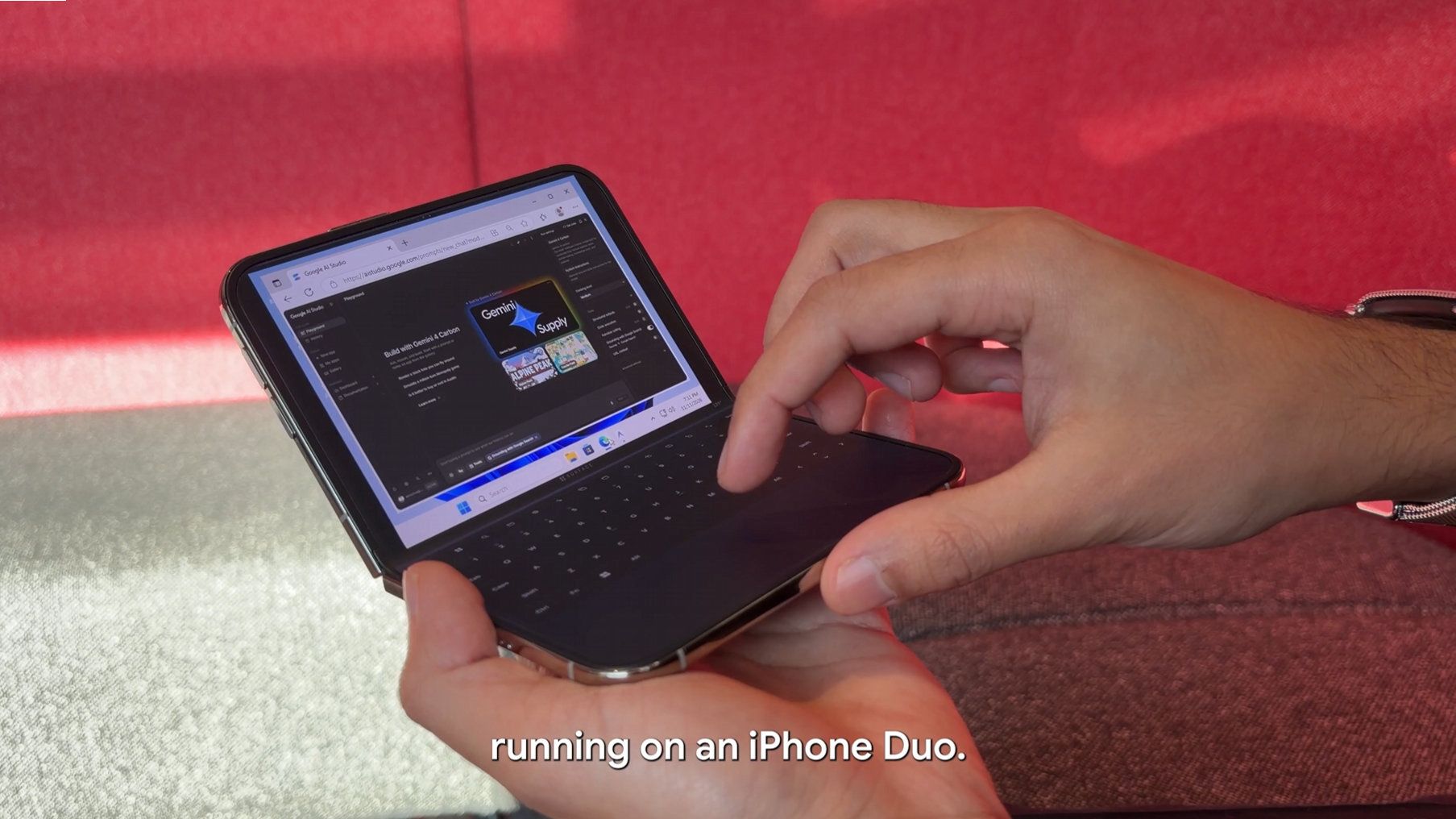
Ammaar Reshi, lead of product and design at Google AI Studios, shared the results of his efforts to get Windows 11 to run on an iPhone Duo. The "WindowsiOS" project has full Windows 11 running at "near-native" speed on an iPhone Duo.
Reshi's efforts appear to focus more on creating a mini laptop rather than a multitasking mobile phone. His demo video shows the Windows 11 desktop on one half of the iPhone Duo's screen and a digital keyboard on the bottom.
All of the photos on the WindowsiOS GitHub page are from a device in the same orientation.
The iPhone Duo's screen is too small for the setup to be optimal, but Windows 11 scales to the form factor. That's likely because the OS was made to fit on foldable PCs like the Lenovo ThinkPad X1 Fold. The digital keyboard on the iPhone Duo running Windows 11 is too small to type on like a laptop keyboard, but you could potentially type on it with two thumbs.
I used Gemini 4 Carbon to get Windows 11 running on my iPhone Duo! 💻Unfold the screen and it's a pocket PC, including Antigravity running coding agents on my phone.This is the actual desktop ARM OS running locally with touch controls. Demo + repo below! https://t.co/LVdeqvvOU1November 11, 2026
The initial release of WindowsiOS and an update to a separate project give us a unique opportunity to compare how Windows 11 runs on two different types of foldables.
Recently, Gustave Monce released an update to his project that runs Windows 11 on the Surface Duo. Monce has worked on this for years, and we have a video from the early days of the "DuoWOA." But last week he rolled out support for audio, USB-C, video out, and display calibration.
Monce's project takes a different approach to Reshi's, at least based on videos shared on X. Rather than create a mini laptop, Monce has forced Windows 11 to adapt to the various postures of the Surface Duo.
"You have no idea how many hours and code iterations (and how insane the code is) to support all postures on surface duo properly so screens are the right orientation all the time," said Monce.
Are two screens better than one?
While I see the value in having separate displays, the Surface Duo's form factor creates extra work for developers.
It takes effort to optimize operating systems and apps for the iPhone Duo, of course, but Apple's foldable does not have a large hinge to work around.
Whether you're optimizing an operating system or apps for a foldable screen, having a split-screen design adds a roadblock.
Join us on Reddit at r/WindowsCentral to share your insights and discuss our latest news, reviews, and more.
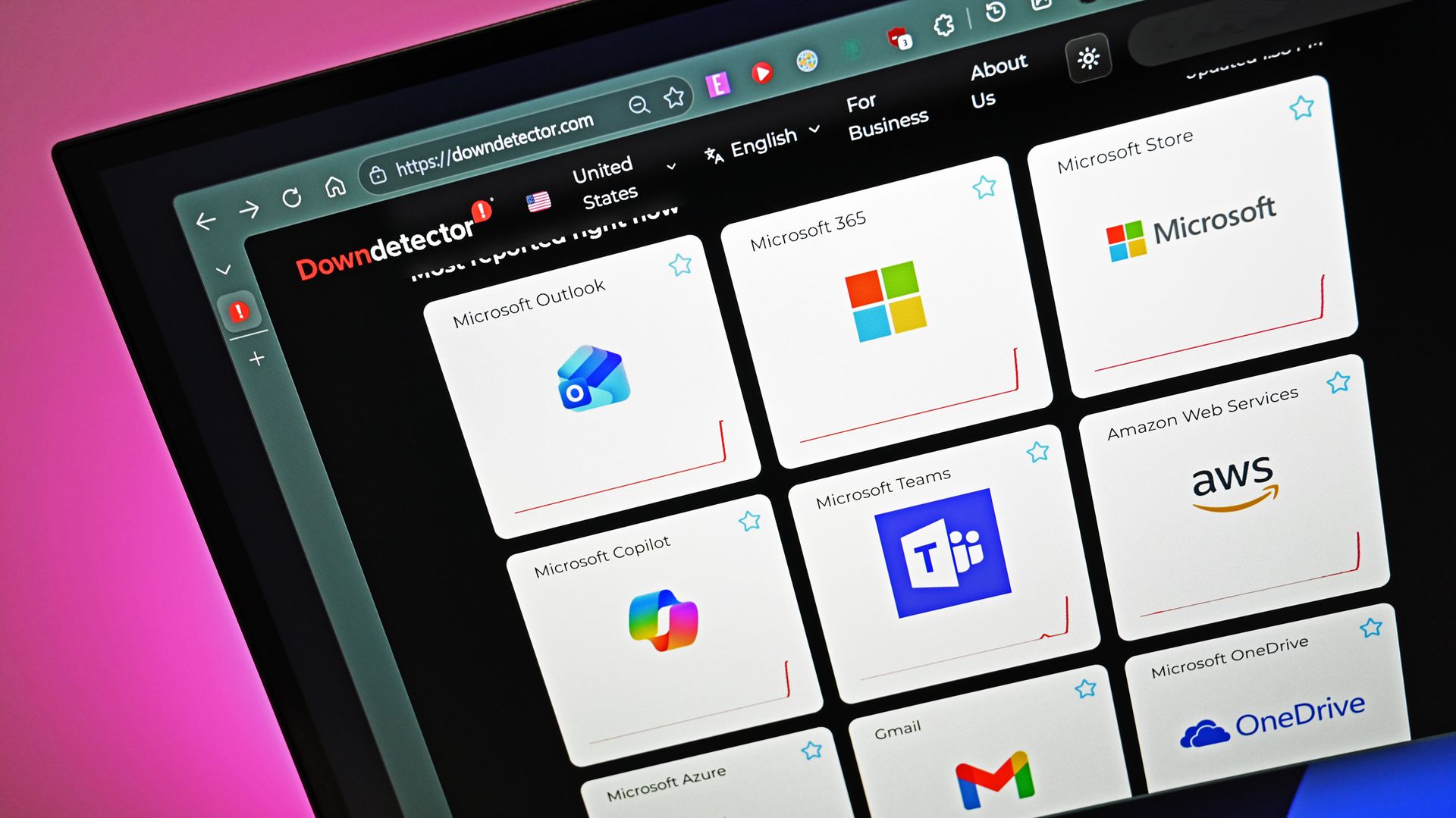
"Have you heard about Microsoft?" is not a question I get asked often in my everyday life. It's rare for anyone to ask me about Outlook, Teams, or OneDrive. But this week was an exception because of the major outage that affected Microsoft services.
With Outlook, Teams, Azure, OneDrive, and Microsoft 365 experiencing outages, I fielded quite a few questions about what's going on. I can't imagine what IT admins are going through right now.
By the time you read this, Microsoft will have likely fixed the issues that temporarily broke its services, but as I write this piece, the outage has been going on for nearly 24 hours. With an entire day of outages, many have joked online that the service should be renamed "Microsoft 364."
Beneath all the jokes about "Microsoft 364" was a reminder of just how much of the modern workplace runs on Microsoft's services. Most people don't spend much time thinking about Outlook, Teams, OneDrive, or Microsoft 365 when everything is working. They're just tools people expect to be there. But when those services go down, work doesn't just become inconvenient. In some cases, it grinds to a halt.
Biggest News of the Week
Hopefully Microsoft uses this outage as an opportunity to strengthen its systems. The company is spending billions on AI, datacenters, and cloud infrastructure. That's hard to appreciate when people can't access their email, files, or meetings.
It's a shame that the Microsoft outage happened this week rather than next week. If Microsoft is going to have all of its major services fail and hurt the productivity of millions of people, the least the company could do is time the outage with the release of GTA VI. Logitech gave its employees a day off to enjoy GTA VI, but the rest of us have to use a vacation day or get sick at the right time.
Microsoft wants people talking about AI. This week, people were talking about Outlook and outages. That's probably not how the company hoped to end the week.
Shopping with Sean
Luckily for anyone shopping ahead of Black Friday, Windows Central and Future rely on Gmail, not Outlook. That means that all the emails about deals that were sent to our team this week arrived on time.
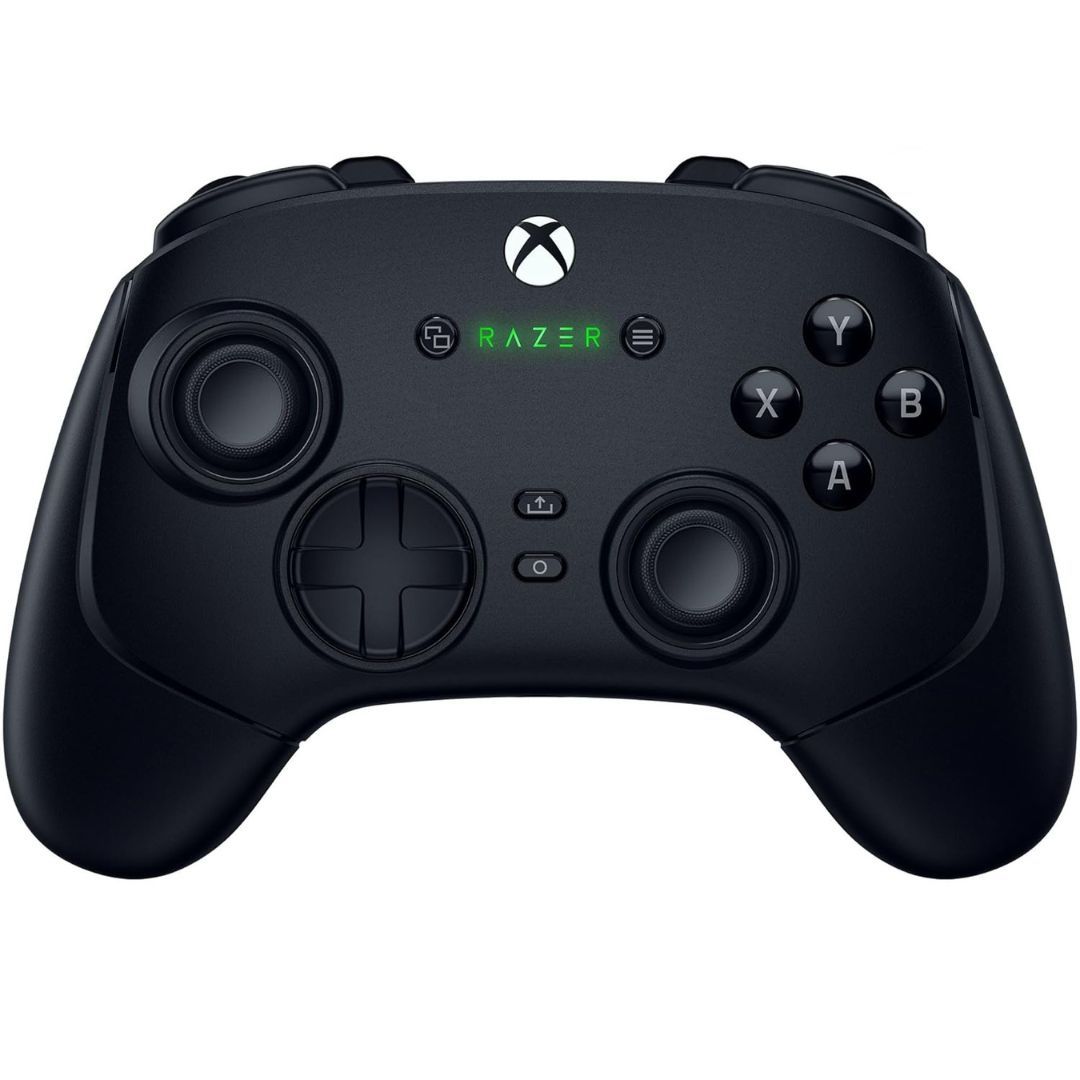
Razer finally made a wireless controller for the Xbox, and overall it's absolutely brilliant with its Hall Effect sticks, 1000Hz Polling on PC, and additional shoulder bumper, paddle, and trigger buttons.
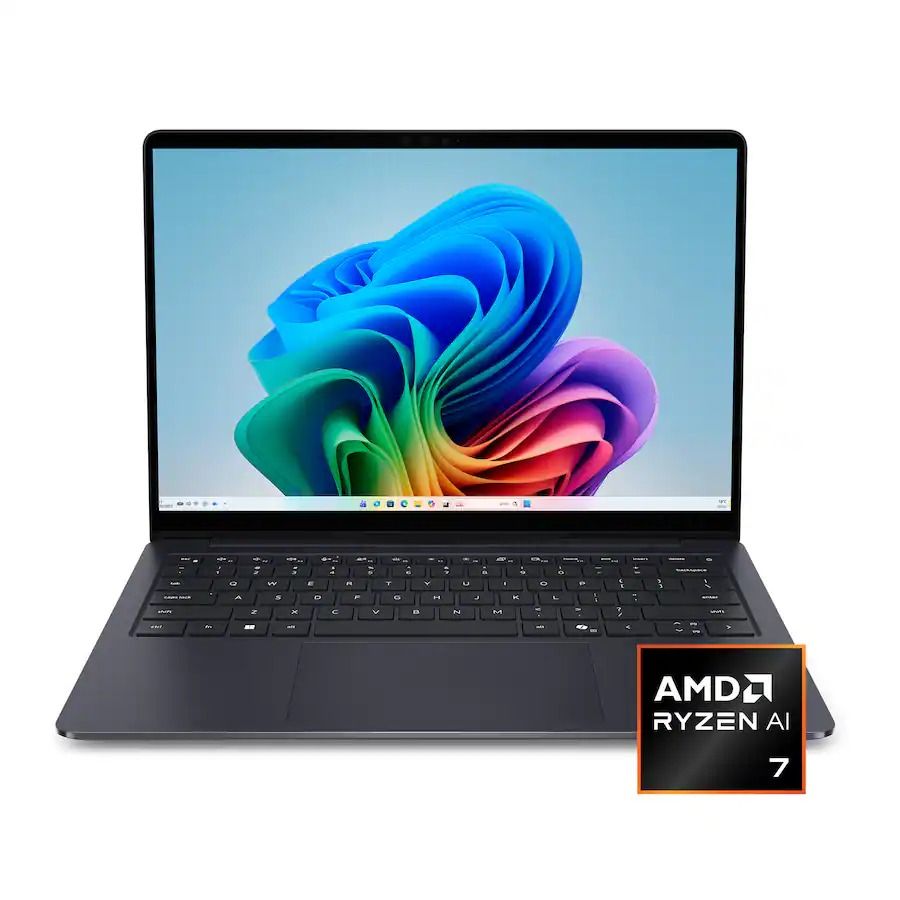
"The Dell 14S is a compelling choice for a variety of users thanks to its long-lasting battery life, OLED touchscreen, solid performance, and relatively affordable price." — Sean Riley, Freelancer Writer, Tom's Guide
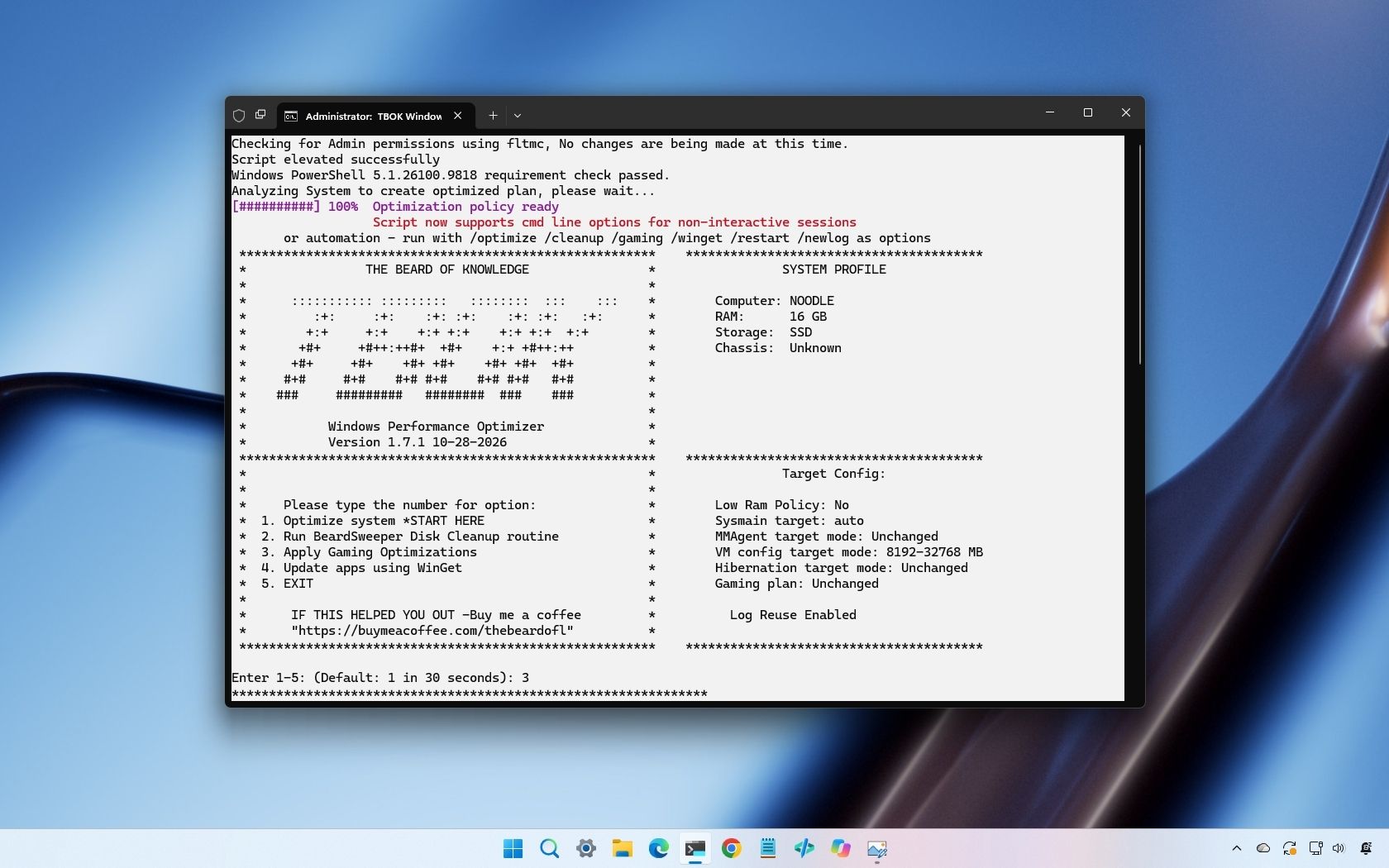
Windows 11 includes many different background services, recommendations, apps, and settings that not everyone wants or needs. TBOK Windows Performance Optimizer tries to debloat that experience by applying dozens of system-wide and per-user changes intended to improve responsiveness, privacy, and gaming performance.
TBOK Windows Performance Optimizer is a free project for Windows 10 and Windows 11 that offers a standalone batch script for home users and separate deployment files for administrators using Microsoft Intune. The script's hardware-aware configuration engine detects the computer's hardware and uses that information to select settings for memory management, storage, services, and gaming.
I like the work behind projects like this, but I wouldn't recommend running a debloating script on your primary computer without testing it first.
What is TBOK Windows Performance Optimizer?
TBOK Windows Performance Optimizer is a Windows configuration and cleanup project developed by The Beard of Knowledge. It combines Registry tweaks, service configurations, scheduled task changes, and app debloating to optimize operating system performance.
The project offers two versions:
Standalone batch script: The TBOKwinOptimizer.bat file is for personal computers, technicians, and anyone who wants to keep the utility on a USB flash drive.
Intune deployment files: A separate collection of files is available for IT administrators managing multiple computers.
The script can apply selected preferences across compatible existing user profiles, including currently loaded profiles, offline profiles, and the "Default" profile.
It also provides summaries showing which changes succeeded, were skipped, or failed. This makes the feature particularly useful for shared computers, custom builders, and administrators managing different workstations.
How TBOK Windows Performance Optimizer works
TBOK uses a hardware-aware configuration engine to determine which settings to apply to Windows 11 or Windows 10. The script detects installed memory, storage type, and chassis type. It then uses this information to select configuration targets for services, memory management, Prefetch, virtual memory, hibernation, and gaming power settings.
For example, the Windows Prefetch configuration depends on the specific hardware. The script uses boot-only Prefetch on SSD or low-memory configurations, while higher-memory systems with HDD storage receive boot and app Prefetch settings.
The optimizer also configures SysMain and Memory Manager Agent (MMAgent), adjusts selected service startup behaviors, and determines appropriate page-file settings based on the hardware profile.
The gaming configuration covers Hardware-Accelerated GPU Scheduling (HAGS) when supported, Multimedia Class Scheduler settings, processor boost modes, and selected desktop power-throttling settings. It can also manage the Ultimate Performance power plan on desktop computers.
Administrators can also run the script remotely or without user interaction using options such as /REMOTE and /REMOTELIST. Other capabilities include combining multiple operations into one run, retrieving logs remotely, managing restart behavior, and removing temporary deployment files.
The script's diagnostics include startup audits, memory snapshots, resolved hardware policies, and consolidated service and scheduled-task summaries.
What else does the optimizer change?
In addition to hardware-aware configuration, the script includes tweaks intended to remove unwanted system features, reduce recommendations, and customize the user interface.
As part of the services and system settings, the script adjusts selected service startup behaviors, virtual memory settings, network configuration, Fast Startup, and Registry preferences. It also turns off selected telemetry settings, changes Microsoft Edge background startup behavior, and enables long file paths.
In the debloating department, it targets the standard Copilot app (not the Microsoft 365 Copilot experience), Bing Search, Widgets in the Taskbar, and WebExperienceHost. It also turns off selected scheduled tasks and tries to prevent certain components from being automatically reinstalled or re-enabled.
The script also covers user preferences and privacy. It can restore the classic right-click context menu, set This PC as the default File Explorer view, enable the End Task option for the Taskbar, turn off selected Start menu recommendations, and reduce ads and suggestions. It also preserves existing File Explorer folder views by default.
Finally, for Office and maintenance, the script disables selected Microsoft Office logging, telemetry, and feedback tasks. It also includes the Windows Package Manager (winget) for automatic software updating and the developer's BeardSweeper disk-cleanup script.
The BeardSweeper script is an interactive cleanup tool that can close apps before clearing caches. Unattended runs, on the other hand, preserve running apps and system rollback files.
It's important to note that not every tweak is a performance improvement. For example, disabling advertisements, restoring the classic context menu, and changing File Explorer preferences are primarily customization options.
You can find more details on what the tool does on its GitHub page.
What I noticed when testing the optimizer
(Image credit: Future)
If you plan to use the script, a few things are worth knowing before you run it.
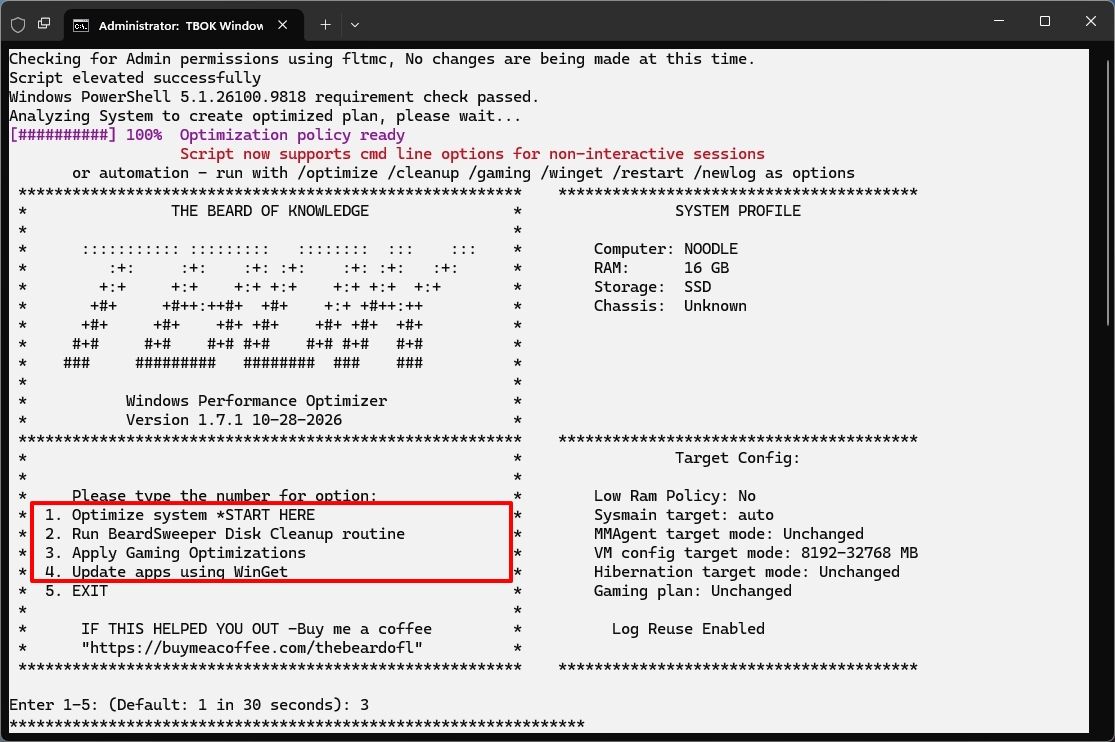
First, during my testing, I noticed that the utility starts its default optimization automatically after a 30-second countdown if you don't make another selection. As a result, make sure you actually want to apply the default configuration before proceeding.
Second, pay attention to the execution log. The log is saved in the same folder as the batch script.
The log contains information about successful changes, skipped modifications, and failures. For example, during my testing, the page-file optimization failed and was skipped.
In addition, if you run the script after the November 2026 Security Update, the tweak to restore the classic context menu won't work. However, this isn't something wrong with the script. It's a change in the operating system, as this update marks the rollout of the new context menu experience.
This is a good example of why you shouldn't assume every optimization was applied successfully just because the script finished running.
Why I'd be careful with Windows 11 debloating scripts
I have seen and tested many different debloating tools, and I appreciate the work developers put into creating optimization utilities. They can simplify configuration tasks and make it easier to remove unwanted features. However, turning off more features doesn't automatically speed up your computer.
Windows 11 relies on services, scheduled tasks, and background processes to keep features working as intended. Some support features might not be immediately obvious, while others are required by apps, hardware, or management tools.
Changing these settings increases the chance of unexpected behavior and problems. Removing a package could affect a Windows 11 feature you want to use later, while turning off a service could interfere with an app or connected device.
The same applies to gaming optimizations. A setting that helps one computer might have little effect or even introduce problems on another. A case in point is the new Xbox mode, which is a feature that cuts back on non-essential background processes and services to free up system resources and extend battery life. However, the system recommends turning off the feature to restore the background processes and services for regular computing tasks.
The script includes recovery safeguards. It attempts to use System Restore where available and falls back to machine-wide and per-user Registry backups if restore-point creation fails.
However, Registry backups aren't complete system backups, and a restore point doesn't guarantee it'll always work as intended.
My recommendation is to test the tool on a spare computer or virtual machine before running on your main setup. Also, review the script, understand how it works, and confirm your apps, hardware, and regular workflows continue to work as expected.
Finally, but perhaps more importantly, create a full backup before making system-level changes.
How to download and use TBOK Windows Performance Optimizer
If you want to experiment with the utility, you can download it from the official TBOK Windows Performance Optimizer GitHub page.
For this guide, I'll focus on the standalone version intended for personal use:
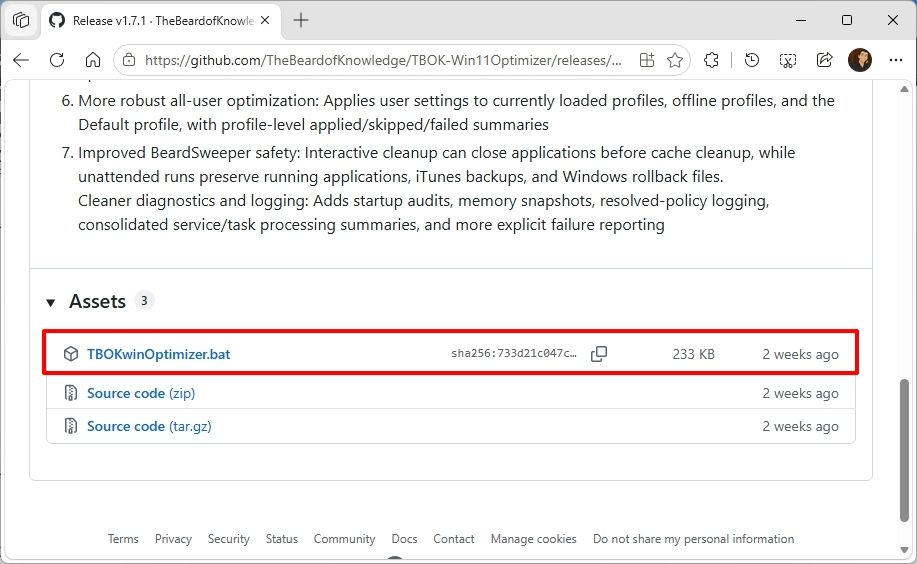
Click the TBOKwinOptimizer.bat link under the "Assets" section.
Save the file to your computer.
(Image credit: Mauro Huculak)
Save the file to your computer.
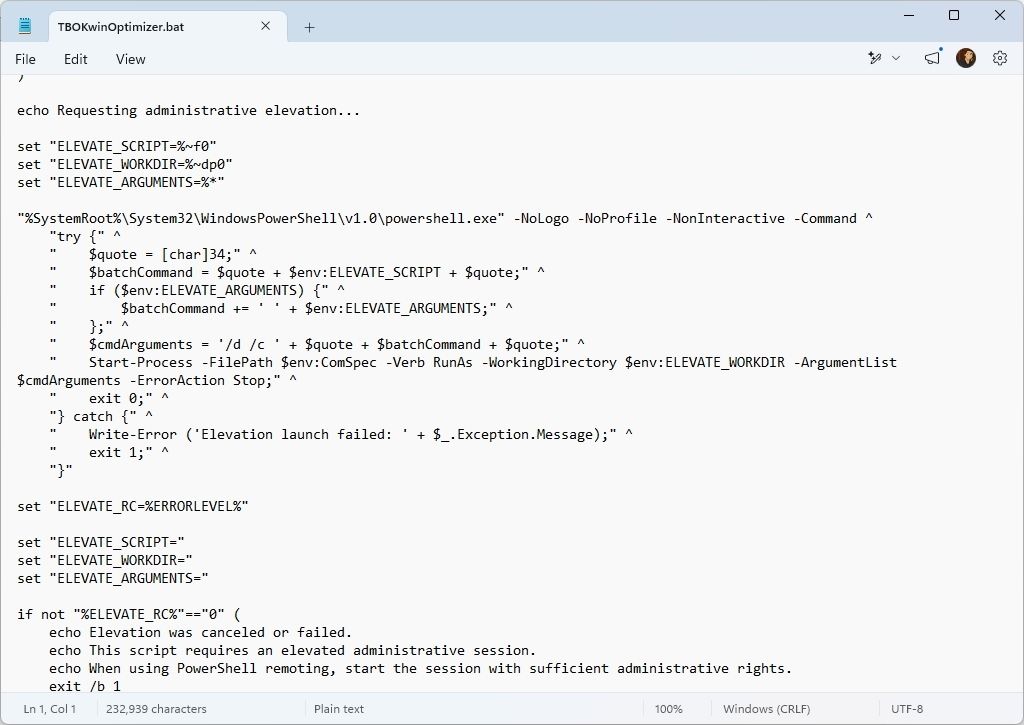
Open and review the batch file before running it using a text editor (such as Notepad), paying close attention to Registry changes, service changes, and apps to be removed.
(Image credit: Mauro Huculak)
Right-click the batch file and select the Run as administrator option.
Confirm the option you want to run to optimize your computer, and watch the startup countdown.
(Image credit: Mauro Huculak)
Review the execution log after the script finishes and investigate any skipped or failed operations.
Restart the computer (if applicable).
Usually, I recommend trying the first option, then moving on to the second option to free up storage space. Use the third option (after running the first and second options) only if you want to optimize your device for gaming.
You can also use the fourth option to allow the script to update your apps using the Windows Package Manager (winget). However, this Windows tool can't update every app installed on your computer.
Should you use TBOK Windows Performance Optimizer?
TBOK Windows Performance Optimizer is an interesting project, particularly because it applies selected settings across multiple user profiles and adjusts configurations based on hardware.
I also like its diagnostic capabilities, safeguards, and remote deployment options. However, the number of changes is also a bit of a concern. The optimizer changes services, Registry settings, scheduled tasks, installed apps, privacy preferences, and gaming configurations. Some changes are useful, but others are personal preferences or adjustments that might not suit everyone.
My recommendation is to treat this tool as a way to customize the operating system rather than expecting it to make your computer faster. Before using it on your main device, try it on a spare computer, review the changes, check the logs, and create a full backup so you can recover if something goes wrong.
Personally, I prefer making individual changes that I understand rather than applying dozens of tweaks at once. However, many users may appreciate the convenience and level of customization this script offers.
What are your thoughts on this script for Windows 11 devices? Let me know in the comments.
More resources
Explore more in-depth how-to guides, troubleshooting advice, and essential tips to get the most out of Windows 11 and 10. Start browsing here:
Managing hardware security in a corporate or shared environment has always presented a frustrating administrative hurdle when dealing with standard, non-administrator user accounts. Previously, if an employee lacked local admin privileges, configuring a TPM+PIN BitLocker preboot protector required IT intervention, often leaving corporate laptops vulnerable or compliance scripts failing. Microsoft is finally bridging that gap. […]
Setting up a Windows 11 PIN has long felt like an exercise in guesswork, especially when you are just trying to unlock your own personal laptop at home. At the same time, IT administrators have often been forced into an all-or-nothing choice when a company laptop goes missing: leave it vulnerable or wipe the entire […]
For the past several years, Windows 11 power users have relied on a trusty workaround to bypass Microsoft’s streamlined, compact right-click menu. By adding a specific CLSID key to the Windows Registry, you could permanently restore the dense, familiar Windows 10-style context menu without having to click “Show more options” every single time. If you […]
The digital landscape continues to test IT administrators and security teams alike. In its latest security rollout, Microsoft has issued patches for an staggering number of security flaws, crossing the threshold of over 1,000 total issues resolved across its comprehensive product line. Out of this massive figures report, Windows alone accounts for 726 vulnerabilities, underscoring […]
Microsoft fixes 1,235 security flaws in November's Patch Tuesday, including an actively exploited Outlook zero-day. Here's what Windows users need to know.
Windows 11's desktop will soon look different on your PC, and I'm not talking about the refreshed Start menu or the upgrades to the taskbar in the works. Microsoft reportedly has new default wallpapers in the works for Windows 11, and they're a bigger deal than they might initially seem.
Our Senior Editor Zac Bowden discussed the new wallpapers in the latest episode of the Windows Central Podcast. When Microsoft creates new default wallpapers for Windows, it usually signals either a new major version of Windows, such as Windows 12, or a major refresh of the current release. According to Bowden and the initial report from The Verge on the topic, the latter is far more likely.
There will reportedly be separate editions of the wallpaper for different versions of Windows 11, such as Windows 11 Pro and commercial versions of the OS.
One of the new default Windows 11 wallpapers reportedly being developed for the operating system's 2027 refresh. (Image credit: Microsoft)
We've already seen the default Windows 11 wallpaper refreshed a few times. Microsoft created a special version of the wallpaper for Copilot+ PCs and a variant for the company's 50th anniversary. While the new wallpapers that will ship in 2027 are a bit similar to Bloom, they are not simply color swaps or small tweaks. They're new images rather than just variants of Bloom.
At one point in time, Microsoft planned to ship major releases of Windows every three years, but those plans changed with the departure of Panos Panay. Microsoft released the AI-focused update to Windows 11 after the operating system had been around for three years. It appears that another major update is on the way in 2027 rather than Windows 12.
Bowden dove deeper into why Microsoft is not likely to ship Windows 12 next year. But I'm a simple man: I see nice wallpapers and I focus on those. I spent weeks hunting down the RTX Spark wallpaper and now have it set on my desktop.
The new Windows 11 wallpapers should come out with an update in 2027, but I suspect they'll leak on the web before then. You can already grab one of them now despite Microsoft not even announcing its plans for next year.
Join us on Reddit at r/WindowsCentral to share your insights and discuss our latest news, reviews, and more.
Microsoft's November 2026 Windows 11 update delivers security fixes and new features. Here's what changes, which versions qualify, and what IT teams should test.

 Connexion