❌

Vue lecture

The Miami Heat are becoming Vice City for a night because of GTA VI

The launch of GTA VI is a big deal. That's hardly a shocking declaration, but the absolute absurdity of how big this game is is staggering. We have "Doctor" DJ Khaled writing sick notes to get people out of work, Logitech giving their entire company a day off to game, and non-gaming outlets racing to review GTA VI.

Considering GTA VI is set in a fictional version of Miami, Florida, the Miami Heat embracing the game is less surprising than NPR publishing a GTA VI review. To celebrate the launch of the game, the Miami Heat will transform into "Vice City" for one night.

On the eve of the launch of GTA VI, the Miami Heat will host "A Night in Vice City" at its home arena, the Kaseya Center. Cars inspired by GTA VI will appear at the gates before the game against the Milwaukee Bucks, and there will be a giant VI for fans to take photos with.

For the evening, Burger Shot and Cluckin' Bell from GTA VI will replace some of the normal fast food restaurants in Kaseya Center.

The night's game will be played on a special GTA VI-themed court and the Heat will play in uniforms inspired by the game as well.

Introducing the Vice City hardwood 🏀See it for one night only, tomorrow vs Milwaukee. https://t.co/ZBpxND08hONovember 17, 2026

@MiamiHEAT x @RockstarGames x Cactus Jack x @Nike Available November 18 in limited quantities at A Night in Vice City - https://t.co/quujaes9Ve https://t.co/pFbZB5dEWKNovember 6, 2026

If you love Grand Theft Auto but aren't an NBA fan, I'd still suggest checking out the Vice City apparel collection. The Vice City bomber jacket is my favorite, but there are a variety of shirts and hats to check out.

Unfortunately, you'd have to attend the game in person to purchase a Vice City jersey and some other limited-edition clothes.

The promotion may sound excessive, but so do most things surrounding GTA VI's launch. Between companies giving employees time off to play, mainstream publications reviewing the game, and an NBA franchise turning itself into Vice City for a night, Rockstar's latest release continues to blur the line between a game launch and a cultural event.
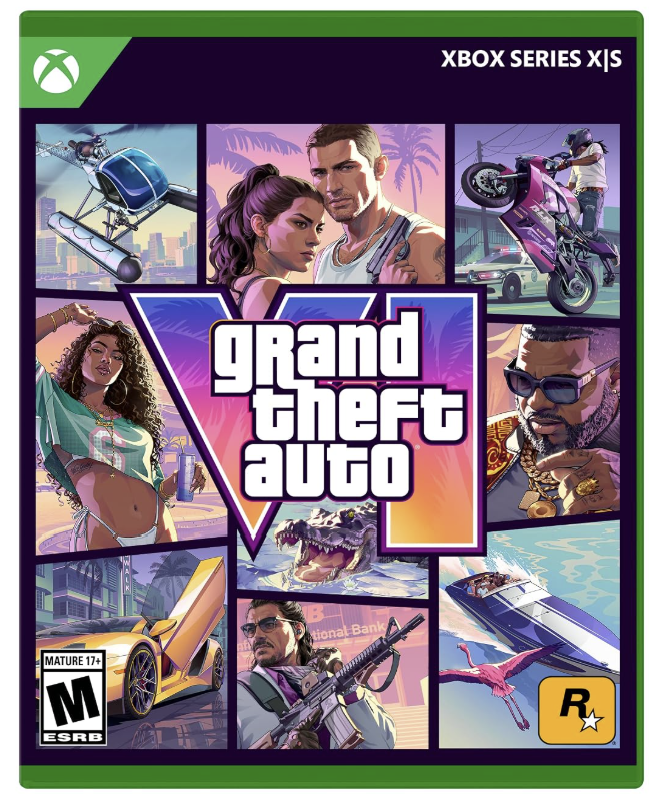
Grand Theft Auto 6: $79.99
Grand Theft Auto resumes its generation-defining role after over a decade on hiatus. GTA 6 is monstrously ambitious, expertly executed, and simply sublime. Don't read reviews. Just go buy it.

See at: Amazon USView Deal

Click to join us on r/WindowsCentral

Join us on Reddit at r/WindowsCentral to share your insights and discuss our latest news, reviews, and more.


  •  

GTA VI's reviews are even more impressive than its 99 score on Metacritic

GTA VI is finally here, and I have never seen such effusive praise for a game. GTA VI earned a 99 on Metacritic, matching the highest-ever rating for a game (original Legend of Zelda: Ocarina of Time). Perfect score after perfect score has flooded the web, praising Rockstar for GTA VI.

"GTA 6 proves once again that Rockstar is simply light-years ahead of the pack with one of the most immersive simulation sandbox games ever realized," said our Managing Editor Jez Corden in our GTA VI review.

GTA VI is one of the most anticipated games of all time. Years of rumors and delays led to memes about everything we got before GTA VI, but based on the reviews of the game, the wait was worth it.

You could make countless posters and advertisements of purely 5-star reviews for GTA VI without any shortage of source material.

As you'd expect, the biggest gaming outlets reviewed GTA VI. But the game's launch is such a cultural event that NPR, Bloomberg, and other publications that aren't primarily known for gaming coverage weighed in as well.

GTA VI reviews

  • Our review (5/5): "A game so good I asked our tech team if I could somehow give it 11/10."
  • IGN (10/10): "After three weeks and over 120 hours playing it, I’m still hopelessly hooked, absorbing the world at walking speed like a tourist in a new town."
  • GamesRadar+ (5/5): "GTA 6 is the highest-fidelity sandbox of its generation. Rockstar has built an open world of truly astonishing scale, scope, and quality."
  • EuroGamer (5/5): "A game of opposites and awe, minute detail and impossible scale, Rockstar pushes back the horizon of video games once again with GTA 6."
  • GameSpot (10/10): "GTA 6 is an astonishing open-world action game that I’d wager won’t be outdone until Grand Theft Auto 7."
  • The Guardian (5/5): "With realism that defies belief, this vast game easily accommodates its trademark foulmouthed, OTT chaos – as well as new empathy for the fugitive couple at its centre"
  • Bloomberg: "It turns out that the secret ingredients to a great game are a lot of money, time and talented people."
  • NPR: "There is a gloss on it that feels like love."

I don't want to spoil anything in GTA VI, so I've selected excerpts from reviews without sharing specifics about the plot. From what I've seen, reviewers have avoided sharing major spoilers for the game, but it's always good to be cautious about what you read if you want to go into GTA VI blind.

GTA VI's score on Metacritic is impressive, but what stands out is how universally praised the game is from top to bottom. I've seen games earn praise for graphics, storytelling, or specific standout aspects, but each review of GTA VI adds a layer of perfection to the game.

The overwhelming praise for GTA VI makes me expect a wave of counter-reviews and hot takes in the coming days. Whenever a game, movie, or TV show receives this level of hype, there are always people eager to push back against the consensus. I suggest ignoring the clickbait.

But considering GTA VI faced nearly impossible expectations to begin with, players probably have little to worry about.

Grand Theft Auto 6: $79.99
Grand Theft Auto resumes its generation-defining role after over a decade on hiatus. GTA 6 is monstrously ambitious, expertly executed, and simply sublime. Don't read reviews. Just go buy it.

See at: Amazon USView Deal

Click to join us on r/WindowsCentral

Join us on Reddit at r/WindowsCentral to share your insights and discuss our latest news, reviews, and more.
  •  

How to choose the right USB-C charger for your laptop

Have you ever plugged in your laptop only to see "plugged in, not charging" appear on your screen? If so, there's a good chance your charger or cable wasn't delivering enough power for your laptop.

It's easy to grab the wrong charger for your laptop over Black Friday, especially when so many USB-C chargers are available. But with a few tips and tricks, you can charge your laptop and never have to worry about wattage again.

If you're not sure where to start, a 65W USB-C charger is enough for most everyday laptops. If you have a workstation or gaming laptop, check the wattage of the charger that came with your PC and use that as a starting point.

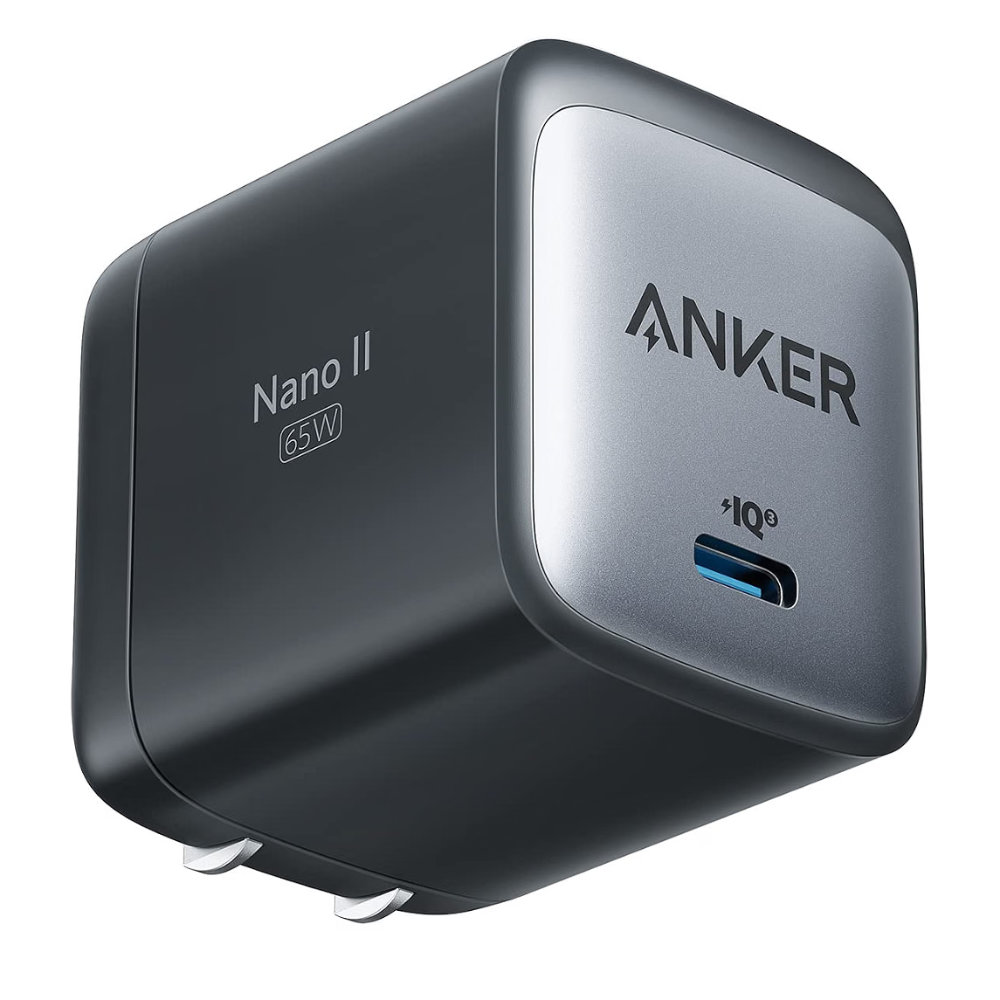
Anker Nano II 65W USB-C wall charger with a single USB-C port.Best for everyday laptops

Anker
715 Nano II

This compact 65W charger is small enough to toss in a backpack and powerful enough to charge most Surface devices, ThinkPads, XPS 13s, Zenbooks, and similar laptops at full speed.

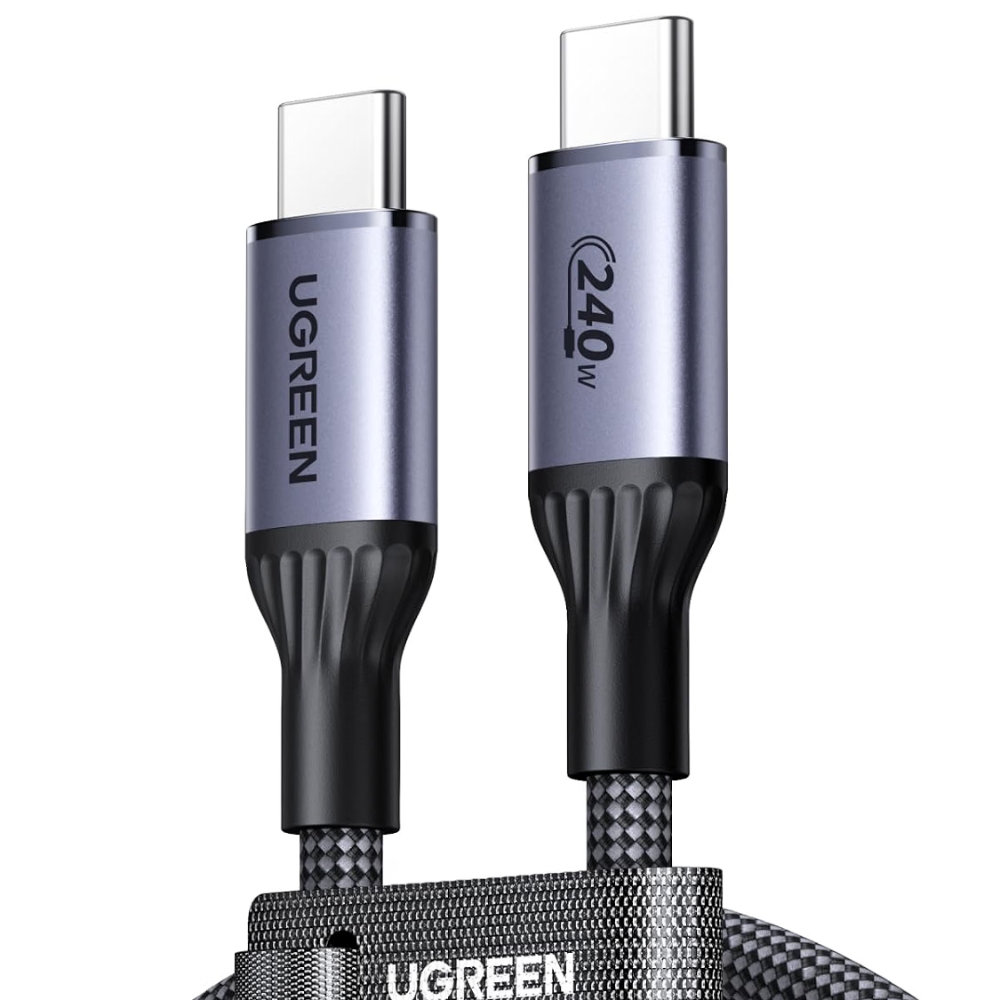
Close-up of a UGREEN USB-C cable designed to support high-power 240W USB Power Delivery charging.Best Cable

UGREEN
USB C to USB C Cable 240W 6ft

This cable supports up to 240W through USB Power Delivery 3.1, making it suitable for everything from ultraportables to high-performance laptops.

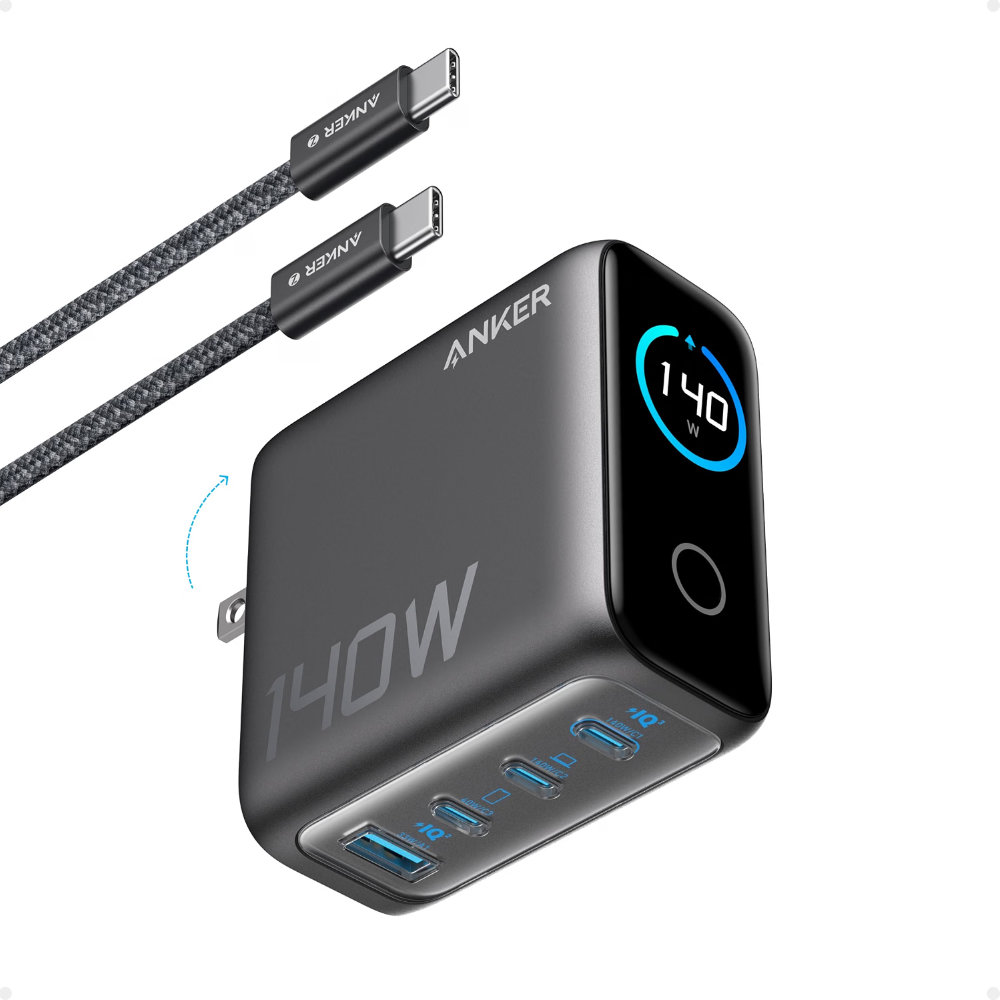
Anker 140W Max GaN USB-C charger with four charging ports, a built-in power usage display, and two USB-C cables.Best for powerful laptops

Anker
140W 4-Port USB-C Charger

This 140W charger can power demanding laptops and multiple devices simultaneously. The built-in display also makes it easy to check how much power is being delivered in real time.

Why buying a laptop charger is complicated

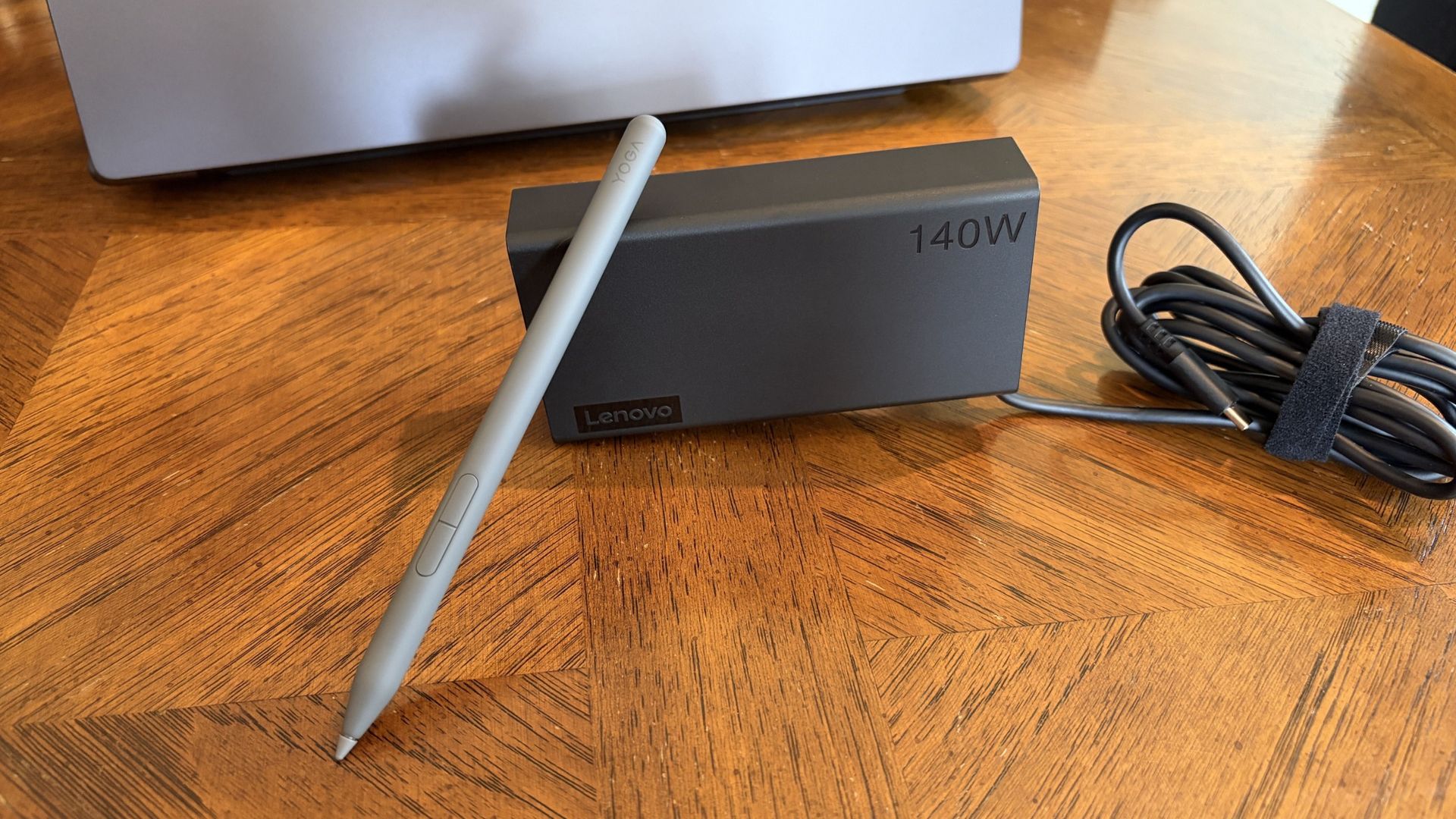
A Lenovo 140W power adapter, coiled cable, and silver stylus lie on a warm wooden desk beside a laptop, arranged for a practical tech setup.

The charger that shipped with your laptop is often the easiest way to determine how much power your PC needs. This Lenovo power adapter is clearly labeled as a 140W charger. (Image credit: Future)

The "U" in USB-C stands for universal, but that doesn't mean all USB-C chargers are the same. All USB-C chargers use the same connector, but they can differ in wattage and what standards they meet.

USB-C cables can be just as confusing. Two cables may look identical while supporting vastly different charging speeds. One might support 60W charging while another supports 240W.

The labeling of USB-C chargers can create more confusion. For example, a charger being labeled as "100W" could refer to either a single port delivering up to 100W at once or the total wattage of multiple ports in that same charger.

That's why it's worth checking the specifications of each port rather than relying solely on the headline wattage.

Shopping for a charger has led many to ask, why aren't all USB-C chargers the same? I get the frustration and dislike having to dig through spec sheets to ensure a charger will work for a specific device.

The reality is that there are plenty of times that a tiny USB-C charger without Power Delivery or fast charging is fine. You shouldn't have to buy an expensive device to charge your toothbrush or other small accessories.

But manufacturers could absolutely do more to make shopping easier.

What wattage charger does my laptop need?

The easiest way to check what type of charger your laptop needs is to look at the charger it came with. My workstation laptop shipped with a giant 135W charging brick. The label on that brick says 135W right at the top. Thanks, HP!

You may not be so lucky. If you're shopping for a laptop charger because you lost your original one, you can't just look at a label. Or maybe the text wore off your original charger or isn't easy to find. Whatever the case, you can still figure out what type of charger you need.

The manufacturer of your laptop should list its charging requirements online.

Device Type

Typical Wattage

Chromebook

30W-45W

Thin-and-light Windows laptop

45W-65W

Business laptop

65W-100W

Creator laptop

100W-140W

Gaming laptop

140W-330W+

The table above is a rough guide. As a reminder, you can usually get a charger with higher wattage than what your laptop needs. Most laptops will only take the power they need.

Laptop charger FAQ

Does USB-C mean any USB-C charger will work with my laptop?

No. While USB-C has become the standard connector for many devices, chargers vary in wattage and supported charging standards. A USB-C charger designed for a phone may not provide enough power for a laptop.

What is USB Power Delivery (USB PD)?

USB Power Delivery (USB PD) is a USB-C charging standard that allows devices and chargers to negotiate the amount of power delivered. It enables everything from phones to laptops to charge safely from compatible USB-C chargers and often eliminates the need for device-specific chargers.

What is a GaN charger?

A GaN charger uses gallium nitride instead of traditional silicon components, allowing it to deliver more power in a smaller and more efficient design.

Why does my laptop say "plugged in, not charging"?

A common reason your laptop says, "plugged in, not charging" is that your charger or cable does not support the required wattage for your laptop.

Can I use a higher wattage charger with my laptop?

It is generally safe to use a higher-wattage charger with your laptop. Most modern laptops only take the power they need, but always check your device's manual first.

Can I use a lower wattage charger with my laptop?

It is not advised to use a lower-wattage charger with your laptop. A charger that cannot provide enough power may charge your laptop slowly or fail to keep up when the device is under load.

Can a phone charger charge a laptop?

Some phone chargers can charge laptops, but many do not provide enough power for larger devices. Check that the charger supports USB Power Delivery and can deliver sufficient wattage for your laptop.

Click to join us on r/WindowsCentral

Join us on Reddit at r/WindowsCentral to share your insights and discuss our latest news, reviews, and more.
  •  

Copilot could soon answer the eternal Windows question: ‘Why isn’t this working?’

Microsoft Ignite just kicked off, and viewers are in for a treat if they love AI-aided development and cutting-edge tools for creating apps and experiences. While those are exciting topics for many people, I assume everyday computer users are more interested in Windows 11 features. Luckily for them, Microsoft showcased new features that are on the way to the operating system.

Microsoft is turning Copilot into a troubleshooting assistant that can inspect your PC, identify problems, explain what's wrong, and potentially save you from manually digging through Windows settings (or finding an IT admin to help you).

Microsoft shared an example in a recent blog post in which a user asked "The audio isn't coming out of my bluetooth headphones. Can you diagnose the issue for me?" Copilot then asked for permission to access files and read system information. After that permission was granted, Copilot determined the cause of the issue.

In the example, Copilot determined that the headphones were connected, but that Windows 11 was likely sending audio to a different device. The AI assistant then broke down how to fix the problem.

With its new capabilities, Copilot should be able to lighten the load of IT support by answering frequently asked questions.

These PC diagnostic features fall under the same umbrella as other local capabilities. Rather than rely solely on the cloud, Copilot runs locally to perform a read-only scan of a system. It then uses the results to find the root causes of issues.

We've known for a while that Copilot would gain these features. As far as I can tell, the video Microsoft shared is the first time we've seen PC diagnostics running in Copilot.

One thing that stands out in the example video is that Copilot is summoned through the new Search experience on Windows 11. That experience has a redesigned interface and is faster than what's currently available on Windows 11. It recently entered testing among Windows Insiders.

Click to join us on r/WindowsCentral

Join us on Reddit at r/WindowsCentral to share your insights and discuss our latest news, reviews, and more.
  •  

Windows 11 update aims to speed up File Explorer searches from This PC

Microsoft surprised us with a pair of mid-week builds of Windows 11 rather than waiting until the end of the week. Windows Insiders in the Beta channel and Experimental channel can grab an update.

The Experimental build is much larger in terms of new features. It adds the ability to see passkeys stored on a FIDO2 security key, lock compromised Windows devices through Microsoft Intune without wiping the device, and adds a preview of Microsoft Pluton Cryptographic Provider.

The taskbar also has a new option in that build. Starting with Build 26340.10013, you can set Windows 11 to show a list view for taskbar previews rather than a thumbnail.

While the changelog of the Build 26340.10013 is larger, arguably the biggest change comes with Build 26320.10003, which is available through the Beta channel. In that update, searching from "This PC" in File Explorer is now indexer-based. That should result in searches that are much faster and more consistent.

Load full changelog ↴

Experimental Preview Build 26340.10013

Advanced security key management

  • You can now see the passkeys stored on a FIDO2 (Fast Identity Online 2) security key and remove them one at a time, instead of resetting the entire key. Admins can also configure enterprise settings such as minimum PIN length, always-required user verification, and enterprise attestation.

Remote Lock

  • Remote Lock lets IT lock a lost, stolen or compromised Windows device from Microsoft Intune without wiping it. Windows signs out every active session, hides all sign-in options and shows a Device Locked screen. Nothing is erased: the device stays enrolled and managed; BitLocker stays on, and user data stays in place. Only an admin can lift it remotely, so the user picks up where they left off. Learn more: https://aka.ms/remotelock

Microsoft Pluton

  • We’re introducing a preview of the Microsoft Pluton Cryptographic Provider, enabling developers on supported devices to use the Pluton security processor for hardware-protected cryptographic key storage and operations through standard Windows CNG APIs. Learn more here.

Taskbar

  • When you hover over an app on the taskbar, Windows shows previews of its open windows to help you tell them apart and quickly see what’s in each one.
  • Now, you can choose to use the list view anytime. When list view is on, hovering over an app on the taskbar shows all its open windows by title in a list instead of as previews.
  • To turn on list view, go to Settings > Personalization > Taskbar.

BitLocker

  • Standard users can now set a BitLocker preboot PIN. Before this change, users without admin rights couldn't add the TPM+PIN protector. Now, standard users on managed devices can add the PIN themselves.
  • How it works: When the policies below apply to a device that doesn't have a PIN yet, you get a notification asking you to add one. Selecting the notification opens a window where you can set the preboot PIN.

Magnifier

  • Magnifier already works with your keyboard, mouse, and scroll wheel. Now it also supports touchpad and touch gestures, so you can zoom and move around in whatever way feels most natural to you.
  • Before you start: Make sure Magnifier is running. Press Windows key + Plus (+) to turn it on. The gestures below work while Magnifier is on.

On a touchpad

  • Zoom in or out: Swipe up with three fingers to zoom in or swipe down to zoom out.
  • Pan around the screen: Move one finger as you normally would, and the magnified view follows your pointer.
  • Toggle between 100% and your previous zoom level: Tap with three fingers.

On a touchscreen

Pan around the screen: Drag with three fingers.

Zoom in or out: With three fingers, tap once, then tap again and keep your fingers down. Without lifting your fingers, drag up to zoom in or down to zoom out.

Toggle between 100% and your previous zoom level: Double-tap with three fingers.

Both gesture sets are on by default. To turn either one off, go to Settings > Accessibility > Magnifier and turn off Control Magnifier with touchpad gestures or Control Magnifier with touch gestures.

Secure switch from MSA to Local account

  • Users who switch from MSA to local account from settings would be always prompted to back up their BitLocker recovery key with updated instructions in order to prevent any data loss.

Removal of Offline Maps

  • Following the April 2025 announcement of the upcoming deprecation of the Windows UWP Map control and Windows Maps platform APIs, we are removing the Offline Maps feature and related UX from Windows Settings. With the upcoming removal of the Maps control and APIs, the offline maps feature will no longer be functional. The removal includes these features in Windows Settings:
    • Offline Maps – located under Settings > Apps > Offline Maps
    • Maps storage – located under Settings > Storage > Local Disk
  • For resources related to the upcoming removal of the Maps control and platform APIs, see this documentation.

Remote desktop

  • Fixed an issue where Remote Desktop Protocol (RDP) connections might fail on the client due to a certificate mismatch after the latest flights.

Windows Spotlight

  • Fixed a recent issue where the Explore Background option in the context menu for Windows Spotlight for your desktop background wasn’t working.

Input

  • Fixed an underlying issue which was causing the mouse cursor to be unexpectedly invisible in a few different scenarios in recent flights.
  • Improved reliability of configuring voice typing settings.

Beta Preview Build 26320.10003

File Explorer

  • Search from This PC in File Explorer is now indexer-based, making it much faster and consistent with search from File Explorer Home.
  • Improved progress indication when navigating to locations that take longer to load, such as network drives, makes it easier to see that loading is underway.

BitLocker

  • Standard users can now set a BitLocker preboot PIN. Before this change, users without admin rights couldn't add the TPM+PIN protector. Now, standard users on managed devices can add the PIN themselves.
  • How it works: When the policies below apply to a device that doesn't have a PIN yet, you get a notification asking you to add one. Selecting the notification opens a window where you can set the preboot PIN.

There are plenty of other changes to play around with in these builds. For example, Magnifier now works with a touchscreen or a touchpad. Previously, it was limited to a keyboard, mouse, or scroll wheel.

The Experimental build also marks the end of Offline Maps. Microsoft plans to deprecate the Windows UWP Map control and Windows Maps platform APIs, so the related features need to be removed from Windows 11's settings.

Click to join us on r/WindowsCentral

Join us on Reddit at r/WindowsCentral to share your insights and discuss our latest news, reviews, and more.
  •  

I stopped reaching for my monitor's buttons after finding this free Windows tool

Juggling the brightness of your monitors can be a hassle on Windows 11. Luckily, a free utility in PowerToys streamlines the process.

Microsoft started testing PowerDisplay about a year ago. The feature has since rolled out to everyone, and it alone is enough of a reason to download PowerToys.

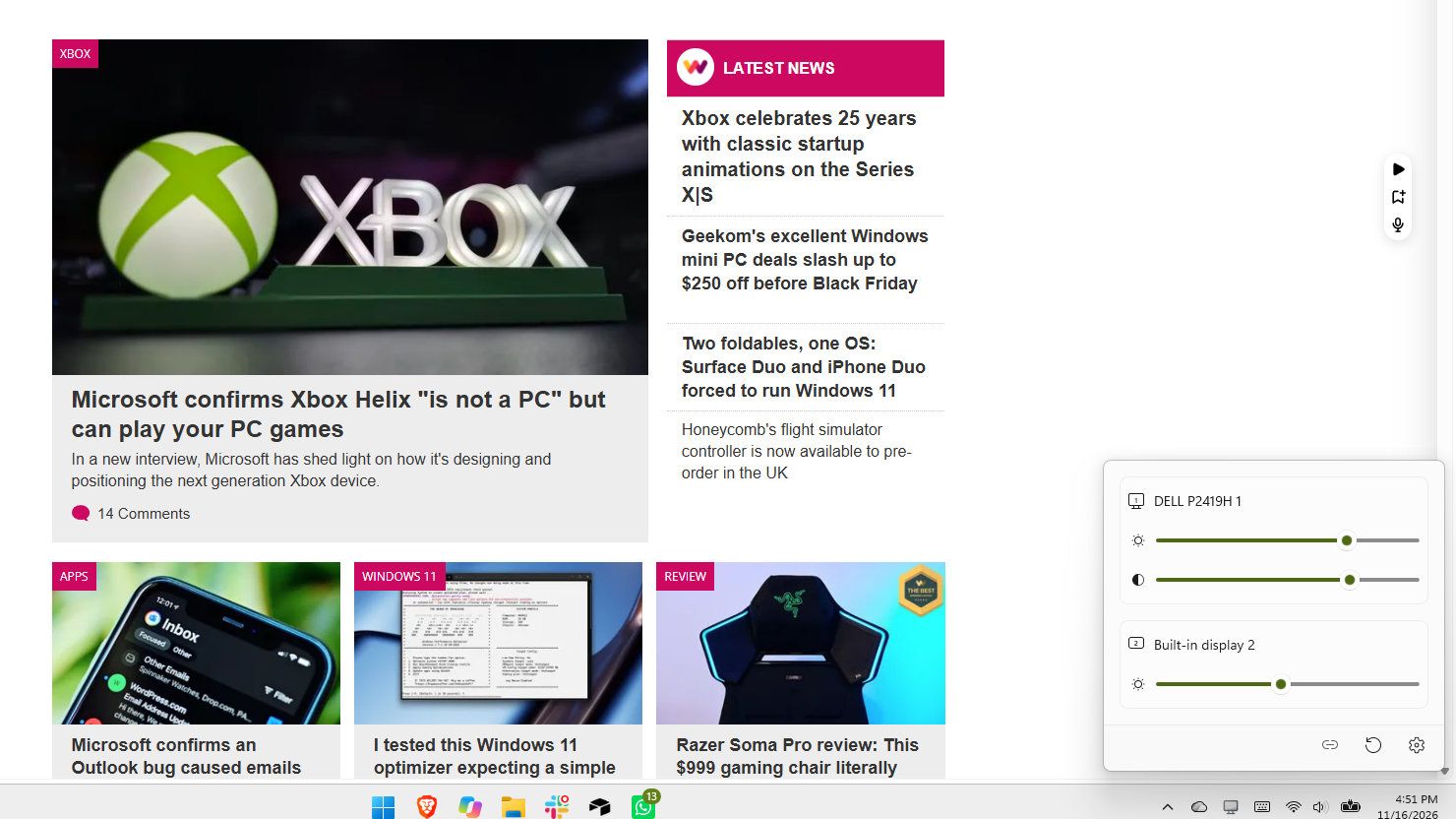
With it, you can control the brightness, contrast, and color temperature of an external monitor from a flyout that feels native to Windows 11. Instead of reaching for the physical buttons on each monitor, you can adjust settings directly through Windows.

It works seamlessly with multi-monitor setups, which is excellent for those frustrating moments your screens fail to match each other.

Support depends on your monitor, but many modern displays work with PowerDisplay through DDC/CI controls.

Windows 11's limited options for controlling multiple monitors frustrated me and many other people for years. There are third-party apps that enhance controls, such as DisplayBuddy and Twinkle Tray, but I already have PowerToys installed for some of its other utilities, so PowerDisplay was easy to add to my PC.

PowerDisplay utility in Microsoft PowerToys controlling brightness and contrast settings for multiple connected monitors from a Windows 11 desktop.

(Image credit: Future)

Since I live in England but cover Microsoft for my job, I often start work when the sun is up and continue working past sunset. That's especially true during autumn and winter as the days get short.

If I leave my desk during the day and return at night, my monitor is usually too bright. Windows 11 has a setting that automatically changes brightness when lighting changes, but it doesn't work for my setup since it doesn't seem to work with some of my external monitors.

Rather than blind myself when I sit down to cover a late-night Windows Insider build, I use PowerDisplay to adjust the brightness and contrast of my screen.

When working at night and next to a window, I often find that adjusting the contrast of my display improves my view more than tweaking the brightness of my screen. During the day, I usually maximize my monitor's brightness since I like working next to a large window.

PowerToys | Free at GitHub | Free at Microsoft Store

PowerDisplay lets you adjust the brightness, contrast, and color temperature of compatible external monitors directly from Windows. After installing or updating PowerToys, open the app, enable PowerDisplay, and then launch the display controls from the Windows system tray to adjust your screens without using your monitor's built-in buttons.View Deal

Click to join us on r/WindowsCentral

Join us on Reddit at r/WindowsCentral to share your insights and discuss our latest news, reviews, and more.
  •  

Two foldables, one OS: Surface Duo and iPhone Duo forced to run Windows 11

Apple launched the iPhone Duo just over two months ago. Initially, several big-name apps were poorly optimized for the large folding display of the phone. That situation has improved since September, though things are far from perfect. But a new project focuses on running an entirely different operating system on the iPhone Duo rather than optimizing apps.

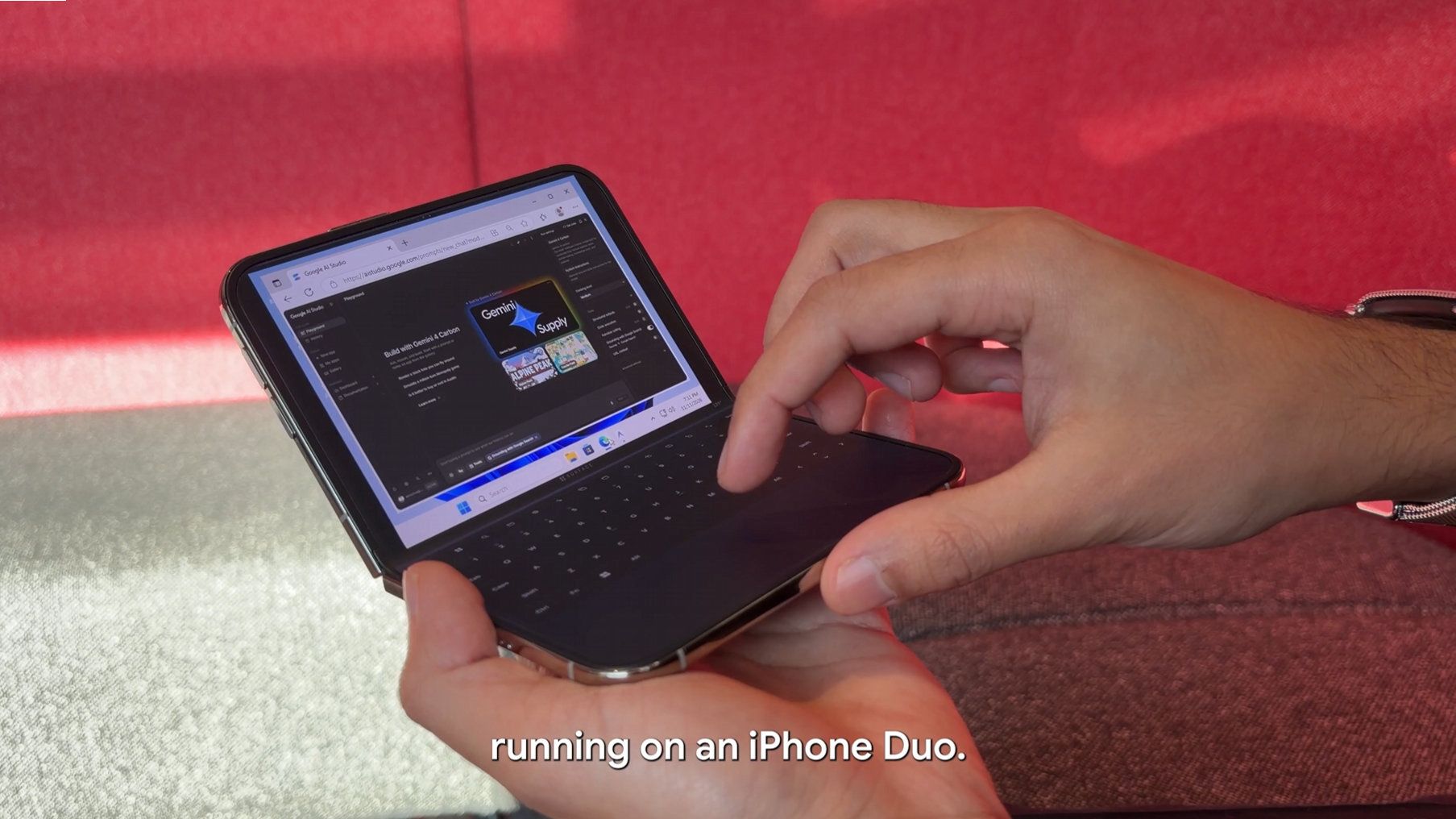
Ammaar Reshi, lead of product and design at Google AI Studios, shared the results of his efforts to get Windows 11 to run on an iPhone Duo. The "WindowsiOS" project has full Windows 11 running at "near-native" speed on an iPhone Duo.

Reshi's efforts appear to focus more on creating a mini laptop rather than a multitasking mobile phone. His demo video shows the Windows 11 desktop on one half of the iPhone Duo's screen and a digital keyboard on the bottom.

All of the photos on the WindowsiOS GitHub page are from a device in the same orientation.

The iPhone Duo's screen is too small for the setup to be optimal, but Windows 11 scales to the form factor. That's likely because the OS was made to fit on foldable PCs like the Lenovo ThinkPad X1 Fold. The digital keyboard on the iPhone Duo running Windows 11 is too small to type on like a laptop keyboard, but you could potentially type on it with two thumbs.

I used Gemini 4 Carbon to get Windows 11 running on my iPhone Duo! 💻Unfold the screen and it's a pocket PC, including Antigravity running coding agents on my phone.This is the actual desktop ARM OS running locally with touch controls. Demo + repo below! https://t.co/LVdeqvvOU1November 11, 2026

The initial release of WindowsiOS and an update to a separate project give us a unique opportunity to compare how Windows 11 runs on two different types of foldables.

Recently, Gustave Monce released an update to his project that runs Windows 11 on the Surface Duo. Monce has worked on this for years, and we have a video from the early days of the "DuoWOA." But last week he rolled out support for audio, USB-C, video out, and display calibration.

Monce's project takes a different approach to Reshi's, at least based on videos shared on X. Rather than create a mini laptop, Monce has forced Windows 11 to adapt to the various postures of the Surface Duo.

"You have no idea how many hours and code iterations (and how insane the code is) to support all postures on surface duo properly so screens are the right orientation all the time," said Monce.

Are two screens better than one?

While I see the value in having separate displays, the Surface Duo's form factor creates extra work for developers.

It takes effort to optimize operating systems and apps for the iPhone Duo, of course, but Apple's foldable does not have a large hinge to work around.

Whether you're optimizing an operating system or apps for a foldable screen, having a split-screen design adds a roadblock.

Click to join us on r/WindowsCentral

Join us on Reddit at r/WindowsCentral to share your insights and discuss our latest news, reviews, and more.
  •  

Windows Wrap: Maybe it’s time to call it Microsoft 364

Windows Central

"Have you heard about Microsoft?" is not a question I get asked often in my everyday life. It's rare for anyone to ask me about Outlook, Teams, or OneDrive. But this week was an exception because of the major outage that affected Microsoft services.

With Outlook, Teams, Azure, OneDrive, and Microsoft 365 experiencing outages, I fielded quite a few questions about what's going on. I can't imagine what IT admins are going through right now.

By the time you read this, Microsoft will have likely fixed the issues that temporarily broke its services, but as I write this piece, the outage has been going on for nearly 24 hours. With an entire day of outages, many have joked online that the service should be renamed "Microsoft 364."

Beneath all the jokes about "Microsoft 364" was a reminder of just how much of the modern workplace runs on Microsoft's services. Most people don't spend much time thinking about Outlook, Teams, OneDrive, or Microsoft 365 when everything is working. They're just tools people expect to be there. But when those services go down, work doesn't just become inconvenient. In some cases, it grinds to a halt.

Biggest News of the Week

Angled laptop screen showing the Downdetector website with red outage spikes across Microsoft Outlook, Microsoft 365, Microsoft Teams, Copilot, Store, Azure, and OneDrive.
Surface Laptop Studio
Xbox Sign
Windows 11 Start button

Hopefully Microsoft uses this outage as an opportunity to strengthen its systems. The company is spending billions on AI, datacenters, and cloud infrastructure. That's hard to appreciate when people can't access their email, files, or meetings.

It's a shame that the Microsoft outage happened this week rather than next week. If Microsoft is going to have all of its major services fail and hurt the productivity of millions of people, the least the company could do is time the outage with the release of GTA VI. Logitech gave its employees a day off to enjoy GTA VI, but the rest of us have to use a vacation day or get sick at the right time.

Microsoft wants people talking about AI. This week, people were talking about Outlook and outages. That's probably not how the company hoped to end the week.

Shopping with Sean

Luckily for anyone shopping ahead of Black Friday, Windows Central and Future rely on Gmail, not Outlook. That means that all the emails about deals that were sent to our team this week arrived on time.

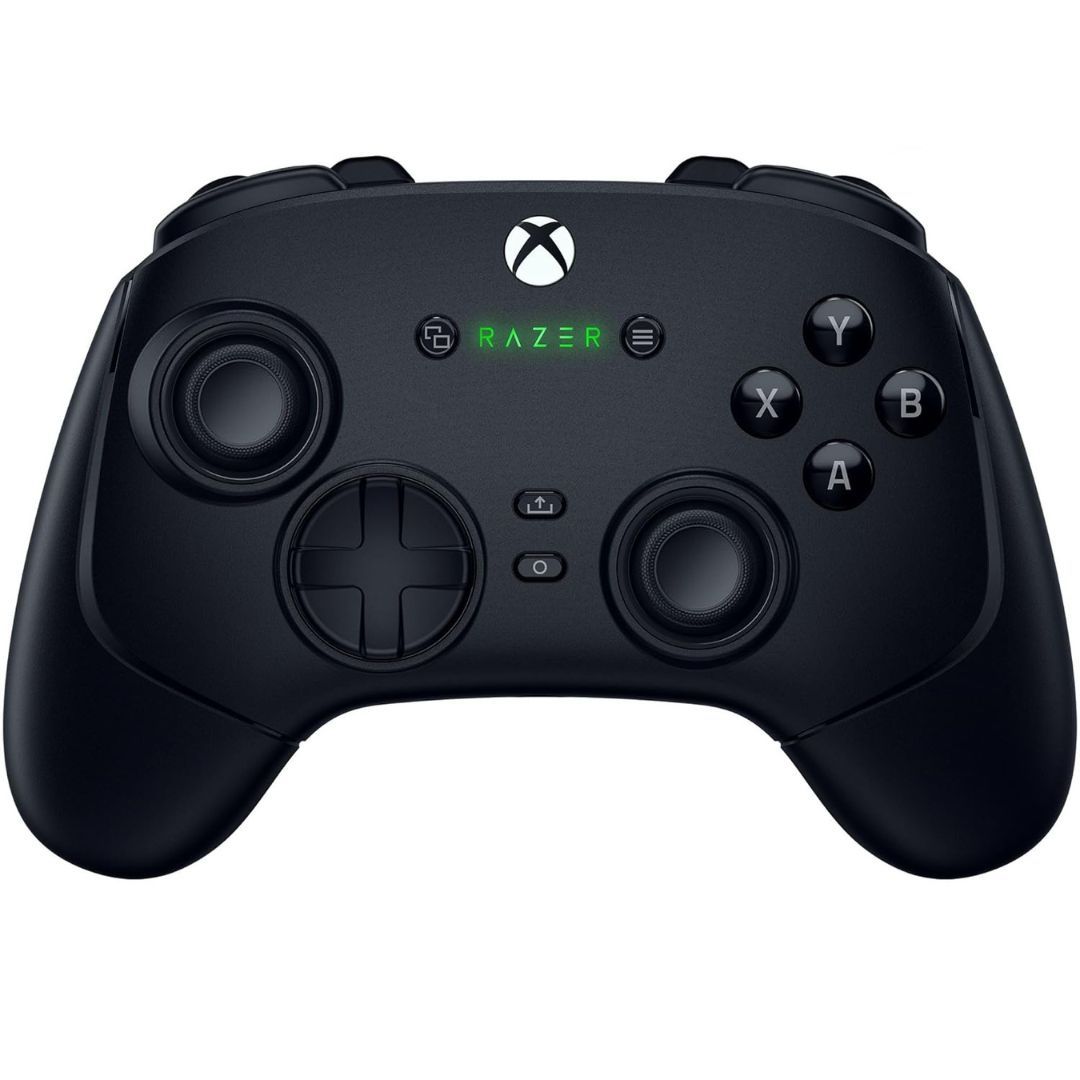
Razer Wolverine V3 Pro: was $199.99 now $109.99 at Electronics

Razer finally made a wireless controller for the Xbox, and overall it's absolutely brilliant with its Hall Effect sticks, 1000Hz Polling on PC, and additional shoulder bumper, paddle, and trigger buttons.

Windows Central Review: ⭐⭐⭐⭐½View Deal

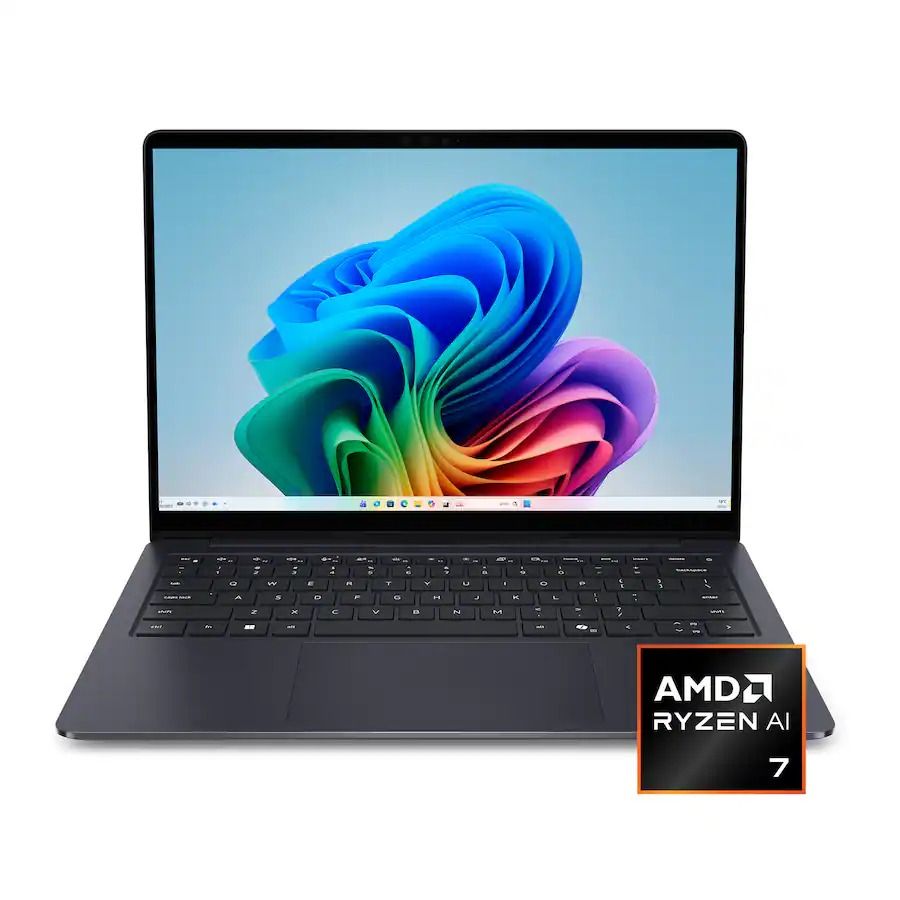
14S (Ryzen AI 7 445, 16GB RAM, 512GB SSD): was $1449.99 now $999.99 at Bestbuy

"The Dell 14S is a compelling choice for a variety of users thanks to its long-lasting battery life, OLED touchscreen, solid performance, and relatively affordable price." — Sean Riley, Freelancer Writer, Tom's Guide

Tom's Guide review: ⭐⭐⭐⭐View Deal

Click to join us on r/WindowsCentral

Join us on Reddit at r/WindowsCentral to share your insights and discuss our latest news, reviews, and more.
  •  

Outlook, Teams, and Microsoft 365 are starting to recover after a massive outage

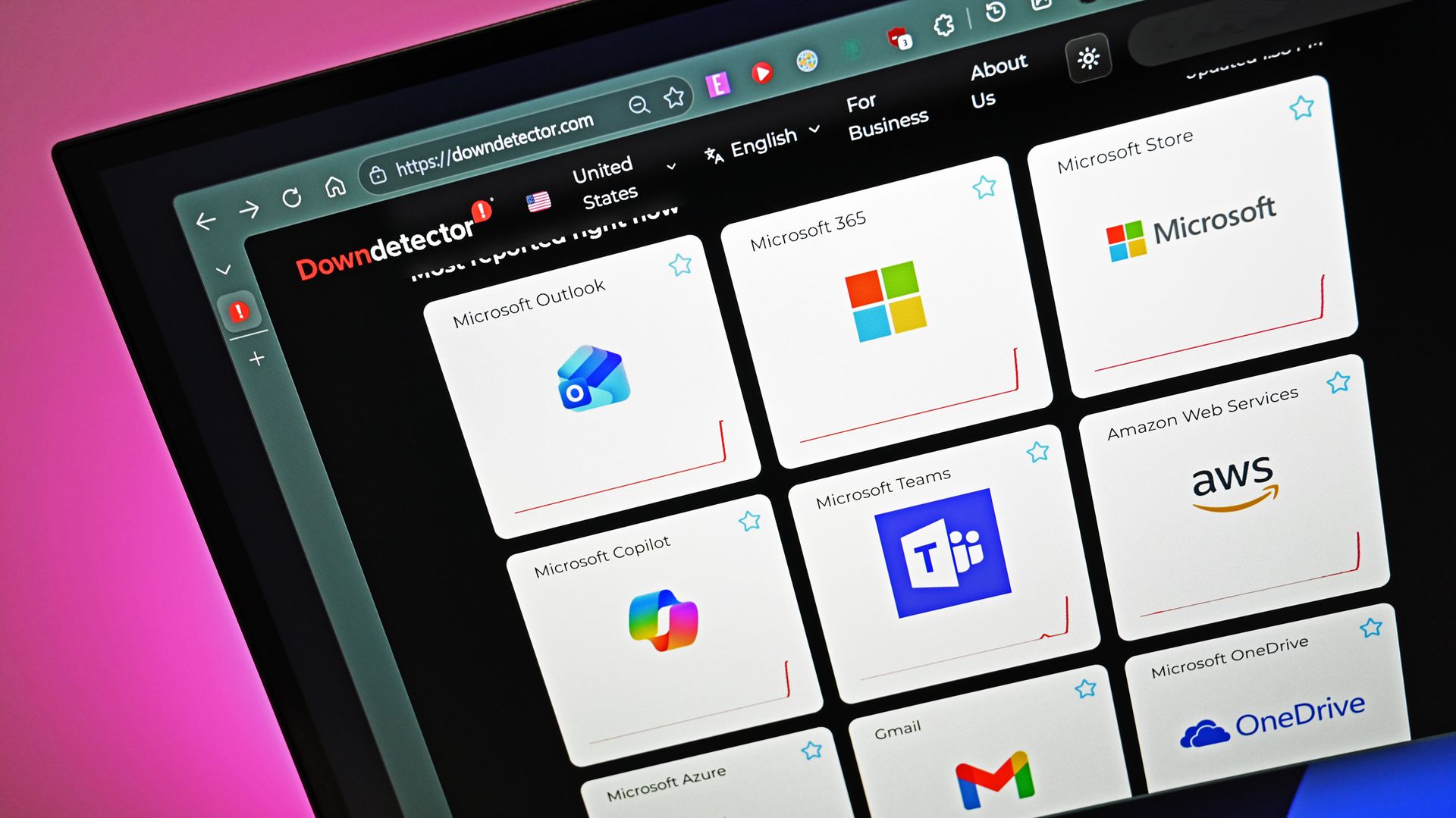
Microsoft's biggest services are all facing major outages right now. Outlook, Teams, Copilot, OneDrive, and Azure all appear to be affected. The issues have lasted at least 18 hours, though there are now some signs of improvement.

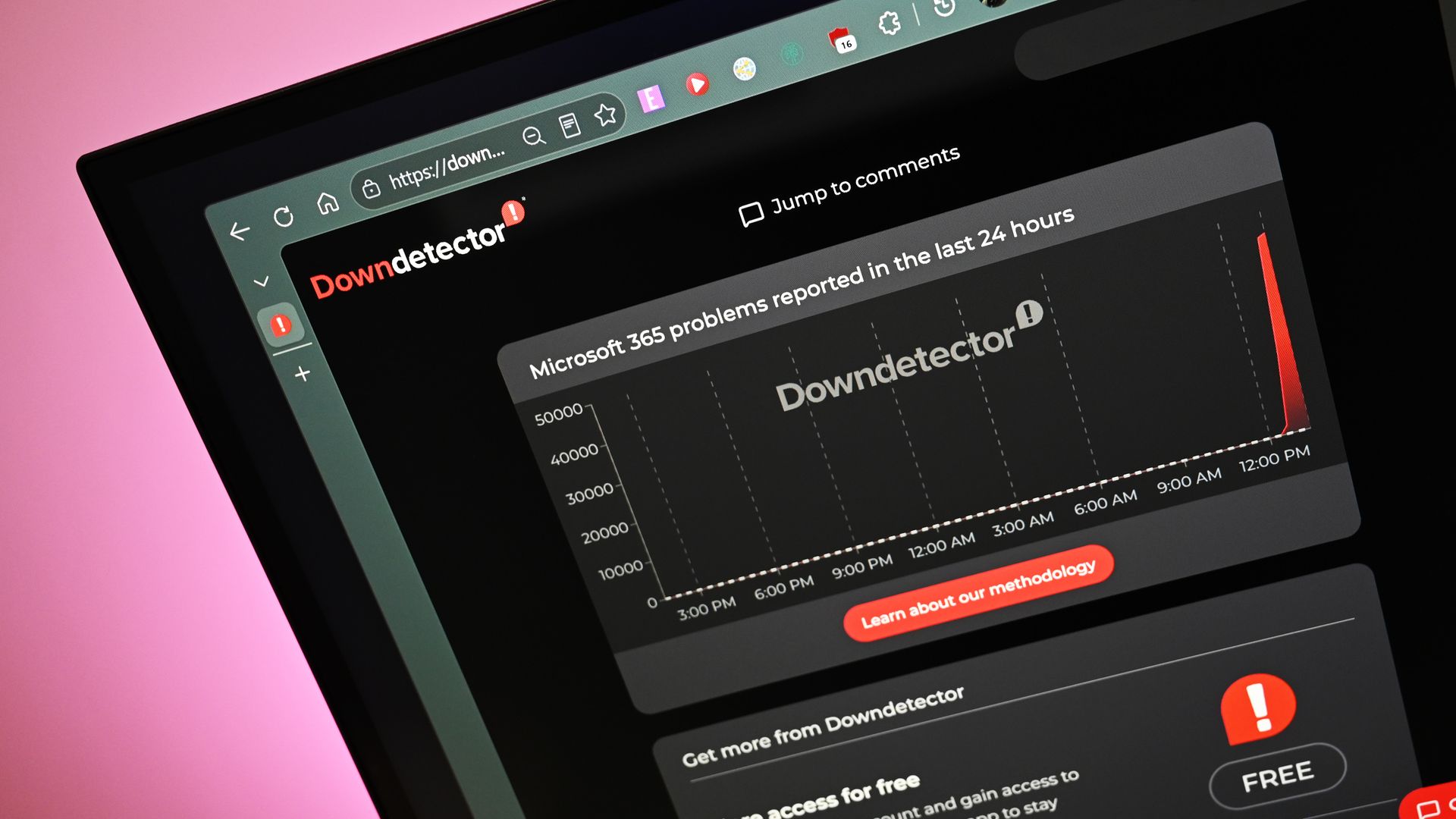
According to DownDetector, tens of thousands of users are affected by the outage for each Microsoft service. Around 1:15 PM ET, there were nearly 130,000 reports. There are now fewer than 10,000 reports of issues with Microsoft services.

The full impact is likely much broader than indicated by DownDetector. The outages became front-page news and affected productivity across a broad range of industries.

Angled laptop screen displaying a Downdetector graph of Microsoft 365 problems over 24 hours, showing a sharp red spike reaching 50,000 reports around 12:00 PM.

Outage reports for Microsoft 365 started surging last night and have continued for almost a full day. (Image credit: Daniel Rubino)

Initially, services from Google, Steam, Cloudflare, and AWS appeared to have outages coinciding with Microsoft's issues. Spokespersons from AWS and Cloudflare reached out to me to clarify that their respective services were not down.

When this many services experience outages simultaneously, there is likely a common underlying cause, but we're still awaiting confirmation of what's behind the issues.

Chatter on social media suggests that the cause of the outages is complex and resistant to repair, though it will likely be weeks before we get a detailed report of what happened.

The Microsoft 365 Status account on X is providing updated information on the outages.

We’re seeing encouraging recovery progress, with service availability and email delivery performance improving across a growing portion of affected Microsoft 365 infrastructure. Some users may still experience intermittent issues as recovery actions continue. We’re focused on recovery for the remaining affected environments while prioritizing email queue and backlog reduction. The extended 48-hour email timeout window remains in place to help protect delayed messages as delivery catches up. A more comprehensive update can be found at MO1550821 in the Microsoft 365 admin center, as well as https://t.co/bVoAAh3D2G if the admin center is not available to you.November 13, 2026

This is already one of the worst outages in recent memory. One of my colleagues received an email this morning calling the Microsoft outages "the biggest IT event in history." That's a bold claim, but the issues rank among the worst I've ever seen.

Charles Lamanna, EVP of Copilot, Agents, and Platform at Microsoft, confirmed that there is "no indication this is the result of malicious or cyber activity."

Click to join us on r/WindowsCentral

Join us on Reddit at r/WindowsCentral to share your insights and discuss our latest news, reviews, and more.
  •  

Microsoft wants developers spending less time cleaning up AI-generated code

The engine that powers Copilot Chat in Visual Studio just got an upgrade. Microsoft says the new experience can complete more coding tasks despite using the same AI models as before. The updated Copilot experience now uses the same technology that powers GitHub Copilot CLI, the GitHub Copilot app, and VS Code.

Microsoft tested the new and old Copilot experiences by having each perform 157 coding tasks. The new engine resolved up to 21 more tasks, completing 124 tasks compared to 103 for the older experience.

Tests were performed on C# projects across .NET Framework and .NET Core, Azure and Aspire, and WinForms and desktop apps. Microsoft also tested the new engine on C++, Python, and other languages.

Generally, developers don't judge AI by whether it can answer a question. They judge it by whether it actually saves time. If Copilot can fix a bug, review code, find an issue, or complete a task in fewer attempts, it provides real value to developers. Microsoft says that's exactly what's happening.

Developers often spend as much time verifying AI-generated code as they do writing it. If Copilot can complete more tasks correctly on the first attempt, it can save quite a bit of time.

If you've ever used ChatGPT, Copilot, Gemini, or another AI tool, you've likely run into the same problem. AI tools have a habit of sending users down the wrong path. The difference between a useful AI response and an almost useful AI response is often several minutes spent rewriting prompts, correcting mistakes, or double-checking information.

The new Copilot Chat has several new capabilities, such as allowing you to type a new instruction while it is in the middle of a task. Copilot will also show the results of actions it takes rather than simply listing attempted steps.

If a task is handled by a subagent, Copilot will show a dedicated card that lists every step taken as it occurs.

Microsoft argues the updated Copilot experience makes developers more productive by providing shorter, more focused responses and completing more tasks successfully. The company also says the new experience handles larger and more complex jobs more effectively, which could mean less time spent cleaning up AI output before a project is ready.

Click to join us on r/WindowsCentral

Join us on Reddit at r/WindowsCentral to share your insights and discuss our latest news, reviews, and more.
  •  

Microsoft confirms an Outlook bug caused emails to bounce instead of reaching inboxes

If you have an Outlook, Hotmail, Live, or MSN email address, don't assume every missing email ended up in your spam folder. A recent issue caused some messages sent to those types of email addresses to be rejected and bounced back to senders instead of reaching recipients.

It might seem like a nice break to not get emails for a few days, missing important messages can cause issues. The underlying cause was a mistake related to spam enforcement rules. Microsoft has rolled back the update that included the problem, so normal functionality should be restored.

"Some users may intermittently be unable to send email messages to Outlook.com, Hotmail.com, or Live.com email addresses," explained Microsoft in an incident report highlighted by the website lazyadmin.

While the issue was related to spam enforcement rules, affected messages did not simply end up in recipients' spam folders. Microsoft's mail servers rejected the emails and bounced them back to senders instead.

That's an important distinction because recipients have no way to find emails that were never delivered. If you were expecting an important message over the last few days and it never arrived, it may be worth following up with the sender rather than digging through your spam folder.

The issue may also have gone unnoticed in some cases. If someone claims they emailed you recently but nothing ever arrived in your inbox, there's a chance the message was affected by the bug and returned to the sender before reaching your account.

Senders may be able to determine if they were affected by checking for non-delivery reports, sometimes called bounce messages. Errors mentioning Outlook.com, Hotmail.com, Live.com, MSN.com, or codes such as "550 5.7.1" and "AS9031519" could indicate that a message was rejected during the incident.

A successful resend also does not necessarily mean there was never a problem. Reports from affected users suggested the issue was intermittent, with some messages bouncing initially before being delivered successfully when sent again later.

I occasionally need to check my spam filter to find messages that were mistakenly flagged as spam. This happens more when work emails are involved, but Outlook can be overly aggressive with personal emails as well.

But this bug was different. Instead of being delivered to a spam folder, some messages never reached recipients at all.

The issue was primarily related to mail destined for consumer Microsoft email accounts, including Outlook.com, Hotmail, Live, and MSN addresses. Microsoft 365 business mailboxes were not the focus of the reported delivery failures.

Click to join us on r/WindowsCentral

Join us on Reddit at r/WindowsCentral to share your insights and discuss our latest news, reviews, and more.
  •  

The Logitech MX Master 4 is supposed to make me more productive. I keep using it as a toy instead.

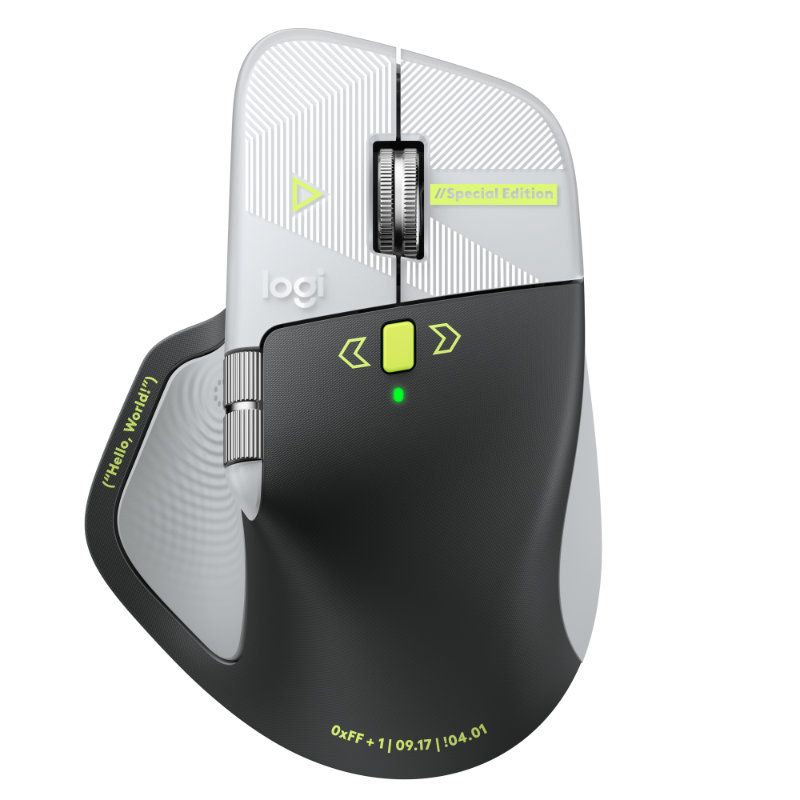
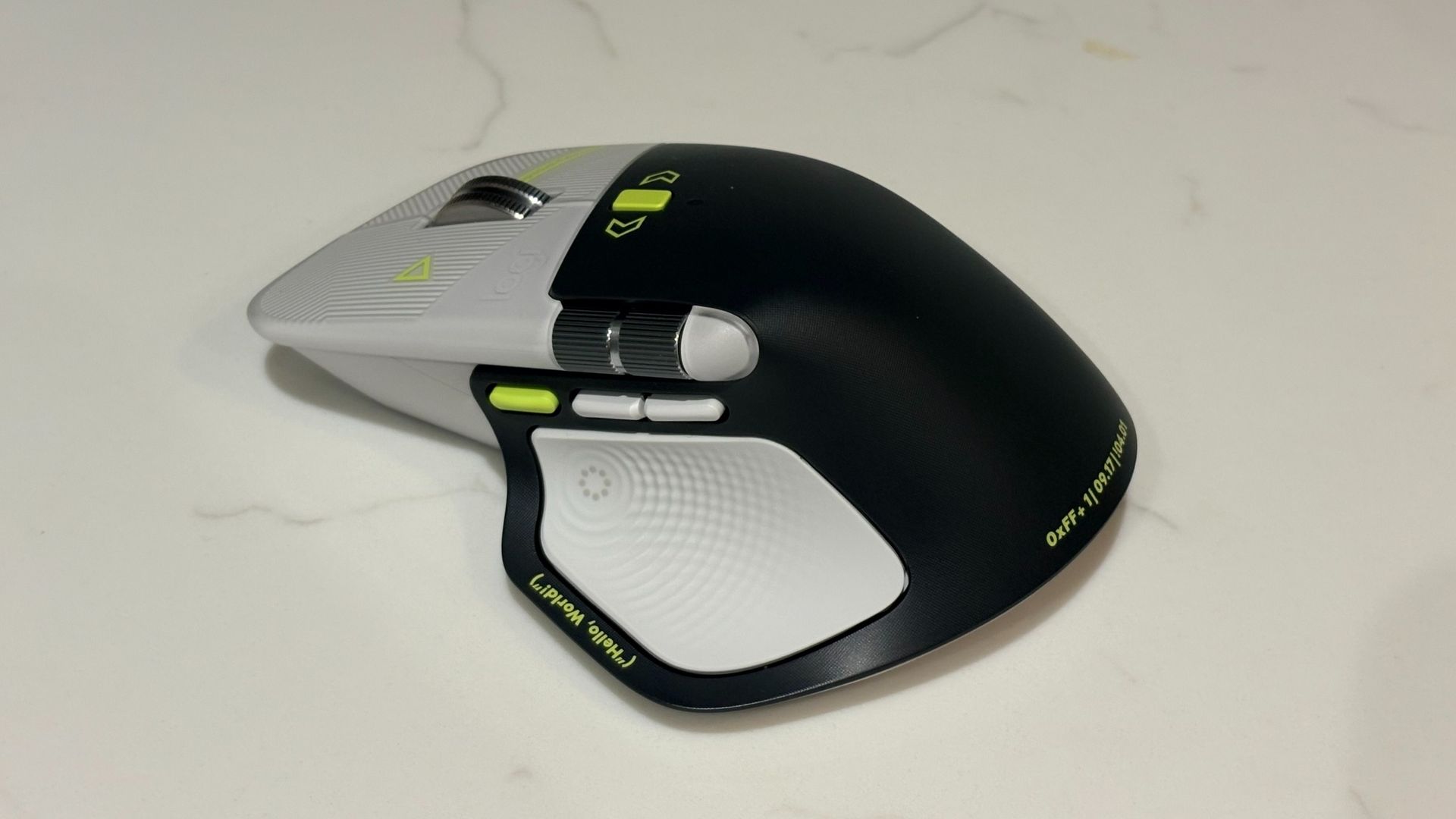
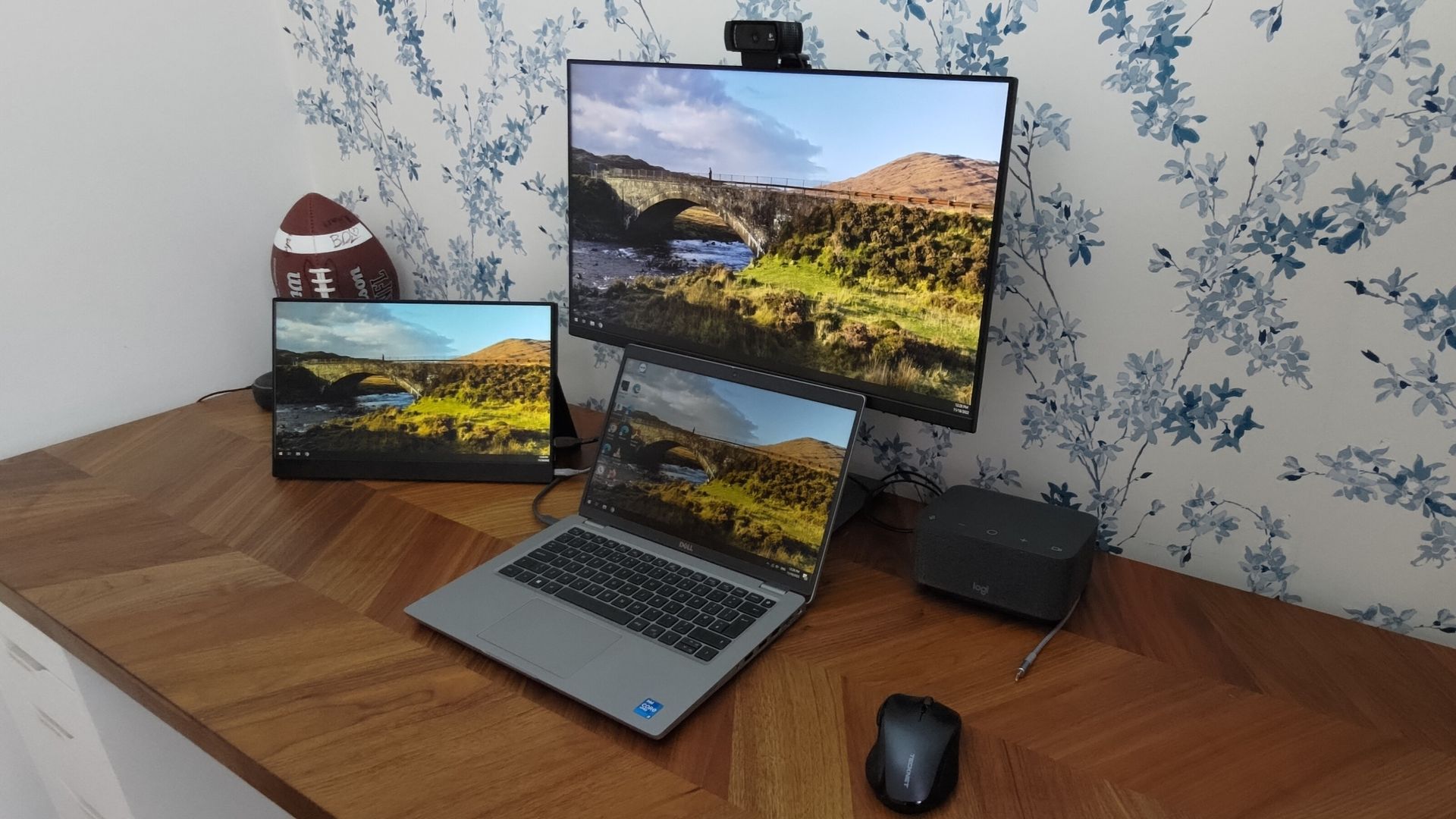
The Logitech MX Master 4 Developer Edition just started shipping, and I have one on my desk to try out. The mouse is an ode to developers covered with Easter eggs and nods to programming.

This mouse is one of the first to support Windows 11 haptics, which lets you feel Windows 11 through subtle physical feedback. That functionality is not exclusive to the developer edition, so you can take advantage of haptics if you prefer to grab the black or white versions of the Logitech MX Master 4.

I've only had the Logitech MX Master 4 Developer Edition for a bit, so I can't judge it fully. So far, the mouse has impressed me throughout full work days.

But one thing has stood out to me so far: this mouse is basically a fidget spinner. Its vertical scroll wheel can toggle between ratchet or smooth scrolling. You can even set the mouse to switch between those modes depending on force.

Your thumb rests just below a horizontal scroll wheel when using the mouse. That is also fun to spin when I'm bored. It also scrolls horizontally, but that's a feature I only use occasionally.

Add in a haptic side panel that buzzes when pressed and displays a ring of shortcuts, and you have a surprisingly great fidget tool for your desk.

MX Master 4 Developer Edition: $119.99

Logitech's flagship mouse has a wide range of buttons and wheels that can be customized to different commands, as well as a gesture pad on the side. The developer edition of the mouse has nods to coding and development as well as a unique colorway.View Deal

Early impressions

This mouse is the first device I've used that supports Windows 11 haptics. That feature, which provides physical bumps when you perform certain actions, has been fun to play with.

I've used a Logitech MX mouse for years, but it's been the Logitech MX Vertical on my desk. That mouse is excellent, and I still recommend it to those who want an ergonomic mouse, but having used the Logitech MX Master 4, there are features I'd love to see Logitech bring over to its ergonomic line.

I've been surprised by how much I use the horizontal scroll wheel of the Logitech MX Master 4. I usually just hold Shift and use the vertical scroll wheel to navigate horizontally. But the horizontal scroll wheel is perfectly placed on the Logitech MX Master 4, making them easier to use and more comfortable.

The Logitech MX Master 4 has a bit more of a thunk than a click, which I prefer. I also like the matte plastic finish of the Logitech MX Master 4.

None of this is surprising since the Logitech MX Master 4 earned a near-perfect score from our friends at Tom's Guide. The version of the mouse I have is identical in terms of features and overall design. What makes it stand out are its Easter eggs, such as syntax annotations and markup tags that are laser-etched onto the mouse.

I've often said I can't go back to using a flat mouse since relying on the Logitech MX Vertical. I still prefer the vertical design of that mouse over the flatter layout of the Logitech MX Master 4, but I prefer the features and build of the latter. My perfect mouse would be a combination of the two.

Click to join us on r/WindowsCentral

Join us on Reddit at r/WindowsCentral to share your insights and discuss our latest news, reviews, and more.
  •  

Rather than fight GTA VI, Logitech gave employees a day off

We're just over one week from the release of GTA VI. After years of delays and rumors, Rockstar's iconic franchise is back. Some analysts suspect there will be a record number of sick days in mid-November on the day GTA VI launches, but employees at Logitech won't be part of that wave.

According to Fortune, a new initiative by Logitech called "Logi Game Day" allows employees to take a day off work to play a game.

Logi Game Day is not actually a specific day. It's also not set aside exclusively for GTA VI. Logitech employees can take off any individual day over the next year to play the game of their choosing.

It's unlikely that the timing of the initiative is a coincidence. At least one expert estimates that the launch of GTA VI will cost $1 billion in productivity in the United States.

Rather than trying to squeeze productivity out of distracted employees eager to go home and play GTA VI, Logitech leaned into the skid and gave people the green light to take off work.

"It’s time to retire the stereotype that gaming is a waste of time,” said Hanneke Faber, Logitech’s chief executive officer. “As a company designing products for work and play, we see every day how engagement in one sphere supports performance in the other."

Times are definitely changing, and I'd argue it's for the better. When I grew up, it was common knowledge that little got done during the NCAA basketball tournament, but people would have scoffed at similar dips in productivity caused by a video game launch.

Of course, we don't all work for Logitech and may have to work on GTA VI launch day.

While most of us won't be getting a dedicated gaming holiday from our employer, there are still ways to squeeze in some GTA VI during a lunch break or while away from your console. GTA VI will not be playable through Xbox Cloud Gaming, but it will support Xbox Remote Play. That means you could squeeze in some playtime on a PC or mobile device by streaming from an Xbox or PlayStation console.

Click to join us on r/WindowsCentral

Join us on Reddit at r/WindowsCentral to share your insights and discuss our latest news, reviews, and more.
  •  

New Windows 11 wallpapers mean more than you think

Windows 11's desktop will soon look different on your PC, and I'm not talking about the refreshed Start menu or the upgrades to the taskbar in the works. Microsoft reportedly has new default wallpapers in the works for Windows 11, and they're a bigger deal than they might initially seem.

I cover wallpapers a lot, sometimes with a hint of sarcastic enthusiasm. But Microsoft making new default wallpapers for Windows is significant.

Our Senior Editor Zac Bowden discussed the new wallpapers in the latest episode of the Windows Central Podcast. When Microsoft creates new default wallpapers for Windows, it usually signals either a new major version of Windows, such as Windows 12, or a major refresh of the current release. According to Bowden and the initial report from The Verge on the topic, the latter is far more likely.

There will reportedly be separate editions of the wallpaper for different versions of Windows 11, such as Windows 11 Pro and commercial versions of the OS.

Abstract Windows 11 wallpaper featuring smooth blue curved shapes on a light blue background.

One of the new default Windows 11 wallpapers reportedly being developed for the operating system's 2027 refresh. (Image credit: Microsoft)

We've already seen the default Windows 11 wallpaper refreshed a few times. Microsoft created a special version of the wallpaper for Copilot+ PCs and a variant for the company's 50th anniversary. While the new wallpapers that will ship in 2027 are a bit similar to Bloom, they are not simply color swaps or small tweaks. They're new images rather than just variants of Bloom.

At one point in time, Microsoft planned to ship major releases of Windows every three years, but those plans changed with the departure of Panos Panay. Microsoft released the AI-focused update to Windows 11 after the operating system had been around for three years. It appears that another major update is on the way in 2027 rather than Windows 12.

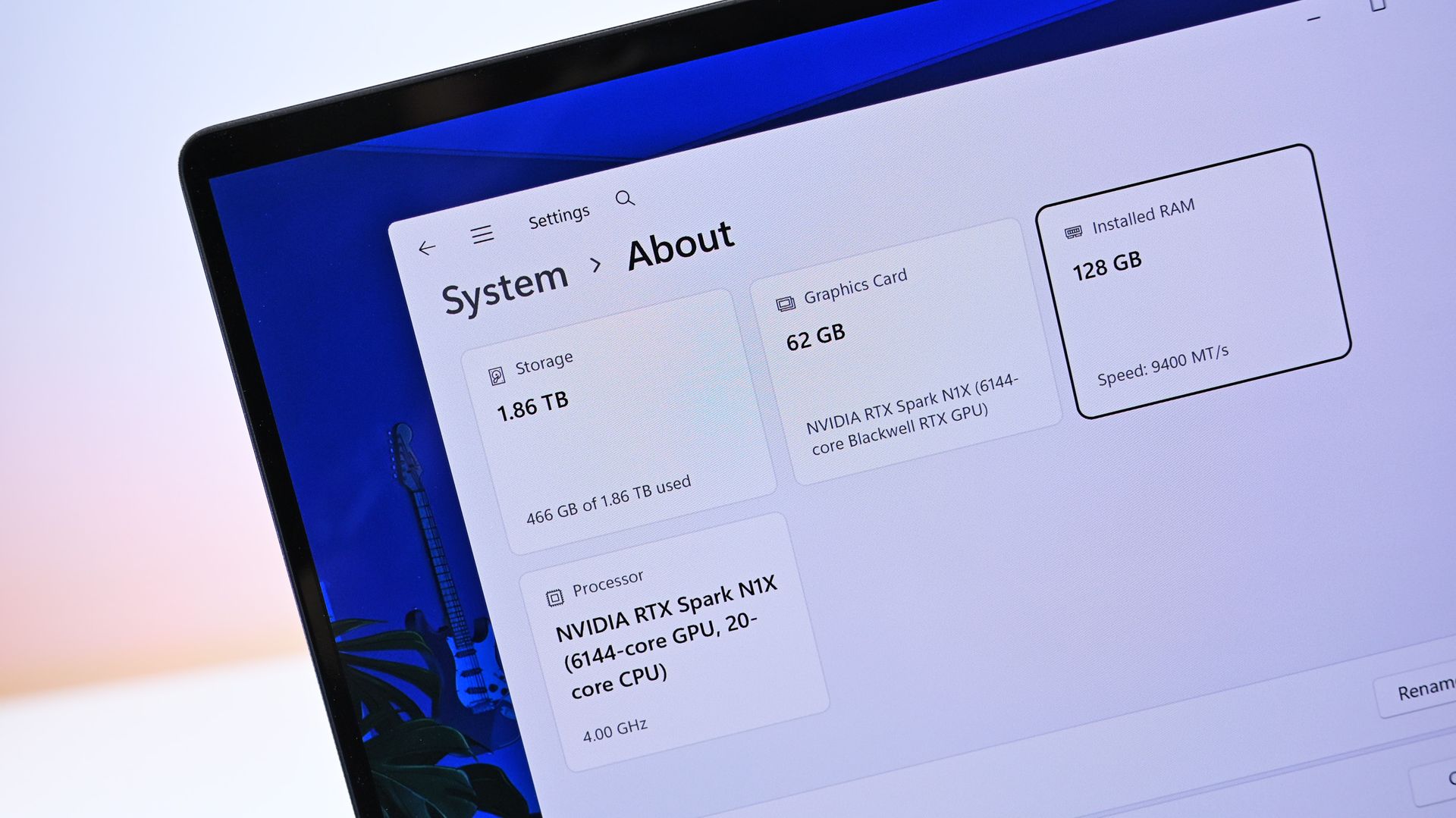
Bowden dove deeper into why Microsoft is not likely to ship Windows 12 next year. But I'm a simple man: I see nice wallpapers and I focus on those. I spent weeks hunting down the RTX Spark wallpaper and now have it set on my desktop.

The new Windows 11 wallpapers should come out with an update in 2027, but I suspect they'll leak on the web before then. You can already grab one of them now despite Microsoft not even announcing its plans for next year.

Click to join us on r/WindowsCentral

Join us on Reddit at r/WindowsCentral to share your insights and discuss our latest news, reviews, and more.
  •  

Before you preload GTA VI, grab this XBOX expansion card

After years and years of anticipation, GTA VI will finally ship this week. In fact, the game may have already pre-loaded on your console if you pre-ordered it. Regardless of whether you pre-load the game or download it later, it will take up a lot of storage.

Rockstar says you need up to 212GB free to pre-load GTA VI, depending on your device.

With the game being so large, you'll likely want additional storage so you can install GTA VI without clearing out other games to make space.

The good news is that the XBOX Series X and XBOX Series S support seamless storage expansion. The bad news is that stock of supported cards is extremely limited.

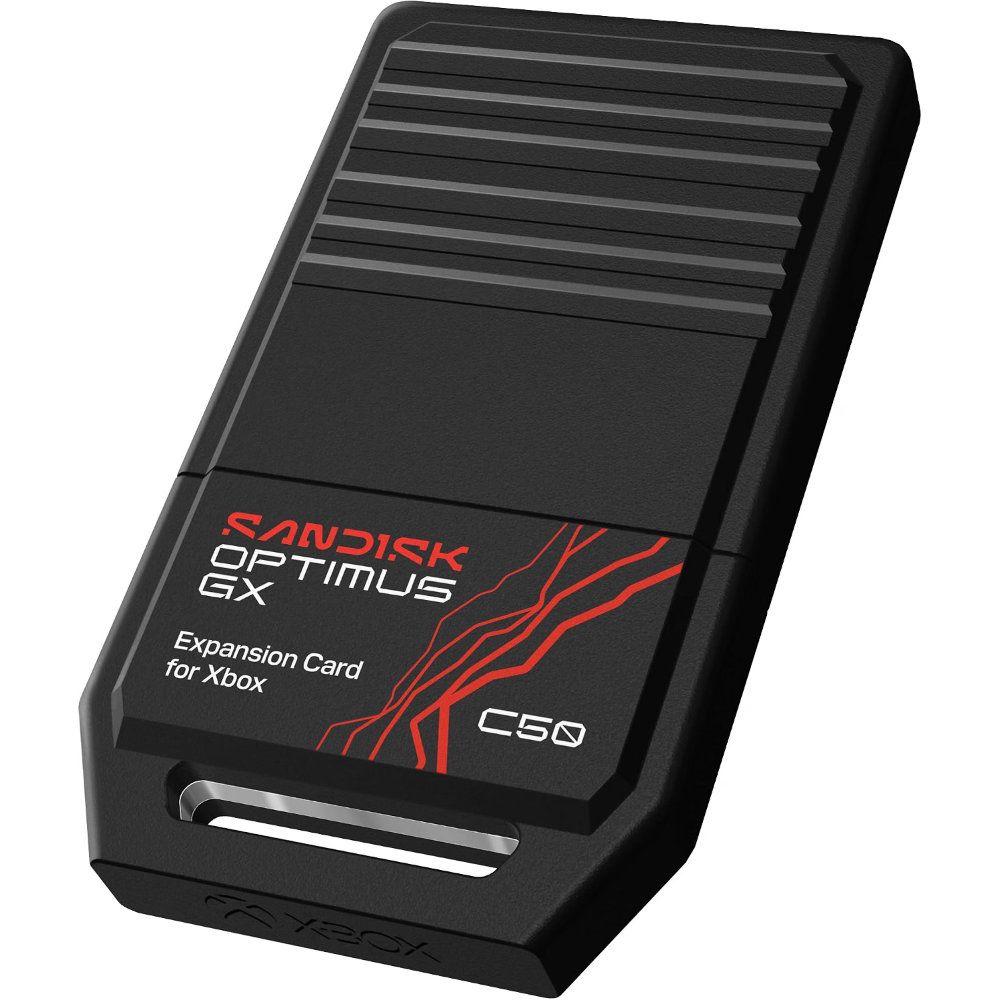
You may be able to find select individual XBOX storage cards in stock, but the only one I've been able to find available online consistently is the 2TB SANDISK Optimus GX C50 Xbox Storage Expansion Card.

Optimus GX C50 Storage Expansion Card for XBOX Series X|S (2TB): was $599.99 now $479.99

This expansion card slots seamlessly into your XBOX Series X or XBOX Series S. Its performance matches the speed of the built-in storage of your console, allowing you to play games directly off the card.View Deal

Is the SANDISK Optimus GX C50 a good XBOX storage card?

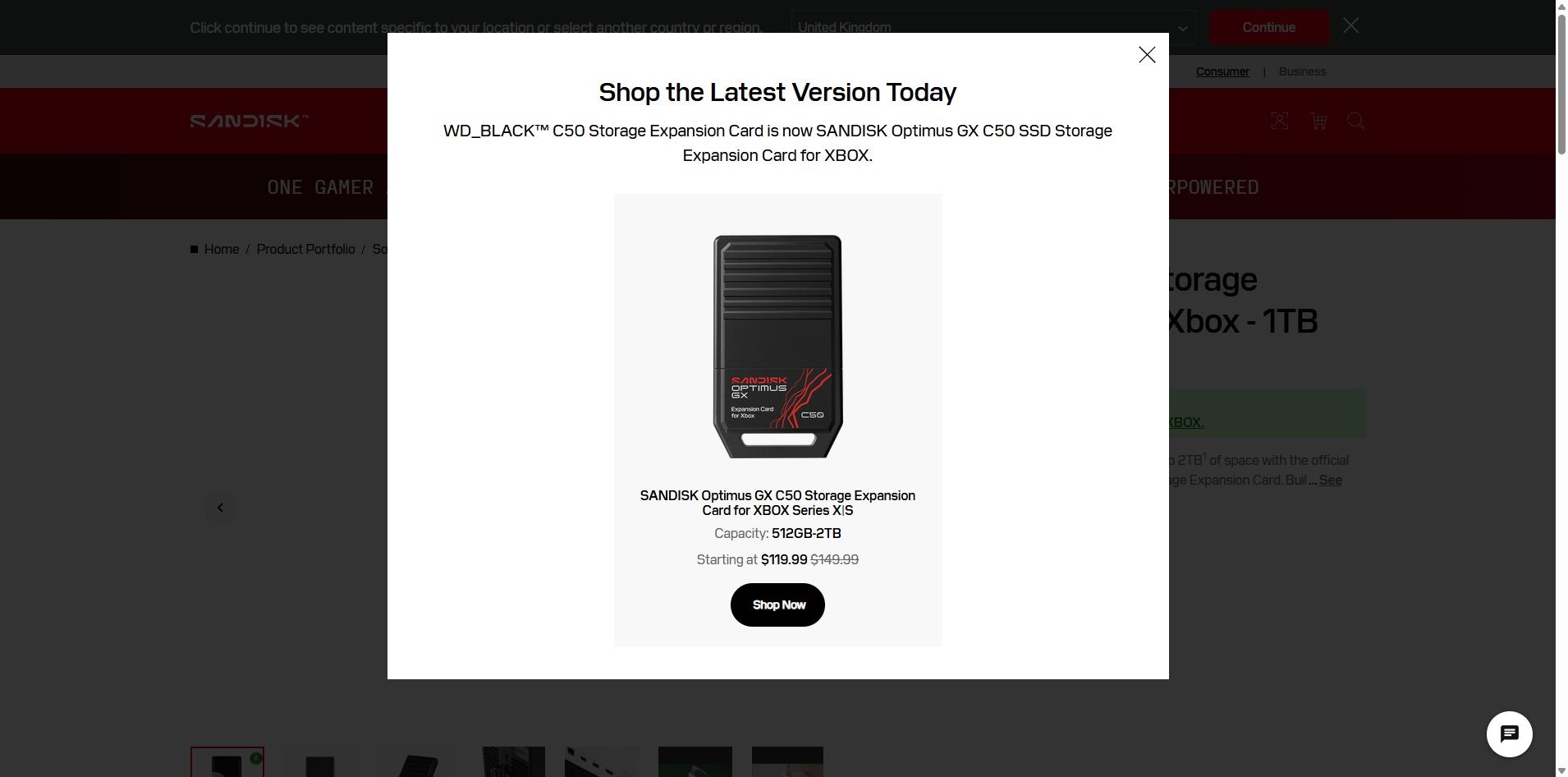
SanDisk website popup promoting the renamed Optimus GX C50 Xbox Storage Expansion Card, formerly sold as the WD_BLACK C50 Storage Expansion Card.

(Image credit: SanDisk)

The SANDISK Optimus GX C50 is the WD_BLACK C50 Storage Expansion Card under a new name. If you search for the old WD_BLACK card on SANDISK's website, you'll see a prompt explaining the change (shown above).

Regardless of the name, the performance of the card is excellent. The SANDISK Optimus GX C50 fully supports features like Xbox Quick Resume. You can quickly transfer games back and forth between the card and your console as well.

In short, using the SANDISK Optimus GX C50 should feel exactly like having a game stored directly on your XBOX Series X|S.

Unless you care about the graphics and logo on the card, you can take a deeper dive into the SANDISK Optimus GX C50 by reading our WD_BLACK C50 Storage Expansion Card review. I'll warn you that doing so may make you cry when you see the launch price of that card.

Is now a good time to buy XBOX storage?

If you haven't shopped for a console or gaming accessories for a while, you're likely shocked by the price of additional storage. The $479.99 price of the 2TB SANDISK Optimus GX C50 is more than an XBOX Series X cost just a few years ago if you found a good deal.

The XBOX Series X launched at $499.99, but for years it was easy to find one for less. Heck, Verizon used to literally give them away if you signed up for broadband. But like laptops and other gadgets, gaming devices have skyrocketed in price over the years due to the global component shortage.

So, through the twisted lens of current gaming prices, you could almost say that $479.99 is a "fair" price for 2TB of storage. Maybe a better way to say it would be to call it an "expected" price.

With GTA VI pre-loading on consoles starting November 10 and the game launching on November 19, now is the perfect time to expand the storage of your XBOX Series X|S.

Click to join us on r/WindowsCentral

Join us on Reddit at r/WindowsCentral to share your insights and discuss our latest news, reviews, and more.

  •  

The world's first Snapdragon X2 Elite mini PC is now available in Europe

The first mini PC powered by a Snapdragon X2 Elite is now available in Europe. The ASUS Ascent QN10 launched in the United States back in September, and it is now for sale in Germany, Austria, and Switzerland.

Thanks to the Snapdragon X2 Elite inside, the Ascent QN10 has an NPU with 80 TOPS that can handle language models, image processing, and automation workflows.

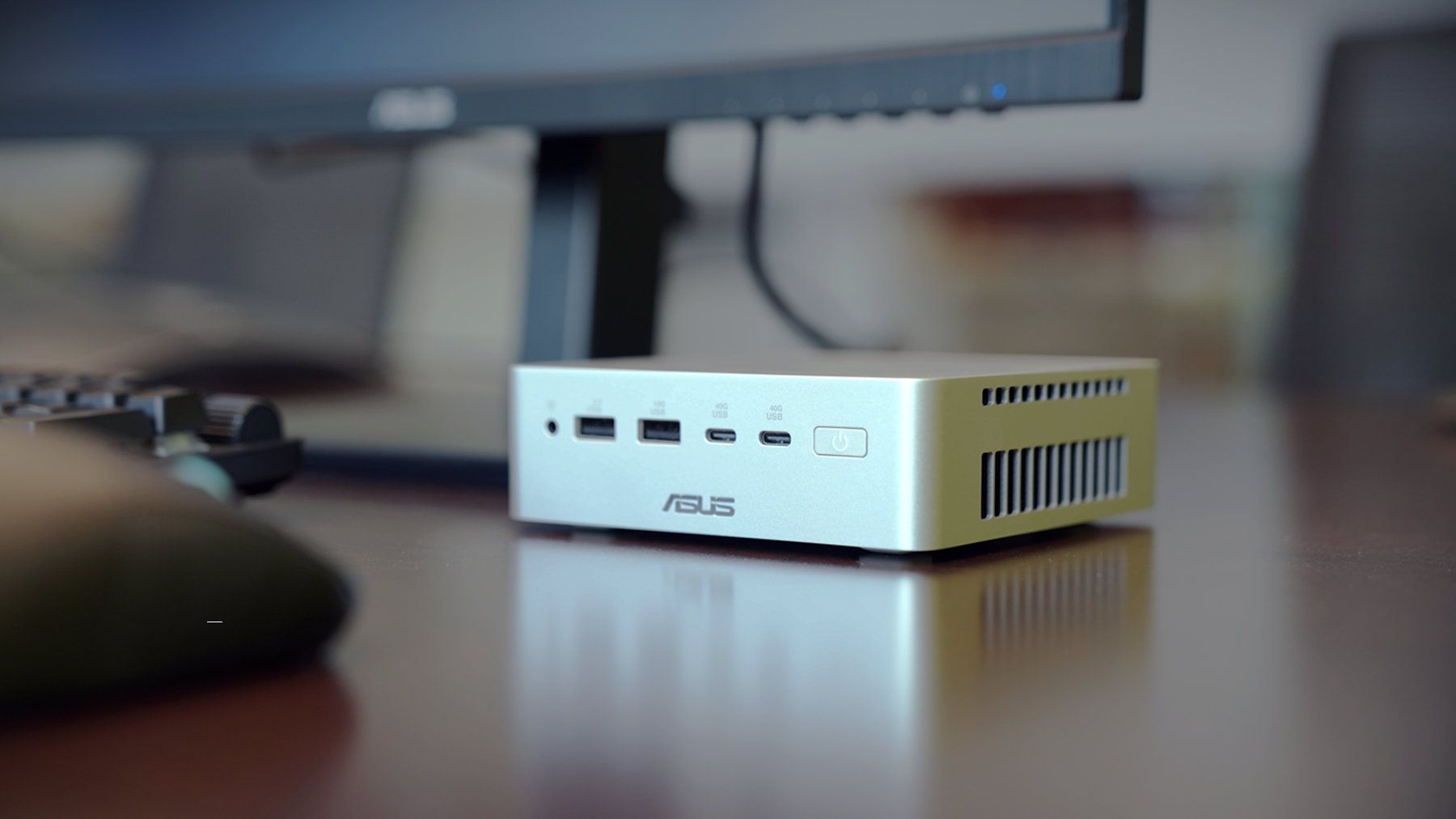
Unlike many mini PCs, the Ascent QN10 has an anodized aluminum chassis rather than a plastic one. That 0.7-liter body is 13 x 13 x 4 cm (5.1 x 5.1 x 1.5 inches), meaning it should fit comfortably on a desk or tucked away.

The Snapdragon X2 Elite is the star of the show, but the Ascent QN10 has some other tricks. For example, it is designed to keep heat from its CPU and SSD separate. The mini PC takes fresh air in from one side, then splits it.

ASUS Ascent QN10 Specs

Processor

Qualcomm Snapdragon X2 Elite (18-Core Oryon CPU)

Graphics

Qualcomm Adreno X2-90

NPU

Qualcomm Hexagon (Up to 80 TOPS)

Memory

Up to 32GB LPDDR5x

Storage

512GB, 1TB or 2TB

Ports

2 x USB4, 2 x USB-A, 1 x 3.5mm audio jack (front), 1 x USB4, 1 x HDMI 2.1, 2 x USB-A, 1 x 2.5 Gigabit Ethernet (rear)

Connectivity

Wi-Fi 7, Bluetooth 6.0

Dimensions

5.1 x 5.1 x 1.5 inches

Weight

1.6 pounds

Despite recently launching in Europe, the ASUS Ascent QN10 is already discounted in some countries. The PC has an MSRP of €2,195, but it is currently available for €2,005 on ARLT (German retailer).

There have been consumer mini PCs with Arm processors, but the Ascent QN10 is the first with a Snapdragon X2 Elite. The mini PC from ASUS stands out from many competing devices thanks to its metal body, processor, and cooling.

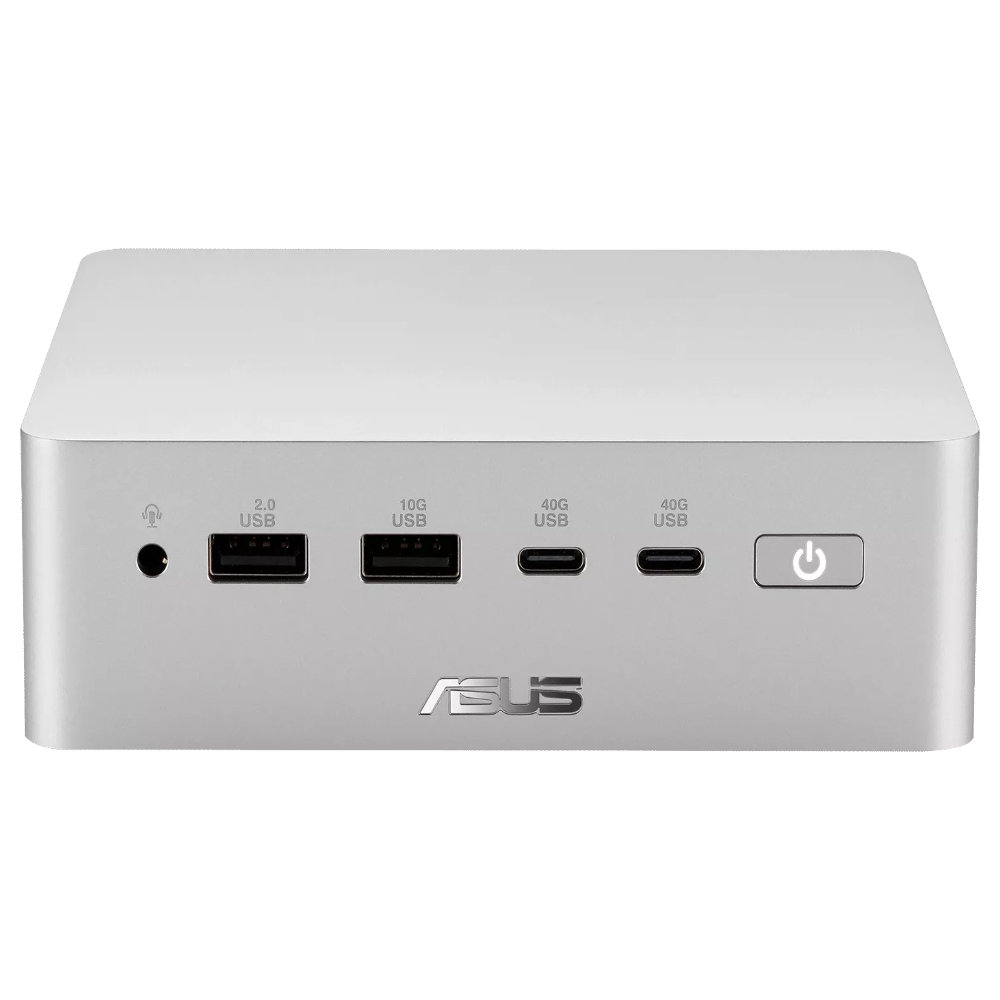
Closeup of an ASUS Ascent QN10 mini PC showing two USB ports, two USB-C ports, a power button, and a headphone jack.

ASUS
Ascent QN10 Mini PC

This mini PC runs on a Snapdragon X2 Elite and has an NPU with 80 TOPS of performance. Those specs allow it to handle AI workloads efficiently despite the compact body of the mini PC.

Click to join us on r/WindowsCentral

Join us on Reddit at r/WindowsCentral to share your insights and discuss our latest news, reviews, and more.
  •  

Microsoft is fixing accidental Sticky Keys prompts in Windows 11

"Do you want to turn on Sticky Keys?" has likely popped up on your PC at some point. That prompt appears after you press the Shift key five times and allows you to enable the feature. Soon, Windows 11 will make it easier to stop that message from appearing.

In one of the latest Windows Insider builds, Microsoft introduced an updated version of the prompt. Windows 11 will soon let you permanently disable the Sticky Keys shortcut directly from the prompt itself.

The same change is also coming to the prompt used for Filter Keys, another accessibility feature that can be enabled through a keyboard shortcut.

Windows 11 already lets you disable that shortcut, but it requires a couple of extra steps. Within Settings, you need to navigate to Accessibility > Keyboard > Sticky Keys. That section has other controls, such as turning off Sticky Keys when two keys are pressed at the same time.

The current Windows 11 prompt includes a quick link to that section of the Settings app, but the process will soon be streamlined. The updated prompt still includes a shortcut to all Sticky Keys settings.

Best news of the weekNovember 7, 2026

Sticky Keys is a useful feature that improves accessibility. It lets you press one key at a time instead of holding multiple keys at once. For example, instead of pressing Ctrl + Alt + Delete simultaneously, you can press Ctrl, then Alt, then Delete.

The shortcut to enable Sticky Keys by pressing Shift five times has been part of Windows for decades. While useful, it can be triggered accidentally. Last week, I was in a creative program and pressed Shift five times as part of my normal workflow and accidentally summoned the prompt to enable Sticky Keys.

I took the opportunity to disable the shortcut through the Settings app, but soon that won't be necessary since the prompt will include a check box that prevents it from appearing again.

Click to join us on r/WindowsCentral

Join us on Reddit at r/WindowsCentral to share your insights and discuss our latest news, reviews, and more.
  •  

Windows Wrap: Why did it take a RAM crisis to optimize Windows 11 and apps?

Windows Central

When faced with a RAM shortage and dropping PC sales, companies have limited options. PC makers can't do much to increase the supply of memory chips in the short term, and expanding production takes time. That leaves app makers and developers under pressure to make their software more memory-efficient.

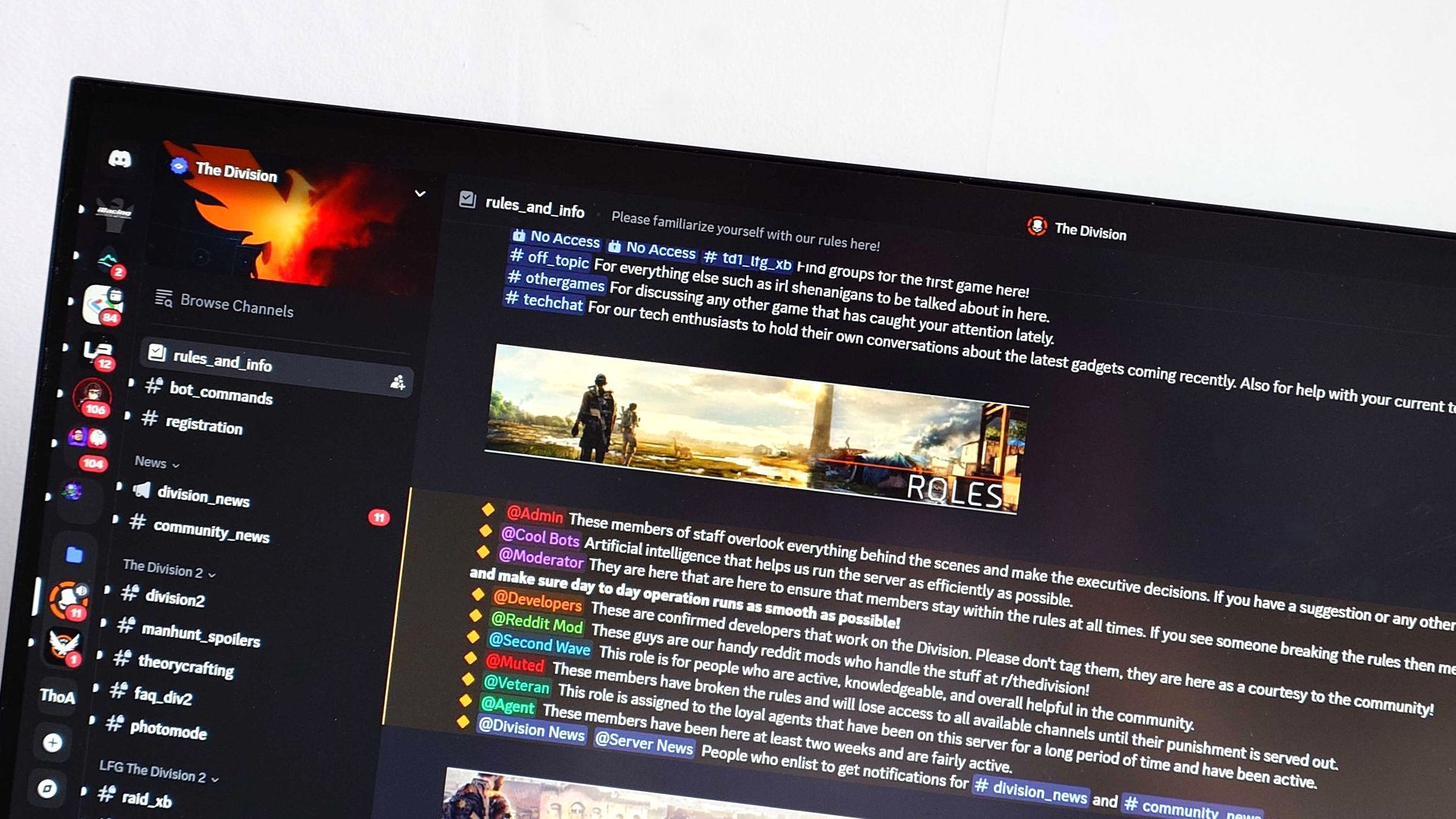
Microsoft led the charge recently in optimizing apps for systems with less RAM, though Discord also made a strong effort by ditching Electron. Everything from Windows 11 features to built-in Microsoft apps have been upgraded to use less RAM.

Microsoft is enforcing "memory budgets," such as restricting PCs with 8GB of RAM from having bloatware.

My question is, why did it take a RAM crisis for Microsoft, Discord, or any other company to care about efficiency?

Biggest News of the Week

Surface Go 4 with Windows 11
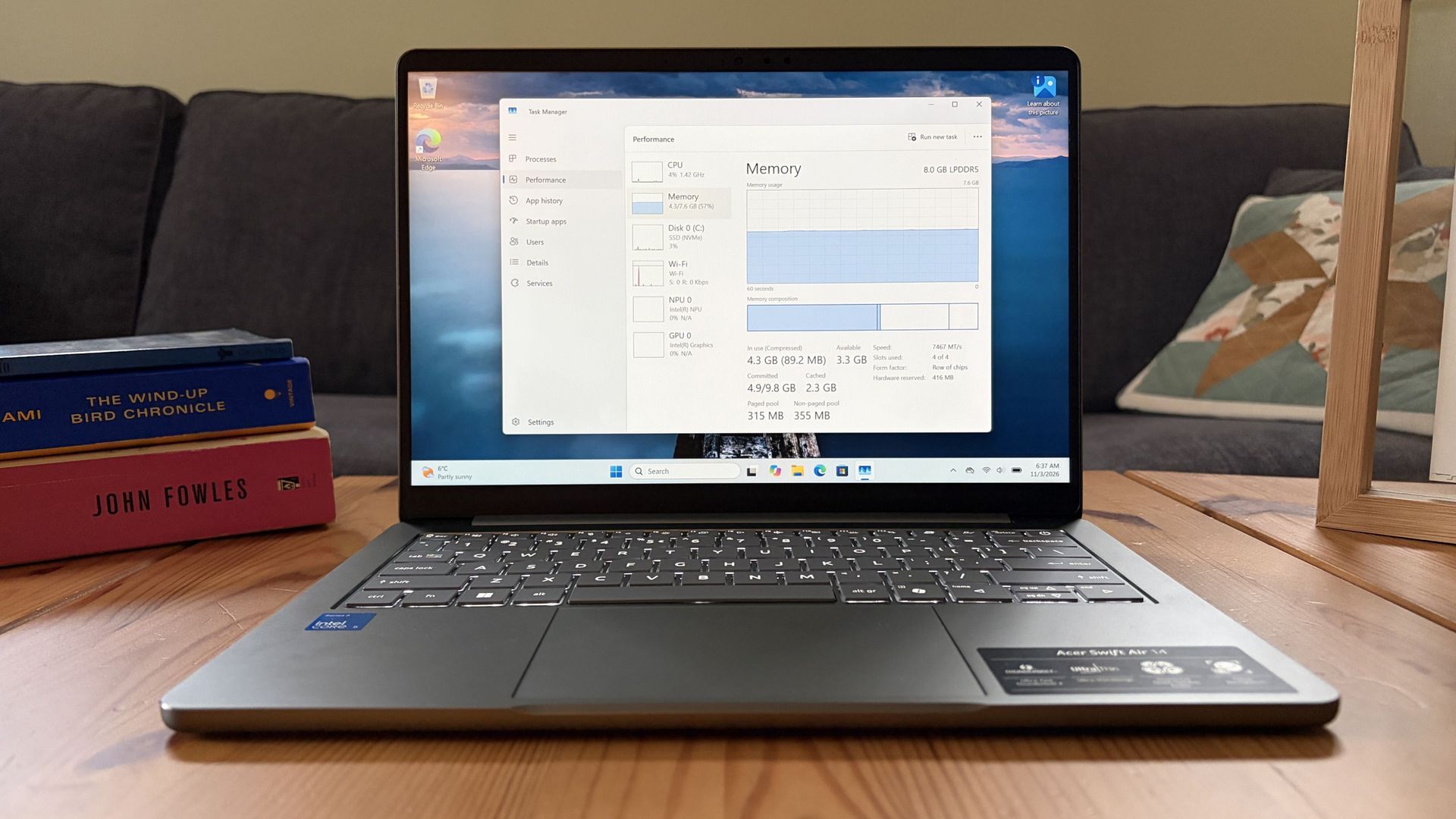
A laptop sits on a wooden coffee table, displaying Windows Task Manager’s Memory page; books and a sofa frame the quiet home setting.
Microsoft Logo at Ignite
Discord desktop app showing The Division server

With Microsoft and third-party developers working to make apps more efficient, PCs with only 8GB of RAM should perform better (though it's worth noting 8GB of RAM is already fine for some workflows). It's a welcome change, but I can't help but wonder why it's needed.

The latest version of Windows 11 proves that the operating system can run more efficiently than what we had even just a few months ago.

A lot of factors contributed to Windows 11 getting too bloated and RAM-hungry. The operating system has grown significantly since launch, adding features and expanding preexisting functionality. It seems that much of that growth happened without RAM overhead being a priority.

There also wasn't as much pressure to optimize apps until the RAM shortage kicked in. RAM was relatively inexpensive and many systems allowed you to upgrade later if you ever needed more memory.

Just as one example, back in 2023 we covered a deal that dropped the Corsair Vengeance 32GB 5200MHz to $180. Back then, it was noteworthy because the same module had previously cost $250. That price remained stable until about September 2025.

Now, that same RAM costs over $500.

Considering the relatively low cost of even a 32GB DDR5 RAM module back then, Windows 11 could chug along while eating up memory without affecting performance.

Now, out of necessity, Microsoft needs to optimize Windows 11 and as many apps as possible to reduce the total RAM demand across the PC industry. If companies like Discord hop on board, all the better.

Shopping with Sean

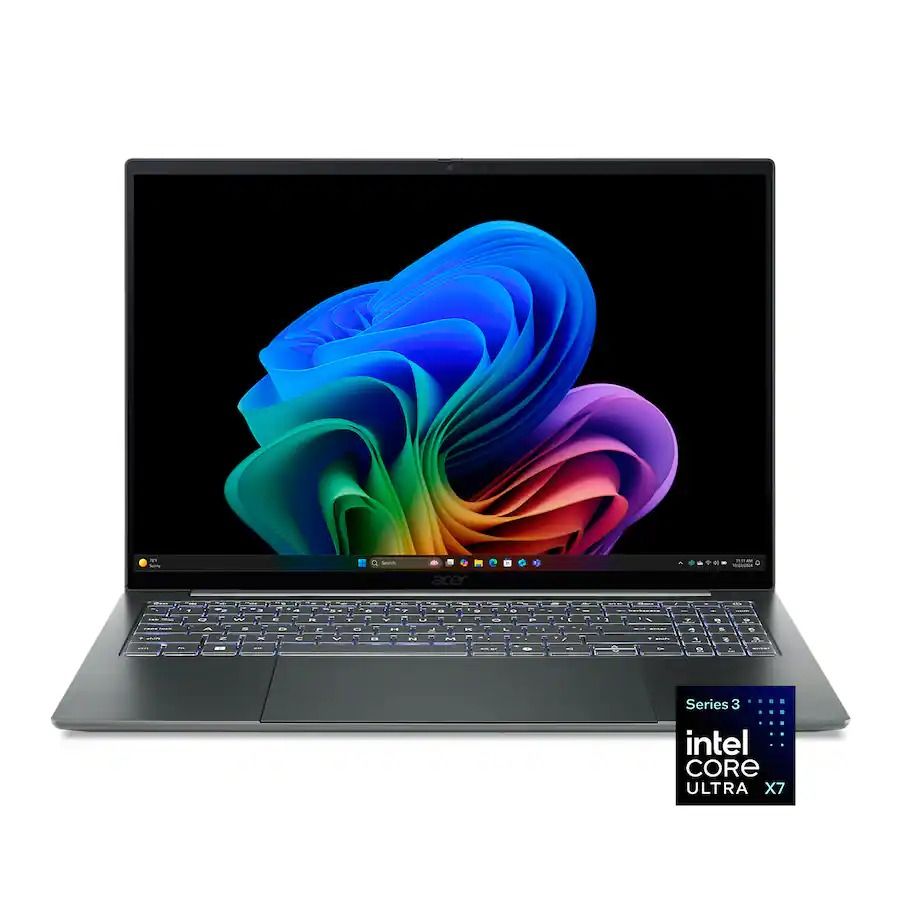
Due to the ongoing RAM shortage, it is increasingly difficult to find PCs with 16GB of RAM paired with premium specs for under $1,000. The current discount on the Acer Swift 16 AI slashes $550 off a laptop that can handle local AI workloads and creative work like video and photo editing. It also has an OLED panel our friends at Tom's Guide called its "standout feature" due to its sharp image quality and 120Hz refresh rate.

Swift 16 AI (Core Ultra X7 358H, 16GB RAM, 1TB SSD): was $1549.99 now $999.99

"Impresses with its vibrant 16-inch OLED panel, powerful Panther Lake-powered performance, ultraportable design, and long-lasting battery life." — Tony Polanco, Senior Computing Writer, Tom's Guide

Tom's Guide review: ⭐⭐⭐⭐View Deal

Click to join us on r/WindowsCentral

Join us on Reddit at r/WindowsCentral to share your insights and discuss our latest news, reviews, and more.
  •  

If you use Magnifier across multiple screens, this Windows 11 update could make a huge difference

Windows Insiders have a bunch of new builds to check out. Microsoft released five Insider builds to wrap up the week, and they include everything from tiny changes and fixes to a massive update to Magnifier.

Rather than stretching a single magnified view across all of your displays, Magnifier will remember distinct zoom percentages to each monitor.

Magnifier also has a new contrast theme to reduce glare. This is different from the color inversion. Magnifier's contrast theme leaves photos, charts, and videos untouched.

This release of Windows Insider builds also serve as a reminder that Microsoft is reducing that amount of storage that comes with a Microsoft 365 Family plan. Of course, Microsoft does not phrase it that way, but it's true.

The build shipping to Beta channel Insiders adds a section in the Settings app that shows how much shared storage is used across your Microsoft 365 Family plan. That plan currently includes up to 6TB of OneDrive storage spread across six users. That will soon be reduced to 2TB of OneDrive storage shared across the entire family.

Windows Update (Beta)

  • With this update, the Beta channel moves to Windows 11, version 26H2, with the build number increasing to Build 26320. You shouldn't expect any significant change from this build number increase alone, as it's delivered via an enablement package (eKB) update.

Windows Search (Beta, Beta (26H1))

  • New Windows Search experience with inline actions: A new Windows Search experience built on WinUI 3 is beginning to roll out. It's faster, more efficient, and features a streamlined design that makes results easier to scan. Inline actions let you quickly complete tasks directly. Turn on dark mode or Bluetooth, adjust your screen brightness, mute your device, or arrange windows from Windows Search.
  • Windows Search is improving how it understands what you're looking for, including better matching for typos and synonyms. These improvements will continue to be fine-tuned over the coming weeks. For more information about the changes, check out the Windows Insider Blog.
  • English is the only supported language for this initial release.

Live captions (Beta, Experimental)

  • Live captions now gives you control over what gets transcribed. Previously, captions used system audio, with an option to add your microphone. Now you can choose system audio, your microphone, or both, so captions follow the sound you care about. Caption an in-person conversation without picking up system audio, or follow audio from your PC during a meeting or while watching a video.

Gaming (Beta)

  • Quick settings is coming to the Gaming Task View navigation bar in XBOX mode, giving you access to the full set of Quick settings available on the Windows taskbar without having to leave XBOX mode.

Web sign-in (Beta)

  • Web sign-in now works on Microsoft Entra hybrid joined devices. Before this update, it was only available on Microsoft Entra joined devices. You can sign in to Windows at the lock screen with a passwordless credential: a FIDO2 security key, a passkey on your phone, or a Temporary Access Pass (TAP). You don't need a password. Once you're signed in, Windows gets a Kerberos ticket, so on-premises file shares and internal sites keep working. For more information, see Use web sign-in to enable passwordless sign-in in Windows.

Windows Hello (Beta, Experimental (26H1)))

  • Windows Hello facial recognition can temporarily brighten your screen to help you sign in when you're in a dark or dimly lit room.
  • To turn on this feature, go to Settings > Accounts > Sign-in options > Facial recognition (Windows Hello) and turn on Automatically adjust screen brightness during face recognition.

Windows Hello (Experimental)

  • Sign-in and unlock now behave more consistently and give clearer guidance. You no longer have to wait for face or fingerprint recognition to finish before entering your PIN. Use whichever method works first. At certain times, such as after a restart, you'll need your PIN first. After that, biometrics work as usual.
    • New Windows Hello events let IT admins see how users sign in. The sign-in experience doesn't change. In Event Viewer > Windows Logs > Security, event 4628 records the Windows Hello methods a user has set up and which method they used to sign in (PIN, face, fingerprint, or no Windows Hello). Event 4629 records failed Windows Hello sign-in attempts. Both events use the existing Audit Logon policy.
    • For troubleshooting, events 5010 and 7010 in Event Viewer > Applications and Services Logs > Microsoft > Windows > HelloForBusiness > Operational record each Windows Hello sign-in and unlock, along with the result.

Input (Beta)

  • The dialogs that ask whether you'd like to turn on Sticky Keys or Filter Keys are being updated, making it easier to dismiss these prompts permanently. If you don't use these keyboard features, you can choose not to be asked again directly from the dialog, helping you continue what you're doing with fewer interruptions.

Input (Experimental)

  • Live captions now gives you control over what gets transcribed. Previously, captions used system audio, with an option to add your microphone. In Live captions settings, you can now choose system audio, your microphone, or both, so captions follow the sound you care about. Caption an in-person conversation without picking up system audio, or follow audio from your PC during a meeting or while watching a video.

Settings (Beta)

  • Windows Settings now contains shared storage usage across Microsoft 365 Family subscriptions. A breakdown for each family member is coming soon. If your subscription was purchased after October 8, 2026, you can check the view by going to Settings > Accounts > Cloud storage. If your subscription was purchased before October 8, 2026, this view will be available for you after the first subscription renewal on or after May 2, 2027. Learn more about the changes to Microsoft 365 storage.

Settings (Experimental)

  • Discover your account benefits in Settings. It's now easier to discover the benefits and services available with your Microsoft account, right in Windows Settings.

File Explorer

  • The Address Bar now supports ~, making it quicker to navigate directly to your user profile folder and subfolders, for example, ~\AppData.

File Explorer (Beta (26H1))

  • PDF and non-HTML files downloaded from the web can now be previewed automatically in the Preview pane.

Math equations in Braille with Narrator (Experimental)

  • Building on Narrator's math reading and navigation support, the experience is expanding to refreshable Braille displays. When Narrator reads supported equations in Microsoft Word, PowerPoint, Edge, or Google Chrome, Narrator Math is now shown on your connected Braille display, letting you explore them by touch while listening to Narrator.
  • Math is at the heart of STEM education and learning, and this update helps students and professionals independently read, understand, and explore equations, formulas, and scientific notation with confidence.
  • You can choose a math format in Braille without changing your default Braille output table. Supported math output formats include Nemeth (default), UEB, CMU, Vietnamese, Swedish, LaTeX, and ASCIIMath. In Narrator Math settings, you can also customize the reading language, speech behavior, and navigation preferences.

Magnifier (Beta (26H1))

  • More and more of the work people do happens across more than one screen. You draft on one display and keep source material open on another. You fill in a form while a reference document sits beside it. Those extra displays can be more helpful when each one can do its own job, and now Magnifier supports exactly that.
  • To use this update, set your monitors to Extend in System > Display, not Duplicate, so Windows treats each screen as its own space.
  • Every screen keeps its own view at its own zoom. In earlier versions of Magnifier, zooming in stretched a single magnified view across all of your displays, so one screen's zoom followed you everywhere and screen edges blurred together. With this update, each monitor's boundary is respected, and each monitor can have its own zoom percentage. Your writing screen can be at 300% while your reference screen stays at 150%, and the magnified view no longer spills from one display into the next. This behavior matters because different tasks and screen resolutions often require different levels of magnification to remain comfortable to read.

Setting the zoom on each screen is easy. Choose whichever method feels natural:

  • Move your mouse pointer onto the screen you want to adjust, then press Windows key + Plus (+) or Windows key + Minus (-), or hold Ctrl + Alt and rotate your mouse wheel.
  • Set the percentages directly in Accessibility > Magnifier.
  • Drag the Magnifier toolbar onto a specific screen to adjust that screen from its on-screen controls.
  • Per-monitor zoom is turned on by default. If you prefer the classic behavior where a single zoom spans all of your displays, you can turn per-monitor zoom off at any time from either the Magnifier toolbar or Accessibility > Magnifier. You can turn it back on whenever you like.
    • As you move your mouse from screen to screen, the magnified view naturally follows your pointer. Sometimes this might cause you to lose sight of the content that you're actively working on.
    • Viewport locking keeps that view in place. For example, you might be drafting an email based on a section of a document open on another display. Position that display so the paragraph you need is in view, press Ctrl + Windows key + K, and the screen holds its view steady while you move your cursor over to write. The locked screen stays fully live and interactive, so you can glance back, click, or copy from it whenever you need to, and its view stays put until you release it.
    • A message appears on the screen when it's locked, so you always know what's being held. To lock or unlock a screen, point your mouse at that screen and press Ctrl + Windows key + K again. To release everything at once, press Windows key + Esc to dismiss all locks. To use a different key combination, you can switch the lock shortcut to Ctrl + Alt + P in Accessibility > Magnifier.

Magnifier new contrast theme

  • A new contrast theme toggle for a lower-glare screen. If bright screens are uncomfortable, many people use color inversion to reduce glare. However, inversion changes everything on screen, including photos, charts, and videos. With this update, Magnifier introduces a new contrast theme toggle.
  • Reduce glare with a single toggle. Turn on a contrast theme directly from the Magnifier toolbar for a more comfortable viewing experience.
  • Choose the contrast theme that works best for you. The dark theme is applied by default, and you can choose which contrast theme the toggle uses under Settings > Accessibility > Magnifier.
  • Photos, videos, and charts keep their original colors. Unlike color inversion, the contrast theme recolors the interface without touching your photos, charts, or videos, so they keep their real colors.
  • Color inversion is still here. This isn't a replacement. If you use inversion today, it works exactly as it always has. The contrast theme is a separate, purpose-built option to reduce glare when you want a darker interface without inverting colors.

Manage camera, microphone, and location access for desktop apps (Experimental (Future Platforms)

  • Windows Insiders can now manage camera, microphone, and location permissions for individual desktop apps. Previously, access for traditional desktop applications was managed through a single device-wide setting.
  • With this update, you can review and control access on an app-by-app basis, giving you greater visibility into which apps are requesting access to sensitive resources and more control over your privacy choices. These controls make privacy permissions easier to understand and manage across the wide range of desktop apps you use every day.

What's changing

  • Allow or deny access for each desktop app individually.
  • Go to Settings > Privacy & security > Camera, Microphone, or Location to review and manage permissions.
  • Apps that haven't yet accessed a resource prompt for permission the first time access is requested.

What stays the same

  • Existing app permission decisions are preserved.
  • Apps previously granted access continue to have access.
  • Apps previously denied access remain denied.
  • No action is required, and no settings are reset.
  • Existing enterprise policies continue to function as designed. We're exploring additional management capabilities.

Notes

  • Most desktop apps appear with clear app attribution. However, some apps that rely on shared system components, browser-hosted experiences, or similar technologies might appear under a different name than expected.
  • Some desktop apps might appear as Unsigned if Windows can't verify publisher information. Only grant access to apps you recognize and trust.

Click to join us on r/WindowsCentral

Join us on Reddit at r/WindowsCentral to share your insights and discuss our latest news, reviews, and more.
  •  

This free tool tells you what is hogging your GPU

A free tool with a bit of a strange name will let you know what's using the GPU on your PC. Microsoft engineer Scott Hanselman created gputaskman to show more details than Windows 11's built-in tools.

Task Manager can show per-process GPU usage and memory consumption, but it provides limited insight into exactly how applications are using GPU resources. You can see more information in the Details tab, but that still fails to paint a full picture.

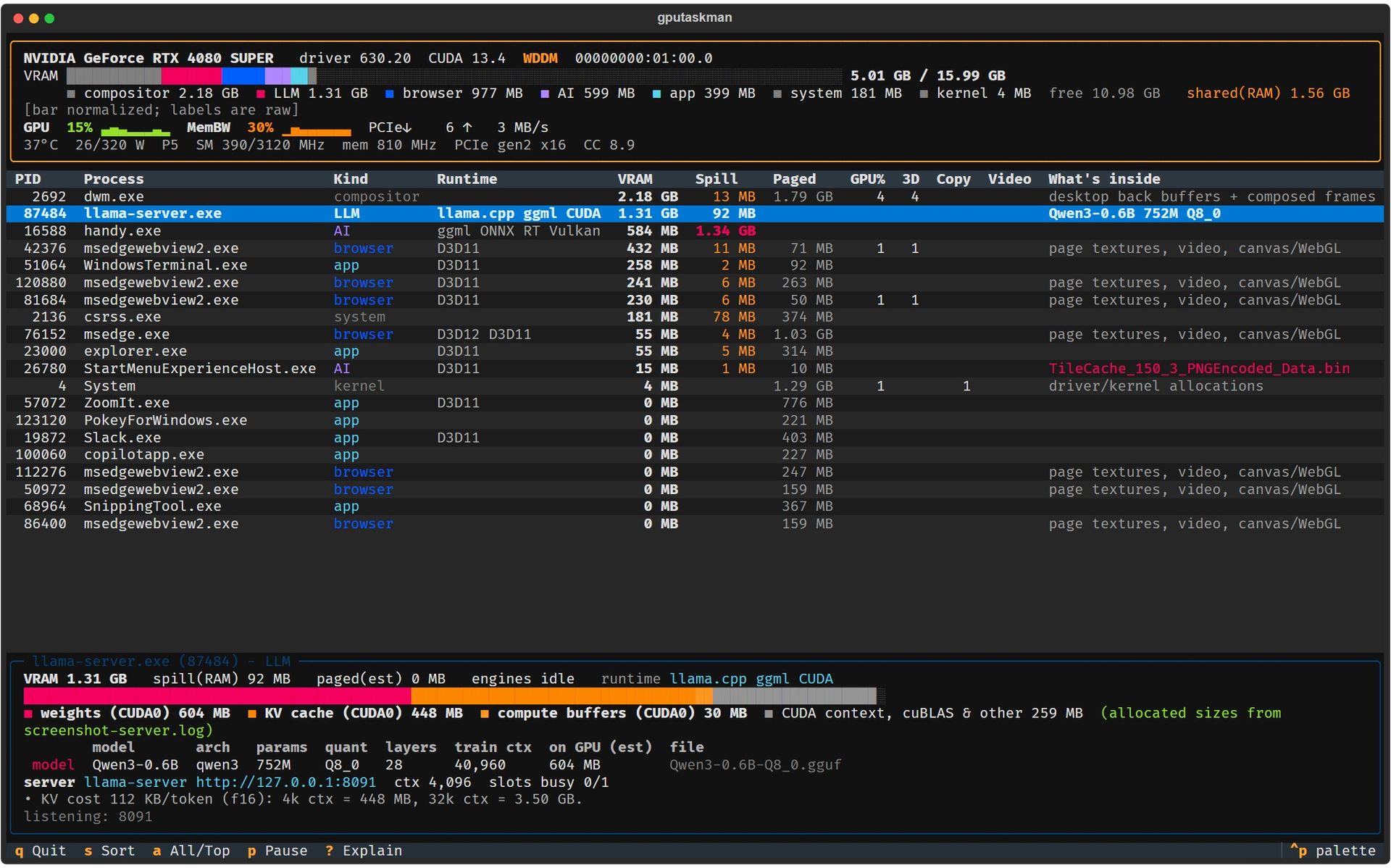
The gputaskman app shows information for individual processes, such as GPU usage and VRAM consumption. Rather than simply showing that GPU memory is in use, gputaskman can help pinpoint whether that memory is being consumed by an AI model, a web browser, desktop rendering, or another process.

It can also identify local AI workloads and display details about running LLMs, including information about model memory usage and related GPU resources. The app displays GPU temperature as well.

Scott Hanselman's gputaskman utility breaks down GPU usage by process, showing VRAM consumption, application activity, and local AI model workloads.

Scott Hanselman's gputaskman utility shows per-process GPU activity, VRAM usage, and local AI model information. (Image credit: Scott Hanselman)

Hanselman explained the app's purpose on the gputaskman GitHub page:

"Task Manager says '15 GB used.' This tries to answer: by what? Model weights? KV cache? Your browser? The desktop compositor? And why is so much GPU memory in system RAM?"

The app is still in the early stages of development. Hanselman has invited people on X to create pull requests. Right now, gputaskman supports Windows PCs with AMD or NVIDIA GPUs. Hanselman said in a follow-up post that the goal is to work on the Surface Laptop Ultra and other RTX Spark and Windows on Arm devices.

Microsoft's recently announced Hybrid intelligence initiative combines on-device AI processing with cloud-based AI services. As more AI tasks run locally on PCs, users may want better visibility into how those workloads affect GPU memory and performance. Tools such as gputaskman provide a detailed look at which processes, models, and applications are consuming GPU resources.

Click to join us on r/WindowsCentral

Join us on Reddit at r/WindowsCentral to share your insights and discuss our latest news, reviews, and more.

  •  
❌